/



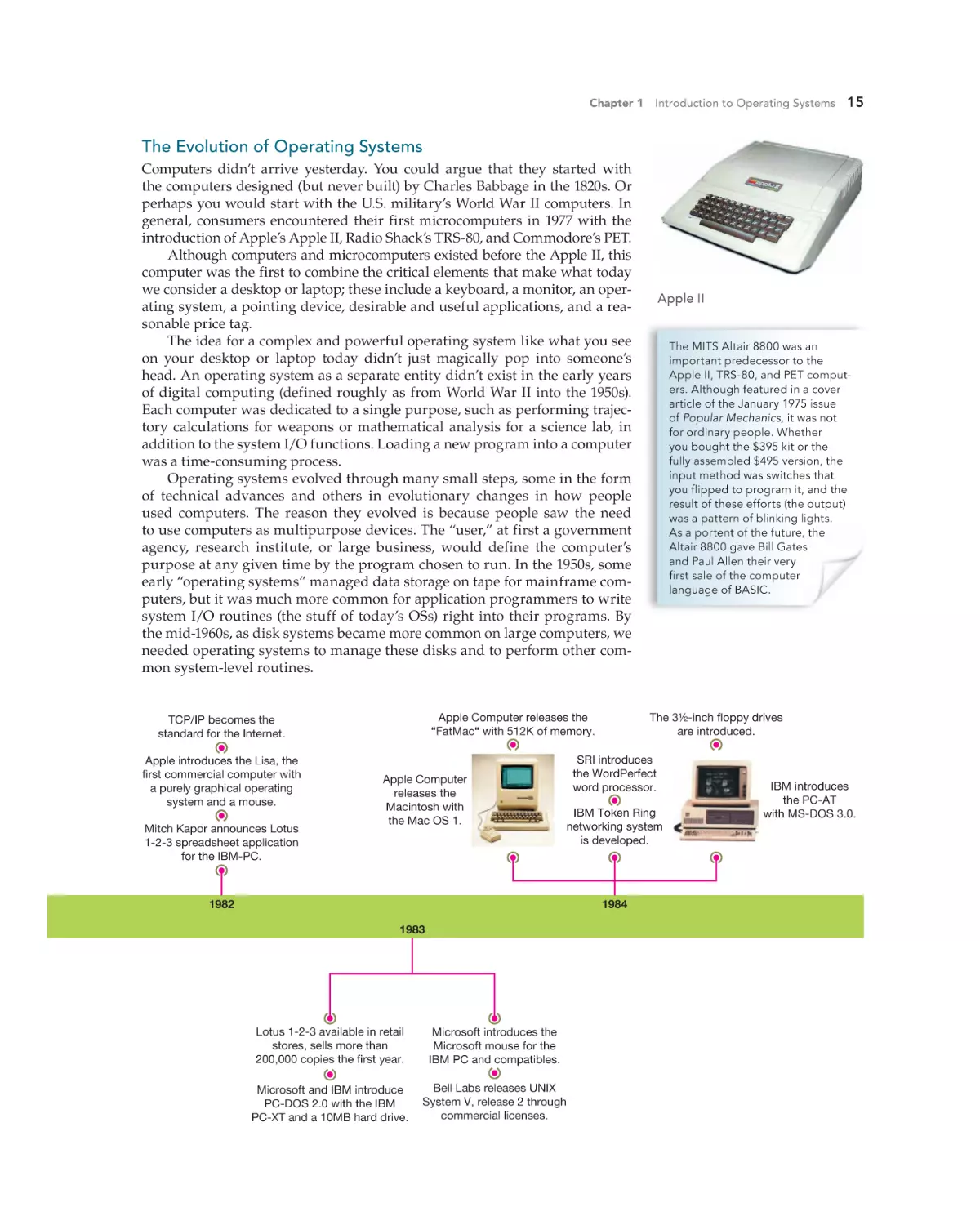
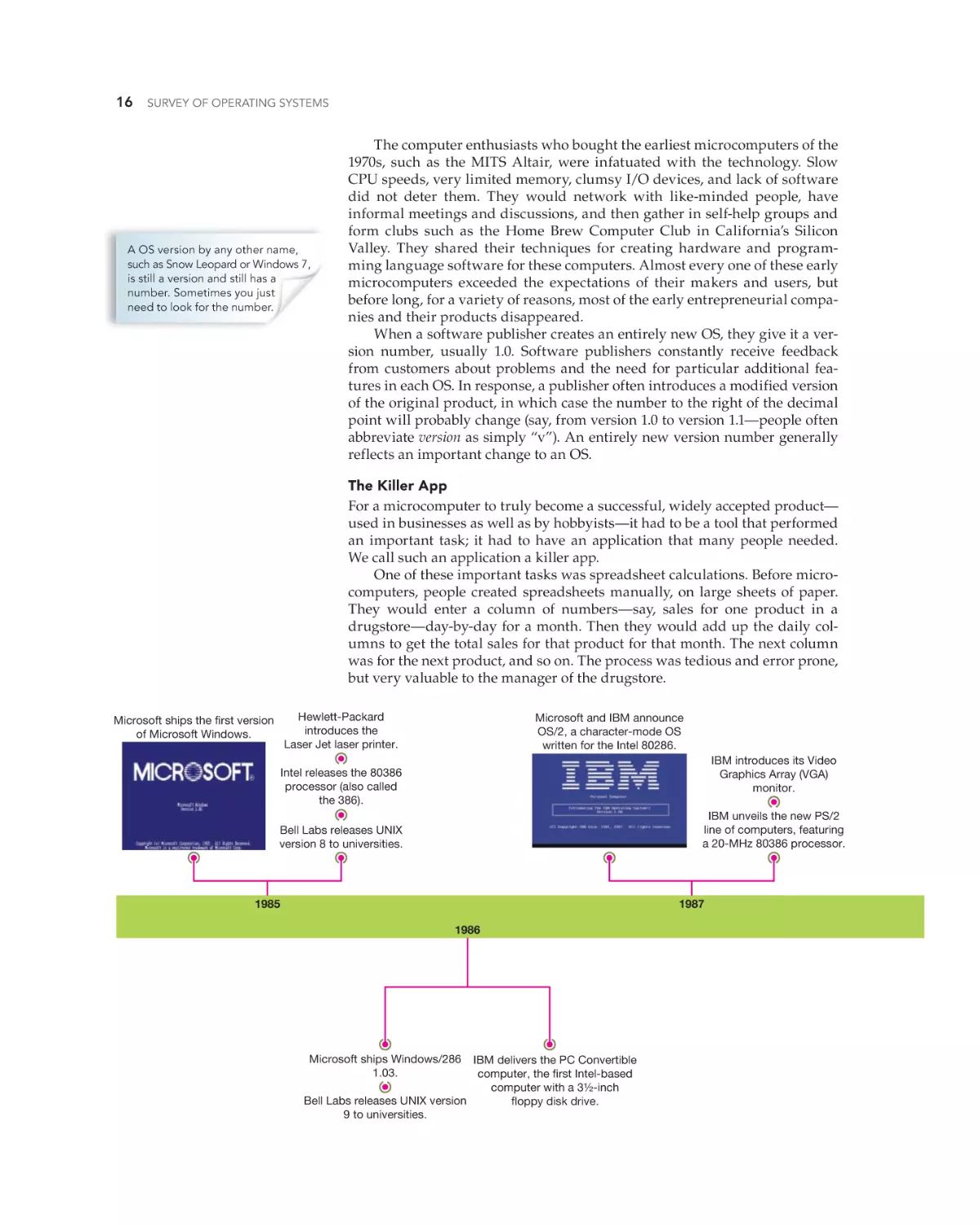
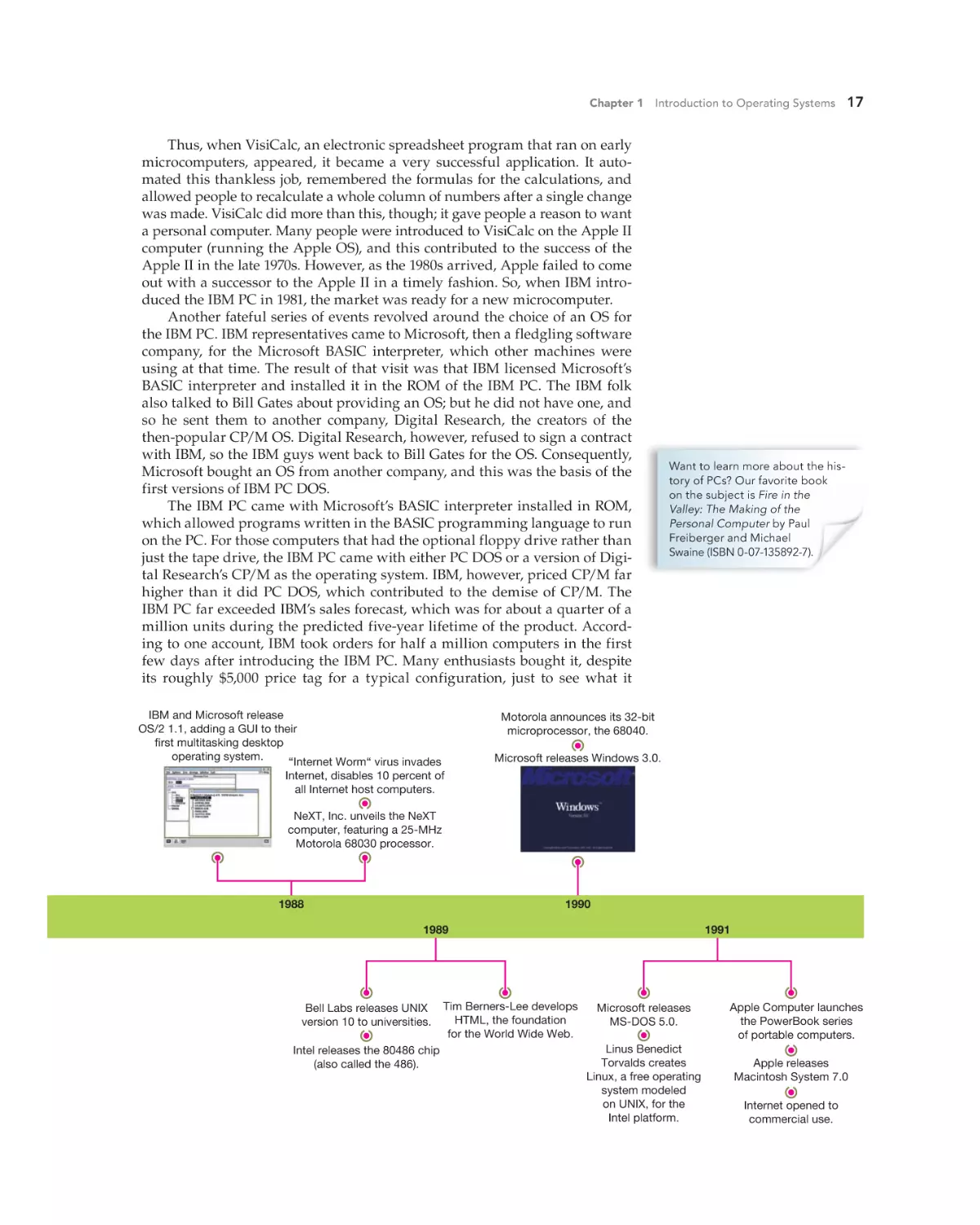
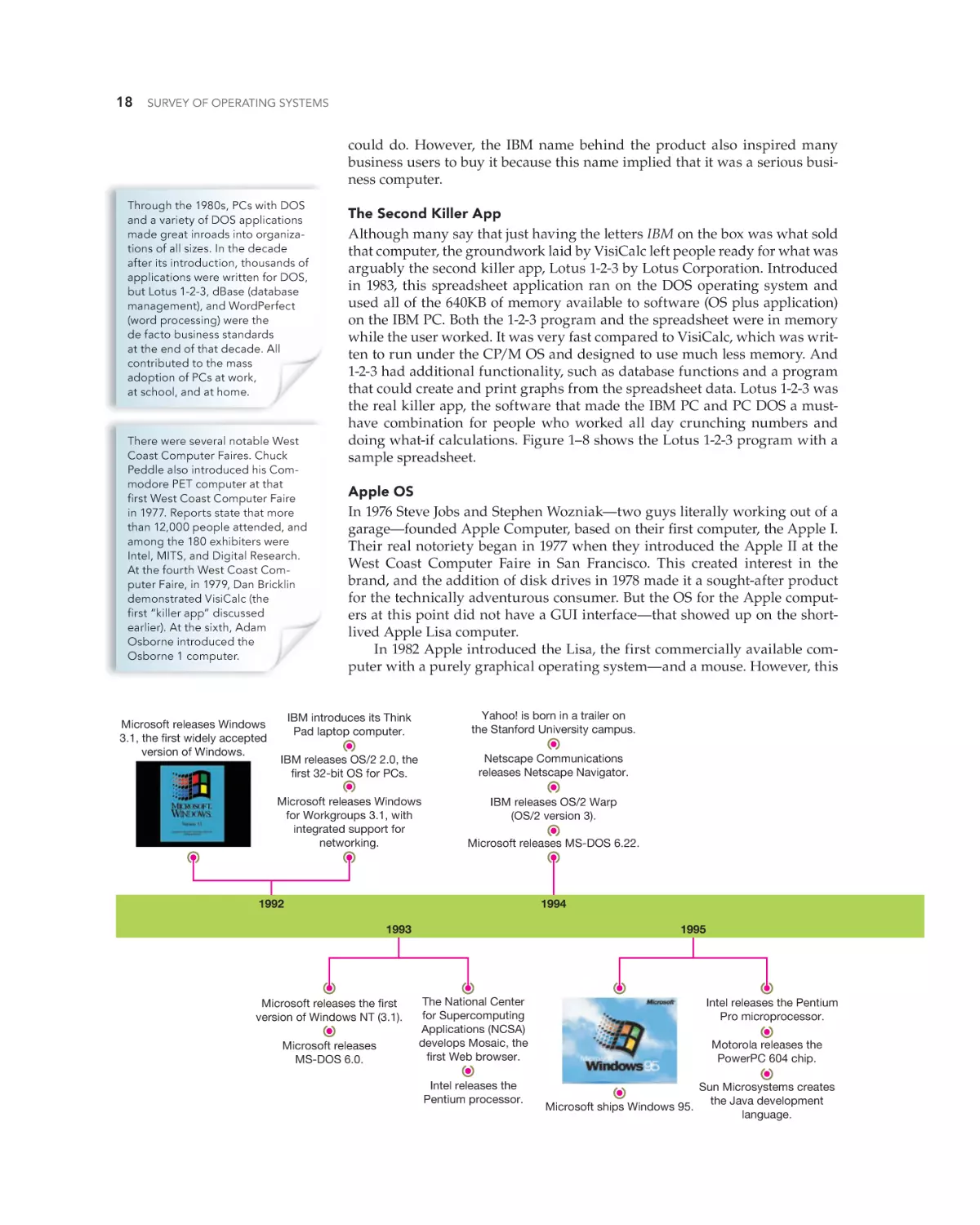






















Текст
•
•
•
•
•
www.mhhe.com/holcombe3
Operating
Systems
Third Edition
MD DALIM #1132614 02/26/11 CYAN MAG YELO BLK
•
Operating Systems
Key Features:
survey of
“Your Foundation for IT Success!”
survey of
3e
Holcombe
Holcombe
Jane Holcombe
Charles Holcombe
Confirming Pages
survey of
hoL18174_fm_i-xvi.indd i
Operating
Systems
2/25/11 7:58 PM
Confirming Pages
hoL18174_fm_i-xvi.indd ii
2/25/11 7:58 PM
Confirming Pages
survey of
Operating
Systems
Third Edition
Jane Holcombe
Charles Holcombe
TM
hoL18174_fm_i-xvi.indd iii
2/25/11 7:58 PM
Rev.Confirming Pages
TM
SURVEY OF OPERATING SYSTEMS
Published by McGraw-Hill, a business unit of The McGraw-Hill Companies, Inc., 1221 Avenue of the Americas, New York, NY, 10020. Copyright
© 2012 by The McGraw-Hill Companies, Inc. All rights reserved. Previous editions © 2003 and 2006. No part of this publication may be
reproduced or distributed in any form or by any means, or stored in a database or retrieval system, without the prior written consent of The
McGraw-Hill Companies, Inc., including, but not limited to, in any network or other electronic storage or transmission, or broadcast for distance
learning.
Some ancillaries, including electronic and print components, may not be available to customers outside the United States.
This book is printed on acid-free paper.
1 2 3 4 5 6 7 8 9 0 QDB/QDB 1 0 9 8 7 6 5 4 3 2 1
ISBN
MHID
978-0-07-351817-6
0-07-351817-4
Vice president/Editor in chief: Elizabeth Haefele
Vice president/Director of marketing: Alice Harra
Publisher: Scott Davidson
Sponsoring editor: Paul Altier
Director, digital publishing: Crystal Szewczyk
Development editor: Alan Palmer
Editorial coordinator: Allison McCabe
Marketing manager: Tiffany Russell
Digital development editor: Kevin White
Director, Editing/Design/Production: Jess Ann Kosic
Lead project manager: Susan Trentacosti
Buyer: Nicole Baumgartner
Senior designer: Anna Kinigakis
Senior photo research coordinator: Keri Johnson
Manager, digital production: Janean A. Utley
Media project manager: Cathy L. Tepper
Cover and interior design: Laurie J. Entringer
Typeface: 10/13 Palatino
Compositor: Laserwords Private Limited
Printer: Quad/Graphics
Cover credit: © Dave Cutler Studio, LLC
Chapter opening credits: page 1: Fuse/Getty Images; page 39: Chad Baker/Ryan McVay/Getty Images; page 79: Screenshot courtesy of Charles
and Jane Holcombe; page 105: Deborah Feingold/CORBIS; page 145: Reuters/CORBIS; page 193: ELOY ALONSO/Reuters/Corbis; page 241:
Jan Stromme/The Image Bank/Getty Images; page 275: Image Source/Corbis; page 319: Brian Kersey/Getty Images; page 361: Yuriy Panyukov/
Alamy. Timeline photos in Chapter 1: Page 12: Courtesy of the Computer History Museum. Courtesy Xerox Corporation. Page 13: CPU
Collection Konstantin Lanzet/Wikipedia. National Museum of American History, Behring Center. ©2004 Smithsonian Institution. Courtesy
Apple Computer. Courtesy Microsoft® Corp. Page 14: Ralph Morse/Time Life Pictures/Getty Images. Courtesy of the Computer History
Museum. Page 15: Courtesy Apple Computer. Courtesy of IBM Corporation. Page 19: Courtesy of palmOne, Inc. Courtesy Apple Computer.
Page 20: Courtesy Apple Computer. Page 22: Software box photograph courtesy of Apple.
The example companies, organizations, products, domain names, e-mail addresses, logos, people, places, and events depicted herein are
fictitious. No association with any real company, organization, product, domain name, e-mail address, logo, person, place, or event is intended
or should be inferred.
Information has been obtained by McGraw-Hill from sources believed to be reliable. However, because of the possibility of human or
mechanical error by our sources, McGraw-Hill, or others, McGraw-Hill does not guarantee the accuracy, adequacy, or completeness of any
information and is not responsible for any errors or omissions or the results obtained from the use of such information.
Library of Congress Cataloging-in-Publication Data
Holcombe, Jane.
Survey of operating systems / Jane Holcombe, Charles Holcombe.—3rd ed.
p. cm.
Includes index.
ISBN-13: 978-0-07-351817-6 (alk. paper)
ISBN-10: 0-07-351817-4 (alk. paper)
1. Operating systems (Computers) I. Holcombe, Charles. II. Title.
QA76.76.O63H6465
2012
005.4’3—dc22
2011001471
The Internet addresses listed in the text were accurate at the time of publication. The inclusion of a Web site does not indicate an endorsement by
the authors or McGraw-Hill, and McGraw-Hill does not guarantee the accuracy of the information presented at these sites.
www.mhhe.com
hoL18174_fm_i-xvi.indd iv
2/26/11 1:14 PM
Rev.Confirming Pages
About the Authors
JANE HOLCOMBE (A+, Network+, MCSE,
CTT+, and former MCT) was a pioneer in the
field of PC support training. In 1983, while
working for a financial planning company,
she had the task of moving the accounting and
client-management operations to IBM PCs. This
project included the use of three different operating systems to run the selected software and
the installation of a local area network for sharing of the accounting system and client files.
This project revealed the potential of networked
PCs in business, and Jane found appropriate
training for herself and the staff. Between 1984
and the mid-1990s she was an independent
trainer, consultant, and course content author,
creating and presenting courses on PC operating systems. Through the late 1980s and early
1990s she taught these courses nationwide. She
also coauthored a set of networking courses for
the consulting staff of a large network vendor.
In the early 1990s she worked with both Novell
and Microsoft server operating systems, finally
focusing on Microsoft operating systems. She
achieved her Microsoft Certified Training (MCT)
and Microsoft Certified Systems Engineer
(MCSE) certifications in 1996 and later updated
the MCSE twice for new versions of Windows.
Since 2000 she has worked primarily as a technical writer and technical editor.
CHARLES HOLCOMBE has a high-tech background in the use of computers in the nuclear
and aerospace fields. In his 15 years at Control
Data Corporation he was successively a programmer, technical sales analyst, salesman, and
sales manager in the field marketing force. He
ran the Executive Seminar program, was Control Data’s liaison to the worldwide university
community, and was a market development
manager for Plato, Control Data’s computerbased education system. For the past 28 years he
has been an independent trainer and consultant.
He has authored and delivered many training
courses and is a skilled writer and editor. For a
while he claimed he was semi-retired, but helping to write books like this one, and editing for
The eLearning Guild for the past several years is
too much work for him to be able to say that
anymore.
Together the Holcombes have authored the
MCSE Guide to Designing a Microsoft Windows
2000 Network Infrastructure (Course Technology),
both the A+ Certification Press Lab Manual, and
the MCSE Certification Press Windows 2000 Professional Lab Manual (McGraw-Hill/Osborne).
They have authored both the first and second
editions of Survey of Operating Systems, contributed chapters to Mike Meyers’ Guide to Managing
and Troubleshooting PCs, Michael Meyers’ All-inOne A+ Certification Exam Guide, 5th edition, and
Windows 2000 Administration (McGraw-Hill/
Osborne). They also wrote several chapters for
the Peter Norton Introduction to Operating Systems,
6th edition (McGraw-Hill). They wrote both the
sixth and seventh editions of the CompTIA A+
Certification Study Guide. The book you are holding is their third edition of Survey of Operating
Systems.
About the Contributors
This book was greatly influenced by the comments, suggestions, and feedback from the following
group of dedicated instructors. To them we give our heartfelt thanks.
Technical Editors
Gerlinde Brady
Mark Renslow
Tom Trevethan
Nancy Woodard
Cabrillo College
Globe University
ECPI College of Technology
Moraine Valley Community College
v
hoL18174_fm_i-xvi.indd v
2/26/11 1:14 PM
Rev.Confirming Pages
vi
ABOUT THE AUTHORS
Reviewers
Ray Adams
Shannon Beasley
Gerlinde Brady
John Brand
Anton Bruckner
Art Dearing
Jacqueline Dennis
Michael Discello
Eric Ecklund
Connie Fletcher
Dennis Hunchuck
Ruth Parker
Mark Renslow
Nathan Ullger
YTI Career Institute
Central Georgia Technical College
Cabrillo College
Rowan-Cabarrus Community College
Sinclair Community College
Tarleton State University
Prairie State College
Pittsburgh Technical Institute
Cambria-Rowe Business College
National College Youngstown
Valencia East
Rowan-Cabarrus Community College
Globe University
Catawba Valley Community College
Acknowledgments
We were thrilled when our agent called and
asked if we wanted to write the third edition of
Survey of Operating Systems. Much has happened
with desktop operating systems since we wrote
the first two editions, and we knew it would
require a nearly complete rethinking of the content. Along with sponsoring editor Paul Altier
and developmental editor Alan Palmer, we
wrote a survey that they sent to instructors—
some of whom were still using the second edition. From the results of this survey we created
the outline for the third edition.
As with the previous editions, knowledgeable peer reviewers scrutinized each chapter and gave us invaluable feedback on the
relevancy and accuracy of the content. We can’t
imagine writing a book like this without these
technical reviews.
hoL18174_fm_i-xvi.indd vi
We thank every member of the talented
team of people at McGraw-Hill who ensured
the book’s integrity. They include Paul Altier,
Alan Palmer, Susan Trentacosti, Anna Kinigakis, and Allison Grimes. We particularly want
to thank Paul and Alan for their unstinting
support, unwavering positive attitude, and
professionalism.
We are thrilled with the fresh, creative
design for this edition, and we greatly appreciate the expertise of Susan Trentacosti, Anna
Kinigakis, and the production group. They all
worked hard to make the book look wonderful.
Creating and laying out the many elements of
this complex book design was a huge task, and
they handled it with aplomb.
We truly appreciate all who worked hard to
make this book what it is. Thank you!
2/26/11 1:14 PM
Confirming Pages
About This Book
Important Technology Skills
skills. This book will help you build a foundation
for success in the IT field by introducing you to
fundamental information about desktop operating systems, a needed basis for working with
computers at any level.
Information technology (IT) offers many career
paths, leading to occupations in such fields as PC
repair, network administration, telecommunications, Web development, graphic design, and
desktop support. To become competent in any IT
field, however, you need certain basic computer
Chapter 6 Today’s Windows—Windows Vista and Windows 7
207
Whether you are doing an upgrade or a clean install, you must ensure the
hardware minimums are met, verify hardware and software compatibility,
determine how to boot into the Windows setup program, and decide if you
will activate immediately or later and if you wish to register the product with
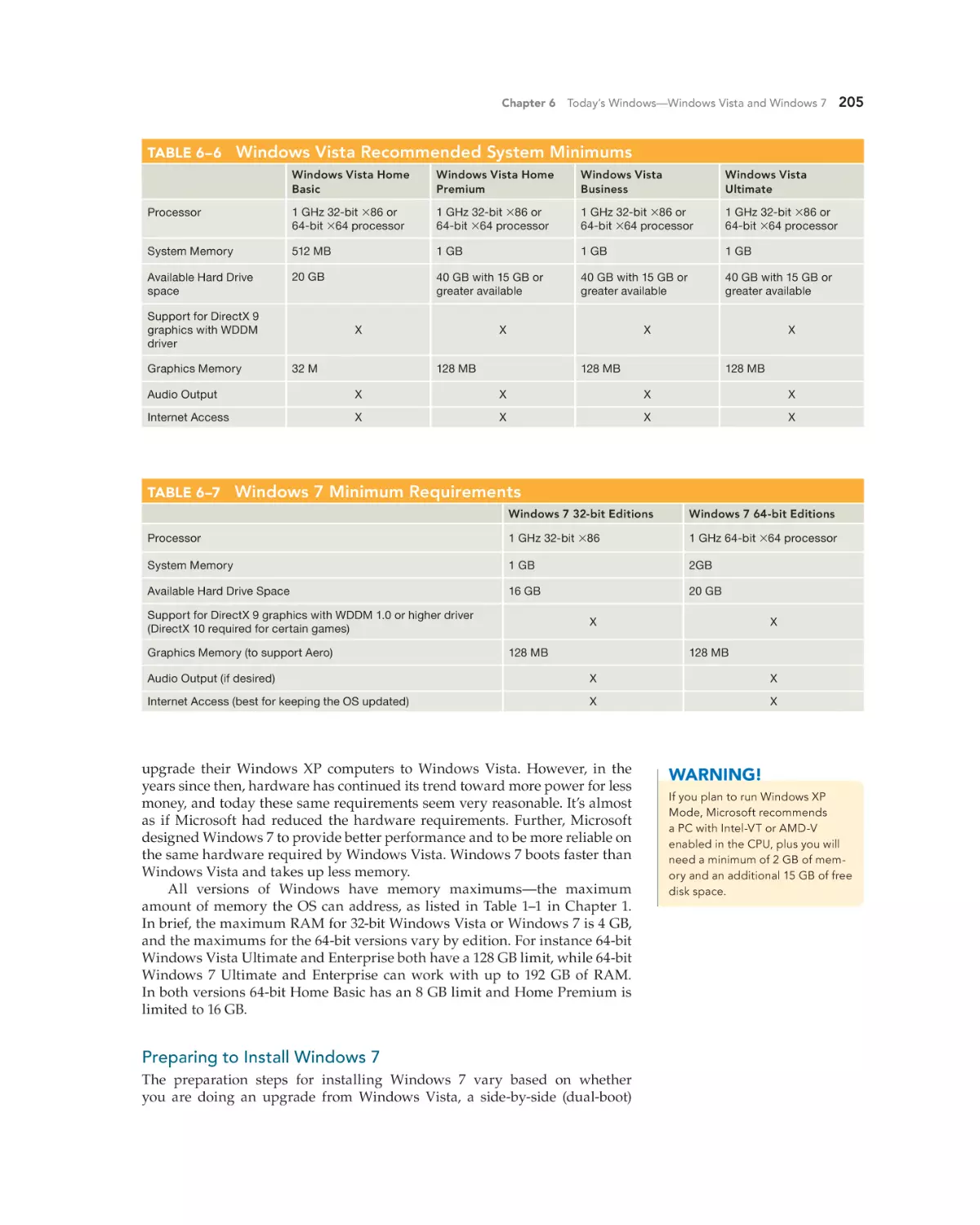
Microsoft. You can verify that your computer meets the recommend minimums by comparing the system configuration with Table 6–6 (Windows Vista
minimums) or Table 6–7 (Windows 7 minimums).
Chapter 2 Computer Security Basics
43
Stealing Passwords Through Web Sites. People use a huge number of pro-
grams and techniques to steal passwords. One commonly used technique is to
invade an unsecured Web site to access information unwitting users provide
to the site, such as user names and passwords, and such personal information
as account numbers, Social Security numbers, birth dates, and much more.
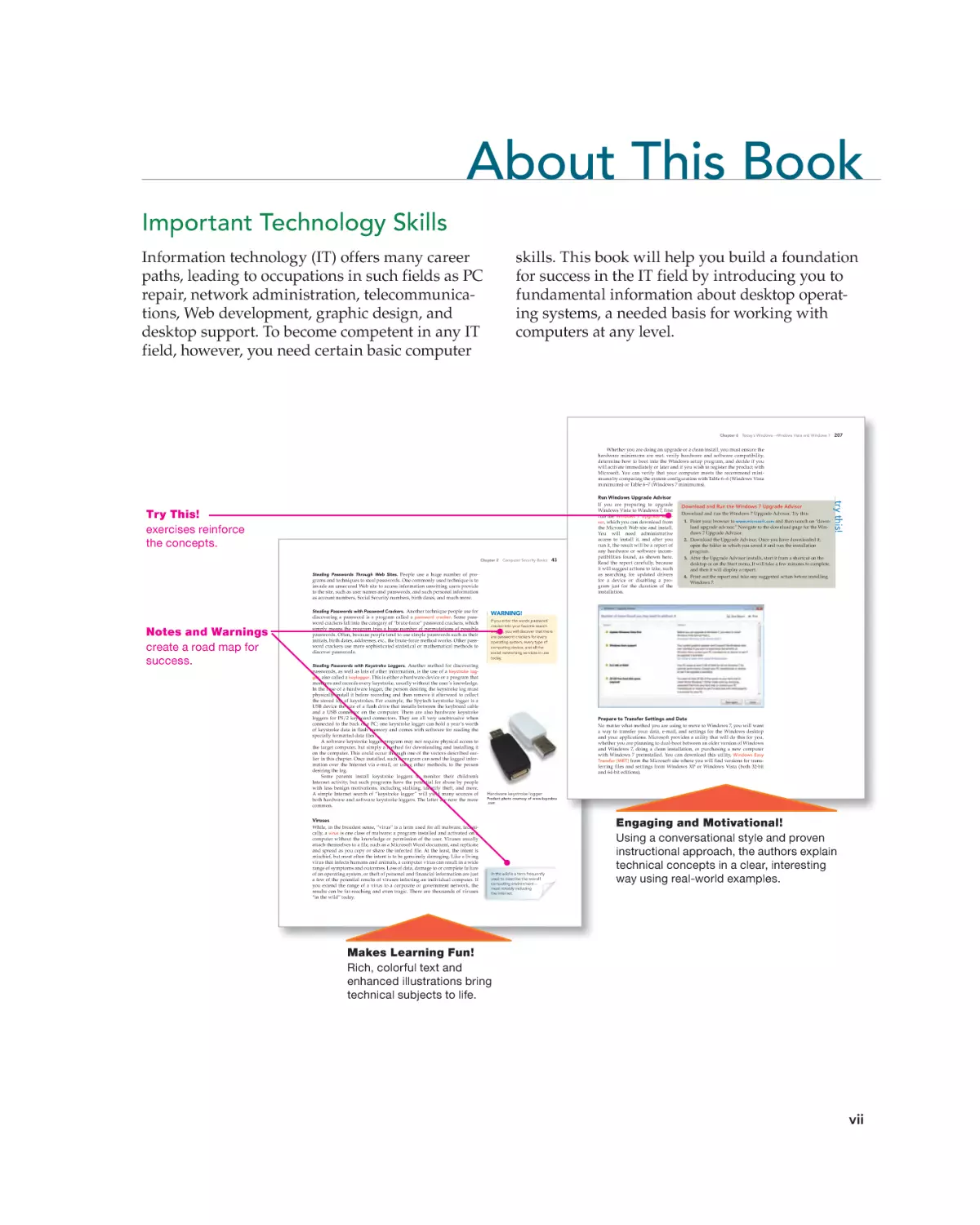
Notes and Warnings
create a road map for
success.
Stealing Passwords with Password Crackers. Another technique people use for
discovering a password is a program called a password cracker. Some password crackers fall into the category of “brute-force” password crackers, which
simply means the program tries a huge number of permutations of possible
passwords. Often, because people tend to use simple passwords such as their
initials, birth dates, addresses, etc., the brute-force method works. Other password crackers use more sophisticated statistical or mathematical methods to
discover passwords.
Stealing Passwords with Keystroke Loggers. Another method for discovering
passwords, as well as lots of other information, is the use of a keystroke logger, also called a keylogger. This is either a hardware device or a program that
monitors and records every keystroke, usually without the user’s knowledge.
In the case of a hardware logger, the person desiring the keystroke log must
physically install it before recording and then remove it afterward to collect
the stored log of keystrokes. For example, the Spytech keystroke logger is a
USB device the size of a flash drive that installs between the keyboard cable
and a USB connector on the computer. There are also hardware keystroke
loggers for PS/2 keyboard connectors. They are all very unobtrusive when
connected to the back of a PC; one keystroke logger can hold a year’s worth
of keystroke data in flash memory and comes with software for reading the
specially formatted data files.
A software keystroke logger program may not require physical access to
the target computer, but simply a method for downloading and installing it
on the computer. This could occur through one of the vectors described earlier in this chapter. Once installed, such a program can send the logged information over the Internet via e-mail, or using other methods, to the person
desiring the log.
Some parents install keystroke loggers to monitor their children’s
Internet activity, but such programs have the potential for abuse by people
with less benign motivations, including stalking, identify theft, and more.
A simple Internet search of “keystroke logger” will yield many sources of
both hardware and software keystroke loggers. The latter are now the more
common.
Download and Run the Windows 7 Upgrade Advisor
Download and run the Windows 7 Upgrade Advisor. Try this:
1. Point your browser to www.microsoft.com and then search on “download upgrade advisor.” Navigate to the download page for the Windows 7 Upgrade Advisor.
2. Download the Upgrade Advisor. Once you have downloaded it,
open the folder in which you saved it and run the installation
program.
3. After the Upgrade Advisor installs, start it from a shortcut on the
desktop or on the Start menu. It will take a few minutes to complete,
and then it will display a report.
4. Print out the report and take any suggested action before installing
Windows 7.
try this!
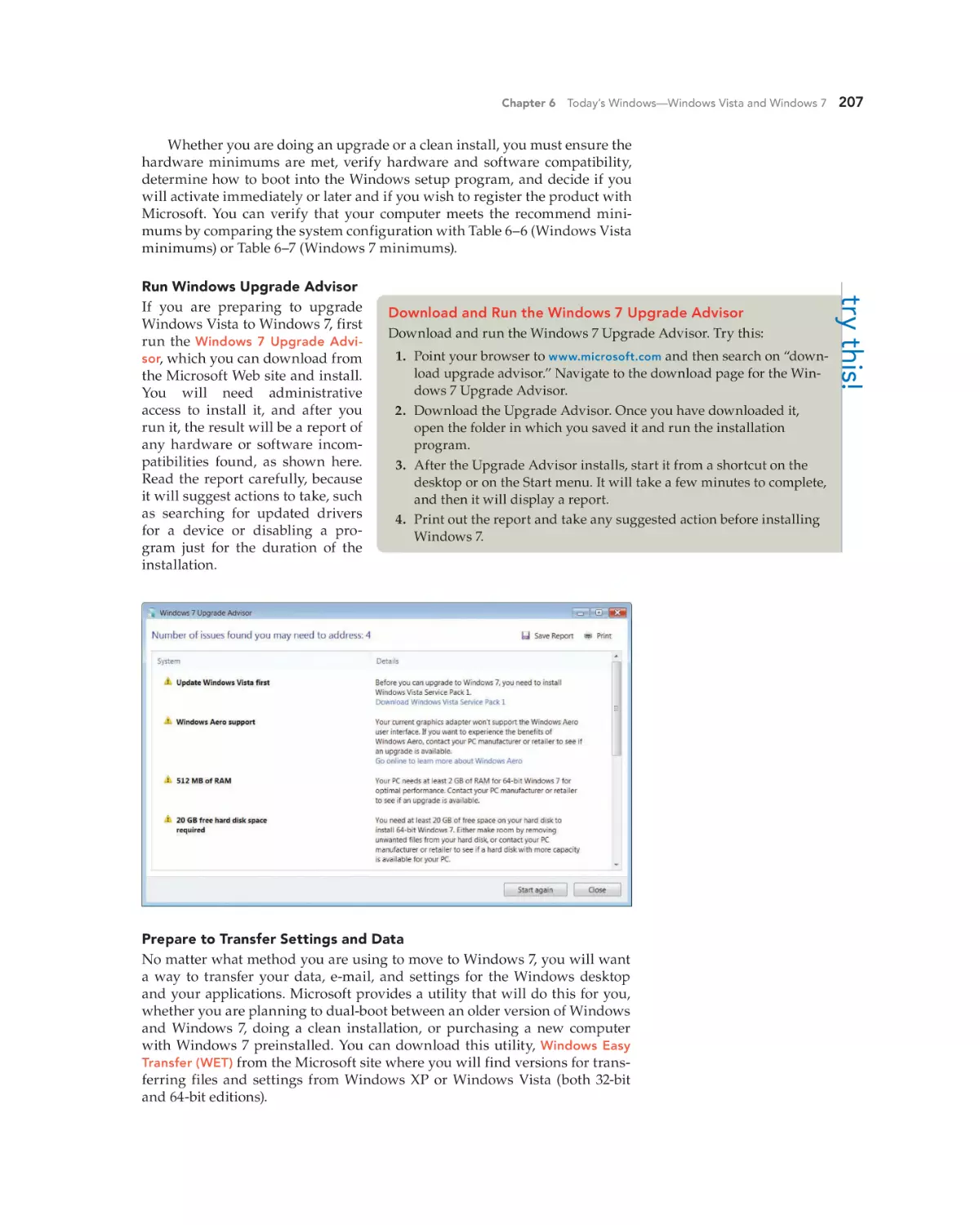
Run Windows Upgrade Advisor
If you are preparing to upgrade
Windows Vista to Windows 7, first
run the Windows 7 Upgrade Advisor, which you can download from
the Microsoft Web site and install.
You will need administrative
access to install it, and after you
run it, the result will be a report of
any hardware or software incompatibilities found, as shown here.
Read the report carefully, because
it will suggest actions to take, such
as searching for updated drivers
for a device or disabling a program just for the duration of the
installation.
Try This!
exercises reinforce
the concepts.
WARNING!
If you enter the words password
cracker into your favorite search
engine, you will discover that there
are password crackers for every
operating system, every type of
computing device, and all the
social networking services in use
today.
Prepare to Transfer Settings and Data
No matter what method you are using to move to Windows 7, you will want
a way to transfer your data, e-mail, and settings for the Windows desktop
and your applications. Microsoft provides a utility that will do this for you,
whether you are planning to dual-boot between an older version of Windows
and Windows 7, doing a clean installation, or purchasing a new computer
with Windows 7 preinstalled. You can download this utility, Windows Easy
Transfer (WET) from the Microsoft site where you will find versions for transferring files and settings from Windows XP or Windows Vista (both 32-bit
and 64-bit editions).
Hardware keystroke logger
Product photo courtesy of www.keycobra
.com
hoL18174_ch06_193-240.indd 207
Viruses
While, in the broadest sense, “virus” is a term used for all malware, technically, a virus is one class of malware: a program installed and activated on a
computer without the knowledge or permission of the user. Viruses usually
attach themselves to a file, such as a Microsoft Word document, and replicate
and spread as you copy or share the infected file. At the least, the intent is
mischief, but most often the intent is to be genuinely damaging. Like a living
virus that infects humans and animals, a computer virus can result in a wide
range of symptoms and outcomes. Loss of data, damage to or complete failure
of an operating system, or theft of personal and financial information are just
a few of the potential results of viruses infecting an individual computer. If
you extend the range of a virus to a corporate or government network, the
results can be far-reaching and even tragic. There are thousands of viruses
“in the wild” today.
In the wild is a term frequently
used to describe the overall
computing environment—
most notably including
the Internet.
hoL18174_ch02_039-078.indd 43
2/23/11 7:55 PM
Engaging and Motivational!
Using a conversational style and proven
instructional approach, the authors explain
technical concepts in a clear, interesting
way using real-world examples.
19/02/11 1:57 PM
Makes Learning Fun!
Rich, colorful text and
enhanced illustrations bring
technical subjects to life.
vii
hoL18174_fm_i-xvi.indd vii
2/25/11 7:58 PM
Rev.Confirming Pages
viii
ABOUT THIS BOOK
Effective Learning Tools
The design of this colorful, pedagogically rich
book will make learning easy and enjoyable and
help you develop the skills and critical thinking
abilities that will enable you to adapt to different
job situations and troubleshoot problems. Jane
and Charles Holcombe’s proven ability to explain
concepts in a clear, direct, even humorous way
makes this book interesting and motivational,
and fun.
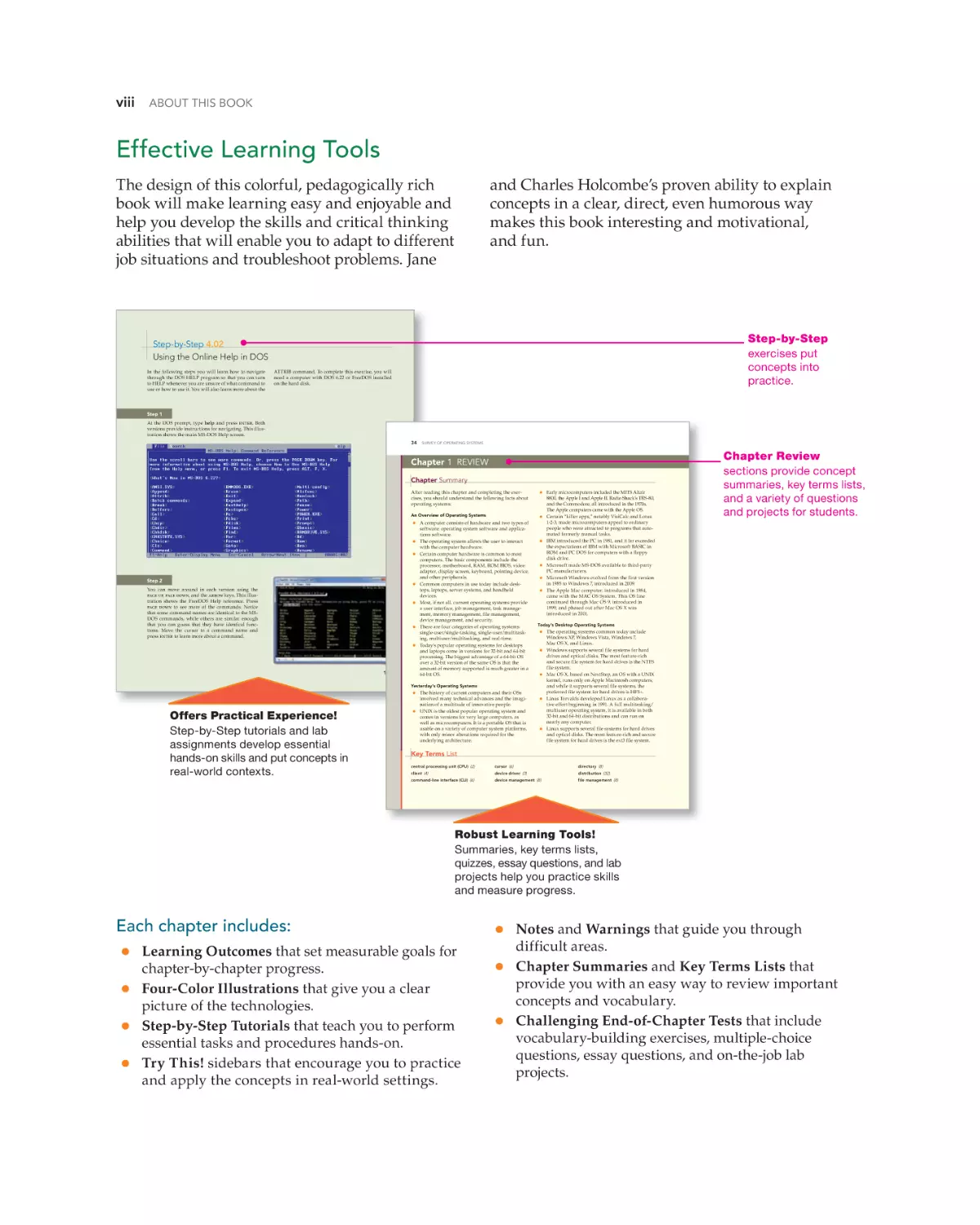
Step-by-Step
exercises put
concepts into
practice.
Step-by-Step 4.02
Using the Online Help in DOS
In the following steps you will learn how to navigate
through the DOS HELP program so that you can turn
to HELP whenever you are unsure of what command to
use or how to use it. You will also learn more about the
ATTRIB command. To complete this exercise, you will
need a computer with DOS 6.22 or FreeDOS installed
on the hard disk.
Step 1
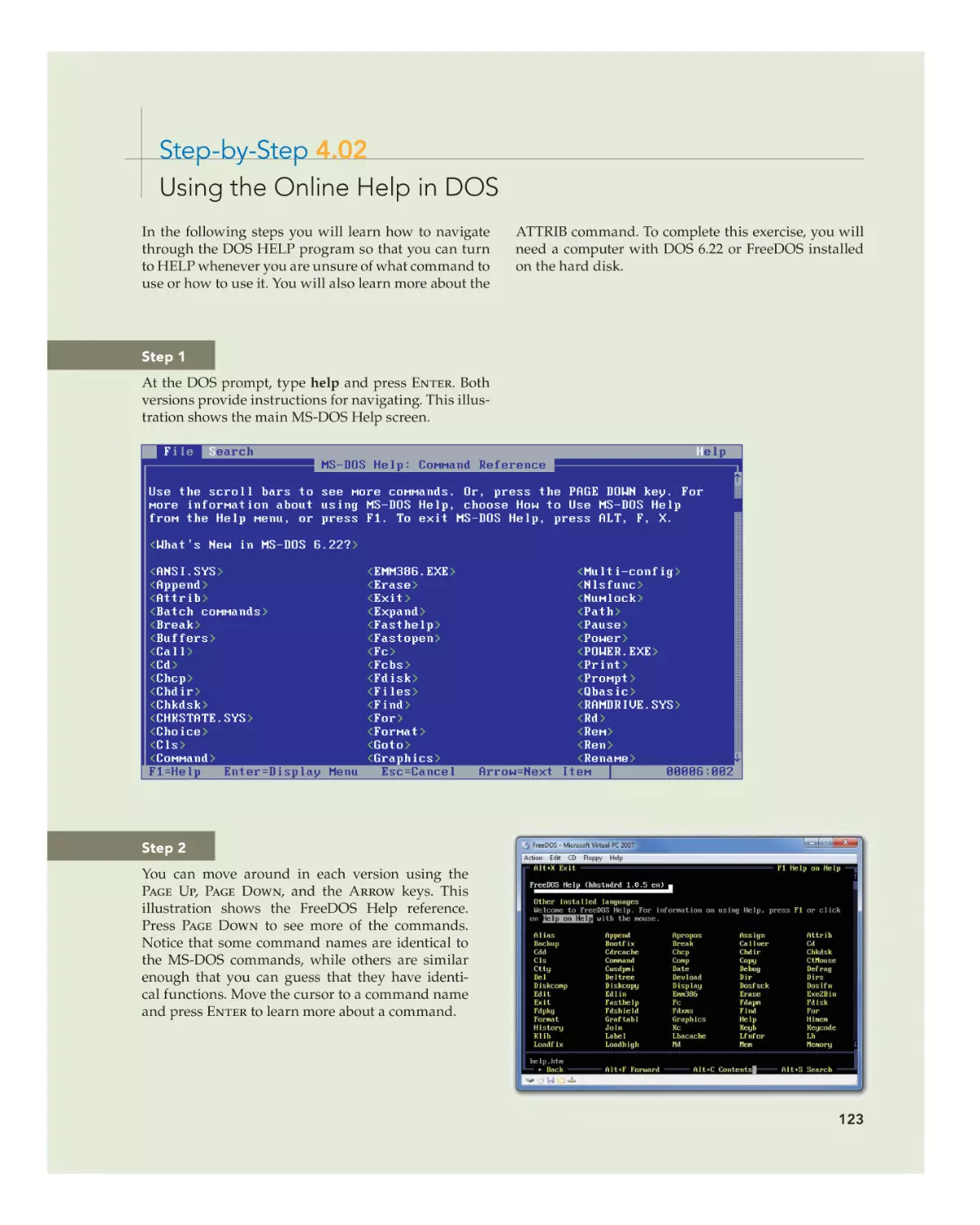
At the DOS prompt, type help and press enter. Both
versions provide instructions for navigating. This illustration shows the main MS-DOS Help screen.
34
SURVEY OF OPERATING SYSTEMS
Chapter Review
sections provide concept
summaries, key terms lists,
and a variety of questions
and projects for students.
Chapter 1 REVIEW
Chapter Summary
After reading this chapter and completing the exercises, you should understand the following facts about
operating systems:
•
An Overview of Operating Systems
•
•
•
•
Step 2
•
You can move around in each version using the
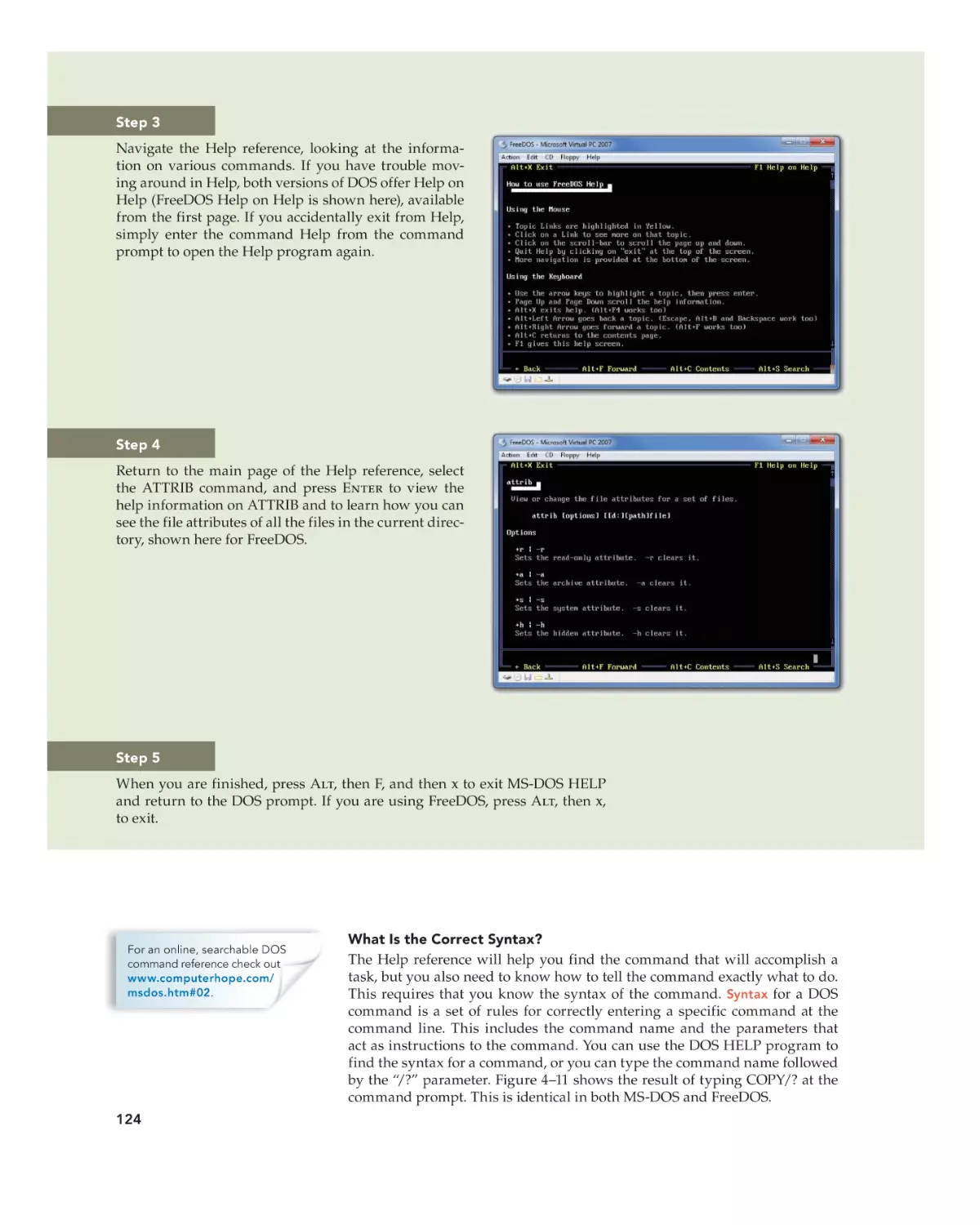
page up, page down, and the arrow keys. This illustration shows the FreeDOS Help reference. Press
page down to see more of the commands. Notice
that some command names are identical to the MSDOS commands, while others are similar enough
that you can guess that they have identical functions. Move the cursor to a command name and
press enter to learn more about a command.
•
•
•
123
A computer consists of hardware and two types of
software: operating system software and applications software.
The operating system allows the user to interact
with the computer hardware.
Certain computer hardware is common to most
computers. The basic components include the
processor, motherboard, RAM, ROM BIOS, video
adapter, display screen, keyboard, pointing device,
and other peripherals.
Common computers in use today include desktops, laptops, server systems, and handheld
devices.
Most, if not all, current operating systems provide
a user interface, job management, task management, memory management, file management,
device management, and security.
There are four categories of operating systems:
single-user/single-tasking, single-user/multitasking, multiuser/multitasking, and real-time.
Today’s popular operating systems for desktops
and laptops come in versions for 32-bit and 64-bit
processing. The biggest advantage of a 64-bit OS
over a 32-bit version of the same OS is that the
amount of memory supported is much greater in a
64-bit OS.
•
•
•
•
Today’s Desktop Operating Systems
•
•
•
Yesterday’s Operating Systems
•
hoL18174_ch04_105-144.indd 123
19/02/11 2:47 PM
Offers Practical Experience!
Step-by-Step tutorials and lab
assignments develop essential
hands-on skills and put concepts in
real-world contexts.
•
The history of current computers and their OSs
involved many technical advances and the imagination of a multitude of innovative people.
UNIX is the oldest popular operating system and
comes in versions for very large computers, as
well as microcomputers. It is a portable OS that is
usable on a variety of computer system platforms,
with only minor alterations required for the
underlying architecture.
Early microcomputers included the MITS Altair
8800, the Apple I and Apple II, Radio Shack’s TRS-80,
and the Commodore, all introduced in the 1970s.
The Apple computers came with the Apple OS.
Certain “killer apps,” notably VisiCalc and Lotus
1-2-3, made microcomputers appeal to ordinary
people who were attracted to programs that automated formerly manual tasks.
IBM introduced the PC in 1981, and it far exceeded
the expectations of IBM with Microsoft BASIC in
ROM and PC DOS for computers with a floppy
disk drive.
Microsoft made MS-DOS available to third-party
PC manufacturers.
Microsoft Windows evolved from the first version
in 1985 to Windows 7, introduced in 2009.
The Apple Mac computer, introduced in 1984,
came with the MAC OS System. This OS line
continued through Mac OS 9, introduced in
1999, and phased out after Mac OS X was
introduced in 2001.
•
•
The operating systems common today include
Windows XP, Windows Vista, Windows 7,
Mac OS X, and Linux.
Windows supports several file systems for hard
drives and optical disks. The most feature-rich
and secure file system for hard drives is the NTFS
file system.
Mac OS X, based on NextStep, an OS with a UNIX
kernel, runs only on Apple Macintosh computers,
and while it supports several file systems, the
preferred file system for hard drives is HFS+.
Linus Torvalds developed Linux as a collaborative effort beginning in 1991. A full multitasking/
multiuser operating system, it is available in both
32-bit and 64-bit distributions and can run on
nearly any computer.
Linux supports several file systems for hard drives
and optical disks. The most feature-rich and secure
file system for hard drives is the ext3 file system.
Key Terms List
central processing unit (CPU) (2)
cursor (6)
directory (8)
client (4)
device driver (3)
distribution (32)
command-line interface (CLI) (6)
device management (8)
file management (8)
hoL18174_ch01_001-038.indd 34
19/02/11 1:18 PM
Robust Learning Tools!
Summaries, key terms lists,
quizzes, essay questions, and lab
projects help you practice skills
and measure progress.
Each chapter includes:
•
•
•
•
Learning Outcomes that set measurable goals for
chapter-by-chapter progress.
Four-Color Illustrations that give you a clear
picture of the technologies.
Step-by-Step Tutorials that teach you to perform
essential tasks and procedures hands-on.
Try This! sidebars that encourage you to practice
and apply the concepts in real-world settings.
hoL18174_fm_i-xvi.indd viii
•
•
•
Notes and Warnings that guide you through
difficult areas.
Chapter Summaries and Key Terms Lists that
provide you with an easy way to review important
concepts and vocabulary.
Challenging End-of-Chapter Tests that include
vocabulary-building exercises, multiple-choice
questions, essay questions, and on-the-job lab
projects.
2/26/11 1:14 PM
Rev.Confirming Pages
New to Survey of Operating
Systems, Third Edition
General changes:
•
•
•
New design.
Heavily revised table of contents and updated content.
New chapters.
Chapter 1 Introduction to Operating Systems
•
•
•
Removed Overview of Microcomputers section, and some of the content
now summarized under first topic, An Overview of Microcomputer OSs.
Yesterday’s Desktop OSs has been updated with appropriate OSs that
were previously under Desktop OSs Available Today.
Section titled Today’s Desktop OSs has been updated to include
Windows Vista, Windows 7, Windows 8 (briefly), Mac OS X, and Linux.
Chapter 2 Computer Security Basics (New Chapter!)
•
This new chapter is based on some content from Chapter 7 in the previous edition and includes, Managing Local Security in Windows, with
updates and security information for Mac OS X and Linux.
Chapter 3 Desktop Virtualization (New Chapter!)
•
This new chapter on desktop virtualization provides an overview of virtualization followed by sections on virtualization on Windows desktops
and on Mac OS X desktops. It includes Step-by-Step exercises on installing virtualization software on both Windows and Mac OS X desktops.
Chapter 4 Disk Operating System (DOS)
•
•
Discussion covers both Microsoft DOS and FreeDOS, and includes
instructions on creating a virtual machine for DOS.
A revised section on Working with the DOS Command Prompt includes
examples and Step-by-Step exercises using FreeDOS.
Chapter 5 Windows XP Professional
•
•
Updated to put Windows XP into perspective as an existing but no
longer sold OS, the chapter addresses the issues involved with the
pending loss of support.
A new section Securing Windows XP Professional includes information
based on the former Chapter 7 including NTFS; Code Signing/Driver
Signing, local account management; applying security to files, folders,
and printers; and NTFS encryption.
ix
hoL18174_fm_i-xvi.indd ix
2/26/11 1:15 PM
Rev.Confirming Pages
x
NEW TO SURVEY OF OPERATING SYSTEMS, THIRD EDITION
Chapter 6 Today’s Windows—Windows Vista and Windows 7
(New Chapter!)
•
This new chapter provides an overview of Windows Vista and Windows
7, and discusses installing Windows, managing Windows, and managing local security in Windows.
Chapter 7 Under the Windows Desktop
•
•
•
Updated information now includes Windows Vista and Windows 7.
Removed Managing Performance in Windows.
Moved content of Windows File Systems to Chapter 1.
Chapter 8 Linux on the Desktop
•
•
This discussion of Linux now uses Ubuntu Linux for examples and Stepby-Step exercises. It also includes a new Step-by-Step exercise on downloading Linux and creating a Live CD from an ISO image.
Added a new section, Securing a Linux Desktop.
Chapter 9 Mac OS X on the Desktop
•
A new section on Managing Mac OS X on the Desktop includes updated
portions of former sections on Features of Mac OS X Desktop, Getting to
Know the Mac OS X Workspace, and Managing Files in OS X. The chapter also includes a new section titled Managing Local Security in Mac OS
X and revised Troubleshooting Mac OS Problems.
Chapter 10 The Client Side of Networking
•
hoL18174_fm_i-xvi.indd x
Includes IPv6 and file sharing features of Windows 7.
2/26/11 1:15 PM
Confirming Pages
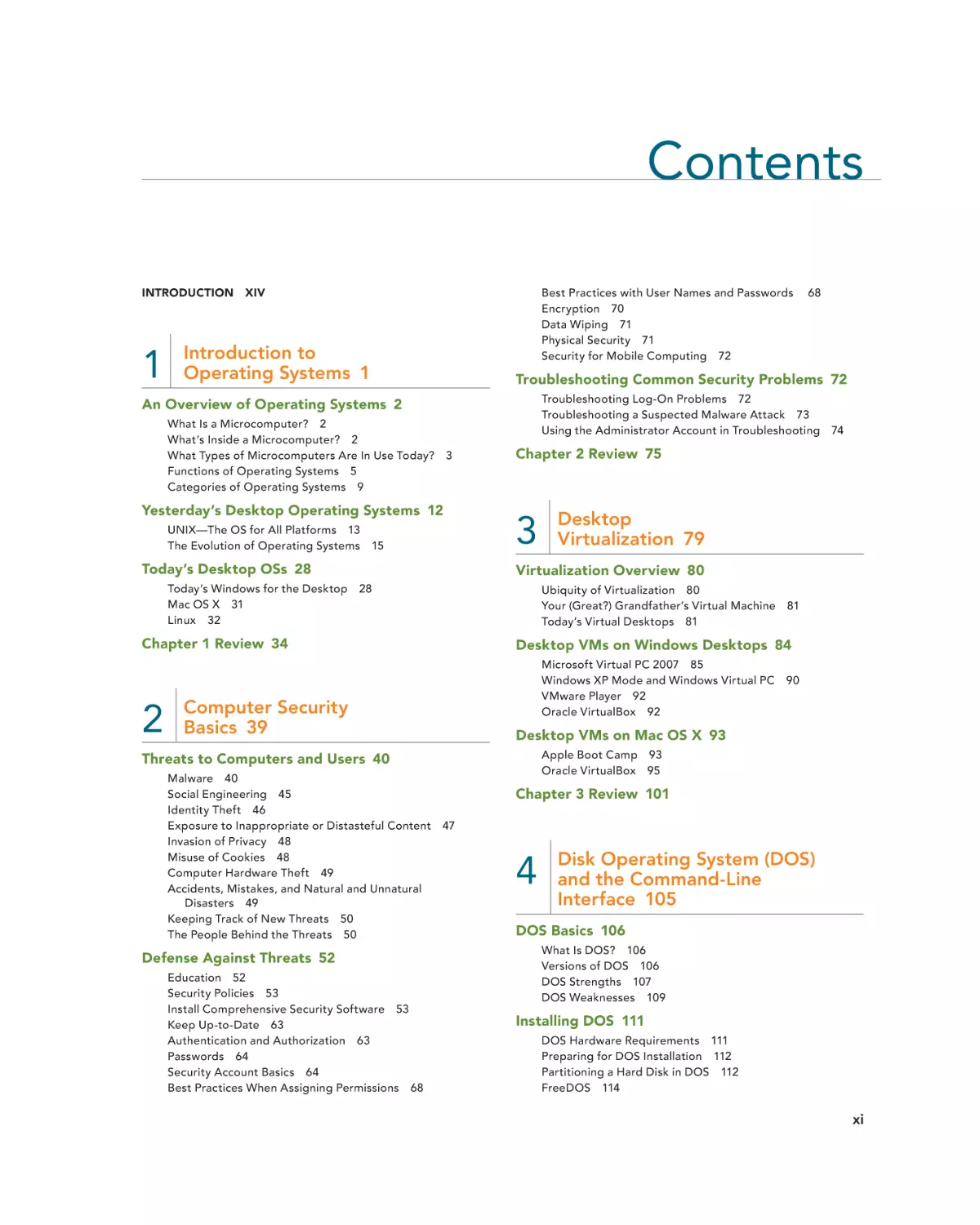
Contents
INTRODUCTION XIV
Best Practices with User Names and Passwords
Encryption 70
Data Wiping 71
Physical Security 71
Security for Mobile Computing 72
Introduction to
Operating Systems 1
1
Troubleshooting Common Security Problems 72
Troubleshooting Log-On Problems 72
Troubleshooting a Suspected Malware Attack 73
Using the Administrator Account in Troubleshooting 74
An Overview of Operating Systems 2
What Is a Microcomputer? 2
What’s Inside a Microcomputer? 2
What Types of Microcomputers Are In Use Today?
Functions of Operating Systems 5
Categories of Operating Systems 9
3
Yesterday’s Desktop Operating Systems 12
UNIX—The OS for All Platforms 13
The Evolution of Operating Systems 15
Today’s Desktop OSs 28
Today’s Windows for the Desktop
Mac OS X 31
Linux 32
Chapter 2 Review 75
3
Desktop
Virtualization 79
Virtualization Overview 80
28
Ubiquity of Virtualization 80
Your (Great?) Grandfather’s Virtual Machine 81
Today’s Virtual Desktops 81
Chapter 1 Review 34
Desktop VMs on Windows Desktops 84
Microsoft Virtual PC 2007 85
Windows XP Mode and Windows Virtual PC
VMware Player 92
Oracle VirtualBox 92
Computer Security
Basics 39
2
68
Desktop VMs on Mac OS X 93
Apple Boot Camp 93
Oracle VirtualBox 95
Threats to Computers and Users 40
Malware 40
Social Engineering 45
Identity Theft 46
Exposure to Inappropriate or Distasteful Content
Invasion of Privacy 48
Misuse of Cookies 48
Computer Hardware Theft 49
Accidents, Mistakes, and Natural and Unnatural
Disasters 49
Keeping Track of New Threats 50
The People Behind the Threats 50
Defense Against Threats 52
Education 52
Security Policies 53
Install Comprehensive Security Software 53
Keep Up-to-Date 63
Authentication and Authorization 63
Passwords 64
Security Account Basics 64
Best Practices When Assigning Permissions 68
90
Chapter 3 Review 101
47
4
Disk Operating System (DOS)
and the Command-Line
Interface 105
DOS Basics 106
What Is DOS? 106
Versions of DOS 106
DOS Strengths 107
DOS Weaknesses 109
Installing DOS 111
DOS Hardware Requirements 111
Preparing for DOS Installation 112
Partitioning a Hard Disk in DOS 112
FreeDOS 114
xi
hoL18174_fm_i-xvi.indd xi
2/25/11 7:58 PM
Confirming Pages
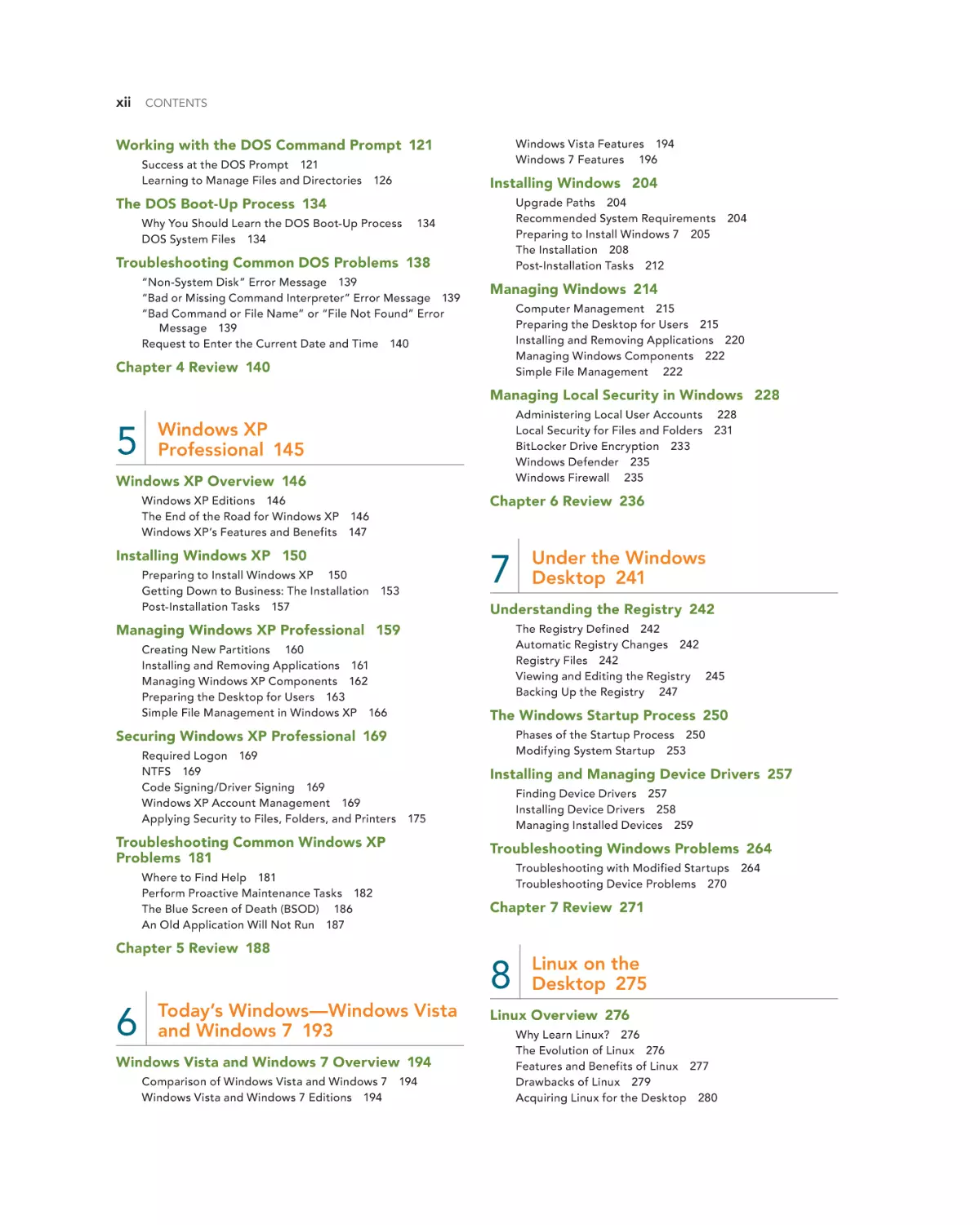
xii
CONTENTS
Working with the DOS Command Prompt 121
Success at the DOS Prompt 121
Learning to Manage Files and Directories 126
Windows Vista Features 194
Windows 7 Features 196
Installing Windows 204
The DOS Boot-Up Process 134
Why You Should Learn the DOS Boot-Up Process
DOS System Files 134
Upgrade Paths 204
Recommended System Requirements
Preparing to Install Windows 7 205
The Installation 208
Post-Installation Tasks 212
134
Troubleshooting Common DOS Problems 138
“Non-System Disk” Error Message 139
“Bad or Missing Command Interpreter” Error Message 139
“Bad Command or File Name” or “File Not Found” Error
Message 139
Request to Enter the Current Date and Time 140
204
Managing Windows 214
Computer Management 215
Preparing the Desktop for Users 215
Installing and Removing Applications 220
Managing Windows Components 222
Simple File Management 222
Chapter 4 Review 140
Managing Local Security in Windows 228
5
Administering Local User Accounts
Local Security for Files and Folders
BitLocker Drive Encryption 233
Windows Defender 235
Windows Firewall 235
Windows XP
Professional 145
Windows XP Overview 146
Chapter 6 Review 236
Windows XP Editions 146
The End of the Road for Windows XP 146
Windows XP’s Features and Benefits 147
Installing Windows XP 150
Preparing to Install Windows XP 150
Getting Down to Business: The Installation
Post-Installation Tasks 157
7
153
The Registry Defined 242
Automatic Registry Changes 242
Registry Files 242
Viewing and Editing the Registry 245
Backing Up the Registry 247
Creating New Partitions 160
Installing and Removing Applications 161
Managing Windows XP Components 162
Preparing the Desktop for Users 163
Simple File Management in Windows XP 166
The Windows Startup Process 250
Securing Windows XP Professional 169
Required Logon 169
NTFS 169
Code Signing/Driver Signing 169
Windows XP Account Management 169
Applying Security to Files, Folders, and Printers
Phases of the Startup Process 250
Modifying System Startup 253
Installing and Managing Device Drivers 257
Finding Device Drivers 257
Installing Device Drivers 258
Managing Installed Devices 259
175
Troubleshooting Common Windows XP
Problems 181
Troubleshooting Windows Problems 264
Troubleshooting with Modified Startups
Troubleshooting Device Problems 270
Where to Find Help 181
Perform Proactive Maintenance Tasks 182
The Blue Screen of Death (BSOD) 186
An Old Application Will Not Run 187
8
Today’s Windows—Windows Vista
and Windows 7 193
Windows Vista and Windows 7 Overview 194
hoL18174_fm_i-xvi.indd xii
264
Chapter 7 Review 271
Chapter 5 Review 188
Comparison of Windows Vista and Windows 7
Windows Vista and Windows 7 Editions 194
Under the Windows
Desktop 241
Understanding the Registry 242
Managing Windows XP Professional 159
6
228
231
194
Linux on the
Desktop 275
Linux Overview 276
Why Learn Linux? 276
The Evolution of Linux 276
Features and Benefits of Linux 277
Drawbacks of Linux 279
Acquiring Linux for the Desktop 280
2/25/11 7:58 PM
Confirming Pages
CONTENTS
Installing Linux 283
Troubleshooting Common Mac OS Problems 354
Preparing for Linux Installation 283
Performing the Installation 285
Linux Basics 289
Logging in to Linux 289
Shutting Down Linux 289
The Ubuntu GNOME Terminal Window
Working with Linux Commands 290
290
Where to Find Help 354
When to Quit 354
Failure to Quit 355
Forgotten Password 355
Disappearing Sidebar Items 355
Useful System Utilities 356
Chapter 9 Review 357
Managing Files and Directories with Shell
Commands 294
Working with Directories in Linux
294
Securing a Linux Desktop 304
Using the Root Account 304
Managing Users 306
File and Folder Permissions 309
Troubleshooting Common Linux Problems 312
Cannot Save File 312
Screen Displays Gibberish 313
Command Not Found Error 314
Chapter 8 Review 314
Mac OS X on
the Desktop 319
9
xiii
Mac OS X Overview 320
A Brief History 320
Mac OS X Versions 321
Mac OS X Features 321
Installing Mac OS X 325
Preparing to Install Mac OS X 325
The Installation 327
Post-Installation Tasks 332
Managing Mac OS X on the Desktop 332
Finder 332
Apple Menu 333
Changing System Preferences 333
Adding Objects to the Dock 341
Terminal Windows in Mac OS X 341
Managing Files in Mac OS X 342
Printing in Mac OS X 345
Managing Local Security in Mac OS X 346
The Client Side of
Networking 361
10
Configuring a Client for a TCP/IP Network 362
Understanding the TCP/IP Protocol Suite 362
Transmission Control Protocol (TCP) 362
Internet Protocol (IP) 362
Connecting to the Internet 371
Internet Service Providers 373
Computer-to-Internet versus LAN-to-Internet
Wired Connectivity Technologies 373
Wireless Connectivity Technologies 379
Sharing an Internet Connection 382
Using a Virtual Private Network 382
373
Using Internet Clients 383
Web Browsers 383
E-mail Clients 390
FTP Clients 393
Sharing Files and Printers 394
The Server Side of File and Print Sharing 395
The Client Side of File and Print Sharing 395
Sharing Files and Printers in Windows 7 395
Troubleshooting Common Network Client
Problems 400
Built-in Network Diagnostics 400
Testing IP Configurations and Connectivity 400
Troubleshooting Connection Problems with TRACERT 404
Troubleshooting DNS Errors Using PING, NETSTAT, and
NSLOOKUP 404
Chapter 10 Review 406
GLOSSARY
INDEX
411
421
Securing an Internet Connection 347
Antivirus and Antispyware 348
FileVault 348
Secure Virtual Memory 349
Securing System Preferences Panes 349
Keychain 349
Managing Local User Accounts 350
hoL18174_fm_i-xvi.indd xiii
2/25/11 7:58 PM
Confirming Pages
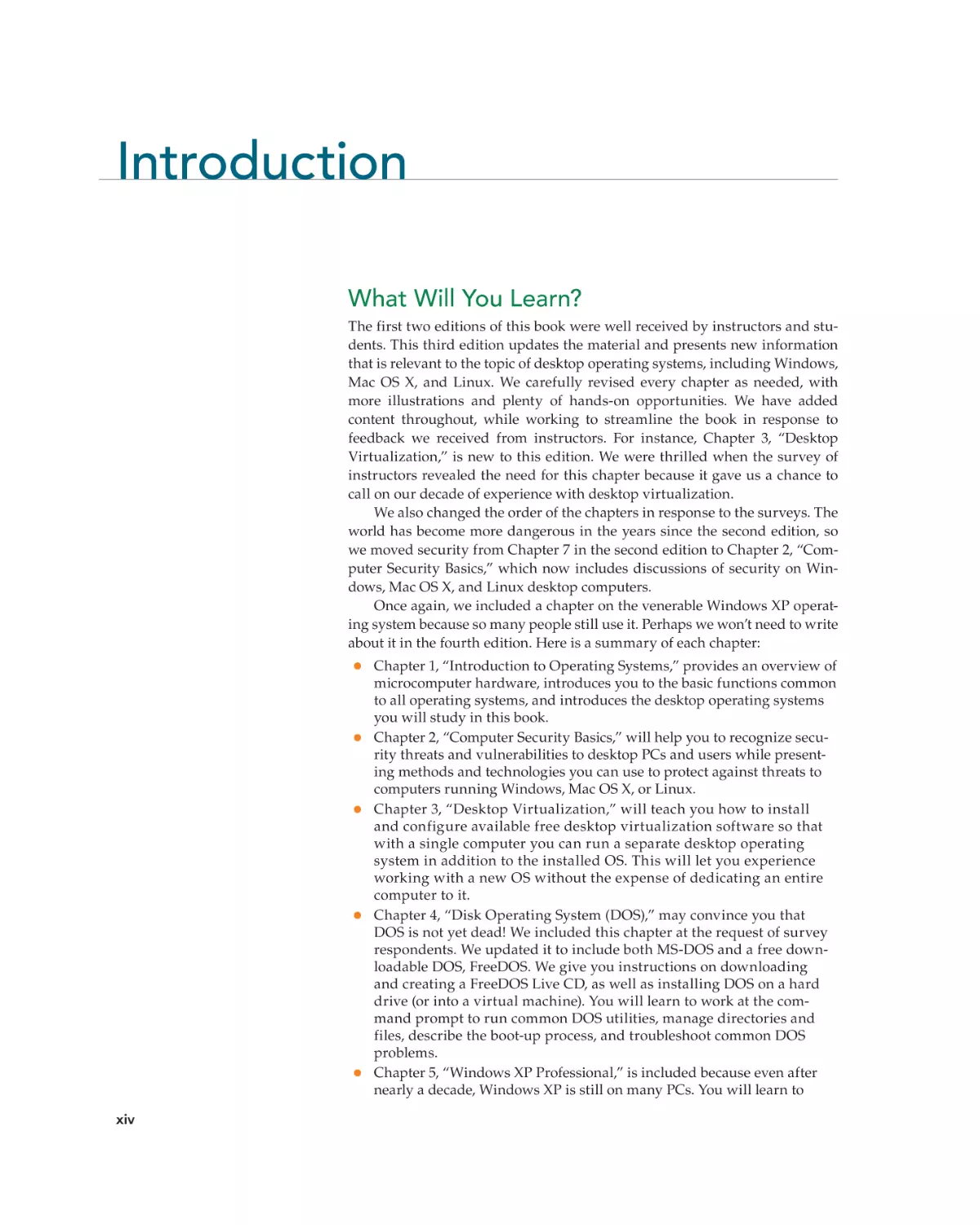
Introduction
What Will You Learn?
The first two editions of this book were well received by instructors and students. This third edition updates the material and presents new information
that is relevant to the topic of desktop operating systems, including Windows,
Mac OS X, and Linux. We carefully revised every chapter as needed, with
more illustrations and plenty of hands-on opportunities. We have added
content throughout, while working to streamline the book in response to
feedback we received from instructors. For instance, Chapter 3, “Desktop
Virtualization,” is new to this edition. We were thrilled when the survey of
instructors revealed the need for this chapter because it gave us a chance to
call on our decade of experience with desktop virtualization.
We also changed the order of the chapters in response to the surveys. The
world has become more dangerous in the years since the second edition, so
we moved security from Chapter 7 in the second edition to Chapter 2, “Computer Security Basics,” which now includes discussions of security on Windows, Mac OS X, and Linux desktop computers.
Once again, we included a chapter on the venerable Windows XP operating system because so many people still use it. Perhaps we won’t need to write
about it in the fourth edition. Here is a summary of each chapter:
•
•
•
•
•
Chapter 1, “Introduction to Operating Systems,” provides an overview of
microcomputer hardware, introduces you to the basic functions common
to all operating systems, and introduces the desktop operating systems
you will study in this book.
Chapter 2, “Computer Security Basics,” will help you to recognize security threats and vulnerabilities to desktop PCs and users while presenting methods and technologies you can use to protect against threats to
computers running Windows, Mac OS X, or Linux.
Chapter 3, “Desktop Virtualization,” will teach you how to install
and configure available free desktop virtualization software so that
with a single computer you can run a separate desktop operating
system in addition to the installed OS. This will let you experience
working with a new OS without the expense of dedicating an entire
computer to it.
Chapter 4, “Disk Operating System (DOS),” may convince you that
DOS is not yet dead! We included this chapter at the request of survey
respondents. We updated it to include both MS-DOS and a free downloadable DOS, FreeDOS. We give you instructions on downloading
and creating a FreeDOS Live CD, as well as installing DOS on a hard
drive (or into a virtual machine). You will learn to work at the command prompt to run common DOS utilities, manage directories and
files, describe the boot-up process, and troubleshoot common DOS
problems.
Chapter 5, “Windows XP Professional,” is included because even after
nearly a decade, Windows XP is still on many PCs. You will learn to
xiv
hoL18174_fm_i-xvi.indd xiv
2/25/11 7:58 PM
Confirming Pages
INTRODUCTION
•
•
•
•
•
xv
install, configure, manage, and troubleshoot this popular desktop operating system.
Chapter 6, “Today’s Windows—Windows Vista and Windows 7,” combines coverage of these two OSs. While Windows Vista was not adopted
as widely as Windows XP, we cannot ignore it. Because it is a very close
sibling to its successor, Windows 7, we combined coverage of the two.
You will learn about the most important new features, how to install
these OSs, how to manage the desktop and files, and how to manage
local security.
Chapter 7, “Under the Windows Desktop,” explores Windows topics in
greater depth. You will learn about the registry, Windows start-up process, installation and management of device drivers, and how to troubleshoot Windows problems.
Chapter 8, “Linux on the Desktop,” will give you the history of Linux
and how it evolved to be an important operating system for a variety of
platforms and purposes. You will learn how to select and download a
free version of Linux and how to install it as a desktop OS using Ubuntu
Linux.
Chapter 9, “Mac OS X on the Desktop,” will guide you through installing and configuring Mac OS X and then provide practice using features
of the desktop. Finally, you will learn to troubleshoot common Mac OS X
problems.
Chapter 10, “The Client Side of Networking,” will give you practice with
the skills required to configure a computer to connect to a LAN and to
the Internet. You will begin with an overview of the TCP/IP protocol
suite, and then you will work with common clients: e-mail, FTP, Internet
browsers, and file and print servers. Last, you will learn to troubleshoot
common client connection problems.
How Will You Learn?
We don’t want to simply give you an encyclopedia of information because it
can feel like you’re standing in front of an information fire hose, and we’ve
been there ourselves many times in the past decades. Rather, keeping in mind
that “less is more,” we present just the key points about operating systems,
and guide you in your own exploration of the specifics of the technology.
One book simply can’t give you everything you need to know about operating systems, but we do hope to empower you and to increase your ability to use widely available tools and resources to figure out the answers to
your questions. Such tools as the Internet and the help program in your OS
are aids you should turn to when you need to learn more about a topic, and
when you want to enhance your skills in working with each of these operating systems—and with computers in general.
Each chapter uses many techniques to help you learn. We start by listing
learning outcomes, follow that up with a lucid explanation of each topic, and
support it with real-world experience and a liberal use of graphics and tables.
To give you hands-on experience and to help you “walk the walk,” each chapter contains detailed Step-by-Step tutorials and short Try This! exercises to
reinforce the concepts. To build vocabulary to help you “talk the talk,” each
chapter contains computer term definitions, highlighted in a Key Terms List
and compiled into a Glossary at the end of the book.
We’ve also included notes, which provide handy pieces of knowledge to
use with your desktop OS. Warnings will help you prevent mishaps.
hoL18174_fm_i-xvi.indd xv
2/25/11 7:58 PM
Confirming Pages
xvi
INTRODUCTION
You can measure what you’ve learned with end-of-chapter Key Term,
Multiple-Choice, and Essay quizzes. In addition, Lab Projects challenge you
to independently complete tasks related to what you’ve just learned.
Let’s Get Down to Work
OK, enough of this introductory stuff. This is the last time in this book that
you’ll see so many words without illustrations. From now on it’s downright
exciting. Learn a lot and have fun!
Supplements
For teachers using this book in the classroom, a powerful collection of teaching
tools written by the authors is available online at www.mhhe.com/holcombe3:
•
•
•
An Instructor’s Manual that maps to the organization of the textbook
and provides additional instructor tips and activities to use with the
book.
A test bank for each chapter available online in either Word or
EZ Test format.
Engaging PowerPoint slides on the lecture topics, including key points
and illustrations from the chapters.
Jane Holcombe
Charles Holcombe
hoL18174_fm_i-xvi.indd xvi
2/25/11 7:58 PM
chapter
Confirming Pages
1
Introduction to
Operating Systems
“Physics is the universe’s
operating system.”
—Steven R. Garman
“I do not fear computers. I fear
lack of them.”
—Isaac Asimov
“The computer was born to
solve problems that did not
exist before.”
—Bill Gates
U
nderstanding operating systems (OSs) is critical to your future success in life. It is. Just believe us. You don’t? You say you drive a car
just fine, but you don’t understand its engine, transmission, or other
systems? So why can’t you just use your computer? Why do you have to even
know it has an OS? If you can successfully operate a car, you actually know
more about its internal workings than you admit. You turn on the ignition,
shift to the correct gear, press the accelerator, and drive down the street without hitting anything. You stop it (in time, usually). You use your car to go
somewhere, making the car your transportation tool. Having only superficial knowledge of the workings of your car is adequate if you never intend to
repair your car or to explain to a mechanic the symptoms of a problem. And
just as you can use a car without much in-depth knowledge of how it works,
you can use your computer to write a letter, send e-mail, create a report, or
surf the Internet. You only have to know how to turn it on, call up the application program you wish to use, make the application program do what you
want it to do, and turn it off.
Learning Outcomes
In this chapter, you will learn how to:
LO 1.1
Describe the purpose and
functions of operating
systems.
LO 1.2
Describe major events in
the evolution of operating
systems.
LO 1.3
List and compare the
common operating systems
in use today.
1
hoL18174_ch01_001-038.indd 1
19/02/11 1:15 PM
Confirming Pages
2
SURVEY OF OPERATING SYSTEMS
But if you ever want to understand how your car actually works, you need
to spend time studying it. And if you want to be involved in any aspect of the
computer industry, you need to understand how the most critical software
component, the computer’s operating system, works.
This chapter provides an overview of operating systems—specifically,
those commonly found on desktop and laptop computers. We’ll begin with
a brief look at microcomputers—their components and their general types.
Then we’ll explore the functions that operating systems perform, as well as
describe the classic categories of operating systems, while we introduce you
to the OSs you will find in home and office computers today.
LO 1.1
l An Overview of Operating Systems
An operating system (OS) is actually a collection of programs that gives a computer the critical functionality that lets you use it for work and entertainment.
This book will explore the common operating systems used on microcomputers, but before we do, let’s answer a few general questions you may have:
What is a microcomputer? What’s inside a microcomputer? What types of
microcomputers are in use today? This section answers these questions.
What Is a Microcomputer?
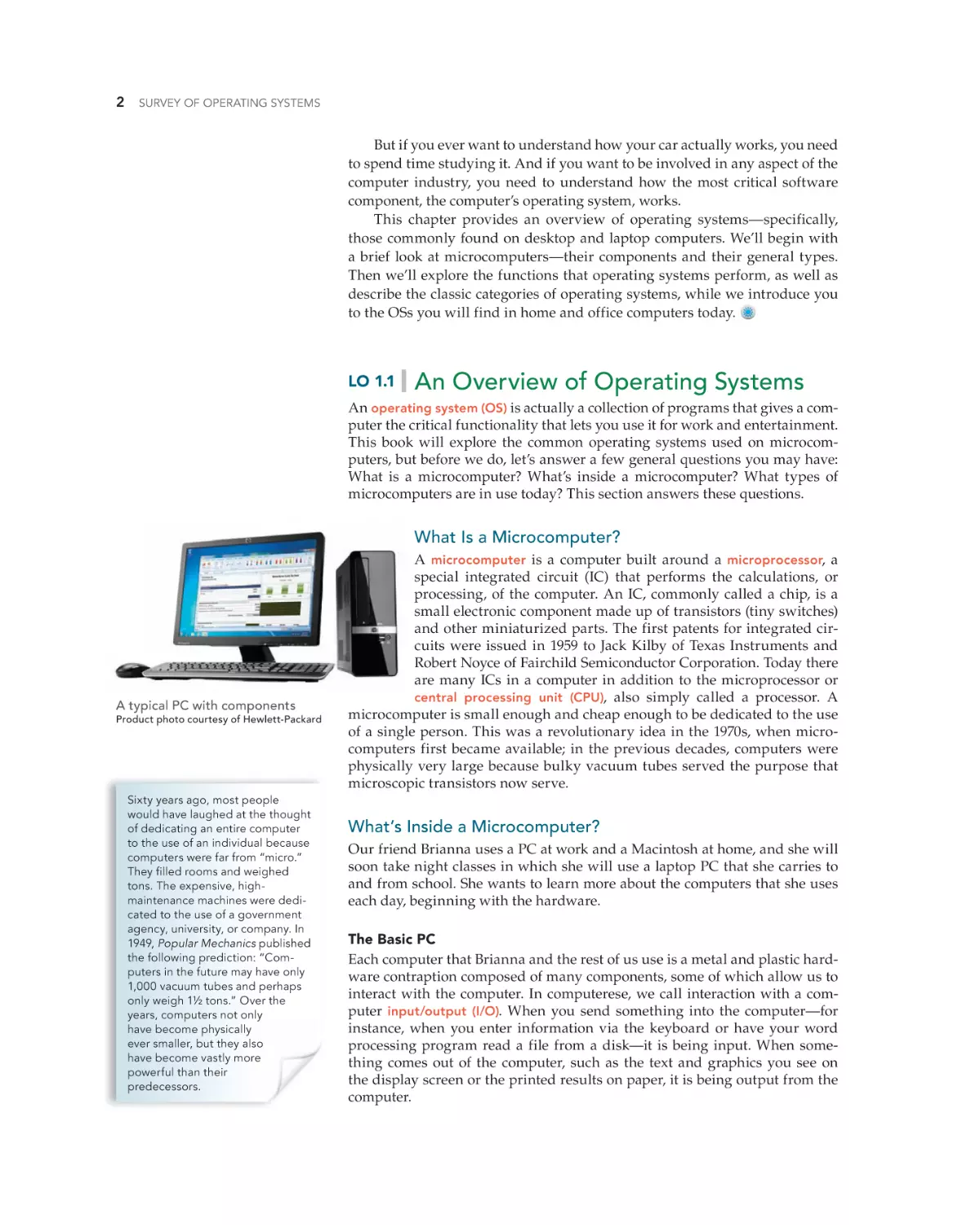
A typical PC with components
Product photo courtesy of Hewlett-Packard
Sixty years ago, most people
would have laughed at the thought
of dedicating an entire computer
to the use of an individual because
computers were far from “micro.”
They filled rooms and weighed
tons. The expensive, highmaintenance machines were dedicated to the use of a government
agency, university, or company. In
1949, Popular Mechanics published
the following prediction: “Computers in the future may have only
1,000 vacuum tubes and perhaps
only weigh 1½ tons.” Over the
years, computers not only
have become physically
ever smaller, but they also
have become vastly more
powerful than their
predecessors.
hoL18174_ch01_001-038.indd 2
A microcomputer is a computer built around a microprocessor, a
special integrated circuit (IC) that performs the calculations, or
processing, of the computer. An IC, commonly called a chip, is a
small electronic component made up of transistors (tiny switches)
and other miniaturized parts. The first patents for integrated circuits were issued in 1959 to Jack Kilby of Texas Instruments and
Robert Noyce of Fairchild Semiconductor Corporation. Today there
are many ICs in a computer in addition to the microprocessor or
central processing unit (CPU), also simply called a processor. A
microcomputer is small enough and cheap enough to be dedicated to the use
of a single person. This was a revolutionary idea in the 1970s, when microcomputers first became available; in the previous decades, computers were
physically very large because bulky vacuum tubes served the purpose that
microscopic transistors now serve.
What’s Inside a Microcomputer?
Our friend Brianna uses a PC at work and a Macintosh at home, and she will
soon take night classes in which she will use a laptop PC that she carries to
and from school. She wants to learn more about the computers that she uses
each day, beginning with the hardware.
The Basic PC
Each computer that Brianna and the rest of us use is a metal and plastic hardware contraption composed of many components, some of which allow us to
interact with the computer. In computerese, we call interaction with a computer input/output (I/O). When you send something into the computer—for
instance, when you enter information via the keyboard or have your word
processing program read a file from a disk—it is being input. When something comes out of the computer, such as the text and graphics you see on
the display screen or the printed results on paper, it is being output from the
computer.
19/02/11 1:16 PM
Confirming Pages
Chapter 1 Introduction to Operating Systems
3
Regardless of the brand of microcomputer you use, the common hardware components are basically the same. In general, they include at least one
CPU per computer, a central circuit board called a motherboard, and randomaccess memory (RAM) that acts as the main memory for holding active programs and their data. There are one or more chips called ROM BIOS, a keyboard, a pointing device (mouse or some sort of touch pad), disk drives, and
other peripheral devices such as printers, scanners, and cameras.
More About ROM BIOS
Central to any motherboard, and as critical to the operation of a PC as the
CPU, is the system ROM BIOS (read only memory basic input output system).
System ROM BIOS contains the program code that informs the processor of
the devices present and how to communicate with them. Additionally, most
components and peripherals have their own ROM BIOS with program code
for operating that component. The ROM BIOS for most components is limited to small programs for basic communication between the operating system and the component. Supplementing or replacing the ROM BIOS—even
parts of the central system ROM BIOS—are device drivers, special programs
installed into an operating system. Each device driver contains code for
controlling a component. These are an extension of BIOS, usually allowing
much more control of a device than the small programs stored in that device’s
ROM BIOS.
You can see evidence of the system ROM BIOS and other BIOSs in a PC
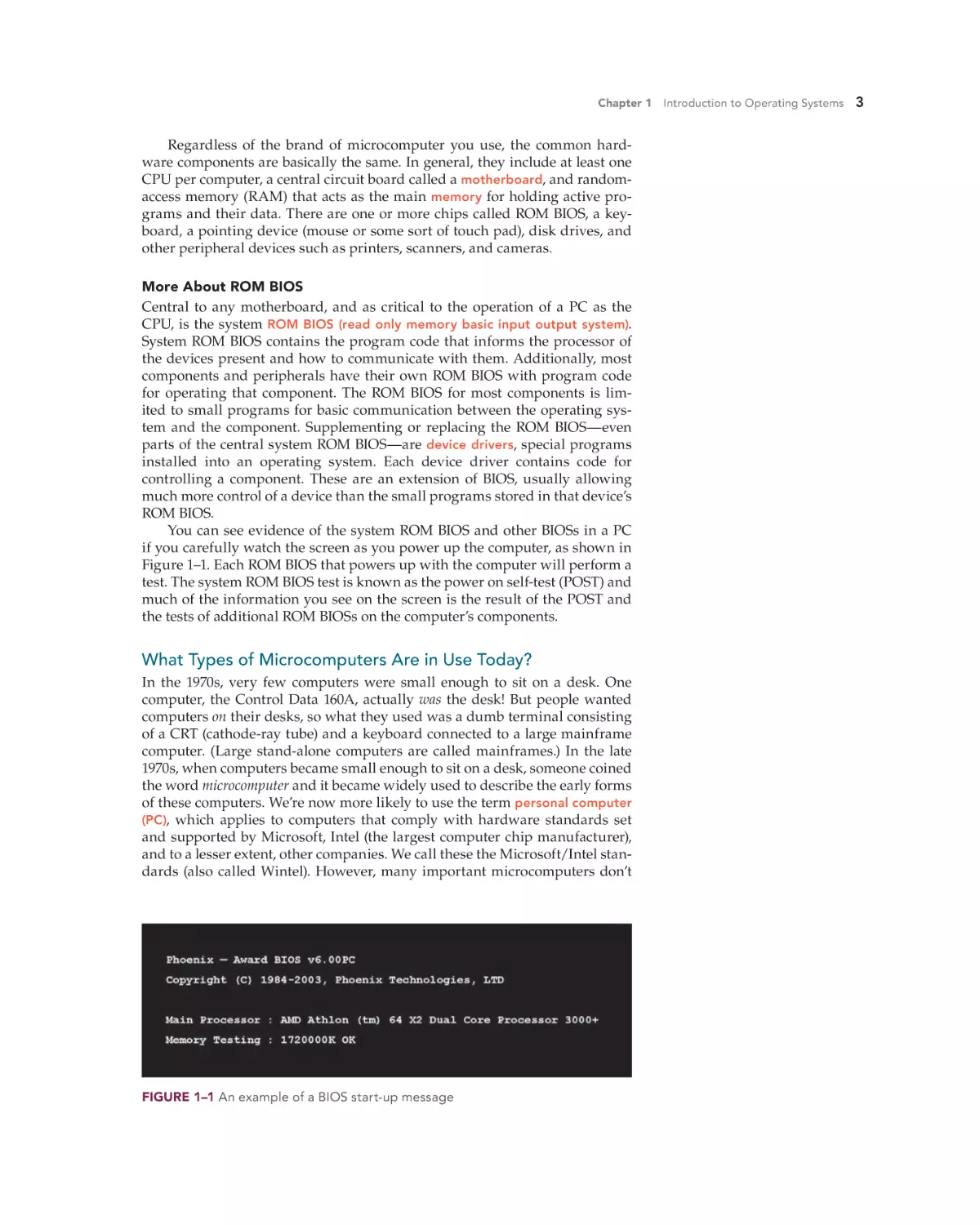
if you carefully watch the screen as you power up the computer, as shown in
Figure 1–1. Each ROM BIOS that powers up with the computer will perform a
test. The system ROM BIOS test is known as the power on self-test (POST) and
much of the information you see on the screen is the result of the POST and
the tests of additional ROM BIOSs on the computer’s components.
What Types of Microcomputers Are in Use Today?
In the 1970s, very few computers were small enough to sit on a desk. One
computer, the Control Data 160A, actually was the desk! But people wanted
computers on their desks, so what they used was a dumb terminal consisting
of a CRT (cathode-ray tube) and a keyboard connected to a large mainframe
computer. (Large stand-alone computers are called mainframes.) In the late
1970s, when computers became small enough to sit on a desk, someone coined
the word microcomputer and it became widely used to describe the early forms
of these computers. We’re now more likely to use the term personal computer
(PC), which applies to computers that comply with hardware standards set
and supported by Microsoft, Intel (the largest computer chip manufacturer),
and to a lesser extent, other companies. We call these the Microsoft/Intel standards (also called Wintel). However, many important microcomputers don’t
FIGURE 1–1 An example of a BIOS start-up message
hoL18174_ch01_001-038.indd 3
19/02/11 1:16 PM
Confirming Pages
4
SURVEY OF OPERATING SYSTEMS
comply with these standards—most notably, those from Apple and the small
handheld computers such as smartphones that are so popular today.
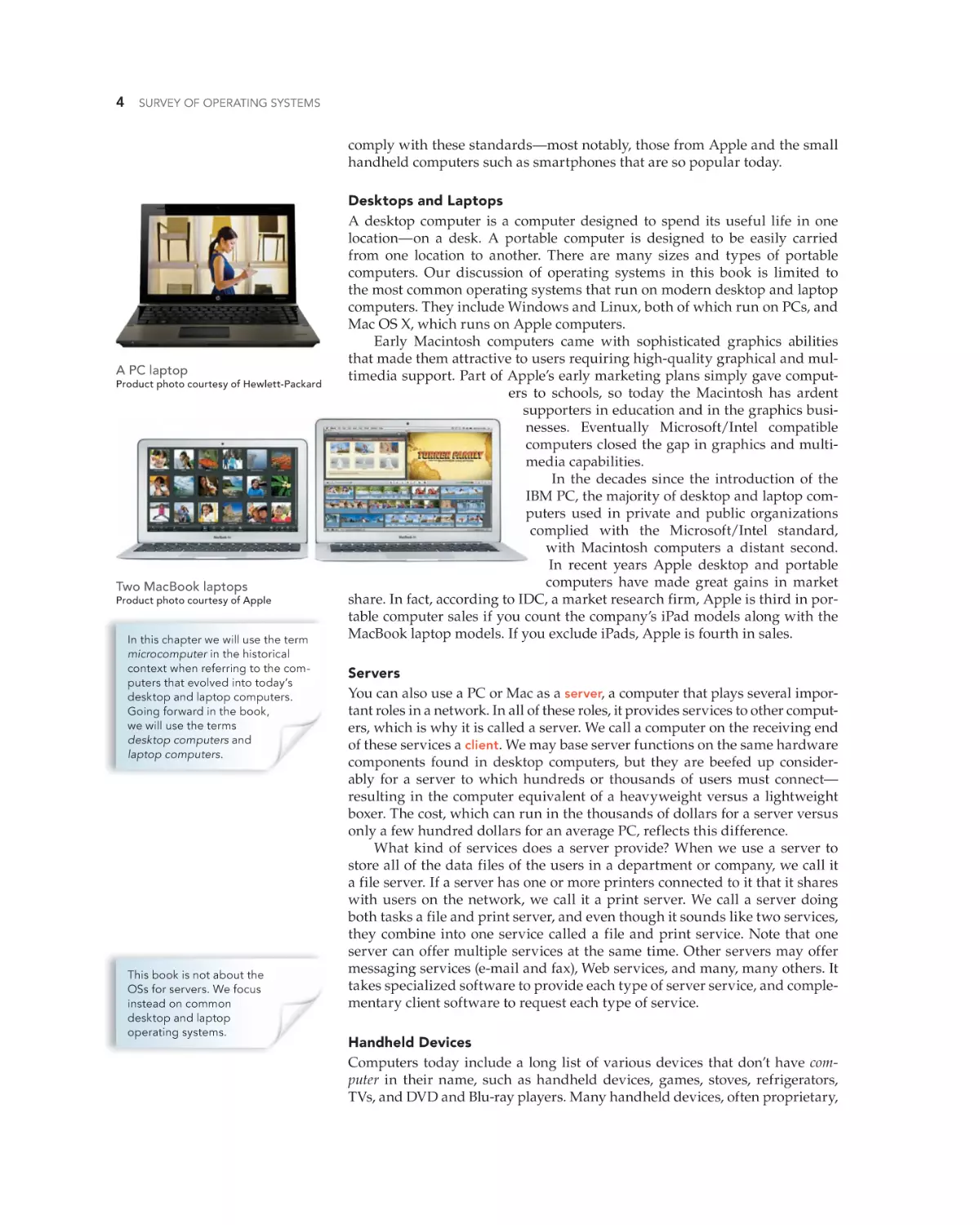
A PC laptop
Product photo courtesy of Hewlett-Packard
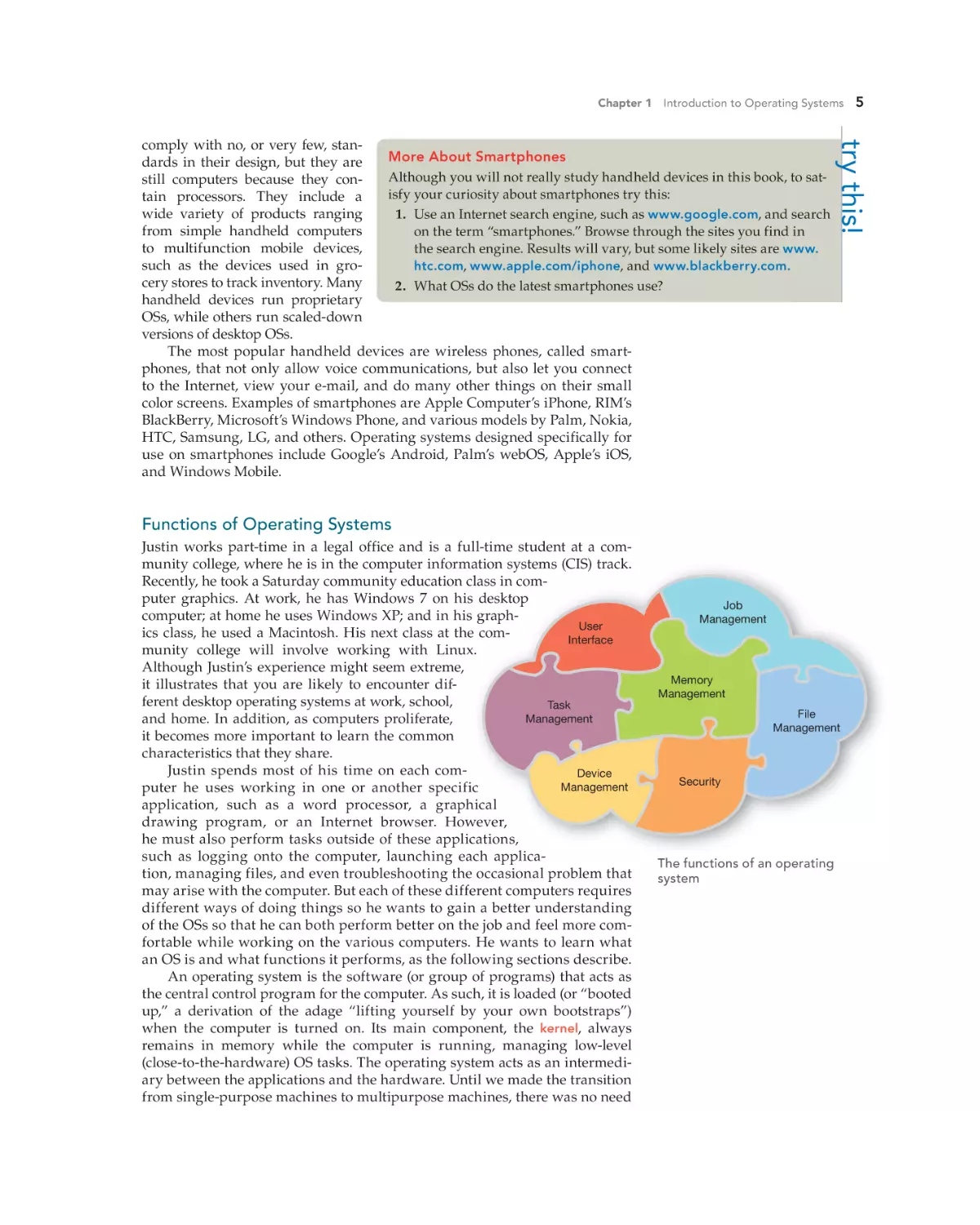
Two MacBook laptops
Product photo courtesy of Apple
In this chapter we will use the term
microcomputer in the historical
context when referring to the computers that evolved into today’s
desktop and laptop computers.
Going forward in the book,
we will use the terms
desktop computers and
laptop computers.
This book is not about the
OSs for servers. We focus
instead on common
desktop and laptop
operating systems.
hoL18174_ch01_001-038.indd 4
Desktops and Laptops
A desktop computer is a computer designed to spend its useful life in one
location—on a desk. A portable computer is designed to be easily carried
from one location to another. There are many sizes and types of portable
computers. Our discussion of operating systems in this book is limited to
the most common operating systems that run on modern desktop and laptop
computers. They include Windows and Linux, both of which run on PCs, and
Mac OS X, which runs on Apple computers.
Early Macintosh computers came with sophisticated graphics abilities
that made them attractive to users requiring high-quality graphical and multimedia support. Part of Apple’s early marketing plans simply gave computers to schools, so today the Macintosh has ardent
supporters in education and in the graphics businesses. Eventually Microsoft/Intel compatible
computers closed the gap in graphics and multimedia capabilities.
In the decades since the introduction of the
IBM PC, the majority of desktop and laptop computers used in private and public organizations
complied with the Microsoft/Intel standard,
with Macintosh computers a distant second.
In recent years Apple desktop and portable
computers have made great gains in market
share. In fact, according to IDC, a market research firm, Apple is third in portable computer sales if you count the company’s iPad models along with the
MacBook laptop models. If you exclude iPads, Apple is fourth in sales.
Servers
You can also use a PC or Mac as a server, a computer that plays several important roles in a network. In all of these roles, it provides services to other computers, which is why it is called a server. We call a computer on the receiving end
of these services a client. We may base server functions on the same hardware
components found in desktop computers, but they are beefed up considerably for a server to which hundreds or thousands of users must connect—
resulting in the computer equivalent of a heavyweight versus a lightweight
boxer. The cost, which can run in the thousands of dollars for a server versus
only a few hundred dollars for an average PC, reflects this difference.
What kind of services does a server provide? When we use a server to
store all of the data files of the users in a department or company, we call it
a file server. If a server has one or more printers connected to it that it shares
with users on the network, we call it a print server. We call a server doing
both tasks a file and print server, and even though it sounds like two services,
they combine into one service called a file and print service. Note that one
server can offer multiple services at the same time. Other servers may offer
messaging services (e-mail and fax), Web services, and many, many others. It
takes specialized software to provide each type of server service, and complementary client software to request each type of service.
Handheld Devices
Computers today include a long list of various devices that don’t have computer in their name, such as handheld devices, games, stoves, refrigerators,
TVs, and DVD and Blu-ray players. Many handheld devices, often proprietary,
19/02/11 1:16 PM
Confirming Pages
Chapter 1 Introduction to Operating Systems
try this!
comply with no, or very few, stanMore About Smartphones
dards in their design, but they are
Although you will not really study handheld devices in this book, to satstill computers because they conisfy your curiosity about smartphones try this:
tain processors. They include a
wide variety of products ranging
1. Use an Internet search engine, such as www.google.com, and search
from simple handheld computers
on the term “smartphones.” Browse through the sites you find in
to multifunction mobile devices,
the search engine. Results will vary, but some likely sites are www.
such as the devices used in grohtc.com, www.apple.com/iphone, and www.blackberry.com.
cery stores to track inventory. Many
2. What OSs do the latest smartphones use?
handheld devices run proprietary
OSs, while others run scaled-down
versions of desktop OSs.
The most popular handheld devices are wireless phones, called smartphones, that not only allow voice communications, but also let you connect
to the Internet, view your e-mail, and do many other things on their small
color screens. Examples of smartphones are Apple Computer’s iPhone, RIM’s
BlackBerry, Microsoft’s Windows Phone, and various models by Palm, Nokia,
HTC, Samsung, LG, and others. Operating systems designed specifically for
use on smartphones include Google’s Android, Palm’s webOS, Apple’s iOS,
and Windows Mobile.
5
Functions of Operating Systems
Justin works part-time in a legal office and is a full-time student at a community college, where he is in the computer information systems (CIS) track.
Recently, he took a Saturday community education class in computer graphics. At work, he has Windows 7 on his desktop
computer; at home he uses Windows XP; and in his graphUser
ics class, he used a Macintosh. His next class at the comInterface
munity college will involve working with Linux.
Although Justin’s experience might seem extreme,
it illustrates that you are likely to encounter different desktop operating systems at work, school,
Task
Management
and home. In addition, as computers proliferate,
it becomes more important to learn the common
characteristics that they share.
Justin spends most of his time on each comDevice
Management
puter he uses working in one or another specific
application, such as a word processor, a graphical
drawing program, or an Internet browser. However,
he must also perform tasks outside of these applications,
such as logging onto the computer, launching each application, managing files, and even troubleshooting the occasional problem that
may arise with the computer. But each of these different computers requires
different ways of doing things so he wants to gain a better understanding
of the OSs so that he can both perform better on the job and feel more comfortable while working on the various computers. He wants to learn what
an OS is and what functions it performs, as the following sections describe.
An operating system is the software (or group of programs) that acts as
the central control program for the computer. As such, it is loaded (or “booted
up,” a derivation of the adage “lifting yourself by your own bootstraps”)
when the computer is turned on. Its main component, the kernel, always
remains in memory while the computer is running, managing low-level
(close-to-the-hardware) OS tasks. The operating system acts as an intermediary between the applications and the hardware. Until we made the transition
from single-purpose machines to multipurpose machines, there was no need
hoL18174_ch01_001-038.indd 5
Job
Management
Memory
Management
File
Management
Security
The functions of an operating
system
19/02/11 1:16 PM
Confirming Pages
6
SURVEY OF OPERATING SYSTEMS
for an operating system between an application and the hardware, since the
single-purpose software interacted with all of the hardware of the system.
When programmers (also known as “developers”) write an application,
they design the application to interact with the operating system and make all
requests for hardware services through the operating system. To do this, they
must write the program to use the correct commands to request operating
system services. The operating system, in turn, interacts with the hardware
on behalf of the application and fulfills the requests the application made.
Today, because our computers are no longer such dedicated systems, the operating system performs several functions. We’ll study them next.
User
Interface
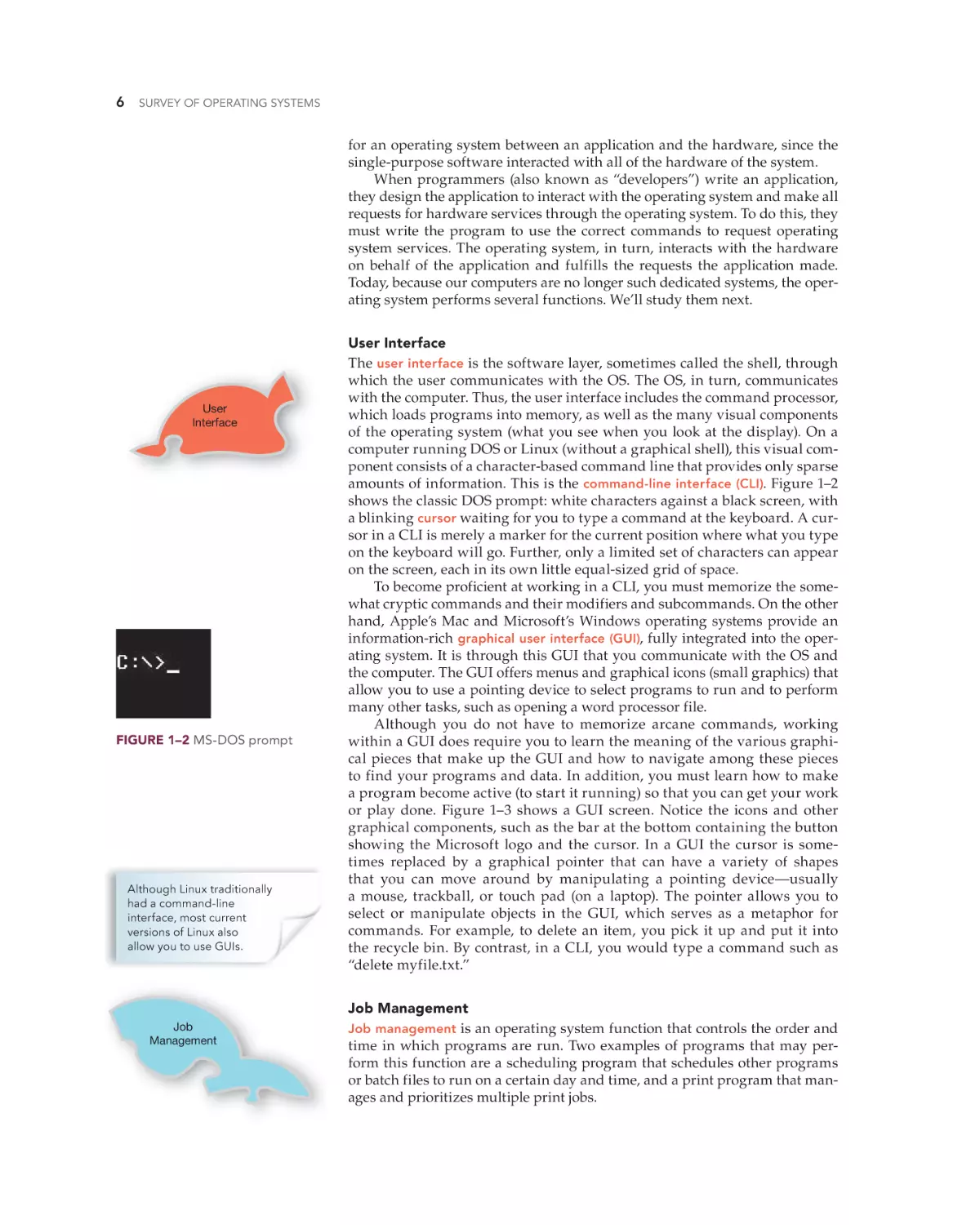
FIGURE 1–2 MS-DOS prompt
Although Linux traditionally
had a command-line
interface, most current
versions of Linux also
allow you to use GUIs.
Job
Management
hoL18174_ch01_001-038.indd 6
User Interface
The user interface is the software layer, sometimes called the shell, through
which the user communicates with the OS. The OS, in turn, communicates
with the computer. Thus, the user interface includes the command processor,
which loads programs into memory, as well as the many visual components
of the operating system (what you see when you look at the display). On a
computer running DOS or Linux (without a graphical shell), this visual component consists of a character-based command line that provides only sparse
amounts of information. This is the command-line interface (CLI). Figure 1–2
shows the classic DOS prompt: white characters against a black screen, with
a blinking cursor waiting for you to type a command at the keyboard. A cursor in a CLI is merely a marker for the current position where what you type
on the keyboard will go. Further, only a limited set of characters can appear
on the screen, each in its own little equal-sized grid of space.
To become proficient at working in a CLI, you must memorize the somewhat cryptic commands and their modifiers and subcommands. On the other
hand, Apple’s Mac and Microsoft’s Windows operating systems provide an
information-rich graphical user interface (GUI), fully integrated into the operating system. It is through this GUI that you communicate with the OS and
the computer. The GUI offers menus and graphical icons (small graphics) that
allow you to use a pointing device to select programs to run and to perform
many other tasks, such as opening a word processor file.
Although you do not have to memorize arcane commands, working
within a GUI does require you to learn the meaning of the various graphical pieces that make up the GUI and how to navigate among these pieces
to find your programs and data. In addition, you must learn how to make
a program become active (to start it running) so that you can get your work
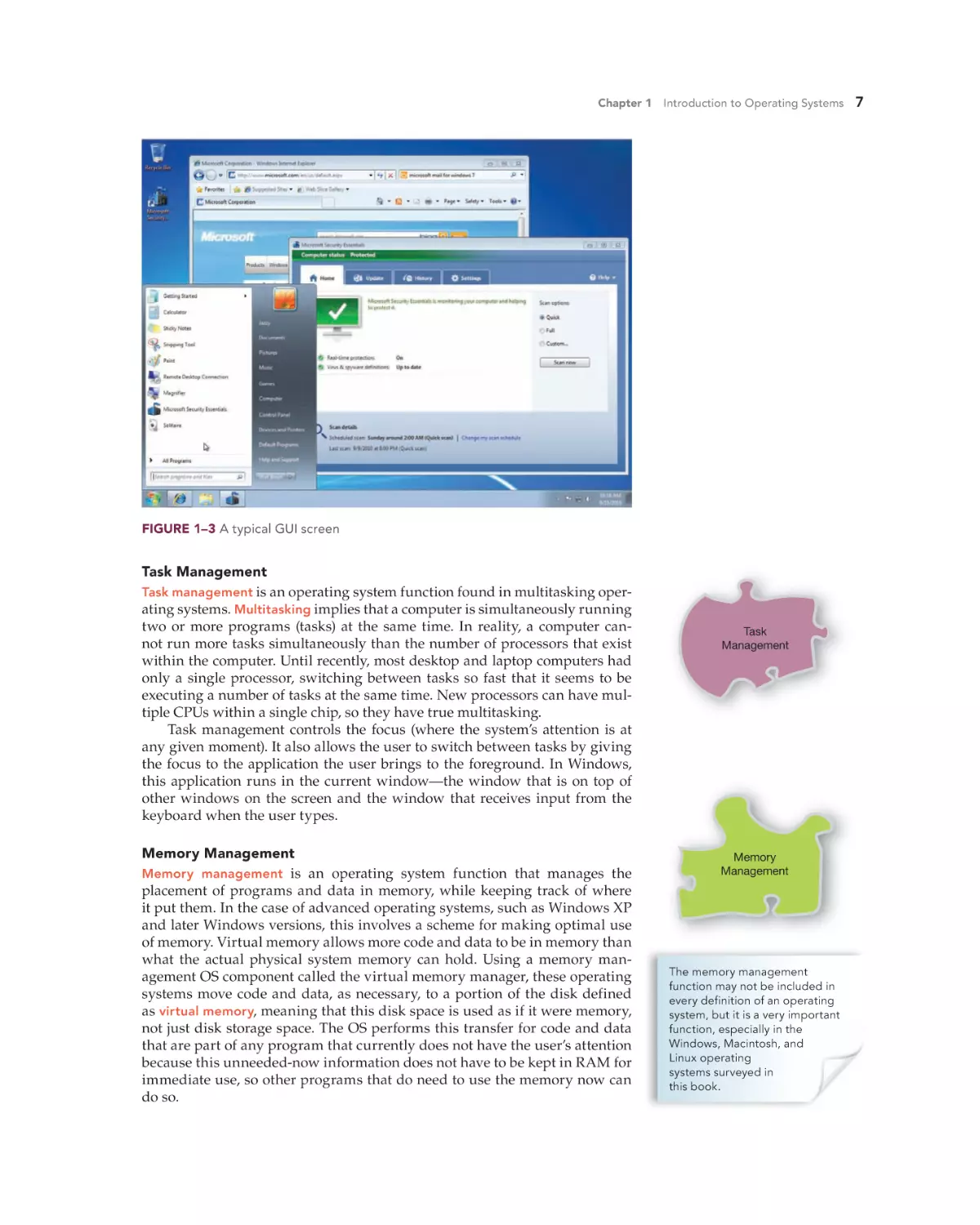
or play done. Figure 1–3 shows a GUI screen. Notice the icons and other
graphical components, such as the bar at the bottom containing the button
showing the Microsoft logo and the cursor. In a GUI the cursor is sometimes replaced by a graphical pointer that can have a variety of shapes
that you can move around by manipulating a pointing device—usually
a mouse, trackball, or touch pad (on a laptop). The pointer allows you to
select or manipulate objects in the GUI, which serves as a metaphor for
commands. For example, to delete an item, you pick it up and put it into
the recycle bin. By contrast, in a CLI, you would type a command such as
“delete myfile.txt.”
Job Management
Job management is an operating system function that controls the order and
time in which programs are run. Two examples of programs that may perform this function are a scheduling program that schedules other programs
or batch files to run on a certain day and time, and a print program that manages and prioritizes multiple print jobs.
19/02/11 1:16 PM
Confirming Pages
Chapter 1 Introduction to Operating Systems
7
FIGURE 1–3 A typical GUI screen
Task Management
Task management is an operating system function found in multitasking operating systems. Multitasking implies that a computer is simultaneously running
two or more programs (tasks) at the same time. In reality, a computer cannot run more tasks simultaneously than the number of processors that exist
within the computer. Until recently, most desktop and laptop computers had
only a single processor, switching between tasks so fast that it seems to be
executing a number of tasks at the same time. New processors can have multiple CPUs within a single chip, so they have true multitasking.
Task management controls the focus (where the system’s attention is at
any given moment). It also allows the user to switch between tasks by giving
the focus to the application the user brings to the foreground. In Windows,
this application runs in the current window—the window that is on top of
other windows on the screen and the window that receives input from the
keyboard when the user types.
Memory Management
Memory management is an operating system function that manages the
placement of programs and data in memory, while keeping track of where
it put them. In the case of advanced operating systems, such as Windows XP
and later Windows versions, this involves a scheme for making optimal use
of memory. Virtual memory allows more code and data to be in memory than
what the actual physical system memory can hold. Using a memory management OS component called the virtual memory manager, these operating
systems move code and data, as necessary, to a portion of the disk defined
as virtual memory, meaning that this disk space is used as if it were memory,
not just disk storage space. The OS performs this transfer for code and data
that are part of any program that currently does not have the user’s attention
because this unneeded-now information does not have to be kept in RAM for
immediate use, so other programs that do need to use the memory now can
do so.
hoL18174_ch01_001-038.indd 7
Task
Management
Memory
Management
The memory management
function may not be included in
every definition of an operating
system, but it is a very important
function, especially in the
Windows, Macintosh, and
Linux operating
systems surveyed in
this book.
19/02/11 1:16 PM
Confirming Pages
8
SURVEY OF OPERATING SYSTEMS
File
Management
Device
Management
Security
hoL18174_ch01_001-038.indd 8
File Management
File management, also referred to as data management, is an operating system
function that allows the operating system to read, write, and modify data,
while managing the logical storage of the data. Each operating system has at
least one scheme of logical organization, called a file system. A file system is
the logical structure used on a storage device for the purpose of storing files,
as well as the code within an operating system that allows the OS to store and
manage files on a storage device. The logical structure is written to a storage device when an operating system uses a technique called formatting. The
operating system maps the logical organization of the file system to physical
locations on the storage device, (most often a conventional hard disk drive or
solid state drive so that it can store and retrieve the data. The logical structure
of a file system stores metadata, which is data about the stored files.
Normally, a single storage device will have only a single file system, residing in a single area defined as a partition, but most operating systems allow a
storage device to have more than one partition. A partition may be an entire
drive volume or just a portion of a drive, and it is assigned some identifier,
for example, a drive letter like C. In DOS and Windows, the drive letter is followed by a colon, so that a complete drive name may be C:. We often call this
a logical drive.
Within the logical structure of a file system, data is organized into entities
called files that are saved to storage devices (usually disks). File management
also allows users to organize their files, using other special files that act as
containers. These special files, called folders or directories, can contain files as
well as other folders.
There are file systems for magnetic media (hard drives), file systems for
optical media, and special file systems for working over the network. Each of the
operating systems discussed in this book supports several types of file systems.
Examples of file systems for magnetic media include the FAT file system
that originated with both PC DOS and MS-DOS; the ext2, ext3, JFS, VFS, and
ReiserFs file systems for Linux; the FAT32 and NTFS file systems for Windows; and the Mac OS files systems, HFS and HFS+. Learn more about the
file systems for Windows, Linux, and Mac OS in the chapters devoted to each
operating system.
Examples of file systems for optical media include ISO9660, Universal
Disk Format (UDF). File systems for sharing files over a network are independent of the file system used on storage media. Example of such network files
systems include NFS, used by Mac OS X and UNIX, and SMB/CIFS used by
several OSs.
Device Management
The device management function controls hardware devices by using special
software called device drivers, which are installed in the operating system.
Device drivers are unique to the device and the manufacturer of the device
creates them to work with a specific operating system. For instance, a printer
or video adapter will come with drivers for several different operating systems. The device driver contains the commands understood by the device and
uses these commands to control the device in response to requests it receives
from the operating system. You need a component-specific device driver for
each unique hardware component with which the operating system interacts.
Security
The security function of an operating system provides password-protected
authentication of the user before allowing access to the local computer and
may restrict what someone can do on a computer. For example, Rachel is
the accounting clerk in a small company. She has confidential information on
her computer, and she doesn’t want just anyone to be able to walk up to her
19/02/11 1:16 PM
Confirming Pages
Chapter 1 Introduction to Operating Systems
9
computer and access the information stored there. Rachel can set up her computer so that anyone getting into it must log on with a user name and password from a user account. A user account is nothing more than a name and
an associated password stored inside the PC. Security is a large topic—one
that would take many books and weeks of your time to really master—but to
go much farther in this book without addressing computer security would be
foolish, so Chapter 2 is devoted to computer security basics. There you will
learn about threats to computers, what security is built-in to the operating
systems discussed in this book, and the steps you can take to protect yourself
from threats.
Categories of Operating Systems
Operating systems are organized into four categories, three of which are
based on the number of simultaneous tasks and the number of simultaneous
users that can be served, while one category, real-time, is based on an entirely
different set of characteristics. The categories are:
•
•
•
•
Single-user/single-tasking
Single-user/multitasking
Multiuser/multitasking
Real-time
We’ll discuss each in turn.
Single-User/Single-Tasking
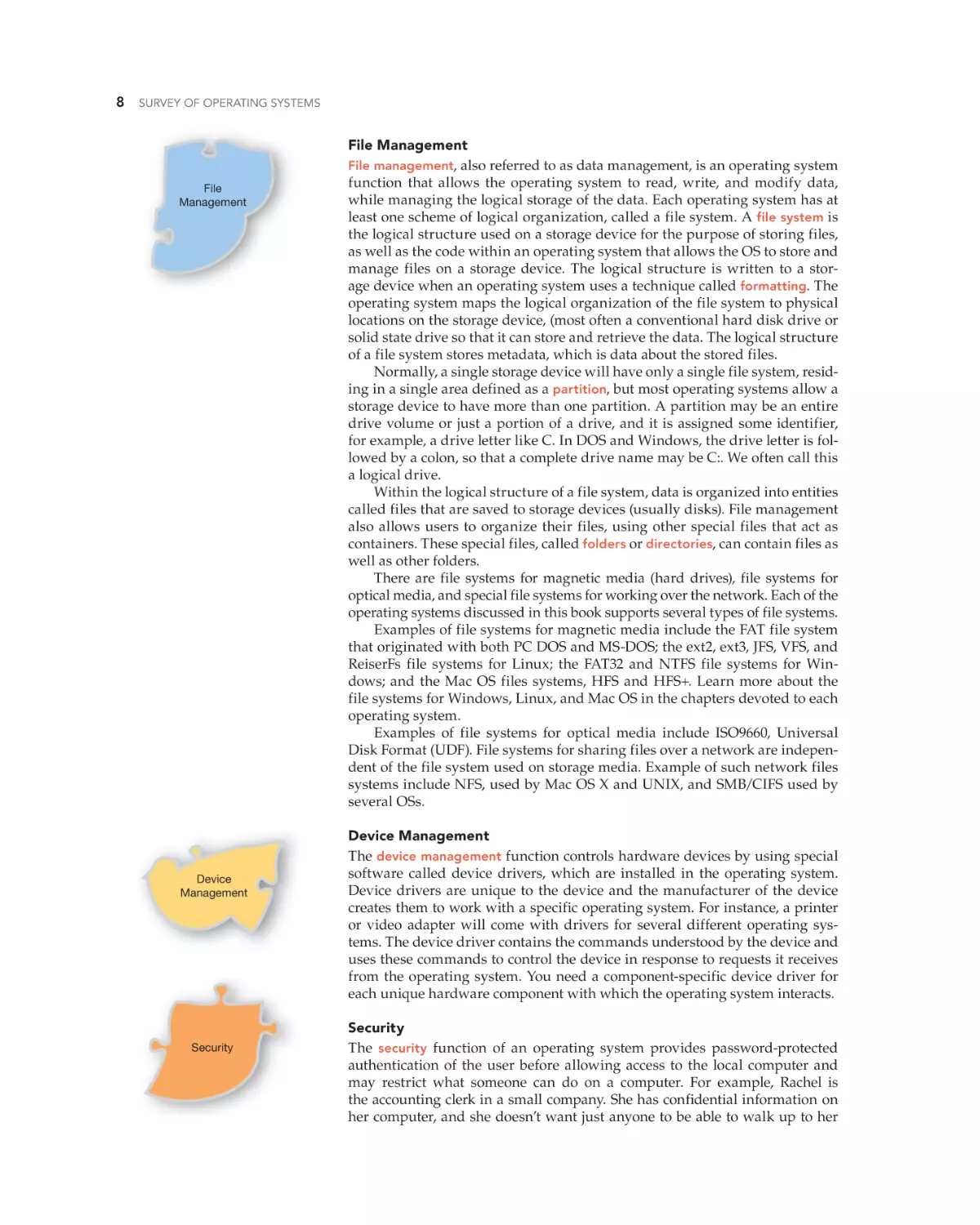
A single-user/single-tasking operating system is one that
allows only a single user to perform a single task at a
time. A task is a function such as reading a file from disk,
performing a math calculation, printing a document, or
sending a request over the Internet to a Web server. Small
and simple OSs can only manage a single task at a time.
(See Figure 1–4.)
Examples of single-tasking OSs are MS-DOS and the
Palm OS, used on the palmOne handheld computers.
Because they take up very little space on disk or in memory when they are running, a single-tasking OS does not require a powerful and expensive computer.
The current OSs on the iPhone and the iPad fall into this category because they
only allow a user to run one user application at a time.
FIGURE 1–4 Single-user/
single-tasking
Single-User/Multitasking
An operating system that allows a single user to perform two or more functions at once is a single-user/
multitasking operating system. Early versions of both
Microsoft Windows and the Macintosh operating systems were examples of this category. Thanks to these
OSs and the applications that run on them, people could
accomplish more in less time, increasing their productivity. For instance, a single user can have two or more
programs open, share data between programs, and can
instantly switch between them. (See Figure 1–5.)
Multiuser/Multitasking Operating Systems
A multiuser/multitasking operating system allows multiple users to run programs simultaneously. We have had
such operating systems for decades on mainframes and
on today’s network servers, sometimes called terminal servers. This is not at all
the same as connecting to a network server for the sake of accessing files and
hoL18174_ch01_001-038.indd 9
FIGURE 1–5 Single-user/
multitasking
19/02/11 1:16 PM
Confirming Pages
10
SURVEY OF OPERATING SYSTEMS
In this context, an interactive user
is one who is physically sitting
at the local computer,
controlling the keyboard
and mouse.
printers. When a computer connects to a file and print server to access document files to edit, the client computer performs the processing work locally.
Not so with a multiuser server OS that gives each user a complete operating
environment on the server that is separate from all other users. A terminal
client is software on the user’s computer that establishes a connection to the
terminal server. In a multiuser/multitasking operating system server environment, all or most of the computing occurs at the server. (See Figure 1–6.)
When connected to a multiuser/multitasking server, each user may have
either a full-fledged PC or a thin client (a minimally configured PC). The terminal client runs software under Windows, Mac OS, or Linux, but with far
lower hardware requirements than it would need if it ran all the processes
locally. The terminal server providing a multiuser/multitasking OS to client
computers may be a Unix, Linux, NetWare, or a special version of Microsoft
Windows server.
The multiuser capabilities of today’s OSs carry over to the user environment. Multiple users can have accounts on a single computer—desktop or
server—and when each user logs on he sees his desktop with all his favorite
gadgets and other settings, and he has access to his files and installed programs. The desktop operating systems we survey in this book—Windows
XP, Windows Vista, Windows 7, Linux, and Mac OS X—all are multiuser/
multitasking operating systems with one caveat: only one user at a time can
interactively log into the computer. However, a logged on user can simply log
out, and leave their entire session of open applications and windows intact,
and another user can log in and run a separate session, thus switching the
current user. Therefore, Windows OSs support multiple but not simultaneous interactive users. All of the desktop OSs surveyed in this course support
multiple simultaneous user connections over a network.
Terminal server
User 1 session
Terminal client
User 2 session
Terminal client
FIGURE 1–6 Multiuser/multitasking
hoL18174_ch01_001-038.indd 10
19/02/11 1:16 PM
Rev.Confirming Pages
Chapter 1
Introduction to Operating Systems
11
We can take the “multiuser” part of this a step further with the concept
of virtualization, discussed in detail in Chapter 3. In brief, virtualization is
the creation of an environment that seems real, but isn’t. When we talk about
virtualization of an OS we usually mean running an OS within a virtual
machine within another OS. For instance, you can run Windows XP in a
virtual machine on a computer running Windows 7, or you can run Windows
7 within a virtual machine on an iMac computer running Mac OS X.
Real-Time Operating Systems
A real-time operating system (RTOS) is a very fast and relatively small OS.
A real-time operating system’s speed and ability to work with special realtime application programs defines it. Often embedded, meaning it is built
into the circuitry of a device and not normally loaded from a disk drive, a
real-time operating system runs real-time applications. It may support multiple simultaneous tasks or it may only support single tasking. A real-time
application responds to certain inputs extremely quickly—thousandths or
millionths of a second (milliseconds or microseconds, respectively). They run
medical diagnostics equipment, life-support systems, machinery, scientific
instruments, and industrial systems. Real-time OSs are used in aviation and
aerospace where the code must run within the allotted time. Output must be
provided in time to make a course correction (in the case of aviation software),
make a flow correction (in the case of a ventilator), or provide a warning to
an operator. Examples of real-time operating systems include BlueCat Linux
by LynuxWorks, QNX Neutrino by QNX Software Systems, Operating System
Embedded (OSE), pSOS, and Windows CE.
Real-time embedded systems are everywhere. Devices with real-time
embedded systems control the movement of surveillance cameras suspended
by cables over a sports arena. Other devices gather data from racecars and
transmit the data and live video images of the race from each car. Real-time
embedded systems are also used in unmanned military ground vehicles, and
you’ll find real-time embedded systems in very large-scale machines, such as
the huge sack, parcel, and large parcel sorting machines found in U.S. Postal
Service bulk mail centers. (See Figure 1–7.)
16-, 32-, and 64-Bit OSs
We call an operating system that can take
advantage of the addressing and processing
features of a processor an x-bit OS. The original MS-DOS was a 16-bit OS, as was Windows
3.0 and its sub-versions. Windows 95, Windows 98, and Windows Millennium Edition
were really hybrids, with mostly 32-bit pieces
but some 16-bit pieces for downward compatibility. Windows XP had a 64-bit version, but
it was not widely used, and you are unlikely
to encounter it in the wild. The Windows versions, Mac OS X, and Linux OSs we discuss
in this book are available in both 32-bit and
64-bit versions.
All things being equal, the 64-bit version
of an operating system will be faster than its
32-bit counterpart, but the biggest difference between the 32-bit and 64-bit
versions of Windows is in the address space used by both system RAM and
other RAM and ROM in your computer (see Table 1–1). Windows 64-bit does
hoL18174_ch01_001-038.indd 11
FIGURE 1–7 Example of a device
containing a real-time embedded
system
© Michael Pimentel/www.isiphotos.com/Corbis
2/25/11 7:24 PM
Confirming Pages
12
SURVEY OF OPERATING SYSTEMS
TABLE 1–1
Windows Memory Limits
Edition
RAM Limit in 32-Bit Version
RAM Limit in 64-Bit Version
Windows XP Professional
4 GB
128 GB
Windows Vista Ultimate/Enterprise/Business
4 GB
128 GB
Windows Vista Home Premium
4 GB
16 GB
Windows Vista Home Basic
4 GB
8 GB
Windows 7 Ultimate/Enterprise/Professional
4 GB
192 GB
Windows 7 Home Premium
4 GB
16 GB
Windows 7 Home Basic
4 GB
8 GB
not use the maximum theoretical address space of a 64-bit CPU, which is 264,
or 9.2 quintillion (nine followed by 18 digits).
A 64-bit operating system requires 64-bit applications, although Microsoft
has offered ways to support older applications in each upgrade of Windows,
as described in each of the Windows operating system chapters in this book.
To determine if a Windows Vista or Windows 7 computer is running a 32-bit
or 64-bit version, type “system” in the Start menu’s Start Search box (simply
Search in Windows 7) and select “System” from the resulting list of Programs.
The System Type field will say “32-bit Operating System” or “64-bit Operating System.” If you purchase a new computer today with either Windows or
the Mac OS preinstalled, it is most likely to be a 64-bit OS.
LO 1.2
l Yesterday’s Operating Systems
Sometimes people think that they can simply take the newest and best computer or other gadget and make it work without understanding anything
about how it came to be. Well, they can. But they probably can’t fix it, modify
Xerox opens Palo Alto Research
Center (PARC).
Stanford Research Institute’s
Douglas Engelbart
demonstrates the use of a
mouse to move a “bug”
around a screen at the Fall
Joint Computer Conference
in San Francisco.
IBM introduces
the floppy disk.
1970
1968
1969
A small group at Bell Labs works
on what eventually becomes UNIX.
ARPANET is created, the first step
in the building of the Internet.
hoL18174_ch01_001-038.indd 12
Intel creates the 4004
processor, leading the
way to the birth of
the microcomputer.
1973
PARC creates the Altos,
the first “personal
computer“ with a GUI,
laser printer, and
a connection to the
first Ethernet network.
19/02/11 1:16 PM
Confirming Pages
Chapter 1 Introduction to Operating Systems
13
it, or use it effectively without understanding how and why it came to be in
the form it’s in now. One really can’t understand current PC technology without having a grasp of older PC technology. In other words, studying history is
important to understand how we arrived at today. We’ll begin with arguably
the oldest OS still in use today, with beginnings that predate microcomputers.
Then we’ll explore the history of computers leading to today’s PCs and Mac
desktop computers and the operating systems that evolved for each of these
hardware platforms.
UNIX—The OS for All Platforms
Intel releases the
8088 processor.
Apple I computer is released.
John Torode and
Gary Kildall
introduce the
microcomputer
disk operating
system CP/M.
Steve Jobs and
Stephen Wozniak
found Apple Computer.
1974
1976
1975
Bill Gates and Paul Allen write a
programming language called
BASIC for the MITS Altair.
Popular Electronics
introduce the
MITS Altair 8800
in a cover story.
hoL18174_ch01_001-038.indd 13
try this!
In the context of this book, we have put UNIX under Yesterday’s Desktop OSs
because UNIX has a longer history than any other popular operating system. It grew out of an operating system developed for an early Digital Equipment Corporation (DEC) computer and went through several generations of
changes before it emerged from the Bell Labs Computing Science Research
Center (Bell Labs) as UNIX version 6 in 1975. This was a portable operating
system for minicomputers and mainframe computers distributed via government and commercial licenses and inexpensive academic licenses. A portable
operating system is one that you
can use on a variety of computer
system platforms, with only minor
Research the History of UNIX
alterations required for the underRead a history of the UNIX operating system. Try this:
lying architecture.
1. Point your Web browser to www.bell-labs.com/history/unix.
The University of Califor2. Read the article “The Creation of the UNIX Operating System.”
nia at Berkeley licensed UNIX,
modified it, and distributed it to
3. Read about the contributions of Dennis Ritchie and
other schools as Berkeley SoftKen Thompson.
ware Distribution (BSD) version
4. Research more recent history of UNIX by entering “UNIX history
4.2. Later versions have followed.
2010” into a search engine.
The schools paid licensing fees to
Bell Labs releases UNIX version 6,
which is distributed via
government and commercial
licenses and inexpensive
academic licenses.
1977
Apple II is
introduced
at the
West Coast
Computer Faire.
Commodore
PET is
introduced.
Bill Gates (bottom left) and
Paul Allen (bottom right) found Microsoft.
19/02/11 1:17 PM
Confirming Pages
14
SURVEY OF OPERATING SYSTEMS
Bell Labs. Students and others improved on and added to UNIX, freely sharing their code with each other. This tradition still prevails today with such
versions of UNIX as Free BSD, Net BSD, Open BDS, and Open Solaris. Commercial versions of UNIX today include AIX, OpenServer (derived from SCO
UNIX), and HP/UX.
In certain environments UNIX is still very much alive. The current
commercial versions of UNIX include Sun Microsystems’ Solaris, HewlettPackard’s HP-UX, IBM’s AIX, and Compaq’s Tru64 UNIX. These versions are
high-end server applications and quite expensive, as are the computers they
run on. There are also many open source versions of UNIX, including FreeBSD and NetBSD. Open source is a certification standard of the Open Source
Initiative (OSI) through which a program’s source code (the original language
in which a program is written) is made available free of charge to the general public. Learn more about open source at www.opensource.org. Even with
these free versions available, however, it is worthwhile to buy one of the modestly priced packages from companies that charge small fees just for the value
they have added to the OS in the form of additional software, installation and
configuration instructions, and documentation.
In addition to portability to many computer platforms, UNIX supports
time-sharing and multiuser systems, and some versions run on personal
computers. UNIX can be found today on very large computer systems (still
referred to as mainframes) and on Intel desktop systems, as well as on a variety of midsize computers. Most versions of UNIX also offer several different user interfaces. Some use character mode, like the traditional shells, such
as the Bourne shell and the C shell. Others use a graphical interface such as
GNOME or KDE.
Even fierce UNIX advocates do not see UNIX taking over the desktop any
time soon. However, it is an excellent server operating system, because it uses
resources carefully, allowing you to load only the services currently needed. It
is also very secure, and versions of UNIX are present on many of the world’s
Internet servers.
Apple Computer introduces
disk drives for the Apple II.
Bell Labs releases
UNIX version 7.
Sony and Phillips develop first
technology standards for
compact disc.
UC Berkeley
develops Software
Distribution (BSD) UNIX.
Microsoft announces Microsoft
XENIX OS, a UNIX OS for 16-bit
microprocessors.
1978
1980
1981
1979
Steve Jobs visits Xerox PARC,
sees demos of a GUI,
icons, and a mouse.
VisiCalc, the first spreadsheet
program to run on a personal
computer, is released.
MicroPro International
introduces WordStar, the first
commercially successful word
processing program for microcomputers.
hoL18174_ch01_001-038.indd 14
Adam Osborne introduces the
Osborne 1.
The word Internet is used
for the first time to
describe the ARPANET.
IBM introduces the IBM PC
with Microsoft’s BASIC in
ROM and PC-DOS 1.0.
19/02/11 1:17 PM
Rev.Confirming Pages
Chapter 1
Introduction to Operating Systems
15
The Evolution of Operating Systems
Computers didn’t arrive yesterday. You could argue that they started with
the computers designed (but never built) by Charles Babbage in the 1820s. Or
perhaps you would start with the U.S. military’s World War II computers. In
general, consumers encountered their first microcomputers in 1977 with the
introduction of Apple’s Apple II, Radio Shack’s TRS-80, and Commodore’s PET.
Although computers and microcomputers existed before the Apple II, this
computer was the first to combine the critical elements that make what today
we consider a desktop or laptop; these include a keyboard, a monitor, an operating system, a pointing device, desirable and useful applications, and a reasonable price tag.
The idea for a complex and powerful operating system like what you see
on your desktop or laptop today didn’t just magically pop into someone’s
head. An operating system as a separate entity didn’t exist in the early years
of digital computing (defined roughly as from World War II into the 1950s).
Each computer was dedicated to a single purpose, such as performing trajectory calculations for weapons or mathematical analysis for a science lab, in
addition to the system I/O functions. Loading a new program into a computer
was a time-consuming process.
Operating systems evolved through many small steps, some in the form
of technical advances and others in evolutionary changes in how people
used computers. The reason they evolved is because people saw the need
to use computers as multipurpose devices. The “user,” at first a government
agency, research institute, or large business, would define the computer’s
purpose at any given time by the program chosen to run. In the 1950s, some
early “operating systems” managed data storage on tape for mainframe computers, but it was much more common for application programmers to write
system I/O routines (the stuff of today’s OSs) right into their programs. By
the mid-1960s, as disk systems became more common on large computers, we
needed operating systems to manage these disks and to perform other common system-level routines.
Apple Computer releases the
“FatMac“ with 512K of memory.
TCP/IP becomes the
standard for the Internet.
Apple introduces the Lisa, the
first commercial computer with
a purely graphical operating
system and a mouse.
Mitch Kapor announces Lotus
1-2-3 spreadsheet application
for the IBM-PC.
Apple Computer
releases the
Macintosh with
the Mac OS 1.
Apple II
The MITS Altair 8800 was an
important predecessor to the
Apple II, TRS-80, and PET computers. Although featured in a cover
article of the January 1975 issue
of Popular Mechanics, it was not
for ordinary people. Whether
you bought the $395 kit or the
fully assembled $495 version, the
input method was switches that
you flipped to program it, and the
result of these efforts (the output)
was a pattern of blinking lights.
As a portent of the future, the
Altair 8800 gave Bill Gates
and Paul Allen their very
first sale of the computer
language of BASIC.
The 3½-inch floppy drives
are introduced.
SRI introduces
the WordPerfect
word processor.
IBM Token Ring
networking system
is developed.
1982
IBM introduces
the PC-AT
with MS-DOS 3.0.
1984
1983
hoL18174_ch01_001-038.indd 15
Lotus 1-2-3 available in retail
stores, sells more than
200,000 copies the first year.
Microsoft introduces the
Microsoft mouse for the
IBM PC and compatibles.
Microsoft and IBM introduce
PC-DOS 2.0 with the IBM
PC-XT and a 10MB hard drive.
Bell Labs releases UNIX
System V, release 2 through
commercial licenses.
2/25/11 7:24 PM
Confirming Pages
16
SURVEY OF OPERATING SYSTEMS
A OS version by any other name,
such as Snow Leopard or Windows 7,
is still a version and still has a
number. Sometimes you just
need to look for the number.
The computer enthusiasts who bought the earliest microcomputers of the
1970s, such as the MITS Altair, were infatuated with the technology. Slow
CPU speeds, very limited memory, clumsy I/O devices, and lack of software
did not deter them. They would network with like-minded people, have
informal meetings and discussions, and then gather in self-help groups and
form clubs such as the Home Brew Computer Club in California’s Silicon
Valley. They shared their techniques for creating hardware and programming language software for these computers. Almost every one of these early
microcomputers exceeded the expectations of their makers and users, but
before long, for a variety of reasons, most of the early entrepreneurial companies and their products disappeared.
When a software publisher creates an entirely new OS, they give it a version number, usually 1.0. Software publishers constantly receive feedback
from customers about problems and the need for particular additional features in each OS. In response, a publisher often introduces a modified version
of the original product, in which case the number to the right of the decimal
point will probably change (say, from version 1.0 to version 1.1—people often
abbreviate version as simply “v”). An entirely new version number generally
reflects an important change to an OS.
The Killer App
For a microcomputer to truly become a successful, widely accepted product—
used in businesses as well as by hobbyists—it had to be a tool that performed
an important task; it had to have an application that many people needed.
We call such an application a killer app.
One of these important tasks was spreadsheet calculations. Before microcomputers, people created spreadsheets manually, on large sheets of paper.
They would enter a column of numbers—say, sales for one product in a
drugstore—day-by-day for a month. Then they would add up the daily columns to get the total sales for that product for that month. The next column
was for the next product, and so on. The process was tedious and error prone,
but very valuable to the manager of the drugstore.
Hewlett-Packard
introduces the
Laser Jet laser printer.
Microsoft ships the first version
of Microsoft Windows.
Microsoft and IBM announce
OS/2, a character-mode OS
written for the Intel 80286.
IBM introduces its Video
Graphics Array (VGA)
monitor.
Intel releases the 80386
processor (also called
the 386).
IBM unveils the new PS/2
line of computers, featuring
a 20-MHz 80386 processor.
Bell Labs releases UNIX
version 8 to universities.
1987
1985
1986
Microsoft ships Windows/286
1.03.
IBM delivers the PC Convertible
computer, the first Intel-based
computer with a 3½-inch
Bell Labs releases UNIX version
floppy disk drive.
9 to universities.
hoL18174_ch01_001-038.indd 16
19/02/11 1:17 PM
Confirming Pages
Chapter 1 Introduction to Operating Systems
Thus, when VisiCalc, an electronic spreadsheet program that ran on early
microcomputers, appeared, it became a very successful application. It automated this thankless job, remembered the formulas for the calculations, and
allowed people to recalculate a whole column of numbers after a single change
was made. VisiCalc did more than this, though; it gave people a reason to want
a personal computer. Many people were introduced to VisiCalc on the Apple II
computer (running the Apple OS), and this contributed to the success of the
Apple II in the late 1970s. However, as the 1980s arrived, Apple failed to come
out with a successor to the Apple II in a timely fashion. So, when IBM introduced the IBM PC in 1981, the market was ready for a new microcomputer.
Another fateful series of events revolved around the choice of an OS for
the IBM PC. IBM representatives came to Microsoft, then a fledgling software
company, for the Microsoft BASIC interpreter, which other machines were
using at that time. The result of that visit was that IBM licensed Microsoft’s
BASIC interpreter and installed it in the ROM of the IBM PC. The IBM folk
also talked to Bill Gates about providing an OS; but he did not have one, and
so he sent them to another company, Digital Research, the creators of the
then-popular CP/M OS. Digital Research, however, refused to sign a contract
with IBM, so the IBM guys went back to Bill Gates for the OS. Consequently,
Microsoft bought an OS from another company, and this was the basis of the
first versions of IBM PC DOS.
The IBM PC came with Microsoft’s BASIC interpreter installed in ROM,
which allowed programs written in the BASIC programming language to run
on the PC. For those computers that had the optional floppy drive rather than
just the tape drive, the IBM PC came with either PC DOS or a version of Digital Research’s CP/M as the operating system. IBM, however, priced CP/M far
higher than it did PC DOS, which contributed to the demise of CP/M. The
IBM PC far exceeded IBM’s sales forecast, which was for about a quarter of a
million units during the predicted five-year lifetime of the product. According to one account, IBM took orders for half a million computers in the first
few days after introducing the IBM PC. Many enthusiasts bought it, despite
its roughly $5,000 price tag for a typical configuration, just to see what it
IBM and Microsoft release
OS/2 1.1, adding a GUI to their
first multitasking desktop
operating system.
“Internet Worm“ virus invades
17
Want to learn more about the history of PCs? Our favorite book
on the subject is Fire in the
Valley: The Making of the
Personal Computer by Paul
Freiberger and Michael
Swaine (ISBN 0-07-135892-7).
Motorola announces its 32-bit
microprocessor, the 68040.
Microsoft releases Windows 3.0.
Internet, disables 10 percent of
all Internet host computers.
NeXT, Inc. unveils the NeXT
computer, featuring a 25-MHz
Motorola 68030 processor.
1988
1990
1991
1989
Bell Labs releases UNIX
version 10 to universities.
Intel releases the 80486 chip
(also called the 486).
hoL18174_ch01_001-038.indd 17
Tim Berners-Lee develops
HTML, the foundation
for the World Wide Web.
Microsoft releases
MS-DOS 5.0.
Linus Benedict
Torvalds creates
Linux, a free operating
system modeled
on UNIX, for the
Intel platform.
Apple Computer launches
the PowerBook series
of portable computers.
Apple releases
Macintosh System 7.0
Internet opened to
commercial use.
19/02/11 1:17 PM
Confirming Pages
18
SURVEY OF OPERATING SYSTEMS
could do. However, the IBM name behind the product also inspired many
business users to buy it because this name implied that it was a serious business computer.
Through the 1980s, PCs with DOS
and a variety of DOS applications
made great inroads into organizations of all sizes. In the decade
after its introduction, thousands of
applications were written for DOS,
but Lotus 1-2-3, dBase (database
management), and WordPerfect
(word processing) were the
de facto business standards
at the end of that decade. All
contributed to the mass
adoption of PCs at work,
at school, and at home.
There were several notable West
Coast Computer Faires. Chuck
Peddle also introduced his Commodore PET computer at that
first West Coast Computer Faire
in 1977. Reports state that more
than 12,000 people attended, and
among the 180 exhibiters were
Intel, MITS, and Digital Research.
At the fourth West Coast Computer Faire, in 1979, Dan Bricklin
demonstrated VisiCalc (the
first “killer app” discussed
earlier). At the sixth, Adam
Osborne introduced the
Osborne 1 computer.
Microsoft releases Windows
3.1, the first widely accepted
version of Windows.
The Second Killer App
Although many say that just having the letters IBM on the box was what sold
that computer, the groundwork laid by VisiCalc left people ready for what was
arguably the second killer app, Lotus 1-2-3 by Lotus Corporation. Introduced
in 1983, this spreadsheet application ran on the DOS operating system and
used all of the 640KB of memory available to software (OS plus application)
on the IBM PC. Both the 1-2-3 program and the spreadsheet were in memory
while the user worked. It was very fast compared to VisiCalc, which was written to run under the CP/M OS and designed to use much less memory. And
1-2-3 had additional functionality, such as database functions and a program
that could create and print graphs from the spreadsheet data. Lotus 1-2-3 was
the real killer app, the software that made the IBM PC and PC DOS a musthave combination for people who worked all day crunching numbers and
doing what-if calculations. Figure 1–8 shows the Lotus 1-2-3 program with a
sample spreadsheet.
Apple OS
In 1976 Steve Jobs and Stephen Wozniak—two guys literally working out of a
garage—founded Apple Computer, based on their first computer, the Apple I.
Their real notoriety began in 1977 when they introduced the Apple II at the
West Coast Computer Faire in San Francisco. This created interest in the
brand, and the addition of disk drives in 1978 made it a sought-after product
for the technically adventurous consumer. But the OS for the Apple computers at this point did not have a GUI interface—that showed up on the shortlived Apple Lisa computer.
In 1982 Apple introduced the Lisa, the first commercially available computer with a purely graphical operating system—and a mouse. However, this
IBM introduces its Think
Pad laptop computer.
Yahoo! is born in a trailer on
the Stanford University campus.
IBM releases OS/2 2.0, the
first 32-bit OS for PCs.
Netscape Communications
releases Netscape Navigator.
Microsoft releases Windows
for Workgroups 3.1, with
integrated support for
networking.
IBM releases OS/2 Warp
(OS/2 version 3).
Microsoft releases MS-DOS 6.22.
1992
1994
1995
1993
Microsoft releases the first
version of Windows NT (3.1).
Microsoft releases
MS-DOS 6.0.
The National Center
for Supercomputing
Applications (NCSA)
develops Mosaic, the
first Web browser.
Intel releases the
Pentium processor.
hoL18174_ch01_001-038.indd 18
Intel releases the Pentium
Pro microprocessor.
Motorola releases the
PowerPC 604 chip.
Microsoft ships Windows 95.
Sun Microsystems creates
the Java development
language.
19/02/11 1:17 PM
Confirming Pages
Chapter 1 Introduction to Operating Systems
19
FIGURE 1–8 Lotus 1-2-3 spreadsheet
computer lacked something very important for consumers—applications. It
was not successful, and Apple’s own Macintosh computer, released in 1984,
overshadowed the Lisa and marked the beginning of consumer excitement
and the near-cult following of the Apple computer products. The Macintosh
came with Mac OS System 1, a GUI operating system that used a mouse.
Apple improved the Mac OS over the years to include many easy-to-use features. The final release of the classic Mac OS family was Mac OS 9, introduced
in 1999. With its roots in the original 1984 OS, Apple revised and improved
the operating system to support multiple users, but it was weak in memory
management and full multitasking. In 2001 it was replaced by a completely
new operating system—Mac OS X, based on UNIX. Learn more about OS X
later in this chapter.
IBM releases OS/2 Warp
Server, an OS for network
servers.
IBM releases OS/2 Warp 4,
which can simultaneously
connect to almost any
network server.
Apple computer buys NeXT.
Microsoft releases Windows
NT Workstation 4.0.
Early in Apple’s history, the company strategically targeted schools
and universities as places to sell its
products, which, over the years,
has resulted in large numbers of
people who learned computing
on a Mac and has contributed to
Apple’s loyal following. Recently,
Apple computers—both desktop
and laptops—are gaining market
share against PC models
and could eventually
overtake the mostly
Microsoft Windows PCs.
Intel releases
Pentium II chip.
Microsoft releases
Windows 98.
Apple
Computer
releases
the iMac.
U.S. Robotics
releases the
Palm Pilot.
1996
Sergey Brin and Larry
Page found Google.
1998
1997
Digital Video/Versatile Disc
(DVD) technology is introduced.
Macintosh OS 8 ships.
hoL18174_ch01_001-038.indd 19
19/02/11 1:17 PM
Confirming Pages
20
SURVEY OF OPERATING SYSTEMS
MS-DOS
DOS, which stands for “disk operating system,” provides support for interaction, or input and output (I/O), between the memory and disk drives. It is a
single-tasking OS with very limited memory support, no support for virtual
memory, no native GUI, and no built-in security function. MS-DOS refers to
the several versions of DOS developed by Microsoft—each major version of
DOS being released to support new disk capacities. PC DOS 1.0 supported
single-sided 5¼-inch floppies; PC DOS 1.1 added support for double-sided
5¼-inch floppies; and PC DOS 2.0, released with the IBM PC-XT, included
support for the XT’s 10MB hard drives. DOS 3.0 was released with the IBM
PC-AT and included support for the larger AT hard drives. Support for
3½-inch floppies and the larger hard drives of the IBM PS-2 computers were
added in DOS 4.0. MS-DOS 6.22 was the last widely used version of MS-DOS.
DOS has a text-mode, command-line interface that requires users to
remember cryptic commands and their subcommands to perform file management functions and to launch DOS applications. Figure 1–9 shows a good
example of how cryptic DOS can be. Using this OS requires knowledge of
many, many concepts. Learn more about DOS in Chapter 4.
Although you will not find DOS as the preferred OS on desktop computers, you might find it as the OS on some handheld devices that do not require
a GUI interface. In the past, computer professionals often found DOS handy
as a very small OS that fit on a floppy disk, to which they added various
utilities for troubleshooting computers. This practice has all but disappeared
today, and those same techs are now more likely to carry either optical disks
or flash drives loaded with specialized software for their work.
OS/2
In 1987, Microsoft and IBM introduced their jointly developed OS/2 (Operating System/2), intended to replace DOS. However, version 1.0 was underpowered in that they wrote it for the Intel 80286 processor, which had serious
Advanced Micro Devices (AMD)
releases Athlon CPU, which
surpasses Intel Pentium III’s
clock speed.
Microsoft releases
Windows XP 64-Bit Edition
Microsoft releases Windows XP.
for Itanium systems.
Microsoft releases Mac
OS X (10.1).
Apple releases Mac
OS X (10.0).
Intel unveils the Pentium
III processor.
1999
2001
2000
First large-scale denial-ofservice attacks shut down
major Web sites, including
Yahoo!, eBay, and Buy.com.
Microsoft introduces Windows
2000 and Windows Me.
hoL18174_ch01_001-038.indd 20
2002
Approximately 1 billion PCs
sold since the advent of PCs.
Apple releases
Mac OS X
Jaguar (10.2).
19/02/11 1:17 PM
Confirming Pages
Chapter 1 Introduction to Operating Systems
21
FIGURE 1–9 MS-DOS prompt with the Format command
memory and mode limits. Despite the memory limits, it still required much
more memory and disk space (2MB of memory and 8MB of disk space) than
either PC DOS or MS-DOS. This was at a time when 2MB of memory and a
40MB hard drive (considered large in the late 1980s) cost several thousand
dollars. Although the first version of OS/2 could multitask applications in
memory, only one application could be visible on the screen at a time. Also,
people had to write applications specifically for OS/2, because it had very limited support for DOS applications.
In the 1990s, IBM introduced OS/2 Warp, a greatly improved version of
OS/2 with a very nice GUI. After about 18 months, however, IBM retreated
from the battle for the desktop and targeted the high-end server market. It
never rivaled Windows or UNIX in terms of sales. In 2003, IBM announced it
Microsoft releases
Windows XP Media
Center Edition 2005.
IBM ends all sales
and support of OS/2.
First computer infected
with the Spybot worm.
Microsoft releases
Windows Server 2003.
Apple releases Mac
OS X Tiger (10.4).
Apple
releases
Mac OS X
Panther
(10.3).
The Slammer worm infects
hundreds of thousands
of computers in under
three hours.
Microsoft releases XP
Professional x64 edition.
YouTube founded.
2003
2005
2006
2004
Microsoft releases Service Google announces Gmail.
Pack 2 for Windows XP,
with important security
First known cell phone
updates.
virus discovered.
IBM agrees to sell its PC
business to Lenovo
Group Ltd. of China.
hoL18174_ch01_001-038.indd 21
Apple announces switch
to Intel platform.
Microsoft releases
Windows XP Media
Center Edition 2005.
The Blu-ray high-definition
optical disk standard is
announced.
Toshiba releases an
HD DVD player (in Japan).
Apple announces Boot Camp,
which allows users to run
Windows on their Macs.
19/02/11 1:17 PM
Confirming Pages
22
SURVEY OF OPERATING SYSTEMS
would not develop any future versions of OS/2, and in December 2004 IBM
sold its PC division to China-based Lenovo Group.
Microsoft Windows
We’ll begin our discussion of Windows by explaining Windows versions and
editions, and then briefly go through the versions in chronological order.
Windows Versions and Editions. Before we get too far into a discussion of
Windows, we would like to clarify what the terms versions and editions mean
in the context of Windows. Each Microsoft Windows version is a new level
of the Windows operating system, with major changes to the core components of the operating system as well as a distinctive and unifying look to the
GUI. A version sometimes has a simple ordinal number, as in Windows 1 or
Windows 2. Then some sub-versions appeared, such as Windows 3.1. In the
mid-1990s, Microsoft moved away from the old convention and modified the
names of several OSs to coincide with the calendar year, as in Windows 95,
Windows 98, and Windows 2000. Then, it created names such as Windows
XP and Windows Vista, but underneath it all Microsoft still maintained a
numeric version number, which resurfaced in the naming of Windows 7. The
next Windows OS may be Windows 8. The versions we will cover in this
book are the strictly desktop versions in use today: Windows XP, Windows
Vista, and Windows 7.
Then there is the issue of editions. In recent years, Microsoft released separate products of each Windows version, such as Windows XP Professional,
Windows Vista Business, and Windows 7 Professional. We’ll start our discussion of yesterday’s Windows versions with the first version and make our way
to Windows XP, which presently spans the gap between the old and the new.
Windows 1 through 3. In 1985, when the first version of Windows appeared, it
was more smoke than OS. It consisted of a not-very-good GUI balanced precariously on top of MS-DOS. The GUI code was separate from the OS code. It
Microsoft releases Windows 7.
Apple releases Mac OS X
Snow Leopard (10.6).
Apple introduces the iPhone.
Apple releases Mac OS X
Leopard (10.5).
The One Laptop Per
Child (OLPC) computer ships.
Microsoft releases Microsoft
Security Essentials, MSE.
Microsoft releases Windows
Vista to retail.
Apple drops “Computer”
from the company’s name.
Apple removes support for
AppleTalk in its products.
2007
2009
2008
2010
Blu-ray becomes the
winning standard for
high-definition optical
media and drives.
Apple introduces the
iPad tablet computer.
Apple introduces the iPhone 4.
Apple introduces a new
line of iMac computers.
hoL18174_ch01_001-038.indd 22
19/02/11 1:17 PM
Confirming Pages
Chapter 1 Introduction to Operating Systems
23
was slow and had a flat look—you couldn’t lay one graphic on top of another.
The ability to overlap graphical elements, such as windows and icons, did not
show up until a later version. However, the GUI gradually improved with
each version.
From 1985 to 1990, Microsoft continued to work on both Windows and
DOS, but Windows was not much more than a pretty face until 1990 and
Windows 3.0, which supported the three Intel processor modes of operation
available at that time. Microsoft called these modes, as supported in Windows, Real mode, Standard mode, and 386 Enhanced mode. In Real mode,
Windows 3.0 was just a GUI that ran on top of DOS. In the other two modes, it
added functionality to DOS to take advantage of the 286 (Standard mode) and
386 (386 Enhanced mode) processor modes.
The most important feature of Windows 3.0 was better support for legacy
DOS applications within Windows. This was possible in the 386 Enhanced
mode. This meant that both DOS apps and Windows apps could run simultaneously. This version still had its quirks, but for the first time, IT managers
saw a potential GUI replacement for DOS as the desktop OS of choice.
In the spring of 1992, Microsoft brought out a minor upgrade, Windows 3.1,
which many organizations adopted as the standard desktop OS. The fact that
Microsoft’s entire suite of productivity applications was also available in versions for Windows 3.x helped encourage adoption.
Figure 1–10 shows the Windows 3.1 desktop. Notice that there is no graphical task bar at the bottom of the screen, just the Program Manager window
(the main window) with other windows nested in it.
Windows for Workgroups. DOS and Windows OSs through Windows 3.x
included only the operating system functions. If you wanted to connect to
a network, you added a network operating system (NOS) on top of your
installed OS. This separate network operating system might be from 3COM
or Novell, or it might be Microsoft’s LAN Manager NOS, developed in the late
1980s.
Novell and LAN Manager were both server network operating systems
that combined the operating system functions with the networking functions
and provided file and print sharing services to other computers. Additionally,
FIGURE 1–10 MS Windows 3.1 desktop
hoL18174_ch01_001-038.indd 23
19/02/11 1:17 PM
Confirming Pages
24
SURVEY OF OPERATING SYSTEMS
Windows for Workgroups 3.1 was
followed a year later by Windows
for Workgroups 3.11, with the usual
obligatory fixes and improvements
including faster network and disk
I/O operations. However, users
were still working with a Windows
OS that was running on top of
DOS; that is, first DOS was started
and then Windows. Windows
depended on DOS, which
had to be installed on the
computer.
to connect to a server, a client computer needed special client software so it
could connect and request services from it.
Early client network software included underlying networking components called drivers and protocols. A protocol is a standard, or a set of
standards, that everybody agrees to abide by when they build a piece of software or hardware. Products that adhere to a specific protocol will be able to
work together, regardless of who made them. In practice, we use the word
protocol to describe a software implementation of a protocol, such as the IP
protocol, part of the TCP/IP protocol suite. You will learn more about protocols in Chapter 10. Among the protocols are those required to actually “see”
and communicate with a certain type of server on a network. Client software includes these protocols. The network software Microsoft provided for
DOS and for Windows 3.1 on top of DOS included only the client component. However, beginning in October 1992 with Windows for Workgroups 3.1,
Microsoft included both the client and server software in all of its Windows
OS products. This enabled peer-to-peer networking, meaning desktop computers could act as servers to their peers. This worked well in a small work
group environment of 10 or fewer computers.
Windows NT. Because it had the same user interface as Windows 3.1, Windows
NT was introduced in 1993 as Windows NT 3.1. That was where the similarity
ended. To begin with, it was a server operating system, which included server
protocols in its integrated network support. Furthermore, unlike Windows 3.x
and Windows for Workgroups, the GUI did not sit on top of DOS, but was an
entirely new operating system with a new file system, NTFS.
The NTFS file system includes a new disk file management technology with an entirely new logical structure. It has unique security features
that continue to be substantially unchanged today in Windows systems.
Learn more about this file system later in this chapter in the section titled,
“Windows NTFS File Systems.”
Windows NT was the first Microsoft OS to take full advantage of the
capabilities of the special protected mode that Intel introduced in its processors manufactured after 1986. A major benefit of this was more stability
and security in the OS. In fact, NT was so powerful that Microsoft decided
to make two versions of NT: one designed mainly for servers, and another
geared more toward individual user systems—what some folks call workstations. Thus, the next version of NT (NT 3.5) was also the first Windows OS to
have separate products: Windows NT Workstation and Windows NT Server.
Both of these used the same kernel (a kernel is the main OS component) and
interface, but the Server version had enhancements and components that
were needed only on a network server. Microsoft configured the Workstation
version as a desktop operating system.
In 1996, Microsoft introduced Windows NT 4.0, which had a GUI similar
to that of Windows 95 as well as other improvements and enhancements to
the OS. Figure 1–11 shows the Windows NT desktop. Microsoft no longer sells
or supports Windows NT 4.0 Workstation.
Windows 95. Windows 95, released in 1995, predated Windows NT 4 Worksta-
tion. It was still a continuation of the Windows 3.X model with the graphical
environment simply “sitting” on top of the DOS operating system. It did have
some improvements in the operating system, including both 16-bit and 32-bit
code. The greatest improvements were in the GUI, which made it the most
popular operating system up to that time.
Windows 98. Windows 98 was an evolutionary development in the Win-
dows desktop operating system, including improvements in both visible and
hoL18174_ch01_001-038.indd 24
19/02/11 1:17 PM
Confirming Pages
Chapter 1 Introduction to Operating Systems
25
FIGURE 1–11 MS Windows NT 4.0 desktop with open windows
under-the-hood components. It offered more stability than its immediate
predecessor, Windows 95, meaning that it was less likely to stop in its tracks
just when you were about to complete that book order on Amazon. Although
improved, Windows 98 was not as stable as the newer Windows OSs. Figure 1–12
shows the Windows 98 desktop. Its biggest drawback was lack of security. It
did not have a local security accounts database for local authentication, and it
lacked support for the NTFS file system for file and folder security.
FIGURE 1–12 MS Windows 98 desktop with open windows
hoL18174_ch01_001-038.indd 25
19/02/11 1:17 PM
Confirming Pages
26
SURVEY OF OPERATING SYSTEMS
Windows 98 offered new options for customizing the GUI, including
tighter integration with Microsoft’s Web browser, Internet Explorer (IE). This
feature allows users to configure Windows so that they can, if they wish,
always appear to be in an Internet browser, even when they are not browsing
the Internet. Windows 98 came with drivers and support for devices, such as
DVD drives, that were not included in Windows 95. As usual with an upgrade
to an OS, Microsoft cleaned up existing problems and made the OS run faster.
Windows Me (Millennium Edition). Windows Me (Millennium Edition) targeted
the home market, especially the home gaming user, when introduced in 2000.
It was essentially Windows 98 with improved music, video, and home networking support. It included the new System Restore utility, which allowed
users to roll back the PC software configuration to a date or time before they
made a bad change to the computer. The Windows Movie Maker allowed
users to digitally edit, save, and share their home videos, and the Windows
Media Player gave users a tool for organizing digital music and video. This
was the last Microsoft OS based on the Windows 95 internals (mainly the
kernel). Windows Me was installed on many computers that were sold to individuals, but it is not an OS that organizations adopted. You are not likely to
encounter it in a work environment.
Windows 2000. In 2000, Microsoft introduced the Windows 2000 family of OS
products, which brought together the best of Windows 98 and Windows NT.
Microsoft had now united its operating systems in a group of products that all
shared the same kernel and covered OS needs from the desktop to the enterprise server. The several editions of Windows 2000 include Windows 2000
Professional (the desktop OS), Windows 2000 Server (for a network server on
a small network), Windows 2000 Advanced Server (for a network server in
larger networks), and Windows 2000 Enterprise Edition (with lots of features
for really big servers in really big networks). Figure 1–13 shows the Windows
2000 desktop.
FIGURE 1–13 MS Windows 2000 desktop
hoL18174_ch01_001-038.indd 26
19/02/11 1:17 PM
Confirming Pages
Chapter 1 Introduction to Operating Systems
27
Windows XP. With its Windows 2000 products, Microsoft brought all of its
try this!
OSs together, building them on top of the same core internal piece (the kernel). Some of us, especially those whose jobs include support of both desktop
and server computers, thought it would simplify our lives. We really liked
that idea because we could learn just one OS for both the desktop and server.
However, with Windows XP, Microsoft departed from that model. Windows
XP was intended only for the desktop or other consumer-type computer,
not for the server environment. The new server products, introduced after
Windows XP, began with Windows Server 2003.
There were several Windows XP editions, but the three most common
were Windows XP Home Edition, Windows XP Professional, and Windows
XP Media Center. All were 32-bit OSs and had the same improved GUI
and shared many of the same features, but only Windows XP Professional
included several network- and security-related features. Additionally, Microsoft offered Windows XP 64-bit Edition, which supported only 64-bit software
and was limited to computers with the Intel Itanium processors.
The Windows XP default desktop was very different from that of its main
predecessor, Windows 98, in that
by default the recycle bin (where
Learn About the Microsoft Support Lifecycle
deleted files go) was the only
The Microsoft Support Lifecycle Policy defines the types of support
icon on the desktop. In addition,
Microsoft provides for its products and how long each support type will
Microsoft redesigned and reorgabe available. Learn more about it; try this:
nized the Start menu, as shown in
1. Point your browser to support.microsoft.com/lifecycle.
Figure 1–14.
2.
Select your country or region and click the arrow button.
The last service pack for
the 32-bit version of Windows
3. On the Microsoft Support Lifecycle page there are links to general
XP was SP 3, and as of June 30,
information on the Support Lifecycle Policy and to the lifecycle of
2009, Microsoft no longer permits
specific products.
its retail partners or its original
4. Explore the Lifecycle information for Microsoft products you use.
equipment manufacturers to sell
FIGURE 1–14 MS Windows XP desktop with open windows
hoL18174_ch01_001-038.indd 27
19/02/11 1:17 PM
Confirming Pages
28
SURVEY OF OPERATING SYSTEMS
Windows XP. The company ended support for Windows XP Service Pack 2
(all 32-bit editions) in July 2010. The 64-bit edition did not include a third
service pack, and support for the 64-bit edition of XP SP 2 is scheduled to
end in April 2014, when support also will end for SP 3 of the 32-bit edition.
This is Microsoft’s published policy, called the Microsoft Support Lifecycle.
Learn more about Windows XP in Chapter 5.
LO 1.3
I Today’s Desktop OSs
Today’s desktop operating systems include Windows Vista, Windows 7, Mac
OS X, and Linux. The latest versions of all of these OSs are multiuser/multitasking operating systems, with support for virtual memory and security, and
each comes in editions that support either 32-bit or 64-bit processors.
Table 1–2 summarizes the current desktop OSs covered in later chapters
of this book, listing the publisher, platform, and types of applications that you
can run natively on each OS. All of these OSs can run virtualization software
that will run other OSs, and therefore, other types of applications, but we will
defer discussion of virtualization to Chapter 3.
What follows is a brief description of each of these OSs, including a little history to provide perspective. We also reveal where you’ll most likely
encounter each operating system.
We do not include Windows
Server 2003 or Windows Server
2008 in Table 1–2, because
they are not available in
desktop versions.
Today’s Windows for the Desktop
We discussed Windows XP in the previous section on yesterday’s operating systems because we consider it a transitional desktop operating system.
We include a chapter on Windows XP only because it is still in use on many
desktops today, but Microsoft will soon stop supporting Windows XP with
security updates, especially since the release of Windows 7. Therefore, the versions of Windows described in this section on today’s operating systems are
Windows Vista, Windows 7, and the little we know of the next version of Windows, which we refer to as Windows 8.
Windows Vista
Microsoft released the first retail version of Windows Vista early in 2007. Seen
more as an upgrade of Windows XP, it included improvements in how Windows handles graphics, files, and communications. The GUI has a new look
compared to previous versions of Windows (see Figure 1–15), and, on computers that can support it, a feature called Aero, which provides translucent windows, live thumbnails, live icons, and other enhancements, further enhances
the GUI. Windows Vista was not widely adopted due to problems with speed,
high hardware requirements, and the annoyance of a new security feature,
called User Account Control (UAC), explained in Chapter 2. Support for Windows Vista without any service packs ended in April 2010. Learn more about
Windows Vista in Chapter 6.
TABLE 1–2
Summary of Current Desktop OSs
OS Version
Company
Platform
Applications Supported
Windows XP through Windows 7
Microsoft
Intel/Microsoft
DOS, 16-bit Windows, 32-bit Windows, 64-bit Windows applications
Mac OS X
Apple
Apple Mac
Macintosh applications
Linux
Various
Intel/Microsoft
UNIX/Linux applications
hoL18174_ch01_001-038.indd 28
19/02/11 1:17 PM
Confirming Pages
Chapter 1 Introduction to Operating Systems
29
FIGURE 1–15 The Windows Vista desktop
Windows 7
Released in October 2009 Windows 7 is the best version of Windows to date.
It includes several improvements to Windows Vista—correcting the shortcomings that kept Windows Vista from being widely accepted. Windows 7
is faster than Windows Vista in several ways, from starting up, to going into
and out of sleep mode, to recognizing new devices when you connect them.
Windows 7 has many new features. The short list includes a redesigned desktop (see Figure 1–16) with a new taskbar that has many new features of its
own, such as jump lists. Learn more about Windows 7 in Chapter 6.
FIGURE 1–16 The Windows 7 desktop
hoL18174_ch01_001-038.indd 29
19/02/11 1:17 PM
Confirming Pages
try this!
30
SURVEY OF OPERATING SYSTEMS
Windows 8
At this writing, the next version of
Use a search engine to find out what is happening with the next version
Windows, rumored to be named
of Windows, rumored to be named Windows 8. Try this:
Windows 8, is projected to come
1. Use your favorite search engine to search on “Windows 8” and find
out in late 2011 or early 2012. While
out what happened to this version of Windows since the writing of
all is speculation, the expected
this book.
new features include improved
support for wireless connectiv2. Find the list of features.
ity and other new features such
3. What improvements does this OS offer over Windows 7?
as stereoscopic 3-D, facial detection, USB 3, and hardware acceleration. Experts expect Windows
8 to support virtualization—perhaps with a built-in hypervisor, which is
software that provides the simulated hardware of a virtual machine. It may
use virtualization of applications to separate running applications from the
core of the OS. Applications virtualized remotely on a server could leave the
OS with a much smaller footprint on the desktop. While 32- and 64-bit support is a given, some speculate that Windows 8 may go further with 128-bit
support.
What Is the Latest on Windows 8?
Windows File Systems
Depending on the version of Windows you use, you can select from two or
three supported file systems when you format a disk. The main file systems
supported for hard drives today are FAT32 and NTFS. Windows recognizes
several formats for optical drives. Following is a discussion of the FAT file systems (several versions), the NTFS file system, and file systems for optical drives.
FAT File Systems in Windows. The FAT file systems include FAT12, FAT16,
FAT32, and exFAT. Each has a logical structure that includes a file allocation
table (FAT—hence the name of the file system) and a directory structure. The
FAT enables the OS to allocate space on disk to files, while a directory gives
the OS a place for identifying information about each file. The FAT file system
used by DOS on hard disks is now called the FAT16 file system. The FAT32
file system was introduced in Windows 95 OEM Service Release version 2.
The FAT32 file system can use larger hard disk partitions and allocates disk
space more efficiently. DOS and Windows OSs only use the FAT12 file system
when formatting a floppy disk, and floppy disk drives have all but disappeared from modern computers.
The numbers 12, 16, 32 refer to the size of each entry in the FAT table. On
a FAT12-formatted diskette, each entry is 12-bits long; on a FAT16-formatted
drive, each entry is 16-bits long, and on a FAT32-formatted drive, each entry
is 32-bits long. These entries hold binary values used to number the allocation units on the volume. Therefore, the length of the entry limits the
number of entries the FAT table can hold, and thus the maximum number
of clusters that you can use on a disk. The data space on each disk volume is
divided into the number of clusters the FAT table can handle. There may be
1 sector per cluster (on a diskette), but on hard disk volumes the cluster size
may be as large as 64 sectors. The FAT32 file system, with its ability to manage more clusters, has smaller cluster sizes, and wastes the least amount
of space, but it has serious limits, especially a complete lack of support for
security.
The way in which they allocate space limits the FAT file systems discussed
so far to a maximum volume size that is much smaller than the current hard
drives. Therefore, to use FAT file systems you need to create several volumes
hoL18174_ch01_001-038.indd 30
19/02/11 1:17 PM
Confirming Pages
Chapter 1 Introduction to Operating Systems
per disk, which is fraught with many potential roadblocks and problems we
won’t detail here. Additionally, these versions of the FAT file system do not
support file-level security.
The exFAT file system first appeared in Microsoft’s Windows Embedded
CE 6.0, a version of Windows for embedded applications. This proprietary file
system is for use with solid-state storage devices, such as flash drives. While
exFAT theoretically supports volume sizes up to 64 zettabytes (ZBs), the recommended maximum is 512 terabytes (TBs).
31
A zettabyte is 270, while
a terabyte is 240.
Windows NTFS File Systems. The NTFS file systems are available in all ver-
sions of Windows beginning with Windows NT, but excluding Windows
9x and Windows Me. The main NTFS logical structure is a Master File
Table. Windows uses a transaction processing system to track changes,
adding a measure of transaction-level recoverability to the file system,
similar to what your bank uses to track transactions and it will roll back
incomplete transactions. NTFS allocates disk space more efficiently than
FAT, and the latest version theoretically supports a volume size of 256TB
(terabytes), but the actual limit within Windows is much less and depends
on the version.
NTFS first appeared in Windows NT, and Microsoft upgraded it with
improvements over the years. From the beginning, the NTFS file system
provided file and folder security not available on FAT volumes. Today, in
addition to file and folder security and transaction processing capability,
NTFS supports many features. The short list includes file compression, file
encryption, and an indexing service. NTFS is the preferred file system for
hard drives in Windows and the default created when you install Windows
today.
File Systems for CDs and DVDs. Optical discs require special Windows file
system drivers. The CD-ROM File System (CDFS) allows Windows OSs to
read CD-ROMs and to read and write to writable CDs (CD-R) and rewritable CDs (CD-RW). The Universal Disc Format (UDF) is a file system driver
required for Windows to read DVD ROMs and to read and write DVD-R and
DVD-RW. Windows XP has a DVD-RAM driver that supports the 5.2GB DVDRAM disc standard.
Microsoft introduced a new file system for optical drives in Windows
Vista, the Live File System, which allows you to write to an optical disc, notably the DVD-RW and CD-R optical discs, adding files at any time, as long as
the disc has room.
Mac OS X
The Apple Inc. strategy has been to produce proprietary hardware and software for better integration of the OS and the hardware. This has historically
resulted in a higher price for a Mac than for a comparable PC. For several
years, beginning in the mid-1990s, Macintosh computers used the Motorola
PowerPC chip with an architecture enhanced for graphics and multimedia.
Since 2005 the Apple Mac line of computers are Intel-based, but the Mac OS is
only licensed to run on an Apple Mac.
The Mac OSs in common use today are versions of Mac OS X (X is the
Roman numeral for 10). OS X is a revolutionary change from the previous Mac OS 9. Apple based OS X on NextStep, an OS with a UNIX kernel.
Until Mac OS X, the Macintosh OSs were strictly GUI environments, with
no command-line option. Mac OS X, with its UNIX origins, gives you the
option of a character-based interface, but most users will happily work solely
hoL18174_ch01_001-038.indd 31
19/02/11 1:17 PM
Confirming Pages
32
SURVEY OF OPERATING SYSTEMS
FIGURE 1–17 Mac OS X GUI
in the GUI (see Figure 1–17). The preferred file system for Mac OS X is HFS+,
a robust file system that includes support for file permissions, but it also supports other file systems.
Linux
Linux, an operating system modeled on UNIX and named in honor of its original developer, began as a project in 1991 by Linus Benedict Torvalds while a
student at the University of Helsinki in his native Finland. He invited other
programmers to work together to create an open-source operating system for
modern computers. They created Linux using a powerful programming language called C, along with a free C compiler developed through the GNU
project called GNU C Compiler (GCC). Linux has continued to evolve over the
years, with programmers all over the globe testing and upgrading its code.
Linus Torvalds could not have predicted in 1991 how accepted the new operating system would be.
Linux is a full multitasking operating system that supports multiple
users and multiple processors. Available in both 32-bit and 64-bit distributions, it can run on nearly any computer. A distribution or “distro,” is a
bundling of the Linux kernel and software—both enhancements to the OS
and applications, such as word processors, spreadsheets, media players, and
more. Although Linux natively uses an awkward command-line interface,
Windows-like GUI environments, called shells, are available that make it
accessible to almost anyone. A GUI is also an important part of many Linux
distributions.
Like Windows, Linux supports several file systems for various media
types. It has had several file systems for hard drives beginning with the
very limited Minux file system and its successor, the extended file system
(ext). The ext2 file system, created in 1992, was the preferred file system
for many years. It was faster than the previous file system, but had problems with corrupted files after a system crash, which is not an uncommon
problem with any file system under an OS. The successor to ext2 is ext3, a
file system that employs journaling to avoid file corruption after a system
crash and does journaling and all other file system tasks very fast compared
hoL18174_ch01_001-038.indd 32
19/02/11 1:17 PM
Confirming Pages
Chapter 1 Introduction to Operating Systems
33
to ext2. Other current journaling file systems are ReiserFS, Journaled File
System (JFS), and XFS.
The biggest nontechnical difference between Linux and other operating
systems is its price and installation. Anyone can get a free copy of Linux on
the Internet. Commercial versions of Linux, which are very inexpensive when
compared to the cost of other powerful operating systems, are also available
from a variety of vendors that provide the Linux code free and charge only for
the extras, such as utilities, GUI shells, and documentation. At this writing,
Linux vendors Ubuntu, Red Hat, and SUSE are among the top 10 sources of
Linux desktop distributions. We’ll discuss selection of a Linux distribution in
Chapter 8.
Students and teachers have flocked to Linux, not only for its technical
advances, but also to participate in the global community that has built up
around the operating system. This community invites Linux users and developers to contribute modifications and enhancements, and it freely shares
information about Linux and Linux-related issues. Although Linux is a popular server platform, an increasing number of software companies are writing
new desktop applications or modifying existing ones for Linux. Figure 1–18
shows an example of a Linux directory.
FIGURE 1–18 Red Hat Linux directory listing (ls command)
hoL18174_ch01_001-038.indd 33
19/02/11 1:18 PM
Rev.Confirming Pages
34
SURVEY OF OPERATING SYSTEMS
Chapter 1 REVIEW
Chapter Summary
After reading this chapter and completing the exercises, you should understand the following facts about
operating systems.
•
An Overview of Operating Systems
•
•
•
•
•
•
•
•
A computer consists of hardware and two types of
software: operating system software and applications software.
The operating system allows the user to interact
with the computer hardware.
Certain computer hardware is common to most
computers. The basic components include the
processor, motherboard, RAM, ROM BIOS, video
adapter, display screen, keyboard, pointing device,
and other peripherals.
Common computers in use today include desktops, laptops, server systems, and handheld
devices.
Most, if not all, current operating systems provide
a user interface, job management, task management, memory management, file management,
device management, and security.
There are four categories of operating systems:
single-user/single-tasking, single-user/multitasking, multiuser/multitasking, and real-time.
Today’s popular operating systems for desktops
and laptops come in versions for 32-bit and 64-bit
processing. The biggest advantage of a 64-bit OS
over a 32-bit version of the same OS is that the
amount of memory supported is much greater in a
64-bit OS.
•
•
•
•
Today’s Desktop Operating Systems
•
•
•
Yesterday’s Operating Systems
•
•
The history of current computers and their OSs
involved many technical advances and the imagination of a multitude of innovative people.
UNIX is the oldest popular operating system and
comes in versions for very large computers, as
well as microcomputers. It is a portable OS that is
usable on a variety of computer system platforms,
with only minor alterations required for the
underlying architecture.
Early microcomputers included the MITS Altair
8800, the Apple I and Apple II, Radio Shack’s TRS-80,
and the Commodore, all introduced in the 1970s.
The Apple computers came with the Apple OS.
Certain “killer apps,” notably VisiCalc and Lotus
1-2-3, made microcomputers appeal to ordinary
people who were attracted to programs that automated formerly manual tasks.
IBM introduced the PC in 1981, and it far exceeded
the expectations of IBM with Microsoft BASIC in
ROM and PC DOS for computers with a floppy
disk drive.
Microsoft made MS-DOS available to third-party
PC manufacturers.
Microsoft Windows evolved from the first version
in 1985 to Windows 7, introduced in 2009.
The Apple Mac computer, introduced in 1984,
came with the MAC OS System. This OS line
continued through Mac OS 9, introduced in
1999, and phased out after Mac OS X was
introduced in 2001.
•
•
The operating systems common today include
Windows XP, Windows Vista, Windows 7,
Mac OS X, and Linux.
Windows supports several file systems for hard
drives and optical disks. The most feature-rich
and secure file system for hard drives is the NTFS
file system.
Mac OS X, based on NextStep, an OS with a UNIX
kernel, runs only on Apple Macintosh computers,
and while it supports several file systems, the
preferred file system for hard drives is HFS+.
Linus Torvalds developed Linux as a collaborative effort beginning in 1991. A full multitasking/
multiuser operating system, it is available in both
32-bit and 64-bit distributions and can run on
nearly any computer.
Linux supports several file systems for hard drives
and optical disks. The most feature-rich and secure
file system for hard drives is the ext3 file system.
Key Terms List
central processing unit (CPU) (2)
cursor (6)
directory (8)
client (4)
device driver (3)
distribution (32)
command-line interface (CLI) (6)
device management (8)
file management (8)
hoL18174_ch01_001-038.indd 34
2/25/11 7:24 PM
Confirming Pages
Chapter 1 Introduction to Operating Systems
file system (8)
microcomputer (2)
folder (8)
microprocessor or processor (2)
ROM BIOS (read only memory basic
input output system) (3)
formatting (8)
motherboard (3)
security (8)
graphical user interface (GUI) (6)
multitasking (7)
server (4)
input/output (I/O) (2)
operating system (OS) (2)
task management (7)
job management (6)
partition (8)
user interface (6)
kernel (5)
personal computer (PC) (3)
version (22)
memory (3)
real-time operating system (RTOS) (11)
virtual memory (7)
35
memory management (7)
Key Terms Quiz
Use the Key Terms List to complete the sentences that follow.
Not all terms will be used.
1. The
is the main component of an OS that always remains in memory
while the computer is running, managing lowlevel OS tasks.
2. If you save confidential data on your local hard
drive, you should be using an operating system
functhat includes a/an
tion, which protects local files and folders from
unauthorized access.
3. A/an
takes care of the
interaction between a program and a computer’s
hardware, freeing application programmers
from the task of including such functions in their
programs.
4. An operating system that uses
will allow you to simultaneously run more programs than the physical memory of the computer
will hold.
5. When you run several applications at once and
switch between them, you are experiencing the
feature of an operating
system.
6. Interaction with a computer involving getting
data and commands into it and results out of it is
.
called
7. The role of a
is to provide
services to other computers on a network.
8. Software that allows the operating system to
control a hardware component is a/an
.
9. Modern OSs are
operating systems.
10. The
function of an OS
includes the visual components as well as the
command processor that loads a program into
memory.
Multiple-Choice Quiz
1. Which of the following operating systems cannot
be licensed for a PC?
a. Mac OS X
b. Windows Vista
c. Windows 7
d. Red Hat Linux
e. Windows XP
2. Which of the following is a small electronic component made up of transistors (tiny switches) and
other miniaturized parts?
a. Peripheral
b. Integrated circuit (IC)
c. Handheld
d. Mouse
e. Vacuum tube
hoL18174_ch01_001-038.indd 35
3. Introduced in 1983, this application program
became the “killer app” that made the IBM PC a
must-have business tool.
a. Microsoft Word
b. VisiCalc
c. BASIC
d. PC DOS
e. Lotus 1-2-3
4. Which of the following is not available as a
desktop operating system?
a. MS-DOS
b. Macintosh OS X
c. Windows 7
d. Linux
e. Windows Server 2008
19/02/11 1:18 PM
Confirming Pages
36
SURVEY OF OPERATING SYSTEMS
5. Which of the following is a computer input device?
a. Display
b. Printer
c. Keyboard
d. RAM
e. ROM
6. On a network, the purpose of this computer is to
allow end users to save and access files stored on
this computer, as well as to print to printers connected to this computer.
a. Desktop computer
b. File and print server
c. Handheld computer
d. Laptop
e. PC
7. Which of the following characterizes a real-time
operating system?
a. A GUI and the ability to run great games.
b. Single-tasking.
c. Large and fast.
d. Speed and the ability to support real-time
application programs.
e. Runs on a terminal server.
8. Max OS X is built on NextStep, an OS based on
what kernel?
a. Linux
b. UNIX
c. DOS
d. Windows
e. BASIC
9. In the early 1950s, a typical computer end user
would have been a:
a. Computer gamer
b. Medical doctor
c. Politician
d. Government agency
e. Secretary
10. An operating system is to a computer as a
is to a department.
a. Salesman
b. Spreadsheet
c. Steering wheel
11.
12.
13.
14.
15.
d. Ignition
e. Manager
Which of the following accurately describes the
overall trend in computing during the past 60-plus
years?
a. Toward physically larger, more powerful
computers.
b. Toward physically larger, less powerful computers.
c. Toward physically smaller, less powerful
computers.
d. Toward physically smaller, more powerful
computers.
e. Toward physically smaller, single-use computers.
A client computer accesses a file and print server,
opens a file and edits it. In this scenario where is
the processing done?
a. In the keyboard.
b. On the client computer.
c. On the file and print server.
d. Over the network.
e. In the file and print client software.
A specialized form of this type of computer
would be used by an individual you might see in
a grocery store aisle, taking inventory.
a. Laptop
b. Handheld
c. Desktop
d. Server
e. Mainframe
This chip contains the basic input/output system
for a computer.
a. Microprocessor
b. CMOS
c. RAM
d. ROM BIOS
e. Floppy disk
What is the very first thing a user must do to gain
access to a secure computer?
a. Back up all data.
b. Connect to the Internet.
c. Log on with a user name and password.
d. Double-click the Start menu.
e. Reboot.
Essay Quiz
1. Write a few sentences describing every interaction
you have had with computers in the past 24 hours.
2. If you use more than one operating system on a
regular basis, describe some of the similarities
and differences you have noticed between two of
those operating systems. You are not limited to
hoL18174_ch01_001-038.indd 36
the operating systems described in this chapter.
(If you use a smartphone and a desktop computer,
these will have two different operating systems.)
If you do not work with more than one operating
system, find someone who has (classmate or other)
and interview that person to answer this question.
19/02/11 1:18 PM
Rev.Confirming Pages
Chapter 1
3. Explain why Windows 98 was not a good choice
of operating system for a laptop computer used by
a person who works from different locations and
holding confidential information.
4. Describe virtual memory and list an OS described
in this chapter that does not use it.
5. In studying the common operating systems, you
have considered the availability of software that
runs on each OS and the general reasons you
may choose one over the others. Put yourself
Introduction to Operating Systems
37
in the position of an information technology
professional in a new company that will open its
doors on day one with 50 employees who will
need computers on their desks connected to a
corporate network and will need to work with
standard business applications. What are some
other practical considerations that you can think
of that must come into play when making this
decision? Your answer does not need to specify a
particular OS.
Lab Projects
LAB PROJECT 1.1
To understand the relative cost of each of the operating
systems you are studying and the availability of each
system, use a paper catalog from a software retailer or
a Web site such as www.us.buy.com or www.amazon
.com to research the price of each of the operating
systems listed in Table 1–3. You are not bargain hunting, so you don’t need to look for the lowest price; just
find the relative cost of the operating systems, packaged with an optical disk. You will also find that some
are not available as new retail products, although you
TABLE 1–3
may find them at other sources. We have listed the
full retail versions separately from the upgrade versions. You can install the full versions on a computer
that does not have a previous version of Windows
installed. The upgrade versions are cheaper than the
full versions, but will not install without a previous
version of Windows. Also, do not include any version
sold as being for “system builders” because these versions are not sold as separate products, but are sold
to system builders who install the OS on computers
before sale. In Table 1–3, enter the cost of each product.
Price and Availability Comparison
Operating System
Cost
Operating System
Windows Vista Upgrade
Windows 7 Ultimate Upgrade
Windows Vista full
Red Hat Linux
Windows 7 Professional full (32-bit and 64-bit)
Mac OS X Tiger
Windows 7 Professional Upgrade (32-bit and 64-bit)
Mac OS X Snow Leopard
Cost
Windows 7 Ultimate full
LAB PROJECT 1.2
Examine the operating system on your class lab computer, and answer questions related to the operating
system functions described in this section. If you’re
not familiar with the operating system on your lab
computer, you may need to do some research to
answer some of these questions. If so, you can search
several places. First, look for a Help program in the
OS, or read any documentation that is available to you
for this OS. If you cannot find the answers in one of
these sources, use a search engine on the Internet to
find another source of information for your OS.
hoL18174_ch01_001-038.indd 37
•
•
For this Lab Project, you will need the following:
A computer with a desktop operating system
Internet access
1 Start your computer and record the name and version number of your operating system here.
2 In your own words, describe the user interface.
2/25/11 7:24 PM
Confirming Pages
38
SURVEY OF OPERATING SYSTEMS
3 Can you see an indication that this operating system provides a job management function? If so,
provide a description next.
5 Look for tools used to manage files. Then describe
how you can copy a file from a location on your
hard drive to a flash drive.
4 If your operating system supports task management, explain how you can demonstrate the task
management functions to someone else.
6 Did you see any evidence that this OS provides
security? If so, describe why you believe this
is so.
hoL18174_ch01_001-038.indd 38
19/02/11 1:18 PM
chapter
Confirming Pages
2
Computer Security Basics
“If you think technology can
solve your security problems,
then you don’t understand the
problems and you don’t understand the technology.”
—Bruce Schneier
Security technologist and author
W
hy do our latest operating systems have a long list of security features? Why do we need to apply security patches to operating systems? Why has computer security become a multibillion-dollar
business worldwide? Why? Because it’s dangerous out there. And, as you will
learn in this chapter, “out there” seems to be everywhere, because no place or
technology seems safe from some sort of threat. That includes the Internet,
corporate extranets, desktop and laptop computers, and even your cell phone
or other portable digital devices. Here you’ll learn about the threats, and the
methods, practices, and technologies for protecting your computer systems.
In this chapter we first attempt to instill a healthy dose of paranoia in
your mind, and then we identify methods for securing a computer, such as
authentication and authorization, encryption, firewalls, anti-spam, antivirus,
anti-popup, privacy protection, and other types of protections. Then, in later
chapters, as you learn about each of these Windows operating systems, as
well as Linux and Mac OS 10, you will implement OS-specific security.
hoL18174_ch02_039-078.indd 39
Learning Outcomes
In this chapter, you will learn how to:
LO 2.1
Describe security threats and
vulnerabilities to desktop PCs
and users.
LO 2.2
Identify methods for
protecting against security
threats.
LO 2.3
Troubleshoot common
security problems.
39
19/02/11 1:56 PM
Rev.Confirming Pages
40
SURVEY OF OPERATING SYSTEMS
LO 2.1
l Threats to Computers and Users
What are you risking if your computer is not secure? The short answer is that
you risk your identity, the work you have created, your company’s integrity,
and your own job if you are responsible for loss of the company’s equipment
or data. Today, government regulations, such as the Sarbanes-Oxley Act or
the Health Insurance Portability and Accountability Act (HIPAA) require that
organizations protect certain personal information, such as health and personal financial data. The consequences to an organization that does not comply with these regulations, or experiences a breach of security involving such
data, can be very severe. In the extreme, malware can cause death when it
infects critical national defense software or software in computers onboard an
airplane or in a train switching system. We’ll begin the long answer with an
overview of the most common threats and how they gain access to computers.
Malware
Malware, a shortened form of “malicious software,” is a term that covers a
large and growing list of threats, including many that you no doubt know
about, such as viruses, worms, Trojan horses, or spam. But have you heard of
pop-up downloads, drive-by downloads, war driving, bluesnarfing, adware,
spyware, back doors, spim, phishing, or hoaxes? Read on and learn about all
of these and their methods of infecting computers and networks.
Vectors
A vector is a mode of malware infection. While some malware may use just a
single vector, multivector malware uses an array of methods to infect computers and networks. Let’s look at a few well-known vectors.
E-Mail Vectors. Some malware infects computers via e-mail. You may have
believed it was always safe to open e-mail as long as you didn’t open attachments, but the simple act of opening an e-mail containing the Nimda virus
can infect a computer, depending on the software you are using to read the
message. This was true with Microsoft’s Outlook Express e-mail client. Microsoft released a patch to close this vulnerability, and it has replaced Outlook
Express with Windows Mail in Windows Vista and Windows 7, but you will
find Outlook Express running on Windows XP computers. This is an argument for keeping your software updated with security patches. Clicking on a
link in an e-mail message can launch malware from a Web site. Read on.
Code on Web Sites. Some malware infects computers by lurking in hidden
Trojan horse image
Carol and Mike Werner/Alamy
code on Web sites. An unsuspecting user browses to a site and clicks on a link
that launches and installs malware on her computer. Clicking on the link
gives the program permission to run.
Trojan Horses. A Trojan horse, often simply called a Trojan, is both a type of
Trojans are on the rise! BitDefender conducted a six-month
survey from January through June
2009 and reported, “Trojantype malware is on the rise,
accounting for 83 percent
of the global malware
detected in the world.”
hoL18174_ch02_039-078.indd 40
malware and a vector. The modern day Trojan horse program gains access
to computers much like the ancient Greek warriors who, in Homer’s famous
tale, gained access to the city of Troy by hiding in a large wooden horse, presented as a gift to the city (a Trojan horse). A Trojan horse program installs
and activates on a computer by appearing to be something harmless, which
the user innocently installs. It may appear as just a useful free program that
a user downloads and installs, but it is a common way for malware to infect
your system.
Searching for Unprotected Computers. Still other malware searches for com-
puters with security flaws and takes advantage of the flaws to install itself on
the computer and even throughout a private network.
2/26/11 9:40 AM
Confirming Pages
Chapter 2 Computer Security Basics
41
Sneakernet—the Oldest Vector. Yet another vector is as old as PCs. In the days
when it was uncommon for computers to connect to any network, the mode
of sharing data between computers was to carry a floppy disk containing
data or programs from one computer to another. The slang for this practice
is sneakernet. Sometimes, the floppy disk contained malware, making sneakernet the oldest vector. Sneakernet still exists today, but the storage device of
choice is the flash drive, and the computers are usually also on a real network,
which extends the risk when malware infects a single computer. In August
2010 the U.S. Deputy Defense Secretary declassified the information that a
flash drive, inserted into a U.S. military laptop in 2008 on a military post
in the Middle East, was the vector for malicious code that caused a significant breach of military computers. News outlets in 2008 reported the breach
and cited anonymous Defense Department officials as stating that this attack
originated from outside the United States.
Back Doors. In computing, a back door is a way in which someone can gain
access to a computer, bypassing authentication security. Sometimes a program’s author installs a back door into a single program so she can easily
access it later for administering and/or for troubleshooting the program code.
Or an attacker may create a back door by taking advantage of a discovered
weakness in a program. Then any program using the back door can run in
the security context of the invaded program and infect a computer with malware. In one well-known situation, the Code Red worm took advantage of
a specific vulnerability in Microsoft’s Internet Information Server (IIS) Web
server software, to install a back door. The result was that the worm displayed
a message on every Web page on the IIS server. The message included the
phrase, “Hacked by Chinese.” Then, the Nimda worm took advantage of the
back door left by the Code Red worm to infect computers.
Rootkits. A rootkit is malware that hides itself from detection by anti-malware
programs by concealing itself within the OS code or any other program running on the computer. Someone who has administrator (root) access to the
computer installs a rootkit, giving an attacker administrator privileges to the
computer. Once installed, he can then run any type of malware to quietly carry
out its mission. “Rootkit” also refers to the software components of a rootkit.
Pop-Up Downloads. A pop-up is a separate window that displays (pops up)
uninvited from a Web page. The purpose of a pop-up may be as simple as an
advertisement, but a pop-up can be a vector for malware. A pop-up download
is a program that is downloaded to a user’s computer through a pop-up page.
It requires an action on the part of a user, such as clicking on a button that
implies acceptance of something such as free information, although what that
something may actually be is not made clear. The program that downloads
may be a virus or a worm.
Drive-By Downloads. A drive-by download is a program downloaded to a user’s
computer without consent. Often the simple act of browsing to a Web site, or
opening an HTML e-mail message, may result in such a surreptitious download. A drive-by download may also occur when installing another application. This is particularly true of certain file-sharing programs that users install
to allow sharing of music, data, or photo files over the Internet. Some drive-by
downloads may alter your Internet Explorer home page and/or redirect all
your browser searches to one site. Any drive-by download may also install
a virus, a worm, or even more likely, adware or spyware (which we describe
later in this chapter).
War Driving. War driving is the name given to the act of moving through a
neighborhood in a vehicle or on foot, using either a laptop equipped with
hoL18174_ch02_039-078.indd 41
19/02/11 1:56 PM
Confirming Pages
42
SURVEY OF OPERATING SYSTEMS
Online videos show examples of war driving.
Wi-Fi wireless network capability or a simple Wi-Fi sensor available for a
few dollars from many sources. The users are searching for open hotspots,
areas where a Wi-Fi network connects to the Internet without using security
to keep out intruders. In a practice called war chalking, the war drivers will
often mark a building where a hotspot exists so people “in the know” can
later use that hotspot to access the Internet. Not only are they using Internet
access illegally, riding on the subscription of the hotspot owner, but they also
can capture keystrokes, e-mail, passwords, and user names from the wireless
traffic. And if the individual computers on the wireless network, or other networks connected to it, are unprotected, unauthorized people may access those
computers, making this a vector for malware. Some people create hotspots
intentionally, and more and more hotspots are being made available for free or
for a small charge by various businesses, such as coffee shops, bookstores, restaurants, hotels, truck stops, and even campgrounds. Using an unsecured hotspot can expose you to threats unless your computer is secure. If you need to
be inspired to secure your Wi-Fi network, check out the Internet where tons of
Web sites describe how to war drive, as well as how to protect your data from
theft. There are even many war driving videos on YouTube, as shown above.
Bluesnarfing. Similar to war driving, bluesnarfing is the act of covertly obtaining information broadcast from wireless devices using the Bluetooth standard,
a short-range wireless standard used for data exchange between desktop
computers and mobile devices such as personal digital assistants (PDAs) or
cellular phones. Bluetooth devices have a range of from 10 centimeters to
100 meters, depending on the power class of the device. Using a cell phone,
a bluesnarfer can eavesdrop to acquire information, or even use the synchronizing feature of the device to pick up the user’s information—all without
being detected by the victim.
Stealing Passwords
We first considered calling this section “Discovering Passwords,” but that
phrase is far too innocent sounding—as if the perpetrator was innocently
walking along and “discovered” your password lying on the sidewalk. What
really happens is theft with intent to break into computers and networks. It is
stealing, so let’s call it that! Many methods are used to steal passwords.
hoL18174_ch02_039-078.indd 42
19/02/11 1:56 PM
Confirming Pages
Chapter 2 Computer Security Basics
43
Stealing Passwords Through Web Sites. People use a huge number of pro-
grams and techniques to steal passwords. One commonly used technique is to
invade an unsecured Web site to access information unwitting users provide
to the site, such as user names and passwords, and such personal information
as account numbers, Social Security numbers, birth dates, and much more.
Stealing Passwords with Password Crackers. Another technique people use for
discovering a password is a program called a password cracker. Some pass-
word crackers fall into the category of “brute-force” password crackers, which
simply means the program tries a huge number of permutations of possible
passwords. Often, because people tend to use simple passwords such as their
initials, birth dates, addresses, etc., the brute-force method works. Other password crackers use more sophisticated statistical or mathematical methods to
discover passwords.
WARNING!
If you enter the words password
cracker into your favorite search
engine, you will discover that there
are password crackers for every
operating system, every type of
computing device, and all the
social networking services in use
today.
Stealing Passwords with Keystroke Loggers. Another method for discovering
passwords, as well as lots of other information, is the use of a keystroke logger, also called a keylogger. This is either a hardware device or a program that
monitors and records every keystroke, usually without the user’s knowledge.
In the case of a hardware logger, the person desiring the keystroke log must
physically install it before recording and then remove it afterward to collect
the stored log of keystrokes. For example, the Spytech keystroke logger is a
USB device the size of a flash drive that installs between the keyboard cable
and a USB connector on the computer. There are also hardware keystroke
loggers for PS/2 keyboard connectors. They are all very unobtrusive when
connected to the back of a PC; one keystroke logger can hold a year’s worth
of keystroke data in flash memory and comes with software for reading the
specially formatted data files.
A software keystroke logger program may not require physical access to
the target computer, but simply a method for downloading and installing it
on the computer. This could occur through one of the vectors described earlier in this chapter. Once installed, such a program can send the logged information over the Internet via e-mail, or using other methods, to the person
desiring the log.
Some parents install keystroke loggers to monitor their children’s
Internet activity, but such programs have the potential for abuse by people
with less benign motivations, including stalking, identify theft, and more.
A simple Internet search of “keystroke logger” will yield many sources of
both hardware and software keystroke loggers. The latter are now the more
common.
Viruses
While, in the broadest sense, “virus” is a term used for all malware, technically, a virus is one class of malware: a program installed and activated on a
computer without the knowledge or permission of the user. Viruses usually
attach themselves to a file, such as a Microsoft Word document, and replicate
and spread as you copy or share the infected file. At the least, the intent is
mischief, but most often the intent is to be genuinely damaging. Like a living
virus that infects humans and animals, a computer virus can result in a wide
range of symptoms and outcomes. Loss of data, damage to or complete failure
of an operating system, or theft of personal and financial information are just
a few of the potential results of viruses infecting an individual computer. If
you extend the range of a virus to a corporate or government network, the
results can be far-reaching and even tragic. There are thousands of viruses
“in the wild” today.
hoL18174_ch02_039-078.indd 43
Hardware keystroke logger
Product photo courtesy of www.keycobra
.com
In the wild is a term frequently
used to describe the overall
computing environment—
most notably including
the Internet.
19/02/11 1:57 PM
Confirming Pages
44
SURVEY OF OPERATING SYSTEMS
Worms
Like a virus, a worm is a program installed and activated on a computer
without the knowledge or permission of the user. But a worm replicates
itself on the computer, or throughout a network. In other words, a worm is
a network-aware virus that does not require action from the unwitting user
to replicate, and it can have a similar range of outcomes. In recent years the
Netsky and MyDoom worms caused chaos and loss of productivity just in
the amount of network traffic they generated. The typical worm resides in
a single file that it replicates onto multiple machines. However, the Nimda
worm changed all that by inserting its code into other executable files on the
local drive of each machine to which it replicates itself, making it hard to
locate and remove the worm.
Botnets and Zombies
A botnet is a group of networked computers that, usually unbeknown to
their owners, have been infected with programs that forward information to
other computers over the network (usually the Internet). A bot, short for robot,
is a program that acts as an agent for a user or master program, performing a variety of functions—both for good and evil. An individual computer
in a botnet is a zombie because it mindlessly serves the person who originated
the botnet code. Most often affecting home computers, botnets have grown to
be one of the biggest threats on the Internet.
Spyware
Spyware is a category of software that runs surreptitiously on a user’s computer, gathers information without the user’s permission, and then sends
that information to the people or organizations that requested it. A virus
may install Internet-based spyware, sometimes called tracking software or
a spybot, on a computer, as can many other means of secretly installing software. Spyware can be used by companies to trace users’ surfing patterns to
improve the company’s marketing efforts; it can be used for industrial espionage; it can be used by law enforcement to find sexual predators or criminals
(with appropriate legal permissions); and it can be used by governments to
investigate terrorism.
Adware
Adware is a form of spyware software downloaded to a computer without
permission. It collects information about the user in order to display targeted
advertisements to the user, either in the form of inline banners or pop-ups.
Inline banners are advertisements that run within the context of the current page, just taking up screen real estate. Pop-ups are a greater annoyance,
because they are ads that run in separate browser windows that you must
close before you can continue with your present task. Clicking to accept an
offer presented on an inline banner or a pop-up may trigger a pop-up download that can install a virus or worm.
Browser Hijacking
We received a call the other day from Dave, a finance officer at a large farm
implement company. Every time he opened Internet Explorer, the home page
pointed to a site advertising adware removal software. This is an example
of browser hijacking, a practice that has been growing. Some unscrupulous
people do this so that their Web site will register more visitors and then they
can raise their rates to advertisers.
hoL18174_ch02_039-078.indd 44
19/02/11 1:57 PM
Confirming Pages
Chapter 2 Computer Security Basics
45
Dave was able to reverse this by changing the default page in Internet
Options, but it was very annoying. He was lucky; sometimes hijackers make it
very difficult to defeat the hijack by modifying the registry so that every time
you restart Windows or Internet Explorer the hijack reinstates. Or you may
even find that a registry change makes Internet Options unavailable.
try this!
Spam and Spim
Spam is unsolicited e-mail. This
includes e-mail from a legitimate
Research Spam Statistics
source selling a real service or
Find out the latest bad news on the amount of Internet e-mail identified
product, but if you did not give
as spam. Try this:
the source permission to send
1. Open your browser and connect to your favorite search engine, such
such information to you, it is
as Google, Bing, or AltaVista.
spam. Too often spam involves
2.
Search on the words “spam statistics.” For a more targeted search
some form of scam—a bogus offer
include the current year in your search string.
to sell a service or product that
does not exist or tries to include
3. In the results list, many of the links will be for anti-spam programs
you in a complicated moneymakthat provide individual statistics. Review the results and select a
ing deal. If it sound too good to
link that appears to give actual statistics on spam occurrences for
be true it is! Spam perpetrators
Internet e-mail users. Discuss the results with your classmates.
are called spammers, and spam
is illegal. Some corporate network
administrators report that as much as 60 percent of the incoming e-mail
traffic is spam. Spam accounts for a huge amount of traffic on the Internet and private networks, and a great loss in productivity as administrators
work to protect their users from spam and individuals sort through and
eliminate spam.
Spim is an acronym for spam over instant messaging, and the perpetrators
are spimmers. A spimmer sends bots out over the Internet to collect instant
messaging screen names, and then a spimbot sends spim to the screen names.
A typical spim message may contain a link to a Web site, where, like spam,
the recipient will find products or services for sale, legitimate or otherwise.
Social Engineering
Social engineering is the use of persuasion techniques to gain the confidence
of individuals—for both good and bad purposes. People with malicious
intent use social engineering to persuade targeted people to reveal confidential information or to obtain something else of value. Social engineering
is as old as human interaction, so there are countless techniques. Following are just a few categories of computer security threats that employ social
engineering.
Phishing
Phishing is a fraudulent method of obtaining personal financial information
through Web page pop-ups, e-mail, and even paper letters mailed via the
postal service. Think of the metaphor of a fisherman preparing and casting
his bait in an ocean full of fish. Even if only one in a hundred fish take the
bait, he is statistically likely to have many successes. We’ll concentrate our
discussion on Web page pop-ups and e-mail. A phishing message (“bait”)
often purports to be from a legitimate organization, such as a bank, credit
card company, retailer, and so on. In a typical phishing scenario, the e-mail or
pop-up may contain authentic-looking logos, and even links to the actual site,
but the link specified for supplying personal financial information will take
recipients (the “phish”) to a “spoofed” Web page in which they are asked to
hoL18174_ch02_039-078.indd 45
19/02/11 1:57 PM
Rev.Confirming Pages
try this!
46
SURVEY OF OPERATING SYSTEMS
enter their personal data. The Web
page may look exactly like the comIt is often difficult to discern which e-mails are legitimate and which are
pany’s legitimate Web page, but it’s
“phish.” Try this:
not at its site. A common practice
is for a phisher to use the credit
1. Use your Web browser to connect to the phishing test at www.sonicwall
information to make purchases
.com/phishing/. If this url no longer works, use a search engine to
over the Internet, choosing items
find a phishing test.
that are easy to resell and having
2. After reading the instructions and helpful hints, start the test.
them delivered to a destination
3. You will be presented with 10 e-mails and you must decide whether
address to which the phisher has
each is legitimate or phish.
access, such as a vacant house.
4. When you finish you will be presented with the correct answers.
Be very suspicious of e-mail
Each e-mail also has a detailed explanation as to why it is either
requesting personal financial
legitimate or phish. Read these explanations carefully.
information. Legitimate businesses will never contact you by
e-mail and ask you for your access code, Social Security number, or password.
Phishing is just an old-fashioned scam in high-tech dress.
Take a Phishing Test!
Hoaxes
A hoax is a deception intended either for amusement or for some
gain with malicious intent. Hoaxes take many forms. One example
is an e-mail message from someone you know claiming she took an
unplanned trip to London where she was mugged in the subway. The
e-mail address looks legitimate, but when you respond, you receive a
message from someone else stating that your friend is now in jail and
needs bail money. Sounds outlandish? We received such a message,
but we were suspicious and called our friend who reported that she
was safe at home, and that several of her friends had responded to the
message and received the plea for money.
Hoaxes take many forms.
Henrik Kettunen/Alamy
Enticements to Open Attachments
Social engineering is also involved in the enticements to open attachments
to e-mails. Called “gimmes,” these are found either in the subject line or in
the body of the e-mail message. Opening the attachment then executes and
infects the local computer with some form of malware. A huge number of
methods are used. Sadly, enticements often appeal to the less noble human
characteristics such as greed (via an offer too good to be true), vanity (physical
enhancement products), or simple curiosity (with a subject line that appears
to be a response to an e-mail from you). More tragic, these enticements may
appeal to people’s sympathy and compassion by way of a nonexistent charity
or by fraudulently representing a legitimate charity.
Fraud
Fraud is the use of deceit and trickery to persuade someone to hand over
money or other valuables. Fraud is often associated with identify theft,
because the perpetrator will falsely claim to be the victim when using the
victim’s credit cards and other personal and financial information. Obviously,
many hoaxes are also frauds.
Identity Theft
Identify theft occurs when someone collects personal information belonging
to another person and uses that information to fraudulently make purchases,
open new credit accounts, and even obtain new driver’s licenses and other
forms of identification in the victim’s name. They may not even be interested
hoL18174_ch02_039-078.indd 46
2/26/11 9:40 AM
Confirming Pages
Chapter 2 Computer Security Basics
try this!
in actual financial information;
Learn More About Identity Theft
simply obtaining your Social SecuLearn more about identity theft in general, how to protect yourself, and
rity number and other key perhow to report suspected identity theft. Try this:
sonal information may be enough
to steal your identity. There are
1. Open your browser and use a search engine to search on “FTC id
many ways not directly involved
theft.” (Omit the quotation marks.)
with computers for thieves to steal
2. In the search results select the site identified as the U.S. governyour identity. Identity theft is a
ment’s central Web site for information about identity theft.
huge business involved in the theft
3. At the Federal Trade Commission’s ID theft Web site, explore the
of large numbers of persons’ data
various links from this page to learn more about identity theft and
from large databases. These crimirelated topics.
nals sell such identity information
4. If it is available, watch the video on identity theft. You may be
for pennies per record. Several
surprised at how easy it is to be a victim of identity theft.
Web sites maintained by the U.S.
government offer valuable information for consumers who wish to
protect themselves from identify theft.
47
FTC ID theft Web page
Exposure to Inappropriate or Distasteful Content
The Internet, and especially the World Wide Web, is a treasure trove of
information. It is hard to imagine a subject that cannot be found somewhere
on the Internet. However, some of this content may be inappropriate or distasteful. To some extent, only an individual can judge what is inappropriate
and distasteful, however, circumstances in which certain content is harmful
to some individuals—such as young children—is considered a threat and
thus is inappropriate.
hoL18174_ch02_039-078.indd 47
19/02/11 1:57 PM
Confirming Pages
48
SURVEY OF OPERATING SYSTEMS
Invasion of Privacy
One can also view many of the threats discussed so far as invasions of privacy. Protecting against privacy invasion includes protecting your personal
information at your bank, credit union, both online and at bricks-and-mortar
retail stores, athletic clubs, or almost any organization in which you are a
customer, member, or employee. All steps you take to make your computer
more secure also contribute to the protection of your privacy.
Invasion of privacy
Troy Aossey/Digital Vision/Getty Images
Misuse of Cookies
A more subtle form of privacy invasion involves the misuse of something
called cookies. Cookies are very small files an Internet browser saves on the
local hard drive at the request of a Web site. The next time you connect to
that same Web site, it will request the cookies saved on previous visits—often
giving you the convenience of automated log-ins to each site. Cookies are text
files, so they cannot contain viruses, which are executable code, but what they
may contain includes the following:
•
•
•
•
WARNING!
From now on, when you browse
the Web, look for links to the privacy statement or site policy at
each Web site you visit.
hoL18174_ch02_039-078.indd 48
User preferences when visiting a specific site.
Information you may have entered into a form at the Web site, including
personal information.
Browsing activity.
Shopping selections on a Web site.
The use of cookies is a convenience to a user who does not have to reenter
preferences and pertinent information on every visit to a favorite Web site. In
fact, users are not overtly aware of the saving and retrieving of cookies from
their local hard disk, although most good Web sites clearly detail whether or
not they use cookies and what they are used for. You can find this information in the privacy statement or policy of the site. Cookies are only accessible
by the Web site that created them, or through some subterfuge of the Web site
creator. A first-party cookie is one that originates with the domain name of the
19/02/11 1:57 PM
Confirming Pages
Chapter 2 Computer Security Basics
49
URL to which you directly connect. A third-party cookie refers to a cookie that
originates with a domain name beyond the one shown in your URL. An ad
embedded in a Web page—often called banner ads—can use cookies to track
your Web surfing habits, and third-party cookies play a part in this type of
tracking.
Computer Hardware Theft
Of course security includes something as simple as locking doors, keeping
hardware locked away from prying eyes and sticky fingers. That’s obvious.
What may not be obvious to you, especially if you use a laptop as your principal computer, is what happens if someone steals your computer. You would
be astonished at how many computers, especially laptops, are stolen each
year, and unless your computer has been properly secured, and all the data
backed up, there goes your business information, your data files, your financial information, your address book, everything! Although a large percentage
of computer theft occurs just so the thief can sell the hardware quickly and
get some quick cash, an increasing number of thieves are technically sophisticated and will go through your hard drive looking for bank account, credit
card, and other financial data so they can steal your identity.
Guard against computer theft.
Image Source/Getty Images
Accidents, Mistakes, and Natural and Unnatural Disasters
Accidents and mistakes happen. We don’t know of anyone who hasn’t accidentally erased an important file, pressed the wrong button at the wrong
instant, or created a file name he can’t remember. Disasters also happen in
many forms. Just a few are fires, earthquakes, and weather-induced disasters such as tornadoes, lightning strikes, and floods. Predicting such events
is imperfect at best. The principal way to protect against accidents, mistakes,
and disasters is to make frequent, comprehensive backups. You can make
backups of an entire hard drive using programs that make an image of the
drive, or you can use programs that back up your critical data files on a periodic basis. Organizations that have a lot of valuable data even make multiple
hoL18174_ch02_039-078.indd 49
19/02/11 1:57 PM
Rev.Confirming Pages
50
SURVEY OF OPERATING SYSTEMS
backups and keep copies off-site. Then, in case of
fire, flood, earthquake, or other natural disaster
that destroys not only the on-site backups but
also the computer, they can still recover.
Keeping Track of New Threats
Computer accidents
R and R Images/Photographer’s Choice/
Getty Images
We cannot begin to cover all the methods currently used to victimize computer users. However, various organizations work to keep track of
these threats, counter them, and inform the public. The Federal Trade Commission (FTC) Bureau
of Consumer Protection is one such organization. It maintains a Web site (www.ftc.gov/bcp/)
with a list of documents about various consumer
issues and threats. If you locate the tab labeled
“Consumer Protection” and select the sub-tab
“Consumer Information” (as shown in Figure 2–1),
the resulting page has a list on the left labeled “Consumer Categories.” If you
select the “Computers & the Internet” or “ID Theft, Privacy, & Security,” you
will find lists of documents related to the security issues discussed in this
chapter. These documents are worth reviewing from time-to-time to learn
about new threats.
The People Behind the Threats
The people behind computer security threats are as varied as are their motivations. They come from all walks of life and are scattered all over the globe.
FIGURE 2–1 The FTC Bureau of Consumer Protection Web site
hoL18174_ch02_039-078.indd 50
2/26/11 9:41 AM
Confirming Pages
Chapter 2 Computer Security Basics
Organized crime is a growing source of these threats. Organized crime cartels exist in every major country in the world, with certain areas notorious
for their homegrown crime organizations. Online banking and online shopping are just two areas where billions of dollars are exchanged every day,
and these cartels step in to exploit weaknesses. Organized crime specialists
work at stealing bank account log-in information and also are the source of
many fraud attempts and money laundering via online shopping.
As any group of people engaged in similar endeavors grows and matures,
it develops a set of terms and participant competency rankings. For years, the
term hacker has been used, particularly by the press, to mean someone who
uses sophisticated computer programming skills to invade private computers
and networks to cause havoc, steal passwords, steal identities and money, and
so on. But the people who work to invade others’ systems actually fall into
several classifications describing their action—classifications defined by the
people within that community themselves or those who work to bring them
to justice.
Although these levels of competency are worth understanding, from the
standpoint of someone trying to protect systems against invasion, it doesn’t
much matter what level of attacker you are facing. The point is to protect systems against attack. So, for the purposes of this book, and because the term is
widely understood, we’ll use hacker to mean any attacker.
51
Organized crime
Digital Vision/Getty Images
Hackers
A hacker is an expert programmer with sophisticated skills who is also a
networking wizard. Hackers are highly trained, fluent in a number of programming languages, and motivated by the challenge of solving complex
problems. They belong to a community, a shared culture, which traces its history back decades. The members of this culture originated the term hacker,
and they were involved in building the Internet, making the UNIX operating
system what it is today, running Usenet, and making the World Wide Web
work. Although in the past some hackers were involved in damaging attacks,
in general, genuine hackers are involved in solving complex problems and
contributing to the computing community.
Hacker
Comstock/Getty Images
hoL18174_ch02_039-078.indd 51
19/02/11 1:57 PM
Confirming Pages
52
SURVEY OF OPERATING SYSTEMS
Crackers
A cracker is a member of a group of people who proudly call themselves
hackers, but aren’t. These are mainly adolescent males who get a kick out of
causing damage after breaking into computers and making phone systems
do things they aren’t supposed to do (the latter is called phone phreaking).
Real hackers call these people “crackers” and want nothing to do with them.
Real hackers mostly believe that being able to break security doesn’t make
you a hacker any more than being able to hot-wire a car makes you an automotive engineer. The basic difference is this: Hackers build things, crackers
break them. They are both harmful!
Script Kiddies
A script kiddie is someone who usually lacks the knowledge to personally
develop a security threat, but uses scripted tools or programs created by others to break into computer systems to cause damage or mischief. The name
implies enough knowledge to run computer scripts or programs, even from a
command line.
Click Kiddies
A click kiddie is similar to a script kiddie, but with even less knowledge than
a script kiddie, requiring a GUI to select and run a hacking tool. A click kiddie browses the Web, searching for sites that make it even easier by providing
forms the click kiddie can fill out, enter a target IP address, and click to initiate an attack. Such sites provide the additional benefit of anonymity to the
perpetrator.
Packet Monkeys
Packet monkeys are similar to script kiddies and click kiddies in that they
need to use programs created by others to perform their attacks. They typically have little understanding of the harm they may cause, and their exploits
are often random and without a purpose other than the thrill of trying to get
away with something. Hackers call packet monkeys “bottom feeders.”
Packet monkeys create denial-of-service attacks by inundating a site or a
network with so much traffic (data packets) that the network is overwhelmed
and denies service to additional traffic. Their attacks may be on a broad scale
which makes it more difficult to trace the identity of the packet monkey.
LO 2.2
artpartner-images.com/Alamy
l Defense Against Threats
No simple solutions exist to the damaging and mischievous threats that lurk
on the Internet and on private networks, but doing nothing is not an option.
We need to make our best efforts to thwart these threats, even if a determined
and skilled invader cannot be deterred. Most people do not have the necessary skills, motivation, or access to sophisticated tools, so implementing basic
security will keep the majority out. Here are some basic defensive practices
that you can apply in operating systems to avoid being a victim. Often you
will need to install a third-party program (free or commercial) to add protection your operating system does not provide.
Education
This chapter may be just the beginning of your education about how threats,
such as viruses, get access to computers and networks and how our own
behavior can make us vulnerable to such threats as identity theft. Beyond
understanding how these things can happen, also be actively alert to signs of
a virus or that someone is using your credit.
hoL18174_ch02_039-078.indd 52
19/02/11 1:58 PM
Confirming Pages
Chapter 2 Computer Security Basics
53
Any unusual computer event may indicate that your computer has been
infected by a virus, some sort of browser hijack, or other form of spyware,
adware, and so on. Signs to look for include:
•
•
•
•
Strange screen messages.
Sudden computer slowdown.
Missing data.
Inability to access the hard drive.
Similarly, unusual activity in any of your credit or savings accounts can
indicate that you are a victim of identity theft, including:
•
•
•
•
Charges on credit accounts that you are sure you or your family did not make.
Calls from creditors about overdue payments on accounts you never
opened.
A rejection when applying for new credit for reasons you know are not true.
A credit bureau reports existing credit accounts you never opened.
Along with education about threats comes paranoia. However, if you use
a computer at home, work, or school, and are on a network and/or the Internet, a touch of paranoia is healthy. Just don’t let it distract you from your dayto-day tasks. Take proactive, responsible steps, as we outline here.
Security Policies
Follow established security policies describing how an organization protects
and manages sensitive information. Security policies define data sensitivity
and data security practices, including security classifications of data, and who
(usually based on job function) may have access to the various classes of data.
For instance, a security policy may state, “Only server administrators and
advanced technicians may access the server room, and must not give access
to any other individuals.” Security policies should also describe the consequences of breaking policy rules.
Security policies should exist in both document form and software form.
For instance, at work or school, if you are logging into a Microsoft domain
or a Netware network, administrators may configure the servers to enforce
a password policy that accepts only strong passwords. How they define a
strong password depends on the settings selected, such as minimum password length or complexity. Complexity requirements may say the characters
must include a combination of lowercase alphabetical characters, uppercase
alphabetical characters, numerals, punctuation characters, and math symbols.
In addition, they may require that you create a new password every month,
and that you cannot repeat any of the previous 10 passwords.
Install Comprehensive Security Software
A logical progression through the appropriate defense against computer
security threats would have us look at authentication and authorization at
this point. However, because we include activities that require that you access
the Internet, we will first talk about the comprehensive security software that
should be in place before you connect to the Internet. This does not mean that
security software is more important than authentication and authorization.
They are all important pieces of every security defense strategy.
Comprehensive security software may come in one bundle of software
from one source, or it can be separate software from many sources. The pieces
should include (at minimum) a personal firewall, antivirus software, antispam software, and an e-mail scanner. Figure 2–2 shows the console for AVG
Internet Security with both the security components and various tools for
hoL18174_ch02_039-078.indd 53
19/02/11 1:58 PM
Rev.Confirming Pages
54
SURVEY OF OPERATING SYSTEMS
FIGURE 2–2 Security software with many bundled components
managing the security package, such as the Update Manager that automatically checks the AVG site for updates and downloads and installs them. The
following sections will describe some of these security components.
Firewalls
A firewall is either software or a physical device that examines network traffic. Based on predefined rules, a firewall rejects certain traffic coming into a
computer or network. The two general types of firewalls are network-based
hardware firewalls and personal firewalls that reside on individual computers. We recommend that you always have a reliable personal firewall installed,
even if your computer is behind a super-secure hardware firewall. An attack
can be from another computer behind the firewall, and that is when your
personal firewall becomes your last line of defense between your computer
and the world. Let’s look at these two general types of firewalls.
Network-Based Firewalls. A network-based firewall is a hardware device
designed to protect you against the dangers of having an unprotected connection to the Internet. It sits between a private network and the Internet (or other
network) and examines all traffic in and out of the network it is protecting.
It will block any traffic it recognizes as a potential threat, using a variety of
techniques. Table 2–1 lists some of the most common technologies normally
included in a firewall, although some of these are not strictly firewall technologies. Your ISP and most corporations employ hardware firewalls, expensive
and specialized computers manufactured by companies such as Cisco, 3COM
(now owned by Cisco), Netgear, and others, and these sophisticated firewalls
require highly trained people to manage them. At work or at school, the network is probably protected by such a firewall.
At home or in a small office, most people have a consumer-grade hardware firewall that comes in a small device that performs many of the same
functions performed by a more professional-grade firewall. The most common name for these devices is broadband router or cable/DSL router. They
combine the function of a firewall, a router (a device that “routes” traffic from
hoL18174_ch02_039-078.indd 54
2/26/11 9:41 AM
Confirming Pages
Chapter 2 Computer Security Basics
TABLE 2–1
55
Firewall Technologies
Technology
Description
IP packet filter
An IP packet filter inspects (or filters) each packet that enters or leaves the network, applying a set of
security rules defined by a network administrator. Packets that fail inspection may not pass between the
connected networks.
Proxy service
Sometimes referred to as an application-layer gateway, a proxy service watches for application-specific
traffic. For example, a Web proxy only examines Web browser traffic. Acting as a stand-in (a proxy) for
internal computers, it intercepts outbound connection requests to external servers and directs incoming
traffic to the correct internal computer. You can configure a proxy service to block traffic from specific
domains or addresses.
Encrypted authentication
Some firewalls require external users to provide a user name and password before they can open a
connection through a firewall. Since the authentication information (user name and password) must
pass over the Internet, it is important to encrypt it. This authentication involves the use of one of several
encryption protocols. Encrypted authentication is a security service that is not limited to firewalls and is
not always implemented on a firewall.
Virtual private network
(VPN)
Also not a true firewall technology, a virtual private network (VPN) is a virtual tunnel created between
two endpoints over a real network or internetwork, done by encapsulating the packets. Other security
methods usually applied include encryption of the data and encrypted authentication. When set up in
combination with properly configured firewalls, a VPN is the safest way to connect two private networks
over the Internet.
one network to another), an Ethernet switch, and even a wireless access point
all in one tiny box. These inexpensive devices can handle the traffic of just a
few computers, while the more serious devices employed by ISPs and large
organizations can handle thousands of simultaneous high-speed transmissions. These consumer-grade devices now come with the “one button” configuration that automatically configures a simple connection to the Internet,
with the latest security turned on. You can also access the built-in Web page
to make manual changes to the settings. Figure 2–3 shows the security page
of a Cisco Wireless-N Router, which includes support for all the technologies listed in Table 2–1 and many more features, including support for the
802.11N standard for Wi-Fi communications and security. The setting labeled
“Firewall” is just one option for securing your home network. Even with this
device, you would need to research the impact of the various settings before
changing from the default settings.
FIGURE 2–3 Security page from a Cisco Wireless-N Router
hoL18174_ch02_039-078.indd 55
19/02/11 1:58 PM
Rev.Confirming Pages
56
SURVEY OF OPERATING SYSTEMS
A firewall makes decisions about allowing traffic into the private network
based on how an administrator configured it, the types of computers residing within the private network, and how they will interact with the Internet.
If all the computers on a private network are simple desktop computers that
connect to the Internet to browse Web pages and access FTP sites, the firewall
protecting the network has a simple job. It simply blocks all in-bound traffic
that is not the result of a request from a computer on the internal network. In
other words, it matches incoming traffic with previous outgoing traffic that
made requests that would result in incoming traffic. For example, when you
connect to a Web site, outgoing traffic from your computer to the Web site
requests to see a page. That page comes to you as incoming traffic. A firewall
will allow it through based on your initial request.
But if the private network includes servers that offer services on the Internet, then the firewall must allow initiating traffic to come through, but it does
not allow all incoming traffic through. In this case, you configure a firewall to
allow incoming traffic of the type that can only communicate with the internally based servers. The various types of traffic include e-mail, Web, FTP, and
others. Each type of traffic has a certain characteristic the firewall can recognize. Figure 2–4 shows a firewall protecting a network containing both servers and desktop computers (shown as clients).
A network professional would look at the simplified example of a firewall
shown in Figure 2–4 and immediately talk about setting up a DMZ, named for
a wartime demilitarized zone. In networking, a DMZ is a network between the
internal network and the Internet with a firewall on both sides. It is where an
organization puts any servers that it wishes to have offer services to the Internet.
Personal Firewalls. You may also choose to install a personal software firewall
Zone Labs (www.zonelabs.com)
offers many excellent security
products, including Zone
Alarm, a personal firewall.
utility on any desktop computer, whether it directly connects to the Internet or
is behind a hardware firewall. Because many attacks come from within a private network, personal firewalls have become standard. Ever since the introduction of Service Pack 2 for Windows XP, the Windows Firewall has been
Servers
Web server
FTP server
E-Mail server
FAX server
Internet
Firewall
Macintosh
Windows XP
Windows Vista
Windows 7
Linux
Clients
FIGURE 2–4 A private network protected by a firewall.
hoL18174_ch02_039-078.indd 56
2/26/11 9:41 AM
Confirming Pages
Chapter 2 Computer Security Basics
57
FIGURE 2–5 This message can simply mean that you are using a third-party
firewall, and Windows Firewall is disabled.
included in Windows. Mac OS X comes with a firewall that is enhanced in OS
X Snow Leopard, and there are many third-party firewalls for Windows, Mac
OS X, and Linux.
If you have installed a third-party firewall—either separately or as part
of a security suite—the Windows Firewall will be turned off, and opening the
Windows Firewall applet in Control Panel will show you a disturbing message, such as the one shown in Figure 2–5.
Anti-Spam Software
There are many software products—called spam filters—designed to combat spam by examining incoming e-mail messages and filtering out those
that have characteristics of spam, including certain identified keywords. In
a larger organization with centralized network and computer management,
special filter software installed on central mail servers can remove spam
before it gets to a user’s desktop. Other network administrators use Internetbased spam filtering services that block spam before it reaches the corporate
network. However, individuals connected to the Internet from home or in
small businesses are often on their own when it comes to eliminating spam.
Luckily, many e-mail clients now offer spam filtering. Without some sort of
spam filter you must sort through your own e-mail to find and delete the
spam. Spam filters are not perfect—they often filter out legitimate messages,
while allowing some spam messages through. For this reason, most spam
filters require some configuration on the part of the user using rules or filters that will automate the process of removing spam from known sources.
And the user will still often need to review a list of suspected spam messages. Figure 2–6 shows the Advanced AVG Settings from AVG Internet Security displaying the anti-spam settings with a long list of additional settings
shown on the left. You can select the option to Train Anti-Spam to allow it
to learn from the decisions you make on your e-mail. It will then remember
those actions, such as deleting messages, and take the same action for other
messages from the same source.
hoL18174_ch02_039-078.indd 57
19/02/11 1:58 PM
Confirming Pages
58
SURVEY OF OPERATING SYSTEMS
FIGURE 2–6 Most spam filters have extensive configuration options.
Antivirus Software
An antivirus program can examine the contents of a storage device or RAM
looking for hidden viruses and files that may act as hosts for virus code.
Effective antivirus products not only detect and remove viruses, but they also
help you recover data that has been lost because of a virus. To remain current, they require frequent updating as to the virus threats to watch for. An
antivirus program includes an antivirus engine (the main program) and a
set of patterns of recognized viruses, usually contained in files called definition files. Retailers of antivirus software commonly charge
an annual fee for updates to the antivirus engine and the
definition files. There are excellent free services for home
users. One example is AVG antivirus from GRIsoft. Software companies that offer free security software usually
also offer a feature-rich commercial version to which you
can upgrade for a fee. The free version gives you a chance to
see if you like the interface before you put out any money.
Once installed, you can configure most antivirus programs
to automatically connect to the manufacturer’s Web site and
check for these updates.
FIGURE 2–7 The Internet Explorer
Pop-Up Blocker Settings page
hoL18174_ch02_039-078.indd 58
Pop-Up Blockers
Many free and commercial programs are available that
effectively block various forms of adware, especially popups, which are the easiest to block and the most annoying
because a pop-up advertisement appears in its own window
and must be closed or moved before you can see the content
you were seeking. A program that works against pop-ups is
a pop-up blocker, and all major Internet browsers now have
built-in pop-up blockers and so do most software security bundles. You can
configure a pop-up blocker so that it will block pop-ups quietly, but you can
19/02/11 1:58 PM
Confirming Pages
Chapter 2 Computer Security Basics
59
also configure one to make a sound and/or display a message allowing you
to choose to make a decision on each pop-up or to automatically and quietly
block all pop-ups. We have found a few Web sites where blocking all pop-ups
has blocked much of the content we were seeking. In that case, we may disable our pop-up blocker for that session or configure it to display a message
allowing a decision to be made for each pop-up. You can enable the pop-up
blocker feature on the Privacy page of the Internet Options dialog box for
Internet Explorer. Once enabled, click the Settings button to open the Pop-up
Blocker Settings page, as Figure 2–7 shows.
Privacy Protection and Cookies
Web browsers and security programs offer privacy protection options. In
Microsoft Internet Explorer, you can configure privacy settings, including the pop-up blocker, through the Internet Options dialog box, accessible
from either the Control Panel or the Tools menu in Internet Explorer. This is
also where you determine how Internet Explorer handles cookies. The settings range from “Block all cookies” to “Allow all cookies,” with a variety
of settings in between. Experiment with the settings by choosing one and
then spending some time browsing the Internet. The balance here is between
the convenience of cookies for automated log-in to frequently accessed sites
and the risk of an invasion of privacy. The Sites button in Internet Explorer
will block specific sites; you will see a list of known bad sites listed here. The
Advanced button allows you to customize the handling of cookies, as shown
in Figure 2–8. We recommend that you allow first-party cookies and block
third-party cookies.
FIGURE 2–8 Use the top part of the
privacy page in Internet Options to
control the use of cookies.
hoL18174_ch02_039-078.indd 59
19/02/11 1:58 PM
Confirming Pages
60
SURVEY OF OPERATING SYSTEMS
Parental Controls
Parental Controls, accessed from the Content tab in
Internet Options, is a feature in Internet Explorer (see
Figure 2–9). It allows parents to protect their children
from harm by setting specific Parental Controls for a
child’s user account. Only someone using a passwordprotected administrator account can enable and configure Parental Controls, and there must also be an existing
standard account for the child. The parent can then set
time limits, game limits, and software restrictions. Windows Vista allows a parent to block Web sites with inappropriate content through Parental Controls. If you need
this feature in Windows 7, you must add it by downloading the free Windows Live Essentials Suite from the
Microsoft site and installing the Family Safety program.
This will then show in the Parental Controls dialog box
under More Settings.
FIGURE 2–9 The Content tab in
Internet Options
Using your favorite Web search
engine search on “Web content
filter” to learn more about
this topic and to find thirdparty Web content filters.
Content Filtering
You can use software that blocks content, called a content
filter, to enable protection from inappropriate or distasteful content. The most common type of content filter used
on the Internet is a Web content filter, a software program
designed to work with a Web browser to either block certain sites or to allow only certain sites. As with most types
of software, you can find both free and commercial versions of Web content filters on the Internet. In fact, you may
already have a Web content filter in your Web browser that
you only need to enable and configure.
Many services are available on the Internet to evaluate Web site content and give each site ratings based on
such parameters as language, nudity, sex, and violence. A
content filter may use one or more of these rating services,
and allow the administrator to choose the rating level to
permit or exclude. Not all Web sites are rated, so if you
enable a Web content filter, you will also have to decide
what it should do in the event the user connects to an
unrated site.
Microsoft Internet Explorer comes with a content filter called Content Advisor that you can enable and configure through the Content tab of the Internet Options
dialog box. Clicking the Enable button will turn on this
service as well as open a new dialog box for configuring the Content Advisor (see Figure 2–10). From here you
have a variety of choices to make. The Ratings page will
allow you to configure the level of ratings for language,
nudity, sex, and violence. At this writing, the current version of Internet Explorer uses the Recreational Software
Advisory Council (RSACi) ratings service, an organization replaced by the Internet Content Rating Association
(ICRA). You may also choose a different rating bureau.
Before you can use such a bureau, you will need to contact one separately and arrange for this service, which
will usually involve a fee.
FIGURE 2–10 Content Advisor page displays when you
click the Enable button in Internet Options
hoL18174_ch02_039-078.indd 60
19/02/11 1:59 PM
Confirming Pages
Step-by-Step 2.01
Check Out the Content Advisor in Internet Explorer
The Internet Explorer Content Advisor is easy to
enable, but not so easy to configure once enabled. In
this exercise you will enable the Content Advisor and
view the configuration options. To complete this exercise, you will need the following:
•
•
A computer running Windows Vista or Windows 7
and Internet Explorer version 8 (or greater).
A username and password for an account that is a
member of the Administrators group.
Step 1
From the desktop click the Windows icon on the far left of the taskbar. In
the Start Search (Windows Vista) or Start (Windows 7) box enter “Internet
Options” and press the Enter key.
Step 2
In the Internet Properties dialog box select the Content page. Click the Enable
button located in the Content Advisor area of the page.
Step 3
In the Content Advisor dialog (see Figure 2–10), notice the lock and key
icon next to the name of the rating service that it will use to rate sites.
Below that are the categories this service has rated. When you select
one of the categories a slider will display in the middle of the box. Use
this slider to select what rating level the user may view in each category.
Step 4
Click on the Approved Sites tab where you can create a list of Web
sites that are either always viewable or never viewable. This is configurable per Web site. Enter a Web site and click the Always button. Enter
another Web site and click the Never button. You will need this “disapproved” Web site to complete the last step.
Step 5
Select the General tab and notice that the first setting under User
Options is deselected. This means that, by default, when Content Advisor is turned on, users may not view pages that haven’t been rated by
the rating service. Another default allows a Supervisor to use a password to let users view restricted content. Clear this check box.
61
hoL18174_ch02_039-078.indd 61
19/02/11 1:59 PM
Confirming Pages
Step 6
You cannot change the Content
Advisor settings or turn it on or
off without a supervisor password. On the General tab page
of the Content Advisor click the
Create password button and
the Create Supervisor password
dialog box will display. Create a
password, as well as a hint to help
you remember this password.
(You will need this password for
Step 10.) A message box will confirm creation of the password.
Click OK to close the message box
and return to the Content Advisor dialog.
Step 7
The Ratings systems portion of the General page allows you to configure the
ratings system(s) available to this computer. A rating system that is available
to the Content Advisor provides a file with a .rat extension. To see the current
list of ratings systems, click the button labeled Rating systems. Do not select
another ratings system, but return to the Content Advisor dialog box by clicking Cancel twice.
WARNING!
Microsoft warns that using a different ratings bureau than the default
will add a delay to Web browsing,
as the browser contacts the new
ratings bureau for each new Web
page visited.
Step 8
Before the Content Advisor settings will take effect, you need to close and
restart Internet Explorer. Do that now. Click OK to close Content Advisor.
Close all open Internet Explorer windows.
Step 9
Open Internet Explorer. If you have a home
page, it will display only if you approved it in
Content Advisor. It you did not approve it, you
will see a navigation cancelled message similar to the one shown here.
Step 10
Disable Content Advisor by opening Internet Options and navigating to the
Content page as you did in Steps 1 and 2. Locate and click the Disable button.
When prompted, enter the Supervisor password and click OK. You should see
a message stating that Content Advisor was turned off. Click OK, and then
restart Internet Explore and attempt to browse to any Web site you were not
able to access previously.
62
hoL18174_ch02_039-078.indd 62
19/02/11 1:59 PM
Rev.Confirming Pages
Chapter 2
Computer Security Basics
63
Keep Up-to-Date
You should be sure to keep your operating system and applications up-todate with security patches, especially if you are running Windows. Microsoft
continues to update each version of Windows for several years (see the Microsoft Support Lifecycle at www.microsoft.com), and the versions discussed in
this book automatically check for the updates that plug security holes that
malware perpetrators exploit.
Authentication and Authorization
One of the first defenses against threats is authentication and authorization
by a security system built into the operating systems on your local computer
and on network servers. With the exception of DOS, the desktop OSs surveyed in this book support authentication and authorization. In fact, Linux,
Windows, and Mac OS X require it.
After you, as the administrator, set up an account for Rachel, who is in
accounting, she must enter her username and password when she logs on to
her computer. Before giving her access to the computer, security components
of her operating system will verify that she used a valid user name and password. This validation of the user account and password is authentication.
A recently hired part-time clerk, Kirsten, works at night entering
accounts payable information into Rachel’s computer. To allow Kirsten to also
log on to Rachel’s computer, you can create a new user account for Kirsten.
Although only Rachel and Kirsten can log on to this computer, Rachel does
not want Kirsten to be able to access the payroll information, also stored
there, because this is private information. What might you do to help Rachel
with this problem? One thing you could do (if her operating system supports
it) is to set up Rachel’s computer so that she can assign special permissions
to the files and folders on her hard disk, giving each user account the level of
permission it needs. For instance, one of Kirsten’s tasks is to add accounting
information to the accounts payable files, so you could give Kirsten’s account
the authorization that will allow her to write to the files in the accounts payable folder. You will not give Kirsten’s account access to any of the other folders, and you will give Rachel’s account full control of only the folders that
she needs to use.
Right about now you’re thinking that we’re wrong about Windows and
Mac OS X requiring authentication. Your computer is running the latest version of Windows or Mac OS X, but you don’t have to enter a username or
password to access your desktop and all your personal settings and data. So,
obviously, you are not authenticated. Right? Wrong! Windows, Mac OS X, and
Linux always require authentication, but each has a feature called automatic
login that the OS installation program system turns on under certain circumstances, such as when you bring home a PC or Mac that you just bought
in a retail store. Automatic login authenticates anyone who powers up your
computer using the same credentials and they have access to everything that
you normally do. You should never enable automatic login on a computer at
school or work.
Authentication
Authentication is the verification of who you are. Authentication may be onefactor, two-factor, or even three-factor. One-factor authentication is your use
of a user name and password as you log on to your computer. In this case,
you are authenticated based on something you know—your user name and
password. Two-factor authentication involves the use of something you know
plus something you have, referred to as a token. If you use a cash card at an
ATM, you are familiar with two-factor authentication, because the something
hoL18174_ch02_039-078.indd 63
2/26/11 9:41 AM
Confirming Pages
64
SURVEY OF OPERATING SYSTEMS
you know is your PIN (personal identification number) code, while the token
is your cash card. For even more security, consider three-factor authentication,
adding biometric data, such as a retinal scan, voice print, or fingerprint scan
to the token and password.
Authorization
Authorization determines the level of access to a computer or a resource
(files, folders, printers, and so on) to an authenticated user. Authorization
includes authentication, plus verification of your level of access to a computer
or resource, including permissions and/or user rights. When you connect
to a shared folder on your LAN, the security system of the computer hosting the folder will perform authorization, authenticating you, and verifying
that your account has some level of access to the folder. This level of access
is called permission. Permission describes an action that may be performed
on an object. An example of a permission found on a file system is the read
permission that allows reading of the contents of a file or folder, but by itself
does not allow any other action on that file, such as deleting or changing it.
Another component that affects level of access is a user right. A user right
defines a systemwide action a user or group may perform, such as logging on
to a computer or installing device drivers.
Passwords
WARNING!
Blank passwords or those written
on a sticky note and kept handy
near a computer provide no security. Always insist on nonblank
passwords, and do not write down
your passwords and leave them
where others can find them.
A password is a string of characters that you enter, along with an identifier such as a user name, to authenticate you. A password is an important
piece of the security puzzle. Don’t take your password for granted. In fact,
that should be plural, because you should not use the same password everywhere, and you should put a great deal of thought into creating passwords
that truly help you protect yourself. This is important because, unless you
deal strictly in cash, and do all your transactions in person at the bank,
secure authentication is your basic defense against an invasion of your
privacy, and your password is central to having secure authentication.
Passwords are a very important part of any security system. Most experts
recommend using passwords that are at least eight characters long and that
contain a mixture of numbers, letters (both uppercase and lowercase), and
nonalphanumeric characters. It’s easy to guess passwords that use common
words—such as the name of a pet—and therefore they offer little in the way
of real security.
Establish a method for creating strong passwords—whether it is some
scheme that you think up or software that helps you create these passwords.
Begin by thinking of a phrase that is easy to remember such as: “I love the
Boston Red Sox.” Then take the first letter of each word in that phrase and
string the letters together. In our example, the result is: iltbrs. Now turn it into
a more complex password by capitalizing some of the alpha characters and
inserting numbers and other symbols between the letters: i-l,T.b+r-s. If this
meets the minimum password requirements you have a password. Now, the
trick is to remember this password without the use of sticky notes!
Security Account Basics
A security account is an account that can be assigned permission to take
action on an object (such as a file, folder, or printer) or the right to take some
action on an entire system, such as install device drivers into an operating
system on a computer. A security account may identify a single entity (individual or computer) or a group of entities. Security accounts exist in security
databases, such as those maintained by Novell servers, UNIX or Linux systems, Mac OS X desktop and server OSs, and Windows server and desktop
operating systems (excluding the Windows 9x family).
hoL18174_ch02_039-078.indd 64
19/02/11 1:59 PM
Confirming Pages
Chapter 2 Computer Security Basics
65
User Accounts
All operating systems discussed in this book have robust security that begins
with using user and group accounts and the requirement to log in to the computer with a user account. The most common type of security account is an
individual account, called a user account, and assigned to a single person.
In the security database, a user account contains, at minimum, a user name
and password used to authenticate a user. Depending on the structure of the
security accounts database, a user account may contain additional identifying information. Typically, a user account will include the user’s full name,
a description, and a variety of other fields including e-mail address, department, phone numbers, and so on. User accounts exist in all Windows security
accounts databases.
Built-In User Accounts. Each OS has a very special, very privileged built-in
account—a super user—that can perform virtually all tasks on a computer,
from installing a device driver to creating other security accounts. In Windows this privileged built-in user is Administrator. In those operating systems with their ancestry in UNIX—Mac OS X and Linux—Root is the most
powerful user account, as it is in UNIX. We’ll discuss these accounts in the
appropriate chapters.
At the other end of the privilege spectrum, we have a guest account, found
in Windows, Mac OS X, and Linux. This account is the least privileged and is
disabled by default in Windows. If this account is enabled, a stranger can log
in with the account (usually with no password), but cannot see anyone else’s
files and cannot make changes to the system.
Account Types: Standard versus Administrator Accounts. Linux and the ver-
sions of Windows and the Mac OS featured in this book all have the notion
of types of user accounts. In Windows Vista and Windows 7 a standard user
account (previously called a limited account in Windows XP) is for an “ordinary” user without administrator status. A user logged on with a standard
account can change her password and other personal settings, but cannot change computer settings, install or remove software and hardware,
or perform other systemwide tasks. In contrast, a user logged on with an
administrator account, called a computer administrator in Windows Vista, can
perform systemwide tasks. The first account created in any of these systems
must be an administrator account type, and then you may use this account to
create additional accounts. Figure 2–11 shows the Windows dialog box for
creating a Standard User account.
In Mac OS X, the difference between an administrator account and a
standard account is a single checkbox in the Accounts dialog for a single
user: the “Allow user to administer this computer” checkbox. If this is
checked, the user account is an administrator; if it is unchecked the account
is a standard account. As with the Windows administrator accounts, a Mac
OS X administrator account can install programs and do a range of systemwide tasks. A Mac OS X standard user is limited much as a Windows standard user is.
The administrator type of account in Linux includes the all-powerful
root, and some other accounts, whereas in Linux the standard account
type is not as clear. For instance, standard user is the term used to describe
the long list of accounts some distributions will create automatically if
you choose a special installation. Red Hat Linux, according to the Red
Hat Linux Reference Guide for version 9, uses the term standard account
when referring to the 48 accounts created during an Everything installation. Since this includes the root account and others with a wide range of
permissions, it is not the same as the standard type of account used in
Windows and Mac OS X.
hoL18174_ch02_039-078.indd 65
19/02/11 1:59 PM
Confirming Pages
66
SURVEY OF OPERATING SYSTEMS
FIGURE 2–11 An administrator account may create accounts of either type.
Group Accounts
A group account is a security account that contains one or more individual
accounts, and, in some security accounts databases, may contain other
groups. Group accounts exist in the security accounts databases of all the
OSs discussed here—some are built in and privileged users can create others.
We will concern ourselves only with those groups that exist in the security
accounts database on a desktop computer and not with what security accounts
exist on a network server, such as a Windows 2008 Domain Controller. We
call the accounts on a desktop computer local user and group accounts. The
built-in local groups in Windows include Administrators, Users, and Guests
(see Figure 2–12).
FIGURE 2–12 The Local Users and Groups node in Computer Management shows
all groups, including Built-in Groups, administrator-created groups, and those
created by some programs as they install.
hoL18174_ch02_039-078.indd 66
19/02/11 1:59 PM
Confirming Pages
Chapter 2 Computer Security Basics
67
Computer Accounts
Computers (and sometimes devices) may also have security accounts within
a security accounts database maintained by a network server, such as in a
Microsoft Windows Active Directory domain. This means your computer
actually joins a domain before you, as a user, can log on to the network.
When this occurs, new group accounts appear in the accounts database
on your desktop Windows computer as it integrates into the domain. The
details of this relationship are beyond the scope of this book, but be aware
that this is the case if your computer is part of a Windows Active Directory Domain. How could this affect you? If you bring your personal laptop
to the office, you will not be able to log on to the corporate network in the
same way that you do from your desktop until an administrator makes your
computer a member of the domain. If joining your personal laptop to the
network is not desired, then there are other methods to give you access to
the corporate network.
User Account Control
Before Windows Vista, if you wanted to make changes to your system such
as installing a new device or program, you had to log on as an administrator. This meant, if you were already logged on with an account that did
not have administrative access, you would have to log off and log on with
an administrator account before you could perform a major system task. To
avoid this annoyance, many people stayed logged on all day every day using
an account with administrator access. This meant that if malware infected
your computer, it would have full control over your computer because it has
the same level of access as the logged-on user. To prevent this, Microsoft
introduced User Account Control (UAC) in Windows Vista. This effective but
annoying security feature prevents unauthorized changes to Windows.
With UAC enabled, there are two scenarios. In the first, a user logged on
with a privileged account with administrative rights only has the privileges of
a standard account, until the user (or a malicious program) attempts to do something that requires higher privileges. At that point, UAC makes itself known,
graying out (dimming) the desktop, and displaying the Consent Prompt
with a message, “Windows needs your permission to continue.” Further, it
asks for your response, “If you started this action, continue,” and displays the
name of the program that is attempting to run. You must click Continue or
Cancel. If you click Continue, the task runs with your administrative privileges, and you return to working with standard privileges in other programs.
In the second scenario, a user logs on with the privileges of a standard
user and attempts to do something that requires administrative privileges.
In this case, UAC displays the Credentials Prompt requiring the user name
and password of an account with administrative privileges. If you provide
these, the program or task will run with these elevated privileges, but you
will return to the standard user privileges for all other activities. In either
case, if you do not respond in a short time, UAC will time out, cancel the operation, and return the desktop to you. By default UAC is on in both Windows
Vista and Windows 7, although Microsoft made changes to Windows 7 that
reduced the number of prompts you will see because it changed the number
of Windows programs that require approval to run.
Even with UAC turned off, you still may not be allowed to perform all
tasks and will see a message such as “The requested operation requires elevation” when you attempt to perform certain functions.
Mac OS X also has a function similar to Windows UAC, but it is more subtle. Certain dialog boxes have a lock symbol on the lower left. It will appear
locked in some instances and unlocked in others. If you are in a dialog box,
such as Accounts, you will find that when the lock symbol is locked you can
hoL18174_ch02_039-078.indd 67
19/02/11 1:59 PM
Confirming Pages
68
SURVEY OF OPERATING SYSTEMS
FIGURE 2–13 Unlock a dialog box in Mac OS X to access advanced settings.
still make certain changes, such as changing your own picture, without a
problem, but unlocking the lock reveals more settings that only an administrator may change. If you wish to access the advanced settings, you simply
double-click on the lock and enter the user name (it will default to the currently logged-on user) and password of an administrator account, as shown in
Figure 2–13. So, even if you have logged on with an account with administrator privileges, it acts like Windows UAC by requiring you to take an extra step
before making systemwide changes.
Best Practices When Assigning Permissions
The most important practice in assigning permissions to accounts in any
operating system is to use the principle of least privilege. Give permissions
to each user or group that allows each user the amount of access required to
complete assigned tasks, but do not give users more than required. Thus, the
user has the least privileges necessary to function.
Best Practices with User Names and Passwords
You may actually have habits that make you vulnerable to identity theft or
another type of attack on your computer, data, or personal information. Consider the following questions:
•
•
•
•
hoL18174_ch02_039-078.indd 68
Do you have too many passwords to remember?
When you have an opportunity to create a new password, do you use
your favorite password—the one that you use everywhere?
At school or work, do you have your password written on sticky notes or
your desk calendar?
Have you used the same password for more than a few months?
19/02/11 1:59 PM
Confirming Pages
Chapter 2 Computer Security Basics
69
If you can answer “yes” to any of these questions, you are at risk! And
the risk is not only with your password. Because many Web sites allow you
to provide a user name to use when you log in, you may also be reusing the
same user name and password combination. Now a hacker doesn’t even have
to guess your account name.
Don’t Give Away Your User Name and Password
If you use the same user name and password at your bank as you do at a Web
site where you took what seemed like a harmless personality test, you may
have put your bank account and your other financial assets at risk. Perhaps
the Web site was created to surreptitiously gather just such personal information, or it may have an innocent mission, but simply employ weak security practices. Either way, the outcome may be the same—someone now has
information that could allow access to your bank account. “But,” you say, “I
didn’t provide them with my bank account information.” Are you sure? If you
provided any personal information to the Web site, they may be able to use it
to search online databases (some containing information illegally gathered),
and to discover, or guess, which bank you use. Then, even though the bank
has much better security practices than the Web site you went to, you have
just given someone the key (so to speak) to your assets.
Create Strong Passwords
A strong password is one that meets certain criteria, and these criteria change
over time as hackers create more techniques and tools for discovering passwords. Microsoft defines a strong password as one that contains at least eight
characters, includes a combination of letters, numbers, and other symbols
(1, 2, $, etc.) and is easy for you to remember, but difficult for others to guess.
Always use strong passwords for the following types of accounts:
•
•
•
•
•
Banks, investments, credit cards, and online payment providers.
E-mail.
Work-related accounts.
Online auction sites and retailers.
Sites where you have provided personal information.
Avoid Creating Unnecessary
Online Accounts
Many Web sites ask that you create an account and join, but what
are the benefits of joining? Why do
they need information about you?
Don’t Provide More
Information Than Necessary
Avoid creating accounts with
Web sites that request your Social
hoL18174_ch02_039-078.indd 69
Get Help Creating Passwords
There are programs that will help you create passwords. While we
strongly recommend that you come up with your own method to create
and remember strong passwords, it is helpful to see some strong passwords. Try this:
try this!
Never Reuse Passwords
Every account should have a
unique name (if possible) and a
unique password (always). Many
Web sites require your e-mail
address as the user name, so these
will not be unique.
Learn more about protecting your
computer with passwords. Use an
Internet search engine to search
on “strong passwords.” You will
find great tips on how to create
complex passwords that are
easy to recall, but hard for
others to crack.
1. Open your browser and connect to your favorite search engine. Search
on “random password generator” (without the quotation marks).
2. Select a password generator from the results list and experiment.
3. For instance, the Secure Password Generator on the PC Tools Web
site (www.pctools.com) allows you to define the password rules and
then after you click the Generate Password button it will generate a
password that complies with the rules.
4. Try creating a password, but do not use one you generated in this
fashion. Rather, devise your own scheme for creating secure passwords. Then you are more likely to remember your password.
19/02/11 1:59 PM
Confirming Pages
70
SURVEY OF OPERATING SYSTEMS
Security number and other personal and financial information. Avoid having
your credit card numbers and bank account information stored on a Web site.
Although it’s not easy to do online, you can do this with a merchant in person:
If asked for your Social Security number, ask these four questions:
1.
2.
3.
4.
Why do you need it?
How will you protect it?
How will you use it?
What happens if I don’t give it to you?
You may have to make a decision as to whether to do business with that
merchant if you don’t receive satisfactory answers.
Encryption
FIGURE 2–14 Turn NTFS
encryption on or off using the
Properties of a folder.
hoL18174_ch02_039-078.indd 70
Encryption is transformation of data into a code that you can decrypt only by
using a secret key or password. A secret key is a special code used to decrypt
encrypted data. You can encrypt data you are sending over a network. In
addition, you can encrypt data files that are stored on a local computer or network server. Encryption protects sensitive or valuable data and only someone
who knows the password or holds the secret key can decrypt the data back
to its original state. The secret key may be held in a digital certificate (also
called a security certificate, or simply a certificate), which is a file stored on a
computer.
Without being aware, you participate in encrypting network traffic when
you do online banking or shopping. Look at the address line and you will
see the protocol prefix “http” replaced by “https.” This
means that you are now using Secure HTTP (HTTPS),
which encrypts the communications between you and
the bank or e-commerce server. HTTPS uses the Secure
Sockets Layer (SSL) security protocol. For this encryption method, the user certificates contain identifying
information used for verifying the holder of the certificate (your bank or the online retailer) including the
holder’s public key for use in encrypting a message for
the user. Only the user holds the private key to decrypt
the message. Your Web browser and its security protocols manage it all for you. If the browser detects a
problem with a certificate as a page is loading, you
will receive a warning that a Web site’s security certificate is invalid. You should not continue loading the
page and should add this Web site to your browser’s
security settings.
Encryption is very useful for data stored on a laptop or in professional settings, where data theft is a
real concern. Beginning with Windows 2000, Microsoft NTFS file system allows you to encrypt files and
folders through a feature called Encrypting File System
(EFS). You turn on encryption through the Advanced button of the
Properties dialog box of a folder residing on an NTFS volume, and
then all files created in that folder become encrypted. Figure 2–14
shows the Advanced Attributes dialog that opens from the Advanced
button on the Properties of a folder named Ch_02_Security. Clicking
the check box labeled Encrypt Contents To Secure Data will turn on
encryption for this folder.
BitLocker Drive Encryption, a feature of the Ultimate Editions of Windows Vista and Windows 7, allows you to encrypt an entire drive.
19/02/11 1:59 PM
Confirming Pages
Chapter 2 Computer Security Basics
71
FIGURE 2–15 Configuring FileVault in Mac OS X
Mac OS X has a feature called FileVault that will encrypt all the files in
your Home folder. Figure 2–15 shows the Security dialog box in which you
can enable Mac OS X FileVault, which presently only encrypts the files in your
Home folder. In both OSs, only someone logged on with your credentials can
access the encrypted files.
Data Wiping
When you move computers from user to user or remove a computer from
service within an organization and sell or give it away, you should remove
the data on the computer. This goes beyond a simple delete operation,
because there are many methods for “undeleting” such files. To be sure that
a determined person will not access your old files, you must remove them
completely. The permanent removal of data from a storage device is data
wiping. A reformat of the hard drive is one method, but it’s not truly very
secure, and it’s a problem if you wanted to keep the operating system and
programs on the disk. Another method is to use data wiping software that
uses an algorithm for writing over an entire drive volume, or just those portions of a drive that contain data—whether it has been deleted or not. You
can perform data wiping on any storage media that is rewritable, including hard drives, optical drives, and solid-state storage. Both free and commercial data wiping programs will do the trick for most purposes. Such
programs are available for all storage types. Those written for hard drives
can take advantage of a government-approved ability built in to newer hard
drives—Secure Erase. You cannot recover data once you have used such a
data wiping program.
The free data wiping programs
are not easy to use and, therefore,
not for beginners. To learn more
about data wiping, and why it is
required in some instances, check
out the ReadMe file that comes
with the Freeware Secure Erase
Utility available from the University
of California at San Diego’s Center
for Magnetic Recording Research,
written by Dr. Gordon Hughes and
Tom Coughlin. At this time, the
utility and ReadMe link are
available at http://cmrr.ucsd.
edu/people/Hughes/
SecureErase.shtml.
Physical Security
Physical security of computers and networks is yet another huge topic that
we can only touch on here. Physical security for desktop computers and
hoL18174_ch02_039-078.indd 71
19/02/11 1:59 PM
Confirming Pages
72
SURVEY OF OPERATING SYSTEMS
networks includes limiting who has access to the building or room in which
the desktop computers or network servers reside. Physical security is part of
a school or other organization’s security policy, and that policy must define
its implementation. Small organizations often simply rely on the trustworthiness of their employees—with mixed results—while larger organizations
implement formal physical security protection. This can include a mode of
identifying someone trying to get entry to a building or room. This mode can
be a guarded entrance with confirmation of a person’s credentials, key card
access, or a variety of other methods depending on the security needs of the
organization. Securing laptops and other mobile devices has its own challenges, addressed next.
Security for Mobile Computing
In addition to the practices outlined above as defenses against threats, special
considerations are required when traveling with laptops or other mobile computing devices.
Be Extra Wary of the Danger of Theft
The very portability of laptops and other mobile computing devices obviously
makes them more susceptible to physical theft, so you should be alert to that
threat and never leave them unattended while traveling.
Encrypt Sensitive and Confidential Data
In addition to applying permissions, you should further protect any sensitive data on the laptop with encryption, using NTFS encryption on a Windows laptop with an NTFS-format drive, or use FileVault for files in the Home
folder on Apple laptops.
LO 2.3
l Troubleshooting Common Security
Problems
Security is a huge topic, as is troubleshooting security problems. Therefore,
this chapter has tried to limit our security discussion to the desktop operating
system, and here we have selected some common security problems we have
encountered on desktop computers.
Troubleshooting Log-On Problems
There are certain nearly universal log-on problems. They include the
following.
Caps Lock Key Turned On
Everyone does it! You’re in a hurry, and when you type in your user name
and password, you don’t notice the placement of your hands and one or both
of them are incorrect. You receive an error message indicating that the user
name or password is incorrect, as in Figure 2–16. No problem; you type it in
FIGURE 2–16 Log-on error message
hoL18174_ch02_039-078.indd 72
19/02/11 1:59 PM
Confirming Pages
Chapter 2 Computer Security Basics
73
again, but don’t notice that you have the caps lock on. Some operating systems, including Windows Vista and Windows 7, will warn you of this, but
other operating systems will not. Therefore, be careful about the placement of
your hands and ensure that Caps Lock is off before entering your user name
and password.
Too Many Log-On Attempts
On a bad day, like your first day back at work after
a vacation, you may try several times before you
enter the password correctly. If you’re logging onto
a corporate network, it is counting all these tries
and you may exceed a limit on the number of logon attempts. This limit is part of account policies,
which you learned about earlier in this chapter.
Exceeding the number of log-on attempts (account lockout threshold) may
result in your user account being locked out of the computer and the network
for a period of time (account lockout duration), and you will see a message
similar to that in Figure 2–17. There is usually a third parameter used for
account policy: the period of time after which the counter for the number of
log-on attempts is reset to zero.
If a message like this appears when you are trying to log on to a network
at school or work, you will have to call an administrator for help. An administrator may be able to override the lockout so that you can try again. Type
carefully this time!
If no administrator is available, you will have to wait for the account lockout time to expire. An administrator configures these settings, usually to comply with a company’s security standard (see Figure 2–18). So, it could be a
matter of minutes, or it could even be days! Although at the time it can be a
huge inconvenience, this is your protection against password crackers, which
may need to make many tries before they guess the correct password.
In the unlikely event that you receive a lockout message when attempting
to log on to a stand-alone or work group Windows computer, someone will
have to log on with an account that is a member of the administrators group
and modify the account lockout policy, or you will have to wait out the lockout duration period.
FIGURE 2–17 Log-on lockout
message
Troubleshooting a Suspected Malware Attack
If you suspect a computer is infected by a virus and have an antivirus program installed, run a scan of all drives and memory to see if you can discover
FIGURE 2–18 The Account Lockout Policy with values set for lockout duration,
threshold, and a period of time after which the counter resets
hoL18174_ch02_039-078.indd 73
19/02/11 1:59 PM
Confirming Pages
try this!
74
SURVEY OF OPERATING SYSTEMS
Perform an Online Virus Scan
Try one of the online virus scanners. All you need is a Windows computer with a Web browser and a connection to the Internet. Use the
online scanner at Trend Micro, or search the Internet for another one to
use. Try this:
1. Open your browser and connect to http://housecall.trendmicro
.com.
2. On the Trend Micro Housecall page, select the Download HouseCall
7.1 button. You will need to answer a question or two, including
responding to a security warning before the engine and pattern files
download, install, and you can finally choose the drive or drives to
scan. Follow the on-screen instructions to run the scan.
3. When finished, close all open windows.
and remove the virus. If this does
not discover a virus, but you are
still suspicious, or if you do not
have an up-to-date antivirus program installed, you can connect
to one of many Web sites that offer
free online scans. Just one example
of such a scanner is Housecall, found at http://housecall.
trendmicro.com. This scanner is by
Trend Micro, which also offers a
commercial security suite at www.
trendmicro.com.
Using the Administrator Account in
Troubleshooting
Windows has an administrator account, cleverly named Administrator. Disabled by default, this account has no password in
Windows Vista and Windows 7, as shown in Figure 2–19. The
administrator account is enabled if your computer is not a
member of a Windows Active Directory domain and it starts
in Safe Mode. In this case, you can log on with this account and
attempt to troubleshoot the reason for the computer going into
Safe Mode.
FIGURE 2–19 The Properties dialog box for the
Administrator account shows it disabled by default
in Windows Vista and Windows 7.
hoL18174_ch02_039-078.indd 74
19/02/11 1:59 PM
Rev.Confirming Pages
Chapter 2
Computer Security Basics
75
Chapter 2 REVIEW
Chapter Summary
After reading this chapter and completing the exercises, you should understand the following facts
about computer security.
•
Threats to Computers and Users
•
•
•
•
•
Threats include malware, phishing, social engineering, identity theft and fraud, exposure to
inappropriate or distasteful content, invasion of
privacy, misuse of cookies, hoaxes, and computer
hardware theft. Other threats include accidents,
mistakes, and natural and unnatural disasters.
A vector is a mode of malware infection, such as
e-mail, code on Web sites, Trojan horses, searching out unprotected computers, sneakernet, back
doors, rootkits, pop-up downloads, drive-by
downloads, war driving, and bluesnarfing.
The people behind computer security threats
come from all over the world, and increasingly
they are part of organized crime. Certain terms,
describing their techniques, define the individuals. These terms include hackers, crackers, script
kiddies, click kiddies, and packet monkeys.
Many methods are used to steal passwords, including capturing them from unsecured Web sites,
using password crackers, and keystroke loggers.
•
•
•
Troubleshooting Common Security Problems
•
•
Defense Against Threats
•
•
•
You will improve your security if you understand authentication and authorization and its
implementation on your computer and in your
organization.
You can combat threats by following the rule of least
privilege when assigning permissions and using
best practices with user names and passwords.
Encryption technologies protect your data.
Data wiping practices can remove even deleted
data from computers.
Physical security of computers and networks is
also important, especially for mobile computing.
Education is an important defense against threats.
It includes knowing what the threats are and
learning to recognize the signs of a threat or an
infection.
Security policies describe how an organization
protects and manages sensitive information. You
should follow and enforce security policies.
You should install comprehensive security software, including (at minimum) personal firewalls,
anti-spam software, antivirus software, and popup and privacy protection.
•
Log-on failure may be the result of something
as simple as having the Caps Lock key turned
on. The OS can lock you out from logging on
to your computer if you exceed the number of
failed log-on attempts configured in the Account
Lockout Policy for a network or an individual
computer. An administrator may need to modify
the policy.
If you suspect a computer is infected by a virus
and have an antivirus program installed, run a
scan of all drives and memory. If this does not
discover a virus, and you are still suspicious, connect to one of many Web sites that offer free online
scans, such as http://housecall.trendmicro.com.
Windows has an administrator account, “Administrator.” Disabled by default, this account has no
password in Windows Vista and Windows 7.
The Administrator account is enabled if your
computer is not a member of a Windows Active
Directory domain (the norm for a home computer) and it starts in Safe Mode. In that case,
you can log on with this account and attempt to
troubleshoot the reason for the computer going
into Safe Mode.
Key Terms List
administrator account type (65)
botnet (44)
DMZ (56)
adware (44)
browser hijacking (44)
drive-by download (41)
authentication (63)
content filter (60)
Encrypting File System (EFS) (70)
authorization (64)
cookies (48)
encryption (70)
back door (41)
data wiping (71)
FileVault (71)
bluesnarfing (42)
digital certificate (70)
firewall (54)
hoL18174_ch02_039-078.indd 75
2/26/11 9:41 AM
Confirming Pages
76
SURVEY OF OPERATING SYSTEMS
first-party cookie (48)
pop-up (41)
third-party cookie (49)
group account (66)
pop-up blocker (58)
token (63)
guest account (65)
pop-up download (41)
Trojan horse (40)
identity theft (46)
rootkit (41)
user account (65)
keystroke logger (43)
secret key (70)
User Account Control (UAC) (67)
keylogger (43)
Secure HTTP (HTTPS) (70)
user right (64)
limited account (65)
Secure Sockets Layer (SSL) (70)
vector (40)
malware (40)
security account (64)
virus (43)
Parental Controls (60)
social engineering (45)
war driving (41)
password (64)
spam (45)
worm (44)
password cracker (43)
spim (45 )
zombie (44)
permission (64)
spyware (44)
phishing (45)
standard user account (65)
Key Terms Quiz
Use the Key Terms List to complete the sentences that
follow. Not all terms will be used.
1. A/an
defines what a user
or group can do to an object such as a file or folder.
2. Programs on a Web site may send very small
text files called
to a Web
browser, along with a request that the Web
browser save the file to disk.
3. Unsolicited e-mail, usually sent to market a
service or product (legitimate or otherwise), is
called
.
4.
occurs when someone collects personal information belonging to another
person and uses that information fraudulently
to make purchases, open new credit accounts, or
even obtain new driver’s licenses and other forms
of identification in the victim’s name.
5. In Windows, a/an
defines
a systemwide action a user or group may perform,
6.
7.
8.
9.
10.
such as logging on to a computer or installing
device drivers.
includes authentication,
plus determination of a person’s level of access to a
computer or a resource.
The EFS feature in Windows NTFS and the Mac
OS X FileVault feature are both examples of
at the file system level.
is verification of who
you are.
A parent wanting to protect a child
from inappropriate Web content may
use
.
A person or program with administrative
access can install malicious code or a/an
, which hides itself from
detection within the operating system or other
program code on a computer.
Multiple-Choice Quiz
1. An organization should have a written set of these
defining rules and practices for protecting and
managing sensitive information.
a. Firewalls
b. Security policies
c. Comprehensive security software
d. Content filtering
e. Antivirus
2. This type of annoyance appears uninvited in a
separate window when you are browsing the Web
and can provide a vector for malware infections.
a. Inline banner
b. Pop-up
hoL18174_ch02_039-078.indd 76
c. Spam
d. Adware
e. Back door
3. With this Windows Vista/7 feature turned on
(as it is by default) a logged-on user only has the
privileges of a standard account, even if that user
is an administrator, and must provide credentials
to perform most administrative tasks.
a. Account lockout threshold
b. EFS
c. Lockout policy
d. UAC
e. Account lockout duration
19/02/11 1:59 PM
Confirming Pages
Chapter 2 Computer Security Basics
4. This term describes unsolicited messages received
via instant messaging.
a. Spam
b. Spyware
c. Zombie
d. Spim
e. Bot
5. You open your browser and, rather than pointing
to your home page, it opens to a Web page advertising adware removal or antivirus software. You
reconfigure the browser to point to your home
page, but when you restart the browser, it again
points to the wrong Web page. This behavior is a
symptom of what type of malware?
a. Spyware
b. Worm
c. Browser hijacking
d. Keystroke logger
e. Trojan horse
6. What type of malware installs on a computer
without the knowledge or permission of the user,
and replicates itself on the computer or throughout a network?
a. Virus
b. Utility
c. Worm
d. Scam
e. Spim
7. What term is used for a seemingly harmless
program that has malicious code hidden inside?
a. Worm
b. Trojan horse
c. Antivirus
d. Optimizer
e. Cookie
8. What utility or feature of a browser is used to
inhibit the annoying windows that open when
you are browsing the Web?
a. Content filter
b. Firewall
c. Antivirus
d. Spam filter
e. Pop-up blocker
9. Strange screen messages, sudden computer
slowdown, missing data, and inability to access
the hard drive may be symptoms of what?
a. War riding
b. Spam
c. Encryption
d. Virus infection
e. Fraud
hoL18174_ch02_039-078.indd 77
77
10. This device sits between a private network and the
Internet (or other network) and examines all traffic in and out of the network it is protecting, blocking any traffic it recognizes as a potential threat.
a. Router
b. Firewall
c. Bridge
d. Worm
e. Keystroke logger
11. After several failed log-on attempts, a message
appears stating that your account was locked
out. This is the result of exceeding this setting in
Account Lockout Policy on a Windows computer.
a. Password length
b. Account lockout threshold
c. Account lockout duration
d. Maximum password age
e. Password complexity requirements
12. This type of malware is also a vector, concealing
itself within the OS code and giving someone
administrative access to a computer.
a. Rootkit
b. Pop-up download
c. Drive-by download
d. Worm
e. Hoax
13. What is the term used to describe the use of
persuasion to gain the confidence of individuals?
a. Hoax
b. Fraud
c. Phishing
d. Social engineering
e. Enticement
14. What term describes the action of a password
cracker that simply tries a huge number of
permutations of possible passwords?
a. Keystroke logging
b. Brute force
c. Statistical analysis
d. Mathematical analysis
e. Phishing
15. This firewall technology inspects each packet that
enters or leaves the protected network, applying a
set of security rules defined by a network administrator; packets that fail are not allowed to cross
into the destination network.
a. Proxy service
b. VPN
c. IP packet filter
d. Encrypted authentication
e. DMZ
19/02/11 1:59 PM
Confirming Pages
78
SURVEY OF OPERATING SYSTEMS
Essay Quiz
1. Explain automatic log-in and why you should
not allow it in a situation in which you require
security.
2. Consider the following statement: User Account
Control limits the damage that someone can do
who accesses your computer when automatic
log-in is enabled. Elaborate on this statement,
describing why it is true, and why there is still a
great risk.
3. Why should you disable the Guest account?
4. In your own words, describe why the use of
Internet cookies can be an invasion of privacy.
5. Differentiate between permission and user right.
Lab Projects
LAB PROJECT 2.1
Research identity theft to answer the following
questions:
1 What is the estimated annual cost of identity theft
in the United States in a recent year? What is the
trend compared to previous years?
2 Identity theft can involve computers, but in many
cases, computers play only a small part in identity
theft. Find a recent article on an identity theft ring
and describe how the thieves operated.
3 Share your findings with others in your class and
compare the information you found.
LAB PROJECT 2.2
Research the latest malware threats. Many organizations, including antivirus vendors and security services, post information on the Internet about the latest
malware threats. Use your favorite Internet search
engine to research the latest threats, which you may
find at one of the top security software manufacturers,
such as McAfee or Symantec. Using the information from one of these sites, make a list of five current threats and research each to learn more about
it. Briefly describe each threat and how you will use
security software or behavior to defend your computer
from each one.
LAB PROJECT 2.3
Security is a huge topic today, and organizations
require trained specialists to keep their computers and networks secure. One way prospective
employers can determine how much someone
knows about security is by requiring job applicants
to hold certain appropriate security certifications
that require study, experience, and passing exams.
Find and research a security certification and give a
brief description of this certification, including the
organization that is behind this certification, who
should seek it, what domains (topics) are included in
the exam, and the job titles this certification would
apply to.
hoL18174_ch02_039-078.indd 78
19/02/11 1:59 PM
chapter
Confirming Pages
3
Desktop Virtualization
“We’re three years old and
we’re competing against companies that have been around
for decades. It is happening
because desktop virtualization
is going mainstream.”
—Stephen Dukker
CEO of NComputing, manufacturer
of a thin client device, as quoted
in a September 24, 2010, article by
Dean Takahashi on GamesBeat at
VentureBeat.com
I
n the 1990s if you wanted to test a new version of Windows or try a Linux
distribution (distro), you had to dedicate an entire computer to this task.
Similarly, in the mid-1990s when preparing to teach classes on the latest
Windows server OSs, a Microsoft certified trainer needed several computers
to create the same mix of desktop computers and servers he would encounter in the classroom. Likewise, the Novell administrator and engineer classes
of the mid-1990s required that you pair a server and client computer at each
desk, so students could experience setting up a server and configuring a client to connect to that server.
As the 1990s ended and the new millennium began, virtualization of
operating systems evolved, allowing us to run multiple operating systems
on a single computer. The student experience changed, as instructors configured classes in which each participant worked with one or more servers
and clients—all on a single PC. Today, all you need in addition to specialized
virtualization software to emulate hardware is a computer with the processing power and enough RAM and hard drive space to support the number,
and types, of OSs you wish to run. You also need appropriate licenses for all
the software you run, including the OSs running in the virtual machines. In
this chapter, we will explore the exploding phenomenon of OS virtualization,
while preparing you to install the desktop OSs described in this book into
Learning Outcomes
In this chapter, you will learn how to:
LO 3.1
Explain the evolution of
desktop virtualization and
list the common features of
today’s desktop virtualization
products.
LO 3.2
Select and implement a
desktop virtualization option
on a Windows Vista or
Windows 7 desktop.
LO 3.3
Describe desktop
virtualization options for a
Mac OS X desktop.
79
hoL18174_ch03_079-104.indd 79
19/02/11 2:12 PM
Rev.Confirming Pages
80
SURVEY OF OPERATING SYSTEMS
virtual machines (VM), which will save you the cost (and physical desktop
space) of working with multiple physical computers. In this chapter we will
examine the options available for hosting desktop VMs on Windows and Mac
OS X hosts.
LO 3.1
l Virtualization Overview
In this section, we will define virtualization and many of the terms associated
with it, describe its background, and tell how it has led to the virtualization of
desktop operating systems.
Ubiquity of Virtualization
Virtualization is the creation of an environment that seems real, but isn’t, and
today it seems like virtualization is everywhere in the computing world, and
there are many types. You can explore a virtual world, such as Second Life or
VMware’s vmworld (see Figure 3–1). In a virtual world a user often selects
an animated computer-generated human, or avatar, to represent him or her
within the virtual world. Virtual worlds are used in online training, in marketing of products, and in games. Many organizations use storage virtualization in which client computers can utilize many networked hard drives as
though they are one. Network engineers work with network virtualization
involving a network addressing space that exists within one or more physical networks, but which is logically independent of the physical network
structure. Then there is server virtualization, in which a single machine hosts
multiple servers, each of which performs tasks as independently from the
others as separate physical machines would. Companies that provide lowcost Web hosting services can create a separate virtual Web server for each
customer.
With only a small leap we come to desktop virtualization, the virtualization of a desktop computer into which you can install an operating system, its
unique configuration, and all the applications and data used by (normally) a
FIGURE 3–1 VMware’s Virtual Pavilion showing Jane’s avatar (JazzyYoda) walking
into an exhibitor’s virtual booth
hoL18174_ch03_079-104.indd 80
2/26/11 8:25 AM
Confirming Pages
Chapter 3 Desktop Virtualization
81
single person. This virtual desktop may reside on a server, allowing a user to
access it from a computer with specialized client software, or it may exist on
the local computer. Each individual virtual environment in both server virtualization and desktop virtualization is a virtual machine—the software emulation of all hardware with which an operating system must interact. But wait,
there’s more! There is application virtualization, in which a user connects to a
server and accesses one or more applications rather than an entire desktop
environment. This chapter is devoted to today’s desktop virtualization, but
first we will look at the past.
Your (Great?) Grandfather’s Virtual Machine
Today’s virtual machines have a very long pedigree—they can trace their
roots back to the 1960s when mainframe computer manufacturers, such as
IBM, routinely created multiple discrete environments on a single computer.
A user connected using a dumb terminal that was little more than a keyboard
and display with a connection to a host computer (mainframe or minicomputer), but it had no native processing power (hence the term dumb). A dumb
terminal would connect to the host computer, sending keystrokes, and displaying the keystrokes and responses on the display. Each user connected to
a discrete area on the host called a partition. A single terminal session could
access each partition on a server. Partitioning is the process or act of creating
a partition. The partition to which each user connected was not a true virtual machine, as today’s virtual machines are,
but an area in which the user had access to
programs and data. This type of a partitioning of a mainframe computer’s resources is
different from the partitioning of disk drives
described in Chapter 1 and referred to later in
this chapter. After the advent of the IBM PC in
the 1980s, a PC configured to emulate a dumb
terminal often replaced the dumb terminal.
For years, this model prevailed for those
organizations that wished to have a centralized system where all the programs and data
resided, with the individual users connecting from whatever served as a terminal. The
1990s implementation of this model included
servers or minicomputers running terminal services to which users connected nearly
seamlessly to partitions from their desktop
PCs using terminal client software. These
were not, however, virtual machines because
the entire hardware and operating system
environment was not part of the partition
to which users connected. They did not have a fully configurable desktop
operating system, such as Windows, to work with beyond their application
and data.
A 1970s-era computer terminal
Chilton Computing/Atlas Computing
Division/Rutherford Library
Today’s Virtual Desktops
In the past decade, many large organizations have adopted the thin client for
their desktop users. A thin client is a low-cost PC, usually without such common peripherals as diskette drives (now gone from most PCs), expansion slots,
and optical drives. The purpose of a thin client is to connect to a server, allowing the user to work in a server-hosted environment. When that environment
hoL18174_ch03_079-104.indd 81
19/02/11 2:12 PM
Rev.Confirming Pages
82
SURVEY OF OPERATING SYSTEMS
provides the entire OS experience and working applications it becomes a virtual desktop, or a full virtual machine. This virtual machine may reside on a
server and be accessed by a client computer (thin or not), or it may reside on a
desktop computer. This allows the interactive user (the one sitting in front of
that computer) to switch between the host OS, the operating system installed
directly on the computer, and one or more guest OSs, the operating systems
running within a virtual machine.
The term used today for hosting and managing multiple virtual desktops
on network servers is virtual desktop infrastructure (VDI). The term is attributed to VMware in distinguishing its virtual desktop server products from
the products offered by competitors, specifically Citrix and Microsoft products that did not provide a full desktop environment. Today VDI applies to
any server product that provides the full virtual desktop support.
In place of a full-featured operating system as its host OS, a Type I
hypervisor has software that
has as its sole purpose the
interaction with the physical
computer for support of
virtual machines.
The term x86 applies to a PC (processor, motherboard, and other
components) that conform
to the Intel 32-bit x86
specification and can run
32-bit software.
hoL18174_ch03_079-104.indd 82
Type I and Type II Hypervisors
A hypervisor, also called a virtual machine monitor (VMM), is the software
layer that emulates the necessary hardware on which an operating system
runs. The hardware virtualization allows multiple operating systems to run
simultaneously on a single computer, such as a network server. Each hypervisor normally emulates a computer separate from the underlying computer,
but it must use a virtual processor compatible with that of the underlying
machine—mainly either an Intel processor or an AMD processor. There are
two types of hypervisors, Type I and Type II. A Type I hypervisor—sometimes
called a bare-metal hypervisor—can run directly on a computer without an
underlying host operating system. A Type II hypervisor requires a host operating system.
Bare-metal hypervisors first appeared on high-powered servers. While
it may have been possible to run one of these on desktop computers, until
recently these computers lacked the hardware support required for virtualization of some hardware. Of course, that was not a big hurdle, and now
bare-metal hypervisors have been introduced, or at least announced, by
the major hypervisor manufacturers—notably Citrix and VMware. Citrix’s
XenClient is a Type 1 hypervisor targeted at laptops. Announced in July
2010, Citrix offers a free evaluation version, XenClient Express, at its Web
site, www.citrix.com.
Most hypervisor products for the desktop today are still Type II, and the
hypervisors we discuss in this chapter are all Type II hypervisors requiring
an underlying operating system. Whatever hypervisor you use for hosting,
you will find more and more organizations deploying server-based virtual
machines that are the users’ everyday work environment. The reason for this
is easier central management of the operating systems and user environment.
While most of these virtual machines will continue to be hosted on servers, there may be a trend by late 2011 of corporations moving to desktop- or
laptop-hosted Type 1 hypervisors.
You have several choices for Type II hypervisors for desktops, but today
some of the newer ones run only on computers with hardware-assisted virtualization features, which means they require a computer with either the
Intel Virtualization Technology for x86 (Intel VT-x) or AMD Virtualization
(AMD-V) architecture extensions, which improve the performance of virtual
machines on the host. You can install a Type II hypervisor on your desktop
and test another operating system without the expense of a separate computer. Figure 3–2 shows Windows 7 running in a virtual machine on a Mac
OS X OS.
There are several choices of desktop Type II hypervisors, depending on
both the hosting OS and the desired guest OSs. The ones we will discuss in
this chapter all have several things in common. These are the tasks required
2/26/11 8:25 AM
Confirming Pages
Chapter 3 Desktop Virtualization
83
FIGURE 3–2 A Windows 7 virtual machine running in OS X on an Apple computer
to create a virtual machine, the order in which you do them, and how the host
and guest OS share the mouse and keyboard.
1. Prepare the computer by taking a few cautionary actions: Confirm that
the computer’s hardware and operating system meet the minimum
requirements for the hypervisor you intend to install. Back up your hard
drive in case something goes wrong. Remove any conflicting software.
In particular, be wary of installing a second hypervisor on a single host
operating system. Do this on a nonproduction computer, if possible.
2. Install the hypervisor, such as Oracle’s VM VirtualBox hypervisor
(see Figure 3–3).
FIGURE 3–3 Installing a hypervisor
hoL18174_ch03_079-104.indd 83
19/02/11 2:12 PM
Rev.Confirming Pages
84
SURVEY OF OPERATING SYSTEMS
3. Install a virtual machine, selecting from a list of guest OSs that the
hypervisor supports. Each hypervisor has default settings for each OS,
the based on the minimum requirements of the guest OS. This normally
creates two files on the host: a virtual machine file and a virtual hard
drive file. The first contains the settings for the virtual machine, while
the second contains all the operating system, program, and data files of
the VM appearing as a hard drive when the VM is running. Other files
may be created at this time, such as log files, but the virtual disk file and
virtual machine file are the most important.
4. Install the guest OS. This normally requires the full retail version of
the OS on disc, although there are exceptions. One exception is that
you can bring in compatible pre-created virtual machines. You must
have a legal license for each guest OS. Be sure to password protect
each guest OS.
5. Install appropriate utilities for the guest OS. The hypervisor provides
these utilities, and they include special software for making a virtual
machine work better for the guest. Depending on the hypervisor in
use, you may be prompted to install the guest utilities the first time you
run each guest OS, and you may be notified of updates to the installed
guest utilities. Next, secure the OS with security software.
6. Finally, once you have an OS installed into a virtual machine, you
need to realize that the guest OS and host OS are sharing the same
physical hardware, and certain things aren’t easily shared. The keyboard
and mouse are good examples of hardware that can serve only one
master at a time. Normally, you give a VM control of a mouse by
mousing into the VM and clicking inside the guest window. The virtual
machine captures the mouse and keyboard, giving the VM the focus.
To release the mouse and keyboard, there is a host key, which varies in
each hypervisor. In VirtualBox on a Mac, it is the left Command key,
while in Virtual PC it is the right Alt key. You will normally see a
message about the host key during the installation or the first time
you run the guest OS. Make sure you write down what key or key
combination is the host key and keep the information handy. Practice
using it right away.
WARNING!
If you already have a hypervisor
installed on your computer, do not
install a second until you uninstall
the first. We knew better, but we
were in a hurry and also sure we
had uninstalled the previous one.
Installing the second hypervisor
caused the computer to crash. It
was Jane’s production computer.
We had to repair the OS and jump
through a few more hoops before
the computer was up and running
again. The moral of this story?
Don’t be in a hurry, uninstall conflicting software, and don’t use a
production computer for testing
software.
hoL18174_ch03_079-104.indd 84
Major Hypervisor Sources
The major sources of hypervisors are Citrix, VMware, Parallels, Microsoft,
and Oracle. There are many other players in the field, with virtualization topics appearing in the technical press every day.
LO 3.2
l Desktop VMs on Windows Desktops
You have several options—both commercial and free—for running Linux,
DOS, or Windows on a Windows desktop computer. At this writing you cannot run any version of Mac OS X in a VM on a PC, due more to licensing issues
than technical issues. The hypervisors we describe here are free. Two are from
Microsoft, one is from VMWare, and one is from Oracle. Unlike other software
publishers that offer free desktop virtualization software, Microsoft does not
require that you register with it to acquire a Microsoft hypervisor, nor does it
require that you use any type of key to make it work. However, the installation program will verify that your host OS is a legitimate version of Windows
before the Microsoft virtualization products will install. The hypervisors we
will explore here are Microsoft Virtual PC, Windows XP Mode, Windows Virtual PC, VMware Player, and Oracle VirtualBox.
2/26/11 8:25 AM
Rev.Confirming Pages
Chapter 3
Desktop Virtualization
85
Microsoft Virtual PC 2007
Microsoft Virtual PC 2007, as its name implies, is an older version of Microsoft’s hypervisor. It will install and run on certain editions of Windows XP,
Windows Server 2003, and Windows Vista. You can create VMs and install
other versions of Windows, Linux, and DOS. An important distinction
between Microsoft Virtual PC 2007 and its successor, Windows Virtual PC
(discussed next), is that Virtual PC 2007 does not require a CPU that supports hardware virtualization, but Windows Virtual PC does require this
support.
The requirements for Virtual PC 2007 are:
1. Host OS: Windows Vista Business; Windows Vista Enterprise; Windows
Vista Ultimate (Windows Vista must have at minimum Service Pack 1);
Windows Server 2003, Standard Edition; Windows Server 2003, Standard
x64 Edition; Windows XP Professional; Windows XP Professional x64
Edition; or Windows XP Tablet PC Edition. Windows XP must have
Service Pack 3 (SP3).
2. An x64-based or an x86-based computer with a 400 MHz or faster
(1 GHz recommended) processor with L2 cache.
3. Processor: AMD Athlon or Duron, Intel Celeron, Intel Pentium II, Intel
Pentium III, Intel Pentium 4, Intel Core Duo, and Intel Core2 Duo.
4. RAM: Add the RAM requirement for the host operating system that
you will be using to the requirement for the guest operating system that
you will be using. If you will be using multiple guest operating systems
simultaneously, total the requirements for all the guest operating systems that you need to run simultaneously.
5. Disk space: To determine the hard disk space required, add the requirement for each guest operating system that you will install.
6. Guest OS: Windows 98, Windows NT Workstation, Windows 2000,
Windows XP, OS/2, Windows Vista, Windows 2000 Server, and
Windows Server 2003.
The term x64 (or x86-64) refers to
a PC (processor, motherboard, and
other components) that
conform to the 64-bit
architecture required to
run 64-bit operating
systems and applications.
b l o g s . m s d n .c o m / b/v i r t u a l _ p c _
guy/archive/2009/08/19/runningv i r t u a l - p c -2 0 07- o n - w i n d o w s -7.
aspx. Rather than type in this URL,
open a search engine and search on
“Virtual PC 2007 on Windows 7.”
Omit the quotation marks. You
may find a more recent article
with updates.
hoL18174_ch03_079-104.indd 85
try this!
If you are unsure of the edition of Windows or the system type of your
computer (32-bit or 64-bit), open the Start menu, right-click on Computer, and
select Properties.
If you are thinking that you would like to run Virtual PC 2007 on your
Windows 7 computer that does not have hardware support for virtualization, you are in luck as long as you
don’t mind doing some research
on exactly how to achieve this. Be
Download Microsoft Virtual PC 2007
warned that while it is possible to
You can download Virtual PC 2007 from the Microsoft site. This requires
do this, Microsoft does not offia high-speed broadband connection, but the 30 MB file should take only
cially support it. One good article
a minute or two to download. Try this:
on how to achieve this is on the
1. Use a search engine to locate the Microsoft download site for WinVirtual PC Guy’s Blog at http://
dows Virtual PC 2007. At this time the site offers Microsoft Virtual
PC 2007 SP1 (Service Pack 1) for Windows Server 2008, Vista SP1 and
Windows XP SP3, but you may find an even newer update available.
2. Select the appropriate architecture version for your operating system
(32-bit or 64-bit), and begin the download.
3. Verify that the file, presently named “setup.exe,” was saved to the
Download folder or to the location you selected.
4. You are ready to install Virtual PC 2007 on your Windows computer.
2/26/11 8:25 AM
Confirming Pages
Step-by-Step 3.01
Installing Microsoft Virtual PC 2007
Using the file you downloaded in the Try This! on the
previous page or a file provided to you by your instructor, install Microsoft Virtual PC 2007 on your Windows
XP or Windows Vista computer. For our example, we
will use Windows Vista. To complete this exercise you
will need the following:
•
•
•
A computer running Windows Vista with a
minimum of 2 GB of RAM installed.
The user name and password of an administrator
account for this computer.
A broadband Internet connection.
Step 1
Locate and double-click the installation program. This
will start the Microsoft Virtual PC 2007 Wizard.
Step 2
Click Next on the Welcome page and follow the instructions. You will need to accept the License Agreement.
Step 3
Enter the Username (this does not need to match your
user account name) and Organization information in
the Customer Information page. Notice that Microsoft
automatically entered the Product Key on this page,
and grayed it out, so you cannot change it.
86
hoL18174_ch03_079-104.indd 86
19/02/11 2:12 PM
Confirming Pages
Step 4
Click Next on the Customer Information page and on the
Ready to Install the Program page. Notice the location in
which the program will be installed. You will normally
allow it to install in the default location, but if you need
to change this, click the Change button and browse to
another location. When you are ready to have the installation begin, click the Install button.
Step 5
The Installing Microsoft Virtual PC 2007 page shows
the status of the installation with a progress bar. When
the installation is complete, the Next button will become
active; click it to proceed to the Installation Complete
page.
Step 6
Click the Next button when the progress bar
shows that the installation is complete. On the
Installation Complete page click Finish.
Step 7
Verify that Virtual PC was installed by clicking Start | All Programs. Virtual PC will be
highlighted as a new program.
87
hoL18174_ch03_079-104.indd 87
19/02/11 2:13 PM
Confirming Pages
88
SURVEY OF OPERATING SYSTEMS
FIGURE 3–4 Select the correct option
As with any hypervisor, once you have installed Virtual PC 2007, the
next step is creating a virtual machine appropriate for the first operating system you wish to install. Begin by launching Virtual PC 2007 from Start |
All Programs. This launches the New Virtual Machine Wizard. On the Welcome page click the Next button. On the Options page, there are three choices,
as shown in Figure 3–4. The first choice lets you create a virtual machine,
allowing you to customize the configuration beyond the bare minimum for
the operating system you will install. This includes both the virtual machine
(saved in a .vmc file) and the virtual hard disk (saved in a .vhd file). We prefer
to use this when creating a virtual machine. The second option is quicker, but
creates a virtual machine with the default settings, but no virtual hard disk.
You would choose this if you wanted only a minimally configured virtual
machine and will use a previously created virtual hard disk. The third option
lets you add a preexisting virtual machine, which means you need an existing .vmc file.
If you select the first option to create a virtual machine and click Next,
the Virtual Machine name and Location page appears. Enter a meaningful
name—such as the name of the OS you plan to install, as shown in Figure 3–5.
Use the Browse button only if you want to specify a location other than the
default location. Click Next, and in the Operating System page select the operating system you plan to install. Figure 3–6 shows this page with the dropdown box open and displaying the list of supported Guest OSs. Select Other if
you wish to install DOS or Linux.
Select an OS and click Next to proceed to the Memory page. On this page,
you may either keep the default setting for the selected OS or choose to adjust
the amount of RAM used by the virtual machine and click Next to move to
the Virtual Hard Disk Options page. Select the option to create a new virtual
hard disk and click Next. On the Virtual Hard Disk Location page, keep the
disk location, unless you wish to move it to a drive with more space. Then
click Next to continue. The Completing the New Virtual Machine Wizard
page displays a summary of the choices you made. Double-check the choices,
and if it is OK, click Finish. You can configure several virtual machines—even
hoL18174_ch03_079-104.indd 88
19/02/11 2:13 PM
Confirming Pages
Chapter 3 Desktop Virtualization
89
FIGURE 3–5 Enter a name for the virtual machine.
FIGURE 3–6 Select from the list of supported OSs.
before you begin installing the guest operating systems. If you do, the Virtual
PC Console will list all the virtual machines, as shown in Figure 3–7.
Once you have configured a virtual machine, you are ready to install an
OS into it. You will need the distribution disc for the OS you wish to install.
You can also provide the file in ISO form. Let’s assume you have the disc.
Before beginning, place this disc in the host computer’s optical drive. To start
hoL18174_ch03_079-104.indd 89
19/02/11 2:13 PM
Confirming Pages
90
SURVEY OF OPERATING SYSTEMS
FIGURE 3–7 The Virtual PC Console with four virtual machines
an OS installation, open Virtual PC from the Start Menu, which now opens
the Virtual PC Console. Select the virtual machine for your OS and then click
the Start button. This is the equivalent of turning on your PC. A window
will open, and at first the background will be black while it loads the virtual
system BIOS. This generally happens so fast that you cannot even read what
displays there. It will then boot from your disc, starting the OS installation.
From there, you install the OS just as you would on a physical machine, following the instructions in the setup program. We will provide instructions
for installing Windows XP, Windows Vista, Windows 7, and Linux in the following chapters. You can install each of these into a virtual machine. You will
also receive instructions for installing Mac OS X, but we will not be installing
that on a virtual machine.
Windows XP Mode and Windows Virtual PC
Microsoft provides both Windows XP Mode and Windows Virtual PC as
free, optional components of Windows 7. Windows XP Mode uses a runtime
version of Windows Virtual PC; therefore Windows XP Mode is Windows
Virtual PC with Windows XP preinstalled. After you download and successfully install Windows XP Mode and Windows Virtual PC from the Microsoft
Web site they appear as two separate menu choices from the Start menu in
Windows 7. The main purpose of Windows XP Mode for Windows 7 is to run
legacy Windows XP applications that will not run well in Windows 7. Microsoft recommends Windows XP Mode and Windows Virtual PC for small
and midsize businesses. For larger organizations Microsoft recommends the
Microsoft Enterprise Desktop Virtualization (MED-V), which is server-based
desktop virtualization.
With Windows Virtual PC you can also create VMs to run other guest systems, including Windows Vista, Windows 2000, and some versions of Linux.
Once installed, it is so well-integrated into Windows 7 that you can start
hoL18174_ch03_079-104.indd 90
19/02/11 2:13 PM
Confirming Pages
Chapter 3 Desktop Virtualization
91
programs installed in the Windows Virtual PC VM from Start menu shortcuts
of the host OS. Beyond that, if you have a certain data file type that you prefer
to run in a program that is in the VM, you can assign that file type to the program in the host. Then, double-clicking on such a data file will launch the VM
and the program within it.
All editions of Windows 7 support Windows Virtual PC, but the Home
edition is somewhat limited in that you need to create your own virtual
machine for Windows XP using a valid setup disc for the version of Windows
you wish to install in the VM.
Windows XP Mode does not require hardware-assisted virtualization
technology, but Windows Virtual PC does. You can download Windows XP
Mode for Windows 7 at the Windows Virtual PC Web site, shown here.
The Windows Virtual PC download page
Run the Hardware-Assisted Virtualization Detection Tool, available separately from the Microsoft Web site, or you can wait and let it run automatically when you initiate a download of Windows Virtual PC from there. If your
computer will not support hardware-assisted virtualization, you will receive
the message shown in Figure 3–8. If your computer passes, proceed with
downloading both Windows XP Mode and Windows Virtual PC and install
each in turn.
If your computer does not support hardware virtualization, carefully
follow the instructions on the download page. First download Windows XP
Mode and install it, then download Windows Virtual PC and install it, and
finally, download the Windows XP Mode update, which includes support
for running Windows XP Mode on a system without hardware support for
virtualization.
hoL18174_ch03_079-104.indd 91
If your computer’s documentation
indicates that the processor
supports virtualization, but the
computer fails the test, look
in the documentation for
instructions on enabling
this feature.
19/02/11 2:13 PM
Confirming Pages
92
SURVEY OF OPERATING SYSTEMS
FIGURE 3–8 This computer cannot run Windows Virtual PC.
VMware Player
VMware, Inc., has been producing virtualization software for more than
a decade. The company has both server and desktop hypervisor products.
VMware Player 3.0 is the current version of its desktop hypervisor, available
as a free trial, and comes in three versions: a 32-bit/64-bit version for Windows hosts, a 32-bit version for Linux hosts, and a 64-bit version for Linux
hosts.
The Windows-hosted version requires Windows XP or newer as the
host and this hypervisor supports 64-bit guest operating systems. Like Windows Virtual PC, VMware Player allows you to launch VM-hosted programs
from the hosting OS—even from the Start Menu. Within a VMware virtual
machine you can install one of 200 guest operating systems, including Windows XP, Windows 7, Ubuntu 9.10, and Red Hat Linux. You can also create
VMs for Linux, DOS, and BSD UNIX (see Figure 3–9).
If you are running VMware Player 3.0 on a Windows 7 Professional or
Ultimate computer on which you have installed the Windows Virtual PC for
Windows 7, you can import the virtual copy of Windows XP from a Virtual
PC VM (Windows XP mode) into a VMware VM. Additionally, VMware offers
the VMware vCenter Converter, which takes an existing Windows installation and converts it to a virtual machine.
Oracle VirtualBox
Oracle VirtualBox may be the most versatile of the free virtual machine products available at this writing because it comes in versions for a variety of host
operating systems including Windows, Linux, and Mac OS X. Like the other
free VM hosting software discussed here, it will run guest versions of Windows, Linux, and DOS. And like Microsoft’s Virtual PC 2007, Oracle VirtualBox will run on hardware that does not support virtualization, so it is yet
hoL18174_ch03_079-104.indd 92
19/02/11 2:13 PM
Rev.Confirming Pages
Chapter 3
Desktop Virtualization
93
FIGURE 3–9 Download the trial version of VMware to test it before deciding to
buy it.
another choice for older computers without hardware virtualization support.
Because this is available for the Mac, we’ll leave our discussion of VirtualBox
for the next section.
LO 3.3
l Desktop VMs on Mac OS X
The most compelling reason for using virtualization software on a Mac is
to run Windows to access certain Windows apps that aren’t available for the
Mac OS. There are several options for doing this, including Apple Boot Camp,
VirtualBox, and Parallels. Apple Boot Camp is more of a multi-boot solution,
but VirtualBox and Parallels offer virtualization on the Apple desktop. Parallels is a commercial product, and you can learn about it at www.parallels
.com/products/desktop/. VirtualBox is a free product from Oracle, so we’ll
describe Boot Camp and VirtualBox.
Apple Boot Camp
Apple Boot Camp is available with Mac OS X. It is a multi-boot option,
meaning it allows you to install Windows onto a separate disk partition, and
then you can choose to boot into either OS. This is an either-or situation; you
need to restart to change from one OS to the other, but you can run both
OSs. The advantage is performance—each OS is running directly on the Mac
with no performance loss from being in a virtual machine. To create a Boot
Camp partition and Windows on your Apple Mac computer you need the
following:
•
An Intel-based Mac computer with Mac OS X 10.6 or later (strongly
recommended).
hoL18174_ch03_079-104.indd 93
2/26/11 8:25 AM
Confirming Pages
94
SURVEY OF OPERATING SYSTEMS
FIGURE 3–10 Print the Installation and Setup Guide before proceeding.
•
•
•
•
The keyboard and mouse or trackpad that came with your computer.
(Alternatively, use a USB keyboard and mouse.)
A built-in optical disk drive or a compatible external optical drive.
A Mac OS X version 10.6 installation disc.
One of the following as the client OS: Windows XP Home Edition or
Professional with Service Pack 2 or later (32-bit version only); Windows
Vista Home Basic, Home Premium, Business, or Ultimate; Windows 7
Home Premium, Professional, or Ultimate.
Boot Camp comes with Mac OS X. Before running the Boot Camp Assistant, back up your Mac because the first step requires that you create a new
partition for the Windows OS. To begin the installation, run the Boot Camp
Assistant program from the Applications | Utilities folder. Notice that the first
page, seen in Figure 3–10, gives you the option to print the Installation and
Setup Guide for Boot Camp. This is an excellent idea. After you have printed
the Guide, click Continue.
Boot Camp Assistant first has you create a partition on which to install
Windows. This is especially important because you are not likely to have
a second physical hard drive in a standard iMac or MacBook. That also
means you should decide how big a partition you wish to have for your
Windows OS. Remember that you will be installing applications into
Windows, so you will need a bigger partition than the minimum recommended for the version of Windows you plan to install. For instance, when
installing Windows 7 on an iMac with a 500 GB hard drive, we considered
the minimum requirements for the OS itself (16 GB for 32-bit or 20 GB for
64-bit) and then we considered the requirements of the various applications
we wish to install and the data we will generate (unless it is being saved
to a server). Considering these needs, and the overall hard drive space, we
decided to create a partition of 100 GB, as Figure 3–11 shows. You can click
the Divide Equally button to have the disk space split evenly between OS
X and Windows, click the 32 GB button to allot 32 GB to Windows, or click
hoL18174_ch03_079-104.indd 94
19/02/11 2:13 PM
Confirming Pages
Chapter 3 Desktop Virtualization
95
FIGURE 3–11 Partitioning the hard drive
and drag the dot between the two spaces. The iMac described here already
contained a single partition using up its entire usable space, but Mac OS X
can repartition such a drive, creating two partitions out of one without losing data. Those of us with decades of experience partitioning hard drives
in DOS and Windows cringe at partitioning an already fully partitioned
drive, but it works.
The next screen prompts you to provide the Windows disc. Once created,
the partition appears as another drive device in Finder, as shown here.
The Boot Camp partition appears
with other drives under Devices in
Finder.
Oracle VirtualBox
try this!
Oracle VirtualBox will run on a variety of host operating systems including Windows, Linux, and Mac OS X. Like the other free VM hosting software discussed here, it will run
as guest versions of Windows,
Download VirtualBox for Mac OS X
Linux, and DOS. It will also run
You can download VirtualBox for Mac OS X from the VirtualBox Web
on hardware that does not support
site. This requires a high-speed broadband connection, but the 30 MB file
virtualization.
should take only a minute or two to download. Try this:
Once you have downloaded
1. Point your Web browser to www.virtualbox.org.
the disk image file, when you are
ready to install VirtualBox, sim2. On the home page locate the Downloads link and click it to navigate
ply double-click on the VirtualBox
to the Downloads page.
disk icon on the desktop, shown
3. On the Downloads page locate the link next to the latest version of
here.
VirtualBox for OS X Hosts and click on it. This action selects the
disk image file (a file with a “dmg” extension) for Mac OS X.
(See Figure 3–12 on the next page.)
4. This will first open a dialog box asking if you want to open the
file or save it. Select Save File, which will automatically download,
showing the progress.
5. You now have a disk image from which to install VirtualBox.
hoL18174_ch03_079-104.indd 95
19/02/11 2:13 PM
Confirming Pages
96
SURVEY OF OPERATING SYSTEMS
FIGURE 3–12 Downloading VirtualBox
Step-by-Step 3.02
Installing Oracle VirtualBox
Using the file you downloaded in the Try This! or a
file provided to you by your instructor, install Oracle
VirtualBox. The instructions provided are for installing
it into Mac OS X, but the instructions are nearly identical when installing on a Windows PC, although you
will work from a downloaded executable or ISO file on
a PC, and here we begin with a disk image file (.img).
To complete this exercise you will need the following:
•
•
•
A computer running Mac OS X 10.6 with a
minimum of 2 GB of RAM installed.
The user name and password of an administrator
account for this computer (even if you are logged
on as an administrator, you will need these
credentials to install new software).
A broadband Internet connection.
Step 1
Locate and double-click the VirtualBox disk image on
the desktop. This will open the VirtualBox drive. If you
wish to read the documentation, open the UserManual.
pdf file. Also, note that the VirtualBox Uninstall tool is
located here, for when you decide you do not need this
program.
hoL18174_ch03_079-104.indd 96
19/02/11 2:13 PM
Confirming Pages
Step 2
To start the VirtualBox installation, double-click on
the VirtualBox.mpkg icon. The VirtualBox installation
wizard runs. At first it runs a test to verify that the
computer can support VirtualBox. Follow the instructions and proceed through the pages, including reading and accepting the software license agreement, after
which you can either accept the defaults for a standard
install or select a different destination and installation
type.
Step 3
In a very short time the installation is complete, and
you will find VirtualBox listed in Applications. Launch
the program from there to create your first virtual
machine from the management console.
Step 4
Click the blue icon labeled New and the New Virtual
Machine Wizard will guide you through the creation
of a virtual machine. This process does not require the
guest OS, but you do need to know which OS you will
install into the virtual machine you are creating. You
are simply configuring the machine to accept the guest
OS. When prompted to name the virtual machine, use
a meaningful name, such as the name and version of
the OS you plan to install. Then select the OS you will
install and continue.
97
hoL18174_ch03_079-104.indd 97
19/02/11 2:13 PM
Confirming Pages
Step 5
On the Memory page select the amount of base
memory, initially accepting the default and continuing. On the virtual Hard Disk page ensure that
you selected Boot Hard Disk and Create a new hard
disk. This will launch the Create New Virtual Disk
Wizard. Continue through this wizard, selecting
the Dynamically expanding storage type. Continue.
Step 6
On the Virtual Disk Location and Size page accept
the defaults because you can come back and modify
these settings later—even after you have installed
an OS. On the next page you will see a summary of
the virtual disk settings. Confirm that these are correct and click the Done button to complete the creation of the virtual disk. Then, you will see another
summary page for all the settings for this virtual
machine. Confirm the settings and click Done.
Step 7
The console will appear with your new virtual
machine, ready for the installation of the OS.
98
hoL18174_ch03_079-104.indd 98
19/02/11 2:13 PM
Confirming Pages
Step 8
Click Start to begin installing the OS into this
virtual machine (providing you have the installation files on disk or in an ISO image). This will
launch the First Run Wizard, which will guide you
through the process of beginning the installation of
your OS.
Step 9
Secure the virtual machine. Assign a strong password to any user account
you create within the guest OS, then update the OS with all security updates,
and install antivirus and other security software.
After you install an OS you will probably be disappointed in how the
desktop appears within the virtual machine and you may notice that certain
features, such as the network adapter, do not function. This is because all
hypervisors require that you install additional programs and drivers for the
OS to appear and to work well in the VM. Called VirtualBox Guest Additions,
you will receive many reminders to install them. VirtualBox allows you to run
them from within the VM, launching the setup program from the Start Menu.
Figure 3–13 shows the Welcome box for the VirtualBox Guest Additions Setup
FIGURE 3–13 Install the VirtualBox Guest Additions after installing the guest OS.
99
hoL18174_ch03_079-104.indd 99
19/02/11 2:13 PM
Confirming Pages
100
SURVEY OF OPERATING SYSTEMS
FIGURE 3–14 VirtualBox with several virtual machines
Wizard. Follow the instruction to install these necessary tools for the virtual
machine.
You can create multiple virtual machines in VirtualBox, and launch and
manage them from the console, as Figure 3–14 shows.
hoL18174_ch03_079-104.indd 100
19/02/11 2:13 PM
Confirming Pages
Chapter 3 Desktop Virtualization
101
Chapter 3 REVIEW
Chapter Summary
After reading this chapter and completing the exercises, you should understand the following facts about
desktop virtualization.
•
Windows XP Mode is a free hypervisor that
installs on a Windows 7 host with a Windows XP
guest preinstalled. It does not require hardwareassisted virtualization.
Virtualization Overview
•
The free Windows Virtual PC requires both
Windows 7 and hardware-assisted virtualization.
Use the Hardware-Assisted Virtualization Detection Tool to test your computer before you download one of these solutions.
•
VMware has several commercial hypervisor products. Download and install the trial version of
VMware player to temporarily test this product
before buying it.
•
Oracle VirtualBox is free and runs on several hosts
including versions of Windows, Linux, and Mac
OS X. It will run on hardware that does not support virtualization.
•
•
•
•
•
•
•
There are many types of virtualization today, such
as virtual worlds, storage virtualization, network
virtualization, server virtualization, and desktop
virtualization—the subject of this chapter.
Virtualization had its roots in the dumb terminalmainframe systems of the 1960s and the terminal
service-terminal client systems of the 1990s.
Today’s virtual desktops can be hosted on network
servers or on PCs.
A hypervisor, or virtual machine monitor (VMM),
is the software that emulates the necessary hardware on which an operating system runs.
A Type I hypervisor (a “bare-metal hypervisor”)
runs directly on a computer without an underlying host operating system.
A Type II hypervisor requires a host operating
system.
The major sources of hypervisors are Citrix,
VMware, Parallels, Microsoft, and Oracle.
Desktop VMs on Mac OS X
•
You have several choices for hypervisors for
Mac OS X that will run versions of Windows and
Linux.
•
Apple Boot Camp is not actually a hypervisor so
much as a dual boot option that allows you to dual
boot between Mac OS X and Windows. This gives
each OS full use of the hardware, but only one can
be loaded at a time.
•
Oracle VirtualBox is a free hypervisor and will
run versions of Windows, Linux, and DOS on
hardware that does not support virtualization.
•
Parallels is a commercial hypervisor product for
Apple and other hosts, mentioned, but not detailed
in this chapter.
Desktop VMs on Windows Desktops
•
•
There are both commercial and free Type II
hypervisors for running Linux, DOS, or Windows
on a Windows desktop computer.
Microsoft Virtual PC 2007 is free and will run
on any computer running Windows XP or newer
versions of Windows, and it supports Windows,
Linux, and DOS guests without requiring
hardware-assisted virtualization.
Key Terms List
application virtualization (81)
network virtualization (80)
Type II hypervisor (82)
desktop virtualization (80)
server virtualization (80)
virtual desktop infrastructure (VDI) (82)
dumb terminal (81)
storage virtualization (80)
virtual machine (81)
guest OS (82)
terminal client (81)
virtual machine monitor (VMM) (82)
host key (84)
terminal services (81)
virtual world (80)
host OS (82)
thin client (81)
virtualization (80)
hypervisor (82)
Type I hypervisor (82)
hoL18174_ch03_079-104.indd 101
19/02/11 2:13 PM
Confirming Pages
102
SURVEY OF OPERATING SYSTEMS
Key Terms Quiz
Use the Key Terms List to complete the sentences that
follow. Not all terms will be used.
1. The software layer that emulates the necessary
hardware on which an operating system runs is
a/an
.
2. When a network address space exists within two or
more physical networks, it is called
.
3. Many organizations use
in
which many networked hard drives are seen as
one to the client computers.
4.
is the creation of an environment that seems real.
5. When you run one desktop OS within another
operating system, this type of virtualization is
called
.
6. In the 1960s, a/an
was the very
simple interface device to a mainframe computer.
7. In the 1990s, you would expect to use
software on a PC to
connect to a specialized server or minicomputer.
8. A/an
is a low-cost PC,
usually without such common peripherals
as diskette drives (now gone from most PCs),
expansion slots, and optical drives, and is used
to connect to a special environment on a server
that could be simply a partition or a virtual
machine.
9. In desktop or server virtualization, the software
emulation of all hardware with which an
operating system must interface is a/an
.
10. Second Life is an example of a/an
.
Multiple-Choice Quiz
1. In which type of virtualization does a user connect to a server and work within a program, without an entire virtualized desktop environment?
a. Storage virtualization
b. Application virtualization
c. Terminal service
d. Thin client
e. Virtual world
2. What term describes the hosting and management
of multiple virtual desktops on network servers?
a. Thin client
b. Terminal services
c. Minicomputers
d. Virtual desktop infrastructure (VDI)
e. Partitioning
3. Which of the following does not require a host
OS?
a. Type II hypervisor
b. Type I hypervisor
c. Virtual PC 2007
d. Windows Virtual PC
e. Windows XP Mode
4. What term has two definitions that have been
described in this book—first, as the space reserved
for a terminal session on a mainframe or minicomputer, and, second, as a portion of a physical
disk allocated for use by a file system?
hoL18174_ch03_079-104.indd 102
a. Thin client
b. Virtual machine
c. Client
d. Host
e. Partition
5. What type of hypervisor would you install on a
Windows host OS?
a. Type II
b. Type I
c. Boot Camp
d. A bare-metal hypervisor
e. A dual-boot hypervisor
6. If you wanted to run Windows XP on an iMac
with OS X 10.6, which option would give you the
best performance?
a. Windows XP Mode
b. Virtual PC 2007
c. VirtualBox
d. Parallels
e. Apple Boot Camp
7. Which free hypervisor, studied in this chapter,
runs on Windows, Mac OS X, and Linux OSs?
a. Virtual PC 2007
b. Windows Virtual PC
c. VirtualBox
d. Apple Boot Camp
e. Windows XP Mode
19/02/11 2:13 PM
Confirming Pages
Chapter 3 Desktop Virtualization
8. You upgraded your four-year-old PC to
Windows 7 and you would like to install a
hypervisor so that you can run and test Linux
applications. A test shows that your computer
does not support hardware-assisted
virtualization. Which of the following can
you install on the PC that will work for your
purposes?
a. Windows XP Mode
b. Windows Virtual PC
c. Virtual PC 2007
d. Boot Camp
e. VDI
9. Which of the following solutions should you select
if you wish to run a Windows guest on Mac OS X
10.6, but you need frequent access to both the host
and guest OSs?
a. Windows XP Mode
b. Windows Virtual PC
c. VirtualBox
d. Boot Camp
e. Virtual PC 2007
10. Which of the following will release the mouse
from the control of a virtual machine?
a. Guest key
b. Host key
c. Host OS
d. VDI
e. Terminal service
11. Which of the following is synonymous with
hypervisor?
a. Terminal service
b. Bare metal
c. Virtual hard drive
d. Virtual machine
e. Virtual machine monitor (VMM)
103
12. Your PC has an AMD processor installed
that includes AMD-V technology and the
motherboard fully supports this processor.
Which is the most capable version of a
Microsoft hypervisor you can install on this
machine, provided the computer has all the
requirements?
a. VirtualBox
b. Windows Virtual PC
c. Windows XP Mode
d. Microsoft Virtual PC 2007
e. Parallels
13. What legal issue must you consider when installing a guest OS in a hypervisor?
a. Copyright of guest OS
b. Antivirus
c. Licensing of guest OS
d. Guest key
e. Supplying security credentials
14. After downloading VirtualBox to an iMac
with Mac OS X 10.6, which of the following
is the name of the object you should double-click
to install VirtualBox on your computer?
a. VirtualBox.mpkg
b. VirtualBox.iso
c. VirtualBox.exe
d. VirtualBox.pdf
e. VM.bat
15. Which of the following is a multi-boot option for
running Windows as a second OS on a Mac OS X
10.6 computer?
a. VirtualBox
b. Windows Virtual PC
c. Windows XP Mode
d. Boot Camp
e. Parallels
Essay Quiz
1. What is the purpose of each the two most important files created by a Type II hypervisor when
preparing a new virtual machine?
2. Explain the significance of the Intel VT-x
and AMD Virtualization architecture
extensions.
3. Explain why an IT person would want to use a
Type II hypervisor on a desktop computer.
hoL18174_ch03_079-104.indd 103
4. Why is there (at this writing) no hypervisor for
running Mac OS X on a Windows PC?
5. You have Windows XP Mode installed on your
Windows 7 computer, and you would like to do
a side-by-side comparison of Windows XP Mode
and Windows XP in a VirtualBox VM. What precautions should you take and how many computers are required for this comparison?
19/02/11 2:13 PM
Confirming Pages
104
SURVEY OF OPERATING SYSTEMS
Lab Projects
LAB PROJECT 3.1
Find out how virtualization is being used in an organization in your area. Arrange an interview with an
IT manager, network engineer, or other knowledgeable IT staff person from an organization in your area.
Consider approaching someone at a regional hospital
or medical clinic because privacy laws require that
they meet certain minimum standards in IT, and they
often have the best IT staff in a community. Ask if they
are using virtualization, and if so, what type? What
are their future plans for virtualization? Report your
findings to your classmates.
LAB PROJECT 3.2
If you installed a hypervisor on your computer, find
another one that will run on your OS. Uninstall the
first one without removing the virtual machines
created for that hypervisor; install the second one.
Compare the similarities and differences. Will the
new hypervisor work with the virtual machines you
created with the first one? Decide which one you prefer working with. If it is the second, then keep it; if
you preferred the first one, uninstall the second and
reinstall the first.
LAB PROJECT 3.3
Find out the latest about Type I and Type II hypervisors. Browse the Internet using the keyword virtualization and watching for recent articles and news
releases. Consider turning on Google alerts with the
key term virtualization. Watch the number of alerts you
receive over just a period of a few days.
hoL18174_ch03_079-104.indd 104
19/02/11 2:13 PM
chapter
Rev.Confirming Pages
4
Disk Operating
System (DOS) and the
Command-Line Interface
“I’ve noticed lately that the
paranoid fear of computers
becoming intelligent and taking over the world has almost
entirely disappeared from the
common culture. Near as I can
tell, this coincides with the
release of MS-DOS.”
—Larry DeLuca
Quoted by Ian Godman at
www.ecademy.com
W
ho cares about DOS? Why should you need to learn about an operating system created 30 years ago and used with the very first PCs?
Because some organizations still have DOS applications lurking
somewhere that they can’t or won’t replace with newer applications. Because
some devices (specialized computers) actually still use DOS. Because Windows, Mac OS X, and Linux OSs still have a DOS-like command-line interface (CLI) for running text-based utilities. And because all of these operating
systems have certain administrative utility programs that are available only
from a CLI. Developing command-line skills with DOS—any version—will
increase your comfort level with a non-GUI interface anywhere you encounter
one. Therefore, familiarity with the DOS CLI will prepare you for working
with a variety of OSs.
In this chapter your exploration of DOS begins with an overview and
brief history of DOS. Then you’ll consider reasons DOS is still in use today
Learning Outcomes
In this chapter you will learn how to:
LO 4.1
Identify the versions of DOS,
its strengths, weaknesses,
and why it is still in use.
LO 4.2
Install DOS on a physical or
virtual machine, and create a
live CD.
LO 4.3
Work with the DOS command
prompt for file management
and other tasks.
LO 4.4
Understand the DOS boot-up
process.
LO 4.5
Troubleshoot common DOS
problems.
105
hoL18174_ch04_105-144.indd 105
2/26/11 3:05 PM
Rev.Confirming Pages
106
SURVEY OF OPERATING SYSTEMS
and look at the features and limits of DOS OSs. You’ll install DOS on your
lab computer—either directly or in a virtual machine. If neither of these is
practical, you will learn how to create a FreeDOS live CD. You’ll practice file
management tasks in DOS as you create, copy, move, and delete files and
directories. Finally, you’ll study the DOS boot-up process.
LO 4.1
l DOS Basics
In this section, you will learn what DOS is, the versions of DOS for PCs, its
strengths, and its weaknesses.
What Is DOS?
DOS, short for Disk Operating System, is a single-user/single-tasking operating system. Its name comes from its support of disks—something that is
assumed with today’s desktop OSs, but a fairly new idea during the emergence of the personal computer in the late 1970s and early 1980s. Many operating systems were called disk operating systems, but from about 1981 into the
new millennium, the term “DOS” was most often applied to DOS from Microsoft. In this chapter we will use the term to apply to DOS for PCs, regardless
of the version or source of the OS.
DOS has a simple command-line interface, called the DOS prompt, that
accepts only text (non-graphical) input and produces only text output. This
includes alphabet characters, numeric characters, a few math symbols, and
special characters. Some would argue that you can create primitive graphics in DOS with special extended characters—lines, double-lines, and corners.
With these characters you can draw boxes around text, but they are still individual characters that each take up a fixed space, just as the alphanumeric text
characters do. For our purposes, we will refer to all the characters available at
a command line as “text.”
DOS and Linux do not have integrated GUIs, but you can add a GUI shell
to either DOS or Linux, in which case, the shell runs “on top” of the OS and is
not integrated into the OS. The limits of DOS as a real-mode OS also limit its
ability to support a sophisticated GUI shell.
The following is a brief history of DOS, as seen through a discussion of various versions of DOS.
Versions of DOS
Let’s look at a few of the various versions of DOS—past and present.
Although Microsoft no longer sells
MS-DOS 6.22, many organizations
still have licenses for it, and you
may encounter it. For this reason,
we use MS-DOS 6.22 in many
examples in this chapter, and
we also use FreeDOS, a free
version you can download
and use for many of the
exercises.
hoL18174_ch04_105-144.indd 106
MS-DOS
Many versions of DOS have been used in the three decades since the introduction of the IBM PC. The most commonly used versions of DOS in the 1980s
and 1990s came from Microsoft. First there was PC DOS, which Microsoft
licensed to IBM for personal computer (PC) products, beginning with the IBM
PC in 1981. Later Microsoft licensed DOS as MS-DOS to many other PC manufacturers, often customized and then sold under that company’s name as an
original equipment manufacturer (OEM) product. IBM sold an OEM version
of DOS as PC DOS, Compaq sold an OEM version as Compaq MS-DOS, and
many other manufacturers sold versions as well.
The first version of DOS that Microsoft sold as a non-OEM retail product
was MS-DOS 5.0. Microsoft no longer offers a DOS product; its last retail version was MS-DOS version 6.22, released in 1994.
2/26/11 3:05 PM
Rev.Confirming Pages
Chapter 4 Disk Operating System (DOS) and the Command-Line Interface
Use the DOS VER command, shown here, to determine the version of
DOS. You can also use this command from the Windows command prompt
to display the version of Windows. In Windows XP select Start | Run, and
type “cmd” (without quotes) to open the command line DOS-like interface.
In Windows 7, click on the Windows icon in the lower left corner and in
the “Search programs or files” dialog box type “cmd” (without quotes) and
press the Enter key. When the command line window opens, type “ver” at
the prompt and press the Enter key. The system will return the version of
your operating system on the following line and the command prompt will
display for more input.
107
The VER command
try this!
PC DOS
Finding the Version Number of DOS
IBM continued to offer new verIf you have DOS installed on either a physical or virtual machine, you
sions of PC DOS through PC DOS
can discover the version number by using a command that is common in
2000, released in 1998. They ended
most DOS versions. Try this:
defect support for this product
1. At the DOS prompt, type ver and press Enter. The version informaJanuary 31, 2001, meaning that it
tion should appear on the screen.
would no longer provide patches
or improvements. This and older
2. What version are you running?
versions of PC DOS are not available through IBM but may be
found at other retail sources. The last versions of PC DOS could install on any
Microsoft/Intel compatible computer.
If you do not have access to a runDR-DOS
In 1987, Digital Research introduced DR-DOS, a DOS product especially for
the IBM PC and compatible market. Novell acquired Digital Research in 1991
and briefly offered DR-DOS (then referred to as Novell DOS). DR-DOS has
since changed hands several more times—first to Caldera, then to Lineo, and
finally to DeviceLogics in 2002. Lineo updated it to DR-DOS 7.03, adding support for use in ROM or flash memory. DeviceLogics, founded with the goal of
offering DOS as a solution for embedded products, brought out a trial release
of DR-DOS 8, but they never did a full-scale release. They continue to offer
the 7.03 version.
DOS for Free
You can get some versions of DOS without charge. One of these is FreeDOS,
distributed under the GNU GPL. GNU (pronounced “guh new”) is a project
that began many years ago at MIT with the goal of distributing free, open
software. People may modify the software, as long as they freely share their
modifications with others. This is the GNU General Public License, or GNU
GPL. FreeDOS is 100 percent compatible with MS-DOS, but it supports the
FAT32 file system. Learn more about FreeDOS at www.freedos.org. Later we’ll
describe how to download FreeDOS and install or run it from an optical disc.
ning version of DOS, and you do
have a Windows computer, you will
find that most of the commands
in this chapter are available from
the Windows command prompt.
Simply open a command prompt
and try these commands. Just
don’t call the Windows command
prompt DOS, because it is not
DOS any more than Linux
is DOS! In Windows the
command prompt is simply
a command-line interface
to a 32-bit or 64-bit OS.
While IBM no longer offers PC
DOS as a retail product, there have
been sightings of it in the wild,
including a recent Amazon.com
listing, with a packaged
CD labeled “PC DOS.”
Only two were available.
DOS Strengths
DOS has lasted for so many years for two reasons: It works with applications
written specifically for DOS, and it requires a very small amount of memory.
We’ll discuss both of these reasons.
DOS for Backward Compatibility
Some people use DOS because they still have special legacy applications
that require it. Legacy applications are those written for an older operating
hoL18174_ch04_105-144.indd 107
2/26/11 3:05 PM
Rev.Confirming Pages
108
SURVEY OF OPERATING SYSTEMS
Because DOS was slow at accessing hardware and programmers
wanted to make their applications
run faster, they wrote many,
if not most, DOS applications to
request services from the
hardware in nonstandard
ways.
Video
An application “reaching around”
DOS to access hardware directly
Any storage device from
which an operating system
can start up is a boot drive.
hoL18174_ch04_105-144.indd 108
system. Take Sophie, for instance. She recently bought a small pictureframing business that included an old PC that uses DOS and an application
program that computes frame prices. The program takes the dimensions
of a picture and calculates the amount of mat and frame needed. When
prices for her supplies change, she can go into the program and enter the
new prices. She likes the program and she feels that it works well. However, when her current computer finally wears out, Sophie should consider
an alternative to her DOS-based program, since she is dealing with visual
arts products. She will find that computer prices have come down, power
has gone up, and there are more application choices, even in her field of
picture framing.
“Working well” should not be the sole reason for using DOS as the operating system for this application because all versions of Windows can run
DOS applications. How well a DOS application runs in Windows depends
on how the programmer wrote it—and therein lies the problem. If the application program requests operating system services in a standard way, then
it should run in Windows much as it does under DOS, although you may
need to make some accommodations in the compatibility settings for newer
versions of Windows. If the application requests services in a nonstandard
way (bypassing the operating system), then two outcomes are possible: It may
either run under Windows much more slowly, or it may not run at all! The
best practice is to test your DOS application in Windows before giving up
your DOS computer.
DOS When You Need a Small OS
Another reason DOS is still around
is that it is much more compact than
Windows OSs and therefore is useful
when you need a very small operating system for embedded systems.
Embedded systems are ROM-based
DOS
operating systems running on a computer embedded in a device such as a
handheld computer or a smart kitchen
appliance. Although Microsoft offers
scaled-down versions of Windows
for embedded systems that require a
sophisticated GUI interface, DOS is a candidate for embedded systems that do
not require such an interface.
Lou, who works at a large sporting goods retailer, showed us an interesting use of embedded DOS. This company uses handheld scanning devices
to take inventory. Each scanner is a small computer running embedded DOS
and, as you can see in Figure 4–1, each scanner has a tiny screen and a keypad
to allow users to work in the inventory application and to enter DOS commands. Both DOS and the application are stored on ROM and loaded into
only 640KB of RAM when the device power is on. The device scans the Universal Product Codes (UPCs) on in-store inventory and communicates wirelessly with the store’s computerized inventory systems.
The small size of DOS is also attractive because the files required to
load DOS into memory (the boot files) easily fit on a 3.5-inch floppy disk or
a thumb drive called a boot drive, leaving plenty of room for additional files,
such as device drivers and utilities. This ability makes DOS popular as an
OS for the software tools used by computer technicians and other computer
professionals.
A device driver, as described in Chapter 1, is a special program that works
with an OS to allow use of a particular piece of hardware, such as a mouse or
DOS
Application
2/26/11 3:05 PM
Rev.Confirming Pages
Chapter 4 Disk Operating System (DOS) and the Command-Line Interface
109
optical drive. A utility is a program that allows you to perform handy tasks,
usually computer management functions or diagnostics such as upgrading
the program in your computer’s ROM-BIOS or looking for errors on your disk.
A utility differs from an application, which is software that allows you to perform useful functions and create results you can use in your personal or business life, such as writing a report or calculating a budget.
Assuming you have a computer with a floppy disk drive, you can also
use a DOS boot drive to help install a new operating system if the installation
files for the new operating system are located on a file server computer on the
company network. In that case, you need to use a start-up disk with special
network drivers to boot up the computer and connect it to the file server. Once
it is connected, you can run the installation program for the new operating
system over the network and install it on the local hard drive.
DOS Weaknesses
DOS has significant user interface, processor mode, memory, multitasking,
and hard disk usage limitations. We’ll discuss each in turn.
User Interface Limits
The DOS user interface is a challenge to work with, especially for a generation accustomed to a more intuitive GUI interface. To launch programs and
perform file management tasks at the CLI, the user must learn and memorize
cryptic commands.
DOS processor mode limitations are actually the cause of the memory
and multitasking limitations. This is because they wrote DOS for the Intel
8088 processor and the computer architecture (design) of the original IBM PC.
The 8088 processor had a limited bag of tricks because it had only one mode
of operation—real mode, in which only 1 MB of addresses is available for
both RAM and ROM, and it can complete only one task at a time. DOS only
understands how to work in real mode. Other than DOS, the OSs discussed
in this book are capable of
using the more advanced
protected mode of modern
processors that allow the processor and the OSs to access
vast amounts of memory
addresses. This mode also
supports multitasking, a basic
feature of today’s Windows,
OS X, and Linux OSs.
DOS Memory Limitations
MS-DOS can access only
1 MB of address space. The
processor uses each address
in the address space to access
a location in RAM or ROM.
Further, the architecture of the PC allows only the first 640 KB of this for
the RAM used as the workspace for the operating system and the application
programs and data. We call this 640 KB of memory conventional memory. The
remaining 384 KB of addresses is reserved for the system BIOS and the RAM
and ROM used on adapters, such as the video adapter and network cards.
Figure 4–2 shows the result of using the DOS MEM command to look at
memory usage on a computer with 16 MB of physical memory. It shows that
hoL18174_ch04_105-144.indd 109
FIGURE 4–1 A handheld inventory
scanner
Photo courtesy of Intermec
To work with any version of DOS
beyond the introduction provided
in this chapter requires a commitment of time and effort. You
will need to research
command usages and
memorize cryptic commands.
A directory listing of a DOS boot
drive with 68 files—many being
handy utilities and programs—
that take up less than half the
available space!
2/26/11 3:05 PM
Rev.Confirming Pages
110
SURVEY OF OPERATING SYSTEMS
FIGURE 4–2 The MEM command shows DOS memory usage
DOS, while still limited to real
mode, can use memory more efficiently through special memory
management device drivers and
through programs that load device
drivers and parts of the operating
system into the memory areas that
DOS by itself cannot use for
programs. This leaves more
space in the 640 KB of main
memory for an application
program to use.
hoL18174_ch04_105-144.indd 110
FIGURE 4–3 What a difference 20 years makes! The Task Manager in Windows 7
shows the memory in use by processes (active portions of running programs).
the OS is using 65 KB of conventional memory, leaving 573 KB of conventional memory for an application to use. The 15,360 KB of memory shown as
extended memory is the physical memory above 1 MB that is not available to
DOS. With special drivers added to DOS, certain DOS programs can access
this additional memory, but DOS itself is still limited to the first 1 MB of
addresses. This is true whether they are for program use or for accessing locations in adapter RAM or ROM. Compare Figure 4–2 with Figure 4–3, which
shows the Windows Task Manager on a Windows 7 computer with very few
2/26/11 3:06 PM
Rev.Confirming Pages
Chapter 4 Disk Operating System (DOS) and the Command-Line Interface
Checking Memory Usage
If you already have DOS installed on a computer or in a virtual machine,
you can check out the memory usage with the MEM command. Try this:
1. At the DOS prompt, type mem and press Enter.
DOS Multitasking Limits
2. How much memory is used and how much is available?
DOS can’t take advantage of the
advanced multitasking capabilities
3. Now switch to a Windows computer (or out of the DOS virtual
of protected mode in the advanced
machine), run Windows Task Manager (Ctrl-Shift-Esc) and look at
Intel processors. Although DOS
the Processes page. Scan through the Memory column and estimate
can have several drivers and small
the total memory usage:
.
programs called terminate and
stay resident (TSR) programs in
memory at one time, it can run
only one application program at a time, called single-tasking. The Windows,
Linux, and Mac operating systems you will study in this book allow several
programs to run in memory at one time, and users can switch among them.
This is multitasking, which we introduced as an operating system function in
Chapter 1.
try this!
programs running in its 4 GB of
RAM memory, but enough to take
up nearly a gigabyte of memory!
111
DOS Hard Drive Limitations
While not an issue in newer versions of DOS, if you are using MS-DOS on a
modern PC you will quickly run into its hard drive limit. MS-DOS 6.22 does
not support physical hard drives larger than 7.8 GB. Further, like most OSs,
DOS uses logical drives. A logical drive is a portion of a physical hard drive
that appears to be a drive with a letter assigned to it. A logical drive resides
within a partition, a term we described in Chapter 1 as an area of disk allocated for file storage. You can have one or more logical drives on a physical
drive, but MS-DOS can only use logical drives that are each 2 GB or less and
within the 7.8 GB total space limit.
LO 4.2
l Installing DOS
Now that you are familiar with the strengths and weaknesses of DOS, you
are ready to install DOS on a PC. In this section you will learn the hardware
requirements for DOS and the preparation needed before installing it. Then
you’ll have an opportunity to install DOS onto a hard drive.
DOS Hardware Requirements
•
•
•
Check out the cheapest computers you can buy for DOS. Try this:
An Intel/Microsoft standard
PC.
6 MB of free hard disk space
for the DOS utilities, if
installing onto a hard disk.
512 KB of memory.
hoL18174_ch04_105-144.indd 111
1. Point your Internet browser to the Web site of your favorite online
computer store (if you don’t have a favorite, try www.dell.com or
www.gateway.com).
2. Look for a desktop PC at the cheapest price. Does it meet or exceed
the minimum requirements for MS-DOS?
try this!
One of the strong points of DOS is that it can run on the most minimal of
PCs—anything from an original 8088-based PC to one of today’s lightningfast PCs. Therefore, the hardware requirements for DOS are very small. All
you need is a personal computer that complies with the old IBM PC standards
or one of its Microsoft/Intel descendants.
Following are general DOS hardware requirements for MS-DOS 6.22 and
IBM PC DOS 2000, and you can
consider these minimum requireHow Minimal Are the DOS Requirements?
ments for other versions of DOS:
2/26/11 3:06 PM
Rev.Confirming Pages
112
SURVEY OF OPERATING SYSTEMS
Preparing for DOS Installation
While MS-DOS 6.22 is limited to
the FAT12 and FAT16 file systems,
FreeDOS supports these
file systems, as well as the
FAT32 file system, which is the
default file system it will create
if you run the installation
program that comes with
FreeDOS 1.0 Final.
This discussion applies only to
standard MS-DOS. Some OEM
versions of MS-DOS, as well as
third-party DOS operating systems, have partitioning programs
that can create more than one primary DOS partition, and they
may create larger partitions
as well as partition
types beyond those
discussed here.
hoL18174_ch04_105-144.indd 112
To do a clean install of DOS on a computer hard disk, you must commit to
losing any other operating system on the disk. You do not have to prepare the
computer hard disk before the installation because the DOS setup program
can prepare it. Preparation of a hard disk is a two-step process: the first step
is to create a partition, and the second step is to format that partition (we
defined partition in Chapter 1). The space within a partition contains one or
more logical drives. A logical drive is an area within a partition that an operating system views as a disk drive with a letter assigned to it. (Because this
drive is not a physical entity, we use the term logical to describe the drive.) The
OS must format these logical drives with a file system, such as FAT16, before
data can be stored on them. The storage space on a physical hard disk is either
a single logical drive, given the letter C: when it is the first logical drive on
the first hard disk system in a computer, or it can be subdivided into multiple
logical drives (for example, C:, D:, E:, and so on).
Partitioning a Hard Disk in DOS
A hard disk comes, fresh from the factory, with its disk space divided into
concentric tracks, each of which is divided into equal-sized sectors, often
referred to as the physical format of the disk. Each sector has a capacity of
512 bytes. The first physical sector on a hard disk is the master boot record
(MBR). Within this sector lies the 64-byte partition table, which a diskpartitioning program uses to define the partition boundaries for that hard disk.
Most operating systems include the partitioning step in a menu-driven
process of their installation programs, so that anyone who can answer a
few simple questions can at least succeed in creating a partition on which to
install the OS. Most people do not fully understand the basics of partitioning,
but for some IT jobs this is core knowledge.
Partitioning Programs
While most operating systems include disk partitioning in their setup process, disk-partitioning programs come with most operating systems and you
can use them after installing the OS to create additional partitions when you
add a new physical drive. FDISK is the one that comes with DOS. FreeDOS
has both a basic FDISK program and an extended FDISK program named
XFDISK. Regardless of the version of DOS, the documentation may refer to its
partitioning program as “FDISK” no matter the actual name of the executable
file. Let’s look at the basics of hard disk partitioning with FDISK in MS-DOS.
Partitioning with FDISK
Beginning with MS-DOS version 4.0, FDISK can partition hard disks up to
4 GB in size, but DOS’s native FAT16 file system does not support this partition size because it is limited to a maximum size of 2 GB per partition.
Because of this fact, if you are using MS-DOS, a hard disk between 2 GB and
4 GB in size must be broken down into multiple partitions, each of which
does not exceed 2 GB. FDISK can create two types of partitions: primary and
extended. A primary partition can contain only one logical drive (C:, D:, and so
on), which uses the entire space of the primary partition, while an extended
partition can contain one or more logical drives, each of which can use a portion of the partition. FDISK can create only two partitions on a physical drive;
only one can be primary, and one can be extended. MS-DOS will boot from
a primary partition, but not from an extended partition. Further, a primary
partition must be marked as “active” by the FDISK program to be bootable.
The first hard disk system in a PC being prepared for the installation of
MS-DOS must have a primary partition.
2/26/11 3:06 PM
Rev.Confirming Pages
Chapter 4 Disk Operating System (DOS) and the Command-Line Interface
113
FIGURE 4–4 The FDISK Options menu displays the main operations you can
perform.
The FDISK program is menu-driven. Figure 4–4 shows the MS-DOS
FDISK menu for selecting options. If you were preparing a new unpartitioned
hard disk for use, you would first boot from a DOS startup disk that contains the FDISK and FORMAT programs. You would run FDISK, selecting
option 1, which would display a menu from which you could choose to create
a primary or extended partition, or to create a logical drive on an extended
partition (required only for extended partitions). You would select to create
a primary partition; then you would follow the instructions, return to this
main FDISK options menu, and select option 2, Set Active Partition (or it will
not be bootable). Then, after a reboot, you run the DOS FORMAT command
like so: FORMAT C: /S. This will format C: and install the DOS system files
(discussed later). You cannot use a partitioned hard drive until you have formatted it.
Once the system has formatted a hard disk, reboot and run the FDISK
command. Now you can select option 4, Display Partition Information, and
see the partition information, as Figure 4–5 shows.
WARNING!
You should use a partitioning
program only after learning how it
works. For the first hard drive in a
computer, the safest way to partition a hard disk is from the setup
program during the installation of
an operating system because it
will include a menu-driven section
that will guide you through the
disk partitioning process.
FIGURE 4–5 The FDISK Display Partition Information displays the partitioning
information for a hard disk.
hoL18174_ch04_105-144.indd 113
2/26/11 3:06 PM
Rev.Confirming Pages
114
SURVEY OF OPERATING SYSTEMS
FreeDOS
It’s difficult to find a legal copy of MS-DOS, but there are other options for
working with non-Microsoft DOS OSs. One is FreeDOS. We will provide
instructions for downloading, installing, and working with FreeDOS with the
warning that it is free software that changes, and that installing it can be a
challenge. We will use both MS-DOS and FreeDOS in the discussions that
follow.
Downloading FreeDOS
If you would like to download FreeDOS, point your browser to www.freedos
.org, and, to access the download page, click on the link labeled Download
FreeDOS. At this writing, you can download either a scaled down 8 MB distribution (fdbasedcd.iso), or a 153 MB distribution (fdfullcd.iso) that includes
more utilities and the ability to create a live CD. (A live CD is a CD or DVD
from which you can boot an OS without requiring any part of the OS to be
resident on a hard disk.)
If you have a broadband connection, we strongly recommend downloading the larger distribution and using the resulting ISO file to create a FreeDOS
optical disc. Then you can use this disc to install FreeDOS on a hard disk (or
into a VM) or to boot to a live CD version of FreeDOS. Additionally, the larger
distribution includes more DOS utilities, and it is the version we use in this
chapter. The downside of this larger distribution is that it takes a very long
time to load all the utilities during the installation. We decided to install them
all; you can choose to be more selective.
FIGURE 4–6 The Virtual PC
Console with FreeDOS
Creating a Virtual Machine for FreeDOS
If you would like to install FreeDOS into a virtual machine,
or simply run it from a live CD in a virtual machine, prepare
a virtual machine following the instructions in Chapter 3.
Using Virtual PC, we created a minimally configured virtual
machine, selecting first the OS/2 option and then reducing the
memory for this VM to 16 MB. We strongly recommend configuring the memory to be smaller than 256 MB because you
will receive an error message if you have that much RAM. This
will occur if you are installing on either a physical machine
or a VM with over 256 MB of RAM. We recommend the minimum your hypervisor will allow, which is why we used 16 MB.
Figure 4–6 shows the Virtual PC Console with the FreeDOS
virtual machine listed. At this point we had not yet installed
FreeDOS, but the listing looks the same as the other virtual
machines, which do have OSs installed. Now you are ready to
install FreeDOS (or any other version of DOS) into the virtual
machine.
Running FreeDOS from a Live CD
Installing FreeDOS is a nontrivial task, so if you would like to avoid some
frustration or if you cannot devote a computer to DOS, then simply boot from
the FreeDOS disc. We recommend you first create a DOS virtual machine
in your hypervisor of choice, then place the FreeDOS disc in the drive and
start the virtual machine, which will boot up from the disc. Whether you are
doing this on a physical or virtual machine, on the first menu (see Figure
4–7—shown in a VirtualBox VM in Mac OS X) simply press Enter to select
the first option: Continue to boot FreeDOS from the disc. On the second menu
(Figure 4–8) select one of the live CD options. This will bring you to a DOS
hoL18174_ch04_105-144.indd 114
2/26/11 3:06 PM
Rev.Confirming Pages
Chapter 4 Disk Operating System (DOS) and the Command-Line Interface
115
FIGURE 4–7 The initial FreeDOS menu from the Installation/Live CD disc, shown in
a VirtualBox VM running in Mac OS X
FIGURE 4–8 The second menu from the Installation/Live CD disc. Select one of
the live CD options.
prompt (Figure 4–9) that indicates the current drive is A: and is a RAM disk
created by FreeDOS.
Once you are at the FreeDOS Live CD DOS prompt, most DOS commands
are available to you, and you can do many of the activities in this chapter,
including partitioning and formatting a hard drive or virtual hard drive.
hoL18174_ch04_105-144.indd 115
2/26/11 3:06 PM
Rev.Confirming Pages
116
SURVEY OF OPERATING SYSTEMS
FIGURE 4–9 The FreeDOS Live CD DOS prompt
Installing FreeDOS
Once you have created a virtual machine, or have a physical machine prepared, proceed to Step-by-Step 4.01.
Step-by-Step 4.01
Installing FreeDOS
In the following steps, you will install FreeDOS on
a hard disk or into a virtual machine. It will take as
long as an hour to do this and you will need to pay
close attention to the messages to successfully install
FreeDOS. To complete this exercise, you will need the
following:
•
•
•
A Microsoft/Intel standard personal computer
(desktop or laptop).
An unpartitioned hard drive or a virtual machine
you have prepared.
TheFreeDOS disc (created with fdfullcd.iso).
Step 1
Insert the FreeDOS disc into the optical drive. Then, if you are installing this
on a physical computer, restart the computer. If you are installing into a virtual machine, open the virtual machine console, select the FreeDOS virtual
machine you created, and start the virtual machine from the console. After
the computer or VM restarts, the FreeDOS menu screen appears.
hoL18174_ch04_105-144.indd 116
2/26/11 3:06 PM
Rev.Confirming Pages
Step 2
Press enter to boot FreeDOS from disc and proceed
with the installation. This will bring up the Installation/
Live CD menu. Here you see it inside the Virtual PC
2007 window. Ensure that the selection highlight is on
the first choice, Install to harddisk using FreeDOS Setup
(default), and press Enter to begin the installation.
Step 3
Select your language and keyboard layout and press
Enter.
Step 4
Select Prepare the harddisk for FreeDOS 1.0 Final by running XFdisk and press Enter. This starts the eXtended
FDisk partitioning program, the FreeDOS equivalent
of the MS-DOS FDISK program, although FreeDOS
also has an FDISK utility that is a near twin to that of
MS-DOS.
Step 5
Press Enter to close the
XFdisk Options window
and accept the defaults
in the next two windows
by pressing Enter to
accept Primary Partition
and, after ensuring that
the highlight is on YES,
press Enter again to initialize the partition area.
117
hoL18174_ch04_105-144.indd 117
2/26/11 3:06 PM
Rev.Confirming Pages
Step 6
Setup will now initialize the partition, after which you
will see a message prompting you to format the newly
partitioned drive. Move the highlight to Yes and press
Enter.
Step 7
Now you see a warning that all data on the nonremovable disk will be lost. If you want the format to proceed,
you must type YES and press Enter. Typing a “Y” will
result in an error message.
Step 8
After the format is complete, the Setup program will display a menu.
Select option 1, Continue with FreeDOS installation. On the next page,
select yet another option 1, Start installation of FreeDOS 1.0 Final.
118
hoL18174_ch04_105-144.indd 118
2/26/11 3:06 PM
Rev.Confirming Pages
Step 9
The next screen contains a copyright notice as well as information about the
distribution and the license. Press any key to proceed to another screen that
asks if you are ready to install and continues: “You should have already created your install floppies, or dumped all the install files into a single directory
on your hard disk.” If you are using a disc you created with fdfullcd.iso (or
the equivalent), all the necessary files are on the disc. Press a key to continue
from this screen and press a key to continue on the next screen. The Install
program will use the files in the Packages directory. Don’t try to change these
locations on your first installation.
Step 10
Press any key to proceed, and a list will display from the
first group (the list shown is not the first one). Each list
will be different, and you will have the option of moving through the items and clearing the check boxes of the
items you do not wish to install. We recommend installing all files the first time you install FreeDOS. Simply
move the cursor to Done and press Enter for each group.
Step 11
After installing each group of files a message will display, “Done installing this disk series. If you are installing other disk series, please insert disk #1 of the next
series in the drive now.” If you are installing from disc,
ignore the messages to change floppy disks and simply
press any key to proceed. You will do this many times
during the installation as the setup program continues to
find the next group of files and install them. It’s confusing, and takes a long time, but hang in there.
119
hoL18174_ch04_105-144.indd 119
2/26/11 3:06 PM
Rev.Confirming Pages
Step 12
When the FreeDOS Install finishes copying all the
files, you will see a black screen with a menu. Select
option 8, Do Not load a packet driver and press Enter.
You need this only if you plan to connect to a network with this DOS installation.
If you see an error message saying that a package conflicts with something, and prompts you
to remove it, select Y to remove that package. You
should eventually see a screen with a menu concerning installing the OpenGEM GUI interface for FreeDOS, as shown here. Select 1 if you wish to install
it, after which another message displays about the
OpenGEM installation. Press any key to continue,
which brings you to the License page. Read the message and press 1 to accept and install OpenGEM.
After OpenGEM installs you will see the screen
announcing that OpenGEM has installed. Press
any key to continue on this screen and again on the
following screen.
Step 13
You may have returned to the DOS prompt at this
point or, if you installed a packet driver earlier, you
will need to respond to prompts concerning installing an e-mail client. We suggest you decline and
work your way through these screens until you
arrive at a DOS prompt, which signals the end of a
successful installation.
120
hoL18174_ch04_105-144.indd 120
2/26/11 3:06 PM
Rev.Confirming Pages
Chapter 4 Disk Operating System (DOS) and the Command-Line Interface
121
Once FreeDOS is installed, any time the computer (or VM)
restarts, and after the BIOS information displays, you will see
various messages on the screen, which are the output of special
DOS commands that run during start-up, such as drivers and
programs loaded from commands in the FDCONFIG.SYS and
AUTOEXEC.BAT files. The last line displayed will be a DOS
prompt (also called the command prompt), which consists of, at
minimum, the drive letter followed by a blinking cursor, indicating that the command interpreter is open for business. If you
type at your keyboard, the characters will display at the cursor. Our FreeDOS installation is configured to show the current
drive, the current directory, and the greater than (>) sign.
LO 4.3
l Working with the DOS
Command Prompt
To work with DOS you need to know how to successfully run
commands at the DOS prompt. You also need to become proficient with the
handful of DOS commands that are the most useful for managing directories
and files. We’ll discuss each in turn.
Success at the DOS Prompt
Up to this point, you may have done a few things at the command prompt
without much instruction. Were you successful, or did you receive confusing
error messages? Success at the DOS prompt means correctly entering commands and getting the results you desired. Before you can achieve either of
these goals you need to understand how DOS interprets a command and how
DOS locates a program called up from the command prompt. You must also
discover which command will accomplish the task you have in mind, determine the correct syntax for that command, and understand how to correctly
enter a command at the command prompt. Finally, you must learn how to use
DOS operators with certain DOS commands.
How Does DOS Interpret a Command?
You might type a command such as dir at the command prompt, which is
only the name of a command (which DOS will use to find the command).
Or, you might type a command that includes both the command name and
instructions to the command, as in dir a: /a. In any case, what you enter at the
command prompt is interpreted by a special component of your OS called the
command interpreter, which, in both MS-DOS and FreeDOS, is COMMAND
.COM. This component receives commands, finds the actual program code
for the command, loads the program code into memory, and passes any additional instructions (such as the a: /a) to the command.
Some commands have no additional instructions, such as the VER command, which only displays the DOS version and does nothing else, but most
DOS commands have many instructions you can use. The list of such commands is quite long, but they include DEL, COPY, REN, and XCOPY. Many
commands will not work without additional instructions. Figure 4–10 shows
the screen output in MS-DOS after running all the commands listed in the
preceding sentence without any command parameters. Notice that only the
VER command works successfully without any further instructions.
Let’s look at this process more closely. When you type something into
the command line and press Enter, the DOS command interpreter kicks into
action behind the scenes. It takes what you entered at the command line and
hoL18174_ch04_105-144.indd 121
FIGURE 4–10 Parameter error
messages
2/26/11 3:06 PM
Rev.Confirming Pages
122
SURVEY OF OPERATING SYSTEMS
Strictly speaking, DOS does not
require a space before switches
(parameters that begin with a
forward slash such as /a). But you
should get into the habit of always
placing a space between parameters when you type a command
because it’s easier to stick with
one practice that always works,
and spaces between the
parameters always work
(as long as you use the
correct parameter).
There are about 30 internal commands, but you will use only about
half of them frequently, including
CD, CLS, COPY, DATE, DIR, MD,
PATH, PROMPT, ECHO, REM, RD,
SET, TIME, TYPE, VER, and
VOL. Use the DOS HELP
program to learn more
about these commands.
In both versions, the installed DOS
directory holds dozens of external
DOS commands, but you will normally use only a handful, including ATTRIB.EXE, CHKDSK.EXE,
DELTREE.EXE, DISKCOPY.COM,
EDIT.COM, FORMAT.COM,
MEM.EXE, PRINT.EXE, SYS
.COM, TREE.COM, XCOPY,
and UNDELETE.EXE.
Both MS-DOS HELP and FreeDOS
HELP have onscreen instructions
that neglect to tell you that you
can use the arrow keys to move
the selection highlight and
use the ENTER key to select
a highlighted item.
hoL18174_ch04_105-144.indd 122
parses it. In this context, parse means to divide the command into its components and determine the meaning of the command. The DOS command
interpreter parses your entry based on special delimiter characters. The most
important delimiter character to remember is the space character (the result
of pressing the space bar). When parsing a command line we call the components parameters. For instance, dir a: /a has three parameters: dir, a:, and
/a. The first parameter must be the command; the other parameters must be
valid parameters that the command understands. A parameter that begins
with a forward slash (/) is called a switch.
How Is a Program Found and Loaded?
The next job for the DOS command interpreter is to load the command
named at the beginning of the command line. DOS looks for the command by searching in some special places. Let’s say you entered the command CHKDSK. You have not provided a file name extension with the
command (which is quite normal), so DOS will first check its own list of
internal commands. These commands reside within COMMAND.COM and
are not stored as separate files on disk. If it finds the command name in
that list, DOS doesn’t search any further and loads the code into memory,
passing on any other parameters that were on the command line. Internal
commands are fast because they are small and are already in memory as
part of COMMAND.COM.
Our example command, CHKDSK, is not an internal command, which
DOS will discover after checking the list of internal commands. Now DOS
will look for an external command that matches. An external command is
a file stored on disk that contains instructions and has one of the following
extensions: COM, EXE, or BAT. (Typing chkdsk.exe on the command line
would have told DOS earlier that this was an external command.) Because we
didn’t include the file name extension, DOS is still not sure about the exact
file. Now DOS will look for a match, using those extensions. But wait! Where
does DOS look for external commands? It first looks in the current directory,
and then it consults a list called the search path. The search path, controlled
by the PATH command, should be included in the AUTOEXEC.BAT file. If the
PATH command looks like path=c:\dos;c:\word, then to find the CHKDSK
command after it has searched the internal list and the current directory,
DOS searches in the C:\DOS directory and then in the C:\WORD directory.
In each location, DOS first looks for CHKDSK.COM, CHKDSK.EXE, and
then CHKDSK.BAT, in that order. If it finds a match, it loads the program
into memory and doesn’t look any further. In the case of CHKDSK, it would
stop after finding CHKDSK.EXE in C:\DOS. Since DOS can use external
commands only when it can find them on disk, they may not be available to
use if they weren’t installed.
Which Command Will Accomplish the Task?
To discover which command will accomplish the task you have in mind,
you must do some detective work. One way to do this is to ask an experienced DOS expert. Since you probably won’t have someone like that handy, a
good substitute is the DOS HELP program. Learn to use it. DOS has a fairly
simple help program that does not allow you to conduct the more sophisticated searches you will find in other OS help programs. However, many
of the command names actually relate to the task the command performs,
unlike some of the Linux commands you will study later in this book. At the
command prompt, simply type help, and you will get a listing of MS-DOS
commands with descriptions. Browse through the list to find the command
you need.
2/26/11 3:06 PM
Rev.Confirming Pages
Step-by-Step 4.02
Using the Online Help in DOS
In the following steps you will learn how to navigate
through the DOS HELP program so that you can turn
to HELP whenever you are unsure of what command to
use or how to use it. You will also learn more about the
ATTRIB command. To complete this exercise, you will
need a computer with DOS 6.22 or FreeDOS installed
on the hard disk.
Step 1
At the DOS prompt, type help and press Enter. Both
versions provide instructions for navigating. This illustration shows the main MS-DOS Help screen.
Step 2
You can move around in each version using the
Page Up, Page Down, and the Arrow keys. This
illustration shows the FreeDOS Help reference.
Press Page Down to see more of the commands.
Notice that some command names are identical to
the MS-DOS commands, while others are similar
enough that you can guess that they have identical functions. Move the cursor to a command name
and press Enter to learn more about a command.
123
hoL18174_ch04_105-144.indd 123
2/26/11 3:06 PM
Rev.Confirming Pages
Step 3
Navigate the Help reference, looking at the information on various commands. If you have trouble moving around in Help, both versions of DOS offer Help on
Help (FreeDOS Help on Help is shown here), available
from the first page. If you accidentally exit from Help,
simply enter the command Help from the command
prompt to open the Help program again.
Step 4
Return to the main page of the Help reference, select
the ATTRIB command, and press Enter to view the
help information on ATTRIB and to learn how you can
see the file attributes of all the files in the current directory, shown here for FreeDOS.
Step 5
When you are finished, press Alt, then F, and then x to exit MS-DOS HELP
and return to the DOS prompt. If you are using FreeDOS, press Alt, then x,
to exit.
For an online, searchable DOS
command reference check out
www.computerhope.com/
msdos.htm#02.
What Is the Correct Syntax?
The Help reference will help you find the command that will accomplish a
task, but you also need to know how to tell the command exactly what to do.
This requires that you know the syntax of the command. Syntax for a DOS
command is a set of rules for correctly entering a specific command at the
command line. This includes the command name and the parameters that
act as instructions to the command. You can use the DOS HELP program to
find the syntax for a command, or you can type the command name followed
by the “/?” parameter. Figure 4–11 shows the result of typing COPY/? at the
command prompt. This is identical in both MS-DOS and FreeDOS.
124
hoL18174_ch04_105-144.indd 124
2/26/11 3:06 PM
Rev.Confirming Pages
125
Chapter 4 Disk Operating System (DOS) and the Command-Line Interface
FIGURE 4–11 The COPY command syntax
It should not come as a surprise to you that DOS syntax is cryptic. Let’s
look at the syntax of the COPY command. To correctly enter the COPY
command, you must first type copy followed by the optional and required
parameters in the order shown. All optional parameters are in square brackets with required parameters shown without brackets. Of course, you don’t
use the brackets in the actual command line. The source is the only required
parameter, and it is the file or files to copy (you can include the path to a file,
as in C:\DOS\). The destination is not required, but if you don’t provide it, it
will assume the directory you’re currently in.
An example of the COPY command in action: copy myfile.txt
c:\data\myfile.bak. Learn more
about commands for file
management later in this
chapter, and use them in
Step-by-Step 4.03.
hoL18174_ch04_105-144.indd 125
try this!
Operators
A command line operator is a symbol, such as the vertical bar (|) or the
greater-than sign (>), that affects the behavior of commands. For instance, if
you place a vertical bar between two commands, DOS will use the output
from the first command as the input to the second command. We won’t talk
about all the possible permutations of this, but when you use a command
and the output runs off the screen, repeat the command, but add the vertical bar plus the MORE command. For instance, if I want to quickly see the
contents of a text file, such as the AUTOEXEC.BAT file, I like to use the TYPE
command, but if the file is very
long, it will scroll off the screen.
Check Out the Syntax for DOS Commands
Therefore, add the vertical bar
Once you know the name of a DOS command, you can easily discover
and the MORE command: type
the correct syntax. Try this:
autoexec.bat | more. Figure 4–12
shows the result of running this
1. At the DOS command prompt, type chkdsk /? and press Enter. If
command. The line containing
you are using MS-DOS 6.22, you may be surprised at the suggestion
the command has scrolled off the
in the last paragraph of the screen output. It recommends that you
screen, but the MORE command
use SCANDISK rather than CHKDSK.
filters the input it is given and
2. Check out another command: at the DOS command prompt, type
displays it one screenful at a time.
xcopy /? and press Enter.
The message “More” displays at
2/26/11 3:06 PM
Rev.Confirming Pages
126
SURVEY OF OPERATING SYSTEMS
FIGURE 4–12 The result of sending the output of the TYPE command, operating
on the AUTOEXEC.BAT file, to the MORE filter
WARNING!
You may see the vertical bar and
greater-than symbols elsewhere
in DOS, but they only work as
described when they are within
a command line and used with
programs that can interact with
them. For instance, in the DOS
Help program, you will see the
vertical bar (|) used to separate
information about parameters; and
you will see the greater than sign
(>) used within the DOS prompt
itself, as described earlier. In these
instances these symbols are not
working as operators. (Are you
confused yet?)
the bottom of the screen, much as it would in MS-DOS, with the exception of
the “<STDIN> (24)” which are FreeDOS artifacts. You get no clue that you only
need to press any key to see the next screen full.
Another operator, the greater than symbol (>), takes command output
and creates a file with the name you provide to the right of the operator if a
file with that name does not exist. If a file with that name exists, its contents
will be overwritten and lost. Let’s say we want to create a backup of the autoexec.bat file and name it autoexec.bkk. There are other ways to do this, but
one way is to enter the following at the command prompt: type autoexec.bat
> autoexec.bkk.
There are many tricks to using DOS, but these few should get you started.
Now it’s time to use DOS to manage files and directories.
Learning to Manage Files and Directories
DOS has a no-frills file management system centered on the abilities and
limits of the FAT file system. To manage files in DOS, you need to understand DOS file basics, directories, how to design a directory structure for
file management, how to create directories, and file management commands. This is worth learning because every Microsoft OS and UNIX/
Linux OSs have a similar directory structure that requires the same kind of
basic skills and understanding.
DOS File Basics
DOS file basics include file-naming rules, DOS file types, DOS executable
files, and DOS file attributes.
DOS File-Naming Rules. When working with files in DOS, you must under-
stand the rules for naming files in DOS, and then you must understand the
hoL18174_ch04_105-144.indd 126
2/26/11 3:06 PM
Rev.Confirming Pages
Chapter 4 Disk Operating System (DOS) and the Command-Line Interface
127
concept of file type. DOS can work only with files with a file name of up
to eight characters, followed by a period, followed by an extension of up to
three characters. This basic rule of file naming is called the 8.3 (eight-dotthree) naming convention. But there is more to it than that. Aside from the
dot, which separates the file name from the extension, within the file name
and extension you can use only alphanumeric (A to Z and 1 to 0) characters.
A DOS file must begin with an alpha character (A-Z) and contain no spaces.
DOS only recognizes a few special characters in file names. These special
characters are
$&#@!%‘^()-_
Other characters, including math symbols and punctuation characters,
are illegal or invalid characters in file names. They are
/\[]|<>15;,*?
Further, DOS does not differentiate between uppercase and lowercase characters. Other OSs do recognize the difference, and these OSs are
called case-sensitive. So to DOS, readme.txt is the same as README.TXT,
but to another OS, such as Linux, it isn’t. Examples of valid DOS 8.3 file
names are README.TXT, FORMAT.COM, FDISK.EXE, AUTOEXEC.BAT,
MONOUMB.386, and CONFIG.SYS.
Examples of illegal DOS 8.3 file names are READTHOSE.TXT, FORMAT.
COM, and README.FILE. The first file name is invalid because the file
name portion is too long; the second is invalid because it contains an illegal
character; and the third is invalid because the extension portion is too long.
In addition to the file name and extension, you may need to tell DOS
exactly where a file is, in which case you need to provide the path to the file.
The path to a file includes the drive letter (C:) plus a backslash (\). If you stop
at that point (C:\), you are pointing to the root directory. If you follow that
with a file name (C:\AUTOEXEC.BAT, for instance), DOS looks in the root
directory for the file. If the file is in a subdirectory, you need to include that.
C:\DOS points to the DOS subdirectory of the root directory, for example. If
you want to point to a file in that directory, you add the name: for instance,
C:\DOS\EDIT.COM. The backslash symbol (\) separates directories within
directories.
Use the asterisk (*) and question mark (?) as wildcard characters. The
asterisk is the more useful of these two. You can use the asterisk to replace
all characters from that point to the end of the file name or all characters to
the end of the extension. For example, *.DOC refers to all files with the DOC
extension. Similarly, README.* refers to all files with the README file name
and any extension. This wildcard is very powerful and useful. For instance,
if you wanted to copy all files from the current directory to a target directory
on drive C: named BACKUP, you could simply type the command copy *.* c:\
backup.
The question mark replaces a single character for each instance of the
question mark. For instance, DISKCO??.COM refers to all files that match the
provided characters and have any characters in the seventh or eighth place of
the file name.
DOS File Types. DOS recognizes several different file types. Some of these file
types contain text data, and others contain program code and are referred to
as binary files. We usually don’t make DOS guess which is which; we identify
the file type of a file with a special extension. An extension is separated from a
filename by a period. Following is a list of common file extensions and the file
types each identifies to DOS:
hoL18174_ch04_105-144.indd 127
Make life easier for yourself.
Don’t try to memorize the valid
characters—just avoid using anything but alphanumeric characters,
or you will make file naming more
complicated than it needs to be,
and wonder why DOS will
not accept your clever file
names!
Learn more about working
with directories and
subdirectories later in
this chapter.
In three decades of working with
DOS, we have used the asterisk wildcard character about a
thousand times more than the
question-mark wildcard
character. Don’t waste
too much time trying to
use the question-mark
character.
2/26/11 3:06 PM
Rev.Confirming Pages
128
SURVEY OF OPERATING SYSTEMS
BAK
BAS
BAT
COM
DOC
EXE
SYS
TXT
A file containing backup data
A BASIC program file
A batch file (a special text file in which each line is treated like a command at the
DOS prompt)
An executable binary file (a program)
A word processor data file, usually containing text plus the special codes for
formatting the text when printed
An executable binary file using a more complicated structure than a COM file
(a program)
A device driver or operating system file
A file containing text without special codes for formatting the text
DOS Executable Files. DOS considers three types of files to be executable:
.COM, .EXE, and .BAT. The .COM and .EXE files both contain programming
code; the difference between these two types of files is not important to us
in this chapter; .BAT files are batch files, which are not programs but text
files that contain commands that you could type at the command prompt,
but which you choose to put in a batch file. When DOS executes a batch file,
it uses the command interpreter to interpret each line of the batch file. The
batch file acts like a script for the command interpreter. This is called batch
processing and is a great way to automate tasks you perform frequently. Perhaps you back up the files you are working on every day by copying them to
a thumb drive, for instance; you could create a batch file to automate this process. This listing is an example of such a batch file; it assumes the drive letter
that is assigned to your thumb drive is drive F:
@ECHO OFF
ECHO Data files will be copied to F:
ECHO Please insert a thumb drive into the USB port
PAUSE
XCOPY C:*.TXT F:
XCOPY C:*.INI F:
ECHO Remove the thumb drive and store in a safe place
DOS File Attributes. In addition to file types, DOS uses file attributes that are
saved in each file or directory entry. These attributes determine how DOS
handles the file. For instance, if the file attribute for directory is turned on, or
set, then the file entry is for a directory, and, rather than pointing to the location of a file, it points to another directory listing. The DOS file attributes are
as follows:
•
•
•
•
hoL18174_ch04_105-144.indd 128
Read-only—an attribute that indicates that a file may not be modified
or deleted. DOS automatically puts this attribute on certain files as a
small measure of protection. Anyone using a program that ignores this
attribute, or using a program that lets him turn off this attribute, can
delete the read-only file.
Archive—an attribute that, when turned on, indicates a file has been
created or modified since the last backup. DOS places this attribute on all
new or changed files. Most backup programs can turn off this attribute
for each file backed up, allowing the program to keep track of the backed
up files.
System—a special attribute that MS-DOS gives to the system files,
IO.SYS and MSDOS.SYS.
Hidden—an attribute that will cause a file or directory to be hidden
from programs that pay attention to this attribute, such as the DOS DIR
command.
2/26/11 3:06 PM
Rev.Confirming Pages
Chapter 4 Disk Operating System (DOS) and the Command-Line Interface
•
•
129
Volume label—an attribute used for a special root directory entry,
which can be used to give a disk a label or name.
Directory—an attribute that indicates that the entry is a directory, not a
file.
try this!
These attributes are used in
Make a File Read-Only
the FAT file system in all OSs, plus
other file systems, such as NTFS,
Use the ATTRIB command to make a file read-only. Try this:
have attributes—and some are
1. Use the DIR command to view the list of files in the current direcidentical to the DOS FAT file attritory, and from the files displayed, choose one to use in the next few
butes. You should never change
steps, using its file name and extension when you see filename.ext.
the directory attribute manually
2. At the command prompt, type attrib +r filename.ext and press
because the OS creates it when it
Enter.
creates a directory. Likewise you
3.
Confirm that the file is now read-only with the Attrib command:
shouldn’t mess with the system
Type attrib and press Enter.
attribute, because the OS uses it to
4. If an R is displayed by the file name, it is read-only. Try deleting this
identify its own special files, such
file: type del filename.ext.
as IO.SYS and MSDOS.SYS (in the
case of MS-DOS). It’s important for
5. Remove the read-only attribute: type attrib 2r filename.ext.
a computer professional to understand the read-only and hidden
attributes because the first one may keep you from editing a file someday and
the second one may keep you from seeing a file on disk.
Root Directory and Other Directories
A directory is a special file that can contain listings of files and other directories. The root directory is the top-level directory, and the only one that the
FORMAT command creates. Other programs (such as the DOS setup program)
and users can create additional directories, which will be stored below the
root, in a hierarchical structure. Sometimes we call a directory that contains
other directories a parent directory and a directory contained within another
directory a child directory or subdirectory. The information DOS stores in a
directory entry for a file includes the file name, extension, date and time of
creation or modification, size, attributes, and beginning cluster number. Some
of this information appears in the directory listing you see when you use the
DOS DIR command, as shown in Figure 4–13 for MS-DOS and Figure 4–14
for FreeDOS. Both of these DOS installations use a setting that ensures that
the DOS prompt will display both the current drive and the
current directory. In both cases, the DOS prompt ends with
a greater than (>) symbol. The backslash (\) is a separator
between the directories. The first backslash after the drive
letter indicates the root. Also notice that in addition to the
directory for the DOS files (DOS in MS-DOS and FDOS in
FreeDOS) there are also directories for additional installed
programs. The MS-DOS listing shows the Word and Xtree
directories created when the user installed applications that
needed a place to put program files.
Designing a Directory Structure for File Management
Now you will take a different view of the root directory as
you decide what directories to create within it to hold your
data files. You can even create directories within directories,
so your directory design can get pretty fancy.
When it comes to organizing data in your computer, think “office supplies,” and imagine that your computer is a filing cabinet and that each logical
hoL18174_ch04_105-144.indd 129
FIGURE 4–13 MS-DOS directory
listing using the DIR command.
Notice the Word and Xtree
directories.
2/26/11 3:06 PM
Rev.Confirming Pages
130
SURVEY OF OPERATING SYSTEMS
FIGURE 4–14 A directory listing of the root directory in FreeDOS
WARNING!
You should never save data files in
the root directory because doing
so is like dumping things into a filing cabinet drawer without using
folders and dividers to organize
them. A technical reason for not
saving files in the root directory
is that, unlike subdirectories, the
root directory can’t grow. If you
save everything into the root
directory it will eventually reach its
limit, and you will get a “Disk Full”
error message, even though the
disk isn’t full!
FIGURE 4–15 Directories viewed
with the TREE command
hoL18174_ch04_105-144.indd 130
drive (with its root directory) is a drawer in that cabinet. The directories you
create at the root would be the large hanging folders, and the directories created at the next level are the smaller folders placed within the hanging folders.
Of course, you can place individual files in any of these directories, but
you should design a directory structure that works for your own need to save
and organize your files. Always reserve the root directory for the files needed
by the OS during start-up and for your top-level subdirectories.
Figure 4–15 shows the result of using the DOS TREE command to view
directories. The DOS setup program created the DOS directory, but a user
created the other directories. The DATA directory is where he stores all his
data files, while the APPS directory is where he installs all his applications.
The directory C:\APPS\EXCEL contains the Microsoft Excel program files,
while the directory C:\APPS\WORD contains the Microsoft Word program
files. He saves the word processing and spreadsheet files that he creates with
these two programs in the DATA directory. The logic behind this design, in
which he stores the applications in one directory hierarchy and the data in
another directory structure, has to do with backups.
Whether he does his backups with an actual backup
program or simply uses the XCOPY command, he can
start his backup at the top level (DATA or APPS) and
back up the contents of all child directories. His data files
change more frequently than the application files, so he
will want to back up the DATA directory more often than
the APPS directory.
Creating and Navigating Directories
Let’s say you want to create several new directories to
organize your data files. Remember that the directory
structure is hierarchical; that is, a directory can contain
other directories as well as files. The basic hierarchy is <Drive>:\<Directory
Name>\<File Name>. As you add directories to the hierarchy, the path
2/26/11 3:06 PM
Rev.Confirming Pages
Chapter 4 Disk Operating System (DOS) and the Command-Line Interface
to a single file can look like this <Drive>:\<Directory Name>\<Directory
Name>\<Directory Name>\|<Directory Name>\<File Name>. Remember
that a directory that contains other directories is a parent directory, and a
directory inside a parent directory is a child directory, or subdirectory.
The DOS command to create a directory is MD (Make Directory). The
syntax is MD [drive:]path. For instance, to create a directory named data in the
current directory, simply type md data; to create the same directory on drive
C: type md c:\data. The DOS command to move between directories (change
the current directory) has two possible common names: CD and CHDIR. Both
stand for Change Directory and are identical in function. After executing
either command, you will be in the new directory, and, as always, any subsequent commands that you issue that operate on a directory will operate
on the directory you are currently in unless you specify a different path as a
parameter for the command.
Use File Management Commands
DOS has several commands you can use for file management tasks. These
commands let you copy, move, and delete files, as well as create, move, and
delete directories. Remember that some of these commands are internal commands, which are loaded into memory along with DOS, ready to run whenever you need them. These small and fast commands include DIR (Directory),
CD (Change Directory), CLS (CLear Screen), COPY, REN (REName), MD
(Make Directory), CD (Change Directory), TYPE, and RD (Remove Directory).
Three often-used external commands, XCOPY, DISKCOPY, and DELTREE, are enhancements to internal commands. For instance, XCOPY and
DISKCOPY can copy in ways that the internal COPY command can’t. XCOPY
can copy files and entire directories, while COPY can only copy files—it
has no understanding of directories. DISKCOPY can make a floppy-disk-tofloppy-disk copy between floppy disks of the same size, creating an exact
duplicate of the original floppy disk. The DELTREE command can delete an
entire directory and its contents, while the internal RD (Remove Directory)
command can delete only an empty directory.
131
DOS and Windows use the backslash (\) as a separator for disk
paths, and Linux and the Mac OS
X command line use the forward
slash. URLs also use the
forward slash as a separator
on the Internet.
One convenient shortcut when
moving between directories is to
use the double dot (..). When you
type cd .. (or chdir ..), you move
to the parent directory of the
directory you are in. Thus, you can
easily move up a hierarchy without
having to enter the name of
each parent directory.
Similarly, cd \ moves you
directly to the root of
the current drive.
As you have already seen with
such commands as CD/CHDIR, a
number of DOS commands
have alternate forms. Use
whichever form you can
remember most easily.
Step-by-Step 4.03
Managing Files and Directories
Let’s practice working with files and directories
from a command line. Say you want to create a new
directory named testdata in the root of C:, copy several files into it, examine the files to make sure they
are there, and then delete those copied files and the
testdata directory. To complete this exercise, you will
need
•
A computer with DOS installed on a disk or into a
virtual machine. You cannot do this exercise on an
optical disc unless you have another writable disk.
If you do not have a DOS computer, you can perform most of these steps at the Windows command
prompt, but the directory structure will be very
different.
Step 1
At the command prompt, type cd\ and press Enter. Then type dir and press
Enter. A listing of files and directories in the root (C:\) will be displayed.
hoL18174_ch04_105-144.indd 131
2/26/11 3:06 PM
Rev.Confirming Pages
Step 2
In MS-DOS, to move down one level into the DOS
directory, type cd dos. In FreeDOS to move to the
FDOS directory, type cd fdos. Press Enter. Your screen
display will resemble the FreeDOS screen shown here.
MS-DOS will show only the DOS directory, and a few
files. FreeDOS will show the FDOS and GEMAPPS (if
you installed OpenGEM) directories and a few files.
Step 3
With the DOS or FreeDOS directory current, type dir and press Enter. Many
of the files rolled up and out of view. Clearly you need to do something else to
examine the files contained in C:\DOS or C:\FDOS.
Step 4
Type dir /? and press Enter to get a listing of the available syntax for the DIR command. Notice that if you
use the /p (for Pause) switch, the listing will pause
after each screenful of data. Try it now. Type dir /p and
press Enter. You can now examine the contents of C:\
DOS screenful by screenful until you are back at the
command prompt.
Step 5
Try a few more switches. Type dir /w to see a wide listing of directory
contents. Then try variations of the sort order switch (/o). Try dir /on to sort
on name.
Step 6
To return to the root of C:, type cd .. (that’s two periods or dots) and press
Enter—you are now back at the root of C:. You can also return to the root
from any number of levels down by simply typing cd \. Test that you have
indeed returned to the root by typing dir.
Now that you are back at the root create your testdata directory: type md
testdata and press Enter.
132
hoL18174_ch04_105-144.indd 132
2/26/11 3:06 PM
Rev.Confirming Pages
Step 7
Confirm that DOS created your directory by typing
dir again and reading the listing to see if your new
directory shows.
Step 8
Type cls (for CLear Screen) and press Enter any time you wish to clear the
screen.
It’s time to copy some information into your testdata directory
In MS-DOS type copy c:\dos\*.txt c:\testdata and press Enter.
In FreeDOS type copy c:\fdos\*.txt c:\testdata and press Enter.
Notice that we used the wildcard character (*) to copy all files with the txt
extension—and only those files.
Step 9
Check to see if the command worked. Type cd testdata and
press Enter to change focus to the testdata directory. Then
type dir and press Enter to display the contents of that
directory.
You should see a list of files with txt extensions in the
testdata directory as shown here in MS-DOS.
Step 10
Let’s say you have changed your mind, and now you want
to get rid of all the files in testdata. You also want to be very
sure to delete only the files in testdata.
Type: del c:\testdata\*.* and press Enter to delete all
file names with all extensions.
Type y and press Enter when you see the warning:
All files in directory will be deleted!
Are you sure (Y/N)?
Step 11
From within the testdata directory type dir and press Enter.
The testdata directory should be empty again, with only the dot (.) and
dot-dot (..) files that are part of any subdirectory.
We need to remove the testdata directory now.
Type cd .. and press Enter to move up to the root of C:.
Now use the RD command to remove a directory. Type rd testdata and
press Enter. Confirm that the testdata directory is gone by typing dir and
pressing Enter again. There should be no sign of testdata.
133
hoL18174_ch04_105-144.indd 133
2/26/11 3:06 PM
Rev.Confirming Pages
134
SURVEY OF OPERATING SYSTEMS
The DELTREE command is much
more powerful than the DEL command because it can delete a
directory that contains files and
subdirectories. We could have
used DELTREE in Step 10 of the
step-by-step to remove the TESTDATA directory without having
to delete the files first. DELTREE
is not available in the
Windows command
prompt.
LO 4.4
l The DOS Boot-Up Process
In this section, you will discover why you should learn the boot process for
any OS with which you work. Then you will learn about DOS system files,
how the DOS boot process works, and how to create a DOS start-up disk.
Why You Should Learn the DOS Boot-Up Process
Personal computers are multipurpose devices. They become the tools you
need them to be only through both the installation of hardware components—
both internal and external to the computer—and through the OS. The OS usually has modifications in the form of commands that tell it how to behave and
device drivers that add the ability to work with the available hardware. The
computer finally becomes the tool you need for the jobs in your personal and
business life when you install application programs. These application programs rely on the OS for services they need.
Lee, a young computer technician, has now worked with several different OSs and has found that a significant number of problems occur, or
make themselves known, during the boot-up (or start-up) process. Therefore,
understanding the normal start-up process for personal computers in general, and then for each individual OS, helps him to troubleshoot problems
that show up during boot-up. Careful observation will tell him at what point
in the process the failure is occurring. Then he can troubleshoot, using his
knowledge of what components must be missing or damaged to cause the
problem.
DOS System Files
try this!
We call certain critical DOS files, collectively, the system files. In MS-DOS
they are IO.SYS, MSDOS.SYS, and COMMAND.COM. In FreeDOS they are
KERNEL.SYS and COMMAND.COM. These files must be present in the
root of drive C: to start DOS from your hard disk, and they must be in the
root of a floppy disk to start DOS from that floppy. These files make up
the bare-bones OS. In MS-DOS they are all read-only, and the first two
have both the hidden and system
attributes set. In FreeDOS, only
Examine the System Files
the archive attribute is on for
If you installed DOS on your hard disk or in a virtual machine in Stepthese files. In MS-DOS, IO.SYS
by-Step 4.01, you can see the system files and their attributes. Try this:
handles interaction with hard1. At the DOS prompt, type attrib and press Enter.
ware and the loading of device
drivers during boot up and is
2. Notice that the list of files displayed includes the three DOS system
the main (or kernel) component
files and a few others.
of the OS. In FreeDOS the func3. Notice the file attributes on the files.
tions of IO.SYS and MSDOS.SYS
combine in the single KERNEL
.SYS file. In both versions COMMAND.COM is the command interpreter
If you are running FreeDOS from a
that provides you with the famous command prompt and interprets the
live CD you will not have access
commands you enter.
to either the system files
or the configuration
files.
hoL18174_ch04_105-144.indd 134
DOS Configuration Files
DOS uses the special MS-DOS configuration files CONFIG.SYS and
AUTOEXEC.BAT during boot up. These two files are text files (containing
only text), and they have no special formatting codes. What they have in
common is that you can read them using any text editor or word processor. In
FreeDOS these files are FDCONFIG.SYS and AUTOEXEC.BAT. Let’s see when
and how DOS uses these files.
2/26/11 3:06 PM
Rev.Confirming Pages
Chapter 4 Disk Operating System (DOS) and the Command-Line Interface
135
The CONFIG.SYS or FDCONFIG.SYS File. You use the CONFIG.SYS file to add
device drivers to DOS and to modify DOS settings. To work with a CONFIG
.SYS file, you use a text editor to create or modify the file, entering special
commands. Then you place the file in the root of the boot disk, which is drive
C: if DOS is installed on your hard drive, or it can be on a bootable floppy.
DOS automatically looks for CONFIG.SYS immediately after loading the first
two system files and before loading COMMAND.COM. If CONFIG.SYS is
present, DOS uses its commands. The most common CONFIG.SYS commands
are as follows:
BUFFERS
DOS
DEVICE
FILES
DEVICEHIGH
STACKS
All of these commands are used with an equal sign, as in BUFFERS=30.
BUFFERS, DOS, FILES, and STACKS should appear only once in a CONFIG
.SYS file because each modifies a single setting for the OS. The BUFFERS
command controls the number of disk read buffers, the area of memory used
during file access. The DOS command controls the location in memory of a
portion of the operating system. The FILES command controls the number of
file handles available to DOS. (File handles are pointers used to keep track of
files that are open in memory.) STACKS controls the number of special areas,
called stacks, that are used by programs.
The DEVICE and DEVICEHIGH commands are used to load device drivers and will be used in a CONFIG.SYS file as many times as there are device
drivers to install. The difference between DEVICE and DEVICEHIGH is that
DEVICE loads drivers into the first 640 KB of memory, whereas DEVICEHIGH
loads drivers into special memory above 640 KB, which exists only when special memory management drivers and settings have been loaded.
A CONFIG.SYS file may be as simple as the following:
files=10
buffers=10
dos=high,umb
stacks=9,256
Below is an example of a slightly more sophisticated CONFIG.SYS that
loads the device driver that supports use of the high memory area, the
address space between 384 KB and 1024 KB, with the line “device=himem
.sys /testmem:off.” This CONFIG.SYS also loads a device driver for the CD
drive, “device-oakcdrom.sys /D:mscd001.” This CONFIG.SYS file also creates a
ram disk, a logical drive that uses RAM memory rather than physical disk space.
device=himem.sys /testmem:off
device=oakcdrom.sys /D:mscd001
files=10
buffers=10
dos=high,umb
stacks=9,256
devicehigh=ramdrive.sys /E 2048
lastdrive=z
AUTOEXEC.BAT. AUTOEXEC.BAT is a special batch file because DOS looks
for it immediately after it loads COMMAND.COM. While we use CONFIG
.SYS or FDCONFIG.SYS to tell DOS what to be (making it an OS that uses
the high memory area and works with various devices), we can use AUTOEXEC.BAT to tell DOS what to do every time it starts up. For example, you
hoL18174_ch04_105-144.indd 135
2/26/11 3:06 PM
Rev.Confirming Pages
136
SURVEY OF OPERATING SYSTEMS
might tell DOS to run a TSR. However, the most common commands found
in AUTOEXEC.BAT are commands that place settings in a special area of
memory used to store messages to DOS and other programs. We call this area
of memory the environment, and commands that add messages, called variables to the environment, include:
PATH
PROMPT
SET
Windows stores environment variables in the registry. You can view
the environment variables in
Windows by opening a
command prompt and
entering the set command.
The PATH command allows you to control the search path DOS uses
when searching for an entered command. The PROMPT command controls
the appearance of the DOS prompt. The SET command adds other values
to the environment, as when a DOS application’s setup program adds a SET
command to the AUTOEXEC.BAT with an entry that contains the directory
path to that application’s data files. For example, when Norton Utilities for
DOS was installed, its setup program put a line in AUTOEXEC.BAT that
looked something like this: SET NU=C:\NORTON. Other programs would
ignore this entry, but whenever Norton Utilities runs, it would look in the
environment for this setting. You can also use the set command to set the path
rather than using the PATH command. You can see the current environment
settings by simply typing the SET command without additional parameters
at the prompt.
As with the CONFIG.SYS file, you may have a very simple AUTOEXEC
.BAT file like the following:
path=C:\DOS;
prompt=$p$g
You may also have a very complicated AUTOEXEC.BAT file, like the one
created by the FreeDOS installation program. We won’t explain all the commands in this sophisticated batch file, just the commands we selected from
it, shown here. Most of the lines create environment variables, but the third
and fourth commands execute programs. The first is a program named BANNER2, which is the banner2.com file stored in the BIN directory. BANNER2
.COM displays a FreeDOS banner screen, which displays very briefly
before the BLACKOUT command turns it off and then the remainder of the
AUTOEXEC.BAT file executes and the command prompt appears. The first
and last line use the ECHO command to first turn off the echoing of each
command line, which otherwise occurs when a batch file runs. This does
not inhibit the result of running a program in AUTOEXEC.BAT. At the end
ECHO ON turns echoing back on.
@ECHO OFF
set dosdir=C:\FDOS
C:\FDOS\BIN\BANNER2
C:\FDOS\BIN\BLACKOUT
set PATH=%dosdir%\bin
set NLSPATH=%dosdir%\NLS
set HELPPATH=%dosdir%\HELP
set temp=%dosdir%\temp
set tmp=%dosdir%\temp
@ECHO ON
If you are at the command prompt in either version of DOS, you can view
and edit the configuration files by loading them in the Edit program. To view
the FreeDOS FDCONFIG.SYS file simply enter the edit FDCONFIG.SYS
command at the command prompt. If your version of DOS loaded a mouse
hoL18174_ch04_105-144.indd 136
2/26/11 3:06 PM
Rev.Confirming Pages
Chapter 4 Disk Operating System (DOS) and the Command-Line Interface
driver, you can move the mouse cursor (a small rectangle) around in the Edit
program and use it on the scroll bar on the right. Otherwise, use the Arrow
keys to move the blinking cursor.
Using environment settings is such a handy practice that it continues
today in Windows. One quick way to see the environment settings in Windows is to open a command prompt and simply type the SET command
without parameters. You might be surprised at the long list of settings. For
instance, the WINDIR value points to the location of the folder in which Windows is installed, and the USERNAME value shows the user name of the currently logged on user.
Every time you turn your computer on, your computer “learns” what
hardware it has attached to it and looks for an operating system to start. It
learns about the essential hardware components by reading information
stored in special nonvolatile RAM. It has a standard way of looking for an
operating system and loading it into memory. The OS, in turn, learns how it
will behave and how it will interact with the hardware. This section offers a
somewhat simplified description of the boot process, from turning the computer on through loading the operating system with all its configuration settings and device drivers.
The phrase boot up a computer comes from the old concept of lifting yourself by your own bootstraps—something that is impossible for humans, but
necessary for a computer. The computer starts with nothing and then executes little programs, each of which performs a necessary task or adds more
capability until the entire computer is up and running.
The Intel and similar processors used in our PCs have a unique characteristic tied to the PC architecture: When you power up your PC, the processor loads a special ROM-based program called the Power-On Self-Test (POST)
into memory. POST runs a series of small diagnostic tests on the hardware.
When POST finishes, it passes control to a small program in the ROM BIOS
called the bootstrap loader.
You can boot up (or start) DOS several ways. One way is to turn on the
power switch of your PC, called performing a cold boot. You can use the other
two methods after a computer is powered up. One is to use a key combination that reboots DOS without a power-down and power-up cycle. This key
combination is Ctrl-Alt-Delete (pressed simultaneously), and this method
is called a warm boot. A third method, also a warm boot, is available on many
PCs: Press the Reset button, which (depending on the manufacturer) skips the
power-down and power-up cycle and runs POST.
To understand how the bootstrap loader works, you need to understand
a little about how a drive is prepared for use. A disk, whether it is a hard disk
or a floppy disk, is divided into individual chunks, called sectors, which are
each 512 bytes in size. Further, remember that a hard disk can have several
areas (partitions) that appear as discrete logical drives (C:, D:, E:, and so on),
with many, many sectors in each.
The first sector on each logical drive on a hard disk is the boot sector for
that logical drive. When you format a disk (A:, C:, D:, and so on), the OS you
are using writes information into the boot sector (not the MBR). This information includes version information about the OS and a small program that calls
up the system files for the OS.
The ROM BIOS bootstrap loader looks for a floppy disk in drive A:. If it
finds one, it loads the boot sector from that floppy disk into memory, which
in turn runs the OS loading program. If the bootstrap loader does not find a
floppy disk in drive A:, it looks for an OS on the hard drive. It first looks in the
MBR of the first hard drive and reads the partition table, looking for a special
type of partition, called a primary partition, that is also “active.” This means
hoL18174_ch04_105-144.indd 137
137
When you boot to MS-DOS, it
will ask you to confirm the date
and time unless you have an
AUTOEXEC.BAT file in the
root of the start-up disk. That
is all you need. The file
does not have to have
anything in it.
When DOS reigned on PCs,
people fondly referred to
CTRL-ALT-DELETE as the threefingered salute.
A floppy disk does not
have an MBR, only a
boot sector.
2/26/11 3:06 PM
Rev.Confirming Pages
138
SURVEY OF OPERATING SYSTEMS
that it is the specific partition from which to load the OS. The bootstrap loader
reads the first sector of the active partition into memory. Remember that this
sector is also special. It is the boot sector and contains a special OS loading
program.
On a disk formatted by DOS, the OS loading program looks for IO.SYS
and MSDOS.SYS (or KERNEL.SYS in FreeDOS). If it finds them, it loads them
into memory. MSDOS.SYS or KERNEL.SYS looks for CONFIG.SYS in the root
directory of the disk from which it is loaded. If it finds this file, it configures
the OS based on the commands in CONFIG.SYS. Then COMMAND.COM is
loaded into memory. It looks for AUTOEXEC.BAT. If it finds this file, it executes each command in the file. After this, unless AUTOEXEC.BAT loaded an
application, the DOS prompt displays with its little blinking cursor waiting
for you to enter a command.
This discussion of the boot-up
process assumes that the boot
order in the BIOS is set to
first look at the floppy drive,
then to the hard drive.
Cold Boot
Power
Switch
Power-On
Self-Test
(POST)
ROM-BIOS
looks for DOS
on drive A:.
Warm Boot
CTRL-ALT-DEL
or Reset
Find DOS?
YES
Load hidden
system files
(IO.SYS and
MSDOS.SYS).
MSDOS.SYS
looks for
CONFIG.SYS.
Find
CONFIG.SYS?
Configure
system.
NO
NO
ROM BIOS
looks for DOS
on drive C:.
Find DOS?
YES
Use default
values
(Buffers=3, Files=8).
Carry out
instructions
(prompt, path, etc.).
YES
YES
Find it?
Load
COMMAND.COM.
COMMAND.COM
looks for
AUTOEXEC.BAT.
NO
NO
System halts
or shows
error message.
Wait for more
user input.
Display DOS
prompt
(A:\> or C:\>).
Flowchart of the MS-DOS boot-up process
LO 4.5
l Troubleshooting Common DOS
Problems
You may encounter some common problems if you work with DOS. Let’s
examine some of these problems, looking at the symptoms, the possible
causes, and solutions.
hoL18174_ch04_105-144.indd 138
2/26/11 3:06 PM
Rev.Confirming Pages
Chapter 4 Disk Operating System (DOS) and the Command-Line Interface
139
“Non-System Disk” Error Message
try this!
In this scenario, DOS is installed on your hard disk, but fails to boot up, and
an error message appears that includes the words “Non-system disk.” This
indicates that the OS loader program cannot find the system files (IO.SYS
The complete message may
vary between DOS versions,
or MSDOS.SYS for MS-DOS or KERNEL.SYS for FreeDOS). The most likely
but includes the words “Noncause is that a data floppy disk has been left in drive A:. The OS loader prosystem disk.” This error may not
gram from the first sector on the disk is loaded into memory and looking for
appear on a computer that is set
the system files on drive A:. However, a data floppy disk is one formatted to
to check other drives if the
hold data, but is not a bootable disk, so it lacks the system files. To solve this
system succeeds in finding
an OS on another drive.
problem, check to see if there is a floppy disk in drive A: and, if so, remove it
and press any key. The boot process should continue successfully.
If there is no floppy drive, or
if there is and drive A: does not
Cause a Failure
contain a floppy disk, then you
have a bigger problem because
You can learn what happens when the bootstrap loader fails to find an
this means the OS loader was
operating system. If your computer has a floppy drive and is configured
loaded from the first sector on C:
to boot from the floppy disk drive first and then from the hard disk, use
and could not find the system files
a blank, formatted floppy disk to “break” your computer and fix it again!
during boot up. In this case, you
Try this:
should boot with a bootable floppy
1. With your computer turned off, insert a blank, formatted floppy disk
disk or bootable optical disc that
in drive A:.
also has the SYS.COM program.
2. Turn the computer on. After it fails to find an OS, it should display
Then type the following command
this message:
to have the system files placed
Non-system disk or disk error
back on your drive C:
SYS C:
Next, remove the floppy disk
or optical disc from the drive and
reboot your computer. It should
now boot to DOS.
Replace and strike any key when ready
3. Simply remove the blank disk from drive A: and press a key. The system should restart and load the operating system from your hard disk.
“Bad or Missing Command Interpreter” Error Message
In this scenario, DOS is installed on your hard disk, but fails to boot up, and
the “Bad or Missing Command Interpreter” error message is displayed. This
indicates that the file COMMAND.COM is missing or is a different version
than IO.SYS and MSDOS.SYS or KERNEL.SYS. To confirm that this is the
problem, locate a DOS start-up disk or FreeDOS disk of the same version as
that which is installed on your hard disk, place it in the appropriate drive, and
boot up again. After the computer boots up, display a directory of the root of
C: using the DIR /A command. The /A will display all files, including hidden
files. First, verify that COMMAND.COM is missing. If it is missing, then you
have confirmed the problem and can solve it. If COMMAND.COM is present,
check the file date and time information in IO.SYS, MSDOS.SYS (or KERNEL
.SYS in FreeDOS), and COMMAND.COM. If COMMAND.COM has a different
date and time, you need to replace it with one with the correct date and time.
To solve this problem, verify that the COMMAND.COM file on the floppy
disk or optical disc is the correct date and time (matching that of the other
system files on C:); then copy COMMAND.COM from the floppy disk or optical disc to C:.
“Bad Command or File Name” or “File Not Found” Error
Message
You have just entered a command at the command prompt and receive the
“Bad Command or File Name” message. This means that either the command
hoL18174_ch04_105-144.indd 139
Another fix for this problem is to
use the SYS.COM program, if it
is present on the DOS start-up
floppy disk or optical disc and if it
is from the same version of DOS as
the hard disk. This will transfer the
entire matching set of three system files from the floppy disk
to the hard drive. Boot from
the floppy disk or the optical
disc, and enter the following
command: sys c:.
2/26/11 3:06 PM
Rev.Confirming Pages
140
SURVEY OF OPERATING SYSTEMS
name or a file name (or directory name) in one of the parameters is incorrect.
For instance, on a computer with DOS 6.22 installed, we wanted to delete a
directory called DATA1, and we entered the following with a slight typo: deltree data. In this case, there was no DATA directory, only a DATA1 directory,
so the result was the “Bad command or File Name” message.
If you are running FreeDOS, you will see the “Bad Command or File
Name” only if the command parameter is wrong. If a parameter that should
be a file name is incorrect, you will see the “File not found” message.
Whenever you see these error messages, whether you are working in DOS
or at a command prompt in Windows, look for a typo in the command line
you entered, and then reenter the entire line correctly. Typos are the most
common cause of these errors.
Request to Enter the Current Date and Time
You boot up a computer with DOS, and you are required to enter the current
date and time. This means that DOS did not find an AUTOEXEC.BAT file. If
you previously had an AUTOEXEC.BAT file, you may want to investigate how
and why DOS cannot find it now. Perhaps, rather than booting from drive C:,
your computer booted from drive A:, because a bootable start-up disk was in
the drive. If so, the prompt on the screen should show drive A:. If this is the
case, remove the floppy disk and restart the computer.
Chapter 4 REVIEW
Chapter Summary
applications. DOS applications can only use
conventional memory.
After reading this chapter and completing the exercises,
you should understand the following facts about DOS.
DOS Basics
•
•
•
•
First there was PC DOS, which Microsoft licensed
to IBM for personal computer (PC) products,
beginning with the IBM PC in 1981. Later Microsoft licensed DOS as MS-DOS to many other PC
manufacturers, often customized and then sold
under that company’s name as an original
equipment manufacturer (OEM) product.
The major commercial versions of DOS are no
longer available, but there are free versions of
DOS; we used FreeDOS for the examples and
exercises in this chapter.
One reason DOS is still in limited use today is
its small size, which makes it a good choice for
embedded systems.
The DOS user interface is not easy to work with.
DOS can access only the real-mode capabilities
of the Intel processors. DOS is a single-tasking
OS. DOS provides limited services for DOS
hoL18174_ch04_105-144.indd 140
Installing DOS
•
•
The DOS Setup program will partition and format
a hard drive, if needed.
The hardware requirements for any version of
DOS are minimal: an IBM or compatible personal
computer, 6 MB of free hard disk space for the
DOS utilities if you are installing onto a hard disk,
and 512 KB of memory.
Working with the DOS Command Prompt
•
•
COMMAND.COM interprets commands by parsing what you enter at the command line. The first
parameter is assumed to be the command itself,
and COMMAND.COM looks for this command in
memory and on disk, loading it into memory and
passing the parameters to it.
Internal commands are commands that are part of
COMMAND.COM and are always available to use
2/26/11 3:06 PM
Rev.Confirming Pages
Chapter 4 Disk Operating System (DOS) and the Command-Line Interface
•
•
•
•
•
•
when you are at a DOS command prompt. They
are very fast to access.
Use the DOS Help program to determine the
command to use and the correct syntax for that
command.
DOS and the FAT file system use a naming convention for files and directories called 8.3
(eight-dot-three). It is best to use only alphanumeric characters for 8.3 file names, even though
some nonalphanumeric characters work.
A file’s extension can indicate the type of file.
File attributes determine how DOS handles a
file or directory. The file attributes are readonly, archive, system, hidden, volume label, and
directory.
DOS considers three types of files to be executable: COM, EXE, and BAT. COM and EXE files
both contain programming code, while BAT files
are batch files, which are not programs but text
files that contain commands that are interpreted
line by line.
A directory is a special file that can contain listings of files and other directories. The root directory is the top-level directory and the only one
that the FORMAT command creates.
•
•
The order of events during boot up of DOS is cold
or warm boot, then POST, and then the bootstrap
loader looks on the A: or C: drive (or any other
drive listed in the BIOS setup) and loads the boot
record. Then IO.SYS and MSDOS.SYS (or just
KERNEL.SYS in FreeDOS) are loaded, CONFIG
.SYS (if it exists) is read and used by MSDOS.SYS
or (KERNEL.SYS), COMMAND.COM is loaded,
AUTOEXEC.BAT (if it exists) is read and used by
COMMAND.COM, and finally, the DOS prompt
displays.
Troubleshoot Common DOS Problems
Describe the DOS Boot-Up Process and Create Start-Up
Disks
•
141
It is important to understand the boot-up process
of an OS in order to troubleshoot failures that
occur during the process.
A cold boot of a personal computer occurs when
you turn on the power switch. A warm boot of a
personal computer occurs when you press CtrlAlt-Delete. A computer Reset button resets a
running computer without a power-down and
power-up cycle.
•
•
•
•
A failed start-up to DOS that results in the
“Non-System Disk” error message means the OS
loader program cannot find IO.SYS and/or MSDOS
.SYS (or KERNEL.SYS in FreeDOS). The most likely
cause of the problem is that a data floppy disk was
left in drive A:. Check for, and remove, any floppy
disks in the drive and reboot the computer.
A failed start-up to DOS that results in a “Bad or
Missing Command Interpreter” error message
means the file COMMAND.COM is missing or is
a different version than IO.SYS and MSDOS.SYS.
Boot from a bootable floppy disk or bootable disc
of the correct version, and copy the COMMAND.
COM file to the root of C:.
When you enter a command and see the “Bad
Command or File Name” or “File Not Found”
error message, check and recheck your spelling
and reenter the command.
If you are required to enter the date and time
when you boot up a computer, this most likely
means that there is no AUTOEXEC.BAT on the
root of the boot disk. Create an AUTOEXEC.BAT
file, even if it is empty, and just about any computer built since 1984 will simply use the internal
clock to get this information.
Key Terms List
application (109)
extended partition (112)
protected mode (109)
batch file (128)
external command (122)
real mode (109)
boot drive (108)
file attribute (128)
root directory (129)
bootstrap loader (137)
internal command (122)
subdirectory (129)
cold boot (137)
live CD (114)
syntax (124)
conventional memory (109)
logical drive (111)
terminate and stay resident (TSR) (111)
DOS prompt (106)
operator (125)
utility (109)
embedded systems (108)
parse (122)
warm boot (137)
environment (136)
primary partition (112)
hoL18174_ch04_105-144.indd 141
2/26/11 3:06 PM
Rev.Confirming Pages
142
SURVEY OF OPERATING SYSTEMS
Key Terms Quiz
Use the Key Terms List to complete the sentences that
follow. Not all terms will be used.
1. If you have a/an
you can
boot an OS, without having it installed on the
local hard disk.
2. The
for a DOS command
is a set of rules for correctly entering a specific
command at the command line.
3. A restart of DOS that does not require a
power-down/power-up computer cycle is
a
.
4. The only directory created when DOS formats a
disk is the
.
5. After the Power-On-Self-Test (POST) the
, a small program in the
ROM BIOS, loads the boot sector from a disk.
6. The type of memory in which DOS,
its drivers, and applications can run is
called
.
7. A/an
is one of a special
set of file directory entries that indicate certain
properties, such as read-only, archive, system, or
hidden.
8. A DOS command that is part of the COMMAND.
COM program and is always available when DOS
is running is called a/an
.
9. A/an
is the only hard
disk partition type from which you can start
MS-DOS.
10. A word processor is an example of a/an
program.
Multiple-Choice Quiz
1. In the 1980s, IBM sold OEM MS-DOS under this
product name.
a. System X
b. PC DOS
c. IBM MS-DOS
d. Linux
e. Compaq MS-DOS
2. Why use DOS today?
a. It uses the NTFS file system.
b. It is the OS of choice of gamers.
c. DOS can take advantage of Intel protected
mode.
d. It does not need much memory or storage space.
e. It has a great GUI.
3. What DOS product did Novell own at one time?
a. FreeDOS
b. PC DOS
c. Compaq MS-DOS
d. Mac OS X
e. DR-DOS
4. Which Intel processor mode can MS-DOS use?
a. Advanced
b. Protected
c. Real
d. Standard
e. Read-only
5. How much minimum free disk space is required
when you install MS-DOS 6.22 or IBM PC DOS
2000 onto the hard drive of a computer?
hoL18174_ch04_105-144.indd 142
a.
b.
c.
d.
e.
512 KB
2 GB
49 MB
6 MB
None
6. Which one of the following MS-DOS commands
would you use to delete a directory and its contents, including subdirectories, in one pass?
a. DEL
b. XCOPY
c. DELTREE
d. CHKDSK
e. ATTRIB
7. What is the default file system used by the installation program for FreeDOS 1.0 Final when it formats a hard drive?
a. FAT32
b. NTFS
c. FAT16
d. FAT12
e. CDFS
8. Which of the following is true when installing
MS-DOS?
a. You can use the DOS install setup program.
b. You must have administrator rights to the computer.
c. You can create a logical drive up to 4 GB.
d. You must install from CD.
e. You can’t use MS-DOS until you have activated
it with Microsoft.
2/26/11 3:06 PM
Rev.Confirming Pages
Chapter 4 Disk Operating System (DOS) and the Command-Line Interface
9. The 8.3 file naming convention is a feature and a
limitation of DOS and the
.
a. NTFS file system
b. FAT file system
c. POST
d. ROM BIOS
e. IBM PC
10. Which of the following is an illegal character for a
DOS file name?
a. $
b. (
c. \
d. e. _
11. What do you learn from the syntax of a command?
a. The command’s attributes
b. The rules for entering that command at the
command line
c. The list of possible errors created by the command
d. The version of the command
e. How much memory a command uses
12. What BIOS-based program performs diagnostics
as a computer powers up?
a. IO.SYS
b. COMMAND.COM
143
c. MSDOS.SYS
d. KERNEL.EXE
e. POST
13. Which of the following is a FreeDOS configuration
file?
a. FDAUTOEXEC.BAT
b. FDCONFIG.SYS
c. CONFIG.SYS
d. IO.SYS
e. KERNEL.SYS
14. When using FDISK to prepare a primary partition
for MS-DOS 6.22, what is the maximum size you
can create?
a. 4 GB
b. 2 TB
c. 512 MB
d. 2 GB
e. 650 KB
15. What is the most likely cause of the error
message: “Bad Command or File name”?
a. Incorrect switch
b. Incorrect versions of DOS
c. Insufficient permissions
d. You do not have administrator rights
e. Typos on the command line
Essay Quiz
1. Recalling what you learned in Chapter 1 about
operating system functions, answer the following
questions:
a. What operating system functions does DOS
support?
b. What functions are completely unsupported in
DOS?
c. Of the functions supported in DOS, which, in
your opinion, are only minimally supported?
2. You’re a new employee doing computer support
in a small manufacturing company that uses DOS
on two computers running an application written in the late 1980s specifically for this company.
The company owns two legal sets of the software.
The company that created the software went out
of business 10 years ago, and your company has
never found an off-the-shelf program to replace
this program. For many years the enterprise has
maintained the two computers running the program, but now one of them has failed. You are
to install DOS on a newly purchased computer
that has no OS. Your boss left you with the new
hoL18174_ch04_105-144.indd 143
computer and a copy of the application software.
You have found two original sets of MS-DOS 6.22
on 5.25-inch floppy disks, but the new computer
has only a 3.5-inch floppy disk drive. The old computer that failed had a 5.25-inch floppy disk drive.
The remaining old computer has only a 3.5-inch
drive. One of your co-workers believes you must
now buy a new copy of DOS. Describe what you
believe your options for installing DOS on the
new computer are, including the issue of whether
you must buy a new copy of DOS.
3. If you had room on a disk or thumb drive for
only a few external DOS commands, which ones
would you choose? If you do not have much experience with DOS, open the DOS Help program
and browse through the commands. Then suggest
several that you would want and explain why you
selected each command.
4. In a few sentences, describe the DOS boot-up
process.
5. Describe the difference between a primary
partition and an extended partition.
2/26/11 3:06 PM
Rev.Confirming Pages
144
SURVEY OF OPERATING SYSTEMS
Lab Projects
LAB PROJECT 4.1
You are to assist a senior desktop support specialist
on a service call. The computer is in the distribution
warehouse of a large retailer. He installed DOS on a
hard drive as well as a DOS application that the warehouse uses for tracking received orders within the
warehouse. He created a CONFIG.SYS file with commands that configure DOS with the settings and drivers needed. Then he created an AUTOEXEC.BAT file
that calls the application so that it starts every time the
computer starts. Running this one application is to be
the only thing that this computer does. However,
he has had problems with other users deleting the
COMMAND.COM, CONFIG.SYS, and AUTOEXEC
.BAT files, causing the system to fail to start properly
and requiring that someone replace these files on the
hard drive. You are to come up with a solution to this
problem and to test the solution on the lab computer
on which you installed DOS.
You will need a lab computer with MS-DOS
installed.
Then do the following:
LAB PROJECT 4.2
What is the current state of DOS? Use your Web
browser to research any new activity concerning DOS.
Look for indications that DOS is a viable product
today. Write up your findings, including where you
believe the future lies for DOS.
LAB PROJECT 4.3
To test your proficiency with DOS, your boss has
assigned you the task of creating several directories on
10 computers that all have floppy disk drives. You will
create the same directory structure on each computer.
In the root of C:, you will create a directory called
DATA. Below that you will create two directories:
CUSTOMER and SALES. Below CUSTOMER you will
create two directories: WHLSALE and RETAIL. Below
SALES, you will create three directories: ADS, PROMOS, and PLANS. You realize that manually entering
the DOS commands to create those directories at each
computer is going to be boring, and when you do a
boring job, you tend to make mistakes. Therefore, you
have decided to automate this task.
PAUSE
C:
CD \
MD \DATA\CUSTOMER\WHLSALE
MD \DATA\CUSTOMER\RETAIL
MD \DATA\SALES\ADS
MD \DATA\SALES\PROMOS
MD \DATA\SALES\PLANS
ECHO The directories have been created.
1 To automate the process of creating several
directories on 10 computers, create a batch file
similar to the listing that follows, and name the
batch file with a name, such as NEWDIRS.BAT.
@ECHO OFF
ECHO Subdirectories will be created on drive C:.
hoL18174_ch04_105-144.indd 144
1 Describe your solution to the problem of users
deleting the COMMAND.COM, CONFIG.SYS, and
AUTOEXEC.BAT files.
2 Determine the location of the COMMAND.COM,
CONFIG.SYS, and AUTOEXEC.BAT files on the
hard drive.
3 Implement your solution on your lab computer.
4 Test your solution and explain the results.
2 Copy the batch file onto a floppy disk or flash
drive, and take the floppy disk to a computer
to test it. Insert the disk or flash drive, make it
current by typing the drive letter, followed by a
colon and pressing Enter. Then run the batch
file by entering the name of the batch file at the
command prompt.
3 Report the outcome, including the amount of time
you estimate it will take to run the batch file on 10
computers. Record how much time you estimate it
would have taken to do this task manually at each
computer.
2/26/11 3:06 PM
chapter
Rev.Confirming Pages
5
Windows XP Professional
“Any operating system that
has been sustainable for
10 years and still has such a
huge following must have a
lot going for it.”
—Ray Wilson
The Bulletin, Philadelphia
M
icrosoft introduced two editions of Windows XP, Professional and
Home Edition, in October 2001. Windows XP did not have a viable
replacement (in the minds of computing professionals) until the
advent of Windows 7 in 2009. In this chapter, you will work with Windows
XP Professional because it still exists on many desktops and you should be
prepared to work with it. You will learn its benefits and features, and you will
install it, configure it, customize it, and secure it. Finally, you will learn to
troubleshoot common Windows XP Professional problems.
Learning Outcomes
In this chapter, you will learn how to:
LO 5.1
Describe Windows XP
Professional benefits and
features.
LO 5.2
Install and configure Windows
XP Professional.
LO 5.3
Manage Windows XP
Professional.
LO 5.4
Secure Windows XP
Professional.
LO 5.5
Troubleshoot common
Windows XP Professional
problems.
145
hoL18174_ch05_145-192.indd 145
2/26/11 8:28 AM
Confirming Pages
146
SURVEY OF OPERATING SYSTEMS
LO 5.1
l Windows XP Overview
This overview includes a description of the various Windows XP versions and
Windows XP’s enhanced features and benefits.
Windows XP Editions
There are several versions of Windows XP, including some introduced many
months after the initial release. Microsoft designed all of them for consumers
at home or in business. The Windows XP lineup and target customers include:
try this!
Here is a short list of features available in Windows XP Professional,
but not in Windows XP Home: the
ability to join a Windows Active
Directory domain (a grouping of
users and computers for central
administration of security); support
for two processors and for
multiple (human) languages; a
built-in backup capability;
and file encryption on an
NTFS volume.
•
•
•
•
•
•
Windows XP Professional, for the business and power users.
Windows XP Home Edition, for the home or very small business.
Windows XP Media Center Edition, which allowed users to use a TV
remote control to view TV listings and to catalog songs, videos, and
pictures.
Windows XP Tablet PC Edition, for tablet devices and notebooks.
Windows XP Embedded, for other devices (usually small, handheld
devices).
Windows XP 64-bit Edition, for more advanced PCs with one 64-bit or
two symmetric 64-bit Intel Itanium processors, and up to 16 GB of RAM.
What you won’t find in this list is a server version of Windows XP. Beginning with the Windows XP products, Microsoft officially separated its small
system OSs from the server system
OSs.
Check Out Your Windows XP Version
Although Windows XP Home
It is simple to determine what version of Windows XP you have, as well
Edition
can work well in a small
as the Service Pack level. Try this:
office that has simple security
1. Open the Start menu, right-click My Computer, and select
needs, it is not appropriate for most
Properties.
business environments because
2. The General tab of System Properties displays the version and
it doesn’t include many of the
Service Pack level, as well as information about the registered user,
security and remote management
the Product ID code entered at Windows installation, and some
features of Windows XP Profesinformation about the processor and RAM.
sional. The most significant shortfall of Windows XP Home Edition
3. When you are finished, close the System Properties dialog.
is its inability to join a Microsoft domain. This becomes a real
problem for a small business wanting to bring in a
Small Business Server edition of Windows, which
includes a Microsoft Active Directory domain. The
business would have to upgrade every Windows
XP Home Edition computer to Windows XP Professional (or newer version of Windows) before users
could enjoy the benefits of logging onto a domain.
The End of the Road for Windows XP
The Windows XP desktop (with
the default Bliss wallpaper)
hoL18174_ch05_145-192.indd 146
October 22, 2010, marked the last day you could buy
a new PC with Windows XP installed. This date
was one year after the introduction of Windows 7.
Support for Windows XP Service Pack 2 (SP2)
ended July 13, 2010. If you are still using Windows
XP, ensure that you have Service Pack 3 installed.
Microsoft will support Windows XP with Service
Pack 3 (SP3) until April 2014. Service Pack 3 is for 32-bit Windows XP; there
was no Service Pack 3 for 64-bit Windows XP.
2/23/11 7:43 PM
Confirming Pages
Chapter 5 Windows XP Professional
147
Windows XP’s Features and Benefits
At this writing, Windows XP is a decade-old OS that remained on so many
corporate desktops only because its successor, Windows Vista, came with its
own set of problems. As a result, many organizations—both large and small—
stayed with XP rather than make a costly migration to Vista. That changed
with the introduction of Windows 7 in the fall of 2009. Now that there is an
able replacement for Windows XP, we will not speak of its benefits versus previous OSs, but just look at a few of its features and benefits because you will
still encounter it on the desktop for the next few years.
The Windows XP Desktop
Most students will be familiar with the Windows XP desktop, so we
will give only a brief overview of it. The Windows XP desktop has
only one default shortcut, the Recycle Bin, but many applications
install a desktop shortcut during their installation. A shortcut is an
icon that represents a link to one of many types of objects. Doubleclicking on a shortcut has the same results as taking the same action
directly on the linked object. An object can be a folder, a data file, a
program, or any other type of object an icon can represent in Windows. Shortcuts are often, but not always, distinguished by a small
bent arrow, as seen here on the shortcut for AVG Internet Security
2011. A shortcut on the Start menu, shown in Figure 5–1, typically
does not have the bent arrow.
The Start menu is the central tool for finding your data files and
starting a variety of programs in Windows. The Start menu divides
into areas containing shortcuts and submenus. On the top left of the
Start menu is an area called the pinned-items list, containing your
choice of programs you wish to quickly start. To begin with, your
default Internet browser and e-mail software will have shortcuts
here, but you can add shortcuts by locating a program file or shortcut and dragging it to the start button. The shortcuts in the pinneditems list remain there unless you choose to remove or change them.
Remove a program from the pinned items list by right-clicking it and
selecting Unpin From Start Menu. A barely visible separator line
marks the end of this list and the beginning of the recently used
programs list.
If you click All Programs, you will see a list of icons and folders for
installed programs. An arrow to the right of a folder icon indicates that you
can expand the folder item to display the contents or submenu. Figure 5–2
shows the All Programs menu.
One handy Start menu item is My Recent Documents, which contains
shortcuts to recently opened data files. However, this is only on the menu if
you select the “List my most recently opened documents” check box in the
Advanced options accessed through the Customize button on the Start Menu
Properties dialog box (see Figure 5–3).
Security
Windows XP Professional contains security components, the most important
of which are required logon authentication and the ability to set file and folder
permissions on an NTFS volume. We’ll look at these two security components
later.
A shortcut for the AVG program
FIGURE 5–1 The Windows XP
Start menu
Additionally, Windows XP Professional can join a Microsoft Active
Directory domain, and participate
in the security benefits of domain
membership. An Active Directory
domain is Microsoft’s implementation of directory services, a
security accounts database
shared across multiple
servers, known as domain
controllers.
Stability and Compatibility
The features in Windows XP that make it stable and that support compatibility with older applications include driver signing (introduced in Windows
hoL18174_ch05_145-192.indd 147
2/23/11 7:43 PM
Rev.Confirming Pages
148
SURVEY OF OPERATING SYSTEMS
2000), Program Compatibility options for older-program support,
and, for the first time, automated Windows Updates.
Hardware issues are just part of the stability issue. At the time
Windows XP was introduced, older programs, often called legacy
applications, existed in computers around the globe. Many took
advantage of the way that Windows 98 interacted with the video
card, which is very different from how Windows XP does. Therefore,
Windows XP has special Compatibility settings in the properties
dialog box of each executable program file. You can use this to tell
Windows XP to emulate, or pretend, that it is Windows 98 by picking Windows 98/Windows Me from the Compatibility Mode list, as
shown in Figure 5–4, and Windows XP will run the program in a
modified environment that will not affect other running programs.
A compatibility mode may or may not resolve a display problem.
You could also force Windows XP to use a different screen resolution
and/or color depth when running the old application, using settings
in the Display Settings on the Compatibility page. Alternatively, you
can run the Program Compatibility wizard, as described later in this
chapter under “Troubleshooting Common Windows XP Problems.”
Updates
Windows XP provides a Windows Update program that allows you
to interactively connect to the Microsoft Windows Update Web page.
You can configure a second program, Automatic Update, to automatically connect to the Microsoft site and download updates.
FIGURE 5–2 The Windows XP All
Programs menu
Both the Windows Update and
Automatic Update programs
require Internet Explorer. Windows
Update requires that IE be the
default browser. Updates to
these programs (and their
successors) may also require
updates to Internet Explorer.
File System Support
As stated earlier, Windows XP supports NTFS, which is the preferred file
system. For downward capability it also supports FAT12 for floppy disks,
and FAT16 and FAT32 for hard disks. Of these choices, only NTFS offers file
and folder security. While FAT32 does use disk space more efficiently than
FAT16, and, like NTFS, you can use it on very large hard disk partitions, there
is only one reason to choose FAT32 on the volume on which you install Windows XP. You should choose FAT32 if your computer is going to dual-boot
FIGURE 5–3 Select “List my most recently opened documents” on the Advanced
page of the Customize Start menu dialog box.
hoL18174_ch05_145-192.indd 148
2/26/11 8:28 AM
Confirming Pages
Chapter 5 Windows XP Professional
149
between Windows XP and an OS that does not support NTFS, such
as Windows 98 or FreeDOS, and you want to access the volume
on which Windows XP is installed from the other OS installation.
We have also used FAT32 to format an external hard drive that we
move between Windows PCs and an iMac, as FAT32 is a file system
that both OSs have in common. However, it does not offer file and
folder security.
Similarly, FAT16 would be your choice if you are dual-booting
between Windows XP and either Windows 95 (before Service
Release 2) or MS-DOS. FAT16 should be your file system of last
resort, as it offers neither security nor efficient disk usage.
Recovery Tools
In the area of disaster recovery tools, Windows XP has several tools.
These include:
•
•
•
•
•
•
start-up failures due to a configuration change. Last Known
Good (LKG) only lets you restore the system to a single
restore point (not called that), and you only have a narrow
window of opportunity in which you can use LKG—on the
first reboot after making a configuration change and before
logging on. Once you log on, XP deletes the former LKG
FIGURE 5–4 The Compatibility
settings, and the new settings with the changes included become
page allows you to select settings
the LKG.
that enable an older program to
run.
Task Manager for stopping errant programs. This Windows utility allows
you to see the state of the
individual processes and
Check Out Your File System
programs running on the
computer and to stop one of
It is simple to determine the file system on each drive in your computer.
them, if necessary.
Try this:
Recovery Console, a character1. Open the Start menu, double-click Computer/My Computer. Altermode boot-up environment
natively use the Windows Key + E combination to quickly open
with a command-line
Windows Explorer.
interface, accessed either from
2. In Windows Explorer right-click on the Drive C icon and select
the installation disc or from
Properties.
the hard drive if you installed
3. On the General page look for the File System field and note the file
it from the disc. You can
system.
enter advanced commandline commands to attempt to
recover from a major OS failure.
Safe Mode start-up options, a troubleshooting and recovery tool that
allows you to select from several options for starting Windows XP with
certain components disabled.
Device Manager, to aid in troubleshooting device problems. This
Automated System Recovery and
Windows Control Panel applet displays the list of hardware and the
the Backup Utility are not included
status and properties of each device. Use this to disable a device or to
in Windows XP Home Edition.
update or rollback a device driver.
Because manufacturers often preinstall Home Edition on computSystem Restore, a utility that creates restore points, which are snapshots
ers, many of them attempt to make
of Windows, its configuration, and all installed programs. If your
up for this with a custom
computer has nonfatal problems after you make a change, you can roll it
system recovery tool, but
back to the last restore point.
they may not include a
backup utility.
Automated System Recovery (ASR), a tool available from the Windows XP
Backup program (NTBACKUP.EXE) that you use to recover from damage
that prevents the operating system from starting up in any way.
hoL18174_ch05_145-192.indd 149
try this!
•
Last Known Good (LKG) Configuration start-up option for
2/23/11 7:43 PM
Confirming Pages
150
SURVEY OF OPERATING SYSTEMS
Check out your file system
LO 5.2
l Installing Windows XP
Windows XP is fast approaching the end of its product life cycle, and you are
more likely to encounter it on existing computers rather than having to install
it, but it is not out of the question that you may need to do so. Today it is much
less likely that you will ever need to upgrade an older version of Windows
to Windows XP. Therefore, we will only examine how to do a clean install of
Windows XP onto an empty hard disk.
Preparing to Install Windows XP
Prepare to install Windows XP Professional by ensuring hardware requirements are met, verifying hardware and software compatibility, determining
how to boot into Windows XP setup, and finally, taking time to understand
the difference between activation and registration and how to handle both
tasks when it comes time to do them during installation.
•
•
As the name implies, the Upgrade
Advisor, when run on a computer
with an earlier installation of
Windows, will test for both
hardware and software
compatibility.
hoL18174_ch05_145-192.indd 150
•
Verify that your computer meets necessary hardware minimums by
comparing the system configuration with Table 5–1.
Verify hardware compatibility by running the Windows XP compatibility
checker, called the Upgrade Advisor, from the installation disc by selecting
the Check System Compatibility option. It produces a report with
suggestions for resolving incompatibilities, such as locating appropriate
drivers for detected hardware. Before installing, be sure that you resolve
any compatibility problems, as recommended by the Upgrade Advisor.
If you do not wish to devote an entire computer to Windows XP, nor
wish to dual-boot between Windows XP and another OS, consider
creating a virtual machine in which to install Windows XP. Chapter 3
described several options for doing this, including free, downloadable
hypervisors. If you choose to do this, create a virtual machine with at
least the minimum memory and disk space required by Windows XP, as
described next.
2/23/11 7:43 PM
Confirming Pages
Chapter 5 Windows XP Professional
TABLE 5–1
151
Windows XP Minimums versus Our Recommended Minimums
Published Minimums for Windows XP Professional
Our Recommended Minimums for Windows XP Professional
Any Intel or AMD 300 MHz or higher processor
Any Intel or AMD 600 MHz or higher processor
128 MB of RAM
512 MB of RAM
1.5 GB of hard drive space
4 GB of hard drive space
Super VGA video card that supports 800 3 600 resolution or greater
Super VGA video card that supports 1024 3 768 resolution or greater
CD-ROM or DVD drive
CD-R, CD-RW or DVD-R drive
When introduced in 2001, Windows XP was not a small operating system
in terms of both disk space needed for storage and the CPU and RAM needed
to run it and supported programs. But considering that even consumer-grade
PCs now commonly come with gigabytes of RAM, terabytes of hard disk
space, and video adapters with astounding color and resolution, the Windows XP requirements seem quaint. Table 5–1 shows the minimum hardware
requirements to simply install the OS, plus our recommended minimum
hardware for a Windows XP installation that would also include common
office productivity tools, such as the Microsoft Office suite.
Clean Installation
The goal of a clean installation is to avoid inheriting problems from a previous installation, a downside of an OS upgrade that is installed into the same
directory structure of a previous version of the same OS. For this reason,
when performing a clean installation, if the hard disk was used previously,
you would have the Windows Setup program repartition and format the disk.
Recall that a partition defines the boundaries of a logical drive, and repartitioning rewrites the partition information in the master boot record (MBR),
making all programs and files on the previous logical drive unavailable. Once
you repartition, you must format each logical drive within the partition (one
for each primary partition, and one or more for each extended partition).
There are subtle differences in how different OSs partition disks, and
some installed utilities (or viruses) may have altered the MBR and boot record
on the disk. A repartition and format will truly give you a clean disk.
Now for the bad news: A clean installation is a lot of work when done
manually. For this reason, many organizations now use other, more advanced,
methods, such as a hands-free, scripted install, or use of an image, which is
an exact duplicate of the entire hard drive contents, including the OS and all
installed software. But, for the most part, only large organizations employ
these methods. Even then, it’s important to know how to build a desktop,
meaning how to install an operating system and all appropriate software, as
well as how to configure it for daily use.
The use of images is very popular in medium-to-large organizations that
have dozens, hundreds, or thousands of desktop computers. You create a custom image for a large number of users by installing the OS on a reference computer identical to those on which you will eventually place the images. Then
you install all the necessary applications, and finally, you customize the desktop, complete with shortcuts, and add the corporate wallpaper. Next, you use
imaging software, such as Symantec’s Norton Ghost (www.symantec.com/)
or Paragon’s Hard Disk Manager (www.paragon-software.com/) to copy the
image of the hard drive. You can copy the image onto a CD, but people usually copy it to a network server and distribute it from there. Popular imaging
software comes in products for an individual’s single images and enterprise
products for centrally distributing images out to many desktops.
hoL18174_ch05_145-192.indd 151
The above recommended minimums for hardware are for running
Windows XP Professional with
application programs that do not
require a great deal of disk and
RAM space. Be sure to check the
hardware requirements of any
applications you plan to
install into Windows XP
Professional.
IT professionals use scripted installations or some type of imaged
installations. These methods
often take a great deal of
preparation and knowledge and
are best used when you must
install an OS onto many
computers, using identical
configurations.
2/23/11 7:43 PM
Confirming Pages
152
SURVEY OF OPERATING SYSTEMS
If you need to create the setup
boot disks, connect to www.
support.microsoft.com and
search on “KB310994.” This is the
number of an article that explains
how to create the disks and
provides links for several
versions of the program to
create them.
It is important to understand
activation because Windows XP
Professional is not the only Microsoft product requiring activation,
and Microsoft is not the only
software vendor using an activation process. Some vendors even
stop allowing their older products
to automatically activate, which
we had happen with our favorite
screen capture software after
five years. So far, we have
not heard of any such
problems with Microsoft
products.
Preparing to Boot into Windows XP Setup
For a clean installation, you need to boot into Windows Setup. The Windows
XP CD is bootable, and Microsoft did not include a program to create a set
of setup boot disks, as it did with previous versions. Therefore, the simplest
approach is to boot from the optical drive. While we don’t recommend that
you modify the system settings on your lab computer, if you find that you
cannot boot from the Windows XP CD, ask your instructor to help you reconfigure the PC to boot from a CD.
In the unlikely event that your computer can’t be made to boot from a CD,
and if the computer has a floppy disk drive, you can create a set of six (yes,
six!) floppy disks as Windows XP setup boot disks using a program downloaded from Microsoft’s Web site.
An over-the-network installation requires considerable preparation but
we recommend doing it if you need to install Windows on several computers.
You must copy the contents of the I386 folder to a network share, and then
you must boot up each computer, connect to the network share, and run the
Windows XP setup program (WINNT.EXE). If your instructor has prepared
an over-the network installation for you, you will follow the instructions to
boot up your computer and connect to the appropriate network share to start
the installation.
Registration versus Activation
In one of the final setup steps, setup will prompt you to register your product
and to activate it. Many people confuse activation with registration. These are
two separate operations for Microsoft software, although we have seen other
software that combined these two functions.
Registration is informing Microsoft who the official owner or user of the
product is and providing contact information such as name, address, company, phone number, e-mail address, and so on. Registration is still entirely
optional. Activation, more formally called Microsoft Product Activation (MPA),
is a mandatory new method Microsoft uses to combat software piracy, meaning that Microsoft wishes to ensure that only a single computer uses each
Windows XP license.
Mandatory Activation within 30 Days of Installation. Activation is mandatory,
The activate Windows XP
reminder balloon message
but you may temporarily skip this step during installation. You will have
30 days in which to activate the product, during which time it will work normally. If you don’t activate it within that time frame, it will automatically disable itself at the end of the 30 days. Don’t worry about forgetting because,
once installed, Windows XP frequently reminds you to activate it with a balloon message over the tray area of the taskbar. The messages even tell you
how many days you have left.
WARNING!
How to Activate. Here is how product activation of Windows XP works.
If you must activate Windows XP
by phone, be sure you are sitting
at your computer. Our experience
is that you have to do all this in real
time, entering the code while the
representative dictates it; you cannot write the number down and
use it later. Your experience may
be different from ours.
When you choose to activate, either during setup or later when Windows XP
reminds you to do it, it generates a product ID from the product key code that
you entered during installation and combines it with a 50-digit value that
identifies your key hardware components to create an installation ID code.
You must send this code to Microsoft, either automatically if you have an
Internet connection, or verbally via a phone call to Microsoft. Microsoft then
returns a 42-digit product activation code. If you are doing this online, you
do not have to enter any codes; it is automatic and very fast. If you are activating over the phone, you must read the installation ID to a representative and
hoL18174_ch05_145-192.indd 152
2/23/11 7:43 PM
Rev.Confirming Pages
Chapter 5
Windows XP Professional
153
enter the resulting 42-digit activation code
into the Activate Windows By Phone dialog
box.
Microsoft Product Activation does not
scan the contents of the hard disk, search for
personal information, or gather information
on the make, model, or manufacturer of the
computer or its components, and it sends
no personal information about you as part
of the activation process. Figure 5–5 shows
the dialog box that will open when you start
activation by clicking on the reminder message balloon.
Reactivation. The hardware identifier used
during activation is called the hardware hash
because it is generated by applying a special
mathematical algorithm to values assigned
to the following hardware:
•
•
•
•
•
•
•
•
•
•
Display adapter.
SCSI adapter.
IDE adapter.
Network adapter media access control address.
RAM amount range (for example, 0–64 MB or 64–128 MB).
Processor type.
Processor serial number.
Hard disk device.
Hard disk volume serial number.
CD/DVD drive.
MPA will occasionally recalculate the hardware hash and compare it to
the one created during activation. When it detects a significant difference in
the hardware hash, you will be required to reactivate and may have to call
and confirm the reason for the reactivation. Adding new hardware, such as
disk drives, will not require reactivation, but replacing components in the preceding list, or repartitioning and reformatting a drive, will affect the hardware hash. We have had to reactivate after making a great many changes to
a computer and again when we decommissioned a computer and used the
Windows XP disc from the decommissioned computer to install Windows XP
on a different computer.
FIGURE 5–5 Activation will take
just seconds with an Internet
connection.
Learn more about Microsoft
Product Activation (MPA) by
connecting to www.support.
microsoft.com and searching on
“activation.” You will find articles
on activation for Windows XP and
other Microsoft products. Notice
that software purchased with a volume license agreement does not
require product activation.
Volume licensing is available
to organizations needing
five or more licenses.
Getting Down to Business: The Installation
Installing Windows XP is simple. The Windows Setup wizard will guide you
through every step. The on-screen directions are clear and correct, and you
will need to make very few decisions. If you are in doubt about a setting,
pressing Enter will likely perform the correct action by selecting a default
setting.
Overall, the installation process takes about an hour. You will spend most
of that time watching the screen. Feel free to walk away as the installation
is taking place. If it needs input, the installation program will stop and wait
until you click the correct buttons.
hoL18174_ch05_145-192.indd 153
If you are not available to respond
to a prompt on the screen during installation, it will only delay
completion. The installation
process for Windows XP requires
input from you only at
the very beginning and
at the very end.
2/26/11 3:10 PM
Rev.Confirming Pages
Step-by-Step 5.01
Installing Windows XP Professional
This step-by-step describes a clean installation of Windows XP Professional. If you do an upgrade installation or if you install Windows XP Home, the screens
will vary from those described here. To complete this
exercise, you will need the following:
•
•
•
•
•
A Microsoft/Intel standard personal computer
(desktop or laptop) compatible with Windows XP
Professional, with at least the minimum hardware
and configured to boot from CD, and an unpartitioned hard disk (disk 0, the first hard disk) or a
virtual machine you have prepared before beginning the Windows XP installation (see Chapter 3).
The Windows XP Professional CD.
•
•
The Product ID code from the envelope or jewel
case of your Windows XP Professional CD.
(The Product ID code was once called the CD key.)
A 15-character (or less) name, unique on your
network, for your computer.
The name of the work group to use in the class lab.
A password for the Administrator account on your
computer.
The IP address, subnet mask, and other necessary
TCP/IP configuration information, or confirmation
from your instructor that you should configure
Windows XP Professional to get an IP address
automatically.
Step 1
Insert the Windows XP CD and boot the
computer. After inspecting your hardware configuration, Windows XP Professional Setup will show the blue screen of
character mode setup and copy files to
your computer. After copying the files, it
will prompt you to remove the CD and
reboot the system. Windows Setup will
start, load system device drivers, and
display the Welcome To Setup screen.
Press Enter to start the installation.
Step 2
The End User License Agreement (EULA) appears. This is your agreement to
comply with your license to use Windows XP Professional. Read the EULA;
press F8 to acknowledge acceptance of the agreement and to continue.
Step 3
If your hard disk is unpartitioned, create a new partition by ensuring that the
highlight is on “Unpartitioned space,”
and then pressing c to create a partition
in the unpartitioned space. On the following screen, you can either accept the
default size for the partition or enter a
smaller value in the highlighted box. In
our example, we decided to use half the disk space. We had to first
use the Backspace key to overwrite the default value and enter 2048.
154
hoL18174_ch05_145-192.indd 154
2/26/11 3:10 PM
Rev.Confirming Pages
Step 4
On the next screen select the new partition and press Enter to install Windows XP on that partition. Then, you
need to decide on the file system format for the new partition. Select Format
the partition using the NTFS file system
and then press Enter. The screen will
show a progress bar while formatting
the partition.
Step 5
Next, setup copies files to the newly formatted partition, displaying another progress
bar. On a clean installation, setup creates a
folder named Windows in C:\ into which it
installs the OS, creating appropriate subfolders below this folder. After it completes copying the base set of files to this location, your
computer reboots, and the graphical mode of
Windows XP setup begins. On the left of the
screen, incomplete tasks have a white button,
completed tasks have a green button, and the
current task has a red button. Continue with
the installation, following the instructions
that appear for each new task.
Step 6
On the Regional And Language Options screen, leave the defaults and click
Next, unless told otherwise by your instructor. On the Personalize Your Software page, enter your name and the name of your school or employer. Next,
you must enter a valid product key for Windows XP. You can find this on the
CD case containing your copy of Windows XP. Be sure to enter it exactly, or
you will be unable to continue.
Step 7
Next, name your computer; this identifies your computer on a network. Check
with your network administrator for an appropriate name. In addition to a
valid name for your computer, you need to create a password for the Administrator user account. This password will allow you to modify and fix the
computer. Next, set the date, time, and time zone.
155
hoL18174_ch05_145-192.indd 155
2/26/11 3:10 PM
Confirming Pages
Step 8
If it detected a network card, it will install the network components and you’ll have an opportunity
to configure the network settings. On the Network Settings page, select Typical Settings, unless
told otherwise by your instructor. Once you have
installed the networking elements, you need to
configure the network. Relax. Windows Setup will
do most of the work for you. Unless you have specific instructions from your network administrator, the default settings are the preferred choices.
Step 9
If your computer participates in a domain-based
network, you need to set the domain options. The
computer shown here is on a network without a
domain, and we have supplied a work group
name. Enter the setting provided by your instructor, and click Next. Be prepared to wait for several
minutes while Windows Setup copies files.
Step 10
After it copies the files required for the final configuration, Windows XP will
reboot. During this reboot, Windows XP determines your screen size and applies
the appropriate resolution. This reboot can take several minutes to complete, and
once the reboot is complete, you must log on as the Administrator. There may
be balloon messages over the tray area of the taskbar. A common message concerns the display resolution. If this message appears, click the balloon and allow
Windows XP to automatically adjust the display settings.
Step 11
Another message reminds you that you have 30 days left for activation. We suggest that when you do a single install, you test it for a few days before activating it,
in case you need to make any significant changes in the hardware. It might appear
to the activation program that you have installed it on a different computer or
made sufficient changes to a computer after product activation to require reactivation. Delaying activation also allows time to work out any problems with network
connectivity. If you are not choosing to activate at this time, click on the close button of the message balloon. Congratulations! You have completed the Windows
XP installation and should have a desktop with the default Bliss background.
156
hoL18174_ch05_145-192.indd 156
2/23/11 7:43 PM
Confirming Pages
157
Chapter 5 Windows XP Professional
Post-Installation Tasks
After you install Windows XP, you have a few necessary
post-installation tasks. They include verifying network
access (assuming you connected to a network) and installing at least the critical updates, including Service Packs. You
should complete these tasks before moving on to customizing the desktop for yourself or another user and performing
other desktop management tasks.
Verifying Network Access
Once you complete the installation, open the Start Menu |
My Computer | My Network Places and see if you can see
any computers on the network besides your own. In My
Network Places, click on View workgroup computers, which
is a link in the task pane on the left. This will show all the
computers in the work group or domain in which your computer resides (recall the work group or domain setting from
the installation). In Figure 5–6 you can see just one computer, Webster01, in the Osborne work group. If you also
used a work group name that was different from that chosen by your fellow students, your computer might also be
alone like Webster01 is.
To see other work groups and domains, find and click
the link labeled Microsoft Windows Network in the task pane
under Other Places. Figure 5–7 shows three work groups or
computers: Htc, Osborne, and Workgroup. Just seeing other
work groups and domains on the network is confirmation
that a network connection is working because you must
connect and communicate on a network to be aware of the
other work groups, domains, and computers. However, if you are eager to see
other computers, open one of these work groups or domains.
FIGURE 5–6 Osborne work group
with one computer showing
FIGURE 5–7 Microsoft Windows
Network with three work groups
or domains showing
try this!
My Network Places refers to all
Virtual Machine Additions
groupings of computers as work
If you installed Windows XP into a virtual machine, be sure to install the
groups, even though in Figure
virtual machine additions for Windows. Whatever hypervisor you are using
5–7, Htc is a domain, and
will remind you to do this, usually when you start up the newly installed OS
the others are work groups.
in the virtual machine. How you start the installation of the additions varies
by product. You may simply need
to respond to a pop-up window
Check Out Your Neighborhood
or look in one of the menus on the
If your Windows XP computer connects to a network, verify that you can
window surrounding your virtual
see other computers on the network. Only computers with the Server
machine. For instance, the Action
service turned on are visible. Windows XP turns this on by default
menu for a VM in Microsoft Virduring installation, so you should see your computer and maybe other
tual PC 2007 contains the option
computers on the network. Try this:
Install Or Update Virtual Machine
1. Select Start | My Computer. In My Computer, under Other Places,
Additions. Once launched, the
select My Network Places. If you share any folders on your network,
Virtual Machine Additions instalyou may see them in this view. If you see folders, you have verified
lation program will run within
network connectivity.
the virtual machine, as shown in
2.
Under Network Tasks (in the task pane), select View Workgroup
Figure 5–8.
Installing Updates
Now that you have verified network access, your next task is to
hoL18174_ch05_145-192.indd 157
Computers. You should, at minimum, see your computer in the work
group you specified during installation (see title bar).
3. Under Other Places, select Microsoft Network to see other work groups
on your network. When you have finished, close all open windows.
2/23/11 7:44 PM
Confirming Pages
158
SURVEY OF OPERATING SYSTEMS
FIGURE 5–8 Microsoft Virtual PC
2007 installing Virtual Machine
Additions
FIGURE 5–9 Windows Update
balloon message
FIGURE 5–10 Choosing to enable
automatic updates
hoL18174_ch05_145-192.indd 158
install updates. This is important, especially
if you are on a network and/or the Internet,
because many of the updates close security
holes that someone can exploit over a network. How you actually obtain updates will
depend on the organization (school or business) where you install Windows XP. In some
organizations, the IT department may distribute updates for new installations on CD even
before connecting a computer to a network.
Other organizations may make them available
on a shared folder on the private network. If
you have an Internet connection, you can connect to the Microsoft Web site and download
them free.
Windows XP actually reminds you to
enable Automatic Update. Soon after installing Windows XP (a day or two in our experience), a message balloon (see Figure 5–9)
will pop up from the taskbar suggesting that
you automate updates. If you click on this message, the Automatic Updates
Setup wizard will run, allowing you to configure the update program. You
say you’ve never seen this message balloon, and would certainly
like to automate the update process? No problem—simply rightclick on My Computer (on the Start menu), select Properties, and
then click the Automatic Updates tab and select the settings you
desire (see Figure 5–10). Then, whenever your computer connects
to the Web, it checks the Windows Update page. What happens
next depends on the setting you chose.
If you have a slow Internet connection (dial-up), you may
want to disable Automatic Updates and opt to use Windows
Update to manually connect and download the updates at times
that will not interfere with your work. If you have a faster connection, you may elect to have the updates downloaded automatically, and review and select the updates you wish to install.
Whichever option you choose, keeping Windows XP up-to-date
should reduce the risk of a virus exploiting a system flaw.
Over its lifetime, Windows XP has had countless updates
and three Service Packs. If you install Windows today, the distribution CD may include a Service Pack, depending on the vintage
of the CD, but it will be a long way behind the curve as far as
the latest updates are concerned. Further, if you wait and allow
Automatic Update to bring the Windows XP installation up-todate, several days will pass before this is accomplished. Therefore, we recommend you use the Windows Update program to
manually access the updates. This will still take several iterations, but you will bring it up-to-date sooner this way.
Start Windows Update from a shortcut on the Start menu
or from the Control Panel task list. Internet Explorer will open
and connect to the Windows Update Web page, and you will
see a message asking if you want to install the latest version of
Windows Update Control. Click Yes, and follow instructions to
install any further updates to the Windows Update program.
After installing the latest updates to Windows Update, the
Welcome To Windows Update page will display. Click Express
Install to start a quick scan of your computer to determine what
2/23/11 7:44 PM
Confirming Pages
Chapter 5 Windows XP Professional
159
FIGURE 5–11 Continue updating until there are no more updates to install.
high priority updates should install. There will be a delay while it scans and
looks for available updates. Then the Express Updates page will display the
list of high-priority updates Microsoft recommends for your computer. Click
Install Updates to proceed.
Read and accept any End User License Agreements (EULAs). The updates
will download and install. After the critical updates install, restart the computer. Now run Windows Update again; click the Custom Install button to
initiate another scan. At the conclusion of this scan, review the updates listed,
remove any updates you don’t wish to install at this time, and click Download
and Install now.
Figure 5–11 shows Windows XP Service Pack 3 as the only result. This
appeared only after running Windows Update several times, and downloading and installing all the updates that preceded SP3. This effort included
several reboots. When you have installed all the Critical updates and all the
optional updates you wish, close all open windows.
LO 5.3
l Managing Windows XP Professional
Once you have installed Windows XP Professional, configured the OS to
work with your network, and installed updates and service packs, it’s time to
customize Windows for the user. In the case of a new OS, the first few times
you do this, you will need to find familiar tools and perhaps learn how to use
new ones.
In this section, you will practice some common procedures for customizing and managing Windows XP, creating a new partition, installing and
removing applications and Windows components, and preparing the desktop
for users, including modifications to display settings and adding a printer.
hoL18174_ch05_145-192.indd 159
2/23/11 7:44 PM
Confirming Pages
160
SURVEY OF OPERATING SYSTEMS
Creating New Partitions
If you performed a clean install of Windows XP on a hard disk and created
a partition that did not use the entire physical disk space, then you will need
to partition that remaining space. Also, if you
add another physical hard drive to your computer you will want to create one or more partitions on the new drive.
Partitioning a very large hard disk into
two or more partitions allows the operating
system and applications installed into the
operating system to “own” the system partition, the partition on which the OS is installed.
This also provides a distinct drive or drives
that can be devoted purely to data and therefore can be easier to back up.
To create a partition you must log on as
an Administrator, open the Start menu, rightclick My Computer, and select Manage from
the context menu. This will open the Computer Management console. You can also
open this console from Start | Control Panel |
Administrative Tools.
In Computer Management, click the Disk
Management folder under the Storage node.
After a brief delay, the Disk Management
snap-in will appear in the right pane of the
console. If you installed Windows XP according to the instructions in Step-by-Step 5.01,
drive C: is a primary partition using the NTFS
file system. Drive letters are assigned to hard
disk drives first and then to optical drives.
If there is unallocated space remaining on a
hard disk, you will see an area labeled “Unallocated” with the amount of space available.
Before creating the new partition on the
hard disk, we recommend changing the drive
letter of the CD-ROM drive so that drive D
will be available for the new partition: Rightclick on the area labeled “CD-ROM 0,” and
select Change Drive Letter And Paths from
the menu. In the Change Drive Letter And
Paths dialog box, select the Change button
and then choose a new drive letter for the
CD-ROM drive. Click OK, then click Yes in the
Confirm box, and keep the Computer Management console open to Disk Management.
Right-click in the box labeled “Unallocated,” and click New Partition to launch the
New Partition wizard. In the Welcome page of
the New Partition wizard, select the Next button. In the Select Partition Type page, select
Primary Partition and click Next. In the Specify
Partition Size page, select a partition size that
is at least 1 MB smaller than the maximum
space. Then click Next.
hoL18174_ch05_145-192.indd 160
2/23/11 7:44 PM
Confirming Pages
Chapter 5 Windows XP Professional
161
In the Assign Drive Letter page, keep
the default drive letter setting (which
should now be D:) and click Next. In the
Format Partition page, keep the default
selection, which will format the drive
with NTFS, using the Default allocation
size (Don’t mess with this!), and will
name (label) the volume New Volume.
Click Next.
The Completing The New Partition
Wizard page displays a summary of the
settings you have selected. Review these
settings. If you wish to change any of
the settings, use the Back button to find
the page for the setting. Otherwise, click
Finish to complete the partitioning. If you watch Disk Management carefully, you will see the Unallocated space change
to a partition, then the formatting progress will display, and
finally it will be shown as a Healthy volume. Close the Computer Management console.
Installing and Removing Applications
For most people, a computer in itself is not important; it’s the
work (or play) that we can accomplish using the computer that
is important. Therefore, Windows XP is no more than a pretty
face until you install the applications that will enable someone to do the desired tasks.
Windows XP allows you to add programs through a Control Panel applet named Add Or Remove Programs.
You will rarely need to use this option, as most
applications come with setup programs that start
as soon as you insert the CD or DVD (if Autorun is
enabled, which it is by default). But if this is not the
case, and you cannot find the setup program on the
CD or DVD, use the Add New Program button in
Add Or Remove Programs, and it will search for the
setup program.
Installing an Application in Windows XP
All programs today come with mostly automated
installation programs—even free programs. Never
try to install a program by simply copying its files
onto a hard drive. This will not work because
when a program installs it normally copies its
files to a folder hierarchy and makes changes in
the Windows registry that allow the program to
be integrated with Windows components. Learn more about the registry in
Chapter 7.
Removing Programs
The longer you have an OS installed on a user’s computer, the more housekeeping it requires. One cleanup task is to remove no-longer-needed (or
never-really-were-needed) programs.
Computers purchased with Windows XP preinstalled often have many
additional programs installed that you’ll never use. These programs are
hoL18174_ch05_145-192.indd 161
WARNING!
Never remove a program by simply
deleting it from disk. Even if you
succeed in removing all its files,
Windows and other programs may
still try to start the program, and
you get error messages and no easy
way to stop this from occurring.
2/23/11 7:44 PM
Confirming Pages
162
SURVEY OF OPERATING SYSTEMS
FIGURE 5–12 Add or Remove Programs
try this!
A Control Panel applet can be
opened from the Run line using its
complete filename. For instance,
to quickly open Add or
Remove Programs click Start
| Run and enter: appwiz.cpl.
taking up disk space that you can use for needed programs and data files. In
Windows XP, removing programs is much like in previous versions of Windows. You can look for the application’s uninstall program or use the Add
Or Remove Programs applet in the Control Panel (which often uses the same
uninstall method as the application). Figure 5–12 shows Add Or Remove Programs on a computer with a combination of preinstalled applications and
user-installed applications. When you click on a program name, the information expands and often shows you the date of its last use and how frequently
it’s used. In this example, it shows that we frequently used AOL, when in
reality we never used it!
Use Add or Remove Programs
Although you may not need to remove any programs just yet, familiarize
yourself with the new look of the Add Or Remove Programs applet, and
look at the list of currently installed programs. In addition to applications, the applet will list any updates here. Try this:
1. Open the Control Panel. Select Add Or Remove Programs.
2. Browse through the list of Currently Installed Programs, expanding
each one. This list may be empty if you have not updated Windows
or installed any programs.
3. If you find a program that you want to remove, click the Change/
Remove button to begin the uninstall process. Sometimes you must
provide the installation CD before you can remove the program.
4. When you have finished exploring, exit from Add Or Remove Programs. If you uninstalled an application, you may need to allow the
uninstall program to restart the computer.
hoL18174_ch05_145-192.indd 162
Managing Windows XP
Components
The Windows XP Professional CD
contains many Windows components beyond the basic operating
system files. When you installed
Windows XP Professional, the
Setup program tried to guess
which of these components you
would need and installed Notepad, modem support, and games
on your computer. You can remove
these Windows components from
your system if you like. You can
add other components from the CD
as well. If you are adding components, you will need the Windows
XP Professional CD or a location
2/23/11 7:44 PM
Confirming Pages
Chapter 5 Windows XP Professional
163
Add or Remove Components wizard showing the details of accessories
and utilities
where the Windows XP Professional source files are stored. You don’t need
the CD if you are removing Windows components.
Preparing the Desktop for Users
One can argue that installing Windows and performing all the tasks detailed
in this chapter so far come under the heading of preparing the desktop for
users. Therefore, the tasks outlined here may be just the final steps before the
computer is truly ready for use. In this section, you’ll learn about working
with the display applet to customize the desktop and about adding a local
printer.
hoL18174_ch05_145-192.indd 163
Modifying Windows Components
The default installation of Windows XP Professional installs the Internet games. Many organizations don’t approve of computer games and
find that Internet games add to network traffic. Therefore, you will now
remove this component from your lab computer. Try this:
try this!
Customizing Display Settings
Microsoft and most users believe
that users should control how
their computer looks. The argument is that if a user has to stare at
the screen for eight or more hours
a day, then he or she should be
able to make the desktop appealing. Therefore, a PC support person may change only a few things
about the desktop before turning
it over to the owner/user for customization. As in previous versions, Windows XP includes the
Display applet for changing the
display resolution, background
picture, color themes, and the
screen saver. During installation,
Windows Setup usually leaves
the display adapter at the lowest
resolution (800 3 600), which most
1. Log on as Administrator and open the Control Panel, and run the
Add Or Remove Programs applet.
2. Click the Add/Remove Windows Components button, and wait
while the screen updates. Being careful not to click on the check
box, select the Accessories And Utilities entry. Then click the Details
button.
3. Being careful not to click on the check box, select the Games entry,
and click the Details button. Click in the check box by Internet
Games to remove the check mark. Click OK twice to accept
the change you made and return to the Windows Components
page, where you must click Next to have the changes made. The
Configuring Components page will display; then click Finish in the
Completing The Windows Components Wizard page.
2/23/11 7:44 PM
Confirming Pages
164
SURVEY OF OPERATING SYSTEMS
users dislike. You can use the Display applet to select a higher resolution. In
a nod to ordinary users’ desire to control their desktop, you do not have to
be logged on as a member of the Administrators group to make preference
changes to your desktop—you only need administrator privileges to install,
upgrade, or remove the driver itself, or to do just a few other advanced tasks.
Therefore, you can complete the following step-by-step while logged on with
an ordinary user account.
Step-by-Step 5.02
Using the Display Applet
In this step-by-step, you will familiarize yourself
with the Windows XP Display applet and make a few
changes to the desktop. To complete this task, you will
need the following:
•
A PC with Windows XP installed.
Step 1
A quick way to open the Display applet is to right-click on the
desktop and select Properties from the context menu. In the Display applet, notice the tabs labeled “Themes,” “Desktop,” “Screen
Saver,” “Appearance,” and “Settings.” Explore each page, being
careful not to make changes (just yet).
Step 2
Make the first change. On the Appearance page, click
the Effects button. In the second drop-down list, select
ClearType. This setting is especially important for displaying text on laptops and desktop computers with flat
panel displays (FPDs). Then click OK just once to close the
Effects box, and leave the Display Properties box open for
the next step. Click the Apply button in the Appearance
page. This button simply saves the changes without closing the dialog box. It ensures that if you accidentally click
Cancel, the changes you have made will not be lost.
hoL18174_ch05_145-192.indd 164
2/23/11 7:44 PM
Confirming Pages
Step 3
Now move to the Settings page, where the screen resolution
may be as low as 800x600. Move the slide toward “More” to the
desired resolution (the slide may only go to one or two places).
Click Apply, click Yes in the Monitoring Settings dialog box (if
the display looks OK), and leave the Display applet open.
Step 4
On the Settings page, select the Advanced button.
In the resulting dialog box, select the Monitor page
and ensure that the screen refresh rate is in excess
of 60 Hertz. If it is not, you will want to change it,
or inform your instructor. When done, click OK to
exit completely out of the Display Properties dialog
box and to save the last changes (if any).
Adding a Local Printer
Another customizing task that you will do soon after installing any OS is to
add a printer. This involves two things: attaching the physical printer, and
installing the correct driver into the OS. Microsoft has made this task nearly
transparent, so that in the best of circumstances you are hardly aware that
much of anything happened, except that you can print to a new printer.
Because Windows XP is a plug-and-play OS, most new printers seem to
install themselves, especially if the printer uses a USB, IEEE 1394 (FireWire),
Bluetooth, or infrared port. Because they are completely plug and play, you
simply connect the printer to your computer, and Windows installs the driver
and configures the device for you. You should hang around, though, because
you may have to insert the Windows XP CD or a disk from the printer manufacturer, if requested. Our experience has also shown that you have the best
success when installing a plug-and-play printer on a USB connection if you
first run the manufacturer’s installation program from the CD-ROM before
connecting the printer (after reading the instructions and if they say to do so,
of course). This will prevent problems that can occur when Windows has an
older driver for the printer and installs that instead of the newer one.
Many organizations don’t like users
changing their own desktops,
especially if customers can see
them. A standardized look on the
desktop looks more professional.
It also reduces the chance that
an employee may offend a
customer or co-worker with
a poorly chosen desktop.
165
hoL18174_ch05_145-192.indd 165
2/23/11 7:44 PM
Confirming Pages
166
SURVEY OF OPERATING SYSTEMS
If you are installing a non-plug-and-play printer,
you will have to use the Add Printer wizard, which
you can start by selecting Add A Printer from the
Printer Tasks list after opening Printers And Faxes
on the Start menu. In this case, you simply follow the
instructions on the screen. Even without a plug-andplay printer this is fairly painless.
Simple File Management in Windows XP
Add Printer wizard
Simple file management in Windows XP is all about
organizing data files. The Windows tool for basic
file management tasks is Windows Explorer. Therefore, the first thing we’ll do is configure Windows
Explorer to suit how we work. The default view in
Windows Explorer includes two panes—the left pane
contains a task list as well as links to locations, but
we prefer Windows Explorer’s folder view. You can
toggle between these two views by clicking the Folders icon on the button bar. In Figure 5–13 Windows Explorer displays the task
pane, while in Figure 5–14 Windows Explorer displays the folder view.
Let Windows manage the program files and follow a few simple guidelines for managing your data files. That begins with understanding the
Windows XP default files hierarchy and using the My Documents folder Windows creates within this hierarchy, planning the naming of the folders you
create within My Documents, and finally knowing how to search for files and
folders.
The Windows XP Default File Hierarchy
The Windows XP installation automatically creates dozens of folders—some
for holding programs and others for holding user data. Figure 5–15 shows a
FIGURE 5–13 Windows Explorer displaying the task pane
hoL18174_ch05_145-192.indd 166
FIGURE 5–14 Windows Explorer displaying the folders pane
2/23/11 7:44 PM
Confirming Pages
Chapter 5 Windows XP Professional
167
portion of the default folder hierarchy. The Windows folder is the main folder
into which Windows XP installs. Below it are various subfolders for holding
different components.
The Documents and Settings folder contains the personal folders for
users. Personal folders are special folders that Windows creates to hold files
and folders for each user. Included are folders where Windows stores files
containing desktop configuration and preference information, and other
folders for each user’s own data files. Windows will add folders based on the
installed Windows components, and applications add additional personal
folders when they install. Windows XP saves each user’s personal folders
under a special folder named with the user’s logon name (see Figure 5–16).
Shortcuts to some of these personal folders reside on the Start menu. For
instance, the My Documents shortcut on the Start menu (see Figure 5–17) is
a shortcut to the personal My Documents folder for the currently logged on
user. This is the default location for user-created files.
Using My Documents
Each application you install in Windows has a default location it uses when
saving and retrieving data files. This location is normally your My Documents
folder, created as one of your personal folders. Below this folder, you can create additional folders into which you organize your data files. An appropriate folder structure for you is personal, depending on how you work and
what software you use to create files. Some people prefer to keep all files of a
type together; others organize their files and folders based on projects. There
are many other ways to design your folder structure. A logical structure for
FIGURE 5–15 The default folder
hierarchy for Windows XP
FIGURE 5–17 The My Documents shortcut on the Start menu
hoL18174_ch05_145-192.indd 167
FIGURE 5–16 Each user has a
folder with the user’s logon name.
2/23/11 7:44 PM
Confirming Pages
168
SURVEY OF OPERATING SYSTEMS
how you work depends on a good naming strategy, so
we’ll look at that first, and then create a sample folder
structure.
Naming Folders and Files. Our rule for naming folders and files is to keep the name short and meaningful.
We have found that using descriptive names for folders
makes it easier to keep file names short. For instance,
directly under Jane’s My Documents folder she created
a folder named M-H (for McGraw-Hill). Then under that
she created folders for each year, and within the folder
for each year, she has a folder for each McGraw-Hill project (like this book), containing even more folders for the
individual chapters.
Creating the Folder Structure. Apply your naming
scheme to the folder hierarchy, thus creating the folders
you need to begin. To do that, open
My Documents and right-click
in the right pane. In the context
menu select New | Folder.
Create a new folder.
Create a folder structure to
organize your files.
hoL18174_ch05_145-192.indd 168
2/23/11 7:44 PM
Confirming Pages
Chapter 5 Windows XP Professional
LO 5.4
169
l Securing Windows XP Professional
In this section, we’ll look at some of Windows XP’s security features including
required logon, the NTFS file system, and code signing/driver signing. We’ll
also explore the basics of managing local security accounts in Windows XP.
Required Logon
As described in Chapter 2, a logon to Windows XP is mandatory, and you
must perform this logon from an account that is a member of a security
database—either the local security accounts database built into Windows XP
Professional on the local computer or a network-based security database, such
as an Active Directory domain. When you install Windows XP, it gives you an
opportunity to create an automatic logon so that you will not have to manually enter your user name and password. In a casual environment in which
security is not an issue, this is a good thing, but in any situation in which you
need computer security, do not automate the logon. It defeats the purpose of
the required logon, which is to prevent unauthorized access to your computer.
NTFS
The security features in the NTFS file system in Windows XP include support
for file encryption, but you can turn this on for a file or folder only if you do
not have file compression also turned on. This is an either/or situation. The
most important NTFS feature is the support of permissions on files and folders. These permissions can apply to individual users or groups belonging to
either the local or domain-based accounts database.
Code Signing/Driver Signing
Microsoft digitally signs the Windows XP program code before releasing it,
and Windows XP checks for this signature to ensure that the code suffered
no damage or tampering. A subset of this is driver signing; Microsoft certifies
Windows XP drivers before the vendor ships the product. We call a certified
driver a signed driver. Microsoft provides the vendor with a
digital signature incorporated into the driver file. Signed drivers are supposed to eliminate hardware conflicts and unnecessary delays. Figure 5–18 shows a network card driver with a
digital signature.
Learn about improvements in code
signing and driver signing
in Windows Vista and
Windows 7 in Chapter 6.
Windows XP Account Management
If a Windows computer is a member of a Windows NT or Active
Directory domain, administrators will mainly do management
of users and groups at the domain level, and each user who
logs onto the local computer will use a domain user account.
But if a computer is a stand-alone computer or a member of a
work group (as you will often see in very small organizations),
administrators will have to manage users and groups on each
computer. For that reason, it is good practice to create users on
a desktop computer. You are also working with the same concepts on a small scale that an administrator must work with in
a domain. First, we’ll look at the tools for local account management, and then you will create a local account using one of
those tools.
Windows XP Professional has two user management
tools—a simpler tool intended for home and small business use
and an advanced tool for professional administrators.
hoL18174_ch05_145-192.indd 169
FIGURE 5–18 Signed network
card driver
2/23/11 7:44 PM
Confirming Pages
170
SURVEY OF OPERATING SYSTEMS
Control Panel in Windows XP
has two views: the default category view with just a few
categories listed and Classic
(Windows 9x) view, with
all choices listed.
Simple Account Management in Windows XP Professional
In Windows XP, a simple user management tool, the User Accounts Control
Panel applet, simplifies the user management tasks. The User Accounts applet
hides the complete list of users, using a simplistic reference to account types
that is actually a reference to its group membership. They call an account
that is a member of the local Administrators group a computer administrator account, while an account that only belongs to the Local Users group is a
limited account. The user it displays depends on the currently logged-on user.
When an administrator logs on, she will see both types of accounts as well as
the Guest account, a low-privilege account that, if enabled, is available to users
that don’t have an account defined and need occasional access to a computer.
Users logging on using the Guest account can access local data and applications but can’t install software or hardware. By default, the Guest account is
disabled and isn’t password-protected.
When a limited account user logs on, only that user’s account is visible in
User Accounts. This tool may be sufficient for managing accounts on a desktop or laptop computer at home or in a very small business with low security
requirements.
Windows XP Professional User Accounts
FIGURE 5–19 The Windows XP
Computer Management console
hoL18174_ch05_145-192.indd 170
Advanced Account Management in Windows XP Professional
You will find Local Users and Groups, an advanced tool for managing local security accounts in Windows XP Professional, in the
Computer Management console (see Figure 5–19). A knowledgeable administrator will choose to create and manage users through
Local Users and Groups, which reveals all existing users and
groups.
To open the Computer Management console, right-click on My
Computer and select Manage from the context menu. In addition,
you can find this console and others in the Administrative Tools
folder located in Control Panel. In Windows XP you can customize
the Start menu to add the Administrative Tools folder to the All
Programs menu.
2/23/11 7:44 PM
Confirming Pages
Chapter 5 Windows XP Professional
171
try this!
Creating a New User
Add Administrative Tools to the Windows XP Professional
Creating a new user account
Start Menu
enables that user to log in with a
Administrative Tools is a special folder containing helpful tools for
user name and password. This
administration. Make it handy by adding it to your All Programs folder
allows an administrator to set the
now. You will need the computer on which you successfully installed
rights and permissions for the
Windows XP Professional in Step-by-Step 5.01. Try this:
user.
1. Right-click Start Menu, select Properties, select the Start Menu
Creating users in User
tab, and then click the Customize button next to the words “Start
Accounts is a straightforward proMenu.”
cess. You need to provide a user
name and an initial password.
2. In the Customize Start Menu dialog box, select the Advanced tab,
The user can change the password
and scroll the list under Start Menu Items to the bottom to System
later. You also need to know the
Administration Tools. Then select the radio button next to Display
type of account to create: computer
on the All Programs Menu.
administrator or limited.
3. Click OK twice to close the Customize Start Menu dialog box as well
Unless otherwise specified by
as the Taskbar and Start Menu Properties dialog box.
an administrator, you should cre4. Confirm that Administrative Tools now displays on the All Programs
ate one limited account (member
list. You will use Administrative Tools in upcoming step-by-step
of the Users group) per user of the
exercises in this chapter and later in this book.
computer and one account that is
a member of the local Administrators group (in addition to the Administrator account created during installation). The reason for creating two administrator accounts is so that if one
To create and manage users, you
log on as the Administrator or a
administrator is not available, or is not able to log on to the computer, another
member of the local Administraone can. It’s simple redundancy. Windows XP actually reminds you to do this;
tors group. Be sure to assign a
the first time you try to create a local account after installing Windows XP it
password to the Administrator
will only allow you to create a computer administrator account. After that, it
account so that only
will allow you to create limited accounts.
authorized users can access
this all-powerful account.
Password Reset Disk
Windows XP Professional allows the currently logged-on user to create
a Password Reset disk to use in case of a forgotten password. This is very
important to have because if you forget your password, and an administrator
resets the password using User Accounts or Local Users and Groups, then
when you log on using the new password, you will find that you will lose
access to some items, including files that you encrypted when logged on with
the forgotten password. When you reset a password with a Password Reset
disk, you can log on using the new password and still have access to previously encrypted files.
Best of all, with the Password Reset disk, users have the power to reset
their own passwords. You only have this power if you think to create a
Password Reset disk before you forget the password! If you need to create
a Password Reset disk for a computer on a network (domain), search the help
system for “Password Reset Disk” and follow the instructions for a computer
on a domain.
The Password Reset disk is both a convenience and a threat. You only
have to create the disk once, regardless of how many times you may later
change the password. It is a convenience in that you only have to make it one
time and it will always work. It is a threat in that it will always work on your
machine, no matter who has it and uses it!
hoL18174_ch05_145-192.indd 171
When you create new user
accounts on your own computer,
create both a computer administrator account and a limited
account for yourself. Use the
administrator account whenever
you need to install new software
or make changes to the computer.
Use the limited account for your
day-to-day work. This protects
your computer from viruses
that might use the
elevated privileges of your
administrator account to
cause damage.
Encryption is a very advanced feature that you should use only after
studying it carefully. It would
take more than a chapter
just to talk about encryption
in depth!
2/23/11 7:44 PM
Confirming Pages
Step-by-Step 5.03
Creating User Accounts and a Password Reset Disk in Windows XP
This exercise describes how to create new user accounts
in Windows XP Professional. First, you will create a
new account that is a member of the administrators
group, and then you will create a limited account. If
you are working with Windows XP Home Edition, you
will already have an account, in addition to the built-in
Administrator, that is an administrator type. After creating the new accounts, you will log on with one of the
new accounts and create a password reset disk.
To complete this step-by-step exercise you will
need the following:
•
•
•
•
A computer with Windows XP Professional
installed.
A USB flash drive or a floppy disk if the computer
has a floppy disk drive.
The password for the Administrator.
A blank formatted floppy disk.
In this exercise the assumption is that no new
accounts were created since creating the Administrator
account during installation.
Step 1
Log on as Administrator and open Control Panel.
Select the User Accounts applet. Click Create a New
Account. On the Name the New Account page enter
the first letter of your first name, followed by your
last name and click Next.
Step 2
On the Pick the Account Type page, the option for
limited is grayed out (unavailable) if this is the first
account you have created since installation. The
first new account (in addition to the Administrator account) can only be a computer administrator.
Notice the tasks a computer administrator can do,
then click Create Account.
Step 3
After creating the account, you automatically return
to the main page of User Accounts where you should
see your new account.
Step 4
Now you can create one or more limited accounts. In
this case, you’ll create one. Follow the steps you used
to create the previous account, creating a user name
consisting of your entire first name and the first letter of your last name. Be sure to read the description of
the limited account type on the Pick an Account Type page.
The illustration shows several accounts.
172
hoL18174_ch05_145-192.indd 172
2/23/11 7:44 PM
Confirming Pages
Step 5
Back on the main page, the newest account will appear as a limited account,
and each of these new accounts has a blank password. Create a password for
each account beginning with the computer administrator account. In User
Accounts select Change an account. On the Pick An Account To Change page,
select the new computer administrator you created above.
Step 6
On the following page, select Create a Password.
Before creating a password, click on each of the
items in the Learn About list to learn how to create
a secure password as well as a good password hint,
and a message about what to do when you forget
your password. Then, use what you learn to fill in
the text boxes for the new password and a password hint, and then click Create Password.
Step 7
Use the Back button to go back to the Pick an Account to Change page, select
each of the accounts you created, and create a password and password hint.
When you have created passwords for your accounts, close the User Accounts
Pick an Account to Change page.
Step 8
While you were able to create accounts and to create passwords, you were not
able to place users in any group accounts other than Administrators or Users
or add any additional information. If you want to go beyond the capabilities
of the User Accounts tool, you need to open the Computer Management Console. Do that now. Right-click on My Computer and select Manage.
Step 9
In the Computer Management console, select Local Users and Groups
and click on Users. The users you created in the previous steps will display,
as well as users not shown in User
Accounts.
173
hoL18174_ch05_145-192.indd 173
2/23/11 7:44 PM
Confirming Pages
Step 10
Double-click the limited account you created to open the Properties for this user account. The User Accounts tool used the
user name you entered as both the user name and full name.
Change the full name to your full name and add a description
(such as “student” or “manager”).
Step 11
Select the Member Of tab and click the Add button. In the Select Groups box, click the Advanced
button to bring up another Select Groups box that
will allow you to view all the local groups in a list
from which you can make a selection.
Step 12
Select Power Users from the list. Then click
OK three times to close the three open dialog
boxes. When you return to the Computer Management console you may have to refresh the
Users node by selecting the Users folder and
pressing the F5 key. The full name and description for the limited account should now show.
Close Computer Management.
Step 13
Now create the Password Reset disk. First
insert a blank, formatted flash drive into a USB
port or insert a blank formatted floppy disk
into drive A:. Then open User Accounts and
on the Pick A Task page select the account that
you are currently logged in on as (Administrator). On the next page select Prevent a forgotten
password from the list of Related Tasks (on the
left). Read the Welcome page of the Forgotten
Password Wizard, and then click Next.
174
hoL18174_ch05_145-192.indd 174
2/23/11 7:44 PM
Confirming Pages
Step 14
On the Create a Password Reset Disk, select the drive
and click next. On the Current User Account Password page enter the current user account password
and click Next. The Creating Password Reset Disk
page will show a progress bar while creating the
disk. When it completes, click Next, then click Finish
to close the wizard. Remove the flash drive or disk.
Make sure you properly label the flash drive or disk,
including the account name and computer, then store
it in a safe and secure place.
Applying Security to Files, Folders, and Printers
Windows XP Professional fully supports the use of permissions to protect
files, folders, and printers. Permissions for files and folders depend on the
use of the NTFS file system, as does file encryption. Printer permissions are
supported regardless of the file system in use. In this section you will explore
NTFS permissions for files and folders and encryption on NTFS volumes.
Securing Files and Folders on an NTFS Drive
Windows XP supports the NTFS file system that allows you
to control who has access to specified files and folders by
assigning permissions. These permissions restrict access to
local users and groups as well as to those who connect to these
resources over the network. Although, in the case of those connecting over a network, the share permissions (not related to
NTFS permissions) take effect first and may block access to the
underlying files and folders. Only NTFS volumes allow you to
assign permissions to files and folders. In this section, we will
focus on the security features of NTFS in Windows XP, including file and folder permissions and encryption.
File and Folder Permissions. On a volume formatted with the
NTFS file system, each folder and file has a set of security permissions associated with it. Each file and folder on an NTFS
volume has an associated access control list (ACL), which is a
table of users and/or groups and their permissions to the file
or folder. Each ACL has at least one access control entry (ACE),
which is like a record in this tiny ACL database that contains
just one user or group account name and the permissions
assigned to this account. An administrator, or someone with
the permissions to create ACEs for the file or folder, creates the
ACEs. To view the ACEs in an ACL for a file or folder, open the
properties dialog box and select the Security tab. Figure 5–20
shows the Security page for a folder named spreadsheets. Notice
the list of permissions for the user jholcombe. This is an ACE.
FIGURE 5–20 The list of
permissions for a folder
175
hoL18174_ch05_145-192.indd 175
2/23/11 7:44 PM
Confirming Pages
176
SURVEY OF OPERATING SYSTEMS
Most of the time, standard
permissions are all
you need.
The permissions you can set on folders differ slightly from those that you
can set on files. In both cases, there are standard permissions, each of which is
composed of several special permissions. For example, the standard file permission called Read permission consists of the following special permissions:
Read Data, Read Attributes, Read Extended Attributes, Read Permissions (the
permissions on the file), and Synchronize.
The standard file permissions are follows:
•
•
•
Full Control
Modify
Read and Execute
•
•
Read
Write
try this!
The standard folder permissions are the same as the standard file permissions with the added permission of List Folder Contents.
Folders that contain sensitive information, such as payroll files, should be
protected from unauthorized access. To do this you can assign permissions to
certain users and groups, and you can keep others out, implicitly or explicitly.
This is possible because each of the standard permissions and each of the special permissions has three states:
Allow, Deny, or implicit denial.
Research Special Permissions
You can check only one box at a
It is important to understand permissions so that you can protect
time for any permission. If both the
resources from unauthorized access or damage. Don’t try to memorize
Allow and Deny boxes are clear,
them—remember that help is just a few mouse clicks away. Use the Winthat permission does not apply at
dows XP Help and Support Center now to see the list of special permisall—it’s implicitly denied. Checksions that make up each of the standard permissions listed here. Try this:
ing the Allow box allows that per1. Start Help and Support from the Start menu. In the Windows XP
mission, and checking the Deny
Help and Support Center, use the search box to find articles on
box denies that permission—it’s
special permissions.
explicitly denied. Why have these
2. In the Search Results list, open article How to set, view, change, or
three-state permissions? If you
remove special permissions for files and folders in Windows XP and read
leave a user account off the permisthe descriptions of each of the special folder permissions.
sions list, thus implicitly denied
access to a file or folder, you can
3. When you have completed your research, close Help.
give that user access to the file and
folder through membership in a
group that has access. On the other hand, an administrator can explicitly grant
access to a group or explicitly restrict access to a member of the group using
the Deny state of a permission. This will override the permission to the file or
During installation, the Windows
folder that was granted to the group.
setup program sets default permissions on the folders it creates
that allow the OS to function but
that keep ordinary users from
harming the OS. You can cause
harm to the OS if you change
these default settings. You
should change NTFS permissions
only for data files and
folders that you create
for data files.
hoL18174_ch05_145-192.indd 176
Permissions Assigned to Personal Folders. When a new user logs on to Win-
dows the operating system will create personal folders just for that user. In
addition, if the local drive is an NTFS partition, it will assign a default set of
permissions to those folders designed to keep other users out of those folders.
Now you will explore the default permissions set on these folders.
NTFS Permission Inheritance. The folders and files on a disk volume are in
a hierarchy, with the drive itself at the top, followed by the root folder and
subfolders. A newly created folder or file inherits the permission settings of
the parent folder, unless you choose to block this inheritance, which is an
option in the Security dialog of the file or folder. When you view permissions
on a file or folder, the permissions inherited from the parent will be grayed
out, and you will not be able to modify those permissions at that level. You
can assign new permissions, but you cannot alter inherited permissions. You
can modify them in the folder in which they originated. You can choose to
block inheritance on a folder or file to which you wish to assign different (usually more restrictive) permissions. If you block inheritance, Windows XP will
prompt you with the option to copy the previous inherited permissions.
2/23/11 7:44 PM
Confirming Pages
Step-by-Step 5.04
Viewing Permissions on Personal Folders
In this step-by-step exercise, you will explore the NTFS
permissions automatically assigned to personal folders. To complete this step-by-step exercise, you will
need the following:
•
•
•
The user accounts created in Step-by-Step 5.03.
Drive C: set up as an NTFS partition (per the
instructions in the installation step-by-step
exercise).
The computer on which you successfully installed
Windows XP Professional in Step-by-Step 5.01.
Step 1
Log on as the limited account you created in Step-by-Step 5.03. Open My
Computer, browse to C:\Documents and Settings, and notice the folders.
There will be one for each logged-on user, plus one titled All Users.
Step 2
Open the folder for the account with which you logged on and view the
contents that make up the user profile for the user. Created the first time
that user logged on, they contain the files that hold that user’s desktop
files, favorites, the Start menu, and several other important folders and
files. Windows creates these folders on any file system that Windows
supports, even FAT16 or FAT32.
177
hoL18174_ch05_145-192.indd 177
2/23/11 7:44 PM
Confirming Pages
Step 3
When a user first logs on to a computer that has NTFS on the
boot drive (the drive in which the system files are installed),
Windows sets permissions on the personal folders it creates
for the user. To view these permissions, right-click the folder
named for your user account, select Properties, and then click
the Security tab. Click the Permissions button, and you will see
the list of users and groups that have permissions to the folder.
Notice that the Everyone group is not on the list.
Step 4
By default, the Security page shows only the standard permissions and lets you assign only the standard permissions.
Notice the Allow and Deny check boxes for each standard permission. To see the special permissions, click the Advanced
button and then click the View/Edit button to see the special
permissions assigned to the selected user. You will rarely need
these special permissions. Click Cancel three times to close the
Properties dialog box.
Step 5
Try to open a folder named for another account. You will not be able
to do this, because the user account you are using does not have
permissions to access the personal folder of another user. Log off.
178
hoL18174_ch05_145-192.indd 178
2/23/11 7:44 PM
Confirming Pages
Chapter 5 Windows XP Professional
Combining NTFS and Share Permissions
Anyone sitting at your computer who logs on can access
files and folders on an NTFS volume if the permissions
allow. You might say that person has to go through two
security “doors”: the authentication door (during logon) and
the authorization door in which the security system checks
the ACL on each file or folder for NTFS permissions for that
user.
If you share a folder on that same NTFS volume, it is visible to network users, and anyone coming over the network
comes through three doors. Only this time the authentication door is between the computer and the network (yes,
even though it is not apparent, an incoming user authenticates). Then there are two authorization doors: one at the
share point (the shared folder) at which Windows checks
permissions to see if the incoming user is authorized to
have access and another at the NTFS file and folder level
where it checks the NTFS permissions.
Authentication
Share
Authorization
179
NTFS Authorization
Accessing an NTFS file or folder
through a network share
NTFS File and Folder Encryption
Windows XP Professional allows you to make individual files or folders even
more secure using the Encrypting File System (EFS), a component of the operating system, to encrypt files and folders saved on an NTFS volume. See how
this works in the following scenario.
Jaime is a financial planner who carries his laptop to meetings with his
clients. On his hard drive he has files containing confidential data on each
of his clients. He needs to be sure to keep this information secure from prying eyes, and he worries that if someone steals his laptop this information
would fall into the wrong hands. To guard against this, Jaime has four good
practices:
1. He encrypts all confidential data files on his laptop, which is running
Windows XP Professional.
2. He makes sure that he always uses a complex password that would be
difficult to guess.
3. He changes his password frequently and never reuses old passwords.
4. He always uses the Lock Computer option in the Windows Security
dialog box whenever he leaves his computer unattended—even briefly.
Encrypting a File or Folder. Jaime has encrypted a folder on his laptop that
he calls Data. While the folder itself is not actually encrypted, all files in this
folder are now encrypted and any new files he saves into that folder are automatically encrypted. This may sound rather high tech and inconvenient, but it
was quite simple to do, and once Jamie turned on encryption for this folder, he
never had to think about it again. As long as he logs on with the same account
that he used when he turned on encryption, he simply opens the encrypted
files using his normal applications. The security components of the OS verify
his authorization to access these files and that he is the person who encrypted
them. Someone logged on to his computer with a different account will not be
able to open these files, even if the person uses an account with Full Control
permission to the files.
To encrypt a file or folder, simply open the Properties dialog box, click the
Advanced button, and place a check mark in the box labeled Encrypt contents
to secure data. When you click OK to close the Properties dialog box you must
make a decision. In the case of a folder, you must decide whether to encrypt
hoL18174_ch05_145-192.indd 179
Don’t use file encryption unless
you are an advanced user who
has researched it first or unless
you have the support of skilled
professionals who can take
steps to ensure that you can
successfully recover your
encrypted data.
2/23/11 7:44 PM
Confirming Pages
180
SURVEY OF OPERATING SYSTEMS
the current contents of the folder and all new
contents or to encrypt only the new contents.
In the case of a file located in an unencrypted
folder, a Warning message asks you to choose
between encrypting the file and the parent
folder or encrypting only the file. If you move
or copy an encrypted file to an NTFS volume, it
will retain its encryption, even if it is moved to
a folder that does not have encryption turned
on. Conversely, moving an unencrypted file
into an encrypted folder using a drag-anddrop operation will not result in the file
being encrypted. Be sure to only
use cutting and pasting (or saving from within an application) to
move files into encrypted folders.
Further, if you move or copy an
encrypted file to a non-NTFS volume it will be decrypted.
Decrypting Files and Folders. The
Accepting the default will
encrypt the current and future
contents of a folder.
The warning message when
encrypting a file
If you use a Windows XP Professional computer at school or work,
you may discover that encryption
isn’t available when you look at the
Advanced Properties of a file or
folder on an NTFS volume.
This is because it is possible
for a knowledgeable administrator to turn off
encryption.
hoL18174_ch05_145-192.indd 180
only person who can decrypt a
file or folder is the person who
encrypted it or a member of a special group called recovery agents.
By default, only the local Administrator is a member of this group.
Recovery is not the same as being able to directly access the data; it
is a very advanced task, described in Windows XP Professional Help
and Support.
Securing a Local Printer
In addition to setting permissions on files and folders, you may
set permissions on your local printer. A printer has a single set of
permissions that affect both the locally logged-on user and users
accessing the printer as a share on the network. Printer permissions
are simple compared to NTFS permissions. Printer permissions
consist of
•
•
•
Print—permission to send documents to the printer.
Manage Printer—permission to print plus permission to pause and
restart the printer, change spooler settings, share the printer, assign
printer permissions, and change printer properties.
Manage Documents—permission to pause, resume, restart, cancel,
and rearrange the order of documents submitted by all users. This
permission does not include the print or manage printer permission.
When you add a printer driver, the default permissions allow any user to
print; a special group called Creator Owner has Manage Documents permission, but only members of the Power Users and Administrators groups get
all of the permissions. Creator Owner refers to anyone printing a document,
giving each user the right to manage just their own documents. Figure 5–21
shows the default permissions for a printer named Accounting.
While all users are assigned the print permissions through the Everyone
group, an administrator can assign more restrictive permissions, if needed.
One way to do that is to remove the Everyone group and explicitly assign permissions to users and groups. Another method is to leave the Everyone group
as is, but to explicitly deny Print permission to a single user or group.
2/23/11 7:44 PM
Confirming Pages
Chapter 5 Windows XP Professional
181
FIGURE 5–21 The Advanced button on the printer properties page shows printer
permission details.
LO 5.5
l Troubleshooting Common Windows
XP Problems
If life were perfect, then your computer would work
all the time, with no problems. However, no matter
how hard you work, your computer will find new
ways to annoy you. In this section, we will review
some features for being prepared for problems and
troubleshooting. We will introduce you to the Windows XP Help and Support Center and to proactive
tasks that you can perform with the Backup Utility
and System Restore.
Where to Find Help
Launch Windows XP Help and Support Center from
Start | Help And Support, and you’ll see a large
menu of options for troubleshooting. From here you
can invite someone to connect to your computer
and remotely access your desktop to help you correct a problem. You can connect to Microsoft’s support site or to a newsgroup to research a problem
or to seek help and advice. We won’t detail all the
choices, but don’t overlook this program when you need to troubleshoot or
when you simply wish to learn more about Windows.
hoL18174_ch05_145-192.indd 181
The Help and Support Center
should be the first place you look
for answers.
2/23/11 7:44 PM
Confirming Pages
182
SURVEY OF OPERATING SYSTEMS
Perform Proactive Maintenance Tasks
Someone once said that the best offense is a good defense. Don’t wait for problems to occur before you take action. Have a defense strategy in which you
take steps to avoid problems. Include backing up data, disk defragmenting,
and periodic housekeeping of the files and folders. Be prepared to use the
System Restore and Automatic System Recovery features. You should install
and configure an antivirus program.
Creating Backups and Automated System Recovery Disks
Yes, we know you’ve heard it repeatedly. You need to actually back up your
data files on removable media, on an external hard drive, or to a network
server. This is extremely important! Do it often and do it right. Windows XP
Professional, like previous versions, has the Backup Utility, available through
Start | All Programs | Accessories | System Tools.
Windows XP Professional has a recovery feature, Automated System
Recovery (ASR), which creates a backup of the entire system partition (where
the OS is installed) and therefore provides a more holistic repair, restoring
your operating system to a certain point in time. ASR requires some planning.
You must use the Advanced Mode of the Backup Utility (NTBACKUP.EXE) to
create an ASR backup set, which includes an ASR diskette to initiate a bootup into the ASR state, and a system partition backup to media, such as tape,
another local hard disk, or a network location that is accessed via a drive letter (a “mapped” drive). Figure 5–22 shows the Advanced Mode of the Backup
Utility with the option for running the Automated System Recovery wizard
to create an ASR set. An ASR backup set does not include a backup of other
partitions, nor does it allow you to select data folders. Therefore, your Windows XP Professional backup strategy should include the occasional creation
of an ASR set and frequent backups to save data and changes to the OS since
the last ASR set.
FIGURE 5–22 The Automated System Recovery wizard will walk you through the
creation of an ASR disk set.
hoL18174_ch05_145-192.indd 182
2/23/11 7:44 PM
Confirming Pages
Step-by-Step 5.05
Explore the Backup Program (NTBACKUP)
The backup program NTBACKUP is the tool provided
with Windows XP Professional for creating backups,
ASR backups, and ASR diskettes. You should familiarize yourself with this program. To complete this
step-by-step exercise, you will need the following:
•
•
The computer on which you successfully installed
Windows XP Professional in Step-by-Step 5.01.
A user name and password for an account that is a
member of the Administrators group.
Step 1
Log on as an Administrator. First, run the Backup Utility and examine the
Automated System Recovery Preparation wizard. Open the Backup program
quickly by entering the command NTBACKUP in the Run box (from Start |
Run). In the Welcome page of the Backup Or Restore wizard, click Advanced
Mode.
Step 2
In the Welcome page of Advanced Mode, click on
the Automated System Recovery Wizard button.
This will open the Automated System Recovery
Preparation wizard. Click Next.
Step 3
On the Backup Destination page, notice the Backup
Media Type box. In the very unlikely chance that
your system includes a tape backup system it will
give you a choice between tape and file. If the
Backup Media Type box is grayed out (like the
illustration), you can only back up to a file (rather
than to tape), and you must provide a destination
for this file on any local hard drive or network
location available to you.
183
hoL18174_ch05_145-192.indd 183
2/23/11 7:44 PM
Confirming Pages
Step 4
Cancel the Automated System Recovery wizard,
and explore the Backup page of Backup Utility. In
the left pane, notice the check boxes that allow you
to select drives and folders to back up. Click on the
words “System State,” and the contents of System
State will display in the right pane. Placing a check
in the box to the left of System State will back up
all these items. The grayed-out boxes show you that
you can back up all the components of System State,
or none of them, but you cannot select individual
System State components.
Step 5
Click on the words “Local Disk (C:)” in the left pane,
and the right pane will reveal the contents. Now
click on the check box to the left of “Local Disk (C:),”
and notice that all the check boxes in the right pane
are selected except pagefile.sys. This is a special file
used by the system for virtual memory and should
not be backed up; it cannot be selected for backup in
the Backup Utility.
Step 6
Click some of the folders on drive C:, and notice that you can move around
in them, much as you can in My Computer, selecting and deselecting folders
to include in a backup. When you have explored the folders, close the Backup
Utility.
Create Restore Points for System Restore
Windows XP has a great System Restore, which solves some major problems
with a few mouse clicks. If you make a change to a Windows XP computer
that results in problems, you can restore it to its previous state, as long as you
can start Windows—either normally or in Safe Mode (we describe Safe Mode
in Chapter 7). System Restore saves complete Windows configuration information from discrete points in time. Each of these discrete points is a restore
point. Some restore points are set automatically. For instance, by default, every
time you install new software, System Restore creates a restore point. Thus, if
installation of a program causes your computer to malfunction, simply restore
the system to a point before that installation and the computer should work.
184
hoL18174_ch05_145-192.indd 184
2/23/11 7:44 PM
Confirming Pages
Chapter 5 Windows XP Professional
185
FIGURE 5–23 Selecting a restore point
During the restore process, only settings and programs are changed. No
data is lost. Your computer will include all programs and settings as of the
restore date and time. This feature is invaluable for overworked administrators. A simple restore will fix many user-generated problems.
To restore to a previous point, you start the System Restore wizard
by choosing Start | All Programs | Accessories | System Tools |
System Restore. Select the first radio button, Restore My Computer
To An Earlier Time, and then click Next.
The second screen shows a calendar with restore points. Any
day with a boldface date has a restore point. These points are created after you add or remove software, or install Windows updates,
and during the normal shutdown of your computer. Figure 5–23
shows a program installation restore point. Select a date to restore
to and click Next.
The last screen before restoring the system is a warning. It
advises you to close all open programs and reminds you that
Windows will shut down during the restore process. It also states
that the restore operation is reversible. Thus, if you go too far back
in time, you can restore to a more recent date.
You don’t have to count on the automatic creation of restore
points. You can open System Restore at any time and simply select
Create A Restore Point. This is something to consider doing before
making changes that might not trigger an automatic restore point,
such as directly editing the registry.
System Restore turns on by default and uses some of your disk space
to save information on restore points. To turn System Restore off or
change the disk space usage, open the System Properties applet in Control Panel, and select the System Restore tab, where you will find these
settings. Disabling System Restore is now a common part of cleaning off
many virus infections to make sure that a virus isn’t hiding in the restore
hoL18174_ch05_145-192.indd 185
Learn more about the
registry in Chapter 7.
System Restore settings
2/23/11 7:44 PM
Confirming Pages
186
SURVEY OF OPERATING SYSTEMS
WARNING!
Turning System Restore off, even
for a moment, deletes all old
restore points!
files, but be warned that turning System Restore off, even for a moment,
deletes all old restore points.
The Blue Screen of Death (BSOD)
The Stop screen, often referred to as the Blue Screen of Death (BSOD), will
appear if the OS detects that a fatal error has occurred. A fatal error is one that
causes too much instability to guarantee the integrity of the system and still
prevent loss of data in open files. A stop error is such an event.
Preparing for Stop Errors in Windows XP
To prepare for a BSOD, you should decide how you want your computer to
behave after a stop error. You do this by modifying the System Failure settings
on the Startup and Recovery page. These settings can be found by opening
the System applet in Control Panel, selecting the Advanced tab, and clicking
the Settings button under Startup And Recovery.
•
•
•
•
Write An Event To The System Log causes Windows to write an event to
the system log, which is one of several log files you can view using Event
Viewer (found under Administrative Tools). We highly recommend this
setting because it means that even if the computer reboots after a Stop
screen, you can read the stop error information that was on the screen in
the system log.
Send An Administrative Alert is a setting that sends an alert message to
the administrator that will appear on the administrator’s screen the next
time the administrator logs on. This is a useful setting to alert a domain
administrator if your computer is part of a domain.
Automatically Restart is a setting we recommend, as long as you have also
selected the first option, which preserves the stop error information in
the system log file.
Writing Debugging Information contains one drop-down list, a text box,
and a check box. The drop-down list allows you to control the existence
and the size of a dump file that will contain debugging information. The
The default System Failure settings on the Startup and Recovery page
hoL18174_ch05_145-192.indd 186
2/23/11 7:44 PM
Confirming Pages
Chapter 5 Windows XP Professional
187
settings include None, Small Memory Dump (64 KB), Kernel Memory
Dump, and Complete Memory Dump. A complete memory dump
contains an image of the contents of memory at the time of the fatal
error. You can send this file to Microsoft for evaluation of a problem, but
this amount of effort and cost (Microsoft charges for these services) is
normally only expended on a critical computer, such as a network server.
For a desktop computer, select None. This will gray out the second text
box, the location of the dump file, and the check box labeled “Overwrite
any existing file.”
Troubleshooting a Stop Error
Eric, a colleague of ours, experienced a stop error in Windows XP. He was
present when it occurred and he scanned the first few lines on the screen for
a clue. The system rebooted while he was viewing the screen, but this was
not a problem to him. After the reboot, he logged on and opened the system log in Event Viewer. He saw the message “STOP [several sets of numbers
in the form 0x00000000] UNMOUNTABLE_BOOT_VOLUME.” A search of
support.microsoft.com using just the last part of this message (UNMOUNTABLE_BOOT_VOLUME) described how to determine the cause and the action
to take by examining the values that preceded it. Eric discovered that the solution to his problem was to restart Windows using the recovery console and to
run a command from the command line.
An Old Application Will Not Run
You have a new Windows XP computer. You need to run a program that
worked nicely on your now-defunct Windows 95 computer. However, when
you start the program in Windows XP, it doesn’t perform correctly. Maybe the
screen doesn’t look quite right, or perhaps the program frequently hangs. To
solve this problem, Windows XP allows you to trick the program into thinking that the OS is actually Windows 95 by using compatibility options. You
The Program Compatibility wizard walks you through assigning settings to allow
an older program to run under Windows XP.
hoL18174_ch05_145-192.indd 187
2/23/11 7:44 PM
Rev.Confirming Pages
188
SURVEY OF OPERATING SYSTEMS
can set these options by running the Program Compatibility wizard
from the Help and Support Center or by setting the options manually from the properties of the shortcut or program file.
To run the Program Compatibility wizard, select Start | All Programs | Accessories | Program Compatibility Wizard. Following
the instructions, you may choose to have the wizard display a list of
all installed programs from which you can select your problem program. Then you can move through the wizard, selecting settings for
emulating earlier versions of Windows and/or modifying the display settings for the program. Then test the program to see if there
is an improvement.
Alternatively, you can set compatibility settings manually. On
the Start menu, locate the shortcut for the offending program. Rightclick and select Properties. Select the Compatibility tab. On this
page, place a check in the box under Compatibility Mode, and then
select Windows 95 in the drop-down list below it (see Figure 5–24).
Click OK and test the program. If it still has problems, go back to the
Compatibility page, and tweak the Display Settings and/or turn off
advanced text services. If you need help, click the Program Compatibility link at the bottom of the page.
FIGURE 5–24 Use the Compatibility
page to make manual settings.
Chapter 5 REVIEW
Chapter Summary
• Recovery tools, including Last Known Good
After reading this chapter and completing the Stepby-Step tutorials and Try This! exercises, you should
understand the following facts about Windows XP.
Configuration start-up option; Task Manager;
Recovery Console; Safe Mode start-up options;
Device Manager; System Restore; and Automated
System Recovery
Windows XP Professional Benefits, Features, and
Weaknesses
•
•
The Windows XP editions include
• Windows XP Professional
• Windows XP Home Edition
• Windows XP Media Center Edition
• Tablet PC
• Windows XP Embedded
• Windows XP 64-bit Edition
Windows XP Professional features and benefits
include
• Security, including the required logon, and security
Installing Windows XP Professional
•
•
•
No Setup start-up floppy disks are included with
Windows XP. If you need to make them, you must
connect to the Microsoft Web site and create them
from a program available there.
To combat software piracy, Microsoft requires
that you activate Windows XP within 30 days of
installation. Registration is still optional.
Soon after installing Windows XP, you should
verify network access and install new updates.
features in the NTFS file system
• Stability and compatibility
• Automatic updates
• File system support of NTFS5, FAT32, and FAT16 on
hard drives
hoL18174_ch05_145-192.indd 188
Managing Windows XP Professional
•
To create and manage disk partitions, use Disk
Management in the Computer Management
console.
2/26/11 8:28 AM
Confirming Pages
Chapter 5 Windows XP Professional
•
•
•
•
•
•
•
When you install new programs in Windows, you
will often use an installation program that comes
with the new application.
To uninstall a program, use the Add Or Remove
Programs applet in Control Panel.
Programs should be removed correctly using an
uninstall program.
To add or remove a Windows component, use the
Windows Components wizard from the Add Or
Remove Programs applet in Control Panel.
Use the Display applet in Control Panel to ensure
that the screen resolution is set properly.
Save data files in folders you create below the
My Documents folder.
Windows XP supports both plug-and-play and
non-plug-and-play printers.
Securing Windows XP Professional
•
Windows XP Professional security features include required logon, the security features of the
NTFS file system, code signing/driver signing,
and security accounts.
•
•
•
189
Use the User Accounts Control Panel applet
for simple account management at home or
in a very small business that has low security
requirements.
Use the Local Users and Groups node of the
Computer Management console for more
advanced account management.
Windows XP Professional allows the currently
logged-on user to create a Password Reset disk
to use in case of a forgotten password.
Troubleshooting Common Windows XP Problems
•
•
•
Help and Support Center is the Windows XP help
program containing a large menu of options.
Proactive tasks include creating backups and
automated system recovery disks plus creating
restore points for System Restore.
If an old application will not run, or causes
problems with the display, locate the executable
file for the application, and select options in
the Compatibility page of the file’s properties
dialog box.
Key Terms List
activation (152)
image (151)
restore point (149)
Add Printer wizard (166)
Last Known Good (LKG)
Configuration (149)
Safe Mode (149)
Microsoft Product Activation
(MPA) (152)
System Restore (149)
Automated System Recovery (ASR) (149)
Automatic Update (148)
Backup Utility (182)
clean installation (151)
Device Manager (149)
dump file (186)
personal folders (167)
Program Compatibility wizard (188)
Recovery Console (149)
Shortcut (147)
Task Manager (149)
Upgrade Advisor (150)
Windows Update (148)
Key Terms Quiz
Use the Key Terms List to complete the sentences
that follow. Not all terms will be used.
1. When unsure about hardware and software compatibility before upgrading, use the Windows XP
CD to run the Windows XP
on the computer.
2.
allows you to return your
computer to a previous working state.
3. A/an
group, Local Users.
belongs to just one
4. Windows creates
for
each user for storing desktop configuration and
hoL18174_ch05_145-192.indd 189
preference information as well as data created by
the user.
5.
is a character-mode bootup environment that has a command-line interface
where you can enter advanced command-line
commands to attempt to recover from a major OS
failure.
6. You can find a recovery tool that backs up the
system partition in the Advanced Mode of the
Windows XP
.
7. If a program written for an older version of
Windows does not run under Windows XP, use
the
.
2/23/11 7:44 PM
Confirming Pages
190
SURVEY OF OPERATING SYSTEMS
8. For
to work, you must have
a set of disks that includes a system backup to
back up media and a special floppy disk that can
boot up the computer and start the new recovery.
9. A
is like a snapshot of
Windows XP settings at a certain point in time.
10. Registration is optional, but
is mandatory.
Multiple-Choice Quiz
1. Which version of Windows XP is for general
business users?
a. Windows XP Home Edition
b. Windows XP Media Center Edition
c. Tablet PC
d. Windows XP Professional
e. Windows XP 64-bit Edition
2. How can you remove Windows components?
a. Run the Uninstall program.
b. Use the Display applet.
c. Use the Windows Components Wizard.
d. Run System Restore.
e. Activate the component.
3. When did Microsoft introduce Windows XP as a
new product?
a. 1998
b. 2001
c. 2004
d. 2005
e. 2006
4. What is the correct term for what we know as the
Blue Screen of Death (BSOD)?
a. ASR
b. LKG
c. Recovery Console
d. Safe Mode
e. Stop screen
5. Which term best describes the logon to Windows
XP Professional?
a. Insecure
b. Optional
c. Mandatory
d. Customary
e. Character-mode
6. Which of the following is an NTFS permission
that only applies to folders?
a. Read
b. Modify Folder
c. Modify
d. Full Control
e. List Folder Contents
hoL18174_ch05_145-192.indd 190
7. Why must you activate Windows XP after
installation?
a. This is how you register your product.
b. It won’t start up after installation unless you
activate it.
c. To detect computer viruses.
d. Microsoft requires it to protect itself against
software piracy.
e. To create limited users.
8. Why should you install updates for Windows XP?
a. To install new applications.
b. To create a new computer administrator
account.
c. To correct general problems and security
problems with the program code.
d. To install new games.
e. To be kept up-to-date on the latest Windows
products.
9. Why would you use the ClearType option in
Display Properties | Appearance | Effects?
a. To make the text on the screen translucent.
b. To smooth the edges of screen fonts.
c. To personalize your desktop.
d. To make printed documents more readable.
e. To select the Bliss wallpaper.
10. What should you do ahead of time to help you
recover in the event you forget your Windows XP
password?
a. Write the password on a note taped to your
computer.
b. Create a Password Reset disk.
c. Create a restore point.
d. Install the Recovery Console on the computer.
e. Create an ASR backup.
11. The Manage Documents printer permission allows
all but one of the following actions on a printer.
Which one is not allowed?
a. Pause
b. Print
c. Restart
d. Cancel
e. Resume
2/23/11 7:44 PM
Confirming Pages
Chapter 5 Windows XP Professional
12. What mode, selectable from the properties of a
shortcut or program file, allows you to run an old
program in an environment that emulates an older
version of Windows?
a. Compatibility mode
b. Safe mode
c. Real mode
d. Protected mode
e. Standard mode
13. Last Known Good (LKG) only works within a narrow window of time that ends when the following
occurs:
a. An administrative alert is sent.
b. Any user logs on.
c. The computer reboots.
d. The disk is defragmented.
e. A new partition is created.
14. You have just installed Windows XP Professional
and did not choose to activate it when prompted
to do so during the installation process. How long
191
do you have to activate it before Windows XP
stops working?
a. 10 days
b. 120 days
c. 6 months
d. 30 days
e. Indefinitely
15. You installed Windows XP Professional on a 15 GB
partition created during installation. You are now
creating a second partition in the remaining 65 GB
of available space on the hard disk. The computer
is not configured for dual-boot. What type of partition and which file system should you choose (is
preferred) for this new partition?
a. Extended partition with FAT32
b. Primary partition with FAT16
c. Extended partition with NTFS
d. Primary partition with NTFS
e. Primary partition with FAT32
Essay Quiz
1. What methods are available for booting into the
Windows Setup program on a stand-alone PC?
2. In your own words, describe the difference
between activation and registration. Be sure
to explain which one is mandatory, and why
Microsoft uses each.
3. Briefly describe why you might partition a very
large hard disk into two or more partitions.
4. Why does Windows XP Professional have the two
recovery tools—System Restore and Automatic
System Recovery? Isn’t one enough?
5. What feature of Windows XP do you like best?
Why?
Lab Projects
LAB PROJECT 5.1
Currently your Windows XP Professional computer is
working just fine, but you would like to prepare for a
disaster—such as an unrecoverable hard disk failure in
which you need to replace the hard disk and get yourself up and running as quickly as possible with your
computer restored to its previous state before the failure.
You will need the lab computer on which you
installed Windows XP Professional in Step-by-Step
5.01.
Then do the following:
1 Given the available drives and media, determine
what recovery tools, from those featured in this
hoL18174_ch05_145-192.indd 191
chapter, are available to you. You will need to
research beyond the information about these tools
provided in this chapter.
2 Write a plan for using the recovery tools or
tools that would be appropriate for the scenario
described. Explain why each of the featured recovery tools will or will not work.
3 Do any proactive work that is possible to do on your
computer to prepare for the chosen recovery tool.
4 Present your plan to your fellow students, and
describe the proactive steps you have taken on
your lab computer.
2/23/11 7:44 PM
Confirming Pages
192
SURVEY OF OPERATING SYSTEMS
LAB PROJECT 5.2
Windows XP Professional is running on an older computer. You want to increase its speed by turning off
extraneous animation and features in Windows XP.
You will need the following:
• A computer running Windows XP.
• The administrator password for this computer.
LAB PROJECT 5.3
At this writing Microsoft no longer sells Windows XP
as a retail product, nor does it allow OEM distribution.
What is its status at the time you read this chapter? Do
hoL18174_ch05_145-192.indd 192
Then do the following:
1 Go to the Performance tab of the My Computer
icon.
2 Turn off all video enhancements.
3 Set a dedicated virtual RAM size. A good formula
is 1.5 times the size of your RAM.
an Internet search and see if you can determine the
percentage of PCs that are still running Windows XP.
Also search to see if you can buy Windows XP from
any source, including eBay.
2/23/11 7:44 PM
chapter
Confirming Pages
6
Today’s Windows—
Windows Vista and
Windows 7
“Windows 7 PCs are the fastest
selling PCs in history, selling
over 7 copies a second. They
now represent more than 20%
of the PCs connected to the
Internet.”
—Microsoft CEO Steve Balmer
Keynote Address at 2011 Consumer
Electronics Show (CES) January 5,
2011
M
icrosoft released Windows Vista retail editions early in 2007, but
Vista was not widely adopted. In fact, most institutional and individual users stayed with Windows XP rather than upgrade to
Windows Vista. The resistance to moving to Windows Vista was so strong
that Microsoft prolonged the life of Windows XP, allowing sales of new PCs
with OEM (original equipment manufacturer) Windows XP installed up until
October 2010. This was one year after the release of Windows Vista’s successor, Windows 7, and nine years since the introduction of Windows XP. Therefore, this chapter is primarily about Windows 7 as the ascending Windows
desktop OS, with a lighter treatment of Windows Vista as the less successful,
but still present Windows OS. We’ll begin with a comparison of these two
OSs and an overview of features. We’ll then consider the issues of installing today’s Windows, followed by the basics of managing an installed OS.
Finally, we’ll explore issues for managing local security in Windows 7 and
Windows Vista.
Learning Outcomes
In this chapter, you will learn how to:
LO 6.1
Compare Windows 7 and
Windows Vista.
LO 6.2
Install and configure Windows 7
and Windows Vista.
LO 6.3
Manage Windows 7 and
Windows Vista.
LO 6.4
Manage local security in
Windows 7 and Windows
Vista.
193
hoL18174_ch06_193-240.indd 193
2/23/11 7:55 PM
Confirming Pages
194
SURVEY OF OPERATING SYSTEMS
LO 6.1
l Windows Vista and Windows 7
Overview
Windows Vista and Windows 7 possess major differences. These differences
are in the core components of the operating systems, as well as in a distinctive
and unifying look to the GUI. But Windows Vista and Windows 7 also have
many similarities. Predictably, Windows 7 has important improvements and
enhancements required to lure desktop users away from their dependence
on Windows XP. As with earlier versions of Windows, Microsoft sells each of
these versions as several separate products, called editions. We’ll begin with
a high-level comparison of these two Windows versions, and then look at the
editions and some of the features available for each.
Comparison of Windows Vista and Windows 7
Although we expect a new version of the Windows OS to be an improved
new generation, Windows 7 is not so much the child of Windows Vista as the
younger sibling who succeeds in outdoing his older brother. The areas in which
Windows 7 shows improvements are in the enhanced user interface, improved
speeds in just about everything in any way you would want to measure an OS,
and, if not lower hardware requirements, nearly identical hardware requirements as far as processor speed, video graphics, and hard disk space.
Windows Vista and Windows 7 Editions
Presently, when you purchase
one of the three retail editions
of Windows Vista or Windows 7,
you receive two discs—one 32-bit
and one 64-bit. Further, each of
these discs contains all three retail
editions. The edition that installs
depends on the edition you purchased. If you look carefully on
the discs, you will see “Includes
Windows Anytime Upgrade.” This
means that if you purchased and
installed one of the lesser editions,
you can contact Microsoft
and, for a fee, receive a
security key to upgrade
to a higher edition.
Keep in mind that all editions of a single version of Windows have the same
kernel and other core components. The differences among editions are mainly
in the included components, targeted to specific types of users, and the more
features, the more expensive the edition. Microsoft sells some Windows editions
at retail, meaning you can buy a package containing the Windows disc. Other
Windows editions are bundled with hardware as OEM Windows (with or
without the accompanying disc), while the Enterprise Edition of any version of Windows is not available at retail, but sold only to customers of the
Microsoft Software Assurance plan, a distribution channel for bulk licensing
to organizations. The Enterprise editions have added features desirable to a
large enterprise. These features include support for mass distribution, linking
with enterprise security, compliance, collaborative productivity, and more.
Windows Vista and Windows 7 also come in two scaled-down editions
called Starter and Home Basic. The Starter edition is an OEM edition that has
many features removed or disabled, including the ability to change the desktop wallpaper or join a Windows domain. The Home Basic edition targets
emerging markets and is not available in the United States, most of Europe,
the Middle East, Australia, New Zealand, and Japan. Windows Vista and
Windows 7 each come in three retail editions, listed in Table 6–1.
Windows Vista Features
Despite a long list of new features and improved old features, Windows Vista
was not a successful product; the majority of users—both institutional and
TABLE 6–1
hoL18174_ch06_193-240.indd 194
Windows Vista and Windows 7 Retail Editions
Windows Vista
Windows 7
Home Premium
Home Premium
Business
Professional
Ultimate
Ultimate
2/23/11 7:55 PM
Confirming Pages
Chapter 6 Today’s Windows—Windows Vista and Windows 7
TABLE 6–2
195
Windows Vista Features in the Retail Editions
Home Basic
Home Premium
Business
Ultimate
Windows Defender and Firewall
✓
✓
✓
✓
Instant Search and Internet Explorer 7 (an upgrade to IE 8
is free)
✓
✓
✓
✓
Network and Sharing Center for making and managing network connections
✓
✓
✓
✓
Windows Aero desktop with transparent menu bars, Windows
Flip 3D, and Live thumbnails
✓
✓
✓
Windows Mobility Center and Tablet PC support
✓
✓
✓
Windows Meeting Space for collaboration and document
sharing
✓
✓
✓
Windows SideShow for extending the display to other devices
✓
✓
✓
Windows Media Center and Media Center Extenders
✓
✓
✓
Schedule Backup
✓
✓
✓
Windows DVD Maker
✓
✓
Premium games: Chess Titans, Mahjong Titans, and Inkball
✓
✓
Windows Movie Maker in HD
✓
✓
Windows Complete PC Backup and Restore
✓
✓
Windows Fax and Scan
✓
✓
Windows Ultimate Extras
✓
Windows BitLocker Drive Encryption
✓
individual—remained with Windows XP. They even went out of their way to
buy new computers with Windows XP installed rather than Windows Vista.
Table 6–2 compares the features in the various retail versions of Windows
Vista available in normal retail markets, followed by a short overview of some
features introduced in Windows Vista.
Windows Aero
Windows Aero is Microsoft’s name for a group of GUI desktop features and
visual themes introduced in Windows Vista that include glass-like transparent windows (referred to as “Glass”), Windows animations, and Flip 3D.
Flip 3D lets you switch through your open windows as if they were a in
a stack of cards or photos. Figure 6–1 is an example of the Windows Vista
desktop with Aero enabled. Use the Windows Key 1 Tab combination to use
Flip 3D, as shown in Figure 6–2. Windows Aero is not in the Starter editions
and has some capabilities disabled in Windows Vista Home Basic edition. It
also requires a video card that supports (at minimum) DirectX 9.0 and Shader
Model 2.0. Although not written as an acronym with all caps, Aero purportedly stands for Authentic, Energetic, Reflective, and Open. Figures 6–1 and
6–2 also show one of the desktop themes available with Windows Vista.
There are many contributing
factors for Windows Vista’s lack
of success. Perhaps the most
important one was that when it
was released in 2007, it was not
compatible with a significant
amount of existing software and
hardware. Therefore, IT managers
refused to upgrade to it
or purchase new machines
with Vista preinstalled.
User Account Control
An important security feature introduced in Windows Vista and included in
all editions is User Account Control (UAC), as described in Chapter 2. While
hoL18174_ch06_193-240.indd 195
2/23/11 7:55 PM
Confirming Pages
196
SURVEY OF OPERATING SYSTEMS
FIGURE 6–1 Windows Vista with Aero enhancements, including transparent Glass
FIGURE 6–2 Using Flip 3D in Windows Vista
this feature solved a significant security problem, many people found it very
annoying and disabled it, which removed the protection Microsoft sought to
provide. We’ll look at UAC enhancements later in this chapter.
Windows 7 Features
Windows 7 comes with many new and improved features. Table 6–3 lists
Windows 7 features and the products in which each feature is included. We
will examine just a few of these features in the following sections.
Desktop Enhancements
Two areas of improvement on the desktop are enhancements to Aero and the
use of Jump Lists and pinning on the Start menu and taskbar.
Aero. Windows 7 continues support for Aero (see Figure 6–3), along with
transparent windows and Flip 3D (see Figure 6–4). New features in Windows 7
include Aero Snap and Aero Shake. Aero Snap lets you manipulate windows
quickly. For instance, to maximize a window, drag it until its title bar touches
hoL18174_ch06_193-240.indd 196
2/23/11 7:55 PM
Confirming Pages
Chapter 6 Today’s Windows—Windows Vista and Windows 7
TABLE 6–3
197
Features in the Windows 7 Retail Editions
Home Premium
Professional
Ultimate
Improved desktop navigation features (Shake, Peek, and Snap)
✓
✓
✓
Improved Instant Search (organized into categories, searches external
hard drives, networked PCs, and libraries)
✓
✓
✓
Internet Explorer 8 (faster Web page access, easier to use, more secure)
✓
✓
✓
Windows Media Center (a TV tuner and other hardware required for some
functions)
✓
✓
✓
HomeGroup for easy file-and-print sharing on a home network (requires a
network and PCs running Windows 7)
✓
✓
✓
✓
✓
✓
✓
Domain Join wizard for joining a Windows domain
✓
✓
Backup to a home or business network
✓
✓
Windows XP Mode for running Windows XP programs
Windows Touch (requires a touch-sensitive screen)
✓
BitLocker
✓
Switch among 35 languages
✓
FIGURE 6–3 Windows 7 with Aero enhancements, including transparent Glass
FIGURE 6–4 Using Flip 3D in Windows 7
hoL18174_ch06_193-240.indd 197
2/23/11 7:55 PM
Confirming Pages
198
SURVEY OF OPERATING SYSTEMS
the top edge of your display. Restore a maximized window
by dragging it away from the top of the display. Aero Shake
lets you quickly minimize all but one window by giving
that window a quick shake.
Jump Lists and Pinning. Windows 7 improves the Start
FIGURE 6–5 A Jump List for
Microsoft Office Publisher
menu and taskbar by the use of Jump Lists and pinning.
The old pinned area of the Start menu is available, and programs are often pinned here, but you can also pin items on
the taskbar. When you right-click on a program on the Start
menu or taskbar, a Jump List displays, as in Figure 6–5. This
is a list of recently opened items such as files, folders, and
Web sites. It lists only the recently opened items automatically, but you can select an item and “permanently” pin it
to a Jump List. Practice pinning items in Step-by-Step 6.01.
Pinning replaces the Quick Launch toolbar and the
pinned area of the Start menu. It allows you to place icons
for applications and destinations on the taskbar and Start
menu. Once pinned, an item’s icon remains on the toolbar regardless of whether the program is open or closed.
Simply click it to open the application or destination. When a program is running, its icon appears
as a square button on the toolbar, as demonstrated
by the Microsoft Outlook button on the toolbar in
Figure 6–6, which shows a portion of a Windows 7 taskbar with the various
icons labeled.
Figure 6–7 shows the Jump List for Microsoft Word that includes both
Word documents and other types of files, such as the recently embedded TIF
files in Word documents.
Pin a program and then use that program’s Jump List to pin several data
files to the one program. When you pin a program to the taskbar, you use that
one icon to open the program and switch to the program, and then you can
select an item from the program’s Jump List, which, like most pinned items,
carries an automatically generated list of recently opened files for that item,
but you can also add items to this list. There are several ways to pin programs.
Learn more about pinning and Jump
Lists in Step-by-Step 6.01.
Start button
Pinned items
Running program (Microsoft Outlook)
FIGURE 6–6 Pinned items on a taskbar, along with the button
for a running program
hoL18174_ch06_193-240.indd 198
FIGURE 6–7 Right-click a pinned item
to view its Jump List
2/23/11 7:55 PM
Confirming Pages
Step-by-Step 6.01
Pinning Items
Practice pinning programs and then pinning files
within a program’s Jump List. In this step-by-step exercise, you will need the following:
•
A computer with Windows 7 installed—either a
conventional installation or an installation in a
VM.
Step 1
Start a program, such as Microsoft Word. Then rightclick the program’s taskbar icon and select Pin This
Program To Taskbar. The running icon will appear the
same, but when you close the program, a pinned icon
will remain.
Step 2
You can also pin a program to the taskbar by dragging it. Open the Start menu and browse through
the All Programs menu until you locate the icon for
a program you wish to pin. Then drag and drop the
program icon onto the taskbar.
199
hoL18174_ch06_193-240.indd 199
2/23/11 7:55 PM
Confirming Pages
Step 3
Windows 7 automatically generates Jump Lists, but
you can ensure that an item stays on a Jump List by
pinning it. To pin an item, right-click an icon on the
Start menu to display the Jump List. Then hover the
mouse cursor over an item in the list until the pushpin
icon displays. Click the pushpin icon to pin the item.
Step 4
Now you can see the distinction between the items
Windows 7 automatically pins to the Jump List and
those you choose to pin. Items automatically pinned
are listed under the “Recent” heading, while those you
select to pin are listed under the “Pinned” heading.
Notification Area. The notification area, also called the system tray, is not new
The hidden status icons revealed
by clicking the Show hidden icons
button
Show hidden icons button
Action Center icon
Network icon
FIGURE 6–8 The new and
improved notification area
in Windows 7, but it is greatly improved. The notification area holds status
indicators and pop-up menus for a variety of devices and programs installed
on your computer. It is so handy that many installation programs—both by
Microsoft and by other software publishers—insert their own handy icons
here. Before Windows 7, this practice resulted in clutter that detracted from
the value of this feature. Windows 7 changed all that. To begin with, it does
not display as many icons here itself and, best of all, it changed how icons
appear and behave. Further, all those additional status icons are tucked away,
but readily available with a click on the Show Hidden Icons button, as you
see here.
Figure 6–8 identifies the
objects in the notification area.
The Network icon shown indiShow desktop button
cates an Ethernet (wired) network, whereas an icon with five
vertical bars in graduated sizes
Volume control
Clock
indicates a wireless network. If
the network adapter is disabled or a cable disconnected, a red x will appear
on the icon. If there is another problem with the network, it will have a yellow
200
hoL18174_ch06_193-240.indd 200
2/23/11 7:55 PM
Confirming Pages
Chapter 6 Today’s Windows—Windows Vista and Windows 7
201
triangle with a black exclamation mark. Pause the mouse cursor over an icon
to see a brief description. Right-click to display a context menu, and click on
the icon to open the related program.
Action Center. The Windows Action Center, represented by the small flag
icon, will briefly display a message balloon when there is a problem with your
security programs and backup. Then it will quietly sit there with a white x
against a red circle until you resolve the problem. A single click opens a message box, as shown here, and to open Action Center (see Figure 6–9) click on
the Open Action Center link in the message box.
Libraries. Windows 7 has a new feature called libraries. A library looks
like a folder, but it is not a folder, even though the four default libraries in
Windows 7 carry the names of special folders in Windows Vista. These are
Documents, Music, Pictures, and Videos. While a folder is a container for
files and other folders (called subfolders), files and folders do not directly
exist in a library; only links to the locations of those files and folders do.
A library stores information about the locations of folders and files, displaying them as if they were all in one location, thus making it easier for you
to find related information or types of files. For instance, in our example, the
Documents library shows two default locations: My Documents (in this case
D:\Yoda\Documents) and Public Documents (D:\Users\Public\Documents),
as shown in Figure 6–10 on the next page. Locations can be on the local computer or on shared locations on a network.
The Action Center message box
appears after a single click of the
Action Center icon.
File System Support
As described in Chapter 1, Windows 7 supports the file systems previously
supported in Windows Vista, including the various FAT file systems (FAT12
for floppy disks, FAT16, and FAT32), exFAT (for embedded systems), file systems for optical discs, and special file systems for working over networks.
The NTFS file system is the preferred file system because it includes support for very large hard disks and for file and folder permissions, as well as
encryption. Windows 7 also supports FAT32, but you should mainly use it
on USB flash drives. Only use it on local hard drive partitions if you wish
to multi-boot to an OS that does not recognize NTFS, such as Windows 95,
Windows 98, or Windows Millennium Edition.
FIGURE 6–9 Open the Windows 7 Action Center by clicking on the Action Center
link in the message box.
hoL18174_ch06_193-240.indd 201
2/23/11 7:55 PM
Confirming Pages
202
SURVEY OF OPERATING SYSTEMS
FIGURE 6–10 The two default locations for the Documents library
Security
In Windows 7, Microsoft improved existing security features such as User
Account Control, BitLocker, and Windows Defender.
Improved User Account Control. User Account Control, introduced in Win-
dows Vista, is less annoying in Windows 7, with fewer tasks requiring user
intervention and use of an elevation prompt. Additionally, if you log on with
an account with administrative privileges, you can adjust the User Account
Control elevation prompt behavior.
BitLocker and BitLocker To Go. Introduced in Windows Vista Enterprise and
Ultimate editions, BitLocker in Windows 7 is still limited to the Enterprise
and Ultimate editions. In Vista you could only use BitLocker to encrypt the
entire boot volume, the volume that contains Windows. In Windows 7, a feature called BitLocker To Go lets you encrypt other volumes, including USB
storage devices. We’ll look more closely at BitLocker later in this chapter when
we discuss how to secure a Windows 7 computer.
AppLocker. You can use AppLocker, a new feature in Windows 7, to control
which applications each user can run, reducing the chance of malware running on the user’s computer. You administer AppLocker with Group Policy, which you can centrally manage through a Windows Active Directory
domain.
Windows Defender. Introduced in Windows Vista, Windows Defender is an
improved free built-in anti-spyware utility integrated into the Windows 7
Action Center where you can configure spyware scanning and updates.
Compatibility
If you need to run an old application that does not work well in Windows 7,
you can first try tweaking the compatibility settings for that application. If
hoL18174_ch06_193-240.indd 202
2/23/11 7:55 PM
Confirming Pages
Chapter 6 Today’s Windows—Windows Vista and Windows 7
203
the application still will not run, download and install Windows XP Mode,
which is actually Windows Virtual PC with a free and legal Windows XP VM
preinstalled. Then install the application into the Windows XP VM. Windows
7 will even allow you to create a shortcut on the Start menu to an application
installed in Windows XP Mode.
Recovery Tools
With each version of Windows, Microsoft has enhanced the recovery tools for
repairing damage to the operating system. You can access some of these tools
while Windows is up and running, but in case a serious problem prevents
Windows from starting, you can access an entire menu of tools by booting
your system from the Windows Vista or Windows 7 disc. Choose the language settings, click Next, and click the option Repair Your Computer. Select
the OS you want to repair (if you installed more than one), click Next, and the
System Recovery Options menu will display (see Figure 6–11). The following
tools are available from this menu:
•
•
•
•
•
Startup Repair will scan for problems with missing or damaged system
files and attempt to replace the problem files.
System Restore will allow you to restore Windows to a previous point in
time, providing it finds one or more restore points.
System Image Recovery will let you restore a complete PC Image backup,
providing you created one. This is a replacement for the Automated
System Recovery (ASR) tool previously found in Windows XP.
Windows Memory Diagnostic Tool tests the system’s RAM because
RAM problems can prevent Windows from starting normally. If this
tool detects a problem, replace the RAM before using any other
recovery tool.
Command Prompt replaces the Recovery Console found in Windows XP.
It provides a character mode interface in which you can use commandline tools to resolve a problem.
FIGURE 6–11 The Windows 7 System Recovery Options
hoL18174_ch06_193-240.indd 203
2/23/11 7:55 PM
Confirming Pages
204
SURVEY OF OPERATING SYSTEMS
LO 6.2
l Installing Windows
As you learned in the previous section, Windows Vista and Windows 7 are
closely related, with many improvements in Windows 7. If you know how to
install Windows Vista, you know how to install Windows 7. Since Windows 7
is the new and improved version, we will concentrate on concerns for installing Windows 7.
Upgrade Paths
An upgrade of an operating system, also called an in-place installation, is an
installation of a newer operating system directly over an existing installation.
An upgrade has the benefit of saving you the trouble of reinstalling all your
programs and re-creating all your preference settings. You would have to do
all this after a clean installation, which is an installation on a blank or “clean”
hard drive partition. An upgrade also has its risks, since you end up with a
new OS on an old computer with the potential limits of the older hardware,
but that is your choice.
Upgrade paths to Windows Vista from Windows XP are edition-specific,
as shown in Table 6–4, in which an “X” indicates an in-place installation
(upgrade) is possible. Blank squares indicate that you must do a clean installation. We don’t include upgrade paths for Windows 2000 and Windows XP
Professional 364 in this chart because they both require a clean reinstall.
You cannot directly upgrade from Windows XP or older versions to
Windows 7. Table 6–5 lists the direct upgrade paths to Windows 7, and, as in
Table 6–4, blank fields indicate that you must do a clean install.
Recommended System Requirements
The recommended system requirements for Windows Vista and Windows 7 are
nearly identical (see Tables 6–6 and 6–7). When Microsoft introduced Windows Vista, people gave the hardware requirements as a reason they did not
TABLE 6–4
Upgrade Paths to Windows Vista
Windows Vista
Home Basic
Windows Vista
Home Premium
Windows Vista
Business
Windows XP Professional
Windows XP Home
X
X
Windows XP Media Center
X
X
X
X
X
X
Upgrade Paths to Windows 7
Windows 7
Home Basic
Windows 7
Home Premium
Windows Vista Business
Windows Vista Home Basic
Windows Vista Home Premium
Windows Vista Ultimate
Windows 7
Professional
X
Windows Vista Enterprise
hoL18174_ch06_193-240.indd 204
X
X
Windows XP Tablet PC
TABLE 6–5
Windows Vista
Ultimate
Windows 7
Enterprise
X
Windows 7
Ultimate
X
X
X
X
X
X
X
X
2/23/11 7:55 PM
Confirming Pages
Chapter 6 Today’s Windows—Windows Vista and Windows 7
TABLE 6–6
Windows Vista Recommended System Minimums
Windows Vista Home
Basic
Windows Vista Home
Premium
Windows Vista
Business
Windows Vista
Ultimate
Processor
1 GHz 32-bit 386 or
64-bit 364 processor
1 GHz 32-bit 386 or
64-bit 364 processor
1 GHz 32-bit 386 or
64-bit 364 processor
1 GHz 32-bit 386 or
64-bit 364 processor
System Memory
512 MB
1 GB
1 GB
1 GB
Available Hard Drive
space
20 GB
40 GB with 15 GB or
greater available
40 GB with 15 GB or
greater available
40 GB with 15 GB or
greater available
Support for DirectX 9
graphics with WDDM
driver
Graphics Memory
X
32 M
X
X
128 MB
X
128 MB
128 MB
Audio Output
X
X
X
X
Internet Access
X
X
X
X
TABLE 6–7
205
Windows 7 Minimum Requirements
Windows 7 32-bit Editions
Windows 7 64-bit Editions
Processor
1 GHz 32-bit 386
1 GHz 64-bit 364 processor
System Memory
1 GB
2GB
Available Hard Drive Space
16 GB
20 GB
Support for DirectX 9 graphics with WDDM 1.0 or higher driver
(DirectX 10 required for certain games)
Graphics Memory (to support Aero)
X
128 MB
X
128 MB
Audio Output (if desired)
X
X
Internet Access (best for keeping the OS updated)
X
X
upgrade their Windows XP computers to Windows Vista. However, in the
years since then, hardware has continued its trend toward more power for less
money, and today these same requirements seem very reasonable. It’s almost
as if Microsoft had reduced the hardware requirements. Further, Microsoft
designed Windows 7 to provide better performance and to be more reliable on
the same hardware required by Windows Vista. Windows 7 boots faster than
Windows Vista and takes up less memory.
All versions of Windows have memory maximums—the maximum
amount of memory the OS can address, as listed in Table 1–1 in Chapter 1.
In brief, the maximum RAM for 32-bit Windows Vista or Windows 7 is 4 GB,
and the maximums for the 64-bit versions vary by edition. For instance 64-bit
Windows Vista Ultimate and Enterprise both have a 128 GB limit, while 64-bit
Windows 7 Ultimate and Enterprise can work with up to 192 GB of RAM.
In both versions 64-bit Home Basic has an 8 GB limit and Home Premium is
limited to 16 GB.
WARNING!
If you plan to run Windows XP
Mode, Microsoft recommends
a PC with Intel-VT or AMD-V
enabled in the CPU, plus you will
need a minimum of 2 GB of memory and an additional 15 GB of free
disk space.
Preparing to Install Windows 7
The preparation steps for installing Windows 7 vary based on whether
you are doing an upgrade from Windows Vista, a side-by-side (dual-boot)
hoL18174_ch06_193-240.indd 205
2/23/11 7:55 PM
Confirming Pages
206
SURVEY OF OPERATING SYSTEMS
installation, or a clean installation. Here is a brief overview of each of the
installation types:
•
•
•
Upgrade installs directly into the folders in which the previous version
of Windows installed, preserving all your preferences and data. In a
new twist on upgrading, Windows 7 Setup manages to preserve the old
settings, while removing the old OS before installing the new OS, thus
avoiding inheriting any problems in the old OS. You can only upgrade
from a Windows Vista edition that is upgradeable to the edition of
Windows 7 you plan to install (see Table 6–4). However, if you simply
aren’t quite ready to break all ties with your old installation of Windows
Vista, then consider the next option.
Multi-boot installation leaves an old OS in place, installing a new OS in a
separate partition or hard disk. This allows you to select the OS you wish to
boot into every time you start the computer, and it is what we did on Jane’s
computer because she still wanted an installation of Windows Vista for
screen shots and comparison while writing about both Windows Vista and
Windows 7. She also decided to multi-boot to have access to a few programs
the Upgrade Advisor flagged as incompatible for Windows 7. This was
a temporary arrangement because she soon found replacements for the
programs, or found upgrades to them that worked better in Windows 7. To
install Windows 7 to multi-boot, you do a clean installation on a separate
partition or hard disk, which means you will select the Custom installation
choice. Windows 7 Setup will preserve the earlier version of Windows and
create a Windows Boot Manager menu, as Figure 6–12 shows.
Clean installation takes the least amount of disk space and is a new
beginning for the new OS installation. You most often do a clean
installation on a totally clean hard drive, although, in the case of a multiboot installation, you can direct Windows 7 Setup to install as a clean
installation on a different partition or drive from that of the existing OS.
To start a clean installation you will select the Custom installation choice.
FIGURE 6–12 The Windows Boot manager menu showing two choices: Windows 7
and Windows Vista
hoL18174_ch06_193-240.indd 206
2/23/11 7:55 PM
Confirming Pages
Chapter 6 Today’s Windows—Windows Vista and Windows 7
207
Whether you are doing an upgrade or a clean install, you must ensure the
hardware minimums are met, verify hardware and software compatibility,
determine how to boot into the Windows setup program, and decide if you
will activate immediately or later and if you wish to register the product with
Microsoft. You can verify that your computer meets the recommend minimums by comparing the system configuration with Table 6–6 (Windows Vista
minimums) or Table 6–7 (Windows 7 minimums).
Download and Run the Windows 7 Upgrade Advisor
Download and run the Windows 7 Upgrade Advisor. Try this:
1. Point your browser to www.microsoft.com and then search on “download upgrade advisor.” Navigate to the download page for the Windows 7 Upgrade Advisor.
2. Download the Upgrade Advisor. Once you have downloaded it,
open the folder in which you saved it and run the installation
program.
3. After the Upgrade Advisor installs, start it from a shortcut on the
desktop or on the Start menu. It will take a few minutes to complete,
and then it will display a report.
4. Print out the report and take any suggested action before installing
Windows 7.
try this!
Run Windows Upgrade Advisor
If you are preparing to upgrade
Windows Vista to Windows 7, first
run the Windows 7 Upgrade Advisor, which you can download from
the Microsoft Web site and install.
You will need administrative
access to install it, and after you
run it, the result will be a report of
any hardware or software incompatibilities found, as shown here.
Read the report carefully, because
it will suggest actions to take, such
as searching for updated drivers
for a device or disabling a program just for the duration of the
installation.
Prepare to Transfer Settings and Data
No matter what method you are using to move to Windows 7, you will want
a way to transfer your data, e-mail, and settings for the Windows desktop
and your applications. Microsoft provides a utility that will do this for you,
whether you are planning to dual-boot between an older version of Windows
and Windows 7, doing a clean installation, or purchasing a new computer
with Windows 7 preinstalled. You can download this utility, Windows Easy
Transfer (WET) from the Microsoft site where you will find versions for transferring files and settings from Windows XP or Windows Vista (both 32-bit
and 64-bit editions).
hoL18174_ch06_193-240.indd 207
2/23/11 7:55 PM
Confirming Pages
208
SURVEY OF OPERATING SYSTEMS
FIGURE 6–13 Windows Easy
Transfer for Windows 7
A special USB cable, called an
Easy Transfer Cable, can be used
with Windows Easy Transfer. This
is not a standard USB cable, but
is available from electronics
stores and other sources of
computer cables, such as
www.belkin.com.
From your Windows XP or Windows Vista computer
connect to www.microsoft.com and download the correct
version of Windows Easy Transfer. Before you run it, make
sure you have an appropriate location to which to copy the
files you want to transfer. This can be directly to a new computer, providing you have a special cable to use or a network connection between the two computers. However, you
are most likely to do this using an external hard drive or
USB flash drive. Just make sure you are prepared to provide
this, and that the location has plenty of free space for the
files you will transfer. After you select the location, the next
page asks “Which computer are you using now?” You will
click the choice labeled “This is my old computer.”
Then, when you have your Windows 7 computer ready,
you run the Windows Easy Transfer utility, which you can
find by entering “easy transfer” in Start | Search programs
and Files. You will need to point Windows Easy Transfer to
the location for the files, and then identify your computer
by selecting “This is my new computer.” Then follow the
instructions to transfer the files. Figure 6–13 shows the Welcome screen to
Windows Easy Transfer, describing the types of data that it can transfer.
The Installation
When you start the Windows 7 (or Windows Vista) start-up program the
Windows Preinstallation Environment (PE) starts. This is a scaled-down Windows operating system. Much like the old Windows Setup program, it has
limited drivers for basic hardware and support for the NTFS file system, TCP/
IP, certain chipsets, mass storage devices, and 32-bit and 64-bit programs. Windows PE supports the Windows Setup GUI, collecting configuration information. Both Windows Vista and Windows 7 installation programs require
very little user input near the beginning and the end of the process. Step-byStep 6.02 will walk you through the steps for performing a clean installation.
Step-by-Step 6.02
Installing Windows 7
In this step-by-step exercise, you will do a clean installation of Windows 7. To complete this exercise, you will
need the following:
•
A Microsoft/Intel standard personal computer
(desktop or laptop) compatible with Windows 7, with
at least the recommended minimum hardware and
configured to boot from DVD, and an unpartitioned
hard disk (disk 0, the first hard disk) or a virtual
machine you have prepared before beginning the
Windows 7 installation (see Chapter 3).
hoL18174_ch06_193-240.indd 208
•
•
•
•
The Windows 7 DVD.
The Product ID code. If you are using a retail version, look for this on the envelope or jewel case of
your Windows 7 DVD. If you are not using a retail
version, your instructor will provide a Product ID
code or other instructions.
A 15-character (or less) name, unique on your
network, for your computer.
A strong password for the user account created
during Setup.
2/23/11 7:55 PM
Confirming Pages
Step 1
Insert the Windows DVD and boot the computer. Watch the screen for instructions to boot from the optical drive. A plain black screen will briefly flash,
followed by a black screen with the message: “Windows is loading files…”
while Windows Preinstallation Environment is loaded and started. The Starting Windows screen signals that Windows PE is starting and will soon load
the GUI for Windows 7 setup.
Step 2
On the first Install Windows page, select a
language, time, and currency format, and
keyboard input methods and select Next.
Step 3
The most prominent feature of the next
screen is the Install Now button, but you
should notice two important links. One is
labeled What to know before installing Windows; click on it to see if you have overlooked
a preparation step. The second link, labeled
Repair your computer, is an important one
to remember. If at any time after you install
Windows 7, your system will not start, and
if it also will not start in Safe Mode, pull
out your Windows 7 DVD, boot from it, and
select Repair your computer.
Step 4
On the license page read the Microsoft Software License Terms, click to place a
check in the box labeled “I accept the license terms” and click the Next button.
209
hoL18174_ch06_193-240.indd 209
2/23/11 7:55 PM
Confirming Pages
Step 5
On the next page you are asked, “Which type
of installation do you want?” Select Custom to
perform a clean installation.
Step 6
On the next page, you need to select the target
drive for the installation. On most systems, this
page will show a single disk, and you will simply click Next. In this illustration, although it is
not obvious, the target is a virtual hard drive in
a virtual machine, and the virtual hard drive
is smaller than we would normally choose
for Windows 7, but the virtual hard disk is
expandable.
Step 7
Now relax while Windows 7 Setup goes
through the phases of the installation, restarting several times, returning to this page that
displays the progress with a green check by
each completed phase.
210
hoL18174_ch06_193-240.indd 210
2/23/11 7:56 PM
Confirming Pages
Step 8
When it reaches the Completing installation phase, the message “Setup will continue
after restarting your computer” displays.
After this, as Windows 7 restarts, the message “Setup is checking video performance”
displays. Then you will need to enter a user
name for the first user (a Computer Administrator type, although that detail is not mentioned) and a name for the computer.
Step 9
Next create the password for the user account,
entering it twice, and type a password hint
that will help you to recall the password, but
not reveal it to others. The password hint
will display anytime you enter an incorrect
password when logging on.
Step 10
On the next page you will need to enter the
20-character Product Key. Notice the check
box labeled “Automatically activate Windows when I’m online.” Already checked
by default, this means it will activate automatically if your computer connects to the
Internet. You must activate Windows within
30 days of installation. After that it will stop
functioning. Click Next to continue the final
configuration steps.
211
hoL18174_ch06_193-240.indd 211
2/23/11 7:56 PM
Rev.Confirming Pages
Step 11
On the next page configure the Automatic
Update Settings. Unless told otherwise, click
the first option: “Use recommended settings.” Windows Setup will then continue.
On the next page select your time and date
settings, and click Next.
Step 12
Now select your computer’s current location.
If you are at home, select Home Network; if
you are at school or work, select Work Network; if your computer has mobile broadband or you are using a public Wi-Fi network
select Public Network. There will be a short
delay while Windows connects to the network and applies settings.
Step 13
The Welcome page displays, followed by a
message: “Preparing your desktop…” Soon
after the desktop displays and, depending
on the setting you selected for updating and
if you have an Internet connection, you will
see a message that Windows is downloading and installing updates. Some updates
require restarting Windows to complete
installing the update.
If the network status icon displays
a red x, it often indicates that the
network cable is disconnected.
Reconnecting the cable
should solve that problem.
Post-Installation Tasks
After you install Windows 7, perform the necessary post-installation tasks.
They include verifying network access (assuming you connected to a network) and installing at least the critical updates, including Service Packs. You
should complete these tasks before moving on to customizing the desktop for
yourself or another user and performing other desktop management tasks.
Verifying Network Access
Once you have completed the installation, look for the network status icon on
the taskbar. If it does not show a red x then you have a network connection. If
it shows a yellow exclamation mark, you have a local network connection, but
212
hoL18174_ch06_193-240.indd 212
2/26/11 8:34 AM
Confirming Pages
Chapter 6 Today’s Windows—Windows Vista and Windows 7
do not have a connection to the Internet, although a router is present. Hover
the mouse cursor over the icon. In the example shown here, the icon indicates
a connection to a network named “ShortMoose” as well as to the Internet. If
the network has no name, the top line will simply say “Network.” In reality
“ShortMoose” is the name of a wireless broadband router to which this computer connects via Ethernet. In Chapter 10 you will learn more about connecting your Windows computer to a private network as well as to the Internet.
213
The network status icon
Installing Security Software
It’s difficult to say which is more important: downloading and installing the
all-important updates or installing a security package. We opt to install the
security program before completing all the updates. If you do not have another
program available to use, consider the free Microsoft Security Essentials,
shown in Figure 6–14, available at www.microsoft.com/security_essentials.
It includes general malware protection and free, automated updates. If you
do not have another preferred security program, download and install this
easy-to-use package as soon as possible.
Configure Windows Update
To configure Windows Update, try this:
1. Open the Start menu, in the Search Programs and Files box type
“Windows Update,” and select Windows Update from the results
list.
2. In the task pane of Windows Update click Change Settings.
3. Using the drop-down lists and the check boxes, select the desired
settings.
4. Click OK to close the Windows Update Change Settings box.
Close Windows Update.
try this!
Installing Updates
Now that you have verified network access and installed security software, your next task is to
install updates. Although some
updates do install at the end of
the Windows Vista and Windows 7
installation, you will need to
ensure that additional updates
install. How you actually obtain
updates will depend on the organization (school or business) where
you install Windows. In some
organizations, the IT department
may distribute updates for new
installations on CD even before
FIGURE 6–14 Microsoft Security Essentials
hoL18174_ch06_193-240.indd 213
2/23/11 7:56 PM
Confirming Pages
214
SURVEY OF OPERATING SYSTEMS
FIGURE 6–15 Options for Windows Update
connecting a computer to a network. Other organizations may make them
available on a shared folder on the private network. In most cases, if you have
an Internet connection, you will configure Windows Update to automatically
download and install updates. Figure 6–15 shows the options for configuring Windows Update. We prefer to set it to install important updates automatically, and we clear the boxes for recommended updates and for who can
install updates. These settings mean we will receive the important security
updates, but we will have to view and select from the list of recommended
updates. You can then browse through these updates and decide if you wish
to install them.
If, during setup, you configured updates to download and install automatically, you can let nature take its course. But we like to be more proactive, because it can take Windows Update a few days before it downloads and
installs all the updates for a new installation, especially as Microsoft continues to create more updates for a maturing Windows version. Therefore, even
with Windows Update configured, we recommend you use the Windows
Update program to manually access the updates immediately after upgrading or installing Windows. This will still take several iterations, but you will
bring it up-to-date sooner this way.
Virtual Machine Additions
If you installed Windows Vista or Windows 7 into a virtual machine, be sure
to install the virtual machine additions for Windows. Whatever hypervisor
you are using will remind you to do this, usually when you start the newly
installed OS in the virtual machine. The name for these additions, and how
you start the installation of them, varies by hypervisor product. You may simply need to respond to a pop-up window or look in one of the menus on the
window surrounding your virtual machine.
LO 6.3
l Managing Windows
Once you have installed Windows Vista or Windows 7, configured the OS to
work with your network, and installed updates and service packs, it’s time
to customize Windows for the user. In this section, you will practice some
of the common procedures for customizing and managing Windows Vista
or Windows 7, using Computer Management tools for a variety of tasks,
installing and removing applications, managing Windows components, and
hoL18174_ch06_193-240.indd 214
2/23/11 7:56 PM
Confirming Pages
Chapter 6 Today’s Windows—Windows Vista and Windows 7
215
FIGURE 6–16 The Disk Management node in the Computer Management console
preparing the desktop for users, including modifications to display settings
and adding a printer.
Computer Management
After you installed Windows 7, if you add a new hard drive to your computer and need to partition it or do any other maintenance, open the Computer Management console and expand the Disk Management node.
Figure 6–16 shows the disks on our Windows Vista/Windows 7 dual-boot
computer. Windows Vista is installed on Disk 0 (drive C:) and Windows 7 is
installed on Disk 1 (drive D:).
If you add a hard drive—internal or external—use Disk Management to
partition and format the drive, if necessary. New external drives often come
pre-formatted with FAT32, which does not provide security and cannot automatically repair damage to the disk. Therefore, open Computer Management,
and reformat your new drives if you wish to use the NTFS file system. This
will destroy all data on the target partition. There is also a method for converting a FAT partition to NTFS from the command prompt, which it will
do without losing data. To do this conversion, open a command prompt and
enter “convert d: /fs:ntfs” where d: is the letter of the target partition you wish
to convert to NTFS.
Preparing the Desktop for Users
In the decades we have worked with PCs running Windows OSs, we have
noticed one phenomenon: A user who would have to have someone show him
or her where the on/off button is will quickly figure out how to personalize
the desktop. It seems like one day we help unpack the PC and a week later
we come back to see dozens of shortcuts arrayed over desktop wallpaper of
a child’s crayon drawing. Whenever possible, we encourage such personalization because it means the person is making the computer his or her own
and learning how to move around in Windows at the same time. So, whether
you are preparing a PC for yourself or another user, there are some items to
do after you complete the immediate post-installation tasks and before you
install the necessary everyday applications. These include customizing the
display settings—mainly the resolution—and adding a local printer.
Customizing Display Settings
After installing Windows Vista or Windows 7 you may need to customize the
display settings for resolution and (if you are lucky) for multiple displays.
hoL18174_ch06_193-240.indd 215
2/23/11 7:56 PM
Confirming Pages
216
SURVEY OF OPERATING SYSTEMS
Display Resolution. Windows Vista and Windows 7 installation programs are
very good at quickly installing Windows, but we still find that we need to
tweak the display resolution settings because, during installation, Windows
setup may install a generic display driver that may leave the display adapter
at a lower resolution than it should be set to. This is especially true when you
install into a virtual machine. In that case, you will install the virtual machine
additions appropriate for the hypervisor and installed version of Windows,
which will include better video adapter support. Then you will be able to
select a higher resolution for the virtual display.
When you have installed Windows Vista or Windows 7 on a desktop computer with a flat panel display, if it installed the appropriate driver for the
video adapter and the display, then resolution should be appropriate. A flat
panel display has one native resolution, which will show as the recommended
resolution.
A related issue is that because today’s display systems (the video adapter
and display combined) are capable of very high resolution, you may need to
enlarge icons and other objects to make them more visible on the desktop. In
fact, when you increase the resolution, it will prompt you to “Make it easier
to read what’s on your screen.” This is where you change the size of items on
your screen. Practice adjusting screen resolution in Step-by-Step 6.03.
Step-by-Step 6.03
Adjusting the Display Resolution
In this step-by-step exercise, you will familiarize yourself with the Windows 7 Appearance and Personalization applet and make a few changes to the desktop.
We wrote the steps for Windows 7, but they are very
similar to those for Windows Vista. To complete this
task, you will need the following:
•
A PC with Windows 7 installed.
Step 1
First change the screen resolution. A quick
way to open the Screen Resolution page of
the Appearance and Personalization applet
is to right-click on an empty area of the
desktop and select Screen
Resolution from the context
menu.
hoL18174_ch06_193-240.indd 216
2/23/11 7:56 PM
Confirming Pages
Step 2
Click on the down arrow in the drop-down list
labeled Resolution, look for a recommended
resolution, and select it. Click OK.
Step 3
If you have increased your resolution, you will
see this page, on which you can select the size
of the text and other screen objects. This page
is also available from the Screen Resolution
page by clicking the link labeled “Make text
and other items larger or smaller.” Watch the
Preview as you select a different size.
Step 4
If you changed the text and object size, you
will need to log off and then log on again for
the change to take effect.
217
hoL18174_ch06_193-240.indd 217
2/23/11 7:56 PM
Confirming Pages
218
SURVEY OF OPERATING SYSTEMS
Multiple Displays. While most PCs today only have a single display, more
and more jobs require the increased desktop real estate of multiple displays.
Windows has supported multiple displays for several versions. All you need
to add more display space to a typical desktop PC is a dual-headed video
adapter and a second display. For most laptops the only cost is for a second
display, since laptops usually come with a display connector for an external
display that you can use simultaneously with the built-in display. We have
worked with dual displays for several years on our computers and we found
that the most ideal situation is identical displays. It can be a bit weird to work
with multiple displays of different sizes.
When you have multiple displays, you can configure how Windows uses
these displays on the Screen Resolution page. Our preferred mode is “Extend
these displays,” which leaves the taskbar on the primary display (labeled 1
in Figure 6–17) and extends the desktop to the secondary display. It is great
to have a document open on one display and an Internet browser open on
the other, for instance. The setting “Duplicate these displays” shows the same
desktop on both displays. You might use this if your laptop connects to a projector on which you wish to show the desktop. The remaining setting “Show
desktop only on 1” and “Show desktop only on 2” will leave the display you
do not select blank.
Click the Identify button to have a number display on each physical display (see Figure 6–18) so that you can confirm that you have the displays oriented left to right as they are in the Screen Resolution page. If they are not,
click and drag the display images on the Screen Resolution page to place them
in the correct order.
FIGURE 6–17 Select how you want the desktop to appear on multiple displays.
Figure 6–18 is a screenshot
captured on a dual-display
with a window positioned to
overlap both displays.
FIGURE 6–18 When you click the Identify button a numeral will appear briefly on
each display.
hoL18174_ch06_193-240.indd 218
2/23/11 7:56 PM
Confirming Pages
Chapter 6 Today’s Windows—Windows Vista and Windows 7
219
Desktop Gadgets
Windows Vista had a feature called the Sidebar in which you could configure
one or more small programs called gadgets. The Sidebar is gone from Windows 7, but the gadgets remain; now you can position them anywhere you
wish on the desktop. Each gadget performs some small function—usually
involving keeping information handy in a small screen object. This information may be the date or time, stock quotes, weather in a certain city, and much
more. To find gadgets, first right-click on an empty area of the desktop and
select Gadgets from the context menu. (See the illustration in Step 1 of Stepby-Step 6.03.) The Gadgets page displays, as shown here.
The gadget control panel
Simply double-click a gadget to install it onto the desktop. After installing a gadget on the desktop, pass the mouse over the gadget and note the
button bar that appears beside the gadget, as seen in Figure 6–19. The button
with a wrench icon allows you to modify options for the gadget. For instance,
Options for the Weather gadget include selecting the city whose weather you
wish to monitor.
Adding a Local Printer
Installing a new printer in Windows should be a nonevent because Windows is a plug-and-play OS, and new printers are plug-and-play. Therefore,
you simply follow the setup guide for the new printer. In many cases, Windows will already have the printer driver and will install it without requiring a disc from the manufacturer, but there can be another reason to run a
setup program from the printer manufacturer. A new printer, especially one
that includes other functions—primarily document scanning, copying, and
faxing—will also include special software beyond the standard printer driver.
Most common is software for scanning and organizing your documents.
Before connecting a printer, be sure to read the printer’s setup guide—
usually a hard-to-miss oversize sheet with the basic instructions for setting
up the printer. Often, a printer setup guide will instruct you to install the
printer’s software before connecting it, especially if it connects via USB. It will
also guide you through making both the power connection and the connection to the computer. How will your printer connect to the computer? The
most common printer interface is USB, but modern printers also use IEEE
1394 (FireWire), Bluetooth, or Wi-Fi. If the printer uses a cable (USB or IEEE
1394) you will first connect the printer, and then turn it on. If it connects via a
hoL18174_ch06_193-240.indd 219
FIGURE 6–19 Click the Options
button for a gadget.
2/23/11 7:56 PM
Confirming Pages
220
SURVEY OF OPERATING SYSTEMS
FIGURE 6–20 Devices and Printers applet
In the example in Figure 6–20,
not all devices in the Printers and
Faxes categories are physical
printers or faxes. Some are software “printers” such as Adobe
PDF and Snagit 9, which take files
from one format (a Word document or a graphic file) and “print”
it to a file in a new format, such as
Adobe PDF, a file format
that is commonly used for
distributing documents
over networks.
wireless method, you will turn on the printer and establish the wireless connection. Once Windows detects a printer, it installs the driver and configures
the printer for you. It will be added to the Devices and Printers applet, shown
in Figure 6–20, and be available to all applications that can use a printer. The
printer with the white check mark on a green circle is the default printer that
it will use unless you select a different printer. Double-click on a printer icon
to open the printer page with status information and links to the printer properties, print queue, and other pages for managing and controlling the printer
and its features.
Connecting to a Network Printer
If a printer is available on your network, and an administrator has configured
it with appropriate permissions so that you can connect and print to it, you
can do just that. To do so, open Devices and Printers (Windows 7) and click
Add a printer. In the Add Printer dialog select “Add a network, wireless or
Bluetooth printer.” It will take time to search for all available network printers
and then display them in the box. Select the Printer Name of the printer you
wish to connect to, click Next, and follow the instructions. This will install
the appropriate printer driver on your computer so that Windows can format
each print job before sending it to the network printer.
Installing and Removing Applications
By now, you are ready to install applications into Windows to make your computer the tool you need for work, home, or school. If you purchased a computer with Windows preinstalled, you may also need to remove some of those
pre-installed applications you have no desire or need to use.
Installing Applications
Today, all mainstream applications come with their own installation program that will walk you through the installation process. Some offer you few
options, installing with very little user input, while others will give you the
option to do a custom install, in which you select the components to install
hoL18174_ch06_193-240.indd 220
2/23/11 7:56 PM
Confirming Pages
221
Chapter 6 Today’s Windows—Windows Vista and Windows 7
FIGURE 6–21 You can update Microsoft Applications through Windows Update.
and the location for the installed files. These programs copy the application
files and make necessary changes to Windows, such as associating one or
more file types with the application so that when you double-click on, say, a
file with a DOCX extension, it knows to open Microsoft Word.
After completing an application installation, you should make sure to
update the application. If you have an Internet connection, most applications
will check for updates. This is very important today when malware targets
even our business productivity software. If your applications are from Microsoft, you can update them through Windows Update, which will list updates
under Optional Updates, as shown in Figure 6–21.
hoL18174_ch06_193-240.indd 221
Use Add or Remove Programs
Become familiar with the list of programs installed on your computer.
In addition to applications, the Programs and Features applet lists the
installed Windows updates. Try this:
1. Open the Control Panel. Under Programs, click on Uninstall A
Program. Wait for the list to display. Browse through the list of
Currently Installed Programs.
2. If you find a program that you want to remove, click the program,
and then click the Uninstall button in the bar above the list to begin
the uninstall process. Sometimes you must provide the installation
CD before you can remove the program!
3. In the task list on the left, click View Installed Updates to see a list of
installed Windows updates. If you have a good reason to uninstall
an update, this is the place to do it. We don’t recommend uninstalling updates unless you are sure it is necessary.
4. When you have finished exploring, close the open windows. If you
uninstalled an application, you may need to allow the uninstall
program to restart the computer.
try this!
Removing Applications
When it comes time to remove an
application, you should first look
for an uninstall program for the
application. If the application has
a submenu off the Start menu, it
may include the uninstall program, which is usually the best
choice for uninstalling. You can
also search the folder in which the
application installed for an uninstall program. If you cannot find
such a program for an application
you wish to uninstall, open Control Panel, locate Programs, and
click Uninstall A Program. It may
take a few seconds for the list of
installed programs to display in
the Programs and Features page.
Locate the program you wish to
uninstall and double-click it. You
A quick method for opening the
Control Panel is to click on
the Start button and in
the Search box enter
control.
2/23/11 7:56 PM
Confirming Pages
222
SURVEY OF OPERATING SYSTEMS
try this!
FIGURE 6–22 Uninstall unwanted programs
Turn Windows Features On or Off
The default installation of Windows 7 does not turn on Windows Virtual
PC, including Windows XP Mode. If you need it you can turn it on.
Try this:
1. Open the Control Panel and click Programs. Click the link labeled
Turn Windows Features on or off.
2. Locate Windows Virtual PC in the list. If there is no check in the box
by this choice, click to turn it on. If it is already checked and turned
on, select another feature, such as Games.
3. Enabling Windows Virtual PC will require a restart of the computer.
Close the open windows and restart your computer.
4. Open Start | All Programs and see if the feature you enabled is
listed in the menus.
will see a warning, as shown in
Figure 6–22. Follow the instructions to complete the operation.
Managing Windows
Components
Windows Vista and Windows 7,
like previous versions, include
many
Windows
components
beyond the basic operating system
files. You can view the list of Windows features and simply click a
check box to turn individual features on or off, as shown here.
Simple File Management
As with any operating system, file management in Windows Vista and
Windows 7 is mainly about organizing data files so that you can easily
find the files you need when you need them. Windows provides a set of
folders for just this purpose. Before you use them, get a basic understanding of the default file hierarchy in whatever version of Windows you are
using. Then learn how to work with not just files and folders, but also the
libraries that Windows 7 introduced. Finally, learn about the Windows file
systems for optical discs and the ones that allow you to copy files to CD or
DVD as easily as you copy them to a hard drive or flash drive.
Use the check boxes to turn
Windows features on or off.
hoL18174_ch06_193-240.indd 222
Windows Vista and Windows 7 Default File Hierarchy
All versions of Windows create one set of folders for the operating system, another set for application program files, and an additional set for
each user account to hold user data files. This folder structure is nearly
identical in Windows Vista and Windows 7. The 32-bit and 64-bit distributions of each differ only in the location in which they store programs.
The 32-bit distributions of both Windows Vista and Windows 7 store all
programs in the Program Files folder, while the 64-bit distributions store
only 64-bit programs in this folder and store 32-bit programs in the folder
named Program Files (386). Figure 6–23 shows the folder hierarchy for
2/23/11 7:56 PM
Confirming Pages
Chapter 6 Today’s Windows—Windows Vista and Windows 7
Explore Windows Folders
If you are sitting at a computer with Windows Vista or Windows 7,
explore the folder hierarchy. Try this:
1. Click Start | Computer.
2. In Windows Explorer double-click the icon for the Local Disk (C:).
Note the folders in the root of drive C:.
3. Double-click the icon for Program Files and note the folders under
Program Files. If you have a 64-bit installation of Windows, doubleclick the icon for Program Files (386) and note the folders in this
folder.
4. Now browse to the Users folder and open the folder for the account
with which you logged on and explore the contents of this folder.
Navigating Windows Explorer
There are several ways to manage your files in Windows. The primary tool
for saving files is the individual application you use to create and modify files
of a certain type: for instance, a word processing program, spreadsheet program, photo editing program, or other application. When you issue the command within an application to save a file, you can navigate to the location of
FIGURE 6–23 The Windows 7 64-bit default folder
hierarchy
hoL18174_ch06_193-240.indd 223
try this!
a 64-bit installation of Windows 7.
The default location for the majority of the Windows operating system files is in C:\Windows.
The default location for user
data is C:\Users\<username>
where <username> is the log-on
user name. In Figure 6–24, note the
folder for the user Jade. Within this
folder are several folders created
by Windows to hold various types
of data or, as in the case of the
Desktop folder, to hold files from
a certain location. The Downloads
folder holds files you download
with your Internet browser.
223
Open Windows Explorer
quickly by pressing the
Window key and “e” keys
together.
FIGURE 6–24 Windows 7 default folders for the
user Jade
2/23/11 7:56 PM
Confirming Pages
224
SURVEY OF OPERATING SYSTEMS
By default, Windows Explorer
hides extensions for known file
types, an inconvenience for power
users. To make file extensions
visible, open Windows Explorer
and press Alt-T to open the Tools
menu, select Folder Options, then
click the View tab. In Advanced
Settings clear the check
box labeled Hide extensions
for known file types. Click
OK to close Folder Options.
your choice and either save the file in an existing folder or create a new folder
before saving. Similarly, when you decide to open an existing file from within
an application, you can navigate to a location and open the desired file.
Although, you can also do many file management tasks within an application, the primary tool for copying, moving, renaming, and deleting files is
Windows Explorer. Microsoft has added some new features to the Windows
Explorer folder windows, which we will highlight here. Figure 6–25 shows
the anatomy of a Windows Explorer folder window. By default, the Menu bar
appears only when you press the Alt key, and you can use the Organize button and other buttons on the toolbar to modify the appearance and functionality of the Windows Explorer folder windows.
Navigate through Windows Explorer with mouse operations. When you
hover the mouse over the navigation pane, small clear triangles appear next to
each folder object that can be expanded. Click the triangle and it turns solid
black and points down to the right in the navigation pane at the now-visible
objects contained in the original folder. Click an object’s icon in the navigation pane to open it in the contents pane. If you wish to open objects (folders,
files, etc.) in the contents pane, you will need to double-click on the object.
You can move files and folders from one location to another by dragging and
dropping the object you wish to move. Right-click on an object to access other
possible operations.
Address bar
Minimize, Maximize,
and Close buttons
Control menu
Menu bar
Tool bar
Library pane
Navigation pane
Scroll bar
Contents pane
Details pane
FIGURE 6–25 A Windows Explorer folder window
hoL18174_ch06_193-240.indd 224
2/23/11 7:56 PM
Rev.Confirming Pages
Chapter 6
Today’s Windows—Windows Vista and Windows 7
225
Libraries
Recall what you learned earlier in this chapter about libraries. A library points
to one or more locations. Familiarize yourself with libraries by clicking the
libraries pinned icon on the taskbar (it looks like a bunch of folders in a stand)
and clicking on any library in the navigation pane. For instance, when you
do this to the Documents pane, its contents appear in the contents pane and
above that pane is the library pane. The word Includes appears in the Library
pane, and after that appears the number of locations. But this also is a link—
click it to open the Documents Library Locations window.
You can add locations to a library and create libraries of your own. This is
very handy if you want to organize all the files related to a project but those
files are stored in folders in various locations on your local hard drive, external hard drives, or network servers. You can back up data in a library as if it
were stored in one location. To add a location to the Documents library, simply
click the Add button, which opens the Include Folder in Document window.
Use this to browse to the folders you wish to add, select the folder, and click
the Include Folder button. Windows then adds the new location to the library.
Notice the words Default save location. When you save files into this library,
you are putting them in the default location for saving files. To change the
default save location, first you need more than one save location in a library.
Then all you need to do is right-click the desired location and select “Set as
default save location.”
To create a new library, first click on Libraries in the navigation pane, then
notice the New Library tool that appears on the toolbar. Click New Library,
which will create a new library folder, ready for a name and locations. If you
missed entering the name when you created it, right-click on the New Library,
select rename, enter the name, and press Enter. With the new library selected
in the navigation pane, the contents pane will indicate that the library is
empty. Click the “Include a folder” button to
begin adding locations to this new library.
You can continue to add locations. Network
locations must already be indexed. If you see
an error that it cannot add a location because it
has not been indexed, use Windows Help and
Support to solve this problem. Figure 6–26
shows a new library named M-H with two
locations—one on a network server named
HTC-SERVER.
Working with Optical Discs
Even most inexpensive consumer-grade PCs
come with optical drives capable of burning
(writing data, music, or videos to disc), and
optical discs are great for those files you wish
to remove to make more room on the computer’s hard drive. Whatever your need for
burning CDs or DVDs, you should first understand the two formats Windows 7 uses when
it burns discs: the ISO Mastered format and
the Universal Disk Format (UDF) Live File
System.
Use the Mastered format when you want
to be able to use a CD or DVD in a conventional CD or DVD player or in any computer
(older Apple Macs or PCs). The trouble with
using this format is that each item you select
hoL18174_ch06_193-240.indd 225
FIGURE 6–26 A new library with
two locations
2/26/11 3:13 PM
Confirming Pages
226
SURVEY OF OPERATING SYSTEMS
to copy to the PC is stored temporarily in available hard disk space (in addition to the space used by the original file) until you finish selecting all you
wish to copy, and then they are copied in one operation. This makes it difficult to copy files from a hard drive when you have very little free hard drive
space on any hard drive in your computer.
Use the Live File System to burn a disc when you will only use the disc on
newer Apple Macs and newer PCs (Windows XP and newer support it, but
older PCs may not). Using Live File System you can directly copy items to the
drive without requiring extra hard drive space. You can copy items individually, over time—either by leaving the disc in the drive or reinserting the disc
multiple times. If all the systems in which you plan to use a disc are newer
PCs or Macs, then keep the default setting, which uses the Live File System.
Step-by-Step 6.04 will walk you through copying files to an optical disc using
the Live File System format.
Step-by-Step 6.04
Burning a CD or DVD
In this step-by-step exercise, you will burn a DVD
using the Live File System, which allows you to copy
files much as you would to any hard drive or flash
drive. We wrote the instructions based on the assumption that AutoPlay is on, meaning that certain actions
occur when you insert a disc. When you insert a blank
disc, the Autoplay dialog offers choices for burning
the disc. To complete this exercise, you will need the
following:
•
•
A computer with a DVD/CD drive and with Windows 7 installed—either a conventional installation
or an installation in a VM.
A blank CD or DVD.
Step 1
Insert a blank disc into the optical drive. When the Autoplay
dialog opens, you must choose between burning files (data),
an audio CD, or a DVD. The choices shown here depend on
the type of disc used. Select Burn Files to Disc.
hoL18174_ch06_193-240.indd 226
2/23/11 7:56 PM
Confirming Pages
Step 2
In the Burn a Disc dialog, provide a title
for the disc (the default is the current
date), enter a name, and then click Next.
Live File System format
Mastered format
Step 3
Windows formats the disc.
Step 4
After the disc is prepared, this message
displays. You can now copy files to the
disc from Windows Explorer—either
click the button labeled “Open folder to
view files” (just one way to open Windows Explorer), or close the box and continue working, copying files to the disc
as you would normally copy files to a
hard disk or USB drive.
Step 5
For instance, you can drag and drop
folders and files to the disc, as we
have done here with the folder titled
“06-A+SG_7E.” When you use the Live
File System, you can continue to add
files to the disc as long as it has available
space. You can do that now, or add files
to it later.
227
hoL18174_ch06_193-240.indd 227
2/23/11 7:56 PM
Confirming Pages
228
SURVEY OF OPERATING SYSTEMS
LO 6.4
l Managing Local Security in Windows
If your Windows computer is on a corporate network, the company will centrally manage it, including the security issues. A computer that is not part of
a corporate network depends on the knowledge of the user for its security.
Security implemented solely on a desktop or laptop computer is local security.
Here we will look at administering local user accounts, local security for files
and folders, Windows BitLocker drive encryption, Windows Defender antispam protection, and Windows Firewall.
Administering Local User Accounts
Local user accounts, as described in Chapter 2, reside in the local accounts
database on a Windows computer. You use a local account to give someone
access to the Windows computer and local data. More than one person can
log on to a Windows desktop computer as an interactive user, thanks to a
feature called Switch Users, but only one person at a time can physically
use that Windows desktop computer’s mouse, keyboard, and display. Only
one interactive user ever uses the typical desktop computer. Therefore, most
users have little or no experience managing local accounts—other than their
own, and those same users rarely have need to make any changes to their
own account. This section gives you a chance to create and manage a local
user account. The tasks and the administrative tool for managing local user
account in Windows Vista and Windows 7 are nearly identical. Therefore, for
the sake of simplicity, we will focus on Windows 7.
User Accounts Applet
The primary tool for administering local user accounts is User Accounts, a
Control Panel applet. Either browse to it from Start | Control Panel or enter
“user accounts” in the Start menu Search box and select User Accounts from
the list of results. In the example shown here, the user Yoda is an Administrator and the account is password protected. Keep User Accounts open because
we will use this tool to explore local accounts.
Working with User Accounts in Windows
You must log on as an Administrator to see all the local user accounts on your
computer. Do this by opening User Accounts and clicking Manage Another
Account. The Manage Accounts folder will show the existing accounts. In this
hoL18174_ch06_193-240.indd 228
2/23/11 7:56 PM
Confirming Pages
Chapter 6 Today’s Windows—Windows Vista and Windows 7
229
example there are only two accounts: Yoda and Guest; the Guest account is
off, which is the default for this account, as described in Chapter 2.
Windows 7 also has a local account named Administrator, disabled by
default during a clean installation and an upgrade. The exception to this is
when you upgrade a Windows Vista installation that only has the Administrator and has no other active local account that is a member of the local
Administrators group, which would be a rare occurrence. In that case, the
local Administrator account is enabled, so it would be visible in Local Users
when an administrator selects “Manage another account.” When you are
performing an upgrade to Windows 7 on a Vista PC in a Microsoft Active
Directory Domain, it will disable the local Administrator account regardless of the contents of the local accounts database. You can enable this
account after installation, but we strongly recommend that you not do it
because this account is all-powerful and immune to the User Account Control (UAC) security feature, while other accounts that are simply members
of the local Administrators group are not immune to UAC. Therefore, while
the Administrator account is logged on, the computer is more vulnerable to
a malware attack.
Step-by-Step 6.05
Creating a New Account in Windows 7
In this step-by-step exercise, you will create a new
Standard user account. To complete this exercise, you
will need the following:
•
•
A computer or virtual machine with Windows 7
installed. You may use Windows Vista, keeping in
mind that the screens will not exactly match the
illustrations in the steps.
To log on using an Administrator account (not necessarily the Administrator account).
Step 1
Open User Accounts, using one of the methods described earlier.
In the User Accounts folder, click Manage Another Account. Enter
a name for the account, read the descriptions of the Standard user
and Administrator user account types, but leave Standard user
selected and click Create Account.
hoL18174_ch06_193-240.indd 229
2/23/11 7:56 PM
Confirming Pages
Step 2
The Manage Accounts folder opens with the new user added.
Step 3
The new account does not have a password. To password protect the account,
you can either allow the user to log on
and create a password, or you (as an
Administrator) can create a password
that the user will need to use when logging on. To create a password for this
account, double-click on the account
icon and click Create a Password.
Step 4
In the Create Password folder, enter the new password twice
in the New password and Confirm new password boxes. It is
optional to enter a password hint, but we recommend you do
that. Then click the Create Password button.
Step 5
The new user account appears in User
Accounts as a Standard user account and
is password protected. Close all open windows. Notice the other changes you can
make to this account. When you are finished, close User Accounts.
230
hoL18174_ch06_193-240.indd 230
2/23/11 7:56 PM
Confirming Pages
Chapter 6 Today’s Windows—Windows Vista and Windows 7
231
FIGURE 6–27 The Consent Prompt appears when an Administrator needs to
provide consent for certain actions.
User Account Control
Recall from Chapter 2 that User Account Control (UAC), introduced in Windows Vista and improved in Windows 7, is designed to protect the computer
from having malware installed. In Windows XP and earlier versions, if you
logged on with an Administrator account, malware could install and have
full access to your computer without you being aware of it. UAC prevents that
from happening. In Vista or Windows 7, even if you log on as an Administrator, UAC will inform you that a program is trying to perform something
for which it needs elevated permissions (administrator). In that scenario, the
screen will go gray and the Consent Prompt, shown in Figure 6–27, displays. If
you intended to run the program and you trust the source, click Yes to allow
it to run. If you have logged on as a Standard user, the Credentials Prompt will
display, requiring that you provide an Administrator password.
Windows 7 has eliminated many of the events that would have
triggered UAC. For instance, if you are logged on with an Administrator type account you will not see the Consent Prompt appear
for certain advanced administrative tasks, such as opening the User
Account Control Settings window. A Standard user will need to
provide credentials, as shown in Figure 6–28.
Local Security for Files and Folders
Windows Vista and Windows 7 both support the use of permissions
to protect files and folders on local NTFS volumes. Additionally, they
both offer encryption on NTFS volumes, allowing you to turn on
encryption for a folder, as described in Chapter 2. This folder-level
encryption on an NTFS volume is different from another feature in
Windows Vista and Windows 7 called BitLocker Drive Encryption,
which encrypts an entire physical disk. You will learn about Bitlocker later
in this chapter. In this section, we will look at applying permissions on local
NTFS volumes.
hoL18174_ch06_193-240.indd 231
FIGURE 6–28 The Credentials
Prompt will display when something
requiring an Administrator occurs
while a Standard user is logged on.
2/23/11 7:56 PM
Confirming Pages
232
SURVEY OF OPERATING SYSTEMS
The NTFS file system allows you to control who has access to specified
files and folders by assigning permissions. These permissions restrict access
to local users and groups as well as to those who connect to these resources
over the network. Although, in the case of those connecting over a network, the
share permissions (not related to NTFS permissions) take effect first and may
block access to the underlying files and folders. Only NTFS volumes allow you
to assign permissions to files and folders directly. In this section, we will focus
on the security features of NTFS, including file and folder permissions. We
discussed NTFS encryption in Chapter 2.
File and Folder Permissions
On a volume formatted with the NTFS file system, each folder and file has a
set of security permissions associated with it using the following mechanism.
Each file and folder on an NTFS volume has an associated Access Control List
(ACL), which is a table of users and/or groups and their permissions to access
the file or folder. Each ACL has at least one Access Control Entry (ACE), which
is like a record in this tiny ACL database that contains just one user or group
account name and the permissions assigned to this account for that file or
folder. An administrator, or someone with Full Control permission for the file
or folder, creates the ACEs. To view the ACEs in an ACL for a file or folder,
open the Properties dialog box and select the Security tab. Figure 6–29 shows
the Security page for a folder named Jade, which is the top-level personal
FIGURE 6–29 The list of permissions Windows creates on a user’s personal folder
hoL18174_ch06_193-240.indd 232
2/23/11 7:56 PM
Confirming Pages
Chapter 6 Today’s Windows—Windows Vista and Windows 7
233
folder automatically created by Windows the first time the
user Jade logged on. Notice the list of permissions for the user
Jade. This is an ACE. These are the default permissions set by
Windows on the user’s personal folders.
Change the permissions on a folder or file by opening its
Security page and clicking the Edit button to reveal the page
shown here where you can add a user or group, remove a user
or group, and specify the permissions assigned to the file or
folder for each user or group. Table 6–8 compares the standard
permissions on folders versus those on files.
These permissions apply to files and folders on an NTFS
volume and protect those resources from both locally loggedon users and those who may connect over a network. Windows
only assigns network shares to folders, so you must assign the
permissions to the shared folder. This entirely different set of
permissions is applied before a user accesses the NTFS folder
and file permissions. We will explore sharing files on a network and setting share permissions in Chapter 10.
NTFS Permission Inheritance
The folders and files on a disk volume are in a hierarchy, with
the drive itself at the top, followed by the root folder and subfolders. Every subfolder and its contents inherit these permissions. If you wish one of the subfolders to have different
permissions, you must first navigate to it and open its Properties dialog to explicitly set those permissions on the Security
page. When you view permissions on a file or folder, the permissions inherited from the parent are visible but unavailable,
as shown by the gray checks and lack of boxes, and you will
not be able to modify those permissions at that level. New permissions can be assigned, but inherited permissions cannot be
altered. You can modify them in the folder in which they originated or you can choose to block inheritance on a folder or file
to which you wish to assign different (usually more restrictive)
permissions. To do this, you must access the Advanced Security Settings, then click the Change Permissions button, and
deselect the check box labeled Include inheritable permissions
from this object’s parent.
BitLocker Drive Encryption
If you have very high security needs and have either the Ultimate or Enterprise version of Windows Vista or Windows 7,
TABLE 6–8
Comparison of Folder and File Standard Permissions
Standard Folder Permissions
Standard File Permissions
Full control
Full control
Modify
Modify
Read and Execute
Read and Execute
Read
Read
Write
Write
Inherited permissions are grayed
out.
List Folder Contents
hoL18174_ch06_193-240.indd 233
2/23/11 7:57 PM
Confirming Pages
234
SURVEY OF OPERATING SYSTEMS
consider enabling BitLocker Drive Encryption. Microsoft introduced it in
Windows Vista as an optional feature for encrypting only the drive on which
the Windows OS resides. It was enhanced in Windows 7 to include drives
beyond the system drive, including internal hard drives and externally
attached drives. This last feature is called BitLocker To Go.
BitLocker is off by default. When you enable it, it encrypts the entire
contents of a drive, storing an encryption and decryption key in a hardware
device that is separate from the encrypted hard disk. To do this, the computer must have either a chip with Trusted Platform Module (TPM) version
1.2 or higher or a removable USB memory device (USB flash drive). When you
use TPM, the drive and computer are married because the chip resides in the
computer.
To encrypt the drive on which Windows is installed, BitLocker requires
a hard drive with at least two partitions: one that contains Windows (the
“system” partition), and a second partition (the “boot” partition) created by
BitLocker and not directly usable by the user. When you perform a clean
installation of Windows 7 it creates the hidden boot partition. One of the
improvements in Windows 7 is that this second partition is 100 MB, which is
much smaller than in Windows Vista. This partition is critical to booting up
your computer and without it, Windows cannot be started from the encrypted
partition.
In Windows 7, when you wish to encrypt a drive—either internal or
external—you simply open Windows Explorer, right-click a drive and select
BitLocker from the context menu, as shown here. The existence of this choice
on the menu indicates that the selected drive supports BitLocker.
This indicates that
Bit Locker is supported
Right-click a drive and look for the option Turn on BitLocker.
BitLocker To Go may be the Bitlocker feature most ordinary folk will
use because many people carry flash drives, and when they have confidential information, such as medical records, it is important to protect that data.
However, you will be able to access the data only on the drive on the computer
on which you encrypted it or on a computer where you can make the keys
available, which is limited to computers running Windows 7.
hoL18174_ch06_193-240.indd 234
2/23/11 7:57 PM
Confirming Pages
Chapter 6 Today’s Windows—Windows Vista and Windows 7
235
BitLocker is turned on for Drive H:.
View the BitLocker Status of all Drives at Once
Quickly view and manage the BitLocker status of your drives on a Windows 7 computer. Try this:
1. Select Start | Control Panel | System and Security | BitLocker Drive
Encryption or simply enter “bitlocker” in the Start | Search box.
2. Click the link labeled TPM Administration to see if your computer
supports TPM.
3. If you have a flash drive and have permission to do so, insert it into
your computer and turn on BitLocker for the drive.
try this!
The tool for managing BitLocker for all your drives is the
BitLocker Drive Encryption control panel shown above. Notice
the lock and key on the encrypted
drive. Once you encrypt a drive
with BitLocker, Manage BitLocker
becomes a choice on the context
menu for that drive in Windows
Explorer, so you can access the
management options for the drive
from either location.
Windows Defender
Windows Defender is free anti-spyware software included
with Windows. To see if Windows Defender is running on
your computer click Start, type “defender,” and select Windows Defender from the results list. If you see this message,
Windows Defender is off, and if no other anti-virus is enabled,
click the link Click here to turn it on. However, if you have
Microsoft Security Essentials, or almost any third-party security software installed, it will include anti-spyware software,
but you should check to be sure if you find that Windows
Defender is turned off.
Windows Defender is turned off.
Windows Firewall
We strongly recommend that you use a personal firewall on your PC if it connects to any network. Most security software suites come with a personal firewall, and, as described in Chapter 2, Windows Firewall has been a feature of
Windows since Windows XP Service Pack 2. Windows Vista and Windows 7
added their own enhancements to this personal firewall. So, there is really no
excuse for not using a personal firewall on your PC.
To open the Windows Firewall control panel click Start | Control Panel |
System and Security | Windows Firewall. The example shown in Figure 6–30
hoL18174_ch06_193-240.indd 235
2/23/11 7:57 PM
Rev.Confirming Pages
236
SURVEY OF OPERATING SYSTEMS
FIGURE 6–30 On this page “Public networks” refers to public Wi-Fi networks and
other untrusted public networks.
is on a computer connected to a private network. Notice that it shows we are
not connected to a public network, which refers to an open Wi-Fi network like
you would encounter if you used your laptop in an airport terminal or at your
favorite coffee shop. The computer in question actually is connected to the
biggest public network in the world—the Internet, but a firewall on a router
guards our connection to the Internet.
Chapter 6 REVIEW
Chapter Summary
After reading this chapter and completing the Stepby-Step tutorials and Try This! exercises, you should
understand the following facts about Windows Vista
and Windows 7.
•
•
Windows Vista and Windows 7 Overview
•
•
•
Windows Vista was not a successful operating system because it had problems that prompted people
to stay with Windows XP. Windows 7 corrects
many of the problems with Windows Vista.
Windows Vista and Windows 7 both are bundled
as several products called editions. Two scaled
down editions of each of these Windows versions,
Starter and Home Basic, are not considered mainstream editions.
Windows Vista and Windows 7 each come in three
retail editions. Both have a Home Premium edition and an Ultimate edition. Windows Vista has
a Business edition, while Windows 7 Professional
is its equivalent. The included features distinguish
the Windows editions.
hoL18174_ch06_193-240.indd 236
Windows Vista introduced Windows Aero, and
the desktop is enhanced with such features as
Jump Lists and pinning.
Security features such as User Account Control,
BitLocker, and Windows Defender are improved
in Windows 7, and BitLocker To Go and
AppLocker have been added.
Installing Windows
•
•
•
You cannot directly upgrade Windows XP to Windows 7. The ability to upgrade from Windows
Vista to Windows 7 depends on the editions involved in the upgrade—both for Windows Vista
and for Windows 7.
The Windows 7 system requirements are nearly
identical to the requirements for Windows Vista, but
while the requirements described an upscale computer at the introduction of Widows Vista, today
they describe a common, affordable computer.
You must decide on the type of installation:
upgrade, multi-boot, or clean installation. You
2/26/11 8:34 AM
Rev.Confirming Pages
Chapter 6
•
•
achieve the latter two by using the Custom option
in the Windows setup program.
Windows Vista and Windows 7 installation programs require very little user input.
Immediately after installing Windows, verify network access, install security software, and finish
updating Windows.
•
•
Managing Windows
•
•
•
•
•
•
•
•
Familiarize yourself with the tools in the Computer Management console, especially the Disk Management node, which will allow you to perform a
variety of tasks on disks.
If necessary, adjust the display resolution, and
change the text and object size.
If a computer has multiple displays, use the Display Resolution control panel to configure the displays for the way the user will use them.
Install and uninstall a program using the program’s own installation program. Some programs
do not come with an uninstall option. In that case,
use the Programs applet in Control Panel to uninstall the program.
Turn Windows features on and off in the Control
Panel Programs applet.
During installation, Windows creates a default
folder hierarchy into which it installs operating
system files and program files.
The first time a user logs on, Windows creates the
user’s personal folders under the Users folder at
the root of the drive on which Windows installed.
If this is an NTFS volume, Windows will set permissions for the user’s personal folders.
Libraries appear to be folders when viewed in
Windows Explorer, but a library is not a folder—it
is an object that keeps track of one or more locations where certain folders and files are stored.
There are four default libraries in Windows 7, and
you can create custom libraries.
Today’s Windows—Windows Vista and Windows 7
237
If you burn an optical disc with the Mastered format you will able to use it in a conventional CD or
DVD player, or in any computer, including older
Apple Macs or PCs, but the burn process for this
format requires hard drive space to temporarily
store the files before burning to disc.
If you burn an optical disc with the Live File System
you will only be able to use the disc on newer Apple
Macs and newer PCs (Windows XP and newer support it, but older PCs may not). This format allows
you to directly copy items to the drive without
requiring extra hard drive space. You can also add
files to a disc formatted with the Live File System.
Managing Local Security in Windows
•
•
•
•
•
•
Local user accounts reside in the local accounts
database on a Windows computer, and the User
Account Control Panel applet is the primary tool
for managing these accounts.
You must log on as an Administrator to see all the
local user accounts on your computer.
User Account Control (UAC) has been improved
in Windows 7 with few events that trigger UAC
prompts.
Whether you log on as an administrator or standard user, UAC will not allow you (or malware) to
attempt any task that requires administrator privileges. When it detects such an event, it grays out
the desktop and displays either a Consent Prompt
(for an administrator) or a Credentials Prompt (for
a standard user) before proceeding.
BitLocker in Windows Vista can only encrypt
the boot volume (the volume on which Windows
resides). In Windows 7, BitLocker can encrypt
other disk volumes, as well as external disks. This
last feature is called BitLocker To Go.
Windows Defender is a built-in anti-spam utility. Windows Firewall is a personal firewall that
comes with Windows.
Key Terms List
Access Control Entry (ACE) (232)
Credentials Prompt (231)
multi-boot (206)
Access Control List (ACL) (232)
editions (194)
pinning (198)
Action Center (201)
Flip 3D (195)
Startup Repair (203)
Aero Shake (198)
gadget (219)
System Image Recovery (203)
Aero Snap (196)
Jump List (198)
upgrade (206)
AppLocker (202)
library (201)
Windows Aero (195)
Bitlocker (202)
Live File System (226)
Windows Defender (202)
BitLocker To Go (202)
local security (228)
Windows Easy Transfer (WET) (207)
Consent Prompt (231)
Mastered (225)
Windows Explorer (224)
hoL18174_ch06_193-240.indd 237
2/26/11 8:34 AM
Confirming Pages
238
SURVEY OF OPERATING SYSTEMS
Windows Memory Diagnostic
Tool (203)
Windows Preinstallation Environment
(PE) (208)
Windows 7 Upgrade Advisor (207)
Windows XP Mode (203)
Key Terms Quiz
Use the Key Terms List to complete the sentences that follow. Not all terms will be used.
1. Each version of Windows comes in several
, which differ mainly in
the included components, with each targeted to
specific users.
2.
is the name for a group
of GUI desktop features and visual themes in
Windows Vista and Windows 7.
3.
is a feature that lets you
switch through your open windows as if it were a
stack of cards or photos.
4. A/an
folder contains
pointers to multiple locations on your local computer and network, allowing you to work with these
files as if they were all stored in a single location.
5.
is a scaled-down
Windows operating system that supports the
Windows Setup GUI.
6. A/an
is a small program
that performs some small function, usually displaying information in a small screen object.
7. Use the
format when
you burn a disc to be used in a conventional CD
or DVD player or in any computer including old
Apple Macs or PCs.
8. Use the
to burn a disc
when you will use the disc only on newer Apple
Macs and newer PCs (Windows XP and newer
support it, but older PCs may not).
9. When an administrator attempts to do something
requiring administrator-level privileges, a/an
will display, requiring
the user to click Yes.
10. When a standard user attempts to do something
requiring administrator-level privileges,
a/an
will display, requiring the user to provide the credentials for an
administrator.
Multiple-Choice Quiz
1. What retail edition of Windows 7 includes
BitLocker?
a. Enterprise
b. Home Basic
c. Home Premium
d. Professional
e. Ultimate
2. What is the name for the desktop feature in Windows 7 that allows you to quickly minimize all
but the current window with a simply mouse
movement?
a. Aero Snap
b. Flip 3D
c. Aero Shake
d. AppLocker
e. UAC
3. This Windows Vista and Windows 7 feature
requires a video card that supports (at minimum)
DirectX 9.0 and Shader Model 2.0.
a. BitLocker
b. Aero
hoL18174_ch06_193-240.indd 238
c. Instant Search
d. Windows Defender
e. Windows XP Mode
4. What alternative term correctly describes an
upgrade of an operating system?
a. Clean installation
b. In-place installation
c. Multi-boot
d. Optional installation
e. Managed installation
5. After you complete a multi-boot installation, you
will see this special menu at every restart.
a. Select OS
b. F8
c. System
d. Windows Boot Manager
e. Computer Management
6. You have Windows Vista Ultimate edition and
want to upgrade to Windows 7. Which of the
following editions is your only choice for doing
2/23/11 7:57 PM
Confirming Pages
Chapter 6 Today’s Windows—Windows Vista and Windows 7
7.
8.
9.
10.
an in-place installation of Windows Vista
Ultimate?
a. Ultimate
b. Home Premium
c. Home Basic
d. Enterprise
e. Business
For either a multi-boot or clean installation,
select this installation type choice in Windows
setup.
a. Upgrade
b. Custom
c. Dual-boot
d. In-place
e. Advanced
The Disk Management node exists in this console
utility.
a. Administrative Tools
b. Control Panel
c. Windows Explorer
d. Computer Management
e. System and Security
If you are setting up a multi-monitor system,
which Display option will let you put different
windows and other objects on each multiple
display, giving you more work space?
a. Landscape
b. Extend these displays
c. Show desktop only on 1
d. Duplicate these displays
e. The recommended resolution
Clock, Weather, Calendar, and CPU Meter are all
examples of what types of desktop programs in
Windows 7?
a. Sidebar
b. Widgets
c. Gadgets
d. Taskbar
e. Multimedia
239
11. What new feature of Windows 7 appears to be
something it isn’t, but allows you to organize and
work with data from various locations as if they
were together in one place?
a. Aero
b. Meeting Space
c. Library
d. SideShow
e. Instant Search
12. What all-powerful user account built into Windows is disabled by default?
a. Administrator
b. Standard
c. Local
d. Guest
e. Parental
13. During Windows Setup one account is created for
the user of that computer, and you provide a name
and password for it. What type of account is this?
a. Standard
b. Computer Administrator
c. Parental
d. Local
e. Guest
14. What is the term used in the Windows Firewall
control panel to refer to Wi-Fi networks at coffee
shops and other retail locations?
a. Private networks
b. Work networks
c. Home networks
d. Public networks
e. Internetworks
15. What anti-spyware program comes bundled with
Windows?
a. Microsoft Security Essentials
b. UAC
c. BitLocker
d. BitLocker To Go
e. Windows Defender
Essay Quiz
1. Describe Flip 3D, including what it does and how
to use it.
2. Your Windows XP computer is a newer PC that is
more than adequate for Windows 7. You would
like to do a clean installation of Windows 7, discarding your old Windows XP installation, but
after running Windows 7 Upgrade Advisor you
found that while all the hardware is compatible,
one critical old application is incompatible and
will not run in Windows 7. What is your best
hoL18174_ch06_193-240.indd 239
option for continuing to use this old application on a Windows 7 computer until you find a
compatible replacement? Describe both the best
solution and one other option, including the
type of installation of Windows 7 required for
each, and any other requirements beyond the
minimums.
3. Windows setup now includes updating Windows.
Does the inclusion of this step mean that you will
not have to update immediately after installing
2/23/11 7:57 PM
Confirming Pages
240
SURVEY OF OPERATING SYSTEMS
Windows? Your answer must be more than a “yes”
or “no.” Include why your answer is true.
4. Describe how you would use a new feature in
Windows 7 to keep track of all the files you are
using for a project called Management Training,
even though some of those files are on your local
PC and some are on a network server. Name the
feature and describe the general steps you would
take to set this up.
5. Describe how UAC works to protect your
computer from malware.
Lab Projects
LAB PROJECT 6.1
Is there Windows after Windows 7? Has a new version
of Windows been introduced? Is a new one on its way?
Use whatever sources are at your disposal to answer
these questions.
LAB PROJECT 6.2
How successful is Windows 7? What is the latest information on the global operating system market share
for Windows 7? What is the latest information on the
global operating system market share for Windows
XP? Is Windows 7 more successful or less successful
than Windows XP? Research the answers to these
questions and write about your findings.
LAB PROJECT 6.3
Use the Internet to research the conditions under
which you read a flash drive on a Windows XP PC
after the flash drive has been encrypted with BitLocker To Go on a Windows 7 computer, then test it:
Prepare the flash drive as necessary. Copy data onto
the flash drive. Then use BitLocker To Go to encrypt
the drive, using the option to create a password (be
sure to remember the password). Then take the flash
drive to a Windows XP computer and insert the
drive. Are you prompted to supply a password? Are
you able to access the data on the drive? Describe
how you prepared the flash drive and the results.
hoL18174_ch06_193-240.indd 240
2/23/11 7:57 PM
chapter
Confirming Pages
7
Under the Windows
Desktop
“Computing is not about
computers any more. It is
about living.”
—Nicholas Negroponte
Founder and Chairman Emeritus
of Massachusetts Institute of
Technology’s Media Lab and
founder of the One Laptop per
Child Association
W
hen IBM introduced the IBM PC in 1981, the computer had a mostly
open architecture. Because of this open architecture, computer
users came to expect that they could make a personal computer
into the tool they needed by adding the right mix of software and hardware.
Today, we have even greater expectations. To many, a PC is an office automation tool with office productivity software, a printer, and maybe a scanner
and Internet connection. Others may make it their video workstation with the
addition of elaborate video editing and movie production components. A PC
might be the uniting component in a music studio. It may run manufacturing
equipment, or auto test equipment.
For the PC to be such a versatile machine, it must first have a hardware
architecture that allows you to add your choice from a huge variety of hardware components. You also must have an operating system that you can configure to control all the devices you choose to plug in. And you probably want
a visually pleasing, easy-to-use GUI operating system, along with GUI applications that are compatible with the OS and that complement your master
plan for the PC.
Learning Outcomes
In this chapter, you will learn how to:
LO 7.1
Define the role of the registry
in Windows, and back up
and modify the registry when
needed.
LO 7.2
Describe the Windows
startup process.
LO 7.3
Install and manage device
drivers.
LO 7.4
Troubleshoot common
Windows problems.
241
hoL18174_ch07_241-274.indd 241
2/23/11 8:13 PM
Confirming Pages
242
SURVEY OF OPERATING SYSTEMS
Windows is just such a configurable operating system—but there is a price
to pay for having so much variable potential in an operating system: complexity. This chapter looks under the Windows desktop at some of that complexity,
including the registry, the device drivers, the Windows startup procedure,
and the methods for troubleshooting common Windows problems.
LO 7.1
l Understanding the Registry
The registry, introduced in Windows 95, is one of several technical features
that has made Windows easier to configure and support than the earlier
Microsoft operating systems. Ironically, it is also one of the most complicated
and least understood features of Windows. In this section you’ll learn about
the registry—its role in Windows and how to modify it when needed.
The Registry Defined
The Windows registry is a database of all configuration settings in Windows.
It includes settings for:
•
•
•
•
•
Remember that the registry contains only settings, not the actual
device drivers, services, or applications to which the settings apply.
Windows will not work as you
expect it to if these other
components are damaged
or not available.
When you work on a computer—
whether you are configuring a new
installation or troubleshooting a
problem, keep a journal of any
changes you make. This can be in
the form of a notebook or word
processing document. The advantage of the first method is that it
will be available to you if Windows
becomes unstable. The advantage
of using a word processor, such
as Microsoft Word, is that you
can take screen shots and copy
them into the document. While we
discourage you from making permanent changes to your Windows
settings, accidents happen and/or
you simply decide to experiment.
A record of the changes will
help you return stability
to your computer.
hoL18174_ch07_241-274.indd 242
Device drivers
Services
Installed application programs
Operating system components
User preferences
Windows creates the registry during its installation, and it continues to
make modifications to it as you configure Windows and add applications and
components. During startup, Windows depends on the registry to tell it what
services, drivers, and components to load into memory, and how to configure
each component. The registry remains in memory while Windows is active.
Automatic Registry Changes
The Windows registry will automatically change when:
•
•
•
•
•
•
•
•
Windows starts up or shuts down
Windows Setup runs (which occurs more often than you may think)
Changes are made through a Control Panel applet
A new device is installed
Any changes are made to the Windows configuration
Any changes are made to a user’s desktop preferences
An application is installed or modified
Changes are made to user preferences in any application
Registry Files
Although considered only a single entity, the registry is actually stored in
a number of binary files on disk. A binary file contains program code, as
opposed to simple text. The Windows registry files include the following:
•
•
•
DEFAULT
NTUSER.DAT
SAM
•
•
•
SECURITY
SOFTWARE
SYSTEM
We call the portion of the registry represented in one of these registry
files a hive—someone decided the registry structure resembled a beehive.
2/23/11 8:13 PM
Confirming Pages
Chapter 7 Under the Windows Desktop
243
Adding a new device creates changes in the registry.
These are the permanent portions of the registry, with all the changes saved
from use to use. With the exception of NTUSER.DAT, these registry files are
in a disk folder named CONFIG, located below C:\WINDOWS\SYSTEM32.
Figure 7–1 shows the contents of the CONFIG folder in Windows 7. Look
for the files that match the list above (except NTUSER.DAT). Notice that the
registry files listed in the CONFIG folder have file names without file extensions. If you have Windows Explorer configured to show hidden files, you
FIGURE 7–1 This view of the CONFIG folder shows registry files.
hoL18174_ch07_241-274.indd 243
2/23/11 8:14 PM
Confirming Pages
244
SURVEY OF OPERATING SYSTEMS
will see other files, including files with LOG extensions that have file names
that match the registry files. The operating system uses LOG files for logging
transactions to the registry files. Other hidden files with matching file names
and SAV extensions are backup copies of registry files created at the end of
the text mode stage of setup.
SYSTEM
The SYSTEM hive contains information used at startup, including device
drivers to load as well as the order of their loading, and configuration settings, instructions for the starting and configuring of services, and various
operating system settings.
SOFTWARE
The SOFTWARE hive contains configuration settings for software installed
on the local computer, along with various items of miscellaneous configuration data.
SECURITY
The SECURITY hive contains the local security policy settings for the computer, including rules for password complexity and for how the system will
handle numerous failed attempts at entering a password.
SAM
The SAM hive contains the local security accounts database; SAM is an acronym for Security Accounts Manager.
DEFAULT
The DEFAULT hive contains user desktop settings, called a user profile, used
when no user is logged on. You do need desktop settings for the GUI even
before you log on. You’ll see evidence of this profile in the desktop settings
used for the Logon screen shown in Figure 7–2.
FIGURE 7–2 The default user profile used until a user logs on
hoL18174_ch07_241-274.indd 244
2/23/11 8:14 PM
Confirming Pages
Chapter 7 Under the Windows Desktop
NTUSER.DAT
The NTUSER.DAT hive file contains the user profile for a single user. These
settings include application preferences, screen colors, network connections,
and other personal choices. Each user who logs on to the computer has a
separate NTUSER.DAT file. During startup, Windows uses the other registry
hives to load and configure the operating system. One of the last tasks of the
operating system at startup is to request a user logon. When a user logs on,
the settings from that user’s NTUSER.DAT file apply and become part of the
current registry. The first time a user logs onto a computer, Windows uses the
NTUSER.DAT file from the DEFAULT USER folder to create the initial profile
for the user. It saves the NTUSER.DAT file in the top-level personal folder for
that user, and it is hidden so it is only visible if your Folder Options are set to
Show hidden files, folders, and drives.
245
We described personal
folders in Chapter 6.
The Permanent Portions of the Registry: Registry Hives. Earlier you learned
about the files used to store portions of the registry. Table 7–1 shows the registry hive files and their location in the registry.
The Temporary Portion of the Registry. The information stored in HKEY_
LOCAL_MACHINE\HARDWARE is temporary information, gathered during the hardware detection process of the detect-and-configure-hardware
phase of Windows startup. Windows does not save it to disk in a file, as it does
other portions of the registry.
Viewing and Editing the Registry
WARNING!
Do not directly edit the registry
with a tool like Regedit unless it
is absolutely necessary; there are
many safer ways to make a change
to the registry. For example, when
you change settings in a Control
Panel applet, that applet in turn
modifies the registry because that
is where Windows maintains and
uses the settings.
TABLE 7–1
Locations of the Hives within the Registry
Hive File
Registry Location
SYSTEM
HKEY_LOCAL_MACHINE\SYSTEM
SOFTWARE
HKEY_LOCAL_MACHINE\SOFTWARE
SECURITY
HKEY_LOCAL_MACHINE\SECURITY
SAM
HKEY_LOCAL_MACHINE\SAM
DEFAULT
HKEY_USERS\.DEFAULT
NTUSER.DAT (of the currently logged on user)
HKEY_CURRENT_USER and HKEY_USERS
hoL18174_ch07_241-274.indd 245
try this!
You view and edit the hierarchical structure of the registry using the Registry Editor utility, usually called Regedit. Its executable file, REGEDIT.EXE, is
located in the folder in which the operating system is installed (by default that
is C:\WINDOWS), but it does not have a shortcut on the Start menu. This is for
a very good reason: It should not
be too handy. Because Microsoft
Start Registry Editor
doesn’t want to make it too easy
Open Registry Editor and explore the contents of the registry. Try this:
for us to casually run Regedit, we
1. Click the Start button and enter “regedit” in the Search box. Then
must start it from either the Start
select REGEDIT.EXE from the results list.
menu Search box or the Run box. It
2.
Do not make any changes, but browse through the registry
will aid your understanding of the
structure, much as you would navigate in Windows Explorer.
registry if you open the Regedit
program now and refer to it as you
3. Notice the folders in the navigation pane and the various folders and
read the following descriptions of
settings in the contents pane. Keep Registry Editor open as you read
the registry components.
this chapter section.
2/23/11 8:14 PM
Confirming Pages
246
SURVEY OF OPERATING SYSTEMS
To describe a registry location,
use a notation that shows the path
from a root key down through the
subkeys similar to that used to
describe file and folder locations
on disk: HKEY_LOCAL_
MACHINE\SYSTEM\
CURRENTCONTROLSET\
CONTROL.
The first time Regedit runs on a computer, it looks like Figure 7–3. Each
folder represents a key, an object that may contain one or more settings as
well as other keys. The top five folders are root keys (also called subtrees in
Microsoft documentation). Each of these root keys is the top of a hierarchical
structure containing more keys. Each key may contain one or more settings
as well as other keys. A key that exists within another key is a subkey. Each
setting within a key is a value entry. When you click on the folder for a key,
it becomes the active key in Regedit, its folder icon “opens,” and the contents
of the key show in the right pane, as you see in Figure 7–4. Table 7–2 gives an
overview of the information stored within each root key of the registry.
In Regedit, each value entry appears in three columns labeled: Name,
Type, and Data. The Type column shows a label that describes the format of
the data in that registry value, also called data type. There are many data
types in the registry; take a few minutes to study Table 7–3, which shows just
a few registry data types, to give you an idea of how diverse the data in the
registry can be.
FIGURE 7–3 The registry root keys
root keys
keys
subkeys
active key
active key value entries
subkeys
root keys
FIGURE 7–4 Registry components
hoL18174_ch07_241-274.indd 246
2/23/11 8:14 PM
Confirming Pages
Chapter 7 Under the Windows Desktop
TABLE 7–2
247
Contents of Registry Root Keys
Root Key
Description
HKEY_CLASSES_ROOT
Shows relationships (called associations) between applications and data file types defined by file
extension. Thanks to the information in this key, you can double-click on a data file and the correct application will open and load the file. This root key is actually all the information located in
HKEY_LOCAL_MACHINE\SOFTWARE\Classes.
HKEY_CURRENT_USER
Contains the user profile for the currently logged-on user, storing all the user settings that affect the
desktop appearance and the default behavior of installed applications.
HKEY_LOCAL_MACHINE
Contains the system information, including detected hardware, application associations, and
information for hardware configuration and device drivers.
HKEY_USERS
All user profiles for all local user accounts, including the profile of the currently logged-on user (also
shown under HKEY_CURRENT_USER), the default profile, and profiles for special user accounts used
to run various services. Except for the default profile, each is labeled with a security ID (SID), a unique
string of numbers preceded by S-1-5 that identifies a security principal in a Windows security accounts
database, such as users and groups.
HKEY_CURRENT_CONFIG
Contains configuration information for the current hardware profile, which is a set of changes
(ONLY changes) to the standard configuration in the Software and Systems subkeys under
HKEY_LOCAL_MACHINE.
TABLE 7–3
Windows Registry Data Types (The Short List)
Data Type
Description
REG_BINARY
Raw binary data. Ironically, Regedit shows binary data in hexadecimal and it might look like this:
ff 00 ff ff 02 05.
REG_DWORD
A four-byte-long number (32-bits), stored in binary, hexadecimal, or decimal format. It may look something like
this in hexadecimal: 0x00000002.
REG_EXPAND_SZ
A single string of text including a variable. A variable is a value that an application will replace when calling it.
An example of a common variable is %systemroot%, which, when used by Windows, is replaced by the path of
the folder containing the Windows system files. Example: a registry entry containing %systemroot%\regedit.exe
becomes c:\windows\regedit.exe.
REG_MULTI_SZ
Multiple strings of human-readable text, separated by a special NULL character that it does not display.
Example: wuauserv gpsvc trustedinstaller
REG_SZ
A sequence of characters representing human-readable text. The registry may use this data type when the data
is quite simple, such as a string of alphanumeric characters—for example, ClosePerformanceData—or to represent an entire list: comm.drv commdlg.dll ctl3dv2.dll ddeml.dll.
Backing Up the Registry
It is very important to remember that the last thing you should consider doing,
even if your best friend or brother-in-law insists you do it, is to directly edit
the registry using Regedit or a third-party registry editing tool. We are even a
bit squeamish about the registry cleaning tools promoted all over the Internet.
But even though you should rarely if ever edit the registry, you should know
how to back up the registry. Here are two methods for backing up the registry. The first, using System Restore, is a very broad approach that backs up
the entire registry and more. The second method, backing up a portion of the
registry with Regedit, is a more targeted approach.
Any software that “cleans”
the registry is modifying or
deleting entries from the
registry.
Creating a Restore Point
Our favorite method is to simply create a restore point using System Restore.
While Windows creates restore points on a regular basis, you can create one
any time you wish. Step-by-Step 7.01 will walk you through this process.
hoL18174_ch07_241-274.indd 247
2/23/11 8:14 PM
Confirming Pages
Step-by-Step 7.01
Creating a Restore Point in System Restore
In this step-by-step exercise you will create a restore
point. For this exercise you will need a computer running Vista or Windows 7. The steps are written specifically for Windows 7, but are very similar to those for
Windows Vista. In both cases, you will need to respond
to a User Account Control (UAC) prompt. If you logged
on as a standard account, you will need to enter an
administrator password.
Step 1
Type “create restore” in the Search box and select
Create a restore point in the results list.
Step 2
This brings up the System Properties dialog open
to the System Protection page. Click the Create
button.
Step 3
Type a descriptive name for the restore point.
Then press the Create button.
Step 4
It will take a minute or two, during which a
progress message will display in the System
Protection box. When Windows has created the
restore point, this message will display. Click the
Close button.
248
hoL18174_ch07_241-274.indd 248
2/23/11 8:14 PM
Confirming Pages
Step 5
The System Properties dialog box will remain
open. To see the restore points, click the System
Restore button. If the page shown here displays
with a recommended restore point, click Choose
a different restore point. Then click the Next button. If a simpler page without the recommended
restore point displays, simply click Next.
Step 6
Caution: you want to view only the existing
restore points—you do not want to actually roll
back to a previous restore point. Simply view the
list of restore points, noticing the descriptions. In
the example, the top one is the only one we manually created. Windows created the others and
gave an appropriate description at the same time.
Press Cancel to exit from System Restore. Press
Cancel again in the System Properties dialog.
Use REGEDIT to Back Up the Registry
Despite knowing the danger of directly editing the registry, you might find
yourself in a position in which editing the registry is the only way to solve
a problem. Do this only after attempting all other avenues, including using
system restore to restore your computer to a previous state or doing a total
restore of your computer from a complete backup set. But if all else fails, and
you know the exact change that you must make to the registry, then before
you attempt to edit the registry, use REGEDIT to back up the portion of the
registry you plan to edit. To back up a registry key, right-click on the folder for
the key in Registry Editor and select Export, as shown in the illustration on
page 250. Provide a location and name for the file, and REGEDIT will create a
.REG file. If you need to restore the file, simply double-click on it.
When would you need to directly
edit the registry? The short
answer is “rarely.” Here are a few
scenarios: Sometimes even after
using antivirus software to remove
a virus, a reliable source, such as
a security expert, may advise you
to edit the virus to remove some
remnant of its malicious code.
Or you may need to edit the
registry to remove leftover
entries from a program you
uninstalled.
249
hoL18174_ch07_241-274.indd 249
2/23/11 8:14 PM
Confirming Pages
250
SURVEY OF OPERATING SYSTEMS
Back up a registry key and all its subkeys and values.
LO 7.2
l The Windows Startup Process
Before you can interpret Windows operating system startup failure symptoms, you must understand the normal Windows startup sequence and learn
the role of each boot and system file in this sequence so you can determine
at what point Windows startup fails. Then you will learn to modify startup
options.
Phases of the Startup Process
The Windows startup process has several phases on a typical desktop PC:
1.
2.
3.
4.
5.
6.
Power-on self-test
Initial startup
Boot loader
Detect and configure hardware
Kernel loading
Logon
In the first two phases, the hardware “wakes up” and BIOS searches for
an operating system. Through the remaining phases, the operating system
builds itself, much like a building, from the ground up, with more levels and
complexity added at each phase. You will learn about these phases in the
order in which they occur.
Power-On Self-Test
The power-on self-test phase is common to all PCs. It starts when you turn
on or restart a computer. The CPU loads the BIOS programs from a special
read-only memory (ROM) chip, called ROMBIOS. The first of these programs
includes the power-on self-test (POST). The POST tests system hardware,
determines the amount of memory present, verifies that devices required for
OS startup are working, and loads configuration settings from CMOS memory into main system memory. During the POST, the BIOS briefly displays
information on the screen as it tests memory and devices. This black screen
with white text flashes past very quickly.
hoL18174_ch07_241-274.indd 250
2/23/11 8:14 PM
Confirming Pages
Chapter 7 Under the Windows Desktop
251
Initial Startup
The initial startup phase is also common to all PCs. In this phase, the following occur:
•
•
The BIOS startup program uses CMOS settings to determine what
devices can start an OS and the order in which the system will search
these devices while attempting to begin the OS startup process. One
common order is A:, then a CD drive, then C:, in which case, the system
will first look for a bootable floppy disk in drive A:. If one is not there,
it will try to boot from a bootable optical disk (if present). If a bootable
optical disk is not present, the startup code will try to boot from the hard
disk and load the code in the master boot record (MBR)—the first sector
on a hard disk—into memory.
The BIOS loads the executable code from the MBR, giving control of the
system to this code, which then uses information in the partition table
(also located in the MBR) to find the boot sector—the first sector of the
active partition—which is loaded into memory and called the boot code.
The job of the Windows boot code is to identify the file system on the
active partition, find the boot loader file, and load it into memory.
Where does the boot code
come from? Formatting the
disk volume places it on the
first sector of a disk
partition.
Boot Loader
The OS takes control during the boot loader phase, switches the processor
to protected mode, starts the file system, and discovers the location of the
Windows OS files that need to be loaded into memory to start Windows.
Microsoft made major changes in how the boot loader phase is handled
beginning in Windows Vista. Therefore, we will look first at the Windows
XP boot loader phase and then at the way this phase works beginning with
Windows Vista.
Windows XP Boot Loader Phase. The boot loader in Windows XP is NTLDR.
During the boot loader phase, NTLDR takes control of the system, switches
the CPU to protected mode, starts the file system (the in-memory code
that can read and write an NTFS or FAT volume), and reads the BOOT.
INI file. In some cases, it then displays the OS Selection menu, but only if
there is more than one operating system listed, as is the case in a dual-boot
configuration.
If this is a multi-boot computer, and the newest OS is Windows XP, then,
when you select Windows 9x or DOS from the OS Selection menu, NTLDR
loads the boot sector file called BOOTSECT.DOS, and NTLDR is out of the
picture for this session. BOOTSECT.DOS contains the boot code for DOS or
early Windows versions up through Windows 9x.
When Windows XP is selected from the OS Selection menu (either automatically as the default, or manually), NTLDR moves to the next phase in the
Windows startup process. But before we move to that step, let’s look at how
Windows Vista and Windows 7 handle things up to this point.
Up to this point, the CPU is in a
very limited mode called “real
mode.” This was the only mode
of the Intel 8088 in the first IBM
PCs (circa 1981). Only when the
CPU switches to protected mode
can it access memory above
1 MB and support both
multitasking and virtual
memory.
Windows Vista and Windows 7 Boot Loader Phase. The boot loader for Win-
dows Vista and Windows 7 is BOOTMGR, which loads the Boot Configuration Database (BCD), an extensible database that replaces the old BOOT.INI
file. BCD then loads WINLOAD.EXE, the OS loader boot program. Together,
BOOTMGR and WINLOAD.EXE replace the major functions of NTLDR and
complete the startup phases for Windows Vista and Windows 7. These two
OSs do not need the files NTLDR, BOOT.INI, and NTDETECT.COM, but
BOOT.INI and NTDETECT.COM will be present on a multi-boot computer
that needs to start an older version of Windows requiring these files. Now we
will briefly discuss the remaining startup phases.
hoL18174_ch07_241-274.indd 251
2/23/11 8:14 PM
Rev.Confirming Pages
252
SURVEY OF OPERATING SYSTEMS
Detect and Configure Hardware
The detect and configure hardware phase includes a scan of the computer’s
hardware and creation of a hardware list for later inclusion in the registry.
Kernel Loading
During the kernel loading phase the Windows kernel, NTOSKRNL.EXE (on
both old and new Windows systems), loads into memory from the location
indicated in either the BOOT.INI file (old Windows versions) or the BCD. During kernel loading, the Windows logo will display as seen here.
This Windows 7 screen displays during kernel loading.
Have you ever wondered why Windows seems busy after you see the
logon screen and even after you
log on? This busy status is evident
by disk activity and sometimes the
mouse pointer displays the busy
(usually the hourglass) icon. This is
because the Begin Logon dialog
box appears before the service
controller finishes loading services.
This also means that after you
log on, you might see an
error message indicating
that a service didn’t load
properly.
hoL18174_ch07_241-274.indd 252
Hardware information passes on to the kernel, and the hardware abstraction layer (HAL) file for the system loads into memory too. The System portion
of the registry loads, and the drivers that are configured (through registry
settings) to load at startup are now loaded. All of this code is loaded into
memory, but not immediately initialized (made active).
Once all startup components are in memory, the kernel takes over the
startup process and initializes the components (services and drivers) required
for startup. Then the kernel scans the registry for other components that were
not required during startup, but are part of the configuration, and it then loads
and initializes them. The kernel also starts the session manager, which creates
the system environment variables and loads the kernel-mode Windows subsystem code that switches Windows from text mode to graphics mode.
The session manager then starts the user-mode Windows subsystem code
(CSRSS.EXE). Just two of session manager’s other tasks include creating the
virtual memory paging file (PAGEFILE.SYS) and starting the Windows logon
service (WINLOGON.EXE), which leads us to the next phase.
Logon
More things happen during the logon phase than a simple logon, and they
happen simultaneously.
2/26/11 8:47 AM
Rev.Confirming Pages
Chapter 7
Under the Windows Desktop
253
The actual screen or dialog box
that appears before you log on
varies with the configuration of
your computer. If your computer
connects to a corporate network
with a Microsoft Active Directory
domain, you will have a security
logon dialog box. At home, or
in a very small business, you
may not have to enter a user
name and password, or you
may only need to select
a user name from a list.
FIGURE 7–5 Log on to Windows 7.
User Logon. The key player in this phase is the Windows Logon service, which
supports logging on and logging off, and starts the service control manager
(SERVICES.EXE) and the local security authority (LSASS.EXE). At this point,
depending on how your computer was configured, you may first see the Welcome To Windows screen, requiring that the user press Ctrl-Alt-Delete
before the Log On To Windows dialog box or screen appears. A user then
enters a user name and password, which the local security authority uses to
authenticate the user in the local security accounts database. Figure 7–5 shows
just one possible logon screen that you may see in Windows 7.
Program Startup. A lot of other things happen during the logon phase. Logon
scripts run (if they exist), startup programs for various applications run, and
noncritical services start. Windows finds instructions to run these programs
and services in many registry locations.
Plug and Play Detection. During the logon phase, Windows performs plug
and play detection, using BIOS, hardware, device drivers, and other methods
to detect new plug and play devices. If it detects a new device, Windows allocates system resources and installs appropriate device drivers.
Modifying System Startup
You can modify the system startup on your Windows computer in many ways.
First determine if you can make the change you wish through the GUI, such
as the Advanced System Settings page. As a last resort, you can directly edit
these settings using the correct tool for the version of Windows in question.
We’ll look at modifying system startup for Windows XP and for Windows
Vista or Windows 7. In both cases, we look at settings for choosing the default
OS that is started on a multi-boot system and the length of time the selection
menu displays.
Learn about special startup
modes for troubleshooting
later in this chapter.
Modifying System Startup for Windows XP
In Windows XP the BOOT.INI file holds important information used by
NTLDR to locate the operating system and, in the case of a multi-boot
hoL18174_ch07_241-274.indd 253
2/26/11 3:23 PM
Confirming Pages
254
SURVEY OF OPERATING SYSTEMS
FIGURE 7–6 The Advanced
System Settings in Windows XP
Even though the Edit button will
open Notepad with the Windows
XP BOOT.INI file loaded, you will
not be able to save changes you
make unless you remove the readonly attribute from this file before
attempting to edit it. Do this by
navigating to it using Windows
Explorer, then right-clicking
on the file and turning off
Read only.
Still curious? Learn more about the
BOOT.INI file and an alternative
way to edit it. Point your browser
to www.microsoft.com and
search for the article “How To:
Edit the Boot.ini File in Windows
XP.” Learn more about BOOT.INI
switches in another article on
the Microsoft site: “Available
Switch Options for the
Windows XP and the
Windows Server 2003
Boot.ini Files.”
hoL18174_ch07_241-274.indd 254
configuration, to display an OS selection menu. You
can edit this file directly, but it is an advanced task
performed by system administrators. However, you
can edit this file indirectly through the GUI if you
have administrative access. Right-click Computer
and select Properties. Then select the Advanced
tab and click Startup and Recovery. The settings
that modify the BOOT.INI file are in the top of this
dialog box, in the System startup section, shown in
Figure 7–6.
A drop-down list lets you choose the default OS
in a dual-boot system and another setting allows you
to set the length of time the OS selection menu displays. Yet another setting controls the length of time
it displays recovery options, when needed. Plus you
have an Edit button that opens Notepad with the
BOOT.INI file loaded in it for editing. We strongly
recommend that you do not directly edit the BOOT.
INI file without a great deal of preparation and/or
expert advice.
Here is an example of a BOOT.INI file for a multiboot installation in which Windows 2000 is booted
from the first partition on the hard disk (C:) and Windows XP is booted from the second partition on the
hard disk (D:).
[boot loader]
timeout=30
default=multi(0)disk(0)rdisk(0)partition(1)\WINDOWS
[operating systems]
multi(0)disk(0)rdisk(0)partition(1)\WINDOWS=”Windows XP
Professional”/fastdetect
multi(0)disk(0)rdisk(0)partition(2)\WINNT=”Windows 2000
Professional”/fastdetect
The lines beginning with “multi” do not refer to “multi-boot.” They provide the location information to NTLDR in a format called an ARC path,
“multi (0) disk (0) rdisk (0) partition (1).” In brief, this identifies the disk controller (“multi”), the hard disk on that controller (“disk” or “rdisk”), the partition on that hard disk (“partition”), and finally, the folder in that partition
in which the OS is located. The words that appear in quotes on these lines
will display on the OS selection menu; anything after the quotes is a switch
that affects how Windows starts. For instance, the /fastdetect switch is the
default switch used with Windows 2000 and Windows XP. It causes NTDETECT to skip parallel and serial device enumeration. While there are many
other BOOT.INI switches, you should not normally need to manually add any
to your desktop installation of Windows.
Modifying System Startup for Windows Vista and Windows 7
In Windows Vista and Windows 7, the new Boot Configuration Database is
actually a hidden part of the registry, stored in a registry file named BCD,
located in C:\BOOT. The basic information stored in BCD provides locale
information, the location of the boot disk and the Windows files, and other
information required for the startup process. View the contents of BCD using
the BCDEDIT program, a utility that needs to run from a Command Prompt
with elevated privileges, meaning that it runs with the privileges of a local
administrator, as described in Step-by-Step 7.02.
2/23/11 8:14 PM
Confirming Pages
As with Windows XP, if you wish to change the startup settings, the safest method is to use the Startup and Recovery page of System Properties.
Step-by-Step 7.02 will walk you through making a change to BCD using the
Startup and Recovery page, and then you will use BCDEDIT to view the contents of BCD.
Step-by-Step 7.02
Modifying System Startup for Windows 7
In this step-by-step exercise you will modify the system
startup for Windows 7 using the Startup and Recovery page of System Properties. The steps are written
specifically for Windows 7, but are very similar to those
for Windows Vista. You will need a computer running
Windows Vista or Windows 7.
Step 1
A quick way to open the System Properties dialog is to click Start and enter “advanced” in the
Search. Then locate and select View advanced
system settings from the results list.
Step 2
On the Advanced tab of System Properties locate the Startup and Recovery
section near the bottom and click the Settings button to open the Startup and
Recovery page. If your computer is a multi-boot computer you can choose the
default operating system that it will select if you do not respond to the menu
during the time that it displays the list of operating system. Notice the time
selected is 30 seconds.
255
hoL18174_ch07_241-274.indd 255
2/23/11 8:14 PM
Confirming Pages
Step 3
Change it to 35 seconds and click OK to close the
Startup and Recovery page. Click OK again to close
System Properties. Windows will save the changes
in BCD and they will take effect the next time you
restart.
Step 4
Now prepare to run BCDEDIT to see the contents
of BCD. To do this, you first need to locate the
Command Prompt icon in Start | All Programs |
Accessories. Then right-click, and select Run as
administrator from the context menu, as shown
here.
256
hoL18174_ch07_241-274.indd 256
2/23/11 8:14 PM
Rev.Confirming Pages
Step 5
Respond to the User Account Control (UAC)
prompt (if required). The Command Prompt
will then open. Type “bcdedit” at the command
prompt and press Enter. The result should look
something like the example here. Notice the
Timeout setting, which you changed in the earlier steps.
Step 6
To close the Command Prompt windows type
Exit and press Enter.
LO 7.3
l Installing and Managing Device
Drivers
A huge number of devices work in Windows. There are the ones we take for
granted, such as hard drives, flash drives, keyboards, mice and other pointing
devices, video adapters, network interface cards, displays, sound cards, and
joysticks. Then there are others, such as cameras, scanners, and video capture
cards. In this section learn about locating appropriate or updated device drivers, installing device drivers, and managing installed device drivers.
Finding Device Drivers
try this!
A new device normally comes with a disc containing an installation program
and device drivers for one or more operating systems. But these discs have a
way of disappearing soon after you open the packaging. Or, you wish to install
an old device into a new OS, but cannot find the driver files on disc for the
new OS. In either case, connect to
the Web site of the manufacturer of
Locate a Device Driver on the Web
the device and look for a link titled
Assume you are looking for a Windows 7 device driver for a Wacom
“Downloads” or “Device Drivers.”
Intuos4 digitizer. Try this:
Then search for the model name or
1. Point your Web browser to www.wacom.com. Select a location and
number of your device and the OS
language. On the main page select Downloads.
version you need. Figure 7–7 shows
a list of drivers for one device.
2. On the Downloads page select Hardware Drivers. Then open the list
Notice the version numbers. When
box labeled “Select your tablet model” and select Intuos4 (PTK), and
presented with a list like this, you
use the list box labeled “Select your operating system” and choose
would normally select the latyour operating system.
est version, unless you have some
3. View the results list for the device you selected. Unless you actually
knowledge of a problem with the
need this device driver, do not download it.
newest version.
257
hoL18174_ch07_241-274.indd 257
2/26/11 3:23 PM
Confirming Pages
258
SURVEY OF OPERATING SYSTEMS
FIGURE 7–7 A list of drivers for a device
Installing Device Drivers
All devices need device drivers, and the latest versions of Windows (especially Windows 7) come with huge caches of device drivers. Windows and
virtually all devices for PCs are plug and play. Plug and play is the ability of
a computer and OS to automatically detect and configure a hardware device.
To work, the computer, the device, and the OS must all comply with the same
plug and play standard so when you connect a device, Windows recognizes it,
and finds and installs the appropriate driver.
But there are exceptions. For example, in some cases, even though the
device is plug and play, you need to install the driver (and with it the companion software) before connecting the device. There is also the issue of
when you power on an external device. Some require that you power up the
device before connecting it to the PC while others require that you connect
the device, and then power it up. The supreme authority for each device is the
manufacturer, and so you really need to read the manufacturer’s quick start
guide or user manual before connecting a new device.
Permissions
Regardless of where you find the device driver and how easily it installs, you
need administrator privileges to install or uninstall a device. In Windows XP
you must log on as Administrator or a member of the Administrators group
to install any device driver. If you attempt to install a new device while logged
on with a non-administrator account you will see the message similar to that
shown in Figure 7–8.
In Windows Vista and Windows 7 you can install a device driver while
logged on as either a computer administrator or as a standard user. In the former you will simply need to click Yes in the UAC Consent prompt box, while a
hoL18174_ch07_241-274.indd 258
2/23/11 8:14 PM
Confirming Pages
Chapter 7 Under the Windows Desktop
standard user will need to provide the credentials for a computer administrator.
Fortunately, unplugging a device does not
uninstall the driver from your computer—it
just gives the device a status of “not present.”
Therefore, any local users may disconnect and
reconnect the device without restriction and it
will operate.
259
FIGURE 7–8 This Windows XP
message shows that you have
insufficient security privileges to
install or uninstall a device
try this!
Working with Signed versus Unsigned Device Drivers
Because a device driver becomes a part of an operating system, a poorly
written device driver can cause problems, including system crashes. For this
reason bad device drivers have long been the top cause of operating system
instability. To help users avoid badly written program code, Microsoft added
several features beginning in Windows 2000 and Windows XP.
The central feature is code signing, the use of a digital signature provided
by Microsoft as its seal of approval on program code. A Microsoft digital
signature is encrypted data placed in the file. Windows decrypts the digital
signature by a process called file signature verification. The digital signature
includes information about the file so that the operating system can detect
any alterations to the file. Driver signing is simply code signing of device drivers that indicates the integrity of the file or files, and that the device driver has
passed Microsoft’s test for compatibility. This does not mean all non-digitallysigned device drivers are bad. What it does mean is that Microsoft has provided a process that manufacturers can choose to use to have their device
drivers tested and signed by Microsoft. This is part of the process of having
a device added to Microsoft’s compatibility list.
Install a Plug and Play Device
If you attempt to install a proLocate a plug and play USB device never before installed on your
gram that contains unsigned code,
computer, such as a printer or wireless NIC. Try this:
you may get a warning. It is then
up to you if you want to continue
1. Read the documentation for the device. If required, install the device
using the unsigned code. If you
driver before connecting the device.
trust the source, continue. You
2. Follow the instructions for the order in which you must power on
cannot install unsigned drivers in
and connect the USB device to a USB port. You may see a balloon by
64-bit Windows 7; the installation
the notification area as Windows automatically recognizes it.
will simply fail.
Managing Installed Devices
There are several utilities for managing devices. You use one small utility,
Safely Remove Hardware, when disconnecting certain devices. Two other
utilities are (1) Devices and Printers and (2) Device Manager.
Disconnecting Devices
Windows plug and play support allows you to disconnect USB and IEEE 1394
external plug and play devices without first powering down the computer,
but Windows would like a warning about the change! In Windows terminology you are removing the device, and you notify Windows of your intention by
using the Safely Remove Hardware icon located in the notification area of the
taskbar, as shown here. Figure 7–9 shows the Safely Remove Hardware dialog
box, listing the devices that you may remove, and the Stop a Hardware Device
box, which opened when one of the devices was selected.
Windows 7 has added the ability to eject removable media, so the applet
has been renamed Safely Remove Hardware and Eject Media. This is a long
hoL18174_ch07_241-274.indd 259
The Windows XP Safely Remove
Hardware icon
2/23/11 8:14 PM
Rev.Confirming Pages
260
SURVEY OF OPERATING SYSTEMS
FIGURE 7–9 Safely Remove Hardware dialog box
name for the tiny icon in the Hidden Icon control. You access it by clicking the
Hidden Icon button (the one with a small white triangle) in the notification
area of the taskbar as shown in Figure 7–10. A single click on this icon gives
you a list of choices, including Open Devices and Printers, and a list of the
attached removable devices, as shown in Figure 7–11. Click on the device you
wish to remove and when the message shown in Figure 7–12 appears, you
may disconnect the device.
Devices and Printers
You can manage most devices through the user-friendly Devices and Printers
Control Panel applet, as shown in Figure 7–13. This gives you an overview
of the most obvious devices attached to your computer. From here you can
access the Properties dialog and other appropriate applications and actions
by double-clicking on the device (for the default action) or right-clicking and
FIGURE 7–10 Select Safely
Remove Hardware from the
hidden icons.
hoL18174_ch07_241-274.indd 260
FIGURE 7–11 Select the device
you wish to disconnect.
FIGURE 7–12 Now it is safe to disconnect the
hardware.
2/26/11 8:48 AM
Confirming Pages
Chapter 7 Under the Windows Desktop
261
FIGURE 7–13 The Devices and Printers page
selecting an action from the context menu. For instance, double-clicking on
the Fax object will open Windows Fax and Scan. If you have installed special faxing and scanning software from the manufacturer, that will open in
place of Windows Fax and Scan. Further, expect newer devices to have a special “home page” that is part of Windows 7’s new Device Stage feature. For
instance, in previous versions of Windows, double-clicking a printer’s icon
brought up the printer’s print queue. That still happens in Windows 7, but only
if your installed printer does not have the Device Stage feature. If it has Device
Stage, double-clicking on it will bring up a new page from which you can
make many choices for managing the device, and it often includes an accurate
image of the device. Figure 7–14 shows the Device Stage page for a printer.
Using Device Manager to Manage Device Drivers
Device Manager is a tool that allows an administrator to view and change
device properties, update device drivers, configure device settings, uninstall
FIGURE 7–14 The Device Stage page for a printer
hoL18174_ch07_241-274.indd 261
2/23/11 8:14 PM
Confirming Pages
262
SURVEY OF OPERATING SYSTEMS
devices, and roll back a driver update. Rollback is quite handy for those times
when you find the new device driver causes problems. You can find Device
Manager through the System applet by selecting the Hardware tab, and then
clicking the Device Manager button. It is a Microsoft Management Console
(MMC) snap-in, opening into a separate console window. Alternatively find
the Device Manager node in the Windows Management console (a preconfigured MMC), available by right-clicking on the Computer icon on the Start
menu. Our favorite method for opening Device Manager is by simply entering “device manager” in the Windows Vista and Windows 7 Search boxes. But
when you are working with Device Manager repeatedly on the same computer, consider making a desktop shortcut, as described in Step-by-Step 7.03.
Step-by-Step 7.03
Getting to Know Device Manager
In this step-by-step exercise you will create a shortcut
to Device Manager on the desktop to make it more
convenient to open. You’ll then examine the information shown in Device Manager. We wrote this
exercise for Windows 7, but the steps are identical in
Windows Vista and nearly identical in Windows XP.
You will need a computer running Windows Vista or
Windows 7.
Step 1
Right-click on an empty area of the Desktop, select New |
Shortcut. In the Create Shortcut wizard, a text box
prompts you to enter the location of the item. Simply
enter the file name and extension for the Device Manager console: devmgmt.msc. Click the Next button.
Step 2
In the text box labeled “Type a name for this shortcut,”
type “Device Manager,” and click the Finish button. The
new shortcut will appear on the desktop.
The Device Manager
shortcut
hoL18174_ch07_241-274.indd 262
2/23/11 8:14 PM
Confirming Pages
Step 3
Test your new shortcut by double-clicking on it to open Device
Manager. Use the View menu to experiment with various ways of
changing how it can display information—you have two options
for viewing devices and two options for viewing resources,
which you can choose from the View menu. You will normally
view devices by type because this approach is simpler and more
understandable.
Step 4
When viewing devices by type, there is a node for each device
type, such as Computer, Disk drives, and so on. Familiarize yourself with Device Manager by opening the nodes. Notice that the
buttons on the button bar change as you click on the top node
(the computer itself), then click on a type node (such as Display
Adapters), and then click on a device under a type node. The buttons give you access to appropriate actions for the selected item.
Step 5
To open the properties of the device,
double-click on a device name, such as
a network adapter, under the Network
Adapters node. The tabs in the Properties dialog will vary by device. Look
through the tab pages, but the Driver
tab is where you will go to manage
a device (some of these actions are
available from the button bar). Do not
make any changes, and when you are
finished, close all open windows. You
will use other features of Device Manager in the troubleshooting section of
this chapter.
263
hoL18174_ch07_241-274.indd 263
2/23/11 8:14 PM
Confirming Pages
264
SURVEY OF OPERATING SYSTEMS
LO 7.4
l Troubleshooting Windows Problems
A short list of the handiest and most effective tools for troubleshooting Windows problems includes the various options on the Startup options menu, the
System Configuration utility, and Device Manager. Explore these tools in this
section.
Troubleshooting with Modified Startups
As you work with Windows computers, you may run into computers that fail
to start normally or that behave oddly after startup. Windows offers a number
of methods for starting Windows with certain components disabled. Some
of these are available through a special menu of startup options, and others
(including some of the same methods) are available through the System Configuration utility.
The Advanced Boot Options Menu
To access a list of startup options, restart the computer and press F8 before the
graphical Windows start screen appears. This will bring up a special menu
of startup options titled “Windows Advanced Options Menu” in Windows
XP or “Advanced Boot Options Menu” in Windows Vista and Windows 7.
Figures 7–15, 7–16, and 7–17 show these menus as they appear in Windows XP,
Windows Vista, and Windows 7 respectively. Following are brief descriptions
of these options.
Repair Your Computer (Windows 7 Only). If you select this option, Windows PE
(the environment used by Windows setup) loads and first requires that you
supply a keyboard input method, then requires that you log on, and finally
displays the System Recovery Options shown in Figure 6–11 in Chapter 6.
From here you can select one of the following recovery tools:
•
•
•
Startup Repair
System Restore
System Image Recovery
•
•
Windows Memory
Diagnostic
Command Prompt
Safe Mode. Safe Mode is a mode for starting Windows with certain drivers
and components disabled. If Windows will not start normally, but starts
FIGURE 7–15 The Windows Advanced Options Menu for Windows XP
hoL18174_ch07_241-274.indd 264
2/23/11 8:14 PM
Confirming Pages
Chapter 7 Under the Windows Desktop
265
FIGURE 7–16 The Windows Vista Advanced Boot Options menu
FIGURE 7–17 The Windows 7 Advanced Boot Options menu
just fine in Safe Mode, use Device Manager within Safe Mode to determine
if the source of the problem is a faulty device. In Windows Vista and Windows 7, you can run System Restore while in Safe Mode and roll back the
entire system to a restore point from before the problem occurred. Safe
Mode does not disable Windows security. You are required to log on in all
variants of Safe Mode, and you can access only those resources for which
you have permissions.
hoL18174_ch07_241-274.indd 265
2/23/11 8:14 PM
Confirming Pages
266
SURVEY OF OPERATING SYSTEMS
Three Safe Mode variants are available:
•
•
Safe Mode starts without using several drivers and components that it
would normally start, including the network components. It loads only
very basic, non-vendor-specific drivers for mouse, video (loading Windows’
very basic VGA.sys driver), keyboard, mass storage, and system services.
Safe Mode with Networking is identical to plain Safe Mode, except
that it also starts the networking components. Use the following debug
sequence with Safe Mode with Networking:
• If Windows will not start normally but starts OK in plain Safe Mode, restart
and select Safe Mode with Networking.
• If it fails to start in Safe Mode with Networking, the problem area is network
drivers or components. Use Device Manager to disable the network adapter
driver (the likely culprit), then boot up normally. If Windows now works,
replace your network driver.
• If this problem appears immediately after upgrading a network driver, use
Device Manager while in Safe Mode to roll back the updated driver. When an
updated driver is available, install it.
•
Safe Mode with Command Prompt is Safe Mode with only a command
prompt as a user interface. In a normal startup, Windows loads your
GUI desktop, but this depends on the program EXPLORER.EXE, the
GUI shell to Windows. In place of this GUI shell, Safe Mode with
Command Prompt loads a very limited GUI with a command prompt
(CMD.EXE) window. This is a handy option to remember if the desktop
does not display at all. Once you have eliminated video drivers as the
cause, corruption of the EXPLORER.EXE program may be the problem.
From within the command prompt, you can delete the corrupted
version of EXPLORER.EXE and copy an undamaged version. This
requires knowledge of the command line commands for navigating the
directory structure, as well as knowledge of the location of the file that
you are replacing. You can launch programs, such as the Event Viewer
(eventvwr.msc), the Computer Management console (compmgmt.msc), or
Device Manager (devmgmt.msc) from the command prompt.
Enable Boot Logging. While boot logging occurs automatically with each of
the three Safe Modes, selecting Enable Boot Logging turns on boot logging
and starts Windows normally. Boot logging causes Windows to write a log of
the Windows startup in a file named NTBTLOG.TXT and save it in the systemroot folder. This log file contains an entry for each component in the order in
which it loaded into memory. It also lists drivers that were not loaded, which
alerts an administrator to a possible source of a problem.
Enable Low-Resolution Video (640x480). Titled “Enable VGA Mode” until Windows Vista, this option starts Windows normally, except the video mode is
changed to the lowest resolution (640×480), using the currently installed video
driver. It does not switch to the basic Windows video driver. Select this option
after making a video configuration change that the video adapter does not
support and that prevents Windows from displaying properly. Then, while in
this mode, reverse the change you previously made.
Last Known Good Configuration. Last Known Good Configuration is a startup
option that will start Windows normally and select the configuration that
existed at the last successful user logon (the “last known good configuration”), ignoring changes made after the last logon. This works if you made
changes that caused obvious problems. On the very next restart, selecting this
option will discard the changes. But if you have logged on since the changes
occurred, those changes will be part of the last known good, so this troubleshooting option won’t work. This rather crude system restore method only
works if you did not restart and logon since making the change.
hoL18174_ch07_241-274.indd 266
2/23/11 8:14 PM
Rev.Confirming Pages
Chapter 7
Under the Windows Desktop
267
Directory Services Restore Mode. This option only works on Windows Servers
acting as domain controllers.
Debugging Mode. This is a very advanced, (dare we say) obsolete, option in
which Windows starts normally and information about the Windows startup
is sent over a serial cable to another computer that is running a special program called a debugger.
Disable Automatic Restart on System Failure (Windows Vista and Windows 7).
The default setting for Windows is for it to restart after a system crash.
However, depending on the problem, restarting may simply lead to another
restart—in fact you could find yourself faced with a continuous loop
of restarts. If so, press F8 at the next restart and select the Disable automatic
restart on system failure option. Windows will attempt to start normally (just
once for each time you select this option) and may stay open long enough for
you to troubleshoot. Do not attempt to work with any data file after restarting
with this option because the system may be too unstable. If you are not able to
solve the problem, then you will need to restart in Safe Mode to troubleshoot.
Disable Driver Signature Enforcement (Windows Vista and Windows 7). If you
are unable to install a driver due to Driver Signing, and you trust the manufacturer, select this option, which will start Windows normally, disabling
driver signature enforcement just for that startup.
Start Windows Normally. Use this option to start Windows normally with no
change in behavior. You would use this after using F8 to view the Advanced
Options menu and deciding to continue with a normal startup. It does not
restart the computer.
Reboot (Windows XP only). This option restarts the computer, acting like a
warm reboot (Ctrl-Alt-Delete) from MS-DOS or Restart Windows from the
Windows Shut Down menu. You may then choose to allow Windows to start
normally or to open the Advanced Options menu with the F8 key.
Return to OS Choices Menu (Multi-Boot Only). Selecting this option on a multiboot computer will return to the OS Choices Menu (OS Loader menu).
Step-by-Step 7.04
Using Windows in Safe Mode
In this step-by-step exercise you will start Windows
in Safe Mode. Although we will use Windows 7 in the
steps, you can use Windows XP or Windows Vista. The
screen will not be identical, but you can experience
Safe Mode in any of these OSs. Be prepared to provide
credentials to access Safe Mode because security is still
in place when you access Safe Mode. Once in Safe Mode
you can run most Windows troubleshooting tools just
as you would after a normal start.
Step 1
Restart the computer, pressing F8 as soon as the power down completes and
before the splash screen appears. On the Advanced Boot Options menu use
the up and down arrows to move the cursor around. Position the cursor on
Safe Mode and press Enter.
hoL18174_ch07_241-274.indd 267
2/26/11 3:23 PM
Confirming Pages
Step 2
When prompted, provide credentials. Safe
Mode loads with a black desktop background
and the words Safe Mode in the corners of
the screen. It also opens Windows Help and
Support to the page on Safe Mode. Browse
through the help information and click on the
link labeled “Diagnostic tools to use in safe
mode.”
Step 3
On the resulting page, locate links to start several very handy tools in Safe Mode. In the following steps, practice opening some of these
utilities.
Step 4
Click the link labeled “Click to open Recovery.” On the Recovery page notice the links
to other tools. Click the button labeled “Open
System Restore.” On the page labeled “Restore
files and settings” click Next to see a list of the
restore points on your computer. Click Cancel
to leave System Restore and close the Recovery windows to return to Help and Support.
268
hoL18174_ch07_241-274.indd 268
2/23/11 8:14 PM
Confirming Pages
Step 5
Next use the link that will open Control
Panel. You can open most tools you would
need from this page.
Step 6
When you are finished exploring Safe Mode,
close all open windows, and either shut
down or restart Windows, allowing it to start
normally.
Troubleshooting with the System Configuration Utility (MSCONFIG)
The System Configuration Utility, more commonly known by its executable
name, MSCONFIG, is a GUI tool for temporarily modifying system startup. It
allows you to modify and test startup configuration settings without altering
the settings directly. It gives you access to settings that are buried within the
registry through a moderately friendly user interface, and
it allows you to make the changes temporary or permanent (see Figure 7–18).
This utility is a great way to test startup “what if” scenarios. For instance, use it when you need to stop a program from launching at startup but do not want to search
all the possible locations for starting programs and you
are not yet ready to uninstall it. Temporarily disabling a
program that normally starts with the OS is one way to
see if that program is the source of a problem. Similarly,
you can temporarily stop a service from starting. Further,
if you are having a problem restarting a Windows Vista or
Windows 7 computer in Safe Mode because you are unable
to access the startup options menu, you can configure
MSCONFIG to start Windows in Safe Mode.
While System Configuration is listed in Administrative Tools, this menu FIGURE 7–18 System Configuration
is, by default, buried in the Windows GUI, or optionally on the Start menu. (MSCONFIG) lets you test startup scenarios.
269
hoL18174_ch07_241-274.indd 269
2/23/11 8:14 PM
Confirming Pages
270
SURVEY OF OPERATING SYSTEMS
try this!
If you select the Safe option on the
Boot page, it will also change settings on the General page. Therefore, any time you make changes,
note the changes and be aware
that before the system will
restart normally, you will need
to return to the General
page and select Normal
startup.
Therefore, we prefer to launch this program from either the Search box (Windows Vista and Windows 7) or the Run box in Windows XP by simply typing
“msconfig.”
Troubleshooting Device Problems
You will quickly learn if Windows detects a problem with a device when you
open Device Manager. You will see an expanded device type, and the problem device will have an exclamation mark on the icon, as Figure 7–19 shows.
The problem may be with the device itself, its device driver, or the ability
of the operating system to automatically configure it. In Figure 7–19, Windows has placed the problem device under Other devices because it does not
have enough information about it.
This usually means that no device
Explore MSCONFIG
driver is installed.
Open MSCONFIG and explore the option pages. These steps are specific
If you see the exclamation symto Windows Vista and Windows 7. Try this:
bol on a device, double-click the
1. Type “msconfig” in the Search box and select it from the results list.
device icon to open its Properties
dialog box. You will see more infor2. Explore the five tabs (General, Boot, Services, Startup, and Tools) of
mation, as shown in the Windows 7
the System Configuration dialog box.
example in Figure 7–20. Follow the
3. If you make any changes, make sure you remember them. Click
instructions in the Device Status
Apply, then OK and click the Restart button in the final message
box. In the example, it recommends
box.
running Update and provides the
4. After testing a modified restart, open MSCONFIG again and be sure
Update Driver button (not normally
to select Normal startup before restarting.
shown on this page). Clicking this
opened the Update Driver Software
page with two choices: Search automatically for updated driver software and
Browse my computer for driver software. Select the second one if you have the
driver disk or have the driver on your local computer or on a network
share. Select the first choice to have Windows search on the Internet. In
the scenario shown, we selected the first choice and it found the driver,
downloaded it, and installed it with no more interaction from us. In
our example, the device was recognized and placed under the Network
Infrastructure Devices category, as shown in Figure 7–21.
FIGURE 7–19 A problem with a
device
hoL18174_ch07_241-274.indd 270
FIGURE 7–20 The Device status box will describe
the problem and recommend action to solve it.
2/23/11 8:14 PM
Confirming Pages
Chapter 7 Under the Windows Desktop
For other Device problems, open Device Manager and check out the
Driver page of the Properties for the device. For instance, if you update a
device driver, and then find that the device fails or is not working as well
as before the update use the Roll Back Driver button on the Driver page to
remove the updated driver and return to the previously installed driver. This
button is active only after you have updated a driver, as shown in Figure 7–22.
You can also use this page to update a driver, disable it, or uninstall it. You
might disable a driver to see if it relates to another problem. Uninstall it if you
do not need a device or if you believe there was a problem with the installation and plan to reinstall the driver.
FIGURE 7–21 After installing the device driver,
Windows places the device under the Network
Infrastructure Devices category.
271
If you log on as a non-administrative
user in Windows XP and start
Device Manager, you will receive a
warning that you do not have sufficient privileges to install or modify
device drivers. However, if you click
the OK button on this warning box,
Device Manager will open,
allowing a non-administrative
user to look but not touch!
FIGURE 7–22 The Roll Back Driver button is active
only after a driver update.
Chapter 7 REVIEW
Chapter Summary
After reading this chapter, and completing the Stepby-Step tutorials and Try This! exercises, you should
understand the following facts about what is under
the Windows desktop.
•
Understanding the Registry
•
•
The registry is a database of all configuration settings in Windows. Avoid directly editing the registry because you can cause severe damage. The
Control Panel applets provide a safe way to edit
the registry.
Windows creates the registry during setup and
modifies it any time a setup or installation program runs after that and during startup and
shut down. Windows also modifies it any time it
hoL18174_ch07_241-274.indd 271
•
•
•
•
•
installs a device driver and whenever it configures
any application, Windows component, or device.
Most of the registry is in several files, called hives.
They include SYSTEM, SOFTWARE, SECURITY,
SAM, DEFAULT, and NTUSER.DAT. These are the
permanent portions of the registry.
You view the registry in a hierarchical folder
structure in Registry Editor.
A key is a folder object that can contain one or
more sets of settings as well as other keys.
There are five top-level keys, or root keys.
A key that exists within another key is called a subkey.
Settings within a key are value entries. Each value
entry has a name, type, and data.
2/23/11 8:14 PM
Confirming Pages
272
SURVEY OF OPERATING SYSTEMS
The Windows Startup Process
•
The phases of the Windows startup process are
• Power-on self-test
• Kernel loading
• Initial startup
• Logon
• Boot loader
• Detect and configure
•
•
hardware
•
If necessary, modify system startup using the
Startup and Recovery page in System Properties.
You can also modify the BOOT.INI (Windows XP)
and BCD (Windows Vista/Windows 7) files
directly to modify startup, but only very advanced
techs should do this.
•
Installing and Managing Device Drivers
•
•
•
•
•
A device driver is program code, created by the
device manufacturer, that allows an OS to control
the use of a physical device. Look for device drivers on the disk that comes with a device or at the
Web site of the manufacturer.
You need Administrator privileges to install any
device driver in Windows.
Once a device is installed, a standard user may
disconnect and reconnect the device without
restriction—the driver will not be uninstalled.
Code signing exists to avoid problems caused by
badly written code. It involves a digital signature,
provided by Microsoft, as a seal of approval of
program code.
Always read the manufacturer’s documentation and
follow the instructions before attempting to install a
device driver, whether it is plug and play or not.
When an administrator installs or connects a
plug and play device to a Windows computer, the
computer will automatically detect the device, and
install and configure the driver with little or no
interaction from the user, except to provide the
device driver disk if requested.
Plug and play devices connected to USB or IEEE
1394 (Firewire) can be disconnected without
restarting Windows, but you should use the Safely
Remove Hardware applet before disconnecting.
Device Manager is the Windows tool for managing and troubleshooting device problems.
Troubleshooting Windows Problems
•
•
•
Windows offers a variety of startup options, and
some are well suited for troubleshooting. These
include the Advanced Boot Options menu and the
System Configuration utility. Both allow you to select from several options for restarting Windows.
Device Manager is the primary tool for troubleshooting device problems. A yellow exclamation mark on
a device in Device manger indicates a problem. Open
the properties dialog box to see an explanation.
Use Device Manager to uninstall, update, and
remove device drivers. You can also use it to
disable a device without removing the driver.
Key Terms List
binary file (242)
boot code (251)
code signing (259)
data type (246)
Device Stage (261)
digital signature (259)
driver signing (259)
file signature verification (259)
hive (242)
key (246)
master boot record (MBR) (251)
MSCONFIG (269)
plug and play (258)
registry (242)
root key (246)
security ID (SID) (247)
subkey (246)
value entry (246)
Key Terms Quiz
Use the Key Terms List to complete the sentences that
follow. Not all terms will be used.
1. A/an
is a portion of a
registry, containing a hierarchy of keys, that is
saved in a registry file.
2.
is a new feature in Windows 7 that provides a special home page for a
device. This home page contains many choices for
managing the device.
3. When viewed with a registry editor, a/an
is a registry key located at the top level.
4. A/an
is an object in the Windows registry that contains one or more settings.
hoL18174_ch07_241-274.indd 272
is the use of a digital
signature provided by Microsoft as its seal of
approval on program code.
6.
is the ability of a computer
and OS to automatically detect and configure a
hardware device.
7. A/an
contains program
code.
8. The
utility is very handy
for troubleshooting startup problems, allowing
you to temporarily disable programs you suspect
are causing problems.
5.
2/23/11 8:15 PM
Confirming Pages
Chapter 7 Under the Windows Desktop
9.
is a startup mode for
starting Windows with certain drivers and
components disabled.
273
10. The
is a database of all the
settings in your installation of Windows.
Multiple-Choice Quiz
1. Which of the following will you not find in the
registry?
a. Device driver settings
b. Services settings
c. User data files
d. User preferences
e. Application program settings
2. Any change to Windows or an installed application results in a change to this special database.
a. Microsoft SQL Server
b. Microsoft Excel
c. NTUSER.DAT
d. Registry
e. DEFAULT
3. Most of the Windows registry files are in this location.
a. systemroot\SYSTEM32\CONFIG
b. D:\WINDOWS
c. systemroot\SYSTEM32\REGISTRY
d. systemroot\WINDOWS
e. systemroot\WINNT
4. The source of the user profile settings used until
after a user logs on to Windows.
a. NTUSER.DAT
b. USER.DAT
c. SYSTEM.DAT
d. DEFAULT
e. SYSTEM
5. During this phase, programs start and plug and
play devices are detected.
a. Kernel loading
b. Logon
c. Initial startup
d. POST
e. Boot loader
6. Which statement is true?
a. Only the Administrator may disconnect or
reconnect an installed device.
b. Only members of the Administrators group
may disconnect or reconnect an installed
device.
c. Only members of the Guests group may disconnect or reconnect an installed device.
d. Any member of the local Users group may
disconnect or reconnect an installed device.
e. No one may disconnect or reconnect an
installed device.
hoL18174_ch07_241-274.indd 273
7. Which statement is true?
a. Not all unsigned drivers are bad.
b. You can easily install unsigned drivers into
64-bit Windows 7.
c. Only a manufacturer can install an unsigned
device driver.
d. You should never install unsigned device drivers.
e. Unsigned device drivers are always dangerous.
8. Which of the following is a Device Manager
feature introduced in Windows XP and still in
today’s Windows?
a. Uninstall driver
b. Roll back driver
c. Disable driver
d. Update driver
e. Remove driver
9. What two files in Windows Vista and Windows 7
replace the functionality of the Windows XP
NTLDR file?
a. BCD
b. WINLOAD.EXE
c. BOOTMGR
d. NTOSKRNL.EXE
e. WINLOGON.EXE
10. Where in the Windows GUI for Windows XP,
Windows Vista, and Windows 7 can you modify
the length of time the OS selection menu displays
during Windows startup?
a. Startup and Recovery
b. Device Manager
c. BCDEDIT
d. Local Security Policy
e. Computer Management
11. What choice on the Windows 7 Advanced Boot
Options menu gives you a selection of tools that
includes Startup Repair, System Restore, System
Image Recovery, Windows Memory Diagnostic,
and Command Prompt?
a. Safe Mode with Command Prompt
b. Debugging Mode
c. Directory Services Restore Mode
d. Last Known Good Configuration
e. Repair Your Computer
12. Which of the following startup options will not do
you any good if you have restarted and logged on after
making a change that caused problems in Windows?
a. System Restore
b. Repair Your Computer
2/23/11 8:15 PM
Confirming Pages
274
SURVEY OF OPERATING SYSTEMS
c. Enable Boot Logging
d. Safe Mode with Command Prompt
e. Last Known Good Configuration
13. The first file to be loaded into memory during
Windows XP boot-up is:
a. NTBOOTDD.SYS
b. NTLDR
c. BOOT.INI
d. NTDETECT.COM
e. NTBIO.SYS
14. You upgraded a device driver, and Windows
immediately failed and restarted. The problem
is that it seems to be in a continuous restarting loop. What boot startup option will restart
normally and give you an opportunity to
try to troubleshoot the problem after a normal
reboot?
a. Debugging mode
b. Enable boot logging
c. Safe Mode with command prompt
d. Disable automatic restart on system failure
e. Safe Mode with networking
15. Which of the following is the executable name
for the GUI utility that allows you to temporarily
modify system startup?
a. SYSCON
b. MSCONFIG
c. SYSEDIT
d. REGEDIT
e. BCDEDIT
Essay Quiz
1. Name at least five actions that will automatically
change the Windows registry.
2. Your Windows 7 computer is having display problems when starting. You suspect that the cause is a
video driver update that you installed. You managed to log on at the first restart after the update,
despite being barely able to see the distorted logon
dialog box. Then you found that, even though you
had logged on, it was hopeless to try to work with
the GUI. Describe how you would confirm that
the problem is the video adapter and how you will
correct the problem.
3. Describe and contrast two tools for modifying
Windows startup: the Advanced Boot Options
menu and System Configuration.
4. A fellow student asked for your help in diagnosing a problem with a Windows XP computer.
He believes there is a problem with the network
adapter. He works in a small office and does not
know the credentials for the Administrator account
on that computer. The person who does know is
out of town and is unwilling to give him the password until he can convince her that there truly is a
problem. He wants to use Device Manager to see
the status of the network adapter. What advice can
you give him?
5. Describe what boot logging does and how you
would use it as a troubleshooting tool.
Lab Projects
LAB PROJECT 7.1
Your Windows 7 computer will not start, and you believe
the cause is a network card you recently installed.
1 Describe the steps you will take to isolate the
problem.
2 Demonstrate how you will do this.
LAB PROJECT 7.2
A fellow student asked for your help with a problem
that is keeping his Windows XP laptop from starting.
A black screen appears with a message that NTLDR
is missing. Research how to solve this problem and
describe the steps you would take.
LAB PROJECT 7.3
You are having a problem with your Windows computer that is isolated to a single graphics editing
program that you use every day in your work. When
you described the problem to the customer service
support person for this product, she told you that the
only fix for it is to edit a key under HKEY-LOCAL_
MACHINE\SOFTWARE. She has assured you that
this fix will work without causing any problems, but
you are wary of doing this.
hoL18174_ch07_241-274.indd 274
1 Describe the steps you will take before making the
suggested registry changes.
2 Demonstrate only the steps you would take before
modifying the registry. Do not actually modify
the registry.
2/23/11 8:15 PM
chapter
Confirming Pages
8
Linux on the Desktop
“But at the end of the day, the
only thing that matters is actual
code and the technology itself
and the people who are not
willing to step up and write
that code, they can comment
on it and they can say it should
be done this way or that way or
they won’t, but in the end their
voice doesn’t matter. The only
thing that matters is code.”
—Linus Torvalds
In an interview conducted by Jim
Zemlin, executive director of the
Linux Foundation, January 2008
L
inux, a free operating system with many of the same qualities as UNIX,
has the potential to save corporations millions of dollars. To grasp how
important a free operating system is, compare Linux to the engine
in your car. An engine costs thousands of dollars, but if a company started
making and distributing free engines, the cost of your new car would drop
dramatically.
In this chapter, you’ll learn the basics of Linux on the desktop. Linux is far
too broad a topic to give a detailed exploration here, but you will learn why
Linux is growing in popularity. You will learn how to install and customize
Linux, and how to work in a Linux environment. If you have never worked
with Linux before, this chapter will serve as an introduction to this OS and
perhaps inspire you to study it further.
Learning Outcomes
In this chapter, you will learn how to:
LO 8.1
Describe Linux.
LO 8.2
Install Linux.
LO 8.3
Demonstrate basic skills for
using Linux.
LO 8.4
Manage Linux files and
directories with shell
commands.
LO 8.5
Secure a Linux desktop.
LO 8.6
Troubleshoot common Linux
problems.
275
hoL18174_ch08_275-318.indd 275
2/23/11 8:24 PM
Confirming Pages
276
SURVEY OF OPERATING SYSTEMS
LO 8.1
l Linux Overview
In this section you will discover why you should learn Linux, the features and
benefits of Linux, and how and why Linux is used today.
Why Learn Linux?
Linux is very important—in fact, learning Linux can be very beneficial to
your future career because of its growing importance on all types of computers. Like Windows and Mac OS X, you will find Linux on both desktops and
servers. However, it is not as easy to use as these more common operating systems with their native GUI environment. Even with the new, improved GUI
shells for Linux, if you implement Linux as your desktop OS, be prepared to
spend a lot of time configuring Linux and providing training for other users
who might need to use your computer.
Qualifying for a Job
The first reason to learn Linux is to help you get a job. If your résumé reflects
that you understand Linux or UNIX, long regarded as the “difficult” operating systems, you are advertising your intelligence, initiative, and computer
ability. Organizations reviewing your résumé would see Linux knowledge
as a big plus. Their reasoning is simple—if you can learn Linux, then you
should quickly learn the idiosyncrasies of an organization’s internal computer
systems.
Improving Your Skills
Another reason to learn Linux is to improve your computer skills for working
in a non-GUI environment, thus forcing you to be precise. Any OS is unforgiving when given the wrong instructions, but it doesn’t take precision to
browse a GUI and select the correct graphical object, which is how a GUI
buffers users from the precision required from a command prompt. Although
there are great GUI options for working in Linux, much of the real work of
supporting and managing Linux is still done from the command prompt,
forcing you to be precise when entering commands. Acquiring the habit of
being precise now will help you succeed in future computer work.
The Evolution of Linux
Learn more about GNU
at www.gnu.org.
hoL18174_ch08_275-318.indd 276
In the early 1970s, Ken Thompson, a developer working at Bell Labs, was
criticized for playing a computer game on company equipment. Thompson’s response to the criticism was to find an unused computer and write an
operating system that would run his game. This operating system became
the foundation of UNIX, which has gone on to power the computers of most
of the universities, corporations, and governments of the world. UNIX has
become a powerful, stable, and fast system.
In 1984, interested persons created the GNU organization to develop a
free version of a UNIX-like operating system (GNU is a recursive acronym for
GNU’s Not Unix). Since its founding, GNU members have developed thousands of applications that run on UNIX and Linux platforms—many of which
are bundled with distributions of Linux.
In 1988 a group of UNIX licensees formed the Open Systems Foundation
(OSF) to lobby for an “open” UNIX after AT&T formed a partnership with Sun
Microsystems to develop a single UNIX with the best features of many versions. In response, AT&T and other licensees formed UNIX International to
oppose the OSF. The trade press called the maneuverings of these two groups
the “UNIX wars.”
2/23/11 8:24 PM
Rev.Confirming Pages
Chapter 8
In 1991, Linus Torvalds started a new hobby that resulted in Linux, an
open source operating system based on UNIX. Torvalds wanted to write a
better, open-source version of MINIX, a UNIX-like operating system. Open
source software is distributed with all of its source code, allowing developers
to customize the software as necessary. In turn, developers must also freely
distribute the modified code. Torvalds and a team of programmers succeeded
in his original goal, but he receives no direct financial gain because he does
not own Linux—just the name, and the open source community could easily
decide to rename it. But that won’t happen.
Because the software was open source, many individuals and several
companies modified the kernel. Two of the versions available in 1994 were
the Slackware and Red Hat kernels. Both included the C++ language, TCP/IP
functionality, and primitive Web servers. Of course, the code for the kernels
was available as well. To obtain a copy, you simply went to an Internet site
and selected the products to download. This is true today, with many more
sources for the code.
Linux on the Desktop
277
The kernel is the core of the operating system. It contains all of the
programs needed to allow the user
to interact with the computer. The
Linux kernel’s code is freely available to any who wish to download
it. Along with a great deal of
other information, you can
find the latest version of
the Linux kernel at www.
kernel.org.
try this!
Linux Today
The open source movement has gained credibility, in part because vendors
such as Novell and IBM have integrated open source software into their product mix. The notion of free and open software, with no one entity owning
the source code, thrives today and has the support of many organizations
that previously opposed it. Linux is the best example of this phenomenon and
its popularity is growing. Manufacturers have added Linux to
Research the Open Source Debate
their server lines that previously
View the current arguments in the open source debate. Try this:
featured mostly UNIX servers.
These vendors offer inexpensive
1. Use your favorite Internet search engine to find recent articles on
Web servers running Apache Web
“open source debate.”
Server on Linux. Apache is one of
2. Look at the arguments on the pro-open-source side and the
the most popular servers due to its
anti-open-source side.
stability, security, and cost. Linux
3. Who appear to be the major players on each side?
is the fastest growing operating
system in the world.
Features and Benefits of Linux
There are several benefits to using Linux on your desktop computer.
Linux Is Free or Inexpensive
The first benefit of Linux is cost. You may freely download many versions of
Linux from the Web. Many sites, such as www.linuxlookup.com, offer Linux
distributions in convenient ISO images. An ISO image is a copy of the entire
contents of an optical disc that you can easily transfer to a writable disc using
ISO image copy software. If you don’t want to download these distributions,
you may purchase prepackaged versions of Linux online or in computer
stores for modest cost. In addition, you may legally share the software with
your friends.
The savings for a company can be dramatic. Imagine an IT manager who
needs to roll out 1,000 desktop computers. Rolling out 1,000 Linux computers
could cost the company nothing in licensing fees for the operating system
software, but rolling out 1,000 Windows 7 workstations would be in the tens
of thousands of dollars, depending on the terms of the company’s site license.
In addition, when the time to upgrade the operating system comes, the Linux
upgrade would still be free, whereas there would be a significant upgrade
hoL18174_ch08_275-318.indd 277
Terminology for Linux is a little different from other OSs. When you
buy or download a version of Linux
you get a distribution, sometimes
called a “distro.” This is the whole
set of programs that work together
to make a functioning version
of Linux. There are many
distributions of Linux!
2/27/11 2:57 PM
Confirming Pages
278
SURVEY OF OPERATING SYSTEMS
cost for the Windows solution. Of course, licensing costs are only a small part
of the picture. The long-term cost of using and supporting Linux versus Windows on the desktop is still a hotly debated topic, with convincing arguments
on both sides.
Linux Can Run on Old Equipment
In addition to being free or inexpensive, Linux can run on old equipment.
A nonprofit organization could provide computers for its employees with
donated or very inexpensive equipment. There are countless situations in
which computers too underpowered to run even an outdated version of Windows continue to run reliably for years—as Web servers!
Linux Is Fast
While Linux runs respectably well on old computers, it is even faster on newer
computers. This is because Linux programs are very lean and efficient. They
use as few resources as possible, and, unlike Windows, graphics use in Linux
is optional, and many Linux applications use few, if any, graphics. Graphics
can slow a system’s response time, making it seem slower than it truly is.
Linux Can Have a GUI
A shell is the user interface to an OS that accepts commands and displays
error messages and other screen output. The traditional Linux shell is a command line interface (CLI), such as the BASH shell. A GUI shell standard for
Linux, X Window System, has been around for many years, developed in1984
at MIT. An interested group formed the X Consortium in 1986 to continue
the development of X Windows System (alternatively called “X Windows” or
simply “X”). The Open Group then furthered the work, beginning in 1997.
The most common implementation of X Windows is GNOME (GNU network
object model environment), which was improved over the years and is as easy
to work with as Microsoft Windows or Mac OS X.
Linux Is Stable
Linux code is well written, which increases the speed at which Linux runs
and improves the stability of the operating system. Linux is next to impossible to crash. If an application crashes, you can simply remove the program
from memory. This is why people use Linux on Web servers where stability
is crucial. With Linux, Web hosting providers can guarantee 99.9 percent (or
better) uptime.
Linux Is Secure
Linux is a secure operating system with all the appropriate security options,
as well as the benefit of not being a target in the manner of Windows operating systems. As open source software, Linux has the advantage of legions of
programmers working to make it a better and more secure OS.
Linux Is Open Source
Finally, Linux is open source software. This means users can read the source
code and modify it as needed. This probably means little to the average user
of the final version of a Linux kernel. However, during development, “beta”
releases of the kernel are available to developers who will download the code
and test it thoroughly. When possible, they will find any problems and correct the code. This process helps to ensure an as-well-written-as-possible final
release of the kernel.
hoL18174_ch08_275-318.indd 278
2/23/11 8:24 PM
Confirming Pages
Chapter 8
Once they release a final version, developers can adjust the kernel as
needed. We know a developer who modified his kernel to be more usable
for visually impaired users. He added better support for large-print output and a command-line narrator that reads the information on the command line. Open source allowed the developer to modify his code to suit
his needs.
Drawbacks of Linux
Linux on the Desktop
279
If you have a recent distribution
of Linux with the Linux GNOME
desktop, look for accessibility
options listed under Assistive
Technologies Preferences
on the System menu.
Even though Linux is widely used on corporate servers, Web sites, and largescale networking environments, you still won’t find many people using it on
their desktop computers or workstations at home. There are several reasons
for this.
Lack of Centralized Support
No system is 100 percent secure; however, Microsoft products do have extensive documentation and support. Microsoft releases service packs and frequent updates to fix discovered vulnerabilities. Linux does not have this
centralized support. When you purchase Linux from vendors it is often supported by vendor-provided documentation and user groups, but support and
documentation for free Linux can be spotty. A user who downloads Linux
from the Internet may receive only a downloadable manual and access to
online help pages. It is true that the Linux community is growing, and there
are many active user groups, but one must search them out and expend considerable time and effort to get questions answered.
Limited Software Selection
People purchase computers to run applications—whether for business or for
pleasure. There are important titles for Windows that are not available for
Linux, so you need to check the software selection before moving to Linux
on the desktop. But more titles are available for Linux every year—even some
very well-known titles. For example, consider Internet browsers. The most
popular browsers, Mozilla Firefox, Google Chrome, and Microsoft Internet
Explorer are available for Linux. In addition, other browsers are also available
in Linux versions.
You are also limited in your choice of word processors. The most popular word processor is Microsoft Word. Chances are good that every Windows PC in your school uses Word. But Word is not available for Linux,
although there are open source programs that allow Word to work under
Linux in certain circumstances. Various distributions of Linux have bundled
excellent substitutions, including StarOffice and OpenOffice. Each of these
is an applications suite that contains a word processor and other office productivity tools. However, although both are very nice products, a proficient
Microsoft Office user would have to learn how to use StarOffice or OpenOffice with the same level of proficiency.
Several browsers for Linux are
available; however, if you want to
see animation, find out if a browser
supports JavaScript (which powers much of the animation on the
Web) before installing it into Linux.
Use your favorite search utility to
find Web sites that have
more information on Linux
browsers and other available
software for Linux.
Limited Hardware Support
Not all popular software runs on Linux and not all hardware products
work with Linux, but we see this improving. Linux vendors work very
hard to support the more common devices by providing drivers for them.
Having the correct driver is crucial. If you have a new or unusual device,
you may need to search the Internet for a driver. Maybe the vendor has
not created a Linux driver for your new device, but there is great support
among Linux users who create drivers and make them available on the
Internet.
We solved a printer problem by
using an older driver for another,
similar printer. Not all its
features are available, but
we can print successfully.
hoL18174_ch08_275-318.indd 279
2/23/11 8:24 PM
Rev.Confirming Pages
280
SURVEY OF OPERATING SYSTEMS
You may call each character or
group of characters you use following a command on the same
command line an argument,
option, parameter, switch, and so
on. In this chapter we will use the
term “option” because that is the
term used in one of the handiest
Linux command-line references.
You’ll find it at http://ss64.com/
bash/. Whatever you call it,
an option is an instruction
to the command, altering
its behavior.
Complexity
The last block in the wall between Linux and greater success is Linux’s difficulty of use at the command shell, meaning that only a limited subset of users
care to invest the time and effort to learn its intricacies. Linux, like UNIX,
assumes that you know what you are doing, and it assumes that you know
the consequences of every command you type.
For a beginning user, Linux can be frightening to use; entering the
wrong command can have serious consequences. It doesn’t help that Linux
is also case sensitive, so you must enter the commands in lowercase, and be
very careful to use the correct case for each option you use with the command. Upper- and lowercase often result in different actions. Case sensitivity in a password is a security benefit. Case sensitivity in command syntax
adds complexity and increases the level of difficulty in learning Linux. However, experienced Linux users find case sensitivity in command line options
makes sense. For instance using the command ls lists information about
files in the current directory. Adding the option -a (ls -a) lists all entries,
including directory entries (their names begin with a dot (.), while using the
-A option lists “nearly all,” excluding the entries beginning with a dot (.) or
three dots (…).
Don’t let this frighten you, however. By now, you have spent sufficient
time working with operating systems so that you know the basic theory.
You’ll do fine in Linux.
Acquiring Linux for the Desktop
There are many distributions of Linux, and many sources for them. The most
important criteria to keep in mind before selecting one is the role you wish
the Linux computer to play—will it be a server or a desktop. When selecting
a source, select one that meets your support needs. We looked for desktop
(or workstation) versions, and the top three (in our opinion) are Canonical’s
Ubuntu, Fedora, and openSUSE. Learn more about each of these distributions
at the following Web sites:
•
•
•
In discussions of Linux distributions, people often mention
FreeBSD, but it is not a version
of Linux. FreeBSD is an operating system based on the Berkeley
UNIX distribution, and primarily
used on servers, whereas
Linux was designed for
and focused on desktop
architectures.
hoL18174_ch08_275-318.indd 280
Ubuntu (www.ubuntu.com)
Fedora (fedoraproject.org)
OpenSUSE (www.opensuse.org)
Ubuntu Desktop Edition is our choice for this chapter because the
Canonical download includes a LiveCD distribution. Recall from Chapter
4 that a LiveCD is a CD or DVD from which you can boot an OS without
requiring any part of the OS to be resident on a hard disk. Further, the
version available today includes a complete software bundle including the
GNOME GUI desktop and a number of GUI applications including Open
Office, Firefox, and software selections for many other functions, such
as e-mail, chat, social networking, music streaming, photo management
and editing, and more. The download for this edition is 700 MB, so if you
do not have a fast Ethernet connection, you may want to find a smaller
distribution.
The various versions of Linux have many things in common, so what you
learn about one version will carry over to another version.
2/27/11 2:58 PM
Confirming Pages
Step-by-Step 8.01
Downloading Linux and Creating a LiveCD
This step-by-step exercise takes you through downloading a distribution of Linux and creating a LiveCD,
which you will use in the remainder of the class. The
instructions and illustrations are for Ubuntu Linux, a
free distribution in the form of an ISO file that you
can use to create a LiveCD and as a source for installing on a hard drive. We found that the size of the ISO
file was a tad larger than the capacity of a CD disc,
so we used a DVD. To complete this exercise you will
need:
•
•
A computer that has Internet Access and has an
optical drive capable of burning discs.
A blank disc.
Step 1
Use your browser to connect to www.ubuntu.
com. Browse to the Download page by clicking the Download Ubuntu link on the home
page. If the Web site has changed and no longer shows this link, search for an appropriate
link.
Step 2
On the Get Ubuntu Desktop Edition page
click Start Download.
281
hoL18174_ch08_275-318.indd 281
2/23/11 8:24 PM
Confirming Pages
Step 3
Now choose to save the ISO file and click OK. It may
prompt you for a location. If so, supply a location, such
as the desktop. Otherwise, it will save it in Downloads.
Step 4
Next burn the disc by using the ISO image you
downloaded. If you need help doing this, click
the Show me how button. You can also choose
to create a USB drive that will boot into Ubuntu
by selecting the appropriate option. Be sure to
select the OS that is running on the computer on
which you are creating the LiveCD or bootable
flash drive.
Step 5
Now test the installation by rebooting the computer with the disc or flash drive inserted. After
a brief delay you should see this page.
Step 6
To run Ubuntu from the disc or flash drive without installing it on your hard drive click Try
Ubuntu. After a delay, Ubuntu loads with the
GNOME desktop. Click on the items in the menu
bar to open the various menus. Notice that there
is a shortcut labeled Install Ubuntu. In Step-byStep 8.02 you will install Ubuntu Linux. For now,
if time permits explore the desktop.
282
hoL18174_ch08_275-318.indd 282
2/23/11 8:25 PM
Confirming Pages
Step 7
When you are finished, click the shutdown
button on the far right of the menu bar. Then
click Shut Down in the Shut Down box.
Step 8
You will then see a text mode screen prompting you to remove the installation media and
press Enter. The computer will then power
down.
LO 8.2
l Installing Linux
When you encounter a new operating system, nothing makes you feel more in
control than completing a successful installation. However, it is important to
make certain preparations before beginning an installation.
Preparing for Linux Installation
Before installing Linux, review the installation documentation and decide
how you wish to install. Do you plan to dedicate a computer to Linux? Do you
have a single Windows computer and wish to be able to boot between the two
operating systems? Or do you plan to install Linux into a virtual machine?
Whatever the scenario, you should keep your installation as simple as possible and know the hardware requirements.
Keep Your Linux Installation Simple
As is true when installing any operating system, keep it simple by accepting
the detected devices to allow a basic installation, and wait to fine-tune the
specific devices until after the installation.
283
hoL18174_ch08_275-318.indd 283
2/23/11 8:25 PM
Confirming Pages
284
SURVEY OF OPERATING SYSTEMS
Prepare a Password
Recall what you learned in Chapter 2 about creating strong passwords and
be prepared to create a unique strong password that is not easy for others to
guess.
Hardware Requirements
There are versions of Linux for several computer platforms, including those
based on Intel, AMD, and other processors. Linux memory requirements are
small compared to Windows operating systems. If you do not plan to run GUI
applications, you can install most versions of Linux on a system with as little
as 8 MB of RAM, but a recommended minimum is 16 MB, and 256 MB is more
than generous for most Linux desktop installations. In addition, you should
plan to have additional free space for your data. Remember, you cannot have
too much hard disk space! However, the Ubuntu Desktop Edition targeted as
a Windows desktop replacement (with many bundled applications) that we
use as an example in this chapter has both minimum requirements as well
as a recommended system configuration that allows for installing additional
software and storing user data (see Table 8–1).
Many distributions come with a large number of packages (Linux-speak
for “programs”), and selecting some of these packages will greatly increase
your disk space needs. Check the documentation of the version of Linux you
plan to install.
Linux supports a number of hard disk controllers, but plan to read the
documentation to verify that Linux will install on your computer before
beginning an installation. Linux also supports optical and flash drives
and all the standard video graphics adapters and monitors, but generally
supports the use of a mouse only in graphic interfaces. In addition, Linux
supports many printers, modems, and network adapters. Of course, Linux is
free, so you can save yourself time and simply download it and try it on your
computer.
Clean Installation versus Dual Booting
When you install Linux on a computer that already has another operating
system, you have the option to create a clean installation (called a standard
installation) or a dual-boot installation. When planning for a dual-boot configuration, plan for each operating system having its own hard disk partition.
This is a very common installation for someone who is currently running
Windows and wants to learn about Linux, but does not have a spare computer to devote to Linux. However, you will need unpartitioned disk space
before you begin. The result will be a dual-boot installation that will allow
you to select which operating system you boot into when you restart your
computer.
TABLE 8–1
Ubuntu Linux Minimum Requirements versus Recommended System Configuration
Minimum
Recommended
Processor
700 MHz 386
1GHz 386
System RAM
256 MB
1 GB
Hard drive space
3 GB
15 GB
Display system resolution
1024 3 768
1024 3 768
Network
Internet helpful for updating
Internet helpful for updating
hoL18174_ch08_275-318.indd 284
2/23/11 8:25 PM
Confirming Pages
The Ubuntu setup program lets you choose the type of installation. On
the Allocate drive space page of version 10.10 you have the following options:
•
•
Erase and use the entire disk (clean installation).
Specify partitions manually (advanced: either type of installation).
Booting into the Linux Installation Program
If you have a Linux distribution on a bootable optical disc or flash drive, you
can boot into the Linux installation program. If you do not have bootable
media, or if your computer will not boot from the optical drive or flash drive,
and if you have a floppy disk drive in your computer, use a bootable floppy
disk that you can create with a utility, sometimes called a raw write, that once
came with most distributions of Linux. This utility places a boot image on
a floppy disk, which will allow you to boot into Linux and begin the Linux
installation program.
You will need to research which distributions have this available now
and find documentation for using it. Once you create this floppy disk, you
insert it and the optical disc into the computer on which you wish to install
Linux, and restart the computer to begin the installation.
Performing the Installation
Once the Linux installation program begins, it guides you through the process by presenting successive pages providing choices. Many Linux installation programs, such as Ubuntu, provide a GUI with online help. Step-by-Step
8.02 describes the installation of Ubuntu Linux.
Step-by-Step 8.02
Installing Linux
This step-by-step exercise includes the steps for a clean
installation of Linux—either as the only OS on a computer or into a virtual machine. The instructions and
illustrations are for Ubuntu Linux, a free distribution.
The steps describe many but not all pages that display.
We strongly suggest that you accept the defaults. To
complete this step-by-step you will need:
•
•
A computer or virtual machine that meets or
exceeds the minimum hardware requirements for
the version of Linux you are using and that will
boot up from the CD/DVD drive.
A bootable CD/DVD distribution of Linux, with
an installation program that guides you through
the steps.
Step 1
Insert the Linux distribution disc into the CD/DVD drive and start or restart
your computer. You will see several screens, mostly text on a black background while Ubuntu automatically starts from CD with the GNOME GUI.
You may use a mouse or keyboard to move through the choices and make
selections. When the Welcome screen appears, as shown in Step 5 of Step-byStep 8.01, select Install Ubuntu.
285
hoL18174_ch08_275-318.indd 285
2/23/11 8:25 PM
Confirming Pages
Step 2
On the Preparing to install Ubuntu page, stop
to ensure that you meet the minimum disk
space requirements. The recommendation to
plug the computer into a power source is obviously referring to portable computers because
it isn’t wise to attempt a power-devouring
task such as installing an OS on a computer
running on battery. If the computer is connected to the Internet, click to select Download updates while installing, and then click
Forward.
Step 3
On the Allocate drive space page select Erase
and use the entire disk (unless an instructor
tells you otherwise) and click Forward.
Step 4
On the second Allocate drive space page,
if it selected the wrong drive, select the correct drive. Once you select the correct drive,
click Install Now. At this point a progress bar
appears on the bottom of the page and you
will not be able to move from this page until
it creates the file system and prepares the disk
for use.
286
hoL18174_ch08_275-318.indd 286
2/23/11 8:25 PM
Confirming Pages
Step 5
On the Where are you? page, select your location and click Forward.
Step 6
On the Keyboard layout page select the appropriate layout and click Forward.
Step 7
On the Who are you? page enter your information, as well as a password. As you enter your
password, notice that Ubuntu rates it according to its strength. It rated the one we entered
as “good,” which would not be good enough
for a high-security environment. When you
have completed this page select Forward—
there will be a delay while files are copied.
287
hoL18174_ch08_275-318.indd 287
2/23/11 8:25 PM
Confirming Pages
Step 8
The Welcome page appears, displaying a progress bar along the bottom while the installation completes. This will take several minutes,
during which you can use the arrows on the
right and left of this page to scroll through a
slide show about Ubuntu, the software, and
other features of this distribution.
Step 9
When the installation is complete this box will
appear. Click Restart Now.
Step 10
You will now see several screens—mostly
text on a black background. One will prompt
you to remove the disc from the drive. Then
the new installation of Ubuntu starts and displays the logon dialog box, which includes
the name of the computer (chuck-linux in this
case), the name of a user
you created during setup,
and the choice Other
for accessing a different
account. Click the user
name you created and
enter your password.
Step 11
The Ubuntu GNOME desktop will appear.
You have successfully installed Ubuntu Linux.
288
hoL18174_ch08_275-318.indd 288
2/23/11 8:25 PM
Confirming Pages
Chapter 8
LO 8.3
289
Linux on the Desktop
l Linux Basics
There are some basic Linux skills and concepts that everyone working with
Linux should know. In this section you will practice these skills, including
logging on and off, working with Linux commands at the Linux prompt,
and shutting down the computer. Although we installed Ubuntu Linux, the
examples in this section will include screenshots from a bare-bones Linux
installation, as many people will also work with that type of installation.
Logging in to Linux
Just as in other OSs, Linux requires authentication of each user with a valid user
name and password from a user account. If you configured your Linux computer for a command-line login, when it starts it will display the login prompt,
which consists of the name of the computer, followed by a space and the word
login, followed by a colon and a blinking cursor as shown in Figure 8–1. Once
you type in your user name at this prompt and press Enter, it will prompt you
for the password. Type your password (it will not be displayed, and the cursor
will not move to indicate that you entered anything) and press Enter.
If the user name and password are correct, you will see information about
the last time you logged on, followed by the standard command line prompt.
This prompt, shown in Figure 8–2, consists of your user name and the computer name (host name) separated by an @ sign and followed by your user
name again. All this is contained within square brackets and followed by a $
sign, which is the traditional end of a Linux prompt for an ordinary user. This
entire assemblage is often called the $ prompt. The second instance of your user
name indicates the current directory. When you create a user account, Linux
creates a directory for that user, names it with the user name, and that directory is made current every time that user logs on. Other users cannot easily
access a user’s directory because it has permissions set for the specified user.
When you are through working in Linux, you will normally log out so that
someone else can use the computer. Logging out allows you to leave Linux
without shutting it down. Typing exit at the $ prompt, or pressing Ctrl-D,
logs you out of Linux, which is similar to the Log off option in Windows.
FIGURE 8–1 The Login prompt
Whether you are logging in from
the command shell or a GUI, a
Linux password never shows
on the screen, and the cursor
does not move while you
type in the password.
When the all-powerful root user
(described later) logs in at
the command shell, the
prompt ends with a # sign.
Shutting Down Linux
FIGURE 8–2 The $ prompt shows
try this!
The root account, often simply called “root,” is the most powerful account on
user name, computer name, and
a Linux (or UNIX) computer, and, like the Administrator account on a Wincurrent directory.
dows computer, it is capable of doing anything. In a conventional non-GUI
installation of Linux only someone logged on as the root user can shut down
Linux from the command line.
You accomplish this with the shutLog In and Log Out
down command, which has many
If you have a Linux computer configured for a command-line login, log
options that change the outcome of
in using the account provided for you. Try this:
a command. Entering shutdown
-h now tells Linux to shut down
1. Start Linux (if necessary). At the login prompt type your user name
immediately and then to halt
and then press Enter. It will prompt you for a password. Type your
after shutting down. The process
password and press Enter. If all is correct, you will see the Linux
will take a few minutes. The shutprompt.
down command has several other
2. To log off type exit at the $ prompt.
options that you can use in place
of the -h and now options. One
option is the -r option. This will reboot the system after the shutdown. For a
complete list of options, type man shutdown at a Linux prompt.
When working in a GUI in Linux, an ordinary user can shut down Linux.
An administrator using the root account can disable this option that a GUI
hoL18174_ch08_275-318.indd 289
2/23/11 8:25 PM
Confirming Pages
try this!
290
SURVEY OF OPERATING SYSTEMS
often turns on by default, but it is
an advanced task. If someone is
If you want to turn off your computer when working at the command
using a GUI on a desktop computer,
line in Linux, you should shut down Linux correctly. Try this:
he should be able to shut down the
system without logging on as root.
1. To shut down a Linux computer when working at the command line
In Ubuntu 10.10 with GNOME,
when you logged in as an ordinary user, log out, and then log in
simply select the shutdown butagain as root.
ton on the far right of the menu bar
2. After logging in as root, issue the command: shutdown -h now
and then select Shutdown.
Ubuntu Linux 10.10, which we
are working with, locks the password for root by default.
Shutting Down a Linux Computer
The Ubuntu GNOME Terminal Window
The numerous illustrations and
figures used to demonstrate the
Linux shell commands in this chapter are screenshots taken from
both an Ubuntu terminal window
(dark purple background) and
a more classic Linux BASH
shell (black background).
If you installed Ubuntu with the GNOME desktop or if you are running
Ubuntu from a LiveCD, you can open a terminal window, the equivalent of a
Windows Command Prompt window, where you can try many of the commands we discuss in this chapter. Some will not be available to you. It is simple to open a terminal window from the GNOME Applications menu, shown
here. The resulting terminal window will look like Figure 8–3.
Working with Linux Commands
Your experience with DOS, or the Windows command prompt, will be very
helpful in your initial explorations of Linux because of the many similarities between them. In this section we’ll explore working at the famous nonGUI command-line interface (CLI) of Linux. First we will consider the Linux
CLI, and help you understand the syntax for working with commands. Then
we’ll show you some characteristic shell commands, the commands that only
execute at the CLI.
The Command Line Interface Shell
The most common Linux command line interface (CLI) shell is BASH, an
acronym for Bourne Again Shell. This is an example of Linux humor because
hoL18174_ch08_275-318.indd 290
2/23/11 8:25 PM
Confirming Pages
Chapter 8
Linux on the Desktop
291
FIGURE 8–3 A GNOME terminal window
the original Linux shell was the Bourne shell. The Bourne developers added
several features to improve the shell, thus the Bourne shell was “born again.”
Don’t worry if you’re not laughing—it takes a true Linux aficionado to appreciate much of Linux humor. A CLI shell processes commands, issues error
messages, and provides other limited feedback. We call commands used at
the CLI shell commands.
The Command Syntax
When working at the CLI, the Linux command syntax is pretty basic. All
lines start with a Linux command (the first string of characters). Then, separated by spaces, are options specific to that command that modify its behavior. Order is usually of little importance for command options, but the space
between the command and each option is crucial. Certain (but not all) options
are preceded by a hyphen (-), and if you want to use multiple options for a
command, you can combine them into one long option with a single hyphen
at the beginning. Then there is the parameter, which is often a file name,
directory, or device name. We usually place the parameter at the end of the
command line. In general, the command syntax in Linux follows this format:
In this chapter we can only hope
to whet your appetite to learn
more about Linux, and we recommend The Linux Command Line
by William Shotts Jr., a free .pdf
download at http://linuxcommand.org/tlcl.php. This 522-page
book goes beyond a command
reference, providing elegant
explanations for Linux
concepts including both the
“whys” and the “hows.”
command -option parameter
For example, consider the Linux command ls, which lists files in a directory. The ls command has several options, two of which
are a and l. To use ls with the a option, enter ls -a. To
use both options, enter either ls -al or ls -la—either will
work. If you want to use an option and list the /etc directory, you can enter ls –a etc. In all cases, spaces separate the
items on the command line.
A case-sensitive operating system treats A differently
than a. DOS and the Windows command prompt are case
insensitive. Thus, DIR is the same command as dir. Linux
is case sensitive. The command exit is much different than EXIT (which is not
a command) and will cause an error message. Figure 8–4 shows the result of
hoL18174_ch08_275-318.indd 291
FIGURE 8–4 Entering this
command in all caps resulted in an
error message.
2/23/11 8:25 PM
Rev.Confirming Pages
292
SURVEY OF OPERATING SYSTEMS
FIGURE 8–5 Entering the previous command in lowercase resulted in running the
correct command, showing the user manual entry for the ls command.
try this!
Recognizing that many users of
Linux are (or were) users of DOS,
distributions of Linux include some
commands with names identical
to those used in DOS—if only as
aliases for Linux commands. In
particular, the dir command works
in Linux—because it is an alias (or
substitute) for the ls command,
you can use dir instead of ls.
However, you will need to
use the appropriate options
for ls, rather than the DOS
dir options.
using the wrong case, while Figure 8–5 shows the result of entering the same
command in the proper case.
Command Line History
Linux saves the shell commands you enter during a session for the duration
of the session, and you can scroll through these old commands while at the
$ prompt. Simply use the up and down arrow keys to move through the history. When you find a command you would like to use, you can edit the command by moving back and forth through it with the left and right arrow keys.
When you are ready to use the command, simply press Enter. Linux saves
these commands in a file called bash_history, but you do not need to know
anything about this file to take advantage of this feature.
Command Completion
As you enter a command at the $ prompt, experiment with the command
completion feature. Enter the command name and a few more characters of
the options, then press the Tab key. BASH tries to guess what you wish to
type, and is especially clever at doing this when it looks like you are entering
a directory name, indicated by the forward slash (/), but you need to give it
more information than just the forward slash. For instance, if you enter cd /e
and then press the Tab key, it will
guess that you intended to type
Test Case-Sensitivity in Linux
“etc/” and will complete it that way.
If you have access to a computer with Linux configured to run at the
shell, test its case-sensitivity. Try this:
1. Log in to Linux and enter the following command in all caps:
MAN LS
2. Notice that you get an error message.
3. Now reenter the command in all lowercase. The result is that the
Linux user manual will open to the page for the command ls, which
is the list directory contents command.
hoL18174_ch08_275-318.indd 292
The Help Manual
Help is always at hand in the form
of the online user manual, accessed
with the man command. The
simple syntax for the man command is man command where command is the shell command you
wish to view. You can even see the
2/27/11 3:00 PM
Confirming Pages
Chapter 8
What Time Is It?
Practice entering the date and calendar commands. Try this:
1. Type the command date and press Enter. This will display the date.
2. Now type the command cal and press Enter. This will display the
current month’s calendar.
293
try this!
documentation for the man command itself by entering man man
at the $ prompt. Figure 8–6 shows
the results of doing this. Even very
simple commands have extensive
help pages.
Linux on the Desktop
Use of Spaces
Another characteristic of Linux syntax is the use of spaces. In Linux,
you must separate each part of a command line entry by a space.
For example, neither of these commands will work in Linux:
shutdown-h now
shutdown -hnow
If you are working from the BASH shell, you will see a BASH
error, as in Figure 8–7. If you are working from a GNOME terminal window, you will see an error similar to the one in Figure 8–8,
which also provides some helpful information.
The date and cal commands
FIGURE 8–6 The manual command documentation
hoL18174_ch08_275-318.indd 293
try this!
Paths
Another characteristic of Linux is the way you build the paths. In DOS and
Simply press q to exit the Linux
Windows, a full path to a file or directory begins with the drive designator
online manual. This works
(letter plus colon) and you build it using the backslash (\) character as sepain other commands, too.
rators between the drive and root directory (first backslash) and each of the
subsequent directories in the path. Thus, a valid DOS or Windows path is C:\
Winnt\System32. In Linux, you do
not use a drive letter and you use
Using the Linux Online Manual
the forward slash (/) character to
Use the online manual to view the documentation for the ls command.
separate directories. A valid path
Try this:
is /etc/gtk. Also, you show each
1. Log in to Linux and enter: man ls
drive and other device simply as a
2. The man command displays the help screen for the ls command, a
part of the file system and give it a
command analogous to the dir command in DOS.
path that begins at the root of the
file system (/). Drives and other
3. Scan through the options for the ls command displayed on your
devices are given names, such
screen, and then press the space bar to move to the next page. Conas /dev/sda0 (the first hard drive
tinue pressing the space bar until you reach the end. You will know
on a SCSI interface) or /dev/hda1
you are at the end by what you see at the bottom left of your screen.
(the first hard drive on an IDE
4. When you reach the end press q to exit the manual.
interface).
FIGURE 8–7 Example of a BASH error for an
unrecognized command
2/23/11 8:25 PM
Rev.Confirming Pages
294
SURVEY OF OPERATING SYSTEMS
FIGURE 8–8 An unrecognized command in a
GNOME terminal window
FIGURE 8–9 Linux error messages are not very
helpful.
Linux Feedback
In the area of feedback, Linux commands are actually similar to DOS commands and Windows shell commands (those that run at the command
prompt) in that they all provide cryptic feedback, communicating with you
only if there is a problem. They will not report that they are successful, though
you’ll get a warning if the command is incorrect. Figure 8–9 illustrates this
Linux trait. We ran this series of commands on yet another Linux system in
the BASH shell, but the results would be very similar in a terminal window.
The command mv TODO -List old-list successfully renames a file. Notice
that no message returns to the user. The command mv TODO-List new-list
attempts an operation on a file that no longer exists, thanks to the previous
operation. Linux returns an error message. This is helpful, although cryptic,
information.
In addition to providing little feedback, Linux
provides only the bare minimum output. For example, Figure 8–10 shows the result of running the ls
command twice, once without an option and once
with the -l option. Notice that running this command without an option gives minimal information,
but running it with the -l option results in a listing
with more information.
FIGURE 8–10 Output from the ls
and ls -l commands
LO 8.4
l Managing Files and Directories with
Shell Commands
The terms folder and directory are
synonymous in Linux, as they are
in Windows. However, it is customary to use the term folder in a
GUI and directory in a
command line interface.
Suit yourself!
File management is one of the most important tasks to learn for any operating
system. Learning how to create, manipulate, and use files is crucial to your
development as a Linux user because everything in Linux is a file. That is,
in addition to files as containers of data or programs, Linux represents every
hardware component by a discrete file. This section begins with an overview
of Linux shell commands used for file and directory management. You will
practice using the ls command, with its most common options, and then you
will create a file using a text editor and use commands to copy, move, and
delete a file. Finally, you will learn how to create a directory and protect the
contents of that directory.
To learn the commands, you must enter them at a Linux prompt. Sit at a
Linux computer while reading the following sections because, as we examine
various commands, you will have frequent opportunities to try most of them.
Feel free to also experiment on your own. Note that your screen may not look
exactly like the ones shown in this book. This is OK.
Working with Directories in Linux
Like Windows, Linux relies heavily on a directory structure that has several predefined directories created by default during installation. Some hold
hoL18174_ch08_275-318.indd 294
2/27/11 3:01 PM
Confirming Pages
Chapter 8
Linux on the Desktop
295
important system files, and others hold user data. Linux is very similar. It has
several directories for system files and a home directory for each user.
Linux Directory Hierarchy
If you want to work with Linux, you will have to understand the default Linux
directory hierarchy, which contains directories that we can categorize into
two types. The first type consists of directories in which an ordinary user can
make changes. We call these home directories. Every user has a home directory, the one place in Linux where a user has full control over files without
requiring root privileges. By default the other category consists of directories
that you cannot change. These are often system directories, such as /etc and
/bin, or other users’ home directories.
When you log in to Linux, your home directory becomes your current
(or working) directory. If you installed Linux with the defaults, your home
directory path is /home/username. A shorthand for this path in a shell command is ~. The default installation includes several other directories. The /bin
directory within your home directory contains many of the Linux commands.
The /etc directory contains settings and configuration data for your Linux
computer. Do not change anything in these directories unless you know what
you are doing.
The /etc and /bin directories are not the only directories included with
a Linux installation. After learning how to use the ls command in the next
section, spend some time exploring your Linux computer to see others. Some
have rather strange names. Table 8–2 shows some of the default directories
created during a Linux installation.
Now that you know something about the directory structure on your
Linux computer, you will learn how to use shell commands to work with files
and directories on your computer. Table 8–3 provides a list of basic file management commands for your reference.
Listing the Contents of a Directory. The ls command is the Linux equivalent
of the DOS command DIR. The ls command lists the contents of a directory.
By default, ls provides only the names of visible files in the current directory.
TABLE 8–2
Linux Default Directories
Directory
Purpose
/
The top, or root, directory
/bin
Linux commands
/boot
Files to be loaded during Linux boot-up
/dev
Device files
/etc
Linux system configuration files
/home
Contains each user’s home directories
/lib
Shared libraries for programs and commands to use
/mnt
Mount points for removable devices such as floppy diskette drives, thumb drives, and CD-ROMs
/opt
Optional (add-on) software packages
/sbin
System commands and binary files
/tmp
Temporary files
/usr
Secondary hierarchy
/var
Several directories containing variable data
hoL18174_ch08_275-318.indd 295
2/23/11 8:25 PM
Confirming Pages
296
SURVEY OF OPERATING SYSTEMS
TABLE 8–3
Basic Shell Commands for File Management
Command
Description
cd
Changes current directory
chmod
Changes the mode or file permissions
cp
Copies a file
head
Displays the first 10 lines of a file
ls
Lists contents of a directory
mkdir
Makes a directory
more
Displays a text file, one screenful at a time
pico, vi, vim, or emacs
Creates or edits a text file
pwd
Prints the working directory
rm
Deletes a file
TABLE 8–4
Commonly Used Options for the ls Command
ls SwitchOption
Description
-a
Lists all files in the directory, including the hidden files. Files are hidden in Linux by making the first
character a period, like this: .bash_profile
-l
Displays a long listing of the directory contents with all file attributes and permissions listed
-F
Classifies the listed objects. In particular, directory names have a / character after the name
-S
Sorts the output by size
-t
Sorts the output by time
When you work at the CLI one
directory has the focus, meaning
that if you enter a file management command without specifying
a directory path, the command
will act on that directory. When
describing the directory that has
the focus, we use two terms interchangeably: “current” and “working.” For example, In Table 8–3
the term word “current” is used in
describing the cd command
and the word “working” is
used in the description of
the cwd command.
Table 8–4 lists the commonly used options for ls. For a complete list of options,
enter the following: man ls (see Figure 8–5).
•
Simple Directory Listings: If you enter the command ls, you will get
a list of all files in the current directory. Figure 8–11 shows the result
of typing ls /etc. In this listing of the etc directory, different colors
FIGURE 8–11 File listing of the /etc directory
hoL18174_ch08_275-318.indd 296
2/23/11 8:25 PM
Confirming Pages
Chapter 8
•
Linux on the Desktop
Like all Microsoft OSs, Linux automatically hides certain files and directories. There are even files and directories hidden in your home directory.
Using the ls command with the –a option will reveal the entire contents
of a directory, including hidden files, as shown in Figure 8–13. The period (.)
preceding a file indicates that it is a hidden file. Notice that most of the hidden
files in the listing are actually directories, evident by their blue color.
try this!
have different meanings. White files are simple files, dark blue files
are directories, green files are either programs that you can run at the
command prompt or binary data files such as jpegs. Light blue files are
like Windows shortcuts; they are links to files in a different directory.
Fancy Directory Listings: You might notice that when you enter the
ls command without any options, it omits details such as date of
creation and length from the output. You must tell ls that you want
these details, which requires an option. To view more detail of the
/etc directory enter the command ls -l /etc; the output will be similar to
that shown in Figure 8–12. The first column lists the attributes on the
file or folder, which you will examine a little later in this chapter. The
next column indicates the type of file. The number 1 indicates a normal
file, and 2 indicates a directory. Higher numbers indicate that the file
is either a special system file or a link. The next two columns list the
owner (normally the user who created the file) and last modifier of the
file, respectively. The next
number indicates the size of
Finding Hidden Files
the file. The next columns
View the hidden files in the current directory. Try this:
indicate the file creation date
1. Enter ls -a to see only the hidden files and directories in the current
and time. Lastly, it shows the
directory.
name of the file. If a file is a
2. Practice using the more and head commands to display one of the
link (shown in light blue), it
files shown in white. Be sure to include the period in the file name.
next lists the link location;
For instance, to display the file in which BASH saves a history of the
the file after the arrow is the
commands you use in a session, type: more .bash_history.
original file, and the light blue
file name in this directory is a
shortcut to the original file.
297
WARNING!
Whenever you need to use a shell
command to perform an operation on a hidden file or directory,
be sure to include the (.) that precedes the name.
FIGURE 8–12 File listing with more details
hoL18174_ch08_275-318.indd 297
2/23/11 8:25 PM
Confirming Pages
298
SURVEY OF OPERATING SYSTEMS
try this!
try this!
FIGURE 8–13 A listing with all entries displayed
Changing the Current Directory. As
Using Multiple Options
in DOS, the command to change
the current directory in Linux is
cd. The cd command requires just
one parameter to run: the direc1. Enter the command ls /etc.
tory to change to. If the directory
2. Notice that ls defaults to column output.
is a child of the current directory,
3. To get a long listing of this directory, enter ls -l /etc. This runs the
then you only need the name to
-l option on the /etc directory.
change to this directory. For exam4. Now use multiple options. Enter ls -la /etc. This provides a long listple, suppose that in your home
ing for all files, including hidden files, in the /etc directory.
directory you have a child directory called private. To change to
this directory, you enter cd private.
If the directory is not a child of the current directory, you will need to enter
the path to the directory. Typically, the path will start with / (the root directory). Each directory in the path is listed after the / and separated by another
/. For example, to change to the sbin directory under the /usr directory, you
would enter cd /usr/sbin.
When you correctly use cd to change to a different directory, it rewards
you with a change in your prompt. In Figure 8–14 the user started in the jh
directory and changed to the sbin directory. The prompt changed to reflect
the new directory. You can quickly change back to your personal home directory by entering cd ~. Figure 8–15 shows the result of entering this command.
Unfortunately, the Linux prompt does not (by default) show the entire
path to the current directory. If you are unsure what path you are in, use
the command pwd, which stands
for print working directory. It does
Using Relative Path Statements
not send anything to your printer,
rather it displays the path to the
A little practice with relative paths is helpful. Try this:
working (current) directory on
1. Type the command: cd ..
your screen.
Practice using ls. Run the command with a single option and then with
multiple options. Try this:
2. Return to your home directory by typing: cd ~
3. Now move to the /etc directory using a relative path: cd ../../etc
4. Return to your home directory by typing: cd ~
Relative Path. Linux allows you to
use commands to navigate directories, using special symbols as
shorthand for moving to directories that are relative to your current directory. For instance, the command
cd .. will change the current directory to the next directory up in the hierarchy.
FIGURE 8–14 Changing directories
hoL18174_ch08_275-318.indd 298
FIGURE 8–15 Changing back to a home
directory using the tilde (~)
2/23/11 8:25 PM
Confirming Pages
Chapter 8
Linux on the Desktop
299
If you are in your personal home directory, this command will move you to
the home directory, one level up. You can also place the .. characters between
forward brackets (/) to move up additional levels. In addition, you can throw
in a specific directory that exists at that level. For example, the command cd
../../etc moves up two levels and then to the etc directory. Be sure you know
where you want to go, and remember, using one of these characters is supposed to save you typing. Rather than use the command string cd ../../etc, it is
shorter to type cd /etc. Another special symbol is the single dot (.) which refers
to the current directory. While you are first learning Linux, any path that gets
you to the right place is the right path!
Wildcards. Linux supports the use of wildcards, symbols that replace any char-
try this!
acter or string of characters, at the command prompt. For instance, the use of
the asterisk in a file name or directory name replaces all the characters from
the point at which you place the asterisk to the end of the name. For instance
bi* would include all files or directories that begin with “bi.” Linux wildcard
support is more flexible than that of DOS. You can enter a range of characters
as a wildcard. For instance, if you enter ls [c-d]* the ls command will display
all files in the current directory that begin with the letters c through d. The
[] symbols are part of a Linux feature called regular expressions. Linux also
allows you to use the dollar sign
($) to represent a single character
Using Wildcards
within a file name, a feature also
supported by DOS. We considered
1. Change to the /etc directory.
ourselves very experienced DOS
2. Enter the command ls e*. You’ll see all files that begin with the
users (back in its heyday), and we
letter e.
found that the $ sign was rarely
3. Now enter the command ls [c-de]* /etc.
worth bothering with.
Using wildcards
Creating Directories
You create a directory in Linux with the mkdir command, which requires at
least one parameter: the name of the directory to create. For example, to create a directory called junk within the current directory, enter the command
mkdir junk. Because Linux gives you no feedback after you create a directory, use ls to verify that it built the directory.
hoL18174_ch08_275-318.indd 299
2/23/11 8:25 PM
Confirming Pages
300
SURVEY OF OPERATING SYSTEMS
try this!
FIGURE 8–16 Using mkdir to create directories and ls to show them
Create Directories
Create directories in your home folder. Try this:
1. Enter the command mkdir data.
2. Use the ls command to confirm that it created the data directory.
3. Make several directories by entering the mkdir command followed
by several names for new directories.
4. Use the ls command to confirm that it created the new directories.
WARNING!
A file you may want to copy is your
.bash_profile file. This file runs
when you log in to Linux. A mistake in this file can cause Linux to
not work. By creating a copy of the
file, you can recover if you make a
mistake when changing this file.
FIGURE 8–17 Copying the ntp.
conf file
If you list more than one
parameter, then it will create a
directory for each. Therefore, to
create several directories at once,
enter the command mkdir perl
html bin data (see Figure 8–16).
Copying Files in Linux
Like DOS and Windows, Linux
allows you to copy files. The command to copy files in Linux is cp. If you are wise, you will make a copy of a
file before you change it. This allows you to recover from any changes you
make.
The cp command requires two parameters. The first is the source file,
which can be a file in the current directory or a file in another directory. The
second parameter is the target, which can be a target location to copy to and/
or a name for the file. Like the DOS copy command, this makes more sense
after you practice using the command.
As you can see in Figure 8–17, the file ntp.conf was copied to the current
directory (the period at the end represents the current directory). The file ntp.
conf resides in the /etc directory. Notice that
Linux does not report that it copied a file. The
figure also shows that we used the ls command to verify a successful copy of the file.
Creating and Editing Files in Linux
In any operating system, there are times when it is useful to create and edit
files with a text editor. A text editor works with plain text—that is, it works
with a simple alphanumeric character set with just the minimal formatting
codes reminiscent of old typewriters: carriage return (move to the beginning
of the line) and line feed (move to the next line). There are also no special codes
for formatting characters, as you find in word processing. You use text editors
to create simple script files, programming code, and for any other occasion
when you do not want extraneous code in a file. Many text editors are available
for Linux. A few that you may encounter are Pico, vi/Vim, and Emacs. Learn
how to use a text editor if you ever plan to write a script or program in Linux.
Using Pico. While not the most popular Linux text editor, Pico is a good one
for a beginner because it has a few features that make it attractive to a new
user:
•
•
•
hoL18174_ch08_275-318.indd 300
It provides a series of commands at the bottom of the screen.
It allows you to use the keyboard as expected—Backspace and Delete
work as usual.
Text will wrap to the next line after you enter 80 characters (a feature we
take for granted in a word processor, but one that is not always included
in a text editor).
2/23/11 8:25 PM
Confirming Pages
Chapter 8
Linux on the Desktop
try this!
We use it here as an example of a text editor that runs on BASH, and
because you will find that for anyone with even a little experience with a word
processor, entering text into Pico seems to work as you expect it to. If you
need help with spelling, you are in
luck too, because Pico includes a
Create a File
spell checker, accessed by pressing
Use a Linux text editor to create a file. In this example we use Pico.
Ctrl-T, but you will quickly notice
Try this:
that the checker is not quite as nice
1. To use Pico to create a file named “instructor_letter” type the followas the spell checker in Microsoft
ing at the $ prompt: pico instructor_letter. If you’re not using Pico,
Word.
substitute the name of the editor you are using.
Table 8–5 lists handy Pico commands. Figure 8–18 shows Pico
2. Type a letter. When you are done, use the command to save a file. In
with an open document. (Saying
Pico this command is Ctrl-O.
nice things to a teacher or instruc3. Exit from the text editor. In Pico the command to exit is Ctrl-X.
tor will rarely hurt your grade!)
301
The Vi/Vim Text Editor. One of the oldest editors around is vi, which is a line
editor. You essentially edit one line at a time. A group of programs designated Vim, or Vi Improved, has become the most popular Linux text editor.
Ramesh Natarajan of www.thegeekstuff.com asked readers to name what
they judged to be the best Linux editor. Of the 200 respondents, 137 named
Vim. While it does show improvements over vi, Vim is still more difficult
to use than Pico because it does not keep the basic commands visible to the
TABLE 8–5
Common Pico Commands
Pico Command
Description
CTRL-O
Saves the current file. If it is unnamed, it will prompt you to name it.
CTRL-R
Opens another text file. You will need to enter the name of the file you
want to open.
CTRL-T
Spell-checks the current document.
CTRL-X
Exits Pico. If the current file is unsaved, it will prompt you to save the file.
FIGURE 8–18 The Pico editor with an open document
hoL18174_ch08_275-318.indd 301
2/23/11 8:25 PM
Confirming Pages
302
SURVEY OF OPERATING SYSTEMS
FIGURE 8–19 The Vim user interface with a document open
user. Figure 8–19 shows the Vim interface. Notice that, while it does wrap the
text at the end of the line, it breaks a word in a nonstandard way to do it.
The Emacs Text Editor. In that same informal survey mentioned above, Emacs
was a distant second to Vim. Emacs has several features designed for programmers. One of these is called the Emacs dance. When you close a pair of
quotation marks or parentheses, the cursor jumps back to the item that you
are closing. This feature helps developers with complex code.
WARNING!
try this!
Linux does not have an undelete
command. Only delete files that
you created yourself and that you
are certain the operating system
or other programs don’t need.
Deleting Files in Linux
When you find you no longer need a file, you should delete it to free disk
space and to make life less confusing. The command to delete a file is rm. The
rm command requires at least one parameter: the name of the file to delete.
If you include more than one file name, it will erase each file. Figure 8–20
shows a listing of the home directory for jh, then we ran the rm command
with the names of two files: letter and ntp.conf. Finally, another listing shows
that those files no longer exist in the directory.
Deleting Files
Practice deleting files. Try this:
1. To delete the file you copied earlier, enter this command:
rm ntp.conf.
2. Enter ls to list your files to verify that the copy operation worked.
Renaming or Moving Files in
Linux
The cp command allows you to
have two versions of a file, which is
a good thing to do before making
changes to an important file. There
are also times when you want to
rename a file. The net result is one
FIGURE 8–20 Using the rm command to delete a file
hoL18174_ch08_275-318.indd 302
2/23/11 8:25 PM
Confirming Pages
Chapter 8
Linux on the Desktop
try this!
instance of the file, not two instances like you
get with the copy command. Copying the file
and then deleting the original file can accomplish this, but it is handy to be able to do this
in just one operation, which you can do with
Renaming a file with the mv
the mv command. The mv command can rename a file in the current direccommand
tory, or move the file from the current directory to a different directory.
The mv command requires two
parameters: the name of the origiRenaming a File
nal file and the new name or locaPractice renaming a file. Try this:
tion of the file. If the original file
1. Log in as a regular user, not root. Use mv to rename your file. Enter
does not exist, then you will get an
the command mv letter instructor_letter.
error message. If you cannot delete
or change the original file, then mv
2. Use the ls command to verify the name change.
will generate an error message.
303
Viewing the Contents of a File. A typical Linux directory contains many files.
You often need to know what is in the files, so there are several Linux commands that let you view files. These include more, head, less, tail, and cat.
These commands are viewers for text files. When you use one of these commands on a text file, you will see standard text characters. However, if you use
one of these commands to view a program (binary) file, you will see mostly
nonsense (techies call it garbage) on your screen.
•
The more command displays the entire contents of a file page (or
screenful) at a time. Press the space bar to view another page; press
the Enter key to see another line. The more command can be used on
more than file contents. You can use the more command for those shell
commands that put so much information on the screen that the beginning
scrolls off before you can read it. When you get ready to enter a
command that you believe will scroll off the screen, simply add “| more”
to the end of the command line—without quotes, of course. For instance,
the command ls –a will often produce more than a screenful of output,
so add the more command: ls –a | more. The vertical bar is called a pipe
symbol, and when used this way, you are “piping” the output of the first
command to the more command, and it, in turn, displays the output from
the first command, one page at a time (see Figure 8–21).
FIGURE 8–21 Using the more command.
hoL18174_ch08_275-318.indd 303
2/23/11 8:25 PM
Confirming Pages
304
SURVEY OF OPERATING SYSTEMS
•
•
•
•
The head command displays just the first 10 lines of a file, which is
helpful on occasions when you don’t want to see the entire file, and the
first few lines will suffice.
The less command is nearly equivalent to the more command. The
difference is that the less command allows you to move forward and
backward in the file, whereas the more command only allows you to
move forward. Thus, the less command has more features than the more
command. (This is more Linux humor.)
The tail command displays the last 10 lines of a file.
The cat command displays the entire contents of a file. Be careful with
the cat command because “catting” a large file can take some time.
LO 8.5
l Securing a Linux Desktop
It is important to know how to configure a computer for the needs of users.
This includes managing user accounts and applying security to directories.
These involve tasks that require the use of the root account. In this section you
will learn a handy command and technique for using the root account while
logged on as an ordinary user. Then you will work with user account management tasks, including creating new accounts, changing user passwords,
and deleting user accounts.
Using the Root Account
The root account can access any file or program on a computer. It is also
required to shut down Linux from the command line interface (CLI). Be very
careful with your use of root. Log in as root only when you need to perform
system maintenance tasks. Create a strong password for root and take steps
to remember and protect this password. If you forget this password you will
not be able to access administrative functions on your system, which will ultimately require entering the root password recovery process—which is something you will not enjoy!
In your encounters with Linux, you may see the term superuser. The
superuser is not a comic book hero; superuser is simply another name for
root. This name still appears in Linux or UNIX help pages and chat rooms,
and if you’re going to be surfing these Internet spots, you need to be savvy
about the vocabulary.
WARNING!
Be careful when logged in as root
because you have the ability to do
anything you want to the system—
and if you are working with shell
commands, you will not receive
a warning when you attempt to
delete a file—even if it is a critical
one.
hoL18174_ch08_275-318.indd 304
Performing Administrative Tasks at the Command Shell or Terminal
Window
As a rule, if you log on as an ordinary user and work at the CLI when you
realize that you need to perform something that requires superuser capabilities, enter the command su root and then enter the root password. You will
then have root permissions. The su command stands for substitute user, but if
it helps you to remember the command, think of it as standing for superuser,
although it allows you to substitute the current user with any other user. If
you don’t specify a user name, then Linux assumes that you are logging in as
root. Figure 8–22 shows user jh logging in as root. The only clue you’ll see that
she logged in as root is the # prompt that indicates the root account.
The current Ubuntu distribution offers an alternative to the su command:
the sudo command. The sudo command seems to have the same effect, but
what it actually does is temporarily assign root account privileges to the currently logged on user, without having the user log out and log in again. During installation Ubuntu creates two user accounts: a primary user account
and a root account. The primary user account works much like a standard
2/23/11 8:25 PM
Confirming Pages
Chapter 8
account in Windows with User Account Control enabled, so when you need to perform
administrative functions, you do not log out
as a primary user and log in as root. You temporarily use root account privileges for administrative tasks, such as installing or removing software, creating or removing users, and modifying system
files. When you use sudo at the CLI, it will
prompt you to enter your password (not the
root password). So, if you want to open an editor with root privileges so that you can edit a
file that a standard user would not be able to
edit, open the terminal window, and, at the $
prompt, enter sudo pico. The output looks like
the example shown here with a simple password prompt and blinking cursor. As soon
as you enter the password, the command will
complete. In this case, it will open the Pico text
editor.
The GNOME version of sudo is gksudo.
When you run gksudo with the command
you want to run with root privileges, it opens a graphic box requesting your
password. So, to open the Pico editor with root privileges, open a terminal
window and enter this command: gksudo pico. Figure 8–23 shows the GUI
prompt that appears, requiring your password.
Linux on the Desktop
305
FIGURE 8–22 After logging on as
root the # prompt displays.
The sudo command prompts for
a password before executing a
command.
Performing Administrative Tasks in a GUI
In the GNOME GUI in Ubuntu whenever you attempt to do an administrative task, it will prompt you to supply your user password, as shown in
Figure 8–24. This is sudo at work; it reminds you that you are performing
an administrative task and requires that you supply your password before it
will proceed.
FIGURE 8–23 The gksudo command prompts you for the password of the current
user—not the root account.
hoL18174_ch08_275-318.indd 305
2/23/11 8:25 PM
Confirming Pages
306
SURVEY OF OPERATING SYSTEMS
FIGURE 8–24 Supply your password to perform an administrative task.
Managing Users
Linux allows several users to use one computer, but each user should have a
unique account. When you create a user account, Linux also creates a home
directory for the new user in which that user can both save files and create
new subdirectories. Users can further protect files from other users by changing the permissions on files and folders in their home directories.
Normally, the primary account created during installation and the builtin root account are all you need on a Linux desktop. However, if you plan to
allow more than one user to use a Linux computer, you will need to learn how
to create users, delete users, and change user passwords. You can create user
accounts with command shell commands or from within a GUI, using a tool
such as Users Settings, available in Ubuntu Linux from System | Administrations | Users and Groups (see Figure 8–25). Of course, when you attempt to
make any changes, it will prompt you to authenticate.
Advanced Linux users find it faster to add and change users at the CLI
than to do so using a GUI. We believe that if you need to create only a few
users on a few computers, it is easier to work through the GUI. However, if
you need to manage users on a Linux computer without a GUI, you will need
to know how to work with shell commands. Table 8–6 lists useful commands
for managing users from the command shell.
TABLE 8–6
hoL18174_ch08_275-318.indd 306
Shell Commands for User Management
Command
Description
useradd
Adds a user to the system
userdel
Removes a user from the system
passwd
Changes a user’s password
finger
Finds a user name
2/23/11 8:25 PM
Confirming Pages
Chapter 8
Linux on the Desktop
307
FIGURE 8–25 A GUI tool for user management
The finger command allows you to look up user information, but some
installations of Linux (including Ubuntu) do not automatically install it.
Therefore, if you want to experiment with the finger command, you must
install the finger daemon using sudo apt-get install finger, which should
result in the output shown here.
A daemon is a program that runs
in background until it is activated.
Once installed, the finger daemon, is activated by running
the finger command.
WARNING!
There is a good reason the finger
command is not automatically
installed. It is considered a security
risk. However, you can choose to
install it, and then disable it when
you do not need it.
Installing the finger daemon
Creating User Accounts
Before creating user accounts, you develop at least an informal naming convention for creating user names—the names the users will use to log in.
For ease of use, the user name should be short and, of course, it must be
unique in the accounts database. A common rule is to use the first letter of
the first name plus the last name, or a portion of the last name. From the
command shell, use the useradd command to create a user. This command
hoL18174_ch08_275-318.indd 307
2/23/11 8:25 PM
Confirming Pages
308
SURVEY OF OPERATING SYSTEMS
try this!
FIGURE 8–26 Using the useradd command to create a user
Creating New Users
Practice creating user accounts for Ashley Phoenix, Jose Martinez, Kiesha Olson, and Beverly Chung. The naming convention method you will
use for user name logins is a combination of the first letter of the first
name with the last name, so the user names will be aphoenix, jmartinez,
kolson, and bchung. Try this:
try this!
1. Log into the system as root (or alternatively, precede each command
with sudo). Start by creating one user, Ashley Phoenix.
2. Enter the command useradd aphoenix.
3. Confirm that Linux added the account by entering the command
finger aphoenix.
4. Now add the remaining three names.
requires at least one parameter,
the user name you want to add.
For instance, to create an account
for Ashley Phoenix using the
user name of aphoenix, enter the
command useradd aphoenix.
To verify that it created the user
account, use finger aphoenix (see
Figure 8–26).
Changing User Passwords
Setting up a user without a password is a bad idea. The password proves that the correct user
is logging in. Changing a user’s
password involves the command
passwd. Entering passwd withChange a Password
out any additional parameters will
let you change your own passCreate passwords for the accounts you created. If you did not log
word. Any user can change his
on as root, begin the first command with the sudo command.
or her own password, but only
Try this:
a user using root privileges can
1. Create passwords for Ashley Phoenix (aphoenix), Jose Martinez
change the password on other user
(jmartinez), Kiesha Olson (kolson), and Beverly Chung (bchung). Use
accounts. For example, entering
the passwd command individually for each account.
passwd aphoenix will enable the
2. If you logged on as root, change the password for the root account.
root account to change the passEnter the command passwd with no user name. Be sure to memorize
word for the aphoenix account.
this password!
The user logged on as root does
not need to know the current password for the account before changing it to the new one, but can simply enter the new password twice. Figure
8–27 shows a successful password change. Note that, as always, Linux doesn’t
display passwords.
FIGURE 8–27 Using root to change another account’s password
hoL18174_ch08_275-318.indd 308
2/23/11 8:26 PM
Confirming Pages
Chapter 8
Linux on the Desktop
309
Note that selecting passwords can be difficult. Linux will force the password to be complex. If you have a problem coming up with an appropriate
password, review the discussion on passwords in Chapter 2.
Deleting Users
In any organization, employees leave. For security reasons, you should
remove these accounts from the system shortly after the employee leaves. The
command userdel allows you to remove a user from a Linux account.
The syntax for userdel is similar to that for passwd and useradd. You use
this format:
userdel username
For example, you can remove the aphoenix account with the command
userdel aphoenix.
Recall that every user has a home directory in which to store his or
her files. When you delete a user you do not remove this directory—you
must remove these files manually. The long explanation for doing this is
to delete the files contained in the home directory first; then delete the
directory itself. However, if a directory has subdirectories, you first need
to switch into each subdirectory and delete all files in those as well. Once
you have deleted the files, you change the directory to one level above
and use the rmdir command. The syntax for rmdir is as follows: rmdir
directoryname.
Now, for the quicker method for deleting a directory and its contents,
remember the rmdir command can only remove empty directories, but the
rm command removes a directory and its contents. Use the rm command
with the –r (remove) and –f (force); type rm –rf directory-or-file-name to remove
a directory and everything below it. (Be careful!)
File and Folder Permissions
One of the benefits of Linux is the security. However, unless you implement
the security features, anyone can access anyone else’s directories and files on
the Linux computer. To secure your files, you need to decide which files you
want to secure.
To implement security for a file or folder, you must first understand
Linux file and folder attributes. When you use the –l option with the ls command you will see the attributes listed in a column of 10 characters on the
far left. Each character is significant in both its placement (first, second, etc.)
and in what each single character represents. The first character at the far
left indicates whether the entry is a file (-), directory (d), or link (l). The next
nine characters show the permissions on the file or folder for three different
entities. Figure 8–28 shows a listing of a directory using both the -a and -l
options to show the attributes of all entries. To decode the permissions, use
the following list:
r = read
w = write
x = execute
- = disabled
Notice the set of permissions for the link named awk. They repeat three
times. Linux is not repeating itself; it is listing permissions for three different
groups of people. The first set of three permissions applies to the user who
owns the files (owner). Normally, if you create a file, then you are the owner.
hoL18174_ch08_275-318.indd 309
2/23/11 8:26 PM
Confirming Pages
310
SURVEY OF OPERATING SYSTEMS
FIGURE 8–28 A sample listing showing attributes
To remember the order of the
groups, think of the name
UGO. UGO stands for User,
Group, Other.
WARNING!
Always be sure the file owner has
at least an access mode number
of 6 for a file, which allows for read
and write permissions. If the mode
for the owner drops below 6, on
some Linux installations any future
access to this file is blocked. You
should rarely have a file with permissions of 777 because it means
that anyone can change the file.
The second set of three permissions applies to the group the user belongs
to. We use groups to organize users, joining those with similar needs and
access privileges. For example, a school may group all faculty members into a
single group. This will allow instructors to create files that other instructors
can read, but that students cannot read. The third set of three permissions
applies to all others. So the read, write, and execute permissions on awk apply
to the owner (root), the owner’s group, and all others. The permissions on the
file arch are set so that the owner has read, write, and execute permissions,
but the owner’s group and all others have only read and execute permissions,
meaning only the owner can change or delete the file.
The command to change a file’s permissions is chmod (called change
mode). The chmod command requires two options. The first option is the
access mode number. The second option is the file to change.
There is a small calculation to perform to determine the access mode
number. In Figure 8–28, the file awk has access mode number 777, and arch
has access mode number 755. You can calculate this number by using the values in Table 8–7. Determine the permission for each user or group by adding
the values together. Thus, if the owner needs to read, write, and execute a
file, the first number is 4 1 2 1 1 5 7. If the group is to also read, write, and
execute the file, the second number is also 7. If a user has permission only to
read and execute a file, the value is 4 1 1 5 5.
TABLE 8–7
hoL18174_ch08_275-318.indd 310
Access Mode Numbers
Permission
Value
Read
4
Write
2
Execute
1
2/23/11 8:26 PM
Confirming Pages
Step-by-Step 8.03
Working with Directories
Imagine that a marketing firm that uses Linux as its
primary OS hired you. You will work with a group of
users. You will need to create a series of directories that
the group can see as well as a private directory that no
one else but you can see. Be sure that you log in as a
regular user. The following steps will allow you to create directories and set permissions on the directories.
You will create these directories in your own home
directory.
You will need the following:
•
•
•
A Linux computer.
An account on this computer.
Read access to the /etc directory.
Step 1
First create the directories needed to work. Use mkdir to create two directories, called wineProject and private, entering this command: mkdir wineProject private.
Step 2
Use the command ls –l to verify that Linux created the directories and to view
the permissions assigned to the directories by default.
Step 3
You are now the owner of these directories. Set the permissions on the private
directory so that only you can access it, and on the wineProject directory give
yourself read, write, and execute permissions, only read and write permissions to users in your group, and no permissions for others. To set the permissions appropriately enter these two commands: chmod 700 private and
chmod 760 wineProject.
311
hoL18174_ch08_275-318.indd 311
2/23/11 8:26 PM
Confirming Pages
Step 4
Confirm the new permissions using ls -l.
Step 5
Populate the wineProject directory by copying two files into it from your
home directory, using the cp command. For instance, to copy the file named
“letter” type cp letter wineProject.
Step 6
Change to the wineProject directory by entering the command cd wineProject. Confirm that the files are there and view the permissions on the files.
They do not inherit the permissions of the directory. You will need to modify
the permissions on the files if you wish permissions more restrictive than
those assigned to the directory. However, any restrictive directory permissions will keep users from accessing the contents of the directory.
LO 8.6
l Troubleshooting Common Linux
Problems
This section describes typical problems you may encounter when using Linux
and possible solutions.
Cannot Save File
You may sometimes see an error message similar to the one seen near the
bottom of Figure 8–29: “Cannot open file for writing: Permission denied.”
312
hoL18174_ch08_275-318.indd 312
2/23/11 8:26 PM
Confirming Pages
Chapter 8
Linux on the Desktop
313
FIGURE 8–29 Error screen in an application indicating trouble saving a file
Typically, this appears when you try to save a file anywhere but in your home
directory or in a subdirectory you have created in your home directory. You
simply lack the permissions to write a file in the target directory. The solution
is to direct the application in which you are working to save the file in a location within your home directory.
Screen Displays Gibberish
Does your screen display gibberish? This error usually occurs when you use
the head or cat command on a file that contains non-text data. Figure 8–30
shows the results of entering a head command for a binary file.
FIGURE 8–30 Results of entering a head command for a.out
hoL18174_ch08_275-318.indd 313
2/23/11 8:26 PM
Confirming Pages
314
SURVEY OF OPERATING SYSTEMS
Although the file used to produce
the error in Figure 8–30 is a binary
code, you see some recognizable
characters because the value of
each byte in the file is interpreted
as text and other special
characters as it is sent to the
screen by the command.
This is not an error—it is simply the result of trying to view executable
or binary code. The code is in a language that your CPU can understand, but
that you can’t.
Often, after a gibberish display, your prompt and input will be messed
up. Linux is now confused and displays the wrong characters. The last line of
Figure 8–30 is an attempt to type ls at the $ prompt. The easiest way to fix this
problem is to log out and then in again.
Command Not Found Error
Working at the command shell almost guarantees that you will see the error
“Command not found.” The No. 1 cause of such an error is typos. Use the
up arrow on the keyboard to move up through the command line history
and double-check the string you entered. Use the left and right arrow keys
to move through the line and correct your error. Press Enter when you are
ready to test the corrected command.
Chapter 8 REVIEW
Chapter Summary
After reading this chapter and completing the
Step-by-Step tutorials and Try This! exercises, you
should understand the following facts about Linux.
Linux Overview
•
•
•
•
Linux, originally created by Linus Torvalds, is
free, open source software that is like UNIX in
stability and function.
Many versions of Linux exist for all types of
computers, and people often use Linux on Web
servers.
Linux benefits include cost (it is free or inexpensively bundled), the ability to run on old hardware, speed, and stability.
Drawbacks of Linux include lack of centralized support, limited software selection, limited
hardware support, and complexity.
Installing Linux
•
•
Decide how to install—clean installation, upgrade,
or dual boot. Keep the installation simple and
fine-tune it later, especially as far as undetected
devices go.
Linux memory and hard disk space requirements are small compared to Windows operating
systems.
hoL18174_ch08_275-318.indd 314
•
•
•
Linux supports all standard video graphics
adapters and monitors; supports the use of a
mouse, primarily in graphics interfaces; and
supports many printers, modems, and network
adapters.
Be prepared to work with the root account
(superuser) before installing Linux; give this
account a strong password, and only use it
when you need to perform system maintenance
tasks.
Many Linux installation programs now run in
GUI mode, providing online help in a pane on
screen throughout the process.
Linux Basics
•
•
•
•
Linux requires authentication via a login—
either in the command shell or in a GUI.
The Linux shell is called BASH.
The $ (dollar) prompt appears when an ordinary
user logs in to the command shell. It consists
of the user name and the computer name (host
name) separated by an @ sign, followed again by
the user name (this last indicates the name of the
current directory).
When the root account logs in at the command
shell, the prompt is similar, but ends with a
# sign.
2/23/11 8:26 PM
Confirming Pages
Chapter 8
•
•
•
•
•
•
•
•
Log out of Linux by typing exit at the prompt,
which allows you to leave Linux without shutting
down.
Only root can shut down Linux from the command line. You accomplish this with the shutdown command, which has many options (that
change the outcome of a command).
Linux is case sensitive, while DOS and the Windows command prompt are case insensitive.
An option is a subcommand that changes the outcome of a command. Many options are preceded
by a hyphen (-).
Linux requires that you separate each part of a
command line entry with a space.
In DOS, a full path to a file or directory begins
with a drive letter, but Linux does not use drive
letters.
Linux shows each device as part of the file system as in /dev/sda0 (the first hard drive on a SCSI
interface).
The man command gives you access to the Linux
shell commands help manual.
•
•
•
•
•
•
•
•
Linux has several directories for system files and a
home directory for each user.
Your home directory is the only place you can save
files, and when you log in this directory becomes
your current (or working) directory.
The /bin directory within your home directory
contains many of the Linux commands.
The /etc directory contains settings and configuration data for your Linux computer. There are
many other directories created for the system’s
use, and an ordinary user cannot access these
directories.
You use the ls, cd, more, mkdir, cp, rm, and mv
commands in file management.
You can use the, head, less, tail, and cat
commands to view files.
315
You can use special symbols with the shell commands to navigate to directories that are relative
to your current directory.
Use the asterisk (*) wildcard to replace all the
characters from the point where you place the
asterisk to the end of the name. Use square brackets with the asterisk to include a range of characters to precede the wildcard.
A text editor works with plain text. Pico, Vi, Vim,
and Emacs are text editors that come with some
distributions of Linux.
Securing a Linux Desktop
•
•
•
•
Managing Files and Directories with Shell Commands
•
Linux on the Desktop
•
•
•
•
You must use the root account to create and
manage users, and to make system changes.
When logged on as an ordinary user, use the su
command to log on as another user (most often root).
When logged on as an ordinary user in a GUI, any
time you attempt to perform a root-only function
you will automatically be prompted to provide the
root password.
Common commands for working with user
accounts are useradd, userdel, passwd, and
finger.
Use permission attributes on files and folders to
control access to them.
The permissions include: r (read), w (write),
x (execute), and - (disabled).
Use the chmode command to modify attributes,
based on mode number.
Permission attribute modes are 1 (execute),
2 (write), and 4 (read).
Troubleshoot Common Linux Problems
•
•
•
You must have permission to save a file in a
directory.
Trying to display a binary file results in garbage
on the screen.
The “Command Not Found Error” usually results
from a typo at the command prompt.
Key Terms List
$ prompt (289)
home directory (295)
root (289)
access mode number (310)
ISO image (277)
shell (278)
BASH (290)
Linux (277)
shell commands (290)
boot image (285)
open source software (277)
superuser (304)
GNOME (278)
owner (309)
terminal window (290)
GNU (276)
raw write (285)
X Window System (278)
hoL18174_ch08_275-318.indd 315
2/23/11 8:26 PM
Confirming Pages
316
SURVEY OF OPERATING SYSTEMS
Key Terms Quiz
Use the Key Terms List to complete the sentences that follow. Not all terms will be used.
1. To access the command line in the GNOME GUI,
you start a/an
.
2. GNOME is an example of a/an
GUI.
3. When you log on as a user, you enter commands
at the
.
4. When you create a user in Linux, the OS creates
a/an
on disk for that user.
5. If you cannot boot from an optical disc or
bootable flash drive to begin the Linux installation, use the Raw Write utility to place a/an
onto a floppy disk.
6. While it sounds like a comic book
character,
is simply
another name for root.
7. The
organization was
created in 1984 to develop a free UNIX-like
operating system.
8.
are commands that you
must enter at the command prompt.
9.
is distributed with all of
its source code, which allows the purchaser to
customize the software as necessary.
10. The most powerful account in Linux has the login
name of
.
Multiple-Choice Quiz
1. Linux is modeled on which operating system?
a. Windows
b. UNIX
c. NT
d. VMS
e. CP/M
2. If the access mode number for the owner drops
below this on some Linux installations, any future
access to this file is blocked.
a. 5
b. 8
c. 1
d. 7
e. 6
3. Who was the initial developer responsible for
Linux?
a. Ken Thompson
b. Linus Torvalds
c. Steve Jobs
d. Dennis Ritchie
e. Fred Linux
4. Which user has the most power and privileges in
Linux?
a. Administrator
b. Admin
c. Absolute
d. Root
e. Linus
hoL18174_ch08_275-318.indd 316
5. What is the command a user invokes to leave
(log off) when working at the Linux shell?
a. exit
b. shutdown
c. bye
d. log off
e. quit
6. What is the Linux command to copy a file?
a. cpy
b. rm
c. mv
d. copy
e. cp
7. What option for the ls command lists all files in a
directory, including the hidden files?
a. -S
b. -F
c. -l
d. -a
e. -t
8. What is the command to turn off a Linux
computer from the shell?
a. down
b. shutdown
c. exit
d. off
e. power
2/23/11 8:26 PM
Confirming Pages
Chapter 8
9. When you are using Pico, what is the key
combination to save a file?
a. Ctrl-O
b. Ctrl-S
c. Ctrl-D
d. Ctrl-W
e. Ctrl-V
10. What command displays only the first 10 lines of a
file?
a. more
b. begin
c. tail
d. top
e. head
11. Which command displays a text file, one page at a
time?
a. mkdir
b. more
c. pwd
d. pico
e rm
12. Why is Linux fast?
a. It uses resources efficiently.
b. It only runs on Pentium III or newer.
c. Linux is graphics-intensive.
Linux on the Desktop
317
d. It has no security.
e. It only runs in real mode.
13. Which Linux command would you use to change
file permissions?
a. cd
b. ls
c. cp
d. chmod
e. head
14. Why would you use the command line rather than
the GNOME when you are creating and changing
users?
a. The command line is more intuitive.
b. GNOME is too cryptic.
c. The command line is faster.
d. The command line is more secure.
e. You cannot create users from GNOME.
15. If you see an error message when you attempt to
save a file in a directory, what is the most likely
cause?
a. Invalid file.
b. You are logged on as root.
c. Typo.
d. File too large.
e. Lack of permissions.
Essay Quiz
1. List and explain the reasons that Linux has not yet
taken over the desktop OS market.
2. Discuss how your school or work could use Linux.
3. Discuss how open source software can benefit an
organization.
4. The Helping Hand, a charitable organization, has
asked you to set up its computer systems. The
organization has a very limited budget. Describe
how Linux can allow users to be productive while
costing very little.
5. Explain the merits of sudo, as implemented in
Ubuntu Linux.
Lab Projects
LAB PROJECT 8.1
The GNOME GUI includes the Workspace Switcher,
a tool not mentioned in this chapter. Research the
hoL18174_ch08_275-318.indd 317
GNOME Workspace Switcher and write a few sentences describing both the notion of workspaces in
Linux, as well as how the Workspace Switcher works.
2/23/11 8:26 PM
Confirming Pages
318
SURVEY OF OPERATING SYSTEMS
LAB PROJECT 8.2
When installing Ubuntu Linux you noticed an
option on the Who are you? page—a suboption under Require my password to log in titled
“Encrypt my home folder.” Research this option, and
describe another option you should not enable after
you have selected this option, along with the reason
not to.
LAB PROJECT 8.3
Research and describe the Suspend and Hibernate
options available from the GNOME Shutdown menu
(accessed from the icon on the far right of the
menu bar).
hoL18174_ch08_275-318.indd 318
2/23/11 8:26 PM
chapter
Confirming Pages
9
Mac OS X on the
Desktop
“Steve had this perspective that
always started with the user’s
experience; and that industrial design was an incredibly
important part of that user
impression. And he recruited
me to Apple because he
believed that the computer was
eventually going to become a
consumer product. That was
an outrageous idea back in the
early 1980s because people
thought that personal computers were just smaller versions of
bigger computers.”
—John Sculley
Former CEO of Apple discussing
Steve Jobs in an October 2010
interview by Leander Kahney,
editor and publisher of Cult of Mac
(www.cultofmac.com)
W
e have been talking for eight chapters now about desktop operating systems, and we have discussed DOS, three versions of Microsoft Windows, and Linux. Now we will discuss Mac OS X from
Apple.
In this chapter, you will explore the Macintosh OS X operating system,
beginning with an overview and then learning how to install it, manage the
desktop, and troubleshoot common Mac OS X problems. You’ll also learn the
basics of local security in Mac OS X on the desktop. There are 800-page tomes
written about using Mac OS X, so we won’t pretend to give you more than a
survey of the OS and key facts and features.
Learning Outcomes
In this chapter, you will learn how to:
LO 9.1
Describe Mac OS X features.
LO 9.2
Install Mac OS X.
LO 9.3
Manage Mac OS X on the
desktop.
LO 9.4
Manage local security in
Mac OS X.
LO 9.5
Troubleshoot common Mac
OS X problems.
319
hoL18174_ch09_319-360.indd 319
2/24/11 1:54 PM
Confirming Pages
320
SURVEY OF OPERATING SYSTEMS
LO 9.1
l Mac OS X Overview
Let’s explore the Mac OS, its history and place in the world of computing, and
learn about the main features of Apple’s Mac OS X.
Make a Mac OS X desktop suit your tastes and needs.
A Brief History
As with the differences between
Windows Server and desktop
products, Mac OS X Server is, at
its core, the same OS. Apple preinstalls Mac OS X Server in its server
computers, the Xserve line. However, Server has many enhancements and services required
for its role as a server. In this
chapter we will discuss only
the desktop versions of
Mac OS X.
hoL18174_ch09_319-360.indd 320
Apple Computer (now officially Apple Inc.) began April 1, 1976, when high
school friends Stephen Wozniak and Steven Jobs began marketing the Apple
I computer from a garage in Los Altos, California. The following year, the
Apple II version debuted at a local trade show. It was the first personal computer to be in a plastic case and include color graphics, although it didn’t have
a graphical interface. In 1983, Apple launched the Lisa, the first production
computer to use a graphical user interface (GUI), and in 1984 the company
launched the Macintosh 128k, the first affordable personal computer with a
GUI. The Macintosh brought with it a new operating system, and the name
was shortened to Mac in more recent models of Apple computers.
Many credit these earliest incarnations with popularizing the personal
computer beyond the world of techies, leading to today’s popular iMac,
Mac Pro, MacBook, MacBook Pro, MacBook Air, and other models, not to
mention the iPod, iPhone, and iPad. Apple computers have had a profound
impact on the computer industry and have inspired a strong community of
proponents.
For many years the microprocessors and chipsets in Apple computers
were very different from those used in standard PCs running Windows, and
Apple computers would not run Windows. Apple abandoned this strategy in
about 2006 when they adopted Intel compatible microprocessors and chipsets,
so now these computers can run Windows and you can configure a new Mac
to dual boot between Windows and Mac OS X using Boot Camp, as described
in Chapter 3.
As for the operating system, the Mac OS, or “System,” was born along
with the Macintosh in 1984 and went through many changes in the original
code over the years until Apple introduced Mac OS X Server 1.0 in 1999 and
the desktop version, OS X 10.0 in 2000. OS X is an entirely new OS for the Mac,
with a UNIX core, known as Darwin, which is a product of the open source
development community, with all the advantages that brings.
2/24/11 1:54 PM
Confirming Pages
Chapter 9
Mac OS X on the Desktop
321
Mac OS X Versions
try this!
OS X (referred to as OS ten) seems always to be a work in progress, as Apple
has issued new major releases beginning with the initial release for the desktop, 10.0, code named Cheetah. During development, each version of OS X
has had a code name of a cat, and, while Apple did not publicly use this code
name for 10.0 and 10.1, for subsequent versions it tied the code name to the
product, using it heavily in marketing and packaging. At the time of this writing, the most recent release of OS X is version 10.6, OS X Snow Leopard, the
seventh major release, which was touted as not adding new features to its
predecessor, Leopard, but improving on it with a speed increase and a size
decrease in memory usage and required disk space. Apple announced the
next version, Mac OS X Lion (10.7), at Apple’s “Back to the Mac” event in October 2010. Apple plans to release this product in the second quarter of 2011.
Between the major releases have been minor releases (10.0.1, 10.0.2, etc.).
We used two minor releases for the screenshots in this chapter: 10.6.4 and
10.6.5, although the differences between the two are not evident in the figures.
Each major release has added a variety of improvements and new features,
and, as you may notice while comparing the illustrations in this book to OS
X on your lab computer, you always have the ability to customize the look so
that no two installations need to be identical. The screenshots you see in this
chapter all use either the default Aurora background or a white background
for ease of viewing the captured
windows and message boxes.
Determine the Installed Version of the Mac OS
Table 9–1 lists the major releases,
It is simple to check the installed version of the Mac OS. Try this:
their names, and release dates.
1. Log on to a Macintosh computer and click an empty area of the
At the time of this writing,
desktop.
the list price for the OS X Snow
Leopard single user upgrade is
2. Click the Apple menu in the top left corner of your desktop and
$29, while an upgrade Family
select About this Mac. The screen that pops up shows the installed
Pack with five licenses is $49.
version of the Mac OS.
Mac OS X Features
One quirk of Apple’s history is that, barring one experiment lasting from 1993
to 1997, Apple has never licensed its OS to any other hardware manufacturer,
thus irrevocably binding together the OS and the boxes it comes in. This has
tended to make the Mac “the sum of more than its parts” in the minds of its
dedicated users.
Apple OSs still account for a smaller market share than Microsoft Windows, but because of its fine hardware and hallmark ease-of-use OS, Apple
has disproportionately penetrated niche markets, and its overall share of the
desktop market is growing.
TABLE 9–1
Release Dates of Major OS X Versions
Major OS X Release
Release Date
10.0 Cheetah
March 2001
10.2 Jaguar
August 2003
10.3 Panther
October 2003
10.4 Tiger
First half 2005
10.5 Leopard
October 2007
10.6 Snow Leopard
August 2009
10.7 Lion
Projected for 2011 second quarter
hoL18174_ch09_319-360.indd 321
2/24/11 1:54 PM
Rev.Confirming Pages
322
SURVEY OF OPERATING SYSTEMS
Apple MacBook and iMac
Courtesy of Apple
With its current line of operating systems, Apple has further refined its
user interface while placing it on top of a UNIX system, offering increased stability, networking potential, and security. In this chapter we will focus on OS
X Snow Leopard (version 10.6). As with other GUI operating systems, Macintosh operating systems share such common metaphors as the desktop, files
and folders, and the trashcan. Similarly, hardware falls into certain types.
Built-in Multimedia Hardware and Software in the Mac OS
Apple’s standard inclusion of hardware historically considered by other manufacturers to be optional multimedia elements has tended to make Mac users
low maintenance insofar as their technical needs are concerned when compared with users of other operating systems. This has changed with the addition of multimedia devices standard to most consumer-grade PCs.
The developers of Mac’s operating systems have typically had to consider only a few hardware platforms, built with the same basic architecture, making problems such as component/software conflicts less likely
to be issues than they are with Wintel machines that require the operating
systems be designed to work on hardware manufactured by a host of other
companies.
Macs included sound cards, the hardware interface that allows your
computer to accept and output high-fidelity audio, from surprisingly early
in their history. In fact, if you mention the phrase “sound card” to Mac users,
many will not understand what you’re talking about because a sound card
was never an option when purchasing their computers, but was included as
standard.
The standard hardware and software configurations that Macs include
are sufficient to organize a music or photo collection, edit home video, or burn
CDs and DVDs. Apple raised the bar and the personal computer industry
followed suit, making multimedia features and support for writable CDs and
DVDs standard on most consumer Windows desktops. Ultimately, the computer you choose these days, whether Apple or PC, matters less and less, as
companies rush to match and better their competitors, usually within a matter of months.
Ease of Use of the Mac OS
The Mac OS interface is as simple as possible, involving users with as little
of the backend functionality as possible. In hardware terms, this has meant
hoL18174_ch09_319-360.indd 322
2/26/11 12:57 PM
Confirming Pages
Chapter 9
Mac OS X on the Desktop
323
delivery of a minimum system configuration of computers that contains
many extras as standard.
In software terms, the Mac OS has tended to minimize user intervention
as much as possible. You know when you buy new software that all you have
to do is insert the disc, and the program will install automatically with very
little intervention while asking you the fewest questions needed to complete
the task.
Macs—with their single-source hardware, operating system, and
software—tend to break only when they’re actually broken, rather than
because someone did something to something while adding a new component or installing software. This is an advantage of single-source hardware
and software manufacturers.
Mac OS X Snow Leopard Enhancements
The most important enhancements to Snow Leopard are under the hood,
such as improved code that runs faster and an installed size that takes half
the disk space of the previous version. However, what you see is also important, and experienced Windows users are relieved to see the same basic metaphors visible on the OS X desktop: a trash can (now sitting on the Dock),
menu bars, icons that represent programs, data files, and other objects, and a
customizable background for displaying either static “wallpaper” or personal
photos. Here is a short list of enhancements found in Mac OS X Snow Leopard, followed by descriptions and illustrations of just a select few of the GUI
enhancements.
•
•
•
•
•
•
Boot Camp, introduced in Mac OS X Leopard (10.5) and improved
in Snow Leopard, is a utility that allows users to install Microsoft
Windows or Linux in a dual-boot configuration beside an installation of
Mac OS X.
Finder, the users’ main interface to programs, data, and other objects,
was rewritten to work with new features in Snow Leopard.
Apple introduced Version 4 of the Safari Internet browser with Snow
Leopard. It has since been upgraded to version 5.
Support for Apple’s backup service, Time Machine, was improved to
speed up the initial connection as well as the backup.
User interface features were enhanced. These include Exposé, the Dock,
windows, and many menus.
The operating system code was improved for speed and stability.
Reviewers saw speed improvements in the built-in Mac apps as well as
in startup and shutdown.
The Default OS X Snow Leopard Desktop. For the user, Finder is the foun-
dation of the Mac OS GUI and the equivalent to Windows Explorer, the
Windows file management tool. Where early versions of Mac OS used the
Finder as a task switcher, OS X delegates this task to the Dock, an area that
holds icons for commonly used programs, as well as icons for open applications. A divider that resembles the dotted line on a highway separates
program icons from icons representing disks, folders, and documents.
Where Windows has a menu bar at the top of every open window, Mac OS
X has a menu bar at the top of the screen containing the menu for the current (active) window; the Finder menu is the current menu when you have
closed or minimized all other windows. The menu bar also contains the
icon for opening the Apple menu, a notification area with day and time (on
the right), and an icon that opens Spotlight Search. Figure 9–1 shows the key
hoL18174_ch09_319-360.indd 323
2/24/11 1:54 PM
Confirming Pages
324
SURVEY OF OPERATING SYSTEMS
FIGURE 9–1 Key features of the default Mac OS X Snow Leopard desktop
features of the Mac OS X Snow Leopard desktop. All of this is configurable
to match your tastes and work habits.
The Dock. The Dock is an area on the desktop, resembling a floating bar or
shelf, that holds a group of icons representing shortcuts to programs for fast
launching. When you launch a program, a small dot appears under the icon to
show that it is running, an icon also displays for each open window, and you
can click one of these icons to switch between tasks. And we can’t forget the
Trash icon, which sits on the Dock waiting for you to drop unneeded files into
it for erasing. Customize the Dock by dragging and dropping programs onto
it. The Dock is not new, but in Snow Leopard it looks like a strangely translucent aluminum shelf in its default location, but turns into dark smoked glass
when moved to the left or right of the screen. With the 16:9 ratio of today’s
displays, we prefer to keep the dock on the side, as shown here, which leaves
more height for open windows.
Exposé. While not new in Snow Leopard, Exposé has a new look and more
The Dock on the right side of the
screen
hoL18174_ch09_319-360.indd 324
options. Exposé serves the same purpose as Windows’ Flip 3D—allowing
you to select an open application from an array of miniature graphical
Windows. If your desktop looks like Figure 9–2, and you want to switch to
another window, you can add Exposé to your methods for switching among
open windows. With Exposé simply press F3 to change a mess like Figure 9–2
to something like Figure 9–3. Press F3 (on new models with the aluminum
keyboard or F9 on older plastic keyboards) again to close Exposé. In Exposé
you can quickly bring a window of your choice to the foreground by simply
clicking on it. You can also navigate the Exposé view by using the arrow keys.
Notice the blue outline around the currently selected window, as shown in
Figure 9–3. Press the Return key to open the current window. In Snow Leopard, Exposé has a new look with windows of proportional sizes, rather than
all the same size as they were in previous versions. Exposé has three modes
in which it functions. Learn more about Exposé by searching on “Exposé” in
the Apple Help menu.
2/24/11 1:54 PM
Confirming Pages
Chapter 9
Mac OS X on the Desktop
325
FIGURE 9–2 A cluttered desktop
FIGURE 9–3 Exposé in action
LO 9.2
l Installing Mac OS X
This section details the process of installing and configuring Mac OS X,
including the minimum hardware and software requirements, the installation
process, and the post-installation task of updating software. If you purchase a
new computer with Mac OS X preinstalled, the OS will come installed but not
configured. In that case, the first time you power up your new computer the
Mac OS X Setup Assistant prompts you for the user preferences information
that begins with Step 11 in Step-by-Step 9.01.
Preparing to Install Mac OS X
Anyone purchasing a new Apple Mac computer will have Mac OS X preinstalled, but people with existing Macs will probably upgrade to this greatly
improved OS, so we will begin by discussing the minimum hardware
requirements for upgrading to OS X.
hoL18174_ch09_319-360.indd 325
2/24/11 1:54 PM
Confirming Pages
326
SURVEY OF OPERATING SYSTEMS
Checking the Version Before Upgrading
Verify the version of the Mac OS running on a computer before
upgrading because if your Mac OS is too old you may not be able to
upgrade. Simply open the Apple menu and select About this Mac
and the version information will display, as shown here. Click the
More Info button to see an exhaustive list of the installed components and software. You can browse through this list, as shown in
Figure 9–4.
To upgrade to a new version of Mac OS X, insert the DVD, and
when the folder appears, select Install Mac OS X to see the window shown in Figure 9–5. The installation program will detect the
installed OS and guide you through an upgrade (see Figure 9–6).
Mac OS version information from
the Apple menu
Hardware Requirements
Mac OS X Snow Leopard breaks with tradition by dropping support for the PowerPC architecture, which Apple supported in Macs
since System 7.1.2. This is not a big surprise, since the Apple Mac
product line has focused on Intel-based systems for several years.
Table 9–2 shows the minimum hardware requirements for installing Mac OS X on a Mac desktop or laptop. We view these requirements as fine for basic use, but you will want to beef up the memory
and hard disk space if you plan to regularly undertake image or video editing
with your computer.
FIGURE 9–4 The More info button provides an extensive list of installed hardware
and software.
hoL18174_ch09_319-360.indd 326
2/24/11 1:54 PM
Confirming Pages
Chapter 9
FIGURE 9–5 The menu from the Mac OS X
installation DVD
TABLE 9–2
Mac OS X on the Desktop
327
FIGURE 9–6 From here the Mac OS X Setup Assistant will
guide you through the upgrade.
Minimum Hardware Requirements for OS X
Computer
Mac computer with an Intel processor
Hard disk
5 GB of available disk space
RAM
1 GB
DVD drive
Required for installation
The Installation
There are rarely surprises with Mac OS X installations—mainly because the
installation is usually an upgrade because one can legally license this OS only
on Apple Mac computers. You won’t run into the incompatibility problems
with strange hardware that you can encounter during a Windows installation.
Even when you buy a new Apple computer, which always has the OS preinstalled, you get to experience the final stages of the installation (steps 11
through 15 in Step-by-Step 9.01) the first time you start the computer.
Before creating passwords,
review the information on
creating strong passwords
in Chapter 2.
Step-by-Step 9.01
Installing Mac OS X
In this step-by-step exercise, you will install Mac OS X
and create a configuration necessary for a typical user. If
you have an Apple Mac that meets the hardware requirements but is using an older OS version, you can perform
an upgrade during this exercise. If you have the current
version of the Mac OS installed on a computer, you may
want to download and install a hypervisor, such as the
free Sun Virtual Box, create a virtual machine for Mac
OS X, and use a Mac OS X DVD to install into the virtual machine. Start this exercise with either Step 1 or
hoL18174_ch09_319-360.indd 327
Step 2 depending on what you want to do. To complete
this exercise, you will need the following:
•
•
•
•
An Apple Mac that meets the hardware
requirements.
A preconfigured virtual machine if you want to try
that option.
A user name and password that will allow you to
log on to your computer.
The OS X installation DVD disc.
2/24/11 1:55 PM
Confirming Pages
Step 1
Virtual Machine Option: In a new
virtual machine, first ensure that the
virtual machine will capture the optical drive, then insert the OS X disc
and start the virtual machine. While
the installation program loads you
may notice text screens such as this
before the GUI loads. Once the GUI
starts, you will see the screen shown
in Step 3. Skip to Step 3.
Step 2
Upgrade Option: From the OS X desktop insert the OS X disc, and when the
disc’s folder opens double-click the Install Mac OS X icon.
Step 3
The OS X installer loads; select the main
language for the user interface, then click
the arrow button in the lower right corner.
Step 4
The Preparing Installation page displays
with a progress bar.
328
hoL18174_ch09_319-360.indd 328
2/24/11 1:55 PM
Confirming Pages
Step 5
Notice the appearance of the Mac OS X
Installer menu bar at the top of the screen.
The flag indicates that the primary language will be U.S. English. For now click
Continue.
Step 6
Read the license agreement and click Agree
to continue.
Step 7
Select the disk where you want to install
Mac OS X. The green arrow indicates that
you have selected a disk. After selecting a
disk click Install.
329
hoL18174_ch09_319-360.indd 329
2/24/11 1:55 PM
Rev.Confirming Pages
Step 8
A progress bar will display while OS X
installs.
Step 9
The Additional Information page (not
shown) advises that if you erased and reinstalled Mac OS X, you should use the Applications installation disc to reinstall the iLife
applications. This is just an informational
page. Click Continue.
Step 10
On the Install Succeeded page click Restart.
Step 11
On the Welcome page select the country or region and select Continue. On the
Select Your Keyboard page select the country layout and click Continue. The Do You
Already Own a Mac? page will help you
move information from another installation of the Mac OS including network settings, user accounts with preferences and
e-mail, documents, and applications. Click
Continue to finish the installation.
330
hoL18174_ch09_319-360.indd 330
2/26/11 12:57 PM
Rev.Confirming Pages
Step 12
If you have an Apple ID, enter it on the
Enter Your Apple ID page. Otherwise,
click Continue. The Registration Information page is also optional, so you can click
Continue if you don’t wish to complete it at
this time. Don’t be daunted by the message
and arrows that appear on the page (shown
here). You can continue without completing
this page.
Step 13
You must complete the Create Your Account
page with your name and account name.
It will remove the spaces from your name
and offer that as an Account Name, but you
can provide a different account name if you
wish. Be sure to provide a password hint to
help you when you forget your password.
Click Continue.
Step 14
Enter the closest major city into the Select
Time Zone page, and then click Continue.
Step 15
The Thank You page signals the end of the
installation. Click Go to open the desktop.
If the OS has not recognized your keyboard
you may see this message. If so, click Continue and follow the instructions to press
certain keys on the keyboard. This should
enable it to recognize the keyboard. On the
final page of the Keyboard Setup Assistant
click Done and it will close. If you have not
already done so, remove the installation
disc by right-clicking and selecting Eject. If
right-clicking is not turned on, then press
the eject button on your keyboard.
331
hoL18174_ch09_319-360.indd 331
2/26/11 12:57 PM
Confirming Pages
332
SURVEY OF OPERATING SYSTEMS
FIGURE 9–7 If you have an Internet connection, this message will
appear soon after you complete a new installation.
FIGURE 9–8 Open Software Update from the
Apple Menu
try this!
Post-Installation Tasks
As with a new Windows installation, you should ensure that you update your
operating system soon after installing it (or in the case of a new Mac, initializing it). Don’t start working and creating new data on your computer until
you do update it. If you have connected to the Internet, within hours, if not
minutes, of installing Mac OS X you will see a Software Update message similar to that shown in Figure 9–7. You don’t need to wait for the Software Update
box to initiate an update. Simply
select Software Update from the
Install Software Updates
Apple menu, shown in Figure 9–8.
It is simple to install updates. Try this:
The Checking for new software
1. Click the Apple menu in the top left corner of your desktop and click
message will display with a progSoftware Update. A progress bar will display while it connects and
ress bar while it connects to the
checks for updates.
Apple site looking for updates to
your OS and other Apple software.
2. In the Software Update box click Install and Restart.
Click the Show Details but3. Click Agree on any License Agreement page that displays (if you
ton
to view a list of the updates.
agree, of course). There may be several.
If
you
wish to postpone installing
4. Click Restart.
updates (not a good idea), select
5. It can take several minutes for the updates to install, especially the
Not Now. The wise choice is to
first time you update after installing Mac OS X.
click Install and Restart.
LO 9.3
l Managing Mac OS X on the Desktop
Managing Mac OS X is much like managing the Windows desktop. Tasks
include customizing the desktop, installing and removing applications, and
adding a printer. You will learn how to set up system preferences, manage
files, print, and create and manage user accounts.
Finder
The Finder menus in OS X—Finder, File, Edit, View, Go, Window, and Help—
offer a variety of file management and power-on or off tools. The Window
menu arranges window views, and the Go menu offers shortcuts to folders
used for storage both on the computer and on the Internet.
hoL18174_ch09_319-360.indd 332
2/24/11 1:55 PM
Confirming Pages
Chapter 9
Mac OS X on the Desktop
333
Finder window with Applications folder open
Apple Menu
Click on the small Apple icon on the left of the menu bar to open the Apple
menu, a drop-down menu that includes the items shown in Figure 9–9. This
is where you go to find the version information (and details of the hardware
and software), initiate a Software Update, connect to the Apple Web site (via
the Mac OS X Software option), put the computer into Sleep mode, restart the
computer, shut down, and log out.
Changing System Preferences
Open System Preferences from the Apple menu or from the Dock where its
icon is a gray box filled with gears. This is the Mac OS X equivalent of the
Windows Control Panel. Figure 9–10 shows the main System Preferences
FIGURE 9–9 The OS X Apple menu
hoL18174_ch09_319-360.indd 333
FIGURE 9–10 The content of System Preferences varies by
system configuration.
2/24/11 1:55 PM
Rev.Confirming Pages
334
SURVEY OF OPERATING SYSTEMS
window. Notice the Show All button in the title;
this will always return you to the main System
Preferences window. The icons are in rows by categories. The actual icons in each row depend on the
installed hardware. In the following we’ll explore
common system preferences (we call each preference window a preference pane). Many of the settings in these panes can be modified by any user,
but some are secure system preferences panes,
requiring a password to unlock some or all settings
in the pane.
Personal Preferences
The preferences found in the row labeled “Personal” are settings that control visual and security
preferences for the currently logged-on user.
Appearance preferences
If you work with a large number of
documents and applications and
want a simple way to find them
without maintaining a complex
set of aliases and Dock items, just
increase the number of recent
items in the Appearance preference pane. Files and applications
can be set separately with
a maximum setting for each at
50. These are then accessible
from Apple Menu | Recent
Items.
Appearance. The Appearance preference allows
you to alter the color of buttons, menus, windows,
and text highlight. You can also choose the location
and behavior of scroll arrows and the scroll bar and determine the number
of applications and documents that appear in the Recent Items (both applications and documents) submenu of the Apple menu (choose from 5 to 50).
Desktop and Screen Saver. The Desktop and Screen Saver preference allows
you to select a background and screen saver for your desktop. Click on Desktop to view the desktop settings and click on Screen Saver to view the screen
savers available on your Mac. In the Desktop settings, to select a different
group of images, choose another folder from the list on the left. Clicking on
the Screen Saver button presents more preferences including a selection of
screen savers and settings for the selected screen saver.
The Desktop Preferences
hoL18174_ch09_319-360.indd 334
2/26/11 12:57 PM
Confirming Pages
Chapter 9
Mac OS X on the Desktop
335
Dock. The Dock preference allows you to
control the size and position of your Dock.
Slider controls allow you to control the Dock
size and magnification. Radio buttons allow
you to position the Dock on the left, bottom,
or right, while a box gives choices for the
Minimize effects. You can also control the
appearance of applications as they close and
open. It does not allow you to customize the
color of the Dock.
Exposé and Spaces. The Exposé and Spaces
preferences pane is really two related
features.
•
•
Opening the Exposé preferences greets
you with the Active Screen Corners
settings that are also available through the Hot Corners button in Screen
Savers. But Exposé is really about letting you assign actions to certain
keys or mouse buttons that will expose all open windows at once, or
just application windows, or the desktop. This is very handy when
you are working in one application and need to quickly get to another
application or the desktop.
The Spaces feature is very similar to the Linux notion of workspaces. We
like Spaces for separating work, play, and community service projects
because it lets you configure several virtual display screens that exist
as separate areas. To do this, you must enable Spaces in the Spaces pane
and assign one or more applications to each space. Then, when you start
The Dock preference
WARNING!
Keep the Dock out of your way!
Don’t get carried away with the
magnification feature because it
can get in the way when you are
moving your mouse around and
cause you to open application
windows. There is a simple solution:
Turn off magnification and reduce
the size of the floating launch bar.
Use the Exposé pane to assign keys or mouse buttons to actions that
will quickly reveal all open windows.
hoL18174_ch09_319-360.indd 335
2/24/11 1:55 PM
Confirming Pages
336
SURVEY OF OPERATING SYSTEMS
FIGURE 9–11 Select a space.
If an assigned function key does
not work on your Mac, first press
and hold the Fn key before pressing the assigned key. This is necessary because some keyboards
assign the function keys to
other system functions,
such as volume control.
one of the assigned programs, it loads into its assigned space. Figure
9–11 shows the selection screen with four spaces occupied with running
programs. Simply click in one of the spaces and it expands to cover the
desktop. When you wish to move to another space, simply press the F8
key (or Fn+F8) to see the image similar to Figure 9–11. This is a rather
dramatic way to switch between spaces, and it is handy to demonstrate
spaces. However, if you decide to work with spaces, enable the Show
Spaces in menu bar option in the Spaces pane. Then the menu bar will
contain a small icon indicating the current space. To move among the
spaces, click this menu bar to open a drop-down menu and select a space
(see Figure 9–12). You can explore more subtleties and capabilities in
Spaces on your own by turning it on and experimenting.
Language and Text. The Language and Text preference allows you to
choose the language that appears in application menus and dialog boxes
and the text behaviors of languages; date, time, and numbering conventions; and the keyboard layout.
FIGURE 9–12 Yet another way to
move among the spaces.
Security. The Security preference includes, as you might expect, security
settings. Here you can configure a password requirement for waking the
computer from sleep or screen saver, and determine systemwide settings to
enable or disable automatic login (only enable this in an extremely safe environment). You can require a password to unlock each secure system preferences pane, configure an automatic log out after a predetermined period, and
enable Secure Virtual Memory. You may also turn on and configure FileVault,
the file encryption feature, and set a Master Password that allows you to
unlock any account on the computer. Figure 9–13 shows the General pane of
Security preferences; notice the lock icon on the bottom left. Up to this point
in our review of Personal preferences, there has been no restriction on your
ability to modify the settings. That changes with Security preferences, which
require credentials before you can make changes.
Spotlight. As with many Mac OS X features, Spotlight merits a full chapter in
some books, but not this book since we are trying to present a survey of each
operating system. Spotlight is a search utility that, much like Search in Windows, is a live search, meaning it starts presenting results as soon as you start
hoL18174_ch09_319-360.indd 336
2/24/11 1:55 PM
Confirming Pages
Chapter 9
Mac OS X on the Desktop
337
typing. To open Spotlight, press the Command key
plus the space bar or simply click the magnifying
glass icon on the top right of the menu bar. Figure
9–14 shows the results list that displayed after we
entered “ch.” Notice the variety of data files and
programs listed. Clicking any of these items will
launch the appropriate program and, when appropriate, the selected data file.
Hardware Preferences
The Hardware row contains panes for setting preferences for such hardware areas as CDs and DVDs,
Displays, energy saving (power management), keyboard, mouse, trackpad (if on a MacBook), printers
and faxes, and sound.
CDs & DVDs. The CDs & DVDs preference allows
you to select the action that should occur when
you insert a blank CD or DVD (separate actions), a
music CD, a picture CD, or a video DVD.
FIGURE 9–13 General pane on
Security preferences
Displays. The Displays preference allows users to customize the resolution,
number of colors, refresh rate, and display profiles for each supported monitor connected to the computer. You can also calibrate the monitor using the
Color option within the Displays preference. The calibration includes a ColorSync component, which enables you to specify the ColorSync profile for displays and printers for better screen rendering and print output.
Energy Saver. The Energy Saver preferences pane, shown here, offers
options for putting your system, display, or hard disk to sleep after a
defined period of inactivity and defines situations that will wake the
sleeping computer. On laptops, it is possible to select different values
for when you are powering the laptop from its battery or from a power
supply. Changing settings in this pane requires credentials. When you
have finished your selection, click the lock icon to secure these settings.
The Energy Saver pane requires credentials to make changes.
hoL18174_ch09_319-360.indd 337
FIGURE 9–14 An example of
Spotlight’s live search results after
entering only “ch”
2/24/11 1:55 PM
Confirming Pages
338
SURVEY OF OPERATING SYSTEMS
Everyone types differently. Some
people type faster and therefore require a higher key repeat
rate than others, and others are
frustrated when their slower key
presses result in too many of the
same letters. On the Settings tab
of the Keyboard preference pane,
adjust the Key Repeat Rate
and Delay Until Repeat
slider bars until you are
comfortable with the results.
Keyboard. The Keyboard preferences pane includes both a Keyboard page
and a Keyboard Shortcuts page. The Keyboard page allows keyboard behavior customization. The Keyboard Shortcuts pane allows modification of keyboard shortcuts, which are key combinations to perform a variety of functions.
Mouse. The Mouse preferences pane lets you customize mouse tracking,
scrolling, and double-click speed. It also allows you to modify settings for special features of the pointing device connected to your computer. For instance,
as shown here, Mouse preferences on our iMac includes settings for the wireless Magic Mouse, along with an animated tutorial for setting up the mouse.
Print & Fax. The Print & Fax preferences pane
contains settings for both printers and faxes.
Open the Printing page to add or remove a
printer, determine the printer selected in the
Print dialog, select a default paper size, and
share locally attached printers. Open the Faxing page to configure settings for faxing, such
as the sending phone number, and actions to
take when a fax arrives.
Sound. The Sound preference permits users
to select system alert sounds and the alert
volume, main volume, and speaker balance
and to choose between connected devices for
sound input and output.
Internet and Wireless
The Internet and Wireless row contains preferences that apply to networking.
MobileMe. The MobileMe preferences pane
try this!
Mouse preferences for the
wireless Magic Mouse
allows a user to set up a MobileMe account for
synchronizing the data on a Mac, PC, iPhone,
iPod touch, or iPad. Apple charges for this service, but Snow Leopard 10.6.5 on our new iMac has a 60-day free trial accessible from this pane.
Network. The Network preferences
Changing the Alert Sounds
Not every sound is pleasing to every ear. We recommend how to change
those sounds. Try this:
1. Go to the Sound preferences pane in OS X.
2. On the Sound Effects page, click the name of a sound other than the
one currently highlighted.
3. You will hear the sound. Repeat this process until you find a sound
you like; then close the panel.
pane, shown on the next page,
allows you to configure an AirPort,
Ethernet, or FireWire connection.
The Location setting is a function
more appropriate to laptops. On
a desktop configure this to Automatic. By default, Mac OS X will
attempt to discover if a network
device is connected and automatically configure it, as it did in the
example shown.
Bluetooth. Modern Macs have a Bluetooth short-range wireless transceiver
built-in, and some models, such as the iMac, come with Bluetooth devices.
Figure 9–15 shows the Bluetooth preferences pane with two discovered
devices. The Bluetooth preferences pane allows you to configure the connected
Bluetooth devices.
hoL18174_ch09_319-360.indd 338
2/24/11 1:55 PM
Confirming Pages
Chapter 9
Mac OS X on the Desktop
339
Sharing. The Sharing preferences pane is another
secured pane. It allows you to configure sharing of
a long list of local resources over a network. These
local resources (listed as services) include DVD or
CD, files, printers, scanners, Web, remote login,
remote management, remote Apple Events, Xgrid,
Internet, and Bluetooth. For each resource, you can
assign permissions to specific users and configure
other appropriate settings.
System
The preferences in the System row include nonhardware settings common to all users of the
computer.
Users/Accounts. Another pane that requires authentication is the OS X Users preference pane, which
allows you to add, delete, and edit users from your
computer. In addition, this pane allows a variety of
login options, including the password, a password
hint, and selecting a picture to use when logging
in. You can also set Parental Controls on each user.
The Network preferences pane
Date and Time. Although the Date and Time preference has seemingly lim-
ited functionality, in fact it lets you perform a variety of functions. Obviously,
it allows you to set the date and time, but the panel also lets you control the
appearance and specifics of the menu bar clock, specify your time zone, and
synchronize with a global network time server so that your computer clock is
regularly adjusted to the global standard time.
Parental Controls. If you are setting up a Mac for a child or vulnerable adult,
assign that person a standard account and then configure Parental Controls.
FIGURE 9–15 The Bluetooth preferences pane shows discovered Bluetooth
devices.
hoL18174_ch09_319-360.indd 339
2/24/11 1:55 PM
Rev.Confirming Pages
340
SURVEY OF OPERATING SYSTEMS
This allows you to place many restrictions on
an account, including specifying the hours of
the day during which the user may be logged
in, restricting the people with whom a child
may exchange e-mails or instant messages,
and much more.
Software Update. Software Update is a utility
Software Update pane
Software updates have an order.
Some software updates are visible
only when previous updates are
installed. If you are installing a system from an older version of OS X,
be sure to click the Update Now
button in the Software Update
preference pane after each new
update is installed to check for
these stacked updates. Only when
your Mac tells you that no
further updates are available
do you know that your
work is truly complete!
that automatically or manually checks for system security and other bug-fix upgrades and
new versions of common software programs,
downloads them when you agree to installation, and keeps track of what you’ve downloaded and installed and what you haven’t.
In OS X, the utility proves to be more useful as Apple releases bug fixes and does feature tweaking. We recommend that you set
the update option in Software Update to Automatic rather than Manual so
that it regularly checks for and downloads updates.
Speech. Speech is a System preference pane that can enable the use of spoken
commands for your computer and offers a place where you can customize the
voice with which your computer speaks back. This feature is among many
that make a Mac an attractive and easy-to-use computer for people who do
not type fast or require other enhancement of the OS.
Startup Disk. As a Mac starts up it looks in a certain location for the System
folder. This location is known as the startup disk, and it can be an optical disc,
a hard disk, or a network volume. The System folder contains the operating
system files that must load into memory at startup. You will not change the
Startup Disk preference on most Mac desktops or laptops because, by default,
most Macs only have one System folder from
which it starts. If your computer has more
than one source of a System folder, such as
another operating system located on a second
hard drive, the Startup Disk preference allows
you to select the default operating system that
boots up the computer on restart. If your computer is configured with more than one System folder or operating system, you can also
change the startup disk temporarily by pressing and holding the Option key as you restart
the computer. When the available startup
disks display, select the one you wish to use.
Time Machine. Time Machine is an automatic
system backup feature that requires a second
hard drive larger than the drive you are backing up. It is simple to configure.
Universal Access. The Universal Access pref-
The Universal Access preferences pane
hoL18174_ch09_319-360.indd 340
erences pane contains various pages that give
users a large selection of options to aid people
in using their computer. These include settings for seeing and hearing as well as settings
to make one-handed mouse and keyboard
usage possible.
2/26/11 12:57 PM
Confirming Pages
Chapter 9
If you want to put a file, folder,
application, or Internet bookmark
in the Dock, just drag it on. If you
want to remove something that’s
on there, just drag it off the Dock
and onto the desktop and let go. It
will disappear in a puff of smoke.
Terminal Windows in
Mac OS X
Add an Icon to the Dock
Add a shortcut icon to the Dock. Try this:
1. Use Finder to select something you would like to call up quickly
from the Dock.
2. Click the item’s icon and drag it onto the Dock. Before letting
go of the mouse button, move the icon over the Dock to position
it between existing Dock icons. Depending on the type of icon,
you will be able to position it to the right or left of the
divider.
3. Release the mouse button when you are satisfied with the
position of the icon.
4. Reposition the Dock to the left or right and notice the change in
appearance as well as the orientation of the icons.
5. To remove the icon, simply drag it to the desktop and it will
disappear in a puff of smoke.
341
try this!
Adding Objects to the Dock
Mac OS X on the Desktop
If you have a desire to get in
touch with your “inner geek,”
launch Terminal, found in Utilities under the Applications folder.
This gives you a doorway to the
UNIX underpinnings of OS X via
a BASH shell complete with the
$ prompt you learned about in Chapter 8. You can use many of the same
commands in both UNIX and Linux. As with Windows, working from a
command line interface (CLI) does not allow you to bypass OS X security.
Figure 9–16 shows a Terminal window in which two commands were run:
ls and man ls. The beauty of working with Terminal in a GUI environment
is that you can have more than one Terminal window open at a time. For
instance, open a Terminal window and examine the manual page for a command (remember man command). Then open a second Terminal window
and use the first window as a reference while using the command and its
switches. Open a Terminal window and experiment with the commands
you learned in Chapter 8.
FIGURE 9–16 A Terminal window showing the result of running two commands
hoL18174_ch09_319-360.indd 341
2/24/11 1:56 PM
Confirming Pages
342
SURVEY OF OPERATING SYSTEMS
Managing Files in Mac OS X
The Finder is your navigation tool in OS X, and in the following sections we
will look at the Finder views, then practice creating folders, and learn other
file management tasks.
try this!
Finder Views
Finder has four views, or ways of displaying objects: Icon, List, Column, and
Cover Flow. The Finder saves the preferred view of the first folder or disk
opened in a new Finder window. The unifying factor in all four viewing modes
in OS X is the ability to navigate the file and folder structure of your disks and
to open files and folders by double-clicking them. Figure 9–17 shows a Finder
window open in Cover Flow view. If you are sitting at a Mac, open Finder
while reading the following paragraphs describing the four views. You can set
view options from the View menu of the Finder and, alternatively, from the
View toolbar of any open folder or disk.
Icon View. In Icon view you select
Sorting Files in List View
In List view, four columns offer information about your files: Name, Date
Modified, Size, and Kind. The default view is an alphabetical sort by
name. You can change that order. Try this:
1. Double-click a folder or hard disk.
2. Click the title of any of these columns, and you will see your files
sorted by that attribute. Sorting based on the Kind column is useful
when you want to recover hard disk space. Look for big, obsolete
files this way.
3. Click the same title again to see the files sorted by that attribute in
reverse order. Used most often with the Date column, this technique
is effective when you want to search for recently changed or out-ofdate files.
an item by clicking it once, and
you open it by double-clicking it to
open it in a new window. You can
set an option so that a folder opens
in the same window when you
double-click, and it works in all
four viewing modes. You can turn
this option on and off in the Finder
preferences (Finder | Preferences).
List View. List view displays con-
tent in an indented outline format
that allows you to see the contents of enclosed folders. This is a
powerful means of viewing and
organizing your folders and files
without having to open new windows for each subfolder, a process that can
make your virtual desktop as messy as a real one!
FIGURE 9–17 A Finder window in Cover Flow view
hoL18174_ch09_319-360.indd 342
2/24/11 1:56 PM
Confirming Pages
Chapter 9
Mac OS X on the Desktop
343
To open a folder, click the triangular icon to the left of the folder icon. To
close the folder, simply click the icon again to hide the contents of that folder.
The List view offers a wealth of information about folders and files such as
date modified, size, and kind (for example, application or file). If you doubleclick a folder, that folder opens inside itself, as in the other two view options.
Column View. In Column view, when you select a file by clicking it once, the
file’s icon or a preview of its contents, either text or graphics, is displayed in a
column to the right. If you click on a folder, the contents display in the column
to the right, and if you click on a subfolder, yet another column opens with
that folder’s contents. When a window is in Column view, you can change the
size of columns by dragging the bottom of the column divider.
Cover Flow View. Cover Flow view opens a pane containing small images of
each object in the currently selected folder. Below this pane is a list pane. Select
a file or folder in this list and it will appear in the center of the Cover Flow.
Creating Folders in the Finder
With folders, you can organize your documents and applications in the contents pane. Create a new folder by choosing New Folder from the File menu
in the Finder or by right-clicking an area of the contents pane and selecting
New Folder.
Copying, Pasting, and Deleting Files and Folders
You can copy and paste files and folders into the same or a different document or folder.
•
•
•
•
To copy, select the item and choose Copy from the Edit menu (or press
Command-C).
To cut, select the item and choose Cut from the Edit menu (or press
Command-X).
To paste, first either copy or cut a file or folder. Then open the destination
folder and select Paste from the Edit menu (or press Command-V).
To delete, choose Delete from the Edit menu (or press CommandDelete). This moves the file or folder into the Trash. To empty the
Trash, select Empty Trash from the Finder menu (or press
Command-Shift-Delete).
Copying a file
hoL18174_ch09_319-360.indd 343
2/24/11 1:56 PM
Confirming Pages
344
SURVEY OF OPERATING SYSTEMS
Moving and Renaming Files and Folders in Finder
Moving files and folders between locations on the same disk is as simple as
selecting the item with your mouse, dragging it into the desired new location,
and letting go. You may also select an item, and use the cut and paste option
described in the preceding section. To copy a file, hold down the Option key
as you let go of the file or folder.
There are two ways to rename a file:
•
•
Open Finder and locate the desired item to rename; then, with a short
pause between the clicks, click twice. This will highlight the name of
the item and you will be able to edit the file name. When you are ready
to save the item with the new name, either click away from the item or
press Return.
Right-click the file or folder in Finder, choose File and then Get
Info (formerly File Info) or press Command-I. This will bring up
the information window. In the pop-up menu that displays General
Information by default, select Name and Extension. In the box, replace
the name and extension with whatever new name you want and then
close the window.
Step-by-Step 9.02
Creating a New Folder to Organize Files
In this exercise, you will create a folder within an existing folder, rename it, and move files into it. To complete
this exercise, you will need the following:
•
A Mac computer with Mac OS X installed.
•
•
A user name and password that will allow you to
log on to your computer.
Files in at least one of the folders of your home
directory.
Step 1
Open Finder by clicking its icon on the
Dock (the square, blue icon with a face
image). Finder will open your home
folder.
Step 2
Create a new folder. Press CommandShift-N or select New Folder from the
Finder’s File menu. A new folder, called
“untitled folder,” will appear in the list
of files and folders.
hoL18174_ch09_319-360.indd 344
2/24/11 1:56 PM
Confirming Pages
Step 3
Begin typing a new name for the folder; or click the folder once, pause and
then click it a second time to highlight its name, and then type a new name.
Step 4
Double-click on the new folder so that the contents pane opens on the empty
folder.
Step 5
On the menu bar, select New Finder Window. Position the new window next
to the window for the new folder. In the newly opened window, navigate to a
folder containing files or folders you wish to move to the new folder.
Step 6
Select a file or folder that you want to place into this folder by clicking it once.
If you want to select multiple files or folders to drag into the folder, hold down
the Shift key while clicking them.
Step 7
When you are finished selecting items you want to put into the new folder
you have created, select one of the highlighted items, drag it to the contents
pane for the new folder you created until the folder highlights, and then let
go. The file moves into the new folder.
Printing in Mac OS X
No matter what type of printer you have, almost every OS X application manages the printing process in the same way, including giving you the ability to
create an Adobe PDF document from any Print menu.
Installing a Printer
Installing a printer in OS X is a nonevent. You simply connect the printer,
power up, and it installs without any fuss or obvious activity. In previous
versions of OS X this was because a great deal of disk space was taken up
with print drivers, but Snow Leopard installs only the drivers for the printers detected during installation, including network printers. Therefore, after
you connect and power on a printer, OS X quietly goes searching for the
driver, downloading it from the Internet if the computer has an Internet
connection.
To verify that the printer installed, select the Print command from the
File menu of an OS X application. Printer names appear in this dialog box
when you install printer drivers. If your new printer is not listed, then use the
scroll arrows on the Printer box and select Add Printer, from the pop-up, as
shown in Figure 9–18. The OS will attempt to detect the printer and display all
detected printers in the list on the Add Printer page.
345
hoL18174_ch09_319-360.indd 345
2/24/11 1:56 PM
Confirming Pages
346
SURVEY OF OPERATING SYSTEMS
Most of your printer interaction takes place
within the Print dialog box within applications.
During printing, the Print Center icon appears
in the Dock, allowing you to view, hold, or delete
jobs.
Setting Printing Options
Most printers have a variety of configurable
options, which you may modify from the Print
menu in any application’s File menu. In the
Print dialog box you will have access to a variety of configurable options from pop-up menus.
These options are specific to the printer model.
You should explore these options for your own
printer so that you are aware of the capabilities
and can plan to take advantage of them.
Click the Page Setup button near the bottom
left of the Print dialog box to make changes.
FIGURE 9–18 The Add Printer
pop-up menu in the Print dialog box
Where to Find the Print Queue
When you are ready to send a job to the Printer,
simply open the Print dialog box, select the
printer, and click the Print button. While a job is printing, an icon displays on the Dock, and if you’re fast, you
can open it in time to see the print queue, which closes
when the print job is finished. Otherwise, you can find
the Print Queue for an individual printer by calling up
the Print and Fax pane from System Preferences. Select
a printer from the list on the left and double-click on
any printer or click the Open Print Queue button to
view its print queue.
LO 9.4
l Managing Local Security in
Mac OS X
The Page Setup dialog box
We recently purchased an iMac at an Apple Store and once
again heard the mantra that Macs don’t need third-party
security software. Well, while most malware attacking
desktop computers target Microsoft Windows, Mac OS X
is not impregnable, but Apple has built in many security
features that are turned on by default because everyone is targeted, especially
if you connect to the Internet. There are several steps to take to maintain a
secure system. This includes installing antivirus software, as even Apple’s Web
site subtly recommends, advice we found at the end of a Web page titled “Mac
OS X has you covered” at www.apple.com/macosx/security/. See Figure 9–19.
Security
FIGURE 9–19 Advice from Apple
hoL18174_ch09_319-360.indd 346
2/24/11 1:56 PM
Confirming Pages
Chapter 9
Securing an Internet
Connection
What Does Apple Say About Security Today?
We had heard that Mac OS X Snow Leopard includes antivirus software,
but if it is there, we have not found mention of it as “antivirus” at the
Apple Web site. As we described in the introduction to this chapter, the
Mac OS X security page recommends antivirus software, but did not
name any; nor did it state that any was included in the OS. Find out what
Apple says about security today. Try this:
347
try this!
So where do you begin? Every
day, as you work on your Mac,
follow Apple’s advice (see Figure
9–19). But start your relationship
with your Mac by securing your
Internet connection, allowing
Mac OS X to receive and install
updates regularly, managing
local user accounts, and installing antivirus protection. We’ll
discuss all of these options in the
following section.
Mac OS X on the Desktop
1. Point your Internet browser to www.apple.com/macosx/security/. If
the page is no longer at this address, do a search of the site on “OS X
security.”
2. Read the contents of the resulting page.
3. Look for a link to a recent security brief, and retrieve it and read it.
4. Come to your own conclusions about the security of your Mac and
discuss it with classmates.
How does your Mac connect to the
Internet? Is it through a broadband
router at home, through a Wi-Fi hotspot at the school cafeteria or the local
coffee shop? However your computer connects—whether it is a network you
trust (at home or school) or an untrusted network, such as many of the public
Wi-Fi hotspots, you need to ensure that you have the OS X Firewall turned on.
While the most recent versions of OS X turn it on by default, you should check
it out and familiarize yourself with it.
To view and modify Firewall settings, open the Security pane in System
Preferences and click on Firewall. Ensure that the firewall is on. If it is not,
turn it on. You may need to click on the lock icon on the lower left of the windows to unlock the settings; if so, you will need to provide your password.
Then click Start to turn the firewall on—the little “led light” should now be
green, as shown in Figure 9–20.
After ensuring that the firewall is on, click the Advanced button to view
the settings. Figure 9–21 shows the default setting when we turned on the
WARNING!
Any time you unlock a settings
pane, be sure to lock it again when
you finish.
FIGURE 9–20 Firewall turned on
hoL18174_ch09_319-360.indd 347
2/24/11 1:56 PM
Rev.Confirming Pages
348
SURVEY OF OPERATING SYSTEMS
try this!
FIGURE 9–21 This setting is
necessary if you are using any
sharing services on your Mac.
firewall on a new installation of Mac OS X
Snow Leopard. This requires some explanation. You could block all incoming connections if all you are doing is simple Web
browsing and sending and receiving e-mail.
During these operations you initiate the connection to a Web server or mail server. The
traffic that comes to your computer because
of these actions is not seeking to initiate a
connection to your computer; it is simply
responding to your request for Web pages or
e-mail messages. Therefore, you could block
all incoming connections, but still browse the
Internet and send and receive e-mail.
You may wonder why you would want
to allow someone from the Internet or even
from your private network to initiate a connection to your computer. If you want to
share anything from your computer, you
need to select the setting shown in Figure
9–21. That includes files or printer sharing,
screen sharing, iChat Bonjour, and iTunes
music sharing. However, if you do not plan to do any type of sharing, select
Block all incoming connections. When you do this, the third option, Enable
stealth mode, automatically turns on. If later you wish to use a sharing service
change the setting back.
Antivirus and Antispyware
Mac Viruses
Because the Mac OS has been a
minority operating system, Macs
have not been severely plagued by
1. Go to Google.com or any other search engine. Search on “viruses
viruses, unlike Windows systems.
and the mac.”
OS X’s insistence on an administra2. The resulting sites and pages will provide you with an interesting
tor password before installing new
introduction to the issue of viruses and the Mac.
software offers an additional bar3. For more information about Mac viruses and viruses that affect
rier of protection. Nonetheless, we
other computer operating systems, use your search engine to locate
recommend you install antivirus
the alt.comp.virus newsgroup.
software. There are commercially
available antivirus programs such
as Norton AntiVirus (www.norton.
com) and avast! antivirus Mac Edition as well as free antivirus programs, such
as ClamXav. Similarly, you will find a selection of commercial anti-spyware
products, such as Internet Cleanup 4.0 from Smith Micro and MacScan 2.5
from SecureMac, and an Internet security suite from NetBarrier X5 includes
anti-spyware. As Mac sales expand, the likelihood of becoming more vulnerable to attacks will probably increase.
To find out more about the Mac and viruses, try this:
FileVault
WARNING!
Don’t forget the Master Password. If a user forgets the login
password, the Master Password is
the only way to access that user’s
FileVault-protected Home folder.
hoL18174_ch09_319-360.indd 348
FileVault is Mac OS X’s file encryption feature. When turned on for a user
account, FileVault encrypts that user’s Home folder using a sophisticated
encryption scheme. Previously, even though permissions were set on a user’s
Home folder, there were many schemes for accessing those files even when
the user was not logged on. With FileVault turned on, your files are accessible
only while you are logged on. Unless someone has access to your password,
or you walk away from your computer without logging out, no one can open
2/26/11 12:57 PM
Confirming Pages
Chapter 9
Mac OS X on the Desktop
349
files in your Home folder. An administrator
can turn FileVault on for a user when creating
an account, or the user can turn on FileVault
after logging in, using the Security preferences pane, as shown in Figure 9–22. The Master Password must be set by an administrator
because this is the unlocking password for
all FileVault-compressed Home folders on the
computer—a fail-safe for when a user forgets
a login password. A Master Password needs
to be set only once on each computer, but an
administrator can also change this password.
Secure Virtual Memory
Mac OS X uses a swap file, much as Windows
does. The swap file is disk space the OS uses
as if it is memory. Therefore, this is called
virtual memory. All multitasking operating
systems use virtual memory to allow you to
have several applications open. While you
are actively using your word processor, most
other open applications are just waiting for you to switch back to them. Therefore, it temporarily saves at least part of the code and data for these other apps
to the swap file. Clever hackers can access the swap file, so Apple has added a
feature called Secure Virtual Memory, which encrypts the swap file. Turn this
on if you work with data that you must protect from snooping. The downside
is that you may (or may not) notice a slight delay when switching programs
because that is when the contents of the swap file are decrypted and brought
back into memory. Enable Secure Virtual Memory on the General page of the
Security preferences pane.
FIGURE 9–22 The Security
preferences pane with FileVault
settings
Securing System Preferences Panes
You may recall that certain System Preferences panes can be locked and unlocked. This
is a good thing. However, the default setting
for this behavior is that if you unlock one
pane, all the others are unlocked. Of course,
this means that if you lock one the others lock
also. If you want to ensure that the panes must
be unlocked and locked individually, open the
Security preferences pane and click to place a
check in the box labeled “Require a password
to unlock each System Preferences pane,” as
shown here.
Keychain
The keychain is part of a credentials management system using the word “keychain” as a
metaphor for a physical keychain. The password to the keychain gives the user access to
all the passwords or “keys” on that keychain.
Each keychain is a secure database of a user’s
passwords. Two default keychains, System and System Roots, belong to the
OS. By default, Mac OS X creates a keychain, called login, for you the first
hoL18174_ch09_319-360.indd 349
Make System Preferences panes
more secure.
2/24/11 1:56 PM
Confirming Pages
350
SURVEY OF OPERATING SYSTEMS
time you log in, using your account password as a master password for the
keychain. Then as you go about your business, logging in to various servers to access e-mail and access other resources, as well as various Web sites,
the credentials you supply are saved in your keychain, provided you respond
to a prompt asking if you want to save the password. While some Web sites
have login programs that will not allow this, many do, and if you save the
password for a Web site in your key chain, it will complete the login boxes (a
process called AutoFill in Safari) each time you reconnect to one of these sites.
Safari turns AutoFill on by default, and you can turn it off, if you do not want
keychain to remember your credentials. Look for a setting similar to AutoFill, or one that mentions remembering passwords in any Internet browser to
enable keychain with that browser.
For most of us, the login keychain is sufficient for all our needs, but you
can create multiple keychains, each with a separate purpose, such as for your
online shopping or as a place to save your personal credit information. Create additional keychains if you need varying security levels. For instance,
you can configure one keychain so that the keychain locks if there is idle
time over a certain threshold. This is where you keep your keys for accessing online banking accounts. Then create another keychain that will not have
such a restriction because it is for low-security activity, such as a Web site you
access purely for entertainment, such as Pandora, or for your instant messaging account. To create multiple keychains for various purposes, use Keychain
Access, found in Finder | Applications | Utilities.
Managing Local User Accounts
Mac OS X supports multiple local user accounts. At home, school, or work,
you can set up a single computer with multiple accounts so that each person
is restricted to his or her own home folder, preserving preferences from one
session to another. As in Microsoft Windows, two users can log in to the same
computer at the same time, but only one can have control of the “console,”
the keyboard, screen, and mouse at any given time. Mac OS X preserves each
account’s session in memory and users can switch back and forth using something called fast user switching. As a rule, users log in and log out when they
finish working.
When multiple user accounts exist, you will see a login prompt similar to Figure 9–23. To log in you simply click on your user name and supply
the password. In this section we will describe the types of users, something
called Automatic login, and a security feature called File Vault, which you can
enable for each individual user. Then you can practice creating a user account.
Remember that the basis of
OS X is UNIX, so references
in the text to UNIX are not
mistakes!
Types of Users and Privileges
There are three types of user accounts—two, administrator and standard,
are self-explanatory. The third, root, is an account type that offers UNIX
root access to your computer and file system, and which you should implement only if you understand the restrictions (or lack of them) placed on these
accounts. Changing things on your computer in this account mode can result
in serious system dysfunction and lost data. Do not implement it unless you
are familiar with UNIX.
We describe the main functionality of the three account types here.
Administrator Account. The administrator account type, also simply called
admin, is for advanced users or for the person who will administer this computer, adding more users, installing software, and the like. The first account
created during installation is an administrator. Open the Accounts preferences pane from System Preferences and view the local accounts on a Mac.
hoL18174_ch09_319-360.indd 350
2/24/11 1:56 PM
Confirming Pages
Chapter 9
Mac OS X on the Desktop
351
FIGURE 9–23 A multiuser login prompt
Right after installation, it should have only one active account, the account
created during installation. Notice the description, Admin under the account
name in Figure 9–24. This level allows you to:
•
•
Change all system preference settings and install software in the main
application and library folders.
Create, modify, and delete user accounts.
Standard Account. This account type is for
ordinary users, those whom you typically
need to save from themselves on a regular
basis. This account level will minimize those
desperate tech support calls! This level has the
following restrictions:
•
•
File access is limited to only the user’s
Home folder and the shared folder
(/Users/Shared/).
Access is denied to higher-level system
preferences, such as network settings,
sharing, software update settings, user
setup, and date and time settings.
Root Account. The root account exists but is
not enabled in the standard installation of Mac
OS X. Root is only for people familiar with the
inner workings of UNIX. It is not for normal
software installation or most administrative
tasks. Root does the following:
•
•
Gives you complete control over all folders and files on the Mac
Is seldom needed for normal use
hoL18174_ch09_319-360.indd 351
FIGURE 9–24 The Accounts
preferences pane
2/24/11 1:56 PM
Confirming Pages
352
SURVEY OF OPERATING SYSTEMS
You rarely will require the amount of control over OS X system files that
the root account allows. Apple specifically organized OS X to limit the need
to change the system files and folders. The files that most users will want to
change are located in the main Library folder (administrator access required)
or in the user’s private Library folder (/Users/YourUsername/Library/), where
the ordinary user has access.
Even if you decide to do a task that your admin account cannot perform, it
is also likely to be a task you will do at the Terminal. Therefore, you can open
a Terminal window and use the sudo command (see Chapter 8) to temporarily borrow root privileges to complete a task.
If you are still determined to enable the root, be sure you are prepared to
give it a strong password. Then, open the Help menu and type “enable root
user” in the Spotlight Search box. Select the result titled “Enabling the root
user” and follow the instructions. If you enable the root, only log in when
you need to use it and log out immediately after. You should log in for normal
work with either a standard or admin type account.
Automatic Login
Automatic login bypasses the login window during startup and logs into
the designated user account when the computer powers on. With Automatic
Login turned off, it prompts users to choose their individual accounts and
passwords when the computer boots up. Depending on the version of OS X
you are using, you will configure automatic login on the Login panel of System Preferences (old releases), or by using the Login Options in the Accounts
preference.
Creating User Accounts
The first user account is set up when you install OS X. This account is automatically set up with administrator access. After the installation process is
complete, you can create additional user accounts.
Step-by-Step 9.03
Adding a New User
In this exercise, you will add a new user to your computer. To complete this exercise, you will need the
following:
•
•
A Mac computer with OS X installed.
An administrator account and password that will
allow you to log on to your computer.
Step 1
Begin the process of creating a new user by choosing System Preferences from
the Apple menu, clicking the Accounts preferences pane, and clicking the button with the Plus sign (or the New User button).
hoL18174_ch09_319-360.indd 352
2/24/11 1:56 PM
Confirming Pages
Step 2
Type a long and a short name in the corresponding boxes. Both are case sensitive, and the short
name is limited to a maximum of eight characters with no spaces. OS X uses the short name
for the user’s home folder as well as to recognize
the user during login processes. You can change
the full name and password later, but the short
name is permanent. The user can log in as either.
Step 3
Assign the user password. A password can be
anything, even blank for any user not needing
administrator access. For highest security, the
password should contain, at minimum, upper
and lower case alpha characters and one number or symbol: for example, 5$mUffins. If you are
curious about how strong your password is, click
the key button to open the Password Assistant. It
will rate the “quality” of the password and suggest a strong password. Close Password Assistant once you have arrived at a password.
Step 4
Complete the New Account drop-down box,
selecting Turn on FileVault protection, and then
click the Create Account button. If you wish to
make the system more secure, click to place a
check in the box labeled “Use secure virtual
memory.” Click Create Account. If this is the first
time you have turned on FileVault for any user
on this computer, you will need to create a master password in the provided drop-down box. Do
so and then click Continue. The Accounts pane
will display with the new user listed.
Step 5
If you turned on secure virtual memory, you will
need to restart the computer for it to take effect.
If you did so, restart now; if you did not, then, as
a test, log off and log back in as the new account.
353
hoL18174_ch09_319-360.indd 353
2/24/11 1:56 PM
Confirming Pages
354
SURVEY OF OPERATING SYSTEMS
LO 9.5
l Troubleshooting Common Mac OS
Problems
In this section you learn where to find basic help
and a guide to the system utilities and keyboard
shortcuts that can help you get out of trouble. You’ll
also learn how to handle the larger files that you’ll
encounter in today’s computing environment.
Where to Find Help
Where do you go to find general help in Mac OS 9
and OS X or from within an application?
OS X Mac Help window with the
Spotlight Search box on the top right
Help with the OS
If you have questions about how the Mac OS works,
the first port of call is the help facility built into the
Mac OS. From the Finder, go to the Help menu and
select Mac Help. Now either click one of the blue
links or enter a keyword in the Spotlight Search box.
If system help does not answer your questions and
solve your problem, connect to the Internet and visit
Apple’s support center at www.apple.com/support/.
Information there is well organized, and Apple’s
Knowledge Base, manuals, and related discussion
groups are all fully searchable.
If self-help fails and your computer is still under warranty,
contact Apple directly, using the information that came with
your computer. Technical support is expensive if your computer
is outside its warranty period. Novice users who use their computers enough to increase the likelihood of multiple requests for
support should consider signing up for an AppleCare service
and support package to keep technical support costs down. Find
more information at www.apple.com/support/products/.
Alternatively, members of the network of Apple user groups
around the world can get support from other users and learn
more about their computers. Apple user groups are a useful
and affordable way to increase your knowledge of your system
and the software you choose and use. For more information, see
www.apple.com/usergroups/.
Help within Applications
If a problem with an application persists, click the Help menu
from the menu bar. In many cases, there will be a local help utility and an option to find online help for the application. Search
through the help utility to find an answer to your problem.
Figure 9–25 shows the Microsoft Word help utility.
When to Quit
FIGURE 9–25 The Microsoft Word
for Windows Help utility
hoL18174_ch09_319-360.indd 354
If an open application is behaving strangely—maybe it freezes,
displaying the “busy” icon for no apparent reason—quit the
application and restart it. This will resolve many transient problems. To quit an open application, click its name in the menu bar and select
Quit, as shown on the next page. Then, relaunch the application.
2/24/11 1:56 PM
Confirming Pages
Chapter 9
Mac OS X on the Desktop
355
Sometimes an application will not politely quit; that’s when you must
use Force Quit—either from the Apple menu or with the key combination
of Option-Command-Esc. This will bring up the Force Quit Applications
box, shown here. It shows you all the running applications, so you can select
the correct one. A force quit allows you to safely remove an application from
memory without requiring a restart of your computer and without adversely
affecting the rest of the programs running in memory.
An application’s Quit option
Select the application from the Force Quit
Applications box
Failure to Quit
Sometimes, when you attempt to shut down, log off, or restart, you see
a message that you haven’t been logged out because an application has
failed to quit, like the one shown here. This is another occasion to roll out
the Force Quit tool. If the application still refuses to quit, do a hard powerdown by pressing and holding the power button for several seconds.
Forgotten Password
try this!
The first-created user account on
your computer is automatically
Mac Help to the Rescue!
designated an administrator. If
If you’re in OS X and can’t remember the keyboard shortcuts for escapyou happen to forget or lose the
ing a program freeze, jog your memory with Mac Help. Try this:
administrator password, you can
1. Click the desktop to make sure you’re in the Finder.
reset it by using the OS X installation DVD. To do this insert the
2. Move the mouse to the Finder’s Help menu and select Mac Help or
DVD and from the Install screen
press Command-Shift-?.
choose Utilities | Reset Password.
3. Type “Freeze” in the search field.
Select the hard drive that contains
4. Click the Ask button.
the System folder, and use the first
5. Choose Shortcuts for Freezes.
pop-up menu to select the name
of your account. Enter your new
password twice. You should keep
the DVD in a safe place, because anyone with the OS X DVD can gain complete access to your system.
Disappearing Sidebar Items
Our mantra is “Disaster is only a mouse-click away.” We could write an
entire book on the foibles of blithely moving objects around in any GUI. One
hoL18174_ch09_319-360.indd 355
2/24/11 1:56 PM
Confirming Pages
356
SURVEY OF OPERATING SYSTEMS
minor, but annoying problem we have had in OS X that we feel is due to
mousing around is the disappearance of Applications in the Finder Sidebar. Here is a simple solution to this problem, or if any other items disappear from the Sidebar: Simply open the Finder menu, select Preferences,
and then click Sidebar in the button bar. In the list of items, ensure that
all the items you wish displayed have a check mark, then close Finder
Preferences.
Useful System Utilities
The utilities described here for OS X are useful for basic troubleshooting. As with any situation, if you find yourself in deep water, seek expert
advice. Here is a quick guide to OS X’s hard disk and network software
utilities.
Disk Utility
Found in the OS X Utilities folder (Applications | Utilities), Disk Utility
offers a summary and usage statistics for all volumes attached to the computer. The utility, shown below, also includes Disk First Aid, which enables
you to verify or repair Mac OS Standard-, Mac OS Extended-, and UFSformatted disks, including hard disks and CD-ROMs. The software also
works as a one-stop shop for erasing and partitioning volumes.
Control what appears in the Sidebar
If your system is crashing a lot, one
of the reasons may be damage to
the hard disk. Running a
diagnostic test with Disk
Utility will reveal if there
is damage.
Network Preferences
Have you ever had a problem with your home Internet connection and found
yourself talking to a help desk person from your Internet service provider
(ISP)? The help desk often wants you to provide information about your network connection, such as the IP address and other configuration settings. To
do that in OS X Snow Leopard, open the Network pane in System Preferences,
click the Advanced button, and click on the TCP/IP tab in the drop-down box,
shown on the next page.
Disk Utility window
hoL18174_ch09_319-360.indd 356
2/24/11 1:56 PM
Confirming Pages
Chapter 9
Mac OS X on the Desktop
357
Similarly, if the help desk asks you for the
physical address of your network adapter (also
called a hardware address or MAC address), you
will find this in the Network pane by clicking
on the name that represents the hardware connection. For instance, if you are using AirPort
Wi-Fi, the hardware address is at the bottom of
the page titled “AirPort ID.” If you are connected
with Ethernet, click the Ethernet button to open
the Ethernet panel where you will find the hardware address labeled “Ethernet ID.” It shows
both of these values as six sets of two-digit hexadecimal values separated by colons (:).
Network preferences pane
Chapter 9 REVIEW
Chapter Summary
After reading this chapter and completing the
Step-by-Step tutorials and Try This! exercises, you
should understand the following facts about Apple
computers and the Mac OS.
Mac OS X Overview
•
•
•
•
Apple Computer, now officially Apple Inc., began
April 1, 1976 ,with the Apple I. The company
introduced the Apple II one year later. In 1983 the
Lisa was introduced, the first production
computer with a GUI.
Apple introduced the Macintosh in 1984, the first
affordable personal computer with a color GUI.
Apple’s UNIX core, known as Darwin, is a product
of the open source development community, with
all the advantages that brings.
Apple has introduced six major versions,
announced a seventh, and had many interim
minor versions of OS X. The most recently
announced major version is Lion, projected to ship
in the second quarter of 2011.
•
•
•
Managing Mac OS X on the Desktop
•
•
•
Installing and Configuring Mac OS X
•
Mac OS X installations are on proprietary Mac
hardware, which normally comes with the OS
hoL18174_ch09_319-360.indd 357
preinstalled. Therefore, as a user, most people
complete the installation with the help of the Mac
OS X Setup Assistant.
Before upgrading, check the version of the
installed Mac OS.
Hardware requirements have not increased
between Mac OS X Leopard (10.5) and Mac OS X
Snow Leopard (10.6).
The most important post-installation task is bringing the Mac OS X installation up-to-date with the
latest security and functionality updates. This will
occur automatically, or you can initiate it through
the GUI.
•
In OS X, what were called Control Panels in OS 9
are now described as System Preferences.
The Finder in OS X is the GUI face of OS X to the
user. It offers a variety of file management tools.
The Apple menu opens when you click the Apple
icon in the upper left of the OS X window. Use this
menu to shut down, restart, or log out, and a few
other tasks.
System Preferences is the Mac OS X equivalent of
the Windows Control Panel.
2/24/11 1:56 PM
Confirming Pages
358
•
•
•
•
SURVEY OF OPERATING SYSTEMS
•
•
Drag icons on and off the Dock and configure it to
be on the left side, right side, or bottom of the screen.
Open Applications | Utilities and select Terminal
to open a window with the $ prompt where you
can enter UNIX commands.
Most printers install automatically, appearing in
any applications Print menu.
If a printer does not automatically install, use the
Print box and click Add Printer and it will attempt
to detect the printer.
•
•
Managing Local Security in Mac OS X
•
•
•
•
•
Ensure that you enable the OS X Firewall.
While Mac OS X includes many security features,
even Apple recommends that you install antivirus
software.
If you have important and sensitive information
on your Mac, ensure that you securely encrypt
your Home folder with FileVault. Additionally, use
a strong password, and never leave your computer
unattended without logging out.
Turn on Secure Virtual Memory for added security.
The keychain is a secure database of a user’s passwords. By default, Mac OS X creates a keychain for
you the first time you log in, using your account
password as a master password for the keychain.
•
•
Mac OS X supports multiple local user accounts.
The first user account in the Mac OS X is automatically designated an administrator. If you forget the
user name or password for this account, you can
use the OS X installation CD to reset the password.
The types of user accounts in OS X are administrator, standard account, and root.
The administrator account type can create new
accounts, change all system preference settings,
and install software in the main application and
library folders.
The standard user account type can only access
files in the user’s home folder and the shared
folder (/Users/Shared/).
The root account has complete control over all
folders and files on the Mac. This account is
disabled by default.
Troubleshooting Common Mac OS Problems
•
•
When you need help with Mac OS X, first search
through Mac Help or the Help utility for an application if you have narrowed the problem to one
application.
If an application freezes, press Command-OptionEsc to force it to quit. OS X handles this extreme
measure very well.
Key Terms List
Apple menu (333)
Lion (321)
Secure Virtual Memory (349)
Darwin (320)
Mac (320)
Snow Leopard (321)
Dock (324)
Mac OS X Server (320)
Spotlight (336)
Finder (323)
Mac OS X Setup Assistant (325)
System Preferences (333)
keychain (349)
Master Password (349)
Key Terms Quiz
Use the Key Terms List to complete the sentences that
follow. Not all terms will be used.
1. Apple is the company, and
is the nickname for the line of computers dating
from 1984 and continuing to today.
2. To search for files, the utility you need is
called
.
3. A user’s login passwords for purposes of logging
on to various servers and Web sites are saved in a
secure database called the
.
4. At the core of OS X is a powerful UNIX system
called
.
5. The 10.7 version of OS X is named
.
hoL18174_ch09_319-360.indd 358
encrypts the Mac OS X swap file.
is to Mac OS X as Windows
Explorer is to Windows.
8. The
is a GUI object on
the desktop that holds program icons for fast
launching, as well as icons for open applications
you can use for task switching.
9. Set a/an
and be sure to
remember it because this is the only way to access
a user’s FileVault-protected Home folder after a
user forgets his login password.
10. The
, accessed through a
small icon at the extreme top left of the Mac OS X
screen, sounds like something you might be given
as you are seated in a vegetarian restaurant.
6.
7.
2/24/11 1:56 PM
Confirming Pages
Chapter 9
Mac OS X on the Desktop
359
Multiple-Choice Quiz
1. When did the first Mac OS appear?
a. 1976
b. 1983
c. 1999
d. 1984
e. 2000
2. What major revision of Mac OS X did Apple
announce in the fall of 2010?
a. Leopard
b. Cheetah
c. Snow Leopard
d. Tiger
e. Lion
3. When you first power up a new Mac, what program starts automatically and prompts you for
information?
a. Dock
b. Safari
c. Mac OS X Setup Assistant
d. iChat
e. System Preferences
4. Complete this sentence: In OS X, forced quits of
applications . . .
a. often cause other applications to fail.
b. always require a restart of the OS.
c. require that you run a program from a
Terminal window.
d. usually cause a system crash.
e. rarely affect the performance of the rest of the
computer’s functions.
5. Where will you quickly find version information
for your Mac OS X installation?
a. Recent items
b. Window menu
c. Help menu
d. Apple menu
e. Finder
6. Which of the following is one of the four views
available when browsing Finder windows?
a. Date
b. Icon
c. Reverse
d. Finder
e. Juke Box
7. The Applications folder has disappeared from the
Finder Sidebar. Where in the GUI can you go to
put the Applications folder back into the Sidebar?
a. System Preferences | Appearance
b. Utilities
c. Sidebar | Preferences
d. Finder | Preferences
e. Windows | Restore
hoL18174_ch09_319-360.indd 359
8. OS X’s Date and Time system preference can be
configured to keep the correct time by regularly
comparing your system time with:
a. GMT
b. The BBC
c. A network time server
d. Your watch
e. The DOS clock
9. Which account is disabled by default and yet is the
most powerful account on a Mac OS X system?
a. Standard
b. Group
c. Administrator
d. Root
e. Global
10. You have an external hard drive from another
Mac, and you would like to remove all the data on
it and use it as backup for your new Mac. What
will you use to prepare this disk for use?
a. Finder
b. Boot Camp Assistant
c. System Preferences
d. Tools
e. Disk Utility
11. What item should you keep safely stored because
anyone who has it can gain complete access to
your Mac system?
a. Keyboard
b. Keychain
c. Mouse
d. Bootcamp Assistant
e. OS X installation DVD
12. What keyboard shortcut can you use to force an
application to quit?
a. Command-Power key
b. Shift-Esc
c. Shift-Return
d. Command-Option-Esc
e. Press C during startup
13. Which of the following is the name of the
command-line interface in OS X that allows you
to run commands at the $ prompt?
a. DOS Editor
b. ResEdit
c. Terminal
d. End User
e. iMonkey
14. Which of the following is not customizable in the
OS X Dock?
a. Size
b. Position on the screen
c. Magnification turned on or off
2/24/11 1:56 PM
Confirming Pages
360
SURVEY OF OPERATING SYSTEMS
d. Color
e. Icons that appear on the Dock
15. Which of the following preference panes allows
you to change the time zone?
a. Universal Access
b.
c.
d.
e.
Date and Time
World Time
Time Machine
Longitude
Essay Quiz
1. Write a few sentences describing the significance
of the UNIX core of OS X.
2. Your Mac laptop has both personal financial information and files for all your in-process school projects, including data from research for a major project
in one of your classes. This laptop is always with
you at home, at school, and at work. Describe how
you will ensure the security of your valuable data.
3. Your copy of Microsoft Word suddenly freezes in
midsentence. Describe the best way to regain control of your Mac.
4. When you brought your new iMac home and
completed the information in the Mac OS Setup
Assistant, you did not have Internet access. You
have signed up for Internet access and the setup
instructions from your ISP requires the hardware
address of your network card. Explain where you
will find this information within the Mac OS X
GUI and describe how it represents this value.
5. Describe the purpose of the Dock.
Lab Projects
LAB PROJECT 9.1
You support the Mac computers in your office and one
of your coworkers, Helen Bandora, married Jon Moz
and changed her name to Helen Moz. She has asked
you to change her user account so that both the full
name (the “long name”) and the account name (the
“short name”) reflect her new name. She would also
like her home directory, currently named hbandora, to
be named hmoz.
You have agreed to make these changes for her.
You will need a computer with OS X installed on
which you have administrator rights.
You will need to do the following:
LAB PROJECT 9.2
The manager of your department has asked you to set
up a Mac with two USB printers attached and to teach
a user how to print something on each of the two
printers.
You will need a computer with OS X installed on
which you have administrator rights, plus two USB
printers. To make this lab true to life, it would be useful if one printer were a black-and-white laser printer
and the other a color ink-jet so there’s a good reason
someone might switch between the two.
You will need to do the following:
LAB PROJECT 9.3
If you ever find yourself the administrator of a large network, you would want to minimize your network’s electricity consumption by instituting good energy practices.
You will need a computer with OS X installed and
to do the following:
1 Go into the Energy Saver control panel and assess the
various options you have for controlling the display
and hard disk sleep features. Your goal is to reduce
the display and hard disk sleep times to the minimum possible without causing the display to dim or
the hard disk to spin down intrusively for users.
hoL18174_ch09_319-360.indd 360
1 Research the solution for setting up Helen with a
correctly named account.
2 Find Helen’s Home directory on the hard drive.
3 Implement your solution on the lab computer.
1 Install and check that both printers are working
on your lab computer.
2 Find a willing volunteer.
3 Show the volunteer how to use the Print menu
from any application to switch between printers.
2 This is a chance to be creative and aware of the
types of users of your network, and how they
interact with the lab environment. Are computers
used constantly, requiring a generous display or
hard disk sleep time? Is the amount of RAM sufficient for working with files in memory or does the
hard disk need to be accessed constantly? What
kinds of software do your users use: processor
and hard drive-intensive programs such as image
manipulation and multimedia programs, or e-mail
and word processing software?
2/24/11 1:56 PM
chapter
Confirming Pages
10
The Client Side of
Networking
“Several principles are key
to assuring that the Web
becomes ever more valuable.
The primary design principle
underlying the Web’s usefulness and growth is universality.
When you make a link, you can
link to anything. That means
people must be able to put
anything on the Web, no matter what computer they have,
software they use or human
language they speak and
regardless of whether they
have a wired or wireless Internet connection.”
—Tim Berners-Lee
Essay in Scientific American,
November 22, 2010
A
stand-alone PC—one with no connection whatsoever to a network—
is a rare thing today. Most of us can find some reason or need to
connect to a network, whether it is a small home network, a corporate intranet, or the Internet. Without a network connection, a PC is like a
remote island where the inhabitants have resolved to be isolated from civilization. And it does take resolve today to be so isolated because there are
means by which a computer in even the most remote location can connect to
the Internet or another network. The heart and soul of all networks are servers, the computers that provide the services we, as clients, seek on a network.
These services are as simple as those that give us access to files and printers,
Web pages, applications, and much more. Each of these services provides an
important role on a network.
At work, at school, and at home, computer users depend on client software components to accomplish work—whether they are doing research over
the Internet, playing an Internet game, using e-mail, or transferring files from
a server to the desktop computer.
Learning Outcomes
In this chapter, you will learn how to:
LO 10.1 Configure a client for a TCP/IP
network.
LO 10.2 Connect to the Internet.
LO 10.3 Work with basic Internet
clients.
LO 10.4 Configure File and Print
clients.
LO 10.5 Troubleshoot common
network client problems.
361
hoL18174_ch10_361-410.indd 361
2/25/11 5:44 PM
Confirming Pages
362
SURVEY OF OPERATING SYSTEMS
In this chapter you will study the client side of networking. Because a
client cannot interact with network servers unless you properly configure it
to communicate on a network, we will begin with an overview of the TCP/
IP protocol suite, the most popular set of rules for transporting information
over all types of networks. You’ll learn how to configure TCP/IP settings on
a client computer, and learn about the file and print clients used most often
on private networks. Then you will move on to the Internet, first examining
methods for connecting to the Internet, and then examining the most common Internet clients. Finally, you will practice methods for troubleshooting
common connection problems.
LO 10.1
l Configuring a Client for a TCP/IP
Network
TCP/IP is the underlying protocol suite of the Internet and nearly all private
networks, regardless of the network medium (wired or wireless). Therefore,
you must configure your computer to work with TCP/IP to communicate over
these networks. In this section we will work at understanding the TCP/IP
protocol suite so that you can easily configure your computer.
Understanding the TCP/IP Protocol Suite
TCP/IP is a suite of protocols that work together to allow both similar and dis-
If you want to learn more, check
out the TCP/IP tutorials available on
the Internet. The most entertaining
is a video at www.warriors ofthe
.net (also on YouTube). Be sure to
watch the full version. Two more
conventional tutorials are at www.
learntcpip.com and www.
learntosubnet.com.
Pick one and spend a rainy
Saturday learning about
TCP/IP and binary math!
similar computers to communicate. You need this protocol suite to access the
Internet and it is the most common protocol suite used on private intranets.
It gets its name from two of its many protocols: Transmission Control Protocol (TCP) and Internet Protocol (IP)—the core protocols of TCP/IP. If, during Windows installation, Windows detects a network adapter it will install
a driver for that adapter card and the TCP/IP protocol will automatically
install.
TCP/IP is a subject of epic proportions! In the following sections, we offer
only an introduction to TCP/IP in which we attempt to arm you with useful
information, but not overwhelm you with detail. Our goal is to give you an
overview of TCP/IP, and familiarize you with the settings that you may need
to enter or modify for your Windows desktop computer.
Transmission Control Protocol (TCP)
Transmission Control Protocol (TCP) is the protocol responsible for the accurate
delivery of messages, verifying and resending pieces that fail to make the trip
from source to destination. Several other protocols act as sub-protocols, helping TCP accomplish this.
Internet Protocol (IP)
Internet Protocol (IP) is a protocol that packages your communications in
chunks, each of which is called a packet. This protocol allows a logical address,
called an IP address, to identify your computer on a simple network as well
as an internetwork (a network of networks connected through routers). Special routing protocols can use a destination IP address to choose the best
route for a packet to take through a very complex internetwork. IP also has
sub-protocols that help it accomplish its work, but we will not discuss the
sub-protocols. It is important for you to learn about IP addresses because you
cannot participate on a TCP/IP network without a valid IP address.
hoL18174_ch10_361-410.indd 362
2/25/11 5:45 PM
Confirming Pages
Chapter 10 The Client Side of Networking
IP Addressing Fundamentals
In your first computer-related job, you might not have any
responsibility for IP addressing on your network, so you might
think this section is not necessary or you can ignore it. However,
whether you’re a junior networking associate or a power user in
a company, or at home as a customer of an Internet service provider (ISP), you might have to look up an IP address on your own
workstation or the workstation of others. Why? Because a network administrator (or technical support person at your ISP) may
need the information, and you may be physically at the computer
while the network administrator may not be. This means you
should be familiar with IP addressing so that your encounters
with networking staff are less stressful and more educational.
Let’s now explore the basics of IP addressing. First, an IP
address is not assigned to a computer but to each network
adapter, whether wired (Ethernet) or wireless (Wi-Fi). Even
a modem has an address when you use it to dial to the Internet. If your computer has multiple network connection devices
connected to different networks, such as an Ethernet network
adapter connected to a local area network (LAN) and a modem
used as a dial-up WAN connection to a remote network, each
has an address.
A desktop computer usually has only a single network device connecting it to a specific network, so that is the only address by which the network
knows that computer. That is why you see the Internet Protocol as a component of a connection in Windows (see Figure 10–1). The Connect Using box
near the top of the Local Area Connection Properties dialog box identifies
the connecting device to which these settings apply. There are two Internet
Protocols listed in Figure 10–1: Internet Protocol versions 4 (IPv4) and Internet
Protocol version 6 (IPv6). We’ll look at each of these in turn, but first we’ll talk
about IP addresses in general.
An IP address identifies a computer, a “host” in network terms, and the
network on which the computer resides. This address, when added to a message packet as the destination address, allows the message to move from one
network to another on the Internet. At the connecting point between networks, a special network device called a router uses its routing protocols to
determine the route to the destination address, before sending each packet
along to the next router closer to the destination network. Each computer that
directly attaches to the Internet must have a globally unique IP address. Both
versions of IP have this much, and more, in common. Following are short
explanations of IPv4 and IPv6 addresses.
363
FIGURE 10–1 Windows 7 Local
Area Connection Properties dialog
box
Internet Protocol Version 4 (IPv4). Internet Protocol version 4 (IPv4) and its
addressing scheme have been in use for the past three decades. With 32-bit
addressing, calculated by raising 2 to the 32nd power (232), IPv4 offers almost
4.3 billion possible IP addresses, but the way in which they were allocated in
the beginning greatly reduced the number of usable addresses.
An IPv4 address is 32-bits long in binary notation, but it usually appears
as four decimal numbers, each in the range of 0–255, separated by a period.
See examples of IPv4 addresses in Figures 10–2, 10–3, and 10–4. Figure 10–2
shows the Windows 7 Network Connection Details with the address of the
local connection being 192.168.1.134. The other IP addresses shown are to
other network devices. In the Mac OS X Network preferences pane, shown in
Figure 10–3, the AirPort WiFi device has an IPv4 address of 192.168.1.135. In
the box in Figure 10–2 and the pane in Figure 10–3 are IP addresses. The Network Tools dialog box from Ubuntu shows an IPv4 address in Figure 10–4.
hoL18174_ch10_361-410.indd 363
2/25/11 5:45 PM
Confirming Pages
364
SURVEY OF OPERATING SYSTEMS
FIGURE 10–2 Windows 7 Network Connection Details box
FIGURE 10–3 Mac OS X Network preferences pane
hoL18174_ch10_361-410.indd 364
FIGURE 10–4 The Network Tools dialog box in the
GNOME GUI in Ubuntu
2/25/11 5:45 PM
Confirming Pages
Chapter 10 The Client Side of Networking
365
Because this is a very simplified explanation, we will not go into the exact
rules for these addresses, just an overview. And, as you can see, there is more
to an IP configuration than the address of the device itself, but before we discuss these other settings we will first tell you more about IP addresses.
IPv6 Addresses. The Internet is currently transitioning to Internet Protocol
version 6 (IPv6) with a new addressing scheme that provides many more
addresses. For many years, manufacturers and standards organizations have
worked toward the day when they can fully support IPv6 on the Internet. We
aren’t there yet, even though the last block of IPv4 addresses was assigned
by the Internet Assigned Numbers Authority (IANA) on February 1, 2011.
In preparation for the day when ISPs, the Internet routers, and networking
applications are fully IPv6 ready, recent versions of operating systems and
virtually all new networking equipment comes with support for IPv6 built in.
IPv6 has 128-bit addressing, calculated by raising 2 to the 128th
power (2128), which supports a huge number of unique addresses—
340,282,366,920,938,463,463,374,607,431,768,211,456 to be exact. An IPv6 address
appears in eight groups of hexadecimal numbers separated by colons, such
as this: 2002:470:B8F9:1:20C:29FF:FE53:45CA. You will often see an IPv6
address shortened by eliminating leading zeros in a group, and if there are
all zeroes between a set of colons, the zeros won’t show and you will see two
colons together. And, if two or more groups of all zeros are adjacent, there
will still only be two colons. The IPv6 address shown in Figure 10–4 has two
adjacent colons where two groups of all zeros exist in the address.
Which Addresses Can You Use?
There are billions of addresses, so how do you pick an address to use? Of
course, the answer is: It all depends. Will you be using the address on a public
network (the Internet) or on a private network? A central organization decides
how to allocate all these addresses for use on the public Internet. They also
understand that organizations need to use IP addresses within their private
networks. Therefore, they have divided the possible IP addresses into two
broad categories: public addresses and private addresses.
Public Addresses. Public IP addresses are for hosts on the Internet. In IP termi-
nology a host is any computer or device that has an IP address. To communicate over the Internet, you must send your message from an IP address that
is unique on the entire Internet, and your message must go to an IP address
that is also unique. The centrally responsible organization for allocation of
public IP addresses is the Internet Assigned Numbers Authority (IANA). This
organization allocates numbers to various Regional Internet Registries (RIRs),
which have the task of allocating IP addresses to Internet service providers
(ISPs). The largest ISPs, in turn, allocate addresses to other ISPs. You, or your
school or employer, receive addresses for each Internet connection from your
ISP. The addresses provided are from selected portions of those billions of
possible addresses specifically used on the Internet.
Private Addresses. A private IP address is an address from one of three
ranges of IPv4 addresses designated for use only on private networks, so
they are unusable on the Internet. All the IPv4 addresses in Figures 10–2,
10–3, and 10–4 are private addresses. In fact, many organizations use these
addresses on their private IP networks, and you do not need to get permission to do so. If a computer with a private address connects to the Internet,
the Internet routers that route packets based on their IP addresses are configured to not let packets with these addresses pass. Table 10–1 shows the three
ranges used as private IPv4 addresses. All other IPv4 addresses either have
hoL18174_ch10_361-410.indd 365
2/25/11 5:45 PM
Confirming Pages
366
SURVEY OF OPERATING SYSTEMS
TABLE 10–1
IPv4 Private IP Address Ranges
Private IPv4 Address Ranges
10.0.0.0 through 10.255.255.255
172.16.0.0 through 172.31.255.255
192.168.0.0 through 192.168.255.255
specialized uses or are public addresses valid for computers and devices that
are on the Internet.
If a computer user on a private network using private IP addresses wishes
to connect to the Internet, a device between the local network and the Internet
must intercept, repackage, and give a public IP address as its source address to
each data packet before it goes onto the Internet. Then, if there is a response,
each returning packet will go through the same process before returning to
the private address.
If you are connecting to the Internet from home, or through your school or
work, there is probably a device between your computer and the ISP that substitutes (or translates) your actual IP address to a unique Internet IP address. There
are a couple of methods for doing this. One involves a special network service
called a proxy server, and another involves a special service called network
address translation (NAT), which a NAT router provides. These are services that
your ISP or network administrator manages for your school or organization.
Such services also exist in the common devices now sold in consumer electronics stores called broadband routers, which allow home or small office computers to connect to the Internet, usually through a cable or DSL connection.
How Does a Computer Get an IP Address?
A computer gets an IP address in one of two ways: static address assignment
and automatic address assignment. Automatic is the most common method
used today.
Static Address Assignment. A static IP address is manually configured for a
WARNING!
Incorrect IP configuration settings
can make your network connection
useless. Modify IP configuration
settings only if told to, and if you
have been provided with settings
from a network administrator or
from your ISP. Then take great care
to be accurate!
host and can, therefore, be considered semipermanent—that is, it stays with
the device until someone takes action to change it. Manually configuring an
IP address involves manually entering the IP address and other necessary IP
settings. Most organizations do static IP addressing only on servers, network
printers, and network devices such as routers that are required to have permanent addresses.
Where will you find this information in the rare event that you are
required to use a static address on your desktop or laptop computer? Actually,
unless you are setting up your own TCP/IP network (a very advanced task!),
you will be given the IP addressing information by a network administrator
if you are connecting to a LAN or by your Internet service provider if you are
configuring an Internet connection. But most ISPs automate all the configuration of home broadband connection.
If you find yourself having to do this, be sure to carefully enter the numbers given to you, and double-check them! In Windows, you will enter these
in the TCP/IP properties found in the properties dialog box for the network
connection.
Automatic Address Assignment (DHCP and APIPA). One nearly universal
method is used for assigning IP addresses to computers: automatic IP addressing. Another method is used as a sort of failsafe on Microsoft Windows computers: Automatic Private IP Addressing (APIPA).
hoL18174_ch10_361-410.indd 366
2/25/11 5:45 PM
Confirming Pages
Chapter 10 The Client Side of Networking
•
•
367
Most organizations use automatic IP addressing for their desktop
computers. It requires a special server or service on the network, called
a Dynamic Host Configuration Protocol (DHCP) server, which issues IP
addresses and settings to computers configured to obtain an IP address
automatically, thus making them DHCP clients. The news gets even
better since the default configuration of TCP/IP on a Windows, Mac,
or Linux (depending on the distribution) computer is to obtain an IP
address automatically! Look at Figures 10–2 and 10–3 to see if you can
tell if these dialog boxes indicate how it acquired the addresses, such
as a reference to “automatic” or “DHCP.” You will not find such clues
in the Ubuntu GNOME Network Tools dialog box in Figure 10–4; you
would need to click the Configure button, and bring up the Network
Connections dialog box to see how a connection device receives an IP
address.
Do not confuse automatic with automatic private. Microsoft adds a twist
to the DHCP client—Automatic Private IP Addressing (APIPA), whereby
a DHCP client computer that fails to receive an address from a DHCP
server will automatically give itself an address from a special range that
has 169.254 in the first two octets of the IP address. If a computer uses
this range of addresses, it will not be able to communicate with other
devices on the network unless they also have addresses using the same
network ID.
APIPA allows a novice to set up a small TCP/IP network and not
have to bother learning about IP addressing. Each computer would use
APIPA to assign itself an address, first testing that no other computer
on the LAN is also using that same host ID. Theoretically, two or more
computers on the same network using this method could do file and
printer sharing.
IP Configuration Settings
If you must manually configure IPv4, you will need to understand the other
settings to enter in addition to the IP address. Refer to the Internet Protocol
Version 4 Properties dialog box in Figure 10–5 while reading the following
descriptions of the various IP settings.
Subnet Mask. When a network device gets an IPv4 address, it must also get
a subnet mask. The subnet mask is as critical as the address itself because
it takes what looks like a single address and divides it into two addresses
by masking off part of the address. It is sort of like your house address. The
house number gives the address on the street, but you also need the street
name. For example, the address 192.168.100.2 has a mask of 255.255.255.0. The
IP protocol now knows that this network device has the host address of 2 (its
house number) on network 192.168.100 (its street address). The host portion is
the host ID, or host address, and the network portion is the net ID, or network
address.
Take a brief look at how masking works. Technically, it is done using
binary math (base-2 math that uses only 0s and 1s), but you do not have
to be a binary math whiz to understand the concept of masking; just look
at the IP address and the mask in its binary form. You can use the scientific setting of the Calculator program that comes with Windows to convert
each octet (a group of eight binary digits) of an IP address from binary to
decimal or vice versa. If you convert the IP address 192.168.100.2 to binary,
it looks like this:
11000000.10101000.01100100.00000010.
hoL18174_ch10_361-410.indd 367
2/25/11 5:45 PM
Confirming Pages
368
SURVEY OF OPERATING SYSTEMS
FIGURE 10–5 Manually configure TCP/IP in Windows using the Internet Protocol
Version 4 (TCP/IPv4) Properties dialog box
If you convert the mask we are using, 255.255.255.0, to binary, it looks
like this:
11111111.11111111.11111111.00000000.
If you lay the mask on top of the IP address, the ones
cover (mask) the first 24 bits (short for binary digits). What
falls under the ones of the mask is the network address, and
what falls under the zeros of the mask is the host address.
Figure 10–6 should make this concept clearer.
Default Gateway. The next entry is the default gateway. This
is the IP address of the router connected to your network. The
net ID of the gateway address should be identical to that of
your NIC. The router is the network device that directs traffic to destinations beyond the local network. Without this, you
will not get beyond your network. In our example, the router
connects network 192.168.1 to other networks. Any time your
computer has a packet destined for a network with an address
other than 192.168.1, IP will send the packet to the gateway
address.
FIGURE 10–6 A subnet mask
covers a portion of an IP address.
hoL18174_ch10_361-410.indd 368
DNS Servers. The last two settings are addresses of Domain
Name System (DNS) servers. DNS is a distributed online database contain-
ing registered domain names mapped to IP addresses. Thousands of name
2/25/11 5:45 PM
Confirming Pages
Chapter 10 The Client Side of Networking
369
servers on the Internet maintain this distributed database. When you attempt
to connect to a Web site, such as www.mcgraw-hill.com, your computer’s DNS
client queries a DNS server to determine the Web site’s IP address.
You may enter two addresses in the Microsoft Properties dialog shown
in Figure 10–5—a primary DNS server (sometimes called preferred) and a
secondary DNS server (sometimes called alternate). The primary DNS server
is the server your computer contacts any time you make a request to connect
to a server using a domain name rather than an IP address. The DNS server
will attempt to resolve the name to an IP address. It contacts the second DNS
server only if there is no response from the first DNS server, but it does not
use the second DNS server when the first DNS server responds that it cannot
resolve the name. This is when you see an error similar to: “DNS query for
www.somedomainname.com failed: host not found.”
The Internet Corporation for Assigned Names and Numbers (ICANN), a
California nonprofit corporation, currently oversees the Domain Name System, after having replaced an organization called InterNIC. The U.S. government sanctions ICANN, which reports to the U.S. Department of Commerce.
Anyone wishing to acquire a domain name contacts one of the roughly 200
domain name registrars of top-level domains (.com, .org, .pro, .info, biz, and
so on) accredited by ICANN. Once registered with ICANN, each domain
name and its IP address go on the Internet Domain Name Servers so that
users can access Internet services offered under those domain names.
Step-by-Step 10.01
Examine a Connection’s IP Configuration in a GUI
In this step-by-step exercise, you will examine a connection’s IP configuration in the Windows 7 GUI. You
will need:
•
•
A computer with Windows 7.
A user account and password for the computer.
Step 1
Open Control Panel and under Network and
Internet click View network status and tasks.
This opens the Network and Sharing Center.
hoL18174_ch10_361-410.indd 369
2/25/11 5:45 PM
Confirming Pages
Step 2
In the Network and Sharing Center click
Change adapter settings in the task list on the
left. This opens the Network Connection window. Our example has only one network connection device, but you may have more than
one listed.
Step 3
Double-click on the bar containing the network connection you wish to examine. This opens the Status
dialog box for the connection.
Step 4
Click the Details button. This will open the Network
Connections Detail box, as shown in Figure 10–2. If you
wish to make changes to the configuration, click the
Close button to return to the Status dialog box. Then
click the Properties button to open the properties for
this connection.
Step 5
Keep in mind that only an advanced user should
make changes to the network configuration. To look at
the Properties dialog box for IPv4 for this connection
double-click Internet Protocol Version 4 (TCP/IPv4).
Step 6
When you have examined the configuration, click Cancel to close each open box without making changes.
370
hoL18174_ch10_361-410.indd 370
2/25/11 5:45 PM
Confirming Pages
Chapter 10 The Client Side of Networking
LO 10.2
try this!
Viewing an IP Configuration from a Command Prompt
You can view the IP configuration of a Windows, Linux, or Mac computer
from a command prompt using either IPCONFIG (Windows) or ifconfig
(Linux and Mac).
In Windows use the IPCONFIG command without any command line
switches to have it display only the IP address, subnet mask, and default gateway for each network interface. Using the command with the /all switch will
display all the IP configuration information for each network interface on a
computer. Figure 10–7 shows the result of running the IPCONFIG command
in Windows with the /all switch.
The equivalent of the Windows IPCONFIG command in the Mac OS X
Terminal window or a $ prompt
in Linux or UNIX is the ifconfig
View Your IP Configuration from a Windows Command Prompt
command. Open a Terminal winCheck out your current IP configuration using the IPCONFIG comdow in Mac OS X or access the $
mand. This will work in Windows XP, Windows Vista, and Windows 7.
prompt in Linux and enter the
Try this:
ifconfig command with the –a
1. Open a command prompt by selecting Start | Run, and in the Open
switch. The results for a Mac OS
dialog box, type “CMD” and press Enter.
X Terminal window are shown in
2. At the command prompt type “ipconfig.”
Figure 10–8 and from the $ prompt
in Linux Ubuntu in Figure 10–9.
3. After viewing the results of the command, type the command again
Notice that the information is in
with the /all switch: ipconfig /all.
an easier-to-understand presenta4. Notice the additional information the /all switch provides.
tion in Windows.
371
l Connecting to the Internet
A connection to the Internet is a wide area network (WAN) connection, and
there are several WAN technologies to choose from. Some of these are wired
technologies, and some are wireless. You must initiate some connections
FIGURE 10–7 The output from running the command IPCONFIG /all
hoL18174_ch10_361-410.indd 371
2/25/11 5:45 PM
Confirming Pages
372
SURVEY OF OPERATING SYSTEMS
FIGURE 10–8 The result of running the ifconfig -a command in a
Terminal window in Mac OS X
FIGURE 10–9 The result of running the ifconfig -a command at the $
prompt in Ubuntu Linux
every time you wish to connect to the Internet, while most connection
methods remain available 24/7, in which case, Internet access is as simple
as opening your browser or sending an e-mail. The connections include a
wide range of speeds. In this section, we will compare the various means of
connecting a network or computer to the Internet and discuss the most common methods for doing so from home or a small business so that you can
make a decision for yourself. This will also help you to understand something about how you are connecting to the Internet from school or work,
hoL18174_ch10_361-410.indd 372
2/25/11 5:45 PM
Confirming Pages
Chapter 10 The Client Side of Networking
373
although we will not discuss the very expensive high-speed WAN services
for connecting a large enterprise (commercial, government, or educational)
to the Internet.
The choice of physical means of connecting to the Internet closely relates
to your choice of an organization that will give you access to the Internet.
Such an organization is an Internet service provider, and you will learn about
these organizations first. Then you will consider the differences between a
direct computer-to-Internet connection versus a computer-to-LAN-to-Internet connection. And finally, you will learn about the technologies used at the
connection point to the Internet, regardless of whether it is a single computer
or a LAN connection. Most of the screenshots used as examples in this section
are Microsoft Windows 7, but all OSs surveyed in this book have capabilities
similar to those described here.
Internet Service Providers
try this!
An Internet service provider (ISP) is an organization that provides individuals
or entire companies access to the Internet. For a fee, an ISP provides you with
this connection service and may offer other Internet-related services, such as
Web server hosting and e-mail. Many ISPs provide proprietary software for
Web browsing, e-mail management, and accessing other InterFind Internet Service Providers
net services. Some ISPs specialize
You can use the Internet to find ISPs you might want to use. Try this:
in certain connection types. For
instance, Ground Control (www.
1. Use your Web browser to connect to your favorite search engine,
groundcontrol.com) is an ISP that
search on “Internet Service Provider,” and brace yourself for a long
specializes in satellite Internet and
list of ISPs and sites related to ISPs.
mobile satellite Internet services;
2. Look for an option to search within the results. To find ISPs that
T-Mobile (www.tmobile.com) prospecialize in satellite connections, for example, search within the
vides ISP services for its cellular
previous search results for “satellite.”
customers; and your local tele3. Then, further refine your search to just one country by entering a
phone company may provide ISP
country name in the search by results box.
services for dial-up, DSL, and even
cable customers. Virtually all cable
TV providers also provide Internet service.
Computer-to-Internet versus LAN-to-Internet
A computer can have many types of connections, and some of them may lead
to the Internet. Most methods for connecting a desktop computer involve a
cabled connection between the computer’s Ethernet card and some network
device, but the path to the Internet can vary. For instance, it may have a direct
connection to the Internet when a cable connects the computer’s Ethernet network interface card (NIC) directly to a special device (usually a DSL or cable
“modem”) through which it makes a connection to the telephone or cable
network and thence to the Internet. Or your computer’s network card may be
connected to a local area network (LAN) via an Ethernet switch. A computer
that connects to a LAN may have access to the Internet through that LAN, if
the LAN itself or another LAN to which it has a connection, connects to the
Internet (see Figure 10–10). A computer connected to a LAN may also have
a separate connection to the Internet—perhaps via an analog modem for a
dial-up connection. So many choices! We will try to simplify this.
Wired Connectivity Technologies
Many wired WAN technologies for connecting to the Internet utilize the
telecommunications infrastructure of the telephone system—either in its
hoL18174_ch10_361-410.indd 373
2/25/11 5:45 PM
Confirming Pages
374
SURVEY OF OPERATING SYSTEMS
Internet
ISP
T1 line
Dial-up, DSL, or cable modem
Single client
Business LAN
FIGURE 10–10 Connecting to the Internet from a single computer or from a LAN
traditional state or with upgrades and equipment added to that infrastructure.
Another private network often used for wired Internet connections belongs to
the cable TV companies, which in recent years added Internet access for their
customers.
Dial-up Connections
A technology that clearly takes advantage of the traditional phone system
is dial-up—an inexpensive choice available to anyone with a phone line
and a standard analog modem. The long-time speed standard for dial-up is
56-kilobits per second (Kbps). Dial-up is very slow and only used when faster
options are too expensive or not available. You also need to subscribe to an
Internet connection service from an ISP.
The cost of the ISP subscription should be your only additional cost. There
is usually no additional fee for using a modem on your voice line, but it is an
either/or situation—you may either use the modem or use the phone or use a
fax machine. You may not use the phone line for multiple purposes simultaneously when using an analog modem.
In a dial-up connection to the Internet, your computer uses its modem to
dial a telephone number provided by the ISP (hence the term dial-up connection). One of many modems maintained by the ISP at its facility answers your
computer’s call; a server maintained by the ISP for authenticating customers
authenticates you, and then the ISP routes traffic between your computer and
the Internet for that session. Like a voice phone conversation, the connection
is only temporary and ends when either your PC or the ISP’s server ends the
call. Many ISPs have discontinued dial-up service.
Furthermore, you can also use a dial-up connection to connect a remote
computer to a private network at school or work. In this case, the modem that
answers the call, and the server that authenticates the user, is located on a private network and allows the user to work on the network as if the user were
hoL18174_ch10_361-410.indd 374
2/25/11 5:45 PM
Confirming Pages
Chapter 10 The Client Side of Networking
375
Modem
Modem
Authentication
server
Client
FTP server
Mail server
Application
server
Web server
File server
FIGURE 10–11 A remote client dials in to the network
physically at school or work, as shown in Figure 10–11. Note that
the dial-up connection at 56-Kbps is very slow compared to a
LAN running at 100 megabits per second (Mbps), or 1 gigabits
per second (Gbps).
Installing a Modem. To prepare for a dial-up connection, first
verify that you have a working modem. If the modem is an
external modem, ensure that it is connected and powered on (an
internal modem is by definition connected, and it gets its power
from the computer). Then, assuming your modem is plug and
play, it should automatically install into Windows or Mac OS X.
Look for the device in the GUI. In Windows open the Phone and
Modem applet in Control Panel and click on the Modems tab.
Figure 10–12 shows the Modem page with one modem using
COM1. In Mac OS X Snow Leopard, look for the modem listed in
the Network preferences pane.
Creating a Dial-up Connection. Once you have configured a con-
nection on your computer, you can initiate a dial-up session by
using the connection applet for that specific connection. Certain applications, such as a browser or e-mail client, will automatically open an Internet connection whenever the application
starts, so there is no need for the connection applet.
hoL18174_ch10_361-410.indd 375
FIGURE 10–12 The Windows 7
Phone and Modem dialog box
2/25/11 5:45 PM
Confirming Pages
Step-by-Step 10.02
Configuring a Dial-up Client
In this step-by-step exercise you will configure a dialup client by creating a new dial-up connection. There
are many ways to access the dialog boxes for this task,
and we will take what seems like the long way through
the GUI in order to explore the links for many network
tasks. You will need:
•
•
•
A computer with Windows installed (the steps are
for Windows 7, but are similar in earlier versions),
A modem that has been installed into Windows
(you can manually install the driver without having a physical modem installed).
The user name and password of an administrator
for UAC prompts.
Step 1
Open Control Panel | Network and Internet
| Network and Sharing Center. Take time to
explore the links on this page, and then return
to it before moving to Step 2.
Step 2
Click the link labeled “Set up a Connection or
Network.” In the resulting dialog box click Set
up a dial-up connection and click Next.
376
hoL18174_ch10_361-410.indd 376
2/25/11 5:45 PM
Confirming Pages
Step 3
On the Create a Dial-up Connection dialog
box, enter the information for this connection.
Notice the hints provided, and if you are just
doing this as an exercise, use a fake phone
number, such as 555-555-5555. Notice that you
can share this dial-up connection with others
on your LAN. When finished click Connect.
Step 4
It will attempt to connect using the phone
number and credentials you provided.
Step 5
On the Completing the Network Connection Wizard page, review the list
under the name of your connection. If you wish to make any changes, select
Back, and make your changes. If you want a shortcut on the desktop, select
the check box by that option. When done, click Finish.
Step 6
If the modem is real and the connections settings are valid, the connection
should be successful and you will be able to browse the Internet, but it will be
slow because this is dial-up. However, this connection is adequate for sending
and receiving e-mail with, at most, small attachments.
377
hoL18174_ch10_361-410.indd 377
2/25/11 5:45 PM
Confirming Pages
378
SURVEY OF OPERATING SYSTEMS
The traditional benchmark for
broadband is anything faster than
dial-up, but our need for
speed makes many people
somewhat disdainful of
speeds under 1 Mbps.
High-Speed
You can share any type of Internet connection through a LAN, but if multiple
users need to share an Internet connection, the connection between the network and the ISP must be adequate to carry the traffic created by all the users
simultaneously at peak usage times. These WAN connections are categorized
as high-speed WAN connections. High-speed options include some cellular
services, ISDN, DSL, cable, T-carrier, satellite, and fiber.
Dedicated high-speed data circuits are available from telephone companies, cable network services, and other suppliers such as large networking
companies and satellite service providers. We call these high-speed services
broadband when they can handle multiple communications channels. Broadband connections communicate over media such as fiber optics, microwave,
radio waves (wireless LANs), cable, and other technologies. In contrast, wired
LAN technologies are usually baseband, with only a single communication
channel. Here we will look at the wired broadband options of ISDN, DSL,
cable, T-carrier, and fiber. Later we’ll look at the wireless high-speed services.
Integrated Services Digital Network (ISDN). Integrated services digital network
(ISDN) is a digital telephone service that simultaneously transmits voice, data,
and control signaling over a single telephone line. ISDN service operates on
standard telephone lines but requires a special modem and phone service,
which adds to the cost. An ISDN data connection can transfer data at up to
128,000 bits per second (128 Kbps). Most telephone companies offer ISDN at
a slightly higher cost than the modem dial-up service that it replaces. Rarely
used in homes in the United States, it may be all that is available for a wired
WAN connection in some areas, especially outside of the United States.
The benefits of ISDN (beyond the faster speed compared to a dial-up connection) include being able to connect a PC, telephone, and fax machine to a
single ISDN line and use them simultaneously. Many ISPs and local telephone
companies that offer Internet access services support ISDN connections.
However, ISDN is dropping out of favor because of the increasing availability of higher-performance broadband options, such as cable and DSL. In
remote parts of the world, another optional broadband service, satellite communications, may be a more viable option than ISDN.
Digital Subscriber Line (DSL). Digital subscriber line (DSL) service is similar to
ISDN in its use of the telephone network, but it uses more advanced digital signal processing to compress more signals through the telephone lines.
Because you can use DSL only within a few miles of the central office, it
requires component changes in the telephone network before they can offer it.
Like ISDN, DSL service can provide simultaneous data, voice, and fax transmissions on the same line. It gives you a dedicated circuit from your home or
office to the central office and the service can usually guarantee consistent
upload and download speeds.
Several versions of DSL services are available for home and business
use. Each version provides a different level of service, speed, and distance,
and they normally provide full-time connections. The two most common are
asynchronous DSL (ADSL) and synchronous DSL (SDSL). ADSL is the type of
service normally available to home users. Others include high-data-rate DSL
(HDSL) and very high-data-rate DSL (VDSL). The abbreviation often used to
refer to DSL service in general begins with an x (xDSL), reflecting the varied
first character in the DSL versions.
Across the DSL standards, data transmission speeds range from 128 Kbps
for basic DSL service through 8.448 Mbps for high-end service. When describing DSL speeds, they usually refer to the speed of traffic flowing “downstream”—
that is, from the Internet to your computer. For instance, ADSL’s downstream
hoL18174_ch10_361-410.indd 378
2/25/11 5:45 PM
Confirming Pages
Chapter 10 The Client Side of Networking
379
speed (commonly 256 Kbps, 512 Kbps, or 768 Kbps) is much faster than its
upstream speed, which may be as low as 16 Kbps. While SDSL provides the
same speed in each direction, it is much more expensive and not widely
available. Most home users require only the higher speeds for downloads
(browsing the Internet, downloading multimedia files, and so on), so we recommend SDSL service for customers who must upload a great deal of data.
If you had a Web server in your home, it would upload data every time an
Internet user accessed it so it would benefit from SDSL service. Additionally,
you would also want a static IP address for this server, a second expensive
option. As a rule, if you require a Web site for a small business or hobby, the
cheapest and most reliable way to do this is to use a Web hosting service
which will host your Web site on their servers, providing a wide range of
optional services.
Although the various Internet servers must upload a great deal of data in
response to user requests, commercial Internet servers are normally hosted
on much faster links than those discussed here.
Cable. Many cable television companies now use a portion of their network’s
bandwidth to offer Internet access through existing cable television connections. They call this Internet connection option cable modem service because
of the need to use a special cable modem to connect.
Cable networks use coaxial cable, which can transmit data as much as 100
times faster than common telephone lines. Coaxial cable allows transmission
over several channels simultaneously. Internet data can be on one channel
while transmitting audio, video, and control signals separately. A user can
access the Internet from his or her computer and watch cable television at
the same time, over the same cable connection, without the two data streams
interfering with one another.
The biggest drawback to cable modem service is the fact that the subscribers in a defined area share the signal. As the number of users in an area
increases, less bandwidth is available to each user. Therefore, while cable providers advertise higher speeds than DSL, they cannot guarantee consistent
speeds.
Wireless Connectivity Technologies
Like wired communications, wireless has moved from analog to digital over
the years. Today, you can connect to the Internet through cellular networks,
wireless wide area networks (WWANs), wireless LAN (WLAN) connections
(if the WLAN ultimately connects to the Internet), and by satellite.
New wireless handheld devices take advantage of high-speed WWAN
technologies, allowing users to surf the Internet from any location offering
the required signal. Enhanced personal digital assistants (PDAs) have cellular communications features, Web browsing, and e-mail client software, but
smartphones that have added many of the features of PDAs plus screens and
software for working on the Internet are overshadowing them.
Wireless WAN (WWAN) connections
A wireless wide area network (WWAN) is a digital network that extends over
a large geographical area. A WWAN receives and transmits data using radio
signals over cellular sites and satellites, which makes the network accessible
to mobile computer systems. At the switching center, the WWAN splits off
into segments and then connects to either a public or private network via telephone or other high-speed communication links. The data then links to an
organization’s existing LAN/WAN infrastructure (see Figure 10–13). The coverage area for a WWAN is normally measured in miles (or kilometers) and it
hoL18174_ch10_361-410.indd 379
2/25/11 5:45 PM
Confirming Pages
380
SURVEY OF OPERATING SYSTEMS
FIGURE 10–13 A WWAN includes devices that retransmit the wireless signal
is therefore more susceptible to environmental factors, such as weather and
terrain, than wired networks.
A WWAN is a fully bidirectional wireless network capable of data transfer at speeds in excess of 100 Mbps for a cost comparable with most DSL connections. Usually, basic WWAN services offer connection speeds between 1
and 10 Mbps. With dedicated equipment, the speeds can reach 100 Mbps. A
WWAN system requires an antenna tuned to receive the proper radio frequency (RF).
A cellular Internet connection is an example of a WWAN. Many cellular
services offer Internet access. That access may be directly from a smartphone,
in which case, special software is included in the phone to provide a user
interface. Some cellular providers also allow for the use of cellular modems
with a desktop or laptop computer. Most cellular services sell a cellular
modem card.
Satellite
Satellite connections are as suitable for large businesses as for small offices,
cyber-cafés, individuals, homes, and the armed forces. Satellite is the WAN of
choice when it is not possible or practical to use a wired connection and when
cellular WAN services are not available or are too slow or costly. Satellite
Internet providers offer several levels of service based on speed and they offer
either stationary installations or mobile installations. The hardware cost for a
mobile installation is considerably higher than that for a stationary installation, and the ongoing service fees are also higher.
Like ADSL, satellite data communication is usually faster downstream
than upstream. The discrepancy can be huge, as we found when we had
our own mobile satellite system installed on our motor home several years
ago. We often achieved download speeds of 400 Kbps to 800 Kbps (and
hoL18174_ch10_361-410.indd 380
2/25/11 5:45 PM
Confirming Pages
Chapter 10 The Client Side of Networking
381
occasionally more), but upload speeds were only in the range of 25 to 45
kbps. While these speeds seem rather minimal compared to the mobile
satellite options available today, the system worked well for us because,
like most Internet users, our greatest need was for fast downloads as we
browsed the Internet or downloaded files. Because of our mobile lifestyle
and need to stay in touch with business associates, we needed a mobile
solution. At the time, cellular service was slow or simply did not exist in
most locations, and so we found a mobile satellite connection was the best
solution as long as we were careful not to park under trees or other obstacles to the satellite signal.
Today, if you are willing to spend the money on the appropriate equipment and service, you can have mobile satellite speeds of up to 5 Mbps
down and 2 Mbps up. However, satellite communications tend to have a
higher latency, or lag. Think of the experience of watching a news broadcast
that includes a foreign correspondent reporting over a satellite link. The
news anchor in the studio asks a question, and you see the correspondent
on the screen with a frozen smile while he or she waits to hear the question
in its entirety. While it is barely noticeable when someone is reporting the
news, such latency is very undesirable for real-time Internet applications,
such as online games. Many IT professionals consider satellite connections
unreliable, but it can be the best solution for Internet communications in
remote areas.
When individuals or organizations contract with an ISP for satellite service, they install an Earth-based communications station. It usually includes
three parts: a transceiver (a combined transmitter and receiver), and a device
that we call a modem for simplicity and the satellite dish on its mount. You
place the satellite dish outdoors in direct line-of-sight of one of several special data satellites in geostationary orbit around the Earth. The modem connects the other components to the computer or LAN. A mobile installation
(on a land- or water-based vehicle) is generally much more expensive than a
stationary installation because the mount must allow for moving the dish to
align on the satellite, and therefore requires controlling circuitry and a costly
motor-driven mount to achieve this with precision. The monthly service plans
for mobile satellite communications are also more expensive than those for
stationary installations.
A satellite traveling in a geostationary orbit moves at the same speed as
the Earth’s rotation and thus is sitting over the same place on the Earth—
therefore you can align the dish precisely on the satellite. The satellite links
the user’s satellite dish to a land-based satellite operations center, through
which the signal goes to the Internet (see Figure 10–14).
WLAN Connections
A wireless LAN (WLAN) is a local area network, usually using one of the
standards referred to as Wi-Fi (for wireless fidelity). The Wi-Fi standards of
the Institute of Electrical and Electronics Engineers (IEEE) include 802.11a,
802.11b, 802.11g, and 802.11n, listed from oldest to newest. AirPort is Apple’s
implementation of these standards. Usually we measure the distance covered
by a WLAN in feet (or meters) rather than miles. Therefore, this is not a technology that connects directly to an ISP (as a WWAN or satellite connection
will) but can be used to connect to another LAN or device with a WAN connection. This is the technology of Internet cafés and wireless notebooks. With
enough wireless connect hubs, called access points, an entire community can
offer wireless access to a shared Internet connection.
The latest IEEE 802.11 standards are both faster and more secure thanks to
encryption technology. Therefore, we don’t continue using old Wi-Fi devices
that are not up to the new standards.
hoL18174_ch10_361-410.indd 381
2/25/11 5:45 PM
Confirming Pages
382
SURVEY OF OPERATING SYSTEMS
Satellite
Internet
Individual or small business
ground station
Satellite
dish farm
Satellite operations
center
FIGURE 10–14 Accessing the Internet through a satellite WAN connection
Sharing an Internet Connection
You can share an Internet connection to your Windows computer much like
sharing an Internet connection to a LAN—through a router. The difference is
that when you turn on Internet Connection Sharing in Windows, your computer becomes the router to the Internet for other computers on your LAN
or WAN. Windows Internet Connection Sharing (ICS) is the name of this
service.
There are some negatives to using ICS. The ICS “router” PC must have
two network cards—one that connects it directly to the broadband modem,
and another that connects to the LAN or WAN where the other computers
sharing the connection reside. And you cannot turn off or allow the ICS host
computer to go into sleep mode while others require this connection. We used
the earliest implementation of Windows ICS many years ago, but today we
do not recommend it because the low cost and convenience of a broadband
router outweigh the inconvenience of using ICS.
If you have the correct configuration for this—two network connections with one connected to a broadband modem or to dial-up connection
you wish to share (this will be very slow)—enable ICS by opening Network
and Sharing Center, clicking on Manage network connections, and then your
two connections should display. Right-click the connection to share and open
the Properties dialog in which you configure ICS. Once configured, you can
share your Internet connection with other Windows clients as well as Mac
and Linux clients.
Using a Virtual Private Network
Mobile users and remote offices often need to connect to a corporate
intranet through the Internet using any of the connection technologies discussed earlier. You can make such a connection more secure by connecting
through a virtual private network (VPN), which you can make over an existing WAN connection. For individual users, this is called a remote access
VPN (see Figure 10–15). When two networks connect by VPN, it is called a
site-to-site VPN.
hoL18174_ch10_361-410.indd 382
2/25/11 5:45 PM
Confirming Pages
Chapter 10 The Client Side of Networking
VPN
client
383
VPN
tunnel
Internet
Corporate
VPN server
ISP
Corporate
network
servers
FIGURE 10–15 A remote access VPN
Think of a VPN as a simulated private network that runs inside a “tunnel”
from end point to end point. One end may be a user’s computer, while the
other end is a VPN server in the private network. We achieve the tunnel effect
by encapsulating each data packet sent at one end of the tunnel and removing
it from the encapsulation at the receiving end. The encapsulation itself provides a very small amount of protection; we need to apply other measures to
truly protect the data, such as encrypting the data, and requiring authentication of both ends of the tunnel.
LO 10.3
l Using Internet Clients
The growth of Internet services has increased the number of client types
required to access those services. We will limit our discussion of Internet clients to Web browsers, e-mail clients, and FTP clients. Many services are accessible through Web browsers. E-mail may be the most important service on the
Internet—many people, who have no other use for the Internet, use e-mail.
And finally, the File Transfer Protocol (FTP) remains an important file transfer method on the Internet.
Web Browsers
While the World Wide Web (the Web) is just one of many services that exist
on the Internet, it alone is responsible for most of the huge growth in Internet
use that began after the Web’s introduction in the early 1990s. Web technologies changed the look of Internet content from all text to rich and colorful graphics, and made it simple to navigate the Web by using a special
type of client called a Web browser. The Web browser’s ease of use hides
the complexity of the Internet, as protocols help to transfer the content of
a Web page to the user’s computer. There the Web browser translates the
plain text language into a rich, colorful document that may contain links to
other pages—often at disparate locations on the Internet. Today, Web browsers offer versions for Mac OS X, Microsoft Windows, and Linux. Beyond
the desktop, you’ll find versions of these Web browsers with scaled-down
screens for smartphones and other hugely popular mobile devices. In short,
hoL18174_ch10_361-410.indd 383
2/25/11 5:45 PM
Rev.Confirming Pages
384
SURVEY OF OPERATING SYSTEMS
just about any electronic device that can connect to the Internet and has a
display has some kind of browser.
Web browsers are free; Apple’s Safari is bundled with OS X and Internet
Explorer is bundled with Microsoft Windows. In its “2011 Internet Browser
Software Review Product Comparisons,” the Web site TopTenReviews (www.
toptenreviews.com), ranks Mozilla Firefox, Google Chrome, and Microsoft
Internet Explorer as the top three Web browsers. We’ll look at all three of
these after discussing their most important predecessor, Netscape Navigator.
Netscape Navigator
It is worth learning about Netscape Navigator because of its place in the development of great tools for browsing the Web. In 1994, Mosaic Communications
(later renamed Netscape Communications) developed a Web browser called
Netscape Navigator. It was to compete directly with a Web browser developed earlier at the National Center for Supercomputing Applications (NCSA).
Mosaic’s plan was to give the browser away and sell Web server software and
other services.
When it released Netscape Navigator, the company announced that it
intended to develop it into a platform-independent GUI, obviously to compete
head-to-head with Microsoft. Although Netscape was then far from achieving
that goal, it did get the attention of Microsoft, which eventually followed up
with its own Web browser, Internet Explorer.
AOL purchased Netscape Communications in 1999, and continued to
update the Navigator and offer it freely—while selling a variety of services
and specialized server software. But in March 2008, AOL ended official support of Netscape (see the Netscape Archive at browser.netscape.com). This
was in part due to the continued success of Microsoft’s Internet Explorer and
also due to the success of an open source browser that Netscape Communications began developing before the acquisition. Beginning in 2003, the
nonprofit Mozilla Foundation (www.mozilla.org), sponsored in part by AOL,
continued this work. The open source software developed by this group
includes Firefox, a very popular Web browser today.
Mozilla Firefox
Mozilla Firefox, a product of the Mozilla Foundation, is rated No. 1 at TopTenReviews (see Figure 10–16). This is our favorite browser in all three OS platforms because we consider it a safer Web browser than IE and because a Firefox
Add-on, FireFTP, is our workhorse FTP client (discussed later in this chapter).
Google Chrome
Google Chrome is a result of open source software from the Chromium open
source project and other sources. It is in its seventh major version and has a
distinctive look with file-folder-like tabs across the top and menus accessed
from a wrench icon on the right of the folder. Figure 10–17 shows Google
Chrome with the wrench menu open. We also recommend the online book
currently featured on Chrome’s welcome page titled, 20 Things I Learned about
Browsers and the Web. This charming animated book gives a compressed history of the Web and browsers while presenting a case for Chrome’s superiority. It is a biased view, but educational.
Internet Explorer
In August 1995, in response to the introduction of the Netscape Web browser,
Microsoft introduced its Internet Explorer (IE) Web browser when it launched
the Windows 95 operating system. IE browser was included (or bundled) free
hoL18174_ch10_361-410.indd 384
2/27/11 3:05 PM
Confirming Pages
Chapter 10 The Client Side of Networking
385
FIGURE 10–16 Mozilla Firefox
FIGURE 10–17 Google Chrome with the wrench menu open
with the operating system. IE is still bundled with Windows, and free updates to newer versions of IE for Windows and Mac OSs are available at the Microsoft Web
site. Figure 10–18 shows the open Help menu for IE 9.
IE is primarily a Web browser; the Mail and News
options found on the Tools menu will actually call up
your default e-mail program and Outlook News Reader.
Similarly, selecting the Windows Messenger option will
call up the Windows Messenger applet. IE on Windows
XP with Service Pack 2 includes a pop-up blocker and an add-on manager.
hoL18174_ch10_361-410.indd 385
FIGURE 10–18 Microsoft Internet
Explorer
2/25/11 5:45 PM
Rev.Confirming Pages
386
SURVEY OF OPERATING SYSTEMS
Others
While Firefox, Chrome, and IE are rated (at least at TopTenReviews) as the top
three Web browsers, alternatives include Opera (www.opera.com) and Apple
Safari (www.apple.com/safari) for Macs and Windows PCs.
The Opera Web browser logo
The Apple Safari browser logo
Browser Configuration Options
Browsers are now full-featured applications that go beyond simple Web
browsing and, as such, they have a multitude of configuration settings that
range from GUI preferences to critical settings to protect your privacy and
maintain security for your computer and personal data. We will use just two
browsers—Firefox and IE—for this discussion of configuration options.
View Menu GUI Preferences. For both Firefox and IE, you access most, but
You can also open Internet
Options from within
Control Panel.
This discussion is based on Internet Explorer version 6, running
on a Windows XP Professional
computer with Service
Pack 2 installed.
not all, GUI preferences in the View menu on the menu bar. In both cases,
open the View menu and select the components you wish to change. Figure
10–19 shows the Firefox View menu with the Toolbars submenu open. In
Window’s IE, press the Alt-V key combination to open the View menu,
shown in Figure 10–20. Both of these have a large number of settings available from this menu.
Tools. The Tools menu in both Firefox and IE is the doorway to many settings
for security, privacy, and much more. Figures 10–21 and 10–22 show these
FIGURE 10–19 The Firefox View settings
FIGURE 10–21 The Firefox Tools menu
hoL18174_ch10_361-410.indd 386
FIGURE 10–20 Internet Options for
Internet Explorer
FIGURE 10–22 The IE Tools
menu
2/27/11 3:05 PM
Confirming Pages
Chapter 10 The Client Side of Networking
menus. The Options choice on the Firefox Tools menu (see Figure 10–23) holds
seven tabs of configuration options. The IE Tools menu is a bit cluttered, and
some of the options here are duplicated in the Internet Options dialog box
(see Figure 10–24) where you will find seven tabbed pages of settings. Compare the tabbed pages in both of these browsers side-by-side. Five have identical names. They are: General, Security, Content, Privacy, and Advanced. In
addition, Firefox has a separate tabbed page named Tab, which contains settings for the behavior and appearance of the tabbed windows. This group of
settings is on the General page in IE. So, while the browsers have similarly
named tabbed pages in these dialog boxes, they don’t include the same sets
of configuration options. Table 10–2 on the next page compares these dialog
boxes in the two browsers.
387
Internet Explorer and the Windows
operating systems have a very
close relationship. That is why the
settings in Internet Options go
beyond Internet Explorer, as in
the Programs settings for the programs Windows uses for Internet
services other than Web
services. This is also why
Internet Options is an applet
in Windows Control Panel.
Security and Web Browsers
Rather than dive into the details of every security setting in your Web
browser, we’ll define certain security threats and describe how to manage
them through modern Web browsers.
Cookies. As you learned in Chapter 2, cookies are good—mostly. Under some
circumstances people can use them for the wrong purposes, but for the most
part, their benefits outweigh the negatives.
Normally, only the Web site that created the cookies can access them.
However, some advertisers on Web sites have the browser create cookies, and then other sites that include this advertiser can use them. This is
an example of the use of third-party cookies. Look for options to manage
cookies when configuring a Web browser. Figure 10–25 on the next page
shows the Firefox Privacy page with the settings for cookies. Notice that
we configured it to only accept first-party cookies (those directly from a
site). In IE, you need to dig a little deeper to find the settings for cookies.
Open the Privacy page in Internet Options and click the Advanced button.
On the Advanced Privacy Settings dialog box you can control management
of first-party and second-party cookies, with options to accept, block, or
prompt you for each type of cookie.
FIGURE 10–23 Firefox Options menu
hoL18174_ch10_361-410.indd 387
FIGURE 10–24 IE Internet Options menu
2/25/11 5:45 PM
Confirming Pages
388
SURVEY OF OPERATING SYSTEMS
TABLE 10–2
A Comparison of Options for Firefox and Internet Explorer
Tabbed Page
Firefox Options
IE Internet Options
Advanced
Accessibility Browsing (scrolling behavior; spell
checker) System Defaults (default browser)
Rarely used settings Useful: Reset to IE
defaults
Applications
How to handle various file types in FireFox
N/A
Connections (IE only)
N/A
The Setup button opens the Connection to
the Internet wizard
Dial-up and VPN settings
LAN settings for connecting through a LAN
to the Internet and configuring a proxy server
Content
Pop-up blocker configuration
Handling of images
JavaScript configuration
Fonts and Colors
Preferred language
Parental Control
Content Advisor
Certificates
AutoComplete
Feeds and Web Slices
General
Home page
Downloads
Manage add-ons
Home page
Browsing history
Search
Tabs
Appearance
Privacy
Manage browsing history
Enable/configure private browsing
Cookies
Location Bar settings
Set a standard privacy level or customize
based on the sites
Pop-up blocker
InPrivate browsing settings.
Programs (IE only)
N/A
Set default applications for Web browsing
and other Internet services
Set application for editing HTML code
Manage add-ons
Security
Warn if sites try to install add-ons
Block reported attack sites
Password management Configure warning
messages
Configure zones for various levels of
security
Enable protected mode
Tabs (Firefox only)
Configure tabbed browsing
N/A
FIGURE 10–25 The Firefox privacy
page with settings to protect you
while browsing
hoL18174_ch10_361-410.indd 388
Browsing History and Passwords. Your browsing history is useful information to marketers and others who want to learn more
about you. At the same time, this information also makes life a
bit easier for you when you return to favorite sites. While your
browser does not divulge this information, a system compromised by spyware or other malicious means could reveal this
information to the wrong persons. Additionally, if you leave
your computer unattended, but logged on with your account,
anyone with access to your computer can look at your browsing history. Further, system administrators or others who have
administrative access to your computer can do the same. Once
again, your security needs may be at odds with your need for
convenience on the Web. Therefore, Web browsers allow you to
manage your browsing history. In Firefox, you can delete current browsing history from the Tools menu, and you manage
browsing history settings on the Privacy page in the Options
dialog box. In Chrome, click the Wrench button at top right,
click History, and when the recent history list appears click Edit
items at top right. You can then select individual items to delete or choose to
Clear all browsing data. At the bottom of the page you can click Older to look
2/25/11 5:45 PM
Rev.Confirming Pages
Chapter 10
The Client Side of Networking
389
at other items you browsed to. You can also clear all browsing data from both
the Tools menu under the wrench button and the Options button.
In IE if you want to quickly delete all browsing history, open the Tools
menu and select Delete browsing history. If you want to configure how long
to save browser history, open Internet Options from the Tools menu and on
the General tab click the Settings button under Browsing History. On this
page you can set the number of days to save browser history as well as control
how IE handles temporary Internet files.
Private Browsing. Private browsing is browsing without saving any history
of the sites visited. Both Firefox and IE offer private browsing. To configure
private browsing in Firefox open the Privacy page in Options. When you turn
on private browsing decide how to manage the cookies.
IE’s term for private browsing is InPrivate Browsing, and this setting
is on the bottom of the Privacy page of Internet Options. When this is
turned on IE opens a new window, and your protection exists as long as
you remain in that window, even as you open new tabs within the window.
However, if you inadvertently open a new browser window, it will take you
out of InPrivate browsing. For instance, browsing to a new restaurant and
clicking on the map link to get directions opens a new window. To protect
yourself in these situations, turn on InPrivate Filtering, also available on
the Privacy page.
Do you like to have your browser remember your password to Web sites
or would you rather enter your user name and password every time you
access a site? Configure password settings in Firefox on the Security page
of the Options dialog box; in IE, password settings are accessible in the
Internet Options Content page via the Settings button under AutoComplete.
Figure 10–26 shows this page with saving these passwords turned off.
WARNING!
You put yourself at risk if you allow
your browser to remember passwords because anyone who has
access to the computer can find
and use these stored passwords.
Bad Neighborhoods. Many Web sites are notorious for attempting to install all
types of malware when users browse to them. Therefore modern Web browsers can detect and block this type of behavior as well as block sites known for
attacking browsers. In both Firefox and IE, these settings are on
the Security page of their respective options dialog boxes. Most
of the settings for blocking sites in both browsers are straightforward, giving you options for how the browser handles known
bad sites and when to warn you about suspicious behavior from
a Web site. Both also allow you to provide domain names of
trusted sites. IE goes a bit further, providing the notion of zones.
IE uses zones to assign security settings for selectively restricting browsing. A zone may be an area such as the Internet or local
intranet or a list of sites grouped together, as in trusted sites and
restricted sites.
Pop-ups. We’ve all seen them. Those windows that pop up from
a Web site advertising products, wanting to show you videos, or
any number of excuses to get your attention and interrupt your
stream of thought. They’re called pop-ups, and not all pop-ups
are bad. Some of our favorite Web sites use pop-up windows to
open something we requested, such as a downloaded page or
even a login page, but the latest standard for creating Web pages
discourages pop-ups because they do not work on all platforms
and they interfere with assistive browsing technologies. Therefore, the use of pop-ups should wane in coming years. For the
foreseeable future software that blocks pop-ups is necessary, but
it also needs to be configurable so you can block pop-ups from all but the
hoL18174_ch10_361-410.indd 389
FIGURE 10–26 Password saving is
off for IE in this dialog box.
2/27/11 3:06 PM
Confirming Pages
390
SURVEY OF OPERATING SYSTEMS
sites you trust. Therefore, the major browsers have pop-up blockers. Configure Firefox’s pop-up block on the Content page of the Options dialog box and
configure IE’s on the Privacy page of Internet Options. In Chrome, click the
Wrench button, then Options, and on the Under the Hood tab click Pop-ups in
the left column. You can then choose Allow or Do not allow any site to show
pop-ups.
E-mail Clients
The scope of Internet e-mail has made several major jumps in the past few
decades. This is mainly from use by academics and government workers,
through the period when early PC users accessed services such as CompuServ, to today’s casual PC users, numbered in the billions, who joined
the Internet since the advent of the World Wide Web in 1991. Because of the
explosion in the use of the Internet, e-mail has long been the most compelling
reason to own a PC—but today you do not even need to use a PC to participate in personal e-mail. Now a plethora of handheld devices, including cell
phones, smartphones, and PDAs, allow users to send and receive e-mail over
the Internet. Many of these do not allow attachments, but most messages do
not include attachments. Further, you do not even need to own the device you
use for Internet access. Today you can visit your local library or Internet café
to keep up with the travels of Uncle Alonzo.
An e-mail client used in a school or corporate network may be specific to
the private mail servers the user connects to (Microsoft Exchange, IBM Lotus
Domino, Novell GroupWise), or the client may be one of several that can be
used for different types of mail servers. Many users have access to e-mail client software such as Microsoft Outlook, Windows Live Mail, Mozilla Thunderbird, Eudora, or Pegasus. Users that subscribe to Web mail, or free e-mail
services such as MSN or Yahoo!, can use a Web browser rather than special
e-mail client software. Regardless of the type of client software, they all
accomplish the task of sending and receiving in the same way.
The client software will show a list of all of the messages in the mailbox
by displaying information it reads from the message headers. The message
header is information added to the beginning of the message that contains
details such as who sent it and the subject, and also may show the time and
date of the message along with the message’s size. Then the user may click on
a message to open it and read the body of the e-mail. Users can then respond
to the message, save the message, create a new message, add attachments,
and/or send it to the intended recipient.
E-mail clients have become much easier to use, even to the point of automatically detecting and configuring the underlying settings for connecting
to an e-mail server, given your personal account information. They also will
import your e-mail and contact information from other accounts.
Types of E-mail Accounts
There are three types of e-mail accounts: POP, IMAP, and Web mail. The first
two are protocols, while the third describes e-mail that you access via the
Web, and therefore, the protocol is HTTP. When you configure an e-mail client, you need to know the address and type of server, defined by the account
type.
POP. Post Office Protocol (POP) is a protocol that enables e-mail client computers to pick up e-mail from mail servers, so that you can open it and read
it in your e-mail client. When it picks up a message, it deletes it from the POP
server. The current version is POP3. This has been very popular with ISPs
hoL18174_ch10_361-410.indd 390
2/25/11 5:45 PM
Confirming Pages
Chapter 10 The Client Side of Networking
because it minimizes the amount of disk space required on the e-mail server
for each account. The user is responsible for maintaining and backing up messages. When the client computer does not connect to the e-mail server, the
user can still access all the locally stored messages.
IMAP. Internet Message Access Protocol (IMAP) is a protocol that will allow
users to maintain the messages stored on an e-mail server (usually on the
Internet) without removing them from the server. This type of account allows
you to log in and access your message store from any computer. Of course,
the message store is not available to you when you are offline, and you may
run out of allotted disk space on the mail server, at which point it rejects new
messages.
391
Most mail servers with POP
accounts give you the option to
connect using Web mail so that
when you are away from your
desktop computer and your e-mail
client software, you can connect
using any Web browser from any
computer. Of course, you will need
to authenticate using your e-mail
address and password. If you are
planning to do this, be sure
to access it at least once
beforehand to make sure
you know how to use it!
Web Mail. Web mail is a generic term for the practice of using a Web browser
to retrieve e-mail, replacing the traditional e-mail client, such as Microsoft
Outlook. You can use Web mail to connect to Web-based e-mail services
such as Hotmail, Gmail, and Yahoo! that keep your messages stored on the
Internet. If you wish to connect to one of these services using an e-mail client, you will need to enable IMAP for your account before you can successfully add your account to the client. To do that, consult the Help utility at the
provider.
Outlook
Outlook is Microsoft’s e-mail client that is part of the Microsoft Office suite.
You can use it as a client to any of the three types of accounts. It offers core
e-mail features, such as an address book and folders for organizing mail, plus
additional personal productivity features such as an appointment calendar, a
to-do list, and scheduling. It supports the use of more than one e-mail account.
Windows Live Mail
Windows Live Mail, an e-mail client with calendar and newsreader, is bundled with Windows 7 and installed during Windows installation. It does not
have all the features of the commercial Outlook product. For instance, you can
only use it for Internet e-mail accounts, but like Outlook, Windows Live Mail
will manage multiple e-mail accounts.
Configuring and Using an E-mail Client
Whether you use Outlook, Windows Live Mail, or one of many third-party
e-mail clients, you will need to know the same information to configure your
e-mail client. This includes:
•
•
•
•
The type of mail server you are accessing (POP3, IMAP, or HTTP).
Your account name and password.
The DNS name of the incoming mail server.
If you are preparing to connect to a POP3 or IMAP server, you will also
need to know the name of an outgoing mail server.
If you do not have this information, ask your ISP, in the case of a private account, or network administrator if your mail server is a corporate
mail server. ISPs often provide e-mail configuration information on their
Web sites. Check this out before configuring your e-mail client because it
will help you avoid certain pitfalls. For instance a client using a cell modem
may have to configure it to authenticate to a certain mail server in the home
service area.
hoL18174_ch10_361-410.indd 391
2/25/11 5:45 PM
Confirming Pages
Step-by-Step 10.03
Connecting a Client to an E-mail Account
To complete this step-by-step exercise you will need a
PC with an Internet connection and Windows 7 with
Windows Live Mail, although the basic steps are similar in other e-mail clients. To complete the exercise you
will need the following information:
•
•
The type of account.
Your account name, password, and e-mail
address.
•
•
•
•
The DNS name of the outgoing and incoming mail
server.
The DNS name or IP address of an incoming mail
server for POP3, IMAP, or HTTP.
The DNS name or IP address of an outgoing mail
server (SMTP).
If using a provider, such as Gmail, you will need to
enable IMAP first.
Step 1
Open Windows Live Mail and click on the link labeled “Add e-mail
account.”
Step 2
In the Add an E-mail Account page enter
the all the information for your account.
If your information is correct, Live Mail
will be able to automatically configure
the account, so do not turn on the manual
option shown at the bottom. Click Next.
Step 3
The next screen will confirm that the information entered successfully and may contain a message reminding you to enable
IMAP for the account. If you enabled IMAP
for the account before this, simply click Finish. If you have not already done that, open
your Web browser, go to the account settings page, and enable IMAP. Then return
to Live Mail and Click Finish.
392
hoL18174_ch10_361-410.indd 392
2/25/11 5:45 PM
Confirming Pages
Step 4
On the Show/Hide IMAP Folders you may select which folders are visible in
Live Mail. For now, leave all visible until you decide what you wish to hide.
Click OK.
Step 5
Live Mail now displays your new account.
Close the Windows Live Mail window
when you are finished.
FTP Clients
File Transfer Protocol (FTP) is a protocol used to transfer files between a com-
puter running the FTP server service and an FTP client. It is a preferred
method of transferring files over a TCP/IP network, especially the Internet,
because it is simple and fast. Before the advent of the World Wide Web and
the use of GUI tools for working on the Internet, people used character mode
FTP clients because that was all there was. Because of the tremendous growth
in the number of Internet and Web users, we now have a variety of GUI FTP
client programs. You can even use some of the popular Web browsers as FTP
clients, although programs designed specifically as FTP clients are usually
easier to use and allow you to save the settings for connecting, including (but
not limited to) the URL for the site, user name, and password.
try this!
Anonymous FTP
If an FTP site does not require a user name and password, it is said to allow
anonymous connection, which means that all users connecting are using
the Anonymous account, which may mean they can only read and copy the
files from the FTP site and cannot copy files to the site. We call an FTP site
that allows anonymous connections an anonymous FTP site. It is
Find FTP Sites
simple to connect to such a site
Look for lists of FTP sites on the Internet. Try this:
using your browser by entering
the URL, including the protocol
1. Use your Web browser to connect to your favorite search engine and
suffix. Once connected, navigate
search on “FTP sites.”
through the list of folders and
2. Browse through the results. Notice that many of the results are links
files, much as you do your local
to compiled lists of sites, often organized by topic.
folders and files. Then, to copy the
393
hoL18174_ch10_361-410.indd 393
2/25/11 5:45 PM
Confirming Pages
394
SURVEY OF OPERATING SYSTEMS
FIGURE 10–27 The user interface of FireFTP, an FTP client
item to your local hard drive, right-click on a file or folder and select the
Copy to folder option.
Configuring an FTP Client
When connecting to a site that requires a user name and password, you can
use a Web browser, and the site will prompt you to log in. A Web browser is
fine for connecting to an FTP site you will visit only once, but when you wish
to save the site settings, or manage settings for many FTP sites, you should
find a free or commercial FTP client that suits your needs. A quick search of
“FTP client” using an Internet search engine will yield a long list of clients.
The free Mozilla FireFTP, an add-on to Mozilla Firefox, is a favorite of ours. To
configure an FTP client you will need:
•
•
The host name of the FTP server.
A user ID and password (if applicable).
You may also need to know if the FTP server allows passive mode connections and/or secure (SSL) connections. Figure 10–27 shows FireFTP. The
left pane is open to the local hard drive, while the right pane shows the contents of a folder on the FTP site.
LO 10.4
l Sharing Files and Printers
File and print sharing allows users to share and access files and printers over
a network. All the OSs discussed in this book have methods for allowing file
and print sharing. There are two sides to file and print sharing: the server
side and the client side, and before you implement either side of this equation, take a few minutes to understand how they interact. Both sides must
use complementary files and print services that can talk to each other. Then,
you can implement sharing on the server side (even on a desktop computer)
and users can access it from the client side. For our examples we’ll use Microsoft Windows 7.
hoL18174_ch10_361-410.indd 394
2/25/11 5:45 PM
Confirming Pages
Chapter 10 The Client Side of Networking
395
The Server Side of File and Print Sharing
Examples of file-sharing protocols used on the server
side are Microsoft’s Server Message Block (SMB) protocol;
Novell’s venerable NetWare Core Protocol (NCP); Common
Internet File System (CIFS), a standard used by many OSs;
the network file system (NFS) used in Linux and most
Unix versions; and even the P2P file-sharing protocol used
to share files over the Internet. Most of these file-sharing
protocols include support for sharing a printer attached to
the local server, and these services are also contained in
dedicated network devices for sharing printers. On a Windows desktop computer, look for File and Printer Sharing
for Microsoft Networks in the Properties dialog box for a
network connection, as shown in Figure 10–1 on page 363.
The Client Side of File and Print Sharing
try this!
A file and print server (often simply called a file server), is
a computer that gives client computers access to files and
printers over a network. A file and print client includes
both the user interface and the underlying file sharing
protocols to access its matching file sharing server service
FIGURE 10–28 The first five icons
on a network server. The client for Microsoft file and print sharing automatiin the right pane are computers
cally installs and enables when installing a Windows operating system. With
with a server service turned on.
the client installed, you are able to use the Windows GUI to see those Microsoft computers on the network that have file and printer sharing turned on,
As a rule, a desktop computer
whether they are using Microsoft’s original SMB file sharing protocol or the
should not have File and Print
newer CIFS protocol standard. You can see both dedicated Windows network
Sharing turned on, especially if
servers and Windows desktops that have the server side of this—File and
the computer is a member of a
Printer Sharing for Microsoft Networks—turned on. Figure 10–28 shows the
domain and connects to dedicated
servers for file and print services.
Properties dialog box of a network connection with both the Microsoft client
The exception to this is when a
and service enabled. You will be able to see Microsoft servers on your netdesktop computer is participating
work in Windows Explorer, but your ability to connect to any shares on those
in a work group rather than in a
computers depends on the permissions applied to each share. The top three
domain and must share local
icons in the right-hand pane have this service turned on, but only one, HTCfiles and printers with other
computers in the work group.
SERVER, is a dedicated server. Of the other two, one is Windows running in
a VM on an iMac, and the other, Yoda-PC, is a PC with Microsoft Windows.
The next two icons are computers running Microsoft’s Media Server service,
and the final icon, ShortMoose, is
the broadband router.
Find Microsoft File and Print Servers
With appropriate permisYou can use Windows Explorer in Windows to look for the file and print
sions, you will be able to browse
servers on your network. Try this:
to the shared folders on a server
1. From the Start menu open Network.
and perform file operations, such
2. View the icons in the contents pane. In Windows 7 the icons resemas copying, moving, deleting,
bling a computer with a blue screen are file and print servers.
and opening files in your locally
installed applications.
3. If any file and print servers are visible, double-click one to access it
Sharing Files and Printers in
Windows 7
and browse. If you do not have permissions, you will see a Network
Error message. If you have permissions to a server, you will be able
to browse the folders to which you have permissions.
To illustrate how to share files and
printers from your Windows desktop we will use Windows 7, which has three methods that range from ridiculously easy to a bit techie. The first is HomeGroup, a feature of Windows 7.
The second is the sharing of the Windows 7 Public folder, and the third is
manual file and printer sharing. We’ll discuss these in turn.
hoL18174_ch10_361-410.indd 395
2/25/11 5:45 PM
Confirming Pages
396
SURVEY OF OPERATING SYSTEMS
Sharing with Homegroups
HomeGroup, new in Windows 7, is an easy-to-configure implementation of
Microsoft’s file and print sharing, with only a single password protecting the
HomeGroup shares on all Windows 7 computers that join a homegroup. You
only have to enter the password once on every client in the homegroup when
the client joins the homegroup. You can configure a Windows 7 computer
running any edition of this OS to be a client in a homegroup, but only certain editions can create and host a homegroup. Those versions are Windows 7
Home Premium, Professional, Ultimate, and Enterprise editions.
You can belong to only one homegroup at a time, and computers that
are part of a Windows Active Directory Domain cannot create a homegroup.
Microsoft created HomeGroup to make it simple for people on a very small
network to share their data with one another. It is ideal for a family or small
business. Support for HomeGroup is turned on but a homegroup is not created when you select the Home network type versus Work or Public network.
If you open the HomeGroup applet and are not on a Home network, you will
see this message. If you change your network type to a Home network, you
can participate in HomeGroup.
Step-by-Step 10.04
Creating and Joining a Homegroup
Create a homegroup to share your local files and printers with others on your home or small business network.
To complete this exercise you will need the following:
•
•
The Windows 7 computer must be connected to a
Home network (Open Network and Sharing Center
to confirm).
Windows 7 Home Premium, Professional,
Ultimate, or Enterprise edition.
hoL18174_ch10_361-410.indd 396
2/25/11 5:45 PM
Confirming Pages
Step 1
From the Start menu enter HomeGroup in
the Search box and select HomeGroup from
the results list. On the HomeGroup page
click Create a homegroup.
Step 2
The first page of the Create a Homegroup
wizard lists your personal folders and any
local printer with checks for those that are
shared and empty check boxes for those
that are not shared. By default, Windows
does not share your Documents folder.
Select what you would like to share, and
click Next.
Step 3
Windows will generate a password for
your homegroup. Write it down or use the
link to print the password and instructions. You will need to enter the password
on the other computers on your network
as you join them to the homegroup. After
writing down or printing out the password,
click the Finish button. Note, if you lose the
password you can open HomeGroup and
view it.
Step 4
Go to another Windows 7 computer on
your network, and from the Start menu
enter “homegroup” in the Search box. Then
click Join now and follow the instructions
to enter the homegroup password.
397
hoL18174_ch10_361-410.indd 397
2/25/11 5:46 PM
Confirming Pages
398
SURVEY OF OPERATING SYSTEMS
FIGURE 10–29 The Public folder
and its contents
FIGURE 10–30 The Public folders
within each Library
hoL18174_ch10_361-410.indd 398
Sharing the Public Folder
If you have a mix of Windows versions on a home or
small business network, then HomeGroup is not an
option if you want all the computers to participate.
Two other options for sharing will work with disparate versions of Windows. First we’ll look at the easier
of these two, sharing the Public folder. Then in the next
section we’ll describe the more complex one, advanced
sharing.
First look at the Public folders on a Windows 7
computer. The master Public folder is located under
the Users folder on the drive on which Windows 7
is installed. This folder is, by default, shared to anyone on the network who has an account in the local
accounts database. In fact, if a user on the network
is logged on to a Windows computer using an account that matches the one
you create on your “server” computer, then the user can connect to the Public
share without going through a logon screen. The Public folder has several
subfolders, shown in Figure 10–29. These folders have a special relationship
with the default Libraries for each user.
By default, no user data resides in the Public folder. You have to copy or
move files into the Public folder, and the way you do that in Windows 7 is
through the Libraries. If you look at the contents of the Libraries on a Windows 7 computer, you will see that each Library has a Public folder, in addition
to the base folder for that library, as shown in Figure 10–30. Recall what
you learned about Libraries in Chapter 6. A library does not contain the
folders that appear in the library, but rather pointers to the locations for
those folders. So, the My Documents folder in the Documents library
points to the currently logged-on user’s Documents folder, located in
a folder with that user’s name, that holds the user’s folders and preferences (also called the profile). Similarly, the Public Documents folder in
the Documents library points to the Public Documents folder under the
Public folder.
So, simply drop files and folders into one of these public folders in
your libraries, and people on the network who have local accounts on
your computer can connect and access these files and folders. Be sure
to add the users to your local accounts by following the instructions
in Step-by-Step 6.05 in Chapter 6. If the user name and password do
not match the account with which a user logs on at her computer, she
will need to supply a user name and password to access the Public
folder.
Advanced Sharing
Advanced sharing is simply a term for managing shares the old-fashioned
way—one share at a time—turning on sharing for a folder or printer
and giving users access to that share. You can make this as complex as
you want, but Windows 7 makes it a bit easier than it was in the past. An
advantage of this method is that you can share any folder you wish. It is
even easier if you have Windows 7 Home Premium, with simpler dialog
boxes that protect you from some of the complexity you will see with
Windows 7 Ultimate, the version we use for our example.
Open Computer and browse to a local folder you want to share.
Right-click this folder and select Shared with | Advanced Sharing. This
opens the Properties for the folder with the Sharing tabbed page active.
On this page click the Advanced Sharing button. Click to place a check
mark in the box labeled “Share this folder.” In Figure 10–31 we turned sharing
2/25/11 5:46 PM
Confirming Pages
Chapter 10 The Client Side of Networking
399
FIGURE 10–31 Turning on advanced sharing for the Research folder
on for the folder named Research. This created a share, or connecting point,
to which network clients with the correct permissions may connect. It is visible as a folder over the network, but it is a separate entity from the disk folder
to which it points. If you choose, you can give the share a separate name by
entering it in the Share box. Whatever name you provide is the name users
will see from the network, but local users see this disk folder by its folder
name, not the share name. Do not close this box until you set permissions.
If you click OK in the Advanced Sharing dialog box, the share will be created with the default permissions giving the Everyone group (literally everyone who connects) only the Read permission. For most shares, the default
permissions are both too much and too little—too much in that you have not
narrowed it down to a single user or local group, and the Read permission
may be too little if you want users to be able to save files into this share or
modify the files in it.
To set permissions click the Add button to open Select Users or Groups.
Then ensure that the location is the name of your local PC and click Advanced
and then Find Now to list the accounts on your computer. Select each account,
clicking OK after each selection, until you have selected all the accounts. Then
click OK on the Select Users or Groups box. When you return to the Permissions dialog box, the accounts are listed. Click on each one in turn to apply
the correct permissions. Before leaving this dialog box remove the Everyone
group by selecting it and clicking the Remove button. The resulting Permissions dialog box should resemble Figure 10–32. These permissions are share
hoL18174_ch10_361-410.indd 399
2/25/11 5:46 PM
Confirming Pages
400
SURVEY OF OPERATING SYSTEMS
permissions set on the share; they are not NTFS permissions set
on the folder itself. If you wish to set NTFS permissions, rightclick on the folder, select the Security tab, and set permissions
in a similar fashion to how you set them on the share.
LO 10.5
l Troubleshooting Common
Network Client Problems
FIGURE 10–32 Custom
permissions on a share
If you are unable to access another computer on the network,
several command-line utilities will help in pinpointing the
source of a problem and arriving at a solution. In this section
you will learn to troubleshoot common client connection problems using each of these utilities, as required by the problem
symptoms. Each utility provides different information and
is most valuable when used appropriately. For instance, you
should first view the IP configuration using the IPCONFIG
utility and verify that it is correct for the network to which you
are connected. If you discover any obvious problems when
you view the IP configuration, correct them before proceeding. Then test the ability to communicate using the PING command. Here you will practice this procedure and a few others.
Built-in Network Diagnostics
Each of the operating systems surveyed in this book has a variety of utilities
for diagnosing network problems. From the command-line utilities discussed
later in this section to GUI tools that combine the functions of several tools
into one broad-stroke diagnostics tool, each generation of OS brings improvements in these tools. In Windows 7, the Windows Network Diagnostics, shown
in Figure 10–33, will diagnose the problem area (the broadband modem in
this example) and instruct you on how to solve the problem. Similarly, if your
Internet connection fails, the Network Diagnostics window will display and
attempt to diagnose the problem.
The Network Utility in Mac OS X Snow
Leopard, shown in Figure 10–34, requires
more knowledge of the individual tools, but
it does spare you from entering the commands from Mac OS X Terminal window.
Testing IP Configurations and
Connectivity
FIGURE 10–33 The Windows 7
Network Diagnostics tool
hoL18174_ch10_361-410.indd 400
When the TCP/IP suite is installed on a
computer, it includes many protocols and
many handy little programs that network
professionals quickly learn to use. You
should learn two right away, for those times
when you find yourself sitting at your computer and talking to a network professional
while trying to resolve a network problem.
These are commands you enter at a command line. In Windows these commands
are IPCONFIG and PING. In Mac OS X and
Linux they are ifconfig and ping. Learn
about these commands below, and then do
2/25/11 5:46 PM
Confirming Pages
Chapter 10 The Client Side of Networking
401
FIGURE 10–34 The Mac OS X Network Utility at work (notice the other
utilities listed across the top)
Step-by-Step 10.05, in which you will use both of these commands to test a
network connection.
Verifying IP Configuration with IPCONFIG
The IPCONFIG command will display the IP configuration of all network
interfaces, even those that receive their addresses and configuration through
DHCP. Using this command shows whether the IP settings have been successfully bound to your network adapter. Bound means that there is a linking relationship, called a binding, between network components—in this
case, between the network protocol and the adapter. A binding establishes the
order in which each network component handles network communications.
When troubleshooting network connectivity problems on an IP network,
always use the IPCONFIG command to verify the IP configuration.
If the IPCONFIG command reveals an address beginning with 169.254, it
is a symptom of a failure of a Windows DHCP client to receive an IP address
from a DHCP server (for whatever reason). Troubleshoot the DHCP server on
your network (such as the DHCP service in a broadband router).
Troubleshooting Connection Errors with the PING command
The PING command is useful for testing the communications between two
computers. The name of this command is actually an acronym for packet
Internet groper, but we prefer to think (as many do) that it was named after
the action of underwater sonar. Instead of bouncing sound waves off surfaces, the PING command uses data packets, and it sends them to specific
hoL18174_ch10_361-410.indd 401
2/25/11 5:46 PM
Confirming Pages
402
SURVEY OF OPERATING SYSTEMS
For a more thorough treatment
of this topic, search the Microsoft
TechNet site for the article
“How to Troubleshoot Basic
TCP/IP Problems.”
IP addresses, requesting a response (hence the idea of pinging). This is a great
test to see if you can access a certain computer. To run this command, give it
an IP address and it sends packets to the specified address and then it “listens” for a reply. Pinging the IP address of the computer’s own network interface and receiving a successful response indicates that the IP protocol and
the local address is working. Ping another computer on the same network to
test the ability to communicate between the two computers; ping the gateway
address to ensure that your computer can communicate with the router, and
ping an address beyond your network, to test the router and the ability to
communicate with a computer via the router.
Now that we have you excited about using the PING command, we’ll give
you the bad news. First, it’s possible to configure a firewall to block specific
types of traffic or configure an individual computer not to respond to a ping.
Hence, you may not be able to ping a computer, even if you can communicate
with that same computer in other ways such as Web browsing or downloading e-mail. The reason firewalls or individual computers block or ignore the
requests from a PING command is because people can use this command
in malicious ways—most notoriously in a denial of service (DoS) attack, also
called ping of death (POD) attack. Such an attack may send a very large packet
to a server, causing a “buffer overflow” problem with the server thus making
the server unavailable to accept other traffic. Or someone will simultaneously
send a large number of pings to a server, using up all the connections, so the
server cannot respond to other legitimate client traffic. Nonetheless, it is still
worth learning to use the ping command for testing a connection because it
will often work and give you good information.
Step-by-Step 10.05
Testing an IP Configuration
In this step-by-step exercise, you will look at the IP
configuration settings to determine whether they are
automatic or static, then you will test the current configuration. The first test will let you confirm that you
can communicate with a computer on your network,
and the second test will confirm that you can communicate with a router on your network. The last test will
confirm that you can communicate with a computer
beyond your network. To complete this exercise, you
will need the following:
•
•
•
•
•
A computer with Windows.
A working connection to the Internet.
The IP address of another computer on your
local network (use this when a step asks for
localIPaddress).
The IP address of a computer beyond your
local network (use this when a step asks for
remoteIPaddress).
The user name and password of an account that is a
member of your computer’s Administrators group.
Step 1
Check out your current IP configuration using the IPCONFIG command. To
do that, first open a command prompt by selecting Start | Run, and in the
Open dialog box, type “CMD” and press Enter. Type “ipconfig /all” at the
command prompt.
hoL18174_ch10_361-410.indd 402
2/25/11 5:46 PM
Confirming Pages
Step 2
If the current settings show an IP address other than 0.0.0.0, IP has successfully bound an IP address to the network adapter. If the current settings
include DHCP enabled = Yes, and shows an IP address for a DHCP server,
then your network adapter is configured to receive an address automatically.
If your DHCP Enabled setting equals No and your computer has a set of values for the IP address and subnet mask, then it has a static IP configuration
that is successfully bound to the network adapter.
Step 3
Gather the information from the IPCONFIG command in the space provided
below. You will need these addresses in the following steps.
IPaddress:
Default Gateway:
DNS Server:
Step 4
At the command prompt, enter ping IPaddress, where IPaddress is the address
of your computer. You should receive four replies if your computer is properly
configured. If you receive an error message or fewer than four replies, report
this to your instructor.
Step 5
At the command prompt, enter ping
localIPaddress, where localIPaddress
is the address of another computer
on your same network. You should
receive four replies if your computer
is properly configured and if the other
computer is also on the network and
properly configured. If you receive
an error message or fewer than four
replies, report this to your instructor.
403
hoL18174_ch10_361-410.indd 403
2/25/11 5:46 PM
Confirming Pages
Step 6
If the last test was successful, and if your
computer has a gateway address, test
this address now. Return to the command prompt and enter ping Default
Gateway, where Default Gateway equals
the Default Gateway address recorded
in Step 3. You should receive four replies
if your computer is properly configured
and if the default gateway is active on
your network.
Step 7
If your IP configuration includes the address of a DNS server, you should
test connectivity to the DNS server now. Return to the command prompt
and enter ping DNS Server, where DNS Server equals the DNS Server address
recorded in Step 4. You should receive four replies if your computer is properly configured and if the default gateway is active on your network.
Step 8
If you were given the address of a computer beyond your local network, test
this address now by returning to the command prompt and entering ping
remoteIPaddress, where remoteIPaddress is the address of the remote computer.
try this!
If you want to save a copy of the
information displayed by a command-line command (such as TRACERT), you can send the screen
output of this command to a text
file, using the command-line redirection symbol (>). You can use any
file name and any path to which
you have write access. No
output will appear on the
screen.
Troubleshooting Connection Problems with TRACERT
You may have situations in which you can connect to a Web site or other
remote resource, but the connection is very slow. If this connection is critical
to business, you will want to gather information so that a network administrator or ISP can troubleshoot the source of the bottleneck. You can use the
TRACERT command to gather this information. TRACERT is a commandline utility that traces the route taken by packets to a destination. When you
use this command with the name or IP address of the target host, it will PING
each of the intervening routers, from the nearest to the farthest. You see the
delay at each router, and you will be able to determine the location of the
bottleneck. You can then provide this information to the people who will
troubleshoot it for you. Consider a
scenario in which your connection
Use TRACERT
to the Google search engine (www.
google.com) is extremely slow. You
You can use TRACERT to determine where a problem is occurring. Try this:
can use the following to run TRA1. Open a command prompt.
CERT and save the results to a file:
2. Type TRACERT www.google.com
3. If the command runs successfully, you will see output similar to
this, but with different intervening routers.
TRACERT www.google.com >
tracegoogle.txt
Troubleshooting DNS Errors Using PING, NETSTAT, and
NSLOOKUP
Have you ever attempted to browse to a Web page, only to have your browser
display an error message such as “Cannot find server or DNS Error?” This
404
hoL18174_ch10_361-410.indd 404
2/25/11 5:46 PM
Confirming Pages
Chapter 10 The Client Side of Networking
405
may be a name resolution problem, since the fully qualified domain name
(FQDN) portion of a URL, such as www.google.com, must be resolved to an IP
address before a single packet goes to the Web site.
One way to test if the problem is a connectivity problem or a DNS error is
to first test for connectivity by either pinging (using the PING command) the
IP address of the Web site or using the IP address in place of the FQDN in the
universal resource locator (URL). If you cannot reach the Web site by using its
IP address, then it is a connectivity problem that should be resolved by contacting your network administrator or ISP.
If you can reach the Web site by pinging the IP address but cannot access
it through your browser, then it is a name resolution problem and a simple
test of DNS name resolution is to ping the FQDN. Figure 10–35 shows the
result of pinging the FQDN www.google.com. Notice that this displays the IP
address of the Web site, confirming the DNS name-to-IP address resolution is
working.
When you are troubleshooting networking problems, it is very helpful to
have a second computer that does not display the same problems. Then you
can use the second computer to discover the IP address of a Web site by using
your browser to connect. Once connected, you can use the NETSTAT command, to discover the IP address of the Web site. NETSTAT displays network
statistics, protocol statistics, and information about current TCP/IP connections. Figure 10–36 shows the result of running the NETSTAT command after
connecting to a Web site with a browser. The IP address for this Web site,
www.google.com, is shown under Foreign Address, and the protocol used to
connect to the Web site, http, is shown after the colon.
Finally, the classic command for troubleshooting DNS, used for many
years on the Internet and other TCP/IP networks, is NSLOOKUP. The NS in
this command name stands for “name server.” This command allows you to
send queries to a DNS name server directly, and see the results. It is a very
powerful command, but you can use it to test your DNS setting without learning all of its subcommands. Running NSLOOKUP in a command prompt
FIGURE 10–35 Pinging the FQDN www.google.com reveals the IP address.
hoL18174_ch10_361-410.indd 405
2/25/11 5:46 PM
Confirming Pages
406
SURVEY OF OPERATING SYSTEMS
FIGURE 10–36 NETSTAT displays the IP address and protocol information of
current connections.
To learn more about the
NSLOOKUP command, search
on “NSLOOKUP” in the
Windows Help program.
without any additional command-line parameters will cause it to attempt
to connect to the name server address in your IP configuration. Then it displays the NSLOOKUP prompt, a greater-than sign (>). You may enter subcommands at this prompt. If it cannot connect to the DNS server, it will display
an error, as shown in Figure 10–37. If you see this error, contact your network
administrator or ISP. Type “Exit” at the NSLOOKUP prompt to exit from the
command. Then type “Exit” again to exit from the command prompt.
FIGURE 10–37 NSLOOKUP reveals a DNS problem.
Chapter 10 REVIEW
Chapter Summary
After reading this chapter and completing the Stepby-Step tutorials and Try This! exercises, you should
understand the following facts about networking.
Configuring a Client for a TCP/IP Network
•
•
•
•
TCP/IP is the protocol suite needed to access the
Internet.
Transmission Control Protocol (TCP) and Internet
Protocol (IP) are the core protocols of TCP/IP.
An IP address is assigned to a network adapter
or modem in a computer that connects it to a
network.
IPv4 is a very old version of the protocol, slowly
being replaced by IPv6. An IPv4 address is
32-bits long and usually expressed in dotted
decimal form, such as 192.168.1.1. An IPv6 address
is 128-bits long, expressed in eight groups of
hexadecimal numbers separated by colons, such as
2002:2470:B8F9:1:20C:29FF:FE53:45CA.
hoL18174_ch10_361-410.indd 406
•
•
•
•
Public IP addresses are used for hosts on the
Internet and each address must be unique on
the entire Internet.
A private IP address is one of three ranges of
IP addresses designated for use only on private
networks. They are not to be used on the
Internet, and you do not need to obtain
permission to use these addresses on a
private network.
Computers on a private network using private
IP addresses get access to the Internet through a
specialized device, usually a router.
Each host on a TCP/IP network must have an
IP address. A host receives an address by two
general methods: automatically as a DHCP
client via a network DHCP server (or a selfassigned APIPA address), or statically, which
involves someone manually assigning an
address to the host.
2/25/11 5:46 PM
Confirming Pages
Chapter 10 The Client Side of Networking
•
In addition to the IP address there are several IP
configuration settings including subnet mask,
default gateway, DNS server, advanced DNS
settings, and WINS settings.
•
•
An Internet service provider (ISP) is an organization that provides individuals or entire companies
access to the Internet.
•
Common wired WAN technologies include
dial-up, ISDN, DSL, and cable.
•
ISDN is a digital telephone service that simultaneously transmits voice, data, and control signaling
over a single telephone line and can transfer data
at up to 128,000 bits per second (128 Kbps).
•
•
Digital subscriber line (DSL) service is similar
to ISDN in its use of the telephone network, but
it uses more advanced digital signal processing
to compress more signals through the telephone
lines and so is much faster than ISDN.
•
Many cable television companies now offer
Internet access through existing cable television
connections using special cable modems.
•
Wireless options for connecting to the Internet
include cellular networks, wireless wide area
networks (WWANs), wireless LAN (WLAN)
connections (if the WLAN ultimately connects to
the Internet), and satellite.
•
Mobile users and remote offices often need to
connect to the corporate intranet through the
Internet using any of the connection technologies
discussed earlier, with the addition of a virtual
private network (VPN) for security.
Using Internet Clients
•
Web technologies changed the look of Internet
content from all text to rich and colorful graphics,
and made it simple to navigate the Web by using a
special type of client called a Web browser.
•
The top Web browsers are Mozilla Firefox, Google
Chrome, and Internet Explorer.
•
Firefox, Chrome, and IE have a large number of
configuration settings that range from GUI preferences to settings critical to protecting your privacy
and maintaining security for your computer and
personal data.
•
An e-mail service and client are defined by the
protocols they use, which are POP, IMAP, and Web
mail (HTML protocol).
•
While some e-mail services require dedicated
clients, some e-mail clients can interact with a
variety of e-mail server types.
hoL18174_ch10_361-410.indd 407
To configure any e-mail client you need a specific
set of information:
• The type of mail server you are accessing (POP3,
IMAP, or HTTP).
• Your account name and password.
• The DNS name of the incoming mail server.
• If you are preparing to connect to a POP3 or IMAP
server, you will also need to know the name of an
outgoing mail server.
Connecting to the Internet
•
407
•
•
•
File Transfer Protocol (FTP) is a protocol used to
transfer files between a computer running the FTP
server service and an FTP client. It is simple and
fast.
An FTP site that allows anonymous connections is
an anonymous FTP site.
If a site requires a user name and password, it will
prompt you, whether you are using a Web browser
to connect or an FTP client.
A Web browser is fine for occasionally connecting
to FTP sites, but use an FTP client to save settings
for FTP sites you visit repeatedly.
To configure an FTP client you will need:
• The host name of the FTP server.
• User ID and password (if applicable).
• Account (if applicable).
Sharing Files and Printers
•
•
•
A file and print client includes both the user
interface and the underlying file sharing protocols
to access a file sharing system on a network file
and print server.
File sharing protocols include Microsoft’s SMB;
Novell’s NCP, CIFS, NFS used in Linux and UNIX;
and the P2P file sharing protocol used to share
files over the Internet.
The client for Microsoft networks, installed when
a Windows operating system is installed, allows
users to see those Microsoft computers on the
network that have file and printer sharing turned
on, whether they are using SMB or CIFS.
Troubleshooting Common Network Client Connection
Problems
•
•
All the OSs surveyed in this book have GUI-based
Network Diagnostics that combine many
functions.
Several command-line commands help in
diagnosing and solving network client connection
problems. These utilities include:
• IPCONFIG
• PING
• TRACERT
• NETSTAT
• NSLOOKUP
2/25/11 5:46 PM
Confirming Pages
408
SURVEY OF OPERATING SYSTEMS
Key Terms List
anonymous ftp site (393)
File Transfer Protocol (FTP) (393)
Server Message Block (SMB) (395)
automatic IP address (367)
fully qualified domain name (FQDN) (405)
share (399)
Automatic Private IP Addressing
(APIPA) (367)
host ID (367)
static IP address (366)
subnet mask (367)
broadband (378)
integrated services digital network
(ISDN) (378)
Common Internet File System (CIFS) (395)
Internet Protocol (IP) (362)
default gateway (368)
Internet service provider (ISP) (373)
Transmission Control Protocol
(TCP) (362)
dial-up (374)
net ID (367)
virtual private network (VPN) (382)
digital subscriber line (DSL) (378)
NetWare Core Protocol (NCP) (395)
Web browser (383)
Domain Name System (DNS) (368)
octet (367)
Web mail (391)
Dynamic Host Configuration Protocol
(DHCP) server (367)
packet (362)
wireless LAN (WLAN) (381)
private IP address (395)
file server (395)
public IP address (365)
wireless wide area network
(WWAN) (379)
file and print server (395)
router (368)
zone (389)
TCP/IP (362)
Key Terms Quiz
Use the Key Terms List to complete the sentences that
follow. Not all terms will be used.
1.
are used for hosts on the Internet.
2. SMB, NCP, and
are all
file sharing protocols.
3. IE uses a/an
to assign
security settings for selectively restricting
browsing.
4. An IPv4 address beginning with 169.254 is a/an
address.
5. A/an
is not used for
hosts on the Internet.
6. A/an
is an organization
that provides individuals or entire companies
with access to the Internet.
7. In an IPv4 address, each grouping of decimal
numbers is called a/an
because it represents eight bits.
8. Among IP configuration settings the
is the IP address
of the router used to send packets beyond
the local network.
9.
service is a term for a
group of wired broadband technologies offered
through the phone company and capable of
greater speeds than ISDN.
10. Most organizations use
to assign IP addresses to desktop computers.
Multiple-Choice Quiz
1. The IPv4 address 192.168.30.24 is an example of
one of these.
a. DNS server address
b. Public IP address
c. Private IP address
d. Automatic private IP address
e. WINS Server address
2. A computer requiring access to file and print
services on a network server running a Windows
operating system must have a Microsoft file and
print client installed. Where can you find this?
a. It is included with Windows and must be
installed after setup.
hoL18174_ch10_361-410.indd 408
b. It is included with Windows and installed
during setup.
c. It is not included with Windows and you must
download it from the Microsoft Web site.
d. It can be downloaded from the Novell
Web site.
e. It must be installed and configured in the
Connection properties dialog box.
3. In the chapter, which form of DSL is described
as having the same speed upstream as
downstream?
a. ADSL
b. xDSL
2/25/11 5:46 PM
Confirming Pages
Chapter 10 The Client Side of Networking
c. VDSL
d. HDSL
e. SDSL
4. Your neighbor tells you that he has to initiate a
connection to the Internet and complains that the
connection is much slower than the connection he
enjoys at work—and he is disconnected if there is
a period of inactivity. From his description, which
type of connection do you believe he has?
a. ISDN
b. Dial-up
c. ADSL
d. SDSL
e. Cable
5. What appears in the Connect Using box in the
connection properties dialog box?
a. A connection device
b. An ISP name
c. A user name
d. A password
e. A phone number
6. Which of the following is obviously not a valid
IPv4 address?
a. 192.168.100.48
b. 10.0.33.50
c. 172.300.256.100
d. 30.88.29.1
e. 200.100.99.99
7. You have two e-mail clients installed on your computer. Where can you configure Windows to use
one of them as your default e-mail client?
a. Control Panel | Internet Options | Programs
b. Control Panel | Network Connections
c. Start | Run | CMD
d. Control Panel | Internet Options | Advanced
e. Start | All Programs | Outlook Express
8. What command can you use to view the status of
current connections, including the IP address and
protocol used for each connection?
a. IPCONFIG
b. CMD
c. PING
d. NETSTAT
e. TRACERT
9. Which of the following is Microsoft’s original file
and print sharing protocol standard, used by more
than one vendor?
a. Common Internet File System (CIFS)
b. NetWare Core Protocol (NCP)
c. Network file system (NFS)
d. Server Message Block (SMB)
e. File and print sharing
hoL18174_ch10_361-410.indd 409
409
10. Which command would you use as a test to see if
a DNS server will respond to a request to resolve a
name?
a. PING
b. NSLOOKUP
c. IPCONFIG
d. NETSTAT
e. TRACERT
11. This IPv4 configuration setting defines the two
parts of an IP address: the Host ID and the Net ID.
a. Gateway
b. Subnet mask
c. DNS
d. DHCP
e. Host name
12. Where in Internet Options can you configure how
IE manages cookies?
a. General page
b. Security page
c. Tabs page
d. Advanced Privacy Settings dialog box
e. Exceptions button
13. Your neighbor, a retiree on a modest fixed income,
has asked your help in acquiring an Internet connection for his computer, a desktop computer
running Windows 7. His only interest in Internet
access is to use e-mail to keep in touch with his
children, who live in other states. He has a reliable phone connection. Based on this information,
which service will you recommend?
a. Cable
b. ISDN
c. Dial-up
d. DSL
e. Satellite
14. If you wanted to see the IP configuration from
the $ prompt on a MAC, Linux, or UNIX system,
which command would you use?
a. ipconfig
b. netstat
c. nslookup
d. ping
e. ifconfig
15. What protocol is responsible for the accurate
delivery of messages, verifying and resending
pieces that fail to make the trip from source to
destination?
a. Internet Protocol
b. Transmit Control Protocol (TCP)
c. Secure Sockets Layer (SSL)
d. File Transfer Protocol (FTP)
e. Transmission Control Protocol (TCP)
2/25/11 5:46 PM
Confirming Pages
410
SURVEY OF OPERATING SYSTEMS
Essay Quiz
1. Your computer was recently connected via a
network adapter to a LAN that includes a router
through which traffic passes to the Internet. You
know the adapter was configured to use TCP/IP,
and you need to test its ability to communicate
with computers on the LAN and on the Internet.
In your own words describe the steps you will
take.
2. Your school uses an FTP site where each instructor posts documents, such as course assignments, white papers, and schedules for students
to download. In addition, for each course, every
student has a folder and is expected to upload
class assignments to his or her folder. Each student
has a user name and password to access the FTP
site and must connect to a specific folder for each
course. Would you use a Web browser or would
you use an FTP client program? In your own
words, explain your choice, including why it is the
right choice for you.
3. A state agency that dispatches mobile units to
disaster areas to monitor the disaster sites for
hazardous chemical and biological contamination
requires reliable Internet access for these units
from any location in the state. They need to keep
up-to-date with technical information via postings
on federal Web sites and to upload their data to
state and federal FTP sites. Which Internet connection option is the best fit for their needs? Explain
your answer.
4. Describe Windows 7 HomeGroup.
5. Explain subnet masking in simple terms,
including why a subnet mask is required when
an adapter is configured with an IP address.
Lab Projects
LAB PROJECT 10.1
Survey your classmates, co-workers, and other
acquaintances to determine the following:
1 What percentage of them have Internet access
from home?
2 Of those who have Internet access from home,
what percentage have had it for 10 years or
more?
LAB PROJECT 10.2
This project requires the use of a Windows, Linux, or
Mac computer that has Internet access. Using methods
you learned in this chapter, find the answers to the
following questions:
1 Does the lab computer have its own connection
to the Internet or does it connect to the Internet
through a LAN?
LAB PROJECT 10.3
Interview the IT staff at your school, place of work, or
another organization and determine what Internet services they offer to students (Web pages, e-mail, FTP, etc.).
hoL18174_ch10_361-410.indd 410
3 Of those who have Internet access from home,
what percentage have had it for five years or more?
4 Of those who have Internet access from home,
what percentage have had Internet access for less
than one year?
5 Why is home Internet access important to those
who have it?
6 Discuss the results with your classmates.
2 How is an IP address assigned to the lab
computer?
3 Record the IP configuration settings for the lab
computer below:
a. IP address
b. Subnet mask
c. Default gateway
d. DNS server
The list will usually go beyond the basic services studied in this chapter. Create a list of these services and
the clients they require.
2/25/11 5:46 PM
Confirming Pages
Glossary
The number at the end of the entry refers to the chapter where the
term is introduced.
$ prompt (Pronounced “dollar prompt.”) The Linux command prompt displayed in the BASH shell when you are
logged on as an ordinary (nonroot) user. (8)
Access Control Entry (ACE) Each Access Control List has
at least one Access Control Entry (ACE), which is like a
record in this tiny ACL database that contains just one user
or group account name and the permissions assigned to
this account for that file or folder. (6)
Access Control List Each file and folder on an NTFS volume has an associated Access Control List (ACL), which
is a table of users and/or groups and their permissions to
access the file or folder. (6)
access mode number A value assigned to a file permission
in Linux. The user (owner), group, and others each have a
different access mode number calculated using the following values: read 5 4, write 5 2, and execute 5 1. (8)
Action Center The Windows Action Center, represented by
the small flag icon on the right of the toolbar, will briefly
display a message balloon when there is a problem with
your security programs and backup. Then it will quietly sit
there with a white “x” against a red circle until you resolve
the problem. (6)
activation A method of combating software piracy,
intended to ensure that each software license is used solely
on a single computer. Many vendors now use activation.
Microsoft’s implementation of activation is Microsoft Product Activation (MPA). (5)
Add Printer wizard A series of onscreen instructions that
guide you through the installation of a printer’s driver and
utilities. (5)
address The processor uses each address in the address
space to access a location in RAM or ROM. (4)
administrator account type An account type in the OSs
surveyed in this book. A user logged on with an administrator account type can perform systemwide tasks such
as changing computer settings and installing or removing
software and hardware. (2)
Aero Snap A Windows Aero feature that lets you manipulate windows quickly. For instance, to maximize a window
drag it until its title bar touches the top edge of your display. Restore a maximized window by dragging it away
from the top of the display. (6)
anonymous FTP site An FTP site that does not require a
user name and password, but allows anonymous connection, which means that all users connecting are using the
Anonymous account. As such, a user only has the permissions assigned to the Anonymous account. (10)
Apple menu A pop-up menu opened by clicking on the
Apple icon in the upper left of the Mac OS desktop. (9)
application Software that allows a computer user to perform useful functions such as writing a report or calculating a budget. (4)
application virtualization Virtualization of an application
whereby a user connects to a server and accesses one or
more applications rather than an entire desktop environment. (3)
AppLocker A new feature in Windows 7 for controlling
which applications each user can run, reducing the chance
of malware running on the user’s computer. Administer
AppLocker with Group Policy, centrally managed through
a Windows Active Directory domain. (6)
authentication Validation of a user account and password
that occurs before the security components of an OS give a
user access to the computer or network. (2)
authorization The process of both authenticating a user
and determining the permissions that the user has for a
resource. (2)
Automated System Recovery (ASR) New in Windows XP,
this replaces the Emergency Repair process of Windows
NT and Windows 2000. ASR is available from the Windows
Backup program (NTBACKUP.EXE). (5)
automatic IP addressing A method by which a host can be
assigned an IP address and all the additional configuration
settings automatically. (10)
adware A form of spyware software downloaded to a computer without permission. It collects information about the
user in order to display targeted advertisements, either in
the form of inline banners or pop-ups. (2)
Automatic Private IP Addressing (APIPA) A method
by which a DHCP client computer that fails to receive
an address from a DHCP server will automatically give
itself an address from a special range that has the value
169 (base-10) in the first octet (eight binary digits) of the IP
address. (10)
Aero Shake A Windows Aero feature that lets you quickly
minimize all but one window by giving that window a
quick shake. (6)
Automatic Update A Windows utility that you can configure to automatically connect to the Microsoft site and
download updates. (5)
411
hoL18174_glos_411-420.indd 411
2/25/11 6:00 PM
Confirming Pages
412
GLOSSARY
back door A way to bypass security and gain access to a
computer. (2)
Backup Utility A utility that you can use to back up system
data files. Beginning with Windows XP, you can also use
the Windows Backup Utility (NTBACKUP.EXE) to create a
set of disks for Automated System Recovery. (5)
BASH An acronym for Bourne Again Shell; the Linux component (shell) that provides the character-mode user interface for entering and processing commands, issuing error
messages, and other limited feedback. (8)
batch file Text files that contain commands that you could
type at the command prompt, but which you choose to put
in a batch file. (4)
binary file A file that contains program code, as opposed to
a file containing data. (7)
clean installation An installation of an OS onto a completely empty new hard disk or one from which all data is
removed during the installation. (5)
client A software component on a computer that accesses
services from a network server. (1)
code signing A practice introduced in Windows 2000 in
which all of the operating system code is digitally signed
to show that it has not been tampered with. See also driver
signing. (7)
cold boot A method of starting up a computer by turning
on the power switch. (4)
command-line interface (CLI) On a computer running DOS
or Linux (without a graphical shell), this visual component
consists of a character-based command line that provides
only sparse amounts of information. (1)
BitLocker A feature in the Enterprise and Ultimate editions of Windows Vista and Windows 7 for encrypting the
drive on which the Windows OS resides and (beginning
in Windows 7) other drives beyond the system drive. BitLocker is off by default. BitLocker works with a Trusted
Platform Module chip in the computer so that if the drive is
removed, it cannot be decrypted. (6)
Common Internet File System (CIFS) A file sharing protocol
standard used by Microsoft, Novell, and many others. (10)
BitLocker To Go An enhanced feature in Windows 7 BitLocker that includes encryption of removable devices. (6)
content filter In an Internet browser, software that blocks
content. (2)
Bluesnarfing The act of covertly obtaining information
broadcast from wireless devices using the Bluetooth
standard. (2)
conventional memory In real mode, the first 640 KB of
RAM that can be used as the workspace for the operating
system, application programs, and data. (4)
boot code Program code in the first sector of the active partition; this code identifies the file system on the active partition, finds the boot loader file, and loads it into memory. (7)
cookies Very small text files an Internet browser saves on
the local hard drive at the request of a Web site. Cookies
may contain user preferences for a specific site, information entered into a form at a Web site (including personal
information), browsing activity, and shopping selections
made at a Web site. (2)
boot drive A drive containing the files required to load an
OS into memory (the boot files). (4)
boot image A special file that contains a boot sector and all
the files required to boot up an operating system. A boot
image is in a format that can be placed on the disk sector
by sector. (8)
bootstrap loader A small ROM-BIOS program that
searches for a boot sector on disk. Once it finds one, it loads
it into memory. The boot sector program then looks on the
disk from which it was loaded for operating system files,
which it will then load into memory. (4)
botnet A group of networked computers that, usually
unbeknown to their owners, have been infected with programs that forward information to other computers over
the network (usually the Internet). (2)
broadband High-speed data circuits that can simultaneously handle multiple communications channels. (10)
browser hijacking Malware installed on a computer that
causes the Internet Explorer home page to always point to
a specific site, often advertising something. Hijackers make
it very difficult to defeat the hijack by modifying the registry so that every time you restart Windows or Internet
Explorer the hijack reinstates. (2)
central processing unit (CPU) An integrated circuit (chip)
that performs the calculations, or processing, for a computer. See also microprocessor. (1)
hoL18174_glos_411-420.indd 412
Consent Prompt In Windows Vista or Windows 7, if a program is trying to perform something for which it needs
administrator permissions, and you are logged on as an
administrator, a User Account Control consent prompt will
appear asking if you trust the source. (6)
Credentials Prompt Similar to a Consent Prompt for those
logged in as a standard user. The User Account Control
Credentials Prompt will appear if a program is trying to
perform something for which it needs administrator privileges and it will ask the user for an administrator password. (6)
cursor In a command-line interface (CLI), the cursor is
merely a marker for the current position where what you
type on the keyboard will go. In a GUI the cursor is sometimes replaced by a graphical pointer that can have a variety of shapes you can move around by manipulating a
pointing device. (1)
Darwin The name of the core operating system on which
Mac OS X is based. A product of the open source community, it allows OS X to provide vastly improved system performance over OS 9. (9)
data type In the Windows registry, a special data format. There are several registry data types, such as REG_
BINARY, REG_DWORD, and so forth. (7)
data wiping The permanent removal of data from a storage
device. (2)
default gateway The IP address of the router connected to
your network. The net ID of the default gateway address
2/25/11 6:00 PM
Confirming Pages
GLOSSARY
should be identical to that of your NIC. The router is a network device that sits between networks and directs traffic
to destinations beyond the local network. (10)
desktop virtualization The virtualization of a desktop
computer into which you can install an operating system,
its unique configuration, and all the applications and data
used by a single person. (3)
device driver Software that is added to an OS to control a
physical component (device). A component-specific device
driver is needed for each unique hardware device connected to a computer. (1)
device management An OS function that controls hardware devices through the use of device drivers. (1)
Device Manager A Windows recovery tool that aids in
troubleshooting device problems. This Windows Control
Panel applet displays the list of hardware and the status
and properties of each device. Use this to disable a device
or to update or roll back a device driver. (5)
Device Stage A feature introduced in Windows 7 that, if
the device supports it, will bring up a page from which you
can make many choices for managing the device, and it
often includes an accurate image of the device. (7)
dial-up An inexpensive WAN option available to anyone
with a phone line and a standard analog modem (the longtime standard runs at 56 Kbps). (10)
digital certificate A special file stored on a computer that
may hold a secret key for decrypting data. (2)
digital signature In Windows, encrypted data that can be
unencrypted by Windows in a process called file signature
verification. (7)
digital subscriber line (DSL) A WAN service similar to
ISDN in its use of the telephone network, but using more
advanced digital signal processing to compress more signals through the telephone lines. (10)
directory A special file that can contain files as well as
other directories. This term is most often used with nonGUI operating systems, while folder is most often used
when describing a directory in a GUI. (1)
distribution A bundling of the Linux kernel and software—
both enhancements to the OS and applications—such as
word processors, spreadsheets, media players, and more.
(1)
DMZ A network between the internal network and the
Internet with a firewall on both sides. (2)
Dock A floating bar on the Mac OS X desktop that gives
access to a variety of system preferences, including location, Internet dial-up, and screen resolution. (9)
Domain Name System (DNS) A distributed online database containing registered domain names mapped to IP
addresses. Thousands of name servers on the Internet
maintain this distributed database. When you attempt to
connect to a Web site, your computer’s DNS client queries a
DNS server to determine the IP address of the Web site. (10)
DOS prompt The user interface of DOS, also called the
command prompt. It includes, at minimum, the current
drive letter followed by a blinking cursor, indicating that
the command interpreter is ready for input. (4)
hoL18174_glos_411-420.indd 413
413
drive-by download A program downloaded to a user’s
computer without consent. Often the simple act of browsing to a Web site or opening an HTML e-mail message
may result in such a surreptitious download. A drive-by
download may also occur when installing another application. (2)
driver signing Code signing of device drivers that indicates two things: the integrity of the file or files, and that
the device driver has passed Microsoft’s tests for compatibility. (7)
dumb terminal A terminal consisting of little more than a
keyboard and display with a connection to a host computer
(mainframe or minicomputer) and having no native processing power of its own. (3)
dump file In Windows, a file to which memory contents are
copied (dumped) when a stop error occurs. You can use the
information in a dump file when debugging stop errors.
You can also send this file to Microsoft for evaluation of a
problem. (5)
Dynamic Host Configuration Protocol (DHCP) server A
server that issues IP addresses and settings to computers
that are configured to obtain an IP address automatically,
thus making them DHCP clients. (10)
editions Windows Vista and Windows 7 are versions of
Windows with major differences between them. Microsoft
sells each of these versions as several separate products,
called editions. (6)
embedded systems ROM-based operating systems running on a computer embedded in a device such as a handheld computer or a smart kitchen appliance. (4)
Encrypting File System (EFS) An NTFS file encryption feature introduced with Windows 2000 and NTFS5. (2)
encryption The transformation of data into a code that can
be decrypted only through the use of a secret key or password. (2)
environment A special area of memory used to store messages to DOS and other programs. (4)
extended partition A partition type that can contain one
or more logical drives, each of which can use a portion of
the partition. FDISK can create only two partitions on a
physical drive; only one can be primary, and one can be
extended. MS-DOS will boot from a primary partition, but
not from an extended partition. (4)
external command A command program stored on disk,
rather than within the operating system code that remains
in memory. MS-DOS looks for an external command program on disk if it cannot find it in memory. (4)
file and print server A network server that gives client
computers access to files and printers. Also simply called
a file server. (10)
file attribute A component of file or directory entries that
determines how an operating system handles the file or
directory. In the FAT file system, the attributes are readonly, archive, system, hidden, volume label, and directory. (4)
2/25/11 6:00 PM
Confirming Pages
414
GLOSSARY
file management An operating system function that allows
the operating system to read, write, and modify data and
programs organized into files. (1)
file server A network server that gives client computers
access to files. (10)
file signature verification The process by which Windows
unencrypts a digital signature and verifies that the file has
not been tampered with. (7)
file system The logical structure used on a storage device
for the purpose of storing files, as well as the code within
an operating system that allows the OS to store and manage files on a storage device. (1)
File Transfer Protocol (FTP) A protocol used to transfer
files between a computer running the FTP server service
and an FTP client. It is a preferred method of transferring files over a TCP/IP network, especially the Internet,
because it is simple and fast. (10)
FileVault A feature in Mac Os X that encrypts all the files in
a user’s home folder. (2)
of applications that run on UNIX and Linux platforms.
Many are distributed with versions of Linux. (8)
graphical user interface (GUI) A user interface that takes
advantage of a computer’s graphics capabilities to make
it easier to use with graphical elements that a user can
manipulate to perform tasks such as system and file management and running applications. (1)
group account A security account that may contain one or
more individual accounts. In some security accounts databases, it may contain other groups. (2)
guest account A special account used when someone connects to a computer over a network but is not a member
of a security account recognized on that computer. That
person connects as a guest (if the guest account is enabled)
and will only have the permissions assigned to the guest
account. (2)
guest OS An operating system running within a virtual
machine. (3)
Finder The foundation of the Mac OS GUI and the equivalent
to Windows Explorer, the Windows file management tool. (9)
hive The portion of the Windows registry represented in
one registry file. (7)
firewall A firewall is either software or a physical device
that examines network traffic. Based on predefined rules,
a firewall rejects certain traffic coming into a computer or
network. The two general types of firewalls are networkbased firewalls and personal firewalls that reside on individual computers. (2)
home directory In Linux, a directory created for a user,
using the user’s login name, and located under the /home
directory. This is the one place in Linux where an ordinary
user account has full control over files without logging in
as the root account. (8)
first-party cookie A cookie that originates with the domain
name of the URL to which you directly connect. (2)
Flip 3D A Windows Aero feature that lets you switch
through your open windows as if they were in a stack of
cards or photos. (6)
folder A special file that can contain files as well as other
folders. This term is most often used with GUI operating
systems, while directory is most often used when describing a directory in a non-GUI. (1)
formatting The action of an operating system when it maps
the logical organization of the file system to physical locations on the storage device (most often a conventional hard
disk drive or solid state drive) so that it can store and
retrieve the data. (1)
host ID The portion of an IP address that identifies the host
on a network, as determined using the subnet mask. (10)
host key The virtual machine captures the mouse and keyboard, giving the VM the focus. To release the mouse and
keyboard there is a host key, which varies in each hypervisor. In VirtualBox on a Mac, it is the left Command key,
while in Virtual PC it is the right Alt key. You will normally
see a message about the host key during the installation or
the first time you run the guest OS. (3)
Host OS The operating system installed directly on the
computer. (3)
fully qualified domain name (FQDN) The human-readable
TCP/IP name corresponding to the TCP/IP address of a host,
as found on a computer, router, or other networked device. It
includes both its host name and its domain name. (10)
hypervisor The software layer that emulates the necessary hardware for an operating system to run in. It is the
hardware virtualization that lets multiple operating systems run simultaneously on a single computer, such as
a network server. Each hypervisor normally emulates a
computer separate from the underlying computer, but it
must use a virtual processor compatible with that of the
underlying machine—mainly either an Intel processor or
an AMD processor. (3)
gadget A small program represented by an icon on the
Windows Vista Sidebar, or, in Windows 7, anywhere on the
desktop. A gadget performs some small function—usually
involving keeping information handy in a small screen
object. (6)
identity theft This occurs when someone collects personal
information belonging to another person and uses that
information to fraudulently make purchases, open new
credit accounts, or even obtain new driver’s licenses and
other forms of identification in the victim’s name. (2)
GNOME An acronym for GNU network object model environment, a UNIX GUI that uses the Linux X Window System. (8)
image An exact duplicate of the entire hard drive contents,
including the OS and all installed software, that is used to
install copies of an OS and associated applications on multiple computers. (5)
GNU An organization created in 1984 to develop a free version of a UNIX-like operating system. GNU, a recursive
acronym for GNU’s Not UNIX, has developed thousands
hoL18174_glos_411-420.indd 414
input/output (I/O) Anything sent into a computer (input);
anything coming out of a computer (output). Every
2/25/11 6:00 PM
Confirming Pages
GLOSSARY
keystroke you enter, all files read in, and even voice commands are input. Output can include a printed page, what
you see on the screen, and even sounds. (1)
integrated services digital network (ISDN) A digital telephone service that simultaneously transmits voice, data,
and control signaling over a single telephone line. ISDN
service operates on standard telephone lines, but requires a
special modem and phone service, which adds to the cost.
An ISDN data connection can transfer data at up to 128,000
bits per second (128 Kbps). (10)
internal command A command program within the operating system code that remains in memory. MS-DOS internal
commands are stored within COMMAND.COM. (4)
Internet Protocol (IP) A core TCP/IP protocol that packages your communications in chunks, called packets. This
protocol allows your computer to be identified on an internetwork by a logical address called an IP address. Special routing protocols can use a destination IP address to
choose the best route for a packet to take through a very
complex internetwork. IP also has sub-protocols that help
it accomplish its work. (10)
Internet service provider (ISP) An organization that provides individuals or entire organizations access to the
Internet. For a fee, an ISP provides you with this connection service and may offer other Internet-related services
such as Web server hosting and e-mail. (10)
ISO image A copy of the entire contents of a CD or DVD
that can be easily transferred to a writeable CD or DVD
with ISO image copy software. (8)
job management An operating system function that controls the order and time in which programs are run. For
example, an operating system’s print program can manage
and prioritize multiple print jobs. (1)
jump list In Windows 7, a list of recently opened items such
as files, folders, and Web sites that appear when you rightclick on a program on the Start menu or taskbar. (6)
kernel The main component of an operating system that
always remains in memory while a computer is running. (1)
key In the Windows registry, a folder object that may contain one or more sets of settings as well as other keys. (7)
keychain A database in which OS X saves encrypted passwords. (9)
keylogger See keystroke logger. (2)
415
can be in many locations, but will all appear to be in the
same library. (6)
limited account An account type in Windows XP that is a
simplistic reference to an account that only belongs to the
Local Users group. This is similar to a standard user
account in newer versions of Windows and a standard account in Mac OS X. (2)
Linux An open source operating system based on UNIX that
was developed by Linus Torvalds and others beginning in
1991. (8)
Lion The most recently announced version of Mac OS X
(10.7), projected to ship in the second quarter of 2011. (9)
live CD A CD or DVD from which you can boot an OS without requiring any part of the OS to be resident on a hard
disk. (4)
Live File System A file format used by Windows 7 to burn
discs that will only be used on newer Apple Macs and
newer PCs (Windows XP or newer OS). Using Live File
System you can directly copy items to the drive without
requiring extra hard drive space. You can copy items individually, over time—either by leaving the disc in the drive
or reinserting the disc multiple times. (6)
local security The security options available and limited to
a local computer. In Windows, this includes local security
accounts and local security for files and folders, Windows
BitLocker drive encryption, Windows Defender anti-spam
protection, and Windows Firewall. (6)
logical drive A portion of a physical hard drive that is treated
as a separate drive with a drive letter assigned to it. (4)
Mac The nickname for Apple’s computers. (9)
Mac OS X Server The first of the Mac OS X line designed
for Mac Server computers. It was introduced in 1999. (9)
Mac OS X Setup Assistant When you purchase a new
computer with Mac OS X preinstalled, the OS will come
installed but not configured, so the first time it is powered
up, this program prompts you for the user preferences
information. (9)
malware A shortened form of “malicious software” that
covers a large and growing list of threats such as viruses,
worms, Trojan horses, or spam. (2)
master boot record (MBR) The first sector on a hard disk,
containing code that is loaded into memory by the BIOS
startup program during the initial startup of a computer. (7)
keystroke logger A hardware device or a program that
monitors and records a user’s every keystroke, usually
without the user’s knowledge. (2)
Master Password On a Mac OS X system, the password set
by an administrator that is the unlocking password for all
FileVault compressed Home folders on the computer—a
fail-safe for when a user forgets a login password. (9)
Last Known Good (LKG) configuration A Windows startup option for start-up failures due to a configuration
change. It lets you restore the system to a single restore
point (not called that), and you only have a narrow window of opportunity in which you can use LKG—on the first
reboot after making a configuration change, and before logging on. (5)
Mastered When burning a disc in Windows 7, use this
option when you want to be able to use a CD or DVD in a
conventional CD or DVD player or in any computer (older
Apple Macs or PCs). The downside is that each item you
select to copy to the PC is stored temporarily in available
hard disk space (in addition to the space used by the original file) until you finish selecting all you wish to copy, and
then they are copied in one operation. This makes it difficult to copy files from a hard drive when you have very
library A feature introduced in Windows 7, in which a
library is a special folder with pointers to disk folders that
hoL18174_glos_411-420.indd 415
2/25/11 6:00 PM
Confirming Pages
416
GLOSSARY
little free hard drive space on any hard drive in your computer. (6)
memory The physical chips that store programs and data.
There are two basic types: random-access memory (RAM)
and read-only memory (ROM). (1)
memory management An operating system function that
manages and tracks the placement of programs and data in
memory. Advanced operating systems, such as Windows,
Linux, and Mac OS X, use memory management to make
optimal use of memory. (1)
microcomputer A computer built around a microprocessor.
(1)
microprocessor An integrated circuit (chip) that performs
the calculations, or processing, for a computer. Also called
a processor or central processing unit (CPU). (1)
Microsoft Product Activation (MPA) Microsoft’s method
of combating software piracy, intended to ensure that each
software license is used solely on a single computer. After
installing Microsoft software, MPA will attempt to contact
Microsoft’s site to confirm the product is authentic. Normally, during activation the user is prompted to enter a
product code, found on the packaging. Many other software vendors use activation. See also activation. (5)
owner In Linux, the user account that creates a file or directory. This term is also used in Windows. (8)
packet A piece of a message packaged by the Internet Protocol. In addition to the portion of a message, each packet
is given a header that contains information including the
source address (local host address) and the destination
address. (10)
Parental Controls A feature in Internet Explorer that
allows parents using a password-protected administrator
account to protect their children from harm by setting specific Parental Controls for a child’s user account. (2)
parse Used in the context of an operating system’s treatment
of a command entered at the command line, parse means to
divide the command into its components. DOS’s command
interpreter parses an entry based on special delimiter characters, such as the space character. (4)
partition (n.) An area of a physical hard disk that defines
space used for logical drives. (v.) To define the space used
for logical drives using a program such as the MS-DOS
FDISK program. (1)
password A string of characters that a user enters (along
with a user name) in order to be authenticated. (2)
motherboard The central circuit board of a computer to
which all other devices connect. (1)
password cracker A program used to discover a password.
(2)
MSCONFIG The System Configuration Utility, a Windows
tool for modifying system start-up, allows you to modify
and test start-up configuration settings without having to
alter the settings directly. It allows you access to settings
that are buried within the registry and allows you to make
the changes temporary or permanent. (7)
permission A level of access to an object, such as a file or
folder, that is granted to a user account or group account.
(2)
multi-boot An installation that leaves an old OS in place,
installing a new OS in a separate location. This allows you
to select the OS you wish to boot into every time you start
the computer. (6)
multitasking Two or more programs (tasks) running simultaneously on a computer. (1)
net ID The network portion of an IP address, as determined
through the subnet mask. (10)
NetWare Core Protocol (NCP) Novell’s file sharing protocol, used in Novell’s server products for many years. (10)
network virtualization A network addressing space that
exists within one or more physical networks, but which is
logically independent of the physical network structure. (3)
personal computer (PC) A microcomputer that complies
with the Microsoft/Intel standards. (1)
personal folders In Windows, a set of special folders saved
on disk for each user who logs on. (5)
phishing A fraudulent method of obtaining personal financial information through Web page pop-ups, e-mail, and
even paper letters mailed via the postal service of your
country. Often purports to be from a legitimate organization, such as a bank, credit card company, retailer, etc.
Phishing is a form of social engineering. (2)
pinning A feature introduced in Windows 7 that allows you to
place icons for applications and destinations on the taskbar
and Start menu. Once pinned, an item’s icon remains on the
toolbar regardless of whether the program is open or closed.
Simply click it to open the application or destination. (6)
octet A group of eight binary digits. (10)
plug and play The ability of a computer to automatically
detect and configure a hardware device. To work, the computer, the device, and the OS must all comply with the
same plug and play standard. (7)
open source software Software distributed with all its
source code, allowing developers to customize it as necessary. (8)
pop-up An ad that runs in a separate browser window that
you must close before you can continue with your present
task. (2)
operating system (OS) A collection of programs that provides a computer with critical functionality, such as a user
interface, management of hardware and software, and
ways of creating, managing, and using files. (1)
pop-up blocker A program that works against pop-ups. (2)
operator A command line operator is a symbol, such as the
vertical bar (|) and the greater-than sign (>), that affects the
behavior of commands. (4)
primary partition A partition type that can only have one
logical drive, which is assigned to the entire space defined
by the partition. MS-DOS and Windows 9x can only have a
hoL18174_glos_411-420.indd 416
pop-up download A program that is downloaded to a
user’s computer through the use of a pop-up page that
appears while surfing the Web. (2)
2/25/11 6:00 PM
Confirming Pages
GLOSSARY
single primary partition, while Windows NT/2000/XP can
have up to four primary partitions. (4)
private IP address An address from one of three ranges of
IP addresses designated for use only on private networks
and not to be used on the Internet. The private IP address
ranges are 10.0.0.0 through 10.255.255.255, 172.16.0.0 through
172.31.255.255, and 192.168.0.0 through 192.168.255.255. (10)
processor See microprocessor.
417
root directory In a FAT file system, a directory with special
characteristics: It is at the top level of the directory hierarchy, and it is the only directory created automatically when
a logical drive is formatted. (4)
root key In the Windows registry, the top five folders are
root keys, often called subtrees in Microsoft documentation. Each of these subtrees is the top of a hierarchical
structure containing folders called keys. (7)
Program Compatibility wizard A Windows wizard that
enables you to set compatibility options for an older application that will “trick” the older program into thinking that
the OS is actually the earlier version of Windows required
by the application (such as Windows 95). You can also set
these options manually from the properties of the application’s shortcut or program file. (5)
rootkit Malware that hides itself from detection by antimalware programs, by concealing itself within the OS code
or any other program running on the computer. (2)
protected mode A mode of modern processors that allows
the processor and the OSs to access vast amounts of memory addresses. This mode also supports multitasking, a
basic feature of today’s Windows, OS X, and Linux OSs. (4)
Safe Mode A start-up mode in which Windows starts without using all of the drivers and components that would
normally be loaded. Use Safe Mode when your Windows
computer will not start normally. (5)
public IP addresses IP addresses assigned to hosts on the
Internet. (10)
secret key A special code that can be used to decrypt
encrypted data. (2)
raw write A utility that once came with most distributions
of Linux and is used to create a bootable floppy disk. (8)
Secure HTTP (HTTPS) A form of the HTTP protocol that
supports encryption of the communications. HTTPS uses
the Secure Sockets Layer (SSL) security protocol. (2)
real mode The mode in which an Intel processor starts when
the computer is first turned on. It is very limited, offers the
operating system just a small amount of memory to work
with, and does not allow for multitasking, protection of
the hardware from other software, or support for virtual
machines. (4)
real-time operating system (RTOS) A very fast and relatively small OS, often embedded into the circuitry of a
device, it runs real-time applications. A real-time application
responds to certain inputs extremely quickly—thousandths
or millionths of a second—and runs medical diagnostics
equipment, life-support systems, machinery, scientific
instruments, and industrial systems, for example. (1)
Recovery Console A character-mode boot-up environment
with a command-line interface, accessed either from the
installation disk or from the hard drive if you installed it
from the disk. You can enter advanced command-line commands to attempt to recover from a major OS failure. (5)
registry A database of all configuration settings in Windows. (7)
restore point A snapshot of Windows, its configuration,
and all installed programs. If your computer has nonfatal
problems after you have made a change, you can use System Restore to roll it back to a restore point. (5)
ROM BIOS (read only memory basic input output system) A set of program instructions for starting the computer, as well as for controlling communications between
the processor and other components (input and output). (1)
root The most powerful account on a Linux (or UNIX)
computer, and, like the Administrator account on a Windows computer, an account that is capable of doing anything. It can access any file or program on a computer
and is required to shut down Linux from the command
prompt. (8)
hoL18174_glos_411-420.indd 417
router A network device that sits between networks and
directs (routes) traffic to destinations beyond the local network. (10)
Secure Sockets Layer (SSL) A security protocol for
encrypting network data. (2)
Secure Virtual Memory A Mac OS X feature that encrypts
the swap file. (9)
security An operating system function that provides password-protected authentication of the user before allowing
access to the local computer. Security features may restrict
what a user can do on a computer. (1)
security account In a security accounts database, a security
account is a listing of information about a user, group, or
computer. A user or computer account used for authentication; both user and group accounts are used for authorization with assigned permissions. (2)
security ID (SID) A unique string of numbers preceded
by S-1-5 that identifies a security principal in a Windows
security accounts database. (7)
server A computer that plays one or more of several important roles on a network. In all of these roles, the server provides services to other computers (clients). (1)
Server Message Block (SMB) A file and print sharing
protocol used on Microsoft networks that is being replaced
by a newer protocol, Common Internet File System (CIFS).
(10)
server virtualization A single machine hosting multiple
servers, each of which performs tasks independently from
the others as separate physical machines would. (3)
share A connecting point to which network clients with the
correct permissions may connect. It is visible as a folder
over the network, but it is a separate entity from the disk
folder to which it points.
shell The operating system component that provides the
character-mode user interface—processing commands and
issuing error messages and other limited feedback. (8)
2/25/11 6:00 PM
Confirming Pages
418
GLOSSARY
shell commands Commands used in the shell. (8)
shortcut An icon that represents a link to an object, such as
a file or program. Activating a shortcut (by clicking on it) is
a quick way to access an object or to start a program from
any location without having to find the actual location of
the object on your computer. (5)
Snow Leopard The eighth major release of Mac OS X that
improved on the previous release, Leopard, with a speed
increase and size decrease in memory usage and required
disk space. (9)
social engineering The use of persuasion techniques to
gain the confidence of individuals—for both good and bad
purposes. People with malicious intent use social engineering to persuade someone to reveal confidential information or to obtain something else of value. (2)
spam Unsolicited e-mail. This includes e-mail from a legitimate source selling a real service or product, but if you did
not give permission to send such information to you, it is
spam. (2)
spim An acronym for “Spam over Instant Messaging”; the
perpetrators are called spimmers. (2)
Spotlight A Mac OS X search utility that, much like Search
in Windows, is a live search, so it starts presenting results
as soon as you start typing. (9)
spyware A category of software that runs surreptitiously
on a user’s computer, gathers information without permission from the user, and then sends that information to the
people or organizations that requested the information. (2)
System Preferences The Mac OS X application for applying and changing system-wide settings. (9)
System Restore A recovery tool that creates restore points,
which are snapshots of Windows, its configuration, and all
installed programs. If your computer has nonfatal problems after you have made a change, you can use System
Restore to roll it back to a restore point. (5)
task management An operating system function in multitasking OSs that controls the focus. The user can switch
between tasks by bringing an application to the foreground, which gives the focus to that application. (1)
Task Manager A program for removing errant programs.
This Windows utility allows you to see the state of the individual processes and programs running on the computer
and to stop one of them, if necessary. (5)
TCP/IP A suite of protocols that work together to allow both
similar and dissimilar computers to communicate. This
protocol suite is needed to access the Internet and is the
most common protocol suite used on private intranets. It
gets its name from two of its many protocols: Transmission
Control Protocol (TCP) and Internet Protocol (IP)—the core
protocols of TCP/IP. (10)
terminal client Software on a computer that establishes a
connection to a terminal server. (3)
terminal services Software running on servers to which
users connect from their desktop PCs using terminal client
software. (3)
standard user account An account for an “ordinary” user
without administrator status. (2)
terminal window A window in a Linux GUI that provides a
command line for entering Linux shell commands. (8)
Startup Repair A Windows recovery tool that will scan
for problems with missing or damaged system files and
attempt to replace the problem files. (6)
terminate and stay resident (TSR) The characteristic of
some small DOS programs that stay loaded in memory
when inactive but can be quickly activated when needed.
(4)
static IP address An IP address that is manually configured for a host and can, therefore, be considered
semipermanent—that is, it stays with the device until
someone takes action to change it. (10)
thin client A minimally configured network computer. (3)
third-party cookie A cookie that originates with a domain
name beyond the one shown in your URL. (2)
storage virtualization Utilizing many hard drives as
though they are one. (3)
token A physical device that can be used in authentication,
either alone or together with a user name and password. (2)
subdirectory A directory contained within another directory. It is sometimes called a child directory. (4)
Transmission Control Protocol (TCP) The protocol responsible for the accurate delivery of messages, verifying and
resending pieces that fail to make the trip from source to
destination. Several other protocols act as sub-protocols,
helping TCP accomplish this. (10)
subkey In the Windows registry, a key that exists within
another key. (7)
subnet mask An important IP configuration parameter as
critical as the address itself, because it takes what looks like
a single address and divides it into two addresses by masking off part of the address. (10)
superuser Another name for the root account in Linux,
although the login name is “root.” (8)
syntax A set of rules for correctly entering a specific command at the command line. The rules include the placement of the command name and the parameters that you
can use to modify the behavior of the command. (4)
System Image Recovery A Windows recovery tool that will
let you restore a complete PC Image backup, providing you
created one. This is a replacement for the Automated System
Recovery (ASR) tool previously found in Windows XP. (6)
hoL18174_glos_411-420.indd 418
Trojan horse A program that is installed and activated on a
computer by appearing to be something harmless, which
the user innocently installs. This is a common way that a
virus or a worm can infect a computer. (2)
Type I hypervisor A hypervisor that can run directly on a
computer without an underlying host operating system—
sometimes called a bare-metal hypervisor. (3)
Type II hypervisor A Type II hypervisor requires a host
operating system. (3)
upgrade An installation of an OS that installs directly into
the folders in which a previous version was installed, preserving all your preferences and data. (6)
2/25/11 6:00 PM
Confirming Pages
GLOSSARY
Upgrade Advisor A compatibility checker that you can
run from the Windows XP CD by selecting Check System
Compatibility on the Welcome To Microsoft Windows XP
screen that runs automatically (autorun) or after invoking
the Setup program. (5)
user account A record in an accounts database that represents a single person and that is used for authentication. (2)
User Account Control (UAC) A security feature that prevents unauthorized changes to Windows. A user logged on
with a privileged account with administrative rights only
has the privileges of a standard account until the user (or a
malicious program) attempts to do something that requires
higher privileges. (2)
user interface The software layer, sometimes called the
shell, through which the user communicates with the OS,
which, in turn, controls the computer. (1)
user right In Windows, the privilege to perform a systemwide function, such as access the computer from the network, log on locally, log on to a computer from the network,
back up files, change the system time, or load and unload
device drivers. (2)
utility A program that allows you to perform handy tasks,
usually computer management functions or diagnostics
such as upgrading the program in your computer’s ROMBIOS or looking for errors on your disk. (4)
value entry The settings within a Windows registry key. (7)
vector A mode of malware infection, such as e-mail,
code on Web sites, Trojan horses, searching out unprotected computers, sneakernet, back doors, rootkits, popup downloads, drive-by downloads, war driving, and
Bluesnarfing. (2)
version Each Microsoft Windows version is a new level of
the Windows operating system, with major changes to the
core components of the operating system as well as a distinctive and unifying look to the GUI. (1)
virtual desktop infrastructure (VDI) The term used for
hosting and managing multiple virtual desktops on network servers. (3)
virtual machine A software simulation of a computer. In Windows, when a DOS application is launched, the OS creates a
DOS virtual machine that simulates both the hardware of a
PC and the DOS operating system. When a 16-bit (Windows
3.x) Windows application is launched, Windows creates a
virtual machine that includes the Windows 3.x OS. (3)
virtual machine monitor (VMM) Another name for hypervisor. A software layer that emulates the necessary hardware for an operating system to run in. (3)
virtual memory A system of memory management in which
the OS moves programs and data in and out of memory as
needed. (1)
virtual private network (VPN) A virtual tunnel created
between two end points over a real network or internetwork.
This is done by encapsulating the packets. Other security
methods are also usually applied, such as encryption of the
data and encrypted authentication. When set up in combination with properly configured firewalls, a VPN is the safest
way to connect two private networks over the Internet. (10)
hoL18174_glos_411-420.indd 419
419
virtual world An online simulated communal environment
within which users, often using an animated computergenerated human (avatar), can interact with one another
and create and use various objects. (3)
virtualization The creation of an environment that seems
real, but isn’t. (3)
virus In the broadest sense, a virus is the term used for all
malware, as it is a program that is installed and activated
on a computer without the knowledge or permission of the
user. At the least the intent is mischief, but most often it is
genuinely damaging in one way or another. (2)
war driving The act of moving through a neighborhood in
a vehicle or on foot, using either a laptop equipped with
Wi-Fi wireless network capability or a simple Wi-Fi sensor
available for a few dollars from many sources. War drivers
seek to exploit open hotspots, areas where a Wi-Fi network
connects to the Internet without the use of security to keep
out intruders. (2)
warm boot Restarting a computer without a powerdown and power-up cycle, by using a key combination
(for example, ctrl-alt-delete) or a hardware reset button. (4)
Web browser A special type of client software used to navigate the Web. Examples include Netscape, Chrome, and
Internet Explorer. (10)
Web mail A generic term for Web-based e-mail services such
as Hotmail, Gmail, and Yahoo that keep your messages
stored on the Internet, allowing you to access them via a Web
browser from any computer. (10)
Windows 7 Upgrade Advisor A utility you can run on a
Windows computer to discover any hardware or software
incompatibilities. (6)
Windows Aero Microsoft’s name for a group of GUI desktop features and visual themes introduced in Windows
Vista. (6)
Windows Defender A free built-in anti-spyware product
now integrated into the Windows 7 Action Center where
you can configure spyware scanning and updates. (6)
Windows Easy Transfer (WET) A utility that will transfer
your data, e-mail, and settings for the Windows desktop
and your applications from an old installation of Windows
to Windows 7. (6)
Windows Explorer The primary tool for copying, moving,
renaming, and deleting files in Windows. (6)
Windows Memory Diagnostic Tool A Windows recovery
tool that tests the system’s RAM because RAM problems
can prevent Windows from starting. (6)
Windows Preinstallation Environment (PE) A scaleddown Windows operating system. Much like the old
Windows Setup program, it has limited drivers for basic
hardware and support for the NTFS file system, TCP/IP,
certain chipsets, mass storage devices, and 32-bit and 64-bit
programs. Windows PE supports the Windows Setup GUI,
collecting configuration information. (6)
Windows Update A Windows program that allows you to
interactively connect to the Windows Update Web page. (5)
2/25/11 6:00 PM
Confirming Pages
420
GLOSSARY
Windows XP Mode Introduced in Windows 7; Windows
Virtual PC with a free and legal Windows XP VM preinstalled. (6)
wireless LAN (WLAN) A local area network using one of
the standards referred to as Wi-Fi (for wireless fidelity).
The Wi-Fi standards of the Institute of Electrical and Electronics Engineers (IEEE) include 802.11a, 802.11b, 802.11g,
and 802.11n. The distance covered by a WLAN is usually
measured in feet (or meters) rather than miles. (10)
wireless wide area network (WWAN) A digital wireless network that extends over a large geographical area.
A WWAN receives and transmits data using radio signals
over cellular sites and satellites, which makes the network
accessible to mobile computer systems. At the switching center, the WWAN splits off into segments and then
hoL18174_glos_411-420.indd 420
connects to either a specialized public or private network
via telephone or other high-speed communication links.
The data then links to an organization’s existing LAN/
WAN infrastructure. (10)
worm A self-replicating computer virus. (2)
X Window System The program code used as the basis for
many GUIs for Linux or UNIX. (8)
zombie An individual computer in a botnet. (2)
zone In Internet Explorer, an area that contains one or more
Web sites to which you can assign restrictions that control
how Internet Explorer handles cookies. A zone may be an
area such as the Internet or local intranet or a list of sites
grouped together, as in trusted sites and restricted sites. (10)
2/25/11 6:00 PM
Rev.Confirming Pages
Index
Symbols
.. (double dot), 131
/? parameter, 124, 125
| more, 303
# prompt, 304
$ prompt, 289, 341
* (asterisk), 127, 133, 299
? (question mark), 127
[] square brackets, 299
Numbers
5.2GB DVD-RAM disk standard, 31
16-bit OS, 11–12
32-bit OSs, 11–12
64-bit architecture, 85
64-bit OSs, 11–12
64-byte partition table, 112
386 Enhanced mode, 23
4004 processor, 12
8088 processor, 13, 109
A
Access Control Entry (ACE), 175, 232
Access Control List (ACL), 175, 232
access mode number, 310
access points, 381
accessibility options, for Linux, 279
accidents, 49–50
account lockout threshold, 73
account management, in Windows XP, 169–175
account types, standard versus administrator,
65–66
Accounts preferences pane, 351
Action Center, 201
Activate Windows By Phone dialog box, 153
activate Windows XP reminder balloon message, 152
activation, 152, 156
Active Screen Corners settings, 335
Add A Printer, from Printer Tasks list, 166
Add an E-mail Account page, 392
Add New Programs button, 161, 162
Add or Remove Components wizard, 163
Add Or Remove Programs applet, 161, 162, 163
Add Printer pop-up menu, 345, 346
Add Printer wizard, 166
address, 109
address space, 11–12
administrative tasks, in Linux, 304–306
Administrative Tools, adding to Windows XP
Professional Start Menu, 171
administrator account, 65, 74, 171, 172
administrator (admin) account type, 350–351
Administrator Properties dialog box, 74
Administrator user account, 66, 155
Adobe PDF document, creating, 345
Adobe PDF format, 220
Advanced Attributes dialog, 70
“Advanced Boot Options Menu,” 264
Advanced button
on printer properties page, 181
in Display Properties, 165
Advanced Micro Devices (AMD), 20
Advanced Mode, of the Backup Utility
(NTBACKUP.EXE), 182
Advanced Privacy Setting dialog box, 387
Advanced Security Settings, Change Permissions
button, 233
advanced sharing, 398–400
Advanced System Settings, in Windows XP, 253,
254
adware, 44
Aero, 28, 195
enhancements to, 196–198
Aero Shake, 198
Aero Snap, 196, 198
AirPort, 381
AIX, 14
alert sounds, changing on a Mac, 338
All Programs, selecting, 147, 148
Allen, Paul, 13, 15
Allocate drive space pages, 286
Altos “personal computer” with a GUI, 12
AMD (Advanced Micro Devices), 20
AMD Virtualization (AMD-V) architecture
extensions, 82
Android operating system, 5
anonymous FTP sites, 393–394
anti-spam software, 57–58
anti-spyware products, 348
antivirus engine, 58
antivirus software, 58
installing, 346, 348
scanning with, 73–74
Apache Web Server, on Linux, 277
APIPA (Automatic Private IP Addressing),
366, 367
Appearance and Personalization applet, Screen
Resolution page, 216–217
Appearance preference pane, 334
Appearance tab, of Display applet, 164
Apple, 320
adopted Intel compatible microprocessors
and chipsets, 320
disk driver for the Apple II, 14
founding of, 13
iPad tablet computer, 22
iPhone, 22
iPhone 4, 22
Mac OS X (10.0), 20
Mac OS X Jaguar (10.2), 20
Mac OS X Panther (10.3), 21
Mac OS X Snow leopard (10.6), 22
operating system, 18–19
portable computer sales, 4
PowerBook series, 17
switch to Intel platform, 21
targeting school and universities, 19
user groups, 354
Apple Boot Camp. See Boot Camp
Apple Computer. See Apple
Apple I computer, release of, 13
Apple ID, entering, 331
Apple II, 15
introduced at West Coast Computer
Faire, 13
VisiCalc on, 17
at the West Coast Computer Faire, 18
Apple Inc. See Apple
Apple menu, 332, 333
Apple Safari. See Safari Internet browser
Apple Talk, support removed, 22
AppleCare service, signing up for, 354
application virtualization, 81
application-layer gateway, 55
applications
compared to utilities, 109
help within, 354
installing, 220–221
installing and removing, 161–162
old not running, 187–188
quitting, 354–355
real-time, 11
removing, 221–222
AppLocker, 202
Approved Sites tab, of Content Advisor, 61–62
ARC path, 254
archive attribute, 128
ARPANET, 12, 14
ARROW keys, moving around DOS screens, 123
ASR backup set, creating, 182
Assign Drive Letter page, 161
asterisk (*), as wildcard character, 127, 133
asynchronous DSL (ADSL), 378
Athlon CPU, 20
attachments, enticements to open, 46
ATTRIB command, 124, 129
attributes, for files and folder, 309, 310
Authentic, Energetic, Reflective, and Open.
See Aero
authentication, 63–64
authentication door, 179
authorization, 63, 64
authorization door, 179
AUTOEXEC.BAT file, 122, 125, 135–138
AutoFill, in Safari, 350
Automated System Recovery (ASR), 149, 182, 203
Automated System Recovery Preparation
wizard, 183
automatic IP addressing, 366–367
automatic login, 63, 352
Automatic Private IP Addressing (APIPA), 366, 367
Automatic Update, 148, 158
Automatic Update Settings, configuring, 212
“Automatically activate Windows when I’m
online” check box, 211
Automatically Restart setting, 186
Autoplay dialog, 226
avast! antivirus Mac Edition, 348
avatar, 80
AVG antivirus, 58
AVG Internet Security
Advanced AVG Settings from, 57–58
console for, 53–54
shortcut for, 147
421
hoL18174_idx_421-432.indd 421
2/27/11 3:14 PM
Rev.Confirming Pages
422
INDEX
B
Babbage, Charles, 15
back doors, 41
backslash (\), 127
backslash (\), as a separator for disk paths, 131
backslash (\) character, in DOS and Windows, 293
Backup Destination page, Backup Media Type
box, 183
Backup page, of Backup Utility, 184
backup program (NTBACK), exploring, 183–184
Backup Utility, for Windows XP, 182
backups
creating, 182
making frequent, comprehensive, 49–50
backward compatibility, DOS for, 107–108
“Bad Command or File Name” error message,
139–140
bad neighborhoods, 389
“Bad or Missing Command Interpreter” error
message, 139
BAK file extension, 128
banner ads, 49
bare-metal hypervisor, 82
BAS file extension, 128
BASH error, for an unrecognized command, 293
BASH shell, 278, 290–291, 341
bash_history file, 292
.bash_profile file, 300
BASIC, for the MITS Altair, 13
BAT extension, 122, 128
batch processing, 128
BCD registry file, 254
BCDEDIT program, 254, 256
Bell Labs
UNIX, 12
UNIX version 6, 13
UNIX version 7, 14
UNIX version 8, 16
UNIX version 9, 16
UNIX version 10, 17
Berkeley Software Distribution (BSD) version 4.2, 13
Berners-Lee, Tim, 17
/bin directory, 295
binary files, in the registry, 242–245
binding, 401
biometric data, adding, 64
BIOS, loading executable code from the MBR, 251
BIOS programs, CPU loading, 250
BIOS start-up message, 3
BitLocker, 202
BitLocker Drive Encryption, 233–235
BitLocker To Go, 202, 234
BlackBerry, 5
Block all incoming connections, selecting, 348
Blue Screen of Death (BSOD), 186–187
BlueCat Linux, 11
bluesnarfing, 42
Bluetooth preferences pane, 338, 339
Bluetooth printer interface, 219
Bluetooth standard, 42
Blu-ray high-definition optical disk standard, 21, 22
Boot Camp, 21, 93–95, 320, 323
boot code, 251
Boot Configuration Database (BCD), 251, 254
boot drive, 108
boot image, placing on a floppy disk, 285
boot loader phase, OS taking control during, 251
boot logging, enabling, 266
“boot” partition, 234
boot sector, 137, 251
“booted up,” 5
BOOT.INI file, 251, 253–254
BOOTMGR, 251
BOOTSECT.DOS file, 251
hoL18174_idx_421-432.indd 422
bootstrap loader, DOS, 137
boot-up process, 134–138
botnets, 44
“bottom feeders,” 52
bound IP settings, 401
Bourne shell, 14, 291
Bricklin, Dan, 18
Brin, Sergey, 19
broadband routers, 54–55, 366
broadband services, 378
browsers, configuration options, 386–387
browsing history, managing, 388
“brute-force” password crackers, 43
BUFFERS command, in CONFIG.SYS, 135
built-in user accounts, 66
Burn a Disc dialog, 227
burning, CDs or DVDs, 225
Business edition, of Windows Vista and
Windows 7, 194
C
C compiler, developed through GNU project, 32
C shell, 14
cable modem device, 379
cable/DSL router, 54–55
Caldera, 107
Caps Lock Key, turned on, 72–73
case insensitivity, of DOS and Windows, 291
case sensitivity
of Linux, 280
of OSs, 127, 291–292
cat command, 304
cd \, 131
CD, burning, 226–227
CD (Change Directory) command, 131, 132
cd command, 298–299, 312
CD key, 154
CD-ROM drive, changing drive letter of, 160
CD-ROM File System (CDFS), 31
CDs & DVDs preference pane, 337
cell phone virus, 21
cellular Internet connection, 380
central processing unit (CPU), 2, 3
centralized support, lacking for Linux, 279
Change Drive Letter And Paths dialog box, 160
character-based command line, 6
CHDIR command, 131
Check System Compatibility option, 150
Cheetah, 321
child directory, 129, 131
chip, 2
CHKDSK command, 122
chmod command, 310, 311
CIFS (Common Internet File System), 395
Cisco Wireless-N Router, security page from, 55
Citrix’s XenClient, 82
ClamXav, 348
Classic (Windows 9x) view, 170
clean installation
versus dual booting, 284–285
goal of, 151
of Windows 7, 206, 208–212
ClearType, selecting, 164
CLI shell, 291
click kiddies, 52
client(s)
configuring for a TCP/IP network, 362–371
described, 4
client OS, for Boot Camp, 94
client side
of file and print sharing, 395
of networking, 362
CLS (CLear Screen) command, 131, 133
clusters, handled by a FAT table, 30
CMD.EXE, 266
coaxial cable, 379
Code Red worm, installing a back door, 41
code signing, 259
cold boot, 137
Color option, within Displays preference, 337
Column view, 343
COM extension, 122, 128
command completion, 292
command interpreter, 121–122
command line DOS-like interface, 107
command line history, 292
command line interface (CLI), 6, 106, 278
availability, 105
of DOS, 20, 21
shell, 290–291
command line operator, 125
command line window, in Windows 7, 107
“Command not found” error, in Linux, 314
command processor, 6
Command Prompt, 203, 256–257, 371
command shell, performing administrative tasks,
304–305
command syntax, of Linux, 291–292
COMMAND.COM, 121, 122
loading into memory, 138
COMMAND.COM file, 134
missing, 139
commands
forcing precision, 276
memorizing CLI, 6
Commodore PET computer, 13, 15, 18
Common Internet File System (CIFS), 395
compact disk, technology standards for, 14
Compaq MS-DOS, 106
compatibility
of old applications, 202–203
of Windows XP, 147–148
compatibility options, 187
Compatibility page
making manual setting, 187, 188
in Windows XP, 149
complete memory dump, 187
Completing the Network Connection Wizard
page, 377
Completing The New Partition Wizard page, 161
Completing the New Virtual Machine Wizard
page, 88
complexity, of Linux, 280
complexity requirements, for strong passwords, 53
components parameters, calling, 122
computer(s)
assigning IP addresses to, 366–367
interacting with, 2
malware searching for unprotected, 40
naming, 155
threats to, 40–52
with vacuum tubes, 2
computer accounts, 67
computer administrator, in Windows Vista, 65
computer administrator account, 170, 172
computer hardware theft, 49
Computer Management console, 170
Disk Management node, 215
launching from the command prompt, 266
opening, 160, 173
computer terminal, 81
computer-to-Internet, versus LAN-to-Internet, 373, 374
concentric tracks, 112
CONFIG disk folder, 243
CONFIG.SYS file, commands, 135, 138
configuration files, in DOS, 134
configuration information, for the current
hardware profile, 247
2/27/11 3:14 PM
Rev.Confirming Pages
INDEX
configuration options, for spam filters, 58
Connect Using box, 363
Consent Prompt, 231
content, exposure to inappropriate or distasteful, 47
Content Advisor, 61–62
Content Advisor page, 60
content filtering, 60–62
Content tab, in Internet Options, 60
contents pane, in Windows Explorer, 223
Continue with FreeDOS installation option, 118
Control Data 160A computer, 3
Control Panel. See also specific applets
Mac OS X equivalent of, 333
opening, 221, 269
in Windows XP, 170
Control Panel applet, 162
conventional memory, 109
cookies, 387
handling, 59
misuse of, 48–49
Copy, from the Edit menu, 343
COPY command, 125, 131
cost, of Linux, 277–278
Cover Flow view, 342, 343
cp command, 300, 302–303, 312
CP/M, demise of, 17
CP/M OS, 17
CPU, modes of, 251
crackers, 52
Create a Dial-up Connection dialog box, 377
Create a Homegroup wizard, 397
Create Account button, 353
Create New Virtual Disk Wizard, launching, 98
Create Password button, 230
Create Password folder, 230
Create Shortcut wizard, 262
Create Supervisor password dialog box, 62
Create Your Account page, for OS X, 331
Creating Password Reset Disk page, 175
Creator Owner, 180
Credentials Prompt, 67, 231, 232
CRT (cathode-ray tube), with keyboard, 3
CSRSS.EXE, 252
Ctrl-Alt-Delete, 137
current window, running, 7
cursor, 6
Custom installation choice, 206
Customer Information page, for Microsoft Virtual
PC 2007, 86
Customize Start Menu dialog box
Advanced page, 148
Advanced tab, 171
Cut, from the Edit menu, 343
D
daemon, 307
Darwin, 320
data floppy disk, in drive A, 139
data management. See file management
data types, 246, 247
data wiping, 71
date and time, request to enter current, 140
Date and Time preference pane, 339
dBase (database management), 18
debugging information, writing, 186
Debugging Mode option, 267
default file hierarchy, 222–223
default folder hierarchy, 166–167
default gateway, 368
DEFAULT hive, 244
default printer, 220
Default save location, 225
DEFAULT USER folder, 245
hoL18174_idx_421-432.indd 423
definition files, in antivirus software, 58
DEL command, 134
Delete, from the Edit menu, 343
deleting, users, 309
delimiter characters, in DOS, 122
DELTREE command, 131, 134
denial-of-service (DoS) attacks, 20, 52, 402
desktop, preparing for users, 163–168, 215–220
Desktop and Screen Saver preference pane, 334
desktop computer, 4
desktop enhancements, in Windows 7, 196–201
desktop OSs
of the past, 12–28
today’s, 28–33
desktop shortcuts, 147
desktop versions, of Linux, 280
desktop virtualization, 80–81
desktop VMs
on Mac OS X, 93–100
on Windows Desktops, 84–93
detect and configure hardware phase, 252
“developers,” designing applications, 6
DEVICE command, in CONFIG.SYS, 135
device drivers, 3, 8, 108–109
finding, 257–258
installing, 258–259
installing and managing, 257–263
loading in DOS, 135
signed versus unsigned, 259
device management, 8
Device Manager
creating a shortcut a shortcut for, 262
launching from the command prompt, 266
managing device drivers, 261–263
within Safe Mode, 265
in Windows XP, 149
device problems, troubleshooting, 270–271
Device Stage feature, 261
DEVICEHIGH command, in CONFIG.SYS, 135
DeviceLogics, 107
devices, 259–260, 263
Devices and Printers applet, 220, 260–261
DHCP (Dynamic Host Configuration Protocol), 367
“Diagnostic tools to use in safe mode” page, 268
dial-up connections, 374–377
digital certificate, 70
Digital Equipment Corporation (DEC) computer, 13
Digital Research, 17, 107
digital signature, 259
digital subscriber line (DSL), 378–379
Digital Video/Versatile Disc (DVD) technology, 19
DIR (Directory) command, 129, 131
dir command, 292
directories
changing current, 298
creating and navigating in DOS, 130–131
creating in Linux, 299–300
described, 8
for installed programs in DOS, 129
in Linux, 294–300
listing contents of, 295–298
managing in DOS, 126–133
types of, 295
working with, 311–312
directory attribute, 129
Directory Services Restore Mode option, 267
directory structure, designing for file
management, 129–130
DirectX 9.0, 195
Disable automatic restart on system failure
option, 267
Disable Driver Signature Enforcement option, 267
disaster recovery tools. See recovery tools
disasters, 49–50
disk capacities, DOS released to support, 20
423
Disk First Aid, 356
“Disk Full” error message, in DOS, 130
disk image file (.img), 96
Disk Management folder, 160
Disk Management node, 215
Disk Management snap-in, 160
Disk Utility, 356
DISKCOPY command, 131
disk-partitioning programs, 112
Display applet, 164–165
Display Partition Information, 113
Display Properties dialog box, 164–165
display resolution, adjusting for Windows 7, 216–217
display settings, customizing, 163–164, 215–218
Display Settings, on the Compatibility page, 148
displays, multiple, 218
Displays preference pane, 337
distribution (distro)
of Linux, 277
of Linux kernel and software, 32
distribution disc, for an OS, 89
Divide Equally button, in Boot Camp Assistant, 95
DMZ (firewall network, named after
demilitarized zone), 56
DNS errors, troubleshooting, 404–406
Do Not load a packet driver option, 120
Do You Already Own a Mac? page, 330
DOC file extension, 128
Dock, 323, 324
adding objects to, 341
on the OS X desktop, 324
as task switcher, 323
Dock preference pane, 335
Documents and Settings folder, 167
Documents library, default locations, 201, 202
Documents Library Locations window, 225
dollar sign ($), 299
Domain Name System (DNS) servers, 368–369
domain options, setting, 156
DOS (Disk Operating System), 20
applications in Windows, 23, 108
basics, 106–111
boot drive, 109
boot-up process, 134–138
commands, syntax of, 124–125
configuration files, 134–138
described, 106
executable files, 128
file attributes, 128–129
file basics, 126–128
file types, 127–128
finding the version number of, 107
for free, 107
hard drive limitations, 111
hardware requirements, 111
history of, 106
installing, 111–121
interpreting commands, 121
managing files and directories, 126–133
memory limitations, 109–111
multitasking limits, 111
online help, 123–124
partitioning a hard disk in, 112–114
preparing for installation of, 112
reasons for learning, 105
startup disk, booting from, 113
strengths of, 107–109
system files, 134
troubleshooting common problems, 138–140
user interface, 109
user interface limits, 109
versions of, 106–107
weaknesses of, 109–111
DOS command, in CONFIG.SYS, 135
DOS directory, 132
2/26/11 3:41 PM
Rev.Confirming Pages
424
INDEX
DOS FAT file attributes, 128–129
DOS HELP program, 122, 123–124
DOS processor mode limitations, 109
DOS prompt
appearance of, 136
ending with a greater than (>) symbol, 129
running commands at, 121–133
double dot (..), moving between directories, 131
Downloads folder, 223
DR-DOS, 107
drive-by downloads, 41
driver signing, 147–148, 169, 259
Driver tab, for a device, 263
drivers, for Linux, 279
DSL (digital subscriber line), 378–379
dual booting, versus clean installation of Linux,
284–285
dual-boot system, choosing the default OS, 254
dumb terminal, 3, 81
dump file, containing debugging information, 186
“Duplicate these displays” setting, 218
DVD, burning, 226–227
DVD ROMs, 31
DVD-R, 31
DVD-RW, 31
Dynamic Host Configuration Protocol (DHCP), 367
E
ECHO command, 136
Edit program, viewing and editing configuration
files, 136–137
editions, of Windows, 22, 194
education, about threats, 52–53
Emacs text editor, 302
e-mail accounts, types of, 390–391
e-mail clients, 390–393
e-mail vectors, 40
embedded DOS, use of, 108
embedded systems, 108
Empty Trash, from the Finder menu, 343
Enable Boot Logging option, 266
Enable stealth mode, 348
encapsulation, of data packets, 383
Encrypt contents to secure data check box, 179
encrypted authentication, 55
encrypting, files or folders, 179–180
Encrypting Contents To Secure Data check box, 70
Encrypting File System (EFS), 70, 179
encryption, 70–71, 72, 171
End User License Agreements (EULAs), 154, 159
Energy Saver preferences pane, 337
Engelbart, Douglas, 12
Enter Your Apple ID page, 331
Enterprise editions, 194
enticements to open attachments, 46
environment, in DOS, 136
environment settings, in Windows, 137
environment variables, creating, 136
/etc directory, 295
“Ethernet ID” hardware address, 357
Ethernet switch, 55
Event Viewer, 266
Everyone group, ramping, 180
exclamation symbol, on a device, 270
EXE extension, 122, 128
executable files, in DOS, 128
execute permissions, 309, 310
exFAT file systems, 31, 201
exit, at the $ prompt, 289
EXPLORER.EXE, 266
Exposé, 324–325
Exposé and Spaces preferences pane, 335–336
Express Updates page, 159
hoL18174_idx_421-432.indd 424
ext2 file system, 32
ext3 file system, 32–33
“Extend these displays” mode, 218
extended characters, creating primitive graphics
in DOS, 106
eXtended FDisk partitioning program, starting, 117
extended file system (ext), 32
extended partition, 112
external commands, 122
F
Fairchild Semiconductor Corporation, 2
Family Safety program, 60
FAT (file allocation table), 30
FAT file systems, 8, 201
DOS file management centered on, 126
in Windows, 30–31
FAT partition, converting to NTFS, 215
FAT12 file system, 30, 112, 148
FAT12-formatted diskette, 30
FAT16 file system, 30, 112, 148, 149
FAT16-formatted drive, 30
FAT32 file system, 30, 112
for hard disks, 148–149
for Windows, 8
Windows 7 supporting, 201
FAT32-formatted drive, 30
fatal error, 186
“FatMac,” with 512K of memory, 15
Faxing page, 338
fdbasedcd.iso, 114
FDCONFIG.SYS file, 135
fdfullcd.iso, 114, 119
FDISK, Display Partition Information, 113
FDISK command, 113
FDISK program, 112–113
FDOS directory, moving to, 132
Federal Trade Commission (FTC)
Bureau of Consumer Protection, 50
ID theft Web site, 47
Fedora, 280
file allocation table (FAT), 30
file and print server, 395
file and print service, 4
file attributes, in DOS, 128–129
file extensions, list of common, 127–128
file handles, available to DOS, 135
file management, 8, 222–227
file management commands, 131, 295, 296
“File not found” error message, 140
file server, 4
file signature verification, 259
file systems, 8
for CDs and DVDs, 31
on each drive in your computer, 149, 150
for Linux, 8, 32–33
supported by Windows XP, 148–149
supported in Windows 7, 201
types of, 8
File Transfer Protocol (FTP), 393
file types, in DOS, 127–128
file-naming rules, in DOS, 126–127
files
applying security to, 175–180
copying, pasting, and deleting, 343
copying in Linux, 300
creating and editing in Linux, 300–302
decrypting, 180
deleting in Linux, 302
described, 8
encrypting, 179–180
installing for FreeDOS, 119
local security for, 231
managing in DOS, 126–133
managing in Mac OS X, 342
managing in Windows, 223–224
moving and renaming, 344
naming, 168
naming in DOS, 126–127
organizing in folders, 344–345
pinning within a program’s Jump List, 199
security permissions, 175–176
sharing, 394–400
sorting in List view, 342
storing, 8
transferring from Windows XP or
Windows Vista, 207–208
trouble saving, 312–313
viewing contents of, 303–304
FILES command, in CONFIG.SYS, 135
FileVault, 71, 336, 348–349
Finder
moving and renaming files and folders
in, 344
rewritten in Snow Leopard, 323
views, 342–343
Finder menus, in OS X, 332–333
Finder Preferences, Sidebar button, 356
finger command, 307
Fire in the Valley: The Making of the Personal
Computer, 17
Firefox. See Mozilla Firefox
FireFTP, 384, 394
Firewall settings, viewing and modifying, 347
firewalls, 54–56, 235–236, 347
First Run Wizard, launching, 99
first-party cookies, 48–49, 59, 387
flash drive, malware infecting computer via, 41
flat panel displays (FPDs)
laptops and desktop computers with, 164
native resolution, 216
Flip 3D, 195, 196, 197
floppy disks
in drive A, 139
from IBM, 12
as Windows XP setup boot disks, 152
floppy drives, 3.5-inch, 15
Fn key, on a Mac, 336
focus, controlling, 7
folder hierarchy, for 64-bit installation of Windows,
222–223
folder structure, 167–168
folder view, in Windows Explorer, 166
folders
applying security to, 175–180
copying, pasting, and deleting, 343
creating in Finder, 343
creating new, 344–345
decrypting, 180
described, 8
encrypting, 179–180
in Linux, 294
local security for, 231
moving and renaming, 344
naming, 168
security permissions, 175–176
sharing, 179
force quit, 355–356
forgotten password, 355
FORMAT command, 113
Format command, MS-DOS prompt with, 21
Format Partition page, 161
Format the partition using the NTFS file system, 155
formatting, 8
forward slash (/) character, in Linux, 293
FQDN, pinging, 405
frauds, 46
FreeBSD operating system, 14, 280
2/26/11 3:41 PM
Confirming Pages
INDEX
FreeDOS, 106, 107, 114–121
banner screen, 136
booting from CD, 117
creating a virtual machine for, 114
downloading, 114
file systems supported by, 112
Help on Help, 124
Help reference, 123
installing, 116–120
from a live CD, 134
Live CD DOS prompt, 115–116
running from a live CD, 114–116
Virtual PC Console with, 114
FreeDOS menu, from Installation/Live CD disc, 115
FreeDOS menu screen, 116, 117
FreeDos optical disc, creating, 114
FTP (File Transfer Protocol), 393
FTP clients, 393–394
Full Control permission, for a file or folder, 232
fully qualified domain name (FQDN), 405
G
gadgets, positioning, 219
Gates, Bill, 13, 15, 17
General tab, of System Properties in Windows XP, 146
Generate Password button, 69
“gimmes,” 46
gksudo command, 305
glass-like transparent windows, 195
global community, around Linux, 33
Gmail, introduction of, 21
GNOME (GNU network object), 14, 278
GNOME terminal window, 294
GNU C Compiler (GCC), 32
GNU General Public License (GPL), 107
GNU organization, 276
Google, founding of, 19
Google Chrome, 384, 385
graphical pointer, replacing a cursor, 6
graphical user interface. See GUI
greater than sign (>), 125
within the DOS prompt, 126
Ground Control ISP, 373
group accounts, 66
groups, organizing users, 310
guest account, 66, 170
guest OSs, 82, 84, 85
GUI, performing administrative tasks in, 305–306
GUI (graphical user interface), 6, 320
GUI operating system, 19
GUI screen, 6, 7
GUI shell
adding to DOS or Linux, 106
to Windows, 266
H
hackers, 51
handheld devices, 4–5
handheld inventory scanner, 108, 109
hard disk controllers, supported by Linux, 284
Hard Disk Manager, 151
hard disks. See also hard drives
partitioning in DOS, 112–114
preparing for DOS installation, 112
hard drive limitations, of DOS, 111
hard drives, 8
partitioning on an iMac, 94–95
hardware, DOS applications requesting services
from, 108
hardware abstraction layer (HAL) file, 252
hardware components, of a computer, 3
hoL18174_idx_421-432.indd 425
hardware hash, 153
hardware issues, as part of stability issue, 148
hardware logger, 43
Hardware preferences, 337–338
hardware requirements
for DOS, 111
for Linux, 284
for Mac OS X Snow Leopard, 326–327
hardware support, limited for Linux, 279
hardware theft, 49
hardware virtualization, 82, 91
Hardware-Assisted Virtualization Detection Tool, 91
head command, 304, 313
Help, finding for Windows XP, 181
Help manual, of Linux, 292–293
Help on Help, 124
Hewlett-Packard, Laser Jet laser printer, 16
HFS file system, 8
HFS+ file system, 8, 32
hidden attribute, 128
hidden files or directories, 297
Hidden Icon button, 260
hierarchical directory structure, 130–131
hierarchical structure, for DOS directories, 129
high memory area, device driver supporting, 135
high-data-rate DSL (HDSL), 378
high-speed WAN connections, 378–379
hive, 242–243
hive files, location in the registry, 245
HKEY_CLASSES_ROOT, 247
HKEY_CURRENT_CONFIG, 247
HKEY_CURRENT_USER, 247
HKEY_LOCAL_MACHINE, 247
HKEY_LOCAL_MACHINE\HARDWARE, 245
HKEY_USERS, 247
hoaxes, 46
Home Basic edition, 194
Home Brew Computer Club, 16
home directory, 295
Home Network, 212
Home Premium edition, of Windows Vista and
Windows 7, 194
homegroups, creating and joining, 396–397
host ID, 367
host key, 84
host OS, 82
hotspots, searching for open, 42
HouseCall, at Trend Micro, 74
HP-UX, 14
“https” prefix, 70
hypervisors
built-in, 30
creating a virtual machine for Mac OS X,
327
installing, 83
sources of, 84
types of, 82
I
IANA (Internet Assigned Numbers Authority), 365
IBM
ending sales and support of OS/2, 21–22
floppy disk, 12
licensed Microsoft’s BASIC interpreter, 17
OS/2 Warp, 21
selling PC business to Lenovo Group, 21, 22
versions of PC DOS, 107
Video Graphics Array (VGA) monitor, 16
IBM PC
choice of OS for, 17
introduction of, 14
with Microsoft’s BASIC interpreter, 17
IBM PC DOS 2000, hardware requirements for, 111
425
IBM PC-XT, 15
IBM Token Ring networking system, 15
ICANN (Internet Corporation for Assigned
Names and Numbers), 369
Icon view, 342
icons
adding to the Dock, 341
enlarging on the screen, 216, 217
ICRA (Internet Content Rating Association), 60
identity theft, 46–47, 49, 53
IEEE 802.11 standards, 381
IEEE 1394 (FireWire) printer interface, 219
ifconfig command, 371, 372, 400
illegal DOS 8.3 file names, 127
iMac, 19, 94, 322
image, using for a clean installation, 151
imaging software, 151
IMAP (Internet Message Access Protocol), 391
Include Folder in Document window, 225
incoming connections, blocking all, 348
incoming traffic, matching with outgoing, 56
information, providing only necessary, 69–70
inherited permissions, 233
initial startup phase, 251
inline banners, 44
in-place installation, 204
InPrivate Browsing, in IE, 389
input/output (I/O), 2, 20
Install Now button, 209
Install to hard disk using FreeDOS Setup
(default), 117
Install Windows pages, 209
installation, of Windows 7, 208
Installation and Setup Guide, for Boot Camp, 94
installation types, for Windows 7, 206–207
installed components and software, in Mac OS X, 326
installed devices, managing, 259–263
installing, DOS, 111–121
Installing Microsoft Virtual PC page, for
Microsoft Virtual PC 2007, 87
integrated circuit (IC), 2
integrated services digital network (ISDN), 378
Intel, 3
4004 processor, 12
8088 processor, 13
80386 processor, 16
80486 chip, 17
Pentium III processor, 20
Pentium processor, 18
processor modes of operation, 23
Virtualization Technology for x86 (Intel
VT-x), 82
internal commands, 122, 131
Internet
connecting to, 371–383
opened to commercial use, 17
Internet and Wireless preferences, 338–339
Internet Assigned Numbers Authority (IANA), 365
Internet browsers, available for Linux, 279
Internet Cleanup 4.0, 348
Internet clients, 383–394
Internet connection
securing, 347–348
sharing, 382
Internet Content Rating Association (ICRA), 60
Internet Corporation for Assigned Names and
Numbers (ICANN), 369
Internet Explorer
configuring password settings, 389
Content Advisor, 61–62
Internet Options for, 386
options for, 387, 388
Pop-up Blocker Settings page, 58
Tools menu, 386
Windows Updates requiring, 148
2/25/11 7:06 PM
Rev.Confirming Pages
426
INDEX
Internet Explorer (IE), Windows 98 integration
with, 26
Internet Explorer (IE) Web browser, 384–385
Internet Games, removing, 163
Internet Message Access Protocol (IMAP), 391
Internet Options dialog box, 59, 387
Internet Protocol. See IP (Internet Protocol)
Internet Protocol version 4 (IPv4), 363
Internet Protocol Version 4 Properties dialog box,
367, 368
Internet Protocol version 6 (IPv6), 365
Internet security suite, 348
Internet service providers (ISPs), 365, 373
“Internet Worm” virus, 17
InterNIC, 369
invasion of privacy, 48
iOS operating system, 5
IO.SYS file, 128, 134, 138
IP (Internet Protocol), 362
IP addresses, 362, 363, 365–366
IP addressing, fundamentals, 363–365
IP configuration
settings, 367–370
testing, 400, 402–404
verifying with IPCONFIG, 401
viewing from a command prompt, 371
IP packet filter, 55
iPad OS, as single-tasking, 9
iPad tablet computer, 22
IPCONFIG command
using, 402
verifying IP configuration, 401
in Windows, 371, 400
iPhone, 5, 22
iPhone OS, as single-tasking, 9
IPv4 addresses
examples, 363, 364
ranges used as private, 365, 366
IPv6 addresses, 365
ISDN data connection, 378
ISO image, 277
ISO Mastered format, 225
J
Java development language, 18
JavaScript, 279
job management, described, 6
Jobs, Steve, 13, 14, 18, 320
journal, of registry changes, 242
Journaled File System (JFS), 33
journaling, 32–33
Jump Lists, 198, 200
K
Kapor, Mitch, 15
KDE, 14
kernel, 5
kernel loading phase, 252
KERNEL.SYS file, 134, 138
keyboard, control of, 84
keyboard layout, selecting for FreeDOS, 117
Keyboard layout page, 287
Keyboard page, 338
Keyboard preferences pane, 338
Keyboard Setup Assistant, 331
Keyboard Shortcuts pane, 338
keychains, 349–350
keylogger, 43
keys, in the registry, 246
keystroke loggers, stealing passwords with, 43
Kilby, Jack, 2
hoL18174_idx_421-432.indd 426
Kildall, Gary, 13
killer apps, 16–18
L
LAN Manager NOS, 23
language, selecting for FreeDOS, 117
Language and Text preference pane, 336
laptops, 4, 72
Laser Jet laser printer, 16
Last Known Good (LKG) Configuration option,
149, 266
latency, of satellite communications, 381
least privilege, principle of, 68
legacy applications, 107–109, 148
Lenovo Group, 22
Leopard, 321
less command, 304
libraries, 201, 225
limited accounts, 170
creating, 172
in Windows XP, 65
Lineo, 107
Linux operating system, 4, 17, 32–33
acquiring for the desktop, 280–283
adding a GUI shell, 106
administrator type of account in, 65
basics, 289–294
booting into the installation program, 285
command syntax, 291–292
commands, 290–294
commercial versions of, 33
creation of, 277
default directories, 295
deleting files, 302
desktop, securing, 304–312
directory hierarchy, 295–299
downloading and creating a LiveCD, 281–283
drawbacks of, 279–280
evolution of, 276–277
features and benefits of, 277–279
as free or inexpensive, 277–278
GUI with, 278
importance of, 276
installing, 283–289
learning to improve your computer skills,
276
logging in, 289
as open source, 278–279
overview of, 276–283
preparing for installation, 283–285
reasons for learning, 276
renaming or moving files, 302–303
running on old equipment, 278
security options, 278
shutting down, 289
speed of, 278
stability of, 278
troubleshooting common problems, 312–314
using forward slash, 131
Linux vendors, 33
Linux workspaces, compared to Spaces, 335
Lisa computer, 15, 18, 320
“List my most recently opened documents” check
box, 147, 148
List view, 342–343
LiveCD
distribution, 280
downloading and creating, 281–283
Live CD, running FreeDOS from, 114–116
Live File System, 31
using, 226
local Administrator account, 229
Local Area Connection Properties dialog box, 363
local printer
adding, 165–166, 219–220
securing, 180–181
local security, 228–236, 253
local user accounts
administering, 228–231
managing, 350–353
local user and group accounts, on a desktop
computer, 66
Local Users and Groups, 170, 173
Local Users and Groups node, 66
Lock Computer option, Windows Security dialog
box, 179
lock symbol, in Mac OS X, 67–68
LOG files, 244
logging in, to Linux, 289
logical drives, 8
in a partition, 112
used by DOS, 111
login keychain, 350
Login prompt, 289
log-on attempts, too many, 73
logon dialog box, of Ubuntu, 288
log-on error message, 72
logon phase, 252–253
log-on problems, troubleshooting, 72–73
Lotus 1-2-3 spreadsheet application, 15, 18, 19
low resolution video (640x480), enabling, 266
ls command, 291, 295–298, 311
options, 294, 296
LSASS.EXE, 253
M
Mac, usage of the term, 4
Mac computers, 4, 19, 22
with single-source hardware, operating
system, and software, 323
Mac OS, 320
built-in multimedia hardware and
software, 322
ease of use of, 322–323
file systems, 8
using forward slash, 131
verifying the version of, 326
Mac OS System 1, 19
Mac OS X, 4, 31–32
administrator account compared to
standard account, 65
based on UNIX, 19
Boot Camp comes with, 94
desktop VMs on, 93–100
dialog boxes with a lock symbol, 67–68
features, 321–325
FileVault, 71
Finder menus, 332–333
firewall with, 57
help with, 354
installation DVD, 355
installation DVD menu, 326, 327
Installation menu bar, 329
installing, 325–332
managing files in, 342–345
managing local security in, 346–353
managing on the desktop, 332–346
Network preferences pane, 363, 364
overview, 320–325
post-installation tasks, 332
preparing to install, 325–327
printing in, 345–346
as revolutionary change, 31
troubleshooting common problems,
354–357
version 10.6, 321
2/26/11 3:41 PM
Confirming Pages
INDEX
versions of, 321
in a VM on a PC, 84
Mac OS X 10.0, 20, 320
Mac OS X Firewall, turning on, 347
Mac OS X Leopard (10.5), 22
Mac OS X Lion (10.7), 321
Mac OS X Server, 320
Mac OS X Setup Assistant, 325
Mac OS X Snow Leopard, 22, 321, 323–325, 400, 401
Mac OS X Tiger (10.4), 21
MacBook, 322
MacBook laptops, 4
Macintosh, with the Mac OS 1, 15
Macintosh 128k, 320
Macintosh computers. See Mac computers
Macintosh OS 8, shipping of, 19
Macintosh System 7.0, 17
MacOS 9, 19
MacScan 2.5, 348
magnetic media, file systems for, 8
mail services, with POP accounts, 391
mainframe computers, 3, 14
maintenance tasks, performing proactive, 182–186
major releases, of Mac OS X, 321
malicious software. See malware
malware, 40–45
malware attack, troubleshooting a suspected,
73–74
man command, 292–293
Manage Accounts folder, 228, 230
Manage Documents permission, 180
Manage Printer permission, 180
master boot record (MBR), 112, 137, 151, 251
Master File Table, NTFS, 31
Master Password, 348, 349
for FileVault, 353
setting, 336
Mastered format, 225
maximum RAM, for 32-bit Windows Vista or
Windows 7 64-bit versions, 205
MBR (master boot record), 112, 137, 151, 251
MD (Make Directory) command, 131
MEM command, 109–110, 111
memory, optimal use of, 7
memory limitations, of DOS, 109–111
memory management device drivers, for DOS, 110
memory maximums, for versions of Windows, 205
Memory page, of New Virtual Machine Wizard,
88, 98
memory usage, checking, 111
menu bar, in Mac OS X, 323
messaging services, 4
metadata, storing, 8
microcomputer, usage of the term, 4
microcomputer disk operating system CP/M, 13
microcomputer operating systems
categories, 9–12
evolution of, 12, 15–28
functions of, 5–9
overview of, 2–12
microcomputers
described, 2
types in use today, 3–5
microprocessors
defined, 2
in handheld devices, 5
Microsoft
founding of, 13
versions of DOS from, 106
Microsoft Enterprise Desktop Virtualization
(MED-V), server-based desktop virtualization,
90
Microsoft Internet Explorer. See Internet Explorer
Microsoft Management Console (MMC)
snap-in, 262
hoL18174_idx_421-432.indd 427
Microsoft mouse, for IBM PC and compatibles, 15
Microsoft Office Publisher, Jump List for, 198
Microsoft Product Activation (MPA), 152–153
Microsoft Security Essentials (MSE), 22, 213, 235
Microsoft Software Assurance plan, 194
Microsoft Software License Terms, 209
Microsoft Support Lifecycle, 28, 63
Microsoft Virtual PC 2007, 85–90, 117, 157, 158
Microsoft Windows
first version, 16
versions in chronological order, 22–28
Microsoft Windows Active Directory domain, 67
Microsoft Windows Network, in the task pane,
157
Microsoft Word
help utility, 354
Jump List for, 198
Microsoft XENIX OS, 14
Microsoft/Intel standards, 3, 4
minor releases, of Mac OS X, 321
Minux file system, 32
mistakes, 49–50
MITS Altair 8800, 13, 15
mkdir command, 299–300, 311
mobile computing, security for, 72
mobile satellite communications, 381
MobileMe preferences pane, 338
modem, installing, 375
monitor, calibrating, 337
MORE command, 125
more command, 303
motherboard, 3
Motorola 68030 processor, 17
Motorola PowerPC chip, 31
mouse
control of, 84
for IBM PC and compatibles, 15
use of, 12
Mouse preferences pane, 338
Mozilla Firefox, 384, 385
options for, 387, 388
Tools menu, 386
View settings, 386
Mozilla Foundation, 384
MSCONFIG, troubleshooting with, 269–270
MS-DOS, 20, 106–107
OEM versions of, 112
as single-tasking, 9
MS-DOS 5.0, 17
MS-DOS 6.0, 18
MS-DOS 6.22, 18, 20, 106, 111
MS-DOS directory listing, 129
MS-DOS Help screen, 123
MS-DOS prompt, 6
MSDOS.SYS file, 128, 134, 138
multi-boot installation, of Windows 7, 206
multi-boot solution, 93
multimedia features and support, for writable
CDs and DVDs standard, 322
multiple displays, 218
multipurpose machines, transition to, 6
multitasking, 7, 109, 111
multiuser capabilities, of today’s OSs, 10
multiuser login prompt, 350, 351
multiuser server OS, 10
multiuser systems, supported by UNIX, 14
multiuser/multitasking operating system, 9–11
multiuser/multitasking server, 10
multivector malware, 40
mv command, 303
My Documents, 167–168
My Network Places, View workgroup computers,
157
My Recent Documents, 147
MyDoom worm, 44
427
N
naming, folders and files, 168
NAT (network address translation), 366
Natarajan, Ramesh, 301
National Center for Supercomputing Applications
(NCSA), Mosaic, 18
navigation pane, in Windows Explorer, 223
net ID, 367
NetBSD, 14
Netscape Navigator, 18, 384
Netsky worm, 44
NETSTAT command, 405
NetWare Core Protocol (NCP), 395
network access, verifying, 157, 212–213
network adapter, 357, 363
network address translation (NAT), 366
Network and Sharing Center, opening, 369, 376
network card driver, with a digital signature, 169
network client problems, troubleshooting, 400–406
Network Connection window, 370
Network Connections Detail box, 370
network file system (NFS) , 8, 395
Network icon, 200, 201
network operating system (NOS), 23
Network pane in System Preferences, TCP/IP tab,
356, 357
Network preferences pane, 338, 339, 375
network printer, connecting to, 220
network servers, 10
Network Settings page, Typical Settings, 156
network share, 179
network status icon, on the task bar, 212–213
Network Tools dialog box, from Ubuntu, 363, 364
Network Utility, in Mac OS X Snow Leopard,
400, 401
network virtualization, 80
network-based firewalls, 54–56
networking, client side of, 361–406
new account, creating in Windows 7, 229–230
New Account drop-down box, 353
New Library tool, on the toolbar, 225
New Partition wizard, launching, 160
new user account, creating, 171
New Virtual Machine Wizard, 88, 97
NeXT computer, 17, 19
NextStep, 31
NFS (network file system), 395
niche markets, for Apple OSs, 321
Nimda virus, 40
Nimda worm, 41, 44
“Non-system disk” error message, 139
Norton AntiVirus, 348
Norton Ghost, 151
Notepad, opening, 254
notification area, 200–201
Novell DOS, 107
Noyce, Robert, 2
NSLOOKUP command, 405–406
NTBACKUP backup program, 183
NTBTLOG.TXT, 266
NTFS drive, securing files and folders on, 175–178
NTFS encryption, turning on or off, 70
NTFS file system, 24, 31, 201, 231–232
file and folder encryption, 179–180
not supported by Windows 98, 25
permission inheritance, 176, 233
for Windows, 8
NTFS permissions, setting, 400
NTFS volumes, applying permissions on local,
231–233
NTLDR, in Windows XP, 251
NTOSKRNL.EXE, 252
NTPS file system, security features in, 169
NTUSER.DAT file, 242, 243, 245
2/25/11 7:06 PM
Confirming Pages
428
INDEX
O
objects, adding to the Dock, 341
octet, 367
OEM Windows, 194
One Laptop Per Child (OLPC) computer, 22
one-factor authentication, 63
online accounts, avoiding unnecessary, 69
online help, in DOS, 123–124
online-virus scan, performing, 74
onscreen instructions, of MS-DOS HELP and
FreeDOS HELP, 122
open architecture, of the PC, 241
Open Source Initiative (OSI), 14
open source software, 277, 278–279
open source versions, of UNIX, 14
Open Systems Foundation (OSF), 276
OpenGEM GUI interface, for FreeDOS, 120
OpenOffice, 279
open-source operating system, 32
openSUSE, 280
Opera browser, 386
operating system(s) OSs
categories of, 9
defined, 2, 5
evolving through many small steps, 15
functions of, 5–9
installing, 89–90
installing into virtual machine, 99
interacting with hardware, 6
introduction to, 1–33
needing a very small, 108
running multiple on a single computer, 79
Operating System Embedded (OSE), 11
Operating System page, 88, 89
operators, in DOS, 125
optical disks
Windows file system drivers for, 31
working with, 225–227
optical media, file systems for, 8
option, as instruction to the command, 280
optional parameters, 125
OPTION-COMMAND-ESC key combination, 355
Options button, for a gadget, 219
Options choice, on the Firefox Tools menu, 387
Oracle, VM VirtualBox hypervisor, 83
organizations, staying with XP, 147
organized crime, 51
original equipment manufacturer (OEM)
product, 106
OS. See operating system(s) OSs
OS X. See Mac OS X
OS/2 (Operating System/2), 16, 20–22
OS/2 1.1, 17
OS/2 2.0, 18
OS/2 Warp, 18, 19, 21
Osborne, Adam, 14, 18
Osborne 1 computer, 14, 18
OSF (Open Systems Foundation), 276
OSI (Open Source Initiative), 14
OSs. See operating system(s) OSs
Outlook, 391
over-the-network installation, of Windows XP, 152
owner, of a file, 309
P
/p (Pause) switch, 132
packet monkeys, 52
packets, 362
Page, Larry, 19
PAGE DOWN key, 123
Page Setup dialog box, 346
PAGE UP key, 123
hoL18174_idx_421-432.indd 428
PAGEFILE.SYS, 252
Palm OS, as single-tasking, 9
Palm Pilot, 19
palmOne handheld computers, as single-tasking, 9
Palo Alto Research Center (PARC), at Xerox, 12
Parallels, virtualization on the Apple desktop, 93
parameter error messages, 121
parent directory, 129, 131
parent folder, inheriting permission settings of, 176
Parental Controls, 60, 339–340
parsing, 122
partition(s)
Boot Camp Assistant creating for
Windows, 94
creating for DOS, 112
creating new, 160–161
defining boundaries of a logical drive, 151
described, 8
logical drive residing within, 111
on a main frame, 81
types of, 112
partition area, initializing in FreeDOS, 117
partitioned drive, formatting for FreeDOS, 118
partitioning programs, 112
passwd command, 308
password(s), 64
best practices with, 68–70
changing, 308–309
creating, 230
forgotten, 355
help creating, 69
never reusing, 69
not giving away, 69
preparing for Linux, 284
stealing, 42–43
strength of, 353
for your homegroup, 397
Password Assistant, opening, 353
password crackers, stealing passwords with, 43
Password Reset disk, creating, 171, 174
password-protected authentication, 8
Paste, from the Edit menu, 343
PATH command, 122, 136
paths
building in Linux, 293
providing to files, 127
PC (personal computer), 3
open architecture of, 241
usage of the term, 4
PC Convertible computer, 16
PC DOS, 17, 106, 107
PC laptop, 4
PC-AT, with MS-DOS 3.0, 15
PC-DOS 2.0, 15
PDAs (personal digital assistants), 379
Peddle, Chuck, 18
peer-to-peer networking, 24
Pentium II chip, 19
Pentium processor, 18
permissions, 64
assigned to personal folders, 176
best practices assigning, 68
changing on a folder or file, 233
for files and directories, 309
on files and folders, 169
for installing device drivers, 258–259
protecting files, folders, and printers, 175–181
protecting files and folders on local NTFS
volumes, 231
setting on a directory, 311
setting on a local printer, 180
viewing on personal folders, 177–178
Permissions dialog box, 399–400
personal computer (PC). See PC
(personal computer)
personal digital assistants (PDAs), 379
personal firewalls, 54, 56–57
personal folders, 167, 177–178
Personal preferences, 334–337
personalization, of the desktop, 215
Personalize Your Software page, 155
phishing, 45–46
Phone and Modem dialog box, in Windows 7, 375
phone phreaking, 52
physical format, of a disk, 112
physical sector, on a hard disk, 112
Pick an Account to Change page, 173
Pick an Account Type page, 172
Pico, using, 300–301
Pin This Program To Taskbar option, 199
PING command, 403–404, 405
in Mac OS X, 400
troubleshooting connection errors with,
401–402
in Windows, 400
ping of death (POD) attack, 402
pinned-items list, 147
pinning, 198, 199–200
pipe symbol, 303
plug and play, 253, 258
Popular Electronics, MITS Altair 8800 in a cover
story, 13
pop-up blockers, 58–59
pop-ups, 41, 44, 389–390
portable computer, 4
portable operating system, 13
Post Office Protocol (POP), 390–391
post-installation tasks, 157–159, 212–214
Power Users, selecting, 174
Power-On Self-Test (POST) program, 3, 71–72,
137, 250
PowerPG 604 chip, 18
Prepare the harddisk for FreeDOS 1.0 Final by
running XFdisk, 117
Preparing Installation page, for Mac OS X, 328
Preparing to install Ubuntu page, 286
primary DNS server, 369
primary partition, 112, 113
primary user account, 304–305
principle of least privilege, 68
Print & Fax preferences pane, 338
Print command, for an OS X application, 345
Print permission, 180
Print Queue, finding, 346
print server, 4
printer(s)
adding, 165–166, 219–220
Device Stage page for, 261
installing, 345–346
securing, 180–181
sharing, 394–400
printer permissions
described, 180
showing details, 181
printing, in Mac OS X, 345–346
privacy, invasion of, 48
privacy protection, 59
Privacy tab, in Internet options, 59
private browsing, 389
private IP addresses, 365–366
processes, memory in use by, 110
processor, 2
product activation, of Windows XP, 152–153
Product ID code, 154, 208
product key
for Windows 7, 211
for Windows XP, 155
Professional edition, of Windows 7, 194
Program Compatibility options, for older-program
support, 148
2/25/11 7:06 PM
Confirming Pages
INDEX
Program Compatibility wizard, from the Help and
Support Center, 187, 188
Program Manager window, 23
program startup, 253
programs
finding and loading in DOS, 122
making active, 6
pinning, 199
removing, 161–162
Programs and Features applet, 221
PROMPT command, 136
Properties dialog box, Security tab, 175, 232
protected mode, 24, 109, 251
protocols, 24
proxy server, 366
proxy service, 55
PS/2 line of computers, 16
pSOS, 11
Public folder, sharing, 398
public IP addresses, 365
public networks, 212, 236
pwd command, 298
Q
QNX Neutrino, 11
question mark (?), as wildcard character, 127
Quick Launch toolbar, replaced by pinning, 198
Quit option, for an application, 355
R
RAM
required for Linux, 284
testing, 203
RAM requirements, for Microsoft Virtual PC
2007, 85
random access memory (RAM), 3
.rat extension, 62
rating services, 60
Ratings tab, of Content Advisor, 60
raw write, 285
RD (Remove Directory) command, 131
reactivation, 153, 156
read permissions, 64, 176, 309, 310
read-only attribute, 128
Ready to Install the Program page, for Microsoft
Virtual PC 2007, 87
real mode, 23, 109, 251
real-time applications, 11
real-time operating systems (RTOSs), 11
Reboot option, in Windows XP, 267
recommended system requirements, for Windows
Vista and Windows 7, 204–205
recovery agents, 180
Recovery Console
Command Prompt replaying, 203
in Windows XP, 149
Recovery page, 268
recovery tools
with Windows 7, 203
for Windows XP, 149
Recreational Software Advisory Council (RSAC)
ratings service, 60
Recycle Bin, only default shortcut, 147
recycle bin, as only icon on the desktop, 27
Red Hat Linux
directory listing, 33
kernel, 277
REG datatypes, 247
.REG file, 249
REGEDIT.EXE, 245, 249–250
Regional And Language Options screen, 155
hoL18174_idx_421-432.indd 429
Regional Internet Registries (RIRs), 365
registration, versus activation, 152
Registration Information page, for OS X, 331
registry
automatic changes, 242
backing up, 247–250
components, 246
defined, 242
files, 242–245
temporary portion of, 245
understanding, 242–250
viewing and editing, 245–247
registry data types, 246, 247
Registry Editor utility, 245
registry key, backing up, 249, 250
registry location, describing, 246
registry root keys, 246, 247
regular expressions, 299
ReiserFS file system, 33
relative path, 298–299
remote access VPN, 382, 383
removing, devices, 259
REN (REName) command, 131
renaming, files, 303, 344
Repair your computer link, 209
Repair Your Computer option, 264
repartitioning, 151
“The requested operation requires elevation”
message, 67
required logon, in Windows XP, 169
Reset button, 137
restore points, 149, 184–186, 247–249
Return to OS Choices Menu option, 267
rewritable CDs (CD-RW), 31
rm command, 302, 309–310
rmdir command, 309
Roll Back Driver button, on the Driver page, 271
ROM BIOS
bootstrap loader, 137
chips, 3
for most components, 3
root account, 289, 304–305, 351
root directory, 129
never saving files in, 130
pointing to, 127
returning to in DOS, 132
root keys, 246
Root user account, 66
rootkits, 41
router, 54–55, 363, 368
RTOSs (real-time operating systems), 11
S
Safari Internet browser, 323, 350, 386
Safe Mode, 264–265
starting in, 74
using Windows in, 267–269
variants of, 266
in Windows XP, 149
Safe option, on the Boot page, 270
Safety Remove Hardware and Eject Media applet,
259–260
SAM hive, 244
satellite connections, 380–381, 382
SAV extensions, 244
saving files
default location for, 225
problems with, 312–313
screen, displaying gibberish in Linux, 313–314
screen resolution, 165, 216–217
Screen Resolution page, 216–217, 218
script kiddies, 52
search path, in DOS, 122, 136
429
Second Life, 80
secret key, 70
sectors, of a disk, 137
Secure Sockets Layer (SSL) security protocol, 70
secure system, maintaining, 346–353
Secure Virtual Memory, encrypting the swap file, 349
secure virtual memory, turning on, 353
security
applying to files, folders, and printers,
175–181
implementing for a file or folder, 309
managing local in Windows, 228–236
Windows 98 and, 25
security accounts, basics, 64–68
security certificate, 70
security components, of Windows XP
Professional, 147
security features
in Windows 7, 202
in Windows XP, 169
security flaws, 40
security function, of an operating system, 8–9
SECURITY hive, 244
security ID (SID), 247
Security page, for a folder, 232
Security pane, in System Preferences, 347
Security Password Generator, 69
security patches, 40, 63
security policies, following, 53
Security preferences pane, 336, 337, 349
security problems, troubleshooting common, 72–74
security software
installing comprehensive, 53–62
installing for Windows 7, 213
Select Groups box, 174
Select Partition Type page, 160
Send An Administrative Alert setting, 186
Server Message Block (SMB) protocol, 395
server network operating systems, 23
server operating system, UNIX as, 14
server side, of file and print sharing, 395
server virtualization, 80
server-based virtual machines, deploying, 82
servers, 4, 361
service control manager, 253
service pack 2, of Windows XP, 21
service pack 3 (SP 3), of Windows XP, 27
SERVICES.EXE, 253
session manager, starting, 252
SET command, 136, 137
“Set up a Connection or Network” dialog box, 376
settings, transferring from Windows XP or
Windows Vista, 207–208
Settings tab, of Display applet, 165
setup boot disks, creating, 152
setup guide, for a printer, 219
“Setup is checking video performance,” 211
“Setup will continue after restarting your
computer,” 211
Shader Model 2.0, 195
share, creating, 399
share permissions, 175, 232
share point, authorization door at, 179
sharing, files and printers, 394–400
Sharing preferences pane, 339
shell(s), 6, 32, 278
shell commands, 290
managing files and directories with, 294–304
for user management, 306
shortcuts, 147
to Device Manager, 262
to personal folders, 167
Show All button, in System Preferences window, 334
Show Hidden Icons button, 200
Show Spaces, in the Spaces pane, 336
2/25/11 7:06 PM
Rev.Confirming Pages
430
INDEX
shutdown command, 289
shutting down, Linux, 289
Sidebar, in Windows Vista, 219
sidebar items, disappearing, 355–356
signed drivers, 169
simple file management, 222–227
single dot (.) symbol, 299
single-tasking, 111
single-tasking OS, 20
single-user/multitasking operating system, 9
single-user/single-tasking operating system, 9
Sites button, in Internet Explorer, 59
site-to-site VPN, 382
Slackware kernel, 277
Slammer worm, 21
smartphones, 5, 380
Snagit 9, 220
sneakernet, 41
Snow Leopard. See Mac OS X Snow Leopard
social engineering, 45–46
Software Distribution (BSD) UNIX, 14
SOFTWARE hive, 244
software keystroke logger program, 43
software selection, limited for Linux, 279
Software Update message, for Mac OS X, 332
Software Update preference pane, 340
Solaris, 14
solid-state storage devices, File system for, 31
sound cards, in Macs, 322
Sound preference pane, 338
source code, 14
space(s)
in Linux syntax, 293
between parameters, 122
switching between, 336
space character, 122
Spaces pane, 335–336
spam, 45
spam filters, 57–58
spammers, 45
special characters, in DOS file names, 127
special permissions, 176, 178
Specify Partition Size page, 160
Speech preference pane, 340
spell checker, in Pico, 301
spim (spam over instant messaging), 45
spimbots, 45
spimmers, 45
“spoofed” Web page, 45–46
Spotlight Search, icon opening, 323
Spotlight Search box, 354
Spotlight utility, 336–337
spreadsheet calculations, 16
Spybot worm, 21
Spytech keystroke logger, 43
spyware, 44
SRI, introducing WordPerfect word processor, 15
stability
of Linux, 278
of Windows XP, 147–148
STACKS command, in CONFIG.SYS, 135
stand-alone PC, as very rare, 361
standard account, in Red Hat Linux, 65
standard account type, 351
standard command line prompt, 289
standard file permissions, 176
standard installation, of Linux, 284
Standard mode, 23
standard permissions
Allow and Deny check boxes for, 178
on folders compared to files, 233
standard user, in Linux, 65
standard user account
creating a new, 229
in Windows Vista and Windows 7, 65
hoL18174_idx_421-432.indd 430
StarOffice, 279
Start installation of FreeDOS 1.0
Final option, 118
Start menu, in Windows XP, 27, 147
Start Menu Properties dialog box, 147, 148
Start Search box, typing “system” in, 12
Start Windows Normally option, 267
Starter edition, 194
Startup and Recovery page
Settings button under, 186
of System Properties, 255, 256
startup disk, 109, 340
Startup Disk preference pane, 340
startup process
phases of, 250–253
for Windows, 250–257
Startup Repair tool, 203
static IP address, 366
stealing, passwords, 42–43
stop errors, troubleshooting, 187
Stop screen, 186
storage devices, 8
storage virtualization, 80
strong passwords
accepting only, 53
creating, 69
method for creating, 64
su root command, 304
subdirectory, 129, 131
subkeys, 246
subnet mask, 367–368
subtrees, 246
sudo command, 304–305, 352
Sun VirtualBox, 92–93, 95–100
super user, 66, 304
super user account type, 350
supervisor password, for Content Advisor, 62
SUSE, 33
swap file, 349
switch, 122
Switch Users, 228
synchronous DSL (SDSL), 378
syntax, of DOS commands, 124–125
SYS file extension, 128
SYS.COM program, 139
system attribute, 128
System Configuration Utility (MSCONFIG),
269–270
system directories, 295
System Failure settings, 186
system files, 128
in DOS, 134
OS loader program not finding, 139
SYSTEM hive, 244
System Image Recovery tool, 203
system log, writing an event to, 186
“system” partition, 234
system preferences, changing, 333–340
System Preferences panes, securing, 349
System Properties, Advanced tab, 255
System Properties dialog box
System Protection page, 248
System Restore button, 249
System Recovery Options, 203, 264
System Restore, 149, 203
creating restore points, 184–186, 247
disabling, 185
opening, 268
running in Safe Mode, 265
System Restore wizard, 185
system ROM BIOS (read only memory basic input
output system), 3
system root folder, 266
system startup, modifying, 253–257
system tray, 200
System Type field, 12
system utilities, useful, 356–357
T
tail command, 304
target drive, selecting for installation, 210
task bar, pinning items on, 198
task management, 7
Task Manager
in Windows 7, 110
in Windows XP, 149
taskbar, pinning a program to, 199
tasks, described, 9
TCP/IP protocol suite
configuration information, 154
as standard for the Internet, 15
tutorials on the Internet, 362
understanding, 362
technologies, included in firewalls, 54–55
terabytes (TBs), 31
terminal client, 10
terminal client software, 81
terminal servers, 10
terminal services, 81
terminal window, 290, 291, 304–305, 341
terminate and stay resident (TSR) programs, in
memory, 111
Texas Instruments, 2
text, described, 106
text editors, for Linux, 300–302
theft, danger of for laptops, 72
thin client, 10, 81
Think Pad laptop computer, 18
third-party cookies, 49, 59
third-party firewalls, 57
Thompson, Ken, 276
threats
to computers and users, 40–52
defense against, 52–72
keeping track of new, 50
people behind, 50–52
three-factor authentication, 64
three-fingered salute, 137
Time Machine, 323, 340
time-sharing, supported by UNIX, 14
T-Mobile, 373
token, 63
Tools menu, in Firefox and IE, 386–387
Torode, John, 13
Torvalds, Linus Benedict, 17, 32, 277
Toshiba, HD DVD player, 21
TRACERT command, 404
transaction processing system, 31
transaction-level recoverability, 31
transceiver, 381
transistors, in an IC, 2
Transmission Control Protocol (TCP), 362
Trash icon, sitting on the Dock, 324
TREE command, viewing directories, 130
Trend Micro, online scanner at, 74
Trojan horse, 40
troubleshooting
connection problems, 401–402, 404
device problems, 270–271
DNS errors, 404–406
DOS problems, 138–140
Linux problems, 312–314
log-on problems, 72–73
Mac OS X problems, 354–357
malware attack, suspected, 73–74
with MSCONFIG, 269–270
network client problems, 400–406
security problems, 72–74
2/26/11 3:41 PM
Confirming Pages
INDEX
stop errors, 187
with System Configuration Utility
(MSCONFIG), 269–270
Windows problems, 264–271
Windows XP problems, 181–188
TRS-80, 15
Tru64 UNIX, 14
Trusted Platform Module (TPM) version 1.2 or
higher, 234
Turn on FileVault protection, selecting, 353
two-factor authentication, 63
TXT file extension, 128
Type column, in Regedit, 246
TYPE command, 131
Type I hypervisor, 82
Type II hypervisor, 82
U
Ubuntu Desktop Edition, 280, 284
Ubuntu GNOME terminal window, 290
Ubuntu Linux, 33, 280, 281
Ultimate edition, of Windows Vista, 194
unencrypted file, moving into an encrypted
folder, 180
uninstall program, for an application, 221
U.S. military, World War II computers, 15
Universal Access preferences pane, 340
Universal Disk Format (UDF), 8, 31
Universal Disk Format (UDF) Live File System, 225
Universal Product Codes (UPCs), scanning, 108
UNIX
at Bell Labs, 12
as foundation of Linux, 276
Linux modeled on, 32
as OS for all platforms, 13
as secure, 14
versions of, 14
UNIX origins, of Mac OS X, 31
UNIX System V, release 2, 15
UNIX underpinnings, of OS X, 341
UNIX version 7, 14
“UNIX wars,” 276
unpartitioned space, creating partition in, 154
Unpin From Start Menu option, 147
unsecured hotspots, 42
unsigned drivers, in 64-bit Windows 7, 259
Update Now button, 340
updates, installing, 157–159, 213–214
Upgrade Advisor, from installation disc, 150
upgrade installation, to Windows 7, 206
upgrade paths, to Windows Vista and Windows 7,
204
USB connection, installing a plug-and-play printer
on, 165
USB drive, creating to boot into Ubuntu, 282
USB memory device (USB flash drive), 234
USB printer interface, 219
user(s)
deleting, 309
folder with user’s logon name, 167
managing, 306–309
preparing desktop for, 215–220
preparing the XP desktop for, 163–168
threats to, 40–52
User Account Control (UAC), 67, 195–196, 231
annoyance of, 28
improved in Windows 7, 202
User Account Control (UAC) prompt, responding
to, 248
user accounts, 9, 65–66
creating, 306, 307–308, 352–353
creating users in, 171
password for, 211
hoL18174_idx_421-432.indd 431
types of, 65, 350
in Windows, 228–231
in Windows XP Professional, 172–174
User Accounts applet, 170, 228
user data, default location for, 223
user interfaces
described, 6
limits of DOS, 109
offered by UNIX, 14
user intervention, minimized in Mac OS
software, 323
user logon, 253
user names
best practices with, 68–70
creating, 307
user passwords
assigning, 353
changing, 308–309
user profiles
for all local user accounts, 247
for currently logged-on users, 247
for single users, 245
user right, 64
useradd command, 307–308
userdel command, 309
user-mode Windows subsystem code, 252
Users preference pane, 339
utility programs, 105, 109
V
vacuum tubes, in computers, 2
value entry, 246
variables, adding to the DOS environment, 136
VDI (virtual desktop infrastructure), 82
vectors, 40
VER command, 107, 121
version numbers, for an OS, 16
versions
of DOS, 106–107
of Windows, 22
vertical bar (|), 125, 126
very high-data-rate DSL (VDSL), 378
.vhd file, 88
vi editor, 301
video card, for Windows Aero, 195
View menu, in Firefox and IE, 386
viewers, for text files, 303
Vim editor, 301–302
vim text editor, creating a file using, 294
virtual desktop infrastructure (VDI), 82
virtual desktops, 81–84
Virtual Disk Location and Size page, 98
virtual display, selecting a higher resolution for, 216
virtual hard disk, 88
Virtual Hard Disk Location page, 88
Virtual Hard Disk Options page, 88
Virtual Hard Disk page, 98
virtual hard drive, as installation target, 210
virtual hard drive file, 84
virtual machine(s), 81, 82
compatible pre-created, 84
creating, 88, 114, 150
installing Mac OS X, 328
tasks required to create, 83–84
virtual machine additions, installing, 157, 158, 214
virtual machine file, 84
virtual machine monitor (VMM), 82
Virtual Machine name and Location page, in New
Virtual Machine Wizard, 88, 89
virtual memory, 7, 349
virtual memory manager, 7
virtual memory paging file, 252
Virtual Pavilion, 80
431
Virtual PC, creating minimally configured virtual
machine, 114
Virtual PC 2007. See Microsoft Virtual PC 2007
Virtual PC 2007 window, 117
Virtual PC Console
with FreeDOS, 114
listing virtual machines, 89, 90
virtual private network (VPN), 55, 382–383
virtual world, exploring, 80
VirtualBox
downloading for Mac OS X, 95, 96
launching, 97
with several virtual machines, 100
virtualization on the Apple desktop, 93
VirtualBox Guest Additions Setup Wizard,
99–100
VirtualBox.mpkg icon, 97
virtualization
defined, 80
described, 11
of operating systems, 79
overview of, 80–84
ubiquity of, 80–81
in Windows 7, 30
viruses, 43
VisiCalc, 14, 17, 18
visual components, of the operating system, 6
VM VirtualBox hypervisor, installing, 83
.vmc file, 88
VMM (virtual machine monitor), 82
VMware, Inc., 92
VMware, VDI attributed to, 82
VMware Player 3.0, 92, 93
VMware vCenter Converter, 92
VMware virtual machine, 92
VMware’s vmworld, 80
volume label attribute, 129
volume license agreement, 153
volumes, creating for FAT file systems, 30–31
W
/w switch, 132
war chalking, 42
war driving, 41–42
warm boot, 137
warm reboot, 267
Web, locating device drivers on, 257
Web browser(s), 383–390
first, 18
hijacking, 44–45
managing security threats, 387–390
Web content filters, 60
Web mail, 391
Web sites, 40, 43
webOS operating system, 5
Welcome page, in Ubuntu installation, 288
Welcome To Setup screen, 154
Welcome To Windows Update page, 158
West Coast Computer Faire, 18
WET (Windows Easy Transfer), 207–208
What to know before installing Windows
link, 209
Where are you? page, 287
“Which type of installation do you want?”
page, 210
Who are you? page, 287
wide area network (WAN) connection, 371
Wi-Fi printer interface, 219
Wi-Fi standards, 381
wild, in the, 43
wildcard character (*), 133
wildcard characters, in DOS, 127, 133
wildcards, in Linux, 299
2/25/11 7:06 PM
Confirming Pages
432
INDEX
Windows
as a configurable operating system, 242
in Safe Mode, 267–269
starting with certain components disabled,
264
startup process, 250–257
troubleshooting problems, 264–271
versions and editions of, 22
Windows 1 through 3, 22–23
Windows 3.0, 17
Windows 3.1, 18, 23
Windows 7, 22, 29, 30
64-bit default folder hierarchy, 222–223
boot loader phase, 251
compared to Windows Vista, 194
creating a new account in, 229–230
displaying kernel loading, 252
editions of, 194
features of, 196–203
installing, 204, 208–212
managing, 214–227
minimum requirements for, 205
modifying system startup for, 254–257
Network Connection Details, 363, 364
overview of, 194
preparing to install, 205–208
running in a virtual machine, 82, 83
running Virtual PC 2007 on, 85
security features, 202
sharing files and printers in, 395–400
upgrade paths to, 204
Windows 7 Setup, preserving old settings, 206
Windows 7 Upgrade Advisor, running, 207
Windows 95, 18, 24, 187, 188
Windows 98, 19, 24–26
Windows 98/Windows Me, from the
Compatibility Mode list, 148
Windows 2000
family of OS products, 26
introduction of, 20
Windows Action Center. See Action Center
“Windows Advanced Options Menu,” in
Windows XP, 264
Windows Aero. See Aero
Windows Anytime Upgrade, 194
Windows Boot Manager menu, 206
Windows CE, 11
Windows command prompt, 107
Windows components, managing, 222
Windows Control Panel. See Control Panel
Windows Defender, 202, 235
Windows desktops, desktop VMs on, 84–93
Windows Easy Transfer (WET), 207–208
Windows Embedded CE 6.0, 31
Windows Explorer
configuring, 166
Finder equivalent to, 323
folder windows, 223
folders pane, 166
navigating, 223–224
new features, 223
opening quickly, 223
task pane, 166
Windows file systems, 30–31
Windows Firewall, 56–57, 235–236
Windows Flip 3D, Exposé serving same purpose
as, 324
Windows for Workgroups, 18, 23
Windows Internet Connection Sharing (ICS), 382
Windows Live Essentials Suite, 60
Windows Live Mail, 391, 392–393
Windows logon service, 252, 253
Windows Me (Millennium Edition), 20, 26
Windows Memory Diagnostic Tool, 203
hoL18174_idx_421-432.indd 432
Windows Mobile operating system, 5
Windows Network Diagnostics, in Windows 7, 400
Windows NT, 24, 25
Windows NT 3.1, 18
Windows NT 4.0, 24
Windows NT desktop, 24, 25
Windows NT Server, 24
Windows NT Workstation, 19, 24
Windows NTFS file systems. See NTFS file system
Windows operating system, 4
Windows OSs, supporting multiple users, 10
Windows Phone, 5
Windows Preinstallation Environment (PE), 208,
209
Windows Server 2003, 21, 27
Windows Setup wizard, 153–156
Windows Update, 148, 158, 213, 214, 221
Windows Virtual PC, 85, 203
creating VMs to run other guest systems,
90–91
turning on, 222
Web site, 91
Windows Vista, 22, 28–29
Aero enabled, 195, 196
boot loader phase, 251
compared to Windows 7, 194
editions of, 194
features of, 194–196
installing, 204
managing, 214–227
modifying system startup for, 254–255
overview of, 194
parental controls, 60
recommended system requirements, 204
resistance to moving to, 193
Sidebar, 219
upgrade paths to, 204
Windows XP, 27–28
All Programs menu, 148
applications, running legacy, 90
boot loader phase, 251
compatibility checker, 150
default file hierarchy, 166–167
editions of, 145, 146
end of the road for, 146
features and benefits, 147–149
hardware minimums for, 150, 151
Help and Support Center, 181
installing, 150–159
installing an application in, 161
managing components, 162–163
Microsoft prolonging life of, 193
Microsoft support of, 28
modifying system startup for, 253–254
overview of, 146–149
as plug-and-play OS, 165
preparing for stop errors in, 186–187
preparing to install, 150–153
product activation of, 152–153
program code, digital signing of, 169
release of, 20
setup, 152, 155
simple file management in, 166–168
special Compatibility settings, 148
troubleshooting common problems, 181–188
from a Virtual PC VM (Windows XP
mode), 92
Windows XP 64-bit Edition, 20, 27, 146
Windows XP CD
booting from, 152
inserting, 154
Windows XP desktop, 146, 147
Windows XP Display applet. See Display applet
Windows XP Embedded, 146
Windows XP Home, 27
compared to Windows XP Professional, 146
not appropriate for most business
environments, 146
Windows XP Media Center, 21, 27, 146
Windows XP Mode, 90–92, 203
hardware requirements for, 205
turning on, 222
using runtime version of Windows Virtual
PC, 90
for Windows 7, 90, 91
Windows XP Professional, 27, 145
advanced account management in, 170
compared to Windows XP Home, 146
installing, 154–156
managing, 159–168
preparing to install, 150–153
securing, 169–181
simple account management in, 170
Windows XP Service Pack 2 (SP2), support for, 146
Windows XP Service Pack 3 (SP3), support for, 146
Windows XP Tablet PC Edition, 146
Windows XP VM, 203
Windows/286 1.03, 16
Windows-hosted version, of VMware Player, 92
WINLOAD.EXE, OS loader boot program, 251
WINLOGON.EXE, 252
Wintel. See Microsoft/Intel standards
wired connectivity technologies, 373–379
wireless access point, 55
wireless connectivity technologies, 379–382
wireless LAN (WLAN), 381
wireless phones, 5
wireless wide area network (WWAN), 379–380
Word. See Microsoft Word
word processors, for Linux, 279
WordPerfect (word processing), 18
WordStar, 14
Work Network, 212
worms, 44
Wozniak, Stephen, 13, 18, 320
writable CDs (CD-R), 31
write permissions, 309, 310
X
X Consortium, 278
X Window System, 278
x64 (or x86-64), 85
x86, 82
x-bit OS, 11
XCOPY command, 130, 131
XenClient, 82
Xerox, Palo Alto Research Center (PARC), 12
XFdisk Options window, closing, 117
XFDISK program, 112
XFS file system, 33
XP Professional x64 edition, 21
XP SP 2, 64-bit version of, 28
Xserve line, 320
Y
Yahoo!, birth of, 18
YouTube, 21, 42
Z
zettabytes (ZBs), 31
zombies, 44
Zone Alarm, 56
Zone Labs, 56
zones in Internet Explorer, 389
2/25/11 7:06 PM