/









Текст
Scan here to
get the latest
tech news in
your inbox!
We love this time of year. Not only are
there brand new versions of macOS,
iOS, iPadOS and watchOS to play with,
but new hardware to play them on too
– with the M2 iPad Pro and iPad 10.9in
(detailed on page 6) being just the
two most recent examples.
But it’s also great opportunity
to treat ourselves and others to
the gadgets and goodies we’ve been
coveting all year, which is why on p58
you’ll discover this year’s Ultimate Christmas Gift Guide – an
Aladdin’s cave of assorted accessories, carefully curated to
match your Apple device and your lifestyle. We’ll hope you’ll
find it both useful and inspirational.
Talking of inspiration, turn to p20 and you’ll discover some
of the incredible things you can do in iPadOS 16, while on p73,
we afford the same treatment to watchOS 9, which – among
other things – now enables you to engage in all kinds of fitness
activities, perfect for shedding those post-Christmas pounds.
You’ll also be able to find out which Apple writing app wins
this month’s coveted group test crown (p86), as well as some
awesome app options for your iPhone Lock Screen in iOS 16
(p96). Oh, and we review the iPhone 14 Plus (p80) too.
So whatever you’re up to this festive season, enjoy the
issue – and don’t forget that a MacFormat subscription
makes a great Christmas gift too; see p30 for details.
Meet the team
ROB MEAD-GREEN
EDITOR
editor@macformat.com
macformatuk.tumblr.com
facebook.com/macformat
Jo Membery
Operations Editor
The launch of the USB-C
to Apple Pencil Adaptor is
like a dream come true for
Jo, which is to open the
world’s first dedicated
dongle museum.
Paul Blachford
Art Editor
As a self-confessed
“crayon”, Paul’s hoping
that Apple will launch a
multi-coloured Pencil like
those 4-in-1 ballpoint pens
you used to get as a kid.
SUBSCRIBE
TODAY!
£55
TURN TO PAGE 30
twitter.com/macformat
Instagram.com/MacFormatUK
DECEMBER 2022 | MACFORMAT | 3
Issue 385
December 2022
macformat.com
MORE APPLE HARDWARE
6 New iPads, and more…
APPLE CORE
6 RUMOUR AND NEWS
The latest updates from Cupertino and beyond
9 APPS & GAMES
Our top picks of the month for Mac and iOS
20
iPadOS
16
TIPS, TRICKS
& SECRETS
Discover the incredible things you can
do with your free iPad upgrade
10 CRAVE
The hot new kit we’re lusting after
12 LETTERS
Have your say on all things Apple related
13 FACTS & FIGURES
The stats behind the Lightning port
14 OPINION
On a smarter, more adaptive iPad future
16 MACFORMAT INVESTIGATES
Whether there’s a VPN flaw in iOS
WIN!
15
A super-speedy
storage drive
from OWC!
HURRY!
TIMELIMITED
OFFER
PRIZES
WORTH
£605!
4 | MACFORMAT | DECEMBER 2022
SUBSCRIBE
TODAY!
£55
TURN TO PAGE 30
Issue 385 CONTENTS
APPLE CHOICE
42 Work with masks
58
APPLE SKILLS
34 BROWSING WITH EXTRAS
Ultimate
CHRISTMAS
HARDWARE
36 MASTER THE CLOCK APP
80 iPhone 14 Plus
Make time for the Clock app in macOS Ventura
82 Plume HomePass
38 MANAGE MAC WINDOWS
83 Focal Bathys
Save your window set-ups with Warp
84 Twelve South Hi-Rise 3,
Excritus NitroCharge 30 Pro
40 CONTROL YOUR HOME
Get to know the revamped Home app
SOFTWARE
42 WORK WITH MASKS
86 Group test: Mac writing apps
Produce creative selective colour effects
92 Focused Work 3
44 ENJOY BOOKS ON THE GO
94 coconutBattery 3 Plus
Improve your mobile reading experience
95 Papers, Please
46 PLAN MULTIPLE STOPS
48 NAVIGATE NOTIFICATIONS
Control Lock Screen notices in iOS 16
50 HOW IT WORKS
Discover the capabilities of MagSafe tech
GENIUS TIPS
52
Howard Oakley solves all your
Mac hardware, software and
iOS and iPadOS issues
iPhone 14
Plus
The top tech
gifts for any
Apple fan
Make the most of the Opera GX web browser
Add stop-off locations to your route in Maps
80
73
96 6 apps with Lock Screen widgets
GET STARTED
WITH
WATCHOS 9
96
6 apps with
Lock Screen
widgets
Do more with your
favourite wearable
78
BACK
ISSUES
Head here if you’ve
missed an issue
98 STORE GUIDE
Get help with picking accessories
and apps to go with your Apple kit
105 NEXT MONTH
What’s coming in MF386 on 13 December
106 RANDOM APPLE MEMORY
Looking back at the first-gen iPad
DECEMBER 2022 | MACFORMAT | 5
What’s inside
6–8
RUMOUR & NEWS
The latest updates
from Cupertino
and beyond
9
APPS & GAMES
Our top picks of the
month for Mac and iOS
10
CRAVE
The hot new gear
we’re lusting after
14
OPINION
Stage Manager on iPad
heralds a smarter,
adaptive future
The iPad Pro now sports
Apple’s M2 chip, the same
one found in the MacBook
Air and MacBook Pro 13in.
16
MACFORMAT
INVESTIGATES
Whether there’s a
VPN flaw in iOS
HOT TOPIC!
New iPads & Apple TV 4K
Apple unveils changes large and small
arlier this year, it was widely
expected that Apple would hold
an October event where a number
of new products, including iPads and
MacBooks, would be revealed, but that
never came to pass. Instead, Apple has
launched new iPad, iPad Pro, and Apple TV
4K models via a series of press releases.
The changes vary in scope, from a
massively redesigned 10th-generation iPad
to a minor tune-up for the iPad Pro. At the
time of writing there were no changes to the
MacBook Pro, Mac mini, and Mac Pro, despite
E
Contact us
Email your queries to
letters@macformat.com
Join the conversation at
facebook.com/macformat
or on Twitter @macformat
6 | MACFORMAT | DECEMBER 2022
strong rumours that they were coming soon.
We’ll bring more news when it arrives.
Revamped entry-level iPad
For a while now, the entry-level iPad has felt
like the black sheep of Apple’s tablet family, as
it has remained the only one with thick bezels
and a Home button. Now, that has all changed.
Apple totally overhauled its design with the
10th-generation update. Gone are the chunky
bezels and the Home button they contained,
replaced by a tablet that looks eerily similar
to the iPad Air. It now comes in four bright
macOS Ventura
and iPadOS 16
fter months of betas, Apple
has finally released macOS
Ventura and iPadOS 16 into
the wild. It comes several weeks after
iOS 16 officially launched alongside
the iPhone 14 line-up.
On the Mac, macOS Ventura
contains a number of interesting new
features. Continuity Camera lets you
use an iPhone as a webcam, giving
you access to Centre Stage, Portrait
mode, and Desk View. Stage Manager,
meanwhile, is a new way to manage
multiple windows and workflows in an
attempt to boost productivity. And
there have been improvements to
Mail, Safari, Messages, and Photos.
As for iPadOS 16, it shares many
of the same updates as Ventura. That
includes access to Stage Manager,
iCloud Photo Library improvements,
modern features in Mail, collaboration
tools in Safari, and more. The Weather
app finally comes to iPadOS, and
Apple says a new Freeform coworking app will be coming later.
Stage Manager will also work with
external displays later in 2022.
A
anodised aluminium finishes:
Silver, Yellow, Pink, and Blue.
The chassis, meanwhile, adopts
the same flat-edged design of
Apple’s other iPads.
Without the Home button, you can now
log in and verify purchases with Touch ID
using the top button – just like on the iPad
Air. And now that the bezels are thinner,
the screen has expanded to 10.9 inches
from corner to corner – also just like the
iPad Air. In fact, there are enough
similarities as to be somewhat confusing.
On the inside is an A14 Bionic chip.
The entry-level iPad now charges via
USB-C, but only works with the Lightningenabled first-generation Apple Pencil. That
means you need a dongle to charge the
stylus, which is rather awkward. The price
of the new model starts at £499 (64GB,
Wi-Fi), while the ninth-generation (64GB,
Wi-Fi) model is still available for £369.
Minor tweaks for iPad Pro
The iPad Pro also got an update, but
this was much more restrained than the
upgrade received by the 10th-generation
iPad. The only change of real significance
was the introduction of the M2 chip,
ensuring the iPad Pro is powered by the
same silicon as the MacBook Air and
The new 10th-generation iPad got some major updates
from Apple, but the iPad Pro only saw minor tweaks.
Image credit: Apple Inc
Despite adding support for HDR10+ and
more storage, the Apple TV 4K is now
cheaper than its predecessor.
13-inch MacBook Pro. The M2 enables
ProRes video capture, 100GB/sec of
unified memory bandwidth, and offers
15% faster CPU performance and 35%
better graphics than the M1 chip.
There were other changes. The Apple
Pencil now has a new ‘hover’ mode on the
iPad Pro, which detects the Pencil up to
12mm away from the screen and unlocks
new capabilities, such as a preview of
paintbrush marks or new interactions
with Scribble text fields.
Elsewhere, the new iPad Pro now
works with Wi-Fi 6E for download speeds
up to 2.4GB/sec, and gets the new
features found in iPadOS 16, like Stage
Manager and Reference Mode for
advanced colour grading.
Apple TV 4K price drop
On the same day as the iPad updates,
Apple also released a new version of the
Apple TV 4K. This got support for HDR10+
in addition to the existing Dolby Vision
support, and a chip upgrade to the A15
Bionic, which Apple says brings 50%
faster CPU performance than the
previous Apple TV 4K.
There are also new storage options
of 64GB and 128GB. The 64GB version
comes with Wi-Fi and costs £149, while
the 128GB model offers Wi-Fi and
Ethernet for £169. That means you
get more storage for a lower price
than the previous generation Apple
TV 4K, which cost £169 and
£189 for Wi-Fi and Wi-Fi/
Ethernet respectively.
macOS Ventura and iPadOS 16 have brought
a slate of new features to the Mac and iPad.
Apple services
get price hike
> The cost-of-living crisis is biting, but
don’t expect much help from Apple.
Prices for many of its services are set
to increase, due to increasing licensing
costs (Apple Music) and having a
larger stable of shows (Apple TV+).
An Apple Music monthly
subscription is increasing by £1 to
£10.99; Apple TV+ and an individual
Apple One plan are going up £2 to
£6.99 and £16.95 respectively. Apple
One family and premier plans have
risen by £3 each to £22.95 and
£32.95. And if you pay for Apple TV+
annually, it will now cost you £69.99
per year instead of £49.99. Hardly
welcome news at a time like this.
None of Apple’s current devices
are foldable, but that could
change with a new iPad in 2024.
APPLE
NEWS
ROUNDUP
APPLE CAR
PROJECT
RESTARTED
DEVELOPMENT
TEAM REFORMING?
> The rumoured
Apple Car has had a
chequered history, but
analyst Ming-Chi Kuo
claims the team
responsible for it will
reform before the end of
2022, leading to work
restarting on Project
Titan. Little is known
about the Apple Car,
other than that it is
expected to be a fully
self-driving vehicle.
Rumours suggest Kia
might manufacture it,
and Kuo predicts it
could launch some
time between 2025
and 2027.
PRIVACY:
WHATSAPP
VS iMESSAGE
META-APPLE RIVALRY
HEATS UP
> Meta CEO Mark
Zuckerberg has claimed
that WhatsApp is “far
more private and
secure” than iMessage
in a post to Instagram.
The Facebook chief
stated that WhatsApp’s
end-to-end encryption,
disappearing chats, and
fully encrypted backups
give it an edge over
Apple’s messaging
app. Meta itself isn’t
squeaky-clean when
it comes to privacy,
though, and has faced
a litany of scandals
throughout its history.
Apple is working on a
folding iPad, say analysts
Seen as a dry run for a future foldable iPhone
Folding devices are all the rage at
the moment, but Apple has been
conspicuous by its absence. That
could all change by 2024, according to analysts
at CCS Insight, who predict that Apple will
launch a foldable iPad in the near future.
The analysts believe the folding iPad will be
a dry run for a foldable iPhone. Ben Wood, chief
of research at CCS Insight, explained that a
folding iPhone would be “super high risk” for
Apple for two reasons. Firstly, it would need to
be very expensive (around $2,500, or £2,200)
in order to not cannibalise other iPhones. And
secondly, any issues with the new technology
W
would lead to a “feeding frenzy” among Apple’s
critics. However, Wood claimed Apple cannot
ignore the current trend of foldable devices,
so will take the relatively safer path of
implementing it into an iPad first. This would
allow the company to learn more about the
technology while breathing new life into its
tablet range.
It’s not the first rumour to surface about
a foldable Apple device. Analyst Ross Young
believes Apple is working on a folding 20-inch
device that could launch in 2025 at the earliest,
while Ming-Chi Kuo has claimed the company
could release a folding iPhone as soon as 2024.
Mac Pro set for colossal 48-core chip
But it may not launch until 2023
he Mac Pro hasn’t
been updated since
2019, and although
Apple teased its upcoming
transition to Apple silicon
chips at WWDC in June,
we’ve heard nothing since.
But, according to Bloomberg
reporter Mark Gurman, big
things could be on the
horizon. In his Power On
newsletter, Gurman explained
the Mac Pro might not arrive
until early 2023. Apple could
then offer chips that are “at
least twice or four times as
powerful as the M2 Max” to
power the Mac Pro.
Gurman dubs these chips
the M2 Ultra and M2 Extreme.
He goes on to state that these
chips could come in a couple
of variations: a 24-core or
T
8 | MACFORMAT | DECEMBER 2022
The next Mac Pro could
be driven by one of the
most powerful chips
Apple has ever made.
48-core CPU, a 76-core or
152-core GPU, and up to
256GB of memory. That
would outshine the M1 Ultra,
Apple’s most powerful current
chip, which tops out at a
20-core CPU, a 64-core GPU,
and 128GB of RAM.
Apple often launches new
Macs in November, January,
or spring. The rumour mill has
been quiet about the Mac Pro
recently, suggesting it might
not appear in 2022, thereby
missing Apple’s two-year
target for the shift to Apple
silicon. According to Gurman:
“I don’t believe the first Apple
silicon Mac Pro will go on sale
until 2023.” So, if you’re
holding on for a Mac Pro,
you might have to wait.
Image credit: Apple Inc
Apps & games APPLE CORE
APP OF THE MONTH
Media
Picks
What you should
be playing and
reading this month
[A L BU M]
[M AC A PP]
Being Funny In a
Foreign Language
Spark Free (IAPs)
The 1975
£7.99
The best email app gets even better
Considering we all use email
practically every day, finding
a great email client can make
all the difference. There’s no
doubting that Spark is one of the best email
apps available, and it’s just had a major update
that takes it to even greater heights.
It’s all centred on what Spark’s developers
call “intentional productivity”. That means the
things that matter to you are targeted first.
Emails from real people sit at the top of your
inbox, and messages you’ve dealt with can be
marked as ‘done’ and removed from the inbox.
There’s a new Command Center that works
like Spotlight, giving you quick access to
tasks with a simple keyboard shortcut.
There are reams of other interesting
features – such as pre-screening filters,
grouping by sender, and thread muting – that
cement Spark’s place as the pre-eminent
email app for Apple systems. And if you use
Windows, it’s now available there too.
Twenty years after
forming, The 1975 bring
us an honest and open
album, influenced by
self-reflection, sobriety
and parenthood.
[AU DIOB O OK ]
Parenting Hell
Rob Beckett and Josh
Widdicombe
£9.99
[iO S A PP]
[iOS GAME]
Overlook Weather
Dicey Dungeons
FREE
£4.49
When you just want
to see if it will rain,
you might not need
detailed charts on visibility,
humidity, and air pressure.
Forecast app Overlook
Weather keeps things simple
with a beautiful design that’s
easy to grasp and clear to
read. With temperature curves
and sunset animations,
anyone can use it.
Why you need it A weather
app for the rest of us.
Dicey Dungeons
is RPG meets
deckbuilder meets
roguelike battler. Take your
team of walking dice and delve
into the depths, fighting
monsters, levelling up your
characters, looting better
gear, and taking down the
ultimate foe: Lady Luck. Can
you beat the odds to reveal
the secrets of the dungeon?
Why you need it Creative
gameplay and a quirky style.
Image credits: Spark Ltd, Dirty Hit, Blink Publishing,
Bastian Andelefski, Distractionware Ltd, Sports
Interactive Ltd, Somethin’ Else
When two comedians
embarked on the journey
of fatherhood, they could
never have predicted how
difficult – or joyful and
hilarious – it would be.
[M AC GA M E]
Football Manager
2023 Touch
£4.99/month
The bestselling
footie sim hits Apple
Arcade for the first
time. So you can take the helm
on your Mac, then continue
where you left off on iPhone
or iPad, all with the same
experience and save progress.
With over 120 leagues, there
are plenty of places to begin
your managerial journey.
Why you need it It’s the best
way to waste 1,000 hours.
[PODCAST]
This is History: A
Dynasty to Die For
Dan Jones shows
how exciting history
can be with tales of
power, greed, and
betrayal, starting with
the dysfunctional
Plantagenet family.
DECEMBER 2022 | MACFORMAT | 9
APPLE CORE Hot new kit
THE GEAR WE’RE LUSTING AFTER
1
C SEED N1
> €180,000 (about £190,000) > cseed.tv
> This TV is the statement piece to end all
statement pieces. Not only does the C SEED
N1 incorporate a giant display that ranges up
to 165 inches across, but it folds down into
what the company describes as a ‘stunning
piece of kinetic art’ that resembles a steel
girder from a futuristic skyscraper.
It’s not just eye-catching – it also
boasts high-tech specs for a great viewing
experience. The 16-bit microLED panel
runs at 4K resolution and offers HDR10+,
and there’s even a special surface coating
that boosts colours and reduces glare.
At €180,000, the N1 doesn’t come cheap,
but we doubt anyone buying one cares. More
important is the undoubted impression the
N1 will leave, whether in its expansive viewing
format or unusual folded-up state.
2
Insta360 Link
> £318.99 > insta360.com
> Continuity Camera was one of the
main talking points at WWDC 2022,
but Apple is not the only company
working on feature-rich webcam tech.
Insta360 has its own take on webcams
in the form of the Link, and it’s an
intriguing piece of kit.
It shares many of the same tricks
you’ll find in Continuity Camera, from
subject tracking to a Desk View
equivalent. But it also goes beyond
10 | MACFORMAT | DECEMBER 2022
what Apple offers, with 4K resolution,
gesture control, an AI–powered
Whiteboard Mode, noise cancellation,
and granular image control.
Sure, it’s expensive considering
Continuity Camera works for free with
an iPhone, but the Insta360 Link simply
uses Apple’s tech as a starting point
before racing off into the distance. If
you’re looking for the ultimate webcam,
this might be it.
Image credits: C SEED Inc, insta360.com
3
Balenciaga x Bang & Olufsen
Speaker Bag
> £TBC > bang-olufsen.com
> These days, fashion brands are
increasingly trying to encroach on the
world of technology, and the Speaker
Bag from Balenciaga and Denmark’s
Bang & Olufsen is a prime example.
Made to resemble a super chic
handbag from the famed Spanish
fashion house, the portable speaker
is meant to encapsulate the idea of
‘Haute Couture hi-fi.’ Each Speaker
Bag is milled from a single block of
aluminium, then
pearl-blasted, anodised
and hand-polished. And, unlike
any handbag we’re aware of, you
can pump out tunes for up to 18
hours before charging.
And the ‘bag’ part of the product
name is not just for show either, as
there’s a door in the rear of the device
that opens up to a small storage
compartment wrapped in Italian leather.
Pick up one of just 20 editions
available from the Balenciaga Couture
store in Paris and we’re sure you’ll be
the talk of the town.
4
The Desk Lamp by Pure Forms
> $500 (about £535) > mathewslightinggroup.com
> Usually, desk lamps are fairly
simple devices meant for a
singular purpose. Not so the Desk
Lamp. This light packs in all sorts of
useful extras that make working at
your desk much more convenient.
For one thing, the lamp’s base
incorporates a wireless charging
pad that has the space to juice up
two devices at once, including
iPhones and AirPods. It can even
serve as a connectivity hub, with
a raft of useful ports built in,
including one Thunderbolt port,
one USB-C port, one USB-A port,
and two HDMI ports.
And what about the light itself?
That has added smarts, too. You
can shift its colour temperature
from 1,650 Kelvin to 8,000 Kelvin,
while there’s a special model that
includes a webcam light that shines
a gentle, diffused light forwards to
illuminate your face.
5
PSB Passif 50
> £2,499/pair > psbspeakers.com
> PSB has been making high-end
speakers for 50 years, and the
company is celebrating its golden
anniversary with the Passif 50.
This loudspeaker pays homage to
the Passif II that launched in 1974
and helped establish the brand.
The Passif 50 features a series
of retro-inspired touches, including
a walnut veneer cabinet and
magnetic cloth grilles. Yet it also
harnesses more contemporary
tastes to ensure it looks modern
and classic in equal measure.
Inside, each speaker features
tech well beyond what was
available in the 1970s. For example,
the titanium dome tweeters feature
a neodymium magnet and
ferrofluid damping, resulting in
improved output, power handling,
and distortion control. The result
is a high-end speaker that blends
the best of both eras.
Image credits: Bang & Olufsen, Mathews Lighting Group, PSB Speakers
DECEMBER 2022 | MACFORMAT | 11
CONTACTS Get in touch
Contact us
Have your say on all things Apple!
Email your queries
and your questions to
letters@macformat.com
LETTER OF THE MONTH!
APPLE STORE PRAISE
I had an Apple Watch Series 5 that was
giving me a bit of trouble. I couldn’t answer
phone calls and Siri had stopped working.
I figured it was a faulty microphone. I
contacted Apple and within a few minutes
a helpful and patient employee was on the
line to talk me through a fix. Yet although
I was on the phone for about an hour, he
was unable to instigate a repair. I figured it was time for an upgrade.
I went out to a big-brand electronics store that’s store just 400 metres
from my home. I went over to the empty Watch department where two
employees were discussing something on screen. I looked at them but they
studiously ignored me. And did so for a full 10 minutes. Angrily, I left.
My nearest Apple Store is in Belfast, 37 miles away. There, my customer
experience was totally different. I was treated with respect. The shop was
packed, mostly with teenagers, and as a 77-year-old pensioner I’m sure I
stuck out like a sore thumb. Yet immediately I was attended to. I asked to
speak with an Apple Genius. “Have you an appointment?” I hadn’t, but the
Apple employee requested a look at my Watch. He went through different
options as to why it wasn’t working as it
should. Eventually he confirmed my
diagnosis – a faulty microphone.
n LETTER OF
A new Watch? He took me to the correct
THE MONTH
department where a helpful 24-year-old
persuaded me to buy a £499 blue, cellular
Apple Watch. Though sad to have parted
with almost £500, I left a happy man.
Win a Devolo
Magic 2 WiFi
Starter Kit!
The author of our Letter
of the Month receives a
prize! Email us for your
chance to win a Devolo
Magic 2 WiFi Starter Kit,
which turns any power
socket into a potential
access point for highperformance multiroom
Wi-Fi. Find out more at
devolo.co.uk.
BY A N T H O N Y B AG N A L L
ROB SAYS…
We always prefer to go to an Apple Store
for products, not least because their
customer service is generally so good.
OLD iMAC REPLACEMENT
I own a 2014 iMac with a 27-inch screen,
Intel i7 processor, 32GB of memory and
4TB Fusion Drive. I also have two 24-inch
monitors sitting either side. This is my
difficulty: what do I do with the iMac now?
It still works as it did when I bought it.
I appreciate having that large screen as my
main workspace and surely it will continue
to function for a long while yet. But it is too
12 | MACFORMAT | DECEMBER 2022
If you’ve got an old iMac, you could upgrade to an M1 Pro
MacBook Pro, or wait to see what Apple launches next.
old for updates now. I like the new iMacs but
would miss my bigger screen. And they will
only run one monitor. What should I do?
BY PAU L W I L L M O T T
ROB SAYS…
You have a couple of options: the first is to
go for a Mac that supports multiple external
displays, such as a 14in or 16in MacBook Pro
equipped with an M1 Pro chip, which can
support up to two external monitors at 6K;
the second is to wait and see what Apple
launches over the next few weeks and
months. M2 Pro and M2 Max-equipped Macs
are bound to appear soon and the likelihood
is that these will support multiple external
displays. Or, you can wait for the next iMac
update, which is rumoured to include either
an M2 or M3 chip. iMac Pro rumours
continue to circulate too, though there
is no time frame for that as yet.
iPHONE MINI RIP REDUX
Re ‘iPhone mini RIP’ (Letters, MF382). I
lament the increasing size of iPhones and at
the same time appreciate being able to see
and type more easily. The iPhone mini feels
so nice in my hand, but the iPhone Pro Max
is so easy to read with big, luscious graphics.
So, Apple, please give me a small phone with
a huge screen (and, while we’re at it, a physical
keyboard that takes up zero real estate). And
please don’t offer me something that folds.
BY PAT R I C K S M I T H
Image credit: Apple Inc, devolo AG
Facts & figures APPLE CORE
THE LIGHTNING PORT IN
The iPhone 14 maybe the last iPhone to use the Lightning port
if rumours are true. Here are some stats about the connector
2012
> The year that the Lightning
port first appeared on Apple
products – iPhone 5, 5th-gen
iPod touch, 7th-gen iPod
nano, 4th-gen iPad and
1st-gen iPad mini.
480Mbps
12W
> Maximum data transfer
rate of Lightning when
teamed with a USB-C to
Lightning cable; USB-C to
USB-C offers up to 5Gbps
data transfer speeds.
> Maximum amount of
power supported by
Lightning. It’s one reason
why iPhones charge so
slowly, even when using a
Lightning to USB-C cable.
> Number of Lightning-equipped
devices Apple shipped in 2021.
8
£9
> Number of pins in a
Lightning connector.
The plug measures
6.7mm by 1.5mm and
comes with a built-in
authentication chip.
> Cost of a Lightning to
3.5mm headphone
jack adaptor. A 1m
USB-C to Lightning
cable costs £19.
2024
> The year by which all phones sold in the European Union (including iPhone) will
have to be equipped with USB-C – the aim being to help cut electronic waste. Apple
may ditch Lightning altogether, focusing on MagSafe wireless charging instead.
DECEMBER 2022 | MACFORMAT | 13
APPLE CORE Opinion
MATT BOLTON…
THINKS THAT STAGE MANAGER ON
iPAD NEEDS (A LOT) MORE WORK,
BUT IT MAKES HIM IMAGINE A
SMARTER, ADAPTIVE FUTURE
ith the arrival of iPadOS 16, I’ve been
playing with Stage Manager. Sadly,
‘playing’ is the right word there; not ‘working
with’ or even just ‘using’. I suppose you could go with
‘investigating’, since a big part of your early time with
Stage Manager tends to be figuring out its quirks. It
has intentional behaviours I find counter-intuitive,
seemingly unintended behaviours that get in the way
of how the iPad is supposed to work; and stability
problems that just rule it out of contention for now.
But! There’s also something really interesting
in there that hints that the future of iPad could be
as an even more flexible and changeable device.
When holding my iPad Pro in my hand, I found
Stage Manager to be more fussy and fiddly than
Split View and Slide Over multitasking; but when
using it with the Magic Keyboard, a couple of things
clicked. Specifically, the ç and † keys.
Just as I find Stage Manager infuriating when using touch,
I find Split View interminable when using a trackpad and
keyboard. I’m a long-time Mac user, and although macOS has
given us lots of multitasking
options over the years, my
personal technique is to use
overlapping windows so that
I have some sense of the
‘physical’ space of my apps,
and then to just ride ç+†.
I don’t like to have different
Spaces – I just to know where
all the windows are, and when I do, I can flit between them
rapidly and purposefully. Split View on iPad doesn’t allow
for this – you can use ç+† to switch between apps sure,
but everything is split between different screens and you’re
thrown around them, like you’re Evelyn in
Everything Everywhere All At Once, being
pulled to different worlds on a whim.
But Stage Manager is designed to more closely
replicate how it works on Mac. You can have
overlapping windows on the same screen – and
if you do switch to another screen, there’s
more of a sense of arrangement to
it that I personally can follow.
Stage Manager is much closer to
If a keyboard case is gonna cost this much, then it
working in the way that my brain
should trigger some fancy tricks in iPadOS, right?
W
The future of iPad
could be as an even
more flexible and
changeable device
14 | MACFORMAT | DECEMBER 2022
Windowing works okay on iPad… but not if you have
to fuss around with them with your finger.
wants an OS to work with a trackpad and
keyboard after so many years of Mac use.
I’d love a switch in the iPad’s settings that
automatically enables Stage Manager when
the iPad is connected to the Magic Keyboard,
and switches back to the more touch-friendly
option when you disconnect. Right now, you
can do this with the Stage Manager trigger
in Control Centre, but I’d like it to be an
even more responsive option.
The more Apple throws powerful
processors at the iPad, the more its clear that
some kind of change in how it can be used is
needed to actually unlock its potential. For
me, Stage Manager is proof that its future is
in embracing its duality, not trying to smooth
its desktop and touch modes into one mush.
ABOUT MATT BOLTON
Matt is Senior Editor at TechRadar.com,
and previously worked on T3, MacLife
and MacFormat. He’s been charting
Apple’s ups and downs since his student
days, but still looks forward to the days
when we hear “one more thing”.
Image credit: Apple Inc
In association with
PRIZE
WORTH
£605!
A super-speedy storage drive from OWC!
Creating a large storage drive or
RAID box for your home usually
means relying on slow HDDs to hold
all your files. If you’ve been looking
to get something a little speedier for
your movies, music and backups,
you’re in luck. This issue we’re giving
away an OWC Mercury Pro U.2 Dual
storage bay loaded with two blazingfast 2TB NVMe drives.
When we reviewed this nippy
device in MF380, we hit write speeds
of 1,779MB/sec and read speeds of
1,747MB/sec. We were able to zip
across a 30GB disk image in a mere
10 seconds, while 5GB of files and
folders transferred so quickly the
macOS dialog box didn’t even have
time to appear. Talk about speed!
While there’s no network
capability (meaning it’s not a NAS
drive), you do get two Thunderbolt 3
ports around the back. You can daisychain up to five extra Thunderbolt
devices and merge them together
using OWC’s SoftRAID app, or
hook up a 5K monitor or two 4K
Thunderbolt displays, enabling you
to free up ports on your Mac.
Alongside its superb speed and
functionality, OWC’s storage box also
has a small footprint since it uses
HOW TO ENTER…
> To enter, you can visit our website at bit.ly/MFMercury (web address is case sensitive).
> For full terms and conditions, go to bit.ly/MFMercury. By sending your entry, you agree
to these competition rules and confirm you’re happy to receive details of future offers and
promotions from Future Published Limited and carefully selected third parties, if you have
given us permission to do so on the entry form.
> This competition closes on 12 December 2022. Over 18, GB residents only.
> The winner’s details will be shared with OWC for the purpose of providing prizes.
Image credit: Other World Computing Inc
compact NVMe drives instead of HDDs.
Yet you can still stuff it with up to eight
SSDs for the ultimate RAID array. If you’ve
been looking for a lightning-fast, highcapacity storage drive that won’t hog
your desk, the Mercury Pro U.2 Dual
will be right up your street.
> THE QUESTION
To be in with a chance of winning
a Mercury Pro U.2 Dual from OWC,
just answer this question:
How many SSD drives can the
OWC Mercury Pro U.2 Dual house?
A) Two
B) Four
C) Eight
> For more information about the
OWC Mercury Pro U.2 Dual and OWC’s
other products for your Mac, visit the
company’s website at macsales.com.
DECEMBER 2022 | MACFORMAT | 15
For our latest
subscription offer
see page 30!
INVESTIGATES
Whether there’s a
in iOS
Why Apple’s privacy credentials are being called into
question by a growing number of security experts
WRITTEN BY
hroughout its history,
Apple has put a high
value on user privacy.
This has become an even
more fundamental part of its branding
and messaging in recent years. At every
product launch, the company highlights
privacy and security features.
CEO Tim Cook, promoting a video
discussing Apple’s approach to privacy,
tweeted: “Privacy is a fundamental right
and we build it into all our products and
services at Apple.”
For some Mac fans, though, those
features are not enough. Many like to use
a Virtual Private Network (VPN) to add
a further layer of protection, particularly
when using insecure public networks.
A VPN provides those users with a
private network. The so-called ‘VPN
tunnel’ means data is passed as if a
device is directly connected to a private
network. Many VPN providers also offer
T
16 | MACFORMAT | DECEMBER 2022
CHARLOTTE HENRY
encryption for added protection. Apple
users can easily access the VPN of their
choice on their Macs, iPads and iPhones.
However, there has been increasing
controversy about an apparent bug in iOS
which means the VPNs are not as secure
as users and service providers would
wish it to be. Worse still, the problem
has seemingly existed for years.
On 25 March 2020, Proton – the
company which offers Proton VPN
amongst its suite of software tools –
Apple has introduced a number of measures
to increase consumers’ privacy and security.
published a blog post on what it described
as a “VPN bypass flaw”. in iOS. The post
explained that “a member of the Proton
community discovered that in iOS version
13.3.1, the operating system does not close
existing connections.”
Essentially some already open
connections are not being put into the
secure VPN tunnel. The bug does not
expose a user’s web browsing history or
their wider online activities. The post
explained: “One prominent example is
Apple’s push notification service, which
maintains a long-running connection
between the device and Apple’s servers.
But the problem could impact any app
or service, such as instant messaging
applications or web beacons.”
The biggest potential problem
resulting from all this is IP leaks. This
means an attacker could see a device’s
IP address – its unique identifier. The
Proton post continued: “An attacker
Image credit: Apple Inc
DECEMBER 2022 | MACFORMAT | 17
APPLE CORE VPN flaw in iOS
could see the users’ IP address and the IP
address of the servers they’re connecting to.”
This is not just a Proton VPN problem.
It affects every VPN as the issue seems to lie
within iOS itself. It is a concern for all users
but could be particularly dangerous for those
who are being monitored by unsavoury
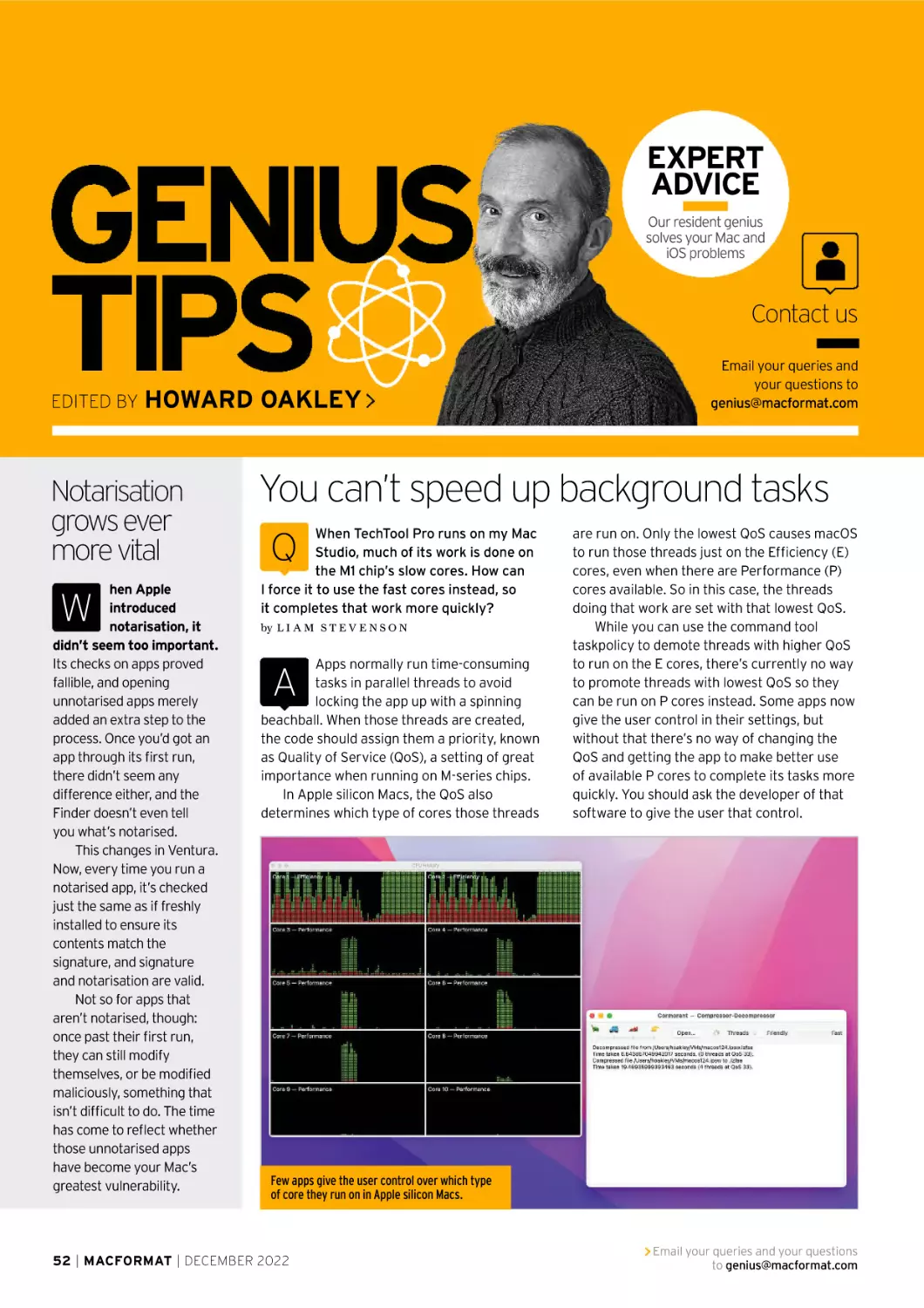
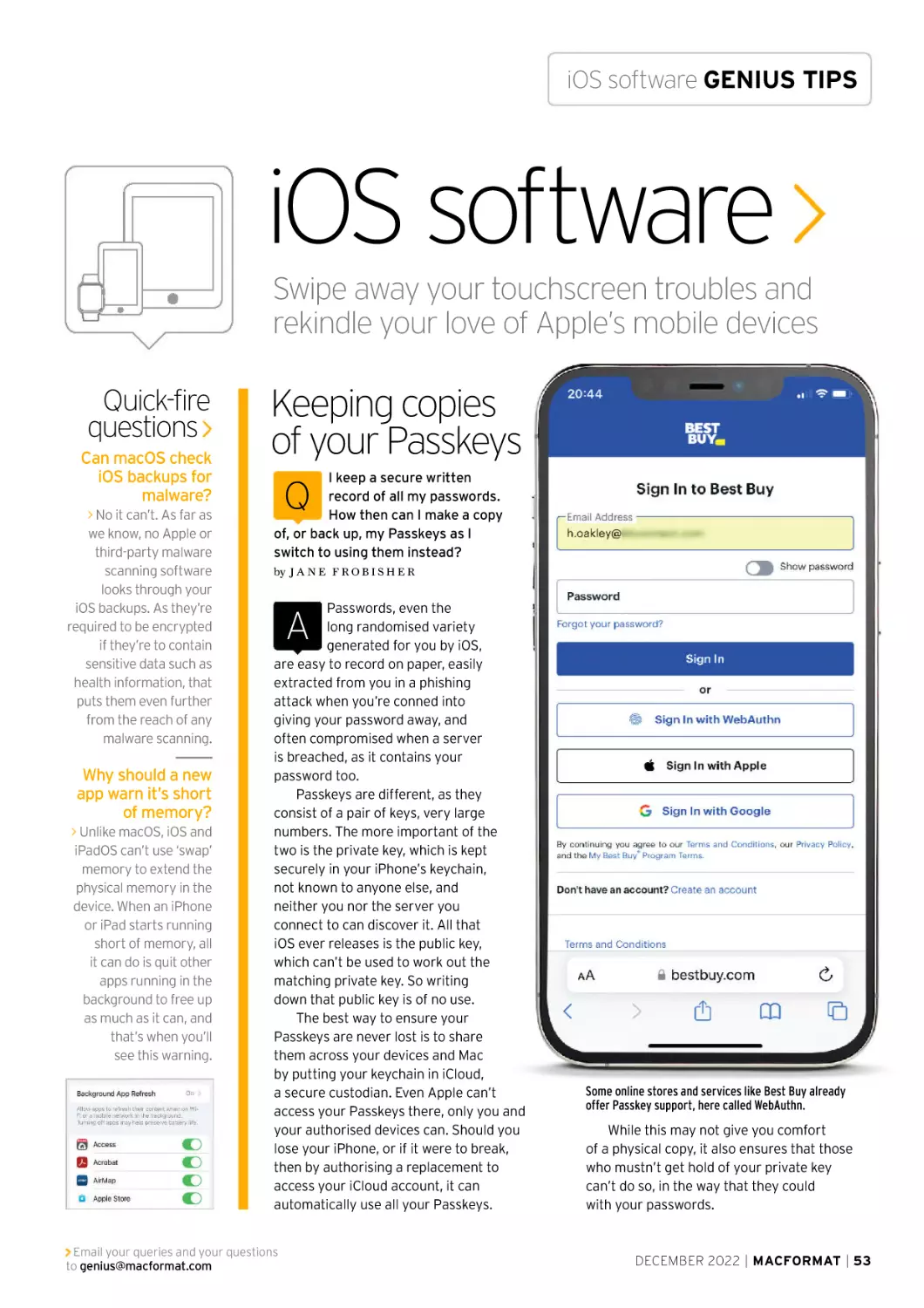
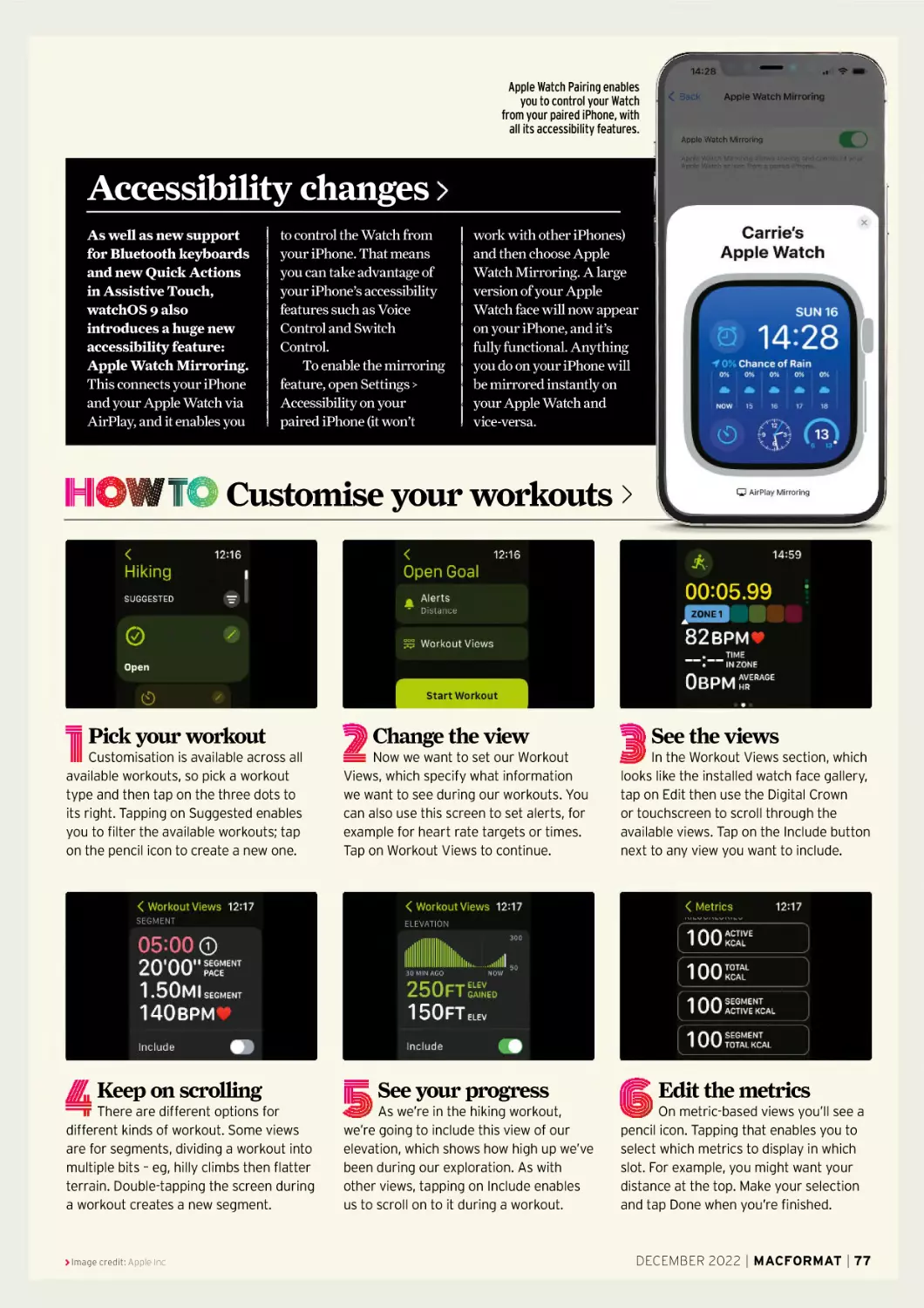
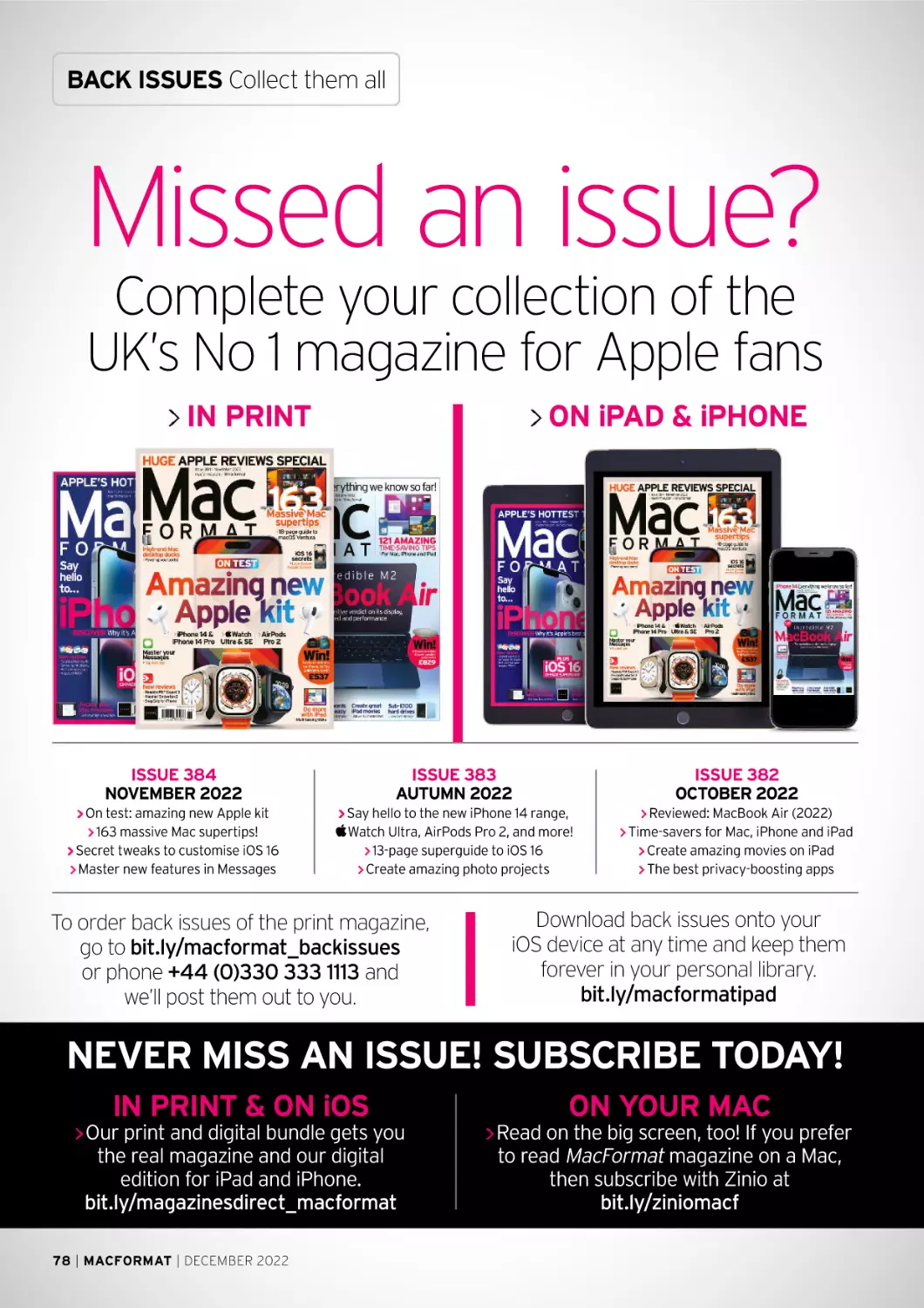
governments and who are at risk of civil rights
abuses. People rely on VPNs to organise
protests whilst living under an authoritarian
regime or do investigative journalism. Such
work could be put at risk by this flaw if
vulnerable users and their devices can be
attacked due to their IP address being exposed.
Most concerning of all is that at the time
of writing there is still no fix. To reiterate, this
flaw was found in iOS 13.3.1; devices are now
running iOS 16. That is a long time for such
an issue to go unsolved.
In an update on 18 August 2022, Proton
VPN wrote: “We’ve raised this issue with Apple
multiple times. Unfortunately, its fixes have
been problematic. Apple has stated that their
traffic being VPN-exempt is ‘expected’, and that
‘Always On VPN is only available on supervised
devices enrolled in a mobile device management
(MDM) solution.’ We call on Apple to make a
fully secure online experience accessible to
everyone, not just those who enroll in a
proprietary remote device management
framework designed for enterprises.”
Proton also explained that they nor any
other VPN service can fix the issues themselves
because they are not allowed to close
connections that are already running when
a VPN is turned on – “iOS does not permit a
VPN app to kill existing network connections.”
While Apple’s Tim Cook promotes
privacy as a fundamental right, it
is concerning that the VPN flaw
in iOS has not been addressed.
Should you
still use a
VPN?
> Despite the flaw found in
iOS, there are still plenty
of good reasons for most
people to keep using a VPN,
particularly when out and
about or travelling abroad.
n VPNs still protect much
of your online activity,
particularly useful when
using public Wi-Fi in
places such as libraries
or coffee shops.
n Many VPNs offer added
encryption as an extra
layer of protection.
n VPNs allow you to access
websites, services, and
content available to you in
your home country when
travelling abroad (if you
set your VPN to your
home country).
n VPNs can protect you
against trackers and other
aspects of malicious
websites or adverts.
Private Relay helps prevent websites
and network providers from creating
a detailed profile about you.
In a statement given to MacFormat, Andy Yen,
Founder and CEO of Proton, said:
“The fact that this is still an issue is
disappointing to say the least. We first notified
Apple privately of this issue two years ago.
Apple declined to fix the issue, which is why
we disclosed the vulnerability to protect the
public. Millions of people’s security is in Apple’s
hands, they are the only ones who can fix the
issue, but given the lack of action for the past
two years, we are not very optimistic Apple
will do the right thing.”
Another person who has been tracking
developments closely is computer security
blogger, Michael Horowitz. He has been keeping
readers updated on a webpage bluntly titled
‘VPNs on iOS are a scam’.
“It is most important to people with serious
privacy needs,” Horowitz explains. “Maybe a
whistleblower, maybe someone who lives in
a repressive regime. What leaks, for sure, is
your public IP address and thus your location.
This leaks even if all the data Apple sends to
themselves outside of the VPN is encrypted.
And it’s not clear that everything that leaks
is just Apple sending data to itself.”
Any solution?
Proton suggested a workaround was to connect
to a Proton VPN server and then turn on
Airplane Mode on your iPhone. Doing so
kills any open internet connections as well
as temporarily disconnecting the VPN.
When you then turn off Airplane Mode,
Proton VPN reconnects. While this should
mean all other connections also reconnect
VPN flaw in iOS APPLE CORE
within the VPN tunnel, there is no absolute
guarantee of this.
Furthermore, security researchers Tommy
Mysk and Talal Haj Bakry told MacRumors
that even implementing Lockdown Mode does
not mean that all data goes through the secure
VPN tunnel; for example, communication
between some Apple services and iOS 16
DNS requests are leaked.
Lockdown Mode was announced in July
2022 and Apple described it as “an extreme,
optional protection for the very small number
of users who face grave, targeted threats to
their digital security.” It does things like block
message attachments, disable link previews
and some complex web technologies, block
incoming FaceTime calls from anyone the user
has not previously called or made a request
from, and block wired connections with a
computer when the iPhone is locked.
Those using it are likely to be at significant
risk in some way. If, as it appears, some of their
data is still leaking even after implementing
Lockdown Mode, that is a serious concern.
“Apple makes the most secure mobile
devices on the market. Lockdown Mode is
a groundbreaking capability that reflects our
unwavering commitment to protecting users
from even the rarest, most sophisticated
attacks,” said Ivan Krsti , Apple’s head
of Security Engineering and Architecture
when launching Lockdown Mode. “While
the vast majority of users will never be the
victims of highly targeted cyberattacks, we
will work tirelessly to protect the small
number of users who are.”
Image credit: Apple Inc
How to
use a VPN
on your
iPhone
n Download and sign-up
to the VPN of your choice
– popular ones include
ExpressVPN, NordVPN
and Proton VPN.
n In your VPN’s app on
your iPhone, select a
location and switch it on
– eg, if travelling abroad
you might set the location
to be the UK.
n You can turn a VPN on
or off via Settings too.
When set up, use the VPN
option in the main menu
to toggle it on or off.
Controlling a VPN app from your
iPhone couldn’t be simpler.
Apple’s Lockdown Mode in iOS is an ‘extreme’ option,
blocking various risks when your iPhone is locked.
Apple undoubtedly takes user privacy
and security seriously and has launched tools
to that end. For example, iOS 15 brought with it
a Beta version of Private Relay in iCloud+. When
switched on, a user’s IP address and browsing
activity in Safari is hidden. Unencrypted
internet traffic is hidden too and not even
available to Apple.
Krsti ’s comments do though highlight
a crucial issue with the VPN bypass flaw.
For many of us, it will have no major practical
consequences at all. We may like to have even
better privacy, but the real-world implications
will be minimal. However, Apple has staked
so much of its reputation on user privacy that
not fixing such a flaw in over two years does
reflect poorly on the company.
Given how long the VPN bypass flaw issue
has lingered, it is not clear whether Apple
cannot fix the problem or, for whatever reason,
does not want to. After all, there have been
times in the past where bugs of varying severity
have been found and fixed promptly. We may
never know the answer. What we do know is
that, even if it doesn’t really affect most of us,
security researchers and privacy firms are
increasingly worried about this ongoing issue.
DECEMBER 2022 | MACFORMAT | 19
TIPS, TRICKS
& SECRETS
The best iPadOS yet is a massive
upgrade for any iPad
Written by Carrie Marshall
W
e’ve come a long
way since the first
iPad in 2010. That
one ran iPhone OS
3.2, and critics mocked it as a giant
iPhone. They did have a point, but
even then Apple was making the
iPadOS different from the iPhone
one – and with each new release,
those differences have become
much more significant. iPadOS 16
really blurs the lines between iPads
and Macs, especially when it comes
to multitasking.
iPadOS 16 isn’t trying to turn
your iPad into a Mac, though. It’s
still very much a mobile operating
system that plays to the iPad’s
particular strengths; its portability,
its touchscreen, and its ability to
completely transform into different
things based on the app you’re
using. This is a very big update.
It introduces a brand new way
20 | MACFORMAT | DECEMBER 2022
of working with
multiple apps, it gives
Mail and Messages
some brilliant new
features, it vastly
improves your security
when you go online
and it makes it easier
to share the things you
love with the people that
matter to you. It can even
turn back time to undo
embarrassing mistakes
in messages or emails.
Over the next few pages
we’ll discover all the killer
features of iPadOS 16, and
we’ll show you how to make
the most of them.
Whether you have the standard
iPad, an iPad Air or the biggest iPad
Pro, this latest OS update will make
your iPad more flexible, more fun
and more you.
Image credit: Apple Inc
Swipe up to unlock
Friday 21 October
Which
devices will
work with
iPadOS 16?
iPad Pro (all models)
iPad Air (3rd generation and later)
iPad (5th generation and later)
iPad mini (5th generation and later)
DECEMBER 2022 | MACFORMAT | 21
FEATURE iPadOS 16 guide
Stage Manager and
Multitasking changes
One of iPadOS 16’s biggest changes is a little controversial
1
tage Manager, the new multi-tasking
interface in iPadOS 16, has had a bit
of a bumpy ride; it’s been widely
criticised by many prominent
developers for its many bugs in the iPadOS
betas, and it’s been suggested that those bugs
are at least part of the reason for the delay in
getting iPadOS 16 released. As things stand at
the moment Stage Manager is now officially a beta
feature, and one of its previously announced
benefits – external monitor support – has been
temporarily removed. Device compatibility has
been changed too; what was originally reserved
only for M1 and M2-powered iPads now works
on iPad Pros with A12X and A12Z chips.
Stage Manager isn’t on by default; you have
to switch it on in the Control Centre. Once you do,
your iPad moves into a mode that looks more like
the Mac desktop with thumbnails – Apple calls them
App Stacks, and they work in a similar way to the
tab groups in Safari but for apps instead of open
tabs – at the left and the current app in a moveable,
resizable window. You can have up to four apps
overlapping at once and another four on an
external display, and it’s a bit like using macOS on
a much smaller screen. We think there will be more
significant changes before Stage Manager loses its
Stage Manager delivers something much closer to the Mac’s
multitasking and window system.
beta label; it’s one of the most controversial
interface changes Apple has made in years.
Don’t worry if you don’t want to use Stage
Manager; the familiar Split View and Slide Over
options still work perfectly well, and at the moment
those are the ones we’re sticking with; as of the
final public beta of iPadOS 16 we found Stage
Manager was still very buggy and needed a lot
more work; its tendency to crash means we’re
not planning to use it for serious work just yet.
External display & display scaling support
If you have an M1 or M2powered iPad Air or iPad Pro,
there’s a new display scaling
option in iPadOS 16 to make
better use of your screen
space; if you go into Settings
> Display & Brightness >
Display Zoom, you can select
More Space. This reduces the
size of on-screen elements
such as toolbars and icons so
there’s more room for content.
If you have an M1- or
M2-powered iPad, you
can use Display Zoom’s
More Space option.
22 | MACFORMAT | DECEMBER 2022
It’s particularly good in Slide
Over and Split View.
iPadOS 16 also enables M1
and M2-powered iPads to display
a separate desktop in a 16:9
aspect ratio. That’s primarily
done through the new Stage
Manager feature, but you can
also view apps on a second
display in Split View or Full
Screen. Or at least, you could
until the very final beta of
iPadOS 16 when Apple pulled the
external display support over
concern about bugs. We don’t
know when it’s coming back.
1
App stacks
Stage Manager’s
App Stacks work
rather like Safari
tab groups, but
they show your
most recently used
apps. Tapping on
a stack opens it;
tapping another
switches to that
stack instead.
Image credit: Apple Inc
EXPLAINED… Stage Manager on iPadOS 16
2
3
4
6
5
7
2
3
4
Extra window
controls
First app
window
Safari app
window
You’ll recognise
the ‘…’ from iPad
multitasking, but
they have different
roles. Choose
between Zoom,
Minimise and Add
Another Window, as
well as close the
selected window.
You can have open
apps overlap each
other or stick them
side by side. To move
an app window just
tap and hold the
top of it and slide
your finger. Other
windows will move
to accommodate it.
We’ve now picked
Safari. By default
Safari will show the
current window, but
if you tap on the
Safari icon in the doc
you’ll be presented
with thumbnails of
all your Safari tabs
and groups.
5
Grab handle
Tap and hold this
little curve to adjust
the size of your
window. You can
only adjust the size
of the window so
far; for example, this
is as narrow as Stage
Manager will let us
make our writing
app, Ulysses.
6
7
Second grab
handle
Windows affect the
rest of the display
when you resize.
Here we’ve made
the Safari window
as big as we can; any
bigger and it makes
the App Stacks on
the left disappear
to make room.
Dock
The Dock lives in
its usual place, but
in Stage Manager
you can drag apps
from the Dock over
the main Stage
Manager area to
open them as new
windows, provided
you haven’t hit the
four-window limit.
DECEMBER 2022 | MACFORMAT | 23
FEATURE iPadOS 16 guide
Mail, Messages
& collaboration
Now it’s easier than ever to share with
others – and to change your mind
or those thinking that Mail
has long been overdue some
real attention from Apple,
you’ll like the changes in
iPadOS 16. The new Undo Send can help
you in those heart-in-mouth moments
when you’ve accidentally sent the wrong
thing or sent it to the wrong person, and
Mail will also warn you if your message
says you’ve included a file or photo and
forgotten to attach it.
You can now schedule emails to go at
specific times rather than right now, put
sent messages in your inbox for you to
SharePlay
You can share the current playlist
in Apple Music or the TV shows
you’re watching in Apple TV+
via SharePlay in Messages.
SharePlay gives everyone in
the conversation shared playback
controls so you can enjoy the same
content at the same time. SharePlay
also works with apps such as
Shudder, Disney+ and more,
although the person or people
you’re sharing with need to be
subscribed to the same service(s).
remember to chase the
recipient, and you can
also get Mail to remind
you about emails
you’ve looked at but
haven’t responded to.
One of our
favourite changes is
the least spectacularSearch in the Mail app is massively improved; it’s faster, it’s
looking but by far the
more helpful and it doesn’t go in a huff like Mail search used to.
most useful, though.
you to share more kinds of things with
Search has been massively improved.
more people.
What sometimes felt like pot luck and
SharePlay improves with each new
often proved very reluctant to find
release, and it now works with more
messages we knew were there
things than ever before. Third-party
somewhere is much faster and vastly
services such as Disney+ and many
more reliable, with Mail autocorrecting
third-party apps now have SharePlay
search criteria to help speed things up.
synchronisation so you can watch, listen
Messages gets an Undo feature too,
or interact with them along with friends,
although the recipient needs to be using
family or colleagues, and you can even
the same app and the right version. You
share Fitness+ workouts (provided
can mark messages as unread, recover
you’re both subscribers.
accidentally deleted ones and send
Not all the new collaboration features
invitations to collaborate on Numbers,
were available from day one, however.
Pages, Notes, Keynote, Reminders and
Freeform, Apple’s interactive
Safari, or to share Apple Music and other
whiteboard, was pencilled in for release
media via SharePlay. And it’s easier
at the very end of the year, a couple of
for developers to use the Messages
months after the rest of iPadOS 16 was
Collaboration API to add Messages
made available.
integration to their own apps, enabling
Collaborate with others
iPadOS 16 is the most sociable iPad
OS yet. There are multiple ways to
share with others and for others to
share with you, from SharePlay (see
left) for music, TV, movies and apps to
SharePlay enables you to start a watching
or listening party from various media apps,
so you can enjoy content with friends.
24 | MACFORMAT | DECEMBER 2022
the Shared With You tabs in Messages
and Safari. Sharing and collaboration
is built into all of Apple’s key creative
and productivity apps including Pages,
Numbers, Safari and even Reminders,
and it’s increasingly available in
third-party apps too.
Whether you’re communicating
about a big work project or doing
something fun with the family, it’s easy
to start a Messages conversation or
FaceTime chat from the Share icon.
iPadOS 16’s collaboration features are
just as useful for sharing with family
and friends as they are for work.
HOW TO Edit or Unsend a message in Messages
1 Make your message
In this example, we’ll send a hilarious
audio message to someone and then
realise that maybe it’s not so hilarious
after all. In Messages, create a new
message and then tap on the waveform
icon to record your voice.
2 Send your message
Our audio message has been sent –
and it’s blue. That’s important, because
the Undo Send feature only works with
Messages, not SMS or other messaging
apps. The recipient also needs to have
iOS/iPadOS 16 or macOS Ventura.
3 Delete your message
Tap and hold on your message and
you should now see the familiar reactions
toolbar, along with a contextual menu to
the side of your sent message. Tapping
on Undo Send will make your message
disappear in a cartoon puff of smoke.
HOW TO Unsend a message in Mail
1 Send your message
You can’t unsend a message until
you’ve sent it, so in this screenshot we’ve
crafted exactly the kind of mail message
that’ll we’ll regret sending immediately;
top secret plans should of course always
be encrypted…
2 The Undo Send button 3 Turn back time
Unlike recalling messages, it doesn’t
matter what mail app the recipient uses;
the unsending happens in Mail on your
iPad before it’s sent to the other person.
That means there’s only a very short
time to do it – just a few seconds.
Once you tap on Undo Send, your
email magically reappears in Mail exactly
as it was before you tapped the Send
button. You can now tap Cancel to delete
the message altogether, or you can edit
the message and then send it again.
HOW TO Schedule messages for sending later
1 Create your message
Sometimes you need to write
a message that won’t be sent until
a specific time, such as a a news
announcement or anything else you
don’t want to send too soon. Create
your message as normal in the Mail app.
Image credit: Apple Inc
2 Press for longer
Instead of just tapping the Send
button, tap and hold it. You should now
see the scheduling menu with four
options to Send Now, Send 21:00 Tonight,
Send 08:00 Tomorrow or Send Later.
Select the fourth Send Later option.
3 Pick your time
You should now see a Calendar
panel that enables you to set the date
and time for your message to be sent. It’s
important that your iPad is both switched
on and online at the scheduled time or it
won’t be able to send the message.
DECEMBER 2022 | MACFORMAT | 25
FEATURE iPadOS 16 guide
What’s new
in photos
& video
The Photos app is smarter,
faster to use and more fun
than ever before
Photo editing
improvements
Being able to
long-press on a
photo’s subject
and remove it from
its background
feels like magic.
Isolate from background
We loved Photos’ cut-out
feature when it arrived in
iOS 16 and we’re just as
addicted to it on our iPad.
Simply long-press on the
subject of an image until
you see it briefly shimmer
and you can then copy it
to another app or share
it with others – so as you
can see in our screenshot
you can take a fairly busy
photo and remove its
background very
effectively. You can then
Removing a photo’s subject from
its background feels like magic.
The new Find Duplicates
feature can free up lots
of space.
use it as an image in
Pages, send it in Messages
or even use it as an iMovie
background. The feature
works best with images
that have strong contrast
between the subject and
background, but we’re
frequently surprised by
how well it copes with
tougher images too.
The feature isn’t just
in Photos; you can use it
in Screenshot, Quick Look,
Safari and Files too, again
simply by long-pressing
the image. Annoyingly
you can’t simply save the
cut-out as a new image;
you have to share it or
open it in another app and
save it from there. But
that’s a minor niggle for
an enormously fun feature.
26 | MACFORMAT | DECEMBER 2022
Photo editing is even better
in iPadOS 16 thanks to the
new ability to copy and
paste edits from one image
to another, which is a huge
time saver. And there’s more
– simple undo and redo
buttons; sorting the People
album by name; the option to
turn off memories if you don’t
want to see them and the
ability to lock hidden albums
and the Recently Deleted
folder so that other people
can’t take a peek at them.
The new Copy/Paste
Edits feature is brilliant;
it enables you apply
the same changes
to multiple shots.
Sadly not all memories are
welcome. You can now disable
Memories in Settings > Photos
> Show Featured Content.
One of the best new
features can save money as
well as time; Find Duplicates
will go through your Library
(including your iCloud Shared
Library if you have one), find
duplicate photos and videos,
and enable you to merge
them for the best image/
video quality and metadata.
It’s very fast and saves
gigabytes of wasted iCloud
storage – useful if you’re on
a limited storage plan and
don’t want to pay more.
iCloud Shared
Photo Library
iPadOS 16 introduces a much easier
way to share images with your
nearest and dearest, or indeed with
anybody else you fancy inviting: the
iCloud Shared Photo Library. This
invitation-only library enables you
to manually share specific photos or
automatically share everything with up
to five other people, and they can add
their own images to the shared library
or edit and even delete yours. The
feature requires everybody to be using
the most up-to-date OS for their device,
currently iOS 16, iPadOS 16 and macOS
Ventura. At the time of writing, Apple
had announced plans to bring iCloud
shared libraries to Windows PCs too
via its Photos app for Windows 11.
You can choose whether all your new photos
should be shared automatically or if you’d
rather do it manually.
You can switch between your normal library
and your shared library by tapping the ‘…’
icon at the top right of Photos.
The previous Shared Albums
feature hasn’t gone anywhere, but
iCloud Shared Photo Library is more
trusting of the people you share it
with. Everybody with access to this
new library has the same level of
permissions, so if you don’t want the
kids drawing moustaches on photos of
you or deleting the shots they don’t like
then you might want to think twice
about using this option over the normal
Shared Albums feature. For the same
reasons, if you want to share albums
publicly rather than with just your five
trusted people, Shared Albums remains
the safest way to do it; it doesn’t let
others edit or delete the pictures and
enables you to share publicly rather
than just to specific people.
Once you’ve set up the shared
library you can decide whether you
want to see its contents integrated with
the rest of your Photos library, or
you can view each library individually;
pressing on the ‘…’ icon at the top right
– gives you a choice of Personal Library,
Shared Library or Both.
It’s important to note that whoever
set up the iCloud Shared Library is the
one whose iCloud storage is being used
for its images, even if they’re added by
other people you’ve invited. And for
other users, deleting an image doesn’t
necessarily mean permanent deletion;
the Library creator, most likely you, is
notified of deletions as they happen
unless you disable that option in
Settings > Photos > Shared Library.
You’ll then be given the option of
moving the deleted image to your
Personal Library instead. Deleted
images also remain in the Recently
Deleted folder for 30 days unless that
folder is emptied manually.
HOW TO Use Live Text in photos and videos >
1 Acquire your image
You can use the Live Text feature
(copy, share, look up, and translate text)
in three ways: using the live view in the
Camera app; by opening an image in
Photos; or by opening a video in the
same Photos app.
Image credit: Apple Inc
2 Find out more
In this example, we’ve highlighted
the name of the book’s author and then
tapped on Look Up. This then brings up
key information; the writer’s biography
and key details from it, and their social
media profiles too.
3 Grab from video
You can’t use Live Text as you
record video, but you can use it during
playback. As with a photo, highlight the
text you want. This time we’ll use the
Translation option to see what a phrase
would be in mainland Chinese.
DECEMBER 2022 | MACFORMAT | 27
FEATURE iPadOS 16 guide
Safari &
Passkeys
Passwords are rubbish,
which is why Safari does
something smarter
asswords have been with us
since long before computers
were even a twinkle in
Charles Babbage’s eye.
They haven’t aged well; they’ve become
so complex that we need iCloud Keychain
to manage them, and even then websites
keep leaking them to the baddies and
undoing all our best efforts to make
them completely incomprehensible.
Enter Passkeys, which are designed
to change all that.
Passkeys are a new way of identifying
yourself to online sites and services, and
in Safari they are very simple to use;
when you’re creating a login for a site that
supports Passkeys, Safari will ask if you
want to create one and then ask you to
use Touch ID to confirm you’re you. That
then generates a unique, encrypted
Passkeys are tied to the site they were
created for, so they can’t be used by
fake phishing sites like this one.
identifier that tells the site that you’re not
an impostor. It’s much more secure than
a password and pretty much useless to
anyone who manages to intercept it.
The only real downside to passkeys
is that they’re tied to your devices. With
passwords, you can log in to something
with your user ID and password even if
you don’t have your iPhone handy; with
passkeys, you’ll need to have your iPhone,
iPad or Mac with you to authenticate the
Weather
If you’ve been pining for an iPad
version of the wonderful Weather
app on iPhone, pine no more; the
iPad Weather app is here and it’s
even more wonderful now it’s got
more room to play with.
Apple has taken full advantage
of the iPad’s big screen, packing
28 | MACFORMAT | DECEMBER 2022
new device. It works very much like the
authentication you get when you try to
log into iCloud on a new device, where
Apple asks you to input the code it’s sent
to one of your trusted devices. No code
means no entry.
This is still a relatively new technology
but it’s been embraced not just by Apple
but by Google and Microsoft too. We
should see a lot more passkey-supporting
websites and apps in the coming months.
Maps
the app with fun animations,
detailed maps and lots and lots
of weather data ranging from
predicted rainfall with hourly and
10-day forecasts to air quality
and UV levels. We think the iPad
Weather app is a beautiful thing,
and we particularly love the
animated backgrounds that show
you what’s going on outside or
in your chosen location before
you’ve even read any of the
on-screen data. The weather
maps are useful too, and there’s
a good selection of Home Screen
widgets that make it easy to get
a quick weather summary. (Or
wintry. Ho ho!)
Maps didn’t get a massive update here, but it
does get the same multi-stop routing options
as on iPhone. You can create a multi-point
route on your iPad and sync it with your phone.
Depending on where you are, there is also
support for various transit cards – which you
can store in the Wallet on iPhone; Wallet still
isn’t available for iPad – and details of the public
transport fares on your route, but that feature
is rolling out slowly; so far it’s only in a handful
of cities worldwide, with London as the only
UK city covered.
iPadOS 16 guide FEATURE
Desktop-class
apps and
Freeform
Apple’s term “desktop-class apps”
is an umbrella term for a lot of
Mac-like features including toolbar
customisation, context-sensitive
menus for multiple selections, much
better printing features and vastly
improved find, search and replace
in both Apple and third-party apps.
Freeform wasn’t in the initial iPadOS
16 update; Apple promised it for later in
2022. It’s a collaborative whiteboard for
friends, family or work that you can all
see and contribute to, and you can chat
via iMessage or FaceTime by tapping
the canvas. It’ll work on iPad and
iPhone, but Apple Pencil support
means the iPad will be the best
canvas for Freeform’s, er, canvas.
The Home app
gets a revamp
The new Home app has a vastly
improved interface with new
categories for climate, security,
lights and speakers, and if you
have multiple cameras you’ll
certainly like the new multicamera view. It’s much more
logical than before, especially if
you have lots of smart devices.
One of Home’s most important
new features isn’t visible. iPadOS
16 introduces support for Matter,
a new industry standard for smart
home tech that should make it
much easier for devices to work
together. If like us you have a mix
of HomeKit and other devices at
home, that’s really exciting.
Image credit: Apple Inc
Family Sharing improvements
Device Setup
Family Checklist
iPadOS’s family sharing and parental
control features were already very
good, but they’re much easier to
view and change thanks to the new
Family Checklist in Settings. Family
Checklist makes it much easier to
review and edit the parental control
settings and content restriction
settings you have for family members,
as well as enabling or
disabling location sharing
and iCloud sharing. You
can also create a ‘recovery
contact’, a family member
who can get you back into
your iCloud account if you
forget or lose your
password.
Apple has also made some big
improvements to the Quick Start
process to make it easier and faster
to set up new devices for your family
members. If you already have
accounts set up for them in Family
Sharing, you’ll now see an option to
set up the new device for that person
– and if you use it, it’ll automatically
set up the device with all the sharing
and parental control options you’ve
already set for that account. It’s not
something you’ll use very often but
it’s a very welcome improvement for
anyone buying or passing on an iPad
for a family member.
DECEMBER 2022 | MACFORMAT | 29
for just £55.99
FREE EARFUN
AIR WIRELESS
EARBUDS
WORTH
£55
The award-winning true
wireless earbuds with
4-mic noise-cancelling
call technology
Punchy, expansive sound
with a great feature set and
classy finish with up to 35
hours whole-day playtime
Can be submerged in
water up to a depth
of one metre for up
to 30 minutes
Your special
Christmas offer
FREE EarFun Air Wireless Earbuds,
worth £55!
Enjoy a whole year of MacFormat
for just £55.99!
Receive every issue delivered
direct to your door
A thoughtful gift that keeps
delivering throughout the year
Upgrade to
include digital
for only £25
Instant access any time, anywhere
Never miss an issue
of MacFormat
Available on iOS + Android
www.magazinesdirect.com/mac/x731
or call 0330 333 1113 and quote X731
*Terms and conditions: Offer closes 31/01/2023. Offer open to new UK subscribers only. Pricing is guaranteed for the first 12 months and we will notify you in advance of any price changes. Please allow up to six weeks for delivery of your first subscription issue (up to eight weeks
overseas). Your gift will be delivered separately within 60 days after your first payment has cleared. Gifts only available to subscribers on the UK mainland. Gift not available with a digital subscription. The full subscription rate is for 12 months (13 issues) and includes postage and
packaging. If the magazine ordered changes frequency per annum, we will honour the number of issues paid for, not the term of the subscription. For full terms and conditions, visit www.magazinesdirect.com/terms. For enquiries please call: +44 (0) 330 333 1113. Lines are open
Monday-Friday 8.30am-7pm and Saturday 10am-3pm BST (excluding Bank Holidays) or e-mail: help@magazinesdirect.com. Calls to 0330 numbers will be charged at no more than a national landline call, and may be included in your phone provider’s call bundle.
NEW
IDEAS
Your in-depth guide to
getting more from
your Apple kit
Contact us
EDITED BY
Email your queries and
your questions to
letters@macformat.com
JO MEMBERY
Master Apple
shortcuts
macOS
ç is the Command key,
which is also labelled cmd.
å means the Option key,
labelled alt or opt.
≈ means the Control key,
labelled ctrl, and shown as ^
in shortcuts in the menu bar.
ß is the Shift key.
∫ is the Delete key, which
deletes to the left. ƒ+∫
deletes to the right.
† is the Tab key, which
shifts the focus between
some controls.
iOS
A tap is a brief contact of
(usually) one finger on your
device’s screen.
To drag is to move a finger
across the screen to scroll
or pan around content.
Swipe means move one or
more fingers across an item
or the screen, then let go.
A flick is like swiping, but it’s
quicker, and is often used to
scroll content more quickly.
Pinch means move two
fingers together or apart,
usually to zoom in or out.
Touch and hold means lightly
rest your finger on an item
and wait for a reaction.
Image credit: Adobe, Apple Inc
42 WORK WITH MASKS
WHAT’S INSIDE
46
34 BROWSING WITH EXTRAS
Make the most of the Opera GX web browser
36 MASTER THE CLOCK APP
Make time for the Clock app in macOS Ventura
38 MANAGE MAC WINDOWS
Save your window set-ups with Warp
40 CONTROL YOUR HOME
Get to know the revamped Home app
42 WORK WITH MASKS
Produce creative selective colour effects
44 ENJOY BOOKS ON THE GO
Improve your mobile reading experience
46 PLAN MULTIPLE STOPS
Add stop-off locations to your route in Maps
48 TAILOR YOUR NOTIFICATIONS
Control Lock Screen notices in iOS 16
50 HOW IT WORKS
Discover the capabilities of MagSafe tech
DECEMBER 2022 | MACFORMAT | 33
APPLE SKILLS Mac software
1
3
2
Sidebar
Opera GX’s
sidebar contains
quick shortcuts
to music players,
Twitch streaming,
messengers,
and more.
4
1
2
You can add
messengers such
as WhatsApp and
Telegram from
this menu, among
other settings.
4
Built-in tunes
You can pin any
sidebar item,
including Apple
Music, for easy
access while
you’re browsing.
Extra settings
Personalise
the app
Use this menu to
change the app’s
theme, toggle ad
blockers, enable
background
music, and more.
3
Make the most of Opera GX
Try a web browser that comes loaded with clever extras
IT WILL TAKE
5 minutes
YOU WILL LEARN
How to use the music,
streaming, and gamesrelated features of
Opera GX, and more
YOU’LL NEED
Opera GX,
OS X 10.11 or later
Even if you
don’t care a jot
for games,
there’s still
plenty on
offer here
Opera GX is, on the surface, a
gaming-focused web browser.
It integrates neatly with Twitch,
letting you watch livestreams
from your sidebar, and has a dedicated tab
showing the latest gaming news and deals.
But look a little closer and you’ll see it has
a bunch of features with much wider appeal.
As well as Twitch, you can pin your favourite
messaging app or music player directly to the
side of the browser. Its GX Control feature
provides fine-grained options to rein in the
app’s resource usage, while GX Cleaner can
quickly clear out browser cruft in just a click.
Some of Opera GX’s features, like built-in
messengers and strong privacy controls, are
shared with the regular Opera browser. But
others, including GX Control, GX Cleaner,
and livestreaming support, are exclusive to
Opera GX. That makes it an attractive option
regardless of whether you play games or not.
Customisation and privacy
Opera GX comes with light and dark modes, plus a host
of options to tailor its look to your tastes.
34 | MACFORMAT | DECEMBER 2022
If you download the Opera GX app on iPhone
or iPad, you’ll also get access to its crossplatform features. That includes My Flow,
which sends files between devices, and a tool
that lets you use the browser one-handed
called the Fast Action Button. And it has the
same visual customisation and strong privacy
focus that you get with the Mac desktop app.
All of these things make Opera GX a
worthwhile download. Even if you don’t care a
jot for games, there’s still plenty on offer that
could enhance your web browsing experience.
In this tutorial, we’ll show you how it all works.
Alex Blake
Image credits: Apple Inc, Opera
Browsing with extras APPLE SKILLS
HOW TO Get to grips with Opera GX
1 Instant messaging
2 Twitch support
3 Music players
4 Get a new look
5 Ambient sounds
6 Privacy settings
7 GX Corner
8 GX Control
9 GX Cleaner
At the bottom of the Opera GX
sidebar, click the ‘…’ button. Under
Messengers, click the button next to one
you want to install (click Show more for
extra apps). Click the messenger icon in
the sidebar, log in, and away you go.
Click the settings button in the topright. At the top, you can choose a light
or dark mode. There are a range of
themes that can be tweaked by clicking
Configuration. You can also add custom
wallpapers to new tabs.
In the app’s top-left is a controller
icon for the GX Corner. This is like a start
page for games, with info on upcoming
game releases (filtered by platform,
including Mac), videos, free games,
deals, and more.
Click the Twitch icon in the sidebar
and follow the on-screen prompts to log
in to that. You’ll now see accounts you
follow in the sidebar. Click one to start
watching, or click the cog to adjust Twitch
sidebar settings.
Scroll down the settings to the
Features section. Here you can enable
browser sounds, such as a typewriter
effect when you enter text, and a range
of ambient background music. Click
Configuration for more options.
Returning to the left sidebar, click
the speedometer icon. This is GX Control,
which contains toggles and sliders to limit
Opera GX’s memory, network, and CPU
usage. You can also kill resource-hogging
browser tabs.
Below the Twitch icon, click the
player button. Here, you can connect to
Apple Music, Spotify, Deezer, and more.
You can use more than one at once –
simply click the music app drop-down in
the top-left to switch.
Below Features, you’ll find Privacy
& Security. From here you can enable
Opera GX’s built-in ad and tracking
blockers. There’s also a shortcut to its
virtual private network (VPN), and a oneclick way to clear your browsing data.
Click the broom icon in the sidebar
to open GX Cleaner. This clears various
browsing data, such as the cache,
cookies, browsing history, and more.
You can customise it or choose from
the Min, Med, or Max presets.
DECEMBER 2022 | MACFORMAT | 35
APPLE SKILLS Mac software
Master the Clock app
At long last, the Clock app comes to desktop and notebook Macs
IT WILL TAKE
5 minutes
YOU WILL LEARN
How to see
world times, set
alarms, and use the
stopwatch and timer
YOU’LL NEED
macOS 13
The Clock app does more than
tell the time. It offers world
time clocks so you can see what
time it is elsewhere; you can set
alarms that trigger at a time of your choosing;
and it has a stopwatch with a digital or
analogue display and a lap timer, as well as
a countdown timer that lets you know when
a certain period of time has elapsed.
The Clock app has been a popular feature
of the iPhone and iPad for many years, but
with macOS Ventura, it finally comes to the
Mac too. It doesn’t sync with iCloud, so your
world clocks and alarms don’t carry across
from your mobile devices, but you can always
add them separately if you wish.
In this guide, we show you how to get the
most from your Mac’s Clock app, with a guide
to its basic features and a few advanced
capabilities that you might otherwise miss.
Here’s a tip right now. The app icon, whether
in the Dock, a Finder folder or the App
Launcher, accurately shows the current
time, all day, every day. Ian Osborne
HOW TO Use the Clock app’s world clock
1 Add a world clock
Open the Clock App, and click on the
World Clock tab at the top. Your current
location’s time zone is already shown.
To add a new world clock, click the ‘+’
icon (top-right). Type the name of a
city in the Search field.
36 | MACFORMAT | DECEMBER 2022
2 Add its time zone
When you’ve found your city, click
on it to add its time zone to the Clock
app. The light and dark sections of the
world map show the areas currently in
daytime or night-time, as do the white
or black clock faces.
3 Delete a clock
To delete a world clock from the
Clock app, move the pointer over its
clock face and a ‘X’ appears in the topleft corner of its window. Click on this
cross and that time zone disappears.
You can add it again later.
Image credits: Apple Inc
Clock on Mac APPLE SKILLS
HOW TO Set an alarm
1 Set an alarm
Click the Alarm tab, then click the ‘+’
icon in the top-right corner. Click on the
hours then minutes, and type the time
you want to set. You can then set which
days you want the alarm to trigger, give
it a label and more.
2 Choose a sound
Click the Sound menu to choose
a sound for the alarm. Then click the
Save button to set the alarm. To edit
an alarm, click on it and make changes.
To delete it afterwards, hover over it
and click the ‘X’ icon in the top left.
HOW TO Use the Stopwatch
1 Time something
Click the Stopwatch tab. Click the
green Start button to start timing,
then click Lap to record a time without
stopping the clock, or Stop to stop
it altogether. The Reset button wipes
it zero, so you can start again.
HOW TO
Use the timer
1 Setting the timer
The countdown timer is useful for
signalling when a certain time has
expired, for example, when baking
a cake. Click the Timer tab, and click
the hours, minutes and seconds,
typing the values you want to use.
2 Choose other functions 2 Selecting the sound
In the Clock app’s View menu,
you can switch between a digital or
an analogue display for the Stopwatch.
They do the same job. You can choose
between the Clock app’s various
functions in this menu too.
Click ‘When timer ends’ and
choose a sound effect from the
options available. Clicking one makes
it sound immediately, so you can
preview it. When ready, click Start
and the countdown begins; you’ll hear
the chosen tone when it’s finished.
Stop playing
An overlooked feature of the Timer
The Timer section of the Clock App has an extra feature of which you might not
be aware. At the foot of the ‘When timer ends’ menu is an option called Stop
Playing. Choose this option and whatever audio you’re playing on your Mac stops
when the countdown timer reaches zero. It’s great for falling asleep to relaxing
music or the radio, and having it turn off automatically after a certain amount of
time. At the time of writing, the Stop Playing option doesn’t work on the Mac,
though the option is there, so it will probably be fixed soon.
DECEMBER 2022 | MACFORMAT | 37
APPLE SKILLS macOS software
Manage windows with Warp
Save custom layouts and launch them with a keyboard shortcut
IT WILL TAKE
5 minutes
YOU WILL LEARN
How to arrange and
save window layouts
using Warp
YOU’LL NEED
Warp (£8.99),
macOS 12 or later
Warp works
with Split View,
spans across
multiple
monitors,
and persists
across restarts
If you’re a Mac power user,
you’re probably a little
dissatisfied with Apple’s own
window management tools.
Sure, there’s Split View and a few options
accessed from an app’s green traffic light
button, but there’s not much customisation
to be found. You’re basically stuck with the
limited options Apple gives you.
Or are you? There’s a nifty little app called
Warp that can fix that problem. It lets you save
window layouts and then launch them with a
keyboard shortcut, saving you the hassle of
constantly rearranging your apps. It works with
both Split View and regular app resizing, spans
across multiple monitors, and persists across
restarts. It’s customisable too, and you can
assign icons, names, and custom shortcuts
to your layout presets.
Spring into action
Warp has a few handy customisation options, such as
assigning icons and dictating how other apps will behave.
38 | MACFORMAT | DECEMBER 2022
Better yet, you can use Warp in conjunction
with other window management apps like
BetterSnapTool and Magnet. This will let you
arrange windows in specific positions (such as
the top-left 25% of the display), giving you even
more control. Once your windows are arranged,
just save the arrangement in Warp.
It’s all wrapped up in a lightweight app that
lives in your menu bar. It’s out of the way until
you need it, and when you do want it to spring
into action, all your layouts are just a keyboard
shortcut away. Alex Blake
Image credits: Apple Inc, Warp
Organise Mac windows APPLE SKILLS
HOW TO Manage window layouts
Jargon buster
1 Create Preset
2 Customise the preset
3 Launch your layouts
4 Restoring after a restart
Open Warp and click the ‘+’ button, or click
the Warp menu bar icon, then click Create
Preset. Arrange your app windows how you
like, then click Save Preset. You can manually
arrange windows or use Split View.
To launch a saved preset, just press its
keyboard shortcut combination or choose it
from Warp’s menu bar icon. Alternatively, press
the play button at the top of Warp’s main
window to launch the selected preset.
Split View is Apple’s
window management
system. It lets you split
apps across your screen,
but is somewhat limited
in the layouts it offers.
In Warp’s main window, you can give your
preset a name, icon, and custom keyboard
shortcut. The Strategy menu lets you hide,
ignore, or close open app windows that aren’t
part of your saved layout.
If the apps stored in a layout are closed
when you launch the preset, Warp will open
and arrange them into their saved positions.
Window positions and sizes persist when you
restart your Mac, as you’d expect.
Genius tip!
If you use multiple
monitors, you can
choose which one(s)
your layouts appear on
by clicking the Displays
button when creating
a new preset.
5 Rearrange saved presets
In the left-hand sidebar, you can drag and
drop your presets to rearrange them into an
order that suits you best. You can also ≈-click
a preset in the sidebar and remove it by
clicking Delete in the context menu.
6 Multiple monitors
If you have multiple monitors attached to
your Mac, Warp can arrange your app windows
across them. Just create a layout as normal,
with apps spanning across your monitors,
and save the preset when you are finished.
DECEMBER 2022 | MACFORMAT | 39
APPLE SKILLS Mac software
Control the Home
app from Mac
3
The long-neglected Home app finally gets
a welcome revamp for macOS Ventura
IT WILL TAKE
30 minutes
YOU WILL LEARN
How to control your
smart home devices in
the Home app on Mac
YOU’LL NEED
macOS 13, and one
or more HomeKitcompatible smart
devices
The Mac version of Apple’s
Home app has always seemed
like a bit of an afterthought –
especially as it was only
released with Mojave in 2018, two years
after the app first appeared on the iPhone.
And, to be honest, it hasn’t made much
progress since then, with Amazon’s Alexa
attracting far more support from
manufacturers of smart lights, security
cameras and other smart home devices.
But, behind the scenes, Apple has been
working with Amazon and other companies
over the last couple of years to develop a new
smart standard called Matter, that will allow
smart devices from a wide range of different
manufacturers to work together more easily.
So, in anticipation of a new generation of
Matter-compatible devices, Apple has given
the Mac version of Home a revamp for the
release of Ventura. Cliff Joseph
4
3
It’s categorical
New Categories
provide a quick
overview of
groups of devices,
such as lights or
speakers.
HOW TO Control your smart devices
1 Categories list
The new Categories view displays groups of devices, such
as lights or speakers, arranged by room. There’s also an
overview that shows the status of those devices, and any
scenes or automations used to control them.
40 | MACFORMAT | DECEMBER 2022
2 Choosing favourites
The Favourites list hasn’t gone altogether – but it’s a bit
hidden. Click on a device tile to view its information, and click
on the gear icon to show Device Settings. Then just click the
Favourites button to add it to the list.
Image credits: Apple Inc
The Home app APPLE SKILLS
1
More devices
5
Rather than just
showing your
favourite devices,
the main Home
window now shows
all the devices in
all your rooms.
Jargon buster
Apple’s HomeKit
software only runs
on Apple devices. But
HomeKit will also be
part of the new Matter
standard used in the
next generation of
smart devices.
5
Home sweet
home settings
1
The Home
Settings button
has been moved,
and now allows
you to change the
order of rooms.
2
2
On the tiles
4
Rooms with
a view
The Rooms list
hasn’t changed,
and still lets you
view just the
devices located
in each room.
3 Going large
You can also highlight individual devices by making their
tile larger. Just ≈-click on the device tile and select ‘Show as
Large Tile’. Alternatively, you can hide devices by selecting
Don’t Show In Home View.
Apple wants us
all to buy lots
of new smart
devices, so
smaller tiles
leave room for
more devices.
Genius tip
Scenes and
automations are
tricky to master –
but they can monitor
the location of your
personal Apple devices
in order to trigger smart
devices when you leave
or return home.
4 Making a scene
Unfortunately, Apple hasn’t made it any easier to use
scenes and automations that control multiple devices all at
the same time. This is too much like programming for most
people – luckily, we’ll be looking at this in a future issue.
DECEMBER 2022 | MACFORMAT | 41
APPLE SKILLS iOS software
4
3
1
1
Masking
The masking icon
enables you to to
access the AIenhanced Select
Subject tool. This
selects and masks
a person in seconds.
PART 1 OF 3
2
Desaturate
Once you have
inverted the
person’s mask
you can desaturate
the background
by dragging the
Saturation slider
to the left.
3
Color Mix
2
4
Share
Tap here for Color
Mix tools. These
enable you to
sample a colour
and drag to alter
its Hue, Saturation
or Luminance.
Tap here to share
your creatively
processed shot on
social media or save
it to your device’s
Camera Roll.
Work with masks and colour
Produce creative selective colour effects using selection tools and masks
IT WILL TAKE
10 minutes
YOU WILL LEARN
How to select a
person and desaturate
their background;
adjust an individual
colour’s hue,
saturation and
lightness
Adobe Lightroom is a powerful
image organising and editing
app that runs on iOS or macOS.
In this tutorial, we’ll focus on the
iOS version to demonstrate how you can
creatively edit images from the convenience
of your device’s display.
You can enjoy using most of Lightroom’s
tools on your iOS device for free. Simply
download Adobe Lightroom for your iPhone
YOU’LL NEED
iOS 13 or later,
Adobe Lightroom
app (Free, IAPs)
or iPad, sign in using your Apple ID and access
Lightroom’s capture, organisation and sharing
features without needing a subscription. You
can use plenty of Lightroom for mobile’s
editing features for free too, so you can follow
the steps in this tutorial (if you have a relatively
new iOS device running iOS 13 and above).
You can work in Lightroom by holding
your iPhone or iPad horizontally or vertically.
When held vertically you’ll see handy text
labels next to each tool’s icon. Here, our image
is landscape so we’ve edited in Lightroom on
a horizontally held iPhone 14, but feel free to
rotate your device vertically, especially when
you need to identify a particular tool’s icon.
Creative colours
In a few taps and swipes you can turn the background of
your image to monochrome and creatively adjust the
isolated colours of your subject.
42 | MACFORMAT | DECEMBER 2022
In this tutorial, we’ll show you how to quickly
create and use masks to isolate a person from
their background (for which you will need a
subscription). You can then desaturate
the background so that the eye is drawn to
the colourful person. We’ll also make creative
adjustments to the shot’s remaining colours
by changing their hue, saturation and
luminance (brightness) values via Lightroom’s
powerful Color Mix tool. George Cairns
Image credits: Adobe, Apple Inc
Masks and colour effects APPLE SKILLS
HOW TO Use masks to make a pic pop
Jargon buster
1 Import photo
2 Create subject mask
3 Desaturate background
4 Target a colour
Launch Lightroom. Tap on the Library icon
at the top left then tap the Add Photos icon at
the bottom right. Tap From Camera Roll then
tap on a photo in your iPhone’s Photos library.
Tap Add to bring into Lightroom.
Tap the black and white mask icon (next to
the ‘…’) and choose Invert Mask. The person
returns to full colour and the overlay selects
the background. Click the Color icon. Drag
Saturation to -100 to desaturate it.
Tap the circular Masking icon at the top
right. Tap the blue ‘+’ and choose Select
Subject. Lightroom uses AI to detect the
subject. A red mask appears over the person
in the shot to indicate the selected area.
Lightroom enables
you to adjust the
Luminance of any
colour that you tap to
sample. Luminance is
just another word for
brightness. Drag up to
brighten a sample colour
or down to darken it.
Tap the Tick icon. The subject is now in
colour while the background is monochrome.
Tap the Color icon. Tap Mix. Tap the Crosshair
icon. Tap on the dress and swipe down to
change the hue of the sampled magenta.
Genius tip!
When importing from
Photos into Lightroom
you can browse to a
particular Photos Album
to find specific shots
more quickly and easily
than scrolling through
the whole Camera Roll.
5 Adjust clothing
Tap Luminance. Tap to sample the now
purple dress and swipe down to darken the
clothing. The subject’s coloured lips also take
on a deep purple hue. Tap Saturation and
swipe up on the dress to create richer colours.
6 Enhance skin tones
Tap Luminance. Tap to target the skin and
swipe down for a more sun-kissed look. Tap
Saturation and swipe up to give the subject
more of a tan. The colours now contrast even
more from the black and white background.
DECEMBER 2022 | MACFORMAT | 43
APPLE SKILLS iOS/iPadOS software
Enjoy a better
ebook experience
1
2
Multitasking
menu
Tap the ‘…’ to bring
up a menu that lets
you switch between
Full Screen, Split
View or Slide Over
views.
Open and close
There’s usually
an ‘X’ icon here for
closing the book,
but it disappears
when the options
menu (11) is open.
Apple’s Books app has had a few tweaks in
iOS and iPadOS 16. Here’s how to use them
IT WILL TAKE
As long as you like
YOU WILL LEARN
How to read a book on
your Mac; use the new
audiobook player;
purchase ebooks, and
customise the reading
experience
YOU’LL NEED
An iPhone running iOS
16 and/or an iPad
running iPadOS 16
The Books app got a minor
refresh with the move to iOS
16 and iPadOS 16. Admittedly,
there’s nothing particularly
dramatic, but the update is definitely worth
having. Meanwhile, the audiobook player has
also been revamped, with a new interface and
a mini-player which makes it easier to listen
to your book while doing other things on
your iPhone or iPad. The interface has had a
brush-up too, with more customisation options
and the ability to choose reading themes for
different environments and moods.
As always, you can use the Books app to
purchase digital reading material directly from
Apple, and download samples of books before
purchase. You can also add books obtained
elsewhere, as long as they’re in a supported
format, and organise them in your library.
Here’s a guide on how to get the most from
Apple’s amazing ebook experience. Ian Osborne
4
4
Turn Page
Tap on the
right-hand side of
the screen to turn
the page. Tap on the
left of the screen to
go back a page.
5
Contents
This shows how far
you are through the
book. Tap it to open
a chapters list.
HOW TO Get more from the Books app
1 Browse audiobooks
To buy audiobooks in the Books app,
in the sidebar on the left (tap the top-left
icon to reveal it if you’re holding the iPad
in portrait mode), tap Audiobook Store.
Tap Browse Sections (top right) for
useful options.
44 | MACFORMAT | DECEMBER 2022
6
Options
Tap the dots-andlines icon in the
bottom-right
corner to open
this options menu.
2 Purchase an audiobook 3 Audiobook player
Find an audiobook you think you
might like, and tap it. You can buy it
directly from your iPad using the Buy
button, tap Want To Read to add it to
your wish list or tap Preview to download
a sample of the book for free.
Tap Audiobooks in the Library
section of the sidebar, and tap one
to play it. The audiobook player gives
more controls and options than before,
and you can minimise it by tapping the
line icon at the top of the screen.
Image credits: Apple Inc
Reading books APPLE SKILLS
3
Open/close
controls
Tap anywhere on
the screen to open
and close the
controls.
1
2
10
Sharing
Shares a link
to the book in the
Books app, using
the usual methods.
3
11
Bookmark page
Tap here to
bookmark a page,
and again to remove
the bookmark.
Jargon buster
An ebook is an
electronic book read
on an ebook reader or
app. The Books app can
use ePub books, titles
created in Pages, PDFs
and audiobooks in MP3,
AAC and audible.com
formats.
8
Search
Tap here for a
search field where
you can search for
specific words and
phrases in the book.
5
6
Genius tip
7
8
7
Bookmarks
& Highlights
Here you see how
many bookmarks
and highlights
you’ve added to
the book. Tap it
to see them.
9
Themes
& Settings
9
10
11
Opens a window
where you can
change the font,
text size, page
colour and more.
4 Themes & Settings
Open the Themes & Settings
window, and you’re shown several preset
options. Tap one to choose it. A theme
sets the font, text size and ‘paper’, that
is, the background on which the text sits.
The themes can also be customised.
5 Customising themes
To customise a theme, choose it
and tap Options. You can then change
the font, make the text bold and alter
things like Line, Character, and Word
Spacing, and text justification by
turning on Customise.
The usual method of
importing books to your
Books app is to connect
your iPad to your Mac
and use the Finder, but
you can email it to
yourself instead. Then,
in the email, tap and
hold the book’s icon,
and choose Share from
the pop-up. In the next
window, tap Books.
6 Text size and columns
The options with the ‘Aa’ icon make
the text smaller or larger respectively.
The small button to their right switches
between single- and double-column view
when in Landscape Mode, and you can
also adjust the brightness.
DECEMBER | MACFORMAT | 45
APPLE SKILLS iOS software
Create routes with stop-offs
Factor in stops, or direction choices, along your journey in Apple Maps
IT WILL TAKE
30 minutes
YOU WILL LEARN
How to use Maps to
plan routes with
multiple stops
YOU’LL NEED
iOS 16
Apple’s Maps app continues
to improve and is evolving into
a very useful tool for planning
journeys and getting directions
while you’re on the move.
Whether you’re planning a trip abroad and
want to know which sights you should visit and
restaurants you should eat at, or need to find
the quickest and least stressful route to a job
interview, Maps can help.
One of the new features in Maps in iOS 16,
iPadOS 16 and macOS Ventura is the ability to
add stops to a driving route. So, for example,
if you have planned a routes from London to
Exeter, you could add a stop at Stonehenge.
We’ll show you how to do that.
Planned stops are only available for driving
routes. However, once you’ve added a stop in a
driving route, you can change transport mode
and see directions on, say, public transport,
to your first stop. You’ll have to create a new
route from there to your next stop or final
destination, though. We’ll show you how to
do that, too. Kenny Hemphill
HOW TO Add stop-offs to your routes
Genius tip!
To see the detail of a
route as a list, tap the
journey time of the route
and you’ll see turn-byturn directions to your
stops and destination.
1 Locate your destination
To start planning a route, we first have to
decide where to go. Tap Maps to open it, swipe
up to see a list of Siri Suggestions, Favourites,
and places you’ve recently searched for. If one
of those is where you want to go, tap it.
46 | MACFORMAT | DECEMBER 2022
2 Search for a location
If the place you’re travelling to isn’t in
Suggestions, Favourites, or Recents, tap the
search bar and start typing its name. When
you see it appear in the results below, tap it
to set it as your destination for directions.
Add stops in Maps APPLE SKILLS
CONTINUED… Add stop-offs to routes
Jargon buster
3 Set your starting point
4 Ask Siri
5 Add a stop
6 Change the order
The default starting point is your current
location. If you want to start from somewhere
else, tap My Location and type the name of the
place where you want to start your journey.
When the exact location appears, tap it.
You now have a direct route from your
chosen start point to your destination. Tap
Add Stop then type the name of the place
you want to stop at into the search bar and
tap it when it appears in the list of results.
A stop doesn’t have to
literally be somewhere
you break your journey.
You can use it to ensure
your route takes you
via a location.
If you don’t want to type, or can’t because
you’re driving, use Siri. With Hey Siri enabled,
say “Hey Siri” then “Show me how to get to…”
or “Plan a route to…” Be specific with the
destination and Maps will show you directions.
By default, when you add a stop, Maps
places it at the bottom of the list, so routing
you via your final destination to the stop. To
rectify this, tap and hold on the three lines next
to the stop and drag it above the destination.
Genius tip!
To switch to public
transport, tap Drive
then Public Transport.
Tap Prefer and choose
your preferred modes
of transport to your
first stop.
7 Delete a stop
Once you’ve added one or more stops to
your route, you can delete any or all of them if
plans change. From Maps’ main screen, tap the
route under Recents, then swipe left over the
stop you want to remove and tap Delete.
8 Change the start time
The day and time you travel can affect
the route Maps plans. To specify a date and
time, tap Now, next to the mode of transport,
and use the calendar to set a date. Tap time
and use the wheels to set a departure time.
DECEMBER 2022 | MACFORMAT | 47
APPLE SKILLS iOS software
Navigate your notifications
Discover the way notifications now work on your Lock Screen in iOS 16
IT WILL TAKE
20 minutes
YOU WILL LEARN
How to customise
the way notifications
are displayed
YOU’LL NEED
iOS 16
One of the most striking new
features in iOS 16 is the new
Lock Screen. You can customise
it in lots of different ways,
including by adding widgets, and also create
multiple Lock Screens so you can easily
switch between them.
The addition of widgets to the Lock Screen
has had a knock-effect on notifications. In
order to avoid them clashing with the widgets
above and below the clock, notifications now
slide up from the bottom of the screen, instead
of down from the top. And you can now
choose how to view widgets. There are three
options: List, Stack, and Count. List displays
notifications as we are used to them, one
above the other. Stack displays them tucked
behind the front-most notification, a bit like
desktop stacks in macOS, and Count doesn’t
show any notifications at all, just a number at
the bottom of the Lock Screen that represents
the number of notifications.
Keep on top
Genius tip!
Turn off previews for
Messages notifications
when your phone is
locked to prevent thieves
seeing two-factor
authentication codes.
Notifications now slide up from the bottom of the screen
instead of sliding down from the top.
48 | MACFORMAT | DECEMBER 2022
While the way they are displayed on the
Lock Screen has changed, notifications
themselves still work the same way. You are
in control of which apps can send notifications,
whether they appear everywhere or only
in Notification Centre, and whether they
display a preview of their content.
We’ll show you how to control how
notifications are displayed in iOS 16, as
well as remind you how to manage them
wherever they appear. Kenny Hemphill
Manage notifications APPLE SKILLS
HOW TO Control your notifications
1 Choose how to display
2 View notifications
3 Navigate notifications
4 Manage notifications
5 Schedule summary
6 Add apps
7 Set schedule
8 Turn off time-sensitive 9 Manage Focus
Tap Settings, then tap Notifications.
At the top of the screen, you’ll see three
options: Count, Stack and List. Tap the
one you want to use for notifications
on the Lock Screen. Swipe up to exit
Settings and return to the Home Screen.
On the Lock Screen, swipe left over
a notification and tap Options. Choose
from the menu to turn off notifications
for that app, mute them for an hour, or
for the rest of the day or go to Settings
to change more options.
You’ll see two summaries with times
against them. Tap the time to set a new
time for one or both of them. To delete
the second summary, tap ‘–‘ or to add a
third summary, tap ‘+’ and set a time for
it. Tap Turn on Notification Summary.
From the Home Screen, swipe down
from the top left to see the Lock Screen.
New notifications will be displayed
according to what you specified in
step 1. Swipe up from the bottom of
the screen to see more notifications.
Instead of having all notifications
appear when they are sent, you can
choose to see a summary of notifications
at a time you set. That way you can avoid
being disturbed frequently. Tap Settings
> Notifications > Sheduled Summary.
By default, iOS ensures that timesensitive notifications are delivered
immediately, regardless of scheduling.
To change that, go to Settings >
Notifications, tap an app and toggle
Time-Sensitive Notifications to off.
To hide notifications, swipe down
from near the top of the screen. To see
all the notifications from a specific app,
tap on the front-most one and swipe up.
Tap ‘Show less’ to stack them again, or
tap ‘X’ to delete those notifications.
Toggle Scheduled Summary to on.
Read the information on the screen, then
tap Continue. Tap the box next to the
apps you want to include in the summary,
then tap Show More. Tap all the apps to
include, then tap Add Apps.
In Settings, tap Focus then tap a
focus. Tap apps, then tap ‘–‘ next to an
app to prevent it sending notifications
while that focus is active, or tap ‘+’ and
select an app to add it to the allowed
notifications for that focus.
DECEMBER 2022 | MACFORMAT | 49
The MagSafe connector made its
comeback in 2021, and is now included
on all the latest MacBook models.
HOW IT WORKS
MagSafe
There’s more to MagSafe
than just a magnetic cable
YOU WILL LEARN
About the features
and capabilities of
Apple’s MagSafe
technology
MagSafe
allows the
charging cable
to pull away
without
causing
damage
pple has an annoying habit of
removing popular or useful features
from its products – often just so
that it can make them a little bit slimmer
and more elegant. The headphone socket on
the iPhone, and the HDMI port on the MacBook
Pro have both been ditched in recent years so
that Apple can shave a couple of millimetres
off the size of the device.
But, every now and then, Apple
acknowledges that people actually
liked these features and will then
triumphantly declare that it’s
bringing the feature back. There
was rapturous applause when
Apple announced that the
A
Key fact
The magnets inside
the iPhone and other
MagSafe charging
devices are precisely
aligned to ensure that
the iPhone always stays
in contact with the
induction coil that
carries power from
the charger – even if
the iPhone starts
vibrating when it
receives a voice call.
14-inch and 16-inch MacBook Pro models
introduced in 2021 would get their HDMI
ports back – and the new MacBooks also
saw the return of another popular feature,
in the form of the MagSafe charging port.
Another factor in the return of MagSafe
was the introduction of the Qi wireless
charging technology for smartphones and
other mobile devices. Apple likes to do things
its own way, so it introduced MagSafe on the
iPhone 12 to provide its own superior form of
wireless charging. Some AirPod models now
include MagSafe charging cases too. And, of
course, Apple never misses an opportunity to
sell premium accessories, and now makes its
own range of MagSafe cases and chargers for
iPhones, AirPods and the Apple Watch. This
has also given rise to a small industry of
MagSafe charging devices from third-party
companies such as Belkin and Twelve
South, which are often cheaper than
Apple’s own accessories, as well as
providing a wider range of features,
including many ‘multi-charger’ devices
that can charge an iPhone, AirPods and
Apple Watch all at the same time.
MagSafe and sound
Apple’s MagSafe Duo Charger is
designed to charge the iPhone, along
with AirPods or an Apple Watch
50 | MACFORMAT | DECEMBER 2022
MagSafe actually had quite humble
beginnings, and was introduced as a new
safety feature on the earliest MacBook Pro
models back in 2006. Many people have had
accidents when they tripped over their laptop’s
charging cable, often causing major damage if
the laptop fell off a table or desk. Sometimes,
people might also forget to unplug the
Image credits: Apple Inc, Belkin International Inc
MagSafe APPLE SKILLS
Belkin’s Boost Charge supports
Apple’s MagSafe tech, and charges
three Apple devices at the same time.
Made For MagSafe
MagSafe is Apple’s own wireless
charging technology, and was designed
specifically for Apple devices. However,
it is also compatible with the Qi wireless
charging technology that is now widely
used by non-Apple smartphones,
earbuds and mobile handsets from
many other companies.
You can charge an iPhone or AirPods
on any standard Qi charging device, such
as a Qi charging dock or stand. You can
also use Apple’s MagSafe charging
devices, such as the MagSafe Duo
Charger, with non-Apple devices, such
as an Android smartphone that has Qi.
Because of this, many Qi charging
charging cable when they picked the laptop
up, causing the cable or the connector to
snap and requiring a costly replacement.
As the name implies, MagSafe used a new
type of magnetic connector for the power
cable. This held the cable in place while the
MacBook was charging, but also allowed the
cable to pull away without causing damage if
you tripped over the cable or forgot to unplug
it before trying to move the laptop.
It was a simple and elegant solution to a
problem that many people had experienced,
and was a popular feature on the MacBook
range for many years. The original MagSafe
connector on the MacBook was rectangular,
while the charging cable had an L-shaped
connector that ran along the side of the
MacBook. That was updated in 2012, with
MagSafe 2, which had a thinner connector to
match the more streamlined design of the
latest Mac laptops, while the charging cable
simply stuck straight out from the side.
However, Apple gradually started to
remove the MagSafe connector from the
MacBook range between 2016 and 2019, as
it began to introduce the new multi-purpose
USB-C connectors instead. But while USB-C
can be used for charging, it doesn’t stop you
tripping over the cable, and there was an
outcry from many Mac users who wanted the
extra safety of the old MagSafe connectors.
And then in 2021, Apple announced that a
new version of MagSafe (dubbed MagSafe 3)
would make a comeback on the new MacBook
Pro. (It generally takes Apple a couple of
years to admit that it got something wrong –
devices will carry a label that
says ‘MagSafe Compatible’ or something
similar. But there’s a difference between
being ‘MagSafe Compatible’ and ‘Made
For MagSafe’, which is the term used for
charging devices that officially support
Apple’s MagSafe technology.
For a device to be labelled ‘Made For
MagSafe’ it has to be approved by Apple
and meet specific technical standards
for the MagSafe technology, including
the ability to provide wireless charging
with up to 15W power, compared to
7.5W for standard Qi devices.
so expect an update to the Apple Studio
Display sometime in 2024).
The new MacBook models can also be
charged via their USB-C ports, and that’s a
really handy option for many users. But, as
well as its obvious safety features, MagSafe
3 also provides more power than USB-C —
up to 140W for the 16-inch MacBook Pro – as
well as a ‘fast charge’ mode that can charge
the MacBook from 0% to 50% in just 30
minutes. And, of course, the MagSafe 3
connector is thinner as well.
Magic circles
But, in fact, the return of MagSafe actually
began in 2020, with the iPhone 12. As well
as supporting the Qi wireless charging
technology, Apple used MagSafe to place a
circular ring of magnets around the iPhone’s
internal charging coil. This holds the iPhone
safely in place while it is charging, and also
helps to make sure that the charging coil
inside the iPhone is precisely aligned with
the charging device, in order to get the
best power transfer while charging.
Apple now makes a number of its own
MagSafe accessories, ranging from the simple
MagSafe Charger (£39) to the Duo Charger,
which can charge an iPhone alongside a set
of AirPods (in their charging case) or Apple
Watch. And, of course, there are third-party
companies, such as Belkin, which make their
own accessories too – although it’s always
wise to check if any non-Apple accessories
are fully compatible with MagSafe.
Cliff Joseph
Key fact
The Apple Watch
is sold with a USB
charging cable, and
also supports wireless
charging – but it’s a little
temperamental about
the charging devices it
works with. Apple’s own
MagSafe Charger isn’t
compatible for wireless
charging, so you’ll have
to opt for the more
expensive Duo Charger,
or shop around for
third-party devices
that support MagSafe
charging.
DECEMBER 2022 | MACFORMAT | 51
EXPERT
ADVICE
Our resident genius
solves your Mac and
iOS problems
Contact us
EDITED BY
HOWARD OAKLEY
Notarisation
grows ever
more vital
hen Apple
introduced
notarisation, it
didn’t seem too important.
Its checks on apps proved
fallible, and opening
unnotarised apps merely
added an extra step to the
process. Once you’d got an
app through its first run,
there didn’t seem any
difference either, and the
Finder doesn’t even tell
you what’s notarised.
This changes in Ventura.
Now, every time you run a
notarised app, it’s checked
just the same as if freshly
installed to ensure its
contents match the
signature, and signature
and notarisation are valid.
Not so for apps that
aren’t notarised, though:
once past their first run,
they can still modify
themselves, or be modified
maliciously, something that
isn’t difficult to do. The time
has come to reflect whether
those unnotarised apps
have become your Mac’s
greatest vulnerability.
W
Email your queries and
your questions to
genius@macformat.com
You can’t speed up background tasks
When TechTool Pro runs on my Mac
Studio, much of its work is done on
the M1 chip’s slow cores. How can
I force it to use the fast cores instead, so
it completes that work more quickly?
Q
by L I A M S T E V E N S O N
Apps normally run time-consuming
tasks in parallel threads to avoid
locking the app up with a spinning
beachball. When those threads are created,
the code should assign them a priority, known
as Quality of Service (QoS), a setting of great
importance when running on M-series chips.
In Apple silicon Macs, the QoS also
determines which type of cores those threads
A
are run on. Only the lowest QoS causes macOS
to run those threads just on the Efficiency (E)
cores, even when there are Performance (P)
cores available. So in this case, the threads
doing that work are set with that lowest QoS.
While you can use the command tool
taskpolicy to demote threads with higher QoS
to run on the E cores, there’s currently no way
to promote threads with lowest QoS so they
can be run on P cores instead. Some apps now
give the user control in their settings, but
without that there’s no way of changing the
QoS and getting the app to make better use
of available P cores to complete its tasks more
quickly. You should ask the developer of that
software to give the user that control.
Few apps give the user control over which type
of core they run on in Apple silicon Macs.
52 | MACFORMAT | DECEMBER 2022
Email your queries and your questions
to genius@macformat.com
iOS software GENIUS TIPS
iOS software
Swipe away your touchscreen troubles and
rekindle your love of Apple’s mobile devices
Quick-fire
questions
Can macOS check
iOS backups for
malware?
> No it can’t. As far as
we know, no Apple or
third-party malware
scanning software
looks through your
iOS backups. As they’re
required to be encrypted
if they’re to contain
sensitive data such as
health information, that
puts them even further
from the reach of any
malware scanning.
Why should a new
app warn it’s short
of memory?
> Unlike macOS, iOS and
iPadOS can’t use ‘swap’
memory to extend the
physical memory in the
device. When an iPhone
or iPad starts running
short of memory, all
it can do is quit other
apps running in the
background to free up
as much as it can, and
that’s when you’ll
see this warning.
Keeping copies
of your Passkeys
Q
I keep a secure written
record of all my passwords.
How then can I make a copy
of, or back up, my Passkeys as I
switch to using them instead?
by J A N E F R O B I S H E R
Passwords, even the
long randomised variety
generated for you by iOS,
are easy to record on paper, easily
extracted from you in a phishing
attack when you’re conned into
giving your password away, and
often compromised when a server
is breached, as it contains your
password too.
Passkeys are different, as they
consist of a pair of keys, very large
numbers. The more important of the
two is the private key, which is kept
securely in your iPhone’s keychain,
not known to anyone else, and
neither you nor the server you
connect to can discover it. All that
iOS ever releases is the public key,
which can’t be used to work out the
matching private key. So writing
down that public key is of no use.
The best way to ensure your
Passkeys are never lost is to share
them across your devices and Mac
by putting your keychain in iCloud,
a secure custodian. Even Apple can’t
access your Passkeys there, only you and
your authorised devices can. Should you
lose your iPhone, or if it were to break,
then by authorising a replacement to
access your iCloud account, it can
automatically use all your Passkeys.
Email your queries and your questions
to genius@macformat.com
A
Some online stores and services like Best Buy already
offer Passkey support, here called WebAuthn.
While this may not give you comfort
of a physical copy, it also ensures that those
who mustn’t get hold of your private key
can’t do so, in the way that they could
with your passwords.
DECEMBER 2022 | MACFORMAT | 53
GENIUS TIPS Mac software
Mac software
Resolving riddles and restrictions with
what you want to run on your Mac
Quick-fire
questions
Should I save my
photos in JPEG or
HEIC format?
> HEIC wasn’t supported
until High Sierra, but
delivers more efficient
compression at each
level of quality. For
images only accessed by
Macs and Apple devices,
it’s preferred and usually
the first choice for iOS
cameras. JPEG is more
universal, and supported
elsewhere, on websites
and social media.
How to eliminate
promoted tweets
from Twitter?
Make a movie from your slideshow
Q
What’s the best way to turn
a slideshow I’ve built in Keynote
into a movie with narration that
I can put online?
by I A N D O V E
Keynote can do this very well, and
gives you two options for how you
want to record the narration before
exporting the whole presentation as a movie.
If you’d prefer to record a continuous
narration for the whole movie, select the
Document tool from the sidebar, then the
Audio tab. However, most find it easier to
record narration one slide at a time, which
makes faultless delivery easier.
If choosing the latter option, for each
slide in turn, click the Media tool at the top
and select Record Audio. When you’re ready
A
to start recording, click the big red button,
and click it again to stop.
If your Mac’s built-in microphone isn’t
up to scratch, consider investing in a USB
microphone intended for those making their
own podcasts, or if you have a recent iPhone
running iOS 16 you could use Ventura’s
Continuity Camera feature.
Those audio clips are attached to each
slide, so all you have to do to turn that into a
movie is use the Export To > Movie command
in the File menu. In the Export dialog, you then
need to set Playback as Self-Playing, and
reduce the time between slides so there isn’t
an awkward pause. Set the resolution, frame
rate and compression type for the finished
movie, and Keynote will create it. You may
need to adjust those, particularly the gap
between slides, but it’s a good start.
> Although the Twitter
app is popular and
supports new features,
many prefer thirdparty alternatives like
Tweetbot and Twitterific,
both available from the
App Store. These work
slightly differently so can
have a slight time-lag,
particularly with DMs,
but you only get to see
the tweets of those
you follow, with no
promotions at all.
When exporting a Keynote presentation as a movie, adjust the pause between slides to maintain the flow.
54 | MACFORMAT | DECEMBER 2022
Email your queries and your questions
to genius@macformat.com
Use the Export Frame to Pictures command
to save the still image of that frame to your
Pictures folder.
Export a still image from video
Q
by H A R R Y T A Y L O R
A
This is readily done in Photos, which
is a good place to keep that video clip
anyway, alongside your other images.
> Provided your Mac is
running a recent version
of macOS and Numbers
12.0 or later, this should
work well. Set VoiceOver
up, and when you open
Numbers you should be
able to use it to build and
edit its formulae.
How to make a
fancy disk image?
Open the video in Photos, hover the pointer over its image and slide the bar to select the frame you want to save.
When I tried to take a photo on my
iPhone, I accidentally shot it as a
short video which I’ve now copied
to my Mac. How do I export a still photo
from that video clip?
Create spreadsheet
formulae with
VoiceOver?
Open the video clip within Photos. Hover
the pointer over the video and the play control
bar appears low down over the image. Drag
the playhead bar to the frame you want to
export as a still image, then use the Export
> ‘Export Frame to Pictures’ command in the
File menu to save it as a still image in your
Pictures folder. A file named ‘Frame’ followed
by the date should then appear there, ready
for you to use elsewhere.
> It’s fiddly to craft these
by hand. Most, including
those creating disk
images for commercial
software distribution,
use C-Command’s
DropDMG from bit.ly/
mac385dropdmg.
That supports licence
agreements, custom
volume icons, Retinaoptimised backgrounds,
and a link to install to
Applications.
Saved Word documents are invisible
When Microsoft Word 2019
saves documents to folders
shared on the network from
my Mac mini’s external RAID system,
they become invisible in the Finder
on connected Macs. How can I make
them visible again?
Q
by R O B I N B E N S O N
Microsoft doesn’t appear
keen for you to save Word
documents directly to shared
folders, although it does recommend its
own OneDrive cloud or a SharePoint
service. There’s no good reason why
Word shouldn’t be perfectly capable of
creating and accessing documents on
fileshares on your Mac.
Problems can arise because of the
network file sharing protocol being
used. In the past, AFP was popular, but
A
Email your queries and your questions
to genius@macformat.com
version of SMB, and updating Word
particularly for use with Apple’s newer
to version 16.65 or later also helps.
file system APFS, SMB is now preferred,
At worst, you may find it better
and for Apple silicon Macs sharing from
to save Word documents locally and
APFS can be mandatory. Using a
sync those folders with your shared
mixture of older and newer versions of
RAID system.
macOS can also cause problems, as can
the RAID software.
If you can,
upgrade your Mac
mini to the latest
version of macOS
it supports, and
see whether that
stops those Word
documents from
becoming invisible.
You may find that
using a more recent
version of macOS on
Upgrading to the latest version of
clients, so they’re
macOS should improve the reliability
using the latest
of network shares using SMB.
DECEMBER 2022 | MACFORMAT | 55
GENIUS TIPS Networking
Networking
We help to solve your Wi-Fi woes
and connection conundrums
Quick-fire
questions
Why does my Mac’s
computer name
change?
> This can happen when
a Mac thinks it can see
another Mac using the
same name, so changes
its own to avoid the
conflict. Some versions
of macOS are prone to
this, and may do it when
renewing a DHCP lease
with a router. Correct
the name in the Sharing
pane if it bothers you.
Is it worth limiting
IP address
tracking?
> This depends on
whether you have
an iCloud+ account.
Without that, it tries to
hide your IP address
from known online
trackers loaded by
websites, which is
helpful. With iCloud+,
though, you can enable
iCloud Private Relay,
which works much
better and covers
websites as well as
known trackers.
Setting up a local Content Caching
server is simple, and you can keep
an eye on it using Activity Monitor.
Syncing iCloud across Macs
My Macs and devices are all signed
into the same iCloud account, but
don’t seem to remain in sync.
Changes made on one of my Macs seem
to sync best with the others, but those
from my notebook and devices don’t
work as reliably. How can I fix this?
Q
by S T U A R T W I L L E S
This is one of the most common
serious problems with iCloud. The
best way to try to bring your Mac and
devices into sync is, when they’re connected
to the same Wi-Fi with a reliable and highspeed internet connection, check that each
is correctly configured for that network, and
able to access the shared services you use,
then shut them all down. Bring them back
up one at a time, allowing ample time for
A
56 | MACFORMAT | DECEMBER 2022
each to sync fully with iCloud before powering
up the next one. If that doesn’t work, then it’s
worth contacting Apple Support for iCloud to
ensure there isn’t a deeper rooted problem
in your account settings.
Devices tend to fall out of sync when
they don’t have good and constant access
to iCloud, such as when running on patchy
mobile data connections. One way to work
around this is to run a Content Caching service
on a Mac that remains on and accessible
whenever the devices are sharing its local
network. The process is simple to configure,
but does need a Mac that’s running and not
asleep most of the time, and perhaps as much
as 200GB of local storage, although this can
be on an external hard drive. Enable this in the
System Preferences > Sharing pane, and set it
to cache All Content, including iCloud.
Email your queries and your questions
to genius@macformat.com
How to stop a large
file from choking
iCloud sync?
> Try moving that file
back from your iCloud
Drive folders to local
storage. Let iCloud
settle for an hour or so,
then try moving it back.
If it’s still a problem, try
restarting your Mac and
possibly your Internet
connection.
For most Mac users, it’s worth turning
Wi-Fi on even with a wired Ethernet
connection, for the additional services.
Does my Mac need Wi-Fi?
Q
Why do I need to turn my Mac’s
Wi-Fi on when it has already got
a wired Ethernet connection?
by M I K E D A N C E
If the only network connection
your Mac needs can be provided
completely over a wired Ethernet
cable, then you don’t have to turn its Wi-Fi
on if you don’t want to. While your Mac
should always be able to establish any
internet connections that it needs over
the wire, sometimes that can prove easier
when Wi-Fi is also available.
A
Many newer features in macOS depend on
wireless connections involving both Bluetooth
and Wi-Fi, and can’t substitute over wired
Ethernet. These include the Handoff group,
AirDrop, Sidecar, Universal Control, and some
SharePlay. If you only have one Mac and no
Apple devices, these won’t be a loss, but for
many they make Wi-Fi essential.
When you do enable both wired Ethernet
and Wi-Fi, it’s worth making Ethernet first
choice. Open the System Prefs > Network
pane, click the More button at the lower left,
and select Set Service Order in the pop-up
menu to put Ethernet at the top.
Where can I
get an Ethernet
crossover cable?
> These are now
museum pieces.
Even old Macs autosensed connections,
so could be connected
directly with an ordinary
Ethernet cable. The
1000BASE-T standard
made them irrelevant,
as it transmits
simultaneously on all
four cable pairs, so both
ends operate identically.
Backing up cloud storage
Q
Before Monterey, I backed up data from Microsoft
OneDrive to a local external hard disk using
Chronosync or Carbon Copy Cloner. Why has
OneDrive stopped working now?
by J U S T I N H
Until this year, many Mac users seemed happy with
their use of OneDrive, provided by Microsoft with
Office subscriptions. However, because it used
support built into macOS that Apple changed in Monterey
version 12.3, Microsoft had to make changes in the way that
OneDrive functions. You should have been warned about
those in an email sent to OneDrive users early in the year.
Since then, many Mac users have been unhappy with this
service, and although Microsoft has made adjustments to try
to accommodate Macs better, OneDrive still doesn’t work the
way it used to. Ensuring your files are available locally so they
can be backed up is a matter of what Microsoft calls ‘pinning’,
which is explained at bit.ly/mac385ondemand.
Unless you’re committed to using Microsoft’s OneDrive
cloud storage service, you should find iCloud much better-
A
Email your queries and your questions
to genius@macformat.com
Enabling Optimise Mac Storage allows iCloud files to remain in the cloud,
so they’re not available for backup.
suited to your Mac, as support is integrated into macOS, and
backup utilities should be more reliable provided that you
don’t enable Optimise Mac Storage, which would allow files
to be stored only in iCloud and not locally. For successful
backup, files can’t be evicted into the cloud, but must be
available in local storage.
DECEMBER 2022 | MACFORMAT | 57
58 | MACFORMAT | DECEMBER 2022
All we want for Christmas is… Apple-friendly goodies! From stocking
fillers to Santa going all-out, you’ll find your perfect pressies here
S
Written by Alex Blake & Rob Mead-Green
ixties crooner Andy
Williams wasn’t wrong
when he said Christmas
was “the most wonderful
time of the year”. And that’s
especially true if you’re an Apple
fan. For over the next 12 pages, you’ll
discover some incredible gifts that’ll
help you make the most of your Mac,
iPhone, iPad or Apple Watch – from
more affordable accessories to
premium peripherals, curated and
arranged into categories to make
them easy to find.
So pour yourself a glass of delicious
eggnog, settle into your cosiest chair
and indulge in this year’s Gift Guide –
we’re sure you’ll find plenty to surprise
and delight you, and if you hint hard
enough, you might even find them
under your tree on Christmas morning.
DECEMBER 2022 | MACFORMAT | 59
Audio & video
2
4
1
5
3
1
2
Apple AirPods
Pro (2022)
Samsung
BU8500
£249 apple.com/uk
Apple has improved its
excellent wireless earbuds
with the AirPods Pro 2. The
battery life is longer, the active
noise cancellation (ANC) and
sound quality have stepped
up, there’s a new Adaptive
Transparency Mode, and the
case now has Find My support.
£849 samsung.com/uk
The ideal smart TV for any
Christmas TV binge watch,
the affordable BU8500 has a
stunning 65-inch 4K Ultra HD
display (with HDR10+), support
for a huge range of streaming
services (including Apple TV+).
Plus virtual 3D surround sound
and three HDMI 2.1 ports.
60 | MACFORMAT | DECEMBER 2022
3
Audio Pro A15
£350 audiopro.com
This slim, stylish speaker
from Sweden’s Audio Pro is
not only a great-sounding
Bluetooth and AirPlay 2
speaker but it’s portable
too. Offering up to 11 hours
of battery life and IPX2
water-resistance, it’s just as
home in the garden as any
room in your household.
4
5
Marshall
Emberton II
£149
marshallheadphones.com
This is a top pick if you want
a roadworthy speaker for
tunes on your travels. It’ll give
you 30 hours of juice and is
IP67 rated against ingress,
plus it pairs up nicely with
other Embertons for a
multi-speaker set-up.
Lenco LBT-188
£219.99 lenco.uk
Whether you’re hoping
to digitise your old record
collection or pass your love
of vinyl on to your children
and grand-children, this
turntable is a great place
to start. Available in pine or
walnut, it offers Bluetooth and
USB connectivity, and can spin
discs at 33rpm and 45rpm.
Image credits (left to right): Apple Inc, Samsung,
AudioPro AB Sweden, Lenco, Zound Industries
Xmas gift guide FEATURE
6
9
7
8
10
6
7
8
9
10
Edifier M50A
Apple TV 4K
(2022)
Apple
HomePod mini
Shure
Aonic A40
Creative
SXFI Amp
From £149 apple.com/uk
Now sporting an A15 Bionic
chip and HDR10+ support,
Apple’s little black box is one
of the best media streamers
you can buy, with support for
a huge range of apps and
services (including Apple TV+).
The £169 model has 128GB of
storage and an Ethernet port.
From £89 apple.com/uk
The HomePod mini packs in
a surprising amount of smarts
for such a small speaker. Set-up
is near seamless, it integrates
cleverly with Siri and smart
home devices (including an
ability to work as a Thread
router), and the audio quality
is something to behold.
£249 shure.com
These premium over-ear
headphones come with active
noise cancelling (ANC) and
up to 25 hours of Bluetooth 5.0
wires-free listening between
recharges, plus an analogue
audio input so you can listen
to sources that need wired
connections too. Great.
£139.99 uk.creative.com
WIth Apple Lossless now
available on Apple Music, you
may need a digital to analogue
converter (DAC) to enjoy your
music at its best on your Mac.
Enter Creative’s SFXI Amp,
a slim, aluminium DAC that
delivers the sound quality you
deserve at an affordable price.
Image credits (left to right): Apple Inc, Shure,
Creative Technology Ltd, Edifier, Apple Inc
£129.99 edifier.com
Edifier’s MS50A multi-room
wireless masks some clever
smarts under its stylish
veneer. It connects over
Bluetooth 5.0, Wi-Fi, or AirPlay
2, so can be used solo or
as part of a group. You get
touch-sensitive controls, easy
set-up, and loud, full-range
audio. It sounds fantastic too.
DECEMBER 2022 | MACFORMAT | 61
Home office
1
2
3
4
5
1
2
3
Nomad Base
One Max
Logitech MX
Master 3S
WD My Cloud
Home 4TB
$149.95 (about £155)
nomadgoods.com
Bring a touch of luxury to
your charging tech with this
three-in-one charger. It’s 15W
MagSafe certified and can
juice up an iPhone, Apple
Watch, and AirPods at once.
It combines classy looks with
superb build quality.
£119.99 logitech.com
Logitech’s MX Master series
has long been the reigning
champ of mice, and the MX
Master 3S is no different. It’s
got an ergonomic shape and
a clever thumb wheel, but best
of all is its ability to mimic
macOS trackpad gestures.
Smart stuff!
£186 westerndigital.com
WD’s user-friendly My Cloud
NAS drive is ideal for use as
both a home media centre or
a Time Machine backup box.
Set-up is so simple that you
just plug it into your router
and sort everything from
your iPhone. There are no
monthly fees either.
62 | MACFORMAT | DECEMBER 2022
4
5
Belkin Dual
USB-C PD GaN
Wall Charger
CalDigit
Thunderbolt
Station 4
£59.99 belkin.com/uk
Get the power you need
for your devices. This Belkin
charger has two USB-C ports
on the back, one rated at 18W
and the other up to 60W, and
they’ll intelligently share
power depending on which
other peripherals you connect.
£399.99 caldigit.com
This may well be the ultimate
docking station for your Mac.
With 18 ports, 98W MacBook
charging, 2.5 Gigabit Ethernet,
and support for two 6K
displays (or one 8K monitor),
it’s got all your desk could
possibly wish for.
Image credits (left to right): Nomad Goods Inc,
Logitech, Western Digital Corporation, Belkin, CalDigit
7
6
10
8
9
6
7
HAG Creed
6005
Twelve South
Curve Flex
£1,441 backinaction.co.uk
This smart office chair is
ideal for anyone who suffers
from back problems or wants
to improve their posture.
Available from UK ergonomic
specialists Back In Action, it’s
brilliantly comfortable with
a huge range of adjustment
options, and materials.
£59.95 twelvesouth.com
Available in matt white or
matt black, this flexible but
sturdy stand enables you to
raise your MacBook by up to
22 inches, making it ideal for
both FaceTime video calls, and
for reducing eye and neck
strain while at work or play.
It’s stylishly minimalist too.
Image credits (left to right): Back In Action, Twelve South LLC,
Logitech,Loupedeck Ltd, Kensington Computer Products Group
8
9
10
Logitech K380
Loupedeck CT
£44.99 logitech.com
Available in Blueberry, Rose
and Off-White, this colourful
wireless keyboard will not only
look great with your iMac, but
offers multi-device switching
too, enabling you to move
from Mac to iPhone to iPad at
the press of a button. Team it
with Logitech’s matching M350
Pebble Mouse (£22.99).
£469 loupedeck.com
This super-cool console
gives you easy access to a
huge range of macOS apps
with configurable buttons,
dials and workspaces to help
speed up your workflow. It’s
also pleasingly tactile and
beautifully designed and
made. Definitely one to add
to your Christmas wish list.
Kensington
StudioDock
From £325 kensington.com
Designed for iPad Pro 11in
and 12.9in, the StudioDock
combines a high quality,
aluminium stand with a
multi-port hub (including 4x
USB ports, an Ethernet port
and an SD card slot, plus a
charging pad for iPhone,
AirPods and Apple Watch.
DECEMBER 2022 | MACFORMAT | 63
Travel & commuting
1
1
2
Excitrus 100W
Wireless
Power Bank
£88 myexcitrus.com
Travelling means long
stretches spent away from
a wall charger. Keep your
devices juiced up with this
power pack. It offers three
charging ports (including
100W to laptops), 15W wireless
charging, and a status display.
3
Philips
16B1P330
Cobra SC
200D
£219.99 philips.co.uk
A second screen can be a
productivity booster, but it’s
often hard to bring one on
the go. Not so with the 16-inch
Philips 16B1P330, which
connects over USB-C so
there’s no need for extra
dongles or cables. Great for a
quick-and-dirty travel set-up.
£199.95 eu.cobra.com
Dash cams are invaluable
gadgets if you drive a lot,
whether for work or pleasure.
Cobra’s SC 200D offers both
front and rear views, Wi-Fi,
GPS, voice commands and
heads-up navigation, giving
you everything you could
need on the road.
2
64 | MACFORMAT | DECEMBER 2022
4
5
Belkin 7-in-1
Multiport
Adaptor
£59.99 belkin.com/uk
Hitting the road often means
hooking up peripherals to
your Mac, from memory cards
to storage drives. Manage
them all with this compact
hub, which adds USB-C Power
Delivery, 2x USB-A, HDMI, SD
card ports, and a 3.5mm jack.
Belkin
Magnetic
Wireless Car
Charger
£34.99 belkin.com/uk
Belkin’s vent mount is one
of the few MagSafe-certified
iPhone car holders out there.
It’ll magnetically grasp an
iPhone 12 or later securely in
place and keep it powered
while you drive.
3
Image credits (left to right):
Excritus Store, Philips NV, Cobra, Belkin
Xmas gift guide FEATURE
4
7
6
5
6
Clckr iPhone
14 Stand &
Grip Case
£34.99 clickr.co.uk
Protection on the go doesn’t
have to mean garish looks.
This clear case keeps your
iPhone safe while adding
a grip to the back for easier
handling. The grip doubles as
a stand that can be used in
landscape and portrait modes.
7
Twelve South
AirFly Pro
£64.95 twelvesouth.com
Travelling means you can
often find audio jacks but
no available Bluetooth – a
problem when Apple devices
are all wireless. Twelve South’s
AirFly Pro lets you listen in
peace whether you’re on a
plane, at the health club, or
anywhere else.
8
Image credits (left to right): Clckr, Twelve South LLC,
Apple Inc, Western Digital Corporation, STM Goods
8
9
10
Apple Magic
Keyboard
for iPad
SanDisk
Extreme Pro
Portable SSD
STM Goods
Myth 18L
From £319 apple.com/uk
Want to make your iPad feel
more magical? Team it with
one of these keyboard cases
and you’ll not only find typing
easier and faster, but you’ll
also benefit from the addition
of a trackpad, making your
tablet more Mac like to use.
From £189.99
westerndigital.com
Offering from 1TB to 4TB of
super-fast solid-state storage,
this external drive comes with
tough aluminium chassis and
has been drop tested to 2m,
while also being dust-andwater-resistant to IP55.
9
$119.95 (about £125)
stmgoods.com
From the clever SlingTech
that keeps your Mac laptop
from bumping on the ground
to its premium felt lining and
gorgeous design, everything
about this bag feels superbly
designed. It’s a great way to
carry your MacBook Air or Pro.
10
DECEMBER 2022 | MACFORMAT | 65
Smart home & networking
2
1
3
4
1
5
2
TP-Link
Deco X60 V3
Netatmo
Indoor Camera
£399.99 tp-link.com/uk
Wi-Fi dead spots can be
frustrating, but a mesh system
can put an end to those woes.
TP-Link’s Deco X60 comes with
three modules that beam Wi-Fi
6 (aka 802.11ax) into even the
most distant rooms in your
house, with an operating
range of 7,000sq ft.
£179.99 netatmo.com
This HomeKit-ready camera
can help protect your home.
It automatically recognises
faces, only sending you alerts
when an unknown intruder
is detected. It alerts you to
alarms going off in your
house, and there are
no subscription fees.
66 | MACFORMAT | DECEMBER 2022
3
Eve Weather
£89.95 evehome.com
While you could look of out
the window to see what the
weather’s up to, where’s the
fun in that? Eve Weather gives
you at-a-glance stats on the
outside temperature, humidity
and barometric pressure, plus
it works beautifully with Siri,
as well as with HomeKit and
Thread devices.
4
5
Airthings
View Plus
Philips
Hue Iris
£259 airthings.com
Poor air quality can seriously
impact your health, but this
little gadget can help. It will
warn you about excessive
levels of carbon dioxide (CO2),
heat, humidity, particulate
matter (PM2.5), and more.
That could help you take
action when it’s required.
£94.99 philips-hue.com
Jony Ive-like design aside,
this table lamp is inspiring in
other ways too – thanks to its
ability to display thousands of
colours either via Bluetooth
and the free Philips Hue app
for iPhone or via the Hue
Bridge (£49.99), which adds
HomeKit compatibility.
Image credits (left to right): TP-Link Corporation Ltd,
Netatmo/Legrand, Eve Systems, Airthings, Signify Holding
Xmas gift guide FEATURE
6
7
9
10
8
6
7
8
9
10
Ultion KeyTag
Netatmo Smart
Thermostat
Nanoleaf Lines
Starter Kit
TP-Link
Tapo L930-5
Aqara Radiator
Thermostat E1
From £134.99 nanoleaf.me
This HomeKit-compatible
smart lighting set takes the
form of lines that beam their
light backwards onto the wall
behind them. They react to
music (perfect for impromptu
discos), play nice with Siri, and
there’s a large library of
presets to choose from.
£55.99 tp-link.com/uk
This smart lighting strip
provides an easy way to bring
some extra ambience to any
room. You can separate each
strip into lighting zones for
individual effects, control
everything in the Home app,
and use your voice with Siri,
Alexa and Google.
£54.98 aqara.com
Help cut the cost of heating
your home with this HomeKit
ready radiator thermostat.
Designed to fit radiators with
threaded valves (M30x 1.5mm),
it includes a digital readout
and can be set to switch on
and off using temperature
presets and/or geofencing.
Image credits (left to right): Nanoleaf, TP-Link Corporation Ltd,
Lumi United Tech Co Ltd, Brisant Secure, Netatmo/Legrand
£39 ultion-lock.co.uk
Designed for Ultion-branded
keys, KeyTag is a tracker that
cleverly works with Apple’s
Find My network – so you can
easily find your keys if you
misplace them using your
iPhone, iPad or other Apple
devices. KeyTag is available in
five colour combinations and
includes a sounder too.
£159.99 netatmo.com
Netatmo’s Smart Thermostat
really is clever. Answer five
questions and it will create
a schedule to automatically
adjust the heating to your
needs. It can even adapt
to your insulation and the
outside temperature when
heating your home.
DECEMBER 2022 | MACFORMAT | 67
Stocking fillers
1
2
3
1
2
4
3
5
4
5
Twelve South
AirBag
Atom Studios
Keep Wallet
JLab Go
Air Tones
Atom Studios
Split Cases
Nomad PU
Sleeve 16in
$24.99 (about £26)
twelvesouth.com
This microscopic bag is
the perfect stocking filler.
Designed to carry AirPods/
AirPods Pro (plus charging
case), it’s made from full-grain
leather and comes with a
carry strap. Cutouts in the bag
make charging easy too.
£29.99 atomstudios.com
Available in Carbon Black or
Natural Cork, this MagSafe
card wallet can be used to
store up to two bank, loyalty
or membership cards and then
attach magnetically to your
iPhone 12, 13 or 14. It’s made
from eco-friendly materials
too. That’s what we call a win.
£19.99 jlab.com
If Apple’s AirPods Pro 2 are
too rich for your tastes, give
these incredibly affordable
alternatives a whirl. Available
in seven different shades to
match your skin tone, they
deliver decent quality and up
to 32 hours of Bluetooth 5.1
listening between recharges.
£44.99-£47.99
atomstudios.com
Designed for iPhone 14 and
iPhone 14 Pro models, Atom’s
MagSafe-compatible cases not
only look good, but are good
for the planet too, thanks
to the use of sustainable
materials such as eco wood
fibre and sand-based silicone.
£113.17 nomadgoods.com
Keep your MacBook Pro
in tip-top condition with this
premium polyurethane case.
Tough on the outside, but soft
on the inside (to protect your
investment) it also comes
with a magnetic closure and
cutouts so you can easily plug
in your MacBook to charge it.
68 | MACFORMAT | DECEMBER 2022
Image credits (left to right): Twelve South LLC, Atom
Studios, JLab, Atom Studios, Nomad Goods Inc
Xmas gift guide FEATURE
6
7
8
10
9
6
Twelve South
BookBook
CaddySack
£45.99 twelvesouth.com
Keep your Mac’s charger and
all its accessory cables all in
one place with this stylish
portable case. Its velcro and
elastic straps will help keep
them organised and tangle
free. There’s even a loop for
your Apple Pencil. Brilliant.
7
8
9
10
Joby Spin
Phone Mount
ZAGG Gear4
Apollo Snap
Engino
GinoBot
GameSir X2
Lightning
£103.95 joby.com
This little gadget helps you
create beautifully smooth
panning videos on an iPhone
without the hard work. It’ll
rotate up to 360° and has
a helpful companion app
through which you control
everything, making it light
work indeed.
£24.99 zagg.com
The AirPods charging case is
not the sturdiest piece of kit
Apple has ever made. Give it
some extra shielding with
Zagg’s Gear4 Apollo Snap
cover, which adds rugged
protection while still working
with MagSafe (or other
magnetic) accessories.
£199.99 shop.engino.com
Designed for children aged 9
or over and studying science,
technology, engineering and
maths (STEM), the GinoBot is a
build-your-own robot that can
be assembled into all kinds of
configurations, before being
programmed using your Mac,
iPhone or iPad.
£69.99 gamesir.hk
Gaming on iOS can be
frustrating when there are
too many controls to tap. Gain
an edge over your opponents
with this iPhone mount, which
adds buttons and joysticks
for extra control, plus a
passthrough Lightning
port for charging.
Image credits (left to right): Twelve South LLC, Videndum
Media Solutions Spa, ZAGG Inc, Engino, www.gamesir.hk
DECEMBER 2022 | MACFORMAT | 69
Health & fitness
1
5
2
1
4
3
2
LARQ Bottle
PureVis
Apple Watch
Series 8
£99 livelarq.com
LARQ’s Bottle PureVis is a
high-tech water bottle that
uses LED purification tech to
hlp kill off bacteria (such as E
coli) and unwanted smells. As
it’s insulated, it’ll keep fluids
hot for 12 hours or cold for a
whole day, and it’s available in
a range of cool colours too.
£419.99 apple.com/uk
The Apple Watch has
maintained its spot as the best
smartwatch around with the
Series 8 update, and it’s a
superb wearable if you’re into
health and fitness. There’s
a new temperature sensor,
ovulation estimates, and
crash detection.
70 | MACFORMAT | DECEMBER 2022
3
Beats Fit Pro
£219.99 beatsbydre.com
Available in seven different
colours, and featuring ear
hooks for a super-secure fit
these are great-sounding
headphones for life on the run
- whether you’re pounding the
treadmill or not. They include
active noise cancelling and up
to 24 hours of battery life
between recharges.
4
5
Renpho Eye
Massager
Withings
Body+
£54.99 renpho.uk
This futuristic mirrored
headset applies gentle heat,
compression and vibration to
help you relax after work. It
can reduce eye puffiness, dry
eyes, and more, and its built-in
heat pads have cut-outs so
you can see what you’re doing
while it’s in use.
£89.95 withings.com
A standard bathroom scale
will show your weight, but
not much else. The Withings
Body+, meanwhile, informs
you of your BMI, muscle mass,
water percentage, fat mass
and bone mass, and can give
you tips on living a healthier,
fitter life.
Image credits (left to right): LARQ,
Apple Inc, Renpho UK, Withings
Xmas gift guide FEATURE
6
10
7
8
9
6
7
ZAGG Gear4
Sport Band
Naenka
Runner Diver
£29.99 zagg.com
Apple’s Watch bands look
stylish but are often painfully
expensive. Zagg’s Gear4 bands
are more affordable but no
less eye-catching, and ideal
for exercising since they’re
soft and lightweight. There
are also plenty of colours
to choose from.
£135 naenka.com
These bone-conduction
headphones are optimised for
runners and swimmers, and
they work well even if you
wear glasses or goggles.
There’s 16GB of storage (or you
can use Bluetooth), and they
sound great thanks to the
impressive audio output.
Image credits (left to right): ZAGG Inc, Naenka,
Netatmo/Legrand, Withings, Hidrate Inc
8
9
10
Netatmo Smart
Indoor Air
Quality Monitor
Withings
ScanWatch
HidrateSpark
PRO
£279.95 withings.com
If the Apple Watch just
isn’t your style, Withings
has a great alternative. Its
ScanWatch measures a host
of metrics, from irregular
heartbeats to oxygen
saturation. It offers a variety
of sizes, styles and bands,
with one to suit any wearer.
£69.95 hidratespark.com
We all know how important it
is to drink plenty of fluids, but
it’s often hard to remember in
the moment. This bottle glows
when it’s time to drink up, and
it can sync with your iPhone to
let you track how much you’ve
taken in each day. Available in
blue, red, and other colours.
£109.99 netatmo.com
There are a lot of ways your
environment can have an
effect on your health. This
monitor detects humidity, air
quality, noise and temperature
to give you peace of mind,
even when the problem
might not seem obvious.
DECEMBER 2022 | MACFORMAT | 71
Start a 30-day
digital trial
and get an issue for free*
In iOS 11 or later, point the Camera
app’s photo mode at this QR code
to download our app.
*First-time digital subscribers only.
watchOS 9
Everything you need to know about the best watchOS yet
Carrie Marshall
hey say you can’t please
all of the people all of the
time, but Apple seems to
have done just that with
watchOS 9. The latest and best version
of Apple’s wearable OS is packed with
improvements across almost every
aspect of the Apple Watch experience,
and in many ways it delivers on the
promises made in watchOS 8; its Focus
modes are much more useful now, its
workouts are much more customisable
and deliver much more information, its
Image credit: Apple Inc
sleep tracking is more detailed and its
accessibility features are even better.
There are also some important
interface tweaks, including not just
three new watch faces but big
improvements to the existing ones and
much more choice when it comes to
colours and complications for Apple
and third-party apps. That alone means
that watchOS 9 will make your Apple
Watch feel shiny and new all over again,
but there’s substance here as well as
style: whether you use your Apple
Watch for monitoring your health,
keeping yourself organised or getting
fitter – or a combination of all of these
things – there are lots of improvements
that will make your Apple Watch more
useful as well as more you.
Inevitably a new version of watchOS
means that some older Apple Watches
will be left behind, and this time it’s the
turn of the Series 3: watchOS 9 is for
the Series 4 or later; Watch Mirroring
requires a Series 6 or later, and the new
multilingual keyboard needs a Series 7.
DECEMBER 2022 | MACFORMAT | 73
watchOS 9
What’s hot in watchOS 9
Why watchOS 9 is the upgrade many of us were dreaming of…
watchOS 9 updates many existing
watch faces and introduces three
brand new ones; the classy
Metropolitan, the beautiful
Lunar, and the bubbly Playtime.
he watchOS 9 update should
delight pretty much every kind
of Apple Watch user from
fitness fanatics to those of
us with a more laid-back lifestyle.
One of our favourite features is the
ability to have different watch faces for
different Focus modes, so for example
you might have one face and set of
complications for driving, another for
the gym and something completely
different for school or work. There are
some great new watch faces, and many
of the existing ones have been given
more options and complications too.
More power!
Metropolitan is complication-rich and comes in
a range of white and dark colour combinations.
Playtime is big, bubbly fun with an optional
brightly coloured starry background.
The starkly beautiful Lunar can integrate
the Chinese, Hebrew or Islamic calendar.
74 | MACFORMAT | DECEMBER 2022
We particularly like the new Low Power
Mode, which is a vast improvement over
the previous Power Reserve. Power
Reserve tried to maximise your battery
life by making your Apple Watch pretty
much useless, but Low Power Mode
isn’t such a blunt instrument.
Low Power Mode enables you to turn
off power-hungry stuff – the Always-On
display, background heart rate checking,
frequent mobile data requests on Cellular
models – without turning absolutely
everything off. Apple reckons with it
on you can get up to 36 hours between
Low Power Mode can deliver up to 36 hours of
battery life by turning off inessential features.
charges on a Series 8 and 60 on the
Apple Watch Ultra.
The improved fitness features are
another big draw here, because they
bring the Apple Watch up to speed with
many high-end running watches and
fitness tracking devices; for example,
there’s new Heart Rate Zone monitoring
and more customisation of workouts and
the info provided during them. Health
features have been improved too; Sleep
tracking is more detailed, and your Watch
can now ensure you don’t forget to take
essential medications as well as track
your heart rhythms for any irregularities.
Productivity boosters
watchOS 9 introduces
a number of useful
improvements to help
you be more productive.
Improved Focus modes
can switch watch faces and
complications at specific
times, locations or when
other criteria are met, so
you just see the info that
matters. Notifications are
less intrusive, appearing
as slim banners when
using your watch, and you
can now add or edit details
to Reminders and create
new Calendar alerts on
your Watch.
Assistive Touch in
Settings has new Quick
Actions to do things more
quickly. There’s a doublepinch action you can
customise to carry out
functions such as ending
Improved Focus modes can switch
a call or taking a photo.
Watch faces and complications.
Image credit: Apple Inc
watchOS 9
Customise your Apple Watch
Find your face
Press and hold your Apple Watch face
and it’ll come smaller, with a Share and
Edit button below it. Let’s find something
more interesting. Swipe from the right of
your Watch until you see the New icon.
Tap on it to see the available watch faces.
Choose your colours
Swipe from the right and you should
now see the Colours screen shown here.
Options vary from face to face, and in the
case of Modular there are some subtle,
pastel and almost monochrome versions
as well as the more colourful one here.
Change the app view
If like us you find the App View
of all your apps pretty but also hard to
navigate because of its tiny icons, you
can change it in Settings > App View.
Choosing the List View replaces the grid
with a scrolling list in alphabetical order.
Style or substance?
Some watch faces, such as Contour,
are more about style – but the Modular
faces are designed to be packed with
information, so we’re going to choose
Modular for our new watch face. Simply
tap on Add to add it to your Watch.
See the complications
Swipe from the right again and
you’ll see the available complications
slots. Some are very limited – the slot
currently showing the date can only show
that – but most have a huge selection
of different complications.
Adjust notifications
You can make your notifications
more or less prominent, for example
by disabling the red dot indicator or by
getting Siri to read out new notifications
when using headphones. Go to Settings
> Notifications to make these changes.
Choose a background
Some watch faces give you a choice
of a black or coloured background. To
move between them, turn the Digital
Crown and you’ll see the background
change on screen. Don’t worry about
colours: that’s our next step.
Change everything
With Modular you can have one big
complication in the middle – we’ve picked
the rain forecast from the available
Weather complication – and four icononly ones. We’ve picked alarms, timer,
analogue time and temperature for ours.
Adjust the haptics
You can also change the vibrations
by going to Settings > Sound and Haptics.
Here you can make the vibrations much
stronger and enable or disable vibration
when you use the Digital Crown. You can
also adjust the volume of audio alerts.
DECEMBER 2022 | MACFORMAT | 75
watchOS 9
Health & Fitness
improvements
Completely customise your workouts and the information you see on screen
The new Medications
feature lives in the iPhone
Health app and uses your
Watch to remind you when
and what to take.
Tell it what medications
you want to be reminded of
– you can specify the shape
and even the colours for easy
identification – and when you
want to be reminded. Your
Apple Watch will do the rest.
Medications is really useful
for people who have to take
multiple medications at
different times of day, or for
anyone who sometimes forgets
their meds because they were
busy doing something else.
or many of us, the killer apps for
the Apple Watch are its health and
fitness features. watchOS 9
improves that already impressive
collection with new SWOLF efficiency ratings
for swimmers, better tracking of triathlons,
significantly improved running features
including form monitoring and the ability to
save favourite routes, and the ability to build
your own custom workouts directly from your
watch. The new Heart Rate Zone training is
particularly welcome, bringing the Apple
Watch up to speed with rivals’ dedicated
running watches.
Your Watch’s heart rate monitoring has
been improved too, with a new Afib History
feature that detects and records arrhythmic
events that you might not be able to detect
with the ECG feature. It’s designed for people
who have been diagnosed with atrial
fibrillation and designed to be shared
with their healthcare provider.
watchOS 9 also introduces a handy new
Cardio Recovery feature to help you get
the right amount of rest between sessions.
Check your tech
However, it’s worth noting that many of the
new features require the gyroscope and
accelerometer technology introduced in
the Apple Watch Series 6, so unfortunately,
and of course rather frustratingly, owners
of older watches won’t get to benefit from
the full suite of fitness features.
Sleep tracking
Your Apple Watch’s
sleep tracking has been
given an upgrade with
watchOS 9, and it now
includes useful data via
Sleep Stages.
Sleep Stages enables you
to see how much of your
bedtime is spent in deep
sleep, how much of it is in
REM sleep (when there’s
rapid eye movement, often
76 | MACFORMAT | DECEMBER 2022
associated with dreams)
and how much of it is
spent staring at the ceiling
regretting things you did
when you were nine. It does
this by taking data from the
accelerometer and heart rate
sensor, and it also provides
a new Comparisons tab in
the iPhone app to show
you your heart rate and
respiratory rates over time.
Sleep Stages provides more
comprehensive data on how well
– or how badly – you’ve slept.
Apple Watch Pairing enables
you to control your Watch
from your paired iPhone, with
all its accessibility features.
Accessibility changes
As well as new support
for Bluetooth keyboards
and new Quick Actions
in Assistive Touch,
watchOS 9 also
introduces a huge new
accessibility feature:
Apple Watch Mirroring.
This connects your iPhone
and your Apple Watch via
AirPlay, and it enables you
to control the Watch from
your iPhone. That means
you can take advantage of
your iPhone’s accessibility
features such as Voice
Control and Switch
Control.
To enable the mirroring
feature, open Settings >
Accessibility on your
paired iPhone (it won’t
work with other iPhones)
and then choose Apple
Watch Mirroring. A large
version of your Apple
Watch face will now appear
on your iPhone, and it’s
fully functional. Anything
you do on your iPhone will
be mirrored instantly on
your Apple Watch and
vice-versa.
Customise your workouts >
Pick your workout
Customisation is available across all
available workouts, so pick a workout
type and then tap on the three dots to
its right. Tapping on Suggested enables
you to filter the available workouts; tap
on the pencil icon to create a new one.
Keep on scrolling
There are different options for
different kinds of workout. Some views
are for segments, dividing a workout into
multiple bits – eg, hilly climbs then flatter
terrain. Double-tapping the screen during
a workout creates a new segment.
Image credit: Apple Inc
Change the view
Now we want to set our Workout
Views, which specify what information
we want to see during our workouts. You
can also use this screen to set alerts, for
example for heart rate targets or times.
Tap on Workout Views to continue.
See your progress
As we’re in the hiking workout,
we’re going to include this view of our
elevation, which shows how high up we’ve
been during our exploration. As with
other views, tapping on Include enables
us to scroll on to it during a workout.
See the views
In the Workout Views section, which
looks like the installed watch face gallery,
tap on Edit then use the Digital Crown
or touchscreen to scroll through the
available views. Tap on the Include button
next to any view you want to include.
Edit the metrics
On metric-based views you’ll see a
pencil icon. Tapping that enables you to
select which metrics to display in which
slot. For example, you might want your
distance at the top. Make your selection
and tap Done when you’re finished.
DECEMBER 2022 | MACFORMAT | 77
BACK ISSUES Collect them all
Missed an issue?
Complete your collection of the
UK’s No 1 magazine for Apple fans
IN PRINT
ON iPAD & iPHONE
ISSUE 384
NOVEMBER 2022
On test: amazing new Apple kit
163 massive Mac supertips!
Secret tweaks to customise iOS 16
Master new features in Messages
ISSUE 383
AUTUMN 2022
ISSUE 382
OCTOBER 2022
Say hello to the new iPhone 14 range,
Reviewed: MacBook Air (2022)
Time-savers for Mac, iPhone and iPad
Create amazing movies on iPad
The best privacy-boosting apps
Watch Ultra, AirPods Pro 2, and more!
13-page superguide to iOS 16
Create amazing photo projects
To order back issues of the print magazine,
go to bit.ly/macformat_backissues
or phone +44 (0)330 333 1113 and
we’ll post them out to you.
Download back issues onto your
iOS device at any time and keep them
forever in your personal library.
bit.ly/macformatipad
NEVER MISS AN ISSUE! SUBSCRIBE TODAY!
IN PRINT & ON iOS
Our print and digital bundle gets you
the real magazine and our digital
edition for iPad and iPhone.
bit.ly/magazinesdirect_macformat
78 | MACFORMAT | DECEMBER 2022
ON YOUR MAC
Read on the big screen, too! If you prefer
to read MacFormat magazine on a Mac,
then subscribe with Zinio at
bit.ly/ziniomacf
BUYING
ADVICE
Our authoritative reviews
help you make more
informed choices
Contact us
EDITED BY
Email your queries and
your questions to
letters@macformat.com
ROB MEAD-GREEN
Our ratings
Our reviews are totally
independent; we’re not
affiliated with Apple or
anyone else, nor are we
influenced by advertisers.
A truly exceptional product.
Award given solely at the
discretion of the editor.
80
iPhone 14 Plus
HARDWARE
The best example of its
kind when pitted against
comparable products.
80 iPhone 14 Plus
82 Plume HomePass
83 Focal Bathys
A brilliant thing
Strongly recommended
Worth considering
Notable flaws
A waste of your money
82
84 Twelve South Hi-Rise 3,
Excritus NitroCharge 30 Pro
SOFTWARE
86 Group test: Mac writing apps
92 Focused Work 3
94 coconutBattery 3 Plus
95 Papers, Please
96 6 apps with Lock
Screen widgets
Image credits: Apple Inc, Plume Design Inc, Cross Forward Consulting LLC, Andrés Pizá Bückmann & Tiago Martinho
96
DECEMBER 2022 | MACFORMAT | 79
APPLE CHOICE Hardware
iPhone 14 Plus
A bigger screen and longer battery life – what’s not to like?
From £949 FROM apple.com/uk FEATURES 6.7-inch Super Retina XDR display (2778x1284 pixels),
A15 Bionic chip, 128/256/512GB of storage, Wi-Fi 6, Bluetooth 5.3, 5G mobile connectivity, Lightning
The iPhone 14
Plus gives you
an extra six
hours of
battery life
VERDICT
A much bigger
screen and longer
battery life make this
the iPhone 14 to own.
H
6.7in display
Up to 26 hours
of battery life
Excellent build
iPhone Pro models
deliver better value
pple’s iPhone launch event in
September was notable for two
things: the demise of the highly
praised, but poorly selling iPhone mini; and
the re-emergence of the iPhone Plus – a
phone Apple last launched in 2017, the same
year the England women’s football team won
the World Cup and Prince Harry got engaged
to Meghan Markle. How times have changed.
While the 2017 iPhone 8 Plus sported a
5.5in Retina HD display, A11 Bionic chip and up
to 256GB of storage with prices starting £799,
the 2022 version is a much more enticing
proposition, thanks to a 6.7-inch Super Retina
XDR display, an A15 Bionic chip (borrowed from
last year’s iPhone 13 Pro), and up to 512GB of
storage with prices starting at £949 – that
means it costs £100 more to start with than
the iPhone 14 (with its 6.1in display), but £250
less than the identically-sized iPhone 14 Pro
Max, which starts at £1,199 for a model
equipped with an A16 Bionic chip and 128GB
of storage. The larger screen size aside, the
iPhone 14 Plus is identical in every way to its
smaller sibling, the iPhone 14 (see our review
in MF384), boasting the same camera system
(comprising a 12MP main camera with Wide and
Ultra Wide lenses) and coming in the same
range of colour finishes: Blue, Purple, Midnight,
Starlight and (Product)Red. So why buy one?
One reason, of course, is that much
bigger display – which not only acts as a
showcase for everything from TikTok videos
to Apple TV+ streaming content, but also
enables you to see much more on-screen
at once. This is especially handy in apps
such as Mail and Safari (which benefit from
additional features in landscape mode) –
and where you really notice the added screen
real estate – with the pixel count rising from
2532x1170 (2,962,440 pixels) to 2778x1284
(3,566,952 pixels), an increase of 604,512
pixels – meaning you’ll do less scrolling, even
if the pixel density at 458ppi is more or
less the same as the stock iPhone 14.
The other big benefit is longer battery life.
While the standard iPhone 14 can last for up
A
80 | MACFORMAT | DECEMBER 2022
to 20 hours between recharges while playing
video, the iPhone 14 Plus gives you an extra
six hours – and that has benefits for other
use cases too – from the aforementioned web
surfing in Safari to photo editing (something
which is also easier to do on the larger screen).
Plus regular day-to-day use, where you’ll spend
less time hunting for a wall charger or having
to carry a backup battery pack around.
Performance
Aside from the bigger screen and longer
battery life, the iPhone 14 Plus is in every other
important respect the same as the iPhone 14.
The performance of its A15 Bionic chip is
identical, and this model is just as adept at
handling new iOS 16 features – from Lock
Screen widgets to iCloud Shared Photo Library.
The phone itself, doesn’t feel too unwieldy
either, despite its larger size (160.8x78.1mm
against the iPhone 14’s 146.7x71.5mm) – you’ll
need slightly deeper pockets and a little more
room in your bag, but it’s equally slim at 7.8mm
and feels just as solid, smooth and beautifully
made. Even the larger screen size isn’t too
much of an obstacle thanks to iOS 16’s
Reachability mode (which can be turned on
from Settings > Accessibility > Touch) which
places some display elements nearer to the
bottom of the screen when you’re using the
iPhone in portrait orientation.
Of course, there are plenty of things you
don’t get too. Like the iPhone 14, the iPhone 14
Plus doesn’t benefit from the iPhone 14 Pro or
Pro Max’s 48MP triple-lens camera system and
you don’t get the new Dynamic Island. You’re
also limited to a maximum storage capacity
of 512GB (for £1,279), whereas the iPhone
14 Pro and 14 Pro Max can hold up to 1TB
(for £1,649 and £1,749 respectively).
Still, the iPhone 14 Plus is a brilliant phone
for most of us, especially if you want the larger
screen and battery life of the iPhone 14 Pro
Max, but don’t want to pay the ‘pro’ premium,
or own an older iPhone such as an iPhone 11.
However, owners of newer models may want
to hold out for the iPhone 15. Rob Mead-Green
iPhone 14 Plus APPLE CHOICE
Like other iPhones, the iPhone 14 Plus comes with a Lightning
port, as well as two speakers on its bottom edge.
The 12MP camera system is much improved, especially in low
light, while the new Action mode makes shooting videos easier.
Like the regular iPhone 14, the iPhone 14 Plus comes in five
gorgeous colours, including this pleasing Purple.
While it can’t quite compete with the iPhone 14 Pro and Pro Max,
the iPhone 14 Plus is still capable of taking awesome photos.
Image credit: Apple Inc
The iPhone 14 Plus has the same 6.7in display
as the iPhone 14 Pro Max, but costs £250 less.
DECEMBER 2022 | MACFORMAT | 81
APPLE CHOICE Hardware
Plume
HomePass
Subscription service with useful network
security features – and two free routers
FROM plume.com/en-GB/virginmedia
FEATURES HomePass security service, with Wi-Fi sensing
and parental controls; 2x SuperPod mesh routers
You don’t need
to be a Virgin
customer to buy
the HomePass
service or use
the SuperPods
VERDICT
The HomePass
service could be useful
for some people – but
others may just buy a
new router instead.
HH
Easy to set up and use
Advanced security
Requires monthly
subscription
Wi-Fi 5 only
The SuperPod mesh routers are included with
the HomePass subscription, at no extra cost.
The service that counts
any manufacturers will sell you
a new router and then do their
But, of course, what you’re really paying for is
utmost to also sell you a monthly
the HomePass service, provided through the
subscription service that provides additional
HomePass app for iOS and Android devices.
security features or parental controls.
This is a bit of a mixed bag – it’s certainly easy
Plume does things the other way around,
to use, and had our two SuperPods up and
signing up customers to its HomePass
running in a matter of minutes. It also includes
subscription service for £8 per month, and
advanced features, such as the ability to use
then including two of its SuperPod mesh
the Wi-Fi signal as a kind of motion-detection
routers at no extra cost. Sales in the UK
security system (a technology sometimes
are handled by Virgin Media, but you don’t
referred to as ‘Wi-Fi sensing’).
need to be a Virgin broadband customer
There are lots of additional security
in order to buy the HomePass service
features too, such as the ability to monitor
or use the SuperPods.
smart lights, speakers and other devices
The SuperPods themselves are fairly
on your home network to prevent security
straightforward, providing tri-band Wi-Fi 5
breaches. However, other features are more
mesh networking with a top speed of 3Gbps.
limited – you can’t create separate networks
Each SuperPod also includes two
on the 2.4GHz and 5GHz bands,
Gigabit Ethernet ports for wired
and the parental controls are
connections, although you’ll
either on or off, with no ability
need to use one of those ports
to select specific categories
on the first SuperPod in order
such as adult content, gambling
to connect it to your existing
or violent material.
broadband modem or router.
Some people may simply
Two pods should cover smaller
not like the idea of committing
homes with one or two
to a long-term monthly
bedrooms, with additional
subscription, although the
pods available for £90 each.
HomePass fees aren’t too bad
The SuperPods are easy
when you remember that they
to set up and use, and provide
include the two SuperPods as
good performance, boosting
well. It’s also a shame that the
the Wi-Fi speed from 345Mbps
SuperPods currently on sale in
to 470Mbps for devices in
the UK only support Wi-Fi 5,
the same room as a main
rather than the newer Wi-Fi 6
broadband router. However, the
version of the SuperPods that
improvement was even better
is available in the US. But,
in a back room where an office
if you don’t mind paying a
iMac normally struggles to
monthly fee for the security
get a good signal, more than
features of HomePass, then the
The HomePass service includes
doubling the Wi-Fi speed
SuperPods are a useful bonus
advanced network security features
from 120Mbps to 250Mbps.
– but requires a monthly subscription. at no extra cost. Cliff Joseph
M
82 | MACFORMAT | DECEMBER 2022
Image credit: Plume Design Inc
Hardware APPLE CHOICE
Focal Bathys
We love the look,
comfort, and audio
performance of
the Bathys.
Seriously stunning in almost every way
FROM focal.com/uk FEATURES Wireless over-ear headphones,
40mm ‘M’ dome drivers, 15Hz-22kHz frequency response, Active Noise
Cancelling (ANC), Bluetooth 5.1, 3.5mm audio jack, USB-DAC (with up
24-bit/192kHz audio resolution), fast charging compatible, Siri support,
up to 30 hours battery life between recharges
Put the Bathys
on and you feel
buoyed up by
their detail
and clarity
VERDICT
Focal’s debut
wireless over-ear
headphones are a
veritable sonic delight.
Exciting, detailed,
expressive sound
Comfortable
Excellent access to
hi-res whistles and bells
On-ear controls
are hit-and-miss
Image credit: Focal
onically, the Focal Bathys
are more than worthy of
their enviable heritage. And
aside from the quality wireless listen,
chuck in the USB-C cable in DAC mode and
you’ve got high-res up to 24-bit/192kHz too.
Oh, and in case it needs to be stated, they’re
utterly stunning to look at.
The Focal Bathys are not the French audio
specialist’s first foray into beautiful cans –
indeed, the company makes some of the best
over-ear headphones we’ve ever had the
pleasure of wearing. But this is Focal’s first
foray into wireless headphones and (there’s no
easy way to say this) the Bathys are expensive.
We understand the reasons behind the asking
fee. Those patented aluminium/magnesium
‘M’-dome speaker drivers – made in France
using technologies from the finest Focal
headphones – don’t come cheap; neither does
the backlit flame emblem in the centre of each
ear cup – but they’re more expensive than the
AirPods Max and the Bowers & Wilkins PX8.
Put them on and you feel beautiful, buoyed
up by their detail, insight and clarity, but
deploy ANC (you get ‘silent’, ‘soft’ and
‘transparent’ options) and you might find you
want a little more – which you can’t tweak.
None of our gripes regarding the Bathys
pertain to their sound, irrespective of the
noise-cancellation profile you select – and
although the cheaper Sennheiser Momentum
S
Battery life is impressive at 30 hours, but we did the
find controls a little flimsy considering the price point.
4 Wireless boast double the battery life at 60
hours versus 30 hours, the Sony WH-1000XM5
also come bearing 30 hours of stamina.
The Bathy’s companion Focal and Naim
app (you swipe right for Focal or left for Naim,
like some sort of audiophile dating app) is also
likeable and has every necessary feature to aid
your listening pleasure, including a five-band
EQ tab with helpful presets.
Control issues
Perhaps confusingly, our issues refer to the
build – odd since we’ve just said how beautiful
they are, but stay with us. The on-ear physical
buttons feel a bit flimsy and prototype-esque,
and we do find them hit-and-miss during use.
Also, the headband occasionally clicks during
wear which impacts the sound.
Again, for this kind of sonic prowess, we’re
prepared to forgive most things – for us, sound
is paramount. But the big selling point here is
wireless listening, so we do need to point out
these minor shortfalls in what is still a glorioussounding set of over-ears.
The Focal Bathys are available now for
£699. This makes them more expensive than
all of the class-leaders in this space, including
the Bowers & Wilkins PX8 (£599), Sennheiser’s
Momentum 4 Wireless (£299.99) and the
class-leading Sony WH-1000XM5 (£349).
And let’s not forget that the aforementioned
Sennheiser over-ears boast double the
stamina of the Focal Bathys (and the XM5,
and the Bowers & Wilkins PX8) the pricing
feels bordering on arrogance…
But it isn’t – because the sound quality
here is exceptional. Becky Scarrott
DECEMBER 2022 | MACFORMAT | 83
Hardware APPLE CHOICE
Twelve South HiRise 3
3-in-1 wireless charger lacks polish
FROM twelvesouth.com FEATURES 3-in-1 wireless charging stand
(iPhone, AirPods and Apple Watch), USB-C port (USB-C cable supplied)
eing able to charge
three Apple devices
at the same time
while you sleep is
undoubtedly a great thing.
Doubly so when you can do
it using a compact stand
that only needs one USB-C
connection to the mains. And
there are plenty of solutions
out there – from the stylish
to the questionable.
The HiRise 3 takes the
middle ground. Available in
white or black, it has room for
AirPods (or a second iPhone)
on its base, with an angled
magnetic slope for iPhone
and a horizontal shelf for an
B
VERDICT
A 3-in-1 charging
stand that doesn’t
quite hit the all-inone sweet spot.
HHH
Small footprint
Questionable design
Apple Watch at the top of its
16.5cm arm. Its design means
you can easily see your
iPhone’s display while it’s
charging. However, team
the slope with an iPhone
Pro in a MagSafe case and
the iPhone is just as likely
to slide right off – the slope’s
shape and size means the
iPhone can’t rest flat against
it unless you either remove
its case, or place the iPhone
in landscape orientation.
Having your Apple Watch
horizontal may also be an
issue as you won’t be able to
use Nightstand mode unless
you’re able to look down at it
It’s petite but it’s not perfect –
with visibility and power issues.
from above. Then there’s the
charging capabilities – while
OK for overnight charging,
the stand only delivers 10W
to iPhone (MagSafe can
handle up to 15W), 3W to
Apple Watch and 5W to your
AirPods. The stand also
requires a 20W USB-C mains
adaptor, which isn’t included.
Rob Mead-Green
Excitrus NitroCharge 30 Pro
Power to your pocket (and MacBook or iPhone)
FROM myexcitrus.com/en-gb FEATURES 10,000mAh wireless power
bank, MagSafe compatible, 1x USB-C port (with 30W Power Delivery fast charging),
1x USB-A port, battery charge indicator, 142.2x50.8x17.78mm, 258g
his is the second
Excitrus power
bank we’ve looked
at, having tested the 100W
Magnetic Wireless Power
Bank in MF381. While that
model was capable of
delivering up to 100W of
PD charging and came with
two USB-C ports, one USB-A
port and MagSafe wireless
charging, it was hefty at
195.6x84x25mm and 482g,
making it better suited to
a bag than your pocket.
The NitroCharge 30 Pro
here is smaller and lighter at
just 142.2x50.8x17.78mm and
T
VERDICT
A compact and
lightweight battery
pack that provides a
decent dose of power.
H
MagSafe compatible
Less powerful than
100W Power Bank
Image credit: Twelve South LLC, Excitrus Store
258g, but still
comes with one
USB-C and one USB-A
port. Like the 100 Magnetic
Wireless Power Bank, the
NitroCharge 30 is MagSafe
compatible and is covered in
water-repellent fabric, while
a percentage charge indicator
window between the two
ports on the top edge tells you
how much power remains.
MagSafe charging works
well with the iPhone placed at
a right-angle on top, but is less
grippy otherwise, thanks to
the camera bump on the back
of the iPhone that stops it
The 30 Pro offers plenty of power
considering its portability.
laying flat. This means you
can’t use the NitroCharge
30 Pro to charge the iPhone
wirelessly in your pocket –
unlike the Anker 521 or Apple’s
own MagSafe Battery Pack
which are small enough to
attach unhindered.
Still, we love the flexibility
the NitroCharge 30 Pro offers,
while offering plenty of
pocketable backup power.
Rob Mead-Green
DECEMBER 2022 | MACFORMAT | 83
THE iPAD MAGAZINE
YOU READ ON THE iPAD
Find us on the App Store by searching ‘iPad
User Magazine’ or scanning the QR code!
APPLE CHOICE Group test
Group test
Reviewed by ALEX BLAKE
ON TEST…
> Bear
> iA Writer
> Microsoft Word
> Pages
> Scrivener
> Ulysses
MAC
WRITING
APPS
Super software for every
creative keyboard warrior
86 | MACFORMAT | DECEMBER 2022
Mac writing apps APPLE CHOICE
hether you write for a living
or just jot down the odd idea
here and there, the chances
are you’re going to need a good writing
app for your Mac. But what’s the best
port of call for your needs?
We know what you’re thinking – your
Mac already comes loaded with Pages, so
why would you need anything else? Well,
fear not, as we’ve included Apple’s app in
this group test. But we wanted to see
what else is out there and if anything
offers a better all-round package. If
you’re a loyal Pages user, you might
be surprised by what’s on offer.
We’ve brought together the best apps
in the field, including Ulysses, iA Writer,
Scrivener, Microsoft Word, Pages, and
Bear. Each one is tried, tested and battlehardened among the literati up and down
the land, and each one offers something
different to the aspiring author.
So, whether you want a Zen-like,
distraction-free environment or
something with all the bells and whistles,
you’ll find it all here. If you’re out to find
the best writing app available on the Mac,
the answer is just a few pages away.
W
How we tested
We had two main objectives in our
testing: to see what writing felt like in the
each of the apps, and how good they were
at managing and manipulating our
documents. To find out, we tried writing
the same passages of literature in each
Mac app to get a proper feel for their
tools. After that, we imported some
well-known texts to see how the apps
fared, and then formatted each file in
a similar way to gauge the editing
experiences across the board.
DECEMBER 2022 | MACFORMAT | 87
APPLE CHOICE Group test
Things to consider…
1
Do you need a
distraction-free app?
Distraction-free writing apps strip away
toolbars, sidebars, and anything else
that gets in the way, giving you a blank
page to write on. Obviously, they’re
particularly good for focusing.
2
File management
3
Export/import options
4
iCloud syncing
Some apps treat each
document like an island separate from
everything else. Others organise your
files into libraries and enable you to link
them together.
To import documents from
other apps or export your finished work
to elsewhere, you’ll want an app that
plays nicely with various file formats.
Need your files on all your
Apple devices? If so, some apps offer
iCloud syncing, which can ensure your
documents are available wherever you
do your work.
1
iA Writer
Bear
(
/year subscription) FROM bear.app
Bear is a minimalist
writing app organised
in a three-column layout
that makes it easy to view
your documents. There’s
Handoff support, and it works
well with iPad (Apple Pencil
support) and Apple Watch
(note dictation with your
voice). It displays estimated
reading time, it’s easy to link
to other notes, and you can
add tasks with checklists.
For £13.99 a year there’s
Bear Pro, which adds iCloud
syncing and themes. It also
enables you to encrypt notes
or the app with Touch ID on
Mac, plus adds more export
options (which are quite
limited in the free version).
1
Despite these handy
features, Bear lacks some
more advanced tools. Its
sidebar organises your notes
using tags, but this is a little
inelegant as it requires you
to add tags to the document
body itself (although some
tags generate relevant icons
in the sidebar, which is neat).
While it does well as a
lightweight note editor, it
struggles to compete versus
more sophisticated options.
VERDICT
Well-designed and modern
Good Apple integration
Lacking advanced features
Tagging system
88 | MACFORMAT | DECEMBER 2022
FROM ia.net
Out of all the apps
that we’ve tested, iA
Writer is the most dedicated
to the distraction-free ideal.
Case in point: Focus Mode
centres your text in the
window and can be
configured to dim previous
sentences or paragraphs so
that you stay focused on
the one you’re writing.
Just like Bear, the app
leans heavily on Markup for
formatting. Sidebar items are
organised using tags typed
straight into your document.
There is a good range of
Smart Folder options, a
built-in spelling checker, and
iCloud and Dropbox syncing.
You can import Ulysses
2
database files and post
directly to Medium.
We aren’t fans of its file
handling (drag and drop an
image into the main window
and you see its filename, not
the image) and its interface
feels a tad barren. It works for
distraction-free writing, but
apps like Ulysses aren’t too
far off and still give you the
kind of tools that iA Writer
lacks. That makes it feel
a little outflanked.
VERDICT
Focus Mode is terrific
Good Smart Folder options
Interface feels too bare
Lacks rivals’ features
Image credit: Shiny Frog Ltd, Information Architects GmbH
Mac writing apps APPLE CHOICE
2
3
4
Microsoft Word
Pages
FROM apple.com/pages
/year (Microsoft 365) or
(one-off purchase) FROM office.com
Word closely mirrors
Pages, but it’s not a
simple rip-off. For one thing,
Word’s tools are much better
organised. In Pages you get
a top row of buttons and a
collapsible sidebar, with menu
bar items for the rest. Word
uses tabs, which conceal a
multitude of tools yet never
overwhelms.
Word has robust
reviewing tools and extensive
data visualisation options
(although these are fiddlier
to edit than in Pages). And
its templates are not as
extensive or well-made as
those in Pages. It’s expensive,
but that’s because you get a
3
suite of apps (such as Excel)
beyond just Word (you can
buy the apps outright, but
won’t get feature updates).
It’s not for distractionfree writing or for Markup
use. And we miss the absence
of any kind of central library
to manage related files, and
it has few of Scrivener’s
smarter creative touches.
Yet if you’re a prose writer,
it most definitely excels.
VERDICT
Image credit: Microsoft Corporation, Apple Inc
Organised interface
Plenty of tools
No way to manage projects
Expensive
Pages has a straightforward layout where
most of the tools are within
easy reach. It has some great
extras that make it stand out,
such as charts, graphs and
advanced layout tools. You
really can create something
beautiful, and its templates
are excellent. And, of course,
it plays nice with other Apple
products, with handwritingto-text on iPad and optimised
reading views on iPhone.
It’s lacking in other areas,
though. Unlike Ulysses and
Scrivener, there is no real
project management with
each document existing
almost in a vacuum. There’s
no distraction-free mode and
4
no accommodations for
things such as scriptwriting.
Its reviewing tools are also
poor compared to Word, with
a lacklustre spell checker and
no thesaurus to speak of.
This makes Pages an
intermediate writing app,
landing between the focused
ascetics of iA Writer and the
more sophisticated Scrivener.
It’s great in many ways, but
doesn’t do enough to win
against its rivals.
VERDICT
Familiar and easy to use
Good templates/layouts
Lacks advanced features
Uninspired reviewing tools
DECEMBER 2022 | MACFORMAT | 89
APPLE CHOICE Group test
5
6
Ulysses
Scrivener
/year FROM ulysses.app
FROM literatureandlatte.com
Where to begin with
Scrivener? This is the
writing app that includes
every feature you can
imagine, and probably a few
more on top. It’s more than
a writing app – it’s a multidocument organiser bursting
with ideas. The sidebar that
houses your files is highly
flexible and can be shaped
to suit the way you work.
There are clever surprises
everywhere. Documents can
be given notes and synopses.
You can compile multiple files
into a single ready-to-publish
document, append them
together, or read them in a
split view. There are granular
search options, a Research
5
folder for related files, and a
focused composition mode.
It’s not perfect. There’s no
native Markup support and
the app looks dated. But it
excels everywhere else. If you
regularly write for projects –
novels, research theses,
school projects – Scrivener
is superb. It understands
that documents often live
together and gives you every
tool you could possibly need
to manage them.
VERDICT
Superb file-management
Overflowing with ideas
Adapts to your need
Old-fashioned look
90 | MACFORMAT | DECEMBER 2022
Ulysses has a great
reputation, and it’s
easy to see why. The app
combines a clean writing
environment with just enough
advanced features to satisfy
serious wordsmiths. Its
modern interface can switch
from a three-column layout to
a more focused design. The
app makes excellent use of
Markup for quick styling, and
its tools are never in the way,
yet always there when you
need them.
It’s full of clever features.
There’s a Spotlight-like Quick
Open panel, a spelling and
grammar checker, and lots
of keyboard shortcuts. You
can merge and split sheets,
6
track goals and deadlines,
create filters to parse your
documents, and lock the app
with a password or Touch ID.
While we like the app’s
Markup integration, Ulysses’
formatting tools are lacking
compared to Scrivener, which
also pulls ahead with its
better-organised sidebar. But
Ulysses still has so much to
offer if you need a modern
writing app that really comes
to life on the Mac.
VERDICT
Brimming with features
Beautiful, friendly interface
Great blog integrations
Sidebar could be better
Image credit: Literature & Latte Ltd, Ulysses GmbH & Co
THE WINNER
Scrivener
The best writing app for writers – by far
he six apps can
more or less be
divided into three
camps: Distraction-free
apps such as Bear and iA
Writer, straightforward
prose editors like Word
and Pages, and the more
in-depth offerings like
Ulysses and Scrivener.
T
While iA Writer will win
favour from focused fanatics,
it feels a little too onedimensional compared to
rivals. Bear is in a similar
spot, and neither app is able
to fight its way to the top.
Pages and Word trade
blows almost equally – Pages
draws ahead with its creative
layout tools, while Word
punches back with its
excellent interface and range
of tools. Yet neither Word
nor Pages boasts the
organisational chops of
Ulysses and Scrivener.
We adore Ulysses, and it’s
clear it has been made with
love and a true understanding
of how to make a great Mac
app. There was no major issue
that stopped it winning, but
rather a few small margin
calls that went against it.
That leaves Scrivener, a
genuinely outstanding app
that has almost everything
you could ever need. It’s
the deserved winner.
How
do they
compare?
Specs
Bear
iA Writer
Microsoft Word
Pages
Scrivener
Ulysses
Price
Free (£13.99/year
subscription)
£44.99
£59.99/year
(Microsoft 365) or
$112.99 (one-off
purchase)
Free
£43.99
£39.99/year
Website
bear.app
ia.net
office.com
apple.com/pages
literatureandlatte.com
ulysses.app
Native Markup
support?
Yes
Yes
No
No
No
Yes
File organisation
library?
Yes
Yes
No
No
Yes
Yes
Focused mode?
Yes
Yes
Yes
No
Yes
Yes
Export
Bear Note, DOCX, ePub,
HTML, JPG, Markdown,
PDF, RTF, TaskPaper,
Text, Text Bundle
HTML, Markdown PDF,
Word, Zip
HTM, DOC, DOCM, DOCX, ePUB, Pages '09, PDF,
DOT, DOTM, MHT, ODT,
RTF, Text, Word
PDF, RTF, Text, XML
DOC, DOCX, Final Draft,
Fountain Screenplay,
HTML, MultiMarkdown,
ODT, RTF, RTFD, Text
DOCX, ePub,
HTML, PDF, Text
Publishing
platforms
N/A
Medium, Micro.blog,
WordPress
N/A
Apple Books
N/A
Ghost, Medium, Micro.
blog, WordPress
Image
embedding?
Yes
Yes (embedded but
not displayed)
Yes
Yes
Yes
Yes
Syncing
iCloud
Dropbox, iCloud
No native syncing
iCloud
Dropbox (non-native)
iCloud
iPhone app?
Yes
Yes
Yes
Yes
Yes
Yes
iPad app?
Yes
Yes
Yes
Yes
Yes
Yes
Apple Watch app?
Yes
No
No
No
No
No
Overall
Note: The final verdict scores reflect the overall opinion of a product and are not necessarily an average of the criteria listed in the table.
Image credit: Shiny Frog Ltd, Information Architects GmbH, Microsoft Corporation,
Apple Inc, Literature & Latte Ltd, Ulysses GmbH & Co
DECEMBER 2022 | MACFORMAT | 91
APPLE CHOICE Software
Focused Work 3
Work more efficiently without distractions
Free (Pro subscription £4.99/month, £29.99/year, £49.99 lifetime)
FROM focusedwork.app NEEDS macOS 12 or later
You can
specify
individual
websites
or apps to
block during
a session
ocused Work is an app that’s
designed to help you with two
problems related to working on
your Mac. The first is when you can find
yourself distracted by things like social
media and become less productive. The
second and somewhat opposite problem
is when you work too hard for too long,
causing a sense of burnout. Michael Tigas
developed the app to help with his own
working methods and a desire to be more
productive. Running on your Mac but also
syncing to iOS versions of the app via iCloud,
it is not as you might perhaps expect an app
that ‘blacks out’ your screen and shows you
just the app you are working with. Rather,
it’s a sort of advanced scheduler that
notifies you and runs actions at
predetermined times.
You start by creating a session and
within that, adding blocks of time that
can be assigned as either work, break or
planning. The Session Creator Tool is at the
heart of the app and has been upgraded
since version 2, making it more powerful
F
The clear interface makes it super-easy to keep on top of
your sessions and can be customised to work your way.
and easier to use. Within a session you
can add different kinds of actions such as
running shortcuts when work or break times
start or end, sending yourself reminders,
using Toggl to keep a record of each session
and triggering the macOS Focus states.
You can also specify individual websites
or apps to block during a running session,
which will stop you drifting on to social
media or chatting online. While it may sound
odd to have to self-censor in this way, many
people would admit to checking their feed
pretty regularly when they’re supposed to
APP TIPS
Get started with Focused Work 3
You can set shortcuts to run at specific
points. For example, when ending a
session, get Maps to calculate your
route home.
92 | MACFORMAT | DECEMBER 2022
A session can block specific websites
or apps while running, as chosen and
set up by you. This helps remove
distractions while working.
The app can send you all kinds of timebased reminders, though these can be
selectively muted in the Preferences
if you prefer.
Focused Work 3 APPLE CHOICE
be working. The app is free to download but
many features such as creating multiple
sessions and blocking are only available
after paying to unlock.
You can keep track of your
productivity over time with
statistics about time worked,
breaks taken and the like.
Remind and assign
A running session appears as a counter
window that can be set to count down or up
and that mystifyingly has a ticking noise on
by default – what could be more distracting?
– though this is easy to turn off globally. In
addition to telling you when to take a break,
and perhaps running actions at those times,
say, reminding you to email someone or
go outside for some air, it can be used
as a way of organising your day.
You can assign names to each block of
time, breaking the day into smaller tasks,
which is generally held to be a good way of
achieving things more efficiently. You can
keep track of your productivity over time
as well as setting location-specific triggers,
when you arrive at work, for example.
Focused Work is capable of very granular
and advanced time management and
notifications and it’s easy to set up and use,
especially if you save a few templates to suit
Image credit: Michael Tigas
VERDICT
Location-based features can send you reminders
to start a session when you arrive at work.
A simple but
powerful timemanagement
and focus app.
your work day. Not everyone will need
such micro-managed nudging and some
types of work benefit more from breaking
into chunks of time than do others. That
said, even those who prefer a more freeform
working day will benefit from a little
structure, and the ability to pre-block
distractions. Ultimately, it could train you
into a more productive way of working.
Hollin Jones
Powerful and
customisable
Run shortcuts
automatically
Track productivity
over time
May be overkill
for some people
H
DECEMBER 2022 | MACFORMAT | 93
Comparisons let you see
how your changes are
altering the original shot.
coconutBattery displays much
more detailed information about
your Mac’s battery than macOS.
coconutBattery 3 Plus
Easily monitor your Apple devices’ batteries
FROM coconut-flavour.com NEEDS macOS 10.12
You can see
a device’s
current
charge and
full capacity
in mAh
VERDICT
acOS provides some detail on
the health of the battery in your
MacBook Air or MacBook Pro,
including usage history and an indication of
overall health. But it’s pretty basic. To find out
more about the state of the battery and its
performance, you’ll need a third-party solution,
and that’s where coconutBattery 3 comes in.
Available in standard (free) and Plus
versions, coconutBattery enables you to keep
a close eye on the battery health of your Mac
and iOS devices, and log it over time.
As well as the basics like the current
temperature, the number of charging cycles
and health, coconutBattery enables you to see
data like a device’s current charge and full
capacity in milliamp hours (mAh). It will also
show you data on the health of your Mac’s
solid-state drive (SSD). For iOS devices that
can be connected by USB or Wi-Fi, you can
m
A great, low-cost
way to get battery info
on your Mac and iOS
devices – the Plus
version even more so.
H
Lots of detailed info
Includes info on SSDs
Can print reports
Percentage remaining
differs from macOS
indicator
coconutBattery Plus enables you to see detailed battery
info on an iPhone connected to the same Wi-Fi network.
94 | MACFORMAT | DECEMBER 2022
see the average battery temperature over
its lifetime, among other data. Data is logged
and you can view and print reports of battery
health for your Mac and iOS devices.
Once installed, coconutBattery is easy
to use. You can choose via its Preferences
whether to have it running in the background,
and display the remaining battery life as a
percentage in the menu bar. If you do, when
you click on the percentage figure, more data
is revealed. This includes an estimate of the
time until the battery is out of charge, its
temperature and the number of charging
cycles undertaken.
More of a guide
The main interface has three tabs: one for
the Mac on which the app is installed, one
to view historical data, and one for iOS
devices connected to the Mac.
We particularly like the search field in the
Advanced Viewer that enables you to quickly
find the parameter you want. The ‘Copy to
Clipboard’ button is handy, too. We noticed a
discrepancy between what macOS told us was
the level of charge remaining (83%) and what
CoconutBattery said (78%). macOS and iOS
set 100% at lower than the maximum capacity
of the battery in order to maintain a buffer,
whereas coconutBattery uses raw battery data
to calculate it. Both figures are useful only as a
guide, the rest of the raw data coconutBattery
provides is of more use. Kenny Hemphill
Image credit: coconut-flavour.com
Software APPLE CHOICE
Papers, Please
Modern classic gets iPhone overhaul
FROM papersplea.se NEEDS iOS 11 or later
Diplomatic
tensions are
high; each day
the rules on
who can be
allowed in
change
ucas Pope’s border control thriller
was a sure thing on a touchscreen.
The nature of the game – stamping
passports at the immigration desk of a
totalitarian country in 1982, solving the puzzles
of who to let in and who to keep out with one
eye on your own advancement and your
family’s safety – suits the medium perfectly.
We’ve brought our documents to this desk
before. Papers, Please received an iPad release
in 2014, but this new version is universal,
allowing iPhone users in on the immigrationbased gameplay.
Diplomatic tensions are high in Arstotzka,
and paranoia abounds, but our interactions
are limited. Having won a lottery for a job at
a border post, people come to your window
and present their documents in the hopes
of entering the country. A war’s just ended,
yet the old enemy continues to send spies,
or so you’re told, and other undesirables
that must be kept out.
Each day, the rules on who can be allowed
in change, as do the document checks and the
conditions of entry – they get more complex
as the game progresses, making it a juggling
L
This guy is a wanted criminal. Let him in – or take a bribe?
act as you try to both remember the rules and
apply them correctly. You can either fall to
corruption and take bribes, or make a stand
against the regime or remain its loyal servant,
but you risk financial penalties – and worse –
for your mistakes.
Deeper dilemmas
VERDICT
Paranoid storytelling
from the viewpoint of
a border guard.
Enhanced
iPhone version
Superb story
Impossible
to put down
Doesn’t look much
Image credit: 3909 LLC
Arstotzkan citizens can get straight in, and this particular
person’s passport checks out.
You’re expected to process as many visitors
as you can in a day, but speed isn’t what the
game’s about. It has a few themes in common
with The Westport Independent, but is
a deeper more compelling experience, and
leaves you with enough dilemmas as you
assign money to heating and feeding your
relatives that it’s seriously affecting.
Papers, Please has had a redesign to suit
the iPhone screen, and the smaller format suits
the game, as all it takes is a thumb to move
documents around, highlight discrepancies,
and bring out the big red ‘Denied’ stamp.
The story is as good as ever. Ian Evenden
DECEMBER 2022 | MACFORMAT | 95
APPLE CHOICE Software
6 apps with
Lock Screen widgets
Handy info at just a glance
F
Widgetsmith
(IAPs) FROM david-smith.org
NEEDS iOS 14 or later
Widgetsmith is well–known for
its Home Screen widgets, and
it’s now brought that flair to
your iPhone’s Lock Screen. The app
offers three different sizes of widgets,
which can be populated with almost any
content you can imagine, from photos
and weather forecasts to step counts,
pollen alerts, activity progress, and more.
Almost everything is customisable, giving
you the tools to make your Lock Screen
as unique as you want. For even more
customisation options try the Premium
version which costs £1.99/month.
96 | MACFORMAT | DECEMBER 2022
LockFlow
FROM andrespiza.com
NEEDS iOS 16 or later
The Shortcuts app for iOS is
a great way to automate all
kinds of things on your device,
but all too often launching shortcuts
requires too many taps. With Andrés
Pizá Bückmann’s free LockFlow app, you
can put your favourite shortcuts directly
on your Lock Screen, giving you a quick
way to launch automations. Just specify
which shortcut you want to launch, pick
an icon for it, then add it to your Lock
Screen. Now all you need to do to run a
shortcut, is tap its Lock Screen widget
and your automation will begin.
CARROT Weather:
Alerts & Radar
(IAPs) FROM meetcarrot.com
NEEDS iOS 13 or later
CARROT Weather has taken
Lock Screen widgets and run
with them. It now has over 20
widgets, ranging from hourly and daily
forecast charts to almost every data
point imaginable, all expressed with
CARROT’s famous sardonic humor. So,
whether you want detailed wind speed
metrics or jokes about the weather, you’ll
get them here – provided you pay £19.49/
year for a Premium subscription, which
also gives you detailed weather maps,
Apple Watch complications and more.
Image credits: Cross Forward Consulting LLC, Andrés Pizá Bückmann & Tiago Martinho, Grailr LLC
6 best Lock Screen apps APPLE CHOICE
ith the advent of iOS 16, widgets
are now firmly a part of the mobile
experience on Apple devices. The
latest development is the addition of Lock
Screen widgets, which put controls at your
fingertips without requiring you to unlock
your iPhone or iPad. Naturally, that means
W
Things 3
FROM culturedcode.com
NEEDS iOS 12.1 or later
Staying on track throughout
the day can be tricky when
your reminders are buried
deep inside your iPhone. Thankfully, the
Lock Screen widgets in Things 3 ensure
you never forget what’s on your plate.
You can now put your task list on your
Lock Screen, start a new to-do, or see
your daily progress as you tick off tasks.
Plus, you can even add a widget that’ll
remind you of any deadlines you have
looming, and even keep track of your
Fitness goals. With these widgets, you
be able to stay productive all day long.
Image credit: Cultured Code, Flexibits Inc, Flighty LLC
there’s plenty of potential for you to be able
to customise your device like never before.
Many developers have jumped at the chance
to bring Lock Screen widgets to their apps,
and there’s already a huge range to choose
from. Here are six of the best Lock Screen
widgets you can get today. Alex Blake
Fantastical
Calendar
(IAPs) FROM flexibits.com
NEEDS iOS 15 or later
Apple’s calendar widgets are
remarkably limited when it
comes to the Lock Screen.
Fantastical gives you much more choice.
You can see your next upcoming event,
view a larger calendar, and add a Quick
Action button that enables you to create
tasks and events or search your calendar.
That makes managing your day from
your Lock Screen quick, painless, and
straightforward. Subscribing to
Fantastical Calendar costs £38.99/year,
but there’s a two-week trial available.
Flighty – Fast
Flight Tracker
(IAPs) FROM flightyapp.com
NEEDS iOS 14 or later
Airports can be stressful
places, but Flighty’s Lock
Screen widgets can make
things a little easier. Among its widgets
is a countdown that shows the weather
at your destination, a widget that shows
pertinent data like your gate number
and departure time, a flight tracker that
works offline, and more. They all put
important info at your fingertips so
you’re not scrambling for it in a rush.
The Pro version costs £47.99/year and
includes unlimited flights and alerts.
DECEMBER 2022 | MACFORMAT | 97
Your guide to the best Apple hardware and third-party accessories
EXPECTED
APR 2023
UPDATED
APR 2021
iMac
Mid-range and top-tier iMacs
comes with a Magic Keyboard
with Touch ID. The entry-level
has a standard Magic Keyboard.
From
£1,249
Ever since the Bondi Blue iMac
debuted in 1998, Apple’s all-in-one
desktop computer has been setting
standards for design and performance.
The current 24in model is certainly
Apple’s finest yet – thanks to its 4.5K
(4480x2520) Retina display and the
Apple-designed M1 chip, which is available
with either an 8-core CPU/7-core GPU at
the entry-level, or an 8-core CPU/8-core
GPU on the mid-range and top-tier
versions. All models come with 8GB of
memory as standard (upgradeable to
16GB), with solid-state drive (SSD) storage
ranging from 256GB on the entry-level
and mid-range versions to 512GB on the
top tier, although you can add more – up
to 1TB on the entry-level and up to 2TB on
the mid-range and top-tier models if you
wish via Apple’s build-to-order options.
Available in a choice of seven
gorgeous colours (Green, Yellow, Orange,
Pink, Purple, Blue and Silver), each M1
iMac also comes with a 1080p FaceTime
camera, a six-speaker sound system and
support for Spatial Audio. You’ll also find
two Thunderbolt/USB 4 ports on each
model, with mid-range and top-tier
options gaining two additional USB 3
(USB-C) ports. Prices start at £1,249.
iMac 24inch £1,249
iMac 24inch £1,449
iMac 24inch £1,649
Display: 23.5in 4.5K Retina (4480x2520) with True Tone
Chip: Apple M1 with 8-core CPU (4 performance cores,
4 efficiency cores), 7-core GPU, 16-core Neural Engine
Memory: 8GB (upgradeable to 16GB)
Storage: 256GB (upgradeable to 512GB or 1TB)
Ports: 2x Thunderbolt/USB 4, 1x Gb Ethernet (option)
Display: 23.5in 4.5K Retina (4480x2520) with True Tone
Chip: Apple M1 with 8-core CPU (4 performance cores,
4 efficiency cores), 7-core GPU, 16-core Neural Engine
Memory: 8GB (upgradeable to 16GB)
Storage: 256GB (upgradeable to 512GB, 1TB or 2TB)
Ports: 2x Thunderbolt/USB 4, 2x USB 3, 1x Gb Ethernet
Display: 23.5in 4.5K Retina (4480x2520) with True Tone
Chip: Apple M1 with 8-core CPU (4 performance cores,
4 efficiency cores), 8-core GPU, 16-core Neural Engine
Memory: 8GB (upgradeable to 16GB)
Storage: 512GB (upgradeable to 1TB or 2TB)
Ports: 2x Thunderbolt/USB 4, 2x USB 3, 1x Gb Ethernet
(Entry level)
(Mid-range)
Apple Magic
Mouse
From £79
Apple Magic Keyboard with
Touch ID and Numeric Keypad
From £179
This extended keyboard is a great upgrade
option for any Mac and comes with Touch ID for
faster Mac logins. The black version costs £199.
98 | MACFORMAT | DECEMBER 2022
Design quirks aside,
(we’re looking at you,
Lightning Port) the Magic
Mouse is a great pointing
device, thanks to its Multi
Touch support. The black
version costs £99.
(Ultimate)
Apple Magic
Trackpad
From £129
This Multi Touch glass
trackpad is a thing of
beauty, giving you lots
of control over macOS
and it’s rechargeable
too. The black version
costs £149.
Image credit: Apple Inc
Apple kit STORE GUIDE
EXPECTED
APR 2023
UPDATED
NOV 2020
Mac mini
EXPECTED
JUNE 2023
UPDATED
JUNE 2022
MacBook Air
Updated in June 2022, Apple’s
thinnest, lightest laptop now comes
with Apple’s new M2 chip. The M2
features a next-gen 8-core CPU (offering
18% more CPU performance), along with
Apple’s next-generation GPU, which now
has up to 10 cores (providing a 35%
boost in GPU performance), and up to
50% more memory bandwidth. The
base model comes with 8GB of memory
as standard but this is configurable to
16 or 24GB.
The redesigned Air is now thinner at
11.3mm and weighs just 1.24kg. Apple has
also managed to reduce overall volume
by 20%. Despite its slimline profile,
it now also comes with a 13.6in Liquid
Retina display. Boasting a resolution of
2560x1664, the display is bigger and
From
£999
25% brighter than before and supports
up to one billion colours.
The M2-equipped MacBook Air gets
a 1080p FaceTime HD camera, and the
laptop also features a four-speaker
sound system which supports Apple’s
immersive Spatial Audio technology.
As before, you get two Thunderbolt/
USB 4 ports and a headphone jack as
well as 802.11ax Wi-Fi (aka Wi-Fi 6) and
Bluetooth 5.0, and there’s the welcome
return of MagSafe. You also still get great
battery life, with up to 18 hours of video
playback or 15 hours of web surfing.
The Air is available in Space Grey and
Silver but now also comes in Midnight
and Starlight finishes. Prices for the M2
version start at £1,249. The M1 model is
still available from £999.
From
£699
Apple’s most affordable desktop
may not come with a mouse, a
trackpad or keyboard, but it’s also
great value starting at just £699.
Like the 24in iMac and MacBook
Air, it comes with Apple’s M1 chip,
boasting an 8-core CPU, 8-core GPU
and 16-core Neural Engine for fast
performance. It also starts with 8GB of
memory that can be boosted to 16GB,
while its SSD storage options range
from 256GB all the way up to 2TB.
The Mac mini also benefits from
802.11ax Wi-Fi (aka Wi-Fi 6) and
Bluetooth 5.0, and includes two
Thunderbolt/USB 4 ports, two
USB-A ports, an HDMI 2.0 port
and a 3.5mm headphone jack.
For fans of the older machine,
a 3.0GHz Intel Core i5 version is still
available (for now at least) at £1,099.
Mac mini £699
(Entry level)
Chip: Apple M1, 8-core CPU (4 performance cores, 4
efficiency cores), 8-core GPU, 16-core Neural Engine
Memory: 8GB (upgradeable to 16GB)
Storage: 256GB (upgradeable to 512GB, 1TB or 2TB)
Ports: 2x Thunderbolt/USB 4, 2x USB-A, 1x HDMI 2.0,
3.5mm headphone jack, Gb Ethernet (10Gb Ethernet option)
MacBook Air £999
MacBook Air £1,249
Mac mini £899
Display: 13.3in Retina with True Tone
Chip: Apple M1 with 8-core CPU (4 performance cores,
4 efficiency cores), 7-core GPU, 16-core Neural Engine
Memory: 8GB (upgradeable to 16GB)
Storage: 256GB (upgradeable to 512GB, 1TB or 2TB)
Ports: 2x Thunderbolt/USB 4, 3.5mm headphone jack
Display: 13.6in Liquid Retina with True Tone
Chip: Apple M2 with 8-core CPU (4 performance cores,
4 efficiency cores), 8-core GPU, 16-core Neural Engine
Memory: 8GB (upgradeable to 24GB)
Storage: 256GB (upgradeable to 1TB or 2TB)
Ports: 2x Thunderbolt/USB 4, 3.5mm headphone jack
Chip: Apple M1 with 8-core CPU (4 performance cores,
4 efficiency cores), 8-core GPU, 16-core Neural Engine
Memory: 8GB (upgradeable to 16GB)
Storage: 512GB (upgradeable to 1TB or 2TB)
Ports: 2x Thunderbolt/USB 4, 2x USB-A, 1x HDMI 2.0,
3.5mm headphone jack, Gb Ethernet (10Gb Ethernet option)
(Entry level)
(Mid-range)
(Mid-range)
TV 4K
From £149
Apple’s third-gen little
black box with A15 Bionic
chip now adds HDR10+ to
the mix. Prices now start at
just £149 (Wi-Fi only); the standard
version now comes with 64GB of
storage, while paying £20 extra gets
you 128GB and Ethernet support.
Image credit: Apple Inc
Apple HomePod mini
£89
Apple’s Siri-powered speaker comes in five
different colours and sounds great. You can even
link two minis together for true stereo sound.
Watch
Series SE,
8 and Ultra
From £259
The 8 and SE are water resistant to 50m, but the
new titanium Ultra is water resistant to 100m. The 8
and the Ultra boast an always-on display, and all
three offer Emergency SOS and Crash Detection.
DECEMBER 2022 | MACFORMAT | 99
STORE GUIDE Apple kit
EXPECTED
JUNE 2023
UPDATED
JUNE 2022
MacBook Pro
From
£1,349
either 16 or 24GB, while its 256GB of SSD
storage can be upgraded to 2TB. Just like
the new M2-powered MacBook Air, the
MacBook Pro 13-inch also gets two
Thunderbolt/USB 4 ports and a 3.5mm
headphone jack, while its battery offers
up to 17 hours of web surfing power.
June 2022 also saw the MacBook
Pro 13-inch get the M2 treatment. It
features a next-gen 8-core CPU and
10-core GPU, making it 1.4 times faster
than its M1 predecessor. Like the
MacBook Air, its base level of 8GB of
unified memory is also upgradeable to
The M2 MacBook Pro joins the
existing 14in and 16in models, which offer
a choice of M1 Pro or M1 Max chips, with
the top-end M1 Max offering a 10-core
CPU, 32-core GPU as standard. Both 14in
and 16in models can be kitted out with up
to 64GB of memory and 8TB of storage.
MacBook Pro 13in £1,349
MacBook Pro 14in £1,899
MacBook Pro 16in £3,299
Display: 13.3in Retina (2560x1600) with True Tone
Chip: Apple M2 with 8-core CPU (4 performance cores,
4 efficiency cores), 10-core GPU, 16-core Neural Engine
Memory: 8GB (upgradeable to 24GB)
Storage: 256GB (upgradeable to 512GB, 1TB or 2TB)
Ports: 2x Thunderbolt/USB 4, 3.5mm headphone jack
Display: 14.2in Liquid Retina (3024x1964) with True Tone
Chip: Apple M1 Pro with 8-core CPU (6 performance cores,
2 efficiency cores), 14-core GPU, 16-core Neural Engine
Memory: 16GB (upgradeable to 32GB)
Storage: 512GB (upgradeable to 1TB, 2TB, 4TB or 8TB)
Ports: 3x Thunderbolt/USB 4, HDMI port, SDXC card slot
Display: 16.2in Liquid Retina (3456x2234) with True Tone
Chip: Apple M1 Max with 10-core CPU (8 performance cores,
2 efficiency cores), 32-core GPU, 16-core Neural Engine
Memory: 32GB (upgradeable to 64GB)
Storage: 1TB (upgradeable to 2TB, 4TB or 8TB)
Ports: 3x Thunderbolt/USB 4, HDMI port, SDXC card slot
(Mid-range)
(Entry level)
Mac Studio
From
£1,999
Launched in March 2022, the Mac
Studio is the best expression of
Apple’s silicon’s superpowers yet.
Looking like an oversized Mac mini,
its capacious aluminium body is still
remarkably compact for a desktop Mac,
measuring 197x197x95mm, but it’s
what’s inside that really counts.
The £1,999 entry-level model packs
the same M1 Max chip as the MacBook
Pro, with a 10-core CPU, 24-core GPU
and 32GB of memory, but it’s the step-up
models that are the most interesting.
That’s because you can also buy a
Mac Studio with M1 Ultra – a powerhouse
piece of Apple silicon with a 20-core CPU,
and up to 64 graphics cores, as well as
Mac Studio £1,999
EXPECTED
OCT 2023
LAUNCHED
MAR 2022
The Mac Studio is Apple’s most powerful
desktop Mac to date – it’s pricy though.
up to 128GB of unified memory. Storage
options also scale up to 8TB.
With Mac Studio M1 Ultra prices
starting at £3,999, it’s not for everyone –
especially as you’ll need to add a display,
a keyboard and a mouse or trackpad too.
But even the base model gets a decent
array of connectivity options.
Mac Studio £3,999
(Entry level)
(Ultimate)
Chip: Apple M1 Max with 10-core CPU (8 performance cores,
2 efficiency cores), 24-core GPU, 16-core Neural Engine
Memory: 32GB (upgradeable to 64GB)
Storage: 512GB (upgradeable to 1TB, 2TB, 4TB, 8TB)
Ports: 4x Thunderbolt 4, 2x USB-C, 2x USB-A, 1x HDMI 2.0,
1x 3.5mm headphone jack, 1x 10Gb Ethernet, SDXC card slot
Chip: Apple M1 Ultra with 20-core CPU (16 performance cores,
4 efficiency cores), 48-core GPU, 32-core Neural Engine
Memory: 64GB (upgradeable to 128GB)
Storage: 1TB (upgradeable to 2TB, 4TB, 8TB)
Ports: 4x Thunderbolt 4, 2x USB-C, 2x USB-A, 1x HDMI 2.0, 1x
3.5mm headphone jack, 1x 10Gb Ethernet, SDXC card slot
100 | MACFORMAT | DECEMBER 2022
(Ultimate)
Studio Display
From £1,499
Launched alongside the Mac
Studio in March 2022, the Studio
Display is a great addition to any
Mac setup.
Powered by Apple’s A13 Bionic
and running iOS, it features a
27-inch Retina display with 5K
resolution (5120x2880 pixels)
and True Tone, a 12MP Ultra Wide
camera with Centre Stage, and
a six-speaker sound system with
support for Spatial Audio. A range
of stand options are available, and
you can choose nano-texture glass
for £250 more.
Image credit: Apple Inc
Apple kit STORE GUIDE
EXPECTED
NOV 2023
UPDATED
OCT 2022
EXPECTED
MAR 2023
UPDATED
MAR 2022
EXPECTED
NOV 2023
UPDATED
OCT 2022
iPad/mini
iPad (10th gen) From £499
iPad mini From £569
iPad Air
From
£669
iPad Pro
From
£899
Apple celebrates the iPad’s 10th
incarnation by increasing the
display to 10.9in and boosting its
internals to an A14 Bionic chip. You
now get an Ultra Wide 12MP front and
updated 12MP back camera. The iPad
now also finally adopts the USB-C
port, and comes in Blue, Pink, Yellow
and Silver. Prices start at £499.
The iPad mini is like a shrunk
down iPad Air, with an all-screen
design centred around its 8.3in Liquid
Retina display. The £569 version
comes with 64GB of storage (but can
be upgraded to 256GB), comes with a
12MP Wide camera, second-gen Apple
Pencil support and USB-C charging.
Like the iPad mini and iPad Pro,
the iPad Air has an all-screen design
that makes the most of its 10.9in
Liquid Retina display. Inside its
super-slim chassis, you’ll find the same
Apple silicon M1 chip as the entry-level
MacBook Air and Mac mini. Plus it’s
available in a choice of storage options
(64GB or 256GB), has 802.11ax Wi-Fi
(aka Wi-Fi 6) and Bluetooth 5.0
onboard, and there are Wi-Fi+Cellular
variants with 5G starting at £719.
The iPad Air also supports Apple’s
second-gen Apple Pencil and can be
teamed with Apple’s Magic Keyboard
for powerhouse productivity on the go.
Augmented reality fans will love its
LiDAR-equipped 12MP Wide camera,
plus it also has Centre Stage.
Apple’s priciest iPad is also its
most fully featured. Available in 11in
and 12.9in sizes, the iPad Pro models
now boast M2 Apple silicon, which
turbocharges the performance, and
iPadOS 16 enables the new Apple
Pencil ‘hover experience’.
The 12.9in model’s Liquid
Retina XDR display boasts miniLED
backlighting, but even the 11in model
gets 120Hz ProMotion refresh rates,
plus a Thunderbolt/USB 4 port for
charging and connection to a wide
range of external devices. And both
support the second-gen Apple Pencil,
Magic Keyboard, and Centre Stage.
The 12.9in now makes an even
greater MacBook replacement.
iPad
iPad mini
iPad Air
iPad Pro
Display: 10.9in
Chip: A14 Bionic
Storage: 64GB, 256GB
Ports: USB-C
Unlocking: Touch ID
Display: 8.3in
Chip: A15 Bionic
Storage: 64GB, 256GB
Ports: USB-C
Unlocking: Touch ID
Display: 10.9in
Chip: Apple M1
Storage: 64GB, 256GB
Ports: USB-C
Unlocking: Touch ID
Display: 11in or 12.9in
Chip: Apple M2
Storage: 128GB-2TB
Ports: Thunderbolt 4
Unlocking: Face ID
Apple Smart Folio
From £69
Available in a range of stylish colours, these
wrap-around magnetic cases will keep your iPad
mini, iPad Air and iPad Pro looking good for
years, and they double as handy stands.
Apple Pencil
From £89
Available in first-gen and
second-gen variants, the
Pencil brings pinpoint
accuracy to your iPad
interactions, making it great
for sketching, painting and
creating handwritten notes.
And lots more besides.
Image credit: Apple Inc
Apple Magic
Keyboard/Folio
From £279
The Magic Keyboard
(for iPad Air/iPad Pro),
comes with backlit
keys and easy-to-use
trackpad. There’s now
also a Magic Keyboard
Folio for iPads.
DECEMBER 2022 | MACFORMAT | 101
EXPECTED
SEPT 2023
UPDATED
SEPT 2022
STORE GUIDE Apple kit
EXPECTED
SEPT 2023
UPDATED
MAR 2022
EXPECTED
SEPT 2023
UPDATED
SEPT 2022
iPhone 14/
Plus
iPhone 14
Pro/Pro Max
The iPhone 14 retains the 6.1in
screen of the 13, although the mini
has been discontinued, and there’s
a 14 Plus with a 6.7in screen.
The two handsets retain the A15
Bionic chip, and the Main, Ultra Wide
TrueDepth cameras are still 12MP but
the phones now boast a Photonic
Engine for better low-light images.
The iPhone 14 lasts up to 20 hours
for video playback; the Plus up to
26 hours. All four handsets feature
Emergency SOS and Crash Detection –
Apple’s latest ways of establishing an
accident and contacting the
emergency services.
The iPhone 14 Pro and Pro Max
come with the Dynamic Island,
an interactive area around the new
TrueDepth camera, that integrates
alerts, activities, and notifications.
The Pro 14 and Pro Max are
powered by a new A16 Bionic chip,
and despite now offering an alwayson display, the 14 Pro can last up to
23 hours for video playback, while
the 14 Pro Max can keep going for
up to 29 hours. Photography gets
an upgrade too, as a new quad-pixel
sensor on the Main camera provides
48MP quality at 12MP optimisation.
iPhone SE
iPhone 14
iPhone 14 Plus
iPhone 14 Pro
iPhone 14 Pro Max
Display: 4.7in
Chip: A15 Bionic
Storage: 64GB-256GB
Connectivity: 5G, Wi-Fi
Unlocking: Touch ID
Display: 6.1in
Chip: A15 Bionic
Storage: 128GB-512GB
Connectivity: 5G, Wi-Fi
Unlocking: Face ID
Display: 6.7in
Chip: A15 Bionic
Storage: 128GB-512GB
Connectivity: 5G, Wi-Fi
Unlocking: Face ID
Display: 6.1in
Chip: A16 Bionic
Storage: 128GB-1TB
Connectivity: 5G, Wi-Fi
Unlocking: Face ID
Display: 6.7in
Chip: A16 Bionic
Storage: 128GB-1TB
Connectivity: 5G, Wi-Fi
Unlocking: Face ID
iPhone SE
From £449
Apple’s most affordable iPhone
is now even better value, thanks
to a March 2022 update that saw
it receive the same A15 Bionic chip
as the rest of the iPhone line-up
and gain 5G to boot. Old-school
design aside, the iPhone SE has most
of the things people love about
iPhone, from iOS’s phenomenal ease
of use to a 12MP Wide main camera
with 4K recording – perfect for
shooting photos and videos.
Battery life is decent too with the
iPhone SE lasting for up to 15 hours
between recharges (with Qi wireless
charging onboard too). The main
thing the iPhone SE misses out on
is Face ID unlocking, making do with
Touch ID on the Home button instead.
Apple AirTag
£35
Ideal for keeping track
of keys, bags and other
easily mislaid items,
AirTag hooks into Apple’s
Find My network, with
precision finding on the
iPhone 11 or later, thanks
to their built-in U1 chip.
102 | MACFORMAT | DECEMBER 2022
iPhone 14 From £849
iPhone 14 Plus From £949
Apple
AirPods/
AirPods
Pro 2
From £189
Third-gen
AirPods and
second-gen AirPods Pro boast Spatial Audio
with dynamic head tracking. The Pro also
support ANC and Adaptive Transparency.
iPhone 14 Pro From £1,099
iPhone 14 Pro Max From £1,199
Apple AirPods
Max
£549
These premium
headphones aren’t for
everyone – especially at
that eye-watering price
tag. They are supremely
comfortable and greatsounding though.
Image credit: Apple Inc
Third-party kit STORE GUIDE
BEST BUYS… Third-party hardware
BEST BUYS…
Third-party iPhone,
iPad & Watch apps
VIDEO EDITOR (iOS/iPADOS)
LumaFusion 3
NOISE-CANCELLING HEADPHONES
WIRELESS KEYBOARD
EXTERNAL DRIVE
Sony WH-1000XM5
Logitech MX Keys Mini
OWC Envoy Pro SX
£349 sony.com
They’re a bit pricey but
these are the best noisecancelling cans you can
buy. The app is great too.
★★★★★ MF382
£99.99 logitech.com
Beautifully made compact
Bluetooth keyboard with
concave backlit keys and
multi-device support.
★★★★★ MF375
From £315 owc.com
Life is hard and so is this
external SSD, delivering
super-fast performance in
a super-tough enclosure.
★★★★★ MF371
OUR TOP 3
USB-C MONITORS
OUR TOP 3
PORTABLE PRINTERS
OUR TOP 3
DESKTOP SPEAKERS
BenQ EW3280U
Epson Workforce WF-110W
Audioengine A2+
> £539 > MF364
> benq.eu/en-uk
> £199.99 > MF370
> epson.co.uk
> £239 > MF374
> audioengineusa.com
HP E27d G4
Canon Pixma TR170
> £478.80 > MF364
> hp.com
> £229.99 > MF370
> canon.co.uk
Klipsch ProMedia Heritage
2.1 Speaker System
Lenovo Q27-10
HP OfficeJet 250
Q Acoustics M20 HD
> £299.99 > MF364
> lenovo.com
> £259.99 > MF370
> hp.com
> £439 > MF374
> qacoustics.co.uk
> £359 > MF382
> klipsch.com
£25.99 luma-touch.com
A powerful and reasonably priced
video-editing suite. Existing users
can upgrade for free.
★★★★★ MF372
NOTE-TAKING (iOS/iPADOS)
Notability
£8.99 notability.com
Notability is a superb note-taking
app with lots of flexibility. It’s ideal
for a variety of projects.
★★★★★ MF360
SCANNING/OCR (iOS/iPADOS)
GeniusScan+
£8.99 grizzlylabs.com
Fast, flexible and useful scanning
with good optical character
recognition (OCR).
★★★★★ MF368
WEATHER (iOS/iPADOS)
CARROT Weather
BEST BUYS… Third-party Mac apps
£4.99/month meetcarrot.com
Feature-packed forecasts and a snarky
sense of humour mean the outlook for
this app is very bright indeed.
★★★★★ MF367
PHOTO EDITOR (iPADOS)
Capture One
PHOTO EDITOR
PRODUCTIVITY TIMER
TEXT RECOGNITION
Luminar AI
Vitamin-R 4.14
TextSniper 3
£59 skylum.com
If you want to improve
your photos without
spending too much, this
is the app for you.
★★★★★ MF361
€27.95 (about £30)
£6.99 textsniper.app
TextSniper can quickly
recognise and extract text
from anything you can see
on your Mac’s screen.
★★★★★ MF364
OUR TOP 3
ANTI-VIRUS
publicspace.net
Break your working day
up into short bursts of
distraction-free activity.
★★★★★ MF384
OUR TOP 3
WEB BROWSERS
OUR TOP 3
EMAIL
Intego Internet Security X9
Firefox
Spark
> £60/year > MF377
> intego.com
> Free > MF369
> mozilla.org
> Free > MF375
> sparkmailapp.com
Bitdefender Antivirus
Opera
Edison Mail
> £30/year > MF377
> bitdefender.com
> Free > MF369
> opera.com
> Free (IAPs) > MF375
> mail.edison.tech
Clario
Vivaldi
Airmail
> £53/year > MF377
> clario.co
> Free > MF369
> vivaldi.com
> £2.99/month > MF375
> airmailapp.com
Image credits: Sony Group Corporation, Logitech, Other World Computing Inc, BenQ Corporation, HP Development
Company LP, Lenovo, Seiko Epson, Canon, Audioengine, Klipsch Group Inc, Q Acoustics, Skylum, Publicspace.net, Valerijs
Boguckis, Intego, Bitdefender, Clario Tech, Mozilla Corp, Opera, Vivaldi Technologies, Readdle Inc, Edison Software, Bloop,
LumaTouch LLC, Ginger Labs, The Grizzly Labs, Grailr LLC, Capture One, Reeder, inkle Ltd
£4.49/month captureone.com
A comprehensive photo editor offering
powerful Raw conversion and desktopquality editing tools on the iPad.
★★★★★ MF384
RSS READER (iOS)
Reeder 5
£4.49 reederapp.com
Version 5 brings minor, but welcome
improvements to an already great
RSS news-reader app.
★★★★★ MF361
GAME (iOS/iPADOS)
Overboard!
£4.99 inklestudios.com
A gem. A small, but perfectly formed
and entertaining game about a shipbased murder mystery.
★★★★★ MF372
DECEMBER 2022 | MACFORMAT | 103
MacFormat, Future,
Quay House, The Ambury
Bath, BA1 1UA
Tel +44 (0)1225 442 244
www.futureplc.com
facebook.com/macformat
twitter.com/macformat
To email, enter firstname.surname@futurenet.com
EDITORIAL
Editor ROB MEAD-GREEN
Art Editor PAUL BLACHFORD
Operations Editor JO MEMBERY
Global Head of Design RODNEY DIVE
Design Director BRETT LEWIS
Group Art Director JO GULLIVER
CONTRIBUTORS
EDITORIAL: Graham Barlow, Alex Blake, Matt Bolton,
George Cairns, Kenny Hemphill, Charlotte Henry, Hollin Jones,
Cliff Joseph, Carrie Marshall, Nick Odantzis, Howard Oakley,
Ian Osborne, Becky Scarrott
ART: Apple Inc, Getty Images, Olly, Curtis, Phil Barker (Bath
Photography Studio)
ADVERTISING
Chief Revenue Officer ZACK SULLIVAN
Commercial Sales Director CLARE DOVE
Head of Commercial – Technology DAVE RANDALL
Senior Advertising Manager SASHA MCGREGOR
Account Director ANDREW TILBURY
INTERNATIONAL LICENSING
MacFormat is available for licensing.
To find our more contact us at licensing@futurenet.com
or view our available content at futurecontenthub.com.
Head of Print Licensing RACHEL SHAW
PRINT SUBSCRIPTIONS & BACK ISSUES
Web www.magazinesdirect.com
Email help@magazinesdirect.com
Tel 0330 333 1113
Subscription delays: We rely on various delivery companies to get your
magazine to you, many of whom continue to be impacted by Covid. We kindly
ask that you allow up to seven days before contacting us about a late delivery.
CIRCULATION
Head of Newstrade TIM MATHERS
Tel 0330 390 6496
PRINT & PRODUCTION
Head of Production UK & US MARK CONSTANCE
Manufacturing Team Leader MATT EGLINGTON
Ad Production Team Leader JO CROSBY
Digital Editions Manager JASON HUDSON
Production Manager FRANCES TWENTYMAN
Ad Production Coordinator SZEKY BARRETT
MANAGEMENT
Chief Financial Officer PENNY LADKIN-BRAND
VMD Tech PAUL NEWMAN
Group Editor-in-Chief GRAHAM BARLOW
PRINTED BY
William Gibbons, 28 Planetary Rd, Wilenhall, WV13 3XT
www.williamgibbons.co.uk Tel: 01902 730011
DISTRIBUTED BY
Marketforce, 5 Churchill Place, Canary Wharf, London, E14 5HU
www.marketforce.co.uk Tel: 0203 787 9001
MacFormat, ISSN 0968-3305, USPS 24-150 is published monthly with an extra
issue in June by Future Publishing, Quay House, The Ambury, Bath, BA1 1UA, UK
The US annual subscription price is $188.37. Airfreight and mailing in the USA by
agent named World Container Inc, 150-15 183rd St, Jamaica, NY 11413, USA
Periodicals Postage Paid at Brooklyn, NY 11256.
US POSTMASTER: Send address changes to MacFormat, Air Business Ltd, c/o World
Container Inc, 150-15 183rd St, Jamaica, NY 11413, USA
Subscription records are maintained at Future Publishing, c/o Air Business
Subscriptions, Rockwood House, Perrymount Road, Haywards Heath, West
Sussex, RH16 3DH, UK
Move to a
new device
> Whether it’s Mac, iPhone, iPad or Watch,
we’ll show you how to migrate with ease
Take better photos
on your iPhone
> Our in-depth guide to capturing
stunning shots – and editing them
to perfection – on your iPhone
Make the most
of the Find My app
>Discover the incredible things you can do with
Apple’s people, device and object finder
The Apple logo and various Apple products and services mentioned in MacFormat
are trademarks of Apple Inc.
MacFormat is an independent magazine and has not been authorised, sponsored, or
otherwise approved by Apple Inc. We are committed to only using magazine paper
which is derived from responsibly managed, certified forestry and chlorine-free
manufacture. The paper in this magazine was sourced and produced from sustainable
managed forests, conforming to strict environmental and socioeconomic standards.
The manufacturing paper mill holds full FSC (Forest Stewardship Council) certification
and accreditation.
All contents © 2022 Future Publishing Limited or published under licence. All rights
reserved. No part of this magazine may be used, stored, transmitted or reproduced
in any way without the prior written permission of the publisher. Future Publishing
Limited (company number 2008885) is registered in England and Wales. Registered
office: Quay House, The Ambury, Bath BA1 1UA. All information contained in this
publication is for information only and is, as far as we are aware, correct at the time
of going to press. Future cannot accept any responsibility for errors or inaccuracies
in such information. You are advised to contact manufacturers and retailers directly
with regard to the price of products/services referred to in this publication. Apps
and websites mentioned in this publication are not under our control. We are
not responsible for their contents or any other changes or updates to them. This
magazine is fully independent and not affiliated in any way with the companies
mentioned herein.
If you submit material to us, you warrant that you own the material and/or have the
necessary rights/permissions to supply the material and you automatically grant
Future and its licensees a licence to publish your submission in whole or in part in
any/all issues and/or editions of publications, in any format published worldwide and
on associated websites, social media channels and associated products. Any material
you submit is sent at your own risk and, although every care is taken, neither Future
nor its employees, agents, subcontractors or licensees shall be liable for loss or
damage. We assume all unsolicited material is for publication unless otherwise stated,
and reserve the right to edit, amend, adapt all submissions.
Future plc is a public
company quoted on the
London Stock Exchange
(symbol: FUTR)
www.futureplc.com
Chief executive Zillah Byng-Thorne
Non-executive chairman Richard Huntingford
Chief financial officer Penny Ladkin-Brand
Tel +44 (0)1225 442244
We are committed to only using magazine
paper which is derived from responsibly
managed, certified forestry and chlorinefree manufacture. The paper in this
magazine was sourced and produced from
sustainable managed forests, conforming
to strict environmental and socioeconomic
standards.
ALSO INSIDE…
> Use Handoff in FaceTime calls
> Master Stage Manager in macOS Ventura
> Take advantage of new Family Sharing
features in iOS 16
… and much more!
Contents subject to change
ISSUE 386
ON SALE
13 DEC
2022
DON’T MISS IT –
SUBSCRIBE TODAY!
IN PRINT & ON YOUR iPAD
Our print and digital bundle gets you the
paper magazine as well as our iPad edition
magazinesdirect.com/macformat-magazine-subscription
ON YOUR MAC
Read digitally on your Mac:
subscribe with Zinio at bit.ly/ziniomacf
GOODBYE Until next issue…
RANDOM APPLE MEMORY
iPad 1.0
With the M2 iPad Pro setting the bar for the top tablet even
higher, Graham Barlow looks back at the first-gen iPad
hen Steve Jobs announced the
first iPad, back in the heady
days of 2010, nobody was quite
sure what to make of it. It was, after all,
just a bigger iPhone, without the phone bit.
It was hard to understand what a difference
it was going to make to the mobile computer
market at the time, but it changed everything,
turning Apple into the biggest computer
manufacturer in the world. As long as
you count iPads as computers, that is.
At the time of its initial release, you had
to connect your iPad to a ‘real’ computer to
activate it, however as cloud computing
became better and easier, Apple dispensed
with needing to own a traditional laptop
or desktop to fire up an iPad – and with
successive generations the iPad got so
powerful that it became the dominant
computing device in a lot of people’s homes.
It turns out that for most of what people need
a home computer for, an iPad is perfectly
acceptable, especially when paired with
a Bluetooth keyboard.
W
The precursor to the iPad
For Apple, the iPad wasn’t its first foray into
tablet computing. It had released the Newton
MessagePad way back in 1993, a Personal
Desktop Assistant, which came with its own
stylus and supported features like handwriting
recognition. While much-loved by some, the
Newton MessagePad turned out to be a bit of
a commercial flop, mainly thanks to its terrible
handwriting-recognition software, which
proved to be a bit too ahead of its time, and
it was canned by Steve Jobs on his return
to Apple in 1998.
It wasn’t until 2015 that Apple announced
its first iPad stylus pen to rival the MessagePad
– the Apple Pencil – alongside the new iPad
Pro. The combination of Apple Pencil and
larger screen size proved an instant hit, and
this time Apple had got the handwriting
recognition right, even if it took over 20
years to perfect.
106 | MACFORMAT | DECEMBER 2022
More than just a bigger iPhone, the
iPad went on to change the world.
Of course, what makes the iPad valuable to most
people is simply how light, portable and easy to
use it is, and those qualities were all right there
in the original iPad release from back in 2010.
Even if the rest of us couldn’t quite see it yet,
NEXT ISSUE ON SALE
Steve Jobs had no doubts in his vision of how
13 DEC
the iPad would change the world, and he was
right. The rest, as they say, is history.
9000
9021