/


Автор: Turner K.
Теги: information technology computer equipment operating systems computer technologies
ISBN: 978-0-9822621-5-3
Год: 2009



Текст
                    ими
е з эа» ооаи eoft ;
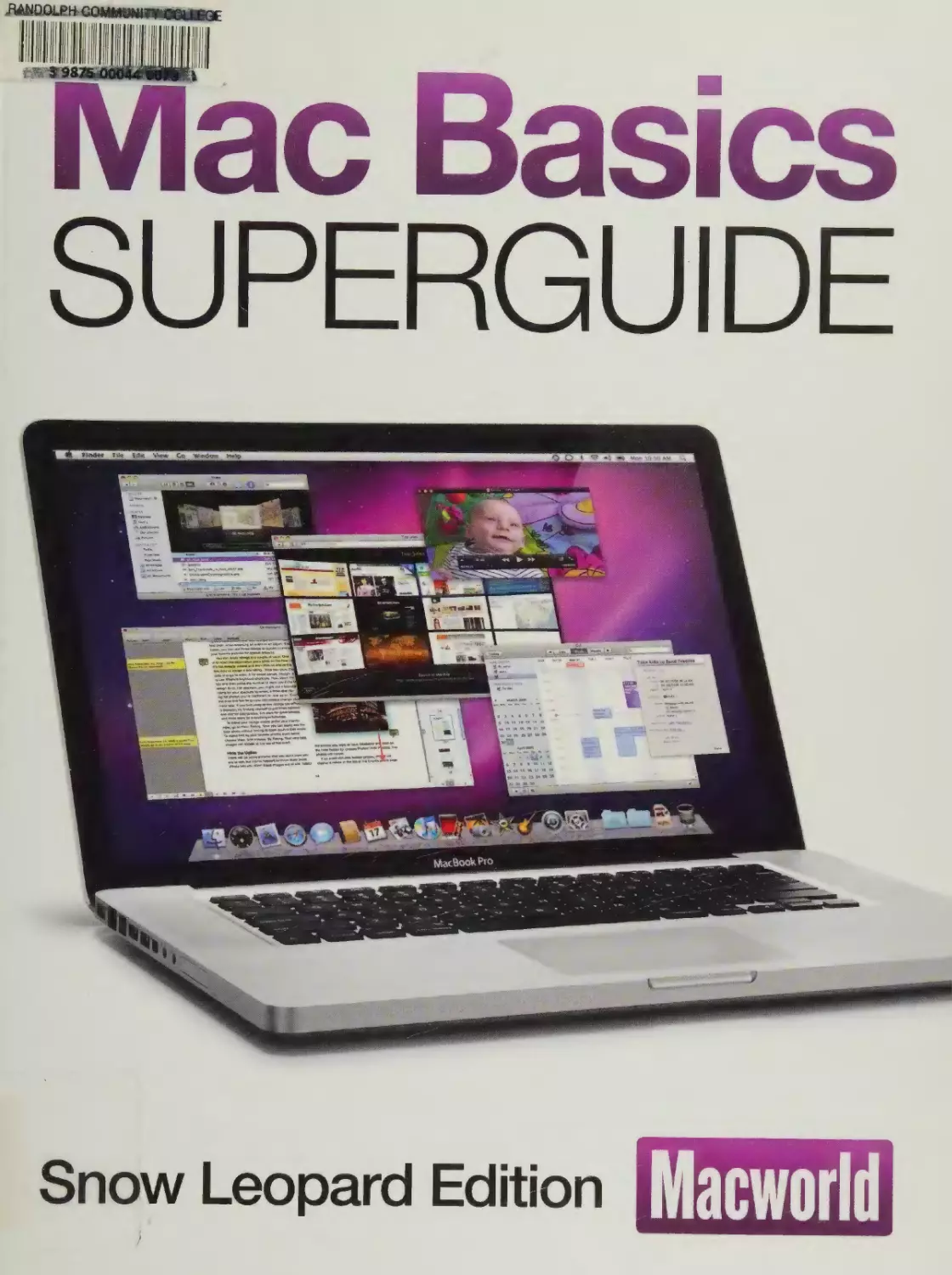
Mac Basics
SUPERGUIDE
Snow Leopard Edition
Macworld
We’re very lucky here at Macworld. In both print ard on the Web.
we've got an amazingly diverse readership. Among cur readers there
are some incredibly geeky, tech-savvy people who can write program-
ming code in their heads and disassemble a MacBook Pro with a
paper clip. But we’ve also got a lot of readers who consider them-
selves novice Mac users and who avidly read what we write in order
io flex and improve their Mac skills.
Bel'eve it or not, this book is for both kinas of reaaers. If you’re one
of the newer users struggling with the fundamentals of operating a
Mac, the Mac Basics Superguide will get you up to speed.
This book is filled with easy to-tollow, detailed tips and nforma-
tion about using the F nder and the Dock, switching between programs, using Apo'e’s Spotlight
search tool, opening and saving your files, and setting up system preferences and user ac-
counts We've tossed in some basic security and troubleshooting advice to keep your Mac
up and running smoothly. And our own Dan Frakes, who pens the Mac Gems column in print
and on the Web, has assembled a list of great low-cost programs that will enhance your
Mac experience.
So that covers the novice users But what about those geeky Mac experts? Wny is this book
for them?
PHOTOGRAPH BY PETER BELANGER
The answer is simple: It’s for them because it helps everyone they know. It’s for all of their
friends and family members who use them as the be-all, end-all Mac resource. The realty is, a
Mac expert can only be in one place at any given time. This Mac Basics Superguide can always
be around as a handy reference when there’s no flesh and-blood expert nearby And with any
luck, tne expert will also oe getting fewer calls as his or her friends and family start to master
their Macs on their own.
О to put it another way this is the book I gave to my mom so that she could figure things out
on her Mac when I'm not available to help
With this edition of the Mac Basics Superguide, we’ve updated the entire book to reflect the
changes in Apple's latest version of Mac OS X, Snow Leopard. And if you find yourself wanting
more, please consider the other books in our Superguide series, Total Snow сеооага and Mac
OS X Hints.
I hope you enioy the book—no matter which kind of Mac user you are
—Jason Snell, Editorial Director, Macworld
San Francisco. December 2009
1
Table of Contents
Mac OS X
at a Glance
6 Wondering where
your applications are?
Not sure wnere to find
your Home folder?
This cheat sneet will help you identity OS X’s main
interface elements.
System
Preferences
Working with
Preferences
One of the best parts
of a Mac is how cus-
tomizable it is. We’ll
show you how to access and use preferences and
adjust them to suit your setup.
The Finder
8 Pans of the
Finder
1 he Finder is the navi-
gation portal into your
Mac. Discover how
it works and what its
Customize Your System
These are some of the more helpful systemwide
preferences and hints on how to use them.
different elements do. Get to know the Finder’s vari-
ous view options, cover flow, icon, list, and column.
13 Get Oriented
Use the Finder to keep your files and folders orga-
nized locate applications, and be more efficient with
your Mac. To get started, become familiar with your
Mac’s user folder structure.
User
Accounts
30 Types of
Accounts
Wie'd the power of
OS X’s user accounts.
Learn aoout the four kinds and see whaf each is
capable of.
15 Easy Finder Tricks
Once you know the basics of the Finder, you can add
these fun and helpful Finder tricks to your arsenal.
Get more information about files, preview their con-
tents, and se1 up shortcuts.
The Dock
18 Deploy the
Dock
Access important
files and applications
quickiy by storing
them in the Dock—
31 Creating Accounts
With these instructions it wiii be a breeze to create
and modify user accounts on your Mac.
34 Work with Multiple Users
Once all of your accounts are set up you can share
files between users, quickiy switch oetween ac-
counts, and retrieve lost passwords.
36 Set Parental Controls
If you share your Mac with kids, you’ll want to take
advantage of OS X’s Parental Controls, which let you
limit whal they access and set bme limits for how
long they can use your computer.
the thin refiectwe shelf filled with icons at the bottom
of your screen.
22 Customize the Dock
Make your Dock work for you by cus+omizing it' pick
what applications, files, and folders you can access
from there. You can even change the icon sizes and
move your Deck around the screen.
Working
with Files
40 Open and
Save Files
Preview a file or ooen
it with the application
of your choice You car also save a file, rename it,
and get to know its custom menu-bar options.
COVER PHOTOGRAPH BY PETER BELANGER
2
44 Navigate Applications
Snow Leopard has three indispensable tools for
managing and navigating between open applications:
Spaces, Expose and Application Switcher.
47 Automate with Services
Don't do more work than you have to. Automate
those repetitive and click-intensive tasks wuh Ser-
vices, a handy feature that has been greatly improved
in Snow Leopard.
Printing
52 The Basics
of Printing
This section shows
you how to get your
printer connected,
tweak its setnngs,
and sham it with ether computers on your network
55 Solving Printer Problems
Even the simplest task, printing a document, can turn
complicated fast. Find out how to troubleshoo’. your
printer with these common fixes
Get Started
\ч ith OS X
Apps
Installing,
Deleting, and
Updating
Programs
While your Mac comes with many of Apple's great
programs preinstalled, there’s also a *on ot great
software you can add. Here are the basics on how to
install, update, and delete programs on your Mac.
Safari
Apple’s built-in Web browse^ Satan is your portal into
the Internet. Get the most out of the new Safari 4 by
learning how to use its many features, including manag-
ing top sites and oookmarks and browsing with tabs.
Mail
With OS X’s e-mail program, you can manage mul-
tiple accounts banish spam, and check the news
with the built-in RSS feeder. Snow Leopard even
offers support for Exchange accounts
iCal
Keep on schedule witn iCal Create and share events
and stay organizeo with Io Do lists. iCal is even
adept at managing multiple calendars.
iChat
Feenng talkative? iChat lets you share more than
words with other users—you can also share photos,
videos, and files.
Preview
Preview is the fast way to open images and PDFs.
You can make miner edits crop, and print from
Preview, too
QuickTime Player
With Snow Leopard's video playback application,
QuickTime, you can enjoy moves share videos and
record your Mac s semen
Image Capture
OS X’s Image Capture is surprising'y powerful. You
can grao images from your digital camera scanner,
or memory cards.
Smaller Programs
Snow Leopard has many small but useful applica-
tions installed including Dashboard, Dictionary Font
Book, Stickles, and Text Edit.
Searching
Your Mac
80 Using the
Spotlight
Menu
The Spotlight menu
is a one-stop Mac
searching tooL Find files, applications, e-mails, and
anything else you think of from your menu bar.
82 Creating Smart Queries
There arc a lot of files on your Mac, and sorting
through them can take time. Find what you're looking
tor quickly using phrases and Boolean operators.
86 Performing Advanced Searches
with the Finder
Having troub'e finding exactly what you want? For
complex searches switch to the Finder window,
where you can set up multiple criteria.
3
Mac
Security
Essentials
90 Be Safe with
Passwords
The most important
step in keeping your oata and computer safe is creat-
ing smart passwords. In OS X, that means using Key-
chain Access lake advantage of these tips to protect
your secrets ana create unguessable passwords
93 Lock Up Your Data
Encrypting your data is a smart way to keep your files
hidden from prying eyes and computer thieves.
95 Make Safe Connections
W'-Fi is convenient, but making the wrong kind of
connection can open up your system to hackers and
snoops. Here's how to protect vour connections
using the OS X firewall and common sense
98 Protect Your Mac Online
Don’t fall for phishers, hackers, or scammers Follow
these rules io make sure your interactions on the
Internet aon't end in d.saster.
Switching
from
Windows
Transferring
Your Data
Learn how to bring
your files over from your PC.
1' Replacing Windows Software
You don’t have to give up your favorite Windows pro-
grams just because you’re switching to a Mac.
1: Bringing Windows with You
If you still need to use Windows from time tc time,
you aon’t need a second computer. You can now run
Windows directly on your Mac
Worthwhile
Add-ons
121 These inex-
pensive programs
can pick up where OS
X leaves off, helping
you be more produc-
Trouble-
shooting
Your Mac
102 Back Up with
Time Machhe
Running rogular
tive. keep an eye on your system and save time
Macworld
backups is the most important oart of a Mac mainte-
nance plan. If something goes wrong, you’ll oe able
to get back up and running quickly Thankfully, OS X’s
Time IvlacITne program makes backing up all of your
data easy
Mac Basics, Snow Leopard Edition
Editor Kelly Turner
President and CEO
VP and Editorial Director
Mike Kisseberth
Jason Snell
100 Recover from Crashes
Backing up your files won’t actually prevent disasters
from happening. If your applications freeze or your
computer ctasnes, try these time-tested remedies
one at a time to revive your Mac
113 Seek Outside Help
When Mac problems are beyond your repair abilities,
turn to one of these dependable sources for nelp.
Managing Edi'or
Associate Editor
Copy Editor
Art Director
Designers
Jennifer Wemer
Heather Kelly
Peggy Nauts
Rob Schultz
Lori Flynn,
Carli Morgenstern
Macworld is a publication of Mac Publishing, L.L.C., and International Data Group,
Inc. Macworld is an independent journal not affiliated with Apple, Inc. Coovright
© 2009, Mac Publishing, L.L.C, All rights reserved. Macworld, the Macworio -ogo
Macworld Lab, the mouse-ratings logo, MacCentral.com, PriceGrabber, and
Mat Developer Journal are registered trademarks of International Data Group,
Inc., and used under license by Mac Publishing, L L C. Apple, the Apple logo,
Mac, and Macintosh are registered trademarks of Apple, lac. Pnnted in the United
States of America
Have comments or suggestions? E-mail из at ebooks@macworld.com.
SIDG
INTf RlkAT ION M DATA GRCl P
4
Contributors
Christopher Breen is a senior editor for Macworld.
He offers troubleshooting advice in Macworld's Mac
911 blcg (macwodd.com/mac911).
Senior Editor Dan Frakes reviews iPod, iPhone, and
audio gear for Macworld and runs Macwond.com s
Mac Gems and Mobile Mac blcgs
Glenn Fleishman writes about Wi-Fi at wifinetnews
com and is the author of Take Control of Sharing
Files in Snow Leopard (TidBits Publishing, 2009.
takecontrolbooks.com).
Senior Editor Rob Griffiths runs MacOSXHints.com,
a repository of hidden OS tricks and workarounds,
and offers Mac hints on Macworld’s Mac OS X
Hints blog
Adam Goldstein is the author of AppleScript: The Miss-
ing Manual and a coauthor of Switching to the Mac
The Missing Manual (both Pogue Press/О Reilly. 2005)
He runs GoidfishSoft. an OS X shai eware company
Joe Kissell is the senior editor of TidBits (tidbits
.com) and the author of Таке Control of Maintaining
Your Mac (TidBits Publishing, 2009)
Macworld Contributing Editor Ted Landau ferrets
out new ways to get out ot trouble witn your Mac H,s
latest book is Take Control of Your iPhone (TidBits
Publishing, 2007; takecontrolbooks.com).
Harry McCracken, the former editor of PC World, is
a semi-switcher: he uses both a MacBook Pro and a
Windows netbook every day He runs the Technolo
gizer blog (technologizer.com).
Kirk McElhearn writes about Macs and much more.
Visit his blog. Kirkville (www.mceihearn.com), for
information about Macs, iPods, books and music.
Ben Waldie is the author of Automata for Mac OS
X 10.5 Leopard’ Visual QuickStart Guide (Peachpit
Press 2007) and the president of Automated
Workflows (automatedworkflows.com).
ALSO FROM THE EDITORS OF MACWORLD...
iPhone
iPod Touch
Macworld C'rgrtal
Photography
Superguide
Mac Security
Superguide
Get more insider tips and troubleshooting advice from the Mac experts. Our Super-
guide series offers useful insights ano step-by-step instructions for the latest Mac gear
and software Each of the books in the series is available in one of three different for-
mats- as a downloadable PDF for immediate access- on CD for easy, offline storage; or
as a full-color bound book printed on high-quality paper. Go to macworld.com/super-
guide-offer to order any of the Superguide books or to download a free preview.
5
Window Help
S Dtsktop
Library
-Д Applications
Documents
ifel All Images
All Movies
S&} AH Documents
Sylvie
§ IDisk
Edit View
в О О
Ш
Menu bar
Search field
finder window
Homefolder—ч
Backup
Sidebar
Desktop
Dock
External
hard drive
Internal
hard drive
Fast User Switching menu
Spotlight menu
L Application menu
Apple
menu
Mac OS X at a Glance
A Quick Guide to Snow Leopard s Interface Elements

ettmg acquainted with any new operating system—
even one as elegantly designed as Apple’s Mac OS
X—can be a challenge Newcomers face strange
terms, unfamiliar interface elements, and a host of seemingly in-
explicable features. Wondering what Mac users mean when they
refer to the sidebar or to the Spotlight menu? Not sure what to
call the list of applications at the bottom of your screen? Here's
a quick look at some common OS X interface elements—items
we'll refer +o again and again in the pages of this book.
6
The Finder
Howto Locate Files, Create Folders, and Navigate OSX
w
h_;_J
hen many people new to the Mac first hear the name
Finder they assume that me Finder is OS X’s search
feature. But in fact, the Finder is the space where you
TABLE OF CONTENTS
interact with your Mac—it is OS X’s metaphorical face (it’s even
represented in the Dock by a smiling blue face). When you look
at your desktop or at a window showing your files and folders,
you’re looking at the Finder.
You’ll use the Finder for many of your day to day tasks. For
8 Parts of the Finder
13 Get Or iented
15	Easy Finder Tricks
instance, it’s where you create new folders to organize youi files;
review information about the size of files; move, duplicate, and delete
files; burn files to CD -R cr DVD-R discs; and browse your Mac’s
hard drive. And yes, the Findet can actually help you find files—it’s
tied to the systemwide Spotlight search feature (see the Searching
Youi Mac chapter).
7
THE FINDER
FINDER
Parts of the Finder
ou navigate files folders, and applications
on your Mac from a Finder window To open
a new window, click an empty part of your
desKiop, click File in the menu bar, and select New
Finder Window (or press N). You’ll also get a new
Finder window whenever you click the Finder icon
in your Dock: or double-click on a folder Icon, or on
your hard drive's icon on the desktop
The Mam Finder Window
OS X gives you four different ways to browse through
your f.les in a Finder window—the icon, list, column,
ano covet flow views (see "Pick a View'1). You control
a window's view by using the Finder’s View menu or
Dy clicking the small View icons at the top of a Finder
window Deciding which view to use is partly a matter
of personal preference and partly dependent on what
you’re looking at in the Finder.
COVER FLOW VIEW Cover flow view helps you
browse files quickly in the Finder, just like in iTunes.
When you click the Cover Flow Dutton (or press 3S-4)
in the Finder, previews of your files will appear as
glossy graphics in the top section of the window; the
same files are shown in a list in the window’s bottom
section. Cover flow view is great when you need to
sift through a folder of photos, videos, or even text
files The Pinder can even display and piay the con-
tents o1 those files (see ‘ Press Play”). You can see
more than just a basic preview in cover flow view—
you can paqe througn PDFs and text flies, and play
movie and audio files The downside of this vew is
that it limits the number of files you can see at a time.
kJ Maps
* SHARE©
Caribbean mapl.Jpeg
1898caribbeanl600b.jp
Caribbean map 2.Jpeg
___
▼ DEVICES
0 Macintosh HD
ft
H Desktop
Ф hkelly
jAr Applications
01 Documents
Pictures
T SEARCH FOR
imagesnyplorg.Jpeg
ok map .jpeg
San_F ranci sco J n_ruln_e
ditz jpg
Macintosh HD
! ► SHARED
j V PLACES
Й Desktop
hkelly
"A Applications
0 Documents
Pictures
S @3 Л
____1____________;______________________________:-----------------------------
Name	* Date Modified
|	w	1898caribbeanl600b.jpg	Jun 19, 2008 1 06 PM
Caribbean map 2 jpeg	Jun 19, 2008 1 22 PM
Caribbean mapl.Jpeg	Jun 19. 2008 1.16 PM
в	imagesnyplorg.Jpeg	Jun 19. 2008 2 47 PM
I	э	ok map.jpeg	Jun 19, 2008 143 pm
И	queens	Jun 19. 2008 4.22 PM
* San_Franciscojn_ruin_Kiit2.jpg	Sep 26, 2008 1255 PM
j e UnlversalfsCosmographlaJpg	Jun 19, 2008 2’17 PM
a ussr.Jpeg	_________ Jun 19, 2008 4:15 PM
0 Yesterday
0 Past Week
ijg] All Images
All Movies
All Documents
Universal isCosmographi
a.Jpg
У SEARCH FOR
0 Today
0> Yesterday
0 Past Week
!& AH Images
10 All Movies
f-fei All Documents
Macintosh HD *- Qp User •, ф hkel » (0 Desl Д, Me i- (0 Maps j*| ussr.Jpeg
1 of 9 selected, 181.1G8 available
f"*	____________ • ".......~~	-8	< ►
0 Macintosh HD » QB Uset » ф hke< <• Sai Des' - Д W > £ Maps * [y> ussr.jpeg
1 of 9 selected, 181.1 GB available
ft О ft
Cj Maps
» SHARED
T PLACES
ir archives
Ф hkelly
Applications
I ; Documents
k* Pictures
•9 DEVICES
Macintosh HD e images
: 1898ca OOb.jpg
a. caribbe Z.Jpeg
s= caribbe pl jpeg
S images, org.jpeg
ok map jpeg
И queens
•“ 5an_Fra ,dlt2.jpg
 Unlvers phiajpg
DEVICES
Macintosh HD
» SEARCH FOR
0. Today
0 Yesterday
Name ussr.Jpeg
Kind JPEG image
Size 13 1 MB on disk
Created 6/19/08 4-IS PM
Modified 6/19/08 4-IS pm
Last opened 6/19/08 4:15 PM
Dimensions —
& Ail images
£>.! All Movies
Ой All Documents
More info.
V PLACES
H Desktop
Ф hkelly
Applicauons
Documents
ТЛ Pictures
I ▼ SEARCH FOR
I	0 Today
'	0 Yesterday
0 Past Week
Щ All Images
All Movies
All Documents
C.;—" ~~ - - -т^Э«
0 Macintosh HO СЙ User ф hkel t- leal Desl । ft, Me » 0j Maps » fe| ussr.Jpeg
J Maps
ua Macintosh HD U$e * ф hkc » De * ft, Me » L4 Maps »• |y| ok map.jpeg
1 of 9 selected, 1B1..1 GB available
1 of 9 selected, 181.1 QB available
Pick a View There are four ways to view Finder windows in OS X: the icon view 0, list view ©, column view © and
cover flow view ©. Choose one by clicking on the appropriate view button at the top of a Finder window.
8
THE FINDER
ICON VIEW You’re already familiar with the icon
view—that’s what you see when you look at your
Mac’s desktop In this view, you can arrange repre-
sentations of your files and folders as you please,
just as if you were working in real space. The icon
view is particularly handy if vcu have a folder of pho-
tos, for instance. Each photo’s icon will be a smaller
version of the image—a thumbnail—so it’s easy to tell
which shot is which at a glance. To change the size
of these icons, drag the icon size slioer on the bottom
of any icon view Finder window to the left or the right,
in Snow Leopard, icons can be as large as 512 by
512 pixels
You can not only place icons whenever you please,
but also change how this view looks. From the View
Ootions inspector (View ► Show View Options or
K-J), you can, for example, adjust grid spacing (how
close together icons appear) and cnoose a color or
picture as a fclder background. The second option
lets you set, say, a green background for folders
containing important files and a blue background for
folders containing documents you need to edit.
LIST VIEW But the icon view isn’t always the
most practical choice. You can also choose the
list view, which shows a list of files and folders on
alternating rows of white and lignt blue backgrounds.
Next to each folder is a disclosure triangle. Click the
triangle, and you’ll see the contents of the folder
without having to open it.
This view is particularly useful for sorting your
files according to a specific criterion—for example,
LJ All Movies
SHARED
1дЙ AH Inwgei
L’&l All Documents
to<l«
SEARCH FOR
Qj Today
у Yesterday
* PLACES
В Desktop
Ф hkefly
Applications
Г? Documents
Pictures
ф Meetly >• isj] Movies« * Salty Kittens mp4
1 of 9S selected
Press Play In Snow Leopard, you can preview text files,
J Macintosh no
Sf cMpmunk-desktop.in4v
chipmunk-desktop.m4v
3 chipmunk-desktop m4v
ГЗ PIO 10810 MOV
мпа
MPEG
MPEG
MPEG
Quick . Movie
eo File
eo File
PDFs, movies, and music from within the Finder.
FiT3
Customize Finder Views
Now that you know the Finder’s view options, you
can start customizing. To change the default view for
all Finder windows, start by selecting File ► New
Finder Window to open a new window. Adjust the
window to look the way you want—in addition to
changing the view mode, you can change the win-
dow’s size and position or use the View Options win-
dow (View ► Show View Options) to tweak colors and
alter your grid spacing if you’re using the icon view.
Now click the Use As Defaults button. From now
on, Finder windows will open with your chosen settings.
Unless you click this button, changes you make to the
Finder window will apply only to the current window.
This can come in handy when I certain option proves
useful for only certain types of files. For instance,
choose the Show Icon Preview option to make the
Finder display a thumbnail of files’ contents for file types
it’s familiar with. Since this is most useful for photos and
videos—you can see their contents at a glance—you
can turn previews on only for folders that contain them.
alphabetically, by date, or by file size. Say you want
to see the file you’ve |ust saved tc the desktop Open
a Finder window, and click the Desktop icon on the
window’s sidebar on the left side After choosing the
list view, click the Date Modified column header—it
should default to newest-to-oldest order. If it puts the
list in oldest-to-newest order, just click the header
again, and the sort order will reverse. (This works for
all the list view’s column neaders: click once to sort
by that attribute; click twice to reverse the sort order.)
You can add other columns of information, such
as Date Created and Comments, in the View Options
window (View ► Show Options or M-J). Under Show
Columns, you'll see the different columns you can
add or remove Check the box by the information
you’d like to see.
COLUMN VIEW For many people, column view
is the easiest way to navigate today’s large hard
drives—in one open window, you can get to any spot
on your hard drive with a few clicks, in this view, each
column corresponds tc a location on your hard drive.
Wnen you click a folder, the contents of the fo!der
appear in the next column to the right If you click a
file or a program icon, information about that file or
program appears in the next column You can also
9
THE FINDER
preview an image, flip through a PDF or text file, or
play movie or audio files oirect'y in this column, just
like you can m icon and cover flow view.
To change the sort order of items in column view,
use the View Options menu. Go to View ► Show View
Options, or press 3€-J Now use the Arrange By pop-
up menu to sort the column windows by name, date
modified, date created, size, kind, or labeL Unfortu-
nately, these settings are glooal, so you can’t have
one window sorted by name and another so-led by
date modified
There are a tew quick ways to change the width of
columns in column view Resize a single column by
dragging the very bottom of one of the column divid-
ers until it’s the desirea width. Alternatively, double-
click the divider to make it the size of the longest
filename automatically. You can Option-double-click
to make all columns as wide as the widest column
in the Finder window but this can make the window
unmanageably huge It’s usually better to resize all
the columns at the same time by pressing ano hold-
ing the Option key while you drag.
The Finder’s Sidebar
The sidebar is the light blue list of disks, shared
drives, iocaiions, and searches that appears on the
left edge of all your Finder windows (see “On the
Side"). If you click an icon once in the sidebar the
item will launch (if it’s an application) or open (if it’s a
folder, file, or device). The sidebar is nanay because
whenever you have a Findei window open, it's right
there, saving your mouse a trip all the way down to
the Dock to click a folder or application.
Items in the Finder’s sidebar are arranged by cate-
gory—Devices, Shaded, Places, and Search For. Hide
or reveal a category’s items by clicking the cisclosure
triangle next to the category name. Click and orag
any item away from the sidebar to make it disappear
in a puff of smoke. If you want to rearrange items in a
category, just click and drag an item up or down. You
can also select Finder ► Preferences click Sidebar,
and then select—or deselect—items in the list there.
DEVICES Items in this category include your
computer; its hard drives; any external drives you
have connected; your iDisk (if you have a MobileMe
account and have it mounted or use local (Disk syr ic-
ing); and any CDs, DVDs, or iPods you have connect-
ed. This category may also include digital cameras,
memory cards, USB drives, and so on.
Using the sidebar’s Devices category, you can
R П 0
appiemacbookpro
DEVICES
1Гц Macintosh HD
g l№k
SHARED
jyu Edit Ортг i
PLACES
К Desktop^
jA> Applications
Q Documents
SEARCH FOR
(5 Today
Q Yesterday
Q Past Week
tjkJ Ail Images
Й All Movies
Gfci All Documents
Gfej Recent JPG Se
Name
Desktop
gjk Documents
a Downloads
iS Library
Movies
QQ Music
Pictures
Public
Send Registration
Sites
Date Modified
Today, 1:49 AM
Sep 17, 2009 11:34 AM
Sep 21, 2009 7’41 PM
Today, 1:52 AM
Ju! 2, 2009 3 43 PM
Aug 26, 2009 1:49 PM
Today, 1:45 AM
JUl 2, 2009 3:43 PM
Jul 2, 2009 3:43 PM
Jul 2, 2009 3:43 PM

Macintosh HD  QS Users s appiemacbookpro
10 items, 224*56 GB available
On the Side The Finder’s sidebar has tour sections:
Devices © Shared О Places Q. and Search For ©.
quickly eject (or unmount) disks or hard drives.
Control-click (or right-click) a device m the sidebar
and select that option in the contextual menu. If the
device you want to eject has any open files or is be-
ing used—for example, if your iPod is syncing—you’ll
get an error message. You can’t eject your startup
disk either.
SHARED This category includes other computers
or storage devices on your network Not only Macs
show up here; any Windows, Linux, or Unix computers
that Apple’s Bonjour networking technology recog-
nizes show up as well. Other shared items will display
in this section if you use the Finder’s Go ► Connect To
Server command to connect to them. If any comput-
ers on your network are mussing, you may need to
relaunch the Finder: hold down the Option key. then
click and hold the Finder icon in the Dock, and tnen
choose Relaunch Finder from the menu That appears.
This will update the Finder s display.
PLACES This category lets you access folders
and files with a single click. By default, folders such as
your Home foider (represented by the house !con with
your user name next to it), Applications, Documents,
and Desktop will be here. But this part of the sidebar
becomes truly useful when you customize it To add a
folder or file to this sector,—say, for a project you’re
currently working on—select it and drag it to the side-
bar position you want. Alter natively, select the item in
tne Finder, press K-T, and then drag it to reposition it.
Move items around so the most important ones
are at the top. You II notice thai the folders at the top
10
THE FINDER
Master the Finder
Although you can access most Finder commands
from the Finder menu bar, using keyboard
shoi tculs for common actions will save you a lot
of time.
JF YOU WANT TO DO THIS...	PRESS THIS
Open a new Finder window	| S-N
Create a new folder	| K-Shift-N
Get more information about a selected file or folder	s-l
Switch to the list view	I X-1
Switch to the icon view	I' SB-2
Switch to the column view	|' Й-3
Switch to the cover flow view	| M.-4
Show view options for a foider	I К-J
Create an alias of an item	I
Move the selected item(s) to Trash	| jS-Delete
Select multiple files and folders even Jf they aren’t next to one another	ID-click
Select multiple files and folders that are next to one another	Shift-click
Bring up a contextual menu with additional options		Control-click
Create a copy of the item being dragged	Option- drag
Move the item being dragged from one drive to another	Sf-drag
Create an alias of the item being dragged but leave tne original where it is	М-Option-drag
Start a search	| 3€-F
Jump to your user folder	эе-Shift-H
jump to the Applications folder	Ж-Shift-A
Get help with the Finder	| 3€-Shift-?
press 3S-I, and then click its folder icon at the top of
the Info window. Press S-V to paste the image here.
To remove the image just select the folder in the
Finder again, press K-l, click the custom icon at the
top of the window, and then press Delete.
The Finder sidebar also appears to the side of
Open and Save dialog boxes, making it a great way
to save files into folders you use often.
SEARCH FOR This section contains smart fold-
ers, or saved Finder searches—both the Finder's
default smart folders, such as Today (files you've
used today) and Ail Movies (all your video files), and
any you’ve created
This is an easy way to access for example all of
the “hot’’ projects that you’ve given a red foldet label
to. Create a smart folder by selecting File ► New
Smart Folder. Click the plus sign (+) underneath the
search field, click the Kind pop-up menu, and then
select Other In the list that appears, seiect File Label.
In the Finder window, click the .ed square and then
Save. In the dialog box that appears, name the fclder,
select the Add Го Sidebar option, and then click Save
(tor more on smart searches see the Searching Your
Mac chapter).
The Toolbar
At the top of each Finder window is a toolbar It’s
visible all the time, unless you hide it by pressing
3€-Opt'on-T (this also hides the sidebar). By default,
the toolbar contains a number of useful buttons, as
well as the search field. Click the back and forward
buttons to navigate to folders you’ve visited recently.
Chck any of the tour View buttons to set your Finder
Ф apple macbookpro

level of your user folder (Desktop, Documents. Music,
and so or) have custom icons; other folders have
plain blue icons unless you give them custom icons.
That’s a simple thing to do and makes spottng the
folder you need much easier.
You can use one of your own images or get
something from the Web. There are lots of free icons
out there—from flags to logos to pictures of Aople
computers—-from sites such as Iconfactory, but you
can use any graphic you find. Copy the image. For
example, it it’s on a W°b page, Control-click the
image and choose Copy image from tne contextual
menu that appears. Select a folder in the Finder
Drag your favorite Items Into the toolbar...
	I -^-zl
Back V	f	View	□	Action	If
Burn	Customize	Separator	Space	Flexible Space	New Folder
	e	О	R	Q 	ISO
Delete	Connect	Get Info	(Disk	Search	Quick Look
. or drag the default set Into the toolbar.
Вмк	View	Quick Look	Action	Q	Search
Show [Icon Only И4 О Use small size	( Оспе )
----------'----дв	.....
10 .tens, 224.56 OB availai)^
Tricked-out Toolbar four toolbar is highly customizable
in Snow Leopard To bring up this list of options, go to
View ► Customize Toolbar.
11
THE FINDER
EU
Add the Path Bar
With all the different view options and layers of
folders, it’s easy to get disoriented. One solution
is to enable the path bar (View ► Show Path Bar).
Displayed on the bottom of your Finder window,
the path bar is a bread-crumb trail that shows your
location in youi Mac's folder hierarchy © Once
turned on, the path bar remains visible from session
to session, so you can see the path at all times.
Even better, you can drag and drop an object
on+o any folder in the path bar, and the dropped
object will be moved (if it’s on the same drive)
or copied (if it's on another drive) to that folder.
Control-click any file or folder within this path bar
and you’ll get a basic contextual menu. Using this
menu, you can open the selected item, its parent
folder, or its Get Info window. (You can also see
your current path by Control-clicking the location
name at the top of the Finder window.)
Documents
prv'CfS	Name	* Date Modified
3 Macintosh HD & About Stacks.pdf	Jul 2,2009 343 PM
g lOtsk	i	*	£2	Microsoft User	Data	Sep	16, 2009 12 16 PM
[*l	SnowLecpard	.	[^Instructions Sep	2, 2009 6 08 PM
,	►	gg	Updaters	Sep	17,2009 11:34 AM
► PLACES	i	►	Web Receipts	Sep	3, 2009 6 34 PM
> SEARCH FOR	4
Macintosh HD , Users rjs appiemacbookpro  Documents
5 items, 224 53 G8 available
view to icon, list, column, or cover flow view. Click
the Action menu (labeled with a gear icon) to quickly
create a new folder, make a file alias, move some-
thing to the Trash, and more. (The Action menu is
particularly useful when you want to compress a
file or folder.) Click the Quick Look button (labeled
With an eye icon) to view the contents of a tile, or to
quickly turn a bunch of graphic files into a sliaesnow.
To quickly jump to another folder in your hierarchy,
cortrol-click or right-click on the window’s title (called
a proxy icon} above the tooioar. You’ll get a list of par-
ent folders.
You can customize the toolbar by choosing View ►
Customize Toolbar (see “Tricked-out Toolbar”) There
are about a dozen buttons you can add for actions
you perform often, such as ejecting disks or getting
information about tiles But that’s r.ot all you can do
to the toolbar—you can also add your favorite files,
folders, or programs to it. Drag an item up to the
too bar to a position—say, to the right of the standard
buttons—and then wait a second. The cursor will
change to a green plus sign (+). Release the item or
move it to a different location, and it will be added to
the toolbar.
This is another good way to keep folders in a
location that displays in all your Finder windows, or
to put applications in a place where you can access
them quickly. Once you’ve added an item to the
toolbar, just click to open or launch the 'tern; you can
also drag files onto folder and application toolbar
icons. If you have an application icon in the toolbar,
you’ll probably have to drag your files a much shorter
distance to reach that icon than to reacn an icon on
the Dock
You can change tne size of toolbar icons, as well as
whether tneir names display; you can even forgo icons
in favor of text. Do this from the Customize Toolbar
dialog box or by 3£-clicking the button at the top right
of the window Keep clicking while holding down the M
key to cycle through the six possiblities.
12
THE FINDER
Get Oriented
N
ow that you know how the Finder works
you can use it to access your files. But
where is everything? Here is a prmer on OS
X’s file organization system.
Locate Your Files
Although you can store files almost anywhere on ycur
Mac, OS X comes with a basic organizational scheme
already in place that you'll do well to follow. If you
double-click the hard drive icon on your desktop,
you’ll see a window containing four folders: Applica-
tions, Librai у System, and Users.
APPLICATIONS As the name implies, this is where
OS X stores applications, ano any application stored
here is available to all users on your Mac. Apple-provid-
ed applications automatically install themselves here, as
do many third-pady ones, and you can choose to install
other programs in this folder as well. Most applications
don’t have to reside in this folder to run, but it’s a good
idea not to move anything already installed in this folder.
Occasionally, software updates depend on finding the
sfonoard programs in their default locations.
SYSTEM The inner workings of OS X reside in this
folder: foi instance, the default system fonts, as well
as the drivers (think “extensions” it you're coming
from OS 9) for things like video cards, mice, printers,
and scanners. In short, you want to stay out of this
folder. Thankfully, OS X prevents you from changing
items in this folder (at least accidentally).
LIBRARY The Library folder holds some special
things that are available to all your Mac’s users. Pi inter
definitions reside here, as do ail the standard desktop
images (the ones listed in the Desktop & Screen Saver
preference pane). Unlike the System folder, this folder
will occasionally need to be opened. For example, if
you want to install fonts that all users can share, put
them in the Library folder’s Fonts folder.
USERS The Mac is designed to be used by many
people, each with his or her own account (see the
User Accounts chapter). OS X Keeps your things pri-
vate by tucking them into your own space inside the
Users folder if you open the Users folder, you’ll see
a folder for each user account you’ve created. vour
own user folder is marked with a special icon that
looks like a house and the name you’ve given it This
is the folder OS X has reserved for your files (among
other things, as you’ll see). It’s known as your Home
folder or your user folder.
Get to Know Your User Folder
Inside your user folder is a collection of subfolders,
each with a custom icon that makes it easy to identify
(see “Your User Fo'der”) Apple created these folders
to provide users with an easy-to-understand system
£ appiemacbockpro
; . sallysmitty
I DEVICES
Shared
i>
U IDisk
I ►SHARED
i ♦ PLACES
II
► SEARCH FOR
,'~Д Macintosh HD t Users v appiemacbockpro
r
applemacbookpro ►
.	applemacboo
Л Appl icati ons
I	Documents
9 items, 224.55 GB available
' „ Pictures
iSl Sites
Lfi Music
Movies
,'&) Downloads
Docjmems
Desktop
6Й Public
Library
Your User
Folder Inside your
tolder, you’il find
these nine aiready-
created folders that
keep your system
organized.
13
THE FINDER
for keepinfl track of their files. These are the folders
you’ll be frequenting the most on a daily basis.
You don’t have to use OS X’s preset folders. You
can create new folders inside any existing folders or
on youi desktop But there is one important rule to
keep in mind in here: do not rename or delete any of
the existing folders in your user folder. If you do, you
may run into trouble later as many programs assume
that these folders exist with their current names.
DOCUMENTS, MOVIFS, MUSIC, PICTURES These
folders are fairly self-explanatory. Feel free to store
your files in them. Programs place tiles in these fold-
ers, too -iTunes uses the Music folder; many pro-
grams write files to the Documents folder- iMovie and
iDVD use the Movies folder: and Photo Fiooth and
iPhoto store their images in the Pictures folder.
LIBRARY This folder stores application and sys-
tem files specific to your user account. This is where
OS X keeps all ot your applications’ preferences, sup-
port files needed by applications, and so on.
SITES The Sites tolder holds files related to OS
X’s built in Web server
PUBLIC You can use the Public folder tc share
your files with other users on your Mac—anything
you place in that folder will be visible to other users,
and they'll be able to copy items from it Other users
can give you a file by placing it in the Drop Box foldei
inside the Public folder.
DESKTOP As the name implies, this folder holds
anv objects that you place on your desktop. If you
use the Finder to create a new folder in your Desktop
folder, it will immediately appear on vour desktop
DOWNLOADS This fodder helps keep your desk-
top clean by acting as the default destination for all
downloaded files. It is conveniently represented by a
stack on your Dock (see Thu Dock chapter}. Simply
click the stack once to see all recently downloaded
songs, documents, and programs.
Delete Files
OS X gives you a number of ways to delete files. You
can drag tne item to the Trash icon on the tar right
side of your Dock. You can select an item (by clicking
its icon once; and then press К-Delete You can also
Control-click an item and select Move To Trash.
Whenever you use one of these methods, your file
goes into OS X’s Trash But it doesn’t disappear for
good Instead, it waits there until you empty the Trash
You can see what’s in your Trash at any time by clicking
the Trash’s Dock icon Need to open a file to make sure
Use the Contextual
Menu
One way to interact with items in the Finder is
by using contextual menus, which pop up when
you Control-click (or right-click, with a two-button
mouse) an item. What you see in a contextual
menu depends on the properties of the item you
selected. When you Control-click a folder, you see
one set of options; when you Control-сНск an ap-
plication, you see another. Often, these menus offer
the quickest way to do something- -for instance,
adding a color label to an object or making a quick
duplicate of a file.
you really want to throw it out? Drag it to an appropriate
application on the Dock to open it. You can also click
the Quick Look button (the eye con) for a preview.
You can change your mind and fish files out of
the Trash—until you select Finder ► Empty Trash (or
Control-click the Trash icon in the Dock and choose
Empty Trash from the contextual menu) When you do
that, everything in the Trash is permanently deleted.
If you throw away some really top-secret stuff, hKe
your “How to Beat Google” business-plan draft, you’ll
want to empty the Trash in a special way—select
Finder ► Secure Empty Trash. When you do, OS X
writes meaningless data over the space on the drive
that the files occupied. This ensures that no one,
not even someone with special recovery tools, can
retrieve your files
14
THE FINDER
Easy Finder Tricks
here are many more ways to work with
your files using the Finder. You can create
shortcuts, get more mformat’on, and ger a
full-sized preview.
Create Shortcuts for Your Files
О? X gives you multiple ways to quickly access your
files, folders, and applications and keep your system
organized without being cluttered Here are your
shortcut options.
ADD TO THE DOCK You can add a shortcut for a
file, folder, or application by dragging an item to the
Dock and holding it there for a moment, A space will
open up and you can let go of rhe item. That shortcut
will be there until you delete it. For more on the Dock,
The Dock chapter.
USE THE SIDEBAR The Places section of Find-
ers sidebar is a collection of quick links to the folders
Apple assumes you'll use most. To add an item, drag
it to this section of the siaeoar, wait for the blue hne
to appear and then release the mouse.
If you run the same searches frequently, you can
save them in the Search For section of the side-
bar. After you create a search in the Finder (see tne
Searching Your Mac chapter), click the Save burton,
and you’ll see an Add To Sidebar option You can
a'so remove or rearrange searches within the s-debai
by clicking and dragging.
There are a couple of ways to customize the
sidebar and fill it with the snortcuts you want. To add
or remove files, folders, or applications, you can use
the Finder's Sidebar preference pane. Select Finder
► Preferences, and then click Sidnbar (soe “Sidebar
Preferences”). Here you can specify wnich items
show up in the sidebar. Alternatively, just drag items
into or out of the area. Note that you can add drives
only to the Devices section, and you can add applica-
tions, folders, and files only to the Places section.
CREATE ALIASES If you want to store a shortcut
somewhere other than in the Dock or in the sidebar,
you can create an ahas. An alias is a small file that
points to something on your Mac (it’s similar, but not
identical, to a Windows shortcut) Double-clicking
an aiias does the same thing as double-clicking the
original item—folders and documents open, and ap-
plications launch. Use aliases to get easy access to
files and applications while keeping the originals in
one place (applications in the Applications folder and
documems in your Documents folder, for example).
To create an alias, simply select the file you'd like
an alias cf, and then select File ► Make Alias (or press
3€-L). You can also create an alias by holding down
the К and Option keys and then dragging a file to a
new location—a sma'I arrow in tne corner of the drag
icon indicates that you’ll create a new alias when you
release the mouse. Every alias icon has a small ar-
row at its bottom left. If you nc longer need the alias,
delete it The original file or folder won 't oe harmed,
since the alias is just a pointer to the original
As you use your Mac, you’ll begin to see how in-
credibly useful anases can be. Say you want to keep
your tavonte recipes +ogetner in one spot, but you
also like to keep your large recipe collection orga-
nized in folders by botn year and style of lood.
You could create a new folder called Favorite
Rec Lpes and copy your favorites into it but that
would take mote disk space - and if you ever edited
the original recipe, your copy wouldn’t reflect those
edits, Instead, create a new folder and then put
Finder Preferences

Show these items in the sidebar:
DEVICES
□ Д Apple MacBook Pro’s MacBook Pro
Й ' Hard disks
0 External disks
Й A 'D*sk
Й ® CDs, DVDs, and iPods
SHARED
Й 0 Back to My Mac
0 Д Connected servers
Й Д Bonjour computers
PLACES
Й ^5 applemacbookpro
Й □ Desktop
Й Applications
0 0 Documents
SEARCH FOR
0 Q Today
0 0 Yesterday
0 (^) Past Week
0 All Images
0 All Movies
0 ufei All Documents
Sidebar
Pieferenc-
es Customize
the short-
cuts on your
Finder sidebar
by going to
Finder ► Pref
erences and
clicking the
Sidebar tab.
15
THE FINDER
aliases of your favorite recipes in it Aliases take up
almost no space, and you don’t have to worry about
having multiple versions of the same file
Learn More About a Filo
There may be times when you want to know more
about a file tnan its name, size, and modification
date In those cases, pull up an instant dossier by
selecting the file and choosing File ► Get info or
pressing 3€-l. From the Finder, you can also click the
blue circle / icon in the toolbar.
The Into window that appears shows information
about the file you selected, including tne date it was
created, when it was last modified its location on
your hard drive, the color label it’s marked with, tne
application it opens in by default, the language files it
may support (for applications), ana who has per-
mission to open it It even provides a preview when
appropriate.
Take a Peek with Qu.ck Look
Quick Look allows you to immediately preview a file.
Although it’s actually systemwide—available in Mail,
Spotlight’s results window, and Time Machine— you’ll
end up using it most often iri the Finder.
Quick Look lets you view a file without going to the
trouble of opening it in its related application. Instead,
click the tile once and press the spacebar (or Control-
click the file and select QuicK L ook from the contextual
menu). A new window will open and display the file’s
contents. This window is scrollable (for multiple-page
documents), resizable, and movable The double-
arrow icon at the bottom of the screen switches the
view to rull-screen mode. If you’re viewing an image, a
camera icon lets you add the file to your iPhotc horary
(see ‘Take a Peek”).
Better yet, you have full Finder control in this
window and can use all the normal Finder menus
and keyboard shortcuts. For instance, if you decide
you’d нке to open a document after checking it out in
Quick Look, just press S-O. To close the Quick Look
window, press the spacebar again.
You can use Quick Look with nearly any kind of
file. Text files, movies, Adobe Photoshop images,
PDFs, Microsoft Office 2004 documents, image
files, and even MP3s all show' (and in the case of
movies and audio files, play) in the Quick Look
window. If you use a third-party program with a
proprietary file format, however, you may not ba
able to use Quick Look on its files—at least not
until its developer updates it to provide a Quick
Look preview.
! DEVICES
ГЭ Macintosh HD
L Ed'tPr©- -
SHARED
T PLACES
D Macworld P
Д Superguide. .
13 Desktop
Ф hkelly
jA Applications
’ Ql Documents
,, •
, * SEARCH FOR |
;	1^,1 Today
|	О Yesterday
,	Q Past Week
Й Ail Images
;	All Movies *
1 Ail Dncume 3.
iPhone images
Macintosh HD к C
IMG_1
IMC-l
IMG
IMC-l
2 o* 859 se
IMC-l
IMG_1
IMC-l
IMG.l
IMG_
IMG-l
IMG.
IMG_1
IMG_1
IMC-l
IMG_1
IMC-l
Take a Peek To ouickly see a large
version of an image, document,
video, or PDF without launching an
extra program, select it in the Finder
and press the spacebar, or click the
eye icon Qt.
16
The Dock
Access Important Files and Commands with the Click of a Mouse

tart up your Mac, and you’ll see a thin, reflective
shelf filled with icons at the bottom of your screen. (If
you come from the world of Windows, you’ll notice
a resemblance to the taskbar you left behind.) This indispens-
able collection of shortcuts is called the Dock. You can use the
Dock to quickly launch and switch between applications, see at
a glance which applications are open and which open files are
minimized, or access frequently used folders and files. But like
most OS X features, it has many other tricks up its sleeve.
TABLE OF CONTENTS
18 Deploy the Deck
22 Customize the Dock
17
THE DOCK
Deploy the Dock
he OS X Dock is your one-stop shop for
opening and switching between programs,
managing window clutter, and accessing
important files By default, the Dock sits at the very
bottom of your screen, unless you’ve moved it or hid-
den it (see the “Customize the Dock" section later in
this chapter for suggestions).
The Dock displays applications on the left side
and minimized windows, stacks, and your Ti ash on
the right (see “Meet the Dock”). Here’s how to put the
Dock’s powers to work.
Add Programs to the Dock
Ycu don’t need to root around in your Applications
folder every time you want to open a frequently used
program. By putting those applications in the Dock,
you can get to each with just one click.
The Dock comes prestockec with programs that
Apple considers to be the most important The Finder
(represented by a blue face) is to the far left. You’ll
also see Mail, Safari, iChat, iTunes. System Prefer-
ences, and others. But you’re not restricted to these.
Whenever you launch a program, its icon gets
added to the Dock. When you next quit the program,
that icon will vanish- unless you add it permanently
If you want a running program’s icon to remain in the
Dock even when it s not running, click aid hold the
program’s Dock icon and select Options ► Keep In
Dock from the pop-up menu.
Tg add an icon for a closed application to the
Dock, open your Applications folder and drag the
program’s icon to any spot to the left of the Dock’s
divider oar. The existing Dock icons will shuffle out
of the way to таке room for the newcomer. When
the icon is where you’d like it to reside, release the
mouse button. Items added in this manner wul remain
in your Dock whether or not the program is running.
You can move an icon at any time by dragging it to
another spot on the Dock. Note that if you move a
running application to another spot on the Dock, it
will become a permanent addition to the Dock with-
out the need to use a menu.
Open, Close, and Control Programs
Once you’ve filled the Dock w'th your preferred ap-
plications, you can use it to execute basic commands
like Open, Close, Force Quit, ana more.
LAUNCHING APPLICATIONS Click once on any
application’s icon in the Dock, and tne application
will bounce once and then launch. (When an icon
bounces multiple times it means a program needs
your attention.) If you’re not sure which applicat on an
icon represents, hover your cursor ove' the icon, and
the application’s name will appear above it.
The Dock can come in handy wnen you want to
open a file in an application other than its default ap-
plication. For instance, if you want to open an image
in Photoshop instead of Preview, drag tne file onto
Photoshop's icon in tne Dock and let go. However, if
the application you’ve dragged the file onto doesn’t
recogn.ze it (say, an image dragged onto Quicken by
mistake), the tile won’t open.
A white dot with a blue halo appears underneath
an application icon to indicate that the program is
currently running. You can quickly switch between
open applications by clicking on their icons in the
Dock (to learn more about switching applications, see
the Working with Files chapter).
CLOSING APPLICATIONS You can also use the
Dock to close any program quickly. When you click and
hold (the slow way) or control-click (the rast way) on any
icon in the Dock, you’ll open a contextual menu. If tne
program is running you’ll see the option to quit. When
an application freezes, the contextual menu will also
offer you an option to force-quit that program. (If you
don’t see it. Option-Control-click to manually access it.)
Meet the Dock The Dock gives you one-click access to applications such as iTunes О folders ©, and files. Keep
track of which programs are running by looking for the white dots under icons 0. You can switch between active
programs by clicking on their Dock icons. Drag files you no longer need to the Tiash ®
18
THE DOCK
шз
Quick E-mail
Attachments
via the Dock
Neea to attach a file or pic-
ture to an e-mail message?
The Dock can save you a couple of steps. Rather
than switching to your e-mail program, opening a
new message, and then searching for the attach-
ment, simply drag the file from a Finder window
onto the e-mail program’s icon in the Dock. The
program will open and begin a new mail message
with the file already attached.
ACCESSING OTHER FEATURES In addition to
the basic Open and Quit options, many programs
offer other useful shortcuts, such as program-soecitic
commands 01 a way to switch between open files,
when you Control- or right-click their Dock icon.
For instance, when iTunes is running, its contex-
tual menu lets you play, pause, ana advance your
music as well as rate songs. The contextual menu for
Mail lets you retrieve your e-mail messages and start
a new message or note (see “Look Inside”). In Word’s
menu, you can quickly switch between open docu-
ments. If you want to see where an item is stored,
choose Options ► Show In Finder from the contextual
menu and a Finder window will appear with the item
highlighted.
Managing Windows with the Dock
If you have several different windows open for a
single application (for example, if you’ve opened mul-
tiple Safari Windows), as well as windows for other
programs, things can get a bit cluttered. 1 he Dock
can help here, too
Click and nolo on a Dock’s icon and you’ll imme-
diately see all open windows for just that program
Choose the window you want, and everything else
will slide back into place This step is the same as
accessing OS X’s Expose mode.
Use the Dock as Temporary Storage
If you don’t want to quit a program but you’d like to
hide one of its windows for a bit, you can use the
Dock as a temporary holding space. For instance
you might have a document you need to refer to, but
you don’t want it to clutter up your screen while you
write something else. Or perhaps you have an open
Web page showing live scores from a sports event—
you want to occasionally see now your favorite team
is aoing, but you don’t want the cage hogging your
entire screen.
In these cases you can minimize the current
window by clicking on the yellow button at the too
left of the window, by double-clicking on its title bar,
с by pressing K-M. When you do, you'll see the
window shrink down and appear on the rignt side of
the Dock. To get tne window back, just click it in the
Dock.
If you don’t like filling your Dock with lots of little
windows. Snow Leopard also offers another op-
tion. You can now store minimized windows within
the program’s Dock icon. To change the fate of
minimized windows, visit the Dock pane in System
Preferences and turn on tiie Minimize Windows Into
Application Icon option. Now, when you minimize an
open window, it’ll fly down to the Dock and disap-
pear into the icon of its associated apolication. To get
it back, you simply click and hold the application’s
icon in the Dock The screen will dim, and you’ll see
all open windows for that program in Expose mode;
minimized windows appear as smaller icons toward
the bottom of the screen. Click a minimized window
to bring it out of the Dock.
В Dan out Mon 10/5 — Inbox
В Files Ready — Inbox
В Inbox — HKelly Mail <66 messages)
В New Message
Cer New Mail
Compose New Message
Compose New Note
Options
Hide
Quit
Look Inside When you right-click rhe Dock’s Mad icon,
you’ll get options to compose a new message as well as
quick access to all open Mail windows.
19
THE DOCK
Two Ways to Access Windows In Snow Leopard there are a couple of ways to access minimized windows quickly.
When you click and hold an icon in the Dock, Expose displays all open windows for that application (left). Minimized
windows appear as smaller icons at ihe bottom of the screen О Alternatively, you can Control-click (right-click) the
app’s icon in the Dock (right); a diamond appears next *o the names of minimized windows ©.
If you don’t want to switch to Expose, Control-
click (or right-click) the application in the Dock and
choose the window from a list. Minimized windows
appear with a diamond next to their name (see “Two
Ways to Access Windows").
Storing Files and Folders in the Dock
If you regu'arly need fast access to certain documents
or files, you can place them on the Dock, too. First,
drag a folder or file from the Finder to the rigtit side of
the Dock’s divider bar. and then drop it into position.
This is a great way to keep files for active projects close
at hand. You can even store dynamically updated smart
folders here (see the Searching Your Mac chapter).
PICK YOUR VIEW Snow Leopard gives you
several ways of nav gating through folders stashed in
the Dock. When you click a folder, you’ll get what is
known as a stack—a visual representation o1 the fold
er’s contents. Once you’ve clicked on a stack to open
it, you can use the keyboard to navigate through it. To
select a particular file, type the first couple of letters
of its name. You can also move through a stack with
your arrow and Tab keys.
There are three ways to view items in a stack: fan,
grid, and list (see “Three Ways to Stack ’). Fan view
shows your files as a curving column of icons This is
a gcod option if the folder contains just a few items,
or if your head tilts naturally to the right If you have
many items, a better option is the grid view, which
gives you a pop-up window tilled with icons This op-
tion works particularly well with a folder of images, as
the icon will show a preview.
If the grid gets too crowded, the list view is your
best bet. It gives a neat, navigaoie column of all the
file names and folders in that stack. \ou can even drill
down into a stack's contents in list view by hovering
your mouse over subfolders. By the way, you can
drill down through stacks in grid view as well. Click a
folder icon to switch the view to that folder.
To switch between these views, Control-click the
stack’s Dock icon and choose Fan, Grid, or List from
the View Content As section. You can also control the
sort order, selecting from Name. Date Added, Date
Modified, Date Created, and Kind. For instance, you
can make your Downloads stack a list sorted by date
added but your Projects stack a grid sorted by name.
You also have the option of viewing your stack as
a folder or as an icon, which shows the icon of tne
most recent item in the stack.
OPEN MULTIPLE FILES If you want to open
more than one item in a stack, just hold down the
Option key; each time you click an item it will open in
the Finder while the stack remains ooen If the Finder
isn't the frontmost application, the windows will open
in the background.
SHOW A STACK IN THE FINDER If you click
and hold a stack, you can choose the Open In Finder
command trom the contextual menu to see all of the
contents in one Finder window To instead jump one
level up- -exposing the folder containing the stack
items—hola down the key as you click the slack
Trash It
The Dock is also home to the Trash, which you use
20
THE DOCK
В IMG. O518JPG
В iMG_0344.JPG
В Business Proposal flor
 Cookie Recipes
Б MacGems.pieview.pdf
В IMC_1220.JPG
Options
Open in Finder
Three Ways to Stack The items in a stack can be viewed as a fan О which is good for short stacks; grid © which
shows neatly arranged icons; and list © which is the most functional and best tor large stacks.
tc delete things from your Mac. Click a file (or group
of files) to select it, and drag it onto the Trash icon
on the Dock’s far right side. You can click this icon
to see what’s in the Trash While you can't open files
in the Trash, you can hit the spacebar and bring up
Quick Look to view them. You empty rhe Trash by
Control-clicking on its icon and selecting Empty Trash
from the contextual menu. Once you du that the files
are gone for good.
The Trash icon has some non-trash functions as
well. Once you re done listening to a CD or watch-
ing a DVD drag its icon to the Trash. When you do,
the Trash icon tiansforms into an Eject icon. Drop the
disc icon on it, and the disc will pop out of your Mac.
You can also unmount an iPod, a meoia card, a digital
camera, or an externa' hard drive by dragging its icon
to the Trash.
Remove Items from the Dock
If you use the default Dock programs all the time,
having them there already is great. But it you don’t
they’re taking up valuaole space. You have two ways
to get rid of unwanted items in your Dock.
The fun method is to click and hold the icon you'd
like to remove, and then drag it off the Dock When
you release the mouse button, the icon vanishes in a
puff of smoke (The icons you see in the Dock are just
pointers to the original items. So don’t worry: remov-
ing an icon from your Dock does not remove it Porn
your system.)
Try this trick with a running application (one with a
glowing white dot below its icon), and you might think
the method doesn’t work-—when you drop the icon
off the Dock, the icon bounces back into its spot. But
really, it did work. When you quit that program, its
Dock icon will vanish.
You can also remove an item from the Dock by
Control-clicking or the icon and selecting Remove
From Dock in the contextual menu. Again, if the
program is running, its icon will remain until you quit
it Other items vanish as soon as you select Remove
From Dock.
21
THE DOCK
Customize the Dock
he Dock, like most other os X features, is
open to change In addition to choosing
what applications and files you'd like to ap-
pear on it, you have a few other ways to personalize
ycur Dock and make it fit the way you like to work.
Change the Size
Whether your eyesight demands larger icons or your
limited screen space demands smaller ones, you do
have some control over the Dock’s size. 7c resize it
position your cursor directly over its divider bar. The
cursor will change into a horizontal bar with arrows
pointing up and down—this is the Dock-resizing cur-
sor. Now click and drag- -up to make the Dock big-
ger or down to make it smaller. (Press and hold the
Option key while you do this, and the Dock will stick
to one of several preset sizes that make your icons
appear as sharp as possible.)
You can also de this via the Dock preference pane.
Click the System Preferences icon in the Dork (it
looks like three gears), and select the Dock button
from the Personal section of the System Preferences
window. Adjust the Size slider tc your preferred size.
Set Magnification
When you pass your cursor over the Dock, the icon
you’re pointing at becomes bigger. If you’ve made
your Dock tiny, you might find that this magnification
is he'pful, but it can be a distracting effect
Io disaoie it, click the Appie menu in the top left
comer of your screen and choose Dock ► Turn Mag-
nification 0^. You can also disable it by opening the
Dock preference pane and deselecting Magnification.
If you want to Keep the magnification effect but
just tone it down a little, open uo your Dock prefer-
ence pane again, and adjust the Magnification slider
accordingly by moving it to the left.
Move the Dock
You can move the Dock to the left or right side of
the screen. You’ll find these options by going to the
Apple menu and selecting Dock or by opening the
Dock preference pane. You can also Control-ciick the
Dock’s divider oa1" choose Position On Screen in the
contextual menu, and then select the side you want.
Noto th,at when you move the Dock to one side, the
3-D shelf view goes away and you’ll see the 2-D ver-
sion instead.
Hide the Dock
By default, the Dock is always visible, but if you’d
rather not see it until you need it, hide it. ThG Dock
will pop into view whenever you hover your cursor at
the bottom of your screen.
To hide your Dock, click tne Apple or contextual
Dock menu and choose Dock ► Turn Hiding On. You
can also go to the Dock preference pane and select
the Automatically Hide And Show The Dock option
Master Minimizing
You can also customize how windows are mini-
mized from the Dock preferences window. You can
use the neat-looking Genie Effect (default), which
makes it look like a window is being sucked into
the Dock, or the taster Scale Effect, which just
shrinks the window.
The Dock’s Secret Menu
You can change many of the Dock’s basic behav-
iors—including magnification, placement, icon size,
and more—without ever leaving the Dock. To get
to these settings simply Controi-click the Dock's
divider bar (the white, dashed bar separating ap-
plication icons from files, windows, and the Trash).
A contextual menu will offer a number of useful
commands for controlling the Dock, including quick
access to your Dock preferences (see ‘‘Quick Fix”).
Turn Hiding Oft
Turn Magnification On
Position on Screen
Minimize Using
Dock Preferences
Quick Fix Control-click the bar that divides the
Dock to reveal a superhandy, semisecret menu.
22
Customize Your Mac and Alter Important System Settings
о two Mac users are exactly alike. Thankfully, Mac OS
X offers countless ways to customize your Mac’s set-
tings so they better reflect your personal tastes (includ-
ing the colors you see and the sounds your Mac makes), and
your setup’s specifics (such as your network settings and secu-
rity preferences).
These settings are easy to access. OS X stores them in a
single program—the System Preferences utility. For people famil-
iar witn Windows, System Preferences is like the Control Panels
item in the Start menu. It’s your one-stop shop for everything
from selecting a screensaver tc controlling outside access to
your Mac’s fiies.
TABLE OF CONTENTS
Working with Preferences
Customize Your System
23
SYSTEM PREFERENCES
Working with Preferences
Qhe System Preferences utility resides in your
Applications folder. However, there are a
couple of ways to access it more quickly.
You can select System Preferences from the drop-
down Apple menu or simply click the System Prefer-
ences icon in the Dock (it looks like a group ot gears).
Here are the basics on finding your way around
System Preferences.
Access Your Preferences
Within the System Preferences window, you’ll see
rows of icons divided into general categories. Each
of these icons represents a preference pane that pro-
vides access то a specific group of related settings—
Appearance, Displays Accounts, and go on. When
people talk aoout the Sound preferences, for in-
stance, they’re referring tc the preference pane that
appears when vou click the Sound icon in the System
Preferences window (see “Sound Off’’).
When you click a pieterence pane’s icon, the
System Preferences window displays that pane’s set-
tings In the Appearance pane, for example, are op-
tions for changing OS X’s accent color, text-highlight
color, scroll-arrow position, and more. Seme panes
include more than one screen. For example, if you
click the Desktop & Screen Saver icon, the result-
ing screen will feature two tabs at the top—one for
Desktop preferences and another for Screen Saver
preferences.
After you’ve chosen your settings, click Apply (if
required), and then the Show All button at the top
of the window to return to the full list cf preference
panes.
To locate a specific preference fast, you can do a
Spotlight search of all available system preferences.
Press 3€-F and type in a keyword—the System
Preferences window wih go dark and a giowing circle
will appear around any matching results. You can
also jump directly to a particular group of settings by
choosing the preference pane’s name from the View
menu.
Note that not all Macs include the same system
preferences The System Preferences utility displays
only the panes that work with your Mac’s hardware.
For example, if your Mac doesn’t have a trackpad,
the Trackpad pane won’t appear. Likewise, if you
don’t have a drawing tablet connected, the Ink pane
will not show up.
If you’re looking for preferences for specific
programs—such as Safari or iPhoto—you’ll find those
within the program itself. Open the application, click
its name in the menu bar, and then select Preferenc-
___________
I -a J j Show AU |
Personal
System Preferences
Appearance Desktop &
Screen Saver
Hardware
Dock
Expose &
Spaces
Security
Spotlight
n
Energy
Saver
Keyboard
Trackpad
Mouse
Print & Fax
h
Sound
О
Sound Off Each icon in the System
Preferences window (left) represents a
preference pane that contains a group
of related settings For example, ciiek-
ing the Sound icon © opens the Sound
preference pane (bottom), which con-
tains Input, Output, and Sound Effects
tabs ©. Click the tabs to switch between
groups of sound settings.
CDs & DVDs Displays
Internet & Wireless
MobileMe Network
0
Bluetooth
Sharing
System
1!
Accounts
Date & Time
4r
Parental	Software
Controls	Update
Speech
Universal
Access
«□w	Built-in
Bottle	Built-in
frofi	Built-in
-Г	-v ' <	"	Mt,4n
Startup Disk
Time Machine
«Hr sound effects through [ Internal Speafcers
Ahn volume 4 ---------- <ф))
i
Other
3 Pier user interface sound effects
S Hay feedback when volume is changed
gpisy Front Row sound effects
I Version Cue
CS3
e audio port for 1 Sound Output	*4
Output vohime 4 	...... 4>)) □ Mute
3 Show volume in menu bar
24
SYSTEM PREFERENCES
Find That Setting
If you’re not sure where a particular setting is lo-
cated, use the Spotlight search bar at the top of the
System Preferences window. For example, to find
the settings that affect how text is displayed, simply
type text in the search bar. You”l be presented
with a list of possible settings, including Enlarge
Display Text, Font Smoothing, and Highlight Color.
Click the desired setting, and System Preferences
will highlight the pane that contains that setting and
then open the pane for you.
You can also use the up and down arrow keys to
see which pane corresponds to which setting in the
list, without switching to the pane.
System Preferences
Internet & Wireless
0
Bluetooth
Qtext
-Ji!’
I Symbol and tex: substitution
[ Language в Text
Я Omit email and chat
$ Highlight color
Font smoothing___________
A
MoaieMe
Software
Update
5#
Universal
Other
<33
devices function. If you don’t like having your panes
organized by category you can have them listed al-
phabetically instead—go to the View menu ana select
Organize Alphabetically (see “A Different View”).
Install Additional Preferences
Because each preference pane is actually a discrete
piece of software, third-party developers can create
their own panes. For example, some mice come with
preference panes that giye you access tc special
features and setup options that aren’t built into OS X.
When third-party preference panes are installed, they
appear in the Other category at the bottom of the
System P.eferences window.
Many third-party preference panes use an insta'ler
program that outs everything in the right places.
Others are downloaded as a zip archive or .dmg disk
image to your Downloads foider, leaving you with a
file calied Name.prefpane. If this happens, simpiy
double-click the prefPane file, and OS X will install it
for you.
When you’re installing a third-party preference
pane, OS X will probably ask you whether you want
the pane to be accessible to all users or just to your
own account. If you give all users access, the
preference pane will be installed in the /Library/
PreferencePanes folder at the root level of your hard
drive If you restrict access to your user account, the
pane will be instated in the Library/PreferencePanes
folaer in your Home folder.
es You can also usually access a program’s prefer-
ences oy pressing 3f-comna (,).
Keep in mind that the Finder, although always
running, is also a program and you access its prefer-
ences in the same way. The Finder’s preferences in-
clude settings for which items appear in the sidebar,
whether or not filename extensions are visible, and
whether or not your hard drive and discs show up on
your desktop (for more on using the Finder see The
Finder chapter).
Customize Your Interface
By default, System Preferences groups preference
panes into categories: Personal, Hardware, Internet &
Wireless, System, and Other. Each section contains
a group of related preferences. The Personal section,
for example, includes settings for your account, while
the Hardware section’s preference panes let you
customize how your Mac’s nardware and attached
Delete Preference Panes
Although you can’t easily delete the preference panes
that come preinstalled on your Mac, deleting third-
party panes from the Other section is a simple task.
To do so, Control-click (or right-click) the Dane s
{ < |	| | Show All j
System Preferences
'V
tnergv
Sever
F4
Pont в> Fax
If
Accounts
0	.
Bluetooth CDs & DVDs Date & Trcne Desktop 4
Screen Saver
Keyboard Language 4 МоЬйеМе Mouse
Text
Ш Ф	A •
Sharing	Software	Sound	Speech
Update
и	И
O-sp«ay*	Dock
Netvnxi. Parental
Controls
Spotlight Startup Osk
A Different View If you find the category groupings
unhelpful, you can choose to have the preference panes
listed alphabetically.
25
SYSTEM PREFERENCES
Network
Location' [ Automatic $J
к j ' Shew All ]
- FireWire
biot Connected ч
Status Connected x Turn AirPort Off J
AirPon Is connected to we want cheese and
has the IP address 10.0.1.4.
) I, ^bipwAn
Network Name: f we want cheese	5
J Ask to join new networks
Known networks will be joined automatically
if no known networks are available you will
be asked before joining a new network
Clfck the lock to make changes.

5?Show AirPort status in menu bar
Г Advanced j (?)
{ Assist me.
Revert ) t Apply
Location Automatic
Type your password to allow System
Preferences to make changes.
Status Connected ( Turn AtrPort Off
AirPort Is connected to we want cheese and
Ethernet
Nor Cooncc	, , p—.
FireWire J
Not Conmg A
Name: Apple MacBook Pro
f Assist me ..
Authenticating
Password-
Right' system.preferences
Application: Ш System Preferences
Lockdown Click the lock icon © to prevent users without administrative powers from changing the settings.
icon in the System Preferences window and choose
Remove “Name” Preference Pane from the contex-
tual menu. OS X will then move tne corresponding
.pre+Pane file f-orr. the PreferencePanes folder to the
Trash. However, this won’t remove any support files
that the preference pane’s installer may have installed
on your system To make sure vou’re getting all the
files relateo to a preference Dane, check the pane’s
installer (if it came with one) for an Uninstall option,
and use that option if it’s available.
After uninstalling a preference pane, you may need
to restart your Mac or log out of youi account tor the
change tn take effect This is because some prefer-
ence panes include applications that run invisibly to
do their work.
Secure Important Settings
Some preference canes—1or example, those that
coniain important system-level settings—are locked
by default to prevent unauthorized users from mak-
ing changes These panes, whicn Appie calls secure
preferences, include a small padlock icon at the bot-
tom of the window.
To unlock a locked pane, a user must click the
lock icon and then provide an administrative user
name and password (see “Lockdown”). Clicking an
unlocked padlock icon locks the pane. If you like, you
can extend this security to all of your preferences. Go
to the General tab in the Security pane and select the
Reauire Password To Unlock Each System Prefer-
ences Pane option.
Troubleshoot Misbehaving Preferences
if preference panes go missing or appear in duplicate,
or if the System Preferences program crashes repeat-
edly, follow these steps: Quit System Preferences (if
it’s open), open your user ‘older, and navigate to the
/Linrary; Caches folder. Delete the com.apple
.preferencepanes.cache file. The next time you
launch System Preferences, it snould work normally
26
SYSTEM PREFERENCES
Customize Your System
Шап'у preference panes are easy to navigate
and figure out. Others you’ll rarely if ever
need to meddle with. Here are a few of the
more helpful systemwide preferences you can cus-
tomize and how to make them work best for you.
Keyboard
The Keyooard preferences pane has two tab?, Key-
board and Keyboard Shortcuts. In both panes there’s
a button at the bottom called Set Up Bluetooth Key-
board that will activate the Bluetooth Setup Assistant.
If you have Apple’s Bluetooth keyboard, each pane
also includes the respective battery-level indicator
(To set up a F luetooth Mouse, go to the Mouse pref-
erence pane.)
In the Keyboard tab there are general options for
how your keyboard functions, inducing a burton to
change your modifier keys (Control. Tab, and so on).
In the Keyboard Shortcuts pane you can enable
and disable services -handy scripts That automate
tedious tasks—and set up keyooard snortcuts
Shortcuts are grouped bv category (Dashboard
& Dock, Screen Shots, Universal Access, and so
on) on the left, select a category and the relevant
shortcuts are displayed to the right You can also
temporarily disable individual shortcuts by un-
checking the boxes by each one.
The Services tab allows you to assign keyboard
shortcuts to individual services and specify which
services appear n the Services menu For more infor-
mation on how to use Services, see the Working wrth
Files chapter.
Language & Text
Previously known as the International pane the
Keyboard & Mouse preference pane has four tabs:
Language. Text, Formats, and Input Sources The tab
we’re most interested in is the Text tab. This is where
you go to set symbol and text substitutions.
Substitutions will automatically replace one text
string with another as you type. For example, if you
type (c) if wi’l automatically become © in certain pro-
grams, including Pages, TextEdit, and ‘Chat. Substi-
tutions is similar to Office’s AutoCorrect feature and
utilities such as TextExpander (macworld.com/1672).
Some program? require you to turn on Substitutions
from within that application. For most programs, you
can do this oy selecting Edit ► Substitutions, and
then selecting Text Replacements from the submenu.
In aadition to turning on or off existing text substi-
tutions, you can add your own custom substitutions
from the Text pare by clicKing the plus sign icon
below the list. When you’re adding your own substi-
Sought-After Settings
Not sure where to start? Here’s where to find some of the
most popular system settings
IF YOU NEED TO DO THIS...	GO TO THIS PAGE
	Desktop & Screen Saver
Типи» t*-	tuv » translucent «fleet	И Desktop & Screen Saver
Have uoi»	«« alter . petiuc ui	Energy Saver
Conflgum ll-Odlfli- e,	-' ., keyOoai		Keyboard
SeiMpnum -	u • multiouno.i etraiae	Mouse
Configure jutf settings	Network
Set up уош i»tt • •	Print & Fax
Set up еЭДаом»*» • • ••• •	MobileMe
	Security
computers	Sharing
Ghange vour uk uunv	Accounts
ChnosF Item» in tomaticaily			 m	Accounts
umr« wniun ptogrww ,„v.	Parental Controls
users can Setthetim* тлимдек , the menu-be. clue *	Date & Time
Set ПО» «Яви * ♦•cer for updates	Software Update
fcnaoie assists «Untune for people with l - rm needr	Universal Access
27
SYSTEM PREFERENCES
Use a Photo Album as Your Screensaver
Want to turn your monitor into a digital picture frame when you’re not working? You can set OS X to use the pho-
tos in an iPhoto album or just a regular folder as a screensaver. If you regularly use iPhoto’s rating system to mark
your favorite photos, you can really put this feature to work by setting up a smart album that looks for photos rated
four stars or higher. Then use that smart album as your screensaver.
Step 1 Open System Preferences and select the Desktop & Screen Saver preference pane. Click the Screen
Saver tab ©. Expand the Pictures item on the left and then scroll through the list until you find the iPhoto album
you’d like to use ©. Use the Start Screen Saver slider @ to set how much time must elapse before the screen-
saver jumps into motion.
Step 2 Click a Display Style button © to choose whether you see a traditional slideshow, a collage, or a fancy
mosaic. Then click the Options button to set screensaver options © such as whether the images are randomly
ordered or remain static or appear to move on screen. When you’re done, click Test © to see your new screen-
saver in action.
Screen Savers
Л last 12 Months
Desktop & Screen Saver
Desktop Screen Sever i
1 shared photos
( Hot Comers.
X Shuffle
Abstract
Beach
Г Cosmos
Forest
t, Nature Patterns
IjS Paper Shadow
iPhoto
Flagged
‘И и
Oh play Style
Start screen saver
' Use random screen saver
Й Show with dock
f *	11 Show All p
Screen Savers
X Shuffle
Abstract
Beach
fj* Cosmos
4 Nature Panerns
Paper Shadow
(Photo
f* Flagged
0 Last 12 Months
shared photos
Desktop & Screen Saver
WjPresent slides in random order
Й Cross-fade between slides
Zoom back and forth
•#Crcp slides to fill screen
C Keep slides centered
__Use random screen saver
Й Show with clock
( Hot Corners... 4
(Options . } Q
Style
Start screen saver.
30

tutions. you can paste text from the Clipboard (ST-P)
instead of typing it. Pressing Opt.on-Return instead of
just Return inserts a line break in the substitution text.
Universal Access
The Universal Access preference pane is where you
control the host of features Apple has included to
make using a Mac easier for people with physical
disabilities, such as nearing problems and impaired
vision. For example, you can change the size and
contrast of a system’s display text, or convert stereo
audio to mono audio in both channels for people who
hear better through a single ear.
One of the most advanced features is VoicoOver, a
screen reader that narrates whatever is on your Mac’s
screen. You control VciceOver with the keyboara and
gestures. When you first turn on VoiceOve1- in the
Seeing pane, you will be prompted through a Quick
Start tutorial. Featuring large text and narration, tne
tutorial shows you the bases of using VoiceOver
commands and navigating the Mao with the keyboard
and gestures. You can open the VoiceOver Utility
from this tab of the Universal Access Pane
and customize its settings. You can choose High,
Medium, or Low verbosity levels, or dig in and cus-
tomize 30 separate settings. You can additionally cut
down on complex key combinations by assigning
keys and gestures to launch an application, run
an AppleScript or Automator action, or activate a
VoiceOver command
28
User Accounts
Protect Personal Files and Settings on a Shared Mac
fl W fl ас OS X lets you create separate identities—known
I к ’ i I as user accounts—on your Mac. User accounts are
i I great for a group of people who want to work on the
same computer but who have unique needs. Each user controls
his or her own settings, desktop space, and system preferences.
And each user controls access to his or her files.
If you’re the only person working on your Mac, you may have
just one user account But you can create as many accounts
as you need for friends, family members, colleagues, or even
guests. And other users can’t view or open your files, so your
user account gives you privacy.
TABU OF CONTENTS
30 Types ox Accounts
31 Creating Accounts
34 Work with Multiple Users
36 Set Parental Controls
29
USER ACCOUNTS
Types of Accounts
Y
our user account controls your entire work-
ing environment. Each account has its own
Home folder, which holds the user’s person-
al files and preferences, as well as e-mail accounts,
passwords, ano more. In fact. OS X offers several
different types of accounts.
The Power of Admins
If you’re the only user on your Mac, you have an ad-
ministrator (or admin) account. Your Mac set up this
account for you the first time you installed OS X. An
admin account lets you install software in the root-
level Applications folder, change preferences that
affect the entre system, and create and delete other
user accounts. You can nave as many admin ac
counts as you want—in fact, all your accounts could
be admin accounts. But all admin accounts have the
power to install ano delete files and applications, as
GUEST Another ootion is a guest account. When
enabled, this account lets someone use your Mac
temporarily without giving him or her access to your
own account or requiring you to set up a fresh ac-
count A guest account doesn’t require a password
and doesn’t have administrator access (you can
further limit what the guest account can do by apply-
ing parental controls) Once the guest user logs out,
all data and settings in that account’s Home folder
are deleted—the account is wiped clean for the next
guest user (see “Privileged User”).
SHARING lf you iust want to be able tc share files
with someone on another computer, Snow Leopard
also offers a sharirig-only account. Someone using
a sharing-only account can remotely access folders
you designate (in the Sharing preference Dane). But
this type of user cannot sit at your Mac and log in—
the account can only be accessed across a network.
weh as to modify and remove
other accounts, so be careful
about who gets this access.
Managed Accounts
There are other types of user ac-
counts that limit these powers to
varying degrees.
STANDARD A standard ac-
count lets the user work with the
Mac freely, install applications
in his or her Home folder, and
modify some benign System
Preferences settings—the desk-
top pattern and alert sound, for
example. However, a standard
user can’t perform the system-
level tasks that admins can.
MANAGED You can restrict
an account further by applying
parental controls These ac-
counts ate called managed ac-
counts. You can choose exactly
wh.ch applications managed
users can run and which tasks
they can perform in the Finder
(see “Set Parental Controls” later
in this chapter).
Privileged User
It’s not a good idea to g've other users too much power over your system That’s
why OS X offers seve'al types of accounts. Here’s how the options stack up.
ACCOUNT FEATURES	ADMINISTRATOR	STANDARD	MANAGED	GUEST
Can change all system preferences
Can change system pref- erences that afreet his or her account
Can manage user accounts
Can install software for all users
Can install software for personal use
Can run all applications installed on the Mac
• =yes. О = no. I = only those selected by the administrator
30
USER ACCOUNTS
Creating Accounts
w
hen you want to create, modify, or delete
a user account, you start by selecting the
Accounts preference pane from OS X’s
System Preferences Make sure the lock icon at the
bottom left is unlocked. If it isn’t, click it and enter
your password wnen prompted—you need to be an
administrator to do this.
To create a new account, click the plus sign
(-г) below the list of current accounts (see “A New
Beginning”). In the sheet that drops down, enter a
usei name, an account name (which doesn’t have to
match the user name), and a password (you’ll have to
verify the password by entetlng it again).
If the user is worried about rorgetting the pass-
word, you can enter a password hint as well—OS
X will display this hint if the user enters an incorrect
password thiee times in a row. (If you've entered a
hint for an account, the login screen will also display
a Forgot Password button. When the user clicks
this button, Snow Leopard will display the hint.) If
you’re concerned about security, you can test how
secure the password is or get a suggestion for a new
password by clicking the key 'con to the right of the
Password field (for more security tips, see the Mac
Security Essentials chapter).
Finally from the New Account pull-down menu,
select which type of account the new user should
have. Wien you’ve finished click the Create Account
button at the bottom of the sheet.
Change Your User Picture
In addition to choosing a name for your account, you
can add your own picture, to make the account easily
'ecognizable :n the login window (a nice teature for
young children). Select your account in the Accounts
preference pane (you don’t need to be an administra-
tor) and click the current user photo In the window
that appears, select one of the available pictures or
click Edit Picture to add your own. You can drag a
picture trcin any folder in the Finder into the picture
well, or click Chocse to navigate through your files
(see “Customize Your Account Photo” for instruc-
tions).
If you have an iSight or another video camera con-
nected to your Mac, you can click the Таке A Video
Snapshot button to take a still picture. Click the Set
button when you’ve finished, and this picture will be
displayed in the login window and in iChat—it’ll be
the picture that your buddies see when you chat with
them (If you have a Mac with a built-in iSight camera,
~	Accounts
New Account: f Managed with Parental Controls
Other Account!
Full Name: Bert
Account name: bert
Adminis
*> Ad mm
X Guest A
Sharing q
Password: ••••••*••••••••
Verify:
Password hint: ’Ernie’s favorite food
(Recommended) |
□ Turn on FlleVault protection
ГУ	Cancel Create Account )
Ils... }
Login Optrum11 ------------------—	—u-u»
Click the lock to prevent further changes.
Л New Beginning To create
a new user account, click the
plus-sign button © and fill in the
necessary information. The pass-
word hint © will help jog the user’s
memory if he or she enters the
wrong password three times in
a row or clicks the Forgot
Password button.
31
USER ACCOUNTS
OS X will even prompt you to take a snaoshol when
you’re setting up OS X ana creating your first user
account.)
Set Programs to Launch Automatically
Want to have your Web orowser and e-mail program
pop up as soon as you log in each morning? No
problem. Select your account in the Accounts prefer-
ence pane and click the Login items tab. You can
drag applications or files to the list, or vou can click
the plus-sign button and find the item on your hard
drive (see “Start Me Up”).
Alternatively, you can click and hold the Dock icon
of any item in the Dock and choose Open At Login
from the Options menu
Log In
If you have only one account on your Mac, you’ll
log in automatically when you start up your com-
puter. But if you have more than one account, OS X
displays a login window with a list of available user
accounts. To select an account, click it, enter the
password in the Password field, and then click the
Log In button.
You can cnoose to skip this process, even if you
have multiple accounts, by selecting one account
’	Accounts
Heartier Kelly
Pas sword Login ftemy-Ц
These items will орел automatically when you log hr
Hid* Item	Kind
Administrator
Adrnin
Guest Account
I aAdobeResourceSynchronizer Application
2	Google Notifier
M ©Kai
□	stickles
Application
Application
Application
n , i MtrcuryMoverAgent	Application
IStat menus Helper	Application
Adobe Updater	Application
To hide an application wtien you log in, select the checkbox in the Hide
column next to the application.
(~| dick the lock to prevent further changes.
Start Me Up To add login items—applications or files
that start automatically when you log in—just add them
to the Login Items section of the Accounts preference
pane. Many of the items listed in here were added auto-
matically when we installed the application.
to be logged in to automatically. Open the Accounts
preference pane. Click the lock icon to unlock it and
enter your admin user name and password (if nec-
essary). Click +he 1 ogin Options button. From the
Automatic Login pull-down menu select the user you
want to always log m as, and then enter the pass-
Customize Your Account Photo
Step 1 With the user account selected in the Ac-
counts preference pane, click the current account
photo О and then select Edit Picture © from the
resulting screen.
Stop 2 Drag an image from the Finder into the Im-
age pane, or click the Choose button to open a Finder
window. Adjust the size slider © to crop the image
if you like. The squa'e box © indicates now much of
the image will appear in the frame. Click on Set when
you’re done.
My Account
Administrator
Admin
X Guest Account
Snar ng only
fTl Login Options
Accounts
Password Login Items
® A Change Password
Edit Picture
Full Name:	д MH F’''
MobileMe user name
5? Al low user to adn
D Enable parental c
Click the lock to prevent further changes

4	™
а,
W « > ti O t* '
32
USER ACCOUNTS
R	-
l	I | Show AM j
Accounts
Mv Account
j /fiL Heather Kelly
Admin
J
. Other Accounts
Administrator
Admin
Guest Account
Sharing only
।	.	Heather Kelly
Display login wj	....
Administrator
Й Show the Restart, Sleep, and Shut Down buttons
LJShow input menu in login window
®Show password hints
Q Use VoiceOver in the login window
Й Show fast user switching menu as: [ Name
Login Options
Network Account Server: Join...
The Fast Lane If you select a user
from the Automatic Login screen Q, OS
X will automatically log in as that user
whenever someone presses the power
button. Be careful of setting this option,
as it gives anyone easy access to your
account.
Click the lock to prevent further changes.
word for that account in the sheet that drops down
The next time you stait up your Mac, it will log in au -
tomatically to this user’s account instead of display-
ing the login window (see 'The Fast Lane”).
Remember, however, that when anyone starts up
your Mac, that user’s files will be 'immediately avail-
able. While this might not be a huge risk at home—
unless you don’t want your kids or partner to see
your files or access your e-mail account—it’s more of
a security concern at work
Log Out
Wnen you’re finished doing your day’s tasks, you can
shut down your Mac, or you can log out, leaving the
login window visible so another user can then log
in. To do so, just select Log Out user name from the
Apple menu (or press К-Shift QL Then click the Log
Out button that appears in a dialog oox (or just do
nothing and you will be logged out automatically in
one minute) This command also snuts down all your
programs.
33
USER ACCOUNTS
Work with Multiple Users
О
-4
nee you've given everyone his or her own
account on the Mac, you’ll be able to work
without worrying about someone else
changing your desktop picture logging in to your
Facebook account, or accessing your files. Put man-
aging multiple accounts, including moving files and
folders between users, requires some extra thought.
Here’s how to make it all run smoothly.
Share Files Between Users
OS X applies ownership and permissions to every
file on your computer. Everyone can use some files,
such as applications. But other files, such as those
in a Home folder, can be accessed only oy the file’s
owner However, there are a few ways to share files
with other users on your Mac:
THE PUBLIC FOLDER Eacti user has a Public
folder inside his or her Home folder. Anything you put
in your Public folder can be accessed by other users
THE DROP BOX FOLDER Your Public folder also
contains a Drop Box. Omer users can drag files to
this folder, but they can t see what’s inside.
THE SHARED FOLDER Another option is to use
OS X’s Shared toider. You’ll find it in the Users folder
at the same level as your Home fold ar. Everyone can
r ‘ -X-f Users
’ „ I b«5V
Desktop
ЙЙ Documents
. Downloads
|j|| Library
-- Movies
Mus,<
Pictures
© ’ Public
i Drop Box 11
Picture 1
%. Picture 2
Picture 3
K j Sites
s i__Guest
О ' J1 k«"r
^5^ 1 Shared
Sharing Is Caring Be-
cause Kelly is currently
logged in to this Mac 0
most of the folders m
Betsy’s user folder are
off limits (note the red
icons on Betsy’s folders).
To share files with Betsy,
Kelly can place the files
in Betsy’s Public folder
© or in the Shared folder
which everyone can
access. Kelly can place
files in Betsy’s Drop Box
folder © but only Betsy
can see what’s in there.
Share iTunes between
Users
Your music is stored on your computer’s hard
drive, but if you use Fast User Switching to work
within multiple user accounts, your library may as
well be locked in a vault. To solve this problem,
open iTunes’ preferences in the account where the
library resides, click the Sharing icon, and enable
the Share My Library On The Local Network option.
In other user accounts, go to the same area of the
preferences and enable Look For Shared Libraries.
As long as iTunes is running in one account and
sharing is turned on, you can connect from another
user account as if you were sharing a separate
machine on your network.
copy files to or from this folder (and see everything
inside). However, you shouldn’t work on files while
they’re in that folder, as you won’t oe able to save
them—the files retain their original ownership until
you copy them to one of your own folders. For ex-
ample, if Alice copies a file to the Shared folder and
Paul wants to make changes to it, he’ll first neec to
copy it to his desktop and give it a new name. After
Paul has made changes, he can then copy it back to
the Shared folder, where Alice can view it. If Paul has
an administrator account he can delete Alice's files in
tho Shared toider, but he must enter his administra-
tor’s password oefore being allowed ro ao so (see
“Sharing Is Caring").
Switch User Accounts
Let’s say Alice and Paul have their own accounts
on one Mac Alice is busy surfing the Web, but Paul
needs to send an e-mail from, his account (which hes
all his settings and mail). OS X has a feature known as
Fast User Switching which lets you quickly change
user accounts without logging out from the currently
active account—so Alice doesn’t have to lose her
page while Paul pops into his e- mail p'ogram.
To activate Fast User Switching, click the Login
Options button in rhe Accounts preference pane (first
the lock icon and enter your password if necessary),
and select the Enable Fast User Switching option (a
34
USER ACCOUNTS
warning will pop up, and you’ll need to click the OK
button to continue). OS X win place a new menu item
on the right side o* the menu bar.
To control the appearance of this menu, return to
th.e Login Options pane and click the Show Fast User
Switching Menu As menu. You can choose Name
(which shows the current user’s full name). Short
Name (which shows the current user's short user
name), or Icon (a head and-snouiders silhouette that
takes up the least amount of menu- bar space of the
three options)
To acrva+e another account, simply click the Fast
User Switching menu and select the rarne of the
user (see ‘'Switcheroo”) Tnis opens the login win-
dow, where the usei must enter his or her password.
Unlike logging out and then logging in as a different
user, using Fast User Switching lets the first account
remain active as well. So when Paul has finished
sending his e-mail, he can log out, or he can switch
back to Alice’s account so she can get right back to
work without having to relaunch the programs she
was using.
Retrieve Lost Passwords
If one of tne users on your Mac forgets his or her
password, you’ll need to log in as an administrator to
resolve the problem.
Although an admin can’t discover a password,
he or she can reset it. Select a user account in the
Accounts preference pane and click the Reset Pass-
word button. In the sheet that aopears, e^ter a new
password, and click the Reset Password button The
user with the lost password can now log in w th the
new pass word and even change it later.
Switcheroo To quickly switch users without logging
out, open the Fast User Switching menu and select a
new user. When you enter your password, the image on
screen will pivot to display the new user’s desktop.
seasn
Delete a User Account
If you set up a user account for an intern or a house-
guest and later decide to delete that account, you
can choose to either save a copy of all the user’s
personal files or erase these files. From the Accounts
preference pane, click the account you want to de-
lete and then click the minus sign (-). You’ll be asked
whether you want to save tne user’s Home folder as
a disk image before deleting the folder; whether you
want to keep the user’s folder where it is; or whetner
you want to delete trie Home folder without saving
the fnes within. Make your choice ana then click the
OK button. If you’ve chosen the first option. OS X will
create a disk-image file (a single file like the file you
get when you download an application, with multiple
files or xoiders inside) in a Deleted Users folder in
your Mac’s Users foider.
Keep in mind that you won’t need to ao this when
someone logs in as the guest account. The account
is wiped clean each time the user logs out.
35
USER ACCOUNTS
Set Parental Controls
К
ids can have a lot of fun exploring a Mac,
but there can be pittails as well. To begin
with, that child could become overwhelmed
by the Mac’s interface. He or she, if given too broad
powers, could also delete important files and applica-
tions. And finally, if allowed to do so, that child could
come face to face with some of the less seemly
sides of the Internet. Snow Leopard helps protect
both your child and your computer’s data by allowing
you to create accounts with specific 1‘mitations.
The key to creating these accounts is the Paren-
tal Controls setting. For example, you can conirol
access to certain system settings and programs,
manually select the people with whom your kids can
excnange e-mail and chat messages, set time limita-
tions for computer use, and identify which Web sites
users can visit. These types of limitations are useful
not just to parents, bui also teacners, IT departments,
and businesses that offer public computer stations.
Getting Starred
To turn on parental controls, you’ll need to have a
non-admmistiator account already set up in the
Accounts preferences pane (you can’t restrict admin
accounts so make sure you don’t give admin powers
Control Access
from Afar
Don’t want to make a trip to your son’s room each
time he needs access to a blocked Web site or
wants to add a friend to his iChat list? When setting
up his parental controls, click the gear icon at the
bottom of the user list and select Allow Remote
Setup. You'll now be able to manage these controls
from another computer. With this option enabled on
a Mac, that Mac's nor-admin accounts will appear
in the Parental Controls user list on other Macs
on your home network, allowing you to configure
those accounts’ Parental Controls settings over
the network—a convenient option in a lab or home
setting.
to any accounts you want to control). When setting
up a new account, select Managed With Parental
Controls from the Account pull-down menu. To add
parental controls to an existing account, click the ac-
count name and turn on the Enable Parental Controls
option You can apply parental controls to any non-
administrator account, including the guest account.
-___________
A 1 ] | Show All |
Parental Controls
Q
Parental Controls
f System i-Conteftt -i Mail & iChatLilT1lts. -Lo?s
To allow or deny access to specific websites, enter the website
jL Ban- addresses in rhe lists below.
Bambi Sue
Й Hide profanity in Dictionary
Limits access to Inappropriate content m sources
such as eictionartes, thesauruses, and Wikipedia
Always allow these websites
S http://www.macvenrki.com
R http://www.nytimes.com
| R http://www.cnn com
Website Restrictions
Allows access only to websites with appropriate
content or websites you specify
О Allow unrestricted access to websites
® Try to limit access to adult websites automatically
C Customize }
О Allow access to only these websites
Never allow these websites
R http://www.dl Is ted com
R http://www.foxnews.com
Click the lock to prevent further changes,
P’F Olck the lock to prevent further changes
You Can’t Do That ’arental controls let you establish which Web sites your children can visit (left). Select the
Customize button to give the OK to certain sites (right).
36
USER ACCOUNTS
Once you’ve turned on parental controls for an
account, open The Parental Controls preference pane,
and select the account name from the column on the
left The Parental Controls settings for a particular ac-
count are divided into five screens: System, Content,
Mail & iChat, Time Limits, and Logs.
Control the System
The System screen lets you control the appearance
of the Finder, select which programs are accessible,
prohibit ourning CDs or DVDs, and prevent changes
to printer, Dock, and password settings.
If you’re setting up your Mac for young children,
the Use Simple Finder option is a good starting point.
It presents a very limited interface to the user: the
Dock contains three folders (Applications, Docu-
ments, and Shared^, and the user can work only with
the applications you choose. To set up this list, click
the Applications disclosure triangles for the group
of applications you want to manage—iLife, ’Work, or
Internet, for example—to reveal a list of available ap-
plications Select the applications you want the user
tc have access to (and deselect those you don’t if
they’re selected).
On tne other hand, it you want to restrict what
program tne user can open but don’t want to use the
simplified interface, select the Only Allow Selected
Applications option. By default, this option bars the
user from all areas of the Mac except applications,
you choose whether to allow additional options.
For instance you can let the user modify the Dock,
administer printers, and burn CDs and DVDs As with
the Simple Finder, you can allow any or all applica-
tions; click the disclosure triangles to see the pro-
grams availaole on your Mac.
Limit Content
The Content screen includes controls for Safari and
Dictionary to limit what type of content your kids
come into contact with (see "You Can’t Do That”).
The Hide Profanity In Dictionary- option simply pre-
vents this user from viewing certain words. You have
no control over which words Dictionary blocks.
Safari’s parental controls give you basic control
over what your kids can access when surfing. OS X
includes a content filter that intercepts Web pages on
the fly and determines if each is "suitable for kids.” If
you select the Try To Limit Access to Adult Websites
Automatically option, Safari will restrict access to any
pages it deems unsuitable. Io restrict addi+ional sites
Parental Controls
| ^ | | I Show All j
Bambi Sue
System Content Mail & iChat Timelimits Logs
ЕИИ1 Weekday time limits
Allows access W this compute» Monday through Friday for the
specified number of Hours only
2 hours a day
Й Lim it co mpu te г и se to.
Weekend time limits
Allows access to this computer Saturday and Sunday for the
specified number of hours only
5 hours a day
$ Limit computer use to: «'"”***”-'•-"’>’4^ —
Bedtime
Prevents access to this computer during the specified hours
(^School nights: 8 00 PM @ to 6:00 AM §
0 Weekend:
Fnttay and
8 00 PM (? to 6.00 AM @
Click the lock to prevent further changes,
Limiting Computer Use Snow Leopard lets you en-
force bedtimes and restrictions on computer usage by
setting up time limits.
or expressly allow access to certam sites click the
Customize button This list of allowed sites overrides
Snow Leopard’s standard content filter for these
sites, but uses the filter for all other sites.
To restrict Web access to only those sites that you
explicitly approve of select the Allow Access To Only
These Websites option. Then click the plus-sign but-
ton and enter the URLs (and names) of sites you want
to allow
Manage Mail & iChat
If you’re worried about your kids receiving sleazy
spam or exchanging e-mail messages with strangers,
you can set up white lists of trusted e-mail corre-
spondents You can add e-mail and IM addresses by
clicking the plus-sign button If you select the Send
Permission Emails To option, Apple’s Mail app will
send a message to you so you can authorize e-mail
messages to or from people not on tne white list.
That’s handy if your child is working on a school proj-
ect and needs to send and receive messages from
new people, for instance.
Set Time Limits
Want to make sure your daughter isn’t chatting with
friends when she shou'd be studying or sleeping?
The Time Limits screen lets you restrict when and
for how long each user has access to the Mac (see
“Limiting Computer Use”).
37
USER ACCOUNTS
Transfer Settings
Setting up parental controls for multiple accounts?
If the accounts are going to have the same set
tings, first configure one of the accounts. Then
click the gear icon at the bottom of the accounts
list and choose Copy Settings For Username from
the pop-up menu that appears. Finally, select an
other account and then choose Paste Settings To
Username. This applies the first account’s Parental
Controls settings to the second account, saving you
the trouble of having to configure each separately.
Even if you don’t plan on configuring each exactly
the same way, you can still use this technique and
then go back and make the necessary changes to
eacn account; assuming you’re at least configuring
the accounts somewhat similarly, this will st'll save
you a lot of work.
You can set separate time limits for wee kdays
and weekend days, and you can also restrict usage
during certain hours. For example, you can restrict an
account to two hours per day of use during the week
and tnree hours on weekend days, and block access
completely from 8 p.m. to 7a m. on school nights
and from 10 p.m. to 8 a.m on weekends (Unfortu-
nately you can’t set up multiple ranges during the
same dav—for example, to exclude computer time
from 8 p.m to 7 a.m and from 9am to 4 p m.)
Keep Track with L ogs
Just setting up a restricted account may not be
enough to give you peace of mind. To remain vigilant
about who your kids are interacting with and what
sites they’re visiting, you car use the Logs screen.
From here you can monitor the activity of a controlled
account, including a list of all visited Web sites, any
blocked sites that the user attempted to access, pro-
grams used, and anyone with whom the user chat
ted using iChat A pop-up menu lets you «©strict the
log view to the current day or the past week, month,
three months, six months or year You can also group
the log display by date or by Web site.
Keep in mind that any user on your Mac who has
administrator status can change settings and view
logs in the Parent a1 Controls pane Although this is
not likely to be an issue in a home setting, where it
might be desirable for two or more adults to be able
to keep an eye on contmllea accounts, it could be
a drawback in other situations—for exampie, if
you’re using parental controls in an office or educa-
tional setting. This is another reason you should give
administrator status to accounts only when abso-
lutely necessary
08
Working with Files
How to Open, Save and Manage Your Documents
о
nee you know your way around the Finder, the nexr
challenge is managing the files you create, moving be-
tween applications, and beginning to work with them.
Luckily for you, your system is teeming with productivity-
boosting features like keyboard shortcuts, customization options,
and helpful automation tools. These will help you make better
and more productive use of OS X. We’ll show you how to open
and save files, manage unwieldy windows with Spaces and Ex-
pose, and automate your Mac by ouildmg your own systemwide
services
TABLE OF CONTENTS
40 Open and Save Files
44 Navigate Applications
47 Automate with, Services
39
WORKING WITH FILES
Open and Save Files
N
о matter which apolications you use, you’ll
spend a lot of time in OS X opening and
modifying files. For the most part, this is a
fairly simple process. But what if you want to change
wnich application opens the file? How can you be
sure that a Windows user will be able to open the
files you create? We’ve got the answers to these
questions and more.
Open a File
Opening files ,s easy—just double-спск one in the
Finder, or choose File ► Open ,n the appropiiate ap-
plication ana navigate 10 the file you want You can
also drag a file to the application you’d like to open it
in on the Dock or in the Finder.
Preview a File
Sometimes you want to view a file without going to
the trouble of opening it in its related application. In
Snow Lecpard, there are two ways to do this.
USE QUICK LOOK The first is to use the Quick
Look feature. To do this, click once on the file youd
like to get a better peek at ano press the spacebar. A
new window will open and d'splay the file’s contents.
This trick works with nearly any kind of file, including
text files, movies images, videos, PDFs, and even
MP3s. If you decide you d like to open a file while
checking it out in Quick Look, press M-O. To close
the Quick Look window, press the spacebar again.
If you have more than one file selected Quick
Look will show the first file in the selection. You
can then use the left and right arrow keys to move
througn your files Alternately click the four-panel
icon in the Quick Look toolbar (or press ^-Return)
to view an index page showing thumbnails of every
selected file.
USE THE FINDER You can also preview most files
directly from their Finder icons in the icon, column,
or cover flow Finder view. Flip through a PDF or text
document, listen to an MP3, or preview a movie, all
by clicking its icon.
Learn About a File
When you save a file, OS X stores not only the file’s
contents but also information about the file—such as
its permissions, its modification date and which ap-
plication to open it with To see this intormaVon, click
the file in the Finder and then choose File ► Get Info
(cr press K-l) Click the disclosure triangle next to the
Open With header to see the file's default application.
Change a File’s Default Application
Is a file not opening in the program you wanted?
Io open a file in an application otner than the one
assigned to it, Control-click or right-click the file in
the Finder and select Open With from the contextual
menu. You’ll see a list of applications compatible with
that file type. The most common match wnl be on
top of the list. To choose an application that’s not on
the list, select Other and use the Choose Application
dialog box tc locate the appropriate app (see “Open-
ing Statement”).
You can also choose to always have an application
other than the default app open a particular type of
file. For example, if you want to open PDF files with
Adobe Acrobat Reader instead of Apple’s Preview
(the default), choose a PDF file in the Finder and
select File ► Get Info (or press K-l). In the Open With
section of the Info w'ndow, select Acrobat Reader
from the pop-up menu, and then click the Change All
button. Now whenever you double-click a PDF file,
OS X will open it in Acrobat Reader.
Open
screen-sh Open With
« Preview (default)
Move to Trash
Get Info
Compress “screen-shot’
Burn “screen-shot" to Disc...
Duplicate
Make Al.a»
Quick Look “screen-shot
Copy “srreen-shot’
Clean Up Selection
Snow View Options
Label:
Q Adobe Rash CS3
I, Adobe Illustrator CS3
U] Adobe Photoshop CS3
> ColorSync Utility
j и Device Cent-al
<j| Firefox
i‘ Ope a
’ QPicasa
Q Picasa
<7 Safa-1
Other...
Set Desxtop Picture
Opening Statement To open a file in an application
ether than its default app, Control-click the file and
select the Open With menu.
40
WORKING WITH FILES
Save As
Save As: Sept09PhillyTourists.html	j fv) Q
Where Downloads
Save As Wein Page, complete ly-j
(^Cancel Save
The Long and Short of It If OS X’s simplified Save
As dialog box (left) doesn’t offei enough options for
you, click the blue triangle О to reveal more options
(right). You can switch between column view ©, list
view, and icon view, and navigate to anywhere on your
hard drive in a Finder-like .nterface. You can even cre-
ate a new folder ® to hold your saved document.
Save As: Sept09PhillyTourists.html
raa Pictures
££ iChat Icons
& Photo Booth
В Desktop
jA Applications
;	(5 Documents
V SEARCH FOR -
Today
C Yesterday
Q Past Week
£3 Desktop
Al Documents
Downloads
Library
Й Movies
Music
(3 Pictures
L	Public
*	Sites
Save As: Web Page, complete 7i~]
New Folder у	/	Cancel J Save *
Save a File
When it comes to picking a place to save your files,
it’s mostly up to you. Apple gives you a strong hint
that ii wouid like you to save your documents in
particular locations, as evidenced by the Documents,
Movies, Music, Pictures, Public, and Sites folders
within your usor folder, also known as your Home
folder. But you’re welcome to create a folde'just
about anywhere you like—on the desktop or at the
root level of your hard drive, 1or example—and drop
your file® into it.
You do sometimes have to respect Apple’s folaer
suggestions. For example, if you want to share files
with another user, you should place those files in your
Public folder, the only folder in your user folder that
o+her users can access However, you should not
save files in folders used by OS X—tne Library and
System folders, for example.
The contents of these folders are for the system’s
use, and you should tinker with them only if you know
what you’re doing (For moie on how OS X’s folder
system is set up, see the “Get Oriented” section in
The Finder chapter.)
When you’re ready to save an open file, go to
File ► Save As. The Save dialog box may not seem
to ofrer many options for where to save your file (see
“The Long and Short of It”)—click the Where pull-
down menu, and you’ll see jusl a handful of options,
including mounted volumes, folders that eppear in a
Finder window's sidebar and the folders you’ve ac
cessed most recently. To save the file to one of these
locations, just select it from the list and click Save.
If you want to save your file to a different location,
click the blue triangle next to the Save As text box
This switches the dialog box to it» expanded view,
which offers many more ways to navigate to specific
locations on your Mac’s hard drive. In the expanded
view, the Save dialog box more closely resembles a
standard Finder winaow. It even displays the Finder’s
sidebar. You can use the expanded view to navigate
through your system just as you would in the Finder.
The expanded dialog box contains a search field,
a quick way to track down a buried folder. When you
enter a search term and press Return, the Mac will
start searching for all related items on your computer.
You can limit or expand your search to specific parts
of your system—for example, you can search your
entire Hume folder, or just the currently selected
folder—by clicking a location in the gray toolbar that
appears below' the Search field.
There is also a New Folder button. This is handy
when you’re working on the first document of a new
project and would like to create a folder to hold all
the project’s files. Just navigate to where you want
this new toider to be (in the Documents fo'der, for
example), click New Folder, and give the folder a
name. Click Create and the new fclder will appear in
the location you specified. Then just select rhe newly
created folder in the Save dialog box to save ycur file
within it.
Name Your Ales
Before naming your file, keep these limitations in
mind: OS X prohibits file names longer than 256
characters. File names can’t include colons (:) or
begin with a period (.). You should also avoid using
a forward slash (/), because OS X will interpret this
character as a separator in a file path (the file path
FILES
41
WORKING WITH FILES
FILES
iT-j
Locate Missing
Downloads
If you used Safari to download an application or file
but aren’t sure where it went, try your Downloads
folder. You’ll find it in your Home folder. This is
where Safari stores tiles by default. Snow Leopard
also places a link to your Downloads folder in your
Dock. If you still can’t find it, return to Safari and
open the Downloads window (Windows ► Down-
loads), which lists every file Safari has recently
downloaded. Scroll through the list until you find
the application, and then click the magnifying glass
located to the right of that entry О A new Finder
window will open with the downloaded file high-
lighted. (For more Safari advice, see the Get Started
With OS XApps chapter.)
Downloads
/Users/youruserfo/der/Documents/mydocument.doc,
for example, indicates that a file caled mydocument
.doc is stored in youi user folder’s Documents folder).
If a Windows user will be viewing your document,
you’H need to take further precautions when naming
files. Windows won’t accept file names containing
commas (,), question marks (?), or any of the follow-
ing characters:
V : * < > |
Work with Extensions
File extensions are the three letters that follow the
period at the end of fiie names—.doc, .txt, and
.mp3, for example. A file extension tells tne Mac
(and other computers) which format the file is in.
For instance, the .doc extension tells a Mac and
a Windows PC that the file can be opened by any
application compatible with Microsoft Word files.
A .jpg file extension denotes a common type of
graphics file.
OS X doesn’t always dispiay a file’s extension,
but the extension is there. To view a file’s extension,
select the file and press й-l to produce the Get Info
window, and then click the triangle next to the Name
& Extension heading if necessary. In most cases,
yon II see the file’s name followed by an extension. If
you’d like the extension for a file to al ways appear as
part of the file name, make sure the Hide Extension
box is unchecked (see “Hiding the Extension”).
When you’re dealing with files that will remain on
a Mac, you don’t need to worry about file extensions
Macs will know what to do with them. But if a file will
eventually make its way to a Windows PC, make sure
its file extension is visible Windows sometimes has
trouble recognizing files that don't have visible file
extensions.
Meet the Menu Bar
The menu bar at the top cf your screen changes to include
the menus for the application you’re currently using. So
the options you see when you’re using Microsoft Word will
.R ГЬ ^ jumping shot Info
jumping shot	49 KB
I Modified- Today 12 29 AM
» Spdnight Comments
▼ General
Kind: JPEG image
Size. 49 KB on disk (45,582 bytes)
Where: /Users/applemacbcokpro/
Desktop
Created: Today 12:29 AM
Modified: Today 12:29 AM
Label: x  s . us »
Q Stationery pad
□ Locked
▼ More Info
□intensions: 384x512
Color space RGB
Alpha channel No
Last opened: Toda/ 12:30 AM
▼ Name & Extens.on
jumping shotJPC
3 Hide extension
▼ Open with
1 * Preview	i
Use th<s application to open all documents
like this one
(Change AII.7.)
► Preview:
► Sharing & Permissions
Hiding the
Extension By
default, exten-
sions are invis-
ible. To see a
file’s extension,
select ,t in the
Finoer, press
3€-l, and open
the Name & Ex-
tension section
О of the Info
window. Be sure
to turn off the
Hide Extension
option © before
sending the file
to a Windows
user.
42
WORKING WITH FILES
differ from those you see when you’re using iPhoto. But
no matter what application you’re in. you’ll find that a few
helpful tools appear consistently
APPLE MENU The small gray apple icon О
always appears in the top left corner of your screen.
More than just a reminder that you’re using an Apple
computer, this icon contains a menu with a number
of useful commands, including Shut Down, Restart,
Sleep, and Log Out, as well as options to get im-
portant information about your system and access
System Pieferences and Dock settings and links to
recently used applications.
APPLICATION MENU The application menu ©
always has the name of the current application. When
you click it, you’ll see program-specific options such
as the application’s preferences, controls for hiding
or quitting the application, and an About item that
shows the software s version number (as well as ad-
ditional software information in some cases).
Use the Document Window’s Shortcuts
Regardless of which program you’re using, you’ll see
that document windows have a few consistent fea-
tures These can be used as valuable shortcuts.
CLOSE BUTTON Clicking the red button & will
close the currently selectee window. In most cases,
this will not close the applicator itself.
HIDE BUTTON Clicking the yellow button moves
the frontmost window to the Dock.
EXPAND BUTTON Clicking the green button will
expand the frontmost window to full size. Clicking it a
second time will return the screen to its previous size.
DOCUMENT ICON Most application w indows
also include the name ot the current file and a small
file icon in the title bar ®.
You may take this for g-an+ed, but there’s use-
ful information here If the document icon is grayed
out (or if a olack dot appears in the red close but
ton), it means that you have unsaved changes. If you
Control- or nght-click the document name, you’ll see
its file path Here’s an even better trick as long as the
file icon appears in full color—meaning tnere are no
unsaved changes—you can use it as a proxy for the
file itself. This means you can click the file icon and
drag it to another folder on your hard drive to change
its location (Option-drag to copy the file instead of
moving it).
43
WORKING WITH FILES
Navigate Applications
re you feeling overwhelmed by al! the open
application windows on your screen? OS X
offers several ways to quickly cut through
the clutter and move between different programs.
Expose
One of the biggest computing productivity killers is
having to pause to search through oifterent windows
and applications to find the one piece of data or but-
ton that you need. Keeping everytnmg as organized
and uncluttered as possible can cut out much of
this frustration. OS X also gives you a one-click way
to see all of your open windows in a single view, or
to nide thorn all so you can temporarily access the
desktop. The feature, which is called Expose, uses
three keyboard shortcuts to quicKly move windows
around on screen so you can better see overlapping
windows.
INVOKE EXPOSE Pressing the F9 key shrinks
all of your windows in open applications so they can
be seen simultaneously. These small windows are
aligned on a grid to make them easy to scan quickly.
Scan your screen and find the window you want (see
“Navigate the Grid”). Minimized windows are lined up
at the bottom of your screen as slightly smaller pre-
views. Press 3€-1 to rearrange the windows alphabeti-
cally or to group windows by application.
PICK AND MOVE BETWEEN WINDOWS To bring
a specific window to the front piece your cursor over
it until its file name appears, and then click it. You can
also use your arrow keys to pick which window you
want (it will have a blue outline), then press Return.
To move between windows in the same applica-
tion, press the F10 key. All open application windows
in the currently active application will slide into view
while windows from othe1" applications fade into the
background. To hide all ooen windows so you can
see your desktop, press F11. Although Expose uses
F9, FlO, and F11 by oefauit, you can change these
keyboard shortcuts in the Expose & Spaces prefer-
ence pane. You can assign each Expose action to a
mouse button or to a corner of your screen so you
can activate it by moving your mouse into that corner.
Thanks to Expose’s integration with the Dock it’s
easy to move files between different programs and
windows. For example, if you drag an image onto the
Pages icon in the Dock and hover the cursor there
for a moment, Expose will display all the open Pages
windows. Drag the image over a document to which
you want to add it and hover the cursor for another
moment, and that window will come to the fore-
ground, allowing you to drop the image right on your
target. Once you get the hang of it, this partnership
can really speed up your work, especially on systems
with smaller displays (such as MacBcoks).
Application Switcher
An even slicker method is to hold down the 36 key
while pressing the Tab key once. This reveals tne Ap-
plication Switcher in the center of your screen. With
the 3f key held down, Dress the Tab key repeatedly
until the application you want to switch to is high-
Navigate the Grid Press F9 to reveal all open windows (left) and F10 to reveal all open windows of just the active
application, in this case Adobe Acrobat (right). When you place your mouse over one of the windows a blue outline
appears. Pressing F11 will hide all open windows so you can see the desktop.
44
WORKING WITH FILES
lighted. When you let go of the keys, the highlighted
application will move to the front. To move backward
through the list, press «-Shift-Tab.
If you И-Tab to highlight a program with no open
windows, press and hold the Option key, and then
release the H key fol'owed by Option, tne program
will open with a new window. If the program has a
docked window—but no other open windows—this
trick will spring that window free from the Dock.
You can also activate Expose’s Application Win-
dows mode after pressing И-Tab (This won’t work
witn the F9 key on your keyboard, though.) Keep the
К key pressed, release Tab, and then press either the
up arow or the down arrow. This will switch you into
Expose’s Application Windows mode tor the cur-
rently selected application in the И-Tab Application
Switcher. At tnis point, you can release the И key,
too, leaving no keys pressed.
И2
Activate Quick Look
in Expose
If you keep tons of windows open or if many of your
programs use relatively small windows, you might
find it hard to distinguish between windows when
you use Expose’s Application Window mode. Snow
Leopard helps you out by displaying the title for
every window, but you can also use Quick Look with
Expose active,
Select the window you want by pressing an
arrow key until you reach it or by hovering over
the window with your mouse (the selected window
will be outlined in blue). Then press the spacebar.
That'will zoom you in on the selected window, as
with Quick Look in the Finder, but you'll remain in
Expose mode.
Spaces
Among your best weapons in the fight against win-
dow clutter is Spaces, OS X’s window-management
tool, which .ets you create virtual workspaces, each
acting as a discrete desktop
CREATE WORKSPACES You turn on Spaces
by opening tne Expose & Spaces pane in System
Preferences, clicking the Spaces tab, and placing a
checkmark next to the Enable Spaces option (see
‘ Defining Vour Space”). You can choose to create as
few as two or as many as 16 workspaces by adding
rows and columns of individual workspaces, which
line up in a gr d format The organization of these
workspaces doesn’t affect how you work within each
one; it affects only how you switch between them.
(Spaces keeps your desktop and Dock the same
across workspaces, you can’t have different Dock
contents, diffeient items on your desktop, or a differ-
ent desktop picture in each workspace.)
ADD AN APPLICATION TO SPACES You can
choose from one of several ways to add a program
or window to a workspace. The easiest way is to
simply launch the program; it will appear in the active
workspace.
If you always want to use a program in a particular
workspace,, you can permanently assign if to that space
via the Spaces preferences—< l;ck tne plus-sign (+) but-
ton beneath Application Assignments, select the desired
program, and then click Add. (Alternatively, you can drag
the program’s iccn into the list.) Then, from the pop-up
menu to the right, under Space, choose which work-
space you wart that application to appear in. From that
point on, wnenever you launch that program, Mac OS X
will automatically switch to the appropriate workspace
and open the program.
Note that if you assign a program to a particular
workspace and then manually move it to a differ-
ent workspace, that doesn’t change the program’s
Expose & Spaces
; Expose Spaces
Spaces lets you organize your windows into groups to reduce desktop clutter
Й Enable Spaces	CShow Spaces in menu bar
Every Space
Application Assignments
Keyboard and Mouse Shortcuts (for additional choices press Shift, Control, Optiorvor Command)
To activate Spaces: I F8
To switch between spaces: 1,4 Arrow Keys
To switch directly to a space: I л Number Keys >4°)
0Wheri switching to an application, switch to a space with open windows for the application
Defining Your Space Use the Expose & Spaces prefer-
ence pane to turn on Spaces О and define where each
application lives ©.
45
WORKING WITH FILES
Era
Hide an Application
You don’t have to quit a program just to get it
out of your way. To quickly hide the application
you’re currently using, go to the application menu
and choose Hide applicationname. You can also
Option-click anywhere on an exposed portion of the
Mac’s desktop to do the same thing. To make the
application—and any open windows—reappear,
click the application’s icon in the Dock.
To hide all of the open applications except the
one you’re using, choose Hide Others Pom the ap-
plication menu (or press Sf-Option-H). You can also
hide just one window of an application, while keep-
ing all others open by clicking the yellow button in
the top left corner of the window. This will shrink the
window and move it to the Dock.
assigned workspace; after quitting the program, the
next time you launch it, the program and all of its win-
dows will again appear in the assigned worksoace.
Whichever method you choose, note thai error
messages, floating dialogs, and notifica-
tion displays (for example, thiro-party
iTunes controllers) appear on the active
workspace, even if they pertain to a pro-
gram in a different workspace.
MOVE BETWEEN SPACES You can
switch between workspaces in a number
of ways. The first is tc use the assigned
hot key (F8 by default, althougn you can
change it). When you press this, you’ll get an Expose-
like, bird’s-eye view of all your workspaces. The
layout corresponds to the relative positions of the
workspaces. Click one of the workspaces—or use
the arrow keys to select one and then press Return—
to switch to it.
You can also use the arrow keys to move between
workspaces and Then press the spacebar or Return
to display the se.ected workspace, or simply type
a workspace’s number to display it instantly (work-
spaces arc numbered sequentially from left to right,
starring in the upper left corner). To move directly
to anotnei workspace, hold down the Control key
and type its number. To cycle from one workspace
to the next, hold down Control and press an arrow
key. (These keyboard shortcuts are also configu-
rable in the Expose & Spaces pane.) Whenever you
switch between workspaces, a small, visual map of
your workspaces will appear on the screen, showing
which direction you’re moving in and which work-
space you’re switching to
REARRANGING SPACES You can also rear-
range workspaces  -for example, to keep your most
frequently used spaces close to one another. Just
activate Spaces' overview with the F8 key, click any
empty space in the des>red workspace, and then
drag it to a different location. The other workspaces
will snift out ot the way to accommodate the moved
one. Note that you can move a workspace only to an
existing workspace location; you can’t move it to a
new row or column without first adding either a new
row or column in System Preferences.
MOVE ALL OPEN WINDOWS TO A NEW
SPACE In addition to letting you move between
workspaces, the arrow keys have other powers in
Snow Leopard’s version of Spaces. Want to coilect the
open windows from the currently selected workspace
ana move them to another worKspacen
Press F8 to activate Spaces and then
hold down the Ж key prior to pressing
sn arrow key. For example, say you’ve
got the upper left workspace selected in
overview mode. Press 3€—Right Arnow,
and all its open windows will move right
one workspace. If you hold down tne
Option key instead of the й key, press-
ing an arrow key will then swap the currently selected
workspace with the one in the direction of the chosen
arrow Key. For example, with the upper left workspace
selecteo. pressing Option-Down Arrow will swap open
windows between that workspace and the one im-
mediately below it
Move All Program Windows at Once
What if you want to move ah of ar application’s
windows to another space? Sure, you can drag them
one by one, but that's a pain. Instead, hold down the
Shift or Э? key before you click and held a window.
Then, still holding down that key, drag one window
of a program; all that program’s other windows will
follow.
46
WORKING WITH FILES
Automate with Services
О
ne of the easiest ways to be mere produc-
tive is to automate repetitive tasks OS X
olfers a couple of ways to do this. One is
to build your own workflows m Automaton OS X’s
easy -to-use scripting tool If that seems like a lot of
effort, don’t worry—your Mac already knows how
to perform many useful tasks The secret lies in the
Services menu, which lives in the application menu of
OS X and third-party programs
Get Started with Services
Services are automated scripts tnat perform common
ooerations on files or text. The Services menu resides
in a program’s application menu. For instance, you
can select a file in the Finaer, then navigate to Finder
► Services ► New Email With Attachment to attach
the file to a new e-mail message, just waiting for ao
dressing and delivery
Wart to quickly create a Stickies-style note?
From a program that supports text (such as TextEdit,
Safari, or Preview), highlight some words and select
applicatfpnname ► Seivices ► Make New Sticky Note
This launches Stickles and creates a new note con-
taining your selected text—all in one step.
The Services menu is contextual, meaning it will
show only those services that make sense fot what-
ever you have selecteo (see “Just What’s Relevant”).
For exampie, if you select an image file in the Findei
and then open the Services menu, you’ll see only ser-
vices related to working with images. Those relevant
services are grouped by function (Text, Searching,
and so on).
In Snow Leopard Mac users have complete
control over wnat appears (or doesn’t appear) in tneir
Services menu. In the Keyboard Shortcuts tab of the
Key boat d preference pane there is a Services section
(see “Manage Your Services”). There, you’ll see a list
Keyboard
i I I ** I 1 Show All ]
Keyooaid keyooard Shortcut!
To change a shortcut, double-clicx the shortcut and hold down the new keys.
Д Dashboard & Doch
Ш Expose & Spaces
Front °ow
Keyboard & Text Input
Screen Shots
Services
1 4) Spotlight
l}I Universal Access
\ Application Shortcuts
•r
Pictures
► internet
► Files and Folders
Messaging
▼ Searching
M Search With Google
Spotlight
9 ▼Text
Ado to iTunes as a Spcken Track
' 1 Convert Se'ected Simplified Ch...
Convert Selected o'mclified Ch.
Restore Defaults j
Full Keybeard Access: In wirdows tnd dialogs press Tab to move keyboard focus between:
О Text boxes and lists only
0 All controls
Press Control-УГУ to chinge this setting.
Set Up Bluetooth Keyboard
Manage Your
Services Use the
Keyboard Shortcuts
tab of the Keyboard
preference pane to
enable and disable
services and assign
you' cwn shortcuts.
Q

O3?F
47
WORKING WITH FILES
of every service installed on your Mac, along with
checkboxes to enable those you want and d:sable
those you don’t, and an option to assign keyboard
shortcuts to them.
Third-Paity Services
If Snow Leopard doesn’t offer a service you’d like to
have, but you’d rather not spend your time creating
it yourself in Automator, you can wait for third parties
to do it for you. Services are typically associated with
just one application, and when you install that app,
you get its seivices as well. You can also download
application-specific services from anyone who cares
to offer them.
You can find a large selection of services online;
a good place to start is at the Mac OS X Automa-
tion Weosite (macworld.com/5286). There you’ll find
services (many accompanied by movie demos) that
work with Finder, the Meaia Picker, PDF files, pho-
tographs, movies, the Internet, and more. You can
download them all tor free, and you can open them in
Automatoi and see exactly how they were written.
Some of the services provided by third-party ap-
plications may disappear from the Services menu
when you upgrade your OS to Snow Leopard. If that
happens, you need to manually re-enable the missing
services, using the Keyboard preference pane. There
you’ll see a list of every service installed on your Mac,
along with checkboxes to enable those you want
and disable those you don’t, plus an option to assign
them keyboard shortcuts.
Skip the Contextual Menu
In addition tc appearing on the Services menu itself,
Snow Leopard’s services are also supposed to ap
pear on the contextual menu that pops up when you
Control -click (or right-click) a selection. Unfortunately,
due to an apparent bug in 10.6, this doesn’t always
work. It turns out that these contextual menus will
work for services provided by third-рапу applica-
tions (once you’ve гэ-enabled them). And it'll work for
some Apple-provided services—specifically, those
listed in the System/Library/Services folder which are
independent of any specific application. You won't,
however see services for many otner apps on these
contextual menus.
More significant/, even when they do work,
these menus don’t show you all the services that
are appropriate for a given selection. If you open the
Services menu itself, you’ll have many more services
Finder
File Edit View Co Window Help
Just What’s Relevant The retooled Services menu now
shows you only those services that are relevant to what
you're doing.
to choose from In practical terms, this means that—
at least until Apple squashes this bug- you should
use the Seivices menu, not any contextual menus, to
make sure you have access to all the services avail-
able for a particular selection
Build Your Own Seivices
You can use the Automator to create a service that
will extract the text from one or more PDFs selected
in the Finder. This service will then place the ex-
tracted text into a new text file, save it, rename it,
and move it. All of this wil1 take only a few minutes
to create; you can then access the service from the
Finders contextual menu, or via a keyboard shortcut.
STEP 1: GET ORIENTED The Automator inter-
face is divided into four sections (see “Get Acquaint-
ed”). The leftmosi column lists genernl categories of
actions and vaiiables arranged in libraries. Click a
Library entiy and the actions or variables included
in that collection will appear in the second column.
Below these columns is a brief description of the
selected item. The large work area on the right is
where you’ll build your workflow. To create it, you’ll
drag actions one oy one from the second column to
the bottom of your workflow. The workflow will mimic
what you d do by hand.
STEP 2: SET YOUR STARTING POINT When you
launch Automator, you're greeted with a drop-down
pane that lets you choose from a number of work+low
templates. Select Service, then click Choose.
This will open an almost biank template. At the
top, you’ll notice a trim section with two pop-up
menus and a checkbox; you use this area to aefine
what type of information your service v/orks with,
which applications ft works in, and whether the action
it takes replaces the selected text.
Click the first pop-up menu and set it to PDF Files
4S
WORKING WITH FILES
Service receives selected ( PDF files	in Ц|- Finder
О Replaces selected text
Incoming Data Before you build your service, use the menus at the top of the workflow pane to tell Automator what
type of data you'll be working with.
(see “Incoming Data"). Set the second pop-up menu
to Finder, as that’s where the service will be activat-
ed Since you’re working with selected PDF files, not
selected text, the checkbox won’t be clickable.
STEP 3: EXTRACT TEXT FROM PDFS Because
the service will launch only after you’ve selected
one or more files in the Finder, you don’t need to tell
Automator how to find the tiles it’ll be working with;
they’ll be passed in when you launch the service. In-
stead, your first action will be to pull the text from the
PDFs. Select the PDFs entry in the Library column,
then drag the Extract PDF Text action into the work
area on the right side. Set the options on this action
as you prefer —for example, you might choose Plain
Text output to get rid of any formatting, and then add
a page header. You can leave the destination sei to
Desktop (the service will move the file iater). and keep
the output file name the same as the input name (the
extension will differ, so that won’t create any conflict).
STEP 4: RENAME FILES After extracting the
text, the next step is to rename the file. In the Library
column, select Files & Folders; then drag Rename
Finder Items into the work area on the right, below
the existing Extract PDF action.
When you drop the workflow, a dialog box will ap-
pear asking if you want to first copy the items before
renaming. Since you’ll be renaming a tile you just cre-
ated (and which you can easily re-create), there’s no
point in making a copy, so click Don’t Add.
Modify the action as you wish; in this case we’ve
added the creation date at the front of the file name,
included leading zeros, and set the date separators
as dashes. The end result will be a series of files that
are automatically sorted by creation date, even when
viewed .n alphabetical order.
STEP 5: MOVE FILES The last step is to move
the file to its final destination. In this case, that’s to a
folder named Extracted PDFs on the desktop. In the
Files & Folders column in the Library, drag the Move
Finder liems action to the bottom of your workflow.
83lld

Untitled (Service)
Hide Library Media
Record
Step Stop Run
Variables
| Library
Й, Calendar
Contacts
i _ '-» Documents
К Fli*s 4 Foiden
t Fonts
Internet
!*. Mail
Movies
f Music
[*J PDFs
Photos
9 Presentations
/ Text
X Utilities
(SA Most Relevant |
jjt) Most Used
(йг1 Recently Added
4i _ . _
! ft Ask for Finder Items
( Ask For Servers
। ф Connect to Servers
j ft Copy Finder Items
4 Create Archive
ft, Duplicate Finder Items
' ft Eject Disk
ft Filter Finder items
! ft Find Finder items
I ft Get Folder Contents
। ft Get Selected Finder Items
ft Get Specified Finder items
© Get Specified Servers
1 ft Label Finder items
‘ Mount Disk Image
Move Finder kerns
ft Move Finder Items to Trash
ft New Aliases
ft New Disk Image
ft New Folder
ft Open Finder Items
ft
I
Service receives selected PDF files ? j in ft Finder T~)
Q Replaces selected text
▼ Extract PDF Text	©
Output © Plain Text О Wch Text
Й Add Page Header — (WPage —
О Add Page Footer — ?*Page
Save Output to [^Desktop	rftj
Output File Name
e Same as Input Ha™	□ Replace ExMng Г*.
О Custom Name Extract Text Output
Results Options Description
▼ lb Add Date or rime to Finder Item Names	Q
Add Date or TWne
Date/Time' I Created	Format, j Month Day Year tj
К Muvr' Finder Items
This action moves the Finder items to the specified location
Input: Ries/Folders
Result: (Files/Folders) items moved
Version: LI
Copyright: Copyright © 2003-2009 Apple Inc. All rights
reserved.
Where ; Before пите	Separator 1 Dash ______________
Separator ‘ Space T]	Й Use Leading Zeros
Example 09-21-2009 Item Name.xxx
Results Options Description
га ......................,zz
’ Move Finder Items	©
To , . ! Extracted PDFs Z Replacing existing files
Results Options Description
Get Acquainted To build your
workflow, click a Library item
О to open relevant actions,
and then drag the appropri-
ate action from the Actions
column © to the work area ©.
The information pane © offers
a description of the selected
action.
49
WORKING WITH FILES
na
Test a Service
Because services require that you have made a
selection in another program before running your
workflow, you can’t test them from within Automa-
tor as you write them. Instead, you must temporarily
add an action at the beginning of the service that
grabs the item you want. For example, to test the
Extract Text From PDF service you built previously,
you would need to add the Get Specified Finder
Items action (from the Files & Folders section) to
the beginning of the workflow. Once you re sure
everything is working, simply delete or disable the
unneeded action.
Click tho To pop-up menu and navigate to the folder
where you’d like to save the files; seiect Other if it’s
not one of the predefined destinations. Click the tar-
get folder once, then click the Choose button to set
that folder as tne destination.
STEP 6; SAVE IT When you’re done with your
workflow select File ► Save, give your new sen/ice a
memorable name (Extract Text From PDF. tor in-
stance), and click Save That’s it. You’ve just created
a new shortcut for your Mac.
STEP 7: USE THE SERVICE Once you’ve created
your service, using it is as simple as could be In the
Finder, select one or more PDFs, then Control-click
the selection to display ihe contextual menu (see
“Easy Access”).
N
И
w ~
to A
и
и
II
и „
и
N ’ --
I	=
Open
Open With
Move to Trash
Get Info
Compress •26-ll-Mac911-IRIS.pdf"
Sum *26-ll-Mac911-IRJS.pdF to Oise.
Duplicate
Make Alias
Quick look “26-ll-Mac911-IRIS.pdF
Copy *26-11- Mac911-1RIS. pdf’
Easy Access Once you’ve
built your service, you can
access it by Control-clicking
Clean Up Selection
one or more PDFs in the	showwewop.ors
Finder.	Label
Extract Text From PDF
Scroll to the bottom of the contextual menu and
select Extract Text From PDF (or whatever you
named the service). If you prefer, you can also access
the service from the binder application menu (Finder
► Services ► Extract Text From PDF).
Wait a second or two (or longer, if you’ve chosen
a huge PDF), then navigate to the destination foider
(named Extracted PDFs in this case). There you’ll find
one text tile for each PDF you had selected each
containing the text from that PDF.
50
Printing
The Ins and Outs of Setting Up and Troubleshooting a Printer
espite all the talk about our “paperless future,” prints
are still very much a reality for most Mac users. Wheth-
er we’re adding photos to our family albums, creating
newsletters, or sending off business documents, many of us rely
on our printer for everyday tasks.
TABLE OF CONTENTS
" ‘ The Basics of Printing
55 Solving Printer Problems
Snow Leopard makes the process of hooking up a new printer
easier than ever, thanks to its ability to download printer drivers
on an as-needed basis. But there are still plenty of things that
can go wrong with your printer connection.
51
PRINTING
The Basics of Printing
Iot sure where to start with your new
printer? Here’s what you need to know to
get it connected, to access its settings,
and to share it with others.
Setting Up a New Printer
Unless you tell it otherwise, Snow Leopard automati-
cal'y figures out what printer models you’ve previ-
ously used and installs drivers for them. By default,
it also installs drivers for printers it detects on your
local network, as v/ell as for printers Apple deems
popular—commonly owned printers from major
manufacturers. With this collection of drivers in-
stalled, chances are you’ll be able to use any printer
you come across.
Despite these efforts, it’s still possible that you’ll
someday attach a printer that OS X has never heard
of. If you’ve got an Internet connection at that mo-
ment, you shouldn’t have much trouble: Snow Leop-
ard will automatically download and install the drivers
it needs. You can also manually install printer drivers
using the software that came with your printer, or by
checking the manufacturer’s Website for updated
software.
Once you have the drivers, you’ll want to add the
device to your Mac’s list of available printers. Make
sure the printer is turned on, open System Preferenc-
es, and select Print & Fax. Click the plus sign button
(+) on the bottom-left side of the window to launch
the Printer Setup Utility. Your newly installed printer’s
name should appear in the Default list. Se.ec.t it and
click the Add button. The printer will now appear in
the Pr.nt & Fax preference pane, as well as in your
applications’ Page Setup and Print dialog boxes
To make this printer the defauit primer (if you have
more than one), select it from the Default Printer
drop-down menu in the Print & Fax window (see
“Pick Your Printer”).
Printing Documents
To print an open document, choose File ► Print (or
press К-P), select your printer from the Printer pull-
« s*	Ail
Print & Fax
Art Color Printer
HP Deskjet S9C0 senes
® Idle
Open Print Que ue
MW Edit HP и 4300r
e Idle, Default
Options & Supplies...
Location:
Kind: Xerox Phaser 7300DT
Status: Idle
C Share this printer on the network Snaring Pr< ferences.~)
Default printer MW Edit HP ij 4300n
Default paper size: US Letter
3©
3
Click rhe lock to prevent further changes
Pick Your
Printer To man-
age your printers,
open the Print &
Fax preference
pane. If you have
more than one
printer on your
network, choose
the one you use
most from the De-
fault Printer menu
© to ensure that
you always print
to it.
52
PRINTING
Printer: r MW Edit HP Ц 430Gn
Presets Standard
® ( PDFt ) Preview )
Cancel 'r f Pr‘nt '
More Options If you only see a small Print dialog box
like the one above when you go to print, click the down-
ward arrow You’ll get an expanded Print box (right),
with many more options, including a preview of the file,
options to print only certa,n pages, and a menu to ac-
cess additional printer settings (j)
(?) ( PDF* ) ( Supplies )
Printer ( MW Edit HP U 4300n _______ >4^ f*]
Presets  Standard __________ _____ 11
Copies 11	~ | Collated . ,Two-Sided
Pages © All	____ _______
О From 1 to 1
Paper Size j US Letter	->-j 8.50 by 11 OO inches
M Auro Rotate
в Scale	100 %
C Scale to Fir pni
Images per page 1
_ Print 1 copies per page
down menu in tne lesulting Print dialog box, and then
adjust the settings if necessary—tne page range and
the number of copies, for example.
If you don’t see options for setting the number of
prints or page range, you’ll need to expand the Print
dialog box. Do this by clicking the downward arrow
to the rignt ot tne Printer pull-down menu You’h get
a much larger dialog box that includes a preview of
youi documents ana additional options.
To change the paper size, page orientation, or
scale of printed pages, use the Page Setup dialog box
(go to File ► Page Setup) to do so before printing.
In one of Snow Leopard’s less-publicized .mprove-
ments, the Print dialog box now does a better job
of showing you when your supplies are running out.
If your printer’s ink levels are low, a low ink warning
now appears m the Print dialog next to the Supplies
burton—even with an AirPort-connectec printer. If
you click the warning icon, a d’splay appears that
shows the current levels of each individual cartridge.
Controlling Your Queue
When you punt a document, the printer icon will ap
oear in your Dock. If you click this icon you can see
your printing queue—the list of current pnnt jobs be-
ing processed by your computer (see ‘‘Queued Up”).
You can monitor the status of active print jobs, as
well as control them, in this window.
A row of icons on the top of this window allows
you to delete, hold, or resume a specific job. If you’d
like to stop all jobs in your queue, just click the Pause
Printer icon
Accessing Image-Quality Settings
Some printers give you the option of fine-tuning your
prints for better photographic output or improved
Dertorrnance. If yours does, you can access these
settings from the Print dialog box. You’d be surprised
at how much your prints will improve if you simply tell
your Mac whether you’ie using glossy, matte or plain
paper.
First, make sure that your specific printer is se-
lected in the Printer pull down menu. In some Apple
programs like iFhoto. you can select your paper tvpe
from the Presets menu and vour paper size from the
Paper menu. If you’re printing from an application
that uses the standard OS X Print dialog box, vou can
access your printer’s image-quality settings by click-
ing the settings pull-down menu (by default it usually
says Copies & Pages or the current application’s
name) ana selecting which setting you would like to
customize (see ‘ More Options”). You should lino op-
tions for print quality, speed and so on. When you’re
done, click Print.
r>
© °.
Delete Hold Job info
□ MW Edit HP Ц 4300п (1 Joto
Resume Printer Supply Levels Printer Setup
Printer Paused
Paused
Status	Name	Sent
Microsoft printing doc 3 16 PM
Completed
Queued Up If nothing is coming out of your printer,
check the printer’s queue to see if there’s a problem. You
can also use this tool to pause or delete errant prints.
53
PRINTING
«по___
J/i U « u5
The Project Gutenberg eBook of Vocational Cutdance for Girts, by Marguerite Stockman Dickson
j + | v Fie?/. Users пкеИу/Down loads ]|559$-h/15SS>5 b htm
Printer- 1 MW Edit HP U 4300n  * | I
Presets 1 Standard	P
Copies. |1| О Collated T1 Two-Sided
Pages ©Ail _	_____ f___________
О from 11 to: 1
Paper Size’ US Letter	J a so by 11.00 inches
Orientation if*	Scale. 100Ж
fSafan	ИЦ - - - ’
Q Print backgrounds
C Pnnt headers and footers
Save
Save As- The Project Gutenberg eBook of Vocati (<J
Where: ! Books _______________________
Title: Vocational Guidance for Girls
Author: Marguerite Stockman Dickson
Subject:
Keywords:
( Security Options
___j-a Open PDF tn Preview
Save as PDF
Save as PostScript...
Fax PDF-
Mail PDF
Save as PDF-X
Save PDF to IPhoto
Save PDF to Web Receipts Folder
Edit Menu
NAL GUIDANCE FOR GIRLS
CHAPTER!
Woman's Placl In Socurn-
Create a Digital Copy To turn any file into
a PDF, choose the Save As PDF command
Q from the standard Print dialog box (left).
In the resulting window, you can add details
about the PDF, including searchable key-
words (right).
0
I
Sharing a Printer
If you have a printer connected to your USB port, you
can snare it witn other Mac users on your network. To
get started, launch System Preterencec, select the
Sharing pane, and turn on the Printer Sharing option
in the Service list. At that point, you'll see two win-
dows- Printers and Users. Place a checkmark next to
the printer you want to share from the first window.
Then use the Users window to specify how much
control you d like to give other users.
With Printer Sharing turned on, other Mac users
should be able to access the printer by opening his
or het Print Fax oreferences, clicking the plus-
sign button, and choosing the printer from the list of
default printers.
“Printing” a File as a PDF
Printing isn’t the only thing you can do f-om the Print
dialog box. If you’d rather keep an electronic copy of
a Web site, a completed form, or any documents that
contain special formatting, a better option may be to
create a PDF A PDF file preserves text and graphics
in a format that can be viewed on any computer but
not altered. OS X makes it easy to create PDF files.
With a document open in any applicat:on, choose File
► Print. In the Print dialog box, click the PDF button
and choose Save As PDF from the oop-up menu (see
“Create a Digital Copy”). Give the PDF file a name,
specify a location, ana then click Save. You can now
open the PDF file in Preview or any other PDF-
compatiD>e application.
54
PRINTING
Solving Printer Problems
rinting a document is usually one of the
I easiest things you can do on a Mac. Simply
select File ► Print, and you’re prerty much
done. That is, unless your printer refuses to print
Restocking the printer’s paper tray will often solve the
problem, but when obvious solutions like that don’t
work, figuring out what to oo can be a time-consum
ing task. If your printer completely stops printing, the
best thing to do is to start with the basics.
Check Your Default Printer
First, check that the printer is on and is plugged in to
both the power outlet and your computer. If you have
more than one printer connected to your Mac or the
network, check that your intended printer is the one
selected in the Printer popup menu of the Print dialog
box. If it’s not simply select the correct printer f-om
the pull-down menu and try again.
If the Print dialog keeps reverting back to the unin-
tended printer on subsequent trips to the Print dialog
box, open System Preferences and select the Print &
Fax preference. Switch the Default Printer pull-down
menu to the correct printer.
Check Your Supplies
Make sure you have paper in the paper tray Typically,
you’ll see an alert on either your Mac’s display or' the
printer’s LCD panel. But check the paper supply even
if no error message pops up on your screen.
Inkjet prime's are also notorious for not printing
when even one of their multiple irk cartridges is emp-
ty How do you know if a cartridge needs replacing?
In Snow Leopard, you should see a warning message
in the Print dialog box next to the supplies button
You can also select your printer in the Print & Fax
system preference pane, and then click the Options
& Supplies button. Switch to the Supply Levels pane
(see “Supply Levels”). If you only see a message that
savs “Information not available,” check to see if there
is a separate utility you can launch instead. Some
printers come witn their own management software,
which you probably installed when you first set up the
printer. If not, check the company's Web site.
By the way. a message that says you’re low on inK
may be incorrect. The problem may be that the print
head’s nozzles are clogged To check for this, and
hopefully fix the problem, clean the nozzles with tne
Print
Printer
Presets
Magenta Топе' Ok
Yellow Tone/ Ok.
Black Toner Ok
Fuser	.
Cyan Imaging Unit ИВМН1
Magenta Imaging Unit НИНМНВМ
Yellow Imaging Unit ННВИИИ1
Biack imaging Unit ИВВВМИК
Transfer Unit MML. _	_	. J
Si-pp'y levels shown are aporoxim-te.
PDF ▼ Preview Supplies... y
f Cancel ( Print
Supply Levels
You can often use
the Print & Fax
system preference
pane to take a
peek at a printer’s
ink or toner levels.
However, not all
printers support
this option. You
may need to look
for the utility that
came with your
printer.
55
PRINTING
appropriate feature in the printer’s utility. (The manual
that came with your printer should provide details.)
Replace the Driver
If you’re still having trouble, the problem may be with
youi primer driver. The easiest thing to do is replace
the driver and start fresh.
Shut down your Mac, turn off the printer, and un-
plug the USB caole New plug it back in, turn on the
printer, and restart vour Mac.
Next, open your Print & Fax system preference,
select your printer in the list (if it appears), and click
the minus-sign button When you’re asked whether
you want to delete the printer, click OK. To replace
tne printer, click the plus-sign button. In the window
that appears, select your printer and click Add.
Check Network Connections
If the printer is a shared printer, you have some other
easy checks: Go to the Mac where the printer is
connected and make sure that the Mac is turned on
and not asleep. Next, confirm that the Pinter Shar-
ing option is enabled in the Snaring system prefer-
ence. Finally, check that the Share This Printer opt.on
is enabled for the printer in the Print & Fax system
preference.
If none of this has any effect, ana your printer is
connected over a wire'ess network (such as via an
AirPod Rase Station’s USB port), make sure your
computer and the printer are on tne same network.
It’s possible that your Mac somehow joined a dif-
ferent wireless network (such as your neighbor’s
password-free Wi-Fi).
Keep in mind that printer utilities for cleaning the
print head may not work if your printer is connected
to your Mac over a wireless network To use these
tools, you may need to temporarily connect your
printer directly to one of your Mac’s USB ports.
Take a Look at the Queue
Instead of a freshly printed page sitting in your printer
tray, all you see is the Dock icon for your printer
bouncing up and down. What now? That Dock icon
represents your printer’s queue (in other words,
the list of jobs waiting to print). You might also see
a yellow triangle with an exclamation mark on the
icon. This alert shows that the printing process has
gone awry. To find out more, click the Dock icon The
Queue window shou'd open and, with iuck, contain
a message that describes the cause of the printing
failure If the message refers to your paper tray or
ink levels, follow the aforementioned instructions for
resolving those problems. If the message offers other
clear advice (sucn as to click Resume), follow it.
Otheiwise, select the name of the print job in
the Queue window ana click Delete in the toolbar. If
other older print jobs are a'so listed, delete them as
well. If you don’t recognize the print job listed, click
the small ап-ow to the left of its status. You’ll get a
preview of the document When you’re done, the
status message in the Queue window should say
“Printer Ready.”
As an extra precaution, turn your printer off and
back on again. This “resets” the printer, potentially
correcting any trouble at the printer’s ena. Now go
back to your application and try printing once more.
56
How to Get Up and Running with Safari, Mail, iChat, and More
new Mac comes with more than 40 applications
installed: standards such as programs for checking
your e-mail, surfing the Web, and managing contacts;
creative tools for editing photos, listening to music, and designing
Web sites; smaller aids for looking up definitions, writing notes,
and checking the weather; and more /ou can also install addi-
tional applications from Apple and third-party developers such as
Adobe and Microsoft to add features that don’t come built-in.
A:though taking you step by step through everything Snow
Leopard’s built in programs can do would take up an entire book
on its own, here are the basics you need to know to get started
with the most essential apps—as well as information on installing
or deleting additional software.
TABLE OF CONTENTS
58 Installing. Deleting, and
Updating Programs
61 Safari
64 Mail
69 Cal
70 iChat
72 Preview
74 QuickTime Player
Image Capture
Smaller Programs
57
GET STARTED WITH OS X APPS
Installing, Deleting, and
Updating Programs
ithough Apple supplies you with most of
what you need to get started with your Mac,
there’s a thriving community of software de
velopors ready to fill in wnat’s missing. (For some of
out favorites, see the Worthwhile Aad- ons chapter.)
Installing New Software
New software can come in a couple of different
formats:
FROM A DISC Most software you purchase on a
disc—a CD or DVD- -will come with an installer appli-
cation. Just double-click the installer, and it will walk
you through the steps for installing the software.
Instead of an installer, some discs display an icon
of the program along with a note that tells you to drag
the icon to your Apolications folder. To quickly put the
software in the right place, click the clear oval button
in the upper right corner of the disc’s window. This
exposes the window's sidebar, where you’ll see the
Applications folder. Then just drag the application’s
icon to this folder.
FROM THE WEE Many companies now let you
download new software right from their Web sites.
This type of software often comes in the form of a
disk-image -a file with a .dmg file extension. This is
like a virtual hard anve. Just double-click the .dmg
file, and a picture of a virtual removable drive will
appear on vour desktop and in the sidebar (see “Im-
age Is Everything”). Note that if you’ve set Safari to
open downloaded files automatically (by selecting
the Open “Safe” Files After Downloading option in
Safari’s General preferences), Satan will mount the
disk image for you.
Now double-click the disk image, and you’ll find
your application or its installer inside. You can install
the application the same way you would install an
application that came on a disc. When you’re done,
eject the disk image by clicking the eject arrow next
to its name in the Finder window’s sidebar or by
dragging it to the Trash.
You"II occasionally come across an installer that
isn’t a .dmg file. Instead, it wi'l have a .zip or .sit
Image Is Everything An application downloaded from the Internet will usi 'ally appear on your desktop as a .dmg
file ©. When you double-click this file, the Finder will mount a disk image ©, in which you’ll find the program’s
installer @. In many cases, you can simply drag the program icon into your Applications folder. If you can’t see the
sidebar, click the clear button © to reveal it. Click the eject button @ when you’re done to eject the disk imaae.
58
GET STARTED WITH OS X APPS
extension. These are compressed files that must be
expanded Tne Mac will automatically expand zip
files when you double-click them. The expanded file
will appear as a new folder or file, in the same place
as the .zip file. To expand sit files you’ll need a
copy of SmithMicro’s free Stufflt Expander
(macworld.com/1625).
CLEANING UF Once you’ve installed an applica-
tion oownloadea from the Web, you may wonder
what to do with the installer program. If it’s a freely
available installer—a piece of shareware, ter
example, or an update that you can download again
later from the publisher’s Website—you can toss it
into the “rrash.
However, you may want to hang on to some
installers For instance, if you ve purchased a piece
of software on the Internet and can download that
software only tor a limited time, Keep the installer
in case you need to reinstall the software later. You
might even want to burn it onto a CD tor safekeeping.
Hanging on to your installers also makes sense if you
have a slow Internet connection. You’ll likely want to
avoid repeating a six-hour download
Where to Install Applications
Bv default, OS X stores applications in the Applica-
tions folder at the root level of your hard drive (the
area of your hard drive that you see when you dou-
ble-click the hard-drive icon either on your desktop or
in the Finder’s sidebar). Applications stored here are
available to anyone using your Mac- even someone
working in a different user account You can use pa-
rental controls to restrict apps for certain users.
You can also store applications in the Applications
folder inside your user folder (this is the folder that’s
represented by a house icon). Only those logged into
this account can use an application stored in this
folder (for more on user accounts, see the (Iser
Accounts chaprer).
For the most part, though, you can put applica-
tions anywhere you like—the Mac will launch applica-
tions you’ve placed on the desktop, for example, or
stored somewhere else on your hard drive However,
we recommend keeping them in the root-level Ap-
plications folder so they’re easy to find And if an
installer places files in the Applications folder, you
should leave them there- some applications and ap-
plication suites (Microsoft Office, for example) expect
to find certain support tiles in this folder. If you move
them, the applications mav not run properly.
Certain types of applications—preference panes,
for example—aren’t installed in youi Applications
folder. Insteaa, you’ll be instructed to copy the
app to a specific location This might be a folder
within a Library folder, for example. Be sure to
follow the instructions in any Read Me or How To
Install documents, which are often included with the
download.
Deleting Software
When you want to uninstall a piece of software,
check the original disc or download package for an
uninstaller (or find out whether the installe’- has an
Uninstall option;. It it has one, use it. In most cases,
however, you can delete an application simply by
dragging it to the Trash and selecting Empty Trash
from the Finder menu.
Unlike Microsoft Windows, which scatters count-
less support files and drivers in different places on
your hard drive. OS X stores most support files inside
the application bundle. (Although an application looks
and acts like a single file, it’s actually a collection of
files.) So when you delete an application, all of these
files also get deleted
The exceptions to this are preference files, which
almost all applications create and which are stored
in a Library toider. However, these files do no harm if
you leave them where they are. A few programs also
store o+he- kinds of suoport files; these, too, can usu-
ally be left where they are.
If you really want to get rid of everything, you
might try a shareware program called AppZapper
($13: appzapper.com), from Austin Sarner and Brian
Ball. Many people have found AppZapper effective
for deleting both applications and their ancillary files.
A free demo of the orogram lets you delete up to five
applications.
Updating Software
Making sure that you're always using the most recent
versions of your applications—both from Apple and
from other companies— is a very smart thing to do.
These updates usually include bug fixes and may
even add new features to your software and hard
ware. However, some caution is prudent—especially
when installing upgrades to the operating system
itself. It’s a good idea to cneck Mac-related Web-
sites to make suie other people aren’t experiencing
problems with the update before installing it or. your
own Mac.
59
GET STARTED WITH OS X APPS
R о П
Software Update
The Latest and Greatest OS
X will keep an eye out for new
versions and let you know when
they’re ready to be installed.
New software is available for your computer.
If you don’t want to install now, choose Apple menu > Software Update when you’re
ready to install.
[ Install	Name	Version	Size
*	Xerox Punter Drivers Update	2 0	14 9 MB
; □	Garage Band Update	5.1	145 9 MB
	iMovie Update	8 0.5	36 9 MB
1?	iDVH Update	7.0.4	31 MB
	HP Printer Drxor» Update	2.2	82.1 MB
I
1
The HP Printer Driver Update includes the latest drivers for printers you have used on your
I system.
Note: Use of this software is subject to the original Software License Agreement(s) that
accompanied the software being updated. A list of Apple SLAs may be found here: http://
www.apple.com/leqal/sla/,
| HP Printer Drivers Update: Downloaded.
Hide Details j
Not Now ( Install 4 Items j
APPLE SOFTWARE To stay up-to-date with Ap-
ple’s applications, use the Software Update program.
To access it, open System Preferences (from the
Dock or the Applications folder) and select Software
Update. Open the Update Software tab, and click
Check Now to look for new releases.
Unless you deactivate the Check For Updates op-
tion, Software Update will regularly cneck with Apple
over your Internet connection to see whether updates
for any Apple software are available. When it learns
that updates exist, it presents a list cf them (see “The
Latest and Greatest”).
NON-APPLE SOFTWARE Updates to applica-
tions that are not distributed by Apple won’* appear
in Software Update. Some programs do check for
updates on their own—Microsoft Off'ce, for examp'e,
includes a stand-alone app.ication that automatically
looks for updates via your Internet connection (most
applications that offer automatic update searching let
you turn the feature off).
Many other applications don’t automatically check
for updates but do offer a command—found either
in the application menu or in the application’s help
menu—that checks for updates.
If neither cf these options is available, you can
check for updates on your own. Twc Websites,
VersionTracker (www.versiontracker.nom) and Mac-
Upaate (www.macupdate.com) list most Mac appli-
cafons created in the past several years and provide
links to those applications’ updates.
60
GET STARTED W!TH OS X APPS
Safari
s many of us get a rapidly increas-
ing amount of our news, informa-
tion, and entertainment from the
Internet, a Web browser has become an
absolute necessity Apple's Web browser is
called Safari
Accessing Your Top Sites
By default , when you launch Safari or open a new
browser window, you’ll see Safari’s Top Sites page
The Top Sites page shows a grid o+ webpage
thumonails, making it oasy to visit a site with a single
click. Ry default, Safar, watches which pages you
visit most often and dynamically updates the Top
Sites page based on the usage statistics (see “Top of
the Heap”).
You can also add your own sites to Top Sites. Just
open two Safari windows, one showing the Top Sites
page, and one showing the page you’d like to add
to Top Sites. In the Top Sites window^ click the Edit
button, in the other window, just drag the icon of the
site you want to aod (this appears on the left side of
its address in the URL bar) into the Too Sites window.
Drag it exactly where you’d like it to appear, then
drop it.
By the way, Safari will also let you know which of
you1" top sites have „pdates by displaying a peeled
back corner with a white star.
You can also pin your top sites in piace so that
they’ll a'ways be in the same spot when you load the
Top Sites page. To do this, click the Edit button, and
Top of the Heap The Top Sites page shows previews
of your most-visited Web pages.
then click a site's pin icon to stick that site in
its current location. While in Edit mode, you
can also learrange the Top Sites thumbnails by
dragging (this will pin them to the new loca-
tion), ana delete unwanted pages by clicking
the X icon on each page.
Change Your HomePage
If you don’t want the Top Sites page to open when-
ever you launch a new window, you can change the
behavior. Open Safari’s General preferences and
choose a new option from the New Windows Open
With Setting. You can opt to have windows open to
a specific Web page, an empty page, a set of book-
marks, and more.
Open Multiple Pages
Like most applications, Safari lets you have multiple
windows open simultaneously. Just select File ► New
Window to open a new browser window; each can
display a different Web page.
"lo open a link in a new browser window that will
appear behind tne current window, hold down S-Shift
as you click the link.
Use Tabbed Browsing
Too many open windows can clutter your screen and
cause confusion. Thankfully. Safari offers a solution:
tabbed browsing. Tabbed browsing lets you open
pages in separate tabs tnat appear just below Safari’s
Bookmarks bar. To switch from page to page, click
the appropriate tab (the name ot the page appears on
its tab).
You can enable tabbed browsing from Safari’s
preferences. Then when you Jf-chck a link, the link
wi'l open in a new tab. To create a new tab and
immediately switch to it, hold down 5£-Shift as you
click a link And even though you’ve enabled tabbed
browsing, you can still open new browser windows.
In fact, each Safari window can have multiple tabs.
Use Bookmarks
Bookmarks give you a way to save frequently visited
sites without searching or typ ng the address in each
time. With bookmarks, your preferred news, blogs,
and networking sites are just one click away.
61
GET STARTED WITH OS X APPS
Remodelista: Sourcebook for the Considered Home
Back for More Click the plus
sign © to turn the current page
into a bookmark. You can give it
a new name © and then choose
where it lives © For easy ac-
cess. use the Bookmarks bar ©

ADD A BOOKMARK To get started with book-
marks, travel to the site you want to bookmark, and
choose Bookmarks ► Add Bookmark (or click the
plus sign to the left от the URL) In the dialog box
that appears, enter a short name for the bookmark
ana select where you’d like to store it (see “Back for
More”). You can add it to the Bookmarks bar (which
appears at the top of every browser window), to a
Bookmarks folder (which you access by selecting
Bookmarks ► Show All Bookmarks), or to the Book-
marks menu (the pull-down menu that appears when
you click Bookmarks).
DELETE A BOOKMARK To delete a bookmark,
open the Bookmarks window by choosing Book-
marks ► Show All Bookmarks or oy clicking the
Bookmarks icon in the Bookmarks bar (it looks like an
open book). Then select the Ьооктагк you’d like to
delete, and press the Delete key
GET ORGANIZED If you have a lot of bookmarks,
you may find it useful to organize them into col-
lections To do this, open the Bookmarks window
(Bookmarks ► Show All BookmarKsj and click the
small plus-sign button at the bottom left corner. Give
the collection a name. You can then drag bookmarks
from other locations into this collection To organize
further, add subfolders to collections by clicking a
collection’s name and then clicking the plus-sign but-
ton below the Bookmark column.
If you have a collection ot bookmarks that you
access more often than others, you can put it within
easy reach by dragging it into the Hookmarks bar.
When you oo, a folder icon for the collection will ap-
pear in the area below the URL field. Click that folder
to see a pull-down list of the collection.
BOOKMARK MULTIPLE TABS If you have mul-
tiple tabs open that you’d пке to go back to later,
you can save them as a group of bookmarks. Safari
makes it easy. All you need to do is select Bookmarks
► Add Bookmark For These Tabs, and then name the
bookmark.
Save a Web Page
To save a copy of a Web pace you’re currently view-
ing, choose File ► Save As, and select Web Archive
from the Format pop-up menu in the -esulting sheet.
Tnis creates a page that you can view without be-
ing connected to the Internet. If you click any of the
page’s links, Safari will attempt to establish a con-
nection to the Internet
This is useful, for example, if you want to save the
confirmation details of ar online transaction or want
to preserve a page that may change.
RSS Feeds
A favorite feature of news junkies, RSS +eeds are
easily set up in Safari. RSS feeds are automatically
62
GET STARRED WITH OS X APPS
m
Seech Anisin
Article Length
Macwona
«л. rww, $ei трш
Review, Sony 0 PF-Deo digital picture frame Kith’een cuifen Toa&y ? « afi
SOri/s OPF-Oeoaigttel OttturO trams has mca mage qv silty and stidashow fee*ires
Buga & Fixes Solving Safari cookie problem»
Sometimes, solving a oooioe-related problem require? mote than |ust deleting cookies from Satan as Ted Landau details in Bill
Review MCE 8X Blu-ray Diac External Recordable Drive Jrmce Cnlbmth Today 4 SO AM
The MCE SxSlL-ray Disc External ЯосогааОИ wveies reiawoty speedy optcaiariva Ityov intend to «oe iba Prive with use It's
wonn а юск. Read roora,.
Souica
New
IPhone app- enable aupercomputer-claea1 Image rendering jqhnCox тмоу гм *м
The University or Utah is umlnq in» a not Bed ot Ngh-defcnlBon iPhone Image applications all released in the wub few months and
available on Apple s App store Reod more...
Recent Artictes
All
Today
Yesterday
Tbs Mor tn
.asi Month
Apple allows ln-врр purchasing for free App Store apps
Apple is now aflowing developers ol free App Store programs »include in-spp purchasing Thta should mean tie end of wo
versions ol programs—a free Ila' veracm ano tie рай Юг full program-as developers can actuate aoditonat leal Read more
update Now
Mau unK tonus Page
SvMcrii» nMeil
Mac News Briefs. Bualnaaa Card Composer S adds map I,.
Google Maps integration in	least version of Wo business card creation »ci »e u sors include e map a nd directions on ftair
Business cards аио Атогала Software updated Snapj Pro X ano RocoSofl announced a version of Iks Р0Р2(Жс Road more
M!-Foolt>ail iPod speaker Sing In style after a match
that involved cranberries, but you have no idea which
site it was on. Safari can help. Safari lets you search
your history by keyword. That means it will search
the URL, the title oar, and. most important, the actual
content of +he pages you’ve visited.
You can access the history search fieid from the
Top Sites view, from your Bookmarks pane or by
selecting History ► Shew All History. When you click
the search box, you get a view of Web pages identi-
cal to the cover flow' display in Runes or Mac OS X’s
Finder (see “Searcn the Past”). Type a term in the
search box, and Safari whittles down the number of
displayed pages to maten your results.
Ml Fooeait has Ihtroduood a novel looking iPod speaker system shaped lit» a lootoall (or ll you’re on lhe other sde of the Atlantic
Mall Act-On developer snap» upMiniMall plug-in
Feed Me Safari lets you view an RSS-savvy site’s head-
lines. Click the RSS button © to view the page’s feed.
The options to the right © will help you find just the
stories you’re interested in.
generated news feeds that you subscnoe to.
If Safari can find an RSS feea for a site, an RSS
button appears in the address bar. Click this button,
and the page changes to show you the site’s head-
lines (see “Feed Me”).
You can use the options on the right to choose
how much of the article is visible in the list, how the
list is organized, and how rar back in time the articles
go. You can then bookmark the page to quickly ac-
cess the RSS feed at any time
Search the Wen
To the right of Safari’s URL field, you’ll see a text field
that lets you submit a Google search query. As you
type in the URL field, Safari displays a drop-down
menu with three sections (assuming you’re already
viewing a Web page when you use the Google search
box). The top section displays suggested searc hes
from Google based on what you’ve typed so far.
The second section displays recent searches tnat
you’ve run, and the last section (really just one line)
shows you how many matches for your search term
exist on the currently loaded page. If you select tms
last entry, Safari will dim the screen and highlight the
items on the page that match your search terms.
Search Your Browsing History
You remember seeing a recipe online a few days ago
Go Back
Inside the Google search field, you will sometimes
see a little orange arrow button. This represents
Safari’s SnapBack feature. It appears not only m the
Google search field (if you’ve clicked a Google search
result) but also in Safari’s aodress field (when you
click а Нпк).
The SnapBack button lets you quickly return to
your point of origin. In the Google field, clicking the
button takes you back to the last Google results page
you accessed. (To view the last ten Google searches
you initiated in Safari, click and hold the magmfymg-
glass icon in the Google search field.)
When the arrow appears in the address field, click-
ing it returns you to the first page that you opened in
that window. You can also designaie another cage to
act as your SnapBack cage. To do so, load the page
you’d like to return to and choose History ► Mark
Page For SnapBack
Search the Past A search of your history in Safari dis-
plays cover flow-style results.
63
GET STARTED WITH OS X APPS
Mail
ust about everyone uses e-mail
these days. In fact, many of us
have mumple e-mail accounts
to keep track of —one for work and one
or more for personal use. Apple’s aptly
named Mad program helps you not only
check those accounts, but also organize
messages and fight spam. In fact, Mail has
come a long way since its first release and is now a
very capable e-mail manager.
Not sure where to start? Here’s how to tackle
some o* the most common Mail tasks.
Set Up Your Account
The first time you launch Mail (click the stamp icon in
the Dock), it will prompt you to create a new account.
A setup assistant walks you through this process,
asking tor any necessary information Apple’s ac-
count setup allows many people to start using Mail
by simply typing in an e-mail address. Mail is aware
of all tne major ISPs’ IMAP, POP and SMTP server
settings. For example, it knows tne settings for
30 of the most popular e-mail services, including
MooileMe, Yahoo, AOL Gmail, Verizon, AT8T, and
Comcast After you type in your e-mail address. Mail
takes care of everything else for you.
It you've entered information for an e-mail ac-
count that Mail can’t automatically configure, you’ll
,  .....................Welcome Jp Mail...,     t......
Incoming Mail Server
Account Type
Description
Incoming Mail Server
\	User Name-
Password
1
’	pop si
T		" “
sally
7
Co Sack ( Continue )
May I Assist You? Mail’s Accounts assistant walks
you through the settings you need to configure a new
e-mail account.
have to set up the accounts manually.
For example, to manually set up a POP
account—the kind of account offered by
most Internet service providers (ISPs)—
you’ll be asked for the name of the ISP’s
incoming (POP) aria outgoing (SMTP) serv-
ers Mail gives you clear examples of the
information you should enter, so you won’t get
confused. If you need further help, check your ISP’s
Website.
If you need to add another account—so you
can check a second «-mail address, for example—
choose File ► Add Account to launch the New Ac-
count assistant, /ou can also access this assistant
by opening Mail’s Accounts preference pane (go to
Mail ► Preferences, and clicking Accounts). Click
the plus-sign (+) button in the bottom left corner of
the window to aad a new account (see “May I Assist
You?”). You can use Mail’s Accounts prefeience pane
to also make changes to an existing account
Send a Message
Select File ► New Message (or press M-N) Enter
the recipient’s e-mail address in the To field, enter a
subject, type your message, ana then click the Send
button at the top of the New Message window.
To address an e-mail to multiple recipients, you
can place a comma between each address in the To
field. But if you often e-mail the same group, there’s a
much easier way: use Address Book to create an
e-mail group. Open tne Address Book application
and click the plus-sign button at the bottom of the
Group column to create a new group—for example,
a group that contains everyone in your family. You
can then drag contacts from other groups or add a
new contact by clicking the plus-sign button at the
bottom of the Name column. (Alternatively, select all
the names that you want to be in the group and then
select File ► New Group From Selection.)
The next time you need to send an e-mail to the
entire group, open a new message window, and entei
the group’s name in the message’s Io field. As with
individuals, Mail will try to automatically complete
names that are in your address book and recent
e-mails, meaning you only have to type the first few
letters of a name or group.
64
GET STARTED WITH OS X APPS
Get Mall
MAILBOXES
r ” Inbox
Macworld Mall
Drafts
V Sent
Macworld Mall
letters
> 9 Tash
REMINDERS
h — Notes
V SMART MAILBOXES
©' Smart Mailbox 1
PR
Gi-i Sorting Letters
jjfej more sorting letters
* RSS
S” MACWORLD MAIL
h LETTERS
MAIL ACTIVITY
Inbox — letters (13378 messages)
s>
Delete Junk Reply ReplyАЙ forward New Messape Note To Do
1 > F From
Igerard
phlllpdr
palane
digitalangel
venlvidivtci
mrgrumpy
< Subject
[Story Discussion) New message- 'Mobs..
[Story Discussion) New message: 'MacB
[Story Discussion] New message
[Story Discussion) New message
[Story Discussion) New message
[Story Discussion) New message
"Supe .
Time
The...
'Bugs .
Bare Received
Today
Today
Today
Today
Today
Today
Q.
Search
Macworld
Macworld
Macworld
Macworld
Macworld
Macworld
pin <forums@macworid.com>
[Story Discussion] New message; "Review. AirPort Express (B02.11n) Base Station*
March 31,2008 10:12:07 AM PDT
Macworld <macworld@macworld.com>
From:
Subject:
Date:
To;
Macworld,
A new message was posted in the thread ‘Review: AirPort Express (802.11n) Base Station":
http //forums macworld com/messaqe/627136
Author . pin
j Profile , http Mgrums mac.vorlcl.com/pecple/oln
Message-
Mail Cali OS X’s Mail app lets
yo i check your e-mail accounts,
reply to messages, and manage
incoming mail. Its junk-mail filter
learns how to detect possible
spam messages and automati-
QSJIV	IKaiyi i I
mailbox © You can organize
messages in folders or create
smart mailboxes ©, which search
for messages that meet criteria
you set. When you click an e-mail
in a mailbox’s message list ©
Mail highlights other messages
related to that thread. You can
choose to have messages open
in a pane just below the message
list or in a separate window.
The ProxySTA option seems like something that would be useful to add wireless N to a wireless G
computer. I'm using a Mini as a HTPC connected via wireless G to the rest of my network. It works fine,
but of course get only about 2.5 MB/s throughput.
How much extra effort would it be for you to test this option?
г

e
Check Multiple Accounts
If you have one account provided by your employer
and another that you use at home, you can use Mail
to check both at the same time. Open Mail’s Ac-
counts preference репе, click the first account you'd
like to check, and then click the Advanced tab Turn
on the Enable This Account option Do the same
thing for each account you want to check. The next
hme you click the Get Mail button, Mail will download
messages from every enabled account.
Check One Account
If you’ve enabled multiple accounts, but you just
want to check one of them, choose Mailbox * Get
New Mail and select the account you d like to retrieve
messages from.
RSS
Safau isn’t the only place where you can check up
on the latest heaohnes. Apple also includes a way foc-
users to check RSS feeds in Mail When you choose
File ► Add RSS Feeds, you can locate feeds you
want to keep track of. New items in the RSS list show
up similarly to new mail messages, with the total
number of unread stories displayed on the folder.
Clicking an RSS ‘tern opens a new window with a
short teaser. Click the Read More button to open the
full story in Safari The new RSS tab in Mail’s prefer-
ences lets you choose you, default RSS reader, and
specify how often Mail checks for new stories and
when older items are deleted.
If you want to keep track of stories that mention
specific topics, such as San Francisco or Apple, you
can use Mail’s Smart Mailbox feature to filter your
RSS feeds even further Choose Mailbox ► New
Smart Mailbox and set the first condition to Message
Type Is RSS Article. Then sat up additional condi-
tions as appropriate. For example, you might set
the second set of conditions to read Entire Message
Contains Snow Leopard to round up any RSS articles
about Apple’s newest opemting system.
Manage Junk Mail
By some estimates, spam now accounts for 80 per-
cent of a’l e-mail sent Mail’s Junk Mail filter (in Mail’s
preference pane) can weed out many unsavory mes-
sages, but them’s plenty vou can do to help.
NEVER RESPOND TO SPAM Don’t click an un-
subscribe link m a spam message. Dun’1 write to tell
a spammer to leave you alone. Don’t even use your
e-mail program’s Bounce command to fake out junk
senders. When you respond to an unwanted message,
you let spammers know that your address is valid.
TRAIN YOUR JUNK-MAIL FILTER It’s not enough
to activate Mail’s Junk Mail filter You must correct it
every time it makes a mistake—it all bad messages am
marked as junk and all good messages are marked as
not junk, your filter will be more accurate (To change
a message’s designation, Control-click and choose
Mark ► As Junk Mail or Mark ► As Not Junk Mail)
DON’T VIEW IMAGES Spammers can tell that
you’ve read their messages by using a Web bug, a
65
GET STARTED WITH OS X APPS
small graphic that your e-mail client downloads when
you display a message with HTML formatting. To
thwart Web bugs, turn off the display of HTML graph-
ics. Open ycur Viewing preferences and deselect the
Display Remote Images In HTML Messages option.
If you receive a legitimate HTML-formatted message,
you can easily download the images by clicking the
Load Images button in Mail.
Add Information to iCal and Address Book
One convenient feature of OS X is that you don’t have
to leave Mail and open your Address Book to add
new contacts. Instead, open an e-mail from the per-
son you'd like to add. Control-click his or her name
and select Add To Address Book from the contextual
menu, or just press Ж Shift-Y.
Mail also simplifies the process of getting other
important contact information and event details out
of e-mau messages and into your address book or
calendar. The feat is accomplished with data detec-
tors, which automatically identify snippets of text
that you can perform an action on For instance, if
someone sends you an e-mail with ar: address in the
body, hover your mouse over tne address and Mai'
will highlight the text with a gray box Click the arrow
that appears to the right of the text and Mail gives
you the option of adding that address to a new or
an existing contact in Address Book. You can also
choose to view a map of tne address. This is a great
time-saver for people who like to keep their Address
Book up-to-date.
Clicking a date or time will give you the option of ere
ating a new event in iCal or opening the date in ques-
tion so you can check your schedule (see “Fill It in”).
What’s mom, Mail’s data detectors are smart
about gathering up information. If you opt to cre-
ate a new contact from someone’s address, Mail
will search the e-mail for any other relevant contact
information as well including the sender’s name,
e-mail address, phone numbers, and so on. If
you’ve chosen to add information to an existing
contact, you’ll see the new information in green. If
everything looks correct. сПск Add To Address Book
to confirm and the information will be automatically
entereo for you.
Organize Your E-mail
Like most e-mail programs, Mail lets you create fold-
ers (called mailboxes) to organize your e-mail mes-
sages. To create a new mailbox, click the plus-sign
button at the bottom ot the mailbox list (or choose
Mailbox ► New Mailbox). This opens tne New Man-
box dialog box.
If you’re creating a new mailbox for a POP ac-
count, select On My Mac from the Location pop-up
menu Provide a descriptive name for your mailbox in
the Name field and click OK. You can then drag
e-mail messages from your Inbox into the new
mailbox. If you’re using IMAP, seloct the name of the
account то create mailboxes that live on the server.
Й A О WSoMa Citizens Pfenning Task Force Meeting 11/28/07 @ 6 p.m. in Gty ...
C9 "	“ —
rvuti tiink	"«««d Мег T Ь
SAN FRANCISCO
WESTERN SoMa CITIZENS PLANNING TASK FORCE
Notice of Meeting
I
Calendar
Room 421
City Hall, 1 Dr Cartion 0 Good let! Place
Wednesday November 2B. 2007 £7
600 PM	i
Regular Meeting	Show This Date in iCal
Enabled by San Francisco Board of Supervie New To Do
Create New iCal Event...
REGULAR CALENDAR
1	Call to Order
2	Announcements and legislative updates - INFORMATION
3	Town Hall recap WFORMATION
4	Holiday meeting schedule - ACTION
5	Discussion of pending interim controls on institutional uses in the SLI
and consideration of Business and Land Use Committee recommendations
for future controls  ACTION
6	Consider disbanding the Arts and Entertain merit Focus Group-ACTON
7	Committee reports-INFORMATION
О П WSoMa Citizens Planning Task Force Meeting 11/28/07 @ 6 p m. in City ..
Delete Junk Reply Reply Alt Forward Pr nt To Do
SAN FRANCISCO
WESTERN SoMa CiTiZENS PLANNING TASK FORCE
Notice ol Meeting
A
Calendar
Room 421
City Hail. 1 Dr. Cartton В Goodien Place
Wednesday, November 28,2007
6-00 PM
Regular Meeting
EnawedbyssnFwncieooBoertofsui WSuMa Citizen» Planning .
Task Force Meeting
REGULAR CALENDAR
t. Cail to Order
2. Announcements and legislative update
3. Town Hail recap - information
location Room 421
City Hall. 1 Or. Carton B.
Goodktt Place
>' 11/24/200 7 06 00 PM
to 11/28/2007 Q7 00 PM
4. Holiday meeting schedule - ACTON '
5. Discussion of pending Interim controls,
and consideration of Business and Lane
for future Controls - ACTION
8. Consider disbanding the Arts and Епад
7. Committee reportsINFORMATION
repeat None;
calendar  work ;
alarm None ;
note None
Г Cinc»l Г' Add to ICal
Fill It In When Mail detects a date in your e-mail mes-
sage, it gives you the option of creating a new event in
iCal (top). It then opens a small iCal window that can be
filled in (bottom).
66
GET STARTED WITH OS X APPS
Then they’ll be available from any computer you
check that account from.
Use Smart Mailboxes
Dragging one message at a time into a mailbox can
be tedious A much easier option is to set up a smart
mailbox—a mailbox that searches for messages
that meet certain conditions and then automatically
groups those messages. For example, you could
have a smart mailbox that looks for messages from
a oar+icular Address Book group, or messages that
contain attachments.
The best part is that smart mailboxes don’t actu-
ally move messages from their original location: they
simply point to the message. So the same message
can appear in multiple smart mailboxes.
To create a smart mailbox, choose Mailbox ► New
Smart Mailbox. In the sheet that appears, use the
pop up menus to set up a condition. For instance,
if you nave your sidings in an Address Book group
called Family, you could choose Sender Is Member
Of Group Family. You can add more conditions by
clicking the plus-sign, or delete conditions by clicking
the minus sign.
Delete Messages
When you delete a message in Mail there are a cou-
ple of options for how it’s treated, depending on now
you’ve set up your account. Open Mail’s Accounts
preference pane and click the Mailbox Behaviors tab
to view your account s Trash options.
You can use these options to have Mail stere de-
leted messages in the Trash folder in the list of Mail’s
mailboxes, You can also choose how often those
messages are permanently deleted—never, after one
day alter a week, after a month, or when you quit
Mail.
Once messages have been permanently deleted
from the Trash, they're pretty much gone.
Connecting to an Exchange Account
txlicrosoft Exchange is the most common groupware
server for businesses, allowing workers to share
calendars, contacts, and e-mail. But connecting to
an Exchange server from a Mac has historically been
problematic. That’s no longer the case; Snow Leopard
now supports Exchange 2007. That means you can
sync ICal, Address Book, arid Mail with Exchange 2007
servers, without resorting to third-party apps.
That said, Snow Leopard’s support does not extend
to oider versions of Exchange. The minimum version
supported is Update Rollup 4 for Exchange Server
2007 Service Pack 1 (macworld.com/5349) or later.
If your Exchange administrator hasn’t been keeping
pace with the updates, you may need to give him or
her a nudge to patch your server with the supported
minimum version.
Configuration
The eas.est way to connect Snow Leopard’s versions
of Mail, iCal, and Adoress Book ю an Excnange ac-
count is with Excnange 2007’s Autodiscover feature.
For that to work, your Exchange administrator needs to
enab.e Autodiscover. You can then open the Accounts
pane in Mail and enter your Exchange e-mail address
and password, and Snow Leopard will automatically
discover your server information. Unless you deliber-
ately clear the checkboxes for automatically setting up
Address Book contacts and iCal calendars, these will
be configured using the same settings.
If Autodiscover is not enabled on your Exchenge
server, don’t fret; you can enter the server’s name
manually. The configuration process works over noth a
corporate network and the Internet. If your internal and
external DNS settings point to the same server name
Mail works seamlessiy through the SSL port (which is
usually configured by a network administrator setting up
Outlook Web Access).
If your server has different names for internal and
external connectivity, you can specify them by going to
Mail ► Preferences ► Accounts, selecting the Advanced
tab on your Exchange account, and enterng the correct
server names.
Putting Exchange to Work
Once you add an Exchange account, you’ll start
receiving e-mail messages in Mail and be able to view
Exchange contacts in Address Book and Exchange
calendars and tasks in iCal iCal will even perform tricky
tasks like scheduling meetings based on the free or
busy status of invitees; it will suggest the next available
time slot when everyone will be available. You can ac-
cept or decline meeting invitations right from Mail.
67
GET STARTED WITH OS X APPS
Address Book L
Address Book is Apple’s program for
creating, sorting, and storing personal
contacts. The Address Book window is divided into
three panes. From left to right, there’s a list of groups
(you can gather contacts into as many groups as
you want), a list of contacts within a selected group,
and then the selected contact’s information.
Add a Contact
To add a contact to your address book, click the
plus-sign button under the Name column, and enter
ycur contact’s information. Address Book also offers
a Notes field for jotting down miscellaneous informa-
tion—the name of your boss’s dog and her favorite
restaurant, for instance.
Work with Groups
Groups are a handy way to communicate with all the
members of your book club, orchestra, or volun-
teer fire brigade. You can also set up smart groups,
groups of contacts that match conditions you set
up. For example, you could create a smart group
that automatically includes anyone in the same zip
code or all of your foreign contacts.
Address Book and Other Programs
A variety of Apple applications rely on Address Book.
For example, the e-mail addresses you access in
Mail are stored in Address Book. On the other side,
you can use Mail to send an e-mail message to all
the members in a group by dragging (or typing) the
group’s name into the message’s To field.
Address Book is alsc where iChat stores your
buddies’ contact information. You can open Address-
Book from iCal to invite contacts to an event. And if
you have an iPod or iPhone (other than the shuffle)
connected to your Mac, you can sync your Address
Book contacts with it and take them on the road.
Address Book
n о
Daii
ЁЙ Directories
EBook
Reviews
Test
Name
Amber
Andy Phone
|'W- Apple Inc.
|ir_! Amber Bouman
i Chris Breen
Christopher Breen
Brian Chen
Peter Cohen
Ljlm Dalrymple
Dawn Phone
Apple Inc.
tin 1-800-MY-APPLE
tgn httpJ/www apple com
work 1 Infinite Loop
Cupertino CA 95014
United States
Keep Notes
Mail’s No+es feature means you won’t have to e-mail
yourself reminders ever again. When you click the
Note button in the toolbar (or press ЭЗ-Control-N),
a New Noto window appears. Netos can handle
colored text, graphics, and attachments, so you can
keep everything you need to jot down close at hand,
such as electronic flight confirmation details for an
upcoming trip or directions to a friend’s house.
All notes appear in the generic Notes mailbox.
However, you can create additional mailboxes to fur-
ther organize your notes—for example, keeping notes
related to a work project in one mailbox and notes
about the kids’ schedules in another. You can also
group notes into smart mailboxes or folders and ac-
cess them via IMAP from a Mac a PC, or an iPhone.
Create To-do’s
Mail’s To Do feature makes it easy to stay on top
of important tasks. И an e-mail message or note
contains action items, such as deadlines for a project
or a reminder to pick up your daughter after school,
Mail lets you designate these as to-do items You can
create to-do items by highlighting text within a note
or message and clicking the To Do button in the mes-
sage or note’s toolbar. You can also make a to-do
item from scratch by clicking the To Do button at the
top of the mam window (or press й-Option-Y). You
can set a due date, an alarm, and a priority. You can
also assign the item to an iCai calendar.
Like notes. to-do Items appear in their own
mailbox. They also appear in iCal’s To Do pane This
integration is great because it doesn’t force you to
switch back and forth (or require that you remember
to add something to your calendar later). When you
mark something as completed in Mail, it’s marked as
completed in iCal. The reverse is also true You can
send to-do items to others via e-mail. And because
notes and to-do’s are stored along with e-mail mes-
sages, you can access them from anywhere that you
can access your e-mail.
_ Help Desk

host of fields for entering personal information.
68
GET STARTED WITH OS X APPS
iCal
pple’s calendar application, iCal,
helps vou manage your sched-
ule. Just like a paper calendar on
the kitchen wall, iCal provides space for
jotting down one-time events or recurring
ones. You car view those events in Day,
Week, or Month views.
Edit Events
If you want to edit an event already on the
calendar, double-click its title to open an
editable Info pane. (If the pane that pops up
doesn't let you edit its contents open iCal’s
Advanced preferences and turn on the
Open Events In Separate Windows ooticn.)
Create a New Event
To add an event to iCai press 3S-N or double-clicK
the desired day (see “Make a Date”). In the resulting
w.ndow, enter an event name, set the time—or turn
on the All Day option for events tnat aon’t have a
specific time—and add any additional details you’d
like If you’re worried about forgetting your meeting,
you can set a text 01 audio alarm to go off before the
event (you can choose how much warning the a.arm
gives you, ranging from days to minutes beforehand).
You can even attach files to the event, so you don’t
forget your agenda, for example. Click Done to close
the window and add vour new event to the calendar.
Manage Multiple Calendars
Unlike paper calendars, iCal lets you create multiple
calendars—for instance, a work calendar, a home
calendar, a calendar that lists the year’s holidays
and birthdays, and yet anotner calendar for your pet
chinchilla.
To create a new calendar, click the plus sign in the
bottom left cornet of the window. A new entry will ap-
pear under the Calendars heading (if you don’t see it,
choose View ► Calendar List).
You can assign any color you want tc a calendar—
to help you distinguish its events from another calen-
dar—by selecting the calendar’s name and pressing
Ж-l Click the colored pull-down menu and choose
a new color from the list, or choose
Мол 31 Tue 1 Wed 2 Thu 3
[Deadline
i Today |
CALENDARS	! 2006	Sun
Й Personal	i aiKfc
Work
.	~ । 	— ж
r MACWORLD MAIL
Й To Dos
M March 2008	►
Mon Tue Wed Thu R1 Sai
1
2345678	©-
9	10	11	12	13	14	15|
16	17	18	19	20	21	22
23	24	25	26	27	28	29
зоЭ
April 2008
Sjn Mon	Tue	Wed	Thu	Fri	Sst
1	2 И	4	5
[ 6 7	8	9	10	11	12
;13 14	15	16	17	13	19
20 21	22	23	24	25	26
i 27 28 29 30	_______
| sg j
i и oo AM
tFeatwes
(Meeting w .
Other to designate your own color.
Now when you create
Take kids to Band Practice (?)
location Nore
ait-day □
from M/03/2008 08.15 AM
io 04/03/2308 11 00 AM
repeat None 2
cater da ।  Kids $
alarm Message with sound i
Ф Basso ;
15 minutes before i
alarm None ’
attendees Add Attendees
attachments Add File.,.
url None
now None
“Sone complete them. To dis-
play this pane, choose
View ► Show To Do List.
p If you want to share your schedule
with the rest of the world, feel free to
I у I ,
—И	publish your calendar to your Mo-
a new event, you can
assign it to a specific
calendar by opening
the Calendar pull-down
menu in the edit pane.
Stay Organized
iCal also offers a To Do
list (which integrates
witn Mail) where you can
check off items as you
Make a Date iCal helps you keep track of your schedule. You can
switch between Day, Week (shown here), and Month views О Enter the
details of your appointments in iCal’s Info pane ©. You can also keep
bileMe account ($99 pet year; apple
.com/mobileme) or to a private server.
track of to-do items.
69
GET STARTED WITH OS X APRS
iChat
ant to chat face to face with someone on
the other side of the world? iChat
is an instant-messaging client
that lets you fling messages back ano forth
in real time It's an easy way for coworkers
or fnends to communicate from across an
office or across the country.
Get Started
To use iChat, you’ll need an account. Io get a free
screen name tnat you can use for iChat, open iChat’s
Accounts preferences and click the plus sign button.
In tne dialog box that appears, click Get Ar. iChat Ac-
count to be taker to Apple’s Website. Alternately, you
can sign up for a free AIM (AOL Instant Messenger)
account at aim.com.
iChat lets you set up buddies (people you regu-
larly chat with or would like to ctrat w‘th), and then
it shows you when they’re available (see “A Quick
Chat”). To add a buddy, cbck the plus sign at the
bottom of your buddy list (or go to Ruddies ► Aod
Buddy) and enter his or her screen name. To start a
chat, just choose a buddy who’s logged in to iChat or
0^0 ketlylunsford@mac.com
Ke.ly Tui.ier
Avaiiacle
Ph'lip Michaels
ST. bureaj
Dan Miller
in the office
Сил Pott
Л Her Space Holiday - Sleepy ...
<T Rod Schultz

a Jonathan Sef*
another compatible instant-messaging client, aouble-
click your buddy’s name, start typing, and
press the Return key to send your message.
Your buddy types a reply, and you’re on
your way.
Typing isn’t all iChat can do. If a buddy’s
name has a telephone icon by it, that means
you can have an audio chat, like a phone call, over
iChat. A video camera icon means your buddy is able
to have a live video chat
Share Files
You can also use iChat to share files. Just drag a file
into iChat’s text field and press Return, and when
your buddy accepts the file, it’s on its way. Th.s is
particularly useful when you want to send a tile that
exceeds your ISP’s file-size limit (many ISPs allow
you to send files no larger than 10MB, for example).
Carry on Multiple Conversations
If you’re chatting with multiple people at once, you
can cut down on confusion b\ using tabbed chats.
Open iChat’s Messages preference pane and enable
the Collect Chats In A Single Window option.
Now when you start a second conversarion, your
chat window wnl automatically expand and display
the name and icon of each buddy you’re conversing
with in a blue-tinted pane to the left of the message
window. While you’re chatting with one person new
replies from others will show up as speech bubbles
2 Chats
AIM IM with Rob Griffiths <rgriff@mac.corr> 10/16/07
1:30 PM
, jason Snell
Macworld S.F. office
Terri Stone
By Camull-Rom's anchor .
@ Derrick Story
Jim Dal'ymple
| Idle (1 h 15 min)
a Jeff Carlson
' On the chore
Direct Instant Message session starter!
Hi Rob just testing out tabbeo
'hats in Leopard
A Quick Chat iChat lets you see whether your buddies are online (left)
and whether they are available for an audio ©, video, or text-only ©
chat. If you’re chatting with more than one person at a time, you can
consolidate the conversations into a single chat window (right).
70
GET STARTEI / WITH OS X APPS
next to their icons in the side pane—clicking a person
causes his or her bubble to vanish and bnngs you
into an active chat with that person
Group Chats
iChat offers more than one-on-one chats. You can
initiate group text chats that include as many partici
pants as your computer can handle—a fast Mac can
handle over a dozen participants.
To create a group chat, choose File ► New Chat,
click the plus-sign Dutton at the bottom of the Par-
ticipants list, and tnen choose the people you want
to invite to the chat When you type a message, an
invitation will be sent to tne ent.re group. That same
fast Mac and a brisk broadband connection will allow
as many as ten people to take cart in an audio chat,
or as many as tout people (including you) to join a
video chat.
Share Photos, Videos, and More
Want to show off your vacat'on photos or give a Key-
note presentation over video cnat? To help you share
visual information with others, iCnal provides iChat
Theater. This feature lets you display an iPhoto slide-
show, a Keynote presentation, a QuickTime movie, or
anything else that works with Quick Look as part of
your video chat.
To get started, choose Share A File With iChat
Theater or Share iPhoto With iChat Theater from
iChat’s File menu. Select one or more files or an
iPhoto library, event, or album, and then click Share
Video Chat
| Effects I
More than a Chat You can share slideshows and pre-
sentations with others using the iChat Theater feature.
You’ll be prompted to invite someone to a video chat
to complete the setup. If you are aheady engaged in
a video chat, you can also drag a group of files into
the iCnat video window and drop them on the Share
With iChat Theater section A Quick Look preview
of the files will appear on your desktop—closing it
removes the file from iChat Theater.
iChat also features a Screen Sharing feature.
Right-clicking a buddy’s name brings up options that
allow two iChat participants to share and control one
o* the participants’ Macs, all the while communicat-
ing via an audio chat You can even display the other
Mac’s screen in full-screen mode, and switch be-
tween your own screen and the remote screen with a
single click.
71
GET STARTED WITH OS X APPS
Preview
eed to open an image file
but don’t want to add it to
iPhoto or use an image editor?
Preview is the program to use. Likewise,
Preview lets you view and edit PDF tiles
without needing Acrobat.
Annotate PDFs
Want +o add comments to a PDF your coworker sent?
In P-eview you can add notes, highlight and strike
through text, add text boxes, and use ovals, arrows, or
rectangles to can attention to specific sections of the
page. You can even add links to other pages in a docu
ment or to Websites. Best of all, other PDF readers—
including both Mac and Windows versions of Adobe
Acrobat Reader—can view all of these annotations.
To get staged, open a PDF and click the Anno-
tate button at the top of the window. A small toolbar
appears at the bottom of the window with all of the
annotation options (see 'Mark Up”).
Delete or Rearrange PDF Pages
Wnen you open a multipage FDF in Preview, vou
may find that you want to delete extrane-
ous pages or change the order of pages.
You can do this easily: press 3€-Shift-D to
display the sidebar if it’s not visible, and
then seleci a page and press Delete. To
move a page, select it and drag it to the desired
location. You can even add blank pages if you want:
select the page after which you want to aod a blank
page, and then choose Edit ► Insert Blank Page.
If you’re working with a large PDF and find the
sidebar difficult to navigate, choose View ► Sidebar ►
Contact Sheet (or press ^-Option-1). The main docu-
ment window will disappear and you’H get rows of
thumbnails making it easier to move pages around.
Use the zoom slider to fit more or fewer thumbnails
to a row.
Mer ge PDFs
Wnat if you have two PDFs, and you'd like to make
a single document or move pages from one fне io
another? No problem. Open botn PDFs and make
sure the sidebar is visible. Drag a page from one
document’s sidebar to another, and drop it in the
EB-Managmg~v3.pdf (page 14 of 20)
Tex? Select Annotate
kelly September 16, 2009 4 46 PM
Should this вс reworded?
find them when browsing an event or an album. Even
better, you can use those ratings to quickiy round up
your favorite pictures for special projects
'Лз и can apply ratings in a couple of ways. One
is to open the information pane (dick on the blue / rf
it's not already visible) and then click on one of the
five dots to assign a star rating. Once you dick, the
dots change to stars A far easier option, though is
to use iPhoto’s keyboard shortcuts. Hold down the 9?
key and then press the number of stars you’d like to
assign (0-5). For example, you might use a five-star
rating for your absolute favorites, a three-star rat-
image, then click on the desired image from the
photo browser at the top of the window. Presto! Tne
selected photo is replaced
Kerens an even more useful tnck: If you hold
down the к key and dick on another image m the
photo browser, that image wdl be added to your
comparison group If you had two photos before,
now you’ll have three Repeat as necessary, tp to
the limits of your screen size. To remove an image
from the compandor area. X -click on that photo
in the photo browser again. or dick on the small X
icon In the photos ppp» «Л comet. Can we lig. ten Hile 1тэде?
ing for photos you're indifferent to, and so on. Don't
fret over this too long—you can always change your
mind later ft youftrto usmgaMfr^ratrivgs-T^
Kelly September 16. 2009 4 4S pm This
should go to the bottom of the рлде
ИЩЦ
To make your rating® visible under your thumb’
nails, go to View Rating. Now you can easily see the
best shots without having to open each in Edit mode
To make finding your favorite photos even easier,
choose View: Sort Photos: By Rating. Your very best
images will appear at the top of the event.
Hide the Uglies
There will be some pictures that you don’t want oth-
ers to see, but you’re hesitant to throw them away,
iPhoto lets you stash these images out of site. Select
©
о ее
72
GET STARTED WITH OS X APPS
IMG.0S57JPC
Pretty Pictures You don't
need an image editor to
таке basic corrections to
a photo. Preview lets you
resize images, make color
corrections, and sharpen
photos.
aopropriate location. To add an entire document, you
can drag the file’s proxy icon (the icon in the title bar)
to any location in tne other document’s sidebar.
Crop and Resize Images
Say you need tc quickly resize or crop an image to
seno to a friend or post on your blog. There’s no need
to open an image editor—Preview’s image-editing
features can do the trick. To crop an image, open it
and then click the Select button in the toolbar (if you
don’t see a square on this outton, click and hold it
and choose Rectangular Selection). ClicK and drag to
create a rectangle around the area you want to crop.
As you drag the mouse, you II see the pixel dimen-
sions for the current selection- -handy if you’re trying
to fit a specific size.
Once you’ve made your selection, choose Tools ►
Crop or press M-K. If you like what you see, save the
file; if not, press Ж-Z to go back to the original image.
You can then resize your image and even change
its resolution. Choose Tools ► Adjust Size to enter
a width or height in pixels, inches, or other units
(choose the unit you want from, the pop-up menu to
the right of these fields). To maintain the image’s pro-
portions make sure to select the Scale Proportion-
ally option. To make an image smaller without losing
quality, keep Resample Image selected.
Adjust Image Color and More
Programs such as Apple’s iPhoto offer tools to adjust
image color, brightness, and exposure, but what if
you simply want to adjust a single image without
adding it to your iPticto library, or you don’t have
the iLife suite? Open the image in Preview and then
choose Toois ► Adjust Color (see ‘Pretty Pictures”).
The tools in this palette let you tweak your picture’s
color balance, brightness, saturation, and sharpness,
and even add a sepia tone. Move the different sliders
to see, in real time what your picture will look like it
you save your changes For pictures that are too dark
or overexposed, try clicking the Auto Levels button to
see if that fixes them.
Print Multiple Images per Page
It’s a shame to waste a lot of paper printing a handful
of images one to a page. While many programs let
you print a bunch ot images on a page, they typically
require multiple steps to do so. Preview has a printing
trick that does it automatically. First, put all your im-
ages in a single Preview window. If you already have
one image open, display Preview’s sidebar and then
drag the other images from the Finder to the sidebar.
If you don’t have any images open, you can open
them at once by dragging them all onto Preview’s
icon in the Dock, or in the Finder.
Next, select all the images in the sidebar by
clicking one and then pressing M-A Now choose
File ► Print Selected Images, or press M-P. In tne
dialog box that apoears, choose the number of
images you want on each page from the Images
Per Page pop-uo menu. (Don’t see this? Reveal
more options by clicking the aisclosure triangle to
the right ot your printer’s name.) You can choose to
have multiple copies of each image if you check the
Print N Copies Per Page option; otherwise, each im-
age is printed once.
73
GET STARTED WITH OS X APPS
QuickTime Player
uickTime Player Is Snow Leopard’s tool for
playing back audio and video files Double-
click a compatible video file to launch it
In the window that appears, you’ll see your video,
overlaid with the title bar (with the file’s name and
the close, minimize, and maximize buttons) and the
playback controls.
Once you begin playing a movie the title bar and
controls fade away (after a few seconds if your cursor
is over the video, or immediately if you move your
cursor away from the video). What you’re left with is
a video playing .n a borderless winoow with slightly
rounded corners.
Controlling Playback
Within the control toolbar, you’ll find a play button
and reverse and forward buttons that rewino or fast-
forward video respectively, at 2x, 4x, or 8x depend
ing on how many times you click them. At the bottom
is a slider for scrolling through a movie, with
your current time placement in the video 4
to the left of the slider, and either the time
remaining or the total length of the video to WL
the right (to toggle between the two choices,
you click the time). On the left side is a volume
Play It Again Use the floating toolbar to control your
video’s playback in QuickTime Player.
Screen Recording
One big addition to QuickTime in Snow Leopard
is that it now lets you capture video of your Mac’s
screen—useful for showing a family member how to
do something in OS X, for example.
Select File ► New Screen Recording and a float-
ing window appears. To pick your settings,
click the small white triangle in the lower right
‘M corner. A pop-up window appears, letting you
У choose an audio source, the quality (medium
or high), and where QuickTime should save
the movie.
slider. On the right are a button to access chapters (it
appears cniy if the file nas chapters), a Share button,
and a button to toggle in and out of full-screen mode.
Sharing Options
The Shate button offers a pop-up window with choic-
es for encoding and sending yout video to iTunes, to
a MobileMe Gallery, or to YouTube. If you choose the
iTunes option, you can pick iPhone & iPod, Apple TV,
or Computer as output options displaying the result-
ing file size 'or each You can select only one, and if
QuickTime determines your file isn’t large enough to
create an Apple TV or Computer version, the options
are orayed out.
The final choice under the Share pop-up is Trim
Select If and QuickTime changes the control window
to display thumonails of your video on a timeline
From there, you can drag the ends in to shorten the
video to a smaller clip. You can’t use the feature to
remove unwanted portions—commercials, say—from
a video and retain the rest, however.
When you’re ready, click the red button to begin
recording. When you’re done, simply stop the record-
ing—either by clicking the Stop Recording menu-bar
item cr by passing й-Control-Escape.
Front Row
For a theater-like experience when
watching DVDs or listening to music,
check out OS X’s Front Row This app
lets you navigate the media content
on your Mac—including music, music videos, TV
shows, movies, photos, and podcasts—in a full-
screen interface. What's more, you can use an Apple
Remote to make selections, so you don’t even have
to get up from the couch. To have Front Row auto-
matically launch when you insert a DVD, open the
CDs & DVDs system preferences and make sure that
the Open FrontRow option is selected in the When
You Insert a DVD menu.
74
GET STARTED WITH OS X APPS
Image Capture
mage Capture may be one of OS X’s
best-kept secrets. This photo-savvy
program does a great job ot grab-
bing a quick shot from your camera, control-
ling scanners, and more.
Once you fire up the application, you can
connect anything from an iPhone to an SLR,
browse images on the memory card, then download
only the ones you want. You can have multiple devic-
es connected at once and choose among them, and
even shate their images with others on your network.
Keep iPhoto in Its Place
if you’ve been annoyed by iPhoto launching every
time you plug in your digital camera or iPhone, you
can fix the problem in Image Capture.
Launch Image Capture, connect your device, and
make sure it is highlighted in the left column (see
“Many Devices, One Program”). Now choose what
you want to have happen from the popup menu at
the bottom of the column. Image capture wiI' list all of
the available photo programs; selecting onn will set it
as the default application for the camera. This means
the program will launch when you plug in the
device. You can aiso choose to have nothing
happen when the camera is plugged in.
What’s even cooler is that you can set dif-
ferent actions for different devices. If you want
iPhoto to launch when you connect your com-
pact camera, for example, but don’t want anything to
pop up when you plug in your iPhone, Image Capture
will take care of it.
Grab a Quick Shot
Have you ever come home from an event and
wanted to quickly e-mail one of two photos from
the day? Connect your camera or card reader
and launch image Capture, if it’s not already open.
You’ll see thumbnails of all the images on your
camera.
Click the shot you want, use the Imoort To pop-
up menu tn specify where you want it saved, and
then click the Import button. (Don't be tempted by
the glowing, blue Import All button; that downloads
the entire camera roll.) You'll get the full-resolution
photo—along with any metadata ano GPS coor-
SHARED
я .
Canon PowerShot C9
’ USB, 10 items
EOb.DIClTAl
MassStorage, 10 items
* DEVICES
Photosmart C6300 series
E14F61
Derrick’s iPhone
Connecting this iPhone opens:
No application
Wj Share iPhone ^7^
П Delete after import
Image Capture
Name	* Date	File Size	Aperture	Depth	Color Space	Width

IMGJ)007JPG	06/30/2007 11:56:03	346.6 KB	/7 2.8	8	sRGB	1600
IMC.OOllJPG	10/20/2007 18:06:33	186.2 KB	f/2.8	8	sRGB	1600
IMG_0014JPG	11/02/2007 05:44:53	329.8 KB	f/2.8	8	sRGB	1600
IMG_0016JPG	11/02/2007 18:25:03	250 KB	f/2.8	8	sRGB	1600
IMC.0018JPG	07/10/2007 06:43:19	379.5 KB	f/2.8	8	sRGB	1600
IMG.0019JPG	07/10/2007 06:52:33	342.1 KB	f/2.8	8	sRGB	1600
IMG_0039JPG	07/26/2007 08:18:05	222.8 KB	/72.8	8	sRGB	1600
IMG_0047JPG	08/21/2007 11:42:25	418.1 KB	/72 8	8	sRGB	1600
IMG_0048JPG	08/22/2007 10:33:54	268.2 KB	/72 8	8	SRGB	1600
IMG_0049.JPG	11/08/2007 18 19 58	379.9 KB	/72.8	8	sRGB	1600
						: i i
SB j [ C ) ( 0 ) (	. Import To: j faj Desktop				Import	Import At1
	1 of 200 selected				□		—
		/1 , /j			» it 'it L
for each camera (or choose to have no default application, as shown here), iPhone, or compatible device. Turn on
the Share options © to share the device’s photos with other Snow Leopard Macs on your network.
75
GET STARTED WITH OS X APPS
DEVICES
„ Canon PowerShot G9
* * USB 10 items
 Derrick's iPhone
USB 200 items
EOS_DIGITAL
___ MassSwraae, 10 items
Scan ft You can use Image
Capture to control a scanner
attached to your network.
Here we’re scanning two
images at once. When Image
Capture is done, we’ll end up
with two separate image files.
dinates--in the destination you chose. If you want
multiple images, M-click the ones you want and
choose Import. This is also a great way to download
your iPhone videos which appear alongside the still
photos in Image Capture.
Sort Your Pictures
Having trouble finding the shot you want? Image
Capture lets you change how you sort the images on
your device. To access this feature, click the list view
icon at the bottom of the Image Capture window.
You’ll now have access to a whopping 17 columns
of data, including Name, Date File Size, Aperture,
Shutter Speed, ISO and Focal Length. Click any
of these columns to organize your pictures by that
criterion. Click a second time to reverse the order.
Once you’ve sorted your photos the way you want,
you can switch back to icon view; your pictures will
retain the older.
Speed Up Scanning Tasks
In OS X 10.6, Image Capture will let you control a
compatible scanner—even if it’s located elsewhere
on your local network. If you’re connecting over a
network, the scanner will apoeaT under the Shared
item in the lefthand column To start a scan, click the
devices name. You can place a coup'e snapshots
on the fiatped surface. Image Capture works with
the scanner’s software to detect separate images
when scanning. Simply turn on the Detect Separate
Items opt'on and then press Scan. When the scanner
is finished, you’ll get a preview' of your snapshots,
each outlined with a border. To retine your scanner
settings—including resolution, color, size, rotation,
and file format—click the Show Details button. You
can even apply image correction and sharpening.
Once the final scan is complete, you'И era up with
individual files for each snapshot.
Share Devices Over a Network
If you have multiple Macs running Snow Leopard on
your network, you can give each of them access to a
USB-cor.nected camera or memory card using Image
Capture. To share your images over the network, con-
nect your iPhone, card reader, or compatible digital
camera to your Mac open image Capture, and then
turn on the Share Camera option at the cottom of the
lefthand column (if you don’t see it, click the small
upward arrow).
Next, go to another Mac on the network, open
Image Capture, and your device should appear under
the Shared heading. You can then browse thumb-
nails and download any fu'l-s:ze image you want.
Unfortunately, it doesn’t appear that you can access
sharec files from previous versions ox Image Capture;
everyone musf be using Snow Leopa-d.
73
GET STARTED WITH OS X APPS
Smaller Programs
ost of us use a Web browser and e-mail
program every day. But there are plenty of
less essential apps that prove handy from
time to time. Here are a tew wortn noting.
Dashboard
Dashboard is a neat OS X feature that
makes basic computing tasks easy
and quick. It can save you the step of
launching an extra application or heading out on the
Web to look up a bit of information.
Think ot Dashboard like an altercate Finder
desktop. To launch it, click its Dock icon (a black,
circular gauge) or press F12. Your desktop will dim
and a collection of mini-applications called widgets
wih appear These applications cover the range from
calculators, games, and weather reports to search
tools and front ends for more complex apps. There’s
also a world clock a stock ticker, an iTunes controller,
and more.
Once you’ve switched over to the Dashboard layer,
click the plus-sign icon in the lower left corner to call
up the Widget Bar, where you’ll see an alphabetical,
graphical list of all the widgets installed on your Mac.
Some widgets will have a small i in the corner Click
this to bring up additiona settings for tnal wioget.
Apple makes it easy to add more widgets to the
Dashboard. When you click More Widgets (either
from the Dock or from the Dashboard layer) you’ll
be taken to Apple’s Dashboard widgets page. There
you’ll be able to check out and download additional
widgets (all of which are self-installing).
Dictionary
Snow Leopard ships with a handy
Dictionary program that includes not
only a standard dictionary, but also a
reference от Mac-related terms, a the-
saurus, and more.
You can navigate to Dictionary pages you’ve
previously viewed via the back button in your toolbar.
In this way—and in many others—the Dictionary is
more like using a browser than perusing a dictionary.
For example, nearly every* word you see in Dictionary
functions like a hyperlink; click that word, and you’ll
be taken to its dictionary entry.
eno	All Reference Libraries
jLLtL	___________ .0. safari
Dictionary Thesaurus Apple Wikipedia
sa»fa*ri I said re i
noun pl. -ris
an expedition io observe or hunt animals m their natural habitat, csp. in E.v4 Africa. onr urd
on safari
ORIGIN late ISthccni. From Kisxvaluli from Arabic safara To travel '
Safari
A web browser from Apple Inc.
S \1 \R1
SAf ARI was an attempt In the Trench government. tinder the presidency of Georges Pompidou
to create a centralized database of personal data. The database was supposed to interconnect
data, in parUcular through lhe use of the lAbLErodr also used .is a hoc tai Set untv number
On March 21,1471 an article tn the newspaper Zz.l/wni'brought politic attention to the project
The tna®n c popular icjcttion of this project promoted the creation of the (ZNIL to ensure data
pnvaev.
SAFARI stand* for tysfow Auieinaii.tf pour In Fuittrrs MiuuKtratiji ti it Rrprrtom dts luifruiui.
Word! OS X’s Dictionary lets you use multiple sources
for your queries.
Also adding to the browsei-iike look is а Ьооктагк
bar, just as you would find in Safari. Each bookmark
represents your different dictionaries, click one, and
vou’ll exclude all of the others.
While searching for just the right word, vou can
scour specific dicuonanes according to your prefer-
ence settings, or you car search all of them a+ the
same time to get a comprehensive page of results
Perhaps most interesting, though, is the ability to
search the online, user edited Wikipedia. You’ll need
to have an Internet connection to use this feature,
but all of your Wik pedia searches happen right in the
Dictionary program not your browser. Th's is very
quick and handy, and it elegantly turns tnis simple
dictionary program into an amateur encyclopedia.
If you don’t want to launch Dictionary, you can
also access its power by typing a word into Spot-
light’s search field (the definition will be one of the
search results) or via a Dashooard widget.
Font Book
When you have a 'ot of fonts, find-
ing a specific one can be hare You
can use Font Book to classify fonts in
many ways, including by project, kind (Classic, Fixed
77
GET STARTED WITH GS X AP₽S

Width, and so on), or end destination (such as a Web-
site). You can also control which fonts are available in
a particular application.
You can preview a typeface in Font Book and
install or disable it (or an entire type family) hy click-
ing a button at the bottom of the Font Book window
Want to compare the typefaces of several fonts side
by side? Open the Font Book application, Jg-click
eacn font you want, and then select File ► Print. You’ll
get a nicely formatted preview of not just each font,
but also each face of each selected font. Or click
the Preview button in the Print dialog box to see the
document Without printing.
T3 - '“l.....ij   ’  1 '>/ J L5 i...........I;""'
[The Project Gutenberg eBook, Outdoor Sports and
Games, by Claude H. Miller
Thi» «Book ii
vbatioewr. Itou му coj
гм of th« Project Guteni
11И Outdoor Spore aid Gvnet
I Author Claude H МШег
I Release Dae- July 16,2003 [eBook »>63i6j
| Language- English
' Ouncter set enoodmg JSOUB39-1	Collection*
••STARTOF THE PROJECT GUTENBERG EB<	FOn“
I	ЕяДО
Favorites
E-text prepared by Juliet Re“ml* Ui«d
and the Project Gutenberg Or Flxed wklth
(bttp^H Fun
Mode/г
Search
Family
at Rockwell Extra 1
< Rosewood su
1 $ mSun
К Stem I
I Stenc-i Std
* Tahoma
* Telcton Pro
» Times
Typeface
с?— Regular
1 Ital c
Bold
Bold tube
(Г
Stickies
Need to leave notes for yourself but
don’t have a scrap of paper handy?
A»*- The Stickies application is like a pad
Write Stuff TextEdit isn’t as powerful as Microsoft
Word, but when you choose its Rich Text Format, it does
offer basic formatting and style options.
^3 . S ’ Ж i M M. t Spacing j Lists
of virtual adhesive notes.
You can place a new note anywnere on your OS
X screen, ana Then add text as well as type or drag
in URLs from your Web browser. You can even give
different notes a different color or таке them trans-
lucent If you want access to Stickles but don’t want
to clutter up your screen, you can also store them in
Dashboard.
Text Edit
If you need to write a letter or read
a document, Apple s text ecitor,
Text-Edit, is here to help. While
TextEdit doesn’t offer tne wealth of
bells and whistles that you’ll find in a dedicated word
processing program such as Microsoft Word, it does
get the job done. For the most design flexibility when
creating documents, select Make Rich Text from the
Format menu. This format offers more control over
how the document looks; you’ll find alignment con-
trols (for right- or left-aligned, justified, or centered
text), tabs, indent controls, settings for editing line
spacing, and customizable styles feee “Write Stuff”).
You can also create tables and embed images in
Rich Text documents. TextEdit supports Apple’s built-
in spelling checker, which checks for spelling errors
as you type. Best of all, TextEdit can open most text
documents you throw at it—including Weo archives
and Microsoft Word documents. And you can save
your TextEdit document in Word or HTML format.
78
Searching Your Mac
Use Spotlight to Track Down riles, Messages, Events, and More
irst introduced in Tiger, Spotlight provides a quick and
easy way to locate and open files, documents, and
even applications scattered around your Mac’s nard
drive. With Spotlight, you can quickly track down the e-mail
message you sent to your friend Jim .about the latest Brad Mehi-
dau album, find out when you last saw your eye doctor or locate a
Microsoft Word document whose name you’ve forgotten, simply by
searching for a unique word or phrase. Spotlight searches PDF files
bookmarks (in Safari and some other Web browsers), Address Book
contacts, applications, preference panes, music files, movies, and
more You can even save a search and then run it again later to see
what new files match your search criteria.
Spotlight is an indispensable tool for finding anything you seek
TABLE OF CONTENTS
80 Using the Spotligh* Menu
82 Creating Smart Queries
86 Performing Advanced
Searches with tne Finder
on your Mac. All you need to do is learn its tricks.
79
SEARCHING YOUR MAC
SEARCH
Using the Spotlight Menu
A
J
Ithough you can access Spotlignt’s search-
ing power from many parts of OS X—
including Mail, Preview. iCal, and other
programs—most Spotlight queries start in the Spot-
light menu.
How Spotlight Works
Spotlight isn’t a single application or menu item.
Instead, it works behind the scenes—popping up in
many oifferent places throughout OS X
When you first star* up a new Mac, Spotlight
indexes your system 1 his means that it scans your
files and creates a database containing them names,
their content and other information about tnem.
From then on, every time you add a file to your
Mac—when you create a new word processor docu-
ment, receive an e-mail, or save a bookmark, for
example—Spotlight immediately indexes that file,
adding information about it to the database Ano it
doesn’t stop there If you modify a file and save it,
Spotlight sniffs it out and records the changes; if you
delete a tile, Spotlight jumps into action and removes
its information from the database.
By the way, if you have multiple users on vour
account, you don’t have to worry about them us-
ing Spotlight to access your private files Spotlight
looks out for youi privacy. If anotner user is logged
in or your Mac and runs a Spotlight search, he or
she won't get any of your files as results—assuming
those files are tucked away in your Horne folder (see
the User Accounts chapter for more on setting up
user accounts). In addition, you can exclude certain
folders from the Spotlight index by changing Spot-
light’s system preferences
Starting a Basic Search
To start a new search, click the Spotlight icon on the
right side of the menu bar or press 3C-spacebar to
call up the Spotlight menu, and then type in one or
more words—don’t worry about capitalization (see
“Meet the Spotl ght Menu”). Spotlight starts present-
ing matches as soon as you begin typing, looking
for those search terms in your files’ names, content,
and hidden information called metadata. As you fill in
more of your search query, Spotlight will update its
results.
<5 t E' WedG09PfOi2
snow ©
Show АГ1
Definition
Images
Apple - Suppon • Snow ueo
JS noun 1 atmospheric water v...
PDF Documents
Webpages
Music
V, snow leopard Kitty
[*l Snow.LeopaidJnstallationJ .


•1
Apple - Support - Mac OS
Apple - Support - Downloads
App’e - Support - Manuals
Apple - Support - Snow Leo
http://manuals.‘nto.appiec...
Apple - Support
Apple - Start
iPnone Central I Macworld
MetaFilter | Community Web
MetaFiiter | Community Web...
1 Snow patrol,mp3
Spotlight Preferences...
Meet the Spotlight Menu Cl’ck the Spotlight icon О in
the OS X menu bar to access the search field © As you
type, Spotlight suggests possible results, marking its
best guess with the Top Hit heading 0
The Spotiignt menu sorts results into categories
such as Documents Folders, Images, and Mes-
sages, as well as otner, more aopiication-specific
groupings like Contacts (if you use Apple’s Address
Book or Microsoft Entourage), Events & To-Do’s (from
iCal), and Web pages (Safari bookmarks and history).
Within each group, results appear according to when
they were last viewed o> saved, so the things you've
worked on recently will pop to the top of the list
The menu also highlights the Top Hit—the result that
Spotlight considers most relevant.
If the item you’te searching for turns out to be
the Top Hit, you can open it by ptessing Return To
'aunch a different file, use the arrow keys to navigate
to it, or click it with your- mouse. (For a list of кеу-
ooard commands, see “Spotlight Shortcuts ”) Some
results open an application rather than an individual
file. For example, clicking an event displays the
80
SEARCHING YOUR MAC
particulars in 'Cal. while selecting a contact shows
the details in Address Book (or Entourage if that’s
your contact manager of choice). Some programs
are extra smart when it comes to Spotlight queries.
It Preview is youi default PDF reader, for example,
selecting a PDF in a Spotlight search both opens the
document and highlights the first occurrence of the
word. Preview’s sidebar will also show a l.st of other
pages where the search term appears, if applicable.
Ct ranging Spotlight’s Preferences
If you’d like to prioritize certain types of files over oth
ers. or if you want to exclude certain sections of your
computer entirely, you can ao so by choosing Spot-
light Preferences from the oottom of the Spotlight
menu (or navigating tc the Spotlight pane in System
Preferences). Here are a few of your options:
SET CATEGORIES The Spotlight menu displays
ca4egones according to the order in which they re set
in the Search tesults section of Spotlight’s preference
pane (see “Fine-tune Results”). You can diag catego-
ries aroi ind to alter the order in which they appear, or
choose fo not display certain groups at all by un-
checking them in the list
EXCLUDE LOCATIONS You’ve got lots of
files on your Mac, but that doesn’t mean you want
Spotlight to search them all You may want to keep
some of vour more sensitive files fiom turning uo in
a search (especially if you share a user account with
n О ~	Spotlight
f | ] I Show All |	Q
helps Vой quickly find things on your computer Spotlight Is located
at the top right corner of the screen.
t Search Restrto Privacy’
Drag categories to change the order In which results appear
Only selected categories will appear In Spotlight search results
1	Applications
2 Й Si System Preferences
3 Й ' Documents
4 Й LZ Folders
5 Й ife Mail Messages
6 0 Contacts
7 0 £. Events & To Do items
8 0 qb Images
9 Й fe PDF Documents
10 Й И Webpages
П 0 5 Music
12 Й @ Movies
13 0 A Fonts
I4 0 9 Presentations
0 Spotlight menu keyboard shortcut: 3t Space
0 Spotlight window keyboard shortcut. XH Space 4	(J)
'ттг" rawinn-f^aynrinirr'm-rrrrp »~=«n.i * 1 ‘‘'1 *1'
Fine-tune Results Use the Spotlight system preferenc-
es to control what types of content appear in the menu
results and to exclude parts of your hard drive.
Spotlight Shortcuts
Spotlight is all about productivity. To become a search
whiz, learn these shortcuts foi the Sporlight menu.
ACTION	SHORTCUT
Display the Spotlight menu
Go to tho newt nw
Go to the tirst item in me
next category
Go to the previous item
Go to the tirst item in the
previous category	В
View the location of a file
someone else) Or pernaps you don't want to waste
time having Spotlight search backups or archives that
live on a second partition or hard disk.
Spotlight indexes every drive you connect to your
Mac: external hard disks, removable media (if they’re
wntable). and even iPods (if tiiey’re set to appear as
an external hara drive). You can, however, choose
to exclude certain folders or volumes. In Spotlight’s
preference pane, click the Privacy tab. If you want to
exclude a fonder or volume on your Mac (such as one
containing sensitive information), drag it to this list, or
click the plus sign and select it.
If you want to exclude an external volume, first
connect the drive then add it to the list. Wnen you do
this, Spotlight deletes any current index for the folder
or volume and adds this item to a hst of areas it won’t
index or search.
If you need to searen that external hard disk
down the line, connect it, remove it from the Pri-
vacy list, and then wait wnne Spotlight reindexes
the device.
CHANGE KEYBOARD SHORTCUTS Bv de-
fault, pressing iff -spacebar activates the Spotlight
menu. Likewise, pressing Jf-Option-spacebar will
bring up a Finder search window (more on that later in
this chapter). But if one of these keyboard shortcuts
conflicts with a program or just get s in your way, you're
welcome to change it. At the bottom of the Spotlight
preference pane, click inside the text field of the short-
cut you want to change. Then type your new shortcut.
You can also click the pop-up menu to select one of
the default snortcuts or a function key. If you want to
eliminate the shortcuts completely, dick to remove the
checKmarks from the boxes in front of them.
81
SEARCHING YOUR MAC
Creating Smart Queries
О
n the surface, running a search in the Spot-
light menu is pretty straightforward But if
your search involves multiple terms, or if
you need to narrow your results to dig up a particu-
larly elusive file, it pays to know now to put together a
good search query.
By mastering a few simple tricks, you can limit
your search to specific types of data, exclude terms,
and more -giving you a better shot at locating ex-
actly what you need.
Use Phrases
Every Spotlight query is an AND search by default
This means the program Iooks for tiles containing all
the words you type For instance, if you enter time
machJ ne, Spotlight seeks out anything that con-
tains both the words t/me and machine. That means
the search will turn up any files that mention Time
Machine, as well as e mails from your IT administra-
tor discussing the best time to swing by and fix your
machine
You can narrow down the search results by
using quotes—-this specifies that the words must
appear next to one another. 3o if you type "tame
machine" Spotlight will only look for files that con-
tain an exact match for the search string in quotes It
will find Time Machine.doc and any file containing the
text time machine, but it will skip over that presenta-
tion on the evolution of machines through time (see
“Smart Phrasing”).
By the way, you don’t have to close the quotes
around your pnrase; typing only the first set of quota-
tion marks tells Spotlight that the words following
it are together. However, if you want to add more
search terms after the pnrase, you’ll need io add the
closing quotes.
Add Boolean Operators
Boolean searching uses 'ogical operators AND OR,
NOT) to refine a search.
For instance, if you type "time machi ne" OR
morlocks, you'll see references to Snow Leopard’s
backup tool, as well as any files reiated to H. G.
Wells’ fictional species. To find files that include time
machine but make no mention of H. G Weiis, input
"time machine" NOT Wells Whenever you per-
form a Boolean search make sure to type operators
in all caps.
Q
SEARCH
time machine
c Show All
Ш Thu 12 10 PM
Top nit Time Machine
Definition
Appl.cat.ons
System Preferences
PDF Documents
Webnages
|ti noun tin science fiction) a .
Time Machne
P Time Machine
[» Snow_LeopardJr>$tallationJ ..
1*1 Apple - Support - Snow Leo
Apple - Support - Mac OS
@ http://manuals.lnfo.apple.c...
The New York Times - Break
homemade ice cream - Coo...
Etsy :: Your p.ace to buy and...
SFlst: San Francisco
MetaF"ltet | Community Web
MetaFilter | Community Web
Spoitughi Preferences
SI- Thu 12; lb PM
Top Hit
Applications
System P-eferences
PDF Documents
Weboages
Time Machine
чдо Tme Machine
|7 Tme Machine
|*| S-ioW-LeopardJnstailanonJ
(*• Apple - Support - Snow Leo
Apple - Support - Mac OS
*” http://manuals.info.apple.c...
Д Etsy *our place to buy and...
Spotlight Preferences...
Smart Phrasing Typing time machine into Spotlight
finds every file containing both words (left). Adding
quotes around the words limits your search to that exact
phrase (right).


82
SEARCHING YOUR MAC
Limit Your Search with Keywords
Even if you know what you’re looking for, the number
of search results you get can sometimes be over-
whelming. To help limit searcnes to certain file types
or time periods, use one от the many useful keyvyords
that Spotlight undeistands. Place the appropriate
keyword before your search term, separated by a
colon. Make sure that you don’t accidentally insert a
space before or after the colon-—a common mistake.
FILE NAMES If you generally know the name of
the file you're looking for, you can limit your search
to just file names by using the name: keyword. For
instance, when you type name:machine Spotlight
will find only files that contain the word machine in
the name (though your search results may also turn
up bookmarks, ICal events, and othei such items).
As with regular search queries, you’ll need to
use quotes to identify phrases—for example,
name “time machine".
AUTHORS If you can I remember the contents
of a file, out you know the name of the person wno
created it, you can try to find it using the author:
keyword. To юок for a document thai was generated
by your doss, Herbert, enter author: her bert into
the search field There’s just one catch: Spotlight will
only be able to find files produced by programs that
save this attribute, such as Mail, iChat, Word, Excel,
Pages, Numbers, and a tew others.
DATES Are you looking for a file that was created
during a specific time period? Spotlight has a handle
on dates. Typing date: today will bring up any files
you created, read received, or opened today. You
can also use the date: commana with yesterday and
tomorrow, though ter the latter Spotlight restricts its
results to iCal events and to-do items.
Spotlight also gives you the ability to specify more
parameters (whether a file was created or modified
on a certain date), as well as enter an exact date or a
range ot dates. You can type created 12/25/07
to find files authored on that date; enter modif j ed: <
11/30/06 to look for files changed before that par-
ticular cay; or type c reared  1/1/06 -12/31/06 to
locate files created between these two dates.
KIND One of the most useful ways to narrow
down a search is by using the kind: keyword. This
allows you to distill a big, overwhelming query by
restricting your hst of results to a certain file format.
For instance, if you type time machine kind pdf,
Spotlight will pul! up only PDF files containing the
words nme and machine. You can also limit your
More Kinds of Keywords
Refine your searches by using keywords. Spotlight
recognizes anything that displays in the Finder’s Kind
column. Here's a list of kind: keywords that you can use to
narrow down your searches faster.
TO SEARCH FOR...	USE THIS KEYWORD,,..
	kind:alias
Applicnuom	kind:application, kind:applications, kind:app
AuA.	kind:audio
Bookmark*	1 kind:bookmark,
	kind:bookmarks
Browser nisuxy	, kmd:history
Contacts	kind:coniact, kind.contacts
E-mail messages	kind:email, kind:emails,
	kind:mail message
j FdkJuT»	kind:folder, kind:folders, kind:fol
Fvnt*	kmd:font, kind:fonts
1 fCal event»	kind:event, kind:events
r |Ca> to-do items.	kind:todo, kind:todos, kind:to do
Iman*»	kind:image, kind:images
JPEG	kind:jpeg
Keynote	kind: keynote
Murrj	kind:movie, kind:movies
MP J tea	kind:mp3
Musk	kind:music
! Numoer* document;	kind:numbers
Pages documents	kind:pages
- PD* Im	Kind:pdf, kind:pdfs
| PowerPoint tiles	kind:powerpoint
Preference cane»	kind:preference, kind:preferences
Presentation»	i kmd:presentation, kind:presentations
QuickTime files	kind quicktime
TIFF <ii»»	kmd:tiff
’ Worn documents	kind:word
search to e-mail messages, music files, system pref-
erences. applications, and more.
Spotlight also provides the option of looking for
files created by specific applications, in addition to
83
SEARCHING YOUR MAC
Spotlight’s Other Tricks
Great search functionality is
the main attraction of Spot-
light. But it has other clever
tricks:
Instant Dictionary Need
the definition for taradiddle?
Look it up in Spotlight.
Whenever you type a word
into the Spotlight menu, a
short definition appears in the list of results. Hover
your cursor over this definition to view the full defini-
tion in a tooltip.
Program Launcher Applications now appear
as top hits, so you can launch them much more
quickly. To fire up Safari, type sa f in the menu and
press Return.
Math Genius Type an equation into the Spot-
light menu, and let your Mac do your math. For
example, tvpe 2*2 and you’ll get 4.
SEARCH
certain file formats You can search for kind: mp3
or kind : tiff to find files in those *ormats. as well
as kind. pages or kind . powerpoint, which will
return only documents created in those piograms.
For a list of useful keyworos you can use, see “More
Kinds of Keywords.” But remember in oraer for the
keywords to work, you must have the appropriate
categories enabled in Spotlights preferences.
MORE TO DISCOVER These keywords &re
enough to get ycu started, out they’re only a small
fraction of what Spotlight can do. Го see tne other
attributes you can search by in Snow Leopatd start
a Finder search (we’ll show you how in the following
section). The drop-down menu on the left includes
Kind, Name, Contents, and Othet Other will br:ng up
a complete list of searchable attributes
Search Metadata
In addition to scouring your files’ names and con-
tents, Spotlight also peruses metadata—information
about your files generated by the orogram or the
device that created the fiie. For example, digital pho-
tos contain metadata for the camera’s settings at the
time the image was taken, including such informa-
tion as the type of camera, focal length, color space,
exposure time, and so forth. If you want to find all
photos taken using a certain camera, just enter its
name or model number into the search field.
FIND METADATA To view what kinds of metadata
a file is storing, select it in the Finder, press Sf-I to
open a Get Info window, and click the triangie next to
More Info (see “Metadata Check”). This will bring up
the basic metadata for your file, which varies depend-
ing on the file type.
You’re not limited to the metadata you see here,
however; you can also ada your own keywords to
anv file In the Get Info window, click the triangle
next to Spotligh* Comments. In the text field that
appears, enter any keywords that rnigh* help you in
future searches, such as the project to which the file
is related or the last name of a person you associate
with it.
For example, by adding the comment HOUSE09 to
any files having to do with the purchase and remod-
eling of your new home, you’ll be able to find all of
those tiles in one shot.
AUTOMATE SPOTLIGHT COMMENTS Want to
avoid the ted urn of assigning the same comments to
multiple files? There’s an easier way. Launch Automa-
tor, and select Service from the template pane that
appears. Set the menus, at the top of the workflow
pane to read “Service receives selected Files or
Folders in Finder.” Click on Files & Folders from the
Library column, and drag Set Spotlight Comments
For Finder Items from the action list to the workflow
pane. Click on Options arid enable the Show This
A A fl El DSCNOOOSJPC Info
DSCNOOOsJPG	1.7 MB
* Vodlted: ГеЬ 27, 2009 12:48 PM
▼ Spotlight Comments'
Budget 2010|
| ▼ General:
Kind. JPEG Image
Size. 1.7 MB on disk (1.696,029 bytes)
Where /Users/kelly/Ptctures
Created Friday. February 27. 2009 12:48 PM
| Modified. Friday. February 27. 2009 12:48 PM
Label; x » i j’ » » л
.	‘Green ’	.
Q Stationery pad
Q Locked
! ▼ More Info
Dimensions: 3264x2448
Device make' NIKON
, Device moder. COOLPIX S51c
Color space. RGB
Color profile' sRGfl IEC61966-2.1
Focal length: 6,3
Alpha channel. No
Red eye No
F number. 6.6
Exposure time 1/12S
Last opened: Wednesday, September 16. 2009 3 32	'
PM
► Name & Extension:
► Open with.
h Preview:
h Sharing & Permissions
Metadata
Check The Get
info window
displays what
camera was
used and the
focal length. For
information the
file doesn’t auto-
matically track,
you can add your
own search terms
in the Spotlight
Comments field
© Here we’ve
indicated that
this fiie is part of
a presentation
we’re planning.
84
SEARCHING YOUR MAC
Hide Ubrary Media
I ’ US Library
tJt Calendar
Contacts
'i Documents
1^- Rtes & Folders
Vj Fonts
Internet
& Mail
IQt Movies
J3 Music
PDFs
«ь Ш Create Archive
i Duplicate Finder Items
I : & Eject Disk
fe ’ < Filter Finder Items
I ' find Finder Items
П i Е» Cet Folder Contents
। Cet Selected Finder Items
Cet Specified Finder Items
Get Specified Servers
I Label Finder items
’ * M. Mount Disk Image
Set Spotlight Comments for
1 Finder Items
If set to append, this action adds the specified text to the end
of the Spotlight Comments field for the Finder items it
receives If the append checkbox is not checked, this action
will replace the current Spotlight Comments with the specified
Input: Ftles/Folders
Result Files/Folders
Note: If no text is specified and the append
checkbox is not checked, this action will
dear the current Spotlight Comments from
Spotlight Comments (Service)
Record Step Stop Run
Version: 1.0
_______Copyright Copyright © 2004-2009 Apple Inc. All
S
Comments Vado
Easy This Automa-
ton workflow creates
an OS X service for
adding Spotlight
comments. You can
easily access it by
Control-clicking a
group of selected
files in the Finder.
Action Wnen Workflow Runs cneckbox isee “Com-
ments Made Easy”). Go to File ► Save As and give
the service a name, such as Spotlight Comments.
Tc put your new service to use, simply Control-
click (or rignt-click) the files ano choose your service
from the bottom of the contextual menu A dialog box
appears, allowing you to append your comments to
dozens o* files at once.
Troubleshoot a Forgetful Spotlight
Sometimes Sootlight refuses to find what you’re look-
ing for even though you know the file exists. This
problem occurs wnen Spotlight’s indexes get out of
sync. To set things right, try rebuilding the indexes,
which forces Spotlight tc scour your drive again and
serve up the right search results.
Ooen the Spotlight pane in System Preferences.
Click on the Privacy tab, then drag your hard drive to
the list of locations that you don’t want Spotlight to
search Wait a few seconds, then select the drive and
click the minus-sign button. By dragging the drive
into this list, you force Spotlight to erase the index;
when you remove it from the list, Spotlight notes that
the drive is again available for indexing and starts
chugging away at that task.
Keep in mind that if you have a ton of files, rebuild-
ing the index may take quite a bit of time. While your
hard drive is being indexed, you’ll see a pulsing dot
inside the Spotlight icon. If you try to use the Soot-
light menu, you II get a message saying that its busy
indexing your drive. Once it’s finished, your searches
should be more efficient.
85
SEARCHING YOUR MAC
Performing Advanced
Searches with the Finder
Binding the files you need isn’t always a
simple case of typing a few words or doing
a keyword search Sometimes you need
to use multiple criteria to narrow down the results,
other times you may want to run a broad search—for
example, every music file on your hard drive that’s
been encoded at 320 Kbps. For larger or more com-
plex searches, open up a Finder window and run your
query from there.
There are many advantages to running a search
from within a Finder window You have access to a
wider range of attributes and search criteria, and you
can aad multiple criteria to define your searches more
precisely. Plus, you have more options for sorting and
viewing your results.
Opening a Finder Searcn Window
There are several ways to access Spotlight via the
Finder You can open up a generic Finder window
and use the search box at the top; press 3€-F to
convert any open Finder window to a search window;
or press 3€-Opton-spacebar to open up a brand
new search window. You can also access rhe Finder
window' after you’ve startea a query in the Spotlight
menu (this is useful if you’ve begun a search but
you’re having trouble narrowing down your results).
Choose Show All al the top of the menu and Spot-
light will display the results in a Finder window
If, by default, the Finder displays your search
results in icon view, you’ll probably want to switch
to list view to get a Better look at your results. To do
this, click trie List View button in the Finder toolbar,
you can then seiect the column headers to sort the
results. Snow Leopard adds the anility to sort Spot-
light search results for more efficient searching. You
can sort search data by name, date modified, date
created, and +ype of file
|f you prefer a more graphical approach, switch to
cover flow view to look at previews of your files.
Define the SearchJs Scope
The Finder’s search oar contains several options for
tailoring your results (see “Finder Search”). You can
click the File Name button, which forces Spotlight
to search only for file names ratner than names and
contents. Or you can click This Mac to change the
target of your search from tne folder you were in
when you started searching to your entire Mac.

SEARCH
Й Searching “This Mac"
V DEVICES
Macintosh HD
S IBiak
► SHARED
T PLACES
В Desktop
Ф appiemacbookpro
jA Applications
Ql Documents
▼ SEARCH FOR
Today
Yesterday
! Past Week
Й All Images
Й Ail Movies
tv’J All Documents
“Desktop” ©SIZSBO
Save
2 items
Finder Search When you press
3€-F from the Finder, you’ll get
a new search window wi+h ad-
vanced search tools From here
you can tell Spotlight where on
your Mac or network to look
0 and limit its search to file
names or file contents ©. Click
the plus sign 0 to add new
search criteria, which you then
configure using the pull-down
menus О

86
SEARCHING YOUR MAC
If your computer is connected to other Macs,
click the Shared button to search any networked
machines as well When connected to other Leopard
and Snow Leopard machines, Spotlight will search
both file names and file contents. But when con-
nected to a Mac running Tiger, Spotligh’ will search
only file names
Ada Criteria
On the right side of the search bar, you’ll see a plus
sign button. Clicking on it brings up two pull-down
menus, the first is set to Kind by default and the sec-
ond to Any. However, there are many more options to
choose from To help narrow down your results, sthrt
by selecting one of the criteria in the first menu, such
as Cheated Date, Last Opened Date, or Name. Or
choose Other to call up tons more options, includ-
ing Authors, Email Addresses Recipients (those who
received tne file), Layers (names of Photoshop lay-
ers), and much more Click on the checkbox next to
an item if you want it to aopear in the mam pull-oown
menu in the future so you can easily access it again.
As you select different options, the second menu
changes dynamically to allow you to set the appropri-
ate parameters (such as dates, numbers, and so on)
If you’re looking for a particular type of file, keep
the first menu set to Kind, then use the Any menu to
select from images. Documents, Movies, and more.
(It’s the same as using the kind keyword, onlv you
don’t need to remember the keywords or manually
tvpe tnem in) You can access more file types by
choosing Other from the Any menu, then entering a
kind of file in the text fieio such as Excel or MP3
Combine Multiple Queries
Sometimes a search requires more than one set of
criteria in order to summon up the results you want.
Finder-window searches allow you to specify as
many parameters as you’d like.
Say you want to search for all Word documents
you’ve created or modified in tne last month. To do
this, leave the first menu set to Kind, then choose
Other from the Any menu, type Word in the text field;
this will limit the search to Microsoft Word docu-
ments. Click on the plus sign in the search bar to add
another search parameter. Set the first two pull-down
menus to Last Modified Date Is Within Last, enter 1
in the box and select Months from the last menu.
Spotlight will display all files you created or updated
within the past month.
Quickly Navigate Results
If your search turns up several likely candidates,
there are a couple of ways to quickly peruse the
files to see which is the one you’re looking for:
Quick Look You can use OS X’s Quick Look
feature to take a peek inside each found file without
going through the hassle of opening any additional
programs. With the first search result highlighted in
the Finder search window, simply press the space-
bar. Once you’ve activated Quick Look, you can
click each file you’re unsure of to immediately see its
contents.
Covet Flow If you want to quickly peek inside all
of your search results, switch to the Finder’s cover
flow view (press K-4). You’ll get a new scrolling pane
at the top of the window with a large preview of
each file. As you scroll to the left or right the preview
will shift to the previous or next search result. What’s
more, these icons are even interactive. You can flip
through a PDF in this mode or play a video file.
Look Within Not sure which is the file you’re
looking for? Switch to cover flow view.
Add Hidden Booleans
You can use Booleans oy typing them in of course,
but if you’re more visual py nature, you can also use
a hidden feature in the Finder’s search window to cre-
ate Boolean searches—without ever typing AND, OR,
or NOT.
In the Finder search window, click the plus sign
and use the pull-down menus to set up your first
condition. At this point you would typically click the
plus sign again to add your second condition. But to
87
SEARCHING YOUR MAC

ЙЗ Searching "This Macr

| v DEVICES
fM Macintosh HD
g IDisk
| > SHARED
j V PLACES
H Desktop
<Й apple macbook pro
jfAr Applications
Qj Documents
▼ SEARCH FOR
01 Today
0 Yesterday
. Past Week
©fk., All Images
All Movies
I a All Documents
i . Recent JPC Search
‘ Searclj
1 i^Kind
1
Specify a name and location for your Smart Folder
Save As: Macworld PDFs
Where: I 0} Saved Searches
Й Add To Sidebar

b»F
6 West.pdf
PDF
?

Cancel Save
24.01 article lmpact.pdf
I-
24.12 article impact
_ —di
О Save _
(-)<+)
c-w
Repeat
Searches To
quickly run your
Finder search again
later, click the
Save button О
। and add it to the
Finder’s sidebar ©
so you can access
it from any Finder
window ©.
1.298 rterns
add a Boolean search term to your next condinon,
Ootion-click instead. The plus sign will turn into an
ellipsis (...) and you’ll get a new conditional pull-down
menu with options for Any (OR) All (AND), or None
(NOT). Now just add conditions to this new indented
section to create a Boolean search.
This trick adds a lot of power tc your Finder
searches’ iust remember you can only Option-click
after you have at least one criterion already created
for your search
Save Searches for Later
What if you plan to search for the latest Word files
once a month so you can back them up? There’s
no reason to manually type in the same commands
again. To save yourself some work, preserve the
searches you run regularly as smart folders.
To save your current search as a smart folder, click
the Save button in the search bar, enter a name for
the foider, and select a location to save it to. Enable
the Add To Sidebar checkbox if you want to make
your smart folder a permanent fixture in the finder
window (see “Repeat Searches”). From now on,
whenevei you open this smart folder Spotlight will
run the search again and update the results with any
new files that fit the criteria.
If you want to c hange your search or add or
remove criteria, simply open up the smart folder, click
tne act. on button (the gear icon), and select Show
Search Criteria. Note that several default smart fold-
ers appear in the Search For section of the Finders
Siaebar including Today, All Documents, and All Im-
ages. You can use the existing folders as they are, or
mod.fy them to suit your needs.
String It All Together
Thanks to its broader keyword capabilities and
new mix of search options, Spotlight is more
powerful and flexible than ever before. So say
goodbye to the days of misplaced e-mails and lost
documents. Now that you know the ins and outs
of Snow Leopard’s all-powerful search technology,
you’ll be able to locate anything you need as soon
as you need it.
88
Mac Security Essentis Is
Protect Your Data with Passwords, Encryption, and Common Sense
Hour Mac may be the safest personal computer on the
market- but it’s by no means invulnerable. Even if you
primarily use your Mac just to surf the Web and send
e-mail messages to friends, you’re storing valuable and poten-
tially vulnerable information on it.
In this chapter, we explain exactly what the biggest dangers
are and break down what you can do to protect yourself and
TABLE OF CONTENTS
90 Be Safe with Passwords
93 Lock Up Your Data
95 Make Safe Connections
98 Protect Your Mac Online
your computer.
89
MAC SECURITY ESSENTIALS
Be Safe with Passwords
he best way to control access to your Mac
and data is to use good passwords. But
if you make them hard to guess, you may
forget then yourself. Make your passwords easy to
remember, and someone may swipe your secrets.
Mac OS X has the answer: the keychain. The key
chain can manage your sensitive information, remem
ber your passwords and keep out nosey intruders.
Use Keychain Access
If you’ve ever entered a password in your Web
browser or e-mail client, your Mac has probably
asked if you’d like to save that password to your key •
chain. In addition to accessing your keychain through
these diaiog boxes, you can work directly with your
keychain via Keychain Access (in Applications ►
Utilities). Keychain Access is a nifty utility that can
hide all sorts of information, from password hints for
Websites to notes on a confidential business deal.
It can also help ensure you’re choosing good pass-
words that outsiders can’t easily guess.
NAVIGATE YOUR KEYCHAIN You can double-
click any password item to bring up information
about it, including its name and kind; the account
name (if applicable): and the URL, application name,
or disk image name for which you use the password.
SECURITY
/ Enier a nf* password for the keychain "login."
.1	»
, Д
Current Password: •••••
New Password:	?
Verify:	__________
ДИИИМВИиДГР * ~~*'i
Password Strength Excellent
▼ Details
Keychain l I login keychain
Application: r Keychain Access
f CancelOK
Login Safety Keychain Access holds a lot of top-secret
information you wouldn’t want falling into the wrong
hands. Lock it up by changing its password.
Pick Smarter Passwords
When you create a new password, the trick is to
come up with something long and complex that’s
not in a dictionary. Here’s how:
Маке Passwords Long Your mandatory mini-
mum 'or a password should be eight characters.
Even then, you need to make those eight charac-
ters count: ideally, choose a randomly generated
eight-character password that uses letters, num-
bers, and symbols.
Start with a Sentence One common way to
create a random password is to turn a sentence
that you can easily remember into a password by
using the first letter of each word, perhaps substi-
tuting some numoers as appropriate.
Mix and Match Try combining several terms
in unexpected ways. For example, if you combine
your first pet s name, the last four digits of your
phone number when you were growing up, and
your high school mascot, you might get something
like “Fluffy3057Bears.”
To view the password click the Show Password box,
enter your keychain password (by default, this is the
same as your account password), and select Allow.
You can also add comments about the item—say,
to remind you what it’s for, or to include a Web site’s
password hint and answer.
The Access Control tab lists the programs allowed
to access eacn item. Although you can manually
change these settings, there’s less chance of error if
you use the dialog box tnat appears when a program
requests access to your keychain.
GUARD YOUR KEYCHAIN By default, Keychain
Access unlocks as soon as ycu log in to your Mac.
Unfodunately, tnis means that anyone who can ac-
cess your Mac win be able ro open your password-
protected items. If you use Safari's AutoFill feature,
that could include your bank account, your Amazon
account, your MobileMe account, and more.
For an added level of security, give Keychain
Access a password that’s different from your user-
account password. Open Keychain Access (/Applica-
tions/Utilities), and select your keychain in the iist
of keychains. If there’s not one with your user name,
90
MAC SECURITY ESSENTIALS
' co
Keychainsi
3" l»S<n
Si System
c System R(j
Keychain Access
V
Keychain Item Name
ATM Pin
Enter a -ante for this keychain item. If you are adding an internet password
item enter its URL dor example: http //www.apple.com)
Account Name:
Category
r? Al* Items
▼ Z. Password:
© ApoleS
A Applies
Q Interne
Q Certificati
О My Certifi
T Aeys
dank of America
Enter rhe account name associated with this Keychain hem.
Password:
Enter tne passwo'd to pt stored in the keychain
Password St-enc^ Weak
□ Show Typing
Cancel Add
ludined
i, 2009 1..
i. 2009 1
p. 2009 1...
, 12 26 AM
Keychain Additions Click the
plus sign to add a new password
to the keychain. The color bar
along the bottom О indicates
how secure your password is.
For help picking a better pass-
word click the key icon G.
then the login keychain will be the default Select
Edit ► Change Password For Keychain nameofkey-
chain, and then enter a new password and type it
again in the Verify field (see “Login Safety”).
Once your keychain is unlocked, it usually stays
that way until you log out or shut down your Mac.
To give your passwords a little more protection, set
the keychain to lock when it’s inactive. Open Key
chain Access and select Edit ► Change Settings For
Keychain nameofkeychain. In the Keychain Settings
window that appears, select the Lock After number
Minutes Of Inactivity option and specify how much
time should pass before it locks. Also choose the
Lock When Sleeping option here.
ADD ITEMS TO THE KEYCHAIN You can store
almost any type of information in Keychain Access,
including ATM card PINs, software serial numbers,
notes, and other sensitive data. To ado a new pass-
word, click the plus sign at the Dottom of the window
(see “Keychain Additions”). Give the new item a name
(for example, ATM FIN), then enter the account or
user name associated with the password (if applica-
ble) and the password or oass phrase you want stored
iri the keychain click Aoo to save the new item.
Choose Strong Passwor ds
Anyone wanting to break into one of your accounts
would start by trying to guess your password He or
she would begin with words and numbers that have
significance for you. Therefore, you should never use
tne following as passwords: your name or nickname:
the names of your spouse, kids, or pets; your birth
date, anniversary, or spouse’s or kids’ birthdays; any
pait of your address or telephone number; favorite
sports teams; or anything else that someone who
knows you well might be able to guess, or that
could be found in public records. Also avoid obvious
choices such as password.”
Keychain Access
Type1 [ Manual
□
z.
Click to lock the login keychain.
Keychains
cf login
Si System
e System Roots
Keycnain
login
login
login
login
Category
All Items
Passwords
Secure Notes
My Certificates
Keys
Certificates

........:
Suggestion1 superS3cretPassw*rd
IDG
Safari Fi.
we wan Tips.
we wan
Quality
A Little Help The Password As-
sistant will suggest passwords for
you Adjust the Length slider to qet
longer passwords. Click the Sug-
gestion pulldown menu to see
more options.
91
MAC SECURITY ESSENTIALS
Protection for
Sleeping Macs
When you step away from your computet, anyone
can come by, press a key to wake your computer,
and access your files. Prevent this easy access by
requiring a password when anyone deactivates the
screensaver or wakes your computer from sleep.
Until recently, requiring a password after waking
from sleep has been an all-or-nothing setting—you
had to type in your password even if your screen-
saver kicked in just seconds before. Snow Leopard
finally provides some flexibility.
Open System Preferences, click on Security and
choose the General tab. Select the Require Pass-
word amountoftime After Sleep Or Screen Saver
Beg ns option. From the drop-down menu, you can
specify how long after putting your Mac to sleep, or
activating the screensaver, the password require-
ment kicks in: immediately or after 5 seconds, 1
minute, 5 minutes, 15 minutes, 1 hour, or 4 hours.
4л All.У1”.  J
Security
immediately-----------------.
S --conds ЯИУМИ Firewall —
| 1 minute____
0 Require passafter sleep or screen saver begins
IS minutes
For alt accounts onf 1 hour
£ Disable
_ Require a password to unlock each System Preferences pane
_ Log out after 60 7 minutes of inactivity
Use secure virtual memory
If you're having trouble coming up with a good
password, your Mac can help. Mac OS X includes a
password-generator tool called Password Assistant
(see “A Little Help”). You can access it when you’re
setting up a new account in System Preferences or
creating a new keychain in Keychain Access. (You’ll
see a key icon next to the field where you enter a
password. Click this icon to access the tool.)
Password Assistant lets you set the password’s
length via a slider and adjust its complexity via the
Type pep-uo menu. For example, choose Letters &
Numbers, Memorable which mixes common words
with numbers and punctuation; or Random, which
includes leiters; numbers, and special characters. If
you don’t like the first suggestion, pick another from
the Suggestion pull-down menu. Or generate another
set by changing a setting or selecting More Sugges-
tions trom the Suggestion menu.
You can also use Password Assistant to fest your
own passwords. Type one in the Password field.
The tool rates the password s quality and gives
you tips for improving it. However you choose your
passwords, be sure to use different ones for each
account If you use one password for everything,
all your data can be compromised if someone gets
ahold of it.
. Disable Location Services	' Reset Warnings
. Disable remote control infrared receiver
This computer will work with any available ' pa(r
Click the lock to make changes.
ЬЫЛЛ-ITY
92
MAC SECURITY ESSENTIALS
Lock Up Your Data
G
»—  M
ood passwords will help protect your files
from casual Ьгеак-hi attempts. Hovyever,
someone could use an OS X Install disc to
reset your password, or remove your hard drive and
view the files on another computer. To fully protect
your information, consider encrypting any truly sensi-
tive data on your hard disk This ensures the privacy
of data by making it essentially impossible for anyone
else to read it.
FileVault
OS X’s FileVault feature encrypts the entire contents
of your user foider To activate FileVault, go to the
Security preference pane and click the FileVault tab.
If you haven’t already done so, click Set Master Pass-
word and specify a password tnat vou can use to
unlock FileVault if you forget your regular login pass-
word (see “Safety Net”) Make sure the password is
secure but memorable as there’s no way to recover it
if you forgot it. Then click Turn On FileVault
The process of encrypting your user folder takes
time, so you’ll have to be patient. Remember that be-
fore you start, you’ll need at least as much free space
on your disk as your user folder currently occupies
Once FileVault is on, logging out will encrypt all your
files, and logging in v/ilI decrypt them again.
Change Master Password
Current Master Password ••••••••	сацу
New Master Password- •*<••••	$ |
Verify: •••••••
Hint: (The super safe password [	j ...J
I_____________________________________I
®	( Cancel) < OK -; —
, ’ Click the loch to prevent furthei change!
Safety Net If you’ve encrypted your user folder with
FileVault, then for some reason forget your regular login
password, you can stiil дет your data by providing the
master password.
If Your Laptop Is Missing
Losing a laptop is a traumatic experience. If you
haven’t taken steps to make your data secure, you
open yourself to a lot of additional problems. Here
are some steps that can make losing your laptop
(or having it stolen) a little less painful.
Keep Paperwork Note your laptop’s serial
number, and make sure you have a copy of the
receiot in a safe place. You’ll need both for insur-
ance purposes, and the serial number will help
identify the computer if it turns up. You can find
the serial number on the laptop, usually under the
battery or in the Hardware Oven/iew section of
System Profiler.
Encrypt Your Files If you keep sensitive files on
your laptop, make sure to encrypt them, turn off
auto-login, and protect your keychain. All of these
measures can help prevent anyone from getting to
your files or your personal information.
Leave Your Calling Card Create a special
account named ’’guest" with no password. In this
account, set up a TextEdit document with your
name, telephone number, e-mail address, and what
you'd pay as a reward if your laptop is stolen and
recovered.
Go to the Accounts preference pane, click Login
Items, and add this document. If someone finds
your laptop and turns it on, the login window will
show this account. A good Samaritan may see all
this information and give you a call.
Get Tracking Software Consider using laptop-
tracking software, such as Orbicule’s Undercover
($49; orbicule.com). If your computer is stolen,
Undercover sends back network information to help
you find your Mac’s physical location. It also takes
frequent screenshots and photos (using iSight) to
help you ID the thief.
Act Fast Once your laptop goes missing, you
have a limited amount of time to protect your infor-
mation from being abused. You must act immedi-
ately to change every password you can at every
Web site that has your credit card. If someone
gets hold of your user name and password, these
accounts might be in jeopardy—especially if you
use a keychain and you use Safari’s AutoFill feature
to automatically fill in your user names and pass-
words online.
SECURITY
93
MAC SECURITY ESSENTIALS
Unfortunately, Time Machine doesn’t work well
witn FileVault and wi'l back up only FileVault-encrypt-
ed home directories when the user logs out
Disk Utility
Despite the ease with which you can set up FileVault,
few Mac owners use it. For one thing, it’s kind of silly
to encrypt all your music, photo, and video files along
witn your truly confidential documents. What’s worse,
encrypting all your data with FileVault can be danger-
ous; even a minor disk error could leave you unaole
to access any of your files.
Luckily, your Mac also includes a less blunt instru-
ment Disk Utility. With it. you can create encrypted
disk images that act (in most respects) like regular
folders, except for one big difference—they won’t
mount unless you supply the correct password; when
unmounted, they’re digitally scrambled. You can then
put only the files you really need to protect into that
encryoted folder, while leaving your Runes and
iPhoto libraries, browser cache files, and less sensi-
tive documents unencrypted
To create a disk image, open Disk Utility
(/Applications/Utilities). Gnoose File ► New ► Blank
Disk Image. Enter a name for tne disk image file and
choose a location (see “Bund'ed Up”). Next, enter
the volume name—tne name you want the mounted
image to have. From the Size pop-up menu, choose
the maximum size you want your disk .mage to be
(for example, you might want to use 4.7GB, so that
even if you fill up the disk image, you can still burn
it to a DVD-R) Select Mac OS Extended (Journaled)
from the Format pop-up menu. Finally, choose 128-
New Blank Image
Save As My encrypted disk image	'
Where: I Cfc] Documents	)
Volume Name ' Important Dataj
Volume Size: Г11Х) MF	<1
Volume format: Mae JS ExtcuUeo 	 T1
Encryption (128-bit AES enayptwxi vecommendetb
Partitions Single partition Apple Partition Man	•
Image Format: ( sparse bundle disk image	Tj
{ Cance: ' Create 1
Bundled Up When creating an encrypted disk image in
Disk Utility, use these settings for the best results (alter
the name, location, and size to meet your needs).
bit AES Encryption (Recommended) from the En-
cryption pop-up menu, leave Partitions set to Single
Partition—Apple Partition Map, and choose Sparse
Bundie Disk Image from the Image Format pop-up
menu. Click Create and enter a password.
Since the disk image is a working folder, not
an inactive archive, you’ll be adding files to it all
the time (just double-click the file and enter your
password when prompted). Perhaps you just want
to protect certain project folders; in that case, those
are the only ones you need to copy into your disk
image. Subfolders are fine; just make sure you have
everything you want to protect, and notning else, in
one place. Once you’ve figured out which files
to include, simply open your new disk image and
drag them into it.
94
MAC SECURITY ESSENTIALS
Make Safe Connections
w
hen you connect with the outside world,
you potentially open yourseit up to intrud-
ers arid snoops. Defend your information
with tnese tools and tricks.
Just about everything these days, from iPhones
to printers, is desigr.ed to run on a wireless network.
But if the wireless network you’re using doesn’t offer
encryption, it’s easy for ne'er-do-wells to intercept
data passing through the air. Whether you're setting
up your own network or using the service at your
local coffee shop, here are simple steps you can take
to make sure your activity is protected
Use OS X’s Firewall
As you instar and use orograms on your system,
you often open ports without realizing it. And tnere’s
always the possibility that a chink in OS X’s armor
will lead to a wave of new exploits. That’s why it’s im-
perative to turn on OS X’s bu:lt-in firewall when using
unsecured Internet connections.
Snow Leopard’s firewall settings have been con-
siderably revamped To turn on your firewall, open the
Security preference pane (see “New Firewall Set-
tings”). Select the Firewall tab and you’ll see a simple
On/Ott setting. To configure the firewall, click the
Start button and then the Advanced button.
Your options now include Block All Incoming
Connections, Automatically Allow Signed Software
To Receive Incoming Connections, and Enable
Stealth Mode. You can also configure individual
firewall rules. (I eopard’s option to enable and view
firewall logs is gone)
BLOCK ALL INCOMING CONNECTIONS This
option is the equivalent of the old Allow Only Essen-
tial Services option. It allows access to all essential
services ano applications. It prevents file sharing,
remote access, and other optional services. Use this
option if you really want to block everytning—for
instance, when you’re on potentially hostile networks,
such as those in hotels or public hotspots
AUTOMATICALLY ALLOW SIGNED SOFTWARE
TO RECEIVE INCOMING CONNECTIONS This op-
tion automatically gives signed software (apps with a
valid certificate) access to rhe network You can dis
able this option if you want better control over which
applications accept network connections. If you warn
Security
i . Block all incoming connections
Blocks all incoming connect tons except those required for basic Internet services,
such as DHCP, Boniour, and lP5*c
File Sharing (AFP)
О Allow incoming connections
# ICIW«WH
Alton IfimurrAbnl
55 Automatically allow signed software to receive incoming connections
Allows software signed by a valid certificate authority to provide services accessed
I from the network.
r_ Enable stealth mode
Don't respond to or acknowledge attempts to access this computer from the network
by test applications using ICMP, such as Ping.
I ©
ПЭТ -ляп 1 plWHH I'juntl 'JUiiyM
New Firewall Settings Snow Leopard’s new firewall
settings give you greater control over incoming
connections.
to make you computer invisible to unapproved traf-
fic, select Enable Stealth Mode.
A LA CARTE You can also manually choose
whether to allow file sharing for individual programs.
Click the plus s.gn (+) to add a program and choose
Allow Incoming Connections or Block Incoming Con-
nections from the drop-down menu on the right.
WHEN TO USE IT While it’s smart to run OS X’s
firewall wnen you’re at home and have your Mac sit-
ting safely behind a router, enabling it is mandator/
when you are accessing unfamiliar Wi-Fi connec-
tions. You should switch your OS X firewall to Block
All Incoming Connections and Enable Stealth Mode
when you are traveling. When you return home, you
can switch back to more lenient settings or turn the
firewall off
Set Up a Secure Wi-Fi Network
To protect your passwords, e-mails, and so on when
working on a Wi-Fi network, you need to make sure
your network hardware has encryption turned on
and is using the WPA (Wi-Fi Protectee1 Access) or
WPA2 protocol.
WHAT YOU NEED To use WPA Personal (the
home version), you need a Mac with an AirPort or
AirPori Extreme card installed Any newer Mac with
Wi-Fi built In can use WPA: Macs released since 2003
can also use WPA2. Pretty much all third-party Wi-Fi
SECURITY
95
MAC SECURITY ESSENTIALS
adapters sold in the last four years also have WPA
and WPA2 support. Some mobile devices from 2005
or earlier may lack WPA support
You also need an AirPort Extreme or AirPort Ex-
press base station, a Time Capsule, or a third-party
router that was released in 2003 or later (The original
AirPort Base Station can’t be upgraded for WPA
support.)
SET UP WPA First, confirm that your base station
is up-to date by launching AirPort Utility (in /Applica-
tions/Utilities; and selecting your base station. Air Port
Utility automatically checks whether you have the
latest firmware mstalleo on each base station you
connect to on your network and offers to download
and install newer firmware if it’s available.
Next, in AirPort Utility, select the AirPort pane and
click the Wireless tab. If you’re using only Macs and
other equipment released since 2003, you can reli-
ably choose WPA2 Personal or WPA/WPA2 Personal
from the Wireless Security pop-up menu (see “Pro-
tect the Airwaves").
If your network includes Macs that have an original
AirPort Card installed, you must choose WFA/WPA2
Personal or those computers won’t be able to con-
nect This mode is sometimes problematic—older
adapters still can’t join the network. With 802.11g
AirPort Extreme Base Stations, you can revert to just
WDA Personal by holding down the Option key when
selecting a security mode from the Wireless Secu-
rity pop up menu. With Apple’s 2007 arid later base
stations set to use 802.11n, that’s not an option, and
ycu may have to upgrade older equipment.
Enter a password in the Wireless Password field—
the longer the better—and confirm your selection
Й (3	AirPort Utility - 5 GHz or Bust
Z? Allow this network to be extended
Radio Mode, j >02 tin (8O2.11b/q compaubie) *4^
AirPort Extreme Original C
Channel None
___ ij-j u	j WEP (Transitional Security Network;'
WPA/WPA2 Personal
Wireless Securtqj/ WPA2 Pe
| WPA/WPA2 Enterprise
TC	wireless Password WPA2 Enterprise
Verify Password’^"""" '
Si Remember this password in my keychain
WFA2 clients Join this netw’k isslna AES-CCMP
( W1 ret ess Options^ }
© Profiles. Slardardofficn hji^
( Revest } ' Upo.’te
Protect the Airwaves To safeguard your wireless net-
work, you must turn on encryption for your base station.
Protect Your
Communications
Even on a protected network, your communications
can be intercepted at another point during their
journey to the recipient.
Encrypt E-mans Any e-mail message can pass
through numerous servers, and it’s not difficult for
outsiders to intercept your data anywhere along the
line. To protect the contents of your e-mail, use one
or more of the following techniques.
The easiest place to start sending safer messag-
es using Mail is to make sure you use SSL (Secure
Sockets Layer). Virtually all modem e-mail services
(including Apple’s MobileMe) offer SSL as an option
for receiving mail (using IMAP, POP, or Exchange)
and for sending mail (using SMTP). SSL encrypts
e-mail as it travels betw een your computer and your
e-mail provider (in either direction); messages will
still be stored unencrypted on your mail server and
the recipient’s mail server.
To activate SSL in Mail, choose Mail ► Preferenc-
es, click Accounts, and select your e-mail account
in the list on the left. To use SSL for incoming mail,
click the Advanced tab and make sure the Use SSL
checkbox is selected. To use SSL for outgoing mail,
click the Account Information tab and choose Edit
Server List from the Outgoing Mail Server (SMTP)
pop-up menu. Select the SMTP server associated
with this account, click the Advanced tab, and
make sure the Use Secure Sockets Layer (SSL)
checkbox is selected. Then click OK.
Instant Messages if you exchange business
plans, financial details, or other confidential infor-
mation using IM, you should consider encrypting
your chats.
Some IM programs (such as Skype) encrypt
chats automatically. iChat can encrypt chats (and
screen sharing sessions) if you’re a MobileMe mem-
ber. To set this up, open iChat and choose iChat ►
Preferences. Select your MobileMe account in the
list on the left, click Security, and make sure the
message at the bottom of the window says “iChat
encryption is enabled." If it says “iChat encryption is
disabled,” click the Enable button.
You can also transfer files through your instant
messaging client. While it’s not mentioned in the
help documentation, iChat can encrypt files you
send through IM, in addition to your text, audio, and
video. Another alternative is to create an encrypted
disk image and send that over iChat. You can also
opt for a third-party encryption solution.
96
MAC SECURITY ESSENTIALS
H О	Network
Д 4 | » j. [ Show All j	q
Location f Automatic
Main . _et port _> >
Connected
p AirPort
Connected
e Parall...Guest
Self As'iqned IP * *
p Parallels NAT al
Sell Assigned IP *
Status: Connected
Connect Time 00 00'31	Sent. Пйс ЗТиПйЕП
IP Address. 10.201.0.107 Received* ПцОЭЗОСмОО
Configuration: ‘ Default	ф 'I
Server Address: pptp.witopia.net
Account Name: xyzxyz@witopia
Encryption: ' Automatic (128 bit or 40 bit) |ф|
Authentication Settings. . j
Disconnect }
— PPTP onfigs jOl
Not Conntcced pijj
Й Show VPN status in menu bar
Advanced. (?)
Click the lock to prevent further changes.
f Assist me л ^Revert ; Q Apply )
Protection via VPN With WiTopia’s VPN software installed, you’ll know
your data is hidden from others on a wireless network.
Next, enable the Remember This Password In My
Keychain option to store the information.
Click Update to apply the settings. The base sta-
tion will reboot. The next time you connect to the
network and enter the password, you’ll be using the
best security available for home users.
Connect to Public Hotspots
You should take additional precautions when joining
public networks, such as those at coffee shops and
libraries. Public hotspots rarely use WPA encryption,
and even the few that do aren’t necessarily secure
That s because WPA orotects the data only between
your computer and the oase station; you have no way
of knowing what s happening bet ween the wireless
base station and the Internet.
Also, anyone with tne same WPA passwora on a
hotspot network has as much access to your data
as if there were no encryption. A cracker can install
readily available, free packet-sniffing software (wnich
intercepts packets of data and sorts out the text from
the addressing data), connect to a Wi-Fi network, see
all of the data passing o</er it and snaten passwords,
e-mail messages, and files right out of the air.
When using a public Wi-Fi network, you can se-
cure your individual activities For example, you can
protect your e-mail by using a Web
service or an e-mail application that
supports SSUTLS (Secure Sockets
Layer/Transport Layer Security), or
turn on iChat encryption to protect
quick conversations (see the “Protect
Your Communications” sidebar for
instructions). But an even better op-
tion is a virtual private network (VPN),
which protects your entire network
connection.
Use a VPN
A VPN is a way to securely connect
to a remote network over the Internet
without having to worry about some-
one eavesdropping on your traffic. A
VPN client connects tc a VPN server
or gateway, creating an encrypted
tunnel between the two. It allows you
to check your e-mail, access servers,
or perform any other activity as if you were on the
local network
Most VPNs use a protocol called IPSec, although
an older, less secure standard called PPTP is still in
wide use. A more recent addition is SSUTLS, the
same technology used to secure Web sessions,
applied to VPNs
VPNs used to be an option only for employees
of large corporations. However, you can now “rent”
access tc a VPN that will protect your surfing, e-mail,
and other connections over the local network.
WiTopia.net ($40 per year; www.witopia.net) and
pubiicVPN.com ($70 per year or $7 per month;
www.publicvpn.com) offer full OS X support (see
“Protection via VPN”).
WiTopia uses an SSUTLS VPN, which requires
downloading and installing a simple connector pack-
age; publicVPN uses OS X’s built-in L2TP-ovei-IPsec
service.
With WiTopia, you receive a custom configuration
that, once installed, lets you connect, while pub-
licVPN requires very minimal configuration to get
up and going Both services also offer PPTP'
WiTop:a, because the iPhone doesn’t work with
SSUTLS VPNs yet and publicVPN in case a hotspot
blocks the L2TP-over-IPsec connection
SECURHV
97
MAC SECURITY ESSENTIALS
Protect Your Mac Online
V
SECURIT,
iruses. Spyware. Internet hackers and wire-
less prowlers. It’s a dangerous world out
there and although your Mac is the safest
personal computer on the market, it’s by no means
invulnerable. But л/ith a little awareness and prep
work, you can keep your personal information out of
the wrong hands and your Mac out of trouble.
Malware Basics
While malicious software has long been a near-
dany annoyance for Windows PCs Mac users have
become accustomed то not having to worry about
malware.
With Snow Leopard Apple has decided to take
some oreventaTive measures against malware, much
as it has done in the past with antiphishing features
in Safari. For *he first time, the Mac OS contains a
built-in system that detects malfcious software and
attempts to protect users from inadvertently damag-
ing their computers (see ‘ Are You Sure?”).
OS X’s File Quarantine tool checks files that are
downloaded from the Internet via Mail, Safari, or
iChat. A warning rnveals which application download-
ed the file, from what site, and at what time, it offers
the option to continue opening the file, to cancel, or
fo view tne source Web page
In Snow Leopard, Apple has enhanced File Quar-
antine to also check files against known malware,
pulling from a list of malware definitions on your com-
puter that Software Update keeps current.
If voi j try to open an infected file, Snow Leopard
wi'l present a warning, saving that the file will damage
your computer and suggesting that you move it to the
Trash. If you’ve enabled Safari s Open “Safe” Files
Clear Your Mac
Before selling or handing off your Mac to some-
one else, there are a few things you need to do
to permanently remove all traces of your personal
information.
First, deauthorize your Mac. If you use the iTunes
Music Store orAudible.com, you’re limited in the
number of computers that can be authorized to
play back music or audiobooks. So you’ll want to
remove your Mac from the list of authorized devices
before giving it to someone else. To do this in
iTunes, select Advanced ► Deauthorize Computer,
select the account to deauthorize, and follow the
instructions.
You should also securely erase all the files on
your hard disk. Using Disk Utility, you can write
zeroes to the entire disk, making it impossible for
all but the National Security Agency to find rem-
nants of your files. To do this, insert The OS X instal-
lation CD or DVD, start the installer, and then select
Tools ► Disk Utility after the installer launches.
Select your Mac’s hard disk and click the Erase tab.
Select Security Options, and choose the Zero Out
Data option (or 7-Pass or 35-Pass Erase if you’re
really paranoid). Finally, click Erase This process will
take a while, so don’t start it when you’re in a hurry.
After Downloading preference, you will automatically
be prompted with this malware warning dialog box
when the download completes and tne file opens (but
before any malicious code can execute).
OS X defines an expanded list of applications for
which it quarantines downloaded f'les (that is, marks
“install.pkg” will damage your computet. You should
move it to the Trash.
“install.pkg" Is on the disk image “player-2 dmg’1. Safari.app
downloaced this disk image today at 1 29 from
doorr oot.com It contains the “OSX RSPlug A" ma*ware
Dpen Cancel Eject Disk Image
Are You Sure’ Snow
Leopard checks
downloaded files and
warns you if tnere is a
potential threat to your
Mac.
98
MAC SECURITY ESSENTIALS
them as having come from the internet). So if you
download a file via your Web browser, an e-mail cli-
ent. or iChat, Snow Leopard will check it for malware
when you open it. However, it you grab an infected
file from another source, such as an FIP site, a
fbe-shaiing service like BitTorrent, or a program that
Apple’s system doesn’t cover, Snow Leopard won’t
detect it
Apple’s system contains no built-in way to clean
malicious software off your Mac after it has been in-
fected, For that, you’ll still need to turn to third- party
antivirus products.
Protect Yourself
There are many other ways your system can be
cnmoromised. Here are some simple ways to protect
yourseh from the biggest threats to your Mac:
USE AN ANTIVIRUS PROGRAM If you run
Windows on your Mac, you should install a .Windows
antivirus program on your virtual PC Symantec
(symantec.com) and Intego (intego.com) offer dual-
protection products for users who run both Windows
and OS X on theii Macs. Just as important as having
amivirus software is making sure its virus defini-
tions—which the software uses to recognize virus-
es -are current by checking for updates regularly.
DON’T FAlL FOR PHISHERS Remember that
legitimate banks ana online vendors would never
sena you an e-maii asking you to confirm account
information or reveal a passwotd or other personal
data. When in doubt about where a link in an e mail
message leads, check its real destination before
clicking it. If you’re in Mail, just hover your cursor
over the link for a moment, and a dialog box showing
the true URL will pop up
STAY UP-TO-DATE Protect yourself from mali-
cious software by making sure your Mac is always
up-to-date. Mac OS X security updates include fixes
not only for OS X but also for the various tools Apple
provides win each Mac. Make sure your Mac’s Soft
ware Update preference Dane is set so that your Mac
checks regularly for new software. Checking weekly
should be sufficient for most people. But if you’re in
a higher -risk category- -if vou regularly visit unknown
Web sites or use personal file sharing or Web sharing,
for instance—you should check daily.
CUSTOMIZE SHARING PREFERENCES Hackers
attempt to attack your computer over the Internet by
finding open, unsecured ports and exploiting them
To stay safe, make sure you open only the ports that
Security Terms Glossary
Most Mac users haven’t I lad a reason to become familiar
with the security world’s colorful terminology. Here’s a primer.
TERM	WHAT IT REALLY MEANS
васк ac	rot	A means of accessing your computer or protected data without your knowledge or permission. For example, a back door could be a passwora that’s hidden in a database application and that allows a user to bypass all other security measures.
Вс»
Keyiogger
hWwittf
Phon»
hwrw
A small program designed to mimic a per-
son's behavior—for instance, by sending
messages via chat software. Not all bots
are bad. Some provide useful information,
just as an airline’s or a bank’s automated
phone system does.
A program, usually hidden, that records
everything you type. Ils purpose is to
capture your computer account passwords,
credit card numbers, Web oasswords, and
other private information and send it back
to someone.
A general-purpose term for ail software
written for nefarious reasons.
Using counterfeit e-mail messages or
Web pages to trick people into providing
user names, passwords, or other private
account information. Many recent phish-
ing attacks mimic correspondence from
banks, eBay, Amazon, and other popular
online ousinesses.
What keyloggers and other spyware
programs running on your computer do
when it’s time to transmit your private info
over any sort of Internet connection to the
malware’s author.
Spywih»
Trojan
horse
Vlru*
Worm
Zornbw
Hidden software that collects your private
information—either by keylogging or by
accessing your documents—and then
sends that information to someone who'll
abuse it
Malware that pretends to be something
else—an image or a software program—
that ycu want to use or see. It can’t do any-
thing to your computer until you activate it.
Malware that self-replicates and spreads
by infecting applications, operating system
tiles, or documents on your computer.
Malware that can spread itself without
touching existing applications. Usually it's a
stand-alone piece of code
A comouter that has been hijacked, w'thout
the owner’s knowledge, to perform tasks
for someone else. Some malware uses
zombie computers to send spam.
SECUW™
99
MAC SECURITY ESSENTIALS
H о '
|  | | Show All |
Sharing
Cautious Sharing Thwart
sncops by keeping only
essential services turned
Computer Name HKelly's iMac
Computers on your local network can access your computer at:
HKellys-iMac.local
on in the Sharing prefer-
ence папе.
On Service
5 DVD or CD Sharing
| Screen Scaring
51 File Sharing
П Printer Sharing
□ scanner Sharing
Q Web Sharing
[~~l Remote Login
~ Remote Management
i~i Remote Apple Events
I Д Xgrid Sharing
Internet Sharing
'~| Bluetooth Sharing
R File Sharing: On
Ollier users can access shared folders on this computer,
and administrators all volumes, ar afp //hkjllys-
a* «мемххгчях» «Will< -и»	W"*il.iHIHl -dgr ,-------;------
' entertamment.com/ or HKelly s iMac’.	Options..
Snared Folders	Users:
Heather К. c Folder-1	X Heather Kelly	Read & Write	I
Qadminlstr ..bile folder	U,Staff	Read Oniy	t
Ca ITunes Music	Щ Everyone	No Access	t
Click the lock to prevent further changes.
need to be open. Open your Sharing preference pane
(see ‘Cautious Sharing"). Here you’ll see a checklist
of sharing options such as File Sharing (which lets
other users access files on your Mac), Screen Shar-
ing (which lets them see your screen), and Remote
Login (which lets otner people access your Mac using
SSH). Turn off any services that you don’t need by
removing the checkmarks from the boxes next to
tneir names.
Also, to make sure that your Mac thwarts hackers’
attempts to sniff out open ports, turn on your firewall.
LIMIT FILE SHARING If you have File Sharing
activated (the most common of the sharing services),
you can choose exactly which folders and volumes
you want to share, which users will get what kind of
access and which file-shanng protocol they’ll use. To
remove someone select the user or group and click
the minus-sign button. To add users, click the plus
sign. When you do so, you’ll be presented with a list
of the users and groups set up in the Accounts pref-
erence pane There’s an entry for your Address Book,
too; you can choose any contact, dick Select, and
set a passwota. This creates a Sharing Only account.
For each folder or volume you add to Shared
Fo'ders. you can specify one of four kinds of ac-
cess rights—read only, read-write, write only, or no
access~by using the drop-down menu to the right
of the user or group name. Read-write access gives
users complete creative and destructive nghts to all
files in tne shared folder. Users with read-only access
can view files and folders but can’t change them.
With write-only access, the\ can copy documents
into a folder but can’t view its contents.
10C
Troubleshooting Your Mac
Protect Your Data and Recover from Common OS X Problems
ost of the time, your Mac is the picture of health—
it crunches numbers, plays music, and tackles the
most ditficu't tasks without so much as a hiccup. But
hundreds, maybe thousands, of things can go wrong with such a
complicated system.
When something does go wrong, a good backup of your sys-
tem can help give you peace of mind and get you back on your
feet quickly—which is why OS X includes a user-friendly backup
program called Time Machine We'll show you how to get started
with Time Machine and walk you step by step through solving
persistent crashes, stalls, and other OS X maladies.
TABLE OF CONTENTS
102 Back Up w.th T ime Machine
106 Recover from Crashes
113 Seek Ot rtside Help
101
TROUBLESHOOTING your mac
Back Up with Time Machine
И he first step in any maintenance plan should
be setting up a reliable backup routine.
Backing up your data regularly won’t pre-
vent Mac disasters, but it will help you get back on
your feet auickiy wnen something does go wrong,
whether it’s a dying haro drive, corrupted data, or
accidental aeletions.
But while everyone knows they should back up
their data, too few actually do. Time Machine hopes
to remedy that. Using a unique 3-D interface, Time
Machine attempts to turn the complex and some-
times confusing processes cf backing up and restor-
ing into simple, visual operations. Onco activated,
Time Machine works behind the scenes to auto-
matically create time-based snapshots of your Mac,
letting you instantly retrieve archived versions of files,
folders, and programs.
How Time Machine Works
Time Machine copies the files on your computer to
a destination you designate—such as an external
hard drive or a second drive inside your Mac. xhen,
once per hour, the program runs again, upaatmg your
backup to include whatever files have changed since
last time.
With each hourly backup. Time Machine makes a
snapshot of your entire system at that moment. If you
look through the folders on your backup disk, you’ll
see what appears to be a complete copy of all your
files for each of numerous backup sessions. But to
some extent that's an illusion; Time Machine copies
to your backup disk only those files and folders that
are different from the ones in your previous backup.
That way, your disk doesn’t fill up with multiple cop-
ies of files that haven’t changed.
Time Machine keeps al1 ot the day’s backups for
24 hours, but ttien it begins to delete older versions
to save space. You can count on it to keep the first
backup of any given day for an entire month. Even
after a month, it preserves the first backup of each
week until your disk is nearly full Only at that point
does the program beg.n purging files from your oldest
weekly backups. The net result is that you can see
your files as they looked at many points in tho past.
Keep in mind that Time Machine doesn’t work
instantaneously—if you create a file and then delete it
a few seconds later, Time Machine won’t have time to
create a backup copy of it. But tnat s not really whai
Time Machine is for. Think of it as a safeguard for all
those priceless files you store on your machine
Time Machi ne
4 | fc- j | Show All j	Q, |
Name Backup
Available 8.99 CB of 500.11 GB
Oldest Backup: December 31, 7007
Select Disk...
Latest Backup: Today, 5:37 PM
Options
Next Backup: Today, 6 35 °M
Time Machine
OFF
ON
Time Machine keeps:
•	Hourly backups for the past 24 hours
•	Daly backups foi the past month
•	Weekly backups for all previous months
The oldest backups are deleted when your disk becomes full.
, 1 1 Click the lock to prevent further changes.
0 Show Time Machine status in the menu bar
Stop, Please
The Time Ma-
chine preference
pane lets you
temporarily stop
your backup or
change its
location.
102
TROUBLESHOOTING YOUR MAC
Setting Up Time Machine
Time Macnine can (for some users at least) be set up
and turned on with a single click. But you may need
to do some manual configuration to get it to work the
way you want.
STEP 1: CHOOSE A HARD DRIVE Time Ma-
chine can store youi backups on an external hard
drive, or a second internal drive on a Mac with more
than one. However, you’ll need to make sure the itaro
drive you choose has enough available space to hold
your backup.
Begin by checking on how much space is currently
occupied on your startup disk Select the disk in the
sidebar от a Finder window and choose File * Get
Info. In the General section next to the word “Used"
you’ll see how much space your data is using. Now,
multiply that number by 1 2: the result is the minimum
amount of disk space Time Machine can work with
However, more space is always better because it en-
ables Time Machine to retain backups fnat go further
into tne past. A backup disk with at least 1.5 times as
much free space as is occupied on your startup disk
is recommended (see “Space Savers”).
Time Machine wotks best when it has an entire
disk, or at least a partition on a disk all to itself. So
if you have a suitably large drive that’s completely
blank or can be erased, that’s ideal. You can use
Disk Utility (in /Appbcations/Utilities) to erase a disk if
needed
STEP 2: MAKE A CONNECTION When you first
plug in a hard drive that’s suitably formatted, Time
Machine will display an alerl asking if you want to use
that oisk for backups. Click on Use As Backup Disk
to set it to use that destination.
If no alert appears, or if you want to choose a dif-
ferent volume as your destination, open the Time Ma-
chine system preferences pane and click the Choose
Backup Disk button (which switches to Change Disk
after your initial selection). Select the volume you
want tc use and click Use For Backup.
RUN AUTOMATICALLY OR MANUALLY Time
Machine ordinarily runs in the background, updating
your backup disk once per hour. This isn’t always
convenient for mobile Mac users, who aren’t near
their backup hard drive.
To temporatily disable this automatic operation,
click the Off switch in the 1 ime Machine preference
pane (see “Stop Please”). Later, you can force Time
Machine to do an immediate backup by right-click,ng
(or Control-clicking) the Time Machine icon in the
Space Savers
If your backup disk is too small to hold all the files on
your startup disk, you can tell Time Machine not to
back up some of tnem. Click on the Options button
in the Time Machine preferences pane. Drag the
items you want to exclude into the Do Not Back Up
list from the Finder, or click the plus-sign (+) button,
navigate to a file or folder, and click Exclude. Here are
some suggestions for items you might exclude:
System Files The files that make up OS X
itself—including Safari, Preview, and iCal—take
up nearly 10GB. To exclude ah of them, add your
System folder to the Do Not Back Up list. Click on
Exclude All System Files when prompted. Excluding
these files means Time Machine will be unable to
restore your entire disk—so be sure to keep a sepa-
rate tootable duplicate.
Large Media Files Video files and, to a lesser
extent, audio files, can take up an enormous
amount of space. Consider excluding video and
audio tiles if they can be recovered another way—
such as npping tnem from CDs.
Viitual Machine Disk Images If you use the
$80 Parallels Desktop (parallels.com) or $80
VMware Fusion (vmware.com) to run Windows on
your Mac, you may have one or more large disk
image files that contain an entire Windows instal-
lation. Because these files change every time you
do anything in Windows, you should exclude them
and back them up separately. Parallels disk images
(.hdd) are in youruserto/der/Documents/Parallels/
virtual-machine-name. Fusion disk images
(.vmwarevm) are in youruserfo/der/Documents/Vir-
tual Machines.
Installers Downloaded software can chew up
disk space quickly Exclude yoi rr Downloads folder
to give Time Machine more breathing room.
Do not back up:
Ш Fred	136.6 G8
Ц Images	92.0 GB
£? Tiger Clone	114.3 GB
CrashPlan.app	1.8 GB
Total Included: 108.2 GB
FIX IT
0 Warn when old backups are deleted
(?)	Cancel 4 Done
Exclude Extras To save space on your backup
disk, use Time Machine’s Do Not Back Up list.
103
TROUBLESHOOTING YOUR MAC
Get an External
Hard Drive
An external storage device
is one of the most impoiant
investments you can make for
your Mac. It represents extra
space and a safety net should
anything bad happen to your
Mac. And if you wart to use

Mac OS X’s Time Machine, an external storaae
device is a must-have. You can go with Apple’s
Time Capsule, but there are myriad other storage
choices—external hard drives, desktop RAIDS, opti-
cal disc burners, solid-state drives, flash drives, and
network-attached storage. Depending on your situ-
ation and your file types, some storage devices will
serve you better than others. Check out this online
buyers guide to help determine which solution is
best for you: macworld.com/5240.
Dock and choosing Back Up Now from the contex-
tual menu.
Note that you do not need +o turn oft Time Ma-
chine before disconnecting or unmounting >ts desti-
nation disk.. Time Machine stops automatically and
will resume backing up to the destination disk once it
is available again.
Recovering from Problems
After the initial setup, you probably won’t give Time
Machine much thought, it works invisibly in the back-
ground. But when something goes wrong, it’s ready
to spring into action to recover lost files.
QUICKLY RESTORE FILES When you reed to
retrieve something from your backup, click the Time
Machine icon in the Dock You5II be transported to
the Time Machine interface, which shows the front-
most window in the foreground ana a line of archived
versions of that window stretching back in time (see
“Time Warp”).
To grao a previous version, simply use the timeline
along the right side of your screen or the back arrow
to “flip back” through time and find the files you want
to restore. To immediately jump backward to the last
time a selected file was changed, higniight the file
and click the back arrow once. Time Machine will
search through your backups and automatically stop
at the point where the file was last modified Select
the file or foider. click the Restore button, and your
file comes back to the present.
RESTORE FILES FROM SPECIAL APPLE
PROGRAMS A few programs, such as Apple’s Mail,
Ac dress Book, and iPnoto, include enhanced support
for Time Machine. That means you can go back in
time to fino a particular e-mail message, contact, or
photograph without having to worry about where the
underlying file is actual'y stored.
Time
Warp When
searching Time
Machine’s
archive, use the
scale along the
side О to jump
to a specific
date or click the
back arrow © to
jump to the last
time a selected
file was modi-
fied. When you
find the file you
want click
Restore ©
104
TROUBLESHOOTING YOUR MAC
To search for an item in ore of these programs,
first navigate to a view where the item would normally
appear—for example, select a particular mailbox or
album. Tnen click the Time Machine icon in tne Dock
and navigate to the point in time where the item reap-
pears. Click Restore to bring it back to the present,
or, in Address Book and iPhoto. click Flestore All to
copy all your contacts or photos from the time of that
backup to the present
Note that iPhoto places restored pnotos in a new,
untitled aioum, while Mail places restored messages,
notes, and to-do items in a new mailbox calleo Re-
covered Items, inside a Time Machine mailbox in the
On My Mac portion of the mailbox list
RESTORE AN ENTIRE DISK Although it’s more
time-consuming. Time Machine can also return your
entire disk (including OS X itself) to its state at some
point in the past.
To restore from your backup, start up from your
Snow Leopard Install DVD (you can cnoose the DVD
as your startup volume by hoiding cown the C key
as you restart). After the language selection screen,
choose Utilities ► Restore System From Backup
Click on Continue, select your Time Machine backup
disk, and click Continue again.
If the disk contains backups for more than one
computer, se ect the one you want from the Re-
store From oop-up menu. Then select the particular
backup you want to restore (most likely the one at the
top of the list) and click Continue. Select your internal
disk, click Restore, and confirm your choice.
Note that Time Machine assumes the drive you’re
restoring to is blank. If it isn’t, ycu can—and should —
erase it prior to restoring your backup by choosing
Utilities ► Disk Utility and clicking the Erase Disk but-
ton on the Erase tab.
Is Time Machine Enough?
Having any backup system is better than none. But
don’t let Time Machine provide you with a false sense
of security. After all, someone who breaks into your
office and steals your Mac will probably pick up the
hard drive Sitting next to it, too Likewise, disasters
like fires and floods won’t spare your backup drive.
If you’re really serious about protecting important
data, it’s best to include some sort of off-site back-
up—for example, using an online backup service (see
macworld.com/5451 for recommendations) or storing
a bootable duplicate at your sister’s house—in your
plan.
Also keep in mind that even though Time Machine
backs up evety file on your disk to another hard drive,
you can’t start up your computer from your Time Ma-
chine backup. That means if your inter nal haro drive
is damaged or corrupted, you’ll have to spend hours
restoring your data before you can get Ьаск to work.
To get back up and running more quickly, consider
also creating a bootable copy (or done] of your hard
drive. You can use any of numerous programs, such as
Shirt Pocket’s $28 SuperDuper (www.shirt-pocket.com).
You must store the duplicate on its own drive or parti-
tion in order for it to De bootable.
If your primary hard drive fails, plug in your clone,
press and hold the Option key when you start up
your Mac, choose tne clone from the drive-selection
screen, and start working immediately. Once you’ve
replaced the dead hard drive, use your cloning soft-
ware to copy your backup (which you’ve been using
as the primary drive) onto the new drive. Reboot from
the new d-ive, and you’re almost back to where you
began, however, you’ll need to use Time Machine to
restore the latest versions of any files you updated
after your last clone was made.
на
Erase Backups
Want to make sure nc one can recover sensitive
files from your Time Machine backup? Or perhaps
you’d just like to make sure you never ever see that
photo of your ex again? Open Time Macftne and
navigate to the file you want to remove. Control-
click the file selected, click the gear icon in the
Finder window, and select the option to delete all
instances of the file from all backups.
105
TROUBLESHOOTING YOUR MAC
Recover from Crashes
w
hen trouble strikes, figuring out what ex-
actly the problem is and where it’s coming
from is half the challenge. There are often
several possible explanations for a single problem
With that in mind, we’ll take a look at some of the
most common Mac problems—including
freezes, crashes, and startup woes--and
waik you through the steps you should
take to solve them.
Application Freezes
and Crashes
It happens to all Mac users sooner or later. You’re
about to select a menu command when suddenly
your cursor turns into a beach bail that just spins
and spins. You try everything from pounding on
the keyboard to offering a sacrifice to the com-
puter gods, all to no avail. Your application has
frozen.
First some good news: usually, only one applica-
tion freezes at a time This means if you move your
cursor away from the program’s window, the beach
ball should disappear and your Mac s oehavior
should return to normal. But you’re still stuck with an
application on ice.
When you can’t access an application’s Quit com-
mand, how do you get it to quit? Don't fret: OS X
Force Quit Applications
T an application doesn't respond for a while,
select its name and click Force Quit.
M Backdrop
Safari
I? Syrtwfr Preferences (ret responding!
Mt Finder
4 I
FIX IT
$
You can open this window by pressing f
Comma nd-Option-Escape.
.. 1И1Ц U.I. JJHIII UUIUj...
Use the Force Frozen solid? Press й-Option-Escaoe to
offers several alternative ways to force-quit a pro-
gram. You only need to use one, ac they all do the
same Thing, nowever, you may find one method more
convenient than another. Sometimes, one may work
w^en another doesn't Cycle through to find the best
memoa for you:
Force Quit
Go to the Apple menu and select Force
Quit (or press its keyboard equivalent:
М-Option Escape) This brings up the Force
Quit Applications window (see “Use the
Force”). You’ll see a list of all your currently
open applications. Typically, the name of the frozen
one will be followed by the phrase “not responding.”
Select the program’s name and click Force Quit.
USE THE DOCK MENU You can also force an
application to quit from the Dock. Click and hold over
the frozen application’s Dock icon When the con-
textual menu pops up, the item that normally reads
Quit should say Force Quit. If it still just says Quit,
hold down the Option key. This makes the Force Quit
command appear.
USE ACTIVITY MONITOR On rare occasions you
may need to quit a program—such as the Dock—
that doesn’t have a Dock icon or appear in the Force
Quit window. In that case, launch Activity Monitor
(it's in /Applications/Utilities) From the list in the main
window, select the frozen application. Click the Quit
Process button in the toolbar. In the diaiog box that
appears, click Force Quit.
Relaunch
Just as unwelcome as the application freeze is the
application crash. In this case you’re not trying to
force a program to quit you’re trying to prevent
it from quitting on its own Wnen an application
crashes, you typically see a dialog box informing
you that the application has “unexpectedly quit.” As
with application freezes, the good news is that these
crashes rarely bring down an entire Mac—tMy usu-
ally affect just the one application. Tne “unexpectedly
quit” dialog box includes a Reopen button. Click it to
launcn the application again W'th luck, the crash will
not reoccur.
open the Force Quit window.
106
TROUBLESHOOTING YOUR MAC
Is Your Memory Bad?
If you can'i find a software explanation for persistent
crashes or corrupted files, you may need to look to
your hardware—especially if you’ve recently added
new memory to your Mac For starters, you’ll need to
confirm ihat the memory you installed is both alive and
kicking and the rigiit type of RAM for your Mac
Is It Alive’ Select About This Mac from the Apple
menu, and see how much memory it reports. If it’s not
the amount you expect, your new RAM module is either
dead or improperly installed. To find out which is the case,
go through the installation again, making certain that
the module clicks into its slot properly. If the memory still
doesn’t register, you probably have a defective module.
If the amount of RAM seems correct, open System
Profiler (select About This Mac from the Apple menu
and then click the More Info button). In the Contents
pane, select Hardware ► Memory. In the right-hand
pane, you should see a list of all your installed memory.
Check the Size, Type, ano Speed columns. Make sure
these specs match those of the RAM you intended to
buy. To confirm that this type of RAM will work with your
system, check your Mac’s documentation or use Mac-
Tracker (mactracker.ca), a free application that details
specifications for every Mac. What if your Mac won’t
start? In that case, pay attention to the startup sounds
when you turn on the Mac. Unusual beeps instead of
the normal startup tone likely mean defective memory.
On Again, Off Again If all the specs check out, you
may have the dreaded intermittent-memory problem—it
works fine most of the time but has occasional hiccups.
This can
cause anything
from a corrupted doc-
ument to system crashes.
What makes these problems so
infuriating is that they're so hard to
diagnose. Thankfully, you aren’t helpless
Here are things you can do:
Step 1: Remove the memory you just installed
(and reinstall any modules you took out to make way
for the new memory). Wait a few days. If the symptoms
disappear, a memory problem was the likely cause.
Step 2: Get out the discs That came with your Mac and
look for Apple Hardware Test. With recent Macs, it’s on the
Install And Restore DVD. With older Macs, it’s on a separate
Hardware Test CD. Insert the DVD and restart your Mac
while holding dorm the Cotton key. Select the one named
Apple Hardware Test and click the right-arrow button to
launch the utility. You will have a choice of a Quick Test or an
Extended Test Choose Extended Test. One advantage of
Hardware Test is that >ou can use it even if you can’t launch
OS X. But if your problem is too intermittent, Hardware Test
may not test tong enough to detect it.
Step 3: Get Kelley Computing’s free Rember
(macworto.com/1082). This utility can test your memory
for any length of time. Enable its Infinite option, and it
will test forever (or until you click Stop). This allows you
to run a test that lasts for days. After stopping, cneck.
the log output to see if it found any errors.
Recurring Problems
If a program crashes repeatedly or your Mac oegins
misbehaving in other ways, it’s time to move on to a
time-tested set ot potential fixes.
Restart Your Mac
Select the Restart command from the Apple menu.
It’s amazing how often this simple act resolves a
problem If the crash is so baa that you can’t ger
Restari to work, press and hold youi Mac’s power
button until the machine shuts off.
Update the Problem Program
Does a prog'am consistently crash when you try to
perform a particular action, such as saving a file? If
the symptom doesn’t occur with any other applica-
tions, check to make sure the program doesn’t have
a conflict with Snow Leopard. It’s possible you’ll need
to update the program Check the company’s Web
site for details Oftentimes, it will have a new ver-
sion that fixes some bug that is causing the symp-
tom. Snow Leopard will also automatically check for
known conflicting programs at installation and move
them to an Incompatibility folder.
Many programs automatically check for updates
upon launch. Take advantage of this option—if you
see a dialog box asking whether you want to check
for updates, accept the offer other software comes
with a separate update utility that can launch on
a schedule. For example, look for the Microsoft
AutoUpdate program in your Applications folder if
you want to check any of your Office programs right
away or set up a schedule. To check for updates from
Apple, select Software Update from the Apple menu.
FIX IT
107
TROUBLESHOOTING YOUR MAC
__
Р» [ • J [ Show Al! ]
Software Update
) Scheduled Cheek Installed Software
Software Update checks for new and updated versions of your software
based on information about your computer and current software.
Check Now ‘
Last check Software Update ran successfully
Friday. August 14, 2009 7 38 PM
7 Weekly
0 Check for updates)____
0 Download upda Monthly
You will be notified whin the updtrtei are ready to be installed
A Date to Update Have OS X automatically check for
updates that may fix persistent problems.
FIX IT
You can set the Software Update system preferences
to alert you to new updates (see “A Date to Update”).
For a program that doesn’t offer this sort of help,
check for an update by going to the company’s Web
site or to VersionTracker (versiontracker.com).
Reinstall Programs
If the misbehaving software is still acting up and is
the latest version, there’s a chance your copy of it
may be corrupted. In that case, it might help to rein-
stall the software, by either downloading it from the
Web or pulling out your original CD.
Unfortunately, reinstalling won’t fix problems
involving a program s support files. For example,
numerous programs piace files in youruserfolder/
Library/Application Support. Simply replacing the
main program won’t replace these support files.
Sometimes even using an application’s installer won’t
do it If the program came with an uninstall utility,
uninstall and then reinstall the program Otherwise,
you may need to search for support files (in Spotlight,
search for items that contain the application’s name)
and remove them before you ieinstall the software.
Log In as a Different User
You’ve installed new programs and tweaked prer
erences—is one of the millions of changes you’ve
made to your system giving your Mac a stomach-
ache? You can find out by logging in as a different
user If you’ve never created a second account, now
is the time to do so (see the User Accounts chapter
for instructions).
Log in to your troubleshooting account by select-
ing Log Out username from the Apple menu, and
then selecting the account from your login screen.
Launch the troublesome application. Does it launch
successfully now? If so you’ve d’scovered a critical
piece of information. You now know that the cause
of the crash is almost certainly some file within your
Home directory—the folder that holds all the files for
your user account. This is typically a corrupt or con-
flicting file somewhere in the Lmrary folder—either a
preferences (.plist) file, a font, a cache file, a plug-in,
or some othei support file (often found In the Appli-
cation Support folder). For help fixing these types of
problems, see the “Solve Home Directory Problems”
sidebar. Ultimately, it might take some good old trial-
and-error to ferret out the culprit.
If you use a different account and the crash still
occurs, the source of the problem is probably outside
your Home directory. As you’ve presumably г'ready
tried reinstalling the application to no avail, the prob-
lem is most likely in the /System/I ibrary or/Library
folder—or perhaps one of the invisible Unix folders.
Fixing problems like these can be tricky. If you’re
feeling intrepid, one of OS X’s troubleshooting utilities
may be able to help (see “Three Handy Troubleshoot-
ing Tools”). For most people, though, a problem of
this type merits a visit to a Mac repair spec.a'ist such
as workers at an Apple Store’s Genius Bar
Check Console Logs
Launch OS X’s Console utility (/Applioations/Utilities).
If you don’t see a list of logs in the left column, click
the Show Log List button in the toolbar. From the iist
on the left side, locate the CrashReporter folders (in
youraserfo/cter/Library/Logs and /Library/Logsj. In
here you’ll find a .crash.log file for every application
on you: Mac That has ever crashed.
In the log file with tne name of your problem,
you might find a clue to the cause of the crash—for
example, a reference to a plug-in that may be the
ultimate cause of the conflict Look carefully at any
section with a header including the word “Crashed”
(such as “Tnread 0 Crashed”). The output in the All
Messages item under Log Database Queries may
also provide a clue as to the cause of a crash. (For
more advice on using Console, see rriacworld
.com/3302.)
CPR for Startup Woes
What strikes the most fear into the hearts of Mac
users? When the computer fails to start up at all
If your Mac seems to start up normally but stalls
at some ooint before the desktop appears—an
108
TROUBLESHOOTING YOUR MAC
Solve Home Directory Issues
If you’ve confirmed that the problem is within your
Home directory you may be able to fix things on your
own. Here are «everal common sources of trouble and
ways to deal with them.
Root Out Corrupted Prefe«ence Files To find tne
preferences file for an app'ication, look in
youruserfo/der/Library/Preferences Once
you’ve opened this folder, press K-F and limit
your search to this folder by clicking Prefer-
ences in the Search bar. Type the name of
your program in the Search field. Look for a
file with a name in the format com. vendor
name.ptvgrafnnsme.p\te{. In iTunes, you’ll
see one named com.apple .ITunes.plist.
Drag this file outside its folder and relaunch the appli-
cation. If the crash disappears, congratulations —you’ve
found the cuiprt Delete the .plist file you removed. You
may next need to redo any custom preferences you set
uo for the application, If the crash still occurs, return the
apparently OK file to the References folder. If additional
.plist files include the name of the application (as is the
case with iTunes), you can next try removing them.
Dump Corrupted Cache Files Go to the Cache
folder in your Library folder. Again, check for folders or
files with the name of the crashing aoplication. Delete
them. If you can launch the application, a faster way to
accomplish this task is to use the Empty Cache com-
mand that’s built into some applications. For example,
in Apple’s Safari, select Safari ► Empty Cache.
Purge Problematic Plug-Ins It’s possible that
there’s a conflict between your crashing application
and a third-pahy plug-in designed to work with it. For
example, if you use Safari plug-ins, you’ll find them
in youruserfo/der/Library/lnternet Plug-ins. For Mail
plug-ins, check youruserfo/der/Library/Mail/ Bundles.
Remove plug-ins from their folder to see if this fixes the
problem. If it does, check for updated versions of those
plug-ins. Otherwise, determine which particular plug-in
is the culprit and stop using it.
In Snow Leopard, some plug-ins and input managers
will not work with apps fiat run in 64-bit mode. To use these
plug-ins, relaunch the related app in 32 bit mode, via the
option in the application's Get Info ад idow.
Rebuild the Program's Database If
your program uses a database or library, the
problem may be a corrupted database. Many
programs of this type offer a way to rebu Id
the database. For instance, with iPhoto, hold
down the and Option keys when launching
and select Rebuild The iPhoto Library Data-
base From Automatic Backup (see "Rebuild
Rotten Libraries”).
If any other rebuild options seem relevant to your
symptoms, check them, too. Similarly, hold down the
Option key when you launch Microsoft Entourage to
access the Database Utility. For other programs, search
the help info or read tne documentation to find out
whether a simple database-rebuilding procedure exists
Ax Your Keychain If programs inexplicably reject
your passwords, or if you’re having a problem that
seems related to a passworo, launch Keychain Access
(Applications/Utilitiesj. From the Keychain Access menu,
select Keychain First Aid and try to repair the Keychain.
Rebuild Photo Library
Please choose how you would like to rebuild your iPhoto library. We
recommend you make a backup of your iPhoto Library photo before
proceeding
□ Rebuild the photos’ small thumbrails
C2 Rebuild al! of the photos’ thumbnails (this may take a while)
Q Recover orphaned photos In the iPhoto Library folder
0 Examine and repair iPhoto Library file permissions
M Rebuild the IPhoto Library Database from automatic backup i
Cancel ~j Rebuild {
Rebuild Rotten Libraries it your iPhoto database
becomes corrupted, rebuilding it can get the program
up and running again.
indication that the problem isn’t with your monitor
or your power—try each of the following steps in turn
until one succeeds.
Restart Again
First try a little patience. Sometimes the Mac takes a
little extra time to restart after a crash. If you’ve got-
ten a cup of coffee, but your Mac still hasn't started,
try restarting one more time. Things often work better
the second time around.
Do a Safe Boot
If your Mac crashes when you turn it on. hold down
the Shift key at startup until you see the words “Safe
Boot” appear on screen. In Safe Root mode, the Mac
performs checks and makes repairs much as it does
when you run Disk Utility’s Repair Disk feature It also
deletes the dynamic loader shared cache, a known
cause of some “blue screen” startup crashes. Even
if you don’t do anything else, Safe Boot may restore
your Mac to its old self with the next normal i estart.
FIX ГГ
109
TROUBLESHOOTING YOUR MAC
eop _
1 Я;,! t p°»>A" I,
Accounts
Password begin Items j
These Items will open automatically when you log In1
Three Handy
Troubleshooting Tools
item
a AdobeResourceSynchroni
Google Noclfier
® iCal
Stickles
д MercuryMoverAgent
H iStat menus Helper
< * Chat
Adobe Updater
Kind
Application
Application
Application
Application
Application
Application
Application
Application
Snow Leopard includes several useful diagnostic
tools for tracking down persistent problems Here
To hide an application when you log in, dick Its Hide checkbox
Click the lock to make changes,
are a few of the most helpful.
Network Preference Pans and
Network Utility If you’re having trouble
with an Internet connection, your first
stop should be the Network prefer-
ence pane. Click on the Assist Me button. From the
dialog box that appears, select Diagnostics. If you
need more help, and as long as you have sufficient
technical skills, try Network Utility. See the article
“Inside Network Utility” (macworld.com/4607) for a
Trial and Error If you’re having trouble starting up, the
culprit may be one of the items in your Login Items list.
Eliminating them one by one- -by clicking the minus
button—may help you track down the troublemaker.
Otnerwise, assuming the Safe Boot succeeded,
you’ve at least temporally bypassed the startup
crash and you can now do further troubleshooting,
modifying or moving f‘les After you’re done trouble-
shooting, restart normally
Investigate Your Login Items
If you’re still in trouble after a post-safe-boot restart,
it’s going to lake some detective work to figure out
what’s going on. For example, if the crash occurs af-
ter you’ve logged in to your account (and the desktop
background has appeareo), the most likely cause is a
Log.n Items conflict.
To check for this, go to the Preferences folder in-
side the Library folder of your Home directory Locate
the file named logmwindow.plist (not com apple
.loginwindow.plist). Now, make a copy of the file and
store it in another location (such as your desktop).
Next, go to the Accounts system preference pane,
select your account name, and click the Login Items
tab. Select the too item in the list and click the minus
sign (-) at the bottom of the Login Items window (see
“Trial and Error”). Next, log out (Apple menu ► Log
Out username) and then back in. Continue remov-
ing items one by one until the crash stops occurring.
When it does, it’s a good bet that the login Item you
last deleted is the culprit.
At this ooint, replace the active loginwindow.plist
file with the copy you made. Return to the Login
Items window in Accounts. Your complete list of login
guide to its most useful features.
Activity Monitor When you're
wrestling with systemwide problems,
such as your Mac slowing down, Ac-
tivity Monitor is the first place to turn.
This program lists all your open processes, including
applications and those behind-the-scenes activities
that you don’t see in the Finder.
Start by checking Activity Monitor’s CPU column.
If one application is consistently showing an espe-
cially high percentage (anything over 30 percent
would certainly qualify), it may be the source of your
problem. If it’s an application you know you can
safely quit, highlight it and click Quit Process. Oth-
erwise, if you don’t want to risk quitting something
unfamiliar to you, restart your Mac.
Sync Diagnostics If you’re suffer-
ing from sync-related problems, try
using the Sync Diagnostics assistant
included with Snow Leopard. Hold
down the Option key when selecting the Sync icon
in the menu bar One option will be Open Sync
Diagnostics. Another will be Reset Sync Services.
Both can help resolve problems.
items should be back. Delete just the likely culprit
item, log out and log back in.
Repair the Disk
Mac still not starting up property? When you do a
safe boot, OS X attempts to repair your disk, but it
offers no feedback as to what happened. You don’t
know if it found and fixed problems or if it ran into
problems it couldn’t fix. If the safe boct tails to fix
the problem and login items have been ruled out as
110
TROUBLESHOOTING YOUR MAC
a cause, try using Disk Utility’s First Aid to repair the
disk. Open the utility, click tne First Aid tab, and then
click Repair Disk Unfortunately, if The problem drive
is your startup disk (which is almost always the case),
you’ll run into an immediate dilemma, the Repair
Disk button will be dimmed and you won’t be able to
select it. Го get it to repair your current startup drive,
you’ll have to jump through some hoops. There are
several ways to deal with this issue:
CLICK ON VERIFY DISK The Verify Disk button
usually works even if Repair Disk doesn’t. Click or. it
if you can (see “Verification Station”). If the results say
that everything is OK, you can bvpass Repair Disk.
START UP FROM ANOTHER DRIVE You can
start up from your Snow Leopard install DVD. Insert
the DVD; then click the Utilities button and then
Restart. Once your system restarts, you will have ad-
ditional Utilities options and can choose Repair Disk
for your normal startup drive Alternatively, you can
start up from a secondary bootable drive if you have
one with Disk Utility installed If First Aid reports that
it successfully made repairs, run the utility again. Oc-
casionally, a successful repair uncovers yet another
problem requiring a fix. When the results indicate that
no further repairs were necessary, you’re done.
USE SINGLE USER MODE If you can’t locate an
install DVD and don’t have a second bootable drive,
you can attempt to start up from your default drive
in single user mode. To do so, hold down K-S at
startup. The Mac should enter a command-nne mode
that looks as if you’re running an odd version of Ter-
minal. You don’t need to know any Unix io get your
job done All you have to do is type /sbin/f sck
-f y. The resulting output will be similar to what you
see when running Repair Disk from Disk. Utility. It the
utility reports that your drive is OK, or that it success-
fully made repairs, type reboot.
Apotek's Applejack (macworld com/4249) makes
single-user mode a bit more user-friendly. If you’ve
had the foresight to install it, type apple jack at
the prompt. From tne menu ot options that appears,
select repair disks. Its other menu choices offer
additional repair options.
IF NOTHING WORKS If one of the utilities reports
a problem but can't repair it, move up to a mote
robust repair program, such as Alsoft s $100 Disk-
Warrior 4 (macworld.com/2503), Prosoft’s $99 Drive
Genius (www.prosofteng.com), or Micromat's $98
lechFool Pro 5 (macworld.com/4606).
Disconnect Peripherals
If you’re still having problems, try disconnecting all
USB and FireWire devices (except your Apple-
supplied keyboard and mouse). Restart the Mac. If
you can start up, you may have had a conflict be-
tween OS X and one of the disconnected devices.
Macintosh HD
Verify info
Burn
ij.rm'ount Eject Enable Journaling New image Convert Resize Image
Log
—4 WfstAld 1 Erase RAID Restore
I 3 2S0.06 CB Hitachi HTSS .
I 2.' BOOTCAMP
I <5 MATSHITA DVD-R UJ-868
|
I
If you're having trouble with the selected disk
•	Click Repair Disk If the repair fails, back up and erase the disk.
•	tf Repair Disk is unavai lable, dick Verify Disk. If the disk needs repairs, start up from
your Mac OS X installation disc, and then choose Utilities > Disk Utility.
If you have a permissions problem with a file installed by the Mac OS X installer, dick
Repair Disk Permissions.
Й Show details
Verifying volume ’Macintosh HD“
Verify Disk Permissions
K~pd ' 0 > P> < r SS '> V
О ear Hsstorv
£ Stop Verify J
Repair Disk
Verifying volume "Macintosh HD"
Mount Point Unmounting
Format Mac OS Extended (Journaled)
Capacity t ’"u J	*1 C»i’
Available 130 99 GBfl3u m	8.r
Used 10.61 CB (10.611.853,552
. Number of Folders ' 86,413
©
Number of Files 282.769
Verification Station If you can't oin
your problems on a particular applica-
tion, take a trip to Disk Utility and click
Verify Disk.
111
TROUBLESHOOTING YOUR MAC
You may be able to reconnect all the devices and
use then, but if you leave them connected, your Mac
may fail to stan up the next time you try. The only
way to cure this problem is by updating the device’s
driver software or firmware, (Firmware is the set of
programming instiuctions stored on the hardware
itself; it remains unchanged unless specihca'ly modi
fied by a firmware updater utility.) Check the com-
pany Website for details.
Reset PRAM
Restar4: the Mac yet again This time immediately hold
down the Я’-Option-P-R keys until the Mac chimes
a second time. This resets the information in the
Mac’s Parameter RAM (PRAM) to its default vaiues,
wnich can solve certain startup problems PRAM is a
special area of RAM where data is retained even after
shutting down the Mac. PRAM stores an assortment
of systemwide parameters, such as time zone setting
and speaker volume.
Reinstall OS X
If your sleuth work has not paid off, it may be time to
bring out your OS X Installation DVD and start from
scratch.
Although it’s not obvious, the Snow Leopard
installer still includes a process equivalent tc the old
Erase And Install option it wipes out the data on
your startup drive (including applications) and installs
everything fresh, restoring only Snow Leoparo and
its bundled software. Vou will have to reinstall your
other applications, so make sure all your files are fully
backed up first.
To erase your hard drive, insert the Snow Leop-
ard installation disk and double-click the OS X icon.
Click Utilities and then Restart. You’ll be prompted
to chouse your language Then click Disk Utility,
choose your disk, click the Erase tab, select Mac OS
Extended (Journaled), and erase your disk. Once Disk
Utility is done, you can quit it and start the installation
process again from the beginning. After you install
Snow Leopard this way, the Setup Assistant will run
and ask if you d like to restore or transfer files from
a Timo Machine backup, another drive connected to
your Mac (including a Mac in Target Disk Mode), or
another Mac (over a local network).
Treat Panic Attacks
It’s an ominous sign indeed: your screen just turned
a shade darker and a message appeared—..n sev-
eral languages—informing you that you must restart
your Mac. Your Mac is suffering from kernel panic.
Despite the name, there’s no need to panic if you
experience it. Just follow these five steps:
Step 1: Restart
First, restart your Mac as requested. Near the end
of the startup, a “this application has unexpectedly
quit” message will appear. Don’t worry: your Mac is
merely informing you that OS X itself quit unexpect-
edly prior to your restart.
Step 2: Check for Updates
Uke application ci ashes, kernel panic problems of-
ten vanish after a restart. If not—and if the onset of
the panic is linked to a specific application—there’s
almosi certainly a fatal bug in that software. Contact
the maker for an updated version or for technical
support
Step 3: Ax New Hardware
Have you recently added RAM or a PCI card to
your Mac? Regard such additions with suspicion,
especially ones that add a kernel extension with
the word Driver in its name to your Mac's /System/
Library/Extensions folder. "I hese can be potentia1
sources of kernel panics. If you recently added a
card or peripheral to your Mac, try removing 'it to
see if that eliminates the panic.
Step 4: Try a Sate Boot
If the kernel panic occurs at apparently random
moments or during startup, try a safe boot. Restart
and immediately hold down the Shift key until the
sundial icon shows up at the gray screen.
Step 5; Reinstall OS X
If the safe boot succeeds but kernel panic strikes
again when you boot normally, a file in the /System/
Library/Extensions folder is generally the cause. The
file was probably installed by a third-party applica-
tion. The simplest approach here is to reinstall OS
X. Once you've reinstalled Leopard, reinstall your
third-party software only as needed until you find
one that triggers the panic.
112
TROUBLESHOOTING YOUR MAC
Seek Outside Help
ou’ve tried all the usual fixes with no luck.
It’s time to enlist the outside world for help.
Whetner it’s the Internet masses or a paid
professional, someone out there can help soive your
Mac woes.
Research Online
One way to sidestep the complicated parts of the
troubleshooting process and zero in on an easy
solution is to search the Web. It’s likely that you are
not the first or only person to have experienced your
problem, so chances are good that you’ll discover
solutions online.
START WITH A GOOGLE SEARCH If you car
type in the exact text of your error message or other-
wise summarize your problem using a few keyword?
you’re especially likely to get helpful results using
Google. Use quotes to enclose exact phrases; this
"educes the number of unwanted results, For example,
if you type in the error message "the Preferences
File Could not be rpened The end of file
was reached. -39", you’ll get a useful Microsoft
Entourage Heip Page, which tells you what to do if you
have a damaged Identity database file. If you instead
just type Entou rage - 39, you’ll have to wade through
a lot of information about HBO з Entourage series.
TRY SUPPORT SITES If Google comes up empty,
search the support sites for the products that are giv-
ing you trouble. For OS X in general, or for any Apple
products, there’s no substitute for searching Apple
Support (www.apple.com/support) After you type in
your search terms, the results win typically take you
to articles in Apple’s Knowledge Base and threads in
Apple’s Discussions section. The Discussions threads
are often mo_e fruitful as they include tips from read-
ers for fixing problems that Apple may not yet have
officially acknowledged.
The App-e Support site gives you a number of
ways to home in on the answers you seek For
example, as with most search engines, you can use
Boolean operators. Include the word AND when you
want to search for documents that include both of
your search terms—тасьоск AND battery. Like-
wise, use OR to find either Gf two terms ano NO Г to
exclude a certain term. Enclose specific terms within
quotation marks. Also take advantage of the site’s
ability to limit your search to certain products After
you type in your search string, you may see a blue
Apple - Support - Search
iPod	Desktop Portable Mac 05 and
Computers Computers Software
Peripherals
Servers and
Enterprise
G improve your search by selecting, a product
All Solutions: 1-10 of 150
Next
!	Discussions
	Downloads
"	How To
|	Manuals
i	Procedures
•	Specifications
'	Troubleshooting
Mac OS X vlO.5: "Insufficient Privileges" error
Apple Community Discussions I've also seen a rather odd thing happen In the Security pane In Firewall, I unlocked the
pane and selected set access for specific services.. It accepts the changes but doesn't seem to save them as when I
reopen the same pane It show allow all connections.
l.tip discussions apple com/thread ,sa ’’rn'eadlD-12 82290
About the security content of the Mac OS X 10.4.1 Update
Description- Due to Insufficient input checking, the Bluetooth file and object exchange services could be used to access
flies outside of the default file exchange directory. This update addresses the issue by adding enhanced filtering for
path-delimiting characters. Credit to kf_lists[at]digitalmumtion(dotlcom for reporting this Issue.
About Security Update 2005-005
Description- Due to insufficient Input checking, the Bluetooth file and object exchange services could be used to access
files outside of the default file exchange directory Security Update 2005 005 addresses this issue by adding enhanced
Apple Answers
i The Apple support
site lets you use
Boolean operators
in searches. To drill
down further you
can limit your search
 to a certain product
family.
113
TROUBLESHOOTING YOUR MAC
circle with a plus sign in it next to the words “Improve
your search by selecting a product.” Click on this to
reveal images of Apple’s product iine. Choose one to
limit your search to just that product.
BE CAUTIOUS Not every fix you find online will
actually work, at least not for your particular variation
of the problem. And don’t assume that just because
a user posting says you must do something extreme,
such as erase your hard drive, it’s absolutely neces-
sary. I ess radical solutions may exist. Read through
several postings on a subject before deciding on a
course of action. Start with the simplest, least time-
consuming solution, especially if there appears to be
a consensus that it works.
FIX П
Go to a Genius Bar
At some point, if you work your way through the
Internet’s suggested fixes without success, you’ll
exhaust your patience. This can easily happen if the
problem lies with the Mac’s hardware—in most cas-
es, you can’t do tnose repairs yourself More rarely,
you might have a software problem that you can’t
figure out, despite your best efforts. In eithei case,
the time has arrived for a trip to the Genius Bar.
THE GENIUS BAR is best suited for problems
with Apple products Geniuses are less likely to
help— and may even retuse io help—with problems
involving third-party hardware and software. If you
know your problem is with Adobe Photoshop or a
Canon printer, for example, you’re usually better off
contacting the maxeis of those products than dealing
with the Genius Bar.
The Genius Bar is incredibly popular, so make an ap-
pointment before you go. You can schedule your visit via
Apple’s Weosite (apple.com/retail/geniusbar) (see “Re-
serve a Genius”). Arrive a few minutes early and check in
with the concierge. In most cases, the Genius Bar will call
you up within minutes of your appointed time.
Apple products generally come with a one-year
waranty. If you purchase AppleCare (apple.com/
support/producfs/), that extends it for another two
years. For a product that’s still under warranty,
there’s a good chance that Apple won’t charge you
for repair or replacement Occasionally, it may offer
a free repair or replacement even if the warranty has
expired. It can’t hurt to bring in your hardware and
check things out. If you exoect to be paying for any
repairs, you may face some difficult decisions.
Many repairs cost almost as much as a replace-
ment Would you rather spend $800 to fix your
Reserve a Genius Don’t just drop in at your local Apple
store; first make a reservation for the Genius bar online.
three-year-old Mac- Book or get a new one for
$1,000? Give this possibility some thought before
your visit.
If it turns out that your Mac needs a reoair and you
give the go-ahead, you’ll probably nave to leave your
Mac with Apple. Don’t make an appointment for the
Genius Bar until you know you can do without your
computer tor a few days. And since there’s always a
chance that you’ll lose data on your hard drive, back
up the drive before you take off for the store.
Beyond the Genius Bar
The Genius Bar is not the only place you car turn for
help Whether you don’t have an Apple Store in your
town or you’re just not ready to jump in the car and
go, you have options.
You can still find old-fashioned telephone support at
800/275-2273. It’s free for 90 days for most products,
and for two years if you purchased AppleCare If you
prefer, you can avoid waiting on nold by placing your
phone request ат the Apple Expert page (apple
.com/support/expert). Apple will call you at an agreed-
upon time. Apple also offers online chat help for a few
products, notably MobileMe (macworld.com/4609).
To find out more about your warranty status
and what repair options are available for any Apple
product, check out Apple’s Online Service Assistant
(macworld.com/4611).
Lastly, you may cons:der bypassing Apple altogeth-
er and going to an Apple Authorized Service Provider
(macworld.com/4614) One of these providers may be
more conveniently locatea than an Apple Store. They
are also typically less expensive and not as busy (so
you are likelier to get help as a drop-in visitor).
114
How to Make the Leap withoui Losing Your Files.. .or Your Sanity
emember the last time you moved? For all the promise
of major long-term gain, there was at least some short-
term pain: boxes to pack and unpack, new neighbors
to meet, and a house to turn into a home
Moving from a Windows PC to a Mac presents the same
kinds of opportunities and challenges. It requires some up-front
effort' transferring your old data to your new machine, getting
your essential hardware and software up and running, and learn-
ing your way around.
Here’s a quick guide to the most important steps.
TABLE OF CONTENTS
Transferring Your Data
Replacing W'ndows Software
Bringing Windows with You
115
SWITCHING FROM WINDOWS
Transferring Your Data
list because you’re leaving your Windows
PC doesn’t mean you have to leave your
files behind, too These days, most com-
mon file types—including photos, word-processing
files, spreadsheets, and e-mail—will work just fine on
the Mac. And for those tnat don’t, inexpensive utili-
ties can often translate them to a compatible format
However, if you’ve had that old PC for a while, you
could have many gigabytes of stuff to move
So how do you safely move that mass of data from
one machine to tne other? You actually have a couple
of options.
Use an External Hard Drive
Apple’s support site (macworld.com/5452) suggests
several different methods for transferring files from a
PC to a Mac. One of the easiest is to use an external
USB hard drive.
If you don’t already have an external drive there’s
no better time to buy one: they re cheap, and you’ll
probably want one for use with OS X’s Time Machine
backup utility (see the Troubieshootinq Your Mac
chapter).
For data-transfer purposes, make sure the drive is
formatted using Windows' FAT32 file system, so Doth
you- Windows PC and your Mac can read it and write
to it. After you’re done copying files over, use OS X’s
Moving Day Лп
external hard drive
such as this LaCie
d2 Quadra offers an
easy way to move
files and later serve
as your backup drive.
Convert Your
Media
Many Windows media formats
will transfer and play back seamlessly
on a Mac. One big exception is music and video in
Microsoft’s Windows Media formats. For these files,
we recommend getting Telestream’s Flip4Mac WMV
Player (macworld.com/5453), which lets you play
them in QuicKTime. The basic player is free; there’s
also a $29 Flip4Mac WMVPIayer Pro that can export
your files to a Mac-compatible format.
Disk Utility (Applications ► Utilities) to reformat the
drive as Apple’s HFS+ so you can use it with Time
Machine.
To transfer files via your USB drive, connect the
hard drive to the PC drag your data onto it, and then
disconnect it. Now attach it to your Mac, and drag
the data onto the Mac s hard drive using the Finder,
OS X’s equivalent of Windows’ Explorer (for more in-
formation, see The Finder chapter). Your Home foloer,
which appears in the left-hand pane of the Finder
and is equivalent to My Documents, is a good place
to copy your personal files; it’s got holders for Docu-
ments, Movies, Music, and Pctures.
Ove» the Network
You can also shuttle files from your old PC to your
new Mac using a wii eiess or wired network; how-
ever the process can be a hassle depending on your
setup. Here’s one way to do it:
On your Windows PC, select Run from the Start
menu, type cmd, and then click OK In the subse-
quent command line, type ipconfig.
Make a rote of tne IP address that appears
Next, use Windows’ Explorer to nav.gate to a folder
containing files you’d like to transfer to the Mac.
Right-click on it, choose Properties, ano click the
Sharing tab. Select Share The Folder On The Network
(Windows may demand confirmation tnat you know
what you’re doing), and then choose a Snare name.
Click OK.
116
SWITCHING FROM WINDOWS
Where Is Everything?
Most major Windows features have counterparts in Snow Leopard
IF YOU USED THIS IN WINDOWS	LOOK HERE IN OS X	FOR MORE INFORMATION SEE
.. - - — 					Apple menu and Applications folder	Working with Files chapter
Dock
Right side of menu bar
The Dock chapter
Mac OS X at a Glance chapter
Flip ЗЬ ivisit, »* Winaow. ’
Controlжав»
My Doouraer t
Imp •>
UNnaorn ’1
backUlHXPl «" Uecaib. «
RestOie- Сем» Мш m	1
Несллйи1
Finder
Quick Look
Expose
System Preferences
Home folder
Spo flight
Dashboard
Time Machine
Trash
The Finder chapter
The Finder chapter
Working with Files chapter
System Preferences chapter
The Finder chapter
Searching Your Mac chapter
Get Started with OS X Apps chapter
Troubleshooting Your Mac chapter
The Dock chanter
On your Mac, go to tne Finder and select Connect
To Server in the Go menu. In the text field that ap-
pears, type a server address in this format. SMB: //
ipaddress/sharename. (For example, if the IP
address is 10.0.1.8 and the share name you cnose is
windowsstuff, you’d type S^B: //10 0.1.8/
windowsstuf f ) When you click OK, your snared
folder in Windows should show up in the Finder, let-
ting you drag its contents onto the Mac.
Moving E-mail
Getting your old e-ma.l from your PC onto your Mac
is easy if you've been using a POP3 or IMAP account
that leaves messages on the server. Just launch
Mail on your Mac (it’s the postage-stamp icon in the
Dock), choose Mailbox ► New Mailbox, and follow
the instructions to add your account and download
mail (see “Mail” in the Get Started with OS X Apps
chapter for more on OS X’s e-mail program).
If your e-mail account doesn’t store your mes-
sages on a server, but stores them on your computer
instead, transferring them to a new machine can
be tough. Where and how those e-mails are stored
depends largely on which e mail client you use. Our
best advice is to perform a Google search using the
name of your o'd e-mail client and the phrase
"transfer e-mail". OS X’s Mail app can import
mail m mbox format (choose File ► Import Mail-
boxes), so, if your old e-mail client can export in tnat
format you should be able to make the transfer.
Let Someone Else Do It
If you’re willing tc invest $40 in simplifying the
moving-to-the-Mac process, consider Detto Tech-
nologies’ Move2Mac (detto com). This W.ndows-
to Mac migration utility not only transfers your files
via network or external drive (shuttling items from
Windows’ My Documents to OS X’s equivalent fold-
ers) but also moves your Outlook e mail and address
book, browser favorites, and even your wallpaper
preferences
------	wuvmwo --------------—
*•	IV •	*
Choose How to Move Your Data
.	ЛП UP ev«ryniin3	need t.;. iWKb-J W W
О Network fiww Max ov*«r
• Hatd Drive	Select a drive tprelerabiy removable) to mow vour data
Move it for Me Move2Mac transfers files, folders, and
more from your Windows PC to your Mac.
117
SWiTCHING FROM WINDOWS
Replacing Windows
Software
ost files can make tne move from Windows
to Mac. But programs typically aren’t so
adaptable. Software by its very oefinition
works with cnly one operating system. Unless you
plan to spend all your time in a copy of Windows
on your Mac (see the “Bringing Windows with You”
section later in this chapter)—something we don’t
recommend—you’ll need to replace your Windows
apps witn Mac equivalents. While many Windows
programs have Mac versions, in some cases you’ll
end up using a product that's entirely different from
what you used on your PC. For those that don’t come
in both flavors, you should almost always be aole to
find something comparable. In fact, third-party OS X
apps can be pretty darn impressive.
Here’s a look at some of the most important soft-
ware categories:
Web Browsers
Most leading Windows browsers—including Firefox,
Opera, and Apple’s own Safari—are available in es-
sential^ identical Mac versions. The one Windows
The Word on Pages Pages ’09, the word processor
in Apple’s IWork ’09, isn’t as dense with features as
Microsoft Word, but it’s easy to use—and creates slick
designs.
Bilingual Hardware
Most peripherals you
used with your Windows
PC—including printers,
digital cameras, network-
ing equipment, external
hard disks and USB drives,
and scanners—should
work fine with your Mac.
Try plugging yours, one at a time, into your new
Mac. If OS X doesn’t automatically identify it and set
it up, visit the manufacturer’s Website and look for a
downloadable driver.
Sadly, Mac compatibility remains spotty in a few
hardware categories, most notably MP3 players that
aren’t made by Apple (it s assumed that Mac users
buy iPods) and cell phones In some cases, third-
party tools such as Mark/Space’s Missing Sync utili-
ties (markspace.com) can help.
browser you won’t find on the Mac happens to be
the one with the highest market share: Microsoft’s
Internet Explorer К you’ve been using IE, give Safari
or Firefox a try on the Mac—both are impressive a^d
markedly faster than IE (for a primer on Safari, see
the Get Started with OS X Apps chapter).
Another useful tool is the free Xmarks plug-in
(xmarks com), which can sync your bookmarks from
Internet Explorer or Firefox on a PC ver to Safari or
Fiiefox on your new Mac.
Microsoft Office
Office 2008, Microsoft’s Mac suite, is quite different
from Office 2007 for Windows. It has fewer ap-
plications and fewer features overall—and its user
interface only roughly approximates the Windows
version’s (To be fair, Office 2008 also has some fea-
tures that Office 2007 lacks.) The Home and Student
edition is $150.
If you wan: to spend less and typically don’t use
some of Office’s more advanced features, consider
Apple’s own 'Work ’09 (macworld.com/5454). This
suite, which bundles the Pages word processor,
118
SWITCHING FROM WINDOWS
Pretty Pictures iPhoto ’09 is part of Apple’s iLife suite
and ships with every new Mac. It includes powerful
image-management features such as face recognition.
Numbers spreadsheet, and Keynote presentation
together for a reasonaole $79, is slick but less full-
featured than Office.
E-Mail and Calendaring
All Macs come with Apple’s more-than-respectable
Mail and iCal programs—and tne new versions in
Snow Leopard can even connect to the Microsoft
Exchange servers used by many businesses That’s
good news given that there’s currently no version
of Outlook for OS X (Microsoft plans to leiease one
in 2010, but Office 2008 comes with a different,
skimpier e-mail/calendar package called Entourage).
Personal Finance
On the Mac, finance mainstay Quicken is stuck on
the antiquated 2007 version, which isn’t a native Intel
application. A new edition was originally due in 2008
out Intuit now says it will appear in Febiuary 2010. If
you can’t wait, check out Moneydance (moneydance
.com) or Mint.com (mint.com).
Creative Apps
One of the best thing about Macs is that they come
with Apple’s innovative iLife suite (apple.com/ilife) of
photo, video music, and Web tools. Even if you’ve
never used it it’ll probably feel familiar —many of its
features have been adopted by Windows apps.
Try iLife before you buy anything else; if you’re not
satisfied, you may want to spring for meatier third-
party alternatives such as Adobe’s $100 Photoshop
Elements 8 photo editor (adobe.com) ana Roxio’s
Toast Titanium CD/DVD/Blu-Ray burning software
(roxio.com).
Utilities
OS X comes with Disk Utility, an essential tool for
formatting, partitioning, and otneiwise wrangling
hard drives. What’s more, its Repair Disk Permissions
feature can fix a remarkable percentage of otherwise
mysterious Mac problems. Two solid tnird-party
packages cater to hard-core utility fans: Micromat’s
$98 TechTool Pro (micromat.com) and Alsoft’s $100
DiSK Warrior (alsoft.com).
119
SWITCHING FROM WINDOWS
Bringing Windows with You
hese days, moving to a Mac doesn’t mean
leaving Windows behind. Modern Macs, like
PCs, use Intel processors, a technical tran-
sition that lets you run Microsoft’s operating system
on Apple s hardware
This is a powerful opt:on if you’ve got a Windows
program or two that you just can’t live without and
that isn’t availaoie in a Mac version, such as Intuit’s
TurboTax Business. It can also be handy for maintain-
ing comoatioility with the Windows-using majority—
for example, PowerPoint 2007 foi Windows lets you
embed rents in a slideshow, a feature PowerPoint
2008 for the Mac lacks.
Snow Leopard comes with Apple’s Root Camp, a
utility that lets you install a cooy of Windows (wnich
you supply) alongside OS X. From then on, booting
into Windows turns your Mac into a true Windows
PC; speed is at least as good as with any PC with
comparable specs, and all Windows-compatible ap
plications and peripherals work.
Of course, by turning a Mac into a Windows
computer, you're giving up the goodness of OS X
that convinced you to switch in the first place. Which
is why most folks who are serious about running
Windows applications on a Mac invest in one of two
packages that can put an entire virtual PC within OS
X’ Parallels Desktop ($80, macworld.com/4299) and
VMware Fusion ($80 macworld.com/4300). Both
let you run Windows in an OS X window, which you
can view in full-screen mode, or in a near-seamless
mode that puts each Windows app in its own window
within OS X.
Unlike Boot Camp, both virtualization packages
offer ways for switchers to transfer their old copy of
Windows to their new Mac—applications settings,
ano all.
VMware Fusion 3 lets you do it via a wireless or
wired network- Parallels is available in a $100 Switch
to Mac Edition that includes a similar feature, except
it does the transfer over a bundled USB cable.
Virtualization isn’t without its downsides: you’ll
experience a performance hit (which isn’t noticeable
with garden-variety programs but can hobble de-
manding apps such as games) and shorter battery life
on a laptop. Still, a Mac running Snow Leopard and a
virtualized copy of Windows delivers the best of both
computing platforms in a uniquely useful way.
Keep in mind that if you run Windows on your Mac
via Boot Camp, VMware Fusion, or Para lels Desktop,
you’ll need to protect it just as you would any copy of
Windows—it’s just as vulnerable (Both VMware and
Parallels bundie security software )
Work
Together
VMware Fusion
lets you run
Windows apps
side by side with
OS X apps.
120
Worthwhile Add-ons
20 Useful Programs to Make Your Mac Easier to Use

now Leopard is full of useful features, but chances are
it still can’t do everything you want, exactly the way you
want. Thankfully, there’s a lot of inexpensive third-party
software out there just itching to add powerful new features to
your Mac. These programs do everything from help you organize
your files to increase your productivity and customize OS X.
Here are some of our favorite affordable, indispensable ap-
plications. For even more suggestions, check out our Mac Gems
Weblog (macworld.com/macgems) or the Mac Gems Superguide
(macworld.com/superguide).
121
WORTHWHILE ADD ONS
Enhance Dialog Boxes
Default Folder X (macworld.com/1678) adds much-
needed improvement to OS X’s Open and Save
navigation dialog Doxes As the name implies, It lets
you assign a default folder for each application, in
addition, it makes recently used and favorite files
and folders, as well as open Finder windows, eas-
ily access'ble Wnile you re m any navigation dialog
box, you can click a Finder window (or choose it from
Default Folder’s X’s Windows menu) to immediately
switch the dialog box to that directory'. Add to that
Default Folder X’s ability to make Open and Save
dialog boxes remember the last folder and file you
worked with in each application as well as the size
and position of each dialog box.
$35; St. Clair Software, stclairsoft.com/DefaultFolderX
Create Documents in the Finder
One feature missing from OS X that Windows users
have long enjoyed is tne ability to create a new docu-
ment in the Finder; instead, you have to launch the
application, create a new document, and then save It
in the desired folder Document Palette (macworld
.com/1208) and NuFile (macworld.com/1474) skip all
that, letting you create a new document in the current
Finder folder via a keyboard shortcut or contextual
menu, respectively.
Document Palette: free; Vertical Eye,
coldpizzasoftware.com
NuFile: payment requested: Piti Ongmongkolkul,
growiichat.com
Control Windows by Mouse
Give your mouse cursor capabilities it never had be
fore with MondoMouse (macworld.com/4043). This
appucat on allows you to move, resize, or identify
windows without having to first switch to them and
then reacn for particular window pieces With
MondoMouse installed, if you can see any part of a
window, you can manipulate it. Via a new Mondo-
Mouse pane in System Preferences, you choose
modifier keys for each action. You can perform any of
these actions by simply moving your mouse cursor
over any visible part of the desired window, and then
holding down the appropriate modifiers. For example,
you can move or resize a window, even if its menu
bar or resize handle is hidden, by holding down the
right modifier key as you drag the cursor. When
moving or res.zing a window, MondoMouse displays
a highlighted border to indicate the edges of the win-
dow, even if some of those edges are hidden behind
other windows; and if a window can’t, for whatever
reason, be resized, its border will be highlighted red.
Finally, if a particular program doesn’t get along with
MondoMouse, you can specifically exclude it.
$15; Atomic Bird, atomicbird.com/mondomouse
Get Better Notifications
There are many ways programs can try to get your
attention in Mac OS X. They can place a small badge
on their Dock icon; bounce that Dock con; make
noise in the background; or even do all of those
things at once A better alternative is Growl
(macworld.com/4732), a third party notification man-
ager for OS X. Growl provides notification services
to other programs, letting them alert you in more
effective ways than with bouncing Dock icons. When
using programs that support Growl—examples in-
clude Chax, Firefox, Mail, NetNewsWire, SuperDuper,
and Transmit—you can choose which events result
Л	Growl
[ - j, *,11 Show All )	Q.
“--------------------—----------------------------------------,---------
{ General Application* ' Display Options Network About j •
j Back To List
j Application Settings Notifications
Application’s Display Style- Default
5?Inform NetNewsWire when a notification is dicked
©Use default starting position
О Use custom starting position
J)
Growl
122
WORTHWHILE ADD-ONS
in notifications, as well as the style and formatting of
each kind of notification.
Unlike OS X’s built-in methods, Giowl puts you in
charge of the notification process. You can choose
not only whether to receive notifications but also
which notifications you receive based on the type of
activity a orog-am is reporting. GroWi also includes
a number cf add-ons that provide Growl notifica-
tions for other programs as well as for certain system
events. One of the most useful extras is Hardware-
Growler, which is most handy when added to your
Login Items in tne Accounts preference pane. When
running, HardwareGrowlei watches your Mac’s
FireWire, USB Bluetooth, and network interfaces
as well as the file system, and notifies you whenever
devices and volumes are connected or disconnected.
It also monitors your network connections and helps
you watch out for trouble with your connected
peripherals.
Free; Growl Team, growl.info
Never Forget a Shortcut
Some keyboard shortcuts—such as M-C for Copy—
are pretty easy to rememoer. But others can be more
elusive Typically, to learn these shortcuts, you have
to search the current application’s menus to find
the desired command and then try to memorize the
keyboaro shortcut associated with it. With KeyCue
(macworid.com/3546) installed, holaing down 3? pops
up a window summarizing all the shortcuts available
from within the current application. It also displays
custom menu shortcuts you’ve defined through OS
X’s Keyboard & Mouse preference pane and third-
party utilities such as MenuMaster. When you press
modifier keys, KeyCue highlights the shortcuts that
are accessible via that combination of modifiers. It’s
a great cneat sheer for using and learning keyboard
shortcuts.
€20; Ergoms, macility.com
Automatically Fill In Passwords
Most Web browsers can store user names, pass-
words, and other data, and then automatically put
them into Web forms when necessary But 1 Passwd
(macworld.com/3801) extends this capability, let-
ting you store more than one set of information per
site, save passwords in one browser and use them
in another, and create new passwords whenever you
need to. You can even generate store, and enter
the password for a new site, all with a single click
Strong Password Generator
Title: | Password for agilewebsolutions.com
Where: httpy/agPewebsolutions.com/products/lP
Cb9A87REuh4xn77WazuC
Password Strength’	Fantastic fCopyj
Length "	- ™ 'Cf"----------«uw-iiiBBiuumiiiB nuiuiMMi^^n 20
▼ Advanced Options
Pronr.unceaole Digest Random 3
Dig ts".	—u.ii^'---7/ л §	Symbols:	.... q
Avoid ambiguous characters Allow characters to repeat
|*4 Copy password to clipboard on completion
[ IPaaswd ]
Г Cancel 3 ( Fill j
1 Passwd renes on OS X’s Keychain technology but
uses its own keychain for extra security. In addition,
1 Passwd protects you against phishing attempts and
keyloggers, and optionally syncs its keychain using
MobileMe.
$40; Agile Web Solutions, 1passwd.com
Switch Between Apps
OS X lets you switen between windows in the current
application oy pressing 35-'. Unfortunately, not all
applications supoort this shortcut, and even among
those that do, them’s often no apparent logic tc the
order of window switching. Witch (macworld
.com/2956) gives you proper window-switching be-
havior. By pressing its customizable keyboard short-
cut, you get an on-screen list of all open windows in
all applications, organized by application. Press the
shortcut until you get to the desired window and then
release. Unlike OS X, Witch shows you exactly which
window you’ll be switching to.
€10; Peter Maurer, manytricks.com/witch
Use Multiple Clipboards
If you move text around a lot, you probably know tne
pain of cutting a bit ot text from a document and then
forgetting to paste it in the right spot before copying
another snippet of text. OS X’s Clipboard can remem-
ber only one snippet at a time. But you can change
that with Jumpcut (macworld.com/4662). This free
utility automatically keeps track of all of the items you
copy to the Clipboard. To access previous Clioboard
contents, you simply press your chosen keyboard
123
WORTHWHILE ADD-ONS
shortcut, a translucent pane appears on the screen
displaying oast contents. Use the left or right arrow
keys to highlight the des red Clipboard content and
then press the Return key to paste the selection or
press the Escape key to cancel.
You can customize the translucency of Jumpcut’s
pane and specify the number of recent Chpbcaid
contents it remembers. Jumpcut is smart enough to
know not to ado the same snippet to the Clipboard
twice and it numbers each saved Clipboard item—
making it clear which is the most recent addition
The program will even remember your cuts after you
restart your Mac.
Free Steve Couk, jumpcut.sourceforge.net
О Г) О	TextExpander
| 4J I 1 Show All ]	...
f Snippets Preferences Update Register About”
Content Formatted Text. Pictures
With best regards
TextExpander Snippets
% 11 MM %p
%A %8%e. MY
Thanks A LOT
415-555-1212
94133-1984
bob@mac.com
[logo file)
350 Bay St. anclsco. CA
► html
► autocorrect
► t* css
Trxttxpander
'	T-* | ।Label.। w tr< b
- - — —
Abbreviation Case Sensitive UB. Ab, ab differ!
* | myslg
'	2S0 snippets
Speed Ud Typing
If you find yourself typing tne same snippet of text
over and over again, TextExpander (macworld
.com/1672) can save you hours oi work—and your
fingers hours of typing—each month. It lets you assign
abbreviations to snippets of text; tne abbreviations are
automatically expanded to tne full text snippets when
you type them. For example you can set ihe word
“homeadd” to turn into your full home address.
TextExpande' can also insert images or a mix of
text and images, and you can create new snippets
from selected text. TextExpander works systemwide,
so your snippets are availaole in any OS X application
that lets you type text.
$30, SmileOnMyMac, smileonmymac.com
Edit Photos Fast
Sometimes you need more photo-editing function-
ality than iPhoto provides, but not so much that
you re willing to shell out big bucks tor Adobe Pho-
toshop GraphicConverter X (macworld.com/1684)
is a nice compromise. As its name implies, it’s
adept at image conversion: it can read 190 graph-
ics formats (including some raw files) and export to
nearly 80. But GraphicConverter also includes an
extensive set of image-editing and drawing tools,
including color correciion, sharpening and creative
filters. The program can serve as a robust image
browser (it also works with iPhoto), batch-convert
and batch-edit multiple images, build slideshows,
and be scripted via AppleScript Its interface is a
bit confusing at times, but you can’t beat the fea-
tures for the price.
$35; Lemke Software, lemkesoft.com
Convert DVDs for an iPod or AppieTV
There are times you want to take DVDs ycu’ve
purchased and convert them to a file format you can
play on your Mac iPod, iPhone, or AppieTV. Unfortu-
nately, thanks to copy-protection technology, doing
so isn't as easy as upping a music CD in iTunes. But
HandBrake (macworld.com/3104) makes it almost as
simple. Just insert a commercial DVD, choose from
HandBrake’s list of presets for movie-watching de-
vices, and click Start. After a oeriod of time--which
varies wildly depending on the speed of your Mac—
you’ll have a space-saving video hie you can watch
on your Mac or sync to your iPod, iPhone, or Apple
TV. You can even use a Queue feature to rip episodes
from a TV-show DVD in sequence.
Free, Eric Petit, handbrake.fr
Admire Your Album Art
If you're looking for a simple, attractive, and fun
iTunes controller, try GoverSutia (macworld
.com/4703). It lets you assign keyboard snortcuts
to the most common iTunes actions; pressing one
results in visual on-screen feedback in the form of a
symbol or, in the case of skipping to a different track
a symbol over the new track's album art.
A display that looks just like a CD jewel case and
shows the album art appears whenever the *rack
changes; the title of the track itself is d;sp'ayea just
below the case. You can enable a similar, always-
visible CD-case display that you can place anywhere
on your screen; this virtual CD case floats over your
desktop (but behind apolication windows) and lets
you quickly see information about tne current track.
One of the best CoverSutra features is its control win-
dow. By pressing a keyboard shortcut, or choosing
Show Player Controls from the CoverSutra menu, you
get a translucent control window This window' shows
124
WORTHWHILE ADD-ONS
г S Skysong
True Fdith (Live Studio Recording}
Flay Arnerka
Flunk’ pr0D“'V
All My Dreams On Hold
1 Love Musk
Blue Monday
Miss World
Pot Sleepyheads OjHv
T Ik Sugar Planet
Honey's In Love
Magic Potion.
Your Koolest Smile
Kebab Shop 3 AM
See Thru You
Sunday People (Don’t Bang the Drum)
Syrupsniph
Distortion
В Morning Star
On My Balcony
Spring to Kingdom Come
Xtotnmq Star
F*uftk S*x 5even Times
All Day and All of the Night
I've Been Waiting All My Life to Leave You
Blind My Mind
the current track’s album art, album and song tales,
artist name, and rating. But you also get controls for
play/pause forward, back, shuttle, repeat, and vol-
ume, as well as a progress slider, just like iTunes, that
you can use to quickly skip io any point in the track.
You can click any rating star to give the current track
that rating. CoverSutra even includes support for the
Apple Remote
$20; Sophiestication, sophiestication.com/coversutra
Get All the Headlines
If you’re a news junkie, you’re orobably already follow-
ing RSS feeds—live-updated summaries of articles—
from your favorite sites. If so, you need a news reader
that can organize all of those RSS-feed subscriptions
and make browsing and reading articles easier News-
Gator’s NetNewsWire (macworld.com/2799) is one
of the best It stands out for its exiensive feature set,
easy-to-use interface, and ability io sync your feeds
across multiple devices The program’s customizable
interface makes it easy to navigate numerous feeds
and subscribe to new feeds. You can choose which
data is displayed for each list of articles—tor example,
the title, date, and feed name—as well as how articles
are sorted within each feed You can group related
feeds into folders, sort feeds, save articles for vewinq
later and create smart lists that group feeds based
on conditions you set. The program will also indicate
whether an article has been updated. NNW can sync
your feeds between multiple computers and mobile
devices.
Free with ads; NewsGator, macworld.com/3257
Move Files between Machines
DropCopy (macworld.com/4671) simplifies the
process of copying files between Macs by letting you
quickly send files directly to other computers—or to
particular users on those computers. When run-
ning, DropCopy looks for other copies of DropCopy
running on your local network; it calls these destma
tions. (It you want to copy files to a computer run-
ning DropCopy that’s not on your local network you
can manually add that computer as a destination by
providing its IP address) If any destination is found,
a "drop zone” icon for it appears on your desktop
When you want to copy a file to another computer,
simply drag the file into the drop zone, and tnen onto
the name cf the preferred destination. The file will be
copieo to the other computer and will immediately
appeal wherever that computer’s owner has decided
that incoming files should reside. Tnat’s all there is to
it—no network browsing, no Connect To Server, no
user names and passwords
If you’re on a public network, DropCopy’s pref-
erences dialog allows you to disable the option to
automatically receive files fcr security reasons. You
can also choose whether to display user names or
computer names as targets in the drop zone. Drop
Copy also has the capability to send text messages
to other D-opCopy users and to copy the contents of
the Clioboa,'d on another computer running Drop-
Copy You can use DropCopy only with other com-
puters that are also running DropCopy.
Free; lObase-t interactive, 10base-t.com/
macintosh-software
Share Your Screen
Snow Leopard's Screen Sharing feature, which lets
you view and contro1 the screen of another Mac. can
be quite handy, especially tor performing remote tech
support for family ai id friends. Many people use it
mainly with computers on the same local network
—in the same house or office Stefan Klieme’s
ScreenShanngMenulet (macworld.com/5274) aims
to make such connections easier by providing a
menu-bar menu tnat lists any computers on your
local network with Screen Sharing (or Remote
ADD-ONS
125
WORTHWHILE AC lI-ONS
Management—aka Apple Remote Desktop) enabled
Choose a computer Rom the menu and the Screen
Sharing application launches and initiates a screen-
sharing connection to the chosen computer.
Thanks to Bonjour, ScreenSharmgMenulet’s menu
updates in real time, showing new Screen Sharing-
compatible comouters as soon as they appear on
the network. The menu also provides a submenu that
includes any computers to which you’ve recently
connected. And if you’ve tweaked the Screen Sharing
application to display its hidden browser, the menu
displays any ncniocal hosts you’ve previously con-
nected to as well.
Donations accepted; Stefan Klieme, klieme.com/
ScreeiiShanrigMenulei
Easily Make Bootable Backups
SuperDuper (macworld.com/3574) is a clone-backup
utility that can create a fully bootable backup ot your
system. Although it doesn’t let you archive older liles,
its advantages include a dead-simple Smart Copy
feature for updating an existing clone, easy sched-
uling a Sandbox featuie foi easier restores when
testing beta software, a great interface that explains
exactly what’s going to happen each time you use
the program, and a developer that stands out for tech
and customer support. And if you find yourseh per
forming several different types of backup operat ons
with SuperDuper, you can save different settings lor
each, and then load the appropriate settings when
neeaed SuperDuper also supports AppleScript, so
savvy users can automate their copy operators us-
ing these settings files.
$28; Shirt Pocket, shirt-pocket.com/SuperDuper
List Hard Drive Space Hogs
If you notice tnat your hard drive is getting full, you
may want to find out what tiles are faking up all that
space. One easy approach is to use a utility such
as WhatSize (macworld.com/2433) that shows how
your hard drive space is being used. When you
launch WhatSize, you see a list of all mounted drives
click one, and WhatSize scans all the files on it. (How
long the process takes depends on the drive.) When
it’s finished. WhatSize automatically sorts all the files
ana folders at the loot level of tne drive by space
used; even normally invisible files are displayed. Each
file and folder is also color-coded by size range: sizes
over 1GB are red sizes from 1MB to 1GB are purple,
and sizes below 1MB are green You can then browse
those tiles ana toiders just as you’d navigate them in
the Finder’s column view Through this process, you
can quicKly see which files and folders are occupying
the most space on your drive. If you find a huge file
that you want to delete, simply select it and click the
Delete button in the WhatSize toolbar
vou can view your files as a pie chart You can also
filter your results, disp'aymg, for example, files and
folders anywhere on the drive larger than 1GB This
feature makes it easier to find space-wasters, be-
cause you don’t nave to manually search each folder
on youi drive There are also tools for removing files
you’ll never need, Нке items for other languages.
$13; ID-Design, id-design.com/software
Access Hidden Settings
Tweaking utilities offer ways to access settings and
features of Mac OS X that aren’t easily available via
the standard interfaces—system prefe'ences, ap-
plications, and various preferences dialogs But if you
don’t know what you’re doing, you can cause serious
trouble. With TinkerTool (macworld.com/3572) and
TinkerTool System (macworld.com/3572) the de-
veloper has taken much of the risk out of using such
utilities by separating safe actions from potentially
risky ones user-level preference settings are avail-
able via TinkerTool, whereas system-level ano admin-
istrative settings and actions are limited to TinkerTool
System (which can be run only by an administrator).
In addition TinkerTool System finely divides its func-
tions into topical tabs, with each tab including clea:
warnings, if applicable, about the function(s) therein.
TinkerTool is the best choice for an amateur tinkerer
who wants a safe way to dig into system preferences.
TinkerTool. free; TinkerTool System: €7, Marcel
Bresmk, bresink.com
126

Mac Bastes
SUPERGUIDE
Nobody spends more time with Apple's computers
and software than tne wrters and editors at Macworld,
the world's foremost Mac authority.
Snow Leopard Edition
Macworld
Now Macworld's team of experts has usea its knowl-
edge to create this straightforward guide to getting
started with your Mac running OS X 10 6 (Sncw
Leopard) Whether you’re new to the Mac, just need
a refresher course, or suspect that you’ve only
scratched the surface of your Mac’s potential, the
Macworld Mac Bades Superguide. Snow Leopard Edition
will give you rhe step-oy-step advice you need to
become a Mac whiz.
Inside these pages, you’ll find detailed tips and infor-
mation about navigating your system using the Finder
and tne Dock and managing and switching between
programs using Expose and Spaces. You’ll learn now
to fmd anything using the Spotbgnt search tool and
the best ways to open, save, organize and print files.
We include tips on customizing your Mac to suit your
neeos through system preferences including how to
add and control use' accounts Our experts also give
you vital troubleshooting and security advice—and
even recommend 20 inexpensive add-on programs
that can imorove your Mao experience in ways you’ve
never thought possible. To help you take advantage of
Apples built-in applications, we've also included help-
ful pointers on getting started with Safari Mail, iChat,
ana other incluaed Appie software
Let Macworld’s team of experts show you how to get
the most out of your Mac.
ISBtl 9 78-0-9822621-5-3
si
1
Ы
1
о
zi
I =