/
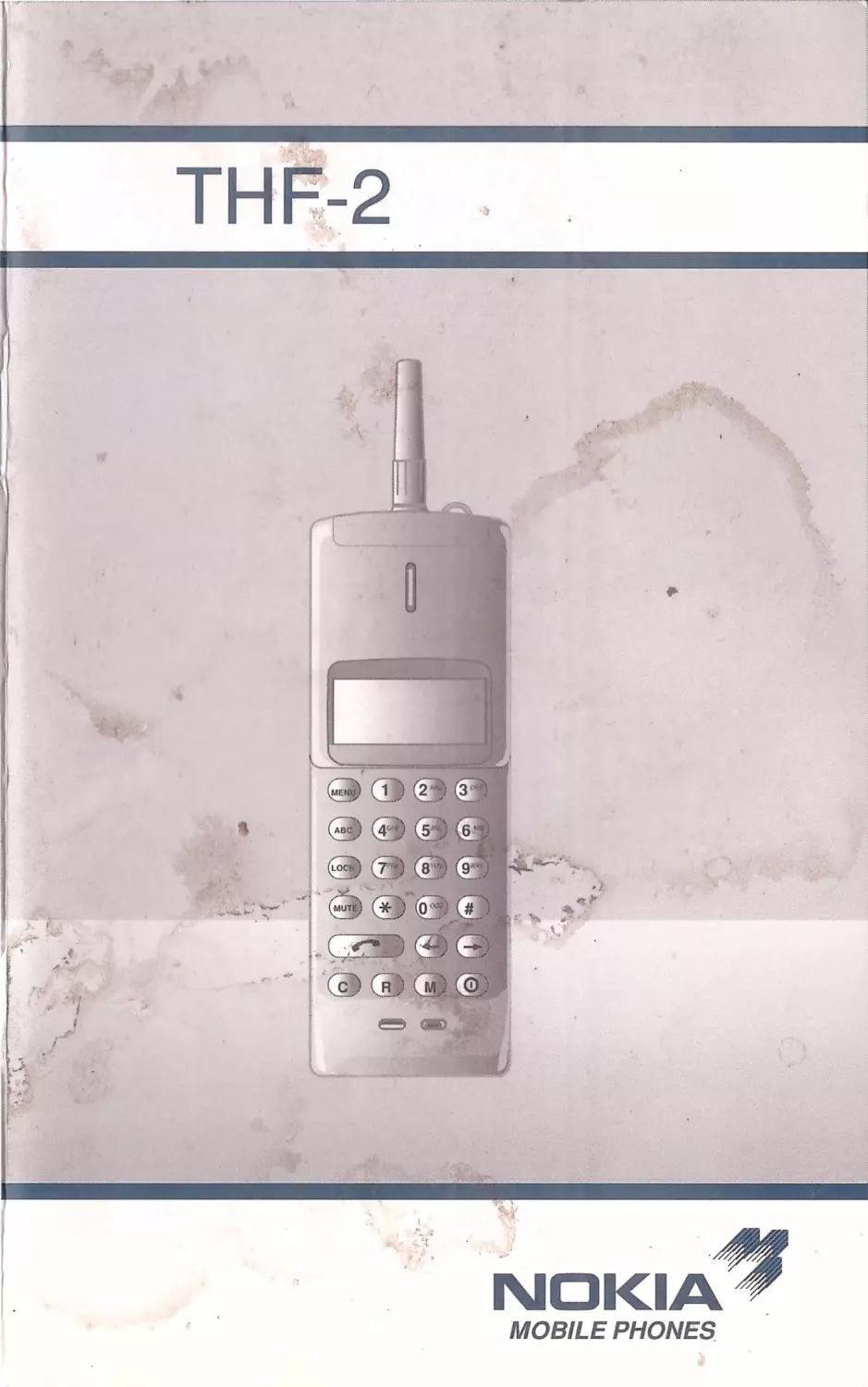






Текст
                    MOBILE PHONES

=) OE)@
(=)@)6 62
9)&) @®
WaBIOIC
OIOIOIO
(OD =
A
© 1993 Nokia Mobile Phones. All rights reserved.
The information contained in this user’s guide was
written for NMT 450 mobile phone type THF-2.
The right to make changes and improvements to
any of the products described in this guide without
prior notice is reserved.
Issue Number 1

USER’S GUIDE

CONTENTS
Important Information
1. GETTING STARTED
Charging a New Battery
Switching On
Switching Off
2. BASIC FUNCTIONS
Making a Call
Receiving a Call
Any Key Answering
Signal Strength
Booster Feature
Volume Keys
Last Number Redial
Mute key
The Memory
Keying in Names
Editing Names or Numbers
Displaying Hidden’ Numbers
Storing Information
Clearing Information
Recalling Information by
Memory Location Number
Recalling Information by Name
Scanning for a Number
Scanning for a Name
11
12
12
13
13
13
14
15
15
16
17
17
17
19
19
20
21
21

Own Number
Scratchpad Memory
3. MENU FACILITY
Menu Functions
Locking/Unlocking the Phone
Changing the Country Code
Ringing Tone Type
Length of Your Calls
Resetting the Call Timers
Setting the Lights
Key Tones
Ringing Volume
Changing the Lock Code
DTMF Transmission
Accessory Menu
Clearing the Last Called Numbers
Data Mode
Charging ON/OFF
Sleep Mode
Keyguard
Calling Home from Abroad
Storing an International
Prefix in Memory
Call Forwarding
Register Recall function
4. USING THE BATTERIES
Installing the Battery
Battery Charge Indication
Recharging the Battery
22
22
25
27
28
28
29
29
30
30
31
32
32
35
35
36
36
37
38
39
40
40
41
43
44
44

5. ACCESSORIES
Car Installation Kit
Mount Holder
Handset
Handsfree Operation
Data adapter
Teleadapter
Ignition Sense
Car Radio Mute
Chargers
Batteries
6. APPENDIX
List of Keys
List of Display Indicators
List of Display Messages
List of Tones
Care and Maintenance
Troubleshooting
47
48
49
50
50
50
51
51
54
56
58
60
64
65
65

IMPORTANT INFORMATION
1. Traffic Safety
We recommend that you do not use the phone
when you are driving a vehicle. Use the handsfree
facility or park safely and then make your call. Re-
member, road safety always comes first!
2. Operating Environment
The radio frequency of your cellular phone may in-
terfere with other nearby electronic devices, for
example, those in hospitals. Please take this into
consideration when you have your cellular phone
switched on. Remember to follow any special regu-
lations in force in the area and always switch off
your phone whenever it is forbidden to use it, or
when it may cause interference or danger.
Do not use your portable or transportable cellular
phone if the distance between the antenna and a
pacemaker or a similar electronic device is less
than 50 cm (20").
Never use your cellular phone in an aircraft. Switch
your phone off before boarding. Failure to observe
this instruction may lead to suspension or denial of
cellular telephone services to the offender, or legal
action or both.

Do not operate the cellular phone in areas where
explosives are being used. Observe and take no-
tice of warnings prohibiting radio transmission.
Users are advised to turn off the phone at a refuell-
ing point.
Electronic fuel injection systems, electronic anti-
skid braking systems, electronic cruise control sys-
tems, and other electronic systems can
malfunction because of lack of protection from
radio signals.
3. Recommended Distance from a Radio
Transmitter to the Handportable Phone.
The transmitting power level of this phone is of an
order gener- ally considered sufficient and up to
the requirements of the radio telephone network,
where the phone is operated.
4. Reliability of Connection in Case of Emer-
gency
Remember that the service and emergency num-
bers in countries using an NMT network differ from
one country to another. You can obtain these num-
bers from the local network operator.
Especially when using your phone for emergency
calls in an uneven terrain or close to large buildigs
please note that the operating range of the base
stations can be affected and that may impair radio
communication quality. Radio communication
6

quality can be improved by moving to another loca-
tion where the obstacle no longer comes between
the phone and the base station.
When making an emergency call, always remem-
ber to give your name and mobile telephone num-
ber as well as the location of the accident, as
accurately as possible.
Remember that your mobile phone may be the
only means of communication at the scene of an
accident - don’t cut off the call until given per-
mission to do so.
5. Additional Information
Do not expose the phone to moisture.
Do not attempt to open the phone. Non-expert
handling of the phone may damage it and may in-
validate the warranty.
Use only the charger specified in the instructions
to recharge the battery.
Use the battery only for the purpose intended.
Take good care of your phone. Avoid knocks and
other sudden shocks.
Keep the phone out of small childrens reach.
Check regularly that, when installed in a vehicle,
the cellular phone equipment is properly installed.

In a vehicle, when placing the handportable in its
holder make sure that it is firmly in place.
About This Guide
The operation of the phone requires successive
keypresses; two keys are never to be pressed sim-
ultaneously.
When starting a function like R (recall) (or MENU -
menu, M - store, ABC - alpha mode) the timeout
period is 10 seconds. This means that unless
there is a key pressed before 10 seconds is
elapsed you exit the function automatically.

1. GETTING STARTED
CHARGING A NEW BATTERY
Before you can use your phone you must fully
charge the battery.
To install the battery in the phone:
To install the battery pack line up the top edge of
the battery with the white line on the handportable
and then push the battery pack until you hear a
click.
Make sure the battery is properly fastened.
A new battery should be charged for at least 16
hours before being used for the first time.
Follow the instructions given in 'Recharging the
Battery’.
SWITCHING ON
Press ©.
The phone will carry out a short self-test, briefly
displaying its number, or name associated with the
number (operator, dealer or your own name).
When the appropriate country code, ON and
SERV indicators appear on the display, the phone
is ready for use, @ indicates that the phone is
switched on.

SERV shows that the cellular service is available in
your area; if it does not appear, you are outside
the service area and the network cannot serve
YOU.
ROAM appears when the NMT network no longer
has contact with your phone. Press ¢ TM to reregis-
ter the phone on to the network, or try to make a
call.
COUNTRY CODE indicates in which country the
phone will operate.
When you have to change the code, see “hang:
ing the Country Code’.
A cellular phone can make and receive calls only
when it is switched on.
SWITCHING OFF
Press O and hold for half a second.

2. BASIC FUNCTIONS
MAKING A CALL
Key in the number (include the area code, even if
you're making a local call).
If you make a mistake, you can delete the last
number by pressing C; or clear the whole display,
by pressing and holding C for half a second. (You
can also use C to cancel other keystrokes.)
Press & =. The CALL indicator will appear on the
display. When the number clears from the display
and a tone is heard, the phone has transmitted the
number.
Lift the phone to your ear, and wait until your call
is answered - then speak.
When you have finished the call, press ¢ © .If the
message LOCKED appears on the display your
phone has been locked (see ‘Locking the Phone’).
When the phone is locked you can make only
emergency calls and calls to the number in mem-
ory locations 95, 96 and 97.
To redial the last called number: Press ¢ ® twice.
11

RECEIVING A CALL
When there is an incoming call, the ringing tone
sounds and the CALL indicator flashes on the dis-
play. If the ringing tone has been switched off - the
SILENT SERVICE feature has been selected for pri-
vacy or other reasons - the keypad and display
lights will flash instead and only a short beep will
be given. (See ‘Ringing Volume’).
Press ANY KEY (except ® and MENU) and lift the
phone to your ear.
When you have finished speaking, press ¢ +.
If you don’t answer the call, the CALL indicator will
remain flashing on the display (showing that some-
one has tried to phone you). Press € © to clear
the indicator. When the call is on the CALL indica-
tor will remain on the display.
ANY KEY ANSWERING
The phone is equipped with a permanent any key
answer option (press any key except © or MENU
to answer a call). If you should receive an incom-
ing call at the same time as keying in a number,
the any key answering feature becomes active
after you hear the first ringing tone.
Any key answering is not active when the key-
guard is turned on.
12

SIGNAL STRENGTH
The quality of your call depends on the strength of
the cellular signal in your area. The phone displays
current field strength as a series of bars at the left
hand side of its display screen - the more bars,
the better the signal in your area.
If the signal is poor you can try moving the phone
slightly to improve reception. If you are using the
phone in a building, you may find that reception is
better near a window.
BOOSTER FEATURE
When you are using your phone in the area where
the cellular signal is poor you can use the addi-
tional transmit power the phone provides. After
dialling the number press MENU + & * to activate
the feature. The call is ended in the usual way by
pressing € .
Note! When using this feature the total talktime is
shorter due to higher current consumption.
VOLUME KEYS
The volume of the earpiece can only be controlled
during a call.
Use —» to increase and <«— to decrease the vol-
ume level. The volume level is shown on the dis-
play. VOLUME 1 indicates the lowest and
VOLUME 5 the highest volume level.
13

LAST NUMBER REDIAL
The phone automatically stores the last five num-
bers (and associated names) that you have called.
The numbers previously stored are overwritten by
the new ones. The last called number replaces the
oldest stored one.
To scroll the list of the five last called numbers:
1)PressORor0#or&®(inHFoperation#a¥),
The last called number appears.
2) Press «— or —» to scroll the list of the other
four last called numbers until you find the
desired number.
3) Press ¢ ® to make a call to the number.
NOTE: You can select in menu 10 whether you
want the last called numbers to be cleared from
memory in power-off or stored in memory. If you
set CLEAR LAST ON, the last called numbers are
automatically cleared from memory when the
phone is switched off.
MUTE KEY
The mute key mutes the phone’s microphone and
gives the opportunity to have a private conversa-
tion during a call. By pressing the MUTE key the
second time unmutes the microphone.
14

The MUTED message is removed and the call can
be continued in the usual way.
THE MEMORY
The phone has 97 standard memory locations
which allow you to store information in the follow-
ing combinations:
Phone numbers of up to 32 digits
Names of up to 16 letters together with
numbers of up to 32 digits
Only numbers or letters can be displayed at
a time. You can switch between them by
pressing ABC.
In addition, memory location O is reserved for the
last called numbers. Memory locations 98 and 99
store the phone’s own number. Memory location
00 is so called scratchpad memory (see 'Scratch-
pad Memory’) where you can store information
temporarily during a call.
When the phone is locked, only numbers in mem-
ory locations 95, 96 and 97 , and the local emer-
gency number can be called.
NOTE! In case you are storing long names it may
happen that there is not memory space enough to
store all 97 names associated with telephone num-
bers. For this reason it is advisable to use abbrevi-
ations for the names.
15

KEYING IN NAMES
Press ABC. The ALPHA indicator will appear on
the display to show that the phone is in alpha
mode and that when you press a key, letters will
appear instead of numbers.
Select the key labelled with the letter you want.
Press it once to obtain the first letter, twice (before
the ALPHA indicator flashes) to obtain the second,
and three times (before the ABC indicator flashes)
to obtain the third. If you miss the letter you want,
just keep pressing.
Select further letters in the same way. If you want
the same letter twice, either select it as above,
wait until the ALPHA indicator flashes and select it
again; or select the letter, press *, then select it
again. Note that in ALPHA mode the # key gives a
space.
To leave alpha mode when you have finished ke-
ying in the name, press ABC again. Now you can
Key in numbers again. The alpha mode is cleared
automatically after 10 seconds if there has been
no user action. To get the alpha display back sim-
ply press ABC again.
16

EDITING NAMES OR NUMBERS
If you make a mistake whilst keying in a name or a
number, you can correct it as follows:
Press C to delete the last number or digit. Press
and hold C to clear the whole display. Note that
this clears both the name and the number entered.
Alternatively you can press # # (in numeric mode).
DISPLAYING 'HIDDEN’ NUMBERS
The phone can display up to 16 digits. If you key
in more than this, the first digits will disappear off
the side of the display.
If you want to check these hidden digits, press
and hold R and they will appear on the display.
When you release the key, the original display will
reappear.
Remember to clear the whole display (press and
hold C) after having displayed a long number if you
want to use the R key for recalling information.
STORING INFORMATION
Key in the area code and number, and, (in ALPHA
mode), the name (or first name and then number).
Press M.
The phone will ask you to specify a memory loca-
tion number (STORE).

Press M if you want the information stored in the
first available memory location, just press M.
Otherwise, key in a memory location number.
The message STORED will be shown on the dis-
play, confirming that the information has been
stored in the memory location specified in the left
corner of the upper display row.
If you try to store information in a memory location
that is already being used, the phone will display
the memory location number and the REPLACE
CONTENT? message.
If you want to replace the existing information,
press M (within 8 seconds).
If you do not want to delete the existing informa-
tion, either press C or wait until the message
STORE NOT DONE appears.
The information you tried to store will then reap-
pear on the display, and you can store it in a differ-
ent memory location, as described above.
STORING INFORMATION WITH THE NMT
STANDARD METHOD
To store a telephone number in a particular mem-
ory location using the NMT standard method:
Press %. Key in a memory location number. Press
%¥. Key in the telephone number. Press # %.
18

CLEARING INFORMATION
Press and hold C to clear the display. Press M.
The phone will ask you to specify a memory loca-
tion number (STORE).
Key in the number of the memory location you
want to clear.
The message REPLACE CONTENT? will appear.
Press M.
The message STORED and the memory location
number will be displayed briefly, confirming that
the memory location has been cleared.
CLEARING INFORMATION WITH THE NMT
STANDARD METHOD
Press #. Key in the memory location number.
Press#%k.
RECALLING INFORMATION BY MEMORY
LOCATION NUMBER
Press R. The phone asks you to specify the mem-
ory location (RECALL). (If you have a call going on,
you have to press MENU R).
Key in the memory location number, e.g. 2. The
telephone number stored will appear on the dis-
play.
19

Press ABC if you want to check the name stored
against the number. (If no name was stored with
the number, the display will be blank). Press ABC
again if you want to return to the number display.
Call the number by pressing € *. (It does not mat-
ter whether the number or the name is displayed).
Remember: during a call the R key is reserved for
three-way calling feature. Use MENU R or # to re-
call from memory during a call.
RECALLING INFORMATION WITH THE NMT
STANDARD METHOD
Key in the memory location number. Press #.
Press ¢ © to call the number.
RECALLING INFORMATION BY NAME
Press ABC.
Key in the name, or the first letters of the name
that you want to recall (see 'Keying in Names’).
Press R. (If you have a call going on, you have to
press MENU R) The name will appear on the dis-
play.
If you want to check the phone number, press
ABC again.
Call the number by pressing €(It does not mat-
ter whether the name or the number is displayed).
20

SCANNING FOR A NUMBER
To scan the entire memory, use <«— or —» to dis-
play the contents of the memory locations in use.
If you have just recalled a memory location by num-
ber, the scanning will start from that memory loca-
tion.
When you find the number you want, press ¢ © to
make the call.
SCANNING FOR A NAME
Press ABC.
Press =» to display the first and <«— to display the
last name in alphabetic order. To display the other
stored names, press —» or <+— until you find the
name you are looking for.
If you want to make the search faster just key in
the first letter of the name you are looking for and
then press R. The first name beginning with this
letter will appear on the display. To scan forward
press —» (within 10 seconds) to display the next,
and so on.
If you want to check the phone number stored
against a name, press ABC. Press it again, then
use <«— or =» to carry on scanning through the
names.
21

When you find the name you want, make the call
by pressing € -.
NOTE! The number of the memory location is
shown only when scanning for numbers (not for
names).
OWN NUMBER
To check the number of your phone:
Press 99 (memory location where the phone’s
number is stored).
Press R. Or alternatively: Press R 99.
NOTE! Phone's own number is also stored in
memory location 98, but the first number indicates
the phone’s so called home country code eg.
8123456, 8 country code, 123456 phone number
THE SCRATCHPAD MEMORY
In addition to its 97 permanent memory locations,
the phone has one shortterm memory location
(00), where a telephone number keyed in during a
call is temporarily stored. The number is cleared
from memory in power-off.
Key in the area code and number (during a call).
The phone will automatically store the number in
the scratchpad memory location when you end the
call.
22

Any number previously stored in scratchpad mem-
ory will be lost.
To recall the number, press 0 0 and then R or #.
To call the number, press ¢ *.
To move a number from the scratchpad memory
location to a permanent memory location, recall it,
then store it as described in "Storing Information’.
(When the location 00 is not used, the phone's SIS
security reference code can be checked there.
The reference code is used by the NMT network
to register your phone.)
23

3. MENU FACILITY
The menu allows you to check and change the set-
tings for certain functions, eg. whether they are
currently switched on or off. Although stepping
through the menu to enter a function may take
longer than using the alternative shortcut (see
below), it is often easier to remember.
1) Press MENU.
2) Use either «— or —» to step forwards or back-
wards through the list of functions until you find
the one you want.
3) Press M.
4) Use the <«— or =» 10 change the setting of the
function. The current setting is displayed first.
5) Press M to store the new setting in memory (the
one which is displayed).
6) Use the C key to quit the menu function if you
do not want to change any settings.
The following menu functions can be entered
either by using the menu method (press MENU,
use <«— or =» and press M) or a shortcut (press
MENU and a function number):
24

Menu function
LOCK PHONE
COUNTRY SELECT
RINGING TYPE
CALL TIMERS
LIGHTS ON OFF
KEYPAD TONES
RINGING VOLUME
CHANGE
LOCKCODE
MFT SERVICE
Shortcut Description
MENU 0
MENU 1
MENU 2
MENU 3
MENU 4
MENU 5
MENU 6
MENU 7
MENU 8
ACCESSORY MENU MENU 9
lock and unlock
phone
select approriate
country code
select type of
ringing tone
display lenght of
call(s):timer
set lights off;
or off after 10 sec
switch keypad
tones on/off
select volume of
ringing tone
change lock code
phone
send MFT tones
control the
accessories
connected
to the phone
Note that when you enter a function by its short-
cut, eg. MENU 7, the name of the menu function
(CHANGE LOCKCODE) will not be shown.
Note that when you enter function 1 by pressing
MENU 1, you have to wait a few seconds.
25

The following menu functions can be entered only
by a shortcut (press MENU and a function num-
ber):
Menu function Shortcut Description
Clearing the last MENU 10 set the last called
called number
numbers to be
cleared or retained
in power-off
Data mode
MENU 11 set the phone in
data mode
Charging
MENU 12 set the charging
on/off
Sleep mode
MENU 13 set low power
‘sleep mode’ on/off
Keyguard
MENU
lock/unlock the
keypad
or
MENU LOCK
Note that the names of the functions accessible
only by a shortcut are not shown on the display.
For example, if you press MENU 10, you will see
the current setting of the function (not ’clearing the
last called numbers’).
To change the setting, press <«— or —» to change
the setting on the display and then M to store the
new setting.
MENU FUNCTIONS
Only shortcuts for the menu functions are
presented below. Obviously, you can also use the
menu method (press MENU), scroll the list and
26

enter the desired function by M). Note that you
can use both the shortcut and the menu method
only in functions 0 to 9.
LOCKING/UNLOCKING THE PHONE
The phone has an easy-to-use security system. It
can be locked by using a four-figure lock code to
prevent unauthorised use.If you forget your lock
code, you can change it in menu 7.
Note: to change the lock code you have to know
the security code supplied by your dealer.
When the phone is locked, only emergency calls
and calls to to the numbers in memory locations
95, 96 and 97 can be made, but all calls can be re-
ceived. Access to memory is also prevented.
Keep in mind that the countries using NMT net-
works have different emergency numbers. Check
the number with the local system provider.
To lock the phone: Press LOCK or (MENU 0).
The phone will ask you to key in the lock code
(LOCKCODE?).
Key in the four-digit code. It will appear on the dis-
play as a series of stars. Press M.
If you keyed in the correct code, LOCKED will ap-
pear on the display and remain there to remind
you that the phone is locked. If you keyed in a
27

wrong code, the message CODE ERROR appears.
To exit the function, wait a moment or press C.
Unlocking the phone is carried out in the same
way. When the lock is cleared the message UN-
LOCKED will appear briefly on the display.
CHANGING THE COUNTRY CODE
Note that this feature may not be available in all
NMT countries.
If you go to another NMT country and wish to use
your phone there you must select the correct
country code (SF, S, N, DK, etc.).
To change the country code: Press MENU 1.
The phone will display the code it is currently
using.
Press «— or —» t0 select the new code from the
list. Press M to confirm the setting.
RINGING TONE TYPE
The phone is provided with 1 standard and 4 op-
tional ringing tones. To select the tone you like
best:
Press MENU 2. Press <«— or —» to select the type
you prefer. Each time you can hear a short ringing
sample. Press M to confirm the setting.
28

LENGTH OF YOUR CALLS
To check the duration of your outgoing calls:
Press MENU 3.
The phone will show the duration of the last call, in
hours, minutes and seconds (LAST.. ... ...).
Press —» 10 display the same information for all
the calls you have made (TOTAL) (excepting the
current call). The total duration is displayed in
hours, minutes and seconds.
Press C to exit the function.
RESETTING THE CALL TIMERS
To reset the call duration timers to zero:
Press MENU 3 to activate the "Call timers’ func-
tion. Use <«— or —» to step through the list to
RESET TIMERS. Press M. The phone will ask for
the five-digit security code (SECURITY). supplied
for your phone. Key in the security code. Press M.
The phone will display the TIMERS CLEARED
message, confirming that the timer has been set
to zero.
29

SETTING THE LIGHTS
The phone’s keypad and display are fitted with
lights to make them easy to read. When the lights
are ON - phone used as a handportable phone or
connected to a charger: lights remain on for 10
seconds after you have pressed a key; - phone
connected to the car installation kit: lights are con-
tinuously on.
When the lights are switched OFF - phone used as
a handportable phone or connected to a charger:
lights are continuously off; phone connected to the
car installation kit: lights remain on for 10 seconds
after you have pressed a key.
To adjust the lights: Press MENU 4.Use <«— or —»
to select LIGHTS ON or LIGHTS OFF.
Press M to confirm the setting.
KEY TONES
You hear a key tone each time you press a key. To
turn the key tones on or off: Press MENU 5.
Use <«— or =» to switch the key tones TONES ON
or TONES OFF. The current setting is displayed
first. Press M to confirm the setting.
Note that when the key tones are switched off,
DTMF tones can still be sent. Also note that when
you have switched off the ringing tone (silent ser-
vice) no key tones will be heard either.
30

When the phone is connected to a car kit: You
have four volume levels (VOLUME LEVEL 1, 2, 3,
and TONES OFF) to choose from. Follow the
same steps as above.
RINGING VOLUME
The ringing tone sounds when there is an incom-
ing call.
To select the tone volume: Press MENU 6.
Use <«— or =» to select RINGING HIGH, LOW or
SILENT SERVICE for the ringing volume. The cur-
rent setting is displayed first. Press M.
If you selected SILENT SERVICE, the message
SLNT is displayed in standby mode, to remind you
that you will not hear a ringing tone. Instead, the
phone will give only a short beep and flash its dis-
play and keypad lights when a call is coming in.
Note also that all the phone’s other tones are
turned off.
When the phone is connected to a car Kit: You
have six ringing tone volume levels to choose from
(RINGING LEVEL 1, 2, 3, 4 and 5, and SILENT
SERVICE). To select the level you prefer, follow the
same steps as above.
31

CHANGING THE LOCK CODE
To change the lock code of your phone: Press
MENU 7.
The phone asks you to key in the five-digit security
code (SECURITY?).
Key in the security code. If you keyed in an incor-
rect code, the CODE ERROR message will ap-
pear. After you have given the correct security
code, the phone asks you to key in the new lock
code (NEW LOCK CODE?).
Key in the new four-digit lock code. The code may
contain numeric digits only: other characters (eg.
%, #) are not allowed. Press M. The message
STORED will appear to confirm that the new lock
code has been set.
DTMF TRANSMISSION
You can transmit numeric information as a series
of tones, for example, to interrogate your answer-
ing machine.
You can either send DTMF tones through the pho-
ne’s DTMF tone generator, or you can use the
MFT service of the NMT system. Sending DTMF
tones by the MFT service is more reliable in poor
transmission conditions.
You have four alternative ways to send DTMF
tones:
32

| Manual DTMF Dialling
Make the call in the usual way (see "Making a
Call’). Key in numbers on the display. Each num-
ber is directly sent as a DTMF tone. The length of
the tone depends on how long you press the key.
Il Automatic DTMF Dialling
This feature allows you to recall a number from a
memory location and send it as a complete num-
ber. Make the call in the usual way.
Press MENU R to recall the number from a mem-
ory location. Press MENU+ ¢ ® to activate the
phone’s own DTMF generator. The number stored
in the memory location is automatically sent as
DTMF tones (long tones).
[ll Manual DTMF Dialling through MFT Service
Make the call in the usual way. Press MENU 8 to
select the MFT service. The MFT SERVICE mess-
age is displayed, and the MFT indicator will appear.
Key in the number on the display. Each number is
directly sent as a DTMF tone. The indicator flashes
as each tone is sent. Press MENU to switch off
the MFT service.
33

IV Automatic DTMF Transmission through
MFT Service
This feature allows you to recall a number from a
memory location and send it as a complete num-
ber. Make the call in the usual way.
Press MENU R to recall the number from a mem-
ory location.
Press MENU 8 to activate the MFT service. The
number stored in the memory location is automat-
ically sent as DTMF tones (MFT flashes during
transmission).
If the MFT indicator should remain on after the
transmission, use the MENU key to return to nor-
mal operation. Note! You cannot speak into the
handportable when the MFT service is on.
Also note that even if the keytones are turned off
the DTMF tones can still be sent. Placing a Pause
between DTMF Tone Strings.
Press MENU # to place a pause of 2.5 seconds
(shown as p on the display) between DTMF tone
strings (eg. your answering machine may require a
pause between its password and the code for
"play messages").
34

ACCESSORY MENU
From this menu you can control the accessories
connected to your phone. To enter the accessory
menu: Press MENU 9.
If nO accessories are connected to the phone, the
message NONE PRESENT is shown.
If you have any number of accessories connected
to the phone, the name of the first accessory is
shown.
If you have several accessories, scroll the acces-
sory list by «— and =» until you find the accessory
whose setting you wish to change.
Press M to enter the respective accessory menu
and scroll the setting options by «— and —».
Store the new setting by pressing M.
For menus and messages generated by acces-
sories, refer to the user’s guides delivered with the
accessory devices.
CLEARING THE LAST CALLED NUMBERS
To set the last called numbers to be automatically
cleared or retained in memory in power-off:
Press MENU 10. Select CLEAR LAST ON or
CLEAR LAST OFF. Press M to confirm the setting.
35

DATA MODE
Not only can your phone make and receive voice
calls but it can, when connected to a car kit and a
teleadapter, send and receive data, too.
To set the phone in data mode: Press MENU 11.
If you try to enter data mode while you have no
call going on, the message NO CALL ACTIVE ap-
pears.
For more information on sending and receiving
data, refer to the user’s guide delivered with any
data adapters (eg. FDP-1) supplied by this pho-
ne’s manufacturer.
CHARGING ON/OFF
If necessary you can switch charging off when
using your phone in the car to get the maximum
battery capacity. To switch charging off press
MENU 12. Set charging off by pressing —» or <«—.
Press M to confirm the setting.
This setting is valid as long as the phone's power
is on. When the phone is switched off or the batte-
ry’s capacity has decreased to the shutdown limit
the setting changes automatically to the CHARG-
ING ON state. This means that charging starts
automatically just before the shutdown limit if the
phone has been connected to the charger or to
the mounting holder.
36

SETTING THE LOW POWER SLEEP MODE
You can set your phone to low current consump-
tion mode or sleep mode in order to economize
the battery charge.
In sleep mode the battery consumption falls auto-
matically whenever the NMT network loses con-
tact with your phone and cannot serve you
anymore (eg. in long tunnels). In sleep mode, the
phone wakes up’ every 20 seconds to check if
the network is available. If you are still outside the
network, a new sleep period is started. When the
network can serve you again (the SERV indicator
appears on the display) the phone "wakes up’ and
returns to the normal power level.
At any time, you can 'wake up’ the phone by
pressing a key. Activated sleep mode feature may
save the battery charge considerably when attend-
ing places where the network service is not at its
best, eg. underground parking houses, cellars, re-
mote areas in the countryside, etc.
To activate and de-activate sleep mode: Press
MENU 13. Set SLEEP ON or OFF by pressing =»
or «— . Press M to confirm the setting.
37

KEYGUARD
The phone is equipped with a handy keyguard
function which, when activated, prevents acciden-
tial keypresses eg. when the phone is in your
pocket. When the keyguard function is activated,
no keybeeps are heard and no keypresses are ac-
cepted, except emergency numbers.
To activate the keyguard function: Press MENU
LOCK or MENU.
The KEYGUARD ACTIVE message appears on the
display. If activation takes place during a call, the
message is shown for a while and the keyguarding
begins just after the call is ended. When the key-
guard is active the KEYGUARD ACTIVE message
is shown. When any key is pressed the PRESS
MENU * message is shown.
If you receive a call the phone starts to ring and
the blinking CALL indicator is shown. To answer
the call, the keyguard being active, press ¢ ©
(anykey answer is disabled). During a call the key-
guard is not active and you can operate the phone
as usual.
If the incoming call is not answered the flashing
CALL indicator will remain on the display.
Calls to emergency numbers can be made as
usual. After the emergency call the keyguard
becomes active again. To deactivate the key-
guard: Press MENU LOCK or MENU.
38

The KEYGUARD OFF message appears and the
phone starts to operate in the usual way.
In power-off the keyguard function deactivates it-
self.
CALLING HOME FROM ABROAD
This function allows you to automatically add inter-
national prefix and country codes to a number
when you are in another NMT country and wish to
call home and use numbers stored in memory.
Operating in this way you can use the numbers in
memory even when you are abroad.
Before you can use this feature you have to store
the prefix in memory (see below).
Press R to recall a number from memory (or key in
the telephone number including country’s internal
area code) you wish to call.
Press MENU R.
The message PREFIX will ask you to key in the
memory location where you have stored the prefix.
Key in the memory location where the prefix is
stored, eg. 90.
The phone adds the prefix in front of the number
on the display. Press € © to make the call.
39

STORING AN INTERNATIONAL PREFIX IN
MEMORY
Remember that the prefix for international calls is
different in each NMT country. If you store the Finn-
ish prefix for interna- tional calls (i.e. 990) it cannot
be used when calling from Norway (095). If you
wish to store more international prefixes you have
to do so in another memory location. Key in the
prefix for international calls of the country from
where you most often make calls to your home
country. Eg. if you wish to make international calls
from Sweden, key in 009.
Key in the country code (for your home country).
Eg. if you wish to call the Finnish numbers in mem-
ory, key in 358.
Key in % , if a number must be deleted from tele-
phone numbers stored in memory and which you
wish to use. The number of stars in the sequence
indicates how many digits from the beginning of
the country’s internal area code has to be deleted.
Store the prefix (eg. 009 35 8 % in the desired
memory location, press eg. 90). From now on you
can use the stored prefix when making calls to
your home country, see instructions above.
CALL FORWARDING
Call transfer is an NMT system feature, contact
your system provider for further information. This
feature allows you to transfer incoming calls to an-
other telephone number.
40

REGISTER RECALL FUNCTION
The NMT network may offer a service called Regis-
ter Recall (three-way calling or conference call) a
feature with which you can activate a second call
while one is already on and switch between the
calls with the R key.
Remember: the R key enables three-way calling
function only during a call.
For further information, contact your local system
provider.
41

4. USING THE BATTERIES
The phone is powered by a rechargeable battery.
If left unused, a fully charged battery will discharge
itself in about a month.
When battery is not in use, store it uncharged in a
cool, dark and dry place.
Charge the battery at a temperature below +40°C.
Charging will not take place at a higher tempera-
ture but might damage the battery.
The battery is a sealed unit with no serviceable
parts. Do not attempt to open the case.
Remember! Do not dispose of the battery in a fire.
42

INSTALLING THE BATTERY
Before you can use your phone you must charge
the battery.
To install :
To install the battery pack line up the top edge of
the battery with the white line on the handportable
and then push the battery pack until you hear a
click. Make sure the battery is properly fastened.
To remove:
Ease the locking catch on the base of the battery
pack backwards (see the arrow) and slide the bat-
tery away from the receiver and lift it off. Remem-
ber to always turn the power off before removing
the battery.
43

BATTERY CHARGE INDICATION
The bars at the right hand side of the display
screen indicate battery charge rate (voltage) - the
more bars, the higher the battery charge. When
the charge falls under 10%, the phone displays the
BATTERY LOW warning message and gives a
warning tone. The warning will be repeated.
When the battery is fully discharged, a tone is
given, the message RECHARGE BATTERY is dis-
played and the phone turns off.
RECHARGING THE BATTERY
Connect the AC travel charger (ACH-3EF) to the
base of the phone and plug it into the mains.
NOTE: The small pip on the connector must face
the front of the phone.
ARR
UM

Whilst charging is in progress, the battery charge
indicator bars on the display will scroll. When the
battery is fully charged, the scrolling will stop and
all bars are displayed.
A new battery should be charged for at least 16
hours before being used for the first time. Always
fully charge the battery.
Recharging the standard battery (BBH-6S) with
the AC travel charger (ACH-3EF) takes about 10
hours and the extended (BTH-4) battery 12 hours.
You can use the phone during recharging (not
when the battery is totally exhausted), but the
charging process will be interrupted for the dura-
tion of the call.
Batteries last longer and perform better if allowed
to discharge fully at least once a week. You can
do this by leaving the phone switched on until the
message RECHARGE BATTERY is displayed and
the phone turns off.
Then switch on the phone again and start recharg-
ing the battery when RECHARGE BATTERY reap-
pears. An incompletely discharged battery will
have a reduced capacity.
You can also use the charging ON/OFF MENU to
switch off eg. in car use
45

If the battery temperature is above 40°C (104°F) or
below 5°C (41°F) phone will not recharge its bat-
tery.
A desktop charging stand, two travel chargers and
a cigarette lighter charger are available for the
phone, see Accessories’.
46

5. ACCESSORIES
CAR INSTALLATION KIT MOUNTING
HOLDER (MCH-7)
Your vehicle can be fitted with a special holder
which connects the phone via a junction box
(HFJ-2) to the HF-kKit, the mobile antenna and the
accessory devices. The holder is also provided
with a charging facility which allows a battery to be
charged automatically whenever you place the
phone in the holder. Slide the phone in the holder
and push it backwards until it is locked firmly in
place. To release the phone, press the latche on
the right side of the holder.

HANDSET (HSE-1 / HSN-4)
You can use the handset when the phone is
placed in the holder. When the handset is con-
nected, it is used for all keystrokes. Keystrokes
from the phone’s keypad are ignored and the pho-
ne’s display is blank.
The display indicators and keypad functions of the
handset are fairly similar to those of the mobile
phone.
The keypad printings vary slightly from the ones
used in handportable phone, see keypad descrip-
tion in 'Appendix’. To use the handset, you can
either have the phone switched on or off.
If you place the phone in the holder with power
switched on, the handset switches itself on.
If you place the phone in the holder with the power
switched off, to switch the handset on: Press ®
of the handset.
To switch the phone off: Press ® of the handset.
Handset Operation
To make a call when the handset is placed in the
holder: Key in the desired number. Lift the hand-
set. To make a call when you hold the handset in
your hand: Key in the desired number. Press ¢ TM.
To redial the last called number when you hold the
handset in your hand: Press ¢ ® twice.
48

To receive a call: Press any key (except © or
MENU) or lift the handset. To end a call: Replace
the handset or press ¢ TM.
To switch from handset operation to handsfree
(HF) operation:
Press #=®, Replace the handset in the holder.
Handsfree Operation
The car installation kit also offers you the hands-
free function (HF). In HF operation mode the HF in-
dicator remains in the lower right corner of the
display.
To make a call: Key in the desired number. Press
F=%. To redial the last called number: Press fa%
twice.
To end a call: Press #=2¥, To receive a call: Press
—=
To switch from HF operation to handset operation:
Lift the handset from the holder.
In addition to the holder and the handset (op-
tional), the basic car installation kit includes a junc-
tion box (HFJ-2), a microphone (HFM-3) and a
loudspeaker (HFS-1).
49

DATA ADAPTER (FDP-1)
The FDP-1 is a simple, manually activated data
adapter that allows you to connect the phone to a
data device such as a fax machine or a computer,
and to send and receive data.
TELEADAPTER (FDM-2)
The FDM-2 teleadapter allows you to connect the
phone to faxes, modems, and cordless phones,
and to send and receive data automatically by
using eg. the auto-answer and remote dialling
functions.
IGNITION SENSE
The ignition sense function (ignition controlled
switch ® ) allows the phone to be automatically
switched on or off whenever the vehicle is started
or switched off, respectively.
When the ignition is turned off, the message
AUTO PWR OFF is displayed, a beep is given and
the phone is switched off in 5 seconds. If you
press any key or if you take the phone from the
holder during this time, the phone will not be
switched off. If you turn ignition off while you have
a call going on, the phone is switched off 5 sec-
onds after you end the call. Ignition sense is not
userselectable. It is always enabled when the igni-
tion sense line is connected.
50

CAR RADIO MUTE (CRM)
This function mutes the car’s radio when a call is
started or when the phone rings to indicate an in-
coming call. When the call or the ringing tone
ends, the car radio is unmuted and regains its orig-
inal volume level. CRM is not userselectable. It is
always enabled when the CRM-line is connected.
EXTERNAL ALERT
The phone's ringing signal can be connected to
the horn. Note! Using the EXTERNAL ALERT limits
the use of the CRM because they are alternative
selections.
CHARGERS
Travel Charger (ACH-3EF)
This light weight AC travel charger can be used
with all battery options. The charging time for each
of the batteries (BBH-6S/BTH-4) is about 10/12
hours.
Fast Travel Charger (ACH-4EF)
This light and small-sized fast AC charger is ideal
as a travel charger. The charging time for each of
the batteries (BBH-6S/BTH-4) about 60/80
minutes. The charger can also be used in connec-
tion with the desktop charger.
51

Desktop Charging Stand (CHH-9)
The desktop charging stand makes recharging
easier, and allows you to charge both the phone
and a spare battery. To use the charging stand,
connect the AC fast travel charger (ACH-4EF) to
the stand, then plug it into the mains. Place the
phone in the charging stand.
Charging time for each of the batteries is about
60/80 minutes.
If an extra battery is fitted into the charging stand,
it will be charged after the phone’s battery has
been fully charged.

The charging stand is provided with a deep dis-
charge switch for the spare battery. Press the
switch to start discharging the spare battery. After
discharge, the charger will begin to charge the
spare battery automatically. This way you will ob-
tain maximum battery life.
Cigarette Lighter Charger (LCH-1)
You can also charge the battery from your vehicle
battery, using the LCH-1 cigarette lighter charger.
The charger should be connected to the phone in
the same way as the travel charger. You can con-
nect the cigarette lighter charger to the desktop
charging stand, too.
During charging, the phone can still be used, even
with empty batteries.
Note that the input voltage range is from 10 to 30V
DC, negative grounding.
The charging time for each of the batteries is
about 60/80 minutes.
53

Charging Indicators (CHH-9 and LCH-1)
The red charging indicator light on the AC charger
is on while charging is taking place. When the bat-
tery is charged the green indicator light will come
on.
A red indicator on the charger and the scrolling
battery bars on the phone’s display show that
charging is in progress. When the phone’s battery
is fully charged, the battery indicator on the display
will constantly show all bars and the indicator on
the charger will be green.
If the indicator is green but the bars on the display
are scrolling, the charging is temporarily disabled
(eg. battery too hot or cold).
The spare battery in the desktop charging stand is
fully charged when the green indicator is on.
BATTERIES
Standard 800 mAh NiCd Battery BBH-6S
Extended 1000 mAh NiMH Battery BTH-4
This high capasity battery pack is also environmen-
tally friendly because it contains no cadmium.
54

BELT CLIP
You can attach your handportable for example
onto a belt when using a belt clip. This way the
phone is easier to carry along.
Slide the belt clip onto the phone with care.
FIELD ANTENNA
If the cellular signal is poor you can use a longer
antenna to improve reception.
55

6. APPENDIX
LIST OF KEYS
(More detailed information on each key is given
throughout the manual.)
®
ABC
MENU
Press and hold to switch the phone on or off.
Press to switch to alpha mode and key in or
display letters; press again to switch back to
numeric mode.
Used to enter menus.
Used to delete characters and cancel
keystrokes.
Used to recall information from a memory
location. Also used to show hidden digits,
If the display is full. Used for Register Recall
(NMT system feature) during a call. (If you
need to recall from memory during a call
press MENU R.)
Used to store information in a memory
location. Also used to confirm a setting for
a menu function.
56

«—/V/+
—/
A/-
Press to scroll through the memory locations.
(If you hold the key down, the scrolling will
automatically continue.)
After pressing MENU, press to scroll
through the menu, and to select options.
(If you hold the key down, the scrolling will
automatically continue.)
Used to control the volume during a call.
&* Used to call a number.
Used to end a call.
#=% Used to make and end handsfree calls.
MUTE Used to mute a microphone (during a
private conversation)
(Not available in handset HSE-1)
LOCK Used to lock the phone and to activate the
keyguard by pressing MENU LOCK
(or MENU %). (Not available in handset
HSE-1).
0-9, %, #
Number and alpha keys.
57

LIST OF DISPLAY INDICATORS
Phone
Handset
(a8D= MENU££!|
Ema
MFT R ALPHA —> FCN
BEE.
[|
|
[|
F
«©AEs]SERV»|
CALL SERV ROAM ON
ON/ ©
On indicator. Comes on when you switch
the phone on with ©.
ROAM/ /\
Roam indicator. Comes on when your NMT
center cannot transmit calls to your phone.
Press € ® to re-register the phone
on to the system, or try to make a call.
SERV/SERV
Service indicator. Indicates that you are in
a cellular service area.
CALL/ E=d
Call indicator. Will flash when there is an
incoming call to your phone. Stays on if the
call is not answered. Is on during a phone call.
FCN/MENU
Function indicator. Comes on when you
press the MENU key to activate the functions.
58

ALPHA/ABC
—_/ >
MFT/D
F/S
B/B
Shows that the phone is in alpha mode and
letters can be keyed in or displayed.
Call Forwarding indicator. When this
symbol is displayed it indicates that your in-
coming calls are being transfered to another
number (NMT system service).
Multifrequency tone indicator. When on it
indicates that numerical information can be
sent for communication purposes. When
flashing it indicates that numerical informa-
tion is being sent.
Field strength indicator. Five dashes indi-
cate that the cellular signal to your phone is
good.
|
Battery charge indicator. Five dashes indi-
cate a full battery. One or two dashes indicate
that the battery is almost empty.
59

LIST OF DISPLAY MESSAGES
AUTO PWR OFF
Ignition sense is enabled -the phone will be
switched off in 5 seconds.
BATTERY LOW
Appears when battery charge is down to 10%,
then every 5 minutes if the phone is on
standby; every minute if it is in use.
CALL ENDED
The cellular signal is too weak or the
network is busy and your call is cut off
(appears only if the tones have been
switched off).
CODE ERROR
You keyed in a wrong lock code or security
code.
DATA ACTIVE
The phone is in data mode.
EMPTY
You tried to recall information from an empty
memory location.
INVALID NUMBER
The number to which you wish to add an
international prefix is too long or contains
invalid characters.
60

KEYGUARD ACTIVE
The keyguard feature is turned on.
KEYGUARD OFF
The keyguard feature is turned off.
LOCK CODE?
Prompts you to enter the lock code.
LOCKED
The phone is locked.
NEW LOCK CODE?
Prompts you to key in the new lock code.
NO CALL ACTIVE
Data mode cannot be used because you
have no call going on.
NONE PRESENT
There are no accessories connected to your
phone.
NO SPACE
All memory locations are full. Clear a memory
location if necessary.
NOT ALLOWED
You tried to store a number in an illegal
memory location (e.g. 98).
NOT FOUND
The name you tried to recall does not exist.
61

PREFIX
Prompts you to key in the memory location
number where the international prefix (to your
home country) is stored.
PRESS MENU *
You pressed a key while keyguard was on
- press MENU % or MENU LOCK to unlock
the keypad.
RECALL
Prompts you to enter the required memory
location number, when wishing to recall
information from memory.
RECHARGE BATTERY
Appears 10 seconds before the phone
switches off and all operation ceases.
REPLACE CONTENT?
The memory location where you tried to store
information is already in use.
REPLACE NAME?
Asks you if you want to replace the previously
stored name.
SECURITY ?
Prompts you to enter the security code.
SLNT
The ringing tone volume is turned off to
SILENT SERVICE mode.
62

MUTE
The microphone is muted
UNMUTED
The microphone is unmuted.
STORE
Prompts you to enter the desired memory
location number when storing information
in memory.
STORE NOT DONE
Indicates that you chose not to store new
information in a memory location that was
already used.
STORED
Storage in memory was successful.
TIMERS CLEARED
The call timers have been set to zero.
UNLOCKED
The phone has been unlocked.
USE < >TO VIEW
Indicates that you have entered the menu.
Press <«— or =» to scroll the
functions.
VOLUME 1
Indicates the current volumelevel of the
earpiece.
63

LIST OF TONES
Ringing Tone
The ringing tone sounds when there is an incom-
ing call. The tone shown above is the standard
tone. The optional tones sound slightly different.
Key Tones
These sound each time you press a key. You can
turn the keypad tones on or off.
Call Termination Tone
This sounds if the network is busy, or terminates a
call for any reason.
Low Battery Tone
Sounds every 5 minutes (or every minute when the
phone is in use) to indicate that the battery is low.
The message BATTERY LOW is displayed at the
same time.
Recharge Battery Tone
This sounds when the battery is extremely low and
will no longer operate the phone. The message RE-
CHARGE BATTERY is displayed at the same time.
The phone will turn off within 10 seconds.
64

Error Tone
Indicates that you are out of the network’s service.
In car kit equipped with ignition sense: your phone
will be automatically switched off in 5 seconds.
CARE AND MAINTENANCE
Your phone is a product of superior design and
craftsmanship and should be treated with care.
The suggestions below will help you enjoy this pro-
duct for many years.
Keep it dry. If water should get on it, wipe it off.
Water contains minerals that can corrode elec-
tronic circuits.
Do not store it in hot areas. High temperatures can
shorten the life of electronic devices, damage bat-
teries, and warp or melt certain plastics.
Do not drop it. This might cause permanent dam-
age. The internal circuit boards can be broken.
Do not use or store it in dusty, dirty areas. This will
cause permanent wear of moving parts.
Do not use harsh chemicals, cleaning solvents, or
strong detergents to clean it. Wipe it with a soft
cloth dampened in a mild soap-and-water solu-
tion. If the unit is not working properly, take it to
your nearest authorised dealer. The personnel
there will assist you, and, if necessary, arrange for
service.
65

TROUBLESHOOTING
If the power does not come on or stay on: Make
sure the battery is installed in the phone properly.
Be sure the contacts are clean on the battery and
the charging stand.
Battery charge may be too low for operation.
Listen for the low battery warning tones.
If the power comes on, but the phone does not
work: Check the MFT and SERV indicators, you
might be out of the cellular service range.
Make sure that the antenna is properly installed
and extended to its full length.
66

Configuration Including Accessories
Dy
HT MOUNTING PLATE
i’
%
SWIVEL MOUNT
CRADLE
JUNCTION BOX
~-MOUNTING PLATE
POWER CABLE
,
i
d
w
t
n
t
r
h
1
,
0
"
i
2
4
,
[
o
n
y
r
0
L
a
2
SPEAKER
MOUNTING BRCKET
67

G
/
c
0
G
E
6
Serioffset, Turku 1993
a