/




Текст
                    BarCharts, Inc. ®
UICK REFERENCE SOFTWARE GUIDE

COMPUTER
LINUX INTRODUCTION
USER & GROUP MANIPULATION
Linux has its roots in UNIX. A brief history of
UNIX is therefore crucial in understanding it.
UNIX
•	Came from Bell Labs in the late 1960s and 1970s.
•	It was designed to allow the staff to share informa-
tion, store and manipulate data, and do research.
•	They allowed various universities to obtain the source
code for free, for research into operating systems.
•	As the universities worked on the operating system,
various versions developed that weren’t compatible
with each other, but the commercial viability as an
operating system was beginning to be realized.
•	Bell Labs stopped sharing the source code and the
versions of UNIX began to be more tightly con-
trolled by the organizations that had control over the
various versions.
Enter Minix
•	Minix was based on the Bell Labs variant and was
the first real version of UNIX to be available on the
IBM PC platform.
•	It was created by Andrew Tanenbaum, a professor in
Holland. He managed to fit the OS into an 8086
class PC, and then made the source code available
for his classes and others.
Linus Torvalds began with Minix and started tinker-
ing with it at the University of Helsinki. He decided to
create his own version of UNIX that would be freely
available, have more capabilities than Minix, and have
no licensing restrictions for those who wanted to con-
tribute to the project, other than keeping the product in
the public domain. One of the first versions (0.02) of
what was to become Linux was announced on the
LOGGING IN & OUT
Logging In
To be able to access resources on most computers,
you must first identify yourself to the operating system
by supplying a user ID and password. Linux is no
exception. Linux, like UNIX, is case sensitive in most
aspects of its operation, and that is true of User IDs and
passwords as well. System administrators create them
(as described in User & Group Manipulation) and sup-
ply them to users as needed. Logging in can be accom-
plished either in text mode or in a graphical mode,
depending on the distribution, your preferences, and
the way the system is configured. In any case, once a
valid name and password are entered, you will be left
at either a "$" prompt (for most normal user accounts)
or the "#" prompt (for the root, or super user) if you
logged in in text mode (a TUI, or Textual User
Interface) or to a GUI (Graphical User Interface) desk-
top environment if you logged in from a graphical
prompt. Note that the prompt can vary, but "S" and "#"
are the most common.
Changing Passwords
Once a user has logged in, his or her password may
need to be changed. This may be forced at intervals
defined by a system administrator, or done by the free
choice of the user. The root user can always change
anyone’s password; other users may only change their
own. When choosing passwords, be sure to stay away
from words (especially names of family members,
comp.os.minix newsgroup on October 5th, 1991. By April
1992, the new OS had enough of a following to get its own
newsgroup, comp.os.linux. TCP/IP support was added in
August 1992 and things continued be rapidly updated and
upgraded towards the goal of a 1.0 release (before this
Linux was at O.xx releases), which occurred on March
14th. 1994. Starting in March of 1995, two versions of
Linux were available, 1.2.x and 1.3.x. The numbering
standard is as follows: major or Kernel version (currently
2), minor version or kernel patch level (for example 2),
and a sublevel (for example 14). The kernel patch level is
the most interesting feature of the numbering scheme:
even numbers are stable versions of the kernel. Odd num-
bers are versions that are still in development and are con-
sidered experimental. Both are freely available, with pro-
duction systems and the major distributions all using the
stable version, and developers and those on the "bleeding
edge" favoring the odd numbered versions. On June 9th,
1996, kernel version 2.0 became available, and it (the 2.x
kernel) is still what is in use and what will probably be in
use for the next few years to come.
Each provider of Linux can get the source code, tools,
utilities, graphical environments, and so on from the
Internet and then will typically bundle them together with
other application programs, games, programming tools,
and so on as they deem most useful. Each of these various
bundles are called Distributions, and are produced by
many companies, including Red Hat, Caldera, SuSE,
Debian, and Slackware, to name a few. Today Linux also
runs on many hardware platforms, including Intel (and
clones), Motorola 68000 series, PowerPC, Compaq Alpha,
and MIPS, to name a few. This compares favorably with
many other operating systems that only function on a sin-
gle platform.
pets, and so on that are easily guessed) and simple pat-
terns. Try and use a combination of upper and lower case
letters, numbers, and special symbols (such as "@" or
"%") to make the password harder to guess, but avoid
making it so hard to guess that the password can’t be
remembered, and therefore gets written down.
To change passwords, simply use the passwd command
at any command prompt. You will be prompted for your
old password (unless you are root, in which case you must
specify the user you want to change passwords for as an
argument to the passwd command, as in passwd <user>),
and then for your new password, which you will have to
type twice to make sure you enter it correctly. Assuming
that you entered both the old and new passwords correct-
ly, you will get a message that the password was success-
fully changed.
Logging Out
To log out of a GUI system, choose Logout from the
main menu (it varies from GUI to GUI), or if you are in a
TUI, either type logout or exit. Be sure to always logout
when you have finished working to make sure that some-
one else can’t use your system to do things as you. Note
that in some GUT environments, there is also a Lock
Workstation option, which will lock the workstation so
that no one can use it until your name and password are
specified, but you remain logged in and any processing
going on can continue.
Creating, modifying, and deleting users and groups
can be done with various programs in a graphical envi-
ronment (such as with COAS [Caldera Open
Administration System], included with Caldera’s dis-
tributions or available at www.coas.org] or at a com-
mand prompt. While graphical systems are more user
friendly and often automate many things that must oth-
erwise be done manually, they also vary widely, so we
will focus on the TUI methods here.
The three primary commands for manipulating users
are useradd, usermod, and userdel, but they are not
needed if you choose to edit the primary files directly.
All user information is stored in /etc/passwd, except for
the user’s encrypted password, which is stored in
/etc/shadow. Group information is stored in /etc/group
(except for the user’s primary group, which is stored in
/etc/passwd). The syntax of all three utilities is as fol-
lows: <command> [option(s)] <user name>.
Common options for useradd include:
•	-9 <group name or number? - User’s pri-
mary group
•	-G <group name(s) or number(s)> - Other
groups the user belongs to, separated by commas
and without any spaces
•	-m: Create home directory if it doesn’t already exist
• -u <UID> - User ID (UID) number; default is the
next available UID (1 + Highest UID)
For usermod, the same options listed for useradd
are available (except -m). Note that if the UID is
changed, ownership of all files outside of that user’s
home directory will not be updated. (For more infor-
mation on file ownership, see the section on permis-
sions and ownership below.) There is also a -1 switch to
change the user’s login name.
The userdel command has only one optional switch,
-r, which will remove the user’s home directory and all
files within it. Be very careful when using this switch
to make sure that there are no important files in the
home directory or move them elsewhere first.
For those wishing to add users by directly editing
the files directly, simply use vi or your favorite editor
to edit /etc/passwd. The format of that file is as follows
(the colons are field delimiters): "User
Name:Password:User ID (number):Group ID (num-
ber):Comment:Home directory:Default shell". As for
the user ID field, while people use the user name field,
Linux uses this number internally to refer to the user,
such as for file ownership and permissions. It is simi-
lar to the SID (Security ID) in Windows NT. The pass-
word field will contain a lowercase letter x, meaning
that the actual password is encrypted in /etc/shadow.
Group ID is the user’s primary group (recall that the
rest are in /etc/group). The comment field normally
contains the user’s full name. The home directory will
usually be "/home/<«ser name>", except for root,
which normally has a home directory of "/root". The
default shell in Linux is "/bin/bash", although others
are available.
Group management is primarily a manual process
involving editing the /etc/group file. The format of the
file is as follows (the colons are field delimiters):
"Group name:Group password:Group ID
(number):User names of group members". The group
password is very rarely used. The user name field takes
any number of user names, separated by commas:
/etc/paswrd, /etc/group, /etc/shadow.
LINUX SHELLS & COMMAND LINE
A shell is the interface that users and administrators
use to access the operating system. The shell provides
access to commands, files, and other system resources.
Shell scripts, mini-programs similar to DOS batch
files, can also be created and can range from simple to
extremely complex. Shells in Linux fall into two cate-
gories, the Bourne shell and the C shell. The Bourne
shell family is older, but more widely used, and a suc-
cessor to the Bourne shell, the Bourne Again Shell
(usually called bash) is the default shell in Linux. It
has great script support. The C shell was written for
those who are comfortable programming in C. The
shells themselves are located in the /bin directory. Note
that some commands and virtually all scripts written for
one shell won’t work with another shell.
To determine your current shell simply type:
$ echo $SHELL
/bin/bash
Shells other than /bin/bash may be displayed.
General syntax of any command in any shell follows
this general format:
command [options] [parameters]
Command is the command you want to execute
(remember, it is case sensitive), options (sometimes called
switches) modify the behavior of the command and are
typically preceded with a hyphen, and parameters
(sometimes also called arguments) are the data or files
the command needs to act on or with. For example, in the
command "Is -1 *.conf". Is is the command or program
to run, -1 is an option that shows more details about the
files (modifying how the command behaves), and *.conf
refers to the type of files desired, namely those ending in
".conf1.
Multiple commands can be entered on the same line,
if desired, by separating each command with a semi-
colon (";"), for example "who; uptime".

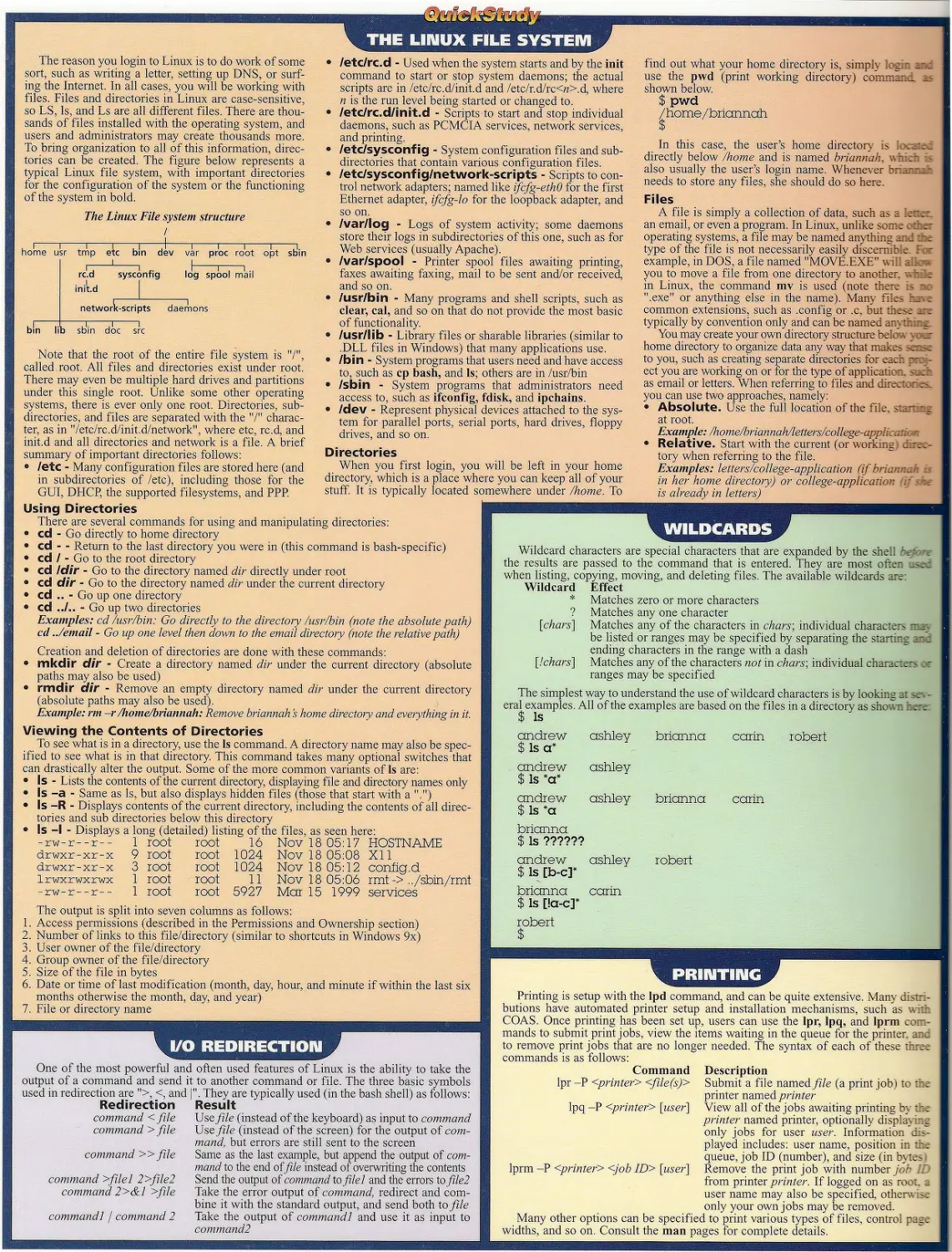
THE LINUX FILE SYSTEM
The reason you login to Linux is to do work of some
sort, such as writing a letter, setting up DNS, or surf-
ing the Internet. In all cases, you will be working with
files. Files and directories in Linux are case-sensitive,
so LS, Is, and Ls are all different files. There are thou-
sands of files installed with the operating system, and
users and administrators may create thousands more.
To bring organization to all of this information, direc-
tories can be created. The figure below represents a
typical Linux file system, with important directories
for the configuration of the system or the functioning
of the system in bold.
The Linux File system structure
I----1-----1-----1---Л-----J-------1-----1-----1-----1--71.
home usr	tmp	etc	bin	dev	var proc root opt	sbin
bin
rn—1--------1
rc.d sysconfig
. .1 ,
init.d
network-scripts
Tib sb'in doc ?rc
11—n—1 -I
log spool mail
~—l
daemons
•	ZetcZrc.d - Used when the system starts and by the init
command to start or stop system daemons; the actual
scripts are in /etc/rc.d/init.d and /etc/r.d/rc<«>.d, where
n is the run level being started or changed to.
•	/etcZrc.dZinit.d - Scripts to start and stop individual
daemons, such as PCMCIA services, network services,
and printing.
•	ZetcZsysconf ig - System configuration files and sub-
directories that contain various configuration files.
•	/etc/sysconf ig/network-scripts - Scripts to con-
trol network adapters; named like ifcfg-ethO for the first
Ethernet adapter, ifcfg-lo for the loopback adapter, and
so on.
•	/var/log - Logs of system activity; some daemons
store their logs in subdirectories of this one, such as for
Web services (usually Apache).
•	/var/spool - Printer spool files awaiting printing,
faxes awaiting faxing, mail to be sent and/or received,
and so on.
•	ZusrZbin - Many programs and shell scripts, such as
clear, cal, and so on that do not provide the most basic
of functionality.
•	ZusrZlib - Library files or sharable libraries (similar to
.DLL files in Windows) that many applications use.
•	Zbin - System programs that users need and have access
to, such as cp bash, and Is; others are in /usr/bin
•	Zsbin - System programs that administrators need
access to, such as ifconfig, fdisk, and ipchains.
•	Zdev - Represent physical devices attached to the sys-
tem for parallel ports, serial ports, hard drives, floppy
drives, and so on.
Directories
When you first login, you will be left in your home
directory, which is a place where you can keep all of your
stuff. It is typically located somewhere under /home. To
find out what your home directory is, simph logtn .
use the pwd (print working directory) command
shown below.
$ pwd
/home/briannah
In this case, the user’s home director, is
directly below /home and is named briannah. which is
also usually the user’s login name. Whenever briannah
needs to store any files, she should do so here.
Files
A file is simply a collection of data, such as a iener
an email, or even a program. In Linux, unlike some the-
operating systems, a file may be named anything r.itn
type of the file is not necessarily easily discernible. F: -
example, in DOS, a file named "MOVE.EXE" will A?-
you to move a file from one directory to another.
in Linux, the command mv is used (note there :s r:
".exe" or anything else in the name). Many files hn e
common extensions, such as .config or .c, but these are
typically by convention only and can be named arnthir.g
You may create your own directory structure belcr ; c
home directory to organize data any way that makes sense
to you, such as creating separate directories for each. rr: -
ect you are working on or for the type of applicat:c n. s_:h
as email or letters. When referring to files and direct: r es.
you can use two approaches, namely:
• Absolute. Use the full location of the file. start ng
at root.
Example: /home/briannah/letters/college-app '.:.n о n
• Relative. Start with the current (or working d:ret-
tory when referring to the file.
Examples: letters/college-application (if brianna n
in her home directory) or college-application *. sk-
is already in letters)
Note that the root of the entire file system is "/",
called root. All files and directories exist under root.
There may even be multiple hard drives and partitions
under this single root. Unlike some other operating
systems, there is ever only one root. Directories, sub-
directories, and files are separated with the "/" charac-
ter, as in "/etc/rc.d/init.d/network", where etc, rc.d, and
init.d and all directories and network is a file. A brief
summary of important directories follows:
• Zetc - Many configuration files are stored here (and
in subdirectories of /etc), including those for the
GUI, DHCP, the supported filesystems, and PPP.
Using Directories
There are several commands for using and manipulating directories:
•	cd - Go directly to home directory
•	cd - - Return to the last directory you were in (this command is bash-specific)
•	cd Z - Go to the root directory
•	cd Idir - Go to the directory named dir directly under root
•	cd dir - Go to the directory named dir under the current directory
•	cd - Go up one directory
•	cd ..Z.. - Go up two directories
Examples: cd /usr/bin: Go directly to the directory /usr/bin (note the absolute path)
cd ../email - Go up one level then down to the email directory (note the relative path)
Creation and deletion of directories are done with these commands:
•	mkdir dir - Create a directory named dir under the current directory (absolute
paths may also be used)
•	rmdir air - Remove an empty directory named dir under the current directory
(absolute paths may also be used).
Example: rm -r /home/briannah: Remove briannah s home directory and everything in it.
Viewing the Contents of Directories
To see what is in a directory, use the Is command. A directory name may also be spec-
ified to see what is in that directory. This command takes many optional switches that
can drastically alter the output. Some of the more common variants of Is are:
•	Is - Lists the contents of the current directory, displaying file and directory names only
• Is -a - Same as Is, but also displays hidden files (those that start with a ".")
•	Is -R - Displays contents of the current directory, including the contents of all direc-
tories and sub directories below this directory
•	Is -I - Displays a long (detailed) listing of the files, as seen here:_
-rw-r--r- -
drwxr-xr-x
drwxr-xr-x
Irwxrwxrwx
-rw-r--r--
The output is split into seven columns as follows:
1. Access permissions (described in the Permissions and Ownership section)
2. Number of links to this file/directory (similar to shortcuts in Windows 9x)
3. User owner of the file/directory
Group owner of the file/directory
Size of the file in bytes
Date or time of last modification (month, day, hour, and minute if within the last six
months otherwise the month, day, and year)
File or directory name
root	root	16	Nov 18 05:17
root	root	1024	Nov 18 05:08
root	root	1024	Nov 18 05:12
root	root	11	Nov 18 05:06
root	root	5927	Mar 15 1999
HOSTNAME
config, d
rmt -> ,,/sbin/rmt
services
6.
I/O REDIRECTION
One of the most powerful and often used features of Linux is the ability to take the
output of a command and send it to another command or file. The three basic symbols
used in redirection are ">, <, and |'\ They are typically used (in the bash shell) as follows:
Redirection
command <file
command > file
command » file
command >filel 2>file2
command 2>&1 >file
command 1 / command 2
Result
Use /z/e (instead of the keyboard) as input to command
Use file (instead of the screen) for the output of com-
mand, but errors are still sent to the screen
Same as the last example, but append the output of com-
mand to the end (Afile instead of overwriting the contents
Send the output of command to file I and the errors to file2
Take the error output of command, redirect and com-
bine it with the standard output, and send both to file
Take the output of command I and use it as input to
command!
WILDCARDS
Wildcard characters are special characters that are expanded by the she'.! '
the results are passed to the command that is entered. They are most often
when listing, copying, moving, and deleting files. The available wildcards are
Wildcard
*
Effect
Matches zero or more characters
Matches any one character
Matches any of the characters in chars', individual characters ma;,
be listed or ranges may be specified by separating the starting and
ending characters in the range with a dash
Matches any of the characters not in chars', individual characters : -
ranges may be specified
The simplest way to understand the use of wildcard characters is by looking at sev-
eral examples. All of the examples are based on the files in a directory as shown here
$ Is
[chars]
[/chars]
ashley
brianna
carin robert
andrew
Ф 1^1
ashley
ondrew
$ Is *a
brianna
$ Is ??????
$ Is [b-c]*
brianna
$ Is [!a-c]*
robert
ashley
ashley
carin
brianna
robert
carin
Printing is setup with the Ipd command, and can be quite extensive. Many distn-
butions have automated printer setup and installation mechanisms, such as v. ith
COAS. Once printing has been set up, users can use the Ipr, Ipq, and Iprm com-
mands to submit print jobs, view the items waiting in the queue for the printer, and
to remove print jobs that are no longer needed. The syntax of each of these three
commands is as follows:
Command
Ipr -P <printer> <file(s)>
Description
Submit a file named file (a printjob) to the
printer named printer
View all of the jobs awaiting printing b\ the
printer named printer, optionally displaying
only jobs for user user. Information dis-
played includes: user name, position in the
queue, job ID (number), and size (in byres
Remove the print job with number job I J
from printer printer. If logged on as roc:, a
user name may also be specified, other.-.: >.
only your own jobs may be removed.
Many other options can be specified to print various types of files, control page
widths, and so on. Consult the man pages for complete details.
Ipq -P <printer> [user]
Iprm -P <printer> <job ID> [user]
There are several editors available for Linux, but the
two most popular are VI and EMACS. Most Linux users
use VI. VI can be used for any editing purpose, but is
most often used to edit configuration files, shell scripts,
and so on. The commands used in VI are also quite cryp-
tic. Once you have them memorized, you will find that
you can be very productive. In the meantime, this quick
reference will probably be one of your most used pages.
To start the program, simply type vi to open it with a
blank document. Most often, however, you will want to
open a file when the program is invoked. To do so, type vi
<file> and VI will open with the cursor at the top of the file.
The program is always in one of two modes: input or
command. In input mode, you enter new text, whereas
in command mode, you give VI commands to perform
various instructions, such as save the file or exit the
program. You are always in command mode unless you
enter input mode by one of the commands listed below.
To get out of input mode, press the Escape key.
Most commands take the form of [n] command object,
where command is any of the commands listed below,
object is what you want to act on (letter, word, line, and so
on; may be a movement command), and n is an optional
number of times to repeat the command. For example, the
command 3dd would delete the next three lines.
The command summary below is divided into sever-
al sections to facilitate finding the commands you need.
Commands to Switch to Input Mode
Command Purpose
a	Append text j ust to the right of cursor
A	Append text at the end of the line
i Insert text at current cursor position
о	Insert text on new line below current line
О Insert text on new line just above
current line
General Commands
Command	Purpose
:q	Quit vi (if text is unsaved, prompt the user to save first)
:q!	Quit vi, losing any unsaved changes
:w[/z'Ze]	Write (save) the file, optionally to file file
ZZ or :wq	Write (save) the file, then quit
xjile	Insert the contents of fide at the current cursor position
Changing & Deleting Text Commands
Command	Purpose
R	Type over mode with insert mode at end of line
cw	Change the next word to the text you next type; left in insert mode
cc	Change the entire line with the text you specify; left in insert mode
dd	Delete the current line
D	Delete the line from the cursor to the end of the line
dA	Delete the line from the beginning to the cursor
dG	Delete from cursor to the end of the file
u	Undo the last change made
X	Delete the character the cursor is on
X	Delete the character to the left of the cursor (like backspace)
Copy & Paste Commands
Command Purpose
p Paste (Insert) text last copied to right of
cursor
P Paste (Insert) text last copied to left of cursor
yy Yank (copy) current line
ye Yank (copy) from cursor to the end of
the word
Search & Replace Commands
Command Purpose
/find text Search from cursor forward for find text
I Repeat the last forward search
'/find text Search from cursor backward for find text
/ Repeat the last backward search
n Repeat the last search (forward or
backward)
N Repeat last search in opposite direction
‘.s/find text/ Replace the first occurrence offind text
replace text with replace text on the current line
d/os/find text/ Replace all occurrences offind text
replace text/g with replace text
Movement Commands
Command
j or <enter>
к
1 or <space>
h or <backspace>
0
<ctrl>f
<ctrl>b
w
b
Purpose
Down one line
Up one line
Right one character
Left one character
Move to the beginning of the line
Move to the first non-blank character
on the line
Move to the end of the line
Go to the end of the file
Forward one word
Backwards one word
Move backwards one sentence
Move forward one sentence
Back one paragraph
Forward one paragraph
Move the cursor to the top of the cur-
rent screen
Move cursor to the bottom of the screen
Down one screen
Up one screen
PERMISSIONS & OWNERSHIP
Permissions dictate if users can access a file/directory, and if so, what they can do
with it. Permissions are closely tied to ownership. There are three main permissions:
• Read. Symbolized by the letter "r" in an Is, it lets users view the contents of a file
or view the file and directory names in a directory.
•	Write. Symbolized by the letter "w", it allows users to change the contents of an
existing file if applied to a file, or to create, delete, and rename files if applied to
a directory.
•	Execute. Symbolized by the letter "x", it allows users to run a program or shell
script if set on a file, or view the file and directory names in a directory if set on a
directory.
Ownership
Every file and directory has an owner, in fact two owners, namely, a user and a
group. Permissions can be set for a user, for a group, and for everyone else (often
called the world), as described below. To view your user name and all of the groups
you belong to, use the id command.
Explanation of Permissions in an Is -I
The first field of the output of an Is -1 is made of ten columns. The first column is
one of three things: a meaning it is a file, a "d", meaning it is a directory, or an
"1", meaning it is a link to another file or directory. The remaining nine columns are
grouped into subgroups of three letters or symbols, one group each for user (first
three), group (second three), and everyone else (last three). Each group of three rep-
resents read, write, and execute permissions, in that order. If a specific type of access
has been granted to a given group, a letter (r, w, or x) will be in that column; if it is
not granted, a will appear instead.
When determining a given user’s access to a file, it will first check to see if that
user is the user owner of the file. If he is, access is granted as specified by the user
permissions. If not, the system checks to see if the user belongs to the group that owns
the file. If he does, group permissions are used. In all other cases, the world permis-
sions are used.
Setting Permissions with Numbers
As there are three primary permissions, and as 23 - 8, it follows that all of the pos-
sible combinations can be described as a single number from 0-7, where the execute
right = 1, write = 2, and read = 4. Therefore, the rights assigned and the equivalent
numbers are as follows:
Number	Permissions Assigned
0	None (----)
1	Execute (- - x)
2	Write (- w -)
3	Write and execute (- w x)
4	Read (r - -)
5	Read and execute	(r - x)
6	Read and write	(r	w -)
7	Read, write, and execute (r w x)
Permissions are assigned to the appropriate user, group, and the world by using
three numbers in a row, such as 700 or 750, where the first number is for user, the sec-
ond for group, and the last for everyone else (the world).
Setting Permissions with Letters and Symbols
If you find the preceding system a little cryptic, you can choose to set, add, or
remove individual permissions from users, groups, and everyone using letters and
symbols instead. There are three things that must be known to set permissions: who
is affected, what action to take, and the permission or permissions involved. The let-
ters and symbols are as follows:
Who is Affected
Letter	Meaning
u	user
g	group
о	other (world)
a	all (user, group, and other)
Action to Take
Symbol	Meaning
+ Add listed permission(s)
Remove listed permission(s)
= Set the permissions to the listed permission(s),
regardless of previous value
The permissions are the standard read (r), write (w), and execute (x).
Examples of Setting Permissions
Permissions are set with the chmod utility. The simplest way to understand this utility is
with some examples. The output of a sample Is -1 below will be used in all of the examples.
- rwx			1	root	root	10	Feb 15 21:00		budget. 00
- rwx			1	root	root	5	Feb 15 21:00		logo
-rwx			1	root	root 48800		Feb 15 21:01		Is
- rwx			1	root	root	12	Feb 15 21:01		suggestions
- rwx			1	root	root	9	Feb 15 20:59		taxes. 99
Desired Result					chmod with		chmod with letters
File	User		Group	Other	numbers		(many possible)
taxes.99	rw		none	none	600		u-x
budget. 00	rw		rx	none	650		u-x,g+rx
logo	rw		r	r	644		u=rw,g=r,o—r
Is	rx		rx	rx	555		a=rx
suggestions	r		w	w	422		u=r,g+w,o+w
Setting or Changing Ownership
Now that you know how to set permissions, and you know that permissions are set
on users, groups, and everyone else, how do you change ownership (user or group) of a
file or directory? You use chgrp to change group ownership, or chown to change user,
and optionally group, ownership. The syntax of chgrp is chgrp <group> <file(s)>,
where group is either a group name or ID. Adding the -c switch will display each file
that is changed and the change made. For example:
$ chgrp —c managers budget.00
cfioup of budget.00 changed to managers
The syntax of chown is chown <user> <file(s)> if only the user ownership is being
changed, or chown <user>:<group> <file(s)> to change both user and group ownership
at once. A period may be used instead of the colon as the separator. Note that either a
name or a number may be used for the user and group owners. For example:
$ chown 237:8502 logo
owner of logo changed to 237.8502
$ Is -1 logo
-rwx-------	1 briannah managers 5 Feb 15 21:00 logo
$

SHELL & USER VARIABLES
Linux shells maintain a fairly comprehensive set of
environmental variables that can be viewed by anyone, as
well as used by administrators and programmers in shell
scripts. The operating system also uses these variables.
User-defined variables may also be created and manipu-
lated. We will only discuss the Bash shell in this section.
Some common and useful shell variables are:
•	HOME. Path to the user’s home directory
•	PATH. Used by the shell to find programs when
the path to the program is not specified. Each
path is separated by a colon.
•	PS1. Command line prompt (often "$")
•	PS2. Secondary prompt when more input is
needed (often ">")
•	PWD. The current directory
•	SHELL. Name of the currently • running shell
(usually "/bin/bash")
•	$$. Process ID (PID) of current shell; for use with ps
Displaying a Variable's Contents
To view the value of any variable, simply use the
echo command followed by the variable name. The
variable name must have a dollar sign ("$") prepend-
ed to the name, so for example, you would type
"$HOME". Two examples of using variables follow:
IC FILES & DIRECTORIES
Files and directories may be found by two differ-
ent methods: the find and the locate commands.
locate
The locate command is faster and causes less of a
strain on the system because it searches through an
index of all files stored on the hard drive in a file
called locatedb. This file is usually updated daily by
a cron job that runs the updatedb command. The
database may be refreshed at any time by running
updatedb as well. The downside to this command is
that new files may not be in the database yet, or the
updating of the database may consume vital system
resources to bring it up to date. For example, search-
ing for the location of locatedb is done using the fol-
lowing syntax:
$ locate locatedb
/etc/cron. d/Daily/50updcrte-Ioccrtedb
/etc/cr on. d/ lib/update-locatedb
/usr/man/man5/locatedb. 5. gz
/var/state/locatedb
$
Note that more files may be returned than expect-
ed, depending on what is being searched for.
find
The find command is more comprehensive, allowing
you to search for files with a given name (by using the
-name option), with given permissions (by utilizing the
-perm option), of a given size (with the -size option),
or a certain type (via the -type option) to name just a
few options. The power of this command lies not only in
its ability to locate files, but in its ability to then act on
each file found in some manner (via the -exec option).
The basic format of the command is "find <path>
<-option(s)>". The functionality of the locate com-
mand (only the search is done on the current directo-
ry information instead of from a file) can be achieved
by using the following command:
Often, you will want to place a bunch of informa-
tion in a single file, like is often done with various zip-
ping programs in DOS/Windows, such as PKZIP or
WinZip. This is great when you need to email several
files to a colleague or compress and store a bunch of
files you don’t often use, but don’t want to delete. In
such cases, the tar (Tape ARchive) utility comes in
very handy. Often, you will want to not only store
many files in one file, you will also want to compress
the files within that file. Again, the tar utility comes
to the rescue. All files you specify, as well as files in
all subdirectories of the current (or specified) directo-
ry will also be included.
There are a lot of options available for the tar
command. Important options fall into two cate-
gories: function options and general options. You
must always use one (and only one) function option;
all other options are discretionary.
Function Options for tar
•	-c - Create a new archive file
•	-r - Add files to the end of an existing archive
•	-u - Update the archive with new files, or exist-
ing files that have been updated
•	-t - Display the names of the files in the archive
•	-x - Extract files from the archive
$ echo $PWD
/usr/bin
$ echo $HOME
/home/brionnoh
Setting a Variable
Predefined shell variables may be changed in value
and new ones created at a command prompt by simply
typing ”<variable> = <value>". Most often, user
defined variables will be created (for use in a shell script,
for example) or the PS I, PS2, or PATH variables will be
modified. Note that the $ is not used with the variable
name when setting it, but is used if referring to a vari-
able’s value on the value side. Some examples will help:
$ echo $PWD
/etc
$ PS1=$PWD
/etc DATE="07/04/01"
/etc echo $DATE
07/04/01
/etc
To make the variable useable in any shell beyond
the one in which it is set, the export command must be
used. The syntax is "export <variable>", once again
without the S prepended to the variable name.
$ find / -name locatedb -print
/var/state/locatedb
$
In that example, the "/" is the directory from which to
start searching, in this case, root. The -name option tells
find to locate a file named "locatedb", and the -print
option tells find to output the location to the screen.
If wildcards are used in searching for a file, they must
be enclosed in quotation marks. For example, to get the
same results as the locate example given above, enter the
command "find I -name ‘*locatedb*’-print".
If you wanted more than the location of the file only,
instead of using the "-print" option, use "-Is" instead. In
that case, the output would look like that from a Is -I
command. Many other switches are available, see the
man pages for complete information on this command.
grep
The grep utility will allow you to search through a
file for any text you specify. This can be used to find the
occurrence of anything in a file, for example, the num-
ber of times that your company name occurs in a docu-
ment or the number of users who use the bash shell. To
determine the number of users using the bash shell, you
must remember that the default shell for a user is stored
in the /etc/passwd file. The command to do so is:
$ grep -c ’/bin/bash’ /etc/passwd
8
$
What if you wanted to know how many didn’t use
the bash shell? Use this variation:
$ grep —c -v ’/bin/bash’ /etc/passwd
3
$
The c" option tells grep to display a count, instead
of the actual lines, and the "-v" option says to look for
all lines that don’t have the pattern text in them.
Other Options for tar
• -f - Filename of the archive file
•	-v - Verbose; display the filenames as they are
added or removed from the archive
•	-z - Use gzip to compress the files as they are
added to the archive or gunzip to uncompress them
as they are extracted
A simple example of using tar follows:
$ tar -czvf names.tar ’
andrew
ashley
brianna
carin
robert
$
To get the files back out of the archive, the tar
command is also used. The data will be extracted in
the current directory. All files in subdirectories will
be expanded into their original subdirectory names.
To uncompress the previous archive, use the follow-
ing command: "tar -xzvf names.tar"
gzip
The gzip utility can also be used to zip individual
files to a compressed format. The gunzip utility is
FTP (File Transfer Protocol) is used, as its name
implies, for transferring files between two computers.
The beauty of FTP is that the two computers can be
any type and both can run any operating system. For
example, one could be a Linux system and the other,
Windows machine or Macintosh. FTP allows for both
anonymous and authenticated access. Many systems
on the Internet allow anonymous access to download
drivers, patches, and so on, as well as offering authen-
ticated access to download program updates and other
files that are only available to paying customers. Many
browsers allow for FTP access as well.
To use FTP from the command prompt, simply
type "ftp <hostname>". When logging on anony-
mously, log on as user "anonymous" using your
email address as the password.
Once you have been authenticated, the follow-
ing commands are available (listed by type):
Transfer Mode
•	ascii - Set the transfer mode to text only (non-
text data will not transfer correctly with this
option set); the default
•	binary - Set the transfer mode to binary,
allowing all types of files to be transferred,
binary (program) as well as text
Establish &Terminate Remote Sessions
•	bye - Exit ftp and return to a shell prompt
•	open <hostname> - Create a connection
with the computer named hostname
Directory Manipulation
•	cd <directory> - Change to directory direc-
tory on the remote computer
•	led <directory> - Change to directory direc-
tory on the local computer (default is the direc-
tory that ftp was started in)
•	Is or dir - Display the files on the remote sys-
tem in the current directory; filenames or wild-
cards may also be specified as described in the
Linux File System section above
•	pwd - Print the working (current) directory on
the remote machine
•	mkdir <directory> - Create a directory
named directory on the remote machine
File Transfer
•	get <filename> - Get the file named file-
name from the remote machine and place it on
the local machine
•	mget <filenames> - Multiple Get; gets all
offilename specified from the remote machine;
wildcards may be used
•	put <fileriame> - Send filename to the
remote machine from the current directory on
the local machine
•	mput <filenames> - Multiple Put; sends
filename to the remote machine
•	delete <filename> - Deletes the file
named filename on the remote system
•	mdelete <filenames> - Multiple Delete;
deletes all of the files specified on the remote system
Miscellaneous
•	prompt - Toggles the prompt to send, receive,
or delete multiple files on or off
•	help - Displays help information of available
commands for ftp
•	! <command> - Execute the command named
command on the local system, without exiting ftp
used to uncompress such compressed files. By
default, simply running gzip on one or more files
will compress them and automatically add a ".gz" to
the end of the file name. Similarly, running gunzip
on one or more compressed files will automatically
uncompress them and remove the ".gz" from the end
of the file name.
Finally, what if you want to view the contents of
a compressed file? Do you need to gunzip it first to
view the contents, only to gzip it again? No. You can
use the zcat or zmore utilities to view a compressed
text file. Let’s illustrate the use of gzip, gunzip, and
zcat with an example.
$ gzip message
$ cat message.gz
-< u38 message
EE.V <tD...dUAoe ...UOaaAoT. 5d&~
$ zcat message.gz
This is a small message.
$ gunzip message.gz
$ cat message
This is a small message.
$
LOGIN SHELL SCRIPTS.
SS
Each of the shells in Linux offers scripts that set
up the environment for users of that shell. They are
similar to autoexec.bat in the DOS/Windows envi-
ronment. Each of the files listed are for the BASH
shell and are located in each user’s home directory
(except for /etc/profile). Other configuration files
may also exist.
Script Name
.profile
A process is simply a program that is running. It
may be a program that you start as a user or a sys-
tem process, such as a daemon. Each process has a
number, called a Process ID (PID). To view active
user processes, issue the following command:
$ ps
.bashrc
Function
Runs at login to set the user’s
environment, including environ-
mental variables such as the
path and command prompt
Runs each time a new bash shell
is started (which can happen
multiple times for a single
login)
/etc/profile Login script for all users on the
system to set global settings
JOB CONTROL
In Linux, as with UNIX, jobs are normally run in
the foreground. The problem is, if you have a long
task, it can prevent you from doing anything else for
a long time. You have three solutions - switch to a
new virtual console, open a new terminal window in
the GUI, or run tasks in the background. To switch
to a new virtual console, press <Ctrl><Alt><FH>,
where Fn is a function key from Fl - F8 (F7 and F8
are usually for the graphical screens) and log in
again. Opening a new terminal window in your GUI
will depend on the GUI, so it will not be discussed
here. The third approach is running a task in the
background and is the focus of this section.
To run a task in the background, simply append
an ampersand, to the end of the command line,
as illustrated here:
$ Is -1 -R /home > HomeDirList.txt &
[1] 887
$ jobs
[1]+ Running Is -1 -R /home >
HomeDirList.txt &
$ Is
HomeDirList.txt
[1]+ Done Is -1 /home >HomeDirList.txt
$
This example will do a long listing of the /home
directory, recursively through the subdirectories,
piping the output to HomeDirList.txt and do the job
in the background. Note that as soon as the com-
mand is entered and the <Enter> key is pressed, the
system returns the job number "[!]" and the process
ID of that job (in this case, 887). While the job is
running, its status (along with all other running
jobs) can be viewed with the jobs command.
If you forget the ampersand at the end of a com-
mand and find it is taking a long time to complete,
you can take that process and change it from a fore-
ground to a background process by pressing
<Ctrl><z>. That keystroke combination will sus-
pend the process. To take that suspended process
and make it a background process, type bg. Once a
task is executing in the background, it can be made
a foreground task with the fg command. Both fg and
bg allow an optional job number to be specified as
a parameter.
There are several important notes regarding fore-
ground and background processes and jobs in gen-
eral that you should be aware of, namely:
•	A process that is in the background and needs
user input will be suspended until it is brought to
the foreground and supplied the necessary input.
•	Output from a background process will display
on the screen as it is generated unless output is
redirected to a file.
• When you log out, all unfinished background
jobs are terminated by default.
PID TTY
854 pts/1
894 pts/1
$
TIME CMD
00:00:00 bash
00:00:00 ps
To view all of the processes on a system use the
-e switch. The output of this command is as follows
(note that many of the processes have been elimi-
nated from the output to save space):
$ ps -e
PID TTY
1 ?
2 ?
TIME CMD
00:00:04 init
00:00:00 kflushd
3 ?	00:00:00	kpiod
537 ?	00:00:00	syslogd
596 ?	00:00:00	inetd
598 ?	00:00:00	rpc.portmop
778 ?	00:00:03	X
853 pts/0	00:00:00	bash
854 pts/1	00:00:00	bash
896 pts/1 $	00:00:00	ps
If you want	to terminate	a process that is not
responding or that you otherwise do not want to
keep running, use the kill command. The syntax of
the kill command is kill <PID>.
To view the top consumers of memory and CPU
time, use the top command. The information is
updated frequently, and is similar to Task Manager
in Windows NT or Windows 2000. The output will
be similar to the following (many lines have been
removed to save space):
$ top
12:56pm up 1:03, 3 users, load overage: 0.53, 0.15, 0.05
48 processes: 46 sleeping, 1 running, 1 zombie, 0 stopped
CPU states: 0.6% user, 0.2% system, 0.0% nice, 99.0% idle
Mem: 127988K av, 94092K used, 33896K free, 46576K shrd, 40484K buff
Swap:		OK av,			OK used.		OK	free			29228K cached
PID	USER	PRI	NI	SIZE	RSS	SHARE	STAT	LIB	%CPU	%MEM	TIME	COMMAND
907	root	18	0	1052	1052	852	R	0	2.9	0.8	0:00	top
1	root	0	0	436	436	372	S	0	0.0	0.3	0:04	init
2	root	0	0	0	0	0	SW	0	0.0	0.0	0:00	kflushd
119	root	0	0	324	324	268	S	0	0.0	0.2	0:00	update
537	root	0	0	568	568	460	S	0	0.0	0.4	0:00	syslogd
540	root	0	0	800	800	384	S	0	0.0	0.6	0:00	klogd
590	root	0	0	572	572	436	S	0	0.0	0.4	0:00	cardmgr
596	root	0	0	540	540	440	s	0	0.0	0.4	0:00	inetd
598	bin	0	0	396	396	320	s	0	0.0	0.3	0:00	rpc.portmac
621	root	0	0	892	892	728	s	0	0.0	0.6	0:00	amd
The two most important columns (generally) are the %CPU and %MEM, which define the percentage of
CPU time and the percentage of total memory used by that process (note that total memory is displayed in
the header information). See the man pages for detailed information on this command.
COMMAND SUMMARY
While there are literally hundreds of commands
available in Linux, the following are some of the
more common and important:
• cal - Displays a calendar on the screen. With no
arguments, displays a calendar for the current
month. Optionally a year may be specified, which
will display a calendar for the entire year, or a
month and year may be given as arguments, dis-
playing the specified month’s calendar. If speci-
fied, the month must be a number between one
and twelve and must precede the year, which can
be from 1 - 9999.
•	cat - displays the contents of the file to the
screen. Designed to display textual data only. If
there is more information than will fit on a
screen, it simply scrolls off the screen. To display
only a screenful of information at a time, use the
commands less and more as described below.
•	clear - clears the screen
•	cp - Copies files. The syntax is either cp
<options> <filel> <file2>, which allows you to
copy a file to another name (for example to back
it up), or cp <options> <file(s)> <directory>,
which allows you to copy one or more files to a
different directory. This powerful command
offers many options, of which two are especially
important, -r and -v. The -r switch tells cp to
copy files recursively, meaning that all of the
matching files from all subdirectories will also
be copied. For example, the command "cp -r *
/backup" will copy all files in the current subdi-
rectory and all subdirectories below the current
subdirectory to the /backup directory. The -v
option stands for "verbose,” which will display
the file name(s) on the screen as they are copied.
•	cut - This very useful, very specialized com-
mand will allow you to remove a column (field)
from a file. You specify the columns (in absolute
positions or by field number) to keep; the rest are
discarded. See also paste.
• date - Displays the current date (optionally in a
format you specify). The root user may also use
this command to change the date (although it w ill
not update the BIOS; this must be done with the
BIOS’s setup utility).
•	df - This command will report the amount of/m
disk space on all partitions or on a specified par-
tition (in IK blocks by default). By using the -i
option, the number of free inodes (directory
entries) may be displayed instead.
•	du - This command will report the used disk
space for the specified directory (the default is
the current directory) and each of its subdirecto-
ries. The numbers given are in 1KB blocks by
default. Using the -a option will report disk uti-
lization information on all files in each directory
as well. The -c option will display a grand total
at the end of the output.
•	echo - This command will allow you to prim
text to the screen. It is often used in shell scripts
to inform the user on the progress of the script. I:
can also be used to put information in a file by
piping the output to a file.
•	free - Displays statistics on memory utilization
in the following categories: free, used, installed
physical memory, and swap space (virtual mem-
ory), among others. The sizes are in KB unless
the -m switch is used to display the output in
MB.
•	fsck - The file system checker utility will verity
a filesystem’s integrity, optionally attempting to
repair any problems it discovers. It is similar to
CHKDSK or ScanDisk in the DOS/Windov. s
world. This happens by default each time the sys-
tem is booted. This command is designed for
administrators.
•	head - Displays the first few (10 by default
unless changed with the -n switch) lines of the
specified file(s). Often used to review error logs
and with other files where the most important
information is at the top of the file. See also tail.
• hostname - Display’s the current host name
(with -s), domain name (with -d), or both (with
Command Summary continued

-f to display the FQDN; Fully Qualified Domain
Name). The IP address(es) may be displayed instead
by using the -i option.
•id - Displays your user ID, and group ID(s). It can
show your effective user and group ID(s) if you su
to another user (see su).
•	ifconfig - The interface config command allows
you to view, and optionally change, TCP/IP related
information. The information is generally set at boot
and viewed afterwards. Without any arguments, it
will display the IP related information for a
machine, including IP address, subnet mask, and so
on. Used primarily by administrators.
•	init - Used when the system starts to initialize. May
also be used after boot to start and stop various
groups of services. While the levels vary from dis-
tribution to distribution, several are widely used,
including:
•	0 - Halt (shutdown) the system
•	1 - Place the system in single user mode (typi-
cally done by administrators while performing
maintenance)
•	3 - Multi user mode, without the GUI started
(normal level for servers)
•	5 - Multi user mode, GUI started (normal level
for user workstations)
•	6 - Reboot the machine (same as level 0 with a
reboot at the end)
• less - The less command allows you to scroll
through data, searching for values, moving up and
down through the data. The less command is far
more powerful than the more command (described
below), hence you will often hear "less is more.” It
offers many command line options, as well as many
commands once the file is displayed. View the man
pages for information on all of them. A few of the
most important commands that can be used while
the file is displayed are:
•	<space> or f - Scroll forward one screenful
•	<return> or e or j - Scroll forward one line
•	b - Scroll back one screenful
•	у or к - Scroll back one line
•	/<pattern> - Search forward for pattern
•	?<pattern> - Search backward for pattern
•	n - Search in the same direction for pattern as the
last search
•	N - Search in the opposite direction tor pattern as
the last search
•	q or :q or ZZ - Exit less and return to a com-
mand prompt
♦	In - Creates a link (or alias) to a file, creating two
directory entries that point to the same file on disk.
Similar in purpose to a shortcut in Windows.
•	more - The more command allows you to scroll
through a file by line or screenful. There are far
fewer options than with less, but all of the options
listed above for less work except for the following:
e, j, y, k, ?, N, :q, and ZZ.
•	mount - This command will show all of the
mounted devices and/or allow you to mount new
devices. If you want to mount a new device, you
need to specify the device and the directory to
which the device is to be mounted. You can mount
Linux/Minix/UNIX, OS/2, DOS, and CD-ROM
(ISO 9660) file systems, among others. This com-
mand is only available to the root user.
•	mv - Allows you to move and rename files and
directories.
•	netstat - Displays TCP/IP information for all
active sockets (TCP and UDP), including the port
numbers and the number of bytes waiting to be both
sent and received
•	nslookup - This tool allows you to query DNS for
FQDNs. For example, querying DNS with the com-
mand "nslookup www.redhat.com" will return the IP
address(es) for www.redhat.com.
•	paste - Merges files into multiple columns in a single
file. See also cut.
•	ping - Allows you to send packets to a destination and,
if the destination host is online and available, receive
replies. In this respect, it is similar to sonar. By default,
a packet will be sent every second until the command is
stopped by pressing <Ctrl><c> unless the -c switch is
specified along with the number of packets to send. This
is one of the most basic, and most used, diagnostic com-
mands available for testing network connectivity.
•	reboot - This command will close all files, terminate
all processes, shutdown the system, then reboot it.
•	rm - Allows you to remove (delete) a file or directory.
You must have at least write permissions to the directo-
ry’ to be able to remove any files, but write permissions
to the files is not required. If you don’t have write per-
mission to a file, you will be prompted whether to
remove it anyway. If used with the —r option and a
directory name is specified, all files in that directory
and all subdirectories will be deleted, as will the subdi-
rectories and the directory itself. This is a very power-
ful command when used with the -r option, so be very
careful when using it.
•	rmdir - Removes the specified directory or directo-
ries, but not the contents of the directory. See also rm.
•	shutdown - Shuts down the system, by taking it to
run level I (see init for more information on the differ-
ent levels). The shutdown can be immediate by specify-
ing "now", a number of minutes in the future (by spec-
ifying +n, where n is the number of minutes to wait) or
at a given time, by specifying the time in hh.mm for-
mat. A message (optionally user specified) will be sent
to all users currently logged on to the system telling
them to logoff before the system goes down, and the
message is repeated at a faster and faster rate as the
specified time nears. The system can be completely
shut down (vs. run level I) by using the -h switch,
rebooted with the -r switch, or an impending shutdown
can be canceled with the -c switch. Only root can use
this command.
•	sort - Allows you to sort a file, line by line. Useful in
sorting output from other commands that is displayed
in an unsorted order or an order that is not desired.
Often used with uniq (described in this summary) to
view unique lines or words only.
•	su - Allows you to assume another user’s user and
group identities. Most, but not all, programs act based
on a user’s effective user and group IDs, which may or
may not be the actual user ID that was originally logged
in. For all users other than root, a password must be
specified for the given user. If no user is specified, root
is assumed. This is a great utility for administrators and
programmers to see how the system or an application
behaves when logged in as a normal user instead of the
more powerful user that they may normally use. This is
also useful for allowing administrators to log in as nor-
mal users, only gaining root access as needed, mini-
mizing the chances of accidentally causing major sys-
tem disruptions.
•	tac - This command is the command cat spelled back-
wards and, as the spelling would suggest, displays the
specified file backwards (line by line), starting at the
end and finishing with the beginning.
•	tail - Displays the last few (10 by default; change the
number with the -n option) lines of a file. Often used
to display error and activity logs that place the most
recent information at the end of the file. See also head.
•	tee - Takes output destined for the screen and sends
it to both the screen and a specified file; useful to see
the output of a command and to save that output for
later use as well.
•	telnet - Allows you to access a remote system and
perform commands as if you were on the remote sys-
tem. As all information (including passwords) is sent
as clear text, encryption should be considered or
another application, such as SSH (secure shell)
should be used to protect important data and pass-
words.
•	touch - Used to update the last access and last mod-
ification date and times for the files specified to the
current date and time. Useful with commands that act
based on the information in the last accessed or last
modified fields, such as backup applications.
•	traceroute - Shows the route a packet takes from
its place of origin to its destination host via each
router. Useful in determining the best route to a given
destination as well as giving information on clogged
routes (as it reports the time spent at each router).
•	unmount - This is the opposite of the mount com-
mand and will therefore unmount a previously mount-
ed filesystem.
•	uniq - Removes duplicate adjacent lines from a file,
sending the output to the screen or a file. Usually used
with sort to ensure the data is presorted. The -c
switch will print each line and display the number of
times it occurs.
•	uptime - Displays the current time, the length of
time the user has been logged in, how many users are
currently logged in, and information on system uti-
lization over the last I, 5, and 15 minute intervals.
•	wc - Displays a character, word, and line count for
the specified file(s) or standard input. Often the out-
put of other commands is piped into wc to get this
information in combination with those commands.
•	who - By default, this command with no options
will display a list of all of the users currently logged
in, where they logged in from, and the time they
logged in. When used with the -i option, it will also
display the amount of idle time, which can be useful
in determining who is using the system without log-
ging off when finished. One of the most useful
switches is -h which will add column headings to the
output.
•	whoami - Displays the current user’s user name.
This information can also be obtained by use of
options associated with the id and who commands.
f jj j / man & info
Help is available for almost all
/JP commands, displaying all corn-
mand options, listing related com-
mands, and so on. The main source
of help is the man pages. The syntax is simply "man
<command>". For example, to view the man pages
on grep, type "man grep". To view a list of available
commands with a brief description of each, type
"man -k keyword". Many commands now have
more extensive documentation available on the info
pages. To view the info pages, simply type "info
<command>". Many distributions also include help
in a graphical format as well.