/


Теги: electrical engineering electronics digital technology user manual
Год: 2011
Текст
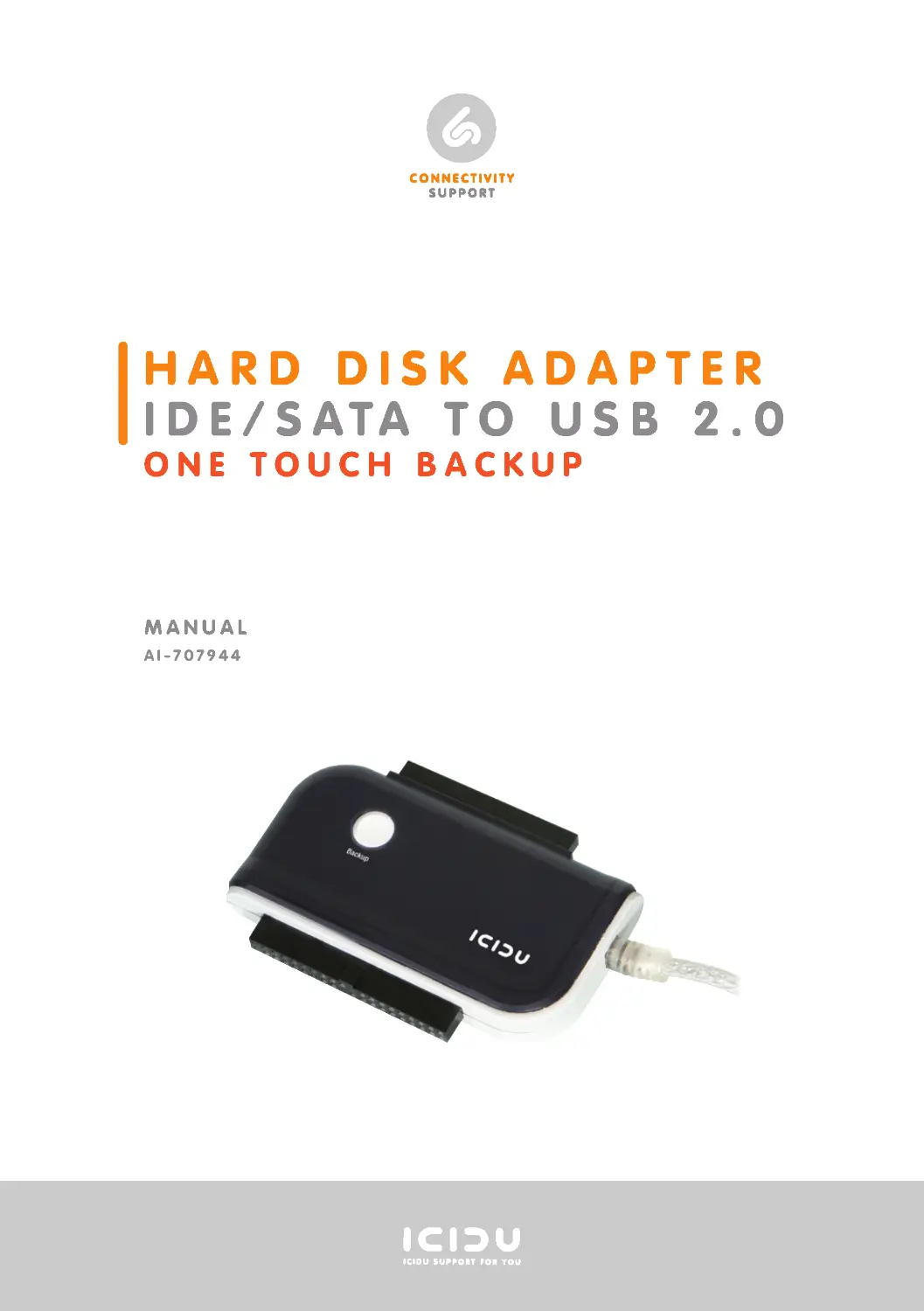
                    manual
aI-707944
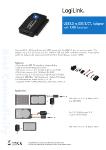
HaRD DISK aDaPTER
IDE/SaTa TO uSB 2.0
OnE TOucH BacKuP

First of all, thank you very much for purchasing this IDE/SATA to USB 2.0 adapter. This adapter
allows you to connect 2.5” or 3.5” IDE/SATA hard disks or a 5.25” IDE CD/DVD burner without
having to install the same in your PC. This adapter is excellently suited for connecting a hard
disk or CD/DVD drive and for transferring data between a PC and a notebook, for example.
-
PacKaGE cOnTEnTS
-
TEcHnIcal SPEcIFIcaTIOnS
-
aPPlIcaTIOn OPTIOnS
-
HaRDWaRE InSTallaTIOn
-
InSTallInG BacKuP SOFTWaRE
EnGlISH
HaRD DISK aDaPTER
IDE/SaTa TO uSB 2.0
OnE TOucH BacKuP

PacKaGE cOnTEnTS
Before starting installation, first check that all necessary parts are present. The package should
contain the following:
IDE/SATA to USB 2.0 adapter
Power adapter
SATA power cable
IDE Power cable
CD with driver, backup software and manuals
TEcHnIcal SPEcIFIcaTIOnS
Hot swappable
Plug & play
Back-up button
PC Clone EX lite backup software
For all 2.5”/3.5” IDE/SATA hard disks or 5.25” CD/DVD drives
External power adapter for IDE/SATA devices
Supports Windows 98SE, 2000, XP, Vista, Windows 7 and MAC OS 8.6+
aPPlIcaTIOn OPTIOnS
With this ICIDU IDE/SATA to USB 2.0 adapter, you can quickly and easily connect an internal IDE
or SATA device, without having to install the same. Connect internal hard drives, CD/DVD drives
or other internal IDE/SATA devices externally.
NB
Windows 98SE: First insert the hardware in your PC or notebook, click on “Cancel” in the dialog
box and then install the driver via the CD! (setup.exe)

HaRDWaRE InSTallaTIOn
Take the following precautions before installing the hardware:
First ensure that the PC or notebook is switched off and disconnected from the power supply.
Connect the cables according to the following diagram.
1) USB Connection
2) 2.5” IDE connection
3) 3.5”/ 5.25” IDE connection
4) SATA connection
5) Back-up button
Step 1: Connect the USB cable to your PC or notebook
Step 2: Install the driver (Windows 98). The driver will be installed automatically
in other versions of Windows.
Step 3: Connect the hard disk or CD/DVD drive to the correct connection of the adapter
Step 4: Connect the power adapter to the hard disk or CD/DVD drive
The system will detect the hard disk. The disk may be found under “My Computer”
InSTallInG BacKuP SOFTWaRE
The CD also contains the PC Clone EX lite software provided. With this software, you can easily
create a backup of another hard disk, or part thereof. To install the software, go to the “Back-up
Software” folder. Run the Setup.exe and follow the instructions.
Right-click “My Computer” choose “Manage” and then “Disk Management” Then go to
“PCCloneEX” in “All Programs” and start “FNet FAT32 Utility”. Choose Disk F and start the quick
format. After formatting, you execute PCCloneEX. When pushing the back-up button, PCCloneEX
will back-up your files as set in the software.
The Help function of the software will provide you with extensive information.
1
4
5
2
3
Backup

WaRRanTY
Unless specified otherwise, all items sold under the ICIDU name are covered by a 10-years
warranty. No warranty or support is provided for the software and rechargeable batteries that
are provided. Claims under warranty can be made only via the dealer from whom the item was
purchased.
Specifications can be changed without notice.
All ICIDU products comply with current European safety and environmental standards and
legislation. For further details, visit our website www.icidu.com.
ICIDU is a registered trademark. All other brand names and rights in connection with
them are and remain the property of the rightful owner.
© Copyright 2011 ICIDU
All rights expressly reserved