/




Текст
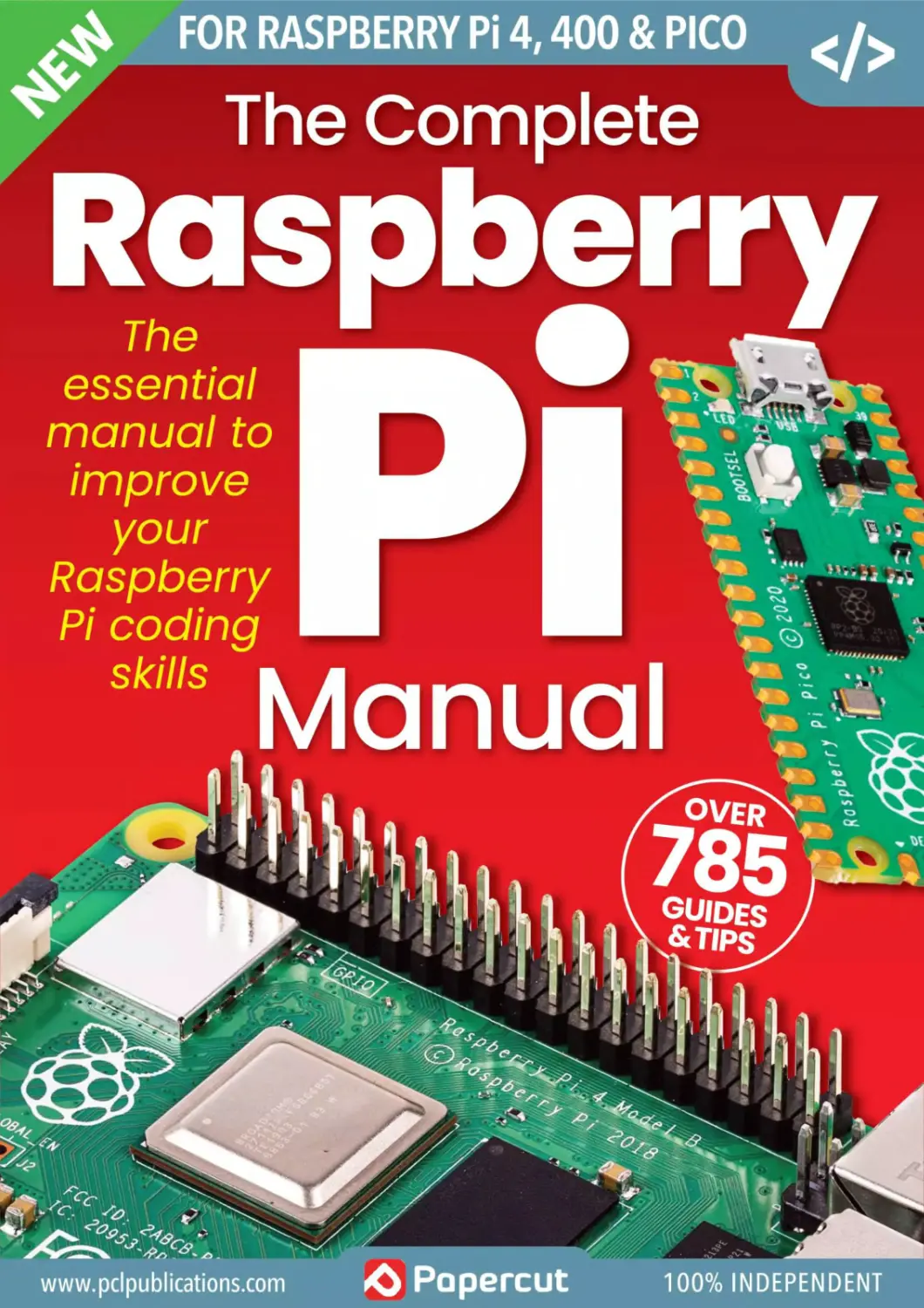
                    FOR RASPBERRY Pi 4,400 & PICO <y>
The Complete
Raspberry
essential
manual to
improve
your
Raspberry
Pi coding
skills Manual
www.pclpublications.com	PopeCCUt 100% INDEPENDENT
The Complete
8851
Г The Complete
iPhone
&iOSD
User Manual
Lightroom
кТпчУ improve your photo
editing skills —
The Complete
iPad
User Manual
Master your iPad and improve
your iPadOS 15 skills
Readlij
Available on
KSENT1AL GUIDES, TIPS 4 TUTQR1AIS
The Complete
Canon
Camera Manuj
Master your Canon camera
and improve your photographic skills
The Complete
Manual Series
UPDATED FOR macOS VENTURA
FOR AU MACS & MACBOOKS g
* The Complete
macOS
Monterey
Manual
КЯНПМ GUDIS, nFSeruromALS
The Complete
Outdoor
Photography
898 Manual
NIKON PHOTOGRAPHY & CAMERAS (Q
The Complete™
Nikon
Camera Manual
PORPr MAC 4 MOBILE DEVICE^
, The Complete
Home
Networking
Manual я<~
home network & smart devices
• The Complete
MacBook
User Manual
The essential maqual to
mastering your
and macOS 1
FOR AU MAC STUDIOS & DISPLAYS
The Complete
Mac
Studio
Manual
Master your Apple Mac Studio & Display
you photo and image editing skills
.VIRUSES 4 MALWARE
The Complete
Linux
Coding Manual
Master Linux and
improve your	--
programming
& coding skills
FOR AU MACS & MACBOOKS g
* The Complete
macOS
Ventura
Manual
Master your Mac & MacBook with
expert step-by-step guides
The Complete
& Python
Manual
Essential coding guides & projects
ESSENTIAL GUIDES, TIPS 4 TUTORIALS p
The Complete^^"
Photoshop
User Manual
r The Complete
Internet
Security
^720 ManUa> | i
820
For a full list of titles available visit:
www.pclpublications.com
The Complete
Coding Manual
Unlock and master the potential of your Raspberry Pi...
Thanks to the Raspberry Pi's unique setup, operating system and
amazing community of imagineers, this little computer has become
one of the most important pieces of educational technology in the
world. It's helped people learn how computers, coding and electronics
work, as well as helping science and engineering, astronauts and
technicians, young and old, teachers and students.
With our Raspberry Pi guide in your corner, you will learn and discover
how the Pi works, what you can do with it and where to take your Pi
adventures. We've got everything from setting up the Pi to learning
how to code on it using Python, and from learning Linux to projects
that'll take you and your Pi to the next level. Read on, and let's unleash
your imagination with the power of the Raspberry Pi.
Э Papercut
www.pclpublications.com
Contents
6 Raspberry Pi is Good For You!
62 Get More from the
Terminal App
64 Using the File Manager
66 Edit Images with GIMP
8 Say Hello to Raspberry Pi
10 Get to Know the Raspberry Pi
50 Explore Raspbian
24 The Pico and MicroPython
Pi 400 - Return of the 80s
Home Computer
Ten Pi Projects and Ideas
16
18
56
58
60
12 Up Close with the Raspberry
Pi 4 Model В
14 The Pi 400 - Up Close_____
20 The Pi Pico - Up Close
22 Pico Power: the Tiny
Microcomputer___________
26 Pico Examples and How to
30 Pico Projects & Ideas
52 Take a Tour of PIXEL
Exploring the Command Line
Setting Up a Static IP
Address
Connecting to the Pi Remotely
Using APT to Install and
Remove Programs
32 Other SBCs to Use
34 Raspbian: The Complete
Operating System
36 Which Pi is Right for Me?
38 Raspberry Pi in Numbers
40 Kit You'll Need and How to
Set it Up
42 Set Up Raspberry Pi Using
a Mac_________________________
44 Set Up Raspberry Pi Using a
Windows PC
46 The Raspberry Pi Desktop:
What You Will Need____________
48 Debian Buster with
Raspberry Pi Desktop
Contents
68 Python on the Pi
74 Saving and Executing Your Code
96 Glossary of Terms
98 Python Code & Ideas
114 Mastering Linux
176 Pi Projects: BBS Client
156 Tracking the ISS
with Python
76 Executing Code from the
Command Line
178 Pi Projects: Weather
Station
154 Creating a Loading
Screen
164 Using Text Files for
Animation
168 Stream Digital TV with a
HAT-Part 2
166 Stream Digital TV with a 180 Common Raspberry Pi
HAT - Part 1	Problems
106 Python Digital Clock
108 Vertically Scrolling Text
110 Text to Binary Convertor
112 Hangman Game Script
78 Numbers and Expressions
80 Using Comments
82 Working with Variables
84 User input
86 Creating Functions_______
88 Conditions and Loops
90 Python Modules
92 Python Errors____________
94 Python Graphics__________
70 Starting Python for the First Time
72 Your First Code
170 Pi Projects: Desktop Pi
172 Pi Projects: Retro
Gaming _______________
174 Pi Projects: Media
Centre
116 What is Linux?_____________________i
118 Using the Filesystem
120 Listing and Moving Files________
122 Creating and Deleting Files
124 Create and Remove Directories
126 Copying, Moving and Renaming Files
128 Using the Man Pages________________
130 Editing Textfiles
132 Getting to Know Users______________
134 Ownership and Permissions
136 Useful System and Disk Commands
138 Managing Programs and Processes
140 Input, Output and Pipes____________
142 Fun Things to Do in the Terminal
144 More Fun Things to Do in the Terminal
146 Linux Tips and Tricks
148 Command Line Quick Reference
150 A-Z of Linux Commands
100 Python File Manager
102 Number Guessing Game
104 Text Adventure Script
160 Text Animations
162 Retro Coding
www.pclpublications.com 5
Raspberry Pi is Good For You!
Raspberry Pi is Good For You! INDEX
Raspberry Pi is
Good For You!
Your journey with this amazing little computer begins here. Say hello to the
Raspberry Pi; learn how it works, what kind of operating system it has, what
you need to get it up and running and much more. This is your first step into
the world of the Raspberry Pi.
In this section, you'll discover what makes the Raspberry Pi such a fabulous
little computer and project board. There are in-depth guides to the hardware,
operating system, what you'll need to begin with and enjoying the software the
Pi has to offer from your computer's desktop. Now let’s see what this amazing
computer has to offer.
8 Say Hello to Raspberry Pi
10 Get to Know the Raspberry Pi
12 Up Close with the Raspberry Pi 4
Model В
14 The Pi 400 -Up Close
16 Pi 400 - Return of the 80s Home
Computer
18 Ten Pi Projects and Ideas
20 The Pi Pico - Up Close
22 Pico Power: the Tiny Microcomputer
24 The Pico and MicroPython
26 Pico Examples and How to
30 Pico Projects & Ideas
32 Other SBCs to Use
34 Raspbian: The Complete Operating
System
36 Which Pi is Right for Me?
38 Raspberry Pi in Numbers
40 Kit You'll Need and How to
Set it Up
42 Set Up Raspberry Pi Using
a Mac
44 Set Up Raspberry Pi Using a Windows
PC
46 The Raspberry Pi Desktop: What You
Will Need__________________________
48 Debian Buster with
Raspberry Pi Desktop
О Say Hello to
Raspberry Pi
Let's take a look at
the best-selling British
computer ever.
Д2 SetuP
Raspberry Pi
Using a Mac
The easiest way to get up
and running on a Mac.
www.pclpublications.com 7
Raspberry Pi is Good For You!
Say Hello to
Raspberry Pi
Let's take a look at the best-selling British computer ever: the Raspberry Pi!
This bare-bones machine just looks like any other piece of circuitry, until
you realise it's a full-blown credit-card sized computer, ideal for learning
programming and home hacking.
Raspberry Pi 2 Model В
Raspberry Pi 1 Model B+
The older Raspberry Pi 2 model can still be found on sale. It has the
same form factor as the Raspberry Pi 3 with 4 USB Ports, Ethernet
connection and Micro USB.
It may look the same but it has a slower 900 MHZ quad-core ARM
Cortex-A7 CPU and 1GB RAM. This brings it close in line to many
low-end desktop computers.
Complicating matters slightly is the existence of a Raspberry Pi Model
1 B+, which is identical in layout to the Raspberry Pi Model 2 but with
an even slower ARMv6 700MHz processor. If you are confused which
type you own then type cat /proc/cpuinfo at the command line. If it
lists four ARMv7 processors you are using a Raspberry Pi 2, if you see
just one with ARMv6 then you have the older Raspberry Pi Model 1 B+.
Raspberry Pi 3 Model B+
The Raspberry Pi 3 Model B+ was launched on 14 March -
International Pi day 2018. This is an improved version with a faster
1.4GHz, 64-bit quad-core ARM Coretx-A53 processor, a dual-band
802.11ac wireless LAN and Bluetooth 4.2 controller, faster Gigabit
Ethernet, improved mass storage, USB booting, improved thermal
management and Power-Over-Ethernet support. All other aspects
of the new Raspberry Pi are the same as the previous Pi 3 and as
such, all the previous content you come across is compatible, if
you're new to the wonderful world of the Raspberry Pi, this is the
board we recommend you buy.
8 Raspberry Pi Coding & Projects
Say Hello to Raspberry Pi
The Raspberry Pi is a British built low cost
computer that enables everybody to learn
computing, start programming and explore
basic electronics. It's the size of a credit
card but capable of running a full operating
system and doing everything a desktop does.
More importantly, with the Raspberry Pi you
install your own operating system, connect all
your devices and create your own programs
using languages like Scratch and Python.
There's no case so you can hook up electronic
circuits to the pins and control them to get
input and output, so you can hack together
electronic projects at home.
Setting up a Raspberry Pi is pretty simple,
and throughout this book we'll take you step-
by-step from unboxing your Raspberry Pi to
setting it up and getting started.
There are many different models of
Raspberry Pi available and each has slightly
different features (see opposite).
The fundamentals of each Raspberry Pi are
similar though. Each model is a lightweight
computer on a single board that’s roughly
the size of a credit card. Each Raspberry Pi
board features a processor made by ARM,
which is similar to the models you find in a
mobile phone. The ARM processor is fast
and lightweight but it runs a different set of
software than you might be used to. There
are many different operating systems (OS)
available, but for most of this book we’ll
focus on one called Raspberry Pi OS, which
is the OS recommended by the Raspberry Pi
Foundation.
There's no hard drive on the Raspberry Pi,
instead the operating system is installed
on an SD Card (the cards typically used in
cameras). The operating system is installed
onto the SD Card by copying the files to the
SD Card using a computer. We’ll show you
how to set up the Raspberry Pi OS using a
Mac or Windows computer.
Once you have an OS installed on the SD
Card you can set up your Raspberry Pi. The
Raspberry Pi is connected to a monitor via a
HDMI socket whilst a keyboard and mouse is
attached to the USB socket A smaller Micro
USB connection is used to provide power to
the device. Most Raspberry Pi models feature
an Ethernet connection, and an Ethernet
cable is connected from your Raspberry Pi to
a socket on your modem router.
Both the Raspberry Pi 3 and 4 models have
built in wireless networking and Bluetooth,
making it easy to get online. You can attach
a USB Wi-Fi dongle or Ethernet adaptor to
older models.
First it will help to know which Raspberry
Pi you are using. This can be tricky as there
have been several distinct models so far. The
layouts opposite will help you determine
which Raspberry Pi you have.
This book covers all the different models, and
they offer largely similar features, although
newer models offer additional extras. Once
you know which Raspberry Pi you own, you
can get it up and running.
Raspberry Pi 4 Model В
Released on June 24th 2019, the Raspberry Pi 4 Model В
introduced a new direction in the layout and hardware
specification of the Pi. The Pi 4 Model В now comes in three
different memory size versions: 2GB, 4Gb, and 8GB. Obviously, the
8GB version is the most powerful of the three, and the Pi with the
highest amount of on-board memory. Subsequently, it was sold
out on the day of release and as such, has taken some time to get
into the hand of the mainstream Pi users.
There’s also an improved CPU, dual-monitor support in the form of
a pair of micro-HDMI ports, and improved connectivity. Overall, it’s
certainly a more capable Pi.
Raspberry Pi Zero
The new Raspberry Pi Zero is a super small, super cheap computer
that costs just £4. It's half the size of the model A+ but has a
surprising amount of power, including a 1Ghz single-core CPU and
512MB RAM. It has the full 40-pin GPIO header but you’ll need to
buy the pins separately and solder them in. It uses the same
Micro-SD card as the other Raspberry Pi devices, so you can swap
SD cards between them. Last but not least, it draws an incredibly
low amount of power (Micro USB) making it ideal for small power
devices. The ports are smaller than you’d find on the larger
Raspberry Pi though, so you'll need a mini-HDMI adaptor as well as
a micro-USB adaptor to connect devices. A four-port USB Hub and
Ethernet adaptor will come in handy too.
www.pclpublications.com
9
§ Raspberry Pi is Good For You!
Get to Know the
Raspberry Pi
While the Raspberry Pi 4 is the newest model, the Pi 3 models are the most popular among
the community. They’re cheaper, more compatible with current hardware and software, and
still pack a significant performance punch. Here's what powers the fantastic Pi 3.
40 GPIO Pins
The GPIO (General Purpose Input Output) pins can be
accessed directly on the Raspberry Pi. These are used
in projects to connect the Raspberry Pi to electronic
circuits and control electric devices. Some can be
turned on and off while the Raspberry Pi is running.
ARM-Powered
At the heart of the Raspberry Pi 3 is a
Broadcom BCM2837 System on Chip
(SoC). It contains a powerful 1.2GHz
64-bit quad-core ARM Cortex-A53
CPU. This is 50-60 percent faster than
the Raspberry Pi 2 and ten times as
fast as the original Raspberry Pi.
The Display Interface (DSI) can be used to connect a
display directly to the Raspberry Pi board.
| SD Card Slot
USB Power
Instead of a hard drive you use
an SD Card with the Raspberry
Pi. The Raspberry Pi 3 (pictured
here) uses a Micro SD Card.
Some older Raspberry Pi models
use a regular SD Card.
A standard Micro USB power supply is
used to provide power to the Raspberry
Pi. You don’t get a power supply but can
use any 5V 2000mA Micro USB power
supply and compatible cable, or buy an
official power supply separately.
10 Raspberry Pi Coding & Projects
Get to Know the Raspberry Pi
USB ports
Ethernet and Wi-Fi
3.5mm Audio/Video jack
I CSI (Camera Serial Interface)
You can attach the official Raspberry
Pi Camera Module directly to the
motherboard via this CSI connection.
The Raspberry Pi USB Ports to connect
standard computing accessories such
as a keyboard, mouse and webcam.
Raspberry Pi 2 and 3 boards contain
four USB ports but you might need
a USB Hub to get more ports on the
Raspberry Pi A+ and Pi Zero.
Connect the Raspberry
Pi 3 to a network or
home modem router
using an Ethernet cable
and this connection. The
Raspberry Pi 3 has built in
wireless networking, but
you must add a USB Wi-Fi
adaptor to older models.
This 3.5mm audio jack is
normally used to attach
headphones or speakers. On
the Raspberry Pi 2 and 3 it also
carries composite video using a
compatible cable.
HDMI
The HDMI connection enables you
to hook up the Raspberry Pi to most
modern monitors and digital televisions.
It carries both video and audio.
www.pclpublications.com 11
Raspberry Pi is Good For You!
Up Close with the
Raspberry Pi 4 Model В
Released at the end of June 2019, the Raspberry Pi 4 Model В is a significant improvement
in terms of hardware. Labelled the 'Ultimate' Raspberry Pi, this new generation offers true
desktop computing power.
FASTER AND CONNECTED
There's a lot to like about the Raspberry Pi 4: Up to 8GB of on-board memory, a faster quad-core CPU, support for dual 4K displays
via a pair of micro-HDMI ports, and more. Let's take a look at the Pi 4, and see what it’s got under-the-hood.
PRICING
Since the Raspberry Pi 4 now offers three different
versions within the new model, it stands to reason that the
pricing for it has changed slightly. The 1GB memory version
of the Pi 4 is priced at around £34, depending on where
you shop. The 2GB memory version is on sale for around
£44, while the top-end, 4GB memory version will set you
back in the region of £54. Together with the cost of the Pi
itself, you will also need to factor in one or two micro-HDMI
cables (depending on whether you want to connect one or
two monitors), each costing roughly £5-plus.
I Improved GPU
With a VideoCore 6 GPU, the Pi 4 is capable of
4K resolutions at 60FPS (Frames per Second),
and thanks to some tweaks to the video codes in
both Raspbian and the version of VLC packaged
with Raspbian, the Pi 4 is now a pretty decent
media device.
I Improved Processing
The 1.5GHz, 64-bit quad-core ARM Cortex-A72
CPU, is the driving force behind the Pi 4’s improved
performance. Thanks to this CPU, youTe able to
enjoy faster apps and content.
Dual Display
In a shock move the team behind the Pi 4 decided
to include a pair of micro-HDMI ports. This means
you're able to connect two monitors for dual-
screen displays.
12 Raspberry Pi Coding & Projects
Up Close with the Raspberry Pi 4 Model В
PI 4 SPEC SHEET
•	1.5GHz 64-bit quad-core ARM Cortex-A72 CPU
(ARMv8, BCM2837)
•	2GB, 4GB or 8GB RAM (LPDDR4)
•	On-board wireless LAN - dual band 802.11 b/g/n/ac
•	On-board Bluetooth 5.0, low-energy (BLE)
•	2x USB 3.0 ports, 2x USB 2.0 ports
•	Gigabit ethernet
•	Power-over-Ethernet (requires the Raspberry Pi POE HAT)
•	40-pin GPIO header
2x micro-HDMI ports (up to 4Kp60 supported)
H.265 (4Kp60 decode)
H.264 (1080p60 decode, 1080p30 encode)
OpenGL ES, 3.0 graphics
DSI display port, CSI camera port
Combined 3.5mm analog audio and composite video jack
Micro-SD card slot
USB-C power
NEW POWER & VIDEO
There are two major differences to the Pi 4 over its older
siblings: the use of a USB-C power port, and the newly
introduced micro-HDMI ports. Therefore, if you’re going to be
getting hold of a Pi 4, then you'll also need to source a micro-
HDMI cable, and the relevant USB-C power adapter-since the
power and HDMI from the older Pi models won’t work with this
fourth generation Pi.
USB 3.0
I Memory
Connectivity
Now with Bluetooth 5.0,
alongside 802.11 b/g/n/
ac wireless, and a gigabit
Ethernet port, the Pi 4 is
certainly well connected.
The inclusion of a couple
of USB 3.0 ports is an
excellent choice. The
faster data bandwidth of
USB 3.0 will, for example,
enable the Pi to read and
write that data, both to
and from an external
drive, far quicker than
ever before.
The RPi4 now comes
with a choice of
memory: 2GB, 4GB
or a 8GB model. The
more memory means
you're able to have
more applications open,
without degrading the
overall performance of
the Pi.
www.pclpublications.com 13
Raspberry Pi is Good For You!
I microSD Card Slot
micro-HDMI Ports
The microSD Card Slot is where you’ll insert
the card that contains the Raspberry Pi OS - or
any other operating system you prefer to run
that’s compatible with the Raspberry Pi 4.
As with the Raspberry Pi 4 bare-metal device, you're
able to connect to a dual-monitor setup with the Pi
400 via the two micro-HDMI ports. Both are capable
of up to 4K at 60 frames-per-second.
The Pi 400
Up Close
The Raspberry Pi 400 is an
all-in-one keyboard Pi that
was released in November
2020, offering the user a
different approach to
their Pi lifestyle. This
compact and powerful Pi
is the flagship of a new
kind of Pi and one we'll
hope to see more of this
in the future.
Inside the Pi 400 is a modified Raspberry Pi 4. It’s
longer, spanning the width of the keyboard, with a large
heatsink to dissipate enough heat for the overclocked
processor. The Pi 4’s communication ports are spaced
along the back of the Pi 400 keyboard, minus a second
USB 2.0 port and a 3.5mm audio jack.
| 40-Pin GPIO
The slightly recessed GPIO port
is directly connected to the Pi
400 board inside the keyboard.
This means you can still attach
the usual Raspberry Pi HATs and
other devices as you would a
bare-metal Raspberry Pi.
[ What's Inside?
This internal view shows the
placement of the Pi board.
14 Raspberry Pi Coding & Projects
The Pi 400- Up Close
TECH SPECS
[ USB-C Power
I Regional Keyboard
The Pi 400's keyboard is available in a
number of regional variations: UK, US,
German, French, Italian and Spanish.
The Pi 400 is powered by the
same USB-C connector power
adapter as the Raspberry Pi 4,
offering a minimum of ЗА.
J There are two fast USB 3.0 ports
I available on the rear of the Pi 400,
so you can attach projects, as well
as game controllers and other
such devices.
USB 2.0
There’s also a legacy
USB 2.0 port available.
In case you’re
wondering, where the
Pi 4 had two USB 2.0
ports, on the Pi 400 the
other USB 2.0 portis
hardwired as an internal
ribbon connected to,
and powering, the Pi
400's keyboard.
2x USB 3.0 Ports
Gigabit Ethernet
Gigabit Ethernet offers a fast
connection for the Pi 400 to your home
network and peripherals.
The Pi 400 has a slight advantage over the
Raspberry Pi 4 in terms of its processing
power, but it loses out in the overall memory
department However, the specs are an
impressive Broadcom BCM2711 quad-core
Cortex-A72 (ARM v8) 64-bit SoC, overclocked to
1.8GHz - and tests have shown that the Pi 400
can be further overclocked to a stable 2.2GHz.
And there’s 4GB of LPDDR4-3200 memory
available too.
Not bad for a mere £94, which includes the Pi
400, micro-HDMI cable, power supply, and a
16GB microSD card pre-programmed with the
latest Raspberry Pi OS.
The Pi 400, like the Raspberry
Pi 4, comes with dual-band,
2.4GHz and 5GHz, IEEE
802.11 b/g/n/ac wireless
connectivity, along with
Bluetooth 5.0.

www.pclpublications.com 15
Raspberry Pi is Good For You!
Pi 400: Return of the 80s
Home Computer
The 80s is considered the golden era of the home computer, a time when computing
components were small enough to fit inside the living room of a house, and versatile
enough to work on as well as play games. It was a wonderful time to experience, and the Pi
Foundation has kept that feeling alive with the Pi 400.
Released in November 2020, and while the UK and most of the world was still in lockdown, the Raspberry Pi 400 came at a time when we
were beginning to feel like there was no end to the pandemic and the restrictions it brought. Initial thoughts were that the Pi 400 was a new
small-board computer, in a similar vein to the Pi 4 and its predecessors. However, we were quite wrong.
The Pi 400 is a very different beast to that of its siblings. Rather than the naked board we’ve seen in the past, the Pi 400 came as a complete
keyboard package, with the Pi’s familiar ports lined up along the backplate of the keyboard.
This in itself was remarkably reminiscent of the home microcomputers of the 80s, the prime examples being the ZX Spectrum and the
Commodore 64. Indeed, the nostalgia was strong with this one, and it brought a smile to more than one retro fan's face.
THE REINVENTION OF THE
MICROCOMPUTER
It's more than sheer aesthetics that makes the Pi 400 hark back to
a simpler age of computing. Inside the keyboard is a Raspberry Pi 4,
albeit one that’s had a facelift and some hardware alterations. The
Pi 4’s ports, which are the twin micro HDMI and USB 3.0 ports, USB
2.0, Gigabit Ethernet and microSD card slot, take up the rear of the
keyboard together with a port that connects directly to the 40 GPIO
pins - and resembling an older style communications port from the
rear of an XT or earlier machine.
In terms of hardware, the Pi 4 inside the Pi 400 has been expanded to
fit most of the width of the keyboard. The processor is the same ARM
v8 Cortex-A72 as found in the bare Raspberry Pi board, but in this
instance it’s been overclocked to 1.8GHz; 300Mhz faster than the bare
board. There’s also 4GB of LPDDR4 RAM installed, but sadly no sign of
an 8GB version - which the Pi 4 bare model has on offer.
The keyboard itself is available in different language layouts: UK, US,
Germany, France, Italy and Spain. Essentially, it’s the same keyboard
that the Pi Foundation has been selling for some time, except this time
there's an actual Raspberry Pi inside of it as opposed to it simply being
a multi-port USB hub.
16 Raspberry Pi Coding & Projects
The overclock is thanks to the inclusion of a large, internal
aluminium heatsink, that spreads across the entire internal
space of the keyboard. This, and thanks to a couple of air vents
on the bottom of the keyboard, are what allows the Pi 400 to be
overclocked to the default 1.8GHz. In fact, we even took the Pi 400
to an impressive 2.2GHz, and it remained stable and cool enough
for continual operation.
The heat dissipation from the large heatsink is a great idea - and one
that was previously seen in the Commodore 64. There's also a thermal
sticky pad on the top of the heatsink, that's attached to the Pi 400's
processor and helps to lift as much heat as possible from the CPU. If
you get inside, you'll also see why the Pi 400 is missing a USB 2.0 port;
since it only features a single 2.0 port over the Pi 4’s dual USB 2.0 ports.
One of the Pi 400’s USB 2.0 ports has been used as a hard-wired ribbon
connector to the keyboard section of the unit. Again, those of you
familiar with the internals of an 80s home computer will recall ribbons
being attached to keyboard membranes.
Pi 400: Return oF the 80s
Pl 400 DESKTOP COMPUTING
One of the prime benefits of having the Pi 400 keyboard
setup is the fact that it can be quickly plugged into a monitor
and working from the moment you hit the power key. The Pi
4 bare board, for example, requires a separate keyboard and
mouse, and, let’s be honest here, not many folk want to see
a bare circuit board on their desk. True, there are some great
design Pi 4 cases around these days, but the Pi 400 already
comes in a neat package.
The extra overclock brings a decent amount of oomph to the
Pi 400, and as such it’s perfectly reasonable to use the Pi 400
as a standard desktop computer. However, there comes with
it some negatives in this respect.
While a great device, the Pi 400 is a little too small for
comfort, specifically a typical working day's use. It's roughly
the same size as a laptop keyboard, but the keys don’t feel
as good - a bit too squishy for our tastes. But, as with most
things, we'll probably get used to it over time.
Another caveat that's worth mentioning, is that the Pi 400
lacks a 3.5mm audio port. Where the Pi 4 model had one, this
doesn’t, instead opting to output sound via the HDMI port(s).
While this isn’t a deal-breaker for most, it does mean that for
personal listening you’ll need to hook up a set of headphones
to your monitor, or find another solution. The built-in
Bluetooth will connect to headphones with that technology,
but if you're limited to wired models, then you could be looking to
buy upgrades.
However, with all that in mind, the Pi 400 is another step closer to
becoming the only computer you’ll ever need.
THE ZX Pl 64
There's a good feeling of nostalgia when plugging in a Pi 400 to
a monitor or TV. It’s like you’re back to being 10 years old again
and plugging in the Spectrum or the C64 for a spot of gaming or
homework, before having to unplug it all when your Mum calls
through that dinner is ready.
Thankfully, these days, it’s easy to save where you were - and the
entire thing doesn't crash when the kettle is switched on!
Overall, the Pi 400 is a great addition to the Foundation's stable,
and one that we're sure you’ll come to love and use daily.
17
Raspberry Pi is Good For You!
Ten Pi 400 Projects
and Ideas
You may think that a Raspberry Pi 4 inside a keyboard would create some limitations,
however that’s not the case. Indeed, you won't be able to utilise the Pi 400 in quite the same
way as a standard Pi 4, but there’s a lot you can get to grips with.
EVERYONE LOVES PI
We’ve put together ten possible projects that you could use your Pi 400 with; that will entertain and keep you busy while helping you learn
more about coding, the Pi and computing.
RETRO COMPUTING
A
With the Pi 400 being very similar to
that of the great home computers of
the 80s, we thought we’d start these ideas with a simple retro-themed
project. Fuse is a ZX Spectrum emulator that's available for the
Raspberry Pi. Install it, and you can enjoy some of the greatest games
ever created.
C64LOVE
A
Since we’ve mentioned the ZX Spectrum, it’s only fair
that we include the other great 8-bit home computer
from the 80s, the Commodore 64. The Pi uses a program called
c64-raspi for C64 emulation, and can be installed via https://
c64emulator.111 mb.de/index.php?site=pp_
raspi&lang=en&group=c64.
STREAM PC GAMES
A
GOOGLE STADIA
A
It’s possible to stream any game
installed on your powerful gaming PC
to a Raspberry Pi. All you need is to ensure that your home network is
up to scratch - use Ethernet connections between the two if you can
-and to install Parsec from https://parsec.app/downloads.
While we're on the subject of streaming
games, if you own a Google Stadia, then
you're able to stream games to the Pi via the Chromium browser.
You'll need a good network connection, and some games may well be
18 Raspberry Pi Coding & Projects
Ten Pi 400 Projects and Ideas
OVERCLOCKING
A
The Pi 400's 1.8GHz processor is adequate
For most tasks, but thanks to the large,
metal heatsink inside the keyboard, it’s possible to get that clock
speed even higher. There's a great YouTube tutorial on how to
overclock the Pi 400 to 2.2GHz at https://www.youtube.com/
watch?v=DqZ99mGbSR0.
DESKTOP PC
A
Since lockdown started in 2020, folk have been
coming up with novel ways in which they can
work and educate at home on a budget. The arrival of the Pi 400
was a great boost for home working, and it makes for a great
desktop PC. Just add a mouse, dual monitors and you can even use
Teams via Chromium.
RUN WINDOWS 10
A
Yes, it’s possible to run a version of
Windows 10 on the Pi 400. There are
going to be some limitations; there's no sound, Wi-Fi or Bluetooth, but
it’s a fun project that's definitely going places. Check out the install
video courtesy of Lepspvideo at https://www.youtube.com/
watch?v=xbRBovkmZvU&t=Os.
INSTALL A DIFFERENT OS
A
The default Raspberry Pi OS isn't
the only operating system
available for the Raspberry Pi. We've already seen RetroPi, but there's
also a version of Ubuntu, an entertainment OS called LibreElec,
RISCOS, the original ARM OS and many more to discover.
Third-party software
Here are some other
operating systems you can
use with your Raspberry P,
ф RetroPie
turn fW MnvtaH'v H tnto a nrUv yarning madww
Download
CODING BASE
A
The Pi 4 made for a great platform on which
to learn how to code, but thanks to the
neater approach of the Pi 400, it’s now an even better base on
which to code. You can learn how to code with Python,
MicroPython, C and C++ and many more languages. Check out
our coding guides at https://bdmpublications.com.
<MKWwoks «nd М«пмЬ uwtai tv fw«v «nyvrw «tw warns tv	uxtng and prayarnmaiy to <*at tlailad Uw 44M «wyt
The Pi 400 makes for a great under-the-TV
media centre. You don’t specifically need a
MEDIA CENTRE
A
media-centric operating system, the Raspberry Pi OS will suffice. With
it you can watch network-stored movies, browse the Internet, watch
YouTube content and much more.
www.pclpublications.com 19
Raspberry Pi is Good For You!
The Pi Pico -
Up Close
I Boot Selection Switch
The Pi Pico isn’t your normal Raspberry Pi. Instead,
this is a tiny microcontroller, designed to help
enthusiasts control and utilise connected appliances
and electronics projects. From displaying an LCD to
controlling LEDs, using MicroPython and C++.
The Pi Pico may be small, but it packs a decent punch. With it you can
expand your electronics projects, and incorporate a whole new level
of functionality that you weren’t able to before with the traditional
Raspberry Pi units.
I micro-USB Port
The Pi Pico's micro-USB provides both power, as
well as communications between the Pico and a
Raspberry Pi or other computer. Here you’ll be able
to upload programs and projects on to your Pico.
PICO SPECIFICATIONS
21mm x 51mm form factor
RP2040 microcontroller chip designed by
Raspberry Pi in the UK
Dual-core Arm Cortex-M0+ processor,
flexible clock running up to 133 MHz
264KB on-chip SRAM
2MB on-board QSPI Flash
26 multifunction GPIO pins, including 3
analogue inputs
2 x UART, 2 x SPI controllers, 2 x I2C
controllers, 16 x PWM channels
1 x USB 1.1 controller and PHY, with host
and device support
8 x Programmable I/O (PIO) state
machines for custom peripheral support
Supported input power 1.8-5.5V DC
Operating temperature -20°C to +85°C
Castellated module allows soldering
direct to carrier boards
Drag-and-drop programming using mass
storage over USB
Low-power sleep and dormant modes
Accurate on-chip clock
Temperature sensor
Accelerated integer and floating-point
libraries on-chip
The small button labelled
BOOTSEL, Boot Selection, will
switch the Pico between two
start-up states enabling you
to access the Pico as a storage
device on your computer or
Raspberry Pi.
The Pico is a great little project board, with plenty of potential for those who love to tinker with
electronics and stretch their knowledge of everything that's connected.
20 Raspberry Pi Coding & Projects
The Pi Pico-Up Close
I Memory & Storage
CPU
The Pico comes with 264KB on-chip SRAM
memory, as well as 2MB on-board QSPI
Flash memory; to store your code and
projects.
[ GPIQ Pins
The processor of the Pi Pico is an RP2040
microcontroller, a custom designed
integrated circuit built specifically for
the Raspberry Pi Foundation. It's a dual-
core ARM Cortex-M0+ processor, with a
flexible clock speed up of to 133MHz.
The cutouts located down both
sides of the Pico are its CPIO
ports - which work in much the
same way as the Raspberry Pi's
GPIO ports. There are 26 of
them, including three analogue
inputs.
www.pclpublications.com 21
Raspberry Pi is Good For You!
Pico Power:
The Tiny Microcontroller
When is a computer not a computer: when it's a microcontroller. To be fair, a computer, by its
true definition, is an electronic device for storing and processing data, which is what the Pico
does. But for most users, a computer is defined as a device that sits on a desk, something
you can work and play on. This is where the Pico differs.
The Pico is something entirely different from the Raspberry Pi Foundation’s usual releases. Whereas the Raspberry Pi, now on version 4, is a
small computer, and even the Compute Module and the Pi 400 are still just computers, the Pico is actually a microcontroller.
A microcontroller is a processing unit that’s designed to work with programmable peripherals, and has input and output modules alongside
a small amount of memory and storage capabilities. The processors are often scaled down, compared to the processor on a Raspberry Pi, or
even inside your desktop computer, but powerful enough to complete basic tasks.
Examples of a microcontroller in action can be found inside a washing
machine, or traffic lights. A washing machine has no need for a quad-core
processor, 8GB of memory, and the ability to output to a 4K monitor.
Instead, it has a set of microcontrollers, that are connected to various parts
of the washing machine - such as the pump, or motor. When a signal is sent
to an input on the washing machine’s microcontroller, it knows - through
some clever programming stored in its limited memory - that it needs to
send a signal output to the valves to allow in a certain amount of water,
then activate the motor for the drum and so on.
The same can be applied in the traffic light example. A powerful computer
isn’t necessary, so a microcontroller will activate the red, amber and green
lights in sequence, or switch to red to stop traffic when someone presses the
Walk button.
While it would probably be interesting to have a powerful computer inside
your washing machine, it's overkill. A microcontroller takes up less space,
uses less energy, and isn’t prone to the kind of crashes or in need of the
frequent updates that a traditional computer
requires. They simply sit there, act on inputs
that come their way, process that data, and
output whatever is required depending on the
input actions.
Power use is the main reason why
microcontrollers are in action everywhere we
look. There’s often limited supply to devices, or
situations. A microcontroller can work effectively
with the limited amount of energy drawn from
a small solar cell - even in the most overcast
of northern climes. For example, on-board the
International Space Station, there are thousands
of microcontrollers in action: monitoring air
quality, monitoring radiation levels, distributing
power and keeping track on the crew. If each of
these units were a more powerful computing
device, the power draw on the ISS would be
immense; so microcontrollers are the way forward
- at least until we work out how to build a warp
core with near unlimited energy, that is.
22 Raspberry Pi Coding & Projects
Pico Power: The Tiny Microcontroller
The Raspberry Pico GPIO
mapping.
ЯPower
Я Ground
Я JART / UART (default)
 GPIO. PIO, and PWM
 ADC
 SPI
 I2C
Я Debugging
UARTO TX
ПЕПЕЗ ЕЗЕЯ i*
ЕШЗН i3
ESE3 ЕПЕЗ ЯПШЯ к
и !-•>'< ЕПЕ31 KZHB 15
ППдЕЕЭ IkMibbTJ	MMuLM и
iTOTTim ЕПЕЯ IKSEH 17
ЯЕЖЯ1 is
Е5ЕЛ ЕЛЕЕЗIKHZK 19
КЗЕЗ ЕЗЕЯ ТТмГИ 20
40 ИЕЕЗИ
39 ЯЕЗЗЯ
PROGRAMMABLE PICO
The main difference between the microcontrollers inside your
everyday appliances and the Pico, is that where the microcontrollers
within your washing machine are pre-programmed with their
instructions, the Pico isn’t and can be programmed by you.
This means that you can use the Pico’s USB port to connect to a
computer, write some code to control something, upload the code to
the Pico's RP2040 microcontroller, and watch as it does what you’ve
asked it do.
The 26 multi-function GPIO pins, located down the long sides of the
Pico, can be used to solder electronics projects to. And with some
clever coding, you're able to control the input and output of devices
depending on their state via the Pico microcontroller.
Each of the Pico's GPIO pins have specific uses, as you can see from
the pinout chart. This means that certain electronic components
soldered to the pins, can be programmed using the Pico’s primary
microcontroller language, MicroPython (or C++).
2i |Е2Я| Е2ЕЕЛ KSESIESEE3
ЕДИ з

REMEMBER, IT'S NOTA Pl
It’s worth mentioning that the Raspberry Pico isn't designed the
same as, or can replace, a Raspberry Pi. This is a different type
of device altogether. Where you’ll use your Pi to browse the
Internet, play a game, do some coding and so on, the Pico can't do
that. It's designed for use with physical components and projects,
such as lighting LEDs or responding to a button push, controlling
motors and the like.
If you want more versatility for your projects, then the Raspberry
Pi is still the perfect device to use. If you’ve got something
specific in mind, and you want to expand into electronics and
microcontrollers, then the Pico will fit the bill. But, you'll also
r, or Raspberry Pi, in order to program the Pico to
23
Raspberry Pi is Good For You!
The Pico and MicroPython
The beauty of the Pico is that it’s a blank microcontroller, meaning that it’s free from any pre-
installed code or routines. This allows you to program the Pico to whatever tasks or projects
you have planned for it. But first, you'll need to set it up and get it ready to use MicroPython.
The Pico uses MicroPython or C/C++ code in order to communicate
with the devices it will be attached to. The code will, when
uploaded to the Pico, run a specific set of instructions depending
on the electronics that are soldered to the Pico. For example, in
MicroPython, with an LED attached to the Pico, you would initialise
and import the Pin and Timer modules, tell the Pico which GPIO
the LED is attached to, then setup a routine that will use the Timer
function to send a signal to the LED - let’s say every couple of
seconds. The end result would be a blinking LED, which goes on and
off every two seconds.
Naturally, the more complex the electronics attached to the Pico are,
then the more complex the MicroPython code will be to make them
work in the way you want.
MicroPython is probably the best language to begin with when it
comes to programming the Pico. Like Python, it's a bit easier to get
your head around - when compared to C or C++ - and it’s probably
slightly easier to get up and running. There's also the added
advantage of there being more examples of it online, so you can dip
into the various sites around the Internet and take the code snippets
you need to make certain devices and peripherals work.
MICROPYTHON
MicroPython is a Python 3-based coding language that's designed to
be executed on the RP2040 microcontroller-the one that's powering
the Pi Pico. It’s a highly efficient language, and thanks to the Pico's
larger than average memory and capacity - for a microcontroller
-it's the ideal language to start learning. If you already have some
experience with Python 3, then MicroPython should be relatively
easy to follow; since they're essentially the same. If you've never used
Python before, then we’d recommend you take a look at one of our
coding titles at, https://bdmpublications.com.
Before you can use MicroPython, though, you'll need to flash the
Pico with the latest version of MicroPython. This means downloading
the latest version of MicroPython and uploading it onto the Pico. The
process is remarkably easy, however.
Start by connecting one end of a USB cable to the Pico. Then press
and hold the BOOTSEL button on the Pico, while at the same time
plugging the other end of the USB cable into your computer, or a
Raspberry Pi. Count to five, then let go of the BOOTSEL button.
Within a few seconds the computer, or Raspberry Pi, will display a
notification that an external, or removable, drive has been attached
- in the same fashion as when you plug in a USB flash drive.
If you open your File Manager or Explorer window, and navigate to
the newly installed Pico storage, you’ll see two files present: INDEX.
HTMandlNF0_UF2.TXT.
The INFO_UF2.TXT file contains information regarding your Pico,
and the INDEX.HTM is a web-based page that contains all the
information you'll need to get the Pico connected and installed with
MicroPython.
lie View Sort Go Tools
c Desktop
E Trash Can
Й Applications
I Q RP1-RP2
bin
Bookshelf
» LlCode
и Desktop
« Documents
» £ Downloads
» games
MagPi
13 items (22 htldwi)
ES el JL
Bookshelf Code Desktop Documents Downloads games MagPi
Removable medium is inserted
Type of medium removable disk
Mcooc select the action you want to perform
Free space 3 9 GiB
24 Raspberry Pi Coding & Projects
The Pico and MicroPython
Alternatively, you can open a browser and navigate to https://www.
raspberrypi.org/docunnentation/pico/getting-started/. Scroll down
until you get to the Getting started with MicroPython section, and
follow the on-screen instructions. Click on the Download UF2 file
button - at the bottom of the Getting Started info box.
Once the UF2 file has been downloaded, locate it in the Downloads
folder on your computer, and click and drag it into the Pico storage
drive; as you would drag and drop a file from your computer to a
standard USB flash drive.
After a few seconds, the Pico storage drive will disappear-you may
get a warning stating that the device wasn’t unplugged correctly,
but ignore that. This process has now ‘flashed’ the Pico with the
MicroPython firmware. The Pico disappearing from the File Manager
means that it has rebooted and is now in MicroPython mode. This is
essentially all you need to do for the moment. The Pico is now ready
to start coding on to using MicroPython.
GET READY TO PICO CODE
While the Pico is in MicroPython mode, it doesn’t do much. You
need to get access to the MicroPython layer through an Integrated
Development Environment (IDE). The Raspberry Pi Foundation has
adopted Thonny as its default IDE for use with MicroPython, since
it’s already built-in to the Raspberry Pi OS; as found on the Pi 4, Pi
400and soon.
What you need to do is open Thonny - make sure the Pico is still
connected to your Raspberry Pi - then when it's loaded, click on the
Python label in the bottom-right of the Thonny window; it's going to
say Python followed by a version number, such as 'Python 3.7.3’.
This is the current interpreter that Thonny is using for the process of
taking the code you enter and converting it into instructions that the
computer can understand and execute. When you click the Python
label, you’ll notice a small menu appear, in which will be listed
'MicroPython (Raspberry Pi Pico)’. Click the MicroPython entry. This
will change the Shell window, the lower-portion of the Thonny app,
to read MicroPython, followed by the version number.
Thonny and the Pico are now ready to be coded on to. Since
MicroPython is based on Python 3-with some scaled-down
elements due to the fact that it’s designed to work on a much-lesser
processor - most of the usual Python syntax command will work,
such as print("Hello, world!”) and so on. You can also run loops and
other such repetitive routines, as well as store variables.
The Shell portion of Thonny can be used to 'talk' directly to the Pico's
MicroPython interpreter, whereas the blank upper-section of Thonny
can be used to write multiple lines of code which can then be saved
to the Pico and executed later.
Raspberry Pi is Good For You!
Pico Examples and How To
With the Pico now ready to accept MicroPhython code, it's useful to understand some of
the basics and how to get started. We’ve put together some foundation examples with
MicroPython, to help you begin to get to grips with this wonderful microcontroller.
When you flash the Pico with the latest MicroPython the Pico will enter a wait state, waiting for instructions from you through MicroPython.
You can easily start to upload a pre-created Python file, a .py file, on to the Pico’s storage, however, you can start to ‘talk’ to the Pico
immediately via REPL.
REPL, pronounced ‘ripple’, stands for Read, Evaluate, Print, Loop. Read means that MicroPython is waiting for you to enter code; Evaluate will
interpret the code and begin to execute it; Print displays the results of the last executed line of code; Loop returns to the start, prompting
you for more code.
You can access the Pico via the command line, through a tool called Minicom, but since we've already got Thonny up and running, it makes
sense to stick with the path of least resistance and code the Pico (communicate with it) using Thonny's interface.
HELLO, WORLD!
The most popular first lines of code is the good old "Hello, world!".
In Thonny, click into the lower Shell section, to the right of the three
right-facing greater-than signs '»>'. Now, enter the following:
print("Hello, world’")
Users of Python will undoubtedly recognise the syntax, but if you’ve
never coded with Python before, then let’s explain what's going on in
this simple line.
The print command, as you probably assume, is used to print, or
display, something to the screen for the user to read. If you want
to say something to the user, then you'll need to enclose your text
inside a pair of brackets and quotation marks. In this example, we're
displaying the words Hello, world •. When the MicroPython
interpreter reads the Print command it will naturally assume that
something is being displayed, and look for a number of acceptable
outcomes. The first bracket and opening quotation mark means
there’s going to be some text, so the interpreter will look for a closing
set of quotation marks and bracket.
Press Enter, and the words Hello, world! will appear in the Shell
section of Thonny.
What you’ve just done is communicate directly with the Pico, and
through MicroPython on the Pico, it's recognised the command you’ve
entered and acted on it.
Just for fun, enter the command again, but this time intentionally
miss out the last bracket. You'll notice that the Shell doesn't want
to continue without the bracket, so therefore it’s an error. While
using MicroPython, or most other programming languages, you’ll
need to be careful what you type. The slightest mistake can have
dire consequences to your code - or, more than likely, it’ll just stop
it from working.
For the next example, click the upper part of Thonny, where the number
T is. Now enter the Hello, world code again. When you hit Enter this
time, you’ll notice that instead of running the code through the Pico,
Thonny has created a second line and is waiting for more input.
While using the Shell is great, it’s not so good for creating multi-line
code. This is where the upper section comes in. To execute the code in
the upper section you’ll need to do the following: Click the Run button;
this opens a new window asking for a save location (This computer or
the Raspberry Pi Pico). This is because any code that's been entered
in the upper section of Thonny needs to be saved first, as a .py file,
before it can be executed.
26 Raspberry Pi Coding & Projects
Pico Examples and How To
Select the Pico as the save location, then when asked, create a name for
the .py file - in this case call it HelloWorld.py - and click the OK button.
As soon as you've saved the file, it will automatically run and you'll see
the output from the code displayed in the Shell box.
Alternatively, you can open a browser and navigate to https://www.
raspberrypi.org/documentation/pico/getting-started/. Scroll down
until you get to the Getting started with MicroPython section, and
follow the on-screen instructions. Click on the Download UF2 file
button - at the bottom of the Getting Started info box.
Once the UF2 file has been downloaded, locate it in the Downloads
folder on your computer, and click and drag it into the Pico storage
drive; as you would drag and drop a file from your computer to a
standard USB flash drive.
After a few seconds, the Pico storage drive will disappear-you may
get a warning stating that the device wasn’t unplugged correctly,
but ignore that. This process has now 'flashed' the Pico with the
MicroPython firmware. The Pico disappearing from the File Manager
means that it has rebooted and is now in MicroPython mode. This is
essentially all you need to do for the moment. The Pico is now ready
to start coding on to using MicroPython.
BLINKING LEDS!
MicroPython, as with Python, uses modules to enhance the code
you're writing. A module is simply further code, but when called
upon by your code it will operate to specific parameters. For
example, there are modules available that are designed to handle
graphics, while others handle complex mathematical operations.
Using these modules saves you from having to invent the code and
place it among the many lines you're typing in. All you need do is call
up the module, and pass any variables and parameters through the
module to get the result you want.
In MicroPython, and in the Pico's case, there are modules that can
be called upon that handle the physical hardware side of things. The
Pico-specific modules will handle input and output through the GPIO
ports, or utilise some of the Pico’s inherent sensors. For example,
here's some code that will light up the built-in LED on the Pico:
from machine import Pin
led = Pin(25, Pin.OUT)
led.on()
Type it into the upper section of Thonny, save it as LED.py (for
example) and run the code. The LED will light up. But, let’s explain
what's going on here.
To begin with we have, from machine import Pin. This means that the
code is going to open the built-in module called Machine, of which a
certain class within it is called Pin. This particular set of external code
is designed to 'talk' to and handle the input and output of the Pico's
GPIO pins.
The next line, led = Pin(25, Pin. out) . What we've done here is
create a variable called led, which we’ve told to hold the information
regarding the Pin class, in particular the number 25, as an Output. The
GPIO pin on the Pico is hardwired to the LED, so essentially we've told
MicroPython that Pin 25 is going to have Output data sent to it, and
it’s going to be called led.
The final line, led. on (), is a trigger that sets Pin 25 Output to a high
value - in this case, On. The result is that the LED on the Pico will be
turned on. Try and alter the code, so the last line reads:
led.off()
As you would expect, this turns the LED off. Now
led.toggle()
www.pclpublications.com 27
Raspberry Pi is Good For You!
What toggle() does is every time the code is executed, if the LED is on
it will switch off, and if it’s off it’ll switch on. Interesting stuff, isn't it.
Let's expand our LED code further and include a loop with another
kind of module:
from machine import Pin
from utime import sleep
led = Pin(25, Pin.OUT)
for i in range(5):
led.toggle()
sleep(1)
led.toggle()
sleep(1)
New Load Save Run
(LED.py]X |
from machine import Pin
ted = Pin(25, Pin.OUT)
led.toggle( )|
When you execute this new code, it will blink the LED five times -
based on whether the LED was previously on or off using the led.
toggle() syntax we looked at a moment ago. Let’s take a moment to
break down the new elements of the code, though.
From utime import sleep, asyou probably suspect, this is using
a new module called utime, from which we want to use the sleep
class. Utime holds code that can be used for timing, and the sleep class
enables the code to pause for a specific number of seconds.
For i in range (5), is a new line which is the beginning of a loop.
Basically, we've asked MicroPython to count to 5, and anything after
the colon is repeated five times. Providing what code we've entered in
the loop is okay, it'll do it five times before stopping. Note: The indent
after the colon. This means that the code in the indent is directly
controlled by the for loop. Indents in Python are as important as
spelling and getting the correct characters in order.
The final new element is sleep (1), which pauses the code for the
count of one, or one second. Feel free to mess around with the code
you've created. Extend the number of seconds, use led.on and led.off
instead of toggle, and extend the for loop to more than five.

Shell I
неLLO, world-!’
»>	Run	-C	SEDITOR	CONTENT
»>	Run	-c	SEDITOR	CONTENT
»>	Run	-c	SEDITOR	CONTENT
»>	Run	-c	SEDITOR	CONTENT
»>	EDITOR CONTENT
»>	Run	-c	SEDITOR	CONTENT
»>

28 Raspberry Pi Coding & Projects
The Pico and MicroPython
TEMPERATURE READINGS
The Pico also comes with a built-in temperature sensor, and is
connected to one of the Pico’s analogue pins. The analogue pins on
the Pico are actually called ADC’s - or Analogue to Digital Converter
- whereas the GPIOs are digital. The difference is that a digital pin
reads only two states: High or Low (or One and Off), and an analogue
pin can read a range of values from zero 65535 (through the use
of MicroPython, the Pico’s ADC really reads from zero to 4096).
This means that anything that’s read through the analogue pins
can be from 0 to the value of 65536, which makes it perfect for a
temperature sensor.
The temperature on the Pico is hardwired into ADC4- or analogue
pin 4. So we can extract the data from the temperature sensor using
the following code:
from machine import ADC
tempsensor = ADC(4)
temperature = tempsensor.read_ul6()
print (temperature)
There’s a lot going on here, and the displayed number that appears
in the Shell probably won’t make much sense, so let’s have a look at
the code.
First we’re using the machine module and from it the ADC class.
Then we've created a tempsensor variable which will pull the data
from ADC pin 4-which is the Pico’s temperature sensor. The third
line of the code creates a temperature variable, which stores the
value of ADC4 and applies a 16-bitdata range to it so we can have a
value from 0 to 65535. And finally, we’re printing the currently held
value of temperature in the Shell.
Now here’s the part that will make your head hurt.
The Pico’s microcontroller runs at 3.3 volts. So when there’s a full
3.3V being applied, the ADC will read a value of 65535, and when
there’s no voltage it will read zero. The temperature sensor on
ADC4 works by sending voltage to ADC4 that is proportional to the
environmental temperature. So if the environment the Pico is in is 27
degree Celsius, the Pico sends a voltage of 0.706V. So, using the 3.3V
maximum at the value of 65535 and the operational specifications
of 27 degrees Celsius as being a voltage of 0.706V, we can work
out code that will convert the original value you got from the
temperature variable into degrees Celsius.
Before our brains dribble out, here's the rest of the code:
from machine import ADC
tempsensor = ADC(4)
temperature = tempsensor.read_ul6()
volts = 3.3 / 65535
temperature = temperature * volts
Celsius = 27 - (temperature - 0.706) / 0.001721
print (celsius)
Let's run through the code. We’ve created a volts variable which
takes the maximum 3.3V and divides it by 65535, then we’ve taken

the already read temperature variable and multiplied that by the
volts value. We've then created a Celsius variable, which we've used
the above numbers to store the value of 27, minus the temperature
value, minus 0.706 and divided by 0.001721. This will give us a
reasonably accurate conversion of volts to
Celsius, which the code will then print
into the Shell section of Thonny.
As you can see from the
screenshot, the room we ran
this code in was a balmy 20.49
degrees Celsius. When we
looked at the temperature on the
digital thermostat in the same room, it
read 21 degree Celsius, so only half a degree out,
which isn’t too bad.
THE WORLD OF THE PICO AWAITS...
This is only a small example of the type of projects and coding that
can be achieved with the Pico and MicroPython. There are numerous
extras, such as motors, sensors, LEDS and even LED screens that can
be attached to the Pico’s GPIO ports with some neat soldering and
the use of a handy electronics kit.
What we’ve looked at here is a taster, and the foundations on how to
call up the Pico's GPIO pins and how to use MicroPython in Thonny.
From here, we’d recommend you learn more about how the Raspberry
Pi functions as well as some more Python coding, which will give you a
better insight into how the Pico and MicroPython will work.
Have fun, and let us know what Pico projects you've created.
www.pclpublications.com 29
Raspberry Pi is Good For You!
Pico Projects & Ideas
There are some interesting projects you can apply your Pico to. Thanks to its
combination of processing power, GPIO pins, and MicroPython language, the only real
barrier is your own imagination.
PICO POWER!
Here are ten ideas and projects that you could look into achieving with your Raspberry Pi Pico. You may need to enhance your electronics
skills, but there’s plenty of help online if you hunt around for it.
ROBOTICS
MOTORS
A
Can you create a Pico-powered microcontroller to
work different aspects of a robot? You could use the
Pico to drive the robot, or control an element on it depending on
where it is in your home.
TEMPERATURE GAUGE
In addition to the robotics idea, a Pico can be used to
control motors. Again, depending on the input to the
Pico, the output can spin up a motor and move an object, stop it, or
even power something else.
The Pico’s RP2040 processor has a
built-in ADC to convert analogue to
digital signals. It also has a built-in temperature sensor, so it's possible
to utilise the Pico as a temperature gauge.
traffic lights. You can even incorporate a button, that when pushed
will act as a Walk button and stop the traffic for pedestrians.
30 Raspberry Pi Coding & Projects
Pico Projects and Ideas
MOTION SENSORS
A
MOON TRACKING TELESCOPE
A
If you’ve got the
know-how, then the
Using an infrared sensor, you can wire up
and solder your own motion detection
sensor. Which means you can create a burglar alarm, or include it with
the robot idea to allow some form of autonomy.
BUTTON PUSH GAME
Pico, together with a phototransistor sensor, and a telescope, could
be used to create a scope that can track the passage of the Moon
through the night sky.
NATURE PHOTO CAPTURE
A
Using buttons and LEDs, you can
create a simple button push reaction
game, for multiple players. Perhaps you could attach a buzzer that
signifies the winner or loser.
HOME AUTOMATION
With the infrared motion
sensor, you could attach the
Pico to an outdoor camera - or camera within a weather-proof
container - to activate when something passes the sensor; capturing
that neighbour's pesky cat in the act!
ATTACH A DISPLAY
A
There are a number of Pico-built RGB
LED displays available online. You can
use one to display messages, create some form of interactive
game, or display data that’s coming from one of the input GPIOs
attached to a sensor.
Most home automation tasks are
run through microcontrollers, so
the Pico is suitably placed for those who have setup some advanced
home automation devices. Elements such as turning the heating or
lights on, or opening the garage door, for instance.
www.pclpublications.com 31
Raspberry Pi is Good For You!
Other SBCs to Use
Although the Raspberry Pi is the king of the single-board computing market, it's not the only
device that you can work, play and conduct experiments on. In fact, there are quite a lot of
SBCs out there that are worth looking into.
An SBC, or Single-Board Computer, is a complete computer system that’s built on a single piece of circuit board; consisting of memory,
storage and input and output ports. The Raspberry Pi is a prime example of a modern SBC, and the one that has easily become the most
popular.
However, there are a number of other SBCs available that vary in size, capacity, performance, price and expandability. Some of them are
x86-based, which means they’re basically very small PCs on which you can install Windows 10; others utilise different makes of processor or
microprocessors and offer a varied number of operating systems that will work on them, such as Android or Linux.
While the Raspberry Pi is the SBC that offers some of the best opportunities in terms of project work, and flexibility, it's certainly not the only
one of its kind. We’ve listed some of our favourite boards, that you may consider taking a look at if the Raspberry Pi isn’t fulfilling your goals.
UDOO BOLT
The Udoo brand has been active since 2013, when it launched its first SBC via
Kickstarter. These days the company is at the forefront of developing some of
the most powerful SBCs on the market; in particular, the Udoo Bolt.
The Udoo Bolt measures 120mm x 120mm and featuresan ultra-powerful AMD
Ryzen V1605B, quad-core/eight thread CPU, running at a maximum of 3.6GHz.
The built-in GPU is the AMD Radeon VEGA 8, and there’s support for two dual-
channel SO-DIMM DDR4 memory units to a maximum of 32GB.
There’s also a 32GB EMMC 5.0 flash module installed,
but with a pair of M.2 sockets for M.2 SSDs.
In terms of connectivity, there’s a gigabit
Ethernet port, with Bluetooth and Wi-Fi, two
USB 3.0 ports, two USB-C ports, a single USB
3.1 port, two full-sized HDMI ports and power
input via USB-PD.
The I/O for projects is Arduino Leonardo-
compatible, with 12 analogue ports, up to 23
digital ports, and a single UART, 12C and SPI.
It’s a remarkably impressive board, that can
run Windows or Linux. But, all that power and
IO comes at a price. The Bolt V8, the board we
mentioned above, comes in at $418, roughly
£300. Which is pretty expensive compared to
the Raspberry Pi; but this tiny board is more
powerful than most desktop computers.
Other SBCs to Use
BANANA PI
Launched in 2014, the Banana Pi is a Raspberry Pi-compatible board
that has seen many releases since its initial conception. These are
ARM-based SBCs developed in China and sold via a number of
international distributors.
The latest version of the Banana Pi, the BPLM5, looks remarkably
similar to the Raspberry Pi 3B. It features an Amlogic S905X3 quad-core
Cortex-A55 CPU running at a decent 2GHz, together with a Mali G31
GPU. There’s 4GB of LPDDR4 memory, 16GB of eMMC flash storage on-
board and a MicroSD slot with support for up to 256GB cards.
Connectivity comes in the form of a gigabit Ethernet port, full-
sized HDMI, 3.5mm audio jack, four USB 3.0 portsand a USB-C
port for power input
The I/O mimics the Raspberry Pi’s 40-pin GPIO, but there’s
no extra connectivity for cameras and such; as found on the
Raspberry Pi.
ROCK PI
Developed by Radxa, the Rock Pi has been a direct competitor to
the Raspberry Pi for some years now; and it’s certainly not looking
like it’s slowing down any time soon.
The latest version is the Rock Pi 4 Model C, which sports a hexa-
core CPU with a dual-core Cortex-A72 at 1.8GHz and a quad core
Cortex-A53 at 1.4GHz together with a Mali T860MP4 GPU. Models
A and В feature 1GB, 2GB and 4GB memory options; but the Model
C comes with only 4GB of LPDDR4 memory. There’s an eMMC flash
module available, in 8GB, 16GB, 32GB, 64GB and 128GB options, as
well as a MicroSD card slot with support for 128GB cards, and an M.2
connector for M.2 SSDs.
As for connectivity, there’s HDMI, gigabit Ethernet, two USB 3.0
ports, two USB 2.0 ports, 3.5mm audio jack, USB-C for power, and
Bluetooth and Wi-Fi.
For project work, there’s a 40-pin GPIO, as well as a MIPICSI slot for
camera attachments. It’s also interesting to note that the Ethernet
port supports Power-over-Ethernet (with an additional HAT). Not bad
for a board that measures 85mm x 54mm.
The Banana Pi M5 is a tad more powerful than the Raspberry Pi 4,
and the 4GB memory option copies the more common Pi available.
Although you will have extra RAM if you were lucky enough to get
hold of the 8GB memory Pi. You can install both Linux or Android on
the M5, and it’s even Raspberry Pi OS compatible.
It costs $53 - at the time of writing - which equates to around £38; so
not too far from the cost of a Raspberry Pi.
ARE THEY WORTH IT?
The question of whether to use a different board other than the
Raspberry Pi is purely up to you as an individual and what you’re
planning on using the SBC for. For most folk, who buy a Raspberry Pi
for emulation or as a media server - which are the two most popular
projects used by users - then they’d probably get more mileage out
of the aforementioned boards. True, the expense is considerable in
the case of the Udoo, but it’ll do a far better job of processing than
the Raspberry Pi will ever do.
The real argument comes down to cost. If you’re willing to pay a little
more for the extra performance, then the alternative SBCs will suit
you fine. But when you compare them to the Raspberry Pi, the Pi
does seem to come on top in terms of cost-versus-performance.
The Rock Pi Model C costs $59 or £42, and while a little more
expensive than the Raspberry Pi, it out-performs the Pi in nearly
every benchmark.
Needless to say there are countless more SBCs available. Some
are smaller, even more powerful than the Pi; and cost does vary
wildly from one product to the next. For most users, though - and
especially for the beginner - the best bet is to stick to the Raspberry
Pi. When your skills improve, and you have more specific projects
in mind, then look to the other boards for the specifications and
features you need.
Raspberry Pi is Good For You!
Raspbian: The Complete
Operating System
The main Raspberry Pi operating system is Raspbian, which is a Linux-based OS. While
the Pi is primarily an educational and project board, with Raspbian, it does become a fully-
functional desktop computer.
POWERING THE PI
The Raspbian OS has been powering the Raspberry Pi since its release
back in 2013. At its core, Raspbian is a Linux operating system, based on
the hugely popular Debian flavour of Linux.
Mike Thompson and Peter Green created Raspbian in 2012, to work on
the low-performance ARM CPUs found in the early Pi models. Toward
the end of 2014, Raspbian was further improved to work on the then
new model Pi, the Raspberry Pi 2; utilising the 3.18 Linux kernel while
still having Debian 7 (codenamed Wheezy) as the base.
Mid-way through 2015, Raspbian started using Debian
8 (Jessie) as the base, with kernels 4.1,4.4, and 4.9.
Kernel 4.9 was also used from 2017’s Raspbian
release, which has since used Debian
(Stretch) as the foundation distribution.
More recently, from November 2018,
the Raspberry Pi Foundation has split
the Raspbian OS project into three
separate distributions. Although these
are essentially the same core operating
system, those available now are a Lite,
Minimal and Full desktop set of images.
One of the primary reasons for the three-
way split is due to the overall size of the
continually improving Raspbian. In its early
years, the Raspbian desktop image size
was a little under 1GB. This image contained
everything the Pi user of the time needed to get
their projects up and running, as well as enjoying
third-party applications such as LibreOffice. Slowly,
as the Pi itself evolved, the Raspbian image increased. These
days the image weighs in at around 1.8GB and it’s likely to continue
to expand over the coming years as new software is improved on and
added, alongside changing hardware. However, the three-way split
addresses the issue of an ever-expanding OS image, while still enabling
the user to get the most from their Raspberry Pi.
The Ute version image comes in at roughly 350MB in size. While
it may seem like a logical choice to opt for the Ute version, it's not
recommended for every user. The Ute version basically installs without
any of the software you expect from the previous versions of Raspbian;
it doesn't even come with the graphical desktop. This makes it an
incredibly streamlined and efficient version of the OS that’s ideal for
those who run headless Pi servers (a Pi without a monitor, keyboard or
mouse attached, that the user remotely connects to in order to input
commands). You will need to know your Unux commands in order to
get the most from the Lite version, so for most beginners it’s not a
good place to start. The more advanced users will, however, be able
to setup their Pi projects without the unnecessary baggage of all the
other applications clogging up the Pi's precious system resources. It’s
worth noting that the Lite edition can be made up to a fully functional
desktop version by installing all the relevant software manually.
The Minimal edition is now the default version
recommended for most new Raspberry Pi users.
This version is around 1GB in size and includes
the PIXEL desktop, Chromium web browser,
new hardware accelerated VLC player and
Python. It does not include LibreOffice,
Scratch, Sonic Pi and many of the other
tools, programs and applications that
previous versions of Raspbian included.
It’s a perfect start for most users and
those who are more familiar with
the workings of Raspbian and Unux
can easily add more apps later, as
they require.
The Full desktop version is 1.8GB in size
(at the time of writing) and as you imagine,
contains pretty much everything you can
squeeze into Raspbian. You get the PIXEL
desktop, LibreOffice, VLC, browser, games,
programming resources and much more.
So, which version should you download and use on your
Pi? Normally, as recommended by the Raspberry Pi Foundation,
most new Pi users are best opting for the Minimal desktop; but that
depends greatly on what your plans are for using your Raspberry Pi.
We recommend new users begin with the Full desktop version, as this
is the version that gives you the complete Pi experience along with all
the associated software; even if you only use a small percentage of it.
In fact, this entire book was written using the Full desktop version on a
Raspberry Pi 3 Model B+.
As you leam more about the Raspberry Pi, Raspbian and Linux and
begin to form your Pi into a working project, you can easily downgrade
the version of Raspbian to reflect your use. One day, you may even opt
for the Ute, command line only version, occasionally connecting to it
remotely and issuing a few commands. As with most things Pi-related,
it’s purely up to you.
34 Raspberry Pi Coding & Projects
www.pclpublications.com 35
Raspberry Pi is Good For You!
Which Pi is Right for Me?
With several models of Raspberry Pi available to purchase, you can be forgiven for any
confusion over which model you should buy. So, to help save you time and money, let's see
which Pi is best for your needs.
THE POWER OF PI
With many different versions across four generations of models, the Raspberry Pi is certainly a busy little board. But while each Pi offers
something slightly different, for the newcomer it’s a confusing medley of hardware specifications and model numbers. Which, Pi, then is best
foryou?
Naturally, that questions depends greatly on what it is you want to do with your Raspberry Pi. If you have a particular project in mind, such
as a home media centre server, then you'd probably opt for the more powerful and hardware-capable model of Raspberry Pi. If you want to
setup a wireless security camera project, using the Raspberry Pi as the core hardware, then perhaps the Pi Zero W would be a better fit. To
begin with, let’s have a brief look at the models available.
FIRST GENERATION:
SECOND GENERATION:
Although now quite old, in computing terms, the first generation
Raspberry Pi models are still available to purchase. These are the
Raspberry Pi 1 Model A+ and Pi 1 Model B+.
The Pi 1 Model A+ was released in November 2014, and replaced the
original Model A. It features the now standard 40-pin GPIO, Micro SD
Card, lower power consumption, and better audio circuitry. It’s also a
smaller package than the original Pi, while having a 700MHz processor
and 512MB of memory.
While a worthy Pi, it does lack the built-in networking of its newer
model counterparts; both Ethernet and Wi-Fi. The processor is
somewhat lacking in the performance department, which can be an
important factor if you are thinking of using this model for any serious
CPU-related projects. In short, it’s probably worth avoiding the Pi 1
Model A+.
The Pi 1 Model B+ is a far more capable design than its sibling
Model A+. Released in July 2014, the Pi 1 Model B+ boasts
built-in 100Mb Ethernet and four USB 2.0 ports.
It does, however, still feature the same
lacklustre processor as the Pi 1 Model
A+, but it’s extra USB and Ethernet
ports make up for any lack in available
hardware.
The first generation models are
decent enough, providing
you’re doing some low-
level project with them.
Although you can pick
them up from a variety
of online stores slightly
cheaper than the
current models, they
probably aren’t worth
the savings.
There are two Pi 2, second generation models available: the
Model В and the Model В version 1.2. Although, you may be hard
pressed to find an original Pi 2 Model В (without the 1.2 version),
so we will solely refer to the Pi 2 Model В as the 1.2 version that
was released mid-2016 instead.
The Pi 2 Model В offered the user a more powerful Pi experience.
With 1GB of memory, an upgraded 900MHz quad-core ARM
Cortex-A7 processor, and an improved HDMI port. As with the
previous first generation Model B, this version also comes with a
built-in 100Mb Ethernet port and four 2.0 USB port hub.
Overall, this is a better choice of Raspberry Pi over the first
generation models. The extra processing power, even though it’s
only 200MHz, does make a difference, alongside the extra 512MB
of memory, too. If you find one that’s significantly cheaper than a
more recent Pi, then it's worth considering.
36 Raspberry Pi Coding .
Which Pi is Right for Me?
THIRD GENERATION:
FOURTH GENERATION: ZEROS:
The third generation Pi models are
significantly more capable than the previous,
but they may cost slightly more than the
second generation model. However, you do
get more Pi for your money.
The first third generation model to be released
was the Pi 3 Model B, in February 2016. A
newer quad core 1.2GHz Broadcom BCM2837
64-Bit processor, 1GB of memory, and a 4-pole
stereo output and composite video port meant
that this was the power-Pi to have. It’s still a
very good model to use, and can do most of
Introduced on 24th June 2019, the
Raspberry Pi 4 Model В is a significant
leap in terms of Pi performance, and
hardware specifications. It was also one
of the quickest models, aside from the
original Pi, to sell out.
With a new 1.5GHz, 64-bit, quad-core
ARM Cortex-A72 processor and a
choice of either 2GB, 4GB or 8GB
memory versions, the Pi 4 is one-step
closer to becoming a true desktop
computer. In addition, the Pi 4 was
I In between the first and second generation
Raspberry Pi models, the foundation launched
the Pi Zero and Zero W.
The Raspberry Pi Zero was a significant
release, as the extremely popular Pi was
now even smaller. Measuring at just 65 x
30 x 5mm, the Zero still managed to pack
in a single core 1GHz processor, 512MB
of memory, a mini-HDMI port, micro USB
port, 40-pin GPIO and a micro-SD card
slot. However, it lacked wireless and other
networking capabilities, so you would need to
the tasks its younger sibling, the Pi 3 Model B+
can do.
The second of the third generation models
released was the upgrade to the Model B, the
Pi 3 Model B+, released in March 2018. With an
impressive 1.4GHz quad core processor, 1GB
of faster LPDDR2 memory, dual frequency
built-in Wi-Fi and a gigabit Ethernet port, the Pi
3 Model B+ is the most powerful Raspberry Pi
to date, and will be capable of running all your
projects without any problems.
The newest member of the third generation
Pi models is the replacement for the second
generation A+. Released in November 2018,
the Pi 3 Model A+ enjoys the same processor
launched with the startling decision to
include dual-monitor support, in the
form of a pair of two micro-HDMI ports.
You’ll also find a pair of USB 3.0 ports,
Bluetooth 5.0, and a GPU that’s capable
of handing 4K resolutions and OpenGL
ES 3.0 graphics.
In short, the Pi 4 is the most powerful
of the current Raspberry Pi models.
However, the different memory
versions have an increased cost. The
1GB version costs £34,4GB is £54, and
the 8GB version will set you back £74.
Remember to also factor in one or two
micro-HDMI cables with your order.
as the more powerful Pi 3 Model B+, but has
factor in a USB hub and network hardware.
The Raspberry Pi Zero W, on the other
hand, is a far better choice. The processor
and memory are the same, as are the other
hardware items, but, as the W indicates, this
model comes with wireless networking built-
in. With a 2.4GHz single-band Wi-Fi module
as well as Bluetooth 4.1, the Pi Zero W is an
impressive slim bit of hardware.
While the Pi Zeros may sound like a logical
choice, considering their far smaller footprint,
they do lack the performance power of
the newer third generation models. We'd
recommend you opt for a Pi Zero W over the
older Pi Zero, as networking is available out of
the box.
The Pi 3 Model A+
was released in
November 2018 and
greatly improves over
the previous Model A.
In conclusion, the Pi 4 Model В is the main
Raspberry Pi worth considering if you want
the full Pi experience; use it for programming,
OAmino	cnnnncrivirv And cn on Thp
FT
half the available memory, at 512MB. It also
loses the Ethernet port, and three of the USB
ports, but it does boast dual band Wi-Fi, and a
far smaller footprint than previous models.
Out of the third generation models, the ones
to look out for are the Model B+ and Model
A+. The B+ will give you a more powerful Pi
experience, but it costs slightly more. Whereas
the Model A+ is much smaller, but lacks the
extra memory and additional USB ports.
The Raspberry Pi 3 Model
B+ is one of the best Pi
models available.
Of the Pi models available,
we'd recommend the Pi 4
Model B, Pi 3 Model B+
and Pi Zero W.
The Raspberry Pi Zero W, with
built-in Wi-Fi and Bluetooth, is
a great project Pi.
www.pclpublications.com
§ Raspberry Pi is Good For You!
Raspberry Pi in Numbers
The Raspberry Pi was one of the most successful launches of a
computer in decades. With the perfect mix of hardware, cost,
connectivity, and development, plus a good, stable Linux OS
to back it up, the Pi has proved itself to be a near-perfect
educational platform. Here's some facts and figures for our
favourite flavour of Pi.
Sources: The Raspberry Pi Foundation, The Guardian, readwrite.com, Popular Mechanics, CNN, BBC.
The Pi 4 is between
three to four times
more powerful than
the Pi 3 Model B+
2,500
Raspberry Pi
Certi fied
Educators
ifihhhmniiiiinmiiini
It was originally
going to
Raspberry
was only
to run
During the
eruption of the
Kilauea volcano
in Hawaii in
2018, a Raspberry
Pi was used as a
seismometer
There’s a
Raspberry in
Antarctica,
where it’s
as cold as
-42C (-45F)
There are
over
It’s estimated
that over
250,000
young people
every week are
learning how to
code with a Pi
It is estimated that
there are over 50,000
code clubs across
the world using the
Raspberry Pi
be called
Py, as i1
designed
Python
38 Raspberry Pi Coding & Projects
Raspberry Pi in Numbers
It was
originally
designed
for school
chiIdren
to learn
electronics
and coding
Stacked end
to end, all
the Raspberry
Pi1s would
be taller
than the
Empire State
BuiIdi ng
There are
severa L
Raspberry Pi 1
in Borneo’s
Rainforests,
monitoring
biodiversi ty
In 2017 two
Pi’s went
onboard the ISS
and ran code
developed by
school chiIdren
powerful
enough
to run
Windows 10
as a Thin
СIi ent
Pi Zeros are used
as small cameras,
placed on the
backs of Green
Sea Turtles, to
monitor habitation
It is estimated that
there are over 50,000
code clubs across
the world using the
Raspberry Pi.
The two most used
Pi projects are
retro emulation and
as a media centre
February 2019
marked the point
where the
25 millionth
Raspberry Pi
was sold


www.pclpublications.com 39
Raspberry Pi is Good For You!
Kit You'll Need
and How to Set it Up
The Raspberry Pi is as bare bones as a computer can get. You get a motherboard, but not
much else. So you'll need a few extras to get it up and running but they're things you're likely
to have or at least find it easy to get your hands on.
ASKAROUND
The kit list required to set up a Raspberry Pi is pretty basic: keyboard, mouse, HDMI monitor, SD Card and an optional case. Many of these
items you’ll already have, but don’t rush out and buy those you don't. Ask around to see if anybody you know has spares.
The most important thing you need is an SD Card.
These are the storage cards commonly found in digital
cameras. All modern Raspberry Pi boards, including the Raspberry Pi 3
and Pi Zero, use Micro SD cards but the older boards may use a larger
SD Card.
STEP3
A
You’ll need a HDMI cable to connect your
Raspberry Pi to a monitor or television set; these
cables are used with modern televisions and video game
consoles, so you shouldn't find it too hard to pick up a spare. If
you own a Pi Zero, or you've got a Pi 4, you'll need a micro-HDMI
cable in order to connect to a monitor or TV.
STEP 2
A
The SD Card plugs into the SD Card socket. On the
Raspberry Pi 4,3, and Pi Zero, you push the card in
You'll want to connect your Raspberry Pi to the
Internet. The Raspberry Pi 4 and Pi 3 Model B+, have
built in wireless networking and Ethernet. The Model A+ and
Raspberry Pi 2 include an Ethernet socket, but the Pi Zero and older
boards will require either an Ethernet adaptor or a Wi-Fi dongle to
get online.
STEP 4
A
and pull it out. On some older models, you push the SD Card in again
to eject it. All SD Cards have a notch on one corner that ensures it
only goes in one way round. Unless you bought a card with NOOBS
preinstalled, you’ll need to install the software on it first.
40 Raspberry Pi Coding & Projects
Kit You'll Need and How to Set it Up
STEP 5
A
Both the Pi 4 and 3 come with four USB sockets but if
you own a Pi Zero, you may need to purchase a USB
Hub. These connect into the USB socket, and provide four (or more)
USB connections. Typically, you need to connect a keyboard and a
mouse, so at least two USB ports are required.
STEP 6
Two things that should be easy to find are a USB
Keyboard and USB Mouse. We routinely prefer USB
devices that plug directly into the Raspberry Pi, but devices with
wireless dongles generally work just as well. Only the Raspberry Pi 4
and 3 Model B+ come with Bluetooth as standard, so you're best bet
is to opt for USB, if possible.
You can also choose to house your
Raspberry Pi in one of many enclosures
like the official one pictured here.
GETTING EVERYTHING CONNECTED
Now that you’ve got all the basics you'll need to get everything
set up. If you haven't installed the NOOBS files on your SD Card,
then it's best to do that first (see the next few pages).
Connect your Raspberry Pi to the monitor using the
HDMI cable. Now attach the keyboard and mouse
to separate USB ports. If your Raspberry Pi only has one USB port,
connect the mouse and keyboard to the USB hub and attach it.
Now, if required, connect the Ethernet cable to the
Raspberry Pi. Connect the other end of the cable
directly into your modem/router or into a network socket.
Finally connect a Micro USB cable to the power
supply and attach the other end to a 5V USB power
adapter. This is the type used to power most modern smartphones,
so you should be able to source a spare. Press the On button to
power up your Raspberry Pi.
RRWM Consider a case to hold your Raspberry Pi
together. Raspberry now makes an official case
that you can use to hold all the components and protect it from
knocks and drops.
www.pclpublications.com 41
Raspberry Pi is Good For You!
Set Up Raspberry Pi
Using a Mac
You should install NOOBS (New Out Of Box Software) on your SD Card before you go
any further. This feature looks at how to format an SD Card and copy the software
using an Apple Mac computer.
GETTING TO KNOW NOOBS
The easiest way to get up and running is to use NOOBS, a software program created by the Raspberry Pi Foundation. You can buy a NOOBS
SD Card from Raspberry Pi but it’s easy to make your own with an old unused SD Card (8CB recommended).
We're going to use a utility called SD Card Formatter 5
to erase the SD Card with correct formatting. You can
download thisapp from https://www.sdcard.org/downloads/
formatter_4/. Click Download SD Formatter for Mac and Accept. Click
the SDFormatter.pkg file in your Downloads folder and follow the
instructions to install the app.
Make sure the card is present in the Select Card area;
you should only have one SD Card inserted into your
Mac. Open SDFormatter and choose the Overwrite Format option to
ensure that all the old data is removed from the card. Enter a name for
the card in the Name field to help you identify it; although this isn’t
necessary for the installation process.
STEP3
A
Use an SD Card of at least 8GB capacity to install the
operating system on your Raspberry Pi. The card
needs to be formatted, which will erase all the data on it, so make
sure you have copied any files from it you want to save. Insert the
SD Card into your Mac, either directly into the SD Card slot or with
an SD Card adaptor.
STEP 2
A
Click the Format button when you are ready to wipe
the card. There are other ways to format SD Cards in
macOS (in particular Disk Utility) but the advantage of SD Card
formatter is that it wipes SD Cards with the correct FAT32 format and
doesn't affect the protected partition. It can take a while to format the
SD Card, but the progress bar will show you how the process is going.
STEP 4
A
42 Raspberry Pi Coding & Projects
Set Up Raspberry Pi Using a Mac
STEPS
A
When SD Card Formatter has Finished Formatting the
SD Card it will be mounted so you can access it. By
deFault mounted volumes appear as an icon on the desktop. IF not
open a new Finder window and check For it under Devices. Check that
the SD Card is accessible and click Close in SDFormatter.
STEP 6
A
Now it’s time to download the NOOBS soFtware From
the Raspberry Pi website. Open SaFari and enter
www.raspberrypi.org/downloads/ into the Smart Search Field. Scroll
down to Find the NOOBS section (not NOOBS LITE) and click
Download Zip. A zip File containing the NOOBS Files will be placed in
your Downloads Folder.
COPYTHESOFTWARE
TransFer the NOOBS Files to your SD Card to continue the setup process.
Open the Downloads Folder and click on the NOOBS
zip File to unzip it. A NOOBS Folder should appear in
your downloads; it will be marked with the version number you
downloaded From the Raspberry Pi Downloads page. Click on the
Folder to open it and view all the Files contained inside.
STEP 2
A
Press Command-А to select all the Files inside the
NOOBS Folder. Now drag and drop all the Files From
the NOOBS Folder to the SD Card. This will copy all oF these Files to the
root (the base) oF the SD Card. Make sure you copy the Files and not
the NOOBS Folder containing them.
STEP3
A
Wait For all oF the Files to be copied From your
Downloads Folder to the SD Card. After the Files have
Finished copying open the SD Card and check that all oF the Files are in
the root. You should see "bootcode.bin” and "BUILD-DATA” Files, and a
"deFaults” Folder among other Files.
Make sure you eject the SD Card properly. Do not just
remove it From the Mac. Instead, drag the SD Card
STEP 4
A
icon to the Trash to eject it From your system. Or open a new Finder
window and locate the SD Card under Devices, click the small Eject
icon next to it. Now remove the SD Card From your Mac. It is ready to
be inserted into your Raspberry Pi.
www.pclpublications.com 43
Raspberry Pi is Good For You!
Set Up Raspberry Pi Using
a Windows PC
It's easy to set up your Raspberry Pi with a Windows PC by downloading and copying
NOOBS. This installs a selection of OS's onto the Raspberry Pi. So let’s format your SD Card
and install NOOBS using a Windows PC.
SETTING UP WITH NOOBS
NOOBS (New Out Of Box Software) is a program used to make setting up a Raspberry Pi simple. You can buy SD Cards with NOOBS
preinstalled, but here we’ll look at how to format your SD Card and install NOOBS using a Windows computer.
We're going to use a utility called SD Card Formatter
to erase the SD Card with correct formatting. You can
STEP3
A
download thisapp from https://www.sdcard.org/downloads/
formatter/eula_windows/index.html Click the Accept button to start
the download of the latest version of the software. Extract the
software, and double-click the executable to install and run the app.
13 MISCELLANEOUS TERMS The partin', hemin am mrtnpmdorrt mnlrartom You
Agreement consMuk» the entire agreement between You and SD/
ayruud that tin Agrwwnwrt arid ttw ducurrwnb itMud ttwruto to dr
YOU ACKNOWLEDGE ANU AGHLL IIIAI YOU IIAVL KLAD Illi!
INTEND TO BE BOUND AS IF YOU HAD SIGNED THIS АСЛЕЕМ
YOU ARE ACTING ON BEHALF OF AN ENTITY YOU WARRANT THAT YOU HAVE THE
AUTHORITY TO ENTER INTO THIS AGREEMENT ON BEHALF OF SUCH ENTITY AND
BIND SUCI1 ENTITY TO T1C TERMS OF T> IIS AGREEMENT
The Drive letter will be automatically assigned
depending on the drive(s) in your PC. Click Refresh if it
can't find your SD Card. Ensure the Quick Format option is selected.
Enter a name in the Volume Label field to make it easier to identify the
card (we used "SD Card").
We're going to use an 8GB SD Card to install the
operating system on our Raspberry Pi. The card needs to
be formatted, which will erase all the data on it, so make sure you have
copied any files from it you want to save. Insert the SD Card into your PC,
either directly into the SD Card slot or using an SD Card adaptor.
STEP 2
A
STEP 4
A
Click the Format button and Yes when you are ready to
wipe the card. There are other ways to format SD
Cards in Windows, but the advantage of SD Card formatter is that it
wipes SD Cards with the correct FAT32 format, and doesn't affect the
protected partition. Click OK again, when the format is complete.
44 Raspberry Pi Coding & Projects
Set Up Raspberry Pi Using a Windows PC
STEPS
A
Click Exit to close down the SDFormatter program.
Click Start > File Explorer and choose the SD Card
in the sidebar. The drive should be empty, but we will copy the
files to it in the next steps. For now just make sure that you can
access the empty root of the SD Card.
STEP 6
A
Now it’s time to download the NOOBS software from the
Raspberry Pi website. Open a web browser and enter
https://www.raspberrypi.org/downloads/noobs/ into the URL field.
Scroll down to find the NOOBS section (not NOOBS LITE) and click
Download Zip and Save. A zip file containing the NOOBS files is copied to
your Downloads folder. Click Open Folder when it is done.
Product* Blog OownkMd* Community Н*Ч> Ниит* £duc*t*on ProHcU
NOOBS
Bwjmnero should start mtn NOOBS New Out 0» me Bo> Soft war» You can
(хгспам a prooaUMd NOOBS 3U cart from many rrtKart sue* а* Итиога.
*0»^ ano т-е Г'	or dowrtoao NOOBS Wow ano fotow me software srttc
and NTlfW;-.4idi .ч>-. •> tiui t<4p pugm
NOOBS j antas. xorotmQSysier'n«ta»r Ai^ntontama mo
jOk£L££ It also prawM a «««action of «летиve owamj systems wtsen are
then domtlcaMd from the internet and «шалм
NOOBS IM centals те НТ» ooeratmg syswn nstaaer wtmout Rmccwi CTO-
S.KiiTl It prwelm the s*nr (<»*.ainy system sMcIsxi nwsiu .ilk Ming
ano other images to м oowrvoMea and nstaiiec
COPY THE SOFTWARE
Continue making your SD card by copying the files across.
A NOOBS folder should appear in your downloads. It
will be marked with the version number that you
downloaded from the Raspberry Pi Downloads web site. Double-
click the NOOBS zip file in your Downloads folder to view the
contents. These are the files you need to copy to the root (base) of
yourSD Card.
Wait for all of the files to be copied from your
Downloads folder to the SD Card. The files that are
copied will install an operating system of your choice on the Raspberry
Pi when you first boot it up. It is important that the files are copied to
the root (base) of the SD Card and are not inside another folder such
as the NOOBS folder.
STEP 2
Click Extract All to expand the zipped file and extract
its contents. Click Browse in the Select a Destination
and Extract Files folder and choose "SD Card(F:)" in the Select a
Destination window. Click Select Folder and Extract. The files will now
be copied directly from the zip file to your SD Card.
STEP 4
Click Start > File Explorer and choose "SD CARD (F:)” in
the sidebar to display the contents. It should now
contain all the files NOOBS needs to setup an operating system on
your Raspberry Pi. Check that you can see a Defaults folder, bootcode
and BUILD-DATA files along with the other files shown here. Remove
the SD Card from your Windows PC. It's now ready to be inserted into
the Raspberry Pi.
www.pclpublications.com 45
Raspberry Pi is Good For You!
The Raspberry Pi Desktop:
What You Will Need
Did you know that there is a way in which you can run the full Raspbian OS desktop without
even needing a Raspberry Pi? The Raspberry Pi Desktop edition is a fully working, Debian-
based installation of Raspbian that can run on a standard PC.
In 2016, the Raspberry Pi Foundation started work on an x86
version of its popular Raspbian operating system. By the end of
the following year, there was a link on the Downloads page and
non-Pi owners could now install and use Raspbian in almost the
exact same way as if they were in front of a Raspberry Pi.
Since then, the Raspberry Pi Desktop, or as it's correctly called:
Debian Stretch with Raspberry Pi Desktop, has followed the same
release path as its Pi-based sibling. However, there are some
differences you need to be aware of prior to throwing your Pi
away and opting for this version instead.
vssb
bpenbox
?**’• Vnw
Honv. Awaits
wv. Intel 15-66Ж m a 3
W»t ware smga П Wapter
2Ш1В I 22Ш1В
raspberry S uname -a
lux raspberry 419.0-12-606-pae »i smp Debian 4.19.152-1 (2020-10-10) 1686
(raspberry s |

The Raspberry Pi Desktop (x86 version) allows you to view the
same desktop and pre-installed software as the Full Desktop
version available for the Raspberry Pi. You can install it on any
decent PC, or laptop, one that’s at least six or seven years old
would be perfect and as a PC that age usually struggles with
the latest version of Windows 10, you can now install Raspbian
instead of boxing that old kit and resigning it to a life of
gathering dust in the loft.

The major difference is that this version has been compiled to run
on x86 processors, that’s Intel and AMD PC processors. Whereas,
the version of Raspbian that you will find on a Raspberry Pi has been
compiled and created exclusively for ARM processors; the type of
CPU a Raspberry Pi uses. These CPUs use a different architecture
to that of an Intel or AMD CPU, so the software required to run on
one won’t run on the other unless the developer has specifically
made either an x86 or ARM version. In short, if you’ve found a piece
of software that you enjoy using on your Raspberry Pi, you won’t
be able to use it on the Raspberry Pi Desktop x86 version - UNLESS,
there’s a dedicated x86 version of the software.
Another caveat worth mentioning is that you won’t have access to
the 40-pin GPIO that the Raspberry Pi features, as this isn’t a standard
piece of hardware on a normal PC. There is, however, a way around
this. If you own a Raspberry Pi Zero (either with or without the W),
then you're able to connect the Zero to a spare USB port on the PC,
via the Zero's micro USB port and the Raspberry Pi Desktop OS will
recognise the Zero as extended hardware and allow you access to the
Zero's 40-pin GPIO, which, you have to admit, is pretty clever stuff.
46 Raspberry Pi Coding & Projects
The Raspberry Pi Desktop: What You Will Need
WHAT YOU WILL NEED
Here’s a list of items needed if you want to test out the latest version of the Debian Stretch with Raspberry Pi Desktop OS on your PC.
THEOS
J
Naturally you’ll need the Raspberry Pi Desktop OS, just
as you would with Raspbian or the Pi. Open a browser
and download the ISO file that contains the OS from: https://www.
raspberrypi.org/downloads/raspberry-pi-desktop/.
USB STICK
A
The best method of transferring the ISO to a PC for
installation is to use a combination of a tool such as
Rufus (found at https://rufus.ie/en_IE.html), which is a piece of
software that can create a bootable USB driver from an ISO file and, at
least, an 8GB USB stick.
Raspberry Pi Desktop
Debian with Raspberry Pi Desktop s the Foundations operating system for PC
and Mac You can create a live disc, run it in a virtual machine, or even install it on
your computer
Raspberry Pi Desktop comes pre-installed with plenty of software for education,
programming and general use; including Python. Scratch, Sonic Pi, Java, and more
Debian Buster with Raspberry Pi
Desktop
The Raspberry Pi Deaktoo OS lor PC and Mae - baaed
on Ммап Buster
vcrann	rebruanr 2020
Retaasactea	?020-oa-u
Kernel wram	4.10
Size	2M5 MB
A COMPUTER
A
RASPBERRY Pl ZERO
A
An older desktop PC or laptop is an ideal
candidate for running the Raspberry Pi Desktop
OS. While you can easily use the latest PC/laptop, it's a bit overkill for
this particular operating system.
Although not strictly a necessity, a
spare Raspberry Pi Zero will allow you
to access the 40-pin GPIO from within the Raspberry Pi Desktop OS. If,
however, you don't have a spare Zero, it’s not a problem as there's still
plenty you can do with Raspbian on a PC.
HOW TO SET UP THE
RASPBERRY PI DESKTOP
Setting up the Raspberry Pi Desktop version on a PC or
laptop is very simple, and follows roughly the same method
as the previous Mac and Windows setups for the Pi. Begin by
downloading the ISO image from https://www.raspberrypi.
org/downloads/raspberry-pi-desktop/( then download Rufus
from https://rufus.ie/en_IE.html. Insert an 8GB USB stick
and run Rufus, then follow the on-screen instructions to
locate the downloaded Desktop ISO. Once the image has
transferred to the USB stick, remove it from the computer
and insert it in the spare laptop/PC. Select Boot from USB
from your system's BIOS/UEFI then follow the instructions to
use and install the Raspberry Pi Desktop OS.
www.pclpublications.com 47
Raspberry Pi is Good For You!
Debian Buster with
Raspberry Pi Desktop
You can be forgiven for thinking that a version of the Pi OS that isn't on a Raspberry Pi is
somehow lacking, and therefore a bit pointless in its use. However, there's a lot that you can
do with the Debian Buster with Raspberry Pi Desktop version.
10 THINGS TO DO WITH X86 RASPBERRY PI OS
There’s just as much you can do with this version of Raspberry Pi OS as with the dedicated Pi version. Here's ten great projects, and things to
do with Debian Buster with Raspberry Pi Desktop.
CODING
A
FULL DESKTOP
A
As the x86 version of Raspbian follows the Full
Desktop Pi version, there’s an entire office
suite pre-installed. That means you can use that old laptop or PC as a
fully functional desktop replacement for Windows or macOS.
LibreOffice is also Microsoft Office compatible.
This version of Raspbian apes the Full Desktop version
for the Raspberry Pi, so that means it comes with all
the necessary programming languages out of the box. Learn Python,
C++, use the HAT emulator, and even learn JAVA. It's all there under
the Programming menu option.

Hook up a Pi Zero without an SD installed, and
select GPIO Expansion Board from the options,
and you will be able to talk to the Zero's 40-pin GPIO via the likes of
Python or Scratch. By doing so, you'll have all the benefits of a
Raspberry Pi, with the power of your laptop.
HARDWARE
A
WEB BROWSING
A
As with most modern operating systems,
you can also browse the Internet exactly the
same as you would with the likes of Windows 10 or the latest macOS.
As this is a Linux-based OS, there's also an added element of security,
as Windows-targeted viruses won’t affect it.
48 Raspberry Pi Coding & Projects
Debian Buster with Raspberry Pi Desktop
LINUX X86-BASED SOFTWARE
A
As this is a Debian based
version of Linux, you can
naturally install any of the tens of millions of Linux x86-based software
currently available. Remember though, only software that has both an
ARM and an x86 version will work on both the Pi version and this
MINECRAFT
A
The Raspberry Pi, even the Pi 3 Model B+, isn't
the most powerful computing device available.
Your older laptop is probably significantly more powerful, and as
such, you will be able to play the likes of Minecraft without too
much trouble.
version of Raspberry Pi OS.
RECOMMENDED SOFTWARE
A
RETRO GAMING
A
The Recommended
Software option is also
available with the version of the PI OS. This tool allows you to pick and
choose which of the Pi-favoured software you can add or remove.
Simply tick the box next to the name of the app.
If retro gaming is more to your tastes, then
Debian has a huge number of retro
emulators available covering consoles and home computers. You will
need legal ROMs, however, to play the games, but these are widely
available from reputable sites.
It’s easy to use SSH from within the Raspberry Pi
Configuration tool. Select the Enabled option, then use
a client such PuTTY to SSH into the OS. Here we've enabled SSH
and have connected from another Windows PC, using PuTTY as
the SSH client.
GAMING
A
Of course, there’s also an equally large selection of
modern gaming available for Debian; most of which
will run perfectly well under the Pi OS in an x86 environment. You will
need to Google what's available, and try out a few examples, the list is
simply too big to mention.
www.pclpublications.com 49

Explore Raspbian INDEX
Explore Raspbian
The Raspbian operating system is a Linux distribution that comes pre-packed
with a fantastic collection of programs and apps to help you get the most
from your Pi. Raspbian enables the Raspberry Pi to become a fully functioning
desktop computer, and with it, you can code in the latest version of Python,
C++ and more. There's even an entire office suite for free, called LibreOffice,
that's Microsoft Office compatible if you install the Full Desktop version
of Raspbian.
Raspbian allows you to connect to your existing home network, surf the
Internet, play music and videos, edit documents, send emails and much
more. With a few simple tricks you can easily install more free software that,
for instance enables you to edit images and videos or even connect to other
computers and control the desktop.
This section of the book introduces many of the skills, tricks and hacks you
need to take full command of the Raspberry Pi. Skills that you will use time
and time again when creating your own Pi projects.
52 Take a Tour of PIXEL
54 Exploring the Command Line
56 Setting Up a Static IP Address
58 Connecting to the Pi Remotely
60 Using APT to Install and Remove
Programs
62 Get More from the Terminal App
64 Using the File Manager
66 Edit Images with GIMP
66
Edit Images
with GIMP
PIXEL
The desktop
environment for your
Raspberry Pi.

(f.
Use GIMP to create
icons, images and
works of art for
your programs.
www.pclpublications.com 51
Explore Raspbian
Take a Tour of PIXEL
PIXEL is the desktop environment for your Raspberry Pi. It's built on top of Raspbian, the core
OS, which is itself designed around the Linux distribution - Debian, specifically, Debian Buster.
PIXEL is fine-tuned to run on the Raspberry Pi, taking advantage of its unique hardware.
PIXEL
PIXEL stands For "Pi Improved Xwindow Environment, Lightweight". It’s a lightning Fast and energy saving desktop that looks good too. It
contains almost everything you’ll ever need to work with the Pi 4.
THE DESKTOP
J
You’ll notice that within the Main menu,
there’s a category named OFFice. In here,
you'll Find a pre-installed suite oF programs called LibreOFFice, that are
MicrosoFt OFFice compatible; there’s a word processor, database,
PRODUCTIVITY
A
The PIXEL interFace is a module that's installed
on top oF the core OS. It has seen some
improvements over the years, and with the release oF the Pi 4 and
Raspbian Buster, it now looks like this.
THE PROGRAMS
• H 1-1 Untitled 1 - UbreOffic
. Programming
Ed^on	>( |nsert Fofmat
[Д UbreOffice Base
> [дй UbreOffice Calc
> UbreOffice Draw
> [ij| UbreOffice Impress
* UbreOffice Math
> UbreOffice Writer
Internet
JJ| Sound & Video
f Graphics
££ Games
{J Help
- Preferences
•^Run -
a Shutdown
The programs that come pre-installed with
Raspbian are easily located by clicking on
the Raspberry Pi logo in the upper leFt corner oF the desktop. Once
there, you can select From the sub-menu categories, Followed by the
program name.
drawing, presentation and spreadsheet program.
Table Form Tools Window Help
• J Q 1 -
f r 12 • a a a a a
/ Main Hc.ider
Take a Tour of Pixel
//Intro PIXEL is the desktop enviror
OS. which is itself designed around
is fine-tuned to run on the Raspbem
PIXELS
Intro PIXEL stands for Pi Improve
energy saving desktop that looks go
Pi 4.
//Img webappsl The Dekslop The F
has seen some improvements over if
now looks like this.
//img webapps? The Programs the
by clicking on the Raspberry Pi log<
To view the Files stored on your Raspbian OS,
click on the File Manager icon in the
Application Launch Bar (the one that is shaped like a pair oF Files). This
opens a window displaying all the Files in your home directory. The
Directory Tree gives quick access to common Folders, such as Desktop
FILE MANAGER
A
and Documents.
*
52 Raspberry Pi Coding & Projects
Take a Tour of PIXEL
MENU EDITOR
A
SHUTDOWN
A
It is possible to remove and add items to the
Application Menu using the Main Menu Editor.
Choose Menu > Preferences > Main Menu Editor, then add or remove
ticks next to programs and sections you want to include\exclude. Use
Move Up and Move Down to rearrange items in the Menu.
It’s important that you switch off your Raspberry
Pi safely. When you are finished with your
Raspberry Pi session click Menu > Shutdown. Three options appear:
Shutdown, Reboot, and Logout. Click Shutdown. Always wait for the
screen to go blank before removing the USB power.
CUSTOMISE THE DESKTOP
As with any other operating system desktop, you’re able to customise the Raspberry Pi’s PIXEL interface, making it more personal and more you.
YOUR PIXEL
A
MENUBAR
A
Choose Menu > Preferences > Appearance
Settings to open the Appearance Settings
window. There are four sections: Desktop, Menu Bar, System, and
Defaults. You can use these to adjust the various options for your
system, such as colours, layout, and so on.
The second tab in the Appearance Settings window
allows you to adjust the menu bar that runs along
the top of the desktop. You can change its size, colour, and even its
location from the top to the bottom of the screen.
DESKTOP WALLPAPER
A
FONTS
A
The most common change is that of
the desktop wallpaper, or desktop
background. The default is called 'Temple', however, by clicking on
temple.jpg in the Picture section of the Appearance Settings, you
have other images available. Naturally, you can opt for your own.
The System tab in the Appearance Settings window will
enable you to change the core system font, as well as the
mouse cursor size. There are numerous fonts to choose from and, if
you want, you can even install your own.
www.pclpublications.com 53
Explore Raspbian
Exploring the
Command Line
If you've grown up with Windows or the Mac OS then you might never have encountered the
command line. This part of the operating system sits beneath the desktop and is used to control a
computer using text commands. You'll need to get familiar with it to use your Raspberry Pi.
USING TERMINAL
Despite its graphical PIXEL interface, Raspbian is a Linux operating system and this means you'll spend a lot of time working with text
commands. Using the command line is an important part of learning to use a Raspberry Pi computer.
By default the Raspberry Pi boots directly into the
PIXEL interface. Here you use a visual metaphor, files,
buttons and so on, to make changes to your computer. The command
line is where you control a computer by entering text commands. Click
Terminal in the Menu bar to view the console.
♦ 1 J1 Hl Я О Hp-@raspbenypi ~
—

STEP3
A
Another way to switch to a command line environment
is to press Control+Alt and F2. This gets rid of the
desktop completely and you see just a black screen with text. This is
known as a virtual environment and you’re now in tty 2 ("tty" is a
throwback to teletext writers). You’ll need to enter your login name
("pi" by default) and password ("raspberry" by default).
Raspbian GNU/Linux 8 raspberrypi ttyZ
raspberrypi login: pi
Password:
Last login: Sun Oct 2 18:11:47 UTC 2016 on tty2
Linux raspberrypi 4.4.21-u?* И911 SMP Thu Sep 15 14:22:38 BST 2016 armu71
The programs included with the Debian GNU/Linux system are free software;
the exact distribution terms for each program are described in the
individual files in /usr/share/doc/»/copyright.
Debian GNU/Linux comes with ABSOLUTELY NO WARRANTY, to the extent
permitted by applicable law.
piPraspberrypi_
STEP 2
_______j
You can enter commands into the Terminal to make
changes to the computer. This works alongside the
PIXEL interface. Enter: mkdir Desktop/testfolder and press
return. Notice a new folder appears below the Trash on the desktop.
Drag it to trash to get rid of it. You can use the Terminal and PIXEL
environments alongside each other.
There are six different virtual environments
available. Press Control-Alt-F3 to switch to the third,
and Control-Alt-F4 to go to the fourth, and so on. You’ll need to log
on to each one in the first instance but can then jump back and forth
between them.
STEP 4
A
> ®	♦ О Hp'@raspberryPl -
Raspbian GNU/Linux 8 raspberrypi tty6
raspberrypi login:
54 Raspberry Pi Coding & Projects
Exploring the Command Line
STEP 5
A
Press Control-Alt-F1 to return to the PIXEL interface.
One thing to realise is that PIXEL is just a program
running on top of the tty 1 session. Open Terminal and enter: pkill
ixsession. Ouch, there goes your desktop. Don't worry, enter:
startx to get it back again. Most of the time you just enter
commands into the Terminal window on top of the PIXEL environment.
STEP 6
A
Some users prefer to use just the command line.
Open Menu > Preferences > Raspberry Pi
configuration and choose To CLI and click OK and Yes. The
Raspberry Pi will now boot into the command line interface. Enter:
startx to get back to PIXEL, open Raspberry Pi Configuration and
choose To Desktop to go back to normal.
USING SUDO
Discovering the power of the super user.
One of the most important command line instructions
to know is sudo. This command stands for "substitute
user do”, sometimes incorrectly called "super user do" and allows you
to run a command as another user. Typically this is the root user
account, which has more access privileges than your user account.
STEP3
The first time you enter sudo you’ll be given a warning
message. Commands to make, edit and delete files
prefaced with sudo can be used to change any file on the system.
Sometimes with powerful, or disastrous, results. Be careful. Enter your
password and press return.
STEP 2
STEP 4
Be especially careful of any set of commands that use
sudo -i. This takes you to root mode, where every
command is run as sudo. Your name (normally "pi") is replaced with
""root". Root mode is generally considered a bad place to be, so enter
exit to get out of it as soon as possible.
When you start a command with sudo it is run as
the root user and is often used when changing
files outside of your user account, such as installing new
programs. When you enter sudo you will be asked to enter your
user password. Enter sudo -v and press enter.
♦QBB4O pi@raspbenypi
www.pclpublications.com 55
Explore Raspbian
Setting Up a Static
IP Address
Setting up a static IP address comes with several advantages, the main one being you’ll
always know what your Pi’s network address is - should you decide to operate it without
a keyboard, mouse, or monitor. It’s easy to set up too, but it's not a critical process.
DHCP RESERVATION
Now that you’ve set up your Raspberry Pi and connected it to the network, you should take time to fix its IP address. This will make it a lot
easier for you to connect to the Raspberry Pi from a Mac or Windows computer and share files.
When you
connect
your Raspberry Pi to a
network, the router (or
modem/router) assigns it a
number, known as its IP
(Internet Protocol) address.
This is a block of four digits
and the first three are
usually 192.168.0. After
that is a digit for each
electronic device.
STEP 2
A
To find out what number your Raspberry Pi is using
click on the Terminal icon and enter if config and
press Return. You should find it next to "inet addr:’’. The challenge is
that the router assigns this number using DHCP (Dynamic Host
Configuration Protocol). When the Raspberry Pi is unplugged it
reuses the number and your Raspberry Pi may get a different number
next time.
STEP3
A
The router typically takes the first address, so it is
usually found at 192.168.0.1. That number is reserved
STEP 4
A
for the router. Often you’ll find this number on your router marked
"web address". The router then assigns similar IP address numbers to
the other devices you own as they are added to the network, so
192.168.0.2 might be your computer, 192.168.0.3 your smartphone and
It's better all-round if you can get the Raspberry Pi to
use the same IP address every time you connect it to
so on.
the network. You do this using DHCP Reservation. This is where you
tell your router to remember the Raspberry Pi address, and only use
that address from now on. Start by opening the Chromium Browser
and entering 192.168.0.1 to connect to your router's web interface.
56 Raspberry Pi Coding & Projects
Setting Up a Static IP Address
steps
A
We’re using a Virgin Broadband router but the
process is similar on most routers. Google the name
STEP 6
A
Select the device using the check box on the right and
scroll down to the Add Reservation section. It should
of your router and "DHCP Reservation" to find the router you're
looking for. Enter your admin password (our default password was
listed on the back of the router). Click Advanced Settings > DHCP
Reservation. In the DHCP Settings section you will find all of the
devices connected to your network. Scroll down and find the one with
the same IP Address listed in Step 3.
have filled in the Device Name, MAC Address and IP Address fields. If
the Device name is "unknown" change it to "raspberry-pi". Click Add
Reservation to ensure it always uses that IP Address. Click Apply to
enforce the changes.
Super Hub
DHCP Reservation
MANAGING YOUR DHCP DEVICES
Now that you have set up a DHCP Reservation, you need to understand how to manage the different devices that may need to use it and
connect to the IP.
I Now that you have set up your Raspberry Pi with a
DHCP Reservation it will always connect to the router
using that IP Address. You can check this at any time by entering:
if config into terminal. The router always knows that it is your
Raspberry Pi by checking its MAC address. This is the set of six
hexadecimal numbers next to "HWaddr” in ifconfig.
STEP 2
A
If you decide to free up that IP Address so other
devices can use it, you can remove it from the router.
Open the router web interface (192.178.0.1) and click Advanced
Settings > DHCP Reservation. Scroll down to the IP Lease Table to find
the Raspberry Pi. Select the check-box next to it and click Apply
and Yes.
STEP3
A
Your Raspberry Pi will still have the same IP Address
but it isn’t guaranteed to keep it. Restart your
Raspberry Pi by entering: sudo shutdown -mow into a Terminal
window. When it has restarted enter: ifconfig and you’ll find you still
use the same IP Address. Over time the router will use other slots for
new devices until it reaches its maximum (255 by default). Then it will
recycle disconnected devices.
STEP 4
A
Setting up DHCP Reservation is good practice because
it ensures you Raspberry Pi is always going to use the
same IP Address. It’s also a good idea to write it down or use a label
printer to create a label for the Raspberry Pi. You will need this
number to connect to the Raspberry Pi via SSH, VPN or FPT
(techniques we will use throughout this book).
www.pdpublications.com 57
Explore Raspbian
Connecting to the
Pi Remotely
A 'Headless' Pi - a Raspberry Pi that doesn't have a keyboard, mouse, or monitor
connected - can easily be controlled remotely using VNC (Virtual Network Computing).
Everything is built-in to the Pi, so it’s an easy process to set up and use.
REMOTE CONTROL
The Raspberry Pi is easy to set up and use in projects around the home and, surprisingly, many of these projects don't need a keyboard,
mouse or a monitor; these are known as Headless devices. VNC lets you control a Headless Pi from another computer.
You will first need to ensure that your Pi is connected
to a keyboard, mouse and monitor, and is connected
STEP3
A
In the upper right corner of the menu bar you’ll notice
a VNC icon (next to the Bluetooth icon). This is the
built-in VNC server, click the icon in the menu bar once to open the
VNC Server window.
to your Wi-Fi router, before you attempt to connect to it remotely.
Start by clicking on the Raspberry Pi menu, then scroll down to
STEP 2
A
STEP 4
A
With the Raspberry Pi Configuration window open,
click on the Interfaces tab, and ensure that the VNC
option is Enabled. Click on the radio button next to Enabled to
activate, then click on the OK button to close the window.
Make a note of the IP Address of the Raspberry Pi as
detailed in the left-hand section of the VNC Server
window; our example is 192.168.1.244. Now click on the three
horizontal lines in the top right of the VNC Server window. From the
sub-menu that appears, click on the Options entry. This will open a
new window pop-up.
58 Raspberry Pi Coding & Projects
STEPS
A
With the Security option highlighted on the left,
ensure that the Encryption option, to the right, is set
to Prefer On, and that Authentication is VNC Password. This may ask
you to enter a password, which you will use when connecting
remotely from another computer. Enter a password you'll remember.
REMOTE VIEWING
Connecting to the Pi Remotely
STEP 6
While still in the Options window, click on
Connections in the left hand pane. In the right hand
pane, ensure that the Allow Direct VNC Connections Over TCP is
ticked, and that the Port is set to 5900. It usually is, but sometimes it
can be unticked if an update to software has been applied.
The Pi-side of things has now been set up. Just remember the Pi's IP address, and get to your PC or Mac for this next part.
STEP3
A
Reboot the Pi, then disconnect the keyboard, mouse
and monitor but keep the power connected. From
your PC or Mac, open a browser and navigate to: https://www.realvnc.
com/en/connect/download/viewer/. Choose your operating system
and click the Download VNC Viewer app.
VNC® Connect consists of VNC® Viewer and VNC® Server
Download VNC» Viewer to в» dMe* you «am to control from. beto* MaieiureyouVe и •  c-1 VMC* Scr.v- on the
computer you want to control
6	•
In the new pop-up window, enter the password you
created through the Raspberry Pi’s VNC Server
options page. You can choose to Remember Password if you want, but
if the computer youTe using is shared, you can always opt to leave the
option unticked. Click OK when ready.
	И Authentication	X |	1 Authenticate to VNC Server т 192.168.1.244:: 5900 (TCP) Enter VNC Server credentials (Hint NOT your ReaIVNC account details) Username: □ Remember password	Forgot password? Catchphrase: Laptop aspirin Vienna. Gregory speech fire. Signature: 9a-67-c5-77-8d-1c-0d-d5 OK	Cancel
STEP 2
A
Follow the on-screen instruction to install VNC Viewer
on your system, when it's finished, launch the app and
choose whether you want to send anonymous data. In the main VNC
Viewer window, enter the IP Address of the Raspberry Pi; ours was
192.168.1.244. Hit Enter when you've typed in the IP address.
You may be asked to confirm connection to a remote
computer, click Continue to make the connection. You
are now connected remotely to your Raspberry Pi. As long as the Pi is
powered up, and has access to the Wi-Fi signal of the router, then you
can place it anywhere and get access without using a mouse,
keyboard, or monitor.
STEP 4
A
www.pclpublications.com 59
Explore Raspbian
Using APT to Install
and Remove Programs
When you start to get serious with your Raspberry Pi, you’ll need to install software that is available
for Linux, but not part of the Pi Store. These programs are installed from the command line using a
service called APT. Learning how to use APT is a vital part of using your Pi.
ADVANCED PACKAGING TOOL
Add / Remove Software is great for finding and installing software but most of the time you manage apps on a Raspberry Pi using a program
called APT (Advanced Packaging Tool) using the apt command.
To manage the apps on your Raspberry Pi you'll need
to use a tool included with Raspbian called APT
(Advanced Packaging Tool). APT is a command line tool so you need to
either start your Raspberry Pi in the command line or click on the
Terminal icon.
Pi account, rather than one with super-hero properties. However, if it
helps you to think of it that way that’s fine. So to install a new program
you type: sudo apt install followed by the name of the app
you want.
get a description of what the app does. The instructions tell us that
the "most frequently used commands are update and install". You may
also hear about "apt-get" which is an older version of the same tool. It
works in much the same way.
• ® 0B * О Hp,@raspben*pi ~
STEP3
A
The command used to add new software to your
Raspberry Pi is apt install followed by the name
of the package you want. However, because apt adds (or removes)
files outside of your home directory you need to preface apt with the
word sudo. Almost all of the time you will need to type sudo apt
60 Raspberry Pi Coding & Projects
Using APT to Install and Remove Programs
STEPS
A
You’re going to install a chess game called
Dreamchess. Enter, sudo apt install
dreamchess and press Return. Descriptive text will run up the screen.
You may see "Do you want to continue [Y/n]?" Enter у and press
Return to install the application. You’ll find it by choosing:
Menu > Games > Dreamchess.
STEP 6
A
You can use apt-cache to search for apps you can
install and remove. Enter: apt-cache pkgnames to
view all the packages available. Typing apt-cache pkgnames |
less enables you to view a page at a time (press any key to scroll).
You can use apt-cache search to find packages, enter: apt-cache
search pong to view a list of Pong games you can install.
< 'Э6МФ9 Jpi@raspberrypi:~
File Edit Tabs Help
errypi:- $ apt-cache pkgnames | less
pi£raspberrypi: $ sudo apt install dreamchess
Reading package lists... Done
Building dependency tree
Reading state information... Done
The following extra packages will be installed:
I dreamchess-data libmxmll
The following NEW packages will be installed:
dreamchess dreamchess-data libmxmll
0 upgraded. 3 newly installed. 0 to remove and 0 not upgraded.
Heed to get 5,200 кВ of archives.
After this operation. 6.852 кВ of additional disk space will be used.
Do you want to continue? [Y/n] |
pieraspberrypi:- $ apt-cache search pong	J
childsplay - Suite of educational games for young children
efp • Escape from Pong HES game
gir1.2-input-pad-1.0 - On-screen Input Pad to Send Characters with Mouse - introspection
input-pad - On-screen Input Pad to Send Characters with Mouse
libinput-pad-dev - On-screen Input Pad to Send Characters with Mouse - dev
libinput-pad-xtest - On-screen Input Pad to Send Characters with Mouse - xtest
libinput-padl - On-screen Input Pad to Send Characters with Mouse - libs
libmmpong0.9 - massively multiplayer pong game library (shared libraries)
libmmpong0.9-dev - massively multiplayer pong game library (development headers)
libnet-oping-perl - module for ICMP latency measurement
nmpong-caca - massively multiplayer pong game client (caca version)
nmpong-gl - massively multiplayer pong game client (OpenGL version)
nmpong-gl-data - massively multiplayer pong game client data (OpenGL version)
MORE APT COMMANDS
The apt command is also used to list, and delete, any apps you have installed.
I Sometimes you will try to install an app only to get an
™ error that the file cannot be found. In this case you
need to update apt so it has the latest links. Enter: sudo apt
update. This doesn’t update the apps you've installed, it just gets a
newer listing of apps. To update your apps to the latest versions enter:
sudo apt upgrade. You'll often find both commands rolled into
one: sudo apt update && sudo apt upgrade.
STEP 2
To view the packages you've installed you use a
different command called dpkg. Enter: dpkg
—get-selections | grep -v deinstall to view dll of the
packages on your Raspberry Pi. Place | less after it to view one
page at a time. Or dpkg —get-selections | grep -v
deinstall > -/Desktop/packages . txt to Save the list aS a
text file on your desktop.
STEP3
A
Packages are uninstalled from your Raspberry Pi
using the remove command. Enter: sudo apt
remove dreamchess to start deleting the chess game that you
installed. An alert saying "Do you want to continue [Y/n]?| appears,
enter: у and press Return to delete the program.
STEP 4
A
Uninstalled packages using apt doesn't remove all
of the files. Some are left in case you decide to
reinstall the program later. To completely remove a package from
your Raspberry Pi use the purge command. Enter: sudo apt
purge dreamchess to remove all of the supporting files. You
can also use sudo apt clean to tidy up your packages and free
up some drive space.

♦	Д pi@raspbenypr ~
File Edit Tabs Help
	install
	install
adwaita-icon-theme	install
alacarte	install	]
aIsa-base	install
alsa-utils	install
ant	install
apt-listchanges	install
apt-utils	install
aptitude	install
aptitude-common	install
aspell	install
aspell-en	install
avahi-daemon	install
base-files	install
base-passwd	install
	install
bash-completion	install
bind9-host	install
binutils	install
bit	install
File Edit Tabs Help
leading package lists... Done
iuilding dependency tree
leading state information... Done
rhe following packages were automatically installed and are no longer required:
dreamchess-data libmxmll
Jse apt-get autoremove * to remove them.
rhe following packages will be REMOVED:
dreamchess
) upgraded. 0 newly installed. 1 to remove and 21 not upgraded.
kfter this operation. 495 кВ disk space will be freed.
)o you want to continue? [Y/n] у
Reading database ... 138096 files and directories currently installed.)
lemoving dreamchess (0.2.0-3) ...
Processing triggers for man-db (2.7.0.2-5) ...
Processing triggers for gnome-menus (3.13.3-6) ...
Processing triggers for desktop-file-utils (0.22-1) ...
Processing triggers for mime-support (3.58) ...
liSraspberrypi:- 5 sudo apt purge dreamchess
leading package lists... Done
luilding dependency tree
www.pclpublications.com 61
Explore Raspbian
Get More from the
Terminal App
Terminal is an app in Raspbian that enables you to access the command line and issue text
commands to your Pi. You'll spend a lot of time in Terminal, so it's a great idea to get to know
the app and set it up to work your way.
CUSTOM TERMINAL
The Terminal gives you access to the command line, where the real power of the Linux OS lies. Getting used to the Terminal is key to
mastering the Pi and your projects.
| Start Terminal by clicking the Terminal icon in the
s/ Application Launch Bar. You can also start Terminal
by pressing Control-Alt-T or choosing Menu > Accessories >
Terminal. Terminal emulates the old style video terminals from
before desktop interfaces; so by default it displays bright (mostly
green) on a black background.
Naming tabs makes them much easier to recognise.
Choose Tabs > Name Tab and enter a name for the tab
such as "Home” or "Downloads”. Click OK to set the name. You can
quickly switch between tabs using Control-Page Up and Control-Page
Down and rearrange them using the Tabs Move Tab Left / Move Tab
Right options.
STEP3
A
The first thing most people overlook is the ability
to run multiple terminals at once in different tabs.
Choose File > New Tab (Shift-Control-T) to create a new tab.
Navigating multiple directories simultaneously can be a challenge
in Terminal and tabs makes it that much easier.
STEP 2
A
STEP 4
A
Choose Edit > Preferences to personalise the look and
feel of LXTerminal. One of the best tricks is to click
Background and drag the Opacity slider to the half-way point. This
enables you to view through the terminal background and see the
windows below. You can also personalise the colour of the background.
62 Raspberry Pi Coding & Projects
STEP 5
A
While still in Preferences click the Display tab. Here you
can adjust the Tab panel positions, placing them on the
Left makes them more prominent. You can also adjust the scroll-back
line count. This is the number of lines you can scroll up with using the
mouse, not the history accessed by the Up and Down arrows.
STEP 6
A
If you prefer a more minimalist approach try moving the
Tabs to the bottom and selecting the Hide scroll bar,
Hide menu bar and Hide Close button options. When combined with a
low opacity background this makes for a subtle terminal window. You
can still access menu settings using a right-click on the mouse.
CONNECT USING SSH
Use a different computer to control your Raspberry Pi.
If you have your Raspberry Pi on the same network
as a Mac or Linux-based computer, you can control it
using the Terminal program on that computer. WeTe going to use
Terminal in macOS here but the process is the same on a Linux
machine. Open the Terminal app on your computer.
• Terminal Shell Edit View Window Help
Switch back to Terminal on your Mac or Linux
machine and enter: ssh pi@192.168.0.178
(using your own IP address). The "pi" bit is the name of the default
user account, so if you have changed that it needs to match your
user account on the Raspberry Pi. You'll be asked for a password.
This is the password that you use to log in to the Raspberry Pi (not
your Mac or Linux computer).
STEP3
A
Enter: ifconfig into the Terminal app on your
Raspberry Pi. This will let you know which IP address
it is using. Look for the four blocks of digits following "inet addr:’.
They should begin with 192.168.0 followed by a three-digit number.
Ours is 192.168.0.179. You need to use that number in Terminal on
STEP 2
A
your Mac to connect.
You are now logged in to your Raspberry Pi and
can enter commands directly into the Terminal on
your Mac or Linux computer. Unlike remote networking you
don’t see the commands being entered on the screen of the
Raspberry Pi, you are accessing the computer from behind the
scenes. Many people prefer to set up the Raspberry Pi so they
can control it from a more powerful computer. Enter: exit to
close the connection.
STEP 4
A
www.pclpublications.com 63
Explore Raspbian
Using the File Manager
Because you'll be creating programs on your Raspberry Pi, you'll need to know more about
the file system than you would on other computers. One vital tool to become familiar with is
the File Manager. This is used to find, move and remove files from your Raspberry Pi.
VIEWING AND MOVING FILES
You can move, manage and delete files using the Command Line but like all modern operating systems Raspbian has a program to help you
manage your files. Discover how to use the File Manager app.
Raspbian includes a great file management program
called "File Manager PCManFM" or just "File Manager"
for short. Click on the FileManager PCManFM icon in the Launch Bar or
choose Menu > Accessories > File Manager.
STEP 2
In the left-hand part of the File Manager sits the Side
Pane. By default this displays the Directory Tree,
which is another way of navigating the folders on your hard drive.
Alternatively click the Side Pane menu and choose Places. Now the
Side Pane displays common locations such as Home Folder, Desktop,
Rubbish Bin (also known as the Wastebasket), Applications and your
SD Card.
STEP3
Щ Ъотв/pi
И Document»
fflOownload»
irwKMC* ) b I lotai t> U
Sorties
SnowHOONI
IS Muse
"Ъ,--------------
’ LJ Scratch
ПмМпр Roa*nwi« Downtaads
pytfwn_u»ni Saaldi
File Manager displays the folders in your Home folder
(this should match your user name, 'Pi' by default). By
default you should have Desktop, Documents, Downloads, Music,
Pictures, Public, python_games, Scratch and folders. Double-click any
folder to open it and view its contents. Click the Parent Folder icon or
press Alt-Up Arrow to head back up.
You can create a new folder in the current location by
choosing File > Create New > Folder or press
Shift-Control-N. Enter a name for the folder and click OK. Files and
folders can be dragged on top of one another to move them around.
You can also drag files to the folders in the Side Pane, which is an easy
way to move them back up the folder tree.
STEP 4


64 Raspberry Pi Coding & Projects
Using File the Manager
STEP 5
A
STEP 6
A
Double-dick a file in File Manager to open it with the
default app. You can also right-click a file to view
compatible applications in Raspbian. Pick an application from the list
provided to open it. Click Properties and use the Open with menu to
automatically open that type of file with that app in future.
Drag items you no longer want to the Wastebasket
to delete them or right-click and choose Move to
Trash. To empty the wastebasket and permanently delete the
unwanted files double click Wastebasket to open it. Now right-click
the black space in File Manager and choose Empty Rubbish Bin. Click
Yes in the alert window and the files will be removed.
ADVANCED FILE MANAGER TRICKS ~
These handy tricksand tips make File Manager more powerful.
As you start to move files around you will find
ЯИР navigating between the same folders tiresome. It is
possible to open locations in File Manager as tabs, so you can quickly
jump back and forth. Click the Create new tab for this folder icon, just
below the File menu, and the current folder opens as a tab. Click the
tabs to jump between locations.
Fi» EBil v»w eoorwki Co Too»
To view the properties of a file right-click and choose
H Properties. Here you can view information about the
File Type and the Open With application. More importantly, if you
click Permissions you can view the permissions associated with that
file. The concept of file permissions, especially the ‘Execute’ setting,
becomes increasingly important as you become more advanced in
using your Raspberry Pi.
It’s worth taking time to explore the View menu in File
Manager. Here you'll find a Show Hidden option, which
enables you to view hidden files, as well as Sort Files. You can also
adjust the Folder View Mode as well as Toolbar, Path Bar, Side Pane
and Status Bar.
There are times when you will want to move files but
find you can’t because you don't have root (sudo)
access in File Manager. If you want to open File Manager with root
mode choose Menu > Run and enter: gksu pcmanfim. File Manager
will open and display root and boot() folders. Be careful when running
File Manager in root mode, and close it when you are finished.
www.pclpublications.com 65
Explore Raspbian
Edit Images with GIMP
The name may be funny, but this image editing app is incredibly serious. The Raspberry Pi is
perfectly adept at photo editing, and you can use GIMP to create icons, images and works of
art for your programs.
GETTO KNOW GIMP
Your Raspberry Pi can display images with its built-in Image View app but for any image editing you’ll need GIMP (GNU Image Manipulation
Program). GIMP is a powerful software package for photo editing and is a great tool to install on your Raspberry Pi.
Open terminal and enter: sudo apt install gimp
to download and install the GIMP package. An alert
Images can be opened in GIMP using File > Open or by
right-clicking on files in File Manager and choosing
GNU Image Manipulation Program. You can open multiple images at
once in GIMP but each opens inside a different window. Choose
Window > Single Window Mode to gather them together. Click on the
tabs at the top of the screen to switch from one image to another.
STEP3
A
will appear saying: "after this operation, 117 MB of additional disk
space will be used. Do you want to continue [Y/n]?" Enter: у and press
Return. GIMP will now be installed in Raspbian. GIMP is a lot larger
than most programs you'll install, so the installation takes longer.
STEP 2
When the installation has completed you will find
GIMP under Menu > Graphics > GNU Image
You can perform powerful edits in GIMP but we
don’t have space to go over them all. Probably the
most useful you’ll find is Colours > Levels. This window enables you
to adjust the tonal range and colour balance of an image. Drag the
left and right handles in slightly and slide the centre handle to the
right to improve the contrast of an image.
STEP 4
A
Manipulation Program. It has a more detailed interface than many
Linux programs with two boxes, Tool Options and Brushes offering a
range of image editing options. Users of software like Adobe
Photoshop will feel right at home and it’s ideal for image editing.
66 Raspberry Pi Coding & Projects
Edit Images with GIMP
STEP 5
A
To crop an image click the Rectangle Select Tool and
drag a square on the image. Choose Image > Crop
To Selection to remove the unwanted parts of the image. Use the
Image > Scale Image and Image > Canvas Size options to adjust the
image to specific sizes. Cropping and resizing images is a vital
technique to know when working on websites.
STEP 6
A
There are a huge range of image effects and filters
you can add to images using GIMP. Far more than
we have room to cover here. Try Filters > Artistic > Cartoon to give
your image a black outline or Filters > Artistic > Oilify to simulate a
painted artwork. Take a look at www. gimp. org/tutorials for
creative inspiration.
EXPORTING IMAGES
Save your images for use in a website.
Images are saved using File > Save As in the xcf format
(Experimental Computing Facility). This is GIMP's
native format so should only be used to save files you want to view
and work on in GIMP.
If you want to save files for use in projects, such as
websites, use File > Export. Click the File Type option
The Export Image as JPEG window appears, displaying
a Quality slider. The Quality range is from 0 (very
poor) to 100 (perfect). While you might be tempted to set the quality
at 100, reducing it slightly will create much smaller files. Smaller files
ensure that your web page loads much more quickly. You can typically
reduce the Quality to 80 and get a much smaller file with little
discernible difference.
STEP3
A
Export I as JPEG -
Quality "
Fife size unknoivn
Show preview in image window
Advanced Options
Load Defaults Save Defaults
Help Cancel Export
STEP 2
A
and choose a file type; typically you will use JPEG for web images.
Choose a Name and location and click Export.
Right-click a JPEG image in the File Manager and
choose Open With. Expand Internet and choose
Chromium Web Browser and OK. This enables you to see how it will
appear when you add it to your website. You can also view images
more quickly by right clicking and choosing Image Viewer. You can use
Save File As in Image Viewer to quickly change the image format.
STEP 4
A
www.pclpublications.com 67

Python on the Pi INDEX
Python on the Pi
Being able to code is part of making not just the Raspberry Pi, but all the
connected devices that can access the Internet, do what you want them
to. The Raspberry Pi is a perfect coding base that comes pre-installed
with the latest version of one of the world's most popular programming
languages, Python.
Python is a powerful yet easy to understand programming language that
enables you to do anything, from displaying simple messages on the screen
to producing action-packed arcade games. In this section of the book, you will
learn how to get Python working and how to code your first Python program.
Learning the tricks, hacks and fixes of Python will enable you to create
something brilliant that can be shared with everyone who owns a Raspberry Pi.
70 Starting Python for the First Time
72 Your First Code
74 Saving and Executing Your Code
76 Executing Code from the
Command Line
78 Numbers and Expressions
80 Using Comments
82 Working with Variables
84 User input
86 Creating Functions
88 Conditions and Loops
90 Python Modules
92 Python Errors
94 Python Graphics
96 Glossary of Terms
.File Edit Shell Bebug Options Wit
thon 3.4.2 (default. Oct 19
4.9.1] on linux
^►'"copyright", "credits’*^
» 54356*34553245
04607601
»> 99867344*27344484221
2730821012201179024
»> 1/2
6/2
78 Numbers and
Expressions
See just how powerful
Python is as a calculator.
88 Conditions
and Loops
Conditions and loops
are what make a
program interesting.
www.pclpublications.com 69
Python on the Pi
Starting Python for the
First Time
If you're using the new Raspberry Pi, together with its latest release of Raspbian, then you will
need to manually install the Python IDLE. This is due to the Pi team removing the core Python
IDLE in favour of replacing it with their own coding text editor.
STARTING PYTHON
For those using the Pi 4 and new Raspbian, drop into a Terminal and enter: sudo apt-get install idle3. Older versions of Raspbian
already have the official Python IDLE pre-installed.
I With the Raspbian desktop loaded, click on the Menu
button followed by Programming > Python 3 (IDLE).
This will open the Python 3 Shell. Windows and Mac users can find the
Python 3 IDLE Shell from within the Windows Start button menu and
via Finder.
STEP 2
A
The Shell is where you can enter code and see the
responses and output of code you've programmed
into Python. This is a kind of sandbox, where you’re able to try out
some simple code and processes.
STEP3
A
For example, in the Shell enter: 2+2
After pressing Enter, the next line will display the
answer: 4. Basically, Python has taken the 'code' and produced the
relevant output.
The Python Shell acts very much like a calculator, since
code is basically a series of mathematical interactions
with the system. Integers, which are the infinite sequence of whole
numbers can easily be added, subtracted, multiplied and so on.
STEP 4
A
Python 3 4 2 Shell
Eile Edit Shejl Qebug Options Windows Help
Python 3.4.2 (default, Oct 19 2014, 13:31:11)
[GCC 4.9.1] on linux
Type "copyright", "credits" or "licenseO" for more information.
»> 2*2
4
»> 8*6
14
>» 23453*64545522
64568975
»> 98778642342-12343
98778629999
>» 1287437*43534
56047282358
»> |
70 Raspberry Pi Coding & Projects
Starting Python for the First Time
STEP 5
A
While that's very interesting, it’s not particularly
exciting. Instead, try this:
print("Hello everyone!")
Just enter it into the IDLE as you've done in the previous steps.
This is a little more like it, since you've just produced
your first bit of code. The Print command is fairly
self-explanatory, it prints things. Python 3 requires the brackets as
well as quote marks in order to output content to the screen, in this
case the Hello everyone! bit.
The Python IDLE is a configurable environment. If you
don't like the way the colours are represented, then
you can always change them via Options > Configure IDLE and clicking
on the Highlighting tab. However, we don’t recommend that as you
won’t be seeing the same as our screenshots.
STEP 8
A
STEP 6
A
Just like most programs available, regardless of the
operating system, there are numerous shortcut keys
available. We don’t have room for them all here but within the Options
> Configure IDLE and under the Keys tab, you can see a list of the
current bindings.
STEP 9
A
»> print(“Hello everyone!")
Hello everyone!
»> |
IDLE Preferences
Fonts/Tabs | Highlighting | Keys | General |
г Key Set
<• Use a Built-in Key Set IDLE Classic Windows —<
Save as New Custom Key Se
Custom Key Bindings
Action - Key(s)
beginning-of-line - <Key-Home>
center-insert - <Control-Key-l> <Control-Key-L>
rchange-indentwidth - <Ait-Key-u> <Meta-Key-u> <Alt-Key-U>
STEP 7
A
You may have noticed the colour coding within the
Python IDLE. The colours represent different
elements of Python code. They are:
Black - Data and Variables
Green-Strings
Purple-Functions
Orange-Commands
Blue - User Functions
Dark Red - Comments
Light Red - Error Messages
The Python IDLE is a powerful interface, and one
that’s actually been written in Python using one of
the available GUI toolkits. If you want to know the many ins and outs
for the Shell, we recommend you take a few moments to view www.
docs.python.org/3/library/idle.html, which details many of the
IDLE’s features.
STEP 10
A
IDLE Colour Coding
Colour	Use for	Examples
Black	Data & variables	23.6 area
Green	Strings	"Hello World"
Purple	Functions	len() print ()
Orange	Commands	if for else
Blue	User functions	get_area()
Dark red	Comments	«Remember VAT
Light red	Error messages	SyntaxError:
www.pclpublications.com 71
Python on the Pi
Your First Code
Essentially, you’ve already written your first piece of code with the 'pri nt("H el Io everyone!")'
function from the previous tutorial. However, let's expand that and look at entering your code
and playing around with some other Python examples.
PLAYING WITH PYTHON
With most languages, computer or human, it’s all about remembering and applying the right words to the right situation. You're not born
knowing these words, so you need to leam them.
enter the familiar following:
IF you've closed Python 3 IDLE, reopen it in whichever
operating system version you prefer. In the Shell,
You can see that instead of the number 4, the output
is the 2+2 you asked to be printed to the screen. The
quotation marks are defining what's being outputted to the IDLE
Shell; to print the total of 2+2 you need to remove the quotes:
STEP3
A
print("Hello")
print(2+2)
Just as predicted, the word Hello appears in the Shell
as blue text, indicating output from a string. It's fairly
straightforward and doesn't require too much explanation. Now try:
print ("24-2")
STEP 2
A
Python 3.4 2 Shell
You can continue as such, printing 2+2,464+2343 and
so on to the Shell. An easier way is to use a variable,
which is something we will cover in more depth later. For now, enter:
a=2
b=2
STEP 4
A
File Edit Shell Debug Options Windows Help
Python 3.4.2 (default. Oct 19 2014. 13:31:11)
[GCC 4.9.1] on linux
Type "copyright", "credits" or "licenseO" for more information.
»> print("Hello")
Hello
»> print("2+2")
2+2
>» |
Python 3 4.2 Shell
File Edit Shell Qebug Options Windows Help
Python 3.4.2 (default. Oct 19 2014. 13:31:11)
[GCC 4.9.1] on linux
Type "copyright", “credits" or "licenseO" for more information.
»> print("Hello")
Hello
»> print("2+2")
2+2
»> print(2+2)
»> a=2
»> b-2
»> |
72 Raspberry Pi Coding & Projects
Your First Code
What you have done here is assign the letters a and b
two values: 2 and 2. These are now variables, which
can be called upon by Python to output, add, subtract, divide and so
on For as long as their numbers stay the same. Try this:
print(a)
print(b)
STEP 5
A
Now let's add a surname:
sumame= " Hayward"
print (surname)
You now have two variables containing a first name and a surname
and you can print them independently.
STEP 8
A
Python 3 4 2 Shell
File Edit Shell pebug Options Windows Help
Python 3.4.2 (default. Oct 19 2014. 13:31:11)
[GCC 4.9.1] on linux
Type "copyright", "credits" or "licenseO" for more information.
»> name- David"
»> print(name)
David
»> surname- Hayward"
»> print (surname)
Hayward
The output of the last step displays the current values
of both a and b individually, as you've asked them to
be printed separately. If you want to add them up, you can use the
following:
print(a+b)
This code simply takes the values of a and b, adds them together and
outputs the result.
STEP 6
A
If we were to apply the same routine as before, using
the + symbol, the name wouldn't appear correctly in
the output in the Shell. Try it
print (name+surname)
You need a space between the two, defining them as two separate
values and not something you mathematically play around with.
STEP 9
STEP 10
STEP 7
A
variables for someone’s name:
You can play around with different kinds of variables
and the Print function. For example, you could assign
name="David"
print(name)
In Python 3 you can separate the two variables with a
space using a comma:
print(name, surname)
Alternatively, you can add the space ourselves:
print(name+" "+surname)
The use of the comma is much neater, as you can see. Congratulations,
you’ve just taken your first steps into the wide world of Python.
www.pclpublications.com 73
Python on the Pi
Saving and Executing
Your Code
While working in the IDLE Shell is perfectly fine for small code snippets, it's not designed for
entering longer program listings. In this section you're going to be introduced to the IDLE
Editor, where you will be working from now on.
EDITING CODE
You will eventually reach a point where you have to move on from inputting single lines of code into the Shell. Instead, the IDLE Editor will
allow you to save and execute your Python code.
First, open the Python IDLE Shell and when it’s up,
click on File > New File. This will open a new window
with Untitled as its name. This is the Python IDLE Editor and within it
you can enter the code needed to create your future programs.
STEP 2
The IDLE Editor is, for all intents and purposes, a
simple text editor with Python features, colour coding
and so on; much in the same vein as Sublime. You enter code as you
would within the Shell, so taking an example from the previous
tutorial, enter:
print("Hello everyone!")
STEP3
A
You can see that the same colour coding is in place in
the IDLE Editor as it is in the Shell, enabling you to
better understand what's going on with your code. However, to
execute the code you need to first save it. Press F5 and you get a
STEP 4
A
Click on the OK button in the Save box and select a
destination where you'll save all your Python code.
The destination can be a dedicated folder called Python or you can
just dump it wherever you like. Remember to keep a tidy drive though,
to help you out in the future.
74 Raspberry Pi Coding & Projects
Saving and Executing Your Code
Enter a name For your code, 'print hello’ for example,
and click on the Save button. Once the Python code is
saved it's executed and the output will be detailed in the IDLE Shell. In
this case, the words 'Hello everyone!'.
STEP 5
A
Let’s extend the code and enter a few examples from
the previous tutorial:
a=2
b=2
STEP 8
A
name="David"
surname="Hayward"
print(name, surname)
print (a+b)
If you press F5 now you’ll be asked to save the file, again, as it's been
modified from before.
STEP 6
A
This is how the vast majority of your Python code will
be conducted. Enter it into the Editor, hit F5, save the
STEP 9
A
code and look at the output in the Shell. Sometimes things will differ,
If you click the OK button, the file will be overwritten
with the new code entries, and executed, with the
output in the Shell. It’s not a problem with just these few lines but if
depending on whether you've requested a separate window, but
essentially that’s the process. It’s the process we will use throughout
this book, unless otherwise stated.
you were to edit a larger file, overwriting can become an issue.
Instead, use File > Save As from within the Editor to create a backup.
If you open the file location of the saved Python code,
you can see that it ends in a .py extension. This is the
default Python file name. Any code you create will be whatever.py and
STEP 7
A
any code downloaded from the many internet Python resource sites
will be .py. Just ensure that the code is written for Python 3.
Now create a new file. Close the Editor, and open a
new instance (File > New File from the Shell). Enter
the following and save it as hello.py:
STEP 10
A
a="Python"
b="is"
c="cool’"
print(a, b, c)
You will use this code in the next tutorial.
hello.py - /home/pi/Documents/Python Code/hello.py (3 4.2)
Eile Edit Ffirmat Bun Options Windows Help
a«"Python”
b«‘is"
c-"cool!“
print(a. b. c)
www.pclpublications.com 75
Python on the Pi
Executing Code from
the Command Line
Although we're working from the GUI IDLE throughout this book, it's worth taking a look at
Python's command line handling. We already know there’s a command line version of Python
but it's also used to execute code.
COMMAND THE CODE
Using the code we created in the previous tutorial, the one we named hello.py, let’s see how you can run code that was made in the GUI at
the command line level.
Python, in Linux, comes with two possible ways of
executing code via the command line. One of the ways
STEP3
A
is with Python 2, whilst the other uses the Python 3 libraries and so on.
First though, drop into the command line or Terminal on your
operating system.
pi@raspbenypi ~
File Edit Tabs Help
Now you’re at the command line we can start Python.
For Python 3 you need to enter the command python3
and press Enter. This will put you into the command line version of the
Shell, with the familiar three right-facing arrows as the cursor (»>).
Just as before,
we’re using a
Raspberry Pi: Windows users
will need to click the Start
button and search for CMD,
then click the Command Line
returned search; and macOS
users can get access to their
command line by clicking Go >
Utilities > Terminal.
STEP 2
A
A
□
EQ©
Best match
нм Command Prompt
Desktop app
Search suggestions
P cmd See web results
From here you're able to enter the code you've looked
at previously, such as:
a=2
print(a)
You can see that it works exactly the same.
STEP 4
A
И
P cmd|
76 Raspberry Pi Coding & Projects
Executing Code from the Command Line
Now enter: exit() to leave the command line
Python session and return you back to the
command prompt. Enter the folder where you saved the code
from the previous tutorial and list the available files within;
hopefully you should see the hello.py file.
STEP 5
A
STEP 8
A

pi@raspberrypi ~/Documents/Python Code
File Edit Tabs Help
python3 hello.py
This will execute the code we created, which to remind you is:
The result of running Python 3 code from the Python
2 command line is quite obvious. Whilst it doesn’t
error out in any way, due to the differences between the way Python
3 handles the Print command over Python 2, the result isn’t as we
expected. Using Sublime for the moment, open the hello.py file.
STEP 9
A
Since Sublime Text isn’t available for the Raspberry Pi,
you’re going to temporarily leave the Pi for the
moment and use Sublime as an example that you don’t necessarily
need to use the Python IDLE. With the hello.py file open, alter it to
a="Python"
b="is"
c="cool’"
print(a, b, c)
when you use the python3 command. If you like, try the same with
Python 2 by entering:
STEP 10
A
include the following:
name=input("What is your name? ")
print("Hello,", name)
Save the hello.py file and drop back to the command
line. Now execute the newly saved code with:
python3 hello.py
The result will be the original Python is cool! statement, together with
python hello.py
the added input command asking you for your name, and displaying it
in the command window.
pi@raspberrypi -/Documents/Python Code
File Edit Tabs Help
nt*raspberrypi /()o< tmont ,/Руthon Code $ python3 hello.py
ython is cool!
fiat is your name? David
ello, David
n^raspberrypi: /DocuBents/Python Code S |
www.pclpublications.com 77
Python on the Pi
Numbers and Expressions
We've seen some basic mathematical expressions with Python, simple addition and the like.
Let's expand on that now and see just how powerful Python is as a calculator. You can work
within the IDLE Shell or in the Editor, whichever you like.
IT'S ALL MATHS, MAN
You can get some really impressive results with the mathematical powers of Python; as with most, if not all, programming languages, maths
is the driving force behind the code.
Open up the GUI version of Python 3, as mentioned
you can use either the Shell or the Editor. For the
time being, you're going to use the Shell just to warm our maths
muscle, which we believe is a small gland located at the back of the
brain (or not).
You can use all the usual mathematical operations:
divide, multiply, brackets and so on. Practise with a
few, for example:
1/2
6/2
2+2*3
(1+2)+(3*4)
STEP3
A
In the Shell enter the following:
2+2
54356+34553245
99867344*27344484221
You can see that Python can handle some quite large numbers.
STEP 2
A
You’ve no doubt noticed, division produces a decimal
number. In Python these are called floats, or floating
point arithmetic. However, if you need an integer as opposed to a
decimal answer, then you can use a double slash:
1//2
6//2
And so on.
STEP 4
A
78 Raspberry Pi Coding & Projects
Numbers and Expressions
You can also use an operation to see the remainder
left over from division. For example: 10/3
Will display 3.333333333, which is of course 3.3-recurring.
If you now enter: 10%3
This will display 1, which is the remainder left over from dividing 10
by3.
STEPS
J
This will be displayed as 'Ob 11', converting the integer
into binary and adding the prefix Ob to the front. If
you want to remove the Ob prefix, then you can use:
format(3, 'b')
The Format command converts a value, the number 3, to a formatted
representation as controlled by the format specification, the 'b' part.
STEP 8
A
File Edit Shell Pebug Options Windows Help
Python 3.4.2 (default. Oct 19 2014. 13:31:11)
(GCC 4.9.1] on linux
Type “copyright”, “credits” or “licenseO" for more information.
»> 2*2
4
»> 54356*34553245
34607601
»> 99867344*27344484221
2730821012201179024
»> 1/2
0.5
»> 6/2
3.0
>» 2*2*3
8
»> (1*2)*(3*4)
15
»> 1//2
0
»> 6/Z2
3
>» 10/3
3.3333333333333335
»> 10X3
1
Next up we have the power operator, or
exponentiation if you want to be technical. To work
out the power of something you can use a double multiplication
symbol or double-star on the keyboard:
2**3
STEP 6
A
Python 342 Shell
File Edit Shell Debug Options Windows Help
Python 3.4.2 (default. Oct 19 2014. 13:31:11)
(GCC 4.9.1] on linux
Type “copyright”, "credits" or “license()“ for more information.
»> 2*2
4
»> 54356*34553245
34607601
>» 99867344*27344484221
2730821012201179024
»> 1/2
0.5
»> 6/2
3.0
»> 2*2*3
8
»> (1*2)*(3*4)
15
»> 1//2
0
»> 6//2
3
»> 10/3
3.3333333333333335
»> 10X3
1
»> 2**3
8
»> 10**10
10000000000
»> bin(3)
•0Ы1-
»> format(3.’b’)
•1Г
10**10
Essentially, it’s 2x2x2 but weTe sure you already know the basics
behind maths operators. This is how you would work it out in Python.
Numbers and expressions don't stop there. Python
has numerous built-in functions to work out sets of
numbers, absolute values, complex numbers and a host of
mathematical expressions and Pythagorean tongue-twisters. For
example, to convert a number to binary, use:
bin(3)
STEP 7
A
A Boolean Expression is a logical statement that will
either be true or false. We can use these to compare
data and test to see if it's equal to, less than or greater than. Try this in
a New File:
a = б
b = 7
print(1, a = 6)
print(2, a = 7)
print(3, a = 6 and b = 7)
print(4, a = 7 and b = 7)
print(5, not a = 7 and b = 7)
print(6, a = 7 or b = 7)
print(7, a = 7 or b = 6)
print(8, not (a = 7 and b = 6))
print(9, not a = 7 and b = 6)
STEP 9
A
Booleantest py - /home/pi/C
Elie Edit Ffirmat Bun Options tfindon
a - 6
b - 7
print(1.	a	--	6)
print(2.	a	--	7)
print(3.	a	—	6 and	b		7)
pnnt(4.	a	—	7 and	b	—	7)
print(5. a -• 7 b •» 7)
print(6. a — 7 b — 7)
print(7. a 7 or b -- 6)
print(8. (a •• 7 । b — 6))
print(9. not a 7 and b * 6)
2 / 3UBZ I и IZZU1 1 7У1124
»> 1/2
0.5
»> 6/2
3.0
»> 2*2*3
8
»> (1*2)*(3*4)
15
»> 1//2
0
>» 6//2
3
»> 10/3
3.3333333333333335
»> 10X3
1
»> 2**3
8
»> 10**10
10000000000
»> bin(3)
•оыг
»> I
Execute the code from Step 9, and you can see a series
of True or False statements, depending on the result
of the two defining values: 6 and 7. It’s an extension of what you've
looked at, and an important part of programming.
STEP 10
A
www.pclpublications.com 79
Python on the Pi
Using Comments
When writing your code, the flow, what each variable does, how the overall program will
operate and so on is all inside your head. Another programmer could follow the code line by
line but overtime, it can become difficult to read.
COMMENTS!
Programmers use a method of keeping their code readable by commenting on certain sections. If a variable is used, the programmer
comments on what it’s supposed to do, for example. It's just good practise.
command:
Start by creating a new instance of the IDLE Editor
(File > New File) and create a simple variable and print
a=10
print ("The value of A is,", a)
Save the file and execute the code.
STEP3
A
Resave the code and execute it. You can see that the
output in the IDLE Shell is still the same as before,
despite the extra lines being added. Simply put, the hash symbol (#)
denotes a line of text the programmer can insert to inform them, and
others, of what’s going on without the user being aware.
Comments py - /home/pi/Documen /Python Code/(
File Edit Format Run Options Windows Help
a=10
print("The value of A is.", a)
Python 3 4 2 Shell
Eile Edit Shell Debug Options Windows Help
Python 3.4.2 (default^ Oct 19 2014. 13:31:77)
[GCC 4.9.1] on linux
Type "copyright", "credits" or "licenseO” for more informati
»> ======================== RESTART ================
»>
The value of A is, 10
»> ................................ RESTART ----------------
»>
The value of A is, 10
STEP 2
A
Running the code will return the line: The value of A is,
10 into the IDLE Shell window, which is what we
expected. Now, add some of the types of comments you'd normally
see within code:
#	Set the start value of A to 10
a=10
#	Print the current value of A
print("The value of A is,", a)
STEP 4
A
Let's assume that the variable A that we've created is
the number of lives in a game. Every time the player
dies, the value is decreased by 1. The programmer could insert a
routine along the lines of:
a=a-l
print("You've just lost a life!")
print("You now have", a, "lives left’")
Comments py - Zhome/pi/Docume Python Code/C
♦Comments.py - /home/pi/Docume .Python Code/q
File Edit Format Run Options Windows Help
#	Set the start value of A to 10
a=10
#	Print the current value of A
print("The value of A is.", a)
File Edit Format Run Options Windows Help
#	Set the start value of A to 10
a»10
#	Print the current value of A
print("The value of A is,", a)
a«a-1
print("You’ve just lost a life!")
pnnt("You now have", a, "lives left’")
80 Raspberry Pi Coding & Projects
Using Comments
STEP 5
A
While we know that the variable A is lives, and that the
player has just lost one, a casual viewer or someone
STEP 8
A
checking the code may not know. Imagine for a moment that the code
is twenty thousand lines long, instead of just our seven. You can see
how handy comments are.
Inline comments are comments that Follow a section
of code. Take our examples from above, instead of
inserting the code on a separate line, we could use:
a=10 # Set the start value of A to 10
print("The value of A is,", a) # Print the current
value of A
a=a-l # Player lost a life!
print("You've just lost a life’")
print("You now have", a, "lives left!") # Inform
player, and display current value of A (lives)
Comments py - /home/pi/Document s/Python Code/Comments py (34 2)
£He Edit Fflrmat fiun Options Windows tfelp
a-10 * Set the start value of A to 10
print("The value of A is.", a) * Print the current value of A
| a-a-1 » Player lost a life!
Iprint("You've just lost a life’")
• print("You now have", a, "lives left!") * Inform player, and display current value of A (lives
STEP 6
A
Essentially, the new code together with comments
could look like:
STEP 9
A
The comment, the hash symbol, can also be used to
comment out sections of code you don’t want to be
#	Set the start value of A to 10
a=10
#	Print the current value of A
print("The value of A is,", a)
#	Player lost a life’
a=a-1
#	Inform player, and display current value of A
(lives)
print("You've just lost a life!")
print("You now have", a, "lives left’")
executed in your program. For instance, if you wanted to remove the
first print statement, you would use:
# print("The value of A is,", a)
♦Comments py - /home/pi/Documents/Pytho
File Edit Format Run Options Windows Help
# Set the start value of A to 10
a-10
I # Print the current value of A
• # print ("The value of A is,", a)|
Г # Player lost a life!
a-a-1
# Inform player, and display current value of A (lives)
print(”You've just lost a life!")
1 pnnt("You now have", a, "lives left’")
STEP 7
A
You can use comments in different ways. For example,
Block Comments are a large section of text that
STEP 10
A
You also use three single quotes to comment out a
Block Comment or multi-line section of comments.
details what’s going on in the code, such as telling the code reader
what variables you're planning on using:
Place them before and after the areas you want to comment for them
to work:
#	This is the best game ever, and has been developed
by a crack squad of Python experts
#	who haven't slept or washed in weeks. Despite
being very smelly, the code at least
#	works really well.
This is the best game ever, and has been developed
by a crack squad of Python experts who haven't slept
or washed in weeks. Despite being very smelly, the
code at least works really well.
•Comments py - /home/pi/Documents/Python Code/Comments py (3 4 2)*
File Edit Ffirmat gun Options Windows Fjelp
я This is the best game ever, and has been developed by a cracl- squad of Python e«perts
I * who haven't slept or washed in weeks. Despite being very smelly, the code at least
I * works really well |
I * Set the start value of A to 10
a-10
* Print the current value of A
print("The value of A is,", a)
* Player lost a life!
। a-a-1
I я inform player, and display current value of A (lives)
I print("You've just lost a life!")
I print("You now have", a. "lives left!")
This is the best game ever, and has been developed by a crack squad of Python experts
who havener slept or washed in weeks. Despite being very smelly, the code at least
works really wellj
•	Set the start value of A to 10
a-10
•	Print the current value of A
*	print("The value of A is.", a)
•	Player lost a life!
•	Inform player, and display current value of A (lives)
print("You've just lost a life1*)
pnnt(“You now have", a, "lives left!")
www.pclpublications.com 81
Python on the Pi
Working with Variables
Variables are where all the action takes place in your code. A Variable can be anything, from the
number of lives in a game, that changes as you progress through the game, to a person's name,
age and address. Variables can be static or alter depending on what you want the code to do.
VARIOUS VARIABLES
You’ll be working with the Python 3 IDLE Shell in this tutorial. If you haven’t already, open Python 3 or close down the previous IDLE Shell to
clear up any old code.
I In some programming languages you're required to use
'	™ a dollar sign to denote a string, which is a variable made
up of multiple characters, such as a name of a person. In Python this
isn’t necessary. For example, in the Shell enter: name="David Hayward”
(or use your own name, unless you're also called David Hayward).
Python 3 4 2 Shell
File Edit Shell Debug Options Windows Help
Python 3.4.2 (default, Oct 19 2014, 13:31:11)
[GCC 4.9.1] on linux
Type "copyright", "credits" or “licensee)“ for more information.
»> name-"David Hayward"
»> print (name)
David Hayward
»>
i
STEP3
A
You've seen previously that variables can be
concatenated using the plus symbol between the
variable names. In our example we can use: print (name + ": " +
title). The middle part between the quotations allows us to add a
colon and a space, as variables are connected without spaces, so we
need to add them manually.
Python 3.4.2 Shell
Eile Edit Shell Debug Options Windows Help
Python 3.4.2 (default, Oct 19 2014. 13:31:11)
[GCC 4.9.1] on linux
Type “copyright", "credits" or "licenseO" for more information.
>» name="David Hayward"
»> print (name)
David Hayward
»> type (name)
<class ’str*>
»> title»“Descended from Vikings"
»> print (name ♦ ": " ♦ title)
David Hayward: Descended from Vikings
»> I
I You can check the type of variable in use by
. -	- —issuing the type () command, placing the name of the
variable inside the brackets. In our example, this would be:
type (name). Add a new String variable: title="Descended f ron
STEP 4
A
You can also combine variables within another
variable. For example, to combine both name and title
variables into a new variable we use:
character=name + ": " + title
Then output the content of the new variable as:
print (character)
Numbers are stored as different variables:
age=44
Type (age)
Which are integers, as we know.
Г ‘	~
Python 3 4 2 Shell
Eile Edit Shell Debug Options windows Help
Python 3.4.2 (default, Oct 19 2014, 13:31:11)
[GCC 4.9.1] on linux
Type "copyright”, "credits" or "licenseO" for more information.
»> name="David Hayward"
»> print (name)
David Hayward
»> type (name)
<class ‘str’»
»> title-"Descended from Vikings”
>» print (name +	♦ title)
David Hayward: Descended from Vikings
»> character-name +	+ title
»> print (character)
David Hayward: Descended from Vikings
»> age-44
»> type (age)______________________________________________________
82 Raspberry Pi Coding & Projects
Working with Variables
However, you can’t combine both strings and integer
type variables in the same command, as you would a set
of similar variables. You need to either turn one into the other or vice
versa. When you do try to combine both, you get an error message:
print (name + age)
STEP 5
A
This presents a bit of a problem when you want to
work with a number that's been inputted by the user,
as age +10 won't work due to being a string variable and an integer.
Instead, you need to enter
int(age) + 10
This will TypeCast the age string into an integer that can be
worked with.
STEP 8
A
Python 34 2 Shell
File Edit Shell Debug Options Windows Help
Python 3.4.2 (default. Oct 19 2014. 13:31:11)
[GCC 4.9.1] on linux
Type “copyright", "credits" or "licenseO" for more information.
»> age- input ("How old are you? ")
How old are you? 44
»> type(age)
cclass str’>
>» age ♦ 10
Traceback (most recent call last):
File "<py$hell#2>". line 1, in <module>
age ♦ 10
TypeError: Can’t convert ’int' object to str implicitly
»> int(age) ♦ 10
54
»>l
This is a process known as Typecasting. The Python
code is:
print (character + " is " + str(age) + " years
old.7')
oryoucanuse:
print (character, "is", age, "years old.")
Notice again that in the last example, you don't need the spaces
between the words in quotes as the commas treat each argument to
print separately.
STEP 6
A
The use of Typecasting is also important when dealing
with floating point arithmetic; remember numbers
that have a decimal point in them. For example, enter
shirt=19.99
Now enter type (shirt) and you’ll see that Python has allocated the
number as a 'float', because the value contains a decimal point.
STEP 9
A
Python 3 4 2 Shell
»> print (name + age)
Traceback (most recent call last):
File "<pyshell#18>", line 1, in <module>
print (name ♦ age)
TypeError: Can’t convert ’inf object to str implicitly
»> print (character ♦ " is " ♦ str(age) ♦ " years old.”)
David Hayward: Descended from Vikings is 44 years old.
»> print (character, "is", age, "years old.")
David Hayward: Descended from Vikings is 44 years old.
>»
»> I
Eile Edit Shell Qebug Options Windows Help
Python 3.4.2 (default, Oct 19 2014, 13:31:11)
[GCC 4.9.1] on linux
Type "copyright”, "credits" or "licenseO” for more infori
»> shirt=19.99
»> type(shirt)
cclass ’float'»

STEP 7
A
STEP 10
A
Another example of Typecasting is when you ask for
input from the user, such as a name, for example, enter
age= input ("How old are you? ")
All data stored from the Input command is stored as a string variable.
When combining integers and floats Python usually
converts the integer to a float, but should the reverse
ever be applied it’s worth remembering that Python doesn't return
the exact value. When converting a float to an integer, Python will
always round down to the nearest integer, called truncating; in our
case instead of 19.99 it becomes 19.
Python 3 4.2 Shell
Eile Edit Shell Debug Options Endows Help
Python 3.4.2 (default. Oct 19 2014, 13:31:11)
[GCC 4.9.1] on linux
Type "copyright", "credits" or "licenseO" for more information.
»> shirt-19.99
>» type(shirt)
-cclass ‘float’>
»> int(shirt)
19
»> |
www.pclpublications.com 83
Python on the Pi
User Input
We’ve seen some basic user interaction with the code from a few of the examples earlier, so
now would be a good time to focus solely on how you would get information from the user
then store and present it.
USER FRIENDLY
The type of input you want from the user will depend greatly on the type of program you're coding. For example, a game may ask for a
character's name, whereas a database can ask for personal details.
something really simple, enter:
If it’s not already, open the Python 3 IDLE Shell, and
start a New File in the Editor. Let's begin with
print("Hello")
firstname=input("What is your first name? ")
print("Thanks.")
sumame=input ("And what is your surname? ")
Now that we have the user's name stored in a couple
of variables we can call them up whenever we want:
print("Welcome", firstname, surname, ". I hope you're
well today.")
STEP3
A
‘usennputpy - /home/pi/Documents/Python Code/usennput py (3 4 2)*
File Edit Format Run Options Windows Help
print("Hello")
firstname-input(”What is your first name? ”)
print(“Thanks")
surname-input("And i4iat is your surname? ")
print("Welcome", firstname. surname.’. I hope you’re well today.")
Save and execute the code, and as you already no
doubt suspected, in the IDLE Shell the program will
ask for your first name, storing it as the variable firstname, followed
by your surname; also stored in its own variable (surname).
STEP 2
A
Python 3 4 2 Shell
File Edit Shell Qebug Options Windows Help
Run the code and you can see a slight issue, the full
stop after the surname follows a blank space. To
eliminate that we can add a plus sign instead of the comma in
the code:
print("Welcome", firstname, surname!". I hope you're
well today.")
STEP 4
A
•usennput.py - /home/pi/Documents/Python Code/usennput py (3 4 2)* -
Python 3.4.2 (default. Oct 19 2014. 13:31:11)
[GCC 4.9.1] on linux
Type “copyright", “credits" or "licenseO" for more information.
»>..........—..........-...............RESTART.....................
Hello
what is your first name? David
Thanks.
And what is your surname? Hayward
File Edit Ffirmat Run Options Windows Help
| print(“Hello")
firstname-input("What is your first name? ")
print("Thanks.”)
surname-input("And what is your surname? ")
I print("Welcome", firstname. surname*". I hope you’re well today. ”)
84 Raspberry Pi Coding & Projects
User Input
STEP 5
A
You don’t always have to include quoted text within
the input command. For example, you can ask the user
their name, and have the input in the line below:
print("Hello. What's your name?")
name=input()
I The code from the previous step is often regarded as
being a little neater than having a lengthy amount of
text in the input command, but it's not a rule that's set in stone, so do
as you like in these situations. Expanding on the code, try this:
What you've created here is a condition, which we will
cover soon. In short, we're using the input from the
user and measuring it against a condition. So, if the user enters David
as their name, the guard will allow them to pass unhindered. Else, if
they enter a name other than David, the guard challenges them to
a fight.
STEP 8
A
print("Halt! Who goes there?")
name=input()
*usennputpy - Zhome/pi/Documents/Python CodeZusennputpy (3 4 2)* -
Just as you learned previously, any input from a user is
automatically a string, so you need to apply a
TypeCast in order to turn it into something else. This creates some
interesting additions to the input command. For example:
# Code to calculate rate and distance
print("Input a rate and a distance")
rate = float (input ("Rate: "))
STEP 9
A
File Edit Format Run Options Windows Help
print(“Halt! Who goes there?")
name-input()
STEP 7
A
It's a good start to a text adventure game, perhaps?
Now you can expand on it and use the raw input from
the user to flesh out the game a little:
if name="David":
print("Welcome, good sir. You may pass.")
else:
print("I know you not. Prepare for battle!")
usennput py - ZhomeZpiZDocuments/Python CodeZusennput py (3 4 2)
File Edit Fermat Run Options Windows Help
print("Halt' Who goes there?")
name-input()
if name== David":
print("Welcome. good sir. You may pass.")
else:
print("I know you not. Prepare for battle!")
STEP 10
A
To finalise the rate and distance code, we can add:
distance = float (input ("Distance: "))
print("Time:", (distance I rate))
Save and execute the code and enter some numbers. Using the
float(iприt element, we've told Python that anything entered is a
floating point number rather than a string.
www.pclpublications.com 85
Python on the Pi
Creating Functions
Now that you’ve mastered the use of variables and user input, the next step is to tackle
functions. You’ve already used a few functions, such as the print command but Python
enables you to define your own functions.
FUNKY FUNCTIONS
A function is a command that you enter into Python to do something. It’s a little piece of self-contained code that takes data, works on it and
then returns the result.
It’s not just data that a function works on. They can do
all manner of useful things in Python, such as sort
data, change items from one format to another and check the length
or type of items. Basically, a function is a short word that's followed by
brackets. For example, len(), list() or type().
You can pass variables through functions in much the
same manner. Let's assume you want the number of
letters in a person’s surname, you could use the following code (enter
the text editor for this example):
name=input ("Enter your surname: ")
count=len(name)
print ("Your surname has", count, "letters in it.")
Press F5 and save the code to execute it.
STEP3
A
A function takes data, usually a variable, works on it
depending on what the function is programmed to do
and returns the end value. The data being worked on goes inside the
brackets, so if you wanted to know how many letters are in the word
antidisestablishmentarianism, then you’d enter len ("antidises ta
blishmentarianism") and the number 28 would return.
STEP 2
A
Python has tens of functions built into it, far too many
to get into in the limited space available here.
However, to view the list of built-in functions available to Python 3,
navigate to www.docs.python.org/3/library/functions.html. These
are the predefined functions, but since users have created many more,
they're not the only ones available.
STEP 4
A
Python 3 4 2 Shell
File Edit Shell Qebug Options Windows Help
Python 3.4.2 (default. Oct 19 2014. 13:31:11)
[GCC 4.9.1] on linux
Type "copyright", "credits" or “licenseO” for more information.
»> len("antidisestablishmentarianism”)
Python 3 4 2 Shell
File Edit Shell Qebug Options Windows Help
Python 3.4.2 (default. Oct 19 2014. 13:31:11)
[GCC 4.9.1] on linux
Type "copyright”, "credits" or "licensee)" for more information.
»> len("antidisestablishmentarianism”)
28
»> ................................ RESTART ———————
Enter your surname: Hayward
Your name has 7 letters in it.
»> import math
86 Raspberry Pi Coding & Projects
Creating Functions
STEP 5
_______J
Additional Functions can be added to Python through
modules. Python has a vast range of modules
available that can cover numerous programming duties. They add
functions and can be imported as and when required. For example, to
use advanced mathematics functions enter:
import math
Once entered, you have access to all the Math module functions.
STEP 6
_______J
To use a function from a module enter the name of
the module followed by a full stop, then the name of
the function. For instance, using the Math module, since you've just
imported it into Python, you can utilise the square root function. To do
so, enter:
math.sqrt(16)
You can see that the code is presented as module.function(data).
Python 3 4 2 Shell
File Edit shell Qebug Options Windows Help
Python 3.4.2 (default. Oct 19 2014, 13:31:11)
(GCC 4.9.1] on linux
Type “copyright", "credits" or "licensee)“ for more information.
>» len("antidisestablishmentarianism")
28
»> .............................  RESTART	—————————
Enter your surname: Hayward
Your name has 7 letters in it.
»> import math
Python 3 4 2 Shell
File Edit She}) Qebug Options Windows Help
Python 3.4.2 (default. Oct 19 2014. 13:31:11)
[GCC 4.9.1] on linux
Type “copyright", “credits" or "licenseO" for more information.
»> len(“antidisestablishmentarianism")
28
»> ................................ RESTART ——————.....
Enter your surname: Hayward
Your name has 7 letters in it.
»> in ( >rt math
»> math.sqrt(16)
4.0
»> |
FORGING FUNCTIONS
There are many different functions you can import, created by other Python programmers, and you will undoubtedly come across some
excellent examples in the future; you can also create your own with the def command.
STEP1
Choose File > New File to enter the editor, let's create a
function called Hello, that greets a user. Enter:
def Hello():
print ("Hello")
Hello()
Press F5 to save and run the script. You can see Hello in the Shell, type
in HelloQ and it returns the new function.
STEP 4
STEP 2	 Let’s now expand the function to accept a variable, the W user's name for example. Edit your script to read:
def Hello(name):
print ("Hello", name)
Hello("David")
This will now accept the variable name, otherwise it prints Hello David.
In the Shell, enter: name= ("Bob") , then: Hello (name). Your
function can now pass variables through it.
— RESTART
Python 34 2 Shell
E4* E<M Shell Qabug Qptrnns endows t«elp
Python 3.4.2 (default. Oct 19 2014. 13:11
(GCC 4.9.1] on Hnux
Hello David
STEP3
To modify it further, delete the Hellof'David") line, the
last line in the script and press Ctrl+S to save the new
script. Close the Editor and create a new file (File > New File). Enter the
following:
from Hello import Hello
Hello("David")
Press F5 to save and execute the code.
What you've just done is import the Hello function from
the saved Hello.py program and then used it to say hello
to David. This is how modules and functions work: you import the
module then use the function. Try this one, and modify it for extra credit:
def add(a, b):
result = a + b
return result
www.pclpublications.com 87
Python on the Pi
Conditions and Loops
Conditions and loops are what makes a program interesting; they can be simple or rather
complex. How you use them depends greatly on what the program is trying to achieve; they
could be the number of lives left in a game or just displaying a countdown.
TRUE CONDITIONS
Keeping conditions simple to begin with makes learning to program a more enjoyable experience. Let’s start then by checking if something
is TRUE, then doing something else if it isn’t
Let’s create a new Python program that will ask the
user to input a word, then check it to see if it's a
four-letter word or not. Start with File > New File, and begin with the
input variable:
word=input("Please enter a four-letter word: ")
Now you can use an if statement to check if the
wordjength variable is equal to four and print a
friendly conformation if it applies to the rule:
word=input("Please enter a four-letter word: ")
word_length=len (word)
if word_length = 4:
print (word, "is a four-letter word. Well done.")
The double equal sign (==) means check if something is equal to
something else.
STEP3
A
STEP 2
A
Now we can create a new variable, then use the len
function and pass the word variable through it to get
the total number of letters the user has just entered:
word=input("Please enter a four-letter word: ")
word_length=len(word)

file Edit Fermat gun Options Windows Help
word=input("Please enter a four-letter word: ”)
word_length-len(word)
The colon at the end of IF tells Python that if this
statement is true do everything after the colon that’s
indented. Next, move the cursor back to the beginning of the Editor:
word=input("Please enter a four-letter word: ")
word_length=len(word)
if word_length = 4:
print (word, "is a four-letter word. Well done.")
else:
STEP 4
A
print (word, "is not a four-letter word.")
♦Untitled*
File Edit Fermat Run Options Windows Help
word-input("Please enter a four-letter word' ")
word_length-len( word)
if word-length -- 4:
print (word, "is a four-letter word, well done.")
print (word, "is not a four-letter word.")
88 Raspberry Pi Coding & Projects
Conditionsand Loops
STEPS
A
STEP 6
A
Now expand the code to include another conditions.
Eventually, it could become quite complex. We’ve
added a condition for three-letter words:
Press F5 and save the code to execute it. Enter a
four-letter word in the Shell to begin with, you should
have the returned message that it's the word is four letters. Now press
F5 again and rerun the program but this time enter a five-letter word.
The Shell will display that it's not a four-letter word.
word=input("Please enter a four-letter word: ")
word_length=len(word)
if word_length = 4:
print (word, "is a four-letter word. Well done.")
elif word_length = 3:
print (word, "is a three-letter word. Try again.")
else:
LOOPS ------------------------------------------------------------------------------------------
A loop looks quite similar to a condition but they are somewhat different in their operation. A loop will run through the same block of code
a number of times, usually with the support of a condition.
Let's start with a simple While statement. Like IF, this
will check to see if something is TRUE, then run the
indented code:
STEP1
The For loop is another example. For is used to loop
over a range of data, usually a list stored as variables
inside square brackets. For example:
STEP3
while x < 10:
print (x)
X = X + 1
'Untitled*
Eile Edit Fflrmat Bun flpt ions Windows Це1р
f le x<10:
(«С 4 9 1) on 1 inu«
words= [ "Cat", "Dog" , "Unicom" ]
for word in words:
print (word)
STEP 4
The difference between if and while is when while gets
to the end of the indented code, it goes back and checks
the statement is still true. In our example x is less than 10. With each
loop it prints the current value of x, then adds one to that value. When x
does eventually equal 10 it stops.
STEP 2
The For loop can also be used in the countdown
example by using the range function:
for x in range (1, 10):
print (x)
The x=x+1 part isn’t needed here because the range function creates a
list between the first and last numbers used.
www.pclpublications.com 89
Python on the Pi
Python Modules
We’ve mentioned modules previously, (the Math module) but as modules are such a large
part of getting the most from Python, it’s worth dedicating a little more time to them. In this
instance we’re using the Windows version of Python 3.
MASTERING MODULES
Think of modules as an extension that’s imported into your Python code to enhance and extend its capabilities. There are countless modules
available and as we’ve seen, you can even make your own.
Although good, the built-in functions within Python
are limited. The use of modules, however, allows us to
make more sophisticated programs. As you are aware, modules are
Python scripts that are imported, such as import math.
14
File Edit Shell Debug Options Window Help
Python 3.6.2 (v3.6.2:5fd33b5, Jul 3 2017, 04:14:34) [MSC v.1900 32 bit (I
on Win32
Type "copyright", "credits" or "license() for more information.
»> impc -t math
STEP3
A
The result is an error in the IDLE Shell, as the Pygame
module isn't recognised or installed in Python. To
install a module we can use PIP (Pip Installs Packages). Close down the
IDLE Shell and drop into a command prompt or Terminal session. At an
elevated admin command prompt, enter:
pip install pygame
И Command Prompt
:\Users\david>pip install pygame
STEP 2
A
Some modules, especially on the Raspberry Pi, are
included by default, the Math module being a prime
example. Sadly, other modules aren't always available. A good
example on non-Pi platforms is the Pygame module, which contains
many functions to help create games. Try: import pygame.
L4 Python 3.6.2 Shell
File Edit Shell Debug Options Window Help
Python 3.6.2 (v3.6.2:5fd33b5, Jul 3 2017, 04:14:34) [MSC v.1900 32 bit (I
on Win32
Type "copyright", "credits" or "license()" for more information.
»> rmpor* math
»> impor- pygame
Tracebeck (most recent call last):
File "<pyshell#l>", line 1, in <module>
isq>ort pygame
ModuleNotFoundError: No module named ‘pygame*
»>
STEP 4
A
The PIP installation requires an elevated status due it
installing components at different locations. Windows
users can search for CMD via the Start button and right-click the result
then click Run as Administrator. Linux and Mac users can use the Sudo
command, with sudo pip install package.
SB Administrator Command^ ompt
Microsoft Windows [Version 10.0.15063]
(c) 2017 Microsoft Corporation. All rights reserved.
C:\WIND0WS\system32>pip install pygame
Collecting pygame
Using cached pygame-1.9.3-cp36-cp36m-win32.whl
Installing collected packages: pygame
Successfully installed pygame-1.9.3
C:\WIND0WS\system32>
90 Raspberry Pi Coding & Projects
Python Modules
STEP 5
A
Close the command prompt or Terminal and relaunch
the IDLE Shell. When you now enter import
pygame, the module will be imported into the code without any
problems. You'll find that most code downloaded or copied from the
internet will contain a module, mainstream of unique, these are
usually the source of errors in execution due to them being missing.
L-|	3.6.2 Shell	—	(
File Edit Shell Debug Options Window Help
Fython 3.€.2 (v3.t.2:5fd33b5, Jul 8 2017, 04:14:34) [MSC v.1900 32 bit; (I
on Win32
Type "copyright", "credits" or "licenseO" for more information.
»> import pygame
»>
STEP 8
A
Multiple modules can be imported within your code.
To extend our example, use:
import random
import math
for I in range(5):
print(random.randint(1, 25))
print(math.pi)
L£ Rnd Number.py - C:'Users/david Documents/Python Rnd Number.py (
File Edit Format Run Options Window Help
import random
import math
for i ir. range (5):
print(random.randint(1, 25))
print(math.pi)
STEP 6
A
The modules contain the extra code needed to
achieve a certain result within your own code, as we've
previously experimented with. For example:
import random
Brings in the code from the random number generator module. You
can then use this module to create something like:
for i in range(10):
print(random.randint(1, 25))
|j£ ‘Untitled’
File Edit Format Run Options Window Help
import random
for i ir. range (10):
print(random.randint(1, 25))
STEP 9
A
The result is a string of random numbers followed by
the value of Pi as pulled from the Math module using
the print(math.pi) function. You can also pull in certain functions from
a module by using the from and import commands, such as:
from random import randint
for i in range(5):
print(randint(1, 25))
Rnd Number.py - C:/Users david Documents Python Rnd Number.py
File Edit Format Run Options Window Help
frc-r random import randint
for i in range(5):
print(randint(1, 25))
STEP 7
A
This code, when saved and executed, will display ten
random numbers from 1 to 25. You can play around
with the code to display more or less, and from a great or lesser range.
For example:
import random
for i in range(25):
print(random.randint(1, 100))
STEP 10
A
This helps create a more streamlined approach to
programming. You can also use import module*,
which will import everything defined within the named module.
However, it’s often regarded as a waste of resources but it works
nonetheless. Finally, modules can be imported as aliases:
import math as m
print(m.pi)
Of course, adding comments helps to tell others what’s going on.
*Rnd Number.py - C:/Users/david/Documents/Python/Rnd Number.py
File Edit Format Run Options Window Help
import math as m
print(m.pi)
www.pclpublications.com 91
Python on the Pi
Python Errors
It goes without saying that you'll eventually come across an error in your code, where Python
declares it's not able to continue due to something being missed out, wrong or simply
unknown. Being able to identify these errors makes for a good programmer.
DEBUGGING
Errors in code are called bugs and are perfectly normal They can often be easily rectified with a little patience. The important thing is to
keep looking, experimenting and testing. Eventually your code will be bug free.
Code isn’t as fluid as the written word, no matter how
good the programming language is. Python is
certainly easier than most languages but even it is prone to some
annoying bugs. The most common are typos by the user and whilst
easy to find in simple dozen-line code, imagine having to debug
multi-thousand line code.
Thankfully Python is helpful when it comes to
displaying error messages. When you receive an error,
in red text from the IDLE Shell, it will define the error itself along with
the line number where the error has occurred. Whilst in the IDLE
Editor this is a little daunting for lots of code; text editors help by
including line numbering.
STEP3
A
STEP 4
The most common of errors is the typo, as we've
mentioned. The typos are often at the command level:
mistyping the print command for example. However, they also occur
when you have numerous variables, all of which have lengthy names.
The best advice is to simply go through the code and check your spelling.
STEP 2
_______A
Python 3 4 2 Shell
Syntax errors are probably the second most common
errors you'll come across as a programmer. Even if the
spelling is correct, the actual command itself is wrong. In Python 3 this
often occurs when Python 2 syntaxes are applied. The most annoying
of these is the print function. In Python 3 we use print("words”),
whereas Python2 uses print "words”.
File Edit Shell Debug Options Windows yelp
Python 3.4.2 (default. Oct 19 2014, 13:31:11)
[GCC 4.9.1] on linux
Type '’copyright", "credits" or "licenseO" for more informatio
»> apples-10
»> pirnt(apples)
Traceback (most recent call last):
File "<pyshell#1>", line 1. in <module>
pirnt(apples)
NameError: name ’pirnt’ is not defined
>» |
Python 3 4.2 Shell
Eile Edit Shell Debug Options Windows Help
Python 3.4.2 (default, Oct 19 2014, 13:31:11)
[GCC 4.9.1] on linux
Type "copyright", "credits” or "licenseO" for more informatic
»> pnnf’Hello world’l
SyntaxError: invalid syntax
>»
92 Raspberry Pi Coding & Projects
Python Errors
STEP 5
A
Pesky brackets are also a nuisance in programming
errors, especially when you have something like:
print(balanced_check(input()))
Remember that for every'(' there must be an equal number of *)’.
1 import sys
»def balanced check(data):
4	stack = [J
characters = list data
б
7» for character in characters:
8	т	reference = {
9	’С:
ie	•{•: •}’.
4‘: ‘J*
12	}
if character in reference.keys():
stack.append(character)
15
elif character in reference.values() and len(stack) > 0:
char = stack.pop()
if reference.get(char) != character:
19	return "NO*
else:
21	return "NO"
22
if len(stack) == 0:
STEP 6
A
There are thousands of online Python resources, code
snippets and lengthy discussions across forums on
how best to achieve something. Whilst 99 per cent of it is good code,
don’t always be lured into copying and pasting random code into your
editor. More often than not, it won't work and the worst part is that
you haven’t learnt anything.
You have a bare except clause, i.e.,
try:
some_code()
except:
cleen_up()
The problem with a bare except is that it will catch a// exceptions, including ones you real
don't want to be ignoring (like Keyboardinterrupt and SystemExit). It would be much bett
your except block only caught the specific exception you expect, and let all others bubble
as normal
A few other general comments on your code
• In line 200, you have this construction
for letter in range(len(chosen_word)):
if player-guess	chosen wordfletter]:
word_guessed[letter] • player_guess
You’re looping over the index variable, but also using the list element It would be be
STEP 7
A
Indents are a nasty part of Python programming that a
lot of beginners fall foul of. Recall the If loop from the
Conditions and Loops section, where the colon means everything
indented following the statement is to be executed as long as it’s
true? Missing the indent, or having too much of indent, will come back
with an error.
4letterwrd py - /home/pi/Documents/Pytbon Code/4letterwrd py (3 4 2) -
File £dit Ffirmat Run Options Windows Help
word-input("Please enter a four-letter word: ’)
word_length-len(word)
if word_length — 4:
print (word, "is a four-letter word, well done.")
print (word, "is not a four-letter word.")
STEP 8
A
An excellent way to check your code step-by-step
is to use Python Tutor's Visualise web page, found at
www.pythontutor.com/visualize.html#mode=edit. Simply paste your
code into the editor and click the Visualise Execution button to run the
code line-by-line. This helps to clear bugs and any misunderstandings.
STEP 9
A
Planning makes for good code. Whilst a little old
school, it’s a good habit to plan what your code will do
before sitting down to type it out. List the variables that will be used
and the modules too; then write out a script for any user interaction
who back in the '40s was working on a monolithic Harvard Mark II
electromechanical computer. According to legend Hopper found a
moth stuck in a relay, thus stopping the system from working.
Removal of the moth was hence called debugging.
www.pclpublications.com 93
Python on the Pi
Python Graphics
While dealing with text on the screen, either as a game or in a program, is great, there
will come a time when a bit of graphical representation wouldn't go amiss. Python 3 has
numerous ways in which to include graphics and they're surprisingly powerful too.
GOING GRAPHICAL
You can draw simple graphics, lines, squaresand so on, or you can use one of the many Python modules available, to bring out some
spectacular effects.
I One of the best graphical modules to begin learning
BiV Python graphics is Turtle. The Turtle module is, as the
name suggests, based on the turtle robots used in many schools, that
can be programmed to draw something on a large piece of paper on
the floor. The Turtle module can be imported with: import turtle.
STEP3
The command turtle.circle(50) is what draws the circle
on the screen, with 50 being the size. You can play
around with the sizes if you like, going up to 100,150 and beyond; you
can draw an arc by entering: turtle. circle (50, 180), where the
size is 50, but youTe telling Python to only draw 180° of the circle.
STEP 2
Let’s begin by drawing a simple circle. Start a New File,
then enter the following code:
import turtle
turtle.circle(50)
turtle.getscreen()._root.mainloop()
As usual press F5 to save the code and execute it. A new window will
now open up and the 'Turtle’ will draw a circle.
The last part of the circle code tells Python to keep the
window where the drawing is taking place to remain
open, so the user can click to close it. Now, let’s make a square:
import turtle
print("Drawing a square...")
for t in range(4):
turtle.forward(100)
turtle.left(90)
turtle.getscreen()._root.mainloop()
You can see that we’ve inserted a loop to draw the sides of the square.
STEP 4
94 Raspberry Pi Coding & Projects
Python Graphics
STEP 5
A
You can add a new line to the square code to add
some colour:
turtle.color("Red")
Then you can even change the character to an actual turtle by
entering:
turtle.shape("turtle")
You can also use the command turtle.begin_fill (), and turtle.
end_fill () to fill in the square with the chosen colours; red outline,
yellow fill in this case.
You can see that the Turtle module can draw out some
pretty good shapes and become a little more complex
as you begin to master the way it works. Enter this example:
STEP 6
A
from turtle import *
color('red', 'yellow')
begin_fill()
while True:
forward(200)
left(170)
if abs (pos ()) < 1:
break
end_fill ()
done()
It’s a different method,
but very effective.
Square py - /home/pi/Dc
Eile Edit Fflnnat Bun Options Windows Helf
turtle	•
color(‘red’, 'yellow')
begin_fill()
while True:
forward(200)
left(l70)
if abs(pos()) < 1:
end_fill()
done()
Another way in which you can display graphics is by
using the Pygame module. There are numerous ways
in which pygame can help you output graphics to the screen but for
now let’s look at displaying a predefined image. Start by opening a
browser and finding an image, then save it to the folder where you
save your Python code.
STEP 7
A
Now let’s get the code by importing the Pygame
module:
import pygame
pygame.init()
img = pygame. image. load ("RPi. png")
white = (255, 255, 255)
w = 900
h = 450
screen = pygame.display.
set—mode( (w, h))
screen.fill((white))
screen.fill((white))
screen.blit(img,(0,0))
pygame. display. flip ()
while True:
for event in pygame.event.get():
if event.type — pygame.QUIT:
pygame.quit()
File Edit Format Run Options Windows Help
I fi : orr pygame
pygame.init()
img " pygame. image.load("RPi.png")
. white - (255. 255. 255)
w - 900
h - 450
screen = pygame.display.set jnode( (w. h))
screen.fill((white))
screen.fill((white))
screen.blit(img.(0.0))
pygame.display.flip()
while True:
event	pygame.event.get():
event.type •• pygame.QUIT:
pygame. quitO
STEP 8
A
In the previous step you imported pygame, initiated
the pygame engine and asked it to import our saved
Raspberry Pi logo image, saved as RPi.png. Next you defined the
background colour of the window to display the image and the
window size as per the actual image dimensions. Finally you have a
loop to close the window.
STEP 9
A
img - pygame.image.load("RPi.png")
white - (255. 255. 255)
w - 900
h = 450
screen - pygame.display.set_mode((w, h))
screen.fill((white))
screen.fi11((white))
screen.blit( ung.(0.0))
pygame.display.f lip()
while True:
for event in pygame.event.get():
event.type == pygame.QUIT:
pygame.quit()
Press F5 to save and execute the code and your image
will be displayed in a new window. Have a play around
with the colours, sizes and so on and take time to look up the many
functions within the Pygame module too.
STEP 10
A
www.pclpublications.com 95
Python on the Pi
Glossary of Terms
Just like most technology, Python contains many confusing words and acronyms. Here then,
for your own sanity, is a handy glossary to help you keep on top of what’s being said when
the conversation turns to Python programming.
Argument
The detailed extra information used by Python to perform more
detailed commands. Can also be used in the command prompt to
specify a certain runtime event.
Block
Used to describe a section or sections of code that are
grouped together.
Break
A command that can be used to exit a for or while loop. For example,
if a key is pressed to quit the program, Break will exit the loop.
Class
A class provides a means of bundling data and functionality
together. They are used to encapsulate variables and functions into a
single entity.
Comments
A comment is a section of real world wording inserted by the
programmer to help document what’s going on in the code. They
can be single line or multi-line and are defined by a # or”.
Debian
A Linux-based distro or distribution that forms the Debian Project.
This environment offers the user a friendly and stable GUI to
interact with along with Terminal commands and other forms of
system level administration.
Def
Used to define a function or method in Python.
Dictionaries
A dictionary in Python is a data structure that consists of key and
value pairs.
Distro
Also Distribution, an operating system that uses the Linux Kernel
as its core but offers something different in its presentation to
the end user.
Editor
An individual program, or a part of the graphical version of Python,
that enables the user to enter code ready for execution.
Exceptions
Used as a means of breaking from the normal flow of a code
block in order to handle any potential errors or exceptional
conditions within the program.
Expression
Essentially, Python code that produces a value of something.
Float
An immutable floating point number used in Python.
Function
Used in Python to define a sequence of statements that can be
called or referenced at any time by the programmer.
GitHub
A web-based version control and collaboration portal designed for
software developers to better manage source code.
Global Variable
A variable that is useable anywhere in the program.
Graphics
The use of visual interaction with a program, game or operating
system. Designed to make it easier for the user to manage the
program in question.
GUI
Graphical User Interface. The interface which most modern
operating systems use to enable the user to interact with the core
programming of the system. A friendly, easy to use graphical
desktop environment.
High-Level Language
A programming language that’s designed to be easy for
people to read.
IDLE
Stands for Integrated Development Environment or Integrated
Development and Learning Environment.
Immutable
Something that cannot be changed after it is created.
Import
Used in Python to include modules together with all the
accompanying code, functions and variables they contain.
Indentation
Python uses indentation to delimit blocks of code. The indents
are four spaces apart, and are often created automatically after a
colon is used in the code.
96 Raspberry Pi Coding & Projects
Glossary of Terms
Integer
A number data type that must be a whole number and not
a decimal.
Interactive Shell
The Python Shell, which is displayed whenever you launch the
graphical version of Python.
Kernel
The core of an operating system, which handles data processing,
memory allocation, input and output, and processes information
between the hardware and programs.
Linux
An open source operating system that's modelled on UNIX.
Developed in 1991 by Finnish student Linus Torvalds.
Lists
A Python data type that contains collections of values, which can
be of any type and can readily be modified.
Local Variable
A variable that's defined inside a function and is only useable
inside that function.
Loop
A piece of code that repeats itself until a certain condition is met.
Loops can encase the entire code or just sections of it.
Module
A Python file that contains various functions that can be used
within another program to further extend the effectiveness
of the code.
Operating System
Also OS. The program that's loaded into the computer after the
initial boot sequence has completed. The OS manages all the
other programs, graphical user interface (GUI), input and output
and physical hardware interactions with the user.
Output
Data that is sent from the program to a screen, printer or other
external peripheral.
PIP
Pip Installs Packages. A package management system used to
install and manage modules and other software written in Python.
Print
A function used to display the output of something to the screen.
Prompt
The element of Python, or the Command Line, where the user
enters their commands. In Python it's represented as »> in the
interactive shell.
Pygame
A Python module that's designed for writing games. It includes
graphics and sound libraries and was first developed in
October 2000.
Python
An awesome programming language that's easy to learn and use,
whilst still being powerful enough to enjoy.
Random
A Python module that implements a pseudo-random character
generator using the Mersenne Twister PRNG.
Range
A function that’s used to return a list of integers, defined by the
arguments passed through it.
Root
The bottom level user account used by the system itself. Root is
the overall system administrator and can go anywhere, and do
anything, on the system.
Sets
Sets are a collection of unordered but unique data types.
Strings
Strings can store characters that can be modified. The contents of
a string are alphanumerical and can be enclosed by either single
or double quote marks.
Terminal
Also Console or Shell. The command line interface to the
operating system, namely Linux, but also available in macOS.
From there you can execute code and navigate the filesystem.
Tkinter
A Python module designed to interact with the graphical
environment, specifically the tk-GUI (Tool Kit Graphical
User Interface).
Try
A try block allows exceptions to be raised, so any errors can be
caught and handled according to the programmer's instructions.
Tuples
An immutable Python data type that contains an ordered set of
either letters or numbers.
UNIX
A multitasking, multiuser operating system designed in
the 70s at the Bell Labs Research Centre. Written in C and
assembly language
Variables
A data item that has been assigned a storage location in the
computer’s memory.
X
Also X11 or X-windows. The graphical desktop used in Linux-
based systems, combining visual enhancements and tools to
manage the core operating system.
Zen of Python
When you enter: inport this into the IDLE, the Zen of Python
is displayed.
www.pclpublications.com 97

Python Code and Ideas INDEX 1
Python Code
and Ideas
To help you get the most from your Pi and Python, we’ve included some type-in
code that you can use in your own programming projects. Use the code, take it
apart, improve it and see what amazing things you can create through Python
and the Raspberry Pi.
This code repository is available from https://pclpublications.com/code-
portal/, and features all the listings in these pages and more. Here, you’ll find
code for games, scrolling animations and even a file manager.
This is a great resource, so sign up, get the code and let us know what
creative coding content you've developed with your Raspberry Pi.
100 Python File Manager
102 Number Guessing Game
104 Text Adventure Script
106 Python Digital Clock
108 Vertically Scrolling Text
110 Text to Binary Convertor
112 Hangman Game Script
Create a Python
digital clock that
can be a companion
desktop widget.
106 Python Digital
Clock
112 Hangman
Game Script
Hangman is a great game
to program into Python.
www.pclpublications.com 99
Python File Manager

0
Я
0.
VI
4
M И5	ри VI _ t
This file manager program displays a list
of options that allow you to read a file,
write to a file, append to a file, delete a
file, list the contents of a directory and
much more. Its remarkably easy to edit
and insert into your own code, or add to.
jjO	f* 1 (Я «ц □ !	C <a
4	&uiN0Qa	0 9 n
FILEMAN.PY
Copy the code below into a New > File and save it as FileMan.py.
Once executed it will display the program title, along with the
current time and date and the available options.
import shutil
import os
0
D
6
4
This part of the code imports the necessary modules.
The OS and Subprocess modules deal with the
operating system elements of the program.
These are the options, from 1 to 12. Each executes
the appropriate function when the relevant number
is entered.
Each def XXX() functions store the code for each
of the menu's options. Once the code within the
function is complete, the code returns to the main
menu for another option.
a (g) f ’ a n. J
f ?	m
80 Raspberry Pi Coding & Projects
'5 □ a, ° • a
%
0
я
H
n
#
n
Я
Cl
я
5
vi
1-
def Read():
import time
import subprocess
path=input( "Enter the file path to read:")
file=open(path,"r")
print (file. read ())
input ('Press Enter...')
file.close ()
2
def Write ():
path=input("Enter the path of file to write or create:")
if os .path. isfile (path):
print ('Rebuilding the existing file')
else:
print ('Creating the new file')
text=input("Enter text:")
file=open (path, "w")
file .write (text)
def Add():
path=input("Enter the file path:")
text=input("Enter the text to add:")
file=open(path,"a")
file .write ('\n'+text)
def Delete():
path=input("Enter the path of file for deletion:")
if os.path.exists (path):
print('File Found')
os. remove (path)
print('File has been deleted')
else:
print ('File Does not exist')
This is part of the code that checks to see what OS
the user is running. In Windows the CLS command
clears the screen, whereas in Linux and macOS, the
Clear command wipes the screen. If the code tries
to run CLS when being used in Linux or macOS, an
error occurs, which then prompts it to run the Clear
command instead.
def Dirlist():
path=input("Enter the Directory path to display:")
sortlist=sorted(os. listdir (path))
while (i<len (sortlist)):
print (sortlist [i]+' \n')
def Check():
fp=int(input('Check existence of \nl.File \n2.
Directory\n'))
path=input( "Enter the file path:")
os .path. isfile (path)
. u. ?
t
5
Python File Manager
if os.path.isfile(path)==True:	5.List files in a directory
print ('File Found')	6.Check file existence
else:	7.Move a file
print ('File not found')	8.Copy a file
if fp==2:	9.Create a directory
path=input("Enter the directory path:")	10.Delete a directory
os .path. isdir (path)	11.Open a program
if os.path.isdir(path) ==False:	12.Exit
print ('Directory Found')
else:	'"))
print ('Directory Not Found')	if dec=l:
	Read()
def Move():	if dec==2:
pathl=input('Enter the source path of file to move:')	Write ()
mr=int(input('1.Rename \n2.Move \n'))	if dec==3:
if mr=l:	Add()
path2=input('Enter the destination path and file name:')	if dec==4:
shutil .move (pathl,path2)	Delete ()
print('File renamed')	if dec==5:
if mr==2:	DirlistO
path2=input('Enter the path to move:')	if dec==6:
shutil .move (pathl,path2)	Check ()
print('File moved')	if dec==7:	I Я	4:
	Move()
def Copy():	if dec==8:
pathl=input('Enter the path of the file to copy or rename:')	copy()
path2=input('Enter the path to copy to:')	if dec==9:
shutil .copy (pathl,path2)	Makedir ()
print('File copied')	if dec==10:
	Removedir ()
def Makedir():	if dec==ll:
path=input("Enter the directory name with path to make	Openfile ()
\neg. C:\\Hello\\Newdir \nWhere Newdir is new	if dec==12:
directory:")	exit()
os .makedirs (path)	run=int (input ("1. Re turn to menu\n2.Exit \n"))
print('Directory Created')	if run=2:
	exit()
def Removedir():
path=input('Enter the path of Directory:')
treedir=int(input('l. Deleted Directory \n2.Delete
Directory Tree \n3.Exit \n'))
if treedir==l:
os. rmdir (path)
if treedir==2:
shutil. rmtree (path)
print ('Directory Deleted')
if treedir==3:
exit»
def Openfile ():
path=input('Enter the path of program:')
try:
os. startfile (path)
except:
print ('File not found')
run=l
while (run=l):
try:
os. system( 'clear')
except OSError:
os.system('cls')
print('\n»»»»»Python 3 File Manager«<«<««\n')
print('The current time and date is:',time.asctime())
print('\nChoose the option number: \n')
dec=int(input('"l.Read a file
2	.Write to a file
3	.Append text to a file
4	.Delete a file
Imports
There are three modules to import here: Shutil, OS and
Time. The First two deal with the operating system and File
management and manipulation; and the Time module simply
displays the current time and date.
Note how we've included a try and except block to check IF
the user is running the code on a Linux system or Windows.
Windows uses CLS to clear the screen, while Linux uses clear.
The try block should work well enough but it's a point oF
possible improvement depending on your own system.
www.pclpublications.com 81
I □ 6 § E I
Python Code and Ideas
0 к b 0 C 0 cf 4
□ /мяо =
Number Guessing Game
 г 5 л	" П
This is a simple little piece of code
but it makes good use of the Random
module, print and input, and a
while loop. The number of guesses
can be increased from 5 and the
random number range can easily be
altered too.
11 T N B Q я
Й й Ц J1 9 j 21
7
q 0

fl
о
о
1
NumberGuess py /home/p</Docum hon Code/NumberGuess py (3 4 2) - °
File Edit Format Bun Options Windows Help
11 . randan
I guessesUsed * 0
Iiiame=input( Hello' what is your name? ')
nunber - random.randint(1. 30)
print("Greetings. ♦ Name ♦ ". IVm thinking of a nunber between 1 and 30 ’)
guessesUsed < 5:
guess* int( input ('Guess the nimtber within 5 guesses '))
guessesUsed * guessesUsed ♦ 1
it guess < nunber:
print('Too low. try again.')
guess > nunber:
print('Too high, try again.')
• guess -- number:
r guess == nunber:
guessesUsed - str(guessesUsed)
print('Well done ' ♦ Name ♦ you guessed correctly in ♦ guessesUsed ♦
* guess != nunber:
nunber - str(number)
print( Sorry. out of guesses. The number I was thinking of is * ♦ nunber)
NUMBERGUESS.PY
Copy the code and see if you can beat the computer within five
guesses. It's an interesting bit of code that can be quite handy
when your implementing a combination of the Random module
alongside a while loop.
import random
I
guessesUsed = 0
Name=input('Hello! What is your name? ')
number = random.randint(l, 30)
print ('Greetings, ' + Name + ', l\'m thinking of a
number between 1 and 30/)
while guessesUsed < 5:
guess=int(input('Guess the number within 5 guesses../))
guessesUsed = guessesUsed + 1
if guess < number:
print ('Too low, try again/)
if guess > number:
print ('Too high, try again/)
if guess — number:
break
| if guess == number:
guessesUsed = str(guessesUsed)
print ('Well done, ' + Name + '! You guessed
correctly in ' + guessesUsed + ' guesses/)
2
3
Python 3 4 2 Shell
File Edit Shell Qebug Options Windows Help
Python 3.4.2 (default. Oct 19 2014. 13:31:11)
[GCC 4.9.1] on linux
Type "copyright", “credits" or "licensed" for more information.
»> —----------------------------------RESTART —--------------------
Hello! What is your name? David
Greetings. Oavid. I'm thinking of a nunber between i and 30.
Guess the number within 5 guesses...26
Too high, try again.
Guess the number within 5 guesses...20
Too high, try again.
Guess the number within 5 guesses...15
well done. Oavid! You guessed correctly in 3 guesses.

CHS	7	y	a	«
□ s	f	Л	m
82 Raspberry Pi Coding & Projects
* У	П	П	i—
Il 7>
t
5
if guess != number:
number = str (number)
print('Sorry, out of guesses. The number I was
thinking of is ' + number)
Although this is a reasonably easy to follow program, there are
some elements to the code that are worth pointing out. To begin
with, you need to import the Random module, as you're using
random numbers within the code.
2
3
This section of the code creates the variables for the number
of guesses used, along with the name of the player, and also
sets up the random number between 1 and 30. If you want a
wider range of random number selection, then increase the
number=random.randint(1,30) end value of 30; don't make
it too high though or the player will never be able to guess it.
If the player guesses too low or too high, they are given the
appropriate output and asked to try again, while the number
of guesses is less than five. You can also increase the number of
guesses from 5 by altering the while guessesllsed < 5: value.
If the player guessed the correct number then they are given a
'well done' output, along with how many guesses they used up.
If the player runs out of guesses, then the game over output is
displayed instead, along with revealing the number the computer
was thinking of. Remember, if you do alter the values of the
random number chosen by the computer, or the number of
guesses the player can take, then along with the variable values,
you also need to amend the instructions given in the print
statements at the start of the code.
0
Number Guessing Game
Code Improvements
Since this is such as simple script to apply to a situation, there's
plenty of room to mess around with it and make it more
interesting. Perhaps you can include an option to take score,
the best out of three rounds. Maybe an elaborate way to
congratulate the player for getting a 'hole in one' correct guess
on their first try.
Moreover, the number guessing game code does offer some
room for implementing into your code in a different manner.
What we mean by this is, the code can be used to retrieve a
random number between a range, which in turn can give you
the start of a character creation defined function within an
adventure game.
Imagine the start of a text adventure written in Python, where
the player names their character. The next step is to roll the
virtual random dice to decide what that character's combat
rating, strength, endurance and luck values are. These can then
be carried forward into the game under a set of variables that
can be reduced or increased depending on the circumstances
the player's character ends up in.
For example, as per the screenshot provided, you could use
something along the lines of:
Endurance=O
CR=0
Luck=0
Endurance = random. randint(l, 15)
CR = random. randint(l, 20)
Luck = random. randint(l, 10)
Print("Your character's stats are as follows:\n")
Print ("Endurance:", Endurance)
Print ("Combat Rating:", CR)
Print ("Luck:", Luck)
The player can then decide to either stick with their roll or
try again for the hope of better values being picked. There's
ample ways in which to implement this code into a basic
adventure game.
www.pclpubUcations.com 83
H л ’□ a	>	0 &	'*	В	<	\	-	v
3 A □ a	•	1	□ 6	§	E	I
И * J'n	[-	II	X )	h	-	h	й
Python Code	and Ideas

Я
II
0 1b 0. c 0,cv
□ / м л q U'D
4
6 z
u 0
7 :
i и
# и
vi
Text Adventure Script
€1
0
91
3
6)0 М B5 }11;И«| И ; 91 _ t
Text adventures are an excellent way
to build your Python coding skills and
have some fun at the same time. This
example that we created will start you
on the path to making a classic text
adventure; where it will end is up to you.
u 0
4
h t й
& и v
91 r I •
0 О a
ADVENTURE.PY
я
C 6)
0 9 1
CH@raspberrypi -/Documents/Pytnon Code
Л
but your sword is sharp, and you’re ready for adventure.
With you are three other customers.
A ragged looking man. and a pair of dangerous looking guards.
0
q
%
0
ii-
you approach the..
1. Ragged looking man
2. Dangerous looking guards
David>help
The Adventure game uses just the Time module to begin with,
creating pauses between print functions. There's a help system in
place to expand upon, as well as the story itself.
import time
print ("\n" * 200)
print ("»»»»»Awesome Adventure«««««\n")
print("\n" * 3)
time, sleep (3)
print("\nA long time ago, a warrior strode forth from
the frozen north.")
time, sleep (1)
printf'Does this warrior have a name?")
name=input("> ")
print (name, "the barbarian, sword in hand and looking
for adventure!")
time, sleep (1)
H
LI
#
A
5
3
У
m
В
a
>id>quit
VI
91
6
4
w
я
a
File £dit Fermat Run flptions Windows Help
xne/pi/Documen /Python Code/Adventure py (3 4 2)
time,sleep!2)
getced(aadlist):
print!"\n
print("Do you approach the
prmt("\n")
printer Ragged looking man")
print("2. Dangerous looking guards")
tine.sleep!2)
def guards!):
print!"\n” *200)
print!"
ragged!)
and —
guards!)
def ragged!):
print!"\n
print!" ’

c*d»getaed(a>dlist)
a® □ m
84 Raspberry Pi Coding & Projects
□§,	°- a
. ii ?
t
5
л
print ("However, evil is lurking nearby....")
time, sleep (1)
print("A pair of bulbous eyes regards the hero...")
time, sleep (1)
print("Will", name, "prevail, and win great fortune...")
time, sleep (1)
print("0r die by the hands of great evil...?")
time, sleep (1)
print("\n" *3)
print ("Only time will tell...")
time, sleep (1)
print('...')
time, sleep (1)
print(
time, sleep (1)
print ('...')
time, sleep (1)
print('...')
time, sleep (5)
print("\n" *200)
print ('
little gold in your purse but your sword is sharp,
and you're ready for adventure.
With you are three other customers.
A ragged looking man, and a pair of dangerous
looking guards.'")
You find yourself at a small inn. There's
def start():
print ("\n
print("Do you approach the...")
print ("\n")
print("1. Ragged looking man")
print("2. Dangerous looking guards")
cmdlist=["l", "2"]
cmd=getcmd (cmdlis t)
Text Adventure Script
if cmd = "1":
ragged»
elif cmd = "2":
guards»
def ragged»:
print("\n" * 200)
print ('"You walk up to the ragged looking man and
greet him.
He smiles a toothless grin and, with a strange
accent, says.
"Buy me a cup of wine, and I'll tell you of
great treasure../")
time, sleep (2)
def guards»:
print("\n" *200)
print ('"You walk up to the dangerous looking guards
and greet them.
The guards look up from their drinks and
snarl at you.
"What do you want, barbarian?" One guard reaches
for the hilt of his sword../")
time, sleep (2)
def getcmd(cmdlist):
cmd = input (name+">")
if cmd in cmdlist:
return cmd
elif cmd = "help":
print ("\nEnter your choices as detailed in
the game.")
print ("or enter 'quit' to leave the game")
return getcmd (cmdlist)
elif cmd == "quit":
print ("\n----------")
time, sleep (1)
print ("Sadly you return to your homeland without
fame or fortune...")
time, sleep (5)
exit»
if _ _ name _ _ =" _ _ main
start»
Adventure Time
This, as you can see, is just the beginning of the adventure and
takes up a fair few lines of code. When you expand it, and weave
the story along, you'll find that you can repeat certain instances
such as a chance meeting with an enemy or the like.
We've created each of the two encounters as a defined set
of functions, along with a list of possible choices under the
cmdlist list, and cmd variable, of which is also a defined function.
Expanding on this is quite easy, just map out each encounter and
choice and create a defined function around it. Providing the
user doesn't enter quit into the adventure, they can keep playing.
There's also room in the adventure for a set of variables designed
for combat, luck, health, endurance and even an inventory or
amount of gold earned. Each successful combat situation can
reduce the main character's health but increase their combat
skills or endurance. Plus, they could loot the body and gain gold,
or earn gold through quests.
Finally, how about introducing the Random module. This will
enable you to include an element of chance in the game. For
example, in combat, when you strike an enemy you will do a
random amount of damage as will they. You could even work out
the maths behind improving the chance of a better hit based on
your or your opponent's combat skills, current health, strength
and endurance. You could create a game of dice in the inn, to see
if you win or lose gold (again, improve the chances of winning by
working out your luck factor into the equation).
Needless to say, your text adventure can grow exponentially
and prove to be a work of wonder. Good luck, and have fun with
your adventure.
* Adventure py - /home/pi/Documents/Python Code/Adventure py (3 4 2)]
£ile Edit Format Bun Options Windows Help
print!"\n" *200)
CR-0
Strength-0
Health-0
Luck-0
print!"The mountains of the north make for a hard life.")
prmt!"Press Enter to roll the dice and see how strong", name, "is:")
input!)
Strength-random.randint!1.20)
print!name. "has a Strength value of:". Strength)
print! "\nlfs a hard life indeed, and all northeners are born warriors.")
print!"Press Enter to roll the dice and see the Combat Rating for", name* .")
inputf)
CR-random.randint!1, 30)
pnnt(name. "has a combat Rating of:". CR)
print!"\nYour Health is the total of your Strength and Combat Rating.")
print!"Press Enter to see", name*' s". "Health value.")
input!)
Health-Strength*CR
print!name, "has a Health value of: . Health)
print!"\nEveryone needs a certain amount of luck to survive.")
printf“Press Enter to roll the dice and see how lucky", name, "is.")
input!)
Luck-random.randint!1. 15)
Luck > 13:
printfname. "is luck indeed, and has a Luck value of:". Luck)
else:
print!name. "has a Luck value of:". Luck)
tune.sleep(5)
print!"Xn" *200)
print!"Here's your character stats:\n")
print!name)
print!"\nCombat Rating • CR)
print!"Strength	Strength)
print!"Health -". Health)
print!“Luck Luck)
print(-\n” *5)
print!"Press Enter to start your adventure...")
input!)
print!"Xn" *200)
print!"' You find yourself at a small inn. There's little gold in your pur
but your sword is sharp, and you're ready for adventure.
With you are three other customers.
A ragged looking man. and a pair of dangerous looking guards.'")
def start!):
pnnt(~\n................")
print!“Do you approach the...")
print!"\n")
print!"!. Ragged looking man")
print!"2. Dangerous looking guards")
www.pclpublications.com 85
Python Digital Clock
6) Cl
M в

3
There is already a clock displayed on
the desktop of most operating systems
but it’s always handy to have one on top
of the currently open window. To that
end, why not create a Python digital
clock that can be a companion desktop
widget for you.
я я u J1
7 >
n □ !
0 Q »
9 j *
L 6)
0 9 1
q й
DIGCLOCK.PY
This is a surprisingly handy little script and one that we’ve used
in the past instead of relying on a watch or even the clock in the
system tray of the operating system.
import time
import tkinter as tk
def tick(timel=''):
‘Python 3 4 2 Shell’
Elie Edit Shell Qebug Qptions Widows Help
RESTART
RESTART
RESTART —•
0
Python 3.4.2 (default. Oct 19 2014. 13:31:11)
(GCC 4.9.1) on linux
Type "copyright", "credits" or "licenseO" for more information.
RESTART
9:19:27
b
и
q
%
й
Л
DigClock py - /home/pi/Documents/Python Code/DigClockpy (3 4 2)
D
?•
Elie Edit Format Bun Options Windows Help
time2 !<
H
и
#
root • tk.Tk()
clock - tk.Labe1(root. font-('anal*. 20. ’bold). bg= green)
clock.pack(fill-'both', expand-1)
tick()
root.mainloop()
clock.config(text-time2)
clock.after(200. tick)
5
*1
8
V)
1-
«J
13
u
11
‘О V
W
0
F 0
w
n
9
э
6
4
₽l
vl
1J
9
m
a
VI
s
n
0
в
a
У
4
14
и
’ll
a
r
В

X
b -
fl
t
LI S
86
СП
f
Raspberry Pi Coding &
‘I
c
7
l£>
z
□
%
>3
U
1
0
Projects
a
m
R
ii ?
t
5
n
# get the current time from the PC
time2 = time.strftime('%H:%M:%S')
if time2 ’= timel:
timel = time2
clock. config (text=time2)
clock.after(200, tick)
root = tk.Tk()
clock = tk. Label (root, font=( 'arial', 20, 'bold')
bg='green')
clock.pack (fill='both', expand=l)
tick»
root.mainloopO
DigClock py • /home/pi/Documents/Python Code/DigClock py (3 4.2)
Eile Edit Format Bun Options Windows Help
tkinter tk
tick(time1-'•):
9 get the current time from the PC
tune2 - time.strftime( *«N:W:%S*)
clock.config(text-tine2)
clock.after(200, tick)
root - tk.Tk()
clock- tk.Label(root, font-(' ariaT . 20. 'bold'), bg-'green’)
clock.pack(fill-’both’, expand-1)
tick()
root.mainloop()
0
Python Digital Clock
Tick Tock
This is a piece of code we've used many times in the past to keep
track of time while working on multiple monitors and with just a
quick glance to where we've placed it on the screen.
The Tkinter box can be moved around without affecting the
time, maximised or closed by the user at will. We haven't given
the Tkinter clock window a title, so you can add to that easily
enough by snipping the code from other examples in this book.
Another area of improvement is to include this code when
Windows or Linux starts, so it automatically pops up on the
desktop. See also, if you're able to improve its functionality by
including different time zones: Rome, Paris, London, New York,
Moscow and so on.
Stopwatch py - /home/pi/Documen. /Python Code/StopWatch py (3.4 2) -ox
Eile Edit Fflnnat Bun Options Windows Help
tkinter
import time
ck	StopWatch(tkinter.Frame):
gclassmethod
def aiain(cls):
tkinter .NoOefaultRootO
root • tkinter.Tk()
root.title( Stop watch)
root.resizable( t 1 )
root.grid_columnconfigure( 0. weight-1)
padding - dict(padx-S, pady-5)
widget  StopWatch(root. **padding)
widget.grid(sticky-tkinter.HSEW, ««padding)
root.mainloop()
def __init__(self, masters . cnf-{). *«kw):
padding • dict(padx-kw.pop( padx‘, 5). pady-kw.pop('pady’. 5))
super().___init__(master, cnf. ««kw)
self.grid_colunnconfigure(1. weight-1)
self.grid_rowconfigure(1. weight-1)
self.___total - 0
self._label - tkinter.Label(self. text-Total Time: )
self.___time • tkinter.StnngVar(self. u.000000 )
self.___display « tkinter.Label(self. textvariable-self.__time)
self.___button • tkinter.Button(self. text-'Start'. command-self.__click)
self.___label.gnd(row=0. colunn-0. sticky-tkinter.E. ««padding)
self.___display.gnd(row-0, column-1, sticky-tkinter.EW, ««padding)
self.___button.grid(row«1. coliann-0. columnspan-2.
sticky-tkinter.MSEW. ««padding)
def  click(self):
self,_button[-text ] — Start :
self.____buttonf'text'] - Stop'
self._start - time.clockO
self.__counter • self.after_idle(self.___update)
else:
self.__button!'text’] " 'Start'
self.after_cance1(self.___counter)
|Lrt 12|Cofc 22
Another example, expanding on the original code, could be a
digital stopwatch. For that you could use the following:
import tkinter
import time
class Stopwatch (tkinter. Frame):
@classmethod
def main (cis):
tkinter. NoDef aultRoot ()
root = tkinter.Tk()
root.title ('Stop Watch')
root. resizable (True, False)
root. grid _ columnconfigure (0, weight=l)
padding = dict(padx=5, pady=5)
widget = StopWatch(root, **padding)
widget. grid(sticky=tkinter. NSEW, **padding)
root. mainloop ()
def _ _ init _ _ (self, master=None, cnf={}, **kw):
padding = dict(padx=kw.pop( 'padx', 5), pady=kw.
pop('pady', 5))
super(). _ _ init _ _ (master, cnf, **kw)
self .grid _ columnconfigure (1, weight=l)
self .grid _ rowconfigurc(l, wcight=l)
self. _ _ total = 0
self. _ _ label = tkinter. Label (self,
tcxt='Total Time:')
self. _ _ time = tkinter.StringVar(self,
'0.000000')
self. _ _ display = tkinter. Label (self,
textvariable=self. _ _ time)
self. _ _ button = tkinter.Button(self,
tcxt='Start', command=sclf. _ _ click)
self. _ _ label.grid(row=0, column=0,
sticky=tkinter.E, **padding)
self. _ _ display.grid(row=0, column=l,
sticky=tkinter.EW, **padding)
self. _ _ button.grid(row=l, column=0,
columnspan=2, sticky=tkintcr.NSEW, **padding)
def _ _ click(self):
if self. _ _ button ['text'] = 'Start':
self. _ _ button ['text'] = 'Stop'
self. _ _ start = time.clockO
self.____counter = self .after _ idle (self.__update)
else:
self. _ _ button ['text'] = 'Start'
self .after _ cancel (self. _ _ counter)
def _ _ update (self):
now = time.clockO
diff = now - self. _ _ start
self._ _ start = now
self. _ _ total += diff
self. _ _ time, set ('{:.6f}'. format (self. _ _ total))
self.____counter = self .after _ idle (self.__update)
if _ _ name _ _ == ' _ _ main _ _ ':
StopWatch. main ()
www.pclpublications.com 87
Vertically Scrolling Text
(5) fl
TTE
VI
0
%
3
i i	~ QO
What’s not to like about vertically
scrolling text? Its uses are many: the
beginning of a game or introduction to
something epic, like the beginning of
every Star Wars movie; a list of credits at
the end of something, such as a Python
6)
9 i
EPICSCROLL.PY
We’ve used the poem Cimmeria by Robert E. Howard for the
code's scrolling text, along with a dramatic black background and
red text. We think you'll agree, it’s quite epic.
presentation. The list goes on.
x и 1
7 x я й ц J1 9 7 21 q
‘ л П
import pygame as pg
from pygame.locals import *
pg.initO
0
0
text list =
D
У
ст
a
к
fl
F
fl
5
i 2
The dark woods, masking slopes of sombre hills;
The grey clouds' leaden everlasting arch;
The dusky streams that flowed without a sound,
And the lone winds that whispered down the passes.
b.
.0
q
%
0
Я
H
n
#
й
У
m
В
a
c
fl
и
at
CT
m
h
VI
1-
fl
6
4
*1
7 «J
□ vl
CT
9
0
vl
0
9
w
й
fl
11
1
0
8
u
Gt
*11
0
q
z
0
Q
в
□
c
□
Q
Vista on vista marching, hills on hills,
Slope beyond slope, each dark with sullen trees,
Our gaunt land lay. So when a man climbed up
A rugged peak and gazed, his shaded eye
Saw but the endless vista - hill on hill,
Slope beyond slope, each hooded like its brothers.
It was a gloomy land that seemed to hold
All winds and clouds and dreams that shun the sun,
With bare boughs rattling in the lonesome winds,
And the dark woodlands brooding over all,
Not even lightened by the rare dim sun
Which made squat shadows out of men; they called it
Cimmeria, land of Darkness and deep Night.
U э
0
m
fl
V)
s
fl
CT
f
*1
14
U
*11
eV
a
н
iJ
•o
r X-
0
□
и
w
У
It was so long ago and far away
I have forgot the very name men called me.
The axe and flint-tipped spear are like a dream,
And hunts and wars are shadows. I recall
Only the stillness of that sombre land;
The clouds that piled forever on the hills,
The dimness of the everlasting woods.
Cimmeria, land of Darkness and the Night.
t
w
0
x
b -
fl
. 1
c
.‘7
z
□
a
m
a
%
0
0
в
0
У
88 Raspberry Pi Coding & Projects
- 0 ° a. °
€1
>3
u
1
R
ll ?
t
“3
n
Oh, soul of mine, born out of shadowed hills,
To clouds and winds and ghosts that shun the sun,
How many deaths shall serve to break at last
This heritage which wraps me in the grey
Apparel of ghosts? I search my heart and find
Cimmeria, land of Darkness and the Night!
. split ('\n')
Vertically Scrolling Text
class Credits:
def _ _ init _ _ (self, screen _ rect, 1st):
self.srect = screen _ rect
self. 1st = 1st
self, size = 16
self.color = (255,0,0)
self .buff _ centery = self .srect.height/2 + 5
self .buff _ lines = 50
self .timer = 0.0
self, delay = 0
self.make _ surfaces ()
def make _ text(self,message):
font = pg.font.SysFont('Arial', self.size)
text = font, render (message, True, self .color)
rect = text.get _ rect(center = (self.srect.
centerx, self .srect. centery + self .buff _ centery) )
return text,rect
def make _ surfaces (self):
self.text = []
for i, line in enumerate (self. 1st):
1 = self .make _ text (line)
l[l].y += i*self .buff _ lines
self. text. append (1)
def update (self):
if pg.time.get _ ticks()-self.timer > self.delay:
self.timer = pg.time.get _ ticks()
for text, rect in self.text:
rect.y -= 1
def render(self, surf):
for text, rect in self.text:
surf .blit (text, rect)
screen = pg.display, set _ mode((800,600))
screen _ rect = screen.get _ rect()
clock = pg. time. Clock ()
running=True
cred = Credits (screen  rect, text  list)
A Long Time Ago...
The obvious main point of enhancement is the actual text
itself. Replace it with a list of credits, or an equally epic
opening storyline to your Python game, and it will certainly
hit the mark with whoever plays it Don't forget to change
the screen resolution if needed; weTe currently running it at
800x600.
while running:
for event in pg. event, get ():
if event.type == QUIT:
running = False
screen. fill((0,0,0))
cred. update ()
cred. render (screen)
pg. display. update ()
clock, tick (60)
www.pcLpublications.com 89
H 'ii	’□ n	a	>	0	&	В	<	\ - v
3 A	□ a *	-|	□	6	§	E	I	’[ *
_	[----u	X	}	h	-	----ia_E
Python Code and Ideas
•z
*11
Ц
7
0
0 b 0 c 0 cv
□ /мяо
u
U

#
Text to Binary Convertor
0.
ifl-
0
0
%
3
6) ам G5 J Li 10	0 u ”
While it may not seem too exciting, this
text to binary convertor is actually quite
good fun. It also only uses two lines of
code, so it’s extremely easy to insert into
your own script.
4
_____
TXT2BIN.PY
Naturally we’re using the format function to convert the
user’s entered text string into its binary equivalent. If you
want to check its accuracy, you can plug the binary into an
online convertor.
b.
s n 0
h 1 я
& 11 3
text=input( "Enter text to convert to Binary: ")
print (' '. join (format (ord (x), 'b') for x in text))
Я
1
a
H
LI
#
n
A
D
11
Q
%
0
a (gp 7 г а п  м
f ?	m
90 Raspberry Pi Coding & Projects
° 5 □ a, ° a
N i—1 _
я s Q Я
, G)
3 9 3

ii ?
t
5
n

Text to Binary Convertor
1000010110100111011101100001
11100101111001
The text to binary convertor does otter some room tor
improvement and enhancement. There are many uses: it could
be utilised in a password or secret word script, as part ot an
adventure game or just a novel way to display someone's name.
With regards to improvements, you could display the binary
conversion in a Pygame window, using the animated text options
trom page 100. You could also ask the user it they wanted to
have another go, or even ask it they wanted the binary output to
be saved to a tile.
With regards to rendering the outputted binary conversion to a
Pygame window, complete with rotating text, you can use:
import pygame
pygame. init ()
BLACK = (0, 0, 0)
WHITE = (255, 255, 255)
BLUE = (0, 0, 255)
GREEN = (0, 255, 0)
RED = (255, 0, 0)
print ("»»»»»Text to Binary Convertor«<<<<<<<<\n")
conversion=input("Enter text to convert to Binary: ")
size = (600, 400)
screen = pygame. display, set _ mode (size)
pygame. display, set _ caption ("Binary Conversion")
done = False
clock = pygame. time.Clock()
text _ rotate _ degrees = 0
Binary=(' \join(format(ord(x), 'b') for x
in conversion))
while not done:
for event in pygame.event.get():
if event.type == pygame.QUIT:
done = True
screen.fill (WHITE)
font = pygame.font.SysFont('Calibri', 25, True, False)
text = font, render (Binary, True, BLACK)
text = pygame. transform. rotate (text, text _
rotate _ degrees)
text _ rotate _ degrees += 1
screen, blit (text, [100, 50])
pygame. display, flip ()
clock, tick (60)
pygame. quit ()
print (' '. join (format (ord (x), 'b') for x in conversion))
www.pcLpublications.com 91
Hangman Game Script
0
14
0
U
Я
О ПМ К )• fy 0 J 11 _ t
Hangman is a great game to program
into Python. It can be extremely
complex, displaying graphics, the
number of guesses left in the secret
word, a huge bank of available words
picked at random and countless other
elements. It can also be quite simple.
Here we have a mix between the two.
w*
0 .

A
HANGMAN.PY
We’ve made a Hangman game board (the gallows) out of
characters that can be displayed in the IDLE Shell, along with a
huge bank of words to randomly choose from.
import random
board = ['"
»»»»»Hangman<«««<«
0
co i
o'
Я 7
b.
,£J
H
и
#
n
A
q
%
0
я
D
и
a D 0	: < Я
~ 7 nJ и I f %
?	° d b f
t
П
Eile Edit Format Bun Qptions Windows help
ort гandon
board - Г • •
92 Raspberry Pi Coding & Projects
0 9 ?
Hangman Game Script
class Hangman:
def________init_____(self ,word):
self .word = word
self .missed _ letters = []
self .guessed  letters = []
def guess (self, letter):
if letter in self.word and letter not in self.
guessed _ letters:
self .guessed _ letters, append (letter)
elif letter not in self .word and letter not in
self .missed _ letters:
self .missed _ letters, append(letter)
else:
return False
return True
def hangman _ over (self):
return self .hangman _ won() or (len (self .missed
letters) = 6)
def hangman _ won (self):
if not in self .hide _ word ():
return True
return False
def hide  word (self):
rtn = '*
for letter in self.word:
if letter not in self .guessed _ letters:
rtn += '_'
else:
rtn += letter
return rtn
def print _ game _ status (self):
print (board[len(self .missed _ letters)])
print ('Word: ' + self .hide _ word())
print ('Letters Missed: ',)
for letter in self .missed _ letters:
print (letter,)
print ()
print ('Letters Guessed: ',)
for letter in self .guessed _ letters:
print (letter,)
print ()
def rand _ word():
bank = 'ability about above absolute accessible
accommodation accounting beautiful bookstore
calculator clever engaged engineer enough
handsome refrigerator opposite socks interested
strawberry backgammon anniversary confused
dangerous entertainment exhausted impossible
overweight temperature vacation scissors
accommodation appointment decrease development
earthquake environment brand environment necessary
luggage responsible ambassador circumstance
congratulate frequent'. split()
return bank [random. randint (0, len (bank)) ]
def main():
game = Hangman (rand _ word ())
while not game.hangman _ over():
game.print _ game _ status()
user _ input = input('\nEnter a letter: ')
game, guess (user _ input)
game .print _ game _ status ()
if game. hangman _ won ():
print ('\nCongratulations? You have won’?')
else:
print ('\nSorry, you have lost.')
print ('The word was ' + game.word)
print ('\nGoodbye ’ \n')
if _ _ name	main _ _ ":
main()
QUITO
Since this is the last example in our Python code repository,
we thought we'd go out with a bang and feature the hangman
gallows being drawn with each incorrect guess of the word.
Don't worry if it looks misaligned in the text here, this is
merely due to the differences between using the Python IDLE
editor and pasting the code into a word processor (which
formats things differently).
There's plenty you can do to improve, enhance and expand on
what we've presented here. You can include a routine that
returns an error if the user enters a number or character. You
can include extra points for someone who guesses the entire
word in one go rather than one letter at a time and you could
perhaps add Chopin's Funeral March should you lose the
game; or something celebratory if you win.
Consider replacing the bank of words too. They're found
under the bank list, and could easily be swapped out for
something more difficult. If you download www.github.com/
dwyl/english-words you can find a text document with over
466,000 words. Perhaps you could swap the words in the bank
to instead read the contents of the text file:
def rand_word():
with open ("/home/pi/Downloads/words. txt", "rt") as f:
bank=f. readlines ()
return bank [random. randint (0, len (bank)) ]
www.pcLpublications.com 93

Mastering Linux INDEX
Mastering
Linux
The Raspberry Pi OS is Linux based, which is an incredibly powerful operating
system that drives many supercomputers, web servers and even top-end
military hardware. Get to grips with Linux, and you will not just master the Pi
but also the power behind the Internet.
In this section, you will discover how the OS works, how the filesystem is
built and how you can list, move, create and delete files and folders. To truly be
able to hack the Raspberry Pi, you will need to be familiar with the OS and its
inner-workings.
The more adept you become at Linux, the better your projects will be, and
the more power you’ll have over them and how they interact with the digital
world to which they're connected.
116 What is Linux?
118 Using the Filesystem
120 Listing and Moving Files
122 Creating and Deleting Files
124 Create and Remove Directories
126 Copying, Moving and Renaming Files
128 Using the Man Pages
130 Editing Text Files
132 Getting to Know Users
134 Ownership and Permissions
136 Useful System and Disk Commands
138 Managing Programs and Processes
140 Input, Output and Pipes
142 Fun Things to Do in the Terminal
144 More Fun Things to Do in the
Terminal
146 Linux Tips and Tricks
148 Command Line Quick Reference
150 A-Z of Linux Commands
www.pclpublications.com 115
Mastering Linux
What is Linux?
The Raspberry Pi operating system is Raspbian, which is a Linux operating system; but what
exactly is Linux? Where did it come from and what does it do? In a world where Windows
and macOS have supremacy of the desktop, it's easy to overlook it, but there's more to Linux
than you might imagine.
Linux is a surprisingly powerful, fast, secure and capable
operating system. It's used as the OS of choice for the
Raspberry Pi, in the form of Raspbian OS, as well as in some
of the most unlikely places.
Despite only enjoying a 1.96% share (according to
netmarketshare.com) of the total desktop operating system
market, Linux has a dedicated following of enthusiasts,
users and contributors. It was created in 1991 by University
of Helsinki student, Linus Torvalds, who had become
frustrated with the limitations and licensing of the popular
educational system Minix, a miniature version of the Unix
operating system, in use at the time.
Unix itself was released in the early 70s, as a multi-tasking,
modular-designed operating system originally developed
for programmers who needed a stable platform to code
on. However, its performance, power and portability meant
that it soon became the system of choice for companies
and universities where high-end computing tasks
were needed.
Torvalds needed a system that could mirror Unix's
performance and features, without the licensing cost. Thus
was born Linux, the Unix-like operating system which used
freely available code from the GNU project. This enabled
users around the world to utilise the power of the Unix-like
system, completely free of charge, an ethos that still holds
today: Linux is free to download, install and use.
Linux is much like any other operating system, such as
Windows or macOS in that it manages the computer
hardware, provides an interface for the user to access
that hardware and comes with programs for productivity,
communications, gaming, science, education and more. Linux
can be broken up into a number of significant elements:
BOOTLOADER
The bootloader is the software that initialises and boots
up your computer. It loads up the various modules the OS
uses to begin to access the hardware in the system.
KERNEL
The kernel is the core of the system and the single
element that is actually called Linux. The Linux kernel
manages the computer processor, memory, storage and
any peripherals you have attached to your computer.
DAEMONS
Daemons are background services that start as the
operating system is booting. These can enable printing,
sound, networking and so on.
SHELL
The Linux shell is a command line interface environment,
which a Linux user can use to enter commands to the OS
that directly affect it. Within the shell you can add new
users, reboot the system, create and delete files and
folders plus much more. BASH (Bourne-Again Shell) is
the most popular shell used in Linux, although others are
available. The shell is also known as the Terminal and it's
where weTe going to work from through this section of
the book.
DESKTOP ENVIRONMENT
The Desktop Environment, or DE, is the main Graphical
User Interface (GUI) that users interact with. It's the
desktop and includes Internet browsers, productivity,
games and whatever program or app you're using. There
are countless DEs available, however Raspbian uses PIXEL.
GRAPHICAL SERVER
This is a module within Linux that provides a graphical
output to your monitor. It’s referred to as the X server or
simply X.
PROGRAMS/APPLICATIONS
As Linux is a free, open source operating system, it
also makes good use of the tens of thousands of freely
available applications. The likes of LibreOffice, GIMP and
Python are just the tip of the iceberg.
116 Raspberry Pi Coding & Projects
What is Linux?
Linux isn't just a Free to use operating system. It's stable, powerful and
Fast, easily customised and requires very little maintenance. However, it's
more than just performance stats; Linux means Freedom From the walled
Linus Torvalds, the creator
oF the Linux kernel.
Tux, the Linux mascot
(Linus likes penguins).
Linux is used throughout the world, in a number oF basic and
quite unique uses. While it may look radically diFFerent From one
environment to the next, the actual Linux kernel, can be Found
in modern smart TVs, in-car entertainment systems and GPS,
supercomputers, loT devices and the Raspberry Pi. It's used by
NASA, both in the command centre and on-board the ISS. Linux
servers power the backbone oF the Internet, along with most
oF the websites you visit daily. Android utilises components
oF the Linux kernel, as do set top boxes, games consoles and
even your Fridge, Freezer, oven and washing machine.
garden approach oF other operating systems. It's a lively community oF
like-minded individuals who want more From their computers without the
shackles oF price or conFormity. Linux means choice.
www.pclpublications.com
117
Mastering Linux
Using the Filesystem
To master Linux, it's important to understand how the filesystem works. What's more,
it’s also important to become familiar with the Terminal, or shell. This command line
environment may appear daunting at first, but with practise, it soon becomes easy to use.
GETTING AROUND
To drop into the Terminal, click on the fourth icon from the left along the top of the Raspberry Pi desktop, the one with a right-facing arrow
and an underscore. This is the shell, or Terminal.
First, you're going to look at directories and the
directory path. A directory is the same thing as a
folder, however in Linux it’s always called a directory. These are
placed inside each other using a "/" character. So when you see /
home/pi it means the pi directory is inside the home directory.
Enter: clear and press return to clean the screen. Now enter: pwd
This stands for Print Working Directory and displays /home/pi.
STEP3
A
Enter: is to view the contents of the current
directory. You should see Desktop, Documents, and
Downloads and Scratch in Blue. You may also see other items
depending on how much you have used your Raspberry Pi. The colour
code is worth knowing: directories are blue while most files are white.
As you go on you'll see other colours: executable files (programs) are
bright green, archived files are red and so on. Blue and white are the
two you need to know to get started.
piBraspberrypi: - S рл<1
/home/pi
piBraspberrypi:- S |
piBraspberrypi ” $ pud
/home/р i
piBraspberrypi $ Is
Downloads exit iiidircity python _ganes Sen
piBraspberrypi “ $
STEP 2
When you log in to your Raspberry Pi, you don't
start at the base of the hard drive, known as the
'root' (also known as the topmost directory). Instead you begin
inside your user directory, which is named 'pi' by default and is
itself in a directory called 'home'. Directories are indicated by the'/’
symbol. So, ‘"/home/pi"' tells you that in the root is a directory
called home, and the next"'/’" says that inside "home" is a directory
called "pi”. That’s where you start.
STEP 4
A
Now you're going to move from the pi directory into
the Documents directory. Enter: cd Documents.
Note the capital "D". Linux is case sensitive, which means you have to
enter the exact name including correct capitalisation. The cd
command stands for change directory. Now enter: pwd again to view
the directory path. It will display /home/pi/ Documents. Enter is to
view the files inside the Documents directory.
piBraspberrypi ~ $ pud
/home/рi
piBraspberrypi * $
piBraspberrypi ~ $ pwd
zhomezpi
piBraspberrypi $ Is
Bexktop Documents Bownloeds exit indiecity python.games Scratch
piBraspberrypi $ cd Documents
piBraspberrypi 'zDncumrnts $ pwd
zhomezpizDocunents
piBraspberrypi “zDocunents $ Is
taker archive.tar Cryptol01.pdf dog.Jump euro f izzba ng.backup, py fizzbang.py
piBraspberrypi Documents $ _
118 Raspberry Pi Coding & Projects
Using the Filesystem
STEPS
A
How do you get back up to the pi directory? By using
a command "cd..". In Linux two dots means the
directory above, also known as the parent directory. Incidentally, a
single dot"." is used for the same directory. You never use "cd." to
switch to the same directory but it’s worth knowing because some
commands need you to specify the current directory.
STEP 6
A
The "Is” and "cd" commands can also be used with
more complex paths. Enter: is Documents/
Pictures to view the contents of a Pictures directory inside your
Documents directory. You can switch to this directory using cd
Documents/Pictures; use cd .. /.. to move back up two
parent directories.
piOraspberrypi "/Documents $ pud
/1юте/р i/Documents
piffraspberrypI “/Documents $ cd ..
piBraspberryp1 ~ 3 pud
/home/р i
piOraspberrypi ” $
piOraspberrypi $ Is Documents/?ictures
LEGO LucyHattersley.jpg raspberry_pi_Z_photographs
piOraspberrypi $ cd Documents/?ictures
piOraspberrypi “/Documents/?ictures $ pud
zhome/pi/Documents/?ictures
piOraspberrypi -Dru unrnts/Pictures $ cd ../..
piOraspberrypi $ pud
/home/р i
piOraspberrypi ” $
ABSOLUTE VS RELATIVE PATHS
It is important to know the difference between the working directory, root directory and home. There are also two types of path: Absolute
and Relative. These are easier to understand than they sound. Let’s take a look...
STEP1
A
By default, commands like "Is” use the working
directory. This is the current directory that you're
looking at and is set to your home directory by default (/users/pi).
Using "pwd” (Print Working Directory) lets you know what the working
directory is, and using "cd" changes the working directory.
piOraspberrypi $ pud
/home/р i
piOraspberrypi “ $
STEP3
A
The second command ("Is/Documents/Pictures”)
attempts to list the content of Pictures in a directory
called Documents inside the root directory (because the path started
with'/', which is root). There is typically no Documents directory in
root, so you will get a "No such file or directory" error. Starting a path
with'/' is known as an "absolute path", while starting without the / is
known as a "relative path" because it is relative to your
working directory.
piOraspberrypi $ Is /
bin boot dev etc home lib lost«found media mnt opt pre
piOraspberrypI ' $ Is /Documents/?ictures
Is: cannot access /Documents/?ictures: Mo such file or directory
piOraspberrypi $ _
STEP 2
A
The root directory is always'/’. Entering: is I lists the
contents of root, and entering: cd I switches to the
root directory. This is important because there is a difference between
"Is Documents/Pictures” and "Is/Documents/Pictures".The first
command lists the contents of the Pictures directory in Documents
inside the working directory (which, if you are in the home directory,
will work).
STEP 4
A
There is also an absolute path shortcut to your user
directory, and that is the tilde character. Entering:
is ~ always lists the contents of your home directory, while "cd
moves straight to your home directory, no matter what your working
directory is. You can also use this shortcut wherever you are: enter: is
~/Documents/Pictures to display the contents of the Pictures.
piOraspberrypi:- $ p*d
/home/pi
piOraspberrypi:- S Is Documents/Pictures
BOMWeblogodarkl.ipg David Hayward.jpg RPi.png
piOraspberrypi:- $ |
piOraspberrypi:- $ cd -
piOraspberrypi:- $ pwd
/home/pi
piOraspberrypi:- S Is -/Documents/Pictures
BCM Web-logo-dark1.jpg David Hayward.jpg RPi.png
piOraspberrypi: $ |
www.pclpublications.com
119
Mastering Linux
Listing and Moving Files
Admittedly, using the desktop GUI to list and move files is much easier than using the
Terminal and keyboard. However, it's an important skill that you will appreciate as you
advance with the Raspberry Pi and Linux.
LOOKING AT FILES
Operating systems are built on files and folders, or directories if you prefer. While you’re used to viewing your own files, most operating
systems keep other files out of sight In Raspbian, you have access to every file in the system.
We've already looked at "Is", which lists the files in
the working directory, but you are more likely to use
a command like "Is-I". The bit after the command (the '-lah') is
known as the argument. This is an option that modifies the
behaviour of the command.
STEP3
A
After the permission letters come a single number.
This is the number of files in the item. If it's a file then
it’ll be 1, but if it’s a directory it’ll be at least 2. This is because each
directory contains two hidden files; one with a single dot (.) and one
with two dots (..). Directories containing files or other directories will
have a higher number.
piOraspberrypi ' $ Is -1.
piOraspberrypi ~ $ is -1
total 24
-rw-r—r— 1	pl	pl	0	Hay	11	20:56	articles.txt
drwxr-xr-x 2	pi	pl	40%	Apr	21	17:55	Desktop
drwxr-xr-x 5	pi	pi	40%	Apr	21	14:50	Documents
drwx------ 2	pi	pi	40%	Apr	21	15:23	Downloads
drwxr-xr-x 3	pi	pi	40%	Apr	17	18:48	indiecity
-rw-r—r— 1	pi	pi	0	Hay	11	20:56	nanes.txt
drwxrwxr-x 2	pi	pi	40%	Jan	1	1970	python games
drwxr-xr-x 2	pi	pl	40%	Apr	17	12:53	Scratch
piOraspberrypi ' $
STEP 2
A
The "4" argument lists files and directories in long
format. Each file and directory is now on a single line,
and before each file is a lot of text. First you'll see lots of letters and
dashes, like 'drwxr-xr-x'. Don't worry about these for now; they are
known as 'permissions' and we'll come to those later.
STEP 4
A
Next you'll see the word "pi” listed twice on each
line. This refers to the user rather than the name of
your computer (your default username is "pi"). The first is the owner
of the file, and the second is the group. Typically these will both be
the same and you'll see either'pi'or Toot'. You can enter is -1 /
to view the files and directories in the root directory that belong to
the root account.
piOraspberrypi ~ $ Is -1
total 24
-rw-r—r— 1	pi	pl	О	Hay	11	20:56	articles.txt
drwxr-xr-x 2	pi	pi	40%	Apr	21	17:55	Desktop
drwxr-xr-x 5	pi	pi	40%	Apr	21	14:50	Documents
drwx------2	pi	pi	40%	Apr	21	15:23	Downloads
drwxr-xr-x 3	pi	pi	40%	Apr	17	18:48	indiecity
-rw-r—r— 1	pi	pi	0	Hay	11	20:56	nanes.txt
drwxrwxr-x 2	pi	pi	40%	Jan	1	1970	python^games
drwxrxr-x 2	pi	pl	40%	Apr	17	12:53	Scratch
piOraspberrypi ~ $
piOraspberrypI $ Is -1
total 28
-rw-r—r— 1	pl	pl	0	Hay	11	20:56	articles.txt
drwxr-xr-x 2	pi	pi	4096	Apr	21	17:55	Desktop
drwxr-xr-x 5	pi	pi	4096	Apr	21	14:50	Documents
drwx------ 2	pi	pi	4096	Apr	21	15:23	Downloads
drwxr-xr-x 3	pi	pi	4096	Apr	17	18:48	indiecity
-rw-r—r— 1	pi	pi	0	Hay	11	20:56	nanes.txt
drwxrwxr-x 2	pl	pi	4096	Jan	1	1970	python games
drwxr-xr-x 2	pl	pi	4096	Apr	17	12:53	Scratch
drwxr-xr-x 3	pi	pi	4096	Hay	11	21:15	test
piOraspberrypi $ Is -1 /
total 74
drwxr-xr-x	2	root	root	4096	Jan	1	1970	bin
drwxr-xr-x	3	root	root	2048	Jan	1	1970	boot
drwxr-xr-x	12	root	root	3280	Hay	11	09:03	deu
drwxr-xr-x	109	root	root	4096	Hay	11	09:03	etc
drwxr-xr-x	3	root	root	4096	Jan	1	1970	hone
drwxr-xr-x	12	root	root	4096	Jan	1	1970	lib
drwx------	2 root root 16384 Feb 15 11:21 lost♦found
drwxr-xr-x	3 root root 4096 Hay 11 07:42 media
drwxr-xr-x	2	root	root	4096	Jan	11	00:02	nnt
drwxr-xr-x	6	root	root	4096	Jan	1	1970	opt
dr-xr-xr-x	86	root	root	0	Jan	1	1970	proc
drwx------	9	root	root	40%	Hay	11	07:36	root
drwxr-xr-x	10	root	root	460	Hay	11	09:03	run
drwxr-xr-x	2	root	root	40%	Jan	1	1970	sb in
120 Raspberry Pi Coding & Projects
Listing and Moving Files
STEPS
A
The next number relates to the size of the file, in bytes.
In Linux each text file is made up of letters and each
letter takes up a byte, so our names.txt file has 37 bytes and 37
characters in the document. Files and directories can be extremely
large and hard to determine, so use "Is - Ih”. The "h" argument
humanises the number, making it easier to read.
STEP 6
A
Finally, you should be aware that there are many
hidden files in Linux. These are listed using the "-a”
argument. Hidden files and directories begin with a dot (.), so you
should never start a file or directory with a dot, unless you want to
hide it. Typically, you can combine all three arguments together into
the command '"s-lah".
piBraspberrypi			‘ $	Is -1	1
total 32
-rw-r—r—	1	Pl	Pi	0	Пау	11	20:56	articles.txt
drwxr-xr-x	2	Pi	Pi	4096	Apr	21	17:55	Desktop
drwxr-xr-x	5	Pi	Pi	4096	Apr	21	14:50	Documents
drwx		2	Pi	Pi	4096	Apr	21	15:23	Downloads
drwxr-xr-x	3	Pi	Pi	4096	Apr	17	18:48	ind iecity
~rw~r—г—	1	Pi	Pi	37	Пау	11	21:27	names.txt
drwxrwxr-x	2	Pi	Pl	4096	Jan	1	1970	python games
drwxr-xr-x	2	Pl	P*	4096	Apr	17	12:53	Scratch
drwxr-xr-x	3	Pi	Pi	4096	Пау	11	21:15	test
piBraspberrypi			’ $	Is -1	Ih
total 32K
-rw-r—r—	1	Pi	Pi	0	Пау	11	20:56	articles.txt
drwxr-xr-x	2	Pi	P‘	4.OK	Apr	21	17:55	Desktop
drwxr-xr-x	5	Pi	Pi	4.OK	Apr	21	14:50	Documents
drwx		2	Pi	Pi	4.OK	Apr	21	15:23	Downloads
drwxr-xr-x	3	Pi	Pi	4.OK	Apr	17	18:48	ind1ecity
-rw-r—r—	1			37	Пау	11	21:27	names.txt
piBraspberrypi $ Is -lah
total 520K
drwxr-xr-x	33	P‘	Pi	4.OK	Hay	11	21:14
drwxr-xr-x	3	root	root	4.OK	Jan	1	1970
drwx		2	Pi	Pi	4.OK	Apr	20	14:31	.aptitude
-rw-r—r—	1	Pi	Pi	0	Пау	11	20:56	articles.txt
-ГМ		1	Pi	Pi	8.7K	Пау	11	09:03	.bash.history
-rw-r—г—	1	P‘	Pi	220	Feb	15	14:05	.bash_logout
-rw-r—г—	1	Pi	Pi	3.2K	Feb	15	14:05	.bashrc
drwxr-xr-x	10	Pi	Pi	4.OK	Apr	21	17:08	.cache
drwxr-xr-x	20	Pi	Pi	4.OK	Apr	21	13:33	.config
drwx		3	Pi	Pi	4.OK	Feb	16	14:16	.dbus
drwxr-xr-x	2	Pi	Pi	4.OK	Apr	21	17:55	Desktop
-rw-r—г—	1	Pi	Pi	35	Apr	17	12:17	.dmrc
drwxr-xr-x	5	Pi	Pi	4.OK	Apr	21	14:50	Documents
drwx		2	P*	Pi	4.OK	Apr	21	15:23	Downloads
drwxr-xr-x	2	Pi	P*	4.OK	Apr	20	13:45	. dreanchess
drwxr-xr-x	2	Pi	P*	4.OK	Apr	21	18:15	.fontconfig
drwxr-xr-x		Р*	Pi	4.OK	»«!>!•		18:56
SOME COMMON DIRECTORIES
Now that you know how to view the contents of your hard drive you'll start to notice a lot of directories with names like bin, sbin, var and
dev. These are the files and directories that you are kept away from on a Mac, and won’t encounter on a Windows PC.
Enter: is -lah / to view all of the filesand
directories, including the hidden items, in the root
directory of your hard drive. Here you will see all the items that make
up your Raspbian OS (which is a version of Linux). It's worth taking the
time to know some of them.
p i Braspberryp i		~ $ is -lah /
total 82K
drwxr-xr-x	22	root	root	4.OK	Пау	11	21:23
drwxr-xr-x	22	root	root	4.OK	Пау	11	21:23
drwxr-xr-x	2	root	root	4.OK	Jan	1	1970	bin
drwxr-xr-x	3	root	root	2.OK	Jan	1	1970	boot
drwxr-xr-x	12	root	root	3.3K	Hay	11	09:03	dew
drwxr-xr-x	109	root	root	4. OK	Hay	11	09:03	etc
drwxr-xr-x	3	root	root	4.OK	Jan	1	1970	home
drwxr-xr-x	12	root	root	4.OK	Jan	1	1970	lib
drwx		2	root	root	16K	Feb	15	11:21	lost*fmind
drwxr-xr-x	3	root	root	4.OK	Пау	11	07:42	med ia
drwxr-xr-x	2	root	root	4.OK	Jan	11	00:02	mnt
drwxr-xr-x	6	root	root	4.OK	Jan	1	1970	opt
dr-xr-xr-x	Q5	root	root	0	Jan	1	1970	proc
drwx		9	root	root	4.OK	Пау	11	07:36	root
drwxr-xr-x	10	root	root	460	Пау	11	09:03	run
drwxr-xr-x	2	root	root	4.OK	Jan	1	1970	sbin
drwxr-xr-x	2	root	root	4.OK	Jun	20	2012	seiinux
drwxr-xr-x	2	root	root	4.OK	Feb	15	11:23	sru
dr-xr-xr-x	12	root	root	0	Hay	11	21:00	sys
	druyr-uvrut		4	nrint	r.mt	4 ПХ	1 [	1 j	?1	 — n
Entering: is /home displays the contents of your
home directory, which contains pi; the directory
that you start in. So, entering: ls/home/pi is the same as just "Is"
from the default home directory. This is where you are expected
to place most of the documents you create. Don't confuse home
with "usr"; the /usr directory is where find you find program tools
and libraries.
STEP3
piBraspberrypi $ Is
articles.txt	Desktop	Documents	Downloads	indiecity	nanes.txt	pythi
piBraspberrypi $ Is /home/pi
articles.txt	Desktop	Documents	Downloads	indiecity	nanes.txt	pythi
piBraspberrypi " $
STEP 2
Bin is a directory that stores binaries. This is the Linux
way of saying programs or applications. Sbin is for
system binaries, which are the programs that make up your system.
Dev contains references to your devices: hard drive, keyboard, mouse
and so on. Etc contains your system configuration files.
piBraspberrypi * $ Is /bin
bash	bzfgrep	chgrp	dash	domei nname	fgconsole
bunzlp2	bzgrep	chmod	date	dumpkeys	fgrep
bzcat	bzlp2	chown	dd	echo	findmnt
bzcmp	bzip2recouer	chut	df	ed	fuser
bzdiff	bzless	con2fbmap	dir	egrep	Fusermount
bzegrep	bzmore	cp	dmesg	False	grep
bzexe	cat	cpio	dnsdomainname	fbset	gunzip
piBraspberrypi ~ $
Lib is a directory that contains libraries of code that
are referred to by other programs (different programs
share files in Lib). "Var” is short for various, which is mostly files used
by the system, but you may need to work with items here. Finally there
is a directory called "tmp", which is for temporary files; files placed
here are on your system for the short term and can be deleted from
the system.
piBraspberrypi ~ $ Is zuar
I. i	lib local lock log «kill opt run \pool swap ЩГ
piBraspberrypi " $
STEP 4
www.pclpublications.com 121
Mastering Linux
Creating and Deleting Files
Being able to create and delete a file is an everyday computing skill. However, when using
the Linux Terminal, there’s an element of care required, chiefly because any deleted files
aren’t placed in the system recycle bin.
CREATING FILES
Once you learn to recognise the filesand directories that make up Raspbian OS, it’s time to discover how to make your own. Knowing how to
make, edit and delete files and directories is essential if you want to make your own projects.
I We're going to create a file using a command called
Touch. Touch is an interesting command that reaches
out to a file, or directory, and updates it (this changes the system time
as if you’d just opened the file). You can see Touch in access using "Is
-I" and checking the time next to a directory (such as Scratch).
STEP3
A
If you try to touch a file that doesn’t exist, you create a
blank file with that name. Try it now. Type touch
testfile and is -1 to view the files. You’ll now have a new file in
your home directory called "testfile". Notice that the size of the file is
0, because it has nothing in it.
piOraspberrypi $ Is -1
total 24
drwxr-xr-x	2	Pi	Pi	4096	Apr	21	17:55	Desktop
drwxr-xr-x	5	P*	Pi	4096	May	13	10:57	Documents
drwx		2	I'i	Pi	4096	May	13	11:01	Downloads
drwxr-xr-x	3	Pi	Pi	4096	Apr	17	18:48	indiecity
drwxrwxr-x	2	Pi	Pi	4096	Jan	1	1970	python games
drwxr-xr-x	2	Pi	Pi	4096	Apr	17	12:53	Scratch
piQraspberrypi $
piOraspberrypi	j touch testfile
piOraspberrypi	$ Is -1
total 24
drwxr-xr-x 2	pi	pi	4096	Apr	21	17:55	Desktop
drwxr-xr-x 5	pi	pi	4096	May	13	10:57
drwx------ 2	pi	pi	4096	May	13	11:01	Down i
drwxr-xr-x 3	pi	pi	4096	Apr	17	18:48	indiecity
drwxrwxr-x 2	pi	pi	4096	Jan	1	1970	python_ganes
drwxr-xr-x 2	pi	pi	4096	May	13	11:05	Scratch
-rw-r—r— 1	pi	pi	0	May	13	11:10	test file
piOraspberrypi $ _
Now enter: touch Scratch and is -1 again and
notice that the time has changed. It now matches the
current time. You might be wondering what this has to do with
creating files or directories. Touch has a second, more popular, use,
which is to create files.
STEP 2
A
STEP 4
A
A quick word about file names: remember that Linux is
case sensitive, so if you now enter: touch Testfile
(with a capital T), it doesn’t update 'testfile'; instead, it creates a
second file called 'Testfile'. Enter: is -1 to see both files. This is
confusing, so most people stick with using lowercase letters at
all times.
piffraspberrypi	$ Is -1
total 24
drwxr-xr-x 2	pi	pi	4096	Apr	21	17:55	Desktop
drwxr-xr-x 5	pi	pi	4096	May	13	10:57	1' « U
drwx------ 2	pi	pi	4096	May	13	11:01	Downloads
drwxr-xr-x 3	pi	pi	4096	Apr	17	18:48	indiecity
drwxrwxr-x 2	pi	pi	4096	Jan	1	1970	(Mjthon (janes
drwxr-xr-x 2	pi	pi	4096	Apr	17	12:53	Scratch
piOraspberrypi	$ touch Scratch
piOraspberrypi	$ Is -1
total 24
drwxr-xr-x 2	pi	pi	4096	Apr	21	17:55	Desktop
drwxr-xr-x 5	pi	pi	4096	May	13	10:57
drwx------ 2	pi	pi	4096	May	13	11:01	Downloads
drwxr-xr-x 3	pi	pi	4096	Apr	17	18:48	indiecity
drwxrwxr-x 2	pi	pi	4096	Jan	1	1970	python_games
drwxr-xr-x 2	pi	pi	4096	May	13	11:05	Scratch
piOraspberrypi $ _
piOraspberrypi “ $ touch testfile
piOraspberrypi $ Is -1
total 24
drwxr-xr-x 2	pi	pi	4096	Apr	21	17:55	Desktop
drwxr-xr-x 5	pi	pi	4096	May	13	10:57	Documents
drwx------ 2	pi	pi	4096	May	13	11:01	Downloads
drwxr-xr-x 3	pi	pi	4096	Apr	17	18:48	tndiecity
drwxrwxr-x 2 pi pi 4096 Jan 1 1970 python_games
drwxr-xr-x 2	pi	pi	4096	May	13	11:05	Scratch
-rw-r—r— 1	pi	pi	0	May	13	11:08	testfile
piOraspberrypi ” $ touch Testfile
piOraspberrypi $ Is -1
total 24
drwxr-xr-x 2	pi	pi	4096	Apr	21	17:55	Desktop
drwxr-xr-x 5	pi	pi	4096	May	13	10:57	Documents
drwx------ 2	pi	pi	4096	May	13	11:01	Downloads
drwxr-xr-x 3	pi	pi	4096	Apr	17	18:48	indiecity
drwxrwxr-x 2	pi	pi	4096	Jan	1	1970	python_gamrs
drwxr-xr-x 2	pi	pi	4096	May	13	11:05
-rw-r—r— 1	pi	pi	0	May	13	11:08	testfile
-rw-r—r— 1	pi	pi	0	May	13	11:10	Testfile
piOraspberrypi $ _
122 Raspberry Pi Coding & Projects
Creating and Deleting Files
STEP 5
A
Another important thing to know is never to use a
space in your File names. If you try to enter: touch
test file, you create a document called "test” and another called
"file”. Technically there are ways to create files containing a space but
you should always use an underscore character ("_") instead of a
space, such as "touch test_file".
STEP 6
A
Here are some other files names to avoid:
#%&{}\<>*?/$!”':(g)+'|=. The full stop (.) is used to
create an extension to a file; usually used to indicate a file type, such
as textfile.txt or compressedfile.zip, and starting a file with a full stop
makes it invisible. Don’t use a full stop in place of a space though; stick
to underscores.
piOraspberrypi ' $ touch don't.use(odd}syMbolsdin<fIlenanes>or=you*IPconfu
piOraspberrypi " $ touch test file
piOraspberrypi $ Is -I
total гл
drwxr-xr-x	Z	pi	Pi	40%	Opr	Z1	17:55	Desktop
drwxr-xr-x	5	Pi	Pi	40%	Hay	13	10:57	Documents
drwx		2	P‘	Pi	4096	Пау	13	11:01	Downloads
-rw-r—r—	1	Pi	Pi	0	Пау	13	11:15	file
drwxr-xr-x	3	Pi	Pi	4096	Apr	1?	18:48	indlecity
drwxrwxr-x	2	P‘	Pi	4096	Jan	1	1970	python games
drwxr-xr-x	z	Pi	Pi	4096	Пау	13	11:05	Scratch
-rw-r—r—	1	Pi	Pi	0	Hay	13	11:15	test
-rw-r—r—	1	Pi	Pi	0	Пау	13	11:10	testfile
-rw-r—r—	1	Pi	Pi	0	Hay	13	11:12	Testfile
piOraspberrypi			' $
REMOVING FILES
We’ve created some files that we don’t want, so how do we go about removing them? It turns out that deleting files in your Raspberry Pi is
really easy, which may be a problem, so be careful.
Enter is -1 to view the files in your home directory.
If you’ve followed the steps before then you should
have three files: "test", "testfile", and "Testfile”. WeTe going to get rid
of these items because they were created as an example.
STEP3
WeTe going to use a wildcard (*) to delete our next
two files, but again this is something you really need
to do with care. First use "Is” to list the files and make sure it’s the one
you want to delete. Enter is test* to view files that match the
word "test” and any other characters. The character is called a
"wildcard” and it means any characters here.
piOraspberrypi “ $ Is -1
total 24
drwxr-xr-x 2	pi	pi	4096	Apr	21	17:55	Desktop
drwxr-xr-x 5	pi	pi	4096	Hay	13	10:57	Documents
drwx------ 2	pi	pi	4096	Hay	13	11:01	Downloads
-rw-r—r— 1	pi	pi	0	Hay	13	11:15	file
drwxr-xr-x 3	pi	pi	4096	Apr	17	18:48	indiecity
drwxrwxr-x 2	pi	pi	4096	Jan	1	1970	python_games
drwxr-xr-x 2	pi	pi	4096	Hay	13	11:05
-rw-r—r— 1	pi	pi	0	Hay	13	11:15	test
-rw-r—r— 1	pi	pi	0	Hay	13	11:10	test file
-rw-r—r—— 1	pi	pi	0	Hay	13	11:46	Testfile
piOraspberrypi “ $
piOraspberrypi
total 24
drwxr-xr-x 2 pi
drwxr-xr-x 2 pi
drwxr-xr-x 2 pi
-rw-r—r— 1 pi
drwxr-xr-x 2 pi
drwxrwxr-x 2 pi
drwxr-xr-x 2 pi
-rw-r—r— 1 pi
-rw-r—г— 1 pi
piOraspberrypi
test testfile
piOraspberrypi
$ Is -1
pi 4096 Jul 9
pi 4096 Jul 9
pi 4096 Jul 9
pi 0 Jul 9
pi 4096 Jul 9
pi 4096 Jan 1
pi 4096 Jul 9
pi 0 Jul 9
pi 0 Jul 9
$ Is test*
’ $ _
08:36 Desktop
08:36 Documents
08:36 Downloads
08:37 file
08:36 indirritij
1970 python games
08:36 Scratch
08:37 test
08:37 testfile
To get rid of files you use the "rm” command. Enter:
rm Testfile to delete the file called "Testfile” (with
the uppercase "t"). Enter: is -1 and you’ll find it’s gone. Where is
it? It’s not in the Trash or Recycle Bin, like on a Mac or Windows PC.
STEP 2
A
It's deleted completely and cannot be recovered. Bear this in mind
and always think before deleting files.
We see that "Is test*" matches two files: "test” and
"testfile", but not the file called "file”. That’s because
it didn’t match the "test” part of "test*”. Check carefully over groups
of files you want to remove (remember you can't recover them) and
replace the "Is" with "rm". Enter: rm test* to remove both files.
Finally enter: rm file to get rid of the confusing file.
STEP 4
A
piOraspberrypi	j rm Testfile
piOraspberrypi	$ is -1
total 24
drwxr-xr-x 2	pi	pi	4096	Apr	21	17:55	Desktop
drwxr-xr-x 5	pi	pi	4096	Hay	13	10:57	Documents
drwx------ 2	pi	pi	4096	Hay	13	11:01	Downloads
-rw-r—r— 1	pi	pi	0	Hay	13	11:15	file
drwxr-xr-x 3	pi	pi	4096	Apr	17	18:48	indiecity
drwxrwxr-x 2	pi	pi	4096	Jan	1	1970	python.games
drwxr-xr-x 2	pi	pi	4096	Hay	13	11:05	Scratch
гы r -r— 1	pi	pi	0	Hay	13	11:15	test
-rw-r—r— 1	pi	pi	0	Hay	13	11:10	testfile
piOraspberrypi “ $ _
piOraspberrypi	$ rm test*
piOraspberrypi	$ Is -1
total 24
drwxr-xr-x 2	pi	pi	4096	Jul	9	00:36	Desktop
drwxr-xr-x 2	pi	pi	4096	Jul	9	08:36	Documents
drwxr-xr-x 2	pi	pi	4096	Jul	9	08:36	Doon loads
-rw-r—r— 1	pi	pi	0	Jul	9	08:37	file
drwxr-xr-x 2	pi	pi	4096	Jul	9	08:36	indiecity
drwxrwxr-x 2	pi	pi	4096	Jan	1	1970	python_games
drwxr-xr-x 2	pi	pi	4096	Jul	9	08:36	Scratch
piOraspberrypi $ rm file
piOraspberrypi " $
www.pclpublications.com 123
Mastering Linux
Create and Remove
Directories
Creating, moving and deleting directories isn’t as easy in the Terminal as it is within a
desktop interface. You need to tell Linux to move the directories inside other directories, a
process known as recursion. Sounds complex but you should quickly get the hang of it.
MANAGING FILESAND DIRECTORIES
Now that you know how to create files, you'll want to learn how to make directories, which are the same thing as folders, as well as move
items around. If you are more used to working with a desktop interface, this can take a bit of getting used to.
Enter: is to quickly view all the directories currently in
in the home location. Directories are created using the
"mkdir" command (make directory). Enter: mkdir testdir to create
a new directory in your home directory. Enter is again to see it.
STEP3
J
Like touch, you can create multiple directories at once
with the mkdir command. Enter: mkdir testdir2
testdir3 and enter: is. You'll now find several directories called
testdir. Also, like files, you should know this means you can't (and
really shouldn’t) create directories with spaces. As with files, use an
underscore ("_") character instead of a space.
piBraspberrypi “ $
Desktop Documents
piBraspberrypi $
piBraspberrypi ’ $
Desktop Documents
piBraspberrypi ” $
Is
Down loads indiecity python_games
mkdir testdir
Downloads indiecity python_games
piBraspberrypi	$ mkdir testdirZ testdir3
piBraspberrypi	$ Is
Desktop Documents Downloads indiecity python_ganes
piBraspberrypi $ _
STEP 2
The "mkdir" command is different to touch, in that it
doesn’t update the timestamp if you use it with a
directory that already exists. Enter: mkdir testdir again and you'll
get the error "mkdir: cannot create directory 'testdir: File exists".
STEP 4
A
You can create directories inside of each other using
the directory path. Enter: mkdir Documents/
photos to create a new directory called "photos” inside your
documents directory. The directory has to already exist, though, try to
enter: mkdir articles/reports and you’ll get an error because
there is no articles directory.
piBraspberrypi ~ $ mkdir testdir
mkdir: cannot create directory 'testdir': File exists
piBraspberrypi $ _
piBraspberrypi $ Is
Desktop Documents Downloads indiecity python_games St
piBraspberrypi $ mkdir Documents/photos
piBraspberrypi ~ $ mkdir articles/reports
mkdir: cannot create directory 'articleszreports': No sue!
piBraspberrypi “ $
124 Raspberry Pi Coding & Projects
Create and Remove Directories
STEP 5
A
To create a directory path you need to pass in the "p"
option to mkdir (which stands For "parents"). Options,
if you remember, come after the command and start with aSo
enter: mkdir -p articles/reports. Enter: is to view the articles
directory, or “Is articles" to view the reports directory sitting inside.
STEP 6
A
Now youTe starting to get a bit more advanced, we're
going to just reiterate something. In Linux the
command structure is always: command, option and argument, in that
order. The command is the function, next are the options (typically
single letters starting with"-") and finally the argument (often a file, or
directory structure). It’s always command, option then argument.
piOraspberrypi ‘ $ mkdir -p articles/reports
piOraspberrypi " $ Is -1 articles
tota1 4
drwxr-xr-x 2 pi pi 4096 Hay 13 12:36 reports
piOraspberrypi $ _
GETTING RID OF DIRECTORIES
Deleting directories is pretty easy in Linux, along with files, and this can be a problem. It's too easy to delete entire directories containing
files and these are instantly removed, not sent to a trash directory. Tread carefully.
WeTe going to remove one of the directories we
created earlier using the "rmdir" command. Enter: is
to view the files and directories in the current directory. We’ll start by
getting rid of one of the test directories. Enter: rmdir testdir3 and
is again to confirm the directory has been removed.
STEP3
A
To delete a directory containing files or other
directories, you return to the "rm" command used to
remove files, only now we need to use the "-R" option (which stands
for "recursive".) Using "rm -R" removes all the files and directories to
whatever you point it at. Enter: rm -R articles to remove the
articles directory.
piOraspberrypi $ is
articles Desktop Documents Downloads indiecity pythc
piOraspberrypi $ rmdir testdir3_
piOraspberrypi $ Is
articles Desktop Documents Downloads indiecity pythoi
piOraspberrypi	$ rm -R articles
piOraspberrypi	$ Is
Desktop Documents Downloads indiecity python_games St
piOraspberrypi “ $
Now we'll try to get rid of the articles directory
(containing the reports directory). Enter: rmdir
articles and press return. You'll get an error saying "rmdir: failed to
remove 'articles': Directory not empty". This is a puzzler; the rmdir
STEP 2
A
command only removes directories that having nothing in them (no
files or other directories).
As with multiple files, you can delete multiple
directories inside the same directory using the "rm”
command with the wildcard character (*). This should be done with
care though so use the -I option (which stands for "interactive"). This
will prompt you before each deletion. Enter: rm -Ri test* and
press Y and return to each prompt. It’s a good idea to use the -i
option whenever using the rm command.
STEP 4
A
piOraspberrypi “ $ rmdir articles
rmdir: failed to remoue 'articles': Directory not empty
piOraspberrypi $ _
piOraspberrypi ~ $ rm -Ri test*
rm: remoue directory 'testdir'? у
rm: remoue directory 'testdir2'? у
rm: remoue directory 'testdir3'? у
www.pclpublications.com 125
Mastering Linux
Copying, Moving and
Renaming Files
Taking command of the Terminal is essential when learning how your Raspberry Pi's
operating system works. The copying, moving and renaming of files is equally important, as
you’ll be doing a lot of this throughout your Pi projects.
USING THE MOVE COMMAND
In Linux, renaming a file is simply moving it from one name to another and copying a file is moving it without deleting the original. Don't
panic, it's quite easy to master.
Before we can move anything around, we need to
have a few test items in our home directory. Enter
touch testfile and mkdir testdir to create a test file and test
directory in your home directory. Enter: is to check that they are
both present.
STEP3
A
Enter: mv testfile testdir and press return to
move the testfile document into the testdir directory.
Enter: is to see that it’s no longer in the home directory, and is
testdir to see the testfile now sitting in the testdir directory. Now
enter: mkdir newparent to create a new directory.
piOraspberrypi	$ touch testfile
piOraspberrypi	$ mkdir testdir
piOraspberrypi ~ $ Is
Desktop Documents Downloads indiecity python_gamrs
piOraspberrypi " $
piOraspberrypi “ $ Is
Desktop Documents Downloads indiecity python_games
piOraspberrypi $ mu testfile testdir
piOraspberrypi $ Is
Desktop Documents Downloads indiecity python_games
piOraspberrypi $ Is testdir
testfile
piOraspberrypi ~ $
STEP 2
A
Files and directories are moved using the mv
command. This is different to the commands we've
looked at so far because it has two arguments (remember Linux
command line is command, option, argument). The first argument is
the source (the file or directory to be moved) and the second is
the destination.
STEP 4
A
Directories with files are moved in the same way.
Enter: mv testdir newparent to move the testdir
directory inside the newparent directory. Let's move into the directory
to find the file. Enter: cd /newparent/testdir and enter: is to
view the testfile sitting inside the directory.
piOraspberrypi $ Is
Desktop Documents Downloads indiecity python_games
piOraspberrypi ~ $ mu testfile testdir
piOraspberrypi	$	Is
Desktop Documents Downloads indiecity python_games
piOraspberrypi	$	mkdir newparent
piOraspberrypi	$	mu	testdir newparent
piOraspberrypi	$	cd	newparent/testdir
piOraspberrypi “/newparent/testdir $ Is
testfile
piOraspberrypi “/newparent/testdir $
126 Raspberry Pi Coding & Projects
Copying, Moving and Renaming Files
STEP 5
A
Files and directories can be moved up using the
double dot as an argument. Enter: is -la to
view your testfile and the single and double dot files. The single dot is
the current directory and the double dot is the parent directory. Enter:
mv testfile .. to move the testfile up into the newparent
directory. Enter: cd .. to move up to the parent directory.
STEP 6
A
You can also move files using longer paths. Enter:
cd ~ to return to the home directory and
mv newparent/testfile newparent/testdir/testfile to
move the testfile from its current location back inside the testdir
directory. Enter is newparent/testdir to view the file back in its
current directory.
piBraspberrypi $ cd newparent/testdir
piBraspberrypi /newparent/testdir $ Is
testfile
piBraspberrypi “/newparent/testdir $ mu testfile ..
piBraspberrypi '/newparent/testdir $ cd
piBraspberrypi '/newparent $ cd
piBraspberrypi “ $ Is
Desktop Documents Downloads indiecity newparent pythc
piBraspberrypi	$ mu newparent/testfile newparent/testdir
piBraspberrypi	$ Is newparent/testdir
testfile
piBraspberrypi $ _
RENAMING FILES AND DIRECTORIES
The mv command isn’t used just to move files; it also serves the purpose of renaming files (effectively it moves it from its old name to a new
name). Let’s see how to use mv to rename items.
Let’s start by making a new test file called "names’’.
Enter: touch testfile and then is to make sure the
testfile is present. We're going to turn this into a file that contains the
names of some people. So let’s call it something more appropriate,
like "names”.
STEP3
You can rename directories inside other directories
using paths. Let's rename the testdir directory, which
is now inside the people directory. Enter: mv names/testdir
names/friends. Now enter: mv names people/friends to move
the names file inside the friends directory.
piBraspberrypi $ Is
Desktop Documents Downloads	indiecity	newparent	pytb
piBraspberrypi $ mu testfile	names
piBraspberrypi ~ $ Is
Desktop Documents Downloads	indiecity	names	newparent
piBraspberrypi ~ $
piBraspberrypi $ Is
Desktop Documents Downloads indieciLy names people
piBraspberrypi $ mu people/testdir people/frlends
STEP 2
Enter: mv testfile names and Is. Now we can see
the new "names” file in our directory. The mv
command can also be used to rename directories. We should still have
our newparent directory in our home directory. Enter: mv newparent
people to rename the newparent directory. Enter: is to view it.
STEP 4
It is easy to overwrite files using the mv command,
so if you have files with the same name use the
”-n" option, which stands for "no overwrite”. Enter: touch
testfile to create a new file and mv -n testfile people/
friends. There’s no error report though, enter: is and you'll find
testfile still there.
piBraspberrypi $ touch testfile
piBraspberrypi $ Is
Desktop Documents Downloads indiecity	newparent	pythc
piBraspberrypi $ mu newparent people
piBraspberrypi $ Is
Desktop Documents Downloads indiecity	people	python	g
piBraspberrypi ~ $
piBraspberrypi $ touch testfile
piBraspberrypi $ mu -n testfile people/frlends
piBraspberrypi $ Is
Desktop Documents Downloads indiecity people pythond
piBraspberrypi $ Is
Dr-ktnp Documents Downloads indiecIty people python q
piBraspberrypi $ Is people/friends
names testfile
piBraspberrypi “ $
www.pclpublications.com 127
Mastering Linux
Using the Man Pages
Linux comes with man (manual) pages that explain each command and show you all the
options you can use. Once you get the hang of reading the man pages, you’ll be able to find
and do just about anything in Linux.
HEY, MAN!
The man pages are one of the best features of Linux, and as a built-in tool it’s invaluable for both beginner and senior level Linux
administrators. Let’s see how it works
Linux has a built-in manual, known as man for short.
Using the man command you can obtain information
on all the Linux commands we’ve talked about. Simply enter: man and
the name of the command you want to learn more about. Start by
entering: man is in the command line.
STEP3
A
Most commands are pretty easy to figure out how to
use, so what you spend most of the time in the man
pages is looking under the Description. Here you will see all the
options and the letters used to activate them. Most man pages are
longer than a single page, so press any key, such as the space bar, to
move to the next page of content.
piOraspberrypi ~ $ man is
STEP 2
A
The man pages are a bit more detailed than you might
be used to. First you have a name, which tells you
what the command is called; in this case "list directory contents" and
then the synopsis shows you how it works. In this case: "Is [OPTION]..
[FILE..]". So you enter: Is followed by options (such as -la) and the
file or directory to list.
-g like -1, but do not list owner
—group-di rector les-first
group directories before files.
augwent with a —sort option, but any use of —sort none (-U) disables grouping
G. —no-group
in a long listing, don't print group nanes
-h. —hunan-readable
with -I, print sizes in hunan readable fornat (eg. IK Z3-U1 ZG)
—si likewise, but use powers of 1000 not lOZd
—H, —dereference-connand-1 ine
follow synbolic links listed on the connand line
—dereference--connand-1 ine-synl ink-to d Ir
follow each connand line synbolic link that points to a directory
—hidePATTERN
do not list inpl led entries Hatching shell PATTERN (overridden by -a or -A)
-indicator-style WORD
append indicator with style WORD to entry nanes: none (default), slash (-p), file-type (
-i, —inode
print the index nunber of each file
-I, —Ignore InTTHin	_____________________________________
| Press the H key while looking at a man page to view
=< the commands you can use to control the view. This is
called the Summary of Less Commands (the less command is
something we’ll come to when we look at editing text). For now
realise that you can move back and forward with Z and W. Press Q to
quit this help screen and return to the man page.
SUtVIARY or LESS CONNANDS
h H	Display this help,
q :q Q :Q ZZ Exit.
NOUING
e	~E	j	“N	CR	»	forward	one	line	(or	N	lines),
у	~Y	к	*K	*Р	“	Backward	one	line	(or	N	lines),
f	“F	AU	SPACE	•	forward	one	window	(or	К	lines),
b	*B	ESC и	"	Backward	one	window	(or	N	lines).
ESC SPACE	a Forward one window, but don't stop at end-of-file.
•	Forward one half-window (and set	half-window	to	H).
«	Backward one half-window (and set	half-window	to	ID.
RightArrow	•	Left one half screen width (or N	positions).
LeftArrow	»	Right one half screen width (or N	positions).
Forward forever: like “taiI -f”.
“L	Repaint screen.
Repaint screen, discarding buffered input.
Default “window" is the screen height.
Default "half-window" is half of the screen height.
SEARCHING
zpattern	a Search forward for (N-th) watching line.
Ypattern		Search	backward	for (N-th) watching line,
n	•	Repeat	previous	search	(for N-th occurrence).
N	a	Repeat	previous	search	in reverse direction.
ESC-n	a	Repeat	previous	search,	spanning files.
ESC N	a	Repeat	previous	search,	reverse dir. II spanning files.
ESC-u	Undo (toggle) search highlighting.
•pattern	a Display only watching lines
Search patterns nay be modified by one or wore of:
~N or ? Search for NON-watching lines.
*E or a Search wultiple files (pass thru END OF FILE).
~F or 0 Start search at FIRST file (for z) or last file (for ?).
AK	Hiuhlinht watches, but don't	(KEEP uosition)
128 Raspberry Pi Coding & Projects
Using the Man Pages
STEPS
J
Scroll to the bottom of the man page to discover more
information. Typically you will find the author's name
and information on reporting bugs, including web links that can be
useful for more information. Press Q to exit the man page and return
to the command line.
STEP 6
A
The man command can be used for just about every
command you use in Linux. You can even enter: man
man to get information on using the man tool. From now on,
whenever you come across a new command in this book, such as
"nano" or "chmod”, take time to enter: man nano orman chmod and
read the instructions.
USING MAN OPTIONS
Because man doesn’t change anything, like mv or mkdir, it is tempting not to see it as a command. But it is, and like all other commands it has
options. These can be very handy to learn.
STEI
Entering: man man enables you to view some of the
options, but sometimes you'll just want a quick
overview. Fortunately man has a built-in help option that quickly lists
the options. Press Q if you're in a man page and enter: man -h at the
command line.
STEP3
A
One of the most powerful man options is the -k option,
which is for "apropos". This enables you to search a
wider range of man pages than the exact command. Enter: man -k
directory to view all of the man pages relating to directories "(man
-k directory | less” to view one page at a time). Here you’ll find
commands like "Is”, "mkdir" and "cd" along with their description.
recede ENCODING
Finding nanual pages:
-L. —locale LOCALE
-n, —systens SYSTEN
-И.	nanpathPATH
sect ions’LIST
—extension-EXTENSION
—ignore-case
—Wildcard
—nanes-only
print physical location of cat filets)
output source page encoded in ENCODING
set search path for Manual pages to PATH
look for pages case-sens itiuelg
11 Ideard

(default)
page nanes only.
no subpages
--preprocessor STR ING
-trof f-deuicet DEVICE)
—encoding ENCODING
--no-hyphenation, —nh
turn off Justification
STRING Indicates which preprocessors to run:
htnlI-BROUSER 1
-Z.
use wwu-browscr or BROUSER to display HTNL output
1) use groff and display through gxdltuiew
(Xll):
-x -- -txts, -xieo -Txioo. -xiee-iz = -txiaa-iz
If you're fast you may have noticed the start of the
text flew up off the page. This is because the "man -h"
option doesn’t use the less command by default (less is what enables
you to move down text one screen at a time). We’ll look into pipes ("|")
later on, but for now just use "man -h | less" to read long text one page
ata time.
STEP 2
Entering the man page for all the commands you
come across can be a little long-winded, although
ultimately productive. If you simply want to know what a command
does you can readjust the description using the "whatis" command.
Enter: whatis pwd to read the description of the "pwd" command
("print name of current/working directory").
STEP 4
A
piOraspberrypi * $ man -h I less
piOraspberrypi ~ $ whatis pud
pud (1)	- print name of current/working directory
piOraspberrypi ’ $
www.pclpublications.com 129
Mastering Linux
Editing Text Files
A text file in Linux can be anything from a simple set of instructions on how to use an app, to
some complex Python, C++ or other programming language code. Text files can be used for
scripting, automated executable files, as well as configuration files too.
THE JOY OF TEXT
You will come across a lot of text files in Linux and to be able to edit or create a text file, you need a good text editor. Linux has many but
here are some in action on the Raspberry Pi.
The first text editor for the Raspberry Pi is the default
desktop environment app: Leafpad. To use, you can
either double-click an existing text file or click the Raspberry Pi menu
icon (in the top left of the desktop) and from the Accessories menu,
choose Text Editor.
STEP3
A
Vi is the original Unix command but in this case it
launches VIM, the new Linux version of Vi. Although
simple looking, Vi is considered, even by today’s standards, to be one
of the most widely used text editors, There’s a lot you can do with it,
so check out the man pages for more Vi information.
STEP 2
A
From the Terminal there are even more options,
although using the correct command, you can launch
any of the desktop apps via the Terminal. One of the simplest, and a
classic text editor that's carried over from the Unix days, is vi. In the
Terminal, enter: vi.
VIM - Vi IMproved
version 7.4.576
by 8ram Moolenaar et al.
Modified by pkg-vun-maintainers@lists.alioth.debian.org
Vun is open source and freely distributable
Become a registered Vim user!
type :help register nte for information
type	:q Entei	to	exit
type :help	or	for on-line help
type	:help version7	for	version	info
Running in Vi compatible mode
type	:set nocp te	for	Vim defaults
type	:help ср-default	for	info on	this
STEP 4
A
Nano is another favourite, and simple, text editor
available for Linux. Enter: nano into the Terminal to
launch it. You can use Nano for editing code, creating scripts or writing
your own help files. To exit Nano, press Ctrl + X, followed by Y to save
the file or N to exit without saving.
130 Raspberry Pi Coding & Projects
STEP 5
A
Emacs, or GNU Emacs, is an extensible and
customisable, self-documenting, real-time display
STEP 8
A
Editing Text Files
editor. It’s a fantastic text editor and one that’s worth getting used to
as soon as you can. Sadly, it’s not installed on the Pi by default, so
you'll need to install it. In the Terminal, enter:
sudo apt-get install emacs
Emacs can offer an uncomplicated view of your text
file or one with a plethora of information regarding
STEP 9
the structure of the file in question; it’s up to you to work out your
own preference. There’s also a hidden text adventure in Emacs, which
we cover later in this book, why not see if you can find it without
our help.
Gedit is another excellent text editor for Linux. Again,
it's not installed by default on the Raspberry Pi;
and pulls down the information needed to install Emacs. When the Pi
asks to continue with the installation, press Y. This installs the latest
version and when it’s done, you'll be back to the command prompt.
however, by entering: sudo apt-get install geditand
accepting the installation, the program can be on the Pi in a matter of
seconds. Once it’s installed, use gedit in the Terminal to launch it.
Gedit is a great text editor for coding.
STEP 7
_______j
STEP 10
A
Once the installation is complete, enter: emacs into
the Terminal. The Emacs splash screen opens in a new
window, offering a tutorial (which we recommend you run through)
and a guided tour amongst other information.
Finally, Jed is an Emacs-like, cross-platform text editor
that's lightweight and comes with a wealth of
features. To install it, enter: sudo apt-get install jed. Accept
the installation and when it’s complete, use: jed to launch.
www.pclpublications.com 131
Mastering Linux
Getting to Know Users
You might think you’re the only person using your Raspberry Pi but there are several different
users and even groups of users. Your main account is normally called Pi and there is an
account above it called root, which is more powerful. You can also create users and groups.
WHAT IS A USER?
An important part of using Linux is the concept of users and understanding which user you are and which group you belong to. Like all
modern computers, you can have multiple user accounts with each having different levels of access.
The first thing you need to do is get a concept of
which user you are. Enter: whoami into the command
line and press return. It should say "pi" (unless you set up your account
name differently during setup). The "whoami” command might seem a
bit simplistic, but it comes in very handy sometimes.
STEP3
To allow this, you need to use the sudo command.
Sudo loosely stands for Substitute User Do; essentially
it’s the highest level of access to the system and you've already
installed text editors using sudo. You’ll come across sudo frequently in
Linux, so let’s create a second account to get the hang of it. Enter:
sudo useradd -m lucy (or pick your name).
piBraspberrypi ” $ whoami
Pi
piBraspberrypi $ _
piBraspberrypi " $ sudo useradd -m lucy
STEP 2
When you are working in Linux, from time to time a
‘Permission denied’ error will occur, typically when you
try to create, edit or execute (run) a file or directory outside of your
area of privilege. If you want to see this, enter: mkdir /testdir.
Attempting to create a new directory in your root directory
isn't allowed.
STEP 4
Now add a password for the new account. Enter: sudo
passwd lucy and enter: a short password. Retype
the same password and you’ll now have two accounts on your
Raspberry Pi. Now enter: is -1 /home to view the home directories
for both users. Notice that the lucy directory lists lucy as the owner
and group; and pi directory is belongs to pi.
piBraspberrypi ~ $ mkdir /test
mkdir: cannot create directory '/test*: Permissi
piBraspberrypi ~ $
piBraspberrypi ~ $ sudo passwd lucy
Enter new UNIX password:
Retype new UNIX password:
passwd: password updated successfully
piBraspberrypi * $
tota1 8
drwxr-xr-x Z lucy
drwxr-xr-x 33 pi
piBraspberrypi $ _
Is -1 /home
lucy 4096 May 13 19:01 lui
pi 4096 May 13 18:3Z pi
132 Raspberry Pi Coding & Projects
Getting to Know Users
STEPS
A
Let's try switching to our new account. Enter: su
lucy and enter the password you just created tor that
account. Notice that the command line now says "lucy@raspberrypi"
but the working directory is "still /home/pi” (check this using "pwd").
Enter: whoami to confirm that you are now the new user.
STEP 6
A
We’ll look at permissions in the next tutorial, but for
now try to create a file as before. Enter: touch
testfile to create a file. It will say "touch: cannot touch 'testfile’:
Permission denied". This is because your new user account doesn’t
have the right to create files in the /home/pi directory. Enter: su pi
to switch back to your pi account.
lucyOraspberryp1 /home/pi $ su lucy
Password:
lucyOraspberrypi /home/pi $ pwd
/homc/р i
lucyOraspberrypi /home/pi $ _
piOraspberrypi $ su lucy
Password:
lucyOraspberrypi /home/pi $ touch testfile
touch: cannot touch 'testfile': Permission denied
lucyOraspberrypi /home/pi $ _
GETTING SUDO
We now have two accounts on our Raspberry Pi: lucy and pi. The lucy account can edit files in /home/lucy and the pi account can edit files in /
home/pi. But there’s also a third account, called "root", that sits above both lucy and pi. It can edit files anywhere.
The root account is all-powerful. It is possible, but not
recommended, to switch to the root account, although
you’ll need to give it a password first (using "sudo passwd root"). Then
just type "su" to switch to root. Please don't do this though:
knowledge is a good thing but it’s safer and wiser to use sudo instead.
STEP3
It’s rare that you use sudo to substitute another user. If
you don't specify a user using the ”-"u option with a
username it defaults to the root account, as if you'd typed "sudo -u
root". Enter: sudo touch /home/lucy/anothertestfile to
create a file in the lucy directory while still using the pi account.
piOraspberrypi * $ sudo passwd root
Enter new UNIX password:
Retype new UNIX password:
passwd: password updated successfully
piOraspberrypi $ su
Password:
piOraspberrypi ~ $ sudo touch /home/lucy/anothertest
piOraspberrypi $ Is /home/lucy/
anothertestfile pistore.desktop test
piOraspberrypi “ $ _
STEP 2
Most people think sudo stands for "super user", but it
stands for "substitute user do". It enables you to
perform a command as another user. Enter: sudo -u lucy touch /
home/lucy/test to create a file inside the lucy home directory. You
won’t get an error because the lucy user has permission to edit
that directory.
piOraspberrypi ~ $ sudo -u lucy touch /home/lucy/te|
piOraspberrypi $ _
STEP 4
This step is optional. Only the pi user can use sudo. If
we want to give the lucy account sudo privileges, it
needs to be added to the sudoers file. Enter: sudo visudo to view
the sudoers file. Add lucy all=(all) nopasswd: all to the last
line and use Control+O to output the file. Remove the ”.tmp" that is
added to the file name as a security measure. Note that most accounts
are not added to the sudoers file as a matter of course.
к This file HOST be edited with the 'visudo* connand as root.
к Please consider adding local content in zetczsudocrs.dz instead of
к directly modifying this file.
к See the nan page for details on how to write a sudoers file.
Defaults	enureset
Defaults	nail_badpass
lefaults	securepath="zusrzlocalzsbin:zusrzlocalzbin:zusrzsbin:zusrzbin:zsbin:zbin"
I Host alias specification
I User alias specification
I Cnnd alias specification
I User privilege specification
oot	ALL-(ALL:ALL) ALL
I Allow members of group sudo to execute any command
-.sudo ALL (ALL:ALL) ALL
I See sudoers(S) for more information on "include" directives:
lincludedir zetczsudocrs.d
Й ALL (ALL) NOPASSUD: ALL
lucy ALL-(ALL) NOPASSUD: ALL
www.pclpublications.com 133
Mastering Linux
Ownership and
Permissions
Once you've got the hang of users, you need to learn about ownership and permissions.
Different users have different areas of ownership and can do different things with each file.
Permissions in Linux can be quite complex but with careful thought it's not too difficult.
OWNER AND PRIVILEGE
Each user account in Linux is an owner of a section of the filesystem: their Home area. Within this area, they do what they like (within
reason), as they have owner privileges. Elsewhere though, they usually just have read-only privileges.
If you followed the previous tutorial you should now
have two accounts on your Raspberry Pi. One called
"pi" and the other with a name (Lucy in our case). An essential aspect
of Linux is the idea of file and directory ownership; who owns, and has
access, to what. You need a test file so enter: touch testfile.
STEP3
A
The first letter in the permissions also indicates a
directory or file. Notice that all the other files start
with a'd' and our textfile.txt file starts with aThat’s what the first
letter means. It's either a'd', in which case it’s a directory, or ain
which case it's not; it’s a file. Enter: is -1 testfile, txt to view the
permissions for just this file.
piBraspberrypi ~ $ touch testfile.txt
piBraspberrypi $ Is -1
total Z8
drwxr-xr-x	z	pi	Pi	4096	Apr	21	17:55	Desktop
drwxr-xr-x	3	pi	pi	4096	May	13	18:08	Documents
drwx		z	Pi	Pi	4096	May	13	11:01	Downloads
drwxr-xr-x	3	Pi	Pi	4096	Apr	17	18:48	ind iecity
drwxr-xr-x	3	Pi	Pi	4096	May	13	14:53	people
drwxrwxr-x	Z	Pi	Pi	4096	Jan	1	1970	python_games
drwxr-xr-x	Z	P>	Pi	4096	May	13	11:05	Scratch
-rw-r—r—	1	Pi	Pi	0	May	13	Zl:14	testfile.txt
piBraspberrypi $ Is -1 testfile.txt
-rw-r—r— 1 pi pi 0 May 13 Zl:14 testfile.txt
piBraspberrypi $ _
STEP 2
A
Now enter: is -1 and let's have a good look at the
default permissions file. Our testfile.txt files starts
with the text "-rw-r-r—". Start with the first letter, which is a dash
All the other items in our home directory are directories. You can tell
because they are blue, and our testfile.txt file is white.
piBraspberrypi “ $ touch testfile.txt
piBraspberrypi $ Is -1
total Z8
drwxr-xr-x 2	pi	pi	4096	Apr	Z1	17:55	Desktop
drwxr-xr-x 3	pi	pi	4096	May	13	18:08	Documents
drwx------ Z	pi	pi	4096	May	13	11:01	Downloads
drwxr-xr-x 3	pi	pi	4096	Apr	17	18:48	indiecity
drwxr-xr-x 3	pi	pi	4096	May	13	14:53	people
drwxrwxr-x Z	pi	pi	4096	Jan	1	1970	python_games
drwxr-xr-x Z	pi	pi	4096	May	13	11:05	Scratch
-rw-r—r— 1	pi	pi	0	May	13	Zl: 14	testfile.txt
piBraspberrypi ~ $
I The next nine letters of the permissions are known as
"alpha notation" because they let you know the
permissions using letters. Each permission is either on, in which case
you see a letter, or it is off, in which case you see a dash. The letter
doesn’t change for each place. So the first permission - the second
letter after the directory one - is either an T’ or a It's never any
other letter.
piBraspberrypi $ Is -1 testfile.txt
-rw-r—r— 1 pi pi 0 May 13 Zl:14 testfile.txt
piBraspberrypi $ _
134 Raspberry Pi Coding & Projects
Ownership and Permissions
STEPS
A
The T' means that particular permission is read and it’s
set to On. The nine letters here are divided into three
groups of three letters: r, w, x. They stand for read, write and execute
(run). Read means the file can be viewed (using cat or nano); w means
the file can be edited or moved, and x means the file - typically a script
or program-can be run.
STEP 6
A
The presence of r, w, or x means that this aspect is
possible, a dash means it isn't. Our testfile.txt has no x
letter; so if it were a script it wouldn't run. So why are there so many
letters? Why not just three; read, write and execute? The three blocks
of three letters are for different sets of people: user, group and other.
- rwx I I	rw- I , I	r- I	,	I
I Read	I Read	Read
Write	Write	only
Execute	(Don’t
	execute)
- rwx rwx rwx
User Group Other
CHANGING PERMISSIONS
Now that you know how groups of permissions work, it’s time to look at how to change them.
The first block of three is the most important. This is
the user who owns the file (typically pi); the second is
for other people in the same group as the user, and the third is for
other people on the system. Permissions are changed using the
chmod (change file mode bit) command. Enter: man chmod to look at
the manual.
STEP3
A
Turning everything on is probably overkill, so you need
to target each group. Do this by putting commas
between each mode option. Enter: chmod u=rwx, g=rw, o=r
testfile. txt to give users read, write and execute privileges, user
read and write and other just read. Enter:
is -1 to see your handiwork.
CHNOD(l)
chnod - change file node bits
SYNOPSIS
chnod (OPTION!. NODE(.NODE J... FILI...
chnod (OPTION)... OCTAL NODE FILE...
chnod (OPTION]...	referencr-RF I LE FILI
DESCRIPTION
This nanual page documents the GNU version of chnod chnod changes the File node
representing the bit pattern for the new node bits.
The fornat of a synbolic node is lugoa . H (*-= Kpems ... 1... I, where pems is ei
rated by connas.
fl conbination of the letters ugoa controls which users' access to the file will
(a). If none of these are given, the effect is as if a were given, but bits that
The operator ♦ causes the selected file node bits to be added to the existing fil
except that a directory's uimentioned set user and group ID bits are not affected
The letters rwxXst select file node bits for the affected users: read (r), writ
Гог sone user (X), set user or group ID on execution (s), restricted deletion fla
granted to the user who owns the file (u), the pemissions granted to other us
gories (o).
ft nuneric node is fron one to four octal digits (0-7), derived by adding up the b
set group ID (Z) and restricted deletion or sticky (1) attributes. The second d
________other users in the file's group, with the sane values; and the fourth for other u
STEP 2
The chmod command is one of the trickier ones to
understand. There are two ways you can adjust
permissions; the first is using chmod with an option to target one of
the three groups: owner, group, other. For these you use u, g or о
followed by = and the letters or dashes you want. So enter: chmod
ugo=rx testfile. txt to make all three groups read, write
and execute.
piOraspberrypi	0 chmod ugo=rwx testfile.txt
piOraspberrypi	$ Is -1
total Z8
drwxr-xr-x Z	pi	pi	4096	Apr	Z1	17:55	Desktop
drwxr-xr-x 3	pi	pi	4096	Пау	13	18:08	Documents
drwx------ Z	pi	pi	4096	Hay	13	11:01	Bom» I
drwxr-xr-x 3	pi	pi	4096	Apr	17	18:48	indiecity
drwxr-xr-x 3	pi	pi	4096	May	13	14:53	people
drwxrwxr-x Z	pi	pi	4096	Jan	1	1970	pylhon_games
drwxr-xr-x Z	pi	pi	4096	Hay	13	11:05	Scratch
rwxrwxrwx 1	pi	pi	0	May	13	Z1:14	testfile.txt
piOraspberrypi $ _
piOraspberrypi	$ chmod u=rwx,g=rw,o=r testfile.txt
piOraspberrypi	$ Is -1
total Z8
drwxr-xr-x Z	pi	pi	4096	Apr	Z1	17:55	Desktop
drwxr-xr-x 3	pi	pi	4096	Hay	13	18:08	Documents
drwx------ Z	pi	pi	4096	Hay	13	11:01	Downloads
drwxr-xr-x 3	pi	pi	4096	Apr	17	18:48	indiecity
drwxr-xr-x 3	pi	pi	4096	Hay	13	14:53	people
drwxrwxr-x Z	pi	pi	4096	Jan	1	1970	python_games
drwxr-xr-x Z	pi	pi	4096	Hay	13	11:05	Scratch
-rwxrw-r— 1	pi	pi	0	Hay	13	Zl:14	testfile.txt
piOraspberrypi $ _
STEP 4
A
Alpha notation is fine, but many Linux admins use
octal notation instead. This is a three-digit number
that represents permissions. This is the formula: read=4, write=2 and
executed and you add them up for each group, therefore if a group is
read, write and execute it’s 7, if it’s read and write it's 6 or if it’s just
execute it's 1. A popular option is 755. Enter: chmod 755 testfile,
txt to change the file using octal notation.
u g о
i i i
754
Read = 4
Write = 2
Execute = 1
Total = 7
Read = 4
Write = 0
Execute = 1
Total = 5
Read = 4
Write = 0
Execute = 0
Total = 4
www.pclpublications.com 135
Mastering Linux
Useful System and
Disk Commands
Understanding these core Linux commands will enable you to not only master the inner
workings of your Raspberry Pi but also to transfer those skills to other Linux distros, such as
Ubuntu or Linux Mint.
LOTS OF LINUX
Linux is a huge and versatile command line language and there are hundreds of commands you can learn and use. Here are a few that can
help you get more from your Raspberry Pi.
The Raspberry Pi is a great little computer, so let’s
start by getting some information. Enter: cat /
proc/cpuinf о to view some details on your Raspberry Pi processors.
If you have a Raspberry Pi 3 you will see four processors, along with
the model name and other info.
piBraspberrypi	$ cat zproczcpuinfo
processor	0
mode 1 name	ARHu7 Processor rev	5 Cv71)
BogoHIPS	38.10
Features	half thumb fastnult vfp edsp		neon	vfpv3	tls vfpvl	Idiua	idivt	vfpd32
CPU inplenenter	0x11
CPU architecture	?
CPU variant	0x0
CPU part	: Oxc07
CPU revision	: 5
processor	1
model name	ARHu? Processor rev	5 (u7l)
BogoHIPS	38.10
Features	half thunb fastnult	vfp edsp	neon	vfpv3	tls vfpvl	Id Iva	idlvt	vfpd3Z
CPU inplenenter	0x11
CPU architecture
CPU variant	0x0
CPU part	0xc07
CPU revision	5
processor	2
model nane	ABHu7 Processor rev	5 (v71)
BogoHIPS	38.10
Features	half thunb fastnult	vfp edsp	 к-i и*	иГриЗ	tls vfpvl	idiua	idivt	vfpd32
CPU inplenenter	0x11
CPU architecture	7
CPU variant	0x0
CPU part	0xc07
CPU revision	5
processor	3
model nane	ARHu? Processor rev	5 Cv7l)
BogoHIPS	38.10
STEP3
A
Enter: uname to view the name of the operating
system’s kernel, this is the element that sits between
the interface and hardware. Just as you would suspect, the response
from the command is Linux, as Raspbian is a Linux distro, which in
itself is based on another Linux distro called Debian. While it may
sound complicated, it actually demonstrates how versatile Linux is.
piBraspberrypi ~ $ uname
Linux
piBraspberrypi ~ $
STEP 2
Remember that cat is
used to list the
contents of a text file,
which is whatcpuinfo
is. There are other text
files with system info
available. Try "cat/
proc/meminfo" to get
information about your
memory, "cat/proc/
partitions" for
information about your
SD card, and "cat/proc/
version" shows which
version of Raspberry Pi
you are using.
piBraspberrypi	$ cat zproezneninfo
HenTotal:	881301 кВ
HenFree:	781576 кВ
HemAuaI table:	831088 кВ
Buffers:	11660 кВ
Cached:	56310 кВ
SuapCached:	0 кВ
Active:	19118 кВ
Inactive:	30072 кВ
Active (a non):	11256 кВ
Inactive(anon):	228 кВ
Active(file):	37892 кВ
Inactive(file):	29811 кВ
Unevictable:	0 кВ
Hlocked:	0 кВ
SuapTota1:	102396 кВ
SnapFree:	102396 кВ
Dirty:	% кВ
Writeback:	0 кВ
AnonPages:	11132 кВ
Happed:	7161 кВ
Shnen:	260 кВ
Slab:	10381 кВ
SReclainable:	1512 кВ
SUnreclain:	5872 кВ
KernelStack:	672 кВ
PageTables:	561 кВ
HFS_Unstable:	0 кВ
Bounce:	0 кВ
WrItebackTnp:	0 кВ
ConnitLinlt:	511518 кВ
Comnitted_AS:	13712 кВ
Una Hoc Total:	1171156 кВ
Una IIorUsed:	3880 кВ
Una 1locChunk:	922360 кН
pIBraspberryp i	5 cat zproezpartitions
Major Minor blocks nane
179	0	7761920 nncblkO
179	1	835890 nncblkOpl
179	2	1 nncblk0p2
179	3	32768 ппсЫкОрЭ
179	5	61110 nncblk0p5
Enter: uname -a to view some more detailed
information. Here you’ll see the kernel name,
hostname and kernel version (3.18.7-v7 on ours). If you have a
Raspberry Pi 2 you’ll see SMP (symmetric multiprocessing),
followed by the system date, CPU architecture and operating
system (GNU/Linux).
STEP 4
A
piBraspberrypi $ uname
Linux
piBraspberrypi “ $ uname -a
Linux raspberrypi 3.18.7-u?* «755 SUP PREEMPT Thu Feb 12
piBraspberrypi $ _
136 Raspberry Pi Coding & Projects
Useful System and Disk Commands
STEPS
A
Enter: vcgencmd measure_temp to view the current
operating system temperature of your Raspberry Pi.
Enter: vcgencmd get_mem arm to view the RAM available, and
vcgencmd get_mem gpu to view the memory available to the
graphics chip. Finally try is usb to view a list of attached USB devices.
STEP 6
A
One command you might be wondering about is how
to switch off or restart your Raspberry Pi from the
command line. Don’t just hit the power switch. Enter: sudo
showdown -h now to shut down the Raspberry Pi (the "-h" option
stands for "halt"), or enter: sudo shutdown -r now to restart your
Raspberry Pi.
piOraspberrypi ' $ ucgencmd measure_temp
temp 36.9'C
piOraspberrypi * $ ucgencmd getmem arm
arm BOOM
piOraspberrypi “ $ ucgencmd get_mem gpu
gpu=128H
piOraspberrypi ‘ $ Isusb
Bus 001	Deuice	002:	ID	0424:9514	Standard Microsystems Corp.
Bus 001	Deuice	001:	ID	ld6b:OOOZ	Linux Foundation 2.0 root hub
Bus 001	Deuice	003:	ID	0424:ec00	Standard Microsystems Corp.
Bus 001	Deuice	004:	ID	04d9:1503	Holtek Semiconductor, Inc. Shortboard
Bus 001	Deuice	005:	ID	la40:0101	Terminus Technology Inc. 4 Port	HUB
Bus 001	Deuice	006:	ID	Z76d:1105
piOraspberrypi * $
piOraspberrypi * $ sudo shutdown -r now
Broadcast message from rootOraspberryp1 (ttyl) (Thu Hay 14 12:20:29 2015)
The system is going down For reboot NOU?
DISK COMMANDS
Learn the two commands that enable you to view your disk space and the files on it df (disk free space) and du (disk usage). With these two
commands you can view the file usage on your SD card.
Start by entering: df in the command line. It returns a
list of the volumes contained on your SD card. You
might be wondering what a volume is. It's best to think of your SD card
as the drive. This contains partitions, which is where you split one drive
to act like two or more drives. And each partition can contain volumes,
which are storage spaces.
Now enter: du. You should see lots of text fly up the
screen. This is the disk usage for the files contained in
your home directory and their sub-directories. As with df, it is better to
use du with the "-h" option to humanise the output. If you want to
slow down the output, you'll also need to pipe it through less. Enter:
df -h | less to view the files and their respective usage one page
ata time.
STEP3
A
piOraspberrypi
Filesystem
rootfs
zdeuzroot
deutmpfs
tmpfs
tmpfs
tmpfs
zdeu/mncblk0p5
piOraspberrypi
~ $ df
IK-blocks Used Ouaitable Usez Mounted on
6581636 3484164	2740096 56z Z
6581636	3484164	2740096	56z
437856	0	437856	Oz
88432	260	88172	1Z
5120	0	5120	OZ
176860	0	176860	Oz
60479	14536	45943	25z
zdeu
zrun
zrunzlock
zrunzshm
zboot
piOraspberrypi
Filesystem
rootfs
zdeuzroot
deutmpfs
tmpfs
tmpfs
tmpfs
zdeuzmmcblk0p5
piOraspberrypi
' $ df -h
Size Used
6.3G 3.4G 2.7G
6.3G 3.4G 2.7G
428M О 428M
87H 266 К 87M
5.ем e 5.0M
173H О 173M
60H	15M	45M
‘ $
fiuail UseZ Mounted on
56z z
56z z
Oz zdeu
1Z zrun
Oz zrunzlock
Oz zrunzshm
25z zboot
$
Enter: df -h to get the list in human readable form.
The first two lines should read "rootfs" and "/dev/
root" and have matching Size, Used, Avail and Use% listings. This is the
main drive, and is an indication of how much space you have used, and
have free, on your Raspbian OS. The other volumes are for booting
and initialising devices (you can ignore these for now).
STEP 2
A
You don't typically enter du on its own; most of the
time you want to view the disk usage of a specific
directory. Enter: du -h python_games to view how much space the
python_games directory (installed alongside Raspbian) takes up. It
should be 1.8M. If you want a more comprehensive breakdown of the
files contained, use the "-a” option (all). Enter du -ha python_
games to view all the files contained and their disk usage.
STEP 4
A
piOraspberrypi ’ $ du -h I less
ZZH	./.mi necraftzgameszcon.moJangzm inecraftUorIds/uorId
ZZH	./.m inecra ftzgameszcon.noJangzn i necra ftUorIds
ZZH	,/.m inecraf tzgameszcon .no Jang
ZZH	./.minecraft/games
4.OK	./.pulse
16K	./.config/gedit
8.OK	./.config/libfn
1.4H	./.config/epiphany/adblock
1.5H	./.config/epiphany
8.OK	./.configzlxsess ion/LXDE-pi
1ZK	./.config/lxsession
8.OK	./.configzdconf
8.OK	./.configzrncbc.org
8.OK	./.config/lxterminal
8.OK	./.configzuk.ac.can.cl
8.OK	./.config/lndieCity
4.OK	./.config/enchant
8.OK	./.config/lxpane1/LXDE-pi/pane Is
16K	./.config/lxpane1/LXDE-pi
Z4K	./.config/lxpane1
Z8K	./.config/openbox
piOraspberrypi $ Is
Desktop Documents Downloads indiecity people python_games Scratch
piOraspberrypi $ du -h python_games
l.BM	python_ganes
piOraspberrypi $ du -ha python_games
12K	python_gameszRedSelector.png
12K	python_gamesz4row_board.png
12K	python_ganeszStar.png
28K	python_gamesz4rou_humanwi nner.png
1ZK	python_gameszUa1l_Block_Tal1.png
8.OK	python_ganeszprincess.png
12K	python_gameszSelector.png
8.OK	python_gamesz4row_black.png
4.OK	python_gameszcatanimation.py
20K	python_ganeszfIi ppy.py
36K	python_gameszmatch3.wau
24K	python_gameszstarpusher.py
4.OK	python_gameszgrass1.png
40K	python_ganeszbeep2.ogg
12K	python_gameszsI idepuz.zle.py
8.OK	python_gameszgem5.png
16K	python_gameszfourinarow.py
8.OK	python_gameszgem2.png
336K	python_gameszfIippyboard.png
12K	python_gameszGrass_Block.png
www.pclpublications.com 137
Mastering Linux
Managing Programs
and Processes
Being able to effectively manage the active programs and processes on your Raspberry
Pi allows you to change the way the systems work. If you have a project requiring more
memory, you can kill a process to free up the available system resources.
PROGRAMSAND PROCESSES
Linux has a trick up its sleeve when it comes to being able to manage programs and processes. When Windows closes a program, the
allocated memory often isn't freed up again. However, Linux is far more streamlined.
STEP3
J
you'll start to hear more
about processes and
another thing called the
"kernel". The kernel sits
beneath the software and
hardware. It passes
instructions to the
hardware running
processes, which takes up
memory, and when the
process is finished it
closes it and reclaims
the memory.
Hardware
Kernel
Software
YouTe probably used to thinking in terms of programs
and most OS's tend to keep processes out of sight. In
Linux on the other hand, you're right in at the deep end. A process is
like a program, only it's a single task running on your computer.
Programs as you know them, may be a single process, or multiple
processes working together. In Linux, you should learn to manage
processes. This is done using the "ps" (process status) command.
STEP 2
piOraspberrypi ~ $ ps
If you type in "ps" on its own you don't see much. You
should see two items: bash and ps. Bash (Bourne
Again Shell) is the command line environment you are typing in, and ps
is the command you just entered. If that seems a little light, that's
because it is. These are just the processes owned by the user and are
running in the foreground.
piOraspberrypi
P1D TTY
Z165 ttyl
Z376 ttyl
p i Oraspberryp i
ps
TIME CHD
00:00:01 bash
00:00:00 ps
~ $ -
If you want
to see
processes used by other
users (including those
started by root) enter: ps
-a. The option stands for
all users. This still isn’t
everything though
because it doesn't include
background processes. For
this you can enter either
"ps -A" or "ps -e". This will
show you every process on
the system including the
background processes. You
may need to pipe it
through less using
"ps -e | less".
STEP 4
A
PID TTY	TIME	CMD
1 7	00:00:02	init
2 7	00:00:00	kthreadd
3 7	00:00:00	ksoftirqd/O
S ?	00:00.00	kworkcr/0:0H
6 ?	00:00:00	kuorker/u8:0
7 7	00:00:00	rcupreenpt
8 ?	00:00:00	rcu_sched
9 7	00:00:00	rcu.bh
10 7	00:00:00	migration/©
11 7	00:00:00	migration/1
12 7	00:00:00	ksoftirqd/1
14 7	00:00:00	kworker/l:0H
15 ?	00:00:00	migration/2
16 ?	00:00:00	ksoftirqd/2
17 ?	00:00:00	kworker/2:0
18 ?	00:00:00	kworker/2:0H
19 7	00:00:00	migration/3
20 7	00:00:00	ksoftirqd/3
22 7	00:00:00	kworker/3:0H
23 7	00:00:00	khelper
24 7	00:00:00	kdeutmpfs
25 7	00:00:00	netns
26 7	00:00:00	perГ
27 7	00:00:00	khungtaskd
28 7	00:00:00	writeback
29 7	00:00:00	crypto
30 7	00:00:00	bioset
31 7	00:00:00	kblockd
32 7	00:00:02	kworker/l:l
33 7	00:00:00	rpciod
34 7	00:00:00	ksuapdO
35 7	00:00:00	fsnot i fy_r*ark
36 7	00:00:00	nfsiod
42 7	00:00:00	kthrotld
44 7	00:00:00	UCH1Q-0
138 Raspberry Pi Coding & Projects
Managing Programs and Processes
The ps
command is
one of the oldest known, and
it has a lot of legacy. Because
of this, it also has alternative
options that can be used
without the dash at the start.
The most common way to
use ps is to enter: ps aux.
Piping this command
through less is the best way
to go about using ps. Enter
ps aux | less to view
your processes.
STEP 5
Л.
VIEWING AND QUITTING PROCESSES
Now that you've got a handle on processes, you need to know what to do with them. You can view processes running in real-time, and quit
ones that you no longer need, or those that are problematic.
While ps is a great tool for checking all the processes
on your Raspberry Pi, sometimes you need to view
them in real-time. In particular you may want to check the CPU and
memory usage of processes and see if any process is hogging all your
computer’s resources. Use "top" to do this.
Now that you’ve got an idea of what processes are,
how do you go about stopping them? Some processes
run in the foreground until you quit them. Enter: ping www. google.
com and you’ll start a ping process continuously contacting Google.
This sort of process runs until you press Control+C.
STEP3
J
top - 15:31:39 up 3:10,	1 user, load average: 0.00, 0.01, 0.05
Tasks: 74 total, 1 running, 73 sleeping, 0 stopped, 0 zombie
zCpu(s): 0.0 us,			0.1	sy, 0.0 ni		, 99.8	id, 0.0 Urt,		0.0 hi,	. 0.0 si.
К IB Hem:		884304	tota 1,	1		146240	used.	738064 free,	38084 buffers
KiB Swap:		102396	tota1,		0	used,	102396 free,	31224 cached
1 PID	USER	PR	KU	UIRT	RES	SHR S	zCPU	/MEM	TIHE+	COMMAND
2539	Pl	20	0	4704	2472	2084 R	5.9	0.3	0:00.04	top
1	root	20	0	2152	1364	1260 S	0.0	0.2	0:02.09	init
2	root	20	0	0	0	0 S	0.0	0.0	0:00.00	kthreadd
3	root	20	0	0	0	0 S	0.0	0.0	0:00.19	ksoftirqdzi
5	root	0	-20	0	0	0 S	0.0	0.0	0:00.00	kworkcrzO:(
6	root	20	0	0	0	0 S	0.0	0.0	0:00.95	кworkerzu8
7	root	20	0	0	0	0 S	0.0	0.0	0:00.86	rcu_preemp1
8	root	20	0	0	0	О S	0.0	0.0	0:00.00	rcu_sched
9	root	zo	0	0	0	0 S	0.0	0.0	0:00.00	rcu_bh
10	root	rt	0	0	0	0 S	0.0	0.0	0:00.03	m igrationz(
11	root	rt	0	0	0	0 S	0.0	0.0	0:00.02	nigrat ionzl
12	root	zo	0	0	0	0 S	0.0	0.0	0:00.01	ksoft irqdzl
14	root	0	-20	0	0	0 S	0.0	0.0	0:00.00	kworkerzl:(
15	root	rt	0	0	0	0 S	O.O	O.O	0:00.01	nigrationz.
16	root	ZO	0	0	0	0 S	0.0	0.0	0:00.01	ksoft irqdzi
17	root	20	0	0	0	0 S	0.0	0.0	0:00.00	kworkerzZ:(
18	root	0	-20	0	0	0 s	0.0	0.0	0:00.00	kworkerzZ:(
19	root	rt	0	0	0	0 s	0.0	0.0	0:00.02	migrationzl
20	root	20	G	0	0	0 s	0.0	0.0	0:00.02 n•nn nn	ksoft irqdzl

piBraspberrypi “ $ ping google.com
PING google.com (6Z.Z5Z.169.18Z) 56(84) bytes of data.
64 bytes from m438-mpl-cuxlb.lan.ntl.com (6Z.Z5Z.169.1
64 bytes from m438-mpl-cuxlb.lan.ntl.com (6Z.Z5Z.169.1
64 bytes from m438-mpl-cuxlb.lan.ntl.com (6Z.Z5Z.169.1
64 bytes from m438-mpl-cuxlb.lan.ntl.com (6Z.Z5Z.169.1
ЛС
--- google.com ping statistics ---
4 packets transmitted, 4 receiued, Oz packet loss, tin
rtt mln/aug/max/mdeu = 11.397/11.987/1Z.480/0.401 ms
piBraspberrypi $ _
STEP 2
J
Top fills the display with processes and it fits as many
as it can on one screen. These run in real-time so as
you watch, the display items will move up and down according to their
usage. You can interact with top as it is running: use < and > to change
the sort column. Press H to view a help page with all the commands
Processes are stopped using the kill command. Enter:
sleep 100 & to create a dummy process. Enter:
pgrep sleep to find its PID number (on ours it is 2192). Now enter:
kill 2192 and the sleep process will be stopped. You can also use
pkill sleep if you’re sure you know the process name.
STEP 4
A
you can use.
Help for Interacti ve Commands - procps-ng uersion 3.3.3
Uindou iCi^t Cumulative mode Off.	Delay 3.0 secs; Secure node
Z.B	Global: 'Z' change color mappings: B' disable/enable bold
l,t,m	Toggle Summaries: '1* load aug; ’t’ taskzcpu stats; m’ mem
1,1	Toggle SHP view: '1* single/separate states; 'Г IrixzSolari
f,F Manage Fields: addzremoue; change order; select sort field
L,d,<,> . Locate: 'L'z’a* findzagain; Hove sort column:	leftzr
R.H.U . Toggle: ’R’ normzrev sort; 'H’ show threads; *U* forest view
c,i,S . Toggle: 'c' cmd namezline: '1* idle tasks; ’S’ cumulative ti
x,y . Toggle highlights: ’x’ sort field; 'y' running tasks
z,b . Toggle: ‘ z' colorzmono: 'b' boldzreverse (only if ’x’ or 'y'
u,U . Show: u’ effective user; 'U' real, saved, file or effective
n or It . Set maximum tasks displayed
C, . . .	. Toggle scroll coordinates msg for: up,down,left,right.home,e
k,r	Manipulate	tasks: 'k'	kill; *r’ renice
d or s Set update	interval
U	Urite configuration	file
q	Quit
( commands shown with 'require a visible task display windo
Press *h‘ or *7* for help with Windows,
piBraspberrypi ~ $ sleep 100 Л
[11 ZZ11
piBraspberrypi ~ $ pgrep sleep
ZZ11
piBraspberrypi * $ kill ZZ11_
www.pclpublications.com 139
Mastering Linux
Input, Output and Pipes
Most operating systems allow you to direct the output of something on the screen to, for
example, a file. Linux, with its ancestral history of Unix-like command-based arguments,
goes a step further and offers much more control.
IN, OUT, LINUX ALL ABOUT
Everything on a computer is about input and output. You input things into the computer (press keys, move the mouse) and it makes
calculations and outputs content (changes the display, makes a noise, for example).
When you enter commands into Linux (in the
command line), you are using standard input and
output. This is so obvious that most people don’t even think about it.
You enter commands using the keyboard (that's input) and it responds
to the screen (output). This is the regular way of doing it, which is why
it’s "standard input and output” (often called "stdin” and "stdout”
for short).
You can change the standard output to something
else using the “>" character after your command. If we
wanted to see all the items in the python_games directory we could
use "Is -I python_games”. Using "Is -I python_games > games.txt”
outputs the list of items to a new text file called "games.txt”.
STEP3
A
piSraspberrypi $ Is -1 python_games > games.txt
Input (keyboard)
Program
Output (display)
The games.txt file now contains the output from the Is
command. You can check it using "nano games.txt".
It’s an editable text file containing all the permissions, user and file
size information and the names of the files. The output from the Is -I
command, normally displayed on the screen, was instead sent to this
file. Press Control+X to quit nano.
STEP 4
A
As far as the computer is concerned, input and output
can be to and from a whole range of different sources
that you might never even think about. A program can get input from
other programs, from files stored on the hard drive and a whole host
of other areas. It outputs back to the display line, but also to files,
other programs and even other commands.
STEP 2
Files
Command line
Other programs
Program
Display Other programs
Printer Files Other commands
l| GNU nano 2	.2.6
total 1800
-rw-rw-r— 1	pi	P*	9731	Jan	27	08:34	4row_arrow.png
-rw-rw-r— 1	pl	Pi	7463	Jan	27	08:34	4row_black.png
-rw-rw-r— 1	pi	P«	8666	Jan	27	08:34	4row_board.png
-rw-rw-r— 1	pi	Pi	18933	Jan	27	08:34	4rowconputerwinner.png
-rw-rw-r— 1	pi	Pi	25412	Jan	27	08:34	4row_hunanwinner.png
-rw-rw-r— 1	pi	Pi	856Z	Jan	27	08:34	4row_red.png
-rw-rw-r— 1	pi	Pi	8912	Jan	27	08:34	4row_tic.png
-rw-rw-r-- 1	pi	Pi	36908	Jan	27	08:34	badswap.wau
-rw-rw-r-- 1	pi	Pi	39782	Jan	27	08:34	beepl.ogg
-rw-rw-r— 1	pi	Pi	39284	Jan	27	08:34	beep2.ogg
-rw-rw-r— 1	pi	Pi	38581	Jan	27	08:34	ЬеерЗ.ogg
-rw-rw-r— 1	pi	Pi	39214	Jan	2?	08:34	beep4.ogg
-rw-rw-r— 1	pi	Pi	308	Jan	27	08:34	blankpygane.py
-rw-rw-r— 1	pi	Pi	6581	Jan	27	08:34	boy.png
-rw-rw-r-- 1	pi	Pi	1034	Jan	27	08:34	catanination.py
-rw-rw-r-- 1	pi	Pi	7270	Jan	27	08:34	catgirl.png
-rw-rw-r— 1	pi	Pi	12574	Jan	27	08:34	cat.png
-rw-rw-r— 1	pi	Pi	1178	Jan	27	08:34	drawing.py
-rw-rw-r— 1	pi	Pi	83036	Jan	27	08:34	f 1 ippybackground.png
-rw-rw-r— 1	Pi	Pi	340760	Jan	27	08:34	flippyboard.png
-rw-rw-r-- 1	P‘	Pi	19479	Jan	27	08:34	flippy-РУ
-rw-rw-r— 1	Pi	Pi	13080	Jan	Z7	08:34	fourinarow.py
-rw-rw-r-- 1	Pi	Pi	2134	Jan	27	08:34	ganeicon.png
-rw-rw-r— 1	Pi	Pi	4382	Jan	27	08:34	genl.png
-rw-rw-r— 1	Pi	Pi	5665	Jan	27	08:34	genZ.png
-rw-rw-r— 1	Pi	Pi	3454	Jan	27	08:34	gen3.png
-rw-rw-r— 1	Pi	Pi	4217	Jan	27	08:34	gen4.png
-rw-rw-r— 1	P‘	Pi	5507	Jan	27	08:34	gen5.png
-rw-rw-r-- 1	P‘	P‘	1681	Jan	27	08:34	gen6.png
-rw-rw-r— 1	Pi	Pi	3132	Jan	27	08:34	gen?.png
-rw-rw-r— 1	Pi	Pi	22489	Jan	27	08:34	gengen py
-rw-rw-r— 1	Pi	Pi	3009	Jan	27	08:34	grass1.png
-rw-rw-r— 1	Pi	Pi	3019	Jan	27	08:34	grassZ.png
-rw-rw-r-- 1	Pi	Pi	3009	Jan	27	08:34	grass3.png
-rw-rw-r-- 1	P‘	Pi	3032	Jan	27	08:34	grass4.png
-rw-rw-r-- 1	Pi	Pi	8Z44	Jan	27	08:34	Grass_Block.png
-rw-rw-r-- 1	Pi	Pi	7186	Jan	27	08:34	horngirl.png
-rw-rw-r— 1	Pi	Pi	18855	Jan	27	08:34	inkspi11 logo.png
-rw-rw-r— 1	Pi	Pi	18739	Jan	27	08:34	inkspi11.py
-rw-rw-r— 1		Pi	7855	Jan	27	08:34	i nksp i11resetbutton.png
140 Raspberry Pi Coding & Projects
Input, Output and Pipes
So > enables you to output to files, but you can also
get input from a file. Make a new directory called
music ("mkdir music") and switch to it ("cd music"). Enter: nano
bands. txt to create a new text file. Enter some band names and
press Control+O to output the file. Press Control+X to quit nano.
STEP 5
A
STEP 6
A
We’re going to use this text file as input to the sort
command. Enter: sort < bands, txt a nd the
content from the text file is used as input to sort. Because the output
GNU nano Z.Z.6
isn't specified, it uses the standard output (the screen) but you use
input and output together. Enter: sort < bands.txt > bands_
sorted. txt to create a new file with the band names in order to
switch back to your pi account.
The Beatles
The Uho
The Kinks
Credence Clearwater_Reuiua1
Jefferson Airplane
Aerosmith
ZZ Top
piOraspberrypi /music $ sort < bands.txt
Aerosmith
Credence Clearwater_Reuiual
Jefferson Airplane
The Beatles
The Kinks
The Uho
ZZ Top
piOraspberrypi '/music $ sort < bands.txt > bands.
USING PIPES ---------------------------------------------------------------------------------------
As well as directing input and output to and from files, you can send the output from one command directly into another. This is known as
piping, and uses the pipe character
As you start to get more advanced in Linux, you
begin to create more powerful commands, and
one way you do this is by using the pipe character ("I"). Take
some time to find this character if you haven’t already: it usually
sits above or to the left of the Return key on most keyboards.
piOraspberrypi "/music $ ps aux I less
You can pipe commands multiple times. Enter: cat
bands.txt | sort | grep The* to get the bands
starting with "The" in alphabetical order. The output of the text from
the bands.txt document is passed into sort, and the output from sort is
passed into grep which filters out the bands starting with "The". These
bands form the output.
piOraspberrypi "/music $ cat bands.txt I sort I grep The*
The Beatles
The Kinks
The Uho
piOraspberrypi "/music $ _
We've used the pipe a few times in the book ("ps aux |
less"), but you might not have understood what's
actually happening. Enter: cat bands.txt | wc. The output from
the cat command (the text inside the document) isn't displayed on the
screen, instead it is piped into the wc (word count) function. This then
tells us how many lines, words and characters are in the document.
piOraspberrypi "/music $ cat bands.txt I wc
7	13	94
piOraspberrypi "/music $ _
You can combine pipes with input and output to create
МЙЙВ1^В complex expressions. You can also use »to append
outputted data to a file that already exists. Enter: cat bands.txt |
wc » bands. txt. This takes the output from the bands.txt file and
pipes it into the wc (word count) function. The output from wc is
appended to the end of the bands.txt file. Enter: cat bands. txt to
view it.
I piOraspberrypi "/music $ cat bands.txt I wc » bands.txt_
www.pclpublications.com
141
Mastering Linux
Fun Things to Do in
the Terminal
Despite the seriousness of an operating system, the Linux community are certainly no
strangers to a bit of fun. Over the years, the developers have created and inserted all manner
of quirky and entertaining elements into the Terminal.
TERMINAL FUN
AU these commands are Linux-based, so not only can you use them on the Raspberry Pi but also on any of the Debian-based
Linux distributions.
If you've ever fancied having the computer read a
random fortune out to you then you’re in luck.
Raspbian requires you to install the Terminal app, Fortune, first. Enter:
sudo apt-get install fortune, then simply enter: fortune,
into the Terminal to see what comes up.
STEP3
A
| The first command weTe going to use is si, it’s not
™ installed by default so enter: sudo apt-get
install si. The command can be run with si and when executed
displays a Steam Locomotive travelling across the screen (hence 'si').
Entering: ls (note the upper case) also works.
Fans of Star Wars even get a fix when it comes to the
Terminal. By linking to a remote server via the telnet
command, you can watch Episode IV: A New Hope being played out,
albeit in ASCII. To view this spectacle, enter: sudo apt-get
install telnet, followed by:
telnet towel.blinkenlights.nl
STEP 2
_______j
STEP 4
A
The rev command is certainly interesting, and at first
what seems a quite useless addition to the OS can,
however, be used to create some seemingly unbreakable passwords.
Enter: rev and then type some text. Then press Enter and everything
you typed in is reversed. Press Ctrl+C to exit.
142 Raspberry Pi Coding & Projects
Fun Things to Do in the Terminal
STEP 5
A
If you're stuck trying to work out all the possible
factors for any particular number, simply enter:
factor followed by the number. For example, factor 7 doesn’t offer
much output, whereas factor 60 displays more.
If you really want to expand the whole cow thing, for
whatever reason, then pipe the fortune command
through it, with: fortune | cowsay; and for the graphical cow
equivalent: fortune | xcowsay. Plus, there’s always cowthink. Try:
cowthink . . .This book is awesome.
STEP 8
A
There’s a fine line between the rather cool and the
really quite weird. Having an ASCII cow repeat text to
you could potentially fall into the latter. Start by installing cowsay:
STEP 6
A
STEP 9
A
Admittedly, the command ‘toilet’ doesn’t inspire much
confidence. However, it's not as bad as it first sounds.
Start by installing it with: sudo apt-get install toilet, then
sudo apt-get install cowsay, then enter: cowsay Raspberry
Pi is Ace’.In fact, you can even output the Is command through
the cow, by entering: is | cowsay.
when it’s installed, type something along the lines of: toilet David;
or perhaps list the contents of the current folder through it, with: Is
I toilet.
apt-get install xcowsay, then when it's installed enter
something similar to cowsay, such as: xcowsay BDM Publications
are ace!.
i£raspberrypi: - $ |
example, try this: toilet -f monol2 -F metal David. You can
enter: toilet —help, for a list of the command line arguments to
expand further.
www.pclpublications.com 143
Mastering Linux
More Fun Things to Do in
the Terminal
If the previous list of bizarre, and fun things to do in the Terminal has you wanting more,
you're in luck. We’ve put together another batch of both useful, and not so useful, commands
for you to try out.
MORE FUN, YAY
Since the Terminal session is already open, and your keyboard digits are nicely warmed up, here are another two pages of
Terminal nonsense.
I Remember the old ZX Spectrum days of computing,
™ when you could type in 10 print "Hello", 20 goto 10
and Hello would list down the screen? Well, in Raspbian you can do the
same. Simply enter: yes followed by some text, i.e. yes Raspberry
Pi is ace. It keeps going until you press Ctrl+C.
STEP3
A
Having a little white cat chase your mouse pointer
around the desktop may sound like a terrible waste of
time. Oddly though, it isn't. Enter: sudo apt-get install oneko,
then type: oneko to have the cat appear. Move your 'mouse' cursor
around the screen and the cat chases it. Use Ctrl+C to exit the action.
itself until it has used up all the available system resources, eventually
causing your computer to crash. You don't have to try it, but it's
interesting nonetheless. Simply enter: : () { : I: & }: and be
prepared to reboot.
code available for Linux. Install it with: sudo apt-get install
cmatrix. When it’s done enter: cmatrix and follow the white rabbit,
Neo. Unlike the real Matrix though, you can press Ctrl+C to exit.
144 Raspberry Pi Coding & Projects
More Fun Things to Do in the Terminal
STEP 5
Stringing several commands and piping them through
other commands is what makes scripting such a
powerful element to an OS. For example, using the while command,
together with toilet, can yield some impressive results. Enter while
true; do echo "$(date '+%D %T' | toilet -f term -F
border —metal)"; sleep 1; done.
STEP 8
Used as a music demo from the old Amiga and DOS
days, the bb command evokes memories of three and
a half inch floppies crammed with all manner of demo scene goodies.
You've already installed bb from the previous step, so just enter: bb.
Follow the onscreen instructions and turn up your volume.
STEP 9
This entry is in two parts. First you need to get hold of
the necessary packages: sudo apt-get install libcurses-
perL When that's done enter cd Downloads/ && wget http: //
search.epan.org/CPAN/authors/id/K/KB/KBAUCOM/
Term-Animation-2.4 . tar. gz && tar -xf Term-Animation-
2.4. tar. gz && cd Term-Animation-2.4/. Followed by: perl
Makefile.PL && make && make test && sudo make install.
STEP 6
Talking computers were the craze of the '80s. To
re-live the fun enter: sudo apt-get install
espeak, then: espeak "This is a Raspberry Pi" to have the
computer repeat the text inside the quotes to you. Make sure your
volume is turned up and try the following: is > folders.txt &&
espeak -f folders. txt. This gets Raspbian to read back the
contents of the Is command.
STEP 10
With that little lot completed, onto the next part.
Entered .. && wget http://www.robobunny.
com/projects/asciiquarium/asciiquarium. tar .gz && tar
-xf asciiquarium.tar.gz && cd asciiquarium__l.1/ &&
chmod +x asciiquarium. Providing all went well, enter:. /
asciiquarium and enjoy you г very own ASCI l-based aquarium.
STEP 7
A roaring ASCII fire isn't the most useful command to
have at your disposal but it’s fun. Install it with: sudo
apt-get install libaa-bin, then use: aafire. It's not exactly
warming but you get the idea. To expand the above, enter: sudo
apt-get install bb caca-utils, then: cacafire.
www.pclpublications.com 145
Mastering Linux
Linux Tips and Tricks
The Linux Terminal, you'll no doubt agree, is an exceptional environment and with a few
extra apps installed along with a smidgen of command knowledge, incredible and often
quite strange things can be accomplished.
TAKING COMMAND
There are countless Linux tips, secrets, hacks and tricks out there. Some are very old, originating from Linux's Unix heritage, while
others are recent additions to Linux lore. Here are our ten favourite tips and tricks.
Emacs text editor, is a great piece of software
but did you know it also contains a hidden
Easter Egg? With Emacs installed (sudo apt-get install emacs24), drop
to a Terminal session and enter:
emacs -batch -1 dunnet
Dunnet is a text adventure written by Ron Schnell in 1982, and hidden
in Emacs since 1994.
EASTER EGGS
A
Ever fancied being able to browse
the Internet from the Terminal?
While not particularly useful, it is a fascinating thing to behold. To do
so, enter:
sudo apt-get install elinks
Then:
elinks
Enter the website you want to visit.
TERMINAL BROWSING
A
pi@>raspbenypi -
iTube Hews Gwail Drive More
Web Hisl
Google
____________________________________________________________ Advanced •
( Google Search ] ( !’ Feeling Lucky ]
Celebrate Pride Month. «ThisIsFamily
Advertising PrograaeesBusiness Solutions*GoogleAbout GoogleGoogle.cob
C 2018 - Privacy Terws
Based on the classic 1982 arcade game, Moon
Patrol, Moon Buggy appeared on home
computers in 1985 amid much praise. It's a cracking Atari game
available in the Linux Terminal by entering:
sudo apt-get install moon-buggy
Then:
moon-buggy
Enjoy.
MOON BUGGY
A
Snowing in the Terminal console isn’t something
you come across every day. If you're interested,
however, enter.
wget
https://gist.githubusercontent.ccm/sontek/1505483/ra
w/7d024716ea57e69fb52632fee09f42753361c4a2/snowjob.
sh
LET IT SNOW
A
./snowjob.sh
chmod +x snowjob.sh
146 Raspberry Pi Coding & Projects
Linux Tips and Tricks
MEMORY HOGS
A
If you need to see which apps are consuming
the most memory on your Raspberry Pi,
simply enter:
ps aux | sort -rnk 4
This sorts the output by system memory use.
РНЯ Back in the days of dial-up connections, the online world was
fir made up of Bulletin Board Systems. These remote servers
provided hangouts for users to chat, swap code, play games and more.
Using telnet in Linux, we can still connect to some active BBSes. First,
install Telnet with:
sudo apt-get install telnet
Then:
When you delete a file, there's still a chance of
someone with the right software being able to
retrieve it. However, files can be securely and permanently deleted
using Shred:
shred -ZVU NAMEOFFILE.txt
Replace NAMEOFFILE with the name of the file to delete.
SHREDDER
J
telnet amigacity.xyz
You will be connected to a BBS dedicated to the Commodore Amiga.
There's plenty more, which you can find at www.telnetbbsguide.com.
DIRECTORY TREES
A
If you want to create an entire directory
(or folder) tree with a single command,
you can use:
mkdir -p New-Dir/{subfolder1,subfolder2,subfolder3,s
ubfolder4}
This creates a New-Dir with four sub folders within.
pi@>raspbeoypi ~/New-Dir
| File Edit Tabs Help
aspberrypi; $ mkdir -p Hew-Dir/{subfolder 1 . subfolder 2. subf older 3.subf older 4}
iteraspberrypi:-/Mew Dir I |
ASCII art can be quite striking when applied to some
images. However, it’s often difficult to get just right.
You can create some great ASCII art from the images you already have
on the Raspberry Pi by using img2txt:
img2txt NAMEOFIMAGEFILE.png
Replace NAMEOFIMAGEFILE with the actual name of the image file on
your system.
ASCII ART
A
FORGOTTEN COMMANDS
A
It's not easy trying to
remember all the available
Linux commands. Thankfully, you can use apropos to help. Simply use
it with a description of the command:
apropos "copy files"
apropos "rename files"
www.pclpublications.com
147
Mastering Linux
Command Line
Quick Reference
When you start using Linux full time, you will quickly realise that the graphical interfaces of
Ubuntu, Mint, etc. are great for many tasks but not great for all tasks. Understanding how to
use the command line not only builds your understanding of Linux but also improves your
knowledge of coding and programming in general. Our command line quick reference guide
is designed to help you master Linux quicker.
TOP 10 COMMANDS
These may not be the most common commands used by everyone but they will certainly feature frequently for many users of Linux
and the command line.
The 'cd' command is one of the commands you will
use the most at the command line in Linux. It allows
you to change your working directory. You use it
to move around within the hierarchy of your file
system. You can also use chdir.
The 'mv' command moves a file to a different
location or renames a file. For example mv file
sub renames the original file to sub. mv sub ~/
Desktop moves the file 'sub' to your desktop
directory but does not rename it. You must specify a
new filename to rename a file.
The 'Is' command shows you the files in
your current directory. Used with certain options, it
lets you see file sizes, when files where created and
file permissions. For example, is * shows you the
files that are in your home directory.
ш Bl
chown
The 'cp' command is used to make copies of files and
directories. For example, cp file sub makes an
exact copy of the file whose name you entered and
names the copy sub but the first file will still exist
with its original name.

chmod
The 'pwd' command prints the full pathname of
the current working directory (pwd stands for
"print working directory"). Note that the GNOME
terminal also displays this information in the title
barofits window.
The 'chown' command changes the user and/or
group ownership of each given file. If only an owner
(a user name or numeric user ID) is given, that user
is made the owner of each given file, and the files’
group is not changed.
The 'chmod' command changes the permissions
on the files listed. Permissions are based on a fairly
simple model. You can set permissions for user,
group and world and you can set whether each can
read, write and or execute the file.
The Tm' command removes (deletes) files or
directories. The removal process unlinks a filename
in a filesystem from data on the storage device
and marks that space as usable by future writes. In
other words, removing files increases the amount of
available space on your disk.
The 'clear' command clears your screen if this
is possible. It looks in the environment for the
terminal type and then in the terminfo database
to figure out how to clear the screen. This is
equivalent to typing Control-L when using the
bash shell.
mkdir
Short for "make directory’’, 'mkdir' is used to create
directories on a file system, if the specified directory
does not already exist. For example, mkdir work
creates a work directory. More than one directory
may be specified when calling mkdir.
148 Raspberry Pi Coding & Projects
USEFUL HELP/INFO COMMANDS
The following commands are useful for when
you are trying to learn more about the system or
program you are working with in Linux. You might
not need them every day, but when you do, they
will be invaluable.
$ . \Commonly_Used_Commancls\
SAMSUNG

free
The 'free' command displays the total amount
of free and used physical and swap memory in
the system. For example, free -m gives the
information using megabytes.
sed
The 'sed' command opens a stream editor.
A stream editor is used to perform text
transformations on an input stream: a file or input
from a pipeline.
df
The 'df' command displays filesystem disk
space usage for all partitions. The command
df-h is probably the most useful (the -h
means human-readable).
adduser
The 'adduser ‘command adds a new user to the
system. Similarly, the addgroup command adds a
new group to the system.
top
The 'top' program provides a dynamic real-
time view of a running system. It can display
system summary information, as well as a list
of processes.
deluser
The 'deluser' command removes a user
from the system. To remove the user’s files
and home directory, you need to add the
-remove-home Option.
uname
к
The 'uname' command with the -a option prints
all system information, including machine name,
kernel name, version and a few other details.
delgroup
к I
The 'delgroup’ command removes a group from
the system. You cannot remove a group that is the
primary group of any users.
ps
The 'ps' command allows you to view all the
processes running on the machine. Every operating
system's version of ps is slightly different but all do
the same thing.
man
man
The 'man man' command brings up the manual
entry for the man command, which is a great place
to start when using it.
grep
I
The 'grep' command allows you to search inside a
number of files for a particular search pattern and
then print matching lines. An example would be:
grep blah file.
man
intro
The 'man intro' command is especially useful. It
displays the Introduction to User Commands,
which is a well written, fairly brief introduction to
the Linux command line.
www.pclpublications.com
149
Mastering Linux
A-Z of Linux Commands
There are literally thousands of Linux commands, so while this is not a complete A-Z, it does
contain many of the commands you will most likely need. You will probably find that you end
up using a smaller set of commands over and over again but having an overall knowledge is
still very useful.
adduser
arch
Add a new user
Print machine
architecture
Find and replace text
within file(s)
В
I dirname
Data Dump, convert and
copy a File
Display the diFFerences
between two Files
Convert a Full path name
tojustapath
Estimate File space usage
grep
groups
gzip
Ihostname
An arbitrary precision
calculator language
c
|cat
|chdir
Ichgrp
chroot
cksum
cmp
СО1Ш1
I T
|crontab
|csplit
Icut
Concatenate Files and
print on the standard
output
Change working
directory
Change the group
ownership oF Files
Change root directory
Print CRC checksum and
byte counts
Compare two Files
Compare two sorted Files
line by line
Copy one or more Files to
another location
Schedule a command to
run at a later time
Split a File into context-
determined pieces
Divide a File into several
parts
|echo
| .
|egrep
|env
expand
expr
F
factor
fdisk
|fmt
[foltl
format
fsck
D

Display or change the
date & time
Desk calculator
G
gawk
Search File(s) For lines that
match a given pattern
Print group names a user
is in
Compress or decompress
named File(s)
Display message on
screen
A line oriented text editor
(edlin)
Search File(s) For lines
that match an extended
expression
Display, set or remove
environment variables
Convert tabs to spaces
Evaluate expressions
Print prime Factors
Partition table
manipulator For Linux
Search File(s) For lines
that match a Fixed string
Search For Files that meet
a desired criteria
ReFormat paragraph
text
Wrap text to Fit a
speciFied width
Format disks or tapes
Filesystem consistency
check and repair
Find and Replace text
within File(s)__________
I
id
info
install
join
kill
In
locate
logname
Ipc
Ipr
Iprm
Output the First partoF
File(s)
Print or set system name
Print userand group ids
Help info
Copy Files and set
attributes
Join lines on a common
Field
Stop a process From
running
Display output one
screen at a time
Make links between Files
Find Files
Print current login name
Line printer control
program__________________
OFF line print
Remove jobs From the
printqueue
150 Raspberry Pi Coding & Projects
Ь-L of Linux Commands
screen
sdiff
select
seq
shutdown
sleep
sort
split
su
sum
symlink
sync
N
[nice
E
nohup
p
>asswd
>aste
>athchk
printcap
printenv
printf
Q
[quota______
Iquotacheck
quotactl
rm
rmdir
rpm
|rsync
See Help manual
Create new folder(s)
Make FIFOs (named
pipes)
Make block or character
special files
Display output one
screen at a time
Mount a File system
Set the priority oF a
command or job
Number lines and write
Files
Run a command immune
to hangups
ModiFy a user password
Merge lines oF Files
Check File name
portability
Convert text Files For
printing
Printer capability
database
Print environment
variables
Format and print data
Ram disk device
Copy Files between two
machines
Remove Files
Remove Folder(s)
Remote Package
Manager
Remote File copy
(synchronise File trees)
tee
[test
[time
touch
top
Display disk usage and
limits
Scan a File system For disk
usage
Set disk quotas________
unshar
useradd
usermod
users
Terminal window manager
Merge two Files interactively
Accept keyboard input
Print numeric sequences
Shutdown or restart
Unux
Delay Fora specified time
Sort text Files
Split a File into Fixed-size
pieces
Substitute user identity
Print a checksum Fora File
Make a new name Fora File
Synchronise data on disk
with memory
Concatenate and write
Files in reverse
Output the last partoF
Files
Tape Archiver
Redirect output to
multiple Files
Evaluate a conditional
expression
Measure Program
Resource Use
Change File timestamps
Ust processes running on
the system______________
Trace Route to Host
Translate, squeeze and or
delete characters
Topological sort
Unmount a device
Convert spaces to tabs
Uniquify Files
Convert units From one
scale to another
Unpack shell archive
scripts
Create new user account
Modify user account
List users currently
logged in
xargs
yes
Verbosely list directory
contents C Is-I-b')
Execute or display a
program periodically
Print byte, word, and
line counts
Report all known
instances oF a
command
Locate a program File
in the user's path
Print all usernames
currently logged in
Print the current user
id and name
Execute utility, passing
constructed argument
list(s)
Print a string until
interrupted

www.pclpublications.com 151

Pi Projects INDEX
Pi Projects
The Raspberry Pi is all about projects. We've seen the Pi attached to a
satellite taking high-resolution images of the Earth, as well as by scientists
monitoring habitats in some of the most extreme places on the planet. And
enthusiasts the world over have used a Raspberry Pi as the driving force of
their unique projects.
Want to use the Pi to see where the International Space Station is? How
about creating a retro gaming system, or a media centre, or even connecting
to a Bulletin Board System? You’ll find these projects and more in this section.
Where next is up to you. Let your imagination fly with the Raspberry Pi.
154 Creating a Loading Screen	168	Stream Digital TV with a HAT - Part 2
156 Tracking the ISS	170	Pi Projects: Desktop Pi
with Python	172	Pi Projects: Retro Gaming
160 Text Animations	174	Pi Projects: Media Centre
162 Retro Coding	176	Pi Projects: BBS Client
164 Using Text Files for Animation	178	Pi Projects: Weather Station
166 Stream Digital TV with a HAT - Part 1	180	Common Raspberry Pi Problems
-I Tracking the
1 UD ISS with
________Python
NASA, among other
agencies, uses a
wealth of Python code
onboard the ISS.
2?
rf
172 Pi Projects:
Retro
Gaming
The Raspberry Pi
makes for an amazing
retro gaming computer.
www.pcLpubtications.com 153
Pi Projects
Creating a Loading Screen
If you're looking to add a little something extra to your Python code, then consider including a
loading screen. The loading screen is a short introduction, or piece of art, that appears before the
main part of your code.
LOAD"
Back in the 80s, in the 8-bit
home computing era,
loading screens were
often used to display the
cover of a game as it
loaded from tape. The
’ image would load itself
1 in, usually one-line-at-
1 а-time, then proceed
to colour itself in
___ while the loading
raster bars danced
around in the borders of the screen.
Loading screens were a part of
the package and often the buy-in
for the whole game as an experience. Some loading screens
featured animations, or a countdown for time remaining as the
game loads, while others even went so far as to include some
kind of playable game. The point being: a loading screen is not
just an artistic part of computing history, but an introduction to
the program that’s about to be run.
THE CODE
Launch Python and enter the following code to a New File:
h^OKto,
S4
3D
REALTIME SOFTWARE 84
def loading_screen(seconds):
screens=open("screens.txt", 'r' )
for lines in screens:
print(lines, end='')
time.sleep(seconds)
screens.close()
os.system('cis' if os.name = 'nt' else 'clear')
loading_screen(.5)
While these days loading screens may no longer be with us, in
terms of modern gaming we can still include them in our own
Python content. Either just for fun, or to add a little retro-
themed spice to the mix.
print ("\nYour code begins here...")
File Edit Format Run Options Window Help
def loadlng.sereen(seconds):
screens=open("screens.txt", 'r')
lines n screens:
print(llnes, end='*)
tlee.sleep(seconds)
screens.close()
SCREENS
Creating a loading screen in Python is remarkably easy. You have
several options to hand: you can create a tkinter window and
display an image, followed by a brief pause, before starting your
main code, or you could opt for a console-based ASCII art version
that loads one-line-at-a-time. Let's look at the latter and see how
it works.
First you’ll need some ASCII art, you can look up plenty of
examples online, or use an image to ASCII Art converter to
transform any images you have to ASCII. When you have your ASCII
art, drop it into a newly created folder inside a normal text file.
«Main Code Start
os.systen('cis' - os.naee — 'nt' ₽1 'clear')
loadlng.screen(.5)
The code is quite simple: import the OS and Time modules and then
create a Python function called loading_screen with a (seconds)
option. Within the function, open the text file with the ASCII art as
read-only and create a For loop that'll read the text file one-line-
at-a-time. Next, print the lines - incidentally, the
element will strip the newline from the text document, without it
Save the file, call it screens.txt for now.
you’ll end up with a double-line spaced display. Include the timing
in seconds and close the text file buffer.
The final part of the code, #Main Code starj, is where you'll
clear the screen (CLS for Windows, Clear for Linux (Raspberry
Pi) and macOS) and call the function, together with the output
number of seconds to wait for each line to be written to the
screen - in this case, .5 of a second.


154
Raspberry Pi Coding & Projects
(_)$(_)
00()00 wWWWw (_)\
(__________) I
vVWv
wWWWW
Creating a Loading Screen $
(_)3(_) •***
Y (_)$(_)

COMBINING THE TWO
four code begins here...
>i0raspberrypi:-/Code/Loading Screen S |
Save the code as screens.py, drop into a Command Prompt or
Terminal and execute it. The screen will dear and your ASCII art
inside the text File will load in line-by-line, creating a loading
screen eFFect.
10АСП6
LOADING...	~' ;; |
Another Favourite introduction screen is that oF a simple loading
animation, where the word loading is displayed, Followed by
some characters, and a percentage oF the program loaded. While
it may not take long For your Python code to load, the eFFect can
be interesting.
Create a New File in Python and enter the Following code:
inport os
import time
def loading_bar(seconds):
for loading in range(0,seconds+1):
percent = (loading * 100) // seconds
print("\n")
print("Loading...")
print("<" +	* loading) + (" " *
(seconds-loading)) + "> " + str(percent) + "%")
print("\n")
time.sleep(1)
os.system('cis' if os.name = 'nt' else
'clear')
#Main Code Start
loading_bar(10)
print ("\nYour code begins here...")
The code works in much the same way as the previous, except,
instead oF reading From a text File, it's running through a For loop
that prints Loading... Followed by an animation oF sorts, along with a
percentage counter; clearing the screen every second and displaying
the new results. It’s simple, yes, but quite eFFective in its design.
How about combining the two elements we've looked at? Let's
begin with a Loading... progress bar, Followed by the loading
screen. After that, you can include your own code and continue
your program. Here's the code:
import os
import time
def loading_bar(seconds):
for loading in range(0,seconds+1):
percent = (loading * 100) // seconds
print("\n")
print("Loading...")
print("<" + ("-" * loading) + (" " *
(seconds-loading)) + "> " + str(percent) + "%")
time.sleep(1)
os.system('cis' if os.name = 'nt' else
'clear')
def loading_screen(seconds):
screens=open("screens.txt", 'r' )
for lines in screens:
print(1ines, end='')
time.sleep(seconds)
screens.close()
#Main Code Start
loading_bar(10)
os.system('cis' if os.name = 'nt' else 'clear')
loading_screen(.5)
print ("\nYour code begins here...")
You can, oF course, pull those Functions up wherever and
whenever you want in your code and they'll display, as they
should, at the beginning. Remember to have the ASCII
text File in the same Folder as the Python code, or, at the
screens=open ("screens . txt" , 'r') part oF the code, point
to where the text File is located.
ADVENTURE TIME
A good example oF using loading screen, ASCII art text images is when coding
a text adventure. Once you've established your story, created the characters,
events and so on, you could easily incorporate some excellently designed
ASCII art to your game.
Imagine coming across a dragon, in game, and displaying its representation
as ASCII. You can then load up the image lines, one-by-one, and continue with
the rest oF the adventure code. It's certainly worth having a play around with
and it'll deFinitely add a little something else extra.
www.pclpublications.com 155
Pi Projects
Tracking the ISS with Python
Of the many, amazing human achievements over the past decade or so, the International Space
Station tops the bill. This incredible collaboration between nations sees vital experiments carried
out in space, as well as observations of our own planet.
TO BOLDLY GO...
Indeed, the ISS is something most of us consider as a worthy
example of what can happen when we work together. NASA,
among other agencies, uses a wealth of Python code onboard the
ISS to help automate routines, alongside its function as an
in-between link to translate code from one language
to another, and then into a human-readable
format. If you’re considering a career in “
space, then learning Python is a must-
have	£
While we're not able to fill
you in on all the details
regarding the code the
ISS utilises, we can	\
look at a fun Python	, V „
script that will track \
the ISS, display the
number of astronauts	* Л» 4/
on board, and update	1	/ Xp
the station’s current \| z X
latitude and longitude	\
every five seconds, while	V/
also displaying your current	X/ 4
latitude and longitude.
Displaying all that information *	'
in a single screen can become a	к
little cluttered, so in this instance Л
we’re going to look at spreading Я
all those details over three	f
screens: a text document window
-displaying the astronauts and your
current latitude and longitude,
a command line (or Terminal
window)-displayingthecontinually \ ~
updating latitude and longitude of *
the ISS as it orbits Earth, and a final,	f y
large window displaying a map of	ВмУ
the world, together with an icon r. у
representing the ISS, that’s updated ' ff
as it orbits. Interested? Read on.	1 у
156
Raspberry Pi Coding & Projects
Tracking the ISS with Python
•Oleg Kononenko"
croft:
croft:
"Anne McClain'
croft:
croft:
croft:
«Г
•iss*
•Mick Hague"
iss*
•Christina Koch'
•iss*
"David saint-lacques"
"ISS*
‘Alexey Ovchinin"
Save Copy Collapse All Expand All
tiMestaap:	1557224376
essage:	"success*
latitude:	*24.8633"
longitude:	"-17.653!
THE GRAPHICS
Firstly, we need to get hold of a map of the world and an image of the
ISS, to use as an icon that will be updated according to the position
of the space station as it travels over the surface. A quick Google of
World Map will help you out here. Look for one that’s reasonably
large, the one we used for this example was 1280 x 700, and one
that has the names of the countries - if you’re using this with young
people, to help with putting shapes of countries to names.

Next, look for an ISS icon. As this is going to be a graphical
representation of the location of the ISS, we need the image to
be reasonably small so it doesn't drown out the locations on the
map, but also prominent enough to see when the map is loaded.
We opted for an image that’s 32 x 22 pixels in size. Don’t worry
too much if you're not able to find one that small, you can always
resize it in an image-editing app such as GIMP.
THE CODE
The code we’re using here utilises an open source API
(Application Programming Interface) to retrieve real-time data
online regarding the status of the ISS. An API enables applications
to communicate with one another by providing the raw data that
a programmer can pull out and interact with in their own code. In
this case, the API in question is a web-based collection of raw data
that's stored in a JSON (JavaScript Object Notation) format-an
accessible and easy to use data-interchange interface.
As we’re going to be using Turtle, a component of tkinter, the
downloaded images will need to be converted to GIF, since this is the
default and recommended image format. You can easily look up a
converter online, but using GIMP, which is cross-platform and therefore
works on both the Raspberry Pi and a Windows PC, will suffice. Simply
load the image up in your image editor app and choose Save As, call
them map and iss respectively, and click GIF as the image format.
Remember to also resize the ISS image before saving it as a GIF.
message:
nuober:
people:

In order for Python to interact with the
JSON provided data, it needs to use the
urilib.request and json modules. We're
also going to be using a new module called
geocoder, which will pull up a users' current
latitude and longitude based on their IP
address. The two JSON APIs can be located
at: http://api.open-notify.org/astros.
json, and, http://api.open-notify.org/iss-
now.json. One of which contains the data
regarding the astronauts onboard the ISS,
and the other contains the data regarding
the current location of the ISS in longitude
and latitude.
iss _positiori:

www.pclpublications.com 157
Pi Projects
Let’s begin by breaking the code into bite-sized chunks:
import json, turtle, urllib.request, time,
*	У
import geocoder # need to pip install geocoder
for your lat/long to work.
First, we need to import the modules used in the code: json,
turtle, urtib.request, time, and webbrowser. The json and urlib.
request modules deal with the data being pulled From the APIs,
turtle will display the graphics, and time you already know. The
Webbrowser module will open text Files in the deFault browser
or deFault text reader application. The geocoder module is a
new element and you will need to install it with: »р| install
geocoder (or trypip3 install geocoder, if the pip install
command still won’t load the module). Geocoder can retrieve a
users’ location based on their IP address, as each ISP will have a
geo-speciFic IP.
#Retrieve the names of all the astronauts
currently on board the ISS, and own lat/long -
write to a file and display
I lurl = "http://api.open-notify.org/astros.json"
response = urllib.request.urlopen(url)
result = j son.loads(response.read())
a=open ("iss. txt" , "w" )
a .write ("There are currently " +
str(result["number"]) + " astronauts on the
ISS:\n\n")	' ’
people = result["people"]
for p in people:
a.write(p["name"] + " - on board" + "\n")
g=geocoder.ip('me') # need to pip install
geocoder, and import as in the headers above
a.write("\nYour current Lat/Long is: " + str(g.
latlng)) # prints your current lat/long in the
text file.
a.close()	♦	* * *
webbrowser.open("iss.txt")
This section will use the json and urilib.request modules to pull
the data From the API that contains the names oF the astronauts
onboard the ISS. It then creates a new text File called iss.txt,
where it’ll write 'There are currently X astronauts on the ISS...’
and list them by name. The second part oF this section will then
use the geocoder module to retrieve your current latitude
and longitudes, based on your IP address, and also write that
information to the end oF the text file that contains the names
oF the astronauts. The last line, webbrowser.open("iss.txt") will
use the webbroser module to-open and display the newly written
text File in either the system’s deFault text File reading app or the
deFault web browser; either will work just Fine.	4
#Setup world map in Turtle	4
screen = turtle.Screen()	.4
screen.setup(1280, 720)
screen.setworldcoordinates(-180, -90, 180, 90)
#Load the world map image
screen.bgpic("map.gif")
screen.register_shape("iss.gif")
iss = turtle.Turtle()
iss.shape("iss.gif")
iss.setheading(45)

.This section oF the code sets up the graphical window containing
the world map and the ISS icon. To begin, we set up the turtle
screen, using the resolution oF the world map image we
downloaded at the start oF this tutorial (-1280 x 720). The screen,
setworldcoordinates syntax will mark the boundaries oF the
screen, creating the x and у coordinates oF the Four corners oF
the canvas, so that the ISS icon can Freely travel across the map
oF the world and wrap itself back to the opposite side when it
reaches an edge. The ISS icon is set as the turtle pen shape, giving
it an angle oF45 degrees when moving.
•
#Load the current status of the ISS in real-
url = "http://api.open-notify.org/iss-now.json"!'
response = urllib.request.urlopen(url)
result = json.loads(response.read())
• - . • * • •* • •
location = result ["iss_position"]|£*
lat = location["latitude"]
Ion = location ["longitude"] \ .*
#Output Latitude and Longitude to the console
A . | lat = float (lat)	• .
Ion = float (Ion) - . ’	•
print("\nLatitude: " + str(lat))
print("Longitude: " + str(Ion))
tfUpdate the ISS location on the map
iss.goto(Ion, lat) w	'
» | #refresh every 5 эесо^Ц
• | time. sleep (5)	•	•*
Now For the Final part oF the code: Here we collect the location
data From the ISS status API, pulling out the latitude and
longitude elements oF the JSON File. The code then prints the
latitude and longitude data to the console/Terminal, transFerring
the data From a Float to a string in order to print it’correctly. The
last section will use the latitude and longitude as variables lat
and Ion, to update the ISS icon on the map every Five seconds.
158
Raspberry Pi Coding & Projects
Tracking the ISS with Python
Here’s the code in its entirety:
import json, turtle, urllib.request, time, webbrowser
import geocoder # need to pip install geocoder for
your lat/long to work.
ttRetrieve the names of all the astronauts currently on
board the ISS, and own lat/long - write to a file and
display
url = "http://api.open-notify.org/astros.gson"
response = urllib.request.urlopen(url) *
result = json.loads(response.read())
a=open("iss.txt","w")
a.write("There are currently " + str(result["number"])
+ " astronauts on the ISS:\n\n")
. Bople = result ["people"]
w
for p in people:
a.write(p["name"] + " - on board" + "\n")
<•
g=geocoder.ip('me') # need to pip install geocoder,
and inport as in the headers above
a.write("\nYour current Lat/Long is: " + str(g.
UtlugM # pr ints your current lat/long in the text
a. close (>
webbrowser. open ("iss. txt")
ВИНННННВМНИВИИ
I^Eeen = turtle. Screen ()
screen.setup(1280, 720)
screen.setworldcoordinates(-180, -90, 180, 90)
#Load the world map image
screen.bgpic("map.gif")
screen.registershape("iss.gif")
iss = turtle.Turtle()
iss.shape("iss.gif")	.
iss. setheading (45)	•<	.	7	’•
iss.penupO	’	.
while True:	•	•
#Load the current status of the ISS in real-time
url = "http://api.open-notify.org/iss-now.json"
response = urllib.request.urlopen(url)
result = json.loads(response.read())
#Extract the ISS location
location = result["iss_position"]
lat = location["latitude"]
Ion = location["longitude")
ttOutput Latitude and Longitude to the console
lat = float (lat)	.“	.	*
Ion = float (Ion)
print("Longitude: " + str(Ion))
File Edit Format Run Options Window Help
t Json, turtle, urllib.request, tine, webbrowser
I	geocoder « need to pip install geocoder for your lat/long to work.
I «Retrieve the names of all the astronauts currently on board the ISS, and own la
I url = "http://apl.open-notify.org/astros.json"
response = urllib.request.urlopen(url)
result * json.loads(response.read())
I a=open("lss.txt","w")
a.wrlte("There are currently " ♦ str(result["number"]) ♦ " astronauts on the ISS
people = result("people"]
I for p in people:
a.write(p["name"] ♦ " on board" ♦ "\n")
g=geocoder.ip(*ne*) л need to pip install geocoder, and import as in the headers
a,write("\nYour current Lat/Long is: " ♦ str(g.latlng)) a prints your current la
a.close()
I webbrowser.open("iss.txt")
I «Setup world map in Turtle
I screen = turtle.Screen()
I screen.setup(1280, 729)
I screen.setworldcoordlnates(-180, -90, 180, 90)
I «Load the world map image
I screen.bgpic("map.gif")
I screen.register shape("iss.gif’)
I iss = turtle.Turtle()
I iss.shape("iss.gif")
I iss.setheading(45)
I iss.penup()
I while True:
I «Load the current status of the ISS in real-time
I url « "http://apl.open-notify.org/lss-now.json"
I response = urllib.request.urlopen(url)
I result = json.loads(response.read())
I	«Extract the ISS location
I	location = result["lss_position"]
I	lat	=	location["latitude	]
I	Ion	=	location["longitude"]
I «Output Latitude and Longitude to the console
I	lat	=	float(lat)
I	Ion	=	float(Ion)
I print("\nLatltude: " ♦ str(lat))
I print("Longitude: " ♦ str(Ion))
I «Update the ISS location on the map
I iss.goto(Ion, lat)
I «refresh every 5 seconds
I time.sleep( 5)
RUNNING THE CODE
The code is best executed from the command-line, or Terminal.
Clear your desktop, enter your command line, and navigate
to where you’ve saved the code plus the two graphics.
Launch the code with either pythonз issTrack.pj, or,
(depending on whether you're using a
Raspberry Pi/Linux, or a Windows PC, and what you’ve called
\ ? the Python code).
#Update the ISS location on the map
iss.goto(Ion, lat)
#refresh every 5 seconds
Create a new folder in your system, called ISSTrack (for example), and
place the two graphics as well as the Python code itself.
The code will launch two extra windows together with the
command line window you already have open. One will be the
text file, containing the named astronauts, along with your
current latitude and longitude and the other will be the world
map with'the4SS icon located wherever the ISS is currently
orbiting. The command line window will start scrolling through
the changing latitude and longitude of the ISS.
www.pclpublications.com 159
Pi Projects
Text Animations
There's a remarkable amount you can do with some simple text and a little Python know-how.
Combining what you've already learned, we can create some interesting animation effects from
the command line.
THE FINAL COUNTDOWN
Let’s begin with some example code that will display a large
countdown from ten, then clear the screen and display a message.
The code itself is quite simple, but lengthy. You will need to start by
importing the OS and Time modules, then start creating functions
that display the numbers (see image below) and so on to 10. It'll
take some time, but it’s worth it in the end. Of course, you can
always take a different approach and design the numbers yourself.
The next step of the process is to initialise the code settings and
start the countdown:
The code in its entirety can be viewed from within our Code Repository:
#Initialise settings
start = 10
message = "> BLAST OFF? •
#Start the countdown
for counter in range(start, 0, -1):
if counter = 10:
ten()
elif counter = 9:
nine()
elif counter = 8:
eight()
elif counter = 7:
seven()
elif counter — 6:
six()
elif counter = 5:
five ()
elif counter = 4:
four ()
elif counter = 3:
three ()
elif counter = 2:
two ()
elif counter = 1:
22222222222222222222
three О :
print(
ЗЗЗЭЗЗЭЗЗЗЭЭЗЗЗ
3:::::::::::::::33
3::::::33333::::::;
3333333	3s::s:2
https://bdmpublications.com/code-portal,
where you’re free to copy it to your own
Python IDLE and use it as you see fit. The end
effect is quite good and it'll be worth adding to
your own games, or presentations, in Python.
To extend the code, or make it easier to use,
you can always create the number functions
in their own Python code, call it Countpy for
example, then import Count at the beginning
of a new Python file called Countdown.py,
along with the OS and Time modules:
inport os
inport time
import count
From there, you will need to specify the imported code in the
Countdown section:
for counter in range(start, 0, -1):
33333333:::::3
33333333:::::3
3333333 3::::s3
3::::::33333::::::3
3:::::::::::::::33
333333333333333
os.system('cis' if os.name =
'nt' else 'clear')
if counter = 10:
count.ten()
elif counter = 9:
count.nine()
elif counter = 8:
count.eight()
elif counter = 7:
count.seven()
elif counter = 6:
count.six()
elif counter — 5:
count.five()
elif counter = 4:
count.four() ---------
elif counter = 3:
count.three()
elif counter = 2:
count.two()
elif counter = 1:
count.one()
And finally, we can add a display for the message:
This will pull the functions from the imported Countpy and print
them to the screen.
160
Raspberry Pi Coding & Projects
Text Animations
ROCKET LAUNCH
Building on the previous
countdown example, we can
create an animated rocket that’ll
launch after the Blast Off’!
message has been printed. The
code would look something like:
Rocketfll
distanceFromTop = 20
while True:
os.system ('cis' if os.name = 'nt' else 'clear')
print("\n" * distanceFromTop)
print("	||	")
time.sleep(0.2)
os.system('cis' if os.name = 'nt' else 'clear')
distanceFromTop -= 1
if distanceFromTop <0:
distanceFromTop =20
#Launch Rocket
Rocket ()
Here, we’ve created a new function called Rocket, which produces
the effect of an ASCII-like rocket taking off and scrolling upwards;
using the distanceFromTop variable.
To use this, add it to the end of the previous countdown code and,
at the end of the Blast Off!! message, add the following lines:
print("\n\n\n\n")
input("Press Enter to launch rocket..."
This will allow your message to be displayed and then, when the
user has hit the Enter button, the rocket will launch.
Again, the code in its entirety can be found in the Code
Repository at: https://bdmpublications.com/ code-portal.
ROLLING DIE
Aside from the rocket animation, together with its countdown,
another fun bit of text-based animation is that of a rolling dice.
A rolling dice can be a great animation to include in an adventure
game, where the player rolls to see what their score is compared
to that of an enemy. The highest roller wins the round and the
losers' health drops as a result. It’s an age-old combat sequence,
used mainly in the Dungeon and Dragons board games and
Fighting Fantasy novels, but it works well.
The code you’ll need to animate a dice roll is:
inport os
inport time
from random import randint
{ВЯИИИИ1
die.append(" O\n	\nO	")	#2
die.append("О \n	О	\n	O")	#3
die.append("О O\n	\nO	O")	#4
die.append("О O\n	О	\nO	O")	#5
die.append("О O\nO O\nO O")	#6
for roll in range(0,15):
os.system('cis' if os.name = 'nt' else
'clear')
print("\n")
number = randint(0,5)
print(die[number])
time.sleep(0.2)
#Main Code Begins
You may need to tweak the О entries, to line up the dots on the
virtual dice. Once it's done, though, you’ll be able to add this
function to your adventure game code and call it up whenever
your character, or the situation, requires some element of luck,
combat, or chance roll of the dice.
DISCOVER ANIMATIONS
The great thing about Python code is that it's so accessible. These
few examples will help you add some fun, or something different,
to your programs, but they're just the tip of the proverbial iceberg.
If there’s something you want to include in your code, and you're at
a sticking point, then consider heading over to Stack Overflow and
search for Python 3 content.
Stack Overflow is a great online help and resource portal, where you
can ask questions and experts will try and help you. It doesn't always
work out, but most of the time, you'll find what you’re looking for
within this great resource.
Also, if you're after a simple animation then take to Google and
spend some time searching for it. While you may not find exactly
what it is you're after, you're bound to come across something very
like the desired effect; all you need to do is modify it slightly to
accomplish your own goals.
You’ll find that many professionals will often take to the Internet to
find content they're after. True, they’re able to code it themselves,
www.pclpublications.com 161
Pi Projects
Retro Coding
There's a school of thought, that to master the foundations of good coding skills you need to
have some experience of how code was written in the past. In the past is a bit of a loose term, but
mostly, it means coding from the 80s.
|	78	.'Bc* THEN PRINT "FAH	|
THE GOLDEN ERA OF CODE
While it may seem a little counterproductive to learn how to code
in a language that’s virtually obsolete, there are some surprising
benefits to getting your hands dirty with a bit of retro coding.
Firstly, learning old code will help you build the structure of code
as, regardless of whether it is a language that was developed
yesterday, or forty years ago, code still demands strict discipline to
work correctly. Secondly, everyday coding elements, such as loops,
sub routines and so on, are a great visual aid to learn in older code,
especially BASIC. Lastly, it's simply good fun.
1050 REM FOR I=DL5TART TO DLEND
1060 REM PRINT I,PEEKCI)
1070 REM NEXT I
1O80 REM
1090 POKE 512,0
1100 POKE 513,6
1110 REM
±120 FOR 1=1536 TO 1550
1130 READ A
GOING BASIC
The easiest retro language to playaround with is, without doubt,
BASIC. Developed back in the mid-sixties, BASIC (Beginner’s All-
Purpose Symbolic Instruction Code) is a high-level programming
language whose design was geared toward ease of use. In a time
when computers were beginning to become more accessible,
designers John Kemeny and Thomas Kurtz needed a language that
students could get to grips with, quickly and easily. Think of BASIC
as a distant relation to Python.
THE BEEB
The problem with BASIC is that there were so many different
versions available, across multiple 8-bit platforms, with each having
its own unique elements on top of the core BASIC functions. The
BASIC that was packaged with the Commodore
64 was different to that on the ZX
Spectrum, or the Atari home
computers, due to the differing
hardware of each system.
However, it’s widely recognised
that one of the ’best', and possibly
most utilised, form of BASIC from the
80s was that of BBC BASIC.
BBC BASIC was used on the Acorn BBC Micro range of computers,
utilising the MOS 6502-based processor technologies. It was one of
the quickest examples of BASIC and, thanks to an inline assembler,
it was also capable of allowing the developers of the time to write
code for different processor types, such as the Zilog Z80 - a CPU
present in the ZX Spectrum, as well as many arcade machines.
The BBC Micro was designed and built by Acorn Computers - a
company that is historically responsible for the creation of the ARM
CPU - the processor that’s used in virtually every Android phone and
tablet, smart TV, set top box and so on, as well as the Raspberry Pi -
so essentially, the BBC Micro is the grandfather of the Raspberry Pi.
The BBC Micro was bom in a time when the UK government
was looking for a countrywide computer platform to be used
throughout education. Different companies bid, but it was the
BBC’s Computer Literacy Project (the BBC Micro) that was chosen,
due to its ruggedness, upgradability, and potential for education.
As a result, the BBC Micro, or the Beeb as it’s affectionately known,
became the dominant educational computer throughout the 80s.
BEEBEM
Naturally, you could scour eBay and look for a working BBC Micro to
play around on, and it’ll be a lot of fun. However, for the sake of just
getting hands-on with some retro code, we’ll use one of the best BBC
Micro emulators available: BeebEm.
BeebEm was originally developed for UNIX in 1994 by Dave Gilbert and
later ported to Windows. It is now developed by Mike Wyatt and Jon
Welch, who maintain the Mac port of the emulator, and is therefore
available for Windows 10, Linux and macOS, as well as other platforms.
If you’re using Windows 10, simply navigate to http://www.mkw.
me.uk/beebem/index.html, and download the BeebEM414.exe that's
displayed in the main screen.
Once downloaded, launch the executable and follow the on-screen
instructions to install it. MacOS users can get everything they need
from: http://www.g7jjf.com/. However, Raspberry Pi and Linux users
will have to do a little nifty keyboard work before they can enjoy the
benefits of the Beeb on their screens. Here's how to get it working
under Linux:
162 Raspberry Pi Coding & Projects
Retro Coding
First, drop to a Terminal and enter
sudo apt-get update && upgrade
wge t http://beebem-unix.bbcmicro.com/download/
beebem-0.0.13.tar.gz
Then, extract the compressed f iles with:
tar zxvf beebem-o. 0.13. tar .gz, then enter the newly
created Beebem folder with: cd beebem-o. о. 13/.
Now enter the following lines, hitting Enter and answering Y to
accept any changes:
sudo apt-get install libgtk2.0-dev libsdll.2-dev
./configure
make
sudo make install
This may take some time, but when it's all done, simply enter:
beebem, to start the BBC Micro emulator.
YOU'RE OVER 40 YEARS OLD.
10 INPUT "HOU OLD ARE YOU? " A
20 PRINT
30 IF A>40 PRINT "YOU'RE OVER 40 YEAR
S OLD."
40 IF A<40 PRINT "YOU'RE UNDER 40 YEA
RS OLD "
50 PRINT
50 print
BBC BASIC also has some interesting built-in features, such as the
value of PI:
1 REM Area of a circle
2 CLS
20 Input "Enter the radius: " r
30 let area = PI*r*r
40 print "The area of your circle is:	area
50 print w’
BBC BASIC
Once installed and powered up, BeebEm will display the default BBC
system start-up, along with a couple of beeps. Those of you old enough
to have been in a UK school in the 80s will certainly recall this setup.
In BASIC, we use line numbers to determine which lines of code run
in sequence. For example, to print something to screen we’d enter:
10 print "hello"
Once you’ve typed the above in, press Enter and then type:
run
We can of course expand the code
to include variables, multi-line print
statements, and so on:
| CLS
10 Input "Hello, what's your name? " n$
20 print
30 print "Hi, " n$ " I hope
you're well today."
Type RUN to execute the code, you cai
also type LIST to view the code you’ve
entered.
>LIST
1 REM AREA OF A CIRCLE
2 CLS
20 INPUT "ENTER THE RADIUS: " R
30 LET AREA = PI*R*R
40 PRINT "THE AREA OF YOUR CIRCLE IS:
";AREA
50 PRINT '''
BBC Computer 32K
Acorn DFS
BASIC
>
As you’ll notice, variables with a dollar
($) represent strings, nothing after the
variable, ora hash (#) represent floating
point decimals; a whole integer has a %
character, and a byte has an ampersand
(&). The single quotes after the Print on
line 50 indicate a blank line, one for each
tick, while REM on line 1 is a comment,
and thus ignored by the BASIC compiler.
BBC Computer 32K
Acorn DFS
BASIC
>10 PRINT "HELLO"
>RUN
HELLO
>
Needless to say, there's a lot you can learn, as well as having fun, with
BBC BASIC. It’s a rainy day project and something that’s interesting
to show the kids - this is how we rolled back in the 80s, kids!
There are a number of sites you can visit to learn BBC BASIC, such as
http://archive.retro-kit.co.uk/bbc.nvg.org/docs.php3.html.See what
you can come up with using BBC BASIC, or other BASIC types for
different systems, and let us know what you’ve created.
HI, DAVID I
>LIST
1 CLS
10 INPUT
NS
20 PRINT
30 PRINT
LL TODAY."
HOPE YOU'RE UELL TODAY.
"HELLO, UHAT'S YOUR NAME? "
"HI, " NS " I HOPE YOU'RE UE
As you can see, variables are handled in much the same way as
Python, a print statement on its own displays a blank line, and CLS
clears the screen; although the Pi uses Clear instead of CLS. We’re
also able to do some maths work, and play around with variables too:
1 CLS
10 input "how old are you? " a
20 print
30 if a > 40 print "You're over 40 years old."
40 if a < 40 print "You're under 40 years old."
OTHER SYSTEMS
Naturally, you don't have to look
to the BBC Micro to play around
with some retro code. If you
grew up with a Commodore 64,
then you can always try VICE,
the C64 emulator. Likewise, the
ZX Spectrum has a slew of great
emulators available for every
modern system to play around
on. In fact, you can probably
find an emulator for virtually
every 8-bit or 16-bit machine
that was produced over the
years. Each has their own
unique perspective and coding
nuances, so find a few and see
what you can create.
www.pclpublications.com 163
Using Text Files
for Animation
Animation in Python can be handled with the likes of the Tkinter and Pygame modules, however,
there's more than one way to achieve a decent end result. Using some clever, text file reading
code, we can create command-line animations.
ASCII ANIMATION
Let’s assume you wanted to create an animated ASCII Happy Birthday Python script, with the words Happy and Birthday alternating in
appearance. Here’s how it’s done.
First we need to create some ASCII-like text, head over
to http://patorjk.com/software/taag. This is an online
Text to ASCII generator, created by Patrick Gillespie. Start by entering
Save the text file as 1.txt (you can call it anything, but
now for ease of use 1 .txt will suffice) and save the file
in the newly created Test folder. When it's saved, do exactly the same
for the word Birthday. You can select a new font from the ASCII
Generator, or add extra characters, and when you're ready save the
file as 2.txt.
STEP3
A
Happy into the text box, the result will be displayed in the main
window. You can change the font with the drop-down menu to the
side of the text box; we've opted for Big.
STEP 2
A
Now, on your computer create a folder in your Python
code directory (call it Test, for now) and open either
Leafpad for the Raspberry Pi or, if you're using Windows 10, then
Notepad. Click on the Select & Copy button, at the bottom of the
ASCII Generator webpage, and paste the contents into the text editor.
Open up Python and create a New File. We’re going
to need to import the OS and Time modules for this
example, followed by a line to clear the screen of any content. If
you’re using Windows, then you’ll use the CLS command, whereas it's
Clear for the Raspberry Pi’s Linux OS. We can create a simple if/else
statement to handle the command.
STEP 4
A
164 Raspberry Pi Coding & Projects
Using Text Files for Animation
STEPS
A
Next we need to create a list with the names of the
text files we want to open, and then we need to open
them for display in the Terminal.
filenames = ["l.txt", "2.txt"]
frames = []
STEP 8
A
Here’s the code in full:
import os, time
os.system('cis' if os.name = 'nt' else 'clear')
for name in filenames:
filenames = ["l.txt", "2.txt")
frames = []
with open(name, "r", encoding="utf8") as f:
frames.append(f.readlines())
for name in filenames:
with open(name, "r", encoding="utf8") as f:
frames.append(f.readlines())
for i in range(10):
for frame in frames:
print("".join(frame))
time.sleep(1)
os.system('cis' if os.name = 'nt' else
'clear')
STEP 6
A
We've used the UTF8 standard when opening the text
files, as ASCII art as text, within a text file, often
requires you to save the file as UTF compliant-due to the characters
used. Now we can add a loop to display the files as 1 .txt, then 2.txt,
creating the illusion of animation while clearing the screen after each
file is displayed.
STEP 9
A
Note, from the loop, within the code, we’ve used the
same CLS and Clear if/else statement as before. Again,
if you're running on Windows then the OS module will use the CLS
command, 'ELSE' if you're using Linux or a Mac, the Clear command
will work correctly. If you want, you could use a Try/Except
statement instead.
STEP 7
_______j
STEP 10
A
You can spice things up a little by adding system/
Terminal colours. You’ll need to Google the system
codes for the colours you want. The code in our example turns the
Raspberry Pi Terminal to green text on a black background, then
changes it back to white on black at the end of the code. Either way, it's
Save the Python code in the same folder as the text
files and drop into a Terminal or Command Prompt.
Navigate to the folder in question, and enter the command:
python3 NAME.py
Where NAME is whatever you called your saved Python code.
a fun addition to your Python code.
www.pclpublications.com 165
Pi Projects
Stream Digital TV with a
HAT - Part 1
A HAT, in case you're wondering, is a Hardware Attached on Top add-on board that connects to
a Raspberry Pi’s 40-pin GPIO. They can extend the capabilities of a Pi by adding motors, LCDs,
sensors, controllers and more. In addition, they can be programmed via the Pi and Python.
TV HAT
In this tutorial, we’re using the Raspberry Pi TV HAT as sold by The Pi Hut (https://thepihut.com/products/raspberry-pi-tv-
hat?variant=13539182673982). It’s a Sony CXD2880 TV Tuner supporting DVB-T and 2nd-gen DVB-T2 standards.
The Raspberry Pi TV HAT is compatible with the Pi
Zero, Pi 3 A+ and B+ models. The kit comes with
STEP3
A
everything you need to connect the HAT to your RPi, including spacers,
screws and the 40-pin header. Begin by opening the box and spreading
the contents out on a clear area.
Start by connecting the 40-pin header to the 40-pin
GPIO on top of your Raspberry Pi. Now take the
spacers and screws and fit them to the corresponding holes in the
corners of the main Raspberry Pi and the TV HAT; use three spacers
and screws for the Pi Zero and two for the Pi 3 Models A+/B+.
STEP 2
A
With the spacers attached to the Raspberry Pi, line up
the TV HAT with the 40-pin header, ensuring that the
side of the HAT with the Pi logo is facing up and the HAT’s gold
coloured coaxial attachment is on the side of the SD card. When in
place, screw the HAT to its spacers.
to lock into place, it will 'click' when fully inserted and in position. Now
you will need to connect the TV HAT to your TV aerial and provide
power to the Raspberry Pi.
166
Raspberry Pi Coding & Projects
Stream Digital TV with a HAT - Part 1
STEP 5
A
You can use the HDMI port to connect your Pi and its
TV HAT to the TV/monitor, or you can just power the
Pi (the TV HAT gets its power from the Pi) and connect remotely. The
most important element is to ensure that the TV HAT is connected to
an aerial that you know can receive a TV signal.
STEP 8
If you haven’t used your Raspberry Pi since, at least,
November 2018, then you may need to upgrade the
core OS and synchronise the version of Raspbian with what's currently
available from the Pi Foundation’s downloads page. It’s not totally
necessary, but if you choose to, enter:
the Terminal, enter the following to ensure the Pi is up to date and
running the latest versions of its software and system:
sudo apt-get update && sudo apt-get upgrade
packages in the system. To save space, use the following commands:
sudo apt-get autoclean
and:
sudo apt-get autoremove
Answer Y to clear the system of the unnecessary packages and files.
STEP 7
A
Press Enter and allow the Pi to run through the update
process. If you have any significant updates, you may
need to answer Y to any questions the Pi asks regarding these.
Answering yes will replace the older software with the newer versions
and is necessary for a smoothly running Pi.
At this point, it’s worth noting that in the UK it's
necessary to have a valid TV License in order to watch
or record programmes as they are being shown on TV or live via an
online service. It is an offence under Section 363 of the Communications
Act 2003 to use a TV receiving device without a valid TV License.
STEP 10
A
(J^TV LICENSING
www.pclpublications.com 167
Pi Projects
Stream Digital TV with a
HAT - Part 2
In part 1 of this tutorial, we set up the Raspberry Pi and the TV HAT. The core Pi software and
system should now be up to date and the TV Hat connected to an aerial. You should also ensure
you have a valid UK TV Licence.
TURN ON,TUNE IN
With the hardware ready, it’s now time to begin the TV tuning software installation and setup. If you haven't already, reboot the Raspberry
Pi and enter the Terminal for this next part.
the following:
To use the TV tuner, we need to install the TVheadend
software. Open a Terminal session and enter
STEP3
A
sudo apt-get install tvheadend
Press Enter and Y if necessary to confirm the installation.
The remainder of the setup will now continue. It’ll take
around three minutes to complete, depending on
which model Raspberry Pi you’re using. When the setup has finished,
you can exit the Terminal session.
I You can now either open the web browser on the Pi, if
1 r you're connected to the TV through the Pi, or, if
you’re connecting remotely, open any web browser on your computer
with the address from Step 2. If you don’t know the Pi’s IP address
As the installation continues, you will be presented
with a configuration screen. Enter a username and
password to enable access to the TVheadend server. Once entered,
make a note of the web address access for the server. When accessing
on the TV Pi, it'll be http://localhost:9981/. If accessing from another
computer on the network, use the Pi's IP address. For example:
http://192.168.1.223:9981/.
STEP 2
A
enter
ifconfig
in the Terminal on the Pi. The inet entry is the Pi’s IP address. Here,
the example is: 192.168.1.238.
168
Raspberry Pi Coding & Projects
Stream Digital TV with a HAT - Part 2
STEP 5
A
For this example, we will assume you’re connecting
remotely (from another computer on the home
network). Enter the Pi's IP address with the port 9981, e.g.:
http://192.168.1.238:9981/. To start the Configuration Wizard: enter
the username and password you set up from Step 2 and log in to the
TVheadend Server, then set the Language and Language 1 options to
your preference.
STEP 8
A
For this next step you need to select the transmitter
closest to your location. You can find the closest
transmitter by entering your details at: http://www.digitaluk.co.uk/
coveragechecker/. Simply choose the transmitter from the pull-down
list. When ready, click on the Save & Next button. The TV HAT will now
scan for all available TV signals from the chosen transmitter.
cases сап мм io mtsconnguratKHi ano not MCMngesmaoeinnitms
wizard will take effect.
•	if you cannot see your preferred language in the language list and would TVheadend
like to help translate Tvheadend see here
•	if you donl enter a preferred language. US English will be used as a default
•	Not selecting the correct EPG language can result in garbled EPG text if this happens don't panic,
as you can easily change it later
The interface will reload in your chosen language (if the translation is available).
* * Web interface
Language:
English (GB)
tPC Language (priority order)
Language 1:
English (GB)
Assign predefined muxes to networks To save you from manually entering
muxes Tvheadend includes predefined mux lists Please select a list for
each network below
Notes
•	Select the closest transmitter if using an antenna (T); if using cable (C),
select your provider, if using satellite (S), the orbital position of the
satellite your dish is pointing towards, or if using IPTV. enter the URL to
your playlist
•	If you're unsure as to which list(s) to select you may want to look online	-r\ /i
for details about the vanous television reception choices available in your | VllGQdGnd
area
•	Networks already configured will not be shown below
•	Selecting the wrong list may cause the scan (on the next page) to fail
•	Network 1
Language 2:
Language 3:
Select Language 2
1 Select Language 3
О Cancel
Save & Hext
{/Help
Network:
Pre-defined muxes:
United Kngdom: uk-Sekrk
United Kingdom: uk-Sheffield
«-Prevous □ cancel -e Save & Next Unte(j Kngdom: uk-StockiandHfi
=^==^=====^=======J United Kngdom: uk-Storeton
United Kngdom: uk-Sudbury
STEP 6
A
Click the Save & Next button to continue. You will
need to enable network access to the server. Leave
the Allowed Network field blank, but add an asterisk (*) in each of the
other fields. Click Save & Next for the next step in the setup process.
[• You may enter a comma-separated list of network prefixes (lPv44Pv6) if -
you were asked to enter a username and password during installation. I V П 6 Q □ 6 П □
we'd recommend not using the same details for a user here as it may
cause unexpected behavior, incorrect permissions etc
 To allow anonymous access for any account (administrative or regular user) enter an asterisk (*) in
the username and password fields it is not recommended that you allow anonymous access to the
admin account
• If you plan on accessing Tvheadend over the Internet make sure you use strong credentials and do
not allow anonymous access at all
* Hetworlc access
Alowed network:
w Administrator login
Admin username:	•
Admin password:	•
User login
Username:	[• |	I
Password:	•
«—Previous Q Cancel Save & Next	(/'Help
STEP 9
A
On the next screen, tick all three of the available
boxes. Click the Save & Next box followed by the
Finish button on the next screen; It’s recommended that you now
reboot the Pi and when it’s fully rebooted, navigate back to the
TVheadend server webpage.
SSTAR	DVB-T Network
5SpAe	DVB-T Network
/ Service mapping
Map all discovered services to channels
in order for your frontend ckenKs) (such as Kodi. Movtan. and similar) to
see/play channels, you must first map discovered services to channels
If you would like Tvheadend to do this for you. check the Map all services'
option below, but be aware that this will also map encrypted services you
may not have access to
You may omit this step (do not check 'Map all services') and map
services to channels manually.
Notes
•	Many providers include undesirable services - Teleshopping. Adult
Entertainment etc. using the Map all services' will include these
•	You may need Io enable specific EPG grabbers to receive OTA EPG data. See the EPG Grabber *
Modules Help doc for details	k
Map al services:	g)
Create prowler tags:	®	Г
Create network tags:	g]	L
*
«Previous ©Cancel eSave&Next	(/нею *
J_______________________________________________________________________________ | к
BBC 6 Musk	DVB-T Network
STEP 7
A
For the Network Settings page, leave the first three
fields blank, but use the pull-down menu to select
DVB-T Network. The TVheadend server will already have pre-selected
the Sony CXD2880 tuner (the TV HAT) from its available choices. Click
the Save & Next button when ready.
Notes
 Tuners already in use will not appear below
• If using IPTV, the playlist you enter must contain valid links to streams using codecs supported by
Tvheadend
• For devices with multiple tuners (e g either cable or terrestrial), be aware that many onty allow you to
use one tuner at a time Selecting more than one tuner per device can thus result in unexpected
behavior
* Network 1
Tuner:
Network type:	Select Network typ* . ..	v
W Network 2
Tuner:
Network type:	DVB-T Network	*
. «-Previous О Cancel Save & Next	(/'Help
STEP 10
A
The TVheadend server webpage will now display the list
of available channels. After picking one, either click the
title of the programme showing to expand the details, then click the
Play Programme button to view its content, or click the small TV icon in
the details column of the channel. You can now watch live TV across
your home network.
www.pclpublications.com 169
Pi Projects
Pi Projects: Desktop Pi
As you are now no doubt aware, the Raspberry Pi is certainly a versatile little piece of technology.
Let's look at some of the popular projects you can apply to your Pi, starting with one that's not
only the easiest, but also one of the best.
COMPUTER PI
First and foremost, the Raspberry Pi is a computer. It has an
operating system, built-in productivity apps, the ability to
connect to both a home network and the Internet (either
wirelessly or through Ethernet), and you can connect a mouse,
keyboard, and monitor. It stands to reason, then, that it makes for
a remarkably cheap desktop computer.
The obvious advantage of using the Raspberry Pi as a desktop
computer though, is the fact that it’s so cheap. For around £100
you could easily purchase the Pi, monitor, keyboard and mouse,
providing you with a fully-functional computer capable of doing
most, if not all, of the things you would do on a computer that
costs ten times that amount. However, there are ways in which
you can further enhance the desktop Pi project.
CASES
To begin with, you will need the Raspbian
Stretch with desktop and recommended
software OS version from the Raspberry
Pi Foundation page, www.raspberrypi.org/
downloads/raspbian. Once you've installed
that to your Pi, booted it, and logged in with a
personal user account, you can then start looking
at one of the many colourful, and functional, cases
available for the Pi.
The Pi Hut offers a superb selection of cases for the
various versions of the Raspberry Pi, for this project, we'd
recommend the Raspberry Pi 3 Model B+, as it’s the fastest and
most capable of the current models. For just £6, you can have a
colourful - white and red - official Raspberry Pi case, with pre-
formed holes that line up perfectly with the ports on the Pi. For
around ten pound more, there’s also the FLIRC case, an impressive
design that's finished in brushed aluminium. On the
other hand, if you want something a little different
from the norm, then how about a case that’s designed
to look like a Nintendo Entertainment System, a SNES,
or even a SEGA Megadrive?
170 Raspberry Pi Coding & Projects
Pi Projects: Desktop Pi
STORAGE
While the Raspberry Pi desktop project is a great idea, the sad
fact of the matter is that the Pi doesn’t exactly offer the user a
wealth of storage; compared to a Windows or Mac desktop, that is.
Naturally, you can use a larger capacity SD card on which to install
Raspbian, and utilise the remaining space as your Home folder,
but again you're limited. Thankfully, it’s not too much expense to
include an external hard drive. A portable, USB connected, slimline
2TB hard drive can cost in the region of £60 and give you as much
storage capacity as one of the more traditional desktop computers.
One thing worth noting with regards to using an external hard
drive, make sure you always have a backup of what's on there.
There are many options available to you if you decide to go
down the Raspberry Pi desktop computer project route; there's
even a Pi laptop kit available called Pi-Top. Needless to say, with
this amount of choice you're able to customise your desktop and its
setup in a more personal way than on a Windows PC, or a Mac.
PERIPHERALS
To cut down on the
amount of cable
clutter on your
desktop, you could
consider opting for
a Bluetooth keyboard
and mouse. The Pi 3 Model B+
offers Bluetooth connectivity alongside its
Wi-Fi capabilities, so effectively you're able to use any
recently purchased Bluetooth keyboard and mouse kit available.
The major advantage here is that the Pi can be mounted to the
rear of your monitor and, together with connecting to your home
network via Wi-Fi, the only cables involved would be the power
and the HDMI cable to the monitor, both of which could be neatly
tucked away.
COOLING
Another thing to consider, if you're going to be using your Pi as a
desktop computer, is cooling. While the Pi’s low use of resources
means that its internals don't get too hot, prolonged and intense
use may see your Pi getting a little warm, especially if it's inside
a case and the ambient temperature of the environment is also
warm. There are options available to help cool your Pi down, chiefly
the Raspberry Pi Heatsink. This is a high-quality aluminium
heat dispersing element that fits on top of the Pi's
processor, leeching heat away from the vital circuit
board and out into the surrounding air. However,
bigger and more effective heatsinks are available, as
well as fans, and even a water-cooling kit. These are a
little extreme though, and only necessary if your Pi is doing
some serious number crunching for an extended period of time.
DON TTHROW AWAY YOUR PC YET
While the Raspberry Pi is a great little desktop computer, it does
have its limitations. If you're accustomed to using a reasonably
powerful Windows PC, or Mac, then you may find that, while being
efficient, cheap and offering more space on your desk, the Pi does
tend to struggle from time to time.
This is purely down to the fact that the Raspberry Pi isn’t the
most powerful computing device available today. It won't be able
to handle the latest, triple-A games, intense graphics, Virtual
Reality, or even some of the higher definition media content. You
may find it stuttering when trying to playback fast moving 1080HD
scenes, and true 4K playback isn't an option.
However, if you’re looking to substitute your day-to-day
workstation with something cheaper and smaller, and you’re not
going to push the Pi’s processor too much, then you’ll find the Pi to
be a wonderful desktop computer. If you want more, though, hang
on to that more powerful PC for the moment.
www.pclpublications.com
171
Pi Projects
Pi Projects: Retro Gaming
Those of you old enough to recall the golden era of the home computer, the 80s, will have fond
memories of playing on a Commodore 64, ZX Spectrum, Amiga, Atari ST, and the countless
wonderful arcade machines that consumed more than their fair share of our pocket money. Hold
on, because you're in luck.
GOING RETRO
The Raspberry Pi makes for an amazing retro gaming
computer. With it you’re able to emulate and play the classic
home computers, consoles and arcade machines that brought
us so much joy back in the day.
Thankfully, the processing power of most of the systems of
the past is well within the capabilities of the Raspberry Pi’s
processor. There are a few examples that don’t run too well,
such as a PS2, or those systems that utilised a specialised
3D component, but on the whole, there's likely to be a fully
working emulator, available for the Pi, that covers the home
computer, console, or arcade that you remember playing.
RetroPie is the foremost retro gaming project available for the
Raspberry Pi. It’s a set of modules that are built upon Raspbian,
an older project called Emulationstation, and Linus distribution
called RetroArch. It contains built-in emulation that covers dozens
of systems, from an Amiga through to an Atari 2600, Amstrad
CPC to SEGA Dreamcast, ZX Spectrum to an Apple II; and the
list is continually growing thanks to the contributions from
the community.
RetroPie can work as an installation on top of an existing
operating system, such as Raspbian, or you can install RetroPie to
an SD card and boot the Pi directly into it, choosing to add further
software later if you want. Once installed, you're able to connect
USB controllers, or even a PS4 controller via Bluetooth, and if you’re
feeling up to it, there’s also support for original controllers when
connected to the Raspberry Pi's GPIO pins.
search for the system via Google,
or if you already know the name
of it, simply install it to Raspbian
through the Terminal. It's worth
mentioning that there will often be
multiple emulators designed for the
same system. While one may work
perfectly with the vast majority
of games, it may struggle with
some of the better games
available for that particular
system. On the other
172 Raspberry Pi Coding & Projects
Pi Projects: Retro Gaming
hand, another emulator may play all the games For a system almost
perfectly, with perhaps a loss oF sound in some parts, or a slow
down in others. It's thereFore up to you what you want. You can
have multiple emulators installed For a single system and use them
depending on which game you want to play, based on how well the
emulator supports them, or you can Find the single emulator that
works reasonably well with everything. It’s trial and error, Finding the
perfect setup.
There are Further options you can pursue when building a
Raspberry Pi retro gaming system. You can encase your Pi inside
one oF the many retro-themed cases, such as the Mega-Pi SEGA
Megadrive case, or you can build your Raspberry Pi into the Picade
ABOUT ROMs
A ROM is the actual contents oF a game, or the BIOS oF an old
system, be that a home computer or a console. These ROMs are
oFten ripped From the original tape, cartridge, or chip, and are
available to download From the Internet.
However, the use oF ROMs is a continual legal headache. Most
ROMs are illegal, meaning that they are available to download
without the permission oF the developer who
created the game, the publishing house that
released the game, and the company that owns
the rights to the system on which the game is
intended to be played.
There’s a school oF thought that iF you
own the original tape, cartridge and so on,
oF the game then you’re legally allowed to
obtain a ROM oF the same game and play it on
an emulator, but that’s not always correct. In
the example oF music, it is technically illegal
to copy music From a CD you own to playback
on a media device; and in some ways the same
applies to a ROM.
There are however, some examples oF a
situation when a title, or a system, has Fallen
out oF copyright, or has been abandoned.
In these instances, it is perfectly legal For
someone to generate a ROM From the game
and distribute it on the Internet. Sometimes,
another developer improves the original game, adding extra levels,
eFFects, and so on. Some original developers oF older games have
allowed the use oF their game to be distributed as a ROM, and
thereFore it is legal For you to download and play it.
In short, iFyou download a ROM From the Internet, and it
doesn't speciFy that it’s abandonware or allowed by the developer,
publishing house, or company, then you're doing so illegally. It's
highly unlikely that the police will drop in through your bedroom
window and arrest you on the spot - unless you actively host
illegal content on a website you own - so it's purely down to your
own conscious.
Remember, even iF the game is over thirty years old,
somewhere out there is a developer who spent the time creating
it, so by playing a pirated version oF it - an illegal ROM, you're taking
something away From the individual or team that programmed the
game in the First place.
desktop arcade machine.
Picade is a great project, Featuring authentic sticks and buttons,
and an external speaker. There’s artwork available For the arcade
cabinet setup, along with Full instructions on how to set up the
Pi and connect everything to the GPIO pins. The 8-inch display is
perfect For old-school gaming, and you can improve on the visuals by
adding extra stickers, a diFFerent acrylic marquee, and posters. This,
combined with a RetroPie installation, is an
excellent project idea that’ll
keep you entertained
For hours.
ввС1П>П>1<2
Af Gateway
LEGAL EMULATION
Interestingly, while it's illegal to download most ROMs, it is not
illegal to install and use an emulator. In Fact there are emulators
available For the PS4 that allow you play old SEGA Megadrive
games, so while Sony, or whoever released the emulator For
the PS4, have paid For the rights to use the ROMs in their
emulator, it isn't illegal For them to develop and use the SEGA
Megadrive emulator.
In the same respect, it’s not illegal For you to download an
emulator For any oF the systems, you will just need to Find legal
ROMs to play on it.
www.pclpublications.com 173
Pi Projects: Media Centre
Of all the Raspberry Pi projects out there, turning the tiny computer into a powerful media
centre is probably top of the list. And thanks to the Pi's diminutive dimensions, and reasonable
processing performance, it is wholly achievable.
FILM NIGHT
First off, what is a media centre? Basically, a
media centre, with regards to what we’re talking
about here, is a computer that’s capable of
playing, possibly recording, and even sorting a
media collection made up of videos, music and
images. It's a home cinema system, connected to
a TV that will stream media from online, or from
a network attached storage device, or storage
connected directly to the computer itself.
A media centre is often capable of sorting your
collection of videos, music, and photos into
a logical order, either by album, genre, year,
alphabetically, or some custom setup. It can
connect to the Internet and display information
regarding the media, such as album cover, movie
poster, location an image was taken, or even
connect to an online database such as IMDB and
provide further information. In short, it’s a one-
stop location for all your content.
KODI
Since the Pi’s first appearance, there has been some form
of media centre software available for it. Back then, when it
launched in 2012, the major player was XBMC, Xbox Media
Centre, and was considered one of the best cross-platform
media centre applications ever developed. By 2014, though, the
team behind XBMC decided to change its name to Kodi.
Kodi itself is an entertainment hub that collates and
organises all your digital media into a single, user-friendly, and
beautifully designed user interface. Thanks to its design, Kodi is
capable of playing all types of music media and video media, as
well as streaming TV shows (via online, or through a compatible
TV tuner) and photos, plus you can record live TV through a
PVR. It’s extraordinarily customisable, allowing you to install
further add-ons that can connect to other online services like
SoundCloud, YouTube and so on.
174 Raspberry Pi Coding & Projects
Pi Projects: Media Centre
AUTO-START KODI
If you want to start Kodi as soon as your Raspberry Pi powers up,
then you will need to alter one of the configuration files. While in
the Terminal, after installing Kodi, enter:
sudo nano /etc/default/kodi
Look for the entry ENABLED, and change it to 1:
Press Ctrl+Z to save and exit Nano, then reboot your Pi with:
sudo reboot
Your Pi will now reboot and Kodi will start up once the main boot
sequence has completed.
LIBREELEC VS. OSMC VS. RASPBIAN
Which OS to install? We could argue all day over the benefits,
advantages, and disadvantages of each available operating system
and you will probably still be as undecided as when we began.
In truth, there is no perfect operating system, as each offers its
own unique way of doing things. In the end, it simply comes down
to which one do you prefer. Raspbian has everything, yet will be
slower, LibreELEC and OSMC
are faster, but aren't as fully
featured as Raspbian. What you
need to do is experiment with
all three, have a look around to
see what else is available, and
then decide on which works
best for you and your particular
goals with the Raspberry Pi.
OTHER OPTIONS
Of course, you don’t necessarily need to go down the full media centre
road to utilise the Pi as an excellent media playback device. As you have
already noticed, the Raspberry Pi comes pre-installed with its own
specialised version of VLC, a very capable media player. VLC on the Pi
has been designed to make use of the Pi’s processing power, and has
some hardware acceleration benefits coded directly into it, making it
one of the best media players available.
All you need, therefore, is to have a software updated Pi with VLC,
and access to wherever you've stored your media collection. While it
may not be as graphically impressive as Kodi, you can still playback
most, if not all, forms of digital media.
INSTALLING KODI - OPTION 2
INSTALLING KODI - OPTION 1
Should you want to install Kodi on your Raspberry Pi and use it as an
all-powerful media centre, there are two options available to you.
The first is to simply boot up Raspbian, drop into a Terminal session,
perform an update and upgrade, then enter:
Once the setup is complete, you can start Kodi by entering: kodi,
into the Terminal.
The second option for installing Kodi on the Pi is to use one of the
Kodi-optimised operating systems suitable for the Raspberry Pi. If
you recall, from when you first installed Raspbian via NOOBS, there
are several OS options available to you of which two are LibreELEC
and OSMC. Both of these operating systems are especially
designed to work better with Kodi than the fully installed version
of Raspbian, due to being a more lightweight OS and less system
resource heavy.
This option is often regarded as the preferred method of
turning the Pi into a media centre, as both LibreELEC and OSMC are
much faster operating systems, giving more of the Pi’s resources
over to Kodi and allowing it to playback content without causing
too many problems.
www.pclpublications.com 175
Pi Projects: BBS Client
In a digital world, before the Internet was a common household name, there existed a connected
community of surfers. These individuals didn't surf the WWW, instead they dialled up Bulletin
Board Systems (BBS) and opened a whole new world of content.
WARGAMES
If you're old enough to recall, or have since watched, the
excellent movie Wargames, then you'll be roughly familiar
with the way in which a Bulletin Board System works; and if
you haven't watched Wargames, then we recommend you get
hold of it.
In the movie, the young protagonist spends his days at the
keyboard of his early 80s computer, using his modem to dial into
remote systems. Once inside these remote systems, he then
goes about traversing the remote host's file system looking for
anything interesting.
The movie plot aside, this, essentially, is how a BBS works. It's a
remote computer that runs specialist BBS server software with a
mix of content either pre-installed, or added by the system admin
(sysadmin or sysop). A user of the BBS can then dial, in the old
modem sense, the BBS server’s phone number and gain access to
the system with a valid username and password; or if they’re new,
they have the option to create a new user.
These days, of course, the dial-up aspect has pretty much gone the
way of the Dodo (although there are still some retro stalwarts who
relish in the chronic noise of a dial-up connection), however, we
can still enjoy the retro feeling of a traditional BBS using the legacy
protocol, Telnet.
\ Serial \ twwettee \ UfrttelttfcSl \
Г\
* ' ** *
I v DtWJtRM ш Ж
| GOOGLE BBS lUNNEl
WHY?
In a world of Internet snooping, a BBS is probably one of the last bastions of
digital privacy; to some degree. A private BBS is somewhere you can connect with
likeminded individuals, to chat, swap code, reminisce, play a text-based adventure,
or simply just hang out. True, you can get hold of copyrighted or explicit content,
but that's only if you connect to those BBSes that serve such content, just as with
the Internet.
Most BBSes follow a theme, whether that's old DOS-based adventures, ZX
Spectrum fans, Commodore 64 gamers, or even something non-techie related, such
as a Ford Cortina owners club; no doubt swapping owner manuals, old photos of the
Cortina E and such.
In truth, a modern BBS is a bit of fun. Connecting to a system someone has
installed and built, set around a particular theme, and designed with fantastic looking
ANSI graphics, is a great pastime. It's a form of respect, in some ways, to acknowledge
the work that’s gone into creating the BBS by connecting to it and you also get to
learn a little more about how protocols work, and how everything is connected.
SyncTERM - sysgod ong 23000

176 Raspberry Pi Coding & Projects
HOW?
Connecting to a BBS via the Raspberry Pi is quite easy, but to get the
most from it you will need to get your hands dirty in the Terminal.
As mentioned, we're going to be using a form of the protocol
Telnet, in this instance specifically the program SyncTERM, to
emulate the old-style Terminals that support ANSI art and IBM fonts,
while connecting to the remote BBS with the Telnet protocol. You
can simply use telnet under the Terminal (once you've installed it),
but you'll miss some of the glorious artwork displayed within the
majority of the BBSes.
To begin with, drop into a Terminal session on your Pi. When
the Terminal is fired up, enter sudo apt-get update && sudo apt-
get upgrade to ensure your system is up to date. If everything
is okay, enter: sudo apt-get install telnet. While this stage isn't
strictly necessary, it's always a good idea to have the base protocol
client installed.
When telnet is installed, you can then start the procedure of
installing SyncTERM. In order to get SyncTERM working, you'll need
to build it from source. By now, you should be a dab hand at this, but
here's the process in case you've forgotten (along with some added
elements to help everything go to plan).
|	pi@raspberryp. -/Downloads |

LWraspbarrypi; Download» 5 wget nttp://synctara.bbsdev .net/>ynctera-src.t
•2019-04-15 10:43:01- http://syncterin.bbsdev.rket/synctere-src.tgz
^solving synctera.bbsdev.net (synctere.bbsdev.net)... 2001:19fO:6000:94c9:
innecting to synctera.bbsdev.net (synctera.bbsdev.net)|2001:19f0:6000:94c9
ГТР request sent, awaiting response... 200 OK
mgth: 8513887 (8.IM) [application/octet-streaa]
ivlng to: 'synctern-src.tgz'
^nctera-src . tgz	100*( жжжжжжжжжжжжажжжжжжжжжжжжжжжжжжжжжжжжжжж
H90415 10:43:10 (971 KB/s) - 'Syncterw-Src.tgz' saved (8513887/8513887)
Begin by changing directory to the Downloads folder and
downloading the source code:
cd Downloads \
wget http://syncterm.bbsdev.net/syncterm-src.tgz

With Is entered, you should see the newly downloaded tgz file.
To unpack the downloaded file, enter:
tar -xf syncterm-src.tgz
This will create a new syncterm-(DATE) folder, where DATE is the
current date when you've unpacked the contents of the tgz file.
You will now need to change directories to:
cd syncterm- (DATE)
You can mesh these directories together, but, for the sake
of keeping things simple, we’ll stick to one folder at a time.
Also, remember you can hit the Tab key to auto-complete a
directory name.
pi@raspbenypi ~/Downloads/synctem>2019^

plftraspberrypi:-/Downloads $ wget http://synctern.bbsdev.net/synctere-srJ
-2919-04-15 19:43:01 - http://syncternbbsdev.net/synctem src.tgz
Resolving synctern.bbsdev.net (synctern.bbsdev.net)... 2001:19f0:6000:94(
Connecting to synctern.bbsdev.net (synctern.bbsdev.net)|2001:19f0:6000:91
HTTP request sent, awaiting response... 200 OK
Length: 8513887 (8.IM) (application/octet-strean]
Saving to: 'synctern-src.tgz’
synctern-src.tgz	1ео*[жжажжжж=жжжжжжжжжжжжж=жж=жж=жжжжж=жжж
2019-04-15 10:43:10 (971 KB/s) - 'synctern-src.tgz' saved (8513887/85138^
pi^raspberrypi: -/Downloads 5 Is
Once in the syncterm directory, you can begin to build from
source. However, before you do that, it's worth installing a couple
of extras to ensure the BBS session works to perfection. Start by
installing the following:
sudo apt-get install libsdll.2-dev
Once these two are installed, start the build process by entering:
Followed by:
sudo make install


X -02 -Wno-pointer-sign -wno-strict-aliasing fwrapv •fno-delete-null-poi
>r -0 REENTRANT test/utlls.C
>ake[2): Leaving directory '/hone/pi/Downloads/synctern-20190415/3rdp/src/
iake[lj: Leaving directory '/hone/pi/Downloads/synctern-201904i5/3rdp/src/
iake(l]: Leaving directory '/hone/pi/0ownloads/synctern-20190415/3rdp/buil
onpiling bbslist.c
оар1ling ulfclnit.c
onpiling .,/uifc/fliepick.c
onpiling fonts.c
onpiling rlogin.c
___________________________________________________________________________
The process may take a few minutes, so be patient. When
everything is installed, you can enter the command: syncterm,
to start the program and change the screen settings, if you wish.
However, to get straight into connecting to a BBS, try one of
these commands:
dura-bbs.net: 6359
syncterm bbs.kemelerror.com: 10023
syncterm particlebbs.dyndns.org: 6400
syncterm heatwave.ddns.net: 9640
syncterm sysgod.org:23000
Naturally, some, or even all, of these BBSes may be offline
when you come to test them; they are, after all, being operated by
individuals like you and I. If they are offline, you can always get hold
of a comprehensive list of active servers by visiting https://www.
telnetbbsguide.com/bbs/list/brief/.
GET CONNECTED
It's worth spending some time finding the sort of BBS that suits your
tastes. As you’ll see by visiting the aforementioned website, there’s
over 500 BBSes currently listed, so somewhere in there a BBS could
be your new online haunt.
www.pclpublications.com 177
Pi Projects
Pi Projects: Weather Station
The Raspberry Pi has offered its userbase a superb platform to science. There are Raspberry Pi
projects that involve the International Space Station, alongside NASA and ESA-led applications.
However, it's an Earth-based project that's taken the community by storm.
IT'S RAINING PI, HALLELUJAH!
Weather stations have been available to the project-
minded public since long before the Raspberry Pi entered
the scene, but thanks to the Pi’s unique specifications,
a new generation of weather station has emerged; and
they're really quite remarkable.
As with a lot of Raspberry Pi projects, the market has
become flooded with various hardware, kits, and HATs
that will enable you to set up a simple, or complex,
weather station. The more experienced weather station
and Raspberry Pi user will probably lean toward buying in
the components individually, as opposed to an entire kit,
but for the rest of us the kit-form versions are an excellent
start to a project that can quickly grow over time.
WHY?
With our smart devices connected to
everything around us all the time, having
a multi-limbed weatherstation, perched
precariously on the end of the garden
shed, measuring the amount of rainfall
and in what direction the wind is blowing,
may seem a little unnecessary; since
your phone could tell you all that already
with just a swipe or two. However, that
discounts the pleasure of creating your
own project and measuring the results as
they change from one day to the next.
Any project, regardless of whether it's on a Raspberry Pi or not,
is something from which to learn. In the case of a Raspberry Pi driven
weather station, the user can learn about all manner of electronics,
connectivity, some simple engineering, and coding, even before we
get onto the varying aspects of meteorology.
The weather station
project doesn’t necessarily
need to be an all-powerful
outdoor contraption either.
Basically, there are two routes
you can opt to take: the
outdoor model, measuring
wind speed/direction, precipitation and so on, and an indoor model
that measures ambient temperature, pressure and humidity.
Why indoors? There are a number of reasons. Perhaps you're in
charge of a collection of servers, and while the company you work
for may not be able to stretch to a fully sealed environment machine
room, you could fill the gap with a great collection of sensors
attached to a Raspberry Pi. You may have some from of allergy,
where precise control of your indoor environment is important.
Maybe you look after some exotic animals, in a room a where
air pressure, humidity and such are vital to the creature's health.
Needless to say, there are
plenty more examples.
In short, setting up a
weather station is simply a
fun project. Setting aside
the things you'll learn from
getting one up and running,
you'll eventually have a
physical piece of hardware
that can, with moderate
accuracy, measure your
environment and display
that data in a number of
graphs and charts. It's quite
cool, when you stop to think
about it.
178 Raspberry Pi Coding & Projects
Pi Projects: Weather Station
SOME OPTIONS?
To go into all the currently available Raspberry Pi weather station
options will take more space than we're currently able to offer
here, but let’s have a quick look at some of the best selling kits
and components.
Weather Meter Kit - For outdoor
weather monitoring, we have the
Weather Meter Kit as sold by CPC for
around £77. The kit comprises of three
main component sensors that measure
wind speed, wind direction, and rainfall.
The rain gauge is a self-emptying bucket
that's capable of activating for each
0.011-inch of rainfall collected, while the
anemometer activates a closure switch
every 1.492mph once per second. The
wind direction module can display up to
sixteen different positions, and the kit
comes complete with full assembly instructions.
Velleman WS3080 Weather Station - The
Velleman WS3080 Weather Station is one
of the higher-end products that can interact
with the Raspberry Pi. This outdoor mounted
station is capable of monitoring rainfall,
wind speed and wind direction, air pressure,
wind chill temperatures, air temperature,
and UV light levels. It features alarms for
temperature, humidity, wind chill, dew point,
wind speed, air pressure and storms, and
comes with a separate LCD transmitter.
Pimoroni Enviro Phat-The
Enviro pHAT is an add-on sensor
for the Raspberry Pi that includes
four different sensors to monitor
temperature, pressure, light
levels, and motion. It's ideal for
indoor environment monitoring
and, thanks to some nifty Python
libraries and code, you’re able to display the data via a web page
and view the variables remotely.
Cyntech WeatherHAT -The
WeatherHAT from Cyntech can turn
the Raspberry Pi into a weather
display station. While not obtaining
data directly from an external
source (instead using one of the
many localised, weather monitoring
stations), it does offer seven RGB LEDs to highlight the current
and upcoming weather. Controlled via Python, the HAT can help
provide a good coding base for future weather station projects.
WeeWX - When you collect the
necessary hardware together (the
various sensors you’ll need and so
on), you’ll need a good piece of
software to help collate all that data
and display it in a readable fashion;
this is where WeeWX comes in.
WeeWX is a Python-based program
that can interact with many different weather stations to produce
graphs and reports, and even publish the data to HTML on a web site.
WHERE NEXT?
As you can imagine, it’ll take some time to get everything together, program the components, and collate the data you want to view. Once all
that’s gathered, though, what next?
There are some websites available that display localised weather from independent sources such as a back garden weather station, so when
you’ve got everything up and running, try looking out for such projects and start collaborating. Also, consider creating a Twitter account for
the Raspberry Pi weather station and Tweeting the local weather.
www.pclpublications.com
179
Common Raspberry Pi
Problems
The Raspberry Pi hardware and software is pretty reliable and problems are more often due
to set up errors rather than anything to do with the hardware. However, there are times when
hardware can seem to be at fault, so here are a few of the more common issues you might
encounter when using your Raspberry Pi.
TROUBLESHOOTING YOUR RPI
The Raspberry Pi is a surprisingly stable bit of kit, but there is always the chance of encountering problems. If you’re really stuck there are
apps available which can help diagnose problems on the RPi.
A blinking red power LED indicates
problems with the power supply.
On model A and B, it is hard-wired to the 3.3V power supply rail. If it is blinking,
it means the 5V power supply is dropping out. Use a different power supply.
On the model B+ and also the A+, the circuit has been improved to give a much
more reliable warning of poor power quality. The red power LED is wired to an
APX803 supervisor which kicks in when the 5V power supply drops below
4.63V. If it does, the LED will blink. Check your connections, cable and
power supply.
RED POWER LED IS BLINKING
A
COLOURED SPLASH SCREEN
A
With the current
firmware, a
coloured splash screen is displayed after GPU firmware (start,
elf) is loaded. This should be replaced by Linux console a
second later. However if the coloured screen remains, it
suggests the kerneLimg file is failing to boot. Try replacing it
with a known good one.
Immediately after displaying the splash screen, the Pi starts
consuming a little more current. If the Pi resets at that
moment, it is an indication that the power supply isn’t able
to deliver the full current that your Pi requires but dips its
output voltage below a minimum when loaded with the full
current the Pi needs.
GREEN LED BLINKS IN A SPECIFIC PATTERN
1	flash: Possibly you have a RPi from Micron.
Take a good look at the processor if it
says M with an orbit round it. Using the
latest software will solve your problem;
also make sure you have a 4Gb SD card,
as a 2Gb doesn’t work.
2	flashes: The SD Card cannot be read. A solution
could be to forma the card and flash
Raspbian with Pi Installer from Terminal.
3	flashes: Start.elf not found.
4	flashes: Start.elf not launched.
7	flashes: KerneLimg not found.
8	flashes: SDRAM not recognised. You need newer
bootcode.bin/startelf firmware.
180 Raspberry Pi Coding & Projects
Common Raspberry Pi Problems
NO USB DEVICE WORKS
The most common cause of USB devices working is low power
supply voltage from a bad PSU, cable or USB hub; but it could
also be that no clock signal is present. Return the board for a
replacement if you think this is the case but before coming to this
conclusion, confirm known good peripherals. A significant number
of USB keyboards are not compatible with Raspberry so make sure
you are using one made for Pi.
RASPBERRY PI NOT RESPONDING TO KEY PRESSES
KEYBOARD OR MOUSE INTERFERES
WITH A USB WI-FI DEVICE
•••
This is most often caused by inadequate power. Use a good power
supply and a good power cable. Some cheap cables that work with a
mobile phone, cannot fully power the Pi. Some USB devices require a
lot of power; most will have a label showing
the voltage and mA requirements.
Each one should be 5v 100mA max.
Any more than this and they must
be used with a powered USB hub.
Try unplugging every USB device
except the keyboard. You should
also note that some keyboards
have built in hubs and can try to
draw 150mA; Pi can only handle
100mA per USB slot without a
hub. Use the latest software too.
SD CARD PROBLEMS
If you have problems, check you have the latest firmware version
first. If that is not the problem, try the following.
• Some SD cards do not work on the Pi, so check the list of known
SD cards on the official Pi website.
•	If you are having problems setting up your SD card you might
want to start by erasing it completely, especially if it has been
used elsewhere and still contains data or partitions.
•	Windows and Mac users can download a formatting tool from
the SD Association: https://www.sdcard.org/downloads/
formatter^/
• Reformatting cards is also easy to do in a digital camera.
•	After writing the image to the SD card, verify that you can see the
boot partition when you insert the SD card into your computer.
The partition should contain a number of files, including start.elf
and kernel.img. If you do not see these files on the SD card, you
have made an error writing the image file.
•	If you are manually preparing your SD card on Linux or macOS
using the dd command, this operation will completely erase any
existing data and partitions. Make sure you write to the whole
card (e.g. /dev/sdd) and not to an existing partition (e.g./dev/
sdd1).
•	If you put the SD card into your PC in an attempt to write the Pi
operating system onto it and the PC tells you the card is write-
protected, even with the write-protect tab in the correct forward
position you may have a faulty SD-card rewriter.
Connecting a
keyboard
and or
mouse while a USB Wi-Fi device is connected, may cause
one or both devices to malfunction. Tests point to
interferences in the 2.4 GHz frequency band in
which both Wi-Fi sticks, as well as USB
keyboards transmit data. Changing
the channel on the wireless
access point should fix the
problem completely.
S3®
JI
».l
B4432BBPA-10-
ш


www.pclpublications.com 181
The Complete
Manual Series
Available on в Readlij
PROGRAM UNUX, PYTHON & C++ <j>
The Complete
FOR RASPBERRY Pi 4,400 8 PKO <f>
* The Complete
Raspberry
UPDATED FOR macOS VENTURA
r The Complete
Mac
User Manual
Master your Mac, MacBook & macOS
<».	£> Popertut iaoiii«xHKDiKi
FOR DIGITAL & FILM CAMERAS [Q
* The Complete
Black & White
Photography
Manual

FOR DIGfTAL & FILM CAMERAS
The Complete*
FOR ALL GOPRO CAMERA USERS	Q
Landscape
Photography
Manual^-*"
DESKTOP PC, LAPTOP 8 SURFACE

r The Complete
GoPro
User Manual
Master your GoPro camera and
shoot amazing photos and videos
«•лфЛиилог Q PopOTCUt IMVMHPUCOT
MASTER PYTHON PROGRAMMING </>
* The Complete
Python
Coding Manual
The essential	manual
to improve your Pytfibn coding skills
FOR ALL CH ROM EBOOK MOD ELS	0
FOR PC, MAC a MOBILE DEVICES
FOR ANDROID. APPLE, К 8 MAC
* The Complete
Instagram
FOR ANDROID. APPLE. PC 8 MAC	0
IF The Complete
Chromebook
User Manual
Master your Chromebook and
Google's Chrome OS
pr The Complete
Cloud
Computing
zsfe. Manual
825 b
Cloud

Master Cloud storage and services
for home and business
-- •orapwtut 1IB1 “ОТГГТГНМ
User Manual
Essential
step-by-step
guides to
mastering
Instagram
О Poperrut toe* 1ММПЙР1М
V The Complete
WhatsApp
Manual
FOR USE WITH ALLAPPLE iPADS
The Complete
iPad
User Manual
The essential step-by-step manual to
mastering your iPad and IPadOS 16
FOR APPLE WATCH 8 watchOS *
F The Complete
Apple
Watch
Smart step-by-step guides to
mastering your WhatsApp account
«гаНрМантлж >0 Pop+rcut
Master your Apple Watch & watchOS 9
Q Papercut 1»IUM>MIII
For a full list of titles available visit:
www.pclpublications.com
Get Your Exclusive
FREE Gift Worth
£9.99 Here!
Download
Your FREE
FREE Software! Great Games! Essential Hardwa,-.
TECH 4Ж
' SHOPPER
M Д C AZINE t~—
Thick!
192$SsG
Tech Shopper
Magazine	«
Head over to your web
browser and follow these
simple instructions...
need a В
‘honk?
‘lb
aiwWJ
Home Security
Inside & Out!
1/ Enter the following URL: www.pclpublications.com/exclusives
2/ Sign up/in and from the listings of our exclusive customer
downloads, highlight the Tech Shopper Magazine option.
3/ Enter your unique download code (Listed below) in the "Enter
download code" bar.
4/ Click the Download Now! Button and your file will automatically
download.
5/ Your file is a high resolution PDF file, which is compatible with
the majority of customer devices/platforms.
Exclusive Download Code: pcl37862re
NOTE: This is a limited reader offer running from 1st July 2023 to 1st December 2023.
Terms and conditions apply and can be found at www.pclpublications.com
Want to master your Code?
Then don't miss our NEW Programmin
The Future Is Code
magazine on Reodltj now!
BONUS
Windows
COMPLETE
MAGAZINE!
Mastering
Raspberry
Ultimate Expert Pi Guide!
mmw lnsider^^4fa\
/ Z Z Tips & Tricks
f On This Epic Coding Device
NEW
of Games’
Click our handy link to read now: https://bit.ly/30cL1 zx
Pick The Best Tech
Toys Around.
Create Your Very First
Game On Pi!
Code. Edit and Enhance
Our Script.
Make Your Own Retro
Gaming Machine.

The Complete Manual Series:
Raspberry Pi Coding & Projects
19 | ISBN: 978-1-914404-51-1
Published by: Papercut Limited
Digital distribution by: Readly, Zinio & Pocketmags
© 2023 Papercut Limited All rights reserved. No part of this
publication may be reproduced in any form, stored in a retrieval
system or integrated into any other publication, database or
commercial programs without the express written permission of
the publisher. Under no circumstances should this publication and
its contents be resold, loaned out or used in any form by way of
trade without the publisher’s written permission. While we pride
ourselves on the quality of the information we provide, Papercut
Limited reserves the right not to be held responsible for any
mistakes or inaccuracies found within the text of this publication.
Due to the nature of the tech industry, the publisher cannot
guarantee that all apps and software will work on every version of
device. It remains the purchaser’s sole responsibility to determine
the suitability of this book and its content for whatever purpose.
We advise all potential buyers to check listing prior to purchase
for confirmation of actual content. All editorial opinion herein is
that of the reviewer - as an individual - and is not representative of
the publisher or any of its affiliates. Therefore the publisher holds
no responsibility in regard to editorial opinion and content.
This is an independent publication and as such does not
necessarily reflect the views or opinions of the manufacturers or
hardware and software, applications or products contained within.
This publication is not endorsed or associated in any way with
The Raspberry Pi Foundation, The Linux Foundation, ARM Holding,
Canonical Ltd, Python, Debian Project, Linux Mint, Microsoft.
Lenovo, Dell, Hewlett-Packard, Apple and Samsung or any
associate or affiliate company. All copyrights, trademarks and
registered trademarks for the respective companies are
acknowledged. Relevant graphic imagery reproduced with
courtesy of Lenovo, Hewlett- Packard, Dell, Microsoft, Samsung,
Linux Mint, NASA, and Apple. Additional images contained within
this publication are reproduced under licence from Shutterstock.
Any images reproduced on the front cover are solely for design
purposes and are not representative of content.
Prices, international availability, ratings, titles and content are
subject to change.
All information was correct at time of publication. Some content
may have been previously published in other volumes or titles.
Э Papercut Limited
Registered in England & Wales No: 04308513
ADVERTISING - For our latest media packs please contact:
Brad Francis - brad@papercutltd.co.uk
Web - www.pclpublications.com
INTERNATIONAL LICENSING - Papercut Limited has many great
publications and all are available for licensing worldwide.
For more information email: jgale@pclpublications.com