/


Автор: Alspach T.
Теги: modeling software computer technology adobe illustrator
ISBN: 978-0-470-58475-0
Год: 2010


Текст
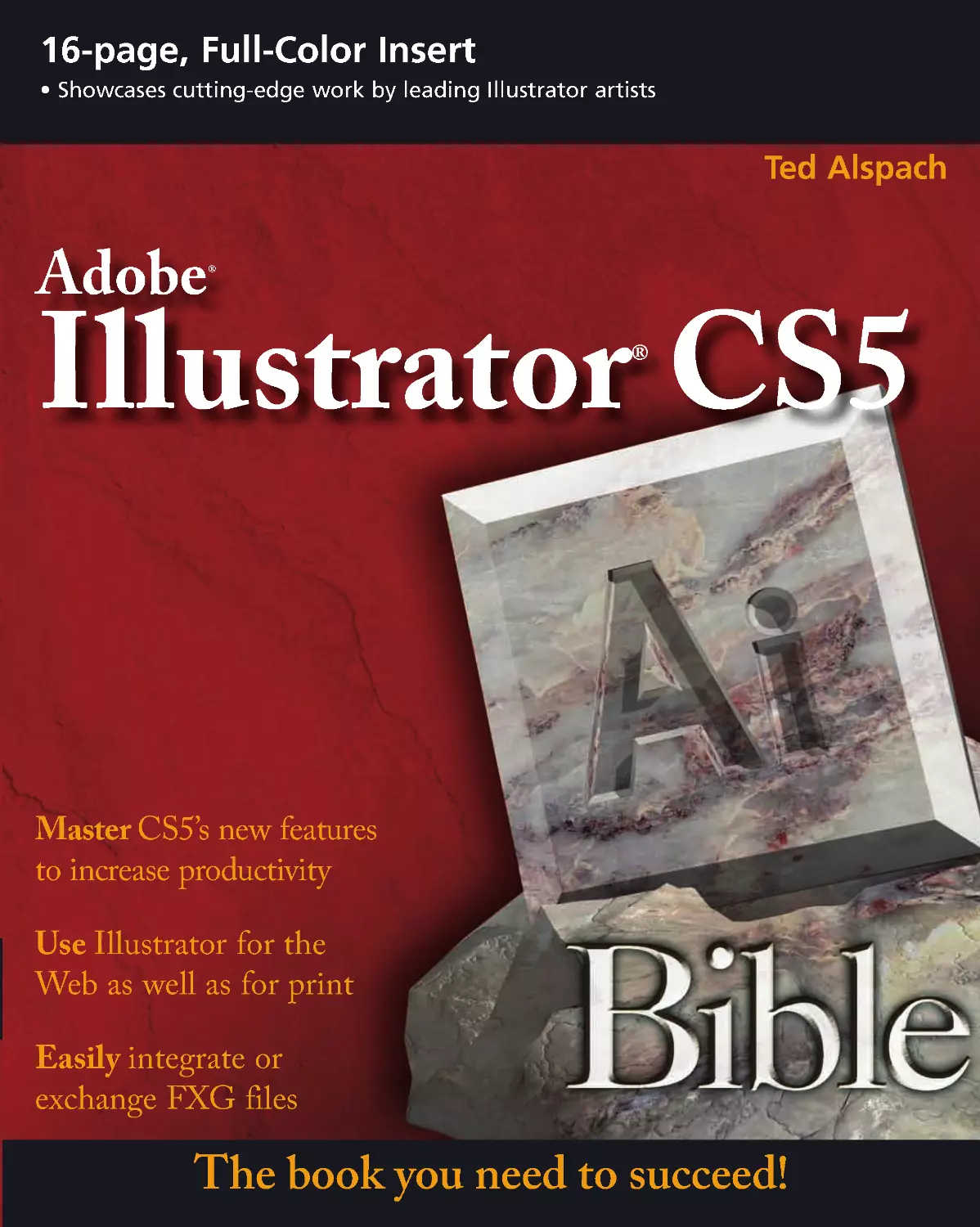
                    The book you need to succeed!
Master CS5’s new features
to increase productivity
Use Illustrator for the
Web as well as for print
Easily integrate or
exchange FXG files
Ted Alspach
Adobe®
Illustrator® CS5
Alspach
Learn Illustrator from former Adobe
product manager, Ted Alspach!
If you want to learn Illustrator CS5 inside and out, what
better source than a former member of the Illustrator
product team at Adobe? Ted Alspach originally wrote
the first Illustrator Bible because he couldn’t find a
book on the subject that was comprehensive enough to
suit him—so he created one! In this newest edition, you’ll
find the in-depth coverage you need, from Illustrator
basics to producing striking effects with vectors and
rasters, and much more.
Give depth to two-
dimensional art
Explore how to use the
transparency grid
Create exciting projects
• Explore Illustrator CS5’s desktop, new tools, and how to navigate
• Master basic shapes, and then spark them with flares, fills, and strokes
• Learn paths, masks, Live Trace, and Live Paint
• Build 3D images with perspective and surface characteristics
• Design logos, ads, and full-sized billboards with Illustrator
• Create for the Web, add interactivity, and use data-driven graphics
Ted Alspach
is the former Illustrator Group
Product Manager at Adobe Systems.
He is the author of more than 25
books on desktop publishing and
graphics, including Illustrator CS
Bible, Photoshop Complete, and
Illustrator CS For Dummies, as
well as hundreds of articles on
related topics.
Shelving Category:
COMPUTERS / Computer Graphics
Reader Level:
Beginning to Advanced
$44.99 USA
$53.99 Canada
www.wiley.com/compbooks
A
d
o
b
e
®
I
l
l
u
s
t
r
a
t
o
r
®
C
S
5
16-page, Full-Color Insert
• Showcases cutting-edge work by leading Illustrator artists

Illustrator
®
CS5 Bible
01_584750-ffirs.indd i
01_584750-ffirs.indd i
6/3/10 7:38 PM
6/3/10 7:38 PM

01_584750-ffirs.indd ii
01_584750-ffirs.indd ii
6/3/10 7:38 PM
6/3/10 7:38 PM

Illustrator
®
CS5 Bible
Ted Alspach
01_584750-ffirs.indd iii
01_584750-ffirs.indd iii
6/3/10 7:38 PM
6/3/10 7:38 PM

Illustrator® CS5 Bible
Published by
Wiley Publishing, Inc.
10475 Crosspoint Boulevard
Indianapolis, IN 46256
www.wiley.com
Copyright © 2010 by Wiley Publishing, Inc. , Indianapolis, Indiana
Published by Wiley Publishing, Inc., Indianapolis, Indiana
Published simultaneously in Canada
ISBN: 978-0-470-58475 -0
Manufactured in the United States of America
10987654321
No part of this publication may be reproduced, stored in a retrieval system or transmitted in any form or by any means,
electronic, mechanical, photocopying, recording, scanning or otherwise, except as permitted under Sections 107 or 108
of the 1976 United States Copyright Act, without either the prior written permission of the Publisher, or authorization
through payment of the appropriate per-copy fee to the Copyright Clearance Center, 222 Rosewood Drive, Danvers, MA
01923, (978) 750-8400, fax (978) 646-8600. Requests to the Publisher for permission should be addressed to the
Permissions Department, John Wiley & Sons, Inc., 1 11 River Street, Hoboken, NJ 07030, (201) 748-6011, fax (201) 748-
6008, or online at http://www.wiley.com/go/permissions.
Limit of Liability/Disclaimer of Warranty: The publisher and the author make no representations or warranties with
respect to the accuracy or completeness of the contents of this work and specifically disclaim all warranties, including
without limitation warranties of fitness for a particular purpose. No warranty may be created or extended by sales or
promotional materials. The advice and strategies contained herein may not be suitable for every situation. This work is sold
with the understanding that the publisher is not engaged in rendering legal, accounting, or other professional services. If
professional assistance is required, the services of a competent professional person should be sought. Neither the publisher
nor the author shall be liable for damages arising herefrom. The fact that an organization or Website is referred to in this
work as a citation and/or a potential source of further information does not mean that the author or the publisher endorses
the information the organization or Website may provide or recommendations it may make. Further, readers should be
aware that Internet Websites listed in this work may have changed or disappeared between when this work was written
and when it is read.
For general information on our other products and services or to obtain technical support, please contact our Customer
Care Department within the U.S. at (877) 762-2974, outside the U.S. at (317) 572-3993 or fax (317) 572-4002.
Library of Congress Control Number: 2010929315
Trademarks: Wiley, the Wiley logo, and related trade dress are trademarks or registered trademarks of John Wiley &
Sons, Inc., in the United States and other countries, and may not be used without written permission. Adobe and
Illustrator are registered trademarks of Adobe Systems Incorporated in the United States and/or other countries. All other
trademarks are the property of their respective owners. Wiley Publishing, Inc. is not associated with any product or vendor
mentioned in this book.
Wiley also publishes its books in a variety of electronic formats. Some content that appears in print may not be available in
electronic books.
01_584750-ffirs.indd iv
01_584750-ffirs.indd iv
6/3/10 7:38 PM
6/3/10 7:38 PM

About the Author
Ted Alspach is the author of more than 35 books on desktop publishing and graphics as well as
hundreds of articles and reviews on related topics, including the Illustrator Bible series and the
Illustrator For Dummies series. Ted was the Group Product Manager for Illustrator and the
Creative Suite at Adobe Systems for more than seven years. Ted also runs Bézier Games (http://
games.bezier.com), a board game publishing company, and has designed more than a dozen
games and expansions for popular games, including Beer & Pretzels, Rapscallion, Seismic (Atlas
Games), Start Player, and Ultimate Werewolf.
01_584750-ffirs.indd v
01_584750-ffirs.indd v
6/3/10 7:38 PM
6/3/10 7:38 PM

Credits
Senior Acquisitions Editor
Stephanie McComb
Project Editor
Beth Taylor
Technical Editor
Dennis R. Cohen
Copy Editor
Kim Heusel
Editorial Manager
Robyn Siesky
Business Manager
Amy Knies
Senior Marketing Manager
Sandy Smith
Vice President and Executive Group
Publisher
Richard Swadley
Vice President and Executive Publisher
Bob Ipsen
Vice President and Publisher
Barry Pruett
Project Coordinator
Lynsey Stanford
Graphics and Production Specialist
Ana Carrillo
Quality Control Technician
John Greenough
Proofreading
Context Editorial Services
Indexing
Valerie Haynes Perry
01_584750-ffirs.indd vi
01_584750-ffirs.indd vi
6/3/10 7:38 PM
6/3/10 7:38 PM

Preface.................................................xxiii
Acknowledgments........................................xxvii
Part I: Illustrator Basics
1
Chapter1:What’sNewinIllustratorCS5?.........................3
Enhanced Strokes and Brushes..............................................................................................3
Path Join Enhancement .........................................................................................................5
Select Behind Downgrade .....................................................................................................6
Drawing Modes.....................................................................................................................6
Perspective Grid....................................................................................................................7
The Artboards Panel..............................................................................................................7
Artboard Rulers..................................................................................................................... 8
Gradient Mesh Point Transparency .......................................................................................8
Shape Builder Tool................................................................................................................8
Symbol Enhancements .......................................................................................................... 8
Flash XML Graphics..............................................................................................................9
Align to Pixel Grid ................................................................................................................9
Resolution-Independent Effects.............................................................................................9
Summary ..............................................................................................................................9
Chapter2:UnderstandingIllustrator’sDesktop....................11
Picasso Meets Illustrator: Getting Started ............................................................................ 11
Getting started with Illustrator .................................................................................. 12
Quitting Illustrator .................................................................................................... 12
Working with Illustrator’s Interface..................................................................................... 13
Working in the document window ........................................................................... 14
Working with the Tools panel ................................................................................... 17
Viewing the tool tips ................................................................................................. 19
Using the panels ....................................................................................................... 19
Using Illustrator’s menus........................................................................................... 23
Using the status bar ................................................................................................... 25
vii
02_584750-ftoc.indd vii
02_584750-ftoc.indd vii
6/3/10 7:38 PM
6/3/10 7:38 PM

viii
Contents
Navigating Around Your Document ....................................................................................26
Understanding the Zoom tool ...................................................................................26
Using the Zoom tool..................................................................................................27
Other zooming techniques ........................................................................................28
Zooming with the Navigator panel ............................................................................30
Using the scroll bars to view your document .............................................................31
Scrolling with the Hand tool .....................................................................................32
Scrolling with the Navigator panel ............................................................................33
Opening a new window ............................................................................................33
Using Illustrator’s Modes.....................................................................................................33
Working in Outline mode versus Preview mode .......................................................33
Understanding Overprint Preview mode ...................................................................35
Understanding Pixel Preview mode ...........................................................................36
Using and creating custom views...............................................................................37
Using screen modes...................................................................................................37
Using the Edit Commands ..................................................................................................37
Using the Clear command .........................................................................................38
Cutting, copying, and pasting ...................................................................................39
Undoing and redoing ................................................................................................40
Summary ............................................................................................................................40
Chapter3:WorkingwithIllustratorDocuments....................41
Setting Up a New Document ...............................................................................................41
Modifying the Setup of a Document ....................................................................................44
Adjusting the Bleed and View Options ......................................................................44
Working with Transparency options .........................................................................46
Changing Type Options ............................................................................................46
Artboards ............................................................................................................................46
Choosing the artboard measurement units ................................................................47
Working with the Artboards panel ............................................................................47
The Artboard tool......................................................................................................48
Changing the artboard size using the Control panel ..................................................48
Opening and Closing Illustrator Files..................................................................................51
Saving Files .........................................................................................................................51
Using the Save As command ....................................................................................53
Understanding the Save a Copy command ................................................................53
Reverting to the last saved version.............................................................................54
Saving for Web & Devices option .............................................................................54
Understanding file types and options ........................................................................55
Using Illustrator’s compatibility options ....................................................................55
Saving as Illustrator EPS ............................................................................................56
Saving files as Adobe PDF .........................................................................................58
Saving files in SVG ....................................................................................................60
Using the Export Command ...............................................................................................61
Placing Art ..........................................................................................................................63
02_584750-ftoc.indd viii
02_584750-ftoc.indd viii
6/3/10 7:38 PM
6/3/10 7:38 PM

ix
Contents
Placing Photoshop Art in Illustrator: Understanding Vectors and Pixels .............................. 64
Placing raster images ................................................................................................. 65
Using the Clipboard ..................................................................................................66
Dragging and dropping .............................................................................................66
Working with Document and File Information ................................................................... 66
Looking at document information ............................................................................. 67
Saving document information ................................................................................... 68
Finding file information ............................................................................................ 68
Summary ............................................................................................................................68
Chapter 4: Understanding Drawing and Painting Techniques . . . . . . . . . 69
Working with Paths ............................................................................................................ 69
Understanding types of paths .................................................................................... 70
Understanding anchor points .................................................................................... 71
Understanding control handles and control handle lines ........................................... 72
Understanding how fills and strokes relate to paths................................................... 76
Drawing Paths with Illustrator Tools ................................................................................... 79
Using the Pencil tool .................................................................................................79
Working with the Smooth tool ..................................................................................85
Erasing with the Path Eraser tool...............................................................................86
Drawing with the Pen tool.........................................................................................87
Using the various line tools ....................................................................................... 94
Using the Paintbrush tool ........................................................................................101
Using brushes .........................................................................................................103
Using the Calligraphic brush ...................................................................................104
Creating with the Scatter brush ..............................................................................106
Working with the Art brush ....................................................................................108
Creating tiles using the Pattern brush ......................................................................109
Painting with the Bristle Brush ................................................................................111
Making a custom brush ...........................................................................................112
Understanding colorization tips ..............................................................................113
Checking out the Brush libraries ............................................................................114
Using Variable Width Strokes..................................................................................116
Summary .......................................................................................................................... 116
Chapter5:CreatingObjects,Graphs,andSymbols................119
Making Basic Shapes .........................................................................................................119
Drawing shapes from their centers ..........................................................................122
Drawing symmetric shapes......................................................................................122
Drawing shapes at an angle .....................................................................................122
Drawing rectangles using the Rectangle tool ............................................................123
Defining properties with the Rectangle dialog box................................................... 124
Drawing rounded rectangles and squares ................................................................125
Using the Round Corners command to round straight corners ................................127
Rounding corners backward....................................................................................128
02_584750-ftoc.indd ix
02_584750-ftoc.indd ix
6/3/10 7:38 PM
6/3/10 7:38 PM

x
Contents
Drawing ellipses ...................................................................................................... 129
Creating polygons ................................................................................................... 130
Seeing stars ............................................................................................................. 132
Working with the Flare Tool ............................................................................................. 136
Understanding Flare options ................................................................................... 136
Using a flare to add highlights ................................................................................. 137
Editing a flare .......................................................................................................... 138
Filling and Stroking Shapes............................................................................................... 138
Using fills ................................................................................................................ 139
Using strokes........................................................................................................... 140
Combining strokes with fills.................................................................................... 142
Applying fills and strokes ........................................................................................ 143
Adding arrowheads ................................................................................................. 144
Creating Shapes with the Shape Builder Tool .................................................................... 146
Creating and Embellishing Graphs and Charts .................................................................. 147
Importing Microsoft Excel graph data ..................................................................... 148
Making and editing graphs ...................................................................................... 149
Customizing graphs ................................................................................................ 151
Choosing a graph type ............................................................................................ 152
Creating Flowcharts, Diagrams, and Site Maps.................................................................. 156
Using Symbols .................................................................................................................. 157
Spraying with the Symbol Sprayer tool.................................................................... 157
Making a new symbol ............................................................................................. 160
Using the Symbol tool ............................................................................................. 161
Summary .......................................................................................................................... 162
Chapter6:LearningHowtoSelectandEdit......................163
Selecting a Path for Editing ............................................................................................... 163
Understanding the selection methods...................................................................... 163
Deciding which selection tool to use ....................................................................... 168
Selecting, moving, and deleting entire paths............................................................ 172
Using different selection options ............................................................................. 174
Keeping and labeling a selection.............................................................................. 180
Custom paint style selections .................................................................................. 181
Editing Paths in Illustrator ................................................................................................ 181
Editing with anchor points ...................................................................................... 182
The Add Anchor Points function ............................................................................. 183
Removing anchor points.......................................................................................... 185
Simplifying paths by removing anchor points ......................................................... 186
Splitting paths ......................................................................................................... 187
Sectioning and repeating paths................................................................................ 188
Reshaping paths ...................................................................................................... 189
Cleaning up a path ................................................................................................. 190
Offsetting a path...................................................................................................... 192
Outlining a path ...................................................................................................... 193
02_584750-ftoc.indd x
02_584750-ftoc.indd x
6/3/10 7:38 PM
6/3/10 7:38 PM

xi
Contents
Aligning and distributing points ..............................................................................194
Joining ....................................................................................................................195
Converting Anchor Points .................................................................................................197
Converting Smooth Points ................................................................................................197
Converting straight corner points ............................................................................198
Converting combination corner points ....................................................................199
Converting curved corner points .............................................................................200
Using Illustrator’s Pathfinder Functions ............................................................................200
Setting the Pathfinder options .................................................................................201
Adding to a shape ...................................................................................................202
Subtracting from a shape.........................................................................................203
Intersecting and excluding shapes ...........................................................................204
Using the Expand button ........................................................................................205
Dividing paths.........................................................................................................205
Trimming paths ......................................................................................................206
Merging paths .........................................................................................................206
Cropping paths .......................................................................................................207
Outlining paths .......................................................................................................208
Using Minus Back ...................................................................................................208
Trapping .................................................................................................................208
Summary ..........................................................................................................................209
Chapter 7: Understanding Color, Gradients, and Mesh . . . . . . . . . . . . . 211
Working with the Swatches Panel .....................................................................................211
Using the color swatches .........................................................................................212
Using the Swatches popup menu ............................................................................213
Using other swatch libraries ....................................................................................216
Using color space options in the Color panel ..........................................................218
Using the Color Ramp ............................................................................................221
Working with gamut ...............................................................................................221
Spot colors ..............................................................................................................222
Applying colors with the Color panel .....................................................................223
Transferring color from one object to another .........................................................223
Using Transparency ..........................................................................................................225
Defining transparency between objects, groups, and layers .....................................227
Working with opacity .............................................................................................228
Using blending modes.............................................................................................228
Isolating blending....................................................................................................229
Knocking out a group .............................................................................................230
Using opacity, clipping, and invert masks ...............................................................230
Viewing the transparency grid .................................................................................232
Printing and flattening.............................................................................................234
Transparency and type ............................................................................................235
Separating transparent objects .................................................................................235
3-D, symbols, and transparency ..............................................................................236
02_584750-ftoc.indd xi
02_584750-ftoc.indd xi
6/3/10 7:38 PM
6/3/10 7:38 PM

xii
Contents
Creating Gradients ............................................................................................................ 238
Using preset gradients ............................................................................................ 239
Using the Gradient panel......................................................................................... 239
Working with the Gradient tool .............................................................................. 240
Expanding gradient objects ..................................................................................... 244
Printing gradients .................................................................................................... 244
Adding Realism with Mesh................................................................................................ 245
Enhancing with highlights and color ....................................................................... 246
Adding multiple highlights...................................................................................... 247
Summary .......................................................................................................................... 250
Part II: Putting Illustrator to Work
251
Chapter8:UsingIllustratortoOrganizeObjects..................253
Locking and Hiding Objects ............................................................................................. 253
Locking objects ....................................................................................................... 254
Hiding objects ......................................................................................................... 254
Setting object attributes ........................................................................................... 255
Understanding Object Stacking Order .............................................................................. 256
Controlling the stacking order for objects ............................................................... 256
Understanding the stacking order for text ............................................................... 257
Using a stacking order for strokes and fills .............................................................. 258
Pasting objects in front of and behind selected objects ............................................ 258
Creating and Deconstructing Groups ................................................................................ 258
Grouping objects..................................................................................................... 259
Ungrouping............................................................................................................. 259
Layering Your Artwork ..................................................................................................... 260
Getting started with layers....................................................................................... 261
Using the Layers panel ............................................................................................ 263
Moving and layers ................................................................................................... 265
Using the Layers panel’s menu .............................................................................. 266
Working with Templates in Illustrator .............................................................................. 268
Placing a template on a layer .................................................................................. 268
Using a template to trace an image .......................................................................... 269
Using Align and Distribute ............................................................................................... 271
Measuring an Image .......................................................................................................... 272
Changing the measurement units ............................................................................ 272
Using the Measure tool............................................................................................ 274
Sizing objects with the Transform panel .................................................................. 276
Using rulers............................................................................................................. 276
Measuring with objects............................................................................................ 277
Using Offset Path (for equidistant measuring) ........................................................ 277
02_584750-ftoc.indd xii
02_584750-ftoc.indd xii
6/3/10 7:38 PM
6/3/10 7:38 PM

xiii
Contents
Working with Grids ..........................................................................................................278
Creating grid color, style, and spacing ....................................................................279
Spinning grids .........................................................................................................280
Perspective grids .....................................................................................................281
Using Guides .................................................................................................................... 283
Creating guides .......................................................................................................283
Locking, unlocking, and moving guides ..................................................................283
Releasing guides ......................................................................................................284
Deleting guides .......................................................................................................284
Changing guide preferences ....................................................................................284
Understanding Smart Guides ..................................................................................285
Measuring for Printing ......................................................................................................287
Tiling ......................................................................................................................287
Creating crop marks ................................................................................................289
Summary .......................................................................................................................... 290
Chapter9:WorkingwithType................................293
Understanding Fonts ........................................................................................................293
Understanding bitmap fonts ....................................................................................293
Understanding PostScript fonts ...............................................................................294
Understanding TrueType fonts ................................................................................294
Understanding OpenType fonts ..............................................................................294
Adding type with Multiple Master fonts ..................................................................295
Understanding Basic Type Menu Commands ....................................................................295
Using the Font submenu .........................................................................................296
Understanding the Recent Fonts submenu ..............................................................298
Choosing a font size ................................................................................................298
Using alternate glyphs .............................................................................................298
Using the Type Tools ........................................................................................................299
Using the Type tool .................................................................................................300
Using the Area Type tool .........................................................................................301
Using the Type on a Path tool .................................................................................301
Using the Vertical Type tool ....................................................................................302
Creating Individual Type ..................................................................................................303
Placing Area Type in a Rectangle .......................................................................................304
Working with Type Areas .................................................................................................305
Creating Area Type ...........................................................................................................306
Using area type functions ........................................................................................307
Choosing good shapes for area type .......................................................................308
Outlining areas of area type.....................................................................................308
Selecting carefully with area type ...........................................................................308
Changing the area, not the type ..............................................................................309
Flowing area type into shapes ................................................................................310
02_584750-ftoc.indd xiii
02_584750-ftoc.indd xiii
6/3/10 7:38 PM
6/3/10 7:38 PM

xiv
Contents
Flowing area type into shapes ................................................................................ 311
Wrapping type around paths................................................................................... 311
Placing Type on a Path ......................................................................................................311
Adding effects to type on a path ..............................................................................313
Using vertical type................................................................................................... 314
Selecting Type................................................................................................................... 316
Editing Type ..................................................................................................................... 317
Using the Type Panels ....................................................................................................... 318
Working with the Character panel ..........................................................................318
Working with the Paragraph panel ..........................................................................325
Working with the OpenType panel .........................................................................330
Working with the Tabs panel ..................................................................................330
Using Advanced Type Functions....................................................................................... 332
Threading text ......................................................................................................... 332
Unthreading text ..................................................................................................... 333
Fitting a headline ................................................................................................... 333
Finding and replacing text ...................................................................................... 333
Finding fonts .......................................................................................................... 335
Checking spelling....................................................................................................335
Changing case ......................................................................................................... 337
Using Smart Punctuation......................................................................................... 338
Adding rows and columns....................................................................................... 339
Showing hidden characters ..................................................................................... 340
Changing type orientation ...................................................................................... 341
Updating legacy text ................................................................................................ 341
Exporting and placing ............................................................................................341
Creating Outlines .............................................................................................................. 342
Distorting characters for special effects .................................................................... 343
Masking and other effects........................................................................................ 343
Avoiding font conflicts by creating outlines ............................................................. 344
Understanding hinting ............................................................................................345
Understanding Other Type Considerations ...................................................................... 345
Summary ..........................................................................................................................346
Chapter 10: Using Creative Strokes and Fills with Patterns . . . . . . . . . . 347
Using Creative Strokes ...................................................................................................... 347
Stroke essentials ...................................................................................................... 348
Using the stroke charts ............................................................................................ 349
Creating parallel strokes .......................................................................................... 353
Creating map elements ............................................................................................ 356
Creating a highway..................................................................................................358
Creating Perfect Patterns ................................................................................................... 360
Using the default patterns ....................................................................................... 360
Creating custom patterns ....................................................................................... 362
Understanding pattern backgrounds and boundaries .............................................. 363
02_584750-ftoc.indd xiv
02_584750-ftoc.indd xiv
6/3/10 7:38 PM
6/3/10 7:38 PM

xv
Contents
Making seamless patterns ........................................................................................364
Creating symmetrical patterns .................................................................................364
Creating line patterns and grids...............................................................................364
Using diagonal-line and grid patterns ......................................................................365
Using transparency and patterns together................................................................367
Transforming patterns .............................................................................................368
Summary ..........................................................................................................................369
Chapter 11: Applying Transformations and Distortions . . . . . . . . . . . . . 371
Adding a Transformation with Tools.................................................................................371
Rotating with the Rotate tool ...................................................................................375
Reflecting with the Reflect tool ................................................................................375
Scaling with the Scale tool .......................................................................................378
Shearing with the Shear tool....................................................................................378
Reshaping with the Reshape tool .............................................................................379
Moving objects ........................................................................................................381
Using the Free Transform tool.................................................................................383
Working with the Transform Panel ..................................................................................384
Using Transform Each.......................................................................................................385
Using Transformations .....................................................................................................388
Creating cast shadows ............................................................................................389
Rotating into a path.................................................................................................389
Making tiles using the Reflect tool ..........................................................................390
Using transformation tools on portions of paths .....................................................392
Transforming patterns ............................................................................................393
Using Liquify Tools on Objects .........................................................................................394
Warping objects ......................................................................................................395
Twirling objects ......................................................................................................395
Puckering ................................................................................................................395
Bloating ...................................................................................................................397
Scalloping ...............................................................................................................397
Crystallizing ............................................................................................................397
Wrinkling ...............................................................................................................397
Distorting with Effects.......................................................................................................400
Using free distortions ..............................................................................................400
Using Pucker & Bloat ..............................................................................................401
Roughening objects .................................................................................................403
Transforming objects...............................................................................................405
Tweaking transforms ...............................................................................................405
Using the Twist command.......................................................................................407
Working with the Zig Zag effect .............................................................................407
Using Warp Effects ...........................................................................................................411
Understanding Warp types......................................................................................412
Summary ..........................................................................................................................414
02_584750-ftoc.indd xv
02_584750-ftoc.indd xv
6/3/10 7:38 PM
6/3/10 7:38 PM

xvi
Contents
Chapter 12: Using Path Blends, Compound Paths, and Masks . . . . . . . . 415
Understanding the Difference between Blends and Gradients ........................................... 415
Creating Path Blends ......................................................................................................... 417
Defining Linear Blends ...................................................................................................... 418
Working with Blend Options ............................................................................................ 420
Using the Blend option............................................................................................ 420
Blending multiple objects ........................................................................................ 421
Editing a blended object.......................................................................................... 421
Releasing a blend.....................................................................................................422
Expanding blends ................................................................................................... 422
Replacing the spine ................................................................................................. 422
Reversing the spine ................................................................................................. 424
Reversing front to back............................................................................................424
Using nonlinear blends ........................................................................................... 425
Finding end paths for linear blends ........................................................................ 427
Calculating the number of steps .............................................................................. 428
Creating radial blends ............................................................................................. 429
Making a Color Blend .......................................................................................................431
Using multiple colors with linear blends ................................................................ 431
Using guidelines for creating color linear blends ..................................................... 432
Creating Shape Blends ...................................................................................................... 433
Complex-shape blending.........................................................................................433
Creating realism with shape blends ......................................................................... 434
Blending symbols .................................................................................................... 436
Blending envelopes ................................................................................................. 438
Blending 3-D objects ............................................................................................... 438
Airbrushing shadows............................................................................................... 441
Creating glows ........................................................................................................ 442
Softening edges ....................................................................................................... 442
Designing neon effects ............................................................................................ 444
Using Compound Paths .................................................................................................... 446
Creating compound paths ....................................................................................... 446
Releasing compound paths ..................................................................................... 447
Understanding holes ............................................................................................... 448
Overlapping holes ................................................................................................... 448
Creating compound paths from separate sets of paths ............................................. 449
Working with type and compound paths ................................................................ 450
Finding Path Directions .................................................................................................... 451
Figuring out which way to go.................................................................................. 452
Reversing path directions ........................................................................................ 452
Faking a compound path ........................................................................................454
Using Clipping Masks ....................................................................................................... 454
Creating masks........................................................................................................ 455
Masking raster images ............................................................................................. 455
02_584750-ftoc.indd xvi
02_584750-ftoc.indd xvi
6/3/10 7:38 PM
6/3/10 7:38 PM

xvii
Contents
Using a mask with other masks ...............................................................................456
Releasing masks ......................................................................................................456
Masking and printing ..............................................................................................457
Masking and compound paths ................................................................................457
Drawing within and behind masks ..........................................................................457
Summary ..........................................................................................................................458
Chapter13:UsingLiveTrace.................................461
Understanding Live Trace .................................................................................................461
Learning Live Trace Modes ...............................................................................................463
Getting to know Outline mode................................................................................464
Using Tracing Result mode......................................................................................465
Combining Outline and Tracing Result modes ........................................................465
Setting Live Trace Options ................................................................................................466
Understanding the Live Trace presets ......................................................................466
Choosing custom Live Trace options .......................................................................478
Tracing Raster Images with Live Trace ..............................................................................480
Summary ..........................................................................................................................482
Chapter14:UsingLivePaint..................................483
Understanding Live Paint ..................................................................................................483
Setting the Live Paint Options ...........................................................................................486
Using Live Paint ................................................................................................................ 488
Summary ..........................................................................................................................489
Part III: Mastering Illustrator
491
Chapter15:WorkingwithGraphicStylesandEffects...............493
Understanding How Graphic Styles Work .......................................................................493
Using the Appearance panel ....................................................................................494
Working with the Graphic Styles panel ..................................................................499
Using Effects ..................................................................................................................... 502
Understanding 3-D effects .......................................................................................503
Using Convert to Shape effects ................................................................................503
Distorting and transforming effects .........................................................................504
Creating Path effects ................................................................................................504
Understanding the Rasterize effect...........................................................................505
Stylizing effects .......................................................................................................506
Using SVG Filters effects .........................................................................................513
Warp effects ............................................................................................................514
Creating Photoshop effects ......................................................................................514
Summary .......................................................................................................................... 514
02_584750-ftoc.indd xvii
02_584750-ftoc.indd xvii
6/3/10 7:38 PM
6/3/10 7:38 PM

xviii
Contents
Chapter16:Creating3-DinIllustrator..........................515
Using 3-D in Illustrator ..................................................................................................... 515
Understanding the Three-Dimensional World................................................................... 516
Changing from two dimensions to three dimensions ............................................... 516
Three-dimensional positioning ................................................................................ 516
Perspective and 3-D .. .... .... .... .... .... .... .... .... .... .... .... .... .... .... .... .... .... .... ... .... .... .... .... ... 517
Extruding and Revolving 2-D Objects ............................................................................... 518
Extruding flat art ..................................................................................................... 519
Extruding a stroke................................................................................................... 520
Understanding bevels .............................................................................................. 521
Revolving objects .................................................................................................... 523
Rotating Objects ............................................................................................................... 525
Changing the Appearance of Three-Dimensional Objects .................................................. 526
The Surface characteristics ...................................................................................... 526
Understanding lighting............................................................................................ 528
Lighting options ...................................................................................................... 528
Using the Appearance panel with 3-D ... .... .... .... .... .... .... .... .... .... .... .... ... .... .... .... .... ... 530
Mapping 2-D art to 3-D surfaces ............................................................................. 530
Using Other 3-D Techniques ............................................................................................ 534
Using gradients to make bumps and dents .............................................................. 534
Perspective drawing ................................................................................................ 534
Summary .......................................................................................................................... 535
Chapter17:CustomizingandAutomatingIllustrator...............537
Who’s Responsible for Illustrator? ..................................................................................... 537
Customization Options ..................................................................................................... 537
Changing Preferences........................................................................................................ 539
Altering the Keyboard Increment option ................................................................. 539
Using the Constrain Angle option ........................................................................... 539
Changing the Corner Radius option ....................................................................... 541
Adjusting the General options ................................................................................. 541
Changing the Selection & Anchor Display options .................................................. 545
Changing Preferences for Type.......................................................................................... 546
The Size/Leading option .......................................................................................... 548
The Baseline Shift option......................................................................................... 548
The Tracking option................................................................................................ 548
The Type Object Selection by Path Only option ...................................................... 549
The Show Asian Options option.............................................................................. 549
The Show Font Names in English option ................................................................ 549
Setting the Number of Recent Fonts option ............................................................. 549
Choosing a Font Preview size .................................................................................. 549
Enable Missing Glyph Protection............................................................................. 549
Use Inline Input for Non-Latin text ......................................................................... 549
02_584750-ftoc.indd xviii
02_584750-ftoc.indd xviii
6/3/10 7:38 PM
6/3/10 7:38 PM

xix
Contents
Using Units & Display Performance ..................................................................................550
Changing Units settings...........................................................................................550
Changing Display Performance ...............................................................................551
Changing Guides & Grid Preferences................................................................................551
Adjusting Smart Guides ....................................................................................................552
Changing Display Options .....................................................................................553
Altering angles (for construction guides) ................................................................553
Changing the Snapping Tolerance ...........................................................................553
Adjusting Slices Preferences ..............................................................................................553
Changing Hyphenation .....................................................................................................554
Adjusting the Plug-Ins & Scratch Disks ...........................................................................555
Customizing the User Interface .........................................................................................555
Customizing the File Handling & Clipboard.....................................................................556
Setting the Appearance of Black Options...........................................................................557
Altering Placement and Tools Panel Value Preferences ......................................................558
Adding Keyboard Customization ......................................................................................558
Knowing What You Can’t Customize ...............................................................................558
Using Actions ................................................................................................................... 559
Using a Default Action ...........................................................................................559
Creating a new action .............................................................................................561
Creating a new set ..................................................................................................561
What is recordable?.................................................................................................561
Duplicating and deleting an action .........................................................................562
Starting and stopping recording .............................................................................562
Inserting a menu item .............................................................................................563
Inserting a stop .......................................................................................................563
Action Options ........................................................................................................563
Playback Options ....................................................................................................563
Inserting a selected path ..........................................................................................564
Selecting an object...................................................................................................564
Clearing, resetting, loading, replacing, and saving actions .......................................565
Summary .......................................................................................................................... 566
Part IV: Getting Art Out of Illustrator
567
Chapter18:UnderstandingPostScriptandPrinting................569
Understanding the Benefits of PostScript...........................................................................570
Using PostScript................................................................................................................ 571
Knowing What to Do Prior to Printing ..............................................................................571
Changing the artboard size ......................................................................................571
Printing composites.................................................................................................572
Working with gray colors ........................................................................................576
02_584750-ftoc.indd xix
02_584750-ftoc.indd xix
6/3/10 7:38 PM
6/3/10 7:38 PM

xx
Contents
Using the Separation Setup ............................................................................................... 577
Understanding the printer’s marks and bleeds......................................................... 578
Changing printer information.................................................................................. 578
Changing the page size ............................................................................................ 578
Changing the orientation......................................................................................... 579
Understanding emulsion ......................................................................................... 581
Changing from positive to negative to positive ........................................................ 581
Working with different colors ................................................................................. 581
Outputting a Color-Separated File .................................................................................... 582
Using spot color separations.................................................................................... 582
Printing process color separation............................................................................. 584
Choosing numerous colors ...................................................................................... 584
Combining spot and process color separations ........................................................ 587
Using Other Applications to Print ..................................................................................... 587
Understanding Trapping ................................................................................................... 588
Understanding misaligned color separations .......................................................... 590
Knowing how much you need to trap ..................................................................... 591
Trapping Illustrator files ......................................................................................... 592
Using complex trapping techniques in Illustrator .................................................... 593
Summary .......................................................................................................................... 594
Chapter19:CreatingWebGraphics............................595
Designing for the Web versus Designing for Print ............................................................. 595
Illustrator and the Web — the Basics ................................................................................ 596
Understanding Pixel Preview mode ......................................................................... 597
Using Web-safe colors ............................................................................................. 601
Understanding hexadecimal colors .......................................................................... 603
Optimizing and Saving Web Graphics .............................................................................. 603
Introducing the Save for Web & Devices dialog box ............................................... 604
Previewing Web graphics ........................................................................................ 604
Learning the Web-graphic formats .......................................................................... 607
Choosing output options......................................................................................... 610
Creating Vector Graphics for the Web...............................................................................614
Using Flash graphics ............................................................................................... 614
Creating SVG files ................................................................................................... 616
Understanding Web Slicing ..............................................................................................621
Object-Based Web Slicing .................................................................................................622
Working with slices................................................................................................. 624
Understanding CSS layers ....................................................................................... 625
Getting Interactive ............................................................................................................ 626
Specifying an image map .........................................................................................626
Creating animations ................................................................................................ 627
02_584750-ftoc.indd xx
02_584750-ftoc.indd xx
6/3/10 7:38 PM
6/3/10 7:38 PM

xxi
Contents
Using Data-Driven Graphics to Streamline Design Work ..................................................631
Understanding variables ..........................................................................................632
Using the Variables panel ........................................................................................632
Understanding scripting ..........................................................................................633
Scripting versus actions ...........................................................................................633
Setting up a data-driven graphics template ..............................................................634
Using FXG to Enhance Flex-based Workflows ..................................................................637
Summary ..........................................................................................................................638
Chapter20:IllustratorWorkflow..............................639
Project Background ...........................................................................................................639
Building the Documents....................................................................................................641
Setting up the document .........................................................................................641
Creating the front cover ..........................................................................................641
Creating the box sides .............................................................................................645
Creating the box bottom .........................................................................................647
Preparing for production.........................................................................................649
Summary ..........................................................................................................................650
Appendix:ShortcutsinIllustratorCS5..........................651
Menu Commands .............................................................................................................652
Toolbox Commands .........................................................................................................657
Type Commands...............................................................................................................670
Color Commands..............................................................................................................672
Other Panels ..................................................................................................................... 675
Miscellaneous Commands.................................................................................................677
Generic Dialog Box Commands ........................................................................................678
Index ...................................................679
02_584750-ftoc.indd xxi
02_584750-ftoc.indd xxi
6/3/10 7:38 PM
6/3/10 7:38 PM

02_584750-ftoc.indd xxii
02_584750-ftoc.indd xxii
6/3/10 7:38 PM
6/3/10 7:38 PM

xxiii
You’re holding in your hands the biggest, most thorough, and most helpful guide to Adobe
Illustrator you’ll find anywhere.
The Illustrator CS5 Bible is the book I wrote because I couldn’t find the book I wanted about
Adobe Illustrator. Now I have it, and believe it or not, I’m constantly using my own book as a
reference. I’d love to tell the world, “Sure, I know that,” without putting them on hold while I
search the index for the Reset Tracking to 0 shortcut on a Mac (Ô+Shift+X, by the way). There’s
just too much about Illustrator for any one person to keep in his or her head at one time; now, this
latest edition of this book gathers all the Illustrator information you can’t remember and makes it
more available and easier to follow than the plot twists on your favorite soap opera.
If you’re at your local bookstore looking at the different Illustrator books, don’t just pick this one
because it weighs the most (sorry about that...I get more thank-you letters from chiropractors
who’ve stayed in business because of this monstrosity) or because it works great as a booster seat
for your two-year-old nephew. Instead, take a look-see through these pages, which are stuffed to
overflowing with in-depth Illustrator information that you just won’t find anywhere else.
What’s New in This Edition
Illustrator CS5 has added a few new features and has revamped some of the old standby tools. In
this edition, you find complete coverage of the new functions and features as well as extensive
explanations on how these new features work. For a complete listing of new features and enhance-
ments, see Chapter 1.
Is This the Illustrator Book for You?
I’ve been to bookstores and seen the other Illustrator books out there. Some of them are quite
good. Some of them are fairly awful. But none of them can match the Illustrator CS5 Bible for
thoroughness, usefulness, or completeness. I’ve left no vector-based stone unturned.
03_584750-flast.indd xxiii
03_584750-flast.indd xxiii
6/3/10 7:38 PM
6/3/10 7:38 PM

Preface
Here are more reasons why the Illustrator CS5 Bible is the best overall book on Illustrator:
l The most complete coverage of Illustrator: This book isn’t big because I wanted to hog
all the retail book space for myself (of course, that’s not a bad idea), but it’s because I tried
to include every possible thing you’d ever want to know about Illustrator. From learning
the basics of drawing to creating outstanding special effects with vectors and rasters, it’s all
here.
l Fun, original, different artwork to illustrate the techniques and capabilities of
Illustrator: When I say different, I’m not talking about performance art. Instead, I mean
that each technique is created with a different piece of artwork. Some of it is simple, and
some of it is complex — with each piece showing not only a particular feature but also
other Illustrator capabilities.
l Clean artwork without those annoying jaggies: This is vector software. When you think
of vectors, you probably think of smooth, flowing paths that don’t look like someone
filled in a bunch of squares on a sheet of graph paper. So, instead of using screenshots for
paths shown in this book, each path was painstakingly drawn in Illustrator. I think you’ll
appreciate the difference.
l Top-notch technical prowess: Again, the Illustrator CS5 Bible has gotten the best
possible people to do a technical review of the book. Previous editions were technically
reviewed by the lead technical support engineer for Illustrator and UI designers who have
worked on the product.
l Perfect for teaching: If you know Illustrator inside and out, you’ll find that the Illustrator
CS5 Bible is the best teaching tool available for Illustrator, with examples and explanations
that perfectly complement a teaching environment. Many computer-training companies
teaching Illustrator use this book, as do schools and universities.
l Real-world examples and advice: Illustrator doesn’t exist in a vacuum. Instead, it’s often
used in conjunction with other programs and in a variety of different environments and
situations. Some people use Illustrator to create logos, others create full-page advertisements,
and still others create entire billboards with Illustrator. Throughout this book, I present
various real-world situations and examples that add to your understanding of each topic.
You don’t need to be an artist or a computer geek to learn Illustrator with this book. No matter
what your level of Illustrator experience is, you can undoubtedly find new things to try and will
learn more about Illustrator along the way.
How to Get the Most Out of This Book
You may want to be aware of a few matters before you dive too deeply into the mysteries of vector-
based graphics, Adobe-style:
l Versions: When you see the word Illustrator, it refers to all versions of Illustrator. When I
stick a number after the word Illustrator, it’s relevant to that version only. When Adobe
releases the next major upgrade, look for a new version of this book to help you through
xxiv
03_584750-flast.indd xxiv
03_584750-flast.indd xxiv
6/3/10 7:38 PM
6/3/10 7:38 PM

Preface
it. You can use this book for versions of Illustrator prior to CS5, as not a great deal has
changed in the software during that time, but be aware that Adobe has a penchant for
moving things around and occasionally adding new features where you might not expect
them.
l Menu and keyboard commands: To indicate that you need to choose a command from a
menu, I write something like MenuName ➪ Command — for example, File ➪ Save. If a
command is nested in a submenu, it’s presented as MenuName ➪ Submenu ➪ Command,
as in Effect ➪ Distort & Transform ➪ Roughen. If a command has a keyboard command, I
mention that for both Mac and Windows versions. For example, Save is Command+S on a
Mac, which I’ll present as Ô+S. Ô corresponds to the Ô symbol on the Mac keyboard.
The other Mac keys are spelled out — Option, Shift, Tab, and so forth. Save is Ctrl+S for
Windows (Ctrl corresponds to the Ctrl key on the Windows keyboard). So, both plat-
forms are specified by saying, “To save a document, press Ctrl+S Ô+S).” The Windows
convention is stated first and the Mac convention follows in parentheses. There are some
other minor differences in things like menus, dropdown lists (popup menus), and so on,
between the Windows and Mac versions, but you won’t have any problem identifying
these elements, no matter what you call them.
l This is not a novel: As much as I’d like you to discover plot intricacies, subtle character-
izations, and moral fabric woven into the story, none of those things exist in this book.
You can use this book in two ways:
l Look up what interests you in the Contents or the Index and then refer to that section.
Rinse and repeat as necessary.
l Slowly, calmly work your way through the entire book, trying out examples (the
funky steps that are almost everywhere) and techniques as you run across them. The
book is designed to be read this way, with each chapter building on the previous
chapter.
l Mac and Windows versions used when writing this book: I shuffled between a Mac
and a Windows computer when writing this book: The Mac uses OS X 10.6 Snow
Leopard, while the Windows computer uses Windows 7. Few items, if any, should be dif-
ferent on Vista, XP , and previous OS X versions, but there could be a few minor differ-
ences between the platforms.
What’s a Computer Book without Icons?
Nonexistent, for the most part. I’ve included several icons throughout this edition that may make
reading this book a little more enjoyable and helpful:
Caution
Danger, Will Robinson!!! Caution icons let you know about all the nasty things that can happen and how to
avoid them.
xxv
03_584750-flast.indd xxv
03_584750-flast.indd xxv
6/3/10 7:38 PM
6/3/10 7:38 PM

Preface
Cross-Ref
These icons point you to other places in the book where you can find more information on a given topic.
New Feature
These icons indicate what’s new in Illustrator CS5. Kind of like finding a prize in your cereal box.
Note
This icon notes interesting tidbits. It’s sort of like having Cliff from Cheers rambling on about something every
few pages — interesting but not essential. Just something I thought you might want to know.
Tip
These icons indicate some sort of power-user secret that you absolutely need to know to be able to illustrate
with the big kids.
What’s Inside the Book
Here’s a brief rundown on what to expect in this Illustrator CS5 Bible:
l Part I: Illustrator Basics: This section introduces the new features you find in Illustrator
CS5. It also points out all the funky elements of the cool Illustrator interface and how to
work with documents. It also covers the basics of drawing, painting, and working with
objects. You learn how to color things, how to uncolor things, and how to delete those
things when you don’t like their colors.
l Part II: Putting Illustrator to Work: This section puts you to work by learning about
type and how to fine-tune those paths and objects you drew in Part I. It also gives you a
chance to bend and distort paths. Part II also contains a healthy dose of the hard stuff —
such as compound paths, masks, blends, patterns, and type.
l Part III: Mastering Illustrator: This is the section that contains the nitty-gritty — and I
don’t mean the dirt band. Hot topics such as using Illustrator styles, effects, and tech-
niques for creating fantastic graphics are presented. I even show you how to customize
Illustrator to work better and faster.
l Part IV: Getting Art Out of Illustrator: This section describes the ways to get stuff out of
Illustrator. Artwork can go to the print world, or on an all-expenses-paid trip to the Web,
or into all the other great Adobe Creative Suite applications.
l Appendix: The appendix contains information on Illustrator CS5 shortcuts.
xxvi
03_584750-flast.indd xxvi
03_584750-flast.indd xxvi
6/3/10 7:38 PM
6/3/10 7:38 PM

xxvii
Thanks to everyone at Wiley who put in the time and effort to produce another great edition
of this book!
03_584750-flast.indd xxvii
03_584750-flast.indd xxvii
6/3/10 7:38 PM
6/3/10 7:38 PM

03_584750-flast.indd xxviii
03_584750-flast.indd xxviii
6/3/10 7:38 PM
6/3/10 7:38 PM

Part I
Illustrator Basics
IN THIS PART
Chapter 1
What’s New in Illustrator CS5?
Chapter 2
Understanding Illustrator’s
Desktop
Chapter 3
Working with Illustrator
Documents
Chapter 4
Understanding Drawing and
Painting Techniques
Chapter 5
Creating Objects, Graphs, and
Symbols
Chapter 6
Learning How to Select and Edit
Chapter 7
Understanding Color, Gradients,
and Mesh
04_584750-pp01.indd 1
04_584750-pp01.indd 1
6/3/10 7:39 PM
6/3/10 7:39 PM

04_584750-pp01.indd 2
04_584750-pp01.indd 2
6/3/10 7:39 PM
6/3/10 7:39 PM

3
CHAPTER
What’s New in
Illustrator CS5?
IN THIS CHAPTER
Enhanced strokes and brushes
Path join enhancements
Select Behind
Drawing modes
Perspective grid
The new Artboards panel
Artboard rulers
Gradient mesh point
transparency
Shape Builder tool
Symbol enhancements
Flash XML graphics
Align to Pixel grid
Resolution independent
effects
It’s always exciting to see what’s new in new versions of your favorite
software. Longtime Adobe Illustrator fans certainly have a great interest
in learning about the changes in Illustrator CS5, but those changes aren’t
of interest only to people who’ve used Illustrator extensively in the past. New
users and people who currently use other products also want to know if this
new version adds must-have functionality.
In this chapter, I introduce all the enhancements and fixes as well as the sin-
gle new feature that has been added to Illustrator CS5. Fortunately,
Illustrator CS5 maintains a strong connection with the past so that you don’t
have to relearn much at all. Most of these changes are minor enhancements
to existing functionality, and the Perspective Grid feature is very specialized.
Enhanced Strokes and Brushes
In the past, strokes were always the limited functionality add-on to fills:
Want to surround an object with a frame? Use a stroke. Need to outline text?
Use a stroke. But strokes have always had limitations, the most common
being that they were a constant width; if you wanted a stroke to taper from
one size to another along its length, you needed to use a brush, a very differ-
ent beast (though in fairness, you could always apply a brush to a stroke,
essentially replacing it). Although most users have learned to live with these
limitations, Version CS5 makes strokes vastly more powerful by allowing the
width of the stroke to be modified with a new tool: the Width tool, which is
shown manipulating the width of a stroke in Figure 1.1 .
05_584750-ch01.indd 3
05_584750-ch01.indd 3
6/3/10 7:39 PM
6/3/10 7:39 PM

Part I: Illustrator Basics
4
FIGURE 1.1
The new Width tool is used to adjust the width of standard strokes.
When the width of a stroke is adjusted, it can be viewed at the bottom of the Stroke panel in the
new Profile section.
Cross-Reference
For more on the Width tool, see Chapter 4.
Another welcome enhancement to strokes is the ability to add arrowheads to the ends of strokes
directly from the Stroke panel, shown in Figure 1.2.
Art brushes can now have nonstretchable sections by using the new Segmented Art Brush feature,
which is discussed in detail in Chapter 4.
Finally, a new brush type has been added that simulates natural media: the Bristle brush. Figure 1.3
shows a pretzel with a Bristle brush applied to it.
05_584750-ch01.indd 4
05_584750-ch01.indd 4
6/3/10 7:39 PM
6/3/10 7:39 PM

Chapter 1: What’s New in Illustrator CS5?
5
FIGURE 1.2
The Stroke panel now contains a section for arrowheads and width profile.
FIGURE 1.3
This simple drawing of a pretzel has the Bristle brush applied to it.
Path Join Enhancement
If you’ve ever chosen Object ➪ Path ➪ Join and had that horrible dialog box appear stating essen-
tially that you can’t join the selected objects because it wasn’t the third Thursday of May, or for
some other seemingly arbitrary reason, you’ll love how Join works now: Simply select any number
of open paths and choose Object ➪ Path ➪ Join ,and Illustrator joins those paths, typically just how
you’d expect it to work. Figure 1.4 shows paths before and after being joined automatically using
this feature, which in many ways is really a bug fix that was really hard for Adobe to do.
05_584750-ch01.indd 5
05_584750-ch01.indd 5
6/3/10 7:39 PM
6/3/10 7:39 PM

Part I: Illustrator Basics
6
FIGURE 1.4
The paths on the left are selected and then joined (shown on the right) using the new Join enhancement.
Select Behind Downgrade
If you’ve ever been irritated by how InDesign’s Select Behind feature works, where Ô+clicking/
Ctrl+clicking on an object when using another tool (like the Type tool) selects the object behind
the one you just clicked, then you’ll be just as irritated, and probably even more so by Adobe’s
poorly conceived decision to make Illustrator act the same way. Now when you press Ô/Ctrl,
you’ll select behind the topmost object (if the edge of the next object is under your cursor), with
subsequent clicks taking you deeper into the stack of objects. Get used to pressing V to change
your tool to the regular selection tool instead of holding the Ô/Ctrl key ... unless you’re using the
Type tool and are editing text, in which case you’ll need to manually choose a Selection tool first.
You can avoid this new feature by ensuring that you don’t click anywhere where an edge of an
open object appears below your cursor.
Drawing Modes
Masking objects has always been a confusing area of Illustrator. The new Drawing modes in
Illustrator (shown in Figure 1.5) allow you to easily draw inside selected objects, and even allow
you to draw behind something. It’s not exactly a fix for masking woes, but it does provide new
functionality that had been tedious to re-create in the past.
FIGURE 1.5
The three Drawing modes in Illustrator CS5 from left to right: Draw Normal (selected), Draw Behind,
and Draw Inside
05_584750-ch01.indd 6
05_584750-ch01.indd 6
6/3/10 7:39 PM
6/3/10 7:39 PM

Chapter 1: What’s New in Illustrator CS5?
7
Perspective Grid
Illustrator has always treated you like a 2-D artist/designer. With Perspective Grids, you can simu-
late depth in addition to location. This is a very powerful new feature that solves an outstanding
need, but most Illustrator users probably won’t take advantage of the new tool, as it requires a sig-
nificant investment in time and effort to understand and use the new functionality. Figure 1.6
shows the Perspective Grid as created by the new Perspective Grid tool.
FIGURE 1.6
A Perspective Grid created by the new Perspective Grid tool.
Cross-Reference
For more on Perspective Grids, see Chapter 8.
The Artboards Panel
Multiple artboards, introduced in Illustrator CS4, now have their own panel (shown in Figure 1.7)
to help you quickly locate and organize your artboards. This seems like a feature that should have
been included with the previous version of Illustrator when the feature was introduced, but I’m
thrilled to see it in the application nonetheless.
05_584750-ch01.indd 7
05_584750-ch01.indd 7
6/3/10 7:39 PM
6/3/10 7:39 PM

Part I: Illustrator Basics
8
FIGURE 1.7
The Artboards panel shows all of your artboards and allows you to quickly get to any artboard by double-
clicking it.
Artboard Rulers
Each Artboard now has its own ruler, in addition to a global document ruler, which allows for
adjustments based on the active artboard (selected in the Artboards panel).
Gradient Mesh Point Transparency
Individual points in a gradient mesh can now have opacity settings, just like their regular gradient
counterparts. This is a huge enhancement to gradient mesh, which previously had limited func-
tionality and required significant workarounds to achieve similar results.
Shape Builder Tool
The Shape Builder tool is Live Paint designed to be more user friendly for coloring portions of
overlapping paths. While Live Paint required you to jump through hoops to achieve the desired
effects, the Shape Builder tool provides a much more straightforward click method to quickly
colorize or erase areas.
Cross-Reference
For more on the Shape Builder tool, see Chapter 5.
Symbol Enhancements
Symbols have had various enhancements in order to make them more useable and also to make
them easier to use with Adobe Flash. New enhancements include better snapping, a built-in regis-
tration point, layer support within symbols, and nine-slice scaling.
05_584750-ch01.indd 8
05_584750-ch01.indd 8
6/3/10 7:39 PM
6/3/10 7:39 PM

Chapter 1: What’s New in Illustrator CS5?
9
Cross-Reference
For more on the new symbol enhancements, see Chapter 5.
Flash XML Graphics
Illustrator now supports filters, text, gradients, and blend elements for FXG, allowing files to be
more easily interchanged among Flash, Illustrator, Fireworks, and Photoshop.
Align to Pixel Grid
While Illustrator has had the ability to view the pixel version of the current document for several
versions, it was a manual and time-consuming process to adjust artwork and text to avoid
unwanted jaggies and blurred edges. This new feature, shown as a check box at the bottom of the
Transform panel in Figure 1.8 , automatically aligns artwork so that both jaggies and blurred edges
are minimized.
FIGURE 1.8
The Align to Pixel Grid check box in the Transform panel protects your art against the jaggies and blurries.
Resolution-Independent Effects
In another fix more than an enhancement, Illustrator now keeps the appearance of raster effects on
artwork when you change the Document Raster Effects settings. In the past, for example, Drop
Shadows would change size when the Document Raster Effects Settings resolution was changed.
Now Illustrator does the math for you and keeps the appearance consistent regardless of the reso-
lution setting.
Summary
Illustrator CS5 has several small enhancements and fixes to existing features and a single new
feature: Perspective Grids. You learned that:
05_584750-ch01.indd 9
05_584750-ch01.indd 9
6/3/10 7:39 PM
6/3/10 7:39 PM

Part I: Illustrator Basics
10
l The changes to Illustrator CS5 are primarily minor enhancements to existing functionality.
l Strokes can have variable widths assigned to them, and arrowheads can be easily placed
on each end directly from the Stroke panel.
l Illustrator now does the right thing when you attempt to join paths.
l Pressing the Ô/Ctrl key often (but not always) selects behind the object you clicked on.
Use with caution!
l The new Perspective Grid is the sole new feature in this release of Illustrator.
l Artboard functionality has been enhanced with a new Artboards panel and artboard rulers.
l Gradient mesh points can now have opacity applied directly to them.
l The Shape Builder tool makes filling overlapping path sections easier than ever before.
l Symbols have been enhanced, including the ability to have built-in registration points.
l Illustrator now supports FXG for easier interchange among Fireworks, Illustrator, Flash,
and Photoshop.
l The new Align to Pixel Grid function keeps the jaggies and blurries to a minimum.
l Raster-based effects now work properly when document effects resolution is changed.
05_584750-ch01.indd 10
05_584750-ch01.indd 10
6/3/10 7:39 PM
6/3/10 7:39 PM

11
CHAPTER
Understanding
Illustrator’s Desktop
IN THIS CHAPTER
Launching and using Illustrator
Using shortcut keys
Working with Illustrator’s
interface
Moving around in Illustrator
Using Outline and Preview
modes
Understanding the Edit
functions
Not too long ago, commercial artists and illustrators worked by hand,
not on computers. You might find it hard to believe, but they spent
hours and hours with T-squares, rulers, French curves, and type
galleys from their local typesetters.
Now, of course, most artists and artist wannabes spend hours and hours
with their computers, mice, digitizing tablets, monitors, and on-screen type
that they set themselves. A few traditional artists are still out there, but more
and more make the transition to the digital world every day.
After that transition, computer artists usually come face to face with
Illustrator, the industry-standard, graphics-creation software for both
print and the Web. The following is a typical example of how people get
to know Illustrator.
Picasso Meets Illustrator:
Getting Started
Illustrator arrives, and the enthusiastic artist-to-be — I’ll call him Picasso —
opens the box, pops in the DVD, and installs the product. A few minutes
later, Picasso launches Illustrator, opens a new file, and is faced with a clean,
brand-new, empty document. A world of possibilities awaits — just a few
mouse clicks away. But Picasso is a little intimidated by all that white space,
just as many budding young writers wince at a new word-processing docu-
ment with the lone insertion point blinking away.
06_584750-ch02.indd 11
06_584750-ch02.indd 11
6/3/10 7:42 PM
6/3/10 7:42 PM

Part I: Illustrator Basics
12
So, Picasso decides he’ll play with the software before designing anything for real. He chooses the
Rectangle tool first, clicks, drags, and voilà! A rectangle appears on the screen! His confidence
soars. He may try the other shape tools next, but sooner or later, Picasso starts playing with some
of the software’s other features. Eventually, he eyes the soon-to-be-dreaded Pen tool. And thus
starts his downward spiral into terror.
Confusion ensues. Hours of staring at an Illustrator document and wondering “Why?” take up the
majority of his time. Picasso doesn’t really understand fills and strokes, he doesn’t understand
stacking order and layers, and he certainly doesn’t understand Bézier curves.
Picasso goes through the tutorial three times, but whenever he strays one iota from the set-in-stone
printed steps, nothing works. Picasso becomes convinced that the Pen tool is Satan’s pitchfork in
disguise. Patterns make about as much sense as differential equations. Then he encounters things
such as effects that can be edited later (huh?), miter limits for strokes (yeah, right!), and the differ-
ence between targeting a group or all the objects in that group (huh? again). All are subjects that
seem quite foreign and impossible to understand.
Picasso had never used or seen software as different as Illustrator.
Ah, but you have an advantage over Picasso. You have this book. The following sections in this
chapter take you through the interface and common editing commands that help you construct
better illustrations. The other areas focused on are the basic Illustrator functions, from setting up a
new document to understanding exactly what paths are and how Illustrator uses them.
Cross-Reference
Don’t worry if you don’t already know what the Pen tool is — you learn lots more about each of the drawing
tools in Chapter 4.
Getting started with Illustrator
The first step in getting started is to install the software, which is slightly different depending on
whether you use a Mac or a Windows computer. After the software is installed, you can launch
Illustrator in one of the following ways:
l Double-click Illustrator’s application icon.
l On the Mac, click the Illustrator icon in the Dock (you must drag it there first).
l Double-click an Illustrator document, which automatically launches Illustrator.
l In Windows, choose Start ➪ Programs ➪ Adobe Illustrator.
Quitting Illustrator
Now that you know how to open the program, it’s time to learn how to close it. You can end your
Illustrator session at any time by choosing File ➪ Exit (or Illustrator ➪ Quit). This action closes the
current document and exits the application. If you’ve not previously saved your document,
06_584750-ch02.indd 12
06_584750-ch02.indd 12
6/3/10 7:42 PM
6/3/10 7:42 PM

Chapter 2: Understanding Illustrator’s Desktop
13
Illustrator prompts you to do so before exiting the application. Of course, you can also choose to
not save your changes. But be prepared for the consequences.
You can also close Illustrator in one of these ways:
l Mac OS X. Click and hold (or right-click) the Illustrator icon in the Dock and then click
Quit or Ctrl+click the Dock icon and then click Quit. You also have the option of pressing
Ctrl, clicking the Illustrator icon in the Dock, and then choosing Quit or pressing Ô+Q.
l Windows. Right-click Illustrator’s taskbar icon and then choose Close or press Alt+F4
and then choose Close from the popup menu. You can also close Illustrator by right-
clicking the taskbar icon and choosing Close from the popup menu or by pressing Ctrl+Q.
Working with Illustrator’s Interface
Understanding the interface is the first step in learning Illustrator. Adobe has kept its products
looking consistent so that using all its programs together is easy. The tools, panels, and menus are
pretty similar when using Illustrator, Photoshop, and InDesign.
Illustrator’s interface offers many elements that let you work in optimum productivity. After you
understand the interface, the creation process is much easier. When looking at Illustrator, you find
the following:
l Document window. The document window appears when you open an existing docu-
ment or start a new document.
l Tools panel. The Tools panel houses the tools you need to create amazing artwork. The
tools are set as icons that represent what the tool looks like.
l Panels. Panels allow you to choose options such as colors, line width, styles, and so on.
You can move panels around (floating) to any location, and you can also close or open
panels as needed. Panels can be somewhat permanently docked together. If panels are
docked together, changing the size of one panel tends to increase the size of one or more
of the other panels.
l Control panel. The Control panel is a special panel that normally appears just below the
menu bar. This panel allows you to quickly choose applicable settings to the currently
selected tool.
l Menu. The main menu is across the top of the window in Windows and across the top of
the main monitor on a Mac. The main menu allows you to access many of Illustrator’s
powerful commands. Illustrator also makes use of popup context menus that appear when
you right-click (Ctrl+click) many objects.
l Zoom control. The zoom control provides a quick method of zooming in or out in the
document window so that you can see fine details or the entire drawing.
06_584750-ch02.indd 13
06_584750-ch02.indd 13
6/3/10 7:42 PM
6/3/10 7:42 PM

Part I: Illustrator Basics
14
l Status bar. The status bar typically shows you what tool is currently being used. You can
also choose from several status bar options if you prefer to see other information, such as
the current date and time, the number of undo levels that are available, the color profile
that’s being used, or the status of shared documents.
l Artboards. Artboards are the part of the document window that contains the art you want
to print. They are typically shown as thin black rectangles.
Working in the document window
The document window, as shown in Figure 2.1, is where you perform all your work. It contains
two main elements: the artboard and the pasteboard.
Tip
You can move the printable area represented by the dashed lines using the Print Tiling tool (one of the two
optional modes of the Hand tool). The Print Tiling tool is covered later in this chapter.
FIGURE 2.1
The document window contains the page surrounded by the artboard.
06_584750-ch02.indd 14
06_584750-ch02.indd 14
6/3/10 7:42 PM
6/3/10 7:42 PM

Chapter 2: Understanding Illustrator’s Desktop
15
Illustrator windows act like windows in most other programs. You use the title bar at the top of the
window to move the window around your screen. On the title bar is the name of the document. If
you’ve not yet saved your document, the name of the document is Untitled-1, with the number
changing for each new document you create. (Hint: Save it as soon as you create it!) Next to the
title of the document is the current viewing percentage relative to actual size.
Note
If you’ve not maximized the document window in Windows, the document’s name appears in the document
window’s title bar rather than in Illustrator’s title bar. This extra document window title bar reduces the size of
your workspace, so you may want to maximize the document window in order to gain a little more room to
work on your document.
Tip
If you’re using a Mac, after you save a document, you can Ô+click the document name in the title bar to see a
full path to its location.
The scroll bars let you see what is above and below or right and left of the current viewing area. I
discuss scroll bars later in this chapter.
Three vital buttons help you close, minimize, and maximize the various windows you open in
Illustrator. You find these buttons in the upper-left corner on a Mac and in the upper-right corner
in Windows. In Windows, you also find a second set of these buttons — the upper set controls the
entire Illustrator window, while the lower set controls the document window.
In addition to these buttons, Illustrator offers three options that help you quickly access your files.
The Cascade, Tile, and Arrange Icons commands are all accessible via the Window menu:
l Cascade. When you have multiple files open, this command lines up all the title bars in a
staggered (stairstep) arrangement going down and to the right.
l Tile. With multiple files open, this command tiles the windows next to one another to fill
the application window.
l Arrange Icons. This command arranges your open files into neat rows.
Understanding the artboard
The artboard is the area of your document that prints. The area of the artboard doesn’t have to be
the same as the printed document. The artboard is designated by black lines that form a rectangle
in the document window and shows the largest area in which you can print. To set the size for the
artboard, click the Artboard tool, which allows you to change the size of the artboard by dragging
handles just as you would with the Bounding Box (where you also drag the handles to resize length
and width of a selection). If you don’t want to see the artboard (perhaps because you’re working
on a large document that doesn’t entirely fit on the Artboard), choose View ➪ Hide Artboard. To
show the artboard again, choose View ➪ Show Artboard. Hiding the artboard doesn’t impact your
art. It remains in view when the artboard is hidden.
06_584750-ch02.indd 15
06_584750-ch02.indd 15
6/3/10 7:42 PM
6/3/10 7:42 PM

Part I: Illustrator Basics
16
Because each Illustrator document can contain multiple artboards, you might see more than one
artboard in your document. Choose Window ➪ Artboards to see all the artboards in your docu-
ment, and double-click on each of them to quickly view each individual artboard.
Tip
To change the printing page size, use the Media options in the Print dialog box. To access the Print dialog box,
choose File ➪ Print.
If you’re placing your Illustrator files into another application, such as Photoshop or InDesign, the
size of the artboard limits the size of your artwork; anything extending outside the artboard doesn’t
appear in other applications.
Getting to know the work area
When using Illustrator, the worst thing that can happen is for you to lose an illustration on which
you’re working. “Where’d it all go?” you cry. This can happen very easily in Illustrator. Just click a
few times on the gray parts of the scroll bars at the bottom of the document window. Each time
you click, you move about half the width (or height) of your window, and a few clicks later, your
page and everything on it is no longer in front of you. Instead, you see the work area’s scratch area,
usually a vast expanse of white nothingness.
The work area measures 227.5 × 227.5 inches, which works out to about 360 square feet of draw-
ing space. At actual size, you see only a very small section of the artboard. A little letter-size docu-
ment looks extremely tiny on a work area this big. If you get lost in the work area, a quick way
back is to choose View ➪ Actual Size. This puts your page in the center of the window, with a
100% view, at which time you can see at least part of your drawing. To see the whole page quickly,
choose View ➪ Fit in Window, which resizes the view down to where you can see the entire page.
Note
Although the View ➪ Actual Size and View ➪ Fit in Window commands may seem to do the same thing, look
closely and you’ll see a subtle difference between the two. The View ➪ Fit in Window command always shows
the entire artboard, which, depending on your monitor’s resolution setting, may not be the same as the 100%
view produced by the View ➪ Actual Size command.
This discussion assumes, of course, that you’ve actually drawn artwork on the artboard. If you’ve
drawn your artwork way off to the side of the work area, away from the artboard, you may have
more difficulty finding your drawing. At this point, you probably want to choose View ➪ Fit All in
Window, which takes you directly to all the art in your document.
Using the Print Tiling tool
The Print Tiling tool, which you access via the Hand tool (which I discuss later in this chapter),
changes how much of your document prints. It does this by moving the printable area of the docu-
ment without moving any of the printable objects in the document. Clicking and dragging the
lower-left corner of the page relocates the printable area of the page to the place where you release
the mouse button.
06_584750-ch02.indd 16
06_584750-ch02.indd 16
6/3/10 7:42 PM
6/3/10 7:42 PM

Chapter 2: Understanding Illustrator’s Desktop
17
Tip
Double-clicking the Print Tiling tool slot resets the printable-area dotted line to its original position on
the page.
The Print Tiling tool is useful when your document is larger than the biggest image area that your
printer can print. The tool allows you to tile several pages to create one large page out of several
sheets of paper. Tiling is the process by which an image is assembled by using several pieces of
paper arranged in a grid formation. A portion of the image prints on each page, and when you fit
the pages together, you can view the image in its entirety. Tiling is good only for rough prints
because you typically need to manually trim about a quarter-inch around the edge of each sheet of
paper; most printers don’t print to the edge of the paper.
Cross-Reference
For more on printing, see Chapter 18.
Working with the Tools panel
The Tools panel, as shown in Figure 2.2 , contains all the tools that you use to draw objects in your
documents. The Tools panel normally appears as a panel on the left edge of the document win-
dow. To close the Tools panel, you can either click the Close button (the x on a Windows comput-
ers or the little circle on a Mac) at the top of the Tools panel or choose Window ➪ Tools. You make
the Tools panel visible by placing a check mark next to the Window menu’s Tools menu item. You
hide the Tools panel by clicking the checkmarked item so that no check mark appears next to the
Tools menu item.
If you drag the Tools panel to the right of its sticky panel location, it becomes a floating panel. To
turn it back into a panel, drag it to the left edge of the document.
Tip
You can quickly swap between single- and double-column views of the Tools panel by clicking the arrows just
above the top of the Tools panel.
Tip
To toggle the display of all panels, not just the Tools panel, press Tab. Each time you press Tab, the panels
either hide or are redisplayed — depending on their current state. This won’t work if you’re using the Type tool
with an active insertion point, of course.
Tip
You can show and hide all the panels except the Tools panel by pressing Shift+Tab (again, don’t try this when
you’re using the Type tool with an active insertion point).
To choose a tool, click the tool you want to use in its slot within the Tools panel and then release
the mouse button. This highlights it on the Tools panel. You can also choose tools by pressing a
key on the keyboard. For example, pressing P selects the Pen tool. You can deactivate a tool only
by selecting another one.
06_584750-ch02.indd 17
06_584750-ch02.indd 17
6/3/10 7:42 PM
6/3/10 7:42 PM

Part I: Illustrator Basics
18
FIGURE 2.2
The Tools panel holds all the tools you need to draw in Illustrator. The Tools panel on the left is the single-
column version, while the one on the right is the double-column version.
Cross-Reference
Appendix A lists all the shortcut keys for selecting each of the tools.
Many tools have additional popup tools, which are tools that appear only when you click and hold
(or right-click) the mouse on the default tool. Illustrator denotes the default tools that have popup
tools with a little triangle in the lower-right corner of the tool. To choose a popup tool, click and
hold a tool with a triangle until the popup tools appear and then drag to the popup tool you want.
The new popup tool replaces the default tool in that tool slot and stays there until you choose
another tool from that tool slot.
06_584750-ch02.indd 18
06_584750-ch02.indd 18
6/3/10 7:42 PM
6/3/10 7:42 PM

Chapter 2: Understanding Illustrator’s Desktop
19
Tip
You can browse through the popup tools by pressing Alt (Option) while clicking a tool. Each click displays the
next tool.
Tip
You can customize the tool shortcuts under the Keyboard Shortcuts dialog box found under the Edit menu. In
this dialog box, simply choose the tool you want to change and then type the new shortcut letter, number, or
symbol. You can also do this in Adobe Photoshop and Adobe InDesign.
Any tool with a popup option also has a tearoff tab on the right side. You can make the fly-out a
free-floating panel by clicking this tearoff tab. Use this feature if you find that you’re constantly
switching between tools in that tearoff. Then, you won’t have to click+hold and drag to the
next tool.
Viewing the tool tips
What if you forget the function of a specific tool or you can’t tell the difference between the various
tools in Illustrator? No problem! Illustrator comes equipped with a handy tool tips feature that
identifies tools quickly and easily. When you have tool tips activated (and it is by default), you
simply move your cursor over the element you want to identify, and a yellow text box pops up and
tells you its name. For example, when you place your cursor over the Type tool, a box appears
with the words Type Tool (T). The letter within the parentheses indicates the keyboard shortcut
for the tool. In this example, if you press T, you activate the Type tool without clicking it.
Illustrator provides tool tips for every tool in the Tools panel as well as for the panel controls.
If you find the tool tips annoying or if you know the tips well enough not to need them, you can
disable tool tips in the General screen of the Preferences dialog box. To open the Preferences dialog
box, simply choose Edit (Illustrator) ➪ Preferences ➪ General and then deselect the Show Tool
Tips option.
Using the panels
Panels are small windows that are similar to dialog boxes. Panels can float or be docked. To make
the following discussion a little more readable, I’ll refer to both as panels; they’re mostly inter-
changeable terms when discussing how they work and the contents of each of them, but differ-
ences are noted in the following text.
Panels allow you to control virtually every aspect of the Illustrator drawing environment. Illustrator
has 34 standard panels and an unlimited number of library panels (for swatches, symbols, brushes,
styles, and more), all of which can remain open while you work on your document panel.
Technically speaking, a panel is a modeless window. The big difference between a modeless win-
dow and a dialog box is that you don’t have to close the modeless window to perform other tasks.
Therefore, you can work with the features on one panel without having to close another panel.
06_584750-ch02.indd 19
06_584750-ch02.indd 19
6/3/10 7:42 PM
6/3/10 7:42 PM

Part I: Illustrator Basics
20
Unlike windows, panels are never really active. Instead, the one you’re working in is in the front. If
the panel has editable text fields, Illustrator highlights the active one or makes the text cursor
blink. To bring a panel to the forefront — that is, bring it into focus — simply click in it anywhere.
Panels are like regular windows in many ways. Each panel has a title bar that you can click and
drag to move it. The title bar also has buttons for minimizing a regular panel or zooming (back to
regular size) a minimized one and closing the panel. Each panel also has a tab with the name of the
panel within it.
Note
You can use the title tab to toggle between the minimized state (showing only the title tab) and the maximized
state (showing the entire panel) by double-clicking the title tab.
Occasionally, a panel has a handle on the lower-right corner that looks like a triangle made up of
dots, as seen in Figure 2.3. You can use this handle for changing the panel’s size by clicking and
dragging the corner containing the handle.
Tip
For some panels (such as the Color panel), a double-arrow icon appears to the left of the title name. Clicking
this icon toggles the panel size among several different sizes.
FIGURE 2.3
You can resize a panel that has a dotted triangle in its lower-right corner.
Linking together and tearing apart panels
You can place panels together in different combinations by tabbing and docking them. Tabbing
stacks the tabs for several panels into a single panel. Docking aligns the panels without stacking
them into the same space.
Each panel (except for the Tools panel) has a tab on it. Clicking the tab of a panel brings it to the
front. Dragging a tab from one panel to another moves that panel into another panel. Dragging a
tab out of a panel makes the panel separate from the previous panel. Figure 2.4 includes a set of
panels that have been tabbed together. When you create a set of panels like this, it stays grouped
together even if you quit Illustrator and relaunch.
06_584750-ch02.indd 20
06_584750-ch02.indd 20
6/3/10 7:42 PM
6/3/10 7:42 PM

Chapter 2: Understanding Illustrator’s Desktop
21
If you drag a floating panel to the right side of the screen, it becomes a docked panel. If you drag a
docked panel into the document window, it becomes a floating panel.
Note
By default, Illustrator tabs certain panels together. You can drag them apart and then tab others together to
suit your method of working.
Tip
To restore the default panel layout, choose Window ➪ Workspace ➪ Default.
You can dock panels together by dragging the tab of one panel to the bottom of another panel.
When the bottom of the other panel darkens, releasing the mouse button docks the moved panel
to the bottom of the other one. Then, when you move the other panel, the docked panel moves
with it. To separate a panel from the others, click and drag the tab away from the original panel.
FIGURE 2.4
This panel contains a number of panels tabbed together.
Working with panels
Panels are even more useful when you can reveal and hide them to suit your needs. Under the
Window menu, you can choose which panels show and which ones hide. Simply click the check
box next to a panel to show it, and deselect the check box next to the panel to hide it. Some panels
use a keyboard shortcut to access them, and others are accessed through the Window menu. To
see the shortcuts, look to the right of the panel name. Under the Window menu, you can see what
panels are visible by the check mark next to them.
The panels are discussed throughout this book in various chapters. Here are some of the
available panels:
l Control. This is the panel along the top edge of the document window.
l Tools. This panel contains all of Illustrator’s tools.
l Actions. Use this panel to record a sequence of events to play at any time.
l Align. This panel lets you align objects (Shift+F7).
l Appearance. Use this panel to check the attributes of a selected object (Shift+F6).
06_584750-ch02.indd 21
06_584750-ch02.indd 21
6/3/10 7:42 PM
6/3/10 7:42 PM

Part I: Illustrator Basics
22
l Artboards. Use this panel to view a list of all the artboards in your document.
l Attributes. Use this panel to view the overprinting and any URLs associated with the
selected object (Ctrl+F11/Ô+F11).
l Brushes. Use this panel to choose a brush type (F5).
l Color. This panel lets you apply color to your illustrations (F6).
l Color Guide. This panel lets you access the Live Color feature (Shift+F3).
l Document Info. This panel shows information about the document, such as color mode,
artboard dimensions, and other options.
l Flattener Preview. Use this to see certain areas of flattened artwork. You can also adjust
the Flattener options here.
l Gradient. This panel is used for changing and applying gradients (Ctrl+F9/Ô+F9).
l Graphic Styles. This panel lists the default graphic styles and lets you save graphic styles
(Shift+F5).
l Info. This panel displays information on the selected object. It’s used for measuring
objects or distance (F8), among other things.
l Layers. This panel lets you put objects on different layers for easier organization (F7).
l Links. This lists the placed objects that are linked to the document.
l Magic Wand. Use this to adjust the settings for the Magic Wand tool.
l Navigator. Use this to quickly move around a large document.
l Pathfinder. Use this to combine, split, divide, and do more to multiple paths
(Shift+Ctrl+F9/Shift+Ô+F9).
l Separations Preview. Use this to view the individual printing plates in your document.
l Stroke. This panel lets you adjust the width and style of the stroke (Ctrl+F10/Ô+F10).
l SVG Interactivity. Use this panel to set options for Scalable Vector Graphics.
l Swatches. This panel houses preset colors, gradients, and patterns.
l Symbols. This panel houses preset symbols and lets you define new symbols
(Shift+Ctrl+F11/Shift+Ô+F11).
l Transform. This panel lets you move, scale, and apply other transformations (Shift+F8).
l Transparency. Use this panel to adjust the opacity of objects (Shift+Ctrl+F10/
Shift+Ô+F10).
l Type. The following panels are accessed from the Type submenu, including:
l Character (Ctrl+T/Ô+T)
l Character styles
l Glyphs
06_584750-ch02.indd 22
06_584750-ch02.indd 22
6/3/10 7:42 PM
6/3/10 7:42 PM

Chapter 2: Understanding Illustrator’s Desktop
23
l OpenType (Alt+Shift+Ctrl+T/Option+Shift+Ô+T)
l Paragraph (Alt+Ctrl+T/Option+Ô+T)
l Paragraph styles
l Tabs (Shift+Ctrl+T/Shift+Ô+T)
l Variables. This panel is used to set the options for data-driven graphics.
Using Illustrator’s menus
Although Adobe places more emphasis on Illustrator’s panels and other elements, such as its Tools
panel, you still find many important and useful features in Illustrator’s menus.
Some general rules apply to Illustrator menus:
l To choose a menu item, pull down the menu, choose the menu item you want, and then
release or click the mouse button. If the cursor is not on that item but is still highlighted,
the command can’t take effect.
l Whenever an ellipsis appears (three little dots that look like this ...), choosing that menu
item displays a dialog box where you must verify the current information by clicking OK
or by typing more information and then clicking OK. If the option has no ellipsis, the
action you choose occurs immediately.
l When you see a key command listed on the right side of the menu, you can press that key
instead of using the mouse to pull down a menu. Using key commands for menu items
works just like clicking the menu bar to choose that item.
l If you see a little triangle next to a menu item, it means the menu possesses a submenu.
You can choose items in the submenu by scrolling over to the menu and then scrolling up
or down to choose the menu item needed. Submenus usually appear on the right side of
the menu, but due to space limitations on your monitor, submenus may appear on the left
side for certain menus.
Panel menus
Not only does the main document window have menus, but panels have menus, too. You can find
a variety of features and options to meet your creative needs. To open these menus, simply find
and click the triangle located in the top-right corner of most panels. Figure 2.5 gives an example of
the options you have available when you access the Swatches panel’s menu. These options and fea-
tures change with each panel.
06_584750-ch02.indd 23
06_584750-ch02.indd 23
6/3/10 7:42 PM
6/3/10 7:42 PM

Part I: Illustrator Basics
24
FIGURE 2.5
You can find a multitude of options by accessing a panel’s menu.
Context-sensitive menus
Illustrator provides context-sensitive menus that appear right under your cursor as you work.
Right-click (Ctrl+click) anywhere in a document window to open a context-sensitive menu. These
menus contain commands that relate to the type of work you’re doing and the specific tool you
have active. Figure 2.6 shows a context-sensitive menu that opens in a document when a rectangle
shape is created and selected. This menu looks different if another object is selected.
Note
Context menus in Illustrator tend to be less useful than other programs that rely heavily on contextual menus
to accomplish tasks. There are very few commands that only appear in the context-sensitive menus, such as
Isolate selected group and Send to current layer. Don’t fall into the trap of right-clicking to see what you can
do; Illustrator relies much more heavily on panels, tools, and the menu bar options (as well as numerous key-
board shortcuts) than it ever does on context menus.
Typing keyboard commands
Keyboard commands are shortcuts for common activities that you perform in Illustrator. These
shortcuts typically use the Ctrl (Ô) key in combination with other keys. Some menu items don’t
have keyboard commands; usually, you have to choose those items from a menu.
06_584750-ch02.indd 24
06_584750-ch02.indd 24
6/3/10 7:42 PM
6/3/10 7:42 PM

Chapter 2: Understanding Illustrator’s Desktop
25
Keyboard commands are as important to an Illustrator artist as the mouse is; with a little practice,
you can learn them quickly. Besides, many of the default keyboard commands are the same from
program to program, which makes you an instant expert in software that you haven’t used yet!
Good examples of this are the Cut/Copy/Paste, Select All, and Save commands:
l Cut/Copy/Paste. You activate these by pressing Ctrl+X (Ô+X), Ctrl+C (Ô+C), and Ctrl+V
(Ô+V), respectively.
l Select All. You can select everything in a document by pressing Ctrl+A (Ô+A).
l Save. You can quickly save your work by pressing Ctrl+S (Ô+S).
FIGURE 2.6
When you right-click in the document window, Illustrator reveals a context-sensitive menu.
Using the status bar
The status bar, located on the lower left of your document window, has a Zoom popup list and a
button that displays useful and otherwise difficult-to-find information. To change the item shown
in the status bar, click the triangle to the right of Show and then choose a different item. Although
the default for this button displays the tool that you’re currently using, you can change the infor-
mation to display one of the following instead:
l Version Cue Status. Choose this to see the Version Cue information for shared files. This
option is available only if you have Adobe Creative Suite installed.
l Current Tool. Choose this to show the selected tool’s name.
l Date and Time. Use this to show the current date and time.
l Number of Undos. This is a handy option that shows the number of queued undos and
redos.
l Document Color Profile. This shows the current Color Profile.
06_584750-ch02.indd 25
06_584750-ch02.indd 25
6/3/10 7:42 PM
6/3/10 7:42 PM

Part I: Illustrator Basics
26
Navigating Around Your Document
Being able to move through a document easily is a key skill in Illustrator. Rarely can you fit an
entire illustration in the document window at a sufficient magnification to see particular details
within the image. Usually, you’re zooming in, zooming out, or moving off to the side, above, or
below to focus on certain areas of the document.
Understanding the Zoom tool
The most basic navigational concept in Illustrator is the ability to zoom to different magnification
levels. Illustrator’s magnification levels work like a magnifying glass. In the real world, you use a
magnifying glass to see details that aren’t readily visible without it. In the Illustrator world, you use
the different magnification levels to see details that aren’t readily visible at the 100% view.
Changing the magnification levels of Illustrator doesn’t affect the illustration. If you zoom in to
400% and print, the illustration still prints at the size it would if the view were 100% (you can
adjust the printing size in the Print dialog box). It doesn’t print four times as large. Figure 2.7
shows the same Illustrator document at 100% and 400% magnification.
Illustrator requires the use of a mouse for selecting items, pulling down menus, moving objects, and
clicking buttons. Learning to use the mouse efficiently requires patience, practice, and persistence.
You use the mouse to perform five basic functions in Illustrator:
l Pointing. Move the cursor around the screen by moving the mouse around your mouse pad.
l Clicking. Press and release the left mouse button (or the only button on some Mac mice) in
one step. You click to select points, paths, and objects and to make windows active.
l Dragging. Press the mouse button and keep it pressed while you move the mouse. You drag
the cursor to choose items from menus, select contiguous characters of text, move objects,
and create marquees (dotted rectangles used for zooming the view).
l Double-clicking. Quickly press and release the mouse button twice in the same location. You
double-click to select a word of text, highlight a text field with a value in it, access a dialog
box for a tool, and run Illustrator (by double-clicking its icon).
l Right-clicking (Ctrl+clicking). This displays a context-sensitive menu when you click the right
mouse button (or Ctrl+click on a Mac lacking a two-button mouse).
The cursor is the little icon (usually an arrow) that moves in the same direction as the mouse. In
Illustrator, the cursor often takes the form of the tool that you’re using. When the computer is busy, an
hourglass (Windows) or a spiraling circle (Mac) takes its place.
Mousing around in Illustrator
06_584750-ch02.indd 26
06_584750-ch02.indd 26
6/3/10 7:42 PM
6/3/10 7:42 PM

Chapter 2: Understanding Illustrator’s Desktop
27
In Illustrator, 100% magnification means that the artwork you see on the screen has the same
physical dimensions when it prints. If you place a printout next to the on-screen image at 100%
magnification, it appears at about the same size, depending on your monitor resolution (the higher
the resolution, the smaller the document looks on-screen). Over time, monitor pixels per inch have
increased from the standard 72 pixels per inch (ppi) of 1990s models to today’s 96 ppi to 120 ppi
versions, so if you have a flat-screen monitor, the on-screen version looks noticeably smaller than
the printed version.
Tip
For those of you who plan to use Illustrator with Photoshop, remember that in Photoshop, the 100% view is
different. In Photoshop, each pixel on-screen is equal to 1 pixel in the image. Unless the ppi of the image
matches that of the screen (and it would if Web graphics were being designed), the 100% view tends to be
larger than the printed dimensions of the image when you’re using Photoshop.
FIGURE 2.7
An Illustrator document at 100% (top) and 400% (bottom) magnifications
Using the Zoom tool
Perhaps the easiest way to control the magnification of your artwork is with the Zoom tool. This
tool (which is located in the right column of the Tools panel) can magnify a certain area of artwork
and then return to the standard view.
06_584750-ch02.indd 27
06_584750-ch02.indd 27
6/3/10 7:42 PM
6/3/10 7:42 PM

Part I: Illustrator Basics
28
To use the Zoom tool to magnify an area, choose it from the Tools panel by clicking it once. The
Zoom cursor takes the place of the Arrow cursor (or whatever tool was previously selected). It
looks like a magnifying glass with a plus sign in it. Clicking any spot in the illustration enlarges the
illustration to the next magnification level, with the place you clicked centered on your screen. The
highest magnification level is 6400% — which, as all you math aficionados know, is 64 times (not
6,400 times!) bigger than the original. Where you click with the Zoom tool is very important:
l Clicking the center of the window enlarges the illustration to the next magnification
level.
l Clicking the edges (top, bottom, left, or right) of the window makes the edges that
you didn’t click (and possibly some or all of your artwork) disappear as the magnification
increases.
l Clicking the upper-right corner hides mostly the lower-left edges, and so forth.
If you’re interested in seeing a particular part of the document up close, click that part at each
magnification level to ensure that it remains in the window.
If you zoom in too far, you can use the Zoom tool while pressing Alt (Option) to zoom out (you
see a minus sign in the middle of the magnifying glass to indicate this). Clicking with the Zoom
tool while pressing Alt (Option) reduces the magnification level to the next-lowest level. You can
zoom out to 3.13% (1⁄32 actual size). Releasing Alt (Option) causes the Zoom tool to zoom in
instead of out.
When you use the Zoom tool, you magnify everything in the document, not just the illustration.
You magnify all paths, objects, the artboard, and the Page Setup boundaries equally. However, the
way certain objects appear (the thickness of path selections, points, handles, gridlines, guides, and
Illustrator user interface components, such as panels and windows) doesn’t change when you
zoom in.
If you need to zoom in to see a specific area in the document window, use the Zoom tool to draw a
marquee by clicking and dragging diagonally around the objects that you want to magnify. The
area thus magnifies as much as possible so that everything inside the box just fits in the window
that you have open. If you drag a marquee box as you press and hold Alt (Option), you do the
same thing as if you had just clicked to zoom out.
Tip
To move a zoom marquee around while you’re drawing it, press and hold the spacebar after you begin drawing
the marquee but before you release the mouse button. When you release the spacebar, you can continue to
change the size of the marquee by dragging.
Other zooming techniques
You also can zoom in and out by using commands in the View menu. Choose View ➪ Zoom In to
zoom in one level at a time until the magnification level is 6400%. The Zoom In menu item zooms
from the center of the current window view. Choose View ➪ Zoom Out to zoom out one level at a
time until the magnification level is 3.13%.
06_584750-ch02.indd 28
06_584750-ch02.indd 28
6/3/10 7:42 PM
6/3/10 7:42 PM

Chapter 2: Understanding Illustrator’s Desktop
29
Although Illustrator can zoom to any level, it uses 23 default zoom levels when you click the Zoom
tool or when you access the Zoom In and Zoom Out menu items (or their respective keyboard
commands). Table 2.1 lists each of the default Zoom In and Zoom Out default levels.
TABLE 2.1
Zoom In and Zoom Out Default Levels
Zoom Out
Ratio
Zoom In
Ratio
100%
1:1
100%
1:1
66.67%
2:3
150%
3:2
50%
1:2
200%
2:1
33.33%
1:3
300%
3:1
25%
1:4
400%
4:1
16.67%
1:6
600%
6:1
12.5%
1:8
800%
8:1
8.33%
1:12
1200%
12:1
6.25%
1:16
1600%
16:1
4.17%
1:24
2400%
24:1
3.13%
1:32
3200%
32:1
4800%
48:1
6400%
64:1
Tip
You can quickly zoom in or out using the scroll wheel on your mouse. Press Alt (Option) and then rotate the
wheel to zoom in and out.
Zooming to Actual Size
You can use different methods to automatically zoom to 100% view. The first method is to double-
click the Zoom tool in the Tools panel. This action changes the view to 100% instantly. Your other
choices are as follows:
l Using the Zoom feature in the status bar. To do this, simply click the dropdown arrow
in the left corner of the status bar and then choose 100% or type 100 in the field there.
l Using the View menu. This is the best way to zoom to 100% magnification because it not
only changes the image size to 100%, but it also centers the page in the document win-
dow. Simply choose View ➪ Actual Size.
06_584750-ch02.indd 29
06_584750-ch02.indd 29
6/3/10 7:42 PM
6/3/10 7:42 PM

Part I: Illustrator Basics
30
Zooming to Fit in Window size
Fit in Window instantly changes the magnification level of the document so that the entire art-
board (not necessarily the artwork, if it isn’t located on the page) fits in the window and is centered
in it. You can choose from two methods to change the document view to the Fit in Window size:
l Use the View menu. One way to automatically change to the Fit in Window view is to
choose View ➪ Fit in Window.
l Use the Hand tool slot. Simply double-click the Hand tool.
Tip
You can quickly go to 3.13% by pressing Ctrl (Ô) and then double-clicking the Zoom tool in the Tools panel.
Zooming to a specific magnification
If you want to view a document at a specific zoom level, double-click the view area at the bottom-
left corner of the active document window, type the magnification you want to zoom to, and then
press Enter or Return.
Note
When you specify a magnification, you don’t change the document. Rather, you change how you view the doc-
ument. For this reason, you can never undo any type of magnification-level change. Choosing Edit ➪ Undo after
zooming undoes the last change you made to the document before you changed the magnification level, not
the magnification-level change.
Zooming with the Navigator panel
Of course, being able to zoom in very closely to your artwork does have a pitfall. The more you zoom
in on an illustration, the less of that illustration you see at one time. The Navigator panel (shown in
Figure 2.8), which you access by choosing Window ➪ Navigator, helps you out by letting you see the
entire illustration as well as the portion into which you’ve zoomed (indicated by a red viewing rectan-
gle). You have several options within the Navigator panel for changing your view:
FIGURE 2.8
The Navigator panel shows a snapshot of the document.
06_584750-ch02.indd 30
06_584750-ch02.indd 30
6/3/10 7:42 PM
6/3/10 7:42 PM

Chapter 2: Understanding Illustrator’s Desktop
31
l The red rectangle. You can stay zoomed in and move easily to another section by drag-
ging the red rectangle (which actually scrolls), located in the center of the Navigator, to
another area.
l The popup menu. You access this menu by clicking the triangle located on the upper-
right corner of the panel. The Navigator panel’s popup menu includes a View Artboard
Only option. This option sets the thumbnail in the Navigator panel to show only the
extent of the Artboard. If this option isn’t set, the thumbnail shows all objects included in
the document.
l The magnification level box. You can type an exact magnification level in the box in the
lower-left corner of the Navigator panel.
l The slider. Located at the bottom of the Navigator panel is a slider that gives you yet
another way to zoom in and out by dragging the slider to the left or right.
l The Zoom In and Zoom Out tools. The Zoom In and Zoom Out tools look like little tri-
angles and big triangles on either side of the slider triangle. You can zoom in and out a
preset amount (using the same amounts used by the Zoom In and Zoom Out tools and
menu items) by clicking the Zoom In or Zoom Out icons.
Caution
The Navigator panel can slow down Illustrator if your artwork contains many patterns, gradients, and gradient
mesh objects. To avoid this slowdown, you can close the Navigator panel by choosing Window ➪ Navigator.
Using the scroll bars to view your document
Sometimes, after you zoom in to a high magnification, part of the drawing that you want to see is
outside the window area. Instead of zooming in and out repeatedly, you can use the scroll bars on
the right side and bottom edges of the document window to move around inside the document.
The right scroll bar controls where you are vertically in the document window. The bottom scroll
bar controls where you are horizontally in the document window.
The scroll bars contain three elements: up and down arrows; a gray area (or bar); and a thumb, also
called the elevator box, which is a gray square (in Windows) or a blue oval (on a Mac) that rides
along the scroll bar. The gray area of the right scroll bar is proportionate to the vertical size of the
work area (the space around the artboard). If the little elevator box is at the top of the scroll bar,
you’re viewing the top edge of the work area. If it’s centered, you’re viewing the vertical center of
the work area. The techniques are as follows:
l Using the up and down arrows. When you click the up arrow, you display what is above
the window’s boundaries by pushing everything in the window down in little increments.
Clicking the down arrow displays what is below the window’s boundaries by pushing the
document up in little increments.
l Using the thumbs. Dragging the thumb up displays what is above the window’s boundar-
ies proportionately by whatever distance you drag it. Dragging the thumb down displays
what is below the window’s boundaries proportionately by whatever distance you drag it.
06_584750-ch02.indd 31
06_584750-ch02.indd 31
6/3/10 7:42 PM
6/3/10 7:42 PM

Part I: Illustrator Basics
32
l Using the gray bar. Clicking the gray bar above the thumb and between the arrows dis-
plays what is above the window’s boundaries in big chunks. Clicking the gray bar below
the thumb and between the arrows displays what is below the window’s boundaries in
big chunks.
Caution
Be careful not to drag too far or you preview beyond the top of the artboard.
Note
On a Mac, if you want to specify how far Illustrator scrolls when you click the gray bar, you can set this in the
System Preferences. Also on a Mac, the default is for the up and down arrows to be together. You can change
this in your system’s General preferences to place the scroll bars together or at the top and bottom.
Scrolling with the Hand tool
The Hand tool improves on the scroll bars. The Hand tool — which looks like a hand — is located
at the bottom of the first column of the Tools panel, just above the color options.
Instead of being limited to only horizontal and vertical movements, you can use the Hand tool to
scroll in any direction, including diagonally. The Hand tool is especially useful for finding your
way around a document when you’re viewing it at a high magnification level. The higher the mag-
nification level, the more you’re likely to use the Hand tool.
Tip
To quickly access the Hand tool, press H or press and hold the spacebar. Clicking and dragging the page moves
the document around inside the document window while the spacebar is pressed. If you release the spacebar,
you return to the previous tool. This works for all tools, but the Type tool works a little differently. If you’re
currently using the Type tool in a text area, press Ctrl+spacebar (Ô+spacebar) to access the Zoom tool, and
release Ctrl (Ô) while keeping the spacebar pressed to gain access to the Hand tool.
When you click in the document, be sure to click the side that you want to see. Clicking at the top
of the document and then dragging down allows you to scroll down through almost an entire doc-
ument at a height of one window. Clicking in the center and then dragging allows you to scroll
through only half a window’s size at a time.
The best thing about the Hand tool is that it works live. As you drag, the document moves under
the Hand. If you don’t like where it’s going, you can drag it back, still live. The second best thing is
that accessing it requires only one keystroke: either pressing H or pressing and holding the
spacebar.
Note
You can’t use Undo to reverse scrolling that you’ve done with the scroll bars or the Hand tool.
06_584750-ch02.indd 32
06_584750-ch02.indd 32
6/3/10 7:42 PM
6/3/10 7:42 PM

Chapter 2: Understanding Illustrator’s Desktop
33
Scrolling with the Navigator panel
Use the red rectangle in the Navigator panel to quickly scroll to another location within a docu-
ment. Clicking and dragging within the red rectangle moves the viewing area around live, whereas
clicking outside the rectangle snaps the view to a new location.
Tip
You can change the red rectangle to another color by choosing Panel Options from the Navigator panel’s
popup menu.
Opening a new window
So, now you’ve learned how to zoom and pan around the document window, and you probably
have many different sections of your artwork that you want to focus on. Illustrator lets you create a
number of windows for the current artwork by choosing Window ➪ New Window.
This option creates a new window that’s the same size as the current window. You can then zoom
and pan within this new window while maintaining the previous window. You can place these
windows side by side to see the artwork from two unique perspectives. Illustrator gives each new
window a different reference number, which appears in the title bar.
Using Illustrator’s Modes
Illustrator offers several options when it comes to how you view your illustrations. This section
explains how to discover these views as well as create and customize your own views.
Working in Outline mode versus Preview mode
In the old days, everyone worked in Outline mode (originally called Artwork mode). In Outline
mode, you see only the guts of the artwork — the paths without the fills and strokes applied, as
shown in Figure 2.9. To see what the illustration looked like with the fills and strokes applied, you
had to switch to Preview mode. Usually, the preview was not quite what you had in mind, but to
make changes, you had to switch back to Outline, then to Preview again to check, and so forth.
Many users of Illustrator from that time refer to it as the golden age — with not a little trace
of sarcasm.
Today, Illustrator allows you to edit your work in both Outline and Preview modes. You can also
print a document from either mode. Saving the document while you’re in Outline mode doesn’t
affect anything in the document, but the next time you open it, it displays in Outline mode. The
same thing applies to Preview mode: Whatever mode you’re in is saved with the artwork.
You can’t undo a Preview or Outline mode change (for example, going from Preview to Outline).
If you make a Preview or Outline mode change and then close your document, Illustrator asks
you if you want to save changes, which in this case refers only to the view change. The current
view mode is always displayed in the title bar next to the document name.
06_584750-ch02.indd 33
06_584750-ch02.indd 33
6/3/10 7:42 PM
6/3/10 7:42 PM

Part I: Illustrator Basics
34
FIGURE 2.9
Artwork shown in Outline mode
Understanding Outline mode
You may find working with a drawing in Outline mode significantly faster than working with it in
Preview mode. In more complex drawings, the difference between Outline mode and Preview
mode is significant, especially if you’re working on a very slow computer. This is even more notice-
able when the artwork contains gradients, patterns, placed artwork, and blends. Outline mode is
much closer to what the printer sees — as paths. Paths define the edges of the objects with which
you’re working.
Cross-Reference
For more on paths, see Chapter 4. For more on selecting and editing paths, see Chapter 6.
Getting used to Outline mode can take some time. Eventually, your brain can learn to know what
the drawing looks like from seeing just the outlines, which show all the paths. The one big advan-
tage of Outline mode is that you can see every path (a single entity in your drawing made up of one
or more straight or curved lines) that isn’t directly overlapping another path. In Preview mode,
many paths can be hidden. In Outline mode, invisible masks are normally visible as paths, and you
can select paths that were hidden by the fills of other objects. To select paths in Outline mode, you
must click the paths directly or draw a marquee across or around them.
To change the current document to Outline mode, choose View ➪ Outline. In Outline mode, the
illustration disappears and is replaced on-screen by outlines of all the paths. Text that has yet to be
converted into outlines looks fine (not outlines, because it isn’t paths — it’s text), although it’s
always black.
06_584750-ch02.indd 34
06_584750-ch02.indd 34
6/3/10 7:42 PM
6/3/10 7:42 PM

Chapter 2: Understanding Illustrator’s Desktop
35
Note
You can change how a placed image displays in Outline mode by selecting or deselecting the Show Images in
Outline Mode option in the Document Setup dialog box. To display the Document Setup dialog box, choose
File ➪ Document Setup. A placed image displays as a box if you click the Show Images in Outline Mode check
box. If you leave this check box deselected, the image displays only in black and white and is surrounded by
a box.
Understanding Preview mode
In Preview mode, you can see which objects overlap, which objects are in front and in back, where
gradations begin and end, and how patterns are set up. In other words, the document looks just
the way it will look when you print it.
Note
In Preview mode, the color you see on-screen only marginally represents the actual output because of the dif-
ferences between the way computer monitors work (red, green, and blue colors — the more of each color, the
brighter each pixel appears) and the way printing works (cyan, magenta, yellow, and black colors — the more
of each color, the darker each area appears). Monitor manufacturers make a number of calibration tools that
decrease the difference between what you see on a monitor and the actual output. You can also use software
solutions. One software solution, CIE calibration, is built in to Adobe Illustrator (choose Edit ➪ Color Settings).
Mac users can use ColorSync.
Choosing View ➪ Preview changes the view to Preview mode.
The biggest disadvantage of Preview mode is that Illustrator begins to draw and fill in the various
parts of your image, which can take some time, especially if your computer is slow. When you
change the image, the screen redraws. You can stop screen redraw by pressing Ctrl+Y (Ô+Y) at
any time.
Another disadvantage of Preview mode is being unable to select the path you want to change in the
image. Sometimes, so much stuff appears on your screen that you don’t know what to click! This
problem can become more complicated when you include fills in the mix because the strokes on
those paths are also visible. Instead of selecting a path by clicking it, you can select entire paths by
clicking the insides of those paths in a filled area.
Understanding Overprint Preview mode
Drawing in Illustrator often results in one or more objects overlapping each other, meaning that
the colors of these objects also overlap. When you print these objects, the top color blocks, or
knocks out, anything below it. The advantage of using this feature is that your illustration becomes
cheaper and easier for a printer to generate. To see how your overprint will look after you’ve set
the Overprint feature, you can view it in Overprint Preview mode by choosing View ➪ Overprint
Preview.
06_584750-ch02.indd 35
06_584750-ch02.indd 35
6/3/10 7:42 PM
6/3/10 7:42 PM

Part I: Illustrator Basics
36
Understanding Pixel Preview mode
Because most Web page graphics are pixel-based, Pixel Preview mode is specifically intended for
graphics that designers want to place on Web pages. This mode lets you view images before con-
verting them to a Web graphics format. Choose View ➪ Pixel Preview, and Illustrator places a
check mark next to the Pixel Preview option and then shows a raster form of your image. Figure
2.10 shows what you would see in Pixel Preview mode. In the figure, the artwork is zoomed to
400% to more clearly show the effect of Pixel Preview mode.
Cross-Reference
For more on color and overprinting, see Chapters 7 and 18. For more on creating Web graphics, see
Chapter 19.
FIGURE 2.10
With Illustrator’s Pixel Preview option, you can view how the illustrator lines up to the pixel grid.
06_584750-ch02.indd 36
06_584750-ch02.indd 36
6/3/10 7:42 PM
6/3/10 7:42 PM

Chapter 2: Understanding Illustrator’s Desktop
37
Using and creating custom views
Illustrator has a special feature called custom views that allows you to save special views of an illus-
tration. Custom views contain view information, including magnification, location, and whether
the illustration is in Outline mode or Preview mode. If you have various layers or layer sets in
Preview mode and others in Outline mode (layers in Preview mode are indicated by regular eye-
balls to the left of their names in the Layers panel, while layers in Outline mode show an outlined
eyeball), custom views can also save that information. Custom views, however, don’t record
whether templates, rulers, page tiling, edges, or guides are shown or hidden.
If you find yourself continually going to a certain part of a document, zooming in or out, and
changing back and forth between the Preview and Outline modes, that document is a prime candi-
date for creating custom views. Custom views are helpful for showing clients artwork that you cre-
ated in Illustrator. Instead of fumbling around in the client’s presence, you can, for example, show
the detail in a logo instantly if you’ve preset the zoom factor and position and have saved the image
in a custom view.
To create a new view, set up the document in the way that you want to save the view. Then choose
View ➪ New View, and name the view in the New View dialog box. Each new view name appears
at the bottom of the View menu. No default keyboard shortcuts exist for these views, but you can
create your own shortcuts by using the Keyboard Shortcuts dialog box, available under the Edit
menu. You can create up to 25 custom views. Custom views are saved with a document as long as
you save it using the Illustrator format.
Using screen modes
So, you’ve been working on an illustration for an important client (actually, they all are important),
and the client scheduled an appointment to see your progress, but the best part of the work is hid-
den behind the panels and the Tools panel. You can turn off the panels and the Tools panel or you
can switch between the different screen modes.
Illustrator uses three screen modes represented by the three buttons at the bottom of the Tools
panel. They are Standard Screen Mode, Full Screen Mode with Menu Bar, and Full Screen Mode.
In addition to clicking the screen mode buttons in the Tools panel, you can also press F to switch
between the three modes.
Using the Edit Commands
In most programs, including Illustrator, many basic functions of the Edit menu work the same
way. If you’ve used the Edit menu in Photoshop or Microsoft Word, for example, you should have
no trouble using the same functions in Illustrator because the menu options are located in the
same place in each program, as shown in Figure 2.11.
06_584750-ch02.indd 37
06_584750-ch02.indd 37
6/3/10 7:42 PM
6/3/10 7:42 PM

Part I: Illustrator Basics
38
FIGURE 2.11
The various commands under the Edit menu help you to quickly cut, copy, and paste objects from place to
place as well as help you undo and redo previously applied commands.
Using the Clear command
The most simplistic Edit command is Clear. In Illustrator, it works almost exactly like Backspace
(Delete). When something is selected, choosing Clear eliminates what is selected.
You’re probably asking yourself, “If Backspace (Delete) does the same thing, why do we need
Clear?” or “Why didn’t they just call the Clear command Backspace (Delete)?” Ah, the makers of
Illustrator are a step ahead of you in this respect. Note that I said “almost” the same way; there’s a
subtle yet important difference in what the Clear command does and what Backspace (Delete)
does, due to Illustrator’s abundant use of panels.
If you’re working on a panel and have just typed a value in an editable text field, Backspace
(Delete) deletes the last character typed. If you tabbed down or up to an editable text field and
highlighted text or if you dragged across text in an editable text field and highlighted text, then
Backspace (Delete) deletes the highlighted characters. In all three situations, the Clear command
deletes anything that’s selected in the document.
06_584750-ch02.indd 38
06_584750-ch02.indd 38
6/3/10 7:42 PM
6/3/10 7:42 PM

Chapter 2: Understanding Illustrator’s Desktop
39
Cutting, copying, and pasting
The Cut, Copy, and Paste commands in Illustrator are very handy. Copying and cutting selected
objects places them on the Clipboard, which is a temporary holding place for objects that have
been cut or copied. After you place an object on the Clipboard, you can paste it in the center of the
same document, the same location as the cut or copied object, or another document, such as
Illustrator, InDesign, or Photoshop.
Choosing Cut from the Edit menu deletes the selected objects and copies them to the Clipboard,
where they’re stored until you cut or copy another object or until you shut down or restart your
computer. Quitting Illustrator doesn’t remove objects from the Clipboard.
Choosing Copy from the Edit menu works like Cut, but it doesn’t delete the selected objects.
Instead, it just copies them to the Clipboard, at which time you can choose Paste and slap another
copy into your document.
Choosing Paste from the Edit menu places any objects on the Clipboard into the center of the doc-
ument window. Paste is not available if nothing is on the Clipboard.
Tip
Alternatively, you can use the Paste in Front and Paste in Back options to position the object you’re pasting rel-
ative to other objects.
Now, here’s the really cool part: Just because you’ve pasted the object somewhere doesn’t mean it
isn’t on the Clipboard any more. It is! You can paste again and again — and keep on pasting until
you get bored or until your page is an indecipherable mess, whichever comes first. The most
important rule to remember about Cut, Copy, and Paste is that whatever is currently on the
Clipboard is replaced by anything that subsequently gets cut or copied to the Clipboard.
Cut, Copy, and Paste also work with text that you type in a document. Using the Type tools, you
can select type, cut or copy it, and then paste it. When you’re pasting type, it goes wherever your
blinking text cursor is located. If you have type selected (highlighted) and you choose Paste, the
type that was selected is replaced by whatever you had on the Clipboard.
You can cut or copy as much or as little of an illustration as you choose; you’re limited only by
your hard drive space (which is used only if you run out of RAM).
Tip
If you ever get a message saying you can’t cut or copy because you’re out of hard drive space, it’s time to start
deleting stuff from your hard drive — or simply get a bigger hard drive.
Thanks to the Adobe PostScript capability on the Clipboard, Illustrator can copy paths to other
Adobe software, including InDesign and Photoshop. Paths created in those packages (with the
exception of InDesign) can be pasted into Illustrator. With Photoshop, you have the option of past-
ing your Clipboard contents as rasterized pixels instead of as paths.
06_584750-ch02.indd 39
06_584750-ch02.indd 39
6/3/10 7:42 PM
6/3/10 7:42 PM

Part I: Illustrator Basics
40
You have the ability to drag Illustrator artwork from an Illustrator document right into a
Photoshop document. In addition, because Adobe lets you move things in both directions, you can
drag a Photoshop selection from any Photoshop document right into an Illustrator document.
Undoing and redoing
You can keep undoing in Illustrator until you run out of either computer memory or patience.
After you undo a bunch of times, you can redo by choosing Redo a bunch of times, which is found
right below Undo in the Edit menu. And guess what? You can redo everything you’ve undone. So,
if you undo 20 times, you can then immediately redo 20 times, and your art looks just like it did
before you started undoing.
Choosing Undo from the Edit menu undoes the last activity that was performed in the document.
Successive undos undo more and more activities, until the document is at the point where it was
opened or created or you’ve run out of memory.
Choosing Redo from the Edit menu redoes the last undo. You can continue to redo undos until
you’re back to the point where you started undoing or you perform another activity, at which time
you can no longer redo any previous undos. You have to undo the last thing you did and then
actually do everything again. In other words, all the steps that you undid are gone. It’s fine to use
the Undo feature to go back and check out what you did, but after you’ve used multiple undos,
don’t do anything if you want to redo back to where you started undoing from. Got that?
Summary
In this chapter, you learned the following:
l Illustrator may seem difficult to learn at first, but with this book and a bit of dedication,
you can master it.
l Illustrator has many keyboard shortcuts that increase productivity.
l Adobe has kept the interface similar across its products.
l The document window, Tools panel, panels, menus, and status bar look the same in many
Adobe applications.
l You can view Illustrator documents at virtually any magnification level without actually
changing them.
l Use the Hand tool to scroll around your document.
l Illustrator’s Outline mode lets you see paths without their strokes and fills.
l Cut, Copy, Paste, Undo, and Redo are under the Edit menu.
l Illustrator provides virtually unlimited undos and redos.
06_584750-ch02.indd 40
06_584750-ch02.indd 40
6/3/10 7:42 PM
6/3/10 7:42 PM

41
CHAPTER
Working with
Illustrator Documents
IN THIS CHAPTER
Creating new documents
Changing the document setup
Opening and closing Illustrator
files
Saving files
Using the Export command
Placing art
Understanding vector-based
and pixel-based images
Placing raster images
Working with rasterized
Illustrator artwork
Using raster images
Working with document and
file information
When you create an illustration in Illustrator, you’re actually creat-
ing a document that you can place on the Web, send to a printer,
or simply save on your computer. This chapter covers how to set
up and change a document, how to open and save files, and how to export
and place files. You also find out the difference between pixel-based docu-
ments and vector-based documents.
Setting Up a New Document
When you first load Illustrator, you see the Illustrator Welcome Screen, as
shown in Figure 3.1 , which allows you to choose to create a new document
from scratch or from an existing Illustrator template. Alternatively, you can
choose to open an existing document so that you can do some additional
work with that document.
Note
The Illustrator Welcome Screen lists recently opened files, allowing you to
open them directly with a single click on the name of the file and also allowing
new documents to be quickly created from the list of document profiles on
the right.
If you have Illustrator already up and running without the Welcome Screen
showing, you can create a new document by choosing File ➪ New or by
pressing Ctrl+N (Ô+N). This new document now becomes the active docu-
ment. An active document means that the document is in front of any other
documents.
07_584750-ch03.indd 41
07_584750-ch03.indd 41
6/3/10 7:43 PM
6/3/10 7:43 PM

Part I: Illustrator Basics
42
FIGURE 3.1
Illustrator’s Welcome Screen allows you to create a new document or open an existing one.
The New Document dialog box, as shown in Figure 3.2 , offers several settings you can set before
you start working on a new document:
l Name. You can type a name for your new document.
l New Document Profile. This is a named set of all the settings in this box. By choosing a
different named set, all the values below will update.
l Number of Artboards. The first field lets you set how many artboards will appear initially
when you create your document. The buttons to the right of this field control how the art-
boards are positioned relative to each other.
l Size. This allows you to choose standard preset dimensions, such as Letter or Legal, for
your document.
l Width and Height. Instead of selecting a preset size, you can specify exact dimensions in
the Width and Height text fields.
l Units. You can select the units you prefer to work in. Most artists choose points, but some
prefer working in picas, inches, millimeters, centimeters, or pixels.
l Orientation. You can choose the orientation of the page. The orientation options are por-
trait (meant to be viewed vertically) and landscape (meant to be viewed horizontally).
l Bleed. This controls the bleed settings for the document (how far outside the edges of the
defined document artwork will print).
l Color Mode. You can choose from the CMYK and RGB color modes.
07_584750-ch03.indd 42
07_584750-ch03.indd 42
6/3/10 7:43 PM
6/3/10 7:43 PM

Chapter 3: Working with Illustrator Documents
43
Cross-Referenceerence
For more on CMYK and RGB, see Chapter 7.
l Raster Effects. This is the resolution that raster-based effects (like drop shadows) will
use. Print documents should have at least 150 (although 300 is preferred), while Web-
based documents should use 72.
l Preview Mode. You can choose to automatically preview your document in Pixel Preview
mode (showing pixels at 100% or closer) or Overprint Preview mode (showing the results
of objects set to Overprint).
l Align New Objects to Pixel Grid. If you select this option, all objects will be automati-
cally aligned to the pixel grid, reducing jaggies and blurries.
FIGURE 3.2
Use the New Document dialog box to choose the basic settings for a new document.
The document window initially appears at Fit in Window size. In the title bar at the top of the
window, you see Untitled-1 (or another number, depending on how many new documents you
have started during this particular session of Illustrator) and the percentage zoom the document is
displayed at. As soon as you save the document, the title bar contains the name of the document.
You can’t change the way that some of the panels or presets appear when you first start Illustrator.
For example, the Selection tool is always selected in the Tools panel. Another unchangeable item
is the initial paint style with which you begin drawing: a fill of White and a stroke of 1-point
Black. The character attributes are always the same: 12-point Myriad Roman, auto leading, flush-
left alignment.
07_584750-ch03.indd 43
07_584750-ch03.indd 43
6/3/10 7:43 PM
6/3/10 7:43 PM

Part I: Illustrator Basics
44
Modifying the Setup of a Document
After you create a document, choose File ➪ Document Setup to display the Document Setup dialog
box (shown in Figure 3.3). Here you can change almost anything about the document structure
and how you work with that document.
At the top of this dialog box is a list box (a popup menu on the Mac) that includes sections of
options for Bleed and View, Transparency, and Type.
New Feature
Document Setup no longer contains Artboard options. Instead, you need to either click Edit Artboards in the
Document Setup dialog box or select the Artboard tool from the Tools panel.
FIGURE 3.3
The Document Setup dialog box provides options for controlling your document’s settings.
Adjusting the Bleed and View Options
At the top of the Document Setup dialog box is a section called Bleed and View Options, although
it could just as easily have been called miscellaneous options we didn’t know where else to put.
This section contains the following settings:
07_584750-ch03.indd 44
07_584750-ch03.indd 44
6/3/10 7:43 PM
6/3/10 7:43 PM

Chapter 3: Working with Illustrator Documents
45
l Units. This sets the unit of measurement for this document. All basic measurements that
are displayed in Illustrator use this setting for the current document.
l Edit Artboards. This button is a little unusual. It simulates choosing the Artboard tool. It’s
most likely here for those of us who instinctively press Ctrl+Alt+N (Ô+Option+N) to change
the Artboard size and then remember that the Artboard options aren’t here anymore.
New Feature
To quickly access the Artboard tool (and thus the Control panel options to let you quickly change the page),
press Shift+O, which selects the Artboard tool and throws you instantly into Artboard mode so you can access
the Control panel.
l Bleed. This sets the amount of outside gutter around the edge of the printed page (or
PDF) that appears. It’s useful for projects where backgrounds and artwork extend off the
edges of the page.
l Show Images In Outline Mode. Instead of seeing the glorious detail in your placed
images, selecting this option puts a very neat late-1980s box frame in its place, as shown
in Figure 3.4 .
l Highlight Substituted Fonts. When a font isn’t available, Illustrator substitutes another
font for it. This highlights those substituted fonts.
l Highlight Substituted Glyphs. When a glyph isn’t available, Illustrator substitutes
another character or a space for it. Selecting this option highlights those temporarily
changed characters.
FIGURE 3.4
Selecting the Show images In Outline Mode option changes placed images from their
original full-detailed glory (left) to a box frame (right).
07_584750-ch03.indd 45
07_584750-ch03.indd 45
6/3/10 7:43 PM
6/3/10 7:43 PM

Part I: Illustrator Basics
46
Working with Transparency options
Transparency options refer to making a transparent background screen. Many users like to use a
transparent grid to see the opacity of their objects. On a white background, the opacity isn’t easy to
see. Just as in Photoshop, you can see a checkered grid that shows the opacity of the objects in
front. The Flattener settings let you pick a resolution for the object when you change it to a raster-
ized (pixel) object when it’s flattened — that is, converted into a single layer with all overlapping
objects combined. The Transparency options are also found in the Document Setup dialog box.
l Grid Size. This list box (popup menu) lets you can change your grid size to small,
medium, or large.
l Grid Colors. You can customize your own grid colors.
l Simulate Colored Paper. Selecting this check box makes the Artboard color match the
darker of the two grid colors you’ve chosen.
l Preset. Select a preset (high, medium, or low resolution) from the Preset list box (popup
menu) or choose a Custom setting.
Changing Type Options
In the Document Setup dialog box, you can also change these Type Options:
l Use Typographer’s Quotes. Select this option to use smart (curved) quotes rather than
the dumb (straight) ones.
l Language. Choose a desired language from the menu. You can choose from a variety of
languages, including English, French, and Finnish, but you must have the language set up
on your system to be able to use that language.
l Double Quotes. Choose the style from the drop-down list (popup menu). You have a variety
of quotes to choose from. Some users like the curved quotes rather than the straight ones.
l Single Quotes. Choose the style from the drop-down list (popup menu). The choices of
single quotes are the same as the double quotes.
l Superscript, Subscript, and Small Caps. Choose the Size and Position for Superscripts,
Subscripts, and Small Caps as a percentage of the original size.
l Export. In this list box (popup menu), choose from Preserve Text Editability and Preserve
Text Appearance. In this case, you either choose to be able to edit the text (but it may not
look like you intended) or let the text look like it should (but make it so you can’t edit it).
Artboards
In Illustrator, the artboard defines the maximum drawing area that you can print. The artboard is
useful as a guide to where objects on a page belong. The maximum printable size is 227 × 227
inches or 358 square feet (provided that you can find a printer to print that big). You can define
any number of artboards, each can be any size, and when it comes time to print, you can print
them independently or in any combination.
07_584750-ch03.indd 46
07_584750-ch03.indd 46
6/3/10 7:43 PM
6/3/10 7:43 PM

Chapter 3: Working with Illustrator Documents
47
Commercial printers print colored artwork using separate plates for each of the primary colors
(typically, they use four plates). An application such as Illustrator can break down color images
into the separations that are used to create these plates. Crop marks are lines that are printed as an
aid to determining where to trim (or crop) the printed page when the document is printed on
oversized paper.
Illustrator’s separation setup ignores the artboard and places crop marks around the entire image-
able area. The imageable area is only the area where artwork exists. It may be within the artboard,
but it also may extend onto the pasteboard. When you export an illustration to another program,
such as QuarkXPress or InDesign, Illustrator uses the artboard as your default bounding box.
Choosing the artboard measurement units
You can view a document in points, picas, inches, centimeters, millimeters, or pixels. The mea-
surement units affect the numbers on the rulers and the locations of the hash marks on those same
rulers. The measurement system also changes the way measurements display in the Info panel and
in all dialog boxes where you type a measurement other than a percentage.
You change the measurement system in one of three ways:
l Using the Preferences dialog box. Use this method if you want to use all documents that
are currently open. To do so, choose Edit (Illustrator) ➪ Preferences ➪ Units & Display
Performance.
l Press Ctrl+Alt+Shift+U (Ô+Option+Shift+U). This cycles through all the available units
in your active document.
l Using the Document Setup dialog box. Use this method for the currently active docu-
ment. You open this dialog box by choosing File ➪ Document Setup.
Working with the Artboards panel
Choose Window ➪ Artboards to view the Artboards panel, as shown in Figure 3.5 . Double-clicking
the artboard takes you to that artboard in the document, viewing it at Fit in Window zoom level.
Double-clicking the page icon to its right opens the Artboard Options dialog box for that artboard.
FIGURE 3.5
The Artboards panel lists available artboards.
07_584750-ch03.indd 47
07_584750-ch03.indd 47
6/3/10 7:43 PM
6/3/10 7:43 PM

Part I: Illustrator Basics
48
Clicking the New Artboard icon creates a new artboard at the same size as the currently active one.
The up and down arrows control the artboard number, which is the order in which the artboards
are used for stacking, printing, and when exporting to PDF. Note that this number can be com-
pletely independent of the name of the artboard.
The Artboard tool
The Artboard tool allows you to change existing artboards and create new artboards. The Artboard
tool is in the lower half of the Tools panel, as shown in Figure 3.6 .
FIGURE 3.6
The Artboard tool is found in the lower section of the Tools panel.
As soon as you select the Artboard tool, the screen changes, making everything outside the art-
board area darkened and putting a big dashed line around the Artboard. The Control panel also
changes, displaying the options shown in Figure 3.7.
FIGURE 3.7
Choosing the Artboard tool results in a different set of options in the Control panel.
From this view of the Control panel, you can quickly change to preset page sizes (left side) and
type specific dimensions for your existing artboard. You can also quickly add a new artboard by
clicking the New Artboard button.
But what’s great about this tool is that you can now modify an existing artboard or create new ones
with the tool. Just click and drag outside of the existing artboard to create a new artboard. Click
once on any existing artboard to select it and then grab one of its handles to modify it.
Changing the artboard size using the Control panel
Choose the size of the artboard by selecting one of the following preset sizes in the Size drop-down
list (popup menu) on the left edge of the Control panel, as shown in Figure 3.8:
07_584750-ch03.indd 48
07_584750-ch03.indd 48
6/3/10 7:43 PM
6/3/10 7:43 PM

Chapter 3: Working with Illustrator Documents
49
FIGURE 3.8
The crazy number of options in the Size list
l Custom. Any size you type in the Width and Height fields of the Document Setup dialog
box automatically changes the Size drop-down (popup) to Custom.
l Fit Artboard to Artwork bounds. Choosing this option instantly changes the size of the
artboard to the size of all the artwork in your document.
l Fit Artboard to selected art. Choosing this option instantly changes the size of the art-
board to the size of all the artwork you currently have selected.
l Letter. 8 .5 × 11 inches
l Legal. 8 .5 × 14 inches
l Tabloid. 11 × 17 inches
l A4. 8 .268 × 11.693 inches (21 × 29.7 centimeters)
l A3. 11.693 × 16.535 inches (29.7 × 42 centimeters)
l B5. 7 .165 × 10 inches (18.2 × 25.4 centimeters)
l B4. 10.118 × 14.331 inches (55.7 × 36.4 centimeters)
Note
A4, A3, B5, and B4 are paper sizes commonly used outside the United States.
l NTSC and so on. The options in this section change the artboard to the size (in pixels) of
these video-centric choices.
07_584750-ch03.indd 49
07_584750-ch03.indd 49
6/3/10 7:43 PM
6/3/10 7:43 PM

Part I: Illustrator Basics
50
l 176 × 208 and so on. Makes your artboard 176 × 208 pixels or the dimension you
choose in this section.
l VGA and so on. Makes your artboard the appropriate screen size.
Setting the artboard orientation using the Control panel
You define the orientation of your artboard by choosing one of the two Orientation pages. On the
left is Portrait orientation, and on the right is Landscape orientation:
l Portrait orientation. You use this when the document is taller than it is wide. You can
also think of portrait orientation as the vertical view.
l Landscape orientation. You use this when the document is wider than it is tall. You can
also think of landscape orientation as the horizontal view.
The Artboard Options dialog box
Clicking the Artboard Options button displays the Artboard Options dialog box, as shown in
Figure 3.9 . This dialog box is really useful if you don’t have the Control panel displayed, but I’m
sure you do, so the Artboard Options dialog box becomes much, much less useful. In fact, the only
thing you can change here that you can’t change in the Control panel is the Fade option (in the
oddly named Global section). If you have a pre-Intel processor Mac, you might want to deselect
this option with complex documents, but otherwise, you can safely ignore these options.
FIGURE 3.9
The Artboard Options dialog box
07_584750-ch03.indd 50
07_584750-ch03.indd 50
6/3/10 7:43 PM
6/3/10 7:43 PM

Chapter 3: Working with Illustrator Documents
51
Opening and Closing Illustrator Files
You can open many types of files in Illustrator. To open a file, choose File ➪ Open or press Ctrl+O
(Ô+O) to display the Open dialog box. Find the file you want to open, and double-click it to open
it into a document window on the screen.
To close the active Illustrator file, choose File ➪ Close or press Ctrl+W (Ô+W). The active docu-
ment is the one that’s in front of all other documents. Closing an Illustrator document doesn’t close
Illustrator; it continues running until you choose File ➪ Exit (Illustrator ➪ Quit Illustrator).
If you saved the file prior to closing it, the file just disappears. If you’ve modified the file since the
last time you saved it, a message box appears asking whether you want to save changes before clos-
ing. If you’ve not saved the file at all, the Save As dialog box opens so that you can name the file
and choose a location for it. If you click Don’t Save (or press D while the message box is showing),
then any changes that you made to the document since you last saved it (or if you’ve never saved
it, all the changes you made since you created it) are lost. Clicking Cancel or pressing Esc takes
you back to the drawing, where you can continue to work on it.
Saving Files
Saving and backing up Illustrator documents are some of the most important Illustrator tasks you
can perform.
To save a file, choose File ➪ Save or press Ctrl+S (Ô+S). If you’ve previously saved the file, updat-
ing the existing file with the changes that you’ve made takes just a fraction of a second. If you’ve
not yet saved the file, the Save As dialog box similar to the one shown in Figure 3.10 opens.
Illustrator files are best saved as AI files (with the .ai extension) because this is the native Illustrator
format, which preserves all Illustrator-specific information.
When saving files, remember these tips and tricks:
l Decide where to save the file. Ensure that the name of the folder where you want to save
the file is displayed above the file list window. Saving your working files in a location
other than the Illustrator folder is a good habit. Otherwise, you can have trouble figuring
out which files are yours, which files are tutorial files, and so on.
l Name the file something distinctive. If you look for a file six months from now, you
may not recognize it. Avoid using Untitled-1, Untitled-2, and so on. Such names are non-
descriptive, and you can too easily replace the file at a later date with a file of the same
name. For the same reasons, don’t use Document 1, Document 2, and so on.
Here are your formatting choices for saving an Illustrator file:
l Adobe Illustrator Document. For use when passing between users who have Adobe
Illustrator.
07_584750-ch03.indd 51
07_584750-ch03.indd 51
6/3/10 7:43 PM
6/3/10 7:43 PM

Part I: Illustrator Basics
52
l Illustrator EPS (eps). For use when sending or passing files between users who may not
have Illustrator, but can place or open the files in another program, such as InDesign or
Photoshop.
l Illustrator Template (ait). For use in creating templates that you can use as guides for
future drawings.
l Adobe PDF (pdf). For use in sending the file to anyone who has or can download Adobe
Reader or Acrobat Standard or Professional.
l SVG Compressed (svgz). For use when creating a Web page. This option generally pro-
duces smaller files than the uncompressed SVG format.
l SVG (svg). For use when creating a Web page. SVG stands for Scalable Vector Graphics
and is an XML-based format that can produce much smaller file sizes than the typical bit-
map formats, such as JPEG and TIF.
FIGURE 3.10
The Save As dialog box allows you to save your document in several formats.
07_584750-ch03.indd 52
07_584750-ch03.indd 52
6/3/10 7:43 PM
6/3/10 7:43 PM

Chapter 3: Working with Illustrator Documents
53
Using the Save As command
You activate the Save As command by choosing File ➪ Save As or by pressing Ctrl+Shift+S
(Ô+Shift+S). By using this command, you can save multiple versions of the document at different
stages of progress. If you choose Save As and don’t rename the file or change the save location,
Illustrator prompts you to replace the existing file. If you choose Replace, Illustrator erases the file
that you saved before and replaces it with the new file that you’re saving.
Understanding the Save a Copy command
The Save a Copy command that you activate by choosing File ➪ Save a Copy or by pressing
Ctrl+Alt+S (Ô+Option+S) saves a copy of your document at its current state (with copy appended
to the file name) without affecting your document or its name. The next time you press Ctrl+S
(Ô+S), Illustrator saves your changes to the original, and the copy isn’t affected by any of your
changes.
You really can’t save too often. Whenever I put off saving for just a few minutes, that’s when the appli-
cation aborts or unexpectedly quits. Depending on your work habits, you may need to save more fre-
quently than other people do. Here are some golden rules about when to save:
l Save as soon as you create a new file. Get it out of the way. The toughest part of saving is
deciding how and where you’re going to save the file and naming it. If you get those things
out of the way in the beginning, pressing Ctrl+S (Ô+S) later is fairly painless.
l Save before you print. It’s just a good idea in case your program quits when you print.
l Save before you switch to another application. This is another good idea in case you forget
that you still have the application running or another application forces you to restart, such as
when you’re loading new programs.
l Save right after you do something that you never want to have to do again. For example,
you want to save after getting the kerning just right on a logo or matching all the colors in
your gradients so that they meet seamlessly.
l Save after you use an Effect command that takes more than a few seconds to complete.
l Save before you create a new document or go to another document.
l Save at least every 15 minutes. This is just a good, basic rule; that way, you’re sure to have the
latest version in case of a power outage that can shut your system down immediately.
When should I save?
07_584750-ch03.indd 53
07_584750-ch03.indd 53
6/3/10 7:43 PM
6/3/10 7:43 PM

Part I: Illustrator Basics
54
Reverting to the last saved version
Choosing File ➪ Revert is an option that automatically closes the document and opens the last
saved version of it. This option is grayed out if you’ve not yet saved the file. When you select it, a
dialog box appears asking you to confirm that you actually do want to revert to the last saved ver-
sion of the document.
Caution
You can’t undo a Revert action, and you can’t redo anything you’ve done up to that point with the document.
Saving for Web & Devices option
Saving an Illustrator file for the Web is an easy step that ensures Illustrator properly saves your file
for Web usage. This option allows you to choose various settings, such as the amount of compres-
sion that’s applied to your document in order to reduce the file size so that your Web pages load
faster. Choose File ➪ Save for Web & Devices or press Alt+Shift+Ctrl+S (Ô+Shift+Option+S) to
access the Save for Web & Devices dialog box, as shown in Figure 3.11.
FIGURE 3.11
The Save for Web & Devices dialog box allows you to save your document in a format suited for use on
the Web.
07_584750-ch03.indd 54
07_584750-ch03.indd 54
6/3/10 7:43 PM
6/3/10 7:43 PM

Chapter 3: Working with Illustrator Documents
55
The tabs you see in the Save for Web & Devices dialog box are Original, Optimized, 2-Up, and
4-Up. The first tab, Original, shows the file in its original state. The second tab, Optimized, shows
the file in the optimized settings you chose at the right of the Save for Web & Devices dialog box.
The third and fourth tabs, 2-Up and 4-Up, respectively, show the figure in the original state along
with one or three of the other default options so you can decide which option best suits your needs.
Cross-Reference
For more on the Save for Web & Devices dialog box, see Chapter 19.
Understanding file types and options
You can save and export Illustrator files in several ways. Actually, you can save in and export them
to many formats by using the File ➪ Save As and File ➪ Export commands.
Saving an Illustrator file with the wrong options can dramatically affect whether you can place or
open that file in other software as well as what features Illustrator includes with the file when
Illustrator reopens it. Saving a document as an older version of Illustrator may alter the document
if the older version is missing features you used in your document.
As a rule, unless you’re going to take your Illustrator document into another program, you can
save it as an Adobe Illustrator (.ai) file without any problems. This keeps the file size down and
makes saving and opening the file much quicker.
Using Illustrator’s compatibility options
Most software packages are forward-compatible for one major version, but Illustrator is novel in
that you can open an Illustrator 1.1 file in the current version of the software, even though many
years have passed between those product versions.
If necessary, you can also export an Illustrator document to certain older Illustrator formats using
the Illustrator Options dialog box. To open this dialog box, select File ➪ Save As and then choose
Illustrator from the Save as type list box. In the options dialog box, you can choose the version of
Illustrator to save as.
The only real reason to save illustrations in older versions of Illustrator is to exchange files with
Illustrator users who haven’t upgraded from an old version. This is pretty much always a bad idea,
as saving as a legacy version may remove useful information from your Illustrator file. Within a few
months after the release of Illustrator, most users will be upgrading. If they aren’t, they probably
don’t understand the new features and usefulness of the latest version (or in the case of many
printers/service providers, they just don’t want to deal with the hassle of upgrading). Regardless of
why people aren’t upgrading, it’s going to cause compatibility issues for you, so encourage them to
upgrade as soon as possible. If they’re truly serious about using Illustrator, they need to be using
the most current version. I won’t deal with printers that aren’t on the most current version of
Illustrator because they tend to be technically incompetent when it comes to working with my files
07_584750-ch03.indd 55
07_584750-ch03.indd 55
6/3/10 7:43 PM
6/3/10 7:43 PM

Part I: Illustrator Basics
56
correctly, which almost always results in printer-specific errors. The following list provides infor-
mation about saving files in each version:
l Illustrator CS4. Saves the file with all Illustrator CS4-compatible features intact.
l Illustrator CS3. Saves the file with all Illustrator CS3-compatible features intact.
l Illustrator CS2. Saves the file with all Illustrator CS2-compatible features intact.
l Illustrator CS. Saves the file with all Illustrator CS-compatible features intact.
l Illustrator 10. Saves the file with transparency, color profiles, and embedded fonts.
l Illustrator 9. Saves the file with transparency and color profiles.
l Illustrator 8. Saves the file in a cross-platform (Mac and Windows) Illustrator 8 format.
Illustrator 8 added support for EMF file format and drag-and-drop to Microsoft Office
products (Windows), Japanese format FreeHand files, and DXF file formats.
l Illustrator 3. Saves the file in the Illustrator 3 format. In fact, you can use the Illustrator 3
format for lots of cheating — doing things that Illustrator normally doesn’t allow you to
do (like opening up a file in Illustrator 3, 4 , 5 , 5 .5 , 6 , or 7). For example, technically, you
can’t place gradients or masks into patterns. But if you save a gradient as an Illustrator 3
file and reopen it in Illustrator 7, the gradient becomes a blend, which you can use in a
pattern (although Illustrator’s Expand feature is quicker for this sort of thing).
l Japanese Illustrator 3. Saves the file in the Japanese Illustrator 3 format, which preserves
the Japanese type options.
Saving as Illustrator EPS
If you do have to place your Illustrator document in a non-Adobe program, such as QuarkXPress,
you may want to save the file as Illustrator EPS (Encapsulated PostScript). First, choose File ➪ Save
As to display the Save As dialog box. Then select the Illustrator EPS option in the Save As type list
box (Format popup menu), name the file, and click Save to open the EPS Options dialog box, as
shown in Figure 3.12.
The following Preview options affect the way that other software programs see Illustrator files
when you save them as Illustrator EPS files:
l None. This option lets most software programs recognize the Illustrator document as an
EPS file, but instead of viewing it in their software, you see a box with an X in it. Usually,
this box is the same size as the illustration and includes any stray anchor points or control
handles. The file prints fine from other software.
l TIFF (Black & White). This option saves the file with a preview for Windows systems.
Page-layout or other software programs for PCs that can import EPS files can preview
illustrations that you save with this option.
l TIFF (8-bit Color). This option saves the file with a color preview for Windows systems.
Page-layout and other software programs display this file in 8-bit color (256 colors) when
you place it in a document. An Illustrator file that you save with a color preview takes up
more file space than a file saved with any other option.
07_584750-ch03.indd 56
07_584750-ch03.indd 56
6/3/10 7:43 PM
6/3/10 7:43 PM

Chapter 3: Working with Illustrator Documents
57
FIGURE 3.12
The EPS Options dialog box allows you to specify how EPS files are saved.
Note
Two additional preview options are available on a Mac. Macintosh (8-bit color) maps to a selected 256-color
panel. In Macintosh (Black & White), anything at 50% or higher intensity maps to black, while everything else
maps to white.
In addition to the Preview options, you can choose from several other options that affect how the
EPS file is saved:
l Transparency. You can Preserve or Discard Overprints. Overprinting allows underlying
colors to appear through transparent areas of the drawing.
l Fonts. Choose to embed the fonts with the file (although this makes the file larger) so you
don’t have to worry about font substitution if someone else doesn’t have your font or the
same version of your font.
l Options. These let you include linked files to ensure that any necessary files are included.
Click the following check boxes to ensure you gain the best results when saving as an EPS:
07_584750-ch03.indd 57
07_584750-ch03.indd 57
6/3/10 7:43 PM
6/3/10 7:43 PM

Part I: Illustrator Basics
58
l Include Document Thumbnails. Allows someone to determine the file contents with-
out opening the file.
l Include CMYK PostScript in RGB Files. Allows for more accurate color printing.
l Compatible Gradient and Gradient Mesh Printing. Allows older (10+ years) print-
ers to do a better job of printing gradients, but decreases the quality of gradients in
most printers.
l Adobe PostScript®. Allows for compatibility with applications that don’t support
newer PostScript versions (you can choose from Level 2 or Level 3 here).
Note
The Mac version also provides a Use Printer’s Default Screen check box. It instructs Illustrator to use any
default screen defined in the printer’s PPD file.
Saving files as Adobe PDF
One reason for saving a file in Illustrator as PDF (Portable Document Format) is because anyone
can load Adobe Reader for free and view the file. But the better reason is that all applications you
will probably ever deal with can open, view, and place PDF files. To save your document in PDF,
first choose File ➪ Save As and select Adobe PDF in the Save As type list box (Format popup
menu). Click Save to display the Save Adobe PDF dialog box, as shown in Figure 3.13.
FIGURE 3.13
The Save Adobe PDF dialog box provides many options for controlling how PDF files are saved.
07_584750-ch03.indd 58
07_584750-ch03.indd 58
6/3/10 7:44 PM
6/3/10 7:44 PM

Chapter 3: Working with Illustrator Documents
59
This dialog box includes seven areas that you can use to set options. You select the settings by choos-
ing from the list on the left side of the dialog box. The following lists the areas and their options:
l General. Under this category, you can set the Compatibility ranging from Acrobat 8/9
(PDF 1.7) to Acrobat 4 (PDF 1.3). If a user has an older version of Acrobat, you may need
to save with backward-compatibility so the user can read the file. Depending on the PDF
version you select, the following options may also be available:
l Preserve Illustrator Editing Capabilities. Saves all Illustrator data in the PDF file so
that you can reopen and edit the PDF file in Illustrator.
l Embed Page Thumbnails. Includes a thumbnail image that appears in the Open or
Place dialog boxes.
l Optimize for Fast Web View. Creates a file that can be viewed more quickly in a
Web browser.
l View PDF after Saving. Opens the document in your PDF viewing application after
it’s saved.
l Create Acrobat Layers from Top-Level Layers. Creates layers in the PDF file (useful
for multilanguage versions of your file, for example).
l Create Multi-page PDF from Page Tiles. Combines all pages of your document into
a multipage PDF file.
l Compression. In this area, you can change compression settings for Color Bitmap Images,
Grayscale Bitmap Images, and Monochrome Bitmap Images. You also have a check box
that determines whether to compress text and line art. This makes for a smaller file for
e-mailing or uploading files to other users. These image types offer similar options, but
you can choose different compression settings for each of them. These options are available:
l Downsampling. Reduces the file size by reducing the number of pixels in the image.
l Compression type. Allows you to choose from no compression, JPEG, JPEG2000,
and ZIP compression. You may need to experiment with the various options to see
which type of compression produces optimal results for your particular document.
l Image Quality. Allows you to choose the level of quality for JPEG and JPEG2000
image files. Lower-quality files are smaller but may not result in quite the appearance
you want.
l Marks & Bleeds. In this area, you set the Printer’s Marks — lines printed outside the
image area that show how to trim the drawings once you get them back from the printer
or how to register the multiple color pages — Printer Mark Type, Trim Mark Weight, and
how far to offset it from the artwork. The Bleeds for the top, bottom, left, and right of the
page are set here. Bleeds are used to print images slightly oversize so that white edges
won’t appear once the images are trimmed.
l Output. You use this category to specify how colors are converted between the RGB and
CMYK color profiles when the file is saved. RGB is typically used for on-screen display,
while CMYK is generally considered a more accurate profile for printed documents.
07_584750-ch03.indd 59
07_584750-ch03.indd 59
6/3/10 7:44 PM
6/3/10 7:44 PM

Part I: Illustrator Basics
60
l Advanced. The Advanced PDF settings are Fonts and Overprint and Transparency
Flattener Options. Use these options to embed fonts for use in other applications and to
set your transparency and overprinting abilities in other applications (if you’re saving the
file in PDF version 1.3). The transparency and overprinting options control the way
underlying colors appear through transparent areas of the drawing.
l Security. Under this area, you set whether the document requires a password for a user to
open it and whether the password restricts editing. You also set the Security Permissions and
the Acrobat Permissions (printing allowed, changes allowed, copying of text, images, or
other content and enabling text access of screen-reader devices for the visually impaired).
l Summary. In this area, you can see all the other options that Illustrator saves with the file.
Tip
You can save all the options under the Save Adobe PDF dialog box as presets by clicking Save Preset. This
makes it easier for you to reuse the same settings in the future.
Saving files in SVG
Scalable Vector Graphics (SVG) is a vector-based image format based on XML (eXtensible Markup
Language), and it’s one of the formats supported by Illustrator. Vector-based formats often have
smaller file sizes than do bitmap image formats, so utilizing vector-based images for the Web can
offer some important advantages in keeping Web page load times to a minimum. Figure 3.14
shows the SVG Options dialog box.
To save Illustrator documents in SVG format, choose File ➪ Save As to display the Save As dialog
box. In the Save As dialog box, choose SVG from the Save As type list box (Format popup menu).
You can also choose the compressed SVG option to create an even smaller file.
FIGURE 3.14
The SVG Options dialog box allows you to create vector-based images for the Web.
07_584750-ch03.indd 60
07_584750-ch03.indd 60
6/3/10 7:44 PM
6/3/10 7:44 PM

Chapter 3: Working with Illustrator Documents
61
These are the SVG options:
l SVG Profiles. This option allows you to specify the Document Type Definition level for
your XML file. Older browsers may not support all features of newer DTD levels, but you
generally want to choose SVG 1.1 for maximum flexibility.
l Fonts Type and Subsetting. These options allows you to specify the type of fonts to
embed and to choose which characters are included — such as the characters that are
actually used rather than the entire font set. You can choose None, Only Glyphs used,
Common English, Common English and Glyphs used, Common Roman, Common Roman
and Glyphs used, and All Glyphs.
l Images Location (Embed or Link). If you choose Embed, the file size is larger because it
includes the placed image as part of the file. If you choose Link, it looks for the file on the
system and accesses it that way (smaller file size).
l Preserve Illustrator Editing Capabilities. This option lets you choose to keep the edit-
ing capabilities in Illustrator. That way, you can use Illustrator to do any edits on the file.
Cross-Reference
The more advanced options are the CSS Properties, Decimal Places, Encoding, Optimize for Adobe SVG
Viewer, Include Extended Syntax for Variable Data, and Include Slicing Data. These options are covered in
depth in Chapter 19.
Using the Export Command
Adobe Illustrator allows you to export to several file formats. Most of the export formats are bitmap
formats such as TIFF and JPEG. You can also export in PDF so that you can read Illustrator docu-
ments with Adobe Reader. When you choose the Export option, these formats are available:
l AutoCAD Drawing (dwg). This is the standard format for vector drawings created
in AutoCAD.
l AutoCAD Interchange File (dxf). This is the tagged data of the information in an
AutoCAD file.
l BMP (bmp). This is the standard Windows format. In BMP format, you choose the color
model, Resolution, Anti-alias (jaggy edges), File format, Depth (number of colors or gray),
and Compression.
l Enhanced Metafile (emf). Windows users use this format for exporting vector data.
l JPEG (jpg). You use this format mainly to show photographs on the Web.
l Macintosh PICT (pct). You use this format with Macintosh graphics and page-layout
programs for transferring files.
l SWF. Adobe Flash uses this format for animated Web graphics.
07_584750-ch03.indd 61
07_584750-ch03.indd 61
6/3/10 7:44 PM
6/3/10 7:44 PM

Part I: Illustrator Basics
62
Cross-Reference
For more on the various options in the SWF Options dialog box, see Chapter 19.
l PCX (pcx). This is an older bitmap format that’s not used very often because better
options, such as JPEG, exist.
l Photoshop (psd). You use this format for taking the file into Photoshop by saving it as a
raster image in the Photoshop format.
l Pixar (pxr). This is an older format developed by Pixar.
l PNG (png). This is the alternative to GIF and JPEG. Use this for lossless compression.
However, not all older Web browsers support PNG.
l Targa (tga). You use this format for systems that use the Truevision video board.
l Text Format (txt). Use this format to export text into a plain text format.
l TIFF (tif). You use this format to move files between different programs and different
computer platforms.
l Windows Metafile (wmf). You mainly use this on Windows applications for 16-bit color.
WMF is supported by most Windows layout and drawing applications.
When you choose a format type, a specific dialog box that relates to that particular format appears.
For example, Figure 3.15 shows the SWF Options dialog box that opens when you export an
Illustrator document as an SWF file.
FIGURE 3.15
The SWF Options dialog box allows you to specify options for saving in the Flash format.
07_584750-ch03.indd 62
07_584750-ch03.indd 62
6/3/10 7:44 PM
6/3/10 7:44 PM

Chapter 3: Working with Illustrator Documents
63
Placing Art
It’s not necessary to create your entire Illustrator document from scratch if you already have some
existing artwork that you want to use. You can use most types of image files in an Illustrator docu-
ment, including both bitmap and vector-based images.
To place files into an Illustrator document, follow these steps:
1. Choose File ➪ Place. The Place dialog box, as shown in Figure 3.16, opens.
2. Navigate to the folder containing the file. You can click the drop-down arrows on the
popup menu to navigate to your file.
3. Select the files that you want to place. Only files that you can place appear in the file
window. Because you can also place text files, be sure that the file you select is indeed an
image document.
FIGURE 3.16
The Place dialog box allows you to choose image files to add to your Illustrator document.
07_584750-ch03.indd 63
07_584750-ch03.indd 63
6/3/10 7:44 PM
6/3/10 7:44 PM

Part I: Illustrator Basics
64
4. Choose how you want to place the art. You have three options:
l Link. Normally, the option is unselected. Illustrator places the art within the
Illustrator file. You generally don’t want to select this option because it prevents the
two files from being separated; if you have one but not the other, you’re out of luck.
However, there are several good reasons to link the file. First, placed art can be huge
and may make your Illustrator file too large. Second, if you need to make changes to a
placed art file included in an Illustrator file that you’ve saved with a preview, you must
replace the placed art in the preview file with the new version. Preview shows the
actual placed image, and Outline shows a box with an X through it. If you link the
placed art instead of including it, the art is automatically updated when you make
changes. And, finally, you can share placed art that you’ve linked across multiple files.
For example, you can place a business letterhead or logo in all your company files.
l Template. The template option makes your placed file a template. When you make a
placed file a template, it automatically locks in on a template layer in the Layers panel
and dims the image so that you can use it to trace over.
l Replace. You may want to replace placed art with new versions or completely differ-
ent artwork. Illustrator has made this process painless. If you select placed artwork, a
dialog box appears asking if you want to replace current artwork or place new art-
work, not changing the selected artwork. Use this to keep a certain size or transforma-
tion that you used in another placed image. Simply select Replace, and the selected
image replaces the existing one, transformation and all.
5. Click Place at the bottom of the Place dialog box. After you place art into Illustrator,
you can transform it (move, scale, rotate, reflect, and shear it) in any way.
Tip
The really cool part about changing placed art this way is that if you’ve placed transformed artwork, the art-
work you exchange with it via the Place command has the exact same transformation attributes. For example,
if you scale down placed artwork to 50% and rotate it 45 degrees, artwork that you exchange also scales down
50% and rotates 45 degrees.
Caution
Be careful when importing artwork other than EPS images into Illustrator because TIFF and most other bitmap
formats increase the size of your document dramatically.
Placing Photoshop Art in Illustrator:
Understanding Vectors and Pixels
The main use of the Place command is to import raster-based images into Illustrator. These can be
photographic images used within your design or images that you can trace, but this raises a critical
question, the answer to which will help you understand how images created with a paint program
like Photoshop differ from Illustrator: What is the difference between raster and vector images?
07_584750-ch03.indd 64
07_584750-ch03.indd 64
6/3/10 7:44 PM
6/3/10 7:44 PM

Chapter 3: Working with Illustrator Documents
65
In its original version, Illustrator was a pure vector piece of software. But since Version 8, the bor-
der has been crossed, and Illustrator is just this side of the pixel border. What does this mean? It
means that you can do things to pixels in Illustrator that you can’t do in Photoshop. (Ah, now I’ve
got your attention!) For example, you can use Photoshop filters in Illustrator, but you can’t apply
these filters to vector images. Because Photoshop filters work only on pixel-based images, you can
rasterize — that is, convert your paths into a pixel-based image — or simply use the Effect menu
to get some amazing effects.
Cross-Reference
For more on the Effect menu, see Chapter 15.
You can move between Photoshop and Illustrator in one of three ways:
l Place the raster image using the File ➪ Place menu.
l Use the Clipboard to transfer images.
l Drag and drop your art between the two programs.
But before you get into the ins and outs of moving Photoshop art to Illustrator, and vice versa, you
need to understand the difference between vectors and pixels.
The essence of Illustrator is the ability to manipulate outlines. When you think vectors, think
Illustrator’s paths. Illustrator’s paths consist of outlines, which you can resize and transform into
any imaginable shape and fill with various colors and gradients. You can stretch vector-based
images, and they won’t look any worse — unless you scale blends and gradients too large. This
means that when you create a curve in Illustrator, it’s really a curve — not a jagged mass of pixels.
When you think pixels, think Photoshop’s little teeny-tiny squares of color — squares that don’t
ever change position and that you don’t add to or subtract from. The only characteristic you
change about pixels is their color. Pixels can only be square, and they take up space. Pixels exist on
an immobile grid. Enlarging a pixel-based image results in giant, ugly squares of color.
Placing raster images
Even with its pixel capabilities, Illustrator is no Photoshop. There are tools and features in
Photoshop that are invaluable for adjusting pixel-based artwork. Adobe recognizes this, so it has
provided several methods for moving pixels to Photoshop from Illustrator and from Photoshop
to Illustrator.
The most rudimentary way, which has existed for several versions of both software packages, is to
save art in a format the other program can read and then to open or place the art in the other pro-
gram. To place Illustrator art into Photoshop, save the art in Illustrator format and then open the
art in Photoshop. To place Photoshop art into Illustrator, save it in Photoshop as a format that
Illustrator can read, such as TIFF, and then in Illustrator, choose File ➪ Place and select the file.
07_584750-ch03.indd 65
07_584750-ch03.indd 65
6/3/10 7:44 PM
6/3/10 7:44 PM

Part I: Illustrator Basics
66
Using the Clipboard
The next way is through Adobe’s wonderful PostScript on the Clipboard process, which allows for
transferring artwork between Adobe software programs by simply copying in one program and
pasting in another. To place Illustrator art in Photoshop, copy the art in Illustrator, switch to
Photoshop, and paste the art into any open document. To place Photoshop art in Illustrator, copy
the art in Photoshop, switch to Illustrator, and paste the art into an open document. This process
works best for smaller files.
Dragging and dropping
The easiest way to move art between these programs is to drag it from one program to the other.
To drag art from Illustrator to Photoshop, select the art in Illustrator and then drag it out of the
Illustrator window into a Photoshop window. To drag art from Photoshop to Illustrator, select the
art in Photoshop and then drag it out of the Photoshop window into an Illustrator window.
Tip
You must have a window from the drag-to application open when you start dragging for drag-and-drop to work
between programs. If the window is hidden behind other windows, drag to the destination application’s task-
bar button, pause while the window is displayed, and then drop into the destination window.
Running Mac OS X 10.3 (Panther) or later, press F3 to invoke Exposé and tile all the windows of all running
applications. Select the one containing the item you want to drag, select the item in that window, and start the
drag. While keeping the mouse button down, press F3 again and continue the drag to the window where you
want to drop your selection.
To place paths from Photoshop into Illustrator, select the paths in Photoshop with the Path
Selection tool, copy the paths, and then paste them into Illustrator.
Working with Document
and File Information
All files have information that’s recorded when you save a file. You can see most of the information
about a file by looking at the Document Info panel, as shown in Figure 3.17. You can use this
information to see the graphic styles, patterns, gradients, custom colors, fonts, and placed art.
Knowing what the file consists of when saving it or choosing an option to save or export is helpful.
Another option is to save the document information as its own file.
Document Info and File Info are two different things. Document Info is a panel found under
the Window menu. File Info is found under the File menu, and you can make additions to the
information.
07_584750-ch03.indd 66
07_584750-ch03.indd 66
6/3/10 7:44 PM
6/3/10 7:44 PM

Chapter 3: Working with Illustrator Documents
67
FIGURE 3.17
The Document Info panel shows a variety of details about the active document.
Looking at document information
You find general file information in the Document Info panel. You can use the Document Info fea-
ture in any document by choosing Window ➪ Document Info. The Document Info panel offers a
number of different types of information that you can access through the panel’s menu:
l Document. Lists the Color Mode, Color Profile, Ruler Units, Artboard Dimensions, Show
Images in Outline mode (off or on), Highlight Substituted Fonts (off or on), Highlight
Substituted Glyphs (off or on), Preserve Text Editability, and Simulate Colored Paper
(off or on)
l Objects. Lists the Paths, Compound Paths, Gradient Meshes, Symbol Instances, All Type
Objects, Individual Type Objects, Area Type Objects, Type on Path Objects, Clipping
Masks, Opacity Masks, Transparent Groups, Transparent Objects, RGB Objects, CMYK
Objects, Grayscale Objects, Spot Color Objects, Pattern Objects, Gradient Objects,
Brushed Objects, Styled Objects, Fonts, Linked Images, Embedded Images, and Non-
Native Art Objects
l Graphic Styles. Lists the graphic styles used by name
l Brushes. Lists the brushes used by name
l Spot Color Objects. Lists any objects that have a spot color applied by name
l Pattern Objects. Lists any objects with a pattern by name
l Gradient Objects. Lists any objects with a gradient by name
l Fonts. Lists all fonts used
07_584750-ch03.indd 67
07_584750-ch03.indd 67
6/3/10 7:44 PM
6/3/10 7:44 PM

Part I: Illustrator Basics
68
l Linked Images. Lists any images that are linked by Location, Name, Type, Bits per Pixel,
Channels, Size, Dimensions, and Resolution
l Embedded Images. Lists any images that are embedded by Type, Bits per Pixel, Channels,
Size, Dimensions, and Resolution
l Font Details. Lists more information, such as PostScript name, Language, and Font type
Tip
If you select the Selection Only option in the Document Info panel menu, the panel contains only information
about the document’s selected objects.
Saving document information
The last option in the Document Info panel’s menu is the Save option. You select this option to
save the information in a text file that you can view in any text editor. This method of viewing the
document information offers the advantage of being able to see all the various pieces of informa-
tion at once without needing to select different menu options.
Finding file information
In addition to the document information, you can also view (and modify) the information about
the file. To access File Info, choose File ➪ File Info. The File Info dialog box (which is unnamed
except for the name you used to save the Illustrator document) has several areas of information
(although they’re not all relevant for every file). You can use this dialog box to type the information
you want to be saved with the file, such as the name of the author and a copyright notice.
Summary
Understanding Illustrator’s documents is one of the basic yet most important areas of Illustrator. The
main thing to keep in mind is to save and save often. This chapter covered the following topics:
l Choose File ➪ New to set up a new document with artboard dimensions and units.
l You can change the document setup at any time by accessing the Document Setup dialog
box. Access this box quickly by choosing File ➪ Document Setup.
l You can modify the existing artboard and add new ones using the Artboard tool and
Artboards panel.
l You can add a variety of files to an Illustrator document with the Place command.
l Illustrator files are best saved as AI files.
l You can also export Illustrator files into a variety of formats. If you want to retain editing
capabilities, save a version as an Illustrator file, too (or a PDF with Illustrator Edit on).
l Document Info and File Info are two different things. The Document Info is a panel found
under the Window menu. The File Info is found under the File menu, and you can make
additions to this information.
07_584750-ch03.indd 68
07_584750-ch03.indd 68
6/3/10 7:44 PM
6/3/10 7:44 PM

69
CHAPTER
Understanding
Drawing and Painting
Techniques
IN THIS CHAPTER
Working with paths
Understanding anchor points
and control handles
Drawing paths with the Pencil
and Pen tools
Using the line tools
Using the Paintbrush tool
Working with other brushes
In this chapter, you learn about paths, which are the basic lines that
make up the various objects. This chapter also covers using Illustrator’s
drawing tools, including the Pen, Pencil, and Paintbrush tools, to create
these paths. And I talk about the techniques behind many cool effects that
you can create by using these tools.
Working with Paths
The most basic element in Illustrator is a path. A path is what Illustrator calls
the black line segment that appears when you draw a line. When you select a
path, its anchor points appear. A path must have at least two anchor points,
which appear as small squares along the path and control which way the
path goes. Paths look different in Preview and Outline modes. In Preview
mode, you actually see the line weight, dashed style, color, and any effects
applied to that line. In Outline mode, you simply see a thin line. Without
two anchor points, you can’t draw a path like the one shown in Figure 4.1 .
Conceptually, there’s no limit to the number of anchor points or segments
that you can have in any one path. Depending on the type of anchor points
that are on either end of a line segment, you can make a segment straight or
curved. A single anchor point never prints anything.
Cross-Reference
For more on Preview and Outline modes, see Chapter 2. For more on selecting
paths, see Chapter 6.
08_584750-ch04.indd 69
08_584750-ch04.indd 69
6/3/10 7:44 PM
6/3/10 7:44 PM

Part I: Illustrator Basics
70
FIGURE 4.1
This path consists of two anchor points.
Understanding types of paths
Now that you know what a path is, you should understand the three major types of paths:
l Open paths. Two distinct endpoints, with any number of anchor points in between. An
example of this is a simple line that you draw with the Pencil tool.
l Closed paths. Continuous paths, with no endpoints and no start or end — a closed path
just continues around and around. An example of this is a shape that you create with one
of Illustrator’s shape tools, such as a rectangle or a circle.
l Compound paths. Two or more open or closed paths.
Cross-Reference
For more on creating shapes in Illustrator, see Chapter 5. For more on compound paths, see Chapter 12.
08_584750-ch04.indd 70
08_584750-ch04.indd 70
6/3/10 7:44 PM
6/3/10 7:44 PM

Chapter 4: Understanding Drawing and Painting Techniques
71
Understanding anchor points
As stated earlier, paths consist of a series of points and the line segments between these points.
These points are commonly called anchor points because they anchor the path; paths always pass
through or end at anchor points. Anchor points are automatically created as part of a path; no path
can exist without anchor points to define it.
Anchor points consist of control handles and control handle lines. Control handles, which appear as
small squares along the path, determine how sharply or gradually the curve bends at each anchor
point. Control handle lines run on a tangent along the path and are attached to the path by the
control handle. They determine the direction of the curved path. The next section discusses con-
trol handles and control handle lines in more detail. Anchor points, control handles, and control
handle lines don’t appear on the printed output of your artwork. In fact, they appear only in
Illustrator and Photoshop, never on artwork imported into other applications.
There are two classes of anchor points:
l Smooth. These anchor points have a curved path flowing smoothly through them. Most
of the time, you don’t know where a smooth point is until you select a path. Smooth
points keep the path from changing direction abruptly. Every smooth point has two
linked control handles.
l Corner. In this class of anchor points, the path changes direction noticeably at those spe-
cific points. There are three corner points:
l Straight. These are anchor points where two straight line segments meet at a distinct
angle. There are no control handles on this type of anchor point.
l Curved. These are points where two curved line segments meet and abruptly change
direction. Each curved corner point has two independent control handles. Each han-
dle controls a curve, and you can change only one side if you want.
l Combination. These are the meeting places for straight and curved line segments. A
combination corner point has one independent control handle. The one control han-
dle controls the curve.
Figure 4.2 shows the different types of anchor points in Illustrator.
08_584750-ch04.indd 71
08_584750-ch04.indd 71
6/3/10 7:44 PM
6/3/10 7:44 PM

Part I: Illustrator Basics
72
FIGURE 4.2
Illustrator has several types of anchor points.
Smooth points
Straight corner points
Curved corner points
Combination corner points
Understanding control handles and
control handle lines
If an anchor point has a control handle coming out of it, the next segment is curved. No control
handle, no curve. Couldn’t be simpler.
As stated before, control handles are connected to anchor points with control handle lines. Figure
4.3 shows what happens when an anchor point with no control handle and an anchor point with a
control handle are connected to another anchor point. Figure 4.4 shows the anchor points, control
handles, and control handle lines on a path.
08_584750-ch04.indd 72
08_584750-ch04.indd 72
6/3/10 7:44 PM
6/3/10 7:44 PM

Chapter 4: Understanding Drawing and Painting Techniques
73
FIGURE 4.3
An anchor point without a control handle and an anchor point with a control handle are connected to
new anchor points, resulting in a straight line segment and a curved line segment.
Anchor point
Anchor point with control handle
Curved line segment with control handle
Straight line segment
FIGURE 4.4
Anchor points, control handles, and control handle lines along a path
Control handle lines
Anchor point
Control handle
08_584750-ch04.indd 73
08_584750-ch04.indd 73
6/3/10 7:44 PM
6/3/10 7:44 PM

Part I: Illustrator Basics
74
The basic concept to remember about control handles is that they act as magnets by pulling the
curve toward them. This presents an interesting problem because each curved line segment usually
has two control handles. Just as you might suspect, the control handle exerts the greatest amount
of force on the half of the curved segment nearest to it. If there’s only one control handle, the seg-
ment curves more on the side of the segment with the control handle than on the side with no
control handle.
The greater the distance between a control handle and its corresponding anchor point, the farther the
curve (on that end of the curve segment) pulls away from an imaginary straight segment between the
two points. If the control handles on either end of the segment are on different sides of the curved
segment, the curved segment takes on a reversed S shape, as shown in Figure 4.5. If the control han-
dles on the ends of the curved segment are on the same side, the curve takes on a U shape.
Regardless of whether the anchor point is a smooth point, a curved corner point, or a combination
corner point, control handle lines coming out of an anchor point are always tangent to the curved
segment where it touches the anchor point. Tangent refers to the touching of the control handle
line to the curved segment as it crosses the anchor point, as shown in Figure 4.6.
Tip
To adjust the curves without moving the control handles, click the curve and then drag it. Keep in mind that
you’re changing both control handles at once, which can make adjusting the curve hard to control.
FIGURE 4.5
Control handles pull the line segment away from the straight line that would normally exist between them.
The bottom path is a reversed S shape because the control handles are pulling in opposite directions.
Control handle
Control handle
Anchor point
Anchor point
08_584750-ch04.indd 74
08_584750-ch04.indd 74
6/3/10 7:44 PM
6/3/10 7:44 PM

Chapter 4: Understanding Drawing and Painting Techniques
75
FIGURE 4.6
Control handle lines run tangent to the path where the path meets the anchor point.
If you don’t know much about geometry (or maybe don’t remember much — it was back in high
school, after all), you may find the very concept of creating curves by using math frightening. But most
of the curve creation in Illustrator takes place behind the scenes when you use a drawing tool, such as
the Pen tool.
PostScript curves are based on Bézier curves (pronounced bez-ee -ay), which were created by Pierre
Bézier as a way of controlling mechanical cutting devices, commonly known as Numerical Control.
Bézier worked for Renault (the car manufacturer) in France, and his mission was to streamline the pro-
cess by which machines were controlled.
A mathematician and engineer, Bézier developed a method for creating curves using four points for
every curved segment. He placed two points at either end of the segment — in Illustrator, these corre-
spond to the anchor points — and made two points float around the curve segment to control the
curve’s shape; these are control handles in Illustrator. Using these four points, you can create any
curve; using multiple sets of these curves, you can create any possible shape. John Warnock and Chuck
Geschke of Adobe decided that Bézier curves were the best method for creating curves in a page
description language (PostScript), and suddenly those curves became a fundamental part of high-end
graphic design.
Bézier curves are anything but intuitive, and in fact, they represent the most significant stumbling block
for beginners learning Illustrator. After you master the concept and use of these curves, everything
about Illustrator suddenly becomes easier and friendlier. Don’t try to ignore them because they won’t
go away. You’ll find it easier in the long run to try to understand how they work.
A Little History on Bézier Curves
08_584750-ch04.indd 75
08_584750-ch04.indd 75
6/3/10 7:44 PM
6/3/10 7:44 PM

Part I: Illustrator Basics
76
Understanding how fills and strokes relate to paths
If paths are the basic concept behind Illustrator, you may be wondering where the colors and pat-
terns fit in. You apply all colors and patterns to Illustrator paths using fills and strokes. Basically, a
fill is a color or pattern that appears within a path, and a stroke is a special style that you apply
along a path.
Cross-Reference
For more on applying available fills and strokes to shapes, see Chapter 5. For more on creating custom fills and
strokes, see Chapter 10.
You should remember from Chapter 2 that when you work in Illustrator in Outline mode
(View ➪ Outline), only paths are visible. In Preview mode (View ➪ Preview), fills and strokes
applied to paths are visible. Unless a path is selected in Preview mode, that path (anchor points
and line segments) isn’t visible. You can toggle between Outline mode and Preview mode by press-
ing Ctrl+Y (Ô+Y). Figure 4.7 shows closed paths with different fills in both Outline mode and
Preview mode.
FIGURE 4.7
Closed paths with different fills: The top row shows how they appear in Outline mode, while the bottom
row shows what they look like in Preview mode.
08_584750-ch04.indd 76
08_584750-ch04.indd 76
6/3/10 7:44 PM
6/3/10 7:44 PM

Chapter 4: Understanding Drawing and Painting Techniques
77
You can also fill open paths. The fill goes straight across the two endpoints of the path to enclose
the object. Figure 4.8 displays different types of filled open paths. Filling an open path is usually
not desirable, although in some circumstances, doing so may be necessary. Because the fill goes
from the endpoints of the path, if you have an irregular-shaped path, the fill can look strange. If
you’re looking to create a cool pair of sunglasses, use a filled path for an unusual look.
Caution
A straight line with a fill can cause problems when you go to print. In PostScript, when you specify a fill but
only have two dimensions to an object (a straight line), it prints (rasterizes) at 1 device pixel. At 100% on-
screen, the filled line looks exactly like a 1-point stroked line (72 dpi = 1 device pixel = 1⁄72 inch and 1 point =
1
⁄72 inch). When you zoom in to 200%, the stroked line scales by 200%, but the filled line stays the same (1
device pixel or 1⁄72 inch). When you print this line to a typical laser printer, 1 device pixel is as tiny as 1⁄300 or 1⁄600
inch. By the time you print to a typical imagesetter printer, 1 device pixel becomes 1⁄2570 inch, making it too
small to be visible in most situations. The key to fixing it is to ensure that any paths you don’t want filled have a
fill of None before sending the document to print.
FIGURE 4.8
Open paths with different fills: The top row shows how they appear in Outline mode, while the bottom
row shows how they appear in Preview mode.
08_584750-ch04.indd 77
08_584750-ch04.indd 77
6/3/10 7:44 PM
6/3/10 7:44 PM

Part I: Illustrator Basics
78
Besides filling paths, you can also stroke paths with a tint of any color or a pattern. These strokes
can be any weight (thickness), and the width of the stroke is equally distributed over each side of
the path. Open paths have ends on the strokes; these ends can be cropped, rounded, or extended
past the end of the stroke by half the width of the stroke. Several different paths with strokes are
shown in Figure 4.9 .
Cross-Reference
For more on printing, see Chapter 18. For more on stroke weight, color, and attributes, see Chapter 5.
A single point is also considered a path; however, single points in Illustrator have no printable
qualities. This isn’t readily noticeable because you can assign a fill or stroke color to a single point,
although you can’t see it in Preview mode or when you print it. When the document is color-
separated, it causes a separation of the color to print, even if nothing else on that page uses that
same color, and the separation appears blank.
Tip
If you think that you may have individual anchor points floating around your illustration, you should select all
of them at once by choosing Select ➪ Object ➪ Stray Points and then delete them.
FIGURE 4.9
Various paths with different strokes applied to them
08_584750-ch04.indd 78
08_584750-ch04.indd 78
6/3/10 7:44 PM
6/3/10 7:44 PM

Chapter 4: Understanding Drawing and Painting Techniques
79
Fills and strokes in Illustrator can be colors (including an opaque white), which knocks out any
color underneath. Fills and strokes can also be transparent. Transparency in Illustrator is com-
monly referred to as a fill, a stroke, or None.
Cross-Reference
For more on color separations, see Chapter 18. For more on transparency, see Chapter 7.
Drawing Paths with Illustrator Tools
The most effective (and challenging) way to create paths is to draw them with one of the drawing
tools. The Pen, Pencil, and Paintbrush tools are the most common drawing instruments, but
Illustrator also has a Brushes panel, including three key brushes: the Art Brush, the Scatter Brush,
and the Pattern Brush. If you’re looking for the Calligraphic option, you find it as a brush option
that you can choose in the Brushes panel. The Smooth tool and the Path Eraser tool are two other
helpful tools. They’re located in the Pencil tool’s popup menu. These two tools cut editing time
drastically by letting you clean up lines and fix errors with the stroke of a brush.
Of the three main tools used to draw paths in Illustrator, the Pen is the most difficult to use, but it
often yields the best results. The Pencil is by far the easiest, but requires some editing to smooth
the bumpy lines. The Paintbrush tool combined with a tablet can create some amazing hand-
drawn looks in your art.
Each tool has its place, and you use all three to achieve the most productivity. So, practice using all
the tools to find which one works best for whatever you may want to achieve. Figure 4.10 shows
an illustration created using several different tools.
Using the Pencil tool
When you want to draw rough edges or realistic illustrations that don’t look computery — for
example, a map drawing with beautiful bumpy edges — the Pencil tool is the one to use. The
Pencil tool is housed in the Tools panel with the tools that edit it — the Smooth and Path Eraser
tools — and draws a free-form stroked path wherever you click and drag the cursor. However,
instead of creating a closed path that’s a certain width, the result is a single path that approximately
follows the route you take with the cursor. The Pencil tool has the unique capability to make the
linesyoudrawlook...well...good.
Actually, part of the Pencil tool’s charm is also its biggest drawback. Unlike the Pen tool — which
creates precise, super-smooth lines but is difficult to control — the Pencil tool is much easier to
use, but it draws lines that are far from perfect. This is because the Pencil tool creates only smooth
points and corner anchor points. When you select the Pencil tool’s anchor point, two control han-
dles appear. If you remember the earlier discussion on anchor points, you know this means that
you can neither draw a smooth anchor point — although at first glance, you may think you can —
nor a straight corner point with the Pencil tool. This makes the construction of precise objects
nearly impossible.
08_584750-ch04.indd 79
08_584750-ch04.indd 79
6/3/10 7:44 PM
6/3/10 7:44 PM

Part I: Illustrator Basics
80
FIGURE 4.10
In this illustration, the various objects were created using several tools.
08_584750-ch04.indd 80
08_584750-ch04.indd 80
6/3/10 7:44 PM
6/3/10 7:44 PM

Chapter 4: Understanding Drawing and Painting Techniques
81
Before you use the Pencil tool for the first time, you should change the paint style attributes to a fill
of None and a stroke of 1-point Black. Having a fill other than None while drawing with the Pencil
tool often results in bizarre-looking shapes. To choose these settings, begin in the color section
near the bottom of the Illustrator Tools panel. Click the Fill square and then click the None (red
slash) box to ensure that the fill is None. Select the stroke (outlined rectangle) and then choose
Black to ensure that the stroke has a black stroke. Choose Window ➪ Stroke to display the Stroke
panel and then choose 1 point from the Weight drop-down list (popup menu).
To use the Pencil tool, follow these steps:
1. Double-click the Pencil tool. The Pencil tool is the tenth tool down in the Tools panel
and is housed with the Smooth tool and the Path Eraser tool (discussed later in this chap-
ter), which help smooth and edit Pencil tool paths. The Pencil tool, obviously, has a pen-
cil for its icon. Double-clicking this icon opens the Pencil Tool Preferences dialog box, as
shown in Figure 4.11 .
2. Adjust the options in the Pencil Tool Preferences dialog box. The options are as follows:
l Fidelity. The Fidelity setting controls how far (measured in pixels) curves may stray
from the original dotted line that appears as you draw with the mouse. A low fidelity
value results in sharper angles; a high fidelity value results in smoother curves. The low-
est Fidelity number is .5 pixels, the highest is 20 pixels, and the default is 2.5 pixels.
Note
As stated previously, although you think you can create them at first glance, you can’t create smooth anchor
points. You may find this especially deceiving when you set Fidelity to a high number so that all the anchor
points look like they’re smooth points. This isn’t the case. In fact, most anchor points created with the Pencil
tool — with the exception of endpoints — are curved corner points, which are anchor points with two inde-
pendent control handles shooting out.
l Smoothness. Measured as a percentage, the Smoothness value determines how well
the Pencil controls the bumpiness or irregularity of the line. A low Smoothness value
results in a coarse, angular path, while a high Smoothness value results in a much
smoother path with fewer anchor points.
l Fill new pencil strokes. Applies a fill to new pencil strokes when selected and applies
no fill when deselected.
l Keep selected. This option keeps the last path you drew selected in case you want to
edit or make any changes right after drawing the path.
l Edit selected paths. If you click this check box, you can edit the path with the Pencil
tool. If you don’t click this check box or if you deselect it, you can still edit, but you
have to use the selection tools.
l Within pixels. This value sets how close your drawing has to match the existing path
to be editable; this works only when you click the Edit selected paths check box.
08_584750-ch04.indd 81
08_584750-ch04.indd 81
6/3/10 7:44 PM
6/3/10 7:44 PM

Part I: Illustrator Basics
82
FIGURE 4.11
In the Pencil Tool Preferences dialog box, you can change the fidelity and smoothness
for the Pencil tool.
3. Click OK. Illustrator applies your preferences when you start using the Pencil tool.
4. Begin dragging the mouse. The Pencil tool resembles a little pencil when you’re draw-
ing. As you drag, a series of dots follows the cursor. These dots show the approximate
location of the path you’ve drawn. The location of a path drawn with the Pencil tool is
directly relevant to the speed and the direction in which the cursor moves.
Tip
Pressing Caps Lock (engaging it) changes the cursor from the Pencil shape to crosshairs. The line of points
comes from the dot in the center of the crosshairs. Use the crosshairs if you want to see exactly the point from
which the drawing starts. You can set your cursors to always be crosshairs just by opening the Preferences dia-
log box (by pressing Ctrl+K [Ô+K]) and then clicking the Use Precise Cursors check box. When this option is
selected, Caps Lock changes the cursor back to the regular tool.
5. Release the mouse button. The path of dots is transformed into a path with anchor
points, all having control handle lines and control handles shooting off from them. The
faster you draw with the Pencil tool, the fewer points that are created; the slower you
draw, the more points that are used to define the path.
Tip
You can repeat the item you just drew quickly and easily. Using the Selection tool, click the object you drew
and then press Alt (Option). Next, drag the item elsewhere on the artboard to make a copy of the original
object. For more on the selection tools, see Chapter 6.
08_584750-ch04.indd 82
08_584750-ch04.indd 82
6/3/10 7:44 PM
6/3/10 7:44 PM

Chapter 4: Understanding Drawing and Painting Techniques
83
Tip
Using the Smooth tool, you can instantly transform a swooping, uneven, jagged line that looks terrible as you
draw into a beautifully curved piece of artwork reminiscent of lines drawn traditionally with a French curve.
Drawing open paths and closed paths
You can draw both open and closed paths with the Pencil and Pen tools. Paths in Illustrator may
cross themselves. When these paths cross, the fills may look a little unusual. Strokes look normal;
they just overlap where paths cross.
To create an open path, draw a path with the Pencil or Pen tool, but ensure that the beginning and
end of the path are two separate points at different locations. Open paths with fills may look a little
bizarre because Illustrator automatically fills in between the endpoints on the path, even if the
imaginary line between the endpoints crosses the path. Figure 4.12 shows both open and closed
paths drawn with the Pencil tool.
Because drawing good-looking paths with the Pencil tool and a mouse is just a tad difficult and frustrat-
ing, Illustrator provides a way to determine how rough or smooth your path will be before you draw it.
Normally, paths that appear from the dotted lines created with the Pencil tool are fairly similar to those
dotted lines in direction and curves and such. When lines are being drawn, though, human error can
cause all sorts of little bumps to appear, making the path look lumpy. In some cases, as in map creation,
lumpy is good. More often than not, though, lumpy is an undesirable state for your illustrations.
The smoothness — or jaggedness — of the resulting paths drawn with the Pencil tool depends on the
Fidelity and Smoothness options in the Pencil Tool Preferences dialog box, which determines how jag-
ged or smooth each section appears, from the dotted line to the path. As stated before, a low Fidelity
value results in sharper angles, and a high Fidelity value results in smoother curves; while a low
Smoothness value results in a coarse angular path, and a high Smoothness value results in a much
smoother path with fewer anchor points.
At a Fidelity setting of .5, paths appear jagged and rough. Also, many more anchor points are present,
although there are still no straight corner points. A setting of .5 is great for creating some photorealistic
illustrations of complex, detailed objects, such as tree leaves and textures. When the setting is this low,
the resulting path follows the dotted line as closely as possible.
When the Fidelity option is set to 20, paths created with the Pencil tool appear extremely smooth.
Illustrator uses the smallest number of anchor points, and the curve of the line appears to be very grace-
ful. Because so few anchor points are used, much detail is lost, and the path wavers from the original
dotted line of the Pencil tool by a significant amount. Even though it appears that all the anchor points
are smooth points, they’re actually curved corner points with two independent control handles.
How the Fidelity and Smoothness
Options Affect a Line
08_584750-ch04.indd 83
08_584750-ch04.indd 83
6/3/10 7:44 PM
6/3/10 7:44 PM

Part I: Illustrator Basics
84
To create a closed path, end your path at the same place that you started the path. While drawing,
press Alt (Option). When the Pencil cursor is directly over the location where the line begins, a lit-
tle circle appears to the lower right of the Pencil. This change means that the path is a closed path
if you release the mouse button when that particular cursor is showing.
FIGURE 4.12
The paths in this drawing were created with the Pencil tool.
08_584750-ch04.indd 84
08_584750-ch04.indd 84
6/3/10 7:44 PM
6/3/10 7:44 PM

Chapter 4: Understanding Drawing and Painting Techniques
85
Connecting Pencil paths
You can quickly connect the Pencil paths you draw in Illustrator. While drawing with the Pencil
tool, press Alt (Option), and when you release the mouse button a line automatically connects the
beginning anchor point to the ending anchor point, resulting in a closed path. You can try to draw
back to the beginning line, but they probably won’t connect. You can also draw the paths close to
one another: Select the two endpoints and then press Ctrl+J (Ô+J) to join the paths.
Adding to an existing open path
To continue drawing on an existing path (which could have been drawn with the Pencil tool or the
Pen tool), the existing path must first be an open path with two distinct endpoints. Pass the Pencil
tool over one end of the path and then watch for the cursor to change — the little x beside the
Pencil disappears. This action means that if you click and drag, you can extend the path with the
Pencil tool. If Caps Lock is engaged, the cursor changes from an X (crosshairs) to a +.
You can add on only to endpoints on an existing path. Anchor points that are within paths can’t be
connected to new (or existing, for that matter) segments. If you attempt to draw from an anchor
point that isn’t an endpoint, you create an endpoint for the path you’re drawing that’s overlapping
but not connected to the anchor point you clicked.
Working with the Smooth tool
This extremely cool editing tool makes changing any path a breeze. The Smooth tool works on any
path regardless of what tool created it. You can apply the Smooth tool in one of two ways:
l Using the Tools panel. Select the path you want to edit, click the Smooth tool found in
the Pencil tool’s popup tools, and then drag your mouse over a selected path to smooth
out the line.
l While using other tools. You can also access the Smooth tool while using the Pencil tool
by pressing Alt (Option). The tool changes to the Smooth tool while you keep Alt
(Option) pressed.
Figure 4.13 shows a path before and after using the Smooth tool. The top path has more anchor
points than the smoothed bottom path.
Double-clicking the Smooth tool opens a dialog box where, just as with the Pencil tool, you can set
Fidelity and Smoothness values.
08_584750-ch04.indd 85
08_584750-ch04.indd 85
6/3/10 7:44 PM
6/3/10 7:44 PM

Part I: Illustrator Basics
86
FIGURE 4.13
The top illustration is pretty bumpy. The same illustration below has the Smooth tool applied to it. Notice
the smoothness, especially in the eye area.
Erasing with the Path Eraser tool
You find the Path Eraser tool with the Pencil tool in the Tools panel. Like the Smooth tool, the
Path Eraser tool works on any path, no matter how you created it. The Path Eraser tool does what
08_584750-ch04.indd 86
08_584750-ch04.indd 86
6/3/10 7:44 PM
6/3/10 7:44 PM

Chapter 4: Understanding Drawing and Painting Techniques
87
its name suggests: It erases a path at the point where you’ve dragged the Path Eraser tool over the
path. You can use the Path Eraser tool to cut a path by first selecting the path and then dragging
across a section with the Path Eraser tool. Illustrator removes the section you drag over. You can
use the Path Eraser tool to cut a line, just as you would use the Scissors tool. If you just click one
time on the path, Illustrator cuts the path exactly in that spot. Unlike Photoshop’s clunky eraser-
looking tool, this is much more refined and easier to use.
Cross-Reference
For more on the Scissors tool, see Chapter 6.
Drawing with the Pen tool
The Pen tool is the most powerful tool in Illustrator’s arsenal because you’re dealing more directly
with Bézier curves than with any other tool. Drawing objects with any other tool is one thing, but
using the Pen tool to create paths out of nothing is dumbfounding.
During the first several months of using Illustrator, you may find yourself avoiding the Pen tool
like the plague. Then, you slowly work up to where you can draw straight lines comfortably and,
finally, curved segments. Even after you draw curved segments for a while, you still may not
understand how the tool works, and you may miss out on many of its capabilities because of that
lack of knowledge. While practicing with the Pen tool, you begin to understand the four types of
anchor points — smooth points, straight corner points, curved corner points, and combination
corner points — and you discover that understanding how anchor points work is the key to using
the Pen tool. The first click of the Pen tool produces one anchor point. The second click (usually in
a different location) creates a second anchor point that’s joined to the first anchor point by a line
segment. Clicking without dragging produces a straight corner point.
Although the Pen tool is a little frustrating and confusing to use at first, it’s the most important tool
to learn. It saves you so much time and effort because you can draw the most accurately and
smoothly with fewer edits. After you master this tool, you will use it for most of your drawing and
tracing needs.
Unfortunately, the Pen tool doesn’t do all the work; you do have to perform some of the labor involved
in creating curves and straight lines. Drawing with the Pen tool isn’t just placing anchor points.
Here are some issues to consider when you draw with the Pen tool:
l Determining where anchor points are going to go. Two drawings with the same num-
ber of anchor points can look totally different, depending on anchor point placement. You
have to think ahead to determine what the path will look like before you draw it. You
should always locate points where you want a change in the path. That change can be a
different curve or a corner. Look for these three changes:
l A corner of any type
l The point where a curve changes from clockwise to counterclockwise or vice versa
l The point where a curve changes intensity: from tight to loose or loose to tight (by far,
the hardest change to judge)
08_584750-ch04.indd 87
08_584750-ch04.indd 87
6/3/10 7:44 PM
6/3/10 7:44 PM

Part I: Illustrator Basics
88
l Deciding what type of anchor point to use. Remember that you have four anchor points
to choose from when drawing with the Pen tool — smooth, straight corner, curved cor-
ner, and combination corner. If the path is smoothly curving, you use a smooth point. If it
has a corner, use one of the corner points.
l Deciding that the anchor point should be anything but a straight corner point
because all the other anchor points have control handles. The obstacle is figuring out
how to drag the control handles, how far to drag them, and in which direction to drag
them.
Drawing straight lines with the Pen tool
The easiest way to start learning to use the Pen tool is by drawing straight lines. The lightning bolt
in Figure 4.14 uses only straight lines. The great thing about straight lines drawn with the Pen tool
is that you don’t have to worry about or fuss over control handles.
FIGURE 4.14
Straight lines drawn with the Pen tool are all you need to create something like this lightning bolt.
08_584750-ch04.indd 88
08_584750-ch04.indd 88
6/3/10 7:44 PM
6/3/10 7:44 PM

Chapter 4: Understanding Drawing and Painting Techniques
89
The simplest straight line is a line drawn with only two anchor points. To draw straight lines, fol-
low these steps:
1. Click the Pen tool. This tool is located on the third row of the first column in the Tools
panel and looks like an old-fashioned ink pen tip.
2. Click and release where you want the first endpoint to appear. This becomes the
beginning of your line.
3. Click and release where you want the second endpoint (the end of the line) to
appear. A line appears between the two points. Too easy, isn’t it?
Tip
Hold Shift to keep the line constrained to a 45-degree angle (0, 45, 90, and so on).
4. To draw another separate line, first click the Pen tool in the Tools panel or hold
Ctrl (Ô) and then click on the artboard. Either action tells Illustrator that you’re fin-
ished drawing the first line.
5. Clicking and releasing again in one spot and then another draws a second line with
two endpoints. Be careful not to drag when clicking the Pen tool to form straight lines. If
you drag the mouse, you create a smooth point and the path curves.
Paths drawn with the Pen tool, like the Pencil tool, may cross themselves. The only strange result
you may see involves the fills for objects whose paths cross. In open paths created with the Pen
tool, fills may look unusual because of the imaginary line between the two endpoints and any
paths that the imaginary line crosses.
Closing paths with the Pen tool
If you want to create a closed path (one with no endpoints), after you finish whatever you’re draw-
ing, hover over the first anchor point in that segment. As the Pen tool crosses over the beginning
anchor point, the cursor changes to a pen with a circle in the lower-right corner. Click the mouse
on this anchor point to close the path. After you create a closed path, you don’t need to click
the Pen tool again. Instead, the next click of the Pen tool in the document automatically begins a
new path.
Tip
You must have at least three anchor points to create a closed path with straight lines.
Drawing curves with the Pen tool
Initially, you may find the whole process of drawing curves with the Pen tool rather disorienting.
You actually have to think differently to grasp what the Pen tool is doing. To draw a curve, you
need to drag with the Pen tool rather than click and release when you draw straight lines. This sec-
tion gives two sets of instructions for creating two basic curve shapes: the bump and the S shape.
The most basic curve is the bump (a curved segment between just two points). Follow these steps
to create the bump that’s shown in Figure 4.15:
08_584750-ch04.indd 89
08_584750-ch04.indd 89
6/3/10 7:44 PM
6/3/10 7:44 PM

Part I: Illustrator Basics
90
FIGURE 4.15
You can create a basic bump curve like this in five simple steps.
1. Click with the Pen tool and then drag up about 1⁄2 inch. You see an anchor point and a
control handle line extending from it as you drag.
2. Release the mouse button. When you do so, you see the anchor point and a line
extending to where you dragged, with a control handle at its end.
3. Position the cursor about 1 inch to the right of the place you first clicked.
4. Click with the mouse and then drag down about 1⁄2 inch. As you drag, you see a curve
forming that resembles a bump.
5. Release the mouse. The curve fills with the current fill color. You also see the control
handle you just dragged.
Before you try to draw another curve, remember that the Pen tool is still in a mode that continues
the current path; it doesn’t start a new one. To start a new path, choose Select ➪ Deselect or press
Ctrl+Shift+A (Ô+Shift+A). Alternatively, you can hold Ctrl (Ô) and then click on an empty area
on the artboard. The next time you use the Pen tool, you can draw a separate path.
To create an S shape, one more set of steps is needed. With these steps, you can create the S shape,
as shown in Figure 4.16:
1. Click and drag with the Pen tool about 1⁄2 inch to the left. An anchor point and a con-
trol handle line appear as you drag.
2. Release the mouse button. You should see the anchor point and the control handle that
you just drew, with a control handle line between them.
3. Position the cursor about 1 inch below where you first clicked.
4. Click and drag to the right about 1⁄2 inch.
5. Release the mouse button.
6. Position the cursor about 1 inch below the last point you clicked.
7. Click and drag to the left about 1⁄2 inch. Now you have an S shape.
08_584750-ch04.indd 90
08_584750-ch04.indd 90
6/3/10 7:44 PM
6/3/10 7:44 PM

Chapter 4: Understanding Drawing and Painting Techniques
91
FIGURE 4.16
It’s also very easy to create a basic S curve like this one.
Cross-Reference
For more on changing strokes and fills, see Chapter 6.
All the anchor points created in these two exercises are smooth points. You drag the control han-
dles in the direction of the next curve that you want to draw. The lengths of the control handle
lines on either side of the anchor point are equal. However, you don’t have to make the lengths of
the control handle lines on either side of the smooth point the same. Instead, you can make a
smooth point have both long and short control handle lines coming out of it. The length of the
control handle line affects the curve, as shown on the S curve in Figure 4.17.
FIGURE 4.17
The length and direction of the control handle lines control the shape of the curve.
08_584750-ch04.indd 91
08_584750-ch04.indd 91
6/3/10 7:44 PM
6/3/10 7:44 PM

Part I: Illustrator Basics
92
Follow these steps to create a smooth point with two control handle lines of different lengths:
1. Create a smooth point along a path. See the last set of steps to learn how to do so.
2. Select the newly created smooth point with the Direct Selection tool. For more on
using the selection tools, see Chapter 6.
3. Click and drag the control handle again.
4. Adjust the angle for both control handle lines and the length for the new control
handle line that you’re dragging. Note that as you drag out this control handle line, the
other control handle line wobbles to the angle that you’re dragging. This happens because
on any smooth point, the control handle lines must be at the same angle, and as you drag
out the new control handle line, you’re simultaneously changing the angle for both con-
trol handle lines.
Closing curved paths with the Pen tool
The majority of the paths you draw with the Pen tool will be closed paths, not the open ones
you’ve drawn so far. Like open curved paths, any closed curved path must have at least two anchor
points, just as paths with straight corner points need three distinct points to create a closed path.
When the Pen tool is placed over the starting point of the path you’ve drawn, a little circle appears
to the right of the pen shape. This indicates that the path becomes a closed path if you click this
anchor point.
Of course, to ensure that the initial anchor point remains a smooth point, you need to click and
drag on the initial anchor point. Simply clicking produces a combination corner point, which has
only one control handle associated with it.
Working with curved corner points
Curved corner points are points where two different, usually distinct, curved segments meet at an
anchor point. Because the two curves meet this way, a smooth point doesn’t provide the means for
their joining correctly. Instead, a smooth point would make the two different curves smoothly
blend into each other.
The main difference between a curved corner point and a smooth point is that a smooth point has
two linked control handles on their ends; a curved corner point has two independent control han-
dles. As the name indicates, control handles and their associated control handle lines move inde-
pendently of each other, enabling two different, distinct types of curves to come from the same
anchor point.
To create a curved corner point, create a smooth point in a path, press Alt (Option) and then drag
the control handle of the point you just created. As you do this, you’re creating the control handles
independently. The next segment will curve as controlled by the newly split control handle, not by
the original combined one.
08_584750-ch04.indd 92
08_584750-ch04.indd 92
6/3/10 7:44 PM
6/3/10 7:44 PM

Chapter 4: Understanding Drawing and Painting Techniques
93
Tip
When creating curved corner points, you can press Alt (Option) to create independent points all the time, not
just when starting a new segment.
Combination corner points
A combination corner point is a point where a curved segment and a straight segment meet each
other. At this corner point, there’s one control handle coming from the anchor point from the side
where the curved segment is located, and on the other side, there’s no control handle, indicating a
straight segment.
To create a combination corner point with the Pen tool, draw a few curved segments and then go
back to the last anchor point. You should see two linked control handles displayed at this point.
Simply click once on the anchor point, and one of the two control handles disappears. The next
segment then starts out straight.
Tip
You can change existing smooth and curved corner points into combination corner points simply by dragging
one of the control handles into the anchor points.
Using basic Pen tool drawing techniques
Now that you’ve gained some experience with the Pen tool, you’ll benefit by living by the Pen
Rules. The Pen Rules are laws to live by — or at least to draw by.
Follow these rules:
l Remember not to drag where you want to place the next point. Instead, go just one-third
of that distance. You must determine where you want to locate the next anchor point before
you can determine the length of the control handle line you’re dragging. Dragging by one-
third is always a good approximation to make. You may run into trouble when the control
handle line is more than half or less than one-quarter of the next segment. If your control
handle line is too long or too short, chances are good that the line will curve erratically.
l Don’t get the outside of the curve and the outside of the shape you’re drawing
confused — they may well be two different things. Remember that control handle
lines are always tangent to the curved segment they’re guiding. Tangent? Well, here’s
a simpler way of putting this rule: It’s a line that touches the curve but doesn’t cross or
intersect the curve. If your control handle lies inside the curve you’re drawing, it becomes
too short and overpowered by the next anchor point. Control handles pull the curve
toward themselves; this makes them naturally curve out toward the control handle lines.
If you fight this natural pull, your illustrations can look loopy and silly.
l Drag the control handle in the direction that you want the curve to travel at that
anchor point. The control handle pulls the curve toward itself by its very nature. If you
drag backward toward the preceding segment, you create little curved spikes that stick out
from the anchor points. This commandment applies only to Smooth points. If the anchor
08_584750-ch04.indd 93
08_584750-ch04.indd 93
6/3/10 7:44 PM
6/3/10 7:44 PM

Part I: Illustrator Basics
94
point is a curved corner point, you must make the initial drag in the direction the curve is
traveling and the next drag (Alt [Option]+drag) in the direction that you want the curve to
travel. If the anchor point is a combination curve point and the next segment is straight,
make the dragging motion in the direction that the curve is traveling. Next, click and
release the anchor point. If the combination curve point’s next segment is curved, click
and release the first click, and the second click should be dragged in the direction of the
next curve.
l Use as few anchor points as possible. If your illustration calls for smooth, flowing
curves, use very few anchor points. If, on the other hand, you want your illustration rough
and gritty, use more anchor points. The fewer anchor points you use, the smoother the
final result. When only a few anchor points are on a path, changing its shape is easier and
faster. More anchor points mean a bigger file and also longer printing times. If you’re not
sure whether you need more anchor points, don’t add them. You can always add them
later with the Add Anchor Point tool.
Cross-Reference
For more on the Add Anchor Point tool, see Chapter 6.
l Place anchor points at the beginning of each different curve. You should use anchor
points as transitional points, where the curve either changes direction or increases or
decreases in size dramatically. If it looks as though the curve changes from one type of
curve to another, the location to place an anchor point is in the middle of that transitional
section.
l Don’t overcompensate for a previously misdrawn curve. If you really messed up on the
last anchor point you’ve drawn, don’t panic and try to undo the mistake by dragging in
the wrong direction or by dragging the control handle out to some ridiculous length.
Doing either of these two things may temporarily fix the preceding curve but usually
wrecks the next curve, forcing you to overcompensate yet again.
Using the various line tools
In addition to the Pencil and Pen tools, Illustrator includes several unique tools that you can use to
create specialized types of lines. From straight lines with the Line Segment tool to spiral lines using
the Spiral tool, these line tools fall into the convenience category. Housed with the Line Segment
tool, these tools include the Arc, Spiral, Rectangular Grid, and Polar Grid tools.
Using the Line Segment tool
Now that you’ve learned how to create straight lines the hard way with the Pen tool, here’s an easy
way — use the Line Segment tool. After you learn to use the Line Segment tool, you’ll think that
using the Pencil or Pen tool to draw straight lines is just plain ridiculous. Any amount of caffeine
in your system results in a jittery line with either tool. But using this tool is a breeze. Simply click
and drag the line where you want it to go, as indicated in Figure 4.18. Holding Shift while drawing
a line constrains the line to 45-degree increments. If you press Alt (Option) while drawing a line,
your starting point begins in the middle of the line.
08_584750-ch04.indd 94
08_584750-ch04.indd 94
6/3/10 7:44 PM
6/3/10 7:44 PM

Chapter 4: Understanding Drawing and Painting Techniques
95
Double-clicking the Line Segment tool or clicking one time on the artboard displays the Line
Segment Tool Options dialog box, as shown in Figure 4.19. In this dialog box, you can set the
length and angle and whether to fill the line with the default fill color. You can use the Pen tool to
draw straight lines, but when you have a tool specifically made for lines, use it.
Tip
The Pen tool versus the Line Segment tool: The Pen tool can also draw straight lines and constrained lines, so
why use the Line Segment tool at all? Well, one small slip of the Pen tool and you have a curved line. In addi-
tion, you can get the precise length and angle using the Line Segment tool because you actually see the line
rubberbanding from the original point.
FIGURE 4.18
A line segment being drawn with the Line Segment tool
FIGURE 4.19
The Line Segment Tool Options dialog box lets you draw exactly the line you want without dragging
the mouse.
08_584750-ch04.indd 95
08_584750-ch04.indd 95
6/3/10 7:44 PM
6/3/10 7:44 PM

Part I: Illustrator Basics
96
Working with the Arc tool
Arcs are now easily drawn using the Arc tool. The old-fashioned way used to be to draw an oval
and remove the sections you didn’t need via the Direct Selection tool or the Scissors tool. Figure
4.20 shows an arc drawn with the Arc tool.
The Arc tool is housed with the Line Segment tool. You can have an arc that sweeps inward or out-
ward, depending on your settings. Double-clicking the Arc tool accesses the Arc Segment Tool
Options dialog box, as shown in Figure 4.21.
FIGURE 4.20
An arc being drawn with the Arc tool
FIGURE 4.21
The Arc Segment Tool Options dialog box includes several options for the properties of an arc.
08_584750-ch04.indd 96
08_584750-ch04.indd 96
6/3/10 7:44 PM
6/3/10 7:44 PM

Chapter 4: Understanding Drawing and Painting Techniques
97
These are the Arc Segment Tool Options:
l Length X-Axis. Type the value for the length of the slope along the x-axis.
l Length Y-Axis. Type the value for the length of the slope along the y-axis.
l Type. Choose whether you want the arc to have an open or closed path.
l Base Along. This is where you choose the direction of the slope, either along the x-axis or
the y-axis.
l Slope. Dragging the slider to the left results in a concave slope. Dragging the slider to the
right results in a convex slope.
l Fill Arc. Clicking this check box fills the inside of the arc with the default color.
Tip
When dragging out an arc, pressing F or X toggles the arc between convex and concave. Press the spacebar
while you draw to move the whole arc. These keyboard shortcuts are true with all shapes that you draw in
Illustrator.
Creating spirals with the Spiral tool
The Spiral tool (located with the Line Segment tool) makes spirals — all sorts of spirals. What can
you use a spiral for? Well, you can use the Spiral tool to create a simulated record. Of course, the
path is exceedingly long and refuses to print on most imagesetters. Other than that, you can use
them to simulate nature patterns, such as snails, shells, a whirlpool, or a cinnamon roll. Figure 4.22
shows several spirals manufactured with the Spiral tool.
Tip
Spirals beg to be stroked, not filled. Putting just a fill on a spiral makes it look lumpy and not quite round.
If you click in your document with the Spiral tool, the Spiral dialog box, as shown in Figure 4.23,
opens, and you can type specific values for a spiral. This is handy for those times your client or
boss wants that 82.5% decay spiral. Decay measures how tight the spiral is, while Segments con-
trols the length of the spiral.
Making grid lines using the Rectangular Grid tool
You can easily create a grid using the Grid tool, which is housed with the Line Segment tool. For
example, you could use a grid to create a perspective drawing. Use the Skew tool to give an angled
view. You can create a unique Rubik’s cube. You can also create grid paper or use the Grid tool to
create a data chart. Figure 4.24 shows a drawn grid.
08_584750-ch04.indd 97
08_584750-ch04.indd 97
6/3/10 7:44 PM
6/3/10 7:44 PM

Part I: Illustrator Basics
98
FIGURE 4.22
These spirals were created with the Spiral tool.
FIGURE 4.23
The Spiral dialog box allows you to modify how your spirals will look.
08_584750-ch04.indd 98
08_584750-ch04.indd 98
6/3/10 7:44 PM
6/3/10 7:44 PM

Chapter 4: Understanding Drawing and Painting Techniques
99
FIGURE 4.24
This grid was created using the Grid tool.
Pressing these keys while creating rectangular grids makes life easier:
l Up or down arrow. Increases or decreases the number of horizontal lines
l Left or right arrow. Increases or decreases the number of vertical lines
l Shift. Creates a perfect square grid
l Alt (Option). Creates a grid from a central point
Double-clicking the Grid tool accesses the Rectangular Grid Tool Options dialog box, as shown in
Figure 4.25 . Under the Grid Options, you can choose to skew the grid. That is, you can make the
lines closer to the top or bottom and left or right. You can change the following options:
l Default Size. Type the width and height in points.
l Horizontal Dividers. Type how many dividers and how much they will skew.
l Vertical Dividers. Type the number of dividers and how much they will skew.
l Use Outside Rectangle As Frame. This option causes a rectangle to frame the grid.
l Fill Grid. Clicking this check box fills the grid with the default fill color.
08_584750-ch04.indd 99
08_584750-ch04.indd 99
6/3/10 7:44 PM
6/3/10 7:44 PM

Part I: Illustrator Basics
100
FIGURE 4.25
The Rectangular Grid Tool Options dialog box lets you specify dividers.
Understanding the Polar Grid tool
The Polar Grid tool is found with the Line Segment tool. A polar grid is also referred to as a radar
grid. You would recognize it as similar to a dartboard or a bull’s-eye, as shown in Figure 4.26.
The Polar Grid Tool Options dialog box, as shown in Figure 4.27, lets you set the same options as
those found in the Rectangular Grid Tool Options dialog box, except that the dividers are concen-
tric and radial instead of horizontal and vertical:
l Default Size. Type the width and height in points.
l Concentric Dividers. Type how many dividers and how much they will skew (be distrib-
uted) away from the center.
l Radial Dividers. Type the number of dividers and how much they will skew from top to
bottom.
l Create Compound Path From Ellipses. Selecting this option causes ellipses to create a
compound path, which is treated as a single path by Illustrator and results in a bull’s-eye
effect for the grid.
l Fill Grid. Clicking this check box fills the polar grid with the default fill color.
08_584750-ch04.indd 100
08_584750-ch04.indd 100
6/3/10 7:44 PM
6/3/10 7:44 PM

Chapter 4: Understanding Drawing and Painting Techniques
101
Pressing these keys while creating polar grids makes life easier:
l Up or down arrow. Increases or decreases the number of concentric circles
l Left or right arrow. Increases or decreases the number of radial lines
l Shift. Creates a perfectly round polar grid
l Alt (Option). Creates a polar grid from a central point
FIGURE 4.26
A polar grid looks like a dartboard or a bull’s-eye target.
Using the Paintbrush tool
The Paintbrush tool draws a stroked path — that is, a path that’s also a brushstroke. This makes
life so much easier when it comes to editing. The Paintbrush tool is similar to paintbrush-type
tools in painting programs. The Paintbrush has a certain width, and you can paint with this
Paintbrush at this width anywhere in your document. The big difference between the paintbrushes
in paint programs and Illustrator’s Paintbrush tool is that when you finish drawing with
Illustrator’s Paintbrush tool, you create a stroked path.
To use the Paintbrush tool, click the tool, choose the brush from the Brushes panel, and then start
drawing. A free-form path appears wherever you drag. That’s all there is to it — mostly. Figure
4.28 shows a drawing that was created with the Paintbrush tool set to a variable width with a pres-
sure-sensitive stylus.
Drawing with the Paintbrush tool is a bit more complicated than I just explained. The most impor-
tant consideration is the width of the paintbrush stroke. The paintbrush stroke can be as narrow as
0 points and as wide as 1296 points (that’s 18 inches to you and me).
08_584750-ch04.indd 101
08_584750-ch04.indd 101
6/3/10 7:44 PM
6/3/10 7:44 PM

Part I: Illustrator Basics
102
FIGURE 4.27
Use the Polar Grid Tool Options dialog box to adjust the settings for your polar grid object.
Although 0 is the smallest width, a paintbrush stroke drawn with a width of 0 points actually has a
width bigger than 0 points. To change the paintbrush stroke width (the default is 9 points), open
the Stroke panel (not the Tools panel) and then type a number in the Weight text field. Remember
that you’re actually changing the default brush.
A mouse is not an intuitive drawing tool, and not being able to draw in the first place makes draw-
ing with the Paintbrush tool even more difficult. So, if artists have trouble with the mouse, what’s
the point of having the Paintbrush tool at all? Well, instead of a mouse, you can use several types
of alternative drawing devices. The best of these is a pressure-sensitive tablet (for more information
about pressure-sensitive drawing tablets, visit the Wacom Web site at www.wacom.com).
Trackballs with locking buttons are also good for drawing with the Paintbrush tool; this allows
more control over the direction and speed of the Paintbrush.
Tip
When you draw with any of the tools in Illustrator, dragging off the edge of the window causes the window to
scroll, which creates a frightening effect for the uninitiated. If you don’t want the window to remain where it
scrolled to, don’t let go of the mouse button; instead, drag in the opposite direction until the window returns
to the original position.
08_584750-ch04.indd 102
08_584750-ch04.indd 102
6/3/10 7:44 PM
6/3/10 7:44 PM

Chapter 4: Understanding Drawing and Painting Techniques
103
FIGURE 4.28
This drawing of a horse was created with the Paintbrush tool by using a pressure-sensitive tablet and
a stylus.
To help you draw more precisely, you have the option of changing the cursor shape from the cute
little brush into crosshairs. Press Caps Lock (to engage it), and the cursor changes into crosshairs
with a dot in the center. Press Caps Lock again (to release it), and the cursor returns to the brush
shape. The dot at the center of the crosshairs is the center of any paintbrush stroke drawn with the
Paintbrush tool. Normally, when the cursor is in the shape of a paintbrush, the tip is the center of
the paintbrush stroke. Some people find it easier to draw when the Paintbrush cursor is replaced
with the precise crosshairs.
Using brushes
If you want to create a totally new brush, choose New Brush from the Brushes panel’s menu to dis-
play the New Brush dialog box, as shown in Figure 4.29. You can then choose the type of new
brush you want to create. You can choose from Calligraphic, Scatter, Art, Bristle, and Pattern
brushes. The Brushes panel includes samples of each of these brush types. Calligraphic brushes
08_584750-ch04.indd 103
08_584750-ch04.indd 103
6/3/10 7:44 PM
6/3/10 7:44 PM

Part I: Illustrator Basics
104
make strokes similar to a calligraphic pen. Scatter brushes scatter an object along the brushed path.
The Art brush takes an object and stretches it along the brush path length. The Pattern brush uses
repeated tiles along the brush path.
FIGURE 4.29
The New Brush dialog box lets you create one of five different brush types.
Using the Calligraphic brush
A Calligraphic brush was made to simulate an actual calligraphic pen tip. You set the angle and
size and then draw to your heart’s content. You can also create a perfectly round brush in the
Calligraphic Brush Options dialog box by not typing an angle and by keeping the roundness
at 100%.
The Calligraphic Brush Options, as shown in Figure 4.30 , are as follows:
l Name. You can type a name here for your new brush or rename an existing brush (maxi-
mum of 30 characters).
l Angle. You can set the angle of the Calligraphic brush. The angle you should choose
depends on what’s going to be drawn. To mimic hand-drawn lettering in a calligraphic
style, the angle should be set to 45 degrees (or if you’re left-handed, it should be set to -45
degrees).
l Roundness. This does what you think it does. It sets the roundness of the brush. The
higher you make the value, the rounder the brush.
l Diameter. The diameter value sets the maximum diameter of the brush.
l Variation. If you choose the Random option from the Angle or Roundness drop-down
lists, you can then type a value for Variation. The Variation for the Angle value is in a
degree that you want to vary from the original setting for each brushstroke. The Variation
for the Roundness is set in percentages. A slider sets the Variation for the Diameter or you
can type a number. The Diameter Variation goes from your original value up to the
Variation value. This is a great way to simulate a hand-drawn look if you don’t have a
pressure-sensitive tablet.
08_584750-ch04.indd 104
08_584750-ch04.indd 104
6/3/10 7:44 PM
6/3/10 7:44 PM

Chapter 4: Understanding Drawing and Painting Techniques
105
FIGURE 4.30
The Calligraphic Brush Options dialog box allows you to customize a brush.
Creating a Calligraphic brush
You can use a Calligraphic brush in many ways. You can choose an existing brush and get started.
If you load additional brush libraries, you’ll find quite a variety of brushes to choose from. You can
also create your own brush from an existing one or from scratch. To create a new brush, use an
existing style that you like but that you want to alter. To create a brush like this, choose the brush
that you want to duplicate and then choose Duplicate Brush from the Brushes panel’s popup
menu. To edit that duplicated brush, double-click the duplicate brush or choose Brush Options
from the popup menu. In the Brush Options dialog box, change the brush to your specifications.
Variable widths and pressure-sensitive tablets
If you have a pressure-sensitive tablet — some call them Wacom (pronounced walk ’em) tablets
because a large majority are made by Wacom — you can choose the Pressure option beside the
Diameter text field in the Brush Options dialog box (accessed by double-clicking a brush in the
Brushes panel). If you don’t have a pressure-sensitive tablet, the Pressure option is grayed out.
Note
A pressure-sensitive tablet is a flat, rectangular device over which you pass a special stylus. The more pressure
exerted by the stylus on the tablet, the wider a paintbrush stroke becomes, provided that you choose the
Pressure option in the Calligraphic dialog box. When using the Pressure option, try to set the Variation differ-
ent from the original specified diameter to see the difference when you press harder or softer.
08_584750-ch04.indd 105
08_584750-ch04.indd 105
6/3/10 7:44 PM
6/3/10 7:44 PM

Part I: Illustrator Basics
106
Creating with the Scatter brush
The Scatter brush copies and scatters a predefined object along a path. Illustrator has a number of
brush libraries containing artwork that you can use for a Scatter brush or you can choose a piece of
artwork that you created to use as a Scatter brush. Choose Window ➪ Brush Libraries to view the
available brush libraries. Figure 4.31 shows an example of a path drawn with one of the available
Scatter brushes.
FIGURE 4.31
The Scatter brush allows you to draw some very interesting paths.
These are your choices in the Scatter Brush Options dialog box, as seen in Figure 4.32:
08_584750-ch04.indd 106
08_584750-ch04.indd 106
6/3/10 7:44 PM
6/3/10 7:44 PM

Chapter 4: Understanding Drawing and Painting Techniques
107
l Name. You can type a name for your brush (up to 30 characters).
l Size. In the size area, you have several options. If you want really big images and small
images that vary in size, then drag the sliders in opposite directions (there are two there,
even though you can’t see them when you first create the brush).
l Spacing. This option adjusts the space between each object.
l Scatter. This option adjusts how the objects follow the original path on each side of the
path. If you set a high value, the objects are farther away from the original path.
l Rotation. This option adjusts how much the object rotates from its original position.
l Rotation relative to. This option gives you two choices from a popup menu. The Page
option rotates objects according to the page setup. The Path option rotates objects tangent
to the path.
l Colorization. You have four Colorization choices: None, Tints, Tints and Shades, and
Hue Shift. Colorization and tips about colorization can be found later in this chapter.
Tip
The Scatter Brush Options dialog box shows the brush preview only when you’re creating a new brush.
FIGURE 4.32
The Scatter Brush Options dialog box
08_584750-ch04.indd 107
08_584750-ch04.indd 107
6/3/10 7:44 PM
6/3/10 7:44 PM

Part I: Illustrator Basics
108
Working with the Art brush
The Art brush, like the Scatter brush, uses an object along a path. The difference is that the Art
brush stretches the object to the length of the path rather than repeating and scattering the object.
Illustrator centers the object evenly over the path and then stretches it. Figure 4.33 shows several
Art brush examples.
FIGURE 4.33
The Art brush creates artistic-looking paths.
These are your choices in the Art Brush Options dialog box, as shown in Figure 4.34:
l Name. You can type a name for your new Art brush or rename an existing Art brush
(up to 30 characters).
l Scale Proportionately. This value scales the art when it’s stretched along a long stroke.
l Stretch to Fit Stroke Length. This value scales the art along the stroke, keeping its width
consistent but stretching its length.
l Stretch Between Guides. This value scales the art only between guides (which you can
relocate using the Start and End fields) when it’s stretched.
08_584750-ch04.indd 108
08_584750-ch04.indd 108
6/3/10 7:44 PM
6/3/10 7:44 PM

Chapter 4: Understanding Drawing and Painting Techniques
109
l Direction. This option lets you choose from four directions. The directions are relative to
how you drag the Paintbrush.
l Flip. This option lets you flip your object along or across the path.
l Colorization. You have four Colorization choices in the Method pop-up menu: None,
Tints, Tints and Shades, and Hue Shift. The key color is the color that the colorization
uses as a base. Colorization and colorization tips can be found later in this chapter.
FIGURE 4.34
The Art Brush Options dialog box allows you to create your own Art brush.
Creating tiles using the Pattern brush
The Pattern brush repeats a tiled object along a path. The Pattern brush can have tiles to display
the sides, inner corner, outer corner, beginning, and end. If you think of a Pattern brush as you
would a regular pattern tile but keep in mind the corners, you’ll have no problem creating your
own interesting Pattern brushes. Figure 4.35 shows an example of one of the Pattern brushes.
These are your choices in the Pattern Brush Options dialog box, as shown in Figure 4.36:
l Name. Type a new name or change an existing name (up to 30 characters).
l Scale. This option allows you to increase or decrease the size of the pattern relative to its
original size.
08_584750-ch04.indd 109
08_584750-ch04.indd 109
6/3/10 7:44 PM
6/3/10 7:44 PM

Part I: Illustrator Basics
110
l Spacing. This is the space between each tile of the pattern.
l Tile buttons. This is where you choose which of the five tiles you want to create.
l Flip. This option lets you flip the pattern along and/or across the path.
l Fit. In this option, you can choose Stretch to fit, Add space to fit, or Approximate path.
Stretch lengthens or shortens a tile to fit your object. Add space adds a blank space
between the tiles to fit the path proportionately. Approximate path makes the tile fit as
close to the original path without altering the tiles.
l Colorization. You have four Colorization choices in the Method popup menu: None,
Tints, Tints and Shades, and Hue Shift. The key color is the color that the colorization
uses as a base. Colorization and colorization tips can be found later in this chapter.
The list in the Pattern Brush Options dialog box allows you to choose from four existing patterns
instead of the selected artwork: None, Original, Polka Dot Pattern, and Waves Pattern. Any pattern
in your document is listed here.
FIGURE 4.35
The Pattern brush draws a stroke by using a repeating pattern.
08_584750-ch04.indd 110
08_584750-ch04.indd 110
6/3/10 7:44 PM
6/3/10 7:44 PM

Chapter 4: Understanding Drawing and Painting Techniques
111
FIGURE 4.36
The Pattern Brush Options dialog box allows you to create some very interesting brushes.
Painting with the Bristle Brush
The Bristle Brush tool attempts to mimic a realistic “natural edge” brush with soft brush edges. It
works in a very similar fashion to the Calligraphic Brush. “Attempts” because it doesn’t really
enable a natural brush look, but rather a slightly fuzzy, blurred, out-of-bounds look to your art-
work. If you want that sort of look, the Bristle Brush is most definitely for you, but Illustrator has
never been a tool for natural media artists, and that doesn’t change because of this tool (in fact, it
will cause Painter aficionados to roll their eyes repeatedly while waiting for the slower-than-molasses
effect to rasterize on-screen). Figure 4.37 shows a Bristle-brushed word (hint: don’t use a fill for
text after you’ve outlined it . . . just a 1-point stroke).
FIGURE 4.37
Created by outlining type, setting the Fill to None and the Stroke to 1 pt., and then applying a generic
Bristle Brush.
08_584750-ch04.indd 111
08_584750-ch04.indd 111
6/3/10 7:45 PM
6/3/10 7:45 PM

Part I: Illustrator Basics
112
Here are your choices for customizing a Bristle Brush (these options are all available in the Bristle
Brush options dialog box, shown in Figure 4.38):
l Name. Type a new name or change an existing name (up to 30 characters).
l Shape. Pick from one of ten different brush shapes.
l Size. The width of the brush (at 1 pt. stroke).
l Bristle Length. This controls how accurate the brush is.
l Bristle Density. How sharp the blurry edge is.
l Bristle Thickness. This is the amount of detail in the “roughness” of the edges.
l Paint Opacity. This controls the opacity level of the brush.
l Stiffness. This controls how far from the edges the brush edge strays.
FIGURE 4.38
The Bristle Brush options dialog box
Making a custom brush
You can customize a brush in several ways. If you like a brush but not all aspects of it, you can
duplicate that brush (by choosing Duplicate Brush from the Brushes panel menu) and edit its
options to make it as you like. To edit a brush, double-click the brush, choose Brush Options from
the popup menu, or click the Brush Options button at the bottom of the Brushes panel. You can
also create a brush by choosing New Brush from the pop-up menu or clicking the New Brush but-
ton at the bottom of the Brushes panel. This displays a dialog box asking you to choose the type of
brush you want to create.
Note
You can create a Calligraphic brush by filling in the text fields of the Calligraphic Brush dialog box. To create
any of the other brushes, you must have your art drawn first and then choose New Brush.
08_584750-ch04.indd 112
08_584750-ch04.indd 112
6/3/10 7:45 PM
6/3/10 7:45 PM

Chapter 4: Understanding Drawing and Painting Techniques
113
To create your own brush design, first create the object that you want to use. Next, select all the
parts of the object that you want as a brush and then choose New Brush from the Brushes panel’s
popup menu. Then choose the type of brush you want to create. The Brush Options dialog box
opens, and you see your new design there. Now all you have to do is set the rest of the options,
and you’re ready to use your new brush.
Understanding colorization tips
The Tips button in the Art, Scatter, and Pattern Brush dialog boxes displays a dialog box explain-
ing the different colorization options. Figure 4.39 shows the Colorization Tips dialog box, which
has four areas of colorization: None, Tints, Tints and Shades, and Hue Shift.
To see how the Colorization options work, first create four copies of a brush. For the first copy,
use the default of None. For the next three copies, change the stroke color (you won’t see anything
happen yet). Double-click the second copy and then choose Tint. Apply the stroke when asked to
do so in the dialog box. The color should change at this point. Double-click the third copy and
then choose Tints and Shades. Double-click the last copy and then choose Hue Shift. All the copies
should look different.
FIGURE 4.39
The Colorization Tips dialog box provides visual examples of the various colorization options.
08_584750-ch04.indd 113
08_584750-ch04.indd 113
6/3/10 7:45 PM
6/3/10 7:45 PM

Part I: Illustrator Basics
114
Checking out the Brush libraries
The Brush library that displays when you choose the Brushes panel is the default library. You have
additional libraries from which to choose. Adobe has really come up with some cool brushes for
your creative pleasures. The other libraries are found under the Window menu, as shown in
Figure 4.40 .
To use a brush from another Brush library, choose the brush you want from the scrolling list.
Figure 4.41 shows just one of the many libraries that are included with Illustrator.
FIGURE 4.40
The Brush Library submenu in the Brushes palette contains many different libraries.
08_584750-ch04.indd 114
08_584750-ch04.indd 114
6/3/10 7:45 PM
6/3/10 7:45 PM

Chapter 4: Understanding Drawing and Painting Techniques
115
FIGURE 4.41
The Brush libraries include a variety of interesting brushes you can use.
08_584750-ch04.indd 115
08_584750-ch04.indd 115
6/3/10 7:45 PM
6/3/10 7:45 PM

Part I: Illustrator Basics
116
Using Variable Width Strokes
Another way to simulate using brushes is by using the Variable Width tool (shown in Figure 4.42)
on any existing stroke.
FIGURE 4.42
The Variable Width tool
To use the tool, select it and then click on any selected stroke. As you drag away from the stroke,
you’ll see the width of the stroke change at the point. Figure 4.43 shows how useful this tool is in
conjunction with the Arc tool for creating a banana.
FIGURE 4.43
The Banana-making tool, also known as the Variable Width tool, banana-izing a path
Summary
Illustrator’s drawing tools provide you with many powerful methods of quickly creating artwork.
In this chapter, you learned the following important points about using these tools:
l Illustrator includes four anchor point types: straight corner points, combination corner
points, smooth points, and curved corner points.
l Edit curves with the control handles.
l Curves are based on the Bézier principle.
08_584750-ch04.indd 116
08_584750-ch04.indd 116
6/3/10 7:45 PM
6/3/10 7:45 PM

Chapter 4: Understanding Drawing and Painting Techniques
117
l Use the Pencil tool to create paths quickly.
l Use the Smooth and Path Eraser tools to edit your paths.
l Although the Pen tool is the most difficult to learn, it yields the smoothest results.
l The Paintbrush tool creates a free-formed stroked path.
l A pressure-sensitive tablet can mimic hand-drawn art.
l The Line Segment tool can create straight lines. Other tools grouped with the Line
Segment tool let you create arcs, grids, polar grids, and spirals.
l The Scatter Brush repeats objects along a path rotated and sized differently.
l The Art Brush stretches an object to the length of the path.
l The Pattern Brush repeats a pattern on a path.
l You can create a new brush in the Brushes panel.
08_584750-ch04.indd 117
08_584750-ch04.indd 117
6/3/10 7:45 PM
6/3/10 7:45 PM

08_584750-ch04.indd 118
08_584750-ch04.indd 118
6/3/10 7:45 PM
6/3/10 7:45 PM

119
CHAPTER
Creating Objects,
Graphs, and Symbols
IN THIS CHAPTER
Creating rectangles, ellipses,
polygons, and stars
Using the Flare tool
Understanding fills and strokes
Designing graphs, charts,
flowcharts, and diagrams
Using the Symbol Sprayer
tools
Editing and altering symbols
In this chapter, you learn how to create objects, such as rectangles,
ellipses, polygons, and stars. In addition, you find out how to create and
enhance graphs, add touches of light with the Flare tool, and create
really cool repeating effects with the Symbolism tools.
This is actually a very important chapter because it introduces the objects,
graphs, and symbols that you will often use in later chapters. Be sure to take
the time to understand the concepts that are presented in this chapter so that
you have an easier time later.
Making Basic Shapes
Drawing the most basic shapes—rectangles, ellipses, polygons, and stars—
is precisely what a computer is for. Try drawing a perfect ellipse by hand.
Troublesome, isn’t it? How about a square that doesn’t have ink bubbles or
splotches at the corners? A nine-pointed star? Drawing these objects and
then coloring them in Illustrator is so easy and so basic that after a few weeks
of using Illustrator, you never have to draw a shape by hand again without
wincing—and maybe even shuddering.
Illustrator exemplifies the true power of object-oriented drawing program-
ming. No matter what you draw, you can adjust and move each piece of the
drawing independently until it’s just right. Don’t like the sun so high in your
background? Pull it down and tuck it in just a bit behind those mountains.
Is the tree too small for the house in your illustration? Scale it up a bit. This
feature is great not only for artists but also for your pesky client (or boss)
who demands that everything be moved except that darned tree.
09_584750-ch05.indd 119
09_584750-ch05.indd 119
6/3/10 7:47 PM
6/3/10 7:47 PM

Part I: Illustrator Basics
120
And after you create the shape, you can move, rotate, scale, and manipulate it in any way you
want. Figure 5.1 shows an illustration drawn one way and then modified in a matter of seconds by
moving existing elements and adding a few anchor points.
FIGURE 5.1
A basic square (top) becomes a more interesting shape (bottom) with a few simple modifications.
Remember these general concepts when you draw basic shapes:
l Creating common shapes. You can draw common objects (or shapes) in Illustrator,
including squares and rectangles, rectangles with rounded corners, circles and ellipses,
polygons, and stars. Tools for creating these objects are found as popup tools in the Tools
panel under the Rectangle tool. You basically use all these tools in the same manner. So,
after you learn how to use the Rectangle tool later in this chapter, you’ll know how to use
the other tools.
09_584750-ch05.indd 120
09_584750-ch05.indd 120
6/3/10 7:47 PM
6/3/10 7:47 PM

Chapter 5: Creating Objects, Graphs, and Symbols
121
Cross-Reference
For more on paths, see Chapter 4. For more on selecting objects, see Chapter 6.
l Lines and points that appear when you select an object. After you draw a shape, an
outlined closed path appears with blue points indicating the anchor points. The edge of
the path has thin blue lines surrounding it. These blue lines indicate that the object is
currently selected.
Tip
Note that the closed path appears in black unless you’ve changed the default fill and line colors. For more on
changing the fill or line color, see the section on this topic later in this chapter. Also, the anchor points appear
as blue points only if you’re in Preview mode, the default viewing mode. To learn more about the view modes
in Illustrator, see Chapter 2.
l Changing an object’s shape. The initial click you make with any of the shape tools is
called the origin point. While you drag a shape, the origin point never moves, but the rest
of the shape is fluid, changing shape as you drag in different directions and to different
distances with your mouse. Dragging horizontally with almost no vertical movement
results in a long, flat shape. Dragging vertically with very little horizontal movement cre-
ates a shape that’s tall and thin. Dragging at a 45-degree angle (diagonally) results in a
regular (in the geometric sense) shape.
l Typing exact dimensions in a shape’s dialog box. If you click with a tool on the art-
board without dragging it, the shape’s dialog box appears. Unlike manually drawing
(dragging) centered shapes, the dimensions you type are the actual dimensions of the
shape. The dimension is not doubled as it is when you drag a centered shape.
l Changing units of measure. When you first run Illustrator, all measurements are set to
points. Therefore, the values inside the various shape dialog boxes appear in so many
points (12 points in a pica). To change the units of measure to something else (such as
millimeters or inches) and to see how different units of measure compare, see Chapter 8.
l Moving shapes while you draw them. While drawing a shape, you may realize that you
want to move it. In Illustrator, you can move any shape being drawn by holding the
spacebar while depressing your mouse button and then dragging your shape to a new
location. When you let up on the spacebar, you can continue to draw your object.
l Deleting shapes. Deleting the shape you’ve drawn is even easier than creating it—simply
delete it by pressing Backspace or Delete.
Note
Traditional bitmap paint applications don’t have the capability to move sections of a drawing (with the excep-
tion of the use of layers in software such as Photoshop and Painter). After you move a section of an image in a
bitmap program, a hole appears in the place where the section used to be. And if the new location already has
an object, you delete this section of the object, replacing it with the new image.
09_584750-ch05.indd 121
09_584750-ch05.indd 121
6/3/10 7:47 PM
6/3/10 7:47 PM

Part I: Illustrator Basics
122
Drawing shapes from their centers
When you draw a shape, Illustrator starts from the corner, and you have to move your mouse to
form your shape. However, if you often place shapes on top of or under other objects, you may
need to have an even amount of space between your shape and the object it surrounds. Instead of
drawing a shape from a corner, you can draw one from its center. Drawing from the corner forces
you to eyeball the space around the object, while drawing from the center of the other object
ensures that space surrounding the object is the same.
To draw a shape from its center, hold Alt (Option) and then click and drag. The origin point is
now the center of the shape. The farther you drag in one direction, the farther the edges of the
shape go out in the opposite direction. Drawing from the center of a shape lets you draw some-
thing twice as big as the same shape drawn from a corner. As long as you press Alt (Option), the
shape continues drawing from its center. If you release Alt (Option) before you release the mouse
button, the origin of the shape changes back to a corner. You can press and release Alt (Option) at
any time while drawing, toggling back and forth between drawing from a corner and drawing from
the center.
Drawing symmetric shapes
You can force Illustrator to create symmetrical shapes by holding Shift as you draw a shape. For
example, when you press Shift while drawing a rectangle, the rectangle constrains to a square.
Likewise, you can draw a perfect circle by holding Shift as you draw an ellipse. You can do this for
all the shape tools as well as the Line and Pencil tools.
You can also use the Rectangle (or Ellipse) dialog box to draw a perfect square (or circle) by typing
equal values for the width and height. Simply click without dragging to get the dialog box to
appear.
Tip
To draw shapes from their centers and to make them symmetrical at the same time, draw the shape while hold-
ing both Alt (Option) and Shift. Ensure that both keys are still pressed when you release the mouse button.
Drawing shapes at an angle
Usually, when you draw a shape with a tool, the shape orients itself with the document and the
document window. For example, the bottom of a rectangle aligns parallel to the bottom of the doc-
ument window.
But what if you want to draw shapes that are all angled at 45 degrees on the page? Well, one possi-
bility is to rotate them after you draw them by using the Transform Each command or the Rotate
tool. Better yet, you can set up your document so that every new shape automatically appears at
an angle.
09_584750-ch05.indd 122
09_584750-ch05.indd 122
6/3/10 7:47 PM
6/3/10 7:47 PM

Chapter 5: Creating Objects, Graphs, and Symbols
123
Cross-Reference
For more on the Transform Each command and Rotate tool, see Chapter 11.
The angle of a shape depends on the Constrain Angle value. Usually, the Constrain Angle is 0
degrees, where all shapes appear to align evenly with the borders of the document. To change the
Constrain Angle, choose Edit (Illustrator) ➪ Preferences ➪ General and then type a new value in
the Constrain Angle text field in the Preferences dialog box.
When you finish drawing these angled shapes, ensure that you change the Constrain Angle setting
back to 0 degrees or you create all new shapes at the altered Constrain Angle.
Tip
Constrain Angle affects shapes and other objects created in Illustrator, including type. In addition, dragging
objects while pressing Shift constrains them to the current Constrain Angle or to a 45- or 90-degree variation
of it. The Constrain Angle is much easier to see if you turn on Grids by choosing View ➪ Show Grid or pressing
Ctrl+" (Ô+"). When the grid option is turned on, it’s always aligned with the Constrain Angle.
Drawing rectangles using the Rectangle tool
The most basic shape you can draw is a rectangle. Although the following steps explain how to
draw a simple rectangle, you essentially use these same steps for all the other shape tools in
Illustrator.
1. Click the Rectangle tool. You can do this by clicking it in the Tools panel or by pressing
M on the keyboard. You find the Rectangle tool in the second column of the Tools panel
on the fourth row from the top.
2. Click your mouse on the artboard and then hold the mouse button. This sets the ori-
gin point of the rectangle. If you press Alt (Option) while you hold the mouse button,
you create the rectangle from the center instead of the corner.
3. Drag your mouse diagonally to the size you desire. You can draw rectangles from any
corner by clicking and dragging in the direction opposite from where you want that cor-
ner to be. For example, to draw a rectangle from the lower-right corner, click and drag
up and to the left.
4. Release the mouse button. Illustrator creates a rectangle, as shown in Figure 5.2 . The
farther the distance from the initial click to the point where you release the mouse but-
ton, the larger the rectangle. As long as you have the Rectangle tool selected, dragging
with it in the document window produces a new rectangle.
Note
Press the tilde (~) key while drawing with the Rectangle tool (as well as all the other shape tools) for a mind-
bending, super-insta-duplication effect. Just be prepared to press Ctrl+Z (Ô-Z) afterward to undo the mess.
09_584750-ch05.indd 123
09_584750-ch05.indd 123
6/3/10 7:47 PM
6/3/10 7:47 PM

Part I: Illustrator Basics
124
FIGURE 5.2
Click and drag to the opposite corner to draw a quick rectangle.
Defining properties with the Rectangle dialog box
If you want to create a rectangle with exact dimensions, all you have to do is open the Rectangle
dialog box and type the dimensions. The steps that follow also apply to the other basic shape tools
in Illustrator. To draw a rectangle of an exact size, follow these steps:
1. Click and release the Rectangle tool where you want to place the upper-left corner.
The Rectangle dialog box, as shown in Figure 5.3 , opens.
FIGURE 5.3
Use the Rectangle dialog box to specify the exact dimensions of a rectangle.
09_584750-ch05.indd 124
09_584750-ch05.indd 124
6/3/10 7:47 PM
6/3/10 7:47 PM

Chapter 5: Creating Objects, Graphs, and Symbols
125
2. Type the width and height. When the Rectangle dialog box opens, values are usually
already inside the text fields. These numbers correspond to the size of the rectangle you
last drew. To create another rectangle of the same size, just click OK (or press Enter or
Return). To make the rectangle a different size, replace the values with your own mea-
surements. If a text field is highlighted, typing replaces the text in the text field and
deletes what had been highlighted.
Tip
To highlight the next text field in a dialog box, press Tab. You can also highlight the preceding text field in a
dialog box by pressing Shift+Tab. If you want to highlight any text field instantly, double-click the value or
click the label next to that value.
3. Click OK. Illustrator draws the rectangle using precisely the size that you specified. To
get out of the Rectangle dialog box without drawing a rectangle, click Cancel or just press
Esc (Ô+period). Anything you type in that dialog box is then forgotten. The next time
the dialog box opens, it still displays the size of the previously drawn rectangle.
Rectangles whose sizes are specified in the Rectangle dialog box are always drawn from the upper-
left corner. The largest rectangle you can draw is about 19 feet × 19 feet. It’s a wonder you can get
anything done at all with these limitations!
Drawing rounded rectangles and squares
Sometimes, straight corners just aren’t good enough. That’s when it’s time to create a rectangle
with rounded corners. Why? Maybe you want your rectangles to look less computery. A tiny bit of
corner rounding (2 or 3 points) may be just what you need.
Before getting into how to actually draw rounded rectangles, it helps to understand how Illustrator
sets the roundness of your corners. It performs this feat in one of three ways:
l Using the most recently drawn rounded-corner rectangle. Illustrator sets the corner
radius value using the dimensions of the most recently drawn rounded-corner rectangle
and then places this value in the General Preferences dialog box. In other words, after you
draw a rectangle using the Rounded Rectangle tool, Illustrator saves those dimensions for
the next time that you draw a rounded rectangle.
l Using the General Preferences dialog box. What if you don’t want to use the radius of
the last rounded rectangle? You use the value in the General Preferences dialog box, of
course. To do so, choose Edit (Illustrator) ➪ Preferences ➪ General or press Ctrl+K (Ô+K)
and then set the corner radius you desire. All rounded rectangles are now drawn with this
new corner radius until you change this value.
l Using the Rounded Rectangle dialog box. Changing the value in the Corner Radius text
field in the Rounded Rectangle dialog box not only changes the current rounded rectan-
gle’s corner radius value but also changes the radius in the General Preferences dialog box.
Illustrator uses this corner radius for all subsequently drawn rounded rectangles until you
change the radius value again.
09_584750-ch05.indd 125
09_584750-ch05.indd 125
6/3/10 7:47 PM
6/3/10 7:47 PM

Part I: Illustrator Basics
126
Now that you understand how Illustrator works when you draw rounded rectangles, the next step
is to learn how to draw one. You can create a rounded rectangle in one of two ways: You can
accept the current radius and draw, or you can change the current radius and draw.
To draw a rounded rectangle with the current radius, use the Rounded Rectangle tool:
1. Click the Rounded Rectangle tool. Click and holding the Rectangle tool in the Tools
panel until a popup menu opens. Next, drag your mouse to the right to choose the
Rounded Rectangle tool.
2. Click and drag with the Rounded Rectangle tool as if you’re drawing a standard
rectangle. The only difference is that this rectangle has rounded corners. The point at
which you clicked is where the corner would be — if there were a corner. Of course,
with rounded corners, there’s no real corner, so the computer uses an imaginary point
called the origin point as its on-screen corner reference.
Alternatively, you can specify a corner radius value in the Rounded Rectangle dialog box by follow-
ing these steps:
1. Click the Rounded Rectangle tool as before.
2. Click the artboard with the Rounded Rectangle tool. The Rounded Rectangle dialog
box, as shown in Figure 5.4, opens.
FIGURE 5.4
The Rounded Rectangle dialog box includes a third text field for defining the corner
radius.
3. Specify a value in the Corner Radius text field. The third text field is for the size of the
corner radius. This option makes the corners of the rectangle curved, although leaving
the setting at a value of 0 keeps the corners straight. The corner radius in Illustrator is the
length from that imaginary corner (the origin point) to where the curve begins, as shown
in Figure 5.5 . The larger the value you type in the Corner Radius text field of the
Rectangle dialog box, the farther the rectangle starts from the imaginary corner and the
bigger the curve. For example, if you set the corner radius at 1 inch, the edge of the rect-
angle starts curving 1 inch from where a real corner would normally appear.
09_584750-ch05.indd 126
09_584750-ch05.indd 126
6/3/10 7:47 PM
6/3/10 7:47 PM

Chapter 5: Creating Objects, Graphs, and Symbols
127
FIGURE 5.5
The corner radius defines the roundness of the corner.
Origin point Corner radius
4. Click OK. Illustrator applies your changes.
5. Click and drag with this tool as if you’re drawing a standard rectangle. Your rounded
rectangle appears.
Tip
If the corner radius is more than half the magnitude of either the length or width of the rectangle, the rectangle
may appear to have perfectly round ends on at least two sides. If the corner radius is more than half the magni-
tude of both the length or width of the rectangle, then the rectangle becomes an ellipse!
Tip
Need to draw a rounded rectangle from the center or create a rounded square? Use the Rounded Rectangle
tool and then follow the instructions presented earlier in this chapter.
Using the Round Corners command to
round straight corners
If you have an existing rectangle with straight corners and you want to make the corners round,
neither of the methods presented earlier in this chapter is going to help you. Instead, you must
choose Effect ➪ Stylize ➪ Round Corners and then type the value of the corner radius you want for
the existing rectangle in the Round Corners dialog box. Using this command allows you to change
straight-corner rectangles to rounded-corner rectangles. However, this effect is not recommended
for changing rounded-corner rectangles to straight-corner rectangles because it usually results in
an unsightly distortion.
09_584750-ch05.indd 127
09_584750-ch05.indd 127
6/3/10 7:47 PM
6/3/10 7:47 PM

Part I: Illustrator Basics
128
Furthermore, this command can’t change corners that you’ve rounded with either the Rounded
Rectangle tool or through previous use of the Round Corners dialog box.
Rounding corners backward
What if you want your corners to round inward instead of out? Initially, it would seem that you’re
out of luck because Illustrator doesn’t provide any way for you to type a negative value for a corner
radius. However, you can manipulate the corners manually. The following steps explain how to
create a reverse rounded-corner rectangle:
1. Draw a rounded rectangle with the dimensions that you desire. For more on drawing
rounded rectangles, see the section on this topic earlier in this chapter.
2. Select the leftmost point on the top of the rounded rectangle by dragging the Direct
Selection tool (the hollow arrow) over it. One control handle appears, sticking out to
the left.
3. Click and drag the control handle down below the anchor point while pressing Shift
and then release the mouse button. Holding Shift ensures that the control handle line
is perfectly vertical.
4. Select the topmost point on the left edge by dragging the Direct Selection tool over
it. A control handle appears, sticking straight up out of this anchor point.
For all you geometry buffs, the whole corner radius business works this way: The width of the Bounding
Box of any circle is called the diameter of that circle; half the diameter is the radius of the circle.
If you create a circle with a radius of 1 inch, the circle actually has a diameter of 2 inches. Put this
2-inch circle into the corner of the rectangle, as in the preceding figure, and the curve of the circle
matches the curve of the rounded rectangle that has a corner radius of 1 inch.
To realistically determine the way a rounded corner will look, use the method that measures the dis-
tance from the imaginary corner to the place where the curve starts.
How the corner radius really works
09_584750-ch05.indd 128
09_584750-ch05.indd 128
6/3/10 7:47 PM
6/3/10 7:47 PM

Chapter 5: Creating Objects, Graphs, and Symbols
129
5. Click and drag the control handle to the right while pressing Shift and then release
the mouse button.
6. Repeat these steps for each of the corners. After you get the hang of it, the points start
flying into position almost by themselves. Figure 5.6 shows an example of a rectangle
with backward-rounded corners on the left side.
FIGURE 5.6
The final product of creating backward-rounded corners on a rectangle
Drawing ellipses
Drawing an ellipse is harder than drawing a rectangle because the point of origin is outside the
ellipse. With a rectangle, the point of origin corresponds to a corner of the rectangle, which also
happens to be an anchor point. The ellipse is completely within the rectangle. Figure 5.7 shows
that the top edge of the ellipse is at the midpoint of the dragged rectangle.
Tip
Press Ctrl (Ô) while dragging to draw the ellipse from the edge of the ellipse itself, instead of the
imaginary corner.
Follow these steps (similar to those for drawing a rectangle) to create an ellipse:
1. Click the Rectangle tool and then choose the Ellipse tool. The Ellipse tool is housed
with the Rectangle tool.
2. Click and drag diagonally. The outline of an ellipse forms.
3. Release the mouse button. The ellipse appears on-screen. Ellipses, like rectangles, have four
anchor points, but the anchor points on an ellipse are at the top, bottom, left, and right.
09_584750-ch05.indd 129
09_584750-ch05.indd 129
6/3/10 7:47 PM
6/3/10 7:47 PM

Part I: Illustrator Basics
130
Tip
Draw a circle by pressing Shift while drawing your ellipse.
FIGURE 5.7
The curves of an ellipse extend to the boundaries of the dragged area.
Origin point
Dragged area
Creating polygons
Although creating more and more ellipses, rectangles, and rounded rectangles is loads of fun,
sooner or later, you’re going to get bored. I dare say that you can create more interesting shapes
automatically by using some of the additional shape tools that come with Illustrator. Most of these
tools are located in the Rectangle tool slot in the Tools panel, as shown in Figure 5.8.
FIGURE 5.8
The Rectangle tool slot, which appears here as a tearaway, and the tools housed with it allow you to draw
many shapes.
09_584750-ch05.indd 130
09_584750-ch05.indd 130
6/3/10 7:47 PM
6/3/10 7:47 PM

Chapter 5: Creating Objects, Graphs, and Symbols
131
To create a polygon, you first want to specify the number of sides for your polygon and then you
can draw it following these steps:
1. Click the Polygon tool. This tool is located below the Ellipse tool in the Rectangle
tool slot.
2. Click the artboard with the Polygon tool. You want to do this before you draw the
polygon. Clicking the artboard displays the Polygon dialog box, as shown in Figure 5.9 .
3. Specify values for the polygon. The Polygon dialog box has the following options, both
of which you must specify:
l Radius. This is the distance from the center of the polygon to one of the vertices
of the polygon. For even-sided shapes (4, 6, 8, 10, and so on, sides), the radius is
half the width of the object, from one corner to the opposite corner. For odd-sided
shapes, the radius is the distance from the center of the polygon to any of the vertices.
Its diameter is twice that value.
l Sides. This is the number of sides that you want for the polygon.
4. Click OK.
FIGURE 5.9
Use the Polygon dialog box to create regular polygons.
While drawing a polygon, you can change the number of sides on the fly without reopening the
Polygon dialog box. To increase or decrease the number of sides, press the up or down arrow as
you drag. Figure 5.10 shows different polygons drawn with the Polygon tool.
All polygons you create with the Polygon tool are regular polygons, meaning that they have sides
of equal length. For this reason, every four-sided object that you create is a square, and every six-
sided object is a perfect hexagon. You may find the square capabilities of the Polygon tool useful; it
can save you a step when you want to draw a square at an angle. You can’t do this with the
Rectangle tool unless you change the Constrain Angle in the General Preferences prior to drawing
the square or use the Rotate tool on the square after you draw it.
Cross-Reference
For more on the Rotate tool, see Chapter 11.
09_584750-ch05.indd 131
09_584750-ch05.indd 131
6/3/10 7:47 PM
6/3/10 7:47 PM

Part I: Illustrator Basics
132
FIGURE 5.10
The number of sides on polygons drawn with the Polygon tool can easily be adjusted as you drag by using
the up and down arrows.
If you press Shift while dragging your mouse, the polygon you create is upright. It aligns to the
current Constrain Angle (usually 0 degrees). Therefore, if you create a triangle and you press Shift,
the triangle has one side that’s perfectly horizontal (the bottom) unless you have a different
Constrain Angle, in which case one edge of the triangle aligns to that angle.
Note
Press the spacebar to move your polygon around when dragging with the Polygon tool. You can do this at any
time during the creation of a polygon. When you release the spacebar, the tool functions as before.
Seeing stars
To create stars, click the Star tool, which is in the Rectangle tool slot, and then drag in the docu-
ment. As you drag, a star is created. Several stars are shown in Figure 5.11 .
Stars have several of the same controls as polygons when you’re drawing them: Pressing Shift
aligns the star to the Constrain Angle, the spacebar moves the star around, and the tilde (~) key
makes lots more stars. The up and down arrows work a bit differently; instead of adding and
removing edges, they add and remove entire points. So, in a way, they’re actually adding two
09_584750-ch05.indd 132
09_584750-ch05.indd 132
6/3/10 7:47 PM
6/3/10 7:47 PM

Chapter 5: Creating Objects, Graphs, and Symbols
133
edges. Stars must have an even number of sides or they’re not really stars; they’re the pointy lumps
you doodled during your poly-sci classes as a sophomore.
The Star tool adds two additional keys for other functions: Pressing Alt (Option) positions the
inner points relative to the outer points to produce a star with a corresponding side lying along the
same line. Illustrator refers to them as fixed stars. And in case it’s keeping you up at night, Alt
(Option) has no effect on stars with three or four points.
Perhaps the most versatile function associated with the Star tool (and the Rectangle, Polygon,
Spiral, and Ellipse tools) is what happens when using the tilde (~) key. When you press the tilde
key and draw, several shapes appear rapidly. As Figure 5.12 shows, this technique can create all
sorts of interesting designs.
FIGURE 5.11
Use the Star tool when you want to draw stars.
Stars can come in all shapes, not just the fixed and standard shapes. You create these shapes by
pressing Ctrl (Ô) when you drag the mouse. When you hold Ctrl (Ô), only the outer points are
extended; the interior points remain fixed. Using this feature allows you to build stars with long,
thin points.
09_584750-ch05.indd 133
09_584750-ch05.indd 133
6/3/10 7:47 PM
6/3/10 7:47 PM

Part I: Illustrator Basics
134
You can also specifically design a star by clicking with the Star tool to display the Star dialog box,
as shown in Figure 5.13, where you can type the number of points and both the first and second
radius of the points.
FIGURE 5.12
Press the tilde (~) key as you drag with most drawing tools to create some interesting designs.
FIGURE 5.13
The Star dialog box lets you specify both inner and outer radius values as well as the number of points.
09_584750-ch05.indd 134
09_584750-ch05.indd 134
6/3/10 7:47 PM
6/3/10 7:47 PM

Chapter 5: Creating Objects, Graphs, and Symbols
135
Of course, all the stars you create with the Star tool consist of regular-looking stars. However, using the
steps that follow, you can turn an ordinary star into something spectacular. For example, you can use
these stars to jazz up text for a more eye-catching look for an advertisement. Another good idea for
using spectacular stars is for seals or official-looking approvals. For a more dramatic-looking starburst,
follow these steps:
1. Create a star with about 30 points. Make it look something like the one shown in the first figure.
Start with a simple star.
2. Choose Effect ➪ Distort & Transform ➪ Roughen to display the Roughen dialog box, as
shown in the following figure.
Add an effect.
3. In the Roughen dialog box, change the Size to 5% and the Detail to 0. Keeping the Detail
at 0 won’t let Roughen add any anchor points. Applying the Roughen effect makes some star
points longer than others randomly, using 5% as the amount of change for any one point.
4. Click the Corner radio button in the Points section (so you don’t have curves on your star-
burst) and then click OK. You can also click the Preview check box; each time you click
and deselect it, a new preview results, regenerating the randomness each time. Clicking OK
uses the Roughen preview you see on-screen, as shown in the next figure.
continued
Turning regular stars into something spectacular
09_584750-ch05.indd 135
09_584750-ch05.indd 135
6/3/10 7:47 PM
6/3/10 7:47 PM

Part I: Illustrator Basics
136
Working with the Flare Tool
The Flare tool is more than a welcome complement to Illustrator’s amazing tools. Housed with the
Rectangle tool, the Flare tool is used to create a flare. Seems simple, but what exactly is a flare? A
flare is a highlight or reflection from a light source.
Understanding Flare options
With most tools, you have options. To access the Flare tool options, double-click the Flare tool to
display the Flare Tool Options dialog box, as shown in Figure 5.14.
In the Flare Tool Options dialog box, you can choose from many options, including these:
l Center. Sets the diameter, opacity, and brightness of the center of a flare.
l Halo. Sets the percentage of a halo’s fade outward and its fuzziness. A low fuzziness
results in a clean, crisp halo.
continued
Apply your changes.
5. Add any extras, such as a drop shadow, text, and so on. My end result is shown in the
final figure.
And there you have it! A work of art!
09_584750-ch05.indd 136
09_584750-ch05.indd 136
6/3/10 7:47 PM
6/3/10 7:47 PM

Chapter 5: Creating Objects, Graphs, and Symbols
137
l Rays. Sets the number of rays, the longest ray length, and the fuzziness of rays. If you
don’t want rays, type 0 for the number of rays.
l Rings. Sets the distance of the path between a halo’s center and the center of the farthest
ring, the number of rings, the size of the largest ring, and the ring direction.
After you create a flare, you can always edit it by selecting the flare first and then clicking and
dragging with the Flare tool to change the direction or length. If you expand the object, the flare
changes to a blended object (one with smooth transitions between the colors). That way, you
can change the number of blend steps or colors if necessary.
The Flare tool is perfect for making a nighttime sky of stars. You can use any backdrop with your
graphic illustration. For variation, drag small, medium, and large flares for depth to the stars.
Dragging a small amount outward creates a small flare; a little larger drag creates a medium flare;
a big drag outward creates a large flare.
FIGURE 5.14
The Flare Tool Options dialog box allows you to choose the settings for drawing flares.
Using a flare to add highlights
The best use of flares is to add a highlight to an object. For example, you can drag out a flare on
the corner of an object to simulate light reflecting off it. You simply click and drag to place the cen-
ter of a flare, click to set the size of the center and the halo, and then rotate the ray angle.
You can use keyboard commands while drawing to modify a flare:
l Shift. Constrains the rays of a flare to 45-degree increments.
l Up arrow. Adds rings. Each time you press the up arrow as you’re drawing a flare, you
add rings. Keep pressing for lots of rings.
l Down arrow. Deletes rings. Each time you press the down arrow as you’re drawing a
flare, it takes away rings.
l Ctrl (Ô). Press this key while dragging to hold the center of a flare constant.
09_584750-ch05.indd 137
09_584750-ch05.indd 137
6/3/10 7:47 PM
6/3/10 7:47 PM

Part I: Illustrator Basics
138
Editing a flare
After you draw a flare, it’s not set in stone. Maybe you don’t like how far the flare is going out or
maybe you want to see additional rings. You can always go back and edit the flare to remove rings,
change the distance, and so on. You have two ways to edit a flare:
l Using the Flare tool. Select the flare that you want to edit. Using the Flare tool, drag the
endpoint to a new length or in a new direction. An example of this is shown in Figure 5.15.
l Using the Flare Tool Options dialog box. Select the flare that you want to edit. Double-
click the Flare tool to open the Flare Tool Options dialog box. Change the values in the
dialog box to edit the flare. Refer to Figure 5.14 to see the Flare Tool Options dialog box.
FIGURE 5.15
Editing a flare with the Flare tool produces a very different appearance.
Filling and Stroking Shapes
One of the most powerful features of Illustrator is its ability to color objects. In Illustrator, you can
color both the fill and the stroke of the paths that you create. The fill is the internal portion of a
shape, while the stroke is the edge of a shape.
09_584750-ch05.indd 138
09_584750-ch05.indd 138
6/3/10 7:47 PM
6/3/10 7:47 PM

Chapter 5: Creating Objects, Graphs, and Symbols
139
Using fills
The fill of an object is the color inside the shape. If a path is closed (a condition where there are
no endpoints and the object’s path is connected from end to end), the fill exists only on the inside
of the path. If the path is open or has two endpoints, the fill exists between an imaginary line
drawn from endpoint to endpoint and the path itself. Fills in open paths can provide some very
interesting results when the path crosses itself or the imaginary line crosses the path. Figure 5.16
shows examples of fills in open and closed paths. Fills don’t appear in Outline mode, only in
Preview mode.
FIGURE 5.16
An open path (left) and a closed path (right) result in very different fills.
Cross-Reference
For more on fills, see Chapter 10. For more on Preview and Outline modes, see Chapter 2.
Besides black and white, the fill color options include the following:
l Process Colors. A process color is made up of four inks: cyan, magenta, yellow, and black, also
known as CMYK. Most commercial printers use these four colors to create your illustrations.
l Spot Colors. Spot color is created using inks that have been premixed. A spot color uses
its own printing plate rather than the standard CMYK plates.
l Patterns. A pattern consists of created artwork that’s repeated or laid out like tiles to
fill a space.
l Gradients. A gradient blends two or more colors together for a smooth transition
between colors.
09_584750-ch05.indd 139
09_584750-ch05.indd 139
6/3/10 7:47 PM
6/3/10 7:47 PM

Part I: Illustrator Basics
140
l Gradient Meshes. A gradient mesh changes the object by adding blended lines to accom-
modate the changes in colors.
l None. This is where the fill is transparent. This option lets you see behind a path to what
is underneath it when the stroke of an object is the visible part.
Using strokes
A stroke is defined as the outline or the path of an object. Any object you draw can have a stroke
applied to it, including shapes, lines, paths, and even text. The stroke of an object is made up of
three parts: color, weight, and attributes. Strokes appear where there are paths or around the edges
of type. Like fills, any one path or object can have only one type of stroke on it; the color, weight,
and style of the stroke are consistent throughout the length of the path or the entire text object.
Individual characters in a text object can have different strokes only if you select them with the
Type tool after you apply the stroke attributes.
Cross-Reference
For more on how to apply strokes to text, see Chapter 9.
Setting stroke color
Besides black and white, the stroke color options are the same as those for fills, except that you
can’t apply gradients and gradient meshes to a stroke. To apply a stroke color, simply choose the
stroke color at the bottom of the Tools panel or press X and then choose the color to use from the
Color panel or from the Swatches panel.
Changing stroke weight
The weight of a stroke is how thick it is. On a path, Illustrator centers the stroke on that path, with
half the thickness of the stroke on one side of the path and half the thickness on the other side of
the path. So a 1-point stroke has 1⁄2 point on each side of the path.
You set stroke weight in the Stroke panel’s Weight menu or by typing a value in the Weight text
field. Figure 5.17 shows the fully expanded Stroke panel. You can also use the up and down
arrows on the left of the Weight text box to incrementally change the stroke weight.
Tip
Use mathematical operations in the Stroke panel! You can mathematically change the current stroke weight by
adding, subtracting, multiplying, or dividing by any value. Just place the appropriate symbol (+ for add, - for sub-
tract, * for multiply, and / for divide) after the current value and then the number by which you want to perform
the operation. Use this when you’re asked to increase the stroke weight by, say, 2 times the current value.
Strokes have upper and lower limits. You can never create strokes wider than 1000 points. A
stroke with a weight of 0.001 can exist in Illustrator, although the recommendation is that you not
choose such a value. Instead, set the stroke to 0. Because a stroke of 0.001 changes to match the
output device (it appears 1 pixel thick or as a 1-point stroke on-screen), the potential changes in
thickness can drastically change the way an image looks. Be very careful if you choose to venture
into this area of Illustrator.
09_584750-ch05.indd 140
09_584750-ch05.indd 140
6/3/10 7:47 PM
6/3/10 7:47 PM

Chapter 5: Creating Objects, Graphs, and Symbols
141
FIGURE 5.17
Choose from a preset stroke weight in the popup menu or type your own value in the Weight text box.
Modifying stroke attributes
The attributes of a stroke consist of several parts, including the cap style, join style, miter limit, and
dash pattern. Figure 5.18 shows the Stroke panel where you choose these attributes.
The stroke attributes include the following options:
l Cap style. The way the ends of a stroke look. This style can be butt cap, rounded cap, or
projected cap. Caps apply only to endpoints on open paths. You can choose a cap style for
a closed path (with no endpoints), but nothing happens; if the path is cut into an open
path, that cap style goes into effect.
l Butt Cap. Chops the stroke off perpendicularly at the end of the path.
l Round Cap. Results in smooth, rounded ends that resemble a half-circle. These caps
protrude from the endpoint one-half the stroke weight.
l Projecting Cap. Projects from the endpoint one-half the stroke weight and appears
perpendicular to the direction of the path at its endpoint.
l Join style. The join style is the manner in which the corner points on paths appear when
you stroke them. You can apply one of three join styles to paths:
l Miter Join. Causes the outer edges of the stroke to meet at a point. This join type is
the only one affected by the miter limit.
l Round Join. Rounds off the outside edge of corners
l Bevel Join. Is cropped off before the angle can reach a corner
09_584750-ch05.indd 141
09_584750-ch05.indd 141
6/3/10 7:47 PM
6/3/10 7:47 PM

Part I: Illustrator Basics
142
FIGURE 5.18
Use the options in the Stroke panel to set the stroke attributes.
Joins affect only corner points, including straight corner points, curved corner points, and combi-
nation corner points. In all cases, join types affect only outside corners. Inside corners always
appear mitered.
l Miter Limit. The Miter Limit option controls how far a corner can extend past the edge of
the path. This is important for tight corners of paths with large weights because the place
where the outside edges meet in a corner can be really far away from the original edges of
the paths. The number in the Miter Limit controls how many times the width of the stroke
the miter can extend beyond the point. The default is 4, which is good for the majority of
applications.
l Align Stroke. Use this option to control how the stroke aligns with the path. It can be
centered over the path, inside the path, or outside the path.
l Dashed Line. Usually, the dash pattern for a stroke is solid, but you can create various
dash patterns for different effects. The bottom of the Stroke panel controls if and how
dashed strokes should appear. Clicking the Dashed Line check box allows you to type dif-
ferent values for up to three dash and gap lengths.
Combining strokes with fills
Many times, paths in Illustrator require both fills and strokes. When you give both a fill and a
stroke to a single path, the stroke knocks out the fill at the edges of the path by one-half the weight
of the stroke. Figure 5.19 demonstrates this by using a dashed stroke to make the point a little
more obvious.
Tip
If knocking out the fill of a path hides part of the pattern that you want to be seen, you can correct this prob-
lem by copying the path and pasting it in front, removing the frontmost path’s stroke. Be warned, though, that
the filled path, on top of the stroked path, knocks out the inner half of the stroke.
09_584750-ch05.indd 142
09_584750-ch05.indd 142
6/3/10 7:47 PM
6/3/10 7:47 PM

Chapter 5: Creating Objects, Graphs, and Symbols
143
Applying fills and strokes
The Tools panel contains fill and stroke icons, which are located in the Paint Style section of the
Tools panel and shown in Figure 5.20.
By default, the fill is set to White, and the stroke is set to 1-point Black.
But you can reset to the default fill and stroke by clicking the Default Fill and Stroke icon in the
lower-left corner of the Paint Style section.
You can also quickly swap between the colors in the Fill and Stroke icons by clicking the Swap Fill
and Stroke icon located in the upper right of the Paint Style section.
FIGURE 5.19
A stroke knocks out a fill by one-half the weight of the stroke, as shown on the right circle.
FIGURE 5.20
The Paint Style section of the Tools panel
09_584750-ch05.indd 143
09_584750-ch05.indd 143
6/3/10 7:47 PM
6/3/10 7:47 PM

Part I: Illustrator Basics
144
When you first start Illustrator, the Fill icon is in front of the Stroke icon. This means that any
changes made in the Color or Swatches panels affect the fill. When the Fill icon is in front of the
Stroke icon, the fill is said to be in focus. You can change the focus to the stroke by clicking the
Stroke icon. When the focus is on the stroke, changes made in the Color or Swatches panels affect
the stroke, not the fill.
Tip
You can quickly reset the fill and stroke colors to their defaults by pressing D. You can quickly change the
focus from the Stroke icon to the Fill icon by pressing Shift+X.
The Fill and Stroke icons change in appearance to match the current fill and stroke. For example,
if you have a purple fill and an orange stroke, the Fill icon is purple, and the Stroke icon is orange,
and you obviously slept through the color-coordination lectures in your design classes. The Fill
icon displays a gradient or pattern if that’s the current fill.
You use the three icons at the bottom of the Paint Style section to determine the type of fill
or stroke:
l Color. You use this icon when you want to have a solid color or pattern for the fill or
stroke. Press the comma (,) key to quickly activate the Color icon.
l Gradient. Use this icon when the fill contains a gradient. You can’t color a stroke with
gradients; clicking this icon when the Stroke icon is in focus changes the fill to gradient
and also changes the focus to fill. Press the period (.) key to quickly activate the
Gradient icon.
l None. This creates an empty fill or no stroke. Fills of None are entirely transparent.
Strokes of None aren’t colored and have no stroke weight. Press the forward slash (/) key
to quickly activate the None icon.
Oddly enough, you don’t need to use the Color and Gradient icons to determine the type of fill
when switching between color and gradient; you can simply click the appropriate swatch in the
Swatches panel to change the fill type. No swatch for None is available; to change the fill or stroke
to None, you must either click the None icon or press the forward slash (/) key. You can quickly
combine pressing X and / to change the focus and apply None to the stroke or fill.
Adding arrowheads
The Stroke panel includes a section that automatically adds arrowheads at each end of a path. The
arrowhead on the left side is the “start” arrowhead . . . if you drew a path with the Pen tool and
applied a start arrowhead to it, the arrowhead would appear where you first clicked with the Pen
tool. The arrowhead on the right is the “end” arrowhead; this appears at the other end of your
path. This can seem a little odd if you draw a path from right to left, as the start arrowhead will
appear on the right, and the end arrowhead will appear on the left. Clicking the icon to the right of
the arrowhead drop-downs swaps arrowheads in case you’ve made this all-too-common mistake.
Figure 5.21 shows all 40 arrowheads (the first one is, of course, “no” arrowhead). Take note that
all of these arrowheads aren’t actually arrowheads; some are arrow “tails” and some are just shapes.
09_584750-ch05.indd 144
09_584750-ch05.indd 144
6/3/10 7:47 PM
6/3/10 7:47 PM

Chapter 5: Creating Objects, Graphs, and Symbols
145
The scale fields directly below the arrowhead drop-downs let you increase or decrease the size of
the arrowhead. Because the size of the arrowhead is always proportional to the stroke, this allows
for smaller (or larger) arrowheads on a thicker (or thinner) stroke than the proportions shown in
Figure 5.21 . This is mostly useful when you want to create an arrowhead on a very thick stroke,
like the one in Figure 5.22, which was scaled to 22%.
FIGURE 5.21
All 40 arrowheads that can be selected from the Stroke panel
FIGURE 5.22
The arrowhead on this stroke was scaled to 22%.
09_584750-ch05.indd 145
09_584750-ch05.indd 145
6/3/10 7:47 PM
6/3/10 7:47 PM

Part I: Illustrator Basics
146
The Align tip toggle buttons determine where the arrowhead begins relative to the end of the path.
By default, the tip is aligned to the start/endpoint of the path (the right button). You can change
this so that the base of the arrowhead starts at the start/endpoint of the path by clicking the other
button, resulting in an arrowhead that extends beyond the end of a path.
Creating Shapes with the
Shape Builder Tool
The Shape Builder tool works in many ways like a live Pathfinder tool (see Chapter 6). You use it
to join (and separate) different shapes. Figure 5.23 shows the Shape Builder tool in action. On the
left are the original shapes. The middle shows the Shape Builder tool being dragged through those
shapes, and the right shows the resulting combined shapes.
Pressing the Alt (Option) key while dragging results in removing areas from a shape; these
areas disappear entirely from your artwork. Pressing Shift toggles the tool to area “rectangular
marquee” mode, instead of the normal straight line of the tool, allowing for greater areas to be
merged at once.
Double-clicking the Shape Builder tool displays the Shape Builder Tool Options dialog box, as
shown in Figure 5.24. This dialog box allows you to control the size of the gap the tool will
skip over to determine what constitutes a shape, to allow filled open shapes to be treated as
closed, to automatically split paths when clicking on a shape, and what color the fill and stroke
highlight is.
FIGURE 5.23
From left to right: Initial shapes, using the Shape Builder tool, and the resulting shapes.
09_584750-ch05.indd 146
09_584750-ch05.indd 146
6/3/10 7:47 PM
6/3/10 7:47 PM

Chapter 5: Creating Objects, Graphs, and Symbols
147
FIGURE 5.24
The Shape Builder Tool Options dialog box is viewed by double-clicking the Shape Builder tool.
Creating and Embellishing
Graphs and Charts
Graphs are most useful when they show numerical information that normally takes several para-
graphs to explain or that you can’t easily express in words. You can easily overlook a significant
difference between two numbers until you use a graph to represent them. The Graphs feature is
one of the most underused features in Illustrator. Most people use programs such as Microsoft
Excel to design their graphs. You just wouldn’t think Illustrator could do graphs with accuracy, but
it can—and with more than just the boring graph visuals.
An exciting aspect about graphs in Illustrator is their fluidity. Not only can you create graphs eas-
ily, but you can also change them easily. In addition, if the data that you used to create a graph
changes, you can type the new data and have it instantaneously appear in the graph.
All the graph tools work in a manner similar to that of the shape creation tools. For example, when
you choose the Graph tool, you can click and drag to set the size of the graph or you can display
the tool’s dialog box (in this case, the Graph Size dialog box) by clicking the artboard without
dragging to type the size information.
09_584750-ch05.indd 147
09_584750-ch05.indd 147
6/3/10 7:47 PM
6/3/10 7:47 PM

Part I: Illustrator Basics
148
The Graph Data box, as shown in Figure 5.25 , looks like a simple spreadsheet with rows and col-
umns. Using this box, you can type data to graph. After you type the data, click the Apply button
(which looks like a check mark), and Illustrator updates your graph.
Caution
Ensure that the graph is never ungrouped (a graph always has all its elements grouped together, meaning that
you can select them with the Selection tool as a whole rather than individual pieces), at least not until you fin-
ish making all graph data and graph style changes. If you ungroup the graph, you can’t use any of the graph
options to change the ex-graph because Illustrator views it as just a set of paths and text.
Cross-Reference
For more on grouping and ungrouping, see Chapter 8.
FIGURE 5.25
The Graph Data box resembles a simple spreadsheet.
Transpose Row/Column
Import Data
Cell Style
Apply
Switch x/y
Revert
Importing Microsoft Excel graph data
You can import graph data in tab-delimited text files, such as those exported by Microsoft Excel.
Tab-delimited files are text and numbers that are separated by tabs and newlines. To import data
from another file, click the Import button, the leftmost icon at the top of the Graph Data box, and
then choose the text file containing the information you want to graph.
09_584750-ch05.indd 148
09_584750-ch05.indd 148
6/3/10 7:47 PM
6/3/10 7:47 PM

Chapter 5: Creating Objects, Graphs, and Symbols
149
Caution
The text file that you import can’t contain any punctuation except for decimal points. If you’ve formatted the
text file with thousands separators (with commas), the numbers will not import correctly.
Because Illustrator is not really a graphing or spreadsheet program, many of the usual controls for
arranging data in such programs aren’t available, including inserting rows and columns and creat-
ing formulas.
The Cut, Copy, and Paste functions work within the Graph Data box, so you can move and dupli-
cate information on a very basic level.
One very useful feature in the Graph Data box is the Transpose row/column button. This function
switches the x- and y-axes of the data, thus swapping the row and column layout of everything
that you’ve typed.
Making and editing graphs
Use the following steps to create a basic graph. The type of graph in this example is a grouped
column graph, which you commonly use to compare quantities over time or between different
categories:
1. Click the Graph tool. The tool is located midway down in the Tools panel and looks
like a bar graph.
2. Click and drag to form a rectangular area. You do this as you would when using the
Rectangle tool. The size of the rectangle that you create becomes the size of the graph.
3. Release the mouse button. As soon as you do so, an untitled floating window appears,
containing a simple worksheet. This floating window is the Graph Data box (refer to
Figure 5.25).
4. Type your data into the Graph Data box. Information that you type in the worksheet
becomes formatted in graph form. The top row in the worksheet area should contain the
labels for comparison within the same set. The items in the top row appear as legends
outside the graph area. In the leftmost column, you can type labels that appear at the bot-
tom of the grouped column graph as categories. In the remaining cells, type the pertinent
information, as shown in Figure 5.26.
5. Close the window. This signals Illustrator to use the data that you typed in the graph.
The graph appears, and it should look something like the one in Figure 5.27.
6. Change your Graph styles. After you create the graph, you can change the Graph styles
to see which graph shows the information the best.
Tip
To have the labels on the legends consist only of numbers, you must place quotation marks (“ ”) around the
numbers. If you don’t use quotation marks, Illustrator considers the numbers as data, not labels.
09_584750-ch05.indd 149
09_584750-ch05.indd 149
6/3/10 7:47 PM
6/3/10 7:47 PM

Part I: Illustrator Basics
150
You can change the numbers and the text in the Graph Data box at any time by selecting the graph
and then choosing Object ➪ Graph ➪ Data. Illustrator re-creates the graph to reflect the changes
you make. If you move some of the graph objects around, they may revert to their original loca-
tions when Illustrator re-creates the graph.
FIGURE 5.26
The graph data is now ready to be graphed.
FIGURE 5.27
The final graph shown in a Grouped Column graph
09_584750-ch05.indd 150
09_584750-ch05.indd 150
6/3/10 7:47 PM
6/3/10 7:47 PM

Chapter 5: Creating Objects, Graphs, and Symbols
151
Customizing graphs
When a graph is selected, you can choose Object ➪ Graph ➪ Type to open the Graph Type dialog
box, as shown in Figure 5.28. Using this dialog box, you can quickly change between the different
graph types while keeping the same data. Choosing a different graph type and then clicking OK
changes the tool to represent the type of graph you select. You can choose from nine graph types;
the column graph is the default.
FIGURE 5.28
The Graph Type dialog box lets you choose the type of graph to use.
The Graph Type dialog box includes several options for controlling the look of the graph, includ-
ing the following:
l Type. Separate icon buttons are available for each of the graph types: Column, Stacked
Column, Bar, Stacked Bar, Line, Area, Scatter, Pie, and Radar.
l Value Axis. The choices—On Left Side, On Right Side, On Both Sides—display the verti-
cal values on the left side (the default), the right side, or both sides.
l Style. You can choose from these options to add a drop shadow or add a legend across
the top of the graph. You can also opt to place the first row in front or the first column in
front (for when the columns or rows stack closely together).
l Options. These settings are specific to the graph you select. The default graph (grouped
column graph) has options to set the column and cluster width in percentage. Each type
of graph has its own customization options.
Tip
To make visually striking graphs, use a combination of graph types. Simply use the Group Selection tool to
select all the objects that are one legend type, choose Object ➪ Graph ➪ Type, and then type the new graph
type for that legend.
09_584750-ch05.indd 151
09_584750-ch05.indd 151
6/3/10 7:47 PM
6/3/10 7:47 PM

Part I: Illustrator Basics
152
In the Graph Options popup menu in the Graph Type dialog box, you can find other options, such
as Value Axis and Category Axis. These are the Value Axis and Category Axis options:
l Tick Values. This Value Axis option sets the minimum, maximum, and divisions, and
includes a check box to override calculated values.
l Tick Marks. This Value Axis option sets the length and how many ticks are drawn per
division.
l Add Labels. This Value Axis option sets a prefix and/or a suffix for labels.
l Tick Marks. This Category Axis option sets the length and how many are drawn per divi-
sion and includes a check box to draw tick marks between labels.
Choosing a graph type
You can choose from nine types of graphs in Illustrator. Each type gives a specific kind of informa-
tion to the reader. Certain graphs are better for comparisons, others for growth, and so on. The fol-
lowing sections describe the graphs, explain how to create them, and tell how you can use them.
Grouped-column graphs
You primarily use grouped-column graphs to show how something changes over time. Often,
they’re referred to as bar graphs because the columns that make up the graphs resemble bars.
The real strength of a grouped-column graph is that it provides for the direct comparison of differ-
ent types of statistics in the same graph.
Column width and cluster width are two customizable options for grouped-column graphs and
stacked-column graphs. Column width refers to the width of individual columns, with 100% being
wide enough to abut other columns in the cluster. Cluster width refers to how much of the avail-
able cluster space is taken up by the columns in the cluster. At 80% (the default), 20% of the avail-
able space is empty, leaving room between clusters.
You can widen columns and clusters to 1000% of their size and condense them to 1% of the width
of the original column or cluster.
Stacked-column graphs
Stacked-column graphs are good graphs for presenting the total of a category and the contributing
portions of each category, as shown in Figure 5.29.
This graph shows the same amount of information as the grouped-column graph, but the informa-
tion is organized differently. The stacked-column graph is designed to display the total of all the
legends, and the grouped-column graph is designed to aid comparison of all individual legends in
each category.
09_584750-ch05.indd 152
09_584750-ch05.indd 152
6/3/10 7:47 PM
6/3/10 7:47 PM

Chapter 5: Creating Objects, Graphs, and Symbols
153
FIGURE 5.29
This shows the data displayed in a stacked-column graph.
Line graphs
Line graphs (also known as line charts) show trends over time. They’re especially useful for deter-
mining progress and identifying radical changes, as shown in Figure 5.30.
FIGURE 5.30
This graph type has been changed to a line graph.
09_584750-ch05.indd 153
09_584750-ch05.indd 153
6/3/10 7:47 PM
6/3/10 7:47 PM

Part I: Illustrator Basics
154
The Line graph of the Graph Type dialog box (Object ➪ Graph ➪ Type) has several unique options:
l Mark Data Points. This forces data points to appear as squares. If this box is not clicked,
the data points are visible only as direction changes in lines between the data points.
l Connect Data Points. If you click this check box, Illustrator draws lines between each
pair of data points.
l Draw Filled Lines (and the corresponding text box for line width). This creates a line
filled with the data point legend color and outlined with black.
l Edge-to-Edge Lines. This stretches the lines out to the left and right edges of the graph.
Although the result is technically incorrect, you can achieve better visual impact by using
this feature, and depending on the type of graph you make, visual impact might be more
important than getting it right.
Area graphs
On first glance, area graphs may appear to be just like filled line graphs. Like line graphs, area
graphs show data points that are connected, but area graphs, such as the one shown in Figure
5.31, stack data on top of each other to show the total area of the legend subject in the graph. In
the Area Graphs dialog box, you can add style to the graph by choosing from these options: Add
Drop Shadow, Add Legend Across Top, First Row in Front, and First Column in Front.
FIGURE 5.31
The data shown here is in an area graph.
09_584750-ch05.indd 154
09_584750-ch05.indd 154
6/3/10 7:47 PM
6/3/10 7:47 PM

Chapter 5: Creating Objects, Graphs, and Symbols
155
Pie graphs
Pie graphs are great for comparing percentages of the portions of a whole, as shown in Figure 5.32.
The higher the percentage for a certain activity, the larger its wedge. Some of the options for pie
graphs are Add Drop Shadow, Add Legend Across Top, First Row in Front, First Column in Front,
Legend, Sort, and Position.
When you create pie graphs, you can remove the individual wedges from the central pie with the
Group Selection tool to achieve an exploding pie effect.
The Legends in Wedges option is the only option in the Graph Type dialog box that’s specifically
for pie graphs. If you choose this option, the name of each wedge centers within that wedge.
Illustrator doesn’t do a very good job of placing the legend names; many times it overlaps neigh-
boring names. In addition, the letters in the legend names are black, which can make reading some
of the names difficult or impossible. Of course, you can always just add legends manually to any
graph after the fact using Illustrator’s Type tool, but then if the values change (and thus the graph),
the graph has the wrong values displayed until you manually change them.
FIGURE 5.32
These pie graphs display proportionally sized pies and pie wedges.
Scatter graphs and radar graphs
Scatter graphs, which are primarily used for scientific charting purposes, are quite different from
all the other types of graphs. Each data point is given a location according to its x-y coordinates
instead of by category and label. The points are connected, as are the points in line graphs, but the
line created by the data point locations can cross itself and doesn’t go in any specific direction.
Scatter graphs have the same customization options as line graphs.
09_584750-ch05.indd 155
09_584750-ch05.indd 155
6/3/10 7:47 PM
6/3/10 7:47 PM

Part I: Illustrator Basics
156
A radar (or web) graph compares values set at a certain point. This type of graph is viewed as a cir-
cle graph. Categories are spread around the circle, and the data with higher values extend farther
from the center.
Creating Flowcharts, Diagrams, and Site Maps
Illustrator can create a chart for a company’s organization. Using the Rectangle tool and some
effects, you can make a clean organization chart.
To create an organization chart, whether it’s for a business or simply a family tree, follow these
steps:
1. Click the Rectangle tool to draw a rectangle. See the section on drawing rectangles for
more on using this tool.
2. Type a name inside the rectangle. For more on typing text in graphics, see Chapter 9.
3. Make copies of your rectangle. Press Alt (Option) while dragging with the Selection
tool to make copies of the first rectangle. Create as many rectangles as you need and then
edit the names with the Text tool.
Figure 5.33 shows an organization chart created using Illustrator.
FIGURE 5.33
You can use Illustrator to create an organization chart that clearly defines your position.
09_584750-ch05.indd 156
09_584750-ch05.indd 156
6/3/10 7:47 PM
6/3/10 7:47 PM

Chapter 5: Creating Objects, Graphs, and Symbols
157
You can use the same principle for the organizational chart to create a site map for a Web site. The
main difference is that you organize the site map from left to right rather than top to bottom as in
an organizational chart. The point is to show the smoothest way that information flows.
Using Symbols
With the addition of the Symbol tools in Illustrator 10, small children can now, with ease, make a
sensible drawing using the Symbol Sprayer tool. Adults and professionals alike can create amazing
designs with very little effort. Illustrator has included a bunch of symbols to use with the Symbol
Sprayer tool. If you want to, create your own and then add it to the Symbols panel.
Spraying with the Symbol Sprayer tool
To start using the Symbol Sprayer tool, follow these steps:
1. Choose a symbol from the Symbols panel. Figure 5.34 shows the Symbols panel,
which you access by choosing Window ➪ Symbols or pressing Ctrl+Shift+F11
(Ô+Shift+F11).
2. Click the Symbol Sprayer tool. This tool is located midway down the left column of the
Tools panel next to the Graph tool. It has an icon that looks like a spray can.
3. Start spraying away. The longer you hold the mouse button down, the more symbols
are sprayed in that area. Figure 5.35 shows a bunch of butterflies sprayed on a page.
FIGURE 5.34
The Symbols panel contains various symbols that you can use in your drawings.
To change the size of the sprayer or related options, double-click the Symbol Sprayer tool to access
the Symbolism Tools Options dialog box, as shown in Figure 5.36 .
09_584750-ch05.indd 157
09_584750-ch05.indd 157
6/3/10 7:47 PM
6/3/10 7:47 PM

Part I: Illustrator Basics
158
FIGURE 5.35
The butterfly symbol was sprayed on the artboard by using the Symbol Sprayer tool.
09_584750-ch05.indd 158
09_584750-ch05.indd 158
6/3/10 7:47 PM
6/3/10 7:47 PM

Chapter 5: Creating Objects, Graphs, and Symbols
159
FIGURE 5.36
Use the Symbolism Tools Options dialog box to modify the way the Symbol Sprayer tool functions.
When you have a group of symbols, you can then alter them to look different. Editing the Symbol
tools is done in the Symbolism Tools Options dialog box. Depending on the tool chosen from the
icons along the top row, certain options might not be available. These options are:
l Diameter. This sets the diameter of the sprayer in points.
l Method. This sets the method to User Defined, Average, or Random. The User Defined
method lets you manually scrunch, size, spin, screen, stain, and style the symbols. The
Average method scrunches, sizes, spins, screens, stains, and styles the symbols by averag-
ing the spaces between symbols. The Random method randomly scrunches, sizes, spins,
screens, stains, and styles the symbols.
l Intensity. This determines how many instances Illustrator sets when you use the mouse.
Instances is the term for the number of symbols Illustrator sprays when you either click the
mouse just once or hold the mouse button down for a period of time.
l Pressure Pen. Use this list (popup menu) if you’re using a pressure-sensitive tablet to
choose the way that the Symbol Sprayer tool responds to different pen motions. This only
appears if a pressure-sensitive pen is connected to your computer.
l Symbol Set Density. This sets the density of the symbol set for the tools. Density deter-
mines how close together the symbols are.
09_584750-ch05.indd 159
09_584750-ch05.indd 159
6/3/10 7:47 PM
6/3/10 7:47 PM

Part I: Illustrator Basics
160
l Scrunch, Size, Spin, Screen, Stain, and Style. The Symbol Sprayer tool icon (on the far
left) must be selected in order to access these options. Choose either User Defined or
Average. The User Defined method lets you manually scrunch, size, spin, screen, stain,
and style the symbols. The Average method scrunches, sizes, spins, screens, stains, and
styles the symbols by averaging the spaces between symbols. The Random method ran-
domly scrunches, sizes, spins, screens, stains, and styles the symbols.
l Show Brush Size and Intensity. Click this check box to see the actual size and intensity
of the brush when using the Symbolism tools.
Making a new symbol
If you don’t like the default images available in the Symbols panel, you can create your own. It’s as
simple as making your own symbol and then adding it to the panel. You can either create a new
symbol or use an existing symbol as a base.
To modify an existing symbol and then add it to the panel, follow these steps:
1. Click an existing symbol in the Symbols panel. You can access the Symbols panel by
choosing Window ➪ Symbols or pressing Shift+Ctrl+F11 (Shift+Ô+F11).
2. From the popup menu, choose Place Symbol Instance. You find this option by click-
ing the triangle on the upper-right side of the Symbols panel. Alternatively, you can sim-
ply click and drag the symbol from the panel to the page, as shown in Figure 5.37 .
FIGURE 5.37
Place a symbol instance by dragging the symbol from the panel to the artboard.
3. With the symbol selected, choose Object ➪ Expand. This displays the Expand dialog
box so that you can choose the parts of the symbol you want to expand.
4. Click OK to close the Expand dialog box. This turns the object back into editable
strokes and fills.
5. Alter the object to your liking. You may need to use the Object ➪ Ungroup command if
you want to alter the existing design.
09_584750-ch05.indd 160
09_584750-ch05.indd 160
6/3/10 7:47 PM
6/3/10 7:47 PM

Chapter 5: Creating Objects, Graphs, and Symbols
161
6. Turn it back into a symbol by choosing New Symbol from the Symbols panel’s drop-
down list, as shown in Figure 5.38 . Alternatively, you can drag the new symbol art-
work over the Symbols panel, which also creates a new symbol.
You can also create your own new symbol. Simply draw the object you want as a new symbol and
then drag it onto the Symbols panel (or choose New Symbol from the Symbols panel’s drop-down
list). After you create a new symbol, you can use it the same way you use any of the built-in
symbols.
FIGURE 5.38
Create a new symbol from an existing one and then either drag it to the Symbols panel or choose New
Symbol from the drop-down list.
Using the Symbol tool
Illustrator gives you lots of ways to edit your symbols after you spray them on your artboard.
These Symbol tools change the spacing between the objects, their size, color, transparency, style,
and direction. Located eight tools down on the left side of the Tools panel, you access these tools
by simply clicking and dragging to the tool you want.
09_584750-ch05.indd 161
09_584750-ch05.indd 161
6/3/10 7:47 PM
6/3/10 7:47 PM

Part I: Illustrator Basics
162
To apply the effects of these tools, click the tool and then click the artboard. Generally speaking,
the longer you hold the mouse button, the more Illustrator applies the effect. For example, the lon-
ger you wait to release the mouse after clicking with the Symbol Scruncher tool, the more your
image contracts. If you hold Alt (Option) while clicking one of these tools, it reverses the effect of
the tool. For example, pressing Alt (Option) while clicking the Symbol Scruncher tool pulls sym-
bols apart. These tools are available:
l Symbol Shifter tool. Use the Symbol Shifter tool to totally move the symbols in the direc-
tion you drag. To change the stacking order with the Symbol Shifter tool, press Shift and
then click the symbol to bring it forward. To send a symbol backward, hold Alt (Option)
while pressing Shift and then click the symbol.
l Symbol Scruncher tool. This tool changes the location of your symbols by pulling them
together and changing the density distribution of the sprayed symbols.
l Symbol Sizer tool. This tool increases the size of the symbols.
l Symbol Spinner tool. You use this tool to move symbols to a new location. Simply click
the Symbol Spinner tool and then drag the symbols in the direction you want them to go.
l Symbol Stainer tool. The Symbol Stainer tool could possibly be the coolest Symbol tool
of all. Use this tool to change the color of the symbols based on the Fill swatch in the
Tools panel. Keep changing the color to make the symbols look totally different. The lon-
ger you hold the mouse pointer over the symbol, the more color is infused.
l Symbol Screener tool. This tool changes the transparency of the symbols. The longer you
apply this tool, the more the transparency.
l Symbol Styler tool. Use this tool to apply a certain Style to a symbol. Choose the style
from the Styles panel and then apply it to the symbol.
Summary
In this chapter, you learned how to use some of the more advanced and interesting drawing tools
that Illustrator offers. These topics were covered:
l Even the most basic shapes, such as the rectangle and ellipse, can create some pretty cool
artwork.
l The Flare tool can quickly add a highlight or create art on its own.
l The Shape Builder tool combines shapes (or removes them).
l Illustrator has a variety of graph styles from which to choose.
l You can always edit a graph’s data as long as you don’t ungroup the graph.
l The Symbol Sprayer tool creates a bunch of objects quickly and efficiently.
l Use the other Symbolism tools to alter the objects for variety.
l Change any of the Symbol tool options to create just what you want.
l You can alter the position, size, color, and transparency of the symbols at any time.
09_584750-ch05.indd 162
09_584750-ch05.indd 162
6/3/10 7:47 PM
6/3/10 7:47 PM

163
CHAPTER
Learning How to
Select and Edit
IN THIS CHAPTER
Using the selection tools
Editing paths with the selection
tools
Selecting with the Select menu
Editing with anchor points
Splitting paths
Averaging and joining paths
Erasing paths
Reshaping paths
Outlining paths
Using the Pathfinder panel
In Chapter 4, you learned how to create paths. In Chapter 5, you learned
how to create various objects. Now you need to know how to change
them. This chapter explains how to select what you want to change and
how to change it.
After you create, trace, or even legitimately borrow someone else’s artwork,
there’s always that period where you look at the artwork and realize that it’s
not quite right. That’s where this chapter comes in. No, I won’t do your fin-
ishing for you, but I show you how to take advantage of Illustrator’s many
tools to obtain the best end result, from slight control handle manipulations
to massive scalings and rotations to dramatic effects created with the
Pathfinder panel.
The focus of this chapter is modifying individual paths and the points on
those paths by cutting them, combining them, and adjusting them.
Selecting a Path for Editing
The key to editing a path is learning how to select that path. Maybe you
don’t want the whole path, just a section, or maybe only a point. This section
explains the selection tools and how to use them.
Understanding the selection methods
If there’s one group of tools in Illustrator that you absolutely must have, it’s
the set of five selection tools (one of them is a popup tool). As in most appli-
cations, to alter something (move, scale, and so on), you must first select it.
When you draw a new path or paste an object into Illustrator, the program
10_584750-ch06.indd 163
10_584750-ch06.indd 163
6/3/10 7:48 PM
6/3/10 7:48 PM

Part I: Illustrator Basics
164
automatically selects the object you’re working on. However, as soon as you draw another path,
Illustrator deselects the preceding object and automatically selects the new path. The selection
tools let you select paths and perform additional manipulations on them. Illustrator’s five selection
tools are the Selection tool, the Direct Selection tool, the Group Selection tool, the Magic Wand
tool, and the Lasso tool, as shown in Figure 6.1.
FIGURE 6.1
The five selection tools are shown here. Clicking and holding the Direct Selection tool provides access to
the Group Selection tool.
The following list details what these tools do. You can either click them in the Tools panel to select
them (they’re all housed together with the Selection tool) or you can press a keyboard shortcut to
activate them.
l Selection tool. This tool, which has a black arrowhead pointing diagonally up, allows you
to select an object, a path, or a bunch of paths at one time. You can press V to activate it.
l Direct Selection tool. You use this tool, which has a white arrowhead diagonally pointing
up, to select parts of an object or path. It’s designed to select items on which you want to
perform detailed work. You can press A to activate it.
l Group Selection tool. As its name suggests, this tool, which has a white arrowhead with
a plus sign, allows you to select hierarchical groups of objects. Each click allows you to
select a wider range of objects around the core object. You can quickly access the Group
Selection tool when you have the Direct Selection tool selected by pressing and holding
Alt (Option).
l Magic Wand tool. You use this tool, which looks like a magician’s wand, to select groups
of objects whose fills or strokes are similar in color. Because this tool detects drastic
changes in color, you shouldn’t use it to select objects that have subtle color differences.
You can press Y to activate it.
l Lasso tool. This tool, which looks like — you guessed it — a lasso, lets you draw around
the objects that you want to choose. You generally use this tool for unevenly shaped
objects. Because this tool detects large differences in contrast, you use this tool if your
object contrasts sharply with surrounding objects. You can press Q to activate it.
10_584750-ch06.indd 164
10_584750-ch06.indd 164
6/3/10 7:48 PM
6/3/10 7:48 PM

Chapter 6: Learning How to Select and Edit
165
The specific function of each tool is discussed in greater detail later in this chapter. Before this dis-
cussion, however, you need to know that there are different categories of selecting, depending on
what you want to select. These categories are Intrapath, Path, Group, IntraGroup, and Selecting All.
Using Intrapath selecting
Intrapath selecting means that you select at least one point or segment within a path — usually
with the Direct Selection tool — to adjust individual points, segments, and series of points, as
shown in Figure 6.2. Selected points appear as solid squares, and unselected points are hollow
squares; in Figure 6.2, no points are selected (which is why they’re all hollow squares). Intrapath
selecting also allows you to use most of the functions in the Object menu, such as hiding, locking,
or grouping. But these options lock, hide, or group the entire path. Using the Direct Selection tool,
click the portion of the path you want to select, Shift+click portions to add them to or subtract
them from the current selection, or drag a marquee around the area of the path that contains the
portions you want to select.
FIGURE 6.2
This shows an example of Intrapath selection on paths using the Direct Selection tool.
Note
Although you may select just a portion of a path, many features affect the entire path, not just the selected
points. For example, most of the attributes available in the Object menu (including Pathfinder, Masking, and
Compound Paths) affect the entire path even when only a point or segment is selected.
10_584750-ch06.indd 165
10_584750-ch06.indd 165
6/3/10 7:48 PM
6/3/10 7:48 PM

Part I: Illustrator Basics
166
Using Path selecting
Path selecting means that all points and segments on a path are selected. When you click a path
using the Group Selection tool or the Selection tool, Illustrator automatically selects the entire
path. Drawing a marquee (a dotted rectangle indicating a selection) entirely around a path with the
Direct Selection tool also selects the entire path. All the capabilities from Intrapath selecting are
available, such as the entire Object menu and the Arrange submenu (located at the top of the
Object menu). After you select a path, the entire path is affected by moving, transforming, cutting,
copying, pasting, and deleting. An example of Path selecting is shown in Figure 6.3 .
FIGURE 6.3
Path selection selects the whole path.
Using Group and IntraGroup selecting
You can select and affect a series of grouped paths as if it were a single object by using Group
selecting. All paths in the group are affected in the same way as paths that you select with Path
selecting. The Selection tool selects entire grouped paths at once. If you use the Group Selection
tool instead, you need a series of clicks to select a group of paths. Figure 6.4 shows what you can
accomplish with Group selecting.
10_584750-ch06.indd 166
10_584750-ch06.indd 166
6/3/10 7:48 PM
6/3/10 7:48 PM

Chapter 6: Learning How to Select and Edit
167
You can also select and affect groups of paths within other groups by using IntraGroup selecting.
All paths in the group are affected in the same way as paths that you select with Path selection. Use
the Group Selection tool to select a group of paths at once. Each successive click on the same path
selects another set of grouped paths that the initial path is within.
Cross-Reference
For more on groups, see Chapter 8.
FIGURE 6.4
Group selection affects the entire group.
10_584750-ch06.indd 167
10_584750-ch06.indd 167
6/3/10 7:48 PM
6/3/10 7:48 PM

Part I: Illustrator Basics
168
Using Select All
To select everything in your document that hasn’t been hidden or locked, choose Select ➪ Select
All or press Ctrl+A (Ô+A). This selects all the points and segments on every path that hasn’t been
locked in the document. You can also select everything in the document by drawing a marquee
around all the paths with any selection tool.
Normally, after you select something new, everything that you’ve previously selected becomes
deselected. To continue to select additional points, paths, or segments, you must hold Shift while
clicking.
Shift normally works as a toggle when used with a selection tool, selecting anything that’s not
selected and deselecting anything that’s currently selected. Each selection tool works with Shift a
little differently, as described in the following sections.
Tip
To deselect everything that’s selected, click a part of the document that’s empty (where you can see the paste-
board or artboard) without using Shift. You can also deselect everything by choosing Select ➪ Deselect All or
by pressing Shift+Ctrl+A (Shift+Ô+A). Another choice under the Select menu is Reselect. This option allows
you to reselect the last thing selected.
You can use the selection tools for manually moving selected points, segments, and paths. For
example, you use automatic or computer-assisted manipulations when you type specific values in
the Transform panel. The next few sections cover the selection tools and their functions.
Deciding which selection tool to use
After the brief overview of the selection tools, you need to decide which one works best in which
cases. For specific path editing, use the Selection, Direct Selection, or Group Selection tools. For
selecting areas or colored sections, use the Magic Wand or Lasso tools. The next sections describe
the functions of the tools.
Using the Selection tool
The Selection tool selects entire paths or complete groups at one time. You can’t select just one
point or a few points on a path with the Selection tool. Instead, the entire path on which that point
lies is selected (all the anchor points turn black). Drawing a marquee around parts of paths or
entire paths also selects entire paths.
If you press Ctrl (Ô) when clicking with the Selection tool, you select the object behind the one
currently selected. If you often press Ctrl (Ô) to quickly toggle to the Selection tool, this feature
will have you tearing your hair out, so disable it by choosing Edit ➪ Preferences ➪ Selection &
Anchor Display (Illustrator ➪ Preferences ➪ Selection & Anchor Display) and then deselecting the
Ctrl/Command Click to Select Objects Behind check box. Leaving it selected will just increase your
blood pressure.
10_584750-ch06.indd 168
10_584750-ch06.indd 168
6/3/10 7:48 PM
6/3/10 7:48 PM

Chapter 6: Learning How to Select and Edit
169
Each object in Illustrator has a Bounding Box that you can access when using the Selection tool.
This Bounding Box, as shown in Figure 6.5 , allows you to move or scale the selected objects by
simply dragging the control handles. When you select an object, a Bounding Box appears around
the whole object or around all the objects in a selected group. This Bounding Box has handles on
the four corners as well as handles at the midpoint of each side of the box. These handles allow
you to scale the object any way you want. By holding Shift and then dragging one of the corner
handles, you can quickly scale the selected object proportionately. You can also rotate the object
using the Bounding Box. Look for the curved arrow to indicate rotation (move the cursor just out-
side one of the box’s corners to display the curved arrow).
FIGURE 6.5
The Bounding Box provides quick access to scaling and rotating.
10_584750-ch06.indd 169
10_584750-ch06.indd 169
6/3/10 7:48 PM
6/3/10 7:48 PM

Part I: Illustrator Basics
170
Tip
You can enable or disable the Bounding Box by choosing View ➪ Show Bounding Box/Hide Bounding Box or
by pressing Shift+Ctrl+B (Shift+Ô+B). While the Bounding Box seems convenient initially, the more you
use Illustrator, the more you find it getting in the way and want to hide it. Most seasoned Illustrator users
never use the Bounding Box but instead press S to quickly access the Scale tool and R to quickly access the
Rotate tool.
Using the Direct Selection tool
To select individual points, line segments, or a series of specific points within a path, you need to
use the Direct Selection tool. This tool is the only tool that allows you to select something less than
an entire path. You can also draw a marquee over a portion of a path to select only those points
and segments within the area of the marquee. If the marquee surrounds an entire path, the entire
path is selected. You can also select individual points or a series of points on different paths by
drawing a marquee around just those points.
You use Shift with the Direct Selection tool to select additional points or segments or to deselect
previously selected points. If you press Shift, the Selection tool works as a toggle between selecting
and deselecting points or segments. You can use Shift in this way to add to or subtract from the
current selection.
After you select a point or a series of points, you can manipulate those selected points by moving,
transforming (via the transformation tools), and applying certain effects to them. You can select
and modify individual segments and series of segments in the same way that you transform points.
Using the Group Selection tool
You can find the Group Selection tool in a popup menu under the Direct Selection tool. It first
selects a path, then the group that the path is in, then the group that the other group with the path
is in, and so on.
For the Group Selection tool to work properly, select the first path or paths by either clicking them
or drawing a marquee around them. To select the group that a particular path is in, however,
requires you to click one of the initially selected paths. To select the next group also requires you
to click; if you drag at any point, only the paths you drag over are selected. For example, suppose
that you have a line of bicycles that belong to a group and each individual bicycle is also a group,
and each wheel on each bicycle is a group, and each spoke is a separate path. Using the Group
Selection tool, you can click once on a spoke to select it, and if you click it again, you select the
wheel group; a third click selects the whole bicycle; and the fourth click selects the entire line
of bicycles.
Tip
When the Group Selection tool is active, you can switch to the Direct Selection tool by pressing A. You can
toggle between the selection tools by pressing Alt (Option).
10_584750-ch06.indd 170
10_584750-ch06.indd 170
6/3/10 7:48 PM
6/3/10 7:48 PM

Chapter 6: Learning How to Select and Edit
171
Caution
Still confused about how Shift selects and deselects paths? Shift is an odd duck when used with the Group
Selection tool. What happens when you click an unselected path with this tool while holding Shift? The path is
selected. But what happens when you click a selected path? The process deselects just one path. What makes
more sense is if you click again with Shift, and it then deselects the entire group. Nope. This isn’t what hap-
pens. Shift works as a toggle on the one path you’re clicking — selecting it, deselecting it, and so on.
Dragging a marquee around paths with the Group Selection tool works only for the first series of
clicks; dragging another marquee, even over the already-selected paths, just reselects those paths.
Tip
You can use the keyboard to jump around each of the selection tools. No matter what tool you select in the
Tools panel, pressing Ctrl (Ô) toggles to and allows you to use the Selection tool while you hold Ctrl (Ô). You
can switch between the Selection tool and the Direct Selection tool by pressing V for the Selection tool and A
for the Direct Selection tool. When you have the Direct Selection tool active, press Alt (Option) to access the
Group Selection tool.
If you have selected several paths at once, clicking a selected path selects only the group that the
selected path is in. If other selected paths are in different groups, those groups aren’t selected until
you click those paths with the Group Selection tool. However, clicking multiple times on any of
the paths in the selected group continues to select up in the group that the selected path is part of.
The Group Selection tool is most useful when dealing with graphs and blends, but it can be used
in a number of other situations to greatly enhance your control of what is and isn’t selected. People
who are always ungrouping and regrouping paths can greatly benefit from using the Group
Selection tool. In fact, proper use of this tool frees you from ever having to ungroup and regroup
objects for workflow reasons.
The Group Selection tool also selects compound paths. One click selects an individual path within
the compound path, and the second click selects the entire compound path.
Using the Magic Wand tool
The Magic Wand tool lets you make a selection based on the same stroke weight, fill color, stroke
color, opacity, and blending mode. Select the Magic Wand tool from the Tools panel (it looks like
a magic wand) or press Y. To select with the Magic Wand tool, click the object that you want to
select. All the objects with the same attributes are selected.
You can set the options on the Magic Wand tool for selecting objects. Access the Magic Wand
panel by double-clicking the Magic Wand tool or choose Window ➪ Magic Wand. The Magic
Wand panel is shown in Figure 6.6.
10_584750-ch06.indd 171
10_584750-ch06.indd 171
6/3/10 7:48 PM
6/3/10 7:48 PM

Part I: Illustrator Basics
172
FIGURE 6.6
The Magic Wand panel allows you to fine-tune the operation of the Magic Wand tool.
You can set the following options in the Magic Wand panel:
l Fill Color. Click this check box to make your Magic Wand selection based on the object’s
fill color.
l Stroke Color. Click this check box to make a Magic Wand selection based on the object’s
stroke color.
l Stroke Weight. Click this check box to base your Magic Wand selection on the object’s
stroke weight.
l Opacity. Click this check box to base your Magic Wand selection on the object’s opacity.
l Blending Mode. Click this check box to make a Magic Wand selection based on the
object’s blending mode.
l Tolerance. Set the tolerance for the Fill Color, Stroke Color, Stroke Weight, and Opacity.
You can set the tolerance in pixels between 0 and 255 (for RGB objects) or between 0 and
100 (for CMYK objects). Setting the tolerance low results in a very close selection in the
original selected object. A higher tolerance selects more objects.
Using the Lasso tool
The Lasso tool lets you make a free-form selection by dragging the mouse. Access the Lasso tool by
choosing it from the Tools panel (it looks like a rope) or by pressing Q. The Lasso tool selects
paths and anchor points by dragging around the path or line segment.
Tip
With both the Magic Wand and Lasso tools, you can add to a selection by holding Shift while clicking with
either tool. Subtract from a selection by holding Alt (Option).
Selecting, moving, and deleting entire paths
Usually, the best way to select a path that’s not currently selected is by clicking it with the
Selection tool, which highlights all the points on the path and allows you to move, transform, or
delete that entire path.
10_584750-ch06.indd 172
10_584750-ch06.indd 172
6/3/10 7:48 PM
6/3/10 7:48 PM

Chapter 6: Learning How to Select and Edit
173
To select more than one path, you can use a number of methods. The most basic method is to hold
Shift and then click the successive paths with the Selection tool, selecting one more path with each
Shift+click. Shift+clicking a selected path with the Selection tool deselects that particular path.
Drawing a marquee with the Selection tool selects all paths that at least partially fall into the area
drawn by the marquee. When drawing a marquee, be sure to start the cursor in an area where
there’s nothing. Finding an empty spot may be difficult to do in Preview mode because fills from
various paths may cover any white space available. Drawing a marquee with the Selection tool
while pressing Shift selects unselected paths and deselects currently selected paths.
Cross-Reference
For more on Preview and Outline modes, see Chapter 2.
To select just a portion of a path, you must use the Direct Selection tool. To select an anchor point
or a line segment, simply click it. To select several individual points or paths, click the points or
paths that you want to select while holding Shift. You can also select a series of points and paths by
dragging a marquee across the desired paths.
Individually selected points become solid squares. If these points are smooth, curved, or combina-
tion corner points, control handles appear from the selected anchor point.
The first time you click a straight line segment, all the anchor points on the path appear as hollow
squares, telling you that something on that path is selected. Selected points turn black, and curved
line segments have one or more control handles and control handle lines sticking out from the
ending anchor points. Straight line segments don’t do anything when selected. The inventive side
of you may think that you can get around this problem by dragging the selected segments to a new
location or by copying and pasting them and then undoing. However, this solution doesn’t work
because of Illustrator’s habit of selecting all points on paths when undoing operations on those paths.
If paths are part of either a compound path or a group, all other paths in that compound path or
group are also selected.
To move a path, click the path and then drag (in one motion) with the Selection tool. To move
several paths, select the paths, click an already-selected path with the Selection tool or the Direct
Selection tool, and then drag.
Tip
If you’ve been selecting multiple paths by using Shift, be sure to release Shift before clicking and dragging on
the selection. If Shift is still pressed, the clicked path becomes deselected and no paths move. If this does hap-
pen, just Shift+click the path that was deselected and then drag.
To delete an entire path, select it with the Selection tool and press Backspace (Delete). To delete
multiple paths, select them and press Backspace (Delete). Remember that line segments exist only
when one point is on either side of the segment. Even if the line segment is not selected, if one of
its anchor points is deleted, the line segment is also deleted. A path is made up of points, and those
points are connected via segments. If the points are gone, the paths disappear along with them. But
if you delete all the segments, all the points can still remain.
10_584750-ch06.indd 173
10_584750-ch06.indd 173
6/3/10 7:48 PM
6/3/10 7:48 PM

Part I: Illustrator Basics
174
You can duplicate portions of paths by pressing Alt (Option) while releasing the mouse button.
Duplicating segments also duplicates the anchor points on either side of that segment.
Using different selection options
Illustrator has several special select functions (they’re found under the Select menu). You use the
Select functions for selecting paths with common or specific attributes. The Select functions make
mundane, repetitive tasks easy to accomplish by doing all the dirty work for you.
To access the Select functions, choose them from the Select menu, as shown in Figure 6.7 .
FIGURE 6.7
The Select functions found in the Select menu allow you to select objects.
You can find the following options under the Select menu:
l All. Choosing this selects everything in the document except locked objects.
Cross-Reference
For more on locking objects, see Chapter 8.
l Deselect. Choosing this function deselects everything in the document.
l Reselect. This function reselects the last selection.
Tip
You can redo the last selection type by choosing Reselect from the Select menu or by pressing Ctrl+6 (Ô+6).
10_584750-ch06.indd 174
10_584750-ch06.indd 174
6/3/10 7:48 PM
6/3/10 7:48 PM

Chapter 6: Learning How to Select and Edit
175
l Inverse. The Inverse function is perfect for selecting all paths that aren’t selected. You can
use this selection function to instantly select paths that are hidden, guides, and other
unlocked objects that are hard to select.
l Next Object Above. Choosing this selects the next object above the selected object in
stacking order (stacking order is the same as layer order). See Chapter 8 for more on
stacking order and layering.
l Next Object Below. This function selects the next object below the selected object in
stacking order.
l Same. Here, you can choose to select the same appearance, appearance attribute (the one
currently selected in the Appearance panel), blending mode, fill and stroke, fill color,
opacity, stroke color, stroke weight, graphic style, symbol instance, or threaded block
series. Figure 6.8 shows these options. For more on threaded blocks, see Chapter 9.
l Object. In this area, you can choose to select all objects on the same layer, the object’s
direction handles, brushstrokes, clipping masks, stray points, text objects, Flash dynamic
text, or Flash input text (text tagged to be editable within Flash Player). Figure 6.9 shows
these options.
l Save Selection. Use this to save a particular selection.
l Edit Selection. Use this to edit a saved selection.
FIGURE 6.8
The Same options found under the Select menu
10_584750-ch06.indd 175
10_584750-ch06.indd 175
6/3/10 7:48 PM
6/3/10 7:48 PM

Part I: Illustrator Basics
176
FIGURE 6.9
The Object options found under the Select menu
Select Inverse
Select Inverse (Select ➪ Inverse) quickly selects all unlocked and unhidden objects that aren’t cur-
rently selected while deselecting those objects that are currently selected. For example, if one
object is selected and the document contains 15 other unlocked objects, the 15 objects become
selected, but the one object that was selected originally becomes deselected.
Caution
Select Inverse doesn’t cause locked or hidden objects to be selected and doesn’t select guides unless guides
aren’t locked. Objects on layers that are locked or hidden aren’t selected, either.
Select Inverse is useful because selecting a few objects is usually quicker than selecting most
objects. After you select the few objects, Select Inverse does all the work of selecting everything else.
Tip
When no objects are selected, Select Inverse selects all the objects, just as choosing Select ➪ Select All or press-
ing Ctrl+A (Ô+A) does. When all objects are selected, Select Inverse deselects all the objects, just as choosing
Select ➪ Deselect or pressing Shift+Ctrl+A (Shift+Ô+A) does.
10_584750-ch06.indd 176
10_584750-ch06.indd 176
6/3/10 7:48 PM
6/3/10 7:48 PM

Chapter 6: Learning How to Select and Edit
177
Select Same Blending Mode
Same Blending Mode (Select ➪ Same ➪ Blending Mode) selects objects that have the same blending
mode attributes of the currently selected object. The objects are selected regardless of their other
attributes as long as the blending modes are the same.
Select Same Fill & Stroke
Same Fill & Stroke (Select ➪ Same ➪ Fill & Stroke) selects objects that have almost exactly the same
paint style as the paint style of the selected object. The following information must be the same:
l Fill color (as defined in the next section)
l Stroke color
l Stroke weight
Some items in the object’s paint style that don’t matter (that is, they don’t prevent Same Fill &
Stroke from selecting an object) are any of the stroke attributes and the overprinting options.
Tip
If you select more than one object, don’t select objects with different paint styles. The best thing to do with
Same Fill & Stroke, as with Same Fill Color, is to select only one object.
If you have a spot color selected, the Select functions select all other occurrences of that spot color,
regardless of the tint. This can be troublesome when you want to select only a certain tint value of
that spot color, not all the tint values.
Select Same Fill Color
Same Fill Color (Select ➪ Same ➪ Fill Color) selects objects that have the same fill color as the cur-
rently selected object. This function selects objects regardless of their stroke color, stroke weight,
or stroke pattern. If you select objects with different fills, the Same Fill Color function won’t work.
This function works in two ways. First, if you select one object with any tint value of a spot color,
Same Fill Color selects all other objects with the same spot color, regardless of the tint. Second,
you can select more than one object, no matter what tint each object contains, provided that the
selected objects have the same spot color.
Cross-Reference
For more on spot colors, see Chapter 7.
Caution
To be selected with Same Fill Color, process color fills (CMYK) must have the same values as the original. Even
single colors, such as yellow, must be the same percentage. The Same Fill Color function considers 100%
Yellow and 50% Yellow to be two separate colors. However, spot color fills are selected regardless of the tint
percentage.
10_584750-ch06.indd 177
10_584750-ch06.indd 177
6/3/10 7:48 PM
6/3/10 7:48 PM

Part I: Illustrator Basics
178
Same Fill Color also selects objects that are filled with the same gradient, regardless of the angle or
the starting or ending point of the gradient. This function does not, however, select objects that
have the same pattern fill.
Select Same Opacity
Same Opacity (Select ➪ Same ➪ Opacity) selects all the objects with the same Opacity value as the
currently selected object, regardless of the other attributes of the objects.
Select Same Stroke Color
Same Stroke Color (Select ➪ Same ➪ Stroke Color) selects objects that have the same stroke color,
regardless of the stroke weight or style and regardless of the type of fill.
The color limitations that are defined in the Same Fill Color section also apply to the Same Stroke
Color function.
Although you can choose a pattern for a stroke that makes the stroke look gray, the Same Stroke
Color function doesn’t select other objects that have the same stroke pattern.
Select Same Stroke Weight
Same Stroke Weight (Select ➪ Same ➪ Stroke Weight) selects objects that have the same stroke
weight, regardless of the stroke color, the style, or the fill color.
Even if the stroke is a pattern, Illustrator selects other paths that have the same stroke weight as the
patterned stroke when you apply this function.
Don’t select more than one stroke weight if you select more than one object. If you’ve selected dif-
ferent stroke weights, Illustrator doesn’t select any paths when you choose Select ➪ Same ➪ Stroke
Weight. The best thing to do with the Same Stroke Weight function, as with Same Fill Color and
Same Fill & Stroke, is to select only one object.
Select Same Style
Same Style (Select ➪ Same ➪ Style) selects objects that have the same Style attributes. Choosing
Select ➪ Same ➪ Style selects all the objects with the same Style attributes as the currently selected
object.
Select Same Symbol Instance
Same Symbol Instance (Select ➪ Same ➪ Symbol Instance) selects objects that have the same Symbol
Instances. Choosing Select ➪ Same ➪ Symbol Instance selects all the objects with the same Symbol
Instance as the currently selected object.
10_584750-ch06.indd 178
10_584750-ch06.indd 178
6/3/10 7:48 PM
6/3/10 7:48 PM

Chapter 6: Learning How to Select and Edit
179
Select Same Link Block Series
Same Link Block Series (Select ➪ Same ➪ Link Block Series) selects all the threaded text link blocks
with the initial selection. If you select only one block of text, choosing Select ➪ Same ➪ Link Block
Series selects all the text that’s linked with the currently selected text block.
Select Object All on Same Layers
Choosing Select ➪ Object ➪ All on Same Layers selects all objects on the currently selected
objects’ layers.
Select Object Direction Handles
Choosing Select ➪ Object ➪ Direction Handles selects all the direction handles on the currently
selected object. This makes for easier editing of the object using its direction handles.
Select Object Brush Strokes
Choosing Select ➪ Object ➪ Brush Strokes selects all brushstrokes with the same attributes as the
currently selected brushstroke.
Select Object Clipping Masks
Choosing Select ➪ Object ➪ Clipping Masks selects all unlocked or visible clipping masks in your
document, but the objects they mask aren’t selected. (A clipping mask is an object that hides other
artwork that’s outside the mask; see Chapter 12 for more information.) The only masks in the doc-
ument that aren’t selected are the masks that are locked or hidden and the masks that are on layers
that are locked or hidden.
Select Object Stray Points
Choosing Select ➪ Object ➪ Stray Points selects all isolated anchor points in the document.
Individual anchor points don’t print or preview. You can see them in Preview mode only
when they’re selected. After you cut portions of line segments, stray points often appear. These
individual points often interfere with connecting other segments. You can’t use this selection
function enough.
Cross-Referenceerence
For more on viewing modes, see Chapter 2.
You can mistakenly create stray points in various ways:
l Clicking once with the Pen tool creates a single anchor point.
l Deleting a line segment on a path that has two points by selecting the line segment
with the Direct Selection tool and pressing Backspace (Delete) leaves behind the two
anchor points.
l Using the Scissors tool to cut a path, and while deleting one side or another of the path,
not selecting the points turns these points into stray points.
10_584750-ch06.indd 179
10_584750-ch06.indd 179
6/3/10 7:48 PM
6/3/10 7:48 PM

Part I: Illustrator Basics
180
Bringing an Illustrator 4 or older document that has still-grouped rectangles or ellipses into the
current version automatically deletes the center point and turns on the Show Center Point option
in the Attributes panel (choose Window ➪ Attributes to display the Attributes panel).
Caution
Center points of objects aren’t stray points, and you can’t select them without selecting the object to which
they belong. Center points of objects are visible when you choose the Show Center Point option in the
Attributes panel. Selecting the center point of an object selects the entire object, and deleting the center point
deletes the entire object.
Select Text Objects
Choosing Select ➪ Objects ➪ Text Objects selects all unlocked and unhidden text objects in your
document.
Select Flash Dynamic Text
Choosing Select ➪ Objects ➪ Flash Dynamic Text selects all unlocked and unhidden text objects
that have been tagged as Flash Dynamic Text (allowing them to be edited programmatically within
Flash Player) in your document.
Select Flash Input Text
Choosing Select ➪ Objects ➪ Flash Input Text selects all unlocked and unhidden text objects that
have been tagged as Flash Input Text (allowing them to be edited manually within Flash Player) in
your document.
Keeping and labeling a selection
After any long process of selecting, you might want to save the selection, especially if you use a cer-
tain selection repeatedly. After you save a selection, you can make it reusable. To save a selection,
create your selection first and then choose Select ➪ Save Selection to display the Save Selection dia-
log box, as shown in Figure 6.10. By choosing Select ➪ Edit Selection, you can change the name of
the selection. You access a saved selection by choosing Select ➪ name of selection, and you can edit
saved selections under Select ➪ Edit Selection.
FIGURE 6.10
The Save Selection dialog box allows you to name and save a selection.
10_584750-ch06.indd 180
10_584750-ch06.indd 180
6/3/10 7:48 PM
6/3/10 7:48 PM

Chapter 6: Learning How to Select and Edit
181
Custom paint style selections
Unfortunately, you can’t do multiple-type selections with any of the special selection functions.
You can’t, for example, select at one time all the objects that have the same stroke color and fill
color but have different stroke weights.
The Lock Unselected command, which you activate by pressing Alt+Shift+Ctrl+2 (Option+
Shift+Ô+2), is the key to specifying multiple selection criteria (this command doesn’t appear on
any of Illustrator’s menus). The following steps describe how to perform multiple-type selections:
1. Select a representative object that has the stroke and fill colors that you want.
2. Choose Select ➪ Same ➪ Fill Color. Illustrator selects all objects having the same fill
color as the original object, regardless of the objects’ stroke color.
3. Press Alt+Shift+Ctrl+2 (Option+Shift+Ô+2). This locks any objects that aren’t
selected. This is a key step. The only objects that you can modify or select now are the
ones that have the same fill color.
4. Choose Select ➪ Deselect or press Shift+Ctrl+A (Shift+Ô+A) and then select the
original object. The original object now has both the fill color and the stroke color that
you want to select.
5. Choose Select ➪ Same ➪ Stroke Color. Only objects that have the same stroke and fill
colors are selected, regardless of stroke weight.
6. Choose Object ➪ Unlock All or press Alt+Ctrl+2 (Option+Ô+2) after you finish to
make the other objects selectable.
Editing Paths in Illustrator
The path-editing tools are the Scissors tool; the Knife tool; and the Add Anchor Point, Delete
Anchor Point, and Convert Anchor Point pop-up tools in the Pen tool slot. Clicking and holding
the Pen tool displays the Pen, Add Anchor Point, Delete Anchor Point, and Convert Anchor Point
tools. (Although the Slice tool might seem similar to the path-editing tools mentioned in this sec-
tion, it actually serves a very different purpose, as discussed in Chapter 19.)
Dragging out to a path-editing tool replaces the default Pen tool with the newly selected pop-up
tool. If you press Caps Lock at the same time that you choose a path-editing tool, the tool cursor
resembles crosshairs. The crosshairs cursor allows precision positioning of cursors.
This list describes the purpose of each path-editing tool:
l Add Anchor Point tool. You use this tool to add anchor points to an existing path. If you
add an anchor point to a straight segment (one that has no control handles on either end),
the anchor point becomes a straight corner point. If the segment is curved — meaning
that you have at least one control handle for that segment — the new anchor point
becomes a smooth point.
10_584750-ch06.indd 181
10_584750-ch06.indd 181
6/3/10 7:48 PM
6/3/10 7:48 PM

Part I: Illustrator Basics
182
l Delete Anchor Point tool. This deletes the anchor point you clicked. Illustrator creates a
new segment between the anchor points that were on either side of the anchor point you
clicked. If the anchor point on which you clicked is an endpoint, no new segment is
drawn; instead, the next or previous anchor point on the path becomes the new endpoint.
l Scissors tool. You use this tool to split paths. Clicking with the Scissors tool on a closed
path makes that path an open path, with the endpoints directly overlapping each other
where the click occurred. Using the Scissors tool on an open path splits that open path
into two separate open paths, each with an endpoint that overlaps the other open path’s
endpoint.
l Knife tool. This tool slices through path areas. It’s the only path-editing tool that doesn’t
require you to have paths selected; it works on all unlocked paths that fall under the
blade. Use this to cut an object into two closed-path objects.
l Convert Direction Point tool. This tool has two functions. The first is to simply change
an anchor point from its current type to a straight corner point by clicking and releasing
it. You can also change the current type to Smooth by clicking and dragging on the anchor
point. The second function is to move control handles individually by changing smooth
points to curved corner points and by changing combination corner points and curved
corner points to smooth points. (Straight corner points don’t have any control handles, so
using this method can’t change them.)
You can add and remove anchor points in two ways. I mentioned one method in Chapter 4, where
I demonstrated how to add anchor points with the drawing tools and then remove them by simply
selecting them and pressing Backspace (Delete).
The techniques covered in this chapter are unlike the methods discussed previously. Instead of
adding new points that create an extension to an existing path, you learn how to add points in the
middle of existing paths. Instead of deleting points and the line segments connected to them, you
learn how to remove points between two anchor points and watch as a new line segment connects
those two anchor points.
Editing with anchor points
To add an anchor point to an existing path, select the Add Anchor Point tool and then click a line
segment of a path. You can’t place an anchor point directly on top of another anchor point, but
you can get pretty close. Figure 6.11 shows a path before and after several anchor points are added
to it.
Tip
I like to select the paths to which I’m adding anchor points before I start actually adding the points. This tech-
nique ensures that I don’t accidentally get the annoying message “Can’t Add Anchor Point. Please use the Add
Anchor Point tool on a segment of a path.” It seems that if there’s just one point in the middle of a path, that’s
where I end up clicking to add the point. After I add one point, the path becomes selected automatically.
10_584750-ch06.indd 182
10_584750-ch06.indd 182
6/3/10 7:48 PM
6/3/10 7:48 PM

Chapter 6: Learning How to Select and Edit
183
FIGURE 6.11
Adding anchor points to a path doesn’t alter the shape of the path but allows the path to be modified more
easily than if the points weren’t added.
Tip
If that annoying message really bugs you, click the Don’t show again check box and instead you hear a quiet
noise alerting you that you can’t add the anchor point.
Anchor points added to paths via the Add Anchor Point tool are either smooth points or straight
corner points, depending on the segment where the new anchor point is added. If the segment has
two straight corner points on either side of it, then the new anchor point is a straight corner point.
If one of the anchor points is any type of anchor point other than a straight corner point, the new
anchor point is a smooth point.
The Add Anchor Points function
The Object ➪ Path ➪ Add Anchor Points command adds new anchor points between every pair of
existing anchor points it can find. New anchor points are always added halfway between existing
anchor points.
10_584750-ch06.indd 183
10_584750-ch06.indd 183
6/3/10 7:48 PM
6/3/10 7:48 PM

Part I: Illustrator Basics
184
Note
Add Anchor Points is related to the Add Anchor Point tool. This function adds anchor points the same way as
the tool does — only more efficiently. Points that are added to a smooth segment are automatically smooth
points; points added to a straight segment are automatically corner points.
For example, if you have one line segment with an anchor point on each end, Add Anchor Points
adds one anchor point to the segment exactly in the middle of the two anchor points. If you draw a
rectangle and apply the Add Anchor Points function, Illustrator adds four new anchor points: one
at the top, one at the bottom, one on the left side, and one on the right side.
Figure 6.12 shows an object that has the Add Anchor Points function applied three times.
Tip
Want to know how many points Illustrator adds to your path when you apply the Add Anchor Points function?
Each time you reapply the function, the number of anchor points doubles on a closed path and is one less than
doubled on an open path.
FIGURE 6.12
Using the Add Anchor Points command doubles the number of anchor points, distributing new points mid-
way between existing points. The original object (left) has four anchor points. Applying Add Anchor Points
to it once (middle) results in eight anchor points. Applying Add Anchor Points a second time results in 16
anchor points (right).
10_584750-ch06.indd 184
10_584750-ch06.indd 184
6/3/10 7:48 PM
6/3/10 7:48 PM

Chapter 6: Learning How to Select and Edit
185
Adding anchor points is useful before using the Pucker & Bloat and Tweak effects and before using
any other effect that bases its results on the number and position of anchor points.
Cross-Reference
For more on effects, see Chapter 15.
Tip
If you need to add a large number of anchor points quickly, use the Roughen effect (choose Effect ➪
Distort ➪ Roughen) with a size of 0% and the detail set to how many anchor points you want per inch. When
you use Roughen, the anchor points are equally distributed, regardless of where the original anchor points
were in the selected path (as opposed to Add Anchor Points, which places new points between existing ones,
resulting in clumping in detailed areas).
Removing anchor points
Removing anchor points is a little trickier than adding them. Depending on where you remove the
anchor point, you may adversely change the flow of the line between the two anchor points on
either side of it, as shown in Figure 6.13. If the point removed had any control handles, the
removal usually results in a more drastic change than if the anchor point was a straight corner
point. This situation occurs if control handles on the anchor point being removed are at least half
the aspect of the curve. A straight corner point affects only the location of the line, not the shape of
its curve.
To remove an anchor point, click an existing anchor point with the Delete Anchor Point tool. Like
the Add Anchor Point tool, you can remove points without first selecting the path, but, of course,
if the path is not selected, you can’t see it or the points that you want to remove. If you miss and
don’t click an anchor point, a message appears informing you that to remove an anchor point, you
must click one.
FIGURE 6.13
Removing an anchor point can drastically alter the shape of the original path.
10_584750-ch06.indd 185
10_584750-ch06.indd 185
6/3/10 7:48 PM
6/3/10 7:48 PM

Part I: Illustrator Basics
186
After you remove anchor points, you can’t usually just add them back with the Add Anchor Point
tool. Considering that the flow of the path changes when you remove a point, adding a point —
even the correct type of point — doesn’t give the same result as just undoing the point deletion.
If only two points are on an open path, the anchor point you click is deleted and so is the segment
connecting it to the sole remaining anchor point. If there are only two points on a closed path, both
line segments from the anchor point you click are deleted along with that point, leaving only one
anchor point remaining.
Simplifying paths by removing anchor points
Some artwork can be unnecessarily complicated with many more anchor points than are actually
needed. These additional anchor points most often occur with artwork that has been traced by
Illustrator’s Live Trace tool or using clip art.
A solution for eliminating unneeded anchor points is to select the object and then choose
Object ➪ Path ➪ Simplify, as discussed next. This removes anchor points evenly.
Removing anchor points using Simplify
Choosing Object ➪ Path ➪ Simplify displays the Simplify dialog box that you use to remove excess
anchor points. The Simplify dialog box, as shown in Figure 6.14, has four areas to adjust:
l Curve Precision. Adjust the Curve Precision by dragging the slider. Be sure to click the
Preview box first to see how the original curve changes based on the slider position. The
closer the slider is to the right, the closer the path is to the original curve.
l Angle Threshold. This option adjusts the smoothness of the corners. The farther the
slider is to the right, the wider the angles that are kept as corners.
l Straight Lines. Click this check box to create straight lines between anchor points, even if
they were curved in the original.
l Show Original. Click this check box to see the original path behind the path you’re simplifying.
FIGURE 6.14
The Simplify dialog box helps you remove excess anchor points.
10_584750-ch06.indd 186
10_584750-ch06.indd 186
6/3/10 7:48 PM
6/3/10 7:48 PM

Chapter 6: Learning How to Select and Edit
187
Figure 6.15 shows the results of applying Simplify to an illustration with too many anchor points.
FIGURE 6.15
The original artwork (left) has twice as many points as the post-Simplify artwork (right).
Splitting paths
To change a single path into two separate paths that together make up a path equal in length to the
original, you must use the Scissors tool. You can also split paths by selecting and deleting anchor
points or line segments, although this method shortens the overall length of the two paths.
To split a path with the Scissors tool, click anywhere on a path. Initially, it doesn’t seem like much
happens. If you clicked in the middle of a line segment, a new anchor point appears. (Actually, two
appear, but the second is directly on top of the first, so you see only one.) If you click directly on
top of an existing anchor point, nothing at all seems to happen, but Illustrator actually creates
another anchor point on top of the one that you clicked.
After clicking with the Scissors tool, you’ve separated the path into two separate sections, but it
appears that there’s still only one path because both sections are selected. To see the individual
paths, deselect them by pressing Shift+Ctrl+A (Shift+Ô+A) and then select one side with the
Selection tool. After you split a path, you may move one half independently of the other half, as
shown in Figure 6.16.
The anchor points created with the Scissors tool either become smooth points or straight corner
points, depending on the type of anchor point that’s next along the path. If the line segment to the
next anchor point has a control handle coming out of that anchor point that affects the line seg-
ment, the new endpoint becomes a smooth point. If there’s no control handle for the line segment,
the endpoint becomes a straight corner point.
10_584750-ch06.indd 187
10_584750-ch06.indd 187
6/3/10 7:48 PM
6/3/10 7:48 PM

Part I: Illustrator Basics
188
FIGURE 6.16
The original path (left); the path after splitting and moving the two pieces apart (right)
Caution
You can’t use the Scissors tool on a line’s endpoint — only on segments and anchor points that aren’t
endpoints.
Sectioning and repeating paths
Illustrator provides several capabilities that allow for multiple types of dividing and duplicating of
paths, including paths that aren’t selected. This section discusses those different features as well as
the tool that makes this possible: the Knife tool.
The Knife tool
The Knife tool is located in the same area as the Scissors tool. The Knife tool divides paths into
smaller sections as it slices through them because it goes through two sides of the closed path.
Those sections are initially selected, but they’re not grouped. Figure 6.17 shows a path before and
after it crosses paths with the Knife.
10_584750-ch06.indd 188
10_584750-ch06.indd 188
6/3/10 7:48 PM
6/3/10 7:48 PM

Chapter 6: Learning How to Select and Edit
189
Tip
Pressing Alt (Option) when using the Knife tool cuts in a straight line rather than a curved one. Pressing Shift
constrains the straight line to a 45-degree angle when you also press Alt (Option).
Caution
Remember that the Knife tool works on all paths that are under the existing path, selected or not.
FIGURE 6.17
The original path (left) and the resulting paths (right) after being dragged apart
The Slice tool
Another tool that looks like it cuts is the Slice tool. It does cut a path into sections. If you’re creat-
ing artwork for the Web, this is one of the tools to use. The Slice tool slices the artwork into sec-
tions that are independent, each with its own specific information.
Cross-Reference
For more on slicing for the Web and the Slice tool, see Chapter 19.
Reshaping paths
You can reshape paths using the Reshape tool, which is housed with the Scale tool in the Tools
panel. Using the Reshape tool gets results but maybe not exact editing. A great use for the Reshape
tool is to edit multiple paths at the same time.
To use the Reshape tool on any path, just click where you want to bend the path and then drag. To
use the Reshape tool on several paths at once, first select the paths with the Direct Selection tool or
the Lasso tool and then use the Reshape tool to drag+select the point(s) you want to move. You
10_584750-ch06.indd 189
10_584750-ch06.indd 189
6/3/10 7:48 PM
6/3/10 7:48 PM

Part I: Illustrator Basics
190
must select at least one point that’s not a straight corner point on each path. Then drag on a
reshape-selected point; Illustrator also moves all the curved corner points. Figure 6.18 shows what
you can do with the Reshape tool.
FIGURE 6.18
A path being reshaped using the Reshape tool
Cleaning up a path
Clean Up removes three unwanted elements from Illustrator documents: stray points, unpainted
objects, and empty text paths. Clean Up works on the entire document, regardless of what is
selected. You apply this command by choosing Object ➪ Path ➪ Clean Up. The Clean Up dialog
box is shown in Figure 6.19.
Note
Clean Up doesn’t work on locked or hidden paths, paths turned into guides, or paths on locked or hidden layers.
These are the Delete options in the Clean Up dialog box:
l Stray Points. Selects and deletes any little points flying around. These points can cause all
sorts of trouble, as a point can have paint attributes but can’t print. This option actually
deletes the points.
10_584750-ch06.indd 190
10_584750-ch06.indd 190
6/3/10 7:48 PM
6/3/10 7:48 PM

Chapter 6: Learning How to Select and Edit
191
Note
Select All Stray Points under the Select menu selects the points, but you have to press Backspace or Delete to
delete them.
l Unpainted Objects. Eliminates any paths that are filled and stroked with None and that
aren’t masks (masks always have fills and strokes of None).
l Empty Text Paths. Finds any text paths with no characters and then deletes them.
FIGURE 6.19
Use the Clean Up dialog box to specify what elements you want to clean up.
Note
Empty Text Paths isn’t the same as the old Revert Text Paths from previous Illustrator versions, which changed
empty text paths back into standard paths.
Cross-Reference
For more on text paths, see Chapter 9.
If you aren’t sure whether your document contains these three items, run Clean Up. If none of
these items is found, a message box, as shown in Figure 6.20, appears and tells you so.
FIGURE 6.20
This message tells you that there was nothing to clean up in your document.
10_584750-ch06.indd 191
10_584750-ch06.indd 191
6/3/10 7:48 PM
6/3/10 7:48 PM

Part I: Illustrator Basics
192
Offsetting a path
Offset Path, which you access by choosing Object ➪ Path ➪ Offset Path, draws a new path around
the outside or inside of an existing path. The distance from the existing path is the distance that
you specify in the Offset Path dialog box, which is shown in Figure 6.21 . In a sense, you’re creat-
ing a stroke, outlining it, and uniting it with the original — all in one action. You can specify the
distance the path is to be offset by typing a value in the Offset box.
FIGURE 6.21
Use the Offset Path dialog box to specify how to create the new offset path.
A positive number in the Offset Path dialog box creates the new path outside the existing path, and
a negative number creates the new path inside the existing path. When the path is closed, figuring
out where Illustrator will create the new path is easy. When working with an open path — such as
a vertical line — the outside is the left side of the path and the inside is the right side of the path.
The Joins option allows you to select from different types of joins (which I discuss later in this
chapter) at the corners of the new path. The choices are Miter, Round, and Bevel, and the result is
the same effect that you get if you choose those options as the stroke style for a stroke.
The Miter limit affects the miter size only when you select the Miter option from the Joins drop-
down list (pop-up menu). However, the option is available when you select Round and Bevel joins.
Just ignore the Miter limit when you’re using Round or Bevel joins. (You can’t use a value that’s
less than 1.)
Often, when you’re offsetting a path, the new, resulting path overlaps itself. This creates small,
undesirable bumps in a path. If the bumps are within a closed-path area, select the new path and
then choose Unite from the Pathfinder panel. If the bumps are outside the closed-path area, choose
Divide from the Pathfinder panel and then select and delete each of the bumps.
Tip
If you’re thinking of using the Scale tool rather than Offset Path, you should know that the Scale tool does
something totally different from Offset Path. Offset Path offsets lines around the original path equally. The
Scale tool enlarges or reduces the path but doesn’t add lines. Unless you’re using a perfect square or circle,
stick to Offset Path. That way, you get an even placement of the new path accurately around or inside the
selected path.
10_584750-ch06.indd 192
10_584750-ch06.indd 192
6/3/10 7:48 PM
6/3/10 7:48 PM

Chapter 6: Learning How to Select and Edit
193
Outlining a path
Outline Path creates a path around an existing path’s stroke. The width of the new path is directly
related to the width of the stroke.
I use Outline Path for two reasons. The first and most obvious reason is to fill a stroke with a gra-
dient. The second reason is that when you transform an outlined stroke, the effect is often different
from the effect that results from transforming a stroked path. Scaling an outlined stroke changes
the width of the stroke in the direction of the scale. The same is true when using the Free Distort
effect (Effect ➪ Distort & Transform ➪ Free Distort), which also changes the width of the stroke in
the direction of the scale. This sometimes results in a nonuniform-appearing stroke, which can’t be
achieved with a standard stroke. Figure 6.22 shows the difference between transforming/distorting
a stroked path and an outlined stroke. Both copies were scaled vertically to more clearly demon-
strate the different behaviors. With the stroked path, the transformation results in the stroke
expanding far beyond the fill, while with the outlined stroke, the two remain in sync.
FIGURE 6.22
Both of these paths have been stretched vertically using the Scale tool. The original stroked path is on the
left. The path on the right was outlined via Outline Path prior to being scaled.
10_584750-ch06.indd 193
10_584750-ch06.indd 193
6/3/10 7:48 PM
6/3/10 7:48 PM

Part I: Illustrator Basics
194
Consider these options for outlining a path:
l The End and Join attributes of the stroke’s style determine how the ends and joins of the
resulting stroke look.
l Outline Path creates problems for tight corners. It causes overlaps that are similar to
those generated by Offset Path.
Caution
Using a Dash pattern on the stroke and using Outline Path changes the stroke back to a solid line and then out-
lines it.
Looking under the Effect menu, you find a Path effect with the following options: Offset Path,
Outline Object, and Outline Stroke. These are the same as what is found by choosing
Object ➪ Path. However, under Effect, you can always go back and edit the options. Choosing
the Path functions from under the Object menu has a more permanent result.
Cross-Reference
For more on the Effect menu, see Chapter 15.
Aligning and distributing points
Aligning and equally distributing points is very similar to aligning and distributing objects, except
that you use the Direct Selection tool to select the points you want to align or distribute. (See
Figure 6.23.) After the points are selected, clicking the appropriate icon in the Control panel aligns
or distributes the points. You can also align points using the Average commands.
Cross-Reference
For more on the Align and Distribute buttons, see Chapter 8.
Caution
If you want to align all the points on a path horizontally or vertically, use the Average function (Object ➪
Path ➪ Average).
To average points vertically, choose the Vertical option in the Average dialog box, as shown in
Figure 6.24. To average points both vertically and horizontally, choose Both. The Both option
places all selected points on top of each other.
When averaging points using the Average dialog box, Illustrator uses the mean method to deter-
mine the center. No, Illustrator isn’t nasty to the points that it averages; rather, Illustrator adds
together the coordinates of the points and then divides by the number of points. This provides the
mean location of the center of the points.
10_584750-ch06.indd 194
10_584750-ch06.indd 194
6/3/10 7:48 PM
6/3/10 7:48 PM

Chapter 6: Learning How to Select and Edit
195
FIGURE 6.23
The path on top is the original one. The path below is what happens when all the points in the path are
horizontally aligned (control handles create the bumpiness of the path).
FIGURE 6.24
The Average dialog box lets you select Horizontal, Vertical, or Both.
Joining
Joining is a tricky area to define. Illustrator’s Join feature does two entirely different things. It joins
two endpoints at different locations with a line segment, and it also combines two anchor points
into one when they’re placed on top of each other.
To join two endpoints with a line segment, select just two endpoints in different locations (not on
top of each other) with the Direct Selection tool and then choose Object ➪ Path ➪ Join or press
Ctrl+J (Ô+J). Illustrator forms a line segment between the two points, resulting in a closed path, as
shown in Figure 6.25 .
10_584750-ch06.indd 195
10_584750-ch06.indd 195
6/3/10 7:48 PM
6/3/10 7:48 PM

Part I: Illustrator Basics
196
FIGURE 6.25
Join two endpoints with a line segment using the Object ➪ Path ➪ Join command.
To combine two endpoints into a single anchor point, select the two points that are directly over
one another and then choose Object ➪ Path ➪ Join or press Ctrl+J (Ô+J). Not only can you join
two separate paths, but you can also join together the endpoints on the same open path (overlap-
ping endpoints) to create a closed path in the same way that two endpoints from different paths
are joined.
To ensure that endpoints are overlapping, drag one endpoint to the other with a selection tool.
When the two points are close enough, the arrowhead cursor (normally black) becomes hollow (or
white). Release the mouse button when the arrowhead is hollow, and Illustrator places the two
points on top of each other.
Another way to ensure that the endpoints are overlapping is to select them and then choose
Object ➪ Path ➪ Average or press Alt+Ctrl+J (Option+Ô+J). Next, select the Both option in the
Average dialog box.
Caution
When creating an anchor point out of two overlapping endpoints, ensure that the two points are precisely
overlapping. If they’re even the smallest distance apart, a line segment is drawn between the two points instead
of transforming the two endpoints into a single anchor point.
If all the points in an open path are selected (as if the path is selected with the Selection tool), then
choosing Object ➪ Path ➪ Join or pressing Ctrl+J (Ô+J) automatically joins the endpoints. If the
two endpoints are located on top of each other, the Join dialog box opens asking whether the new
anchor point should be a smooth point or a corner point.
Joining is also useful for determining the location of endpoints when the endpoints are overlap-
ping. Select the entire path, choose Object ➪ Path ➪ Join or press Ctrl+J (Ô+J), and then click the
Smooth radio button. These steps usually alter one of the two segments on either side of the new
anchor point. Undo the join, and you know the location of the overlapping endpoints.
10_584750-ch06.indd 196
10_584750-ch06.indd 196
6/3/10 7:48 PM
6/3/10 7:48 PM

Chapter 6: Learning How to Select and Edit
197
New in CS5
You can now join paths much more easily, with most paths (even within groups) successfully joining. However,
doing so sometimes can play havoc with the art on those paths, so pay close attention to the results of your
joining.
Converting Anchor Points
The Convert Anchor Point tool converts anchor points only by adjusting control handles. The
Convert Anchor Point tool works differently with each type of anchor point.
Cross-Reference
For detailed definitions of the four types of anchor points and how they’re drawn with the Pen tool, see
Chapter 4.
You can use the Convert Anchor Point tool either on extended control handles or on anchor
points. When there are two control handles on an anchor point, clicking either control handle with
the Convert Anchor Point tool does two things:
l It breaks the linked control handles so that when the angle of one is changed, the other is
also not changed. As a result, the two handles can be dragged to different angles.
l It makes them independent so that the control handle’s length from the anchor point and
the angle can be altered individually.
Converting Smooth Points
Smooth points can be changed into the other three types of anchor points by using the Direct
Selection and the Convert Anchor Point tools:
l To convert smooth points into straight corner points, click once with the Convert Anchor
Point tool on the anchor point.
l To convert smooth points into combination corner points, use the Direct Selection tool or
the Convert Anchor Point tool to drag one control handle into the anchor point.
l To convert smooth points into curved corner points, use the Convert Anchor Point tool to
drag one of the control handles. After being dragged with the Convert Anchor Point tool,
the two control handles become independent of each other (the movement of one won’t
affect the other).
10_584750-ch06.indd 197
10_584750-ch06.indd 197
6/3/10 7:48 PM
6/3/10 7:48 PM

Part I: Illustrator Basics
198
The following steps show you how you can use the Direct Selection and Convert Anchor Point
tools to change shapes — in this case, from a circle to a rhombus or diamond shape:
1. Draw a circle with the Ellipse tool. Remember to keep Shift pressed so you end up
with a perfect circle.
2. Click the Convert Anchor Point tool.
3. Click each of the anchor points and then release. This converts the smooth anchor
points to corner anchor points. The rhombus (diamond shape) should look like the illus-
tration in Figure 6.26.
FIGURE 6.26
Convert the circle (left) to a diamond (right) by clicking each anchor point with the
Convert Anchor Point tool.
Converting straight corner points
You can change straight corner points into one of the other three types of anchor points by using
the Convert Anchor Point and Direct Selection tools:
l To convert straight corner points into smooth points, use the Convert Anchor Point tool
to click and drag on the anchor point. As you drag, linked control handles appear on both
sides of the anchor point.
l To convert straight corner points into combination corner points, use the Convert Anchor
Point tool to click and drag on the anchor point. As you drag, linked control handles
appear on both sides of the anchor point. Select one of the control handles with the
Convert Anchor Point tool or the Direct Selection tool and drag it toward the anchor point
until it disappears.
10_584750-ch06.indd 198
10_584750-ch06.indd 198
6/3/10 7:48 PM
6/3/10 7:48 PM

Chapter 6: Learning How to Select and Edit
199
l To convert straight corner points into curved corner points, use the Convert Anchor Point
tool to click and drag on the anchor point. As you drag, linked control handles appear on
both sides of the anchor point. Then, use the Convert Anchor Point tool to drag one of the
control handles. After being dragged with the Convert Anchor Point tool, the two control
handles become independent of each other.
Converting combination corner points
You can change combination corner points into one of the other three types of anchor points by
using the Convert Direction Point and Direct Selection tools:
l To convert combination corner points into smooth points, use the Convert Anchor Point
tool to click and drag on the anchor point. As you drag, linked control handles appear on
both sides of the anchor point.
l To convert combination corner points into straight corner points, use the Convert Anchor
Point tool to click once on the anchor point. The control handle disappears.
l To convert combination corner points into curved corner points, use the Convert Anchor
Point tool to click and drag the anchor point. As you drag, linked control handles appear
on both sides of the anchor point. Then, use the Convert Anchor Point tool to drag one of
the control handles. After being dragged with the Convert Anchor Point tool, the two con-
trol handles become independent of each other.
The following steps are another example of how you can change shapes using the Direct Selection
and Convert Anchor Point tools — this time, changing a circle into a heart:
1. Draw a circle with the Ellipse tool. Remember to keep Shift pressed so that you end up
with a perfect circle.
2. Click the lowest point on the circle with the Direct Selection tool.
3. Click the right control handle of that anchor point and then drag it up using your
eye to judge the heart shape.
4. With the Convert Anchor Point tool, click the left control handle of that point and
then drag it up.
5. Click the anchor point at the top of the circle and then drag it down a little using
the Direct Selection tool.
6. With the Direct Selection tool, click the left control handle of the topmost point and
then drag it up.
7. Click the right control handle with the Convert Anchor Point tool and then drag
it up.
8. Adjust the anchor points and control handles until the circle looks like a heart, as
shown in Figure 6.27.
10_584750-ch06.indd 199
10_584750-ch06.indd 199
6/3/10 7:48 PM
6/3/10 7:48 PM

Part I: Illustrator Basics
200
FIGURE 6.27
Convert a circle into a heart using the Direct Selection and Convert Anchor Point tools.
Converting curved corner points
You can change curved corner points into one of the other three types of anchor points by using
both the Convert Anchor Point tool and the Direct Selection tool:
l To convert curved corner points into smooth points, use the Convert Anchor Point tool to
click and drag on the anchor point. You can then use the Direct Selection tool to adjust
the angle of both control handles at once.
l To convert curved corner points into straight corner points, use the Convert Anchor Point
tool to click once on the anchor point. The control handles disappear.
l To convert curved corner points into combination corner points, use the Direct Selection
tool to drag one control handle into the anchor point.
Using Illustrator’s Pathfinder Functions
The most powerful path functions in Illustrator are in the Pathfinder panel. They do tasks that
would take hours to do using Illustrator’s traditional tools and methods. The only drawback to the
Pathfinder panel is that there are so many options that it’s pretty hard to figure out which one to
use for which job. Figure 6.28 shows the Pathfinder panel.
10_584750-ch06.indd 200
10_584750-ch06.indd 200
6/3/10 7:48 PM
6/3/10 7:48 PM

Chapter 6: Learning How to Select and Edit
201
FIGURE 6.28
The Pathfinder panel allows you to quickly edit paths.
Add to shape area
Divide
Trim
Merge
Crop
Outline
Minus Back
Subtract from shape area
Intersect shape areas
Exclude overlapping shape areas
The Pathfinder options take over most of the mundane tasks of path editing that could otherwise
take hours. Everything that the Pathfinder options do can be done manually with other Illustrator
tools, but the Pathfinder options do them much more quickly. Common activities, such as joining
two paths together correctly and breaking a path into two pieces, are done in a snap.
The Pathfinder options change the way that two or more paths interact. The cute little symbols on
the Pathfinder options are supposed to clue you in to what each option can do, but the pictures are
small, and most don’t accurately depict exactly how each option works.
If you have the Show Tool Tips check box selected — it’s selected by default, but if it’s deselected,
choose Edit ➪ Preferences ➪ General (Illustrator ➪ Preferences ➪ General on the Mac) and then
click the Show Tool Tips check box — the name of each of the Pathfinder options appears when
you hold your cursor over its option symbol. However, these names can be a little confusing. The
names were undoubtedly chosen to signify what each of the Pathfinder options can do, but most of
them can’t be defined easily with just one word.
Setting the Pathfinder options
To access the Pathfinder options, choose Pathfinder Options from the popup menu of the
Pathfinder panel (accessed via the triangle in the upper right of the panel). This displays the
Pathfinder Options dialog box, as shown in Figure 6.29, which allows you to customize the way
that the Pathfinders work.
10_584750-ch06.indd 201
10_584750-ch06.indd 201
6/3/10 7:48 PM
6/3/10 7:48 PM

Part I: Illustrator Basics
202
FIGURE 6.29
The Pathfinder Options dialog box allows you to configure the Pathfinders.
These are options in the Pathfinder Options dialog box:
l Precision. The value in the Precision text field tells Illustrator how precisely Pathfinders
should operate. The more precisely they operate, the better and more accurate the results
are but the longer the processing time is. This speed differential is most apparent when you
apply Pathfinders — especially Trap (found in the Pathfinder panel’s pop-up menu) —
to very complex objects. The default value is 0.028 points, which seems to be accurate
enough for most work.
l Remove Redundant Points. This option eliminates overlapping points that are side by
side on the same path. I can’t think of why you would want overlapping points, so keep-
ing this option selected is a good idea.
l Divide and Outline Will Remove Unpainted Artwork. If you choose this option,
Illustrator automatically deletes unpainted artwork. This relieves you from having to
remove all those paths that Divide always seems to produce that are filled and stroked
with None.
Usually, the defaults in the Pathfinder Options dialog box are the best options for most situations,
except for Remove Redundant Points, which is off by default. If you change the options, be aware
that the Pathfinder Options dialog box resets to the defaults when you quit Illustrator.
Adding to a shape
The Add to shape area mode unites the selected objects if they’re overlapping. A new path outlines
all the previously selected objects. There are no paths where the original paths intersected. The
new object takes the paint style attributes of the topmost object. If any objects are within other
objects, those objects are assimilated. If there are holes in the object, the holes become reversed out
of a compound path.
You’ll find that Add to shape area is one Pathfinder option that you’ll use often. Play with combin-
ing various paths for a while so you know what to expect, and you develop a sense of when using
Add to shape area is a better option than doing the same tasks manually.
10_584750-ch06.indd 202
10_584750-ch06.indd 202
6/3/10 7:48 PM
6/3/10 7:48 PM

Chapter 6: Learning How to Select and Edit
203
Add to shape area combines two or more paths into one path, as described in these steps:
1. Select the objects to which you want to apply the Add to shape area mode. In the
example in Figure 6.30 , the artwork is a rectangle with two ellipses resembling a can
shape. Pathfinders work only with paths. You have to convert types into outlined paths,
and you can’t use Encapsulated PostScript (EPS) images.
2. Choose Add to shape area from the Pathfinder panel. Any overlapping artwork is
united into one path. The color of the united path is always the color of the path that was
the topmost selected path before you used Add to shape area.
When you use Add to shape area, paths that don’t overlap but are outside of other paths become
part of a group. Illustrator draws paths between endpoints of open paths before it unites those
paths with other paths. Compound paths remain compound paths.
FIGURE 6.30
Two of the three objects on the left (the rectangle and one ellipse) were selected and then Add to shape
area was clicked on the Pathfinder panel to create the cylinder on the right.
Subtracting from a shape
The Subtract from shape area mode does the opposite of Add to shape area. The topmost objects
are subtracted from the bottom object. Figure 6.31 shows an object before (left) and after (right)
using Subtract from shape area. The object retains the style (fill and stroke attributes) of the bot-
tommost object.
10_584750-ch06.indd 203
10_584750-ch06.indd 203
6/3/10 7:48 PM
6/3/10 7:48 PM

Part I: Illustrator Basics
204
FIGURE 6.31
The objects on the left before using Subtract from shape area and on the right after using Subtract from
shape area
Intersecting and excluding shapes
The Intersect shape areas and Exclude overlapping shape areas modes are opposites. Using
Intersect results in the opposite of what you get from using Exclude, and vice versa.
The Intersect shape areas mode creates only the intersection of the selected paths. Any part of a
selected path that doesn’t intersect is deleted. If two paths are intersecting and selected, only the
area that’s common to both paths remains. If three or more paths are selected, all must intersect in
a common area for the function to produce results. If the paths selected don’t intersect at all, they
all get deleted. If one selected path is contained within all the other selected paths, the result is that
contained path. The resulting path has the paint style attributes of the topmost path.
After you select two or more paths and then click the Intersect button on the Pathfinder panel,
only the overlapping portions of the paths remain. If you select three paths, the only area that
remains is the area where all three selected paths overlap each other.
The Exclude overlapping shape areas mode is pretty much the opposite of Intersect. Choosing
Exclude deletes the intersecting areas, grouping together the outside pieces. If you’re having trou-
ble making a compound path, use Exclude; any path within another path reverses, creating a com-
pound path automatically.
If you use Exclude, only the areas that don’t overlap remain. The color of the intersected or
excluded path is always the color of the path that was the topmost selected path before you used
Intersect or Exclude.
10_584750-ch06.indd 204
10_584750-ch06.indd 204
6/3/10 7:48 PM
6/3/10 7:48 PM

Chapter 6: Learning How to Select and Edit
205
Tip
If you press and hold Alt (Option) when clicking any of the Pathfinder shape modes, the objects automatically
expand.
Using the Expand button
The Expand button in the Pathfinder panel is used to ungroup the original objects to which you
applied a Pathfinder function. To use this button, first select a set of paths that had a Pathfinder
function applied to them and then click the Expand button. The resulting paths form a new group.
Dividing paths
The Divide button in the Pathfinder panel checks to see where the selected paths overlap and then
creates new paths at all intersections where the paths crossed, creating new paths if necessary. Fills
and strokes are kept. In the process, the Divide command also groups the pieces of the fill
together. Divide also keeps the original colors in the new paths; the illustration appears to look the
same even if it previously had strokes. To keep the strokes, copy the paths before using Divide and
then choose Edit ➪ Paste In Back, which places a copy of the paths directly behind the original
paths.
Simply put, Divide divides overlaying paths into individual closed paths, as described in the fol-
lowing steps and shown in Figure 6.32:
1. Create the artwork that you want to divide into sections.
2. Create a path or paths where you want to divide the object.
3. Select all paths, both artwork and dividing paths, and then choose the Divide
option in the Pathfinder panel. The resulting paths are grouped, so either ungroup
them or use the Direct Selection tool to move them apart.
FIGURE 6.32
Breaking a heart by using the Pathfinder Divide option
10_584750-ch06.indd 205
10_584750-ch06.indd 205
6/3/10 7:48 PM
6/3/10 7:48 PM

Part I: Illustrator Basics
206
Trimming paths
The Trim button removes sections of paths that are overlapped by other paths. Frontmost paths
are the only ones that remain. This Pathfinder is very useful for cleaning up complex overlapping
illustrations, although it can take a bit of time to complete. Figure 6.33 shows overlapping outlined
type before (top) and after (bottom) applying Trim. You can best see the overlapping objects
removed in Outline mode.
Cross-Reference
For more on Preview and Outline modes, see Chapter 2.
FIGURE 6.33
The original artwork (left) and after trimming (right). In order to show this clearly, I removed the fill on the
left object. However, the Trim option works only with filled objects.
Tip
By trimming your blends, you can remove overlapping paths. This allows you to use Soft Mix and Hard Mix
(found under Effect ➪ Pathfinder) with a blend. You can trim blends to use them for shadowing or to apply
highlights to objects.
Merging paths
The Merge button combines overlapping paths that have an identical fill applied to them. Even if
the fill is different by as little as 1%, Merge creates two separate paths. This Pathfinder is much
more efficient than Add to shape area for making areas of the same color into one object.
The following steps describe how to use Merge:
1. Create the artwork for which you want to use Merge.
2. Select the artwork you want to merge.
10_584750-ch06.indd 206
10_584750-ch06.indd 206
6/3/10 7:48 PM
6/3/10 7:48 PM

Chapter 6: Learning How to Select and Edit
207
3. Choose the Merge option in the Pathfinder panel. Illustrator removes all overlapped
paths, leaving only the paths that have nothing in front of them. All adjacent areas that
contain identical colors are united.
Cropping paths
The Crop button works in much the same way as masks work, except that anything outside the
cropped area is deleted, not just masked. Figure 6.34 shows the original objects on the left and the
cropped (and grouped) object on the right. The topmost object acts as the mask on the object(s)
underneath.
Follow these steps to use the Crop command:
1. Bring the object that you want to use as a cropper (in this case, the black outline of
the meeple) to the front.
2. Select all the paths you want to crop as well as the cropper itself.
3. Select the Crop option in the Pathfinder panel. Illustrator deletes everything outside
the cropper. The objects that were cropped are grouped together in the shape of the crop.
FIGURE 6.34
The artwork (left) before and after (right) cropping
Unlike masks, there’s no outside shape after a crop is made. The cropper used to crop the image is
deleted when Crop is chosen. If there was a stroke on the cropping path, it disappears, as shown in
Figure 6.34 .
10_584750-ch06.indd 207
10_584750-ch06.indd 207
6/3/10 7:48 PM
6/3/10 7:48 PM

Part I: Illustrator Basics
208
Cross-Reference
For more on masks, see Chapter 12.
Outlining paths
The Outline button creates small sections of paths wherever paths cross and colors the strokes by
using the fill of the path they were part of and giving the strokes a weight of 1 point. Outline is
useful for spot color trapping because it automatically creates the sections that need to be chosen
for overprinting, although the colors are often incorrect. (Trapping is a process whereby colors are
printed slightly beyond the edge of an object so that there won’t be white gaps between adjacent
colored areas when the document is printed on a commercial printing press.)
Outline creates smaller path pieces than Divide does; but instead of making each section a closed
path, each path maintains its individuality, becoming separate from adjoining paths. The result of
outlining is several small stroke pieces. Instead of maintaining the fill color of each piece, each
piece is filled with None and stroked with a fill color.
Using Minus Back
Each of the Pathfinders works on the principle that one path, either the frontmost or backmost
path selected, has all the other overlapping paths subtracted from it.
The Minus Back button subtracts all the selected paths behind the frontmost selected path from
the frontmost selected path. With two objects, it’s also quite simple. The object in the back is
deleted, and the area where the object in back was placed is also deleted. Understanding Minus
Back gets a little more confusing when you have more objects, but it does the same thing, all at
once, to all the selected paths. If the area to be subtracted is totally within the path it will subtract
from, then a compound path results.
When you apply Minus Back, the color of the remaining path is the color of the frontmost path
before you applied it.
Trapping
The Trap function in the Pathfinder panel is found under the popup menu. Trap takes some of the
drudgery away from trapping. Traps solve alignment problems when color separations are pro-
duced. The most common problem that occurs from misalignment is the appearance of white
space between different colors.
The only limitation for Trap is that it doesn’t work well on extremely complex illustrations because
of time and memory constraints. The other concern with Trap is that it leaves your illustrations
pseudo-uneditable because it creates extra paths around your original trap and makes it really diffi-
cult to edit. It doesn’t affect the existing paths, but if you do much editing, you have to delete the
trap paths and retrap.
10_584750-ch06.indd 208
10_584750-ch06.indd 208
6/3/10 7:48 PM
6/3/10 7:48 PM

Chapter 6: Learning How to Select and Edit
209
Cross-Reference
For more on trapping, see Chapter 18.
Tip
Prior to trapping, I create a layer called Traps. Immediately after trapping, I move all the trap objects to the
Traps layer. This keeps the traps together in case I need to redo, adjust, or delete them.
Trap automatically creates a trap between abutting shapes of different colors. You set the amount
(width) of trap in a dialog box that opens after choosing Trap.
To create a trap using the Trap option in the Pathfinder panel, follow these steps:
1. Create and select the artwork that you want to trap. If the artwork is overly complex,
you may want to select only a small portion of the artwork before you continue.
2. Select the Trap option in the Pathfinder panel.
3. In the Trap dialog box, type the width of the trap in the Thickness text field (the
default is 0.25 points). Type the amount that you want the height of the trap to differ
from the width, which allows for different paper-stretching errors. For example, typing
the maximum, 400%, widens the horizontal thickness of the stroke to four times the
amount set in the Thickness text field and leaves the vertical thickness the same.
4. Type a Tint reduction value that specifies how much the lighter of the two colors
should be tinted on that area.
5. Click the Traps with Process Color check box to convert spot colors to process
equivalents only in the resulting trap path that’s generated from Trap.
6. Click the Reverse Traps check box to convert any traps along the object that are
filled with 100% Black — but no other colors — to be less black and more of the
lighter abutting color.
7. Click OK.
All traps generated by Trap result in filled paths, not strokes, and are automatically set to overprint
in the Attributes panel.
Summary
Selecting the precise objects that you want to edit in an Illustrator document can be a little confus-
ing until you learn the proper techniques. In this chapter, you learned how to select and edit.
Specifically, this chapter covered the following topics:
l The first step in path editing is choosing the right tool.
l You can save selections and edit the names.
l Using Add Anchor Points doesn’t change the shape.
10_584750-ch06.indd 209
10_584750-ch06.indd 209
6/3/10 7:48 PM
6/3/10 7:48 PM

Part I: Illustrator Basics
210
l Using Delete Anchor Points changes the shape.
l Use the Roughen effect to add anchor points evenly.
l Use Clean Up to remove any hidden, unwanted, or stray anchor points.
l Reshape paths with the Reshape tool.
l Change the object’s anchor points with the Convert Anchor Point tool.
l Use the Pathfinder panel’s shape modes to add, subtract, intersect, and exclude shape
areas.
l Use the Pathfinder panel’s Pathfinder options to divide, trim, merge, crop, outline, or
Minus Back.
l Under the Pathfinder panel’s pop-up menu is a trap function.
10_584750-ch06.indd 210
10_584750-ch06.indd 210
6/3/10 7:48 PM
6/3/10 7:48 PM

211
CHAPTER
Understanding Color,
Gradients, and Mesh
IN THIS CHAPTER
Using the Color, Swatches,
and Stroke panels
Defining paint styles
Using the Paint Bucket and
Eyedropper tools
Working with transparency
Understanding and creating
radial and linear gradients
Using the Gradient tool and
Gradient panel
Changing gradients to blends
or mesh
Using the Mesh tool
This chapter covers color, gradients, and mesh. Gradients allow you to
apply several different colors in a specific pattern across the surface
of your image. You learn how to use and edit the preset gradients as
well as how to create your own gradients.
Mesh changes your art into a grid of meshed lines, creating a 3-D color look.
You use the Mesh tool to add realistic shadows to your object through a
delicate balance of color shifts.
You find color options in the Swatches panel, the Color Guide panel, the
Color panel, or the Color Picker. You can also apply color to fills and
strokes.
Working with the Swatches Panel
You can access the Swatches panel by choosing Window ➪ Swatches. When
you initially install Illustrator, the Swatches panel is housed with the Color
panel, and you can switch between the panels by clicking their respective tabs.
By default, the Swatches panel contains and displays several commonly used
colors, patterns, and gradients. You change what displays by clicking the
buttons along the bottom of the panel. The following list describes the buttons
from left to right:
l Swatch Libraries menu. This button displays all the swatch libraries
that are installed for quick access. Choosing one displays another
swatch panel with that set of colors in it.
l Show Swatch Kinds menu. This button provides access to All
swatches, Color swatches, Gradient swatches, Pattern swatches, or
Color groups.
11_584750-ch07.indd 211
11_584750-ch07.indd 211
6/3/10 7:49 PM
6/3/10 7:49 PM

Part I: Illustrator Basics
212
l Swatch Options. This button provides quick access to the Swatch Options dialog box for
the currently selected button.
l New Color Group. Clicking this button creates a new color group.
l New Swatch. Clicking this button, which looks like a little piece of paper with a bent
corner, creates a new swatch. You can also create a new swatch by dragging any single
object into the Swatches panel.
l Delete Swatch. When you select a swatch and click the trash icon, Illustrator deletes it.
You can also view the swatches in either small or large thumbnail squares or view all the swatches
in a list, with names if they have them. You can change the view mode by selecting the appropriate
option from the Swatches popup menu. Figure 7.1 shows the default view of the Swatches panel.
FIGURE 7.1
The Swatches panel allows you to select and apply various swatch patterns.
Using the color swatches
You can create a new swatch based on the current paint style, which appears in the Paint Style
section of the Tools panel, by clicking the New Swatch button along the bottom of the Swatches
panel. If you press Alt (Option) when creating a new swatch, the New Swatch dialog box, as
shown in Figure 7.2 , opens. This dialog box allows you to initially name the swatch and set its
color mode to either process color (CMYK) or spot color.
Under the Color Mode in the New Swatch dialog box, you can set Grayscale, RGB, HSB, CMYK,
Lab, or Web Safe RGB. Most default process color swatches are set up with RGB. You can also
create a new swatch by choosing New Swatch from the Swatches panel’s popup menu, which you
access by clicking the triangle on the upper-right corner of the panel.
Double-clicking a swatch displays the Swatch Options for that swatch. The Swatch Options dialog
box is exactly like the New Swatch dialog box, except that it includes a Preview check box. The
Swatch Options dialog box has the following options:
l Swatch Name. Lets you change the name of the swatch, which you can view only in List
view mode
l Color Type. Allows you to set the color type of the swatch to either process or spot
l Global. Specifies that the changes should be applied throughout the document
l Color Mode. Lets you change the mode to Grayscale, RGB, HSB, CMYK, Lab, or
Web Safe RGB
11_584750-ch07.indd 212
11_584750-ch07.indd 212
6/3/10 7:49 PM
6/3/10 7:49 PM

Chapter 7: Understanding Color, Gradients, and Mesh
213
FIGURE 7.2
The New Swatch dialog box lets you name the new swatch.
Cross-Reference
For more on Web-safe colors, see Chapter 19.
In addition, you can select one or more swatches to edit, duplicate, or remove from the Swatches
panel. Click a swatch to select it; a frame appears on the selected swatch.
You can select more than one swatch by pressing Ctrl (Ô) and clicking additional swatches. If you
press Shift and click additional swatches, a contiguous (connected) set of swatches is selected from
where you initially clicked to where you Shift+clicked. You can deselect individual swatches by
pressing Ctrl (Ô) and then clicking selected swatches. You deselect all the swatches by clicking an
empty area of the Swatches panel. By selecting multiple swatches, you can duplicate and delete
several swatches at once.
If you want to sort the swatches manually, you can do so by selecting any number of swatches and
then dragging them to a new location within the Swatches panel.
Using the Swatches popup menu
The Swatches popup menu, shown in Figure 7.3, also has other functions, some of which were
already mentioned:
l New Swatch. This option works the same as the New Swatch button at the bottom of the
Swatches panel. A new swatch is created from whatever you select.
11_584750-ch07.indd 213
11_584750-ch07.indd 213
6/3/10 7:49 PM
6/3/10 7:49 PM

Part I: Illustrator Basics
214
l New Color Group. This option creates a new color group at the bottom of the Swatches
panel (color groups are indicated by a folder on the left side of them).
l Duplicate Swatch. This option duplicates the selected swatches. You can also drag a
selected swatch to the New Swatch button (the little piece of paper) to duplicate the
swatch. If you press Alt (Option) while duplicating a swatch, the New Swatch dialog box
opens.
l Merge Swatches. This option merges two or more selected swatches by using the first
selected swatch’s name and color. You must have two or more swatches selected to enable
this option. It produces a new swatch that’s a mixture of the selected swatches.
l Delete Swatch. To delete a swatch, select this option. You can also select the swatch and
then click the trash icon. A warning dialog box appears asking whether you want to delete
the swatch selection. Click Yes to delete the swatch.
l Ungroup Color Group. This option ungroups the selected color group.
l Select All Unused. This option selects the swatches in the Swatches panel that you aren’t
using in the current document. You can then delete those swatches if desired.
l Add Used Colors. This option adds a swatch for each color in your document. You don’t
need to select artwork in order for this to work; selecting this option simply adds a number
of swatches equal to the different colors in your document that don’t already have
swatches.
Tip
Use Add Used Colors in conjunction with New Color Group to quickly create a set of colors that are used in
your document. For this to work, you need to select the swatches that were just created prior to choosing the
New Color Group option.
l Sort by Name. This option organizes the swatches (regardless of which viewing mode the
swatch panel is in) alphabetically.
l Sort by Kind. This option sorts the swatches to appear, starting with color, then gradients,
and then patterns.
l Show Find Field. This option opens a Find field so you can type a specific swatch name
to search for in the Swatches panel.
l The View options. You can also view the swatches in small, medium, or large thumbnail
squares or view all the swatches in a small or large list, with names if they have them.
These different modes are shown in Figure 7.4 .
l Swatch Options. Selecting this option displays the Swatch Options for the selected
swatch. This dialog box was discussed earlier in this chapter.
l Spot Colors. This option displays the Spot Color Options dialog box so that you can
choose whether to use Lab values or CMYK values to describe any spot colors.
11_584750-ch07.indd 214
11_584750-ch07.indd 214
6/3/10 7:49 PM
6/3/10 7:49 PM

Chapter 7: Understanding Color, Gradients, and Mesh
215
l Open Swatch Library. This option displays a submenu so that you can choose to open a
different swatch library.
l Save Swatch Library as ASE. Selecting this option presents the Save Panel as the Swatch
Library dialog box, which allows you to save your custom swatches for future use.
l Save Swatch Library as AI. Selecting this option also displays the Save Panel as the
Swatch Library dialog box, except with the file type set to Swatch Exchange Files. Use this
option if you’re working with a group of people who all need to be using the same color
swatches.
FIGURE 7.3
The Swatches popup menu provides additional options.
11_584750-ch07.indd 215
11_584750-ch07.indd 215
6/3/10 7:49 PM
6/3/10 7:49 PM

Part I: Illustrator Basics
216
FIGURE 7.4
The five ways you can view the Swatches panel: small, medium, or large thumbnails
(top row); or small or large lists
Using other swatch libraries
In addition to the standard Swatch Library panel, many other default Swatch Library panels are
accessible from the Swatch Libraries submenu in the Window menu or from the Open Swatch
Library submenu in the Swatches panel’s popup menu, as shown in Figure 7.5. You can also create
a new Swatch Library panel from any Illustrator document.
To view one of the other default Swatches panels, choose it from the Swatch Libraries submenu.
You can’t edit these swatch libraries; you can only add swatches from these libraries to your main
Swatches panel. To add a swatch (or several selected swatches) to your main Swatches panel, follow
these steps:
1. Select the swatches you want to add.
2. Choose Add To Swatches from the library’s popup menu. You click the triangle on
the upper-right corner of the panel to access this popup menu.
3. Click and drag the swatches to the main Swatches panel or double-click the swatch.
Illustrator saves the main Swatches panel with your document. You can customize a
panel for a specific document or edit the Adobe Illustrator Startup document’s Swatches
panel to use a certain set of colors in each new document you create.
Otherwise, these swatch libraries work the same way as your main Swatches panel; you can choose
colors for fill and stroke; sort the swatches by Kind or Name; and view the swatches by List, Small
Thumbnail View, or Large Thumbnail View. Figure 7.6 shows three swatch libraries.
11_584750-ch07.indd 216
11_584750-ch07.indd 216
6/3/10 7:49 PM
6/3/10 7:49 PM

Chapter 7: Understanding Color, Gradients, and Mesh
217
FIGURE 7.5
The Open Swatch Library submenu allows you to choose different swatch libraries.
11_584750-ch07.indd 217
11_584750-ch07.indd 217
6/3/10 7:49 PM
6/3/10 7:49 PM

Part I: Illustrator Basics
218
FIGURE 7.6
Two swatch libraries: Fruits and Vegetables
Using color space options in the Color panel
The Color panel provides basic color selection via the Color Ramp along the bottom of the panel
and more precise control via sliders and percentage entries in Grayscale, RGB, HSB, CMYK, and
Web Safe RGB. Most users of Illustrator use either RGB or CMYK color spaces. Heavy Web designers
also use HSB and Web Safe RGB. If you’re sure that you want to work only in black and white,
choose Grayscale. Use the Color panel to add color to any object’s stroke or fill. You can create any
color to be used in an illustration by defining it in the Color panel, as shown in Figure 7.7. Access
the Color panel by choosing Window ➪ Color.
The Color panel has a popup menu (and arrowheads next to the panel’s name) that allows you to
toggle the display of the options and to choose from the available color spaces. The options are
really the color-mixing sliders; I’ve never found a reason to hide them. In fact, the sliders take up
such a small amount of space that after they’re in view, you’ll probably never hide them, either.
FIGURE 7.7
The Color panel allows you to define colors precisely.
11_584750-ch07.indd 218
11_584750-ch07.indd 218
6/3/10 7:49 PM
6/3/10 7:49 PM

Chapter 7: Understanding Color, Gradients, and Mesh
219
The color space options let you switch among the following:
l Grayscale. This option shows white to black with all shades of gray in between (see
Figure 7.8).
FIGURE 7.8
The Color panel displaying the Grayscale color space
l RGB. The red, green, and blue color space is used by computer monitors, and it’s perfect
for multimedia and Web-page graphics. Refer to Figure 7.7 to see the RGB color space
panel. You can type RGB values as percentages or as values from 0 to 255. Double-click to
the right of the text fields to change the RGB measurement system from percentages to the
numeric 0 to 255 system and back.
l HSB. Hue, Saturation, and Brightness comprise this RGB–derived color space, which is
best for adjusting RGB colors in brightness and saturation. Figure 7.9 shows the HSB color
space panel.
l CMYK. Cyan, magenta, yellow, and black are considered typical printing process colors,
although Illustrator calls any colors process that aren’t spot. Figure 7.10 shows the CMYK
color space panel.
l Web Safe RGB. These colors are the 216 colors recognized by all graphic Web browsers
on any platform (they use hexadecimal numbering). Web-safe colors are covered in more
detail in Chapter 19. Figure 7.11 shows the Web Safe RGB color space panel.
FIGURE 7.9
The Color panel displaying the HSB color space
11_584750-ch07.indd 219
11_584750-ch07.indd 219
6/3/10 7:49 PM
6/3/10 7:49 PM

Part I: Illustrator Basics
220
FIGURE 7.10
The Color panel displaying the CMYK color space
FIGURE 7.11
The Color panel displaying the Web Safe RGB color space
As you drag a specific color’s slider, the other sliders also change in color. This gives you sort of a
preview for what would happen if you were to drag along the sliders. The icon to the left of the
sliders shows the current color and whether you’re adjusting the fill (solid box) or stroke (box with
a hole). Instead of dragging, you can also just simply click a different location along the slider to
change its value.
Tip
Press Shift to adjust RGB and CMYK sliders proportionately. This is a great way to tint process colors.
Shift+drag the slider with the largest value (CMYK) or the smallest value (RGB) for the most control. When
you release the mouse button, Illustrator makes the new color a tint of the original.
You can also change the slider values by typing values for each of the individual color channels (for
example, Cyan is a color channel in CMYK). Press Tab to highlight the next text field or press
Shift+Tab to highlight the previous text field.
Tip
Most text fields in Illustrator’s panels are mathematically adept. You can add, subtract, multiply, and divide in
them. This is useful when typing color percentages in the text fields of the Color panel. To add 5% to the
current value, type +5 after the current value. To subtract 5%, type -5 after the current value. To divide the
current value by 2, type /2 after the current value. To multiply the current value by 2, type *2 after the current
value.
11_584750-ch07.indd 220
11_584750-ch07.indd 220
6/3/10 7:49 PM
6/3/10 7:49 PM

Chapter 7: Understanding Color, Gradients, and Mesh
221
Using the Color Ramp
The Color Ramp is the bar along the bottom of the Color panel. It looks like a rainbow of colors.
The Color Ramp allows you to quickly pick a color from the current color space. Resting your
cursor above the Color Ramp area changes the cursor into an eyedropper.
When you change to a different color space, the Color Ramp along the bottom of the panel also
changes to show the rainbow of colors in that particular color space.
Tip
Shift+click the Color Ramp to cycle through the color spaces; this is much faster than choosing a color space
from the popup menu.
Click any portion of the Color Ramp to select that color. Illustrator provides large rectangles of
black and white to make choosing black or white easier. The Grayscale and Spot Color Ramps have
large areas for both 0% and 100% to make selecting those percentages easier. You can also drag
over the Color Ramp, watching the large square in the top of the Color panel (if Options are
showing) to see the color you’re dragging over. If Options aren’t shown, look at the active Fill/
Stroke icons in the Tools panel to see the color you’re currently positioned over. (This works only
when the mouse button is pressed as you pass across the Color Ramp.)
Tip
You can press X while dragging around the Color Ramp to switch between the fill and stroke focus. This way,
you can quickly select colors for both fill and stroke with one mouse click. If the fill is in focus, click and drag
through the Color Ramp to the appropriate color. Then, with the mouse button still pressed, press X; you’ll
now be picking a color for the stroke. Want to change the fill again? Just press X while holding down the
mouse button.
Tip
Press Alt (Option) and then click anywhere on a Color Ramp to affect the opposite attribute. For example, if
stroke is in focus on the Tools panel, pressing Alt (Option) and clicking a Color Ramp changes the fill color, not
the stroke. Be aware, however, that Alt (Option)+clicking on a swatch in the Swatches panel doesn’t affect the
opposite attribute; this works only on a Color Ramp (and the color box in the Color panel).
Working with gamut
If you choose certain colors, a little icon appears in the center left of the Color panel, as shown in
Figure 7.12 . This icon indicates that the current color is out of gamut with the color space.
Therefore, the particular color you chose isn’t within the range of colors that can be displayed or
printed for the selected color space. This issue is generally important only if you plan to print the
document using CMYK process colors.
11_584750-ch07.indd 221
11_584750-ch07.indd 221
6/3/10 7:49 PM
6/3/10 7:49 PM

Part I: Illustrator Basics
222
If you plan to use the image on-screen, such as in Web or multimedia publishing, whether the
color is in gamut doesn’t really matter.
FIGURE 7.12
The In Gamut icon appears when the current color can’t be accurately displayed or printed.
The best way to reset the current color is to click the In Gamut icon. The RGB or HSB values
change so that the resulting color is well within CMYK color space. Another way to change the
current color to CMYK color space is to choose CMYK from the Color panel’s popup menu.
If you want to change the color space of several objects — or perhaps your entire document —
to CMYK, select the objects that you want to change and then choose Effect ➪ Colors ➪ Convert to
CMYK. To change the whole document to a different color space, choose File ➪ Document Color
Mode ➪ CMYK Color or RGB Color.
Spot colors
Spot colors are colors in Illustrator that aren’t separated into process colors (cyan, magenta, yellow,
and black) when printed. Instead, they’re printed on a different separation. A commercial printer
uses special ink (commonly Pantone) for this spot color. Spot colors are indicated in the Swatches
panel in Small Thumbnail and Large Thumbnail views by a white triangle containing a black dot in
the lower right of the spot color swatch. The List view mode shows a square with a circle inside of
it (a spot) on the right edge of the swatch listing. In List view mode, both the color space (grayscale,
RGB, or CMYK) and Process/Spot status are indicated to the right of the color chip and name.
You can use as many spot colors in an illustration as you want, although it isn’t usually practical or
desirable to have more than four in one document. (Because CMYK printing can duplicate most
colors, process colors are often a better choice than four spot colors.) Illustrator’s default Swatch
libraries, accessible by choosing Window ➪ Swatch Libraries, mostly contain spot colors that you
can choose among or you can create your own. Follow these steps to create your own spot color:
1. Create a new swatch with the appearance you want. Use the color sliders to do this.
2. Double-click the newly created swatch. This opens the Swatch Options dialog box.
3. Change the Swatch type from Process to Spot. Now, when you use that swatch as a fill
or stroke, Illustrator considers it a spot color when it comes time to print.
11_584750-ch07.indd 222
11_584750-ch07.indd 222
6/3/10 7:49 PM
6/3/10 7:49 PM

Chapter 7: Understanding Color, Gradients, and Mesh
223
Tip
You can convert any spot color to a standard CMYK color (the color, not the swatch) by selecting the spot
color and then changing the color space in the Color panel to CMYK. You can even change the color space to
grayscale, RGB, or HSB in this way. This works only on the selected paths; the swatch is not affected.
Applying colors with the Color panel
Now you know how the panels work, but how do you change the color of paths to what’s in the
panels? The easiest thing to do is to select the path you want to change the fill or stroke (or both)
of, change the focus (if necessary) of the Fill/Stroke icons, and select a color from either the Color
or Swatches panel. Press X to change the color for the other (fill or stroke).
The key here is selecting. If you have selected paths, any changes you make affect those selected
paths.
When you create a new path, Illustrator uses the fill and stroke that are currently displayed in the
Paint Style section of the Tools panel.
To apply colors to text, you can either select an entire text area with a Selection tool or select
individual characters with a Type tool.
Tip
Selecting Type with a Selection tool can cause type paths, type areas, and type itself to be filled and stroked.
You can use the Group Selection tool to deselect the associated paths. Or better yet, just use the Type tool to
drag across the characters you want to select.
Transferring color from one object to another
The Eyedropper and Paint Bucket tools are lifesavers for those who constantly use self-stick notes
to jot down the percentages of CMYK (cyan, magenta, yellow, and black) in one path so that those
same amounts can be applied to another path. A good reason to use the Paint Bucket and
Eyedropper tools is to ensure that your colors are consistent throughout an illustration. So, for
example, if you used a custom color somewhere that you want to use again somewhere else, you
don’t try to duplicate it with a CMYK mix that may not be an exact match. With a couple of clicks
or keystrokes, you can easily transfer the color properties of one object to another. The tools work
with paths, objects, type, and placed images.
The Eyedropper and Paint Bucket tools work similarly to the other tools in Illustrator in that their
properties stay the same until you change them — in this case, by clicking a new path or object
with a different color. The Eyedropper tool sucks up color from where you click. Use this to see
the breakdown of a color in the area you clicked. The Paint Bucket tool fills in an area with the
active color in the Color Swatch. Just click the Paint Bucket tool on the shape you want to fill with
color. To give you more control over what the tools can pick up and apply, Illustrator gives you an
11_584750-ch07.indd 223
11_584750-ch07.indd 223
6/3/10 7:49 PM
6/3/10 7:49 PM

Part I: Illustrator Basics
224
exhaustive list of properties to select in the Eyedropper Options dialog box. Double-clicking the
Eyedropper tool displays this dialog box, as shown in Figure 7.13, where you can select or deselect
options depending on what attributes you want to apply. So, for example, you can have the
Eyedropper tool pick up the color and stroke weight of a path without transferring the path’s
transparency properties.
Cross-Reference
For more on paths, objects, and type, see Chapters 4, 5, and 9, respectively. Most of the properties listed in the
Eyedropper Options dialog box are also discussed in these chapters. For more on placed images, see Chapter 3.
At the bottom of the Eyedropper Options dialog box is the Raster Sample Size menu. From this
menu, you can choose whether you suck up a Point Sample (samples the color from the point
where you click), 3×3 Average (averages the color in an area of 3 pixels by 3 pixels), or 5×5
Average (averages the color in an area of 5 pixels by 5 pixels).
The Eyedropper tool
The Eyedropper tool samples paint style information from a path and stores it in the Fill and
Stroke boxes on the Tools panel without selecting that path. The information stays there until you
change the information in the color panel, select another path with different paint style information,
or click any other path or placed image with a different paint style.
Tip
If you have paths selected when you click with the Eyedropper tool, all selected objects in the document are
changed to the paint style of the path that you clicked.
The Live Paint Bucket tool
You use the Live Paint Bucket tool to apply the current paint style to both paths and Live Trace
images. You can also apply any attribute that’s active in the Appearance panel. Using the Live Paint
Bucket tool is a quick and painless way to apply a set style or group of attributes you like to other
objects.
Cross-Reference
For more on the Live Paint Bucket tool, see Chapter 14. For more on Live Trace, see Chapter 13.
11_584750-ch07.indd 224
11_584750-ch07.indd 224
6/3/10 7:49 PM
6/3/10 7:49 PM

Chapter 7: Understanding Color, Gradients, and Mesh
225
FIGURE 7.13
The Eyedropper Options dialog box allows you to fine-tune the operation of the Eyedropper tool.
Using Transparency
Transparency has changed the face of Illustrator. Being able to apply transparent live effects to any
object in Illustrator is just plain amazing. It opens up many doors and lets in a kaleidoscope of
colors to see through. Transparency is like looking through stained glass, a piece of plastic, anything
you can see through. You can adjust the blending modes for a variety of effects. Blending modes
are the interaction of the colors of an object with the objects underneath that object. Imagine that
you’re playing with Plexiglas blocks in three dimensions. You can see what is behind or in front of
those blocks. You can even go as far as thinking that you’re Superman looking through objects
with X-ray vision. You can create stained-glass effects, mix color effects, and so much more. You
can apply transparency to objects, groups of objects, or a whole layer.
11_584750-ch07.indd 225
11_584750-ch07.indd 225
6/3/10 7:49 PM
6/3/10 7:49 PM

Part I: Illustrator Basics
226
In Illustrator, you apply transparency in the Transparency panel (shown in Figure 7.14). If the
Transparency panel isn’t showing when you start up Illustrator, choose Window ➪ Transparency.
To see the options available in the Transparency panel, click the upper-right triangle and then
choose Show Options. In the preview pane on the left side of the panel, you can see a thumbnail
view of the current Opacity setting applied to the selected object.
FIGURE 7.14
The Transparency panel allows you to create transparent objects.
These options, which are discussed in more detail later in this chapter, are available in the
Transparency panel:
l Mode. Use this option to choose the method used in the blend.
l Opacity. Adjust this slider to determine how much you can see through that object.
l Clip. This option gives the masks a black background.
l Invert Mask. This option reverses luminosity and opacity values of the masked objects.
l Isolate Blending. Select this option to affect only the group or layer opacity.
l Knockout Group. Selecting this option means that the opacity doesn’t affect the group or
layer, just the object.
l Opacity & Mask Define Knockout Shape. Selecting this option means you can use a
mask to delineate where Illustrator applies the transparency settings.
11_584750-ch07.indd 226
11_584750-ch07.indd 226
6/3/10 7:49 PM
6/3/10 7:49 PM

Chapter 7: Understanding Color, Gradients, and Mesh
227
Defining transparency between objects,
groups, and layers
You can apply transparency to an object, group of objects, sublayer, or the entire layer. You can
also apply transparency to symbols, patterns, type, 3 -D objects, graphic styles, strokes, and brush-
strokes. To define an object’s transparency, select the object first and then drag the Opacity slider
in the Transparency panel to the desired opacity. Figure 7.15 shows an example of changing the
top object’s opacity.
FIGURE 7.15
The R on top of the image was changed to 60% so you can see the picture through it.
11_584750-ch07.indd 227
11_584750-ch07.indd 227
6/3/10 7:49 PM
6/3/10 7:49 PM

Part I: Illustrator Basics
228
Working with opacity
You adjust the transparency in the Transparency panel by clicking and dragging the Opacity slider.
You access the slider by clicking the arrow on the side of the Opacity box. As mentioned previously,
opacity is how see-through the object is. Applying no opacity makes an object totally transparent.
Applying any amount of opacity makes the object partially transparent. An opacity value of 100%
makes the object totally opaque, which means you can’t see through it at all. If you check the
Appearance panel, it shows you the amount of opacity applied to that particular object.
To apply opacity to a group of objects or to a whole layer, start with the Layers panel and follow
these steps:
1. In the Layers panel, click the layer you want to adjust.
2. In the Transparency panel, adjust the Opacity slider or type the Opacity value.
Using blending modes
Within the Transparency panel, you find 16 blending modes similar to Photoshop’s blending
modes. Each mode creates a different effect when applied to the same object. Blending modes can
totally change the look of the opacity applied to an object. Using blending modes lets you choose a
variety of ways the colors of the objects blend when on top of another object. You create blending
modes by combining a base color (the bottom object), the blend color (of the object on top), and
the resulting color from the overlapping.
Illustrator supplies a variety of blending modes in the Transparency panel. Figure 7.16 shows the
list of blending modes found in the Transparency panel’s popup menu:
l Normal. Use this for no interaction with the base color, only the blend color result.
l Darken. This mode uses the darker color (base or blend) as the resulting color.
l Multiply. This mode multiplies the base color by the blend color, creating a darker color.
l Color Burn. Use this to darken the base color.
l Lighten. This mode uses the lighter color (base or blend) as the resulting color.
l Screen. This multiplies the opposite color of the blend and base colors, creating a lighter color.
l Color Dodge. Use this to lighten and brighten the base color.
l Overlay. This mode either multiplies or screens, depending on the base color. The base
color is mixed with the blend color, resulting in the lightness or darkness of the original
color. With patterns or graphic styles, the highlights and shadows of the base color are kept,
and the blend color is mixed in to create lightness or darkness of the beginning color.
l Soft Light. This mode is like shining a softened light on the object. Blends less than 50%
gray get lightened, and blends greater than 50% get darkened. If the blend is 50%, it’s left
alone.
l Hard Light. This mode is similar to soft light, but with a harsh light shining on the object.
If the blend color is lighter than 50% gray, the object becomes lightened. If the blend
color is darker than 50% gray, the object becomes darkened.
11_584750-ch07.indd 228
11_584750-ch07.indd 228
6/3/10 7:49 PM
6/3/10 7:49 PM

Chapter 7: Understanding Color, Gradients, and Mesh
229
l Difference. This mode chooses the brighter color (either base or blend) and subtracts it
from the other color.
l Exclusion. This mode is similar to the Difference mode, but with a lower contrast.
l Hue. This creates a result of having the base color’s saturation and the blend color’s hue.
l Saturation. This creates a result of having the base color’s hue and the blend color’s saturation.
l Color. This creates a result of having the base color’s luminance and the blend color’s hue
and saturation.
l Luminosity. This mode is the opposite of the Color mode. The result is the base color’s
hue and saturation and the blend color’s luminance.
FIGURE 7.16
In the Transparency panel’s popup menu, you see all the blending modes.
Isolating blending
Isolating blending is a necessary evil when too many objects are involved in an illustration that has
transparency. When patterns are involved, you may lose the clarity of your artwork unless you
limit how far the blending goes with the Opacity settings. In the Transparency panel, there’s a
check box for Isolate Blending. Select this to pick and choose how far you want the opacity to
affect the underlying objects.
Follow these steps to apply a blending mode to an object:
11_584750-ch07.indd 229
11_584750-ch07.indd 229
6/3/10 7:49 PM
6/3/10 7:49 PM

Part I: Illustrator Basics
230
1. Click the drop-down list (popup menu) in the Transparency panel and then select a
choice to apply that blending mode to the selected object.
2. Group together the objects that you want in the blend. For more on grouping objects,
see Chapter 7.
3. In the Layers panel, click the radio button to the right of the layer that contains the
selected group of objects to target the group of objects you want to isolate.
4. Click the Isolate Blending check box in the Transparency panel.
Knocking out a group
Along with Isolate Blending is the Knockout Group check box in the Transparency panel.
Knockout Group does the opposite of Isolate Blending. That is, you use the Knockout Group
option to block the view of objects under the group.
Using opacity, clipping, and invert masks
A clipping mask crops the objects behind the mask to the edges of the mask. An opacity mask is
similar to a clipping mask. Instead of clipping away other objects, it clips the objects to the defined
area (mask) to show transparency. The opacity mask in Illustrator is like the layer mask concept in
Photoshop. Use the opacity mask to clip objects to the top shape and apply the opacity mask’s
luminosity to the underlying objects. Where the top mask is white, you can see the artwork
underneath, and where the mask is black, it’s opaque. Figure 7.17 shows a group of rectangles on
a grid background. The rectangles were added, and an opacity mask consisting of a gradient was
applied to the objects, as shown in Figure 7.18. Select Make Opacity Mask from the Transparency
panel’s popup menu to apply an opacity mask.
FIGURE 7.17
The artwork before (left) and after (right) an opacity mask was applied to the set of rectangles
11_584750-ch07.indd 230
11_584750-ch07.indd 230
6/3/10 7:49 PM
6/3/10 7:49 PM

Chapter 7: Understanding Color, Gradients, and Mesh
231
After applying an opacity mask, the original shape disappears. If you don’t believe me, check
Outline mode. To get the shape back, simply release the opacity mask. You can release the opacity
mask under the Transparency panel’s popup menu. Choose Release opacity masks, and the objects
return to their original state.
Cross-Reference
For more on the viewing modes, see Chapter 2.
Other choices under the Transparency menu are to unlink or relink an opacity mask. An opacity
mask is automatically linked to the object that it’s masking. To unlink the opacity mask, click the
link symbol between the opacity mask and the object or choose Unlink Opacity Mask in the
Transparency panel’s popup menu. When you unlink the object from the mask, you can move the
object(s) around under the opacity mask, and the mask stays put. To relink the two, click the link
between the two thumbnails or choose Link Opacity Mask from the Transparency panel’s popup
menu.
FIGURE 7.18
The Transparency panel shows the opacity mask used in Figure 7.17.
You can disable an opacity mask, and Illustrator removes the mask from its masking task but
doesn’t delete the objects you used to make the mask from the file. To get the mask back, choose
Enable Opacity Mask from the Transparency panel’s popup menu.
You can edit opacity masks if you click the thumbnail of the mask in the Transparency panel. Use
Illustrator’s editing tools to change the mask shape. Other options in the Transparency panel for
the opacity mask are to make the opacity mask act as a clipping mask with the Clip option. Select
this to have the mask clip the area around the selected mask (like the clipping mask function). You
can also use the Invert Mask option. Selecting this option inverts the dark and light, which reverses
the original opacity.
Note
When using the Make Opacity Mask function, all the objects in the mask are automatically grouped together.
11_584750-ch07.indd 231
11_584750-ch07.indd 231
6/3/10 7:49 PM
6/3/10 7:49 PM

Part I: Illustrator Basics
232
Viewing the transparency grid
Now that you’re getting into this whole transparency thing, you may find it hard to see which
objects have transparency applied to them. To see these transparent objects, you can enable the
transparency grid. This grid appears as a gray-and-white checkered pattern positioned behind all
other objects.
To view the transparency grid, choose View ➪ Show Transparency Grid or press Ctrl+Shift+D
(Ô+Shift+D). If you want to change the look of the transparency grid, choose File ➪ Document
Setup; the transparency section is in the center of the dialog box, as shown in Figure 7.19. You can
also access the Document Setup by pressing Alt+Ctrl+P (Ô+Option+P).
Using these options, you can set the Grid Size and change the Grid Colors. A preview of the grid is
also shown next to the color selection boxes. The Simulate Colored Paper option shows you what
your objects look like when printed on colored paper. At the bottom of the Document Setup dialog
box are options for setting the Transparency Flattener Settings.
Figure 7.20 shows an example of several objects as they appear above the transparency grid.
Objects that are opaque completely block the view of the transparency grid, while those that are
partially transparent allow the grid to show through.
FIGURE 7.19
In the Document Setup dialog box, you can change the transparency grid.
11_584750-ch07.indd 232
11_584750-ch07.indd 232
6/3/10 7:49 PM
6/3/10 7:49 PM

Chapter 7: Understanding Color, Gradients, and Mesh
233
FIGURE 7.20
Opaque objects (the figure) block the transparency grid, while transparent ones (the R and its drop
shadow) allow it to be seen.
11_584750-ch07.indd 233
11_584750-ch07.indd 233
6/3/10 7:49 PM
6/3/10 7:49 PM

Part I: Illustrator Basics
234
Printing and flattening
Flattening is a process that removes transparency from objects and substitutes objects that have a
similar appearance — only without any transparency. Flattening happens when transparency is not
supported by other applications. Flattening actually creates more pieces of the objects. Flattening
also changes your transparency. You lose transparency, and instead, a color is applied that reflects
the opacity color. If you have two objects overlapping and you flatten the image, a third object is
created where they overlap.
For more precise control over flattening, you can use the options that are available in the Flatten
Transparency dialog box, as shown in Figure 7.21 . To use this option, select the object(s) you want
to flatten and then choose Object ➪ Flatten Transparency. In the Flatten Transparency dialog box,
choose your settings and then click OK. You also have the option to preview the settings by click-
ing the Preview check box.
You can set these options in the Flatten Transparency dialog box:
l Preset. Choose from preset transparency flattening options of high, medium, or low reso-
lution. Typically, you want to choose higher resolution for final printouts and lower reso-
lution for draft output.
l Raster/Vector Balance. This option lets you choose the amount of rasterization. Set the
balance high to retain as much vector information as possible. Set the balance lower so
that more objects are rasterized into pixels.
l Line Art and Text Resolution. Set the resolution of the vector objects when they’re
rasterized.
l Gradient and Mesh Resolution. Set the resolution of the gradients and mesh objects
when they’re rasterized.
l Convert All Text to Outlines. This option changes all text to outlined paths.
l Convert All Strokes to Outlines. This option changes all the strokes to outlined paths.
l Clip Complex Regions. This option reduces the patching that happens to an object that’s
partially rasterized and partially vectored. This option can also result in very complex
paths, making the image hard to print.
l Preserve Alpha Transparency. This option saves the opacity of flattened objects.
l Preserve Overprints and Spot Colors. This option saves the overprinting and spot color
objects.
11_584750-ch07.indd 234
11_584750-ch07.indd 234
6/3/10 7:49 PM
6/3/10 7:49 PM

Chapter 7: Understanding Color, Gradients, and Mesh
235
FIGURE 7.21
The Flatten Transparency dialog box provides more precise control over flattening.
Transparency and type
Now that you have the basics, let’s delve into using transparency on objects. You can create a
plethora of different effects using transparency. The following sections cover just a few of the
amazing things you can do with transparency.
Transparency is not limited to objects. It’s also fantastic to use on type. Take some text and then
give it a three-dimensional feel by choosing Effect ➪ 3D ➪ Extrude & Bevel (you must use the
Selection tool to select the text before you can apply the effect). Then, with color, highlights, and a
background added, you can use the Transparency panel to really make the text sing. Figure 7.22
shows an illustration done with text and transparency.
Separating transparent objects
Transparency is useful with many types of objects. Use it in a brushstroke, creating fills, styles,
multiple fills, and more. If you choose to flatten the transparency, Illustrator actually cuts it into
sections. To flatten transparent objects, first select them and then choose Object ➪ Flatten
Transparency.
11_584750-ch07.indd 235
11_584750-ch07.indd 235
6/3/10 7:49 PM
6/3/10 7:49 PM

Part I: Illustrator Basics
236
FIGURE 7.22
Text and transparency create some fantastic effects.
3-D, symbols, and transparency
Transparency is not limited to basic objects. You can use transparent effects on symbols, effects,
patterns, brushstrokes, and 3-D objects. Figure 7.23 shows three-dimensional gears with different
opacity settings. Anything you can do in Illustrator can have transparency applied. The Symbol
tool has a Symbol Screener tool, which applies transparency in a brush-like fashion. You can also
apply opacity to the whole group of sprayed symbols using the Transparency panel.
Cross-Reference
For more on the Symbol Screener tool, see Chapter 5.
11_584750-ch07.indd 236
11_584750-ch07.indd 236
6/3/10 7:49 PM
6/3/10 7:49 PM

Chapter 7: Understanding Color, Gradients, and Mesh
237
FIGURE 7.23
Three-dimensional gears with different transparency effects applied
Using type with brushstrokes and transparency can also result in some eye-catching effects. To
create embossed type, follow these steps:
1. Enter the type you want. Don’t worry about the typeface; just pick something plain.
2. Click the Selection tool in the Tools panel. This ensures that you’re working with the
text as an object, not as individual characters.
3. Give the type a White fill color and a different stroke color (something medium
that’s not too dark or light). For more on stroke and fill colors, see Chapter 10.
11_584750-ch07.indd 237
11_584750-ch07.indd 237
6/3/10 7:49 PM
6/3/10 7:49 PM

Part I: Illustrator Basics
238
4. In the Appearance panel, choose Add New Stroke from the Appearance panel’s
popup menu. A new stroke line item appears in the Appearance panel.
5. In the Appearance panel, click the new stroke item, change the color of it to
something lighter than the original stroke, and then drag it down below the original
stroke.
6. Choose Effect ➪ Distort and Transform ➪ Transform and then move the stroke -1
point horizontally and +1 point vertically.
7. With the stroke you just modified selected, click the Duplicate Stroke button at the
bottom of the Appearance panel and then drag the new stroke down below both of
the other strokes.
8. Change the color of the new stroke to something a little darker than the original
stroke.
9. Double-click the Transform item in the new stroke (in the Appearance panel) and
then change the move values to +1 horizontal and -1 vertical.
This creates an embossed stroke effect. Add a background, and the text lets the background shine
through. Figure 7.24 shows an example of this embossed effect.
FIGURE 7.24
This type was embossed using the previous steps.
Creating Gradients
The Gradient feature has no rivals. It’s by far the most powerful gradient-creating mechanism
available anywhere. Gradients in Adobe Illustrator can have 32 colors from end to end in a linear
gradient and from center to outside in a radial gradient. Gradients can consist of custom colors,
process colors, or just plain black and white. Each gradient stop can have any level of opacity
applied to it. The midpoint of two adjacent colors can be adjusted smoothly and easily toward
either color. You can make the Gradient panel available at all times because it’s a floating panel.
You can access it or view it by choosing Window ➪ Gradient or by pressing Ctrl+F9 (Ô+F9).
11_584750-ch07.indd 238
11_584750-ch07.indd 238
6/3/10 7:49 PM
6/3/10 7:49 PM

Chapter 7: Understanding Color, Gradients, and Mesh
239
Note
You can apply gradients only to the fills of paths, not to strokes or text objects. You can’t use gradients in
patterns, either.
Using preset gradients
To choose a preset gradient, select a path and then ensure that the Fill box is active in the Tools
panel. In the Swatches panel, click the gradient swatch icon at the bottom of the panel. The four
default gradient presets appear alone in the swatches. When you click a gradient swatch, Illustrator
applies the gradient to the selected path.
Using the Gradient panel
The Gradient panel, if nothing else, is really neat-looking, with all sorts of nifty little controls at
your disposal for creating and modifying gradients; it’s shown in Figure 7.25 .
FIGURE 7.25
The Gradient panel allows you to create your own gradients.
The Type list box (popup menu) at the top of the Gradient panel lets you select from Radial or
Linear gradient types. Radial gradients move from that center location of an object radial outward
in all directions. Linear gradients move in one direction across the object. If you choose a radial
gradient, you can change the distortion of the gradient by editing the value in the Aspect Ratio
field (it has a little oval next to it). The Angle field controls the angle of the gradient.
The bottom of the Gradient panel is where you control what colors are in the gradient and where
the colors are in relation to one another.
The default gradient is black and white and moves from white on the left to black on the right. To
add a new color to the bar, click below the bar where you want the new color to appear. This
causes a color marker (which appears as a small square). The new color becomes a step between
11_584750-ch07.indd 239
11_584750-ch07.indd 239
6/3/10 7:49 PM
6/3/10 7:49 PM

Part I: Illustrator Basics
240
the left color slider and the right color slider. The Location percentage value defines how close you
click to either end with 0% on the left and 100% on the right. In other words, the closer you click
to the left end, the closer that color is to the left slider.
If you then click the square marker, it becomes selected. You can tell when a gradient marker is
selected because the small triangle above it turns dark. When selected, you can change its color by
selecting a new color in the Color panel. You can add up to 32 color stops between the two end
colors. When a color stop is selected, typing a different percentage in the Location field on the
right changes the color stop’s position. When a color stop is selected, you can also change its
opacity by typing a value in the Opacity field in the lower left of the panel.
Tip
Double-clicking a gradient stop displays a temporary Color/Swatch panel that allows you to quickly change the
color of the gradient stop.
The diamonds above the color bar show the midpoint between two color stops. By moving the
midpoint left or right, you alter the halfway color between two color stops. When a diamond is
selected, typing a different percentage in the location field below changes the diamond’s position.
Tip
If you start with a black-and-white gradient and want to add color to the gradient, click and drag the color you
want from the Color panel onto the marker to change the marker’s color mode.
Working with the Gradient tool
You use the Gradient tool to give a more 3-D look to an object by changing the angle and the
starting and ending points for a linear gradient as well as the location of the center and edges of a
radial gradient. The tool is also used to offset the highlight on a radial gradient.
Illustrator allows you to do many of the Gradient panel changes directly on your artwork by
displaying a little gradient stop bar, as shown in Figure 7.26. This is extremely handy for tiny
adjustments of the gradient stops, especially if you’re zoomed in tightly. You can even access the
temporary Color/Swatch panel by double-clicking on a gradient stop in this floating bar.
Gradients are created with the Gradient panel and applied from the Gradient tool or panel. Follow
these steps:
1. Double-clicking the Gradient tool displays the Gradient panel. The Gradient tool in
the Tools panel looks like a blended rectangle.
2. Select a gradient type. Choose Radial or Linear.
3. Select at least one path that’s filled with a gradient.
4. Drag with the Gradient tool on the object. Dragging on linear gradients changes the
angle and the length of the gradient as well as the start and endpoints. Dragging with the
Gradient tool on radial gradients determines the start position and end position of the
gradient. Clicking with the Gradient tool resets the highlight to a new location.
11_584750-ch07.indd 240
11_584750-ch07.indd 240
6/3/10 7:49 PM
6/3/10 7:49 PM

Chapter 7: Understanding Color, Gradients, and Mesh
241
Figure 7.27 shows a gradient original (left) and after changing the start position of the gradient
(right).
FIGURE 7.26
The Gradient panel allows you to create your own gradients.
FIGURE 7.27
The circle on the left has a radial gradient applied to it. The circle on the right has the same gradient, but
it’s positioned differently within the object by using the Gradient tool.
11_584750-ch07.indd 241
11_584750-ch07.indd 241
6/3/10 7:49 PM
6/3/10 7:49 PM

Part I: Illustrator Basics
242
Gradients are a great tool to use when creating objects with a three-dimensional look. You can create
great molecular pieces for a chemistry drawing or bubbles for a fun illustration. Start out by drawing
circles and then using the Gradient tool to change the angle of the gradient. Use the Gradient tool to
click where you want the highlight to be, and then drag where you want the darker area to be. You can
create a set of random bubbles quite easily using gradients. To create bubbles, follow these steps:
1. Draw a circle using the Ellipse tool while holding Shift.
2. Fill the circle with a radial gradient in a blue color.
3. Duplicate the fill in the Appearance panel, changing the new fill’s gradient location and
setting it to Overlay 60% in the Transparency panel.
4. With the object selected, change the transparency to 80% and then choose the Multiply
blend mode. The first figure shows a bubble as well as the Appearance panel, which shows
the settings I used for creating a bubble.
5. Drag the bubble to the Symbols panel to create a new bubble symbol.
6. Using the Symbol Sprayer tool, first select the bubble in the Symbols panel and then spray
out a bunch of bubbles. Use the Symbol Sizer tool to adjust their size, as shown in the last figure.
The Appearance panel with the bubble setup
Using Gradients to Create Bubbles
11_584750-ch07.indd 242
11_584750-ch07.indd 242
6/3/10 7:49 PM
6/3/10 7:49 PM

Chapter 7: Understanding Color, Gradients, and Mesh
243
The Symbols panel with the new bubble in place
The resulting bubbles sprayed from the Symbol Sprayer tool after some adjustment from the Symbol
Sizer tool
7. Using the other Symbolism tools, change the location, tint, and transparency of the bubbles
to give them a more realistic look.
For more on using symbols and tools related to them, see Chapter 5.
11_584750-ch07.indd 243
11_584750-ch07.indd 243
6/3/10 7:49 PM
6/3/10 7:49 PM

Part I: Illustrator Basics
244
Expanding gradient objects
In Illustrator, you can automatically change gradients into blends by selecting the gradient you
want to change and then choosing Object ➪ Expand. You might want to expand a gradient into a
blend to add special effects to the object with the paths rather than a gradient fill. Because you
expand the object into paths, there are many more paths to change, twist, or mangle, creating lots
of options for your object. Expanding the object changes the fill to a blend of paths. The Expand
dialog box, as shown in Figure 7.28, allows you to choose to expand the object, fill, or stroke. You
also choose whether to expand the gradient to a mesh or the number of steps in the blend.
Cross-Reference
For more on blending, see Chapter 12.
FIGURE 7.28
The Expand dialog box can convert a gradient into a blend.
Printing gradients
Selecting the Compatible Gradient and Gradient Mesh Printing option in the Print dialog box
prevents most gradient problems from occurring. Choose File ➪ Print and then choose Graphics
from the list on the left side, as shown in Figure 7.29. When you print to (really old) PostScript
Level 1 printers, clicking this check box speeds gradient printing dramatically. If your target
printer is not a PostScript printer, then this check box is disabled. Compatible gradients bypass a
high-level imaging system within Illustrator that older printers and printers without genuine
Adobe PostScript may not be able to understand. Clicking this check box may cause documents to
print slower on printers that would ordinarily be able to print those documents.
11_584750-ch07.indd 244
11_584750-ch07.indd 244
6/3/10 7:49 PM
6/3/10 7:49 PM

Chapter 7: Understanding Color, Gradients, and Mesh
245
FIGURE 7.29
Select the Compatible Gradient and Gradient Mesh Printing option in the Graphics pane to resolve print-
ing problems with certain printers.
Adding Realism with Mesh
The Mesh tool changes a normal filled path into a multicolored object with the click of a button.
You use the Mesh tool to add highlights, shading, and three-dimensional effects. Figure 7.30
shows an object created with the Mesh tool. You click and then create a new color at the clicked
point. The new color blends smoothly into the object’s original color. This section demonstrates
how you enhance highlights and color and add multiple highlights.
11_584750-ch07.indd 245
11_584750-ch07.indd 245
6/3/10 7:49 PM
6/3/10 7:49 PM

Part I: Illustrator Basics
246
FIGURE 7.30
The Mesh tool was used to create these realistic-looking clouds.
Enhancing with highlights and color
The Mesh tool, which is found in the Tools panel, looks like a rectangle with squiggly lines inside.
The Mesh tool adds highlights or shading with the click of a mouse. Follow these steps to apply a
mesh:
1. Deselect the object to which you want to add a point.
2. Pick the color of the highlight point in the Color panel. If it isn’t visible, choose
Window ➪ Color.
3. Select the Mesh tool from the Tools panel.
4. Click to set the point.
5. To change the highlight color, use the Direct Selection tool to select a point on the
mesh and then change its color values in the Color panel.
The Create Gradient Mesh dialog box, as shown in Figure 7.31, is accessed by choosing Object ➪
Create Gradient Mesh, and it allows you to create your own gradient meshes to use with the Mesh
tool. To display this dialog box, you must have something selected; otherwise, Illustrator grays out
the option. In the Create Gradient Mesh dialog box, you can set how many mesh lines form a row
and a column; whether the appearance is flat, to center, or to the edge; and the highlight intensity
from 0% to 100%.
11_584750-ch07.indd 246
11_584750-ch07.indd 246
6/3/10 7:49 PM
6/3/10 7:49 PM

Chapter 7: Understanding Color, Gradients, and Mesh
247
FIGURE 7.31
The Create Gradient Mesh dialog box allows you to customize the mesh settings.
Adding multiple highlights
Clicking an object more than once with the Mesh tool adds more blends to the object. Each click
creates new horizontal and vertical axes. For this reason, the tool is called a mesh. The more clicks
that are created, the more individual lines appear until the base object appears as a complex mesh
of lines. Each intersection of lines is a point of color that can be changed. However, when you
change a color, adjacent intersecting points aren’t updated. The following steps give you an example
of what happens when you add multiple highlights to an object:
1. Create a dark-colored rectangle and then deselect it.
2. Change the color in the Color panel to a bright color.
3. With the Mesh tool, click in the middle of the rectangle. A point of light appears,
creating a sort of radial gradient.
4. Deselect the rectangle, change the fill color to another bright color, and then click
another point. When you do this, two additional points that are somewhere between the
dark background and the two bright highlights appear. Click again for yet another highlight.
Figure 7.32 shows an example of this.
Tip
If you never manually change the color of the two new points, they continue to update to match the color of
the surrounding points. But if you change the color of one of those points, they’re no longer smart and remain
that color regardless of the colors of the points around them.
You can create very complex mesh objects with just a dozen or so clicks. These objects are editable,
but you need to somehow keep track of which points were the originals so that all the other ones
update automatically.
11_584750-ch07.indd 247
11_584750-ch07.indd 247
6/3/10 7:49 PM
6/3/10 7:49 PM

Part I: Illustrator Basics
248
Tip
You can change the background color of the object you’re editing after several highlights have been added by
selecting all the points on the perimeter of the original object with the Direct Selection tool. Every click with
the Mesh tool adds four points to the perimeter of the object.
New Feature
Illustrator CS5 lets you change the opacity for each mesh point. To do so, select a mesh point (or points) and
choose an opacity value from the Transparency palette.
The Mesh tool can be used to create realistic shading and some really impressive effects, such as
the comic book cover shown in Figure 7.33 .
FIGURE 7.32
The rectangle with a highlight in the middle and additional highlights at each corner
11_584750-ch07.indd 248
11_584750-ch07.indd 248
6/3/10 7:49 PM
6/3/10 7:49 PM

Chapter 7: Understanding Color, Gradients, and Mesh
249
FIGURE 7.33
The Mesh tool was used to create this comic book cover.
11_584750-ch07.indd 249
11_584750-ch07.indd 249
6/3/10 7:49 PM
6/3/10 7:49 PM

Part I: Illustrator Basics
250
Summary
In this chapter, you learned some very important points about adding a bit of splash to your
Illustrator documents by using colors, gradients, and mesh. In particular, this chapter covered the
following topics:
l You use the Swatches panel to store and apply commonly used colors.
l The Color panel allows you to choose colors from a Color Ramp and to mix colors
using interactive sliders.
l You change the color space from grayscale to CMYK to RGB to HSB by selecting one
from the Color panel’s popup menu.
l You can color paths and type quickly by using the Eyedropper tool to sample colors
from paths or placed images.
l You can also create your own gradients and then save them in the Swatches panel.
l Gradients can consist of gradient stops that have different opacities.
l You can quickly turn gradients into blends by selecting the gradient and then
applying the Expand option.
l The Mesh tool can be used to add shading effects to flat colored areas, including changing
the opacity of individual mesh points.
11_584750-ch07.indd 250
11_584750-ch07.indd 250
6/3/10 7:49 PM
6/3/10 7:49 PM

Part II
Putting Illustrator
to Work
IN THIS PART
Chapter 8
Using Illustrator to Organize
Objects
Chapter 9
Working with Type
Chapter 10
Using Creative Strokes and Fills
with Patterns
Chapter 11
Applying Transformations
and Distortions
Chapter 12
Using Path Blends, Compound
Paths, and Masks
Chapter 13
Using Live Trace
Chapter 14
Using Live Paint
12_584750-pp02.indd 251
12_584750-pp02.indd 251
6/3/10 7:50 PM
6/3/10 7:50 PM

12_584750-pp02.indd 252
12_584750-pp02.indd 252
6/3/10 7:50 PM
6/3/10 7:50 PM

253
CHAPTER
Using Illustrator to
Organize Objects
IN THIS CHAPTER
Locking and hiding objects
Understanding and using
stacking order
Using groups
Working with layers
Measuring with the Measure
tool
Using grids and guides
As more and more objects are added to a document, the artwork
can very quickly become unmanageable. To address this problem,
Illustrator includes many features for organizing the various objects
in the document. From locking or hiding objects that you don’t want to
accidentally move to grouping a set of objects so they can all move together,
these features are keys to success in Illustrator.
Another key way to organize objects covered in this chapter is by using the
Layers panel. The Layers panel offers precise control over different objects by
placing them on different layers and controlling what effects are applied to
them.
This chapter shows you how to use Illustrator’s features to organize the
objects in your documents.
Locking and Hiding Objects
All objects in Illustrator can be locked or hidden — including guides. The
process of locking and hiding work is about the same, and the results are
only marginally different. In a way, hiding is an invisible lock. Locking the
artwork still leaves it visible and printable. When you hide an object, it’s for
all intents and purposes gone until you show it again. Locking is great to
use when you still need to see the location of the object but don’t want to
accidentally move or transform it. Hiding works well when you need the
object out of the way but not gone.
Cross-Reference
You can quickly lock and hide layers using the Show/Hide and Lock/Unlock
columns in the Layers panel.
13_584750-ch08.indd 253
13_584750-ch08.indd 253
6/3/10 7:50 PM
6/3/10 7:50 PM

Part II: Putting Illustrator to Work
254
Locking objects
Locking can be applied to more than just objects that you draw. Under the Object ➪ Lock submenu,
you can choose to lock a selection, all artwork above, or other layers. To lock an object, select it
and choose Object ➪ Lock ➪ Selection. You can also press Ctrl+2 (Ô+2). Illustrator not only locks
the object, but it also deselects it. In fact, you can’t select an object after you lock it. You can’t
move or change locked objects nor can you hide them. Because you can’t select a locked object,
you can’t change it — in Illustrator, as in most applications, you can modify objects only when you
select them.
A locked object remains locked when you save and close the document. As a result, locked objects
remain locked the next time you open the document. Because locked objects are always visible,
they always print. You can’t tell from the printed item whether it’s locked.
To change a locked object, choose Object ➪ Unlock All. You can also press Ctrl+Alt+2
(Ô+Option+2). This command unlocks (and selects) all objects. There’s no way to unlock just a
few objects locked with the Lock command. That’s one reason why you may want to use the
Layers panel to lock specific objects instead of using the Object ➪ Lock command: Objects locked
using the Layers panel can be individually unlocked.
Tip
A tricky way to invisibly copyright your illustration is to create a small text box in a far corner of the pasteboard
with your copyright information in it, color the text white, and lock the text box. No one knows it’s there, and
it can’t be easily selected. In fact, it’ll even print if it’s placed on top of a background in another program.
You should consider locking objects under the following circumstances:
l When the document is full of complex artwork. You can do a Select All and not have to
wait forever for the Selection tool to finish selecting all parts of the complex art before
locking the artwork.
l When you don’t want to accidentally move or change certain artwork.
l When you can’t easily select paths that are under other paths. In this case, you lock
the ones on top.
l When you have to fit an illustration into a certain area. In this situation, you create a
box of that size and lock it so you have an instant boundary with which to work.
Hiding objects
Sometimes, you don’t want to see certain objects on your document page — perhaps because they
obstruct your view of other objects or they take a long time to redraw. In these cases, it’s a good
idea to hide the objects in question. To do so, select them and then choose Object ➪ Hide ➪
Selection. Alternatively, you can press Ctrl+3 (Ô+3).
Hidden objects are invisible and unselectable; they still exist in the document, but they don’t print.
When a document is closed and reopened, hidden objects reappear.
13_584750-ch08.indd 254
13_584750-ch08.indd 254
6/3/10 7:50 PM
6/3/10 7:50 PM

Chapter 8: Using Illustrator to Organize Objects
255
To show (and select) all hidden objects, choose Object ➪ Show All. Alternatively, you can press
Ctrl+Alt+3 (Ô+Option+3). Think of it as unhide. There’s no way to show just a few of the hidden
objects when using the Show All command.
Setting object attributes
Choosing Window ➪ Attributes (Ctrl+F11/Ô+F11) displays the Attributes panel, as shown in
Figure 8.1. In this panel, you have these options:
l The Overprint Fill and Overprint Stroke options control how Illustrator handles overlapping
areas of different colors when printing the document.
l The Show or Hide Object’s Center Point buttons let you choose whether to view the
center point of a closed path.
l The Reverse Path Direction buttons are used when working with compound paths. Use
these to reverse a path’s direction when a multiple compound path isn’t working.
l The Use Non-Zero Winding Fill Rule and Use Even-Odd Fill Rule buttons control how
Illustrator fills areas defined by compound paths.
l The Image Map list box allows you to specify the shape of an area in an image map.
l The URL field allows you to specify a URL for a selected object or objects.
FIGURE 8.1
The Attributes panel allows you to set object attributes.
Reverse Path Direction Off
Hide Object’s Center Point
Show Object’s Center Point
Use Non-Zero Winding Fill Rule
Use Even-Odd Fill Rule
Reverse Path Direction On
13_584750-ch08.indd 255
13_584750-ch08.indd 255
6/3/10 7:50 PM
6/3/10 7:50 PM

Part II: Putting Illustrator to Work
256
Understanding Object Stacking Order
Stacking order is a crucial concept that you need to understand in the world of Adobe Illustrator.
This concept is not the same as the layer concept; rather, it’s the forward/backward relationship
between objects within each layer.
After you create the first object, Illustrator places the next object you create in front (on top) of the
first object. Likewise, Illustrator places the third created object in front of both the first and second
objects. This cycle continues indefinitely, with objects being stacked one in front of another.
To make your life much more pleasant, Illustrator lets you move objects forward or backward
through the stack of objects. In fact, Illustrator’s method of moving objects forward and backward
is so simple and basic that it’s also quite limiting. You can also move objects via the Layers panel,
which offers a wide range of moving and organizing options.
Controlling the stacking order for objects
You can change the stacking order of objects in Illustrator from front to back, or you can move
objects up or down through the stacking order. Figure 8.2 shows two versions of the same
illustration after one object was moved up in the stacking order. Use these commands for moving
objects in the stacking order:
FIGURE 8.2
The stacking order changes the look of the illustration; by moving the large circle up, it hides part of the
three outer objects.
13_584750-ch08.indd 256
13_584750-ch08.indd 256
6/3/10 7:50 PM
6/3/10 7:50 PM

Chapter 8: Using Illustrator to Organize Objects
257
l Bring to Front. To move an object to the front, choose Object ➪ Arrange ➪ Bring to Front
or press Ctrl+Shift+] (Ô+Shift+]). Illustrator moves the selected object forward so that it’s
in front of every other object (but only in that layer). Bring to Front isn’t available when
no objects are selected. Multiple selected paths and grouped paths still retain their front/
back position relative to each other.
l Bring Forward. To move selected objects forward one object at a time, choose Object ➪
Arrange ➪ Bring Forward or press Ctrl+] (Ô+]).
l Send Backward. To move selected objects backward one object at a time, choose Object ➪
Arrange ➪ Send Backward or press Ctrl+[ (Ô+[).
l Send to Back. To move an object to the back, choose Object ➪ Arrange ➪ Send to Back or
press Ctrl+Shift+[ (Ô+Shift+[). Illustrator sends the selected object to the back so that it’s
behind every other object. Send to Back is not available when there are no objects
selected. Multiple selected paths and grouped paths still retain their front/back position
relative to each other.
l Send to Current Layer. Choose Object ➪ Arrange ➪ Send to Current Layer to move the
selected object to a different layer. You must first select the object and then select the
destination layer in the Layers panel before choosing this command.
Understanding the stacking order for text
Individual characters in a string of text work in a similar manner to their object cousins when it
comes to front/back placement. The first character typed is placed at the back of the text block, and
the last character typed is placed at the front, as shown in Figure 8.3. To move individual characters
forward or backward, you must first choose Type ➪ Create Outlines or press Ctrl+Shift+O (Ô+Shift+O)
and then select the outline of the character that you want to arrange. The outlined text is now treated
as an object. Use the same arranging commands from the Object ➪ Arrange submenu that you use for
other types of objects to move the stacking order of the outlined type.
FIGURE 8.3
Text characters that overlap each other demonstrate a stacking order.
13_584750-ch08.indd 257
13_584750-ch08.indd 257
6/3/10 7:50 PM
6/3/10 7:50 PM

Part II: Putting Illustrator to Work
258
Cross-Reference
For more on creating and modifying text, see Chapter 9.
Using a stacking order for strokes and fills
Try as you might, you can’t change the front/back relationship of strokes and fills. Strokes are
always in front of fills for the same path. To get the fill to cover or overlap the stroke, you must
copy the path, use the Paste in Front command by choosing Edit ➪ Paste in Front or pressing
Ctrl+F (Ô+F), and then remove the stroke from the path that you pasted.
Cross-Reference
For more on strokes and fills, see Chapter 10.
Pasting objects in front of and behind selected objects
Choosing Edit ➪ Paste in Front or pressing Ctrl+F (Ô+F) pastes any objects you have on the
Clipboard in front of any selected objects or at the top of the current layer if no objects are selected.
Choosing Edit ➪ Paste in Back or pressing Ctrl+B (Ô+B) pastes any objects on the Clipboard
behind any selected objects or at the bottom of the current layer if no objects are selected. When
you paste an object in front or behind, you’re also pasting the attributes of that object (such as the
stroke and fill).
In addition, both Paste in Front and Paste in Back paste objects in the same location as the copied
object, even from document to document. If the documents are different sizes, Illustrator pastes
them in the same location relative to the center of each document. If the Clipboard is empty, or if
type selected with a Type tool is on the Clipboard, these options aren’t available.
Note
Copied items in Illustrator retain their layer names and related layer information. When you copy an item
that’s on layer X-Flies and paste that item in another document that contains an X-Flies layer, the item appears
on the X-Flies layer. If the document doesn’t contain that layer, Illustrator creates a new layer with that name
and then the item appears on that layer. This works only if you select the Paste Remembers Layers option item
from the Layers panel’s popup menu.
Creating and Deconstructing Groups
Grouping is the process of putting together a series of objects that need to remain spatially constant
in relationship to each other. You generally group objects if you intend to move them, flatten them,
or perform one effect on all of them at once. Your group may contain as little as one path to an
unlimited number of objects. You generally ungroup a group of objects when you no longer need
the grouping. For example, you may ungroup objects so that you can edit one of them. When you
have objects that go together, such as the figure of a person you created, you may want to group
all parts of that person to keep the figure neatly together. That way, when you want to move the
13_584750-ch08.indd 258
13_584750-ch08.indd 258
6/3/10 7:50 PM
6/3/10 7:50 PM

Chapter 8: Using Illustrator to Organize Objects
259
person, all pieces move together as one unit. Often, you try to move a collection of objects, and
you miss one or more pieces. When you group the pieces together, they all move together when
one object is selected. Ungrouping is necessary when you want to separate the objects to make
them a part of another group or you want them to stand individually. When applying transforma-
tions or special effects, you should ungroup them so that a specific object can have the effect
applied.
Grouping objects
In any illustration, objects are much easier to manipulate if they’re grouped. Grouping similar areas
is helpful for moving entire areas forward or backward as well as for doing any type of horizontal
or vertical movement or transformation upon a set of objects. Suppose that you drew a tree with a
bunch of apples. You want to group the apples together so you can edit the apples all at one time,
such as changing the color or the size.
To group objects together, follow these steps:
1. Select the items you want to group with any of the selection tools. For more on the
selection tools, see Chapter 6.
2. Choose Object ➪ Group or press Ctrl+G (Ô+G). This command makes the separate
objects stay together when you select them.
Now, when you select any object in a group with the Selection tool, Illustrator selects all the
objects in that group and makes all the points in a path solid (selected).
Not only can you group several objects together but you can also group groups together to form a
group of groups in which there’s a hierarchical series of grouped groups. In addition, groups can
be grouped to individual objects or to several other objects.
After a set of objects or groups is grouped together, grouping it again produces no effect. The
computer doesn’t beep at you, display a dialog box, or otherwise indicate that the objects or
groups you’re attempting to group together are already grouped. Of course, it never hurts to again
choose Object ➪ Group if you’re not sure whether they’re grouped. If they weren’t grouped before,
they now are, and if they were grouped before, nothing unusual or unexpected happens.
Caution
If you group several objects that are on different layers, all the objects move to the topmost layer that contains
one of the grouped objects and form a group there. This means that the perceived stacking order may change,
which can change the appearance of your Illustration.
Ungrouping
If you want to apply a specific effect to one object in the group, you have to ungroup the object so
the whole group isn’t affected. Suppose, in the apple tree, that you want to make one apple really
big and rotten looking. First, ungroup the apples, regroup all but one of the other apples (to keep
them organized), and then apply the effect to just one apple. To ungroup groups (separate them
into individual paths and objects), follow these steps:
13_584750-ch08.indd 259
13_584750-ch08.indd 259
6/3/10 7:50 PM
6/3/10 7:50 PM

Part II: Putting Illustrator to Work
260
1. Select the group with either the Group Selection tool or the Selection tool.
2. Choose Object ➪ Ungroup or press Ctrl+Shift+G (Ô+Shift+G). Any selected groups
become ungrouped.
Ungrouping, like grouping, works on one set of groups at a time. For example, if you have two
groups that are grouped together, ungrouping that outer group results in the two original groups.
If you again choose Ungroup, Illustrator also ungroups those two groups. Another way to understand
grouping is to think of nesting. Each operation adds or subtracts only one level of nesting.
Tip
When you absolutely don’t want anything in a group grouped with anything else — and you suspect that there
may be several mini-groups within the group you have selected — simply press Ctrl+Shift+G (Ô+Shift+G)
several times. You don’t need to select the subgroups individually to ungroup them. To eliminate all the groups
in your illustration, choose Select ➪ All or press Ctrl+A (Ô+A) and then proceed to ungroup by pressing
Ctrl+Shift+G (Ô+Shift+G) several times. To remove certain objects from a group or compound path, select just
those objects, cut them, and then Paste in Front (or Paste in Back).
Layering Your Artwork
Illustrator’s layering feature provides an easy and powerful way to separate artwork into individual
sections. A layer is a separate section of the document that’s on its own level or is above, under, or
in between other layers but never on the same level as another layer. You can view these sections
separately, locked, hidden, or rearranged around each other. Figure 8.4 shows the Layers panel
displaying various layers that I use for my comic strips. In this case, the layers have been named to
make it easier to keep track of what is on each layer.
Having the various elements of your illustration on separate layers helps you organize them. Each
area of the illustration has its own layer. You use these layers to create the stacking order as well as
to keep the text on one layer for easier editing. Artists use layers to organize the different grouped
objects, shadows, borders, and backgrounds. You can also turn layers off and on to give a client
different options on a logo, Web site, or business theme. Using the Layers panel, you can create,
control, and manipulate layers to suit your needs. Another use for layers is to trace placed images.
Cross-Reference
For more on Live Trace, see Chapter 13.
For my comic strip, I pretty much always keep the title and frames, ground, and sky layers locked
so I don’t accidentally move the elements on those layers when I marquee-select objects. Keeping
distinct elements on separate layers, such as the lines for text and the characters, ensures the
proper stacking order at all times, so there’s no chance a line becomes hidden behind a character.
The biggest advantage for layers is that you can color-code them to further organize your work. By
choosing Select ➪ All or pressing Ctrl+A (Ô+A), you can quickly see which objects are on which
layers just by the color of the paths and points. The selection boxes for each layer match the color
13_584750-ch08.indd 260
13_584750-ch08.indd 260
6/3/10 7:50 PM
6/3/10 7:50 PM

Chapter 8: Using Illustrator to Organize Objects
261
shown in the right column of the Layers panel (which is displayed when objects on that layer are
selected). Using the same colors for all layers makes you miss out on half the power of layers. Use
vivid, distinct colors for each layer.
Of course, having too many layers can pose problems. Layers take up RAM and computer power.
Therefore, the more layers you have, the slower your system operates. For this reason, you should
create layers only when they help you better organize an illustration. Even setting up one addi-
tional layer can dramatically ease selection and moving problems.
Tip
You can create as many layers as you want, up to the limitations of application memory. Suffice it to say,
however, that the more layers you create after a certain point (several hundred), the slower Illustrator runs.
FIGURE 8.4
The Layers panel for my comic strip. Keeping elements on separate layers allows for faster editing and
fewer mistakes.
Toggle Visibility
Delete Selection
Create New Layer
Sublayer
Make/Release Clipping Mask
Display Sublayers
Toggle Lock
Getting started with layers
After you realize that you need to use layers, what do you do? The only way to manipulate, create,
and delete layers is by using the Layers panel. If the Layers panel isn’t showing, choose Window ➪
Layers or press F7. When you open the Layers panel for the first time in a new document, you see
only Layer 1 listed.
13_584750-ch08.indd 261
13_584750-ch08.indd 261
6/3/10 7:50 PM
6/3/10 7:50 PM

Part II: Putting Illustrator to Work
262
To create a new layer, follow these steps:
1. Click the Create New Layer button at the bottom of the panel. The button looks like a
piece of paper with the bottom-left corner folded over and is to the left of the trash icon in
Figure 8.4. You can also click the triangle in the upper right of the panel to display a popup
menu. Clicking the first item, New Layer, displays the Layer Options dialog box, as shown
in Figure 8.5 . You can also display this dialog box by double-clicking a layer’s name.
2. Change the name of your layer. In the Layer Options dialog box, the name of the new
layer is highlighted. To change this name, type a new name to replace the generic name.
FIGURE 8.5
The Layer Options dialog box lets you name the layer.
3. Select any of the options that you want for this layer. The options below the name in
the Layer Options dialog box affect how you view the layer and make it function. The
options are as follows:
l Color. The first option is the color of the paths and points when objects on that layer
are selected. Choose one of the preset colors from the drop-down list (popup menu)
or select the Other option to use a Custom Color. Each time you create a new layer, a
different color (going in order from the list) is applied to that layer.
l Template. Use this option when you want to trace something but not have it print. If
you click the Template check box, Illustrator automatically deselects the Print option
and allows the Dim Images option.
l Show. This option makes the objects in the layer visible.
l Preview. This option lets you see a preview of objects on this layer.
l Lock. This option prevents objects on this layer from being selected and prevents any
objects from being put on this layer.
l Print. This option allows you to print objects that are on this layer.
l Dim Images to. This option dims any placed images on the layer. The default value is
50% lighter or you can type a value.
13_584750-ch08.indd 262
13_584750-ch08.indd 262
6/3/10 7:50 PM
6/3/10 7:50 PM

Chapter 8: Using Illustrator to Organize Objects
263
4. Click OK. The new layer appears above the existing layer in the Layers panel.
If you want the objects on the new layer to appear below the objects on the existing layer, click the
name of the new layer and then drag it below the existing layer. Be careful not to drop the new layer
on top of the existing layer — doing so makes the new layer into a sublayer of the existing layer.
To modify the existing layer, double-click it. The Layer Options dialog box opens again. Make the
changes and select the options that you want for this layer and then click OK.
Using the Layers panel
The Layers panel is the control center where all layer-related activities take place. Most activities
occur in the main section of the Layers panel, which is always visible when the Layers panel is
on-screen. Other activities take place in the popup menu that appears when you click the triangle
in the upper right of the panel.
Illustrator has wonderful options in the Layers panel. First is the capability to thin the display of
layers in the panel for those illustrations with tons of layers. Second is the capability to drag to a
hidden layer. Third is that Illustrator displays in italic those layers that you don’t have set to print
so that you can see quickly what will and what won’t print.
Click the Close button to close the Layers panel. You can also close the Layers panel by choosing
Window ➪ Layers or by pressing F7. To bring the Layers panel back to the screen, choose
Window ➪ Layers or press F7 again.
Using the Layers panel columns
Aside from the standard Minimize and Close (Zoom and Close) buttons at the top of the panel, the
following is a list of the options in the Layers panel:
l Show/Hide column. The far-left column controls how you view each layer. If this column
has a solid eye icon, the layer is in Preview mode. The hollow eye icon means that the
layer is in Outline mode. No eye indicates a hidden layer. Clicking a solid or hollow eye
icon toggles it from showing to hidden. Clicking in the Show/Hide Column when no eye
is present shows the layer. Pressing Ctrl (Ô) and clicking the eye toggles it from solid
(Preview mode) to hollow (Outline mode) and then back again. Pressing Alt (Option) and
clicking an eye shows or hides all other layers. Layers that are set as template layers dis-
play a little icon with an overlaid square, triangle, and ellipse to indicate a template layer.
l Lock/Unlock column. The second column is the Lock/Unlock column. The lock icon
indicates whether a layer is locked. An empty column means that the layer isn’t locked. A
lock icon means that the layer is locked from use.
l Layer Names. The column in the center of the panel lists the names of all the layers in the
document. When no documents are open, no layers are listed. If one layer is highlighted
and has a triangle in the upper-right corner, that layer is active. All new objects are created
on the active layer. You can select a range of layers by Shift+clicking the first and last
layers in the range. Pressing Ctrl (Ô) allows you to select or deselect additional layers.
The layer at the top of the column is the layer that’s on top of all the other layers. The
13_584750-ch08.indd 263
13_584750-ch08.indd 263
6/3/10 7:50 PM
6/3/10 7:50 PM

Part II: Putting Illustrator to Work
264
layer at the bottom of the column is the layer that’s at the bottom of all the other layers.
To move a layer, click and drag it up or down. As you drag, a dark horizontal line indi-
cates where the layer is placed when you release the mouse button.
Tip
Ctrl+Alt+click (Ô+Option+click) on a specific eye icon to turn all layers into Outline mode, except the
selected layer.
Tip
You can undo all layer changes after they happen by choosing Edit ➪ Undo or by pressing Ctrl+Z (Ô+Z)
immediately afterward.
l Target icon. When an object is selected, the target icon (to the right of the layer name)
displays as a double ring. It appears as a single ring when the object is not selected. You
can also click the icon to select the object.
l Object status. To the right of the target icon is the object status of the layer. If a square
appears in that column, at least one object on that layer is selected.
Using the Layers panel buttons
The four buttons along the bottom of the Layers panel make layer manipulation very easy. This
section explains what these buttons do:
l Make/Release Clipping Mask. This button, which looks like an overlapping rectangle
and circle, lets you create a clipping mask in the layer. The topmost object in the layer acts
as the masking shape. The difference between using Make/Release Clipping Mask from the
Layers panel rather than choosing Object ➪ Clipping Mask ➪ Make is that the objects
won’t be grouped when using the Layers panel.
Cross-Reference
For more on clipping masks, see Chapter 12.
l Create New Sublayer. You use this button, which looks like an arrow pointing to a piece
of paper with the bottom-left corner turned down, to add sublayers. To do so, select the
layer and then click the Create New Sublayer button or choose Create New Sublayer from
the popup menu in the Layers panel. You can have as many sublayers inside a layer as you
want. To see the sublayers, click the triangle to the left of the layer name. You can also
change a layer into a sublayer by dragging it under the layer you want it to go to. Figure
8.6 shows the sublayers within a layer. A sublayer is indicated by brackets (< >) and is
indented. Some sublayers have a triangle indicating that there are more sublayers within
that sublayer. The sublayers also tell you what is in that layer, such as <Path>,
<Compound Path>, and so on.
l Create New Layer. Clicking this button, which looks like a piece of paper with the bottom-
left corner turned down, creates a new layer instantly, without the New Layer dialog box
appearing. If you press Alt (Option) and then click the New Layer button, Illustrator
13_584750-ch08.indd 264
13_584750-ch08.indd 264
6/3/10 7:50 PM
6/3/10 7:50 PM

Chapter 8: Using Illustrator to Organize Objects
265
creates a new layer by way of the Layer Options dialog box. Dragging a layer to the New
Layer button duplicates that layer and everything on it.
l Delete Selection. Clicking this button, which looks like a trash can, deletes the selected
layers. If there’s art on a layer that’s about to be deleted, a dialog box appears to ensure
that you really want to delete that layer; Figure 8.7 shows the warning you receive. Alt
(Option)+clicking the trash icon deletes selected layers without a warning dialog box,
whether or not art is on the selected layers. You can also drag layers to the trash icon;
Illustrator deletes the layers without a warning dialog box.
FIGURE 8.6
The sublayers of a layered illustration show you the document layout.
FIGURE 8.7
If you attempt to delete a selected layer that contains artwork, Illustrator warns you
before actually deleting the layer.
Moving and layers
You can move selected objects to another layer. A selected object appears on its layer with a square
in the upper-right corner of that layer. Dragging that square to another layer moves the selected
object to that layer. Figure 8.8 shows a selection marker being dragged to another layer. You can
drag only to a layer that isn’t hidden or locked. Only one object at a time can be moved to another
layer.
13_584750-ch08.indd 265
13_584750-ch08.indd 265
6/3/10 7:50 PM
6/3/10 7:50 PM

Part II: Putting Illustrator to Work
266
FIGURE 8.8
The selected object is being moved to another layer.
This box shows the items being dragged.
Using the Layers panel’s menu
Clicking the triangle in the upper right of the Layers panel displays a menu that shows the different
options that are available relative to the selected layers; Figure 8.9 shows this menu. These options
are available:
l New Layer. This option creates a new layer above the currently selected layer, or, if no
layer is selected, at the top of the list. When you select this option, the Layer Options
dialog box opens. When you create a new layer, Illustrator automatically assigns the next
color in the color list.
Tip
If you press Alt (Option) before you click the menu triangle, the first menu item reads New Layer Above First
Layer or New Layer Above whatever the name of the active layer is.
l New Sublayer. This option creates a new sublayer below the selected layer.
l Duplicate Layer. This option duplicates selected layers, along with any objects that are on
those layers. You can also duplicate layers by dragging them to the New Layer icon at the
bottom of the Layers panel.
l Delete Layer. This option deletes the layer and any artwork on the layer. If the layer you
want to delete contains artwork, a dialog box warns you that you’re about to delete it. If
one or more objects are selected, the menu says Delete Selection. If you select several
layers, the entry reads Delete Layers, and all selected layers are deleted. You can undo
layer deletions using the Edit ➪ Undo command.
13_584750-ch08.indd 266
13_584750-ch08.indd 266
6/3/10 7:50 PM
6/3/10 7:50 PM

Chapter 8: Using Illustrator to Organize Objects
267
l Options for Layer. This option is called Options for whatever the name of the active layer
is. The menu item reads Options for Selection if you select more than one layer. Clicking
Options for Selection displays the Layer Options dialog box. If more than one layer is
selected, the layer options affect all selected layers.
l Make/Release Clipping Mask. This option creates a clipping mask in the layer. The
topmost object in the layer acts as the masking shape.
l Locate Object. Use this to find where an object is located in the Layers panel. Choose an
object in the document and then select this option to see where it is in the Layers panel.
l Merge Selected. This option combines selected layers into one. Merging layers does two
important things: First, in just one step, it places art together that you want on the same
layer. Second, it automatically eliminates all those empty layers.
l Flatten Artwork. This option takes all your layers and combines them into one layer.
l Collect in New Layer. This option moves the selected objects to a new layer.
l Release to Layers (Sequence). Use this option to move the selected objects to new
individual layers.
l Release to Layers (Build). Use this option to move the selected objects to layers in a
cumulative sequence. You mainly use this option to create animation sequences where the
first layer contains the first object, the second layer contains the first and second objects,
the third layer contains the first three objects, and so on.
l Reverse Order. Use this to reverse the stacking order of the selected layers. The layers
must be adjoining in the Layers panel.
l Template. You use this option to make your selection a template.
l Hide Others. This option hides all the layers except the selected ones.
l Outline Others/Preview All Layers. This option changes all unselected layers to Outline
view or changes all unselected layers to Preview view.
l Lock Others/Unlock All Layers. This option locks all layers except the selected ones or
unlocks all layers except the selected ones.
l Paste Remembers Layers. This option causes Illustrator to paste all objects on the layer
from which you copied them, regardless of which layer is currently active. Deselecting this
menu item causes objects on the Clipboard to be pasted on the current layer.
l Panel Options. Use this option to change the Row Size, Thumbnail views, and whether to
Show Layers Only.
Tip
Double-clicking a layer name displays the Layer Options dialog box.
13_584750-ch08.indd 267
13_584750-ch08.indd 267
6/3/10 7:50 PM
6/3/10 7:50 PM

Part II: Putting Illustrator to Work
268
FIGURE 8.9
The Layers panel’s menu gives you more options for working with layers.
Working with Templates in Illustrator
It’s often much easier to create artwork in Illustrator by starting with something to trace, whether
it’s a logo, a floor plan, or your cousin Fred’s disproportionate profile. Even the best artists use
some form of template when they draw to keep proportions consistent, to get angles just right, and
for other reasons that help them to achieve the best possible results.
This section discusses methods and techniques for manually tracing different types of artwork
within Illustrator. First, you place an image — the image that you eventually want to trace — on a
layer, which is your template layer. Next, you use the template layer to trace your image.
Cross-Reference
For more on Live Trace, see Chapter 13.
Placing a template on a layer
You can create a template in Illustrator by placing any image into a template layer. That image can
then be used for tracing or as a guide for creating or adjusting artwork.
13_584750-ch08.indd 268
13_584750-ch08.indd 268
6/3/10 7:50 PM
6/3/10 7:50 PM

Chapter 8: Using Illustrator to Organize Objects
269
Follow these steps to create a template layer:
1. Double-click the layer that you want to modify. The Layer Options dialog box opens.
2. In the Layer Options dialog box, click the Template check box. By default, the Dim
Images check box is selected and all other options are grayed out.
3. Type a value in the Dim Images text field. The lower the percent value, the lighter the
image appears in Illustrator.
4. Click OK to apply the change. Illustrator creates a template layer from the image you
selected.
Note
Paths that you place on template layers don’t appear when they’re selected. Instead, an icon appears in the
Layers panel’s view column to indicate that the current layer is a template layer. Template layers don’t print.
Tip
You can make any vector artwork into a template by rasterizing it and then placing that layer into a template
layer.
Figure 8.10 shows an image before and after dimming.
Placed images work well as templates because their resolutions are independent of the Illustrator
document. You can scale placed images up or down, changing their on-screen resolution as you
change their size. For example, if you scale a 72 dpi (dots per inch) image down to one-fourth of
its imported size (making the dpi of the placed image 4 × 72, or 288 dpi), you can zoom in on the
image in Illustrator at 400%. At 400%, the placed image still has a 72 dpi resolution because
one-fourth of 288 dpi is 72 dpi. The more you increase the placed image’s dpi by scaling it down,
the more you can zoom in to see the details of the image. Here’s another plus: A placed image
template is a full-color template that keeps all the shading and colors and allows you to see all the
fine details easily. That way, you can trace all the tiny details that the color brings out.
Using a template to trace an image
Now that you have your template (placed image) all set up, you’re ready to trace it — or so you
would think. You can go about tracing in lots of different ways, and I include the best of the best
techniques in this section to help you muddle through this mess.
You can trace templates in two ways: manually and automatically. Manually tracing consists of
using the Pencil and Pen tools to tediously trace the edges of a template — often a very time-
consuming task. You manually trace an image when you have lots of time on your hands and when
you want to retain every single detail of the traced image. As an alternative, you can use the Live
Trace function, as discussed in Chapter 13, to speed up the process.
13_584750-ch08.indd 269
13_584750-ch08.indd 269
6/3/10 7:50 PM
6/3/10 7:50 PM

Part II: Putting Illustrator to Work
270
FIGURE 8.10
The original image (left) and after dimming (right)
Some designers prefer manually tracing templates. Using the Pen and Pencil tools allows illustrators
to add detail, remove oddities, and change curves, angles, and so on, to their satisfaction. Using a
pressure-sensitive tablet makes for clean, accurate tracing. The Pencil tool is great to use when
creating more bumpy lines, as in map drawing. The Pen tool is fantastic for creating smoother,
more accurate lines.
Cross-Reference
For more on using the Pen and Pencil tools, see Chapter 4.
Note
If you use a pressure-sensitive drawing tablet, you may find that manually tracing a printed copy of an image
that you place under the clear plastic overlay on the surface of the tablet is easier than attempting to trace the
image on the screen. You may need to experiment to see which method best suits your working style.
13_584750-ch08.indd 270
13_584750-ch08.indd 270
6/3/10 7:50 PM
6/3/10 7:50 PM

Chapter 8: Using Illustrator to Organize Objects
271
Using Align and Distribute
The Align panel contains several buttons for aligning and distributing objects with a simple click of
a button. Align treats paths, type objects, and groups as single objects, allowing for quite a bit of
flexibility when aligning and distributing. Aligning objects moves them to line up along a specified
area (horizontal left, horizontal middle, horizontal right, vertical top, vertical center, and vertical
bottom). Select the objects first; then choose an alignment. Figure 8.11 shows a bunch of objects
before and after being horizontally aligned. Distribute takes the selected objects and evenly moves
them a specified amount from each other (vertical distribute top, vertical distribute center, vertical
distribute bottom, horizontal distribute left, horizontal distribute center, and horizontal distribute
right).
FIGURE 8.11
Objects before horizontal alignment (top) and after (bottom)
To use the Align panel, follow these steps:
1. Select the objects you want to align and/or distribute. For more on selecting objects,
see Chapter 6.
2. Click the appropriate button in the panel. The panel has two areas: Align Objects and
Distribute Objects:
13_584750-ch08.indd 271
13_584750-ch08.indd 271
6/3/10 7:50 PM
6/3/10 7:50 PM

Part II: Putting Illustrator to Work
272
l The Align area. In order from left to right, the buttons in this area are Horizontal
Align Left, Horizontal Align Center, Horizontal Align Right, Vertical Align Top,
Vertical Align Center, and Vertical Align Bottom.
l The Distribute areas. In order from left to right, the buttons in this area are Vertical
Distribute Top, Vertical Distribute Center, Vertical Distribute Bottom, Horizontal
Distribute Left, Horizontal Distribute Center, and Horizontal Distribute Right.
Tip
Each click in the panel counts as a change in Illustrator, which means that if you click 20 times, you need to
undo 20 times to return to where you started.
Measuring an Image
So, you’re drawing the blueprints for that new civic center downtown, and your boss wants
everything to scale. Wouldn’t it be great if Illustrator helped you with your gargantuan task? But
wait! It does! You can measure objects or distances between objects in Illustrator in several ways:
l Using the Measure tool
l Using the Transform panel
l Using the rulers along the side of the document window
l Placing objects whose dimensions are known against the edges
l Using Offset Path
l Eyeballing it (popular since the first artist painted his recollections of the preceding day’s
battle with the saber-toothed animals of his time)
Different methods of measuring are appropriate for different needs. For example, you want to use
the Measure tool to check the accuracy between objects or the size of the objects. When using
the Transform panel, you can type exact measurements of scaling, moving, rotating, shear, and
reflecting. The rulers let you drag out guidelines for keeping your objects accurately sized and
aligned. Offset Path duplicates the selected path, offsetting it from the original by the specified
distance. Eyeballing is fine as long as accuracy isn’t a condition of your illustration.
The default unit of measure for all the measurement methods in the preceding list is points. Before
I discuss the various ways to measure, I want to mention how to change units.
Changing the measurement units
The default of using points for measurement is great for type, but when was the last time your art
director said, “I’d like you to design a 360-point × 288-point ad and make the logo at least 144
points high.” And your grandmother isn’t likely to say to you, “Gosh, you must be at least 5,600
points tall, maybe taller. You’ve grown at least 100 points since I last saw you. Does your mother
let you wear that to school?!”
13_584750-ch08.indd 272
13_584750-ch08.indd 272
6/3/10 7:50 PM
6/3/10 7:50 PM

Chapter 8: Using Illustrator to Organize Objects
273
Points don’t work for everything, so Adobe lets you change the measurement units to picas, inches,
centimeters, millimeters, or pixels. The way to choose from these measurements is to temporarily
indicate a different unit of measurement each time you type a value by appending a character or
two to the end of your numerical value.
In the metric system, there are 100 centimeters in a meter and 10 millimeters in a centimeter. The
other system, which is much more significant to Illustrator users, is the pica/point system. When
the pica measurement system is selected in the Units & Display Performance section of the
Preferences dialog box, measurements are displayed using the common (common to typesetters
and designers, anyway) system of picas followed by points. So, a distance of 3 picas and 6 points is
displayed as 3p6. Such a measurement is displayed as 42 points using the point system.
You can change to a different unit of measure in one of three ways:
l Using the Preferences dialog box. Choose Edit (Illustrator) ➪ Preferences ➪ Units &
Display Performance and then select the measurement system you want by using the
General list box. This permanently alters your measurement units. In other words, all
dialog boxes in all new documents express their measurements in the specified units, not
points (unless you choose points).
l Using the Document Setup menu. Choose File ➪ Document Setup and then choose the
appropriate unit of measure from the Units list box. This changes the units in that docu-
ment only.
l Using any dialog box. Type the appropriate unit abbreviation, as listed in Table 8.1 , after
the number in whatever dialog box you open, even if the text fields show points.
Illustrator does conversions from points to inches and centimeters (and vice versa) on the
fly, so after you type a point value, the program converts the points into inches as soon
as you press Tab. This little feature can be an excellent way for you to become more
comfortable with points and picas. To get picas, type p0 after the number.
TABLE 8.1
Illustrator Unit Abbreviations
Unit of Measure
Abbreviation
Example
Inches
inch, in, or "
For 2 inches, type 2 inch, 2 in, or 2".
Millimeters
mm
For 2 millimeters, type 2 mm.
Centimeters
cm
For 2 centimeters, type 2 cm.
Points
pt
For 2 points, type 2 pt or 0p2.
Picas
p
For 2 picas, type 2p.
Picas and points
p
For 2 picas 6 points, type 2p6.
Pixels
px
For 2 pixels, type 2px.
13_584750-ch08.indd 273
13_584750-ch08.indd 273
6/3/10 7:50 PM
6/3/10 7:50 PM

Part II: Putting Illustrator to Work
274
A quick refresher on measurement units and their relations:
1"
=
6p
=
72pt =
25.4 mm =
2.54 cm
.16667"
=
1p
=
12pt =
4.2mm =
.42cm
.01389"
=
0p1
=
1pt
=
.35mm =
.035cm
.03 931"
=
p2.83
=
2.83 pt =
1mm =
.1 cm
.39 305"
=
2p4.35 =
28.35 pt =
10mm =
1cm
Pixels can’t be directly related to the other measurement units because the size of each pixel varies
according to screen resolution.
Using the Measure tool
The fastest way to obtain a precise, exact measurement in Illustrator is to use the Measure tool, as
shown in Figure 8.12. Follow these steps to use the tool:
1. Click and hold the Eyedropper tool. The Measure tool is a tool found with the
Eyedropper and Paint Bucket tools.
2. Click the Measure tool. The icon looks like a ruler.
3. Click an object where you want to begin measuring with the Measure tool. The Info
panel of the Measure tool opens.
4. Click where you want to end your measurement. The Info panel shows the distance
between the location first clicked and the next location clicked or the distance between
where the tool was first clicked and where the mouse was released after dragging.
Double-clicking the Measure tool displays the Guides & Grid section of the Preferences dialog box,
where you can set the distance between grid lines if you use the grid to help in making more
accurate drawings. For more on the Guides & Grid options, see the section on this topic later in
this chapter.
You can use the measurements that you obtain with the Measure tool to move your object the
distance you want. As soon as the Measure tool measures a distance, it routes that information to
the Move dialog box, as shown in Figure 8.13. The next time you open the Move dialog box, it
holds the values sent by the Measure tool. You open the Move dialog box by choosing Object ➪
Transform ➪ Move or by double-clicking the Selection tool. If you hold Shift, you can constrain the
movement of the measuring line to 45 degrees or 90 degrees.
13_584750-ch08.indd 274
13_584750-ch08.indd 274
6/3/10 7:50 PM
6/3/10 7:50 PM

Chapter 8: Using Illustrator to Organize Objects
275
FIGURE 8.12
The Measure tool allows you to make very precise measurements.
FIGURE 8.13
The Move dialog box allows you to move objects with great precision.
13_584750-ch08.indd 275
13_584750-ch08.indd 275
6/3/10 7:50 PM
6/3/10 7:50 PM

Part II: Putting Illustrator to Work
276
Sizing objects with the Transform panel
A great way to resize objects is by using the Transform panel. When you have an object selected,
you can type a new height and width in the Transform panel, and the object immediately changes
to match the new measurements. The Transform panel also lets you know the placement of the
object via the X and Y values. The Transform panel, which you open by choosing Window ➪
Transform, shows the height, width, and location of any selected path or paths, as shown in
Figure 8.14.
FIGURE 8.14
Use the Transform panel to set objects to specific sizes.
The options for the Transform panel are:
l X and Y. These two options show the location of the object on the page, measured from
the lower-left corner.
l W. This option shows the width of the selected object (or the total width of the selected
objects when more than one is selected).
l H. This option shows the height or total height of the selected object or objects.
l Rotate. Located on the bottom left of the panel, you use this option to rotate an object by
typing a value in degrees.
l Shear. Located on the bottom right, you can type a value to slant the object along a
horizontal or vertical axis.
To change the object’s size, select the object first and then type a new value for the height and
width in the Transform panel. If you want the object to move, type new X and Y values in the
Transform panel.
Using rulers
You can toggle rulers on and off by choosing View ➪ Show/Hide Rulers or by pressing Ctrl+R
(Ô+R). Normally, the rulers measure up and across from the artboard’s lower-left corner; however,
you can alter this orientation by dragging the ruler origin (where the zeros are) from its position in
the upper-left corner, between where the two rulers meet. Because rulers take up valuable on-
screen real estate, it’s usually a good idea to leave them turned off unless you’re constantly measuring
things or you want to display your illustration at a higher magnification. Rulers are easy to show
and hide — just press Ctrl+R (Ô+R) when you want to see them and press Ctrl+R (Ô+R) again to
hide them. To reset the rulers to their original location, double-click in the origin box of the rulers.
13_584750-ch08.indd 276
13_584750-ch08.indd 276
6/3/10 7:50 PM
6/3/10 7:50 PM

Chapter 8: Using Illustrator to Organize Objects
277
Cross-Reference
If you change the ruler origin to the middle of the document page, move it back to a corner when you’re
finished. When you zoom in, rulers may be the only indicator of your location within the document.
One of the rulers’ neatest features is the display of dotted lines on the rulers that correspond to the
cursor’s position. And yet, at times, measuring with rulers works no better than eyeballing;
although the process requires precision, you’re limited by the rulers’ hash marks in pinpointing the
cursor’s exact position. The rulers are best suited for measuring when the document is at a very
high zoom level.
If you have multiple artboards in a document, each document will have its own ruler origin. As a
reminder, always show artboards (View ➪ Show Artboards) when you have more than one, or you
can get very confused quite quickly.
Measuring with objects
Using objects to compare distances can be more effective than using either the Measure tool or the
rulers, especially when you need to place objects precisely — for example, when you want several
objects to be the same distance from one another.
If you place a circle adjacent to an object (so that the objects’ edges touch), you know that the
second object is placed correctly when it’s aligned to the circle’s other side. (A circle is the object
most commonly used because the diameter is constant.)
You can use other objects for measuring, including:
l Squares. When you need to measure horizontal and vertical distances
l Rectangles. When the horizontal and vertical distances are different
l Lines. When the distance applies to only one direction
To gain better precision, turn the measuring object into a guide by choosing View ➪ Guides ➪
Make Guides. Guides are discussed later in this chapter.
Using Offset Path (for equidistant measuring)
Suppose that you want to place several objects the same distance from a central object. You may
find that using any of the previously mentioned measuring techniques is time consuming and even
inaccurate, especially when you deal with complex images. However, Illustrator’s Offset Path dialog
box allows you to automatically align objects equidistantly from a central object.
To use Offset Path to measure objects that are equally spaced apart, follow these steps:
1. Select the central object. For more on selecting objects, see Chapter 6.
2. Choose Object ➪ Path ➪ Offset Path. The Offset Path dialog box, as shown in Figure 8.15,
opens.
13_584750-ch08.indd 277
13_584750-ch08.indd 277
6/3/10 7:50 PM
6/3/10 7:50 PM

Part II: Putting Illustrator to Work
278
3. Type the desired distance in the Offset text field. You can type a distance in points,
millimeters, inches, or pixels.
Cross-Reference
For more on the Offset Path dialog box and its settings, see Chapter 6.
FIGURE 8.15
The Offset Path dialog box creates an offset path you can use for the precise placement
of objects.
4. Click OK. Illustrator creates the new Offset Path.
5. Change the new path into a guide.
6. Align your objects to this guide.
Working with Grids
Nothing I’ve found is more useful on a day-to-day basis than the Grid feature. Grids act as a
framework for your artwork, providing an easy method for aligning and positioning images.
Figure 8.16 shows an Illustrator document that has grids turned on. One advantage of using grids
is the Snap to Grid feature. With this feature, you can move objects near a gridline, and Illustrator
automatically snaps the object directly on the grid line.
Grids start from the origin of your artboard (usually the lower-left corner). If you want to change
the position of the grid, you can do so by dragging the origin point (at the Origin Marker where
the rulers meet) to the new starting position for the grid. You reset the grid position (and the ruler
origin) by double-clicking the Origin Marker.
Instead of gridlines, you may want to use guides for layout purposes. For example, you may need a
few lines in different locations to set a page for a flyer advertisement. Use guides by dragging them
out from the rulers to the exact locations where you want to place art and enter type. Gridlines are
great for using lines that are set a specific distance apart. Use gridlines to create a perspective
drawing or to place objects a specific distance apart.
This list shows the commands for displaying gridlines and the various Snap to Grid features, which
are available only when gridlines are displayed:
13_584750-ch08.indd 278
13_584750-ch08.indd 278
6/3/10 7:50 PM
6/3/10 7:50 PM

Chapter 8: Using Illustrator to Organize Objects
279
l Display grid lines. Choose View ➪ Show Grid or press Ctrl+" (Ô+").
l Turn off grids. Choose View ➪ Hide Grid or press Ctrl+" (Ô+").
l Snap to Grid. Choose View ➪ Snap to Grid or press Ctrl+Shift+" (Ô+Shift+"). This feature
snaps the object to the nearest grid.
l Snap to Point. Choose View ➪ Snap to Point or press Ctrl+Alt+" (Ô+Option+"). This
feature snaps the dragged object to another object’s point. More importantly, you can see
this happen. As you drag, the cursor turns from black to white when you’re directly over
another point.
Tip
If you want to display grids in each new document, open your Illustrator startup file and then turn on grids in
that document. Then save the startup file. All new documents display grids when you first create them.
FIGURE 8.16
A document with Illustrator’s Grid function turned on
Creating grid color, style, and spacing
You can customize the way grids look by changing the Grid preferences. Choose Edit (Illustrator) ➪
Preferences ➪ Guides & Grid to display the Guides & Grid section of the Preferences dialog box, as
seen in Figure 8.17. Here, you can change the grid color, style, and spacing.
These options are available in the Grid section of the Preferences dialog box:
l Color. In this area, you can pick a new color from the list of colors. If you choose Other,
you can use the color picker to the right of the Color area to pick a new color for your
grids.
13_584750-ch08.indd 279
13_584750-ch08.indd 279
6/3/10 7:50 PM
6/3/10 7:50 PM

Part II: Putting Illustrator to Work
280
l Style. You can also choose between lines and dots as the grid style. I prefer to use lines for
my grid because dots can turn an already busy-looking page into one with all sorts of,
well, dots all over the place.
l Gridline every. Type the distance you want between gridlines. To change the space
between the major (darker) gridlines, type a value in the Gridline every text field.
l Subdivisions. To create subdivisions (minor) between the dark values, type a number for
how many sections should be created between the main lines. If you type 1 as the value,
no subdivisions are created. Because you’re defining the number of divisions, not the
number of lines, typing 2 creates one line between the two main lines. The standard
1-inch gridline with eight subdivisions creates 1⁄8-inch squares.
l Grids In Back. You can deselect the Grids in Back check box to make your gridlines
appear in front of your artwork. The box is selected by default so that the gridlines aren’t
running on top of your artwork.
FIGURE 8.17
The Guides & Grid section of the Preferences dialog box allows you to set up the
appearance options.
Spinning grids
Your grid doesn’t have to consist of just vertical and horizontal lines. You can rotate the grid to any
angle you want by changing the Constrain Angle in the General section of the Preferences dialog
box. This is perfect for working with angled artwork; even if only a portion of the artwork is at an
angle, the Constrain Angle can be set temporarily to the angle of the artwork.
13_584750-ch08.indd 280
13_584750-ch08.indd 280
6/3/10 7:50 PM
6/3/10 7:50 PM

Chapter 8: Using Illustrator to Organize Objects
281
Perspective grids
The strange thing about perspective grids is that while yes, there’s a grid there and it’s in place to
show perspective, this grid is really a perspective plane tool. . . it allows you to work in perspective,
which is exceedingly cool and fun.
The idea behind perspective is that because the world isn’t flat, your artwork shouldn’t be, either.
If you want to create something (or change something) so that it appears on the side of a building,
on the ground, or up in the sky (think Fringe location titles), it can’t appear flat. Instead, it needs to
conform to the plane of the object you want it to appear on. That can be done in Illustrator using
traditional distortion tools, but it’s challenging. The Perspective Grid tool makes this process fun
and very, very easy.
Figure 8-18 shows text aligned to one of the preset perspective grids. This was done in just seconds
using the new Perspective Grid tool to quickly align each word to a different plane.
FIGURE 8.18
A default perspective grid with words assigned to two of the planes
To use the Perspective grid tool, select it in the Toolbox. As soon as you do, a perspective grid
appears, like the one in Figure 8-18. To manipulate the grid, click any of the handles along the
grid. You can change the height, location, and depth of the grid in this way.
13_584750-ch08.indd 281
13_584750-ch08.indd 281
6/3/10 7:50 PM
6/3/10 7:50 PM

Part II: Putting Illustrator to Work
282
Next, select any artwork you have, and click the side of the cube (in the upper left) that you want
it to align to. Finally, choose the Perspective Selection tool (hidden in the same slot behind the
Perspective Grid tool) and drag the selected artwork toward the plane you selected. As soon as part
of it reaches the grid, it automatically changes perspective to match that grid. When you release the
mouse button, the artwork “snaps” to that perspective. You can manipulate it as an object using
the Perspective Selection tool and it stays snapped there.
Figure 8-19 shows two words aligned to the plane of a building.
FIGURE 8.19
Two words aligned to the plane of a building
13_584750-ch08.indd 282
13_584750-ch08.indd 282
6/3/10 7:50 PM
6/3/10 7:50 PM

Chapter 8: Using Illustrator to Organize Objects
283
Using Guides
Guides are dotted or solid lines that help you align artwork. Guides don’t print, and they’re saved
with documents. In Illustrator and most desktop-publishing software, guides are straight lines
extending from one edge of a document to the other. But in Illustrator, you can also turn any path
into a guide.
For the most part, guides behave exactly like their path counterparts. As long as you have them
unlocked, you may select them, hide them, group them, and even paint them (although paint
attributes aren’t visible on-screen or on a printout until the guides are converted back into paths).
Creating guides
You can create guides in two ways: by pulling them out from the rulers and by transforming paths
into guides.
To pull a guide from a ruler, first make the vertical and horizontal rulers visible by choosing
View ➪ Show Rulers or by pressing Ctrl+R (Ô+R). To create guides that span the entire pasteboard,
click the vertical or horizontal ruler and then drag out.
To transform an existing path into a guide, select the path and then choose View ➪ Guides ➪ Make
Guides, or press Ctrl+5 (Ô+5).
Tip
And now a word about the Magic Rotating Guide (possibly the coolest tip you’ll ever learn): When you drag a
guide out from the vertical ruler and press and hold Alt (Option), the vertical guide becomes a horizontal
guide. And vice versa.
Locking, unlocking, and moving guides
When you create a guide, you may want to ensure that it doesn’t get moved when you select and
move your objects. Locking your guide is a great way to ensure that the guide isn’t picked up and
moved. Moving a guide is necessary if you create a specific guide like the outline of a business card
and you want to move it to create a different business card. Moving an unlocked guide is simple —
click and drag it. If guides are locked, unlock them by choosing View ➪ Guides ➪ Lock Guides or
by pressing Ctrl+Alt+; (Ô+Option+;).
13_584750-ch08.indd 283
13_584750-ch08.indd 283
6/3/10 7:51 PM
6/3/10 7:51 PM

Part II: Putting Illustrator to Work
284
If you aren’t sure whether the guides in your document are locked or unlocked, click and hold the
View ➪ Guides menu. If you see a check mark next to Lock Guides, Illustrator locks the guides and
also locks all new guides. To unlock all the document’s guides, choose View ➪ Guides ➪ Lock
Guides; to lock guides again, choose View ➪ Guides ➪ Lock Guides (yes, it’s a toggle).
Releasing guides
Now that you’re getting the hang of using the guides, you may want to delete them or release them
to move. You can also release a guide if you’ve decided to make it into an object that you can
stroke and fill. To release a guide or change it into a path, select the guide and choose View ➪
Guides ➪ Release Guides. Alternatively, you can press Ctrl+Alt+5 (Ô+Option+5).
To release multiple guides first, ensure that the guides are unlocked; in other words, ensure that
no check mark appears next to Lock Guides in the View ➪ Guides menu. Select the guides and
then choose View ➪ Guides ➪ Release Guides or press Ctrl+Alt+5 (Ô+Option+5).
Cross-Reference
You select multiple guides in the same way you select multiple paths: Drag a marquee around the guides or
press Shift and then click each guide. For more on selecting paths, see Chapter 6.
Tip
Selecting all guides — even those that are currently paths — by dragging a marquee or Shift+clicking can be a
chore. Here’s another way: First, ensure that the guides aren’t locked. Next, choose Select ➪ All or press Ctrl+A
(Ô+A). Choose View ➪ Guides ➪ Release Guides or press Ctrl+Alt+5 (Ô+Option+5). This releases all guides
and, more importantly, selects all paths that were formerly guides (all other paths and objects are deselected).
Finally, choose View ➪ Guides ➪ Make Guides or press Ctrl+5 (Ô+5), and all selected paths become guides
again and are selected.
Deleting guides
Suppose that you’ve just finished a fantastic drawing that you created with the help of many
guides. Now that the image is complete, you want to delete those guides. Sure, you can unlock
them and select them by holding Shift. Or if you were really thinking, you could put those guides
on a layer and simply Select All and then Delete. Well, Illustrator has just made your life even
easier. By choosing the Clear Guides option under the View menu’s Guides submenu, all guides
are miraculously deleted.
Changing guide preferences
In the Guides & Grid section of the Preferences dialog box (refer to Figure 8.17), you can change
the style and the color of the guides. To open the Guides & Grid section of the Preferences dialog
box, choose Edit (Illustrator) ➪ Preferences ➪ Guides & Grid.
13_584750-ch08.indd 284
13_584750-ch08.indd 284
6/3/10 7:51 PM
6/3/10 7:51 PM

Chapter 8: Using Illustrator to Organize Objects
285
In the Guides section of this dialog box, you have the following options:
l Color. Choose a color from the list box or select Other to choose a color from the Color
Picker. With guides, I like to use a darker, more vibrant color than a watered-down cyan.
No matter which color you choose, keep it different from the Grid color, and ensure it
contrasts with the colors you’re using in your document.
l Style. You can set the guide style to dots or lines; which you choose is a matter of
preference. However, you may want to pick the opposite of what you’ve chosen for grids
to further differentiate the two.
Understanding Smart Guides
Smart Guides pop up to help you create a shape with precision, align objects with accuracy, and
move and transform objects with ease. Figure 8.20 shows an example of a Smart Guide. To activate
Smart Guides, choose View ➪ Smart Guides or press Ctrl+U (Ô+U).
Check boxes allow you to turn these options on and off in the Smart Guides section of the
Preferences dialog box, as shown in Figure 8.21. These are some of the Smart Guides display
options:
l Alignment Guides. These let you view guidelines (thin lines that pop up when moving or
copying objects) when using Smart Guides.
l Anchor/Path Labels. These hints pop up when you drag over your object. They tell you
what each area is. For example, if you drag over a line, the hint pops up with the word
“path.” If you drag over an anchor point, the hint reads “anchor point.”
l Object Highlighting. When you select this option, the object to which you point is
highlighted.
l Measurement Labels. When you select this option, measurement labels are shown.
l Transform Tools. When you’re rotating, scaling, or shearing an object with this option
selected, Smart Guides appear to help you out.
l Construction Guides. As you create objects, these guides appear at the angles specified.
You can choose presets in this drop-down list (pop-up menu). The preset angles are 0, 45,
90, and 135. The angles are shown in the box at the right. When you add a custom angle,
it appears with the preset lines.
l Custom Angles. You can create a Custom Angle of your own in the boxes below the
drop-down list (pop-up menu). To do so, simply type the angle in one of the empty
boxes.
l Snapping Tolerance. Snapping Tolerance lets you choose how close an object must be to
another object before the first object automatically snaps to the second object. You set the
Snapping Tolerance in points; the lower the number, the closer you have to move the
objects to each other. If the number is pretty high, an object snaps to another object if it’s
merely passing by.
13_584750-ch08.indd 285
13_584750-ch08.indd 285
6/3/10 7:51 PM
6/3/10 7:51 PM

Part II: Putting Illustrator to Work
286
FIGURE 8.20
With Smart Guides on, I rested the cursor on the object on the left. Smart Guides high-
lighted the path used to create the object and indicated that it’s a path.
13_584750-ch08.indd 286
13_584750-ch08.indd 286
6/3/10 7:51 PM
6/3/10 7:51 PM

Chapter 8: Using Illustrator to Organize Objects
287
FIGURE 8.21
The Smart Guides section of the Preferences dialog box
Measuring for Printing
Thinking ahead to the time when your job will print is always a good thing. Two of the most
important areas of printing are the placement and sizing of your artwork within the Illustrator
document. This section deals with production-oriented issues you may face while using Illustrator
to create printable pieces.
Tiling
Often, you create something that’s quite small, and you need to have several similar (but slightly
different) copies of the artwork on the page at once. Setting up your artwork for optimal spacing
and printing is referred to as tiling.
Illustrator can do tiling automatically if you have identical artwork to be tiled and provides a
different set of tools you need to tile your artwork when each item will be a little different. A
sample of tiled artwork is shown in Figure 8.22.
13_584750-ch08.indd 287
13_584750-ch08.indd 287
6/3/10 7:51 PM
6/3/10 7:51 PM

Part II: Putting Illustrator to Work
288
Cross-Reference
For more on tiling, see Chapter 15.
FIGURE 8.22
Artwork that has been tiled and repeated on a page. Then each instance has been modified by using a
different 3-D rotation.
To tile your artwork, follow these steps:
1. Select the finished artwork. For more on selecting artwork, see Chapter 6.
2. Open the Move dialog box. You can do this by double-clicking the Selection tool or by
choosing Object ➪ Transform ➪ Move.
13_584750-ch08.indd 288
13_584750-ch08.indd 288
6/3/10 7:51 PM
6/3/10 7:51 PM

Chapter 8: Using Illustrator to Organize Objects
289
3. Type the width of the art in the Horizontal field plus the distance you want for
spacing. You may need to experiment to find the correct value to use here.
4. Type 0 (zero) in the Vertical field.
5. Click Copy.
6. Choose Object ➪ Transform ➪ Transform Again. You can also press Ctrl+D (Ô+D).
This creates another duplicate of the artwork. Do this until you have the right number of
pieces across the page.
7. Select the entire row of artwork.
8. Open the Move dialog box again.
9. Type 0 (zero) in the Horizontal field.
10. Type the height of the art in the Vertical field plus the distance you want for spacing.
11. Click Copy.
12. Choose Object ➪ Transform ➪ Transform Again. Alternatively, you can press Ctrl+D
(Ô+D). Again, this creates another duplicate of the row of artwork. Do this until you
have the right number of pieces down the page, as shown in Figure 8.20.
13. Using the appropriate tools, edit the individual copies of the artwork.
Creating crop marks
Crop marks are little lines that are designed to help you cut (or crop) along the edges of your
illustration after the document has been printed. Crops (that’s the slang term; if you’re even half
cool, you won’t say crop marks) don’t intrude on the edges of the artwork but instead are offset a
bit from the corners of where the edges are.
You add crop marks using the Marks and Bleed pane of the Print dialog box, as shown in Figure 8.23.
Instead of using standard crop marks, you can choose to use Japanese Crop Marks, which look
different yet are seemingly no more functional than regular crop marks. You make this selection in
the Printer Mark Type drop-down list (pop-up menu) of the Print dialog box.
Cross-Reference
For more on printing, see Chapter 18.
13_584750-ch08.indd 289
13_584750-ch08.indd 289
6/3/10 7:51 PM
6/3/10 7:51 PM

Part II: Putting Illustrator to Work
290
FIGURE 8.23
Use the Print dialog box to add crop marks.
Summary
Illustrator documents can quickly become very complex. You need to learn how to organize the
objects in your documents in order to work efficiently. In this chapter, you learned valuable
organization techniques, including:
l Locking and hiding objects can help in creating illustrations.
l Grouping objects keeps artwork organized.
l You can use layers to effectively separate different sections of your artwork.
13_584750-ch08.indd 290
13_584750-ch08.indd 290
6/3/10 7:51 PM
6/3/10 7:51 PM

Chapter 8: Using Illustrator to Organize Objects
291
l Template layers are used in Illustrator to make your drawing easier and more precise, and
it distinguishes them from template documents.
l Manual tracing allows you to produce unique effects.
l The Measure tool provides a quick way to measure distances in Illustrator documents.
l Measurements generated by the Measure tool appear in the Move dialog box the next time
you open it.
l Guides can be created from any object.
l You can quickly create document guides by dragging out from the rulers.
l The Perspective Grid tool allows you to make Perspective grids and align your artwork to
them.
l Use the Copy button within the Move dialog box to tile and repeat artwork.
l Use the Smart Guides feature to make aligning objects much easier.
13_584750-ch08.indd 291
13_584750-ch08.indd 291
6/3/10 7:51 PM
6/3/10 7:51 PM

13_584750-ch08.indd 292
13_584750-ch08.indd 292
6/3/10 7:51 PM
6/3/10 7:51 PM

293
CHAPTER
Working with Type
IN THIS CHAPTER
Understanding bitmap,
PostScript, TrueType,
OpenType, and Multiple
Master fonts
Using the Character panel
Working with the Paragraph
panel
Using area type
Working with type on a path
Adding type with the Type tool
Selecting and editing type
Threading and unthreading
text blocks
Wrapping and creating
headlines
Outlining type
Advanced type functions
Customizing fonts
Fonts are a big deal to Illustrator users. For the seasoned graphic artist,
the thousands of typefaces that are available provide a typesetting
heaven on Earth. For a newcomer to Illustrator and typesetting, fonts
can be overwhelming. Illustrator ships with about 300 Adobe PostScript
Type 1 fonts; other fonts are available for purchase at costs that range from
about $2 per face to hundreds of dollars for a family. (A font face is a single
variation, while a font family typically includes quite a few variations.)
This chapter covers creating type with various type tools, all the different
formatting available, and cool things to do with type on a path and outlined
type.
Understanding Fonts
Fonts come in various formats, with each format having advantages and
disadvantages over other formats. Fonts fall into the following categories:
bitmap fonts, PostScript fonts (Type 1), TrueType fonts, OpenType fonts,
and Multiple Master fonts.
Understanding bitmap fonts
Bitmap fonts are the original fonts used for computers. They consist of a
series of dots inside a grid pattern and worked well both on-screen and on
the dot-matrix printers that were prevalent at the time of their introduction.
Each character in a bitmap font has a certain number of dots that define its
shape. Some bitmap fonts include different point sizes, with the smaller
point sizes having fewer dots than the larger point sizes. The larger the point
size of the bitmap fonts, the more detail is available and the better the letter
looks.
14_584750-ch09.indd 293
14_584750-ch09.indd 293
6/3/10 7:52 PM
6/3/10 7:52 PM

Part II: Putting Illustrator to Work
294
Because bitmap fonts were originally designed for a computer screen, the dots in a bitmap font are
set at 72 dpi (dots per inch). When you print a bitmap font on a laser printer, which has a resolution
of at least 300 dpi, the letters tend to look blocky, even when their sizes are supported by the
typeface.
Understanding PostScript fonts
Although PostScript fonts have in the past been the most popular font format in professional
publishing circles, they’re also the most confusing and frustrating fonts to use because they have
two parts: the screen fonts (which are really bitmap fonts) and the printer fonts.
You need the printer fonts, as their name implies, for printing. Printer fonts consist of outlined
shapes that get filled with as many dots as the printer can stuff into that particular shape. Because
these printer fonts are mathematical outlines and not a certain number of dots, they make characters
look good at any point size. In fact, PostScript printer fonts are device-independent, meaning that
the quality of the type depends on the dpi of the printer (which is device-dependent). The higher
the dpi, the smoother the curves and diagonal lines look. If printer fonts are missing, the printer
either uses the corresponding bitmap font or substitutes another font whose printer font is available.
Adobe, just by coincidence, created the PostScript page description language based on outlines
instead of dots, developed PostScript fonts, and also created typefaces in PostScript format called
Type 1 format and Type 3 format. Since the rise of desktop publishing, the font standard has been
PostScript and OpenType (which is based on PostScript).
Understanding TrueType fonts
The greatest advantage of TrueType fonts is that they have only one component — not separate
screen fonts and printer fonts. Actually, many TrueType fonts do include screen fonts because
hand-tuned screen fonts at small sizes tend to look better than filled outlines at screen resolution.
The quality of TrueType fonts is comparable to, if not better than, that of PostScript typefaces.
Apple includes TrueType fonts with every new computer it sells. Microsoft includes a boatload of
fonts with Windows, Office, and all the other applications it sells and licenses.
Understanding OpenType fonts
OpenType fonts take TrueType fonts a step further by including PostScript information. They also
include a variety of features, such as ligatures (typographic replacement characters for certain letter
pairs) and alternate glyphs that PostScript and TrueType don’t offer. A glyph is the form of a character,
such as a capital letter with a swash, making it a bit more exciting than the regular capital letter.
Glyphs are covered in more detail later in this chapter. Ligatures are replacement characters for
paired letters such as ff, fi, and ffl. Illustrator offers an OpenType panel for you to specify alternate
characters such as ligatures. You open the OpenType panel by choosing Window ➪ Type ➪
OpenType. The OpenType option lets you enhance the look of your OpenType fonts.
14_584750-ch09.indd 294
14_584750-ch09.indd 294
6/3/10 7:52 PM
6/3/10 7:52 PM

Chapter 9: Working with Type
295
Adding type with Multiple Master fonts
Multiple Master fonts, again from Adobe, provide a somewhat complex way to vary fonts.
Normally, a typeface may come in several weights, such as bold, regular, light, and black. But what
if you want a weight that’s between bold and black? Usually, you’re out of luck.
The theory behind Multiple Master fonts was that a font has two extremes — black and light, for
example. Multiple Master technology creates any number of in-betweens that range from one
extreme to the other. Multiple Masters don’t stop with weights, though. They also work to step
between regular and oblique, wide and condensed, and serif (fonts that include the little detailed
hooks on the end of most strokes) and sans serif (fonts without those hooks).
Although it seemed like a good idea when Adobe introduced the idea of Multiple Master fonts back
in 1991, little interest was generated among users, and Adobe no longer develops this technology.
Understanding Basic Type
Menu Commands
The Type menu, as shown in Figure 9.1 , contains all of Illustrator’s type controls (with the
exception of the type tools).
FIGURE 9.1
The Type menu allows you to choose from various type-related commands.
14_584750-ch09.indd 295
14_584750-ch09.indd 295
6/3/10 7:52 PM
6/3/10 7:52 PM

Part II: Putting Illustrator to Work
296
You can change most of the Type options in the Character panel, as shown in Figure 9.2 , by
choosing Window ➪ Type ➪ Character or by pressing Ctrl+T (Ô+T). You can also change many
text-related options using the Paragraph panel by choosing Window ➪ Type ➪ Paragraph or by
pressing Alt+Ctrl+T (Option+Ô+T).
FIGURE 9.2
The Character panel provides access to many Type options.
Type is set in Illustrator in blocks of continuous, linked text. In most cases, text blocks in
Illustrator are threaded — meaning that the text automatically reflows to fit the linked text boxes if
they’re resized.
Note
When the term paragraph is mentioned, it’s usually referring to the characters that are between Returns. If
there are no Returns in a story, then that story is said to have one paragraph. Returns end paragraphs and
begin new ones. There’s always exactly one more paragraph in a story than there are Returns.
The following sections describe each of the Type menu options. The next four sections discuss the
first four of these commands. The rest of the options are covered throughout this chapter.
Using the Font submenu
The Font submenu of the Type menu displays the typefaces in their actual form. The Font submenu
displays all the fonts that are accessible from your user account (not necessarily all the fonts currently
installed on your computer). A check mark appears next to the font that’s currently selected; an
14_584750-ch09.indd 296
14_584750-ch09.indd 296
6/3/10 7:52 PM
6/3/10 7:52 PM

Chapter 9: Working with Type
297
indicator as to whether it’s a TrueType, Type 1, or OpenType font also appears. If no check mark
appears next to any of the fonts, more than one font is currently selected. Figure 9.3 shows the
Font submenu.
FIGURE 9.3
Use the Font submenu to choose a typeface.
14_584750-ch09.indd 297
14_584750-ch09.indd 297
6/3/10 7:52 PM
6/3/10 7:52 PM

Part II: Putting Illustrator to Work
298
Understanding the Recent Fonts submenu
The Recent Fonts submenu of the Type menu displays the most recent fonts you’ve used in that
document. The default setting for Recent Fonts is 5. You can change that number in the Type
section of the Preferences dialog box. Access the Type preferences by choosing Edit ➪ Preferences ➪
Type (Illustrator ➪ Preferences ➪ Type). In this dialog box, you can set the number of recent fonts
using the Number of Recent Fonts drop-down list (popup menu). The minimum for Recent
Fonts is 1, and the maximum is 15.
Choosing a font size
Choose Type ➪ Size to display a submenu with Other and various point sizes listed. Choosing
Other displays the Character panel with the font size text field highlighted so that you can type a
specific font size. You can type any point size from 0.1 to 1296 in this text field.
A check mark appears in the Size submenu next to the point size that’s currently selected. If the
point size currently selected doesn’t correspond to a point size in the Size submenu, a check mark
appears next to the Other menu item. Point size for type is measured from the top of the ascenders
(such as the top of a capital letter T) to the bottom of the descenders (such as the bottom of a
lowercase g). If no check mark appears next to any of the sizes, more than one size is used in the
current selection (even if the different sizes are all Other sizes).
You can also increase and decrease the point size of type by using the keyboard shortcuts. Pressing
Ctrl+Shift+> (Ô+Shift+>) increases the point size by the amount specified in the Size/Leading text
field of the Type section of the Preferences dialog box. Pressing Ctrl+Shift+< (Ô+Shift+<) decreases
the point size.
Yet another way to change point size is to use the Scale tool. Using the Scale tool to change point
size lets you change to any size; that size is displayed in the Character panel as soon as you’re
finished scaling. Again, remember that the limit in scaling type is 1296 points; you can’t exceed
that limit even with the Scale tool unless the type has been converted to outlined paths, at which
time you can scale to any size.
Using alternate glyphs
A glyph is the form of a character of text. Some fonts have multiple forms for a letter, and the
Glyphs panel is where you can choose those other options. Glyphs are also the ornamental forms,
swashes, ligatures, and fractions that are part of OpenType fonts. Choosing Glyphs from the Type
menu displays the Glyphs panel, as shown in Figure 9.4 . If no type is selected, the panel displays
Entire Font in the Show list (popup menu). The other choice in the Show list (popup menu) is for
Alternates for Current Selection. Use this panel to view some of the special character fonts, such as
Symbol or Zapf Dingbats.
14_584750-ch09.indd 298
14_584750-ch09.indd 298
6/3/10 7:52 PM
6/3/10 7:52 PM

Chapter 9: Working with Type
299
FIGURE 9.4
The Glyphs panel allows you to choose alternate glyphs for use in your documents.
Using the Type Tools
You use the type tools to create and later edit type. The default tool is the standard Type tool,
which creates both individual type and area type. Individual type is created when you click with
the Type tool, creating a point for the type to begin. Area type is created by dragging a box that the
type then fills. The popup tools on the tearaway Type panel, as shown in Figure 9.5 , are the Type
tool, the Area Type tool, the Type on a Path tool, the Vertical Type tool, the Vertical Area Type
tool, and the Vertical Type on a Path tool. Each of the type tools displays a different cursor.
FIGURE 9.5
The type tools provide many ways to create interesting text.
Type tool
Vertical Type on a Path tool
Type on a Path tool Vertical Area Type tool
Vertical Type tool
Area Type tool
14_584750-ch09.indd 299
14_584750-ch09.indd 299
6/3/10 7:52 PM
6/3/10 7:52 PM

Part II: Putting Illustrator to Work
300
You can select type in Illustrator with the Selection tool, in which case all the type in the text block
is modified. You select type with a type tool by dragging across either characters or lines — every
character from the initial click until the release of the mouse button is selected. Double-clicking
with a type tool highlights the entire word you clicked, including the space (but not the punctuation)
after it. Triple-clicking (clicking three times in the same place) highlights an entire paragraph.
You can add new type to an existing story by clicking with a type tool where you want the new
type to begin and then typing. If type is highlighted when you begin typing, the highlighted type is
replaced with the new type.
The original reason for the inclusion of a vertical type capability in Illustrator was for Japanese type
(commonly referred to as Kanji) compatibility. Vertical type can also have a number of specialized
uses. The following sections that discuss the different kinds of type blocks (Point, Rectangle, Area,
and Path) address both normal (horizontal) type and vertical type capabilities.
Using the Type tool
With the Type tool, you can do everything you need to do with type. Clicking in any empty part of
your document creates individual type, an anchor point to which the type aligns. Type created as
individual type doesn’t wrap automatically; instead, you must manually press Enter (Return) and
start typing the next line. Individual type is usually used for creating smaller portions of type, such
as labels and headlines.
Clicking and dragging with the Type tool creates area type — type that’s bordered by a box.
As the Type tool passes over a closed path, it changes automatically into the Area Type tool.
Clicking a closed path results in type that fills the shape of the area you clicked. Holding Alt
(Option) as you pass over a closed path changes the tool into the Type on a Path tool.
If the Type tool crosses over an open path, it becomes the Type on a Path tool. Clicking an open
path places type on the path, with the baseline of the type aligning along the curves and angles of
the path. Holding Alt (Option) when the Type tool is over an open path changes it into the Area
Type tool.
This intelligent switching of type tools by Illustrator keeps you from having to choose different
type tools when you want a different kind of type.
14_584750-ch09.indd 300
14_584750-ch09.indd 300
6/3/10 7:52 PM
6/3/10 7:52 PM

Chapter 9: Working with Type
301
You can toggle between the Type tool and the Vertical Type tool by pressing Shift. In fact, pressing
Shift with the Area Type and Type on a Path tools automatically toggles those tools to their Vertical
Type counterparts. This holds true even if you press Shift along with Alt (Option) (when toggling
between Area Type and Type on a Path tools).
Using the Area Type tool
You use the Area Type tool for filling closed or open paths with type. You can even fill compound
paths in Illustrator. Figure 9.6 shows an example of how the Area Type tool fills a path.
FIGURE 9.6
The Area Type tool creates text that fills a path.
14_584750-ch09.indd 301
14_584750-ch09.indd 301
6/3/10 7:52 PM
6/3/10 7:52 PM

Part II: Putting Illustrator to Work
302
Using the Type on a Path tool
You use the Type on a Path tool for running type along any path in Illustrator. This is a great tool
for placing type on the edges of a circle or wiggly lines. Figure 9.7 shows an example of type on
a path.
FIGURE 9.7
The Type on a Path tool can create text that follows a path.
Using the Vertical Type tool
Vertical type may remind you of the signs on the front of an old-time movie theater where the
letters of the theater’s name were stacked vertically rather than horizontally. The effect can be
rather stunning when used properly. For the most part, the Vertical Type tool works like the
regular Type tool, but instead of placing characters side by side, characters are placed from top to
bottom, as shown in Figure 9.8. Note that this is not the same as simply rotating the text 90
degrees. Vertical text really isn’t that common, as it was added to Illustrator primarily to allow
Kanji (such as Chinese and Japanese characters) writing, which is usually done vertically instead of
horizontally.
14_584750-ch09.indd 302
14_584750-ch09.indd 302
6/3/10 7:52 PM
6/3/10 7:52 PM

Chapter 9: Working with Type
303
FIGURE 9.8
Vertical type can create an interesting effect.
Creating Individual Type
To create type with a single point defining its location, use the Type tool to click a single location
within the document window where there are no paths. A blinking insertion point appears,
signifying that type will appear where that point is located. When you type on the keyboard, text
appears in the document at that insertion point.
14_584750-ch09.indd 303
14_584750-ch09.indd 303
6/3/10 7:52 PM
6/3/10 7:52 PM

Part II: Putting Illustrator to Work
304
Caution
When creating individual type, remember that only a hard return forces a new line of text to be created. If no
returns are used, text eventually runs right off the document. When importing text used as individual type, be
sure that the text contains hard returns; otherwise, the text will run into oblivion. Hard returns can be added
after importing (via the File ➪ Place command), but doing so may be difficult.
Placing Area Type in a Rectangle
You can create type in a rectangle in two ways. The easiest way is by clicking and dragging the
Type tool diagonally, which creates a rectangle as you drag. The blinking insertion point appears
in the top row of text, with its horizontal location dependent on the text alignment choice.
Choosing flush-right alignment forces the insertion point to appear in the upper-right corner;
centered alignment puts the insertion point in the center of the top row; and flush-left alignment
or one of the justification methods makes the insertion point appear in the upper-left corner.
Choose any alignment option in the Paragraph panel or by pressing the appropriate keyboard
command (refer to the Appendix for a list of type alignment keyboard commands). Access this
panel by choosing Window ➪ Type ➪ Paragraph or by pressing Alt+Ctrl+T (Option+Ô+T).
If you press Shift while drawing the rectangle, the rectangle is constrained to a perfect square.
There’s no need to drag from the upper left to the lower right — you can drag from any corner to
its opposite, whichever way is most convenient.
To create type in a rectangle of specific proportions, click once in the document window with the
Rectangle tool. The Rectangle Size dialog box opens, and you can type the information needed.
Choose the Type tool and then click the edge of the rectangle. The type fills the rectangle as you
type.
Cross-Reference
For more on using the Rectangle tool, see Chapter 5.
Note
If you use a rectangle as a type rectangle, it’s always a type rectangle, even if you remove the text.
If you need to create a type container that’s a precise size but don’t want to draw a rectangle first,
open the Info panel by choosing Window ➪ Info or by pressing F8. As you drag the Type cursor,
watch the information in the Info panel, which displays the dimensions of the type area. When the
W text field is the width you want and the H text field is the height you want, release the mouse
button.
14_584750-ch09.indd 304
14_584750-ch09.indd 304
6/3/10 7:52 PM
6/3/10 7:52 PM

Chapter 9: Working with Type
305
Working with Type Areas
For type to exist in Illustrator, you must first define a type area. You can never have type outside
these areas because type is treated very differently from any other object in Illustrator.
You can create different kinds of type areas:
l Individual type. Type that exists around a single point clicked with the standard Type
tool.
l Area type. Type that flows within a specific open or closed path
l Type on a path. Type whose baseline is attached to a specific open or closed path
l Vertical type. Type that flows vertically rather than horizontally. As with normal
horizontal type, vertical type can be individual type, area type, or type on a path.
Figure 9.9 shows examples of the variations of type you can create in Illustrator. In the figure, all
the paths are selected to provide a clearer picture of how the type areas compare.
FIGURE 9.9
This figure shows the different kinds of type areas that you can create using the type tools.
14_584750-ch09.indd 305
14_584750-ch09.indd 305
6/3/10 7:52 PM
6/3/10 7:52 PM

Part II: Putting Illustrator to Work
306
Creating Area Type
To create type within an area, first create a path that confines the area of your type. You can make
the path closed or open and any size. Remember that the area of the path should be close to the
size needed for the amount of text (at the point size that it needs to fit). After you create the path,
choose the Area Type tool, position the type cursor over the edge of the path, and then click.
The type in Figure 9.10 flows into the outline of a polygon that has been distorted.
FIGURE 9.10
Area type created so the text flows inside the outlines of a modified polygon
14_584750-ch09.indd 306
14_584750-ch09.indd 306
6/3/10 7:52 PM
6/3/10 7:52 PM

Chapter 9: Working with Type
307
Using area type functions
When working with area type, you can choose several options. First, you need to have some area
type selected. Then double-click the Area Type tool or choose Type ➪ Area Type Options to access
the Area Type Options dialog box, as shown in Figure 9.11 .
You can set these options:
l Width/Height. Defines the area of the type
l Rows/Columns. Sets the number, size, and gutter of the horizontal rows and vertical
columns
l Offset. Determines how far the text is offset from the edge of the path area
l Text Flow. Sets whether the text flows left to right and top to bottom or top to bottom
and right to left
Click the Preview check box to see the settings you set before clicking OK or pressing Enter
(Return) or clicking Cancel.
FIGURE 9.11
The Area Type Options dialog box allows you to set several parameters for area type.
14_584750-ch09.indd 307
14_584750-ch09.indd 307
6/3/10 7:52 PM
6/3/10 7:52 PM

Part II: Putting Illustrator to Work
308
Choosing good shapes for area type
What exactly constitutes a good shape to use for area type? As a rule, gently curved shapes are
better than harsh, jagged ones. Type tends to flow better into the larger lumps created by smoothly
curving paths.
Try to avoid creating paths with wild or tight curves. Other designs that can cause problems are
hourglass shapes or any closed path that has an area where the sides are almost touching. Type
flows into a smoothly curved area, but it has trouble flowing into a sharp, spiky shape.
Try to make the top and bottom boundaries of the path have less bumpiness than the sides. This
reduces the number of times that type jumps from one area to another.
Tip
For the best results with area type, make the type small relative to the path and justify it by pressing
Ctrl+Shift+J (Ô+Shift+J). This ensures that the type flows up against the edges of the path.
Outlining areas of area type
Placing a stroke on the path surrounding area type can be a great visual effect, but doing so and
getting good results can be a bit tricky. If the stroke is thicker than 1 or 2 points, and you don’t
want the type to run into the edges of the stroke, there are a few things you can do. The best way
to set the offset value is to use the Area Type Options dialog box to type the value you want the
text to offset away from the path. To do so, follow these steps:
1. Create a path for your Area type with any drawing tool — for example, the
Rectangle tool is a good tool to use. For more on the drawing tools, see Chapters 4
and 5.
2. Click the shape with the Area Type tool.
3. Type your text.
4. With the text selected, double-click the Area Type tool or choose Type ➪ Area Type
Options. This opens the Area Type Options dialog box. For more on the options in this
box, see the section on this topic earlier in this chapter.
5. Type the value by which you want to offset the type away from the edge of the path.
You type this in the Inset Spacing area under the Offset section of the dialog box.
6. Click Preview to see the result.
7. If you like what you see, click OK.
Selecting carefully with area type
Probably the most overlooked rule when it comes to manipulating area type and the paths that
create the type boundaries is the simple fact that Illustrator treats the path and the type equally,
unless you choose the path with the Direct Selection (or Group Selection) tool. Area type is
selected when you see an underline under all the characters in the area.
14_584750-ch09.indd 308
14_584750-ch09.indd 308
6/3/10 7:52 PM
6/3/10 7:52 PM

Chapter 9: Working with Type
309
When using the transformation tools, be sure that if you don’t want to change any of the characteristics
of the type that you select just the path. Use the Group Selection tool to click once on the deselected
path, and Illustrator selects only the path, not the type.
Caution
If you have both the type and the path selected, the transformations affect both the type and the path.
Cross-Reference
For more on the selection tools, see Chapter 6.
Changing the area, not the type
Sometimes, you need to adjust the path that makes up the area of the area type — for example,
when you scale a path up or down so that the text flows better. The trick here is to ensure that
you select the entire path without selecting any of the characters. To do this, deselect the type and
then select the path with the Group Selection tool (the hollow [white] arrow with the + sign).
Color of type and type color are two different things. You can paint type in Illustrator and make it any
one of millions of different shades, which determines the color we normally think of.
The color of type, on the other hand, is the way the type appears in the document and is more indica-
tive of the light or dark attributes of the text. The actual red-green-blue (RGB) colors of the type do work
into this appearance, but the weight of the type and the tracking and kerning (discussed later in this
chapter) often have a much more profound effect on the color of type.
To easily see the color of type, unfocus your eyes as you look at your document or turn the page upside
down. Obviously, this works better on a printed area than on-screen (boy, those monitors get heavy
when you hold them upside down). But you can still get the gist of the way the document appears when
you view it on your monitor. Dark and light areas become much more apparent when you can’t read
the actual words on the path. This method of unfocusing your eyes to look at a page also works well
when trying to see the look of a page and how it was designed. Often, unfocusing or turning the page
upside down emphasizes the fact that you don’t have enough white space or that all the copy seems to
blend together.
Heavy type weights, such as bold, heavy, and black, make type appear darker on a page. Type kerned
and tracked very tightly also seems to give the type a darker feel.
The x-height of type (the height to which the lowercase letters, such as an x, rise) is another factor that
determines the color of type. Certain italic versions of typefaces can make the text seem lighter,
although a few typefaces make text look darker because of the additional area that the thin strokes of
the italic type cover.
With RGB colors, you can make type stand out by making it appear darker or you can make it blend
into the page when you make it lighter. When you add smartly placed images near the type, your page
can come alive with color.
Type Color and the Color of Type
14_584750-ch09.indd 309
14_584750-ch09.indd 309
6/3/10 7:52 PM
6/3/10 7:52 PM

Part II: Putting Illustrator to Work
310
Now any changes you make affect only the path, allowing you to scale it, rotate it, or change its
paint style attributes without directly affecting the text within it. Figure 9.12 shows a transformed
path, which allows the text inside to flow differently.
You can also use the Direct Selection tool to move individual points and control handles, and you
can also use path editing tools to add, modify, and delete anchor points.
Flowing area type into shapes
You can do all sorts of nifty things with type that you flow into areas — from unusual column
designs to fascinating shapes. Using nonrectangular columns can liven up a publication quite
easily. Some magazines use curved columns that are easy to read and lend a futuristic, hip look to
the publication. Angled and curved columns are simple to make in Illustrator by creating the shape
of the column and flowing area type from one shape to the next.
FIGURE 9.12
You can edit the original area type shape (left) to change only the text flow, not the type (right). (Poem by
John Keats)
14_584750-ch09.indd 310
14_584750-ch09.indd 310
6/3/10 7:52 PM
6/3/10 7:52 PM

Chapter 9: Working with Type
311
Flowing area type into shapes
You can do all sorts of nifty things with type that you flow into areas — from unusual column
designs to fascinating shapes. Using nonrectangular columns can liven up a publication quite
easily. Some magazines use curved columns that are easy to read and lend a futuristic, hip look to
the publication. Angled and curved columns are simple to make in Illustrator by creating the shape
of the column and flowing area type from one shape to the next.
Traditionally, forcing type into an irregular (nonrectangular) area was quite a task. The typesetter
had to set several individual lines of type, each specified by the art director or client to be a certain
length so that when all the text was put together, the text formed the shape. This is probably the
main reason the world has not seen much of this, except in the portfolios of overly zealous art
students.
For example, you can give a report on toxic waste more impact by shaping the text into the form of
a hypodermic needle. Or you can make a seasonal ad in the shape of a Christmas tree. Look at
some of the Absolut Vodka ads to see what has been done to flow text onto that all-too-familiar
bottle.
Wrapping type around paths
You can have type wrap around any path. To do this, select the path (or paths) you want to have
the type wrap around and then choose Object ➪ Text Wrap ➪ Make. In the dialog box that
appears, type the distance of how far you want the text to be from the path in the Offset field and
then click OK.
In order for type to wrap around paths, the type must be under (below) the path and on the same
layer as the path.
Placing Type on a Path
The unique thing about type on a path is that when the path is not visible, the type becomes the
path, as shown in Figure 9.13. This can produce some really fascinating results, especially when
combined with various fonts of different weights, styles, colors, and special characters. You can
even give the path a fill or stroke by selecting it with the Direct Selection tool and then applying a
fill or stroke.
Although using the Type on a Path tool can create some great effects, it has one glitch. You usually
run into trouble when the path you’re using has either corner anchor points or very sharp curves.
Letters often crash (run into one another) when this occurs. Besides the most obvious way to avoid
this problem, which is to not use paths with corner anchor points and sharp curves, you can some-
times kern (add or subtract space between specific pairs of characters) the areas where the letters
crash until they aren’t touching anymore.
14_584750-ch09.indd 311
14_584750-ch09.indd 311
6/3/10 7:52 PM
6/3/10 7:52 PM

Part II: Putting Illustrator to Work
312
FIGURE 9.13
Type set on a path actually becomes the path.
When kerning type on a path, be sure to kern from the flush side first. For example, if the type is
flush left, start your kerning from the left side and then work to the right. If you start on the wrong
end, the letters you kern apart move along the path until they aren’t in an area that needs kerning,
but other letters appear there instead.
Another method of fixing crashed letters is to tweak the path with the Direct Selection tool.
Carefully adjusting both anchor points and control handles can often easily fix crashes and letters
that have huge amounts of space between them.
To create type on a path:
1. First, create a path in your document. You should create a path that doesn’t cross over
itself.
2. Click the path with the Type on a Path tool. This creates an insertion point along the
path. This works whether the path is a closed path or an open path.
3. Start typing your text. Type aligns to the insertion point; if the type is set to flush left,
the left edge of the type aligns to the location where the Type on a Path tool was first
clicked.
Tip
Instead of typing your text in Illustrator, you can copy and paste it from another application using the
Edit ➪ Paste command.
14_584750-ch09.indd 312
14_584750-ch09.indd 312
6/3/10 7:52 PM
6/3/10 7:52 PM

Chapter 9: Working with Type
313
Adding effects to type on a path
Under the Type menu, you can wrap type on a path by changing some of the settings. After you
create type on a path, choose from the following effects: Rainbow, Skew, 3D Ribbon, Stair Step, or
Gravity. To adjust the settings, choose Type ➪ Type on a Path ➪ Type on a Path Options to display
the Type on a Path Options dialog box, as shown in Figure 9.14, or double-click the Type on a
Path tool.
FIGURE 9.14
The Type on a Path Options dialog box allows you to add some special effects to type.
In this dialog box, you can choose the following:
l Effect. Choose from Rainbow, Skew, 3D Ribbon, Stair Step, and Gravity, as shown in
Figure 9.15 . The Rainbow effect places each letter’s baseline along a path curved like a
rainbow. Skew keeps all the letters’ vertical edges strictly vertical. 3D Ribbon keeps all the
letters’ horizontal edges strictly horizontal. Stair Step does exactly what you expect: It
raises (or lowers, depending on the settings) each letter as if the text was climbing (or
descending) stairs. Gravity puts the center of each letter on the baseline of the path with
increasing rotation.
l Align to Path. This option alters the path’s alignment, with the choices being Ascender,
Descender, Center, or Baseline, as shown in Figure 9.16. Choosing Ascender aligns the
type higher on the path in line with the top of the highest part of the letter (an h, for
example). The Descender option aligns the type lower on the path in line with the hanging
part of the letter (a g, for example). Choosing Center aligns the type equally on the path,
with half being above the line and half being below the path. The Baseline option aligns
the base of the type (not the descender) to the path.
l Spacing. This allows you to space the path up or down from its original position.
l Flip. This option flips the type to the opposite side.
l Preview. This allows you to preview your changes before you click OK to commit to
them.
14_584750-ch09.indd 313
14_584750-ch09.indd 313
6/3/10 7:52 PM
6/3/10 7:52 PM

Part II: Putting Illustrator to Work
314
FIGURE 9.15
The Type on a Path Effect options
FIGURE 9.16
The Align to Path options
Using vertical type
Vertical type is a fascinating capability in Illustrator. If you use Kanji (including Japanese or
Chinese) characters, you’ll find it invaluable. But even if you don’t, you may find some interesting
uses for setting type vertically rather than horizontally.
You can make your type appear vertical instead of horizontal in two ways. You can create type
using any of the three Vertical Type tools or you can convert horizontal type into vertical type by
choosing Type ➪ Type Orientation ➪ Vertical. Figure 9.17 shows area type both horizontally and
vertically. Note that vertical type takes up a great deal more space than horizontal type and flows
top to bottom and right to left.
Most of Illustrator’s standard character and paragraph panel changes work with vertical type but
not always in ways you expect. For example, type is set on a centerline, not a baseline. The
centerline runs vertically through the center of each character. Table 9.1 lists the differences in the
way each major function works.
14_584750-ch09.indd 314
14_584750-ch09.indd 314
6/3/10 7:52 PM
6/3/10 7:52 PM

Chapter 9: Working with Type
315
FIGURE 9.17
Vertical type (left) and the same type reoriented to horizontal (right)
TABLE 9.1
Vertical Type Functions
Function
Difference
Font
Same as standard
Size
Same as standard
Leading
Changes the amount of space between the vertical lines of type, measured from
centerline to centerline
(continued)
14_584750-ch09.indd 315
14_584750-ch09.indd 315
6/3/10 7:52 PM
6/3/10 7:52 PM

Part II: Putting Illustrator to Work
316
TABLE 9.1 (continued)
Function
Difference
Kerning/Tracking
Kerning changes the amount of space between each pair of characters. Tracking
changes the amount of space between characters. Because very few Roman characters
have both ascenders and descenders, tracking and kerning substantially can really
help eliminate the excess white space between characters that makes vertical type so
hard to read.
Vertical Scale
Changes the width of the characters
Horizontal Scale
Changes the height of the characters
Baseline Shift
Moves the type left (negative values) and right (positive values) along the centerline
Flush Left
Words are flush top
Center
Words are vertically centered
Flush Right
Words are flush bottom
Justify Full Lines
Words on full (vertical) lines are justified from top to bottom
Justify All Lines
This vertically justifies all the lines.
Left Indent
Top is indented. Positive numbers move the text down, and negative numbers move
the text up.
Right Indent
Bottom is indented, with numbers working like Left Indent
First Line Indent
The rightmost line is indented. Again, positive numbers move the text down, and
negative numbers move the text up.
Space Before
Paragraph
Paragraphs go from right to left, so this control increases the space to the right of the
selected paragraph(s).
Auto Hyphenate
Hyphenates words the same way as horizontal type, but the hyphens appear at the
bottom of each line.
Hang Punctuation
Punctuation hangs above and below the text area
Tab Ruler
Appears to the right of text areas in vertical form
Create Outlines
Same as standard
Selecting Type
Before you can make changes to text, you must first select it. You can select text in two ways: You
can select type areas with a selection tool, which selects every character in the type area; or you can
select characters individually or in groups with any of the type tools.
To select the entire type area or multiple type areas, click the type or the baseline of a line of type
within the type area you want to select. Any changes made in the Type menu, Font menu,
Character panel, or Paragraph panel affect every character in the selected type areas.
To select individual characters within a type area, you must use a type tool. As you near text that
has been typed in the document, the dotted lines surrounding the cursor disappear. The hot spot
of the type cursor is the place where the short horizontal bar crosses the vertical bar.
14_584750-ch09.indd 316
14_584750-ch09.indd 316
6/3/10 7:52 PM
6/3/10 7:52 PM

Chapter 9: Working with Type
317
To select an individual character, drag across the character you want to select. As you select a
character, its color reverses, so black text appears white. To select more than one character, drag
left or right across multiple characters; all characters from the location you originally clicked to the
current location of the cursor are highlighted. If you drag up with the cursor over straight text, you
select all the characters to the left and all the characters to the right of the cursor’s current location.
Dragging down does the reverse. The more lines you drag up or down, the more lines you select.
To select one word at a time (and the space that follows it), double-click the word you want to select.
The word and the space after it reverse. The reason that Illustrator selects the space following the word
has to do with the number of times you copy, cut, and paste words from within sentences. For example,
to remove the word “lazy” in the phrase “The lazy boy,” you double-click the word “lazy” and press
Backspace (Delete). The phrase then becomes “The boy,” which only has one space where the word
“lazy” used to be. To select several words, double-click and drag the Type cursor across the words
you want to select. Illustrator selects each word you touch with the cursor, from the location you
initially double-click to the current location. Dragging to the previous or next line selects additional
lines, with at least a word on the first line double-clicked and one word on the dragged-to line.
For the nimble-fingered clickers, you can also click three times to select a paragraph. Triple-
clicking anywhere inside the paragraph selects the entire paragraph, including the hard Return at
the end of the paragraph (if there is one). Triple-clicking and dragging selects successive paragraphs
if you move the cursor up or down while pressing the mouse button during the third click.
To select all the text within a type area with a type tool, click once in the type area and then choose
Select ➪ Select All or press Ctrl+A (Ô+A). You can select text only in contiguous blocks. You have
no way to select two words in two different locations of the same type area without selecting all the
text between them.
You can also select type through the use of Shift. Click one spot (I’ll call it the beginning) and then
Shift+click another spot. The characters between the beginning and the Shift+click are selected.
Successive Shift+clicks select characters from the beginning to the current location of the most
recent Shift+click.
Editing Type
Illustrator has limited text-editing features. By clicking once within a type area, a blinking insertion
point appears. If you begin typing, characters appear where the blinking insertion point is.
Pressing Delete removes the character to the right of the insertion point.
The arrow keys on your keyboard move the blinking insertion point around in the direction of the
arrow. The right arrow moves the insertion point one character to the right, and the left arrow
moves the insertion point one character to the left. The up arrow moves the insertion point to the
previous line; the down arrow moves the insertion point to the next line.
Pressing Ctrl (Ô) speeds up the movement of the insertion point. Ctrl+→ (Ô+→) or Ctrl+←
(Ô+←) moves the insertion point to the next or preceding word, and Ctrl+↓ (Ô+↓) or Ctrl+↑
(Ô+↑) moves the insertion point to the next or preceding paragraph.
14_584750-ch09.indd 317
14_584750-ch09.indd 317
6/3/10 7:52 PM
6/3/10 7:52 PM

Part II: Putting Illustrator to Work
318
Tip
Pressing Shift while moving the insertion point around with the arrows selects all the characters that the
insertion point passes over. This also works for the Ctrl+arrow (Ô+arrow) movements.
When you select characters with a type tool, typing anything deletes the selected characters and
replaces them with what you’re currently typing. Pressing Backspace (Delete) when characters are
selected deletes all the selected characters. If you paste type by pressing Ctrl+V (Ô+V) when you
have characters selected, the selected characters are replaced with the pasted characters.
Using the Type Panels
Illustrator offers a variety of type panels. The Character, Paragraph, and OpenType panels are
tabbed together. The Tabs panel is on its own. There’s also a Glyphs panel. You can create
character and paragraph styles and keep them in the Character Styles or Paragraph Styles panel.
You can change typeface, style, alignment, kerning, and so much more with the panels.
Working with the Character panel
The easiest way to change the attributes of characters is by using the Character panel, as shown in
Figure 9.18. Many of the changes in the Character panel are also available as options in the Type
menu. As a rule, if you’ve more than one change to make, it’s better to do it in the Character panel
than the menu, even if just so that everything you need is in one place.
FIGURE 9.18
The Character panel allows you to set a number of character properties in one place.
Character attribute changes affect only the letters that are selected, with the exception of leading
(explained later), which should probably really be in the Paragraph panel.
14_584750-ch09.indd 318
14_584750-ch09.indd 318
6/3/10 7:52 PM
6/3/10 7:52 PM

Chapter 9: Working with Type
319
Tip
You can change several character attributes by increments. The increments are set in the General and Type
sections of the Preferences dialog box. You can change increments for point size, leading, baseline shift, and
tracking/kerning values. Where appropriate, the key commands for each attribute change are listed in the
following sections.
You can use Tab to move across the different text fields in the Character panel. In addition to Tab
tabbing forward through the text fields, pressing Shift+Tab tabs backward through the text fields.
Note
Choosing Edit ➪ Undo or pressing Ctrl+Z (Ô+Z) doesn’t undo items typed in the Character panel while you’re
still in the text field. To undo something, you must first move along (by tabbing) to the next text field, undo the
change, and then Shift+Tab back. Canceling (Esc) doesn’t cancel what you’ve typed but instead bounces you
back to editing the text (if you choose a type tool).
Tip
All the text fields in the Character panel have a list with common values in them for quick access and up and
down arrows to the left of each text field. These arrows increase (up) and decrease (down) the values of each
of the currently selected text fields. Pressing Shift while clicking the little arrow buttons makes the change with
each press even greater.
Tip
You can use the keyboard to press these buttons. When the text field is highlighted, press the up arrow on your
keyboard to press the up arrow button; press the down arrow on your keyboard to press the down arrow button.
Press Shift at the same time to jump the value by a greater amount.
Changing fonts and styles
The top field on the Character panel is called Set the font family. When you click the Set the font
family field triangle, the list of fonts and how they look displays (that is, the fonts are displayed
using actual characters from the font family). This also happens when you choose Font from the
Type menu.
You can change the font style by clicking the Set the font style field triangle. The options that
appear are based on the current font that’s selected — typically, styles such as bold and italic
appear here.
Measuring type
At 72 points, the letter I is about 50 points tall. In inches, that’s just under 3⁄4 inch. To get better
results for specially sized capital letters, a good rule is that every 100 points is about a 1-inch
capital letter (because the height of a font includes the descenders). This works for most typefaces
and only for the first several inches, but it’s a good start to getting capital letters that are sized
pretty accurately.
14_584750-ch09.indd 319
14_584750-ch09.indd 319
6/3/10 7:52 PM
6/3/10 7:52 PM

Part II: Putting Illustrator to Work
320
Curves in capital letters are yet another wrench thrown into the equation. In many typefaces, the
bottom and top of the letter O go beneath the baseline and above the ascender height of most
squared letters. Serifs on certain typefaces may also cross these lines.
You measure type from the top of the ascenders (such as the top of a capital T) to the bottom of
the descenders (such as the bottom of a lowercase p). So, when people tell you they want a capital
I that’s 1-inch high, you can’t just say, “Oh, there are 72 points in an inch, so I will create a
72-point I for them.”
Changing type size
The text field on the left below the Set the font style text field is the Set the font size text field. You
type the desired point size (from 0.1 point to 1296 points in increments of .001 point), and any
selected characters increase or decrease to that particular point size. Next to the Set the font size
text field, you find a menu triangle, which lists the standard point sizes available. The point size for
type is always measured from the top of the ascenders to the bottom of the descenders. You can
increase or decrease the point size with the keyboard by typing Ctrl+Shift+> (Ô+Shift+>) to
increase and Ctrl+Shift+< (Ô+Shift+<) to decrease the point size by the increment specified in the
Preferences dialog box. Figure 9.19 shows the results of changing the font size of various individual
characters using the keyboard commands.
FIGURE 9.19
Original type on top; adjusted point size using the key commands on bottom
Tip
The keyboard commands for increasing and decreasing typographic attributes, such as point size, leading,
baseline shift, and tracking, are more than just other ways to change those attributes. Instead, they’re invaluable
for making changes when the selected type has more than one different value of that attribute within it. For
example, if some of the characters have a point size of 10 and some have a point size of 20, using the keyboard
command (with an increment set to 2 points) changes the type to 12 and 22 points. This is tedious to do separately,
especially if there are multiple sizes or just a few sizes scattered widely about. See Appendix A for a thorough
list of keyboard commands for type functions.
14_584750-ch09.indd 320
14_584750-ch09.indd 320
6/3/10 7:52 PM
6/3/10 7:52 PM

Chapter 9: Working with Type
321
Adjusting the leading
Next to the Set the font size text field, you find the Set the leading text field. Leading is the spacing
between lines. In this text field, you type the desired leading value between 0.1 point and 1296
points, in increments of .001 point. To the right of the Set the leading text field is a popup menu
triangle, from which you can choose common leading values. In Illustrator, leading is measured
from the baseline of the current line up to the baseline of the preceding line, as shown in Figure 9.20.
The distance between these two baselines is the amount of leading. The type in this figure is set to
24 points, with various leading amounts between different lines.
If you change the Character panel’s leading text field from the number that displays there by
default, the Auto entry in the Set the leading list becomes deselected. The Auto option, when
clicked, makes the leading exactly 120% of the point size. This is just great when the type is 10
points because the leading is 12 points, a common point size-to-leading relationship. But as point
size goes up, leading should become proportionately less, until, at around 72 points, it’s less than
the point size. Instead, when Auto Leading is clicked (or you can type it into the field), 72-point
type has an 86.5 -point leading. That’s lots of unsightly white space.
You can also set Leading increments in the Type section of the Preferences dialog box.
FIGURE 9.20
This shows how leading affects the appearance and readability of text.
12-point leading
25-point leading
48-point leading
14_584750-ch09.indd 321
14_584750-ch09.indd 321
6/3/10 7:52 PM
6/3/10 7:52 PM

Part II: Putting Illustrator to Work
322
Kerning and tracking
Kerning is the amount of space between any specific pair of letters. You can change kerning values
only when there’s a blinking insertion point between two characters.
Tracking is the amount of space between all the letters currently selected. If you select the type area
with a selection tool, it refers to all the space among all the characters in the entire type area. If you
select characters with a type tool, tracking affects only the space among the specific letters selected.
Although they’re related and appear to do basically the same thing, tracking and kerning actually
work quite independently of each other. They only look like they’re affecting each other; altering
one never actually changes the amount of the other. The Set the kerning between two characters
text field appears directly below the Set the font size text field, while the Set the tracking for the
selected characters text field appears below the Set the leading text field. Figure 9.21 shows examples
of both leading and kerning.
The Set the kerning text field often reads Auto instead of a value when you select several letters. If
Auto appears in that text field, the kerning built in to the font is used automatically. Choosing a
different value overrides the Auto setting and uses the value you type. If you select several letters,
you can choose only 0, but you can type any number if a blinking insertion point appears between
the letters. Auto kerning works by reading the kerning values of the typeface that were embedded
by the type designer when the typeface was originally created. The typeface designer normally
defines the space between letters; different typefaces look like they have different amounts of space
between letters. There are usually a couple hundred preset kerning pairs for common Adobe
typefaces, although the expert sets have quite a few more. When Auto kerning is in effect, you can
see those preset kerning values by clicking between kerned letter pairs (capital T with most vowels
is a good one to check) and then reading the value in the Set the kerning text field. If you use Auto
kerning, Illustrator displays the value in parentheses when the cursor is positioned between any
two characters. Different typefaces have different kerning pairs, and kerning pairs change from
typeface to typeface as well as from weight to weight and style to style.
FIGURE 9.21
The top line is the original, the second line has tracking set close, the third has tracking set apart, the fourth
shows an example of kerning set close, and the last shows kerning set farther apart.
14_584750-ch09.indd 322
14_584750-ch09.indd 322
6/3/10 7:52 PM
6/3/10 7:52 PM

Chapter 9: Working with Type
323
For example, a kerning pair of the letters AV in Times New Roman Bold, when Auto kerning is on,
is set to (–129). If you type a value of –250, that value overrides the Auto kerning, turning it off
and using your new value of –250 (tracking and kerning are both measured in .001 ems, a unit of
measure that’s relative to the current type size). Figure 9.22 shows the difference between a kerning
value of –129 and –250.
Note
An em space is the width of a capital M in a particular font at a particular point size.
To use the keyboard to decrease or increase the kerning or tracking by the increments specified
in the Preferences dialog box, click between two letters with the Type tool and press Alt+←
(Option+←) or Alt+→ (Option+→). To increase or decrease the tracking or kerning by a factor of
five times the amount in the Preferences dialog box, press Alt+Ctrl+→ (Option+Ô+@ra) or
Alt+Ctrl+← (Option+Ô+←).
The values entered for tracking and kerning must be between –1000 and 10,000 . A value of –1000
results in stacked letters that overlap each other. A value of 10,000 makes enough space between
letters for 10 em spaces. That’s lots of space.
FIGURE 9.22
The top letters are using Auto kerning (–129). The bottom letters are using –250 kerning.
14_584750-ch09.indd 323
14_584750-ch09.indd 323
6/3/10 7:52 PM
6/3/10 7:52 PM

Part II: Putting Illustrator to Work
324
Note
Different software works with kerning and tracking differently. In programs that do offer numerical tracking,
it’s usually represented in some form of a fraction of an em space, but the denominator varies from software to
software. Fortunately, all Adobe software is consistent here.
Using vertical scale and horizontal scale
Also in the Options section of the Character panel are the Horizontal Scale and the Vertical Scale
text fields. These options are just below the kerning and tracking text fields. Horizontal scale
controls the width of the type, causing it to become expanded or condensed horizontally. Vertical
scale controls the height of the type. You can type values from 1% to 10,000% in these text fields.
Like most other text fields in the Character panel, the values entered are absolute values, so whatever
the horizontal scale is, changing it back to 100% returns the type to its original proportions.
Using baseline shift
The lower portion of the Character panel contains the Set the baseline shift text field, which,
unlike leading, moves individual characters up and down relative to their baseline (from leading).
Positive numbers move the selected characters up, and negative numbers move the characters
down by the amount specified. The maximum amount of baseline shift is 1296 points in either
direction. Baseline shift is especially useful for type on a path. You can change baseline shift via the
keyboard by selecting a letter with the Type tool and pressing Alt+Shift+↑ (Option+Shift+↑) to
increase. Pressing Alt+Shift+↓ (Option+Shift+↓) decreases the baseline shift by the increment
specified in the Preferences dialog box.
Using character rotation
Along with the scale and baseline options, the Character panel also contains the Character Rotation
text field. This somewhat odd option tilts individual characters by rotating them relative to the
baseline without changing the direction of the baseline. Figure 9.23 shows an example of how this
works. In this case, the baseline is a line segment that slants downward at a 45-degree angle. The
characters on the left use normal character rotation, while those on the right are rotated 45 degrees
counterclockwise, producing a very interesting visual effect of letters falling down a hill.
Using text underlining and strikethrough
To underline or strikethrough text, you simply click the Underline or Strikethrough button at the
bottom left of the Character panel.
Understanding the language barrier
If you’re reading a translation of the Illustrator Bible in a language other than English, I’d like to
welcome you by saying hello in your native language: “Hello.” Okay, I’m probably not fooling you
here; through the magic of translators who speak several languages much more fluently than I
speak westernized American English, my current language of choice, this book is translated into
other languages without one iota of input from me.
If your language of choice is not English, you’ll be interested in the Language option along the
bottom of the Character panel. You can change to your language of choice so that functions such
as the spelling dictionary and hyphenation dictionary work for words that you’ll be typing.
14_584750-ch09.indd 324
14_584750-ch09.indd 324
6/3/10 7:52 PM
6/3/10 7:52 PM

Chapter 9: Working with Type
325
FIGURE 9.23
The characters on the right are rotated along the baseline to produce a greater visual impact.
More multinational options
The other options along the bottom of the Character panel are specifically designed for Kanji (such
as Japanese or Chinese) character operations. To even see these options, you first have to choose
Edit ➪ Preferences ➪ Type (Illustrator ➪ Preferences ➪ Type) and then click the Show Asian
Options box. This reconfigures the Character panel to show the Asian options for kerning and
tracking.
Working with the Paragraph panel
Some of the changes you make to text affect entire paragraphs at once. Paragraph attributes include
options such as alignment, indentation, hyphenation, spacing, and line breaking.
Adding paragraph options
You can change paragraph attributes if you first select a type area using a selection tool, in which
case the changes affect every paragraph within the entire type area. If you use the Type tool to
select one or more characters, changes you make to paragraph attributes affect the entire para-
graphs containing the selected characters.
To display the Paragraph panel, as shown in Figure 9.24, choose Window ➪ Type ➪ Paragraph or
press Alt+Ctrl+T (Option+Ô+T).
The bottom part of the Paragraph panel contains information that isn’t changed often, so it almost
doesn’t need to be displayed. If you want to display it, choose Show Options from the Paragraph
panel’s popup menu.
14_584750-ch09.indd 325
14_584750-ch09.indd 325
6/3/10 7:52 PM
6/3/10 7:52 PM

Part II: Putting Illustrator to Work
326
FIGURE 9.24
The Paragraph panel
Aligning type
You can align paragraphs in different ways. Each way is represented by an icon in the Paragraph
panel that shows a graphical representation of what multiple lines of type look like when that
particular alignment is applied. Each alignment type has a specific function:
l Align left. Moves all your text so that it lines up with the left side of your page. The most
common and the default setting, experienced typesetters often refer to this option as
“ragged right” due to the uneven right side of the text. You can also apply this type of
alignment by pressing Ctrl+Shift+L (Ô+Shift+L).
l Align center. All lines of type in the paragraph are centered relative to each other, to the
point clicked, or to the location of the I-bar in type on a path. You can also apply this type
of alignment by pressing Ctrl+Shift+C (Ô+Shift+C).
l Align right. Use this option to create a smooth, even right side and an uneven left side
(no, “ragged left” isn’t really a correct term). You can also apply this type of alignment by
pressing Ctrl+Shift+R (Ô+Shift+R).
l Justify with last line aligned left. You apply this to make both the left and right sides
appear smooth and even, except for the last line, which is aligned left.
l Justify with last line aligned center. Use this option to make both the left and right sides
appear smooth and even, except for the last line, which is aligned in the center.
l Justify with last line aligned right. With this option, both the left and right sides appear
smooth and even, except for the last line, which is aligned right.
l Justify all lines. Sometimes called Force Justify, this option is the same as Justify, except
that the last line of every paragraph is justified along with the other lines of the paragraph.
This can create some really awful looking paragraphs, and it’s done mainly for artistic
emphasis, not as a proper way to justify type. The Justify all lines option is particularly
useful for stretching a single line of type across a certain width. You can also apply this
type of alignment by pressing Ctrl+Shift+F (Ô+Shift+F).
Note
Justification works only on area type. Illustrator doesn’t allow you to choose Justify or Justify all lines for type
on a path or individual type.
14_584750-ch09.indd 326
14_584750-ch09.indd 326
6/3/10 7:52 PM
6/3/10 7:52 PM

Chapter 9: Working with Type
327
Indenting paragraphs
Paragraphs can be indented within the Paragraph panel by choosing different amounts of indentation
for the left edge, the right edge, and first line of each paragraph. The maximum indentation for all
three text fields is 1296 points and the minimum is -1296 points.
Using indents is a great way to offset type, such as quotes, that needs to have smaller margins than
the rest of the type surrounding the offset type. Changing the indentation values is also useful for
creating hanging indents, such as numbered or bulleted text.
To create hanging indents easily, make the Left indent as large as the width of a bullet or a number
and a space and then make the First-line value the negative value of that. If the Left indent is 2
picas, the first line is -2 picas. This creates great hanging indents every time.
Spacing before or after paragraphs
Illustrator lets you place additional space between paragraphs by typing a number in the Space
before paragraph text field or the Space after paragraph text field. You add this measurement to the
leading to determine the distance from baseline to baseline before the selected paragraphs. You can
also type a negative number to decrease space between paragraphs, if necessary. You can make the
values for Space before paragraph between -1296 and 1296 points.
Spacing through justification
Illustrator allows you to control the spacing of letters, words, auto leading, and glyphs in text by
changing the values you find in the Justification dialog box. You access this dialog box by choosing
the Justification option in the Paragraph panel’s popup menu, as shown in Figure 9.25 . You can
control these options in the Justification dialog box:
l Word Spacing. Word spacing is the space between the words that you create by pressing
the spacebar. Set the Minimum, Desired, and Maximum values. The word space can range
from 0% to 1000%; 100% is the default, where no additional space is added. The minimum
is the least amount of word spacing in percentage that you want to accept. Type the exact
percentage for the Desired setting. The maximum is the most amount of spacing you
accept.
l Letter Spacing. Letter spacing is the space between letters of words. The Letter spacing
can be set from -100% to 500%. A value of 0% means that no space is added. Set the
Minimum, Desired, and Maximum values.
l Glyph Scaling. A glyph refers to any font character. Glyph scaling lets you change the
width of the character as a percentage of the original. Set the Minimum, Desired, and
Maximum scaling percentages. The range of glyph scaling is from 50% to 200%; 100% is
the default, where no scaling occurs.
l Auto Leading. Set the auto leading as a percentage, which ranges from 0% to 500%, with
120% being the default.
l Single Word Justification. When there’s a single word for the last line justification,
choose one of these options from the popup menu: Full Justify, Align Left, Align Center,
and Align Right.
14_584750-ch09.indd 327
14_584750-ch09.indd 327
6/3/10 7:52 PM
6/3/10 7:52 PM

Part II: Putting Illustrator to Work
328
FIGURE 9.25
The Justification dialog box allows you to control how Illustrator applies paragraph justification.
Spacing affects the space between letters and words regardless of the alignment, although Justified
text has even more spacing control than Flush Left, Flush Right, or Centered text.
When you choose Flush Left, Flush Right, or Centered alignment, the only text fields in the dialog
box that you can change are the Desired text fields for Letter Spacing and Word Spacing.
The Minimum and Maximum boxes in the Word Spacing, Letter Spacing, and Glyph Scaling areas
are mainly used to control where the extra space goes and where it’s removed from when stretching
out and compressing the lines of text.
Hyphenating text
Hyphenation? In a drawing program? Unbelievable, but yes, and it’s a neat addition to Illustrator’s
text-handling capabilities. Hyphenation works in the background, silently hyphenating when
necessary.
To use Illustrator’s hyphenation, you must click the Hyphenate check box in the lower left of the
Paragraph panel.
Hyphenation in Illustrator works from a set of hyphenation rules that you define in the Hyphenation
dialog box, as shown in Figure 9.26. View the Hyphenation dialog box by choosing Hyphenation
from the Paragraph panel’s popup menu. Here, you can specify how many letters must fall before the
hyphen can appear and how many letters must fall after the hyphen. You can also limit the number
of consecutive hyphens that appear at the end of a line of text to avoid the ladder look of multiple
hyphens, where they all line up in a vertical column above each other.
14_584750-ch09.indd 328
14_584750-ch09.indd 328
6/3/10 7:52 PM
6/3/10 7:52 PM

Chapter 9: Working with Type
329
FIGURE 9.26
The Hyphenation dialog box allows you to fine-tune the way Illustrator hyphenates text.
Using Every-line and Single-line Composer
In Illustrator, you can choose from two composition methods: Adobe Every-line Composer or
Adobe Single-line Composer. These composer options are found in the Paragraph panel’s popup
menu. What this means is that in a paragraph, the composer checks and chooses the best breaks,
hyphenation, and justification for the specific paragraph.
Every-line Composer checks all the lines in the paragraph and makes its evaluation based on the
paragraph as a whole. Single-line Composer looks at each line of type rather than the whole
paragraph to determine the best breaks, hyphenation, and justification.
Controlling punctuation
Roman Hanging Punctuation handles the alignment of punctuation marks for a specified paragraph.
With the Roman Hanging Punctuation option turned on, apostrophes, quotes, commas, periods,
and hyphens are 100% outside the margin or type area. Characters — such as asterisks, tildes,
ellipses, en dashes, em dashes, colons, and semicolons — are 50% out of the margin.
If you click the Roman Hanging Punctuation option in the Paragraph panel’s popup menu,
punctuation at the left edge of a flush left, justified, or justified last line paragraph appears outside
the margin or type area. Punctuation on the right edge of a flush right, justified, or justified last
line paragraph also appears outside the margin or type area. Strangely enough, Illustrator is one of
the few programs that support this very hip feature, which allows tiny pieces of punctuation to
exist outside solid blocks of type.
Another choice for punctuation is Optical Margin Alignment. Optical Margin Alignment handles
the punctuation marks alignment for all paragraphs inside a type area. With this option turned on,
all punctuation hangs outside the margin or type area so the type is aligned. You can find this
feature under the Type menu.
14_584750-ch09.indd 329
14_584750-ch09.indd 329
6/3/10 7:52 PM
6/3/10 7:52 PM

Part II: Putting Illustrator to Work
330
Note
Additional options in the Paragraph panel’s popup menu are Burasagari, Kinsoku Shori Type, Bunri-Kinshi, and
Kurikaeshi Moji Shori. To see these options, you first must turn on Asian Options in the Type preferences. To
do this, choose Edit ➪ Preferences ➪ Type (Illustrator ➪ Preferences ➪ Type) and then click the Show Asian
Options check box. Use these options for aligning double-byte punctuation marks, which aren’t affected by
choosing Roman Hanging Punctuation.
Working with the OpenType panel
Choose Window ➪ Type ➪ OpenType or press Alt+Ctrl+Shift+T (Option+Ô+Shift+T) to access the
OpenType panel. Use this panel to apply specific options to alternate characters with OpenType
fonts. Figure 9.27 shows the OpenType panel. The OpenType panel provides options that
OpenType fonts may have, such as automatic fractions, small caps, and other goodies.
Note
Different OpenType fonts vary greatly in the features they offer. If you attempt to choose one of the options in
the OpenType panel that isn’t offered in the font you have selected, Illustrator changes the mouse pointer to a
slashed circle to indicate that you can’t select that option.
FIGURE 9.27
The OpenType panel
Standard ligatures
Contextual ligatures
Discretionary ligatures
Swash
Stylistic alternates
Tilting alternates
Ordinals
Fractions
Working with the Tabs panel
You use the Tabs panel to set tabs the same way you would in your word-processing or page-
layout program. To display the Tabs panel, as shown in Figure 9.28, choose Window ➪ Type ➪
Tabs or press Ctrl+Shift+T (Ô+Shift+T). The Tabs panel appears above the type you have selected
and automatically assumes the width of the type area.
14_584750-ch09.indd 330
14_584750-ch09.indd 330
6/3/10 7:52 PM
6/3/10 7:52 PM

Chapter 9: Working with Type
331
FIGURE 9.28
The Tabs panel allows you to set tabs in your text blocks.
To change the width of the Tabs panel, click and drag on the resize triangle in the lower-right
corner of the panel. The Tabs panel can be made wider but not taller. To reset the Tabs panel to
the exact size of the type area, drag the resize box back.
Tip
The Position Panel Above Text button moves the Tabs panel to make it flush left with the type and moves it up
or down so that it’s right above the selected text area.
Illustrator automatically sets tabs at every half-inch. These are called Auto tab stops. After you set a
tab, all the Auto tab stops to the left of the tab you have set disappear. The Auto tab stops work
like left-justified tabs.
If you click the Snap to Unit check box in the Tabs panel’s popup menu, tab stops correspond to
the ruler tick marks.
The measurement system shown on the ruler is the same system that the rest of the documents
use. You can change the measurement system in the Units & Display Performance section of the
Preferences dialog box. You can access this by choosing Edit ➪ Preferences ➪ Units & Display
Performance (Illustrator ➪ Preferences ➪ Units & Display Performance).
To set a tab, choose a tab from the four Tab style buttons on the upper left of the Tabs panel and
then click the ruler below to set exactly where you want the new tab. After the tab has been set,
you can move it by dragging it along the ruler or remove it by dragging it off the top or bottom
edge of the ruler.
You can set four types of tabs:
l Left-justified. This option makes type align to the right side of the tab, with the leftmost
character aligning with the tab stop.
l Center-justified. This option makes type align to the center of the tab, with half the
characters aligning on either side of the tab stop.
l Right-justified. This option makes type align to the left side of the tab, with the rightmost
character aligning with the tab stop.
l Decimal-justified. This option makes type align to the left side of the tab, with a decimal
or the rightmost character aligning with the tab stop.
14_584750-ch09.indd 331
14_584750-ch09.indd 331
6/3/10 7:52 PM
6/3/10 7:52 PM

Part II: Putting Illustrator to Work
332
To change a tab from one style to another, choose a tab stop and then click the Tab style button
you want to use for the tab stop. To deselect all tabs, click in the area to the right of the Tab position
box. (If you don’t click far enough away from the Tab position box, you end up changing the
units.) It’s a good idea to deselect tabs after setting them so that when you define a new Tab style
for the next tab stop, it doesn’t change the tab stop that you just set.
Using Advanced Type Functions
Illustrator has built in some more advanced type functions that go beyond the basic user. In these
functions, you find Threading Text, Wrapping Text, Fitting Headlines, Find Font, Check Spelling,
and Change Case. You find each of these functions under the Edit and Type menus.
Threading text
The Threading Text option links text from one area to another, continuing a story from one area to
another, as shown in Figure 9.29. Linked blocks act like groups, enabling you to use the Selection
tool and then click just one area to select all areas. (You can still select individual blocks with the
Direct Selection tool.) Whenever you have more text than can fit into a text area, a tiny red plus
sign in a box appears, alerting you that there’s more text in the box than you can see.
FIGURE 9.29
Text blocks are threaded together in the order of the arrows.
14_584750-ch09.indd 332
14_584750-ch09.indd 332
6/3/10 7:52 PM
6/3/10 7:52 PM

Chapter 9: Working with Type
333
To use threaded text, select a text area or rectangle and any other shapes, even text rectangles and
areas, and then choose Type ➪ Threaded Text ➪ Create. The text areas then act as if they’re
grouped. Text flows from the backmost shape to the frontmost in any group of linked blocks, so
be careful to order your boxes correctly when setting up linked text. In fact, if you send a box to
the back, Illustrator starts the thread from that location, then goes to the next box forward, and
then the next, and so on. You can’t choose Type ➪ Threaded Text ➪ Create unless at least one text
area and one other path or text area is selected. You can do this before you start typing/placing
your text or afterward.
Unthreading text
You can unthread text in various ways. To release the object from the text thread, choose Type ➪
Threaded Text ➪ Release Selection. This removes the text from the objects. To remove the thread
but leave the type in the objects, choose Type ➪ Threaded Text ➪ Remove Threading. You can also
break the threads by double-clicking on an out port (the text doesn’t get split or deleted but
instead is still waiting to be threaded to somewhere it can be displayed). The out port is the
little box with the outward-pointing arrow at the edge of the object that the type is flowing from.
When you double-click the out port again, the text flows forward into the next object.
Fitting a headline
The Type menu’s Fit Headline option is designed to automatically increase the width of type in
order to fit type perfectly from the left side of a type area to the right side of that same type area, as
shown in Figure 9.30 . In this case, the Fit Headline option was used on the headline over the
right-side text, while the left side uses normal text. Another option is to use Justify all lines in the
Paragraph panel, but it doesn’t do as good of a job as Fit Headline.
Finding and replacing text
Under the Edit menu are more choices for text editing. Illustrator lets you find certain text and
then replace it with other text by choosing Edit ➪ Find and Replace to open the Find And Replace
dialog box, as shown in Figure 9.31. Use this to replace specific letters, words, or characters. In the
Find And Replace dialog box, you have the following options:
l Match Case. Selects the characters only if they have the same uppercase and lowercase
attributes as the characters you type in the Find text field
l Find Whole Word. Tells Illustrator that the characters you type in the Find text field are
an entire word and not part of a word
l Search Backwards. Tells Illustrator to look before the current insertion point for the next
instance of the characters, instead of using the default, which is to look after the current
insertion point
l Check Hidden Layers. Instructs Illustrator to look in the text in hidden layers
l Check Locked Layers. Instructs Illustrator to look in the text in locked layers
14_584750-ch09.indd 333
14_584750-ch09.indd 333
6/3/10 7:52 PM
6/3/10 7:52 PM

Part II: Putting Illustrator to Work
334
FIGURE 9.30
The Fit Headline option makes headlines fit across the entire text block, as shown on the right.
FIGURE 9.31
Use the Find And Replace dialog box to edit your text.
14_584750-ch09.indd 334
14_584750-ch09.indd 334
6/3/10 7:52 PM
6/3/10 7:52 PM

Chapter 9: Working with Type
335
The following steps describe how to use these options to find and replace text:
1. Choose Edit ➪ Find and Replace. The Find And Replace dialog box opens.
2. Type the word(s), phrase(s), or character(s) that you want to find in the Find text
field.
3. In the Replace With text field, type the word(s) or character(s) that you want to use
to replace the text.
4. Click the appropriate check boxes described in the previous section.
5. Click Find to find the first occurrence of the word(s) or character(s).
6. Click Replace to replace the selected text. Click Replace & Find to first replace the
text and then locate the next occurrence. If you want to change all occurrences, click
Replace All.
Note
You don’t need to select areas of type with the Selection or Type tools in order to search for text — all that’s
necessary is that the document that you want to search is the open and active document.
Finding fonts
The Find Font option looks for certain fonts in a document and replaces them with fonts you
specify. This can be especially handy if you’ve pasted in text from other applications and you want
to make certain that your Illustrator document has a uniform appearance throughout.
To locate the fonts in your document, choose Type ➪ Find Font to display the Find Font dialog
box, as shown in Figure 9.32.
To change all occurrences of a certain font to another font, choose the font you want to change in
the top list, titled Fonts in Document. Choose a font in the box in the lower section of the dialog
box and then click Change All. To change one particular instance, click Change. To find the next
occurrence of that font, click Find Next. Click the Skip button to skip over the currently selected
text and find the next occurrence of that font. Keep in mind that choosing System from the Replace
With Font From list can take a while for Illustrator to build and display the font list, especially if
you have a ton of fonts on your system.
Clicking Save List allows you to save your font list as a text file. You can deselect any of the options
at the bottom of the Find Font dialog box to avoid searching within those types of type areas.
Checking spelling
Spell check checks all text in a document to see whether it’s spelled (and capitalized) correctly. To
use this feature, choose Edit ➪ Check Spelling to display the Check Spelling dialog box, as shown
in Figure 9.33 . You can also press Ctrl (Ô)+I to check spelling.
14_584750-ch09.indd 335
14_584750-ch09.indd 335
6/3/10 7:52 PM
6/3/10 7:52 PM

Part II: Putting Illustrator to Work
336
FIGURE 9.32
The Find Font dialog box helps you change the fonts that are in your document.
Note
Check Spelling uses a standard user dictionary as well as all foreign language and hyphenation dictionaries that
are available.
If you have any misspelled words or words that aren’t in the available dictionaries, those words are
listed at the top of the Check Spelling dialog box in the Misspelled Words list. Choosing a word
from this list displays similar words below in the Suggestions list.
Some of the options you can change are to find repeated words or lowercased words at the start of a
sentence. Other options are to ignore uppercase words, Roman numerals, and words with numbers.
Click Add when you want to add the selected misspelled word to your custom dictionary.
As you’re checking your spelling in the Check Spelling dialog box, clicking Change replaces the
misspelled word with the highlighted word in the Suggested Corrections list. Clicking Change All
replaces all misspelled occurrences of that word throughout the entire document with the correctly
spelled word.
14_584750-ch09.indd 336
14_584750-ch09.indd 336
6/3/10 7:52 PM
6/3/10 7:52 PM

Chapter 9: Working with Type
337
FIGURE 9.33
Use the Check Spelling dialog box to make certain your documents don’t contain embarrassing spelling
errors.
Clicking Ignore ignores that occurrence of the misspelled word. Clicking Ignore All skips all
occurrences of that word in the document.
Click Done to close the Check Spelling dialog box.
Changing case
The Change Case option converts selected text to one of a variety of case options. To use this
feature, select type with a type tool and then choose Type ➪ Change Case. The four submenu
choices are UPPERCASE, lowercase, Title Case, and Sentence case.
The four Change Case options affect only letters, not numbers, symbols, or punctuation. The
options are as follows:
l UPPERCASE. Converts all selected letters into uppercase, regardless of whether any
letters were uppercase or lowercase
l lowercase. Converts all selected letters into lowercase, regardless of whether any letters
were uppercase or lowercase. It also doesn’t matter if the letters were originally uppercase
because they were typed with Caps Lock engaged or if the uppercase letters were uppercase
because of a style format.
l Title Case. Capitalizes the first letter of each word (except articles and prepositions that
aren’t the first word or last word or don’t follow punctuation)
14_584750-ch09.indd 337
14_584750-ch09.indd 337
6/3/10 7:52 PM
6/3/10 7:52 PM

Part II: Putting Illustrator to Work
338
l Sentence case. Uses periods, exclamation points, and question marks as the end of the
sentence to capitalize the first letter of the subsequent sentence
Tip
Be sure to check your text for proper capitalization after using any of these options. You’re almost certain to
find errors in things, such as proper names and acronyms.
Using Smart Punctuation
The Smart Punctuation option looks for certain characters in a document and replaces them with
characters you specify. To use this feature, select type with either a selection tool or a type tool. Then,
choose Type ➪ Smart Punctuation. The Smart Punctuation dialog box, as shown in Figure 9.34, opens.
FIGURE 9.34
Use the Smart Punctuation dialog box to replace ordinary punctuation with typographer’s punctuation.
The Smart Punctuation option works after the fact, making changes to text already in the Illustrator
document. There are no settings, for example, to convert quotes to curved quotes as you type them
(once they’re curved quotes, they stay that way). The types of punctuation to be changed are
determined by a set of check boxes in the Smart Punctuation dialog box. Clicking this check box
causes Illustrator to look for these certain instances and, if it finds them, corrects them with the
proper punctuation.
The first two options are used for replacing ff, fi (or fl), and ffi (or ffl) with ligatures. Ligatures are
characters that represent several characters with one character that’s designed to let those charac-
ters appear better-looking when placed next to each other. Most fonts have fi and fl ligatures,
which look like fi and fl, respectively.
The remaining Smart Punctuation options work as follows:
14_584750-ch09.indd 338
14_584750-ch09.indd 338
6/3/10 7:52 PM
6/3/10 7:52 PM

Chapter 9: Working with Type
339
l Smart Quotes replaces straight (or dumb) quotes (" " and ' ') with curly (smart) quotes (“ ”
and ‘ ’), also known as typesetter’s quotes or printer’s quotes.
l Smart Spaces replaces multiple spaces after a period with one space. (In typesetting, there
should only be one space following a period.)
l En, Em Dashes replaces hyphens (-) with en dashes (–) and double hyphens (--) with em
dashes (—).
l Ellipses replaces three periods (...) with an ellipsis (...) .
l Expert Fractions replaces fractions with expert fractions if you have the expert fractions
for the font family you’re using. Adobe sells Expert Collection fonts that contain these
fractions. If you don’t have expert fractions, your fractions remain unchanged.
Other options are to replace in Selected Text Only or in Entire Document. Clicking the Report
Results check box displays a dialog box once changes have occurred, telling you how many of the
punctuation changes were made.
Adding rows and columns
Area Type Options divides rectangular paths (text rectangles) into even sections. You can add
rows, columns, or both to a text area using these options.
To add Rows and Columns, select a path and then choose Type ➪ Area Type Options to display the
Area Type Options dialog box, as shown in Figure 9.35.
You can select any text path, open or closed, and divide it into rows and columns. The Area Type
Options dialog box has the following options:
l You can set the Width of the columns and the Height of the rows in the text fields or by
using the up and down arrows.
Note
All measurements in the Area Type Options dialog box are displayed in the current measurement system.
l In the Rows section, the Number text field sets the number of rows for the original path.
l The Span text field is the height of each of the rows.
l Click the Fixed check box to prevent the row height from changing if the text block is
resized.
l The Gutter text field specifies the space between rows.
l In the Columns section, the Number text field sets the number of columns for the original
path.
l The Span text field determines the width of the columns.
l Click the Fixed check box to prevent the column width from changing if the text
block is resized.
l The Gutter text field specifies the space between columns.
14_584750-ch09.indd 339
14_584750-ch09.indd 339
6/3/10 7:52 PM
6/3/10 7:52 PM

Part II: Putting Illustrator to Work
340
FIGURE 9.35
The Area Type Options dialog box allows you to create additional columns and rows in your text blocks.
Remember that using the Area Type Options feature actually divides the selected rectangle into
several pieces.
l The Offset options are for Inset Spacing (from the edge of the object area) and First
Baseline. Use the settings in this section to move text slightly away from the baseline for
improved readability.
l The Text Flow options determine the direction of text as it flows from one section to the
next. You may choose between text that starts along the top row and flows from left to
right and then goes to the next lowest row, flowing from left to right, and so on. The sec-
ond option is to have text start in the left column, flowing from top to bottom, and then to
the next column to the right, flowing from top to bottom.
l Clicking the Preview check box displays changes as you make them in the Area Type
Options dialog box.
Showing hidden characters
When you type, you typically add certain special characters — such as spaces, returns, and tabs.
Typically, you don’t see these characters. You can choose to view the hidden characters by choos-
ing Show Hidden Characters from the Type menu. This option can be especially useful when you
work with imported text because it allows you to find any extra hidden characters that can inter-
fere with proper text formatting.
14_584750-ch09.indd 340
14_584750-ch09.indd 340
6/3/10 7:52 PM
6/3/10 7:52 PM

Chapter 9: Working with Type
341
Changing type orientation
You can easily change the orientation of your type by choosing Type Orientation from the Type
menu. You then choose either Horizontal or Vertical from the Type Orientation submenu. That way,
if you wanted vertical type and did it as horizontal, you can easily change it without retyping it.
Updating legacy text
Legacy text is any text created in version 10 and earlier. Because Illustrator now uses a new Adobe
Text Engine, the older text must be converted to take advantage of this new type engine. The
changes are character positioning with tracking, leading, and kerning; shifts in the words (resulting
in different hyphenation); and changes in word flow from threaded text. When you open an older
file, a dialog box appears asking if you want to update all legacy text. If you decline to do the
update when opening the file, you can use the Legacy Text submenu entries to update all or
selected legacy text while editing the file.
Exporting and placing
You can export text from your Illustrator documents for use in other applications. To export text,
select the text you want to export and then choose File ➪ Export to display the Export dialog box, as
shown in Figure 9.36. In the Export dialog box, choose Text Format from the Save as type drop-
down list (popup menu) and then type a file name for the exported file. Click Export to save the file.
FIGURE 9.36
The Adobe Export dialog box is similar to the standard file dialog box that may appear.
Word-processing software, page-layout software, or any other software that can read text files can
open and use text that you save in Illustrator.
14_584750-ch09.indd 341
14_584750-ch09.indd 341
6/3/10 7:52 PM
6/3/10 7:52 PM

Part II: Putting Illustrator to Work
342
To place text in Illustrator, choose File ➪ Place and then choose a text file for placement. Illustrator
allows you to drag a type area rectangle to place the text or you can just click to place the text as
point type.
Creating Outlines
After you create, edit, and spell-check your text, you may want to create outlines from the characters
so that you can modify the characters to produce some interesting visual effects. To do so, choose
Type ➪ Create Outlines or press Ctrl+Shift+O (Ô+Shift+O), and the selected type converts into
editable paths, like those shown in Figure 9.37. To convert type to outlines, you need to select the
type with a selection tool, not a type tool. Each letter is its own compound path, and you can edit
each path with the Direct Selection tool as you would edit any other path.
Cross-Reference
For more on the Direct Selection tool, see Chapter 6.
OpenType and TrueType combine the screen and printer fonts into one file — if you can choose
any of these font types in Illustrator, you can create outlines from them. Illustrator locates the font
file and uses that information to create the outlines.
After you convert type to outlines, you can apply gradients to its fill, and you can apply patterns to
its fill, which you can preview on-screen. You can also apply patterns to nonoutline type by clicking a
pattern in the Swatch panel for the file or stroke of the character.
FIGURE 9.37
Type converted into outlines can result in some cool effects.
Caution
Although you can undo Create Outlines, be forewarned that you can’t convert back to type in case you make a
spelling error or want to change the font or any other type attribute.
You can convert all forms of type, including individual type, type on a path, area type, and type
containers to outlines.
14_584750-ch09.indd 342
14_584750-ch09.indd 342
6/3/10 7:52 PM
6/3/10 7:52 PM

Chapter 9: Working with Type
343
Tip
Creating outlines out of type is also very useful when you want to send the file to be outputted and the person
doing the output doesn’t have the font you’re using. Simply use the Create Outlines option before you send the
file, and it prints just fine. (This is not advised for 4-point type or smaller, as described later in this chapter.)
The process of creating editable type outlines has many uses, including distorting mild-mannered
characters into grotesque letters. More practical uses for editable type outlines include making
type-based logos unique, arcing type (where one side is flat and the other is curved), special effects
and masking, and avoiding font-compatibility problems.
Initially, when type is converted into outlines, individual characters are turned into compound
paths. This ensures that holes in letters, such as in a lowercase a, b, or d, are transparent and not
just white-filled paths placed on top of the original objects.
Cross-Reference
For more on warp effects, see Chapter 11. For more on compound paths, see Chapter 12.
Distorting characters for special effects
After letters have been turned into outlines, there’s nothing to stop you from distorting them into
shapes that resemble letters only in the most simplistic sense of the word.
The results of letter distortion usually aren’t all that eye-pleasing, but they can be fun. Few things
in life are as pleasing as taking a boring letter Q and twisting it into the letter that time forgot. Or
fiddling around with your boss’s name until the letters look as evil as your boss does. Or adding
pointed ears and whiskers to a random array of letters and numbers and printing out several sheets
of them with the words “Mutant kittens for sale.”
When modifying existing letters, use the Direct Selection tool. Select the points or segments you
want to move and then drag them around to your heart’s content. This can be great practice for
adjusting paths, and you might accidentally stumble onto some really cool designs.
Type outlines provide you with the flexibility to manipulate letters to turn an ordinary, boring,
letters-only logo into a distinct symbol embodying the company’s image. Outlines are flexible
enough that there really are no limits to what can be done with something as simple as a word of
type.
Masking and other effects
Standard type or type that has been converted into outlines can be used as a mask or filled with a
placed image or any objects, as shown in Figure 9.38.
For outlined words to work as a single mask, you must first change them into a compound path.
Usually, individual letters of converted type are changed into individual compound paths, whether
the letter has a hole in it or not. For masks to work properly, you must select the entire word or
words you want to use as a mask and then choose Object ➪ Compound Path ➪ Make or press
Ctrl+8 (Ô+8). This changes all the selected letters into one compound path.
14_584750-ch09.indd 343
14_584750-ch09.indd 343
6/3/10 7:52 PM
6/3/10 7:52 PM

Part II: Putting Illustrator to Work
344
FIGURE 9.38
This shows masking an image.
After the words are a compound path, place them in front of the objects to be masked, select both
the words and the masked objects, and then choose Object ➪ Clipping Mask ➪ Make or press
Ctrl+7 (Ô+7).
Tip
In some third-party (non-Adobe) and shareware typefaces, making a compound path out of a series of letters
can produce results where the holes aren’t transparent. This issue is usually one of path direction, which can
be corrected by selecting the inner shape (the hole) and changing the direction with the path direction buttons
on the Attributes panel (accessed by choosing Window ➪ Attributes).
Cross-Reference
For more on masks, see Chapters 7 and 12.
Avoiding font conflicts by creating outlines
If you ever give your files to a service bureau or to clients, you’ve probably already run into some
font-compatibility problems. A font-compatibility problem usually means that the place you gave
your file to doesn’t have a typeface that you used in your Illustrator document or that it has a
different version of the same typeface with different metrics.
This is a problem to which there’s no great solution, and the trouble seems to be worsening as
more font manufacturers spring up. And then there are shareware typefaces, some of which
resemble Adobe originals to an uncanny degree of accuracy. All this leads to a great deal of
confusion and frustration for the average Illustrator user.
14_584750-ch09.indd 344
14_584750-ch09.indd 344
6/3/10 7:52 PM
6/3/10 7:52 PM

Chapter 9: Working with Type
345
But there’s a way around this problem — at least most of the time. Convert your typefaces into
outlines before you send them to other people with other systems — they don’t need your
typefaces for the letters to print correctly. In fact, converted letters aren’t really considered type
anymore, just outlines.
Tip
Save your file before converting the text to outlines and then save it as a different file name after converting
the text to outlines. This allows you to do text editing later on the original file, if necessary.
Understanding hinting
Most Type 1 fonts have hinting built in to them. Hinting is a method for adjusting type at small
point sizes, especially at low resolutions. Although hinting is built in to the fonts, when those fonts
are converted into paths via the Create Outlines command, the hinting functionality is gone. This
is part of the reason that type converted to outlines can look heavier than it does otherwise.
Creating outlines shouldn’t cause that much of a problem when the type is to be output to an
imagesetter because the high resolution of the imagesetter makes up for the loss of hinting.
However, very small type — 4 points or less — could be adversely affected.
Note
Converting typefaces to outlines removes the hinting system that Adobe has implemented. This hinting system
makes small letters on low-resolution (less than 600 dpi) devices print more accurately, controlling the place-
ment and visibility of serifs and other small, thin strokes in characters. Type at small point sizes looks quite dif-
ferent on laser printers, although it retains its shape and consistency when it’s output to an imagesetter or an
output scanner system.
Understanding Other Type Considerations
When you’re using type in Illustrator, remember these things if you want to get good results:
l Ensure that the person you’re sending the Illustrator file to has the same fonts you have. It
isn’t enough just to have the same name of a font; you need the exact font that was created
by the same manufacturer.
l Try not to mix TrueType fonts with PostScript fonts. This usually ends up confusing
everyone involved.
l If the person you’re sending Illustrator files to doesn’t have your typeface, select the type
in that font and then choose Type ➪ Create Outlines or press Ctrl+Shift+O (Ô+Shift+O).
14_584750-ch09.indd 345
14_584750-ch09.indd 345
6/3/10 7:52 PM
6/3/10 7:52 PM

Part II: Putting Illustrator to Work
346
l If you’re saving your illustration as an EPS file to be placed into another program and
you’re not going to open the file, you can choose Include Document Fonts in the EPS Save
dialog box. This forces any fonts used in the illustration to be saved with the illustration
and allows the illustration to print as a placed image from within another program or to
print from Illustrator as a placed EPS. The same goes for PDF files.
Summary
Text can be an important part of Illustrator documents. Understanding how Illustrator handles
text-related issues is vital to getting the best results. In this chapter, you learned about the following
important topics in this area:
l Individual type has one point as its anchor, and the type is aligned to that point.
l There are four ways to put type on a page: individual type, type containers, area type, and
type on a path.
l Type containers exist within a rectangle drawn with the Type tool.
l Type can be selected all at once by clicking the path (or point) of the type with the
Selection tool.
l Individual characters, words, and paragraphs can be selected by using any of the type tools.
l Area type is type that exists within the confines of any path.
l Type on a path is type that runs along the edge of a path.
l The Character panel, accessed by pressing Ctrl+T (Ô+T), contains all the character-specific
information about selected type and can be used to change that information.
l Tracking and kerning remove or add space between groups or pairs of letters, respectively.
l The Paragraph panel contains all the paragraph-specific information about selected type
and can be used to change that information.
l Most of the options used to control type can be found in the Type menu.
l Type can be set to wrap around selected paths by using the Text Wrapping feature.
l Type can be set to jump from text block to text block by threading text blocks together.
l The Tabs panel is used to set tabs for text areas.
l If you have both the screen font and the printer font of a Type 1 typeface, or if you have
an OpenType or TrueType font installed, you can convert the font into outlines via the
Create Outlines command.
l After type has been changed to outlines, you can use those outlines as a mask or fill those
outlines with gradients or patterns.
14_584750-ch09.indd 346
14_584750-ch09.indd 346
6/3/10 7:52 PM
6/3/10 7:52 PM

347
CHAPTER
Using Creative
Strokes and Fills
with Patterns
IN THIS CHAPTER
Using the default patterns
Creating your own patterns
Understanding how
transparency works with
patterns
Modifying existing patterns
Putting patterns and gradients
into patterns
Transforming patterns
No Illustrator book would be complete without discussing the
how-tos of creating creative strokes, patterns, and textures with the
Scribble effect. Sure, you can create these by simply drawing them,
but Illustrator makes their creation a breeze. Illustrator allows you to create a
pattern as well as save it for future use.
We all have the desire to add some texture to make flat images pop up. The
Scribble effect lets you add some sketchy or computery effects to an otherwise
boring illustration, giving the drawing a loose, free, quality look.
Using Creative Strokes
In Chapter 4, I discuss how to apply strokes to paths, and in Chapter 5, I
discuss all the attributes of a stroke and how to apply them to objects. In this
chapter, you learn how to use strokes to create something spectacular.
The ability to stroke a path in Illustrator is greatly underrated. Strokes can
do more than just outline shapes and vary thickness and patterns. You can
enhance illustrations with a combination of strokes, including easily creating
a filmstrip or a railroad track with some stroke attribute changes.
The first part of this section explains some of the greatest mysteries and
unlocks some of the deepest secrets that surround strokes. If that sounds at
all boring, take a look at the figures in this chapter. I created most of them
by using strokes, not filled paths.
15_584750-ch10.indd 347
15_584750-ch10.indd 347
6/3/10 7:54 PM
6/3/10 7:54 PM

Part II: Putting Illustrator to Work
348
You create most effects with strokes by overlaying several strokes on top of each other. By using
the Appearance panel’s pop-up menu to add a new stroke, you place an exact duplicate of the orig-
inal path on top of itself.
Changing the weight and color of the top stroke gives the appearance of a path that’s a designer, or
custom, stroke. You can add strokes on top of or under the original stroke to make the pattern
more complex or to add more colors or shapes.
Stroke essentials
Strokes act and work differently than fills. Remember these basic rules when using strokes:
l Even distribution. The most important thing to remember when using strokes is that you
should evenly distribute stroke-weight width on both sides of a path. In other words, for a
stroke with a 6-point weight, each side of the stroke’s path should have 3 points of weight.
l Using patterns in strokes. You can place patterns in strokes, and you can see the pattern
on the stroke.
l No gradients allowed. Due to PostScript limitations, you can’t use gradients to color
strokes. The workaround for this is to choose Effect ➪ Path ➪ Outline Stroke so you can
edit the text later and still fill it with a gradient. Choosing Object ➪ Path ➪ Outline Stroke
creates actual path outlines around the width of the stroke. When you convert a stroke to
an outline, it’s really an outlined path object, and you can fill it with patterns and gradients
(both of which appear when previewing and printing).
l Consistent stroke weight. Stroke weight never varies on the same path.
l No stroke weight. A stroke with a color of None has no stroke weight.
l Strokes and Pathfinder functions. Strokes are, for the most part, ignored when combining,
splitting, or modifying paths with the Pathfinder functions. Strokes are never considered
when the Pathfinder functions search for the locations of the paths.
Cross-Reference
For more on gradients, see Chapter 7. For more on stroke weights as they relate to paths and objects, see
Chapters 4 and 5. For more on the Pathfinder functions, see Chapter 6.
15_584750-ch10.indd 348
15_584750-ch10.indd 348
6/3/10 7:54 PM
6/3/10 7:54 PM

Chapter 10: Using Creative Strokes and Fills with Patterns
349
Using the stroke charts
The stroke charts in Figures 10.1 through 10.3 show how some of the basic stroke-dash patterns
look with various options chosen, at different weights, and in different combinations. The great
advantage of these charts is that you can find a style similar to the one you want and then modify it
to suit your situation. The charts should help you determine when to use certain types of stroke
patterns because some patterns work better than others with curves and corners. All the paths in
the charts were taken from an original shape that included a straight segment, a corner, and a curve.
The first chart, shown in Figure 10.1 , consists of thirty-two 3-point stroke paths that have a variety
of dash patterns and end and join attributes. The second chart, shown in Figure 10.2 , shows
eighteen 10-point stroke paths with similar attributes. These charts show stroke effects with only
one path. The area in the middle of each path in the charts describes the path.
The third chart, shown in Figure 10.3 , contains paths that have been copied on top of the original
by using the Appearance panel. To copy the path this way, select the path and then choose Add
New Stroke from the Appearance panel’s pop-up menu. The paths are listed in the order that they
were created. The first path is described at the bottom of the list. The first path is duplicated in the
Appearance panel by choosing Add New Stroke from the pop-up menu and then given the paint
style attributes of the item in the list. In the case of blended paths (the fourth one down in the first
row of Figure 10.3), you need to copy the original line and then choose Edit ➪ Paste In Front or
press Ctrl+F (Ô+F) rather than use the Appearance panel to duplicate the path (this keeps the
paths in place). You can’t blend multiple paths in the Appearance panel because Illustrator reads
the paths as one path. So, in the case of blends, invoke the Paste in Front option before blending.
You can just select all paths and then choose Object ➪ Blend ➪ Make.
Tip
To create some really great effects, such as a pearl necklace, you need to blend the paths. You can blend paths
from one to another. Simply select the paths and then choose Object ➪ Blend ➪ Make. You can change the
blend amount if necessary by choosing Object ➪ Blend ➪ Blend Options.
Cross-Reference
For more on blends, see Chapter 12.
When you create a stroke pattern, the original path is frequently selected in the Appearance panel
and then copied on top of the original by using the Appearance panel’s pop-up menu (select the
path and then choose Add New Stroke) several times.
15_584750-ch10.indd 349
15_584750-ch10.indd 349
6/3/10 7:54 PM
6/3/10 7:54 PM

Part II: Putting Illustrator to Work
350
FIGURE 10.1
Thirty-two 3-point stroke paths
15_584750-ch10.indd 350
15_584750-ch10.indd 350
6/3/10 7:54 PM
6/3/10 7:54 PM

Chapter 10: Using Creative Strokes and Fills with Patterns
351
FIGURE 10.2
Eighteen 10-point stroke paths
15_584750-ch10.indd 351
15_584750-ch10.indd 351
6/3/10 7:54 PM
6/3/10 7:54 PM

Part II: Putting Illustrator to Work
352
FIGURE 10.3
Paths that have been copied on top of the original paths
15_584750-ch10.indd 352
15_584750-ch10.indd 352
6/3/10 7:54 PM
6/3/10 7:54 PM

Chapter 10: Using Creative Strokes and Fills with Patterns
353
Creating parallel strokes
Do you need to create a railroad track or a racetrack quickly? Creating the curvy parallel lines to
make your illustration realistic is easier than you think. The following steps describe how to create
a specialty stroke that looks like parallel strokes:
1. Use the Pen tool to draw a short curved line similar to the line at the top in Figure
10.4. The example uses a fill of None and a stroke-path weight that’s 42-point Black (use
the Stroke panel to set the size of the stroke).
2. In the Appearance panel’s pop-up menu, choose Add New Stroke. You access the
pop-up menu by clicking the icon in the upper-right corner of the Appearance panel. The
new stroke appears just above the existing stroke in the Appearance panel.
3. Change the stroke weight of the new stroke to 30-point White. Make certain that the
new stroke is selected in the Appearance panel before making these changes. This change
overlays the new, narrower white stroke on top of the wider black stroke.
4. Choose Add New Stroke from the Appearance panel’s pop-up menu.
5. Change the stroke weight of the new stroke to 18-point Black.
6. Again, choose Add New Stroke from the Appearance panel’s pop-up menu.
7. Change the stroke weight of the new stroke to 6-point White. In the final product,
shown in Figure 10.4 , the 30-point stroke is 12 points more than the 18 points of the
black stroke — or 6 points on each side. The 42-point stroke is 12 points more than the
white 30-point stroke.
Caution
The order in which the overlapping strokes appear in the Appearance panel is very important. The widest
stroke must be at the bottom of the list, the next widest just above that, and so on. If you don’t have the strokes
in the proper order, narrower strokes that are below wider strokes will not be visible (unless you change the
opacity of the thicker strokes). If necessary, you can drag the strokes in the Appearance panel to rearrange
them into the correct order.
This example is just the tip of the iceberg in creating custom strokes. Not only can you have paths
that overlap but you also can also give the stroke on each path different dash patterns, joins, and
caps. You can even add fills to certain paths to make the stroke different on both sides of the path.
And if all that isn’t enough, you can use Outline Path to outline strokes.
Tip
When you create parallel strokes, determine how thick each of the visible strokes should be, multiply that
number by the black and white visible strokes that you want for the base stroke, and work up from there. For
example, if you want 10-point strokes and there are four white strokes and five black strokes, make the first
stroke 90-point Black. Then make the next strokes 70-point White, 50-point Black, 30-point White, and
10-point Black.
Knowing the secrets doesn’t let you in on the really good stuff, though. Read on to learn how to
apply these techniques to achieve truly amazing effects with strokes.
15_584750-ch10.indd 353
15_584750-ch10.indd 353
6/3/10 7:54 PM
6/3/10 7:54 PM

Part II: Putting Illustrator to Work
354
FIGURE 10.4
The original 42-point stroke at the top and the final parallel stroke that results from overlaying new,
smaller, contrasting strokes over existing ones
15_584750-ch10.indd 354
15_584750-ch10.indd 354
6/3/10 7:54 PM
6/3/10 7:54 PM

Chapter 10: Using Creative Strokes and Fills with Patterns
355
The stroke examples shown earlier in this chapter can help you find a specific style, which you can
then modify for your situation. As an example, the second stroke from the top in the right column in
Figure 10.3 is a stroke that looks like filmstrip. The following steps describe how to create this filmstrip
stroke, which is a basic stroke that produces a stunning effect:
1. Draw a wavy path with the Pen tool. For more on using the Pen tool, see Chapter 4.
2. Change the stroke of the path to 18-point Black and the fill to None.
3. Choose Add New Stroke from the Appearance panel’s pop-up menu. Change the new
stroke to 16-point White and then use a dash pattern of Dash 1, Gap 2.
4. Choose Add New Stroke from the Appearance panel’s pop-up menu again. Change the new
stroke to 14-point Black.
5. Choose Add New Stroke from the Appearance panel’s pop-up menu once more. Change
the new stroke to 50% Black, 12 points, with a dash pattern of Dash 20, Gap 10.
The figure that follows shows the final filmstrip, and the Appearance panel displays the list of strokes.
You can use this procedure to create any of the strokes in Figure 10.3 or substitute the values that are
listed in the chart to create custom strokes.
Creating cinematic celluloid
Creating a Filmstrip Stroke
15_584750-ch10.indd 355
15_584750-ch10.indd 355
6/3/10 7:54 PM
6/3/10 7:54 PM

Part II: Putting Illustrator to Work
356
Creating map elements
Several effects that you can create with paths have a traveling theme, mainly because a path starts
somewhere and finishes somewhere else. Railroad tracks, roads, highways, trails, and rivers all
have a tendency to neatly conform to stroke effects with paths.
Creating a railroad track with a gradient
One of the trickiest traveling paths to create is a railroad track. The practical point of creating this
railroad track is to illustrate how to change a stroke into a gradient. As mentioned at the beginning
of this chapter, you can do this only if you convert your stroke into an outline. Then you can fill it
with the gradient of your choosing. To get the real railroad track look, some innovative thinking is
necessary, as described in the following steps:
1. Draw a line with the Pen tool to represent the railroad track. Set the fill to None.
2. Give the path a desired stroke weight. This example uses a stroke weight of 60 points,
as shown in Figure 10.5.
FIGURE 10.5
Begin by drawing a 60-point line with no fill.
3. Copy the path by choosing Edit ➪ Copy. Alternatively, you can press Ctrl+C (Ô+C).
4. Choose Edit ➪ Paste in Front. Alternatively, you can press Ctrl+F (Ô+F). You’re still
pasting the original copied path from the Clipboard. This creates a second path, which is
the area between the two metal rails of the railroad.
5. Give the inside path a desired stroke weight. The example uses a stroke weight of 40
points, which is the inner section of the train track.
6. Select both paths by dragging a marquee around them with the Selection tool and
then choose Object ➪ Path ➪ Outline Stroke. This changes the paths into outlined
paths because strokes can’t contain gradients.
7. Fill the paths with a metallic gradient, as shown in Figure 10.6 . For more on applying
gradients, see Chapter 7.
8. Select both paths and then click the Exclude overlapping shape areas button in the
Pathfinder panel. This command subtracts the inner section of the track from the two
outer sections. Now you have two metal rails, as shown in Figure 10.7 .
15_584750-ch10.indd 356
15_584750-ch10.indd 356
6/3/10 7:55 PM
6/3/10 7:55 PM

Chapter 10: Using Creative Strokes and Fills with Patterns
357
9. Choose Edit ➪ Paste in Back. This pastes the original copied path from the Clipboard
directly behind the original path. Alternatively, you can press Ctrl+B (Ô+B).
10. Give the new path a stroke weight that you want. This example uses a stroke weight of
80 points. This part becomes the wooden railroad ties that support the rails.
11. Choose Object ➪ Path ➪ Outline Stroke. This changes the strokes into outlined paths.
Fill this path with a gradient consisting of several wood-like browns, as shown in Figure
10.8 . The ties are still one big solid chunk of wood (I split them later).
12. Choose Edit ➪ Paste in Front. You can also press Ctrl+F (Ô+F). This pastes a path right
on top of the wooden area.
13. Give the stroke the same color as the background, give it a weight of 50, and give it
a dash pattern of Dash 20, Gap 10. The gaps are the see-through areas, showing the
wood-filled path below them. Figure 10.9 shows the final result.
Outline Stroke is often used on this type of stroke design because strokes can’t have gradient fills.
The reason that the railroad ties were not given a dash pattern before Outline Path was applied is
that Outline Path doesn’t work with dash patterns.
FIGURE 10.6
Fill both paths with a metallic gradient.
FIGURE 10.7
Use the Pathfinder panel to create the rails.
15_584750-ch10.indd 357
15_584750-ch10.indd 357
6/3/10 7:55 PM
6/3/10 7:55 PM

Part II: Putting Illustrator to Work
358
FIGURE 10.8
Add the stroke for the ties.
FIGURE 10.9
The final railroad track looks pretty realistic.
Creating a highway
Figure 10.10 shows a stroke design that I discovered a few years back while I was playing with
Illustrator. It has the makings of a cute parlor magic trick that you can use to impress your friends.
Back when you had to work in Artwork mode — that is, before Illustrator 5.0 — creating designs
with strokes was much more difficult. Artists couldn’t see what they were drawing on-screen, so
they had to envision it in their minds. Editing dashes and weights is almost a pleasure now that
you can use the Stroke panel and undo multiple changes.
Follow these steps to create a four-lane highway by drawing just one path:
1. Use the Pen tool to draw a slightly wavy path from the left side of the artboard to
the right.
2. Change the Path to a fill of None and then create a 400-point stroke in green. This
path is the grass next to the highway.
15_584750-ch10.indd 358
15_584750-ch10.indd 358
6/3/10 7:55 PM
6/3/10 7:55 PM

Chapter 10: Using Creative Strokes and Fills with Patterns
359
3. Choose Add New Stroke from the Appearance panel’s popup menu. Change the paint
style of the stroke to 25% Cyan, 25% Yellow, and 85% Black, with a weight of 240
points. This path creates the shoulders on the highway. Remember to double-click the
stroke color picker to display the Color Picker dialog box and to use the Stroke panel to
set the stroke width.
4. Choose Add New Stroke from the Appearance panel’s popup menu. Change the paint
style to 5% Cyan and 10% Black, with a weight of 165 points. This path creates the white
lines at the edges of the shoulders.
5. Choose Add New Stroke from the Appearance panel’s popup menu. Change the paint
style to 15% Cyan, 10% Yellow, and 50% Black, with a weight of 160 points. This path is
the highway’s road surface.
6. To create the dashed white lines for the lanes, choose Add New Stroke from the
Appearance panel’s pop-up menu. Change the paint style to 5% Cyan and 10% Black,
with a weight of 85 points, a dash of 20, and a gap of 20.
7. Choose Add New Stroke from the Appearance panel’s popup menu. Change the paint
style to 15% Cyan, 10% Yellow, and 50% Black, with a weight of 80 points. Deselect the
Dashed line check box. This path is the inner part of the highway’s road surface.
8. To create the two yellow lines, choose Add New Stroke from the Appearance pan-
el’s pop-up menu. Change the paint style to 15% Cyan, 20% Magenta, and 100%
Yellow, with a weight of 8 points.
9. Choose Add New Stroke from the Appearance panel’s popup menu. Change the paint
style to 15% Cyan, 10% Yellow, and 50% Black, with a weight of 3 points. This path is
the piece of highway that divides the yellow lines.
FIGURE 10.10
The final highway design that results from this exercise
15_584750-ch10.indd 359
15_584750-ch10.indd 359
6/3/10 7:55 PM
6/3/10 7:55 PM

Part II: Putting Illustrator to Work
360
Creating Perfect Patterns
“The Perfect Pattern is one in which you cannot determine the borders of its tiles,” according to the
Chinese Book of Patterns. If that’s true, you can use Illustrator to create perfect patterns.
The Pattern function in Illustrator is twofold. First, you can fill or stroke any path with a pattern.
Second, you can edit existing patterns or create new ones from Illustrator objects. The real strength
of Illustrator’s pattern features is that you can create patterns as well as apply them on-screen in
almost any way imaginable.
A pattern in Illustrator is a series of objects within a rectangle that’s commonly referred to as a pattern
tile. When you choose a pattern in the Swatches panel, Illustrator repeats the selected pattern as
necessary to fill the object, as shown in Figure 10.11 .
Illustrator places the pattern tiles together for you. After you apply a pattern to an object, you can
use any of the transformation tools (discussed later in this chapter) to alter it.
Note
Tile patterns can either have a background color or they can be transparent. Transparent patterns can overlay
other objects, including objects filled with patterns.
Cross-Reference
For more on creating objects with fills, see Chapter 5.
Using the default patterns
A few patterns are available at all times in Illustrator. You can open other libraries from the Swatch
Libraries submenu of the Window menu. Under the Swatch Libraries submenu, you have a variety
of libraries from which to choose. The last option is Other Library. Through Other Library, you
can bring in saved libraries as well as the sample libraries that ship with Illustrator. Figure 10.12
shows one of the sample pattern libraries.
To fill a path with a pattern, select that path, ensure the Fill icon is active, and click the corresponding
pattern swatch in the Swatches panel. Illustrator fills the path with the pattern you select.
Although there are a few different default fill patterns, each one can take on a whole new perspective
if you use the various transformation functions — move, rotate, scale, reflect, and skew — on
them. The default patterns are stored in the Adobe Illustrator Startup file.
Cross-Reference
For more on the move, rotate, scale, reflect, and skew functions, see Chapter 11.
15_584750-ch10.indd 360
15_584750-ch10.indd 360
6/3/10 7:55 PM
6/3/10 7:55 PM

Chapter 10: Using Creative Strokes and Fills with Patterns
361
FIGURE 10.11
The pattern repeats to fill the object.
FIGURE 10.12
The Decorative_Classic pattern library is one of several sample libraries you can use in your Illustrator
documents.
15_584750-ch10.indd 361
15_584750-ch10.indd 361
6/3/10 7:55 PM
6/3/10 7:55 PM

Part II: Putting Illustrator to Work
362
Creating custom patterns
In addition to using the patterns provided with Illustrator, you can create custom patterns by
following these steps:
1. Create the artwork that you want to appear in the pattern tile. This example uses a
bunch of different stars created and arranged in a specific order.
2. Select the artwork with the Selection tool. For more on the Selection tool, see Chapter 6.
3. Drag your artwork into the Swatches panel. A swatch with your new pattern appears
on the panel.
4. Select the object first and then choose the new pattern you created in the Swatches
panel. This applies the new pattern to your object.
Figure 10.13 also shows the artwork applied as the fill of another shape. Patterns can contain
paths, symbols, and text but can’t contain masks, gradients, placed images, or other patterns.
FIGURE 10.13
The final basic pattern tile (left) is used here as a fill pattern for a shape (right).
15_584750-ch10.indd 362
15_584750-ch10.indd 362
6/3/10 7:55 PM
6/3/10 7:55 PM

Chapter 10: Using Creative Strokes and Fills with Patterns
363
Understanding pattern backgrounds and boundaries
Any pattern tile you create can have the color background you specify simply by making a rectangle
the size of the tile and placing it behind the objects in the pattern. When you create the pattern on
top of the background rectangle, just select the entire background along with the pattern objects to
create the pattern.
If you don’t create a background rectangle, Illustrator uses the Bounding Box, as shown in
Figure 10.14, of the selected objects to determine the size of the pattern tile. The Bounding Box is
the smallest rectangle that completely encloses all selected objects and paths.
Cross-Reference
For more on drawing rectangles and using fills, see Chapter 5.
FIGURE 10.14
The Bounding Box is the smallest rectangle that completely encloses your selected objects and paths.
15_584750-ch10.indd 363
15_584750-ch10.indd 363
6/3/10 7:55 PM
6/3/10 7:55 PM

Part II: Putting Illustrator to Work
364
But what happens if you want the edge of the pattern tile to be somewhere inside the Bounding
Box? Illustrator provides a way for you to create a Bounding Box to define pattern tiles that consist
of objects that extend beyond the pattern edges. You create a Bounding Box by creating a rectangle
with the Rectangle tool, fill it with None, and make it the backmost object in the pattern tile.
Making seamless patterns
To make patterns seamless, you need to remember that objects that lie across the edge of the pattern
border are cut into two sections, the outside section of which is invisible. You also need to ensure
that lines that stretch from one edge of a pattern border to the other side connect to another line
on the opposite edge of the boundary. The second problem is more difficult to deal with than the
first one. To make a line match well from one side to the other, you usually have to move one or
both of the ends up or down slightly.
For patterns to appear seamless, you can’t make the edges of the pattern noticeable. Avoiding this
sounds rather easy.
All you have to do is avoid placing any objects that touch the edges of a background rectangle.
Well, that technique will do it, but when you use such a pattern, the lack of any objects along the
borders of the tile can make the pattern look strange.
Creating symmetrical patterns
You can easily create symmetrical patterns in Illustrator. The key to creating them is to draw the
Bounding Box after you create the rest of the objects, drawing outward from the center point of
one of the objects.
When you create symmetrical patterns, the main difficulty is judging the space between the objects
in the pattern. Objects can seem too close together or too far apart, especially in patterns that have
different amounts of horizontal and vertical space between the objects. The solution is to use a
square as the pattern tile boundary. This ensures that you have an equal amount of space from the
center of one object to the center of the next object, both vertically and horizontally.
Creating line patterns and grids
Using lines and grids for patterns is ideal because they’re so easy to create. The key in both types of
patterns is the size of the bounding rectangle. You use a grid to draw accurate floor plans or even
for drawing perspective scenes. Line patterns are great for creating fences or any repeating linear
paths.
Creating line patterns
Follow these steps to create a line pattern:
1. Decide what point size you want for the lines and how far apart you want them.
2. Draw a rectangle, making the height match the separation you want between the
lines. Ensure you draw the rectangle with a fill and stroke of None.
15_584750-ch10.indd 364
15_584750-ch10.indd 364
6/3/10 7:55 PM
6/3/10 7:55 PM

Chapter 10: Using Creative Strokes and Fills with Patterns
365
3. Draw a horizontal line with a fill of None and a stroke of the point size you want
from outside the left edge of the rectangle to outside the right edge of the rectangle.
4. Make a pattern from the two objects. You make a pattern by adding the image to the
Swatches panel.
5. Apply the pattern to the object of your choice. You can apply a pattern by selecting the
object and then choosing the pattern from the Swatches panel. The triangle in Figure 10.15
shows the results.
You can also use this technique with vertical lines. Just make the bounding rectangle’s width the
distance from line to line.
Creating grid patterns
You can use a grid pattern to create graphing paper for a logo. Another good use of grid patterns is
for grates or windows because you can use the transformation tools to add perspective. Creating
grids is even easier than creating evenly spaced lines:
1. Create a rectangle that’s the size of the grid holes. For example, for a 1⁄4-inch grid, you
make the rectangle 1⁄4 inch × 1⁄4 inch. For more on creating rectangles, see Chapter 5.
2. Apply a stroke to the object. Make the stroke the weight that you want the gridlines
to be.
Cross-Reference
For more on stroke weights and applying strokes, see Chapter 5.
3. Make that rectangle into a pattern. You make a pattern by adding your object to the
Swatches panel. That’s it. You now have a pattern grid that’s as precise as possible.
Tip
If you want the space between gridlines to be an exact measurement, make the rectangle bigger by increasing
the stroke weight. A
1
⁄4-inch grid (18 points) with 1-point gridlines requires a rectangle that’s 17 points × 17
points.
Using diagonal-line and grid patterns
Shading effects, such as hatched lines, are easily created with a diagonal-line and grid pattern.
Figure 10.16 shows text shaded using a diagonal-line pattern rotated and scaled to show a shaded
effect. You may find creating diagonal-line and grid patterns difficult if you try to make a rectangle;
instead, draw a path at an angle and then use the rectangle with the path in it as a pattern. Joining
diagonal lines at the edges of the pattern is nearly impossible.
Using this technique is also a great way to avoid making several patterns when you need line
patterns that are set at different angles. Just make one horizontal line pattern and rotate the
patterns within the paths.
15_584750-ch10.indd 365
15_584750-ch10.indd 365
6/3/10 7:55 PM
6/3/10 7:55 PM

Part II: Putting Illustrator to Work
366
FIGURE 10.15
You can easily make a pattern from straight lines and then apply it to any object.
Follow these steps for a better method of creating a shaded effect:
1. Create a Bounding Box using the Rectangle tool.
2. Create lines (or grids) in horizontal or vertical alignment that extend beyond the
Bounding Box.
3. Make the lines (or grids) into a pattern. You can do this by dragging the lines (or
grids) to the Swatches panel.
15_584750-ch10.indd 366
15_584750-ch10.indd 366
6/3/10 7:55 PM
6/3/10 7:55 PM

Chapter 10: Using Creative Strokes and Fills with Patterns
367
4. Apply the pattern to an object. You do this by selecting the object and then clicking the
pattern in the Swatches panel.
5. Double-click the Rotate tool. The Rotate dialog box opens.
6. In the Rotate dialog box, type the angle to change the lines, deselect the Objects
check box, and click the Patterns check box. The pattern rotates to the desired angle
inside the path.
FIGURE 10.16
A line pattern applied to an object to create a shaded effect
Using transparency and patterns together
Transparent patterns are great to use over the top of color, or gradients, or even other patterns.
Instead of creating a bunch of specific patterns that use other patterns, use the transparent pattern
option to layer over the top of other patterns. A great use of this option is to use a gradient and
then use a line pattern to add a hatched shading look. To make the background of a pattern
transparent, don’t use a background rectangle. Only the objects in the pattern will be opaque.
You can use the simple line pattern with a transparent background alone or over another pattern.
Figure 10.17 shows the same text from Figure 10.16 but with the transparent pattern over a
gradient.
FIGURE 10.17
A transparent pattern applied over a gradient
One way to achieve interesting effects is by making a copy of the object behind the original. Follow
these steps:
1. Select the object.
15_584750-ch10.indd 367
15_584750-ch10.indd 367
6/3/10 7:55 PM
6/3/10 7:55 PM

Part II: Putting Illustrator to Work
368
2. Choose Edit ➪ Copy. Alternatively, you can press Ctrl+C (Ô+C). This creates a copy of
the object.
3. Choose Edit ➪ Paste in Back. You can also press Ctrl+B (Ô+B). This pastes the object
behind the original object.
4. Change the fill in the copy of the object to a solid, a gradient, or another pattern.
5. Use the Opacity slider in the Transparency panel to change the appearance as
desired.
Transforming patterns
After you create patterns and place them within paths, you may find that they’re too big or at the
wrong angle for the path. Likewise, they may start in an awkward location. You can use the
transformation tools and the Move command to resolve these problems.
To transform a pattern inside a path, follow these steps:
1. Select the path.
2. Double-click the transformation tool that corresponds to the change that you want
to make to the pattern. The transformation tool’s dialog box, as shown in Figure 10.18,
opens.
3. In this transformation (Rotate, Scale, and so on) dialog box, deselect the Objects
check box. This selects the Patterns check box. The Patterns and Objects check boxes are
grayed out if the selected object doesn’t contain a pattern.
Any changes that you make in a transformation dialog box when only the Patterns check box is
clicked affect only the pattern, not the outside shape.
FIGURE 10.18
The Rotate dialog box (along with the other transformation dialog boxes) lets you transform patterns
independently of objects.
Cross-Reference
For more on transforming objects, see Chapter 11.
15_584750-ch10.indd 368
15_584750-ch10.indd 368
6/3/10 7:55 PM
6/3/10 7:55 PM

Chapter 10: Using Creative Strokes and Fills with Patterns
369
To move a pattern within a path, choose Object ➪ Transform ➪ Move (or double-click the Selection
tool). The Move dialog box also contains Patterns and Objects check boxes. If you deselect the
Objects check box, which selects the Patterns check box, only the pattern is moved.
Summary
Using patterns and strokes creatively makes drawing objects a far easier task. In this chapter, you
learned about the following topics:
l The most attractive aspect of strokes is that you can use them on top of each other.
l The stroke charts provided in this chapter show some of what you can do with strokes.
l Use Outline Path to create filled paths from strokes.
l Use fills to create half-stroked paths.
l Patterns are a type of fill that provides texture to any path.
l Illustrator supplies several default patterns. You can transform these patterns in the same
ways that you can transform other Illustrator objects.
l You can use almost anything you create in Illustrator as a pattern, with the exception of
masks, gradients, placed images, and other patterns.
l You construct diagonal-line patterns by creating a horizontal-line pattern and rotating it
with the Rotate tool when the pattern is filling a path.
15_584750-ch10.indd 369
15_584750-ch10.indd 369
6/3/10 7:55 PM
6/3/10 7:55 PM

15_584750-ch10.indd 370
15_584750-ch10.indd 370
6/3/10 7:55 PM
6/3/10 7:55 PM

371
CHAPTER
Applying
Transformations and
Distortions
IN THIS CHAPTER
Rotating, reflecting, shearing,
scaling, and reshaping with
tools
Using the Transform panel
Creating cool effects with the
Liquify tools
Distorting objects
Creating distortion effects
Adding distortions with warps
Illustrator has the capability to transform any object by scaling it, rotating
it, reflecting it, shearing it, or reshaping it. In this chapter, you learn
how to take advantage of this power by using transformation functions
with menus, panels, and certain tools.
In addition to transformations, Illustrator really gets fun when you work
with distortions. Distortions are accomplished with a number of different
effects, warps, and the amazing Liquify tools.
Adding a Transformation
with Tools
Although there are many places to find the transformation functions, the first
stop is the transformation tools. The transformation tools in the Tools panel
address fundamental functions, such as scaling, rotating, reflecting, shearing,
and reshaping. Before you can use any of these tools, however, you must
select one or more objects (including paths, points, and segments). The
selected paths are the paths that are transformed.
Using the various transformation tools, you can transform selected objects in
five ways:
l Click with a transformation tool to set an origin point and then
drag from a different location. This is called a manual transformation.
l Click and drag in one motion to transform the object from its
center point or last origin point.
16_584750-ch11.indd 371
16_584750-ch11.indd 371
6/3/10 7:56 PM
6/3/10 7:56 PM

Part II: Putting Illustrator to Work
372
l Press Alt (Option), click to set the origin, and then type exact information in the
tool’s dialog box. This method is more precise than manually transforming.
l Double-click a transformation tool to set the origin in the center of the selected object,
and then type information in the tool’s dialog box.
l Use the Transform panel (discussed later in this chapter).
All the transformations have additional options in their dialog boxes:
l Copy makes a copy of the original and then transforms it to your settings.
l The Object check box applies the transformation only to the object (not the fill pattern
inside).
l The Pattern check box applies the transformation to just the pattern (not the object).
l Clicking both check boxes applies any transformations to both the object and the pattern.
All the transformation tools work on an accumulating basis. For example, if you scale an object
150% and then scale it again by 150%, the object becomes 225% of its original size (150% × 150%
= 2 25%). If the object is initially scaled to 150% of its original size and you want to return it to
that original size, you must do the math and figure out what percentage you need to resize it — in
this case, 66.7% (100% ÷ 150% = 66 .7%) — or you could just use the Undo feature. Typing 100%
in the Scale dialog box leaves the selected objects unchanged.
Illustrator automatically creates a visible origin point, as shown in Figure 11.1, when you use any
of the transformation tools. Because the origin is in the center of the selection, if you just click and
drag with a transformation tool, the origin point is visible as soon as you click a transformation
tool. If you click without dragging to set the origin, it appears at that location until the origin is
reset. Having the origin point visible as a blue crosshair makes the transformation tools much more
useable and functional.
When manually transforming objects, you can make a copy of the selected object — and thus leave
the original untransformed — by holding Alt (Option) before and after releasing the mouse button.
In a transformation tool’s dialog box, you can make a copy by clicking Copy.
If the Patterns check box is available (you must have a pattern in one of the selected paths; otherwise,
this option is grayed out) in any of the transformation tool dialog boxes, you can click its check
box to transform your pattern and the object. You can also transform the pattern only, leaving the
object untransformed, by deselecting the Objects check box.
Cross-Reference
For more on patterns, see Chapter 10.
Tip
You can manually transform just patterns (and not the objects themselves) by pressing the grave (`) key while
using any of the transformation tools, including the Selection tool.
16_584750-ch11.indd 372
16_584750-ch11.indd 372
6/3/10 7:56 PM
6/3/10 7:56 PM

Chapter 11: Applying Transformations and Distortions
373
Manually transforming objects is fairly simple if you remember that the first place you click (the
point of origin) and the second place should be a fair distance apart. The farther your second click
is from the point of origin, the more control you have when dragging to transform.
All the transformation tools perform certain operations that rely on the Constrain Angle as a point
of reference. Normally, this is set to 0 degrees, which makes your Illustrator world act normally.
You can change the setting by choosing Edit (Illustrator) ➪ Preferences ➪ General or by pressing
Ctrl+K (Ô+K) and then typing a new value.
FIGURE 11.1
The origin point that appears when using any of the transformation tools
16_584750-ch11.indd 373
16_584750-ch11.indd 373
6/3/10 7:56 PM
6/3/10 7:56 PM

Part II: Putting Illustrator to Work
374
You can access each of the transformation tool dialog boxes by choosing Object ➪ Transform, as
shown in Figure 11.2.
Note
If the Bounding Box (the blue box that surrounds selected objects) is visible (View ➪ Show Bounding Box), you
can use the Selection tool to rotate, scale, or move the object.
FIGURE 11.2
The Transform submenu under the Object menu
16_584750-ch11.indd 374
16_584750-ch11.indd 374
6/3/10 7:56 PM
6/3/10 7:56 PM

Chapter 11: Applying Transformations and Distortions
375
Rotating with the Rotate tool
The Rotate tool is found in the Tools panel, and it rotates selected objects within a document.
Double-clicking the Rotate tool or choosing Object ➪ Transform ➪ Rotate opens the Rotate dialog
box, as shown in Figure 11.3, where you type the precise angle of the selected item’s rotation in
the Angle box. The object rotates around its origin, which by default is located at the center of the
object’s Bounding Box. A positive number between 0 and 180 rotates the object counterclockwise
that many degrees. A negative number between 0 and -180 rotates the selected object clockwise.
The Rotate tool works on a standard 360-degree circle of rotation.
Click once to set the origin point, which is the object’s center of rotation, and then click fairly far
from the origin and drag in a circle. The selected object spins along with the cursor. To constrain
the angle to 45-degree increments as you drag, press and hold Shift. This angle is dependent on
the Constrain Angle box and is in 45-degree increments plus the angle in this box. Figure 11.4
shows an illustration before and after rotation.
FIGURE 11.3
The Rotate dialog box allows you to precisely rotate objects.
Reflecting with the Reflect tool
The Reflect tool makes a mirror image of the selected objects, reflected across an axis of reflection.
You can find the Reflect tool as a popup tool under the Rotate tool. Double-clicking the Reflect tool
or choosing Object ➪ Transform ➪ Reflect reflects selected objects across an axis of reflection that
runs through the horizontal center or the vertical center of the selected objects. In the Reflect
dialog box, as shown in Figure 11.5, you can type the axis of reflection. If you want to reflect the
object through either the horizontal or vertical axis, click the appropriate radio button.
16_584750-ch11.indd 375
16_584750-ch11.indd 375
6/3/10 7:56 PM
6/3/10 7:56 PM

Part II: Putting Illustrator to Work
376
FIGURE 11.4
The object before (left) and after (right) rotation
Note
Pressing Alt (Option) and then clicking in the document window with the Reflect tool selected also opens the
Reflect dialog box; however, the axis of reflection is now not in the center of the selected object but passes
through the location in the document where you Alt (Option)+clicked.
16_584750-ch11.indd 376
16_584750-ch11.indd 376
6/3/10 7:56 PM
6/3/10 7:56 PM

Chapter 11: Applying Transformations and Distortions
377
FIGURE 11.5
Use the Reflect dialog box to create mirror images of objects.
Manual reflecting is done by clicking once to set the origin point (the center of the axis of reflection)
and then again somewhere along the axis of reflection. If you click and drag after setting your
origin point, you can rotate the axis of reflection and see what your objects look like reflected
across various axes. Pressing Shift constrains the axis of reflection to 90-degree angles relative to
the Constrain Angle. Holding Alt (Option) during the release of the click leaves a copy of the
original object. Figure 11.6 shows an illustration before and after being reflected.
FIGURE 11.6
An object before (left) and after (right) being reflected across the vertical axis
16_584750-ch11.indd 377
16_584750-ch11.indd 377
6/3/10 7:56 PM
6/3/10 7:56 PM

Part II: Putting Illustrator to Work
378
Scaling with the Scale tool
The Scale tool resizes objects either uniformly or nonuniformly. You can also use the Scale tool to
flip objects but without the precision of the Reflect tool. It’s impossible to keep both the size and
proportions of an object constant while flipping and scaling using the Scale tool.
Double-clicking the Scale tool or choosing Object ➪ Transform ➪ Scale opens the Scale dialog box,
as shown in Figure 11.7. All selected objects are scaled from their origins, which by default are
located at the center of the object’s Bounding Box. If the Uniform option is selected, numbers
typed in the Scale text field result in proportionately scaled objects, where the width and height of
the object remain proportional to each other. Numbers less than 100% shrink the object; numbers
greater than 100% enlarge it.
Nonuniform scaling resizes the horizontal and vertical dimensions of the selected objects separately,
distorting the image. Nonuniform scaling is related to the Constrain Angle you set in the General
Preferences dialog box; the angle set there is the horizontal scaling, and the vertical scaling is 90
degrees from that angle.
Tip
Pressing Alt (Option) and then clicking in the document window with the Scale tool selected also opens the
Scale dialog box, but the objects are now scaled from the location in the document that was Alt (Option)+
clicked.
You can achieve manual resizing by clicking your point of origin and then clicking away from that
point and dragging to scale. If you cross the horizontal or vertical axis of the point of origin, the
selected object flips over in that direction. Holding Shift constrains the objects to equal proportions if
you drag the cursor at approximately 45 degrees from the point of origin. Alternatively, holding
Shift constrains the scaling to either horizontal or vertical scaling only if you drag the cursor at
about a 90-degree angle from the point of origin relative to the Constrain Angle.
Shearing with the Shear tool
You find the Shear tool as a popup tool under the Scale tool. The Shear tool is somewhat tricky to
use until you get the hang of it. Essentially, it pulls all points above the origin point to the side and
pushes all points below the origin point in the opposite direction. The farther the points are from
the origin, the farther to the side they’re moved. The effect gives a slanted, perspective-like look to
your object. Use the Shear tool to add a shadow to an object or text. Another great use of shear is
to make an object or text look like it’s in perspective.
Double-clicking the Shear tool opens the Shear dialog box, as shown in Figure 11.8, which allows
more precise control. Double-clicking causes the origin to be in the center of the selected object.
The Shear Angle box is simple enough; you type the angle amount the object should shear. Any
amount over 75 degrees or less than -75 degrees typically renders the object into an indecipherable
mess because at this angle or higher, the art has been flattened into a straight line. The Shear tool
reverses the positive-numbers-are-counterclockwise rule.
16_584750-ch11.indd 378
16_584750-ch11.indd 378
6/3/10 7:56 PM
6/3/10 7:56 PM

Chapter 11: Applying Transformations and Distortions
379
FIGURE 11.7
The Scale dialog box allows you to specify exactly how objects are scaled.
To shear an object clockwise, type a positive number; to shear counterclockwise, type a negative
number. The Axis Angle box is for shearing an object along a specified axis, as opposed to the
standard 0/45/90 angle.
Tip
Pressing Alt (Option) and then clicking in the document window with the Shear tool selected also opens the
Shear dialog box, with the origin of the shear being the location of the Alt (Option)+click.
Manual shearing is something else again because while you click, hold, and drag with the Shear
tool, you’re doing two things at once. From the beginning of the second click until you release the
mouse, you change the angle of shearing. Usually, it’s best to start your second click fairly far away
from the point of origin. Pressing and holding Shift constrains the axis of shearing to a 45-degree
angle relative to the Constrain Angle. Figure 11.9 shows an illustration before and after being
sheared.
Reshaping with the Reshape tool
You use the Reshape tool to select one or multiple anchor points in order to change an object’s
shape. You can also select parts of paths to change. Located as a popup tool under the Scale tool,
you use the Reshape tool on any path by clicking where you want to bend the path and then
dragging. To use the Reshape tool on several paths at once, use the Reshape tool to select the
points you want to move first. You must select at least one point that isn’t a straight corner point
on each path. You then drag on a selected point; all the curved points also move. Figure 11.10
shows an example of what the Reshape tool does.
16_584750-ch11.indd 379
16_584750-ch11.indd 379
6/3/10 7:56 PM
6/3/10 7:56 PM

Part II: Putting Illustrator to Work
380
FIGURE 11.8
The Shear dialog box allows you to apply a shear transformation to an object.
FIGURE 11.9
The sun god Ra before (left) and after (right) being sheared shows how the Shear tool affects objects.
Tip
The Reshape tool works best on curved objects, such as spirals, ovals, and so on.
16_584750-ch11.indd 380
16_584750-ch11.indd 380
6/3/10 7:56 PM
6/3/10 7:56 PM

Chapter 11: Applying Transformations and Distortions
381
FIGURE 11.10
The spiral before (left) and after (right) using the Reshape tool
Moving objects
The most common way to move an object is to use a selection tool and then drag the selected
points, segments, and paths from one location to another.
The precise way to move an object is to use the Move dialog box, as shown in Figure 11.11 , or the
Transform panel (discussed later in this chapter). Select the object you want to move and then
choose Object ➪ Transform ➪ Move. The Move dialog box opens, and you can type the appropriate
values in the Horizontal or Vertical text fields. If you want to move an object diagonally, type a
number in the Distance text field and then type the angle of movement direction in the Angle text
field.
You can move any selected object (except for text selected with a Type tool) via the Move dialog
box, including individual anchor points and line segments.
16_584750-ch11.indd 381
16_584750-ch11.indd 381
6/3/10 7:56 PM
6/3/10 7:56 PM

Part II: Putting Illustrator to Work
382
By default, the Move dialog box contains the distance and angle that you last moved an object,
whether manually with a selection tool or in the Move dialog box. If you use the Measure tool
(found in the Tools panel) prior to using the Move dialog box, the numbers in the Move dialog box
correspond to the numbers that appeared in the Info panel (choose Window ➪ Info to open it)
when you used the Measure tool.
Tip
Double-clicking the Selection tool in the Tools panel also opens the Move dialog box.
FIGURE 11.11
The Move dialog box allows you to specify an exact distance and direction to move objects.
In the Move dialog box, positive numbers in the Horizontal text field move an object to its right,
while negative numbers move an object to its left. Positive numbers in the Vertical text field move
an object up, while negative numbers move an object down. Negative numbers in the Distance text
field move an object in the opposite direction of the Angle text field. The Angle text field works a
bit differently. Negative numbers in the Angle text field move the angle in the opposite direction
from 0°, so typing -45° is the same as typing 315, and typing -180 is the same as typing 180.
The measurement system in the Move dialog box uses the units set in the General Preferences dialog
box. To use units other than those of the current measurement system, use these indicators:
l For inches. 1”, 1in, or 1 inch
l For picas. 1p, 1pica, or 1 pica
l For points. 1pt or 1 point
16_584750-ch11.indd 382
16_584750-ch11.indd 382
6/3/10 7:56 PM
6/3/10 7:56 PM

Chapter 11: Applying Transformations and Distortions
383
l For picas/points. 1p1, 1 pica, or 1 point
l For millimeters. 1mm or 1 millimeter
l For centimeters: 1cm or 1 centimeter
The Horizontal and Vertical text fields are linked to the Distance and Angle text fields; when you
change one of the Horizontal or Vertical fields, Illustrator alters the Distance and Angle fields
accordingly.
Clicking Copy duplicates selected objects in the direction and distance indicated, just as holding
Alt (Option) when dragging duplicates the selected objects.
Tip
The Move dialog box is a great place to type everything via the keyboard. Press Tab to move from text field to
text field, press Enter (Return) instead of clicking OK, and press Esc (Ô+period) instead of clicking Cancel.
Pressing Alt+Enter (Option+Return) or pressing Alt (Option) while clicking OK is the same as clicking Copy.
The same is true for all the transformation tool dialog boxes.
Using the Free Transform tool
Free Transform allows you to rotate, scale, reflect, and shear all with one tool. This way, you can
create multiple transformations at one time. The Free Transform tool is located directly below the
Scale tool in the Tools panel.
What is unique about this tool is that you can select more than one object to change the size,
shape, and placement in one step. The Free Transform tool doesn’t replace the Free Distort effect.
Using this cool tool to create distorted effects is different from using the Free Distort effect.
Cross-Reference
For more on the Free Distort effect, see Chapter 11.
At first glance, they may seem the same, but they aren’t. The Free Transform tool actually adds
perspective, while the Free Distort effect mimics the shape but keeps the spacing uniform. This
sounds confusing, but the visual example in Figure 11.12 may help. The middle image shows the
application of the Free Transform tool to the top and bottom of the fence. This gives a tree-line
effect with perspective. The bottom image shows the application of the Free Distort effect to the
top and bottom of the fence. Note the different results.
Tip
To apply the Free Transform tool to the top and bottom of an image at the same time, hold Alt (Option). For
more control, hold Ctrl (Ô) as you start to drag.
16_584750-ch11.indd 383
16_584750-ch11.indd 383
6/3/10 7:56 PM
6/3/10 7:56 PM

Part II: Putting Illustrator to Work
384
FIGURE 11.12
The middle fence was created using the Free Transform tool. The bottom fence was created using the Free
Distort effect.
Working with the Transform Panel
Imagine a panel that combines four of Illustrator’s five transformation capabilities into one place.
Then look at Figure 11.13, which shows Illustrator’s Transform panel in all its glory.
The Transform panel provides a way to move, scale, rotate, and shear selected artwork. You don’t
have a Reflect option; you need to use the tool or the Transform submenu option to reflect art-
work. Instead of manually setting an origin point or transforming from the center by default, the
Transform panel gives you nine fixed origin points based on the Bounding Box of the selected
objects. You can select these fixed origin points by using the square set of points in the right side of
the panel. Choose an origin point before typing values in the panel, and the transformations origi-
nate from the corner, the center of a side, or the center of selected objects.
The text fields in the Transform panel are as follows:
l X. This is the horizontal location of the artwork, measured from the left edge of the
document or horizontal ruler origin (if it’s been moved from the left edge).
l Y. This is the vertical location of the artwork, measured from the bottom edge of the
document or vertical ruler origin (if it’s been moved from the bottom edge).
16_584750-ch11.indd 384
16_584750-ch11.indd 384
6/3/10 7:56 PM
6/3/10 7:56 PM

Chapter 11: Applying Transformations and Distortions
385
l W. This is the width of the artwork’s Bounding Box.
l H. This is the height of the artwork’s Bounding Box.
l Rotate. This field lets you apply a rotation to the selected artwork.
l Shear. This field lets you apply a shear to the selected artwork.
FIGURE 11.13
The Transform panel allows you to apply several transforms in one place.
Y value
Rotate
Shear
Constrain Width and Height Proportions
X value
H value
W value
To use the panel, type the new value you want to use into any text field and then press Enter
(Return). If you have another value to type, press Tab to go to the next text field or Shift+Tab to go
back a text field. Pressing Alt (Option) when you press Enter (Return) or Tab creates a duplicate of
the selected artwork with the transformations you specified.
For scaling, you can type either absolute measurements (the size in inches, picas, and so on, that
you want the artwork to be) or as a percentage by adding the percent (%) symbol after your value.
You can also force Illustrator to scale uniformly, regardless of whether you’re using absolute
measurements or percentages, by clicking Constrain Width and Height Proportions on the right
side of the panel.
Using Transform Each
Transform Each provides a way to do several transformations in one shot, but that’s only the
beginning. The unique thing about Transform Each is that each selected object is transformed
independently, as opposed to having all the selected objects transformed together. Figure 11.14
shows the difference between normal rotating and scaling and the rotate and scale functions in
Transform Each.
16_584750-ch11.indd 385
16_584750-ch11.indd 385
6/3/10 7:56 PM
6/3/10 7:56 PM

Part II: Putting Illustrator to Work
386
FIGURE 11.14
The original logo (top) and changes applied using the Transform Each dialog box (middle) as well as with
changes using the Random check box (bottom)
16_584750-ch11.indd 386
16_584750-ch11.indd 386
6/3/10 7:56 PM
6/3/10 7:56 PM

Chapter 11: Applying Transformations and Distortions
387
To access the Transform Each dialog box, as shown in Figure 11.15 , choose Object ➪ Transform ➪
Transform Each. In the dialog box, use the sliders/dial or type values for each transformation. If
you click the Random check box on the right side of the dialog box, you can give each object
selected a random value that falls between the default (100% for Scale; 0 for Move and Rotate) and
the value set by the sliders/dial.
In addition to controls for setting the Scale, Move, and Rotate values, the Transform Each dialog
box includes check boxes to reflect the selected objects about the x- or y-axis and an icon for
selecting an origin point. But of all the offerings, the Random option of Transform Each is its most
powerful asset. Clicking the Random check box can turn a grid into a distinct random texture, as
shown in Figure 11.16.
FIGURE 11.15
The Transform Each dialog box allows you to apply transformations to several objects at the same time.
16_584750-ch11.indd 387
16_584750-ch11.indd 387
6/3/10 7:56 PM
6/3/10 7:56 PM

Part II: Putting Illustrator to Work
388
FIGURE 11.16
Transform Each’s Random function applied to a pattern of columns of squares really mixes things up.
Using Transformations
The transformation tools open a world of possibilities within Illustrator. The following tips and
ideas should give you a head start in exploring the amazing power of transformations.
Choosing Object ➪ Transform ➪ Transform Again or pressing Ctrl+D (Ô+D) reapplies the last
transformation that you performed on the selected object. Transform Again also makes a transformed
copy if you made a copy either manually or by clicking Copy in the prior transformation tool’s
dialog box.
16_584750-ch11.indd 388
16_584750-ch11.indd 388
6/3/10 7:56 PM
6/3/10 7:56 PM

Chapter 11: Applying Transformations and Distortions
389
Tip
Transform Again remembers the last transformation no matter what else you do, and it can apply that same
transformation to other objects or reapply it to the existing transformed objects.
Creating cast shadows
You can create all sorts of shadows by using the Scale, Reflect, and Shear tools. To create a cast
shadow, follow these steps:
1. Select the path where you want to apply the shadow.
2. Click the bottom of the path once with the Reflect tool. This sets the origin of reflection
at the base of the image.
3. Drag the mouse down while pressing Shift. The image flips over, creating a mirror
image under the original.
4. Press Alt (Option) while keeping Shift pressed before and during the release of the
mouse button. This makes a copy of the image.
5. Using the Shear tool, click the base of the reflected copy to set the origin.
6. Click and drag left or right at the other side of the reflection. This sets the angle of
the reflection.
7. Using the Scale tool, click once again on the base of the reflected copy to set the
origin.
8. Click and drag up or down at the other side of the reflection. This sets how far away
from the original object the shadow falls.
9. Color the shadow darker than its background. The resulting shadow is shown in the
illustration in Figure 11.17. You may have to experiment with these steps a bit to achieve
the results you really want.
FIGURE 11.17
A shadow created with the transformation tools
Rotating into a path
Clever use of the Rotate tool (see Figure 11.18) can create a unique-looking flower, as demon-
strated in these steps:
16_584750-ch11.indd 389
16_584750-ch11.indd 389
6/3/10 7:56 PM
6/3/10 7:56 PM

Part II: Putting Illustrator to Work
390
1. Start by creating a few overlapping ellipses and then group them together.
2. Select the group of ellipses and then choose Effect ➪ Roughen. Play with the values
until the edges of the petal you’re creating look slightly uneven.
3. Click the Rotate tool.
4. Click to set an origin near one of the ends of the ellipse.
5. Click the other side of the group and then drag. As you drag, the outline of the shape
of the objects that you’re dragging appears.
6. When the ellipses have been rotated until they’re only partially overlapping the
original group, press Alt (Option). This copies the group.
7. Release the mouse button and then release Alt (Option). A copy of the group appears.
8. Press Ctrl+D (Ô+D) (Transform Again) to rotate another group of ellipses the same
distance away. Repeat this step several times.
9. Draw a circle in the middle of the petals and then fill it with a gradient.
The farther you click from the ellipses to set the origin, the smaller the curve of the path of objects.
Clicking right next to the objects causes them to turn sharply.
Making tiles using the Reflect tool
You can make symmetrical tiles with the Reflect tool. You can use a set of four differently positioned
yet identical objects to create artwork with a floor-tile look. To do this, follow these steps:
1. Create the path (or paths) that you’ll make into the symmetrical tile.
2. Group the artwork together by selecting the artwork first and then choosing
Object ➪ Group or pressing Ctrl (Ô)+G.
3. Click the Reflect tool and then click off to the right of it to set the origin.
4. Click and drag on the left edge of the object, and then drag to the right while
pressing Shift+Alt (Option). Using Shift reflects the image at only 45-degree angles.
5. When the object has been reflected to the right side, release the mouse button while
still pressing Alt (Option) and then release Alt (Option). You now have two versions
of the object.
6. Select the original and reflected objects and then reflect again across the bottom of
the objects. You now have four objects — each mirrored a little differently — that make
up a tile. You can use this tile to create symmetrical patterns.
16_584750-ch11.indd 390
16_584750-ch11.indd 390
6/3/10 7:56 PM
6/3/10 7:56 PM

Chapter 11: Applying Transformations and Distortions
391
FIGURE 11.18
Using the Rotate tool and the Transform Again menu command, you can quickly create a unique flower.
The resulting tile pattern is shown in Figure 11.19.
16_584750-ch11.indd 391
16_584750-ch11.indd 391
6/3/10 7:56 PM
6/3/10 7:56 PM

Part II: Putting Illustrator to Work
392
FIGURE 11.19
You can create symmetrical tiles with the Reflect tool.
Using transformation tools on portions of paths
When using the transformation tools, you don’t need to select an entire path. Instead, try experi-
menting with other effects by selecting single anchor points, line segments, and combinations of
selected anchor points and segments. Another idea is to select portions of paths on different
objects.
16_584750-ch11.indd 392
16_584750-ch11.indd 392
6/3/10 7:56 PM
6/3/10 7:56 PM

Chapter 11: Applying Transformations and Distortions
393
Tip
When you’re working with portions of paths, one of the most useful transformation tool procedures is to select
a smooth point with the Direct Selection tool and then choose a transformation tool.
You can achieve precise control with the Rotate tool. Click the center of the anchor point and then
drag around it. Both control handles move, but the distance from the control handles to the anchor
point remains the same. This task is very difficult to perform with just the Direct Selection tool,
which you can also use to accomplish the same task.
You can accomplish the exact lengthening of control handle lines by using the Scale tool. Click the
anchor point to set the origin and then drag out from one of the control handles. Both control
handles grow from the anchor point in equal proportions.
When working on a smooth point, you can use the Reflect tool to switch lengths and angles
between the two control handles.
Here are some more portion-of-path transformation ideas:
l Select all the points in an open path except for the endpoints, and use all the different
transformation tools on the selected areas.
l Select the bottommost or topmost anchor point in text converted to outlines, and scale,
rotate, and shear for interesting effects.
l Select two anchor points on a rectangle, and scale and skew copies into a cube to create
a 3-D appearance.
Transforming patterns
The option in all transformation tool dialog boxes and the Move dialog box to apply transformations
to patterns can produce some very interesting results, as shown in Figure 11.20.
One of the most interesting effects results from using patterns that have transparent fills. Select an
object that has a pattern fill and then double-click a transformation tool. Type a value, click the
Patterns check box, deselect the Objects check box, and then click Copy. A new unchanged object
overlaps the original object, but the pattern in the new object has changed. If desired, use the
Transform Again command by pressing Ctrl+D (Ô+D) to create additional copies with patterns
that have been transformed even more.
Tip
You can transform patterns live by pressing the grave (`) key while dragging with any transformation tool
(including the Selection tool for moving).
16_584750-ch11.indd 393
16_584750-ch11.indd 393
6/3/10 7:56 PM
6/3/10 7:56 PM

Part II: Putting Illustrator to Work
394
FIGURE 11.20
The pattern inside the arrow has been scaled and sheared.
Using Liquify Tools on Objects
Illustrator has another group of tools called the Liquify tools, which includes the Warp, Twirl,
Pucker, Bloat, Scallop, Crystallize, and Wrinkle tools. These tools are housed with the Warp tool (a
finger smushing a line) in the Tools panel. The Liquify tools give you free-form morphing abilities
unlike any other drawing tools.
All these tools work with a brush interface. You can alter the brush options and the individual tool
options by double-clicking the active tool. Figure 11.21 shows the Warp Tool Options dialog box.
With all the Liquify tools, you can always adjust the Global Brush Dimensions and even set it to
use a pressure pen. For all the tools, just click and drag them on any selected artwork to achieve
the effect.
The Global Brush Dimensions section includes settings for the Width, Height, and Angle of the
brush. The Intensity setting controls how hard you need to move against the path before a change
appears. Using the Warp Options section, you can control the Detail and Simplify settings for each
of the Liquify tools.
Tip
Change the brush size while applying the tools by holding Alt (Option) before clicking with the tool. This
allows you to drag the circle (brush) size out or in before you use the tool.
16_584750-ch11.indd 394
16_584750-ch11.indd 394
6/3/10 7:56 PM
6/3/10 7:56 PM

Chapter 11: Applying Transformations and Distortions
395
FIGURE 11.21
The Warp Tool Options dialog box gives you great latitude in warping objects.
Warping objects
The Warp tool treats objects like modeling clay. You stretch, drag, or pull areas of an object.
Figure 11.22 shows the original object on the left and the warped one on the right. You can push
out the shape by dragging outward. Put dents in the object by dragging from the outside in.
Twirling objects
The Twirl tool applies a spiraled effect to the object. Use this to swirl and ripple distortions on
your artwork. Figure 11.23 shows the original object on the left and the swirled object on the
right.
Puckering
The Pucker tool is similar to the Pucker & Bloat effect (covered later in this chapter). Using this
tool in a brush fashion applies a pinched or pulled-in look with spikes, as shown in Figure 11.24.
16_584750-ch11.indd 395
16_584750-ch11.indd 395
6/3/10 7:56 PM
6/3/10 7:56 PM

Part II: Putting Illustrator to Work
396
FIGURE 11.22
The object before (left) and after (right) using the Warp tool
FIGURE 11.23
The object before (left) and after (right) using the Twirl tool
16_584750-ch11.indd 396
16_584750-ch11.indd 396
6/3/10 7:56 PM
6/3/10 7:56 PM

Chapter 11: Applying Transformations and Distortions
397
FIGURE 11.24
The object before (left) and after (right) using the Pucker tool
Bloating
The Bloat tool, like the Pucker tool, is similar to its effect counterpart. Use this to bulge out or puff
out in a brushed, controlled fashion. Figure 11.25 shows the original object on the left and the
bloated object on the right.
Scalloping
The Scallop tool is used to add arc shapes to your object. This tool randomly brushes arc shapes
along the area you brush over. Figure 11.26 shows the original object on the left and the scalloped
object on the right.
Crystallizing
The Crystallize tool applies arcs and spikes by using a brush on the object. Click and drag outward
to push the path out. Click and drag inward to push the path inward. The object doesn’t have to
be selected; simply drag the brush over the top of the object you want to crystallize. Figure 11.27
shows an example of what this tool can do.
Wrinkling
The Wrinkle tool applies a roughened edge to your artwork, similar to the Roughen effect but
applied in a brush fashion. Figure 11.28 shows an application of the Wrinkling tool.
16_584750-ch11.indd 397
16_584750-ch11.indd 397
6/3/10 7:56 PM
6/3/10 7:56 PM

Part II: Putting Illustrator to Work
398
FIGURE 11.25
The object before (left) and after (right) using the Bloat tool
FIGURE 11.26
The object before (left) and after (right) using the Scallop tool
16_584750-ch11.indd 398
16_584750-ch11.indd 398
6/3/10 7:56 PM
6/3/10 7:56 PM

Chapter 11: Applying Transformations and Distortions
399
FIGURE 11.27
The object before (left) and after (right) using the Crystallize tool
FIGURE 11.28
The object before (left) and after (right) using the Wrinkle tool
16_584750-ch11.indd 399
16_584750-ch11.indd 399
6/3/10 7:56 PM
6/3/10 7:56 PM

Part II: Putting Illustrator to Work
400
Cross-Reference
For more on the Roughen effect, see Chapters 5 and 6.
Distorting with Effects
Effects provide changes in appearance to selected objects. You can go back and edit or remove just
the effect without losing any of your other applied options.
Cross-Reference
For more on effects, see Chapter 15.
All effects are fully editable via the Appearance panel. In the following examples, the commands
used are those found by choosing Effect ➪ Distort & Transform.
Using free distortions
The first of the distortion effects is the Free Distort. This was discussed briefly with the Free
Transform tool earlier in this chapter. The big difference between the Free Transform tool and the
Free Distort command is that Free Distort keeps the spacing relevant and doesn’t use the
perspective as the Free Transform tool does.
The Free Distort command allows you to alter the shape of the selected object by dragging four
corner points. Some may think of this as enveloping, but it’s a much simpler effect. Figure 11.29
shows text that has the Free Distort command applied to it.
FIGURE 11.29
The Free Distort effect applied to type
16_584750-ch11.indd 400
16_584750-ch11.indd 400
6/3/10 7:56 PM
6/3/10 7:56 PM

Chapter 11: Applying Transformations and Distortions
401
Using Pucker & Bloat
Although the Pucker & Bloat command undoubtedly has the coolest sounding name that
Illustrator has to offer, this command is also one of the least practical. But Illustrator is a fun
program, right? And these commands make it lots of fun.
Puckering makes objects appear to have pointy tips sticking out everywhere, and bloating creates
lumps outside of objects. Puckering and bloating are inverses of each other; a negative pucker is a
bloat, and a negative bloat is a pucker. If you’re bewildered by these functions, stop reading right
here. The following information spoils everything.
Choosing Pucker & Bloat opens the Pucker & Bloat dialog box, as shown in Figure 11.30, where
you can specify a percentage by which you want the selected paths to be puckered or bloated by
either typing the amount or dragging the slider.
FIGURE 11.30
The Pucker & Bloat dialog box
Bloating causes the segments between anchor points to expand outward. The higher the percentage,
the more bloated the selection is. You can bloat from -200 to +200. Using Bloat makes rounded,
bubble-like extrusions appear on the surface of your object; using Pucker makes tall spikes appear
on its path. When you drag toward Pucker, you can type how much you want to pucker the
drawing. Pucker amounts can range from -200 to +200. The number of spikes is based on the
number of anchor points in your drawing. Figure 11.31 shows the original text (top), the text
being puckered (middle), and the text being bloated (bottom).
Note
Text is great to play with using these distortion commands because it’s still fully editable. You don’t have to
create outlines first.
16_584750-ch11.indd 401
16_584750-ch11.indd 401
6/3/10 7:56 PM
6/3/10 7:56 PM

Part II: Putting Illustrator to Work
402
The Pucker & Bloat command moves anchor points in one direction and creates two independent
direction points on either side of each anchor point. The direction points are moved in the
opposite direction of the anchor points, and the direction of movement is always toward or away
from the center of the object.
The distance moved is the only thing that you control when you use the Pucker & Bloat command.
Typing a percentage moves the points that percentage amount.
Note
Nothing about the Pucker & Bloat command is random. Everything about it is 100% controllable and, to some
extent, predictable.
FIGURE 11.31
The original text (above) with Pucker applied (middle) and Bloat applied (below)
16_584750-ch11.indd 402
16_584750-ch11.indd 402
6/3/10 7:56 PM
6/3/10 7:56 PM

Chapter 11: Applying Transformations and Distortions
403
Roughening objects
Roughen adds anchor points and then moves them randomly by a percentage that you define. This
gives objects a rough-appearing outline.
Because the Roughen commands work randomly, you obtain different results when you apply the
same settings of the same command to two separate, identical objects. In fact, the results will
probably never be duplicated. The Roughen command is a good reason for having the Undo
command so you can apply the command, undo, and reapply using a different value until you
achieve the desired effect. Figure 11.32 shows an example of using the Roughen command.
Tip
Using the keyboard, you can continually reapply any command that works randomly and get different results.
Select the object and then apply the command by choosing the menu item and typing the values. If you don’t
like the result, press Ctrl+Z (Ô+Z) to undo it. Press Ctrl+Shift+E (Ô+Shift+E) to reapply the last effect using a
different random value.
One important limitation of the Roughen command is that it works on entire paths, even if only
part of the path is selected. The best way to get around this limitation is to use the Scissors tool to
cut the path into separate sections.
Cross-Reference
For more on the Scissors tool, see Chapter 6.
FIGURE 11.32
The original text (top) with Roughen applied to it (bottom)
16_584750-ch11.indd 403
16_584750-ch11.indd 403
6/3/10 7:56 PM
6/3/10 7:56 PM

Part II: Putting Illustrator to Work
404
The Roughen command does two things at once. First, it adds anchor points until the selection has
the number of points per inch that you defined. Second, it randomly moves all the points around,
changing them into straight corner points or smooth points, whichever you specified.
Choosing Roughen opens the Roughen dialog box, as shown in Figure 11.33, where you can type
information to roughen the illustration — literally.
FIGURE 11.33
The Roughen dialog box
Three options are available:
l Size. How far points may move when roughened relative to the width or height (whichever
is greater) of the selected path. Choose higher values to increase the apparent roughness.
l Detail. How many points are created per inch. Choose higher values to create more
points.
l Smooth or Corner Points. If you click the Smooth radio button, all the anchor points
added are smooth points. If you click the Corner radio button, all the points added are
straight corner points. Use Smooth to create soft edges and Corner to create sharp edges.
Roughen never takes away points when roughening a path.
Tip
You can use the Roughen command as a very hip version of the Add Anchor Points command. If the Size text
field is set at 0%, the added points are added along the existing path all at once. Instead of going to Add
Anchor Points again and again, just try typing a value of 25 in the Detail text field of the Roughen dialog box.
You have instant, multiple Add Anchor Points. This technique is great for Tweak (explained later in this
chapter) or anything else where you need a bunch of anchor points quickly.
16_584750-ch11.indd 404
16_584750-ch11.indd 404
6/3/10 7:56 PM
6/3/10 7:56 PM

Chapter 11: Applying Transformations and Distortions
405
Transforming objects
You find the Transform command under the Distort & Transform submenu of the Effect menu.
The transform effect is similar to the Transform panel, except that you can go back and edit as well
as see the preview before applying.
Choosing Effect ➪ Distort & Transform ➪ Transform opens the Transform Effect dialog box, as
shown in Figure 11.34. One really cool feature of this dialog box is the copies text field. Here, you
can type a multiple number of copies, as shown in this duplication of a paper doll in Figure 11.35.
FIGURE 11.34
The Transform Effect dialog box
Tip
If the Transform effect doesn’t come out quite the way you want, double-click the name of the effect in the
Appearance panel to reopen the Transform Effect dialog box. Make any further changes you want and then
click OK to modify the effect.
Tweaking transforms
Choosing Tweak opens the Tweak dialog box, as shown in Figure 11.36 . In this dialog box, you
define the amount of tweaking, including the horizontal and vertical percentages and which points
are moved (anchor points, in control points, or out control points). Clicking the Relative radio
button applies the effect to the Bounding Box edges of the object. Clicking the Absolute radio
button moves the points based on the absolute measurements that you type.
16_584750-ch11.indd 405
16_584750-ch11.indd 405
6/3/10 7:56 PM
6/3/10 7:56 PM

Part II: Putting Illustrator to Work
406
FIGURE 11.35
Paper dolls created with the Transform effect
FIGURE 11.36
The Tweak dialog box
Note
No anchor points are added with the Tweak dialog box.
If you type 0 in either text field, no movement occurs in that direction. Illustrator bases the
percentage on the width or height of the shape — whichever is longer. If you click the Anchor
Points check box, all anchor points on the selected path move a random distance corresponding to
the amounts set in the Horizontal and Vertical text fields. If you click either the “In” Control Points
16_584750-ch11.indd 406
16_584750-ch11.indd 406
6/3/10 7:56 PM
6/3/10 7:56 PM

Chapter 11: Applying Transformations and Distortions
407
or the “Out” Control Points check box, those points also move the specified distance. In control
points are the points on one side of the anchor point that lead into the path. Out control points are
the points on the other side of the anchor point that lead out of the path.
Tip
Consider using the Tweak option when you’re not sure of the size of the selected artwork or when you can
only determine that you want points moved a certain portion of the whole but can’t determine an absolute
measurement.
Figure 11.37 shows an object that has the Tweak effect applied with the Relative option chosen
(above) and the same values with the Absolute option chosen (below).
The percentages you type pertain to the Bounding Box dimensions and move points up to those
limits. If the Bounding Box is 5 inches wide and 2 inches tall and you type a value of 10% for
width and height, the points move randomly up to 0.5 inches horizontally and 0.2 inches vertically
in either direction.
Using the Twist command
The Twist command is found by choosing Effect ➪ Distort &Transform ➪ Twist. This cool command
rotates or twirls the selected object, with more action being in the center of the object. In the Twist
dialog box, as shown in Figure 11.38 , you set the Angle of the twist.
You can twist paths and text (without converting to outlines) to create some really great effects.
One of my favorite looks is to take a starburst of lines and twist them into a flower or spirographic
shapes using the Twist and Tweak effects, as shown in Figure 11.39 . The top-left image has no
Twist applied, but a 10° Twist is added to each consecutive image. A positive number twists the
object clockwise; a negative number twists the object counterclockwise.
Working with the Zig Zag effect
The Zig Zag effect (Effect ➪ Distort & Transform ➪ Zig Zag) changes normally straight paths into
zigzagged versions of those paths. When you first choose Zig Zag, the Zig Zag dialog box, as shown
in Figure 11.40, opens.
The Zig Zag dialog box allows you to specify various parameters of the Zig Zag effect, including
the Size, which is how large each zigzag is, and the Ridges per segment, which is the number of
zigzags. In addition, you can specify whether you want the zigzags to be curved (click the Smooth
radio button) or pointed (click the Corner radio button). Like most of the other Illustrator effects,
Zig Zag has a handy Preview check box. The Relative and Absolute options work just like the
similarly named options in the Tweak Effect. Figure 11.41 shows an example of zigzagged artwork.
16_584750-ch11.indd 407
16_584750-ch11.indd 407
6/3/10 7:56 PM
6/3/10 7:56 PM

Part II: Putting Illustrator to Work
408
FIGURE 11.37
The top object was tweaked using the Relative option; the bottom object was tweaked using the Absolute
option.
16_584750-ch11.indd 408
16_584750-ch11.indd 408
6/3/10 7:56 PM
6/3/10 7:56 PM

Chapter 11: Applying Transformations and Distortions
409
FIGURE 11.38
The Twist dialog box
FIGURE 11.39
A range from a 10-degree to a 110-degree Twist was added to the original object (top left).
16_584750-ch11.indd 409
16_584750-ch11.indd 409
6/3/10 7:56 PM
6/3/10 7:56 PM

Part II: Putting Illustrator to Work
410
FIGURE 11.40
The Zig Zag dialog box
FIGURE 11.41
Art with a zigzag applied to it
16_584750-ch11.indd 410
16_584750-ch11.indd 410
6/3/10 7:56 PM
6/3/10 7:56 PM

Chapter 11: Applying Transformations and Distortions
411
Using Warp Effects
Warp effects are also known as envelopes. Warp effects bend objects into a selected shape. Unlike
Free Distort, you have many points to work with and a variety of preset options. You can choose
from a variety of predefined warp effects: Arc, Arc Lower, Arc Upper, Arch, Bulge, Shell Lower,
Shell Upper, Flag, Wave, Fish, Rise, Fisheye, Inflate, Squeeze, and Twist.
You can find all these warp effects by choosing them from the Effect ➪ Warp submenu. Each of
these predefined styles for Warp can also be altered into your own design in the Warp Options
dialog box, as shown in Figure 11.42.
In all the preset options, you have Warp Options to edit to your heart’s desire. You can set these
options:
l Style. Pick from 15 predefined warps.
l Horizontal or Vertical. This affects either the horizontal areas or the vertical areas of the
shape.
l Bend. Change how much of an effect is applied in percentage.
l Distortion Horizontal. This option allows you to increase or decrease the horizontal
distortion in percentage.
l Distortion Vertical. This option allows you to increase or decrease the vertical distortion
in percentage.
FIGURE 11.42
The Warp Options dialog box
16_584750-ch11.indd 411
16_584750-ch11.indd 411
6/3/10 7:56 PM
6/3/10 7:56 PM

Part II: Putting Illustrator to Work
412
Understanding Warp types
This section provides more information on the 15 Warp Style presets:
l Arc. Bends a shape’s top and bottom into an arc
l Arc Lower. Bends just the lower half of the shape into an arc
l Arc Upper. Bends just the upper half of the shape into an arc
l Arch. Bends the upper, middle, and lower areas into an arch
l Bulge. Pushes out the top and bottom of the shape
l Shell Lower. Squeezes in the middle and bulges out the lower area of the shape
l Shell Upper. Squeezes in the middle and bulges out the upper area of the shape
l Flag. Pushes the shape on the top and bottom into an upper and lower curve
l Wave. Pushes the shape on the top, middle, and bottom into an upper and lower curve
l Fish. Squeezes the shape into a fish shape
l Rise. Pushes the shape upward from lower left to upper right
l Fisheye. Bulges out just the center of the shape
l Inflate. Bulges out the whole shape instead of just the center
l Squeeze. Pushes in the left and right sides of the shape
l Twist. Twists the object around the center
Figure 11.43 shows all 15 presets applied to text.
16_584750-ch11.indd 412
16_584750-ch11.indd 412
6/3/10 7:56 PM
6/3/10 7:56 PM

Chapter 11: Applying Transformations and Distortions
413
FIGURE 11.43
Each warp style is shown in its own name.
16_584750-ch11.indd 413
16_584750-ch11.indd 413
6/3/10 7:56 PM
6/3/10 7:56 PM

Part II: Putting Illustrator to Work
414
Summary
Distortions and transformations are some of the most fun effects that are built in to Illustrator. In
this chapter, you learned the following:
l You can transform an object multiple ways. You can use the transformation tools, the
Transform menu, the Transform panel, or the transform effects.
l Add awesome effects by using the Liquify tools in a brush-like fashion.
l The Distort effects work by moving points around selected paths.
l The Pucker and Bloat features create spiked and bubbled effects, respectively.
l Roughen can be used to intelligently add anchor points.
l Use either the Twist effect alone or with the Twirl tool to twist artwork.
l Twirling adds anchor points as needed when twirling.
l Tweak is used to randomly move existing points and control handles.
l The Zig Zag effect creates wavy or spiky paths.
l Warps push an object into a specific shape.
16_584750-ch11.indd 414
16_584750-ch11.indd 414
6/3/10 7:56 PM
6/3/10 7:56 PM

415
CHAPTER
Using Path Blends,
Compound Paths, and
Masks
IN THIS CHAPTER
Creating path blends
Using Blend options
Making a color blend
Creating shape blends
Using stroke blends
Creating compound paths
Figuring out path directions
Creating clipping masks
Three of the more difficult areas of Illustrator to master are path
blends, compound paths, and masks. Of course, these are also three
of the more powerful functions in Illustrator. A blend is a bunch of
paths created from two original paths. Compound paths consist of two or
more separate paths that Illustrator treats as a single path. You use a mask to
hide portions of an image or mask them out. This chapter shows you how to
get to know these three functions so that you can use them in your documents.
Understanding the Difference
between Blends and Gradients
In Illustrator, a blend is a series of paths that Illustrator creates based on two
other paths. A series of paths transforms from the first path into the second
path, changing fill and stroke attributes as it moves. A gradient is a smooth
blend of colors between two or more colors. The big difference is that the
gradient appears as a box rather than a series of paths, as in a blend. With a
gradient, you use a panel to signify where the colors start and stop.
At first glance, blends and gradients seem to do the same things but in
different ways — so why have both? The Blend tool, moreover, seems to be
much harder to use than the Gradient Vector tool. On the surface, it seems
that you can do more with gradients than with blends. Blends take a long
time to redraw; gradients take a fraction of the time.
After all, if gradients are so much easier to use and produce so much better
results, is it really necessary to have a Blend tool or a Blend function?
Students, clients, and the occasional passersby have asked me this question
17_584750-ch12.indd 415
17_584750-ch12.indd 415
6/3/10 7:57 PM
6/3/10 7:57 PM

Part II: Putting Illustrator to Work
416
quite often, and they seem to have a good point at first. Upon further study, however, it becomes
apparent that blends are quite different from gradients, both in form and function.
You use gradients only as fills for paths. You can make gradients either linear or radial, meaning
that color can change from side to side, top to bottom, or from an interior point to the outside.
Every gradient can have as many distinct colors in it as you can create. Gradients are simply an
easier way to create blends that change only in color, not in shape or size.
Cross-Reference
For more on gradients, see Chapter 7.
Blends, on the other hand, are a series of transformed paths between two end paths. The paths
between the end paths mutate from one end path into the other. All the attributes of the end paths
change throughout the transformed paths, including shape, size, and all paint style attributes. The
major benefit is that you can blend multiple colors at one time.
Blends can be incredibly flexible when it comes to creating photorealistic changes in color if you
plan ahead. Changes to blends aren’t really changes at all; instead, they’re deletions of the transformed
objects and changes in the attributes of the end paths. If you know what you want, blending colors
can take on an incredibly realistic look by changing the shapes of the blend’s end paths just
slightly.
But even more useful than creating realistic changes in color is blending’s capability to transform
shapes from one shape to another (this is typically called morphing), as shown in Figure 12.1 . With
a bit of practice (and the information in this chapter), you can transform any illustration into
another illustration. There’s a limit to the complexity of the illustrations that you can transform,
but the limit is due more to the time it takes to create the blends than to limitations inherent in
Illustrator.
FIGURE 12.1
Blending to transform (or morph) a shape
Because blends work on both stroke and fill attributes of objects, you can create some really
exciting effects that aren’t possible by using any other technique, electronic or traditional.
17_584750-ch12.indd 416
17_584750-ch12.indd 416
6/3/10 7:57 PM
6/3/10 7:57 PM

Chapter 12: Using Path Blends, Compound Paths, and Masks
417
Creating Path Blends
Originally, Adobe marketed the Blend tool as a tool whose primary purpose was to transform
shapes, not blend colors. Instead, designers used the tool for blending colors to create what were
known as vignettes or what traditional artists called gradients.
The Blend tool creates in-between steps in the area between two paths, where the paint style and
shape of one path transform themselves into the paint style and shape of the second path.
Version 8 of Illustrator dramatically enhanced the Blending function. The big change was that
blends became live, or editable. This huge change allows users to change the color, shape, and
location of the blend shapes. The blend instantly reblends to the new changes. Another great
change was the capability to blend along a path.
Although any blend takes into account both color and shape, I treat color and shape separately in
this chapter because people using the Blend tool are often trying to obtain either a color effect or a
shape effect rather than both at once.
You use the Blend tool to create blends, which are a group of paths (commonly referred to as blend
steps) that change in shape and color as each intermediate path comes closer to the opposite end
path. Follow these steps to create a blend:
1. Using a shape tool, create a small (1-inch) vertical shape. This example uses a rectangle.
For more on creating shapes, see Chapter 5.
2. With the Selection tool, click on the rectangle, press Alt (Option), and then drag a
few inches to the right. This copies the path a few inches to the side. Press Shift as you
drag horizontally to constrain the movement of the path.
3. On the left shape, change the fill and stroke to desired values. This example uses a
fill of Black and a stroke of None. For more on changing the fills and strokes for shapes,
see Chapters 4 and 5.
4. For the right rectangle, change the fill and stroke to desired values. This example
uses a fill of White and a stroke of None.
5. Select the Blend tool by pressing W, click the top-left point of the left path, and
then click the top-left point of the right path. This step tells Illustrator to blend
between these two paths, and it uses the top-left points as reference. The Blend tool
cursor changes from x to + in the lower-right corner. Illustrator creates a spine between
the two end paths, which are now transparent. Figure 12.2 shows the resulting blend.
6. Press Ctrl+Shift+A (Ô+Shift+A). This deselects all previously selected paths. The
default Blend Option creates smooth color between the two shapes. The blend consists of
256 paths, including the two end paths. In the example, each path is a slightly different
tint of black.
17_584750-ch12.indd 417
17_584750-ch12.indd 417
6/3/10 7:57 PM
6/3/10 7:57 PM

Part II: Putting Illustrator to Work
418
FIGURE 12.2
This blend moves from black to white.
Defining Linear Blends
You create color blends by making two end paths, usually identical in shape and size, giving each
path different paint style attributes, and generating a series of steps between them with the Blend
tool. The more end paths you create, the more colors you can create.
Note
The examples in this chapter are easier to understand when you work in Preview mode. For more on Preview
mode, see Chapter 2.
Follow these steps to create a basic linear blend:
1. Draw a curved path with the Pen tool, filling and stroking it as desired. The example
has a fill of None and a stroke of 2-point Black.
2. Alt+copy (Option+copy) the path to the right, filling and stroking the copied path
as desired. The example gives the new path a stroke of 2-point Yellow.
3. With the Blend tool, click the path on the left and then the path on the right.
Alternately, you can select both objects and then choose Object ➪ Blend ➪ Make.
4. Deselect all by pressing Ctrl+Shift+A (Ô+Shift+A) to see the result, as shown in
Figure 12.3 .
Note
The blend shown in Figure 12.3 demonstrates one of the hazards of creating blends — something often
referred to as banding. See the sidebar on banding later in this chapter to learn what to do to reduce or
eliminate banding.
17_584750-ch12.indd 418
17_584750-ch12.indd 418
6/3/10 7:57 PM
6/3/10 7:57 PM

Chapter 12: Using Path Blends, Compound Paths, and Masks
419
You have a variety of ways to blend objects. Keep in mind these suggestions when blending
objects:
l You can edit blends by using the Selection, Rotate, or Scale tools.
l You can perform blending with any number of objects, colors, opacities, and gradients.
l You can’t apply blending with mesh objects.
l You can’t edit the path (or spine, as it’s called) that the blend creates.
l The fill of the topmost object is used when blending patterns.
l When intermixing process and spot colors, the blend is colored with process colors.
l When blending with transparent objects, the topmost object’s transparency is used.
l You can blend symbols.
l You can change the number of steps that Illustrator uses in the Blend Options dialog box.
l Blends create a knockout with transparency groups. (If you don’t want this, change it in
the Transparency panel by deselecting the Knockout Group option.)
FIGURE 12.3
The final result is a linear blend.
17_584750-ch12.indd 419
17_584750-ch12.indd 419
6/3/10 7:57 PM
6/3/10 7:57 PM

Part II: Putting Illustrator to Work
420
Working with Blend Options
Adobe has enhanced the Blending functions of Illustrator by making the Blend tool easier to use
and faster and by adding a Blend submenu under the Object menu. The Blend options are Make,
Release, Blend Options, Expand, Replace Spine, Reverse Spine, and Reverse Front to Back. With
Illustrator’s Blend capability, you may not need to release a blend to change it. You can use the
Direct Selection tool to select the end paths and edit the paths or change their color, and the blend
instantly updates. Live Blending is the capability to change the shape or color of a blend and
update it automatically.
Using the Blend option
The Blend Options dialog box lets you change the Spacing and Orientation aspects. Select the
blend that you want to adjust, and either double-click the Blend tool or choose Object ➪ Blend ➪
Blend Options to open the dialog box to change the settings.
Figure 12.4 shows the Blend Options dialog box. The three Spacing choices are Smooth Color,
Specified Steps, and Specified Distance. The Orientation options are Align to Page and Align to
Path.
FIGURE 12.4
The Blend Options dialog box allows you to set up blends the way you want.
These are the Blend options:
l Smooth Color. This option automatically determines the best number of steps needed to
make this blend look very smooth.
l Specified Steps. This option lets you choose the number of intermediate steps you want
in the blend.
l Specified Distance. This option allows you to type the distance between steps.
l Align to Page. This option runs the blend vertically or horizontally, depending on your
page orientation.
l Align to Path. This option runs the blend perpendicular to the path.
17_584750-ch12.indd 420
17_584750-ch12.indd 420
6/3/10 7:57 PM
6/3/10 7:57 PM

Chapter 12: Using Path Blends, Compound Paths, and Masks
421
Blending multiple objects
Illustrator has the capability to blend multiple objects in one step. Long gone are the days of
blending, hiding, blending, hiding, and so on. Select all the objects that you want to blend and
then choose Object ➪ Blend ➪ Make, or use the Blend tool to click all the objects that you want to
blend. Figure 12.5 shows a blend that uses four different-shaped rectangles. To create this effect, I
first drew four rectangles, each with a different fill. You need to use different fills in the objects to
see a blend effect like this one.
FIGURE 12.5
Blends can use multiple objects.
Editing a blended object
Blend functionality lets you change the colors of a blend without having to redo the whole blend.
With the Direct Selection tool, select the path whose color you want to change in the blended
shape. Choose a new fill and/or stroke color. The blend updates instantly with the new color.
Another great aspect of Live Blend is the capability to edit the blend at any time and have it
automatically update on the fly. As mentioned before, Illustrator creates a path, or spine, when
you create a blend. With the Direct Selection tool, you can select an anchor point on the spine and
move it. This changes the location of that point, and the blend updates accordingly.
Now you can edit lines by adding, deleting, or moving any part of your blend, and it updates
automatically. You can delete and add points or change the shape of a path with the Direct
Selection tool. Figure 12.6 shows a figure before and after editing the blend. In this case, the
17_584750-ch12.indd 421
17_584750-ch12.indd 421
6/3/10 7:57 PM
6/3/10 7:57 PM

Part II: Putting Illustrator to Work
422
meeple (board game piece) that begins the blend was modified in the lower blend by dragging the
point at the top of his head up.
FIGURE 12.6
The original figure (top) and the edited blend (bottom) show how a simple modification can create a vastly
different object.
Releasing a blend
If you want to redo a blend, you have to release it first by choosing Object ➪ Blend ➪ Release. This
command eliminates the intermediate objects and leaves you with just the original ones.
Expanding blends
If you want to retain the intermediate objects, choose Object ➪ Blend ➪ Expand. Choosing Object ➪
Blend ➪ Expand expands the blend into a series of individual shapes. You can then move or edit
these shapes independently of the other shapes.
Replacing the spine
The Replace Spine option allows you to make a blend follow a selected path. Follow these steps to
apply this effect:
1. Create the blend as described earlier in this chapter. For example, create a blend that
blends a mostly vertical ellipse into a mostly horizontal ellipse.
17_584750-ch12.indd 422
17_584750-ch12.indd 422
6/3/10 7:57 PM
6/3/10 7:57 PM

Chapter 12: Using Path Blends, Compound Paths, and Masks
423
2. Draw a path in the shape that you want the spine of the blend to follow. In this case,
draw a large diameter circle to use as the path for the blend.
3. Select the blend with the spine that you want to change and the path that you want
to become the new spine.
4. Choose Object ➪ Blend ➪ Replace Spine. The blend updates automatically, in this case
adding a new step, with the objects distributed evenly from their centers. Figure 12.7
shows before and after a blend has been applied to a path. In this case, the path used in
the lower instance is a circle.
FIGURE 12.7
This demonstrates how the original blend (top) is changed after applying Replace Spine
(bottom).
17_584750-ch12.indd 423
17_584750-ch12.indd 423
6/3/10 7:57 PM
6/3/10 7:57 PM

Part II: Putting Illustrator to Work
424
Reversing the spine
This menu option reverses the sequence of the objects that you’re blending. If you have a rectangle
on the right blended to a circle on the left, choosing Object ➪ Blend ➪ Reverse Spine places the
circle on the right and the rectangle on the left. Reversing the spine flips the position of the shapes
on the spine, as shown in Figure 12.8.
Reversing front to back
The Reverse Front to Back option reverses the order in which your paths were drawn when you
created your blend. If you drew a small circle first and a large circle second, choosing Object ➪
Blend ➪ Reverse Front to Back places the small circle underneath and the large circle on top, as
shown in Figure 12.9.
FIGURE 12.8
Reversing the spine changes the original (top) by swapping the position of the shapes (bottom).
17_584750-ch12.indd 424
17_584750-ch12.indd 424
6/3/10 7:57 PM
6/3/10 7:57 PM

Chapter 12: Using Path Blends, Compound Paths, and Masks
425
FIGURE 12.9
Reversing the spine front to back changes the stacking order of the original (top), creating the effect shown
(bottom).
Using nonlinear blends
End paths on a blend with two endpoints (linear segments) used to make blends don’t have to be
just horizontal or vertical. And when you create multiple color blends, you don’t have to align the
intermediate end paths the same way as you align the end paths. Careful setup of intermediate
blends can create many interesting effects, such as circular and wavy appearances, all created with
straight paths.
17_584750-ch12.indd 425
17_584750-ch12.indd 425
6/3/10 7:57 PM
6/3/10 7:57 PM

Part II: Putting Illustrator to Work
426
Note
End paths that cross usually produce undesirable effects; if carefully constructed, however, the resulting blends
can be quite intriguing. Blending crossed end paths creates the appearance of a three-dimensional blend,
where one of the end paths blends up into the other.
To create nonlinear blends, set up the end paths and either rotate them or change their orientation
by using the Direct Selection tool on one of the endpoints. Then blend from one end path to the
intermediate end paths and then to the other end path. Figure 12.10 shows an example of a
nonlinear blend.
Another good example of a nonlinear blend is to create a color wheel by aligning straight lines in a
hexagon shape with differing colors and then blending between them, as shown in Figure 12.11 .
FIGURE 12.10
On the left are the lines before blending, and on the right are the lines blended with the Blend tool
(Smooth Color option).
17_584750-ch12.indd 426
17_584750-ch12.indd 426
6/3/10 7:57 PM
6/3/10 7:57 PM

Chapter 12: Using Path Blends, Compound Paths, and Masks
427
FIGURE 12.11
This is a linear blend applied in a perimeter fashion.
Finding end paths for linear blends
You can also use rectangles with fills and no strokes to achieve a linear blend effect. Figure 12.12
shows both lines and rectangles used for end paths.
Although you can use a rectangle as an end path, you should use a single line with two endpoints
instead. In fact, lines are better than rectangles for three reasons. First, lines use half as much
information as rectangles because lines have two anchor points, while rectangles have four anchor
points. Second, it’s much easier to change the width of a line (stroke weight) after you create the
blend (just select the lines and then type a new weight in the Stroke panel) than it is to change the
width of rectangles (you would have to use Transform Each’s Scale option). Third, creating a linear
blend with lines (strokes) creates a thick mess of paths, but creating a linear blend with rectangles
creates a thicker mess, so much so that it’s difficult to select specific rectangles.
Tip
You can blend an open path with a closed path and vice versa. You can blend open or closed paths to any path
by choosing Object ➪ Blend ➪ Make or using the Blend tool. However, the end result is usually not very desirable.
17_584750-ch12.indd 427
17_584750-ch12.indd 427
6/3/10 7:57 PM
6/3/10 7:57 PM

Part II: Putting Illustrator to Work
428
FIGURE 12.12
Lines and rectangles are both used for end paths in blends here.
Calculating the number of steps
Whenever you create a blend, Illustrator provides a default value in the Specified Steps text field of
the Blend Options dialog box that assumes that you want to print your illustration to an imagesetter
or another high-resolution device capable of printing all 256 levels of gray that PostScript allows.
The formula that Illustrator uses is quite simple. It takes the largest change that any one color goes
through from end path to end path and multiplies that percentage by 256. The formula looks like
this:
256 × largest color change % = the number of steps you want to create
17_584750-ch12.indd 428
17_584750-ch12.indd 428
6/3/10 7:57 PM
6/3/10 7:57 PM

Chapter 12: Using Path Blends, Compound Paths, and Masks
429
For example, using a linear blend example where the difference in tint values is 100% (100% - 0%
= 100%), when you multiply 100% by 256, you get 256. Because the total number of grays must
be 256 or fewer, Illustrator creates only 254. When you add this to the two ends, you have 256
tints.
But, of course, not everything you create outputs on an imagesetter. Your laser printer, for example,
can’t print 256 grays unless you set the line screen extremely low. To determine how many grays
your laser printer can produce, you must know both the dpi (dots per inch) and the line screen
(refer to the printer documentation). In some software packages, you can specify the line screen,
but unless the printer is a high-end model, it’s usually difficult to specify or change the dpi. Use
the following formula to find out how many grays your printer can produce:
(dpi/line screen) × (dpi/line screen) = number of grays
For a 300-dpi printer with a typical line screen of 53, the formula looks like this:
(300/53) × (300/53) = 5.66 × 5.66 = 32
A 400-dpi printer at a line screen of 65 has the following formula:
(400/65) × (400/65) = 6.15 × 6.15 = 38
A 600-dpi printer at 75 lines per inch uses this formula:
(600/75)×(600/75)=8×8=64
Sometimes, you may want to reduce the number of blend steps in a blend from the default because
either your printer can’t display that many grays or the distance from one end path to another is
extremely small (see the sidebar on stroke blends later in this chapter).
When reducing the number of blends, start by dividing the default by two and then continue
dividing by two until you have a number of steps with which you’re comfortable. If you aren’t sure
how many steps you need, do a quick test of just that blend with different numbers of steps
specified and print it out. If you’re going to an imagesetter, don’t divide by two more than twice;
otherwise, banding can occur.
Creating radial blends
To create a radial blend (one that goes from a larger shape to a smaller shape), follow these steps:
1. Make a shape about 2 inches in diameter. See Chapter 4 for more on creating shapes.
Fill the shape. The example uses a fill of 100% Black.
2. Make a smaller shape inside the larger shape and then fill it as desired. The example
fills the smaller shape with White.
3. Select both shapes using the Direct Selection tool and then choose Object ➪ Blend ➪
Make. You can also use the Blend tool by clicking on the two selected shapes.
17_584750-ch12.indd 429
17_584750-ch12.indd 429
6/3/10 7:57 PM
6/3/10 7:57 PM

Part II: Putting Illustrator to Work
430
4. To change the number of steps, choose Object ➪ Blend ➪ Blend Options. When
blending black to white, Illustrator automatically uses 255 steps. When blending other
colors, Illustrator automatically chooses the best amount. Feel free to experiment with
changing the number of steps.
You can create radial blends with almost any object. Figure 12.13 shows a radial blend using a
star.
Caution
As with most other blends, when blending from two identically shaped end paths, always click the anchor
point in the same position on each object. Figure 12.13 shows the difference between clicking the anchor
points in the same position (left) and clicking those that aren’t in the same position (right).
FIGURE 12.13
Here are two examples of radial blends that differ because different anchor points were selected.
One of the great things about creating radial blends manually (not using the gradient feature) is
that by changing the location and the size of the inner object, you can make the gradient look
vastly different. The larger you make the inner object, the smaller the blended area becomes.
The Gradient tool allows you to change the highlight point on a radial gradient without changing
the source, or angle, of the highlight.
Cross-Reference
For more on gradients and meshes, see Chapter 7.
17_584750-ch12.indd 430
17_584750-ch12.indd 430
6/3/10 7:57 PM
6/3/10 7:57 PM

Chapter 12: Using Path Blends, Compound Paths, and Masks
431
Making a Color Blend
Using colors in a blend is really no different from using black and white, except for the spectacular
results. The only difficulty in using colors in blends is whether the colors look good together.
Using multiple colors with linear blends
To create linear blends that have multiple colors, you must create intermediate end paths, one for
each additional color within the blend. Follow these steps:
1. Create two end paths at the edges of where you want the entire blend to begin and
end. Don’t worry about colors at this time.
2. Select the two paths and then choose Object ➪ Blend ➪ Make. Alternatively, you can
press Ctrl+Alt+B (Ô+Option+B) or click the objects with the Blend tool.
3. Choose Object ➪ Blend ➪ Blend Options. This opens the Blend Options dialog box.
This is the graphic artist’s worst nightmare.
Smooth blends and gradations turn into large chunks of tints and suddenly become darker or lighter
instead of staying neat and smooth. Banding, as this nightmare is called, is an area of a blend where the
difference from one tint to the next tint changes abruptly and displays a defining line showing the dif-
ference between the two tints. Individual tints appear as solid areas called bands.
Avoiding banding is easier when you know what causes it. Usually, one of two factors in Illustrator is
the cause: too few blend steps or too little variation in the colors of the end paths. Preventing banding
due to either of these causes depends on the line screen setting and the capability of your printer to
print it.
These causes pretty much make sense. Take the linear blend example earlier in this chapter. If you have
only three intermediate steps between end paths, you have only five colors in the blend, thus creating
five bands. If you place each of the end paths on one side of a 17-inch span, each created blend step
takes up the 5 points of width of the stroke, making each shade of gray 5 points wide. If you make the
color on the left 10% Black instead of 100% Black, Illustrator creates only 26 color steps between the
two end paths. So, to avoid banding, use the recommended number of steps over a short area with a
great variation of color.
If you find it hard to fix the banding problem and your blend consists of process colors, try adding a
small amount of an unused color (black, for example) to cover up the banding breaks. A 5% to 30%
change over distances may provide just enough dots to hide those bands. Keeping this in mind, you
have more of a chance for banding if you use the same tints for different process colors. Alter the tint
values for one of the colors at one of the end paths just a little, and this alteration staggers the bands
enough to remove them from sight.
For more on calculating the needed steps, see the section on this topic earlier in this chapter.
Avoiding banding
17_584750-ch12.indd 431
17_584750-ch12.indd 431
6/3/10 7:57 PM
6/3/10 7:57 PM

Part II: Putting Illustrator to Work
432
4. Choose the values you want for the blend. Change the Spacing option to Specified
Steps. Choose your orientation and then type a number for the steps. (I typed 3 to create
three evenly spaced paths between the two end paths.)
5. Expand the newly created strokes by choosing Object ➪ Blend ➪ Expand. Color each
of the strokes of the paths differently and then give them a desired weight. The example
uses a weight of 2 points.
6. Select all the paths using the Selection tool and then choose Object ➪ Blend ➪ Make.
Alternatively, you can press Ctrl+Alt+B (Ô+Option+B). The result should look like the
blend of colors in Figure 12.14.
FIGURE 12.14
This is a multiple color linear blend with the paths and spine selected.
Using guidelines for creating color linear blends
Although the preceding procedure should have gone smoothly with no problems, follow these
guidelines when creating blends to obtain good results each time you print:
l For linear blends, use either rectangles with only four anchor points or a basic
2-point path. If you use a shape with any more anchor points or if you use a curved shape
with any paths that aren’t perfectly straight, you get extra information that isn’t needed to
create the blend and printing takes much longer than usual.
17_584750-ch12.indd 432
17_584750-ch12.indd 432
6/3/10 7:57 PM
6/3/10 7:57 PM

Chapter 12: Using Path Blends, Compound Paths, and Masks
433
l When creating linear blends, use one rectangle per end path and color the fills of the
paths, not the strokes. Coloring the strokes may appear to work, but it usually results in
a moiré (wavy) pattern when you print. Ensure that you set the stroke to None, regardless
of what you have for the fill.
l Don’t change the number that appears in the Specified Steps text field in the Blend
Options dialog box if you want smooth color. Making the number higher creates
additional paths that you can’t print; making the number lower can result in banding
when you print (see the sidebar on banding earlier in this chapter).
Creating Shape Blends
The difference between color blends and shape blends is in their emphasis. Color blends emphasize a
color change; shape blends emphasize blending between different shapes.
You have a number of details to remember when creating the end paths that form a shape blend. You
must make both paths either open or closed. If open, you can only click endpoints to blend
between the two paths. If the shapes also change color, be sure to follow the guidelines in the
section related to color blends earlier in this chapter.
For the best results, both paths should have the same number of anchor points selected before
blending, and you should have the selected points in a relatively similar location. Illustrator pairs
up points on end paths and the segments between them so that when it creates the blend steps, the
lines are in about the same position.
Complex-shape blending
Whenever a shape is complex (that is, it isn’t a perfectly symmetrical shape), you may have to
perform a number of functions to create realistic and eye-pleasing effects. Figure 12.15 shows a
complex-shape blend.
FIGURE 12.15
It can be a little difficult to get the results you want with complex-shape blends.
17_584750-ch12.indd 433
17_584750-ch12.indd 433
6/3/10 7:57 PM
6/3/10 7:57 PM

Part II: Putting Illustrator to Work
434
One function that you can perform to improve the blend involves adding or removing anchor
points from the end paths. Even if you select the same number of points, and those points are in
similar areas on each path, Illustrator may not give you an acceptable result. The Add Anchor Point
and Delete Anchor Point tools become quite useful here. By adding points in strategic locations,
you can often fool Illustrator into creating an accurate blend; otherwise, the blend steps can
resemble a total disaster.
Tip
As a general rule, you disturb the composition of the graphic less if you add anchor points rather than remove
them. On most paths, removing anchor points changes the shape of the path dramatically.
Another method of getting the paths to blend more accurately involves shortening them by splitting a
long, complex path into one or two smaller sections that aren’t nearly as complex. You must blend
each path, which you can do in one step by choosing Object ➪ Blends ➪ Make.
Creating realism with shape blends
To create a realistic effect with shape blends, the paths you use to create the blends need to resemble
objects you see in life, which are generally curved rather than straight. Take a look around you and
try to find a solid-colored object. Doesn’t the color appear to change from one part of the object to
another? Shadows and reflections are everywhere. Colors change gradually from light to dark —
not in straight lines but in smooth, rounded curves.
You can use blends to simulate reflections and shadows. You usually create reflections with shape
blends and create shadows with stroke blends.
This section shows you how to simulate reflections with shape blends. This procedure is a little
tricky for any artist because the environment determines a reflection. The artwork you create may
be viewed in any number of environments, so the reflections have to compensate for these differences.
Fortunately, unless you create a mirror angled directly at the viewer (impossible, even if you know
who the viewer is in advance), you can get the person seeing the artwork to perceive reflection
without really being aware of it.
The chrome-like type in the word DON’T in Figure 12.16 was created by masking shape blends
designed to look like a reflective surface.
1. Type the word or words you want to use for masking the reflective surface. The
typeface and the word itself have an impact on how an observer perceives the finished
artwork. The example uses the word DON’T and the typeface Stencil. The example also
required a great deal of tracking to make all the letters touch so that the word looks like
one piece of material. In addition, the example uses baseline shift to move the apostrophe
up several points.
2. Select the text using the Selection tool.
3. Choose Type ➪ Create Outlines or press Ctrl+Shift+O (Ô+Shift+O). At this point,
most of the serifs on the letters overlap.
17_584750-ch12.indd 434
17_584750-ch12.indd 434
6/3/10 7:57 PM
6/3/10 7:57 PM

Chapter 12: Using Path Blends, Compound Paths, and Masks
435
4. Select all the letters and then choose Add to Shape Area from the Pathfinder panel.
This command eliminates any unsightly seams between the letters. If desired, create a
rectangle and then place it behind the letters. This makes the letters of the word stand out.
5. Using the Pencil tool, draw a horizontal line from left to right across the rectangle.
Alt+drag (Option+drag) several of these pencil-drawn paths from the original down to
the bottom of the rectangle to create copies. The example required the creation of five
more paths.
6. With the Direct Selection tool, randomly move around individual anchor points and
direction points on each path, but try to avoid overlapping paths.
7. Color the stroke of each path differently, going from dark to light to dark. In my
example, I went from dark to light to dark to light and back to dark again.
8. Blend the stroked paths together.
9. Open the Transparency panel and then choose Make Opacity Mask from the popup
menu to mask the blend with the type outlines. The mask you’re creating is an opacity
rather than a clipping mask. Your results should look similar to Figure 12.16.
In the preceding steps, you press Alt (Option) to copy the path, not only because it makes things
easier but also to ensure that the end paths in the blends have the same points in the same locations.
This technique is much more effective than adding or deleting points from a path.
Tip
With slight transformations, you can use the same reflection blend for other objects in the same illustration,
and no one is the wiser. A method that I often use is to reflect the original, scale it to 200%, and then use only
a portion of the blend in the next mask.
FIGURE 12.16
This shows a reflective surface type blend created by blending and masking.
Figure 12.17 shows how to use shape blends to create the glowing surface of a lit object — in this
case, a light bulb. The key to successfully achieving this effect is to draw the shape first and then
use a copy of the exact same path for the highlights. The relative locations of anchor points stay the
same, and the number of anchor points never changes.
17_584750-ch12.indd 435
17_584750-ch12.indd 435
6/3/10 7:57 PM
6/3/10 7:57 PM

Part II: Putting Illustrator to Work
436
1. Draw the shape you want to light. Take your time to get it exactly the way you want it
because this path is the basis for everything else in this example. The example of the light
bulb uses a fill of 30% Magenta and 80% Yellow and a stroke of None.
2. Copy the object and then scale it down just a little bit, setting the origin on the base
of the bulb. Make two more copies of the object, each a little smaller than the previous
copy.
3. Change the color of each copy slightly. In the example, the light bulb’s paths from
inside to outside are as follows: Color the first (inside) path as 5% Magenta and 10%
Yellow, the next path as 10% Magenta and 30% Yellow, and the last path as 15%
Magenta and 40% Yellow. The outermost path should still be 30% Magenta and 80%
Yellow.
4. The paths should be in the correct top-to-bottom order, but if they aren’t, fix them.
To see whether they’re in the correct order, go to Preview mode. If the smaller paths
aren’t visible, then send the outer paths to the back by choosing Object ➪ Arrange ➪
Send to Back.
Cross-Reference
For more on Preview mode, see Chapter 2.
5. Blend the paths together by selecting similar anchor point locations in each step.
Figure 12.17 shows the result. You can, of course, make additional modifications for an
even more realistic appearance should you desire.
Blending symbols
The Blend tool can also blend symbols. Use the Symbol Sprayer tool to spray symbols or drag
some symbols from the panel. Select the symbols and then blend them together. You can blend
similar or different symbols. Figure 12.18 shows a basic blend from a large flower symbol to a
small flower symbol, and the spine was edited to an arch shape.
Cross-Reference
For more on the Symbol Sprayer tool, see Chapter 5.
In blending different symbols, the blend may be a bit distorted. Even expanding the symbol won’t
change the blend outcome. Figure 12.19 shows several sets of blends between different symbols.
17_584750-ch12.indd 436
17_584750-ch12.indd 436
6/3/10 7:57 PM
6/3/10 7:57 PM

Chapter 12: Using Path Blends, Compound Paths, and Masks
437
FIGURE 12.17
A light bulb created with blends almost seems to glow.
FIGURE 12.18
Here is a flower symbol sized large and small and blended.
17_584750-ch12.indd 437
17_584750-ch12.indd 437
6/3/10 7:57 PM
6/3/10 7:57 PM

Part II: Putting Illustrator to Work
438
FIGURE 12.19
A blend between different symbols can produce some very interesting results.
Blending envelopes
Not only can you blend symbols but you also can take a blend and stuff it in an envelope-like
shape with warp effects. Simply select the blend and then choose Effect ➪ Warp ➪ Arc and then
either click OK or choose another preset or create your own warp. Figure 12.20 shows two blends
with two different warp effects applied.
Cross-Reference
For more on warp effects, see Chapter 11.
Blending 3-D objects
Another great use of blending is to blend 3-D objects. You create a 3-D object, either create
another one or duplicate and alter the original, and then press Ctrl+Alt+B (Ô+Option+B) to blend
the two together. To change anything, select one of the objects in the blend and then use the
Appearance panel to make your edits. Figure 12.21 shows a 3-D star blended with another 3-D
star on a curved spine.
17_584750-ch12.indd 438
17_584750-ch12.indd 438
6/3/10 7:57 PM
6/3/10 7:57 PM

Chapter 12: Using Path Blends, Compound Paths, and Masks
439
Cross-Reference
For more on the Appearance panel, see Chapter 15. For more on using 3-D, see Chapter 16.
FIGURE 12.20
You can create unusual effects by warping a blend’s envelope.
Tip
A really cool thing to do with the 3-D stars is to select all objects and the blend and then open the Layers
panel. Choose Release to Layers (Sequence) from the panel menu. After you do this, choose File ➪ Export and
then choose Flash (swf) from the Save as type box (Format popup menu). Choose AI Layers to SWF Frames as
the export type to create a file that you can open in your browser that becomes animated. It creates three files:
an HTML file, a JPEG file, and an SWF file. When you open the HTML file in your browser, it plays the SWF file
using the JPEG file.
17_584750-ch12.indd 439
17_584750-ch12.indd 439
6/3/10 7:57 PM
6/3/10 7:57 PM

Part II: Putting Illustrator to Work
440
FIGURE 12.21
These 3-D stars are blended together and are still fully editable.
Blending can create effects that are usually reserved for bitmap graphics functions, such as the Glow,
Drop Shadow, and Feather effects in Illustrator or the Layer Effects in Adobe Photoshop, but without the
limitation of pixels. Blending identical, overlapping paths together and varying their stroke weights and
colors create most of the effects described in this section. This technique can provide some of the best
effects that Illustrator has to offer.
An important key to getting shape blends to look really good is to blend from the color of the shape to
the first blend or to make that first blend the background color. This flows the blend smoothly into the
background, so you can’t exactly tell where the blend starts and stops.
Usually, the bottommost stroke has a heavier weight than the topmost stroke, and as the color changes
from bottom stroke to top stroke, the colors appear to blend in from the outside.
It’s always faster to simply use the effect instead of created stroke-based blends, and by using an effect,
you gain the ability to edit your artwork and have the effect quickly regenerate. But strokes allow you
to scale your images to any size without dramatically increasing file size, especially if you’re taking the
AI image into InDesign or Photoshop.
Airbrushing and the magic of stroke blends
17_584750-ch12.indd 440
17_584750-ch12.indd 440
6/3/10 7:57 PM
6/3/10 7:57 PM

Chapter 12: Using Path Blends, Compound Paths, and Masks
441
Airbrushing shadows
To create a realistic shadow effect, the edges of an object must be a little fuzzy. The amount of
fuzziness on the edges of the path is relative to the distance of the object from its shadow and the
strength of the light source. These two areas also affect how dark the shadow is.
To make really cool shadows, you can use the drop shadow effect to create soft- or hard-edged
shadows, which are usually good for quickly creating text shadows.
A second way to create smooth shadows is to use stroke blends. Stroke blends can allow the
shadows to fade smoothly into the background with a Gaussian blur-like effect. Follow these steps
to create this effect:
1. Copy the object/path and then paste it behind the original object by choosing
Edit ➪ Paste In Back. At this point, you may want to hide the object from which you’re
creating the shadow so that it doesn’t get in your way, especially if this object is right
above where you want to place the shadow.
2. Fill the shadowed path with the color you want the shadow to be and then make the
stroke the same color, with a 0.5 -point stroke weight. In this case, if your text is
black, you might want to use gray.
3. Copy the shadow and then choose Edit ➪ Paste in Back or press Ctrl+B (Ô+B). Then
change the stroke color to whatever the background color is (usually white, unless something
else is under the shadow). Make the stroke weight twice the distance to which you want
the shadow to fade out. In my example, I made the stroke 12 points.
4. Now blend these two paths. Blending is easy using the Object ➪ Blend ➪ Make command
or by pressing Ctrl+Alt+B (Ô+Option+B). The shadow slowly fades in from the background
color to the shadow color. Show the hidden objects (you may have to bring them to the
front), and your shadow effect is created, as shown in Figure 12.22.
FIGURE 12.22
Blends can produce an effect similar to airbrushed shadows.
17_584750-ch12.indd 441
17_584750-ch12.indd 441
6/3/10 7:57 PM
6/3/10 7:57 PM

Part II: Putting Illustrator to Work
442
Creating glows
Glows are very similar to soft-edged shadows, but instead of a dark area fading into the background,
a lighter area fades into the background. You can create a glow by using the Glow effect or maintain
much more control over the glow by using stroke blending.
Follow these steps to create a stroke-blended glow behind an object:
1. Draw an object around which you want to create a glow. In this example, the Ellipse
tool is used to draw a circle with a red fill.
2. Change the stroke to 6% Magenta, 60% Yellow, and 100% Black, and make the
stroke about 40 points wide. You can make the stroke wider if you want the glow to
spread over a larger area.
3. Select the object and then choose Edit ➪ Copy or press Ctrl+C (Ô+C) to copy it.
4. Choose Edit ➪ Paste in Front or press Ctrl+F (Ô+F) to paste a copy in front of the
existing object.
5. Give the copied object a stroke of 6% Magenta and 62% Yellow and a weight of 1
point.
6. Select both objects by choosing Select ➪ All or by pressing Ctrl+A (Ô+A).
7. Blend the two edge paths together to create the glow behind the object.
8. Draw a Black rectangle around the outside edge of the object and then send it to the
back by choosing Object ➪ Arrange ➪ Send to Back. Figure 12.23 shows the result.
Note
When creating glows, make the initial glow area (around the edge of the object) lighter than the object’s edges
if there are bright highlights in the object. Make the initial glow darker than the edges if the edges of the object
are the brightest part of the object.
Softening edges
You can soften edges of objects in a manner very similar to that of creating shadows. The reason
you soften edges is to remove the hard, computer-like edges from objects in your illustration. You
can soften edges to an extreme measure so that the object appears out of focus or you can soften
just a tiny bit for an almost imperceptible change.
When determining how much of a distance you want to soften, look at the whole illustration, not
just that one piece. Usually, the softening area is no more than 1 or 2 points (unless you’re blurring
the object).
To soften edges on an object, follow these general steps:
1. Draw the object you want to soften.
2. Choose Edit ➪ Copy or press Ctrl+C (Ô+C) to copy the object.
17_584750-ch12.indd 442
17_584750-ch12.indd 442
6/3/10 7:57 PM
6/3/10 7:57 PM

Chapter 12: Using Path Blends, Compound Paths, and Masks
443
FIGURE 12.23
A glow added behind this object makes it look like a sun shining in the blackness
of space.
3. Change the stroke to the color of the background and the weight to twice the width
you want for the softening edge. An amount of 3 or 4 points produces a good result in
most cases.
4. Choose Edit ➪ Paste in Front or press Ctrl+F (Ô+F).
5. Click the object to ensure that the front object is selected.
6. Make the stroke on the object 0.25 points, and use the same color as the fill.
7. Choose Object ➪ Blend ➪ Make to blend the two objects.
8. Choose Edit ➪ Paste in Front or press Ctrl+F (Ô+F) to place a copy of the original
object on top of the blended object.
9. Click outside the objects to deselect them. Figure 12.24 shows an example of how a
softened edge looks when zoomed in to 800%.
To blur an object, just make the bottom layer stroke extremely wide (12 to 20 points or more,
depending on the size of the illustration) and then blend as described in the preceding instructions.
17_584750-ch12.indd 443
17_584750-ch12.indd 443
6/3/10 7:57 PM
6/3/10 7:57 PM

Part II: Putting Illustrator to Work
444
FIGURE 12.24
Zooming in shows how the softened edge effect appears.
Designing neon effects
To create neon effects with stroke blends, you need to create two distinct parts. Part one is the
neon tubing, which by itself is neat, but it doesn’t really have a neon effect. The second part is the
tubing’s reflection off the background, which usually appears as a glowing area. These two separate
blends give the illusion of lit neon.
Note
Neon effects work much better when the background is very dark, although some interesting effects can be
achieved with light backgrounds.
17_584750-ch12.indd 444
17_584750-ch12.indd 444
6/3/10 7:57 PM
6/3/10 7:57 PM

Chapter 12: Using Path Blends, Compound Paths, and Masks
445
Basically, creating a neon effect simply requires that you make two copies of the blended object.
The copy in front requires a blend where the top object has a smaller stroke weight and a brighter
color to emulate the glow of a neon tube. The copy in the rear uses a wider stroke that blends to
the darker color of the background. Figure 12.25 shows an example of the neon effect.
FIGURE 12.25
A neon candle is a good example of how you can use two blends to create an interesting effect.
Tip
Try crossing paths with neon, or for an even more realistic look, create unlit portions of neon by using darker
shading with no reflective glow.
Another interesting effect that you can create that’s similar to the neon effect is a backlighting
effect. You can accomplish backlighting effects by creating a glow for an object and then placing
that same object on top of the glow. By making the topmost object filled with black or another
dark color, a backlit effect is produced.
17_584750-ch12.indd 445
17_584750-ch12.indd 445
6/3/10 7:57 PM
6/3/10 7:57 PM

Part II: Putting Illustrator to Work
446
Using Compound Paths
Compound paths are one of the least understood areas of Illustrator, but after you understand a
few simple guidelines and rules, manipulating and using them correctly is easy.
Compound paths are paths made of two or more open or closed paths. Where the paths cross with
fills is a transparent hole. You can specify which paths create the holes by changing the direction of
the paths by selecting them with the Direct Selection tool and then choosing the reverse path
direction option in the Attributes panel. The general rule is that paths traveling in the opposite
direction of any adjoining paths form holes.
Creating compound paths
You can create compound paths of all sorts by using the following steps. Ensure that none of the
paths is a currently compound path or grouped path before creating a new compound path and
then follow these steps:
1. Create all the paths that you need for the compound path, including the outside
path and the holes.
2. Select all the paths and then choose Object ➪ Compound Path ➪ Make, or press
Ctrl+8 (Ô+8). Illustrator now treats the paths as one path. When you click one of the
paths with the Selection tool, the other paths in the compound path are also selected. Fill
the object with any fill.
3. Place the compound path over any other object. I used a placed EPS image for this
example. The inner paths act as holes that allow you to see the object underneath.
Figure 12.26 shows a before and after example of creating a compound path.
You can select individual paths by clicking them once with the Group Selection tool. As always,
you can select points and segments within each path by using the Direct Selection tool. Clicking
only once with the Group Selection tool on paths that you want to select is important. Clicking
those paths more than once with the Group Selection tool selects all the other paths in the
compound path. To click (for moving or copying purposes) the selected individual paths after the
Group Selection tool has clicked them once, click them with the Direct Selection tool.
Note
Paths belonging to different groups can’t be made into a compound path unless all paths in all the groups are
selected.
Here are some things you need to understand about compound paths:
l When you create a compound path, it takes on the paint style attributes of the bottommost
path of all the paths that were selected and have become part of that compound path.
l You can create a compound path that’s only one path, although there are few reasons to
do so.
17_584750-ch12.indd 446
17_584750-ch12.indd 446
6/3/10 7:57 PM
6/3/10 7:57 PM

Chapter 12: Using Path Blends, Compound Paths, and Masks
447
l If the singular compound path is selected as part of a larger compound path (with either
the Direct Selection tool or the Group Selection tool), the path directions may be altered.
l If you aren’t sure whether an individual path is a compound path, choose the Release
option from the Object ➪ Compound Path submenu. If the Release option is available,
then it’s a compound path; if not, then it isn’t a compound path.
Compound paths don’t work in a hierarchical process as groups do. If a path is part of a
compound path, it’s part of that compound path only. If a compound path becomes part of
another compound path, the paths in the original compound path are compounded only with
the new compound path.
FIGURE 12.26
The left side shows the paths before being combined; the right side shows how the inner paths become
holes in a compound path, showing through to the placed image behind them.
Releasing compound paths
When you want to release a compound path, select the path and then choose Object ➪
Compound Path ➪ Release or press Shift+Ctrl+Alt+8 (Shift+Ô+Option+8). The path changes
into regular paths.
If any of the paths appear as holes (where you can see through the path), they’re instead filled with
the fill of the rest of the compound path. The results may be a little confusing because these holes
then seem to blend right in to the outer shape of the compound paths.
17_584750-ch12.indd 447
17_584750-ch12.indd 447
6/3/10 7:57 PM
6/3/10 7:57 PM

Part II: Putting Illustrator to Work
448
If the compound path that you’re releasing contains other compound paths, they’re also released
because Illustrator doesn’t recognize compound paths that are within other compound paths.
Understanding holes
Holes for donuts, Life Savers, and rings are quite simple to create. Just select two circles, one
smaller than and totally within a larger circle, and then choose Compound Path ➪ Make or press
Ctrl+8 (Ô+8). The inside circle is then a hole.
A compound path considers every path within it to lie along the borders of the compound path.
Path edges within an object appear to you to be on the inside of an object, but they appear to
Illustrator to be just another edge of the path.
With this concept in mind, you can create a compound path that has several holes, such as a slice
of Swiss cheese or a snowflake. Just create the outermost paths and the paths that you want to
make holes, select all the paths, and then choose Object ➪ Compound Path ➪ Make.
Tip
You aren’t limited to one set of holes. You can create a compound path with a hole that has an object inside it
with a hole. In that hole can be an object with a hole, and so on.
Overlapping holes
Holes, if they really are paths that are supposed to be empty areas of an object, shouldn’t overlap.
If anything, you can combine multiple holes that are overlapping into one larger hole, possibly by
using Unite in the Pathfinder panel (accessed via Window ➪ Pathfinder).
If holes within a compound path do overlap, the result is a solid area with the same fill color as the
rest of the object. If multiple holes overlap, the results can be quite unusual, as shown in Figure 12.27.
(A section later in this chapter discusses reversing path directions.)
Here’s how to blend between multiple-path compound paths:
1. Click the Blend tool and then click from one compound shape to another compound shape.
2. While the initial blend between the two objects is still selected, double-click the Blend tool
in the Tools panel to open the Blend Options dialog box.
3. Click the Spacing drop-down list (popup menu), choose Specified Steps, and then type a
number. Remember that the larger the number you type, the smoother the blend is.
4. Click the Preview check box to see the results before you close the dialog box.
For really cool results, ensure that the two objects are different colors. For the smoothest blends, ensure
that you don’t have a stroke color applied to your shapes.
Blending between multiple-path compound paths
17_584750-ch12.indd 448
17_584750-ch12.indd 448
6/3/10 7:57 PM
6/3/10 7:57 PM

Chapter 12: Using Path Blends, Compound Paths, and Masks
449
Note
In most cases, you get the desired results with holes only if the outermost path contains all the holes. As a rule,
Illustrator uses the topmost objects to poke holes out of the bottommost objects. If you want holes to overlap,
ensure that the holes are above the outside border.
FIGURE 12.27
This figure shows overlapping holes before being made into compound paths (left) and after (right).
Creating compound paths from separate sets of paths
Compound paths are very flexible. You can choose two sets of paths, each with an outline and a
hole, and make them into one compound path. This technique is especially useful for making
masks, but you also can use it to alleviate the repetition of creating several compound paths and
selecting one of them at a time.
For example, if you have two shapes, a square and a circle, and want a round hole in each of them,
you draw two smaller circles and put them into place. After you position the two shapes in the
correct locations, you select them and the round paths inside each of them and then you choose
Object ➪ Compound Path ➪ Make or press Ctrl+8 (Ô+8). Each of the objects now has a hole, and
they act as if they’re grouped, as indicated in Figure 12.28. If you don’t see a hole in each of the
two objects, try again, but make certain that the small circles are above the other objects in the
front-to-back order.
To move separate objects that are part of the same compound path, select each object with the
Group Selection tool, which selects an entire path at a time, and then move them. Remember that
after they’re selected, you should use the Direct Selection tool to move the selected portions of a
compound path.
17_584750-ch12.indd 449
17_584750-ch12.indd 449
6/3/10 7:57 PM
6/3/10 7:57 PM

Part II: Putting Illustrator to Work
450
FIGURE 12.28
Compound paths can include separate shapes with holes.
Working with type and compound paths
You’ve been using compound paths as long as you’ve been using computer PostScript typefaces.
All PostScript typefaces are made of characters that are compound paths. Letters that have holes —
such as uppercase B, D, and P, and lowercase a, b, and d — benefit from being compound paths.
When you place them in front of other objects, you can see through the empty areas to objects
behind them that are visible in those holes.
Each character in a PostScript typeface is a compound path. When you convert characters to
editable outlines in Illustrator, each character is still a compound path. If you release the compound
paths, the characters with empty areas appear to fill with the same color as the rest of the character,
as shown in Figure 12.29, because the holes are no longer knocked out of the letters.
Note
Many times, type is used as a mask, but all the letters used in the mask need to be one compound path. Simply
select all the letters and then choose Object ➪ Compound Path ➪ Make, or press Ctrl+8 (Ô+8). This action
creates a compound path in which all the letters form the compound path. Usually, all the holes stay the same
as they were as separate compound paths (unless there’s overlap between the objects).
Any letters that overlap in a word that you make into a compound path can change path directions
and thus affect the emptiness of some paths. If letters have to overlap, use the Pathfinder Unite
feature on them first, select all the letters, and then choose Object ➪ Compound Path ➪ Make, or
press Ctrl+8 (Ô+8).
17_584750-ch12.indd 450
17_584750-ch12.indd 450
6/3/10 7:57 PM
6/3/10 7:57 PM

Chapter 12: Using Path Blends, Compound Paths, and Masks
451
FIGURE 12.29
Type as it normally appears after you convert it to outlines (top) and after you release compound paths
(bottom)
Finding Path Directions
Each path in Illustrator has a direction. For paths that you draw with the Pen or Pencil tool, the
direction of the path is the direction in which you draw the path. When Illustrator creates an
ellipse or a rectangle, the direction of the path is clockwise.
If you’re curious about which way a path travels, click any spot of the path with the Scissors tool
and then choose Effect ➪ Stylize ➪ Add Arrowheads. In the Add Arrowheads dialog box, ensure
that only the End button area is selected and then click OK. An arrowhead appears, going in the
direction of the path. Figure 12.30 shows several paths that include an arrowhead to indicate
the direction for each path.
Paths have directions for one purpose (one purpose that you need to know about, anyway) and
that’s to determine what the solid areas of a compound path and the empty areas become. The
individual paths in a compound path that create holes from solid paths go in opposite directions.
If two smaller circles are inside a larger circle, they still punch holes in the larger circle because
both of them are traveling in the same direction. But what happens when the two inside circles
overlap? The area where they overlap is inside the empty area, but both holes go in the same
direction. The intersection of the two holes is solid because of the winding path rule (see the next
section for an explanation of winding).
17_584750-ch12.indd 451
17_584750-ch12.indd 451
6/3/10 7:57 PM
6/3/10 7:57 PM

Part II: Putting Illustrator to Work
452
FIGURE 12.30
The arrows represent the directions of the paths.
Figuring out which way to go
Understanding the Winding Numbers Rule is helpful when you’re dealing with compound paths.
The Winding Numbers Rule counts surrounded areas, starting with 0 (outside the outermost edge)
and working inward. Any area with an odd number is filled, and any area with an even number
(such as 0, the outside of the path) is empty, or a hole.
You can apply this rule to most compound paths — although taking the time to diagram the paths
you’ve drawn and place little numbers in them to figure out what is going to be filled and what
isn’t is usually more time consuming than doing it wrong, undoing it, and doing it right.
Reversing path directions
To change the direction of a path, select just the path using the Group Selection tool and then
choose Window ➪ Attributes. In the Attributes panel, as shown in Figure 12.31, click the other
(not darkened) direction button.
17_584750-ch12.indd 452
17_584750-ch12.indd 452
6/3/10 7:57 PM
6/3/10 7:57 PM

Chapter 12: Using Path Blends, Compound Paths, and Masks
453
When you convert a path into a compound path, its direction may change. One element that’s
consistent when dealing with path directions is that holes must travel in the opposite direction
from the outside path. As a result, if the Reverse Path Direction button is on for the holes, it’s not
on for the outside path. That’s the normal scenario when you create compound paths with holes.
You can, if you desire, click Reverse Path Direction On for the outside path and Reverse Path
Direction Off for the inside path. The resulting image has the same holes as produced by the
reversing of the path. Figure 12.32 shows a compound path and its path directions before and
after some of the paths were reversed.
FIGURE 12.31
The Attributes panel allows you to control the path directions and fill rules.
Caution
Never attempt to change path direction when all paths of a compound path are selected. Clicking once on
either button makes all the paths in the compound path go in the same direction at this point, which means
that no holes appear.
FIGURE 12.32
Reversing the direction of the paths in the illustration on the left fills those holes, as shown in the
illustration on the right.
17_584750-ch12.indd 453
17_584750-ch12.indd 453
6/3/10 7:57 PM
6/3/10 7:57 PM

Part II: Putting Illustrator to Work
454
Faking a compound path
At times, using a compound path just doesn’t work. You may need to cheat a little. Except in the
most extreme circumstances, you can fake compound paths, but you need to make quite an effort.
If the background is part of a gradient, select the hole and the object that’s painted with the
gradient, apply the gradient, and then use the Gradient tool to make the gradient spread across
both objects in exactly the same way. This trick can fool even the experts.
Tip
One way to fake a compound path is by selecting the background, making a copy of it, making the hole a mask
of the background area, and then grouping the mask to the copy of the background.
Using Clipping Masks
In Illustrator, you use clipping masks to mask out parts of underlying objects that you don’t want
to see. The path that you draw in Illustrator defines the shape of the mask. Anything outside the
mask is hidden from view in Preview mode and doesn’t print.
Cross-Reference
For more on Preview mode, see Chapter 2. For more on masks, see Chapter 7.
Clipping masks are objects that mask out everything but the paths made up by the mask, as shown
in Figure 12.33 . Clipping masks can be open, closed, or compound paths. The masking object is
the object whose paths make up the mask, and this object must be in front of all the objects that
are being masked.
FIGURE 12.33
This shows an object, its mask, and the resulting masked object.
17_584750-ch12.indd 454
17_584750-ch12.indd 454
6/3/10 7:57 PM
6/3/10 7:57 PM

Chapter 12: Using Path Blends, Compound Paths, and Masks
455
You can make clipping masks from any path, including compound paths and text. You can use
masks to view portions of multiple objects, individual objects, and placed images.
Creating masks
To create a mask, the masking object (the path that’s in the shape of the mask) has to be in front of
the objects that you want it to mask. You select the masking object and the objects that you want
to mask. Then, you choose Object ➪ Clipping Mask ➪ Make or press Ctrl+7 (Ô+7). In Preview
mode, any areas of the objects that are outside the mask vanish, but the parts of the objects that are
inside the mask remain. Figure 12.34 shows an illustration with masks and without them.
Tip
Masks are much easier to use and understand in Preview mode than in Outline mode. For more on these
modes, see Chapter 2.
If you want to mask an object that isn’t currently being masked, select the new object and all the
objects in the mask, including the masking object. Then, choose Object ➪ Clipping Mask ➪ Make or
press Ctrl+7 (Ô+7). The mask applies to the new object as well as to the objects that were previously
masked. The new object, like all others being masked, must be behind the masking object.
Like compound paths, masking doesn’t work in hierarchical levels. Each time you add an object to
a mask, the old mask that didn’t have that object is released, and a new mask is made that contains
all the original mask objects as well as the new object. Releasing a mask affects every object in the
mask, as discussed later in this chapter.
Tip
Grouping all the objects in a mask is usually a good idea, but group them only after you create the mask.
Having the objects grouped facilitates moving the mask and its objects and then selecting them when you want
to add other objects to the mask.
Masking raster images
There are two ways to mask raster images. You accomplish the first method in Photoshop by creat-
ing a clipping path and then saving it as an EPS image. For the second method, you use a clipping
mask in Illustrator.
Each method has its strengths and weaknesses. The best solution is a combination of both meth-
ods. The main advantage to creating a clipping path in Photoshop is that you can adjust the path
while viewing the image clearly at 16:1. (Viewing an image at 1600% in Illustrator displays
chunky, unrecognizable blocks of color.) In this manner, you can precisely position the path over
the correct pixels so that the right pixels are selected for masking. A disadvantage to using a clip-
ping path is that compound paths in Photoshop adhere to one of two different fill rules, which
control the way holes appear for differing path directions. Illustrator is much more flexible in this
respect because you’re able to change the path direction of each individual path with the Reverse
Path Direction option in the Attributes panel.
17_584750-ch12.indd 455
17_584750-ch12.indd 455
6/3/10 7:57 PM
6/3/10 7:57 PM

Part II: Putting Illustrator to Work
456
FIGURE 12.34
The image on the left uses masks to hide portions of objects. The image on the right is the result of
releasing those masks.
Using a mask with other masks
You can mask objects that are masking other objects. Just ensure that you select all the objects in
each mask and that, as with other objects, they’re behind the path that you want to use for a
masking object.
Note
You can apply a stroke or fill to a masking object. A fill and stroke of None replace any paint style attributes
that you applied to the object prior to transforming it into a mask. But if you select the object after it’s a mask,
you can apply a stroke or fill to that mask. If you release the mask, the path that was the masking object
continues to have a fill and stroke of None.
Releasing masks
To release a mask, first select the masking object (you can also select other objects). Then choose
Object ➪ Clipping Mask ➪ Release or press Ctrl+Alt+7 (Ô+Option+7), and the masking object is
no longer a mask.
If you aren’t sure which object is the masking object or if you’re having trouble selecting the
masking object, choose Select ➪ Select All or press Ctrl+A (Ô+A), and then choose Object ➪
Clipping Mask ➪ Release or press Ctrl+Alt+7 (Ô+Option+7). Of course, this action releases all
other masks that are in the document — unless they were separate masks that were being masked
by other masks.
17_584750-ch12.indd 456
17_584750-ch12.indd 456
6/3/10 7:57 PM
6/3/10 7:57 PM

Chapter 12: Using Path Blends, Compound Paths, and Masks
457
To release all the masks in the document, even those masks that are being masked by other masks,
choose Select All (Edit ➪ Select All) or press Ctrl+A (Ô+A) and repeatedly choose Release Mask.
Usually, repeating Release Masks three times gets everything, unless you went mask-happy in that
particular document. You can also choose Select ➪ Clipping Masks to check whether any masks
remain. If the Release menu option is enabled, then a mask still remains.
Masking and printing
As a rule, PostScript printers don’t care too much for masks. They care even less for masks that
mask other masks. And they really don’t like masks that are compound paths.
Unfortunately, because of the way that Illustrator works, every part of every object in a mask is
sent to the printer, even if you only use a tiny piece of an object. In addition, controlling where the
masking object slices objects requires a great deal of computing power and memory. You can have
a problem, for example, when you have more stuff to mask than the printer can handle.
More important than any other issue involved with masks and printing is the length and
complexity of the masking path.
The more objects in a mask, the more complex it is. More anchor points and direction points
coming off those anchor points add more complexity to the document. In other words, your
printer enjoys a mask only if the masking object is a rectangle and you’re not masking other objects.
Masking and compound paths
Creating masks from compound paths is especially useful when you’re working with text and want
several separate letters to mask a placed EPS image or a series of pictures that you created in
Illustrator.
The reason that you need to transform separate objects into compound paths is that a masking
object can be only one path. The topmost object of the selected objects becomes the masking
object, and the others become objects within the mask. Creating a compound path from several
paths makes the masking feature treat all the objects as one path and makes a masking object out
of the entire compound path.
You can use compound paths for masking when you’re working with objects that need to have
holes as well as when you’re working with text and other separate objects. Figure 12.35 was created
by making one compound path from all the parts of the window frame and using that compound
path as a mask.
Drawing within and behind masks
To make it easier to draw within masks, you can select the rightmost option from the three circle/
square icons at the bottom of the Tools panel. When you do so, all new art you create will be
within the mask. Clicking the middle option (Draw Behind) places new art behind the mask. The
default option, on the left, is Draw in Front.
17_584750-ch12.indd 457
17_584750-ch12.indd 457
6/3/10 7:57 PM
6/3/10 7:57 PM

Part II: Putting Illustrator to Work
458
FIGURE 12.35
Creating a compound path from all the parts of the window frame made this window frame a clipping
mask for the background.
Summary
Path blends, compound paths, and masks allow you to create some really fancy effects in your
Illustrator documents. In this chapter, you learned the following important information about
these topics:
l Using blends rather than gradients can produce some pretty cool and realistic results.
l With Blend options, you can change the blend to steps, distance, or smooth color.
l You can blend from 3-D objects to symbols and use different objects.
l Compound paths are one or more paths that Illustrator treats as a single path.
l Compound paths give you the ability to put holes in your paths.
17_584750-ch12.indd 458
17_584750-ch12.indd 458
6/3/10 7:57 PM
6/3/10 7:57 PM

Chapter 12: Using Path Blends, Compound Paths, and Masks
459
l Changing the direction of a path via the Attributes panel can change the holes in the
compound path.
l Each character of type converted to outlines consists of a compound path.
l Masks are paths that overlay other Illustrator objects, showing the objects only through
the masking path.
l When using text outlines as a mask, ensure that all the paths making up the text outlines
are joined into a single compound path.
17_584750-ch12.indd 459
17_584750-ch12.indd 459
6/3/10 7:57 PM
6/3/10 7:57 PM

17_584750-ch12.indd 460
17_584750-ch12.indd 460
6/3/10 7:57 PM
6/3/10 7:57 PM

461
CHAPTER
Using Live Trace
IN THIS CHAPTER
Understanding Live Trace
Learning Live Trace modes
Setting Live Trace options
Tracing with Live Trace
In this chapter, I introduce Live Trace, which takes the art of using
bitmap images as the basis for Illustrator documents to a new and
exciting level. You can use this tool to create vector-based graphics from
raster images, but that description hardly even hints at the possibilities that
Live Trace opens up for you.
Understanding Live Trace
As you’re aware by now, Illustrator is primarily a vector-based graphics
application. Quite simply put, Illustrator is able to handle vector images with
far more adeptness than it can raster (or bitmap) images. To most people,
however, the format of an image is far less important than how that image
appears. Sometimes, only a bitmap will do the job. For example, digital
photos are always bitmap images — never vector images. If you need to use
a digital photo in your Illustrator document, you have to import it as a bitmap
image.
Even though you have to import digital photos as bitmap images, you may
not have to leave them in that format inside of Illustrator. There are many
instances where a vector-based representation of the photo is just what you
need. Consider the example shown in Figure 13.1 . The image on the left is a
hand sketched drawing, and on the right is the result of using the Live Trace
tool to convert the image into a drawing that looks like a hand-drawn
sketch...but with sharper lines.
18_584750-ch13.indd 461
18_584750-ch13.indd 461
6/3/10 9:00 PM
6/3/10 9:00 PM

Part II: Putting Illustrator to Work
462
FIGURE 13.1
The left image is the raw imported bitmap, and the right image was traced using the Live Trace tool to
produce a hand-drawn sketch appearance.
18_584750-ch13.indd 462
18_584750-ch13.indd 462
6/3/10 9:00 PM
6/3/10 9:00 PM

Chapter 13: Using Live Trace
463
So, just what does Live Trace do? Live Trace uses color or contrast information in an imported
bitmap to create path and anchor points so that the bitmap image can be converted into a vector-
based image. The tool uses the parameters that you set in the Tracing Options dialog box to
determine how closely the vector image matches the bitmap image. Using various presets and
options that are available in the dialog box, you can create a result that looks virtually identical to
the bitmap or you can go to the other extreme of having a result that contains only a few strokes
that look like a very basic sketch with almost no detail. The important point to remember is that
the Live Trace tool is extremely versatile, so you need to spend a little time trying out various
options in order to achieve the final results you want.
Learning Live Trace Modes
Live Trace has three tracing modes. These modes create very different end results, so a good place
to start in understanding how Live Trace functions is to examine each tracing mode.
You choose a tracing mode by using the choices in the Vector drop-down list (popup menu) in the
Tracing Options dialog box (bottom right), as shown in Figure 13.2 . Choose Object ➪ Live Trace ➪
Tracing Options to open the Tracing Options dialog box.
FIGURE 13.2
Choose a tracing mode from the Vector list in the Tracing Options dialog box.
18_584750-ch13.indd 463
18_584750-ch13.indd 463
6/3/10 9:00 PM
6/3/10 9:00 PM

Part II: Putting Illustrator to Work
464
Getting to know Outline mode
In Outline mode, the Live Trace tool creates strokes that outline any shapes in the bitmap image
that seem to be a single fill area. Figure 13.3 shows an example of using Outline mode to trace a
bitmap image.
Cross-Reference
For more on Outline mode, see Chapter 2.
Tip
Outline mode is also called Fill mode because it outlines the fills in the image.
As Figure 13.3 shows, Outline mode creates an image lacking any fills. You can, of course, add a
fill to any area, but this mode is probably most appropriate for images where you want to produce
a pen-and-ink style of drawing.
FIGURE 13.3
This shows how the Live Trace tool traces an image in Outline mode.
18_584750-ch13.indd 464
18_584750-ch13.indd 464
6/3/10 9:00 PM
6/3/10 9:00 PM

Chapter 13: Using Live Trace
465
Using Tracing Result mode
In Tracing Result mode, the Live Trace tool creates stroked paths of variable widths, as shown in
Figure 13.4 . In this example, I chose the Color 6 preset to make it easier to see the differences
between the tracing modes. The end result is an image that has fills without outlining strokes.
Tip
Tracing Result mode is sometimes called Stroke mode because it fills the strokes that are traced in the image.
The image in Figure 13.4 shows just one possible result you might see when using Tracing Result
mode.
FIGURE 13.4
This shows how the Live Trace tool traces an image in Tracing Result mode, with the left side being the
original image and the right side showing how the image looks when traced.
Combining Outline and Tracing Result modes
If you choose the Outlines with Tracing option in the Vector drop-down list (popup menu),
Illustrator combines Outline and Tracing Result modes, as shown in Figure 13.5.
Tip
When a traced image is selected, you can use the Preview different views of the vector result button on the
Control panel to see each of the different tracing modes. Likewise, you can use the Preview different views of
the raster image button to see different views of the bitmap image.
Although you can achieve many effects just by changing the tracing mode, that’s only the begin-
ning. In the following sections, you learn how to use the other options in the Tracing Options dia-
log box to create the exact effect you want.
18_584750-ch13.indd 465
18_584750-ch13.indd 465
6/3/10 9:00 PM
6/3/10 9:00 PM

Part II: Putting Illustrator to Work
466
FIGURE 13.5
This shows how the Live Trace tool traces an image combining Outline and Tracing Result modes.
Setting Live Trace Options
If you were to simply choose Object ➪ Live Trace ➪ Make or click the Live Trace button on the
Control panel without exploring the Live Trace options, you probably wouldn’t gain much respect
for the Live Trace tool. This tool is likely the most customizable tool contained in Illustrator. In
fact, I can’t even show you more than a very small sampling of the possibilities because it has so
many options.
Understanding the Live Trace presets
Probably the best place to begin experimenting with the Live Trace options is by choosing one of
the settings in the Preset drop-down list (popup menu) in the Tracing Options dialog box. After
you choose a preset that produces results close to your desired end result, you can play around
with the remaining options in the dialog box to fine-tune the output.
18_584750-ch13.indd 466
18_584750-ch13.indd 466
6/3/10 9:00 PM
6/3/10 9:00 PM

Chapter 13: Using Live Trace
467
Tip
Always ensure that you click the Preview check box in the Tracing Options dialog box. That way, you can
immediately see the results of any selections you make.
Figure 13.6 shows an example of the Default preset option. In this case, the output is a black-and-
white image with no shading.
The next preset is the Color 6 preset, as shown in Figure 13.7 . In this preset, the vector image has
six colors.
FIGURE 13.6
Using the Default tracing preset produces a black-and-white image like this.
18_584750-ch13.indd 467
18_584750-ch13.indd 467
6/3/10 9:00 PM
6/3/10 9:00 PM

Part II: Putting Illustrator to Work
468
FIGURE 13.7
Using the Color 6 tracing preset produces a color image that uses six colors.
Figure 13.8 shows an example of the Color 16 preset. Although the appearance is similar to the
Color 6 preset, Color 16 uses 16 shades for a more realistic appearance.
18_584750-ch13.indd 468
18_584750-ch13.indd 468
6/3/10 9:00 PM
6/3/10 9:00 PM

Chapter 13: Using Live Trace
469
FIGURE 13.8
Using the Color 16 tracing preset produces a color image that uses 16 colors and has more subtle shading.
Figure 13.9 shows an example of the Photo Low Fidelity preset. It can be a bit difficult to see the
differences between Color 16 and Photo Low Fidelity, but Photo Low Fidelity tends to have fewer
paths and anchor points than does Color 16.
18_584750-ch13.indd 469
18_584750-ch13.indd 469
6/3/10 9:00 PM
6/3/10 9:00 PM

Part II: Putting Illustrator to Work
470
FIGURE 13.9
Using the Photo Low Fidelity tracing preset produces a color image that uses 16 colors but has a slightly
different appearance than the Color 16 preset.
The Photo High Fidelity preset shown in Figure 13.10 produces a very realistic-looking image. In
this preset, 64 colors are used, and the result looks very much like the original raster image.
18_584750-ch13.indd 470
18_584750-ch13.indd 470
6/3/10 9:00 PM
6/3/10 9:00 PM

Chapter 13: Using Live Trace
471
FIGURE 13.10
Using the Photo High Fidelity tracing preset produces a color image that uses 64 colors for an almost pho-
tographic appearance.
The Grayscale preset shown in Figure 13.11 produces a result similar to the Color 6 preset but
with all the colors replaced by shades of gray.
18_584750-ch13.indd 471
18_584750-ch13.indd 471
6/3/10 9:00 PM
6/3/10 9:00 PM

Part II: Putting Illustrator to Work
472
FIGURE 13.11
Using the Grayscale tracing preset produces a grayscale image that uses six shades of gray.
Believe it or not, the example shown in Figure 13.12 is the same image used in the previous exam-
ples. The only difference is the selection of the Hand Drawn Sketch preset. Obviously, this preset
works better with other raster images, but comparing the results for the same image throughout is
interesting.
18_584750-ch13.indd 472
18_584750-ch13.indd 472
6/3/10 9:00 PM
6/3/10 9:00 PM

Chapter 13: Using Live Trace
473
FIGURE 13.12
Using the Hand Drawn Sketch tracing preset produces a very different result with the sample image.
Figure 13.13 shows how the Detailed Illustration preset renders the image. In this case, the result
is similar to the Default preset but with slightly more detail.
18_584750-ch13.indd 473
18_584750-ch13.indd 473
6/3/10 9:00 PM
6/3/10 9:00 PM

Part II: Putting Illustrator to Work
474
FIGURE 13.13
Using the Detailed Illustration tracing preset produces a black-and-white image.
Figure 13.14 shows an example of the Comic Art preset. Again, this preset is probably best suited
to images other than this example, such as ones with a lot of contrasting colors. This shows less
detail than the Default setting.
18_584750-ch13.indd 474
18_584750-ch13.indd 474
6/3/10 9:00 PM
6/3/10 9:00 PM

Chapter 13: Using Live Trace
475
FIGURE 13.14
Using the Comic Art tracing preset produces a black-and-white image that can be very difficult to discern.
Figure 13.15 shows the image traced by using the Technical Drawing preset.
18_584750-ch13.indd 475
18_584750-ch13.indd 475
6/3/10 9:00 PM
6/3/10 9:00 PM

Part II: Putting Illustrator to Work
476
FIGURE 13.15
Using the Technical Drawing preset produces a black-and-white line drawing.
The Black and White Logo preset shown in Figure 13.16 is somewhat similar to the Default and
the Detailed Illustration presets, but for this image, the results seem a bit more pleasing, with just a
hint of more detail and smoother curves.
18_584750-ch13.indd 476
18_584750-ch13.indd 476
6/3/10 9:00 PM
6/3/10 9:00 PM

Chapter 13: Using Live Trace
477
FIGURE 13.16
Using the Black and White Logo preset produces a black-and-white image that’s fairly striking.
Figure 13.17 shows the Inked Drawing preset. Although the results are similar to the Black and
White Logo preset results, this preset has a very different overall effect.
18_584750-ch13.indd 477
18_584750-ch13.indd 477
6/3/10 9:00 PM
6/3/10 9:00 PM

Part II: Putting Illustrator to Work
478
FIGURE 13.17
Using the Inked Drawing preset also produces a black-and-white image that has some interesting
differences from similar presets.
The final preset, Type, is shown in Figure 13.18. Again, the preset options produce a
black-and-white image, but the end result shows more detail than some of the other images.
Choosing custom Live Trace options
After you choose a preset that gets you at least close to your desired result, you likely want to
experiment with the other options in the Tracing Options dialog box. In doing so, you have the
opportunity to fine-tune the appearance of the vector output.
These are the available options:
l Mode. This option allows you to choose Color, Grayscale, or Black and White for the
format of the vector image.
l Threshold. This option allows you to choose the threshold between black and white (only
for black-and-white images).
18_584750-ch13.indd 478
18_584750-ch13.indd 478
6/3/10 9:00 PM
6/3/10 9:00 PM

Chapter 13: Using Live Trace
479
FIGURE 13.18
Using the Type preset also produces a black-and-white image but with more detail than some of the other
black-and-white presets.
l Palette. This option allows you to choose a custom library for color selection for color and
grayscale images. The only choice here is Automatic, unless you’ve loaded a custom
swatch library by choosing Window ➪ Swatch Library ➪ [library name].
l Max Colors. Use this option to specify the number of colors to use (between 2 and 256)
for color and grayscale images.
l Output to Swatches. Choose this option to output the colors used to the Swatches panel.
l Blur. Use this to specify the size of the Blur effect to apply during raster image processing
to remove small jagged edges. The higher the value, the more detail around edges is lost,
resulting in smoother lines.
l Resample. This option allows you to specify the sampling resolution to use on the raster
image. You may want to choose a lower resolution to reduce the size of the document.
l Tracing Fills/Strokes. These options allow you to choose the desired Trace mode.
18_584750-ch13.indd 479
18_584750-ch13.indd 479
6/3/10 9:00 PM
6/3/10 9:00 PM

Part II: Putting Illustrator to Work
480
l Max Stroke Weight. Use this to specify the maximum weight of a stroke that’s converted
into a stroked path.
l Min Stroke Length. Use this to specify the minimum length of a stroke that’s converted
into a stroked path.
l Path Fitting. Use this to control how closely paths should be traced.
l Minimum Area. This option allows you to specify the area (in pixels squared) that’s
rejected during trace. Use this setting to reduce the complexity of the resulting vector
image.
l Corner Angle. Use this to specify the sharpness of a turn in the raster image that’s turned
into a corner in the vector image.
It’s probably best to experiment with small changes in a single option at a time to narrow in on
your desired results. As long as the Preview check box is selected, Illustrator redraws the vector
image after each change you make. If you find that it takes too long to generate the previews, you
can work with Preview off, but doing so makes it more difficult to fine-tune the results.
Tracing Raster Images with Live Trace
Aside from choosing the set of options that best suits your particular needs, actually using the Live
Trace tool is quite simple. Follow these steps to trace a raster image using the Live Trace tool:
1. Choose File ➪ Place to display the Place dialog box, as shown in Figure 13.19.
2. Choose the bitmap image that you want to trace.
3. Click Place to close the dialog box and return to your document.
4. Ensure that the newly placed image is selected. If the image is not selected, click it
with the Selection tool.
5. Choose Object ➪ Live Trace ➪ Tracing Options to display the Tracing Options
dialog box.
6. Choose a preset from the Preset drop-down list (popup menu).
7. Click the Preview check box to preview the tracing.
8. Choose any options in the Tracing Options dialog box that you want.
9. Click Trace to close the Tracing Options dialog box and return to your document.
You can also click the Tracing Presets and Options drop-down list (popup menu) on the Control
panel and then choose a preset or the Tracing Options command from the drop-down list (popup
menu). Then, click the Live Trace button on the Control panel to trace the image.
Tip
Instead of using the up/down arrows to change the settings for one of the Live Trace options, click the existing value
and then type the new value. This is especially important when the Preview option is selected or when you’re typing
values using the Control panel because Illustrator redraws the tracing whenever there’s a value change.
18_584750-ch13.indd 480
18_584750-ch13.indd 480
6/3/10 9:00 PM
6/3/10 9:00 PM

Chapter 13: Using Live Trace
481
FIGURE 13.19
Open the Place dialog box to choose a bitmap image to place into your document
(Windows at top and Mac at bottom).
18_584750-ch13.indd 481
18_584750-ch13.indd 481
6/3/10 9:00 PM
6/3/10 9:00 PM

Part II: Putting Illustrator to Work
482
After an image is traced, you can modify the image in several ways. As explained in Chapter 14,
you can use the Live Paint tool to change the colors in the image. Even if you trace the image in
black and white, you can still colorize it. Another way to modify the traced image is to choose
Object ➪ Expand (or click the Expand button on the Control panel). If you expand the traced
image, it becomes an ordinary Illustrator object and is no longer live. This means that you can’t
make any additional changes with the Live Trace tool, but you can use the other drawing tools to
modify the image.
You can quickly trace a raster image and then expand it into editable paths by using the
Object ➪ Live Trace ➪ Make & Expand command. This saves you a step, but unlike the name, it
isn’t really live anymore — it’s just paths after you do this command.
Summary
In this chapter, you learned how to use the Live Trace tool, which can quickly create vector
graphics from raster-based images. Here are some important things you learned:
l Live Trace has three modes for tracing raster images.
l Live Trace has a number of presets that you can use to quickly trace raster images.
l The Tracing Options dialog box offers an almost unlimited range of tracing options.
l You can convert traced images into ordinary Illustrator objects by expanding them.
18_584750-ch13.indd 482
18_584750-ch13.indd 482
6/3/10 9:00 PM
6/3/10 9:00 PM

483
CHAPTER
Using Live Paint
IN THIS CHAPTER
Understanding Live Paint
Setting the Live Paint options
Using Live Paint
Illustrator does its best to prove it’s indeed much smarter than you with
the Live Paint feature. Instead of requiring you to create the specific
shape you want to fill with color, Live Paint does this intelligently,
secretly creating those shapes so you don’t have to. It sounds really easy,
right?
Understanding Live Paint
Bitmap image–editing and creation programs have long had a fun yet often
frustrating tool that’s typically called Paint Bucket. With just a click of the
Paint Bucket tool, you can fill an enclosed area with a solid color. The Paint
Bucket tool icon is always some variation on paint spilling out of a paint can,
which seems like a very good icon for something that can be so hard to
control. A single missing pixel around the perimeter of the area that you
want to fill provides an escape route so that the fill spills out into areas you
don’t intend to paint. It’s almost like trying to paint a room when a nosy cat
is prowling around just waiting for a chance to cause some mischief.
When vector-based graphics applications, such as Illustrator, took on the
paint bucket metaphor, things were considerably different than they had
been in the bitmap world. For one thing, in a vector-based application,
objects are typically treated as a unit. If you want to change the fill color of
an object, you typically don’t have to worry about the dreaded missing pixel
paint spill because each object is independent.
So, at this point, you’re probably wondering how the Live Paint Bucket tool
improves on the Paint Bucket tool in previous versions of Illustrator. This
tool is better in a couple of subtle but very helpful ways. First, with the Live
19_584750-ch14.indd 483
19_584750-ch14.indd 483
6/3/10 7:59 PM
6/3/10 7:59 PM

Part II: Putting Illustrator to Work
484
Paint Bucket tool, it’s much easier to modify specific areas of an object, such as an image you
traced with the Live Trace tool. That’s because the Live Paint Bucket tool automatically detects the
various independent regions as you move the tool over an object. As it detects each region, the Live
Paint Bucket tool highlights the detected region, as shown in Figure 14.1 . In this image, I used the
Live Trace tool to trace an old greeting card that I scanned. The highlighted areas are surrounded
with a bright contrast to show the detected regions.
The Live Paint Bucket tool allows you to easily fill individual regions within an object rather than
the object as a whole. Also, because the paint remains live, any changes you make to the regions
are also reflected in the paint fill.
FIGURE 14.1
This image shows how Live Paint highlights a region (in this case, her right lapel) as it’s detected.
19_584750-ch14.indd 484
19_584750-ch14.indd 484
6/3/10 7:59 PM
6/3/10 7:59 PM

Chapter 14: Using Live Paint
485
Note
Clicking a Live Trace object with the Live Paint Bucket tool converts the object into a Live Paint object. This
precludes making additional changes to the object using Live Trace, so it’s important to complete all your Live
Trace adjustments before you use the Live Paint Bucket tool.
In addition to the Live Paint Bucket tool, Illustrator offers the Live Paint Selection tool. This tool
allows you to select Live Paint regions without making any changes to those regions. In effect, the
Live Paint Selection tool could be called the selection-only portion of the Live Paint Bucket tool.
Using the Live Paint Selection tool, you can select more than one Live Paint region at a time, as
shown in Figure 14.2 (the selected regions are filled with a dotted pattern to show that they’re
selected). The highlighted area indicates the current region that’s added to the selection.
FIGURE 14.2
The Live Paint Selection tool allows you to select regions without immediately modifying them.
19_584750-ch14.indd 485
19_584750-ch14.indd 485
6/3/10 7:59 PM
6/3/10 7:59 PM

Part II: Putting Illustrator to Work
486
Tip
Clicking a Live Paint object with the Live Paint Selection tool makes it easier to preview the areas that the Live
Paint Bucket tool will modify without actually making those changes.
Setting the Live Paint Options
You should probably become familiar with the options that are available for controlling how the
Live Paint Bucket tool works before you use the tool. It has only a few options, but they can have
quite an effect on how well the tool meets your expectations.
The first set of Live Paint Bucket tool options is contained in the Live Paint Bucket Options dialog
box, as shown in Figure 14.3 . Double-click the Live Paint Bucket tool in the Tools panel to display
the dialog box.
FIGURE 14.3
The Live Paint Bucket Options dialog box allows you to choose basic settings for the Live Paint Bucket
tool.
These settings are available in the Live Paint Bucket Options dialog box:
l Paint Fills. When selected, this option allows the Live Paint Bucket tool to add the
current fill color or pattern to the fill of a region you click.
l Paint Strokes. When selected, this option allows the Live Paint Bucket tool to add the
current stroke color to the stroke of a region you click.
l Highlight. When selected, this option outlines the region that’s automatically detected as
you move the mouse pointer over a Live Paint object.
l Color. This setting allows you to choose the color of the outline.
l Width. Use this setting to set the width of the outline that the Live Paint Bucket tool
draws around the region.
19_584750-ch14.indd 486
19_584750-ch14.indd 486
6/3/10 7:59 PM
6/3/10 7:59 PM

Chapter 14: Using Live Paint
487
By default, the Paint Fills option is selected and the Paint Strokes option is deselected. Selecting
both options and using a contrasting color for the stroke color can produce some interesting
effects.
In addition to the options shown in the Live Paint Bucket Options dialog box, you can also control
how the Live Paint Bucket tool responds to gaps. Set the gap options in the Gap Options dialog
box, as shown in Figure 14.4. Choose Object ➪ Live Paint ➪ Gap Options to display this dialog box.
These settings are available in the Gap Options dialog box:
l Gap Detection. Click this check box to turn on gap detection. This option is off by
default.
l Paint stops at. Choose Small Gaps, Medium Gaps, or Large Gaps from the drop-down list
(popup menu). Illustrator finds fewer gaps when you choose a larger setting.
l Custom. Click this check box if you want to specify the size of the gap rather than using
one of the preset options. If you select this option, use the text box to specify the size of
gap you want to detect.
l Gap Preview Color. Choose a contrasting color to make the detected gaps stand out from
your artwork.
l Close gaps with paths. Click this button to remove the gaps by inserting paths in place
of the gaps.
Depending on the result that you’re attempting to produce, using gap detection improves the
smoothness of the Live Paint Bucket tool’s results. With fewer gaps to contend with, the Live Paint
Bucket tool generally finds simpler paths than it would in a drawing with many gaps.
FIGURE 14.4
The Gap Options dialog box allows you to choose settings for how the Live Paint Bucket tool deals with
gaps in objects.
19_584750-ch14.indd 487
19_584750-ch14.indd 487
6/3/10 7:59 PM
6/3/10 7:59 PM

Part II: Putting Illustrator to Work
488
Using Live Paint
You can use the Live Paint Bucket tool to fill objects that you’ve drawn or you can use it to fill
images that you created using the Live Trace tool. Either way, you begin by creating a Live Paint
group so that Illustrator knows which objects you want to modify.
To create a Live Paint group, use the Selection tool to select the object (or objects) that you want to
include in the group. Then click the selected object with the Live Paint Bucket tool. After an object
is part of a Live Paint group, Illustrator displays outlines around the detected regions as you move
the Live Paint Bucket tool over the group. If the Paint Strokes check box is selected in the Live
Paint Bucket Options dialog box, the Live Paint Bucket tool’s icon changes when the tool is over a
stroke. Clicking the Live Paint Bucket tool over a stroke fills the stroke with the current stroke
color. Figure 14.5 shows an entire illustration that’s been converted to a Live Paint group and then
selected.
FIGURE 14.5
This shows the result of converting an entire image to a Live Paint object.
You can also click a region in a Live Paint group by using the Live Paint Selection tool to pick up
the color from that region. You may, for example, decide that you want to pick up a color from
one area to use to fill several other areas to reduce the clutter in a vector image traced by the Live
Trace tool.
19_584750-ch14.indd 488
19_584750-ch14.indd 488
6/3/10 7:59 PM
6/3/10 7:59 PM

Chapter 14: Using Live Paint
489
Summary
The Live Paint Bucket tool provides you with a flexible vector-based paint tool that’s considerably
more powerful than the paint bucket tools you find in bitmap-image editors. In this chapter, you
learned the following:
l The Live Paint Bucket tool is the replacement for the Paint Bucket tool found in early
versions of Illustrator.
l Live Paint groups remain live so that any changes you make to the paths are reflected in
the fill you added using the Live Paint Bucket tool.
l Live Trace objects must be converted to Live Paint groups before you can use the Live
Paint Bucket tool on them. This prevents you from making further modifications with the
Live Trace tool.
l You can use the gap detection options to control how the Live Paint Bucket tool deals with
gaps in the paths.
l You can choose to have the Live Paint Bucket tool paint fills, strokes, or both.
19_584750-ch14.indd 489
19_584750-ch14.indd 489
6/3/10 7:59 PM
6/3/10 7:59 PM

19_584750-ch14.indd 490
19_584750-ch14.indd 490
6/3/10 7:59 PM
6/3/10 7:59 PM

Part III
Mastering Illustrator
IN THIS PART
Chapter 15
Working with Graphic Styles
and Effects
Chapter 16
Creating 3-D in Illustrator
Chapter 17
Customizing and Automating
Illustrator
20_584750-pp03.indd 491
20_584750-pp03.indd 491
6/3/10 8:00 PM
6/3/10 8:00 PM

20_584750-pp03.indd 492
20_584750-pp03.indd 492
6/3/10 8:00 PM
6/3/10 8:00 PM

493
CHAPTER
Working with
Graphic Styles
and Effects
IN THIS CHAPTER
Working with graphic styles
Using the Appearance panel
Working with effects
Experiencing the new Scribble
effect
Probably some of the most amazing illustrations you see in Illustrator
come from using graphic styles and effects. Graphic styles can increase
your productivity with any type of repeating symbol or set of attributes
that you use daily. Set as a style, you can use it over and over again.
Those of you looking to create special effects, look no further. In this chap-
ter, you discover when to use effects.
Along with effects, you also see a variety of artwork that combines effects
with graphic styles.
Understanding How
Graphic Styles Work
Graphic styles have brought Illustrator to the front of the pack in illustration
software. Graphic styles give you the ability to save all of an object’s attri-
butes in a panel. You can use the Graphic Styles panel to quickly add the
attributes, such as transparency, effects, strokes, and fills, to another object.
Creating a style is pretty darn easy. Simply create the look you want on an
object. Then, with your object selected, choose New Graphic Style from the
Graphic Styles panel’s popup menu. That’s it! Now you can use that style
anytime you want. It seems like a breeze, but before diving headfirst into the
Graphic Styles panel, first check out the Appearance panel.
The Appearance panel houses all the information about a selected object.
The information includes the stroke information, fill information, any effects
from the Effect menu, and transparency information. In the Appearance
panel, you can continually edit, rearrange, and delete this style information.
21_584750-ch15.indd 493
21_584750-ch15.indd 493
6/3/10 8:01 PM
6/3/10 8:01 PM

Part III: Mastering Illustrator
494
Note
You can’t apply graphic styles to type unless you change the type to outlines. For more on changing type to
outlines, see Chapter 9.
Using the Appearance panel
The Appearance panel shows all strokes, fills, transparency, multiple fills, and any effects or
transformations applied to that selected object. You open the Appearance panel by choosing
Window ➪ Appearance. Figure 15.1 shows the Appearance panel.
FIGURE 15.1
With an object selected, the Appearance panel displays that object’s information.
Visibility icon
Add new stroke
Expand contents
Add new fill
Delete selected item
Duplicate selected item
Clear appearance
Add new effect
The panel area shows the sequential order of the attributes that make up the object. Each time you
add to the object, it becomes listed above the previous entry. With this stacking order, you can
drag other information, such as stroke weight, above or below the other entries, creating a different
look to the object.
The Appearance panel’s pop-up menu, as shown in Figure 15.2 , has a few options from which to
choose. To access this menu, simply click the triangle on the upper right of the panel. Under this
menu, you can find the following: Add New Fill, Add New Stroke, Duplicate Item, Remove Item,
21_584750-ch15.indd 494
21_584750-ch15.indd 494
6/3/10 8:01 PM
6/3/10 8:01 PM

Chapter 15: Working with Graphic Styles and Effects
495
Clear Appearance, Reduce to Basic Appearance, New Art Has Basic Appearance, Hide Thumbnail,
Redefine Graphic Style, and Show All Hidden Attributes. Each of these items is discussed in detail
later in this chapter.
FIGURE 15.2
The Appearance panel’s pop-up menu gives you additional options.
Editing and adding strokes and fills
Editing an item is as easy as clicking. Click the item you want to edit and then make your changes,
and the object immediately updates to your edits. When you click an effect in the Appearance
panel, Illustrator displays the dialog box for that particular effect.
You can click a stroke or a fill in the Appearance panel and then make edits in the miniature Stroke
or Fill panel that opens, as shown in Figure 15.3 . To edit a stroke or a fill, click one time in the
Appearance panel to select the stroke or fill and then change the color of the stroke or fill and the
stroke weight.
To edit the stroke weight and color by using the Appearance panel, follow these steps:
1. Select the object with the Selection tool. For more on the Selection tool, see Chapter 6.
2. In the Appearance panel, change the stroke weight by clicking and holding it and
then choose a new stroke width and other stroke attributes in the miniature
Stroke panel.
3. In the Appearance panel, choose a new color by clicking and holding the drop-
down arrow to display the Color/Swatch miniature panel, as shown in Figure 15.4.
The color is automatically updated for the object.
21_584750-ch15.indd 495
21_584750-ch15.indd 495
6/3/10 8:01 PM
6/3/10 8:01 PM

Part III: Mastering Illustrator
496
FIGURE 15.3
When you click a stroke or a fill in the Appearance panel, Illustrator displays a minia-
ture panel for it.
FIGURE 15.4
Clicking and holding the drop-down arrow on the stroke allows you to quickly change
its color.
Duplicating and removing items
Under the Appearance panel’s pop-up menu is a menu item you can use to remove an item — such
as the stroke or the fill — in the object’s list. Click the item to select it and then choose Remove Item
from the pop-up menu (or click the Delete Selected Item button at the bottom of the panel). The item
is removed from the list and the object. Use this to edit a preset style to customize it.
21_584750-ch15.indd 496
21_584750-ch15.indd 496
6/3/10 8:01 PM
6/3/10 8:01 PM

Chapter 15: Working with Graphic Styles and Effects
497
You can also duplicate an object in the Appearance panel. Select the item you want to duplicate in
the list in the Appearance panel and then choose Duplicate Item from the pop-up menu or click the
Duplicate icon at the bottom of the panel. This comes in handy when you want to use some of
the item’s attributes but not all. Duplicate the item and then edit it as you want.
Clearing an appearance
Clearing an appearance removes the effects and changes the stroke and fill to None. If there are
multiple fills or strokes, all are reduced to one stroke and one fill. You find the Clear Appearance
option in the popup menu.
Reducing to basic appearance
Choosing Reduce to Basic Appearance from the Appearance panel’s pop-up menu removes all but
one stroke and one fill and all the effects. The remaining stroke and fill are assigned the default
attributes (typically the bottommost stroke and fill color and the stroke weight of the bottommost
stroke). If you didn’t use a stroke, Illustrator reduces the object to the original fill color only.
Similarly, if you didn’t use a fill, Illustrator reduces the object to the original stroke color and
weight. Figure 15.5 shows the object before and after applying Reduce to Basic Appearance. The
end result looks a bit bland compared to the original.
FIGURE 15.5
The object on the left has all its graphic styles and attributes. The object on the right has been reduced to a
basic appearance.
21_584750-ch15.indd 497
21_584750-ch15.indd 497
6/3/10 8:01 PM
6/3/10 8:01 PM

Part III: Mastering Illustrator
498
Note
Reducing an object to the basic appearance is not the same as clearing the appearance. Clearing the appear-
ance removes all the attributes, while reducing to basic appearance only simplifies the object to a single stroke
and fill.
Showing and hiding Appearance panel attributes
Clicking the eyeball to the left of any Appearance panel attribute, such as fill, stroke, opacity, and
any applied effect, allows you to temporarily hide that attribute. Click it again to show the hidden
attribute.
Setting New Art preferences
If you select the New Art Has Basic Appearance option (from the Appearance panel’s pop-up
menu), all art created afterward has a basic appearance of a white fill and a black stroke. If you
don’t select this option, as shown in Figure 15.6 , all art created after using a style has the appear-
ance of the last used style.
FIGURE 15.6
If the New Art Has Basic Appearance option isn’t selected, all new art has the same attributes as the last
style used.
Viewing thumbnails
In the Appearance panel, you have the option to view a small thumbnail of the selected object’s
style. The thumbnail appears in the upper left of the Appearance panel. If you don’t want to see
this little thumbnail, choose Hide Thumbnail from the Appearance panel’s pop-up menu. To see
the thumbnail again, choose Show Thumbnail from the menu. I can’t think of a good reason to
hide the thumbnail, but the option is available if you want to use it.
Redefining graphic styles
The Redefine Graphic Style option is available only when you apply one of the preset styles from
the Graphic Styles panel. When you use the Redefine Graphic Style option, your new changes
overwrite the original, and any objects that use that style immediately update to your new changes.
21_584750-ch15.indd 498
21_584750-ch15.indd 498
6/3/10 8:01 PM
6/3/10 8:01 PM

Chapter 15: Working with Graphic Styles and Effects
499
In order to redefine a graphic style, you must first select the style you want to redefine in the
Graphic Styles panel. Then, select an object that has the characteristics that you want to apply to
the style. Finally, choose Redefine Graphic Style from the Appearance panel’s pop-up menu.
Caution
Redefining a style completely replaces that style with the new style. The existing name is retained, but all other
attributes are replaced. Unless you’re absolutely sure that you want to replace all the style’s attributes, it’s
probably safer to simply create a new graphic style by using the Graphic Styles panel.
Working with the Graphic Styles panel
Now that you understand the Appearance panel, it’s time to dive headfirst into the Graphic Styles
panel. This magnificent little panel contains lots of creativity and amazing preset effects. The
Graphic Styles panel, as shown in Figure 15.7, has but a few buttons: Break Link to Graphic Style,
New Graphic Style, and Delete Graphic Style. You find the guts of the panel in the pop-up menu,
which you access by clicking the triangle on the upper right of the panel. The following sections
explain all the options found in the Graphic Styles panel’s pop-up menu.
FIGURE 15.7
The Graphic Styles panel allows you to create and use graphic styles.
Creating a new graphic style
Click the New Graphic Style button to make your selected object’s attributes into a new style in the
Graphic Styles panel. You can also create a new style by choosing New Graphic Style from the
popup menu in the Graphic Styles panel. To create a new style, follow these steps:
1. Create an object. For more on creating objects, see Chapter 5.
2. Add color to the fill and/or stroke, a stroke weight, and a dash pattern if desired.
3. Add effects from the Effect menu. You can include transformations, twists, distortions,
or anything you want.
4. After the object looks just right, select the whole object.
5. Choose New Graphic Style from the popup menu in the Graphic Styles panel. This
displays the Graphic Style Options dialog box, as shown in Figure 15.8, so that you can
name the new style. Clicking the New Graphic Style button bypasses the Graphic Style
Options dialog box (unless you Alt [Option]+click the button) and simply gives the new
style a default name of Graphic Style x, where x is a number starting with 1.
21_584750-ch15.indd 499
21_584750-ch15.indd 499
6/3/10 8:01 PM
6/3/10 8:01 PM

Part III: Mastering Illustrator
500
FIGURE 15.8
The Graphic Style Options dialog box allows you to name the new style.
6. Type a name for the New Graphic Style and then click OK. This adds the new style to
the Graphic Styles panel. The new graphic style now appears in the Graphic Styles panel.
7. You can apply that new graphic style to any object you create.
Tip
Another way to create a new graphic style is to drag the object thumbnail from the Appearance panel into the
Graphic Styles panel. This automatically creates a new graphic style. If you want to name it, you can either double-
click it in the Graphic Styles panel or select it and then choose Graphic Style Options from the pop-up menu.
Duplicating and merging graphic styles
Using the Graphic Styles panel’s pop-up menu, you can duplicate a style. Select a style in the panel
and then choose Duplicate Graphic Style from the pop-up menu in the panel. This creates a dupli-
cate swatch at the end of the list of graphic style swatches. Use this to alter and create your own
custom style. You use Duplicate Graphic Style to duplicate a default swatch so that you don’t over-
write the original swatch.
You can also take two different styles and combine them as one. Use the Merge Graphic Styles
command found in the Graphic Styles panel’s pop-up menu. To combine two or more graphic
styles, follow these steps:
1. Press and hold Shift.
2. Click the graphic styles that you want to combine in the Graphic Styles panel. To
select noncontiguous graphic styles, press Ctrl (Ô) instead of Shift.
3. Choose Merge Graphic Styles from the pop-up menu in the Graphic Styles panel.
The new combined graphic style is added to the end of the swatches in the Graphic Styles
panel.
Deleting a graphic style
To delete a graphic style, select the graphic style in the Graphic Styles panel and then choose
Delete Graphic Style from the pop-up menu. Alternatively, you can click the Delete button (the
trash icon) at the bottom of the panel. A warning message appears asking “Delete the Style
Selection?” Click Yes to delete the style or No to cancel the action.
21_584750-ch15.indd 500
21_584750-ch15.indd 500
6/3/10 8:01 PM
6/3/10 8:01 PM

Chapter 15: Working with Graphic Styles and Effects
501
Breaking the link to a graphic style
You use the Break Link to Graphic Style option to break the graphic style’s connection to the
object. The object retains the appearance of the graphic style, but changes to the graphic style’s
definition no longer alter the object’s appearance. A good use of this option is to find a graphic
style that you like but want to change. Fill an object with that graphic style, click the Break Link to
Graphic Style button, and then alter the object as you want. When you have an object as you like
it, you can turn its attributes into a new style. Another good use for this option is when you want
several objects to have the same basic style, but you want to make some subtle changes to some of
them. If you break the link to the style for the objects that you don’t want to change, you can
quickly modify the remaining objects simply by modifying the style.
Understanding the other Graphic Styles panel options
Choosing Select All Unused selects all graphic styles that aren’t used in the document. You can
then choose to delete the unused graphic styles from the Graphic Styles panel.
Sort by Name sorts the graphic style swatches alphabetically. You probably won’t find this very
useful unless you choose one of the list views.
In the Graphic Styles panel, you can choose how you view the graphic style swatches. Choosing
Thumbnail shows you a swatch of the graphic style. Choosing Small List View displays a small
swatch next to the name of the graphic style. The Large List View displays a larger swatch next to
the name of the graphic style.
The Override Character Color option overrides the object’s original color with the graphic style. If
you want to retain the original color qualities, deselect the Override Character Color option in the
Graphic Styles panel’s menu.
The Graphic Style Options lets you name or rename a graphic style swatch. You may not want to
rename the standard swatches because doing so makes it harder to remember if you have a particu-
lar swatch open when you’re looking at the names in a library.
Opening and saving Graphic Style Libraries
After you create a bunch of cool styles, you should save them as a library for future use. To save a
Graphic Style Library, follow these steps:
1. Choose Save Graphic Styles as Library from the Graphic Styles panel’s pop-up
menu. The Save Graphics Styles as Library dialog box, as shown in Figure 15.9, opens.
(Your dialog box may look a little different if you choose to display the standard dialog
box instead of the Adobe dialog box.)
2. Type a name for the library in the File name (Save As) text box.
3. Click Save to save the file.
21_584750-ch15.indd 501
21_584750-ch15.indd 501
6/3/10 8:01 PM
6/3/10 8:01 PM

Part III: Mastering Illustrator
502
FIGURE 15.9
Use the Save Graphics Styles as Library dialog box to save your graphic styles in your
own library.
To open a saved library, follow these steps:
1. Choose Other Library from the Open Graphic Style Library under the Graphic
Styles panel’s pop-up menu. The Open dialog box opens.
2. Choose the saved file.
3. Click Open to open the library file.
Using Effects
Effects are an intense set of commands. They apply their magic to any of the appearance attributes.
Effects are fully editable at any time, and any effect you apply shows up in the Appearance panel,
where you can also edit any of the applied effects.
To quickly apply the last used effect to another object, choose Effect ➪ Apply Last Effect or press
Ctrl+Shift+E (Ô+Shift+E). If you like the effect but want to change some of the parameters, choose
Effect ➪ Last Effect or press Ctrl+Shift+Alt+E (Ô+Shift+Option+E).
Effects aren’t limited to vector-based objects. You can also apply effects to raster images.
New in CS5
Finally, after six versions of effects, Illustrator does not change the appearance of raster-based effects (like
Drop Shadow, Glow, and Feather). In the past, effects would appear smaller as the resolution of the effect
increased. Now, however, the effect appears the same in the same area, just with better resolution.
21_584750-ch15.indd 502
21_584750-ch15.indd 502
6/3/10 8:01 PM
6/3/10 8:01 PM

Chapter 15: Working with Graphic Styles and Effects
503
Understanding 3-D effects
One of the biggest features in Illustrator is three-dimensional abilities. Because this is such a cool
and intense feature, it’s covered in its own chapter.
Cross-Reference
For more on creating 3-D effects, see Chapter 16.
Using Convert to Shape effects
The Convert to Shape effects take any selected object and fit it into a rectangle, a rounded rectan-
gle, or an ellipse. The Convert to Shape effect puts a frame around your selected object. The frame
is in one of the shapes that you choose (rectangle, rounded rectangle, or ellipse). Convert to Shape
creates a new shape based on the original object’s dimensions. Setting a negative value in the rela-
tive area decreases the size of the frame, and a positive number increases the size of the frame rela-
tive to the original size. To set the new size of the shape, type the height and width values.
Figure 15.10 shows the Shape Options dialog box that opens when you choose any of the Convert
to Shape effects. In this dialog box, you can choose the type of shape that you want to create from
the Shape drop-down list (pop-up menu). You can also choose to create a shape that’s set to a spe-
cific size by clicking the Absolute radio button or a shape that’s resized by clicking the Relative
radio button. The Corner Radius text field is used to specify the amount of corner-rounding for
rounded rectangles.
Figure 15.11 shows an example of applying the Effect ➪ Convert to Shape ➪ Ellipse command to a
star-shaped object. In this example, the Relative option was used, and 18 extra points were added
to both the height and width.
FIGURE 15.10
Use the Shape Options dialog box to specify how the Convert to Shape effects function.
21_584750-ch15.indd 503
21_584750-ch15.indd 503
6/3/10 8:01 PM
6/3/10 8:01 PM

Part III: Mastering Illustrator
504
FIGURE 15.11
The original shape (left) and the shape that results from applying the Convert to Shape effect (right)
Distorting and transforming effects
The Distort & Transform effects include Free Distort, Pucker & Bloat, Roughen, Transform,
Tweak, Twist, and Zig Zag. You may wonder why Transform effects appear in the Effect menu
when you can do transformations in the Object menu. The big reason for applying a transforma-
tion under the Effect menu is that you can go back and edit that particular transformation at any
time.
Cross-Reference
For more on distortions and transformations, see Chapter 11.
Creating Path effects
The Path effects that you can apply are Offset Path, Outline Object, and Outline Stroke. As with
the Transform options, the Path options are the same as under the Object menu. The Path effects
under the Effect menu are exactly the same as under the Object menu, except that the effects are
live and editable at any time. This means that you can go back at any time and change any of the
Path effects that you’ve applied.
Cross-Reference
For more on Path effects, see Chapter 6.
21_584750-ch15.indd 504
21_584750-ch15.indd 504
6/3/10 8:01 PM
6/3/10 8:01 PM

Chapter 15: Working with Graphic Styles and Effects
505
Understanding the Rasterize effect
The Rasterize effect has the same effect as the Object ➪ Rasterize menu command, but when
applied as an effect, you can easily remove it at a later time by using the Appearance panel.
The Photoshop effects are on the bottom half of the Effect menu. These effects can be applied only
to a rasterized image. To use these effects, first choose Effect ➪ Rasterize to display the Rasterize
dialog box, as shown in Figure 15.12 .
In the Rasterize dialog box, you can set the resolution (from low to high or set your own). Choose
from white or transparent background and the type of anti-aliasing. Other options are clipping
mask or adding space around the object.
FIGURE 15.12
The Rasterize dialog box allows you to convert objects to raster objects by using an effect that can be
edited later.
21_584750-ch15.indd 505
21_584750-ch15.indd 505
6/3/10 8:01 PM
6/3/10 8:01 PM

Part III: Mastering Illustrator
506
Stylizing effects
Under the Stylize effects are options that you can use to embellish paths and add effects to objects.
The Stylize options are Add Arrowheads, Drop Shadow, Feather, Inner Glow, Outer Glow, Round
Corners, and Scribble.
Using the Add Arrowheads effect
The Add Arrowheads effect is a boon to technical artists, sign makers, and anyone in need of a
quick arrow. The number one complaint about the Add Arrowheads effect is that Illustrator offers
too many arrowheads from which to choose. Some complaint!
Choose Effect ➪ Stylize ➪ Add Arrowheads to add an arrowhead (or two) to any selected open
path. If more than one path is selected, arrowheads are added to each open path. To use Add
Arrowheads, select an open path and then choose Effect ➪ Stylize ➪ Add Arrowheads to display the
Add Arrowheads dialog box, as shown in Figure 15.13. In this box, you can pick which of the 27
different arrowheads you want to stick on the end of your path. Scale refers to the size of the
arrowhead relative to the stroke weight of the path; you can type any number between 1% and
1000% in this box. Choosing Start places the arrowhead at the beginning of the path (where you
first clicked to draw it); choosing End places the arrowhead at the end of the path (where you last
clicked to draw it); and choosing Start and End places the same arrowhead on both the beginning
and end of the path. Reapplying this effect to the same paths continues to put arrowheads on top
of arrowheads.
Figure 15.14 shows customized arrowheads created in Illustrator.
FIGURE 15.13
Use the Add Arrowheads dialog box to add markers to one or both ends of a path.
21_584750-ch15.indd 506
21_584750-ch15.indd 506
6/3/10 8:01 PM
6/3/10 8:01 PM

Chapter 15: Working with Graphic Styles and Effects
507
Note
Add Arrowheads doesn’t work on closed paths.
Arrowheads are grouped to the paths that were selected when they were created; it’s sometimes nec-
essary to rotate the arrowhead by either ungrouping it or choosing it with the Direct Selection tool.
The size of the arrowheads is based on the width of the stroke, but you can alter each arrowhead’s
dimensions in the Scale text field in the Add Arrowheads dialog box.
FIGURE 15.14
You can create many different types of customized arrowheads.
Using the Drop Shadow effect
The Drop Shadow effect makes creating drop shadows for most paths a relatively simple task.
Selecting Drop Shadow affects both stroke and fill. In the Drop Shadow dialog box, as shown in
Figure 15.15 , you can specify the offset of the drop shadow by typing values for how far across the
drop shadow should move (X) and how far up or down it should move (Y). Positive numbers
move the shadow to the right and down; negative numbers move the shadow to the left and up.
You have these options in the Drop Shadow dialog box (among others):
l Mode. Use this to choose the blending mode to apply.
l Opacity. This lets you set how much you can see through the shadow.
l X and Y Offset. The general rule in drop-shadowing is that the more the drop shadow is
offset, the more elevated the original object looks. To make an object look as if it’s floating
far above the page, type high offset values.
21_584750-ch15.indd 507
21_584750-ch15.indd 507
6/3/10 8:01 PM
6/3/10 8:01 PM

Part III: Mastering Illustrator
508
l Blur. This lets you type how far the blur goes outward in pixels.
l Color. You choose this to set the shadow color to something other than black.
l Darkness. The percentage entered here is how much black is added to the fill and stroke
colors. Darkness doesn’t affect any of the other custom or process colors.
l Create Separate Shadows. Choose this to make the shadow separate from the object
(ungrouped).
To create a drop shadow, do the following:
1. Create and select the artwork to which you want to give a drop shadow.
2. Choose Effect ➪ Stylize ➪ Drop Shadow to display the Drop Shadow dialog box.
3. Type the amount that you want the drop shadow to be offset.
4. Type the Opacity value. This determines how see-through Illustrator makes the shadow.
5. You can also set the mode for the shadow. I chose Multiply. For more on various
modes, see Chapter 7.
6. Type a value for Darkness. The value that you type in the Darkness field determines
how much black Illustrator adds to the shadow to make it appear darker. Alternatively,
you can choose a color for the shadow.
7. Click OK. If the shadow isn’t what you want, click the underlined Drop Shadow link on
the Appearance panel and then change the settings.
FIGURE 15.15
The Drop Shadow dialog box allows you to quickly produce drop shadow effects.
Understanding the Feather effect
The Feather effect adds a fade-out to the selected object. Feather fades the object to transparent
over a specified distance in points. To add a Feather effect to an object, follow these steps:
21_584750-ch15.indd 508
21_584750-ch15.indd 508
6/3/10 8:01 PM
6/3/10 8:01 PM

Chapter 15: Working with Graphic Styles and Effects
509
1. Select the object to which you want to apply the Feather effect.
2. Choose Effect ➪ Stylize ➪ Feather to open the Feather dialog box, as shown in
Figure 15.16.
3. Type the Feather Radius in points that you want in the Feather dialog box.
4. Click OK to see the Feather effect, as shown in Figure 15.17.
FIGURE 15.16
Use the Feather dialog box to set the distance over which objects fade out.
FIGURE 15.17
This shows the original text (top) and the faded-out text (bottom) created using the
Feather effect.
21_584750-ch15.indd 509
21_584750-ch15.indd 509
6/3/10 8:01 PM
6/3/10 8:01 PM

Part III: Mastering Illustrator
510
Using the Inner Glow and Outer Glow effects
The Inner Glow and Outer Glow effects create a softened glow on the inside or outside edge of an
object. Choose Effect ➪ Stylize ➪ Inner Glow or Effect ➪ Stylize ➪ Outer Glow. In the Inner Glow
dialog box, as shown in Figure 15.18, choose the blending mode for the glow as well as the
Opacity, Blur distance, and whether the glow starts from the center or the edge. The Outer Glow
dialog box works the same way, but the glow appears on the outside of the object.
FIGURE 15.18
The Inner Glow dialog box allows you to create glowing effects in objects.
Using the Round Corners effect
Choose Effect ➪ Stylize ➪ Round Corners to use the Round Corners effect to create round corners
just like (snap your fingers) that. This effect works on any path that has corner points, but the best
results seem to be on polygons and stars or on type with very sharp corners.
In the Round Corners dialog box, as shown in Figure 15.19, you specify what the radius of the
Round Corners should be. The larger the number you type for the radius, the bigger the curve is.
Note
Don’t apply the Round Corners effect to a rounded rectangle to make the corners more rounded. Instead of
making the corners rounder, the flat sides of the rounded rectangle will curve slightly.
FIGURE 15.19
The Round Corners dialog box allows you to create smooth, rounded corners where previously there were
sharp ones.
21_584750-ch15.indd 510
21_584750-ch15.indd 510
6/3/10 8:01 PM
6/3/10 8:01 PM

Chapter 15: Working with Graphic Styles and Effects
511
Understanding Scribble
The Scribble effect adds a sketchy quality to an illustration. You can choose from a variety of pre-
sets or create your own. The scribble effect can create a mass-produced, mechanical look or a
loose, flowing, childlike scrawl. The breakdown of what Scribble does is that it converts an object’s
stroke and fill to lines divided by transparency. The Scribble Options dialog box lets you alter the
line style, density, looseness of the lines, and stroke width.
You find the Scribble effect under the Stylize submenu of the Effect menu. Figure 15.20 shows a
portrait with two different Scribble effects applied. Within the Scribble Options dialog box are
options that you can choose to change or customize your scribbled art or to choose from preset
Scribble effects.
FIGURE 15.20
Two different Scribble effects result in two very different portraits.
Using the Scribble presets
In the Scribble Options dialog box, you find a variety of preset options. Figure 15.21 shows the
Scribble Options dialog box, which offers these presets:
l Custom. Remembers the last settings you typed
l Default. Applies 30-degree angled lines, with varying thickness to the fill and stroke
l Childlike. Applies 10-degree loopy angled lines that look very loose and as if a child had
sketched them
l Dense. Applies very tight 45-degree angled lines, with little space between lines
21_584750-ch15.indd 511
21_584750-ch15.indd 511
6/3/10 8:01 PM
6/3/10 8:01 PM

Part III: Mastering Illustrator
512
l Loose. Applies very loose, loopy –20-degree angled lines, with lots of spacing between lines
l Moiré. Applies tight –45-degree lines so close they actually create a moiré (wavy) pattern
with the fill
l Sharp. Applies –30-degree angled lines tightly, with little space between lines (similar
to Dense)
l Sketch. Applies –30-degree angled lines, with a thicker stroke for the lines but with little
space between lines
l Snarl. Applies 60-degree angled lines tightly together, with loopy lines and a thin
stroke weight
l Swash. Applies a figure eight loop to the object, with a thinner stroke weight and a
symmetrical look to the lines
l Tight. Applies a 30-degree angled line, with tight lines and a thin stroke weight for an
even, line-filled area
l Zig-Zag. Applies a –20-degree angled line, with a thin stroke weight for an even
symmetrical look to the lines in the filled area
FIGURE 15.21
The Scribble Options dialog box provides enough options to create hundreds of very
different scribble effects.
21_584750-ch15.indd 512
21_584750-ch15.indd 512
6/3/10 8:01 PM
6/3/10 8:01 PM

Chapter 15: Working with Graphic Styles and Effects
513
Working with the Scribble options
In the Scribble Options dialog box, you can find a variety of additional options to set — from
Angle and Path Overlap to a Variation setting for Path Overlap. Line options are Stroke Width,
Curviness, and Spacing, the latter two of which can have a Variation applied. You can choose from
a preset value or click the Preview check box and type your own values to see immediate results.
You can set the following options for the Scribble effect:
l Path Overlap. This sets the amount the scribble lines stay inside or go beyond the
object’s edge.
l Variation. This sets how the scribble line lengths differ (loopy or angled) and how close
together they’re set.
l Stroke Width. This sets the width of the scribble lines.
l Curviness. This sets how far the different scribble lines curve from each other.
l Variation. This sets a range for how much the curviness may vary from line to line.
l Spacing. This sets the spacing amount between scribble lines.
l Variation. This establishes the range in which spacing magnitudes fall.
l Preview. Click this check box to see the effect before applying it.
Using SVG Filters effects
You find SVG Filters under the Effect menu. These filters are XML-based and resolution-
independent, a perfect fit for vector art.
Cross-Reference
For more on XML and SVG, see Chapter 19.
To access the SVG Filters, choose Effect ➪ SVG Filters. You’ve many SVG filters from which to choose:
l Alpha. Creates transparent fluctuations
l Bevel Shadow. Creates a beveled shadow that’s softened
l Cool Breeze. Creates fluctuations on the top edge of the object (as shown in Figure 15.22)
l Dilate. Takes the fill outward to the edge of the object
l Erode. Takes away the fill from the edge of the object
l Gaussian Blur. Adds a soft shadow by blurring the object’s edge
l Pixel Play. Uses light effects on the object
l Shadow. Creates a harsh shadow on the object
l Static. Uses a static fill in place of the original fill color
l Turbulence. Creates transparent fluctuations to the object
l Woodgrain. Creates a woodgrain effect to the object
21_584750-ch15.indd 513
21_584750-ch15.indd 513
6/3/10 8:01 PM
6/3/10 8:01 PM

Part III: Mastering Illustrator
514
FIGURE 15.22
The Cool Breeze SVG filter applied to text
Warp effects
The Warp effects are also part of the Effect menu. Chapter 11 extensively covers these effects.
Creating Photoshop effects
You can apply tons of Photoshop filter effects to any rasterized image. Turn your vector art into
raster art, and apply effects from artistic to texturizing. The main effects are Artistic, Blur, Brush
Strokes, Distort, Pixelate, Sharpen, Sketch, Stylize, Texture, and Video.
These filters are the same as the ones you find in Photoshop, but you don’t have to go back and
forth between the applications to access them. Use them to create more exciting rasterized artwork.
Caution
Be sure that you change the document colors space to RGB (File ➪ Document Color Mode ➪ RGB Color); other-
wise, the Photoshop filter effects are grayed out.
Summary
Graphic styles, filters, and effects provide some very powerful tools for manipulating objects in
your Illustrator documents. In this chapter, you learned about these tools and the following related
topics:
l Graphic Styles are where you can access saved Appearance settings.
l Choose from a wide range of graphic styles from the Graphic Style Libraries.
l Use the Appearance panel to edit an object’s attributes.
l Effects let you go back and edit at any time.
l Scribble effects can add a softer, sketchy look to your illustration.
l Reapply the last effect quickly by pressing Ctrl+Shift+E (Ô+Shift+E).
l Access the last effect’s dialog box by pressing Ctrl+Shift+Alt+E (Ô+Shift+Option+E).
21_584750-ch15.indd 514
21_584750-ch15.indd 514
6/3/10 8:01 PM
6/3/10 8:01 PM

515
CHAPTER
Creating 3-D in
Illustrator
IN THIS CHAPTER
Understanding 3-D inside
Illustrator
Extruding flat objects
Revolving paths around an axis
Adding highlights
Mapping 2-D onto 3-D objects
Creating depth and adding perspective has been the desire of many
illustrators. This chapter shows how you can create three-
dimensional images in Illustrator. Adding 3-D to your package
design, logo, or any illustration is a breeze. Take any path, type, or object and
then model it into a 3-D form, adding lighting and rotating it in three dimen-
sions. Use 3-D to take your artwork to the next level. Imagine a logo in three
dimensions rotating 360 degrees on a Web site. The possibilities are endless.
Using 3-D in Illustrator
One of the really cool features in Illustrator is the ability to create 3-D inside
the application. You use the Extrude command to pop a two-dimensional
item into a three-dimensional world. You can revolve a path into a three-
dimensional object with highlights and even map artwork onto an image in
3-D. Not only can you revolve and extrude, but you can also rotate the
object. Because your 3-D object is an effect, you can edit it at any time.
Take any flat shape and then add depth with 3-D, and you still retain all the
editing abilities of the flat shape. Illustrator takes any changes you make later
and incorporates them in the 3-D form. Using the Preview option, you can
see what the object will look like. The extrude, revolve, rotate, and map art-
work functions all appear in one neat dialog box.
Back in the 1990s, Adobe offered Adobe Dimensions, which was a three-
dimensional creation program. With Dimensions, you could extrude and
revolve two-dimensional paths to create three-dimensional art. You could
also add depth and lighting effects to make the object appear realistic. Most
of Dimensions’ capabilities are now inside Illustrator. The main difference in
22_584750-ch16.indd 515
22_584750-ch16.indd 515
6/3/10 8:01 PM
6/3/10 8:01 PM

Part III: Mastering Illustrator
516
Illustrator is that you can’t position multiple objects in 3-D space. You can only position one object at
a time. And Illustrator creates the 3-D effect live rather than having to render, as Dimensions did.
Many 3-D packages are on the market, ranging from high-end software, such as Caligari trueSpace,
3ds max, and Maya, to low-end programs. They all handle transforming high-end 3-D into video,
creating special effects, and making movies. And video artists use them in upscale game designs and
animation. The low-end 3-D programs include Swift 3D, Poser, and Strata. Poser allows you to create
3-D models (people and animals) right down to the facial hair and realistic skin. Strata can create a
model, render the 3-D , and animate the 3-D objects. Illustrator’s 3-D abilities don’t quite go that far,
but it has come a long way for an illustrating program. Adobe took the three-dimensional qualities of
Adobe Dimensions, created a cleaner, user-friendlier interface, and put it inside Illustrator.
Understanding the Three-
Dimensional World
The concept of three dimensions should be more intuitive and easy to understand because we are
three-dimensional creatures who live in a three-dimensional world. But because most of our media
are two-dimensional (reading, watching TV, working on a computer), adjusting to a three-
dimensional digital world can be confusing and frustrating.
Changing from two dimensions to three dimensions
Television is a two-dimensional medium. The picture tube has height and width. Computer
screens are two-dimensional. The pages of books are two-dimensional. Maps are two-dimensional,
even though the world is round. Most people think in two dimensions.
Most of the two-dimensional objects that we deal with may very well be replaced with three-
dimensional objects. Three-dimensional life will become a complete reality as soon as technology
makes it so. Holograms have been around for a while, and technology is making them more accu-
rate and lifelike. Video games and virtual-reality glasses already simulate three dimensions through
the use of holograms and computer-generated imagery.
Three-dimensional positioning
When you’re trying to understand the concept of three dimensions on a computer screen, the most
difficult aspect to grasp is depth. Left, right, up, and down are all simple concepts, but what about
things that are closer or farther away? Maybe sometime in the future we’ll have to look up and
down when we’re driving.
22_584750-ch16.indd 516
22_584750-ch16.indd 516
6/3/10 8:01 PM
6/3/10 8:01 PM

Chapter 16: Creating 3-D in Illustrator
517
Note
You’re already thinking in three dimensions if you’re familiar with Illustrator’s Send to Back and Bring to Front
commands. If you feel comfortable with stacking order and layers, then you’re one step closer to working with
three-dimensional positioning.
Cross-Reference
For more on Send to Back and Bring to Front, see Chapter 8.
You use three indicators to position objects in the 3D Extrude & Bevel Options dialog box, which
you access by choosing Effect ➪ 3D ➪ 3D Extrude & Bevel:
l X is the object’s horizontal location. A value greater than 0 means that the object is
positioned to the right of center (0). A value less than 0 (any negative number) represents
an object to the left of center.
l Y defines the object’s vertical position. A value that’s greater than 0 means that the
object is above center. A value that’s less than 0 means that the object is below center.
l Z represents the object’s depth. This variable indicates how far forward or backward the
object is from the center. A value less than 0 means that the object is behind 0, or farther
away. A value greater than 0 means the object is in front of 0, or closer to you.
Figure 16.1 shows the X, Y , and Z values as you would see them initially in the 3D Extrude &
Bevel Options dialog box. In the dialog box, relative X (horizontal), Y (vertical), and Z (depth)
positions of selected objects can be rotated around those axes. In a direct, straight-from-the-front
view, you can’t determine an object’s Z position. From the default position, which is a view of the
object from above and to the right of the front, you can determine all three positions visually.
Perspective and 3-D
Illustrator’s perspective tools do not tie in to Illustrator’s 3-D effect in any way. In fact, if you drag
a 3-D effected piece of art onto the 3-D plane, it’ll typically look really bad. Also, objects that are
on the perspective grid already can be extruded, but they’ll look equally poor.
Pick either perspective or the 3-D effect, but not both.
22_584750-ch16.indd 517
22_584750-ch16.indd 517
6/3/10 8:01 PM
6/3/10 8:01 PM

Part III: Mastering Illustrator
518
FIGURE 16.1
The rotational values in the 3D Extrude & Bevel Options dialog box allow you to view an object in three
dimensions.
Specify rotation around the y-axis
Specify rotation around the x-axis
Specify rotation around the z-axis
Extruding and Revolving 2-D Objects
Illustrator’s Extrude command adds sides, a top, and a back to an object. When extruding an
object, you can fill the object or leave a hole in the middle (extruding the path but not the fill).
Another option is to bevel the edges, which creates an amazing look for 3-D text.
22_584750-ch16.indd 518
22_584750-ch16.indd 518
6/3/10 8:01 PM
6/3/10 8:01 PM

Chapter 16: Creating 3-D in Illustrator
519
The Revolve command turns a path around a center axis, creating a 3-D effect in a circular fashion.
This is a great way to create a bottle, most chess pieces (except the knight), or any other revolved
shape. Not only can you apply light and shading to the revolved object, but you can map artwork
directly onto the face of the object.
Extruding flat art
Extruding is the process of giving two-dimensional art depth that’s equal on every part of the art-
work. Figure 16.2 shows flat art and the same art extruded. When extruding art, you can retain the
default depth (50 pt) or set the Extrude Depth slider to anywhere from 0 to 2000 points.
FIGURE 16.2
The original flat art (left) and the extruded art (right)
To create a basic extrusion on an object, follow these steps:
1. Create an object to extrude.
2. Select the object with the Selection tool. For more on selecting objects, see Chapter 6.
3. Choose Effect ➪ 3D ➪ Extrude & Bevel to display the 3D Extrude & Bevel Options
dialog box.
4. Click the Preview box. This lets you see the default settings on your selected object.
5. Click OK. Illustrator applies the 3-D extrusion to your object by using the default set-
tings (unless you made any changes in the dialog box).
You can choose these options in the 3D Extrude & Bevel Options dialog box:
l Position. This lets you choose from a variety of positions for your selected object. Choose
a view from the Front, Back, Left, Right, Top, Bottom, Off-Axis Back, Off-Axis Left, Off-
Axis Right, Off-Axis Top, Off-Axis Bottom, Isometric Left, Isometric Right, Isometric Top,
and Isometric Bottom. The default position is Off-Axis Front. You can also click and drag
the box around to create a custom rotation.
l Extrude Depth. This option lets you control how far in points the object’s path is
extruded. Drag the slider (which appears when you click next to the word Extrude) with
the Preview button selected to see a live preview of the depth.
22_584750-ch16.indd 519
22_584750-ch16.indd 519
6/3/10 8:01 PM
6/3/10 8:01 PM

Part III: Mastering Illustrator
520
l Cap. Choose whether to have the cap turned on for a more solid look or off for a hollow
look.
l Rotate. Use this option to rotate your object around the x-, y-, and z-axes.
l Views. This option lets you change the view around the x- , y- , and z-axes.
That was just a basic extrusion. There’s so much more you can do. To begin with, you can cap or
uncap an object (see Figure 16.3). Uncapping removes the front and back panes, making the
object hollow. Capping puts front and back panes on the object, making the object solid.
Figure 16.3 shows a meeple with extrusion, lighting, and altered views applied in 3-D.
FIGURE 16.3
A meeple with caps that was extruded (top left), lighted (top middle), and rotated (top right). The bottom
row shows the same variations without caps.
Extruding a stroke
One visually appealing effect that you can achieve is to take a dashed-stroked line and use Extrude
to make it 3-D. This technique creates a bamboo look or individual bars.
22_584750-ch16.indd 520
22_584750-ch16.indd 520
6/3/10 8:01 PM
6/3/10 8:01 PM

Chapter 16: Creating 3-D in Illustrator
521
Note
3-D objects are inherently extremely visual subjects, and most of the changes you make to them are quickly
visible in a preview. Rather than giving you exact settings to reproduce the objects shown in the illustrations,
I suggest you experiment to achieve results that please you. Your final results probably won’t look just like the
illustrations, but you’ll have fun and learn more about how the settings interact.
Follow these steps to extrude a dashed line:
1. Create an object with a dashed line stroke and no fill. I used outlined text with a
dashed stroke but no fill.
2. Choose Effect ➪ 3D ➪ Extrude & Bevel. The Extrude & Bevel Options dialog box
opens.
3. Click the Preview check box. This lets you preview the image as you modify it.
4. Set the Extrude depth in points. Alternatively, you can click and drag the slider, change
the views by picking an option from Position, or drag the box to a different view.
5. Click OK to see the extruded dashed lines. Figure 16.4 shows the resulting effect.
FIGURE 16.4
The extruded dashed stroke has a bamboo-type appearance.
Tip
Try using any of the graphic styles (Window ➪ Graphic Styles) on your object before using the 3D Extrude &
Bevel Options dialog box. You can come up with some pretty cool results. For more on graphic styles, see
Chapter 15.
Understanding bevels
The use of bevels can make or break your artwork. Bevels give an edge to your 3-D object. You can
use Illustrator’s preset bevels or, if you feel ambitious, you can create your own bevel.
22_584750-ch16.indd 521
22_584750-ch16.indd 521
6/3/10 8:01 PM
6/3/10 8:01 PM

Part III: Mastering Illustrator
522
Follow these steps to add a bevel to an object:
1. Create an object to which you want to add 3-D .
2. Choose Effect ➪ 3D ➪ Extrude & Bevel. The Extrude & Bevel Options dialog box
opens. (You can also apply an extrusion and change the position.)
3. Choose a bevel from the Bevel drop-down list (popup menu).
4. Choose the height of the bevel and whether it bevels in or out. The height option is
how large or small you want the bevel to be. You set this option by clicking and dragging
the Height slider to a bevel in points. The other option is whether you want to add the
bevel to the outside of the object or subtract it from the inside of the object. To make this
determination, you click either the Bevel In button or the Bevel Out button.
5. Click the Preview check box to see the bevel. Leave the Preview check box deselected
until you’re done with your settings; otherwise, it may take awhile to preview your
object.
6. Click OK to see the final results. Figure 16.5 shows the resulting bevel along the edge
of the extruded path.
Although the preset bevels are good to use, you can also create your own custom bevel.
Follow these steps to add your own bevel to the Bevel list:
1. Make a copy of the Bevels.ai file, found in the Adobe Illustrator Plug-ins folder,
to use as a backup in case you munge the file accidentally.
2. Open the Bevels.ai file.
3. Create the path you want to be your bevel in the Bevels.ai document.
4. Turn that path into a symbol. Do this by choosing Window ➪ Symbols. Either drag the
path to the Symbols panel or select the path and then click the New Symbol button in the
Symbols panel. Or with the path selected, choose New Symbol from the Symbols panel’s
pop-up menu.
Cross-Reference
For more on symbols, see Chapter 5.
5. Rename the symbol. To rename the symbol, double-click the symbol in the Symbols
panel. Type a name in the Symbol Options dialog box and then click OK.
6. Choose File ➪ Save. This saves the new path symbol in the Bevels.ai file.
7. Quit Illustrator and then restart Illustrator. When you look at the Bevel list in the 3D
Extrude & Bevel Options dialog box, your new bevel is listed there. You can now apply
the custom bevel as you would any other bevel.
22_584750-ch16.indd 522
22_584750-ch16.indd 522
6/3/10 8:01 PM
6/3/10 8:01 PM

Chapter 16: Creating 3-D in Illustrator
523
FIGURE 16.5
Adding a bevel to artwork results in a very realistic-looking 3-D effect.
Revolving objects
Revolving, also called lathing, is the process of spinning a 2-D object around an axis a specified num-
ber of degrees in order to create a 3-D object. You can create new objects by revolving different
objects around different axes. You can create a lamp, a chess piece, a wedge of cheese, and more.
Follow these steps to revolve a path:
1. Draw a path with any of the drawing tools (Pen, Pencil, or Line Segment). Figure 16.6
shows a simple path. For more on the different drawing tools, see Chapter 4.
FIGURE 16.6
Draw the path to be revolved.
22_584750-ch16.indd 523
22_584750-ch16.indd 523
6/3/10 8:01 PM
6/3/10 8:01 PM

Part III: Mastering Illustrator
524
2. Select the path and then choose Effect ➪ 3D ➪ Revolve to display the 3D Revolve
Options dialog box, as shown in Figure 16.7.
3. Click the Preview check box to see the revolved object displayed using the default
settings.
4. Click OK to finish the revolving. Figure 16.8 shows the result of revolving the path you
created. In this case, the object is tilted a little to better show off the effect.
The default option is to revolve the path 360 degrees. You can change that to any number
between 1 and 360. A number less than 360 creates an open section like a wedge taken out of a
round of cheese.
FIGURE 16.7
Use the 3D Revolve Options dialog box to create 3-D objects by revolving a path.
22_584750-ch16.indd 524
22_584750-ch16.indd 524
6/3/10 8:01 PM
6/3/10 8:01 PM

Chapter 16: Creating 3-D in Illustrator
525
FIGURE 16.8
The revolved path looks like a 3-D object (the lighting area in the lower portion happens automatically as
part of the effect).
Rotating Objects
You can use the Rotate function found under an Effect submenu to rotate 2-D and 3-D objects.
This rotation happens in 3-D space. This is a great way to apply a sheared effect or perspective to
an object that’s 2-D.
3-D rotation is done in its own dialog box. Choose Effect ➪ 3D ➪ Rotate to open the 3D Rotate
Options dialog box, as shown in Figure 16.9 . In this dialog box, you can type values in the text
fields or you can click and drag the box to the rotation you want. Ensure that you click the Preview
check box so you can see the rotation happen live.
Note
In most cases, you want to edit the existing effect by double-clicking it in the Appearance panel (Window ➪
Appearance) rather than using the Effect ➪ 3D ➪ Rotate menu option to rotate the existing object. Adding the
Rotate effect to existing 3-D objects can produce some very confusing results.
22_584750-ch16.indd 525
22_584750-ch16.indd 525
6/3/10 8:01 PM
6/3/10 8:01 PM

Part III: Mastering Illustrator
526
FIGURE 16.9
The 3D Rotate Options dialog box allows you to rotate an existing object.
Changing the Appearance of
Three-Dimensional Objects
Objects created in the 3D Extrude & Bevel Options dialog box are not only colored but also lit.
Additional specifications come with lighting: shading and reflectivity. You control the light by its
surface characteristics. If you don’t see any lighting options, click More Options on the right side of
the 3D Extrude & Bevel Options dialog box. This opens the shading and light areas, as shown in
Figure 16.10.
The Surface characteristics
The Surface properties control the look of the outside surface of the 3-D object. You can create 3-D
objects that are just outlined; have no shading; have soft shading; or have intense, glossy shading.
Your options are Wireframe, No Shading, Diffused Shading, and Plastic Shading. Figure 16.11
shows one object with each of the following surface characteristics applied to it:
l Wireframe traces the curves of the object’s geometric shape and fills the shape with trans-
parent fill (there are no lighting options with this surface characteristic).
l No Shading fills the object with the same color as the original 2-D object (there are no
lighting options with this surface characteristic).
l Diffuse Shading adds a soft, diffused light source on the object’s surface.
l Plastic Shading adds a bright, shiny light as if the object were made of plastic.
22_584750-ch16.indd 526
22_584750-ch16.indd 526
6/3/10 8:01 PM
6/3/10 8:01 PM

Chapter 16: Creating 3-D in Illustrator
527
FIGURE 16.10
The shading and light areas of the 3D Extrude & Bevel Options dialog box allow you to exercise control
over the lighting effects.
22_584750-ch16.indd 527
22_584750-ch16.indd 527
6/3/10 8:01 PM
6/3/10 8:01 PM

Part III: Mastering Illustrator
528
FIGURE 16.11
An object with all four surfaces applied (from left to right): Wireframe, No Shading, Diffuse Shading, and
Plastic Shading
Understanding lighting
Lighting can be a little confusing in a 3-D program. Because lights in 3-D are positioned an infinite
distance from objects, shading for different objects is the same, no matter what the position of the
objects. For example, if the lights are in the upper left, objects on the far left have the same lighting
as objects on the far right. If the lights were positioned closer, the shading would appear differently.
A good way to think of the lights that you create is that they resemble sunlight to us earthbound
creatures. Light from the sun shines on an object in New York City almost exactly the same way it
shines on an object in Boston. Because the sun is so far away, the difference in the position of the
sun relative to the two cities is minute. If the sun was an infinite distance away and Earth was flat,
the two cities would have exactly the same sunlight.
Because there are no shadows in Illustrator’s 3D Extrude & Bevel Options dialog box, objects that
are between the light source and another object let light pass through them so that the light can
reach the hidden object.
Lighting options
In the lighting sphere in the 3D Extrude & Bevel Options dialog box, you can set a variety of light-
ing choices on your object. These buttons appear below the lighting preview sphere from left to
right: Move selected light to back of object, New Light, and Delete Light.
You have these lighting options for Diffuse Shading or Plastic Shading:
l Light Intensity controls how intense the light is. The values are from 0 to 100.
l Ambient Light changes the brightness of all the surfaces of an object. The values are from
0 to 100.
l Blend Steps adjusts how smooth the shading flows across an object. A lower number cre-
ates a more matte look. A higher number creates a glossy, shiny look.
22_584750-ch16.indd 528
22_584750-ch16.indd 528
6/3/10 8:01 PM
6/3/10 8:01 PM

Chapter 16: Creating 3-D in Illustrator
529
If you’re just using Plastic Shading, you can use these additional options:
l Highlight Intensity controls the reflecting light. A low number creates a matte look.
A high number creates a glossy look.
l Highlight Size controls the size of the highlight on the object from 0 (none) to 100 (all).
Along with the lighting is the Shading Color. The default is Black, but you can choose Custom, click
the swatch that appears, and access the color picker, where you can choose any color you want.
Cross-Reference
For more on color, see Chapter 7.
The lighting sphere shows the light on a surface. You can move the light around by dragging it to a
new location. By clicking the New Light icon (the one in the middle), you can add lights to the
surface. The active light has a box around it. Each light can have different settings applied to it.
Note
The default setting is a single light, and all 3-D objects must have one light. You can add as many as you want
in addition to the default.
The trash icon (on the right) lets you delete lights. Select a light and then click the trash icon to
delete the light. The first button is Move selected light to back of object. It sends that light behind
the object for backlighting. Figure 16.12 shows an object with different lighting features applied
to it.
FIGURE 16.12
This figure shows an object with different lighting effects applied by using the lighting options in the 3D
Extrude & Bevel Options dialog box.
Spot colors are automatically changed to process colors unless you click the Preserve Spot Colors
check box. When you click the Draw Hidden Faces check box, you can view the back faces
through transparent surfaces.
22_584750-ch16.indd 529
22_584750-ch16.indd 529
6/3/10 8:01 PM
6/3/10 8:01 PM

Part III: Mastering Illustrator
530
Tip
If you hold Shift while adjusting lighting in the 3D Extrude & Bevel Options dialog box, you see the changes
update as you move the lights in real time.
Using the Appearance panel with 3-D
The Appearance panel works wonders with 3-D objects. If you have complex artwork with a 3-D
effect applied, you can reduce screen redraw time by clicking the eyeball (hiding the effect) in the
Appearance panel. If you have an object with multiple strokes and fills and 3-D , try moving the
3-D entry to different areas of the Appearance panel. Move it above a fill or under a stroke, and see
how different the object can look. Figure 16.13 shows an object with multiple attributes. I moved
the 3-D section to different areas to create different looks.
FIGURE 16.13
An original object (left) and the object after different attributes were moved in the Appearance panel (right)
Mapping 2-D art to 3-D surfaces
One of the most powerful features of 3-D is the ability to wrap 2-D objects around 3-D surfaces.
This feature alone makes upgrading or buying Illustrator worth the money. The mapping feature is
a great way to add a label to a bottle or any type of package design. Now your clients can see how
their product looks before printing and packaging.
The most important concept to understand when you’re mapping artwork is that each 3-D object
usually has several different surfaces, and each of those surfaces can have separate mapped art-
work. The key to mapping 2-D to 3-D is to make a map out of the 2-D object that you want to use
and then turn it into a symbol. Any of Illustrator’s symbols can be mapped onto 3-D objects.
Follow these steps to create a 3-D map out of a 2-D object:
1. Create the text (or another object) that you want to map onto 3-D art.
22_584750-ch16.indd 530
22_584750-ch16.indd 530
6/3/10 8:01 PM
6/3/10 8:01 PM

Chapter 16: Creating 3-D in Illustrator
531
2. Drag the created text into the Symbols panel. This makes the text a new symbol. See
instructions earlier in this chapter for adding symbols to the Symbols panel. For more on
symbols, see Chapter 5.
3. Create the path that you want to turn into 3-D. I chose a path to indicate a sign.
4. Choose Effect ➪ 3D ➪ Extrude & Bevel to display the 3D Extrude & Bevel Options
dialog box, as shown in Figure 16.14.
5. Click Map Art to display the Map Art dialog box, as shown in Figure 16.15. In this
dialog box, you can see the number of surfaces on the object, starting with surface 1.
6. Choose the surface that you want to map.
Note
As you choose a surface, the original highlights in red wireframe the surface you’re selecting to make it easier
for you to see where the mapping will occur.
FIGURE 16.14
This figure shows the 3D Extrude & Bevel Options dialog box along with the path for a sign.
22_584750-ch16.indd 531
22_584750-ch16.indd 531
6/3/10 8:01 PM
6/3/10 8:01 PM

Part III: Mastering Illustrator
532
FIGURE 16.15
The Map Art dialog box allows you to place art on the surface of a 3-D object.
7. When you have the surface that you want to map, choose a symbol from the Symbol
menu. The symbol you created is listed there, as shown in Figure 16.16.
8. After you choose the art for all the surfaces, click OK to exit the Map Art dialog box.
9. Change the rotation or axis view if you want.
10. Click OK. The final results are shown in Figure 16.17.
When you choose a symbol in the Map Art dialog box to map, the symbol appears in the center of
the screen with a Bounding Box around it. This box gives you the ability to stretch, rotate, or move
the object to fit the area you want.
The Map Art dialog box also has a Preview check box, which allows you to see the object mapped
onto the shape. A cool thing to do is to use a cube and then map artwork on all surfaces of the
cube to make custom dice. You could use the dice in animation for a Web page.
Cross-Reference
For more on creating art for the Web, see Chapter 19.
22_584750-ch16.indd 532
22_584750-ch16.indd 532
6/3/10 8:01 PM
6/3/10 8:01 PM

Chapter 16: Creating 3-D in Illustrator
533
FIGURE 16.16
Your created symbol appears in the Symbol box.
FIGURE 16.17
The final artwork is mapped onto the extruded object.
22_584750-ch16.indd 533
22_584750-ch16.indd 533
6/3/10 8:01 PM
6/3/10 8:01 PM

Part III: Mastering Illustrator
534
The Map Art dialog box has several other useful features:
l Surface. All the object’s surfaces are listed here. Apply mapped art to one surface or as
many as you want.
l Scale to Fit. Choose this option to scale the mapped artwork to fit the whole surface.
l Clear. Use this to remove mapped artwork from the selected surface.
l Clear All. Use this to remove all mapped artwork from all surfaces.
l Shade Artwork (slower). This option shows the mapped artwork along with the shade
and lighting applied. A preview takes longer with this option selected.
l Invisible Geometry. Clicking this check box previews just the mapped art on the object,
with the object showing in wireframe.
Using Other 3-D Techniques
Using Illustrator’s 3-D effects isn’t the only way to create depth in illustrations. You can do many
things in Illustrator to create the illusion of depth. Drop shadows (Effect ➪ Stylize ➪ Drop Shadow)
help define depth, but the most useful thing that you can do is to think about how a light source
would hit an object and then reflect back to the viewer.
Using gradients to make bumps and dents
When you place gradients on themselves and one gradient has a different direction than another,
3-D effects appear. If you remember that highlights reflect off surfaces that bounce light to your
eye, that principle should help you determine the direction of the gradients.
Of course, whether an object is coming at you or going away from you should be obvious,
shouldn’t it? Figure 16.18 shows ten buttons. See whether you can determine which buttons are
innies and which buttons are outies. To assist you further, each button is on a standard back-
ground and has a button ring. The ring makes the direction of several of the buttons quite obvious.
Perspective drawing
Another newer aspect to Illustrator is the addition of perspective. The perspective option is found
in the 3D Extrude & Bevel Options dialog box. This option gives your 3-D object a perspective
look. The perspective option ranges from 0 degrees to 160 degrees. The perspective is a simulated
distance from the object in the actual file, as shown in Figure 16.19.
22_584750-ch16.indd 534
22_584750-ch16.indd 534
6/3/10 8:01 PM
6/3/10 8:01 PM

Chapter 16: Creating 3-D in Illustrator
535
FIGURE 16.18
Innie and outie buttons show another 3-D technique.
FIGURE 16.19
A 3-D object with perspective applied
Summary
Creating 3-D objects from 2-D ones really brings your Illustrator documents alive. In this chapter,
you learned about Illustrator’s 3-D effects, including the following:
l You can extrude or revolve 2-D objects to create 3-D objects.
l You can add multiple lights and change the color of the shading on a 3-D object.
l You can change the surface characteristics to be wireframe, no shading, diffuse shading, or
plastic shading.
l You can map 2-D artwork onto 3-D objects.
l Layering gradients creates a 3-D look.
22_584750-ch16.indd 535
22_584750-ch16.indd 535
6/3/10 8:01 PM
6/3/10 8:01 PM

22_584750-ch16.indd 536
22_584750-ch16.indd 536
6/3/10 8:01 PM
6/3/10 8:01 PM

537
CHAPTER
Customizing and
Automating Illustrator
IN THIS CHAPTER
Customizing Illustrator
Altering preferences
Creating actions
Customizing actions
You know that you can use Illustrator to do all types of incredible art-
work, but you should also see the practical, real-world side of
Illustrator where deadlines must be met and there’s little or no time
for play. This chapter focuses on the real-world applications of Illustrator
and how to get the most out of the software.
Who’s Responsible for
Illustrator?
Under the Help menu (Illustrator menu on a Mac), you find some useful
information about the creators of Illustrator and its plug-ins.
About Illustrator displays a dialog box, as shown in Figure 17.1 , with the
user information and credits for the Illustrator team (click Credits to see the
list). The Credits box lists everyone who ever helped with getting Illustrator
updated and created, and makes you aware of the large number of people
who are involved in creating, maintaining, and updating the software.
Customization Options
No two illustrators work the same. To accommodate the vast differences
among styles, techniques, and habits, Illustrator provides many settings that
each user can modify to personalize the software.
23_584750-ch17.indd 537
23_584750-ch17.indd 537
6/3/10 8:02 PM
6/3/10 8:02 PM

Part III: Mastering Illustrator
538
Illustrator provides four major ways to change preferences:
l Control how Illustrator works. Access the Preferences submenu by choosing
Edit ➪ Preferences (Illustrator ➪ Preferences) or by pressing Ctrl+K (Ô+K). Within the
Preferences dialog box, a number of preference panes can be selected from the drop-down
list (popup menu) at the top of the dialog box. You can also go through each of the prefer-
ence panes one by one by clicking Next and/or Previous or simply by choosing a prefer-
ence pane from the Preferences submenu. The preference panes are General, Selection &
Anchor Display, Type, Units & Display Performance, Guides & Grid, Smart Guides,
Hyphenation, Plug-ins & Scratch Disks, User Interface, File Handling & Clipboard, and
Appearance of Black.
l Change preferences relative to each document. You usually make these changes in the
Document Setup dialog box, but a few other options are available. You can find more
information on document-specific preferences later in this chapter.
l Customize preferences. This happens pretty much automatically. When you quit
Illustrator, it remembers many of the current settings for the next time you run it. These
settings include panel placements and values in Tools panel settings.
l Choose Window ➪ Workspace. You can save your favorite workspace configuration or
reset the workspace to the default when you really mess things up.
Illustrator has a few settings that you can’t customize. These features can really get under your skin
because most of them seem like things that you should be able to customize. A section later in this
chapter discusses what you can’t customize.
FIGURE 17.1
The Adobe Illustrator dialog box tells you information about your copy of Illustrator.
23_584750-ch17.indd 538
23_584750-ch17.indd 538
6/3/10 8:02 PM
6/3/10 8:02 PM

Chapter 17: Customizing and Automating Illustrator
539
Changing Preferences
The General section of the Preferences dialog box, accessed by choosing Edit ➪ Preferences ➪
General (Illustrator ➪ Preferences ➪ General) or pressing Ctrl+K (Ô+K), contains most of the per-
sonalized customizing options for Illustrator. The options in this box affect keyboard increments,
measuring units, and the way that objects are drawn. These options are considered personalized
options because they’re specific to the way that each person uses the program. Few people have the
same preference settings as others have (unless they never change the defaults). Figure 17.2 shows
the General section of the Preferences dialog box.
FIGURE 17.2
The General section of the Preferences dialog box enables you to customize Illustrator.
Altering the Keyboard Increment option
The cursor key increment that you specify in this setting controls how far an object moves when
you select it and press the keyboard arrows.
The default for this setting is 1 point, which many people feel is small enough. I make my incre-
ment smaller when I’m working in 800% or 1600% views.
Tip
While the arrow keys move selected objects the distance that’s set in the Keyboard Increment option, press Alt
(Option)+arrow key to make a copy of the object in that direction.
Using the Constrain Angle option
The Constrain Angle setting controls the angle at which all objects are aligned. By default, rectan-
gles are always drawn flat, aligning themselves to the bottom, top, and sides of the document win-
dow. When you press Shift, lines that you draw with the Pen tool and objects that you move align
to the Constrain Angle, or 45 degrees, 90 degrees, 135 degrees, or 180 degrees, plus or minus the
constraining angle.
23_584750-ch17.indd 539
23_584750-ch17.indd 539
6/3/10 8:02 PM
6/3/10 8:02 PM

Part III: Mastering Illustrator
540
The Constrain Angle also affects how the four transformation tools transform objects. The Scale
tool can be very hard to use when the Constrain Angle is not 0 degrees, and the Shear tool
becomes even more difficult to use than normal at different constrained angles. Pressing Shift when
using the Rotate tool constrains the rotational angle to 45-degree increments added to the
Constrain Angle.
Cross-Reference
For more on the Rotate tool and the other transformation tools, see Chapter 11.
In Illustrator, 0 degrees is a horizontal line, and 90 degrees is a vertical line. Figure 17.3 shows
Illustrator angles.
FIGURE 17.3
Angles in Illustrator are measured in a counterclockwise direction.
If you set the Constrain Angle to 20 degrees, objects are constrained to movements of 20 degrees,
65 degrees, 110 degrees, 155 degrees, and 200 degrees. Constrain Angles of 90 degrees, 180
degrees, and -90 degrees (270 degrees) affect only type, patterns, gradients, and graphs; everything
else works normally.
23_584750-ch17.indd 540
23_584750-ch17.indd 540
6/3/10 8:02 PM
6/3/10 8:02 PM

Chapter 17: Customizing and Automating Illustrator
541
When copying objects using the Alt (Option) shortcut, you can press Shift in conjunction with a
Constrain Angle to duplicate objects at a specific angle. To copy with the Alt (Option) shortcut,
press Alt (Option) while dragging an object and then release the mouse button before releasing Alt
(Option) to produce a duplicate of the object at the new location.
Changing the Corner Radius option
The Corner Radius option affects the size of the curved corners on a rounded rectangle.
Cross-Reference
For more on the Corner Radius option and rounded rectangles, see Chapter 5.
The corner radius value changes each time you type a new value in the Rounded Rectangle dialog
box. This dialog box opens when you click the Rounded Rectangle tool without dragging in a doc-
ument. If, for example, you create one rounded rectangle with a corner radius of 24 points, all
rounded rectangles that you create from that point forward have a radius of 24 points. You can
change the corner radius in only two ways:
l Click the Rounded Rectangle tool without dragging in a document, and then type a new
value in the Rounded Rectangle dialog box.
l Type a new value in the Corner Radius text field in the Preferences dialog box.
The real advantage to changing the corner radius in the Preferences dialog box is that the corner
radius affects manually created (dragged with the Rounded Rectangle tool) rounded rectangles
immediately. Changing the corner radius in the Rectangle dialog box requires that you know the
exact dimensions of the rectangle or that you draw a rectangle by typing information in the
Rounded Rectangle dialog box (clicking with the Rounded Rectangle tool without dragging) and
then specify the corner radius. You must then delete the original rectangle in order to manually
draw a rounded rectangle with the correct corner radius.
Caution
Because you can change the corner radius setting easily, be sure to check it before you manually draw a
series of rounded rectangles. You can’t easily or automatically change the corner radius on existing rounded
rectangles.
If you use 0 points as the corner radius setting, the corners aren’t rounded at all.
Adjusting the General options
The 11 check boxes in the General section of the Preferences dialog box are Illustrator’s version of
the Battlestar Galactica ragtag fleet of unwieldy spacefaring craft. Some are quite powerful, and oth-
ers seem like they aren’t capable of transferring millions of people across the galaxy, much less
defending themselves against the evil menace of the Cylon Empire. Okay, that wasn’t the best anal-
ogy. The fact is, you won’t find another place in Illustrator where so many totally unrelated options
share the same dialog box, and I had to come up with a snazzy introduction.
23_584750-ch17.indd 541
23_584750-ch17.indd 541
6/3/10 8:02 PM
6/3/10 8:02 PM

Part III: Mastering Illustrator
542
Use Precise Cursors
Precise cursors are cursors that appear as a variation of a crosshair instead of in the shape of a tool.
Figure 17.4 shows cursors that are different when the Use Precise Cursors option is selected.
FIGURE 17.4
This shows the regular cursors on the left and the precise cursors on the right.
Name Cursor
Precise Cursor
or Cursor with
Caps Lock
Pen tool
Convert Direction Point with Pen tool
Close path with Pen tool
Add to existing path with Pen tool
Connect to path with Pen tool
Add Anchor Point tool
Delete Anchor Point tool
Eyedropper tool
Select a Paint Style with Eyedropper tool
Brush tool
Pencil tool
Paint Bucket tool
Close open path with Pencil tool
Connect an open path with Pencil tool
Erase with Pencil tool
+
x
––
+
23_584750-ch17.indd 542
23_584750-ch17.indd 542
6/3/10 8:02 PM
6/3/10 8:02 PM

Chapter 17: Customizing and Automating Illustrator
543
Tip
Caps Lock toggles between standard cursors and precise cursors. When the Use Precise Cursors option is
selected, Caps Lock makes the cursors standard. When the Use Precise Cursors option is deselected, Caps Lock
activates the precise cursors.
I usually keep this option selected and rarely engage Caps Lock to change the cursors back to nor-
mal. In particular, I find the precise cursor for the Brush tool to be quite useful because the stan-
dard Brush cursor is a giant amorphous blob.
Show Tool Tips
This option displays little popup names for the tools if you rest your cursor above them for one
second. It’s a great idea to keep this option selected because not only do you see the name of the
tool but also the key to press to access that tool.
Tip
Illustrator lets you see the name of each swatch as you pass your cursor over it if you have Tool Tips active.
Anti-aliased Artwork
The Anti-aliased Artwork option turns on anti-aliasing for on-screen representation of vector
objects. Curved and diagonal edges appear smooth instead of jagged (or stairstepped). The result-
ing effect is for on-screen viewing only, and it won’t affect output or rasterization of your artwork.
Select Same Tint %
This option specifies that the objects must have the same tint percentage when selecting objects
with the same color. If this option isn’t selected and you select a color, all tints of that color are
selected.
Append [Converted] Upon Opening Legacy Files
When you open an older version of an Illustrator file (prior to Illustrator CS), a dialog box appears
with the following message: “This file contains text that was created in a previous version of
Illustrator. This legacy text must be updated before you edit it.” Because the text engine was
revamped in Illustrator CS, all old type needs to be updated. By default, this option is selected so
that all files with legacy type or other functions, such as older files before gradients and transpar-
ency, are updated when opening the file.
Disable Auto Add/Delete
This option controls how the Pen tool behaves. With the option deselected (the default), clicking
an anchor point on an existing path deletes the point, and clicking an existing path adds a new
anchor point. If you click this check box, the Pen tool doesn’t add or remove points from existing
paths but instead always creates a new path/segment when selected.
23_584750-ch17.indd 543
23_584750-ch17.indd 543
6/3/10 8:02 PM
6/3/10 8:02 PM

Part III: Mastering Illustrator
544
Use Japanese Crop Marks
When selected, the Use Japanese Crop Marks option changes the standard crop marks, usually cre-
ated by choosing Effect ➪ Crop Marks, to Japanese Crop Marks, as shown in Figure 17.5.
FIGURE 17.5
Standard crop marks (top) and Japanese crop marks (bottom)
23_584750-ch17.indd 544
23_584750-ch17.indd 544
6/3/10 8:02 PM
6/3/10 8:02 PM

Chapter 17: Customizing and Automating Illustrator
545
Transform Pattern Tiles
Select the Transform Pattern Tiles option if you want patterns in paths to be moved, scaled,
rotated, sheared, or reflected when you use the transformation tools. When this option is selected,
opening a transformation dialog box (Move, Scale, Rotate, Shear, or Reflect) automatically selects
the Pattern check box. When the option is deselected, the Pattern check box is not selected in a
transformation dialog box. This option controls whether selected patterns are transformed when
the Transform panel is used.
I usually click the Transform Pattern Tiles check box, which sets all patterns to automatically trans-
form and move with the objects that are being transformed and moved. This feature is especially
useful when you want to create perspective in objects because the transformations of patterns can
enhance the intended perspective.
Scale Strokes & Effects
When the Scale Strokes & Effects feature is on, it automatically increases and reduces line weights
and applied effects relative to an object when you uniformly scale that object manually. For exam-
ple, if a path has a stroke weight of 1 point and you reduce the path uniformly by 50%, the stroke
weight changes to 0.5 points.
Note
Scaling objects nonuniformly (without pressing Shift) doesn’t change the stroke weight on an object, regardless
of whether the Scale Strokes & Effects feature is on or off.
Use Preview Bounds
When you select the Use Preview Bounds option, it affects how the Info panel measures the dimen-
sion of the selected object. With the Use Preview Bounds option selected, Illustrator’s Info panel
includes the size of the stroke width and other elements, such as feathered shadows, in the
dimensions.
Reset All Warning Dialogs
Click Reset All Warning Dialogs to revert all of Illustrator’s lovely warnings. For example, a warn-
ing appears when you try to delete a point and don’t click the point. You can turn this off by click-
ing the Don’t show this again check box. When you choose to reset all warning boxes, it’s turned
on again.
Changing the Selection & Anchor Display options
This section controls how paths are selected as well as how anchor points and their handles are
displayed. (See Figure 17.6)
Tolerance
This setting controls how far away from an object you can be in order to select it, measured in
screen pixels.
23_584750-ch17.indd 545
23_584750-ch17.indd 545
6/3/10 8:02 PM
6/3/10 8:02 PM

Part III: Mastering Illustrator
546
Object Selection by Path Only
With Object Selection by Path Only selected, you must select the object’s path with a Selection tool
to select the object rather than click the fill. If you deselect this option, you can click the fill with
the Selection tool to select it.
Snap to Point
This option makes it easier to select an anchor point (as opposed to selecting another part of a path
or object). The pixel amount is measured in screen pixels.
Anchors/Handles
For each of these, click the appropriate check box to select how anchors and handles appear when
selected.
Highlight anchors on mouse over
This option highlights anchors (in the color of the layer where the path resides) as the tip of your
mouse passes over them.
Show handles when multiple anchors are selected
Clicking this check box shows all the control handles for all points selected when you’re using the
Direct Selection tool.
Changing Preferences for Type
The Type preferences enable you to customize your type options. You have nine type options to
choose from. Figure 17.7 shows the Type section of the Preferences dialog box.
You can set these ten type preference options:
l Size/Leading
l Baseline Shift
l Tracking
l Type Object Selection by Path Only
l Show Asian Options
l Show Font Names in English
l Number of Recent Fonts
l Font Preview
l Enable Missing Glyph Protection
l Use Inline Input for Non-Latin Text
When you select Font Preview, you have an additional option of Size.
23_584750-ch17.indd 546
23_584750-ch17.indd 546
6/3/10 8:02 PM
6/3/10 8:02 PM

Chapter 17: Customizing and Automating Illustrator
547
FIGURE 17.6
The Selection & Anchor Display section of the Preferences dialog box enables you to select the options for
Selection & Anchor Display.
FIGURE 17.7
The Type section of the Preferences dialog box enables you to select the options for type used in your doc-
uments.
23_584750-ch17.indd 547
23_584750-ch17.indd 547
6/3/10 8:02 PM
6/3/10 8:02 PM

Part III: Mastering Illustrator
548
The Size/Leading option
You can use the keyboard to increase and decrease type size by pressing Ctrl+Shift+> (Ô+Shift+>)
and Ctrl+Shift+< (Ô+Shift+<), respectively. You can increase and decrease leading by pressing
Alt+↑+ (Option+↑)+ and Alt+↓ (Option+↓), respectively. In the Size/Leading text box, you specify
the increment by which the size and leading change.
You can increase or decrease the type size and leading only until you reach the upper and lower
limits of each. The upper limit for type size and leading is 1296 points; the lower limit for each is
0.1 points.
Tip
I keep my settings fairly high, at 10 points, because I have found that I require large point changes, usually
quite a bit more than 10 points. If I need to do fine-tuning, I either type the exact size that I want or use the
Scale tool.
The Baseline Shift option
The Baseline Shift feature moves selected type up and down on the baseline, independent of the
leading. The increment specified in this box is how much the type is moved when you press the
arrow keyboard commands. To move type up one increment, press Alt+Shift+↑ + (Option+Shift+↑).
To move type down one increment, press Alt+Shift+↓ (Option+Shift+↓).
Tip
I keep the Baseline shift increment at 1 point so that I can adjust path type better; specifically, I like to be able
to adjust the baseline shift of type on a circle.
The Tracking option
Tracking changes the amount of space between selected characters, and the setting in this text field
represents the amount of space (measured in thousandths of an em space) that the keyboard com-
mand adds or removes. To increase tracking, press Ctrl+→ (Ô+→); press Ctrl+← (Ô+←) to
decrease it.
To increase the tracking by five times the increment in the Type & Auto Tracking section of the
Preferences dialog box, press Shift+Alt+Ctrl+\ (Shift+Option+Ô+\). To decrease the tracking by
five times the increment, press Shift+Alt+Ctrl+Backspace (Shift+Option+Ô+Backspace).
The value in the Tracking text field also affects incremental changes in kerning. Kerning is the addi-
tion or removal of space between one pair of letters only. Kerning is done instead of tracking when
a blinking insertion point is between two letters, as opposed to at least one selected character for
tracking.
23_584750-ch17.indd 548
23_584750-ch17.indd 548
6/3/10 8:02 PM
6/3/10 8:02 PM

Chapter 17: Customizing and Automating Illustrator
549
The Type Object Selection by Path Only option
Selecting this option makes it possible to select text by clicking the text path itself. The default is
turned off, allowing you to click anywhere on the type with the Selection tool to select the type.
The Show Asian Options option
Select the Show Asian Options option to view and set the options for Asian fonts. The Asian fonts
include Chinese, Japanese, and Korean.
The Show Font Names in English option
If you have a font from another language installed on your system (like Kanji, a Japanese character
set), this option allows you to see these typefaces in the font/type menus as English words.
Setting the Number of Recent Fonts option
Use the Number of Recent Fonts setting to specify how many font names are displayed in the
Type ➪ Recent Fonts submenu. You can choose a value between 1 and 15 from the drop-down list
(popup menu). This option is especially useful if you have a large number of fonts installed on
your system and you reuse several of the same fonts often. Choose a value that represents the larg-
est number of fonts that you typically use in a single document.
Choosing a Font Preview size
When the Font Preview check box is selected, Illustrator displays fonts in the Type ➪ Font menu
by using characters from the font. You can choose small, medium, or large characters for the font
preview from the Size drop-down list (popup menu). A smaller size allows more fonts to appear in
the list without scrolling, while larger sizes make the subtle differences between certain fonts easier
to see.
Enable Missing Glyph Protection
This option removes characters that aren’t present when a font is missing. It helps avoid those
nasty boxes that can appear for missing characters.
Use Inline Input for Non-Latin text
For special characters, this allows typing those characters directly into a text box instead of being
forced to use the Glyph panel.
23_584750-ch17.indd 549
23_584750-ch17.indd 549
6/3/10 8:02 PM
6/3/10 8:02 PM

Part III: Mastering Illustrator
550
Using Units & Display Performance
The Units & Display Performance preferences enable you to select the measurement system you
want to use and set the performance of the Hand tool. Figure 17.8 shows the Units & Display
Performance section of the Preferences dialog box.
FIGURE 17.8
The Units & Display Performance section of the Preferences dialog box allows you to choose the measure-
ment units for Illustrator.
Changing Units settings
The General drop-down list (popup menu) in the Units section changes the measurement system
for the current document and all future new documents. Illustrator supports five measurement
units: inches, picas, points, millimeters, and centimeters. The areas for which the measurement can
be specified are the following:
l General. Applies to the Measure tool and the rulers
l Stroke. Applies to the weight of the path’s stroke
l Type. Sets the type measurement increments
l Asian Type. Sets the type measurement increments for Asian type
Caution
Changing the General units in the Units & Display Performance Preferences dialog box changes the ruler units
in the Document Setup dialog box. Access this dialog box by choosing File ➪ Document Setup or pressing
Ctrl+Alt+P (Ô+Option+P).
23_584750-ch17.indd 550
23_584750-ch17.indd 550
6/3/10 8:02 PM
6/3/10 8:02 PM

Chapter 17: Customizing and Automating Illustrator
551
The other areas under Units that can be changed are the Numbers Without Units Are Points check
box and Identify Objects By (Object Name or XML ID) radio buttons:
l Numbers Without Units Are Points. When you type a number with no measurement
indicator (in for inches, pt for points, and so on), the default is points.
l Identify Objects By. In this area, click a radio button to identify objects by name or XML
ID. If you save your document in SVG format for use with other Adobe products, select
XML ID to ensure that object names conform to XML naming conventions.
Being aware of which measurement system you’re working in is important. When you type a mea-
surement in a dialog box, any numbers that aren’t measurement system–specific are applied to the
current unit of measurement. For example, if you want to move something 1 inch and you open
the Move dialog box by choosing Object ➪ Transform ➪ Move or double-clicking the Selection
tool, you need to add either the inch symbol (") or the abbreviation after you type 1 in the dialog
box if the measurement system is not inches. If the measurement system is points or picas, typing
1 moves the object 1 point (or 1 pica), not 1 inch. If the measurement system is already in inches,
typing just the number 1 is fine.
Usually a corresponding letter or letters indicates the measurement system: in for inch, pt for
points, and cm for centimeters.
Caution
The default measurement is points, so if you ever toss your preferences file or reinstall Illustrator, be aware
that you may have to change the measurement system.
Changing Display Performance
The Hand tool’s viewing performance is what you’re adjusting under the Display Performance area.
Click and drag the slider to the left so you see more quality when moving around your screen.
Drag the slider to the right to get a quicker update with lower-quality viewing. A quicker update
shows a rough preview as you’re dragging rather than an exact preview of your illustration as you
move around.
Changing Guides & Grid Preferences
The Guides & Grid section of the Preferences dialog box lets you control the color and style of
your guides and grids as well as the spacing of your grid. Figure 17.9 shows the Guides & Grid
section of the Preferences dialog box. For more on grids and guides and their options, see Chapter 8.
Tip
You can place grids in back of or in front of your image by selecting or deselecting the Grids In Back option in
the Guides & Grid section of the Preferences dialog box.
23_584750-ch17.indd 551
23_584750-ch17.indd 551
6/3/10 8:02 PM
6/3/10 8:02 PM

Part III: Mastering Illustrator
552
FIGURE 17.9
The Guides & Grid section of the Preferences dialog box enables you to fine-tune the guides and grid
settings.
Adjusting Smart Guides
Smart Guides are helpers that show you the angle of the line and list the line as a path. You can
select or deselect four Display Options as well as adjust the angles and snapping tolerance. The
Smart Guides snap to other objects, aiding you in aligning, editing, and transforming. Figure 17.10
shows the Smart Guides section of the Preferences dialog box.
FIGURE 17.10
Use the Smart Guides section of the Preferences dialog box to set up the Smart Guides.
23_584750-ch17.indd 552
23_584750-ch17.indd 552
6/3/10 8:02 PM
6/3/10 8:02 PM

Chapter 17: Customizing and Automating Illustrator
553
Changing Display Options
These hints and lines pop up when you drag your mouse over an object. They tell you what each
area is. For example, if you drag your mouse over a line, the hint pops up with the word “path.” If
you drag your mouse over an anchor point, the hint says “anchor point.” As you move your cursor
around, lines appear to help you align new objects and existing ones. The following options con-
trol which hints and lines appear when Smart Guides are on:
l Color. This popup menu allows you to select the color of the hints.
l Alignment Guides. These are incredibly handy lines that appear when the object you’re
dragging is aligned to any edge or center of another object on your screen.
l Object Highlighting. This option highlights the object to which you’re pointing.
l Transform Tools. When you’re rotating, scaling, or shearing an object with this option
selected, Smart Guides show up to help you out.
l Anchor/Path Labels. This displays the words “anchor” and “path” when the cursor is over
one of these.
l Measurement Labels. These labels display how far the cursor is from your last click, how
big objects are that you’re creating, and so on.
l Construction Guides. This lets you view guidelines when using Smart Guides.
Altering angles (for construction guides)
The angles that you can choose in the Smart Guides section of the Preferences dialog box let you
pick what angles display construction guides when you drag an object. You can choose from seven
presets or create custom angles. The lines indicate the standard guide angles. When you add your
own angled lines, a line appears representing the particular angle you typed.
Changing the Snapping Tolerance
The Snapping Tolerance setting allows you to choose how close one object must be to another
object before the first object automatically snaps to the second object. Set the Snapping Tolerance
in points; the lower the number, the closer you must move the objects to each other. The Snapping
Tolerance default is 4 points. That means when you’re within 4 points to another object, your
selected object snaps to the second object. I tend to stick with the default.
Adjusting Slices Preferences
Slices are subdivisions of a Web-based graphic and used for Web pages. Options under Slice are
the Show Slice Numbers check box and Line Color drop-down list (popup menu). If selected, the
Show Slice Numbers option shows the numbers for each slice. The Line Color option lets you
change the slice lines to a color of your choice. The default is to use a contrasting color.
23_584750-ch17.indd 553
23_584750-ch17.indd 553
6/3/10 8:02 PM
6/3/10 8:02 PM

Part III: Mastering Illustrator
554
Cross-Reference
For more on slicing, see Chapter 19.
Changing Hyphenation
The Hyphenation section of the Preferences dialog box contains options for customizing the way
Illustrator hyphenates words. At the top of the dialog box is a drop-down list (popup menu) that
lists various languages. Select a default language. Typically, if you use Illustrator in English, you
don’t have to change anything. If you use a different language, you need to have that language
installed on your computer. Then you can choose the language you want to use as the default. At
the bottom of the dialog box is an area where you can add to the list of hyphenation exceptions.
These exceptions are words that you don’t want Illustrator to hyphenate under any circumstances.
Figure 17.11 shows the Hyphenation section of the Preferences dialog box.
FIGURE 17.11
The Hyphenation section of the Preferences dialog box enables you to control how special words are
hyphenated.
23_584750-ch17.indd 554
23_584750-ch17.indd 554
6/3/10 8:02 PM
6/3/10 8:02 PM

Chapter 17: Customizing and Automating Illustrator
555
Adjusting the Plug-Ins & Scratch Disks
The next item in the drop-down list (popup menu) in the Preferences dialog box is a two-trick
pony, the Plug-ins & Scratch Disks section, as shown in Figure 17.12 . The first section in this dia-
log box enables you to specify a folder for plug-ins. The default is the plug-ins folder in the Adobe
Illustrator folder.
FIGURE 17.12
Use the Plug-ins & Scratch Disks section of the Preferences dialog box to specify file locations.
The second section in the Plug-in & Scratch Disks section of the Preferences dialog box lets you
define what drives to use as scratch disks (places where Illustrator stores information when it runs
out of RAM). Typically, you should assign the fastest, largest drive to be your primary scratch disk.
The settings you choose don’t take effect until you restart Illustrator.
Customizing the User Interface
The User Interface preferences let you change how bright the UI (mostly panels) is. In addition,
you can set Icon panels to automatically collapse after you access a control in them and whether to
use the tabbed document interface (deselecting this option removes the tabs from the top of the
document work area, making the documents only accessible via the Window menu). You set these
preferences in the User Interface section of the Preferences dialog box, as shown in Figure 17.13.
23_584750-ch17.indd 555
23_584750-ch17.indd 555
6/3/10 8:02 PM
6/3/10 8:02 PM

Part III: Mastering Illustrator
556
FIGURE 17.13
The User Interface section of the Preferences dialog box enables you to specify how bright the UI appears.
Customizing the File Handling & Clipboard
The File Handling & Clipboard preferences let you change how files are saved with extensions and
links and how to handle the Clipboard files. You set these preferences in the File Handling &
Clipboard section of the Preferences dialog box, as shown in Figure 17.14.
The File Handling preferences are used when saving and updating files. Click the Use Low
Resolution Proxy for Linked EPS check box to display a low-resolution image for a linked EPS to
save file space. You can also set how links are updated; choose from Automatically, Manually, or
Ask When Modified in the Update Links drop-down list (popup menu).
The Clipboard is another area that can be altered in preferences. When you copy and paste, the
Clipboard holds that information. Objects copied to the Clipboard are PDF files by default. You
can change that to AICB (Adobe Illustrator Clip Board), and you won’t have any transparency
support. Under the AICB option, you can select Preserve Paths or Preserve Appearance and
Overprints. All the AICB options enable you to do more with editing but also take up more
file space.
23_584750-ch17.indd 556
23_584750-ch17.indd 556
6/3/10 8:02 PM
6/3/10 8:02 PM

Chapter 17: Customizing and Automating Illustrator
557
FIGURE 17.14
The File Handling & Clipboard section of the Preferences dialog box enables you to specify file sharing
and the Clipboard options.
Setting the Appearance of Black Options
In the Appearance of Black section of the Preferences dialog box, you have two options for control-
ling how Illustrator displays and prints black. In each case, you can choose to accurately depict
black or make black into a deeper, richer-appearing color. Figure 17.15 shows the Appearance of
Black section of the Preferences dialog box.
FIGURE 17.15
The Appearance of Black section of the Preferences dialog box enables you to control how Illustrator treats
black sections of your documents.
23_584750-ch17.indd 557
23_584750-ch17.indd 557
6/3/10 8:02 PM
6/3/10 8:02 PM

Part III: Mastering Illustrator
558
Altering Placement and Tools
Panel Value Preferences
Most Illustrator users take many preferences for granted. But if Illustrator didn’t remember certain
preferences, most Illustrator users would be quite annoyed.
Panels (including the Tools panel) remain where they were when you last used Illustrator.
Illustrator remembers their size and whether they were open. Values in the Tools panel are still
whatever you set them to the last time you used a specific tool. For example, the options in the
Paintbrush/Eyedropper dialog box remain the same between Illustrator sessions.
Adding Keyboard Customization
Longtime users of Illustrator have noticed keyboard shortcut changes. Although they may be frus-
trating, there’s a method to Adobe’s madness. It wants to make working between programs seam-
less, and that means making keyboard shortcuts the same throughout its programs. If you liked a
certain keyboard command, you can always customize the keyboard to what you like.
Choose Edit ➪ Keyboard Shortcuts to access the Keyboard Shortcuts dialog box, as shown in
Figure 17.16, where you can change and save your own settings. After you start to edit the
Keyboard Shortcuts, Defaults changes to Custom. Next time you start Illustrator, your custom set-
tings are available under the Illustrator Defaults drop-down list (popup menu).
Note
You can’t use Ctrl (Ô), Alt (Option), or function keys with other keys for shortcuts.
Knowing What You Can’t Customize
Several things can’t be customized in Illustrator, and they can be annoying:
l Type information always defaults to 12-point Myriad Pro, Auto Leading, 100%
Horizontal Scale, 0 Tracking, Flush Left, Hyphenation Off.
l Every new document begins with only one layer. It’s called Layer 1 and is light blue.
l When you create new objects, they always have a 0% Black fill and a 1-point stroke.
l The Selection tool is always the active tool when you first launch Illustrator.
23_584750-ch17.indd 558
23_584750-ch17.indd 558
6/3/10 8:02 PM
6/3/10 8:02 PM

Chapter 17: Customizing and Automating Illustrator
559
FIGURE 17.16
The Keyboard Shortcuts dialog box allows you to set up your own set of shortcuts.
Using Actions
Adobe has brought the same technology from Photoshop into Illustrator to ease repetitive tasks.
The tasks of applying color, object transformations, and text functions are easily automated using
the Actions panel, shown in Figure 17.17. Illustrator comes with some prerecorded actions, and
you can create your own.
In the Actions panel, the box on the far-left side toggles an item off or on. The next box toggles the
dialog box off or on. The buttons at the bottom enable you to record your own actions.
Using a Default Action
Accessing Default Actions requires little effort. To activate a Default Action, click the action to
highlight it and then click the Play Current Selection button.
23_584750-ch17.indd 559
23_584750-ch17.indd 559
6/3/10 8:02 PM
6/3/10 8:02 PM

Part III: Mastering Illustrator
560
FIGURE 17.17
The Actions panel helps you automate Illustrator.
Toggle item on or off
Stop Playing/Recording
Toggle dialog box on or off
Collapse item
Expand item
Begin Recording
Play Current Selection Create New Set
Create New Action
Delete Selection
23_584750-ch17.indd 560
23_584750-ch17.indd 560
6/3/10 8:02 PM
6/3/10 8:02 PM

Chapter 17: Customizing and Automating Illustrator
561
Creating a new action
If the numerous default actions aren’t enough, you can create your own actions. To start recording
a new action, you need to create a new action. Click the Create New Action button at the bottom
of the Actions panel or choose New Action from the Actions panel’s popup menu to open the New
Action dialog box so that you can name the action. After typing a name (I prefer to give it a
descriptive name so I know what action it does), click Record and then start doing your action.
After you finish, you can move the order or delete parts of your action.
Caution
Not everything can be recorded. If an action can’t be recorded, Illustrator displays a warning dialog box.
Creating a new set
When you create a new action, it’s put into a folder with a set of actions. You can have multiple
actions in a folder or just one. A new action needs to be a part of a set (or in a folder). It can be an
existing set or a new set. Think of actions as packages. To create a new set, click the Create New
Set button at the bottom of the panel or select New Set from the Actions panel’s popup menu.
What is recordable?
In Illustrator, not everything is recordable. As with anything, there are limits. The following actions
are recordable in the Actions panel:
l File. New, Open, Close, Save, Save as, Save for Microsoft Office, Save a Copy, Revert,
Place, and Export
l Edit. Cut, Copy, Paste, Paste in Front, Paste in Back, Clear, Select All, and Deselect All
l Object. Transform Again, Move, Scale, Rotate, Shear, Reflect, Transform Each, Arrange,
Group, Ungroup, Lock, Unlock All, Hide Selection, Show All, Expand, Rasterize, Blends,
Mask, Compound Path, and Cropmarks
l Type. Block, Wrap, Fit Headline, Create Outlines, Find/Change, Find Font, Change Case,
Rows & Columns, Type Orientation, and Glyph Options
l Effects. Colors, Create, Distort, and Stylize
l View. Guides-related only
l Panels. Color, Gradient, Stroke, Character, MM Design, Paragraph, Tab Ruler, Transform,
Pathfinder, Align, Swatch, Brush, Layer, and Attribute
l Tools panel. Ellipse, Rectangle, Polygon, Star, Spiral, Move (Selection tool), Rotate, Scale,
Shear, and Reflect
l Special. Bounding Box Transform, Insert Select Path, Insert Stop, and Select Objects
23_584750-ch17.indd 561
23_584750-ch17.indd 561
6/3/10 8:02 PM
6/3/10 8:02 PM

Part III: Mastering Illustrator
562
Duplicating and deleting an action
You can duplicate an action when you want to modify an existing action but don’t want to record
the whole darn thing again. To duplicate an action, first select an action in the Actions panel and
then choose Duplicate from the Actions panel’s popup menu. This makes a copy of the action.
To change the name of the action, double-click the action to open the Action Options dialog box,
as shown in Figure 17.18. You can change the name of an action this way but not the name of the
action set. You can also see which set the selected action is a part of. Assign a function key here,
especially if it’s an action that you use repeatedly. You can also change the color of the action but-
ton listed in the Actions panel.
Deleting an action is pretty easy. Select the action that you want to delete and then drag it to the
trash icon at the bottom of the panel or use the Actions panel’s popup menu.
FIGURE 17.18
The Action Options dialog box enables you to rename or assign a shortcut key to an action.
Starting and stopping recording
To start recording, do one of the following:
l Create a new action set and action.
l Select an existing action and then click the Begin Recording button at the bottom of
the panel.
l Activate an action and then select Start Recording in the Actions panel’s popup menu.
To stop recording, do one of the following:
l Click the Stop Playing/Recording button.
l Select Stop Recording in the Actions panel’s popup menu.
23_584750-ch17.indd 562
23_584750-ch17.indd 562
6/3/10 8:02 PM
6/3/10 8:02 PM

Chapter 17: Customizing and Automating Illustrator
563
Inserting a menu item
If you have either duplicated an action or want to add to an action, you may want to insert an item
into the action. To insert a menu item, activate an action, start recording, and then select Insert
Menu Item from the Actions panel’s popup menu. This allows you to record most menu items,
such as File, Edit, Object, Type, Effect, and guide-related Views.
Inserting a stop
Record Stop enables you to stop the playback of an action at a point where you may want to make
the action stop so you can add something to a certain area each time you replay it. During your
recording, select Insert Stop in the Actions panel’s popup menu. You can have some fun with this
one. You’re creating your own dialog box when you insert a stop, as shown in Figure 17.19. Put a
message in this dialog box just for fun. Always allow the user to continue if he or she wants. That
way, you continue with the rest of the action after the stop. This is great for using Actions to par-
tially do the creation but pauses so you can type specifics in a dialog box.
FIGURE 17.19
The Record Stop command lets you create your own dialog boxes.
Action Options
The Action Options are where you name or rename the action, move it to a set, assign a function
key, or assign a color to the action. The function key option is a cool feature that lets you assign a
function key to an action so you can just press F5, for example, and your action starts.
Playback Options
The Playback Options dialog box, which you access by choosing Playback Options from the
Actions panel’s popup menu, lets you customize your actions even further. This dialog box is
shown in Figure 17.20.
23_584750-ch17.indd 563
23_584750-ch17.indd 563
6/3/10 8:02 PM
6/3/10 8:02 PM

Part III: Mastering Illustrator
564
You can accelerate, step through, or pause your Actions as follows:
l Accelerated. Plays the action all at once — and quickly. This is great for monotonous,
repetitive actions, such as renaming figures or adding a tagline.
l Step By Step. Plays the action one step at a time. This lets you decide whether you want
to perform a step or add in-between steps.
l Pause For. Stops at each step for the specified time. This is a good choice if you want
to closely examine how something was recorded and want to stop the recording at a
certain spot.
FIGURE 17.20
Use the playback options to control how fast your recorded action plays.
Inserting a selected path
You can’t record the Pen tool or the Pencil tool, but you can record a path. Follow these steps:
1. Draw a path.
2. While the path is selected, start recording.
3. Choose Insert Select Path from the Actions panel’s popup menu.
4. Stop recording.
You’ve just created an action to place a path.
Selecting an object
If you want to select an object to use later in your recording, you need to apply text to it and then
select an object or path first. Follow these steps:
1. Select the object or path.
2. Select Show Note from the Attributes panel’s popup menu.
23_584750-ch17.indd 564
23_584750-ch17.indd 564
6/3/10 8:02 PM
6/3/10 8:02 PM

Chapter 17: Customizing and Automating Illustrator
565
3. Type the text you want to apply to the object in the bottom field and then click the
Begin Recording button on the Actions panel to record the new setting.
4. When you need to select the object or path, choose Select Object from the popup
menu in the Attribute panel to display the Set Selection dialog box, as shown in
Figure 17.21, type the name you gave it in the Attributes panel, and then click OK.
The object or path is now selected.
FIGURE 17.21
You can use the Set Selection dialog box to select objects by name.
Clearing, resetting, loading, replacing,
and saving actions
Whew! Even after creating a bunch of cool actions, you want more options. You can clear, reset,
load, replace, and save actions. Now you can create, delete, load sets, and save to your heart’s con-
tent by choosing the appropriate item in the Actions panel. The following describes what each
option does:
l Clear Actions. Deletes all the action sets in the Actions panel.
l Reset Actions. Resets the panel to the Default Actions.
l Load Actions or Replace Actions. Lets you navigate to a folder where the action sets are
and lets you select one. You can find a ton of prerecorded actions and action sets on the
application DVD.
l Save Actions. Lets you save actions after you record them. You must save your new
action just like a file if you want to use it the next time you launch Illustrator. Select Save
Action from the Actions panel’s popup menu, and then navigate to where you want to
save your action set (maybe the Action Sets folder within the application folder).
23_584750-ch17.indd 565
23_584750-ch17.indd 565
6/3/10 8:02 PM
6/3/10 8:02 PM

Part III: Mastering Illustrator
566
Summary
You can customize and automate Illustrator to make the program work the way you want. In this
chapter, you learned about the following topics:
l The different preference areas can be changed in Illustrator.
l You can customize many preferences, including keyboard shortcuts, in the various panes
in the Preferences dialog box.
l The Constrain Angle option controls the angle at which objects are drawn and moved
when you press Shift.
l The General Units option controls the measurement units for Illustrator.
l Use the Actions panel to streamline repetitive tasks in Illustrator.
23_584750-ch17.indd 566
23_584750-ch17.indd 566
6/3/10 8:02 PM
6/3/10 8:02 PM

Part IV
Getting Art Out of
Illustrator
IN THIS PART
Chapter 18
Understanding PostScript and
Printing
Chapter 19
Creating Web Graphics
Chapter 20
Illustrator Workflow
24_584750-pp04.indd 567
24_584750-pp04.indd 567
6/3/10 8:03 PM
6/3/10 8:03 PM

24_584750-pp04.indd 568
24_584750-pp04.indd 568
6/3/10 8:03 PM
6/3/10 8:03 PM

569
CHAPTER
Understanding
PostScript and Printing
IN THIS CHAPTER
Understanding PostScript
Understanding the difference
between composites and
separations
Determining when to use
process color instead of spot
color separations
Printing separations out of
Illustrator
Understanding line screens
Printing separations from
other programs
Understanding trapping
Using Pathfinder Trap
Trapping after you create an
image in Illustrator
Until the mid-1980s, computer graphics were, well, crusty. Blocky.
Jagged. Rough. If you looked at graphics that were done on comput-
ers in 1981 and printed to a black-and-white printer, you’d laugh so
hard you couldn’t breathe, stopping the laughter only when you realized that
you actually could not breathe. Of course, in 1981 the world was gaga over
the capabilities of computers and computer graphics. Those same pictures
were admired, and the average person was generally amazed. The average
designer, on the other hand, shuddered and prayed that this whole com-
puter thing wouldn’t catch on.
Desktop publishing was pushed to a level of professionalism in 1985 by a
cute little software package called PageMaker. With PageMaker, you could
do typesetting and layout on the computer screen, seeing everything on-
screen just as it would eventually be printed. Well, almost. Aldus was the
company that created PageMaker. In 1994, Adobe swallowed Aldus.
Problems aside, PageMaker would not have been a success if the laser printer
hadn’t handily arrived on the scene. Even so, there were problems inherent
with laser printers, too.
At 300 dots per inch (dpi), there were 90,000 dots in every square inch. A
typical 81⁄2-inch-× -11 -inch page of type had 8.5 million dots to put down.
Computers were finally powerful enough to handle this huge number of
dots, but the time it took to print made computers pretty much useless for
any real work.
Several systems were developed to improve the printing process, and the one
standout was PostScript from Adobe Systems. Apple licensed PostScript from
Adobe for use on its first LaserWriter, and a star was born. Installed on every
laser printer from Apple were two things from Adobe: the PostScript page
25_584750-ch18.indd 569
25_584750-ch18.indd 569
6/3/10 8:03 PM
6/3/10 8:03 PM

Part IV: Getting Art Out of Illustrator
570
description language and the Adobe base fonts, which included Times, Helvetica, Courier, and
Symbol.
PostScript became fundamental to Apple computers and laser printers and became the standard.
To use PostScript, Apple had to pay licensing fees to Adobe for every laser printer it sold. Fonts
were PostScript, and if there ever was a standard in graphics, the closest thing to it was PostScript
(commonly called EPS, for Encapsulated PostScript).
Today, the majority of professional fonts for both Mac and Windows systems are OpenType fonts,
and many of the typefaces used in professional work are OpenType. However, almost all graphics
and desktop-publishing software can read PostScript in some form (especially because OpenType
is a derivative of PostScript).
You can print Illustrator documents in two ways: as a composite, which is a single printout that
contains all the colors and tints used; or as a series of color separations, with a printout for each
color. Color separations are necessary for illustrations that are printed on a printing press.
Understanding the Benefits of PostScript
A typical graphic object in painting software is based on a certain number of pixels that are a cer-
tain color. If you make that graphic larger, the pixels become larger, giving a rough, jagged effect
to the art. To prevent these jaggies, two things can be done: Ensure that enough dots per inch are
in the image so that when the image is enlarged, the dots are too small to appear jagged. Or define
graphics by mathematical equations instead of by dots.
PostScript is a mathematical solution to high-resolution imaging. Areas, or shapes, are defined and
then these shapes are either filled or stroked with a percentage of color. The shapes are made up of
paths, and the paths are defined by a number of points along the path (anchor points) and controls
off those points (control handles, sometimes called curve handles or direction points) that control the
shape of the curve. Those paths fill up with dots at print time, but the higher number of dots per
inch (commonly referred to as dpi) give the illusion of a perfectly smooth edge.
Because the anchor points and control handles have real locations on a page, mathematical pro-
cesses can be used to create the shapes based on these points. The mathematical equation for
Bézier curves is quite detailed (at least for someone who, like me, fears math).
PostScript is not just math, though. It’s actually a programming language and, more specifically, a
page description language. Like BASIC, Pascal, Forth, SmallTalk, and C, PostScript is made of lines
of code that are used to describe artwork.
Fortunately, the average user never has to deal directly with PostScript code; instead, the average
user uses a simplified interface, such as Illustrator. Software that has the capability to save files in
PostScript or to print to a PostScript printer generates this PostScript code for you. Printers that are
equipped with PostScript then take that PostScript code and convert it to dots on a printed page.
25_584750-ch18.indd 570
25_584750-ch18.indd 570
6/3/10 8:03 PM
6/3/10 8:03 PM

Chapter 18: Understanding PostScript and Printing
571
Using PostScript
That many applications can handle EPS files and that most printers can print PostScript are of great
benefit to users, but the strength of PostScript is not really in its widespread use.
If you create a 1-inch closed path in pixel-based drawing software and then enlarge that same path
in any application, the path begins to lose detail. A 300-dpi path at twice its original size becomes
150 dpi. Those jagged edges become more apparent than ever.
If you create a 1-inch circle in Illustrator, you can enlarge it to any size possible without losing one
iota of resolution. The Illustrator circle stays perfectly smooth, even enlarged to 200%, because the
circle’s resolution depends on the laser printer or imagesetter that prints it. Therefore, a perfect
1-inch circle has the potential to be a perfect 2-foot circle (providing you can find a printer or
imagesetter that can print a 2-foot-diameter circle).
But scaling objects is only the beginning. You can distort, stretch, rotate, skew, and flip objects cre-
ated in Illustrator to your heart’s content, and the object still prints to the resolution of the output
device.
Here’s an example: A company wants its tiny logo on a 3-foot-wide poster. If you use raster meth-
ods, the edges become fuzzy and gross-looking — pretty much unacceptable to your client. Your
other conventional option is to redraw the logo at a larger size or to trace the blown-up version —
a time-consuming proposition either way.
Illustrator’s solution is to scan the logo, trace it either in another software tracing program or with
the Live Trace tool, and then allow you to touch it up and build your design around it. Afterward,
output the illustration to a printer that can handle that size poster. There’s no loss of quality;
instead, the enlarged version from Illustrator often looks better than the scanned original.
Knowing What to Do Prior to Printing
Before you start the printing process, you may need to change or adjust a few items. For example,
you may need to change the page size and orientation or set how certain colors should separate.
This section deals with the issues you should be aware of before you press Ctrl+P (Ô+P) to send
your file to the printer.
Changing the artboard size
Clicking the Artboard tool in the Tools panel allows you to specify the size of the artboard in your
document. If the artboard is smaller than the printable page, then anything entirely outside the
edges of the artboard is cropped off when you print the illustration through Illustrator. Any objects
that are partially on the artboard print. Figure 18.1 shows how you can use the Artboard tool to
change the artboard size.
25_584750-ch18.indd 571
25_584750-ch18.indd 571
6/3/10 8:03 PM
6/3/10 8:03 PM

Part IV: Getting Art Out of Illustrator
572
FIGURE 18.1
When the Artboard tool is selected, you can change the artboard size of your document (represented by
the dashed line).
Printing composites
A composite printout looks very much like the image that appears on the screen. If you have a
color printer, the image appears in color; otherwise, the colors are replaced by gray tints.
Note
Objects that are hidden or that exist on layers that are currently hidden don’t print. Objects that exist on layers
that have the printing check box deselected in the Layer Options dialog box also don’t print.
When you’re ready to print your document, choose File ➪ Print or press Ctrl+P (Ô+P). This action
opens the Print dialog box, as shown in Figure 18.2, where you can choose which pages to print,
how many of each to print, and several other options. If you click Cancel or press Esc, the dialog
box disappears and no pages are printed. To print, click Print or press Enter (Return).
25_584750-ch18.indd 572
25_584750-ch18.indd 572
6/3/10 8:03 PM
6/3/10 8:03 PM

Chapter 18: Understanding PostScript and Printing
573
The Print dialog box has a number of areas. You display each area by choosing an item from the
list that appears along the left side of the dialog box.
FIGURE 18.2
The Print dialog box provides many options for controlling how your Illustrator documents print.
The General pane offers these options:
l Copies. The number that you type here determines how many copies of each page print.
l Pages. If you click the All radio button, all the pages that have art on them print. If you
click the Range radio button and type numbers in the text field, only the pages that those
numbers refer to print.
25_584750-ch18.indd 573
25_584750-ch18.indd 573
6/3/10 8:03 PM
6/3/10 8:03 PM

Part IV: Getting Art Out of Illustrator
574
l Media. This handles the Size, Width, Height, and Orientation of the document.
l Options. This section determines how to print the layers and includes scaling options. In
the Print Layers drop-down list (popup menu), choose from Visible & Printable Layers,
Visible Layers, and All Layers. The Scaling options are Do Not Scale, Fit to Page, and
Custom Scale (type a width and height in percentages).
The Setup (Page Setup on the Mac) button offers these options:
l Crop Artwork to. Choose from Artboard, Artwork Bounding Box, or Crop Area.
l Placement. Choose where you want the printing origin to start from relative to the edge
of the paper.
l Tiling. This relates to paging. You can print Single Full Page, Tile Full Pages, or Tile
Imageable Areas.
The Marks & Bleed pane offers these options:
l Marks. This lets you click or deselect the following options: All Printer’s Marks, Trim
Marks, Registration Marks, Color Bars, and Page Information. As for Printer’s Mark Type,
choose from Roman or Japanese. You can also set the Trim Mark Weight and offset from
the art.
l Bleeds. This relates to how the art bleeds or extends off the page. This is used to ensure
the art prints to the edge. Choose the top, bottom, left, and right. There’s a Link button
that’s on by default, so if you change one, the rest change in synchrony.
The Output pane offers these options:
l Mode. This controls whether the print is a Composite (all colors together) or a Separation
(each color plate printed on its own page). Depending on your printer configuration, you
may have an In-Rip Separation option. This option is for raster-image processors that can
perform the separation.
l Emulsion. This controls the positioning of the emulsion layer. Up (Right Reading) means
that the layer is facing you, and you can read the text. Down (Right Reading) means that
the layer is facing away from you, and the type is readable when facing away.
l Image. This controls whether the print is a Negative or a Positive.
l Printer Resolution. This lets you change the printer’s resolution (lines per inch/dots per
inch). You can go only as high in resolution as your printer allows. You can always go
lower in resolution.
l Convert All Spot Colors to Process & Overprint Black check boxes. These check
boxes control whether all spot colors print as process or black overprints.
l Document Ink Options. This controls how the ink is printed or converts a spot color to a
process color.
25_584750-ch18.indd 574
25_584750-ch18.indd 574
6/3/10 8:03 PM
6/3/10 8:03 PM

Chapter 18: Understanding PostScript and Printing
575
The Graphics pane offers these options:
l Paths. The Flatness setting adjusts the lines. Curved lines are defined by lots of tiny
straight lines. The more accurate to the curved path, the better the quality and the slower
it is to print. The lower accuracy to the path, the faster it prints, but the quality may not
be as high as you might want.
l Fonts. This controls how PostScript fonts are downloaded to the printer. Some fonts are
stored in the printer, but others that aren’t standard on your printer can either be held on
the printer or your computer.
l Options. The other options under Graphics are setting the PostScript language and Data
format for type. You can check the Compatible Gradient and Gradient Mesh printing by
converting the gradient or gradient mesh to a JPEG format. This area is also where you’re
informed of your Document Raster Effects Resolution (choose Effect ➪ Document Raster
Effects Settings).
The Color Management pane offers these options:
l Print Method. The Print Method lists the Color Handling (whether the printer or
Illustrator handles the colors), Printer Profile (the color management profile that you want
to use), and Rendering Intent (the rendering intent to use when converting colors to a
profile space).
The Advanced pane offers these options:
l Print as Bitmap. Click this check box to have your file print as a bitmapped image. This
is useful to see a quick printout without the quality.
l Overprint and Transparency Flattener Options. In this area, you choose whether you
want to Simulate, Preserve, or Discard Overprints. You also choose the resolution from
three presets or specify a custom resolution.
The Summary area lists the summary of the whole file. All the printing options you’ve chosen are
listed here, and any warnings are listed at the bottom.
Tip
Choosing Level I PostScript options reduces errors when printing to an older printer.
Tip
When an illustration doesn’t print, always choose Print Detailed Report. That way, you can read exactly what
the error was.
Tip
Always save your file before printing.
25_584750-ch18.indd 575
25_584750-ch18.indd 575
6/3/10 8:03 PM
6/3/10 8:03 PM

Part IV: Getting Art Out of Illustrator
576
Working with gray colors
When you print a full-color illustration on a black-and-white printer, Illustrator substitutes gray
values for the process colors. In this way, the program creates the illusion that each color has a
separate, distinct gray value. Of course, each color can’t have its own unique gray value, so the col-
ors have to overlap at some point.
Magenta is the darkest process color (besides black), ranging from 0% to 73% gray. Therefore, the
darkest magenta prints is 73% gray. Cyan is the next darkest, ranging from 0% to 57% gray.
Yellow is extremely light, ranging from 0% to only 11% gray. Figure 18.3 shows a comparison of
the four process colors at various settings and their printed results. The four bars show different
values, indicated above the bars, for each process color. Within each bar is the percent of black
that prints when you print that color at that percentage to a black-and-white printer.
Different printers may produce different tints of gray. Lower-resolution printers, such as 300-dpi
laser printers, don’t create an accurate gray tint because they use dots that are too large to create
accurate tint patterns.
FIGURE 18.3
This shows how colors appear when printed on a black-and-white laser printer.
25_584750-ch18.indd 576
25_584750-ch18.indd 576
6/3/10 8:03 PM
6/3/10 8:03 PM

Chapter 18: Understanding PostScript and Printing
577
Using the Separation Setup
After you choose File ➪ Print and then click the Output option on the left, the Print dialog box
presents the Output pane, as shown in Figure 18.4 . The left side shows how the illustration is
aligned on the page and which elements print with the illustration. The right side contains all the
options for how the illustration is to print on the page.
The picture on the left side initially shows the illustration on a portrait-oriented page, even if land-
scape is selected in Illustrator.
FIGURE 18.4
This shows the Output options, with a separation setup selected.
25_584750-ch18.indd 577
25_584750-ch18.indd 577
6/3/10 8:03 PM
6/3/10 8:03 PM

Part IV: Getting Art Out of Illustrator
578
Understanding the printer’s marks and bleeds
The various marks shown on the page are the printer’s marks defaults. The trim marks are used for
cutting the image after it’s printed. The registration marks are used when printing separations, and
you can line up the registration marks to ensure that the print doesn’t shift, and all looks as you
planned.
The bleeds define how much of the illustration can be outside of the Bounding Box and still print.
The default for bleed is 18 points, regardless of the size of the Bounding Box. To change the bleed,
type a distance in points in the Bleed text field in the Marks and Bleed area. As you type the num-
bers, the bleed changes dynamically.
Bleeds are useful when you want an illustration to go right up to the edge of the page. You need to
account for bleed when you create an illustration in Illustrator so that the illustration is the correct
size with x amount of bleed.
Changing printer information
Illustrator uses a PostScript Printer Description (PPD) file to customize the output for your specific
printer. To change the PPD, click the arrow at the right edge of the PPD drop-down list (popup
menu) in the Output area of the Print dialog box. Choose the PPD file that’s compatible with your
printer.
Note
PPDs were created with specific printers in mind. Unpredictable and undesirable results can occur when you
use a PPD for a different printer than the one for which it’s intended. If you don’t have a PPD for your printer
and must use a substitute, always test the substitute PPD before relying on it to perform correctly.
If your printer’s PPD is not included with Illustrator, you may be able to get it directly from the
printer manufacturer by visiting the manufacturer’s Web site.
When you choose a different PPD file, the information in the main panel changes to reflect the new
selection. Certain default settings in the lists are activated at this time. You can change the settings
at any time, but most of them revert to the defaults if you choose a new PPD.
Changing the page size
In the General pane of the Print dialog box, the Media section has a drop-down list (popup menu)
that shows the available page sizes for the printer whose PPD is selected. For laser printers, few
page and envelope sizes are supported. For imagesetters, many sizes are supported, and an Other
option allows you to specify the size of the page on which you want to print.
25_584750-ch18.indd 578
25_584750-ch18.indd 578
6/3/10 8:03 PM
6/3/10 8:03 PM

Chapter 18: Understanding PostScript and Printing
579
Imagesetters print on rolls of paper or film. Depending on the width of the roll, you may want to
print the image sideways. For example, on a Linotronic 180 or 230 imagesetter, paper and film
rolls are commonly 12 inches wide. For letter-size pages, you should click the Transverse check
box to print the letter-size page with the short end along the length of the roll. For a tabloid page
(11 inches × 17 inches), don’t click the Transverse check box because you want the long edge (17
inches) of the page to be printed along the length of the roll. If you click Transverse for a tabloid-
size document, 5 of the 17 inches are cropped off because the roll is not wide enough. As always,
when trying something new with printing, run a test or two before sending a large job.
Note
The page size that you choose in the Size drop-down list (popup menu) determines the size of the page on the
left side of the main panel. The measurements next to the name of the page size aren’t the page measurements;
instead, they’re the measurements of the imageable area for that page size. The imageable-area dimensions are
always less than the dimensions of the page so that the margin marks can fit on the page with the illustration.
Changing the orientation
The Orientation setting controls how the illustration is placed on the page. You have four choices:
portrait, landscape, portrait reversed, and landscape reversed.
Choosing Portrait causes the illustration to print with the sides of the illustration along the longest
sides of the page. Choosing Landscape causes the illustration to print with the top and bottom of
the illustration along the longest sides of the page.
Usually, the orientation reflects the general shape of the illustration. If the illustration is taller than
it is wide, you usually choose Portrait orientation. If the illustration is wider than it is tall, you usu-
ally choose Landscape orientation.
Note
It doesn’t matter to Illustrator whether the illustration fits on the page in one or both of these orientations. If
you can’t see all four edges of the Bounding Box, chances are good that the illustration will be cropped.
Orientation is quite different from Transverse. Orientation changes the orientation of the illustration on the
page, but Transverse changes the way the page is put on the paper. It’s a seemingly small difference but an
important one to understand.
Figure 18.5 shows an illustration that’s placed on a page in both portrait and landscape orienta-
tions, with and without the Transverse option selected.
25_584750-ch18.indd 579
25_584750-ch18.indd 579
6/3/10 8:03 PM
6/3/10 8:03 PM

Part IV: Getting Art Out of Illustrator
580
FIGURE 18.5
An illustration placed on a page in portrait orientation (upper left), landscape orientation (lower left), por-
trait with Transverse selected (upper right), and landscape with Transverse selected (lower right)
25_584750-ch18.indd 580
25_584750-ch18.indd 580
6/3/10 8:03 PM
6/3/10 8:03 PM

Chapter 18: Understanding PostScript and Printing
581
Understanding emulsion
Hang out around strippers (at a commercial printing company . . . get your mind out of the gut-
ter!), and you hear them constantly talk about emulsion up and emulsion down. In printing, emul-
sion is a photosensitive coating that’s applied, dried, exposed, and then washed off, leaving the
areas to be printed open for ink to pass through. The nonprinting areas retain the emulsion to pre-
vent the ink from passing through. If you have a piece of film from a printer lying around, look at
it near a light. One side is shinier than the other side. That side is the side without emulsion. When
you’re burning plates for presses, the emulsion side (dull side) should always be toward the plate.
In the Output area of the Print dialog box, you use the Emulsion option to control which side the
emulsion goes on. If you’re printing negatives on film, choose Down (Right Reading) from the
Emulsion drop-down list (popup menu). For printing on paper, just to see what the separations
look like, choose Up (Right Reading). Always consult with your printer for the correct way to out-
put film.
Tip
Although wrong reading isn’t an option in the Separation Setup dialog box, you can reverse an illustration by
choosing the opposite emulsion setting. In other words, Down (right reading) is also Up (wrong reading), and
Up (right reading) is also Down (wrong reading).
Thinking of the emulsion as the toner in a laser printer may help you understand this concept bet-
ter. If the toner is on the top of the paper, you can read it fine, as always (Up emulsion, right read-
ing). If the toner is on the bottom of the paper and you can read the illustration only when you
place the paper in front of a light, the emulsion is Down, right reading. Thinking along these lines
helped me when I was new to the printing industry, and it should also help you.
Changing from positive to negative to positive
You use the Image drop-down list (popup menu) to switch between printing positive and negative
images. Usually, you use a negative image for printing film negatives and a positive image for print-
ing on paper. The default for this setting, regardless of the printer chosen or PPD selected, is
Positive.
Working with different colors
At the lower right of the Output pane of the Print dialog box, the Document Ink Options list dis-
plays where you can choose different colors and then set them to print or not print and also set
Custom Colors to process separately.
The list of colors contains only the colors that are used in that particular illustration. At the top of
the list of separation colors are the four process colors if they or spot colors that contain those pro-
cess colors are used in the illustration. Below the process colors is a list of all the spot colors in the
document.
25_584750-ch18.indd 581
25_584750-ch18.indd 581
6/3/10 8:03 PM
6/3/10 8:03 PM

Part IV: Getting Art Out of Illustrator
582
Tip
If the illustration has any guides in it, their colors are reflected in the Document Ink Options list. From looking at
the preview of the illustration in the Output options in the Print dialog box, you can’t easily determine that these
blank separations will print. The best thing to do is clear all guides by choosing View ➪ Guides ➪ Clear Guides.
By default, all process colors are set to print, and all spot colors are set to convert to process colors.
Clicking the Convert All Spot Colors to Process check box toggles between converting everything
(selected) and retaining spot colors (deselected).
Each color in the list has its own frequency and angle. Don’t change the angle or frequency for pro-
cess colors because the separator has automatically created the best values for the process colors at
the halftone screen you’ve specified. Instead, ensure that any spot colors that may print have differ-
ent angles from each other so that no moiré (wavy) patterns develop from them.
As soon as you type new values or choose different options using the color list, the changes are
applied.
Outputting a Color-Separated File
Color separations are necessary to print a color version of an illustration on most printing presses.
Each separation creates a plate that’s affixed to a round drum on a printing press. Ink that’s the
same color as that separation is applied to the plate, which is pressed against a sheet of paper.
Because the ink adheres only to the printing areas of the plate, an image is produced on paper.
Some printing presses have many different drums and can print a four-color job in one run. Other
printing presses have only one or two drums, so the paper has to pass through the press four or
two times, respectively, to print a four-color job.
The two types of color separations are process color separations and spot color separations. Each
type has its own advantages and drawbacks, and you can use either type or a combination of both
types for any print job. Process color separations typically use four colors (cyan, magenta, yellow,
and black) to reproduce the entire range of colors. Spot color separations use a custom-mixed ink
to precisely render a specific color.
Tip
You should always determine which type of separation you want before you begin to create a job electronically.
Using spot color separations
Jobs that are printed with spot colors are often referred to as two-color or three-color jobs when
two or three colors are used. Although you can use any number of colors, most spot color jobs
contain only a few colors.
Spot color printing is most useful when you’re using two or three distinct colors in a job. For
example, if I need only black and green to create a certain illustration, I would use only black and
a green custom color for all the objects in the illustration.
25_584750-ch18.indd 582
25_584750-ch18.indd 582
6/3/10 8:03 PM
6/3/10 8:03 PM

Chapter 18: Understanding PostScript and Printing
583
There are three main reasons for using spot color separations rather than process color separations:
l It’s cheaper. Spot color printing requires a smaller press with fewer drums. For process
color separations, you usually need to use a press with four drums or run the job through
a smaller press a number of times.
l Spot colors are cleaner, brighter, and smoother than the same colors that you create
as process colors. To obtain a green process color, for example, you need to mix both
cyan and yellow on paper. Using one spot color results in a perfectly solid area of color.
l You can’t duplicate certain spot colors, especially fluorescent and metallic colors, with
process colors.
If you’ve never visited a printing company, make a point to visit one and take a tour. Most printing
companies have staff members who are more than willing to explain their equipment and various print-
ing processes. In a 30-minute tour with a knowledgeable guide, you can learn enough to save yourself
hours of work, money, and misunderstandings.
When you talk to printing reps, find out what type of media they want your work on. Printing compa-
nies commonly use imagesetters that can output the job for you, and some companies even perform
this service at no charge or for a significant discount if you have the job printed there.
Imagesetters are similar to laser printers, except that they produce images with a very high dpi, from
1273 to 3600 and sometimes higher. Imagesetters can print directly to resin-coated (RC) paper or to
film negatives (or positives). The paper or film runs through the imagesetter and then must run through
a developing process for the images and text to appear.
Most printing company salespeople can tell you when to give them negs (film negatives) and paper and
which service provider to use if they don’t have an imagesetter in-house. Many can tell you which
software their clients prefer and which software packages create problems, and they can give you tips
that can help you get your project through the process without problems.
A service provider is a company that has on its premises an imagesetter and whose function is to pro-
vide the general community of desktop publishers with imagesetter output at a cost between $7 and
$40 per page. Service providers often have color output capabilities and offer disk conversion and
other services that are sometimes needed by desktop publishers.
Better yet, do what I did: Work at a printing company for a short period of time. The first job I had out
of college, working in the prepress department of a four-color commercial printer, taught me more than
I learned in four years of school. The experience instilled in me some of the most important basic skills
for graphics design that I still use and need every day. Ever wonder why your printer gets so grumpy
when you say your files won’t be available until two days past the promised date? Working at a printing
company can give you an understanding of job scheduling — an art of prophecy and voodoo that gives
ulcers to printing company managers and supervisors.
The more you know about printing and your printer, the better your print job will turn out and the fewer
hassles you have to deal with.
Learning Printing from the Experts
25_584750-ch18.indd 583
25_584750-ch18.indd 583
6/3/10 8:03 PM
6/3/10 8:03 PM

Part IV: Getting Art Out of Illustrator
584
Illustrator creates spot colors whenever you specify a spot color in a swatch. If you use six spot col-
ors and black, you could print seven spot color separations.
Spot colors do have their limitations and disadvantages. The primary limitation of using only spot
colors is that the number of colors is restricted to the number of color separations that you want to
produce. Remember that the cost of a print job is directly related to the number of different inks in
the job.
The cutoff point for using spot colors is usually three colors. When you use four spot colors, you
limit yourself to four distinct colors and use as many colors as a process color job that can have an
almost infinite number of colors. However, spot color jobs of six colors aren’t unusual. Sometimes,
people use more than three spot colors to keep colors distinct and clear. Each of the six colors is
bright, vibrant, and distinct from its neighbors, whereas different process colors seem to fade into
each other.
Note
Spot colors are often incorrectly referred to as Pantone colors. Pantone is a brand name for a color-matching
system. You can choose Pantone colors as custom colors and use them in Illustrator, and you can print them as
either spot colors or as process colors.
Printing process color separation
Process color separation, also known as four-color separation, creates almost any color by combin-
ing cyan, magenta, yellow, and black inks. By using various combinations of different tints of each
of these colors, you can reproduce many of the colors (more than 16 million of them) that the
human eye can see.
Process printing uses a subtractive process. You start with bright white paper and darken the paper
with various inks. Cyan, magenta, and yellow are the subtractive primaries (unlike additive moni-
tor colors of red, green, and blue), and black is added to create true black, a color that the prima-
ries together don’t do very well.
The use of process color separation is advisable in two situations:
l When the illustration includes color photographs
l When the illustration contains more than three colors
Choosing numerous colors
Everyone always says that you can create as many colors as you could ever want when you use
process colors. Maybe.
In Illustrator, you can specify colors up to 1⁄100% accuracy. As a result, 10,000 different
shades are available for each of the four process colors. So, theoretically, 10,0004, or
10,000,000,000,000,000 , different colors should be available, which is 10 quadrillion or
10 million billion. Any way you look at it, you have a heck of a lot of color possibilities.
25_584750-ch18.indd 584
25_584750-ch18.indd 584
6/3/10 8:03 PM
6/3/10 8:03 PM

Chapter 18: Understanding PostScript and Printing
585
Unfortunately, most imagesetters and laser printers can produce only 256 different shades for each
color. This limitation of the equipment (not PostScript) drops the number of available colors to
2564, or 4,294,967 ,296, which is about 4.3 billion colors — only 1 billionth of the colors that
Illustrator can specify.
This limitation is fortunate for humans, however, because the estimate is that we can detect a max-
imum of 100 different levels of gray — probably less. As a result, we can view only 1004, or
100,000 ,000, different colors.
You can, though, run into a problem when you preview illustrations. An RGB monitor (which is
the color format used on computers) can theoretically display up to 16.7 million colors if each red,
green, and blue pixel can be varied by 256 different intensities.
Another problem is that about 30% of the colors that you can view on an RGB monitor can’t be
reproduced by using cyan, magenta, yellow, and black inks on white paper. You can’t create these
unprintable colors in Illustrator, but you can create them in most other drawing and graphics soft-
ware packages. These colors are for on-screen viewing pleasure only.
The secret to process color separation is that the four colors that make up all the different colors
are themselves not visible. Each color is printed as a pattern of tiny dots, angled differently from
the dots of the other three colors. The angles of each color are very important. If the angles are off
even slightly, a noticeable wavy pattern commonly known as a moiré emerges.
The colors are printed in a specific order — usually cyan, magenta, yellow, and then black.
Although the debate continues about the best order in which to print the four colors, black is
always printed last.
To see the dots for each color, use a magnifying device to look closely at something that’s pre-
printed and in full color. Even easier, look at the Sunday comics, which have bigger dots than most
other printed pieces. The different color dots in the Sunday comics are quite visible, and the only
colors used are cyan, magenta, yellow, and black.
The size of the dots that produce each of these separations is also important. The smaller the dots,
the smoother the colors appear. Large dots (such as those in the Sunday comics) can actually take
away from the illusion of a certain unified color because the different color dots are visible.
Figure 18.6 shows how process colors are combined to create new colors. In the figure, the first
four rows show very large dots. The top three rows are cyan, magenta, and yellow. The fourth row
is all four process colors combined, and the bottom row shows how the illustration looks when
you print it.
Process color printing is best for photographs because photographs originate from a continuous
tone that’s made on photographic paper from film instead of dots on a printing press.
In Illustrator, you can convert custom colors to process colors either before or during printing. To
convert custom colors to process colors before printing, select any objects that have a specific cus-
tom color and tint and then click the Process Color icon that appears in the Color panel. The color
is converted to its process color counterpart, and all selected objects are filled with the new process
color combination.
25_584750-ch18.indd 585
25_584750-ch18.indd 585
6/3/10 8:03 PM
6/3/10 8:03 PM

Part IV: Getting Art Out of Illustrator
586
After you click the Process Color icon, if the selected objects become filled with white and the tri-
angles for each process color are at 0%, you’ve selected objects that contain different colors or
tints. Undo the change immediately.
To ensure that you select only objects that have the same color, select one of the objects and then
choose Select ➪ Same ➪ Stroke Color. Objects that have different strokes or objects with different
tints of the same color aren’t selected.
You can convert custom colors to process colors in the Output options in the Print dialog box and
in many page-layout programs.
FIGURE 18.6
The top three rows display cyan, magenta, and yellow. The fourth row displays their combination. The
fifth row displays the colors when they print.
25_584750-ch18.indd 586
25_584750-ch18.indd 586
6/3/10 8:03 PM
6/3/10 8:03 PM

Chapter 18: Understanding PostScript and Printing
587
Combining spot and process color separations
You can couple spot colors with process colors in Illustrator simply by creating both process and
named spot colors in a document.
Usually, you add spot colors to process colors for these reasons:
l You’re using a company logo that has a specific color. By printing that color as a spot
color, you make it stand out from the other coloring. In addition, color is more accurate
when it comes from a specific ink rather than from a process color combination. Often,
the logo is a Pantone color that doesn’t reproduce true to form when you use process
color separation.
l You need a color that you can’t create by using process colors. Such colors are most
often metallic or fluorescent, but they can be any number of Pantone colors or other col-
ors that you can’t match with process colors.
l You need a varnish for certain areas of an illustration. A varnish is a glazed type of ink
that results in a shiny area wherever you use the varnish. You commonly use varnishes on
titles and logos and over photographs.
l You need a light color over a large area. The dots that make up process colors are most
noticeable in light colors, but by using a spot color to cover the area with a solid sheet of
ink that has no dots, you can make the area smoother and enhance it visually.
In some circumstances, you need to use a spot color as both a spot color and a process color.
Normally, you can’t do both, but the following steps describe one way to circumvent this problem:
1. If the color doesn’t exist as a swatch, create a swatch for the color.
2. In the Swatch Options dialog box (double-click the swatch), choose Spot Color
from the drop-down list (popup menu) and then click OK.
3. Duplicate the swatch by dragging it on top of the New Swatch icon (the little piece
of paper).
4. In the Swatch Options dialog box for the duplicated swatch, choose Process Color
from the drop-down list (popup menu) and then click OK.
Note
You can tell which swatch is which by looking at the lower-right corner of the swatches; the spot color swatch
has a white triangle with a spot in it, whereas the process swatch is solid.
Using Other Applications to Print
Many other software programs, particularly page-layout software programs, incorporate color-
separation capabilities. These programs usually allow you to import Illustrator files that have been
saved as Illustrator EPS files.
25_584750-ch18.indd 587
25_584750-ch18.indd 587
6/3/10 8:03 PM
6/3/10 8:03 PM

Part IV: Getting Art Out of Illustrator
588
When you produce color separations from other software, ensure that any custom colors in the
Illustrator illustration are present and accessible in the document that the illustration is placed
within. Usually, you can set the custom colors to process separately or to spot separately.
Note
You can’t change the colors of an imported Illustrator EPS document in a page-layout program, so be sure that
the colors are correct for the illustration while it’s in Illustrator.
Understanding Trapping
Trapping is one of the most important but least understood issues in all of printing. Trapping is
the process of overprinting different colored areas so there won’t be any gaps between them.
Traps solve alignment problems when color separations are produced. The most common problem
that occurs from misalignment is the appearance of white space between different colors.
Note
Although Illustrator incorporates a trapping effect, it’s not a trap-happy piece of software. For detailed illustra-
tions, it usually isn’t worth your time to set the trapping inside Illustrator; instead, you want to have your
printer do the work for you.
Note
The thought of trapping scares many graphic designers, not just because they don’t know how to do it but also
because they aren’t sure what trapping is and what purpose it serves. Understanding the concept of trapping is
the hard part; trapping objects is easy (although somewhat tedious in Illustrator).
Figure 18.7 shows a spot color illustration with four colors. The top row shows each of the indi-
vidual colors. The first illustration in the second row shows how the illustration prints if all the
separations are aligned perfectly. The second illustration in the second row shows what happens
when the colors are misaligned. The third illustration in the second row shows how the illustration
looks when trapped, with black indicating where two colors overprint each other.
This example shows extreme misalignment and excessive trapping; I designed it just as a black-
and-white illustration for this book. Ordinarily, the overprinting colors may appear a tiny bit
darker, but they don’t show as black. I used black so that you can see what parts of the illustration
overlap when trapping is used. The trapping in this case is more than sufficient to cover any of the
white gaps in the second illustration.
Trapping is created by spreading or choking certain colors that touch each other in an illustration.
To spread a color, enlarge an object’s color so that it takes up more space around the edges of the
background area. To choke a color, expand the color of the background (by scaling the paths/
objects in the background or by stretching the edges with the Direct Selection tool) until it over-
laps the edges of an object.
25_584750-ch18.indd 588
25_584750-ch18.indd 588
6/3/10 8:03 PM
6/3/10 8:03 PM

Chapter 18: Understanding PostScript and Printing
589
FIGURE 18.7
This spot color illustration shows individual colors (top) and aligned, misaligned, and trapped composites.
Perfect alignment
Orange
Yellow
Blue
Red
Poor alignment
Poor alignment
trapped
(yellow spread)
The major difference between a spread and a choke has to do with which object is considered the
background and which object is the foreground. The foreground object is the object that traps. If
the foreground object is spread, the color of the foreground object is spread until it overlaps the
background by a certain amount. If the foreground object is choked, the color of the background
around the foreground object is expanded until it overlaps the foreground object by a certain
amount.
Tip
To determine whether to use a choke or a spread on an object, compare the lightness and darkness of the fore-
ground and background objects. The general rule is that lighter colors expand or contract into darker colors.
25_584750-ch18.indd 589
25_584750-ch18.indd 589
6/3/10 8:03 PM
6/3/10 8:03 PM

Part IV: Getting Art Out of Illustrator
590
Figure 18.8 shows the original misaligned illustration and two ways of fixing it with trapping. The
second star has been spread by 1 point, and the third star has been choked by 1 point.
FIGURE 18.8
The original illustration (left), fixing the star by spreading it 1 point (middle), and fixing the star by choking
it 1 point (right)
Original
Blue (star shape)
1-pt spread
Blue (star shape)
1-pt choke
Understanding misaligned color separations
Three common reasons why color separations don’t align properly are that the negatives aren’t the
same size, the plates on the press aren’t aligned perfectly when printing, or the design gods have
decided that a piece is too perfect and needs gaps between abutting colors. Trapping is required
because it’s a solution for covering gaps that occur when color separations don’t properly align.
Negatives can be different sizes for a number of reasons. When the film was output to an imageset-
ter, the film may have been too near the beginning or the end of a roll or separations in the same
job may have been printed from different rolls. The pull on the rollers, while fairly precise on all
but top-of-the-line imagesetters — where it should be perfect — can pull more film through when
there’s less resistance (at the end of a roll of film) or less film when there’s more resistance (at the
beginning of a roll of film). The temperature of the film may be different if a new roll is put on in
the middle of a job, causing the film to shrink (if it’s cold) or expand (if it’s warm).
The temperature of the processor may have risen or fallen a degree or two while the film was being
processed. Again, cooler temperatures in the chemical bays and in the air dryer as the film exits the
process have an impact on the size of the film.
25_584750-ch18.indd 590
25_584750-ch18.indd 590
6/3/10 8:03 PM
6/3/10 8:03 PM

Chapter 18: Understanding PostScript and Printing
591
Film negatives usually don’t change drastically in size, but they can vary up to a few points on an
11-inch page. That distance is huge when a page has several abutting colors throughout. The
change in a roll of film is almost always along the length of the roll, not along the width. The qual-
ity of the film is another factor that determines how much the film stretches or shrinks.
Most strippers are quite aware of how temperature affects the size of negatives. A common stripper
trick is to walk outside with a freshly processed negative during the colder months to shrink a neg-
ative that may have enlarged slightly during processing.
Check with your service provider staff to see how long the processor is warmed before sending
jobs through it. If the answer is less than an hour, the chemicals will not be at a consistent temper-
ature, and negatives that are sent through too early will certainly change in size throughout the
length of the job. Another question to ask is how often the chemicals are changed and the density
checked from the imagesetter. Once a week is acceptable for a good-quality service provider, but
the best ones change chemicals and check density once a day.
The plates on a press can be misaligned by either an inexperienced press operator or a faulty press.
An experienced press operator knows the press and what to do to get color plates to align prop-
erly. A faulty press is one where plates move during printing or aren’t positioned correctly. An
experienced press operator can determine how to compensate for a faulty press.
No press is perfect, but some of the high-end presses are pretty darn close. Even on those presses,
the likelihood that a job with colors that abut one another can print perfectly is not very great.
If a job doesn’t have some sort of trapping in it, it probably won’t print perfectly, no matter how
good the negatives, press, and press operator are.
Knowing how much you need to trap
The amount of trap that you need in an illustration depends on many things, but the deciding fac-
tor is what your commercial printer tells you is the right amount.
The most important thing to consider is the quality of the press that the printer uses. Of course,
only the printer knows which press your job will run on, so talking to the printer about trapping is
imperative.
Other factors to consider include the colors of ink and types of stock used in the job. Certain inks
soak into different stocks differently.
Traps range from 4⁄1000 of an inch to 6⁄1000 of an inch. Most traditional printers refer to traps in thou-
sandths of inches, but Illustrator likes values in points for this sort of operation. Figure 18.9 is a
chart with traps in increments of 1⁄1000, from 1⁄1000 of an inch to 10⁄1000 of an inch, and gives their point
measurements. The trapped area is represented by black to be more visible in this example.
Remember that the greater the trap, the less chance that any white gaps will appear, but the trap
may actually be visible. Visible traps of certain color pairs can look almost as bad as white space.
25_584750-ch18.indd 591
25_584750-ch18.indd 591
6/3/10 8:03 PM
6/3/10 8:03 PM

Part IV: Getting Art Out of Illustrator
592
Trapping Illustrator files
In Illustrator, you accomplish manual trapping by selecting a path’s stroke or fill and setting it to
overprint another path’s stroke or fill. Overprint can be turned on and off for each object by using
the Attributes panel, which is accessed by choosing Window ➪ Attributes. The degree to which the
two paths’ fills or strokes overlap and overprint is the amount of trap that’s used.
The most basic way to create a trap on an object is by giving it a stroke that’s either the fill color of
the object (to create a spread) or the fill color of the background (to create a choke).
FIGURE 18.9
Different trap amounts
1/1,000" (.071 pt) 2/1,000" (.144 pt)
6/1,000" (.432 pt) 7/1,000" (.503 pt)
3/1,000" (.215 pt)
8/1,000" (.576 pt)
4/1,000" (.288 pt)
9/1,000" (.647 pt)
5/1,000" (.359 pt)
10/1,000" (.720 pt)
Tip
Be sure to make the width of any stroke that you use for trapping twice as wide as the intended trap because
only half the stroke (one side of the path) actually overprints a different color. In some circumstances, fixing a
stroke that’s initially not wide enough can be difficult.
Another way to create a trap is to use the Pathfinder panel. Follow these steps:
1. Select all pieces of art that are overlapping or abutting.
2. Choose Trap from the Pathfinder panel. The Trap button appears when you choose
Options from the Pathfinder panel’s popup menu.
3. Type the width into the Height/Width text field.
4. Click OK to apply the trap.
25_584750-ch18.indd 592
25_584750-ch18.indd 592
6/3/10 8:03 PM
6/3/10 8:03 PM

Chapter 18: Understanding PostScript and Printing
593
Using complex trapping techniques in Illustrator
The preceding trap explanations are extremely simplified examples of trapping methods in
Illustrator. In reality, objects never seem to be a solid color, and if they are, they’re never on a solid
background. In addition, most illustrations contain multiple overlapping objects that have their
own special trapping needs.
I consider trapping to be complex when I can’t just go around selecting paths and applying the
trap quickly. Complex trapping involves several techniques:
l Create a separate layer for trapping objects. By keeping trapping on its own layer, you
make myriad options available that aren’t available if the trapping is intermixed with the
rest of the artwork. Place the new layer above the other layers. Lock all the layers but the
trapping layer so that the original artwork is not modified. You can turn trapping on
and off by hiding the entire layer or turning off the Print option in the Layers Options
dialog box.
l Use the round joins and ends options in the Stroke portion of the Stroke panel for
all trapping strokes. Round joins and ends are much less conspicuous than the harsh
corners and 90-degree angles of other joins and ends, and they blend smoothly into other
objects.
l Trap gradations by stroking them with paths that are filled with overprinting gradi-
ents. You can’t fill strokes with gradients, but you can fill paths with gradients. You can
make any stroke into a path by selecting it and then choosing Outline from the Pathfinder
panel. After you transform the stroke into a path, fill it with the gradient and then click
the Overprint Fill check box (in the Attributes panel) for that path.
Note
Whenever I start a heavy-duty trapping project, I always work on a copy of the original illustration. Wrecking
the original artwork is just too easy when you add trapping.
Before you spend the long amounts of time that complex trapping entails and modify your illustration
beyond recognition (at least in Outline mode), you may want to reconsider whether you should do the
trapping yourself.
If you estimate that trapping your job requires several hours of work, the chances of doing it correctly
dwindle significantly. If the illustration includes many crisscrossing blends and gradations or multiple
placed images, you may not have the patience to get through the entire process with your sanity intact.
If you determine that you can’t do the trapping yourself, you can have it done after the fact with
Luminous TrapWise or Island Trapper, or you can have a service provider with special output devices
create trapping automatically. These services undoubtedly cost more than doing the trapping yourself,
but it gets done right, which is the important thing.
When Trapping Yourself Isn’t Worth It
25_584750-ch18.indd 593
25_584750-ch18.indd 593
6/3/10 8:03 PM
6/3/10 8:03 PM

Part IV: Getting Art Out of Illustrator
594
Summary
Printing Illustrator documents can often be quite a bit more complex than simply choosing File ➪
Print. In this chapter, you learned about a number of issues that directly affect the quality of the
final printed output, including these:
l Illustrator can be interpreted as a good front end for the PostScript page description
language.
l Print separations from within Illustrator.
l Choose whether to print a composite or separations in the Print dialog box.
l Determine separation information in the Output section of the Print dialog box.
l Employ trapping to prevent potential white strips that can appear when a printer isn’t per-
fectly aligned.
l Output options in the Print dialog box let you specify which colors print and at what
angle and frequency they print.
25_584750-ch18.indd 594
25_584750-ch18.indd 594
6/3/10 8:03 PM
6/3/10 8:03 PM

595
CHAPTER
Creating Web
Graphics
IN THIS CHAPTER
Using the Pixel Preview view
Learning Web-safe colors
Using the Save for Web &
Devices interface
Understanding the Web
formats and vector graphics
for the Web
Applying SVG effects
Image slicing
Using CSS layers
Creating interactive Web
images
Using data-driven graphics
variables
In concept, designing for the Web and designing for print are very simi-
lar, but in practice, each one offers special tests to the patience of an
Illustrator user. In this chapter, I discuss challenges that the designer
faces when attempting to present ideas graphically that appeal to the eye and
get the right point across. Web design encompasses more than just convert-
ing your picas to pixels.
Designing for the Web versus
Designing for Print
A Web designer faces specific issues that a print designer never even thinks
about. Consider these:
l A print designer chooses the specific color inks and paper with
which to print, giving the designer complete control over how a
reader sees it. A Web designer has no way of knowing what kind
of monitor a reader is using to view his or her Web site — a strong
yellow color on one screen may look orange or green on another
monitor. Monitors also display at different resolutions (older
machines may be set to 1024 × 768, while newer ones may be
1600 × 1080 or higher), meaning Web designers must make their
Web sites work for all of them.
l A Web designer is always at the mercy of the Web browser. In
our ever-changing world, you can’t know what a reader will use to
view your Web site. When the Web first became popular, Netscape
Navigator was the browser of choice. Microsoft’s Internet Explorer is
by far the most prevalent browser out there now. Apple introduced
26_584750-ch19.indd 595
26_584750-ch19.indd 595
6/3/10 8:04 PM
6/3/10 8:04 PM

Part IV: Getting Art Out of Illustrator
596
a browser called Safari to run specifically on the Mac platform (and now also runs on
Windows). Firefox and Chrome are very popular now. Because each browser displays
type, uses styles, handles animation, shows frames, and even formats links differently, a
Web site in Explorer can look very different from the same Web site in Firefox, Chrome,
or Safari.
l A Web designer must be conscious of how long it takes an average reader to down-
load a page or graphic. Although high-speed broadband connections are more popular,
this is still an issue and limits Web designers from using large full-color images or graph-
ics. You still need to consider how many colors to use, what file types to use, and even
what fonts to use.
l The most alluring aspect of the Web is interactivity. Web designers can take advantage
of technologies that print designers can only dream of. Examples include having graphics
change when a user moves his or her mouse (rollovers), making images come alive with
animation. Other advantages are utilizing advanced programming techniques (called
scripting) to deliver customized graphics tailored specifically to the reader or displaying a
greeting based on the time of day.
Tip
Sometimes, a Web designer actually does know what monitor or system his or her viewers are using. When
creating Web sites for use on intranets, which are employee-accessible internal company or organization net-
works, a designer can take advantage of that knowledge and use it to his or her benefit. For example, if a
designer knows that everyone has a Windows computer running Internet Explorer, he or she can design just for
that browser and not worry or care what the site may look like in Safari, Chrome, or Firefox.
Illustrator and the Web — the Basics
Illustrator is a great tool for creating Web graphics because it possesses all the necessary produc-
tion tools, supports all the standard file types, and offers superb integration with other Web appli-
cations, such as Adobe Photoshop, Adobe Dreamweaver, and Adobe Flash. Even more important,
because Illustrator is a vector-based application, you can easily repurpose graphics for both print
and the Web, which means that you don’t have to re-create your artwork for one or the other.
Although in theory you could create an entire HTML Web page using only Illustrator, no one
would mistake Illustrator as the only tool you need for Web design. Illustrator’s strength is creating
graphics for a Web page or designing Web pages for assembly in an HTML editor, such as
Dreamweaver. Brave designers may also utilize text-based HTML editors, such as BBEdit.
Illustrator is also perfect for creating vector-based graphics that you import into Flash for creating
truly interactive content.
Illustrator is well equipped to handle Web graphics, and before you actually run off and start creat-
ing them, I want to discuss some of the fundamental tools and functions that you need to under-
stand. The first idea to remember is that all Web graphics are in RGB mode, so when you create a
new document, ensure that you choose RGB. If you forget, you can always choose File ➪ Document
Color Mode ➪ RGB to change to RGB color mode, as shown in Figure 19.1 .
26_584750-ch19.indd 596
26_584750-ch19.indd 596
6/3/10 8:04 PM
6/3/10 8:04 PM

Chapter 19: Creating Web Graphics
597
FIGURE 19.1
Be sure to specify RGB for the document’s color mode for Web documents.
Understanding Pixel Preview mode
Sometimes, you just have to face the facts.
Web graphics are always displayed in pixels. Even vector-based Web formats, such as Flash and SVG,
end up displaying on a computer screen, which means that they’re viewed in pixel form. Although
some monitors display at 96 ppi or 105 ppi (pixels per inch), most still display graphics at 72 ppi. In
either case, the resolution is much less than the 3450 dpi (dots per inch) that you see from your
high-end imagesetter or even the 600 dpi that you see on printouts from your laser printer.
At such a low resolution, curved lines and text appear jaggy and can make your graphics look like
they came from the early 1980s (Space Invaders and Asteroids come to mind). To compensate for
low resolution on monitors, software programs usually employ a technique called anti-aliasing. By
applying a gentle blur to the edge of your text or graphics, you eliminate the jaggedness of your
image, replacing it with a smooth transition and a clean look, as shown in Figure 19.2 . Illustrator
uses anti-aliasing to allow you to preview your graphics and text on-screen beautifully. Don’t
worry; your printed output remains unaffected and your text looks crisp and sharp when you print
from your laser printer or imagesetter.
26_584750-ch19.indd 597
26_584750-ch19.indd 597
6/3/10 8:04 PM
6/3/10 8:04 PM

Part IV: Getting Art Out of Illustrator
598
Because the delivery medium for Web graphics is a computer screen, a Web designer cares very
much about anti-aliasing. For one reason, although soft edges on your graphic may make large text
and graphics pretty on-screen, they can also make small text fuzzy and unreadable, as shown in
Figure 19.3 .
FIGURE 19.2
This demonstrates how art appears on a monitor with (left) and without (right) anti-aliasing.
FIGURE 19.3
Small anti-aliased text can be very hard to read.
Illustrator has a special preview mode called Pixel Preview (choose View ➪ Pixel Preview) that dis-
plays the graphics on-screen as actual rasters — the exact way they would display in a Web
browser. Using Pixel Preview mode lets you know exactly how anti-aliasing affects your graphics.
Because anti-aliasing is based on your monitor’s pixel grid (see the sidebar on comparing lines),
moving your art around can affect its overall appearance. The first step in creating Web graphics
from Illustrator is to turn on Pixel Preview. You can tell when you’re in Pixel Preview mode by
looking at the title bar of your document, as indicated in Figure 19.4 .
26_584750-ch19.indd 598
26_584750-ch19.indd 598
6/3/10 8:04 PM
6/3/10 8:04 PM

Chapter 19: Creating Web Graphics
599
FIGURE 19.4
The title bar indicates what view mode you’re in.
Cross-Reference
For more on viewing modes, see Chapter 2.
Tip
You can turn off anti-aliasing to see how it affects your display by going into the General Preferences dialog
box (choose Edit (Illustrator) ➪ Preferences ➪ General) and deselecting the check box for Anti-aliased Artwork.
All artwork also appears anti-aliased when you’re in Pixel Preview mode. Disabling anti-aliasing doesn’t make
your graphics look pretty on-screen, but it does slightly enhance the performance of Illustrator.
Sometimes, the process of anti-aliasing produces results that are less appealing to the eye. Good exam-
ples of this are thin lines and small text. Anti-aliasing can make a thin black line look like a fat gray line
or it can make small crisp text an unreadable mush of pixels. Fortunately, Illustrator provides you with
the tools to avoid these issues.
First, you should understand why these things happen. A pixel can either be on or off — you can’t have
a pixel that’s only half-colored. By default, Illustrator always draws objects that snap to an invisible
pixel grid. (You can turn off this feature by deselecting View ➪ Snap to Pixel when you’re in Pixel
Preview mode.) Illustrator also paints strokes on the center of a path. This means that if you choose a
1-pixel stroke, Illustrator centers it on the path, effectively placing half a pixel on either side of the
stroke. However, because you can’t fill only half a pixel with color, Illustrator uses anti-aliasing to turn
that 1-pixel black line into a 2-pixel gray line. If you turn off the Snap to Pixel option and then move the
line half a pixel in either direction (via the Move dialog box, accessed by double-clicking the Selection
tool), you see the 2-pixel gray line turn into a 1-pixel black line.
continued
Thin Black Lines versus Fat Gray Lines
26_584750-ch19.indd 599
26_584750-ch19.indd 599
6/3/10 8:04 PM
6/3/10 8:04 PM

Part IV: Getting Art Out of Illustrator
600
continued
Small text actually reads better without anti-aliasing at all. Here, you can use Illustrator’s Effect menu to
your advantage:
1. Type some small text.
2. Choose Effect ➪ Rasterize. The Rasterize dialog box opens.
26_584750-ch19.indd 600
26_584750-ch19.indd 600
6/3/10 8:04 PM
6/3/10 8:04 PM

Chapter 19: Creating Web Graphics
601
Using Web-safe colors
This section looks at a topic that many Web developers consider ancient history. Although the idea
of Web-safe colors was quite important in the dark ages of Web development 15 years or so ago,
very few people still surf the Web using the antique computers whose extreme limitations caused
the need for limiting to a select few the number of colors used. Sure, Illustrator still offers support
for Web-safe colors, but you can probably ignore the whole issue safely and not lose any sleep
over the possibility that someone visiting a Web site you designed can’t see the exact color
you intended.
As mentioned earlier, one of the problems that a Web designer faced in the past was choosing a
color that looked consistent, no matter what computer you viewed the Web site on. First, I want to
explore the way monitors displayed colors. The average monitor could display at least 256 colors
on-screen at any one time. So, what if one of the colors that you pick wasn’t one of those 256 col-
ors? In such cases, the monitor used a process called dithering to simulate that color on-screen.
Dithering is a process in which different colored pixels are placed in a pattern to match the desired
color. This process is similar to four-color process printing, where dots of cyan, magenta, yellow,
and black are used to simulate other colors. However, dithering can sometimes result in noticeable
and ugly patterns, much like a moiré (wavy) pattern. Besides not displaying the exact color you
want, dithering can make text or parts of your Web site unreadable (and you thought Web design
was easy, right?).
3. In the Anti-aliasing drop-down list (pop-up menu) in the Options section, choose None.
4. Click OK.
Because applying Rasterize in this way is a Live Effect, you can still make edits to your text with the Text
tool as normal, yet the text can never be anti-aliased, as evidenced by the last figure. You can also use
this technique for thin rules and lines.
If you select the Align to Pixel Grid option in the Transform panel or choose that option in the New
Document dialog box, objects will “snap” to the pixel grid. You can view the Pixel grid by zooming in
to any level greater than 600%.
26_584750-ch19.indd 601
26_584750-ch19.indd 601
6/3/10 8:04 PM
6/3/10 8:04 PM

Part IV: Getting Art Out of Illustrator
602
To deal with this issue, developers came up with Web-safe colors, which are basically colors that
you know display correctly without dithering on any computer. Is it magic? Believe it or not, it’s
actually math. Windows and Mac computers both had 256 standard system colors. But they didn’t
use the same 256 colors for their system palettes. When you actually matched the two standard
system palettes, only 216 colors were identical; the other 40 were different. This means that you
could safely specify 216 colors that were guaranteed to display without dithering on any computer.
Illustrator has long had a Web-safe color palette. You access this palette by going to the Swatches
panel menu, choosing Open Swatch Library, and selecting Web. All colors listed in this palette are
Web-safe colors. You can also pick Web-safe colors directly from the Color panel. To do so,
choose Web Safe RGB from the Color panel’s pop-up menu, as shown in Figure 19.5 . When you
drag the color sliders, Illustrator snaps to Web-safe colors. Clicking the color bar in the Color
panel allows you to choose a color that’s outside the Web-safe color gamut, and if you do so,
Illustrator displays an out-of-gamut icon that looks like a 3-D cube, as shown in Figure 19.6.
Clicking that cube snaps your color to the nearest Web-safe color.
FIGURE 19.5
Choosing the Web-safe RGB option in the Color panel’s pop-up menu
FIGURE 19.6
The out-of-gamut warning informs you that your current color selection is not a Web-safe color.
26_584750-ch19.indd 602
26_584750-ch19.indd 602
6/3/10 8:04 PM
6/3/10 8:04 PM

Chapter 19: Creating Web Graphics
603
Understanding hexadecimal colors
Hexa-what? No, I’m not trying to put a spell on you. In HTML-speak, colors are usually defined by
hexadecimal code, which is based on a base-16 number system, where each digit is a number from
0 to F (15). Although you may not find it very intuitive to call a color “FFFF00” (Red 255, Green
255, Blue 0) instead of yellow, hex values allow designers to use specific colors (after all, yellow
comes in plenty of shades). When you have the Color panel set to Web Safe RGB mode, you can
type hexadecimal values for a specific color. If you open the Web-safe color panel, Illustrator also
displays hexadecimal codes if you mouse over the swatches, as shown in Figure 19.7. You can also
type hex values directly into the Find text field to jump directly to a color.
FIGURE 19.7
Hexadecimal values display in the Web-safe color panel when you point to a color swatch.
Optimizing and Saving Web Graphics
So, you’ve created your lovely graphic and now it’s time to save it in a format that a Web browser can
understand and display. Back in the old days, Web designers were forced to export graphics with all
these different settings and then open those graphics in a Web browser to see how they looked. More
often than not, they ended up repeating this process until the graphics looked just right.
The exporting process is difficult because there’s an important balance between file size and file
appearance. In general, the more colorful and complex a graphic is, the larger its file size. But the
larger the file size, the longer it takes to download the image. Average Web surfers aren’t very
patient, and if it takes too long to load a page, they move on to another one. So, designers are
forced to find that happy medium — an image that looks good enough but that also downloads
fast enough.
Note
Two kinds of compression are available to you to help make files smaller. One is called lossless, which com-
presses a file without losing any data. The other is lossy, which throws out data that’s deemed not important (by
the mercy of the compression gods). With lossy compression, you usually have control over how much informa-
tion is tossed — the more data you choose to lose, the higher the compression rate and the smaller the file.
26_584750-ch19.indd 603
26_584750-ch19.indd 603
6/3/10 8:04 PM
6/3/10 8:04 PM

Part IV: Getting Art Out of Illustrator
604
Introducing the Save for Web & Devices dialog box
Back in the 1990s, Adobe released a product called ImageReady, which gave designers a way to
preview how Web graphics look with different file types, compression settings, and so on, and to
obtain real-time feedback on file size. This product was so monumental that Adobe built the basic
ImageReady functionality, called Save for Web & Devices, into Photoshop and Illustrator.
To use the Save for Web & Devices interface, choose File ➪ Save for Web & Devices and you’re pre-
sented with a dialog box that takes up nearly the entire screen. There’s good reason for this because
Save for Web & Devices has many different settings and options, as shown in Figure 19.8. The next
section discusses what all these options are about. Get comfy; this is where things get busy.
FIGURE 19.8
The Save for Web & Devices dialog box offers many options for optimizing your files for the Web.
Note
As of CS3, all ImageReady functionality was moved into Photoshop.
Previewing Web graphics
The most notable and most important part of the Save for Web & Devices dialog box is the
Preview pane. You can choose to either view your art in Original mode, Optimized, 2 Up, or 4 Up
(the latter of which I find the most useful), where you can view your image in up to four ways at
once, allowing you to easily choose the best one. Here’s how Save for Web & Devices works: You
26_584750-ch19.indd 604
26_584750-ch19.indd 604
6/3/10 8:04 PM
6/3/10 8:04 PM

Chapter 19: Creating Web Graphics
605
click one preview, choose settings, click another, choose different settings, and so on, and then you
compare the different versions. You can then pick the one you think is best (all without leaving the
dialog box).
Tip
The Save for Web & Devices dialog box honors Illustrator’s Crop Marks for clip sizes. So, if you want to easily
export images for the Web in a particular size — even if you have other art on the page — you can draw a
rectangle around the portion you want to export. You can then convert the rectangle to crops by choosing
Object ➪ Crop Area ➪ Make and then choose File ➪ Save for Web & Devices.
Along the left side of the dialog box are the four tools you use in Save for Web & Devices:
l Hand tool. Lets you move artwork around in the Preview pane
l Slice Select tool. Allows you to choose with which slice you want to work
l Zoom tool. Lets you increase or decrease the magnification of your image
l Eyedropper tool. Allows you to sample or choose colors from your image (some func-
tions in the Color Table, located in the Preview pane, require you to choose a color)
You also find two additional buttons here:
l Eyedropper color. This indicates the color chosen with the Eyedropper tool or you can
click it, which displays the color picker, allowing you to type in a specific color.
l Slice Visibility. Clicking this button either shows or hides the slices in your Preview pane
(not the art that’s in them, just the slice boundaries and numbers themselves).
Located on the upper-right side of the Preview pane is a popup menu, as shown in Figure 19.9,
where you can choose a connection speed. Save for Web & Devices uses this setting to approxi-
mate how long it will take your graphic to load. Figure 19.10 shows that each Preview pane lists an
optimization setting along with the estimated download time in the lower left of the pane.
FIGURE 19.9
Choosing a connection speed allows you to optimize the document for different types of connections.
26_584750-ch19.indd 605
26_584750-ch19.indd 605
6/3/10 8:04 PM
6/3/10 8:04 PM

Part IV: Getting Art Out of Illustrator
606
FIGURE 19.10
Each Preview pane lists a file-optimization setting and approximate download time in the lower-left corner
of its box.
At the bottom of the panel, you have a zoom popup as well as feedback on colors and one of the
handiest features — a button to preview your art in an actual Web browser of choice. Choosing
this option launches a Web browser and not only displays the art but also all the information
about the file, including the HTML source code to display it, as shown in Figure 19.11 .
Along the right side of the Save for Web & Devices dialog box are all the settings you’d ever need
(and some you’d probably never need) to customize your Web graphics to perfection. At the top
are the Save, Cancel, and Done buttons (click Done if you just want to specify Web settings but
don’t want to export anything at that time). Pressing Alt (Option) turns the Cancel and Done but-
tons into Reset and Remember.
Directly below these buttons is where you set the file format options, such as choosing among GIF,
JPEG, PNG-8, PNG-24, SWF, SVG, or WBMP and all the specific settings that go with them.
Figure 19.12 shows the drop-down list (on a Windows computer) where you choose the file for-
mat. You also have a Color Table panel that lets you control specific colors in your image, an
Image Size panel, and a Layers panel where you can specify the output of Cascading Style Sheets
(CSS) layers (any top-level layer can be specified as a CSS layer here).
Tip
Cascading Style Sheets are part of what DHTML (or Dynamic HTML, which is now part of the HTML 4.01
specification) is all about. CSS layers give Web developers the ability to overlap images and slices and to inter-
actively show and hide each layer. You learn more about CSS layers later in this chapter.
26_584750-ch19.indd 606
26_584750-ch19.indd 606
6/3/10 8:04 PM
6/3/10 8:04 PM

Chapter 19: Creating Web Graphics
607
FIGURE 19.11
Along with a preview of your graphic, the browser displays all the file’s settings.
Learning the Web-graphic formats
As stated in the previous section, you have many options for formats in the Save for Web &
Devices dialog box. Which one should you use? Each of these format types has advantages and dis-
advantages, and understanding the difference between them helps immensely as you design and
build Web pages. This section thoroughly discusses each format and walks you through the vari-
ous options associated with each one.
26_584750-ch19.indd 607
26_584750-ch19.indd 607
6/3/10 8:04 PM
6/3/10 8:04 PM

Part IV: Getting Art Out of Illustrator
608
Note
You should realize that no single setting is best suited for all Web graphics. Some settings are better suited for
certain types of graphics. With experience, you’ll come to understand and choose Web formats and settings
with ease.
FIGURE 19.12
Choose a file format for the document from the drop-down list (pop-up menu).
Understanding GIF
A GIF file can contain a maximum of 256 colors, and you can specify your image to have fewer
colors to control file size. GIF uses a lossless compression algorithm and basically looks for large
areas of pixels that are the same color to save file size. Lossless compression makes this format per-
fect for most flat color images, such as logos and text headlines.
GIF also has specific settings that can control how the GIF image displays in a Web browser.
Because GIF supports a maximum of 256 colors, you have to choose a color-reduction algorithm,
which is basically how Illustrator forces all the colors to fit within a specific table of colors. You can
go a step farther by also specifying exactly how many colors your GIF should contain, which can
have a large impact on file size. If your image is just some black text, you can reduce your GIF to 4
or 16 colors with the same visual result — but reap major file size savings.
You can also choose different dither methods (to get colors that aren’t in the Color Table to appear
in your GIF). Here’s where the different Preview panes can really help you choose the best setting
for your graphic; GIF also supports transparency, so you can choose one color as a None color,
allowing your image to have a transparent background (necessary for placing images on colored
backgrounds). The Matte setting works in tandem with this. Anti-aliasing allows colors to blend
into each other to create smoother transitions of color, but if you start off with art on a white back-
ground, you may see white pixels if you place that graphic on a nonwhite background. If you
know the color on which you intend to display your graphic (that is, a background color), specify-
ing that color as a matte ensures that the graphic blends perfectly into the background.
26_584750-ch19.indd 608
26_584750-ch19.indd 608
6/3/10 8:04 PM
6/3/10 8:04 PM

Chapter 19: Creating Web Graphics
609
You can also interlace a GIF, which means that the image quickly appears in a browser at a low
resolution and then improves in resolution and quality as it continues to load. This allows readers
to start seeing graphics on-screen even while the page is still downloading. It’s more of a psycho-
logical thing than anything else.
GIF files are becoming less and less common, as JPEG files have become the norm for most
Web graphics.
Using the JPEG format
If GIF is perfect for flat color images, the JPEG format is the perfect format for photos and continu-
ous tone graphics. JPEG was originally created to allow photographers to easily transmit photos
electronically. Utilizing a lossy compression algorithm, JPEG can achieve some astonishing file size
savings by allowing you to compress a 10MB file to about 1MB in most cases.
Illustrator lets you set different levels of JPEG compression either by choosing options from a pop-
up menu (Low, Medium, High, Very High, or Maximum) or by moving the Quality slider between
0 and 100. In the Save for Web & Devices dialog box, these settings refer to quality, not compres-
sion, so a setting of Maximum means maximum quality (and less compression), not maximum
compression and lower quality. Because JPEG compression can result in files that have visible arti-
facts or look chunky (what you end up seeing are blocks of color rather than detail), you also have
the option to apply a blur to minimize such artifacts. You can specify a blur setting of up to 2 pix-
els using the Blur slider (located under the Quality slider).
You can also set JPEG images to progressive, which means that they load incrementally in a
browser (similar to GIF’s interlacing). You can also specify a matte color for JPEG images (just as
with GIFs).
Understanding the PNG format
When GIF became popular, an issue arose with regard to the patent holder who created the com-
pression algorithm (Unisys). To get around possible legal issues, the Portable Network Graphics
(PNG) format was born. Pronounced ping, the PNG format offers lossless compression similar to
GIF but can support up to 32-bit color images and 256-level alpha channels for transparency (far
more than the 256-color limit and 1-color alpha of GIF). An alpha channel is another term for the
part of a file that’s transparent. Save for Web & Devices allows users to save PNG images in PNG-8
and PNG-24 format, which offers support for more colors.
Because PNG can support continuous-tone color, the format is great for both flat and photographic
images. The additional settings you can apply to PNG images are similar to those that you can
apply to GIF images.
Using the WBMP format
You use the Wireless Bitmap format specifically for graphics that you want to display on cell
phones and PDA devices. The WBMP format is 1 bit, which means that pixels can be either black
or white, so you’re limited in choosing between different dithering methods (Diffusion, Pattern,
and Noise) and a dithering amount.
26_584750-ch19.indd 609
26_584750-ch19.indd 609
6/3/10 8:04 PM
6/3/10 8:04 PM

Part IV: Getting Art Out of Illustrator
610
Note
Dithering is a process in which different colored pixels are placed in a pattern to match the desired color.
The SWF and SVG options are covered later in this chapter.
Choosing output options
After you decide how to optimize your graphics, you can click Save. This opens the Save
Optimized As dialog box, where you can choose to save your graphics in one of three formats.
These options are available in the Save as type drop-down list (Format pop-up menu):
l Images only. Saves just the images themselves
l HTML and Images. Saves the images and an HTML page that presents them
l HTML only. Saves just the HTML code without the images
Not all Web designers work alone. In many cases, a Web designer works hand in hand with a Web
developer or someone who either writes code or defines how it’s written. Because there are so
many ways of authoring HTML, many developers are very sensitive to how they write or how they
build Web pages. Adobe is certainly aware of this because at the bottom of the Save Optimized As
dialog box is a drop-down list (pop-up menu) called Settings. If you choose Other from the list, as
shown in Figure 19.13, you’ll be rewarded with the Output Settings dialog box, which is a dream
come true for even the pickiest developer.
FIGURE 19.13
Choosing Other from the Settings drop-down list (pop-up menu) gives you additional options.
26_584750-ch19.indd 610
26_584750-ch19.indd 610
6/3/10 8:04 PM
6/3/10 8:04 PM

Chapter 19: Creating Web Graphics
611
The Output Settings dialog box has four panes, each of which offers a wealth of options:
l HTML. Shown in Figure 19.14, this pane allows you to specify exactly how the HTML
code is formatted, including options for better integration with other Adobe products. The
Always Add Alt Attribute option includes Alt attributes in all img tags, even where you
don’t specify them, which is a Section 508 requirement (a federal regulation to provide
accessibility for those with disabilities) as well as a requirement to pass an HTML 4 or
XHTML validation check.
FIGURE 19.14
The HTML pane in the Output Settings dialog box
26_584750-ch19.indd 611
26_584750-ch19.indd 611
6/3/10 8:04 PM
6/3/10 8:04 PM

Part IV: Getting Art Out of Illustrator
612
l Slices. Shown in Figure 19.15, this pane gives you control over how tables are coded in
HTML and whether CSS layers are generated. You can also choose exactly how each slice
is named. Slicing is covered later in this chapter.
l Background. HTML allows you to specify a background color or a background image for
the entire page (images tile, or repeat, to fill the entire page). In this pane, shown in
Figure 19.16, you can specify what color or image you want for the background of your
HTML page.
l Saving Files. Shown in Figure 19.17, this pane lets you specify exactly how to name your
files as well as where you want to save them. The Include XMP option allows you to save
metadata along with the files. XMP metadata comes from the File Info dialog box found
under the File menu in Illustrator.
FIGURE 19.15
The Slices pane in the Output Settings dialog box
26_584750-ch19.indd 612
26_584750-ch19.indd 612
6/3/10 8:04 PM
6/3/10 8:04 PM

Chapter 19: Creating Web Graphics
613
FIGURE 19.16
The Background pane in the Output Settings dialog box
FIGURE 19.17
The Saving Files pane in the Output Settings dialog box
26_584750-ch19.indd 613
26_584750-ch19.indd 613
6/3/10 8:04 PM
6/3/10 8:04 PM

Part IV: Getting Art Out of Illustrator
614
Creating Vector Graphics for the Web
Sure, the Web is a place where pixels abound, but that doesn’t mean there’s no room for vectors to
play. In fact, vector-based Web graphics have become quite popular. They add the benefit of
enlarging Web graphics without getting the jaggies and allow you to print better Web graphics
from a browser. There are other benefits that I also talk about as I discuss the two most popular
vector Web formats — Flash and SVG.
Using Flash graphics
Once upon a time, a company called FutureWave developed a program called FutureSplash
Animator that created vectors that you could display in a Web browser. The program let you ani-
mate vector shapes and place some cool animation in a Web page. The downside was that very few
people knew about it, and to play the animations in a Web browser, you had to install a special
plug-in.
One day, a company called Macromedia bought FutureWave and renamed FutureSplash to Flash.
It also provided a browser plug-in for Flash to go along with its already-popular Shockwave plug-
in, calling it Shockwave Flash (SWF). Then Adobe acquired Macromedia, and suddenly the world
now uses Adobe Flash. The Flash plug-in is now installed by default in every mainstream com-
puter-based Web browser, and it has become the standard for creating interactive and engaging
Web sites. Flash support is now even built in to Apple’s QuickTime video player, many cell
phones, and PDAs.
Although Illustrator can’t do anywhere near the kinds of things that Adobe Flash can do, it can
export graphics in the SWF format. In fact, many designers who use Flash also use Illustrator to
create their graphics and then import them into Flash to make them interactive.
To export graphics in the SWF format, choose File ➪ Export, choose Flash (SWF) from the Save as
type drop-down list (Format popup menu), and then click Export to display the SWF Options dia-
log box, as shown in Figure 19.18.
For export options, you can choose from three settings:
l AI File to SWF File. This option creates a single static SWF file from whatever is in your
Illustrator file. This is perfect for when you want to display a static SWF image in your
Web page.
l AI Layers to SWF Frames. This option creates a single animated SWF file from the layers
in your Illustrator file. Each Illustrator layer becomes its own frame, allowing you to
export animations right out of Illustrator. When you choose this option, you can choose a
frame rate as well as whether you want the animation to loop (see the next bulleted list for
more on these options).
l AI Layers to SWF Files. This final option creates separate SWF files, each containing the
contents of one layer in your Illustrator file. This is useful for designers who want to
import individual art pieces into a Flash project.
26_584750-ch19.indd 614
26_584750-ch19.indd 614
6/3/10 8:04 PM
6/3/10 8:04 PM

Chapter 19: Creating Web Graphics
615
FIGURE 19.18
The SWF Options dialog box allows you to save Illustrator documents in the SWF format.
You can also save SWF files directly from the Save for Web & Devices dialog box — the benefit
being that you can preview your art before you save.
Tip
Although the Save for Web & Devices dialog box can’t preview SWF animations, you can use the Preview in
Browser feature to see what your animation looks like before actually saving the file.
26_584750-ch19.indd 615
26_584750-ch19.indd 615
6/3/10 8:04 PM
6/3/10 8:04 PM

Part IV: Getting Art Out of Illustrator
616
Note
Illustrator uses Apple’s QuickTime plug-in to preview SWF files in Save for Web & Devices. If you can’t see a
preview of your image when you choose SWF in the Save for Web & Devices dialog box, ensure that you have
QuickTime installed.
Creating SVG files
SVG stands for Scalable Vector Graphics and is an open standard format based on XML. To view
SVG files in a Web browser, a plug-in is required, although future versions of Web browsers
(Explorer, Opera, Safari, and so on) will most likely provide built-in SVG support because the for-
mat is becoming increasingly popular. One cool aspect of SVG is that you can edit it in any text
editor and change values easily, thus changing the look of your graphic.
Illustrator is actually one of the most robust tools available for creating SVG graphics. Not only can
Illustrator save files in the SVG format but it can also open SVG files — even if they weren’t created
in Illustrator.
You can save SVG files directly out of Illustrator by choosing File ➪ Save and then choosing SVG
from the Save as type drop-down list (Format popup menu), as shown in Figure 19.19. You can
also choose to save SVG files via the Save for Web & Devices dialog box, as mentioned earlier in
this chapter. Of course, the advantage to saving them from the Save for Web & Devices dialog box
is that you can preview the results before you save them.
When you save an SVG file, you can choose to embed fonts (where the font license agreement
allows), and you can also choose whether to include linked images as separate links or to embed
them and include them inside the SVG file. An option appears in the SVG Options dialog box
(which opens when you click Save after choosing SVG from the Save as type drop-down list
[popup menu]), as shown in Figure 19.20, to Preserve Illustrator Editing Capabilities. Clicking this
check box allows you to convert the file back into Illustrator without losing any native information.
Because the option adds data into the file that only Illustrator can use, it increases the file size, so
deselect this option if you don’t need to edit the file later. Of course, saving a copy of the file as a
regular file is always a good idea so that you don’t lose any work.
In the SVG Options dialog box, you also find a More/Less Options button, which allows you to
specify even more details about your SVG files. You can specify CSS Properties settings, choose
how precisely vectors are calculated (Decimal Places), and choose text-encoding formats. Optimize
for Adobe SVG Viewer, which installs along with Illustrator and allows you to take advantage of
certain features that only the Adobe SVG Viewer plug-in can offer. (This is currently the standard,
so using it is a safe choice.) Include Slicing Data does exactly what it says: It includes Web-slice
data in the file. (Web slicing is covered later in this chapter.)
26_584750-ch19.indd 616
26_584750-ch19.indd 616
6/3/10 8:04 PM
6/3/10 8:04 PM

Chapter 19: Creating Web Graphics
617
FIGURE 19.19
Choosing to save your file in the SVG format
Applying SVG effects
SVG effects are cool because they’re attributes you can apply to your art in real time as they display
in a Web browser. If you apply a drop shadow to text as an SVG effect, that text is still live and
editable in your Web browser (you can select, copy, and paste it, and a search engine can see the
text), yet it has a drop shadow applied to it when it displays on the Web page. Because you can
zoom in on vector graphics in a Web browser, you can enlarge the SVG text as much as you
want, and the drop shadow renders each time, ensuring a smooth drop shadow. (You won’t get
the jaggies.)
26_584750-ch19.indd 617
26_584750-ch19.indd 617
6/3/10 8:04 PM
6/3/10 8:04 PM

Part IV: Getting Art Out of Illustrator
618
FIGURE 19.20
Use the SVG Options dialog box to specify settings for SVG files.
Applying an SVG effect is similar to applying any other effect. Figure 19.21 shows the SVG Filters
submenu. Make your selection, choose Effect ➪ SVG Filters, and then choose one. You can’t pre-
view some of these effects in the Illustrator window, so previewing the file in your browser is a
good idea. After you apply an effect, you can see it listed in the Appearance panel, as shown in
Figure 19.22, for that object or selection. Therefore, to edit or remove the effect, you use the
Appearance panel.
Cross-Reference
For more on effects, see Chapter 15.
Illustrator comes with several SVG effects. However, if you know SVG, you can also create your
own effects by choosing Effect ➪ SVG Filters ➪ Apply SVG Filter and then clicking the New SVG
Filter button. Figure 19.23 shows an existing effect being modified. You can also import SVG
effects from other Illustrator files by choosing Effect ➪ SVG Filters ➪ Import SVG Filter.
26_584750-ch19.indd 618
26_584750-ch19.indd 618
6/3/10 8:04 PM
6/3/10 8:04 PM

Chapter 19: Creating Web Graphics
619
FIGURE 19.21
Use SVG filters to apply an SVG effect to an object.
FIGURE 19.22
This shows an SVG effect as it appears in the Appearance panel after it’s applied.
26_584750-ch19.indd 619
26_584750-ch19.indd 619
6/3/10 8:04 PM
6/3/10 8:04 PM

Part IV: Getting Art Out of Illustrator
620
FIGURE 19.23
Create your own SVG effect by modifying an existing SVG effect.
The SVG Interactivity panel
In reality, SVG is JavaScript–driven XML code. Illustrator allows you to add interactive options to
graphics that you can save as SVG via the SVG Interactivity panel. Doing so requires knowledge of
JavaScript because you must select an object, choose an event from the drop-down list (popup
menu) shown in Figure 19.24, and write or reference a JavaScript to perform a specific function
(change color, animate, resize, and so on).
Note
The SVG format supports many levels of interactivity and animation. Although Illustrator can’t create or pre-
view these effects directly, you can use a text editor to add these functions after you create the graphics. For
more on using SVG, check out the SVG Zone on the Web at www.adobe.com/svg.
26_584750-ch19.indd 620
26_584750-ch19.indd 620
6/3/10 8:04 PM
6/3/10 8:04 PM

Chapter 19: Creating Web Graphics
621
FIGURE 19.24
Applying a JavaScript event via the SVG Interactivity panel
Understanding Web Slicing
Throughout this chapter, the term slicing comes up. It refers to the process of cutting up Web
graphics into smaller pieces to achieve several goals:
l Rather than waiting for one large graphic to load in a Web page, loading several different
smaller pieces makes the graphic load faster.
l You don’t have to force a graphic with several different parts or styles to use just one file
format or compression setting. For example, if you have a graphic that has some text or a
logo on one side and a photo or gradation of color on another side, rather than force the
entire graphic to a larger size to ensure the gradient looks good, you can split the image
into pieces and optimize the text and gradient differently, saving on overall file size.
l You can assign links to a slice. By creating different slices, you can allow users to click dif-
ferent parts of a graphic, which link to different locations or pages on the Internet.
l You can assign rollovers to a slice. Rollovers are actually created outside of Illustrator, but
you can still assign the slices right in Illustrator to save time in the workflow process. A
rollover swaps one graphic for another when a user performs an action, such as moving
the mouse over the slice. For example, you can make a graphic of a button look lit up
when the user rolls the mouse over the button.
26_584750-ch19.indd 621
26_584750-ch19.indd 621
6/3/10 8:04 PM
6/3/10 8:04 PM

Part IV: Getting Art Out of Illustrator
622
What the slicing process really does is divide your image into different pieces, which are described
in HTML as a table. Figure 19.25 shows an example of such a table. Each cell of the table contains
a different image, optimized as you specify with or without a link. Because a cell must be rectangu-
lar, you must also make all slices rectangular. When the table is rendered in a Web browser, the
image looks like a complete graphic.
FIGURE 19.25
This shows a Web graphic sliced into an HTML table.
Object-Based Web Slicing
Illustrator has two ways of applying slices. The traditional way is to choose the Slice tool from the
Tools panel and then draw slices over your graphics. Figure 19.26 shows what a graphic might
look like sliced. Numbered slices appear on your screen as you create the slices, and auto slices are
also created. (User slices are those that you create; auto slices are those that are automatically created
to fill the rest of the table.) Slices don’t print — they just indicate how the slice table is going to be
created. The downside of using this method is that if you ever want to edit your art, you may also
need to update or redraw the slices.
Illustrator includes a second way to create slices called object-based slicing. By applying slices as an
attribute to an object rather than just drawing a separate shape, Illustrator creates a dynamic slice
that moves and resizes itself based on the shape or selection to which it’s assigned. You do this by
first making a selection and then choosing Object ➪ Slice ➪ Make. Figure 19.27 shows the Slice
submenu. A slice appears, but now when you edit that object, the slice grows or shrinks to fit the
updated object.
26_584750-ch19.indd 622
26_584750-ch19.indd 622
6/3/10 8:04 PM
6/3/10 8:04 PM

Chapter 19: Creating Web Graphics
623
FIGURE 19.26
You can draw a slice with the Slice tool, as shown here.
FIGURE 19.27
You can also create a dynamic object-based slice by choosing Object ➪ Slice ➪ Make.
26_584750-ch19.indd 623
26_584750-ch19.indd 623
6/3/10 8:04 PM
6/3/10 8:04 PM

Part IV: Getting Art Out of Illustrator
624
Working with slices
Object-based slices don’t need modifying — they’re basically maintenance-free slices. But if you
draw slices with the Slice tool, you can edit those slices using the Slice Selection tool, which allows
you to move the slices as well as to resize them. The Slice Selection tool also allows you to select
slices so that you can apply settings to them. You find the Slice Selection tool behind the Slice tool.
Selecting a slice and then choosing Object ➪ Slice ➪ Slice Options opens the Slice Options dialog
box, as shown in Figure 19.28, where you can specify the slice name, a URL link, Alt text (for
alternative text display in Web browsers), and more.
The drop-down list (popup menu) at the bottom of the dialog box allows you to specify a back-
ground for that slice — each slice can have its own background color or image — and there’s a
Slice Type drop-down list (popup menu) that lets you specify the slice in one of three states:
l Image. The contents of the slice, or table cell, are an image — GIF, JPEG, and so on —
that you specify.
l No Image. The content of the table cell is an HTML statement that you can specify
directly in the dialog box. This is useful if the graphic you have is just a placeholder for
something else, such as a QuickTime video clip or a script that loads a graphic.
l HTML Text. If the contents of the slice are displayed as text, this option becomes avail-
able, and Illustrator basically codes the HTML to display text rather than an image in the
table cell.
Tip
Specifying slice options in Illustrator can save you time down the road if you’re also using Photoshop, as the
options that you specify in Illustrator are stored and recognized there.
FIGURE 19.28
The Slice Options dialog box allows you to set parameters for a selected slice.
26_584750-ch19.indd 624
26_584750-ch19.indd 624
6/3/10 8:04 PM
6/3/10 8:04 PM

Chapter 19: Creating Web Graphics
625
Other functions from the Object ➪ Slice submenu let you release an object-based slice, divide a
single slice into multiple slices of equal size, create slices from either guides or selections (these
won’t be object-based slices), and combine multiple slices into a single slice. There’s also an option
called Clip to Artboard that uses the Artboard size as the table boundaries rather than the size of
the art on your Artboard. This is a great feature if you need to create a table of a specific size.
By setting the document Artboard size to the correct dimensions, you’ve one less thing to
worry about.
After you create all your slices, you can open the Save for Web & Devices dialog box and then use
the Slice Select tool to choose individual optimization settings. You can press Shift+click to select
multiple slices. If you’re exporting HTML directly from Illustrator, click Save.
Understanding CSS layers
In HTML, you can describe only one layer, which means that text and images can’t overlap each
other. You can’t overlap images, either. When CSS layers were added to the HTML specifications,
Web designers finally had the ability to specify layers of information in a single HTML page. CSS
gives designers and developers the ability to lay out elements of a page with pixel-by-pixel accu-
racy. It allows images and text to overlap each other.
The catch is that Web browsers don’t always support CSS layers in the same way, so use this fea-
ture with caution and lots of testing. Basically, Illustrator allows all top-level layers to be described
as CSS layers. You can turn this option on in the Layers panel of the Save for Web & Devices dia-
log box, as shown in Figure 19.29. You can then choose what state you want each layer to assume
(Visible, Hidden, or Do Not Export).
FIGURE 19.29
Choosing to export CSS layers from the Save for Web & Devices dialog box
26_584750-ch19.indd 625
26_584750-ch19.indd 625
6/3/10 8:04 PM
6/3/10 8:04 PM

Part IV: Getting Art Out of Illustrator
626
Getting Interactive
As mentioned earlier in this chapter, adding interactivity to a Web site is a great way for designers
to add interest to sites as well as to add a functional element. Be it a cool animation or a navigation
bar, Illustrator can help turn a static Web site into something that adds flair and value. Although
Illustrator isn’t Flash, it can still hold its own when creating these kinds of elements.
Specifying an image map
Some Web sites feature a graphic that links to different pages or places depending on what part of
the graphic you click. An image map is basically a set of coordinates (sometimes called hotspots) that
you can apply to a Web graphic — with each coordinate taking the user to a link of your choice.
Setting up an image map is really easy in Illustrator if you follow these steps:
1. Select an object and then open the Attributes panel. For more on selecting an object,
see Chapter 6. To open the Attributes panel, choose Window ➪ Attributes.
2. From the Image drop-down list (pop-up menu), choose Rectangle or Polygon. You
want to choose the latter for nonuniform shapes.
3. Type the full link in the URL text field, as shown in Figure 19.30. Illustrator stores
each URL you use in a single file so you don’t have to repeatedly type the URL if you’re
using it again.
4. Click Browser. The Browser button that appears in the Attributes panel lets you quickly
test your URL to ensure that it works.
FIGURE 19.30
Selecting an image map and specifying a URL
26_584750-ch19.indd 626
26_584750-ch19.indd 626
6/3/10 8:04 PM
6/3/10 8:04 PM

Chapter 19: Creating Web Graphics
627
Note
Image maps are used less these days because slicing can achieve the same functionality and also add fancy
effects, such as rollovers. However, there are still times when image maps are useful, such as when creating
nonrectangular links. (Remember that slices are always rectangular.)
Image maps are written in several ways, and you should speak to a Web developer or a technical
contact at your Web-hosting company to find out which image map is best to use for your particu-
lar needs and configurations. Client-side image maps reside inside the HTML code itself; server-side
image maps reside in a separate file that links to the HTML file.
Creating animations
Creating animations for the Web in Illustrator can be fun and is actually easy, too! Creating anima-
tions basically involves creating multiple images and playing them consecutively to give the appear-
ance of motion. Each image in an animation is called a frame. In Illustrator, you animate by using
each layer in your file as a frame. You can then export your file as an SWF file and choose the AI
Layers to SWF Frames option at export time to create your animation.
You can create unique and interesting animations when you combine blends along with effects,
such as 3-D and Scribble. Animating blends is easy because Illustrator has a feature called Release
to Layers that automatically places each step of a blend onto its own layer — ready for exporting as
an animated SWF.
The Release to Layers commands are found in the Layers panel menu, and you can choose between
sequence and build. A sequence is much like traditional animation in that each frame contains a
single image that moves from frame to frame. A build allows you to keep art in multiple frames and
is useful for animating text, where you want letters to stay on the screen while others appear. For
example, the animated word “Hello” would contain “H” in the first frame, “He” in the second
frame, “Hel” in the third, and so on. When you blend effects, Illustrator actually calculates each
step of the blend individually, allowing you to create some spectacular effects, such as this one
with the Scribble effect:
1. Type the letter A. Scale it so that it’s good and big (there’s no need for you to squint at
the screen).
2. Choose Type ➪ Create Outlines to convert the text to a path.
3. Choose Effect ➪ Stylize ➪ Scribble.
4. Choose Sketch from the Settings drop-down list (popup menu).
5. Click OK to apply the effect shown in Figure 19.31.
6. Choose a color for the letter A.
7. Copy it by pressing Ctrl+C (Ô+C).
8. Paste in Front by pressing Ctrl+F (Ô+F). This makes a copy of the A right on top of
the original one.
9. With the new A still selected, give it a different fill color.
10. Use the Selection tool to select both letters. For more on the Selection tool, see
Chapter 6.
26_584750-ch19.indd 627
26_584750-ch19.indd 627
6/3/10 8:04 PM
6/3/10 8:04 PM

Part IV: Getting Art Out of Illustrator
628
FIGURE 19.31
Applying a Scribble effect to an A
11. Choose Object ➪ Blend ➪ Make.
12. With the blended object still selected, choose Object ➪ Blend ➪ Blend Options to
display the Blend Options dialog box.
13. Change the selection in the Spacing drop-down list (popup menu) to Specified
Steps and then choose 10 for the number of steps, as shown in Figure 19.32.
14. Now that you’ve created your blend, head over to the Layers panel and then click
the little triangle to expose the contents of Layer 1.
FIGURE 19.32
Specifying the number of blend steps
26_584750-ch19.indd 628
26_584750-ch19.indd 628
6/3/10 8:04 PM
6/3/10 8:04 PM

Chapter 19: Creating Web Graphics
629
15. Select the Blend layer and then choose Release to Layers (Sequence) from the
Layers panel’s popup menu, as shown in Figure 19.33. The Layers panel now lists
many more layers — and each layer now contains one step of the blend that you created
in step 13, as shown in Figure 19.34.
FIGURE 19.33
Choosing the Release to Layers (Sequence) option
FIGURE 19.34
The Layers panel with all the new layers displayed
26_584750-ch19.indd 629
26_584750-ch19.indd 629
6/3/10 8:04 PM
6/3/10 8:04 PM

Part IV: Getting Art Out of Illustrator
630
16. Choose File ➪ Save for Web & Devices and then choose SWF for the image format.
You should now see only the first frame of the animation in your Preview pane (switch to
1-up so you can view it more easily).
17. Choose Layers to SWF Frames in the Type of export drop-down list (popup menu).
18. To see what the animation looks like, click the Preview in Browser button. If you’re
happy with the results, as shown in Figure 19.35, go back to the Save for Web & Devices
dialog box and then click Save.
FIGURE 19.35
Viewing the animation in your Web browser
26_584750-ch19.indd 630
26_584750-ch19.indd 630
6/3/10 8:04 PM
6/3/10 8:04 PM

Chapter 19: Creating Web Graphics
631
Using Data-Driven Graphics to Streamline
Design Work
Designing a business card can be fun. It’s challenging to come up with a cool and clean design that
gets the message across in a readable and usable format. What isn’t fun is copying that card over
and over and typing different information for each employee in the company. Wouldn’t it be great
if you could do all the fun stuff yourself and then let the computer do all the tedious, boring stuff?
That’s where data-driven graphics come into play. Sure, it’s a mouthful to say, but it can save lots
of time. You start off by creating a regular Illustrator file, which you use as a base file, or template.
Figure 19.36 shows a business card template. This template contains your design, but you tag the
content as variables. You then have a script fetch data from an external file, such as a text file or any
ODBC-compliant database, and the script automatically generates customized files for you while
you search for a cold beverage to enjoy. Now that you know the basic steps for creating data-
driven graphics, the rest of the sections in this chapter walk you through how to perform those
steps.
FIGURE 19.36
A sample data-driven graphics template adds data from another file.
Tip
The data-driven graphics feature was originally created for Web graphics because that medium demands
instant updates and graphics that are generated on the fly. However, it can also prove very beneficial to print
workflows.
26_584750-ch19.indd 631
26_584750-ch19.indd 631
6/3/10 8:04 PM
6/3/10 8:04 PM

Part IV: Getting Art Out of Illustrator
632
Understanding variables
A variable is something that changes. In Illustrator, defining something as a variable means that
“this will change.” For example, when you type the name Joe Smith on a business card and then
define it as a variable called Name, running the appropriate script replaces the words Joe Smith
with whatever you have in the Name text field of your database.
You can set four kinds of variables in Illustrator:
l Text. A text variable is simply a string of text, either point text or area text, that’s replaced
with new text. The font and style applied to that text remains. Only the characters them-
selves change — as in the example of the names on business cards.
l Visibility. You can apply visibility to any kind of object in Illustrator and control whether
that object is shown or hidden. For example, you can show a starburst graphic in certain
cases but not others.
l Linked image. This kind of variable is specific to replacing linked images (any format).
For example, if your business card design contains a picture of the employee, setting the
image as a variable allows you to create business cards with each employee’s photo on his
or her card by replacing the value of the variable with the correct link.
l Graph data. Creating a graph in Illustrator is easy enough (see Chapter 5), and by defin-
ing a graph as a variable, you can replace the data of that graph to generate customized
graphs automatically. For example, you can automatically generate a weather chart by
retrieving the latest weather forecasts from the Internet.
Using the Variables panel
You define Variables in Illustrator via the Variables panel (accessed by choosing Window ➪
Variables), as shown in Figure 19.37 . The panel allows you to keep tabs on all your variables in a
single location and allows you to also define data sets. A data set is very much like a record in a
database and stores information for a specific range of variables.
You define a visibility variable by making a selection and then clicking the Make Visibility Dynamic
button (it looks like a gear/eyeball). Likewise, you define other variables by making a selection and
then clicking the Make Dynamic button. These are context-sensitive, so if you select text, the but-
ton is labeled Make Text Dynamic, and if you select a graph, the button is labeled Make Graph
Dynamic.
Clicking the little camera icon in the upper left of the panel allows you to capture a data set. Data
sets are stored in Illustrator as XML data, and you can both import and export variables and data
sets from the Variables panel menu. Because XML is a standard format, Illustrator can very easily
integrate into complex workflows and back-end systems.
26_584750-ch19.indd 632
26_584750-ch19.indd 632
6/3/10 8:04 PM
6/3/10 8:04 PM

Chapter 19: Creating Web Graphics
633
FIGURE 19.37
The Variables panel shows all four kinds of variables defined.
Understanding scripting
A script is a list of commands that are contained in a single file. When you run a script, your com-
puter follows the commands that are contained within the script. In reality, a script is much like
computer-programming code, except that it’s what’s called a high-level language in that it controls
existing programs rather than actually being a program itself. A script tells applications what to do.
In fact, most scripting languages read almost like English — making them easier to learn and use.
Illustrator supports three scripting languages:
l AppleScript. Created by Apple, this language works only on the Macintosh platform.
l Visual Basic. Created by Microsoft, this language only works on the Windows platform.
l JavaScript. Originally developed by Netscape, this language is cross-platform.
Scripting versus actions
If you’ve been paying attention, you remember a discussion about something called actions in
Chapter 17. Because you’re a smart person, you’re probably wondering why you need scripting if
you already have actions.
There are several big differences between actions and scripts:
l An action is simply a recorded sequence of events that you can play over and over, per-
forming exactly the same way each time. A script can contain logic and therefore perform
different steps depending on the situation.
l An action is a task that can be completely performed only within Illustrator. A script can
involve multiple applications, not just Illustrator.
26_584750-ch19.indd 633
26_584750-ch19.indd 633
6/3/10 8:04 PM
6/3/10 8:04 PM

Part IV: Getting Art Out of Illustrator
634
l An action is easy to create right in Illustrator. A script requires the knowledge of at least
one of the scripting languages (AppleScript, VBScript, or JavaScript). So, although scripts
are far more powerful, they’re also far more difficult to create.
For example, you can write a script to automatically create a forecast graphic by going to a weather
site on the Internet, retrieving temperature information for a particular city, and drawing a graphic.
You can code the graphic so that temperatures below 32 degrees are colored blue, temperatures
over 90 degrees are colored red, and temperatures between 75 and 85 degrees have a smiley face
with sunglasses. The script brings that information into Illustrator from another application (your
Web browser) and then makes decisions within Illustrator based on that data. Actions are cool but
nowhere near as cool as scripts.
It takes much more work to write a script than it does to record an action, but a script can do
much more and is more powerful than an action is.
Note
Not everything in Illustrator is actionable, and not everything in Illustrator is scriptable. There are even some
things that you can do with AppleScript or VBScript that you can’t do with JavaScript. With each new version
of Illustrator, you can record more and more features and commands of the application as actions or scripts.
Don’t let all this talk about scripting scare you. Just because a script is a necessary step in the data-
driven graphics process, it doesn’t mean that you (the designer) have to do it. Some companies
have developers on staff who know how to script, and you can have them write the required
scripts for you. You can also hire a developer or consultant on a freelance basis to write your
scripts. Because of the potential time savings you gain when you utilize a script, this method can
also prove very economical.
Setting up a data-driven graphics template
It’s beyond the scope of this book to learn how to write a script to automatically fill a template, but
it’s easy to set up a template and create some sample data sets, which allow you to preview what
your files will look like when they’re filled with data:
1. Using the Text tool, click an empty part of the artboard to create some point text.
The example uses the words Bezier Games. Be creative and choose a good font and even a
drop shadow if you want.
2. Click the Selection tool and then choose the type you just created. For more on the
Selection tool, see Chapter 6.
3. Choose Window ➪ Variables to open the Variables panel.
4. Click the Make Text Dynamic button at the bottom of the panel, as shown in Figure
19.38. Alternatively, you can choose the Make Text Dynamic option from the Variables
panel’s pop-up menu. A variable called Variable1 is thus created.
26_584750-ch19.indd 634
26_584750-ch19.indd 634
6/3/10 8:04 PM
6/3/10 8:04 PM

Chapter 19: Creating Web Graphics
635
FIGURE 19.38
You define a Text variable by using the Variables panel.
5. Double-click the Variable1 item in the Variables panel to open the Variable Options
dialog box.
6. Type a name for the variable. Change the name of the variable so that you (or a script)
can readily identify it. In the example, the name is changed to Company_Name, as shown
in Figure 19.39.
7. Click OK.
8. Click the little camera button (this is the Capture Data Set button in the upper left
of the Variables panel) to create Data Set 1.
9. Using the Text tool, edit the text on your artboard to have it read something else.
10. Click the Capture Data Set button. This creates Data Set 2.
11. Edit the text on your artboard to change it again. The example was changed to
Alspach Inc.
12. Click the Capture Data Set button again, as shown in Figure 19.40. You now have
three data sets in your Illustrator file.
26_584750-ch19.indd 635
26_584750-ch19.indd 635
6/3/10 8:04 PM
6/3/10 8:04 PM

Part IV: Getting Art Out of Illustrator
636
FIGURE 19.39
Changing the name of the variable to something more descriptive makes it easier to
remember.
FIGURE 19.40
Capturing a third data set
13. Using the left and right arrows in the Variables panel, click to step through all three
of the data sets. As you switch among data sets, the text on your screen changes. This is
extremely helpful when you create templates because it allows you, as a designer, to cre-
ate a design that works well with different data. For example, a long word or name takes
up more space than a short word does. Setting up several different data sets in your file
allows you to preview how your design looks with different sets of data.
26_584750-ch19.indd 636
26_584750-ch19.indd 636
6/3/10 8:04 PM
6/3/10 8:04 PM

Chapter 19: Creating Web Graphics
637
Using FXG to Enhance
Flex-based Workflows
If you or someone you know is creating Web-based applications in Flex, you’ll find the new Flash
XML Graphics (FXG) syntax quite useful. In addition to using it like a transitional file format (FXG
files can be opened in Photoshop CS5 and Fireworks CS5), FXG is designed to work as seamlessly
with Flash applications as possible.
To save a file in FXG format, choose File ➪ Save and then choose Adobe FXG (fxg) as the format.
When you do so, the FXG Options dialog box appears, as shown in Figure 19.41.
FIGURE 19.41
The FXG Options dialog box
The options are as follows:
l Save Illustrator Private Data. This will include Illustrator structures (like appearance set-
tings) in the file. Not choosing this will make the file “fall to pieces” when reopened in
Illustrator. However, this will increase the file size.
l Include Unused Symbols. As it sounds, this will include symbols that are in the Symbols
panel but not in used in the artwork. Always keep this unchecked.
l Downsample Linked Images. This reduces externally linked images to 72 dpi. Usually
this is acceptable unless you expect the artwork to be zoomed in on.
26_584750-ch19.indd 637
26_584750-ch19.indd 637
6/3/10 8:04 PM
6/3/10 8:04 PM

Part IV: Getting Art Out of Illustrator
638
l Conversion Options. You may choose Maintain Editability (Convert to FXG), Preserve
Appearance, or the Automatic Conversion option for these categories. Automatic
Conversion may turn text into outlines and pixel gradients for blends, and so on.
l Show Code. This will show the resulting FXG code before you create the FXG file.
Summary
In this chapter, you learned the following:
l Pixel Preview mode displays graphics as they would appear in a Web browser.
l The Save for Web & Devices dialog box lets you optimize graphics in one easy step.
l You can both open and save SVG files in Illustrator.
l Illustrator can export animated SWF files.
l Data-driven graphics can streamline repetitive tasks and help save time.
l Illustrator can define four kinds of variables in the Variables panel.
l Many variables are stored in XML.
l Illustrator supports AppleScript (Mac), VBScript (Windows), and JavaScript.
l Scripting is far more powerful than actions.
26_584750-ch19.indd 638
26_584750-ch19.indd 638
6/3/10 8:04 PM
6/3/10 8:04 PM

639
CHAPTER
Illustrator Workflow
IN THIS CHAPTER
Workflow basics
Packaging — from start to
finish
Tips and techniques for real-
world production
Throughout this book, you’ve learned pretty much everything there is
to know about Illustrator. So, what’s left? Putting it all together, of
course! In this chapter, I walk you through a project that uses all
sorts of Illustrator functions and explain how and why I used Illustrator’s
capabilities throughout the process.
Everyone uses Illustrator a little differently, and even as I wrote this, I real-
ized that I could have done a few things differently in order to be more effi-
cient. Each project that you work on in Illustrator results in a different set of
tools and processes, and even if you do very similar things again and again,
you find your workflows evolving over time.
Project Background
The goal of this project is to create the box for a brand-new edition of a game
I published more than a year ago: Ultimate Werewolf. This would be the sec-
ond box I created at this size with this particular printer, so I already have
experience in terms of the production parameters. Figure 20.1 shows the
final box.
However, I made some mistakes the first time around, such as not including
enough bleed (printed area that extends beyond the expected cuts) and fold
space for the corners. While the bleed issue was an oversight on my part, the
fold space was something totally new to me.
Boxes with printed covers are created by gluing a printed sheet onto flat
cardboard and then folding the cardboard sides down to form the shape of
the box. The printed paper is what holds the box together at the corners.
27_584750-ch20.indd 639
27_584750-ch20.indd 639
6/3/10 8:05 PM
6/3/10 8:05 PM

Part IV: Getting Art Out of Illustrator
640
Because the cardboard is fairly thick, when the sides are folded down the printed paper on top
slides up a bit to make its way around the corner. This has to be compensated for in the original
design or the sides of the box will appear too close to the top of the box compared with the origi-
nal location they were designed for. Once you understand this concept, adding a few millimeters
in between the center (top) of the box and the sides is easy.
Tip
This project was printed overseas, where the standard forms of measurement are millimeters, not inches, so I
did all my work in the metric system. Working in the measurement system of the printer is always a good idea,
especially if there are changes to the files during the process. You don’t want to be doing the conversions
either inside Illustrator or out, as that introduces some significant risk into the project.
FIGURE 20.1
This is a photograph of the finished box; this chapter walks you through the process of creating it.
27_584750-ch20.indd 640
27_584750-ch20.indd 640
6/3/10 8:05 PM
6/3/10 8:05 PM

Chapter 20: Illustrator Workflow
641
The box was to be printed using the four-color process (see Chapter 18 for more on printing and
four-color separations). Ninety five percent of the work I do now is four-color process, as the sav-
ings from using just two or three spot colors tend to be miniscule. The other 5% tends to be black
ink only, and that’s for items like score sheets or rules inserts — and the cost to produce those is
still only marginally cheaper than using four colors!
Building the Documents
Despite using Illustrator for the last 20 years, I don’t consider myself an artist. In fact, if you take
away Illustrator and stick me with a pad and pencil, the doodles that I would generate would
embarrass a first-grade art teacher. So, I don’t sketch out anything first. Ever. Instead, I tend to
bring all the elements of a project together and start working on it right away in Illustrator. The
advantage to doing this is that I have a single file to work on that eventually is the one that’s used
for printing.
The box consists of two pieces; therefore, I need two files for it: the box cover and the box bottom.
I created a new document (CMYK, of course, because this would be printed) for the box cover
first. In order to help me organize the files, I created layers for each of the components I antici-
pated needing: Guides, Background, Sides, Frames and Edges, UW logo, Front characters,
tagline, flags, game info, Bézier logo, and peeps (how I refer to the people illustrations on the sides
of the box).
I worked with a very talented illustrator — a person, not another program — who created a whole
series of characters for the cards in the game as well as the cover illustration. The resulting images
were Photoshop files with transparent backgrounds, allowing me a lot of flexibility in how I
used them.
Setting up the document
The first step after the basic document was created was to get the guides in place. Because I had
done a box previously, I could copy the guides directly from the existing file to the new one. In
order to do this, I locked all the layers except my guide layer in my previous file; then did a select
all and copy there. In my new document, I checked the Layers panel’s popup menu to be sure that
Paste Remembers Layers was selected (to ensure that all pasted items go onto layers with the same
names as where they were copied from) and then chose Edit ➪ Paste In Front. Paste In Front keeps
the location of the guides consistent between documents.
Creating the front cover
The first item I placed was the background image, as shown in Figure 20.2.
27_584750-ch20.indd 641
27_584750-ch20.indd 641
6/3/10 8:05 PM
6/3/10 8:05 PM

Part IV: Getting Art Out of Illustrator
642
FIGURE 20.2
The initial document with the background image in place. Note that all the layers are already created, but
only the background image layer has any objects on it.
Next, I placed the logo. The Ultimate Werewolf logo, as shown in Figure 20.3, was created in
Illustrator (although it uses a pixel-based image for the texture for the letters), but instead of copy-
ing and pasting the logo from the original file, I placed it as a linked file. The reason I chose this
method was twofold:
l I was still tweaking the logo, and this way, any changes to the logo would be reflected in
the artwork automatically (Illustrator automatically updates linked placed files).
l I used effects with x and y coordinates, such as a drop shadow. The location of the
shadow is based on x and y coordinates in the effect itself. These values always move in
the same direction, so a drop shadow that’s set to the lower right of the artwork would be
in the lower right of that art even if the artwork is rotated (when you look at the rotated
art right-side up, the shadow would not be in the lower right anymore). When artwork is
placed, those settings are relative to the original artwork, not the position/rotation of the
artwork on the page.
27_584750-ch20.indd 642
27_584750-ch20.indd 642
6/3/10 8:05 PM
6/3/10 8:05 PM

Chapter 20: Illustrator Workflow
643
Tip
Whenever I combine different elements together in a project, I always place-link files as opposed to embedding
or copy/pasting from other Illustrator documents. This is primarily so that changes made to the components
are reflected in the final document. All elements I placed in this document were place-linked.
I then placed the Bézier Games logo, the flags (this game includes components for both English
and German), and the front characters. I didn’t place the peeps for the box sides yet, as I was
focusing on the front cover first.
I then typed the tagline, applying a drop shadow to it by choosing Effect ➪ Stylize ➪ Drop Shadow.
I used the settings shown in Figure 20.4 to make the shadow small, as my main goal was to make
the tagline as readable as possible.
FIGURE 20.3
The Ultimate Werewolf logo file
FIGURE 20.4
The Drop Shadow settings for the tagline text
27_584750-ch20.indd 643
27_584750-ch20.indd 643
6/3/10 8:05 PM
6/3/10 8:05 PM

Part IV: Getting Art Out of Illustrator
644
I duplicated the tagline text by dragging it down while pressing Alt (Option) and Shift, ensuring
that it didn’t move horizontally when I dragged. I then double-clicked the new type object to
change it to text-editing mode, pressed Ctrl+A (Ô+A) to select all the text, and pasted the trans-
lated German text (copied from a Word document supplied by my translator). I colored the
German text a light blue (I do the same thing for the German text on the back of the box).
The last step on the front cover was to position the front characters (including the werewolf). I
placed them on a different layer than the background image so that the werewolf would appear in
front of the logo and then the other front characters would be in front of the werewolf. When
working with my artist, I specified that the characters and their backgrounds should be on separate
layers to ensure I would have this sort of flexibility. Figure 20.5 shows the finalized front cover.
FIGURE 20.5
The box top of the box cover is complete.
27_584750-ch20.indd 644
27_584750-ch20.indd 644
6/3/10 8:05 PM
6/3/10 8:05 PM

Chapter 20: Illustrator Workflow
645
Creating the box sides
The bottom/top box sides and left/right box sides are virtually duplicates of each other (just the
peeps are different), so I knew that I could just do one of each and then rotate/duplicate each to
create the opposite version. I started at the bottom first because it was right-side up on my screen.
For the background image for the sides, I jumped into Photoshop and created two smaller versions
of the background I used for the front. I place-linked the longer of the two for the bottom side on
the background image layer. Figure 20.6 shows the placed image. Note that it extends beyond the
guides. This isn’t just bleed; it’s also wrap. Wrap is the printed portion of the paper that goes
around the bottom edges and corners of the box (look at any box that has a cover like this, and
you see the wrap there, which is usually about 1⁄2-inch wide).
FIGURE 20.6
The bottom box side has a background image in place.
Next, I Alt+dragged (Option+dragged) the Ultimate Werewolf logo down and used the Scale tool to
scale it so that it fit better on the side. When I scale in Illustrator, I find it’s best to keep the
Bounding Box off (it only shows up with the Selection tool, and I use the Direct Selection tool
more, anyway) and just press S to quickly access the Scale tool. After scaling, I press A to return to
the Direct Selection tool.
I copied the Bézier Games logo down and scaled it up because it needs to be bigger on the box
sides. I also added the URL info below it here (having it on the front cover would have added too
much busyness, but having it on the sides doesn’t have that same negative impact). Finally, I cop-
ied the game information graphic (number of players, playing time, suggested age range) from
another file. I didn’t place-link this graphic because the values are specific to this game, and there
isn’t any place where this information appears on the product except the box cover.
Finally, I placed two peeps and sized and positioned them appropriately. Figure 20.7 shows the
bottom edge with everything in place. Note that the peeps are just slightly overlapping the Ultimate
Werewolf logo; this was done to add an element of depth to the graphics.
27_584750-ch20.indd 645
27_584750-ch20.indd 645
6/3/10 8:05 PM
6/3/10 8:05 PM

Part IV: Getting Art Out of Illustrator
646
FIGURE 20.7
The bottom side with all elements in place
To create the top side of the box, I selected all the elements on the bottom side and rotate-
duplicated them 180 degrees. Normally, when duplicating a bunch of items that I want to move,
rotate, or scale, I group them first. However, this wasn’t an option here because that would have
moved all the objects to the topmost layer, and I wanted to keep all items on the same layers that
they were on originally. Instead, I clicked with the Rotate tool in the middle of the cover portion (I
just estimated this); then pressed Alt+Shift (Option+Shift) and dragged from the bottom side to the
top, which snapped a copy of the selected artwork up almost exactly in place. To vertically adjust
the art into the correct position, I used the up and down arrow keys, which moved the art 1 point
per keystroke.
To swap out the characters with new ones, I selected each of them, chose File ➪ Place, picked a dif-
ferent character, and clicked the Replace check box. Replace automatically applies any transforma-
tions to the new image that were applied to the previously placed image. In this case, that included
scaling and rotating. Using this technique meant that I had to do only slight tweaking to the placed
images on the top side of the box.
For the left and right sides, I first created the left side by rotate-duplicating just the logo and char-
acters from the bottom 90 degrees. I just replaced the characters and added the smaller back-
ground side image. Then I selected the four elements (background image, logo, and two
characters) and rotate-duplicated them 180 degrees to create the right side. After replacing the
characters on the right side, the box cover was complete, as shown in Figure 20.8 . Time to work
on the box bottom!
27_584750-ch20.indd 646
27_584750-ch20.indd 646
6/3/10 8:05 PM
6/3/10 8:05 PM

Chapter 20: Illustrator Workflow
647
FIGURE 20.8
The box cover in its finished state
Creating the box bottom
The box bottom essentially started as the box top. After saving the box top again, I chose File ➪
Save As and gave the file a different name for the box bottom. For the bottom, I worked a little dif-
ferently. First, I deleted items I knew I wouldn’t need: The front characters went first, followed by
the logos on the box sides. I kept the right-side up game information graphic because I needed that
for the box bottom.
Then I started working backward from what I did for the cover: I swapped the top and bottom side
graphics because they would appear upside down if I used them on the box bottom illustration. I
added two additional characters to the top and bottom sides and then replaced all the characters
with new ones. Figure 20.9 shows the box bottom at this time.
27_584750-ch20.indd 647
27_584750-ch20.indd 647
6/3/10 8:05 PM
6/3/10 8:05 PM

Part IV: Getting Art Out of Illustrator
648
Next, I scaled the Ultimate Werewolf logo down and moved it into the upper left. I moved the
Bézier Games logo to the upper right and added the location information below it. I placed three
different card images below the Bézier Games logo and positioned them to fill up the space. These
three cards are the only place on the box you see any components from the game directly (even
though the characters are on all the cards), so it was critical that they be clearly defined as such. I
gave them substantial drop shadows to ensure that they looked like individual cards.
Next, I placed the bar code graphic, added the Panda Manufacturing information, added the print-
ing location, and added the rules (in English and German) as well as the copyright information.
Finally, I created a text box for the English text and pasted the text there that I copied from a Word
document. Then I duplicated the text box by Alt+dragging (Option+dragging) it to the right and
pasted in the German translation of the text. I colored the German text light blue to match the
German tagline from the front of the box. Figure 20.10 shows the final box bottom artwork.
FIGURE 20.9
The box bottom after the sides have been completed
27_584750-ch20.indd 648
27_584750-ch20.indd 648
6/3/10 8:05 PM
6/3/10 8:05 PM

Chapter 20: Illustrator Workflow
649
FIGURE 20.10
The box bottom with all elements in place
Preparing for production
I saved both files as PDF files. Saving as PDF files allows you to deliver a single file, even if you
have a lot of place-linked files and use all sorts of unusual fonts. Even so, I always click the
Preserve Illustrator Editing Capabilities check box in the PDF Options dialog box when saving, so
if there are changes after submission, I can make them to the PDF version of the file instead of
opening the original Illustrator file and then resaving it as a PDF.
I usually use the High Quality Print preset, but I often tweak a few other settings too, such as click-
ing the All Printer’s Marks check box in the Marks and Bleeds section (shown in Figure 20.11) and
typing a manual bleed of at least 18 points (I used 15 mm, or about 42 points) in the same section.
27_584750-ch20.indd 649
27_584750-ch20.indd 649
6/3/10 8:05 PM
6/3/10 8:05 PM

Part IV: Getting Art Out of Illustrator
650
FIGURE 20.11
The Marks and Bleeds section of the Save Adobe PDF dialog box with the settings I used for these project
files
Summary
While each project is different, you can use Illustrator effectively by following these guidelines:
l Figure out the components in the project first and then set up layers for each of them as
appropriate.
l Place-link elements when possible so that your document uses the most recent version of
those elements.
l Work with your printer prior to creating your files so you don’t have to make changes
later — when it’s much harder to do.
l Save your final file as a PDF, using the High Quality Print preset as your base setting.
27_584750-ch20.indd 650
27_584750-ch20.indd 650
6/3/10 8:05 PM
6/3/10 8:05 PM

651
Shortcuts in
Illustrator CS5
IN THIS APPENDIX
Learning commands for almost
every situation
Using functions
Saving time with shortcuts
Illustrator has more keyboard commands, functions, and shortcuts than
ever before. The tables in this appendix give you a quick reference to the
commands, functions, and shortcuts for both Windows and Mac.
Caution
Mac users should check to make sure that their function keys aren’t assigned
to complete any system tasks. In the Mac’s Keyboard & Mouse System
Preferences pane’s Keyboard Shortcuts tab, you can assign or reassign keyboard
shortcuts that are in conflict.
There are a few keyboard commands that don’t ship with Illustrator that I
always add in order to enhance my workflow...typically things I do a lot,
like placing files or adding drop shadows to objects. Most of these remove
commands from other areas that I don’t care about too much:
File ➪ Place: Ctrl (Ô)+Shift+D (removes Show Transparency Grid)
Object ➪ Expand Appearance: Ctrl (Ô)+Shift+Alt (Option)+O (removes
Spacing command)
Type ➪ Change Case ➪ : Ctrl (Ô)+Shift+Alt (Option)+C (removes Toggle
Line Composer command)
Select ➪ Same ➪ Appearance: Ctrl (Ô)+Shift+Alt (Option)+A (unused command)
Effect ➪ Stylize ➪ Drop Shadow: Ctrl (Ô)+Alt (Option)+E (unused command)
New in Illustrator CS5
Menu commands that have changed or been added in CS5 are indicated with a
* in front of the command.
28_584750-bapp01.indd 651
28_584750-bapp01.indd 651
6/3/10 8:06 PM
6/3/10 8:06 PM

Shortcuts in Illustrator CS5
652
Menu Commands
TABLE A-1
The File Menu
Command
Shortcut
New
Ctrl (Ô)+N
New from Template
Ctrl (Ô)+Shift+N
Open
Ctrl (Ô)+O
Browse in Bridge
Ctrl (Ô)+Alt (Option)+O
Close
Ctrl (Ô)+W
Save
Ctrl (Ô)+S
Save As
Ctrl (Ô)+Shift+S
Save a Copy
Ctrl (Ô)+Alt (Option)+S
Save for Web & Devices
Ctrl (Ô)+Shift+Alt (Option)+S
Revert
F12*
Document Setup
Ctrl (Ô)+Alt (Option)+P
File Info
Ctrl (Ô)+Shift+Alt (Option)+I
Print
Ctrl (Ô)+P
Exit (Quit)
Ctrl (Ô)+Q (under the Illustrator menu for Mac OS X)
* In Mac OS X 10.4 (Tiger), reassign this in the Exposé & Dashboard System Preferences pane; and in Mac OS X 10.5
(Leopard) and 10.6 (Snow Leopard), reassign this in the Exposé & Spaces System Preferences pane.
TABLE A-2
The Edit Menu
Command
Shortcut
Undo
Ctrl (Ô)+Z
Redo
Ctrl (Ô)+Shift+Z
Cut
Ctrl (Ô)+X
Copy
Ctrl (Ô)+C
Paste
Ctrl (Ô)+V
Paste in Front
Ctrl (Ô)+F
Paste in Back
Ctrl (Ô)+B
28_584750-bapp01.indd 652
28_584750-bapp01.indd 652
6/3/10 8:06 PM
6/3/10 8:06 PM

Appendix: Shortcuts in Illustrator CS5
653
Command
Shortcut
*Paste in Place
Ctrl (Ô)+Shift+V
*Paste on All Artboards
Ctrl (Ô)+Shift+Alt (Option)+V
Check Spelling
Ctrl (Ô)+I
Color Settings
Ctrl (Ô)+Shift+K
Keyboard Shortcuts
Ctrl (Ô)+Shift+Alt (Option)+K
General Preferences
Ctrl (Ô)+K (under the Illustrator menu for Mac OS X)
TABLE A-3
The Object Menu
Command
Shortcut
Transform ➪ Transform Again
Ctrl (Ô)+D
Transform ➪ Move
Ctrl (Ô)+Shift+M
Transform ➪ Transform Each
Ctrl (Ô)+Shift+Alt (Option)+D
Arrange ➪ Bring to Front
Ctrl (Ô)+Shift+]
Arrange ➪ Bring Forward
Ctrl (Ô)+]
Arrange ➪ Send Backward
Ctrl (Ô)+[
Arrange ➪ Send to Back
Ctrl (Ô)+Shift+[
Group
Ctrl (Ô)+G
Ungroup
Ctrl (Ô)+Shift+G
Lock ➪ Selection
Ctrl (Ô)+2
Unlock All
Ctrl (Ô)+Alt (Option)+2
Hide ➪ Selection
Ctrl (Ô)+3
Show All
Ctrl (Ô)+Alt (Option)+3
Path ➪ Join
Ctrl (Ô)+J
Path ➪ Average
Ctrl (Ô)+Alt (Option)+J
Blend ➪ Make
Ctrl (Ô)+Alt (Option)+B
Blend ➪ Release
Ctrl (Ô)+Alt (Option)+Shift+B
Envelope Distort ➪ Make with Warp
Ctrl (Ô)+Alt (Option)+Shift+W
Envelope Distort ➪ Make with Mesh
Ctrl (Ô)+Alt (Option)+M
Envelope Distort ➪ Make with Top Object
Ctrl (Ô)+Alt (Option)+C
Envelope Distort ➪ Edit Contents
Ctrl (Ô)+Shift+V v
continued
28_584750-bapp01.indd 653
28_584750-bapp01.indd 653
6/3/10 8:06 PM
6/3/10 8:06 PM

Shortcuts in Illustrator CS5
654
TABLE A-3 (continued)
Command
Shortcut
Live Paint ➪ Make
Ctrl (Ô)+Alt (Option)+X
Clipping Mask ➪ Make
Ctrl (Ô)+7
Clipping Mask ➪ Release
Ctrl (Ô)+Alt (Option)+7
Compound Path ➪ Make
Ctrl (Ô)+8
Compound Path ➪ Release
Ctrl (Ô)+Alt (Option)+8
TABLE A-4
The Type Menu
Command
Shortcut
Create Outlines
Ctrl (Ô)+Shift+O
Show Hidden Characters
Ctrl (Ô)+Alt (Option)+I
TABLE A-5
The Select Menu
Command
Shortcut
Select All
Ctrl (Ô)+A
*Select All on Active Artboard
Ctrl (Ô)+Alt (Option) +A
Deselect
Ctrl (Ô)+Shift+A
Reselect
Ctrl (Ô)+6
Next Object Above
Ctrl (Ô)+Alt (Option)+]
Next Object Below
Ctrl (Ô)+Alt (Option)+[
TABLE A-6
The Effect Menu
Command
Shortcut
Apply Last Effect
Ctrl (Ô)+Shift+E
Last Effect dialog box
Ctrl (Ô)+Shift+Alt (Option)+E
28_584750-bapp01.indd 654
28_584750-bapp01.indd 654
6/3/10 8:06 PM
6/3/10 8:06 PM

Appendix: Shortcuts in Illustrator CS5
655
TABLE A-7
The View Menu
Command
Shortcut
Outline/Preview
Ctrl (Ô)+Y (toggle)
Overprint Preview
Ctrl (Ô)+Shift+Alt (Option)+Y
Pixel Preview
Ctrl (Ô)+Alt (Option)+Y
Zoom In
Ctrl (Ô)++ (plus sign)
Zoom Out
Ctrl (Ô)+– (minus sign)
Fit Artboard in Window
Ctrl (Ô)+0 (zero)
Double-click the Hand tool
*Fit All in Window
Ctrl (Ô)+Alt (Option)+0 (zero)
Actual Size (100%)
Ctrl (Ô)+1
Double-click the Zoom tool
Hide Edges
Ctrl (Ô)+H (toggle)
*Hide Artboards
Ctrl (Ô)+Shift+H
Show/Hide Template
Ctrl (Ô)+Shift+W (toggle)
Show/Hide Rulers
Ctrl (Ô)+R (toggle)
*Change to Artboard Rulers
Ctrl (Ô)+Alt (Option)+R
Show/Hide Bounding Box
Ctrl (Ô)+Shift+B (toggle)
Show/Hide Transparency Grid
Ctrl (Ô)+Shift+D (toggle)
Show/Hide Text Threads
Ctrl (Ô)+Shift+Y (toggle)
*Show/Hide Gradient Annotator
Ctrl (Ô)+Alt (Option)+G
Guides ➪ Show/Hide Guides
Ctrl (Ô)+; (toggle)
Guides ➪ Lock Guides
Ctrl (Ô)+Alt (Option)+;
Guides ➪ Make Guides
Ctrl (Ô)+5
Guides ➪ Release Guides
Ctrl (Ô)+Alt (Option)+5
Smart Guides
Ctrl (Ô)+U
*Perspective Grid ➪ Show Grid
Ctrl (Ô)+Shift+I
Show/Hide Grid
Ctrl (Ô)+” (toggle)
Snap to Grid
Ctrl (Ô)+Shift+”
Snap to Point
Ctrl (Ô)+Alt (Option)+”
Caution
Mac users should check to make sure that their function keys aren’t assigned to complete any system tasks. In
the Mac’s Keyboard & Mouse System Preferences pane’s Keyboard Shortcuts tab, you can assign or reassign
keyboard shortcuts that are in conflict.
28_584750-bapp01.indd 655
28_584750-bapp01.indd 655
6/3/10 8:06 PM
6/3/10 8:06 PM

Shortcuts in Illustrator CS5
656
TABLE A-8
The Window Menu
Command
Shortcut
Align
Shift+F7 (toggle)
Appearance
Shift+F6 (toggle)
Attributes
Ctrl (Ô)+F11 (toggle)
Brushes
F5 (toggle)
Color
F6 (toggle)
*Color Guide
Shift+F3
Gradient
Ctrl (Ô)+F9 (toggle)
Graphic Styles
Shift+F5 (toggle)
Info
F8 (toggle)
Layers
F7 (toggle)
Pathfinder
Ctrl (Ô)+Shift+F9 (toggle)
Stroke
Ctrl (Ô)+F10 (toggle)
Symbols
Ctrl (Ô)+Shift+F11 (toggle)
Transform
Shift+F8 (toggle)
Transparency
Ctrl (Ô)+Shift+F10 (toggle)
Type ➪ Character
Ctrl (Ô)+T (toggle)
Type ➪ OpenType
Ctrl (Ô)+Shift+Alt (Option)+T
Type ➪ Paragraph
Ctrl (Ô)+Alt (Option)+T
Type ➪ Tabs
Ctrl (Ô)+Shift+T
TABLE A-9
The Help Menu
Command
Shortcut
Illustrator Help
F1 (Windows)
Help key or Cmd+? (Mac)
28_584750-bapp01.indd 656
28_584750-bapp01.indd 656
6/3/10 8:06 PM
6/3/10 8:06 PM

Appendix: Shortcuts in Illustrator CS5
657
Toolbox Commands
TABLE A-10
Tool Selection
Function
Shortcut
Select the next popup tool
Drag to the right and then release on the desired tool
Alt (Option)+click a tool
Open a tool’s dialog box
Double-click the tool
Hide the Tools panel and other panels
Tab
Hide the panels (except the Tools panel)
Shift+Tab
TABLE A-11
Selection Tools
Tool
Shortcut
Selection tool
V
Ctrl+Tab with the Direct Selection tool and then hold
Ctrl (Ô)
Ctrl (Ô) with all other tools if the Selection tool was
the last tool used
Direct Selection tool
A
Ctrl+Tab with the Selection tool and then hold Ctrl
(Ô)+Alt (Option) with the Group Selection tool
Ctrl (Ô) with all other tools if the Direct Selection tool
was the last tool used
Group Selection tool
Alt (Option) with the Direct Selection tool
Ctrl (Ô)+Alt (Option) with all other tools if the Direct
Selection tool was the last tool used
Magic Wand tool
Y
Direct Select Lasso tool
Q
continued
28_584750-bapp01.indd 657
28_584750-bapp01.indd 657
6/3/10 8:06 PM
6/3/10 8:06 PM

Shortcuts in Illustrator CS5
658
TABLE A-11 (continued)
Function
Procedure
Select one point
Click with the Direct Selection tool
Select one segment
Click with the Direct Selection tool
Select one path
Click with the Group Selection tool
Select the next group up
Click the selected path again with the Group
Selection tool
Select the top-level group
Click with the Selection tool
Select additional points/paths/objects
Shift+click additional points/paths/objects
Select specific points
Drag with the Direct Selection tool
Select specific paths
Drag with the Selection tool
Deselect selected points/paths/objects
Shift+click selected points/paths/objects
Move a selection
Drag
Duplicate a selection
Alt (Option)+drag
Constrain to a 45-degree movement
Shift+drag
Duplicate and constrain
Alt (Option)+Shift+drag
Proportionately resize an object
Shift+drag bounding box handle
Resize from the center
Alt (Option)+drag bounding box handle
Resize proportionately from the center
Alt (Option)+Shift+drag bounding box handle
Select all
Ctrl (Ô)+A
Deselect all
Ctrl (Ô)+Shift+A
Select all objects with a similar fill, stroke, opacity,
and/or blending mode
Click with the Magic Wand tool
Add similar colored and stroked objects to the cur-
rent selection
Shift+Magic Wand tool
Subtract similar colored and stroked objects from
the current selection
Alt (Option)+Magic Wand tool
Set the Magic Wand options
Double-click the Magic Wand tool to open the Magic
Wand panel
28_584750-bapp01.indd 658
28_584750-bapp01.indd 658
6/3/10 8:06 PM
6/3/10 8:06 PM

Appendix: Shortcuts in Illustrator CS5
659
TABLE A-12
Path Tools
Tool
Shortcut
Pen tool
P
Add Anchor Point tool
=
Alt (Option)+Delete Anchor Point tool
Alt (Option)+Scissors tool
Delete Anchor Point tool
–
Alt (Option)+Add Anchor Point tool
Convert Anchor Point tool
Shift+C
Alt (Option)+Pen tool
Pencil tool
N
Smooth tool
Alt (Option)+Pencil tool
Alt (Option)+Erase tool
Alt (Option)+Paintbrush tool
Paintbrush tool
B
Scissors tool
C
Function
Procedure
Create a straight corner point
Click with the Pen tool
Create a smooth point
Drag with the Pen tool
Continue an existing open path
Click+drag with the Pen tool on an endpoint of an
existing path
Close an open path
While drawing, click+drag with the Pen tool on the
initial endpoint
Click+drag with the Pen tool on each endpoint in
succession
Select the path and then join it (Ctrl (Ô)+J)
Constrain a new point to 45 degrees from the last
point
Shift+drag with the Pen tool
continued
28_584750-bapp01.indd 659
28_584750-bapp01.indd 659
6/3/10 8:06 PM
6/3/10 8:06 PM

Shortcuts in Illustrator CS5
660
TABLE A-12 (continued)
Tool
Shortcut
Constrain control handles to 45 degrees
Shift while dragging a handle with the Pen tool
Create a path
Click+drag a succession of points with the Pen tool
Add anchor points to an existing path
Click with the Pen tool on a path
Delete anchor points from an existing path
Shift+click with the Pen tool on an anchor point
Convert an anchor point to a smooth point
Drag with the Convert Direction Point tool on an
existing point
Convert a smooth point to a corner point
Click with the Convert Direction Point tool on a
smooth point
Convert a smooth corner to a combination corner
Drag one handle with the Direct Selection tool back
into the anchor point
Convert a smooth corner to a curved corner
Drag one handle with the Convert Direction Point
tool
Draw freestyle paths
Drag with the Pencil tool
View the Paintbrush options
Double-click the Paintbrush tool in the Tools panel
Reshape a path
Select the points with the Direct Selection tool and
then drag with the Reshape tool
Split a path
Click with the Scissors tool
Slice multiple paths
Drag with the Knife tool
Constrain a Knife slice to straight lines
Option (Alt)+drag with the Knife tool
Constrain a Knife slice to 45 degrees
Shift+Option (Alt)+drag with the Knife tool
TABLE A-13
Type Tools
Tool
Shortcut
Type tool
T
Shift+Vertical Type tool
Area Type tool
Alt (Option)+Path Type tool
Shift+Vertical Area Type tool
Alt (Option)+Shift Vertical Path Type tool
Path Type tool
Alt (Option)+Area Type tool
Shift+Vertical Path Type tool
Alt (Option)+Shift+Vertical Area Type tool
28_584750-bapp01.indd 660
28_584750-bapp01.indd 660
6/3/10 8:06 PM
6/3/10 8:06 PM

Appendix: Shortcuts in Illustrator CS5
661
Tool
Shortcut
Vertical Type tool
Shift+Type tool
Vertical Area Type tool
Alt (Option)+Vertical Path Type tool
Shift+Area Type tool
Alt (Option)+Shift+Area Type tool
Vertical Path Type tool
Alt (Option)+Vertical Area Type tool
Shift+Path Type tool
Alt (Option)+Shift+Area Type tool
Function
Procedure
Create individual type
Click with the Type tool
Create a type container
Drag with the Type tool
Place path type on a closed path
Click the path with the Path Type tool
Alt (Option)+click the path with the Type tool
Alt (Option)+click the path with the Area Type tool
Place path type on an open path
Click the path with the Path Type tool
Click the path with the Type tool
Alt (Option)+click the path with the Area Type tool
Place area type on a closed path
Click the path with the Area Type tool
Click the path with the Type tool
Option (Alt)+click the path with the Path Type tool
Place area type on an open path
Click the path with the Area Type tool
Alt (Option)+click the path with the Type tool
Alt (Option)+click the path with the Path Type tool
Change vertical type to horizontal type
Choose Type ➪ Type Orientation ➪ Horizontal
Change horizontal type to vertical type
Choose Type ➪ Type Orientation ➪ Vertical
Select an entire text block
Highlight the text block with the Selection tool
Select one character
Drag across a character with any Type tool
Select one word
Double-click a word with any Type tool
Select one paragraph
Triple-click a paragraph with any Type tool
Select all text in a text block
Click in text block with any Type tool and then press
Ctrl (Ô)+A
Flip type on a path
Double-click the I-bar with any selection tool or just
drag it to the opposite side
28_584750-bapp01.indd 661
28_584750-bapp01.indd 661
6/3/10 8:06 PM
6/3/10 8:06 PM

Shortcuts in Illustrator CS5
662
TABLE A-14
Line Tools
Tool
Shortcut
Line Segment tool
\
Function
Procedure
Create line segments using numbers
Click with the Line Segment tool
Draw a line segment
Drag with the Line Segment tool
Constrain line segments to 45 degrees
Shift+drag with the Line Segment tool
Create a line segment from the center using
numbers
Alt (Option)+click with the Line Segment tool
Draw a line segment from the center
Alt (Option)+drag with the Line Segment tool
Move a line segment while drawing
Spacebar+drag with the Line Segment tool
Create multiple line segments
~+drag with the Line Segment tool
Create arc segments using numbers
Click with the Arc tool
Draw an arc segment
Drag with the Arc tool
Constrain arc segments to circular sections
Shift+drag with the Arc tool
Create an arc segment from the center
Alt (Option)+click with the Arc tool
Draw an arc segment from the center
Alt (Option)+drag with the Arc tool
Move an arc segment while drawing
Spacebar+drag with the Arc tool
Create multiple arc segments
~ +drag with the Arc tool
Toggle an arc between concave and convex
X+drag with the Arc tool
Toggle between open and closed arcs
C+drag with the Arc tool
Flip an arc
F+drag with the Arc tool
Increase an arc’s slope
↑+drag with the Arc tool
Decrease an arc’s slope
↓+drag with the Arc tool
Create a spiral using numbers
Click with the Spiral tool
Draw a spiral
Drag with the Spiral tool
Constrain a spiral’s angle
Shift+drag with the Spiral tool
Move a spiral while drawing
Spacebar+drag with the Spiral tool
Create multiple spirals
~ +drag with the Spiral tool
Decrease a spiral decay
Ctrl (Ô)+drag with the Spiral tool
Increase a spiral’s length and size
Alt (Option)+drag with the Spiral tool (toggle)
Increase a spiral’s length
↑+drag with the Spiral tool
28_584750-bapp01.indd 662
28_584750-bapp01.indd 662
6/3/10 8:06 PM
6/3/10 8:06 PM

Appendix: Shortcuts in Illustrator CS5
663
Function
Procedure
Decrease a spiral’s length
↓+drag with the Spiral tool
Create a rectangular grid using numbers
Click with the Rectangular Grid tool
Draw a rectangular grid
Drag with the Rectangular Grid tool
Constrain a rectangular grid to a square
Shift+drag with the Rectangular Grid tool
Create a square rectangular grid
Alt (Option)+click with the Rectangular Grid tool
Draw a rectangular grid from the center
Alt (Option)+drag with the Rectangular Grid tool
Move a rectangular grid while drawing
Spacebar+drag with the Rectangular Grid tool
Create a multiple rectangular grid
~+drag with the Rectangular Grid tool
Skew horizontal dividers to the left
X+drag with the Rectangular Grid tool
Skew horizontal dividers to the right
C+drag with the Rectangular Grid tool
Skew vertical dividers to the top of the rectangular
grid
F+drag with the Rectangular Grid tool
Skew vertical dividers to the bottom of the rectangu-
lar grid
V+drag with the Rectangular Grid tool
Increase vertical dividers
↑+drag with the Rectangular Grid tool
Decrease vertical dividers
↓+drag with the Rectangular Grid tool
Increase horizontal dividers
→+drag with the Rectangular Grid tool
Decrease horizontal dividers
←+drag with the Rectangular Grid tool
Create a polar grid using numbers
Click with the Polar Grid tool
Draw a polar grid
Drag with the Polar Grid tool
Constrain a polar grid to a circle
Shift+drag with the Polar Grid tool
Create a circular polar grid
Alt (Option)+click with the Polar Grid tool
Draw a polar grid from the center
Alt (Option)+drag with the Polar Grid tool
Move a polar grid while drawing
Spacebar+drag with the Polar Grid tool
Create a multiple polar grid
~+drag with the Polar Grid tool
Skew concentric dividers inward
X+drag with the Polar Grid tool
Skew concentric dividers outward
C+drag with the Polar Grid tool
Skew radial dividers counterclockwise
F+drag with the Polar Grid tool
Skew radial dividers clockwise
V+drag with the Polar Grid tool
Increase concentric dividers
↑+drag with the Polar Grid tool
Decrease concentric dividers
↓+drag with the Polar Grid tool
Increase radial dividers
→+drag with the Polar Grid tool
Decrease radial dividers
←+drag with the Polar Grid tool
28_584750-bapp01.indd 663
28_584750-bapp01.indd 663
6/3/10 8:06 PM
6/3/10 8:06 PM

Shortcuts in Illustrator CS5
664
TABLE A-15
Shape Tools
Tool
Shortcut
Rectangle tool
M
Ellipse tool
L
Function
Procedure
Create a rectangle using numbers
Click with the Rectangle tool or the Rounded
Rectangle tool
Draw a rectangle
Drag with the Rectangle tool
Draw a square
Shift+drag with the Rectangle tool
Create a centered rectangle using numbers
Alt (Option)+click with the Rectangle tool
Draw a centered rectangle
Alt (Option)+drag with the Rectangle tool
Draw a square from the center
Alt (Option)+Shift+drag with the Rectangle tool
Move a rectangle while drawing
Spacebar+drag with the Rectangle tool
Create multiple rectangles
~+drag with the Rectangle tool
Create a rounded rectangle using numbers
Click with the Rounded Rectangle tool
Draw a rounded rectangle
Drag with the Rounded Rectangle tool
Draw a square with rounded corners
Shift+drag with the Rounded Rectangle tool
Create a centered rounded rectangle
Alt (Option)+click with the Rounded Rectangle tool
Draw a centered rounded rectangle
Alt (Option)+drag with the Rounded Rectangle tool
Draw a square with rounded corners from the
center
Alt (Option)+Shift+drag with the Rounded Rectangle
tool
Move a rounded rectangle while drawing
Spacebar+drag with the Rounded Rectangle tool
Create multiple rounded rectangles
~+drag with the Rounded Rectangle tool
Create an ellipse using numbers
Click with the Ellipse tool
Draw an ellipse
Drag with the Ellipse tool
Draw a circle
Shift+drag with the Ellipse tool
Create a centered ellipse using numbers
Alt (Option)+click with the Ellipse tool
Draw a centered ellipse
Alt (Option)+drag with the Ellipse tool
Move an ellipse while drawing
Spacebar+drag with the Ellipse tool
Create multiple ellipses
~+drag with the Ellipse tool
Create a polygon using numbers
Click with the Polygon tool
Draw a polygon
Drag with the Polygon tool
Constrain a polygon’s angle
Shift+drag with the Polygon tool
Create a centered polygon using numbers
Alt (Option)+click with the Polygon tool
Draw a centered polygon
Alt (Option)+drag with the Polygon tool
Increase a polygon’s sides
↑+drag with the Polygon tool
28_584750-bapp01.indd 664
28_584750-bapp01.indd 664
6/3/10 8:06 PM
6/3/10 8:06 PM

Appendix: Shortcuts in Illustrator CS5
665
Function
Procedure
Decrease a polygon’s sides
↓+drag with the Polygon tool
Move a polygon while drawing
Spacebar+drag with the Polygon tool
Create multiple polygons
~+drag with the Polygon tool
Create a star using numbers
Click with the Star tool
Draw a star
Drag with the Star tool
Constrain a star’s angle
Shift+drag with the Star tool
Draw an even-shouldered star
Alt (Option)+drag with the Star tool
Move outer points only
Ctrl (Ô)+drag with the Star tool
Increase a star’s points
↑+drag with the Star tool
Decrease a star’s points
↓+drag with the Star tool
Move a star while drawing
Spacebar+drag with the Star tool
Create multiple stars
~+drag with the Star tool
TABLE A-16
Transformation Tools
Tool
Shortcut
Rotate tool
R
Reflect tool
O
Scale tool
S
Free Transform tool
E
Function
Procedure
Moving objects
Drag with the Selection or Free Transform tool
Constrain movements along a 45-degree axis
Shift+drag with the Selection or Free Transform tool
Rotate using numbers
Alt (Option)+click with the Rotate tool
Rotate from the center of a selection with numbers
Double-click with the Rotate tool
Free rotate (live)
Click with the Rotate tool to set the origin and then
drag with the Rotate tool
Free rotate around a selection’s center
Drag with the Rotate tool
Constrain a rotation to 45 degrees
Shift+drag with the Rotate tool
Rotate a copy
Alt (Option)+drag with the Rotate tool
Rotate a pattern only
~+drag with the Rotate tool
Scale using numbers
Alt (Option)+click with the Scale tool
Scale from the center of a selection with numbers
Double-click with the Scale tool
continued
28_584750-bapp01.indd 665
28_584750-bapp01.indd 665
6/3/10 8:06 PM
6/3/10 8:06 PM

Shortcuts in Illustrator CS5
666
TABLE A-16 (continued)
Function
Procedure
Free scale (live)
Click with the Scale tool to set the origin and then
drag with the Scale tool
Free scale around a selection’s center
Drag with the Scale tool
Constrain scaling to 45 degrees
Shift+drag with the Scale tool
Scale a copy
Alt (Option)+drag with the Scale tool
Scale a pattern only
~+drag with the Scale tool
Reflect using numbers
Alt (Option)+click with the Reflect tool
Reflect from the center of a selection with numbers
Double-click with the Reflect tool
Free reflect (live)
Click with the Reflect tool to set the origin and then
drag with the Reflect tool
Free reflect around a selection’s center
Drag with the Reflect tool
Constrain a reflecting angle to 45 degrees
Shift+drag with the Reflect tool
Reflect a copy
Alt (Option)+drag with the Reflect tool
Reflect a pattern only
~+drag with the Reflect tool
Shear using numbers
Alt (Option)+click with the Shear tool
Shear from the center of a selection with numbers
Double-click with the Shear tool
Free shear (live)
Click with the Shear tool to set the origin and then
drag with the Shear tool
Free shear around a selection’s center
Drag with the Shear tool
Constrain a shearing to 45 degrees
Shift+drag with the Shear tool
Shear a copy
Alt (Option)+drag with the Shear tool
Shear a pattern only
~+drag with the Shear tool
TABLE A-17
Distortion Tools
Tool
Shortcut
Warp tool
Shift+R
Function
Procedure
Twirl using numbers
Alt (Option)+click with the Rotate tool
Free twirl (live)
Drag with the Twirl tool
Reshape a distortion brush
Alt (Option)+drag with the Warp, Twirl, Pucker,
Bloat, Scallop, Crystallize, or Wrinkle tool
28_584750-bapp01.indd 666
28_584750-bapp01.indd 666
6/3/10 8:06 PM
6/3/10 8:06 PM

Appendix: Shortcuts in Illustrator CS5
667
Function
Procedure
Constrain a brush to horizontal or vertical
movements
Shift+drag with the Warp, Twirl, Pucker, Bloat,
Scallop, Crystallize, or Wrinkle tool
Set the distortion options
Double-click the selected distortion tool
TABLE A-18
Symbol Tools
Tool
Shortcut
Symbol Sprayer tool
Shift+S
Function
Procedure
Add a single symbol
Click+Symbol Sprayer tool
Add multiple symbols
Drag+Symbol Sprayer tool
Remove symbols from set
Alt (Option)+Symbol Sprayer tool
Move symbols in a set
Drag with the Symbol Shifter tool
Change the stacking order of the symbols
Alt (Option)+Symbol Shifter tool
Scrunch the symbols closer together
Drag with the Symbol Scruncher tool
Move the symbols farther apart
Alt (Option)+Symbol Scruncher tool
Increase a symbol’s size
Drag with the Symbol Sizer tool
Decrease a symbol’s size
Alt (Option)+Symbol Sizer tool
Rotate the symbols
Drag with the Symbol Spinner tool
Increase a symbol’s transparency
Drag with the Symbol Screener tool
Decrease a symbol’s transparency
Alt (Option)+Symbol Screener tool
Change a symbol’s color
Drag with the Symbol Stainer tool
Restore a symbol’s original color
Alt (Option)+Symbol Stainer tool
Apply a style to a symbol
Drag with the Symbol Styler tool
Remove a style from a symbol
Alt (Option)+Symbol Styler tool
28_584750-bapp01.indd 667
28_584750-bapp01.indd 667
6/3/10 8:06 PM
6/3/10 8:06 PM

Shortcuts in Illustrator CS5
668
TABLE A-19
Graph Tools
Tool
Shortcut
Column Graph tool
J
Function
Procedure
Create a graph sized by numbers
Click with any Graph tool
Create a graph sized by dragging
Drag with any Graph tool
Create a square or circular graph
Shift+drag with any Graph tool
Create a graph from the center
Alt (Option)+drag with any Graph tool
TABLE A-20
Paint Tools
Tool
Shortcut
Gradient tool
G
Gradient Mesh tool
U
Live Paint Bucket tool
K
Option (Alt)+Eyedropper tool
Eyedropper tool
I
Alt (Option)+Paint Bucket tool
Function
Procedure
Change the linear gradient direction and/or length
Drag with the Gradient tool
Constrain the gradient direction to a 45-degree
angle
Shift+drag with the Gradient tool
Change the radial gradient size and/or location
Drag with the Gradient tool
Change the radial gradient’s origin point
Click with the Gradient tool
Add the sample color to the Color panel
Click with the Eyedropper tool
Add the sample screen color to the Color panel
Shift+click with the Eyedropper tool
Change the paint style of selected objects
Double-click with the Eyedropper tool on an object
with the desired style
Measure a distance
Click the start and end locations with the Measure
tool
Measure a distance by 45-degree angles
Shift+click the start and end locations with the
Measure tool
28_584750-bapp01.indd 668
28_584750-bapp01.indd 668
6/3/10 8:06 PM
6/3/10 8:06 PM

Appendix: Shortcuts in Illustrator CS5
669
TABLE A-21
Blend, Auto Trace, Artboard, and Slice Tools
Tool
Shortcut
Blend tool
W
Slice tool
Shift+K
Artboard tool
Shift+O
Function
Procedure
Blend two paths
Click corresponding selected points on each path
with the Blend tool
Set the blend options
Double-click the Blend tool
Auto-trace images
Click area to be traced with the Auto Trace tool
Divide artwork into slices
Drag+Slice tool
Constrain a slice to a square
Alt (Option)+drag with the Slice tool
Slice selected objects
Drag+Slice Selected tool
TABLE A-22
Viewing Tools
Tool
Shortcut
Hand tool
H
Spacebar (when not typing text)
Zoom tool
Z
Ctrl (Ô)+spacebar
Zoom Out tool
Ctrl (Ô)+Option (Alt)+spacebar
Alt (Option)+Zoom tool
Function
Procedure
Reposition the page
Drag with the Hand tool
Fit the page within the document window
Double-click the Hand tool
Moving page boundaries
Drag with the Page tool
Reset page boundaries
Double-click the Page tool
Zoom in
Click with the Zoom tool
Ctrl (Ô)++ (plus sign)
continued
28_584750-bapp01.indd 669
28_584750-bapp01.indd 669
6/3/10 8:06 PM
6/3/10 8:06 PM

Shortcuts in Illustrator CS5
670
TABLE A-22 (continued)
Function
Procedure
Zoom out
Alt (Option)+click with the Zoom tool
Ctrl (Ô)+- (hyphen)
Zoom in to a specific area
Drag with the Zoom tool
Move the zoom marquee while drawing
Spacebar while dragging with the Zoom tool
Draw the zoom marquee from its center
Ctrl+drag with the Zoom tool
Type Commands
TABLE A-23
Type Shortcuts
Action
Shortcut
Copy type on a path
Alt (Option)+drag the I-bar using any selection tool
Flip type on a path
Double-click the I-bar with any selection tool or just
drag it to the opposite side of the path
Move the insertion point to the next character
→ (right arrow)
Move the insertion point to the previous character
← (left arrow)
Move the insertion point to the next line
↓ (down arrow)
Move the insertion point to the previous line
↑ (up arrow)
Move the insertion point to the next word
Ctrl (Ô)+→
Move the insertion point to the previous word
Ctrl (Ô)+←
Move the insertion point to the next paragraph
Ctrl (Ô)+↓
Move the insertion point to the previous paragraph Ctrl (Ô)+↑
Select (by highlighting) all type in a story
Ctrl (Ô)+A when the insertion point is in the story
Select all type in a document
Ctrl (Ô)+A when any tool but the Type tool is
selected
Select the next character
Shift+→
Select the previous character
Shift+←
Select the next line
Shift+↓
Select the previous line
Shift+↑
Select the next word
Ctrl (Ô)+Shift+→
Select the previous word
Ctrl (Ô)+Shift+←
Select the next paragraph
Ctrl (Ô)+Shift+↓
28_584750-bapp01.indd 670
28_584750-bapp01.indd 670
6/3/10 8:06 PM
6/3/10 8:06 PM

Appendix: Shortcuts in Illustrator CS5
671
Action
Shortcut
Select the previous paragraph
Ctrl (Ô)+Shift+↑
Select the word
Double-click the word
Select the paragraph
Triple-click the paragraph
Deselect all type
Ctrl (Ô)+Shift+A
Duplicate the column outline and flow text
Alt (Option)+drag the column outline with the Direct
Selection tool
Insert a discretionary hyphen (one that only appears
if the word has to break)
Ctrl (Ô)+Shift+- (hyphen)
Insert a line break
Press Enter (Return)
TABLE A-24
Paragraph Formatting
Action
Shortcut
Display the Paragraph panel
Ctrl (Ô)+Shift+M
Align a paragraph flush left
Ctrl (Ô)+Shift+L
Align a paragraph flush right
Ctrl (Ô)+Shift+R
Align a paragraph flush center
Ctrl (Ô)+Shift+C
Align a paragraph justified
Ctrl (Ô)+Shift+J
Align a paragraph force justified
Ctrl (Ô)+Shift+F
Display the Tab Ruler panel
Ctrl (Ô)+Shift+T
Align the Tab panel to a selected paragraph
Click the Tab panel size box
Cycle through tab stops
Alt (Option)+click tab stop
Move multiple tab stops
Shift+drag tab stops
TABLE A-25
Character Formatting
Action
Shortcut
Display the Character panel
Ctrl (Ô)+T
Highlight a font
Crtrl (Ô)+Alt (Option)+Shift+M
Increase the type size
Ctrl (Ô)+Shift+>
Decrease the type size
Ctrl (Ô)+Shift+<
Increase the type to the next size on the menu
Ctrl (Ô)+Alt (Option)+>
continued
28_584750-bapp01.indd 671
28_584750-bapp01.indd 671
6/3/10 8:06 PM
6/3/10 8:06 PM

Shortcuts in Illustrator CS5
672
TABLE A-25 (continued)
Action
Shortcut
Decrease the type to the next size on the menu
Ctrl (Ô)+Alt (Option)+<
Set the leading to solid (same as point size)
Double-click the Leading symbol in the Character
panel
Increase the baseline shift (raise)*
Alt (Option)+Shift+↑
Decrease the baseline shift (lower)*
Alt (Option)+Shift+↓
Increase the baseline shift (raise) × 5*
Ctrl (Ô)+Alt (Option)+Shift+↑
Decrease the baseline shift (lower) × 5*
Ctrl (Ô)+Alt (Option)+Shift+↓
Kern/track closer*
Alt (Option)+←
Kern/track apart*
Alt (Option)+→
Kern/track closer × 5*
Ctrl (Ô)+Alt (Option)+←
Kern/track apart × 5*
Ctrl (Ô)+Alt (Option)+→
Reset the kerning/tracking to 0
Ctrl (Ô)+Shift+Q
Highlight the kerning/tracking
Ctrl (Ô)+Alt (Option)+K
Reset the horizontal scale to 100%
Ctrl (Ô)+Shift+X
* Set this value/amount in Preferences.
Color Commands
TABLE A-26
Color Panel
Action
Shortcut
Show/hide the Color panel
F6 (toggle)
Ctrl (Ô)+I (toggle)
Revert to default colors
D (White fill; Black stroke)
Toggle the focus between the fill and the stroke
X
Choose the current color in the Color panel
, (comma)
Change the paint style to None
/
Apply to inactive fill/stroke (fill when stroke is
active; stroke when fill is active)
Alt (Option)+click in the color ramp on the Color
panel
28_584750-bapp01.indd 672
28_584750-bapp01.indd 672
6/3/10 8:06 PM
6/3/10 8:06 PM

Appendix: Shortcuts in Illustrator CS5
673
Action
Shortcut
Apply a color to an unselected object
Drag the color swatch from the Color panel to the
object
Apply a color to a selected object
Click the swatch in the Color panel
Copy the paint style to unselected objects
Click unselected objects with the Paint Bucket tool
Copy the paint style from any (source) object to all
selected objects
Click the source object with the Eyedropper tool
Tint a process color
Shift+drag any Color panel slider
Cycle through the color modes
Shift+click the color ramp (Grayscale, CMYK, RGB)
TABLE A-27
Swatches Panel
Action
Shortcut
Show/hide the Swatches panel
None
Toggle focus between the fill and the stroke
X
Add a swatch
Click the New Swatch icon
Drag the swatch from the Color or Gradient panel
into the Swatches panel
Replace a swatch
Alt (Option)+drag the swatch from the Color or
Gradient panel into the Swatches panel
Duplicate a swatch
Alt (Option)+drag the swatch onto the New Swatch
icon in the Swatches panel
Delete a swatch
Drag the swatch to the trash icon in the Swatches
panel
Click the trash icon with the swatch(es) selected
Select contiguous swatches
Shift+click the first and last swatches
Select noncontiguous swatches
Ctrl (Ô)+click each swatch
Switch the keyboard focus to the Swatches panel
(for selecting swatches by name as they are typed)
Ctrl (Ô)+Alt (Option)+click in the Swatches panel
Apply a color to an unselected object
Drag the color swatch from the Swatches panel to the
object
Apply a color to a selected object
Click the swatch in the Swatches panel
28_584750-bapp01.indd 673
28_584750-bapp01.indd 673
6/3/10 8:06 PM
6/3/10 8:06 PM

Shortcuts in Illustrator CS5
674
TABLE A-28
Gradient Panel
Action
Shortcut
Choose the current gradient in the Gradient panel
. (period)
Show/hide the Gradient panel
Ctrl (Ô)+F9 (toggle)
Apply a swatch to the selected color stop (triangle)
in the Gradient panel
Alt (Option)+click the swatch
Add a new color stop
Click below the gradient ramp
Duplicate a color stop
Alt (Option)+drag the color stop
Swap color stops
Option (Alt)+drag the color stop on top of another
color stop
Suck color for a color stop with the Eyedropper tool Shift+click with the Eyedropper tool
Reset a gradient to the default color
Ctrl (Ô)+click in the Gradient swatch
Apply a color to an unselected object
Drag a color swatch from the Gradient panel to the
object
Apply a color to a selected object
Click the swatch in the Gradient panel
TABLE A-29
Stroke Panel
Action
Shortcut
Show/hide the Stroke panel
Ctrl (Ô)+F10 (toggle)
Increase/decrease a stroke’s weight
Highlight the Stroke field, use the up or down arrows,
and then press Enter (Return) when finished
Increase/decrease the miter amount
Highlight the Miter field, use the up or down arrows,
and then press Enter (Return) when finished
28_584750-bapp01.indd 674
28_584750-bapp01.indd 674
6/3/10 8:06 PM
6/3/10 8:06 PM

Appendix: Shortcuts in Illustrator CS5
675
Other Panels
TABLE A-30
Miscellaneous Panel Commands
Action
Shortcut
Collapse/display a panel
Click the box in the upper-right corner
Cycle through panel views
Double-click the panel tab
Apply the settings
Enter (Return)
Apply the settings while keeping the last text field
highlighted
Shift+ Enter (Return)
Highlight the next text field
Tab
Highlight the previous text field
Shift+Tab
Highlight any text field
Click the label or double-click the current value
Increase a value by the base increment
Highlight field, ↑
Decrease a value by the base increment
Highlight field, ↓
Increase a value by a large increment
Highlight field, Shift+↑
Decrease a value by a large increment
Highlight field, Shift+↓
Combine panels
Drag the panel tab within another panel
Dock a panel
Drag the panel tab to the bottom of another panel
Separate a panel
Drag the panel tab from the current panel
TABLE A-31
Transform Panel
Action
Shortcut
Show/hide the Transform panel
Shift+F8
Copy an object while transforming
Alt (Option)+Enter (Return)
Scale proportionately
Ctrl (Ô)+Enter (Return)
Copy an object while scaling proportionately
Ctrl (Ô)+Alt (Option)+Enter (Return)
28_584750-bapp01.indd 675
28_584750-bapp01.indd 675
6/3/10 8:06 PM
6/3/10 8:06 PM

Shortcuts in Illustrator CS5
676
TABLE A-32
Layers Panel
Action
Shortcut
Show/hide the Layers panel
F7
Add a new layer
Click the New Layer icon
Add a new layer with the Options dialog box
Alt (Option)+click the New Layer icon
Add a new layer above the active layer
Ctrl (Ô)+Alt (Option)+click the New Layer icon
Add a new layer below the active layer
Ctrl (Ô)+click the New Layer icon
Duplicate layer(s)
Drag layer(s) to the New Layer icon
Change the layer order
Drag layers up or down within the Layer list
Select all objects on a layer
Alt (Option)+click that layer
Select all objects on several layers
Shift+Alt (Option)+click each layer
Select contiguous layers
Shift+click the layers
Select noncontiguous layers
Ctrl (Ô)+click the layers
Move objects to a different layer
Drag the colored square to a different layer
Copy objects to a different layer
Alt (Option)+drag the color square to a different layer
Hide/show a layer
Click the Eyeball icon
View a layer while hiding others
Alt (Option)+click the Eyeball icon
View a layer in Outline mode
Ctrl (Ô)+click the Eyeball icon
View a layer in Preview mode while others are
Outline mode
Ctrl (Ô)+Alt (Option)+click the Eyeball icon
Lock/unlock a layer
Click the Pencil icon
Unlock a layer while locking others
Alt (Option)+click the Pencil icon
Delete a layer
Drag the layer to the trash icon
Select the layer and then click the trash icon
Delete a layer without warning
Alt (Option)+drag the layer to the trash icon
Select the layer and then Alt (Option)+click the trash
icon
28_584750-bapp01.indd 676
28_584750-bapp01.indd 676
6/3/10 8:06 PM
6/3/10 8:06 PM

Appendix: Shortcuts in Illustrator CS5
677
Miscellaneous Commands
TABLE A-33
Viewing Shortcuts
Action
Shortcut
Fit a document in the window
Ctrl (Ô)+0
Double-click Hand tool
Outline/Preview mode
Ctrl (Ô)+Y (toggle)
Show/hide edges
Ctrl (Ô)+H (toggle)
Show/hide guides
Ctrl (Ô)+;
Show/hide a grid
Ctrl (Ô)+”
Show/hide rulers
Ctrl (Ô)+R
Hide selected objects
Ctrl (Ô)+3
Show all hidden objects
Ctrl (Ô)+Alt (Option)+3
Window mode (normal)
F (when in Full Screen mode)
Full Screen mode with menu
F (when in Window mode)
Full Screen mode (no menus)
F (when in Full Screen mode with menus)
TABLE A-34
Miscellaneous Commands
Action
Shortcut
Nudge selection*
Arrow keys
See the special Status Line categories
Click the status bar (lower-left corner)
Display the context-sensitive menus
Ctrl+click (right-click)
Highlight the last active text field
Ctrl (Ô)+~ (tilde)
* Set this value/amount in Preferences.
28_584750-bapp01.indd 677
28_584750-bapp01.indd 677
6/3/10 8:06 PM
6/3/10 8:06 PM

Shortcuts in Illustrator CS5
678
Generic Dialog Box Commands
TABLE A-35
Generic Dialog Box Commands
Action
Shortcut
Cancel
Esc
OK (or dark-bordered button)
Enter (Return)
Highlight the next text field
Tab
Highlight the previous text field
Shift+Tab
Highlight any text field
Click the label or double-click the current value
28_584750-bapp01.indd 678
28_584750-bapp01.indd 678
6/3/10 8:06 PM
6/3/10 8:06 PM

679
SYMBOLS
“ (Double Quotes) style, choosing, 46
“ (quotation marks), using with numbers on legends, 149
‘ (Single Quotes) style, choosing, 46
—
(em dash), replacing hyphens with, 339
–
(en dash), replacing hyphens with, 339
-
(hyphen)
replacing with em dash, 339
replacing with en dash, 339
% (percentage) of zoom levels
changing, 26–28
limit of, 28–29
.
(periods), replacing with ellipses, 339
...
(ellipses)
appearance with menus, 23
drawing, 129–130
replacing periods with, 339
/ (forward slash), using with fills and strokes, 144
` (grave) key, using to transform patterns, 393
~ (tilde) key
using with Rectangle tool, 123
using with Star tool, 134
A
Acrobat files, saving, 59
actions
Accelerated option, 564
assigning colors to, 563
assigning function keys, 563
clearing, 565
creating, 560–561
deleting, 562
duplicating, 562
inserting menu items into, 563
loading, 565
moving, 563
naming, 563
Pause For option, 564
playback options, 563–564
Record Stop command, 563
NUMBERS
2-D art, mapping to 3-D surfaces, 530–534
2-D objects. See also objects
Extrude command, 517–518
extruding, 519–520
extruding strokes, 520–521
3-D
changing from two dimensions to, 516
creation of, 515–516
perspective, 517–518
positioning, 516–517
3-D effects
creating with Revolve command, 518
using, 502
3D Extrude & Bevel Options
Cap, 520
Extrude Depth, 519
lighting sphere, 528–529
Position, 519
Rotate, 520
Views, 520
X indicator, 517
Y indicator, 517
Z indicator, 517
3-D objects. See also objects
applying perspective to, 534–535
blending, 438, 440
lighting, 528
lighting options, 528–530
Surface properties, 526–528
using Appearance panel with, 530
3D Revolve Options dialog box, displaying, 524
3-D rotation, performing, 525
3-D surfaces, mapping 2-D art to, 530–534
3-D techniques
perspective drawing, 534–535
using gradients for bumps and dents, 534
3.13% magnification level, going to, 30
100% magnification, using, 27, 29
29_584750-bindex.indd 679
29_584750-bindex.indd 679
6/3/10 8:12 PM
6/3/10 8:12 PM

680
Index
appearance of, 69
classes of, 71
components of, 71
considering for Pen tool, 87 –88
converting, 197
creating from overlapping endpoints, 196
deleting, 182, 185–186
doubling, 184
editing with, 182–183
in paths, 70
preferences, 546
removing using Simplify, 186–187
selecting, 173
selecting all of, 78
types of, 71–72, 74
using Reshape tool with, 379–381
using Roughen effect with, 185, 404
using with Pen tool, 94
with and without control handles, 73
Anchor/Path Labels Smart Guide, explained, 285
angle of alignment
changing preferences for, 539–540
using with shapes, 123
using with transformation tools, 373
angles, choosing in Smart Guides, 553
animations, creating, 627–630
Anti-aliased Artwork option, explained, 543
anti-aliasing
process of, 599
turning off, 599–600
Appearance panel. See also graphic styles
adding strokes and fills, 495–496
clearing appearances, 497
described, 21
displaying objects’ information in, 494
duplicating objects, 496 –497
editing stokes and fills, 495–496
features of, 494–495
keyboard shortcut, 21
opening, 494
pop-up menu, 494–495
redefining graphic styles, 498 –499
Reduce to Basic Appearance, 497 –498
removing objects, 496–497
setting new art preferences, 498
showing and hiding attributes, 498
using with 3-D , 530
viewing thumbnails, 498
actions (continued)
renaming, 562–563
replacing, 565
resetting, 565
saving, 565
versus scripting, 633–634
Step By Step option, 564
stopping playback of, 563
Actions panel
Default Actions, 559
described, 21
features of, 559–560
recording capabilities, 561
Actual Size option
choosing for zooming, 29
using with work area, 16
Add Anchor Point tool, features of, 181
Add Anchor Points function
versus Add Anchor Point tool, 184
using, 183–185
Add Arrowheads command, using with path directions,
451–452
Add Arrowheads Stylize effect, using, 506–507. See also
arrowheads
Add/Delete option, disabling, 543
Adobe PDF files
saving, 52, 58–60
saving for Ultimate Werewolf project, 649–650
Adobe Single-line Composer, using, 329
AICB (Adobe Illustrator Clip Board), changing to, 556
airbrushing shadows, 441
ait files, saving, 52
Align panel
described, 21
keyboard shortcut, 21
using, 271–272
Align to Pixel Grid feature, explained, 9
aligning
artwork, 283
type in Paragraph panel, 326
Alignment Smart Guide, explained, 285
Alt key. See also keyboard shortcuts
using to copy objects, 540
using with Knife tool, 189
using with selection tools, 170
anchor points. See also points
adding, 182
adding to paths, 181–185
29_584750-bindex.indd 680
29_584750-bindex.indd 680
6/3/10 8:12 PM
6/3/10 8:12 PM

681
Index
Attributes panel, displaying, 255
auto trace tools Toolbox commands, 669
AutoCAD Drawing (dwg) format, exporting files to, 61
AutoCAD Interchange File (dxf) format, exporting files to, 61
Average command, accessing, 196
Average dialog box, using with points, 194–195
B
backlighting effect, creating, 445
Backspace (Delete), using, 38
Banana-making tool, using, 116
banding of blends
avoiding, 431
occurrence of, 418–419
Baseline Shift feature, using with type, 316, 548
baseline shift, using in Character panel, 324
bevels, adding to objects, 521 –523
Bézier curves, overview of, 75
bitmap fonts, features of, 293–294
bitmap images
Black and White Logo preset, 476–477
Blur option, 479
Color 6 tracing preset, 467–468
Color 16 preset, 468 –469
combining modes, 465–466
Comic Art preset, 474–475
Corner Angle option, 480
Default tracing preset, 467
Detailed Illustration preset, 473–474
features of, 461–463
Grayscale preset, 471–472
Hand Drawn Sketch preset, 472–473
Inked Drawing preset, 477 –478
Max Colors option, 479
Max Stroke Weight option, 480
Min Stroke Length option, 480
Minimum Area option, 480
Mode option, 478
Outline mode, 464
Output to Swatches option, 479
Palette option, 479
Path Fitting option, 480
Photo High Fidelity preset, 470–471
Photo Low Fidelity preset, 469–470
Resample option, 479
Technical Drawing preset, 475–476
Threshold option, 478
Tracing Fills/Strokes option, 479
Arc Segment tool, using, 96–97
Arc tool, using, 96–97
area graphs, features of, 154
area type functions, using, 307
Area Type Options feature, using, 339–340
Area Type tool, using, 301
area types
choosing shapes for, 308
flowing into shapes, 310–311
outlining areas of, 308
selecting with, 308–309
arrowheads
adding, 144–146
adding to ends of strokes, 4–5
Align tip toggle buttons, 146
customizing, 506–507
art
dragging and dropping, 66
importing, 64
placing, 63 –64
Art brush, using, 108–109
Artboard color, matching to grid color, 46
Artboard Options dialog box, opening, 50
artboard size, changing prior to printing, 571–572
Artboard tool
accessing quickly, 45
using, 48
artboard tools Toolbox commands, 669
artboards
choosing measurement units, 47
creating at same size, 48
described, 14
features of, 15–16, 46–47
maximum printable size, 46
resizing, 48–50
rulers, 8
setting display of, 42
setting orientation for, 50
showing, 15–16, 277
sizing, 15
Artboards panel
described, 22
features of, 7–8, 47 –48
artwork, aligning, 283
Asian fonts, setting options for, 549
Attributes panel
described, 22
keyboard shortcut, 22
using with path directions, 452–453
29_584750-bindex.indd 681
29_584750-bindex.indd 681
6/3/10 8:12 PM
6/3/10 8:12 PM

682
Index
blue lines, appearance of, 121
blurring objects, 443
bmp format, exporting files to, 61
Bounding Box of circle, width of, 128
Bounding Boxes
accessing, 169
enabling and disabling, 170
using with patterns, 363
using with transformation tools, 373
box sides, creating for Ultimate Werewolf project, 645–646
boxes, creating with printed covers, 639–640 . See also
Ultimate Werewolf project
Bristle brush
applying to pretzel, 4 –5
painting with, 111 –112
Brush libraries
using, 114–115
viewing for Scatter brush, 106
brush types
Art, 108–109
Bristle, 111–112
Calligraphic, 104–105
Pattern, 109–111
Scatter, 106–107
brushes
Bristle, 4–5
customizing, 112–113
simulating, 116
using, 103–104
Brushes panel
brushes in, 79
described, 22
keyboard shortcut, 22
bubbles, creating from gradients, 242–243
bump curve, creating, 89 –90
bumps, using gradients for, 534
butterfly symbol, spraying, 157–158
C
calibration, considering for Preview mode, 35
Calligraphic brush
accessing, 79
creating, 105, 112
options, 104–105
pressure-sensitive tablets, 105
widths, 105
“Can’t Add Anchor Point” message, avoiding, 182–183
cap style, modifying, 141
bitmap images (continued)
Tracing Options dialog box, 467
tracing raster images with, 480 –482
Tracing Result mode, 465
Type preset, 478–479
black, displaying and printing, 557
Black and White Logo preset, using with Live Trace tool,
476–477
Bleed and View Options, setting, 44–46
bleed settings, controlling, 42
bleeds, defined, 578
Blend Options dialog box
opening, 431–432
using, 420
blend steps, specifying for Scribble effect, 628
Blend tool, selecting, 417
blend tools Toolbox commands, 669
blended objects, editing, 421–422
blending
3-D objects, 438 , 440
envelopes, 438
guidelines for end paths, 430
isolating, 229–230
between multiple-path compound paths, 448
symbols, 436–438
blending modes, availability of, 228–229
blending objects, 419, 421
blends. See also nonlinear blends; path blends; shape blends
adding to objects, 247
banding, 418–419
calculating number of steps for, 428–429
changing gradients into, 244
color, 418–419
creating, 417–418
expanding, 422
versus gradients, 415–416
linear, 418–419
nonlinear, 425–426
radial, 429–430
reflection, 435
releasing, 422
replacing spine, 422–423
Reverse Front to Back option, 424–425
reversing spine, 424
stroke blends, 440 –441
trimming, 206
using Group Selection tool with, 171
Bloat tool, features of, 397–398. See also Pucker & Bloat
command
29_584750-bindex.indd 682
29_584750-bindex.indd 682
6/3/10 8:12 PM
6/3/10 8:12 PM

683
Index
CIE calibration, using, 35
circles
changing to hearts, 199–200
diameter of, 128
drawing, 130
radius of, 128
Clean Up, using with paths, 190–191
Clear command, using, 38
clicking with mouse, 26
Clipboard
setting preferences for, 556–557
using, 66
clipping masks. See also masks
creating, 344, 455
creating for backgrounds, 457–458
creating for layers, 267
creating in layers, 264
using, 230–231, 454
clipping paths, creating in Photoshop, 455
CMYK color space, explained, 219
CMYK slider, adjusting, 220
Color 6 tracing preset, using with Live Trace tool, 467 –468
Color 16 preset, using with Live Trace tool, 468–469
color blends
creating, 418–419, 431–433
guidelines, 432–433
color commands
Color panel, 672–673
Gradient panel, 674
Stroke, 674
Swatches panel, 673
Color Guide panel
described, 22
keyboard shortcut, 22
color mode, choosing, 42
color of type versus type color, 309
Color panel
commands, 672–673
described, 22
keyboard shortcut, 22
using color space options in, 218–220
color percentages, typing, 220
Color Profile, displaying, 25
Color Ramp, using, 221
color separations
misalignment of, 590–591
process color, 582
spot color, 582
color spaces, cycling through, 221
Caps Lock, using with cursors, 543
case, changing, 337–338
cast shadows, creating, 389
Center function, using with vertical type, 316
center points, showing, 180. See also points
centimeters, measurement of, 273
centimeters indicator, using in Move dialog box, 383
Change Case option, using, 337–338
character attributes, changing by increments, 319
character formatting Type commands, 671–672
Character panel. See also Type panel
adjusting leading, 321
baseline shift, 324
changing fonts and styles, 319
changing Type options in, 296
changing type size, 320
character rotation, 324–325
features of, 318
horizontal scale, 324
kerning and tracking, 322–323
keyboard shortcut, 22
Language option, 324
measuring type, 319–320
multinational options, 325
navigating text fields in, 319
strikethrough, 324
text underlining, 324
undoing actions in, 319
vertical scale, 324
character rotation, using in Character panel, 324
characters. See also hidden characters; special characters
changing stacking order of, 257
distorting in outlines, 343–344
selecting with type tools, 318
selecting within type area, 316–317
charts
adding labels to, 152
customizing, 151–152
editing, 149–150
enhancing, 151
ensuring ungrouping of, 148
making, 149–150
placing labels on legends, 149
tick marks, 152
tick values, 152
uses of, 147
using Group Selection tool with, 171
Childlike Scribble effect, described, 511
chokes versus spreads, 588–589
29_584750-bindex.indd 683
29_584750-bindex.indd 683
6/3/10 8:12 PM
6/3/10 8:12 PM

684
Index
control handles
features of, 72–74
managing with Pen tool, 93 –94
Control panel
described, 13, 21
using to resize artboards, 48–50
Convert Anchor Point tool, using, 197–200
Convert Direction Point tool, features of, 182
Convert to Shape effects, using, 503–504
Copy command, using, 39
Copy keyboard shortcut, using, 25
copyrighting illustrations, 254
corner points, creating combinations, 93
Corner Radius option, setting preferences for, 541
corner radius, overview of, 128
Corner Radius text field, specifying value in, 126
corners. See also Round Corners effect
rounding, 127–128
rounding backward, 128–129
setting roundness of, 125–127
crop marks
creating, 288–290
defined, 47
using, 544
Crystallize tool, features of, 397, 399
CSS layers, using with Web graphics, 606, 625
Ctrl key. See also keyboard shortcuts
using with Selection tool, 168
using with selection tools, 171
using with swatches, 213
cursor key increment, changing preferences for, 539
cursors
changing shape of, 103
explained, 26
precise, 541–542
toggling, 543
curved corner points
converting, 199–200
converting combination corner points into, 199
converting smooth points into, 197
converting straight corner points into, 199
using, 92–93
curved paths, closing with Pen tool, 92
curves
adjusting relative to control handles, 74
creation in Illustrator, 75
drawing with Pen tool, 89 –92
managing with Pen tool, 93
color swatches, using, 212–213
colorization tips, overview of, 113
colors. See also custom colors; Eyedropper tool; gray colors;
grid colors; Paint Bucket tool; process colors; spot
colors
applying with Color panel, 223
choking, 588
hexadecimal, 603
printing, 581–582
specifying for printing, 584–586
spreading, 588
transferring between objects, 223–224
Web-safe, 601–602
ColorSync, accessing on Macs, 35
columns, adding, 339–340
combination corner points
converting curved corner points into, 200
converting smooth points into, 197
converting straight corner points into, 198
Comic Art preset, using with Live Trace tool, 474–475
commands. See also keyboard shortcuts
miscellaneous, 677
reapplying, 403
viewing shortcuts, 677
Compatibility options, using, 55–56
composites, printing, 572–575
compound paths. See also paths
blending between, 448
converting paths into, 453
creating, 446–447
creating from sets of paths, 449–450
creating masks from, 457
faking, 454
holes, 448
moving objects in, 449
overlapping holes, 448 –449
releasing, 447–448
using type with, 450–451
using Winding Numbers Rule with, 452
compression, lossless versus lossy, 603
connection speed, choosing for Web graphics, 605
Constrain Angle setting
changing preferences for, 539–540
using with shapes, 123
using with transformation tools, 373
Construction Guides Smart Guide, explained, 285
context-sensitive menus, opening, 24
control handle lines, features of, 72–74
29_584750-bindex.indd 684
29_584750-bindex.indd 684
6/3/10 8:12 PM
6/3/10 8:12 PM

685
Index
using, 165, 170, 173, 198–199
using Shift key with, 170
using with blended objects, 421
Display Performance preferences, changing, 551
Distort & Transform effects, using, 504
distorting objects. See effects
distortion tools Toolbox commands, 666 –667
dither methods, choosing for GIF format, 608
dithering, process of, 601
Document Info panel
contents of, 67
described, 22
versus File Info, 66
location of, 66
document information
looking at, 67–68
saving, 68
document name, finding, 15
Document Setup dialog box
Bleed and View Options, 44–46
displaying, 35, 550
Transparency options, 46
Type Options, 46
Document Setup menu, accessing for measurements, 273
document window. See also windows
accessing files, 15
Arrange Icons command, 15
artboards, 15 –16
behavior, 15
Cascade option, 15
closing, 15
described, 13–14
maximizing, 15
minimizing, 15
moving around screen, 15
Print Tiling tool, 16–17
scroll bars, 15
Tile option, 15
viewing percentage, 15
work area, 16
documents. See also files
choosing orientation, 42
choosing units for, 42
creating, 41
naming, 42
previewing, 43
printable areas of, 16–17
sizing, 42
using scroll bars for viewing of, 31–32
viewing parts of, 28
Custom Angles Smart Guide, explained, 285
custom colors, converting to process colors, 585–586.
See also colors
custom views feature, using, 37
customizations, limitations of, 558
Cut command, using, 39
Cut/Copy/Paste keyboard shortcuts, 25
cyan, percentage of gray in, 576
D
data-driven graphics. See also Web graphics
scripting, 633
template, 634 –636
using, 631
variables, 632
Variables panel, 632–633
date and time, displaying, 25
Delete Anchor Point tool, features of, 182
Delete command, using, 38
deleting
actions, 562
anchor points, 182, 185–186
graphic styles, 500
guides, 284
layers, 265–266
lights for 3-D objects, 529
paths, 173
selections, 560
shapes, 121
swatches, 214
Dense Scribble effect, described, 511
dents, using gradients for, 534
depth, simulating with Perspective Grid, 7
Deselect All, using, 168
Deselect option, accessing, 174, 176
deselecting paths, 187
Detailed Illustration preset, using with Live Trace tool, 473 –474
device pixels, rasterizing at, 77 . See also pixels
diagonal-line patterns, using, 365
diagrams, creating, 156–157
dialog boxes
commands, 678
highlighting text fields in, 125
toggling on or off, 560
diameter of circle, explained, 128
Diffuse Shading, lighting options for, 528
Direct Selection tool
activating, 164
features of, 164
29_584750-bindex.indd 685
29_584750-bindex.indd 685
6/3/10 8:12 PM
6/3/10 8:12 PM

686
Index
neon, 444–445
Path, 504
Photoshop, 514
Pucker & Bloat command, 401–402
Rasterize, 505
reapplying, 403
roughening objects, 403–404
Scribble effect, 627–630
versus stroke-based blends, 440
SVG Filters, 513–514
transforming objects, 405
tweaking transforms, 405–408
Twist command, 407 , 409
Warp, 514
Warp effects, 411
Zig Zag, 407, 410
Effects actions, recording, 561
ellipses (...)
appearance with menus, 23
drawing, 129–130
replacing periods with, 339
em dash (—), replacing hyphen with, 339
em space, measurement of, 323
embossed type, creating, 237–238
emf (Enhanced Metafile) format, exporting files to, 61
emulsion, overview of, 581
en dash (–), replacing hyphens with, 339
end paths. See also paths
blending from, 430
finding for linear blends, 427–428
endpoints
determining locations of, 196
ensuring overlapping of, 196
joining, 195–197
joining into anchor points, 196
envelopes
features of, 411
using, 514
using with blends, 438–439
EPS files
limitation on changing colors of, 588
saving, 52
EPS Options dialog box, displaying, 57–58
Every-line Composer, using, 329
Excel graph data, importing, 148–149
Export commands, using, 55, 61–62
Export dialog box, displaying for text, 341
Exposé, invoking, 66
Double Quotes (”) style, choosing, 46
double-clicking with mouse, 26
dragging artwork, 40
dragging with mouse, 26
drawing area
choosing measurement units, 47
creating at same size, 48
described, 14
features of, 15 –16, 46 –47
maximum printable size, 46
resizing, 48–50
rulers, 8
setting display of, 42
setting orientation for, 50
showing, 15 –16, 277
sizing, 15
drawing devices, alternatives, 102
Drawing modes, enhancements, 6
drawing tools, advice for use of, 102–103
Drop Shadow effect, using, 507–508
drop shadow, using in Ultimate Werewolf project, 643
dwg (AutoCAD Drawing) format, exporting files to, 61
dxf (AutoCAD Interchange File) format, exporting files to, 61
E
edges, softening, 442–444
Edit actions, recording, 561
Edit commands, 652–653
accessing, 37–38
Clear, 38
copying, 39
cutting, 39
pasting, 39
Redo, 40
Undo, 40
Effect menu commands, 654
Effect submenu
Rotate function, 525
using with small text, 600–601
effects. See also Stylize effects
3-D , 502
applying to objects, 502
backlighting, 445
Convert to Shape, 503–504
Distort & Transform, 504
free distortions, 400
lighting, 526–527
29_584750-bindex.indd 686
29_584750-bindex.indd 686
6/3/10 8:12 PM
6/3/10 8:12 PM

687
Index
flares, editing, 137–138
Flash graphics, using for Web, 614–616
Flash XML Graphics (FXG)
support for, 9
using, 637–638
flat art, extruding, 519–520
Flatten Transparency dialog box, options in, 234–235
Flattener Preview panel, described, 22
Flex-based workflows, enhancing, 637 –638
flowcharts, creating, 156–157
Flush Left function, using with vertical type, 316
Flush Right function, using with vertical type, 316
font conflicts, avoiding, 344–345
Font function, using with vertical type, 315
font names, displaying, 549
font preview size, choosing, 549
font size, choosing, 298
Font submenu, using, 296–297
fonts. See also type
bitmap, 293–294
changing, 335–336
changing in Character panel, 319
finding fonts, 335–336
Multiple Master, 295
OpenType, 294
PostScript, 294
TrueType, 294
using hinting with, 345
forward slash (/), using with fills and strokes, 144
fractions, replacing with Expert Fractions, 339
Free Distort effect, using, 193
Free Distort tool versus Free Transform, 383
free distortions, using, 400
Free Transform tool, using, 383–384
FXG (Flash XML Graphics)
support for, 9
using, 637–638
G
gamut
overview of, 221 –222
warning about, 602
Gap Options dialog box, using with Live Paint, 487
General Preferences, keyboard shortcut, 125
Geschke, Chuck, 75
GIF file format
setting for Web graphics, 606
using with Web graphics, 608–609
Extrude command, using, 517
extruding
dashed line, 521
flat art, 519–520
Eyedropper tool, using, 223–225. See also colors
F
Feather effect, using, 508–509
Fidelity option, effect on lines, 83
File actions, recording, 561
File Handling & Clipboard preferences, 556–557
File Info
versus Document Info panel, 66
location of, 66
file information, finding, 68
File menu commands, 652
files. See also documents; Illustrator files
exporting, 55
opening and closing, 51
placing into Illustrator documents, 63–64
saving, 51–55
saving in SVG, 60–61
saving to Illustrator versions, 56
fill color
options, 139–140
resetting, 144
Fill icon
appearance of, 144
changing focus to, 144
fills
adding from Appearance panel, 495–496
applying, 143–144
applying to masking objects, 456
applying to paths, 76–78
changing to None, 144
combining strokes with, 142–143
defined, 138
determining types of, 144
editing from Appearance panel, 495–496
stacking order for, 258
versus strokes, 348
unhiding patterns for, 142
using, 139–140
filmstrip stroke, creating, 355
Find And Replace dialog box, using with text, 333 –335
Fit in Window option, choosing for zooming, 30
Flare tool
options, 136–137
uses of, 137
29_584750-bindex.indd 687
29_584750-bindex.indd 687
6/3/10 8:12 PM
6/3/10 8:12 PM

688
Index
radar graphs, 155 –156
scatter graphs, 155–156
stacked-column, 152 –153
Graphic Style Library
opening, 502
saving, 501
graphic styles. See also Appearance panel; Web graphics
Appearance panel, 493–499
breaking links to, 501
creating, 499–500
deleting, 500
duplicating, 500
features of, 493
merging, 500
redefining, 498–499
Graphic Styles panel
described, 22
features of, 499
keyboard shortcut, 22
Override Character Color option, 501
Select All Unused option, 501
Sort by Name option, 501
viewing swatches, 501
graphics for Web. See also data-driven graphics; graphic
styles; vector graphics
Background pane in Output Settings, 612–613
choosing connection speed for, 605
exporting in SWF format, 614–615
GIF format, 608 –609
HTML and Images option, 610
HTML only option, 610
HTML pane in Output Settings, 611
Illustrator’s features, 596–597
Images only option, 610
JPEG format, 609
Output Settings dialog box, 611–613
Pixel Preview mode, 597–598
PNG formats, 609
previewing, 604–607
Save for Web & Devices dialog box, 604–605
saving, 610
Saving Files pane in Output Settings, 612–613
setting file format options, 606
Slices pane in Output Settings, 612
slicing, 621–622
using CSS layers with, 606
using Flash graphics with, 614–616
WBMP format, 609
glow effects
creating, 442
Inner Glow, 510
Outer Glow, 510
glowing surface effect, using shape blends for, 435, 437
glyph scaling, applying, 327
glyphs
defined, 294
missing, 549
using, 298–299
Gradient feature, overview of, 238
gradient meshes
creating, 246
opacity settings for points, 8
using for fill colors, 140
gradient objects, expanding, 244
Gradient panel
color commands, 674
described, 22
keyboard shortcut, 22
using, 239–240
Gradient tool, using, 240–241
gradients
versus blends, 415–416
changing into blends, 244
creating, 240–241
filling with strokes, 193–194
printing, 244–245
using for bumps, 534
using for dents, 534
using presets, 239
using to create bubbles, 242–243
using for fill color, 139
Graph Data box
appearance of, 148
changing numbers and text in, 150
Transpose row/column button, 149
graph data, importing from Excel, 148–149
graph data variables, using with data-driven graphics, 632
Graph tool, locating, 149
graph tools Toolbox commands, 668
Graph Type dialog box, opening, 151
graph types
area graphs, 154
grouped-column, 152
line graphs, 153–154
pie graphs, 155
29_584750-bindex.indd 688
29_584750-bindex.indd 688
6/3/10 8:12 PM
6/3/10 8:12 PM

689
Index
releasing, 284
selecting, 284
transforming paths into, 283
unlocking, 283–284
Guides & Grid section
opening, 284
options, 285
preferences, 551–552
Guides menu, accessing, 284
H
halo, setting for flare, 136
Hand Drawn Sketch preset, using with Live Trace tool,
472–473
Hand tool
accessing, 32
adjusting viewing performance for, 551
benefit of, 32
scrolling with, 32
Hang Punctuation function, using with vertical type, 316
Hanging Punctuation, using, 329
headlines, fitting, 333–334
Help menu commands, 656
hexadecimal colors, overview of, 603
hidden characters, showing, 340. See also characters
hidden objects, showing, 255
hiding
layers, 267
objects, 254–255
highlights, adding to objects, 137–138, 247
highway map element, creating, 358–359
hinting, use with fonts, 345
hints, displaying with Smart Guides, 553
holes
overlapping, 448–449
using with compound paths, 448
Horizontal Scale function, using with vertical type, 316
horizontal scale, using in Character panel, 324
HSB color space, explained, 219
hyphen (-)
replacing with em dash, 339
replacing with en dash, 339
hyphenating text, 328–329
hyphenation, changing, 554
Hyphenation function, using with vertical type, 316
graphs
adding labels to, 152
customizing, 151–152
editing, 149–150
enhancing, 151
ensuring ungrouping of, 148
making, 149–150
placing labels on legends, 149
tick marks, 152
tick values, 152
uses of, 147
using Group Selection tool with, 171
grave (`) key, using to transform patterns, 393
gray colors, using prior to printing, 576. See also colors
grays, determining for printers, 429
Grayscale color space, explained, 219
Grayscale preset, using with Live Trace tool, 471–472
grid colors, changing, 46. See also colors
Grid feature, commands for, 278–279
grid lines, making, 97, 99–100. See also Polar Grid tool
grid patterns
creating, 365
using, 365–367
Grid preferences, changing, 279–280
grid size, changing, 46
gridlines, adjusting spacing in, 365
grids
displaying in documents, 279
perspective, 281–282
rotating to angles, 280
Grids In Back option, using, 551
Group Selection tool
activating, 164
features of, 164
using, 166, 170–171
using Shift key with, 171
grouped paths, selecting, 166–167. See also paths
grouping, process of, 258
groups, using with Live Paint, 488
guide preferences, changing, 284–285
guides. See also Smart Guides
checking status of, 284
creating, 283
deleting, 284
locking, 283–284
Magic Rotating, 283
moving, 283–284
pulling from rulers, 283
29_584750-bindex.indd 689
29_584750-bindex.indd 689
6/3/10 8:12 PM
6/3/10 8:12 PM

690
Index
items. See also objects
collapsing, 560
expanding, 560
toggling on or off, 560
JJapanese Crop Marks, using, 544
JavaScript event, applying, 620–621
Join command, using with endpoints, 195–196
Join enhancement, using with path, 5–6
join style, modifying, 141–142
joining, using, 196
Joins option, using with Offset Path function, 192
JPEG file format
setting for Web graphics, 606
using with Web graphics, 609
justification, applying to words, 327
Justification dialog box, accessing, 327–328
Justify Line functions, using with vertical type, 316
justifying type in Paragraph panel, 326
K
kerning
defined, 322
effect of, 316
versus tracking, 316
treatment of, 324
type on paths, 312
keyboard commands
removing Show Transparency Grid, 651
removing Spacing command, 651
removing Toggle Line Composer command, 651
using with flares, 137
keyboard shortcuts. See also Alt key; commands; Ctrl key;
Shift key
Align panel, 21
aligning type, 326
Appearance panel, 21
Apply Last Effect, 502
Attributes panel, 22, 255
blending 3-D objects, 438
blends, 431–432
Bring Forward command, 257
Bring to Front command, 257
Brushes panel, 22
Character panel, 296
checking spelling, 335
I
illustrations, previewing, 585
Illustrator
launching, 12
quitting, 12–13
using with Photoshop, 27
Illustrator and Photoshop, moving between, 65
Illustrator art, placing into Photoshop, 65–66
Illustrator EPS, saving as, 56–59
Illustrator files. See also files
opening and closing, 51
saving, 51–55
Illustrator formats, exporting documents to, 55 –56
Illustrator interface
artboards, 14
Control panel, 13
document window, 13–14
main menu, 13
panels, 13
status bar, 14
Tools panel, 13
zoom control, 13
image maps, specifying for interactivity, 626–627
imageable area, defined, 47
ImageReady product, introduction of, 604
images. See also raster images; vector images
changing measurement units, 272–274
changing to box frames, 45
imagesetters
versus laser printers, 583
limitations of, 585
inch indicator, using in Move dialog box, 382
inches, abbreviation for, 273
Indent functions, using with vertical type, 316
indenting paragraphs, 327
Info panel
described, 22
keyboard shortcut, 22
Use Preview Bounds preference, 545
Inked Drawing preset, using with Live Trace tool, 477–478
Inner Glow effect, using, 510
insertion point, speeding up movement of, 317–318
interactivity
creating animations, 627–630
specifying image maps, 626–627
Intrapath selecting, explained, 165
Inverse function, using with selections, 175
invert masks, using, 230–231
29_584750-bindex.indd 690
29_584750-bindex.indd 690
6/3/10 8:12 PM
6/3/10 8:12 PM

691
Index
releasing masks, 456
Reselect, 174
rulers, 276
Save, 25
Save a Copy command, 53
Save As command, 53
saving files, 51
Select All, 25, 168
Selection tool, 164
Send Backward command, 257
Send to Back command, 257
Send to Current Layer command, 257
Show Rulers, 283
showing and hidden objects, 255
Smart Guides, 285
spelling checker, 335
Stroke panel, 22
Symbols panel, 22, 157, 160
Tabs panel, 330
Transform panel, 22
transformations, 388–389
transparency grid, 232
Transparency panel, 22
type justification, 308
typing, 24–25
Undo command, 123
Undo used with layers, 264
Unlock All option, 254
unlocking guides, 283
using, 23
Knife tool
features of, 182
using Alt key with, 189
using Shift key with, 189
using to divide paths, 188–189
Knockout Group check box, 230
L
labels, including on legends, 149
Landscape orientation, choosing, 579–580
language, choosing or Type Options, 46
Language option, using in Character panel, 324
laser printers
versus imagesetters, 583
limitations of, 585
Lasso tool
activating, 164
features of, 164
clipping masks, 344 , 455
closing Illustrator, 13, 51
Color Guide panel, 22
Color panel, 22
compound paths, 446 , 448
customizing, 558–559
Cut/Copy/Paste, 25
Deselect All, 168
deselecting paths, 187, 417
Direct Selection tool, 164
Document Setup dialog box, 550
Fill icon focus, 144
General Preferences, 125
Gradient feature, 238
Gradient panel, 22
Graphic Styles panel, 22
Grid feature, 279
Group Selection tool, 164
grouping objects, 259
hiding objects, 254
Info panel, 22
insertion-point movement, 317
Join command, 195–196
justifying type, 308
Lasso tool, 164, 172
Layers panel, 22 , 260
Lock Unselected command, 181
locking objects, 254
Magic Wand tool, 164, 171
masking objects, 456
masks, 343
measurement systems for artboards, 47
opening Illustrator files, 51
OpenType panel, 330
Outlines feature, 342
panel display, 17
Paragraph panel, 296
Paste in Back command, 258
Paste in Front Command, 258
path deselection, 417
Pathfinder panel, 22
paths, 90
point-size increase and decrease, 298, 320
preferences, 538
Preferences dialog box, 82
Print command, 572
reapplying commands, 403
Release Guides command, 284
releasing compound paths, 447
29_584750-bindex.indd 691
29_584750-bindex.indd 691
6/3/10 8:12 PM
6/3/10 8:12 PM

692
Index
ligature, defined, 294
lighting, 3 -D objects, 528
lighting effects, controlling, 526–527
lighting options, applying to 3-D objects, 528–530
lights, deleting for 3-D objects, 529
line graphs, features of, 153–154
line patterns
applying for shaded effect, 367
creating, 364–365
Line Segment tool, using, 94–95
line segments, selecting, 173. See also segments
line tools Toolbox commands, 662–663
line weights
increasing, 545
reducing, 545
linear blends
calculating number of steps for, 429
defining, 418–419
finding end paths for, 427–428
using colors with, 431–433
lines
drawing with Pen tool, 88 –89
with fills, 77
justifying in Paragraph panel, 326
listing as paths, 552–553
printing, 77
pulling control handles away from, 74
showing angles of, 552–553
thin black versus fat gray, 599–601
using Fidelity option with, 83
using Smoothness option with, 83
linked image variables, using with data-driven graphics, 632
Links panel, described, 22
Liquify tools
Bloat tool, 397–398
changing brush size for, 394
Crystallize tool, 397 , 399
features of, 394
Pucker tool, 395, 397
Scallop tool, 397–398
Twirl tool, 395–396
Warp tool, 394–396
Wrinkle tool, 397, 399
Live Blend
explained, 420
using, 421
Live Paint Bucket Options dialog box
Paint Fills option, 486 –487
settings, 486–487
Lasso tool (continued)
keyboard shortcut, 172
using, 172
lathing objects, 523–525
layer changes, undoing, 264
layer deletions, undoing, 266
layer names, displaying, 263
layers
advantage for, 260
combining, 267
controlling viewing of, 263
creating, 261–262, 264–266
creating clipping masks for, 267
creating clipping masks in, 264
creating sublayers, 264, 266
defined, 260
deleting, 265–266
hiding, 267
identifying objects on, 260
locking, 267
merging, 267
moving objects to, 267
moving selected objects to, 265–266
naming, 262
placing templates on, 268–269
reversing stacking order of, 267
turning into Outline mode, 264
unlocking, 267
Layers panel
buttons in, 264–265
columns, 263–265
commands, 676
described, 22
displaying, 260
example of, 260
keyboard shortcut, 22
menu options, 266–268
options in, 263–264
leading
adjusting in Character panel, 321
auto, 327
Leading function, using with vertical type, 315
Left Indent function, using with vertical type, 316
legacy text, updating, 341, 543
legends, placing labels on, 149
Legends in Wedges option, using with pie graphs, 155
letter spacing, applying, 327
letters. See characters; type
29_584750-bindex.indd 692
29_584750-bindex.indd 692
6/3/10 8:12 PM
6/3/10 8:12 PM

693
Index
M
Macintosh PICT (pct) format, exporting files to, 61
Macs
ColorSync feature, 35
displaying path to document name, 15
scroll bar settings, 32
magenta, percentage of gray in, 576
Magic Rotating Guide, features of, 283
Magic Wand panel
described, 22
setting options in, 172
Magic Wand tool
activating, 164
features of, 164
keyboard shortcut, 171
using, 171–172
magnification levels
changing, 26–28
limit of, 28–29
main menu, described, 13
Map Art dialog box
displaying, 531–532
features of, 534
map elements. See also strokes
highway, 358–359
railroad track with gradient, 356–357
using Outline Stroke, 356–357
marquee
drawing around paths, 166
drawing with Zoom tool, 28
masking
and printing, 457
raster images, 455–456
masking object
identifying, 456
selecting, 456
masks. See also clipping masks
creating from compound paths, 457
drawing in and behind, 457
grouping objects in, 455
releasing, 456–457
using with other masks, 456
using words as, 343–344
maximized state, toggling with minimized, 20
Measure tool, using, 274–275
Measurement Labels Smart Guide, explained, 285
measurement system, using in Move dialog box, 382–383
Live Paint Bucket tool
features of, 224, 483 –484
Gap Options dialog box, 487
Live Paint feature
overview of, 483–485
using, 488
using groups with, 488
Live Paint object, converting objects to, 485
Live Paint Selection tool, features of, 485–486
Live Trace tool. See also tracing modes for Live Trace
Black and White Logo preset, 476–477
Blur option, 479
Color 6 tracing preset, 467–468
Color 16 preset, 468 –469
combining modes, 465–466
Comic Art preset, 474–475
Corner Angle option, 480
Default tracing preset, 467
Detailed Illustration preset, 473–474
features of, 461–463
Grayscale preset, 471–472
Hand Drawn Sketch preset, 472–473
Inked Drawing preset, 477 –478
Max Colors option, 479
Max Stroke Weight option, 480
Min Stroke Length option, 480
Minimum Area option, 480
Mode option, 478
Outline mode, 464
Output to Swatches option, 479
Palette option, 479
Path Fitting option, 480
Photo High Fidelity preset, 470–471
Photo Low Fidelity preset, 469–470
Resample option, 479
Technical Drawing preset, 475–476
Threshold option, 478
Tracing Fills/Strokes option, 479
Tracing Options dialog box, 467
tracing raster images with, 480–482
Tracing Result mode, 465
Type preset, 478 –479
Lock Unselected command, activating, 181
locked objects, changing, 254
locking objects, 254
logo file, creating for Ultimate Werewolf project, 643
Loose Scribble effect, described, 512
lossy versus lossless compression, 603
lowercase, changing, 337
29_584750-bindex.indd 693
29_584750-bindex.indd 693
6/3/10 8:12 PM
6/3/10 8:12 PM

694
Index
Move dialog box
measurement system in, 382–383
using with Measure tool, 274–275
using to type via keyboard, 383
moving
guides, 283–284
objects, 381–383
paths, 173
Multiple Master fonts, adding type with, 295
N
Navigator panel
described, 22
red triangle, 33
scrolling with, 33
zooming with, 30–31
negatives
printing, 581
sizes of, 590–591
neon effects, designing, 444–445
New Document dialog box, settings in, 42–43
nonlinear blends, using, 425–426. See also blends
numbers, using quotation marks (”) with, 149
O
Object actions, recording, 561
object attributes, setting, 255
Object Highlighting Smart Guide, explained, 285
Object menu, commands, 653–654
Object options, choosing from Select menu, 175–176
object-based Web slicing, implementing, 622–625
objects. See also 2-D objects; 3-D objects; items
adding highlights to, 137–138
aligning automatically, 43
applying effects to, 502
blending, 419
blurring, 443
changing stacking order of, 256–257
copying using Alt shortcut, 540
copying using Option shortcut, 540
deselecting, 176
drawing around, 164
extruding, 517
grouping, 258–259
hiding, 254–255
locking, 254
measurement units
changing for images, 272–274
choosing for artboards, 47
setting, 550–551
measuring
for printing, 287–290
using objects for, 277
using Offset Path for, 277–278
menu commands
Edit menu, 652–653
Effect menu, 654
File menu, 652
Help menu, 656
Object menu, 653–654
Select menu, 654
Type menu, 654
View menu, 655
Window menu, 656
menu items
choosing, 23
inserting into actions, 563
submenus for, 23
triangle next to, 23
menus
context-sensitive, 24
for panels, 23–24
mesh, applying, 246
mesh points, changing opacity of, 248
Mesh tool
accessing, 246
features of, 245–246
using to create shading, 248
metric system, measurements in, 273
millimeters, measurement of, 273
millimeters indicator, using in Move dialog box, 383
minimized state, toggling with maximized, 20
Miter Limit
modifying, 142
using with Offset Path function, 192
modes
Outline versus Preview, 33–35
Overprint Preview, 35
Pixel Preview, 36
Moiré Scribble effect, described, 512
monitor pixels per inch, explained, 27, 597
morphing, defined, 416
mouse functions, performing, 26
29_584750-bindex.indd 694
29_584750-bindex.indd 694
6/3/10 8:12 PM
6/3/10 8:12 PM

695
Index
creating, 342–343
distorting characters, 343
masking, 343
using hinting, 345
using to avoid font conflicts, 344 –345
Outlines function, using with vertical type, 316
out-of-gamut warning, appearance of, 602
overlapping paths
combining, 206–207
removing, 206
Overprint Preview mode, features of, 35
P
page size, changing, 578–579
Paint Bucket tool. See also colors
problem with, 483
using, 223–224
Paint Style section, appearance of, 143
paint tools Toolbox commands, 668
Paintbrush tool, using, 101–103
panel commands, 675
panel menus, opening, 23–24
panel types
Actions, 21
Align, 21
Appearance, 21
Artboards, 22
Attributes, 22
Brushes, 22
Character, 22
Color, 22
Color Guide, 22
Control, 21
Document Info, 22
Flattener Preview, 22
Gradient, 22
Graphic Styles, 22
Info, 22
Layers, 22
Links, 22
Magic Wand, 22
Navigator, 22
OpenType, 23
Paragraph, 23
Pathfinder, 22
Separations Preview, 22
Stroke, 22
moving, 257, 274–275, 381–383
moving and scaling, 169
moving in compound paths, 449
moving to layers, 267
pasting, 258
reshaping, 379–381
resizing, 276, 378–379
revolving, 523–525
rotating, 169, 375, 525 –526
scaling and moving, 169
selecting, 164
selecting for recording, 564–565
sizing with Transform tool, 276
transforming, 372–373, 405
ungrouping, 259–260
using for measuring, 277
using Reflect tool with, 375–377
objects in groups, applying effects to, 259–260
Offset Path function
versus Scale tool, 192
using to measure objects, 277–278
using with paths, 192
opacity
applying, 228
changing for mesh points, 248
opacity masks, using, 230–231
OpenType fonts, features of, 294
OpenType panel
described, 23
using, 330
Optical Margin Alignment punctuation, using, 329
Option shortcut, using to copy objects, 540
organization chart, creating, 156–157
orientation
choosing for pages, 579
setting for artboards, 50
setting for pages, 42
Outer Glow effect, using, 510
Outline mode
paths with fills in, 77
working in, 76
Outline Path function, using, 193–194
Outline Stroke, using in map elements, 357
Outline versus Preview modes, 33–35
outlines
applying effects, 343–344
converting type to, 342, 345
29_584750-bindex.indd 695
29_584750-bindex.indd 695
6/3/10 8:12 PM
6/3/10 8:12 PM

696
Index
paragraph terminology, use of, 296
paragraphs, selecting, 317
Paste command
using, 39
using with type, 312
Paste in Back command, accessing, 258
Paste in Front command, accessing, 258
Paste keyboard shortcut, using, 25
path blends, creating, 417–418. See also blends
path directions
finding, 451
reversing, 452–453
Winding Numbers Rule, 452
Path effects, creating, 504
Path Eraser tool
erasing with, 86–87
location of, 79
path join, enhancement, 5 –6
path selecting, using, 166
path tools Toolbox commands, 659–660
path-editing tools
Add Anchor Point, 181
Convert Direction Point, 182
Delete Anchor Point, 182
Knife, 182, 188–189
Reshape, 189–190
Scissors, 182
Slice, 189
Pathfinder panel. See also shapes
Add to shape area mode, 202–203
components of, 201
Crop button, 207
described, 22
Divide button, 205
drawback to, 200
Exclude overlapping shape areas, 204
Expand button, 205
Intersect shape areas, 204
keyboard shortcut, 22
Merge button, 206–207
Minus Back button, 208
options, 201
Outline button, 208
setting options in, 201–202
Subtract from shape, 203–204
Trap function, 208–209
Trim button, 206
using for trapping, 592
panel types (continued)
SVG Interactivity, 22
Swatches, 22
Symbols, 22
Tabs, 23
Tools, 21
Transform, 22
Transparency, 22
Type, 22
Variables, 23
panels
bringing to forefront, 20
creating sets of, 20
described, 13
docking, 20–21
features of, 19–20
fixed appearance of, 43
floating, 21
linking together, 20–21
moving into other panels, 20
number of, 19
resizing, 20
restoring default layout, 21
showing and hiding, 17
tabbing, 20–21
tearing apart, 20–21
toggling display of, 17
Panels actions, recording, 561
paragraph formatting Type commands, 671
Paragraph panel
adding options, 325–326
Adobe Single-line Composer, 329
aligning type, 326
auto leading, 327
changing text-related options in, 296
controlling punctuation, 329–330
described, 23
displaying, 325
Every-line Composer, 329
glyph scaling, 327
hyphenating text, 328–329
indenting paragraphs, 327
justifying type, 326
letter spacing, 327
single word justification, 327
spacing options, 327–328
word spacing, 327
29_584750-bindex.indd 696
29_584750-bindex.indd 696
6/3/10 8:12 PM
6/3/10 8:12 PM

697
Index
Unpainted Objects Clean Up option, 191
using transformation tools on, 392–393
using Type on a Path tool with, 301
wrapping type around, 311
wrapping type on, 313–314
Pattern brush, using to create tiles, 109–111
pattern tiles, transforming, 545
patterns
backgrounds, 363–364
boundaries, 363–364
customizing, 362
defined, 360
diagonal-line, 365
lines and grids, 364–365
making seamless, 364
moving within paths, 369
symmetrical, 364
transforming, 372, 393 –394
transforming inside paths, 368–369
using defaults, 360–361
using for fill color, 139
using with transparency, 367–368
pct (Macintosh PICT) format, exporting files to, 61
pcx format, exporting files to, 62
PDF files
saving, 52, 58–60
saving for Ultimate Werewolf project, 649–650
Pen tool
closing curved paths with, 92
closing paths with, 89
considering anchor points, 87 –88
drawing curves with, 89–92
drawing straight lines with, 88 –89
drawing techniques, 93–94
features of, 87–88
versus Line Segment tool, 95
selecting, 17
pencil paths, connecting, 85. See also paths
Pencil tool
changing cursor for, 82
changing paint style attributes for, 81
drawing open and closed paths, 83–84
features of, 79
Fidelity setting, 81–82
location, 81
repeating drawn items, 82
Smoothness value, 81–82
paths. See also compound paths; end paths; grouped paths;
pencil paths; stroked path
adding anchor points to, 181
adding to, 85
adjusting for type areas, 309 –310
anchor points in, 70
applying fills to, 76–77
applying strokes to, 78
blending, 427
cleaning up, 190–191
closing with Pen tool, 89
combining, 203
converting into compound paths, 453
creating for area type, 306
creating type on, 312
defined, 69
deleting, 173
deselecting, 187, 417
drawing marquees around, 166
drawing with Pencil tool, 83 –84
drawing with Scatter brush, 106–107
duplicating portions of, 174
Empty Text Paths Clean Up option, 191
Group selecting, 166–167
kerning type on, 312
keyboard shortcut, 90
moving, 173
offsetting, 192
outlining, 193–194
recording, 564
removing overlapping, 206
repeating, 188–189
reshaping, 189–190
rotating into, 389–391
sectioning, 188–189
selecting, 172–173, 446
selecting and deselecting, 171
selecting for anchor points, 182
selecting in entirety, 168
selecting portions of, 165, 173
simplifying, 186–187
splitting, 187–188
Stray Points Clean Up option, 190
subtracting, 208
transforming into guides, 283
twisting, 407
types of, 70
29_584750-bindex.indd 697
29_584750-bindex.indd 697
6/3/10 8:12 PM
6/3/10 8:12 PM

698
Index
PNG file formats
exporting files to, 62
setting for Web graphics, 606
using with Web graphics, 609
point size
decreasing for fonts, 298, 320
increasing for fonts, 298, 320
pointing with mouse, 26
points. See also anchor points; center points; smooth points
abbreviation for, 273
aligning, 194–195
averaging vertically, 194
cleaning up strays, 190–191
continuing selection of, 168
controlling with Pen tool, 93
converting combination corner, 199–200
converting curved corner, 199–200
converting straight corner, 198–199
creating strays, 179
curved versus smooth, 92
distributing, 194–195
manipulating with Shear tool, 378–379
selecting, 173, 446
selecting on paths, 166
points indicator, using in Move dialog box, 382
Polar Grid tool, using, 100–102. See also grid lines
polygons, creating, 130–132
Portrait orientation, choosing, 579–580
positive images, printing, 581
PostScript
benefits of, 570
fonts, 294
using, 571
PPD (PostScript Printer Description), changing, 578
precise cursors, using, 541–542
preferences
changing, 538
Constrain Angle setting, 539–540
Corner Radius option, 541
cursor key increment, 539
File Handling & Clipboard, 556–557
Guides & Grid, 551–552
keyboard customization, 558
limitations of, 558
Slices, 553
Smart Guides, 552–553
Units settings, 550–551
User Interface, 555–556
percentage (%) of zoom levels
changing, 26–28
limit of, 28–29
percentages, comparing in pie graphs, 155
periods (.), replacing with ellipses, 339
perspective
3-D , 517–518
adding, 383
drawing, 534–535
Perspective Grid tool
enhancements, 7
features of, 281–282
Photo High Fidelity preset, using with Live Trace tool,
470–471
Photo Low Fidelity preset, using with Live Trace tool,
469–470
Photoshop
creating clipping masks in, 455
placing Illustrator art into, 65
using Illustrator with, 27
Photoshop (psd) format, exporting files to, 62
Photoshop and Illustrator, moving between, 65
Photoshop art, placing in Illustrator, 64–66
Photoshop effects, creating, 514
Photoshop paths, placing into Illustrator, 66
pica indicator, using in Move dialog box, 382
pica/point measurement system, explained, 273
picas/points
abbreviation for, 273
using in Move dialog box, 383
pie graphs
features of, 155
Legends in Wedges option, 155
Pixar (pxr) format, exporting files to, 62
Pixel Preview mode
features of, 36
using for Web graphics, 597–598
verifying, 598–599
pixel version, viewing, 9
pixels. See also device pixels
abbreviation for, 273
on and off states of, 599
Place command, using, 64
Place dialog box, displaying, 63
Plastic Shading, lighting options for, 528–529
playing and recording, stopping, 560
plug-ins, specifying folder for, 555
Plug-ins & Scratch Disks preferences, adjusting, 554
29_584750-bindex.indd 698
29_584750-bindex.indd 698
6/3/10 8:12 PM
6/3/10 8:12 PM

699
Index
Print Tiling tool, using, 16–17
print versus Web design, 595–596
printer information, changing, 578
printers
determining grays for, 429
imagesetters, 583
laser printers, 583
limitations of, 585
marks and bleeds, 578
printing
colors, 581–582
composites, 572–575
gradients, 244–245
images sideways, 579
lines, 77
and masking, 457
measuring for, 287–290
negative images, 581
positive images, 581
process color separations, 584–585
specifying colors for, 584–586
spot color separations, 582–584
straight lines, 77
printing companies, visiting, 583
printing errors, identifying, 575
printing preparations
changing artboard size, 571–572
using gray colors, 576
process color separations
combining with spot colors, 587
printing, 584–585
process colors. See also colors
printing, 582
settings and printed results, 576
versus spot color separations, 583
tinting, 220
psd (Photoshop) format, exporting files to, 62
Pucker & Bloat command, using, 401–402. See also
Bloat tool
Pucker tool, features of, 395, 397
punctuation, controlling, 329. See also Smart Punctuation
pxr (Pixar) format, exporting files to, 62
QQuit command, choosing, 12 –13
quotation marks (”), using with numbers legends, 149
quotes, replacing, 339
Preferences dialog box
accessing for measurements, 273
Appearance of Black section, 557
Hyphenation section, 554
opening, 82
Plug-ins & Scratch Disks section, 554
preferences for type
Baseline Shift, 548
Font Preview, 546
Font Preview size, 549
Inline Input for Non-Latin text, 549
Missing Glyph Protection, 549
Number of Recent Fonts, 549
setting, 545–546
Show Asian Options, 549
Show Font Names in English, 549
Size/Leading, 548
Tracking, 548
Type Object Selection, 549
Preferences in General section
Anti-aliased Artwork, 543
Append...Upon Opening Legacy Files, 543
Disable Auto Add/Delete, 543
Reset All Warning Dialogs, 545
Scale Strokes & Effects, 545
Select Same Tint %, 543
Show Tool Tips, 543
Transform Pattern Tiles, 545
Use Japanese Crop Marks, 544
Use Precise Cursors, 541–543
Use Preview Bounds, 545
presets, fixed appearance of, 43
Preview mode
explained, 43
versus Outline mode, 33–35
paths with fills in, 77
working in, 76
Print dialog box
Advanced pane, 575
Color Management pane, 575
General pane, 573–574
Graphics pane, 575
Marks & Bleed pane, 574
Output options, 577
Output pane, 574
separation setup, 577
Setup button, 574
Summary area, 575
29_584750-bindex.indd 699
29_584750-bindex.indd 699
6/3/10 8:12 PM
6/3/10 8:12 PM

700
Index
registration marks, explained, 578
Release to Layers feature, using with animations, 627, 629
Replace Spine option, using with blends, 422–423
Reselect option, accessing, 174
Reshape tool
using with anchor points, 379 –381
using with paths, 189–190
resolution
of monitors, 597
setting for raster-based effects, 43
Revert option, using with saved versions, 54
Revolve command, using, 518
revolving objects, 523–525
RGB color space, explained, 219
RGB monitors, colors displayed on, 585
RGB slider, adjusting, 220
Right Indent function, using with vertical type, 316
right-clicking with mouse, 26
rollovers, assigning to slices, 621
Roman Hanging Punctuation, using, 329
Rotate dialog box, using with patterns, 368
Rotate function, using, 525–526
Rotate tool
using, 375, 389–391
using on portions of paths, 393
rotating, using Bounding Box for, 169
Roughen dialog box, using with stars, 135
Roughen effect
limitation of, 403
using, 403–404
using with anchor points, 185
Round Corners effect, using, 127–128, 510. See also corners
Rounded Rectangle tool, using, 126
rows, adding, 339–340
rulers
pulling guides from, 283
toggling on and off, 276
using, 277
S
S shape, creating, 90–91
Same options, choosing from Select menu, 175
Save a Copy command, using, 53
Save As command, using, 53
Save As dialog box, displaying, 51 –52
Save keyboard shortcut, using, 25
saved versions, reverting to, 54
R
radar graphs, features of, 155–156
radial blends, creating, 429–430
radius of circle, explained, 128
railroad track, creating with gradient, 356–357
raster effects, keeping appearance of, 9
Raster Effects setting, explained, 43
raster images. See also images
masking, 455–456
tracing with Live Trace tool, 480–482
Raster Sample Size menu, accessing, 224
raster-based images
importing, 64
placing, 65
versus vector images, 64–65
Rasterize effect
features of, 505
using with small text, 600–601
rays, setting for flares, 137
Record Stop command, using with actions, 563
recording
beginning, 560
limitations of, 561
selecting objects for, 564–565
starting, 562
stopping, 562
recording and playing, stopping, 560
Rectangle dialog box, defining properties with, 124–125
Rectangle tool
tools in slot, 130
using, 123–124
rectangles
creating with exact dimensions, 124–125
placing area type in, 304
rounded, 125–127
size limitation, 125
using with linear blends, 432
Rectangular Grid tool, using, 97, 99–100
Redo command, using, 40
redoing selections, 174
Reflect tool
using, 375–377
using to make tiles, 390–392
reflection blends, using, 435
regions
choosing with Live Paint Selection tool, 485
selecting in Live Paint groups, 488
29_584750-bindex.indd 700
29_584750-bindex.indd 700
6/3/10 8:12 PM
6/3/10 8:12 PM

701
Index
segments. See also line segments
selecting, 446
selecting on paths, 166
Select All
keyboard shortcut, using, 25
using, 168
Select Behind feature, avoiding, 6
Select functions
accessing, 174–176
Flash Dynamic Text, 180
Flash Input Text, 180
Text Objects, 180
Select Inverse option, explained, 176
Select menu commands, 654
Select Object functions
All on Same Layers, 179
Brush Strokes, 179
Clipping Masks, 179
Direction Handles, 179
Stray Points, 179
Select Same functions
Blending Mode, 177
Fill & Stroke, 177
Fill Color, 177–178
Link Block Series, 179
Opacity, 178
Stroke, 178
Stroke Weight, 178
Style, 178
Symbol Instance, 178
selecting
path selecting, 166
type, 316–317
Selection & Anchor display options
Anchors/Handles, 546
Highlight anchors on mouse over, 546
Object Selection by Path Only, 546
Show handles, 546
Snap to Point, 546
Tolerance, 545
selection methods
Direct Selection tool, 164, 170, 173, 198
Group Selection tool, 164, 170–171
Intrapath selecting, 165
Lasso tool, 164, 172
Magic Wand tool, 164, 171–172
Select All, 168
Selection tool, 164, 168–169
using Shift key, 173
saving
Acrobat files, 59
actions, 565
document information, 68
files, 51
files as Adobe PDF, 58–60
files in SVG, 60–61
frequency of, 53
Graphic Style Library, 501
guidelines, 53
as Illustrator EPS, 56–59
selections, 180
SVG files, 616
swatch library, 215
Web graphics, 610
Saving for Web & Devices option, using, 54
Scalable Vector Graphics (SVG) format, saving files in, 60–61
Scale Strokes & Effects feature, using, 545
Scale tool
effect of, 193
versus Offset Path, 192
using, 378–379
scaling, using Bounding Box for, 169
Scallop tool, features of, 397–398
Scatter brush, using, 106–107
scatter graphs, features of, 155–156
scientific charting, using graphs for, 155–156
Scissors tool
features of, 182
using to split paths, 187
using with path directions, 451
screen modes, using, 37
screen redraw, stopping for Preview mode, 35
Scribble effect
creating, 627–630
using, 511–513
scripting
versus actions, 633 –634
using with data-driven graphics, 633
scroll bars
gray area, 31–32
thumb, 31
up and down arrows, 31
using to view documents, 31–32
scroll wheel, using to zoom in or out, 29
scrolling
with hand tool, 32
with Navigator panel, 33
29_584750-bindex.indd 701
29_584750-bindex.indd 701
6/3/10 8:12 PM
6/3/10 8:12 PM

702
Index
deleting, 121
dragging, 121
drawing at angles, 122–123
drawing from centers, 122
entering dimensions for, 121
flowing area types into, 310–311
joining, 146–147
making symmetrical, 122
morphing, 416
moving while drawing, 121
Sharp Scribble effect, described, 512
Shear tool, using, 378 –380
Shift key. See also keyboard shortcuts
releasing when selecting paths, 173
using with Direct Selection tool, 170
using with Group Selection tool, 171
using with Knife tool, 189
using with Select All, 168
using with swatches, 213
shortcut keys
Align panel, 21
aligning type, 326
Appearance panel, 21
Apply Last Effect, 502
Attributes panel, 22, 255
blending 3-D objects, 438
blends, 431–432
Bring Forward command, 257
Bring to Front command, 257
Brushes panel, 22
Character panel, 296
checking spelling, 335
clipping masks, 344, 455
closing Illustrator, 13, 51
Color Guide panel, 22
Color panel, 22
compound paths, 446, 448
customizing, 558–559
Cut/Copy/Paste, 25
Deselect All, 168
deselecting paths, 187, 417
Direct Selection tool, 164
Document Setup dialog box, 550
Fill icon focus, 144
General Preferences, 125
Gradient feature, 238
Gradient panel, 22
Graphic Styles panel, 22
Grid feature, 279
Selection tool
changing to, 6
features of, 164
toggling, 168
using, 166, 168–169
using Ctrl key with, 168
using to choose type, 300
selection tools
availability of, 164
choosing, 164
jumping around, 171
toggling between, 170
Toolbox commands, 657–658
using Ctrl key with, 171
selections
adding to, 172
custom painting, 181
deleting, 560
keeping, 180
labeling, 180
playing, 560
redoing, 174
sentence case, changing, 338
separation, defined, 47
separation setup, selecting for printing, 577
separations. See color separations
Separations Preview panel, described, 22
sets of actions, creating, 560–561
shaded effect, creating, 366–367
shading, creating with Mesh tool, 248
shadows
airbrushing, 441
creating, 389
using stroke blends with, 441
shape blends. See also blends
creating, 433–434
creating realism with, 434–436
guidelines, 440
Shape Builder tool
features of, 8
using, 146–147
Shape Options dialog box, Convert to Shape effects, 503
shape tools Toolbox commands, 664 –665
shapes. See also Pathfinder panel
changing, 121, 199–200
changing units of measure, 121
choosing for area type, 308
Constrain Angle value, 123
creating, 120
29_584750-bindex.indd 702
29_584750-bindex.indd 702
6/3/10 8:12 PM
6/3/10 8:12 PM

703
Index
Symbols panel, 22, 157, 160
Tabs panel, 330
Transform panel, 22
transformations, 388–389
transparency grid, 232
Transparency panel, 22
type justification, 308
typing, 24–25
Undo command, 123
Undo used with layers, 264
Unlock All option, 254
unlocking guides, 283
using, 23
Show Transparency Grid, removing, 651
Simplify function, using with anchor points, 186–187
Single Quotes (’) style, choosing, 46
site maps, creating, 156–157
Size function, using with vertical type, 315
Sketch Scribble effect, described, 512
Slice Selection tool, using, 624
Slice tool
using, 622–623
using with paths, 189
slice tools Toolbox commands, 669
slices
applying, 622
drawing with Slice tool, 622–623
editing, 624
selecting, 624
setting parameters for, 624
states, 624
Slices preferences, changing, 553
slicing
defined, 621
object-based, 622–625
Small Caps style, choosing, 46
Smart Guides. See also guides
activating, 285
altering angles, 553
changing display options, 553
changing Snapping Tolerance, 553
display options, 285–287
features of, 552
hints and lines, 553
Smart Punctuation, using, 338–339 . See also punctuation
smooth points. See also points
converting, 197–198
converting combination corner points into, 199
converting curved corner points into, 200
Group Selection tool, 164
grouping objects, 259
hiding objects, 254
Info panel, 22
insertion-point movement, 317
Join command, 195–196
justifying type, 308
Lasso tool, 164, 172
Layers panel, 22 , 260
Lock Unselected command, 181
locking objects, 254
Magic Wand tool, 164, 171
masking objects, 456
masks, 343
measurement systems for artboards, 47
opening Illustrator files, 51
OpenType panel, 330
Outlines feature, 342
panel display, 17
Paragraph panel, 296
Paste in Back command, 258
Paste in Front Command, 258
path deselection, 417
Pathfinder panel, 22
paths, 90
point-size increase and decrease, 298, 320
preferences, 538
Preferences dialog box, 82
Print command, 572
reapplying commands, 403
Release Guides command, 284
releasing compound paths, 447
releasing masks, 456
Reselect, 174
rulers, 276
Save, 25
Save a Copy command, 53
Save As command, 53
saving files, 51
Select All, 25, 168
Selection tool, 164
Send Backward command, 257
Send to Back command, 257
Send to Current Layer command, 257
Show Rulers, 283
showing and hidden objects, 255
Smart Guides, 285
spelling checker, 335
Stroke panel, 22
29_584750-bindex.indd 703
29_584750-bindex.indd 703
6/3/10 8:12 PM
6/3/10 8:12 PM

704
Index
straight corner points
converting, 198–199
converting combination corner points into, 199
converting curved corner points into, 200
converting smooth points into, 197
strikethrough, using in Character panel, 324
stroke attributes, modifying, 141–142
stroke blends
features of, 440
using with neon effects, 444 –445
using with shadows, 441
stroke charts, using, 349–352
stroke color
commands, 674
resetting, 144
setting, 140
Stroke icon, appearance of, 144
Stroke panel
arrowhead section, 144
described, 22
keyboard shortcut, 22
using math operations in, 140
stroke paths, examples of, 350–352
stroke weight
changing, 140
editing from Appearance panel, 495–496
stroke-blended glow, creating, 442
stroked path, drawing, 101–103. See also paths
strokes. See also map elements
adding arrowheads to, 3–4
adding from Appearance panel, 495–496
aligning, 142
applying, 143–144
applying to masking objects, 456
applying to paths, 78
changing focus to, 144
changing to None, 144
combining with fills, 142–143
dashed patterns, 142
defined, 138, 140
determining types of, 144
editing from Appearance panel, 495–496
extruding, 520–521
filling with gradients, 193–194
versus fills, 348
filmstrip, 355
guidelines, 348
smooth points (continued)
converting straight corner points into, 198
creating, 92
Smooth tool
applying, 85–86
location of, 79
using, 83
Smoothness option, effect on lines, 83
Snap to Grid feature, accessing, 279
Snapping Tolerance Smart Guide, explained, 285, 553
Snarl Scribble effect, described, 512
spaces, controlling, 339
spacing
before paragraphs, 327
after paragraphs, 327
through justification, 327
Spacing command, removing, 651
Special actions, recording, 561
special characters, typing into text boxes, 549. See also
characters
spelling, checking, 335–337
spine
replacing for blends, 422–423
reversing for blends, 424
Spiral tool, using, 97–98
spot color separations
combining with process colors, 587
versus process colors, 583
using, 582–584
spot colors. See also colors
conversion to process colors, 582
converting to CMYK colors, 223
creating, 222
spreads versus chokes, 588–589
squares, rounded, 125–127
stacking order
for fills, 258
for objects, 256–257
for strokes, 258
for text, 257
stars
creating, 132–134
creating with Flare tool, 137
enhancing, 135–136
status bar
described, 14
location of, 25
using, 25
29_584750-bindex.indd 704
29_584750-bindex.indd 704
6/3/10 8:12 PM
6/3/10 8:12 PM

705
Index
displaying options for, 214
duplicating, 214
merging, 214
selecting, 213
selecting unused, 214
showing Find field for, 214
sorting, 214
Spot Colors option, 214
ungrouping color groups, 214
using Ctrl key with, 213
using Shift key with, 213
View options, 214
Swatches panel
accessing, 211
buttons in, 211–212
color commands, 673
described, 22
using color swatches, 212–213
viewing, 214, 216
Swatches popup menu, using, 213–216
SWF format
exporting files to, 61–62
exporting Web graphics in, 614–615
setting for Web graphics, 606
symbol instance, placing, 160
Symbol Screener tool, using, 236
Symbol Sprayer tool, using, 157–160
symbol tools Toolbox commands, 667
Symbol tools, using, 161–162
Symbolism Tools Options dialog box, 159–160
symbols
altering designs of, 160
applying styles to, 162
applying transparency to, 236
blending, 436–438
changing colors of, 162
changing transparency of, 162
enhancements, 8–9
enlarging, 162
making, 160–161
moving in dragging direction, 162
relocating, 162
using with 3-D surfaces, 532–533
using with bevels, 522
Symbols panel
described, 22
keyboard shortcut, 22 , 157, 160
knocking out fills, 143
overlapping, 353
parallel, 353–354
point limitations, 140
presets, 140–141
stacking order for, 258
upper and lower limits, 140
using Width tool with, 3–4
using with spirals, 97
variable width, 116
weight of, 440
styles, changing in Character panel, 319. See also graphic
styles
Stylize effects. See also effects
Add Arrowheads, 506–507
Drop Shadow, 507–508
Feather, 508–509
Inner Glow, 510
Outer Glow, 510
Round Corners, 510
Scribble, 511–513
sublayers, creating, 264, 266
Subscript style, choosing, 46
Superscript style, choosing, 46
Surface properties, setting for 3-D objects, 526–528
SVG (Scalable Vector Graphics) format, saving files in, 60–61
SVG effects, applying to vector graphics, 617–620
SVG files
saving, 52, 616
setting for Web graphics, 606
viewing in Web browsers, 616
SVG Filters effects, using, 513–514
SVG Interactivity panel
described, 22
using, 620–621
svgz files, saving, 52
Swash Scribble effect, described, 512
swatch libraries
opening, 215
saving, 215
using, 216–218
Swatch Options dialog box, options in, 212
swatches
adding used colors, 214
creating, 213
creating color groups, 214
deleting, 214
29_584750-bindex.indd 705
29_584750-bindex.indd 705
6/3/10 8:12 PM
6/3/10 8:12 PM

706
Index
tint percentage, specifying, 543
Tips button, accessing, 113
title case, changing, 337
Toggle Line Composer command, removing, 651
tool selection Toolbox commands, 657
tool shortcuts, customizing, 19
tool tips, showing, 19, 543
Toolbox commands
artboard tools, 669
auto trace tools, 669
blend tools, 669
distortion tools, 666 –667
graph tools, 668
line tools, 662–663
paint tools, 668
path tools, 659–660
selection tools, 657–658
shape tools, 664–665
slice tools, 669
symbol tools, 667
tool selection, 657
transformation tools, 665–666
type tools, 660–661
viewing tools, 669–670
tools
browsing through popups, 19
choosing in Tools panel, 17
choosing popups, 18
clicking tearoff tabs, 19
deactivating, 17
displaying current, 25
Tools panel
changing to floating panel, 17
described, 13, 21
shortcut keys for, 18
single- and double-column views, 17–18
values in, 558
Tools panel actions, recording, 561
traced images
expanding, 482
modifying, 482
previewing, 465
tracing modes for Live Trace. See also Live Trace tool
choosing, 463
combining, 465–466
Outline mode, 464
Tracing Result mode, 465
Tracing Options dialog box, displaying, 480 –481
T
Tab Ruler function, using with vertical type, 316
tab styles, changing, 332
tablets, pressure-sensitive, 102, 105
tabs, types of, 331
Tabs panel
changing width of, 331
described, 23
displaying, 330
setting tabs in, 331
tagline text, creating for Ultimate Werewolf project, 643–644
Targa (tga) format, exporting files to, 62
Technical Drawing preset, using with Live Trace tool,
475–476
templates
placing on layers, 268–269
using to trace images, 269–270
text. See also type
anti-aliased, 598
finding and replacing, 333–335
hyphenating, 328–329
rasterizing, 600 –601
stacking order for, 257
twisting, 407
unthreading, 333
updating legacy, 341
text (txt) format, exporting files to, 62
text blocks, threaded, 296
text fields, navigating, 383
text underlining, using in Character panel, 324
Text variable, defining for data-driven graphics, 634–635
text variables, using with data-driven graphics, 632
text within type area, selecting, 317
text-related options, changing, 296
tga (Targa) format, exporting files to, 62
Threading Text option, using with type, 332–333
tif format, exporting files to, 62
Tight Scribble effect, described, 512
tilde (~) key
using with Rectangle tool, 123
using with Star tool, 134
tiles
creating using Pattern brush, 109–111
making with Reflect tool, 390 –392
tiling artwork, 287–288
tiling pages, 17
time and date, displaying, 25
29_584750-bindex.indd 706
29_584750-bindex.indd 706
6/3/10 8:12 PM
6/3/10 8:12 PM

707
Index
using clipping, 230–231
using on type, 235–236
using opacity, 230–231
using with patterns, 367–368
transparency grid, viewing, 232–233
Transparency options, choosing, 46
Transparency panel
described, 22
keyboard shortcut, 22
opacity mask used in, 231
options in, 226
transparent effects, applying, 236–238
transparent objects, separating, 235
Transverse option, using with orientation, 579–580
trap, deciding on amount of, 591–592
trapping
estimating, 593
Illustrator files, 592
process of, 208, 588
techniques, 593
using service providers, 593
trends, showing with line graphs, 153–154
TrueType fonts, features of, 294
Tweak effect, using, 405–408
Twirl tool, features of, 395–396
Twist command, using, 407 , 409
txt (text) format, exporting files to, 62
type. See also fonts; text
adding to existing stories, 300
adding with Multiple Master fonts, 295
adjusting at small point sizes, 345
aligning in Paragraph panel, 326
converting to outlines, 342, 345
copying and pasting, 312
creating, 304
creating individual, 303 –304
creating on paths, 312
creating within areas, 306 –311
decreasing point size of, 298
editing, 317–318
embossing, 237–238
guidelines, 345–346
increasing point size of, 298
justifying, 308
justifying in Paragraph panel, 326
measuring, 319–320
selecting, 300 , 316–317
using transformation tools with, 309
tracking
defined, 322
versus kerning, 316
treatment of, 324
Tracking option, using with type, 548
Transform Again command, using, 388–389, 391
Transform Each tool, using, 385–388
Transform Effect dialog box, displaying, 405
Transform panel
commands, 675
described, 22
features of, 384
H text field in, 385
keyboard shortcut, 22
Rotate text field in, 385
Shear text field in, 385
using, 385
W text field in, 385
X text field in, 384
Y text field in, 384
Transform tool, using to size objects, 276
Transform Tools Smart Guide, explained, 285
transformation tools
accessing dialog boxes for, 374
features of, 371–372
origin point, 373
for patterns, 393–394
reliance on Constrain Angle, 373
Toolbox commands, 665–666
using Bounding Boxes with, 373
using on portions of paths, 392–393
using with type, 309
transformations
creating cast shadows, 389
making tiles using Reflect tool, 390, 392
reapplying, 388–389 , 391
rotating into paths, 389–391
tweaking, 405–408
transparency
adjusting, 228
applying to symbols, 236
blending modes, 228–229
defining, 227
invert masks, 230–231
isolating blending, 229–230
Knockout Group check box, 230
opacity, 228
removing from objects, 234
29_584750-bindex.indd 707
29_584750-bindex.indd 707
6/3/10 8:12 PM
6/3/10 8:12 PM

708
Index
setting, 545–546
Show Asian Options, 549
Show Font Names in English, 549
Size/Leading, 548
Tracking, 548
Type Object Selection, 549
Type preset, using with Live Trace tool, 478–479
Type shortcuts, 670 –671
type size
changing in Character panel, 320
decreasing, 548
increasing, 548
Type tool
toggling with Vertical Type tool, 300
using, 300
type tools
Area Type tool, 301
availability of, 299
selecting characters with, 318
Toolbox commands, 660 –661
using to adjust kerning, 323
using to adjust tracking, 323
Vertical Type tool, 302–303
U
Ultimate Werewolf project. See also boxes
creating box bottom, 647–649
creating box sides, 645–646
creating front cover, 641–644
creating tagline text, 643–644
creating text box for, 648
finished cover, 647
logo file, 643
overview of, 639–641
preparing for production, 649 –650
saving PDF files for, 649–650
setting up documents, 641
underlining, using in Character panel, 324
Undo command
keyboard shortcut, 123
limitation with scrolling, 32
using, 40
undos, showing number of, 25
unit abbreviations. See measurement units
unit of measure, changing, 273
Units settings, changing, 550–551
Unlock All option, accessing, 254
uppercase, changing, 337
type (continued)
using with compound paths, 450–451
vertical, 300 , 314–316
wrapping around paths, 311
wrapping on paths, 313–314
x-height of, 309
Type actions, recording, 561
type areas
adjusting paths for, 309 –310
defining, 305
selecting text within, 316–317
type color versus color of type, 309
Type commands
character formatting, 671–672
paragraph formatting, 671
Type shortcuts, 670 –671
type container, creating, 304
type functions
adding columns, 339–340
adding rows, 339–340
changing case, 337–338
checking spelling, 335–337
exporting and placing, 341–342
finding fonts, 335–336
fitting headlines, 333 –334
showing hidden characters, 340
Smart Punctuation, 338–339
Threading Text option, 332–333
unthreading text, 333
updating legacy text, 341
Type menu
commands, 654
commands on, 295–296
Font submenu, 296–297
Recent Fonts submenu, 298
type on a path, adding effects to, 313–314
Type on a Path tool
glitch of, 311
using, 301–302
Type options, changing, 46, 296
type orientation, changing, 341
Type panel, described, 22. See also Character panel
type preferences
Baseline Shift, 548
Font Preview, 546
Font Preview size, 549
Inline Input for Non-Latin text, 549
Missing Glyph Protection, 549
Number of Recent Fonts, 549
29_584750-bindex.indd 708
29_584750-bindex.indd 708
6/3/10 8:12 PM
6/3/10 8:12 PM

709
Index
GIF format, 608–609
HTML and Images option, 610
HTML only option, 610
HTML pane in Output Settings, 611
Illustrator’s features, 596–597
Images only option, 610
JPEG format, 609
Output Settings dialog box, 611–613
Pixel Preview mode, 597–598
PNG formats, 609
previewing, 604 –607
Save for Web & Devices dialog box, 604–605
saving, 610
Saving Files pane in Output Settings, 612–613
setting file format options, 606
Slices pane in Output Settings, 612
slicing, 621–622
using CSS layers with, 606
using Flash graphics with, 614–616
WBMP format, 609
Web Safe RGB color space, explained, 219–220
Web versus print design, 595–596
Web-based graphics, changing preferences for, 553
Web-safe colors, using, 601–602
Welcome screen, components of, 41–42
Width tool, using with strokes, 3–4
Winding Numbers Rule, using with path directions, 452
Window menu commands, 656
windows. See also document window
modeless versus dialog boxes, 19–20
opening, 33
Wireframe Surface property, described, 526
wmf (Windows Metafile) format, exporting files to, 62
word spacing, applying, 327
words
selecting, 317
using as masks, 343–344
work area
dimensions of, 16
returning to, 16
workflow in Ultimate Werewolf project
creating box bottom, 647 –649
creating box sides, 645–646
creating front cover, 641–644
creating tagline text, 643–644
creating text box for, 648
finished cover, 647
logo file, 643
overview of, 639 –641
URL, specifying, 626
Use Preview Bounds preference, setting, 545
User Interface preferences, customizing, 555–556
V
Variable Width tool, using, 116
variables
described, 23
types of, 632
Variables panel, using with data-driven graphics, 632–633
vector graphics. See also Web graphics
Flash graphics, 614–616
SVG files, 616–621
vector images versus raster-based images, 64–65. See also
images
Version Cue information, displaying, 25
Vertical option, using with points, 194
vertical scale, using in Character panel, 324
Vertical Type tool
toggling with Type tool, 300
using, 302–303
vertical type, using, 314–316
View actions, recording, 561
View menu commands, 655
viewing shortcuts, 677
views
changing with Navigator panel, 30–31
customizing, 37
using, 37
visibility variables, using with data-driven graphics, 632
W
Wacom pressure-sensitive tablets, 102, 105
Wamock, John, 75
warning dialogs, resetting, 545
Warp effects
features of, 411
using, 514
using with blends, 438 –439
Warp Style presets, 412–413
Warp tool, features of, 394–396
WBMP file format, setting for Web graphics, 606 , 609
Web graphics. See also data-driven graphics; graphic styles;
vector graphics
Background pane in Output Settings, 612–613
choosing connection speed for, 605
exporting in SWF format, 614–615
29_584750-bindex.indd 709
29_584750-bindex.indd 709
6/3/10 8:12 PM
6/3/10 8:12 PM

710
Index
workflow in Ultimate Werewolf project (continued)
preparing for production, 649 –650
saving PDF files for, 649–650
setting up documents, 641
Wrinkle tool, features of, 397
X
X indicator, using in 3D Extrude & Bevel Options, 517
x-height of type, explained, 309
Y
Y indicator, using in 3D Extrude & Bevel Options, 517
yellow, percentage of gray in, 576
Z
Z indicator, using in 3D Extrude & Bevel Options, 517
Zig Zag effect, using, 407, 410, 512
zoom control, described, 13
zoom marquee, moving, 28
Zoom tool
accessing, 32
clicking, 28
features of, 26–27
using, 27–28
using to draw marquee, 28
zooming
to actual size, 29
default levels, 29
to fit in window size, 30
with Navigator panel, 30 –31
in and out, 28
to specific magnification, 30
29_584750-bindex.indd 710
29_584750-bindex.indd 710
6/3/10 8:12 PM
6/3/10 8:12 PM

29_584750-bindex.indd 711
29_584750-bindex.indd 711
6/3/10 8:12 PM
6/3/10 8:12 PM

29_584750-bindex.indd 712
29_584750-bindex.indd 712
6/3/10 8:12 PM
6/3/10 8:12 PM

29_584750-bindex.indd 713
29_584750-bindex.indd 713
6/3/10 8:12 PM
6/3/10 8:12 PM

29_584750-bindex.indd 714
29_584750-bindex.indd 714
6/3/10 8:12 PM
6/3/10 8:12 PM

Get the most out of the latest software and leading-edge technologies
with a Wiley Bible—your one-stop reference.
The books you
read to succeed.
Available wherever books are sold.
The book you need to succeed!
Install, secure, and
maintain WordPress
Extend WordPress
with plugins and themes
Enhance your blog
with WordPress MU
Aaron Brazell
Technical editing by Mark Jaquith,
a lead WordPress core developer
WordPress®
Companion Web Site
• Provides code files for all examples in the book
Master all features,
functions, and tools
Explore best practices
and cautionary data
Learn specialized and
advanced techniques
The book you need to succeed!
CD-ROM Included!
• Tutorials, example files, and sample templates
Matt Lombard
SolidWorks®
2010
The book you need to succeed!
Jim Boyce
Personalize your new
Windows 7 desktop
Manage all hardware
devices with one tool
Easily share media across
different computers
Windows® 7
978-0-470-55419-7
978-0-470-50909-8
978-0-470-55481-4
978-0-470-56813-2
Wiley and the Wiley logo are registered trademarks of John Wiley & Sons, Inc.
All other trademarks are the property of their respective owners.
Ch
r
is
t
ophe
r
Negus and E
r
ic Fos
t
e
r
-
J
ohnson
C
onfigure your desktop
to boost produ
c
tivity
Us
e
c
ommands for
a
d
m
in
and troubleshooting
Set up file, printer,
Web, and mail servers
The book yo
u
nee
d
tos
u
ccee
d
!
DVD Includes
• Official Fedora 12 installation
•Over4
G
B of official Fedora software
CD-R
O
M Includes
• Official Fedora 12
G
N
OME Live C
D
• Installable Fedora 12 desktop system
Featuring
F
edora® Linux®12
Fedora
®
2010 Edition
30_584750-badvert01.indd 715
30_584750-badvert01.indd 715
6/3/10 8:13 PM
6/3/10 8:13 PM

30_584750-badvert01.indd 716
30_584750-badvert01.indd 716
6/3/10 8:13 PM
6/3/10 8:13 PM

The book you need to succeed!
Master CS5’s new features
to increase productivity
Use Illustrator for the
Web as well as for print
Easily integrate or
exchange FXG files
Ted Alspach
Adobe®
Illustrator® CS5
Alspach
Learn Illustrator from former Adobe
product manager, Ted Alspach!
If you want to learn Illustrator CS5 inside and out, what
better source than a former member of the Illustrator
product team at Adobe? Ted Alspach originally wrote
the first Illustrator Bible because he couldn’t find a
book on the subject that was comprehensive enough to
suit him—so he created one! In this newest edition, you’ll
find the in-depth coverage you need, from Illustrator
basics to producing striking effects with vectors and
rasters, and much more.
Give depth to two-
dimensional art
Explore how to use the
transparency grid
Create exciting projects
• Explore Illustrator CS5’s desktop, new tools, and how to navigate
• Master basic shapes, and then spark them with flares, fills, and strokes
• Learn paths, masks, Live Trace, and Live Paint
• Build 3D images with perspective and surface characteristics
• Design logos, ads, and full-sized billboards with Illustrator
• Create for the Web, add interactivity, and use data-driven graphics
Ted Alspach
is the former Illustrator Group
Product Manager at Adobe Systems.
He is the author of more than 25
books on desktop publishing and
graphics, including Illustrator CS
Bible, Photoshop Complete, and
Illustrator CS For Dummies, as
well as hundreds of articles on
related topics.
Shelving Category:
COMPUTERS / Computer Graphics
Reader Level:
Beginning to Advanced
$44.99 USA
$53.99 Canada
www.wiley.com/compbooks
A
d
o
b
e
®
I
l
l
u
s
t
r
a
t
o
r
®
C
S
5
16-page, Full-Color Insert
• Showcases cutting-edge work by leading Illustrator artists