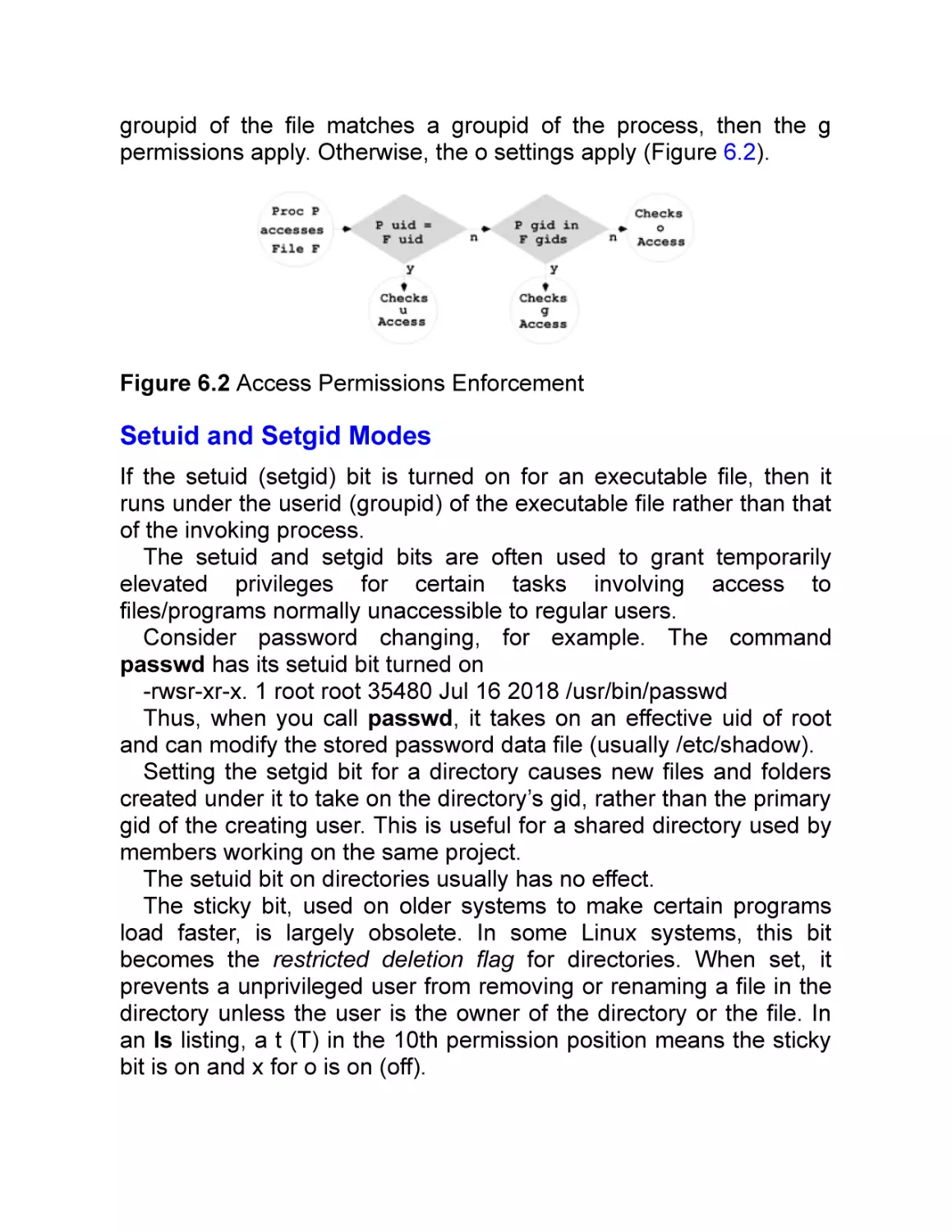
/















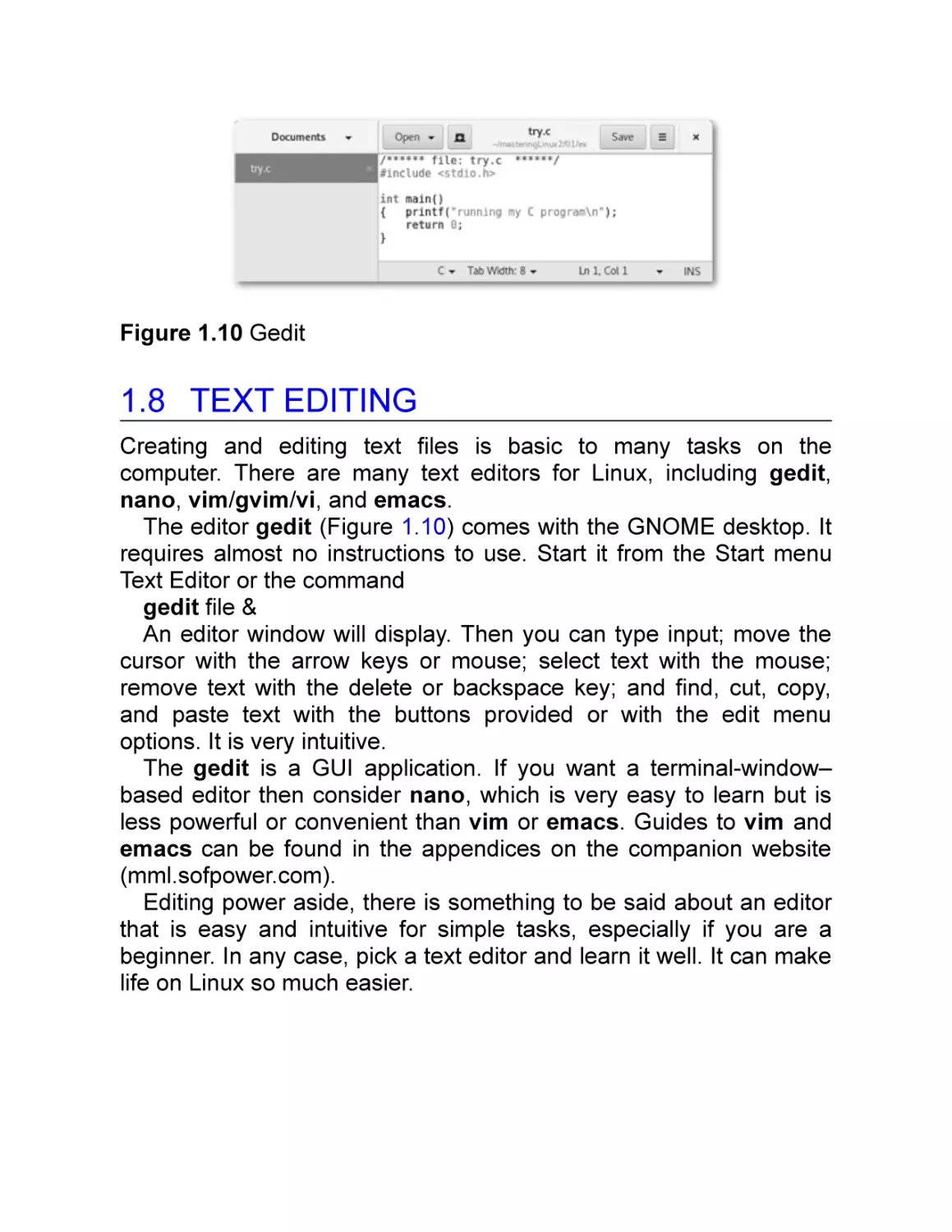
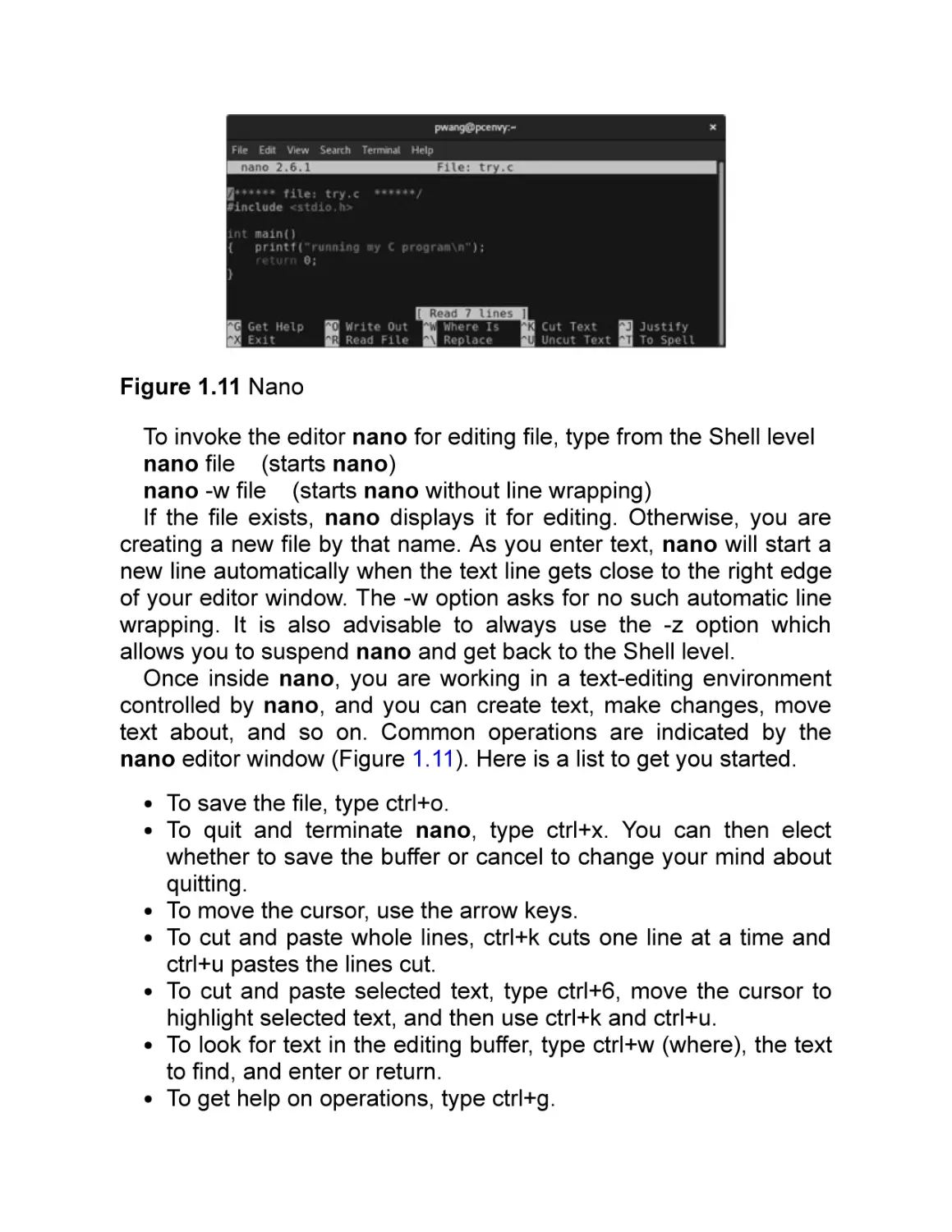
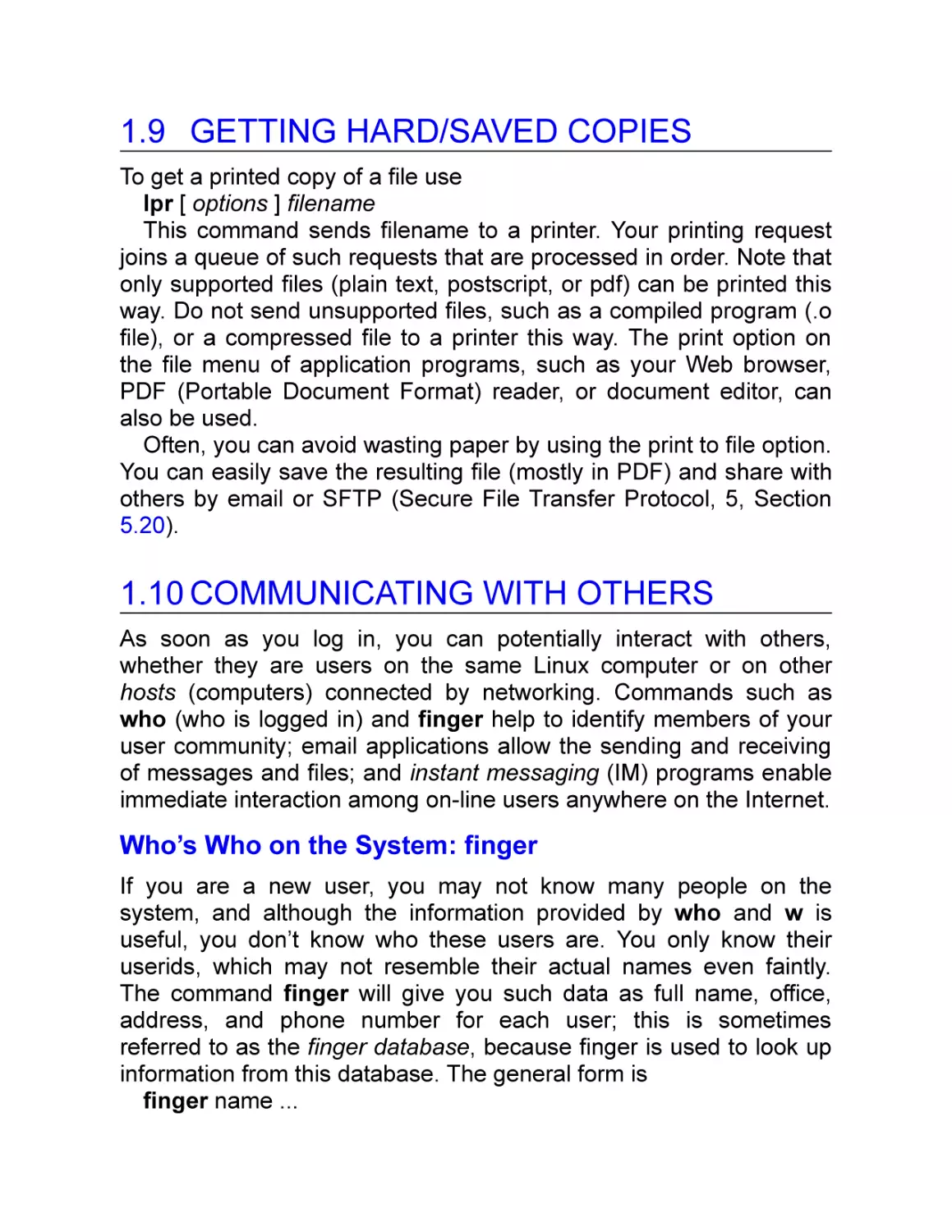
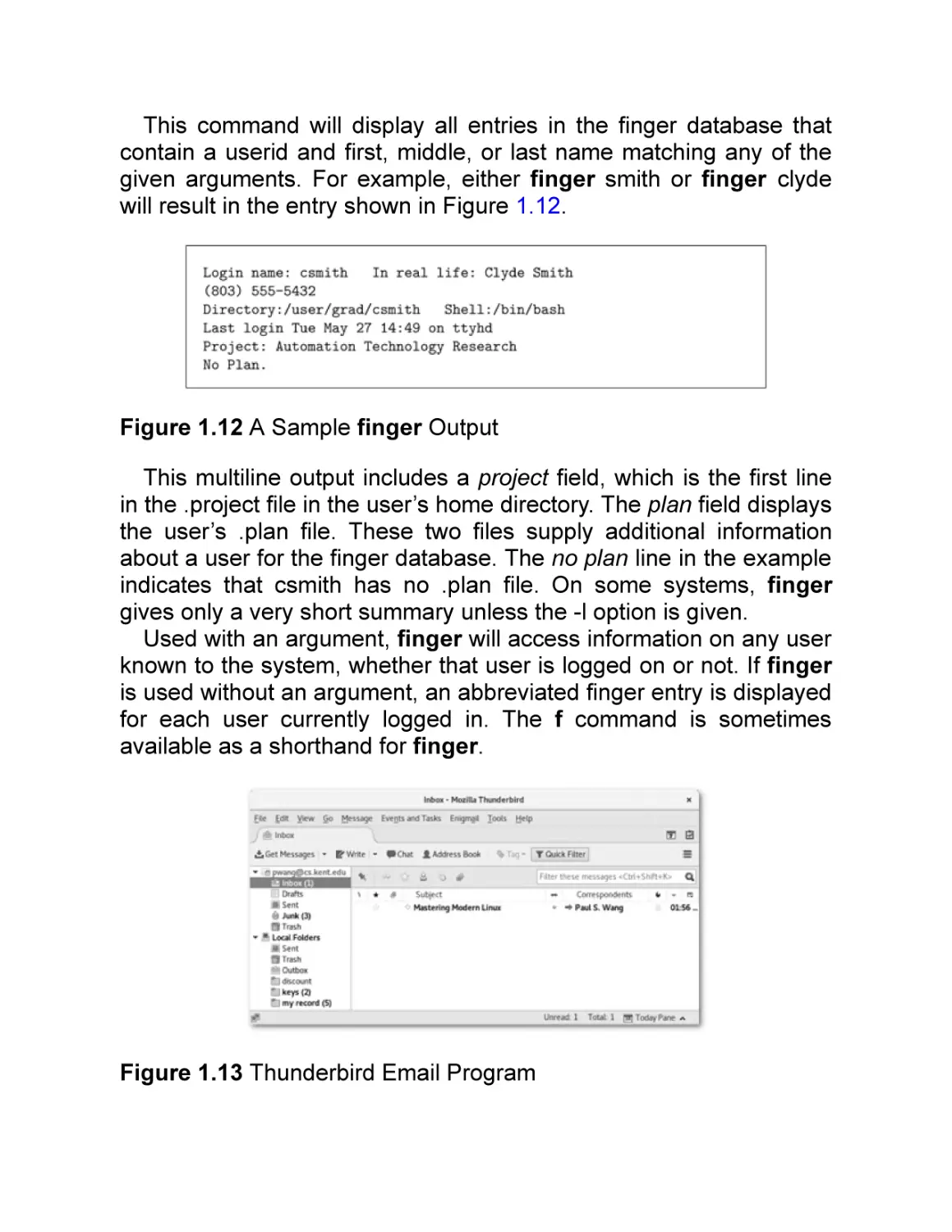










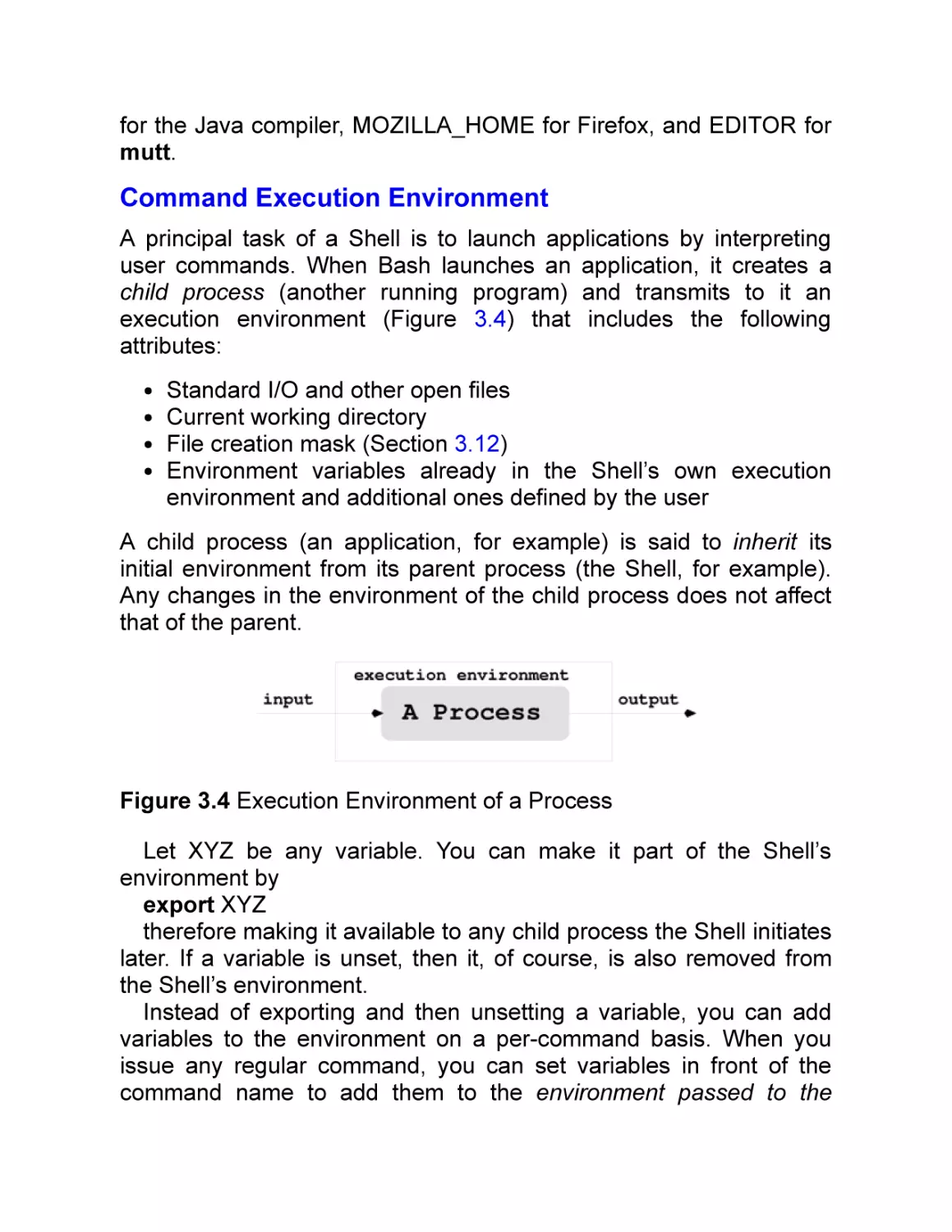













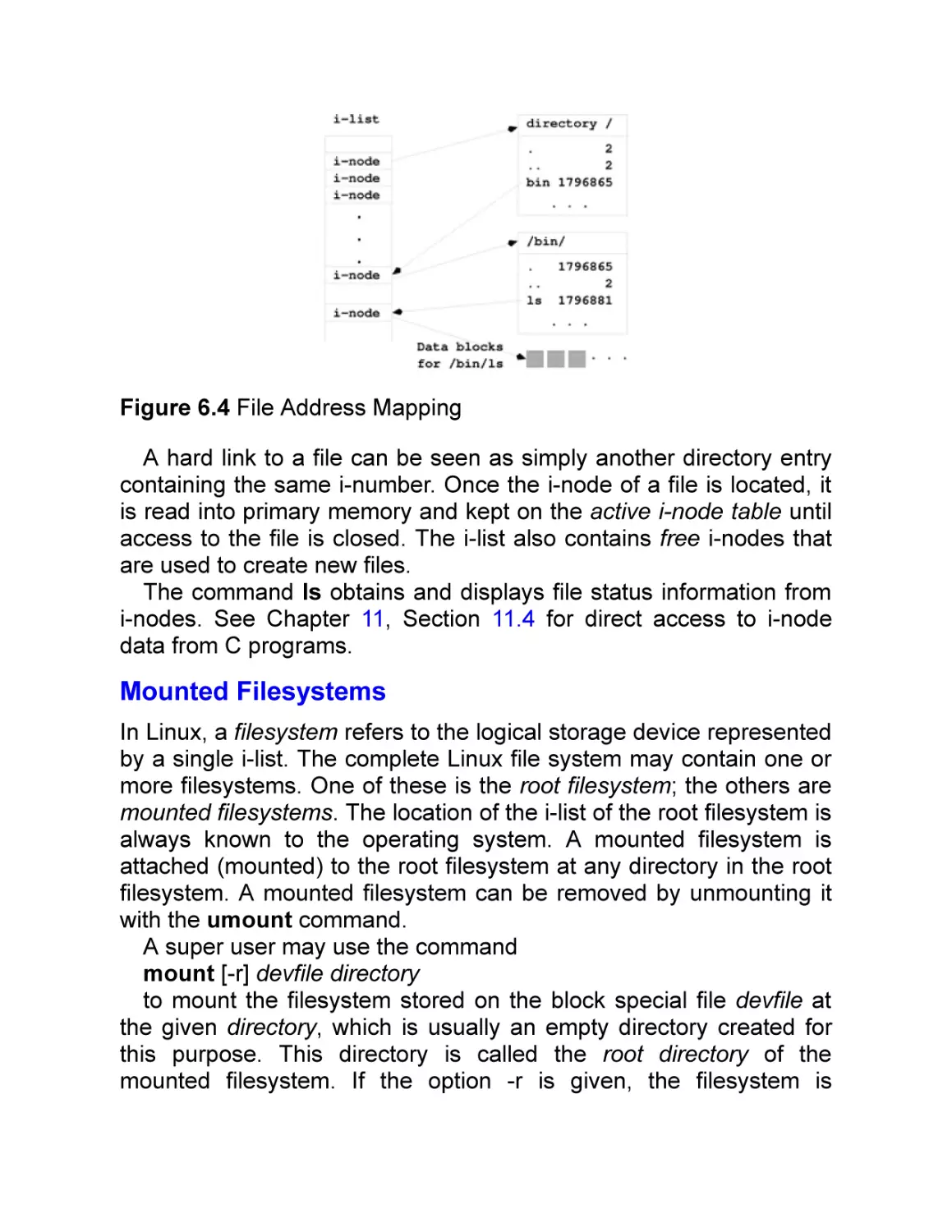



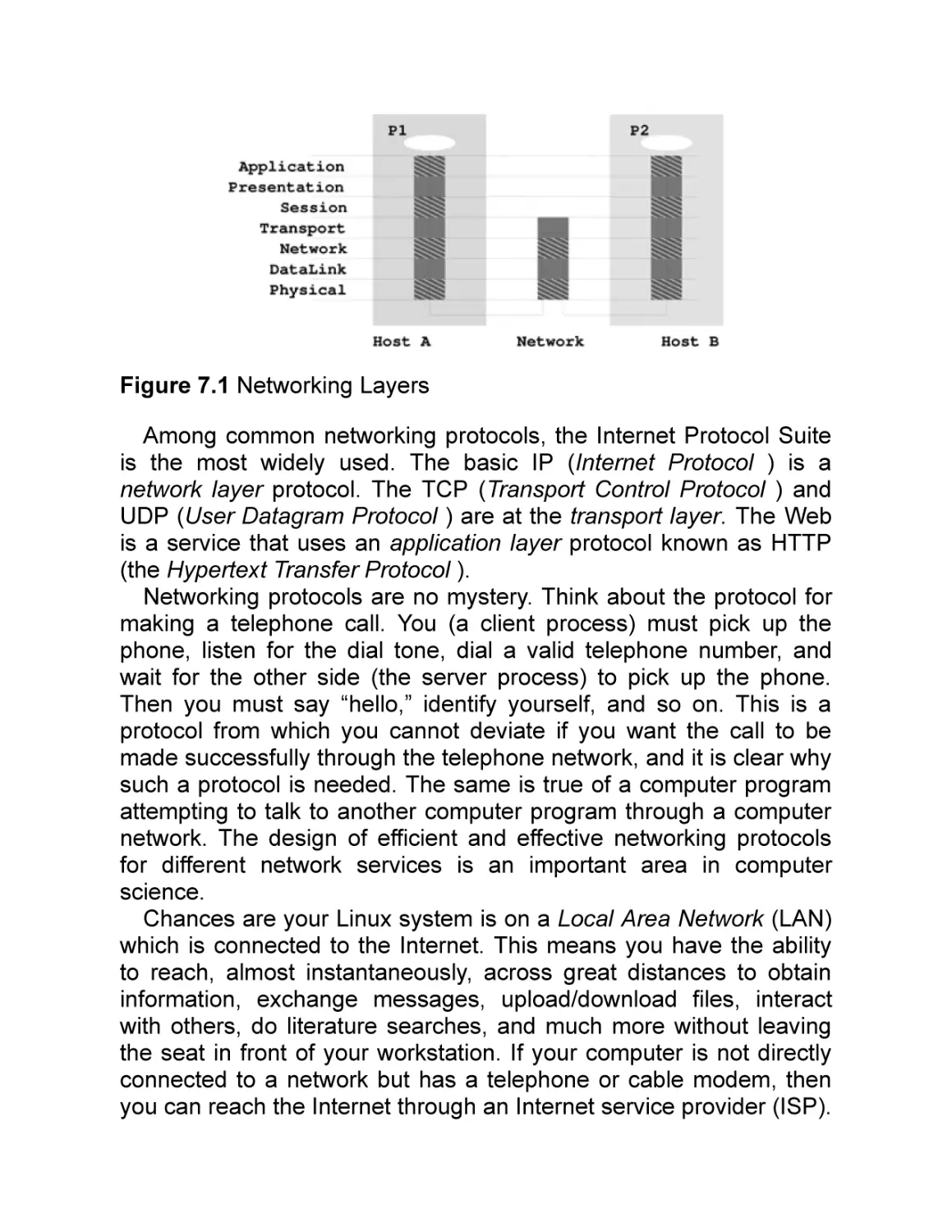


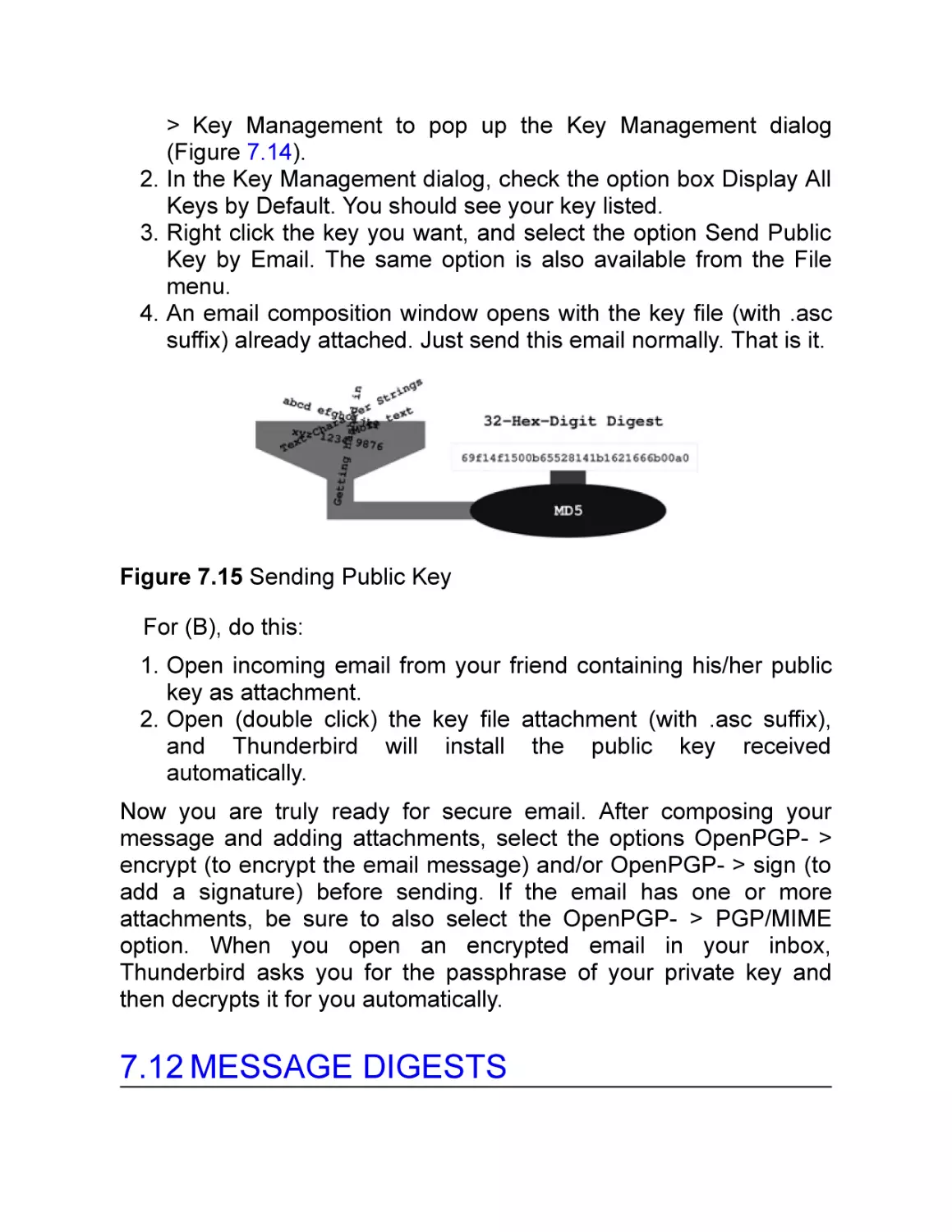
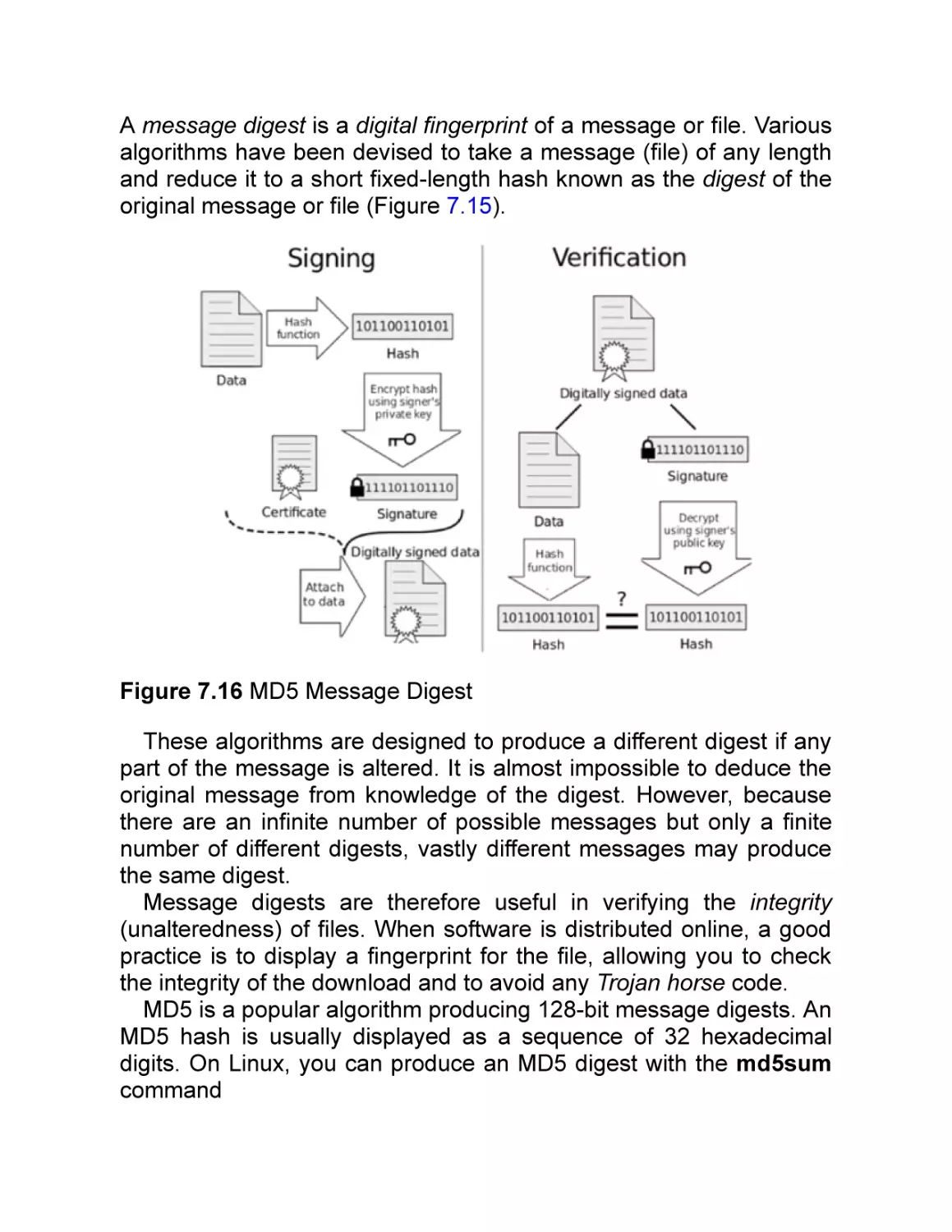
















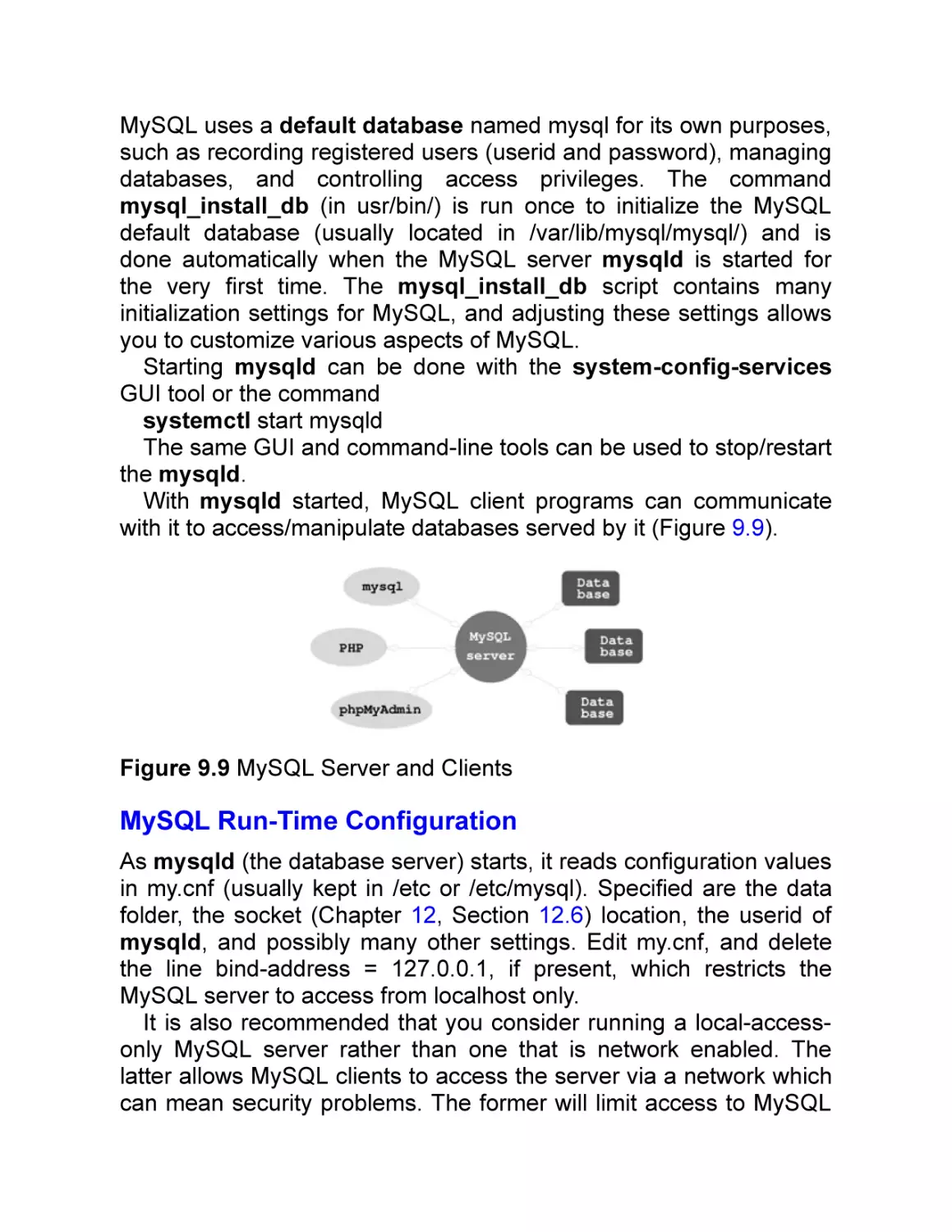
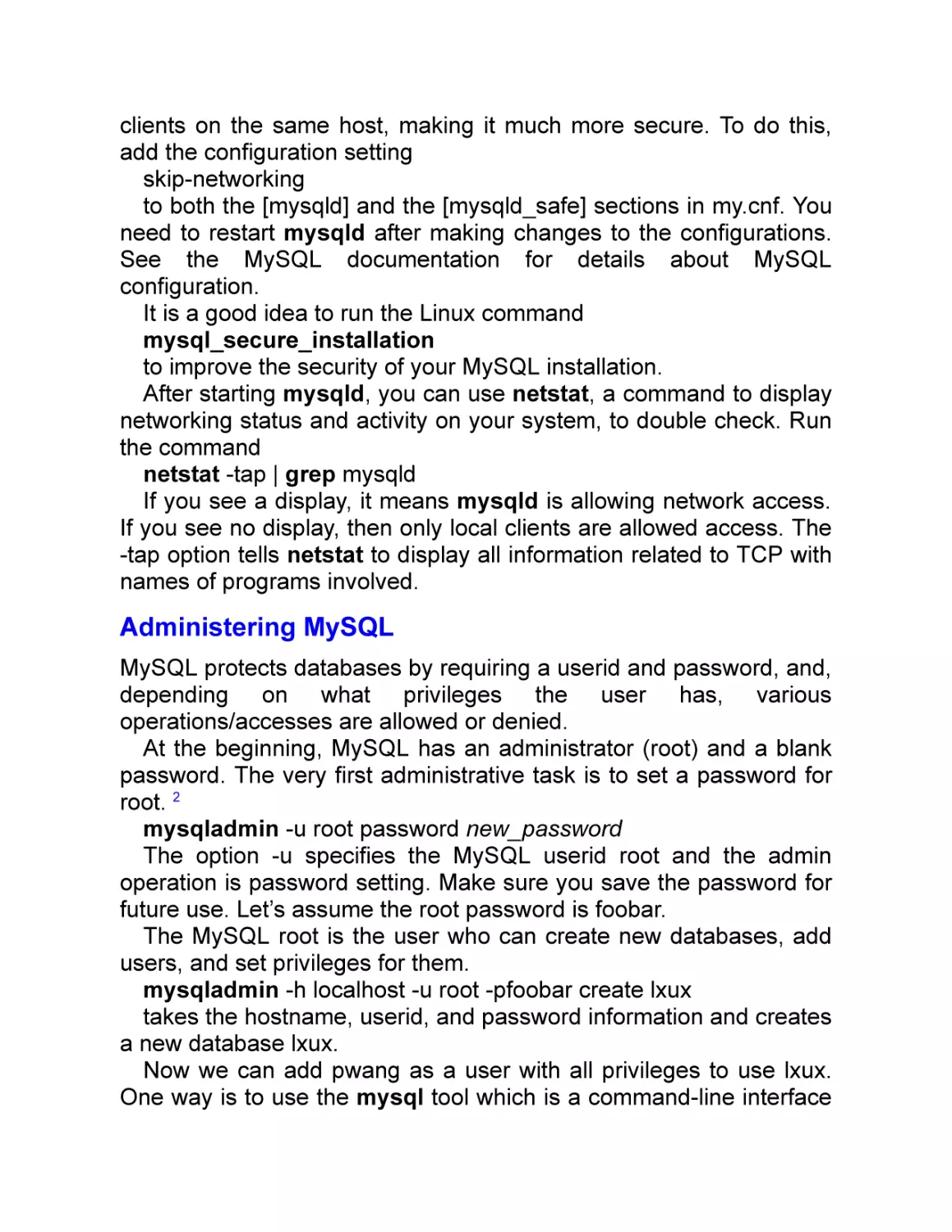
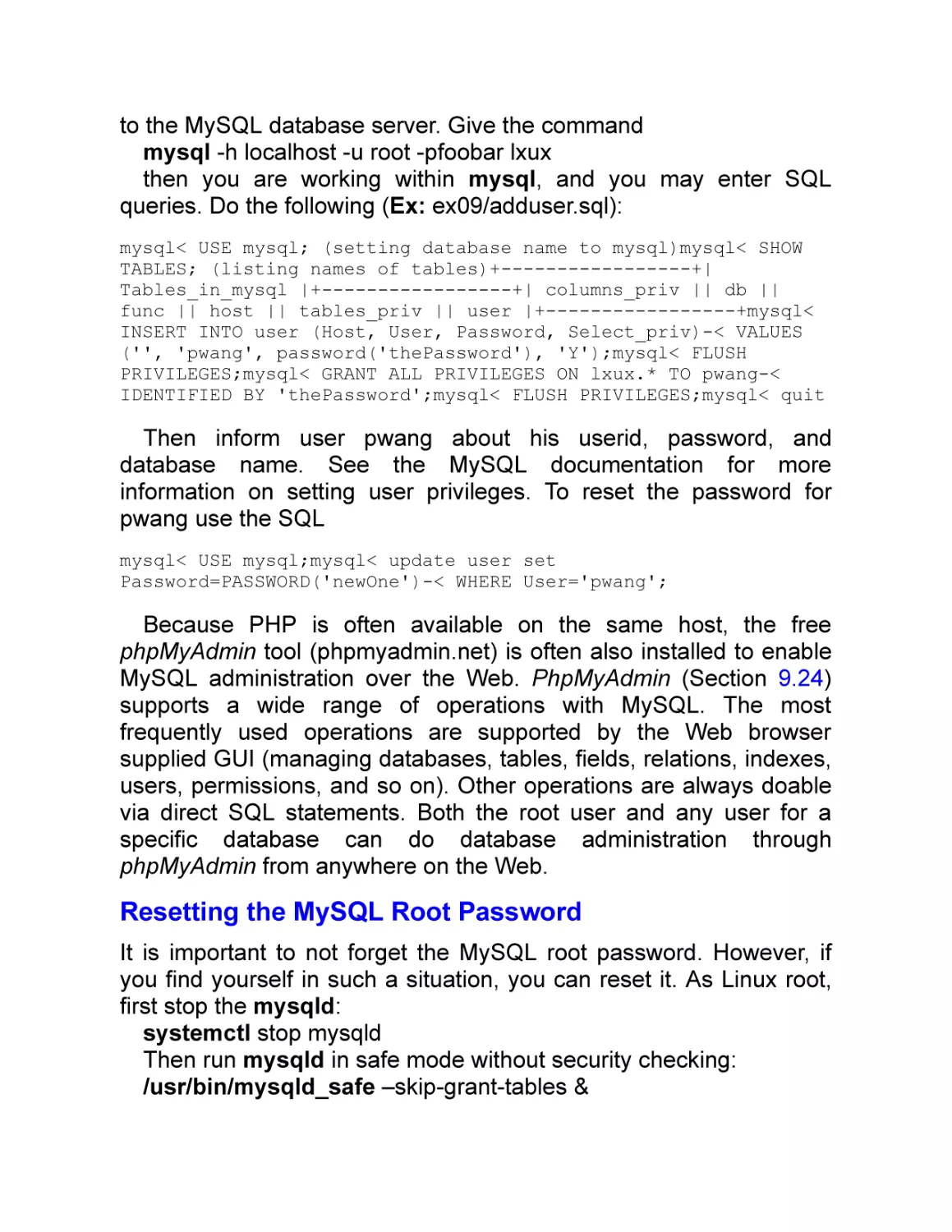
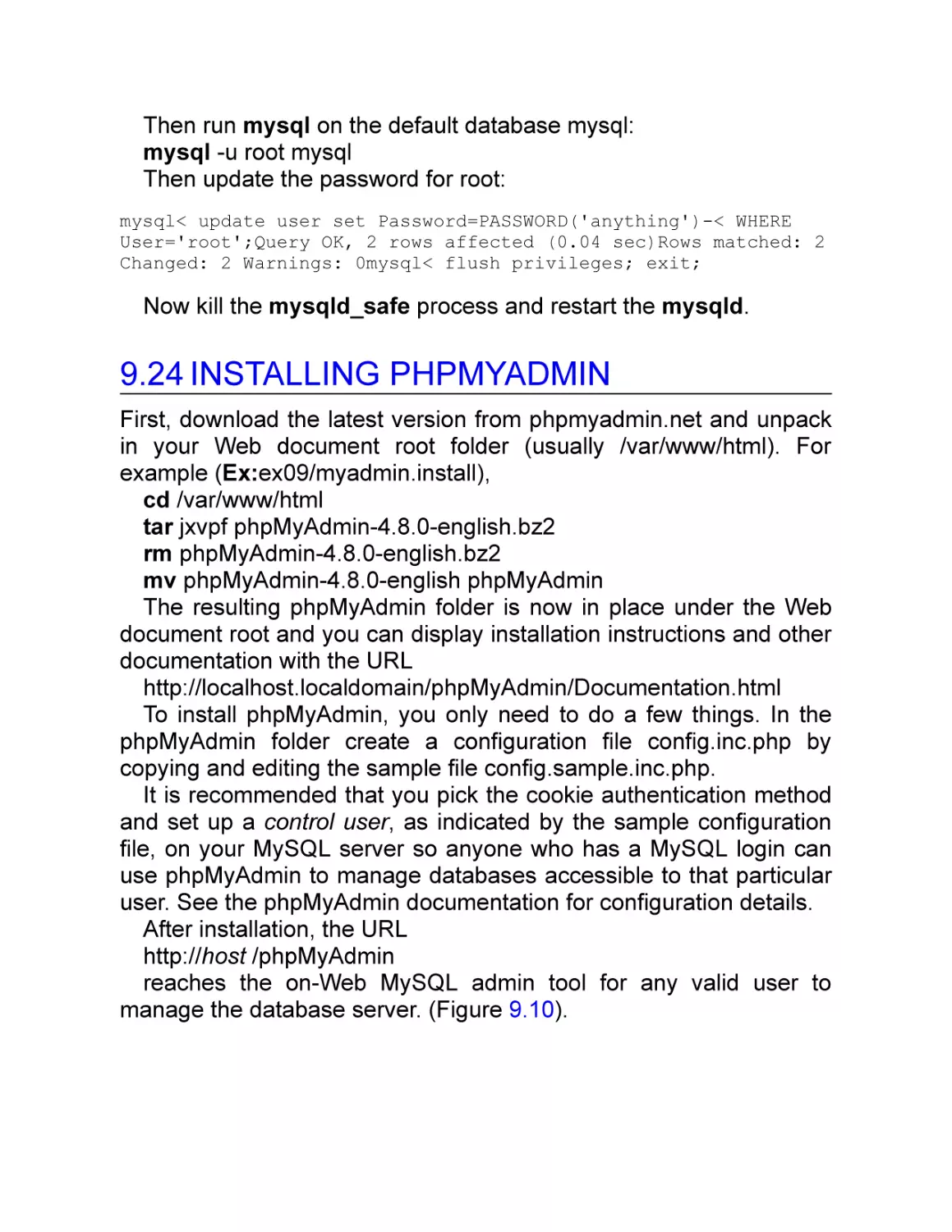


































Текст
Mastering Modern Linux
Second Edition
Mastering Modern Linux
Second Edition
Paul S. Wang
Kent State University, Kent, Ohio
CRC Press
Taylor & Francis Group
6000 Broken Sound Parkway NW, Suite 300
Boca Raton, FL 33487-2742
© 2018 by Taylor & Francis Group, LLC
CRC Press is an imprint of Taylor & Francis Group, an Informa business
No claim to original U.S. Government works
Printed on acid-free paper
Version Date: 20180420
International Standard Book Number-13: 978-0-8153-8098-6 (Paperback)
International Standard Book Number-13: 978-0-8153-8111-2 (Hardback)
This book contains information obtained from authentic and highly regarded sources.
Reasonable efforts have been made to publish reliable data and information, but the author
and publisher cannot assume responsibility for the validity of all materials or the
consequences of their use. The authors and publishers have attempted to trace the
copyright holders of all material reproduced in this publication and apologize to copyright
holders if permission to publish in this form has not been obtained. If any copyright material
has not been acknowledged please write and let us know so we may rectify in any future
reprint.
Except as permitted under U.S. Copyright Law, no part of this book may be reprinted,
reproduced, transmitted, or utilized in any form by any electronic, mechanical, or other
means, now known or hereafter invented, including photocopying, microfilming, and
recording, or in any information storage or retrieval system, without written permission from
the publishers.
For permission to photocopy or use material electronically from this work, please access
www.copyright.com (http://www.copyright.com/) or contact the Copyright Clearance Center,
Inc. (CCC), 222 Rosewood Drive, Danvers, MA 01923, 978-750-8400. CCC is a not-forprofit organization that provides licenses and registration for a variety of users. For
organizations that have been granted a photocopy license by the CCC, a separate system
of payment has been arranged.
Trademark Notice: Product or corporate names may be trademarks or registered
trademarks, and are used only for identification and explanation without intent to infringe.
Library of Congress Cataloging-in-Publication Data
Names: Wang, Paul S., author.
Title: Mastering modern Linux / Paul S. Wang.
Other titles: Mastering Linux
Description: Second edition. | Boca Raton : Taylor & Francis, CRC Press,
2018. | Revised edition of: Mastering Linux / Paul S. Wang. 2011. |
Includes bibliographical references and index.
Identifiers: LCCN 2018008944| ISBN 9780815380986 (pbk. : alk. paper) | ISBN
9780815381112 (hardback)
Subjects: LCSH: Linux. | Operating systems (Computers)
Classification: LCC QA76.774.L46 W36 2018 | DDC 005.4/46--dc23
LC record available at https://lccn.loc.gov/2018008944
Visit the Taylor & Francis Web site at
http://www.taylorandfrancis.com
and the CRC Press Web site at
http://www.crcpress.com
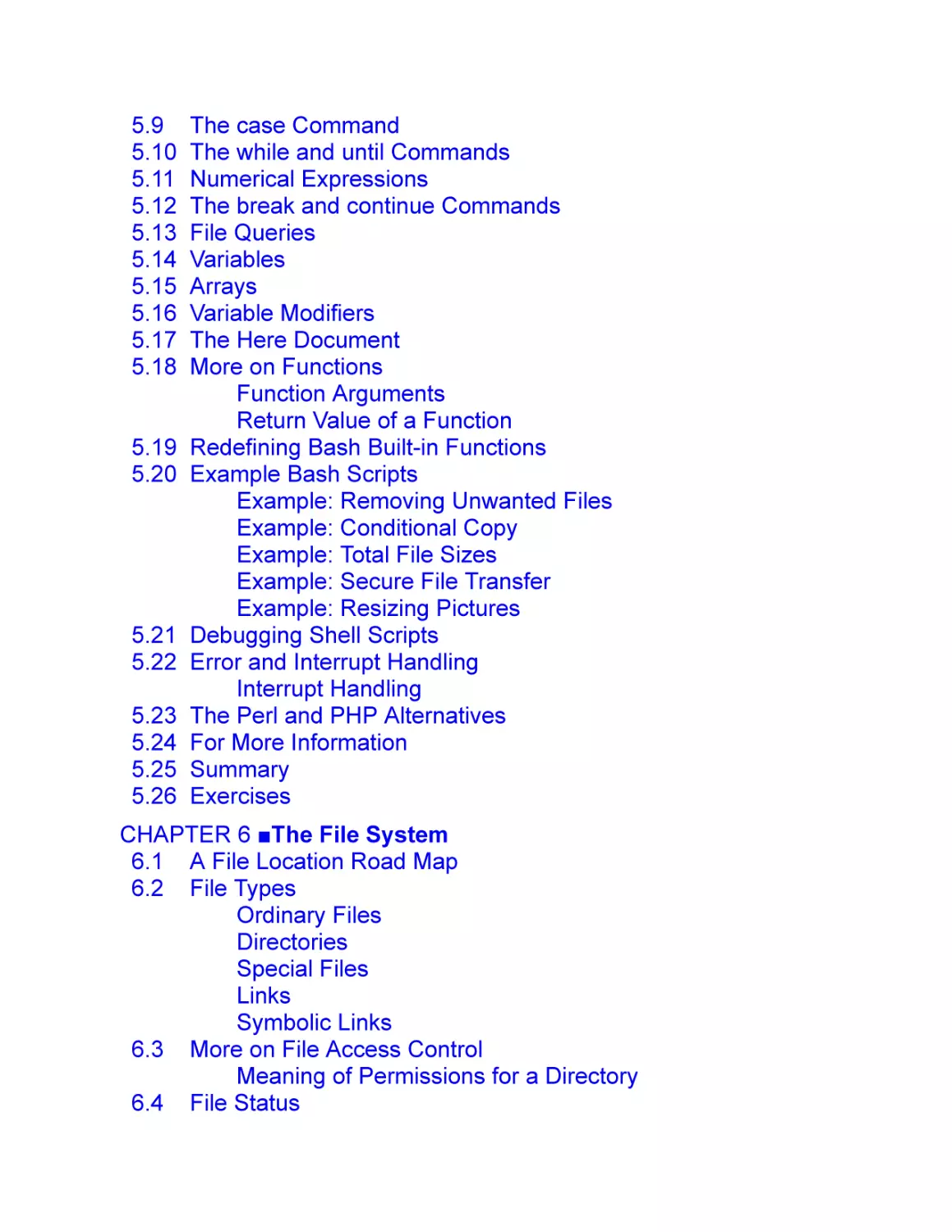
Contents
Preface
Introduction
CHAPTER 1 ■A Linux Primer
1.1 What Is an Operating System?
1.2 Getting Started: Login and Logout
Desktop Login
Starting a Terminal Window
Remote Login
1.3 Understanding the Shell
Entering Commands
Trying a Few Commands
Correcting Typing Mistakes
Aborting a Command
1.4 Exercise A
1.5 Using Files and Directories
Current Working Directory and Filenames
Handling Files and Directories
Standard Personal Directories
1.6 Protecting Files: Access Control
The Super User
Examining the Permission Settings
Setting Permissions
1.7 Exercise B
1.8 Text Editing
1.9 Getting Hard/Saved Copies
1.10 Communicating with Others
Who’s Who on the System: finger
Email
1.11 Browsing the Web
1.12 Exercise C
1.13 Creating and Running Your Own Program
Compiling
1.14 Exercise D
1.15
1.16
1.17
1.18
Consulting Linux Documentation
Exercise E
Rounding Up Useful Commands
Summary
CHAPTER 2 ■The Desktop Environment
2.1 Desktop Overview
2.2 Desktop Components
2.3 The GNOME 3 Desktop
2.4 Understanding GUI
2.5 Working with the Desktop
Session Control and System Settings
Launching Application Programs
Managing Files
Multiple Workspaces
Desktop Appearance
2.6 Windows
The X Window System
Window Manager
Window Information
2.7 The File Browser
Navigating the File Tree
Opening a File or Folder
Finding Files
Managing Files and Folders
Access Control for Files and Folders
Writing CDs or DVDs
Changing Your Default File Browser
2.8 Terminal Window
Starting a GNOME Terminal
Terminal Window and the Shell
Select, Copy, and Paste
Web and Email Links
2.9 Accessing Help and Documentation
2.10 Summary
2.11 Exercises
CHAPTER 3 ■Interacting with the BASH Shell
3.1
3.2
3.3
3.4
3.5
3.6
3.7
3.8
3.9
3.10
3.11
3.12
3.13
3.14
3.15
3.16
3.17
3.18
Bash
Interacting with Bash
Command-Line Editing and Command Completion
Bash Command Execution
Bash Input/Output Redirection
Standard Input and Output
I/O Redirection
Pipes
Bash Job Control
Bash Shell Expansions
History Expansion
Alias Expansion
Brace and Tilde Expansions
Variable Expansion
Command Expansion
Process Expansion
Filename Expansion
Bash Built-in Commands
Shell Variables
Environment of a Program
Command Execution Environment
Examples of Bash Usage
Customized Prompt
Removing Files Safely
Copy, Paste, and I/O Redirection
Displaying Manual Pages
Setting Up Your Personal Web Folder
Default File Permissions
Shell Startup and Initialization
Shell Special Characters and Quoting
Quoting in Bash
Simple Functions
For More Information
Summary
Exercises
CHAPTER 4 ■Putting Commands and Applications to Use
4.1 Useful GUI Apps
Word Processing
Document Formatting and Typesetting
Drawing and Diagramming
Raster Graphics and Image Processing
File Upload and Download
Password Manager
Cloud Storage
3D Modeling and 3D Printing
Mathematical Calculations
4.2 Commands and Filters
Leading and Trailing Lines: head and tail
Character Translation: tr
Tab Expansion
Folding Text Lines
Calendar Reminders by Email
Sorting Text Lines
4.3 The grep Command
4.4 Regular Expressions
Quoting in Search Patterns
4.5 Patterns for grep
4.6 A Stream Editor: sed
4.7 Building Pipelines
Address Processing
4.8 For More Information
4.9 Summary
4.10 Exercises
CHAPTER 5 ■Writing BASH Scripts
5.1 Invoking Shell Scripts
5.2 A First Shell Script
5.3 Shell Script Execution
5.4 Positional Parameters
5.5 The for Command
5.6 The if Command
5.7 Test Expressions and Exit Status
Exit Status
Test Expressions
5.8 The shift Command
5.9
5.10
5.11
5.12
5.13
5.14
5.15
5.16
5.17
5.18
5.19
5.20
5.21
5.22
5.23
5.24
5.25
5.26
The case Command
The while and until Commands
Numerical Expressions
The break and continue Commands
File Queries
Variables
Arrays
Variable Modifiers
The Here Document
More on Functions
Function Arguments
Return Value of a Function
Redefining Bash Built-in Functions
Example Bash Scripts
Example: Removing Unwanted Files
Example: Conditional Copy
Example: Total File Sizes
Example: Secure File Transfer
Example: Resizing Pictures
Debugging Shell Scripts
Error and Interrupt Handling
Interrupt Handling
The Perl and PHP Alternatives
For More Information
Summary
Exercises
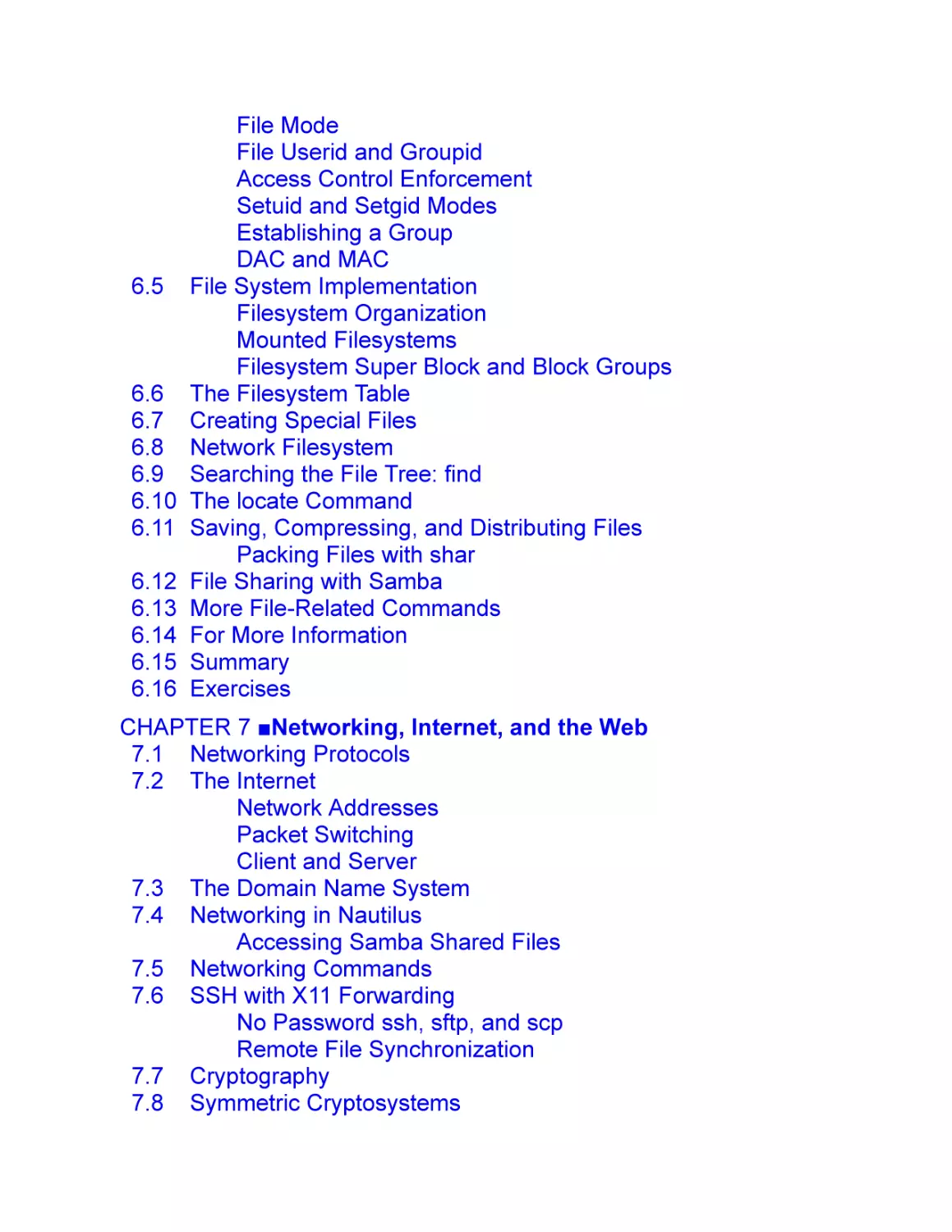
CHAPTER 6 ■The File System
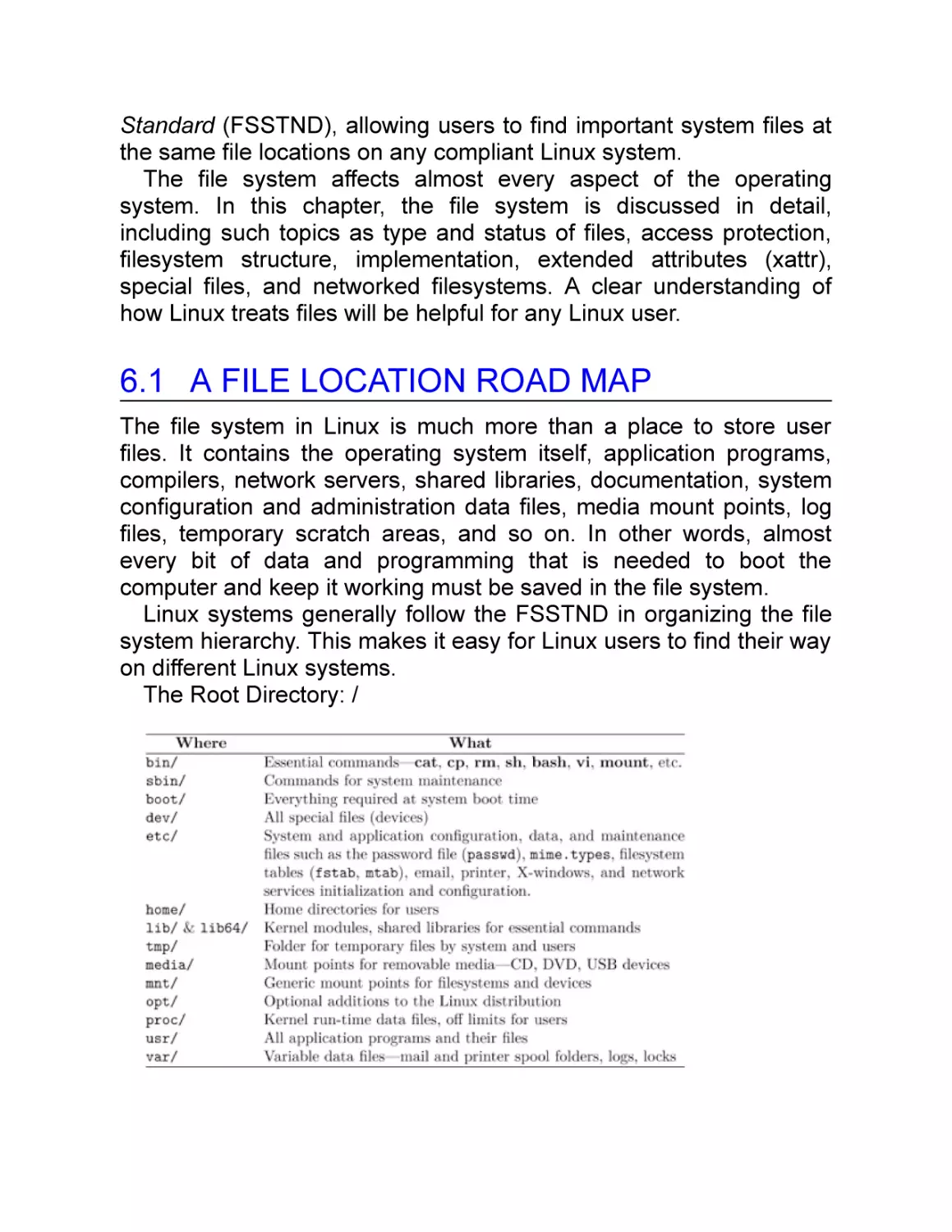
6.1 A File Location Road Map
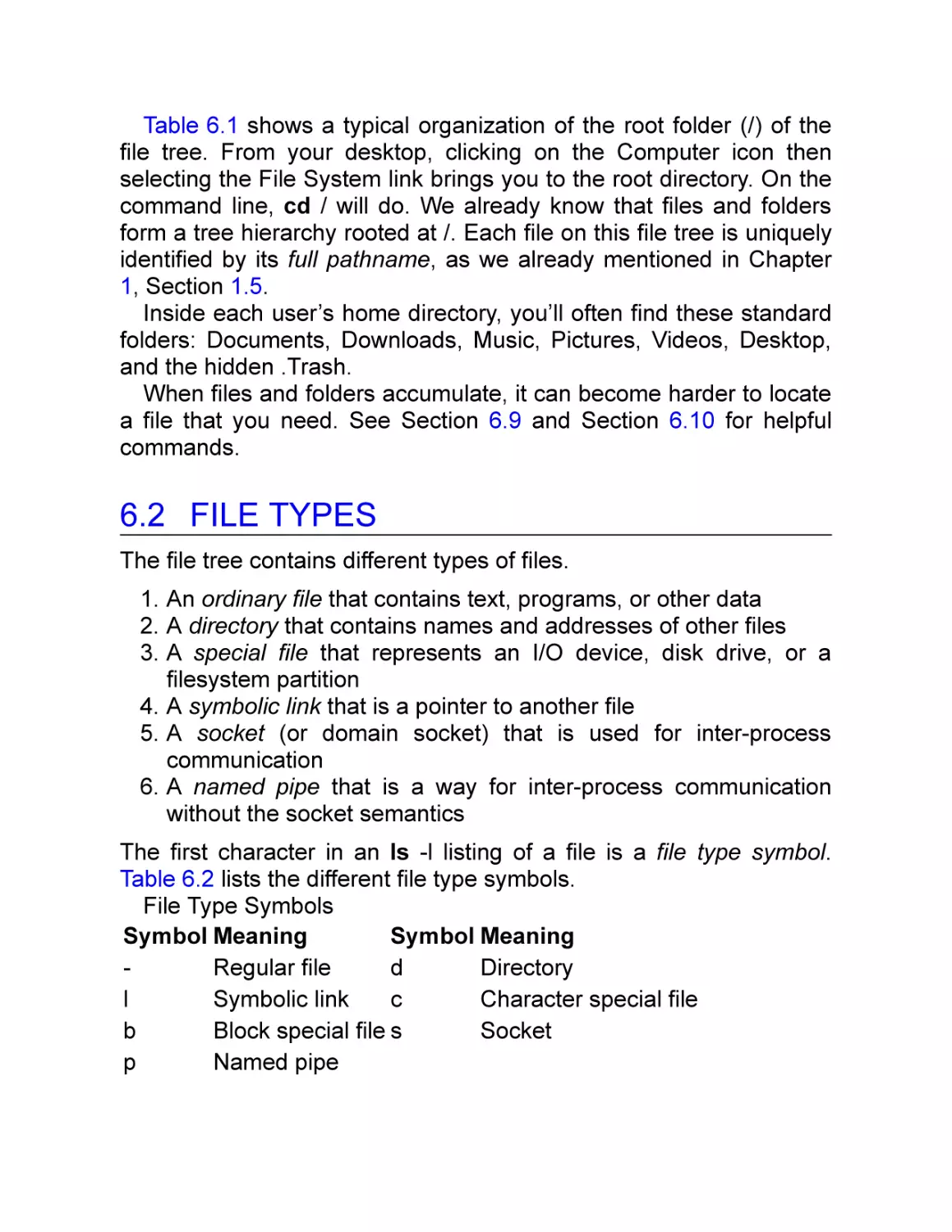
6.2 File Types
Ordinary Files
Directories
Special Files
Links
Symbolic Links
6.3 More on File Access Control
Meaning of Permissions for a Directory
6.4 File Status
6.5
6.6
6.7
6.8
6.9
6.10
6.11
6.12
6.13
6.14
6.15
6.16
File Mode
File Userid and Groupid
Access Control Enforcement
Setuid and Setgid Modes
Establishing a Group
DAC and MAC
File System Implementation
Filesystem Organization
Mounted Filesystems
Filesystem Super Block and Block Groups
The Filesystem Table
Creating Special Files
Network Filesystem
Searching the File Tree: find
The locate Command
Saving, Compressing, and Distributing Files
Packing Files with shar
File Sharing with Samba
More File-Related Commands
For More Information
Summary
Exercises
CHAPTER 7 ■Networking, Internet, and the Web
7.1 Networking Protocols
7.2 The Internet
Network Addresses
Packet Switching
Client and Server
7.3 The Domain Name System
7.4 Networking in Nautilus
Accessing Samba Shared Files
7.5 Networking Commands
7.6 SSH with X11 Forwarding
No Password ssh, sftp, and scp
Remote File Synchronization
7.7 Cryptography
7.8 Symmetric Cryptosystems
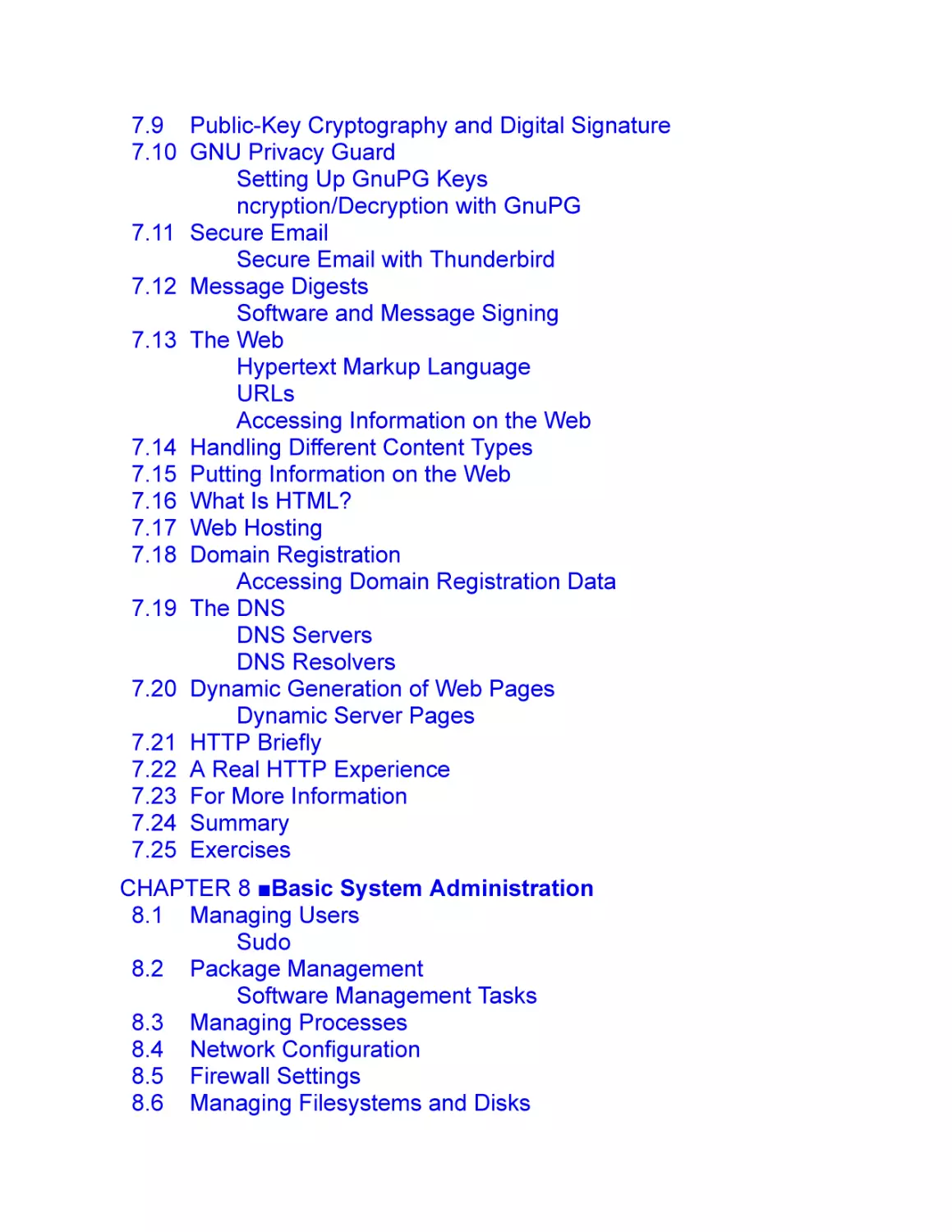
7.9 Public-Key Cryptography and Digital Signature
7.10 GNU Privacy Guard
Setting Up GnuPG Keys
ncryption/Decryption with GnuPG
7.11 Secure Email
Secure Email with Thunderbird
7.12 Message Digests
Software and Message Signing
7.13 The Web
Hypertext Markup Language
URLs
Accessing Information on the Web
7.14 Handling Different Content Types
7.15 Putting Information on the Web
7.16 What Is HTML?
7.17 Web Hosting
7.18 Domain Registration
Accessing Domain Registration Data
7.19 The DNS
DNS Servers
DNS Resolvers
7.20 Dynamic Generation of Web Pages
Dynamic Server Pages
7.21 HTTP Briefly
7.22 A Real HTTP Experience
7.23 For More Information
7.24 Summary
7.25 Exercises
CHAPTER 8 ■Basic System Administration
8.1 Managing Users
Sudo
8.2 Package Management
Software Management Tasks
8.3 Managing Processes
8.4 Network Configuration
8.5 Firewall Settings
8.6 Managing Filesystems and Disks
Disk Partitions
Managing Filesystems
Adding a New Disk
LVM
File Storage Quotas
8.7 File and System Backup
Backup with Déjà Dup
8.8 System Booting
8.9 SELinux
SELinux Status and Enforcing Modes
Security Contexts
Maintaining and Managing File Contexts
8.10 For More Information
8.11 Summary
8.12 Exercises
CHAPTER 9 ■Web Hosting: Apache, MySQL, and PHP
9.1 What Is a Web Server?
9.2 URL and URI
9.3 Request Processing
9.4 Response and Content Types
9.5 The Apache Web Server
9.6 Apache on Linux
Installing Apache with Package Management
Running the Apache Web Server
Controlling the Apache Server
9.7 Apache Run-Time Configuration
Apache Configuration File Basics
About Configuration Directives
Loading Modules
Global Directives
Container Directives
9.8 Access Control under Apache
What Is Access Control?
Access Control by Host
9.9 Requiring Passwords
Setting Up User Login under Apache
9.10 How HTTP Basic Authentication Works
9.11 How HTTP Digest Authentication Works
Basic vs. Digest Authentication
9.12 Password Encryption
9.13 Automatic File Deflation
9.14 HTTPS and SSL/TLS
9.15 HTTPS Support
9.16 Manual Installation of Apache
Configure and Compile
9.17 What Is PHP?
9.18 The PHP Module for Apache
Installing the PHP Module
9.19 Testing PHP
9.20 PHP Configuration
9.21 PHP Command Line Scripting
9.22 Database Support for the Web
9.23 MySQL
Initializing, Starting, and Stopping MySQL
MySQL Run-Time Configuration
Administering MySQL
Resetting the MySQL Root Password
9.24 Installing phpMyAdmin
9.25 Installing MySQL/MariaDB
9.26 For More Information
9.27 Summary
9.28 Exercises
Chapter 10 ■C Programming in Linux
10.1 Command-Line Arguments
Exit Status
Compile and Execute
10.2 Linux Command Argument Conventions
10.3 The GCC Compiler
The gcc Command
Options for gcc
The C Preprocessor
Preventing Multiple Loading of Header Files
Compilation
Assembly
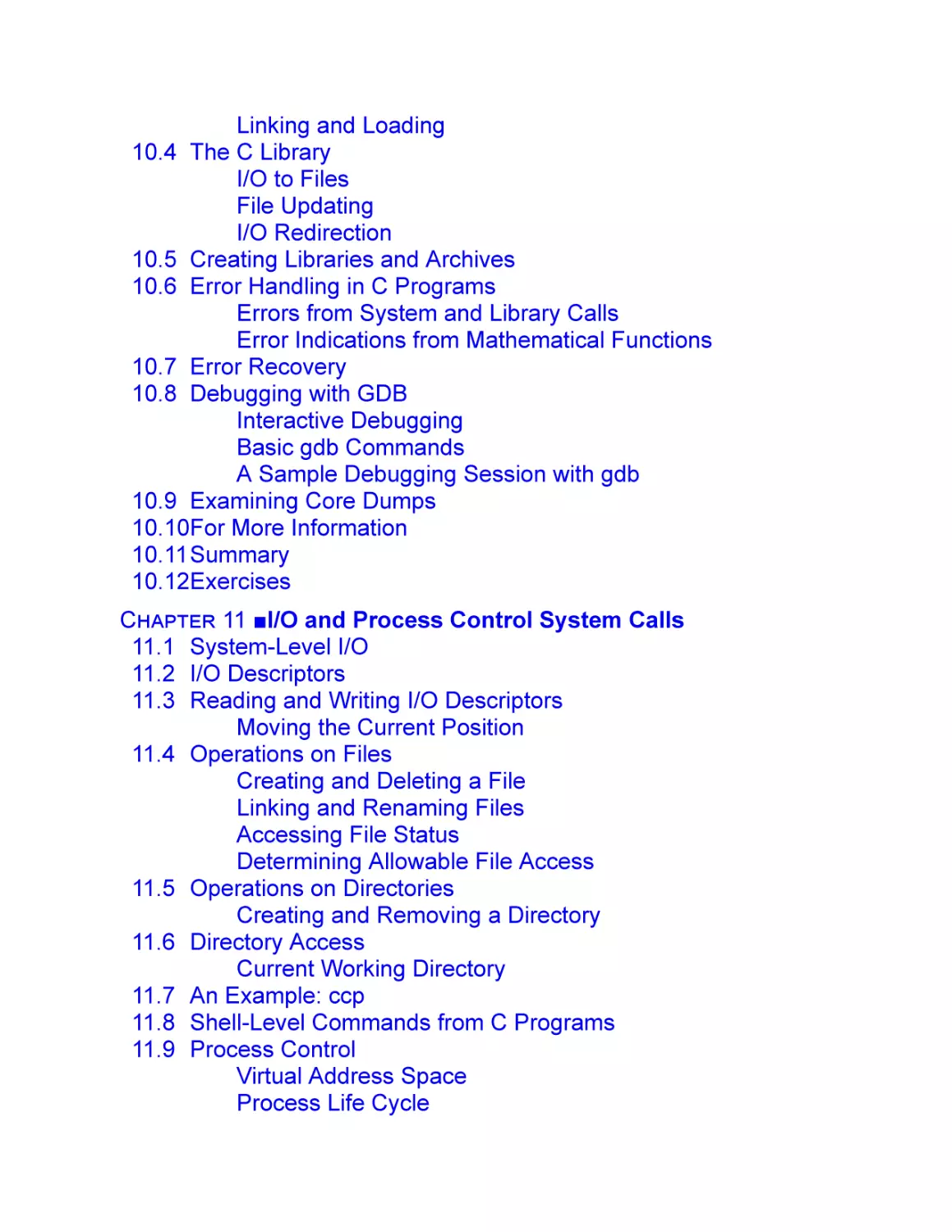
Linking and Loading
10.4 The C Library
I/O to Files
File Updating
I/O Redirection
10.5 Creating Libraries and Archives
10.6 Error Handling in C Programs
Errors from System and Library Calls
Error Indications from Mathematical Functions
10.7 Error Recovery
10.8 Debugging with GDB
Interactive Debugging
Basic gdb Commands
A Sample Debugging Session with gdb
10.9 Examining Core Dumps
10.10For More Information
10.11 Summary
10.12Exercises
Chapter 11 ■I/O and Process Control System Calls
11.1 System-Level I/O
11.2 I/O Descriptors
11.3 Reading and Writing I/O Descriptors
Moving the Current Position
11.4 Operations on Files
Creating and Deleting a File
Linking and Renaming Files
Accessing File Status
Determining Allowable File Access
11.5 Operations on Directories
Creating and Removing a Directory
11.6 Directory Access
Current Working Directory
11.7 An Example: ccp
11.8 Shell-Level Commands from C Programs
11.9 Process Control
Virtual Address Space
Process Life Cycle
11.10 The Process Table
The ps Command
11.11 Process Creation: fork
11.12 Program Execution: exec Routines
Example: A Simple Shell
11.13 Synchronization of Parent and Child Processes
11.14 Process Termination
11.15 The User Environment of a Process
Example: Command Search
11.16 Interrupts and Signals
Basic Concepts
Sending Signals
Signal Delivery and Processing
Signal Trapping
11.17 For More Information
11.18 Summary
11.19 Exercises
Chapter 12 ■Inter-process and Network Communication
12.1 Opening a Process for I/O
12.2 IPC with pipe
Pipe between Two Commands
12.3 Connecting a File Descriptor to a File Stream
12.4 Two-Way Pipe Connections
12.5 Network Communication
Client and Server
12.6 Sockets
Creating Sockets
Socket Address
Local and Internet Socket Addresses
12.7 A TCP Echo Client
12.8 Using Datagram Sockets
12.9 Socket I/O System Calls
Shutting Down Sockets
12.10TCP-Based Servers
Accepting a Connection
An Example TCP/IP Server
12.11 Network Library Routines
12.12Daemon Processes
Programming a Daemon
12.13Input/Output Multiplexing
12.14TCP Out-of-Band Data
12.15For More Information
12.16Summary
12.17Exercises
Appendices Online
Website and Example Code Package
References
Index
Preface
Linux, a great success story of open-source, community-developed
software, is increasingly used in Web and application servers,
software development platforms, personal workstations, and
research machines. In the past few years, Linux has improved its
user interface, added many useful and powerful apps, and greatly
expanded its home and business user base.
In computer science and engineering departments, you’ll find
Linux systems in classrooms, programming labs, and computer
centers—not just because Linux is free but also because it offers a
rich computing environment for teaching and learning.
From its beginning in 1991, and with help from the GNU Project,
Linux has evolved quickly and has brought new powers and
conveniences to users. Competency on Linux will be important for
any serious computer professional.
This book is a revised edition of Mastering Linux (late 2010), which
was very well received and had the most wonderful review from
ACM Computing Reviews:
“This authoritative and exceptionally well-constructed book
has my highest recommendation. It will repay careful and
recursive study.—Computing Reviews, August 2011”
The new edition has a new title, Mastering Modern Linux, yet
retained much of the good materials while updating them, adding
new topics and removing old ones.
This book provides a comprehensive and up-to-date guide to
Linux concepts, usage, and programming. This text will help you
master Linux with a well-selected set of topics. Hands-on practice is
encouraged; it is the only way to gain familiarity with an operating
system. A primer gets you started quickly. The chapters lead you
from user interfaces, commands and filters, Shell scripting, the file
system, networking, basic system administration, and Web hosting,
to C-level programming and kernel system calls.
There are many examples and complete programs ready to
download and run. A summary and exercises of varying degrees of
difficulty can be found at the end of each chapter. A companion
website provides appendices, information updates, an example code
package, and other resources for instructors as well as students.
See page 353 for details.
User Friendly and Comprehensive
There is both breadth and depth in this book’s presentation. Chapter
1 contains a Linux primer to get the new user started as quickly as
possible, without awkwardness or confusion. Being able to play and
experiment with the system adds to the user’s interest and
motivation to learn more. Once introduced and comfortable, the user
is guided through a well-selected set of topics covering the type of
detailed material appropriate for a one-semester course at the
advanced undergraduate or beginning graduate level.
The first part of the textbook covers interactive use of Linux via the
Graphical User Interface (GUI) and the Command-Line Interface
(CLI), including comprehensive treatment of the Gnome desktop and
the Bash Shell. Using different apps, commands and filters, building
pipelines, and matching patterns with regular expressions are major
focuses.
Next come Bash scripting, file system structure, organization, and
usage, which bring us to about the middle of the book.
The next chapters present networking, the Internet and the Web,
data encryption, and basic system admin, as well as Web hosting.
The Linux Apache MySQL/MariaDB PHP (LAMP) Web hosting
combination is presented in depth. Such practical knowledge can be
valuable for many Linux programmers.
In Chapters –12, attention is then turned to C-level programming.
Because the Linux kernel and most of its applications are
implemented in C, it is considered the native language of Linux. Indepth knowledge of Linux requires understanding the Standard C
Libraries and the system calls which form the interface to the Linux
kernel. Topics covered include the C compiler, preprocessor,
debugger, I/O, file manipulation, process control, inter-process
communication, and networking. Many complete example programs,
written in the standard ISO C99, are provided.
Appendices are kept on the book’s website (mml.sofpower.com).
They supply useful supplemental information for students, including
text editing and how to set up Linux learning environments on their
own Windows® or Mac® computers.
Flexible Usage
This book is for people who wish to learn Linux and to become good
at using it and writing programs in it. The book does not assume
prior knowledge of Linux or UNIX, but has the depth to satisfy even
those with Linux experience.
Compared to other Linux books, this text is not a thick volume.
However, it presents many topics comprehensively and in depth.
Many examples are given to illustrate concepts and usage. It is wellsuited for a one-semester course. An instructor can cover all the
chapters in sequence or choose among them, depending on the
class being taught.
For an Introduction to Linux course, the chapters on C-level
programming and perhaps on Web hosting can be skipped.
For a system programming-oriented course, the Linux primer,
interactive use of Bash, and the GNU desktop material can be
omitted or assigned for reading at the beginning of the class. This
will provide more time for the hardcore topics on programming.
For an Introduction to Operating System Principles course, this
book is a good supplement. Discussion of Linux subjects—the Shell,
file system structure, concurrent process management, I/O structure,
signals/interrupts, and inter-process communication—provides
concrete examples and adds to the students’ understanding of the
abstract operating system principles being studied.
For a server-side Web programming course, the coverage of
Bash, file system, Internet and the Web, and Web hosting can make
this book a great supplemental text.
For courses on network programming, graphics, C programming,
distributed computing, etc., the book can be a valuable supplement
as well.
For those who use Linux in school or at work, this book enables
you to apply the system’s capabilities more effectively, resulting in
much increased productivity.
Ready-to-use examples provide many immediate practical
applications.
Going beyond, you can learn how to write programs at the Shell
and the C levels. This ability enables you to build new capabilities
and custom tools for applications or R&D.
Example Code Package
Throughout the book, concepts and usages are thoroughly explained
with examples. Instead of using contrived examples, however, every
effort has been made to give examples with practical value and to
present them as complete programs ready to run on your Linux
system.
These programs are collected in an example code package ready
to download from the companion website (mml.sofpower.com). See
page 353 for instructions on downloading and unpacking the
example code package. The description for each example program
is cross-referenced to its file location with a notation such as (Ex:
ex05/argCheck.sh).
Easy Reference
You’ll find a smooth, readable style uncharacteristic of a book of this
type. Nevertheless, it is understood that such books are used as
much for reference as for concentrated study, especially once the
reader gets going on the system. Therefore, information is organized
and presented in a way that also facilitates quick and easy
reference. There are ample resource listings and appendices (on the
website) and a thorough and comprehensive index. The in-text
examples are also cross-referenced with files in the example code
package. This book will be a valuable aid for anyone who uses tools,
accesses the Internet, or writes programs under Linux, even
occasionally.
Acknowledgments
I would like to thank the editors Randi Cohen, Paul Boyd, and others
at CRC press for their help and guidance throughout the writing and
production of this second edition. Their dedication is indeed much
appreciated.
During the planning and writing of this book, several reviews have
been conducted. Special thanks go to Professor Charles Border,
Rochester Institute of Technology, NY, who made excellent
suggestions for improving the manuscript and making the book
easier to use for students and teachers, including the idea to provide
students with information to easily set up Linux learning
environments on their own computers.
Finally, I want to express my sincere gratitude to my wife, Jennifer,
whose support and encouragement have been so important to me
through the years.
Paul S. Wang
www.cs.kent.edu/ pwang
Introduction
Ever since its introduction in the early 1990s, Linux has evolved,
improved, and significantly expanded its user base. It has become
an important factor in modern computing.
Linux is a free and open-source operating system that works, in
many respects, just like UNIX. Linux became popular as a widely
preferred server platform for Web hosting, cloud computing, and
other purposes. However, with the introduction of the GNOME and
KDE desktop user interface environments (and other more recent
ones), plus many improvements and new applications, Linux has
been gaining ground as a home/office system, as well as a more
dominant force in the server market.
Because it is free and open source, 1 Linux is a very attractive
teaching tool for computer science and engineering departments.
Also, because it is fast and reliable, businesses, such as Amazon,
Google and Facebook, often choose Linux to run their Web and
application servers. Companies and developer communities, in the
United States and worldwide, contribute to kernel development, new
products, personnel training, and technical support for Linux, while
the operating system itself remains free.
Let’s take a brief look at the history of Linux, its versions and
features, and the topics involved in learning how to use Linux.
A Brief History of Linux
The beginning of Linux can be traced back to 1991 when Linus
Torvalds, a young student at the University of Helsinki, Finland,
began to create a new POSIX 2 compliant kernel and an operating
system more powerful than MINIX (MIni-uNIX). 3 Three years later,
version 1.0 of the Linux kernel, the central part of the new UNIX-like
system, was released.
The GNU open-source software movement would also later make
many contributions to Linux, as remarked upon by Richard Stallman:
“When you are talking about Linux as a OS, you should refer
to it as GNU/Linux. Linux is just the kernel. All the tools that
make Linux an OS have been contributed by GNU movement
and hence the name GNU/Linux."
Linux has come a long way since its early days. Today, it is a
prime example of the success of open-source, community-developed
software. Linux is used on servers, desktop computers, laptops, and
netbooks. The highly successful mobile system Android (version 1.0
2008) derived its kernel directly from Linux.
The article Fedora project leader Matthew Miller talks world
domination on Linux’s 25th birthday (PCWorld 08/25/2016) says:
“In many ways, we’ve actually reached the fabled ‘world
domination’ everyone joked about 20 years ago," says Miller.
“Linux is the default operating system for most things ... Android
puts Linux at the heart of the most common consumer operating
system in the world. Open source, to some degree or another, is
now the default licensing model."
Linux Versions
Unlike proprietary operating systems, Linux is a combination of
open-source programs, including the Linux kernel, GNU tools,
desktop managers, and installation and package management
systems, plus many other system-, server-, and user-level
applications. Anyone can create different combinations of these
components, perhaps also change or improve them, and create a
Linux distribution with unique characteristics. Thus, it is not
surprising that many companies and groups all over the world have
been distributing somewhat different versions of Linux ready to
install on your computer.
Linux systems are widely used by individuals, academic
institutions, corporations, and service providers such as Web hosts,
data centers, and cloud servers.
Widely used Linux versions include
Ubuntu—“Ubuntu” means “humanity” in Zulu. Ubuntu Linux
started as a version of the popular Debian GNU/Linux. All
versions of Ubuntu Linux are free, and there is no charge for
mailing a CD to you. Ubuntu supports the GNOME Desktop
environment, while another version, Kubuntu, uses the KDE
Desktop. Ubuntu is easy to install and very user friendly, which
has quickly made it the most popular version of Linux. Ubuntu is
sponsored by the U.K.-based Canonical Ltd., owned by South
African entrepreneur Mark Shuttleworth.
Red Hat Enterprise Linux—The original Red Hat Linux started in
1994 and was discontinued by Red Hat Inc. in 2004. The
company now focuses on Red Hat Enterprise Linux (RHEL) for
business environments and on Fedora as a communitysupported software project for home, personal, and educational
use.
CentOS—RHEL largely consists of free and open-source
software, but the executables are made available only to paying
subscribers. CentOS (Community ENTerprise Operating
System) is a completely free version of RHEL (minus the Red
Hat logos) made available to users as new versions of RHEL
are released.
Fedora—Fedora is a leading-edge Linux distribution where new
features and improvements are tested before being included in
RHEL/CentOS. Fedora makes frequent software updates and is
tightly integrated with the GNOME user environment.
openSUSE—This is a major retail Linux distribution supported
worldwide by Novell (now part of Micro Focus). Novell acquired
the SuSE Linux (a German translation of the original Slackware
Linux) in 2004. In the following year, Novell decided to make the
SUSE Professional series more open as a communitydeveloped, open-source software and to rename it openSUSE.
Debian—Debian Linux consists entirely of free and open-source
software. Its primary form, Debian GNU/Linux, is a popular and
influential Linux distribution. Debian is known for an abundance
of options. Recent releases include over 26,000 software
packages for all major computer architectures. Ubuntu is a
derivative of Debian.
Mint—Linux Mint, a newcomer, is a reliable and popular desktop
distribution. It adopts a conservative approach to software
updates and is based on Debian and Ubuntu.
Raspbian—Based on Debian, Raspbian is Linux optimized for
the Raspberry Pi, a credit-card-sized computer for education as
well as practical uses.
There are many kinds of Linux distributions for desktop computers,
servers, and mobile devices, as well as embedded systems. The
Linux Standard Base (LSB) is an effort, through the Linux
Foundation, to standardize many aspects of Linux distributions, and
is a superset of the POSIX standards. Major Linux distributions
follow LSB. This textbook addresses features common to most Linux
systems and indicates important differences where appropriate.
The UNIX/Linux Philosophy: Small Is Beautiful
The UNIX philosophy influenced not just the original operating
system developed by Ken Thompson at Bell Labs (1969), but also
the many UNIX clones and UNIX-like systems created afterward.
Taken together, these UNIX-like systems are some of the very best
operating systems developed to date.
The generally agreed-upon central tenants of the UNIX Philosophy
can be listed as
Keep programs small—Write a program to do one well-defined
task; do it efficiently, and do it well.
Avoid verbosity—Perform no unessential output from any
programs; use short names for commands and command
options.
Make programs modular—Build small, independent, and selfsufficient program parts, with each serving a specific function.
These program parts can be flexibly combined to form larger
programs. This principle is reflected in the small kernel (core of
the operating system) cooperating with a large set of small
commands which work well together.
Compose programs through interfaces—Write programs that
are easy to interface with other programs. The famous UNIX
pipe, which interfaces the output of a program to the input of
another, is a primary example of this philosophy.
Keeping program input/output, configuration, and documentation
in plain text (character strings) as much as possible makes elements
of the operating system easy to interface, read, understand, and
improve.
Linux systems have generally adhered to these principles of UNIX,
but have also introduced refinements and improvements.
Linux Features
Linux incorporates all the outstanding UNIX core features and adds
graphical user interface (GUI), software update and package
management, security improvements, and many useful applications.
Important features of Linux include
Multi-user and multi-processing—The ability to allow multiple
users to login at the same time and the ability to run many
programs concurrently.
Graphical user interface—Offering a desktop environment with
windows, icons, panels, and menus, making it easy to use pointand-click for operations. Most Linux systems use the X Window
system and allow the user to choose between two popular
desktop environments, GNOME and KDE.
Package management—A systematic way to find, install,
upgrade, configure, and remove the many software packages
available. A package contains the executable program and
metadata specifying its title, version, purpose, author/vendor,
dependencies (on other packages), etc. Packages are made
available in repositories for downloading. The Fedora and the
Red Hat family Linux systems use the dnf (dandified yum) tool
and the rpm package format, while the Debian varieties use the
apt (Advanced Packaging Tool) and the deb format.
Shells—A Shell is a command-line interface (CLI) to the
operating system. It provides interactive processing and
execution of user commands. The standard (default) Shell for
Linux is Bash (born-again Sh), but you may easily choose to use
a different Shell.
Hierarchical file system—The entire file system is tree structured
and is anchored at a single directory called the root. The root
directory contains files and other directories that, in turn, contain
more files and directories. Each user has a home directory for
his/her own files. The file system tree is divided into volumes,
which can be mounted or dismounted by attaching them to a
node in the file tree. A physical storage device can contain one
or several file system volumes.
File access control—Each file in the file system is protected by a
sequence of bits whose value is specified by the owner of the
file. Access to files is controlled by the operating system.
System-wide access is granted to so-called super users, usually
the system administrators. To improve file and system security,
the Security-Enhanced Linux (SELinux) (kernel module
available on most modern Linux distributions) can also be
enabled.
Compatible file, device, and inter-process I/O—I/O to physical
devices and I/O to a file look the same to a user program. A
user can redirect a program’s I/O so that without changing the
program itself, input or output can be directed to a terminal
window, file, or even to another program’s I/O. The ability to
combine and connect existing programs in this pipeline fashion
provides great power and flexibility.
Concurrent processes—Following UNIX, Linux provides a set of
Shell commands and C-language APIs to initiate and
manipulate asynchronous, concurrent processes. This allows a
user to maintain several jobs at once and to switch between
them. It is also critical for pipelining several commands
(processes) together.
Serving the Internet—As UNIX, Linux systems provide local and
wide area networking through sockets that support the Internet
Protocol (IPv4 and IPv6) and provides efficient network
services. System admin can easily manage, configure and start
or stop different network services. Linux also works well with the
Apache Web Server to provide Web hosting. As a result, Linux
is very popular as a network server platform.
Utilities—The Linux architecture encourages building selfcontained programs to add new facilities. Linux systems come
with many utility programs including text editors, document
processors, email servers and clients, Web browsers, raster and
vector image editors, scripting languages, language compilers,
file manipulation tools, databases, multimedia tools, GUI design
and programming tools, software engineering tools, and
networking and other system facilities. These utilities usually
come in the form of a Linux package which can be downloaded,
installed, and managed easily with a package manager.
The Linux kernel, the central part of the operating system which
provides a programming interface to the hardware, is robust and
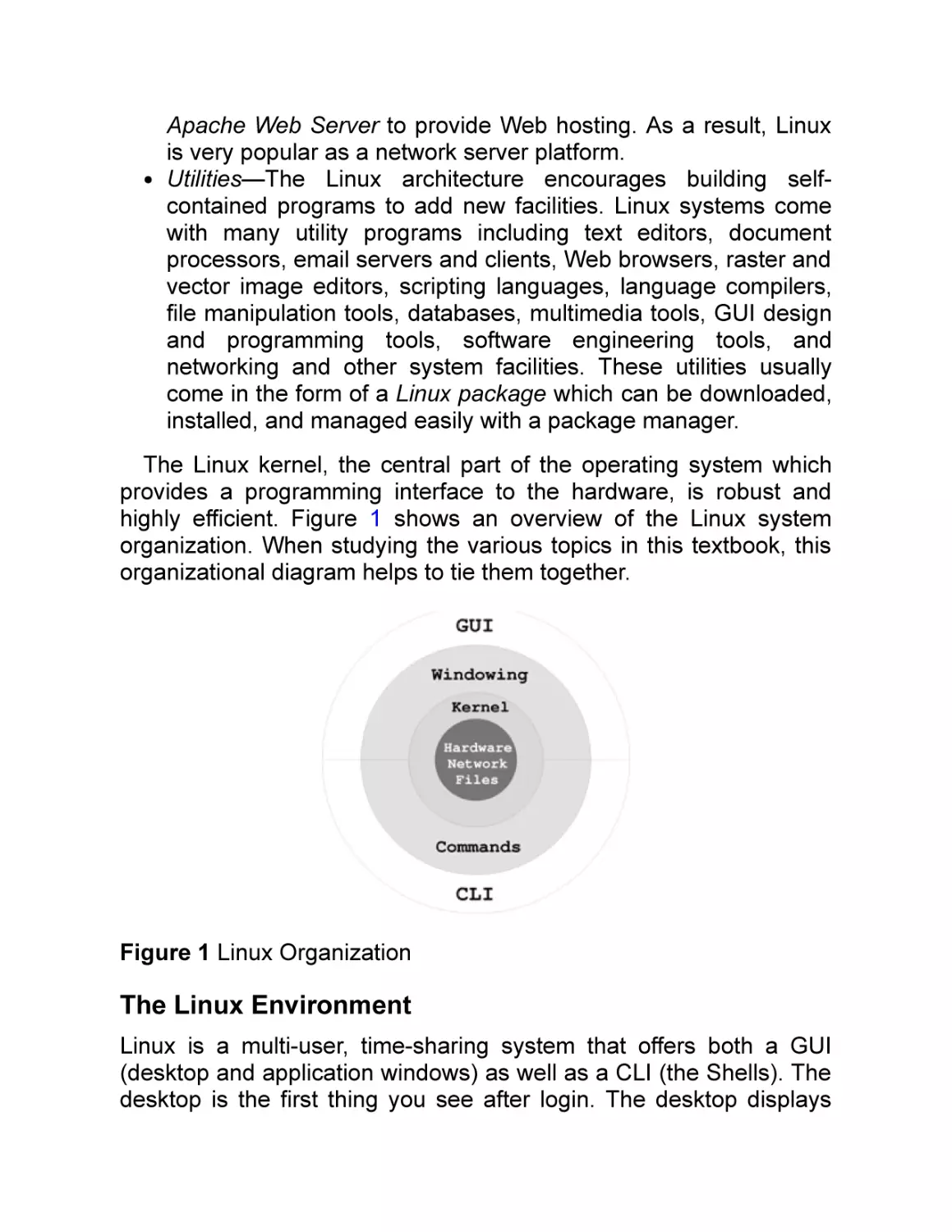
highly efficient. Figure 1 shows an overview of the Linux system
organization. When studying the various topics in this textbook, this
organizational diagram helps to tie them together.
Figure 1 Linux Organization
The Linux Environment
Linux is a multi-user, time-sharing system that offers both a GUI
(desktop and application windows) as well as a CLI (the Shells). The
desktop is the first thing you see after login. The desktop displays
one or more panels at the top and/or bottom of your screen. A panel
provides menus, launchers, and workspace switchers which perform
various tasks. Icons on the screen provide access to Computer,
Services, File System, and so on.
Application programs fall into two broad categories: GUI
applications and CLI applications. A GUI application displays its own
graphical window with which the user may interact via the mouse
and the keyboard. In contrast, a CLI application must run inside a
terminal window and interacts with the user only through the
keyboard.
Launchers in panels, in menus, or on the desktop make starting
programs easy. However, any program can be invoked by typing a
command inside a terminal window. You can control and switch
among multiple windows on the screen. A command Shell helps you
control and manage multiple jobs inside any single terminal window.
The file system contains public files and programs for all users.
Each user also has a personal file directory known as the user’s
home directory. Access to files and directories is controlled by the
file owner and group designations.
Linux allows a high degree of customization on a per-user basis.
The Shell, as well as important utilities such as the X Window
System and text editors, refers to initialization and configuration files.
You can tailor these files to make the utilities run according to your
needs and preferences. You can even choose among different Shells
to serve as your CLI. Documentation for Linux and its utilities can be
conveniently accessed locally on your computer, as well as on the
Web.
Learning Linux
Linux systems are used widely in colleges, universities, and
companies, both as servers and as workstations in computer labs.
Many users have Linux/Windows dual boot on their personal
machines. Knowledge of Linux is important for both learning and
employment.
To make experimentation easier, a student can set up a private
Linux learning environment on his/her own Windows® or Mac®
computer. Specific instructions can be found in the Appendix.
This book covers a set of carefully selected topics that enable you
to understand operating system concepts, to use Linux effectively,
and to take full advantage of your Linux computer.
The chapters are sequenced in a drill-down progression starting
with a primer to get you started quickly on Linux with hands-on
learning and meaningful tasks.
Next, we present the Linux GUI and the standard Linux CLI (the
Bash Shell). Then we discuss useful apps, commands, filters to build
pipelines, and regular expressions for pattern matching. All this
paves the way for writing Bash programs called Shell scripts.
Digging deeper, we discuss how to control files and folders, and
how Linux organizes and manipulates files in a set of filesystems
that is an important part of the Linux kernel.
Computers are rarely used in isolation, and, like other modern
operating systems, Linux relies heavily on networking for many
operations. With a good foundation from the earlier chapters, we
discuss networking, Web, Internet, public-key encryption and digital
signature.
Linux system administration becomes important after a user gets
familiar with the operating system. For people serious about a Linuxrelated career, system admin knowledge is critical. We cover the
basics of Linux system management in Chapter 8.
Attention then turns to C-level programming, kernel system calls,
processes, and inter-process communication. These topics shed
light on the internals of Linux and provide a deeper understanding of
concepts and topics covered in earlier chapters. The material should
prove especially important for CS/CE majors.
Thus, you will find traditional as well as contemporary topics
important for the modern Linux environment. The material in this
book applies to most popular Linux systems. The knowledge gained
will enable you to use any version of Linux with ease. Major
differences among Linux versions are noted where appropriate.
Because Linux is best learned through frequent experimentation
and practice, we begin with a primer that gets the new user started
quickly. We offer examples and practical ways to use Linux
throughout the book. Many examples are provided to illustrate
concepts and to demonstrate programming techniques. This
textbook also contains an example code package 4 which provides
complete programs ready to download and run on your computer.
The material is presented for smooth reading as a textbook, but also
for convenient reference later on.
1
2
3
Linux is distributed under the GNU General Public License.
EEE Computer Society standards for Portable Operating System Interface.
MINIX is the first open-source clone of UNIX for the IBM PC written by Professor
Andrew S. Tanenbaum in 1987.
4 See page 353 for downloading instructions.
Chapter 1
A Linux Primer
If you are serious about computing, safeguarding security, and
understanding how an operating system works, Linux is the system
of choice. To learn Linux you must use it, and, of course, to use it
you must learn it. Such a paradox is rather common—you probably
learned to drive a car this way. You just need some basic help and
pointers to get started. Here we present an overview of basics. Once
you understand the material in this chapter, you will be able to use
the operating system to learn more in each successive chapter. At
first, you need a learner’s permit to drive a car. Consider this chapter
your learner’s permit for Linux; with a little practice you will be using
Linux almost right away.
Learning Linux involves understanding how to use it from the user
level, how to apply its powers and apps effectively, features making it
such a good server, and how to program it from the system level.
With this textbook, you’ll begin to master Linux.
This primer provides basic information and a selection of topics
designed to get you started using Linux quickly. As you read this
chapter, try the different commands and features as you come to
them. In each case, we will provide enough information to get you on
the system and learning.
1.1 WHAT IS AN OPERATING SYSTEM?
The operating system controls a computer and makes it usable. It
brings life to the innate electronic hardware components and
orchestrates all activities on a computer. The same hardware under
a different operating system is literally a different computer.
The operating system provides service and control functions to
users, programs, files, operators, display monitors, printers, network
connections, and everything else on a computer system. A computer
operating is one of the most complicated and sophisticated objects
humans ever built.
A modern operating system like Linux consists of three main parts:
a kernel, interfaces for users, programs, devices and networks, and
a set of commands and apps. The kernel deals with central
functions, including concurrent program execution, memory
management, input/output (I/O), file services, networking and
security. Commands and apps supply other operations such as file
managers, text editors, email processors, Web browsers, software
package managers, audio/video and image processing tools,
language compilers, and so on. Interfaces define and support
communications among all the components.
For users, Linux provides easy-to-use Graphical User Interfaces
(GUIs) in the form of desktop environments. Linux also provides
efficient and effective Command-Line Interfaces (CLIs) in the form of
Shells.
1.2 GETTING STARTED: LOGIN AND
LOGOUT
To access your Linux system, you must have a user account,
identified by a userid and a password, that have been created by a
system administrator. At most installations, your userid will be your
last name or your first initials and last name (often all lowercase).
Your password is a safeguard against unauthorized use of your
computer account. You need to choose a password of at least eight
or twelve characters (your local system may enforce other
conventions as well, such as a minimum length or that there be at
least one numeral or symbol). Passwords must be hard to guess.
Correctly spelled words or names of relatives are bad choices. A
sequence containing upper and lower case characters, digits, and
symbols is usually better. Longer passwords can be a phrase. Since
you are the only one who knows your password, you must be careful
with it. Forgetting your password means the system administrator
must create a new one for you. Giving your password to the wrong
person could have even more dire consequences; you could be
blamed for whatever damage is caused, intentionally or otherwise,
by the other person. Do not tell or show anybody your password.
Keep it written down somewhere safe.
Once you have a userid and password, you can begin your Linux
session. The first step is the login procedure. Login protects the
system against unauthorized use and authenticates the identity of
the user. You can use Linux from the console or across a network.
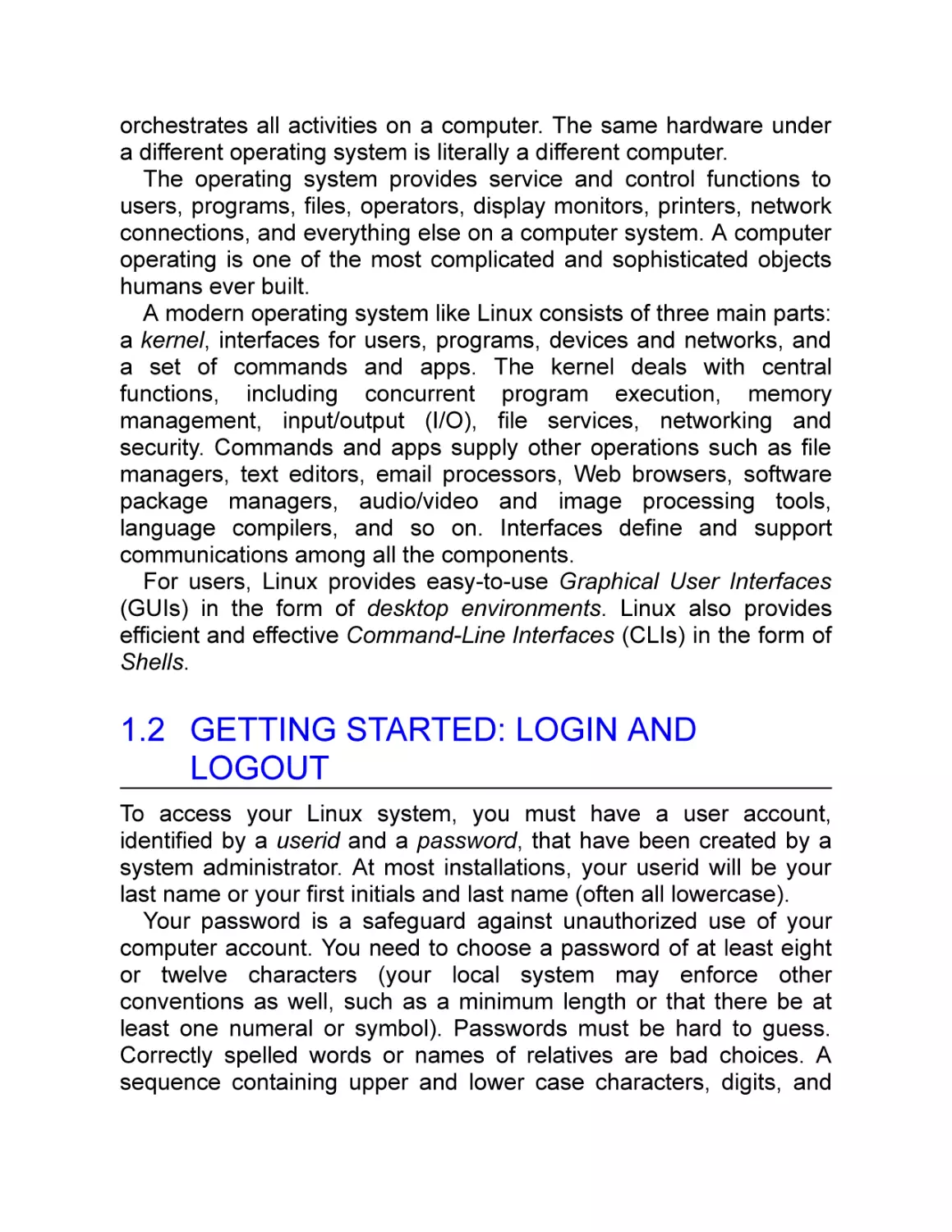
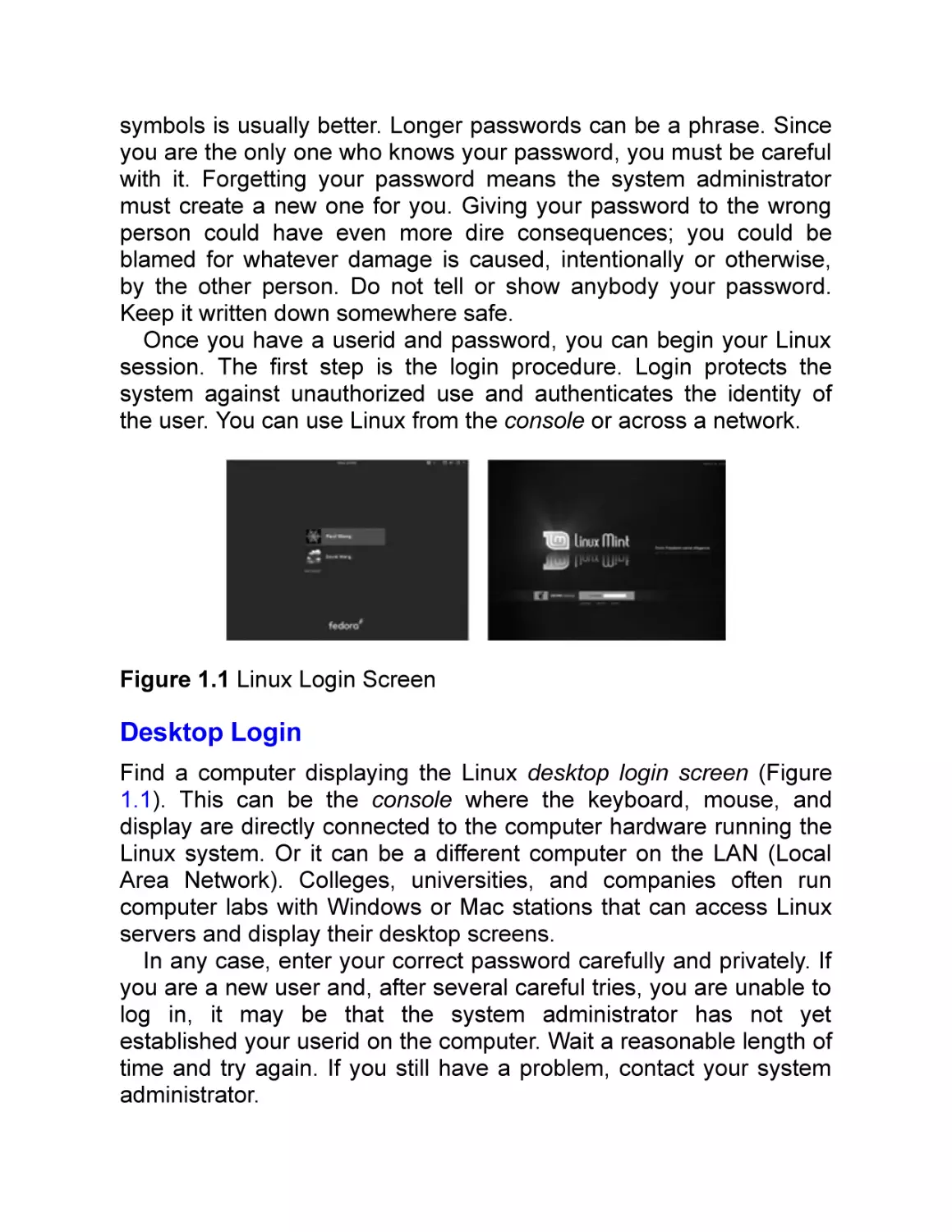
Figure 1.1 Linux Login Screen
Desktop Login
Find a computer displaying the Linux desktop login screen (Figure
1.1). This can be the console where the keyboard, mouse, and
display are directly connected to the computer hardware running the
Linux system. Or it can be a different computer on the LAN (Local
Area Network). Colleges, universities, and companies often run
computer labs with Windows or Mac stations that can access Linux
servers and display their desktop screens.
In any case, enter your correct password carefully and privately. If
you are a new user and, after several careful tries, you are unable to
log in, it may be that the system administrator has not yet
established your userid on the computer. Wait a reasonable length of
time and try again. If you still have a problem, contact your system
administrator.
After login, you’ll see your desktop displayed. The desktop
enables the use of full-GUI (Graphical User Interface) applications
that allow point-and-click operations with the mouse, touchpad or
touch screen.
From the desktop, you can press the windows or super key or click
on the start icon to show/hide a start menu or applications menu
displaying many tasks you can do. The start icon is usually a Linux
distribution logo located on the left end of your desktop Panel
(normally a horizontal bar across the top or bottom of your screen).
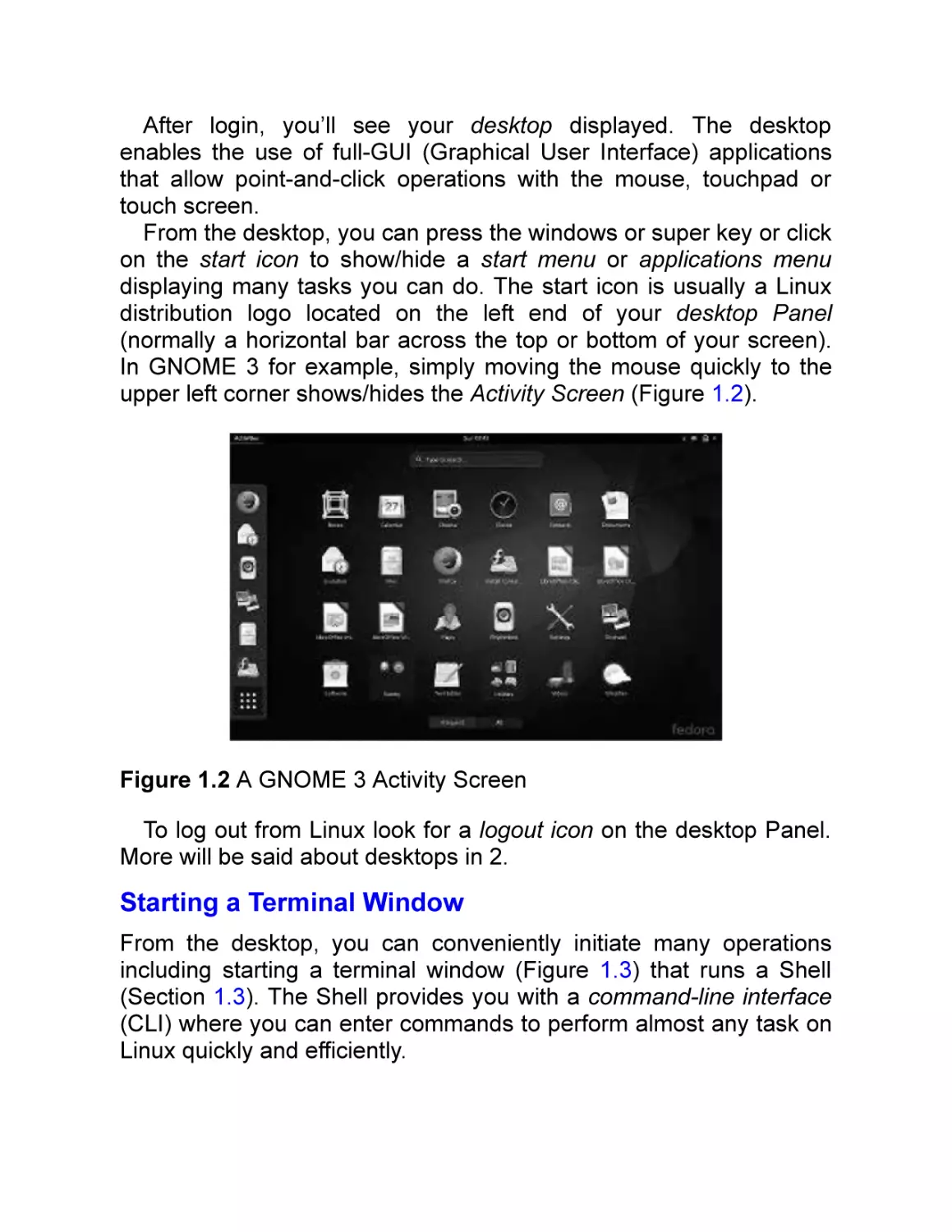
In GNOME 3 for example, simply moving the mouse quickly to the
upper left corner shows/hides the Activity Screen (Figure 1.2).
Figure 1.2 A GNOME 3 Activity Screen
To log out from Linux look for a logout icon on the desktop Panel.
More will be said about desktops in 2.
Starting a Terminal Window
From the desktop, you can conveniently initiate many operations
including starting a terminal window (Figure 1.3) that runs a Shell
(Section 1.3). The Shell provides you with a command-line interface
(CLI) where you can enter commands to perform almost any task on
Linux quickly and efficiently.
Figure 1.3 A Terminal Emulation Window
To start a terminal window, go to the start menu and click on the
System tools- > Terminal option or the Accessories- > terminal
option, depending on your Linux and desktop. The terminal may be
gnome-terminal, konsole, or another depending on your Desktop
environment. The GNOME 3 Applications menu (Figure 1.4) includes
a gnome terminal icon to conveniently launch a terminal window. A
terminal window emulates a character-based computer terminal and
allows you to use Linux through a command interpreter called the
Shell (Section 1.3). The terminal window allows you to change its
appearance and font to your own liking.
As it starts, the Shell also positions you at your home directory
(Section 1.5), the file folder reserved for you as a user on Linux. The
Shell indicates its readiness to take your commands by displaying a
prompt at the beginning of a line.
Figure 1.4 GNOME 3 Applications Menu
When you are finished with a terminal window, you may close it by
exit (exits from Shell and closes the terminal window)
logout (same as exit)
The character ctrl+d (the character d typed while holding down the
ctrl key) typed alone on a command line often can be used in place
of the exit command. Exit with ctrl+d is convenient but dangerous,
because one typing error can close your terminal window. See
Chapter 3 for how to disable exit via ctrl+d.
By the way, we shall use the notation
ctrl+X
to denote a control character, where X is some character. Note
also that although the convention is to show an uppercase character,
you do not need to hold down shift when typing a control character.
Remote Login
Universities and other institutions often run large Linux servers for
users to access through a LAN or even the Internet. You can use
TELNET, or more likely SSH (Secure Shell), to access a Linux
system from another computer, which can be a PC, another Linux
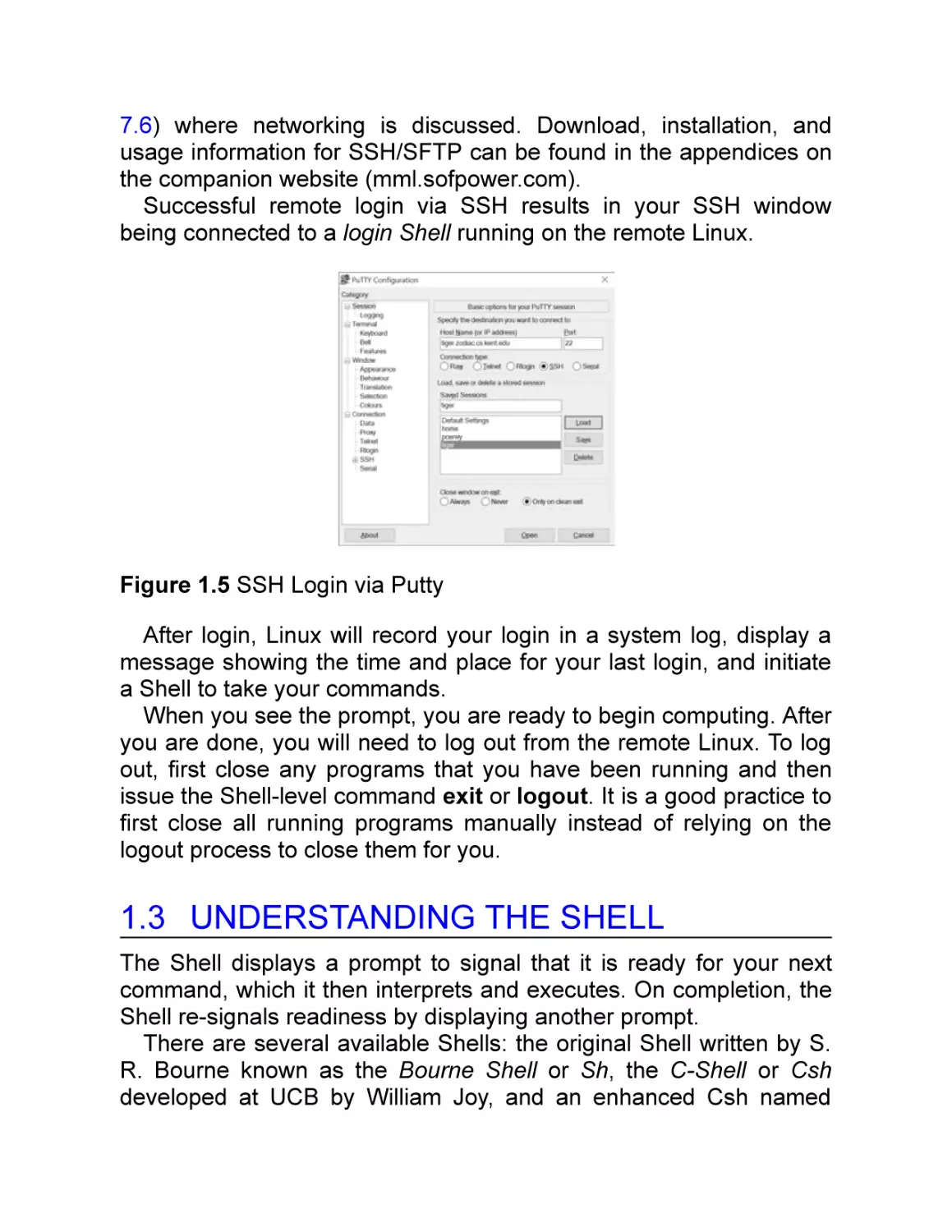
system, or any other platform. Figure 1.5 shows SSH access, via the
Putty tool (free and recommended), to a Linux host tiger.cs.kent.edu
from MS Windows®.
On Linux, the Shell-level command ssh provides SSH and is used
to access a remote Linux server from a Linux system. For example,
ssh pwang@tiger.cs.kent.edu
or
ssh -X pwang@tiger.cs.kent.edu
networks to the computer tiger.cs.kent.edu (the domain name of
the computer) and attempts to log in with the userid pwang. Remote
login normally supports only CLI access. The -X (capital X) option
allows the remote computer to open the graphical display on the
local Linux and therefore enables you to also launch remote
applications that require a GUI. Running GUI programs remotely
involves much heavier network traffic and can be slow.
Without the -X option you’ll be able to run only command-line
applications on the remote computer which is usually the efficient
and sensible thing to do. We will return to SSH in Chapter 7 (Section
7.6) where networking is discussed. Download, installation, and
usage information for SSH/SFTP can be found in the appendices on
the companion website (mml.sofpower.com).
Successful remote login via SSH results in your SSH window
being connected to a login Shell running on the remote Linux.
Figure 1.5 SSH Login via Putty
After login, Linux will record your login in a system log, display a
message showing the time and place for your last login, and initiate
a Shell to take your commands.
When you see the prompt, you are ready to begin computing. After
you are done, you will need to log out from the remote Linux. To log
out, first close any programs that you have been running and then
issue the Shell-level command exit or logout. It is a good practice to
first close all running programs manually instead of relying on the
logout process to close them for you.
1.3 UNDERSTANDING THE SHELL
The Shell displays a prompt to signal that it is ready for your next
command, which it then interprets and executes. On completion, the
Shell re-signals readiness by displaying another prompt.
There are several available Shells: the original Shell written by S.
R. Bourne known as the Bourne Shell or Sh, the C-Shell or Csh
developed at UCB by William Joy, and an enhanced Csh named
Tcsh which has replaced Csh for the most part. The Dash shell is a
bare-bones and POSIX-compliant implementation of Sh usually used
only at system boot time. The standard Shell for Linux is the Bash
(Bourne-Again Sh), which is a powerful and much improved version
of Sh. The default Shell on most Linux distributions is Bash.
At the Shell prompt, enter the command
echo $0+
to display the name of the Shell you are using. Here echo displays
the value of the Shell variable $0. Don’t worry, 3 explains how this
works.
You can change the default Shell with the chsh (change Shell)
command.
For security reasons, usually only approved Shells can be used.
In this text we will assume the Bash Shell, although basic features
of all Shells are very similar.
Entering Commands
In Linux, you can give commands to the Shell to start application
programs, manage files and folders, control multiple jobs (tasks that
are running), redirect I/O of programs from/to files, connect one
program to another, and perform many other tasks. Virtually anything
you want done in Linux can be accomplished by issuing a command
to the Shell.
Many different commands are available, but some general rules
apply to all of them. One set of rules relates to command syntax—
the way the Shell expects to see your commands. A command
consists of one or more words separated by blanks. A blank consists
of one or more spaces and/or tabs. The first word is the command
name (in this book the name of a command will appear in boldface);
the remaining words of a command line are arguments to the
command. A command line is terminated by pressing the return (or
enter) key. This key generates a newline character, the actual
character that terminates a command line. Multiple commands can
be typed on the same line if they are separated by a semicolon (;).
For example, the command
ls folder
lists the names of files in a folder (directory) specified by the
argument folder. If a directory is not given, ls lists the current working
directory (Section 1.5).
Sometimes one or more options is given between the command
name and the arguments. For example,
ls -F folder
adds the -F (file type) option to ls telling ls to display the name of
each file, or each filename, with an extra character at the end to
indicate its file type: / for a folder, * for an executable, and so on.
At the Shell level, the general form for a command looks like
command-name [ options ] ... [ arg ] ...
The brackets are used to indicate elective parts of a command that
can be given or omitted. The ellipses ( … ) are used to indicate
possible repetition. These conventions are followed throughout the
text. The brackets or ellipses themselves are not to be entered when
you give the command.
Command options are usually given as a single letter after a single
hyphen (-). For example, the long listing option for the ls command is
-l. Such single-letter options can sometimes be hard to remember
and recognize. Many Linux commands also offer full-word options
given with two hyphens. For example, the –help option given after
most commands will display a concise description of how to use that
particular command. Try
ls –help
to see a sample display.
After receiving a command line, the Shell processes the command
line as a character string, transforming it in various ways. Then, the
transformed command line is executed. After execution is finished,
the Shell will display a prompt to let you know that it is ready to
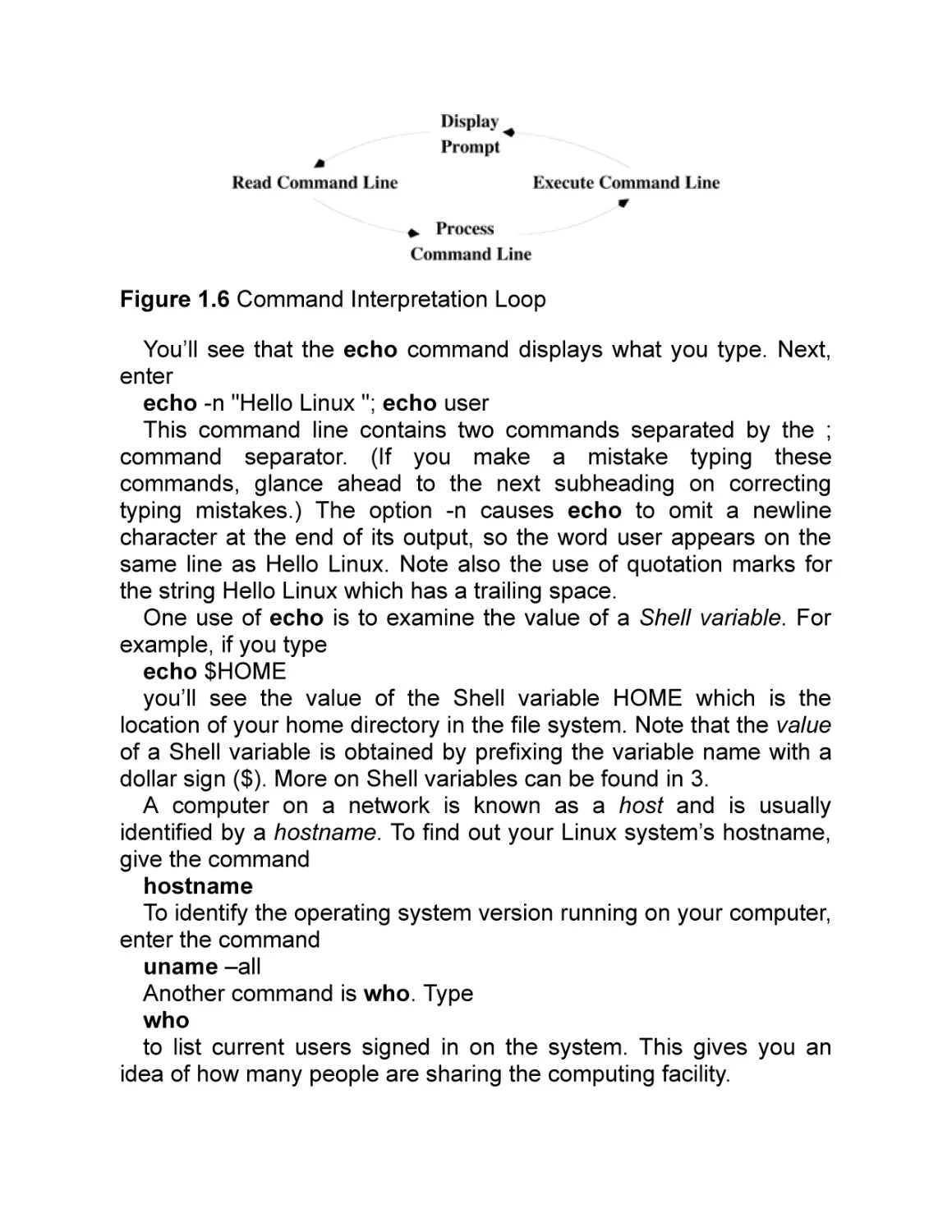
receive the next command. Figure 1.6 illustrates the Shell command
interpretation loop. Type ahead is allowed, which means you can
type your next command without waiting for the prompt, and that
command will be there when the Shell is ready to receive it.
Trying a Few Commands
When you see the Shell prompt, you are at the Shell level. Now type
echo Hello Linux
Figure 1.6 Command Interpretation Loop
You’ll see that the echo command displays what you type. Next,
enter
echo -n "Hello Linux "; echo user
This command line contains two commands separated by the ;
command separator. (If you make a mistake typing these
commands, glance ahead to the next subheading on correcting
typing mistakes.) The option -n causes echo to omit a newline
character at the end of its output, so the word user appears on the
same line as Hello Linux. Note also the use of quotation marks for
the string Hello Linux which has a trailing space.
One use of echo is to examine the value of a Shell variable. For
example, if you type
echo $HOME
you’ll see the value of the Shell variable HOME which is the
location of your home directory in the file system. Note that the value
of a Shell variable is obtained by prefixing the variable name with a
dollar sign ($). More on Shell variables can be found in 3.
A computer on a network is known as a host and is usually
identified by a hostname. To find out your Linux system’s hostname,
give the command
hostname
To identify the operating system version running on your computer,
enter the command
uname –all
Another command is who. Type
who
to list current users signed in on the system. This gives you an
idea of how many people are sharing the computing facility.
The ls command will not list hidden files, any file whose name
begins with the period (.) character, unless the -a option is given.
ls-a
lists the names of all your files, including the hidden ones. Hidden
files are usually standard operating system or application files for
configuration or other prescribed purposes and ought not be mixed
with other files created by the user.
For the Bash Shell, one standard file is .bash_profile in a user’s
home directory. You can place in this file your personal initialization
to be used when bash starts as a login Shell.
If you are curious about what’s in the file bash_profile., type the
command
more .bashprofile
to display its contents. Press space to continue to the next page or
q to quit from the more display. Don’t be discouraged by what you
don’t understand in this file. When you have progressed further in
this book, the contents will become clear.
The Linux system keeps track of the time and date precisely, as
you would expect any computer to do. The command
date
displays the current date and time as given by the following typical
output showing Eastern Daylight Time
Thu Dec 4 16:37:07 EST 2018
The Linux system has a dictionary of words for spell checking
purposes. The command
spell file
will display suspected misspellings for you. Or you can use
aspell -c file
to interactively spell check the given file. To look for words, you
can use
look prefix
on most Linux systems, and all words in the dictionary with the
given prefix are displayed.
Another useful command is passwd. Type
passwd
to change your password. This command will prompt as follows
Changing password for your userid
Old password:
New password:
Retype new password:
pausing after each prompt to wait for input. Many Linux
installations give out new userids with a standard password, and the
new user is expected to use the passwd command to change to a
personal password as soon as possible.
The command man consults the manual pages for most
commands. Thus,
man command
will display the documentation for the given command. Try
man passwd
just to see what you get. Learn about man with
man man
Details on the man command can be found in Section 1.15.
The man command documents regular commands (application
programs), but normally not commands built in to Shells or other
application programs. For Bash you can use
help builtin_command
to see a summary of any particular Bash built-in command. Many
Linux systems add a Bash_Builtins man page so the man command
will work for Bash built-in commands as well.
Correcting Typing Mistakes
As you entered the preceding commands, you may have made at
least one keystroke error, or you may wish to reissue a command
you have entered previously. Linux Shells provide easy ways to
correct typos and to reuse previous commands. Basically, you can
use the arrow keys to move the character cursor left and right on a
command line and up to a previous command or down to the next
command.
The delete (backspace) key deletes the character under (before)
the cursor. The enter (ret) key issues the command no matter where
the cursor is on the line.
The Bash Shell has great support for editing the command line. It
actually allows you to pick a text editor to help do the job. We will
return to this in Chapter 3, Section 3.3.
Aborting a Command
Apart from correcting typing mistakes, you can also exercise other
controls over your interaction with Linux. For instance, you may abort
a command before it is finished, or you may wish to halt, resume,
and discard output to the terminal window.
Sometimes, you may issue a command and then realize that you
have made a mistake. Perhaps you give a command and nothing
happens or it displays lots of unwanted information. These are
occasions when you want to abort execution of the command.
To abort, simply type the interrupt character, which is usually
ctrl+c. This interrupts (terminates) execution and returns you to the
Shell level. Try the following
1. Type part of a command.
2. Before you terminate the command, press ctrl+c.
It cancels the command and gives you a new prompt.
1.4 EXERCISE A
1. How do you start a terminal window?
2. What command and option should be used to list all the files in
your home directory?
3. Set up ctrl+alt+T as the keyboard shortcut for running a terminal
window.
4. What command is used to change your password? Can you
change it to something like 123 Why Make up a longer
password and change your password to it. Why did you have to
type your password twice this time?
5. Try input editing with the arrow keys under Bash. After doing a
command ls -l, press up-arrow once and left-arrow twice. Where
is the cursor now? Now, press RIGHT-ARROW once and the cursor
should be over the letter l which is the last character on the
command line. Can you press RIGHT-ARROW again to move the
cursor beyond l If not, can you find a way? (Hint: Limit yourself
to using only the arrow keys.)
6. What is the Linux distribution you are running? What is the
hostname of your Linux computer? How do you obtain this
information?
Figure 1.7 A Sample File Tree
1.5 USING FILES AND DIRECTORIES
Like other modern operating systems, Linux stores files for users,
applications, and the operating system itself on hard disks for ready
access. The structure used to store and manage such files is called
a file system. Files under Linux are organized into a tree structure
with a root named by the single character /.
A regular file stores a program or data. A directory or folder
contains files and possibly other directories. Internal nodes on the
Linux file tree represent directories; leaf nodes represent regular
files. This hierarchical file structure is widely used by different
operating systems. A sample Linux file tree is shown in Figure 1.7.
A visual file browser (Figure 1.8) utility allows you to navigate the
file system and perform operations on files and folders. Two popular
file browsers are Konqueror and Nautilus. For example, the
command
nautilus folder
launches Nautilus and positions it at the given folder.
While the file browser makes moving about the file system more
visual, many Linux users still find dealing with files and folders via
the Shell command line more efficient.
Current Working Directory and Filenames
When you get a userid and account on your Linux system, you are
given a personal file directory known as your home directory. Your
home directory will have your userid as its name, and it will usually
be a child of a directory called home. Your files and folders are kept
in your home directory.
Figure 1.8 Linux File Browser
To access a file or directory in the file system from the command
line, you must call it up by its name, and there are several methods
to do this. The most general, and also the most cumbersome, way to
specify a filename is to list all the nodes in the path from the root to
the node of the file or directory you want. This path, which is
specified as a character string, is known as the bsolute pathname, or
full pathname, of the file. After the initial /, all components in a
pathname are separated by the character /. For example, the file
note.txt in Figure 1.7 has the absolute pathname
/home/pwang/note.txt
The full pathname is the complete name of a file. As you can
imagine, however, this name often can be lengthy. Fortunately, a
filename also can be specified relative to the current working
directory (also known as the working directory or current directory).
Thus, for the file /home/pwang/note.txt, if the current working
directory is /home, then the name pwang/note.txt suffices. A relative
pathname gives the path on the file tree leading from the working
directory to the desired file. The third and simplest way to access a
file can be used when the working directory is the same as the
directory in which the file is stored. In this case, you simply use the
filename. Thus, a Linux file has three names
A full pathname (for example, /home/pwang/note.txt)
A relative pathname (for example, pwang/note.txt)
A (simple) name (for example, note.txt)
The ability to use relative pathnames and simple filenames depends
on the ability to change your current working directory. If, for
example, your working directory is /tmp and you wish to access the
file note.txt, you may specify the absolute pathname
/home/pwang/note.txt
or you could change your working directory to pwang and simply
refer to the file by name, note.txt. When you log in, your working
directory is automatically set to your home directory. The command
pwd (print working directory)
displays the absolute pathname of your current working directory.
The command (Bash command)
cd directory (change working directory)
changes your working directory to the specified directory (given by
a simple name, an absolute pathname, or a relative pathname).
Two irregular files are kept in every directory, and they serve as
pointers
is a pointer to the directory (directory self pointer) in which this
File .
file resides.
is a pointer to the parent directory (parent directory) of the
File ..
directory in which this file resides.
These pointers provide a standard abbreviation for the current
directory and its parent directory, no matter where you are in the file
tree. You also can use these pointers as a shorthand when you want
to refer to a directory without having to use, or even know, its name.
For example, the command
cd .
has no effect, and the command
cd ..
changes to the parent directory of the current directory. For
example, if your working directory is jdoe, and you want to access
the file sort.c in the pwang directory, you may use ../pwang/sort.c.
Why does this work?
Your home directory already comes with a name, your userid.
However, you name your files and subdirectories when you create
them. Linux is lenient when it comes to restrictions on filenames. In
Linux you may name your file with any string of characters except
the character /. But, it is advisable to avoid white space characters
and any leading hyphen (-).
Handling Files and Directories
Generally, there are two kinds of regular files: text and binary. A
Linux text file stores characters in ASCII or UNICODE and marks the
end of a line with the newline character. 1 A binary file stores a
sequence of bytes. Files may be copied, renamed, moved, and
removed; similar operations are provided for directories. The
command cp will copy a file and has the form
cp source destination
The file source is copied to a file named destination. If the
destination file does not exist, it will be created; if it already exists, its
contents will be overwritten. The mv (move) command
mv oldname newname
is used to change the file oldname to newname. No copying of the
file content is involved. The new name may be in a different directory
—hence the name “move.” If newname already exists, its original
content is lost.
Once a file or subdirectory has outlived its usefulness, you will
want to remove it from your files. Linux provides the rm command for
files and rmdir for directories
rm filenamel filename2
rmdir directoryname1 directoryname2 ...
The argument of rm is a list of one or more filenames to be
removed. rmdir takes as its argument a list of one or more directory
names; but note, rmdir only will delete an empty directory. Generally,
to remove a directory, you must first clean it out using rm.
To create a new directory, use the mkdir command, which takes
as its argument the name of the directory to be created
mkdir name
When specifying a file or directory name as an argument for a
command, you may use any of the forms outlined. That is, you may
use either the full pathname, the relative pathname, or the simple
name of a file, whichever you prefer.
Standard Personal Directories
It is easy to change to a home directory, just do
cd (goes to your home directory)
cd (goes to the home directory of userid)
In Linux, there are a number of standard folders under each user’s
home directory, usually including
Desktop—Files in this folder appear as icons on your graphical
desktop display, including regular files and application launchers
(with filename suffix .desktop)
Documents—Textual documents such as PDF files and those
created using tools such as Apache OpenOffice and LibreOffice.
Download—Files downloaded from the network
Music—Sound and music files
Pictures—Pictures from digital cameras
public_html—Files under this folder are made available to the
Web via an HTTP server on your Linux system
Videos—Files from video cameras and recorders
In addition to these, you may consider setting up a bin/ for your own
executables, a tmp/ for temporary files, a templates/ for reusable
files, a homework/ for your classes, and so on.
1.6 PROTECTING FILES: ACCESS
CONTROL
Every file has an owner and a group designation. Linux uses a 9-bit
code to control access to each file. These bits, called protection bits,
specify access permission to a file for three classes of users. A user
may be a super user, the owner of a file, a member in the file’s
group, or none of the above. There is no restriction on super user
access to files.
u (The owner or creator of the file)
g (Members in the file’s group)
o (Others)
The first three protection bits pertain to u access, the next three
pertain to g access, and the final three pertain to o access. The g
type of user will be discussed further in 6.
Each of the three bits specifying access for a user class has a
different meaning. Possible access permissions for a file are
r (Read permission, first bit set)
w (Write permission, second bit set)
x (Execute permission, third bit set)
The Super User
Root refers to a class of super users to whom no file access
restrictions apply. The root status is gained by logging in under the
userid root (or some other designated root userid) or through the su
command . A super user has read and write permission on all files in
the system regardless of the protection bits. In addition, the super
user has execute permission on all files for which anybody has
execute permission. Typically, only system administrators and a few
other selected users (“gurus” as they’re sometimes called) have
access to the super user password, which, for obvious reasons, is
considered top secret.
Examining the Permission Settings
The nine protection bits can be represented by a 3-digit octal
number, which is referred to as the protection mode of a file. Only
the owner of a file or a super user can set or change a file’s
protection mode; however, anyone can see it. The ls -l listing of a file
displays the file type and access permissions. For example,
-rw-rw-rw- 1 smith 127 Jan 20 1:24 primer
-rw-r–r– 1 smith 58 Jan 24 3:04 update
is output from ls -l for the two files primer and update. The owner
of primer is smith, followed by the date (January 20) and time (1:24
A.M.) of the last change to the file. The number 127 is the number of
characters contained in the file. The file type, access permissions,
and number of links precede the file owner’s userid (Figure 1.9). The
protection setting of the file primer gives read and write permission to
u, g, and o. The file update allows read and write to u, but only read
to g and o. Neither file gives execution permissions. There are ten
positions in the preceding mode display (of ls). The first position
specifies the file type; the next three positions specify the r, w, and x
permissions of u; and so on (Figure 1.9). Try viewing the access
permissions for some real files on your system. Issue the command
ls -l /bin
to see listings for files in the directory /bin.
Figure 1.9 File Attributes
Setting Permissions
A user can specify different kinds of access not just to files, but also
to directories. A user needs the x permission to enter a directory, the
r permission to list filenames in the directory, and the w permission to
create/delete files in the directory.
Usually, a file is created with the default protection
-rw——so only the file owner can read/write the file. To change the
protection mode on a file, use the command
chmod mode filename
where mode can be an octal (base 8) number (for example, 644
for rw-r–r–) to set all 9 bits specifically or can specify modifications to
the file’s existing permissions, in which case mode is given in the
form
who op permission op2 permission2 ...
Who represents the user class(es) affected by the change; it may
be a combination of the letters u, g, and o, or it may be the letter a
for all three. Op (operation) represents the change to be made; it can
be + to add permission, - to take away permission, and = to reset
permission. Permission represents the type(s) of permission being
assigned or removed; it can be any combination of the letters r, w,
and x. For example,
chmod o-w filename
chmod a+x filename
chmod u-w+x filename
chmod a=rw filename
The first example denies write permission to others. The second
example makes the file executable by all. The third example takes
away write and grants execute permission for the owner. The fourth
example gives read and write permission (but no execute
permission) for all classes of user (regardless of what permissions
had been assigned before).
A detailed discussion on the Linux file system can be found in 6.
1.7 EXERCISE B
1. Go to your home directory and list all files (hidden ones
included) together with the permission settings.
2. Using the ls command, list your files in time order (most recent
first).
3. List the permission settings of your home directory. Use the
chmod command to make sure to forbid read and write from g
and o.
4. Create a folder public_html directly under your home directory
and make sure you open read and execute permissions on this
folder.
5. Connect your digital camera to your Linux box and download
pictures. Where are the pictures placed? Can you find them
under your Pictures folder?
Figure 1.10 Gedit
1.8 TEXT EDITING
Creating and editing text files is basic to many tasks on the
computer. There are many text editors for Linux, including gedit,
nano, vim/gvim/vi, and emacs.
The editor gedit (Figure 1.10) comes with the GNOME desktop. It
requires almost no instructions to use. Start it from the Start menu
Text Editor or the command
gedit file &
An editor window will display. Then you can type input; move the
cursor with the arrow keys or mouse; select text with the mouse;
remove text with the delete or backspace key; and find, cut, copy,
and paste text with the buttons provided or with the edit menu
options. It is very intuitive.
The gedit is a GUI application. If you want a terminal-window–
based editor then consider nano, which is very easy to learn but is
less powerful or convenient than vim or emacs. Guides to vim and
emacs can be found in the appendices on the companion website
(mml.sofpower.com).
Editing power aside, there is something to be said about an editor
that is easy and intuitive for simple tasks, especially if you are a
beginner. In any case, pick a text editor and learn it well. It can make
life on Linux so much easier.
Figure 1.11 Nano
To invoke the editor nano for editing file, type from the Shell level
nano file (starts nano)
nano -w file (starts nano without line wrapping)
If the file exists, nano displays it for editing. Otherwise, you are
creating a new file by that name. As you enter text, nano will start a
new line automatically when the text line gets close to the right edge
of your editor window. The -w option asks for no such automatic line
wrapping. It is also advisable to always use the -z option which
allows you to suspend nano and get back to the Shell level.
Once inside nano, you are working in a text-editing environment
controlled by nano, and you can create text, make changes, move
text about, and so on. Common operations are indicated by the
nano editor window (Figure 1.11). Here is a list to get you started.
To save the file, type ctrl+o.
To quit and terminate nano, type ctrl+x. You can then elect
whether to save the buffer or cancel to change your mind about
quitting.
To move the cursor, use the arrow keys.
To cut and paste whole lines, ctrl+k cuts one line at a time and
ctrl+u pastes the lines cut.
To cut and paste selected text, type ctrl+6, move the cursor to
highlight selected text, and then use ctrl+k and ctrl+u.
To look for text in the editing buffer, type ctrl+w (where), the text
to find, and enter or return.
To get help on operations, type ctrl+g.
1.9 GETTING HARD/SAVED COPIES
To get a printed copy of a file use
lpr [ options ] filename
This command sends filename to a printer. Your printing request
joins a queue of such requests that are processed in order. Note that
only supported files (plain text, postscript, or pdf) can be printed this
way. Do not send unsupported files, such as a compiled program (.o
file), or a compressed file to a printer this way. The print option on
the file menu of application programs, such as your Web browser,
PDF (Portable Document Format) reader, or document editor, can
also be used.
Often, you can avoid wasting paper by using the print to file option.
You can easily save the resulting file (mostly in PDF) and share with
others by email or SFTP (Secure File Transfer Protocol, 5, Section
5.20).
1.10 COMMUNICATING WITH OTHERS
As soon as you log in, you can potentially interact with others,
whether they are users on the same Linux computer or on other
hosts (computers) connected by networking. Commands such as
who (who is logged in) and finger help to identify members of your
user community; email applications allow the sending and receiving
of messages and files; and instant messaging (IM) programs enable
immediate interaction among on-line users anywhere on the Internet.
Who’s Who on the System: finger
If you are a new user, you may not know many people on the
system, and although the information provided by who and w is
useful, you don’t know who these users are. You only know their
userids, which may not resemble their actual names even faintly.
The command finger will give you such data as full name, office,
address, and phone number for each user; this is sometimes
referred to as the finger database, because finger is used to look up
information from this database. The general form is
finger name ...
This command will display all entries in the finger database that
contain a userid and first, middle, or last name matching any of the
given arguments. For example, either finger smith or finger clyde
will result in the entry shown in Figure 1.12.
Figure 1.12 A Sample finger Output
This multiline output includes a project field, which is the first line
in the .project file in the user’s home directory. The plan field displays
the user’s .plan file. These two files supply additional information
about a user for the finger database. The no plan line in the example
indicates that csmith has no .plan file. On some systems, finger
gives only a very short summary unless the -l option is given.
Used with an argument, finger will access information on any user
known to the system, whether that user is logged on or not. If finger
is used without an argument, an abbreviated finger entry is displayed
for each user currently logged in. The f command is sometimes
available as a shorthand for finger.
Figure 1.13 Thunderbird Email Program
Email
Electronic mail gives you the ability to send and receive messages
instantly. A message sent via email is delivered immediately and
held in a user-specific mailbox for each recipient. You can send
email to users on the same computer or on other computers on the
Internet.
Many utilities are available on Linux for email, including the
popular thunderbird (Figure 1.13), Evolution, and Kmail. These fullGUI email programs are nice when you are at a Linux console.
Command-line email programs such as elm and mutt are useful
from a terminal window. Let’s explain how to use mutt.
mutt userid@host-address (Internet mail)
mutt userid (local mail)
Then just follow instructions and enter the message subject and
type/edit your message. Mutt lets you edit your message using your
favorite text editor. For mutt and many other applications that need
text editing, set your favorite editor by giving a value to the
environment variable EDITOR (3, Section 3.10).
EDITOR=vim+ or EDITOR=emacs
export EDITOR
When you finish editing your message, it will be sent out
automatically.
mutt –help | more
displays more information on mutt usage. Here, the output is
piped via the +|+ notation (Chapter 3, Section 3.5) to the more
paginator which displays the information one page at a time.
To receive email (to check your mailbox), type mutt with no
argument and follow instructions. Try to send yourself some email to
get familiar with the usage.
Email is fast, but not instant or interactive. On Linux, you can do
IM. Skype and Google Hangout are very popular. Both work well on
all kinds of systems including Linux.
For IM on Linux, you can also choose pidgin or empathy.
1.11 BROWSING THE WEB
One of the most important tools on any computer system is the Web
browser. On Linux you have a choice of different Web browsers.
Popular choices include Google Chrome and Firefox. The command
firefox comes with most Linux distributions. In Figure 1.14 we see
the homepage of our textbook website.
Figure 1.14 Access Textbook Site
You can enter a URL (Uniform Resource Locator) in the browser
Location window to visit a specific Web address. A local file URL,
taking the form file://full_pathname can be used to visit your local file
system.
Normally, Web browsers are full-GUI programs used interactively,
but Linux also offers a command-line Web browser called lynx, a
text-only browser that does not display images. However, lynx can
be used inside a terminal window to interactively browse the Web
using the arrow keys or to download files from the Web.
1.12 EXERCISE C
1. Try the mutt email program. Use it to send an email and attach
a file. Do the same using Thunderbird.
2. Create a text file using nano.
3. Try the vim or emacs editor. Read the related appendix on the
book’s website.
4. If possible, set up Thunderbird as your email program and
Firefox or Chrome as your Web browser.
5. Download a file using lynx from the Web.
1.13 CREATING AND RUNNING YOUR OWN
PROGRAM
Skip this section if you have no immediate interest in writing a
program in a general-purpose programming language such as C.
You can always return to this section later. The Linux system offers
many language s: C, C++, Java, Fortran 77/95, Python, Ruby, and
Perl, just to name a few. You can also write Shell scripts (5) to
automate frequently used operations.
File Name Suffixes
Linux follows a set of conventions for naming different kinds of
files. Table 1.1 illustrates some commonly used filename suffixes. A
source code file cannot be executed directly. The program usually
must be compiled into machine code before execution can take
place. An alternative to compilation is to interpret a high-level
language program directly using an interpreter.
Table 1.1 Person In-Charge At the Organization Respondents
We shall follow an example of creating and running a simple Clanguage program. Use your favorite text editor and create a C
source file try.c (Ex: ex01/try.c) with the code
#include >stdio.h<int main(){ printf("running my C
program\n");return 0;}
This is a simple source program in C that displays the line “running
my C program.” The notation n stands for the NEWLINE character.
Compiling
Before try.c can be run, it must be compiled. Compiling is the
process of translating a program written in a high-level language
such as C or Pascal into a low-level language for execution on a
particular computer. On many systems the compiler will output a file
of object code, which must be inked (combined with routines
supplied by the system library) by a separate program called a linker.
Once linkage is complete, the file is considered executable and is
ready to be loaded into memory and executed.
Linux-based compilers will handle both the compiling and the
linking of a program unless you specifically tell them not to, and their
output will be an executable file. Available compilers include produce
object files (.o).
gcc
GNU C compiler
g++
GNU C++ compiler
javac
Java compiler
gfortran GNU Fortran 77/95 compiler
Let’s try compiling the sample program in the file try.c
gcc try.c
This will produce an executable file +a.out+ which can be invoked
simply by typing it as a command (Chapter 3 Section 3.5).
a.out
Note that in Linux the command to run a program is simply the
pathname of the executable file. Thus,
./a.out (runs the executable)
At some point, you probably will want to name your executable file
something other than a.out, especially since a.out will be overwritten
the next time you invoke a compiler in this working directory. We
already know that the mv command can be used to rename a file,
but the -o option to gcc or g++ can be used to provide a name to
use instead of the default a.out. For example,
gcc -o mytry try.c
produces the executable +mytry+.
No matter which language program you run, you probably will
want a record of your results (to submit as a homework, for
example). One way to do this is to use output redirection. For
example,
./a.out > results+
The symbol > tells the Shell to redirect output of a.out from the
terminal screen into a new file named results. Thus, you will see no
output in the terminal window after the preceding command. Instead,
you’ll find the output in the file result. A full account of Shell I/O
redirection can be found in 3, Section 3.5.
Another way to do this is to use the script command
script record_file
to record your terminal session into a record_file. While script is
active, all I/O to and from your terminal window is written to the file
you specified (or to a file named typescript if you entered script
without an argument). The recording continues until you type ctrl+d
at the beginning of a command line. The file then can be viewed later
with a text editor or emailed to someone. For example, to run a C
program with script, the following sequence of commands may be
used
script display_record?
cc myprogram.c?
a.out
ctrl+d
The script command requests that all subsequent I/O be recorded
in the file displayrecord. The ctrl+d on the last line stops the
recording and gets you out of script and back to the Shell level.
An advantage of using script over simply redirecting output is that
the file produced by script will contain both input to and output from
the program. The file created by redirecting output will contain only
output.
1.14 EXERCISE D
1. Type in a simple program (in your favorite programming
language) to type out the message: Linux is nice once you know
it. Compile it and run it. Use script to get a display record of the
program’s execution.
2. Use more or nano to view the file produced by script and then
send the file to someone by email.
1.15 CONSULTING LINUX DOCUMENTATION
The command yelp (regular command) provides a GUI for browsing
Linux documentation and when given with no arguments launches
the GNOME Help utility which is a good guide for beginners (Figure
1.15).
Figure 1.15 GNOME Help
The Linux Documentation Project website http://tldp.org provides
comprehensive documentation for almost all aspects of Linux. You’ll
find FAQs, topic-specific step-by-step instructions called HOWTOs,
guides, and manual pages for commands. A search feature makes it
easy to find what you need.
You can also find documentation provided by your own Linux. The
Help menu on the tool bar of GUI applications, such as the File
Browser, the Terminal Emulation Window, and Pidgin, provides toolspecific documentation.
Command-line programs often provide brief and concise usage
information with the –help command option. For example, try
ls –help
The man command displays manual pages set in standard UNIXdefined formats. See Section 3, Section 3.11 for more information on
Linux manual pages.
1.16 EXERCISE E
1. How do you ask a command to help you use it?
2. Access the man page for ls and read it from beginning to end.
3. Explain how to display the introduction section to the user
commands chapter of the Linux man pages.
1.17 ROUNDING UP USEFUL COMMANDS
In this chapter, we have run into only a small number of the many
available Linux commands. The richness and variety of Linux
commands are major strengths of the system. It is doubtful, however,
that many users know all of them; you learn the commands that
accomplish what you need. This section collects the commands that
should be in a new user’s basic repertoire.
In Linux, both uppercase and lowercase characters are used, and
they are not interchangeable. All system-defined Linux commands
are entered in lowercase. Also, there are two kinds of commands: (1)
built-in Shell commands that are subroutines in the Shell and (2)
regular commands that are initiated as jobs controlled by the Shell.
The importance of this distinction will become clear. In the following
listing of commands, user-supplied arguments are shown in italics.
Optional arguments are enclosed in square brackets [ ]. Possibly
repeated arguments are indicated by ellipses (...). These
conventions will be followed throughout the book. Only the most
common usages of these commands are given. The information here
is intended to get you started and is by no means complete. Details
are provided in later chapters, and you should consult the on-line
manual for full descriptions of each of these commands.
1.18 SUMMARY
Linux provides both full-GUI applications and command-line
programs. The GUI is visual and more intuitive to use, but many
basic Linux utilities are more convenient on the command line. A
Shell (typically Bash) running in a terminal window provides a CLI to
enter and execute commands. Learning to use both the GUI and the
CLI effectively will make life much easier on Linux. The CLI is
especially important for remote access of Linux using SSH.
The desktop main menu leads to many useful operations. 2
presents the Linux desktop.
A Shell executes commands you input from the keyboard and
displays results in your terminal window. Typing errors can be
corrected through input editing.
Both the system and the users store data in files managed by the
Linux file system, which has a tree structure. Each file can be
referred to by a full (absolute) pathname, a relative pathname, or a
simple filename. Each user has a home directory in which personal
files and directories can be kept. Files and directories can be
created, moved, copied, listed, and destroyed. Read, write, and
execute permissions are used to control file access by u (owner), g
(group member), and o (others). The owner can set and change the
access permissions of a file.
You can communicate directly with other users by using talk to
chat directly, by email, and by instant messaging (Skype, Google
Hangout, Pidgin).
Linux offers several text editors. The full-GUI gedit is a good
choice. For a terminal window, the simple and easy nano is good for
beginners and light editing tasks. Serious editing is more efficient
with an editor such as vim. Editing, compiling, and running of a
simple C program have been presented.
Linux offers many facilities and a complete set of manuals. The
man command can be used to consult the manual pages, and the
Linux Documentation Project website provides a variety of
comprehensive Linux documentations.
Refer to Section 1.17 for a list of useful commands for Linux
beginners.
1
On Windows or DOS systems, end of line is indicated by return followed by newline.
Chapter 2
The Desktop Environment
It is important for an operating system to provide a convenient
interface for users to perform and manage tasks. In the beginning,
Linux/UNIX systems were used exclusively from the keyboard via
the command-line interface (CLI) (3). By adding graphical user
interfaces (GUIs), Linux systems are made more intuitive to use as
well as easier to learn for people familiar with Microsoft Windows® or
Mac OS® systems.
A graphical user interface (GUI) employs a pixel-based graphical
display and adds a pointing device, such as a mouse, touchpad, or
touch screen, to interact with the user. The first effective GUI on an
affordable personal computer 1 was introduced by the Apple Lisa in
the early 1980s.
A Desktop Environment (or simply Desktop) supports the GUI by
providing workspaces, windows, panels, icons, and menus, as well
as clicking, scrolling, copy-and-paste, and drag-and-drop operations.
Today, it is hard to imagine computer users doing without a desktop
GUI. Nevertheless, when you become more of a Linux expert, you
may find the CLI more convenient in many situations. The right
approach is to combine GUI and CLI to get the best of both worlds.
2.1 DESKTOP OVERVIEW
After login at a workstation, the first thing you see is the desktop
from which you can launch applications, manage files, control your
Linux system, and perform many other tasks. A desktop makes
operating your computer more intuitive through a desktop metaphor
by simulating physical objects. Overlapping windows can be moved
and shuffled like pieces of paper. Buttons (icons) can be pushed
(clicked) to initiate actions.
Unlike MS Windows® or the Mac OS®, Linux offers a good
number of alternative desktops with a high degree of user
customization. Popular desktops include KDE Plasma, GNOME 3,
Cinnamon, MATE, Unity, Xfce, and others. A desktop is often built on
top of a windowing system, such as the X Windows System or the
newer Wayland. In addition to offering a complete desktop GUI, a
Linux distribution often also supplies a set of essential applications
including a clock/calendar, sound volume control, email client,
Web/file browser, instant messenger, image displayer, media player,
address book, PDF reader, photo manager, preference/configuration
editor, and more.
A good understanding of the desktop and how to use it effectively
can make life on Linux much easier. It is perhaps safe to assume
that you already have good working experience with MS Windows®
or Mac OS®. Our discussion here often features the GNOME
Desktop, one of the most popular desktops for Linux distributions.
Other Linux Desktops function in similar ways.
Figure 2.1 Linux Mint Menu and Panel
2.2 DESKTOP COMPONENTS
A desktop usually displays the following components:
Root Window—After login, the entire graphical display screen is
covered by the root window of your Desktop. It is the space
where all other GUI objects (desktop components and
application windows) are placed and manipulated.
Desktop Panel—A Desktop normally displays a Panel in the
form of a task bar along the top or the bottom edge of the root
window. The Panel displays important controls and the start icon
which leads to the start menu for almost all tasks, including
checking system status and customization. A Panel may also
display applications that are still running so you can easily go
back to them. A Panel can display launchers to invoke specific
applications as well as widgets (small applications) such as a
clock or an audio volume control. See Figure for a Mint Panel
and start menu. You may also be able to add objects to the
Panel by right clicking any empty space in it.
Start Menu—The Start menu is exposed by clicking the start
icon (often in the form of a logo for GNOME, Red Hat, Fedora,
or Ubuntu depending on your Linux version) placed at the end of
the Panel. The keyboard shortcut for the Start menu is usually
ALT+F1. From the Start menu, you can perform almost all
operations and can access files, the network, installed
applications, commands, and preference options. There may be
additional menus on the Panel.
Notification Area—Usually part of the Panel, the notification area
displays status icons for certain applications; for example, a
speaker volume icon, a network status icon, a system update
available icon, an incoming email icon, and so on. Mouse-over
or click a notification icon to see more information and available
actions. The notification area is usually at the right end of the
Panel.
Application Program Windows—Each GUI application works
within its own window. Such windows are displayed in the root
window as child windows. Multiple application windows can
overlap. You can switch from one app to another by changing
the input focus (Section 2.4) from one window to another, as
well as move, resize, maximize, minimize, unmaximize, or close
each window as you like.
Windows List—A list of buttons displayed on the Panel (Figure
2.1) each representing an application wiondow in the root
window. Clicking on a window button minimizes or restores the
window. On newer GNOME Desktops pressing the SUPER key 2
reveals the activity overview screen with larger icons for all
active windows for easy switching (Section 2.3). Moving the
mouse quickly to the upper-left corner of the Desktop can also
reveal the activity overview screen.
Workspace Switcher—A workspace switcher enables you to
work with multiple workspaces and to switch from one
workspace to another. A workspace is essentially a duplicate
root window to provide more space for placing additional
application windows. With several workspaces, you can spread
out your application windows for easier use. A workspace
switcher can be found on the Panel or by going to the activity
overview screen. Your root window can display one workspace
at a time. The workspace visible is your current workspace.
Click on the switcher to change the current workspace.
Desktop Objects—In the vast space left open by the Panel on
the root window, you often can place objects (icons) such as
files, folders, and application launchers for easy access.
Desktop objects usually include (1) a Computer or Places icon
to access files and removable media, (2) a Home icon for your
home folder, and (3) a Trash icon for recovering deleted files.
These desktop icons represent files in the user’s $Desktop
folder. In other words, placing a file in your Desktop folder can
create a corresponding icon on the Desktop.
2.3 THE GNOME 3 DESKTOP
Radically different from previous designs, the GNOME 3 (version
3.22 released 09/2016) Desktop took a holistic approach in GUI
design. As a result, GNOME 3 works somewhat differently from
many traditional desktop environments. It introduced the graphical
GNOME Shell as the one place for users to control the GNOME 3
desktop, providing easy and efficient operations such as app
finding/launching, window/workspace switching, and favorite app
accessing.
Figure 2.2 GNOME 3 Panel with Shell Extensions
Under the top panel (Figure 2.2), the GNOME Shell uses two fullsize display areas:
App Windows Display—This is the root window which now
shows exclusively overlaping windows of currently active apps.
Before any app is launched, by default, you’ll see only empty
space below the panel.
Activities Overview—Showing a left-side Dash for launching
favorite apps, an app search box, iconified active app windows,
and a right-side workspace switcher (Figure 2.3).
Figure 2.3 GNOME 3 Activity Overview
Moving the mouse quickly to the upper-left corner of the screen (or
pressing the SUPER or WINDOWS key) switches between the above two
displays.
The GNOME Shell can be configured and customized in many
ways. You can use the gnome-tweak-tool to configure settings and
add Shell Extensions (Figure 2.2). For example, you can enable
Desktop icons to show files in the your Desktop folder.
In GNOME 3 the versatile Shell Extensions mechanism replaces
applets for adding widgets and menus on the Panel. For example,
you have extensions to provide an Applications menu, a Places
menu, a Weather indicator and so on to the top panel.
A preferences widget is shown on the Panel for managing
extensions. The command gnome-shell-extension-prefs serves
the same purpose.
Distributions that come with integrated GNOME 3 include
openSUSE, Fedora, Ubuntu Gnome, Debian, and Linux Mint
Cinnamon.
2.4 UNDERSTANDING GUI
A graphical user interface allows user control via mouse movements,
button pressing, touchpad (touch screen) gestures, as well as key
strokes from the keyboard. These are known as user input events.
The GUI works by monitoring such events, relating them to the
graphical elements displayed on the screen, and processing each
event quickly to achieve the desired effects.
When launched, a GUI application, such as a Web or file browser,
usually makes a nice graphical display in a new window then does
nothing except waiting for user input. When such an input event
occurs, the GUI app reacts to the event, handles it quickly, and goes
back to doing nothing—being ready for the next event.
When an input event takes place, the GUI environment creates an
event object (a data structure) that contains the event attributes (for
example, event type, mouse position, button id, or keycode) and
delivers the event object to the program that should receive and
handle the event.
When working with multiple windows, one of them always has
input focus and is known as the current window. All input events are
to be delivered to the current window and the app running within it.
The desktop allows a user to easily change the current window by
clicking or selecting it.
A certain part within the current window may actually gain input
focus. For example, clicking on one of three displayed buttons sends
the event to the button being clicked and not the other buttons. In
filling a form, key strokes are delivered to the input field (such as
name, email, or address) that has input focus. Usually clicking the
mouse moves input focus to the location of the click and pressing the
TAB key moves input focus to the next element inside a window.
When it happens that there is no response to your input, it is
usually because your input is sent to a place that does not
understand it. In other words, the input focus is at the wrong place.
Correct your input focus to fix the problem.
2.5 WORKING WITH THE DESKTOP
One of the best ways to get familiar with a desktop is to learn how to
achieve specific tasks with it. Here are some tasks important for a
new Linux user.
Session Control and System Settings
You can control your login session by clicking on the power switch
icon on the Panel (usually toward the right side) allowing you to
manage network connectedness, current user, sound volume, lock
screen, session logout, restart, and system shutdown. Figure 2.4
shows Linux Mint session control.
Figure 2.4 System Control
You can also control many other system settings such as mouse,
keyboard, display, and devices (printers, scanners, webcam ...).
Click on the time/date display to set it. Figure 2.5 shows a system
settings display.
Figure 2.5 System Settings
Launching Application Programs
Perhaps the single most important purpose of a desktop is to help
you run and manage application programs. Linux offers a large
number of applications. You’ll find many of them from the Start menu
organized into several general groups such as accessories, office,
graphics, Internet, programming, multimedia, games and so on. In
addition, there are many commands that can be invoked from the
command line in a terminal window.
In fact, you have multiple ways to start applications:
Using an app search to find and launch available apps. If an app
is not installed on your system, download and install it from your
Linux app store.
Single clicking a launcher icon (You may add a launcher for any
application you like.)
Single or double clicking an executable object/file, depending on
your preference setting, displayed on the desktop or a file
browser.
Selecting an application from the Start menu or a submenu
thereof.
Issuing a command in a terminal window or from the command
pop-up dialogue (try ALT-F2).
If you issue a command for an app not yet installed, your Linux may
even offer to automatically download and install it for you.
To initiate a graphical application, say gedit, from the command
line without the Shell waiting for it to finish or the Shell job control
mechanism getting involved, use
( gedit filename &)
This way, a subshell puts the graphical application in the
background, disassociates it from the terminal window, and gives
you back your command prompt.
Managing Files
Managing files is important for any user. Click on Places->Home to
browse the user’s files/folders. Click on Places->Computer to browse
files/folders for the whole system, including inserted drives (Figure ).
Each user’s home directory often contains these standard folders:
Documents, Downloads, Music, Pictures, Videos, and Trash. If your
Linux serves the Web, each user may also have a folder public_html
where per-user Web pages reside. Other files and folders can be set
up as you work on your Linux computer.
Files and folders can be moved to Trash and then eventually
discarded when you empty trash (from File menu of Trash). It is also
possible to retrieve items from Trash. The Trash folder is kept within
a user’s home directory, sometimes under a hidden folder
(.local/share/Trash for example).
Right click a desktop object to rename it, move it to Trash, set its
access permissions, or otherwise manage it.
Figure 2.6 A Places Menu
Multiple Workspaces
The desktop workspace can get crowded with multiple application
windows quickly when you work on your Linux. Fortunately, you can
set up more than one workspace and switch from one to another to
work on different tasks. For example, you may have one workspace
for Web browsing, another for email and instant messaging, yet
another for text editing and word processing, and so on.
For GNOME 3 based systems, a workspace switcher can be found
on the right side of the activity overview. Use it to add, switch, and
delete workspaces. Keyboard shortcuts, usually ALT-UP and ALT-DOWN,
can be used to quickly switch workspaces.
As you go to a different workspace, the activity display changes to
show the windows in the new current workspace.
In other desktop systems, you may add a Workspace Switcher to
your Panel. This will give you four workspaces by default. Right click
on the switcher to customize it to your liking.
Desktop Appearance
You can customize the look and feel of your desktop display. Right
click on an empty spot on your desktop working area and choose
change desktop background to find a background you like.
For the GNOME Shell, you can use the GNOME Tweak tool
(gnome-tweak-tool) to customize many aspects of the GNOME
Desktop appearance including picking from many well-designed
themes.
2.6 WINDOWS
The X Window System
In Linux/Unix, graphical applications use the X Window System
(originally developed at the Massachusetts Institute of Technology)
to create GUIs. Windowing software such as X enables pixel-based
graphical displays and the use of windows, menus, and the mouse to
interact with application programs. The X Window System works as
a GUI server (the X server) that enables client programs (X clients)
to interact with users through GUIs. X clients can connect to the local
X server running on the same host or a remote X server running on a
host across the network. Furthermore, the X server can handle
multiple stations, each potentially with multiple displays. (Two or
three 20-inch LCD displays for your Linux desktop computer,
anyone?)
For Linux, the X server is basic and is started within the boot
sequence. If the X server is not running, no GUI programs will work.
Figure shows the X Window System architecture.
Figure 2.7 X Window System Architecture
When an X client starts, it needs to connect to an X server running
on the local host or a remote computer. The X server is always
specified by the display option. For example,
xclock -display hostname : s . m
says the xclock display will be rendered on hostname, station
number s, and monitor number m. A station on a computer consists
of a keyboard, a pointing device (mouse), and one or more graphical
display monitors. A computer may have one or more stations, each
with one or more monitors.
If the X server is local (on the same host as the client), the
hostname part can be omitted. For a single-display computer, the
monitor-station designation would be :0.0 and can usually be omitted
also.
The Shell environment variable DISPLAY specifies the default X
server for any client program started without an explicit -display
option. Try the command
echo $DISPLAY
to see the value. Most likely, it will be the string :0.0.
X11 has been in use for many years and experience told us that it
can be improved in many respects. Wayland, one of the new
windowing systems being developed, aims to be compact, efficient,
and better connected to hardware. Fedora is a Linux distribution that
is moving to support Wayland as an alternative to X11. However, at
this point, X11 is still the standard windowing system for most Linux
distributions.
Window Manager
You control windows displayed on your desktop through a window
manager. The window manager is the piece of software that controls
the display windows in the X Window System environment. The
opening, closing, size, placement, borders, and decorations of any
window are managed by the window manager. The X Window
System calls for the window manager to be a client rather than a
built-in program. In this way X can work with many different kinds of
window managers. One of the original window managers is twm.
Your desktop environment works with the window manager to
display application windows on your screen (Figure ).
Mutter is the default window manager for GNOME 3 replacing
Metacity. The GNOME Shell (Section 1.3), implemented as a plugin
for Mutter, is specially designed to work on large-screen
workstations. Examples of the many other window managers include
i3, XMonad, AwesomeWM , Enlightenment and Fluxbox.
You can easily minimize, maximize/unmaximize, or close a window
using the usual buttons on the title bar. If you close all the windows
of an application, then the application will be closed. Right clicking a
window’s title bar usually displays the Window Menu from which you
can control the window. A window can be moved by holding onto the
title bar and dragging it and can be resized by holding onto and
dragging a side or a corner of the frame.
A window is in the workspace where it is created but can be
moved to another workspace any time you wish. Windows in a
workspace may overlap. Clicking on a window or its activities image
shifts input focus to that window and brings it to the top.
In addition to regular windows, an application will sometimes
display a dialog window. Such popup windows are used to display
alerts, to solicit user confirmation, or to obtain user input. For
example, an application may ask if a user really wants to quit before
closing. A dialog window can be modal or transient. A modal dialog
will not allow you to interact with the main application window until
the dialog is closed. Thus, you must deal with a modal dialog and
close it before you can resume working with the application.
Window Information
Under X Windows, all windows form a containment hierarchy with
the root window sitting at the top. Each window has a unique window
ID. The root window’s ID is root. The command xwininfo displays
the window ID and many other items of information about any
window. Run xwininfo first, then click on any target window to get
the information display. Here is a sample on the Firefox window (Ex:
ex02/xwininfo).
xwininfo: Window id: 0x1800010Absolute upper-left X:
470Absolute upper-left Y: 64Relative upper-left X: 10Relative
upper-left Y: 45Width: 1448Height: 984Depth: 24Visual:
0x304Visual Class: TrueColorBorder width: 0Class: InputOutput.
. .Corners: +470+64 -2+64 -2-32 +470-32-geometry 1448x984--8+19
Note that the window ID is a hex number 0x1800010.
Now let’s take a look at some useful GUI applications on Linux.
2.7 THE FILE BROWSER
An important aspect of any operating system is the ability to store
and manage files. The Linux file system has a hierarchical structure.
Either a regular file, a directory (folder), or a hardware device
(special file) is considered a file in the Linux file system. A directory
(folder) is a file that records the names and attributes of files it
contains. Any of the contained files can, in turn, be folders as well.
The Linux file system is all encompassing because almost
everything in Linux has a representation in the file system. Chapter 6
discusses the Linux file system in detail.
A file browser, or file manager, provides a GUI to manage files. It
helps you navigate the Linux file system and manage your files
visually. Nautilus (Figure ) is the file browser that comes with
GNOME Shell.
Figure 2.8 Nautilus File Manager
Use a command such as
nautilus folderLocation
to browser any desired folder. Special URIs (resource identifiers)
such as these also work:
nautilus computer:///
nautilus trash:///
nautilus network:///
nautilus smb:///
Other file managers include Konqueror, Dolphin, GNU Midnight
Commander, and PCManFM. A file browser enables you to
interactively navigate the file system, manage files and folders,
access special places on your computer, use optical drives, and
reach available networking places.
Navigating the File Tree
You browse the file system by following the folder-subfolder path
until you find your target file(s). Thus, at any given time you are
located at a current directory. The contents of the current directory
can be displayed in a list view or an icon view, and you can switch
between them easily. The icon view is recommended for easier
visual interactions.
Double click a folder to open it and see the files in it, and click on
the up button to move up to the parent folder of the current folder.
The Location box shows the pathname leading from the root
directory / to the current directory. Normally, any file whose name
begins with a period (.) is hidden. Select View->Show Hidden Files to
reveal them.
Opening a File or Folder
Double click a folder to open it and display its contents. Double click
an ordinary file to open it with the default application, for example,
PDF files with evince , .txt files with gedit, or .html files with your
preferred Web browser. Right click an ordinary file to open it with any
application you choose and that application will be remembered as a
possibility to run that particular type of file. By right clicking, you can
also elect to remove a file/folder to Trash, to open it with a desired
application, or to change its properties, including access permissions
(see Section 1.7.5).
Finding Files
Click on the Search button to get a Search box. Type a string of
characters in the name or contents of the file(s) you wish to find and
press ENTER. The search results will be displayed. If too many files
are found, you can narrow your search by file type or time of creation
(Figure ).
Figure 2.9 Nautilus File Search
Managing Files and Folders
From the file display area, you select one or more files to manage.
Click (or CTRL click) a file or folder to select it. Use CTRL click to select
additional items. The selected items are highlighted. In icon view you
may drag a rectangle around a group of icons to select them.
Making a new selection cancels the previous selection. If you CTRL
click on a highlighted item or click on an empty spot in the file display
area, the selection is also canceled.
After making a selection, you can perform operations on the
selected files.
Drag and drop the selected items into a folder (or the desktop
which is a folder anyway) to move them there.
Grab the selection, then hold down ALT, and drag to a new folder
and release the mouse. Then select the operation you wish,
including move here, copy here, or link here. A link is a shortcut
or a pointer to an actual file (Section ).
Right click on your selection to see the available operations.
These include moving to trash, open with, copying, send to, and
changing file properties (name, permissions, list of applications
to open files of this type, and so on).
*********************
Access Control for Files and Folders
On Linux a file is owned by the user who created it. The file owner
can set the permissions for the file to control which users will have
what accesses to it.
Users are also organized into groups. A user can belong to
multiple groups. The file /etc/groups lists groups and group
members. The file owner can also set the group attribute to any
group to which the owner belongs.
As a file owner, you can set the read (r), write (w), and execute (x)
permissions for three disjoint set of users: the file owner (u), other
users in the file group (g), and all others (o). Each permission is
independent of other permissions. For example, a file may have no
permissions for u, but r and w for o. It may not make much practical
sense, but it does drive home the point of the u, g, and o
permissions being independent. The meaning of each permission is
as follows:
r—Permission to open a file or to inspect contents of a folder
w—Permission to modify a file or to create or delete files in a
folder
x—Permission to run a file as a program or to enter a folder to
reach files contained in it
You set/change permissions and manage applications associated
with the file by right clicking the file and selecting the properties
dialog (Figure 2.10).
Figure 2.10 File Properties
The root users are system managers and have all permissions to
all files in the file system, regardless of any file permission settings.
Writing CDs or DVDs
To create a data CD, click the CD/DVD Creator option on the go
menu or simply insert a blank disc into the optical drive. This leads to
a special folder (burn:/ / /). Drag files and folders you wish to write to
the disc into the burn folder. When ready, click on the Write to Disc
button.
To copy a CD/DVD, simply insert the disc in the optical drive, right
click on the resulting desktop icon (or find it from the Computer icon),
and choose Copy Disc.
Or you can launch a CD/DVD tool such as Brasero to perform the
desired operations.
Changing Your Default File Browser
The default file browser is used automatically when you click/doubleclick a file, a folder, Places, or Computer. If you like to use a file
browser other than the current default, you can change your default
file browser by following these steps.
1. Download and install your favorite file browser. The most
convenient way is to use a package manager (Section 8.2). If
you don’t have root privilege ask system admin to do it for you.
2. Find the installed file browser in /usr/share/applications. For
example, ls /usr/share/applications
may show two available file browsers
org.gnome.Nautilus.desktop
org.kde.dolphin.desktop
To change your default file browser to dolphin, issue this
command
xdg-mime
default
org.kde.dolphin.desktop
inode/directory
application/x-gnome-saved-search
which sets Dolphin as the default application to open the file type
inode/directory of any folder.
2.8 TERMINAL WINDOW
Because Linux is based on UNIX and offers many programs that run
under character-based terminals, character terminal emulation
programs are provided to run such applications. Popular terminal
emulators include Gnome Terminal, konsole, Terminator, Sakura,
Gnome Guake, and the more recent Tilix. On some systems, the
keyboard shortcut CTRL+ALT+T can launch the default terminal.
Linux commands requiring a terminal window include bash (the
default Linux Shell), vim (text editor), ssh (secure remote login), sftp
(secure file transfer), and many other command-line applications
such as ls (directory listing), rm, mv, more, man (displaying manual
pages), and so on.
The classic xterm terminal emulator is available on most Linux
distributions, but users normally prefer to use an alternative such as
gnome-terminal.
We will discuss the GNOME Terminal here. Other terminals work
in very similar ways.
Figure 2.11 Starting a Terminal
Starting a GNOME Terminal
A GNOME Terminal emulates a character-based computer terminal
and allows you to run a Shell or command-line applications. Here is
how it works. A GNOME Terminal emulates the xterm from the X
Consortium which can, in turn, emulate the various DEC (Digital
Equipment Corp.) terminals such as VT220 and VT320.
From the Start menu, the Applications menu or the Activity Dash
you can easily launch a GNOME terminal which will run Bash by
default (Figure 2.11). Without customization, the terminal attributes
are specified by a default profile. You can customize the size, font,
colors, and other attributes for the terminal window from the Edit- >
Current Profile menu option.
By creating different terminal window profiles and giving them
names, you can use them for different instances of GNOME
Terminals you run. Let’s assume that you have saved your favorite
window profile under the name main.
Because easy access to a terminal can be such a convenience,
we recommend that you add a terminal launcher to start your
customized terminal window. Follow these steps to create a new
application launcher:
1. From the command line cd $HOME/.local/share/applications+
2. To create a new launcher vi my-new-launcher.desktop
3. Put in the file these lines
[Desktop Entry]Type=ApplicationEncoding=UTF-8Name=My-GnomeTerminalComment=defined manually by Paul WangExec=gnometerminal --window-with-profile=monkey --title=MainWindowIcon=utilities-terminalTerminal=falseStartupNotify=true
The value given to the Exec attribute is the command invoked
when the launcher icon is clicked.
For additional examples of launchers, check out the .desktop files
in the folder /usr/share/applications.
Terminal Window and the Shell
When you start a terminal window, your designated Shell (bash by
default) will be the application running in the window. The Shell can
run in the window as a regular Shell or a login Shell. The GNOME
Terminal allows you to make this choice as part of the window profile
setting. The difference is that a regular Shell reads only the Shell
initialization file, whereas a login Shell will also read the Shell login
initialization file (Section 3.13).
In some situations, you may want to start a terminal window to run
something other than a Shell. For example,
gnome-terminal -e "ssh -X pwang@tiger.cs.kent.edu"
gives an ssh command to run in the terminal window instead of
the Shell. The result is a GNOME Terminal connected to the remote
host pwang tiger.cs.kent.edu for the user pwang to log in.
The terminal window closes when the application, whether a Shell
or some other program, terminates.
Select, Copy, and Paste
It is generally a good idea to use what is already displayed on the
screen and avoid typing the information again to save time and
preserve accuracy. With the GNOME Terminal, and other textdisplaying windows such as a Web browser window or a text editor
window, you can select, copy, and paste text with ease.
Select—Press the left mouse button, click a character, double
click a word, or triple click a line and then drag the mouse over a
section of text to highlight and select the desired text.
Copy—Simply selecting the text copies it into a clipboard. You
can also right click the highlighted text (or use the Edit- > Copy
menu option) to explicitly copy the text into a copy buffer. Any
previous content in the clipboard or copy buffer is lost.
Paste—Go to the target application, position the input cursor
where you wish, and then click the middle mouse button to
paste from the clipboard. Or use the Edit- > Paste option of the
target application window to paste from the copy buffer.
A GNOME Terminal remembers displayed text lines (500 by default).
Use the scroll bar to go back and forth on the text.
Web and Email Links
The GNOME Terminal recognizes Web and email addresses. For
example, it recognizes http://www.kent.edu and pwang@cs.kent.edu.
Move your mouse cursor over such an address and it will be
automatically underlined, signaling that the GNOME Terminal has
recognized the address. Right click and select the Open Link (Send
Email To) option to launch a Web browser (an email application)
directly. This feature is very convenient.
The application launched in response to such usage is defined by
your Preferred Applications setting under the Start menu.
2.9 ACCESSING HELP AND
DOCUMENTATION
The command gnome-help, or equivalently yelp, gives you easy
access to information for the GNOME Desktop. A Web search will
lead you to documentation for your particular Linux distribution.
In general, the Help button on the menu bar of any application
program will lead to documentation and user guides for that
particular application.
2.10 SUMMARY
Linux GUI support is provided via the Desktop which has been
evolving and improving steadily. Modern Linux distributions receive
wider acceptance due, in no small part, to good GUI and useful GUI
apps.
GNOME and KDE are the two most widely used GUI
environments for Linux. They both rely on an underlying windowing
system for graphical display and windowing support. Knowledge and
skillful use of the GUI can make life on Linux easier and you more
productive. GNOME 3 is the most up-to-date desktop that is powerful
and popular.
Major desktop components are the Panel, Start button, apps
menu, system preferences menu, root window, active app windows,
the Dash, app search box, and the workspace switcher.
The gnome-terminal can be customized and your settings can be
saved in profiles for reuse. A comfortable terminal window can make
life on Linux much easier.
The GNOME Nautilus file browser provides a visual environment
to navigate the file tree and to manage files and folders as well as
their attributes. Other useful GUI applications include image
processing, document preparation/viewing, audio-video playing, and
creating CDs and DVDs. More GUI apps are discussed in Chapter 4.
2.11 EXERCISES
1. How do you move your Panel to the top or bottom of the root
window? Is this possible with GNOME 3?
2. How do you make your Panel span the entire width of the root
window or be centered at the top/bottom?
3. Find the logout icon on/in the Panel. Is there a way to switch
user?
4. Find out how to lock screen and how to put your system to
sleep.
5. Do you have a workspace switcher for your desktop? If not,
describe how to create one.
6. Is it possible to add/remove workspaces? How?
7. Describe how to find and launch apps on your desktop. Do you
have access to an “app search" function? How do you find apps
that can be installed on your distribution?
8. How does one place an analogue clock on the desktop?
9. Describe how to place a power management launcher on the
desktop.
10. What is eog? Place a launcher for it on the desktop.
11. What is evince? Place a launcher for it on the desktop.
12. Setting up a terminal window correctly can make a big
difference in how comfortable you will be using the Linux
command-line interface. Consider the command gnometerminal
–geometry=80x30+350+150?
–window-withprofile=main and explain its meaning. Create a named profile of
color, font, and other preferences for yourself. Make yourself a
panel launcher to start your customized gnome-terminal.
13. On Linux, which GUI application can be used for MS Word and
Excel documents? Install it on your computer and place an icon
on the desktop.
14. Burn a data CD and describe your procedure.
1
2
Cost about $10K in 1983.
Also known as the WINDOWS key.
Chapter 3
Interacting with the BASH Shell
As we have stated, in addition to GUIs, Linux also offers efficient and
powerful command-line interfaces (CLIs). In the beginning,
Unix/Linux systems had no GUI and only the CLI. Increasingly, many
commands also have GUI counterparts so they are easier to use.
The CLI, provided by a program called a Shell, remains an
important interface for Linux users. A Shell normally runs inside a
terminal window such as gnome-terminal or konsole (Chapter 1,
Section 1.2). It takes input from the user (keyboard) and serves as a
command interpreter to start applications and to perform all other
available operations.
Many Linux application programs came from UNIX and were
written before the graphical display became standard. Others chose
not to use any GUI. These command-line applications tend to be
more efficient (less taxing on the computer, easier to combine with
other applications, and simple to access across a network), but can
be harder for novice users. GUI applications are generally more
intuitive to learn and use interactively, but they can be harder to
control or run within other programs.
When accessing a Linux system from another host, such as a PC
(Windows or Mac) or Linux box, through a remote login program
such as SSH (Chapter 1, Section 1.2) or Telnet, the full-GUI of a
desktop (Chapter 2) is hard to achieve, and the Shell is usually the
only feasible user interface choice.
We already know that Linux offers a number of different Shells
including Sh (the original Bourne Shell), Ksh (the Korn Shell), Csh
(the Berkeley C Shell), Tcsh (TC Shell, an improved C Shell), and
Bash (the Bourne-Again Sh). A user can pick which Shell to use.
Although these Shells are comparable, Bash is the standard and
preferred Shell on Linux systems.
We will present interactive use of Bash in this chapter.
Programming in Bash is presented in Chapter 5.
3.1 BASH
Developed in 1987 for the GNU Project (Free Software Foundation),
Bash is a freely available Shell based upon the original Sh (Bourne
Shell, 1978). The Bash Shell incorporates features from Sh, Ksh,
Csh, and Tcsh; adds new features such as Shell-defined functions;
and conforms to the IEEE POSIX (pronounced pahz-icks for
Portable Operating System Interface) specification.
Today, Bash is the most popular Shell on Linux systems. Improved
versions of Bash have been released regularly. Normally, your
default Shell is /bin/bash. If not, you can always set your default
Shell to /bin/bash (recommended) with the command
chsh -s /bin/bash
In a Bash Shell, the command
echo $BASH_VERSION
displays its version information. It is a good idea to have your
Bash ready for experimentation when reading this chapter.
3.2 INTERACTING WITH BASH
Inside a terminal emulator window, Bash serves as your command
interpreter and continually executes the command interpretation
cycle:
1. Displays a prompt
2. Enables the user to type, edit, and enter the next command line
3. Breaks the command line into tokens (words and operators) and
performs well-defined Shell expansions, transforming the
command line
4. Carries out (by calling Shell-level functions) or initiates (by
starting external programs) the requested operations
5. Waits for initiated operations to finish
6. Goes back to step 1
The default prompt for Bash is $, but it can be customized to become
more useful (Section 3.9).
A command line consists of one or more words separated by white
space or blanks (spaces and/or tabs). Pressing the ENTER (RETURN)
key completes input typing and sends the Shell to the next step. The
ENTER key (generating a NEWLINE character) completes a command
line unless preceded by a backslash character ( ), in which case the
ENTER is escaped (Section 3.14) and becomes a blank. The first word
in a command is the command name and indicates the program to
be executed; the other words are arguments to the command. There
are two types of commands: Shell built-in commands and regular
commands. A built-in command invokes either a routine that is part
of the Shell (cd, for example) or a function or alias defined by the
user. To execute a built-in command, the Shell simply calls up the
appropriate subroutine within itself. A regular command is any other
executable program in Linux that is not built into the Shell. These
include system commands such as ls, rm, and cp, as well as your
own executable programs such as a.out.
Each executing program is known as a process controlled and
managed by the operating system. Your interactive Shell is a
process. The Shell spawns (initiates) a separate child process,
known as a subshell, to execute a regular command. The distinction
between built-in and regular commands is an important one, as you
will discover.
A simple command is just the command name followed by its
arguments. Several commands can be given on a single command
line if they are separated by semicolons (;). The Shell will execute
the commands sequentially, from left to right. Two commands
separated by a vertical bar (|) form a pipe (Section 3.5). The or
operator (||) and the and operator (&&) specify conditional execution
of commands:
cmd1 || cmd2 (executes cmd2 only if cmd1 fails)
cmd1 && cmd2 (executes cmd2 only if cmd1 succeeds)
These are examples of compound commands where several
simple commands are grouped together to form a single command.
In Linux, a command returns an exit status of zero when it
succeeds and non-zero otherwise.
If you enclose one or more commands inside a pair of
parentheses (), the commands will be executed as a group by a
subshell.
After issuing a command, it is not necessary to wait for a prompt
before typing in additional input. This feature is known as type
ahead. What you type ahead will be there for the Shell when it is
ready to receive the next command.
You also can instruct the Shell not to wait for a command to finish
by typing an AMPERSAND (&) at the end of the command. In this case,
the Shell immediately returns to process your next command, while
the previous command continues to run detached from the Shell.
Such detached processes continue to execute and are said to be
running in the background. For example,
firefox &
will start the browser and return you to the Shell level without
waiting for firefox to finish, which is not likely to be any time soon.
Basically, the AMPERSAND instructs the Shell to skip step 5 in the
command interpretation cycle. A background process also gives up
read access to the keyboard, allowing you to continue interacting
with the Shell.
A background process can be reattached to the Shell—that is,
brought to the foreground—by the command
fg jobid
Please refer to Section 3.6 for job IDs and job control.
A foreground program receives input from the keyboard. If we
bring the firefox job to the foreground, we can type a CTRL+C to abort
it, for example.
There can be only one running foreground program at any given
time.
3.3 COMMAND-LINE EDITING AND
COMMAND COMPLETION
Let’s look at typing input to Bash. We have seen in Chapter 1
(Section 1.3) how the arrow keys together with DELETE and BACKSPACE
can be used to correct input errors and to reuse previous
commands. These and other command-line editing features are
provided by the readline library.
You, in fact, have a choice of using vi or emacs (see the
appendices at the companion website) for editing the command line
with
set -o vi
set -o emacs
In case of vi mode, you would type ESC to get into the vi command
mode and then use vi commands to do any editing. When you are
done editing the command line, press RETURN (or ENTER) to issue the
command.
While entering a command line, Bash helps you complete your
typing in various useful ways. Basically, you engage the completion
feature by pressing the TAB key. If there is a unique completion, it will
be done. If there are multiple ways to complete your typing, a second
TAB will reveal the choices.
For example, if you enter un followed by two TABs, a list of choices
unalias uniq unlink unstruname uniqleaf unopkg . . .
will be displayed. The technique not only saves typing, but also
shows you all the Bash built-in and regular commands with a given
prefix, which can be very handy if you forgot the exact command
name to use.
Some users prefer getting the choices listed directly with the first
TAB by putting
set show-all-if-ambiguous on
in the readline init file /.inputrc
Standard completions performed are
Command name completion—Completing Shell built-in
commands, aliases, functions, as well as regular commands;
performed on the first token of the command line
Filename completion—Completing names for files; performed
on arguments to a command
User name completion—Completing userids for all users on
your Linux system, performed on any word starting with a
Hostname completion—Completing domain names; performed
on any word starting with @
Variable name completion—Completing names for existing Shell
variables; performed on any word staring with $
Further, the bash-completion package (included with most Linux
distributions) enables you to TAB-complete common arguments to
often-used commands. For example, the argument to the ssh
command
ssh pwang@mTAB TAB
displays
pwang@magicalmoments.info pwang@mapleglassblock.com
pwang@monkey.cs.kent.edu pwang@mathedit.org
pwang@monkey.zodiac.cs.kent.edu
On top of these completions, you can define your own with the
Bash built-in complete command which implements a
programmable completion API. See the complete documentation for
details.
The readline escape character CTRL+V is used to quote the next
character and prevent it from being interpreted by readline. Thus, to
get a TAB into your input instead of invoking the completion function,
you would type CTRL+V followed by TAB. For example, you can define
the CTRL+L alias with the following:
alias CTRL+V CTRL+L=clear
3.4 BASH COMMAND EXECUTION
The first word of a command line is the command name. It can
invoke a procedure within the Shell (in order): an alias (Section 3.7),
a function (Section 3.15), or a built-in command. If not, then the
command name invokes a regular command implemented by a
program independent of the Shell.
In a regular command, the command name indicates an
executable file and can be in one of two forms. It can be the absolute
or relative pathname of the executable file, or if the executable file is
on the command search path, the simple filename itself will suffice.
The procedure by which the Shell finds the executable file is as
follows:
1. If the command name is an absolute or relative pathname, then
the name of the executable file has been given explicitly and no
search is necessary.
2. If the command name is a simple filename (containing no /
character), the executable file is found by searching through an
ordered sequence of directories specified by the command
search path. The first file found along this search path is used.
If the executable file cannot be found, or if it is found but the execute
permission on the file is not set, then an appropriate error message
is displayed. The error message most likely will be file not found or
permission denied.
The Shell environment variable PATH (Section 3.10) defines the
command search path, a list of directories containing executable
commands. The Shell looks sequentially through these directories
for any command you give on the command line. The PATH usually
includes the system folders /bin, /sbin, /usr/bin, and /usr/sbin, where
most system-supplied executable programs can be found. The
search path can be modified to include additional directories. For
example,
export PATH=$PATH:/usr/local/bin:$HOME/bin
adds two directories at the end of PATH: a /local/bin where you
install extra applications to your Linux and a bin in your home
directory. 1 Now, you can use a simple filename to run a program
whose executable file resides in the $HOME/bin directory.
Bash uses a hash table to speed up command search and only
needs to search through $PATH (and update the table) when a
command is not found in the table. The built-in hash command
allows you to display and manipulate this table (see help hash).
The special period symbol (.) is often placed at the end of the
search path to enable you to invoke any command in the current
directory with a simple filename.
export PATH=$PATH:.
The built-in export command tells the Shell to transmit this value
to the execution environment (Section 3.10) that will be inherited by
subsequent regular commands.
Because of aliasing (Section 3.7), user-defined functions (Section
3.15), and command search, the command actually executed may
not be exactly what you intended. To be sure, you can check by
issuing
which command_name
to display the alias/function or the full pathname of the executable
file invoked by the command_name. For example,
which gnome-terminal
displays
/usr/bin/gnome-terminal
Once an executable file has been found, the Shell spawns a child
process to run the program taking these three steps:
1. A new (child) process is created that is a copy of the Shell.
2. The child process is overlaid with the executable file. Then the
command name together with any arguments are passed to it.
3. The interactive Shell waits for the child process to terminate
before returning to receive the next command, unless the
command has been given with a trailing ampersand (&). If the
command ends with &, the Shell returns without waiting, and the
command is run in the background.
3.5 BASH INPUT/OUTPUT REDIRECTION
Until now, our use of Linux has been limited to issuing commands
and observing their output. However, you certainly will want results in
a more useful form, either as hard copy or stored in a file.
Furthermore, many instances will arise when you want input to come
from somewhere other than the keyboard, such as a file, or perhaps
even from another command or program running concurrently. Linux
provides an elegant solution: input/output redirection.
When processing a command line, the Shell arranges any I/O
redirections before executing commands contained in the command
line.
Standard Input and Output
As an operating system, Linux provides input and output (I/O)
services for processes. For each process, a set of file descriptors
numbered 0, 1, 2, and so on is used for I/O transactions between the
process and the operating system. When a process opens a file or a
device for I/O, a file descriptor is assigned to the process to identify
the I/O channel between the process and the open file or device.
When a new process is created, its first three file descriptors are
automatically assigned default I/O channels.
File descriptor 0, the standard input or simply stdin, is connected
to the keyboard for input.
File descriptor 1, the standard output or simply stdout, is
connected to the terminal window for output.
File descriptor 2, the standard error or simply stderr, is
connected to the terminal window for error output.
Most CLI commands receive input from standard input, produce
output to standard output, and send error messages to standard
error. The Shell-provided I/O redirection can be used to reroute the
standard I/O channels.
I/O Redirection
The special characters > , < , and | are used by the Shell to redirect
the standard I/O channels of any command invoked through the
Shell (Figure 3.1).
Figure 3.1 I/O Redirection
Let’s look at a simple example. The command line
ls > filelist
creates in your current directory a file named filelist containing the
output of the ls command. The symbol > instructs the Shell to
redirect the stdout of ls away from the terminal screen to the file
filelist. If a file by the same name already exists, it will be wiped out
and replaced by a new file with the same name, unless you set the
noclobber option with the Bash built-in set command
set -o noclobber (turns on the noclobber option)set +o
noclobber (turns off the noclobber option)set -o (displays all
options)
When the noclobber option is on, redirecting output with > to an
existing file will result in an error. This feature protects against
accidental loss of a file through output redirection. If you do mean to
wipe out the file, add a vertical bar (|) after the > . For example,
ls > | filelist
Many users set the noclobber variable in their Bash initialization
file .bash_profile (see Section 3.13). One exception is that /dev/null
is a special data sink. Output redirected to it disappears without a
trace. It is useful when you wish to discard output from a command.
The symbol > > operates much the same as > , but it appends to
the end of a file instead of overwriting it. For instance,
cat file1 > > file2
appends file1 to the end of file2. If file2 does not exist, it will be
created.
So far, we have only talked about redirecting the standard output.
But redirecting the standard error follows the same rules, except you
need to use 2 > and 2 > > instead to explicitly indicate the file
descriptor being redirected. To redirect both standard output and
standard error, use
someCommand > file 2>&1 (stderr joins stdout into
file)someCommand > file1 2>file2 (sends to different files)
Let’s look at another example.
cat > file
After giving this command, what you type on the keyboard (or
copy and paste) is put into file. Keyboard input is terminated by
given at the beginning of a line.
Next, let’s consider redirection of stdin. Using the operator < , a
command that takes interactive input from the keyboard can be
instructed to take input from a file instead. For example,
vi textfile < cmd-file
where cmd-file contains commands to the vi text editor. Let’s say
cmd-file contains
dd
ZZ
then the first line of textfile will be deleted. Many Linux commands
take input from a file if the file is given as an argument (sort file, for
example); the usage sort < file is correct but unnecessary.
CTRL+D
Pipes
In addition to being able to redirect I/O to and from files, you also can
redirect the output of one program as input to another program. The
vertical bar symbol (|) is used to establish a pipe, which connects the
output of the first command to the input of the second (Figure 3.2).
Figure 3.2 A Pipe
Thus,
ls -lt | more
pipes the standard output of ls -lt to the standard input of more.
The resulting command is called a pipeline. Sometimes, for new
users, it is hard to understand the difference between | and > . Just
remember that the receiving end of a pipe | is always another
program and the receiving end of a > or > > is always a file. You can
pipe the standard error together with the standard output using |&
instead of |. More elaborate examples of pipelines are described in
Chapter 4, Section 4.7.
Bash I/O Redirection
Table 3.1 summarizes Bash I/O redirection. Optional parts in the
notation are enclosed in square brackets.
3.6 BASH JOB CONTROL
On the desktop, we know we can run multiple applications, each in a
different window, and we can switch input focus from one window to
another.
Within a single terminal window, the Shell also allows you to
initiate and control multiple commands (called jobs). At any time
there is one job that is in the foreground and connected to the
keyboard input for the terminal window. Other jobs are in the
background. We already mentioned that if you add a trailing & to a
Shell-level command, the Shell will run the job in the background.
Here is another example.
xclock (runs xclock in the background)
Then you may start another job, say, for text editing, by the
command
nano -z notes.txt
This job is in the foreground, enabling you to control nano and
perform editing functions using the keyboard. At any time, you can
type CTRL+Z to suspend the foreground job and get back to the Shell
level. If you do that, then you’ll see 2
[2]+ Stopped nano -z notes.txt
and a new Shell prompt will appear in your terminal window to
provide confirmation that the current job has been suspended and
will be in the background waiting to be resumed. Now you can issue
any Shell-level command, including one to start another job (which
may itself be suspended with CTRL+Z in the same way).
Let’s say that you then start a third job,
gimp picture.jpg
to do image processing on a picture and then suspend it also. In
this way, it is possible to start then suspend or put in the background
quite a few jobs, and it is easy to see how this can become
unmanageable quickly. Fortunately, if you issue the Shell built-in
command
jobs
you’ll see all your jobs displayed
[1] 13519 Running xclock &
[2]- 12656 Stopped nano -z notes.txt
[3]+ 13520 Stopped gimp picture.jpg
In this case, there are two suspended jobs with job numbers 2 and
3, and one job running in the background with job number 1. The
Shell also allows you to resume a suspended job, pull a background
job into the foreground, or kill a job entirely.
To identify a job, a jobid is used, which can be given in a number
of ways: %job-number, %name-prefix, %+, and %-. For example, the
jobids %3, %+, and %g all refer to same job in the preceding
example. The job %+ is always the most recently suspended (the
current job), and %- is always the next most recently suspended (the
previous job). The %- is useful when you are going back and forth
between two jobs. When using the name-prefix form, you need just
enough prefix of the command name to disambiguate it from other
jobs. For example, %vim, %vi, or %v all refer to job 2.
A job can be resumed (brought to the foreground) by the Shelllevel command
fg jobid
You can abbreviate the command to just jobid. For example, %1
will bring job 1 to the foreground, %+ (or simply fg by itself) resumes
the current job, and %- resumes the previous job. If no jobid is
specified, the most recently suspended job will be activated and run
in the background.
If a background job produces output to stdout, it will be displayed
in the terminal window and interfere with output from any foreground
job. Further, if the background job requires input from the terminal, it
will stop itself and wait to be brought to the foreground to receive the
input it needs. Thus, for jobs to run efficiently in the background,
redirecting standard I/O to files usually is essential.
When a background job terminates, the Shell displays a message
to notify the user:
[ jobnumber ] Done command as given
The message is displayed after normal completion of a
background process. The following message is displayed when a
background process terminates abnormally:
[ jobnumber ] Exit 1 command as given
To switch a suspended job to run in the background, use the
command
bg jobid
Suspending a job using CTRL+Z is not the same as exiting or
terminating it. It is good practice to exit all jobs properly and close all
windows before you log out. Each job provides its own way for
exiting (quitting); for example, CTRL+X for nano, :q! or ZZ for vim, q
for mutt, and exit for the Shell.
Sometimes you may need to force a program running in the
foreground to terminate. This can be done by typing the interrupt
character, usually CTRL+C, which aborts the executing job and returns
you to the Shell level. If the interrupt character does not stop your
program for some reason, your last resort is the kill command . Use
CTRL+Z to suspend the job and get to the Shell level, then type
kill -9 jobid
to terminate the job. The optional argument -9 instructs kill to send
a specific signal to the process, which forces it to terminate. Signals
are described further in Chapter 11, Section 11.6.
In addition to jobids, kill can also take process numbers. The
command
jobs -l
gives the process numbers for all jobs.
The kill command discussed here is built into Bash. There is also
a regular command, /bin/kill, that can be used. Among other
differences, /bin/kill works only on process numbers. Table 3.2 lists
useful job control commands.
Job Control Commands
To sum up, a job may be in one of three states: running in the
foreground, running in the background, or stopped (suspended). No
more than one job can run in the foreground at any time, but many
jobs can run concurrently in the background. Many also may be
stopped. To see the states of the jobs under control of your Shell,
use the command jobs. Use fg along with the jobid to bring a
particular job from suspension or from the background into the
foreground. Use the suspend character (usually CTRL+Z) to suspend
a foreground job. Use the interrupt character (usually CTRL+C) to kill a
foreground job. If a job is stopped or running in the background, it
can be killed by issuing the command kill [-9] jobid.
If you give the exit (logout) command while there still are
unfinished jobs, the Shell will remind you of the fact. It is best to
terminate all unfinished jobs before exiting the Shell. However, if you
insist by issuing an immediate second exit command, the Shell will
abort all your unfinished jobs, and your terminal window will close.
3.7 BASH SHELL EXPANSIONS
Each command line undergoes a number of transformations before it
is executed by the Shell. These transformations are called Shell
expansions and are designed to provide power and convenience to
the user. For example, you can use
ls -l *html
to see a listing of all files with a name that ends with html. This
works because of Filename Expansion. Let’s see how these
expansions work.
Figure 3.3 Bash Expansions
Bash transforms each command by applying the following
expansions (Figure 3.3) in sequence:
1. History expansion—Allows reuse of parts of previous
commands
2. Alias expansion—Replaces command aliases by their
definitions
3. Brace expansion—Treats expressions within curly braces
4. Tilde expansion—Expands a
prefixed word to a certain
directory name
5. Variable expansion—Replaces variables by their values
6. String expansion—Interprets standard escape characters, such
as n (NEWLINE), r (RETURN), and t (TAB), in strings of the form $
’xyz’; for example, $ ’Name tAge r n’
7. Command expansion—Inserts the output of a command into the
command line
8. Arithmetic
expansion—Includes
results
of
arithmetic
expressions in a command (this feature is mostly used in Shell
scripts and will be covered in Chapter 5, Section 5.11)
9. Process expansion—Specifies output produced by a command
to become a filename argument for another command
10. Filename expansion—Adds filenames to the command line by
pattern matching
After all transformations, the resulting command line gets executed.
You are encouraged to experiment with the expansions as you read
their descriptions. The built-in command echo which displays the
after-expansion state of its arguments can be very useful. By putting
the echo in front of a command line, the effects of all but alias
expansion can be examined.
History Expansion
The Bash history mechanism records previous commands for easy
reuse. Each command line issued by you, whether successful or not
and whether consisting of one or more commands, is kept as an item
in the history list, which can be displayed using the built-in command
history. Each item in the history list is known as a history event, and
each event is identified by a sequence number. The total number of
events kept on the history list has a limit (defaults to 500) which is
set by
Common History Expansions
HISTSIZE= number
Normally, keeping 50 events or so is quite enough. Entering your
own HISTSIZE setting in the .bash_profile file (Section 3.13) makes
good sense. We already know from Chapter 1 that you can use the
up and down arrow keys to go back and forth on the history list and
reuse previous commands. Furthermore, history expansion enables
you to substitute history events into the current command line with
just a few keystrokes. It also makes modifying and reissuing past
commands, or parts of them, easy to do.
History expansion is keyed (activated) by the exclamation point
character (!), and it works by recalling items from the history list.
Items that can be recalled from the list and substituted into the
current command include any history event, any word or words of
any event, and parts of certain words. These items also can be
modified before their inclusion into the current command. Table 3.3
shows some common history expansions. Table 3.4 contains some
applications of history expansion in commands.
History Examples
Each example is described here, and the numbers correspond to
the numbers in Table 3.4.
1.
2.
3.
4.
Reuse the name file3.
Name turns out to be a directory.
Mistyped the command name sort.
The desired file is not in the current directory but in the directory
dir.
5. The dir is not in the current directory but in the home directory.
6. Note that blanks are allowed in the string replacement.
Having seen a number of examples, you are ready to proceed to the
general form of a history expansion:
event [: word designator] [: modifier … ]
The event is given in one of the following ways:
Event
!12 gives event 12 on the history list.
number
Relative !-2 gives the second most recent event. A special case is
position !!, which refers to the last event.
Command
!nano gives the most recent event prefix nano.
prefix
Matching !?string? gives the most recent event containing string
string
anywhere within the event.
Repeats the last command, but with str1 replaced by
str1 str2
str2.
Following the event are the optional word designators. The
purpose of a word designator is to choose certain words from the
history event. If no word designators are used, the entire event will
be selected. The following word designators can be used:
An optional sequence of modifiers also can be used. One frequent
usage is
event:s/xx/yy/
to substitute the string xx by yy in event. If a word is a long
pathname, it is sometimes convenient to use a modifier to extract a
portion of it, but most modifiers are seldomly used interactively.
Writing programs in the Shell language (Shell procedures) is
discussed in Chapter 5, and at that point you will be able to see why
modifiers are needed. A number of modifiers are listed in Table 3.5;
refer to the Bash manual for a complete list. Once a command line
has gone through history expansion, it too becomes part of the
history list as the most recent event.
History Modifiers
The Bash built-in command fc (fix command) puts a range of
history items into your favorite text editor, allows you to modify any
parts at will, and then executes the resulting commands
automatically when you exit the editor.
fc first_event last_event
Finally, when you are finished interacting with it and exit, Bash
saves the command history to the history file specified by the
environment variable $HISTFILE, which defaults to .bash_history in
your home folder. Next time you start Bash, the saved history will be
restored from the history file.
The history file feature can be disabled by
export HISTFILE=
Alias Expansion
The alias feature allows you to define shorthands for often-used
commands, making them easier to enter. To create an alias (any
single word) and give it a value (a character string), use the Bash
built-in command alias. The notation
alias name=value …
defines the given name as an alias for the specified string value.
Multiple name-value definitions are allowed. The value part often
requires quotes around it to prevent unwanted Shell expansions (see
Section 3.14 for when and how to use quotes). Here are some
simple but useful alias definitions.
alias dir="ls -l" back= ’cd $ OLDPWD’
alias monkey="ssh -l pwang monkey.cs.kent.edu"
alias append2end="cat > > "
With these aliases defined, the command dir works because it
expands to ls -l. The alias back works its magic because the Bash
variable $OLDPWD always holds onto the previous working
directory.
Alias expansion means that if the first word of a simple command
is an alias, Bash will replace that first word with the alias value. The
first word of the replacement text is again tested for aliases, but a
word that is identical to an alias being expanded is not expanded a
second time. This means the following is correct and does not result
in an infinite loop.
alias ls= ’ls -F’
Thus, the ls command always is given with the -F option, which
causes, among other things, directory names to be marked with a
trailing /, symbolic links to be marked with a trailing @, and
executable files (files with execute permission; see Chapter 1,
Section 1.6) to be marked with a trailing *.
To display existing aliases, use
alias (displays all aliases)alias name (displays the alias)
To remove alias definitions, use
unalias name ...
Brace and Tilde Expansions
Brace expansion provides a shorthand for similar words on the
command line. With brace expansion, the command line
nano memoSep, Oct, Nov2018.txt
becomes
nano memoSep2018.txt memoOct2018.txt memoNov2018.txt
and lpr chap2..5.pdf becomes
lpr chap2.pdf chap3.pdf chap4.pdf chap5.pdf
The sequence notation (..) works for numbers and single letters,
for example, a..z.
The character TILDE ( ) expands to the user’s own home directory,
userid to the home folder of some other user, + to the current folder,
and - to the previous folder.
Thus, the alias back earlier can also be defined as
alias back="cd -"
Variable Expansion
The Shell allows the use of variables, also known as parameters. A
variable’s value is a character string. Some variables are reserved
for Shell use. For example, USER, HOME, PATH, and HISTSIZE are
Shell variables having prescribed meaning in Bash (see Section 3.9).
In addition, you can also set and use your own user-defined
variables.
Generally speaking, a variable identifier can be any word whose
first character is a letter and the rest consists of letters, digits, and
underscore characters. Use
var=value (sets variable value)
to assign a value to a variable. The value can be a single word or
multiple words in quotes, and no white space is allowed immediately
before or after the equal sign (=). After being set, a variable can be
used in subsequent commands. For example,
ldir=/usr/local
gives the variable ldir a string value /usr/local. With this variable
set, you can input
cd $ldir
which is a command with a variable in it. After variable expansion,
this command becomes
cd /usr/local
As you can see, variable expansion is keyed by the character $.
That is, a word that begins with a $ is a variable. If $ is followed by a
blank or preceded by a backslash ( ), then it stands for itself. The
echo command can be used to display the value of a variable. For
example,
echo $ldir
displays /usr/local. Use unset var to remove any variable var.
The extent of a variable name can be delineated by braces ( and ).
For example,
x=abc
echo $xde
displays the string abcde, whereas
echo $xde
displays an empty line because the variable $xde has no value.
Variables often have string values. However, they may also have
integer values. Inside $(( ... )), you may perform integer arithmetic
operations (including + - * / +% ** ++ –) on variables using Clanguage syntax. For example,
count=7echo $(( 3*count )) (displays 21)echo $(( count%5 ))
(displays 2)echo $(( count++ )) (displays 7, sets count to 8)
You can display variables (Shell built in and user defined) and
function definitions (Section 3.15) with
set (displays all variables and functions)declare (displays all
variables and functions)declare -f (displays all functions)
Command Expansion
Command expansion makes it possible to use the standard output of
a command as a string of words in another command. Either
$(command) or ‘command’ (note the BACKQUOTE) can be used for
command expansion. For example,
dir1=$(pwd) (or dir1=`pwd`)
assigns the output of the pwd (print working directory) command
to the user variable dir1. Another example,
files=$(ls)
assigns to files words produced by the ls command, namely, the
file names in the current directory. The substitute string of a
command expansion also can form part of a single word, as in
file1=$(pwd)/test.c
The substitute string is normally broken into separate words at
blanks, tabs, and NEWLINEs, with null words being discarded.
Process Expansion
Bash extends the ideas of I/O redirection one step further by
allowing the notation
<(command args ...)
to be used where a filename argument is expected for a
command. Thus, the notation < (...) produces a temporary file, with
the output produced by the command inside, which can be given to
another command.
For example,
nano <(ls -l -F)
opens nano to view/edit the results produced by the given ls
command. This ability can be handy sometimes. It is possible to
supply multiple files in this way. For example,
diff -u <(ls -F /usr/bin) <(ls -F /usr/bin.old)
displays the differences between the two directory listings.
Filename Expansion
Because command arguments often refer to files, the Shell provides
filename expansion to make it easier to specify files. When a
filename pattern or glob pattern is used in a command line, the
pattern is expanded to become all the filenames matching the
pattern. A pattern may match simple filenames, in the current
working directory, as well as full or relative pathnames. If a pattern
does not match any file, then it stands for itself and is not expanded.
Glob patterns are specified using the special characters *, ?, and [ ].
The * matches any sequence of zero or more characters. For
example,
ls -l *.c
produces a listing of all files with a name ending in .c. The *.c is a
pattern, and it expands to match all filenames in the current working
directory ending with .c. The command
ls -l ../*.c
does the same for files in the parent folder. The command
ls ~/Pictures/2018*/*.jpg
conveniently displays a listing of all pictures, ending in .jpg, under
folders with a name prefix 2018, in the /Pictures directory.
Filename patterns are matched against existing filenames. Rules
for filename patterns are as follows:
* Matches any character string of length zero or more (the
“wildcard”).? Matches any single character.[…] Matches any one
of the characters contained between [ and ] (a rangepattern).
For instance, a[rxz]b matches arb, axb, or azb. The
patternchapter[0-9] matches chapter0, chapter1, and so on.[^…]
Matches any character not in [ and ]. The ! character can be
usedinstead of ^.[[:class:]] Matches any in a class of
characters. The class can be alnum (alphanumeric),alpha, digit,
lower, or upper.
For example, in the command
ls [[:digit:]]*
the pattern matches all files whose name starts with a digit.
Filename expansion is also known as globbing. Filename
expansion can be deactivated with the Bash built-in command
set -f (or -o noglob, filename expansion off)set +f (or +o
noglob, filename expansion on)
Filename expansion should normally be on when using the Shell
interactively.
The character . at the beginning of a filename must be matched
explicitly unless the dotglob option is set.
shopt -s dotglob (enables matching leading dot)shopt -u dotglob
(disables matching leading dot)shopt (lists Bash options)
Hence, the command ls * normally does not list any files whose
name begins with a dot.
Additionally, the character / in a filename must be matched
explicitly.
A filename pattern can contain more than one pattern character.
When more than one filename is matched, the pattern is expanded
into a sorted list of the matched filenames. Matching is case
sensitive unless you do shopt -s nocaseglob. If a pattern matches
no filenames (match failure), then it is not expanded (stays
unchanged in the command line) unless
shopt -s failglob (match failure causes an error)shopt -s
nullglob (match failure expands to empty string)
3.8 BASH BUILT-IN COMMANDS
We have seen a number of Bash built-in commands. A few more are
introduced in this section. To see a list of all Bash built-in commands,
you can use the built-in help.
help (lists all built-in commands)help commandName (describes
the given command)help help (tells you how to use help)
Bash maintains a directory stack that, by default, contains the
current working directory. The built-in pushd dir changes to the
given directory and pushes it onto the stack. The built-in popd
changes to the top directory on the stack after popping it off the
stack. Thus, the sequence
pushd dir
popd
brings you back to where you were without changing the directory
stack. The built-in dirs lists the folders on the stack.
While interactive input usually comes from the keyboard, it is
convenient to save and edit commands in a file and then ask the
Shell to execute those commands from that file. The Bash built-in
command source (or simply a dot .) can read a file of Bash
commands and process them one by one. A file of Shell commands
is known as a Shell script. Thus, either of
source script
. script
causes your interactive Bash to read commands from the given
script as though they were entered from the keyboard individually.
Since source is a built-in command, the script is not read by a
subshell (Section 3.2).
3.9 SHELL VARIABLES
Bash uses a number of special variables, with all uppercase names,
for specific purposes. Setting special variables controls the way
certain Bash operations are carried out. For example, setting the
CDPATH to a list of often-used directories enables you to use simple
folder names with the cd command (cd simpleFolderName). Bash
will then search for the target folder under directories on the
CDPATH. Be sure to include the . on the CDPATH. Some variables
that affect interactive use of the Shell are listed here. Other special
variables affecting the processing of Shell scripts are discussed in
Chapter 5.
3.10 ENVIRONMENT OF A PROGRAM
The exact manner in which a program works depends on the
execution environment within which it is supposed to do the job. For
example, the text editor nano or vim needs to know the capabilities
of the terminal emulator it is dealing with, and so does the command
more. The current working directory is something almost all
programs will want to know when they run. For file access
permission purposes, any program that accesses files needs to
know the userid of the user who invoked it. The execution
environment of every process consists of two parts: user defined and
system defined. The userid, current working directory, open files, etc.
are determined by the system and passed on from your Shell to any
invoked application; whereas quantities such as the home directory,
the command search path, and the default editor are defined by the
user. These are known as environment variables. Many applications
use certain specific environment variables of their own; for example,
DISPLAY for any GUI application, CLASSPATH, and JAVA_HOME
for the Java compiler, MOZILLA_HOME for Firefox, and EDITOR for
mutt.
Command Execution Environment
A principal task of a Shell is to launch applications by interpreting
user commands. When Bash launches an application, it creates a
child process (another running program) and transmits to it an
execution environment (Figure 3.4) that includes the following
attributes:
Standard I/O and other open files
Current working directory
File creation mask (Section 3.12)
Environment variables already in the Shell’s own execution
environment and additional ones defined by the user
A child process (an application, for example) is said to inherit its
initial environment from its parent process (the Shell, for example).
Any changes in the environment of the child process does not affect
that of the parent.
Figure 3.4 Execution Environment of a Process
Let XYZ be any variable. You can make it part of the Shell’s
environment by
export XYZ
therefore making it available to any child process the Shell initiates
later. If a variable is unset, then it, of course, is also removed from
the Shell’s environment.
Instead of exporting and then unsetting a variable, you can add
variables to the environment on a per-command basis. When you
issue any regular command, you can set variables in front of the
command name to add them to the environment passed to the
command without affecting the environment of the Shell itself. For
example, if we start a subshell with
YEAR=2018 bash
The subshell will have an environment variable YEAR set to the
value 2018 while your Shell remains unchanged.
The environment variable TERM records the terminal type. For
Linux users, TERM is most likely set to xterm (X Terminal) by a
terminal-window program such as gnome-terminal (Chapter 3,
Section 2.8). The command search path is another environmental
parameter whose value is contained in the environment variable
PATH. Also, X Windows client programs use the setting of the
variable DISPLAY (Chapter 2, Section 2.6). The Bash built-in
command printenv (or env) displays all currently set environment
variables and their values. Here are a few more common
environment variables.
TERM
Type of terminal
EDITOR Default text editor
DISPLAY X server and physical display device designation
MANPATH Search path for the command man
Remember, in Bash any variable can become an environment
variable by the export command. However, it is good practice to use
all uppercase names for environment variables.
3.11 EXAMPLES OF BASH USAGE
By studying examples, you can gain a deeper understanding of how
the Shell works and how the various expansions can be used.
Almost all examples given here are of practical value, and you may
consider adopting any or all of them for your own use.
Customized Prompt
The Shell displays a prompt when it is ready for your next command.
For GNU Linux, the default Bash prompt is PS1=’ s- v $ ’, meaning Shell_base_name-version$. For example,
-bash-3.2$
The trailing $ is automatically replaced by # if the user is root.
Many users choose to customize the prompt to display more
information. A good example is
PS1=’ u@ h: W $’
which specifies userid@hostname:current_folder history_number$
and produces, for example, the prompt
pwang@acerwang:ch03361$
You may also set the special variable PROMPT_COMMAND to
any command to be executed before displaying each prompt. See
the Bash documentation for more information on setting the prompt.
Removing Files Safely
Deleting files accidentally is not unusual. This is especially true with
the powerful and terse notation of the Shell. It is entirely possible to
mistype the command
rm *.o (deletes all files with the .o suffix)asrm * .o (deletes
all files and the file .o)
by accidentally typing an extra SPACE in front of the .o.
It is recommended that you define an alias
alias rm="rm -i"
The -i option requires interactive confirmation before deleting any
file. Consider placing this alias in your .bash_profile (Section 3.13).
Some users prefer an even safer alternative, moving unwanted
files to a trash folder rather than actually deleting them. You should
already have a Trash folder in your home directory or you can create
one with
mkdir /Trash
Now, define a function rm (Section 3.15) that uses mv to move
any given files to /Trash (see Exercise 20).
Copy, Paste, and I/O Redirection
You can combine copy-and-paste (using the mouse, see Chapter 2,
Section 2.8) with I/O redirection to make certain operations easier.
For example, you can mark and copy display text containing
information you wish to save and enter it directly into a file. Just type
cat > notes.txt
and paste the marked line followed by CTRL+D on a new line (to
signal end of input to cat). To mail some screen output to another
user, simply do
cat | mail userid -s subject
and then paste the material.
Displaying Manual Pages
Each manual page provides a concise description of a Linux
command. The main body of the manual pages is divided into
chapters. Although the exact organization of the chapters may vary
with the particular Linux system, the following is a typical
organization
1. User-level commands
2. Linux system calls in the C language
3. System library functions for C, Fortran, networking, and other
purposes
4. Special files, related device driver functions, and networking
support
5. Formats for executable and system database files
6. Miscellaneous useful information
7. Linux maintenance, operation, and management
You can use the command
man man
to see the organization of your manual pages. To display an
introduction to chapter n, type
man n intro
To display the manual for command_name, type
man [ n ] command_name
where the chapter number n is optional.
A typical manual page contains the following information: NAME
(and principal purpose), usage SYNOPSIS, DESCRIPTION,
OPTIONS, related FILES, and SEE ALSO (related commands).
If the manual page is too large to fit on one screen, the program
will display one page at a time until the entire entry has been shown.
You can type q to quit man and return to the Shell prompt. This is
especially useful if the man page is large and you don’t want to see it
all. The SYNOPSIS part of the manual page gives a concise
description of the command syntax. In the synopsis, certain
characters are to be typed literally when using the command; other
characters or strings are to be replaced by appropriate words or
filenames supplied by the user. Portions enclosed in brackets are
optional, and the brackets themselves are not part of the command.
Ellipses ( … ) are used in the synopsis to indicate possible
repetitions. Most Linux commands receive options that modify the
behavior of the command. As mentioned earlier, an option is usually
given as a single character preceded by a dash (-), but more
verbose options are also possible.
The FILES section of the manual page gives the locations of files
related to the particular command. The SEE ALSO section gives
related commands that may be of interest. The BUGS section lists
some known problems with the command.
The command man also can perform a keyword search through
the name and purpose part of the manual pages, displaying each
line containing any of the given keywords. This is done by using the k option
man -k keyword ...
This feature is useful when you want to do something, but can’t
remember the appropriate command. For example, to figure out how
to copy a file, you could try man -k copy. The keyword can be any
character sequence. So you can find a command if you remember
only a part of its name or description.
There are also Web page versions of the Linux man pages (for
example, linuxmanpages.com) that can be much easier to use as a
reference. Also you may use the Yelp document browser
yelp ’man:name_of_command’
to conveniently view any manual page. For example, Figure 3.5
shows the display of yelp man:chmod.
Figure 3.5 Browsing Manpage
Setting Up Your Personal Web Folder
Often, the Linux system at school or the office will also serve the
Web. If so, the Linux system often also supports per-user Web
pages. This means you can set up a public_html folder in your home
directory in the followng way:
cd (goes to home directory)chmod a+x . (allows Web server
access)mkdir public_html (creates new folder)chmod a+x
public_html (allows Web server access)
Now you may create Web pages (filename.html) in your
public_html and make each one Web readable:
chmod a+r public_html/filename.html
You can then access them over the Web with the Web address
http://hostname/ your_userid/filename.html
3.12 DEFAULT FILE PERMISSIONS
File protection was described in Chapter 1, Section 1.6. When you
create a new file, Linux gives the file a default protection mode.
Often, this default setting denies write permission to g and o and
grants all other permissions. The default file protection setting is kept
in a system quantity known as umask. The Shell built-in command
umask displays the umask value as an octal number. The umask bit
pattern specifies which access permissions to deny (Chapter 11,
Section 11.4). The positions of the 1 bits indicate the denied
permissions. For example, the umask value 0022 (octal 022) has a
bit pattern 000010010, and it specifies denial of write permissions for
g and o. The Shell built-in command umask also sets the umask
value. For example,
umask 0077
sets the umask to deny all permissions for g and o. If you find
yourself using chmod go-rwx a lot (Chapter 2, Section 2.7), you
might want to consider putting umask 0077 into your .bash_profile
and .bashrc files (Section 3.13).
3.13 SHELL STARTUP AND INITIALIZATION
As mentioned, the Shell itself is a user program. The term user
program refers to programs not built into the Linux operating system
kernel. Examples of kernel routines are file system routines, memory
management programs, process management programs, and
networking support. The commands ls, nano, mail, and cat, as well
as Shells bash, csh, and so on, are user programs. In fact, all Linux
commands are user programs.
The login Shell is selectable on a per-user basis and is specified in
the user’s password file entry in the password file /etc/passwd. This
file contains a one-line entry for each authorized user on the system.
Each passwd entry consists of the following fields:
Login name (contains no uppercase letters)
Encrypted password or x
Numerical userid
Numerical groupid
User’s real name, office, extension, and home phone
User’s home directory
Program to use as the Shell
The fields are separated by colons (:). For example, a passwd entry
may look like the following:
pwang:x:500:500::/home/pwang:/bin/bash
The x password indicates that a shadow password file is used to
better protect and manage user passwords. The /bin/bash at the end
specifies the user’s login Shell.
Immediately after a login window starts, the user’s login Shell is
invoked (Chapter 2, Section 2.8). The login Shell specified in the
passwd entry can be changed using the command chsh (change
Shell). For example,
chsh -s /bin/bash
will change your login Shell to /bin/bash. At the Shell level, the
command
echo $0
displays the name of your current Shell.
When a Shell starts, it first executes commands in Shell
initialization files, allowing a Linux installation and individual users to
customize the Shell to suit their purposes. Exactly which initialization
file Bash loads depends on how it is invoked.
Login Bash—If bash is invoked via a login window or given the
option -l or –login, then it is a login Shell. As a login Shell, Bash
first loads the system-wide initialization file /etc/profile which
defines environment variables such as PATH, USER,
HOSTNAME, and TERM. Then it loads a per-user initialization
file which is the first of .bash_profile, .bash_login, and .profile
found in the user’s home directory. The per-user clean-up file
.bash_logout is executed when a login Bash exits.
Non-login interactive Bash—When Bash is run from the
command line, it is an interactive Shell (with standard I/O
connected to the terminal window) but not a login Shell. Such a
Bash loads the system-wide /etc/bash.bashrc first and then
loads the per-user /.bashrc.
Non-interactive Bash—Bash started to run a command (bash -c
cmd) or a script (Chapter 5) is non-interactive. Such a Bash
does not load any init files by default. It will load a file specified
by the environment variable BASH_ENV.
There are some differences among Linux distributions on Shell
initialization files. For example, CentOS/Fedora/Red Hat also
provides the system-wide /etc/bashrc file for users to load if desired
with a conditional expression:
if [ -f /etc/bashrc ]; then. /etc/bashrcfi
Note that the . command is the same as source. Writing Bash
programs is the topic of Chapter 5.
Among other things, the /etc/bashrc usually sets the umask to a
default value (Section 3.12). It is a good idea to include /etc/bashrc if
your system provides one. Here is a sample .bashrc file.
# Source system definitionsif [ -f /etc/bashrc ]; then.
/etc/bashrcfiset -o noclobberumask 0007
The .bashrc is usually included in the .bash_profile, which adds
other settings important for interactive use of the Shell. Figure 3.6
shows a sample .bash_profile (Ex: ex03/bash_profile).
Figure 3.6 A Sample .bash_profile
A non-interactive Bash is a subshell, and the execution of any
Bash script (Chapter 5) involves a subshell Bash. Therefore, the
setting for aliases, functions, and PATH used for Shell procedures
ought to be placed in .bashrc instead of in .bash_profile.
3.14 SHELL SPECIAL CHARACTERS AND
QUOTING
The Shell uses many special characters in establishing the
command language syntax and as keys for the various expansions
provided. Some often-seen special characters are listed in Table 3.6.
Bash Special Characters
Special characters help achieve many Shell functionalities.
However, because the Shell interprets a special character differently
from a regular character, it is impossible for a special character to
stand for itself unless additional arrangements are made. For
example, if there is a file named f&g.c, how can you refer to it in a
Shell command? The solution to this problem is the use of more
special characters, known as quote characters. If you are getting the
impression that there are many special characters in Linux, you are
absolutely right. In fact, any character on the keyboard that is not
alphabetic or numeric is probably special in some way. Notable
exceptions are the period (.) and the underscore (_).
Quoting in Bash
Bash provides the backslash ( ) escape character, single quotes
(‘...’), double quotes (“...”), and ANSI-C quotes ( $ ‘...’).
The character quotes or escapes the next character. For example,
nano f&g.c
and
grep US$ report.*
The characters & and $ lose their special meaning when preceded
by İnstead, they stand for the literal characters themselves. If a
space or tab is preceded by a then it becomes part of a word (that
is, it loses its special meaning to delineate words). If the NEWLINE
character is preceded by a it is equivalent to a blank. Thus, using a
at the end of a line continues the Shell command to the next line. To
get the character without escaping the next character, use.
Where as the escapes the next character, a pair of single
quotation marks (’) quotes the entire string of characters enclosed.
echo ´a+b >= c*d ´
When enclosed by single quotation marks, all characters are
escaped. The quoted string forms all or part of a word. In the
preceding example, the quoted string forms one word with the
spaces included. The command
cat /user/pwang/ ´my>=.c ´
is used to type out a C program in the file /user/pwang/my > =.c. In
this example, the quoted string forms part of a word. To include a
single quotation mark in a string, the is used, as in
echo It ’ s a good day
The following rules summarize quotation with single quotation
marks:
1. All quoted characters, including
are taken literally. Thus,
escaping the single quote with backslash within a single-quoted
string does not work.
2. The quoted string forms part or all of one word.
Sometimes it is desirable to allow certain expansions within a quoted
string. Quoting with double quotation marks (") serves this purpose.
A pair of double quotation marks functions the same as a pair of
single quotation marks with three differences:
First, variable and history expansions are performed within
double quotation marks; that is, variable expansion keyed by the
$ sign and history expansions keyed by the ! sign work within
double quotation marks. For example, echo "your host name is
$HOST" echo "Last command is !-1" work as expected.
Second, command expansions are allowed inside double
quotation marks and are treated slightly differently from normal
command expansions. Normally, the output of a command
expansion, via $(...) or ‘...‘ (Section 3.7), is broken into separate
words at blanks, tabs, and NEWLINEs, with null words being
discarded; this text then replaces the original backquoted string.
However, when command expansion is within double quotation
marks, only NEWLINEs force new words; blanks and tabs are
preserved. The single, final NEWLINE in command expansion
does not force a new word in any situation. For example,
date=‘date‘ and datestring="‘date‘" are different in that $date
includes multiple words, but $datestring is one word.
Third, escaping " with backslash within a double-quoted string
works. Actually, within a double-quoted string, the backslash ( )
escapes only $, ‘, ", or NEWLINE. Within a double-quoted string,
the combination escapes history expansion, but the backslash is
not removed from the resulting string.
Now, we still need an easy way to include hard-to-keyboard
characters in strings. This is where the ANSI-C quotes are useful. A
string in the form $ ’ str’ allows you to use ANSI-C escape characters
in str. For example, you can use BACKSPACE), f (FORMFEED), n
(NEWLINE), and so on. For example,
alias $ ’ f ’=clear
defines a convenient alias, allowing you to clear your terminal
screen by typing CTRL+L as a command.
3.15 SIMPLE FUNCTIONS
You can take a hard-to-enter command or a sequence of commands
for a certain task and build a function to make the task easy. To
define a function, use the syntax
function fnName () {command 1;command 2;...command n;}
A command in a function can be a Shell built-in command, a
regular command, or a call to another function. Aliases don’t work
inside a function. Each command in the function definition must be
terminated by a semicolon.
Some whitespace between the and command 1 is necessary.
Once defined, you can use the function name as a command
name and also pass the function arguments. For example,
function office (){ /usr/bin/libreoffice $1; }
defines the function office. You can then invoke libreoffice on a
document with the command
office note.doc
The special variable $1 in the function definition refers to the first
argument in the function call. In general, the positional parameters
$1, $2, ... are used to access arguments passed in a function call.
In fact, the keyword function is not necessary if () are given. For
example,
dir (){ls -lF --color=auto --color=always "$@" | less -r;}
gives you a DOS-like dir command. 3 The special variable $@
refers to all the arguments in the function call (Chapter 3, Section
5.3).
A function is normally not inherited by child Shells unless it is
exported with export -f functionName.
You can remove a function with
unset -f functionName
and display all functions with
declare -f
There is no built-in command to display a specific function, but the
following function will do the job
function which (){ (alias; declare -f) | \/usr/bin/which --ttyonly -i \--read-functions $@;}
The pair of parentheses around (alias; declare -f) groups
commands just like , except it calls for a subshell to execute the
commands. The stdout of that subshell is fed to the /usr/bin/which
command.
With this function defined, the command which fname will now
display any alias or function definition for the given fname. If there is
no such function or alias, it will also look for fname on $PATH. The
special variable $@ evaluates to all the arguments passed to the
function. Also note we used /usr/bin/which instead of just which
because it is not our intention to call the function recursively. 4
Here is the display produced by which which.
which (){ ( alias;declare -f ) | /usr/bin/which --tty-only -i
\--read-functions --show-tilde --show-dot $@;}
More will be said about functions in Chapter 5, Section 5.18.
3.16 FOR MORE INFORMATION
You can use the Bash command
help | more
to get a listing of built-in commands and how to get more details
on them.
The Bash man page
man bash
is a good reference on the Bourne-Again Sh Shell.
The Bash Manual from GNU can be found at
www.gnu.org/software/bash/manual.
3.17 SUMMARY
Running in a terminal window, the Bash Shell provides a CLI to your
Linux system. You interact with the Shell via the input-processingexecution-prompt cycle. The command line goes through a welldefined set of expansions before getting executed. A Shell built-in
command is carried out by the Shell itself. A non-built-in or regular
command involves locating an executable program in the file system,
running it in a child process, and passing to it any command-line
arguments and any environment values, including exported Shell
variables and functions.
A command name can be either a simple name or a pathname. In
the former case, the command may invoke a Shell alias or function if
one exists. Otherwise, the command is found by searching through
the command search path—a list of directories given by the
environment variable PATH.
I/O redirection enables you to direct the stdin, stdout, and stderr of
commands to/from files and other commands (forming pipes). Job
control makes it possible to start multiple tasks, suspend them, put
them in the background, or bring any to the foreground to reassert
terminal control.
Entering of input is helped by input editing, TAB-completion,
history substitution, and filename expansion.
Bash loads initialization files at start-up time. It is important to keep
your favorite settings in the appropriate init files .bashrc and
.bash_profile.
The Shell uses many special characters, such as *, =, (), [],
blanks, ;, and so on. Quoting with single and double quotes and
character escaping with are necessary to counter the effects of such
characters. This is especially important to remember when issuing
commands that require the use of such characters.
Bash also supports function definition. A function becomes a new
built-in command. A function can take arguments and access them
as positional parameters. If you like Shell aliases, you’ll love
functions. More about functions can be found in Chapter 5.
3.18 EXERCISES
1. The command cd is built into the Shell. Why can’t it be
implemented as a regular command?
2. Find and describe a way to do a key-word search of the Linux
man pages.
3. Where can you find documentation for a command built in to
Bash?
4. Consider the special directory symbol . and its inclusion on the
command search path ($PATH). What difference does it make if
you do or do not include .? If you do include ., where should it
be placed relative to other directory names on the search path?
Why?
5. You have written a program that takes input from stdin and
writes it to stdout. How could you run this program if you wanted
input to come from a file named in and output to be stored at the
end of a file named out and any error to stderr be recorded in a
file named errlog?
6. What if you wish to have stdout and stderr sent to the same file?
7. John wanted to append the file fb to the end of the file fa, so he
typed cat fa fb > | fa What really happened here? How would
you do it?
8. John then wanted to send a line-numbered listing of file fa to the
printer. He typed cat -n fa > lpr but no printout appeared. Why?
What happened here?
9. John made a typo srot file1 file2 Specify two ways using the
Shell history mechanism to correct srot to sort and reissue the
command.
10. How does one set the editor used in Bash command-line
editing? Show the code.
11. Name at least two commands that are built in to Bash but also
are regular Linux commands.
12. Give a command to edit, using nano, every file in the current
directory whose filename ends in .txt that contains the string
Linux. (Hint: consider the -l option of grep.)
13. What is a foreground job, background job, and suspended job?
How does one display a list of all jobs, or switch from one job to
another?
14. How do you exit from your interactive Shell? Specify at least
three ways.
15. What happens if you exit from your Shell and there are
unfinished jobs?
16. Explain the difference between these two commands: ls chap[09] ls chap0..9
17. What is command expansion in Bash? Give the two notations
used for command expansion.
18. What is string expansion in Bash? Explain and give two
examples.
19. Try
country="usa"; echo ${country^^}
Find out more about Bash case modification in variable
expansion. Explain and give two examples.
20. Consider the two Bash initialization files: .bashrc and
.bash_profile. What initialization commands should be kept in
which? Why?
21. What is the syntax for function definition in Bash? After defining
a function, can you undefine it? How?
22. In Bash, what are positional parameters of a function? How do
you export a function into the environment? What good does it
do?
23. Write a Bash function rm to move its argument files to the
/Trash folder. (Hint: Use mv -i.)
24. Explain the code man () yelp "man:$@"; and give usage
examples.
25. Find the Linux version running on your computer. (Hint: The
uname command.)
1
2
3
4
The value of the Shell variable $HOME is the filename of your home folder.
Note that nano ignores CTRL+Z unless given the -z option.
Note that Linux already has a regular command dir for listing directories.
If your BASH Shell comes with an alias for which, unalias it so you can reach the
function.
Chapter 4
Putting Commands and Applications
to Use
Linux offers a rich set of commands and applications, to do almost
anything you desire. Effective use of Linux involves knowing what
apps and commands are available. Through software search and
package management, apps, as well as system software, can be
easily found, installed, updated, and removed.
Furthermore, existing commands can be combined easily to form
new ones either on the command line or in Shell scripts (Chapter 5).
We will discuss a set of often useful GUI apps and CLI commands.
We’ll also show you how to combine commands into new
commands, and selecting the right commands to apply. Throughout
this book, we will introduce many useful Linux commands and
demonstrate how they can be put to good use individually and in
combination.
Many commands are filters. A filter usually performs a simple and
well-defined transformation of its input and follows certain
conventions to make it easy to connect to other programs. Filters
can be strung together using pipes (Chapter 3, Section 3.5) to
become pipelines that can perform complex functions on data. Many
useful filters are presented in this chapter. Examples show how to
build pipelines in practice.
For instance, the command sort is a filter that orders its input
lines. The command tr translates specific characters in the input into
other characters. You can combine these two filters with others to
create and maintain a simple database of addresses.
Utilizing and processing human readable textual data have been
an emphasis of Linux. Within textual data, we often need to identify
the exact places where transformations or manipulations must take
place. Regular expressions provide standard ways to specify
patterns in textual data. It is important to become familiar with
regular expressions because they occur frequently and are basic to
programming. We explain the regular expression notations and how
they are used in applications such as grep and sed/vi.
4.1 USEFUL GUI APPS
Linux offers a large number of apps. Users just need to know what’s
available, make sure an app is installed, and then learn to use it.
GUI tools for finding, installing and managing apps, such as
GNOME Software (gnome-software) and Ubuntu Software Center
(software-center) where apps are grouped into searchable
categories, make app management easy (Figure 4.1). In addition,
there are also the command-line oriented DNF and APT package
managers (Chapter 8, Section 8.2).
Figure 4.1 GNOME Software
We will talk about a few apps that can often be handy.
Word Processing
For school or work, word processing is a frequent task. On Linux we
don’t have the expensive Microsoft Office but we do have Apache
OpenOffice and LibreOffice that are free. The libreoffice command
(Figure 4.2) comes installed on many Linux distributions.
Figure 4.2 LibreOffice
Use the free software for word processing, spreadsheets, slide
presentations, drawings, editing PDF files, import and export
documents from/to different formats including text, PDF and
Microsoft formats.
To view PDF on Linux you can also use Okular, Evince, or Foxit
Reader. Often evince is pre-installed and the default viewer for PDF.
To select, split, merge and delete pages of a PDF file, consider
PDFmod. Also, qpdf can select and combine pages from one or
more PDF files as well as add password protection to PDF files.
Document Formatting and Typesetting
To prepare larger documents such as technical papers and even
books, the LaTeX system is often helpful and may even be required
by scientific conferences and publishers. LaTeX is a high-quality
typesetting system and a markup language that allows you to use
plain text to markup document layout, font, color, and more. For
example, the file mydoc.tex Ex:04/mydoc)
\documentclass{article}\title{A Sample LaTeX
Document}\author{Paul S. Wang}\date{2018-0901}\begin{document}\maketitle\section{Introduction} More text
here . . .\section{Background} More text here . .
.\end{document}
can be processed by the command 1
pdflatex mydoc.tex
to produce mydoc.pdf as displayed in Figure 4.3.
Figure 4.3 A LaTeX Produced Document
In addition to all the usually expected document formatting
capabilities, LaTeX excels in features such as
Expert typesetting of mathematical formulas
Automatic numbering of chapters, sections, pages, tables and
figures
Automatic cross referencing
Generation of table of contents and indices
In fact this very textbook has been set in LaTeX using a template
provided by the publisher. Here is how to install LaTeX (choose
either texlive or texstudio):
dnf install texlive-scheme-full
apt-get install texlive-scheme-full
dnf install texstudio
apt-get install texstudio
Drawing and Diagramming
Tools for drawing points, lines, arrows, rectangles, circles/ellipses,
and other curves to form diagrams often use vector graphics where
coordinates, angles, and distances are used to form drawings.
Unlike raster graphics where pixels are used to form shapes, vector
graphics can scale drawings up or down (zoom in or out) without
losing clarity (becoming pixelated).
The LibreOffice Draw does a very good job as a drawing and
diagramming tool. The dia (Figure 4.4) is a Microsoft Visio like
program very good for making many kinds of diagrams.
Figure 4.4 Diagramming with Dia
Xfig is another simple and efficient tool for diagram drawing.
Inkscape (Figure 4.5) is a powerful tool, not unlike Adobe Illustrator
or CorelDraw, giving you the ability to create beautiful drawings
based on vector graphics.
Figure 4.5 Inkscape
The sK1 is a capable vector graphics tool to prepare high quality
drawings for professional publishing. Flow is another app for
flowcharts, network graphs, and so on.
Asymptote is a vector graphics language and system allowing you
to specify drawings using plain textual instructions and producing
graphics in files of different formats (Postscript, PDF, SVG, 3D PRC)
as well as for viewing. For example, the text file line.asy (Ex:
ex04/line.asy)
draw((0,0)–(50,50));
says to draw a straight line from the origin to (50,50). The file can
then be processed by the command asy:
asy -V line (produces line.eps and displays the result)
asy -f pdf line (produces PDF file line.pdf)
Raster Graphics and Image Processing
On Linux you can use eog (Eye of Gnu) for viewing photos and
shotwell to manage them.
Perhaps the best known and most widely used raster image
creation and processing application on Linux is GIMP (the GNU
Image Manipulation Program). Comparable to Adobe Photoshop,
GIMP is feature rich and very capable. Additionally, GIMP is
designed to be augmented with plug-ins and extensions. Figure 4.6
shows the gimp command being used to design the top banner for
this book’s website.
GIMP can also directly create an image to process by taking a
screenshot. Alternatively you can use the PRINTSCREEN key (for the
entire screen), ALT+PRINTSCREEN (for the current window) and
SHIFT+PRINTSCREEN (for a cursor-selected area). The result image is
placed in your Pictures folder. The gnome-screenshot command
gives you more control over making screenshots. Also the import
command can be handy for screen captures.
Figure 4.6 Applying GIMP
For scanning you may use the easy Simple Scan (simple-scan)
or the fancier XSane (xsane).
File Upload and Download
For file upload and download from the command line we can use ftp
and sftp (Section 5.20).
We already know that nautilus supports both local and remote
access of files (Section 2.7). FileZilla is a GUI tool for FTP and SFTP
which can be easier to use for beginners and occasional users.
Install FileZilla with
dnf filezilla
apt-get filezilla
Figure 4.7 FTP Tool FileZilla
and invoke it with filezilla (Figure 4.7).
Password Manager
We all have too many accounts and devices requiring login to
access. Keeping all those userids and passwords safe and easy to
access becomes a problem needing a solution.
You can use a Web browser’s auto-login feature, where your
browser remembers your userids and passwords for different
websites. But, you must first set a browser master password to
protect the saved login information from others who may gain access
to your browser. Select your browser’s advanced security option to
set its master password.
There are a number of password manager programs designed to
store and retrieve passwords securely. If you are using Gnome, the
Seahorse tool, which can save not only passwords but also
encryption keys (Chapter 7, Section 7.10), is usually already
installed. Look for Applications > Utilities > Passwords and Keys or
give the command
seahorse
Figure 4.8 The Seahorse Tool
to launch Seahorse (Figure 4.8). Select Login and click the sign to
add new entries. Click the lock icon to lock/unlock stored information.
Make sure all is locked before you quit Seahorse. To unlock
something in Seahorse, use your Linux login password.
Another able password manager is keepassx2. To install do
dnf install keepassx
apt-get install keepassx
Cloud Storage
Storing files and folders in the cloud (on servers over the Internet)
can give you additional storage space, make sharing files with others
easy, and provide a way to back up important files for safety.
For Linux, one particular cloud storage service stands out, namely
DropBox. A free account gives you 2GB of storage that is accessible
on the Web and from your local folder $HOME/Dropbox. Installing
DropBox is simple:
dnf install dropbox
apt-get install nautilus-dropbox
Once installed you can launch DropBox with the command
dropbox start -i
which will lead you to install the DropBox daemon (dropboxd) and
to link your Linux with your DropBox account. A daemon is a
program running in the background ready to instantly provide a
specific service. A Linux system normally has many daemons to
support many useful services.
Now you can use your $HOME/Dropbox folder which is
automatically mirrored on your DropBox cloud storage. Read the
Getting Started guide included in the same folder for usage
information.
Many other cloud storage options are available for Linux including
Amazon S3, Google Cloud Storage, Spider Oak, and SeaFile.
3D Modeling and 3D Printing
Free apps for 3D modeling and 3D printing are also available on
Linux. The powerful Blender supports animation, modeling, game
development, 3D Printing, and more. Install it and you’ll have the
blender command.
While Blender is more for artistic projects, freeCAD helps you
make parametric 3D designs in engineering projects. FreeCAD can
input and output many standard file formats and can be programmed
using a Python interface. It is a good choice for beginning and
experienced CAD (Computer Aided Design) engineers.
Figure 4.9 shows a screenshot from the FreeCAD website.
Figure 4.9 FreeCAD
Mathematical Calculations
The expr command can perform simple calculations
comparisons with integers. See man expr for details.
and
Figure 4.10 Gnome Calculator
For a desktop calculator gnome-calculator is handy for
interactive use and provides several different input modes (Figure
4.10). The gcalccmd is a command-line version.
For a wonderfully powerful mathematics tool, consider MAXIMA, a
freely available symbolic computation system derived from MIT’s
Macsyma (Project MAC’s SYmbolic MAnipulator) which is a general
purpose computer system designed to perform exact as well as
approximate mathematical computations (Figure 4.11).
MAXIMA offers an impressive collection of mathematics
capabilities that rivals well-trained engineers and mathematicians.
Part of the author’s Ph.D. work contributed to the development of
Macsyma including polynomial factorization and GCD, complex
numbers, limits, definite integration, linear algebra, Fortran and
LaTeX code generation. See the online demos at the book’s website
for a closer look.
Figure 4.11 MAXIMA
It is simple to install MAXIMA.
dnf install wxmaxima
apt-get install wxmaxima
Then use wxmaxima to invoke the GUI version or maxima for the
CLI version.
Now let’s turn our attention to command-line applications and how
to put them to use.
4.2 COMMANDS AND FILTERS
Simply put, a filter is any command that produces output by
transforming its input by following a set of well-defined conventions.
The conventions make filters easy to combine with other programs in
a pipeline (Figure 4.2).
Figure 4.12 A Filter
A filter is distinguished from other commands by the following
characteristics:
1. A filter takes input from the standard input (stdin). Thus, when
we invoke a filter, it does not need a file argument.
2. A filter sends its results to the standard output (stdout).
Therefore, it does not need an output file argument.
3. A filter performs a well-defined transformation on the input and
produces the output with no header, trailer, label, or other
formatting.
4. A filter does not attempt to interpret its input data in any way.
Thus, it never treats its input as instructions or commands.
5. With few exceptions, a filter does not interact with the user for
additional parameters other than those supplied on the
command line.
6. Any error or diagnostic output produced by a filter is sent to the
standard error output (stderr). Hence, error messages are never
mixed with results produced.
These characteristics make a filter easy to fit into a pipeline. The
overall purpose is to make a program produce output that can be fed
into another program as input and that can be processed directly.
Typically, such input contains lines of text with no decorative labels,
comments, or extra formatting. A separate line is used for each data
entry. For example, if the data entries are words, then the input
should be one word per line. For more complicated data entries (for
example, those produced by ls -l), the line may consist of several
fields separated by spaces, tabs, or colons (for example,
/etc/passwd).
Many Linux commands are filters that can also work on files. The
convention is If filenames are supplied as arguments, a command
can use them for input/output. Otherwise, if no files are given, the
command acts as a filter.
The process expansion (Chapter 3, Section 3.7) feature of Bash
makes it possible to treat output from filters as input files to other
commands.
Let’s look at some filters and then show how to build pipelines with
them.
Leading and Trailing Lines: head and tail
The commands head and tail are available for displaying the leading
and trailing lines of a file, respectively. The command
head [ -k ] [ file ... ]
outputs the first k (default 10) lines of each given file to the
standard output. If no file argument is given, the standard input is
used. The head command is a quick way to examine the first few
lines of a file, which are often all that is needed.
The command tail is the opposite, displaying the last part of a file
on the screen:
tail [ starting-point ] [ file ... ]
outputs the last part (from starting-point to the end or, by default,
the last 10 lines) of each given file. If no file is specified, the standard
input is used. The starting point is specified as
+k (line k from the beginning)
-k > (line k from the end)
If the integer k is followed immediately by the characters b or c,
tail will count blocks or characters, respectively, instead of lines. The
-f option instructs tail to continue, even after the end of the file has
been displayed, repeatedly probing the file in case more lines are
appended. This option provides a way of monitoring a file as it is
being written by another program.
In pipelines, head and tail are useful for selecting some lines from
the input and excluding others. The more (less) command can be
used at the end of a pipeline to manage long output.
Character Translation: tr
The command tr copies standard input to standard output,
substituting or deleting specified characters. For example,
tr A-Z a-z < file1 > file2
creates file2 as a copy of file1, with all uppercase letters translated
to the corresponding lowercase ones. Another example is
tr 'tab' % < file1 > file2
where TAB must be escaped by CTRL+V when typing this command.
This method allows you to see each TAB in file1 as a % character in
file2 (assuming file1 does not contain any % characters). Generally,
tr string1 string2
translates string1 characters to the corresponding % string2
characters, assuming the two strings are of the same length. If
string2 is shorter, it is treated as if it were padded with enough
repetitions of its last character to make it the same length as string1.
A range of characters can be given, as in x-y. A character also can
be given by its ASCII code in octal (for example, 040 for % SPACE, 011
for TAB, and 012 for NEWLINE). For example, to replace a string of
blanks with a NEWLINE, use
tr -s ’ 040 011’ ’ 012’
The -s (squeeze) option shortens all strings of consecutive
repeated characters in string1 to just one character. The -c
(complement) option is used to specify string1 by naming characters
not in it. Thus,
tr -cs 0-9A-Za-z ’ 012’
creates a list of all words (one per line) in the input. In this
example, string1 is all characters except numerals and letters.
When the option -d (delete) is given, characters in string1 are
deleted from the output, and there is no need for string2. For
example, to rid the input of all CR characters, we can use
tr -d "\015" < file
Tab Expansion
Tabs often need to be expanded into an equivalent number of
spaces or vice versa. However, this transformation is not performed
by tr because each TAB must be replaced by just enough spaces to
move the output column position to the next tab stop. Tab expansion
and its inverse transformation are slightly more complicated than
simple character-for-character replacement. The filters
expand (substitutes spaces for tabs)
unexpand (substitutes tabs for spaces)
are used for these purposes. For example,
expand -t 6 < file
replaces each TAB in file by spaces, assuming that TAB stops are 6
(default 8) spaces apart.
Folding Text Lines
It is sometimes necessary to make sure lines of text are within a
certain length for easy display, viewing, or printing. The fold filter
breaks up long lines by inserting a NEWLINE character where
necessary.
fold < file
The default is to limit lines to a length of 80 characters. Useful
options include
-w n (sets width to n columns)
-s (breaks lines only at spaces)
For example,
fold -w 72 -s report > new_report
creates new_report as a version of report with all lines folded at
spaces to within 72 characters.
Calendar Reminders by Email
On Linux you have fancy GUI tools such as Evolution, California,
and Lightning for Thunderbird. However, using a simple pipeline,
there is also another way to get calendar reminders and have them
sent to you by email the day before the target event.
The calendar command is a filter that reads a calendar file
(./calendar or $HOME/.calendar/calendar) and writes all events for
today and tomorrow. The calendar file lists one event per line in the
form
date TAB any text description
For example,
4/15 pay tax1/21 Reminder: Chinese New Year 1/28/201709/01
reminder: Sister's birthday (9/08)Saturday weekly file backup
The pipeline
calendar | mail -s MyReminder emailAddress
sends the desired reminder by email. See the calendar man page
for possible date formats.
Sorting Text Lines
Data often are sorted in some kind of order for easy access and
manipulation. You may want to alphabetize a list of names and
addresses, combine several such lists into one, look an entry up in a
list, or compare two lists already in order.
The sort command takes input lines and writes them to the
standard output in sorted order. The units being sorted are entire
lines. Each line may contain one or more fields, which are separated
by one or more blanks (spaces or tabs). For example, a file called
students (Ex: ex04/students) may contain the following lines:
F. Smith 21 3.75 PhysicsJ. Wang 23 2.00 AccountingR. Baker 20
3.20 Chemical EngineeringS. Doe 24 3.20 BusinessP. Wang 22 4.00
Computer Science
The first line contains five fields (separated by white space); the
third line contains six fields. The sort command allows you to use
field positions to specify sort keys for ordering the lines. A sort key is
defined by a starting and an ending field position in a line. The sort
keys in different lines are compared to order the lines.
Thus, if you specify the sort key as the second field to sort the file
students, then the lines will be ordered by last name using, by
default, the ASCII collating sequence. In the absence of any
specification, the sort key is the entire line. Multiple sort keys are
given in order of importance. In comparing any two lines, sort uses
the next sort key only if all previous sort keys are found to be equal.
The command has the general form
sort [options] [–key=key ...] [file ...]
All lines in the given files are sorted together. A file named “-” is
the standard input. If no file is given, sort uses the standard input. It
writes to the standard output by default. Keys are given in order of
significance. A key is given by two field positions:
begin[,end]
which specify a sort key consisting of all characters between the
begin and end positions (field separators excluded). When omitted,
end becomes the end of line. Each position has the form
f [.c]
where f is a field number, and the optional c is a character
number. For example, the position 2.3 indicates the third character of
the second field. If omitted, c is 1. Thus, the position 3 is the same
as 3.1. Table 4.1 provides some examples of sort key specifications.
Sort Keys
Therefore, the command
sort –key=2,3.0 students
sorts the file students by last name. In this and many other cases,
the ending field can be omitted without affecting the search.
Sort keys are compared using ASCII ordering, unless one of
several options is used. A few important options are listed here:
f Treats all uppercase letters as lowercase letters
Sorts by increasing magnitude using a leading numerical string in
the sort key where the numerical string may have leading blanks
n
and/or a sign followed by zero or more digits, with an optional
decimal point
Reverses the sense of comparisons and sorts the lines in reverse
r
order
These option characters can be given globally, affecting all sort
keys, or immediately after a key specification to affect only that sort
key. Note some examples:
ls -l | sort -n --key=5,6.0 (sort by increasing byte count)ls l | sort --key=5,6.0nr (sort by decreasing byte count)
For multiple sort keys, consider
sort –key=4,4.4nr –key=5 students
which sorts by grade point average (4th field), highest first, and
break ties with the second key, the department name (field 5 to end
of line). See man sort for more information.
4.3 THE GREP COMMAND
The grep command is a filter,fgrep, that provides the ability to
search and identify files containing specific text patterns or to find all
lines in given files that contain a certain pattern. The command has
many possible applications. You may search for a name, a subject,
or a phrase. You may search for something contained in a file whose
filename you have forgotten, or you can extract text lines from files
that pertain to a particular subject. The grep filter is often useful in
pipelines. For example,
look men | grep gitis
is a cute way to find the word “meningitis.”
The name grep comes from generalized regular expressions
which are exactly what grep uses to specify search patterns. The
general form of the grep command is
grep [options] [patterns] [files]
It searches for the given regular expression patterns (Section 4.4),
using a fairly efficient matching algorithm, in the given files and
outputs to stdout the matching lines and/or file names. Making it
flexible, many options control how exactly grep works.
Options of the grep Command
A grep command searches the specified files or standard input for
lines that match the given patterns. A line matches a pattern if it
contains the pattern. Each matched line is copied to the standard
output unless specified otherwise by an option (Table 4.2). The
output lines are prefixed with a filename if multiple files are given as
arguments. Generally speaking, the grep command is used either to
obtain lines containing a specific pattern or to obtain the names of
files with such lines.
For example, let’s say you have a file of phone numbers and
addresses. Each line in the file contains the name of the person, a
phone number, and an address. Let’s name this file contacts (Ex:
ex04/contacts). A few typical entries follow:
(330) 555-1242 Bob Smith C.S. Dept. Union College. Stow OH
44224(415) 555-7865 John Goldsmith P.O. Box 21951 Palo Alto CA
94303(415) 555-3217 Bert Lin 248 Hedge Rd Menlo Park CA
94025(617) 555-4326 Ira Goodman 77 Mass. Ave. Cambridge MA
02139
Consider the command
grep -F string contacts
or equivalently
fgrep string contacts
If string is a name, then any line containing the given name is
displayed. If string is an area code, then all entries with the same
area code are displayed. If string is a zip code, then all lines with the
same zip code are displayed. Also,
fgrep -v MA contacts
displays all addresses except those in MA.
Here is an application dealing with multiple files. Let’s say you
have a directory named letters that you use to file away electronic
mail for safekeeping and later reference. Suppose you need to find a
letter in this directory, but you don’t remember the letter’s filename.
All you recall is that the letter deals with the subject “salary”. To find
the letter, use
cd letters
fgrep -i -l salary *
The command searches all (non-hidden) files under the current
directory for lines containing the string salary (ignoring case
differences) and displays only the name of any file with matching
lines. The Shell variable $? records the exit status of a command
(Chapter 5, Section 5.7). The grep command returns exit status 0 if
any matches are found, 1 if none, and 2 if error.
4.4 REGULAR EXPRESSIONS
In the grep command and many other text processing situations, the
need to find a string of characters matching a particular pattern
arises. For example, testing if a file name ends in .pdf, checking if a
particular user input represents a number with an optional leading
sign, or making sure that a line of text has no trailing white spaces.
In order to define patterns to match, we need a notation to specify
patterns for programs. A regular expression is a pattern matching
notation widely used and understood by programmers and
programs.
The simplest regular expression is a fixed string such as Ubuntu or
CentOS. Such a regular expression matches a fixed character string.
However, regular expressions are much more flexible and allow you
to match strings without knowing their exact spelling.
In Linux, the applications grep, vi/vim, sed, egrep, and
awk/gawk, among others, use largely the same regular expressions.
Table 4.3 gives the basics for regular expression notations that most
programs understand. The grep command accepts many additional
pattern notations (see Section 4.5 and the grep man page).
Basic Regular Expressions
Consider editing, with vim, a recipe that contains many steps
labeled sequentially by Step 1, Step 2, and so on. In revising the
recipe, you need to add a few steps and renumber the labels. A
search pattern can be specified by the regular expression
Step [1-9]
where the notation [1-9] matches any single character 1-9.
In the vim editor (see appendices), you can search with the
command
/Step [1-9]
and make the appropriate modification to the number. After that,
you can repeat the search using the vim search repeat command n,
change another number, search, and so on until all the changes
have been made.
Let’s put the regular expression notations to use and look at some
specific patterns.
In a regular expression, the * character indicates an occurrence of
zero or more times of the previous character/pattern. In Table 4.3,
we see regular expression special characters: [, ], *, , and $, each
having a prescribed meaning as a pattern specifier.
Quoting in Search Patterns
The use of special characters in any searching scheme inevitably
leads to the question of how to search for a pattern that contains a
special character. Let’s say that you are editing a report and you
want to search for [9], which is a bibliographical reference used in
the report. Because the regular expression [9] matches the single
character 9, you need to % quote the [ and ] so that they represent
themselves rather than pattern specifiers. The solution, ironically, is
to introduce yet another special character, the backslash ( ), to serve
as a quote character that prevents the immediate next character
from being treated as a pattern specifier and forcing it to stand for
itself. Thus, the pattern
9
matches [9], and the pattern
[1-9]
matches the strings [1] through [9]. To match any such
bibliographical reference, use the pattern
[1-9][0-9]∗
. Here are some more pattern examples:
...
/*
(matches ..., namely three dots)
(matches / * )
(matches )
[0-9A-z] (matches any of the indicated characters)
Quoting a character that does not need quoting usually causes no
harm.
4.5 PATTERNS FOR GREP
Most of the basic regular expression patterns listed in Table 4.3 work
in programs accepting regular expression patterns. The grep
command also accepts extended regular expressions available via
the -E option or through the egrep command. Extended regular
expressions add notations described in Table 4.4 to the basic regular
expressions.
Extended Regular Expressions
In Table 4.4 re denotes any regular expression. The precedence of
operators used for extended regular expressions is (), [ ], ", +, ?,
concatenation, and |. Care should be taken when entering patterns
on the command line because many pattern characters are also
special Shell characters. It is safest to always enclose the entire
pattern in a pair of single quotation marks. Here are some more
examples:
grep ´\-s ´(matches -s; the \ prevents -s from becoming a
commandoption)grep -i ´^linux ´(matches linux at the front of a
line, ignoring case)grep ´ch[0-9]* ´(matches ch followed by any
number of digits)egrep \.html?\< (matches a word ending in .htm
or .html)egrep ´\>\w+\.docx? ´(matches any word followed by
.doc or .docx)
The grep commands are often used in a pipeline with other
commands to filter output. More examples of grep within pipelines
are discussed in Section 4.7.
Information on regular expressions presented here forms a basis
for learning more elaborate regular expressions in languages such
as Perl, Ruby, Javascript, and Java.
4.6 A STREAM EDITOR: SED
The sed program is a filter that uses line-editing commands to
transform input lines, from stdin or a file, and produces the desired
output lines (Figure 4.13). Sed is a non-interactive, line-oriented
editor. It applies prescribed editing actions to lines matching given
basic regular expression patterns.
Figure 4.13 The Stream Editor sed
In practice, sed is used for such chores as deleting particular
lines, double spacing a program listing, and modifying all
occurrences of some pattern in one or more text files.
In fact, sed and grep can perform many of the same functions.
However, sed is more powerful because it supplies text editing
capabilities. The sed program buffers one input line at a time,
repeating the following steps until there are no more input lines.
Figure 4.14 shows the sed processing cycle.
1. If there are no more input lines, terminate. Otherwise, read the
next input line into the buffer, replacing its old content, and
increment the line count (initially 0) by 1.
2. Apply all given editing actions to the buffer.
3. Write the buffer out to the standard output.
4. Go to step 1.
Figure 4.14 The Editing Cycle of sed
Each editing action may be applicable to all lines or to just a few.
Therefore, it is possible for some lines to pass through sed
unchanged; at the same time, others can be modified or deleted
entirely. Frequently, sed is used in the simple form
sed script [ file ] …
where script specifies one or more editing actions separated by
semicolons. For example,
sed ’s/Web site/website/’ chapter1
sed ’s/Web site/website/g’ chapter1
The first command reads the input file chapter1, substitutes (the s
action) any first occurrence of Web site in each line with the string
website, 2 and outputs all lines, changed or not, to the standard
output. If any line contains multiple instances of Web site, only the
first instance in the line will be replaced. To replace all occurrences,
use the second command where the g (global modifier) does the
trick.
If no file is specified, sed edits lines from stdin. The single
quotation marks around script prevent the Shell from interpreting any
special characters in the script. The command
sed ’s/Red Hat/Fedora/g ; s/ubuntu/Ubuntu/g’ chapter1
applies two string replacement actions, sequentially, to each line of
chapter1. The option -f scriptfile_file indicates a file containing the
desired editing script. If a script file double contains the two lines
s/$/\/
then
sed -f double file
adds an empty line after each line in file, producing a doublespaced output. As in grep, the pattern $ means the end of a line.
Each editing action can also be specified to act on a range of
lines. Here is the general form:
[address1 ] [, address2 ] action [args]
where the addresses specify the range of input lines to apply the
given action. An address can be a line number or a pattern.
No address—The given action applies to every line.
One address—The action applies to every line matching that
address.
Two addresses—The action is applied repeatedly to the next set
of lines beginning with a line that matches address1, up to and
including the first line that matches address2 (but not address1).
For example,
sed ’/$/d’ file
applies the action d (delete line) to each line matching the single
address /$/, an address obtained by searching for the next empty
line. The output will be file with all empty lines deleted. Another
version of this example deletes all blank lines
sed ’/[ ⊘ ▹ ]*$/d’ file
We use the symbols ⊘ and ▹ to stand for a SPACE and a TAB,
respectively. Remember to escape the TAB with CTRL+V or you can
use instead. The address matches a line containing zero or more
spaces and tabs and nothing else.
Let’s look at an example involving a two-address action. Say that
in your HTML files tables are sandwiched between two lines
<table ... >
and
</table>
Suppose you wish to remove all tables from a given HTML
document (Ex: ex04/remove_table). You may use
sed ´/<table .*>/,/<\/table>/d ´try.html > notables.html
The delete line action d is applied to all table lines.
A useful sed option is -n, which skips step 3 of the sed cycle.
Hence, the command
sed -n ’/pattern/p’
with the output-line action p, is equivalent to grep ’pattern’, and
sed -n ’12,20p’ file
outputs only lines 12–20 of the given file.
Hence, if you wish to extract all the tables from a given HTML
document (Ex: ex04/extract_table), you may use
sed -n ´/<table .*>/,/<\/table>/p ´try.html > tables
to output lines between the beginning and the end of each table
using the p action and the -n option. Alternatively, you can use
sed ´/<table .*>/,/<\/table>/!d ´try.html > tables
The exclamation point (!) reverses the sense of the specified
addresses; it applies the specified action to every line except the
lines matching the given address.
Also, the y action
y/string1/string2/
when given two equal-length character strings, performs character
translations. Thus,
sed ’y/abc/ABC/’ file
functions the same as
tr abc ABC file
Simple scripts are easy to give on the sed command line. More
complicated scripts should be placed in files and applied with the -f
option. Storing scripts in files makes them easily reusable.
The sed command offers a number of other features and options.
Please refer to the sed man pages for additional information.
4.7 BUILDING PIPELINES
We have discussed a good number of filters and seen some
pipelines already. Let’s now see a few more examples.
Here is a pipeline to look up the correct spellings of words:
look prefix | fgrep string
All words in the dictionary /usr/dict/words with the specified prefix
are produced by look and fed to fgrep, which selects only those
words that contain the given string. For example,
look dis | fgrep sion
gives the following output:
discussion
dispersion
dissension
Another example is a pipeline that saves to a file those commands
that you have given to your Shell. The Bash command history
displays a numbered list of your most recent commands. To enter
the last eight commands into a file, you can use the following
pipeline:
history | tail -8 | sed ’s/ *[0-9]* */ /’ > file
where the sed command removes the leading sequence numbers.
A third example collects a list of directory names from the current
working directory:
ls -l | grep ^d | sed ´s/^d.*⊘// ´
Here the sed editing command deletes a maximal (longest) string
starting with the letter d at the beginning of a line and ending with a
space ( ⊘ ) for each line. Another way to accomplish the same task
is
ls -F | grep ´/$ ´| sed ´s/\/$// ´
A final example has to do with maintaining an address list. Let’s
assume you have a file of addresses, myaddr, in human-readable
form. Its entries are multi-line addresses, and a single empty line
follows each entry. A typical address entry would look like the
following (Ex: ex04/myaddr):
Dr. John F. Doe
Great Eastern Co.
40 North Rd.
Cambridge, MA 02139
This form is easy for a user to read, but hard to maintain using
filters. However, you can transform this address file with the following
pipeline (Ex: ex04/toaddr):
sed ´s/^$/@/ ´myaddr | tr ´\012@ ´´:\012 ´\| sed ´s/^://;s/:$//
´| sort -u -t: --key=1,2 >| addr
The first sed substitutes the character @ for each empty line. The
tr command translates every NEWLINE character into a colon and
every @ into a NEWLINE. At this point, each address entry is on a
separate line with a colon separating the fields within each address.
The second sed removes any colon at the beginning or the end of a
line. The final sort command orders the address entries using the
first field and removes any duplicate entries.
Address Processing
Now your address file addr is sorted and contains one address per
line in the following form:
Dr. John F. Doe:Eastern Co.:40 North Rd.:Cambridge, MA 02139
You can extract an address by using (Ex: ex04/useaddr)
grep ’John F. Doe’ addr | tr ’:’ ’ 012’
You can delete any address by using
sed ’/John F. Doe/d’ addr > temp.file
mv temp.file addr
You can insert one or more addresses by using
sort -u -t: -key=1,2 addr - > temp.file
which allows you to type in the entries from the standard input.
You may insert another address file, addr2, by using
sort -mu -t: –key=1,2 addr addr2 > temp.file
mv temp.file addr
In the preceding example, the first field contains the title and name
of a person. The sorted address file is not in alphabetical order with
respect to names, unless everyone has the same title. To avoid this
problem, you may want to modify the record format to (Ex:
ex04/newaddr)
Doe:John:F:Dr.:Eastern Co.:40 North Rd.:Cambridge, MA 02139
and sort the address file using the first, second, and third fields as
keys. Then the following can be used to display an entry (Ex:
ex04/usenewaddr):
look ’Doe’ newaddr|
gawk -F: ’print $4, $2, $3".", $1; print $5; print $6; print $7’
For large files, the look command, which uses a binary search
method for a line prefix, is much faster than the fgrep command.
The gawk is a GNU implementation of awk.
4.8 FOR MORE INFORMATION
See the app search for your Linux and search on the Web for good
apps to use.
See the man pages for the commands and filters covered in this
chapter. For filters accepting regular expressions, their man pages
will specify exactly what patterns are recognized.
A detailed description of awk can be found in Appendix: Pattern
Processing with awk at the book’s website.
4.9 SUMMARY
Linux has an abundance of software packages mostly free. A good
number of useful GUI-based apps have been discussed. Find what’s
available on your Linux distribution and use them to take full
advantage of your system. System admins can easily install missing
apps with the Linux package management system.
Filters produce output by performing a simple, well-defined
transformation on their input and follow a set of well-defined
conventions so they can become stages in pipelines that combine
them to perform many varied tasks. Filters and pipelines are
concrete artifacts of the UNIX/Linux philosophy.
Linux filters range from simple character substitutions (tr and
expand) to finding string patterns in text lines (the grep commands),
to ordering text lines, and to complicated stream editing (sed). How
these commands work individually and in pipelines for realistic
applications, such as creating, maintaining, and accessing an
address database, have been discussed.
Regular expressions are well-established notations for character
string pattern matching. They are used, in very similar ways, in many
different programs such as grep, egrep, sed/vim. In Chapter 5,
you’ll see that the Bash Shell also understands regular expressions.
It is important to become familiar with regular expression concepts.
Commands Summary
Table 4.5 summarizes the commands described in this chapter.
4.10 EXERCISES
1. Find out if your Linux has the gnome-software or another app
center tool. Can you use it or the package manager to install
MAXIMA?
2. Find the best media (image, audio, video) playing apps for your
Linux distribution.
3. Find out about the Keepassx tool. What is the most recent
version? How is it installed and used?
4. Find the best media format conversion (image, audio, video)
apps for your Linux distribution.
5. Find out how to use xfig.
6. What webcam tools are available on your Linux distribution? Is
camorama available?
7. Find out how to use the commands gimp and display.
8. Find out how to install and use an Internet speed test tool for
your Linux distribution.
9. Consider how expand works. Write an algorithm for figuring out
how many spaces should be generated for a TAB.
10. Write a pipeline, using ls and head, to list the ten most recent
files in the current directory.
11. How can you use grep to locate all lines in a file that do not
contain the pattern -option?
12. What is a Glob pattern? What is a regular expression pattern?
What is the difference? Give a pattern in each case to match a
string ending in .html.
13. Specify a regular expression to match (a) any word ending in
.html; (b) any image name ending in .jpg, .png, or .gif; (c) any
empty line (line with no characters in it whatsoever); (d) any
blank line (line that is empty or contains only white space
characters); and (d) any number.
14. Explain the following regular expressions: (a) a+$, (b) http[s]*:
and (c) [@]+@gmailċom.
15. Consider the following sed command: sed -n ’/begin/,/end/p’ file
Discuss its effect if file contains many lines with begin and or
16.
17.
18.
19.
20.
1
2
end in them.
Consider building pipelines to manage an address file. Suppose
you wish to have an address, an email, and a phone nubmer on
each address line. How would you design the record format?
Write a pipeline to extract a desired email or phone number from
the address file.
Following the previous exercise, write a pipeline to add/change
a phone number or email to an existing address entry.
Specify an sed command to replace any set of consecutive
empty lines in a file with just one empty line. An empty line is
one with nothing in it, not even blank characters.
Rot13 is a method to encode ASCII text files: each letter in the
alphabet A through z is replaced by another 13 positions away
(A by N and n by A, for example). Write a tr command to
perform this encoding/decoding.
The y function of sed can perform most of the same translations
as tr. Is there anything tr can do that sed cannot? If so, discuss.
See /usr/bin for versions of tex/latex commands.
The AP (Associated Press) style book recently made the change.
Chapter 5
Writing BASH Scripts
The Shell is more than just an interactive command interpreter. It
also defines a simple programming language. A program written in
this language is known as a Shell procedure or Shell script, which, in
its simplest form, is just a sequence of commands in a file. The file,
when executed, performs the tasks as if each command in the script
had been entered and executed individually, but without all the
typing. Shell scripts can save you a lot of time if you find yourself
repeating a sequence of commands over and over. The Shell
language also provides variables, control structures such as if-thenelse, looping, function definition, and means for input and output. If a
particular task can be achieved by combining existing commands,
then consider writing a Shell script to do the job.
As with other Linux commands, a Shell script can be invoked
through your interactive Shell and can receive arguments supplied
on the command line. Sometimes, scripts written by individual users
also can be of general use. Such scripts can be installed in a system
directory accessible to all users.
This chapter covers Shell script writing and techniques for
effective Shell-level programming. We will focus on Bash scripts
because Bash is currently the most widely used and most advanced
Shell. Csh, Tcsh, Dash and Sh 1 scripts follow many similar rules.
The presentations in this chapter are oriented toward script writing.
However, most constructs discussed here can be used interactively
as well. Some topics (for example, command grouping) are as
relevant to interactive use as to script writing.
5.1 INVOKING SHELL SCRIPTS
As mentioned, a Shell script is a program written in the Shell
language. The program consists of variables, control-flow constructs,
commands, and comments. The Shell script is kept in a text file
whose file name is said to be the name of the script.
There are two ways to invoke a Shell script: by explicit
interpretation and by implicit interpretation. In explicit interpretation,
the command
bash file [arg …] (for Bash script)tcsh file [arg …] (for Tcsh
script)sh file [arg …] (for Sh script)
invokes a specific Shell to interpret the script contained in file,
passing to the script any arguments specified.
In implicit interpretation, the script file containing the script is first
made readable and executable with the chmod command to turn on
the appropriate protection bits (Chapter 1, Section 1.6). Then the
script can be invoked in the same way as any other command: by
giving the script name on the command line followed by any
arguments.
In either explicit or implicit interpretation of a Shell script, two
Shells are involved: (1) the interactive Shell (usually the login Shell)
that interacts with the user and processes the user’s commands and
(2) the invoked Shell that actually interprets the script. The invoked
Shell is a process spawned by the interactive Shell. Since the
spawned process is also a Shell, it is referred to as a subshell. The
effect of this can be illustrated by the following experiment.
First create a file named try that contains the simple script
cd /usr/lib
pwd
To run this script, type
bash try
The script called try displays the string /usr/lib, which is the output
of the pwd contained in the script. However, once it is finished, if you
type pwd in your interactive Shell, your old working directory will
appear. Obviously, the cd command executed in the script has not
affected the current working directory of your interactive Shell. This
is because cd is executed by a subshell. To execute the commands
in try with the interactive Shell, use instead
source try
5.2 A FIRST SHELL SCRIPT
Now let’s consider a simple Bash script. The purpose of this script is
to consult a list of email addresses that are kept in a file named
myContactList (Ex: ex05/myContactList) in a user’s home directory.
Each line in the contact list gives the name of a person, email
address, phone number, and perhaps some other information.
The script (Ex: ex05/contact_one.sh) is
#!/bin/bash## consults myContactListgrep -i "$1"
~/myContactList
We will use the suffix .sh for Bash scripts as a naming convention.
The first line is special. In Linux, the proper way to begin an
executable text file is #!, followed by the full pathname of an
executable file together with any arguments to it. This specifies the
command to invoke an interpreter for the remainder of the script.
Make sure #! are the very first two characters in the file, with no
empty line, white space, or any other character before them.
The first line of contact.sh indicates a Bash script. Similarly, the
line #!/bin/csh begins a Csh script, and the line #!/bin/sh begins an
Sh script.
The second line is a comment. In Shell scripts, the part of any line
from the first # to the end of line is ignored by the Shell.
The symbol $1 is called a positional parameter. The value of the
positional parameter $n is the nth command-line argument. Thus, if
the first argument is smith, then $1 has that value, and the script is
equivalent to
grep -i smith /myContactList
Recall that expands to your home directory. Now you should
issue the command
chmod +rx contact.sh
to make contact.sh readable and executable. Now the command
contact.sh smith
runs the contact.sh script (in the current directory). The preceding
command assumes that the special period symbol (.) is included in
your command search path (Section 3.4). Otherwise, you need to
use
./contact.sh smith
If the contact.sh script is put in a directory whose name is on the
command search path, then
contact.sh smith
will work no matter what your current directory is, without having to
specify the contact.sh command with a pathname.
Usually, you would create a directory bin or cmd in your home
directory to hold all scripts and other executable commands written
or obtained by you. By including the line
PATH=$PATH:$HOME/cmd:.
in your .bash_profile, you can invoke executable files in your own
cmd directory just like other Linux commands. If you include . on
PATH, make sure it is at the very end. Otherwise, you may execute
unexpected, or even malicious, code in the current folder.
5.3 SHELL SCRIPT EXECUTION
A Shell script consists of a sequence of Shell built-in commands and
regular Linux commands separated by NEWLINE or semicolon (;)
characters. Comments are introduced by #, as previously mentioned.
Commands in a script are executed in sequence. If the execution of
a command results in an error, script execution will be aborted if the
offending command is a Shell built-in. Otherwise, for a regular
command, the default action is to skip the offending command and
continue with the next command in the script (Figure 5.1).
Figure 5.1 Bash Shell Script Execution
In describing the Shell languages, the term commandlist means a
sequence of zero or more commands separated by NEWLINE or
semicolon (;) characters. The term wordlist refers to zero or more
blank separated words.
5.4 POSITIONAL PARAMETERS
In Shell scripts, the variables $0, $1, $2, and so on are known as
positional parameters. The variable $0 refers to the first token of the
command line which invoked the script. Thus, $0 may have the value
contact.sh or ./contact.sh depending on the command given. The
variables $1, $2, and so on refer to the command-line arguments.
When a Bash script is invoked, the special variable $0 is set to the
command name. The positional parameters $1, $2, etc. are set to
the command-line arguments (use $n for n bigger than 9); $* (and
$@) is set to the list of arguments given on the command line; and
$# is set to the number of positional parameters. The Bash script
(Ex: ex05/myecho.sh)
echo '$0 = ' $0echo '$1 = ' $1echo '$2 = ' $2echo '$3 = '
$3echo '$# = ' $#echo '$* = ' $*echo '$@ = ' $@
displays these parameter values. For example, the command
myecho.sh A B C D
produces the output
$0 = ./myecho.sh$1 = A$2 = B$3 = C$# = 4$* = A B C D$@ = A B C
D
Try it yourself.
5.5 THE FOR COMMAND
The for command is used to execute a set of commands repeatedly.
The general form is
for var in wordlistdo commandlistdone
The line breaks are needed unless you use the ; command
separator as in
for var in wordlist ; do commandlist ; done
The commandlist is executed once for each word in wordlist as,
each time through, the control variable var takes the next word for its
value. As an example, let’s rewrite the contact_one.sh script given in
Section 5.2 as (Ex: ex05/contacts.sh):
#!/bin/bash## consult my contacts for args givenfor x in "$@"
## (0)do grep -i "$x" ~/myContactListdone
Bash has two built-in variables, $* and $@, referring to the
arguments given on the command line. Each is a list of words from
the command-line arguments. Consider a command with three
arguments:
somecmd a b "c d"
The $* and $@ in this case will both be the list a b c d with four
words. The quotation "$*" makes it one word, whereas the quotation
"$@" makes it three words a b and "c d". It is important to
understand this difference. It turns out also that line 0 can be written
simply as for x, which means x will take on successive commandline arguments. Now contact.sh can be used on one or more
names, as in
contact.sh "John Smith" "Paul Wang"
The for command can be used to go through each file in a
directory. Try the following script:
#!/bin/bash## example to go through all files in the current
directoryfor file in *do echo $filedone
Execute this script, and you’ll see the filenames in the current
directory displayed. Since the filename expansion does not match
any filename that begins with a period (.), those filenames will not be
displayed. To get all files, use
for file in .* *do echo $filedone
Bash supports another form of for loop that is similar to that of the
C language.
#!/bin/bashfor (( i = 0 ; i < 9 ; i++ ))do echo $idone
The iteration control involves numerical expressions (Section
5.11). Such loops are useful for indexing through arrays (Section
5.14) and, of course, for numerical computations.
5.6 THE IF COMMAND
The if construct provides for conditional execution of commands.
The simple form of if is
if test-exprthencommandlist1elsecommandlist2fi
If the given test-expr is true, then commandlist 1 is executed;
otherwise, commandlist 2 is executed. The else part may be omitted.
For example, the test expression [[ -f file ]], known as an extended
conditional (Section 5.7), tests if file exists and is a regular file. We
can improve the contact.sh as follows (Ex: ex05/contact_check.sh).
#!/bin/bash## consult my contacts for args givenif [[ -f
~/myContactList ]] ## (A)thenfor xdo grep -i $x
~/myContactListdoneelseecho "File ~/myContactList not found."fi
In a test expression, the SPACE after [[ and the SPACE before ]] are
part of the conditional notation (line A).
Within the if statement, the elif construct can be used. The
general form is
if test-expr1thencommandlist1elif testexpr2thencommandlist2elsecommandlist3fi
If test-expr 1 is true, commandlist 1 is executed. If test-expr 1 is
not true, and if test-expr 2 is true, then commandlist 2 is executed.
There can be any number of elif constructs. If all test expressions
are false, then the else part is executed.
Often, it is important for any program to check the arguments it
receives, and a Shell script is no exception. Here is some typical
argument check code (Ex: ex05/argCheck.sh).
#!/bin/bash## check and set
|| $# > 1 ]] ## (1)thenecho
## (2)exit 1; ## (3)elif [[
(4)thenfrom="$1"to="$2"else
command-line argumentsif [[ $# < 2
usage: "$0 [ from-file ] to-file"
$# == 2 ]] ##
## (5)to="$1"fi
The expression $# > 2 checks if the number of arguments is
greater than 2. The || is logical or, whereas < is less than. This script
expects one or two arguments. If the number of arguments is
incorrect, it displays an error message (line 2) and terminates the
script with an abnormal exit status 1 (line 3). If we have two
arguments (line 4), we can set the variables from and to. Otherwise,
we have only one argument and it becomes the value of to.
Argument checking is critical at the beginning of every program.
Figure 5.2 The cmdsearch Script
Now let’s look at a complete script using for and if constructs. The
script (Figure 5.2) locates a command on the command search path
($PATH) and displays its full pathname (Ex: ex05/cmdsearch.sh).
The first (and lone) argument is the target command name (line a).
On line b, each : in $PATH is replaced by a SPACE with the tr
command (Chapter 4, Section 4.2), and the resulting multiword string
is assigned to a variable path via command expansion (Chapter 3,
Section 3.7). For each $dir on $path (line c), we see if $cmd is found
(line d). The conditional expression [[ -x file ]] is true if file exists and
is executable (see Section 5.13 for more on file queries). If the
program ever reaches line e, then the target command is not found.
Here are some sample uses of cmdsearch.
cmdsearch gnome-terminal
cmdsearch vim
cmdsearch gcc
5.7 TEST EXPRESSIONS AND EXIT STATUS
Exit Status
In Linux, a command indicates whether it has succeeded by
providing an integer exit status to its invoking environment. A zero
exit status means okay, and non-zero means error.
The Shell, being a command interpreter, is a primary invoking
environment for commands. After executing a command, the exit
status is available in the special Shell variable $?.
In a Shell script, use the built-in command exit n to terminate
execution and return n as the exit status.
Test Expressions
Test expressions are used in if as well as other constructs (while,
until, etc.) to produce true/false values by testing given conditions.
The truth value of a Bash test expression is really determined by
its exit status. A test expression is true if it returns a zero exit status;
otherwise, it is false. Now let’s take a look at the different forms of
test expressions.
A test-expr can be a list of one or more of these expressions:
A regular or built-in command (Section 5.7)
An extended conditional expression [[ ]]
A numerical expression (( )), with 0 being false and non-zero
being true (Section 5.11)
( test-expr ), using () for precedence grouping
! test-expr “logical not” of test-expr
test-expr 1 && test-expr 2 “logical and” of the two expressions
test-expr 1 || test-expr 2 “logical or” of the two expressions
Here is an example that uses grep as a test expression (Ex:
ex05/condEdit.sh).
#!/bin/bashfor file in * ## for each file in current folderdo
if grep -q "$1" $file ## if pattern $1 is in $filethen nano
$file ## invoke nano on $filefidone
An extended conditional is enclosed by [[SPACE on the left and
SPACE]] on the right. 2 Table 5.1 lists test expressions for strings.
Within the [[ conditional, Glob patterns (Chapter 3, Section 3.7) are
allowed on the right-hand sides of == and !=. Furthermore, extended
regular expressions (Chapter 4, Section 4.5) following = are
supported.
Bash String Conditions
The extended conditionals also support numerical test [[ arg 1 rop
arg 2 ]]
to compare two integers arg 1 and arg 2 with a relational operator
rop which can be ==, !=, < , > , -le, or -ge. 3 Often, programmers
prefer to use numerical tests provided by (( )) (Section 5.11) instead.
Inside [[ ]] you can also use the logical operators ! (not), || (or), and
&& (and) on test expressions. Please refer to Section 5.11 for
numerical test expressions and to Section 5.13 for file-related test
expressions.
5.8 THE SHIFT COMMAND
The Bash built-in command
shift
left shifts 2 to 1, 3 to 2, etc. In general,
shift n
shifts n to 1, n + 1 t o 2, etc.
The shift command is often useful after the first few positional
parameters have been processed and you want to use a loop such
as (Ex: ex05/shift.sh)
for vardo echo $vardone
to go over the rest of the positional parameters.
5.9 THE CASE COMMAND
While the if-elif-else command enables logical branching in general,
the case command provides branching based on simple pattern
matching. The general form of case is
case ( str ) in
case (str)
inpattern1)commandlist1;;pattern2)commandlist2;;...esac
The given expression str is successively matched against the
case patterns. Each case pattern can be one or a list of Glob
patterns (Chapter 2, Section 3.7) separated by | and terminated by ).
Only the list of commands for the first match will be executed.
Nothing is executed if there is no match.
For example, the string ab.c matches the case pattern *.c or the
pattern a*c.
Figure 5.3 The append Script
As an example, a script for appending either the standard input or
a file to the end of another file is shown in Figure 5.3 (Ex:
ex05/append.sh). The command
append.sh file1 file2
appends file1 to the end of file2. The command
append.sh file
first line
second line
third line
D
appends the three lines to the end of file. Note the catch-all pattern
* as the last case clause to process any unmatched cases.
5.10 THE WHILE AND UNTIL COMMANDS
In addition to the for command, the while and until commands
control iteration with an arbitrary condition. The general form of the
while command is
while test-expr
do
commandlist
done
The test-expr is evaluated. If it is true, then commandlist is
executed, and test-expr is retested. The iteration continues until the
test-expr tests false. For an infinite loop, use the Bash built-in
command : (yes, the character COLON) as the test-expr. The :
command does nothing other than expand any arguments and give a
0 exit status.
In the following script (Ex: ex05/myfortune.sh), we continue to
display a fortune message until the user wishes to stop.
#!/bin/bash## displays fortune until the user
quitsgo="yes"while [[ "$go" == "yes" ]] ##
(i)do/usr/bin/fortune ## (ii)echo -n "**** More fortune?
[yes/no]:" ## (iii)read go ## (iv)done
The while condition is checked (line i). If true, the fortune
command 4 is invoked (line ii), and a prompt is displayed (line iii) to
see if the user wishes to continue. The -n option tells echo not to
output the usual line break after the message. The user input is read
into the variable go (line iv), whose value is tested again.
If we replace the while test expression with the pattern condition
[[ "$go" == y* ]]
then the user may enter anything starting with y to continue.
The until loop is the same as the while loop, except the iteration
stops as soon as the until condition is met.
5.11 NUMERICAL EXPRESSIONS
Since Shell variables are string-valued, we need to use the
arithmetic expansion notation
$(( arith-expr ))
to perform integer arithmetic computations. The Shell built-in
command let can also be used to perform arithmetic operations.
let arith-expr 1 arith-expr 2 ...
Here are some examples (Ex: ex05/arith.sh).
#!/bin/basha=2echo $(( a + 3 )) ## displays 5let b=2*++aecho $b
## displays 6echo $((a * b)) ## displays 18let c=-8echo $(( c <
0 ? c : -c )) ## displays 8
To compare numbers in numerical conditionals use, for example,
if (( a > b )) (if a is greater than b)
The Bash command
help let
displays a full list of operators available for the numerical
expressions for let or inside (( )).
Here is a loop that displays the command-line arguments in
reverse order (Ex: ex05/echoback.sh).
#!/bin/bashoutput=""until (( $# == 0 ))do output="$1
$output"shiftdoneecho $output
5.12 THE BREAK AND CONTINUE
COMMANDS
The break command is used inside the iteration control structures
for, while, and until. When break is executed, control shifts to the
first line after the end of the nearest enclosing iteration. This
command provides a means to “break out” of an iteration loop before
its normal completion.
The continue command is used in the same manner as the break
command, except it transfers control to the beginning of the next
iteration instead of breaking out of the loop entirely. The example
script clean.sh (see Section 5.20) involves some typical applications
of break and continue.
Within nested loops, break or continue can take an optional
integer argument (1, 2, 3, etc.) to break or continue out of the n th
level of nested loops.
5.13 FILE QUERIES
To make file and directory access and manipulation easy, Bash also
provides a set of conditions to query status information for files. File
queries are in the form -x file, where x is a single character. Common
file queries are listed in Table 5.2. To get a complete listing use help
test.
If the file does not exist or if it is inaccessible, all queries return
false. For example, the following code fragment is valid:
if [[ -e $file && -f $file && -w $file ]]thencat $1 <<
$fileelseecho "access problem for $file"fi
Bash File Queries
In the file system, an ordinary file is one that stores application
data and not one that serves filesystem functions such as a directory
(folder) or link (shortcut). See Chapter 6, Section 6.2 for more
information on Linux file types.
5.14 VARIABLES
There are different kinds of variables:
1. Positional parameters ($1, $2, ...) and special variables ($0, $#,
...).
2. Environment variables such as DISPLAY and SHELL
3. Ordinary variables and arrays of your own choosing
To assign value to a variable
var=value
Shell expansions and evaluations are performed on value, and the
result is assigned to the given variable. If value is omitted, then the
variable has value null. Variable attributes can be declared:
declare -i var1 var2 ... (holding integer values)declare -r
var1 var2 ... (read-only)declare -a arr1 arr2 ...
(arrays)declare -x var1 var2 ... (exported to the environment)
To remove a variable use unset var. The special operator +=
performs addition on integer variables and concatenation on string
variables. For example (Ex: ex05/varusage.sh),
#!/bin/bashdeclare -i a b;a=10; b=5b+=$a; ## b is 15declare -r
b;b=0 ## error, b is read-onlyunset b ## error, b is readonlyname="John"; last="Doe"echo ${#name} ## length of $name is
4name+=$last ## name is JohnDoe
5.15 ARRAYS
To declare an array variable use
declare -a var
However, it is not necessary to first make such a declaration. For
example, to create an array fruits, you can use the assignment
fruits=("red apple" "golden banana")
or equivalently
fruits[0]="red apple"fruits[1]="golden banana"
Thus, Bash indexed arrays are variables with zero-based indexing;
that is, the first element of an array has index 0 ($fruits[0] for
example), the second element has index 1, and so on. However, the
indices do not have to be consecutive. The following examples
illustrate array usage (Ex: ex05/arrusage.sh).
#!/bin/bashbr=() # empty arrayfruits=("red apple" "golden
banana")fruits+=("navel orange") # array concatenation (1)echo
${fruits[1]} # value golden bananaecho ${#fruits[*]} or
${#fruits[@]} # length of array (2)fruits[2]="green pear" #
element assignmentfruits[6]="seedless watermelon" # gap in
index allowedbr+=( "${fruits[@]}" ) # br now same as fruits (3)
Note # (line 2) for the length of an array and the += operator (line 1
and 3) for array concatenation.
To go through elements in an array with a loop, you may use
for el in "${br[@]}"do## use $el for some taskDone
or, if indexing is consecutive,
for (( i=0; i > ${#br[@]}; i++ ))do## do something with
${br[$i]}Doneecho -n "Please input an array:"read -a arr
The read built-in can also receive words input by the user into an
array.
echo -n "Please input an array:"
read -a arr
If the user enters gg ff kk bb, then $arr gets four elements.
5.16 VARIABLE MODIFIERS
Bash provides notations to make variable usage even more flexible
for advanced scripting. The value obtained from a variable can be
modified before it is introduced into a command or expression. You
can
1. Specify the value returned in case a variable is unset (does not
exist) or null (Table 5.3).
2. Return a substring of the variable value (Table 5.4).
Variable Testing Modifiers
For example, a script requiring one command-line argument may
use
file=${1:?"Usage: $0 filename"}
Note that the : in Table 5.3 can be omitted from the notations in
Table 5.3, and it means the test is only for the existence of the
variable and not for it being null.
Bash also makes it easy to obtain a substring from the value of a
variable (Table 5.4).
Variable Substring Modifiers
Let’s look at some examples of substring modifiers (Ex:
ex05/strModifier.sh).
file=/tmp/logo.jpg${file:3} ## is p/logo.jpg${file:3:5} ## is
p/log${file#*/} ## is tmp/logo.jpg${file##*/} ## is logo.jpg
(tail)${file%/*} ## is /tmp (dirname or head)${file%.jpg} or
${file%\.*} ## is /tmp/logo (root)${file##*\.} ## is jpg
(extension)
When applied to the positional parameters ($* and $@) or to
arrays ($array[*] and $array[@]), the first modifier in Table 5.4
produces a list of words from a subarray. Whereas, the other
modifiers in the table each produces a list of words by acting on
each value in the given array. Here is how it works (Ex:
ex05/arraymod.sh).
pictures=(a.jpg b.jpg c.jpg d.jpg)echo ${pictures[*]:2} ##
c.jpg d.jpgecho ${pictures[*]%.jpg} ## a b c dnames=(
${pictures[*]%.jpg} ) ## is array (a b c d)
As another example of variable modifiers, consider the function
function latex (){/usr/bin/pdflatex ${1%.tex}.tex &&
\/usr/bin/acroread ${1%.tex}.pdf}
The modifier $1%.tex makes it possible to use either of the
following two ways to invoke the latex function
latex pathname.tex
latex pathname
to create and view the pdf file created from the given LaTeX file.
5.17 THE HERE DOCUMENT
It is possible to include in a script input that is normally entered
interactively. In Shell script terminology, this type of input is known as
a here document. For example, you may create a script (Ex:
ex05/newyear.sh) that contains the following:
mutt -s´Happy New Year ´>>ABCToday is `date` and how time
flies.May I wish you a very happy and prosperous NEW
YEAR.signed ...ABC
The purpose of this file is to invoke the mutt command (for email)
and send a message to each name on the alias list called friends.
The here document consists of all text between the first ABC and the
second ABC on a line without other characters or white space.
Having set up this file, you then can issue
at 0010a Jan 1 happynewyear
to schedule the greeting to be sent out at 12:10 A.M. on New
Year’s Day.
The here document is actually a form of input redirection. After the
< < is an arbitrary word (in this case, EOF) followed by a NEWLINE
that delimits the beginning and end of the here document. The
general form of a here document is
command < < word
zero or more
lines of input text
included here
word
The delimiter word is not variable, filename, or command
substituted. The last line must contain only the same word and no
other characters. The intervening lines are variable and command
substituted, but SPACE, TAB, and NEWLINE characters are preserved.
The resulting text, up to but not including the line with the end
delimiter, is supplied as standard input to the command.
An example is the timestamp script (Figure 5.4).
Figure 5.4 The timestamp Script
The here document contains a variable substitution and two
command substitutions. The hostname command displays the name
of the host computer. The date command displays the date and time
(Ex: ex05/timestamp.sh).
Substitutions can be suppressed within a here document by
quoting all or part of the starting delimiter word with ", ‘, or ’, for
example,
\EOF ´here ´a"b"`a`b
Note that a corresponding end delimiter does not need any
quotes.
If < < - is used instead of < < for the here document, then any
leading TABs in front of the input lines and the delimiter line will be
stripped away, making indenting the script source code for easier
reading possible.
Also, if the here document is a single string with no white space,
you may use instead (Ex: ex05/herestr.sh)
>>> any_string
5.18 MORE ON FUNCTIONS
We have already seen Bash functions in Chapter 3, Section 3.15.
Each function gives rise to a new Shell-level command that can be
used just like any other command—interactively on the command
line or as part of a Shell script. In a Shell script, you may call
functions defined earlier in that script as well as functions made
available from the invoking Shell. If the invoking Shell defines a
function xyz, then it is made available for Shell scripts with export -f
xyz. It is recommended that you avoid this feature and make each
Shell script self-sufficient by including definitions of all the functions it
needs.
Unlike functions in general programming languages such as C or
C++, Bash functions have their own way of passing arguments and
returning values, as we will explain.
Function Arguments
A Bash function is defined without any named parameter. Thus, the
following is impossible:
function compare(str1, str2) ## wrong, no parameters allowed{
... }
Instead, any arguments passed in a function call are accessed
from within that function using the positional parameters $1, $2, and
so on. Thus, compare (Ex: ex05/strcompare.sh) can be coded as
follows:
function compare(){ local str1="$1"; ## 1st argumentlocal
str2="$2"; ## 2nd argumentif [[ $str1 == $str2 ]]then echo
0;elif [[ $str1 < $str2 ]]then echo 1;else echo -1;fi}
The keyword local declares variables local to the function (not
accessible from outside the function). Here is a sample call:
compare "apple" "orange";
Arrays can also be passed in function calls. The following function
displays any array that is passed to it (Ex: ex05/arrusage.sh).
function displayArray(){ echo -n "(";for el ## iterates over
positional parameters (a)do echo -n " \"$el\" "doneecho ")";}
Say that we have an array prime=(2 3 5 7 11 13 17), then we can
pass all the array elements in a call
displayArray "${prime[@]}"
resulting in the display
( "2" "3" "5" "7" "11" "13" "17" )
The function displArray works by iterating over the positional
parameters passed (line a).
Normally, arguments are passed by value when a copy of the
value of each argument is passed to the called function. However, it
is also possible to pass arguments by reference when the variable
itself (a reference to its value) is passed instead of its value. To
illustrate pass by reference, consider the function
function addOne(){ let $1+=1; }
Here is a call to addOne with a reference argument n (instead of
$n).
n=12;addOne n; ## function call with reference argumentecho $n
## 13
When we use n, instead of $n, in the call to addOne, the $1 inside
the function evaluates to the symbol n. Thus, the code let $1+=1 is
the same as let n+=1 which explains how n becomes 13 after the
function call. If we wish to access the value of n inside addOne, we
can use the indirect reference evaluation notation
${!1} ## means eval \$$1 or $n
Hence, we might
ex05/addOne.sh):
improve
the
function
as
follows
(Ex:
function addOne(){ echo ${!1}; ## displays $nlet $1+=1; ## let
n+=1echo ${!1}; ## displays $n again}
In general, we have
x=y; y="abc"echo $x ## displays yecho ${!x} ## displays abc
Passing by reference can be useful in practice. For example, we
can define a function setenv to make setting of environmental
variables (Chapter 3, Section 3.10) easier (Ex: ex05/setenv.sh).
function setenv(){ eval $1=\$2;export $1;}
With this function, you can set the command search path (Chapter
3, Section 3.4) with one call:
setenv PATH your desired path string
The indirect reference evaluation also allows you to pass an array
by reference, as we will see in the next subsection.
Return Value of a Function
Let’s write a function sum that adds together all numbers in any
given array and returns the total (Ex: ex05/sum.sh).
function sum(){ local total=0; ## local variablefor ido let
total+=$i ## or (( total+=$i ))doneecho $total ## return value
(I)}s=$( sum ${prime[@]} ) ## calling sum and get value
(II)echo $s ## 58
Note here that we return a value by echoing it (line I) and capture
the returned value with command substitution (line II).
Alternatively, we can pass the total back in a reference parameter
myTotal. To do that, we revise the function sum to newSum. While
we are at it, we also pass the prime array into the function by
reference (Ex: ex05/newSum.sh).
function newSum(){ local p="$1[@]"; ## $p is "prime[@]"for i in
"${!p}" ## evaluates ${prime[@]}do let $2+=$i ## $2 is the
symbol myTotaldone}myTotal=0newSum prime myTotal ## passing two
ref parametersecho $myTotal
The three lines in newSum with comments deserve close study.
A predicate is a function that tests for a condition and returns true
or false. Here is a predicate that tests if a file is more recently
modified than another file (Ex: ex05/newer.sh).
function newer(){ if [[ $1 -nt $2 ]] ## if file $1 is newer
than file $2then return 0 ## exit status 0 means trueelsereturn
1 ## falsefi}
The return statement in a function returns an exit status (a small
integer less than 256). The value of the exit status is available in the
special variable $? right after the function call. If a function does not
call return, then its exit status is that of the last statement executed
before the function ended. A predicate function, such as newer, can
be used directly in conditional expressions. Here is a call to newer.
if newer file1 file2then ...fi
However, as you may have realized, the predicate function can be
simplified to
function newer(){ [[ $1 -nt $2 ]] ## available also is -ot for
older than}
Finally, it is possible for a function to return a value by assigning it
to some global variable. Because there is always the danger of some
other code using/setting the same global variable for some other
purpose, we do not recommend this approach.
5.19 REDEFINING BASH BUILT-IN
FUNCTIONS
If you define a function whose name coincides with a Bash built-in
command or a regular command, then that name invokes the
function instead. However, the commands are still accessible:
builtin commandName args (invokes the built-in
commandName)command commandName args (invokes the regular
commandName)
Here is a simple example that redefines cd to do a directory listing
each time it is called.
function cd (){ builtin cd "$1"/bin/ls -l}
Often, Shell scripts can be written as Shell functions with little
change and no impact on how they are called. By implementing a
script as a function, you can place it in your Shell initialization file
and make it part of your Shell.
5.20 EXAMPLE BASH SCRIPTS
Now let’s consider some more substantial Bash scripts. You can find
these scripts in the example code package. To test them yourself,
place the scripts in a folder, $HOME/bin, for example, and open up
their execution permissions. Also, make sure that the folder is on the
command search PATH.
Example: Removing Unwanted Files
Modern operating systems such as Linux make it easy to create,
download, copy, and otherwise manipulate files. However, most
users are hesitant about removing files, and the clutter of obsolete
files can be a nuisance let alone wasting disk storage. One reason is
the sheer tedium of looking through files and discarding those that
are no longer needed. Thus, although disk storage is decreasing in
cost, new supplies of additional disk space never seem to quite
match the demand. The clean.sh script provides some help (Ex:
ex05/clean.sh). The command
clean.sh directory
displays file names in the given directory, one at a time, and
allows the user to decide interactively whether or not to keep or
delete the file. This script is longer and will be explained in sections.
The clean.sh script begins with argument checking:
#!/bin/bash## bash script clean.sh## usage: clean.sh dir##
helps to rm unwanted files from a directoryif (( $# != 1 )) ##
number of args is not 1then echo usage: $0 directoryexit
1fidir="$1"if ! [[ -d "$dir" && -w "$dir" ]] ## not a dir or
not writablethen echo $dir not a writable directoryecho usage:
$0 directory; exit 1ficd "$dir";
After checking for correct input, the script changes the current
working directory to the given directory.
A for loop is used to treat each file (*) in the current directory
(line 1). On any given iteration, if $file is not an ordinary file or not
readable, then it is skipped via continue (line 2). For a regular file,
an infinite loop (line 3) is used to handle its processing. We must
break from this inner while loop to get to the next file.
For each file, the file name is clearly listed with ls, and the user is
prompted with
***** Delete filename or not?? [y, n, e, m, t, ! or q] :
indicating seven possible (single-character) responses (terminated
by RETURN). User input is received via read (line 4) and treated with a
case construct (line 5).
for file in * ## (1)doif ! [[ -f "$file" && -r "$file" ]]then
continue ## (2)fiecho " " ## a blank line/bin/ls -l
"$file"while : ## (3)doecho -n "*** Delete $file or not?? "echo
-n "[y, n, e, m, t, ! or q]:"read c ## (4)case $c in ## (5)y)
if [[ ! -w "$file" ]]then echo $file write-protectedelse
/bin/rm "$file"if [[ -e "$file" ]]then echo cannot delete
$fileelse echo "+++++ $file deleted"fifibreak ;; ## to handle
next filen) echo "----- $file not deleted"break ;;e)
${EDITOR:-/bin/vi} "$file"; continue ;;
The cases for y, n are clear. Note the use of break to leave the
while loop and process the next file under for. The e case invokes
the user’s favorite text editor (set by the environment variable
EDITOR) or vi.
The choices m and t offer the user a chance to examine the file
before deciding on its disposal. Note the use of continue to go back
to the while loop.
m) /bin/more "$file"; continue ;;t) /bin/tail "$file"; continue
;;!) echo -n "command: "read cmdeval $cmd ;; ## (6)q) break 2;;
## break 2 levels*) ## help for userecho clean commands:
followed by RETURNecho "y yes delete file"echo "n don't delete
file, skip to next file"echo "e edit/view file with
${EDITOR:-/bin/vi}"echo "m display file with more"echo "t
display tail of file"echo "! Shell escape"echo "q quit, exit
from clean";;esacdonedone
In addition to calling on more and tail, the user may execute any
command (with !) to help make the decision. In this case, the script
reads a command string from the user and executes it as a Shell
command using eval (line 6), which executes the string as a line of
command. Note that the variable $file can be used in this command
string and that there is no restriction as to what command can be
used. Some command strings the user may enter are
head $filecp $file ...mv $file ...
The q case quits from the script. For all other cases, we display a
menu of single-letter commands for clean.sh and proceed to another
iteration of while for the same $file. If the user mistypes and enters a
character other than those expected by the script, the while loop is
restarted. Also, note that the clean.sh script provides feedback,
telling the user each action it has taken.
Example: Conditional Copy
The ccp.sh (conditional copy) script creates a command that copies
files from a source directory to a destination directory using the
following conditions on any ordinary file to be copied:
1. If file is not in destination, copy.
2. If file is in destination but not as recent as that in source, copy.
3. Otherwise, do not copy.
The script (Ex: ex05/cpp.sh) begins with argument checking:
#!/bin/bash## bash script ccp.sh## usage: ccp.sh fromDir toDir
[ file ... ](( $# <= 2 )) && [[ -d "$1" && -d "$2" ]]
\|| { echo usage: $0 fromDir toDir [ file ... ]; exit 1; } ##
(A)from=$1; to=$2if (( $# < 2 )) ## files suppliedthen
filenames=${@:3} ## (B)else ## all files in fromDirpushd
$fromfilenames=( * ) ## (C)popdfi
Unless we have at least two arguments, the first two being
directories, we will error out (line A). This works because the next
operand of || (logical or) will be evaluated only if the previous
operand is false.
Given the correct arguments, the script proceeds to record the
from and to directories and to store the files to be processed in the
filenames array. If the files to be copied are given on the command
line, they are picked up (line B) with a variable modifier (Section
5.16). Otherwise, all files in the from directory are included (line C).
Now the stage is set to process each file to be copied
conditionally. A for loop is used to go through each element in the
array filenames (line D).
for file in "${filenames[@]}" ## (D)doecho $file;if [[ ! -f
"$from/$file" ]] ## not a regular filethen continue ## skipfiif
[[ -f "$to/$file" ]] ## $file in folder $tothen if [[
"$from/$file" -nt "$to/$file" ]] ## (E)thenecho /bin/cp
\"$from/$file\" \"$to\"/bin/cp "$from/$file" "$to"fielse ##
$file not in folder $toecho /bin/cp \"$from/$file\"
\"$to\"/bin/cp "$from/$file" "$to"fidone
If $file is present in $to, then we check to see if the version in
$from is newer (line E). Any file copying action is displayed to inform
the user. Note the use of double quotes (") throughout the script to
guard against multiword file names.
Example: Total File Sizes
In this example (Ex: ex05/total.sh) we use a recursive Shell function
to compute the total number of bytes contained in all files in a certain
file hierarchy. The du command only provides a rough accounting in
kilobytes. The script total.sh recursively descends through a
directory hierarchy and sums the file sizes by extracting information
provided by the ls command on each file in the hierarchy.
#!/bin/bash## bash script : total.sh## compute total bytes in
files## under any given directory hierarchy[[ $# == 1 && -d
"$1" ]] \|| { echo usage: $0 directory; exit 1; }
After the checking command-line argument, we proceed to define
a function total which sums up the file sizes for all files in the current
directory and recursively descends the directory hierarchy.
function total(){ local count=0 ## bytes used inside working
dirfor file in .* * ## all files including hidden onesdoif [[ f "$file" ]]thenfl=( $(/bin/ls -ld "$file" ) ) ## (a)let
count+=${fl[4]} ## (b)continuefiif [[ "$file" == *\. || "$file"
== *\.\. ]] ## (c)thencontinuefi
For a regular file, the ls -l output is captured in the array fl (line a),
and the byte size is added to the total byte count (line b).
The special files . and .. are excluded (line c).
For a subdirectory, we temporarily change to that directory (line d),
include the sum obtained by a recursive call to total (line e), and then
change the directory back (line f).
if [[ -d "$file" ]]thenpushd "$file" </dev/null ##
(d)y=$( total ) ## (e)let count+=$ypopd </dev/null ##
(f)elseecho \"$file\" not included in the total
<&2fidoneecho $count ## (g)}
Note that we redirected echo output to stderr and
output by pushd and popd to the data sink /dev/null. The only
output to stdout allowed is the total count (line g). This is the way the
function total returns a value that is picked up in a call with command
substitution (lines e and h).
dir="$1"cd $direcho "Total for $dir = " $( total ) Bytes ## (h)
Example: Secure File Transfer
The need often arises to transfer files between computers. The sftp
command is commonly used for this purpose. We will write a Bash
script (Ex: ex05/mput) that helps file upload and download with sftp.
The script will work smoother if you have already set up passwordless SSH and SFTP between your local and remote hosts (Chapter
7, Section 7.6).
The idea now is to set up a special directory for upload and
download on a remote computer (say, at work or school) and use the
mput or mget command to invoke the script to transfer files to and
from it. Here is the script.
#!/bin/bash## upload and download files using sftp## Usage:
mput "*.jpg" or mget "*.pdf"#### begin customizable: user,
host, rdiruser=pwang ## (1)host=monkey.cs.kent.edu ##
(2)rdir=tmp ## (3)#### end customizableif [[ $0 == *mget* ]] ##
(4)then action=mgetelse action=mputfi/usr/bin/sftp $user@$host
>>HEREcd $rdir$action "$@"HERE
Customizable parameters are user (user ID), host (remote host),
and rdir (remote folder) (lines 1-3).
The script is named mput with a hard link (Chapter 6, Section 6.2)
mget to it.
ln mput mget
So the script can be invoked as either mput or mget. The sftp
action is set according to the value of $0 (line 4).
These values being set, the sftp can be invoked with a here
document to perform the desired uploading/downloading. For
example,
mget memo.pdf (downloads memo.pdf)mget ´*.pdf ´(downloads all
pdf files)mput ´*.jpg ´(uploads all jpg files)
Example: Resizing Pictures
Connect your digital camera to your Linux computer and download a
set of pictures to your Pictures folder. Often, you need to scale down
the pictures for emailing or posting on the Web. Here is a script that
makes the task easy (Ex: ex05/resize).
resize ’75
will reduce each .jpg file by 75% under the new names trip001.jpg
etc.
The resize script first processes the command-line arguments.
#!/bin/bash## resize a set of pictures## Usage: $0 size-factor
newName pic1.jpg pic2.jpg ...## scales all pics by size-factor
into## newname1.jpg, newname2.jpg ...(( $# > 3 )) \|| { echo
usage:"$0 \"50%\" newName pic.jpg ..."; exit 1; }sz=$1;
name="$2"; declare -i k=1
Then, we resize each picture (line i) and save it under sequential
numbering after the given new name using three-digit numbers
(lines ii and iii). The notation "$@:3" produces a list of all names on
the command line starting from the fourth word (Section 5.16).
for pic in "${@:3}" ## (i)doif (( $k > 10 )) ## (ii)then
n="00$k"elif (( $k > 100 )) ## (iii)then n="0$k"fiecho "convert
-resize $sz \"$pic\" \"$name$n.jpg\""convert -resize $sz "$pic"
"$name$n.jpg"let k++done
The convert command is part of the ImageMagick tool that is
commonly found on Linux systems. See man convert for more
details on its usage.
5.21 DEBUGGING SHELL SCRIPTS
When a Shell script fails because of syntax problems, the syntax
error will cause a display of some unexpected token. You usually will
get an error message stating the token and the line number
containing the token. This means your syntax problem is on or
before that line. Take a close look at your code, and you usually can
find the problem or typo and fix it.
You can also place echo commands at appropriate places to show
values of variables to help you catch the bug. Such echo commands
can be removed after the debugging is done. Or you may use a
conditional echo,
function dbecho(){ [[ ${DEBUG:-off} == off ]] || echo "$*" <&2}
We see that the function dbecho produces output to the stderr
unless the variable DEBUG is null, not set, or set to off. Thus, you
would place DEBUG=on at the beginning of your script to enable
dbecho output and comment the DEBUG=on out to disable it.
If you still cannot find the problem, then placing the command
set -x (turns on tracing)
set +x (turns off tracing)
in your script will turn tracing on/off from selected places. Tracing
will display each command before it is executed.
More tracing information can be display with
bash -x script.sh
to run the script with trace turned on within Bash. This will show all
commands executed, including any init files.
5.22 ERROR AND INTERRUPT HANDLING
An error may occur during the processing of a Shell script at several
different stages. A syntax or substitution error will result in the
premature termination of the script. However, if a regular command
invoked by the script runs into an error, the interpretation of the script
continues with the next command in the script. Error messages are
produced and sent to the standard error output. To help debugging,
the stderr can be redirected (Chapter 3, Section 3.5) to a file.
In Linux, when a program terminates (because of either
completion or error), an exit status is set to a small integer value to
provide an indication of the circumstances under which execution
was terminated. By convention, the exit status is 0 if termination is
normal and greater than 0 if termination is abnormal. A Shell built-in
command gives an exit status of 0 when successful and an exit
status of 1 when unsuccessful. The special Shell variable $? is set to
the exit status after the execution of each command. The value of $?
is 0 if the last command was successful and greater than zero
(usually 1) if it failed.
To test whether a command has failed, the following construct
often is used:
if commandthencommands to execute if command
succeedselsecommands to execute if command failsfi
Interrupt Handling
An interrupt is an asynchronous signal sent to a running program by
another process or through the keyboard by the user. The user can
send an interrupt signal to a Shell running a script by typing in the
interrupt character, normally C or DELETE. There are various systemdefined signals that can be sent to an executing program using the
kill command. Signals will be discussed in Chapter 11, Section
11.16. For now, it is sufficient to state that
kill -2 pid
sends the interrupt signal 2 to the process pid, which causes it to
terminate. The process pid can be given either as a jobid or as a
process number. If this does not terminate the process, use
kill -9 pid
which sends signal 9, unconditionally terminating pid.
The default response of a Shell executing a script is to terminate if
it receives an interrupt signal, but this can be modified. The Bash
built-in command trap controls the action of the Shell when specific
interrupt signals are received or when specific events take place.
trap command sig
The given command (given as a string in quotes) will be executed
when the Shell receives the indicated signal or event. The sig is a
signal number or signal name (see man 7 signal). If sig is DEBUG,
then the command is executed after each command in the script. If
sig is EXIT, the command is executed after the Shell script is done.
Without any arguments, trap displays a list of trapped signals.
Often, a Shell script will create a temporary file that will be
removed at the end of the script. For example,
...spell $file <| /tmp/badwords$$......## at end of
script/bin/rm -f /tmp/badwords$$
The value of the special variable $$ is the process number of the
running script, and its use here makes the temporary file name
unique to the process. However, that file can be left unremoved if the
script terminates due to a signal instead of completing all
commands. To fix that problem simply add (Ex: ex05/trap.sh)
trap "/bin/rm -f /tmp/badwords$$" EXIT
before creating the temporary file. The action places the given rm
command as something to execute upon normal or error exit of the
script. As a consequence, the rm command at the end of the script is
no longer necessary.
5.23 THE PERL AND PHP ALTERNATIVES
Shell scripting is not the only way to write scripts to automate tasks.
For more complicated tasks or for problems involving structured data
files, many prefer to use Perl, the Practical Extraction and Report
Language, over simple Shell scripts. The Perl language is outside of
the scope of this text, and there are many books dedicated to Perl.
We will give only a brief introduction here.
Perl
is
a
portable,
command-line–driven,
interpreted
programming/scripting language. Written properly, the same Perl
code will run identically on Linux/UNIX, Windows, and Mac operating
systems. Most likely, you’ll find the latest version of Perl pre-installed
on your Linux system.
The Perl scripting language is usually used in the following
application areas:
DOS, Linux/UNIX command scripts
Web CGI programming (Chapter 7, Section 7.20)
Text input parsing
Report generation
Text file transformations and conversions
Perl 1.0 was released December 18, 1987, by Larry Hall with the
following description:
Perl is an interpreted language optimized for scanning arbitrary
text files, extracting information from those text files, and printing
reports based on that information. It’s also a good language for
many system management tasks. The language is intended to
be practical (easy to use, efficient, complete) rather than
beautiful (tiny, elegant, minimal). It combines (in the author’s
opinion, anyway) some of the best features of C, sed, awk, and
sh, so people familiar with those languages should have little
difficulty with it. (Language historians will also note some
vestiges of csh, Pascal, and even BASIC—PLUS.) Expression
syntax corresponds quite closely to C expression syntax. If you
have a problem that would ordinarily use sed or awk or sh, but it
exceeds their capabilities or must run a little faster, and you
don’t want to write the silly thing in C, then Perl may be for you.
⋯
Perl 5.0, a complete rewrite of Perl adding objects and a modular
organization, was released in 1994. The modular structure makes it
easy for everyone to develop Perl modules to extend the
functionalities of Perl. In late 2017, the newest version was Perl 5.27.
The Comprehensive Perl Archive Network (CPAN; www.cpan.org)
was established to store and distribute Perl and Perl-related
software.
In addition to Perl, PHP (Chapter 9, Section 9.17) is another great
choice for writing scripts.
5.24 FOR MORE INFORMATION
At the book’s companion website (http://ml2.sofpower.com), you’ll
find a complete example code package containing ready-to-run code
files for the examples in this book. The Shell script examples in this
chapter are, of course, part of this package.
You can get a quick reference for Bash by
man bash
and you’ll see many details including a list of built-in functions.
On the GNU Bash home page (www.gnu.org/software/bash/) you
can find the Bash Manual which is a complete reference for Bash.
You’ll also be able to download the latest release of Bash.
POSIX defines standards for utilities, the Shell programming
language, the Shell command interface, and access to environment
variables. Scripts following the POSIX standard can be much more
portable. For additional information, see Portable Operating System
Interface (POSIX) – Part 2: Shell and Utilities, published by IEEE
(IEEE Std 1003.2-1992).
5.25 SUMMARY
Bash provides many features for writing scripts to automate tasks for
yourself and others. Proficiency in script writing can make you more
efficient and effective on Linux.
A Shell script is an executable text file whose first line must follow
a special convention. Such a file can be invoked via explicit or
implicit interpretation and is executed by a subshell of the invoking
Shell. Command-line arguments are passed into a Shell script and
are available in the script as positional parameters. Other values can
be transmitted to the script by environment variables. Upon
termination, a Shell script returns an exit status to the invoking Shell
which can access this value via the special variable $?. A zero exit
status indicates successful completion of the script.
Bash provides a good number of constructs for script writing.
Looping constructs: for, while, and until
Decision making constructs: case ... esac, if ... then ... else ... fi
Test expressions: [[ ... ]], (( ... )), and any command exit status
Logical operators: &&, ||, !
Arithmetic expressions: let, (( ... ))
Glob pattern matching: ==, !=, and case
Regular expression pattern matching: =
Arrays and functions
Variable modifications: with :, %, #,
Functions are invoked just like commands. A function takes
positional parameters and produces an exit status. Arguments can
be passed by value or by reference. A value can be returned by
echoing it to stdout, setting a return-value reference parameter, or
setting the exit status.
Many practical scripts have been given as examples and the
ready-to-run code is made available in the example code package at
the book’s website. Debugging techniques as well as error trapping
for Shell scripts have been discussed.
In addition to using BASH, we can write more complicated scripts
using languages such as Perl and PHP.
5.26 EXERCISES
1. What is the difference between these two ways of invoking a
script abc.sh: bash abc.sh abc.sh
2. Bash allows the use of $0, $1, $2, and so on to refer to
positional parameters. Is it possible to use $10, $15, and so on?
Explain.
3. The character * is a special character in Bash.
1. Explain how it is used for filename expansion.
2. List at least two situations in Bash syntax where the
character * is not quoted, but does not serve the function of
filename expansion or globbing.
4. Using the cmdsearch example in Section 5.6 as a guide, write
a Bash script cmdfind. cmdfind pattern The script takes a
regular expression pattern argument and finds all commands on
PATH that match the given pattern.
5. The character @ is a special character in Bash.
1. Explain the meaning of $*, $@, "$*", and "$@".
2. How about $arr[*], $arr[@], "$ arr[*]", and "$arr[@]"?
6. Explain how the character # is used in Bash scripts: as a
comment character, as the number of positional parameters,
and as the number of array elements.
7. Refer to the section on variable modifiers (Section 5.16) and see
if it gives a way to change the case of characters in a variable. If
not, find out what Bash parameter expansion notations do that.
8. Bash also supports conditional expressions using [ ... ]. Explain
the difference between that and the [[ ... ]] conditionals. What
about the (( ... )) conditionals?
9. Can you suggest ways to improve clean? What about cleaning
out only old files? Is an undo or undelete feature desirable?
What about recursively cleaning out subdirectories as an
option? How would you implement the improvements?
10. Write a Shell script to change the names of all files of the form
*.JPG in a directory (supplied as argument 1) so that they have
the same root as before but now end in .jpg. Generalize this
script so that any two extensions could be used.
11. Write a Shell script delete that mimics the way rm operates, but
rather than erasing any files, it would put them in a user’s .Trash
folder. Write an additional Shell script undelete to make these
files reappear where they were deleted.
12. Reimplement the delete script of the previous exercise as a
Bash function. Discuss the pros and cons of Shell scripts vs.
functions.
13. Write a Shell predicate function evenp that takes an integer
argument and tests if it is an even number or not.
14. Write a Shell function findfile so that findfile name dir1 dir2 ...
searches the named file in the directories specified. If the file is
found in one of the directories, the current directory is changed
to it. Why do we need to implement it as a function in the
interactive Shell rather than a regular Shell script?
15. Improve the mget/mput script so that it can also be invoked as
rv and will allow you to view a remote PDF (.pdf) or MS Word
(.doc) file locally. No copy of the remote file will be left on the
local file system.
16. Design and write a Bash script Send-Mail that is convenient to
use from the command line. The script sends an email by
invoking thunderbird from within the script.
17. Bash also supports associative arrays. Find out how it works
and experiment with (Ex: ex05/asso.sh).
18. Find out about Dash. Find the major differences among Tcsh,
Csh, Dash, Bash, and Sh.
1
2
3
4
On some distributions Sh is a symbolic link to Bash.
The earlier Bash construct [ ] can still be used but is superseded by the [[ ]].
Unfortunately, inside [[ ]] the usual < = and > = are not recognized.
If your Linux does not include the fortune command, you can get it by installing the
fortune-mod package (Chapter 8, Section 8.2).
Chapter 6
The File System
Storing data as files that can be accessed immediately by programs
is essential for modern operating systems. Files are identified by
their filenames and may contain many kinds of data. For example, a
file may contain a letter, a report, a program written in a high-level
language, a compiled program, an organized database, a library of
mathematical routines, a picture, or an audio/video clip.
The operating system provides a consistent set of facilities
allowing the user to create, store, retrieve, modify, delete, and
otherwise manipulate files. The physical storage media (usually highspeed magnetic or solid-state disk drives) are divided into many
blocks of logical storage areas. A file uses one or more of these
blocks, depending on the amount of data in the file. Blocks are used
and freed as files are created and deleted. The program that creates,
stores, retrieves, protects, and manages files is the file storage
system (or simply file system) which is part of the kernel of any
modern operating system.
Historically, the UNIX operating system evolved from a project to
design a new computer data storage system at the then Bell
Laboratories. This hierarchical file storage system is a hallmark of
UNIX. As UNIX evolved, so did the implementation of its file storage
system. Linux basically adopted the same UNIX file storage system
implementation. The file system usually consists of one or more selfcontained file management units, each is known as a filesystem.
Also, the Linux file hierarchy usually follows the File System
Standard (FSSTND), allowing users to find important system files at
the same file locations on any compliant Linux system.
The file system affects almost every aspect of the operating
system. In this chapter, the file system is discussed in detail,
including such topics as type and status of files, access protection,
filesystem structure, implementation, extended attributes (xattr),
special files, and networked filesystems. A clear understanding of
how Linux treats files will be helpful for any Linux user.
6.1 A FILE LOCATION ROAD MAP
The file system in Linux is much more than a place to store user
files. It contains the operating system itself, application programs,
compilers, network servers, shared libraries, documentation, system
configuration and administration data files, media mount points, log
files, temporary scratch areas, and so on. In other words, almost
every bit of data and programming that is needed to boot the
computer and keep it working must be saved in the file system.
Linux systems generally follow the FSSTND in organizing the file
system hierarchy. This makes it easy for Linux users to find their way
on different Linux systems.
The Root Directory: /
Table 6.1 shows a typical organization of the root folder (/) of the
file tree. From your desktop, clicking on the Computer icon then
selecting the File System link brings you to the root directory. On the
command line, cd / will do. We already know that files and folders
form a tree hierarchy rooted at /. Each file on this file tree is uniquely
identified by its full pathname, as we already mentioned in Chapter
1, Section 1.5.
Inside each user’s home directory, you’ll often find these standard
folders: Documents, Downloads, Music, Pictures, Videos, Desktop,
and the hidden .Trash.
When files and folders accumulate, it can become harder to locate
a file that you need. See Section 6.9 and Section 6.10 for helpful
commands.
6.2 FILE TYPES
The file tree contains different types of files.
1. An ordinary file that contains text, programs, or other data
2. A directory that contains names and addresses of other files
3. A special file that represents an I/O device, disk drive, or a
filesystem partition
4. A symbolic link that is a pointer to another file
5. A socket (or domain socket) that is used for inter-process
communication
6. A named pipe that is a way for inter-process communication
without the socket semantics
The first character in an ls -l listing of a file is a file type symbol.
Table 6.2 lists the different file type symbols.
File Type Symbols
Symbol Meaning
Symbol Meaning
Regular file
d
Directory
l
Symbolic link
c
Character special file
b
Block special file s
Socket
p
Named pipe
Now, let’s describe five of the file types in turn. The socket and
named pipe will be discussed later in Chapter 12, Section 12.6.
Ordinary Files
An ordinary file stores data of various content types. The entire file
storage system is designed to store, retrieve, and manage ordinary
files. Your home directory is normally where you store your own files.
Filenames are character strings (it is best not to use any white
space). Although Linux filenames do not require them, files of
different content types often use different extensions. For example, a
picture might use the .jpg extension.
The Multipurpose Internet Mail Extensions (MIME) provides a
standard classification and designation for file content types. Files of
different content types often use well-known filename extensions for
easy recognition and processing. There are hundreds of content
types in use today. Many popular types are associated with standard
file extensions. Table 6.3 gives some examples.
Content Types and File Suffixes
For a more complete list of content types and file suffixes, see the
/etc/mime.types file on your Linux system.
Directories
Files are stored in directories, and that is why they are also known
as file folders. A directory is a file whose content consists of directory
entries for the files placed in the directory. There is one directory
entry for each file. Each directory entry contains the filename and the
location of its file information node (i-node).
A filename is a sequence of characters not containing /. The
maximum sequence length is dependent on the version of the Linux
system. It can be up to 255 characters on most systems, but can be
no more than 14 characters on some older versions. The i-node
location is an integer index, called the i-number, to a table known as
the i-list. Each entry in the i-list is an i-node, which contains status
and address information about a file or points to free blocks yet to be
used. The entire file system may involve several independent and
self-contained parts, each known as a filesystem. Each individual
filesystem has its own i-list.
Special Files
By representing physical and logical I/O devices such as graphical
displays, terminal emulators, printers, CD/DVD drives, and hard
drives as special files in the file system, Linux achieves compatible
file I/O and device I/O. This means that an application program can
treat file and device I/O in the same way, providing great simplicity
and flexibility. Under FSSTND, all Linux special files are under the
directory /dev. There are two kinds of special files: a character
special file and a block special file. A character special file
represents a byte-oriented I/O device such as a display or a printer.
A block special file represents a high-speed I/O device that transfers
data in blocks (many bytes), such as a hard drive. Typical block
sizes are 1024 bytes and 2048 bytes.
Special files usually are owned by the super user (root). The
ownership of a terminal emulator special file (under /dev/pts/) is set
to the user of the terminal for the duration of the terminal session.
Links
Linux allows a directory entry to be a pointer to another file. Such a
file pointer is called a link. There are two kinds of links: a hard link
and a symbolic link. A regular file is an entry in a directory with a
name and an i-number. A hard link, or simply a link, is an entry in a
directory with a name and some other file’s i-number. Thus, a hard
link is not distinguishable from the original file. In other words, after a
hard link is made to a file, you cannot tell the file from the link. The
net result is that you have two different directory entries referring to
the same i-node. A file may have several links to it. A hard link
cannot be made to a directory or to a file on another filesystem.
Thus, hard links allow you to give different names to the same file
within the same filesystem. For example, you may have a file called
report and you enter
ln report report.txt
then the report is also under the filename report.txt.
The regular command ln is used to make links. The general forms
of the ln command are as follows:
ln file
makes a link to file in the current folder
ln file linkname establishes linkname as a link to existing file
ln file1 ... dir makes links in dir to the given file(s)
By default ln forms hard links. It is permitted to establish a link to a
file even if you are not the owner of the file. When deleting a file (with
the rm command), the directory entry of the file is deleted. For rm
file to succeed, you need write permission to the parent directory of
file, not the file itself. A file is only physically deleted from the
filesystem when the last link of it is rmed. The total number of hard
links to a file is kept as part of the file status (Section 6.4).
Symbolic Links
A symbolic link is a directory entry that contains the pathname of
another file. Thus, a symbolic link is a file that serves as an indirect
pointer to another file. For most commands, if a symbolic link is
given as an argument, the file pointed to is to be used. For example,
if the file abc is a symbolic link to the file xyz, then
cat abc
displays the contents of xyz. There are some exceptions:
rm abc
removes the directory entry abc (even if it is a symbolic link). As
well,
ls -l abc
displays status information for abc (not xyz). If you give the
command
rm xyz
then the symbolic link abc points to a non-existent file. If abc were
a hard link, this situation could not occur.
A symbolic link is distinguishable from the file itself, may point to a
directory, and can span filesystems. The -s option causes ln to
create symbolic links:
ln -s filename linkname
Unlike a hard link, here filename does not even have to be an
existing file.
The command ls -F displays a symbolic link with a trailing @. The
ls -l command displays a symbolic link in the form
Let’s look at an application of symbolic links. Suppose you have
the clean.sh Shell script in your own home directory, and you wish
to make it available to all others on your Linux system. One way to
achieve this is to make a link in a system directory to your program.
For example, you can issue the following command:
ln -s $HOME/cmd/clean.sh /usr/local/bin/clean
This establishes the command clean as a symbolic link in the
system directory /usr/local/bin to your clean.sh. Assuming the
directory /usr/local/bin is on users’ command search path, then once
this link is in place, a new command clean is made available to all
users. Note that because of file protection, system directories such
as /usr/local/bin are usually writable only by a super user.
6.3 MORE ON FILE ACCESS CONTROL
From Chapter 1, we know that files have access control, and the file
type and access permissions can be displayed either by the File
Browser tool or, by using the ls -l command. Also, you can change
permissions of your own files and folders using the chmod
command (Chapter 1, Section 1.6 and Figure 1.9) or the File
Browser (Chapter 2, Section 2.7).
In the following sample ls display
-rw-r—– 1 pwang faculty 46433 2018-03-06 15:35 report
the four file mode parts (- rw- r– —) show regular file type, read
and write permission to u (the file owner), read permission for g
(anyone in the faculty group), and no access for o (all others). There
are ten positions in the file mode:
Position
file type: see Table 6.2
1
r (read), w (write), and x (execute) permission for the
Positions owner (u), a - is no permission; the letter s is used instead
2-4
of x for an executable file with a set-userid bit that is on
(Section 6.4)
r, w, and x permission for g, a - is no permission; the letter
Positions
s is used instead of x for an executable file with a set5-7
groupid bit that is on (Section 6.4)
Positions
r, w, and x permission for o, a - is no permission
8-10
As discussed in Chapter 3, Section 3.12, you can set/display the
default file permissions with the Shell command umask.
Meaning of Permissions for a Directory
The meaning of read, write, and execute permissions is obvious for a
regular file. For a directory, their meanings are different. To access a
directory, the execute permission is essential. No execute
permission for a directory means that you cannot even perform pwd
or cd on the directory. It also means that you have no access to any
file contained in the file hierarchy rooted at that directory,
independent of the permission setting of that file. The reason is that
you need execute permission on a directory to access the filenames
and addresses stored in the directory. Since a file is located by
following directories on the pathname, you need execute
permissions on all directories on the pathname to locate a file. After
locating a file, then the file’s own access mode governs whether a
specific access is permitted.
To access a directory, you normally need both read and execute
permissions. No read permission to a directory simply means that
you cannot read the content of the directory file. Consequently, ls,
for example, will fail, and you cannot examine the filenames
contained in the directory. Any filename expansion attempt also will
fail for the same reason. However, files in such a directory still can
be accessed using explicit names.
The write permission to a directory is needed for creating or
deleting files in the directory. This permission is required because a
file is created or removed by entering or erasing a directory entry.
Thus, write permission on the file itself is not sufficient for deleting a
file. In fact, you don’t need write permission on a file to delete it from
the directory! On the other hand, if you have write permission on a
file, but no write permission for its directory, then you can modify the
file or even make it into an empty file, but you cannot delete the file.
6.4 FILE STATUS
For each file in the Linux file system, a set of file status items is kept
in the i-node of the file and is maintained by the operating system.
The i-node of a file is a data structure that records file meta
information (information about the file) that is used by Linux to
access and manipulate the file. File status items include
The command
ls -l file
displays many status items of a given file. The system call stat
(Chapter 11) can be used in a C program to access file status
information.
Modern Linux systems implement ext4 (evolved from ext2, ext3)
which uses extents instead of fixed-size blocks, better supports
large-capacity disks, and improves performance. Ext4 file systems
also support extended attributes (xattr), metadata stored as namevalue pairs. Such attributes can be attached to files by users or by
the operating system. The name part can belong to different xattr
namespaces. For example, SELinux security contexts (Chapter 8,
Section 8.9) are attached to files as extended attributes under the
name security.selinux (security is the namespace). The command
attr gets and sets extended attributes for files, in the namespace
user by default. You may also use commands getfattr and setfattr
(Ex: ex06/getfattr).
File Mode
The file mode consists of 16 bits. The four high bits (C-F in Figure
6.1) of the file mode specify the file type. The next three bits define
the manner in which an executable file is run. The lowest nine bits of
the file mode specify the read, write, and execution permissions for
the owner, group, and other. The file type is fixed when a file is
created. The run and access
Figure 6.1 File Mode Bits
bits are settable by the file owner. You already know how to set the
nine access bits with the chmod command. The run bits can be set
together with the access bits by the chmod command using a
numerical mode setting, as in
chmod mode file
Settable File Modes
The numerical mode is an octal number that is the logical-or of any
number of the settable file modes (Table 6.4). For set-id-onexecution, the symbolic u+s and g-s modes are also available. Only
the owner of a file or a super user may change the mode of a file. On
most Linux systems, the -R option causes chmod to perform the
requested mode setting on all files under the given file directories.
File Userid and Groupid
In Linux, each file has a userid and a groupid. The file userid is the
userid of the owner who created the file. Each user may belong to
one or more (up to a reasonable limit, say, eight) groups of users.
Each group has a name. The password file (/etc/passwd) entry of
each user contains a group affiliation. By default, a new user belongs
to a group with a groupid the same as the userid. If a user belongs to
more than one group, then the additional group affiliations are
specified in the file /etc/group.
The groupid of a file can be set to any group to which the file
owner belongs. The group permissions control access to the file by
members of the specified group. When a file is first created, it is
given by default the groupid of the directory that contains it. The
command
chgrp groupid filename ...
is used to assign a specified groupid to the named files. For
example, if research is a group name, then
chgrp research *
will change the groupid of each file in the current directory to
research. The userid of a file can be changed only by the super user.
The command
chown ownerid filename ...
is used to change the ownership of the named files. For example,
the command
chown -R pwang .
changes the ownership of all files in the hierarchy (rooted at .) to
pwang. Both chgrp and chown take the -R option to process files
and folders recursively.
Bash provides a set of queries to determine the file type, access
permissions, and so on of a file (Chapter 5, Section 5.13). In
addition, the regular Linux command test can be used to obtain
information about the type and mode of a file. The test command is
a general conditional command often used in Shell scripts
(especially in Sh scripts).
Access Control Enforcement
A file always is accessed through a process, for instance, ls, cat,
rm, vim, or your Shell (to cd, for example). To enforce access
control, Linux uses the userid and groupid of a process to grant or
deny access to a file according to the file’s access mode. The userid
and groupid of a process are usually that of the user who invoked
the process. A user may belong to more than one group; thus, a
process also keeps a supplementary groupid list.
Specifically, if the userid of the process is the same as the userid
of the file, then the access permissions for u apply. Otherwise, if the
groupid of the file matches a groupid of the process, then the g
permissions apply. Otherwise, the o settings apply (Figure 6.2).
Figure 6.2 Access Permissions Enforcement
Setuid and Setgid Modes
If the setuid (setgid) bit is turned on for an executable file, then it
runs under the userid (groupid) of the executable file rather than that
of the invoking process.
The setuid and setgid bits are often used to grant temporarily
elevated privileges for certain tasks involving access to
files/programs normally unaccessible to regular users.
Consider password changing, for example. The command
passwd has its setuid bit turned on
-rwsr-xr-x. 1 root root 35480 Jul 16 2018 /usr/bin/passwd
Thus, when you call passwd, it takes on an effective uid of root
and can modify the stored password data file (usually /etc/shadow).
Setting the setgid bit for a directory causes new files and folders
created under it to take on the directory’s gid, rather than the primary
gid of the creating user. This is useful for a shared directory used by
members working on the same project.
The setuid bit on directories usually has no effect.
The sticky bit, used on older systems to make certain programs
load faster, is largely obsolete. In some Linux systems, this bit
becomes the restricted deletion flag for directories. When set, it
prevents a unprivileged user from removing or renaming a file in the
directory unless the user is the owner of the directory or the file. In
an ls listing, a t (T) in the 10th permission position means the sticky
bit is on and x for o is on (off).
Establishing a Group
As an example application of the file access control facilities, let’s
consider establishing a group whose members can collaborate on a
project by accessing selected files of one another. To establish the
group, you first decide on a name. In this example, the groupid is
projectx. Next, you must decide who will be members of the group.
In this example, the group members are pwang, rsmith, jdoe, sldog,
and yourself. Now ask your system administrator to create group
projectx. A system administrator can either edit /etc/group directly or
use a command such as groupadd or system-config-users to set
up a new group and add the members. As soon as this is done,
projectx exists on your system as a valid group. Once projectx is
established, members can assign desired access permissions to
selected files to allow sharing within the group. One simple way for
you to do this is as follows:
1. Establish a directory, alpha, say, under your home directory. All
files in alpha are to be shared with others in projectx.
2. Change the groupid of alpha to projectx by chgrp projectx alpha
3. Now set the group access permissions for the alpha directory.
Depending on the access you wish to give, use one of the
following: chmod g+rwxs alpha (or simply g+rws) chmod g=rx
alpha chmod g=x alpha The difference between these
permissions is described earlier in Section 6.4.
4. Optionally, use chmod +t alpha to set the restricted deletion flag
for the alpha folder.
5. You must make sure that each file in alpha carries the groupid
projectx, especially files established through cp or mv. As
mentioned, the groupid of a file is displayed with ls -gl.
Depending on the nature of a file, you should assign appropriate
group permissions. Give the group write permission only if you
allow others in projectx to modify a file.
DAC and MAC
The file access control scheme, using file mode and user/group IDs,
described here provides users and administrators a mechanism to
make Linux systems secure. But it is still up to the people involved to
set the permission bits and user and group IDs at their own
discretion. Thus, the scheme is known as Discretionary Access
Control (DAC).
Linux security can be further enhanced by adding Mandatory
Access Control (MAC) where a Linux system would come with its
own set of security rules that will be applied automatically. SELinux 1
(Security Enhanced Linux), developed by the NSA (US National
Security Agency) and the Linux community, is a way of achieving
MAC.
Modern Linux distributions all have SELinux either built-in or
available to install. SELinux can help strengthen security and be
especially important for Linux servers. SELinux rules are applied
after the DAC rules and can deny access even if DAC allows it. If
you experienced “access denied" but found no DAC reasons, in all
likelihood, your Linux was enforcing SELinux.
We will discuss SELinux in Chapter 8, Section 8.9.
6.5 FILE SYSTEM IMPLEMENTATION
As stated earlier in this chapter, a file system is a logical organization
imposed on physical data storage media (usually hard disks) by the
operating system. This organization, together with the routines
supplied by the operating system, allows for systematic storage,
retrieval, and modification of files.
Filesystem Organization
Typically for Linux, the entire storage system consists of one or more
filesystems. Each filesystem is a self-contained unit consisting of a
group of data blocks in a particular storage partition (Chapter 8,
Section 8.6). A file can be viewed as a one-dimensional array of
bytes. These bytes are stored in a number of data blocks from a
given filesystem.
Modern disk drives offer sizable storage for data. Typical data
block sizes are 1024, 2048, and 4096 bytes. A filesystem can gain
speed by employing a larger block size. The block size is determined
at filesystem creation time.
For each filesystem, the addresses (locations) of the data blocks,
the status, and perhaps also the attribute information of a file are
stored in a data structure known as the i-node (index node). All the inodes of a filesystem are stored in a linear list called the i-list (or itable), which is stored at a known address on the physical storage
medium. I-node and i-list were mentioned in Section 6.4.
The i-node (Figure 6.3) stores meta information for a file including
file length (in bytes), device, owner, and group IDs, file mode, and
timestamps. The i-node also contains pointers (addresses) to the
file’s data blocks. For example, an ext2 filesystem allows 12 direct
pointers, a single-indirect pointer, a double-indirect pointer, and a
triple-indirect pointer. And ext3 and ext4 filesystems allow even
larger individual files and overall filesystem size.
Figure 6.3 The i-Node
A direct pointer is the address of a block storing the content data
of the file. An indirect pointer points to a block of direct pointers. A
double indirect pointer points to a block of indirect pointers. A triple
indirect pointer points to a block of double indirect pointers. With this
arrangement, very large files can be accommodated.
The i-node contains all the vital meta information of a file.
Therefore, the implementation of a filesystem centers around access
to the i-node. The i-number in a directory entry is used to index the ilist and access the i-node of the file. Thus, a file pathname leads,
through a sequence of i-nodes, to the i-node of the file. Figure 6.4
shows how the pathname /bin/ls leads from the root directory / to the
file ls through a sequence of i-nodes and directory entries.
Figure 6.4 File Address Mapping
A hard link to a file can be seen as simply another directory entry
containing the same i-number. Once the i-node of a file is located, it
is read into primary memory and kept on the active i-node table until
access to the file is closed. The i-list also contains free i-nodes that
are used to create new files.
The command ls obtains and displays file status information from
i-nodes. See Chapter 11, Section 11.4 for direct access to i-node
data from C programs.
Mounted Filesystems
In Linux, a filesystem refers to the logical storage device represented
by a single i-list. The complete Linux file system may contain one or
more filesystems. One of these is the root filesystem; the others are
mounted filesystems. The location of the i-list of the root filesystem is
always known to the operating system. A mounted filesystem is
attached (mounted) to the root filesystem at any directory in the root
filesystem. A mounted filesystem can be removed by unmounting it
with the umount command.
A super user may use the command
mount [-r] devfile directory
to mount the filesystem stored on the block special file devfile at
the given directory, which is usually an empty directory created for
this purpose. This directory is called the root directory of the
mounted filesystem. If the option -r is given, the filesystem is
mounted as read-only. The mount command without any arguments
displays the names of all mounted filesystems and the points on the
file tree where they are mounted. The command df displays file
system space usage and the free disk spaces on all the filesystems.
Here is a typical df display.
df -h
Filesystem Size Used Avail Use% Mounted on
/dev/sda6 140G 18G 115G 14% /
/dev/sda3 99M 20M 75M 21% /boot
tmpfs
376M 68K 376M 1% /dev/shm
/dev/sda2 146G 32G 115G 22% /media/ACER
showing a Linux/MS Windows® dual-boot computer with four
filesystems.
The /media/ACER is the mount point of an NTFS (NT Filesystem)
for the MS Window® side. Most Linux systems have built-in support
for NTFS so files and folders in an NTFS partition are usable from
either Linux or MS Windows®. This can be very convenient. Do a
man -k ntfs to see Linux support for NTFS on your system.
Filesystem Super Block and Block Groups
A Linux ext2 (ext3, ext4) filesystem consists of a number of block
groups. Each block group also contains a duplicate copy of crucial
filesystem control information (super block and group descriptors) in
addition to the block group’s own block bitmap, i-node bitmap, i-list,
and, of course, data blocks.
The super block defines a filesystem. It records vital information
about the configuration, organization, and operations of a filesystem:
The filesystem type and a block device reference
The overall size and block size of the filesystem
The length of the i-node list
Free blocks and free i-nodes
Read, write, and other methods for i-nodes
The group descriptor stores the location of the block bitmap, i-node
bitmap and the start of the i-node table for every block group; and
these, in turn, are stored in a group descriptor table. The super block
and the group descriptor table are critical for a filesystem, and they
are stored at the beginning of each block group to provide
redundancy.
6.6 THE FILESYSTEM TABLE
Each different filesystem on Linux has its own block-type special file.
The names of these special files, together with other information for
control and management of the entire file system, are kept in the
filesystem table (typically, /etc/fstab). This file contains one line for
each filesystem specifying the block special filename, the directory
name where mounted, the filesytem type (local, NFS, 2 or for
memory swapping), mount/swap options, and other information.
Of all the filesystems contained in the filesystem table, all or a
subset may be mounted at any given time. The mount table
(/etc/mtab) contains a list of currently mounted filesystems. The
mount table is modified by the commands mount and umount.
6.7 CREATING SPECIAL FILES
As previously mentioned, the Linux system uses special files to
represent physical and logical I/O devices, and achieves uniform file
I/O and device I/O. Special files normally are created exclusively
under the system directory /dev. The command
mknod filename [b or c] major minor
is used to establish a special file by the given filename. The
character b is used if the device is a block I/O device (hard disk).
The character c is used for a character I/O device such as a terminal
emulator or a printer. Each physical I/O device on Linux is assigned
a major device number according to the type of device it is and a
minor device number indicating the unit number within the same type
of devices. These numbers are integers. For example, the two
printers lp0 and lp1
crw-rw—- 1 root lp 6, 0 2018-03-06 11:48 lp0
crw-rw—- 1 root lp 6, 1 2018-03-06 11:48 lp1
have major device number 6 and minor device numbers 0 and 1,
respectively. Only a super user can create special files.
6.8 NETWORK FILESYSTEM
Many Linux systems allow file operations not only on local
filesystems stored on the host computer, but also on remote
filesystems stored on other computers connected by a network. The
Network Filesystem (NFS) allows transparent access to remote files.
In other words, there is no difference between user requests for
operations on remote and local files. NFS brings many advantages
to file organization for businesses and organizations. For example,
duplicate storage of the same files on different hosts can be avoided
by centralizing them on file server machines accessible via NFS.
To make things even more convenient, NFS can work with
different hardware and operating systems. A filesystem on a local
host is made remotely accessible by exporting it. The file /etc/exports
specifies local filesystems that can be exported and any restrictions
on each filesystem. The command exportfs must be run after
modifying /etc/exports.
The file /var/lib/nfs/etab (or xtab) lists the filesytems currently
being exported. A filesystem can be exported to a list of allowed
clients or to all and can allow read-only or read-write access.
A client host makes a remote filesystem accessible by the mount
command
mount remote-filesystem local-directory
which mounts a remote filesystem, specified by host:directory,
onto a local directory of choice.
On most Linux systems, even the mounting and unmounting of
remote filesystems are automated through the autofs mechanism
assisted directly by the Linux kernel. The kernel calls the automount
program to mount a remote filesystem when an actual file access to
its mount point occurs. Automounted filesystems are dismounted
after a time period with no access.
6.9 SEARCHING THE FILE TREE: FIND
We know the Linux file system is organized into a tree structure. It is
sometimes necessary to search a part of this tree and visit all nodes
in a subtree. This means visiting all files in a given directory and,
recursively, all files contained in subdirectories of the given directory.
The find command provides just such a tree searching mechanism.
The find command visits all files in a subtree and selects files
based on given Boolean expressions. The selection feature allows
us to find the desired files and apply operations to them. Any file in
the subtree for which the given Boolean expressions evaluate to true
will be selected.
The find command can be used to locate (display the pathname
of) files whose names match a given pattern in the subtree. For
example,
find . -name .c -print
In this example, the find command is given two Boolean
expressions, -name .c and -print. The command searches the
subtree rooted at the current directory visiting each file. The file that
currently is being visited is referred to as the current file. If the name
of the current file matches the pattern *.c (the filename ends in .c),
then the next expression (-print) is evaluated. The -print expression
simply displays the pathname of the current file on the standard
output. Thus, the effect of the preceding example is to find all C
source files under the current directory and display their pathnames.
The general form of the find command is
find filename … expression …
The command name is followed by one or more filenames, each
either an ordinary file or a directory, and then by one or more
expressions. The tree search is conducted on each file and directory
given. Each expression is a predicate on the current file and always
produces a true/false value, although the expression also may have
other effects. An expression is evaluated only if all preceding
expressions are true. In other words, expression evaluation for the
current file terminates on the first false expression, and the search
process then goes on to the next file in the subtree.
The expressions used in find are primary expressions or a
Boolean combination of primary expressions. Some important
primary expressions are explained here. The effect and the Boolean
value of each also is described. (Since some expressions may
involve concepts and features we have not covered yet, you may
skip those expressions for now if you wish.) In the descriptions, the
argument n is used as a decimal integer that can be specified in one
of three ways: an integer, an integer preceded by + , or an integer
preceded by - . Specifying + n means more than n, - n means less
than n, and n means exactly n.
The following Boolean operations (in order of decreasing
precedence) can be used to combine any valid expressions e1 and
e2.
Here are some additional examples. To remove all files, under
your home directory, named either a.out or *.o that have not been
accessed for at least four weeks, type in (Ex: ex06/findrm)
find (-name a.out -o -name ’*.o’ ) -atime +28
-exec rm ”
You can avoid the line continuation by entering everything on one
command line.
Consider another example. To display the names of all files not
owned by smith under the current directory, type in
find . -user smith -print
Note that many characters used in these examples have been
quoted to avoid Shell interpretation.
Now, for a third example (Ex: ex06/findstr), suppose you have
several HTML files under your personal Web space
($HOME/public_html) that contain the word Linux, but you are not
sure exactly which files. You can use find to apply fgrep to each
HTML file.
find public_html -name ‘*.html’ -exec fgrep Linux { } -print
6.10 THE LOCATE COMMAND
While find is nice and powerful, the locate command can be easier
to use and faster. You give locate a Glob pattern or a regular
expression and it can display all pathnames, in the file tree, that
contain a node whose name matches. For example,
locate gnome (pathname containing gnome)locate -b \gnome (base
filename exactly gnome)locate --regex \.html$ (filename ending
in .html)
The locate command runs faster because it searches a database
of files and folders on your system called an updatedb which is
regularly updated automatically daily.
6.11 SAVING, COMPRESSING, AND
DISTRIBUTING FILES
Sometimes the need arises to pack a number of files into a neat
package and send them to another computer. The tar command is
used to collect a set of files onto a single file, called a tar file (the
name came from tape archive). The tar command copies entire
directory hierarchies. A directory hierarchy refers to all files and
directories contained in a subtree of the file tree. It works by packing
multiple files into a single file in the tar format which can later be
unpacked by tar preserving the original file and folder structure. The
tar file can be saved as a backup or transferred easily by email or ftp
(Chapter 7, Section 7.6). The tar command is often used together
with common file compression schemes such as gzip (GNU Zip),
bzip2 and xz. The latter generally provides better compression.
Let’s first look at the simplest uses of tar.
tar cvf tarfile.tar name1 name2 ... (A)
tar zcvf tarfile.tgz name1 name2 ... (B)
tar jcvf tarfile.tbz name1 name2 ... (C)
tar Jcvf tarfile.txz name1 name2 ... (D)
saves the named file hierarchies to the given tarfile with no
compression (A), gzip compression (B), bzip2 compression (C), or xz
compression (D). The options are c (create tarfile), v (verbose), f
(tarfile name follows), z (use gzip), and j (use bzip2).
The corresponding commands
tar xvf tarfile.tar
tar zxvf tarfile.tgz
tar jxvf tarfile.tbz
tar Jxvf tarfile.txz
extract the files contained in tarfile. If you wish to preserve the file
permissions and other attributes, use the p option when packing and
unpacking with tar. Many software packages in tar format are
available for download to your Linux system.
The ZIP utility commonly used on Windows platforms is also
available on Linux. The zip and unzip commands make it
convenient to exchange archive files with other platforms.
zip -r archive.zip name1 name2 …
packs files and folders into the given archive, while unzip
unpacks.
When providing an archive file for downloading, it is good practice
to also provide a finger print file to check the integrity of the
download. Creating an MD5 (Message-Digest algorithm 5) finger
print for your archive file is simple. The command
md5sum archivefile > archivefile.md5
places the name of the archive file and its MD5 finger print in the
finger print file archivefile .md5.
More secure alternatives to md5sum use the US National Security
Agency published SHA-2 algorithms. On Linux, these include the
commands
sha224sum,
sha256sum,
sha384sum,
and
sha512sum that produce finger prints of different lengths.
Packing Files with shar
The tar is the regular command for saving and retrieving files
because it restores all file attributes such as ownership and access
protection modes. The shar command is another way to pack
multiple files into one which does not worry about retaining file
attribute information, and it can be easier to use.
Basically, shar packs the files into a single file of sh commands.
The packed file is unpacked by letting sh process the file.
The command
shar file1 file2 ... > outfile.sh
packs the named files (including directories) into one file and
sends that to standard output. The resulting outfile.sh file can be
sent by email or uploaded to another Linux/UNIX computer.
To unpack simply do
sh < outfile.sh
6.12 FILE SHARING WITH SAMBA
Samba is a suite of programs for Linux/Unix to share files and
printers with MS Windows® systems. Most Linux distributions come
with Samba.
Figure 6.5 File Sharing with SAMBA
To access shared files simply go to Network > SAMBA or Network
> Workgroup in your file browser or use these commands (Figure
6.5):
nautilus smb:/ / /
dolphin smb:/ / /
This is also an easy way to access a shared disk attached via
USB to your home router.
6.13 MORE FILE-RELATED COMMANDS
Some additional commands that are useful in dealing with files and
managing the filesystem are listed here. The function of each
command is indicated, but no full explanations are given. For more
detailed information and options on these commands, refer to the
respective manual pages.
basename removes prefixes and suffixes from a filename.
chroot changes temporarily the root directory (/) for testing a
program.
cmp compares two files to see if they are identical.
comm selects or rejects lines common to two sorted files.
df displays disk space free on all filesystems.
diff compares two files or directories and outputs the
differences.
du displays all file sizes in kilobytes in a directory hierarchy.
size displays the size of an object file.
split splits a file into pieces.
touch updates the last modified time of a file; if a file does not
exist, it creates an empty one.
uniq reports repeated lines in a file.
wc counts the number of words, lines in given files.
6.14 FOR MORE INFORMATION
For the File System Standard (FSSTD), see the Linux Journal article
by Daniel Quinlan available on the Web from ACM:
portal.acm.org/citation.cfm?id=324517
For complete information on the Linux file hierarchy, see the Linux
Documentation Project online article:
tldp.org/LDP/Linux-Filesystem-Hierarchy/html
For more details on filesystem internals and implementations, refer
to Design and Implementation of the Second Extended Filesystem
and to Linux NFS-HOWTO at Source Forge SourceForge.net.
See also Linux Filesystems Explained – EXT2/3/4, XFS, Btrfs,
ZFS at fossbytes.comr.
6.15 SUMMARY
The file system is central to any operating system and is part of the
Linux kernel. The Linux file system hierarchy contains files and
directories arranged in a tree structure that grows down from the root
directory /. The Linux file hierarchy largely follows the FSSTND.
Different file types are directories, special files, links, regular files,
sockets, and named pipes. There are two kinds of links: hard links
and symbolic links. A symbolic link can link to a directory and can
span filesystems. Access to files and directories is governed by rwx
permissions for the file owner (u), for users in the file group (g), and
for others (o).
The set-userid bit for executable files is an important concept.
When a process executes a set-userid file, its effective userid
becomes that of the file owner.
The entire file system consists of a root filesystem and possibly
additional mountable filesystems. Linux supports different filesystem
implementations, including ext2 and its extensions (currently ext4)
that support extended attributes (xattr) in the form of name-value
pairs.
Each filesystem is organized by an i-list, which is a list of i-nodes
that contains status and address information for each file and all free
space in the filesystem. File status information includes userid,
access groupid, mode, timestamps, and disk addresses. Part of the
file mode specifies file access permissions. These attributes are
used in enforcing Discretionary Access Control (DAC). SELinux
(Chapter 8) can further strengthen system security by providing
Mandatory Access Control (MAC).
The NFS allows transparent access to remote (NFS) and local
filesystems, making it easy to share files across a network. Samba
makes it possible to share files with Windows systems on your
network.
To do a systematic search through a file hierarchy, use the find
command. To quickly locate files/folders based on their names, use
the locate command. Use the simple shar command or the more
efficient tar command (with gzip, bzip2, or xz file compression) to
pack and compress multiple files into an archive for easy transport.
Use zip to manage archive files across different computer systems.
6.16 EXERCISES
1. Try the umask command. What does it tell you about the files
you create? Try setting the umask value and then creating some
files. Look at their protection bits.
2. If you have not done it yet, download the most recent HTML
version
of
the
Linux
man
pages
from
www.tldp.org/manpages/man-html/ to your computer. Unpack it
so that you can use it with your Web browser.
3. The term filesystem is different from the phrase “file system.”
Can you clearly specify their meaning?
4. Why is a hard link indistinguishable from the original file itself?
What happens if you rm a hard link? Why is it not possible to
have a hard link to a file in a different filesystem?
5. Clearly state the meaning of the rwx permissions for a directory.
What would happen if you perform ls dir with read permission to
dir but no execute permission? Why?
6. Write a Shell script forweb which takes the name of a folder
fname and makes all files o+r and all folders o+rx in the file
hierarchy rooted at fname.
7. What is an xattr? For what purpose? Where and in what form
are xattrs stored?
8. What command is used for a user to get, set, list, and remove
extended attributes? Please show examples.
9. What command displays the i-number of a file/directory?
10. It is clear how commands rm and ls work on ordinary files.
Describe how they work on symbolic links. Must a symbolic link
point to an existing file? What happens if the actual file of a
symbolic link is deleted? Is it possible for a symbolic link to point
to another symbolic link?
11. Consider the . and .. special files. Is it correct to say that these
files are system-created hard links to directories?
12. Consider the Bash script clean.sh (Chapter 5, Section 5.20).
Does the script still work correctly if there are symbolic links in
the directory it is trying to clean? If there is a problem, how
would you fix it?
13. Try to rm a file to which you have no write permission. What
message does rm give? How did you respond? Were you able
to delete the file? Why?
14. When an executable file is invoked, does the new process
always assume the userid of the user who invoked it? Explain.
15. You are looking for a file somewhere under your home directory
that contains the string zipcode in it. Describe how you can
locate the file if you do/don’t know which directory contains the
file. What if the file may be a hidden file whose name begins
with a dot?
16. How exactly does one create a .tgz file? How does one extract
from a .tgz file? What about .tbz and txz files?
17. Find out how to set up a Samba-shared folder in your Linux
home directory. Explain each step.
1
2
Pronounced S E Linux.
See Section 6.8.
Chapter 7
Networking, Internet, and the Web
Early packet-switched computer networking, involving a few
research institutions and government agencies, started in the late
1960s and early 1970s. Today, it is hard to tell where the computer
ends and the network begins. The view “The Network is the
Computer” is more valid than ever. Most people cannot tolerate even
a few minutes of Internet connection outage.
A computer network is a high-speed communications medium
connecting many, possibly dissimilar, computers or hosts. A network
is a combination of computer and telecommunication hardware and
software. The purpose is to provide fast and reliable information
exchange among the hosts. Typical services made possible by a
network include
Electronic mail
On-line chatting and Internet phone calls
File transfer
Remote login
Distributed databases
Networked file systems
Audio and video streaming
Voice and telephone over a network
World Wide Web, E-business, E-commerce, and social networks
Remote procedure and object access
In addition to host computers, the network itself may involve
dedicated computers that perform network functions: hubs, switches,
bridges, routers, and gateways. A network extends greatly the
powers of the connected hosts. And dedicated server hosts (Chapter
9) greatly enhance the power and usefulness of the network by
providing efficient and effective services.
A good understanding of basic networking concepts, commands,
information security, and how the Web works will be important for
any Linux user, programmer and server manager.
7.1 NETWORKING PROTOCOLS
For programs and computers from different vendors, under different
operating systems, to communicate on a network, a detailed set of
rules and conventions must be established for all parties to follow.
Such rules are known as networking protocols. We use different
networking services for different purposes; therefore, each network
service follows its own specific protocols. Protocols govern such
details as
Address format of hosts and processes
Data format
Manner of data transmission
Sequencing and addressing of messages
Initiating and terminating connections
Establishing services
Accessing services
Data integrity, privacy, and security
Thus, for a process on one host to communicate with another
process on a different host, both processes must follow the same
protocol. The Open System Interconnect (OSI) Reference Model
(Figure 7.1) provides a standard layered view of networking
protocols and their interdependence. The corresponding layers on
different hosts, and inside the network infrastructure, perform
complementary tasks to make the connection between the
communicating processes (P1 and P2 in Figure 7.1).
Figure 7.1 Networking Layers
Among common networking protocols, the Internet Protocol Suite
is the most widely used. The basic IP (Internet Protocol ) is a
network layer protocol. The TCP (Transport Control Protocol ) and
UDP (User Datagram Protocol ) are at the transport layer. The Web
is a service that uses an application layer protocol known as HTTP
(the Hypertext Transfer Protocol ).
Networking protocols are no mystery. Think about the protocol for
making a telephone call. You (a client process) must pick up the
phone, listen for the dial tone, dial a valid telephone number, and
wait for the other side (the server process) to pick up the phone.
Then you must say “hello,” identify yourself, and so on. This is a
protocol from which you cannot deviate if you want the call to be
made successfully through the telephone network, and it is clear why
such a protocol is needed. The same is true of a computer program
attempting to talk to another computer program through a computer
network. The design of efficient and effective networking protocols
for different network services is an important area in computer
science.
Chances are your Linux system is on a Local Area Network (LAN)
which is connected to the Internet. This means you have the ability
to reach, almost instantaneously, across great distances to obtain
information, exchange messages, upload/download files, interact
with others, do literature searches, and much more without leaving
the seat in front of your workstation. If your computer is not directly
connected to a network but has a telephone or cable modem, then
you can reach the Internet through an Internet service provider (ISP).
7.2 THE INTERNET
The Internet is a global network that connects computer networks
using the Internet Protocol (IP). The linking of computer networks is
called internetworking, hence the name Internet. The Internet links
all kinds of organizations around the world: universities, government
offices, corporations, libraries, supercomputer centers, research
labs, and individual homes. The number of connections on the
Internet is large and growing rapidly.
The Internet evolved from the ARPANET, 1 a U.S. Department of
Defense Advanced Research Projects Agency (DARPA) sponsored
network that developed the IP as well as the higher level
Transmission Control Protocol (TCP) and User Datagram Protocol
(UDP) networking protocols. The architecture and protocol were
designed to support a reliable and flexible network that could endure
wartime attacks.
The transition of ARPANET to the Internet took place in the late
1980s as NSFnet, the U.S. National Science Foundation’s network
of universities and supercomputing centers, helped create an
explosive number of IP-based local and regional networks and
connections. The Internet is so dominant now that it has virtually
eliminated all historical rivals such as BITNET and DECnet.
The Internet Corporation for Assigned Names and Numbers
(ICANN; www.icann.org) is a nonprofit organization responsible for
IP address space allocation, protocol parameter assignment, domain
name system management, and maintaining root server system
functions.
Network Addresses
An address to a host computer is like a phone number to a
telephone. Every host on the Internet has its own network address
that identifies the host for communication purposes. The addressing
technique is an important part of a network and its protocol. An
Internet address (IPv4 address) is represented by 4 bytes in a 32-bit
quantity. For example, tiger, a host at Kent State, has the IP address
131.123.41.83 (Figure 7.2). This dot notation (or quad notation)
gives the decimal value (0 to 255) of each byte. To accommodate the
explosive growth of the number of connected devices, the Internet
has been moving to IPv6, which supports 128-bit addresses. The IP
address is similar to a telephone number in another way: the leading
digits are like area codes, and the trailing digits are like local
numbers.
Figure 7.2 IPv4 Address
Because of their numerical nature, the dot notation is easy on
machines but hard on users. Therefore, each host may also have a
domain name composed of words, rather like a postal address. For
example, the domain name for tiger is tiger.zodiac.cs.kent.edu (at
the Department of Computer Science, Kent State University). The
Linux command host displays the IP and domain name of any given
host. For example,
host tiger.zodiac.cs.kent.edu
displays
tiger.zodiac.cs.kent.edu has address 131.123.41.83
With domain names, the entire Internet name space for hosts is
recursively divided into disjoint domains in a hierarchical tree (Figure
7.3). The address for tiger puts it in the cs local domain, within the
zodiac subdomain, then within the kent subdomain, which is under
the edu top-level domain (TLD) for U.S. educational institutions.
Other TLDs include org (nonprofit organizations), gov (U.S.
government offices), mil (U.S. military installations), com
(commercial outfits), net (network service providers), uk (United
Kingdom), cn (China), and so forth. Within a local domain (for
example, cs.kent.edu), you can refer to machines by their hostname
alone (for example, monkey, dragon, tiger), but the full address must
be used for machines outside. Further information on Internet
domain names can be found in Section 7.19.
Figure 7.3 The Domain Name Hierarchy
The ICANN accredits domain name registrars, which register
domain names for clients so they stay distinct. All network
applications accept a host address given either as a domain name or
as an IP address. In fact, a domain name is first translated to a
numerical IP address before being used.
Packet Switching
Data on the Internet are sent and received in packets. A packet
envelops transmitted data with address information so the data can
be routed through intermediate computers on the network. Because
there are multiple routes from the source to the destination host, the
Internet is very reliable and can operate even if parts of the network
are down.
Client and Server
Most commonly, a network application involves a server and a client
(Figure 7.4).
A server process provides a specific service on a host machine
that offers such a service. Example services are email (SMTP),
secure remote host access (SSH), secure file transfer (SFTP),
and the World Wide Web (HTTP). Each Internet standard
service has its own unique port number that is identical on all
hosts. The port number together with the Internet address of a
host identifies a particular server program (Figure 7.4) anywhere
on the network. For example, SFTP has port number 115, SSH
has 22, and HTTP has 80. On your Linux system, the file
/etc/services lists the standard and additional network services,
indicating their protocols and port numbers.
A client process on a host connects with a server on another
host to obtain its service. Thus, a client program is the agent
through which a particular network service can be obtained.
Different agents are usually required for different services.
A Web browser such as Firefox is an HTTP client. It runs on your
computer to access Web servers on any Internet hosts. The Linux
wget command is another useful client that can download files from
the Internet using the HTTP or the FTP protocol.
Figure 7.4 Client and Server
7.3 THE DOMAIN NAME SYSTEM
As stated in Section 7.2, every host on the Internet has a unique IP
address and a domain name. The network name space, the set of all
domain names with their associated IP addresses, changes
dynamically with time due to the addition and deletion of hosts,
regrouping of local work groups, reconfiguration of subparts of the
network, maintenance of systems and networks, and so on. Thus,
new domain names, new IP addresses, and new domain-to-IP
associations can be introduced in the name space at any time
without central control. The domain name system (DNS) is a network
service that supports dynamic update and retrieval of information
contained in the distributed name space (Figure 7.5). A network
client program (for example, the Firefox browser) will normally use
the DNS to obtain IP address information for a target host before
making contact with a server. The dynamic DNS also supplies a
general mechanism for retrieving many kinds of information about
hosts and individual users.
Figure 7.5 Domain to IP
Here are points to note about the DNS name space:
The DNS organizes the entire Internet name space into a big
tree structure. Each node of the tree represents a domain and
has a label and a list of resources.
Labels are character strings (currently not case sensitive), and
sibling labels must be distinct. The root is labeled by the empty
string. Immediately below the root are the TLDs: edu, com, gov,
net, org, info, and so on. TLDs also include country names such
as at (Austria), ca (Canada), and cn (China). Under edu, for
example, there are subdomains berkeley, kent, mit, uiuc, and so
on (Figure 7.3).
A full domain name of a node is a dot-separated list of labels
leading from the node to the root (for example, cs.kent.edu.).
A relative domain name is a prefix of a full domain name,
indicating a node relative to a domain of origin. Thus,
cs.kent.edu is actually a name relative to the root.
A label is the formal or canonical name of a domain. Alternative
names, called aliases, are also allowed. For example, the main
Web server host info has the alias www, so it is also known as
www.cs.kent.edu. To move the Web server to a different host, a
local system manager reassigns the alias to another host.
See Section 7.19 for more information on the DNS and name
servers.
7.4 NETWORKING IN NAUTILUS
We first introduced the GNOME Nautilus file manager in Chapter 2,
Section 2.7. Launch Nautilus and go to + Other Locations (Figure
7.6); you can bring up a list of all systems on your local and remote
network and access files on them.
Figure 7.6 Networking in Nautilus
Linux systems are listed individually. Systems running other
operating systems are grouped under different icons such as the
Windows Network icon. Of course, you can browse only machines
with permission. Normally, login will be required unless you have
arranged a no-password login (see Section 7.6).
You can also connect to new servers to which you have access.
Here are some sample connections:
sftp://pwang@tiger.zodiac.cs.kent.edu—Secure FTP, home
directory of pwang on tiger.zodiac.cs.kent.edu
ssh://pwang@tiger.zodiac.cs.kent.edu—Secure shell, same as
above
sftp://pwang@tiger.zodiac.cs.kent.edu/Pictures—Secure
FTP,
Pictures folder of pwang (Figure 7.7)
ftp://pwang@tiger.zodiac.cs.kent.edu—Regular FTP
Figure 7.7 SFTP via Nautilus
Accessing Samba Shared Files
Usually, you’ll find Linux and MS Windows® systems on the same inhouse network. Nautilus makes it easy to access shared files from
MS Windows®. Just enter the Location
smb://host/share_folder
to reach the target shared folder via the Common Internet File
System protocol, the successor of Server Message Block (SMB).
Linux systems use SaMBa, a free, open-source implementation of
the CIFS file sharing protocol, to act as server and client to MS
Windows® systems. Use an IP for the host to be sure. Here are
some Location examples on a home network.
smb://192.168.2.102/SharedDocssmb://192.168.2.107/Public
7.5 NETWORKING COMMANDS
Linux offers many networking commands. Some common ones are
described here to get you started. In earlier chapters, we mentioned
briefly several networking commands. For example, we know that
hostname
displays the domain name of the computer you are using. If given
an argument, this command can also set the domain name (when
run as root), but the domain name is usually only set at system boot
time. To get the IP address and other key information from the DNS
about your computer or another host, you can use
host $(hostname) (for your computer)host targetHost (for target
host)
For example, host google.com produces
google.com has address 74.125.45.100google.com has address
74.125.67.100google.com has address 209.85.171.100google.com
mail is handled by 10 smtp4.google.com.google.com mail is
handled by 10 smtp1.google.com.google.com mail is handled by 10
smtp2.google.com.google.com mail is handled by 10
smtp3.google.com.
For any given host, its DNS data provide IP address, canonical
domain name, alias domain names, DNS server hosts, and email
handling hosts. Other commands that help you access the DNS data
from the command line include nslookup and dig (DNS Information
Groper). For example,
dig tiger.zodiac.cs.kent.edu
gives
; >><< DiG 9.10.5-P2-RedHat-9.10.5-2.P2.fc25 >><<
tiger.zodiac.cs.kent.edu;; global options: +cmd;; Got answer:;;
-<<HEADER>>- opcode: QUERY, status: NOERROR, id: 60868;; flags:
qr rd ra; QUERY: 1, ANSWER: 1, AUTHORITY: 0, ADDITIONAL: 1;;
OPT PSEUDOSECTION:; EDNS: version: 0, flags:; udp: 8192;;
QUESTION SECTION:;tiger.zodiac.cs.kent.edu. IN A;; ANSWER
SECTION:tiger.zodiac.cs.kent.edu. 43200 IN A 131.123.41.89;;
Query time: 41 msec;; SERVER: 209.18.47.62#53(209.18.47.62);;
WHEN: Wed Sep 20 11:14:17 EDT 2017;; MSG SIZE rcvd: 69
The desired information (ANSWER section) together with the
identity of the name server (SERVER) that provided the data is
displayed.
The command dig is very handy for verifying the existence of
hosts and finding the IP address or domain name aliases of hosts.
Once the name of a host is known, you can also test if the host is up
and running, as far as networking is concerned, with the ping
command.
ping host
This sends a message to the given remote host requesting it to
respond with an echo if it is alive and well.
To see if any remote host is up and running, you can use ping,
which sends an echo Internet control message to the remote host. If
the echo comes back, you’ll know that the host is up and connected
to the Internet. You’ll also get round-trip times and packet loss
statistics. When successful, the ping commands continues to send
echo packets. Type CTRL+C to quit.
7.6 SSH WITH X11 FORWARDING
Networking allows you to conveniently access Linux systems
remotely. Most Linux distributions come with OpenSSH installed. As
mentioned in Chapter 1, Section 1.2, you can ssh to a remote Linux
and use it from the command line. Furthermore, you can
ssh -X userid @remoteHostname
to log in to the given remote host with X11 forwarding/tunneling,
which allows you to
Figure 7.8 Digital Signature
start any X applications, such as gedit or gnome-terminal, on the
remote host and have the graphical display appear on your local
desktop.
This works if your local host is a Linux/UNIX/MacOS system. It can
also work from MS Windows®. Follow these steps:
1. Obtain and install an X11 server on Windows, such as the
Xming or the heavier duty Cygwin.
2. Assuming you have downloaded and installed Xming, click the
Xming icon to launch the X11 server. The X11 server displays an
icon on your start panel so you know it is running.
3. Set up SSH or Putty on your MS Windows® system:
Putty Settings—Go to Connection- > SSH- > X11 and check
the Enable X11 forwarding box. Also set X display location
to 127.0.0.1:0.0.
SSH Settings—Check the Tunneling- > Tunnel X11
Connections box. Also check the Authentication- > Enable
SSH2 connections box.
4. Use either Putty or SSH to connect to a remote Linux/Unix
computer. Make sure your remote account login script, such as
.bash_profile, does not set the DISPLAY environment variable. It
will be set for you to something like localhost:10.0 automatically
when you connect via SSH.
5. Make sure your X11 server (Xming, for example) is running.
Now, if you start an X application on the remote Linux system,
that graphical application will then SSH tunnel to your computer
and use the X11 server on your computer to display a graphical
user interface (GUI). For example, you can start gedit, nautilus
–no-desktop, or even firefox.
Note, using an application with a remote GUI can be slow due to
much heavier networking load as compared a remote CLI.
No Password ssh, sftp, and scp
The commands ssh, sftp, and scp are for remote login, secure ftp,
and secure remote cp, respectively. When using any of these you
usually need to enter the password for the remote system
interactively. When you need to perform such tasks frequently, this
can be a bother. Fortunately, you can easily avoid having to enter the
password. Just follow these steps.
Most Linux systems come with OpenSSH installed. This means
you already have the SSH suite of commands. These enable you to
securely communicate from one computer (as u s e r 1 on h o s t 1 )
to another (as u s e r 2 on h o s t 2 ). We will assume you are logged
in as u s e r 1 on h o s t 1 (this is your local host), and you wish to
arrange secure communication with your account u s e r 2 on h o s t
2 , which we will refer to as the remote host.
SSH can use public-key encryption for data security and user
authentication (Section 7.9). If you have not done it yet, the first step
in arranging for password-less login is to generate your own SSH
keys. Issue the command
ssh-keygen
You’ll be asked for a folder to save the keys and a passphrase to
access them. In this case, don’t provide any input in response to
these questions from ssh-keygen. Simply press the ENTER key in
response to each question.
Key generation takes a little time. Then you’ll see a message
telling you that your identity (private key) is id_rsa and your public
key is id_rsa.pub saved under the standard folder .ssh. in your home
directory.
The second step is to copy your id_rsa.pub to your account on the
desired remote-host. Issue the command
ssh-copy-id -i /.ssh/id_rsa.pub your_userid @ remote-host
to
append
your
public
SSH
key
to
the
file
userid/.ssh/authorized_key on the remote-host.
Now you are all set. You can log in to remote-host without entering
a password.
ssh userid @ remote-host
The same setup avoids a password when you use sftp or scp.
Remote File Synchronization
The rsync command makes it easy to keep files in sync between
two hosts. It is very efficient because it uses a remote-update
protocol to transfer just the differences between two sets of files
across the network connection. No updating is performed for files
with no difference. With the commands
rsync -az userid @ host:source destDir (remote to local
sync)rsync -az source userid @ host:destDir (local to remote
sync)
the given source file/folder is used to update the same under the
destination folder destDir. When source is a folder, given without the
trailing /, the entire hierarchy rooted at the folder will be updated.
Use the form source / to sync all files inside the source folder to the
destination folder.
The -az option indicates the commonly used archive mode to
preserve file types and modes and gzip (Chapter 6, Section 6.11)
data compression to save networking bandwidth. The rsync tool
normally uses ssh (Section 7.6) for secure data transfer and does
not require a password if you have set up password-less SSH
between the two hosts (Section 7.6). For example, either one of
these two commands
rsync -az pwang@tiger.zodiac.cs.kent.edu: /linux_book /projects
rsync
-az
pwang@tiger.zodiac.cs.kent.edu:
/linux_book/
/projects/linux_book
updates the local folder /projects/linux_book based on the remote
folder /linux_book by logging in as pwang on the remote host
tiger.zodiac.cs.kent.edu. See the rsync man page for complete
documentation.
7.7 CRYPTOGRAPHY
Cryptosystems keep communication safe by encryption, a technique
invented long before the Internet or digital computers. The concept is
simple, the plaintext, the original message, is encrypted into
ciphertext before communication. Only the receiver knows how to
decrypt the ciphertext back into plaintext.
For example, rot13 (Figure 7.8) is a simple letter substitution
cipher where each letter in the plaintext is replaced by a letter 13
places after it, assuming there are only 26 letters and the last letter is
followed by the first letter in a cycle. A rot13 ciphertext can be
decrypted by applying the encryption on it again.
Figure 7.9 A Rot13 Wheel
As another example, a stationery-paper-size template with holes
cut in it can be used to send secret correspondences. A sender
would write the plaintext onto common stationery paper through the
holes of the template. The sender would then compose an innocent
sounding letter with words of the plaintext embedded in the many
other words of the letter. The receiver would use a copy of the same
template to easily recover the plaintext.
Or, senders and receivers can agree on a book to use. Ciphertext
would contain page number, line number and word number to
identify any particular word from the book. Only people who know
which book and what the numbers mean can decrypt the message.
Further, one of the many numbers may indicate a particular book
among several possible ones to use.
Before and during World War II, the Germans made heavy use of
various electromechanical rotor cipher machines known as Enigma.
These are examples of symmetric cryptosystems (Section 7.8)
that use the same key to encipher and decipher messages.
Communicating parties must know the key beforehand. And the key
must be kept secret to others. Obviously, rot13, the paper template,
the book plus numbering scheme, the Enigma machine settings are
the keys in the above examples.
Public-key cryptosystems, however, are asymmetric and use not
one but a pair of keys—one to encrypt and the other to decrypt. The
decryption key is kept secret, while the encryption key can be shared
openly (Section 7.9).
7.8 SYMMETRIC CRYPTOSYSTEMS
Modern electronic symmetric encryption systems (Figure 7.9) need
to work on digital data. Most, if not all, of them use an
encryption/decryption algorithm that is open and a key that is kept
secret.
Encryption/decryption algorithm: The algorithm performs various
substitutions and permutations on chunks, typically 128- or 256bit blocks, of the plaintext or ciphertext.
Secret key: The plaintext (ciphertext) and the secret key are
input to the encryption (decryption) algorithm. The exact
transformations performed depend on the key used. The
algorithm produces different output depending on the key given.
Using the same key on the ciphertext, the decryption algorithm
produces the original plaintext.
Figure 7.10 Symmetric Cryptosystems
A symmetric cryptosystem usually has these two characteristics:
1. Open algorithm: The encryption/decryption algorithm can be
described in the open. It is impractical to decode any ciphertext
knowing the algorithm and not the secret key.
2. Secret key: Senders and receivers must have obtained the key
securely in advance and must all keep the key secret.
The secret key is usually a bit pattern of sufficient length. The quality
of the secret key is important. It should be randomly generated and
256-bit or longer to make brute-force attacks, trying all possible keys,
impractical.
When a password (or passphrase) is used as a key, it is usually
put through a key derivation function, which compresses or expands
it to the key length desired. Often, a randomly generated piece of
data, called a salt, is also added to the password or passphrase
before transforming it to the actual key.
The Advanced Encryption Standard (AES) is a symmetric
cryptosystem for electronic data established by the US National
Institute of Standards and Technology (NIST) in 2001. AES has been
adopted by the US government and is now used worldwide. It
supersedes the Data Encryption Standard (DES), which was
published in 1977. There are other symmetric ciphers, such as RC4
and Blowfish, but AES-256 seems to be the best.
Let’s take a closer look at AES-256, which uses a 256-bit key and
encodes data by encrypting one 256-bit block at a time. The
following is an over-simplified view of how it works:
1. Arranges the data block to be encoded/decoded into a 4 by 4
array of bytes
2. Generates round keys using the given key
3. Transforms each byte by bitwise xor with a round key
4. Scrambles and transforms the 4 by 4 array, in multiple rounds,
by shifting rows, mixing columns, and substituting bytes from a
look-up table derived from the current round key
Figure 7.11 Sample AES Encryption
Figure 7.10 shows a plaintext involving the title of this book and
the AES-256 produced ciphertext using the key “Modern-is-key.” The
encrypted binary result, a sequence of bytes, is displayed as a string
of characters using base64 encoding. Base64 encoding is widely
used to encode email attachments. Sixty four ASCII characters are
used to represent each 6-bit piece of the binary data to make it
textual, for display, printing, or email.
7.9 PUBLIC-KEY CRYPTOGRAPHY AND
DIGITAL SIGNATURE
Security is a big concern when it comes to networking. From the
user’s viewpoint, it is important to keep data and network transport
secure and private. Public-key cryptography is an essential part of
the modern network security infrastructure to provide privacy and
security for many networking applications. Before the invention of
public-key cryptography, the same secret key had to be used for
both encryption and decryption of a message (symmetric-key
cryptography). Symmetric-key is fine and efficient, and remains in
widespread use today. However, a secret key is hard to arrange
among strangers never in communication before; for example,
parties on the Internet. The public-key cryptography breakthrough
solves this key distribution problem elegantly.
In a critical departure from symmetric cryptography which uses the
same key for encryption and decryption, public-key cryptography
uses a pair of mathematically related keys—one key, the public key,
to encrypt and the other, the private key, to decrypt. The pair of keys
are integers satisfying well-defined mathematical properties and
usually produced by a key generation program. For each public key,
there is only one corresponding private key, and vice versa.
The public key is made available for anyone who wishes to send
an encrypted message to a recipient who uses the private key to
decrypt the message.
The public key usually becomes part of a digital certificate, which
verifiably associates the key to its owner. Or, the owner of the key
pair may publish the public key in online key repositories open to the
public. Thus, anyone who wishes to send secure messages will use
the public key for encryption. The owner then uses the private key to
decrypt (Figure 7.11).
Figure 7.12 Public-Key Cryptography
7.10 GNU PRIVACY GUARD
GnuPG (GNU Privacy Guard) supports both symmetric cryptography
and public-key cryptography and is compliant with the IETF
OpenPGP standard. The Linux command for GnuPG is gpg or the
largely equivalent gpg2. See the manpage for how to use gpg.
With gpg, you can generate a public key that you share with
others and a private key you keep secret. You and others can use
the public key to encrypt files and messages which only you can
decrypt using the private key.
You can digitally sign a message by encrypting it with your private
key. A receiver of the signed message can decrypt it with the
sender’s public key to recover the original message and authenticate
that it is indeed sent/signed by the sender (Figure 7.12).
Figure 7.13 Digital Signature
To do all that, make sure you first set up GnuPG and your
personal keys. If your Linux distribution does not already provide
gpg, you can easily install the gnupg package (Chapter 8, Section
8.2) with either of the following commands:
dnf install gnupg (CentOS/Fedora)apt-get install gnupg
(Ubuntu/Debian)
If you like to use a GUI for gpg, install also the gpa package.
However, the command-line interface is entirely adequate.
Setting Up GnuPG Keys
To use gpg, you first need to generate your public-private key pair.
gpg –gen-key
You’ll be prompted to enter your choices for keytype (pick the
default), keysize (pick 2048), and a passphrase (pick something you
won’t forget, but will be very hard for anyone to guess). The
passphrase is required each time you access your private key, thus
preventing others from using your private key.
You’ll get a keyid displayed when your key pair is generated. Your
keys and other info are stored by default in the folder
$HOME/.gnupg. Use
gpg –list-public-keys
to display your public keys. For example,
pub 1024D/FCF2F84D 2018-07-25
uid Paul Wang (monkeykia) < pwang@cs.kent.edu >
sub 1024g/B02C4B40 2018-07-25
The pub line says that Paul’s public master key (for signature) is a
1024-bit DSA key with id FCF2F84D and that his public subkey (for
data encryption) is a 1024-bit ElGama key.
The key uid is "Paul Wang", monkeykia, or the listed email
address.
To enable others to encrypt information to be delivered for your
eyes only, you should send your public keys to a public key server.
The command
gpg –send-keys your_keyid
sends your public key to a default gpg key server, such as
hkp://subkeys.pgp.net
Also, you can send your public keys to anyone by sending them
an ASCII armored file generated by
gpg –armor –export your_keyid > mykey.asc
The .asc suffix simply indicates that a file is an ASCII text file. The
mykey.asc contains your key encoded using base64, a way to use
64 ASCII characters (A–Z, a–z, 0–9 and +/) to encode non-ASCII
files for easy communication over networks, especially via email.
The Linux base64 command performs this encoding/decoding on
any file. See man base64 for more information.
Such ASCII armored key files can be emailed to others or sent to
another computer and imported to another GnuPG key ring with a
command such as
gpg –import mykey.asc
Also, edit your $HOME/gnupg/gpg.conf file and append the line
default-key your_keyid
ncryption/Decryption with GnuPG
To encrypt a file using a public key of key_uid,
gpg –encrypt -r key_uid filename
resulting in an encrypted file filename.gpg that can be sent to the
target user who is the only one that can decrypt it.
Even if you are not going to send a file to anyone, you can still
keep secrets in that file of yours protected in case someone gains
unauthorized access to your computer account. You can
gpg –encrypt -r "your_key_uid" filename
rm filename
generating the encrypted filename.gpg and removing the original
filename. You can easily view the encrypted version with
gpg –decrypt filename.gpg | more
To make maintaining an encrypted file even easier, you may
configure vi/vim to work transparently with gpg, allowing you to use
vim to view and edit clear as well as gpg encrypted files. The VIM
extension tGpg (yet another plug-in for encrypting files with gpg) is a
good choice for this purpose.
The Seahorse tool (Chapter 4, Section 4.1) is convenient to
manage your encryption keys.
7.11 SECURE EMAIL
Modern email clients, such as Microsoft Outlook and the open
source Thunderbird, support secure email specified by the S/MIME
(Secure Multipurpose Internet Mail Extensions) standard. Once set
up, you can send and receive encrypted email, as well as signed
messages. When an email message is encrypted, email contents
and attachments are turned into ciphertext. Of course, the email
subject or other email headers are not encrypted.
When an email is signed, nothing is encrypted, except a signed
message digest is attached. Normally, we do not want to sign our
email. But, it is possible to both encrypt and sign an email.
The prerequisite for S/MIME is that each correspondent must have
an email certificate installed in a secure email client.
Commercial personal email (S/MIME) certificates are easily
available from CAs. You may even find CAs that offer free email
certificates. But the certification application and verification process
may be complicated and bothersome to many users.
A good alternative to S/MIME is PGP/MIME (Pretty Good Privacy)
which does not require a CA-issued certificate. The free GnuPG
(GNU Privacy Guard; GPG) is an implementation of the OpenPGP
standard. Using GPG, you can generate and distribute your own key
pair for secure email.
Let’s take a look at how to set up Thunderbird for secure email
with GnuPG. Other email clients, such as evolution and mutt, can
work with GnuPG similarly.
Secure Email with Thunderbird
First make sure you have Thunderbird and GnuPG installed on your
Linux distribution. Then follow this simple procedure to enable
Thunderbird secure email (PGP/MIME).
1. Open Thunderbird and use the tools- > Add-ons option to
search for and install the Enigmail add-on.
2. Follow the Enigmail set-up wizard to set up your key pair (use
your correct name and email address). The email address
should correspond to your Thunderbird email identity. You may
choose for the key to never expire. Also it is recommended that
you choose the 4096 RSA/RSA key from the Advanced options.
3. Optionally, you may choose to associate a JPG image with the
key. This can be done later also.
Figure 7.14 Thunderbird with Enigmail Added
Now, your Thunderbird is set up (Figure 7.13). But, before you can
send and receive encrypted email, you need to
(A) Send your public key to people you know so they can send
encrypted email to you.
(B) Receive/install their public keys so you can encrypt email to
them.
For (A) do this:
1. From the Thunderbird Menu (click the three-bars icon on the
right-hand side of the Thunderbird menu bar), select OpenPGP-
> Key Management to pop up the Key Management dialog
(Figure 7.14).
2. In the Key Management dialog, check the option box Display All
Keys by Default. You should see your key listed.
3. Right click the key you want, and select the option Send Public
Key by Email. The same option is also available from the File
menu.
4. An email composition window opens with the key file (with .asc
suffix) already attached. Just send this email normally. That is it.
Figure 7.15 Sending Public Key
For (B), do this:
1. Open incoming email from your friend containing his/her public
key as attachment.
2. Open (double click) the key file attachment (with .asc suffix),
and Thunderbird will install the public key received
automatically.
Now you are truly ready for secure email. After composing your
message and adding attachments, select the options OpenPGP- >
encrypt (to encrypt the email message) and/or OpenPGP- > sign (to
add a signature) before sending. If the email has one or more
attachments, be sure to also select the OpenPGP- > PGP/MIME
option. When you open an encrypted email in your inbox,
Thunderbird asks you for the passphrase of your private key and
then decrypts it for you automatically.
7.12 MESSAGE DIGESTS
A message digest is a digital fingerprint of a message or file. Various
algorithms have been devised to take a message (file) of any length
and reduce it to a short fixed-length hash known as the digest of the
original message or file (Figure 7.15).
Figure 7.16 MD5 Message Digest
These algorithms are designed to produce a different digest if any
part of the message is altered. It is almost impossible to deduce the
original message from knowledge of the digest. However, because
there are an infinite number of possible messages but only a finite
number of different digests, vastly different messages may produce
the same digest.
Message digests are therefore useful in verifying the integrity
(unalteredness) of files. When software is distributed online, a good
practice is to display a fingerprint for the file, allowing you to check
the integrity of the download and to avoid any Trojan horse code.
MD5 is a popular algorithm producing 128-bit message digests. An
MD5 hash is usually displayed as a sequence of 32 hexadecimal
digits. On Linux, you can produce an MD5 digest with the md5sum
command
md5sum filename > digestFile
You’ll get a digestFile file containing only the hash and the name
filename. After downloading both filename and digestFile, a user can
check file integrity with
md5sum -c digestFile
Other digest algorithms in wide use include SHA-1 and others.
The Linux command sha1sum is an alternative to md5sum.
Software and Message Signing
To digitally sign a particular message (or file) without having to
encrypt that entire message is often desirable. To do this, a digest of
the message or file is created first, using a suitable message digest
hash function.
Figure 7.17 Digital Signature
To digitally sign a particular message or a piece of software, a
digest or hash is created first. The digest is then encrypted using the
signer’s private key to produce a digital signature. Any receiver of a
signed message/software can generate a message digest from the
received message and check it against the digest obtained by
decrypting the digital signature with the signer’s public key. A match
verifies the integrity and the authenticity of the received message
(Figure 7.16, source: Wikipedia).
Here is how to use gpg for digital signature.
gpg --sign file (produces signed binary file.gpg)gpg -clearsign file (produces signed ASCII file.asc)
The –decrypt option automatically verifies any attached signature.
7.13 THE WEB
Out of all the networking applications, the Web is perhaps one of the
most important and deserves our special attention.
There is no central control or administration of the Web. Anyone
can potentially put material on the Web and retrieve information from
it. The Web consists of a vast collection of documents that are
located on computers throughout the world. These documents are
created by academic, professional, government, and commercial
organizations, as well as by individuals. The documents are
prepared in special formats and delivered through Web servers,
programs that return documents in response to incoming requests.
Linux systems are often used to run Web servers. An introduction to
the Web is provided in this chapter. Chapter 9 discusses serving the
Web.
Primarily, Web documents are written in Hypertext Markup
Language (HTML, Section 7.16). Each HTML document can contain
(potentially many) links to other documents served by different
servers in other locations and therefore become part of a web that
spans the entire globe. New materials are put on the Web
continuously, and instant access to this collection of information can
be enormously advantageous. As the Web grew, MIT
(Massachusetts Institute of Technology, Cambridge, MA) and INRIA
(the French National Institute for Research in Computer Science and
Control) agreed to become joint hosts of the W3 Consortium, a
standards body for the Web community.
A Web browser is a program that helps users obtain and display
information from the Web. Given the location of a target document, a
browser connects to the correct Web server and retrieves and
displays the desired document. You can click links in a document to
obtain other documents. Using a browser, you can retrieve
information provided by Web servers anywhere on the Internet.
Typically, a Web browser, such as Firefox, supports the display of
HTML files and images in standard formats. Helper applications or
plug-ins can augment a browser to treat pages with multimedia
content such as audio, video, animation, and mathematical formulas.
Hypertext Markup Language
A Web browser communicates with a Web server through an
efficient protocol (HTTP) which is designed to work with hypertext
and hypermedia documents that may contain regular text, images,
audio, and video. Native Web pages are written in the HTML
(Section 7.16) and usually saved in files with the .html (or .htm)
suffix.
HTML organizes Web page content (text, graphics, and other
media data) and allows hyperlinks to other pages anywhere on the
Web. Clicking such a link causes your Web browser to follow it and
retrieve another page. The Web employs an open addressing
scheme that allows links to objects and services provided by Web,
email, file transfer, audio/video, and newsgroup servers. Thus, the
Web space is a superset of many popular Internet services.
Consequently, a Web browser provides the ability to access a wide
variety of information and services on the Internet.
URLs
The Web uses Uniform Resource Locators (URLs) to identify (locate)
resources (files and services) available on the Internet. A URL may
identify a host, a server port, and the target file stored on that host.
URLs are used, for example, by browsers to retrieve information and
by HTML to link to other resources.
A full URL usually has the form
scheme://server:port/pathname
The scheme, part indicates the information service type and
therefore the protocol to use. Common schemes include http (Web
service), ftp (file transfer service), mailto (email service), file (local
file system), https (secure Web service), and sftp (secure file transfer
service). For example,
sftp://pwang@tiger.zodiac.cs.kent.edu/users/cs/faculty/pwang
gets you the directory list of /users/cs/faculty/pwang. This works
on Firefox and on the Linux file browser nautilus, assuming that you
have set up your SSH/SFTP (Section 7.6). Many other schemes can
be found at www.w3.org/addressing/schemes.
For URLs in general, the server identifies a host and a server
program. The optional port number is needed only if the server does
not use the default port (for example, 21 for FTP and 80 for HTTP).
The remainder of the URL, when given, is a file pathname. If this
pathname has a trailing / character, it represents a directory rather
than a data file. The suffix (.html, .txt, .jpg, etc.) of a data file
indicates the file type. The pathname can also lead to an executable
program that dynamically produces an HTML or other valid file to
return.
Within an HTML document, you can link to another document
served by the same Web server by giving only the pathname part of
the URL. Such URLs are partially specified. A partial URL with a /
prefix (for example, /file_xyz.html) refers to a file under the server
root, the top-level directory controlled by the Web server. A partial
URL without a leading / points to a file relative to the location of the
document that contains the URL in question. Thus, a simple
file_abc.html refers to that file in the same directory as the current
document. When building a website, it is advisable to use a URL
relative to the current page as much as possible, making it easy to
move the entire website folder to another location on the local file
system or to a different server host.
Accessing Information on the Web
You can directly access any Web document, directory, or service by
giving its URL in the Location box of a browser. When given a URL
that specifies a directory, a Web server usually returns an index file
(typically, index.html) for that directory. Otherwise, it may return a list
of the filenames in that directory.
You can use a search engine such as Google to quickly look for
information on the Web.
7.14 HANDLING DIFFERENT CONTENT
TYPES
On the Web, files of different media types can be placed and
retrieved. The Web server and Web browser use standard content
type designations to indicate the media type of files in order to
process them correctly.
The Web borrowed the content type designations from the Internet
email system and uses the same MIME (Multipurpose Internet Mail
Extensions) defined content types. There are hundreds of content
types in use today. Many popular types are associated with standard
file extensions. Chapter 6, Table 6.3 gives some examples.
When a Web server returns a document to a browser, the content
type is indicated. The content type information allows browsers to
decide how to process the incoming content. Normally, HTML, text,
and images are handled by the browser directly. Other types such as
audio and video are usually handled by plug-ins or external helper
programs.
Figure 7.18 Web Server Function
7.15 PUTTING INFORMATION ON THE WEB
Now let’s turn our attention to how information is supplied on the
Web. The understanding sheds more light on how the Web works
and what it takes to serve up information.
The Web puts the power of publishing in the hands of anyone with
a computer connected to the Internet. All you need is to run a Web
server on this machine and establish files for it to service.
Major computer vendors offer commercial Web servers with their
computer systems. Apache is a widely used open-source Web
server that is freely available from the Apache Software Foundation
(www.apache.org).
Linux systems are especially popular as Web hosting computers
because Linux is free, robust, and secure. Also, there are many
useful Web-related applications such as Apache, PHP (active Web
page), MySQL (database server), and more available free of charge.
Once a Web server is up and running on your machine, all types
of files can be served (Figure 7.17). On a typical Linux system, follow
these simple steps to make your personal Web page.
1. Make a file directory in your home directory (
userid
/public_html) to contain your files for the Web. This is your
personal Web directory. Make this directory publicly accessible:
chmod a+x userid /public_html When in doubt, ask your system
managers about the exact name to use for your personal Web
directory.
2. In your Web directory, establish a home page, usually
index.html, in HTML. The home page usually functions as an
annotated table of contents. Make this file publicly readable:
chmod a+r userid /public_html/index.html
3. Place files and directories containing desired information in your
personal Web directory. Make each directory and each file
accessible as before. Refer to these files with links in the home
page and other pages.
4. Let people know the URL of your home page, which is typically
http://your-sever your-userid
In a Web page, you can refer to another file of yours with a simple
link containing a relative URL ( < a href="filename" > ), where
filename can be either a simple name or a pathname relative to the
current document.
Among the Web file formats, hypertext is critical because it
provides a means for a document to link to other documents.
7.16 WHAT IS HTML?
HTML (the Hypertext Markup Language) is used to markup the
content of a Web page to provide page structure for easy handling
by Web clients on the receiving end. Since HTML 4.0, the language
has become standardized. XHTML (XML compatible HTML) is the
current stable version. However, a new standard HTML5 is fast
approaching.
A document written in HTML contains ordinary text interspersed
with markup tags and uses the .html filename extension. The tags
mark portions of the text as title, section header, paragraph,
reference to other documents, and so on. Thus, an HTML file
consists of two kinds of information: contents and HTML tags. A
browser follows the HTML tags to layout the page content for
display. Because of this, line breaks and extra white space between
words in the content are mostly ignored. In addition to structuring
and formatting contents, HTML tags can also reference graphics
images, link to other documents, mark reference points, generate
forms or questionnaires, and invoke certain programs. Various visual
editors or page makers are available that provide a GUI for creating
and designing HTML documents. For substantial website creation
projects, it will be helpful to use integrated development
environments such as Macromedia Dreamweaver. If you don’t have
ready access to such tools, a regular text editor can create or edit
Web pages. An HTML tag takes the form < tag > . A begin tag such
as < h1 > (level-one section header) is paired with an end tag, < / h1
> in this case, to mark content in between. Table 7.1 lists some
frequently used tags.
Some HTML Tags
The following is a sample HTML page (Ex: ex07/Fruits):
>html<>head< >title<A Basic Web Page>/title<
>/head<>body<>h1<Big on Fruits>/h1<>p<Fruits are good tasting
and good for you ...>/p<>p< There are many varieties, ...and
here is a short list: >/p<>ol<>li< Apples >/li<>li< Bananas
>/li<>li< Cherries >/li<>/ol<>/body<>/html<
Figure 7.18 shows the Big on Fruits page displayed by Firefox.
7.17 WEB HOSTING
Web hosting is a service to store and serve ready-made files and
programs so that they are accessible on the Web. Hence, publishing
on the Web involves
1. Designing and constructing the pages and writing the programs
for a website
2. Placing the completed site with a hosting service
Colleges and universities host personal and educational sites for
students and faculty without charge. Web hosting companies provide
the service for a fee.
Figure 7.19 A Sample Web Page
Commercial Web hosting can provide secure data centers
(buildings), fast and reliable Internet connections, specially tuned
Web hosting computers (mostly Linux boxes), server programs and
utilities, network and system security, daily backup, and technical
support. Each hosting account provides an amount of disk space, a
monthly network traffic allowance, email accounts, Web-based site
management and maintenance tools, and other access such as FTP
and SSH/SFTP.
To host a site under a given domain name, a hosting service
associates that domain name to an IP number assigned to the
hosted site. The domain-to-IP association is made through DNS
servers and Web server configurations managed by the hosting
service.
7.18 DOMAIN REGISTRATION
To obtain a domain name, you need the service of a domain name
registrar. Most will be happy to register your new domain name for a
very modest yearly fee. Once registered, the domain name is
property that belongs to the registrant. No one else can register for
that particular domain name as long as the current registrant keeps
the registration in good order.
ICANN accredits commercial registrars for common TLDs,
including .com, .net, .org, and .info. Additional TLDs include .biz,
.pro, .aero, .name, and .museum. Restricted domains (for example,
.edu, .gov, and .us) are handled by special registries (for example,
net.educause.edu, nic.gov and nic.us). Country-code TLDs are
normally handled by registries in their respective countries.
Accessing Domain Registration Data
The registration record of a domain name is often publicly available.
The standard Internet whois service allows easy access to this
information. On Linux systems, easy access to whois is provided by
the whois command
whois domain_name
which lists the domain registration record kept at a registrar. For
example,
whois kent.edu
produces the following information
Domain Name: KENT.EDURegistrant:Kent State University500 E.
Main St. Kent, OH 44242 UNITED STATESAdministrative
Contact:Philip L ThomasNetwork & TelecommKent State
UniversitySTH Kent, OH 44242 UNITED STATES(330) 672-0387 pkiadmin@kent.eduTechnical Contact:Network Operations CenterKent
State University120 Library Bldg Kent, OH 44242 UNITED
STATES(330) 672-3282 noc@kent.eduName Servers:NS.NET.KENT.EDU
131.123.1.1DHCP.NET.KENT.EDU 131.123.252.2Domain record
activated: 19-Feb-1987Domain record last updated: 17-Feb2016Domain expires: 31-Jul-2018
On Linux systems, the whois command is usually a link to jwhois.
7.19 THE DNS
DNS provides the ever-changing domain-to-IP mapping information
on the Internet. We mentioned that DNS provides a distributed
database service that supports dynamic retrieval of information
contained in the name space. Web browsers and other Internet client
applications will normally use the DNS to obtain the IP of a target
host before making contact with a server over the Internet.
There are three elements to the DNS: the DNS name space
(Section 7.2), the DNS servers, and the DNS resolvers.
DNS Servers
Information in the distributed DNS is divided into zones, and each
zone is supported by one or more name servers running on different
hosts. A zone is associated with a node on the domain tree and
covers all or part of the subtree at that node. A name server that has
complete information for a particular zone is said to be an authority
for that zone. Authoritative information is automatically distributed to
other name servers that provide redundant service for the same
zone. A server relies on lower level servers for other information
within its subdomain and on external servers for other zones in the
domain tree. A server associated with the root node of the domain
tree is a root server and can lead to information anywhere in the
DNS. An authoritative server uses local files to store information, to
locate key servers within and without its domain, and to cache query
results from other servers. A boot file, usually /etc/named.boot,
configures a name server and its data files.
The management of each zone is also free to designate the hosts
that run the name servers and to make changes in its authoritative
database. For example, the host ns.cs.kent.edu may run a name
server for the domain cs.kent.edu.
A name server answers queries from resolvers and provides either
definitive answers or referrals to other name servers. The DNS
database is set up to handle network address, mail exchange, host
configuration, and other types of queries, with some to be
implemented in the future.
The ICANN and others maintain root name servers associated
with the root node of the DNS tree. In fact, the VeriSign host a.root-
servers.net runs a root name server. Actually, the letter a ranges up
to m for a total of 13 root servers currently.
Domain name registrars, corporations, organizations, Web hosting
companies, and other Internet service providers (ISPs) run name
servers to associate IPs to domain names in their particular zones.
All name servers on the Internet cooperate to perform domain-to-IP
mappings on the fly.
DNS Resolvers
A DNS resolver is a program that sends queries to name servers
and obtains replies from them. On Linux systems, a resolver usually
takes the form of a C library function. A resolver can access at least
one name server and use that name server’s information to answer a
query directly or pursue the query using referrals to other name
servers.
Resolvers, in the form of networking library routines, are used to
translate domain names into actual IP addresses. These library
routines, in turn, ask prescribed name servers to resolve the domain
names. The name servers to use for any particular host are normally
specified in the file /etc/resolv.conf or /usr/etc/resolv.conf.
Common DNS Record/Request Types
The DNS service provides not just the IP address and domain
name information for hosts on the Internet. It can provide other
useful information as well. Table 7.2 shows common DNS record and
request types.
7.20 DYNAMIC GENERATION OF WEB PAGES
Documents available on the Web are usually prepared and set in
advance to supply some fixed content, either in HTML or in some
other format such as plain text, PDF, or JPEG. These fixed
documents are static. A Web server can also generate documents
on the fly that bring these and other advantages:
Customizing a document depending on when, where, who, and
what program is retrieving it
Collecting user input (with HTML forms) and providing
responses to the incoming information
Enforcing certain policies for outgoing documents
Supplying contents such as game scores and stock quotes,
which are changing by nature
Dynamic Web pages are not magic. Instead of retrieving a fixed file,
a Web server calls another program to compute the document to be
returned. As you may have guessed, not every program can be used
by a Web server in this manner. There are two ways to add serverside programming:
Load programs directly into the Web server to be used
whenever the need arises.
Call an external program from the server, passing arguments to
it (via the program’s stdin and environment variables) and
receiving the results (via the program’s stdout) thus generated.
Such a program must conform to the Common Gateway
Interface (CGI) specifications governing how the Web server
and the external program interact (Figure 7.19).
Figure 7.20 Common Gateway Interface
Dynamic Server Pages
The dynamic generation of pages is made simpler and more
integrated with Web page design and construction by allowing a
Web page to contain active parts that are treated by the Web server
and transformed into desired content on the fly as the page is
retrieved and returned to a client browser.
The active parts in a page are written in some kind of notation to
distinguish them from the static parts of a page. The ASP (Active
Server Pages), JSP (Java Server Pages), and the popular PHP
(Hypertext Preprocessor; Chapter 9, Section 9.17) are examples.
Because active pages are treated by modules loaded into the Web
server, the processing is faster and more efficient compared to CGI
programs. Active page technologies such as PHP also provide form
processing, HTTP sessions, and easy access to databases.
Therefore, they offer complete server-side support for dynamic Web
pages.
Both CGI and server pages can be used to support HTML forms,
the familiar fill-out forms you often see on the Web.
7.21 HTTP BRIEFLY
On the Web, browser-server communication follows HTTP. A basic
understanding of HTTP is important for Linux programmers because
Linux systems are very popular Web server hosts.
The start of HTTP traces back to the beginning of the Web in the
early 1990s. HTTP/1.0 was standardized early in 1996.
Improvements and new features have been introduced and
HTTP/1.1 is now the stable version.
Here is an overview of an HTTP transaction:
1.
2.
3.
4.
Connection—A browser (client) opens a connection to a server.
Query—The client requests a resource controlled by the server.
Processing—The server receives and processes the request.
Response—The server sends the requested resource back to
the client.
5. Termination —The transaction is finished, and the connection is
closed unless another transaction takes place immediately
between the client and server.
HTTP governs the format of the query and response messages
(Figure 7.20).
The header part is textual, and each line in the header should end
in RETURN and NEWLINE, but it may end in just NEWLINE.
The initial line identifies the message as a query or a response.
A query line has three parts separated by spaces: a query
method name, a local path of the requested resource, and an
HTTP version number. For example, GET /path/to/file/index.html
HTTP/1.1 or POST /path/script.cgi HTTP/1.1 The GET method
requests the specified resource and does not allow a message
body. A GET method can invoke a server-side program by
specifying the CGI or active-page path, a question mark, and
then
a
query
string:
GET
/cgi-bin/newaddr.cgi?
name=value1&email=value2
HTTP/1.1
Host:
tiger.zodiac.cs.kent.edu Unlike GET, the POST method allows a
message body and is designed to work with HTML forms for
collecting input from Web users.
A response (or status) line also has three parts separated by
spaces: an HTTP version number, a status code, and a textual
description of the status. Typical status lines are HTTP/1.1 200
OK for a successful query or HTTP/1.1 404 Not Found when the
requested resource cannot be found.
The HTTP response sends the requested file together with its
content type (Section 7.14) and length (optional) so the client
will know how to process it.
7.22 A REAL HTTP EXPERIENCE
Let’s manually send an HTTP request and get an HTTP response.
To do that we will use the nc command. The command ncat
provides command-line (and scripting) access to the basic TCP and
UDP (Chapter 12, Section 12.6) and therefore allows you to make
any TCP connections or send any UDP packets. Such abilities are
usually reserved to programs at the C-language level that set up
sockets (Chapter 12, Section 12.6) for networking.
For example, the simple Bash pipeline (Ex: ex07/poorbr.sh)
echo $’GET /WEB/test.html HTTP/1.0 n’ |
ncat tiger.zodiac.cs.kent.edu 80
retrieves the Web page tiger.zodiac.cs.kent.edu/WEB/test.html. In
this example, we applied the Bash string expansion (Chapter 3,
Section 3.7).
Note the HTTP get request asks for the file /WEB/test.html under
the document root folder managed by the Web server on tiger. The
request is terminated by an empty line, as required by the HTTP
protocol.
Try this and you’ll see the result display.
HTTP/1.1 200 OKDate: Tue, 20 Mar 2018 19:45:03 GMTServer:
Apache/2.4.27 (Fedora)X-Powered-By: PHP/7.0.23Cache-Control:
max-age=86400Expires: Wed, 21 Mar 2018 19:45:03 GMTVary:
Accept-EncodingContent-Length: 360Connection: closeContentType: text/html; charset=UTF-8>!DOCTYPE HTML<>html
xmlns="http://www.w3.org/1999/xhtml" lang="en" xml:lang="en"
<AND THE REST OF THE HTML PAGE>/html<
As you can see from the HTTP response, the Web server on tiger
is Apache version 2 running under Fedora, a Linux system.
For downloading from the Web, you don’t need to rely on our little
pipeline. The wget command takes care of that need nicely. Wget
supports HTTP, HTTPS, and FTP protocols and can download single
files or follow links in HTML files and recursively download entire
websites for offline viewing. The wget command can continue to
work after you log out so you can download large amounts of data
without waiting.
7.23 FOR MORE INFORMATION
IPv6 is the next-generation Internet protocol. See www.ipv6.org/
for an overview.
The official website for Gnu Privacy Guard is www.gnupg.org,
and for OpenSSH, is www.openssh.com.
Public-Key Cryptography Standards (PKCS) can be found at
RSA Laboratories (www.rsa.com/rsalabs).
HTML5 is the new and coming standard for HTML. See the
specification at W3C.
The DNS is basic to keeping services on the Internet and Web
running. Find our more about DNS at www.dns.net/dnsrd/docs/.
HTTP is basic to the Web. See RFC 1945 for HTTP 1.0 and
RFC 2068 for HTTP 1.1.
7.24 SUMMARY
In the modern computing environment, computers and networks are
inseparable. Networking is an important aspect of any operating
system, especially Linux because the Internet has its origins in
UNIX/Linux, and Linux systems are excellent server hosts.
On the Internet, each host computer is identified by its IP address
as well as by its domain name. The TCP/IP and UDP/IP protocols
are basic to the Internet. Network-based services often follow the
client-and-server model, where client programs (such as Web
browsers) communicate with server programs (such as Web servers)
using well-defined protocols (such as HTTP). A particular server
program running on a specific host is identified by the host’s IP or
domain name together with the server program’s port number (such
as 80 for Web servers).
The ICANN manages the IP address space and the DNS. The
distributed Domain Name Service is a fundamental networking
service because it dynamically maps domain names to IP addresses
and also provides important information for sending/receiving email.
The commands host, nslookup, and dig can be used to obtain DNS
data for target hosts.
With networking you can upload/download files with ftp and sftp;
log in to remote computers with telnet and ssh; copy and synch files
with rcp, scp, and rsync; check if a remote system is
alive/connected with ping; test protocols with nc; access the Web;
send and receive emails, and perform many other operations.
When it comes to networking, security and privacy are important
concerns. Increasingly, computer systems require SSH, SFTP, and
SCP for better protection. Automatic file sync can also use SSH for
data transfer. The Gnu Privacy Guard (GnuPG) supports symmetric
and public-key cryptography. It is useful for data/file encryption,
secure email, and digital signature. Message digest algorithms such
as MD5 can produce digital fingerprints for data/programs to guard
their integrity.
Linux systems are often used to run Web servers and to provide
Web hosting for individuals and organizations. Basic Web
documents are coded in HTML. Hyper references use URLs to link
to other documents. MIME content types indicate the media type
served on the Web.
The stateless HTTP is a request-response protocol whose
messages may have a number of headers and an optional message
body.
7.25 EXERCISES
1. What is a computer network? Name the major components in a
computer network.
2. What is a networking client? What is a networking server? What
is a networking protocol?
3. What addressing scheme does the Internet use? What is the
format of an IP address? What is the quad notation?
4. Consider the IP address 123.234.345.456 Is there anything
wrong with it? Please explain.
5. Refer to Section 7.6 and set up your own password-less SSH
and SFTP.
6. You can schedule commands to be executed automatically by
Linux at regular intervals. Find out about the crontab and the
crontab command. Then set up your crontab to rsync some
important folder from one system to another. Show your crontab
code in full and explain.
7. Refer to Section 7.9 and set up your GnuPG keys.
8. Refer to Section 7.11 and set up secure email with Thunderbird.
9. Write a script that will encrypt/decrypt with gpg a file and leave it
in the same place as before (with the same filename).
10. What is DNS? Why do we need it?
11. What do name servers do? Why do we need them?
12. What is the relation between the Web and the Internet? What is
the relation between HTTP and TCP/IP?
13. What are the major components of the Web? Why is HTML
central to the Web?
14. What is the difference between a Web server and a Web
browser? Is the Web server a piece of hardware or software?
Explain.
15. How does a Web page get from where it is to the computer
screen of a user?
16. What is a URL? What is the general form of a URL? Explain the
different URL schemes.
17. What are content types? How are they useful?
18. What is the difference between a static Web page and a
generated Web page?
19. What is an HTTP transaction? What is an HTTP query? What is
an HTTP response?
20. Take the domain name sofpower.com and write the full URL that
will access its Web server. Add /linux to the end of that URL.
Where does that lead?
21. Take the domain name sofpower.com and find its IP address.
Use this IP address instead of the domain name to visit the site.
Write the bit pattern for this IP address.
22. Search on the Web for ICANN. Visit the site and discover its
mission and services.
23. Find the domain record for sofpower.com. Who is the owner of
this domain name? Who are the administrative and technical
contacts?
24. Find the DNS record for sofpower.com.
25. Find out and describe in your own words what the special
domain in-addr.arpa is.
26. Refer to Section 7.22. Explain the notation $’GET
/WEB/test.html HTTP/1.0 n’
27. Refer to Section 7.22. Use the nc command to write a poor
man’s Web browser script poorman.sh. poorman.sh path host
retrieves the page http:// host / path .
1
The ARPANET was started in the late 1960s as an experimental facility for reliable
military networking.
Chapter 8
Basic System Administration
Students of Linux naturally will first focus on understanding Linux
and how to use it effectively. System administration is something
super users handle. Yet, it is an important aspect of Linux and
familiarity with, or at least some degree of understanding of, system
admin will be beneficial to home system users as well as want-to-be
administrators. A rewarding system admin job is a distinct possibility
for well-trained Linux personnel.
Linux system admin is a vast topic ranging from hardware
configuration, managing multiple systems company wide, server
farm operations, to cloud computing. Most of this is outside the
scope of this textbook.
Our presentation here focuses on system admin basics such as
managing home Linux systems and small-scale networked systems.
We will cover usual admin tasks including user accounts, software
installation,
process
and
service
management,
network
configuration, disk and filesystem tasks, system backup, booting,
and security with SELinux.
8.1 MANAGING USERS
Linux is a multi-user system by nature and one of the most basic
admin tasks is user management. There are three types of users on
Linux, regular users, admin users, and root.
The root user (userid root) is built-in to Linux and need not be
created manually. The root can perform all operations and access all
files without any restrictions. An admin user runs as a regular user
but can perform root operations via the sudo (see next subsection)
or the su command.
It is advisable to avoid login as root and to perform admin tasks as
an admin user as much as possible. There is little practical
difference between root and an admin user except using sudo and
having to enter the admin password. Some apps such as googlechrome (Web browser) and vlc (video player) won’t run as root but
will as admin. Some Linux distributions such as Ubuntu disable root
by default.
User and other system management commands are found mostly
in /usr/sbin and /usr/bin. And their usage can be found in section 8 of
the Linux man pages.
To add, remove, modify user accounts use useradd, userdel, and
usermod. To add, remove, modify groups use groupadd, groupdel,
and grouprmod. A GUI tool, usually found in the system settings
menu, can make creating new users easier (Figure 8.1).
Figure 8.1 User Accounts Tool
When a user xyz is created, usually a home directory /home/xyz is
created with a number of standard folder in it (Chapter 6, Section
6.1). A new group xyz is also created and listed in /etc/group. An
entry is placed in the /etc/passwd file where all users of the system
are listed. The entry for user xyz indicates its numerical USERID,
and group affiliations. The password is indicated by an x and the
actual hashed password is listed in /etc/shadow, a file off-limits to all
but root.
You’ll notice that /etc/passwd (/etc/group) also lists many standard
users (standard groups) for particular processes when they execute.
Of course, the user and group settings are used in Discretionary
Access Control (DAC) as described in Chapter 6.
To give xyz admin status, make it a member of a special system
admin group. Depending on the Linux distribution the group may be
admin, wheel (Fedora and Redhat), staff, sudo (Ubuntu), or sudoers.
Another way to make xyz an admin is to add this entry
xyz ALL=(ALL) ALL
to the /etc/sudoers configuration file with the command visudo.
When a user logs in, the password given is hashed and checked
against the password hash in /etc/shadow to authenticate the user.
In a school or corporate environment, a user usually is able to use
the same login for multiple computers on the organization’s network.
Linux uses PAM (Pluggable Authentication Modules) to satisfy login
and authentication needs for many apps including login. Per-app
PAM configuration can be found in /etc/pam.d/.
Usernames and passwords may be stored in local files or on a
central server accessed either directly via LDAP (Lightweight
Directory Access Protocol) or indirectly using SSSD (System
Security Services Daemon). Commands luseradd, lgroupadd, and
so on are to be used in such cases.
Not infrequently, users may have access to multiple Linux
computers within the same organization. This is when login/file
servers are required to enable each user to use a single
userid/password to access authorized computers. In addition, user
home directories can be centrally located on file servers and
accessed from individual Linux boxes via NFS (Chapter 6, Section
6.8). For a user, having a single home directory is much more
manageable than a separate one on each Linux box.
Sudo
Linux administration tasks such as setting up new user accounts,
installing and updating system-wide software, and managing network
services must usually be performed by privileged users such as root.
This is secure but not very flexible.
Sudo is a method to allow regular users to perform certain tasks
temporarily as root or as some other more privileged user. The
command name sudo comes from the command su (substitute
user) which allows a user to become another user. Putting sudo in
front of a complete command you wish to execute says: “allow me
enough privilege to execute the following command.” If the given
command is allowed, sudo sets the real and effective uid and gid
(Chapter 6, Section 6.4) to those of a specific privileged user for the
duration of the execution of the given command. All sudo
commands are logged for security.
The file /etc/sudoers contains data governing who can gain what
privileges to execute which commands on exactly what host
computers and whether the user’s password is required or not. Thus,
the same sudoers file can be shared by many hosts within the same
organization. The file can only be modified via the privileged
command visudo. You can read about sudoers and its syntax rules
by
man 5 sudoers
The general form of a user entry in sudoers is
r_user hosts=(s_user) commands
meaning r_user can execute the given commands as s_user on
the listed hosts. The (s_user) part can be omitted if s_user is root.
Here are some example sudoers entries.
pwang localhost= /sbin/shutdown -h nowpwang localhost=
/user/bin/systemctl start httpd, \/user/bin/systemctl stop
httpd, \/user/bin/systemctl restart httpdpwang localhost=
/usr/bin/dnf group install "Web Server", \/usr/bin/dnf group
upgrade "Web Server"root ALL=(ALL) ALL%wheel ALL=(ALL) ALL
Each entry must be given on one line. The root entry is always
there to give root the ability to sudo all commands on hosts as any
user. The wheel is the system admin group.
Even if you log in (or su) as root, you may prefer to use sudo so
as to leave log entries for the tasks performed.
8.2 PACKAGE MANAGEMENT
Installing, updating, and removing software are of course part of
system administration. In the world of Linux, we don’t have app
stores because almost all the pieces of software are free and not for
sale.
Linux software are made available as packages in repositories and
package management systems are used to manage software
packages. A package management system supports system as well
as application software. Even updating the Linux kernel and moving
to the next Linux release are included.
For Linux we have two major package systems: the DEB-based
Advanced Packaging Tool (APT) for the Debian family and the RPMbased Yellow dog Updater, Modified (YUM) for the Red Hat family.
The newer DNF (Dandified YUM) is in the process of replacing YUM.
With a package management tool you can search, install/remove,
update/upgrade and otherwise manage software packages
designated for your version of Linux stored in on-line repositories.
The checking of software dependencies and placement/replacement
of files and commands are performed automatically.
More recent projects such as GNOME Software (Figure 4.1) are
creating app-store-like tools to make software management more
intuitive. These user-friendly software tools are increasingly being
integrated into newer Linux distributions.
Let’s see how command-line package management is done.
Software Management Tasks
On CentOS/Fedora, the dnf command is used for package
management. On Ubuntu/Debian, use the apt command for package
management.
See the manual pages for dnf (man dnf) and apt-get (man aptget) for full documentation of their commands and options. To show
how they can be used to perform common software management
tasks, let’s give some examples. Note that most of these commands
require admin user status.
To search for packages with name or description matching the
given keywords: dnf search "keywords" (dnf search "media
player") apt-cache search "keywords" (apt-cache search
"media player")
To view updates available for your system without installing
them: dnf –refresh check-update apt-get -u upgrade
To install the given (or all) packages on your system: dnf
upgrade [packages] (dnf upgrade firefox) apt-get upgrade
[packages] (apt-get upgrade firefox)
To install new packages along with any required dependencies:
dnf install packages (dnf install thunderbird) dnf groupinstall
group-name ... (dnf groupinstall LibreOffice) apt-get install
[packages] (apt-get install thunderbird)
To list all installed packages: dnf list installed dnf group list
installed apt –installed list
To remove installed packages: dnf remove packages (dnf install
thunderbird) dnf group remove group-name ... (dnf group
remove LibreOffice) apt-get remove [packages] (apt-get
remove thunderbird)
DNF keeps all actions in a history list and numbers them
sequentially. Use the dnf history op to display the history list, to
undo/redo, rollback, or list all packages added to the system by the
user (userinstalled).
Figure 8.2 GUI for DNF
The command yumex-dnf provides a GUI (Figure 8.2) for dnf and
can be easier to use. To get it simply do
dnf install yumex-dnf
Some Linux distributions, Fedora for example, can use DNF to
automatically install packages when the user issues a command that
is missing, possibly also install apps you find in the app store.
The aptitude command is an interactive front end for apt-get.
8.3 MANAGING PROCESSES
A program under execution is called a process. At any given
moment, there usually are a good number of processes in different
stages of execution. Because they are making progress at the same
time, we often refer to them as concurrent processes (Chapter 11,
Section 11.9).
For example, different users may be doing varied tasks such as
editing files, reading/sending email, surfing the Web, instant
messaging, video chatting, listening to music etc. In addition to these
concurrent user processes there are also service daemons, system
processes running in the background ready to do their duties.
To display and control processes, you can use the GUI tool
gnome-system-monitor (Figure 8.3). A user can manage his/her
own processes and admin can manage all processes. Often a runaway process or a process that is not responding to user input can
be terminated using this tool.
Figure 8.3 Gnome System Monitor
Alternatively, the command
kill -9 process_id
can be used to immediately terminate the given process (Chapter
5, Section 5.22). To find the process id you can use
pidof name_of_app
Thus, the following command works well indeed (Chapter 3,
Section 3.7).
kill -9 ‘pidof firefox’
You can use the ps command to display more detailed information
on processes (see Chapter 11, Section 11.10 for more information).
Other process management commands include top (displays
processes and their system resource usage), pstree (displays
processes in tree form), pgrep (finds processes by pattern
matching), pkill/killall (terminates processes by name).
In Figure 8.3 you also see several instances of the HTTP daemon
(httpd) which is the Apache Web server program that stands ready to
serve up webpages on this host computer.
To see the available service daemon programs, status of each,
and control their execution, use the GUI tool system-configservices (Figure 8.4) where you can enable/disable, start/stop,
restart any chosen service.
Figure 8.4 Services Configuration Tool
In Figure 8.4 you see that httpd is enabled and running. Also we
see the note “httpd is managed by systemd. This is because Linux
uses the system daemon systemd as a controller of all system
processes. The systemd has PID 1 and all other processes are its
descendants. Therefore, a system admin can, alternatively, use the
following command to enable/disable, start/stop/restart a given
service:
systemctl op service
For example,
systemctl start httpd
systemctl stop httpd
systemctl restart httpd
systemctl status httpd
Note that enable arranges to have a service automatically started
on boot while disable is the opposite. The start/stop operation
starts/terminates a given service immediately, enabled or not. The
status operation displays the current status of a given service.
8.4 NETWORK CONFIGURATION
Networking is an important function of the Linux kernel which
performs operations through Network Interface Cards (NICs). For
example, in-house hosts may be connected to a router on an
Ethernet LAN. The router in turn is connected to the Internet through
a cable or an ISDN modem provided by an Internet Service Provider
(ISP). The same host may also have additional NICs wired or
wireless. The same host connected to two different networks can
serve as a gateway that relays traffic between the two networks.
Thus, the router in our example is a gateway between the in-house
LAN and the ISP’s network.
Most likely, your home Linux workstation obtains its IP address via
the Dynamic Host Configuration Protocol (DHCP) from a DHCP
server on your LAN. On a home LAN, a wireless router is also the
DHCP server. While booting, a DHCP client broadcasts a request
with its own Media Access Control (MAC) address to obtain an IP
address and a subnet mask from the DHCP server located on the
same broadcast subnet. The DHCP server assigns an available or
preassigned IP address and usually also provides default gateway
and DNS server (Chapter 7, Section 7.3) addresses.
For a host, there are four important pieces of network
configuration data:
Its IP address—For example, 192.168.1.42
Its subnet mask—For example, 255.255.255.0 meaning all
192.168.1.x are on its subnet
Its default gateway—For example, 192.168.1.1 identifying the
router connecting the subnet to the outside
IP addresses of DNS servers
Note that the subnet mask is a bit mask whose leading sequence of
1 bits indicates the fixed part of subnet IP addresses. The umask for
file permissions (Chapter 3, Section 3.12) is another bit mask we
have seen.
The Internet transmits data in packets. Hence the Linux kernel
must deal with IP packets when performing networking. Figure 8.5
shows the structure of a packet.
Figure 8.5 An IPv4 Packet
If the packet destination is on the host’s subnet, the kernel can
send the packet directly. If not, the packet is sent to the default route
which is usually a host at your ISP or a local gateway connected to
the Internet.
On a Linux system, network interfaces have standard names, for
example:
lo—The loopback interface, connected to the host itself, mostly
for testing and diagnosis
eth0 or eno1—The first Ethernet interface
wlan0— The first Wireless network interface.
ppp0— The first Point to Point Protocol network interface
virbr0— A virtual bridge interface used by virtual machines 1 for
address translations in order to connect to the outside network.
On most Linux distributions, the NetworkManager daemon initializes
and configures available networks automatically and usually no
admin intervention is needed. Network, a GUI tool to conveniently
control networking can often be found on the system settings panel.
Figure 8.6 shows the entry display of this network control tool.
Figure 8.6 Network Control Tool
The Wired interface shows that the host is on a 1000 Mb/s LAN
with a local IP address 192.168.1.42, its MAC address, DNS servers
to use, and the default route 192.158.1.1, likely a router connected to
the Internet. Any wireless interfaces are also listed, enabling you to
turn them on/off. Click on the gear icon to edit the configuration for a
selected interface. For example, you can add DNS servers, pick
firewall zones (Section 8.5), and set the security mode and password
for a wireless interface.
The GUI tool nm-connection-editor and the CLI command nmcli
also enable you to edit network interface settings for the
NetworkManager.
The file /etc/resolv.conf, generated by NetworkManager, stores
DNS servers to be used by your system. The /etc/hosts file can store
IP addresses for domain names and any aliases for local and oftenused remote hosts to help domain to IP mapping. Edit the hosts file
with any standard text editor.
Other useful commands for network admin include
ping host—tests if host is responding
dig host—looks up host via DNS
whois domain—looks up registration information for domain
ifconfig —checks and modifies network interface settings
route host—displays and manipulates the IP routing table
traceroute host—displays network route to host
8.5 FIREWALL SETTINGS
A network firewall provides a line of defense against outside
intrusion. A firewall can be a special computer on the network to
protect all internal hosts. A home or small business router is such an
example. A firewall can also be a program running on a host to
protect that host. An operating system usually comes with a firewall
program and Linux is no exception. Even behind a router firewall, a
host will usually run its own firewall program for host-specific
protection.
In general, a firewall protects by limiting networking to and from
the outside by following IP packet filtering rules that specify precisely
what network traffic is allowed in or out. For example, firewall rules
can disallow access to certain services and/or ports on the host
computer or subnet hosts. Or they can forbid networking from
blacklisted hosts.
Modern Linux systems come with a firewall daemon firewalld that
allows system admin to modify firewall settings on-the-fly, without
having to restart the firewalld process or reboot the computer. Such
a dynamic firewall makes it much easier for system admin than a
static firewall based on iptables rules. Newer Linux distributions
come with firewalld but not iptables. It is recommended that you
use firewalld instead of iptables.
The GUI tool firewall-config (Figure 8.7) allows you to adjust
firewall settings used by firewalld.
Figure 8.7 Firewall Configuration Tool
The firewall daemon has a number of predefined protection zones
that offer different level of protection for network connections. Figure
8.7 shows the eno1 interface for pcenvy having the
FedoraWorkstation as its default zone. The firewall-config tool
allows you to modify the firewall runtime/permanent settings:
To assign connections and interfaces to desired zones
To modify settings and add/delete rules for each zone
To create new zones of your own
To make runtime settings permanent
A predefined firewall zone is a good starting point. Additional
permissions can be added when needed and can be dropped when
no longer necessary. For example, if we need the local Web server
to become available, we can enable http and https services. To
support incoming ssh/sftp connections, we can add the ssh service.
To make changes to the firewall from the command line use
firewall-cmd. For example, to enable HTTPS for the Web server we
can
firewall-cmd –add-service=https –permanent
firewall-cmd –reload
8.6 MANAGING FILESYSTEMS AND DISKS
Disk Partitions
The storage on a block device is usually divided into a number of
separate regions known as partitions, each partition can be
formatted and managed by the operating system. Thus, we can think
of a partition as a “logical disk.” On Linux each partition is
represented by its own special file. For example, /dev/sda1 points to
partition 1 on the disk device /dev/sda.
Disk partitions are defined by a partition table, stored at the
beginning of the storage device, that lists the location, size, and
other attributes of each partition. The partition table follows welldefined formats—the old MBR (Master Boot Record) or the new GPT
(GUID partition table). The MBR is stored at the very beginning of a
mass storage device (sector 0 length=512 byte) and contains a
simple boot loader and the partition table. MBR works with BIOS
(Basic Input/Output System) firmware interface at system boot time.
GPT + UEFI (Unified Extensible Firmware Interface) is the new
standard replacing MBR + BIOS. GPT better supports larger storage
devices and UEFI provides a special EFI System Partition (ESP)
which contains programs compiled for the EFI architecture. Such
firmware programs can be bootloaders for different operating
systems. See Section 8.8 for a discussion on system booting.
You can list your disk partitions with the command lsblk which
displays block devices. Figure 8.8 shows a sample display.
Figure 8.8 lsblk Display
Partitions can be managed with the CLI tools fdisk (for drives less
than 2TB), gdisk (for GPT), and parted (for MS-DOS, GPT and
other formats).
The GUI tool gparted (Figure 8.9) makes it simple to create and
modify disk partitions.
Figure 8.9 Gparted Tool
A good and simple way of partitioning a hard drive is:
First partition—1GB, EFI (FAT) mounted at /boot/efi for booting
Linux and perhaps also other operating systems.
Second partition—4GB, Linux filesystem (ext4) mounted at /boot
for the Linux kernel and related files.
Third (and last) partition—All remaining disk space, Linux LVM
physical volume to be managed by LVM for swap (36GB), /,
/home, and so on.
Also useful for disk management is the command gnome-disks
(Figure 8.10).
Figure 8.10 The Gnome Disks Tool
Managing Filesystems
Existing filesystems that you can mount/umount are stored in the
system filesystem table /etc/fstab, first created when the Linux
distribution is installed. Here is a sample:
/dev/mapper/fedora-root / ext4 defaults 1 1UUID=91035a32-9e5a4001-851f-28d71244792d /boot ext4 defaults 1 2UUID=62C3-23C9
/boot/efi vfat umask=0077,shortname=winnt 0
2/dev/mapper/fedora-home /home ext4 defaults 1
2/dev/mapper/fedora-swap swap swap defaults 0 0
Each line describes a different filesystem with 6 fields separated
by spaces—device name, mount point, filesystem type, mount
options, and so on. Please see the man page for fstab for details of
each field. Filesystems listed in /etc/fstab are automatically mounted
at system boot time. An admin user can use any plain text editor to
add/delete filesystems listed in /etc/fstab.
The command
fsck file-sys ...
checks and optionally repairs the given filesystems. Without
arguments, the command processes each filesystem listed in
/etc/fstab sequentially.
Adding a New Disk
Often, a computer running Linux has only one hard drive. Adding a
second hard drive can provide more storage as well as improve
system performance. Furthermore, critical files can be backed up on
the second drive just in case the first drive somehow fails.
To add a new hard drive, follow these general steps:
1.
2.
3.
4.
Physically install the hard drive on your computer.
Create desired partitions on the new disk.
Create filesystems for the partitions.
Mount the filesystems.
Step 1 involves system shutdown, unplugging the computer,
physically connecting the new hard drive, and reboot. Now issue a
command such as
lsblk
or
parted -l
to identify the device special file for the new disk. If the first disk is
/dev/sda, the new disk is usually /dev/sdb.
With the new disk identified, we can perform step 2 and partition
the disk by following information in Section 8.6. Use either the GUI
gparted tool or the CLI parted tool. Each partition becomes a logical
disk and has its own special device name such as /dev/sdb1
/dev/sdb2, and so on. To keep things simple, it is not a bad idea to
have one big partition for the entire new disk.
For step 3, we can use the command
mkfs -t type device_name
which creates a filesystem of the specific type for the partition
given by device_name. Type-specific filesystem creation commands
include mke2fs (for ext2/ext3/ext4 filesystem), mkswap, mkfs.fat,
and others. After being created the filesystem is also identified by
device_name.
Finally in step 4, use the mount command to mount each new
filesystem to a desired directory on the file tree. And enter the new
filesystems into /etc/fstab.
Alternatively, we can put the entire new disk under Logical Volume
Management.
LVM
Modern Linux distributions support LVM (Logical Volume
Management) which uses the Linux kernel’s device mapping ability
to dynamically associate logical volumes (LV) of storage to physical
volumes (PV) on storage devices. Thus, LVM is a software layer
over disk partitions to form logical volumes that make managing hard
drive replacement, repartitioning and backup much easier.
Under LVM, a number of disk partitions are designated as PVs.
The PVs are divided into disjoint volume groups (VG). Each VG
functions as a logical disk and can be “partitioned” into one or more
LVs. Each LV will have its own mount point on the file tree. Figure
8.11 shows the LVM architecture.
Figure 8.11 LVM Architecture
The command
pvcreate device_name
initializes a disk or partition as a PV to be used under LVM. We
use device names such as /dev/sda5 as the name of PVs. The
command
pvdisplay
displays all PVs and their information. To create a volume group
(VG) use the command
vgcreate volume_group_name pv1 pv2 ...
To see all VGs do
vgdisplay
To add new physical volumes to a volume group use
vgextend vg_name pv5 pv6 ...
To create an LV (logical volume) in a VG do
lvcreate -l n -n lv_name vg_name
The -l option gives the number of extents (each extent is 4MB by
default). A logical volume can be resized later when available space
changes in its volume group (lvextend, lvreduce, lvresize). To see
all LVs do lvdisplay. Here is a sample display.
--- Logical volume ---LV Path /dev/fedora/swapLV Name swapVG
Name fedoraLV UUID gJNdsi-osp2-1046-isc2-NXnT-nTEO-3V6awhLV
Write Access read/writeLV Creation host, time
pcenvy.localdomain, 2017-03-21 11:23:04 -0400LV Status
available# open 2LV Size 35.36 GiBCurrent LE 9053Segments
1Allocation inheritRead ahead sectors auto- currently set to
256Block device 253:1--- Logical volume ---LV Path
/dev/fedora/homeLV Name homeVG Name fedoraLV UUID KJTOjw-TJnp78oL-xYF9-mChg-2yVx-8M4yonLV Write Access read/writeLV Creation
host, time pcenvy.localdomain, 2017-03-21 11:23:04 -0400LV
Status available# open 1LV Size 266.00 GiBCurrent LE
68096Segments 1Allocation inheritRead ahead sectors autocurrently set to 256Block device 253:2--- Logical volume ---LV
Path /dev/fedora/rootLV Name rootVG Name fedoraLV UUID rjaDlEwFPk-qbWo-EbB6-XZwR-d7Ws-U5mUkILV Write Access read/writeLV
Creation host, time pcenvy.localdomain, 2017-03-21 11:23:31
-0400LV Status available# open 1LV Size 1.52 TiBCurrent LE
398458Segments 1Allocation inheritRead ahead sectors autocurrently set to 256Block device 253:0
When installing Linux on a desktop with a single hard drive,
partition sizes can be estimated roughly because LVM allows
filesystems to be resized easily later based on system needs and
performance.
On larger systems, LVM makes adding and replacing disks much
easier. Also, LVM enables consistent backups by taking snapshots of
the logical volumes. Please see resources at the book website for
more information and commands for LVM.
File Storage Quotas
The file quota mechanism is designed to allow restrictions on disk
space usage for individual users and/or groups. A separate quota
can be set for each user/group on each filesystem. Quotas can be
enforced on some filesystems and not on others. For example, in a
computer science department, one filesystem for students may have
quota enforced; at the same time, another filesystem for professors
may have no quota enforced. The quota specifies limits on the
number of files and disk blocks a user may occupy. There are two
kinds of limits: soft limits and hard limits. If a user-initiated operation
causes the soft limit to be exceeded, a warning appears on the
user’s terminal. The offending operation is allowed to continue if the
hard limit is not exceeded. The idea is to encourage users to stay
within their soft limits between login sessions. In other words,
exceeding the soft limit temporarily is all right, as long as the user
releases file space and returns within the soft limit before logout. At
login time, a warning is provided if any soft limits still are violated.
After a few such warnings, the user’s soft limits can be enforced as
hard limits.
System admin can edit the filesystem table (/etc/fstab) to indicate
which filesystems need to support quotas and use, for example,
quotacheck
-cu /home
quotacheck -cg /home
to enable, respectively, user and group quota enforcement for the
/home filesystem.
The quotas for users and groups are kept in files (aquota.user and
aquota.group, for example) located in the root directory of the
filesystem. For a mounted filesystem, its root directory is its mount
point on the file tree.
The command edquota is used to set and change quotas. Only a
super user can invoke edquota. The command quota displays your
disk usage and your quota limits. A super user can give this
command an optional userid to display the information of a specific
user. A super user also can turn on and off quota enforcing for entire
filesystems using the commands
quotaon filesys …
quotaoff filesys …
8.7 FILE AND SYSTEM BACKUP
For safety, it is of course important to regularly backup key files on
external hard drives, on another computer, or on the cloud.
The tar command (Chapter 6, Section 6.11) provides a convenient
way to gather files into one single archive file for backup. For
example, to back up /home, the command
tar -Jcpvf /backup_home.txz –one-file-system /home
creates an XZ-compressed file for /home. The option –one-filesystem excludes files on a different filesystem. The compressed tar
file can then be transferred to an external drive or system.
Having backed up user home folders, you can backup the root
folder (/) to achieve a fuller system backup this way (Ex:
ex08/twopartBackup):
tar -Jcpvf backup_root.txz --one-file-system -exclude=/backup_root.tbz--exclude=/dev --exclude=/home -exclude=/media--exclude=/mnt --exclude=/proc --exclude=/run-exclude=/srv --exclude=/sys --exclude=/tmp /
If you have network access to another Linux system or, better yet,
a dedicated backup server, then the rsync command (Chapter 7,
Section 7.6) can be more effective and easier for doing backups.
Say pcmonkey is your Linux backup host and you wish to backup
pctiger’s Web data stored in /var/www. Assume you have userid
ableAdmin on both systems and you have arranged no-password
SSH from one system to the other.
Then, you can use (Ex: ex08/rsyncBackup)
rsync -Capz –rsh="ssh -l ableAdmin" –hard-links
–inplace /var/www pcmonkey:/backup/pctiger/www/
The backup files will be located on pcmonkey in the folder
/backup/pctiger/www. The -C option conveniently excludes files
normally not needed for a backup. After the first backup, when the
same command is run again later, rsync will only transfer any files
that have changed since last time.
Note rsync has –include and –exclude options to add and remove
files/folders from processing. The –delete option causes any
file/folder not present in the source to be deleted at the destination.
See the manpage for rsync for many other options.
To perform regularly scheduled automatic backups, place the
preceding command as a crontab entry such as (Ex:
ex08/rsyncCrontab):
36 1 * * * (followed by the desired command on one line)
Each Linux user can use the command crontab -e to edit that
user’s cron table of scheduled commands. The five leading fields of
each crontab entry indicate the schedule. See sections 1 and 5 of
the man pages for crontab for details. The preceding example
specifies 01:36AM every day. The crond (cron daemon) examines
crontab entries every minute to execute scheduled commands.
Backup with Déjà Dup
Déjà Dup (day-ja-doop) from Gnome is a GUI backup tool that is
easy to use yet very powerful. As a frontend to Duplicity, it features
scheduling, encryption, incremental backups, and support for cloud
storage. If not already in your Linux distribution, install it with
dnf install deja-dup
apt-get install deja-dup
You can find the Déjà Dup icon (a safe box) in the Applications,
Utilities, or system menu.
Figure 8.12 Déjà Dup Backup Tool
To use this tool, run deja-dup-preferences (Figure 8.12), turn it
on (enabling the tool), list all the desired folders to backup, any
subfolders to ignore, and the location to store the backup files. Then,
click Back Up Now. You can also schedule automatic regular
backups.
As backup storage, you may use a local folder, a remote folder via
FTP or SSH, an external hard drive, or a cloud service (Figure 8.13).
Figure 8.13 Déjà Dup Storage Choices
If you have DropBox installed (Chapter 4, Section 4.1) you can
use $HOME/Dropbox as storage. But be careful, unless you have
changed the default file sync settings for your DropBox account, any
files deleted in $HOME/Dropbox will be automatically deleted on the
cloud as well.
Déjà Dup provides for scheduling of automatic backups. And you
can run deja-dup –backup manually at any time. To restore one or
more files use
deja-dup –restore file1 ...
With no arguments, a complete restore is done. To restore a
missing folder do
deja-dup –restore-missing directory
8.8 SYSTEM BOOTING
Under the control of an operating sytem, a computer can execute
any program in its RAM. But when a computer is first powered on,
there is no operating system yet in memory. The computer’s
firmware must first cause the loading of a boot loader program
whose job is to load in stages increasingly more capable software
leading to the operating system kernel.
Modern Linux systems use the Unified Extensible Firmware
Interface (UEFI), instead of BIOS 2 , for the boot process.
UEFI features its own CPU-independent architecture, device
drivers, and the ability to mount partitions and read certain file
systems. UEFI can be considered a tiny OS running on a computer’s
firmware.
When a computer is powered on, the firmware first performs the
Power On Self Test (POST) then runs the UEFI code. UEFI searches
the system storage for an EFI System Partition (ESP) which is a
GPT partition labeled with a specific Globally Unique IDentifier
(GUID). The usual location for the ESP is /boot/efi.
The ESP contains applications compiled for the EFI architecture
including bootloaders and other utilities. The EFI comes with a boot
manager that can boot the system from a default configuration or
prompt the user to choose an operating system to boot. When an
OS-specific bootloader is selected, manually or automatically, it is
read into memory and takes over the boot process. UEFI also
supports Secure Boot that checks the signed software (Chapter 7,
Section 7.12) used in the booting process including the operating
system so nothing unauthenticated is used or loaded.
GRUB 2 is the latest version of GNU GRUB, the GRand Unified
Bootloader which can be used for BIOS and for UEFI systems. On
UEFI Linux distributions, the GRUB 2 bootloader is usually found in
/boot/efi/EFI. GRUB 2 can load Linux as well as other operating
systems such as Windows 10.
At boot time, quickly press a key such as ESC or SHIFT to enter the
GRUB2 menu and choose how to proceed.
Modern Linux distributions map the legacy runlevels (0–6) to five
systemd runlevel targets, as part of many kinds of systemd targets.
Each such target represents a software unit in an ordered sequence
of units in the boot process.
poweroff.target or runlevel0.target—System shutdown
rescue.target or runlevel1.target—Single-User Mode, no
network interfaces, no daemons, only root login allowed
multi-user.target or runlevel[2,3,4].target—Multi-User Mode, with
network and daemons, no GUI
graphical.target or runlevel5.target—Multi-User Mode plus GUI
reboot.target or runlevel6.target—System reboot
The multi-user.target is normal for a Linux server box and
graphical.target is normal for a workstation.
The command
who -r
shows the runlevel. To change the runlevel (system admin only),
the legacy command
init number
still works. But commands such as
systemctl isolate multi-user.target
systemctl isolate graphical.target
should be used instead.
To see or set the default target for the next reboot use
systemctl get-default
systemctl set-default target_name
A BASH script (Ex: ex08/bootinfoscript) can be obtained and used
to display comprehensive boot-related information about disks,
partitions, boot loaders, devices, filesystems, and so on.
8.9 SELINUX
In Chapter 6 we talked about Discretionary Access Control (DAC)
(Section 6.4). SELinux (Security Enhanced Linux) strengthens
system security by providing Mandatory Access Control (MAC)
whose rules are applied after DAC. According to a Red Hat
document
“SELinux is an implementation of a mandatory access control
mechanism in the Linux kernel, checking for allowed operations
after standard discretionary access controls are checked.
SELinux can enforce rules on files and processes in a Linux
system, and on their actions, based on defined policies."
This section provides a brief overview and introduction to SELinux
which is a large topic requiring entire books for a full treatment.
Standard Linux uses DAC that controls access based on userid,
groupid, and rwx permissions set at users’ discretion. The approach
has fundamental flaws. DAC has no way to account for fine-grained
user security levels, roles users and processes may play, and
sensitivity classifications of data.
With SELinux, built-in security policies, enforced by the Linux
kernel, govern how all subjects interact with all objects in the system.
A subject is a running process. An object is a file, folder, device, port,
socket, or process.
In late 2000, the United States National Security Agency (NSA)
released the first version of SELinux to the open source software
development community. With contributions from many sources,
including Red Hat and Linus Torvalds who suggested a modular
approach for introducing security enforcement into the Linux kernel,
SELinux was integrated into the Linux Security Modules (LSM)
framework. The kernel can load different LSMs to implement welldefined security schemes.
Now SELinux can be installed in most modern Linux distributions
including Red Hat, Fedora, Ubuntu, Debian, and Hardened Gentoo.
Some distributions may have SELinux turned off initially. In fact,
Ubuntu, Mint and others prefer AppArmor over SELinux. Our
discussion here will be mostly based on Red Hat, CentOS, and
Fedora.
SELinux Status and Enforcing Modes
To check the status of SELinux, issue the command
sestatus
Here is a sample display
SELinux status: enabledSELinuxfs mount: /sys/fs/selinuxSELinux
root directory: /etc/selinuxLoaded policy name: targetedCurrent
mode: enforcingMode from config file: enforcingPolicy MLS
status: enabledPolicy deny_unknown status: allowedMax kernel
policy version: 31
SELinux can run in either of these two modes
Enforcing—Allows/denies access by enforcing policy rules.
Permissive—Does not deny access but displays and logs any
violation of policy rules instead.
Use setenforce 1 (or 0) to set the current mode to enforcing
(permissive). Use getenforce to display the current mode. The
current mode persists until the next reboot when it will be set
according to the SELinux configuration file /etc/sysconfig/selinux.
Here is an example where the targeted policy is enforced.
# This file controls the state of SELinux on the system.#
SELINUX= can take one of these three values:# enforcing SELinux security policy is enforced.# permissive - SELinux
prints warnings instead of enforcing.# disabled - No SELinux
policy is loaded.SELINUX=enforcing# SELINUXTYPE= can take one
of these three values:# targeted - Targeted processes are
protected,# minimum - Modified targeted policy. Only selected
processes are protected.# mls - Multi Level Security
protection.SELINUXTYPE=targeted
Edit this file to modify how SELinux is applied across reboots. For
example,
SELINUX=disabled
disables enforcement of SELinux rules (not recommended).
To switch from disabled to enforcing (or enforcing for the first time)
set the mode to permissive in the config file first and reboot. Seeing
no warnings after reboot, change the configuration from permissive
to enforcing and reboot again.
Security Contexts
With SELinux, each process/file is labeled with its own security
context. The kernel uses context information and policy rules to
make access control decisions. The security context of a process is
also known as the domain of the process. Policy rules also govern
whether a process can transition from one domain to another.
SELinux allows access only if there is a specific policy rule
permitting such access. Otherwise access is always denied.
A SELinux security context is an ordered list of security identities
in the format
se_user : role : type[: sensitivity : category]
The sensitivity level and category range parts are optional.
Usually, the Targeted SELinux Policy is the default and you can
find it stored in /etc/selinux/targeted. The targeted policy focuses on
type enforcement with some attention paid to user and role identities.
The sensitivity and category are rarely used.
The se_user identity is used to collect users into security groups.
For example, users with the guest_u identity usually won’t be able to
run executables located in their own home directory or /tmp, or to run
setuid programs. Use the command seinfo –user to produce a list of
all possible SELinux user identities, such as
sysadm_u system_u xguest_u rootguest_u staff_u user_u
unconfined_u
The role identity differentiates between files, executables, running
processes, and daemons. Only processes with certain roles are
allowed to take certain actions or transition to certain domains.
Under the SELinux targeted policy, by default, users are unconfined.
Thus, the domain of a user’s Shell
ps -eZ | grep bash
is normally
unconfined_u:unconfined_r:unconfined_t:s0 . . . bash
The type identities form the bulk of access control under the
targeted policy with a large number of types and rules that specify
which type can access which type.
Take the Apache Web server (Chapter 9) daemon httpd, for
example. The command
ls -Z /usr/sbin/httpd
produces the context for that executable file
system_u:object_r:httpd_exec_t:s0 /usr/sbin/httpd
And
ps -eZ | grep httpd
displays the domain for the daemon process
system_u:system_r:httpd_t:s0 . . . httpd
Thus, a process able to execute /usr/sbin/httpd creates a child
process (Chapter 3, Section 3.2) that transitions to the preceding
domain.
For a file in the Web server’s document space (readable by
httpd),
ls -Z index.html
displays
unconfined_u:object_r:httpd_sys_content_t:s0 index.html
For a folder or file writable by scripts run by httpd, the context is
unconfined_u:object_r:httpd_sys_rw_content_t:s0
Maintaining and Managing File Contexts
On SELinux systems using the targeted policy, regular users usually
won’t have much interaction with SELinux enforcement because
they, along with the rest of the system, are unconfined_t. Only
daemons are targeted and confined. This usually means, the
standard DAC rules.
However, there are four common areas a regular user needs to
pay attention on SELinux systems: copying, moving, rsyncing, and
archiving/restoring files. The goal is to do these while preserving the
correct SELinux contexts for files and directories. Here are some
tips.
The mv command, by default, preserves the file’s original
context which may be incorrect for its new location. Use mv -Z
to automatically set the context correctly for the destination
location.
When creating a new file/folder, including with the cp command,
it gets a context inherited from its parent directory automatically.
For the tar command, use the –selinux (–no-selinux) option to
include (exclude) SELinux context information in the archive.
For the rsync command, add the –xattrs option to preserve
extended attributes that include SELinux contexts.
Sometimes a file/folder needs its context set correctly via the chcon
(change context) command. For example, if necessary, a user may
use (Ex: ex08/chcon)
chcon -R -t httpd_user_content_t $HOME/public_html
to set correct contexts for the user’s personal Web document
space (Chapter 9).
SELinux uses auditd to log messages in /var/log/audit/ to aid
auditing and troubleshooting. These are mostly AVCs (Access Vector
Cache). They show operations denied (or allowed) by the SELinux
security server. An admin user can check SELinux with
ausearch -m avc
to display all denials, or add the option -ts recent (-ts today) for
denials for the last 10 minutes (today). Admin can also use the
command
sealert -b
to launch a GUI alert browser (Figure 8.14).
Figure 8.14 SELinux Alert Browser
To see the correct context settings, issue the command
sestatus -v
to display correct contexts for files and processes listed in
/etc/sestatus.conf.
Use the command restorecon or fixfiles to restore/fix contexts.
Use the command secon to display the context of a file or process.
For example, (Ex: ex08/secon),
secon -f /usr/sbin/httpd
produces
user: system_u role: object_rtype: httpd_exec_t sensitivity:
s0clearance: s0 mls-range: s0
and the command
secon –pid ‘pidof httpd‘
produces something like
user: system_u role: system_rtype: httpd_t sensitivity:
s0clearance: s0 mls-range: s0
Many other tools for SELinux exist for troubleshooting, managing
policies, writing new ones, and so on. See the book website for
additional resources.
8.10 FOR MORE INFORMATION
See the DNF page at fedoraproject.org.
See Firewalld documentation at fedoraproject.org.
See the APT complete guide at itsfoss.com.
See LVM HowTo at the Linux Documentation Project.
See SELinux resources at the book website.
See UEFI at uefi.org.
8.11 SUMMARY
Linux system administration and management is a promising career
direction for well-trained Linux personnel. Basic aspects of Linux
system admin, especially for home and small LAN situations,
include: user accounts, software management, network
configuration, disk and filesystem management, file/system backup,
booting, and system security. SELinux adds Mandatory Access
Control (MAC) based on security policies to the standard Linux
Discretionary Access Control (DAC) based on userid and file
permissions. Understanding and managing SELinux contexts are
important for end users and system admins alike.
8.12 EXERCISES
1. Where are userids and passwords for Linux users kept? How is
the password checked when a user login?
2. What is LDAP? How is it related to user authentication on Linux
systems?
3. Compare pros and cons for file backup with tar and with rsync.
4. Explain the purpose of sudo and why we should use it instead
of login as root.
5. How can tasks be scheduled for execution on a regular basis?
Please give examples.
6. How to find the IP address assigned to your Linux system?
What is a default route?
7. Explain the structure of an IP packet.
8. What is DHCP reservation? How is it configured on a router?
9. How does one find the IPv6 address of a host on the Internet?
Please give a specific example.
10. How to find which daemon processes are running? What tools
and commands are useful for managing daemon processes?
11. What is a subnet? Find the subnet your Linux system is in.
12. What is a subnet mask?
13. What is a hardware firewall? software firewall? Where are they
located?
14. What is a disk partition? A GPT partition?
15. What is BIOS? UEFI? EFI? Please explain.
16. What is a GUID? What is an ESP? Please explain.
17. List and explain the tasks needed to install a new hard drive.
18. What is LVM? What benefits does it bring?
19. Under LVM, what is a physical volume? volume group? logical
volume?
20. Find out what RAID is and how your Linux distribution supports
RAID.
21. What is a SELinux context?
22. What is domain transition in SELiux?
23. Where is the context for a file stored?
24. Explain why using the mv command can cause problems under
SELinux.
25. Find out about AppArmor and compare it with SELinux.
26. For students interested in Linux server management, please find
out about Ansible and other similar software packages that
automate software provisioning, configuration management, and
application deployment.
1
A virtual machine is another operating system running under the control of a host
operating system.
2 Most UEFI implementations are backwards compatible with BIOS.
Chapter 9
Web Hosting: Apache, MySQL, and
PHP
Started in the early 1990s as a file sharing system among physicists,
the World Wide Web (WWW or simply Web) has grown rapidly to a
globe-spanning information system that modern societies won’t do
without even for a short while. In a real sense, the Web has leveled
the playing field and empowered individuals and businesses, large or
small, all over the world.
A key factor for this great success is the low cost of putting
information on the Web. You simply find a Web hosting service to
position your files and programming for your website on the Web.
Any Internet host can provide Web hosting if it has a good Internet
connection and runs a Web server and other related programs.
According to netcraft.com’s June 2017 survey, among all Web
servers, a full 46% are Apache, and a majority of Apache servers run
on Linux systems. A Linux-Apache Web hosting environment usually
also supports PHP for active pages and MySQL (the community
version) or MariaDB for database-driven websites. The Linux,
Apache, MySQL/MariaDB, and PHP combination (known as LAMP)
works well to support Web hosting. An introduction to these
programs, together with their configuration, and operation is
presented.
In addition to understanding the big picture and the underlying
principles, a practical hands-on approach guides you through the
installation, configuration, testing, and administration of Apache,
PHP, and MySQL so you can learn Linux Web hosting through
doing. Root access on your Linux is convenient, but not necessary.
9.1 WHAT IS A WEB SERVER?
A Web server is a piece of software that runs on a particular host to
supply documents to the Web. The host computer is called a server
host and often provides many network-based services including the
Web. Linux systems are widely used to run Web servers, and it is
important for Linux programmers to become familiar with operations
related to the Web server.
A Web server listens to a specific networking port on the host and
follows the Hypertext Transfer Protocol to receive HTTP requests
and send HTTP responses. The standard port is 80 for HTTP and
443 for HTTPS. But other ports may be used.
In response to an incoming request, a server may return a static
document from files stored on the server host, or it may return a
document dynamically generated by a program indicated by the
request (Figure 9.1).
Figure 9.1 Web Server Overview
A single-thread server handles one HTTP request at a time, while
a multi-thread server can handle multiple concurrent requests. A
server host may have multiple copies of a Web server running to
improve the handling of requests.
Many different brands of Web servers are available from
companies and from open-source organizations. GlassFish is a free
Web server that comes with the Java EE distribution from
java.sun.com. The Apache Web server, available free from the
Apache Software Foundation (apache.org), is widely used on Linux
systems. The popular Apache usually comes pre-installed on Linux
distributions.
9.2 URL AND URI
An important cornerstone of the Web is the Universal Resource
Locator (URL, Chapter 7, Section 7.13) that allows Web clients to
access diverse resources located anywhere on the Web. For
example, the HTTP URL
http://ml.sofpower.com
leads to the companion website for this textbook. An HTTP URL
(Figure ) identifies a Web server running on a particular host
computer and provides the following information:
A Universal Resource Identifier (URI) that corresponds to a local
pathname leading to a target resource (a file or program) stored
on the server host
An optional pathinfo indicating a target file/folder location as
input data to the target resource
An optional query string providing key=value pairs as input data
to the target resource
Figure 9.2 HTTP URL Structure
The part of the URL immediately after the host:port segment
(Figure 9.2) is referred to as the URI. The Web server uses the URI
to locate the target resource, which can be a static page, an active
page, or an executable program. A static page is returned directly in
an HTTP response. Any pathinfo and query string is made available,
as input, to an active page or an executable program. The resulting
output is then returned in an HTTP response.
The set of files and directories made available on the Web through
a Web server is known as its document space. The document root is
the root directory for the document space, and it corresponds to the
URI /. In addition to the document root hierarchy, there can be other
files and directories in the document space, for example, the /cgi-bin
and the userid usually map to directories outside the document root
hierarchy.
A Web server also works with other special directories (outside of
its document space) for server configuration, passwords, tools, and
logs. An URI is interpreted relative to the document root, cgi-bin, or
another directory, as appropriate. The Web server can enforce
access restrictions, specified in the Web server configuration files,
on any file/folder in the document space.
9.3 REQUEST PROCESSING
For each incoming HTTP request, a Web server executes the
following request processing cycle:
1. Accepts client connection (via TCP/IP; Chapter 7, Section 7.2)
2. Processes request (fetches and processes page or invokes
program)
3. Sends response
4. Closes connection (or keeps it alive under HTTP1.1)
While processing a request, a busy website often will receive many
new requests. It is normal to use multiple servers (multiprocessing)
and/or multiple threads within the same server (multithreading) to
handle concurrent requests.
9.4 RESPONSE AND CONTENT TYPES
For each incoming HTTP request, the Web server sends back an
HTTP response containing the requested resource or an indication
of error or some other condition.
An HTTP response has two parts: the headers and the body. The
server specifies the Content-Type header to indicate the media type
of the response body. Standard MIME (Multipurpose Internet Mail
Extensions) content types (Chapter 6, Table 6.3) are used. The most
common content type is text/html, but there are many other types.
For a static file, the Web server uses the filename extension to infer
its media type using a list often found in the file /etc/mime.types. The
location of this content type list is configurable.
In case of dynamic content, those generated by server-side
programs, the Web server relies on those programs to set content
type.
9.5 THE APACHE WEB SERVER
Apache is the most popular Web server, especially on Linux
systems. You can download and install the Apache HTTP server
(Apache) from the Apache Software Foundation (httpd.apache.org)
free of charge (Section 9.6).
However, your Linux will most likely have Apache already
installed. Apache is derived from the NCSA 1 httpd project and
evolved through a series of code patches (thus, a patchy server).
Apache, written in the C language, is open source and runs on
almost all platforms. Apache is fast, reliable, multi-threaded, fullfeatured, and HTTP/1.1 compliant. Although Apache 1.3 is still
available, the most recent stable Apache 2 version is the one to use.
Apache has many components, including
Server executable—The runnable program httpd
Utilities—For server control, passwords, and administration
Files—Including server configuration files, log files, password
files, and source code files
Dynamic loadable modules—Pre-compiled library modules that
can be loaded into the httpd at run-time
Documentation
9.6 APACHE ON LINUX
Because of its importance, most popular Linux distributions come
with Apache already installed. Otherwise you can easily install
Apache HTTPD.
Installing Apache with Package Management
We have mentioned that most Linux distributions come with Apache
installed. With root access, you can use the Linux package
management (Chapter 8, Section 8.2) commands
CentOS/Fedora:dnf install httpddnf update
httpdUbuntu/Debian:sudo apt-get install apache2sudo apt-get
update apache2
to install/update your Apache server. See Chapter 8, Section 8.1
for a discussion of the sudo command.
Installing the Web Server group gives more supporting programs.
CentOS/Fedora:dnf group install 'Web Server'dnf group upgrade
'Web Server'
If you wish to have the very latest Apache release, or if you don’t
have root access, you can install Apache manually as described in
Section 9.16.
Running the Apache Web Server
Networking servers, the Web server included, are automatically
started as Linux boots and stopped as Linux shuts down. To make
sure, start system-config-services and look for httpd among the
service entries listed (Section 8.3).
Alternatively, to enable/disable, start/stop, and restart services, the
systemctl command can be used.
systemctl enable httpd.service
systemctl disable httpd.service
systemctl start httpd.service
systemctl stop httpd.service
systemctl restart httpd.service
Enabling a service will start it automatically on system boot. A
service can be started without being enabled.
You’ll usually find the document root at /var/www/html/ and the
Apache main configuration file at
/etc/httpd/conf/httpd.conf (CentOS/Fedora)
/etc/apache2/apache2.conf (Ubuntu/Debian)
Often, the main configuration file will include other component
configuration files such as php.conf and ssl.conf.
To check if httpd, or any other process, is running, you can use
pidof httpd
pidof process_Name
and see if one or more process ids are found.
Controlling the Apache Server
The command apachectl (CentOS/Fedora) or apache2ctl
(Ubuntu/Debian), usually found in /usr/sbin, can be used to control
the httpd
apachectl action
apache2ctl action
Actions of apachectl
Action
Meaning
start
Starts httpd if not already running
stop
Stops httpd if running
restart
Starts/restarts httpd
graceful
Restarts httpd, respecting ongoing HTTP requests
configtest or -t Checks the syntax of configuration files
Possible actions are listed in Table 9.1.
9.7 APACHE RUN-TIME CONFIGURATION
Features and behaviors of the Apache httpd can be controlled by
directives kept in configuration files. The main configuration file is
usually httpd.conf (or apache2.conf). When httpd starts, it reads the
configuration files first. After making changes to the configuration,
the httpd needs to be restarted before the new configuration takes
effect. Unless you have installed your own Apache as an ordinary
user (Section 9.16), you’ll need root privilege to modify the Apache
configuration or to restart it.
Apache Configuration File Basics
An Apache configuration file (httpd.conf, for example) is a text file
that contains configuration directives. Each directive is given on a
separate line which can be continued to the next line by a character
at the end of the line.
Lines that begin with the char # are comments and are ignored. A
comment must occupy the entire line. No end-of-line comments are
allowed. There are many different directives. Directive names are not
case sensitive, but their arguments often are. A directive applies
globally unless it is placed in a container which limits its scope.
When in conflict, a local directive overrides a global directive.
The main configuration file is httpd.conf, and other component
configuration files may exist and are included by the main file with
the Include directive. For example, on many Linux systems the
configuration directory /etc/httpd/conf.d/ stores component
configuration files such as ssl.conf for SSL (secure socket layer) to
support HTTPS, and php.conf for PHP (Section 9.17). The directive
Include conf.d/*.conf
is used to include all such component configuration files.
To test your Apache configuration for syntax errors, use either one
of the following commands:
apachectl configtest
httpd -t
In addition to the central (main and component) configuration files,
there are also in-directory configuration files known as access files.
An access file, often named .htaccess, is placed in any Web-bound
folder (your public_html, for example) to provide configuration
settings applicable for the file hierarchy rooted at that particular
folder. Directives in an access file override settings in the central
configuration files. The possibility of an access file and what
directives it may contain are controlled by the AllowOverride directive
in the main configuration file. The .htaccess files are especially
useful for individual users to configure their own Web spaces,
usually the public_html under their home directories.
About Configuration Directives
Configuration directives control many aspects of the Apache Web
server. The httpd.conf file has three main parts: Global Environment,
main server configurations, and virtual hosts configurations.
Comments are provided for each configuration directive to guide its
usage. Apache has reasonable and practical default settings for all
the directives, making it easy to configure a typical server. Additional
directives specify how loaded components work. Commonly used
directives include
Server properties: host identification (ServerName name), file
locations (ServerRoot, DocumentRoot, ScriptAlias), network
parameters (Listen [IP:]port), and resource management
(StartServers, KeepAlive)
Enabling optional server features (Options) and in-directory
configuration overrides (AllowOverride)
Access restrictions and user authentication (Allow, Deny,
Require, Satisfy, AuthName, AuthType, AuthFile)
Content handling (AddHandler, AddType, AddOutputFilter)
HTTP caching and content deflation (DeflateCompressionLevel,
ExpiresActive,
ExpiresByType,
AddOutputFilterByType
DEFLATE)
Virtual hosts (NameVirtualHost)
For example, the directive
DirectoryIndex index.html index.php
says index.html (or index.php) is the directory index file which is
displayed if the folder containing it is the target resource of an
incoming URI. Without an index file, a listing of filenames in that
folder is generated (index generation) for display only if the Indexes
option has been enabled. Otherwise, an error is returned.
Loading Modules
Apache is a modular server. Only the most basic functionalities are
included in the core httpd. Many extended features are implemented
as dynamically loadable modules (.so) that can be selectively loaded
into the core server when it starts. This organization is very efficient
and flexible.
The loadable modules are placed in the modules folder under the
server root directory, which is defined in the main configuration file
with the ServerRoot directive. To load a certain module, use the
directive
LoadModule name_module modules/moduleFileName.so
For example,
LoadModule dir_module modules/mod_dir.so loads module dir)
LoadModule php5_module modules/libphp5.so (loads module
php5)
The dir module enables Apache to generate a directory listing. The
php5 module supports dynamic Web pages using the PHP scripting
language (Section 9.17).
Configuration directives may be included conditionally, depending
on the presence of a particular module, by enclosing them in an <
IfModule > container. For example,
>IfModule mod_userdir.c<UserDir public_html>/IfModule<
says if we are using the userdir module, then the Web folder for
each Linux user is public_html.
Global Directives
Table 9.2 shows some more directives relating to how the Apache
server works globally (Ex: ex09/apacheGlobal.conf). The Alias and
ScriptAlias directives map an incoming URI to a designated local
folder.
Container Directives
Configuration directives can be placed inside a container directive to
subject them to certain conditions or to limit their scope of
applicability to particular directories, files, locations (URLs), or hosts.
Without being limited, a directive applies globally.
Apache Global Directives
For example,
>IfModule mod_userdir.c<UserDir public_html>/IfModule<
enables the per-user Web space (Ex: ex09/peruser.conf) and
designates the user folder to be public_html only if the userdir
module is loaded.
Also, consider these typical settings (Ex: ex09/docroot.conf) for
the document root /var/www/html:
>Directory "/var/www/html"<Options Indexes FollowSymLinks
(1)Order allow,deny (2)Allow from all (3)AllowOverride None
(4)>/Directory<
Within the directory /var/www/html, we allow index generation and
the following of symbolic links (line 1). The order to apply the access
control directives is allow followed by deny (line 2), and access is
allowed for all incoming requests (line3+) unless it is denied later.
The AllowOverride (line 4) permits certain directives in .htaccess
files. Its arguments can be None, All, or a combination of the
keywords Options, FileInfo, AuthConfig, and Limit. We’ll return to this
topic when we discuss access control in detail (Section 9.8).
You’ll
also
find
the
following
typical
setting
(Ex:
ex09/htprotect.conf) in your httpd.conf:
>Files ~ "^\.ht"<Order allow,denyDeny from all>/Files<
It denies Web access to any file whose name begins with .ht
(Chapter 4, Section 4.4). This is good for security because files such
as .htaccess are readable by the Apache Web server, but we don’t
want their contents exposed to visitors from the Web.
As < Directory > and < Files > work on the file pathnames on your
computer, the < Location > container works on URIs. We also have <
DirectoryMatch > , < FileMatch > , and < LocationMatch > that use
regular expressions as defined for egrep (Chapter 4, Section 4.4).
9.8 ACCESS CONTROL UNDER APACHE
What Is Access Control?
Running a Web server on your Linux system means that you can
make certain files and folders accessible from the Web. However,
you also want to control how such files can be accessed and by
whom.
To make a file/folder accessible from the Web, you must place it
somewhere in the document space configured for your Web server.
This usually means placing a file/folder under the document root or
inside your own public_html and also making the file readable (the
folder readable and executable) by the Web server via chmod a+r
file (chmod a+rx folder). Files on your system not placed under the
server document space or not having the right access modes
(Chapter 6, Section ) will not be accessible from the Web.
The Web server can be configured to further limit access. Access
control specifies who can access which part of a website with what
HTTP request methods. Access control can be specified based on IP
numbers, domains, and hosts, as well as passwords. Access
restrictions can be applied to the entire site, to specific directories, or
to individual files.
Apache access control directives include Allow, Deny, Order,
AuthName, AuthType, AuthUserFile, AuthGroupFile, Require,
Satisfy, < Limit > , and < LimitExcept > .
Access Control by Host
If a file in the server document space has no access control, access
is granted. The order directive specifies the order in which allow and
deny controls are applied. For example,
order allow,deny
only access allowed but not denied are permitted. In the following,
if access is first denied then allowed, it is allowed.
order deny,allowdeny from allallow from host1 host2 . . .
On monkey.cs.kent.edu, we have a set of pages reserved for use
inside our departmental local area network (LAN). They are placed
under the folder /var/www/html/internal. Their access has the
following restriction (Ex: ex09/folderprotect.conf):
>Location /internal<order deny,allowdeny from allallow from
.cs.kent.edu>/Location<
Thus, only hosts in the .cs.kent.edu domain are allowed to access
the location /internal. The IP address of a host can be used. For
example,
allow from 131.123
grants access to requests made from any IP with the prefix
131.123.
To enable users to control access to files and folders under their
per-user Web space (public_html), you can use something such as
(Ex: ex09/htaccess.conf)
>Directory /home/*/public_html<AllowOverride AllOrder
allow,denyAllow from all>/Directory<
in httpd.conf. This means users can place their own access control
and other directives in the file /public_html/.htaccess.
9.9 REQUIRING PASSWORDS
Allowing access only from certain domains or hosts is fine, but we
still need a way to restrict access to registered users either for the
whole site or for parts of it. Each part of a site under its own
password control is known as a security realm. A user needs the
correct userid and password to log in to any realm before accessing
the contents thereof. Thus, when accessing a resource inside a
realm, a user must first be authenticated or verified as to who the
user is. The Apache Web server supports two distinct HTTP
authentication schemes: the Basic Authentication and the Digest
Authentication. Some browsers lack support for Digest
Authentication which is only somewhat more secure than Basic
Authentication.
Let’s look at how to set user login.
Setting Up User Login under Apache
To illustrate how to password protect Web files and folders, let’s look
at a specific example where the location /WEB/csnotes/ is a folder
we will protect.
We first add the following authentication directives to the
httpd.conf file (Ex: ex09/validuser.conf):
>Location "/WEB/csnotes/"<AuthName "WDP-1 Notes"AuthType
BasicAuthUserFile /var/www/etc/wdp1prequire validuser>/Location<
The AuthName gives a name to the realm. The realm name is
displayed when requesting the user to log in. Thus, it is important to
make the realm name very specific so that users will know where
they are logging into. Figure 9.3 shows such a login panel for
accessing the example package on this book’s website.
Figure 9.3 HTTP Basic Authentication Example
The AuthType can be either Basic or Digest. The AuthUserFile
specifies the full pathname of a file containing registered users. The
optional AuthGroupFile specifies the full pathname of a file
containing group names and users in those groups. The Require
directive defines which registered users may access this realm.
valid-user (all users in the AuthUserFile)user id1 id2 id3 ...
(the given users)group grp1 grp2 ... (all users in the given
groups)
The AuthUserFile lists the userid and password for each
registered user, with one user per line. Here is a sample entry in
/var/www/etc/wdp1.
PWang:RkYf8U6S6nBqE
The Apache utility htpasswd (htdigest) helps create password
files and add registered users for the Basic (Digest) authentication
scheme. (See the man page for these utilities for usage.) For
example,
htpasswd -c /var/www/etc/wdp1 PWang
creates the file and adds an entry for user PWang, interactively
asking for PWang’s password. If you wish to set up a group file, you
can follow the format for /etc/group, namely, each line looks like
group-name: userid1 userid2 ...
It is also possible to set up login from an .htaccess file. For
example, put in .htaccess under user pwang’s public_html
AuthUserFile /home/pwang/public_html/.htpasswordAuthName
"Faculty Club"AuthType BasicRequire valid-user
Then, place in .htpassword any registered users.
If more than one Require and/or allow from conditions is specified
for a particular protected resource, then the satisfy any (if any
condition is met) or satisfy all (all conditions must be met) directive is
also given. For example (Ex: ex09/flexibleprotect.conf),
>Location /internal<order deny,allowdeny from allallow from
.cs.kent.eduAuthName "CS Internal"AuthType BasicAuthUserFile
/var/www/etc/csrequire valid-usersatisfy any>/Location<
means resources under the /internal can be accessed by any
request originating from the cs.kent.edu domain (no login required)
or a user must log in.
9.10 HOW HTTP BASIC AUTHENTICATION
WORKS
Upon receiving an unauthorized resource request to a realm
protected by Basic Authentication, the Web server issues a
challenge :
HTTP/1.0 401 UnauthorizedWWW-Authenticate: Basic realm="CS
Internal"
Upon receiving the challenge, the browser displays a login dialog
box requesting the userid and password for the given realm. Seeing
the login dialog, the user enters the userid and password. The
browser then sends the same resource request again with the added
authorization HTTP header
Authorization: Basic QWxhZGRpbjpvcGVuIHNlc2FtZQ==
where the base64 (Chapter 7, Section 7.10) encoded basic cookie
decodes to userid:password. From this point on, the browser
automatically includes the basic cookie with every subsequent
request to the given realm. This behavior persists until the browser
instance is closed.
9.11 HOW HTTP DIGEST AUTHENTICATION
WORKS
Unless conducted over a secure connection, such as SSL (secure
socket layer) used by HTTPS (Section 9.14), the Basic
Authentication is not very secure. The userid and password are
subject to easy eavesdropping over HTTP. The Digest Authentication
is an emerging HTTP standard to provide a somewhat more secure
method than Basic Authentication.
With Digest Authentication, the server sends a challenge (on a
single line)
HTTP/1.1 401 Unauthorized WWW-Authenticate:Digest realm="Gold
Club" nonce="3493u4987"
where the nonce is an arbitrary string generated by the server. The
recommended form of the nonce is an MD5 hash (Chapter 7,
Section 7.12), which includes the client’s IP address, a timestamp,
and a private key known only to the server.
Upon receiving the challenge, the browser computes
str1 = MD5(userid + password)str2 = MD5(str1 + nonce +
Resource_URI)
The browser then sends the authorization HTTP header (on one
line)
Authorization: Digest realm="Gold Club",
nonce="...",username="pwang",
uri="/www/gold/index.html",response="str2"
The server verifies the response by computing it using the stored
password.
From this point on, the browser includes the Digest Authentication
header with every request to the same realm. The server may elect
to rechallenge with a different nonce at any time.
Basic vs. Digest Authentication
Basic Authentication is simple and works with all major browsers.
Digest Authentication is somewhat more secure, but browser support
is less complete. Web servers, including Apache, tend to support
both authentication schemes. When security is a concern, the best
practice is to move from Basic Authentication over HTTP directly to
Basic Authentication over HTTPS (Secure HTTP over SSL).
9.12 PASSWORD ENCRYPTION
The Apache-supplied htpasswd tool uses the same Linux/UNIX
password/data encryption method as implemented by the C library
function crypt. In this encryption scheme, a key is formed by taking
the lower 7 bits of each character from the password to form a 56-bit
quantity. Hence, only the first 8 characters of a password are
significant. Also, a randomly selected 2-character salt from the 64character set [a-zA-Z0-9./] is used to perturb the standard Data
Encryption Algorithm (DEA) in 4096 possible different ways. The key
and salt are used to repeatedly encrypt a constant string, known only
to the algorithm, resulting in an 11-character code. The salt is
prepended to the code to form a 13-character encrypted password
which is saved in the password file for registered users. The original
password is never stored.
When verifying a password, the salt is extracted from the
encrypted password and used in the preceding algorithm to see if
the encrypted password is regenerated. If so, the password is
correct.
9.13 AUTOMATIC FILE DEFLATION
Apache takes advantage of many HTTP 1.1 features to make Web
pages faster to download. One such feature is automatic
compression of a page before network transfer, resulting in
significantly reduced file size and delivery time. This is especially
true for textual pages whose compression ratio can reach 85% or
more. A compressed page is uncompressed by your browser
automatically.
The mod_deflate module for Apache 2.0 supports automatic
(dynamic) file compression via the HTTP 1.1 Content-Encoding and
Accept-Encoding headers. These two configuration directives (Ex:
ex09/deflate.conf)
DeflateCompressionLevel 6AddOutputFilterByType DEFLATE
text/html text/plain \text/xml text/css application/xjavascript \application/xhtml+xml application/xslt+xml
\application/xml application/xml-dtd image/svg+xml
indicate a list of content types for dynamic compression (using
zlib) at the indicated compression level. Deflation adds a bit of
processing load on the server side and the higher the compression
level, the heavier the processing load.
Compression will only take place when the incoming HTTP
request indicates an acceptable compression encoding. The
detection of browser compression preferences and the sending of
compressed or uncompressed data are automatic. Of course, any
compressed outgoing page will carry an appropriate ContentEncoding response header.
The AddOutputFilterByType directive needs AllowOverride FileInfo
to work in .htaccess.
9.14 HTTPS AND SSL/TLS
Web servers support HTTPS for secure communication between the
client and the server.
Figure 9.4 HTTP and HTTPS
HTTPS is HTTP (Hypertext Transfer Protocol) over Secure Socket
Layer (SSL) or the newer Transport Layer Security (TLS) protocol
(Figure 9.4). Note HTTP and HTTPS use different server network
ports, normally 80 and 443, respectively. SSL/TLS developed from
SSL 1.0, 2.0, and 3.0 to TLS 1.0, 1.1, and 1.2. SSL/TLS provides
secure communication between client and server by allowing mutual
authentication, the use of digital signatures for integrity, and data
encryption for confidentiality. To enable HTTPS, a server needs to
install a valid Web server certificate (Section 7.9) and enable
SSL/TLS.
SSL/TLS may be placed between a reliable connection-oriented
transport protocol layer, such as TCP/IP, and an application protocol
layer, such as HTTP (Figure 9.5).
Figure 9.5 HTTPS Protocol Layers
Basically, TLS sets up secure communication in two steps:
1. The handshake phase—Mutual authentication and securely
agreeing upon a randomly generated session key to be used in
the next phase
2. The session data phase—Following the Record layer protocol,
using the session key for symmetric encryption (Section 7.8) of
messages between the client and server
The handshake phase uses public-key cryptography (Section 7.9) for
security, while the session data phase uses the more efficient
symmetric encryption for speed. Each new SSL/TLS connection will
establish a new session key. Figure 9.6 illustrates the TLS
handshake process from a user viewpoint.
Figure 9.6 Basic TLS Handshake
All this is a bit overwhelming for beginners. Don’t worry, we will
talk about cryptography, digital signature, and all that a bit later in
this chapter. But first, let’s look at the digital certificate.
9.15 HTTPS SUPPORT
Follow these three steps to setup SSL/TLS server certificate for
Appache HTTPD so that the Web server will listen to port 443 and
process incoming HTTPS requests.
1. Make sure you have the necessary packages, openssl and
mod_ssl, installed.
2. Obtain a server certificate from a CA such as DigiCert or Etrust
and install the encoded certificate myserver.crt and private key
myserver.key in the directory /etc/pki/tls/certs/.
3. Modify the SSL configuration, /etc/httpd/conf.d/ssl.conf, for
httpd as follows:
DocumentRoot "/var/www/html"ServerName
mydomain:443SSLCertificateFile
/etc/pki/tls/certs/myserver.crtSSLCertificateKeyFile
/etc/pki/tls/certs/myserver.key
Then restart httpd
systemctl restart httpd
Also make sure the firewall is not blocking https or port 443
(Chapter 8, Section 8.5).
For local or testing purposes, you can generate a self-signed
server certificate as follows.
Generate an RSA private key:
cd /etc/pki/tls/certs; make myserver.keyopenssl rsa -in
myserver.key -out myserver.key
Fill out a certificate signing request:
make myserver.csr
Self sign and generate the certificate:
openssl x509 -in myserver.csr -out myserver.crt \-req -signkey
myserver.key -days 3650
9.16 MANUAL INSTALLATION OF APACHE
If you prefer not to install Apache with package management, you
may install Apache manually. The installation procedure follows the
standard Linux configure, make, install sequence.
If you have root access, you will be able to install Apache in a
system directory such as /usr/local and assign port 80 to it. If not,
you still can install Apache for yourself (for experimentation) in your
own home directory and use a non-privileged port, such as 8080. Let
$DOWNLOAD be the download folder, for example, either
/usr/local/apache_src or $HOME/apache_src, and let $APACHE be
the installation folder, for example, /usr/local/apache or
$HOME/apache.
To download and unpack the Apache HTTP server distribution,
follow these steps.
1. Download—Go to httpd.apache.org/download.cgi and download
the httpd-version.tar.gz or the .tar.bz2 file, as well as its MD5
fingerprint file, into your $DOWNLOAD folder.
2. Integrity check—Use md5sum on the fingerprint file to check
the downloaded file.
3. Unpack—From the $DOWNLOAD folder unpack with one of
these commands. tar zxvpf httpd- version .tar.gz tar jxvpf httpdversion .tar.bz2 You’ll find a new Apache source folder, httpdversion, containing the unpacked files.
Configure and Compile
Now you are ready to build and install the Apache Web server.
Follow the INSTALL file and the Compiling and Installing section of
the Apache documentation httpd.apache.org/docs/ version-number .
You’ll need an ANSI C compiler (gcc preferred) to compile, Perl 5 to
make tools work, and DSO (Dynamic Shared Object) support. These
should already be in place on newer Linux distributions.
From the Apache source folder, issue the command
./configure options
to automatically generate the compilation and installation details
for your computer. The INSTALL file has good information about
configuration. To see all the possible options, give the command
./configure –help.
For example, the –prefix=serverRoot option specifies the
pathname of the server root folder, and the option –enable-modsshared=all elects to compile all Apache modules into dynamically
loadable shared libraries.
The recommended method (Ex: ex09/makeapache.bash) to
configure and compile is
./configure –prefix=$APACHE –enable-mods-shared=all
otherOptions
make
make install
Here the Apache server root folder has been set to your
installation folder $APACHE as the destination for the results of the
installation. The recommended otherOptions are
--enable-cache --enable-disk-cache \--enable-mem-cache -enable-proxy \--enable-proxy-http --enable-proxy-ftp \--enableproxy-connect --enable-so \--enable-cgi --enable-info \-enable-rewrite --enable-spelling \--enable-usertrack --enablessl \--enable-deflate --enable-mime-magic
Each of the preceding three commands will take a while to run to
completion.
After successful installation, it is time to customize the Apache
configuration file $APACHE/conf/httpd.conf. Follow these steps:
1. Check the ServerRoot and DocumentRoot settings. These
should be the full pathnames as given by $APACHE and
$APACHE/htdocs, respectively.
2. Set the listening port: Listen 80 requires root privilege) Listen
8080 (no need for root privilege)
3. Make any other configuration adjustments as needed.
Now you can start the Apache server with
$APACHE/bin/apachectl start
If the start is successful, you can then use a Web browser on the
same host computer to visit
http://localhost.localdomain:port
and see the Apache welcome page, which is the file
$APACHE/htdocs/index.html
Then, test the server from another host on the same LAN, with
http://host:port
where host is the domain name of your server. Make sure that the
firewall on the server allows both HTTP and HTTPS access (Section
). Otherwise, the Apache Web server won’t be accessible from other
hosts. On CentOS/Fedora firewall configuration is an option on the
system- > admin menu. For Ubuntu the gufw tool is handy for the
same purpose.
It is recommended that you install PHP together with Apache. See
Section 9.18 for details.
9.17 WHAT IS PHP?
PHP, a recursive acronym for PHP: Hypertext Preprocessor,
represents a powerful and widely used program for generating
dynamic Web content. It evolved from an earlier project by Rasmus
Lerdorf, and PHP 3.0 was released in mid-1998. PHP has matured
as an important server-side scripting tool and is moving past version
7.2 at the time of this writing. In addition to serving the Web, PHP
can also be used as a Linux command for general-purpose text
processing.
Although PHP runs on multiple platforms, we will focus on PHP as
an Apache server module on Linux. As such, PHP executes as part
of Apache and interprets code embedded in Web-bound pages to
dynamically generate content for those pages. For example, an
HTML document containing
>p<It is >?php echo(date("l M. d, Y")); ?<,>br /<do you know
where your project is?>/p<
generates the text
It is Thursday June. 18, 2018,
do you know where your project is?
The date displayed depends on the exact time of access.
Any PHP code is given within the PHP bracket < ?php ... ? > and
interleaved (embedded) within normal HTML code, or other types of
code as the case may be. Pages containing such embedded codes
are often called active (or dynamic) pages, because they are not
static and contain information generated on the fly by the embedded
code. The embedded code is never seen by the receiver of the
resulting document; it gets replaced by any information it generates
(Figure 9.7).
Figure 9.7 PHP Code Interpretation
9.18 THE PHP MODULE FOR APACHE
An Apache server is generally expected to support PHP, and it is not
hard to add the PHP module for Apache. With the PHP module, the
Apache Web server will be able to interpret PHP codes embedded in
textual documents of any type as they are being delivered to the
Web (Figure 9.7). Most Linux distributions will have Apache installed
with PHP already. For example, you may find the PHP module
libphp*.so already in the Apache modules folder (usually
/etc/httpd/modules).
You can also use the Linux package management facility to
install/update Apache+PHP:
dnf install httpd php php-common (CentOS/Fedora)dnf upgrade
httpd php php-common (CentOS/Fedora)sudo apt-get install
apache2 php7.0 \php7.0-mysql libapache2-mod-php7.0
(Ubuntu/Debian)sudo apt-get update apache2 php7.0 \php7.0-mysql
libapache2-mod-php7.0 (Ubuntu/Debian)
Installing the PHP Module
This section describes how to install the PHP module manually and
add it to your Apache server. If you already have Apache+PHP
installed, please skip this section.
First, download the current PHP release (php-version.tar.gz or
.tar.bz2) from www.php.net/downloads.php, check the MD5
fingerprint, and unpack into your $DOWNLOAD folder as before
(Section 9.16).
Next, go to the PHP source code folder $DOWNLOAD/phpversion to configure the PHP module. For example (Ex:
ex09/makephp.bash),
dnf install httpd php php-common (CentOS/Fedora)dnf upgrade
httpd php php-common (CentOS/Fedora)sudo apt-get install
apache2 php7.0 \php7.0-mysql libapache2-mod-php7.0
(Ubuntu/Debian)sudo apt-get update apache2 php7.0 \php7.0-mysql
libapache2-mod-php7.0 (Ubuntu/Debian)
Then check the conf.output to see if you get these lines:
checking if libtool supports shared libraries... yes
checking whether to build shared libraries... yes
checking whether to build static libraries... no
If you need to redo the configuration step, please first clean things
up with
make distclean
After successful configuration, you are ready to create the PHP
module. Enter the command
make
It will take a while. After it is done you should check the .libs/ folder
to see if the PHP module libphp7.so has been created. If so, then
issue the command
make install
The install directory is $APACHE/php as specified by the –prefix
option. The install process also moves libphp7.so to the folder
$APACHE/modules/ and modifies $APACHE/conf/httpd.conf for the
httpd to load the PHP module when it starts by adding the Apache
configuration directive
LoadModule php7_module modules/libphp7.so
In addition, you also need to add a few other directives to tell
Apache what files need PHP processing:
AddHandler application/x-httpd-ea-php70 .html .htm .php
DirectoryIndex index.php index.html
As stated, any time a change is made to the configuration, you
need to restart Apache (Section ) in order to get the new
configuration to take effect.
9.19 TESTING PHP
To test your Apache+PHP installation, you can create the page
info.php (Ex: ex09/info.php)
>html<>head<>title<php info>/title<>/head<>body< >?php
phpinfo(); ?<>/body<>/html<
and place it under the document root folder. Then, visit
http://localhost.localdomain/info.php
from your Web browser. The phpinfo() function generates a page
of detailed information about your PHP installation, including version
number, modules loaded, configuration settings, and so on.
As Apache starts, it loads the PHP module and also any PHPspecific configuration in a file usually named php.ini. The location of
this file (usually /etc/php.ini) is given as the Loaded Configuration
File in the phpinfo() generated display.
9.20 PHP CONFIGURATION
The configuration file (php.ini) is read when the PHP module is
loaded as the Web server (httpd) starts. Any changes made to
php.ini will only take effect after Apache is restarted (Section 9.9).
PHP has toggle (on/off) and value configuration directives. You
edit the php.ini, which contains a set of reasonable defaults, to make
any adjustments.
For example, if you are running a Web development site where
seeing error messages will help debugging PHP scripts, then you
would set (Ex: ex09/php.ini)
;;;; Enables error display output from PHPdisplay_errors =
Ondisplay_startup_errors = On
For a production Web server, you would definitely want to change
these to
display_errors = Offdisplay_startup_errors = Offlog_errors =
On;;;; Enables all error, warning, and info msg
reportingerror_reporting = E_ALL;;;; Sends msgs to log
fileerror_log = >pathname of a designated error.txt file<
PHP also allows you to open any local or remote URL for
generating page content. However, if your site has no need for
opening remote URLs from PHP, you may increase security by
setting
allow_url_fopen = Off
PHP also has very good support for HTTP file uploading. If you
wish to allow that, then use
file_uploads = On;;;; Use some reasonable size
limitupload_max_filesize = 2M
PHP extensions provide optional features for many different
purposes. For example, the gd extension supports manipulation of
fonts and graphics from PHP, and the mysql extension provides a
PHP interface to MySQL databases. Dynamically loadable
extensions are collected in a PHP modules folder (usually
/usr/lib/php/modules), but are set in the php.ini by the extension_dir
directive. On many Linux systems, the extensions are loaded by
default through extension-specific .ini files in the folder /etc/php.d/.
By editing these files you control which extensions are loaded when
Apache+PHP starts.
To examine the setting of all PHP configurations directives, you
can simply look at the phpinfo() display (Section 9.19).
9.21 PHP COMMAND LINE SCRIPTING
PHP can be used from the command line. This is useful for testing
PHP code and for taking advantage of the power of PHP to write
command-line scripts. You can create a PHP executable text file as
follows
#!/usr/bin/php>?phpPHP code lines ....?<
then you can invoke the script from the command line just like a
BASH script. As an example, let’s write a PHP script (Ex:
09/echoback.php) which is a version of echoback.sh (Chapter 5,
Section 5.11).
#!/usr/bin/php>?php$output="\n";array_shift($argv); // loses
$argv[0] the command nameforeach ($argv as $arg){ $output = "
$arg" . $output;}echo $output;?<
We can see that command-line arguments are stored in the PHP
special array $argv. Execute this script with any of these commands
php echoback.php A B C D E
php -f echoback.php A B C D E
./echoback.php A B C D E
Here is an alternative implementation (Ex: 09/echoback2.php)
using a PHP for loop.
#!/usr/bin/php>?phpfor ($n=$argc-1; $n < 0; $n--){ echo
$argv[$n]; echo " ";}echo "\n";?<
You can also pass php code directly to php on the command line.
php -r 'print_r(phpversion()); echo "\n";'php -r
'print_r(phpinfo()); echo "\n";'
9.22 DATABASE SUPPORT FOR THE WEB
A computer database is a system for conveniently storing, retrieving,
updating, and inquiring information for concurrent access by many
users. Modern databases are relational; information is stored in
multiple tables (Figure 9.8) that are interrelated.
Figure 9.8 The EMPLOYEES Table
A database system is SQL-compliant if it supports the Structured
Query Language standard API (Application Programming Interface).
For example, the following SQL SELECT query retrieves all rows
from table EMPLOYEES where the field LAST is Wang:
SELECT * FROM EMPLOYEES WHERE LAST = "Wang";
Programs written in SQL can access and manipulate any SQLcompliant database. Databases can be used for decision support,
online transaction processing, personnel records, inventory control,
user accounts, multi-user online systems, and many other purposes.
A database can also make websites easier to construct, maintain,
and update. On the other hand, the Web can make databases
accessible from any computer connected to the Internet.
PHP provides excellent support for using databases for and from
the Web. The SQLite extension of PHP is a fast SQL interface to a
flat file database that comes with PHP (version 5 or later). For many
simple Web applications, SQLite is just the right solution.
9.23 MYSQL
More complicated websites with larger data loads will need heavier
duty database systems than SQLite. For that, the free MySQL or
MariaDB is often the right choice, especially in combination with
Linux and PHP because PHP also has excellent built-in support for
connecting and querying MySQL and MariaDB databases. We will
focus on MySQL but MariaDB is entirely similar.
MySQL is a freely available open-source relational database
management system that supports SQL. It runs on Linux, MS
Windows®, Mac OS X®, and other systems and can be used from
many programming languages, including C/C++, Eiffel, Java, Perl,
PHP, Python, and Tcl. The MySQL database server supports both
local and network access. It supports a privilege and password
system to specify who can access/modify what in the database
system.
Most Linux distributions come with MySQL installed. If you can
locate the command mysql (often in /usr/bin) on your system, then,
most likely, you have MySQL already. To be sure look for mysqld by
starting system-config-services or by the command systemctl
status mysqld. If not, or if you wish to install the latest version of
MySQL, please refer to Section 1.25.
Initializing, Starting, and Stopping MySQL
MySQL uses a default database named mysql for its own purposes,
such as recording registered users (userid and password), managing
databases, and controlling access privileges. The command
mysql_install_db (in usr/bin/) is run once to initialize the MySQL
default database (usually located in /var/lib/mysql/mysql/) and is
done automatically when the MySQL server mysqld is started for
the very first time. The mysql_install_db script contains many
initialization settings for MySQL, and adjusting these settings allows
you to customize various aspects of MySQL.
Starting mysqld can be done with the system-config-services
GUI tool or the command
systemctl start mysqld
The same GUI and command-line tools can be used to stop/restart
the mysqld.
With mysqld started, MySQL client programs can communicate
with it to access/manipulate databases served by it (Figure 9.9).
Figure 9.9 MySQL Server and Clients
MySQL Run-Time Configuration
As mysqld (the database server) starts, it reads configuration values
in my.cnf (usually kept in /etc or /etc/mysql). Specified are the data
folder, the socket (Chapter 12, Section 12.6) location, the userid of
mysqld, and possibly many other settings. Edit my.cnf, and delete
the line bind-address = 127.0.0.1, if present, which restricts the
MySQL server to access from localhost only.
It is also recommended that you consider running a local-accessonly MySQL server rather than one that is network enabled. The
latter allows MySQL clients to access the server via a network which
can mean security problems. The former will limit access to MySQL
clients on the same host, making it much more secure. To do this,
add the configuration setting
skip-networking
to both the [mysqld] and the [mysqld_safe] sections in my.cnf. You
need to restart mysqld after making changes to the configurations.
See the MySQL documentation for details about MySQL
configuration.
It is a good idea to run the Linux command
mysql_secure_installation
to improve the security of your MySQL installation.
After starting mysqld, you can use netstat, a command to display
networking status and activity on your system, to double check. Run
the command
netstat -tap | grep mysqld
If you see a display, it means mysqld is allowing network access.
If you see no display, then only local clients are allowed access. The
-tap option tells netstat to display all information related to TCP with
names of programs involved.
Administering MySQL
MySQL protects databases by requiring a userid and password, and,
depending on what privileges the user has, various
operations/accesses are allowed or denied.
At the beginning, MySQL has an administrator (root) and a blank
password. The very first administrative task is to set a password for
root. 2
mysqladmin -u root password new_password
The option -u specifies the MySQL userid root and the admin
operation is password setting. Make sure you save the password for
future use. Let’s assume the root password is foobar.
The MySQL root is the user who can create new databases, add
users, and set privileges for them.
mysqladmin -h localhost -u root -pfoobar create lxux
takes the hostname, userid, and password information and creates
a new database lxux.
Now we can add pwang as a user with all privileges to use lxux.
One way is to use the mysql tool which is a command-line interface
to the MySQL database server. Give the command
mysql -h localhost -u root -pfoobar lxux
then you are working within mysql, and you may enter SQL
queries. Do the following (Ex: ex09/adduser.sql):
mysql< USE mysql; (setting database name to mysql)mysql< SHOW
TABLES; (listing names of tables)+-----------------+|
Tables_in_mysql |+-----------------+| columns_priv || db ||
func || host || tables_priv || user |+-----------------+mysql<
INSERT INTO user (Host, User, Password, Select_priv)-< VALUES
('', 'pwang', password('thePassword'), 'Y');mysql< FLUSH
PRIVILEGES;mysql< GRANT ALL PRIVILEGES ON lxux.* TO pwang-<
IDENTIFIED BY 'thePassword';mysql< FLUSH PRIVILEGES;mysql< quit
Then inform user pwang about his userid, password, and
database name. See the MySQL documentation for more
information on setting user privileges. To reset the password for
pwang use the SQL
mysql< USE mysql;mysql< update user set
Password=PASSWORD('newOne')-< WHERE User='pwang';
Because PHP is often available on the same host, the free
phpMyAdmin tool (phpmyadmin.net) is often also installed to enable
MySQL administration over the Web. PhpMyAdmin (Section 9.24)
supports a wide range of operations with MySQL. The most
frequently used operations are supported by the Web browser
supplied GUI (managing databases, tables, fields, relations, indexes,
users, permissions, and so on). Other operations are always doable
via direct SQL statements. Both the root user and any user for a
specific database can do database administration through
phpMyAdmin from anywhere on the Web.
Resetting the MySQL Root Password
It is important to not forget the MySQL root password. However, if
you find yourself in such a situation, you can reset it. As Linux root,
first stop the mysqld:
systemctl stop mysqld
Then run mysqld in safe mode without security checking:
/usr/bin/mysqld_safe –skip-grant-tables &
Then run mysql on the default database mysql:
mysql -u root mysql
Then update the password for root:
mysql< update user set Password=PASSWORD('anything')-< WHERE
User='root';Query OK, 2 rows affected (0.04 sec)Rows matched: 2
Changed: 2 Warnings: 0mysql< flush privileges; exit;
Now kill the mysqld_safe process and restart the mysqld.
9.24 INSTALLING PHPMYADMIN
First, download the latest version from phpmyadmin.net and unpack
in your Web document root folder (usually /var/www/html). For
example (Ex:ex09/myadmin.install),
cd /var/www/html
tar jxvpf phpMyAdmin-4.8.0-english.bz2
rm phpMyAdmin-4.8.0-english.bz2
mv phpMyAdmin-4.8.0-english phpMyAdmin
The resulting phpMyAdmin folder is now in place under the Web
document root and you can display installation instructions and other
documentation with the URL
http://localhost.localdomain/phpMyAdmin/Documentation.html
To install phpMyAdmin, you only need to do a few things. In the
phpMyAdmin folder create a configuration file config.inc.php by
copying and editing the sample file config.sample.inc.php.
It is recommended that you pick the cookie authentication method
and set up a control user, as indicated by the sample configuration
file, on your MySQL server so anyone who has a MySQL login can
use phpMyAdmin to manage databases accessible to that particular
user. See the phpMyAdmin documentation for configuration details.
After installation, the URL
http://host /phpMyAdmin
reaches the on-Web MySQL admin tool for any valid user to
manage the database server. (Figure 9.10).
Figure 9.10 phpMyAdmin Tool
MariaDB can also use phpMyAdmin. Be sure to install the latest
version of phpMyAdmin.
9.25 INSTALLING MYSQL/MARIADB
MySQL/Mariadb may already come with your Linux distribution. If
not, the Linux package management system makes installation easy.
For CentOS/Fedora, do as root
dnf install mysql mysql-server
dnf upgrade mysql mysql-server
or
dnf install mariadb mariadb-server
dnf upgrade mariadb mariadb-server
For Ubuntu/Debian, do one of
sudo apt-get install mysql-server
sudo apt-get update mysql-server
or
sudo apt-get install mariadb-server
sudo apt-get update mariadb-server
Now proceed to edit the my.cnf file (Section 9.23) and then
start/restart mysqld, the server daemon of MySQL or MariaDB
(Section 9.23).
If you wish to install Apache+PHP+MySQL/MariaDB to achieve
LAMP all at once, use these commands.
CentOS/Fedora:
dnf install httpd php php-common mysql-server mysql
dnf install httpd php php-common mariadb-server mariadb
Ubuntu:
sudo apt-get install tasksel
sudo tasksel install lamp-server
Remember these installations are very nice as developmental
systems, but not secure enough as production systems. Enterprise
editions of Linux will most likely include a production Web server with
LAMP and more. What you learn here will apply directly to such
production servers.
Refer to dev.mysql.com/downloads/ at the MySQL site for manual
installation.
9.26 FOR MORE INFORMATION
Complete information for the Apache Web server can be found
at httpd.apache.org/.
The latest releases and documentation for PHP are at
php.net/index.php.
The site www.mysql.com contains all current releases and other
information for MySQL.
See the mariadb.org website for all information about the
MariaDB open source software.
There is also a site for building LAMP servers at
www.lamphowto.com.
There are many textbooks on website development and design.
Dynamic Web Programming and HTML5, by Paul S. Wang, is a
good read.
9.27 SUMMARY
A Web server follows HTTP to receive requests and send
responses. Its main function is to map incoming URIs to files and
programs in the document space designated for the Web.
The Apache httpd Web server supports dynamic module loading
and run-time configuration, making it very easy to customize and fit
the requirements of a wide range of Web hosting operations.
Configuration directives can be placed in central files and in access
files under individual folders within the document space.
In addition to controlling features and behaviors of httpd, Apache
configurations can specify access limitations to parts of the
document space and can require login with HTTP Basic or Digest
Authentication.
PHP is a popular active page language that can generate dynamic
Web pages. PHP scripts are embedded in textual files within any
number of < ?php ... ? > brackets. PHP can be installed as an
Apache module and will interpret embedded PHP scripts as the
Apache httpd delivers a response page. PHP can be dynamically
configured via the php.ini file.
PHP supplies a wide range of capabilities for the Web, including
file inclusion, form processing, local/remote file operations, file
uploading, image processing, session control, cookie support, and
database access. PHP can also be used as a CLI tool.
PHP has a built-in lightweight database, but also works well with
the heavy-duty MySQL and MariaDB database systems. Both
support multiple databases protected by userid and password.
Different database users may have different access privileges and
can be managed easily using Linux commands (mysqladmin,
mysql, mariadb and so on) or the Web-based phpMyAdmin tool.
The combination Linux, Apache, MySQL/MariaDB, and PHP
(LAMP) forms a popular and powerful Web hosting environment. The
freely available LAMP makes a great developmental system, but
should not be used as part of a production Web server for security
reasons.
9.28 EXERCISES
1. Find out about the configuration file /etc/nsswitch.conf.
2. Assuming your Linux is running the Apache Web server, find the
version of Apache server, the httpd.conf file, and the document
3.
4.
5.
6.
7.
8.
9.
10.
11.
12.
13.
14.
15.
1
root folder.
How does one go about finding out if your Linux system
supports per-user Web space?
Install your own Apache server with PHP support under your
home directory (Hint: use a non-privileged port). After
installation, start your own httpd and test it.
How does one find out if your Apache has PHP support? If so,
where is the file php.ini and for what purpose?
Set up your Apache to automatically deflate .html, .css, and .js
files.
Install a server SSL certificate and test your HTTPD server for
HTTPS support.
Look at your php.ini and figure out how to enable/disable PHP
error output.
Write a PHP script and test it from the command line.
Configure your Apache to require a password on some Web
folder. Create some valid users and test your setting to make
sure that it works.
Set up some database tables using the PHP built-in SQLite.
Test your setup with PHP code in a Web page.
Install your own MySQL under your home directory. You’ll be the
root database user. Create a new test database and some
tables using the mysql tool.
Install the phpMyAdmin tool. Use it to manage your MySQL
database.
Set up some database tables for the Web in your MySQL using
your phpMyAdmin tool. Test your setup with PHP code in a Web
page.
Find out about the PEAR library for PHP. Install it if it is not
already installed.
National Center for Supercomputing Applications at the University of Illinois, UrbanaChampaign.
2 Not to be confused with the Linux super user which is also root.
Chapter 10
C Programming in Linux
With a basic understanding of commands, Shell usage and
programming, structure of the file system, networking, and Web
hosting, you now are ready to explore Linux system programming
itself, which is the subject of Chapters 9, , and 11.
Early on, in Chapter 1 (Section 1.13), we briefly mentioned
creating, compiling, and running a program written in C. Linux
supports C, C++, 1 Java, Fortran, and other languages, but C
remains special for Linux.
The Linux system and many of its commands are written in the C
language. C is a compact and efficient general-purpose
programming language that has evolved together with UNIX and
Linux. Thus, C is regarded as the native language for Linux. The
portability of Linux is due, in large part, to the portability of C.
Because of its importance, C has been standardized by the
American National Standards Institute (ANSI) and later by the
International Organization for Standardization (ISO). The latest
standard is known as ISO C99. The C99 standard specifies
language constructs and a Standard C Library API (Application
Programming Interface) for common operations, such as I/O
(input/output) and string handling. Code examples in this book are
compatible with ISO C99.
On most Linux distributions, you’ll find
gcc (or g++)—The compiler from GNU that compiles C (or C++)
programs. These include support for ISO C99 and ISO C++
code.
glibc—The POSIX 2 -compliant C library from GNU. A library
keeps common code in one place to be shared by many
programs. The glibc library package contains the most important
sets of shared libraries: the standard-compliant C library, the
math library, as well as national language (locale) support.
On Linux, it is easy to write a C program, compile it with gcc, and
run the resulting executable. For creating and editing short
programs, such as examples in this book, simple text editors like
gedit and nano are fine. More capable editors such as vim and
emacs have C editing modes for easier coding. Integrated
Development Environments (IDEs) for C/C++ on Linux, such as
kdevelop, Anjuta, and Borland C++, are also available to manage
larger programming projects.
In this and the next two chapters, we will look at facilities for
programming at the C-language level and write C code to perform
important operating system tasks including I/O, file access, piping,
process control, inter-process communications, and networking. The
material presented will enable you to implement new commands in
C, as well as control and utilize the Linux kernel through its C
interface.
A collection of basic topics that relates to writing C code under
Linux is explored in this chapter:
Command-line argument conventions
Actions of the C compiler
Standard C Libraries
Use and maintenance of program libraries
Error handling and recovery
Using the gdb debugger
10.1 COMMAND-LINE ARGUMENTS
Commands in Linux usually are written either as Shell scripts or as C
programs. Arguments given to a command at the Shell level are
passed as character strings to the main function of a C program. A
main function expecting arguments is normally declared as follows:
int main(int argc, char *argv[])
The parameter argc is an integer. The notation
char *argv[]
declares the formal array parameter argv as having elements of
type char * (character pointer). In other words, each of the array
elements argv[0], argv[1], ..., argv[argc-1] points to a character
string. The meanings of the formal arguments argc and argv are as
follows:
argc—The number of command-line arguments, including the
command name
argv[ n ]—A pointer to the nth command-line argument as a
character string
If the command name is cmd, and it is invoked as
cmd arg1 arg2
then
argc
is 3
argv[0]
points to the command name cmd
argv[1]
points to the string arg1
argv[2]
points to the string arg2
argv[3]
is 0 (NULL)
The parameters for the function main can be omitted (int main()) if
they are not needed.
Now let’s write a program that receives command-line arguments
(Ex: ex10/echo.c). To keep it simple, all the program does is echo
the command-line arguments to standard output.
/****** the echo command ******/#include >stdlib.h<#include
>stdio.h<int main(int argc, char *argv[]){ int i = 1; /* begins
with 1 */while (i > argc){ printf("%s", argv[i++]); /* outputs
string */printf(" "); /* outputs SPACE */}printf("\n"); /*
terminates output line */return EXIT_SUCCESS; /* returns exit
status */}
The program displays each entry of argv except argv[0], which is
actually the command name itself. The string format %s of printf is
used. To separate the strings, the program displays a SPACE after
each argv[i], and the last argument is followed by a NEWLINE.
Exit Status
Note that main is declared to return an int and the last statement in
the preceding example returns a constant defined in < stdlib.h >
return EXIT_SUCCESS;
When a program terminates, an integer value, called an exit status
(Chapter 5, Section 5.7), is returned to the invoking environment (a
Shell, for example) of the program. The exit status indicates, to the
invoker of the program, whether the program executed successfully
and terminated normally. An exit status EXIT_SUCCESS (0 on
Linux) is normal, while EXIT_FAILURE (1 on Linux), or any other
small positive integer, indicates abnormal termination. At the Linux
Shell level, for example, different actions can be taken depending on
the exit status (value of $?) of a command. For a C program, the
return value of main, or the argument to a call to exit, specifies the
exit status. Thus, main should always return an integer exit status
even though a program does not need the quantity for its own
purposes. (See Chapter 11, Section 11.14 for more discussion on
the exit status.)
Compile and Execute
To compile C programs, use gcc. For example,
gcc echo.c -o myecho
Here, the executable file produced is named myecho, which can
be run with
myecho To be or not to be
producing the display
To be or not to be
The argv[0] in this case is myecho.
The command gcc runs the GNU C Compiler (GCC). See Section
10.3 for more information on GCC.
10.2 LINUX COMMAND ARGUMENT
CONVENTIONS
Generally speaking, Linux commands use the following convention
for specifying arguments:
command [ options ] [ files ]
Options are given with a single or double hyphen (-) prefix.
- char
– word
where char is a single letter and word is a full word. For example,
the ls command has the single-letter -F and the full-word –classify
option. A command may take zero or more options. When giving
more than one option, the single-letter options sometimes can be
combined by preceding them with a single -. For example,
ls -l -g -F
can be given alternatively as
ls -lgF
Some commands such as ps and tar use options, but do not
require a leading hyphen. Other options may require additional
characters or words to complete the specification. The -f (script file)
option of the sed command is an example.
A file argument can be given in any one of the three valid filename
forms: simple name, relative pathname, and full pathname. A
program should not expect a restricted filename or make any
assumptions about which form will be supplied by a user.
10.3 THE GCC COMPILER
To program in C, it is important to have a clear idea of what the C
compiler does and how to use it. A compiler not only translates
programs into machine code to run on a particular computer, it also
takes care of arranging suitable run-time support for the program by
providing I/O, file access, and other interfaces to the operating
system. Therefore, a compiler is not only computer hardware
specific, but also operating system specific.
On Linux, the C compiler will likely be GCC, which is part of the
GNU compiler collection. 3 The C compiler breaks the entire
compilation process into five phases (Figure 10.1).
1. Preprocessing—The first phase is performed by the cpp (C
preprocessor) program (or gcc -E). It handles constant
definition, macro expansion, file inclusion, conditionals, and
other preprocessor directives.
2. Compilation—Taking the output of the previous phase as input,
the compilation phase performs syntax checking, parsing, and
assembly code (.s file) generation.
3. Optimization—This optional phase specializes the code to the
computer’s hardware architecture and improves the efficiency of
the generated code for speed and compactness.
4. Assembly—The assembler program as takes .s files and
creates object (.o) files containing binary code and relocation
information to be used by the linker/loader.
5. Linking—The collect2/ld program is the linker/loader which
combines all object files and links in necessary library
subroutines as well as run-time support routines to produce an
executable program (a.out).
The gcc command can automatically execute all phases or perform
only designated phases.
Figure 10.1 Linux C Compilation Phases
The gcc Command
Because of the close relationship between C and Linux, the gcc
command is a key part of any Linux system. The gcc supports
traditional as well as the standard ISO C99.
Typically, the gcc command takes C source files (.c and .h),
assembly source files (.s), and object files (.o) and produces an
executable file, named a.out by default. The compiling process will
normally also produce a corresponding object file (but no assembly
file) for each given source file.
Once compiled, a C program can be executed. The command
name is simply the name of the executable file (if it is on the
command search PATH). For all practical purposes, an executable
file is a Linux command.
Options for gcc
You can control the behavior of gcc by command-line options. A
select subset of the available options is described here.
Please note that some options, such as -D and -I, have no space
between the option and the value that follows it.
The C Preprocessor
The C preprocessor (the cpp command) performs the first phase of
the compilation process. The preprocessor provides important
facilities that are especially important for writing system programs.
Directives to the C preprocessor begin with the character # in
column one. The directive
#include
is used to include other files into a source file before actual
compilation begins. The included file usually contains constant,
macro, and data structure definitions that usually are used in more
than one source code file. The directive
#include "filename"
instructs cpp to include the entire contents of filename (note that
the " marks are part of the command). If the filename is not given as
a full pathname, then it is first sought in the directory where the
source code containing the #include statement is located; if it is not
found there, then some standard system directories are searched. If
you have header files in non-standard places, use the -I option to
add extra header search directories. The directive
#include < filename >
has the same effect, except the given filename is found in
standard system directories. One such directory is /usr/include. For
example, the standard header file for I/O is usually included by
#include < stdio.h >
at the beginning of each source code file. As you will see, an
important part of writing a system program is including the correct
header files supplied by Linux in the right order.
The cpp directive #define is used to define constants and macros.
For example, after the definitions
#define TRUE 1
#define FALSE 0
#define TABLE_SIZE 1024
these names can be used in subsequent source code instead of
the actual numbers. The general form is
#define identifier token ...
The preprocessor will replace the identifier with the given tokens in
the source code. If no tokens are given, identifier is defined to be 1.
Macros with parameters also can be defined using the following
form:
#define identifier ( arg1 , arg2 , … ) token …
For example,
#define MIN(x,y) ((x) > (y) ? (y) : (x))
defines the macro MIN, which takes two arguments. The macro
call
MIN(a + b, c - d)
is expanded by the preprocessor into
((a+b) > (c-d) ? (c-d) : (a+b))
The right-hand side of a macro may involve symbolic constants or
another macro. It is possible to remove a defined identifier and make
it undefined by
#undef identifier
The preprocessor also handles conditional inclusion, where
sections of source code can be included in or excluded from the
compiling process, depending on certain conditions that the
preprocessor can check. Conditional inclusion is specified in the
general form
#if-condition
source code lines A
[#else
source code lines B ]
#endif
If the condition is met, source code A is included; otherwise,
source code B (if given) is included. The possible conditions are
listed in Table 10.1.
Conditional Inclusion
Conditional inclusion can be used to include debugging code with
something like
#ifdef DEBUGprintf( ... )#endif
To activate such conditional debug statements, you can either add
the line
#define DEBUG
at the beginning of the source code file or compile the source code
file with
gcc -DDEBUG file
Preventing Multiple Loading of Header Files
In larger C programs, it is common practice to have many source
code and header files. The header files often have #include lines to
include other headers. This situation often results in the likelihood of
certain header files being read more than once during the
preprocessing phase. This is not only wasteful, but can also
introduce preprocessing errors. To avoid possible multiple inclusion,
a header file can be written as a big conditional inclusion construct.
The symbol __xyz_SEEN__ becomes defined once the file xyz.h
is read by cpp (Ex: ex10/gcd.h). This fact prevents it from being
read again due to the #ifndef mechanism. This macro uses the
underscore prefix and suffix to minimize the chance of conflict with
other macros or constant names.
Compilation
The compiling phase takes the output of the preprocessing phase
and performs parsing and code generation. If a -O option is given,
then the code generation invokes code optimization routines to
improve the efficiency of the generated code. The output of the
compilation phase is assembly code.
Assembly
Assembly code is processed by the assembler as to produce
relocatable object code (.o).
Linking and Loading
Linking/loading produces an executable program (the a.out file) by
combining user-supplied object files with system-supplied object
modules contained in libraries (Section 10.5) as well as initialization
code needed. GCC uses collect2 to gather all initialization code
from object code files and then calls the loader ld to do the actual
linking/loading. The collect2/ld program treats its command-line
arguments in the order given. If the argument is an object file, the
object file is relocated and added to the end of the executable binary
file under construction. The object file’s symbol table is merged with
that of the binary file. If the argument is the name of a library, then
the library’s symbol table is scanned in search of symbols that match
undefined names in the binary file’s symbol table. Any symbols
found lead to object modules in the library to be loaded. Such library
object modules are loaded and linked the same way. Therefore, it is
important that a library argument be given after the names of object
files that reference symbols defined in the library.
To form an executable, run-time support code (such as crt1.o,
crti.o, crtbegin.o, crtend.o in /usr/lib/ or /usr/lib64/) and C library code
(such as libgcc.a) must also be loaded. The correct call to
collect2/ld is generated by gcc.
After all object and library arguments have been processed, the
binary file’s symbol table is sorted, looking for any remaining
unresolved references. The final executable module is produced only
if no unresolved references remain.
There are a number of options that collect2/ld takes. A few
important ones are listed:
Loads the library file libname.a, where name is a character
string. The loader finds library files in standard system
directories (normally /lib, /usr/lib, and /usr/local/lib) and
additional directories specified by the -L option. The -l option
lname
can occur anywhere on the command line, but usually occurs
at the end of a gcc or collect2/ld command. Other options
must precede filename arguments.
Adds the directory dir in front of the list of directories to find
-L dir
library files.
Removes the symbol table and relocation bits from the
-s
executable file to save space. This is used for code already
debugged.
-o
Uses the given name for the executable file, instead of a.out.
name
10.4 THE C LIBRARY
The C library provides useful functions for many common tasks such
as I/O and string handling. Table 10.2 lists frequently used POSIXcompliant libraries. However, library functions do depend on system
calls (Chapter 11) to obtain operating system kernel services.
Common C Library Functions
An application program may call the library functions or invoke
system calls directly to perform tasks. Figure 10.2 shows the
relations among the Linux kernel, system calls, library calls, and
application programs in C. By using standard library calls as much
as possible, a C application program can achieve more system
independence.
Figure 10.2 Library and System Calls
The program in Figure 10.3 implements a command lowercase,
which copies all characters from standard input to standard output
while mapping (a one-to-one transformation) all uppercase
characters to lowercase ones. The I/O routines getchar and putchar
are used (Ex: ex10/lowercase.c). The C I/O library uses a FILE
structure to represent I/O destinations referred to as C streams. A C
stream contains information about the open file, such as the buffer
location, the current character position in the buffer, the mode of
access, and so on.
Figure 10.3 Source Code File lowercase.c
As mentioned before, when a program is started under Linux,
three I/O streams are opened automatically. In a C program, these
are three standard C stream pointers stdin (for standard input from
your keyboard), stdout (for standard output to your terminal window),
and stderr (for standard error to your terminal window). The header
file < stdio.h > contains definitions for the identifiers stdin, stdout,
and stderr. Output to stdout is buffered until a line is terminated (by
n), but output to stderr is sent directly to the terminal window without
buffering. Standard C streams may be redirected to files or pipes.
For example,
putc (c, stderr)
writes a character to the standard error. The routines getchar and
putchar can be defined as
#define getchar() getc(stdin)#define putchar(c) putc(c, stdout)
Here is another example that displays the current local date and
time (Ex: ex10/timenow.c).
#include >stdlib.h<#include >stdio.h<#include >time.h<int
main(){ time_t now=time(NULL); /* gets current time
*/printf(ctime(&now)); /* displays its string format
*/printf("\n");return EXIT_SUCCESS;}
I/O to Files
The I/O library routine fopen is used to open a file for subsequent
I/O:
FILE *fopen(char *filename, char *access_mode)
This function prototype describes the arguments and return value
of fopen. We will use the prototype notation to introduce C library
and Linux system calls.
To open the file passed as the second command-line argument for
reading, for example, you would use
FILE *fp = fopen(argv[2], "r");
The allowable access modes are listed in Table 10.3 The file is
assumed to be a text file unless the mode letter b is given after the
initial mode letter (r, w or a) to indicate a binary file. I/O with binary
files can be very efficient for certain applications, as we will see in
the next section. Now let’s explain how to use the update modes.
fopen Modes
Because the C stream provides its own buffering, sometimes there
is a need to force any output data that remains in the I/O buffer to be
sent out without delay. For this the function
int fflush (FILE * stream )
is used. This function is not intended to control input buffering.
File Updating
When the same file is opened for both reading and writing under one
of the modes r+, w+, and a+, the file is being updated in place;
namely, you are modifying the contents of the file. In performing both
reading and writing under the update mode, care must be taken
when switching from reading to writing and vice versa. Before
switching either way, an fflush or a file-positioning function (fseek,
for example) on the stream is usually needed to set the position for
the next read/write operation. These remarks will become clear as
we explain how the update modes work.
The r+ mode is most efficient for making one-for-one character
substitutions in a file. Under the r+ mode, file contents stay the same
if not explicitly modified. Modification is done by moving a file
position indicator (similar to a cursor in a text editor) to the desired
location in the file and writing the revised characters over the existing
characters already there. A lowercase command based on file
updating can be implemented by following the steps (Ex:
ex10/lower.c):
1.
2.
3.
4.
Open the given file with the r+ mode of fopen.
Read characters until an uppercase letter is encountered.
Overwrite the uppercase letter with the lowercase letter.
Repeat steps 2 and 3 until end-of-file is reached.
/******** lower.c ********/#include >stdlib.h<#include
>stdio.h<#include >ctype.h<#define SEEK_SET 0int main(int argc,
char *argv[]){FILE *update;int fpos; /* read or write position
in file */char c;if ((update = fopen(argv[1], "r+")) == NULL){
fprintf(stderr, "%s: cannot open %s for updating\n",argv[0],
argv[1]);exit(EXIT_FAILURE);}while ((c = fgetc(update)) != EOF)
{ if ( isupper(c) ){ ungetc(c, update); /* back up 1 char (a)
*//* or instead of getcfpos = ftell(update); get current pos
(b)fseek(update, fpos-1, SEEK_SET); pos for writing (c)
*/fputc(tolower(c), update);}} /* (d) */fclose(update);return
EXIT_SUCCESS;}
After detecting an uppercase character, the file position is on the
next character to read. Thus, we need to reposition the write
indicator to the previous character in order to overwrite it. This is
done here by backing up one character with ungetc (line a) before
putting out the lowercase character. With ungetc, only one pushback
is guaranteed. Alternatively, recording the current position (line b)
then setting the write position with fseek (line c) will work in general.
The general form of the file position setting function fseek is
int fseek (FILE * stream , long offset , int origin )
The function normally returns 0, but returns -1 for error. After
fseek, a subsequent read or write will access data beginning at the
new position. For a binary file, the position is set to offset bytes from
the indicated origin, which can be one of the symbolic constants
SEEK_SET (usually 0) the beginning of the fileSEEK_CUR (usually
1) the current positionSEEK_END (usually 2) the end of the file
For a text stream, offset must be zero or a value returned by ftell,
which gives the offset of the current position from the beginning of
the file.
After end-of-file is reached, any subsequent output will be
appended at the end of the file. Thus, if more output statements
were given after (line e) in our example, the output would be
appended to the file.
The w+ mode is used for more substantial modifications of a file. A
file, opened under w+, is read into a memory buffer and then
reduced to an empty file. Subsequent read operations read the
buffer and write operations add to the empty file. The mode a+ also
gives you the ability to read and write the file, but positions the write
position initially at the end of the file.
I/O Redirection
The standard library function freopen
FILE * freopen (char * file , char * mode , FILE * stream )
connects an existing stream, such as stdin, stdout, or stderr, to the
given file. Basically, this is done by opening the given file as usual
but, instead of creating a new stream, assigning stream to it. The
original file attached to stream is closed. For example, the statement
freopen("mydata", "r", stdin);
causes your C program to begin reading "mydata" as standard
input. A successful freopen returns a FILE *.
For example, after the previous freopen, the code
char c = getc(stdin);
reads the next character from the file mydata instead of the
keyboard.
A similar library function fdopen connects a file descriptor
(Chapter 11, Section 11.2), rather than a stream, to a file in the same
way.
A Linux system provides the Standard C Library, the X Window
System library, the networking library, and more. The available library
functions are all described in section 3 of the man pages.
10.5 CREATING LIBRARIES AND ARCHIVES
We have mentioned that collect2/ld also links in libraries while
constructing an executable binary file. Let’s take a look at how a
library is created and maintained under the Linux system. Although
our discussion is oriented toward the C language and C functions,
libraries for other languages under Linux are very similar.
A subroutine library usually contains the object code versions of
functions that are either of general interest or of importance for a
specific project. The idea is to avoid reinventing the wheel and to
gather code that has already been written, tested, and debugged in a
program library, just like books in an actual library, for all to use.
Normally, the library code is simply loaded together with other object
files to form the final executable program.
On Linux, a library of object files is actually one form of an archive
file, a collection of several independent files arranged into the
archive file format. A magic number identifying the archive file format
is followed by the constituent files, each preceded by a header. The
header contains such information as filename, owner, group, access
modes, last modified time, and so on. For an archive of object files (a
library), there is also a table of contents in the beginning identifying
what symbols are defined in which object files in the archive.
The command ar is used to create and maintain libraries and
archives. The general form of the ar command is
ar key [ position ] archive-name file ...
Ar will create, modify, display, or extract information from the given
archive-name, depending on the key specified. The name of an
archive file normally uses the .a suffix. Some more important keys
are listed here.
For example, the command (Ex: ex10/makelibme)
ar qcs libme.a file1.o file2.o file3.o
creates the new archive file libme.a by combining the given object
files. The c modifier tells ar to create a new archive and the s
modifier causes a table of contents (or index) to be included.
The command
ar tv libme.a
displays the table of contents of libme.a.
rw-rw-r-- 0/0 1240 Jul 9 16:18 2018 file1.orw-rw-r-- 0/0 1240
Jul 9 16:18 2018 file2.orw-rw-r-- 0/0 1240 Jul 9 16:18 2018
file3.o
If you do not wish or have permission to locate the libme.a file in a
system library directory, you can put the library in your own directory
and give the library name explicitly to gcc for loading. For example,
gcc -c myprog.c
gcc myprog.o libme.a
Note that myprog.c needs to include the header for libme.a, say,
me.h, in order to compile successfully.
10.6 ERROR HANDLING IN C PROGRAMS
An important aspect of system programming is foreseeing and
handling errors that may occur during program execution. Many
kinds of errors can occur at run time. For example, the program may
be invoked with an incorrect number of arguments or unknown
options. A program should guard against such errors and display
appropriate error messages. Error messages to the user should be
written to the stderr so that they appear on the terminal even if the
stdout stream has been redirected. For example,
fprintf (stderr, "%s: cannot open %s n", argv[0], argv[i]);
alerts the user that a file supplied on the command line cannot be
opened. Note that it is customary to identify the name of the program
displaying the error message. After displaying an error message, the
program may continue to execute, return a particular value (for
example, -1), or elect to abort. To terminate execution, the library
routine
exit ( status );
is used, where status is of type int. For normal termination, status
should be zero. For abnormal terminal, such as an error, a positive
integer status (usually 1) is used. The routine exit first invokes
fclose on each open file before executing the system call _exit,
which causes immediate termination without buffer flushing. A C
program may use
_exit ( status );
directly if desired. See Chapter 11, Section 11.14 for a discussion
of _exit.
Errors from System and Library Calls
A possible source of error is failed system or library calls. A system
call is an invocation of a routine in the Linux kernel. Linux provides
many system calls, and understanding them is a part of learning
Linux system programming. When a system or library call fails, the
called routine will normally not terminate program execution. Instead,
it will return an invalid value or set an external error flag. The error
indication returned has to be consistent with the return value type
declared for the function. At the same time, the error value must not
be anything the function would ever return without failure. For library
functions, the standard error values are
EOF—The error value EOF, usually -1, is used by functions
normally returning a non-negative number.
NULL—The error value NULL, usually 0, is used by functions
normally returning a valid pointer (non-zero).
nonzero—A non-zero error value is used for a function that
normally returns zero.
It is up to your program to check for such a returned value and take
appropriate actions. The following idiom is in common use:
if ( (value = call(...)) == errvalue ){ /* handle error here
*//* output any error message to stderr */}
Failed Linux system calls return similar standard errors -1, 0, and
so on.
To properly handle system and library call errors, the header file <
errno.h > should be included.
#include >errno.h<
This header file defines symbolic error numbers and their
associated standard error messages. For Linux systems, some of
these quantities are shown in Table 10.4. You can find all the error
constants in the standard C header files, usually under the folder
/usr/include.
Basic Linux Error Codes
The external variable errno is set to one of these error numbers
after a system or library call failure, but it is not cleared after a
successful call. This variable is available for your program to
examine. The system/library call
perror (const char * s )
can be used to display the standard error message. The call
perror(str) outputs to standard error:
1. The argument string str
2. The COLON (’:’) character
3. The standard error message associated with the current value
of errno
4. A NEWLINE (’ n’) character
The string argument given to perror is usually argv[0] or that plus
the function name detecting the error.
Sometimes it is desirable to display a variant of the standard error
message. For this purpose, the error messages can be retrieved
through the standard library function
char * strerror (int n ) /* obtain error message string */
which returns a pointer to the error string associated with error n.
Also, there are error and end-of-file indicators associated with
each I/O stream. Standard I/O library functions set these indicators
when error or end-of-file occurs. These status indicators can be
tested or set explicitly in your program with the library functions
int ferror(FILE *s) returns true (non-zero) if error indicator
is setint feof(FILE *s) returns true if eof indicator is
setvoid clearerr(FILE *s) clears eof and error indicators
Error Indications from Mathematical Functions
The variable errno is also used by the standard mathematical
functions to indicate domain and range errors. A domain error occurs
if a function is passed an argument whose value is outside the valid
interval for the particular function. For example, only positive
arguments are valid for the log function. A range error occurs when
the computed result is so large or small that it cannot be represented
as a double.
When a domain error happens, errno is set to EDOM, a symbolic
constant defined in < errno.h > , and the returned value is
implementation dependent. On the other hand, when a range error
takes place, errno is set to ERANGE, and either zero (underflow) or
HUGE_VAL (overflow) is returned.
10.7 ERROR RECOVERY
A run-time error can be treated in one of three ways:
1. Exiting—Display an appropriate error message, and terminate
the execution of the program.
2. Returning—Return to the calling function with a well-defined
error value.
3. Recovery—Transfer control to a saved state of the program in
order to continue execution.
The first two methods are well understood. The third, error recovery,
is typified by such programs as vi, which returns to its top level when
errors occur. Such transfer of control is usually from a point in one
function to a point much earlier in the program in a different function.
Such non-local control transfer cannot be achieved with a goto
statement which only works inside a function. The two standard
library routines setjmp and longjmp are provided for non-local
jumps. To use these routines, the header file setjmp.h must be
included.
#include < setjmp.h >
The routine setjmp is declared as
int setjmp (jmp_buf env ) /* set up longjmp position */
which, when called, saves key data defining the current program
state in the buffer env for possible later use by longjmp. The value
returned by the initial call to setjmp is 0. The routine longjmp uses
the saved env to throw control flow back to the setjmp statement.
void longjmp (jmp_buf env , int val )
Figure 10.4 Long Jump
When called with a saved env and an integer val (must be
nonzero), longjmp will restore the saved state env and cause
execution to resume as if the original setjmp call has just returned
the value val. For this backtracking to happen correctly, longjmp
must be called from a function in a sequence of nested function calls
leading from the function that invoked setjmp (Figure 10.4). In other
words, setjmp establishes env as a non-local goto label, and
longjmp is used to transfer control back to the point marked by env.
After the longjmp operation, all accessible global and local data
have values as of the time when longjmp was called. The ANSI
standard states that data values are not saved by the setjmp call.
Because of the way it works, setjmp can either stand alone or
occur in the test condition part of if, switch, or while, and so on. The
following is a simple example that shows how to use setjmp and
longjmp (Ex: ex10/longjumptest.c).
#include >stdio.h<#include >errno.h<#include >setjmp.h<jmp_buf
env;void recover(int n){ /* adjust values of variables if
needed */longjmp(env, n);}void func_2(int j){ /* normal
processing */recover(j);}void func_1(int i){ /* normal
processing */func_2( i * 2);}int main(){ /* initialize and set
up things here *//* then call setjmp */int err=0;if ( (err =
setjmp(env)) != 0){ /* return spot for longjmp *//* put any
adjustments after longjmp here */printf("Called
longjmp\n");printf("Error No is %d\n", err);return err;}/*
proceed with normal processing */printf("After initial
setjmp()\n");printf("Calling func_1\n");func_1(19);}
In this example, the function main sets up the eventual longjmp
called by the function recover. Note that recover never returns. It is
possible to mark several places env1, env2, ... with setjmp and use
longjmp to transfer control to one of these marked places.
In addition to error recovery, a non-local jump can also be used to
return a value directly from a deeply nested function call. This can be
more efficient than a sequence of returns by all the intermediate
functions. However, non-local control transfers tend to complicate
program structure and should be used only sparingly.
10.8 DEBUGGING WITH GDB
While the C compiler identifies problems at the syntax level, you still
need a good tool for debugging at run time. GDB, the GNU
debugger, is a convenient utility for source-level debugging and
controlled execution of programs. Your Linux distribution will usually
have it installed. The command is gdb.
GDB can be used to debug programs written in many source
languages such as C, C++, and f90, provided that the object files
have been compiled to contain the appropriate symbol information
for use by gdb. This means that you use the -g or better the -ggdb
option of gcc (Section 10.3).
Nemiver is a GUI front end for GDB. You can download and install
it on your Linux if you prefer a window-menu–oriented environment
for using gdb.
Other common debuggers include dbx and sdb. These are
generally not as easy to use as gdb. We will describe how to use
gdb to debug C programs. Once learned, gdb should be used as a
routine tool for debugging programs. It is much more efficient than
inserting fprintf lines in the source code. The tool can be used in the
same way for many other programming languages.
Interactive Debugging
GDB provides an interactive debugging environment and correlates
run-time activities to statements in the program source code. This is
why it is called a source-level debugger. Debugging is performed by
running the target program under the control of the gdb tool. The
main features of gdb are listed below.
1. Source-level tracing—When a part of a program is traced, useful
information will be displayed whenever that part is executed. If
you trace a function, the name of the calling function, the value
of the arguments passed, and the return value will be displayed
each time the traced function is called. You can also trace
specific lines of code and even individual variables. In the latter
case, you’ll be notified every time the variable value changes.
2. Placing source-level breakpoints—A breakpoint in a program
causes execution to suspend when that point is reached. At the
breakpoint you can interact with gbx and use its full set of
commands to investigate the situation before resuming
execution.
3. Single source line stepping—When you are examining a section
of code closely, you can have execution proceed one source
line at a time. (Note that one line may consist of several
machine instructions.)
4. Displaying source code—You can ask gbx to display any part of
the program source from any file.
5. Examining values—Values, declarations, and other attributes of
identifiers can also be displayed.
6. Object-level debugging—Machine instruction-level execution
control and displaying of memory contents or register values are
also provided.
To debug a C program using gdb, make sure each object file has
been compiled and the final executable has been produced with gcc
-ggdb. One simple way to achieve this is to compile all source code
(.c) files at once using the
gcc -ggdb source_files
command. This results in an executable a.out file suitable to run
under the control of gdb. Thus, to use gdb on lowercase.c, you must
first prepare it by
gcc -g lowercase.c -o lowercase
Then, to invoke gdb, you simply type
gdb lowercase
to debug the named executable file. If no file is given, a.out is
assumed. When you see the prompt
(gdb)
the debugger is ready for an interactive session. When you are
finished simply type the gdb command
quit
to exit from gdb. A typical debugging session should follow these
steps:
1. Invoke gdb on an executable file compiled with the -ggdb
option.
2. Put in breakpoints.
3. Run the program under gdb.
4. Examine debugging output, and display program values at
breakpoints.
5. Install new breakpoints to zero in on a bug, deleting old
breakpoints as appropriate.
6. Resume or restart execution.
7. Repeat steps 4-7 until satisfied.
Having an idea of what gdb can do, we are now ready to look at the
actual commands provided by gdb.
Basic gdb Commands
As a debugging tool, gdb provides a rich set of commands. The
most commonly used commands are presented in this section.
These should be sufficient for all but the most obscure bugs. The
complete set of commands are listed in the gdb manual page.
To begin execution of the target program within gdb, use
(gdb) run [ args ] [ > file1 ] [ < file2 ] (start execution in
gdb)
where args are any command-line arguments needed by the
binary file. It is also permitted to use > and < for I/O redirection. If
lowercase is being debugged, then
(gdb) run > input_file < output_file
makes sense.
However, before running the program, you may wish to put in
breakpoints first. Table 10.5 lists commands for tracing.
Simple GDB Break Commands
The break command can be abbreviated to br. Lines are specified
by line numbers which can be displayed by these commands.
list
displays the next 10 lines.
list line1,line2 displays the range of lines.
list function displays a few lines before and after function.
When program execution under gdb reaches a breakpoint, the
execution is stopped, and you get a (gdb) prompt so you can decide
what to do and what values to examine. Commands useful at a
breakpoint are in Table 10.6, where the command bt is short for
backtrace which is the same as the command where.
GDB Commands within Breakpoints
After reaching a breakpoint you may also single step source lines
with step (execute the next source line) and next (execute up to the
next source line). The difference between step and next is that if the
line contains a call to a function, step will stop at the beginning of
that function block but next will not.
As debugging progresses, breakpoints are put in and taken out in
an attempt to localize the bug. Commands to put in breakpoints have
been given. To disable or remove breakpoints, use
disable number ... (disables the given breakpoints)enable
number ... (enables disabled breakpoints)delete number ...
(removes the given breakpoints)
Each breakpoint is identified by a sequence number. A sequence
number is displayed by gdb after each break command. If you do
not remember the numbers, enter
info breakpoints (displays information on breakpoints)
to display all currently existing breakpoints.
If you use a set of gdb commands repeatedly, consider putting
them in a file, say, mycmds, and run gdb this way
gdb -x mycmds a.out
A Sample Debugging Session with gdb
Let’s show a complete debugging session using the source code
low.c which is a version of lowercase.c that uses the Linux I/O
system calls read and write (Chapter 11, Section 11.1) to perform
I/O (Ex: ex10/low.c).
#include >unistd.h<#include >stdlib.h<#include
>stdio.h<#include >ctype.h<#define MYBUFSIZ 1024int main(int
argc, char* argv[]){ char buffer[MYBUFSIZ];void lower(char*,
int);int nc; /* number of characters */while ((nc =
read(STDIN_FILENO, buffer, MYBUFSIZ)) < 0){ lower(buffer,nc);nc
= write(STDOUT_FILENO, buffer, nc);if (nc == -1) break;}if (nc
== -1) /* read or write failed */{
perror(argv[0]);exit(EXIT_FAILURE);}return EXIT_SUCCESS; /*
normal termination */}void lower(char *buf, int length){ while
(length-- < 0){ if ( isupper( *buf ) )*buf = tolower( *buf
);buf++;}}
We now show how gdb is used to control the execution of this
program. User input is shown after the prompt (gdb). Output from
gdb is indented.
We first compile lowercase.c for debugging and invoke gdb (Ex:
ex10/debug).
gcc -ggdb low.c -o low
gdb low
Now we can interact with gdb.
(gdb) list 1056int main(int argc, char* argv[])7 { char
buffer[MYBUFSIZ];8 void lower(char*, int);9 int nc; /* number
of characters */10 while ((nc = read(0, buffer, MYBUFSIZ)) <
0)11 { lower(buffer,nc);12 nc = write(1, buffer, nc);13 if (nc
== -1) break;14 }(gdb) br 10 (line containing system call
read)Breakpoint 1 at 0x400660: file low.c, line 10.(gdb) br 12
(line containing system call write)Breakpoint 2 at 0x400671:
file low.c, line 12.(gdb< br lower (function lower)Breakpoint 3
at 0x4006ec: file low.c, line 23.(gdb) run > file1 < file2 (run
program)Starting program: /home/pwang/ex/bug > file1 <
file2Breakpoint 1, main (argc=1, argv=0x7fff0f4ecfa8) at
low.c:1010 while ((nc = read(0, buffer, MYBUFSIZ)) < 0)(gdb)
whatis nctype = int(gdb) contContinuing.Breakpoint 3, lower
(buf=0x7fff0f4ecab0 "It Is Time forAll Good Men\n7", length=28)
at low.c:2323 { while (length-- < 0)(gdb) bt#0 lower
(buf=0x7fff0f4ecab0 "It Is Time for AllGood Men\n7", length=28)
at low.c:23#1 0x0000000000400671 in main (argc=1,
argv=0x7fff0f4ecfa8)at low.c:11(gdb) whatis lengthtype =
int(gdb) contContinuing.Breakpoint 2, main (argc=1,
argv=0x7fff0f4ecfa8) at low.c:1212 nc = write(1, buffer, nc);
(gdb) bt#0 main (argc=1, argv=0x7fff0f4ecfa8) at low.c:12(gdb)
contContinuing.Program exited normally.(gdb) quit
GDB offers many commands and ways to debug. When in gdb,
you can use the help command to obtain brief descriptions on
commands. You can also look for gdb commands matching a regular
expression with apropos command inside gdb. For example, you
can type
(gdb) help break (displays info on break command)(gdb) help
(explains how to use help)
The GUI provided by nemiver can improve the debugging
experience. For one thing, you don’t need to memorize the
commands because all the available controls at any given time are
clearly displayed by the nemiver window (Figure 10.5).
Figure 10.5 Nemiver in Action
10.9 EXAMINING CORE DUMPS
In our preceding example (low.c), there were no errors. When your
executable program encounters an error, a core dump file is usually
produced. This file, named core.pid, is a copy of the memory image
of your running program, with the process id pid, taken right after the
error. Examining the core dump is like investigating the scene of a
crime; the clues are all there if you can figure out what they mean. A
core dump is also produced if a process receives certain signals.
For example, if enabled, you may cause a core dump by hitting the
quit character (CTRL+ ) on the keyboard.
The creation of a core file may also be controlled by limitations set
in your Shell. Typing the Bash command
ulimit -c
will display any limits set for core dumps. A core dump bigger than
the limit set will not be produced. In particular,
ulimit -c 0
prevents core dumps all together. To remove any limitation on core
dumps use
ulimit -c unlimited
You can use gdb to debug an executable with the aid of a core
dump by simply giving the core file as an argument.
gdb executable corefile
Information provided by the given corefile is read in for you to
examine. The executable that produced the corefile need not have
been compiled with the -ggdb flag as long as the executable file
passed to gdb was compiled with the flag.
Among other things, two pieces of important information are
preserved in a core dump: the last line executed and the function call
stack at the time of core dump. As it starts, gdb displays the call
stack at the point of the core dump.
Let’s look at an example. Take the following code in file sample.c
(Ex: ex10/sample.c):
#include >stdio.h<int main(){ int a[10];int i=0, j=7;while (i
>= 10)a[i++] = -i*j;printf("after while\n");}
If you compile this file and run, you’ll find that it takes forever, and
the program is most likely stuck in some kind of infinite loop.
However, the only loop is the while and it does not seem to be
obviously wrong. So you hit CTRL+ to produce a core file and use gdb
to look into the problem.
gcc -ggdb sample.c -o bad
gdb bad core.12118
and perform a debugging session such as the following:
Core was generated by `bad'.Program terminated with signal 3,
Quit#0 0x00000000004004ed in main () at sample.c:66 while (i >=
10)(gdb) list1 #include >stdio.h<23int main()4 { int a[10];5
int i=0, j=7;6 while (i >= 10)7 a[i++] = -i*j;8 printf("after
while\n");9 }(gdb) br 7Breakpoint 1 at 0x4004d0: file sample.c,
line 7.(gdb) display i(gdb) runStarting program:
/root/uxlx/source/09/ex/badBreakpoint 1, main () at sample.c:77
a[i++] = -i*j;1: i = 0(gdb) cContinuing.Breakpoint 1, main ()
at sample.c:77 a[i++] = -i*j;1: i = 1>>> after several more
continues <<<(gdb) cContinuing.Breakpoint 1, main () at
sample.c:77 a[i++] = -i*j;1: i = 10 (Oops)(gdb)
cContinuing.Breakpoint 1, main () at sample.c:77 a[i++] = i*j;1: i = -69 (Aha!)
Clearly, it was looping infinitely, and the execution inside gdb had
to be stopped by CTRL+C. Tracing the value of the variable i shows
that it became -69 after reaching 10. Now we realize that the
program goes beyond the last element (a[9]), and the assignment to
a[10] actually changes the value of i! The bug is due to the common
mistake of going over the declared bounds of the array subscript.
The fix is simple: change < = to < on line 6.
When debugging, be on the lookout for any behavior or value that
you do not expect based on your program. Find out why it has
deviated, and you’ll find your bug.
10.10FOR MORE INFORMATION
For the official C99 standard, see the document ISO/IEC 9899:1999
from www.iso.org/iso. For C99 features see, for example, this FAQ
www.comeaucomputing.com/techtalk/c99/#getstandard
On Linux, look for the c99 command to compile Standard C99
programs. Use man gcc to display the many options for the GNU
C/C++ compiler.
C library functions are documented in section 3 of the Linux
manual pages. You can obtain API information for any C library
function using the command man 3 function_name.
For more information on GDB, refer to
man gdb
www.gnu.org/software/gdb
sources.redhat.com/gdb/current/onlinedocs/gdb_toc.html
10.11SUMMARY
The C language is native to Linux and is used to write both
application and system programs. Most Linux systems support C
with the GCC compiler and the POSIX run-time libraries glibc from
GNU.
The gcc compiler goes through five distinct phases to compile a
program: preprocessing, compiling, optimizing (optional), assembly,
and linking/loading. GCC calls the preprocessor (cpp), the
assembler (as), and the linker/loader (collect2/ld) at different
phases and generates the final executable.
The Standard C Library is an ISO C99 API for headers and library
routines. The GNU glibc contains Standard C Library
implementations and other POSIX-compliant libraries. In addition,
Linux provides many other useful libraries relating to networking, X
Windows, etc.
A library is a type of archive file created and maintained using the
ar command. You can create and maintain your own libraries with ar.
Standard header files provide access to system and library calls.
Including the correct header files is important for C programs. Library
functions, documented in section 3 of the Linux man pages, make
application C programs easier to port to different platforms, whereas
system calls, documented in section 2 of the man pages, access the
Linux kernel directly.
Linux has well-established conventions for command-line
arguments and for the reporting and handling of errors from system
and library calls. The gdb debugger is a powerful tool for interactive
run-time, source-level debugging and for analysis of a core dump.
The nemiver tool provides a nice GUI for using gdb.
10.12EXERCISES
1. Modify the echo implementation given in Section 10.1 so that
using the -n option eliminates the carriage return displayed, and
using the -r option echos the words in reverse order.
2. Write a C program char_count that counts the number of
characters in stdin. Compare your program to the Linux
3.
4.
5.
6.
7.
8.
9.
10.
11.
command wc.
Write a version in C of the Shell script clean.sh (Chapter 5,
Section 5.20). When is it a good idea to rewrite scripts in C?
Implement a basic tr command in a C program.
Compile several C source files into object (.o) files first. Then
use gcc to produce the file a.out from the .o files. This should
produce a working program. Give the -v option to gcc and see
what call to the linker/loader is used.
Your Linux system may have more than 64 error numbers. To
find out, write a C program to access the global external table
sys_errlist. Hint: See man 3 perror.
System header files for C programs are kept in a few system
directories. Find out which directories these are on your system.
Write four or five C source files containing small routines, and
set up some header files that are used by these source files.
Establish a library file libme.a of these routines using ar. Now
write, compile, and run a program that applies a few of these
library routines in libme.a. Compile and run your application
program.
Write an efficient template C program for processing commandline options. The options can be given in any order anywhere on
the command line.
Revise the lowercase.c program (Section 10.4) so that it takes
optional filename arguments: lowercase [ infile ] [ outfile ] Also
provide appropriate error checks.
Write a Linux command named fil. The usage synopsis is as
follows: fil [from] [to] to transform text from the named file from
to the named file to. If only one file argument is supplied, it is
assumed to be for the from file. A hyphen (-) means standard
input; a missing to means standard output. The fil command
works as follows:
All tabs are replaced by an equivalent number of spaces.
All trailing blanks at the end of each line are removed.
All lines longer than 80 characters are folded, breaking lines
only at spaces.
12. Apply gdb to debug your fil program.
1
2
3
C++ is a super set of C that supports Object-Oriented Programming (OOP).
Portable Operating System Interface for UNIX.
GCC 7 was released in May 2017.
Chapter 11
I/O and Process Control System
Calls
An operating system (OS) provides many tools and facilities to make
a computer usable. However, the most basic and fundamental set of
services is the system calls, specific routines in the operating system
kernel that are directly accessible to application programs. There are
over 300 system calls in Linux with a kernel-defined number starting
from 1. Each system call also has a meaningful name and a
symbolic constant in the form SYS_name for its number. With a few
exceptions, a system call name corresponds to the routine
sys_name in the Linux kernel source code.
A program under execution is called a process. When a process
makes a system call at run time, a software-generated interrupt,
often known as an operating system trap, triggers the process to
switch from user mode to kernel mode and to transfer control to the
entry point of the target kernel routine corresponding to the particular
system call. A process running in kernel mode can execute
instructions that are not available in user mode. Upon system call
completion, the process switches back to user mode.
Higher level system facilities are built by writing library programs
that use the system calls. Because Linux is implemented in C, its
system calls are specified in C syntax and directly called from C
programs.
Important Linux system calls are described here. These allow you
to perform low-level input/output (I/O), manipulate files and
directories, create and control multiple concurrent processes, and
manage interrupts. Examples show how system calls are used and
how to combine different system calls to achieve specific goals.
Just like library functions, a system call may need one or more
associated header files. These header files are clearly indicated with
each call described.
The set of system calls and their organization form the C-language
interface to the Linux kernel, and this interface is nearly uniform
across all major Linux distributions. The reason is because Linux
systems closely follow POSIX (Portable Operating System
Interface), an open operating system interface standard accepted
worldwide. POSIX is produced by IEEE (Institute of Electrical and
Electronics Engineers) and recognized by ISO (International
Organization for Standardization) and ANSI (American National
Standards Institute). By following POSIX, software becomes easily
portable to any POSIX-compliant OS.
Documentation for any system call name can be found with
man 2 name
in section 2 of the man pages (Section 1.15).
11.1 SYSTEM-LEVEL I/O
High-level I/O routines such as putc and fopen, which are provided
in the Standard C Library (Chapter ), are adequate for most I/O
needs in C programs. These library functions are built on top of lowlevel calls provided by the operating system. In Linux, the I/O stream
of C (Chapter , Section 10.4) is built on top of the I/O descriptor
mechanism supported by system calls (Figure 11.1).
Figure 11.1 I/O Layers
Getting to know the low-level I/O facilities will not only provide
insight on how the library functions work, but will also allow you to
use I/O in ways not supported by the Standard C Library.
Linux features a uniform interface for I/O to files and devices, such
as a terminal window or an optical drive, by representing I/O
hardware as special files. We shall discuss I/O to files,
understanding they apply also to devices, which are nothing but
special files. In addition to files, Linux supports I/O between
processes (concurrently running programs) through abstract
structures known as pipes and sockets (Chapter 12). Although files,
pipes, and sockets are different I/O objects, they are supported by
many of the same low-level I/O calls explained here.
11.2 I/O DESCRIPTORS
Before file I/O can take place, a program must first indicate its
intention to Linux. This is done by the open system call declared as
follows:
#include >sys/types.h<#include >sys/stat.h<#include
>fcntl.h<int open(const char *filename, int access [, mode_t
mode])
Arguments to open are
filename character string for the pathname to the fileaccess an
integer code for the intended accessmode the protection mode
for creating a new file
The call opens filename, for reading and/or writing, as specified by
access and returns an integer descriptor for that file. The filename
can be given in any of the three valid forms: full pathname, relative
pathname, or simple filename. The open command is also used to
create a new file with the given name. Subsequent I/O operations
will refer to this descriptor rather than to the filename. Other system
calls return descriptors to I/O objects such as pipes (Chapter 12,
Section 12.2) and sockets (Chapter 12, Section 12.6). A descriptor is
actually an index to a per-process open file table which contains
necessary information for all open files and I/O objects of the
process. The open call returns the lowest index to a currently
unused table entry. Each table entry leads, in turn, to a kernel open
file table entry. All processes share the same kernel open file table
(Figure 11.2) and it is possible for file descriptors from different
processes to refer to the same kernel table entry.
Figure 11.2 Open File Tables
For each process, three file descriptors, STDIN_FILENO (0),
STDOUT_FILENO (1), and STDERR_FILENO (2), are automatically
opened initially, allowing ready access to standard I/O. The access
code is formed by the logical or (|) of header-supplied single-bit
values including
O_RDONLY to open file for reading only
O_WRONLY to open file for writing only
O_RDWR to open file for reading and writing
O_NDELAY to prevent possible blocking
O_APPEND to open file for appending
O_CREAT to create file if it does not exist
O_TRUNC to truncate size to 0
O_EXCL to produce an error if the O_CREAT bit is on and file
exists
Opening a file with O_APPEND instructs each write on the file to
be appended to the end. If O_TRUNC is specified and the file exists,
the file is truncated to length zero. If access is
(O_EXCL | O_CREAT)
and if the file already exists, open returns an error. The purpose is
to avoid destroying an existing file.
The third and optional argument to open is a file creation mode in
case the O_CREAT bit is on. The mode is a bit pattern (of type
mode_t from < sys/types.h > with symbolic values from < sys/stat.h >
) explained in detail in Section 11.4, where the creat system call is
described.
If the open call fails, a -1 is returned; otherwise, a descriptor is
returned. A process may have no more than a maximum number of
descriptors open simultaneously. This limit is large enough in Linux
to be of no practical concern.
The following example (Ex: ex11/open.c) shows a typical usage of
the open system call. The third argument to open is unused
because it is not needed for the read-only (O_RDONLY) operation.
In this case, any integer can be used as the third argument.
/******* open.c *******/#include >stdlib.h<#include
>stdio.h<#include >fcntl.h<int main(int argc, char *argv[]){
int fd; /* file descriptor *//* open argv[1] for reading */if
((fd = open(argv[1], O_RDONLY, 0)) == -1){ fprintf(stderr,"%s:
cannot open %s\n",argv[0], argv[1]);perror("open system
call");exit(EXIT_FAILURE);}/* other code */}
When a system or library call fails, you can use the code
perror (const char* msg) (displays system error)
to display the given message msg followed by a standard error
message associated with the error (Chapter , Section 10.6).
When a descriptor fd is no longer needed in a program, it can be
deleted from the per-process open file table using the call
int close (int fd) (closes descriptor)
Otherwise, all open file descriptors will be closed when the
program terminates.
11.3 READING AND WRITING I/O
DESCRIPTORS
Reading and writing are normally sequential. For each open
descriptor, there is a current position which points to the next byte to
be read or written. After k bytes are read or written, the current
position, if movable, is advanced by k bytes. Whether the current
position is movable depends on the I/O object. For example, it is
movable for an actual file but not for stdin when connected to the
keyboard.
The system calls read and write are declared as
#include >unistd.h<ssize_t read(int fd, void *buffer, size_t k)
(reads input from fd)ssize_t write(int fd, void *buffer, size_t
k) (writes output to fd)
where fd is a descriptor to read from or write to, buffer points to an
array to receive or supply the bytes, and k is the number of bytes to
be read in or written out. Obviously, k must not exceed the length of
buffer. Read will attempt to read k bytes from the I/O object
represented by fd. It returns the number of bytes actually read and
deposited in the buffer. The type size_t is usually unsigned int (nonnegative) and ssize_t is usually int (can be negative). If read returns
less than k bytes, it does not necessarily mean that end-of-file has
been reached, but if zero is returned, then the end of the file has
been reached.
The write call outputs k bytes from the buffer to fd and returns the
actual number of bytes written out. Both read and write return a -1 if
they fail.
As an example, we can write a readline function with low-level
read (Ex: ex11/readline.c).
int readline(char s[], int size){ char *tmp = s;/* read one
character at a time */while (0 > --size && read(0, tmp, 1) !=
0&& *tmp++ != '\n'); /* empty loop body */*tmp = '\0'; /*
string terminator */return tmp-s; /* number of characters read
*/}
The while loop control is intricate and warrants careful study. The
size argument is the capacity of the array s. The function returns the
number of characters read, not counting the string terminator.
For a complete program, the lowercase command (Chapter ,
Figure 10.3) has been rewritten with I/O system calls (Ex:
ex11/lowercase.c).
/******** lowercase.c with I/O system calls ********/#include
>ctype.h<#include >stdlib.h<#include >stdio.h<#include
>unistd.h<void lower(char *buf, int length){ while (length-- <
0){ *buf = tolower( *buf );buf++;}}int main(int argc, char
*argv[]){ char buffer[BUFSIZ];ssize nc; /* number of characters
*/while ((nc = read(STDIN_FILENO, buffer, BUFSIZ)) < 0){
lower(buffer,nc);nc = write(STDOUT_FILENO, buffer, nc);if (nc
== -1) break;}if (nc == -1) /* read or write failed */{
perror("read/write call");exit(EXIT_FAILURE);}return
EXIT_SUCCESS;}
Compared with the version in Chapter , Figure 10.3, which uses
putchar, the program shows the difference between implicit and
explicit I/O buffering.
Moving the Current Position
When reading or writing an I/O object that is an actual file, the object
can be viewed as a sequence of bytes. The current position is
moved by the read and write operations in a sequential manner. As
an alternative to this, the system call lseek provides a way to move
the current position to any location and therefore allows random
access to bytes of the file. The standard library function fseek
(Chapter , Section 10.4) is built on top of lseek. The call
#include >sys/types.h<#include >unistd.h< off_t lseek (int
fd,off_t offset, int origin) (moves read/write position)
moves the current position associated with the descriptor fd to a
byte position defined by (origin + offset). Table 11.1 shows the three
possible origins.
The lseek Origins
The offset can be positive or negative. The call lseek returns the
current position as an integer position measured from the beginning
of the file. It returns -1 upon failure. Several calls are illustrated in
Table 11.2.
Use of lseek
It is possible to lseek beyond the end of file and then write. This
creates a hole in the file which does not occupy file space. Reading
a byte in such a hole returns zero.
In some applications, holes are left in the file on purpose to allow
easy insertion of additional data later. It is an error to lseek a nonmovable descriptor such as the STDIN_FILENO. See the example
code package (Ex: ex11/lowerseek.c) for an implementation of the
lowercase program using lseek and O_RDWR.
11.4 OPERATIONS ON FILES
System calls are provided for creating and deleting files, accessing
file status information, obtaining and modifying protection modes,
and other attributes of a file. These will be described in the following
subsections.
Creating and Deleting a File
For creating a new file, the open system call explained in the
previous section can be used. Alternatively, the system call
int creat (char *filename, int mode) (creates a new file)
can also be used. If the named file already exists, it is truncated to
zero length, and ready to be rewritten. If it does not exist, then a new
directory entry is made for it, and creat returns a file descriptor for
writing this new file. It is equivalent to
open (filename, (O_CREAT|O_WRONLY|O_TRUNC), mode)
The lower 9 bits of mode (for access protection) are modified by
the file creation mask umask of the process using the formula
( umask ) & mode
The mode is the logical or of any of the basic modes shown in
Table 11.3.
The initial umask value of a process is inherited from the parent
process of a running program. We have seen how to set umask
using the Bash umask command (Chapter 3, Section 3.12). The
default umask is usually 0022, which clears the write permission bits
for group and other (Chapter 6, Section 6.3). A program can set
umask with the system call
#include >sys/types.h<#include >sys/stat.h<mode_t umask(mode_t
mask);
The returned value is the old umask. For example,
umask(0077);
will force file modes for newly created files to allow file access only
for the owner. The value of umask is inherited by child processes.
After a file is created, it can be read/written with the read, write calls.
Linking and Renaming Files
For an existing file, alternative names can also be given. The call
link
#include >unistd.h<int link(const char *file, const char *name)
(ahardlink)int symlink(const char *file, const char *name) (a
symbolic link)
establishes another name (directory entry) for the existing file. The
new name is a hard link and can be anywhere within the same
filesystem (Chapter 6, Section 6.5). To remove a link, the call
int unlink (const char *name) (deletes file link)
is used. When the link removed is the last directory entry pointing
to this file, then the file is deleted.
Use a symbolic link (the symlink system call) for a directory or a
file in a different filesystem.
At the Shell level, renaming a file is done with the mv command.
At the system call level, use
#include >stdio.h<int rename(const char* old_name, const char*
new_name)
Both filenames must be within the same filesystem. When
renaming a directory, the new_name must not be under old_name.
Figure 11.3 File Status Structure
Accessing File Status
For each file, Linux maintains a set of status information such as file
type, protection modes, time when last modified and so on. The
status information is kept in the i-node (Chapter 6, Section 6.5) of a
file. To access file status information from a C program, the following
system calls can be used.
#include >sys/types.h<#include >sys/stat.h<#include
>unistd.h<int stat(const char *file, struct stat *buf) (of
file)int fstat(int fd, struct stat *buf)(ofdescriptorfd)int
lstat (const char *link, struct stat *buf) (of the symbolic
link)
Note that fstat is the same as stat, except it takes a file descriptor
that has been opened already. This parallel exists for many other
system calls. The lstat is the same as stat, except the former does
not follow symbolic links. The status information for the given file is
retrieved and placed in buf. Accessing status information does not
require read, write, or execute permission for the file, but all
directories listed in the pathname leading to the file (for stat) must be
reachable.
The stat structure (Figure 11.3) has many members. Table 11.3
and Table 11.4 list the symbolic constants for interpreting the value
of the stat member st_mode.
Basic File Modes
There are three timestamps kept for each file:
st_atime (last access time)—The time when file was last read or
modified. It is affected by the system calls mknod, utimes,
read, and write. For reasons of efficiency, st_atime is not set
when a directory is searched.
st_mtime (last modify time)—The time when file was last
modified. It is not affected by changes of owner, group, link
count, or mode. It is changed by : mknod, utimes, and write.
st_ctime (last status change time)—The time when file status
was last changed. It is set both by writing the file and by
changing the information contained in the i-node. It is affected
by chmod, chown, link, mknod, unlink, utimes, and write.
The timestamps are stored as integers, and a larger integer value
represents a more recent time. Usually, Linux uses GMT (Greenwich
Mean Time). The integer timestamps, however, represent the
number of seconds since a fixed point in the past, known as the
POSIX epoch which is UTC 00:00:00, January 1, 1970. The library
routine ctime converts such an integer into an ASCII string
representing date and time.
File Status Constants
The mask S_IFMT is useful for determining the file type. For
example,
if ((buf.st_mode & S_IFMT) == S_IFDIR)
determines whether the file is a directory.
As an application, let’s consider a function newer (Ex:
ex11/newer.c) which returns 1 if the last modify time of file1 is more
recent than that of file2 and returns 0 otherwise. Upon failure, newer
returns -1.
/******** newer.c ********/#include >sys/types.h<#include
>sys/stat.h<#include >stdio.h<#include >stdlib.h<■ I/O and
Process Control System Calls/* test if filel is more recent
than file2 */ int newer(const char *file1, const char *file2){
int mtime(const char *file);int tl = mtime(filel), t2 =
mtime(file2); /* timestamps */ if ( tl > 0 || t2 > 0) return
-1;/* failed*/else if (tl < t2) return 1; else return
0;}intmtime(const char *file) /*last modify timeof
file*/{struct stat stb;if (stat(file, &stb)> 0)/*result
returned in stb*/return -1;/*stat failed*/return
stb.st_mtime;/*return timestamp*/}
The stb structure in the function mtime is a return argument
supplied to the stat system call to collect the status information of a
file.
The newer function can be used in a main program such as
int main(int argc, char* argv[]){if ( argc == 3 ){ if (
newer(argv[1], argv[2]) ) return EXIT_SUCCESS; /* exit status
for yes */ elsereturn 1;/*exitstatusforno */}else{
fprintf(stderr, "Usage: %s filel file2\n", argv[0]); return l;}}
Note that the correct exit status is returned for logic at the Shell
level via the special variable $? (Chapter 5, Section 5.7).
Determining Allowable File Access
It is possible to determine whether an intended read, write or
execute access to a file is permissible before initiating such an
access. The access system call is defined as
#include >unistd.h<int access (const char *file, int a_mode)
(checksaccess to file)
The access call checks the permission bits of file to see if the
intended access given by a_mode is allowable. The intended access
mode is a logical or of the bits R_OK, W_OK, and X_OK defined by
#defineR_OK4/*testforread
permission*/#defineW_OK2/*testforwrite
permission*/#defineX_OKl/*testforexecute (search) permission
*/#defineF_OK0/*testforpresence of file*/Operations on
Directories ■
If the specified access is allowable, the call returns 0; otherwise, it
returns -1.
Specifying a_mode as F_OK tests whether the directories leading
to the file can be searched and whether the file exists.
For extended attributes (Chapter 6, Section 6.4) operations we
have these system calls setxattr getxattr, listxattr, and
removexattr. See section 2 of the manpages for their usage.
11.5 OPERATIONS ON DIRECTORIES
Creating and Removing a Directory
In addition to files, it is also possible to establish and remove
directories with Linux system calls. The system call mkdir creates a
new directory.
#include >sys/stat.h<#include >sys/types.h<int mkdir(const char
*dir, mode_t mode) (makes a new folder)
It creates a new directory with the name dir. The mode works the
same way as in the open system call. The new directory’s owner ID
is set to the effective user ID of the process. If the parent directory
containing dir has the set-group-ID bit on, or if the filesystem is
mounted with BSD (Berkeley UNIX) group semantics, the new
directory dir will inherit the group ID from its parent folder. Otherwise,
it will get the effective group ID of the process.
The system call rmdir
#include >unistd.h<int rmdir (const char *dir)(removesafolder)
remove the given directory dir. The directory must be empty
(having no entries other than ’.’ and ’..’). For both mkdir and rmdir, a
0 returned value indicates success, and a -1 indicates an error. The
content of a directory consists mainly of file names (strings) and inode numbers (i-number). The length limit of a simple file name
depends on the filesystem. Typically, simple file names are limited to
a length of 255 characters.
The system call getdents can be used to read the contents of a
directory file into a character array in a system-independent format.
However, a more convenient way to access directory information is
to use the directory library functions discussed in the next section.
11.6 DIRECTORY ACCESS
In the Linux file system, a directory contains the names and inumbers of files stored in it. Library functions are available for
accessing directories. To use any of them, be sure to include these
header files:
#include >sys/types.h<#include >dirent.h<
To open a directory, use either
DIR *opendir(const char *dir)orDIR *fdopendir(int fd)(opens
directory stream) (opens directory stream)■ I/O and Process
Control System Calls
to obtain a directory stream pointer (DIR *) for use in subsequent
operations. If the named directory cannot be accessed, or if there is
not enough memory to hold the contents of the directory, a NULL
(invalid pointer) is returned.
Once a directory stream is opened, the library function readdir is
used to sequentially access its entries. The function
#include >sys/types.h<#include >dirent.h<struct dirent
*readdir(DIR *dp) (returns next dir entry from dp)
returns a pointer to the next directory entry. The pointer value
becomes NULL on error or reaching the end of the directory.
The directory entry structure struct dirent records information for
any single file in a directory.
struct direntino_td_ino;/*i-node number of
file*/off_td_off;/*offset to the next
dirent*/unsignedshortd_reclen;/*length of this
record*/unsignedchard_type;/*file
type*/chard_name[256];/*filename*/};
Each file in a filesystem also has a unique i-node number (Chapter
6, Section 6.5). The NAME_MAX constant, usually 255, gives the
maxima length of a directory entry name. The data structure returned
by readdir can be overwritten by a subsequent call to readdir.
The function
closedir(DIR *dp)(closesdirectorystream)
closes the directory stream dp and frees the structure associated
with the DIR pointer.
To illustrate the use of these library functions, let’s look at a
function searchdir (Figure 11.4) which searches dir for a given file
and returns 1 or 0 depending on whether the file is found or not (Ex:
ex11/searchdir.c). Note that the example uses knowledge of the
dirent structure.
Figure 11.4 Searching a Directory
Enumeration constants FOUND and NOT_FOUND are used. The
for loop goes through each entry in dir to find file. Note the logical not
(!) in front of strcmp.
Current Working Directory
The library routine
char *get current dir name (void);(obtains current
directory)returns the full pathname of the current working
directory. The system call int chdir (const char *dir)
(changesdirectory)
is used to change the current working directory to the named
directory. A value 0 is returned if chdir is successful; otherwise, a -1
is returned. Because the current directory is a per-process attribute,
you will return to the original directory after the program exits.
11.7 AN EXAMPLE: CCP
It is perhaps appropriate
command written in C.
(conditional copy), which
another (Ex: ex11/ccp.c).
to look at a complete example of a Linux
The command we shall discuss is ccp
is used to copy files from one directory to
A particular file is copied or not depending
on whether updating is necessary. A version of ccp implemented as
a Bash script has been discussed in Chapter 5, Section 5.20.
The ccp command copies files from a source folder source to a
destination folder dest. The usage is
ccp source dest [ file ...]
The named files or all files (but not directories) are copied from
source to dest subject to the following conditions:
1. If the file is not in dest, copy the file.
2. If the file is already in dest but the file in source is more recent,
copy the file.
3. If the file is already in dest and the file in source is not more
recent, do not copy the file.
To check if a file is a directory, we call the isDir function (line 1). To
compare the recency of two files (line 2), we use the function newer
presented in Section 11.4.
/******** ccp : the conditional copy command ********/#include
>sys/param.h<#include >stdio.h<#include >stdlib.h<#include
>dirent.h<*/*/= FOUND;■ I/O and Process Control System
Calls#include >unistd.h<#include >string.h<#include
>sys/stat.h<#include "newer.h"int isDir(const char *file){
struct stat stb;if (stat(file, &stb) > 0)/*result returned in
stb */return -1;/*stat failed*/return ((stb.st_mode & S_IFMT)
== S_IFDIR);}void ccp(const char* name, const char* d1, const
char* d2){ char f1[MAXPATHLEN+1],
f2[MAXPATHLEN+1];strcpy(f1,d1); strcpy(f2,d2); strcat(f1,"/");
strcat(f2,"/"); strcat(f1,name); strcat(f2,name); if (
isDir(f1)==0 )/*(1) */if ( access(f2,F_OK) == -1 ||
newer(f1,f2) )/*(2) */printf("copy(%s,%s)\n", f1,
f2);elseprintf("no need to copy(%s,%s)\n", f1, f2);}int
main(int argc,char* argv[]){ DIR *dirp1;struct dirent *dp;if
(argc > 3)/*need at least two args */{ fprintf(stderr, "%s:
wrong number of arguments", argv[0]); exit(EXIT_FAILURE);}else
if (argc < 3)/*files specified */{ int i;for (i = 3; i > argc;
i++)ccp(argv[i],argv[1],argv[2]) ;/*(3) */return
EXIT_SUCCESS;}/* now exactly two args */if ((dirp1 =
opendir(argv[1])) == NULL){ fprintf(stderr, "%s: can not open
%s", argv[0], argv[1]); exit(EXIT_FAILURE);}for (dp =
readdir(dirp1); dp != NULL;dp = readdir(dirp1))/*(4) */if
(strncmp(dp-<d_name,".", 1)) ccp(dp-<d_name,argv[1],argv[2]);
return EXIT_SUCCESS;}
If files are given on the command line, we call the function ccp on
those files (line 3). Otherwise, we go through all files whose names
do not begin with a period (line 4). To compile we use
gcc ccp.c newer.c -o ccp
11.8 SHELL-LEVEL COMMANDS FROM C
PROGRAMS
In the ccp.c example, we have not performed any actual file copying.
We simply used printf to indicate the copying actions needed. To
carry out the file copying, it is most convenient to invoke a Shell-level
cp command from within a C program. Allowing execution of Shelllevel commands from within C programs is very useful. With this
ability, you can, for example, simply issue a cp command to copy a
file from a C program rather than writing your own routines. The
Linux library call system is used for this purpose.
#include >stdlib.h<int system(const char *cmd_str) /* issues
Shell command */
The system call starts a new Sh process to execute the given
string cmd_str. The Shell terminates after executing the given
command and system returns. The returned value represents the
exit status of the given command. Thus, to copy file1 to file2, you
can use
char cmd_string[80];sprintf(cmd_string, "cp /s °/0s\n", filel,
file2); system(cmd_string);
The string is, of course, interpreted by the Shell before the
command is invoked. Any substitution and filename expansion will
be done. Also, the Shell locates the executable file (for example,
/bin/cp) on the command search path for you. Use the full pathname
of the command if you do not wish to depend on the PATH setting.
The system call waits until the command is finished before
returning.
One shortcoming of the system function is that it does not allow
you to receive the results produced by the command or to provide
input to it. This is remedied by the library function popen (Chapter
12, Section 12.1).
11.9 PROCESS CONTROL
A key operating system kernel service is process control. A process
is a program under execution, and in a multiprogramming system
like Linux, there will be multiple processes running concurrently at
any given time.
We will look at process address space, states, control structures,
creation and termination, executable loading, and inter-process
communication here and in later sections.
Virtual Address Space
When created, each individual process has, among other resources,
memory space allocated for its exclusive use. This memory space is
often referred to as the virtual address space (or simply address
space) of a process. The address space consists of a kernel space
which is the Linux kernel shared by all processes and a user space
which is off limits to other processes. A process executing in user
mode has no access to the kernel space except through system calls
provided by the kernel. Upon a system call, control is transferred to a
kernel address through a special signal (Section 11.16) and the
process switches to kernel mode. While in kernel mode, the process
has access to both user space and kernel space. The process
switches back to user mode upon return of the system call.
The process user space is organized into shared, text, data, and
stack regions (Figure 11.5).
Stack—A last-in-first-out data structure used to manage function
calls, returns, parameter passing, and returned values. The
memory used for the stack will grow and shrink with the depth of
nesting of function calls.
Data—The values of variables, arrays, and structures. Objects
allocated at compile time will occupy fixed memory locations in
the data area. Room for dynamically allocated space (through
malloc) is also included in the data area.
Text—The machine instructions that represent the procedures or
functions in the program. This part of a process will generally
stay unchanged over the lifetime of the process.
Shared—Code from libraries that is not duplicated when shared
with other processes.
In addition to the address space, each process is also assigned
system resources necessary for the kernel to manage the process.
Figure 11.5 Memory Layout of a Process
Process Life Cycle
Each process is represented by an entry in the process table which
is manipulated by the kernel to manage all processes. The kernel
schedules the CPU (Central Processing Unit) and switches it from
running one process to the next in rapid succession. Thus, the
processes appear to make progress concurrently. On a computer
with multiple CPUs, a number of processes can actually run
simultaneously or in parallel. A process usually goes through a
number of states before running to completion. Figure 11.6 shows
the process life cycle.
Figure 11.6 Process Life Cycle
The process states are
Running—The process is executing.
Waiting/Blocked—A process in this state is waiting for an event
to occur. Such an event could be an I/O completion by a
peripheral device, the termination of another process, the
availability of data or space in a buffer, the freeing of a system
resource, and so on. When a running process has to wait for
such an event, it is blocked and waiting to be unblocked so it
can continue to execute. A process blocking creates an
opportunity for a context switch, shifting the CPU to another
process. Later, when the event a blocked process is waiting for
occurs, it awakens and becomes ready to run.
Ready—A process in this state is then scheduled for CPU
service.
Zombie—After termination of execution, a process goes into the
zombie state. The process no longer exists. The data structure
left behind contains its exit status and any timing statistics
collected. This is always the last state of a process.
A process may go through the intermediate states many times
before it is finished.
From a programming point of view, a Linux process is the entity
created by the fork system call (Section 11.11). In the beginning,
when Linux is booted there is only one process (process 0) which
uses the fork system call to create process 1, known as the init
process. The init process is the ancestor of all other processes,
including your login Shell. Process 0 then becomes the virtual
memory swapper.
11.10THE PROCESS TABLE
A system-wide process table is maintained in the Linux kernel to
control all processes. There is one table entry for each existing
process. Each process entry contains all key information needed to
manage the process, such as PID (a unique integer process ID), UID
(real and effective owner and group ID’s of user executing this
process), process status, and generally information displayed by the
ps command. Linux provides a directory under /proc/ for each
existing process, making it easy to access information on individual
processes from the Shell level.
The ps Command
You can also obtain various kinds of information on processes with
the command
ps
(displays process status)
Because Linux is a multi-user system and because there are many
system processes that perform various chores to keep Linux
functioning, there are always multiple processes running at any
given time. The ps command attempts to display a reasonable set of
processes that are likely to be of interest to you, and you can give
options to control what subset of processes are displayed.
The ps command displays information only for your processes.
Give the option -a to display all interesting processes, or -A to
display all processes. Also, ps displays in short form unless given
the option -f to see a full-format listing. For example,
ps -af
displays, in full format, all interesting processes. Use the option -e
(or -A) to display all current processes, including daemon processes
(those without a control terminal such as the cron process). See the
ps man page for quite a few other options.
Information provided for each process includes
PID—The process ID in integer form
PPID—The parent process ID in integer form
S—The single-letter state code from the ps man page
STIME or START—The process start time
TIME—CPU time (in seconds) used by the process
TT—Control terminal of the process
COMMAND—The user command which started this process
When you are looking for a particular process, the pipe
ps -e | grep string
can be handy.
Figure 11.7 Process Creation
11.11PROCESS CREATION: FORK
The fork system call is used inside a C program to create another
process.
#include >sys/types.h<#include >unistd.h< pid_t fork();The
process which calls fork is referred to as the parent process,
and the newly created process is known as the child process.
After the fork call, the child and the parent run
concurrently.The child process created is a copy of the parent
process except for the following:• The child process has a
unique PID.• The child process has a different PPID (PID of its
parent).
The process which calls fork is referred to as the parent process,
and the newly created process is known as the child process. After
the fork call, the child and the parent run concurrently.
The child process created is a copy of the parent process except
for the following:
The child process has a unique PID.
The child process has a different PPID (PID of its parent).
The fork is called by the parent, but returns in both the parent and
the child (Figure 11.7). In the parent, it returns the PID of the child
process, whereas in the child, it returns 0. If fork fails, no child
process is created, and it returns -1. Here is a template for using
fork.
pit_t pid;if ((pid = fork()) == 0){/* put code for child
here*/}if (pid > 0){/* fork failed, put error handling here
*/}/* fork successful, put remaining code for parent here */
The following simple program (Ex: ex11/simplefork.c) serves to
illustrate process creation, concurrent execution, and the
relationships between the child and the parent across the fork call.
/******** simplefork.c ********/#include >sys/types.h<#include
>unistd.h<#include >stdlib.h<#include >stdio.h<int main(){
pid_t child_id; child_id = fork();/*process creation(l)*/ if(
child_id == 0 )/*child code begin(2)*/{ printf("Child: My pid =
/d and my parent pid = /d\n", getpid(),
getppid());_exit(EXIT_SUCCESS);/*child terminates(3)*/ }/*child
code end*/ if( child_id > 0 )/*remaining parentcode*/{
fprintf(stderr, "fork failed\n"); exit(EXIT_FAILURE);
}printf("Parent: My pid = /d, spawned child pid = /d\n",
getpid(), child_id); return EXIT_SUCCESS;}
After calling fork (line 1), you suddenly have two processes, the
parent and the child, executing the same program starting at the
point where fork returns.
The child and parent execute different code sections in our
example because of the way the program is written. The child only
executes the part under if (child_id==0) (line 2). At the end of the
child code (line 3), it must terminate execution. Otherwise, the child
would continue into the code meant only for the parent. The _exit
system call is slightly different from library function exit and is
explained in Section 11.14. Note also that a process can use the
system calls getpid() and getppid() to obtain the process ID of itself
and its parent, respectively. The above program produces the
following output.
■ I/O and Process Control System CallsChild: My pid = 19603 and
my parent pid = 19602 Parent: My pid = 19602, spawned child pid
= 19603
To further illustrate the use of fork, we can write a program where
the parent and child run concurrently (Ex: ex11/concurrent.c). The
child computes the partial sums, and the parent calculates the partial
products, of an array of integers.
/******** concurrent.c ********/#include >sys/types.h<#include
>unistd.h<#include >stdlib.h<#include >stdio.h<#define DIM 8int
main(){ pid_t pid;int i, ans, arr[DIM]={1,2,3,4,5,6,7,8}; pid =
fork();if( pid==0)/*childcodebegin*/{ans=0;for(i =0;i >DIM
;i++){ ans = ans + arr[i];printf("Child: sum = %d\n", ans);
sleep(1); /* 1 sec delay
*/}_exit(EXIT_SUCCESS);}/*childcodeend*/if ( pid > 0 ){
fprintf(stderr, "fork failed\n"); return EXIT_FAILURE;}ans =
1;for (i = 0 ; i > DIM ; i++){ ans = ans *
arr[i];printf("Parent: product = %d\n", ans); sleep(2); /* 2
sec delay */}return EXIT_SUCCESS;}
Both parent and child have access to their own copies of the array
arr, the variable ans, and so on. The fact that both processes are
assigning values to ans concurrently does not matter because the
programs are running in different address spaces. The child delays 1
second after each output line, but the parent delays 2 seconds,
giving each other a chance to grab the CPU and run.
Here is one possible set of output by this program.
Child: sum = 1 Parent: product = 1 Child: sum = 3 Child: sum =
6Program Execution: exec Routines ■ 305Parent:product =
2Child:sum = 10Parent:product = 6Child:sum = 15Child:sum =
21Parent:product = 24Child:sum = 28Child:sum = 36Parent:product
= 120Parent:product = 720Parent:product = 5040Parent:product =
40320
Depending on the relative speed of execution and other system
load factors, the output lines from the parent and the child can be
interleaved in a different way.
11.12PROGRAM EXECUTION: EXEC
ROUTINES
A process can load and execute another program by overlaying itself
with an executable file. The target executable file is read in on top of
the address space of the very process that is executing, overwriting
it in memory, and execution continues at the entry point defined in
the file. The result is that the process begins to execute a new
program under the same execution environment as the old program,
which is now replaced.
This program overlay can be initiated by any one of the exec
library functions, including execl, execv, execve, and several
others, each a variation of the basic execv library function.
#include >unistd.h< extern char **environ;int execv(const char
^filename, char *const argv[]);
where filename is the full pathname of an executable file, and argv
is the command-line arguments, with argv[0] being command name.
This execv call overlays the calling process with a new executable
program. If execv returns, an error has occurred. In this case the
value returned is -1. The argument argv is an array of character
pointers to null-terminated character strings. These strings constitute
the argument list to be made available to the new process. By
convention, at least one argument must be present in this array, and
the first element of this array should be the name of the executed
program (i.e., the last component of filename). To the calling
program, a successful execv never returns.
Other exec functions may take different arguments but will work
the same way as execv. To avoid confusion, we will refer to all of
them as an exec call.
An exec call is often combined with fork to produce a new process
which runs another program.
1. Process A (the parent process) calls fork to produce a child
process B.
2. Process B immediately makes an exec call to run a new
program.
An exec call transforms the calling process to run a new program.
The new program is loaded from the given filename which must be
an executable file. An executable file is either a binary a.out. or an
executable text file containing commands for an interpreter. An
executable text file begins with a line of the form
■ I/O and Process Control System Calls#! interpreter
When the named file is an executable text file, the system runs the
specified interpreter, giving it the named file as the first argument
followed by the rest of the original arguments. For example, a Bash
script may begin with the line
#!/bin/bash
and an Sh script with
#!/bin/sh
As for an executable binary, Linux has adopted the standard ELF
(Executable and Linking Format) which basically provides better
support for the linking and dynamical loading of shared libraries as
compared to the old UNIX a.out format. The command
readelf -h a.out
displays the header section of the executable a.out. Do a
man 5 elf
to read more about the ELF file format.
The following attributes stay the same after an exec call:
Process ID, parent process ID, and process group ID
Process owner ID, unless for a set-userid program
Access groups, unless for a set-groupid program
Working directory and root directory
Session ID and control terminal
Resource usages
Interval timers
Resource limits
File mode mask (umask)
Signal mask
Environment variable values
Furthermore, descriptors which are open in the calling process
usually remain open in the new process. Ignored signals remain
ignored across an exec, but signals that are caught are reset to their
default values. Signal handling will be discussed in Section 11.16.
Example: A Simple Shell
As an example, let’s write a program that is a very simple Shell (Ex:
ex11/myshell.c) performing the following tasks:
1.
2.
3.
4.
Displaying a prompt
Reading a command line from the terminal
Starting a background process to execute the command
Displaying another prompt and going back to step 1
This cycle is implemented by the main program:
/******** myshell.c ********/#include >sys/types.h<#include
>unistd.h<#include >stdlib.h<#include >stdio.h<#include
>string.h<#define MAXLINE 80int main(){ char cmd[MAXLINE];void
background(char *cmd); for (;;){printf("mysh
ready//");/*Displays prompt*/fgets(cmd, MAXLINE,
stdin);/*Readscommand*/if ( strcmp(cmd,"exit\n")== 0) return
EXIT_SUCCESS; background(cmd);/*Starts background job */}return
EXIT_FAILURE;/*Exitsabnormally*/}
The function background prepares the argv array and starts a child
process, which then calls execv to perform the given cmd while
background returns in the parent process.
#define WHITE "\t \n"#define MAXARG 20void background(char
*cmd){ char *argv[MAXARG]; int id, i = 0;/* To fill in argv */
argv[i++] = strtok(cmd, WHITE); while ( i > MAXARG &&
(argv[i++] = strtok(NULL, WHITE)) != NULL ); if ((id = fork())
== 0)/* Child executes background job */{ execv(argv[0],
argv);_exit(EXIT_FAILURE); /* execv failed */}308 ■ I/O and
Process Control System Callselse if ( id > 0 ){ fprintf(stderr,
"fork failed\n"); perror("background:");}}
After the program is compiled and named mysh, run it and enter a
command string as follows:
myshmysh ready% /bin/ls -l
The directory listing produced this way should match the one
obtained in your usual Shell. In fact, virtually any Linux command
executed with full pathname will behave the same.
Type exit followed by ENTER to quit from the mysh program.
The execl routine is a convenient alternative to execv when the
filename and the arguments are known and can be given specifically.
The general form is
int execl(const char *name, const char *arg0,constchar *argn,
NULL)
For example,
execl("/bin/ls","ls","-l",NULL);
Since fork copies the entire parent process, it is wasteful when
used in conjunction with an exec call to create a new execution
context. In a virtual memory system, the system call
int pid; pid = vfork();
should be used in conjunction with an exec call. Unlike fork,
vfork avoids much of the copying of the address space of the parent
process and is therefore much more efficient. However, don’t use
vfork unless it is immediately followed by an exec call.
11.13SYNCHRONIZATION OF PARENT AND
CHILD PROCESSES
After creating a child process by fork, the parent process may run
independently or elect to wait for the child process to terminate
before proceeding further. The system call
#include >sys/types.h<#include >sys/wait.h< pid_t wait (int
*t_status);
searches for a terminated child (in zombie state) of the calling
process. It performs the following steps:
1. If there are no child processes, wait returns right away with the
value -1 (an error).
2. If one or more child processes are in the zombie state
(terminated) already, wait selects an arbitrary zombie child,
frees its process table slot for reuse, stores its termination status
(Section 11.14) in *t_status if t_status is not NULL, and returns
its process ID.
3. Otherwise, wait sleeps until one of the child processes
terminates and then goes to step 2.
When wait returns after the termination of a child, the variable
(*t_status) is set, and it contains information about how the process
terminated (normal, error, signal, etc.) You can examine the value of
*t_status with predefined macros such as
WIFEXITED(*t_status) (returns true if child exited
normally)WEXITSTATUS(*t_status) (returns the exit status of
child)
See man 2 wait for other macros and for additional forms of wait.
A parent process can control the execution of a child process
much more closely by using the ptrace (process trace) system call.
This system call is primarily used for interactive breakpoint
debugging such as that supported by the gdb command (Chapter ,
Section 10.8). When the child process is traced by its parent, the
waitpid system call is used, which returns when the specific child is
stopped (suspended temporarily).
Let’s look at a simple example of the fork and wait system calls
(Ex: ex11/wait.c). Here the parent process calls fork twice and
produces two child processes. Each child simply displays its own
process ID and terminates. The parent process calls wait twice to
wait for the termination of the two child processes. After each wait,
the process ID and the wait status are displayed.
/******** wait.c ********/#include >sys/types.h<#include
>sys/wait.h<#include >unistd.h<#include >stdio.h<#include
>stdlib.h<int main(){ pid_t pid1, pid2, pid; int status;if
((pid1 = fork()) == 0)/*child one */{ printf("child pid=%d\n",
getpid()); _exit(EXIT_SUCCESS);}printf("forking again\n");if
((pid2 = fork()) == 0)/*child two */{ printf("child pid=%d\n",
getpid()); _exit(EXIT_FAILURE);}printf("first wait\n"); pid =
wait(&status);printf("pid=%d, status=%d\n", pid,
WEXITSTATUS(status)); printf("2nd wait\n"); pid =
wait(&status);printf("pid=%d, status=%d\n", pid,
WEXITSTATUS(status)); return
EXIT_SUCCESS;WIFEXITED(*t_status)WEXITSTATUS(*t_status)(returns
true if child exited normally) (returns the exit status of
child)}
Note that the second child in this example returns an exit status 1
on purpose.
11.14PROCESS TERMINATION
Every running program eventually comes to an end. A process may
terminate execution in three different ways:
1. The program runs to completion and the function main returns.
2. The program calls the library routine exit or the system call
_exit.
3. The program encounters an execution error or receives an
interrupt signal, causing its premature termination.
The argument to _exit/exit is the process exit status and is part of
the termination status of the process. Conventionally, a zero exit
status indicates normal termination and non-zero indicates abnormal
termination. The system call
void _exit (int status)
terminates the calling process with the following consequences:
1. All of the open I/O descriptors in the process are now closed.
2. If the parent process of the terminating process is executing a
wait, then it is notified of the termination and provided with the
child termination status.
3. If the terminating process has child processes yet unfinished,
the PPIDs of all existing children are set to 1 (the init process).
Thus, the new orphan processes are adopted by the init
process.
Most C programs call the library routine exit which performs cleanup actions on I/O buffers before calling _exit. The _exit is used by a
child process to avoid possible interference with I/O buffers shared
by parent and child processes.
11.15THE USER ENVIRONMENT OF A
PROCESS
The parameters argc and argv of a C program reference the explicit
arguments given on the command line. Every time a process begins,
another array of strings, representing the user environment, called
the environment list, is also passed to the process. This provides
another way through which to control the behavior of a process. If
the function main is declared as
int main(int argc, char* argv[], char* arge[])
then arge receives additional values for the environment list which
is always available for a process in the global array environ:
extern char **environ
Each environment string is in the form
name=value
Although direct access to environ is possible in a C program, it is
simpler to access environment values in a C program with the library
routine getenv:
#include >stdlib.h<char* getenv(const char* name)The User
Environment of a Process ■ 311
This routine searches the environment list for a string, of the form
name=value, that matches the given name and returns a pointer to
value or NULL if no match for name is found.
With getenv we can write a simple test program (Ex:
ex11/envtest.c).
/******** envtest.c ********/#include >stdlib.h<#include
>stdio.h<int main(int argc, char* argv[], char* arge[]){ char
*s;s = getenv("PATH"); printf("PATH=%s\n", s); return
EXIT_SUCCESS;}
You can set environment values at the Shell level. With Bash, a
variable is exported to the environment as shown in Chapter 3,
Section 3.10. Environment variables and their values are contained
in the environment list. Frequently used environment variables
include PATH, HOME, TERM, USER, SHELL, DISPLAY, and so on
(Chapter 3, Section 3.10).
In Bash, we can also pass additional environmental values to any
single command by simply listing them before the command. For
example,
gcc envtest.c -o envtest foo=bar ... ./envtest
At the C level, the execl and execv library calls pass to the
invoked program their current environment. The system call
#include >unistd.h<int execve(const char *file, char *const
argv[], char *const envp[]);
can be used to pass an environment array envp containing
additional environmental values to the new program (Ex:
ex11/execve.c).
/* passing environment with execve */#include
>unistd.h<#include >stdlib.h< char* envp[3];int main(int argc,
char* argv[]){ envp[0]="first=foo"; envp[1]="second=bar";
envp[2]=NULL;execve("target-program", argv, envp);
exit(EXIT_FAILURE);/*execvefailed */}
Example: Command Search
The which command
which cmdname ...
locates the given command names (or aliases) on the command
search path defined by the environment variable PATH (Chapter 3,
Section 3.10). It displays the full pathname of each command when
located or an error message. To illustrate the use of system and
library calls further, a simplified version of the which command is
implemented here.
The program mywhich that follows is the same as the which
command, except it takes only one command and no aliases (Ex:
ex11/mywhich.c). The appropriate header files are included at the
beginning:
File: mywhich.c Usage:mywhichcmdname/***/#include
>stdio.h<#include >sys/param.h<#include >unistd.h<#include
>string.h<#include >stdlib.h</* forMAXPATHLEN *//*
foraccess*//* forstrncpy*//* forgetenv*/int has_command(char*
name, char* dir){int ans=-l;char wd[MAXPATHLEN+l]; getcwd(wd,
MAXPATHLEN+l); if ( chdir(dir)==0 ){ ans = access(name, F_OK |
X_OK); chdir(wd);}return ans==0;}/* l */ /* 2 */ /* 3 */ /* 4
*/
Before changing, the current working directory is saved (line 1).
Note that getcwd is a library function and not a system call. If the
directory is accessible (line 2), the existence of an executable file,
not directory, is tested (line 3). The working directory is restored (line
4). The function has_command returns 1 if the command is found;
otherwise, it returns 0 .
The main program extracts individual directories on the
environment variable PATH and calls has_command to locate the
given command:
intmain(int argc, char* argv[]){char*
path=getenv("PATH");/*5*/char dir[MAXPATHLEN+l]; int dir_len;
char* pt=path;while ( dir_len=strcspn(path,":") )/*6*/{
strncpy(dir, path, dir_len);/*7*/dir[dir_len]='\0';/*8*/if (
has_command(argv[l],dir) ){ printf("/s//s\n", dir, argv[l]);
return EXIT_SUCCESS;}path += dir_len+l;/*9*/}printf("/s not
found on\n/s\n", argv[l], pt); return EXIT_FAILURE;Interrupts
and Signals ■ 313}
The main program initializes path with the value of the
environment variable PATH (line 5). The first directory on path is
copied as a string into the variable dir (line 6-8) and is used in a call
to has_command. If the command is not found in this directory, path
is advanced to the next directory (line 9) and the iteration continues.
11.16INTERRUPTS AND SIGNALS
Basic Concepts
We already know that a program executes as an independent
process. Yet, events outside a process can affect its execution. The
moment when such an event would occur is not predictable. Thus,
they are called asynchronous events. Examples of such events
include I/O blocking, I/O ready, keyboard and mouse events,
expiration of a time slice, as well as interrupts issued interactively by
the user. Asynchronous events are treated in Linux using the signal
mechanism. Linux sends a certain signal to a process to signify the
occurrence of a particular event. After receiving a signal, a process
will react to it in a well-defined manner. This action is referred to as
the signal disposition. For example, the process may be terminated
or suspended for later resumption. There is a system-defined default
disposition associated with each signal. A process normally reacts to
a signal by following the default action. However, a program also has
the ability to redefine its disposition to any signal by specifying its
own handling routine for the signal.
Some Linux Signals
There are many different signals. For instance, typing CTRL+ on the
keyboard usually generates a signal known as quit. Sending the quit
signal to a process makes it terminate and produces a core image
file for debugging. Each kind of signal has a unique integer number,
a symbolic name, and a default action defined by Linux. Table 11.5
shows some of the many signals Linux handles. A complete list of all
signals can be found with man 7 signal.
Sending Signals
You may send signals to processes connected to your terminal
window by typing certain control characters such as CTRL+ , CTRL+C,
and CTRL+Z typed at the Shell level. These signals and their effects
are summarized below.
CTRL+CSIGINTterminates execution of foreground
processCTRL+\SIGQUITterminates foreground process and dumps
coreCTRL+ZSIGTSTPsuspends foreground process for later
resumption
In addition to these special characters, you can use the Shell-level
command kill to send a specific signal to a given process. The
general form of the kill command is
kill [ - sig_no ] process
where process is a process number (or Shell jobid). The optional
argument specifies a signal number sig_no. If no signal is specified,
SIGTERM is assumed which causes the target process to terminate.
Recall that we used kill in Chapter 3, Section 3.6 where we
discussed job control.
In a C program, the standard library function
int raise(int sig_no) (sends sig_no to the process itself)
is used by a process to send the signal sig_no to itself, and the
system call
int kill(pid_t pid, int sig_no) (sends sig_no to process pid)
is used to send a specified signal to a process identified by the
given numerical pid.
Signal Delivery and Processing
When a signal is sent to a process, the signal is added to a set of
signals pending delivery to that process. Signals are delivered to a
process in a manner similar to hardware interrupts. If the signal is
not currently blocked (temporarily ignored) by the process, it is
delivered to the process by the following steps:
1. Block further occurrences of the same signal during the delivery
and handling of this occurrence.
2. Temporarily suspend the execution of the process and call the
handler function associated with this signal.
3. If the handler function returns, then unblock the signal and
resume normal execution of the process from the point of
interrupt.
There is a default handler function for each signal. The default action
is usually exiting or core dump (Table 11.5). A process can replace a
signal handler with a handler function of its own. This allows the
process to trap a signal and deal with it in its own way. The SIGKILL
and SIGSTOP signals, however, cannot be trapped.
Signal Trapping
After receiving a signal, a process normally (by the default signal
handling function) either exits (terminated) or stops (suspended). In
some situations, it is desirable to react to specific signals differently.
For instance, a process may ignore the signal, delete temporary files
before terminating, or handle the situation with a longjmp.
The system call sigaction is used to trap or catch signals.
#include >signal.h< int sigaction(int signum,const struct
sigaction *new, struct sigaction *old);
where signum is the number or name of a signal to trap. The new
(old) structure contains the new (old) handler function and other
settings. The handling action for signum is now specified by new,
and the old action is placed in old, if it is not NULL, for possible later
reinstatement.
The struct sigaction can be found with man 2 sigaction, but you
basically can use it in the following way:
struct sigaction new; new.sa_handler=handler_function ;
new.sa_flags=0;
The handler_function can be a routine you write or one that is
defined by the system. If handler_function is SIG_IGN, the signal is
subsequently ignored. If it is SIG_DFL, then the default action is
restored. The new handler normally remains until changed by
another call to sigaction. Default actions of some signals are
indicated in Table 11.5. The sa_flags control the behavior of the
signal handling. For example, sa_flags=SA_RESETHAND
automatically resets to the default handler after the new signal
handler is called once.
We now give a simple example that uses the sigaction system
call to trap the SIGINT (interrupt from terminal) signal and adds one
to
a
counter
for
each
such
signal
received
(Ex:
ex11/sigcountaction.c). To terminate the program type ctrl+ or use
kill -9.
#include >signal.h<#include >stdio.h<void cnt(int sig){ static
int count=0;printf("Interrupt=/d, count=/d\n", sig,
++count);}int main(){ struct sigaction new; struct sigaction
old; new.sa_handler=cnt; new.sa_flags=0;sigaction(SIGINT, &new,
&old); printf("Begin counting INTERRUPTs\n"); for(;;);/*
infinite loop */}316 ■ I/O and Process Control System Calls
If the signal handler function, such as cnt here, is defined to take
an int argument (for example, sig), then it will automatically be called
with the signal number that caused a trap to this function. Of course,
counting the number of signals received is of limited application. A
more practical example, cleanup.c, has to do with closing and
deleting a temporary file used by a process before terminating due to
a user interrupt (Ex: ex11/cleanup.c).
#include >stdio.h<#include >signal.h<#include >stdlib.h<FILE
*tempfile=NULL; char filename[32];void onintr(){ extern FILE*
tempfile; if ( tempfile != NULL ){ printf("closing and deleting
%s\n", filename); fclose(tempfile);
unlink(filename);}exit(EXIT_FAILURE);}/* Installs onintr()
handler, if SIGINT is not being ignored */ void sigtrap(int
sig){ struct sigaction new; struct sigaction old;
new.sa_handler=SIG_IGN; new.sa_flags=0;sigaction(SIGINT, &new,
&old); if ( old.sa_handler != SIG_IGN ){
new.sa_handler=onintr;sigaction(sig, &new, &old);}}int main(){
extern char filename[32]; extern FILE*
tempfile;sigtrap(SIGINT);/* trap SIGINT */sprintf(filename,
"/tmp/%d", getpid()); /* temp file name *//* open temporary
stream for reading and writing */ tempfile = fopen(filename,
"w+");/* other code of the program */ for(;;) sleep(3);/*
remove temporary file before termination */ fclose(tempfile);
unlink(filename); return EXIT_SUCCESS;}
In this example, trapping of SIGINT is done only if it is not being
ignored. If a process runs with its signal environment already set to
ignore certain signals, then those signals should continue to be
ignored instead of trapped. For example, the Sh arranges a
background process to ignore SIGINT generated from the keyboard.
If a process proceeds to trap SIGINT without checking to see if it is
being ignored, the arrangement made by the Shell would be
defeated.
Furthermore, as with interactive utilities such as the vi editor, it is
often desirable to use the keyboard interrupt to abort to the top level
within a program. This can be easily done by combining signal
trapping with the longjmp mechanism (Chapter , Section 10.7).
Generally, when the signal handler function returns or when a
process resumes after being stopped by CTRL+Z (SIGTTSP), a
process resumes at the exact point at which it was interrupted. For
interrupted system calls, the external errno is set to EINTR, and the
system call returns -1. If interrupted while reading input from the
keyboard, a process may lose a partially typed line just before the
interrupt.
11.17FOR MORE INFORMATION
For a list of Linux system calls, see the HTML version of the man
page for syscall, which is a system call used to make all system
calls. You can find the man page from the resources page on the
book’s companion website. The example code package for this book
has an example (Ex: ex11/sysopen.c) demonstrating how to use
syscall.
The POSIX standard documentation can be purchased from IEEE.
11.18SUMMARY
All open I/O channels are represented by I/O descriptors. With I/O
descriptors, the Linux kernel treats file, device, and inter-process I/O
uniformly. This uniformity provides great flexibility and ease in I/O
programming. For I/O, a C program may use the low-level system
calls or the higher level standard I/O library routines. I/O descriptors
are identified by small integers. Three pre-opened descriptors 0, 1,
and 2 give each process access to the standard input, output, and
error output, respectively.
In addition to a complete set of file manipulation calls, Linux also
offers a set of library functions for accessing directories. File- and
directory-related system calls are summarized in Table 11.6.
File and Directory System Calls
Linux supports multiprogramming. Processes are created with
fork, terminated with _exit, overlaid with another executable
program with exec, and synchronized with wait. Interrupt signals can
be sent from one process to another by kill and trapped by
sigaction. The *environ[] array contains string-valued environment
variables for a process which can be consulted with getenv.
11.19EXERCISES
1. What is the difference between a file descriptor and a C file
stream? Please explain.
2. Explain the effect of the umask values 077 and 022.
3. Do cat /proc/sys/fs/file-max to see the limit on the maximum
number of open files for your system.
4. The Linux command pwd displays the current working directory.
Write your own version of this command.
5. Write a Linux command testaccess that takes an access flag (r, -w, and so on) and a filename as command-line arguments
and returns an exit status of 0 or 1 depending on whether the
specified access is permitted or not.
6. Write a Linux command rmold that takes a date string and
removes all files older than the given date in the current
directory. If the command is invoked with the -i flag, then the
program will go into interactive mode and asks the user at the
terminal for approval before actually deleting a file.
7. Write your own version of a simple cp program (file to file) using
low-level I/O.
8. Write a program which will print out the information given by the
stat system call for each file given as its argument.
9. How is a child process produced? How does a parent process
obtain the PID of a child process? How does a child obtain the
PID of its parent? How does the parent process learn about the
termination of a child process?
10. What is the difference between the C exit() function and the
_exit() system call? Where should each be used?
11. Consider the simple Shell in Section . Add a wait call to the
program so that the Shell waits until the child process has
finished before displaying the next prompt.
12. Modify the simple Shell in the previous exercise so that it uses
the command search path.
13. Write your own version of the system library call.
14. Write a program that prints the value of the environment
variables PATH, HOME, USER, and TERM and other variables
specified as arguments on the command line.
15. Write a program nls which is similar to the ls command but
which, by default, displays regular files and directories
separately.
16. Write a program, using a mixture of C and Shell commands if
you wish, to provide a facility which takes a C source program
as input and generates a list of correctly formatted include
statements for system header files.
17. Linux provides the flock system call to aid the management of
mutually exclusive operations. Find out how this works and how
it is used to achieve mutual exclusion.
18. The Linux system calls semctl, semget, and semop support
semaphores. Find out how semaphores work and how they can
be used to achieve mutual exclusion.
Chapter 12
Inter-process and Network
Communication
The many applications discussed in Chapter 7 clearly illustrate the
convenience and the enormous potential networking can bring. Here
we will describe how to write C programs for networking and
illustrate how some of the Linux networking commands are actually
implemented.
As mentioned before, a networking application usually involves a
client process and a server process, residing on different hosts or on
the same host. At the C program level, networking simply means
communication between such independent processes.
We consider two types of inter-process communication (ipc): ipc
between related processes and ipc between unrelated processes.
For processes related by fork, ipc can be arranged with I/O
redirection and the pipe system call. Between unrelated processes,
ipc is usually performed through the socket mechanism.
A process communicates through its own socket with another
socket attached to a different process. Sockets belong to different
address families, and only sockets within the same address family
can communicate with one another. Within the same address family,
different types of sockets support different networking protocols.
Familiarity with sockets is essential to network programming. The
topic is presented in detail, and many code examples help illustrate
how clients and servers work together.
12.1 OPENING A PROCESS FOR I/O
In the previous two chapters, we became familiar with I/O to/from
files using either C streams or Linux kernel file descriptors, but I/O
between processes is not very different. The simplest ipc involves a
parent process and a child process. The parent initiates the child to
run some program and sends input to or receives output from the
child. The Standard C Library function popen
#include >stdio.h<FILE *popen(const char *cmd_string, char
*mode)
creates a child process to execute
sh -c cmd_string
and establishes a read or write stream (FILE *) to the child. The
stream established is either for reading the standard output or writing
the standard input of the given command, depending on whether
mode is "r" or "w".
Once opened, the stream can be used with any of the Standard C
I/O Library functions. Finally, the stream created by popen can be
shut down by
int pclose (FILE * stream )
As an application of popen, let’s write a simple program that is a
version of ls, but lists only the names of subdirectories in a given
directory (Ex: ex12/lsdir.c):
/******** lsdir.c ********/#include >stdio.h<#include
>stdlib.h<int main(int argc, char* argv[]){ int i, count, total
= 0; size_t len=1024; char* line=malloc(len); if ( argc < 1 )
chdir(argv[1]);/* reads output of ls cmd */FILE *in =
popen("/bin/ls -ldF *\n", "r"); while( getline(&line, &len, in)
< 0 ){/* reads one line of input *//* if a dir, displays line
*/ if ( line[0] == 'd' ) printf(line);}pclose(in); /* closes
stream */free(line) ;return EXIT_SUCCESS;}
The program uses the Linux command ls with the option -ldF to
list the current working directory. The output is read, one line at a
time, using the standard library function getline. If a line begins with
the character d (a directory), then it is displayed by the parent
process. Otherwise, we ignore the line and move on to the next.
Here is a sample output.
drwx—— 2 pwang faculty 4096 2018-08-07 16:49 Art/
drwx—— 2 pwang faculty 4096 2018-08-08 20:31 ex/
drwx—— 2 pwang faculty 4096 2018-08-07 16:49 info/
The popen function relies on the basic pipe mechanism which is
our next topic.
12.2 IPC WITH PIPE
A pipe is a direct (in memory) I/O channel between processes. It is
often used together with the system calls fork, exec, wait, and _exit
to make multiple processes cooperate and perform parts of the same
task. A pipe is a flexible tool to arrange ipc among fork-related
processes.
At the Shell level, you can connect commands into a pipeline. The
pipe can be thought of as a first-in-first-out character buffer (Figure
12.1) with a read descriptor pointing to one end and a write
descriptor pointing to the other end.
To create a pipe, the system call
IPC with pipe ■ 323#include >unistd.h< int pipe(int fildes[2])
is used which establishes a buffer and two descriptors:
fildes[0](for reading the pipe)fildes[1](for writing the pipe)
Figure 12.1 Pipe between Processes
The pipe system call is used in conjunction with subsequent fork
calls to establish multiple processes having access to the same pipe,
thereby allowing them to communicate directly (Figure 12.2).
Figure 12.2 Pipe after fork()
The pipe call returns 0 for success or -1 for failure. Consider the
following piece of code:
int fildes[2];pipe(fildes);/*settingupthepipe*/if (fork() == 0)
{ close(fildes[1]); /* child will read fildes[0]
*/_exit(0);}close(fildes[0]);/*parentwillwritefildes[1] */
After the fork, both parent and child have their copies of fildes[0]
and fildes[1] referring to the same pipe buffer. The child closes its
write descriptor and the parent closes its read descriptor because
they are not needed in this case. Now the child process can read
what the parent writes into the pipe.
To perform I/O through a pipe, you use the read and write system
calls on the pipe file descriptors. The call read removes characters
from the buffer, whereas write adds them. The capacity of the pipe
buffer is usually 4096 characters, but the buffer size is system
dependent. Writing into a full pipe buffer causes the process to be
blocked until more space is available in the buffer. Reading more
characters than there are in the buffer results in one of the following:
1. Returning end-of-file (0) if the buffer is empty and the write end
of the pipe has been closed
2. Returning what is left in the pipe if the buffer is not empty and
the write end of the pipe has been closed
3. Blocking the reading process to await the arrival of additional
characters if at least one file descriptor to the write end of the
pipe remains open
The example (Ex: ex12/p2cpipe.c) below shows a parent process
writing the message "Hello there, from me." to a child process
through a pipe (Figure 12.1).
/******** p2cpipe.c ********/#include >unistd.h<#include
>stdio.h<#include >stdlib.h<#include >string.h<#include
>sys/wait.h<int main(int argc, char *argv[]){ int p[2];int i,
status; pid_t pid; char buffer[20];pipe(p);/*setting up the
pipe */if ((pid = fork()) == 0) /* in child */{
close(p[1]);/*child closes p[1]*/while ((i = read(p[0], buffer,
6)) != 0){ buffer[i] = '\0';/*string terminator */printf("%d
chars %s received by child\n", i,
buffer);}_exit(EXIT_SUCCESS);/*child terminates*/} /* in parent
*/close(p[0]);/*parent writes p[1]*/write(p[1], "Hello there,",
sizeof("Hello there,")-1); write(p[1], " from me.", sizeof("
from me.")-1); close(p[1]);/*finished writing p[1] */while
(wait(&status)!=pid); /* waiting for pid*/if (status == 0)
printf("child finished\n"); else printf("child failed\n");
return EXIT_SUCCESS;}
After the fork, both parent and child have the file descriptors p[0]
and p[1]. In order to establish the parent as the sender and the child
as the receiver of characters through the pipe, the child closes its
own p[1] and the parent closes its own p[0]. The parent process
writes to the pipe "Hello there" and " from me." in two separate write
calls and closes its write descriptor (p[1]). In the meantime, the child
reads the pipe and displays what it gets, six characters at a time (just
to show multiple read operations). The following output is produced
by this program:
6 chars :Hello : received by child 6 chars :there,: received by
childIPC with pipe ■ 3256 chars : from : received by child 3
chars :me.: received by child child finished
By closing its p[1], the parent causes the pipe’s write end to be
completely closed—no processes can write to the pipe. This
condition causes the final successful read in the child process to
return with the last 3 characters. The next read by the child returns 0,
indicating end of file.
Pipe between Two Commands
Now let’s show how a Shell may establish a pipe between two
arbitrary programs by combining pipe, fork, and exec.
A command mypipeline takes as arguments two command
strings separated by a the first command to the standard input of the
second command. Thus,
mypipeline /bin/ls -l % /bin/grep pwang
should work as expected (same as ls -l | grep pwang). Of course,
we shall use a pipe between the two processes; one executing the
first command and the other the second. The key in this example is
connecting stdout in the first process to the write end of the pipe and
connecting stdin in the second process to the read end of the pipe.
This can be accomplished by the dup2 system call (Figure 12.3).
Figure 12.3 Pipe and I/O Redirection
int dup2 (int fd, int copyfd)
Dup2 duplicates an existing I/O descriptor, fd, which is a small
non-negative integer index in the per-process descriptor table. The
duplicate entry is made in the descriptor table at an entry specified
by the index copyfd. If the descriptor copyfd is already in use, it is
first deallocated as if a close(copyfd) had been done first. The value
returned is copyfd if the call succeeded; otherwise, the error value
returned is -1.
After dup2, both fd and copyfd reference the same I/O channel. In
the following program (Ex: ex11/mypipeline.c), dup2 is used to
identify descriptor 1 (in child one) with the write end of a pipe and
descriptor 0 (in child two) with the read end of the same pipe.
/******** mypipeline.c ********/#include >unistd.h<#include
>stdio.h<#include >stdlib.h<326 ■ Inter-process and Network
Communication#include >string.h<int main(int argc, char
*argv[]){ int p[2];int i,pid1,pid2, status;argv++;/*lose
argv[0] */for (i = 1; i >= argc ; i++)if (strcmp(argv[i],"%")
== 0){ argv[i] = '\0';/*break into two commands
*/break;}pipe(p);/* setting up the pipe */if ((pid2 = fork ())
== 0)/*child one */{ close(p[0]);dup2(p[1],1);/* 1 becomes a
duplicate of p[1] */close(p[1]);execv(argv[0],argv);/* this
writes the pipe */_exit(EXIT_FAILURE);/*bad error execv failed
*/}if ((pid1 = fork ()) == 0)/*childtwo*/{
close(p[1]);dup2(p[0],0);/* 0 becomes a duplicate of p[0]
*/close(p[0]);execv(argv[i+1], &argv[i+1]); /* this reads the
pipe */ _exit(EXIT_FAILURE);/*bad error execl failed */}/*
parent does not use pipe */ close(p[0]); close(p[1]);while
(wait(&status)!=pid2);/* waiting for pid2 */if (status == 0)
printf("child two terminated\n"); else printf("child two
failed\n"); return EXIT_SUCCESS;}
Because open I/O descriptors are unchanged after an exec call,
the respective programs in the two stages of the pipeline execute as
usual, reading standard input and writing standard output, not
knowing that these descriptors have been diverted to a pipe. The
same principles are used by the Shell to establish a pipeline.
After compilation into mypipeline, we can run the command
./mypipeline /bin/ls -l % /bin/fgrep '.c'and it should be
entirely equivalent to ls -l | fgrep '.c'
12.3 CONNECTING A FILE DESCRIPTOR TO
A FILE STREAM
The dup2 system call redirects I/O at the file descriptor level. At the
file stream level, we have seen (Chapter , Section 10.4) the
Standard C Library function freopen, which reconnects an existing
file stream to another file.
In addition to these two mechanisms, there is also the standard
library function fdopen, which establishes a stream that connects to
an existing file descriptor.
FILE * fdopen (int fd, char *mode)
The function fdopen establishes a file stream with the given file
descriptor fd. The mode must be compatible with that of the
descriptor fd.
The fdopen call is useful when converting an fd into a stream for
use with Standard C I/O Library functions. For instance, a pipe
descriptor can be connected to a stream in this way.
12.4 TWO-WAY PIPE CONNECTIONS
As an application, let’s see how a parent process can pass some
input to a child process and then receive the results produced. To the
parent, the child process simply produces a well-defined result
based on the input given. The desired ipc can be achieved by
establishing a two-way pipe, an outgoing and an incoming pipe,
between the parent and child processes (Figure 12.4).
Figure 12.4 A Two-Way Pipe
The outgoing pipe is used by the parent to send input to the child
and the incoming pipe is used to receive results returned by the
child. The function pipe_2way (Ex: ex12/pipe2way.c) is defined for
this purpose. Given the command strings cmd, pipe_2way will
establish a process to run the command and return the quantities
piped[0] and piped[1], the read end of the incoming pipe and the
write end of the outgoing pipe, respectively.
int pipe_2way(char *cmd[], int piped[]){ int pid, wt[2],
rd[2];pipe(rd);/*incomingpipe:readby parent
*/pipe(wt);/*outgoingpipe:writeto child */if ((pid=vfork()) ==
0)/* in child */{ close(wt[1]);dup2(wt[0],0);/*0 identified
with wt[0]*/close(wt[0]); close(rd[0]);dup2(rd[1], 1);/*1
identified with rd[1]*/close(rd[1]);execv(cmd[0],cmd);/*execute
given command*/perror("execv failed");/*normally not
reached*/_exit(EXIT_FAILURE);}/* in parent */close(wt[0]);
piped[1] = wt[1]; close(rd[1]); piped[0] = rd[0];Figure 12.4 A
Two-Way Pipe■ Inter-process and Network Communicationreturn 0;}
The return parameter, piped, is filled with the two proper
descriptors before the function returns. To test pipe_2way, let’s write
a program that sends characters to the command
lowercase and receives the transformed string back. The latter is
performed by the readl function
int readl(int fd, char s[], int size){ char *tmp = s;while (0 >
—size && read(fd, tmp, 1)!=0 && *tmp++ !='\n');*tmp = '\0';/*
string terminator */return(tmp - s);}
Now the main program to test pipe_2way is
/******** pipe2way.c ********//* headers, readl, and pipe_2way
functions */#define SIZE 256int main(){ int pd[2];char
*str[2];char test_string[] = "IPC WITH TWO-WAY PIPE.\n";char
buf[SIZE];char *tmp = buf;str[0] = "./lowercase";str[1] =
NULL;pipe_2way(str, pd);/* write to lowercase process */
write(pd[1], test_string, strlen(test_string)); readl(pd[0],
buf, SIZE); /* read lowercase process */ printf("Received from
lowercase process:\n%s", buf); return EXIT_SUCCESS;}
If you compile and run this program,
gcc lowercase.c -o lowercasegcc pipe2way.c./a.out
you’ll see the display
Received from lowercase process: ipc with two-way pipe.
12.5 NETWORK COMMUNICATION
Inter-process communication so far works for processes related by
fork. Extending ipc to unrelated processes executing on different
hosts achieves true networking. For network communication,
independent processes must be able to initiate and/or accept
communication requests in an asynchronous manner, whether the
communicating processes are on the same computer or on different
hosts in a network. The standard Linux ipc today was first introduced
by Berkeley UNIX in the 1980s. The scheme is centered on the
socket mechanism and supports the Internet protocols well. Its wide
use contributed to the explosive growth of the Internet.
Linux ipc provides access to a set of communication domains
characterized by their protocol family. Important ipc domains are
1. The Local domain uses the Linux socket-type file and the pipe
mechanism for communication between processes within the
local Linux system.
2. The Internet domains IPv4 and IPv6 use the corresponding
Internet protocols for local-remote communications.
Other domains, for example, the ATMPVC domain (Asynchronous
Transfer Mode Permanent Virtual Connection), exist.
The ipc communication domains are characterized by such
properties as addressing scheme, protocols, and underlying
communications facilities. The central mechanism is the socket. A
socket is an endpoint of communication within a specific
communication domain. A socket may be assigned a name (that is,
an address) that allows others to refer to it. A process communicates
(exchanges data) through its own socket with another socket in the
same domain, belonging to a different process. Thus,
communication is conducted through a pair of cooperating sockets,
each known as the peer of the other. In the Local domain, sockets
are named with file system pathnames, for example, /tmp/soc. In the
Internet domain, a socket address is more complicated. It consists of
an address family, an IP address, and a transport layer port number.
In the same domain, different types of sockets use different
communications protocols. Processes communicate through sockets
of the same type.
Processes connected by sockets can be on very different
computers that may use different data representations. For example,
an int is 32 bits on some systems but 64 bits on others. Even when
the data sizes agree, systems may still use either the high or the low
byte to store the most significant part of a number. In this
heterogeneous environment, data are sent and received, at the
socket level, as a sequence of bytes. Thus, a sequence of ASCII
characters can usually be sent and received directly through
sockets. Other types of data need to be serialized into a sequence of
bytes before sending and to be deserialized from a byte sequence
into the local data type at the receiving end.
Client and Server
As stated in Chapter 7, a network service usually involves a server
and a client. A server process provides a specific service accessible
through the network communications mechanism. A client process
provides user access to a particular network service. A well-defined
set of conventions must exist to govern how services are located,
requested, accepted, delivered, and terminated. This set of
conventions comprises a protocol that must be followed by both
server and client.
Most Internet services use protocols sitting on top of the basic
transport layer protocol TCP/IP or UDP/IP. For example, HTTP (the
Web protocol) sits on top of TCP. Internet domain sockets support
TCP and UDP.
12.6 SOCKETS
A socket is an abstraction that serves as an endpoint of
communication within a networking domain. A program accesses ipc
through the socket. In other words, the socket is the ipc
mechanism’s interface to application programs. Each socket
potentially can exchange data with any other socket within the same
domain. Each socket is assigned a type property. Different types of
sockets use different protocols. The following types of sockets are
generally supported:
stream socket—Supports the bidirectional, reliable, sequenced,
and unduplicated flow of data without record boundaries. When
put to use, a stream socket is connected to another stream
socket, and the connected pair forms a two-way pipe across the
network. Each socket in the pair is called the peer of the other.
Aside from the bidirectionality of data flow, a pair of connected
stream sockets provides an interface nearly identical to that of a
pipe. Within the Local domain, a pair of connected sockets is
used to implement a pipe. Stream sockets in the Internet
domain use the Transmission Control Protocol (TCP/IP).
datagram socket—Provides bidirectional flow of data packets
called messages. The communications channel is not promised
to be sequenced, reliable, or unduplicated. That is, a process
receiving messages on a datagram socket may find messages
duplicated and, possibly, not in the order in which they were
sent. A datagram socket does not have to be connected to a
peer. A message is sent to a datagram socket by specifying its
address. Datagram sockets closely model the facilities of
packet-switched networks. Datagram sockets in the Internet
domain use the User Datagram Protocol (UDP/IP).
raw socket—Gives access to the underlying communication
protocols that support socket abstractions. These sockets are
normally datagram oriented, although their exact characteristics
are dependent on the interface provided by the protocol. Raw
sockets are not intended for the general user, but for those
interested in developing new communication protocols or for
gaining access to esoteric facilities of an existing protocol. Raw
sockets in the Internet domain give direct access to the Internet
Protocol (IP).
Socket Constants
The domains and standard socket types are defined in the header
file < sys/socket.h > . Some defined constants for sockets are given
in Table 12.1.
Creating Sockets
The socket system call
#include >sys/types.h<#include >sys/socket.h<int socket(int
domain, int type, int protocol)
is used to create a socket of the indicated type in the given
domain. It returns a descriptor that is used to reference the socket in
other socket operations. Defined constants (Table 12.1) are used to
specify the arguments. If the protocol is left unspecified (with a 0
value), an appropriate protocol in the domain that supports the
requested socket type will be selected by the system. For example,
s = socket(PF_LOCAL, SOCK_DGRAM, 0);
creates a datagram socket for use within the Local domain
supported by UDP, whereas the call
s = socket(PF_INET, SOCK_STREAM, 0);
creates an Internet stream socket supported by TCP.
Socket Address
Typically, a process that provides a specific network service first
creates a socket in an appropriate domain and of the appropriate
type. Then an address is assigned to the socket so that other
processes can refer to it. The socket address is important because a
client process must specify the address of a socket to send a
message or make a connection. Therefore,
1. A server process must assign its socket an address and make it
known to all potential clients.
2. A client process must be able to obtain the correct socket
address of any server on any host.
Linux supports many different networking protocols and address
families. Here we will focus on local ipc and the Internet.
Local and Internet Socket Addresses
A local socket address is just a pathname for a socket-type file in the
local file system. An Internet socket address combines a host IP
address (Chapter 7, Section 7.19) and a transport layer port number.
Standard network services are assigned the same port numbers on
each host. The file /etc/services contains a list of services and their
port numbers. It lists one line for each service with four fields:
An official name of the service
A unique transport layer port number
The protocol to use
Any aliases (other names for the service)
For example, the entry
ssh 22/tcp
specifies that the Secure Shell service is at port 22 and uses the
TCP protocol.
Sixteen bits (two bytes) are used for representing a port number.
Standard ports (below 1024) are privileged and their access
restricted to widely used server programs with the right privilege.
Port numbers 1024 and higher are referred to as non-privileged ports
and are used for other applications. For socket programs written by
regular users, we need to find a port that is not privileged and not
used by other well-known services as listed in /etc/services. The
Shell level command
/sbin/sysctl net.ipv4.ip_local_port_range
displays local port numbers that you can use in socket
programming exercises.
Figure 12.5 Local Domain Socket Address Structure
Data structures used for socket addresses are
In the Local domain, a socket address is stored in a
sockaddr_un structure usually defined in < sys/un.h > (Figure
12.5).
In the Internet domain, a socket address is declared by the
sockaddr_in structure contained in < netinet/in.h > (Figure 12.6).
Figure 12.6 Internet Socket Address Structure
In practice, Internet socket addresses are often used in very
specific ways.
A client must construct a destination socket address to be used
either in making a connection (connect ()) to the server or in
sending (sendto ()) and receiving (recvfrom ()) datagrams
without making a connection. Here is a typical code sequence
(minus error checking) for building an Internet destination socket
address.
struct sockaddr_in d—Creates socket addr structure d
memset(&d, 0, sizeof(d))—Zeros out the structure
d.sin_family = AF_INET—Sets IP address family
struct hostent* hep=gethostbyname(host)—Obtains host entry
structure
memcpy(&d.sin_addr, hep- > h_addr, hep- > h_length)—Copies
IP address into d
d.sin_port=getservbyname(service,transport)- > s_port—Sets
standard port number
The IP address of a target host is usually obtained by consulting the
domain name server (Chapter 7, Section 7.19) via the
gethostbyname call. The standard service port is retrieved with the
getservbyname call (Section 1.11). To use a non-standard port, set
sin_port to htons ( port_number ).
A server, on the other hand, must construct a service socket
address and bind it to a socket for the server to receive
incoming connections or datagrams. The typical code sequence
for building an Internet service socket address is
1.
2.
3.
4.
struct sockaddr_in s—Creates Internet socket addr structure s
memset(&s, 0, sizeof(s))—Zeros out the structure
s.sin_family = AF_INET—Sets IP address family
s.sin_port=getservbyname(service,transport)- > s_port—Sets
port to standard port number
5. s.sin_addr.s_addr = INADDR_ANY—Sets server addr to any
local host IP address
The constant INADDR_ANY gets you the IP address of the local
host.
To bind a socket address to a socket, the system call
bind(int soc, struct sockaddr *addr, int addrlen)
is used, where soc is a socket descriptor, addr is a pointer to the
appropriate address structure, and addrlen is the size of the address.
The parameter addr can receive pointers of type struct sockaddr_un
* or struct sockaddr_in *.
Let’s look at an example demonstrating Internet stream socket
usage in a client program.
12.7 A TCP ECHO CLIENT
The standard Internet echo service is useful in testing sockets. The
echo server can receive messages from any client connected to it
and then sends that same message back to where it came from. The
echo service normally uses TCP and port number 7.
The program tcp_echo.c is a client program that connects to the
echo server on any particular host and sends it a message. You
might say that this is our Hello World example of socket
programming. The program is used in the following way:
gcc tcp_echo.c -o tcpEcho
./tcpEcho host " Any Message "
The program starts with the necessary header files and a helper
function for exiting on error (Ex: ex12/tcp_echo).
/******** tcp echo.c ********/#include >stdio.h<#include
>stdlib.h<#include >sys/socket.h<#include
>netinet/in.h<#include >netdb.h<#include >string.h<#define B
SIZE 1024void Quit(const char *err){ perror(err);
exit(EXIT_FAILURE);}
The main program first checks for correct command-line
arguments and declares variables.
int main(int argc, char* argv[]){ if (argc != 3){
fprintf(stderr, "Usage: %s host \"message\"\n", argv[0]);
exit(EXIT_FAILURE);}int soc;/*socket descriptor*/char
buf[B_SIZE];struct sockaddr_in cl;/*client socket addr (local)
*/memset(&cl, 0, sizeof(cl));struct sockaddr_in sr;/* server
socket addr (remote) */
Then, it fills each field in the server socket address structure sr by
first zeroing out the structure (line A), assigning the address family
(AF_INET for IPv4, line B), finding and setting the standard port
number (line C) via the getservbyname library call, and copying the
host Internet address obtained by gethostbyname (line D) into the
sin_addr field of the socket address structure (line E). See Section
12.11 for information on the library calls.
memset(&sr, 0, sizeof(sr));/*(A)*/sr.sin_family=AF_INET;/*
(B)*/sr.sin_port=getservbyname("echo","tcp")-<s_port;/*
(C)*/hostent *hp = gethostbyname(argv[1]);/*(D)*/if ( hp ==
NULL ){ sprintf(buf, "%s: %s unknown host\n", argv[0],
argv[1]);Quit(buf);}memcpy(&sr.sin_addr, hp-<h_addr, hp<h_length);/*(E)*/
With the target remote server address completed, the program can
now create a local client-side socket (line F) in the PF_INET protocol
family using the TCP protocol and connect (line G) it to the server
socket identified by the socket address sr which was just filled in
(lines A-E).
Using Datagram Sockets ■ 335/* creates socket */if (
(soc=socket(PF_INET, SOCK_STREAM,/*(F)*/IPPROTO_TCP)) > 0 ){
Quit("Problem creating socket"); }/* requests connection to
server */if (connect(soc, (struct sockaddr*)&sr,/*
(G)*/sizeof(sr)) == -1){ close(soc);Quit("client:connect\n");}
Figure 12.7 TCP/IP Socket Connection
After successful connection of the local socket to the server
socket, the program can begin to read/write the local socket as a file
descriptor (lines H and I). Data written to the socket gets sent to the
remote socket, and data sent by the remote socket can be read from
the local socket. Because we are connected to the standard echo
service, the program should read back whatever it had sent on to the
server in the first place.
write(soc, argv[2], strlen(argv[2]));/* (H) */read(soc, buf,
sizeof(buf));/* (I) */printf("SERVER ECHOED: %s\n", buf);
close(soc); return EXIT_SUCCESS;}
We can use this program to access the echo service on an actual
host.
./tcpEcho monkey.cs.kent.edu "Here is looking at you, kid."
SERVER ECHOED: Here is looking at you, kid.
Refer to the example code package for the complete tcp_echo.c
Internet client program.
12.8 USING DATAGRAM SOCKETS
To further illustrate socket communication, let’s look at a simple
example involving a sender process and a receiver process using
Internet datagram sockets. The receiver is a server ready and
waiting to receive datagrams from any sender client on the Internet
(Figure 12.8).
Figure 12.8 Datagram Socket Communication
The receiver first creates a blank sender socket address. Then it
builds its own socket address self (line a) using port 8080 (line b)
and the IP address of the server host (INADDR_ANY line c). To run
this server yourself, please find a usable UDP port on your host and
modify line b accordingly (Ex: ex12/ireceiver.c).
/******** ireceiver.c ********//** Same headers and Quit()
helper function **/#define B_SIZE 1024int main(){ struct
sockaddr_in sender;memset(&sender, 0, sizeof(sender));struct
sockaddr_in self;/*(a)*/memset(&self, 0, sizeof(self));
self.sin_family=AF_INET;self.sin_port=htons(8080);/*
(b)*/self.sin_addr.s_addr = htonl(INADDR_ANY);/*(c)*/
Now we can create a socket to receive datagrams (line d) and
bind the address self to it (line e).
soc = socket(PF_INET, SOCK_DGRAM, IPPROTO_UDP); /*(d)*/n =
bind(soc, (struct sockaddr *)&self,/*(e)*/ sizeof(self)); if (
n > 0 ) Quit("bind failed\n");
In a loop, the receiver calls recvfrom (line f and Section 12.9) to
wait for the next incoming datagram. When it arrives, the message is
received in buf, and the sender socket address is stored in the
sender structure. The recvfrom call blocks until an incoming
message is received. It returns the actual length of the message or a
negative number if something goes wrong. In case the buffer space
is too small for the incoming message, the rest of the message may
be discarded by recvfrom. To use it as a string, we place a string
terminator at the end of the message received (line g).
int soc, n, len=0;char buf[B_SIZE], client[INET_ADDRSTRLEN];
while(1){ n = recvfrom(soc, buf, sizeof(buf)-1,/*(f)*/0,
(struct sockaddr *)&sender, &len); if ( n > 0 ){
close(soc);Quit("recvfrom failed\n");}buf[n] = '\0';/*
(g)*/inet_ntop(AF_INET, &(sender.sin_addr),/*(h)*/Using
Datagram Sockets ■ 337 client, INET_ADDRSTRLEN);
printf("Received from %d %s %d chars= %s\n", /* (i) */
sender.sin_addr, client, —n, buf); if ( strncmp(buf, "Stop",
4)==0 ) break; /* (j) */}close(soc); return EXIT_SUCCESS;}
In this receiver example, we used the inet_ntop library function to
convert the sender IP address to a quad notation string in the
character buffer client (line h). The receiver displays the information
received to standard output (line i). In our example, if the message
received starts with “Stop”, the receiver will terminate execution (line
j).
We can compile and run the receiver on a selected server host,
say, dragon.cs.kent.edu, and experiment with it by sending
messages to it using the nc command (Chapter 7, Section 7.22):
gcc ireceiver.c -o ireceiver(on dragon)./ireceivernc -u
dragon.cs.kent.edu 8080(on any other host)Here is a test
message.Here is another test message.StopCTRL+C
The display by the receiver looks like
Received from 1141709121 65.25.13.68 23 chars= Here is a test
message.
As another experiment, we can write a client program (isender.c)
that uses the sendto call (Section 12.9) to send datagrams to the
receiver. Make sure the receiver is running, on dragon, say, and then
experiment with the sender as follows.
gcc isender.c -o isender ./isender dragon.cs.kent.edu 8080Let’s
look at the program isender.c (Ex: ex12/isender.c)./********
isender.c ********//** headers and the Quit() helper functions
**/int main(int argc, char* argv[]){ if (argc != 3){
fprintf(stderr, "Usage: %s host port\n", argv[0]);
exit(EXIT_FAILURE);}char buf[] = "Hello there, it is me."; char
end[] = "Stop."; struct sockaddr_in receiver;memset(&receiver,
0, sizeof(receiver));/*(1)*/receiver.sin_family=AF_INET;/*
(2)*/338 ■ Inter-process and Network
Communicationreceiver.sin_port=htons(atoi(argv[2]));/*
(3)*/struct hostent *hp = gethostbyname(argv[1]); if ( hp ==
NULL ){ sprintf(buf, "%s: %s unknown host\n", argv[0],
argv[1]);Quit(buf);}memcpy(&receiver.sin_addr, hp-<h_addr,/*
(4)*/
Let’s look at the program isender.c (Ex: ex12/isender.c).
memcpy(&receiver.sin_addr, hp-<h_addr,/*(4)*/hp-<h_length);
After checking the command-line arguments, the server socket
address structure receiver is built (lines 1-4).
An Internet datagaram socket is created (line 5) and used to send
the message in buf to the receiver socket address (line 6).
int soc = socket(PF_INET, SOCK_DGRAM, 0);/*(5)*/int n =
sendto(soc, buf, strlen(buf), 0,/*(6)*/(struct sockaddr
*)&receiver, sizeof(receiver)); if ( n > 0 ) { Quit("sendto
failed"); } printf("Sender: %d chars sent!\n", n); n =
sendto(soc, end, strlen(end), 0,(struct sockaddr *)&receiver,
sizeof(receiver)); close(soc); return EXIT_SUCCESS;}
12.9 SOCKET I/O SYSTEM CALLS
For connected sockets, the basic read and write calls can be used
for sending and receiving data:
read(soc, buffer, sizeof(buffer));
write(soc, buffer, sizeof(buffer));
Each process reads and writes its own socket, resulting in a
bidirectional data flow between the connected peers. The socket I/O
calls
recv (soc, buffer, sizeof(buffer), opt );
send (soc, buffer, sizeof(buffer), opt );
are exclusively for stream sockets. If the argument opt is zero,
then they are the same as the write and read. If opt has the
MSG_PEEK bit turned on, then recv returns data without removing it
so a later recv or read will return the same data previously
previewed.
The sendto and recvfrom system calls send and receive
messages on sockets, respectively. They work with any type of
socket, but are normally used with datagram sockets.
int sendto(int soc, char *buf, int k, int opt, struct sockaddr
*to, int tosize)
sends, via the socket soc, k bytes from the buffer buf to a
receiving socket specified by the address to. The size of to is also
given. The to is a pointer to any valid socket address, in particular,
struct sockaddr_un or struct sockaddr_in. Most current
implementations of struct sockaddr limit the length of the active
address to 14 bytes.
The opt parameter specifies different options for sendto/recvfrom
and works just like the opt argument for send/recv. The sendto call
returns the number of bytes sent or -1 to indicate an error.
On the receiving end, the call
int recvfrom(int soc, char *buf, int bufsize, int opt, struct
sockaddr *from, int *fromsize)
receives, into the given buffer buf of size bufsize, a message
coming from another socket. If no messages are available, the call
waits unless the socket is non-blocking (set via the fcntl system
call). The peer’s address structure is returned in *from and its size in
*fromsize. The argument from is a result parameter that is filled with
the address of the sending socket. The fromsize is a value-result
parameter; it initially should contain the amount of space in *from.
On return, *fromsize contains the actual size (in bytes) of the
address *from. The number of bytes received is the return value of
recvfrom.
Shutting Down Sockets
The close system call can, of course, be used on a socket
descriptor:
int close(int soc)
The read and write halves of a socket can also be independently
closed with the shutdown system call.
int shutdown(int soc, int flag)
closes the read portion if flag is 0, the write portion if flag is 1, and
both the read and the write if flag is 2. When shutdown is combined
with the socketpair call, which creates two connected sockets in the
Local domain, the pipe system call can be emulated exactly.
12.10TCP-BASED SERVERS
We have seen in Section 12.7 a TCP client that accesses the
standard Echo service.
TCP-based servers use stream sockets. A stream socket is
connected with its peer to form a two-way pipe between a client and
a server. A client process uses its socket to initiate a connection to a
socket of a server process, and a server process arranges to listen
for connection requests and accepts a connection. After a
connection is made, data communication can take place using the
read, write, recv, and send I/O system calls. Figure 12.7 illustrates
server and client stream socket connections.
A server process binds a published address to a socket. To initiate
a connection, a client process needs to
1. Find the correct address of the desired server socket.
2. Initiate a connection to the server socket.
as we have seen in Section 12.7.
Accepting a Connection
A server process with a stream socket (Figure 12.9) takes the
following steps to get ready to accept a connection:
1. Creates a socket in the appropriate domain of type
SOCK_STREAM.
2. Constructs the correct server socket address, and binds it to the
socket.
3. Indicates a willingness to accept connection requests by
executing the listen system call.
4. Uses the accept call to wait for a connection request from any
client and to establish a connection (Figure ).
Figure 12.9 Stream Socket Connections
The call
int listen (int soc , int n )
initializes the socket soc for receiving incoming connection
requests and sets the maximum number of pending connections to
n. After the listen call, the accept call
int accept(int soc, struct sockaddr *addr, socklen_t *addrlen)
accepts connections on the stream socket soc on which a listen
has been executed. If there are pending connections, accept
extracts the first connection request on the queue, creates a new
socket (say, ns) with the same properties as soc, connects the new
socket with the requesting peer, and returns the descriptor of this
new socket. The connection listening socket soc remains ready to
receive connection requests.
If no pending connections are present on the queue and the
socket is not marked as non-blocking (say, with the fcntl system
call), accept blocks until a connection request arrives. If the socket
is marked as non-blocking and no pending connections are present
on the queue, accept will return an error instead of blocking.
The accepted socket, ns, is used to communicate with its peer and
may not be used to accept additional connections. The argument
addr is filled with the address of the connected peer. Again, the
addrlen is a value-result parameter.
An Example TCP/IP Server
Let’s look at an example server (Ex: ex12/inetserver.c) that uses
TCP/IP and forks child processes to take care of clients while the
parent process continues to monitor incoming connection requests.
The program begins by checking command-line arguments and
preparing the peer and self socket address structures (lines up to I).
TCP-Based Servers ■ 341int main(int argc, char* argv[]){ if
(argc != 2){ fprintf(stderr, "Usage: %s port \n", argv[0]);
exit(EXIT_FAILURE);}int soc, ns;struct sockaddr_in peer;int
peer_len=sizeof(peer);memset(&peer, 0,
sizeof(peer));peer.sin_family=AF_INET;struct sockaddr_in
self;memset(&self, 0,
sizeof(self));self.sin_family=AF_INET;self.sin_addr.s_addr =
htonl(INADDR_ANY);self.sin_port=htons(atoi(argv[1]));/*(I)*//*
set up listening socket soc */if ( (soc=socket(PF_INET,
SOCK_STREAM, 0)) > 0 ){ Quit("server:socket"); }if (bind(soc,
(struct sockaddr*)&self, sizeof(self)) == -1){ close(soc);
Quit("server:bind"); }/*(II)*/listen(soc, 1);/*(III)*//* accept
connection request */ int pid;while ( (ns = accept(soc, (struct
sockaddr*) /* (IV) */&peer, &peer_len)) <= 0 ){ if (
(pid=fork()) == 0 )/*(V)*/action(ns,
&peer);}close(soc);Quit("server:accept");}
After creating the server socket soc and binding the local address
to it (line II), we begin listening (line III) and accepting incoming
connections (line IV) on soc.
When accept returns, we fork a child process to perform the
service (line V), defined entirely by the action function. The parent
calls accept again for the next connection.
The action function repeatedly reads the incoming data, echos it
back, and displays the data received (line VI). When the child is
done, it calls _exit (line VII).
/* Performs service */int action(int ns, struct sockaddr_in*
peer){ int k;char buf[256];char* client[INET_ADDRSTRLEN];
inet_ntop(AF_INET, &(peer-<sin_addr), client, INET_ADDRSTRLEN);
while ( (k=read(ns, buf, sizeof(buf)-1)) < 0 ) /* (VI)
*/{buf[k]='\0';printf("SERVER id=%d RECEIVED FROM %s: %s\n",
getpid(), client, buf); write(ns, buf, k);342 ■ Inter-process
and Network Communication }printf("Child %d Done.\n",
getpid()); close(ns);_exit(EXIT_SUCCESS);/*(VII)*/}
Run this program, say, on port 4900, by
gcc inetserver.c -o myecho ./myecho 4900
and connect to it with
nc localhost 4900 nc host 4900
The example code package contains the complete inetserver.c
program.
12.11NETWORK LIBRARY ROUTINES
Linux provides a set of standard routines in the Internet networking
library to support network address mapping. These routines, with the
help of the DNS and data files such as /etc/services and /etc/hosts,
return C structures containing the needed information. Routines are
provided for mapping domain names to IP addresses, service names
to port numbers and protocols, network names to network numbers,
and so on. We have seen some use of these already. Now we will
describe these routines in more detail.
The header file < netdb.h > must be included in any file that uses
these networking library routines. For instance, the library function
#include >netdb.h<struct hostent *gethostbyname(const char
*host)
consults the DNS and returns a pointer to a hostent structure for
the host as follows:
structhostent{ char*h_name;/*official name of
host*/char**h_aliases;/*aliases*/inth_addrtype;/*address type:
PF_INET*/inth_length;/*length of
address*/char**h_addr_list;/*IP addresses (from nameserver)
*/};
A NULL pointer is returned for error. The host argument can be
given either as a domain name or as an IP address. In the latter
case, no DNS query is necessary.
For example, to obtain the IP address of a host with the name
monkey.cs.kent.edu., use
struct hostent *hp;
hp = gethostbyname("monkey.cs.kent.edu.");
and the numerical IP address is in
hp-<h_addr_list[0]/* IP address */Daemon Processes ■ 343
which can be copied into the sin_addr field of a sockaddr_in
structure for a target socket. If a partial domain name such as
monkey is given, then it is interpreted relative to the Local domain.
The IP address is stored as bytes in network byte order: byte 0 is the
most significant and byte 4 is the least significant. This order is
commonly known as big endian. The network byte order may or may
not be the same as the host byte order used to store longs, ints, and
shorts on a particular computer system. There are big endian and
little endian CPUs. The library routine htonl (htons) is used to
transform an unsigned int (unsigned short) from host to network
order. The routine ntohl (ntohs does the opposite.
To determine the port number for standard network services, use
struct servent *
getservbyname(const char *service, const char *proto)
which returns the port number of the given service with the given
protocol in a servent structure:
struct servent{ char *s_name;char **s_aliases;int s_port;char
*s_proto;};
A NULL pointer is returned for error. For example,
struct servent* sp;sp = getservbyname("ssh", "tcp");
gets sp- > s_port to be 22 (after conversion by ntohs), the
designated port for the SSH over TCP service.
Similar sets of library functions are provided to access the network
and protocol databases. Examples are getnetbyname and
getprotobyname.
12.12DAEMON PROCESSES
On Linux, there are many hidden processes that work quietly in the
background to perform a variety of tasks as though by magic. These
are the so-called daemon processes, and they run concurrently with
other active user processes. For example,
The cron daemon (usually /usr/sbin/crond) executes commands
at specified dates and times scheduled through the crontab
command (Section ).
The httpd Web server (usually /usr/sbin/httpd) is a daemon that
handles HTTP requests (Chapter 9).
Several daemons, including rpc.nfsd, rpc.lockd, rpc.statd, and
rpc.mountd provide the Network Filesystem (NFS) service
(Section ).
The named (usually /usr/sbin/named) is the Internet DNS server
(Section ).
The sendmail daemon (usually /usr/sbin/sendmail -bd) is the
Internet email server.
The sshd daemon (usually /usr/sbin/sshd) is the secure Shell
login server.
The System Control daemon systemd performs system booting
and, after that, manages system processes. The systemctl
command is supported by systemd.
Many other network servers not listed here run as daemons, but
there are also servers, such as the X Window server, that are not
considered daemons. Newer workstations have multiple hardware
processors to execute several processes in parallel, resulting in
greatly increased system speed.
Programming a Daemon
Daemon programs such as sshd, httpd, and sendmail -bd have
these four important characteristics:
1. A daemon never exits.
2. A daemon has no control terminal window.
3. A daemon does not use standard I/O.
4. A system daemon is normally started at boot time, is controlled
by the init process (process 1), and can be restarted if it dies for
some reason.
In Chapter 9, Section 9.6 we presented how a Linux is configured to
start the Apache Web server at boot time. Follow the same
procedure for other servers.
A process can disassociate itself from its control terminal window
with the system call setsid().
#include >unistd.h< pid_t setsid(void);
The call creates a new session and a new process group. It sets
the calling process as the session leader and the process group
leader. No control terminal is assigned yet. The calling process is the
only process in the new process group and the only process in the
new session.
Thus, a daemon process often executes the sequence in Figure
12.10 to disassociate itself from the control terminal and the parent
process.
Figure 12.10 Disassociating from Control Terminal Window
Once orphaned, the daemon process is controlled by the init
process.
12.13INPUT/OUTPUT MULTIPLEXING
Programs such as the httpd and the X Window server require the
capability to monitor or multiplex a number of I/O descriptors at once.
On-line chat programs are good examples. They need to deal with
many I/O channels simultaneously.
The select system call provides a general synchronous
multiplexing scheme.
#include >sys/select.h<int select(int nfds, fd_set* readfds,
fd_set* writefds, fd_set* exceptfds, struct timeval *timeout)
The select call monitors the I/O descriptors specified by the bit
masks *readfds, *writefds, and *exceptfds. It checks if any of the
*readfds is ready for reading; if any of the *writefds is ready for
writing; and if any of the *exceptfds has an exceptional condition
pending. Each mast has bit 0 through nfds-1. The nth bit of a mask
represents the I/O descriptor n. That is, if bit n of a mask is 1, then
file descriptor n is monitored. For example, if *readfds has the value
1 (a 1 in bit position 0), then I/O descriptor 0 is monitored for data
available for reading. The call returns when it finds at least one
descriptor ready. When select returns, the bit masks are modified to
indicate (in the same manner) the I/O descriptors that are ready. The
integer value returned by select is the total number of ready
descriptors.
The parameter timeout is a non-zero pointer specifying a
maximum time interval to wait before select is to complete. To affect
a poll, the timeout argument should be non-zero, pointing to a zerovalued timeval structure. If timeout is a zero pointer, select returns
only when it finds at least one ready descriptor. The code fragment in
Figure 12.11 is an example where select monitors using a twosecond timeout.
Figure 12.11 I/O Multiplexing
#include >sys/select.h<struct timeval wait;int fd1, fd2,
read_mask, nready;wait.tv_sec = 2wait.tv_usec = 0;read_mask =
(1 >> fd1) | (1 >> fd2)nready = select(32, (fd_set*)&read_mask,
0, 0, &wait);
The int masks can accommodate descriptors 0 through 31.
Different methods are used to handle a larger number of descriptors.
One is to use several ints for a mask. Linux systems may not work in
the same way in this regard.
Let’s look at a server that monitors a stream and a datagram
socket with select (Ex: ex12/selectExample.c).
#include >stdlib.h<346 ■ Inter-process and Network
Communication#include >sys/types.h<#include
>sys/socket.h<#include >sys/select.h<#include >netinet/in.h< /*
Internet domain header */#define SERVER_PORT0 3900 #define
SERVER_PORT1 3901int main(){ int soc_s, soc_d, s_mask, d_mask,
read_mask, nready;/* set up listening socket soc */struct
sockaddr_in addr0 = {AF_INET};addr0.sin_addr.s_addr =
htons(SERVER_PORT0);struct sockaddr_in addrl =
{AF_INET};addr0.sin_addr.s_addr = htons(SERVER_PORT1);soc_s =
socket(AF_INET, SOCK_STREAM, 0);/*A*/soc_d = socket(AF_INET,
SOCK_DGRAM, 0);if (soc_s > 0 || soc_d > 0){
perror("server:socket"); exit(EXIT_FAILURE); } if (bind(soc_s,
(struct sockaddr *)&addr0, sizeof(addr0))==-1 || bind(soc_d,
(struct sockaddr *)&addr1, sizeof(addr1))==-1)
{perror("server:bind"); exit(EXIT_FAILURE);}listen(soc_s,
3);/*B*//* monitor sockets */s_mask= 1 >> soc_s; d_mask= 1 >>
soc_d;/*C*/for (;;){read_mask = s_mask | d_mask;/*D*/nready =
select(2, (fd_set*)&read_mask,0,0, 0); /*E*/while ( nready
)/*F*/{ if ( read_mask & s_mask ){ nready—;
do_stream(soc_s);/*G*/}else if ( read_mask & d_mask ){ nready—;
do_dgram(soc_d);/*H*/}} /* end of while */} /* end of for */}
The stream socket soc_s and the datagram socket soc_d are
created, bound to correct addresses, and made ready to receive
input (lines A – B). After the bit masks are set correctly by bit shifting
operations (line C), the program goes into an infinite loop to monitor
these two sockets (line D). When select (line E) returns, each of the
ready descriptors is treated in a while loop (line F) and monitoring is
resumed.
The functions do_stream (line G) and do_dgram (line H) each
handle a different kind of ready socket.
A similar system call pselect is also available, which allows you to
block signals while multiplexing I/O.
12.14TCP OUT-OF-BAND DATA
TCP/IP sockets support two independent logical data channels.
Normal data are sent/received in-band, but urgent messages can be
communicated out-of-band (oob). If an abnormal condition occurs
while a process is sending a long stream of data to a remote
process, it is useful to be able to alert the other process with an
urgent message. The oob facility is designed for this purpose.
Out-of-band data are sent outside of the normal data stream and
received independently of in-band data. TCP supports the reliable
delivery of only one out-of-band message at a time. The message
can be a maximum of one byte long. When an oob message is
delivered to a socket, a SIGURG signal is also sent to the receiving
process so it can treat the urgent message as soon as possible. The
system calls,
send(soc, buffer, sizeof(buffer), opt);
recv(soc, buffer, sizeof(buffer), opt);
with the MSG_OOB bit of opt turned on, send and receive out-ofband data. For example, a TCP/IP client program can use the code
send(soc, "B", 1, MSG_OOB);
to send the one-character urgent message B to a peer socket.
To treat oob data, a receiving process traps the SIGURG signal
(Chapter 11, Section 11.16) and supplies a handler function that
reads the out-of-band data and takes appropriate action. For
example, the following code defines a function oob_handler which
reads the oob data.
int oobsoc;void oob_handler(){ char buf[1]; ssize_t k;k =
recv(oobsoc, buf, sizeof(buf), MSG_OOB); if ( k < 0 ){/*
process urgent msg */}}
To treat signals sent via oob, for example, this handler function
can check the received message to see which oob byte is received
and use
kill (SIGXYZ, getpid());
to send some signal to itself (Ex: ex12/oob.c).
The SIGURG signal, indicating pending oob data, is trapped with
#include >signal.h<#include >fcntl.h<struct sigaction new;
struct sigaction old;oobsoc = ns; /* ns is Internet stream
socket
*/new.sa_handler=oob_handler;new.sa_flags=0;sigaction(SIGURG,
&new, &old);348 ■ Inter-process and Network Communication
To ensure that the process is notified the moment urgent oob data
arrives, the following codes should also be executed:
#include >unistd.h<#include >fcntl.h<if (fcntl(ns, F_SETOWN,
getpid()) > 0){ perror("fcntl F_SETOWN:");_exit(EXIT_FAILURE);}
The code requests that when a SIGURG associated with the
socket ns arises, it is sent to the process itself. The fcntl file control
call sets the process to receive SIGIO and SIGURG signals for the
file descriptor ns.
You’ll find a program (Ex: ex12/inetserverOOB.c) in the example
code package which adds the out-of-band data capability to the
inetserver.c program.
12.15FOR MORE INFORMATION
Consult section 7 of the Linux man pages for all supported socket
address families. For AF_INET see ip(7), for AF_INET6 see ipv6(7),
for AF_UNIX (same as AF_LOCAL) see unix(7), for AF_APPLETALK
see ddp(7), for AF_PACKET see packet(7), for AF_X25 see x25(7),
and for AF_NETLINK see netlink(7). For Linux kernel socket support
see socket(7).
For networking and network protocols see Computer Networking:
Internet Protocols in Action by Jeanna Matthews (Wiley). For
Networking on Linux see Advanced Guide to Linux Networking and
Security by Ed Sawicki (Course Technology).
12.16SUMMARY
Linux supports networking applications by providing a set of systemlevel facilities for ipc among distributed processes. Network services
often use a client and server model where server processes provide
specific services accessed by client programs that act as user or
application interfaces. Different socket types support different
networking protocols. Clients access servers by locating the server’s
socket address and initiating a request.
The ipc hinges on the socket mechanism, which serves as
endpoints for communication within any specific communication
domain. The Local domain and the Internet domain are usually
supported on Linux. The former is used for communication within the
local Linux system. The latter supports the various Internet protocols
that exist in the Internet protocol family, including IP, TCP, and UDP.
There are several types of sockets. Stream sockets are connected
in pairs to support a bidirectional communications channel, which
can be likened to a two-way pipe. Datagram sockets may or may not
be connected and can send/receive messages similar to data
packets. Raw sockets give access to the underlying communication
protocols that support socket abstractions. Raw sockets are not
intended for the general programmer. A process uses its own socket
to communicate across the network with a socket belonging to a
remote process (the peer). The two sockets must be of the same
type. The DNS and a set of networking system calls combine to
retrieve network addresses and service ports. Library routines make
it straightforward to find and construct socket addresses in a
program.
Network server programs may run as daemon processes, divorced
from control terminal windows and standard I/O, to run constantly but
quietly in the background.
Monitoring I/O with select or pselect enables the multiplexing
concurrent I/O. Out-of-band data, supported by Internet stream
sockets, can be used to send urgent messages such as interrupts to
peer sockets.
12.17EXERCISES
1. The system or popen call executes an sh command. How
would you get such a call to execute a command string for the
Bash Shell?
2. Is it possible for a parent process to send data to the standard
input of its child? How? Is it possible for a parent process to
receive output from the standard output of a child process?
How?
3. Refer to the Hello there pipe example in Section 12.2. What
would happen if the child did not close its descriptor p[1]? What
would happen if the parent did not close its descriptor p[1]?
4. Write a C function pipe_std("Shell-command-string") which
creates a child process to execute any given regular Linux
command. Furthermore, it connects the file descriptors 0 and 1
of the calling (parent) process to the corresponding descriptors
of the child process. The usage of the pipe_std function is as
follows:
In the parent process, a call to pipe_std is made with a
specific command string. This sets up the two-way pipe
between the parent process and the child process. Then,
pipe_std returns.
Now in the parent process, file descriptor 0 reads the
standard output of the child process, and output to file
descriptor 1 is read as standard input by the child process.
This allows the parent process to feed input to the child
process and collect the child’s output.
After interaction with the child process is over, the parent
process calls end_pipe_write(); end_pipe_read(); two
additional functions associated with pipe_std, to restore the
parent’s file descriptors 0 and 1.
Since the parent process and the child process can form a
circular producer-consumer relationship, the danger of
deadlock is always there. It is the parent program’s
responsibility (not that of pipe_std) to guard against
deadlock.
5. What different system calls can be used to read/write a socket?
What are their differences? Include calls not covered in the text.
6. Write a lowercase server that takes messages from a client and
turns all uppercase characters into lowercase before echoing
the message back to the client. Implement the service using an
Internet datagram socket.
7. Do the previous problem with an Internet stream socket.
8. Add code to your lowercase server that checks the address and
port number of the client socket and only accepts requests from
“allowable” clients.
9. Use the out-of-band mechanism of Internet stream sockets to
send Linux signals to a remote process.
10. Write a command serviceIP that takes a service name, such as
ftp and a host name, such as monkey.cs.kent.edu, and displays
the IP address and port number.
11. Maxima is a powerful program for mathematical computations.
Install the maxima package if your Linux does not already have
it, and then make it into an Internet server.
12. Write a chat application where multiple people can join in the
same chat session on different hosts. This problem requires a
clear overview of the problem and a careful design before
implementation.
Appendices Online
The
appendices
are
online
at
the
book’s
website
(mml.sofpower.com) where you can also find information updates
and many other useful resources.
Appendix: Setting Up Your Own Linux for Learning
See multiple ways to set up your own Linux for effective learning,
including on your own Windows® or Mac® laptop/desktop.
Appendix: Secure Communication with SSH and SFTP
SSH is a secure remote login program. It lets you log in and access
a remote computer. SFTP is a secure file transfer program that
allows you to upload and download files to and from another
computer.
Appendix: Pattern Processing with awk
The awk program is a powerful filter. It processes input one line at a
time, applying user-specified awk pattern actions to each line.
Appendix: How to USE vim
Creating and editing text files is basic to many tasks on the
computer. There are many text editors for Linux, but vim (vi
iMproved) is a visual interactive editor preferred by many.
Appendix: Text Editing with vi
In-depth coverage of text editing concepts, techniques, and macros
with the vi editor are provided.
Appendix: Vi Quick Reference
Many editing commands are available under vi, and this quick
reference card can be handy.
Appendix: The emacs Editor
Rather than operating in distinct input and command modes like vi,
emacs operates in only one mode: Printable characters typed are
inserted at the cursor position. Commands are given as control
characters or are prefixed by ESC or ctrl+x.
Bibliography
[1] BlumRichard. Linux Command Line and Shell Scripting Bible. New York, NY, USA:
John Wiley & Sons, Inc.; 2008.
[2] BovetDaniel P, CesatiMarco. Understanding the Linux Kernel. 3rd ed. California, USA:
O’Reilly; 2005.
[3] SoyinkaWale. Linux Administration: A Beginner’s Guide. 7th ed. New York, USA:
McGraw-Hill Education; 2015.
[3] LoveRobert. Linux Kernel Development. 3rd ed. Indianapolis, Indiana, USA: AddisonWesley Professional; 2010.
[5] SchroderCarla. Linux Networking Cookbook. California, USA: O’Reilly; 2007.
[6] SieverEllen, FigginsStephen, LoveRobert, RobbinsArnold. Linux in a Nutshell. 6th ed.
California, USA: O’Reilly; 2009.
[7] Mark G. Sobell. A Practical Guide to Linux Commands, Editors, and Shell
Programming, 2nd Ed., Prentice Hall, New Jersey, USA, 2009.
[8] SobellMark G. A Practical Guide to Ubuntu Linux. 3rd ed. New Jersey, USA: Prentice
Hall; 2010.
[9] Steidler-DennisonTony. Run Your Own Web Server Using Linux & Apache.
Collingwood, Victoria, AU: SitePoint; 2005.
[10] WangPaul S. Dynamic Web Programming and HTML5. Florida, USA: Chapman &
Hall CRC Press; 2012.
[11] WardBrian. How Linux Works: What Every Superuser Should Know. San Francisco,
CA, USA: No Starch Press; 2004.
[12] YankKevin. Build Your Own Database Driven Web Site Using PHP & MySQL.
Collingwood, Victoria, AU: SitePoint; 2009.
Website and Example Code Package
Website
The book has a website useful for instructors and students:
http://mml.sofpower.com
You can find the appendices for the textbook at the site. The site
also offers a complete example code package for downloading,
information updates, resources, ordering information, and errata.
Example Code Package
All examples in this book, and a few more, are contained in a code
example package. 1 The entire package can be downloaded from
the website in one compressed file, MasteringModernLinux.tgz or
MasteringModernLinux.zip. The download access code is 2018MML.
The package contains the following files and directories
ex01/ ex03/ ex05/ ex07/ ex09/ ex11/ guide.pdf
ex02/ ex04/ ex06/ ex08/ ex10/ ex12/ license.txt
Unpacking
1. Place the downloaded file in an appropriate directory of your
choice.
2. Go to that directory and, depending on the downloaded file, use
one of these commands to unpack
tar zxpvf MMLCode.tgz
tar jxpvf MMLCode.tbz
tar Jxpvf MMLCode.txz
unzip MMLCode.zip
This will create a folder MMLCode/ containing the example code
package.
Index
* (Bash variable), 115
. (Bash command), 71
. (directory self pointer), 18
.. (parent directory), 18
/etc/passwd (File), 77
? (Bash variable), 118
# (Bash variable), 114
AAt (Bash variable), 82, 115
abort (library function), 313
accept (system call), 340
access (system call), 294
access control,
DAC, 154
MAC, 154
Active Server Pages (ASP), 192
Admin command,
apt, 202
aptitude, 203
ausearch, 221
chcon, 221
chgrp, 152
chown, 152
dig, 207
dnf, 202
fdisk, 209
firewall-cmd, 208
firewall-config, 208
fixfiles, 222
fsck, 211
gdisk, 209
getenforce, 219
gnome-disks, 210
gnome-system-monitor, 204
gparted, 209
groupadd, 199
groupdel, 199
groupmod, 199
ifconfig, 207
killall, 204
lgroupadd, 200
lsblk, 209
luseradd, 200
lvcreate, 212
lvdisplay, 212
mkfs, 211
mknod, 157
mount, 211
nm-connection-editor, 207
nmcli, 207
parted, 209, 211
pgrep, 204
pidof, 204
ping, 207
pkill, 204
ps, 204, 301
pstree, 204
pvcreate, 212
pvdisplay, 212
quotacheck, 214
restorecon, 222
route, 207
sealert, 221
secon, 222
seinfo, 220
sestatus, 218, 222
setenforce, 219
su, 199
sudo, 201
system-config-services, 204
systemctl, 204, 228
top, 204
traceroute, 207
useradd, 199
userdel, 199
usermod, 199
vgcreate, 212
vgdisplay, 212
visudo, 200
whois, 207
yumex-dnf, 203
Admin user, 199
Advanced Encryption Standard (AES), 176
alarm (library function), 313
alias (Bash command), 67
alias (Bash expansion), 67
Aliases, domain name, 170
Apache,
HTTPS support, 239–240
Apache server, 186
Apache Web server, 227–236
configuration, 229–236
directives, 230–231
file deflation, 237–238
install, 228–242
modules, 231
PHP module, 243–245
apache2ctl (regular command), 229
apachectl (regular command), 229
App,
3D printing, 94
cloud storage, 93–94
document formatting, 89–90
drawing and diagramming, 90–91
image processing, 91–92
mathematics, 94–96
word processing, 88–89
App store, 203
Application launcher, 49
Apps, 95
apt (admin command), 202
aptitude (admin command), 203
ar (regular command), 269
arithmetic (Bash expansion), 64
ARPANET, 167
as (regular command), 259
ASCII armored, 179
ASP (Active Server Pages), 192
asy (vector graphics), 90
attr (file command), 151
ausearch (admin command), 221
Authority, for name server zones, 190
awk (regular command), 108
Backup,
file and system, 214–216
basename (file command), 162
Bash,
alias expansion, 67
arithmetic expansion, 64
arrays, 124–125
brace expansion, 64
command execution, 57–58
command expansion, 69
command line, 54
command-line prompt, 54, 72
compound command, 55
disable globbing, 70
error and interrupt, 138–139
example scripts, 131–137
expansions, 63–71
file query, 122–123
filename expansion, 70–71
for loop, 114–115
function, 128–131
function arguments, 128–129
function definition, 81
function export, 82
function return value, 130–131
functions, 81–82
here document, 126–127
history expansion, 64–66
init files, 77–78
interacting with, 54–55
job control, 60–63
numerical computation, 121–122
pattern condition, 121
process expansion, 69
process number, 139
prompt, 73
quoting, 79–81
redefine built-in function, 131
script debugging, 137–138
script execution, 113
script invoking, 111–112
script parameters, 114
special characters, 79–81
string expansion, 64
test expressions, 118–119
tilde expansion, 67–68
until loop, 121
variable expansion, 68–69
variable export, 57
variable modifiers, 125–126
variables, 71–72, 123–124
while loop, 120
Bash command,
., 71
alias, 67
bg, 62
break, 122
case, 119
cd, 18
continue, 122
declare, 69
dirs, 71
echo, 54, 64
env, 73
eval, 133
exit, 31, 63
export, 57
fc, 66
fg, 55, 62
for, 114
hash, 57
help, 71
history, 64, 107
if, 115–119
jobs, 61
kill, 63, 314
logout, 63
popd, 71
pushd, 71
set, 55, 59, 69
shift, 119
shopt, 70
source, 71
until, 121
which, 57
while, 120
Bash example script,
clean, 131–133
cpp, 133–135
mput, 136–137
resize, 137
total, 135–136
Bash variable,
*, 115
?, 118
AAt, 82, 115
CDPATH, 72
DISPLAY, 73
EDITOR, 72
HISTFILE, 66
HISTSIZE, 72
HOME, 72
HOSTNAME, 72
OLDPWD, 67, 72
PATH, 57, 72
PS1, 72
PS2, 72
PWD, 72
SHELL, 72
TERM, 73
USER, 72
#, 114
DISPLAY, 43
positional, 123
bg (Bash command), 62
bind (system call), 333
BITNET, 167
Boot files, 190
Booting, 216–218
brace (Bash expansion), 64
bzip2 (File command), 160
C library function, 191
C program,
main function arguments, 256
assembly, 259
compiler, 258–260
header files, 262
library, 264–265
linking, 263
optimization, 259
preprocessor, 260–262
calendar (filter), 98
cancel (regular command), 32
case (Bash command), 119
Case sensitivity, 170
cat (regular command), 59
cd (Bash command), 18
CD and DVD, 48
CDPATH, 72
CGI (Common Gateway Interface), 192
chcon (admin command), 221
chdir (system call), 296
chgrp (admin command), 152
chmod (file command), 149
chown (admin command), 152
chroot (file command), 162
chsh (regular command), 31, 54
closedir (library function), 296
cmp (file command), 162
comm (file command), 162
Command,
Bash built-in, 15, 54
execution environment, 72–73
exit status, 55
interpretation cycle, 54
regular, 15, 54
search, 57
search path, 57
command (Bash expansion), 69
Command line,
argument conventions, 258
arguments in C, 256–257
completion, 55–56
editing, 55
Commands,
job control, 63
useful, 30–32
Common Gateway Interface (CGI), 192
Compiling C program, 257–260
Compiling Programs, 27–28
Completion,
command name, 56
file name, 56
programmable, 56
user hostname, 56
user name, 56
variable name, 56
Comprehensive Perl Archive Network, 140
connect (system call), 332
Connections, in HTTP, 192
Content Type and File Suffix, 147
Content, types of, 186
Core dumps, 279–281
Country-code top-level domains, 189
cp (regular command), 19
cpp (regular command), 260
creat (system call), 290
Cryptography, 175–177
public-key, 177
symmetric-key, 177
Cryptosystem,
symmetric, 176–177
ctime (library function), 293
DAC, 218
Daemon, 343–344
daemon, 93
Data sink, 59
date (regular command), 31
Debugging with GDB, 274–279
declare (Bash command), 69
DECnet, 167
Default file browser, 48
Desktop,
appearance, 42
launch applications, 39
launcher, 36
manage files, 40
notification area, 37
overview, 35–36
start menu, 37
window list, 37
workspace, 37, 41
desktop (GUI), 8
Desktop components, 36–38
df (file command), 162
DHCP server, 205
dia (diagram tool), 90
diff (file command), 162
dig (admin command), 207
dig (regular command), 172
Digest, of message, 182–183
Digital certificate, 178
Digital Signature, 177
Digital signature, 183
Directory,
operations in C, 295–296
stream, 295–296
dirs (Bash command), 71
Disk partitions, 209
DISPLAY, 73
DISPLAY (Bash variable), 43
dnf (admin command), 202
DNS, 169, 190–191
Resolvers, 191
Servers, 190
DNS servers, 207
dolphin (regular command), 48
Domain Name Registrars, 168
Domain names, 168
IP mapping to, 190
registration of, 189–191
servers of, 189
service, 190–191
top-level, 168
Dot notation, 167
Dropbox, 93–94
du (file command), 162
dup2 (system call), 325
Dynamic server pages, 192
echo (Bash command), 54, 64
Editing Text, 22–23
EDITOR, 72
edquota (regular command), 214
EFI System Partition, 217
emacs (text3editor), 31
Email client,
thunderbird, 25
Encoding, base64, 179
Encrypt/decrypt with GnuPG, 180
Enigmail, 181
env (Bash command), 73
eog (view photo), 91
Epoch, 293
eval (Bash command), 133
evince (PDF viewer), 88
evince (regular command), 46
ex (regular command), 104
execl (library function), 305
Executable,
binary file, 305, 306
ELF, 306
file, 305
text file, 305
execv (library function), 305
execve (library function), 305
exit (Bash command), 31, 63
exit (library function), 310
Exit status, 118, 257
C program, 257
expand (filter), 97
expand (regular command), 97
export (Bash command), 57
exportfs (regular command), 158
expr (calculate tool), 94
fc (Bash command), 66
fcntl (system call), 340, 348
fdisk (admin command), 209
fdopen (library function), 268, 327
fdopendir (system call), 295
fflush (library function), 266
fg (Bash command), 55, 62
File,
absolute pathname, 17
access control, 20–22, 149
Bash init, 78
Bash login, 78
Bash logout, 78
creation mask, 77
extended attributes, 151
full pathname, 146
group, 153
hidden, 14
mode, 151
/etc/passwd, 77
pathname, 185
relative pathname, 18
setgid, 153
setuid, 153
simple name, 18
status, 150–154
synchronization, 174
user/group id, 152
xattr, 151
File browser, 45–48
File command,
attr, 151
basename, 162
bzip2, 160
chmod, 149
chroot, 162
cmp, 162
comm, 162
df, 162
diff, 162
du, 162
find, 158
getfattr, 151
gzip, 160
ln, 148
locate, 160
ls, 149
mount, 158
rm, 149
setfattr, 151
shar, 161
size, 162
split, 162
tar, 160
touch, 162
umount, 156
uniq, 162
wc, 162
xz, 160
File name suffixes, 27
File types, 146–149
directory, 147
link, 148
ordinary, 147
special, 148
symbolic link, 148
filename (Bash expansion), 70
Files and Directories, 16–20
Filesystem,
mounted, 156
networked, 158
quotas, 214
super block, 157
table, 157
Filesystem organization, 155
filezilla (FTP tool), 92
Filters, 100
calendar, 98
expand, 97
fold, 98
head, 96
sort, 99
tail, 96
tr, 97
find (file command), 158
finger (regular command), 31
firefox (Web browser), 26
Firewall,
filtering rules, 207
permanent settings, 208
settings, 207–208
zones, 208
firewall-cmd (admin command), 208
firewall-config (admin command), 208
firewalld, 207
fixfiles (admin command), 222
fold (filter), 98
fold (regular command), 98
for (Bash command), 114
fork (system call), 302
freopen (library function), 268
fsck (admin command), 211
fseek (library function), 266
fstat (system call), 292
ftell (library function), 267
FTP, 92
ftp, 92
g++ (regular command), 255
gawk (regular command), 108
gcalccmd (CLI calculator), 94
gcc (regular command), 255
gcc options, 259–260
gdb (regular command), 274
gdisk (admin command), 209
gedit (regular command), 46
gedit (text editor), 22, 31
GET method, 193
getchar (library function), 265
getcwd (library function), 312
getdents (system call), 295
getenforce (admin command), 219
getfattr (file command), 151
gethostbyname (library function), 333
getpid (system call), 303
getppid (system call), 303
gimp (photo processing), 91
gimp (regular command), 61
GNOME 3 window manager, 44
Gnome Shell, 38
GNOME shell extension, 38
GNOME Terminal,
Web, email links, 51
copy and paste, 50
starting, 49–50
GNOME tweak tool, 38
gnome-calculator (calculator), 94
gnome-disks (admin command), 210
gnome-help (regular command), 51
gnome-screenshot (screenshot tool), 91
gnome-software (apps tool), 87
gnome-system-monitor (admin,
command), 204
gnome-terminal (regular command), 48
gnome-tweak-tool (regular command), 38
GnuPG, 178–180
encrypt/decrypt, 180
key creation, 178–180
message signing, 183–184
gparted (admin command), 209
gpg (regular command), 178
gpg2 (regular command), 178
gprof (regular command), 260
groupadd (admin command), 199
groupadd (regular command), 153
groupdel (admin command), 199
groupmod (admin command), 199
GRUB 2 bootloader, 217
GUI, 8
GUI apps, 87–96
GUID, 217
gvim (text editor), 31
gzip (file command), 160
Hall, Larry, 140
hash (Bash command), 57
head (filter), 96
head (regular command), 96
help (Bash command), 71
Hidden files, 14
HISTFILE, 66
history (Bash command), 64, 107
history (Bash expansion), 64
HISTSIZE, 72
HOME, 72
host (regular command), 168, 172
HOSTNAME, 72
hostname (regular command), 171
HTML, 187–188
htonl (library function), 343
htons (library function), 343
htpasswd (regular command), 237
HTTP method,
GET, 193
POST, 193
httpd (regular command), 228
HTTPS, 238
Hypertext, 184
Hypertext Markup Language (HTML), 184–185, 187–188
Hypertext Preprocessor (PHP), 192
Hypertext Transfer Protocol (HTTP), 192–193
I/O,
redirection, 58–60
standard, 58
I/O descriptor, 286–288
I/O multiplexing, 345–346
I/O redirection in C, 268
ifconfig (admin command), 207
import (screen capture), 91
Index files, 185
Init file,
.bash_profile, 78
readline, 56
Input focus, 39
Instant Messaging, 26
Integrated development environment (IDE), 187
Integrity, of message, 183
Internet, 167–169
address, 167
clients, 169
domain name system, 169–170
introduction, 169
servers, 169
TLD, 170
Internet Corporation for Assigned Names,
and Numbers (ICANN), 167, 168, 189, 190
Internet Protocol (IP), 167, 190
Internet Service Providers (ISPs), 190
Internetworking, 167
iptables outdated, 208
IPv4, 167
IPv6, 167
ISP, 205
Java Server Pages (JSP), 192
jobs (Bash command), 61
JSP (Java Server Pages), 192
kdevelop (regular command), 255
keepassx2 (password manager tool), 93
Key repositories, 178
Key server, 179
Keyboard input escape character, 56
kill (Bash command), 63, 314
kill (regular command), 62, 63
kill (system call), 314
killall (admin command), 204
konsole (regular command), 53
Labels, for DNS tree node, 170
ld (regular command), 263
LDAP, 200
less (regular command), 97
lgroupadd (admin command), 200
Library creating, 268–269
Library function,
abort, 313
alarm, 313
closedir, 296
ctime, 293
execl, 305
execv, 305
execve, 305
exit, 310
fdopen, 268, 327
fflush, 266
freopen, 268
fseek, 266
ftell, 267
getchar, 265
getcwd, 312
gethostbyname, 333, 334
htonl, 343
htons, 343
ntohl, 343
ntohs, 343
pclose, 322
popen, 321
putchar, 265
raise, 314
readdir, 296
setjmp, 272
Library functions,
common, 264
libreoffice (productivity tool), 88
Lightweight Directory Access Protocol, 200
link (system call), 291
Linux,
documentation, 29
features, 3–5
file locations, 145–146
filesystem, 154–158
help and documentation, 51
history, 1–2
networking commands, 171–184
philosophy, 3
versions, 2–3
Linux systems, 190
listen (system call), 340
ln (file command), 148
locate (file command), 160
Logical Volume Management, 212–214
Login, 8–11
logout (Bash command), 63
longjmp (library function), 272
look (regular command), 31, 100
lp (regular command), 32
lpr (regular command), 24, 32
lprm (regular command), 32
lpstat (regular command), 32
lqp (regular command), 32
ls (file command), 149
LSB, 3
lsblk (admin command), 209
lstat (system call), 292
luseradd (admin command), 200
lvcreate (admin command), 212
lvdisplay (admin command), 212
LVM, 212–214
extent, 212
logical volume, 212
volume group, 212
LVM architecture, 212
MAC, 218
MAC address, 205
Macromedia Dreamweaver, 187
make (regular command), 244
man (regular command), 29
Manage,
disks, 209–211
filesystems, 209–211
Markup tags, 187
maxima (advaced math), 95
MD5, 161, 182
Message digest, 182–183
Message integrity, 183
MIME (Multipurpose Internet Mail,
Extensions), 147, 186
Missing command install, 203
mkdir (regular command), 19
mkdir (system call), 295
mkfs (admin command), 211
mknod (admin command), 157
mknod (system call), 292
more (regular command), 26
mount (admin command), 211
mount (file command), 158
mutt (regular command), 25
mv (regular command), 19
MySQL,
administration, 249–251
configuration, 248–249
controlling, 248
install, 251–252
server and client, 248
mysql (regular command), 247
MySQL database server, 247–252
mysql_secure_installation (regular command), 248
mysqld (regular command), 248
nano (text editor), 31
Nautilus,
networking in, 170–171
nautilus (regular command), 45
nc (regular command), 194
ncat (regular command), 194
nemiver (regular command), 279
Nemiver GUI for GDB, 274
netstat (regular command), 249
Netword,
gateway, 205
Network,
address, 167–168
client and server, 169
configuration, 205–207
default gateway, 206
interface names, 206
layer, 166
packet switching, 169
services, 165, 167
Networking,
protocols, 166–167
sockets, 330–333
Networking in C, 328–343
NetworkManager daemon, 206
NIC, 205
nm-connection-editor (admin command), 207
nmcli (admin command), 207
Nodes, 190
nslookup (regular command), 172
ntohl (library function), 343
ntohs (library function), 343
OLDPWD, 67, 72
opendir (system call), 295
Opening a process, 321–322
Operating System, 7
Package,
repositories, 201
Package management, 201–203
APT, 201–203
DEB-based, 202
DNF, 201–203
RPM-based, 202
Packet switching, 169
Page makers, 187
PAM, 200
parted (admin command), 209, 211
Partially specified URLs, 185
passwd (regular command), 31
Password encryption, 237
Password Manager, 92–93
PATH, 57, 72
pclose (library function), 322
PDF,
pages, 89
password protect, 89
viewer, 88
pdflatex (typesetting tool), 89
Per-user Web folder, 41
Perl scripting language,
description of, 139–140
Personal Web pages, 186–187
PGP/MIME, 180
pgrep (admin command), 204
PHP,
command line use, 246
configuration, 245
debugging, 245
file processing, 244
install, 243–245
security, 245
PHP (Hypertext Preprocessor), 192, 242–243
phpMyAdmin, 250
phpMyAdmin install, 250–251
pidof (admin command), 204
pidof (regular command), 229
ping (admin command), 207
ping (regular command), 172
Pipe, 60
Pipe two-way, 327–328
Pipeline building, 107–108
pkill (admin command), 204
Pluggable Authentication Modules, 200
popd (Bash command), 71
popen (library function), 321
Port numbers, 185
POSIX, 1
Predicate function, 130
Process, 285
background, 55
creation, 302–305
definition, 203
environment, 310–313
foreground, 55
info display, 204
managing, 203–205
monitor, 204
synchronization, 308–309
termination, 204, 310
process (Bash expansion), 69
Processing, in HTTP, 192
Program execution, 305–309
ps (admin command), 204, 301
PS1, 72
PS2, 72
pstree (admin command), 204
ptrace (system call), 309
pushd (Bash command), 71
putchar (library function), 265
pvcreate (admin command), 212
pvdisplay (admin command), 212
PWD, 72
pwd (regular command), 18, 69
qpdf (PDF manipulation), 89
Quad notation, 167
Queries,
in HTTP, 193
Queries, in HTTP, 192
quotacheck (admin command), 214
quotaoff (regular command), 214
quotaon (regular command), 214
raise (library function), 314
read (system call), 288
readdir (library function), 296
readelf (regular command), 306
recv (system call), 347
recvfrom (system call), 332
Regular command,
apache2ctl, 229
apachectl, 229
ar, 269
as, 259
awk, 108
cancel, 32
cat, 59
chmod, 21–22
chsh, 31, 54
cp, 19
cpp, 260
date, 31
dig, 172
dolphin, 48
edquota, 214
evince, 46
ex, 104
expand, 97
exportfs, 158
finger, 24–25, 31
fold, 98
g++, 255
gawk, 108
gcc, 255
gdb, 274
gedit, 46
gimp, 61
gnome-help, 51
gnome-terminal, 48, 53
gnome-tweak-tool, 38
gpg, 178
gpg2, 178
gprof, 260
grep,fgrep,egrep, 100
groupadd, 153
head, 96
host, 168, 172
hostname, 171
htpasswd, 237
httpd, 228
kdevelop, 255
kill, 62, 63
konsole, 53
ld, 263
less, 97
look, 31, 100
lp, 32
lpr, 24, 32
lprm, 32
lpstat, 32
lqp, 32
ls, 20–21
make, 244
man, 29
mkdir, 19
more, 26
mutt, 25
mv, 19
mysql, 247
mysqladmin, 249
mysqld, 248
nautilus, 45
nc, 194
ncat, 194
nemiver, 279
netstat, 249
nslookup, 172
passwd, 31
pidof, 229
ping, 172
pwd, 18, 69
quotaoff, 214
quotaon, 214
readelf, 306
rm, 19
rmdir, 19
rsync, 174
scp, 174
script, 32
sed, 104
sftp, 174
sort, 99
ssh, 11, 56, 173
su, 20
system-config-users, 153
tail, 96
tr, 97
unexpand, 97
vi, 102
wget, 169, 194
which, 311
whois, 189
xclock, 43
xwininfo, 44
yelp, 29, 76
Regular expression,
basic, 102–103
grep, 103
grep, 104
matching commands, 100–101
Relative domain names, 170
rename (system call), 291
Responses, in HTTP, 192
restorecon (admin command), 222
rm (file command), 149
rm (regular command), 19
rmdir (regular command), 19
rmdir (system call), 295
Root name servers, 190
Rot13, 174
route (admin command), 207
rsync (regular command), 174
S/MIME certificate, 180
Samba, 161
scheme, in URLs, 185
scp (regular command), 174
script (regular command), 32
seahorse (password manager), 93
sealert (admin command), 221
secon (admin command), 222
Secure Boot, 217
Secure email, 180–182
Thunderbird, 181–182
sed (regular command), 104
seinfo (admin command), 220
select (system call), 345
SELinux, 4, 154, 218–222
contexts, 219–220
file context, 221–222
file contexts, 220
log file, 221
object, 218
set file context, 221
status and modes, 218–219
subject, 218
targeted policy, 219
send (system call), 347
sendto (system call), 332
server, 185
Server root, 185
Server-side programming, 191, 193
Service daemons, 203
services configuration, 204
sestatus (admin command), 218, 222
set (Bash command), 55, 59, 69
setenforce (admin command), 219
setfattr (file command), 151
setjmp (library function), 272
setsid (system call), 344
sftp, 92
sftp (regular command), 174
shar (file command), 161
SHELL, 72
Shell,
Glob pattern, 70
interactive, 78
intro, 12–16
login, 78
non-interactive, 78
setting default, 54
Shell command from C, 299
shift (Bash command), 119
shopt (Bash command), 70
shotwell (manage photo), 91
shutdown (system call), 339
Sibling labels, 170
sigaction (system call), 315
Signal,
concepts, 313
processing, 314
sending, 314
trapping, 315–317
Signals, 313–317
Signature, digital, 177
simple-scan (scanning tool), 92
size (file command), 162
Socket,
address, 331
address structure, 332
datagram, 330
Internet, 331
local, 331
port, 333
raw, 330
stream, 330
socket (system call), 331
Socket out-of-band data, 347–348
socketpair (system call), 339
Software management tasks, 202–203
software-center (apps tool), 87
sort (filter), 99
sort (regular command), 99
source (Bash command), 71
split (file command), 162
SSH,
key generation, 174
X11 forwarding, 173
ssh (regular command), 11, 56, 173
SSL/TLS, 238–239
SSSD, 200
stat (system call), 292
sed, 104–107
string (Bash expansion), 64
su (admin command), 199
su (regular command), 20
Subnet mask, 205
sudo (admin command), 201
sudoers file, 201
symlink (system call), 291
system (system call), 299
System call,
_exit, 310
accept, 340
access, 294
bind, 333
chdir, 296
connect, 332
creat, 290
dup2, 325
fcntl, 340, 348
fdopendir, 295
file operations, 290–295
fork, 302
fstat, 292
getdents, 295
getpid, 303
getppid, 303
I/O, 286–290
kill, 314
link, 291
listen, 340
lseek, 289–290
lstat, 292
mkdir, 295
mknod, 292
opendir, 295
pipe, 322–326
pselect, 346
ptrace, 309
read, 288
recv, 347
recvfrom, 332
rename, 291
rmdir, 295
select, 345
send, 347
sendto, 332
setsid, 344
shutdown, 339
sigaction, 315
socket, 331
socketpair, 339
stat, 292
symlink, 291
system, 299
umask, 291
unlink, 291
utimes, 292
vfork, 308
wait, 308
waitpid, 309
write, 288
System control, 39
System Security Services Daemon, 200
system-config-services (admin command), 204
system-config-users (regular command), 153
systemctl (admin command), 204, 228
systemd process and service manager, 204
systemd targets, 217
tail (filter), 96
tail (regular command), 96
tar (file command), 160
TERM, 73
Terminal window, 48–51
Termination, in HTTP, 192
Text editor,
emacs, 31
gedit, 22, 31
gvim, 31
nano, 31
vi, 31
vim, 31
thunderbird (Email client), 25
tilde (Bash expansion), 67
TLS,
phases, 238
Tool,
asy (vector graphics), 90
dia (diagraming), 90
eog (view photo), 91
evince (PDF viewer), 88
expr (calculate), 94
filezilla (FTP), 92
ftp, 92
gcalccmd (CLI calculator), 94
gimp (photo processing), 91
gnome-calculator (calculator), 94
gnome-screenshot (screenshot), 91
gnome-software (apps tool), 87
import (screen capture), 91
keepassx2 (password manager), 93
libreoffice (productivity), 88
maxima (advaced math), 95
pdflatex (typesetting), 89
qpdf (PDF manipulation), 89
seahorse (password manager), 93
sftp, 92
shotwell (manage photo), 91
simple-scan (scanning), 92
software-center (manage apps), 87
xsane (scanning), 92
top (admin command), 204
Top-level domain, 168, 189
touch (file command), 162
tr (filter), 97
tr (regular command), 97
traceroute (admin command), 207
Transmission Control Protocol, 167
Transport Layer Security (TLS), 238
UEFI, 217
umask (system call), 291
umount (file command), 156
Understanding GUI, 39
unexpand (regular command), 97
Uniform Resource Locators (URLs), 185
uniq (file command), 162
unlink (system call), 291
until (Bash command), 121
URI, 226–227
URL, 226–227
USER, 72
User Datagram Protocol, 167
useradd (admin command), 199
userdel (admin command), 199
usermod (admin command), 199
Users,
manage, 199–201
utimes (system call), 292
variable (Bash expansion), 68
vfork (system call), 308
vgcreate (admin command), 212
vgdisplay (admin command), 212
vi (regular command), 102
vi (text editor), 31
vim (text editor), 31
visudo (admin command), 200
W3 Consortium, 184
wait (system call), 308
waitpid (system call), 309
Wayland, 43
wc (file command), 162
Web, 184–186
access, 185
browsers, 169
browsing, 26
database support for, 247
dynamic page generation, 191–192
hosting, 188–189
HTTP request, 227
HTTP response, 227
hyperlinks, 184
publishing, 186
request, 227
server, 225–226
URLs, 185
Web browser,
firefox, 26
wget (regular command), 169, 194
which (Bash command), 57
which (regular command), 311
while (Bash command), 120
whois (admin command), 207
whois (regular command), 189
window ID, 44
Window manager, 43–44
World Wide Web, 184–186
information on, 186–187
personal pages on, 186–187
write (system call), 288
X server, 42
X Window System, 42–44
X11 forwarding, 173
xattr, 151
Xattr calls, 295
xclock (regular command), 43
xsane (scanning tool), 92
xwininfo (regular command), 44
xz (File command), 160
yelp (regular command), 29, 76
yumex-dnf (admin command), 203
Zones, of name servers, 190