/



Текст
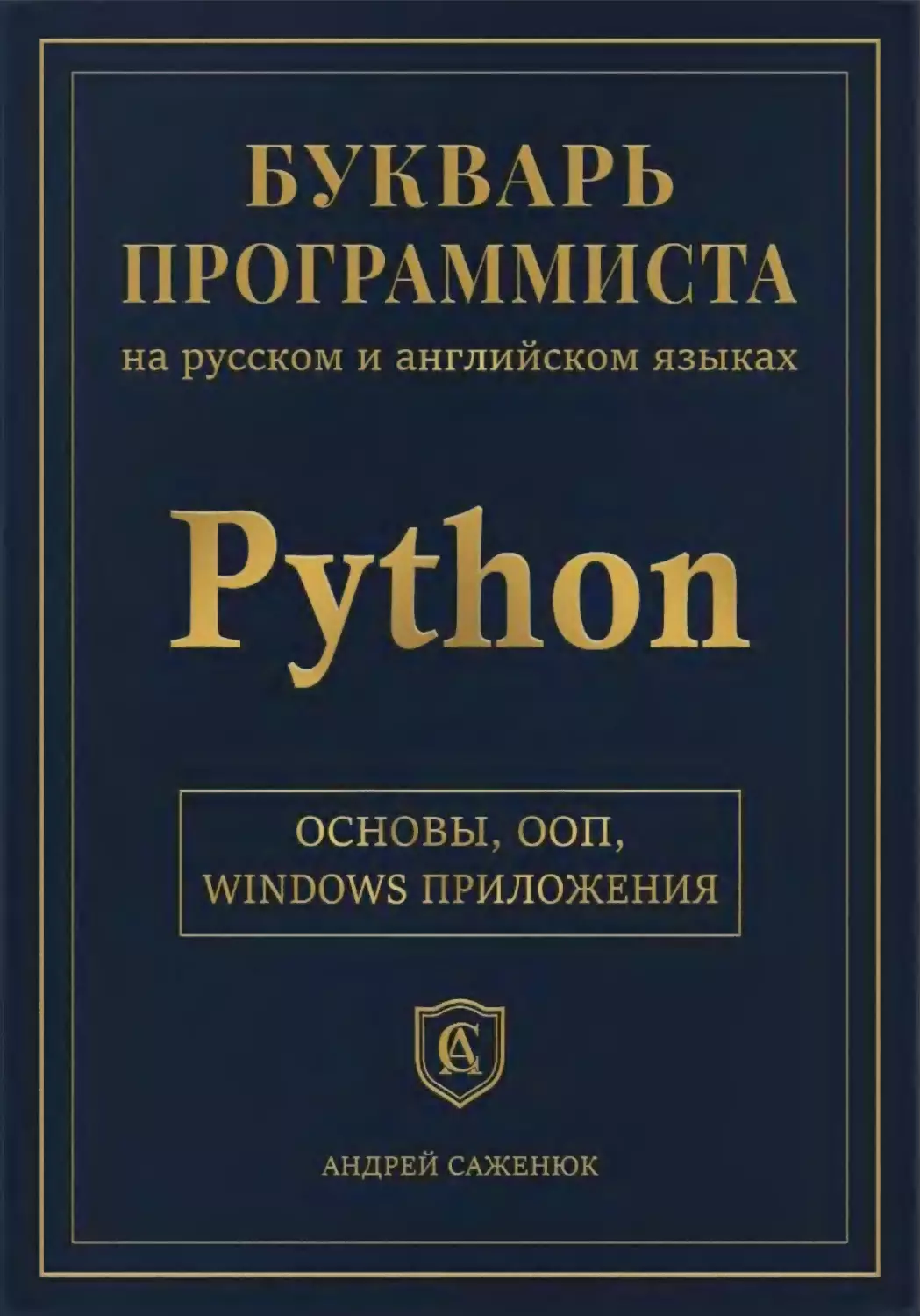
                    БУКВАРЬ
ПРОГРАММИСТА
на русском и английском языках
Python
ОСНОВЫ,ООП,
WINDOWS ПРИЛОЖЕНИЯ
АНДРЕЙ САЖЕНЮК
Contents
Слово к читателю...........................................................  7
Часть 1. Основы..............................................................9
Урок 1. Введение...........................................................9
Загрузка софта...........................................................9
Ваша первая программа на Питоне.........................................10
Работа над ошибками.....................................................10
IDE — FAQ (Frequently Asked Questions, часто задаваемые вопросы,).......12
Урок 2. Операторы.........................................................12
Калькулятор.............................................................13
Урок 3. Переменные, литералы, типы и оператор присваивания .............. 15
Переменные и литералы — демо............................................17
Кастинг.................................................................18
Урок 4 Операции...........................................................19
Арифметические операции ................................................19
Операции сравнения......................................................21
Логические операции.....................................................24
Конкатенация (слияние)..................................................25
Урок 5. Выражения.........................................................26
Урок 6. Ввод/вывод........................................................28
Вывод...................................................................28
Ввод....................................................................29
Урок 7. Оператор i f......................................................29
Одноблочный if..........................................................30
Двухблочный if..........................................................31
0
Многоблочный if.........................................................32
Урок 8. Циклы.............................................................33
Цикл for................................................................34
Цикл while..............................................................35
Преждевременный выход из цикла..........................................36
Где do-while однако?....................................................38
Урок 9. Исключения........................................................38
Урок 10. Функции ......................................................... 44
Основные термины........................................................44
Параметры и аргументы...................................................46
Преждевременный выход...................................................4 7
Возвращаемые значения.......................       .	.. .........     48
Локальные и глобальные переменные.......................................49
Модули..................................................................50
Пользовательские функции, библиотечные функции и обработчики событий....50
Урок 11. Контейнеры данных................................................51
Списки (англ, lists).................................................... 52
Словари (англ, dictionaries)............................................53
Кортежи (англ, tuples)..................................................54
Операция звездочка......................................................54
Урок 12. Контейнеры и циклы...............................................55
Итераторы...............................................................57
Урок 13. Строки...........................................................58
Урок 14 Двумерные списки.................................................. 60
Урок 15. Файлы и потоки...................................................62
1
Внешняя память............................................................62
Чтение....................................................................65
Чтение/Запись.............................................................68
Часть 2. Обьектно-ориентированное программирование (ООП)......................70
Урок 1. Введение............................................................70
Основные термины..........................................................70
Первый раз в первый класс!................................................71
Урок 2. Разработка методов..................................................74
Урок 3. Статические члены класса............................................75
Статические переменные....................................................75
Статические методы........................................................76
Урок 4. Сокрытие данных (инкапсуляция)......................................78
Геттеры и сеттеры.........................................................79
Свойства..................................................................80
Урок 5. Композиция..........................................................81
Урок 6. Наследование........................................................84
Урок 7. Полиморфизм.........................................................86
Урок 8. Еще раз о строках, контейнерах и потоках............................87
Часть 3. Фреймворк tkinter....................................................89
Урок 1. Хэлло, tkinter!.....................................................89
Урок 2. Color Mixer (миксер цвета) с обьектами класса Label.................91
Урок 3. Обьектно-ориентированный Color Mixer с метками......................94
Урок 4. Кнопки (Button), фреймы (frame), обработчики событий................96
Фокус ввода...............................................................97
Урок 5. Флажки (Checkbutton) и ассоциированные переменные..................100
2
Урок 6. Радио кнопки (Radiobutton).................................................102
Урок 7. Списки вариантов (Listbox) и привязка событий............................  106
Урок 8. Полоса прокурутки (Scrol 1 bar)............................................109
Урок 9. Поля ввода (Entry) и табличное размещение (Grid Layout)....................112
Part 1 Fundamentals..................................................................  9
Lesson 1. Getting Started............................................................9
Downloading Software...............................................................9
Your First Python Program.........................................................10
Fixing Errors.....................................................................10
IDE - FAQ.........................................................................12
Lesson 2. Statements................................................................12
Calculator........................................................................13
Lesson 3. Variables, Literals, Types and Assignments................................15
Variables and Literals Demo.......................................................17
Casting ..........................................................................18
Lesson 4. Operations................................................................19
Arithmetic Operations............................................................ 19
Comparison (Relational) Operations................................................21
Logical Operations................................................................24
Concatenation.....................................................................25
Lesson 5. Expressions...............................................................26
Lesson 6. Input/Output................................................................28
Output............................................................................28
Input.............................................................................29
Lesson 7. if Statement..............................................................29
3
One Case if..........................................................................30
Two Cases if.........................................................................31
Multiple Cases if....................................................................32
Lesson 8. Loops........................................................................33
for Loop ............................................................................34
while Loop...........................................................................35
Finishing Loops Ahead of Time........................................................36
Where Is do-while though?............................................................38
Lesson 9. Exceptions...................................................................38
Lesson 10. Functions...................................................................44
Basic Terms .........................................................................44
Parameters and Arguments.............................................................46
Premature Exit.......................................................................47
Returned Values......................................................................48
Global and Local Variables...........................................................49
Modules..............................................................................50
User Defined Functions, Library Functions and Event Handlers.........................50
Lesson 11. Data Containers............................................................ 51
Lists................................................................................52
Dictionaries.........................................................................53
Tuples...............................................................................54
Asterisk Operator....................................................................54
Lesson 12. Containers and Loops........................................................55
Iterators............................................................................57
Lesson 13. Strings.....................................................................58
4
Lesson 14. Two-Dimensional Lists.....................................................60
Lesson 15. Files and Streams.........................................................62
Permanent Storage..................................................................62
Reading............................................................................65
Reading/Writing....................................................................68
Part 2. Object Oriented Programming (OOP)..............................................70
Lesson 1. Introduction...............................................................70
Essential Terms....................................................................70
First Class........................................................................71
Lesson 2 Developing Methods..........................................................74
Lesson 3. Static Class Members.......................................................75
Static Variables...................................................................75
Static Methods.....................................................................76
Lesson 4. Data Hiding (Encapsulation)................................................78
Getters and Setters................................................................79
Properties.........................................................................80
Lesson 5. Composition................................................................81
Lesson 6. Inheritance................................................................84
Lesson 7. Polymorphism...............................................................86
Lesson 8. Strings, Containers and Streams Revisited..................................87
Part3 Framework tkinter................................................................89
Lesson 1. Hello, tkinter!............................................................89
Lesson 2. Color Mixer with Labels....................................................91
Lesson 3. Object-oriented Color Mixer with Labels....................................94
Lesson 4. Buttons, Frames, Event Handlers..........................................  96
5
Keyboard Focus,......................................................................97
Lesson 5. Checkbuttons and Associated Variables.......................................300
Lesson 6, Radiobuttons................................................................102
Lesson 7. Listboxes and Events Binding................................................106
Lesson 8. Scrollbar...................................................................109
Lesson 9. Entry Fields and Grid Layout................................................112
6
Слово к читателю
«Трудно дело птицелова,
Заучи повадки птичьи,
Помни время перелетов,
Разным посвистом свисти...»
<Э. Багрицкий, «Юго-запад»>
В начале 80-х, в бытность сначала студентом Новосибирского университета, а потом и
младшим программистом в НИИ электронных приборов, я увлекался работами Ершова, Кнута,
Дейкстры, Хоара, Даля. То было славное время романтиков, эстетов от программирования.
Что-то из того, чему они учили, может показаться наивным с позиций сегодняшнего дня, но
главный их посыл актуален и сейчас, а именно, — они прививали вдумчивость, системность,
умение «зреть з корень». Уже тогда А. П Ершов точно подметил, что существуют две категории
разработчиков "штабные" и "боевые". «Штабное» программирование сегодня
трансформировалось в целую науку - software engineering and design (прог рамная инженерия
и проектирование). Дабы отделить идеи алгоритмоь от их имплементаций, «увидеть лес за
деревьями», Дональд Кнут в «Искусстве программирования» даже придумал свой
собственный виртуальный компьютер и язык к нему.
Прошло время, и в течении более чем сорока лет практического программирования и
преподавания программирования, в течении сорока лет «свистения» всеми мыслимыми
«посвистами», мне становилось все более очевидным сущностное сходство всех языков
программирования и универсальность заложенных в них концепций, каковыми с моей точки
зрения являются:
•	Операторы
•	Переменные и примитивные типы
•	Операции
•	Выбор
•	Циклы
•	Исключения
•	Функции
•	Контейнеры данных
•	Файлы
•	Классы
Тогда возникла мысль обобщить свой опыт и написать универсальный учебник по
программированию, проиллюстрировав вышеперечисленные концепции примерами на
разных языках. Идея была сама по себе увлекательной, я даже написал первые главы, но
затем спросил себя. «Была бы такая книга интересна начинающим?» и понял что вряд ли. Ведь
начинающий программист хочет (причем быстро!) научиться писать на каком-то языке, а не
на всех сразу. Тогда первоначальная идея единого учебника трансформировалась в проект
серии пусть и разных, но единых с точки зрения методики учебников («букварей»).
7
Важной составляющей всех букварей является последний раздел, где теоретические, на
первый взгляд абстрактные концепции начинают «работать» в контексте определенной
платформы (т. н. «фреймворка»). Поскольку недостаточно обьяснить, из каких частей состоит
рубанок, дрель или отвертка, как эти части называются, и г- чем их назначение, нужно
показать, как подготавливается доска, как сверлятся отверстия, заворачиваются шурупы
ит. д Любой инструмент ценен не сам по себе, а как помощник человека при решении
конкретных задач.
Питон стал первым букварем в этой серии. Приятного прочтения!
Андрей Саженюк, ноябрь 2025
8
Часть 1. Основы
Урок 1. Введение
Загрузка софта
Рис. 1-1-1. Python Software Foundation (програмное обеспечения для Пигона) — официальный
веб сайг.
Зайдите на сайт python. org, скачайте и уствновите Питон IDLE для Windows, Мас ОС, или
Linux (многие сборки Linux уже включают Питон).
Определение.: IDE (or IDLE) расшифровывается как Integrated Development Environment (ИСР,
интегрированная среда разработки) или Integrated Development and Learning Environment
(интегрированная среда разработки и обучения).
Говоря просто, IDE - это инструментарий программиста. Существуют много популярных IDE:
MS Visual Studio, MS Visual Studio Code, PyCharm, Android Studio, Xcode, JetBrains и т д.
Некоторые IDE созданы под определенный язык программирования, некоторые более
универсальны и могут быть использованы для разработки на разных языках. Типичная IDE
состоит как минимум из 3-х компонент:
*	Редактор кода
•	Компилятор
•	Тестер и отладчик
То есть, вы можете печать и править код, компилировать (преобразовывать код в машинные
команды), тестировать программу и (если есть ошибки или баги) отлаживать ее. Более
продвинутые IDE могут включать в себя встроенный графический редактор для дизайна GUI
(рус. - графический интерфейс пользователя) чиджетов, генератор кода (готовые для
использования шаблоны, позволяющие ускорить разработку), средства управления
проектами и нерсиями и т. д.
9
Ваша первая программа на Питоне
1	Запустите IDE.
2.	Напечатайте следующий код в редакторе (вы можете подставить свое имя и город)
print("Hi Python!")
print ("I am Andrei.")
print("I live in Toronto.")
3.	Выберите File->Save команду меню (или нажмите на клавиатуре комбинацию
CTRL+S). Сохраните вашу первую программу под любым именем и в любой папке на
ваше усмотрение Все файлы программ на Питоне имеют расширение .ру.
4.	Выберите Run->Run Modul е команду меню (или нажмите F5).
5.	Вы увиде новое окошко (оно называется консоль или оболочка} и в нем три строчки
текста: 1) хэлло, 2) ваше имя, 3) ваш город.
Если получилось, поздравляем1 Как вы видите, IDE Питона работает в двух окнах, редактора
(для набора текста) и консоли (для тестирования программы). Вы можете расположить эти
окна на свое усмотрение, например, слева — редактор, справа — консоль, либо
максимизировать оба и переключаться между ними (ALT+TAB).
* £4Е5Ы«1НЛ
Г-Й (44 СИМ CWi
Л	-fit t.tt.THNG Сс а f thui P jficnCtU	Ila.eadjrfcc fci*$ - HJ
1 print ('ЧН ’: ?yth n")
2 print("1 am Andrei")
3 print("1 live in Toronto")
4
Python 3.11.5 (tags/v3.11.5:cce6ba9, Aug 24
2023, 14:38:34) [MSC v.1936 64 bit (AMDb4)]
on Win32
Type "help", "copyright", "credits" or "lice
nse()" tor more information.
= RESTART: G:\EVERYTHING\Courses\Python\Pyth
onBook\partl\lessun01 _intro\first.py
Hello Python
I am Andrei
I live in Toronto
Рис. 1-1 -2. Моя первая iipoi рамма — редактор слева и консоль справа.
Работа над ошибками
Что если я сделал ошибку? Например, забыл напечатать закрывающуюся скобку в первом
print () ? Компилятор Питона выделит красным цветом то место кода, где приблизительно
случилась ошибка, и покажет сообщение с коротким обьяснением ошибки
10
A firstpy • EAEVERYTHlNG\Coune$\Python'’ PythorBcwk\part1\le«on01 jntro\rir$tpy (3,1.,.	—	□ X
, File Edit Format Run Options Window Help
print|"Hello Python"
print("I am Andrei")
print("I live in Toronto")
Л SyntaxEnof	X
(Jjl T wes nwer closed
I °* I
Ln.1 СоЮ]
Рис. 1-1-3. Ошибка синтаксиса обнаружена.
Иногда Питон не видит проблему сразу, но находит ее позже, во чремя запуска программы.
Вообразим, что мы напечатали prin () вместо print (). Тогда мы увидим следующее во
время запуска программы:
г<«	(Б* СЧЬиа
Python 3.13.2 (tags/v3.13.2.4f9bb39, Feb 4 2025, 15:
23:48) [MSC v 1942 64 bit (AMD64)] on Win32
Type "help”, "copyright", "credits" or "license ()" fo
r more information.
>»
= RESTART E:\EVERYTHlNG\Coursc-s\Python\PythonBook\pa
rtl\lesson03 _intro\first py
Traceback (most recent call last).
File "E \EVERYTHING\Courses\Python\PythonBook\partl
\lesson0L_intro\first.py", line 1, in <module>
prin("Hello Python")
NameError name 'prin' is not defined Did you mean:
'print'?
»>
Рис. 1-1-4. Синтаксические ошибки могут быть обнаружены во время выполнения программы.
Красным цветом печатается обьяснение: где примерно (номер строки) и почему случилась
ошибка
Существуют дна типа ошибок:
•	Синтаксические
•	Семантические (смысловые)
Синтаксические ошибки носят формальный характер: например, вы просто не соблюли
формат определенных операторов или ключевых слов, пропустили запятую, не закрыли
правильно скобки и т. д. Такие ошибки легко обнаруживаются компьютером. Смысловые
ошибки найти сложнее, — ваша программа была неправильно спроектирована и работает не
так, как вы ожидали. Только человек может идентифицировать и исправлять такие ошибки.
11
По окончанию урока закройте оба окошка. Если вам понадобится эта программа позже, вы
сможете ее найти используя команду Fi le->Recent Files или через Fi 1е->0реп...
IDE — FAQ (Frequently Asked Questions, часто задаваемые
вопросы,)
Как изменить размер шрифта ь редакторе и в консоли?
Выберите команду меню Options->Conf igure IDLE, вы увидете диалог Settings
с шестью закладками, выберите закладку Fonts, откройте список Size, выберите размер,
который вас устраивает
Я запускал программу несколько раз, в результате я вижу в окне консоли слишком много
текста; как его почистить?
Закройте консоль, не закрывайте редактор; запустите программу опять (F5).
Когда я запускаю IDE, я вижу консоль, а не редактор. Как я могу изменить установки, чтобы
по умолчанию запускался редактор?
В диалоговом окне Settings выберите закладку Windows; чы увидите два At Startup
варианта: Open Edit Window или Open Shell Window; выберите Open Edit
Window.
Мне больше нравятся темные цвета во время кодирования. Как переключиться со светлой
темы на темную?
В диалоговом окне Settings выберите Highlights закладку; откройте IDLE Classic
список и поменяйте тему на IDLE Dark.
Как включить в редакторе номера строк?
Выберите команду меню Opt ions->Show Line Numbers.
Урок 2. Операторы
Определение: оператор — запрос программиста компьютеру на выполнении определенной
работы.
Определение: компьютерная программа (или скрипт) — последовательность операторов.
Иными словами, компьютерная программа похожа на серию глаголов в повелительном
наклонении Получи! Сложи! Вычти! Сравни! Напечатай! Перейди на такой-то шаг! То есть,
максимально упрощенно, работа программиста состоит в написании операторов Компьютер
выполняет операторы, как они написаны, сверху вниз. В первом уроке мы написали очень
простую программу, состоящую из трех операторов
Существует два типа операторов:
•	Простые
•	Составные
12
Простые операторы занимают одну строку кода и не могут содержать другие операторы
Например:
•	Оператор присваивания
•	Оператор вызова функции
*	Операторы прерываний (return, break, conti пие ит.д)
Наша первая программа состояла из трех вызовов библиотечной функции
print () (мы обсудим функции в части 1 уроке 10).
Составные (или управляющие) операторы могут занимать много строк и содержать внутри
себя простые операторы. Например:
♦ оператор выбора if-else
•	оператор цикла for
* оператор цикла while
•	оператор исключений try-except.
Составные операторы могут быть вложенными.
Калькулятор
Разберем простую программу, которая запрашивает у польз» -вателя два числа и символ
математической операции (+, -,*,/). Затем программа вычисляет сумму, разность,
произведение и частное этих чисел. Просто напечатайте код и запустите программу. От вас
не требуется сейчас понимание деталей; смысл программы в том, чтобы проиллюстрировать
понятие оператор
import sys
# Часть 1 - переменные и присвоения
numberl = 0.0
operation =
number2 = 0.0
result = 0.0
buffer = ""
# Часть 2 - ввод данных, вызовы ЬиОлиотечных функций
print("Type the first number:") # первое число
buffer = input ()
numberl = float (buffer)
print("Type the second number:") # второе число
buffer = input ()
number2 = float(buffer)
printCType the operation ( + , -, /, *):") # арифметическая операция
operation = input()
13
# Часть 3 - начало оператора if-else
if operation == " +
resul t = numberl 4- number2
print("Will add...") # будет сложение...
elif operation ==	:
result = numberl - number2
print("Will subtract...")# будет вычитание...
elif operation ==
result = numberl * number2
print("Will multiply. ")# будет умножение...
elif operation == "/":
result = numberl / nurnber2
print ("Will divide...")# будет деление...
else:
print("Wrong operation!") # неверная операция
sys.exit()
# конец оператора if-else
# Часть 4 - печать результатов
print(numberl, operation, number2, " = ", result)
Рис. 1-2-1. Калькулятор —код.
Строки с хэш-тэг ом — комментарии, они пишутся для людей и обьясняют логику программы.
Комментарии игнорируются интерпретатором Питона. Строка import sys не есть
выполняемый оператор, это директива подключения к программе библиотечного модуля.
Библиотечные модули позволяют нам экономить время, поскольку в них
запрограммированы многие часто используемые, стандартные задачи.
Анализ
Программа состоит из четырех частей:
1.	Вначале мы имеем пять деклараций переменных и пять операторов присваивания
2.	Затем мы спрашиваем пользователя предоставить нам два числа и математическую
операцию, Для этого мы вызываем три библиотечные функции - print (),
input (), и float (). Мы можем в одном операторе совместить вызов фикции и
присваивание. Во второй части программы 8 простых операторов
3.	Составной оператор if-else занимает 15 строк. Вы видите что внутри составною
оператора используются простые операторы: присвоения и вызовы функций Простые
операторы внутри составного набираются (и это важно!) с отступом Мы будем
называть группу операторов с отступом — блок
4.	Печать результата
14
Type Lhe first number:
12
Type the second number:
13
Type the operation (+,	/, *):
Will subtract...
12.0 - 13.0 = -1.0
»>
Рис. 1-2-2. Калькулятор — тест.
Иногда простые операторы не помещаются в одной строке. Используйте обратную косую
черту чтобы разбить длинный простой оператор на две или более строке
movieName = "The Assassination of Jesse James " + \
"by the Coward Robert Ford"
(Название фильма — «Как трусливый Роберт Форд убил Джесси Джеймса»)
Урок 3. Переменные, литералы, типы и оператор присваивания
Будучи программистом, вы должны обрабатывать различные типы данных Для этого
требуются переменные и литералы. Если операторы это елементарные единицы действия, то
переменные и литералы это элементарные единицы данных.
Определение: переменная — поименонэная область памяти компьютера (англ. RAM,
Random Access Memory),
Вы можете представить себе RAM как таблицу с двумя колонками Ячейки памяти (или
байты) пронумерованы, то есть имеют адреса; по каждому адресу записано определенное
значение. Программирование в конкретных адресах — сложный, утомительный и чреватый
ошибками процесс. Переменные с осмысленными именами облегчают и упрощают доступ
программиста к RAM
Адреса Значения
— myVar —< — 	...	...
	1012	99
	1013	-100
	1014	0
	1015	55
	...	...
Рис. 1-3-1. Память (RAM) и переменная myVar.
15
Любая переменная имеет:
•	имя
•	значение
•	тип
Имена переменных придумывает программист. Имя это идентификатор переменной,
значение — это текущее содержание («наполнение») переменной, и тип — это формат
хранимых в переменной данных. Имя переменной не меняется в процессе выполнения
программы, однако и значение и тип могут меняться. Имя переменной может состоять как из
букв так и из цифр, но первый символ не должен быть цифрой. Пробелы в именах
использовать нельзя, и если имя переменной состоит из нескольких слов, вы можете
разделять их знаком подчеркивания или посредством заглавных букв:
my_lona_variable_name
myLongVariableName.
Придерживайтесь стиля, который нам нравится, но старайтесь не смешивать стили в одном
проекте.
Имена переменных чувствительны к регистру клавиатуры. Например, price и Price — две
разных переменных.
В Питоне существуют четыре основных типа переменных Мы называем их примитивные
(или встроенные) типы.
•	целый (int)
*	с плавающей точкой (float)
•	строковый (str)
•	булевый (bool)
int переменные используются для хранения челых чисел, float — для дробных чисел,
str variables — для текста, и bool — для True/False (истина/ложь) значений.
Определение: литерал это явно выраженное, неизменяемое данное.
Литералы не имеют имен как переменные, но у них есть и значения и типы
Примеры:
5	— литерал типа int
9	9.8 — литерал типа float
"abed" — литерал типа str
True/FaIse — литералы типа bool.
16
Определение: опрератор присваивания (=) присваивает переменной новое значение. Слева
от знака равенства указывется переменная, справа — но^ое значение.
Переменные и литералы — демо
# 5 переменных определены и инициализированы
firstName ="John"	#	имя
lastName = "Brown"	#	фамилия
age =25	#	возраст
averagePythonMark = 88.5#	средняя оценка по Питону
honorAward = True
# 5 выводов на экран
print(firstName)
print(lastName)
print(age;
print(averagePythonMark)
print(honorAward)
Рис. 1-3-2. Переменные и литералы — код.
Как вы ьидите, мы определили пять переменных и присвоили им начальные значения,
Присвоение начальных значений переменным называется инициализацией. То есть мы
имеем пять оператором присваивания, где слева от знака «равно» переменные, справа —
литералы. Если поле одного присваивания происходит второе, старое значение переменной
теряется и не может быть восстановлено. Целые литералы состоят только из цифр, литералы
с плавающей точкой имеют целую часть, точку и дробную часть, строковые литералы
содержат текст в двойных или одинарных кавычках, булены литералы представлены
ключевами словами True/False. После присваиваний мы печатаем значения переменных
используя библиотечную функцию print (). Эта функция может печатать одну
переменную/литерал или несколько переменных/литералов через запятую.
Определение: ключевое слово (зарезервированное слово) в языке программирования
имеет раз и навсегда определенное значение. Количество ключевых слов ограничено.
Программисты не могут использовать ключевые слова для имен своих переменных, функций
(часть 1, урок ] 0) или классов (часть 2, урок 1).
Примеры ключевых слов: if, else, while, import, except, True, False.
John
Brown
25
88.5
True
Рис. 1-3-3. Переменные и литералы — тест.
17
Мы можем присваивать литерал переменной, мы можем присваивать одну переменную
друюй переменной, но невозможно ничего присвоить литералу, поскольку литералы
неизменяемы по определению. Мы иногда назваем литералы в программировании r-values
(«правые» значения), они могут появляться только справа от знака «равно». Переменные с
другой стороны являются l-values («левые значения»), они могут появляться и слева и справа
от знака «равно»
Следующие операторы присваивания не имеют смысла.
33.3 = 44.4
"abc" = anyVariable
Попытка запустить такую программу вызовет сообщения об ошибках.
Следующая программа демонстирирует, что переменная может менять свой тип
(библиотечная функция type () была использована для вывода на экран типа переменной).
testVar = 99
print(type(testVar))
testVar = 99.99
print(type(testVar))
testVar = "99.99"
print(type(testVar))
testVar = False
print(type(testVar))
Рис. 1-3-4. Изменение типа — код.
<class
<class
Cclass
<class
’ int'>
'float'>
'str'>
'bool1>
Рис. 1-3-5. Изменение гина — тест.
Кастинг
Мы можем переопределять типы переменных, используя четыре библиотечные функции:
int (), float (), str (), и bool (). Мы называем эти функции функции кастинга.
Например, следующие 2 оператора преобразуют число с плавающей точкой в строку (иными
словами, 99.99 будет перформатироиано как пять символов "99.99" .
myVar = 99.99
myVar = str(myVar)
Следующие 2 оператора преобразуют переменную с плавющей точкой к булевому формату
(то есть 99.99 превратится в True, поскольку только число 0 . О интерпретируется как
False):
myVar = 99.99
myVar = bool(myVar)
38
Кастинг может приводить к неожиданным результатам, будьте внимательны. Например,
кастинг чисел в строки безопасен, но кастинг строк в числа может привести к аварийному
завершению программы, поскольку не всякая строка представляет из себя число
Урок 4. Операции
Определение: операции — специальные символы, дающие возможность программисту
манипулировать данными.
Обычно, операция — это один (+,	*, /) или два специальных символа (<=, ==)
(не печатайте пробел между ними!); также операции могут быть представлены ключевыми
словами языка (not, and, or). Используя операции, программисты могут слагать, вычитать,
сравнивать и т д.
Основные операции в Питоне делятся на три группы:
•	Арифметические
•	Сравнения
•	Логические
Определение: операнды это переменные или литералы, к которым относится операция.
Определение: бинарная операция относится к двум операндам.
Определение: унарная операция относится к одному операнду.
Арифметические операции
• сложение (+)	англ, sum
• вычитание (-)	англ, difference
• умножение (х)	англ multiplication
• деление(/)	англ, division
• целое деление (//)	англ, integer division
• остаток (%)	англ remainder
• степень (**)	англ, power
• минус (-)	англ, minus
• инкремент (+=)	англ, increment
• декремент (-=)	англ decrement
Арифметические операции работают на int или float операндах и производят int или
float результаты.
Символ в Питоне перегружен, то есть имеет два значения в завсисмости от контекста:
если есть только один операнд справа, это минус, если есть два операнда слева и справа, это
вычитание.
19
numl = 7
num2 = 2
result = numl + num2
print(numl, "+", num2, "=", result)
result = numl - num2
print(numl, num2, "=", result)
result = numl * num2
print (numl, "*", num2,	result)
result = numl / r.um2
print(numl, "/", num2, "=", result)
result = numl // num2
print(numl, "II", num2, result)
result = numl % num2
print(numl, "%", num2, result)
result = numl ** num2
print(numl, и**", num2, "=", result)
result = -numl
print("-", numl, "=", result)
Рис. 1-4-1. Арифметические ииераюры — код.
7 + 2 = 9
7-2 = 5
7 ♦ 2 = 14
7 / 2 = 3.5
7 // 2 = 3
7 % 2 = 1
7 ** 2 = 49
- 7 = -7
»>
Рис. 1-4-2. Арифметические операторы — тест.
2П
Имя	Символ(ы)	Тип операндов	Число операндов	Тип результата
Сложение	+	int/float	2	int/float
Вычитание	—	int/float	2	int/float
Умножение	★	int/float	2	int/float
Деление	/	int/float	2	int/float
Целое деление	//	int/float	2	int/float
Остаток	%	int/float	2	int/float
Степень	★ ★	int/float	2	int/float
Минус	—	int/float	1	int/float
Инкремент	+=	int/float	2	int/float
Декремент	— =	int/float	2	int/float
Рис. 1-4-3. Сводная таблица арифметических операторов.
Пример оператора инкремента.
myVar = 5
myVar += 10 # тсже самое что myVar = myVar + 10
Этот код увеличивает значение переменной на 10, то есть значение становится 15 Заметим,
что операции увеличения и уменьшения созданы просто для вашего удобства, -<ы не обязаны
ими пользоваться. Вы можете использовать классический синтаксис (это показано
в комментарии) Заметим также, арифметические операции не меняют значения операндов,
исключение — операции инкремента и декремента; они оба меняют значение левого
операнда.
Операции сравнения
•	равно (==)
•	не равно (!=)
•	больше (>)
*	больше или равно (>=)
•	меньше (<)
•	меньше или равно (<=)
англ, equal
англ not equal
англ greater than
англ, greater than or equal to
англ, less
англ, less than or equal to
21
Операции сравнения — бинарные и работают на всех типах данных, однако сравниваемые
операнды должны быть одинакового типа. Операторы сравнения дают булевый результат
(True/False).
numl = 22
num2 = 20
result = (numl == num2)
print("Is 22 equal to 20?", result)
result = (numl != num2)
print("Is 22 not equal to 20?", result)
result = (numl > num2)
print("Is 22 greater than 20?", result)
result = (numl >= num2)
print("Is 22 greater than or equal to 20?", result)
result = (numl < num2)
print("Is 22 less than 20?”, result)
result = (numl <= num2)
print("Is 22 less than or equal to 20?", result)
Рис. 1-4-4. Операторы сравнения — код.
Is	22	is equal to 20? False
Is	22	is not equal to 20? True
Ts	22	greater than 20? True
Is	22	greater than or equal to 20? True
Is	22	less than 20? False
Ts	22	Jess than or equal to 20? False
Is	'abc' less than ’ABC? False
>»
Рис. 1-4-5. Операторы сравнения — тест.
22
Имя	Символ(ы)	Тип операндов	Число операндов	Тип результата
Равно		любой	2	bool
Не равно	1 =	любой	2	bool
Больше	>	любой	2	bool
Больше или равно		любой	2	bool
Меньше	<	любой	2	bool
Меньше или равно		любой	2	bool
Рис. 1-4-6. Сводная таблица операторов сравнения.
Операции сравнения интенсивно используются в операторах if (часть 1 урок 7) и операторах
циклов (часть 1 урок 8)
Сравнение строк
Строки обсуждаются в части 1 уроке 13, Но. говоря просто. — строка это набор символов Вы
можете адресовать символы в строке, используя квадратные скобки и порядковый номер
символа (первый символ имеет номер 0, второй — 1 и так далее). Строки сравниваются,
согласно кодам символов. Каждый символ имеет так называаемый ASCII код. ASCII
расшифровывается как американский стандартный код обмена информации. Скажем, нам
нужно сравнить str 1 и s tr2. Сначала сравниваются два первых символа, если str 1 [0]
меньше чем str2|0], вся строка strl считается меньше чем str2 вне зависимости от их
длины. Если первою символы идентичны, сравниваются вторые символы, весь процесс
заканчивается когда достигнут конец самой короткой строки из двух. Строка "abc" меньше
чем строка "abed". Заглавные буквы имеют меньшие коды чем прописные. Например строка
"а" больше чем строка "А". Пустая строка ("") меньше любой непустой строки
23
Dec Hex Name			Char (trichar		Dec	Hex	Char	Dec	Hex	Char	Dec	Hex	Char
0	0	Null	NUL	CTRL-0	12“		Space	64	40		96	60
1	1	Stan of head-no	SOH	CTRL-A	33	21	I	65	41	A	97	61	a
2	2	Start cr text	STX	CTRL-8	34	22	«*	66	42	В	96	62	b
3	3	End of tert	ETX	CTRL-C	35	23	•	67	43	C	99	63	c
4	4	End of xrnit	EOT	CTRl-D	36	24	$	68	44	D	100	64	d
5	5	Enqur>	ENQ	CTRl-E	37	25	%	69	45	E	101	65	•
6	6	да no	ACK	CTRL-F	38	26	a	70	46	F	102	66	f
7	7	Be<i	BEL	CTRL-G	39	27		71	47	G	103	67	0
8	8	Backspace	B$	CTRl-H	40	28	(	72	46	H	104	68	и
9	9	HorijontaT tab	HT	CTRL-l	*1	29	)	73	49	1	105	69	i
10	од	Linefeed	lf	CTRL-J	42	2A	•	74	4A	J	106	6A	J
11	06	Vertical tab	VT	CTRL-iC	43	2B	+	75	48	К	107	6B	k
12	ОС	Form feed	FF	CTRL-L	44	2C	9	76	4C	L	108	6C	1
13	ОО	Carn age feed	CR	CTRL-M	45	2D	9	77	40	M	109	6D	m
14	06	Shift out	SO	CTRl-N	46	2E		18	4E	N	11C	bE	n
15	OF	Shftm	St	CTRlO	47	2F	/	79	4F	0	111	6F	0
16	10	Data Ime escape	OLE	CTRL-P	48	30	0	80	50	P	112	70	P
17	11	Device control 1	DC1	CTPL-Q	49	31	1	81	51	Q	113	71	Q
18	12	Device control 2	DC2	CTRL-R	50	32	2	82	52	R	114	72	r
19	13	Device control 3	DC3	CTRL S	51	33	3	83	53	S	115	73	s
20	14	Device control 4	DC4	CTRL-T	К	34	4	84	54	T	116	74	t
21	15	Neg acknowledge	NAK	CTRL-U	53	35	5	85	55	и	117	75	u
22	16	Synchronous ic»e	SYN	CTRL-V	54	36	6	86	56	V	118	76	V
23	17	End of xm»t Mock	Elfe	CTRl-w	55	37	7	87	5?	w	119	77	V»
24	18	Cancel	:an	CTRL-X	56	38	8	66	58	X	120	?8	X
25	19	End of medum	EM	CTRL-Y	57	39	9	89	59	V	121	79	Y
26	1А	Substitute	SUB	CTRL-2	58	ЗД	•	90	5A	2	122	7A	z
27	18	Escape	ESC	ctrl-[	59	38	9	91	SB	t	123	7B	<
28	1С	File separator	FS	CTRL-\	60	X	<	92	X	\	124	7C	1
29	1D	Group separator	GS	CTRL-]	61	3D		93	3D	1	125	7D
30	16	Record seca'atcv	RS	CTRL-*4	62	ЭЕ	>	94	5E		126	7E
31	U	unit separator	US	CTRL-.	63	3F		95	SF		127	7F	DEL
Рис. 1-4-7. Таблица ASCII кодов.
Логические операции
В Питоне существуют три логических операции:
•	and	(рус. и)
•	or	(рус. или)
•	not	(рус. не)
Они работают с булевыми операндами и производят булевый результат согласно хорошо
известным правилам булевой алгебры.
True	and	True	=	True
True	and	False	=	False
False	and	True	=	False
False	and	False	=	False
True	or	True	=	True
True	or	False	=	True
False	or	True	=	True
False	or	Fal se	=	False
24
not False = True
not True = False
Операция not является унарной и относится к операнду справа.
Ы = True
Ь2 = False
print("True and False is", Ы and b2)
print("True or False is", bl or Ь2)
print("Not True is", not bl)
Рис. 1-4-8. Логические операции — код.
True and False is False
True or False is True
Not True is False
»>
Рис. 1-4-9. Логические операции — тест.
Имя	Символы	Тип операндов	Число операндов	Тип результата
И	and	bool	2	bool
Или	or	bool	2	bool
Не	not	bool	1	bool
Рис. 1-4-10. Логические операции — сводная габлипа.
Конкатенация (слияние)
Операция "+" перегружена в Питоне, она делает две разные вещи суммирует числа и
обьединяет (конкатенирует) строки, Значение операции зависит от контекста: если операнды
числовые, это сумма; если операнды строковые, это конкатенация Вы не можете
конкатенировать строку и число, число должно быть сначала преобразовано в строку,
используя кастинг
firstName = "John " # имя
lastName = "Brown" # фамилия
age = 25
print("Full name is", firstName + lastName)
print(firstName + lastName + " is " + str (age) + " years old")
Рис. 1-4-11. Конкатенация — код.
25
Full name is John Brown
John Brown is 25 years old
»>
Рис. i-4-12. Конкатенация —тест.
Имя	Символ	Тип операндов	Число операндов	Тип результата
Конкатенация	+	string	2	string
Рис. 1-4-13. Конкатенация — сводная таблица.
Операции - важные факты для запоминания:
•	операции делятся на три группы: арифметические, сравнения и логические
*	операции представлены специальными символами или ключевами словами (+, <=,
not, and и т. д.).
•	операции могут быть бинарными (с двумя операндами) или унарными (с одним
операндом)
•	все операции разные, запоминайте какого типа операнды им нужны и какого типа
результат они производят.
•	операции не меняют операндов за исключением операции увеличения и уменьшения
(+=и-=).
•	операция перегружена, то есть имеет два значения: сложение и конкатенация.
♦	операция ’ также перегружена, она имеет два значения: вычитание (если есть два
операнда) и минус (если есть только один).
Урок 5. Выражения
Идея, лежащая в основе выражений, проста мы можем нанизывать операторы друг на
друга. Выражения в программировании поистине вездесущи Мы используем их постоянно.
Возьмем простой пример Мы купили две вещи, и хотим посчитать цену на кассе (включая
налог и скидку) Мы могли бы это сделать в три шага, прямолинейно
sumOfTwo = itemlPrice + item2Price # сумма
priceWithTax = sumOfTwo * tax	# налог
total = priceWithTax - 15.0	# скидка 15 p.
Существует, однако, более элегантное решение проблемы в одной строке:
total = (iteml_price + item2_price) * tax - 15.0
26
Мы не только сократили код, мы также избавились от двух ненужных переменных
(sumOfTwo и pr iceWithTax). То есть выражения экономят программистам массу
времени
В вышеупомянутом операторе прис ваивания выражение находится справа от знака
равенства (оно выделено серым цветом).
Определение выражение этс комбинация операций.
Очень важно, что операции в ->ыражениях могут быть вложены результат одной операции
может служить операндом для следующей операции Глубина вложения операций
в выражениях не ограничена.
Выражения вычисляются слева направо. Но внутри выражений различные операции имеют
различный приоритет или силу. Например, операции * и / сильнее чем операции + и то
есть Питон будет выполнять их первыми, если вы не проинструктируете его изменить
порядок вычисления, используете круглые скобки. Круглые скобки в выражениях
используются, чтобы указать правильный порядок 1ычисления Операции сравнения
сильней, чем логические операции. Следовательно, вы не обязаны печатать:
(а < b) and (с < d)
Вы можете упростить:
а < b and с < d
В справочной документации к Питону вы можете найти детальные таблицы, где указаны все
операции и их приоритеты Эти таблицы полезно знать, но не обязательно запоминать.
Используйте круглые скобки, если вы не уверены в приоритетах и хотите обеспечить
правильный порядок оценки выражения.
Выражения — важные факты:
•	переменная является выражением,
•	литерал является выражением,
•	операция вместе с ее операндами является выражением,
•	выражения могут быть вложены,
•	любое выражение имеет результат,
•	оценка выражения это процесс вычисления его результата,
•	любое выражение имеет тип (это тип результата выражения),
•	круглые скобки используются в выражении чтобы контролировать процесс оценки
выражения
Выражения — более крупные элементы языка, чем переменные, литералы и операции,
но они менылие элементы языка чем операторы (выражения используются внутри
операторов).
27
Оператор
Выражения
Переменные/литералы Операции
Рис. 1-5-1. Взаимосвязь между операторами, выражениями, переменнымн/литералами и
операциями.
Урок 6. Ввод/вывод
Библиотечная функция input ()требуется для пользовательского ввода данных с
клавиатуры, print () для вывода данных на экран. Вы видели применение обеих функций в
наших коротких демо программах. Обсудим детали.
Вывод
Формат библиотечной функции print ():
print (выражение [, выражение 2] [, выражение 3] ...)
Мы используем квадратные скобки чтобы показать необязательные параметры. Выражения
могут быть любого типа, но когда они печатаются, они автоматически преобразуются в
строки (происходит кастинг).
userAge = 28 # возраст пользователя
print(userAge, " years is equal to ", userAge * 12,\
" months or ", userAge * 12 * 365, " days ", sep="")
Рис. 1-6-1: print () — код.
28 years is equal to 336 months or 12264U days
»>
Рис. 1-6-2: print () — тест («28 лет это 336 месяцев или 122640 дней»).
По умолчанию, после печати оператор print () автоматически делает переход на новую
строку, однако иногда нам нужно, чтобы несколько еыгодов были на одной и той же строке
Этого можно достичь, используя специальный параметр end и присвоив ему пустую строку,
например
print("Hello", end = "")
print("John")
Таким образом, оба слова будут напечатаны на одной строке
28
Также по умолчанию print () добавляет пробел между печатаемыми выражениями. Если
вы этого не хотите, вы можете использовать sep = "" parameter. Таким образом пробелы
не добавляются
Ввод
Библиотечная функция input О приостанавливает выполнение программы, ожидает
пользовательского ввода с клавиатуры, и затем (после того как пользователь нажал клавишу
ENTER} сохраняет напечатанное в строковой переменной.
print("Your name?") # Ваше имя?
name = input ()	# ввод
print("Hi ", name, "!", sep = "")
print("Your age?") # Ваш возраст?
age = int (input ())	# ввод и кастинг
print("You are", age, "years old.")
Рис. 1-6-3: input () —код.
Your name?
Andrei
Hi Andrei!
Your age?
33
You are 33 years
old.
Рис. 1-6-4: input () —тест.
Обратите внимание на строку, где вы вводите возраст (аде). Если --ам требуется на выходе
int или float значения, делайте into или float () кастинг. Однако, не всякая строка
конвертируется е число, В таком случае пргорамма может аварийно завершится (будет
сгенерировано так называемое исключение, исключения обьясняются в части 1, урок 9)
То есть перед кастингом, чтобы избежать сбоя, вы можете проверить строку на корректность,
например, используя библиотечную функцию Питона isdigit (), которая проверяет
является ли символ цифрой.
Урок 7. Оператор if
if является в Питоне оператором принятия решений В зависимости от разных условий,
компьютер может выполнять разные задачи, двигаться по разным веткам выполнения
программы.
Существуют три вида оператора if:
* с одним блоком
•	с двумя блоками
•	многоблочный
29
Одноблочный if
Формат:
i f булево_выражение:
оператор-1
оператор 2
оператор N
оператор после
Обычно мы называем булево_выражение в операторе if условием. Компьютер оценивает
условие и если они истинно (True), выполняет все операторы напечатанные с отступом от 1
до N Если булево_выражение ложно (False), все операторы с отступом пропускаются и
выполнение переходит непосредственно к оператор после. Как правиле в операторе if
используются операторы сравнения, поскольку они производят булеьы результаты
(True/False). Группа операторов с отступом называется блок.
Наиболее частые ошибки, который совершают начинающие «пайтонисты»:
•	зыбывается двоеточие после условия.
•	забываются отступы в блоке (вы можете печатать отступ клавишей TAB),
age =18
if age >= 18:
print("You are an adult")
print("You are allowed to
print("1st if completed")
age = 9
if age >« 18:
print("You are an adult")
print("You are allowed to
print("2nd if completed")
#	возраст - 18
#	"вы взрослый"
vote")# "вы можете голосовать"
#	1-й if закончен
#	возраст - 8
vote")
#	2-й if закончен
Рис. 1-7-1: идноблочный xf — код.
You are an adult
You are allowed to vote
1st if completed
2nd if completed
»>
Рис. 1-7-2: одноблочный if — тест.
Как вы ьидите, первО|й блок состоящий из двух операторов print () был выполнен,
поскольку пользователь старше 18-ти, но второй блок из двух операторов print () был
пропущен, поскольку пользователю только 8 лет. Очень часто в операторе if используются
логические операции and, or, not. Таким образом мы можем комбинировать условия.
30
income = 60000.0 # годовой доход
if income > 53359.0 and income <= 106717.0: # если доход в определенных
# пределах
print("Your tax brackets are 20.5%")	# то налог 20.5%
print("You will pay from income, " income income * 0.205,\
" taxes", sep="")
print("if completed")
Hue. 1-7-3: одноблочный оператор if с двумя условиями - код.
Your tax brackets are 20.5%
You will pay from $60000.0 income $12300.0 taxes
if completed
»>
Pic. 1-7-4: одноблочный if с двумя условиями —тест ("вы заплатите с 60 тыс. дохода 12300
налогов'').
Сошласно терминологии из второго урока, if — составной оператор Он может содержать
внутри себя другие операторы, в частности, другой if.
income = 60000.0
if income > 53359.0:
if income <= 106717.0:
print("Your tax brackets are 20.5%")
print("You will pay from $", income, " income $",\
income * 0.205, " taxes", sep="")
print("if completed")
Рис. 1-7-5: вложенный оператор if — код.
Эта версия работает в точности так же, как и предыдущая, но вероятно предыдущая
предпочтительней, — она короче и проще для понимания
Двухблочный if
Формат:
if булево_выражение:
оператор 1
оператор_2
оператор_М
else:
оператор NM
оператор N+2
onepaTop_N tM
оператор_после
31
Компьютер оценивает булево_выражение и, если оно истинно, выполняет все
операторы с отступом от 1 до N Второй блок операторов после else игнорируется и мы
переходим к оператор_после. Если значение выражения ложно, первый блок операторов
игнорируется, второй блок после else выполняется и мы переходим к оператор после.
Если i f с одним блоком может оказаться пустым (компьютер не делает ничего),
двухблочный if никогда не пуст, поскольку один из двух блоков всегда выполнится.
Заметьте однако, что они никогда не могут выполниться вместе.
income = 55000.0
if income > 53359.0 and income <= 106717.0:
print("Your taxes are 20.5 ")
print("You will pay", income * 0.205)
else:
print("Your taxes are not 20.5%")
Рис. 1-7-6: двухблочный if — код.
Когда вы вызовете эту программу, два первых сообщения печатаются, третье пропускается.
Многоблочный if
Формат:
i f булево выражение 1:
блок операторов 1
elif булево выражение 2:
блок операторов 2
elif булево выражение 3:
else :
блок_операторов N
опера тор_после
Многоблочный оператор if иногда называют if-elseлестницей. Сначала вычисляется
булево выражение 1, и если результат истина, выполняется первый блок операторов и
осуществляется переход к оператор_после. Если булево_выражение 1 ложь, мы
спускаемся на шаг вниз и оцениваем булево_выражение_2. Если оно истинно, то второй
блок выполняется и компьютер перепрыгивает на оператор после. Наконец, если ни
одно из булевых выражений не равно истине, выполняется else блок. То есть проверяя
условия одно за другим, мы спускаемся шаг за шагом вниз, отсюда образное сравнение с
лестницей.
32
Рассмотрим пример («альфой» в английском иногда называет буквенное, а не процентное
выражение оценки):
alpha = ""
print("Type the grade:") # введите оценку в процентах
grade = float(input ())
if grade >= 80.0:
alpha = "A"
elif grade >= 70.0:
alpha = "R"
elif grade >= 60.0:
alpha = "C"
elif grade >= 50.0:
alpha = "D"
else:
alpha - "F"
print("The alpha:", alpha)
Рис. 1-7-7: многоблочный if — код.
Type the grade:
51
The alpha: D
»>
Pile. 1-7-8: Многоблочный if — test.
Блок else в лестинце опционален (не обязателен). Если его нет, вся лестница может
оказаться пустой, мы как бы «проваливаемся» (англ, falling through}. Другими словами,
alpha остается пустой строкой, если пользователь печатает процент меньше 50.
alpha = ""
print("Type the grade:")
grade = float(input ())
if grade >= 85.0:
alpha = "A"
elif grade >= 70.0:
alpha = "B"
elif grade >= 60.0:
alpha = ”C"
elif grade >= 50.0:
alpha = "D"
print("The alpha:", alpha)
Рис. 1-7-9: Mhoi облочный if без else — код.
Урок 8. Циклы
Цикл в программировании означает инструкцию компьютеру повторять ту же или почти ту же
работу много раз. Один шаг цикла называется итерацией. Существуют два типа цикло*-
в Питоне:
• for
• while
33
Цикл for
Цикл for требуется чтобы повторить работу определенное количество раз; в Питоне цикл
for использует библиотечную функцию range (мы пройдем функции в 1-й части, уроке 10).
Функция range () дает нам набор целых чисел, она может иметь один параметр (stop), два
параметра (start и stop), или три параметра (start, stop и step):
•	range(stop)
•	range(start, stop)
•	range(start, scop, step)
range () (рус. — набор) с одним параметром включает челые числа от 0 до stop - 1. Набор
с двумя параметрами включает челые числа от start до stop - 1. Набор с тремя
параметрами включает челые числа от start до stop - 1, но увеличение происходит не на
единицу, а на step.
range () — важные факты для запоминания:
•	start включен и набор, но stop исключен,
*	набор может быть пуст, например, range (0) не содержит чисел.
Цикл for формат
for целая_переменная in range (...) :
блок операторов
Мы называем строку с ключевым елевом for — зоголоеок цикло. Блок операторов — тело
цикло. Блок операторов будет повторен для каждого числа в наборе. Если набор пуст, цикл
не делает ничего.
print("*** range(5) ***")
for i in range (5) :
print (i)
print("*** range(1, 5) ***")
for i in ranged, 5):
print(i)
print("*** ranged, 5, 2) ***")
for i in range (1, 5, 2) :
print(i)
print("*** ranged, 0, -1) ***")
for i in ranged, 0, -1):
print (i)
print("*** range(O) ***")
for i in range(0):
print (i)
Рис. 1-8-1: цикл for — код.
34
о
1
2
3
4
*** range(1, 5) ***
1
2
3
4
*	** range(1, 5, 2) ***
1
3
*** range (5, 0, -1) ***
5
4
3
2
1
*** range(0) ***
»>
Рис. 1'8-2: цикл for — тест.
Цикл while
Цикл while более унивесален нежели цикл for; он может быть использован, когда число
итераций неизвестно заранее
Цикл while формат,
while булево_ьыражение:
блок операторов
Блок операторов выполняется пока булево_выражение истинно Как только
булево выражение становится ложным, оператор цикла заканчивается и управление
передается следующему оператору после цикла.
i = 1
while i <= 10:
print(i)
i = i + 1
print("Loop finished")
Рис. 1-8-3: цикл while — код.
35
1
2
3
4
5
6
7
8
9
10
Loop finished
Рис. 1-8-4: никл while— тест.
Если булево выражение ложно сразу, то есть уже в начале работы цикла, то оператор
while оказывается пустым. Мы «проваливаемся» на следующий оператор.
Если булево выражение истинно (цикл работает), но оно не меняется в ходе итераций,
случается очень распространенная ошибка в программировании — бесконечный цикл. Вы
видите, что ваш компьютер как бы «замерз» (англ, frozen), то есть не реагируетет на ваши
действия Это означает, что он делает снова и снова одну и ту же работу в цикле. Например,
если в предыдущем демо вы забыли оператор увеличения (i = i + 1), вы войдете
в бесконечный цикл.
Преждевременный выход из цикла
В силу определенных обстоятельств иногда требуется завершить цикл раньше времени Два
оператора Питона помогут вам в этом
•	break
•	continue
Если оператор break завершает цикл и передает управления на следующий оператор после
цикла, оператор continue завершает только текущую итерацию цикла, но не завершает
весь цикл. Оба оператора используются внутри оператора if: при определенном условии
весь цикл (или только одна его итерация) завершаются.
1 = 1
while i <= 10:
print ("**********")
print("Number:", i)	# число:
print("Square, i * i) # квадрат:
if i == 5:
break
print("Cube, i * i * i) # куб:
i = i + 1
print("Loop finished")	# цикл завершился
Рис. 1-8-5: break — код.
36
**********
Number: 1
Square: 1
Cube: 1

Number: 2
Square: 4
Cube: 8

Number: 3
Square: 9
Cube: 27
-^kk-k-kic-kic-k-k
Number: 4
Square: 16
Cube: 64
Number: 5
Square: 25
Loop finished
>»
Рис. 1 -8-6: break — тест.
Как вы [.идите, цикл спланированный на десять шаюв, отработал только пять
for i in range(5):
print ("--------")
print("Number, i)
print("Square:", i * i)
if i == 3:
continue
print("Cube, i * i * i)
print("Loop finished")
Рис. 1-8-7: continue — код.
Number: 0
Square: 0
Cube: 0
Numbe r:	i
Square: Cube: 1	1
Number:	2
Square: Cube: 8	4
Number:	3
Square:	9
Number:	4
Square:	16
Cube: 64
Loop finished
Рис. 1-8-8: continue — тест.
37
Как вы видите, третья итерация была прервана, и число 3 в кубе не было напечатано, однако
цикл продолжался.
Где do-while однако?
Читатели, уже знакомые с другими языками программирования могут недоумевать, куда
делся в Питоне оператор do-while. Дело в том, что иногда в цикле возникает потребность
сначала делать итерацию, а потом уже проверять нужно ли продолжать Для этого
практически во всех языках программирования существует оператор do-while.
Если цикл while может оказаться пуст, цикл do-while работает как минимум один раз.
Приведем такой пример: нам нужно сначала взять число от пользователя, потом посчитать
его квадрат, а уже потом решить, нужно ли продолжать программу. Мы можем съэмулирвать
в Питоне оператор цикла do-while, используя цикл while True и оператор break.
# do - while эмулятор
num = О
yesNo = ""
while True:
print("Type a number:")	# введите число
num = int(input ())
print("The square of", num, "is", num * num) # печать квадрата
print("Continue? (y/n)")	# продолжить?
yesNo = input()
if yesNo == "n":
break
Рис. 1-8-9: do-while эмулятор.
Урок 9. Исключения
Воьзмем для примера суперлростую программу (Adder), которая суммирует два числа (англ
add — складывать)
nl = О
п2 = О
пЗ = О
chars = ""
print("*** Welcome to Adder Арр! ***") # ДоОро пожаловать
print ("nl: ", end="")
chars = input()
nl = int(chars)
print ("n2: ", end="")
chars = input ()
n2 = int(chars)
n3 = nl + n2
print (nl, " +	n2,	n3)
Рис. 1-9-1: Adder версия 1 — код.
38
*** Welcome to Adder App! ***
nl: -99
n2: 100
-99 + 100 = 1
»>
Рис. 1-9-2: \dder версия 1 — тест.
И все бы хорошо... но что если пользонатель совершит ошибку и введет не цифровой
символ?
*** Welcome to Adder Арр' ***
nl: а
Traceback (most recent call last):
File "E:\EVERYTHING\Courses\Python\PythonBook\partl\l
esson09 exceptions\adderO.py”, line S, in <module>
nl = int(chars)
ValueError: invalid literal for int() with base 10: 'a’
»>l
Рис. 1-9-3: Adder версия 1 —аварийное завершение.
Так выглядят исключения. Вы видите что программа стартовала нормально, но аварийно
завершилась на строке 8, из-за неверного параметра для библиотечной функции int ()
(посмотрите тему «Кастинг» в уроке 3). Все исключения в Питоне имеют стандартные имена,
в данном случае это ValueError.
Определение: исключения — экстремальные ситуации, которые могут произойти во время
работы программы. Если исключение не предусмотрено и не обработано программистом,
программа завершается аврийно
Говоря об исключениях мы используем терминологию «бросать-ловить» (англ, throw-catch).
Если исключение случилось, оно выброшено или возбуждено (англ, raised) системой
выполнения Питона; если онс обработано программистом, оно поймано. Исключения —
достаточно обьемная тема, этотурок обьяснит самые основные концепции
39
SQL PYTHON JAVA PHP HOWTO W3.CSS С C+* C# BOOTSTRAP REACT
Built-in Exceptions
The table below shows built-m exceptions that are usually raised in Python:
Exception	Description
Arithmetic Error	Raised when an enor occurs in numeric calculations
Ааай’учТчр'	Raised when an assert statement fails
AttcibuteErair	Raised when attnbute reference or assignment fails
Exception	Base class for all exceptions
EOF Г rror	Raised when the input*) method hits an “end of file" condition (ЕОГ)
FloatingPomtError	Raised when a floating point calculation fails
GeneialoiExil	Raised when a generaloi is closed (with the dose() method)
Impprtt rrgi	Raised when an imported module does not exist
Indents tjsmEfipr	Raised when indentation is not correct
InaexErroi	Raised when an index of a sequence does not exist
Ke/I no'	Raised when a key does not exist in a dictionary
Keyboardinterrupt	Raised when the user presses Ctrl+c, Ctil+z or Delete
LookupError	Raised when errois raised . ant be found
Рис. 1-9-4. Начало списка имен исключений Итона на сайте M3schools.com
Исключения названы встроенными (англ built-in) в этой таблице, поскольку прграммисты
могут тоже создавать свои собственные исключения.
Для обработки исключений мы используем составной оператор try-except; он состоит из
двух блоков 1) потенциально опасный («риске ванный») блок, котороый может выбросить
исключение, 2) блок, который ловит, то есть обрабатывает исключение,
Формат оператора try-except:
try:
"рискованный" блок
except [имя_ исключения] :
блок обработки исключения
Итак, если исключение выбрасывается, работает блок except, где мы его лев.тм; если
ничего плохого не происходит, блок except пропускается и мы переходит на строчку после
оператора try-except, Имя исключения не обязательно, если мы его не указываем, мы
реагируем на все исключения, если указываем, только на это конкретно взятое исключение
40
Логика оператора try-except похожа на логику оператора if. Но логика if проще: мы
проверяем условие и действуем соответственно, try-except логика сложнее, поскольку
мы не знаем точно, которая строка в блоке вызвала проблему (если, конечно, в блоке более
одной строки). Если мы вкладываем операторы try-except логика еще более
усложняется.
Рис. 1-9-5. Логика оператоар try-except
Исправим Adder и сделаем его более надежным.
п1 = О
п2 = О
пЗ = О
chars = ""
print ("*** Welcome to Adder Арр! ***")
while True:
print ("nl: ", end="")
chars = input()
try:
nl = int(chars)	# "рискованная" строка
break.
except:
print("Bad number! Try again...") # некорректное число
while True:
print("n2: ", end="")
chars = input ()
try:
n2 = int (chars)	# "рискованная" строка
break
except:
print ("Bad number! Try again...")
n3 = nl + n2
print (nl, " +	n2, " = ", n3)
Рис. 1-9-6. Adder версия 2 — код.
41
Мы заранее понимаем, что конвертация строки в число рискованна и может обрушить
программу, поэтому вы помещаем функцию int () внутрь блока try. Если конвертация
прошла хорошо, мы вываливаемся из цикла; если нет, мы не доходим до оператора break,
мы перепрыгиваем из блока try в блок except, печатем сообщение и повторяем итерацию
цикла еще раз, спрашивая пользователя ввести число
*** Welcome to Adder Арр’ ***
First number:
abodef
Bad number1 Try again...
First number:
12
Second number:
-0-0-0-
Bad number! Try again
Second number:
13
12 + 13 = 25
»>
Рис. 1-9-7. Adder версия 2 - test.
Обратите внимание, что строка except могла бы быть более конкретной-
except ValueError:
ValueError — имя исключения, которое может быть выброшено во время конвертации в
число. Это значит, что мы ловим только исключения конвертации и игнорируем остальные.
Иногда нам нужна альтернативная нетвь выполнения для "хорошего" сценария. Мы можем
добавить к оператору try-except блок else; оператор try-except-else с остоит из
трех блоков 1) потенциально опасный (рискованный) блок, который может выбросить
исключение, 2) "плохой" сценарий, исключение поймано, 3) "хороший" сценарий,
исключения не случилось.
Формат оператора try-except-else:
try:
"рискованный" блок
except [exception name]:
блок плохого сценария
else:
блок хорошего сценария
Как »ы е идите, логика оператора try-except-else похожа на логику оператора if-else.
Блоки except и else являются взаимно исключающими.
42
Рис. 1-9-8. Логика оператора try-except-else.
Перепишем Adder используя оператор try-except-else.
# variables
nl = О
n2 = О
пЗ = О
chars = ""
print("*** Welcome to Adder Арр! ***")
while True:
print("First number: ")
chars = input()
try:
nl = int(chars)	# "рискованная" строка
except ValueError:
print("Bad number! Try again...") # некорректный ввод
else:
break
while True:
print("Second number: ")
chars = input ()
try:
n2 = jnt (chars)	# "рискованная" строка
except ValueError:
print("Bad number! Try again...")
else:
break
n3 = nl + n2
print (nl, " +	n2,	n3)
Рис. 1-9-9. Adder версия 3 - код.
Мы можем несколько сократить программу посредством обьединения двух циклов и двух
операторов обработки исключений.
43
# variables
nl = О
n2 = О
n3 = О
chars = ""
print("*** Welcome to Adder Арр! ***")
while True:
try:
print("nl: H, end="")
chars = inputO
nl = inc(chars)	# "рискованная" строка
print("n2: ", end="")
chars = inputO
n2 = int(chars)	# "рискованная" строка
except VaiueError:
print("Bad number! Try again...") # некорректный ввод
else:
break
n3 = nl + n2
print (nl, " +	n2, " = ", n3)
Рис. 1-9-10. Adder версия 4 - код.
Однако заметим, что в этой версии есть один недостаток: если первый ввод был корректен,
а гторой нет, то нам все равно нужно опять вводить оба числа
Мы также можем добавить блок finally к оператору try-except-else. То есть
оператор try-except-else-f inally состоит из четырех блоков: 1) потенциально
опасный ("рискованный") блок, который может выбросить исключение, 2) плохой сценарий,
исключение выброшено и поймано, 3) хороший сценарий, исключения не было, 4) блок,
выполняющийся после 2-го и 3-го -<не завсимости оттого, было выброшено исключение или
нет.
Урок 10. Функции
Основные термины
Определение: функция — поименованный набор операторов многоразового применения.
Функции создаются программистами под обработку конкретных задач Поскольку одна и та
же функция может применяться много раз, функции делают код короче, более
структурированным, более легким для понимания и модификации. Функции необходимы
для сведения решения сложной задачи к решению более простых задач. Рассмотрим пример
(англ, greeting — приветствие).
44
1 # определение функции(строки 2-5)
2 def
3
4
5
greeting():	# заголовок функции
print("************") # тело функции (строки 3-5}
print("Hello John Brown'")
print("*****★***★**")
6
7 greeting!) # 1-й вызов функции
greeting()	# 2-й вызов функции
9 greeting()	# 3-й вызов функции
10 print("Main program is completed")
11 # Порядок выполнения: 734583459345 10
Рис. 1-10-1. Пример функции — код.
************
Hello John Brown!
****** ******
************
Hello John Brown!
************
************
Hello John Brown!
************
Main program is completed
»>
Рис. 1-10-2. Пример функции — тест.
Важно понимать, что функция сначала должна быть подготовлена. Этот шаг называется
определение (англ, definition) функции. Затем мы можем использовать функцию. Этот шаг
называется вызов (англ, coll) функции. Определение функции состоит из заголовка и тела.
Заголовок определяет имя функции, тело определяет, что собственно функция должна
делать Все операторы в теле печатаются с отступом Определение функции должно быть
сделано перед ее первым вызовом
Вышеприведенная программа выполняется в следующем порядке
•	строка 7 (начало работы программы, поскольку определение фунции пропускается,
1-й вызов функции)
•	строки 3,4, 5 (функция отрабатывает, три сообщения печатаются)
•	строка 8 (2-й вызов функции)
•	строки 3,4, 5 (функция отрабатывает, три сообщения печатаются)
•	строка 9 (3-й вызов функции)
•	строки 3,4, 5 (функция отрабатывает, три сообщения печатаются)
•	строка 10 (завершение головной программы)
Перед любым вызовом функции компьютер запоминает текущую точку выполнения
программы. После отработки функции происходит возврат на следующий оператор после
вызова функции Внутри одной функции вполне может быть вызов другой функции То есть в
реальных приложениях мы имеем большое количество связанных функций, вызывающих
друг друга.
45
Для упрощения дальнейшего обсуждения будем придерживаться следующей терминологии
• вызывающая функция -родительская функция,
• вызываемая функция - дочерняя функция.
В вышеприведенном примере головная программа является родительской функцией,
greeting () — дочерней.
В некоторых языках программирования, например, в C/C++ или Яве, головная программа
должна быть формально определена как функция. Питон этого не требует, но оставляет на
усмотрение программиста.
Параметры и аргументы
Довольно часто родители не только просят детей выполнить какое-то задание, но и
объясняют дополнительно некоторые детали. Мы можем передавать в функцию
дополнительную информацию через параметра!. Таким образом функции могут быть более
гибкими и мощными
Рассмотрим пример.
def greeting(firstName, lastName):
print (’’************’’)
print("Hello ", firstName, " ",
lastName, "!", sep="")
greeting("John", "Lennon") # Члены группы "Битлз"
greeting("Paul", "McCartney")
greeting("George", "Harrison")
greeting("Pingo", "Starr")
Рис. 1-10-3: Функция с двумя параметрами — код.
************
Hello Lennon John!
************
Hello Paul McCartney!
k+t-k-k-k-k'k-k-k'k-k-k
Hello George Harrison!
************
Hello Ringo Starr!
Рис. 1-10-4: Функция с двумя параметрами —тест.
firstName (имя) и lastName (фамилия) в определении функции — это параметры,
параметры являются «заполнителями» (англ placeholder) в том смысле что позже, когда
функция будтет вызвана, они будут заменены (или «заполнены») аргументами. Аргументы
это переменные, литералы или выражения которые будут скопированы в параметры, когда
функция будет вызвана. То есть, имена и фамилии четырех знаменитых музыкантов —
аргументы. Вы видите, что функция стала более гибкой, она может печатать любые имена и
фамилии, не толькоЧобп Brown" как раньше
46
Важно понимать разницу между формальными параметрами и фактическими аргументами.
Параметр это всегда переменная, он не может быть литералом или сложным выражением,
но аргумент — вполне и очень часто Например, первый аргумент здесь — выражение,
второй — строковый литерал:
greeting("Dear " + "John", "Lennon")
Аргументы с ключевыми словами и аргументы по умолчанию
При вызове функции можно предварять аргументы именами параметров со знаком "=".
Например:
greeting(firstName="John", lastName="Lennon")
Да, код немного длинней, нс зато более понятный. Интересно, что используя этот механизм
(аргументы с ключевыми словами), можно передавать аргументы в произвольном порядке,
и они все равно будут правильно обработаны.
greeting(lastName="Lennon", firstName="John")
Вы также можете определять для функции аргументы по умолчанию, то есть когда аргумент
опущен, подставляется значение по умолчанию.
def greeting (firstName="???", last.Narne="???") :
print ("**************)
print("Hello ", firstName, " ", lastName, "1", sep="")
greeting()	# по умолчанию печатаются вопросительные знаки
Рис. 1-10-5. Функция с параметрами по умолчанию — код.
Hello ??? ???»
»> |
Рис. 1-10-6: Функция с параметрами по умрлчанию —тест.
И аргументы с ключевыми словами и аргументы по умолчанию интенсивно используются при
программировании GUI (графический пользовательский интерфейс) приложений с
библиотекой tkinter (часть 3) Аргументы с ключевыми словами делают код понятней.
Аргументы по умолчанию позволяют значительно сокращать вызовы библиотечных функций.
Преждевременный выход
Довольно часто в силу определеннных обстоятельств продолжать работу функции нет
смысла, нам нужно «вывалиться» раньше времени. В таком случае нам нужен оператор
return. Он немедленно завершает выполение функции, и мы переходим к следующему за
вызовом функции оператору
Например допустим, что мы хотим печатать приветствие только тогда, когда аргументы не
пусты.
47
def greeting(firstName, lastName):
print ("************")
if firstName ==
print ("No first name provided...") # нет имени
print("Function terminated")	# функция завершается
return
if lastName ==
print("No last name provided!") # нет фамилии
print("Function terminated")	# функция завершается
return
print("Hello ", firstName, " ", lastName, "!", sep="")
greetingC", "Lennon")
greeting("Paul", "")
greeting("George", "Harrison")
greeting("Ringo", "Starr")
Рис. 1-10-7. return демо— код.
************
No first name provided...
Function terminated
No last name provided!
Function terminated
*1*****^Иг**1г
Hello George Harrison!
±±***±±*****
Hello Ringo Starr!
Рис. 1-10-8. return демо — тест.
Возвращаемые значения
Если родителю разрешено говорить, почему ребенку нельзя ответить? Аргументы служат
для передачи данных в функцию, возвращаемые значения — для передачи данных из
функции. Функция может вернуть в вызывающую функцию: число, строку, булевую
переменную, во1ражение. Это достигается через оператор return.
Рассмотрим пример:
def average(numl, num2):
sumOfTwo = numl + num2
averageOfTwo = sumOfTwo / 2.0
return averageOfTwo
print(average(5.0, 3.5))
markl =90.5	# global variable
mark.2 = 67.5	# global variable
averageMark = average(markl, mark2)
print(averageMark)
#	два параметра
#	локальная переменная sumOfTwo
#	локальная переменная averageOfTwo
#	возвращаемое значение
Рис. 1-10-9. Возвращаемое значение— код.
48
4.25
79.0
Рис. 1-10-10. Возвращаемое значение — тест.
Как ры видите, если функция возвращает результат своей работы, «ы можете использовать
ее вызов с правой стороны оператора присваивания. То есть родитель сохранил результаты
работы ребенка:
пЗ = average(nl, п2)
Вы также можете использовать возвращаемое значение внутри выражений:
print(average(nl, n2) * 10G.0 + "%")
Аргументы
►
Возвращаемое
значение
+
Ребенок
Рис. 1-10-11. Коммуникация между вызывающей (родитель) и вызываемой (ребенок)
функциями.
Как мы продемонстрировали, родительская функция может передать несколько аргументов,
но ребенок возвращает только одно значение. Это ограничение, однако, можно преодолеть
используя контейнеры (тема следующего урока). Оба типа коммуникации (от родителя к
ребенку и наоборот) являются опциональными. Да, функции могут иметь параметры и
возвращаемые значения, но не обязаны
Локальные и глобальные переменные
Еще одно нажное замечание о программе выше Переменные определенные внутри
функций называются локальными, переменные определенные вне функций называются
глобальными. Локальные переменные атоматически получают память при запуске функции,
и атоматически удаляются из памяти при завершении функции. Есть смысл ссылаться к ним
только внутри функции, где они определены. Не пытайтесь адресовать локальные
переменные извне функции!
Определение: стек — динамическая область памяти. Организована по принципу LIFO (англ,
«last in, first out», «последний пришел, первый вышел»). Стек используется для хранения
локальных переменных Также когда функция вызывается, адрес следующего за ней
оператора запоминается на стеке, когда функция завершается, родительская функция
извлекает этот адрес со стека и продолжает корректно выполняться.
49
Модули
Функции — мощный инструментарий для деления кода на логические единицы. Однако
важно уметь делить код не только логически, но и физически Решение проблемы —
сохранение функций f отдельных файлах. Мы называем такие файлы модули Если этого не
делать, то в реальных приложениях голодная программа рано или поздно иырасгет до
астрономических размеров соген или тысяч строк. В следующем примере мы сохранили три
функции в файле helper .ру. Головная программа подключает модули через директиву
import Обратите внимание, теперь для вызова функции нужно имя модуля как префикс,
затем точка и имя функции.
def addition(numl, num2):
return numl + num2
def product(numl, num2):
return numl * num2
def average(numl, num2):
return (numl + num2) / 2.0
Рис. 1-10-12. Модуль helpers .ру состоит из трех функций.
import helpers
print(helpers.addition(1, 2) )
print(helpers.product(1, 2))
print(helpers.average(1, 2))
Рис. 1-10-13. Головная протрамма — код.
3
2
1.5
»>
Рис. 1-10-14. Головная протрамма — тесг.
Если печатание имени модуля как префикса становится утомительным, то есть упрощение
Используйте директиву import со звездочкой.
from helpers import *
Таким образом при вызове функций имя модуля как префикс не понадобится.
Пользовательские функции, библиотечные функции и
обработчики событий
Под пользовательскими функциями мы понимаем функции созданные непосредственно
вами Однако множество полезных функций Питона уже написаны для вас, чтобы сэкономить
ваше драгоценное время. Вам нужно просто знать, как их правильно вызывать. Мы называем
их библиотечные функции
50
Примеры:
•	print ()
•	input ()
•	open ()
Многие библиотечные функции сгруппированы в системные модули То есть для их
подключения к проекту нужна директива import. Тогда для их вызова может понадобиться
как префикс имя модуля, например: sys. exi t ().
Определение; обработчик события — функция определяемая программистом, но
вызываемая Операционной Системой (ОС) в случае возникновения определенных событий.
Нам не требуются обработчики событий при написании простых консольных приложений Но
как только вы начинаете писать реальные программы с графическими пользовательскими
интерфейсами (англ. GUI), обработчики событий становятся суперважными. Например, вы
можете определить обработчик события для кнопки. Если пользователь щелкнул,
операционка вызывает обработчик, и вы можете туда вложить нужный код связанный со
щелчком мыши Обработчики событий будут рассмотрены в третьей части книги
Тип	Кто написал?	Кто вызвал?
Пользовательская	Вы	Вы
Библиотечная	«Кто-то»	Вы
Обработчик события	Вы	«Кто-то»
Рис. 1-10-15. Три типа функций.
Урок 11. Контейнеры данных
Набор стандартных операторов в Питоне сильно ограничен. Функции обьединяют операторы,
и, в каком-то смысле, функции являются вашими собственными супер-операторами,
которые создаются под конкретные задачи. Аналогично, мы имеем в Питоне только четыре
примитивных типа переменных. Кроме того, переменные имеют очень маленькую
вместимость Контейнеры позволяют обьединять переменные, являясь своего рода супер-
переменными.
Разберем основные контейнеры в Питоне:
•	Список (англ, list)
•	Кортеж (англ, tuple)
•	Словарь (англ, dictionary)
51
Списки (англ, lists)
Определение.: список — набор пронумерованных переменных. Все переменные "шерят"
одно и то же имя, а доступ к различным переменным осуществляется через их индексы
в квадратных скобках. Индексы нумеруются с нуля.
Частая ошибка начинающих — полагать, что если в списке, например, 10 элементов, то и
номер последнего будет 10. Это неверно, номер последнего будет 9!
numbers = [1, -2, 3]
print("item 0:", numbers[0])
print("item 1:", numbers LI])
print("item 2:", numbers[2])
print("How many items?", len(numbers))
Рис. 1-11-1. Список демо— код.
item 0: i
item 1: -2
item 2: 3
How many items? 3
Рис. 1-11-2. Список демо — тест.
В первой строке вы видите как создать и проининциализировать список. Популярная
библиотечная функция len () в качестве аргумента берет имя списка и возвращает
количество элементов в списке. Если список пуст, возвращается ноль. Посмотрите, как можно
создать и инициализировать нулем большой список-
numbers = [0] * 100
print("item 0:", numbers|0])
print("item 1:", numbers[1])
print("item 99:", numbers[99])
print("Hew many items?", len(numbers)) # сколько элементов?
Рис. 1-11-3. Большой список — код.
item 0: 0
item 1: 0
item 99: 0
How many items? 100
Рис. 1-11-4. Большой список — тест.
Если вам неизвестен заранее размер и содержимое списка, вы можете создать пустой список
и добавлять (англ — append) элементы в конец списка динамически, во время работы
программы. Также возможно динамическое удаление (англ — remove).
52
numbers = []
print("Before append: ", end="")	# до добавления
print(numbers)
for i in range(1, 11):	# цикл от 1 до 10
numbers.append(i)
print("After append: ", end="")	# после добавления
print(numbers)
numbers.remove(5)
print("After remove: ", end-"")
print(numbers)
I’nc. 1-11-5. Динамическое добавление и удаление элементов списка — код.
Before append:
After append:
After remove:
[J
[1,
[1,
2, 3,
2, 3,
4,
4,
5, 6, 7,
6, 7, 8,
8, 9, 10]
9, 10]
Рис. 1-11-6. Динамическое добавление и удаление элементов списка — тест.
Обратите внимание, библиотечная функция remove () удаляет из списка указанный как
параметр элемент, если в списке несколько одинаковых элементов, удаляется первое
вхождение. Если такового элемета не оказалось, выбрасывается исключение ValueError
(см часть 1 урок 9) Другая полезная функция называется pop () и она удаляет елемент на
определенном индексе. Как вы видите, функция print О довольная гибкая, и может
печатать не только переменные, литералы и выражения, но также списки.
Элементы списка не обязаны быть одного типа
mixed = [0, "0", False] # смешанный список
Питон располагает разнообоазными методами манипуляции списков: append (),
extend (),insert (),count(), remove(), clear(), copy(), index (), pop(),
remove (), reverse (), sort () и т. д. Методы — это более высокоуровневые функции и
будут разобраны во 2-й части книги (ООП).
Словари (англ, dictionaries)
Если в списке элементы пронумерованы я словаре — поименованы Словарь это набор пар
ключ-значение. Ключи это всегда строки, но значения могут быть любого типа.
3 следующем примере имена стран — это ключи, численности населений — значения.
53
populations = {"Canada": 37000000, "UK": 66000000,\
"USA": 327C00000}
print("Canada -", populations["Canada"])
print("UK , populations["UK"])
print("USA	populations["USA"])
populaticns2 = {}	# пустой словарь создан
populations2["Canada"] = 37000000	# добавление элементов
populations2["UK"] = 66000000
populacions2["USA"J = 327000000
print("Canada	populations2{"Canada"])
print("UK	populations2["UK"])
print ("USA populations2["USA"])
Рис. 1-11-7. Словарь — код.
Canada - 38000000
UK - 67000000
USA - 329000000
Canada - 37000000
UK - 66000000
USA - 327000000
Рис. 1-11-8. Словарь — тест.
Как мы видим, можно создать и сразу же инициализировать словарь, либо (альтернативный
вариант) можно создать пустой словарь и динамически добавлять в него пары ключ-
значение. Все ключи в словаре должны быть уникальны.
Кортежи (англ, tuples)
Кортежи похожи на списки, но они не могут быть изменены после создания Кортежи
обрабатываются быстрее чем списки, они более эффективны.
marks = (66.5, 70.0,
print(marks[0 J)
print (marks[1|)
print(marks[2 J)
88.3)
Рис. 1-11-9. Кортежи — код.
66.5
70.0
88.3
»>
Рис. 1-11-1U. Кортежи — тест.
Операция звездочка
Иногда нам нужен контейнер как целое, иногда только значения из этого контейнера.
Во втором случае мы можем использовать с контейнером операцию * (звездочка); она как
бы очищает оболочку контейнера и дает нам только его содержимое.
54
container = (1, 2, 3)
print(container)
print(‘container)
»>
(1, 2, 3)
12 3
Рис. 1-11-11. Операция звездочка — код.
Рис. 1-11-12. Операция звездочка — тест.
Контейнеры — важные факты для запоминания:
•	Списки создаются, с использованием квадратных скобок,
•	словари — фигурных,
•	кортежи — круглых.
Урок 12. Контейнеры и циклы
Контейнеры в реальном программировании могут состоять из сотен или даже тысяч
элементов, чтобы сканировать и обрабатывать списки, словари или кортежи нам нужны
циклы. Обратите внимание однако, что операторы for and whi 1е универсальны и могут
использоваться для любых повторяющихся задач, не только для обработки контейнеров
Следующая программа показывает как обрабатывать списки используя цикл for:
myGrades = [60.0, 70.0, 80.0, 90.0] # мои оценки
print(myGrades)
print()
howMany = len(myGrades) # сколько?
for i in range(howMany):	# №1 сканированиепо индексам
print (myGrades[i])
print()
for grade in myGrades:	# №2 сканирование по значениям
print(grade)
print ()
for i in range(howMany):	# №3 модификация по индексам
myGrades[i] += 5.0
print(myGrades)
for grade in myGrades:	# №4 модификация по значениям (не работает!)
grade += 5.0
print(myGrades)
Рис. 1-12-1. Обработка списка в цикле for — код.
55
Мы показываем здесь два способа обработки списка первый через индексы, второй через
значения (игнорируя индексы), Первый метод наиболее универсальный, потому что вы
можете и считывать и модифицировать элементы списка Маленькое неудобство в том, что
нужно подсчитать сначала общее количество элементов. Второй метод проще, не нужно
подсчитывать, но он более ограничен, вы имеете доступ только на чтение, нет возможности
модифициорвать элементы списка. В четвертом цикле вы модифицируете переменную
grade, но не сам элемент списка.
[60.0, 70.0, 80.0, 90.0]
60.0
70.0
80.0
90.0
60.0
70.0
80.0
90.0
[65.0, 75.0, 85.0, 95.0]
[65.0, 75.0, 85.0, 95 0]
»>
Рис. 1-12-2. Обработка списка в цикле for — test.
Вы можете конечно использовать со списками и цикл whi 1 е, но тогда придется самому
устанавливать и обновлять индекс i Возможно цикл for для списков более естественен.
myGrades = [60.0, 70.0, 80.0, 90.0]
howMany = len(myGrades)
i = О
while i < howMany:
myGrades[i] += 1
i +- 1
Рис. 1-12-3. Обработка списка в цикле while.
Следующий пример показывает обработку словаря в цикле Словарь myGrades хранит
оценки студента по трем разным предметам программиросания
myGrades = {"C++":60.0, "Java":70.0, "Python":80.О}
print(myGrades)
for lang in myGrades:	# цикл по ключам
myGrades[lang] +=5.0	# и обновление значений
print(myGrades)
Рис. 1-12-4. Обработка словаря в цикле for — код.
{'C++': 60.0, 'Java': 70.0, 'Python': 80.0}
{'C++': 65.0, 'Java': 75.0, 'Python': 85.0}
»>
Рис. 1-12-5. Обработка словаря в цикле for —тест.
56
Итераторы
Для доступа к элементам в контейнере мы конечно же используем их индексы (число — для
списков и кортежей, строка — для словарей). Тем не менее, существует альтернатива Иногда
имеет смысл получить указатель на первый элемент, обработать первый, затем сдвинуть
указатель на торой, обработать второй, ипять сдвинуть, опять обработать. . и т. д. То есть мы
получаем доступ к данным в контейнере через динамический указатель, он называется
итератор. Продемонстрируем использование итераторов.
myLisc = [1, 2, 3, 4, 99]
iterator = iter(myList)
try:
while True:
print(next(iterator) )
except Stopiteration:
print ('‘LIST DONE!\n”)
myDict = {"First": 1, "Second": 2, "Third": 3, "Fourth": 4, "Fifth": 99}
iterator = iter(myDict)
try:
while True:
key = next(iterator)
print("Key:", key, "| Value:", myDict[str(key)])
except Stopiteration:
print("DICTIONARY DONE!")
Рис. 1-12-6. И<ераторы — код.
Сначала мы создали список. Используя библиотечную функцию Питона iter () мы
инициализировали итератор. Библиотечная функция next () делает две вещи
•	возвращает указатель на первый елемент,
•	сдвигает указатель на второй элемент.
То есть, используя next () в цикле, мы можем просканировать весь контейнер Когда мы
достигаем конца, выбрасывется исключение Stop!teraion (см урок 9), что означает
обработка закончена.
Затем мы создали словарь В этом случае next () дает нам не следующее значение,
а следующий ключ. Мы вытаскиваем следующее значение через кастинг ключа в строку, и
индексирование
57
>»
1
2
3
4
99
LIST
Key:
Key:
Key:
Key:
Key:
DONE'
First |
Second
Third |
Fourth
Fifth |
Value: 1
I Value: 2
Value: 3
| Value: 4
Value: 99
DICTIONARY DONE'
Рис. 1-12-7. Итераторы —тест.
Урок 13. Строки
Определение: строка — набор символов («кусок» текста). Все символы в строке
проиндексированы.
В некотором смысле строки тоже контейнеры Строки имеют сходство со списками или
кортежами Например, первый символ строки myString — myString [С]; библиотечная
функция len () также применима к строкам Питон не имеет специального типа данных для
отдельных символов, как C/C++/C# или Ява Это значит, что тип myString [N] тоже str; то
есть это строка, состоящая из одного символа. Важно знать что строки immutable (рус. -
неизменяемы), то есть они не могут изменятся после того как созданы. Например, этот
оператор ошибочен:
myString|0]	= "а"
Однако следующее корректно
myString = "аааа"
myString = "obtobbb"
Как такое возможно, если строки неизменяемы? Ответ состоит в том, что перед вторым
присваиванием Питон удаляет из памяти строку "аааа", затем распределяет память под
совершенно новую строку "bbbbbb", и сохраняет адрес этой новой строки в той же
перемнной myString.
58
Покажем, как пройти строку в цикле символ за символом. Первый раз делаем это через
индексы, второй раз через значения
str = "abed"
howManyChars = Len(str) # сколько символов?
for i in range (0, howManyChars):
print (str[i])
for ch in str:
print(ch)
Рис. 1-13-1. Обработка строки в цикле for — код.
а
Ь
с
d
а
Ь
с
d
»>
Рис. 1-13-2. Обработка строки в цикле for — тест.
Наиболее распространенные операции на строках (см. урок 4):
• Конкатенация (к)
• Сравнение (>, >=, с, <=, ==, ! =)
Питон имеет также богатый набор библиотечных функций, которые работают со строками:
расчленение, поиск, преобразование к нижнему или верхнему регистру и много других.
Мы называем эти функции методами, и используем с символом точка:
имяСтроки. имяМетода (...)
Методы — это более продвинутые {обьекто-ориентированные) функции. Мы обсуждаем
обьектно-ориентрованное программироваине (ООП) во второй части книги.
ft HTML CSS JAVASCRIPT SQL PYTHON PHP BOOTSTRAP HOWTO W3XSS JAVA JQUERY	C«
Method	Description
MySQ. Кип
Python MongoDB
MongoDB Get Started
MongoDB Create Database
MongoDB Create Cotecbon
MongoDB -ввел
MongoDB ftnd
MongoDB Query
MongoDB Sort
MongoDB Delete
MongoDB Drop Collection
MongoDB Update
MongoDB Unit
caoitahzeti	Converts the first character to upper case
easefoldf)	Converts suing into lower case
centerp	Returns a centered suing
ИшдйО	Returns the number of twnes a specified vatoe occurs in a suing
encoded	Returns an encoded version of the String
ends wit h()	Returns true if the string ends with the specified value
excandtabsO Sets the tab size of the stnng
ftndQ	Searches the suing for a specified value and returns the position of where it was found
format/)	Formats specified values m a suing
Python Reference
Python Overwcw
Python В uJt-in Functions
formaCmapO Formats specified values in a suing
ndext 1
Searches the stnng for a specified value and returns the position of where it was found
Python Stnng Methods
is a I non7)	Returns True it all characters <i the string are alphanumeric
Рис. 1-13-3. Список методов Питона работающих со строками на сайте M3chuoh.com
59
Урок 14. Двумерные списки
Любой элемент контейнера может быть в свою очередь контейнером Возможность
вкладывать контейнеры делает этот инструментарий действительно мощными
Вы можете представлять себе список как линейную последовательность переменных, где
каждая переменная имеет уникальный позицию, смешение, индекс.
Рис. 1-14-1. Одномерный список.
Индекс
Однако очень часто нам нужно обрабатывать табличные структуры, где каждая переменная
имеет номер строки и номер колонки
Колонка
Строка
99	-5	10	2	...
12	0	3	1	...
0	-1	10	12	...
Рис. 1-14-2. Двумерный список
Здесь нам могут помочь двумерные (англ 2D, «ту-ди») списки. 2D список в Питоне
имплементирован как «список списков», другими словами, как одномерный список
одномерных списков.
my2DList = [ [1,	1,
[2,	2,
[3,	4,
[11, 12,
print(my2DList)
print(my2DList [1])
print(my2DList [3] [2])
1] , \
2] , \
5] ,\
13] ]
Рис. 1-14-3. 2D список — код.
[[1, 1, И,
[2, 2, 2]
13
[2, 2, 2], [3, 4, 5],
[11, 12, 13]]
Рис. 1-14-4. 21) список— тест.
60
Как видите, мы создали и проинициализировали 2D список. Верхняя строка имеет нулевой
номер и номера строк увеличиваются, если двигаться вниз, самая левая колонка имеет
нулевой номер, и номера колонок увеличиваются, если двигаться ьправо. Мы можем
использовать имя двумерного списка без квадратных скобок, тогда мы ссылаемся к 2D
списку целиком, мы можем использовать имя 2D списка с одним индексом в квадратных
скобках, тогда мы ссылаемся к одной строке, которая является одномерным списком, или
(наиболее часто) мы используем имя 2D списка с двумя индексами в квадратных скобках,
тогда мы адресуем только один элемент в определенной строке и определенной колонке.
Обрабатывая двумерные списки, используйте сначала номер строки, потом — номер
колонки!
Если мы можем двигаться через одномерный список используя циклы for или while, то
для того чтобы пройти двумерный список, нам понадобится вложенные циклы for или
while.
my2DList = [[1,	2,	3,	4],\
[21, 22, 23, 24],\
[31, 32, 33, 34]\
]
print("Before, my2DList) # перед
rows = len(my2DList)	# сколько строк?
cols = len(my2DList[0])	# сколько колонок?
for r in range(rows):
for c in range(cols):
my2DList[r][c] += 1
print("After:", my2DList) # после
Рис. 1-14-5. 2D список во вложенном цикле — код.
Before: [[1, 2, 3, 4], [21, 22, 23, 24], [31, 32, 33, 34]]
After: [[2, 3, 4, 5], [22, 23, 24, 25], [32, 33, 34, 35]]
»>
Рис. 1-14-6. 2D список во вложенном цикле — тест.
Вы можете создать и инициализирсвать 2D список определенным значением используя
символ «звездочка»:
myBig2DList = 1(0.1] * 10] * 10
2D список может быть не обязательно «прямоугольным», когда все строчки имеют одну и ту
же длину. Он может быть т.н. «неровным», «с выступами» (англ, "jagged").
61
Column
Row
99	-5	10	2
12	0	3
0	-1	10	12	15
Рис. 1-14-7. «Неровным» 2D список.
jaggedList = [[1, 1], [2J, [3, 3, 3], [4, 4, 4, 4, 4, 4]]
print(jaggedList)
rows = len(jaggedList)	# сколько строк?
for r in range (r _>ws) :
cols = len(jaggedListLi]) # сколько колонок в строке?
for с in range(cols):
jaggedList[r][c] += 1
print(jaggedList)
Pnc. 1-14-8. Обрабо1ка «неровною» 2D списка — код.
[[1,	1],	[2],	[3,	3,	3] ,	[4,	4,	4, 4, 4,	4]]
[[2,	2],	[3],	[4,	4,	4],	[5,	5,	5, 5, 5,	5]]
»>
Рис. 1 -14-9. Обработка «неровною» 2D списка — тест.
Урок 15. Файлы и потоки
Внешняя память
Все типы данных, которые мы обсудили на данный момент (переменные и контейнеры)
хранятся в оперативной памяти (RAM). Оперативная память работает чрезвычайно быстро,
но имеет очевидный недостаток — она функционирует пока компьютер подключен к
источнику питания. Вторая проблема — вместимость, размер современного софта,
мултимедиа файлов, баз данных огромен, они часто просто не помещаются в «оперативку».
Поэтому компьютеры имеют различные устройства внешней памяти встроенный жесткий
диск и внешние жесткие диски, флэшки, SD-карты, оптические диски. Помимо этого, вы
можете использовать через локальную сеть внешнюю память других компьютеров. В
операционной системе Windows устройствам внешней памяти назначаются буквы алфавита:
например, жесткий диск это с:, оптический диск — d:, флэшка — е: и т. д. Mac OS и Linux
вместо букв используют логические, более осмысленные имена, например. "Macintosh
HD" (жесткий диск) или "USB_DATA" (флэшка).
62
Поскольку устройства внешней памяти очень большие в смысле обьема хранимой там
информации, данные на них организованы в папках (или каталогах) и файлах. Папки это
нечто вроде ящиков, где хранятся файлы; папки не содержат непосредственно данных; папки
могут иметь подпапки (подкаталоги), а эти подпапки в свою очередь могут иметь другие
подпапки и т. д. Непосредственно данные хранятся в файлах. Любая папка и файл имеют
имя В файлах могут храниться разные типы данных фото, видео, музыка, документы,
таблицы и т. д. Поэтому имя файла может иметь расширение: 3 или 4 буквы после точки,
говорящие нам какой тип данных сохранен в данном файле. Например, фото обычно имеют
расширение . jpeg, вордонские докумены — . docx, текстовые файлы — . txtnr д.
Дерево папок на устройстве внешней памяти может быть огромным Многие папки и файлы
созданы ОС для различных приложений Чтобы отделить данные программ от
пользовательских данных, в системе существуют несколько стандартных, заранее созданных
папок для индивидульного пользования: Documents, Pictures, Music и т д.
Если программисту требуется определить точно местоположение файла на внешнем
устройстве, нужен т.н. путь: последовательность подпапок которые выводят нас на папку,
где файл находится.
Путь может быть:
•	абсолютным
•	относительным
Абсолютный путь начинается ст н. корневой папки Корневая папка — это имя устройства
внешней памяти.
Формат абсолютного пути;
{drive name}It older1/folder2/folderN
Например, резюме, сохраненное на жестком диске, может иметь такой абсолютный путь:
с:/Users/John/Documents/my resume.docx.
Относительный путь начинается с текущей папки. Текущая папка это папка, где мы
сохранили нашу программу на Питоне Например, другая прогамма на Питоне, сохраненная
где-то в другой папке, могла бы иметь такой относительный путь.
./../chapter2/lessonl0/another_python program.ру.
Когда мы определяем относительный путь, мы используем символы точка (текущая папка) и
двойная точка (родительская папка).
Сточки зрения программиста файлы могут быть
• текстовыми,
* бинарными.
63
Главным образом, текстовые файлы служат для людей, они состоят из строк, которые состоят
их понятных людям символов, это не означает, однако, что компьютер не может
обрабатывать текстовые файлы. Бинарные файлы нельзя «читать», они состоят из байт,
Бинарные файлы обрабатываются компьютерами и программистами, создающими
компьютерные программы; они содержат «сырые» данные. Если вы попытатесь открыть
бинарный файл в простом редакторе текста (Notepad или Notepad++), вы увидите «мусор».
I. EC
Jf	 Notepad ••	— □ X
Кй Sewch View Erxodwvg	Tod* M«t» ftan Мирен WiiMow ?	♦ ♦ X
„(не . .a *O'B» aV»«iaein• ваше*
1 |ID 1ЯЖ1
а 1няишр15та55гагпя1
|1э№!19ГС№(Вг!! $&) , .1368; =0BEGJLOQTWY\Aadfikr
kilafclWal j§. 1ЯШЙ1 _______
XjAu...ldO ДЛэГ-ЕП J^fHia^E>/{&+4iMiE>-YBBc
• 1»М!Ынй4 gqF-&ranra,
rUVrl ШэП >»«fitd
^oiryy\£U 85JW	йР1Цм}щ*.?1ДИН>П1< Ъь
Q ГЯЯЯПИ,05
АО А ЕЛЯ #\ ;х°ЕЙЯ5)5ё('0Я рВБ
r -lUfiaГ®6£(&№  СВЗ OAwajg/RxJEOR ( >1ДИ Я5! 1ё1ЯЗУуйё УУ
ДНИ Х*ЙИЯ1Р7 rAAaf,tA, ЯПЯ А4>в„А^вй (Р2€Кав/с
AEoelSa 1 'Ату(XfHSl ''Ьоу2ЙПЯ 155’^®И д9„@&ЯИП1ЯЛк0ЙЕ
i-X.SSU Ц ЙЙза>ЗЁ-?&®а,и-е?„дУ2 BY + U*	Х -Д]
hCyl ШШАШ 1ЯЗ‘Аа ЙПЙ’бААИИ ЧОТИЯЯЖПЮТЯ 1Я5Я ...@ha<
9* 11ЫЙ11 s 1 <в 1 -®< .4-Eg) bHFI чйП33тО j taa Q4Ee6d±TT»bXW«
NcrenaitdlWa	902.814 taw 7,917	Ire 1 Cd 1 ₽M I	MK>d«h(CRJ ANS	INS
Рис. 1-15-1. Бинарный файл откры) в редакторе NotepadT+.
Обратите внимание, что кордовские документы — бинарные файлы, поскольку помимо
текста они содержат специальные символы форматирования.
Программисты обрабатывают файлы в 3 шага.
1)	открытие,
2)	чтение/запись,
3)	закрытие
Начнем с терминологии, Файлы редко считываются или записываются в один прием,
поскольку размер оперативной памяти ограничен. Вместо этого мы распределяем в
оперативной памяти относительно небольшую область, куда мы можем читать или откуда
мы можем записывать данные порциями. Эта область называется буфер. Помимо буфера
нам нужно отслеживать текущую позицию чтения/записи в теле файла. То есть во время
чтения/записи исполняющая система Питона создает динамическую структуру для
поддержки процесса. Некоторые детали этой структуры сокрыты от программиста,
некоторые видимы. Эта структура называется поток (англ, stream).
64
Потоки — не файлы. Файлы скорее статичны. Они существуют на жестком диске, даже если
компьютер выключен. С другой стороны потоки динамичны, они создаются, после того как
файл открыт, они меняются во время чтения/записи, и они перестают существовать после
того, как файл закрыт. Можно сказать, что потоки — это файлы в процессе обработки.
Рис. 1-15-2. Файлы и потоки.
Чтение
Допустим, что у нас есть текстовый файл nums . txt расположенный в той же папке, что и
наша прграмма на Питоне.
Ц	—ох
На I* 5аан* Vw*	Тмк Мам 1м» ГМ*га *чй»	» Т X
*	. oU	з с а". fi“a Ы-Л ПВО 71	1	-  «ю
Hl—w м 51_______________________________________________
1 1111111111
2 22222222
3 33333333
И 4444
5
б 5555555555555555
!	7
>—амМ
—м ^Я1Л ЦТ, В	«в
Рис. 1-15-3. Текстовый файл nums . txt открытый в Notepad+t.
65
Наше первая про1рамма чтения файла:
import sys
try:
stream = openCnums.txt")
except. lOError :
print("Opening error!")
sys.exit ()
content = stream.read()
for ch in content:
print(ord(ch), "/", end="", sep="")
if ord(ch) ==10: # перевод строки (LF)
print()
stream.close()
Pic. 1-15-4. Счи тывание файла в один прием — код.
49/49/49/49/49/49/49/49/49/49/10/
50/50/50/50/50/50/50/50/10/
51/51/51/51/51/51/51/51/10/
52/52/52/52/10/
Ю/
53/53/53/53/53/53/53/53/53/53/53/53/53/53/53/53/10/
»>|
Рис. 1-15-5. Счшывание файла в один прием — тест.
Формат функции open ():
newStream = open([path]fileName)
Если открытие прошло успешно, ссылка на нсеый поток сохраняется в переменной
newStream. Эта ссылка понадобится позже для обработки файла, путь (path) опционален.
Если мы его опускаем, система подразумевает, что файл находится в той же папке, что и и
наща программа на Питоне. Открытие — это попытка идентифицировать физический сектор
на жестком диске, где находится начало файла. Если файл не найден, выбрасывается
исключение lOError (см. урок 9) В таком случае функция sys . exit () завершает
выполнение программы. Библиотечная функция read () считывает весь файл в строковую
переменную content. Билиотечная функция ord () дает нам ASCII код символа (см. урок 4).
Например ASCII код числа "1" — 49, числа ‘'2" — 50 и т. д LF (перевод строки) символ
завершает строки в текстовом файле; ею код — 10 Нс будьте внимательны, некоторые
текстовые файлы имеют два символа е конце каждой строки: CR (возврат каретки, код 13) и
LF.
Если файл находится где-то (не в текущей папке), нам нужно указать абсолютный путь
66
import sys
try:
stream = open ("C:/Users/Compu/OneDrive/Desktop/nums.txt")
except lOError:
print("Opening error!")
sys .exit ()
content = stream.read()
for ch in content:
print (ord(ch), "/", end="", sep="")
if ord(ch) ==10: # Line Feed (LF)
print()
stream.close()
Рис. 1-15-6. Считывание текстового файла в один прием используя абсолютный путь.
Если файл nums . txt расположен рядом с текущей папкой, мы должны подняться сначала
вверх в родительскую папку, затем вниз
import sys
try:
stream = open("./../Iessonl3 strings/nums.txt")
except lOError:
print("Opening error!")
sys.exi t ()
content = stream.read()
for ch in content:
print, (ord (ch) ,	end»"", sep»"")
if ord(ch) ==10: # Line Feed (LF)
print()
stream.close ()
Рис. 1-15-7. Чтение текстовою файла через относительный путь.
Если текстовый файл невелик, мы можем попробовать считать его в один прием, однако
гораздо более общепринятый подход — читать строку за строкой
import sys
oneLine = "" # reading buffer
try:
stream = openCnums.txt")
except lOError:
print("Opening error!")
sys.exit()
while True:
oneLine = stream.readline()
if len(oneLine) == 0:
break
print(oneLine, end="")
stream.close ()
Рис. 1-15-8. Построчное чтение текстовою файла.
Е>иблиотечная функция readline () возвращает одну строку из файла или пустой набор
символов, если достигнут конец файла.
67
Чтение/Запись
Простой формат функции open () с одним парамаетром, который мы обсудили, подходит
для чтения текстовых файлов, однако, более универсальный формат с двумя параметрами
позволяет обрабатывать и текстовые и бинарные файла как на чтение так и на запись
Функция open () с двумя параметрами-
newStream = open([patn]name, mode)
Символ mode определяет тип (моду) обработки. Существует несколько типов обработки, но
наиболее употребимые-
"г"	— чтение,
"w"	— запись а новый файл,
"а"	— добавление к существующий файл.
Вы также можете добавлять к симолу типа обработки символ типа файла "t" (текстовый) или
"Ь* (бинарный). Например, "wb" означает открыть новый бинарный файл на запись.
Следующая программа создает дупликат текстового файла. Обратите внимание, если файл
nums сору. txt уже существует, он будет вновь создан, т.е. старая версия удалится.
import sys
inputstream = None
outputstream = None
oneLine = "" # reading buffer
try:
inputstream = open("nums.txt")
except lOError:
print("Opening error!") # ошибка открытия
sys.exi t ()
try:
outputstream = open("nums copy.txt", "w")
except lOError:
print("Creating error!") # ошибка создания
sys.exit()
while True:
oneLine = inpucStream.readline()
if len(oneLine) == 0:
break
outputstream.write(oneLine)
inputstream.close()
outputstream.close()
Нис. 1-15-9. Копирование текстового файла.
68
Ключевое слово None означает отсутствие значения. Потоки не принадлежат к примитивным
типам, поэтому мы инициализируем их используя None На самом деле, потоки — это
объекты (тема следующего урока).
Следующая программа копирует бинарный файл; функция read () может иметь параметр:
количество байт, которое считывается, в нашем случае — один. Функция write () имеет
параметром буфер, содержимое которого сбрасывается в новый файл.
import sys
# переменные
inputstream = None
outputStream = None
oneByte = "" # reading buffer
try:
inputstream = open("benefits.jpg", "rb")
except lOError:
print("Opening error!")
sys.exit ()
try:
outputstream = open("benefits copy.jpg", "wb")
except lOError:
print("Creating error!")
sys.exi t()
while True:
oneByte = inputstream.read(l)
if len(oneByte) == 0:
break
outputstream.write(oneByte)
inputStream.close()
ourputStream.close()
Рис. 1-15-10. Копирование бинарного файла.
69
Часть 2. Обьектно-ориентированное программирование
(ООП)
Урок 1. Введение
Обьекто-ориентированное программирование — это современная, ставшая де-факто
стандартом парадигма разработчиков програмного обеспечения, когда переменные и
функции объединяются в новые синтаксические и смысловые блоки, называемые классами и
обьектами. Фактически, классы и объекты являются конгломератами данных и кода
(выполняемых инструкций). ООП начало обретать популярность в середине восьмидесятых
годов прошлого столетия Классическая (без обьектов) парадигма называется процедурным
программированием. Питон не принуждает разработчиков использовать ООП, как это
сделано в Яве или Си#. Эыбор остается за вами, вы можете использовать в своих проектах
только классический подход, только современный или комбинировать оба.
Основные термины
Определение: класс — набор связанных переменных и функций, созданных для решения
определенной программистской задачи
Определение: переменная экземпляра/свойство — переменная, которая принадлежит
классу.
Определение: метод — функция, которая принадлежит классу.
Определение: обьект— экземпляр (англ, instance), представитель класса.
Определение: инстанцирование — процесс создания обьектов
Определение: конструктор/инициализатор — специальный метод вызываемый
автоматически, когда обьект инстанцируется.
Звучит абстрактно? Не волнуйтесь, как только мы начнем практиковаться, все частички
головоломки быстр" сойдутся вместе
Предположим, что мы создаем приложение базы данных для колледжа и мы решили
создать новый тип данных (класс) для обработки персональной информации о студентах.
70
В таком случае алы делаем два шага
1. Мы создаем класс Student, где определяем нее свойства студента (например, имя,
адрес, текущие оценки, курс и т. п ) и методы обработки (например, зарегистрировать
(register ()), поставить оценку (grade ()), перевести на следующий курс
(transfer ()) и т. д.
2. Мы инстанцируем конкретных студентов как обьекты, так что каждый имеет свое
имя, свой адрес, свои оценки. Мы манипулируем студентами через методы,
определенные в классе Student. Все студенты «шерят» одни и те же методы, но
метод должен знать, к какому конкретно студенту он прилагается. Поэтому методы
вызываются не как обычные функции, то есть по имени; сначала нужен т н
«квалификатор» (имя обьекта и точка), и только затем — имя метода.
Например
studentl. transfer (...)
или:
student? .grade (...)
Итак, класс — это чертеж (план, заготовка), по которому будут позже создаваться и
обрабатываться обьекты класса Student. Свойства у разных студентов разные, но все
студенты имеют похожее поведение, поскольку «шерят» методы Получается, что все
студенты похожи, и все студенты различны. Используя ООП, мы моделируем в приложениях
обьекты реальною мира, создавая новые, определенные программистом, типы данных.
Первый раз в первый класс!
Мы создадим ноьый тип данных Rectangle (рус. - прямоугольник) с тремя переменными
экземпляра width (рус. - ширина), height (рус. - высота) и outline (рус. - контур).
Как мы увидим скоро (Часть 2 урок 4) есть некоторая разница между терминами
«переменная экземпляра» и «свойство». Но пока это неважно, мы будем использовать оба.
Мы определим три метода, чтобы работать с прямоугольниками grow () (рус. - расти),
shrink () (рус. - сьеживаться) and draw () ((рус. - нарисовать)).
Свойства width and the height понятны, свойство outline — это просто символ, который
будет использоваться при отрисовке прямоугольника в окне консоли Методы grow () and
shrink () должны увеличивать или уменьшать width and height соответственно.
Наберите следующий код и сохраните в файле rectangle_class. ру:
71
class Rectangle:
def	init (self, w, h, o) :	#	конструктор
	self.width = w self.height = h self.outline = о	#	3 переменные экземпляра
def	grow(self): self.width += 1 self.height += 1	#	метод
def	shrink(self): self.width -= 1 self.height -= 1	#	метод
Рис. 2-1-1. Класс Rectangle — определение.
Обычно мы делаем первую букву класса заглавной, но это не является требованием языка
Питон.
Как вы видите в классе определено три метода init_(), grow (), и shrink (). Имя
конструктора в Питоне стандартно и состоит из двух знаков подчеркивания, ключевого слова
init и еще двух знаков подчеркивания,
Но где же переменные экземпляра? Они определяются и инициализируются г теле
конструктора с префиксом self. При использовании переменных экземпляра внутри
методов, префикс self обязателен Таким образом мы четко дифференцируем переменные
экземпляра и локальные переменные, потому что у локальных переменных нет префиксов.
Опускание префикса self при работе с переменными экземпляра — очень
распространенная ошибка начинающих.
Не забывайте, что ООП разработка всегда подразумевает два шага 1) определение класса,
2) инстанцирование (создание обьектов). Первый шаг сделан, перейдем ко второму:
откройте еще один файл, сохраните его как rectangl е test. ру и напечатайте
следующий код (англ, before — перед, after — после)
from rectangle_class import *
rl = Rectangle(11, 11, "-")	# инстанцирование
r2 = Rectangle (20, 2, "I")
print("Defore grow():", rl.width, rl.height, r2.width, r2.height)
rl.grow()
r2.grow ()
printCAfter grow():", rl.width, rl.height, r2.width, r2.height)
print("Before shrink():", rl.width, rl.height, r2.width, r2.height)
rl.shrink()
r2. shrink ()
printCAfter shrink() rl.width, rl.height, r2.width, r2.height)
Рис. 2-1-2. Класс Rectangle — инстанцирование.
72
Как ьы видите, сначала мы подключили к главной программе определенние класса через
директиву import.
Затем мы инстанцировали два прямоугольника, используя имя класса и три аргумента. Это
означает, что дважды был неявно вызван конструктор _init_() . Заметьте, что
конструктор имеет четыре параметра в определении класса, но только три аргумента, когда
он вызывается Что происходит внутри конструктора? Посмотрим на определение класса.
Первым делом, конструктор запрашивает ОС распределить новую память под две целых
переменных и одну строку. Полученный адрес памяти сохраняется в переменной seif.
Через self все свойства инициализируются. Наконец, self (адрес "новорожденного"
обьекта) возвращается в головную программу и сохраняется в переменной rl. Тоже самое
происходите переменной г2.
Таким образом работа конструктора состоит в том, чтобы:
•	распределить память под свойства,
•	инициализировать свойства,
•	вернуть адрес распределенной памяти в вызывающую программу, так что новый
обьект можно использовать
Когда вы используете свойства обекта, вам нужен квалификатор (имя обьекта), точка и имя
свойства. Квалификатор необходим, поскольку разные прямоугольники могут иметь разные
размеры и контуры.
Методы grow () и shrink () имеют три параметра, но только два аргумента. Когда мы
вызываем grow () с rl,адрес rl копируется в self. Когда мы вызываем grow () с
г2, адрес г2 копируется в self. То есть один и тот же метод может обрабатывать разные
прямоугольники.
Определение: ключевое слово self в определении метода означает адрес того обьекта, с
которым метод используется. Конструкторы возвращают self Обычные методы получают
self.
Мы сейчас имем два файла в нашем проекте Какой запускать? Мы должны запускать файл
rectangle_test.ру.
Before grow () : 11 11 20 2
After grow(): 12 12 21 3
Before shrink(): 12 12 21 3
After shrink(): 11 11 20 2
»>
Рис. 2-1-3. Класс Rectangle инстанцирование - reci.
73
Урок 2. Разработка методов
Новый метод draw () должен визуализировать (рисовать) прямоугольники Отрисуем
прямоугольник в три шага riepx (англ, - top), середина (англ. - middle) и низ (англ. - bottom).
class Rectangle:
def inir (self, w, h, o):
self.width = w
self.height = h
self.outline = о
def grow(self):
self.width += 1
self.height += 1
def shrink(seif):
self.width -= 1
self.height -= 1
def drawTop(self) :
for column in range(self.width):
print(self.outline, end="")
print()
def drawMiddle(self):
for row in range (self.height - 2):
print (self.outline, end="")
for column in range (self.width - 2):
print(" ", end="")
print(self.outline)
def drawBottom(self):
self.drawTop()
def draw(self):
self.drawTop()
self.drawMiddle()
self.drawBottom()
Рис. 2-2-1. Класс Rectangle с методом draw () — код.
Код методой отрисовки достаточно очевиден, чтобы отрисовать середину, требуется
вложенный цикл. Обратите внимание, что когда методы вызываются внутри других методов
требуется префикс self.
from rectangle class import *
r = Rectangle (5, 6, "I")
r.draw()
Рис. 2-2-2. Класс Rectangle с методом draw() — инстанцирование.
74
»>
Рис. 2-2-3. Класс Rectangle с методом draw() — тест.
Урок 3. Статические члены класса
Статические переменные
Существует некоторая проблема с классом Rectangle, которую нам нужно адресовать;
метод draw () не отрисовывает правильно очень маленькие (меньше 3) и очень большие
(выходящие за размеры консоли) прямоугольники; нам ничто не мешает даже пытаться
создавать прямоугольники с отрицательными размерами. С целью сделать поведение
обьектов более предсказуемым, надежным и менее подверженным ошибкам, мы можем
установить минимумы и максимумы для размеров прямоугольников: 3 — минимум для
ширины и высоты, 60 — максимум для ширины и 20 - максимум для высоты.
Определение; статические (или классовые) переменные являются общими, то есть
«шерятся» между всеми обьектами класса.
Для того чтобы использовать статические переменные, нет нужды инстанцировать никакие
обьекты: используйте имя класса как квалификатор.
class Rectangle:
MIN_W = 3
MIN H = 3
MAX _W = 60
MAX_H = 20
def __init_(self, w, h, o) :
if w < Rectangle.MIN W:
self.width = Rectangle.MIN_W
elif w > Rectangle.MAX W:
self.width = Rectangle.MAX W
else:
self.width = w
if h < Rectangle.MIN_H:
self.height = Rectangle.MIN H
elif h > Rectangle.MAX H:
self.height = Rectangle.MAX H
else:
self.height = h
self.outline = о
75
def grow(self):
if self.width < Rectangle.MAX_W and \
self.height < Rectangle.MAX H:
self.width += 1
self.height += 1
def shrink(seif):
if self.width > Rectangle.MIN W and \
self.height > Rectangle.MIN H:
self.width -= 1
self.height -= 1
я 4 метода отрисовки - без изменений...
Рис. 2-3-1. Класс Rectangle с проверкой
Четыре статических переменные были продекларированы в начале класса, мы используем
только заглавные в их именах чтобы показать, что это константы (переменные, которые не
изменяются). Использование заглавных букв для констант является распространенной
практикой в программировании Везде, где мы их использовали, мы добавляли имя класса
(Rectangle) как квалификатор. Таким образом наш конструктор и методы grow () /
shrink () проверяют размеры и не позволяют им выйти за отведенные для них пределы.
from rectangle class import *
г = Rectangle(-100, -100, "|")
r.draw ()
print(Rectangle.MIN W, Rectangle.MIN H, Rectangle.MAX W, \
Rectangle.MAX H)
Рис. 2-3-2. Класс Rectangle co статическими членами — использование.
I I I
I I
I I I
3 3 60 20
Рис. 2-3-3. Класс Rectangle co статическими членами —тест.
Как ьы видите, некорректные размеры были заменены на правильные значения
Статические методы
Статистические методы не имеют доступа к переменным экземпляра, это означает, что нет
смысла указывать имя обьекта, когда вы их вызываете Вместо этого, мы используем имя
класса как квалификатор Чтобы продемонстрировать идею, мы создадим в классе
Rectangle статический метод help ().
76
class Rectangle:
MIN W = 3
MIN Ji = 3
MAX W = 60
MAX H = 20
@staticmethod
def help():
print("Rectangle class is to create, manipulate & draw"
"rectangles")
print("Creating rectangles requires 3 arguments: width, height"
" and outline")
print ("Methods: grow(), shrink (), draw()")
print("Rectangles can be from:", Rectangle-MIN fl, "x", \
Rectangle.MIN H)
print("Rectangles can be up to:", Rectangle.MAX_W, "x", \
Rectangle.MAX H)
#далее без изменений...
Рис. 2-3-4. Статический метод help ()
from rectangle class import *
Rectangle.help()
Рис. 2-3-5. Вызываем статический метод help ().
Rectangle class is to create, manipulate & draw rectangles
Creating rectangles requires 3 arguments: width, height and outline
Methods: growO, shrink(), draw()
Rectangles can be from: 3x3
Rectangles can be up to: 60 x 20
»>
Рис. 2-3-6. Статический метод help () — тест.
Перевод сообщения с английского
«Класс Rectangle создан для создания, обработки и отрисовки прямоугольников
Для создания прямоугольников требуется 3 аргумента, ширина, высота и контур
Методы grow(), shrink(), draw()
Прямоугольники могут быть от: 3 х 3
Прямоугольники могут быть до: 60 х 20»
Просуммируем.
Мы можем классифицировать переменные определенные в классе как:
•	Экземпляра ("обычные")
•	Статические
Мы можем также классифицировать методы определенные в классе как:
•	Экземпляра (' обычные")
•	Статические
77
Важные фактыу1ля запоминания:
*	Обычные методы должны иметь параметр sei f.
*	Обычные методы имеют доступ как к обычным так и к статическим переменным
•	Статические методы не имеют параметра self.
•	Статические методы не имеют доступа к переменным экземпляра.
•	Статические методы имеют доступ только к статическим переменным.
•	Статические методы должны иметь директиву @staticmethod перед их
определением
Рис. 2-3-7. Взаимосвязь методов и переменных.
Урок 4. Сокрытие данных (инкапсуляция)
Определив ограничения для размеров прямоугольников мы сделали класс Rectangle
надежней. Когда прямоугольники инстанцируются или обрабытынаются посредством grow ()
и shrink (), их размеры проверяются. Однако ничто не мешает пользователю класса,
изменить ширину и высоту после инстанцирования.
Например
г = Rectangle(11, 10, "х")
г.width = -99999 # ???
Определение: Сокрытие данных (или инкапсуляция) — это концепция ООП, состоящая и
том, что следует «прятать» переменные экземпляра, так что пользователь класса не может их
адресовать непосредственно и по ошибке «повредить».
Более безопасный доступ к переменным экземпляра предоставляется через специальные
методы, — «сеттеры» и «геттеры» (англ, setters and getters).
78
МЕТОДЫ
МЕТОДЫ
Рис. 2-4-1. Сокрытие данных (инкапсуляция).
Из этой картинки хорошо видно, почему мы использем термин инкапсуляция Данные
гложены -= некое подобие капсулы или оболочки, и эта оболочка состоит из методой
Методы гарантируют безопасный доступ к данным
Геттеры и сеттеры
Определение: геттер (англ, getter) — специальный метод, позволяющий считывать
переменные экземпляра. При вызове у геттера нет аргументов, он возвращает значения
переменной экземпляра
Определение; сеттер (англ, setter) — специальный метод, позволяющий безопасно менять
переменные экземпляра. При вызове у сеттера один аргумент, он устанавливает новое
значение переменной экуземпляра
Инкапсуляция не является "железным" правилом, это просто рекомендация, базирующая на
здравом смысле Геттеры и сеттеры могут замедлить обработку обьектов Если вы полагаете,
что открытый доступ к переменным экземпляра не сделает ваш класс более опасным и
«ранимым», поступайте так, как считаете нужным, выбор за вами. Программирование — это
математическое моделирование сложных реальных процессов, поэтому здесь не существует
легких рецептов на все случаи жизни.
Двайте создадим более безопасную и надежную е ерсию класса Rectangle. Первым делом мы
заменим везде в классе Rectangle width на width и height на height (добавим
префикс из д^ух символок подчеркивания). Таким образом, мы скрываем переменные
экземпляра от пользователя класса. В то же время мы добавим два геттера и два сеттера
(остальные методы класса остаются без изменений).
79
def getWidth(self) :
return self._______width
def setwidth(self, w):
if w < Rectangle.MIN-W:
self, width = Rectangle.MIN W
elif w > Rectangle.MAX_W:
self. _width = Rectangle.MAX_W
else:
self._ width = w
def getHeight(self):
return self._______height
def setHeight(self, h):
if h < Rectangle.MIN H:
self._ height = Rectangle.MTN_H
elif h > Rectangle.MAX H:
self. _height = Rectangle.MAX H
else:
self. height = h
Рис. 2-4-2. Геттеры и сеттеры.
from rectangle_class import *
r = Rectangle (10, 10, "*")
r.setWidth (99)
print(r.getWidth())
Рис. 2-4-3. Геттеры и сеттеры — использование.
60
»>
Рис. 2-4-4. Гетт еры и сет теры — тест.
Как вы видите, попытка сохранить в переменной экземпляра некорректное значение (99)
была предотвращена и безопасный максимум (60) был назначен.
Свойства
Предложенный нами подход сокрытия данных — вполне рабочий, но частое использование
префиксов get и set может показаться утомительным; кроме того, надо все время печатать
круглые скобки, вызывая геттеры и сеттеры. Механизм свойств позволяют вызывать геттеры
и сетттеры, как если бы это были переменные экземпляра. То есть свойства выглядят для
пользователя класса как переменные, для создателя класса — как методы. Свойства -
«умные» переменные экземпляра.
Посмотрите, как это программируется (вместо геттеров и сеттеров мы создали свойства
используя специальные директивы со знаком @).
8<1
@property
def width(self):
return self._______width
@width.setter
def width(self, w):
if w < Rectangle.MIK_W:
self.__width = Rectangle.MIN_W
elif w > Rectangle.MAX W:
self. width = Rectangle.MAX W
else:
self.__width = w
^property
def height(seif):
return self._______height
@height.setter
def height(self):
if h < Rectangle.MIN H;
self, height = Rectangle.MTN_H
elif h > Rectangle.MAX_H:
self. height = Rectangle.MAX H
else:
self._______height = h
Рис. 2-4-5. Свойства.
from rectangle_class import *
r = Rectangle(10, 10, "*")	# инстанцирование
r.width =99	# неявный вызов сеттера
print(r.width)	# неявный вызов геттера
Рис. 2-4-6. Свойства — использование.
Сравните эту версию с предыдущей (Рис. 2-4-3), и согласитесь, что она выглядит более натурально
60
Рис. 2-4-7. Свойства — тест.
Урок 5. Композиция
Основополагающий вопрос обьектно-ориентированного проектирования:
• Как строить но^ые, более продвинутые классы, базируяюсь на уже существующих?
Всякий знакомый с этой темой, подскажет: наследование1. Это, конечно, так, и мы обсудим
наследование в следующем уроке Но есть, возможно, более простой способ повторного
использования классов. Он называется композиция; проанализируем сначала его.
81
Определение: композиция — это практика включения в новый класс существующих
обьектов как переменных экземпляра.
Построим новый класс Box (рус. - коробка, ящик). Каждая "коробка" строится из шести
прямоугольников- передний (англ. - front), задний (англ. - back), левый (англ. - left), правый
(англ. - right), верхний (англ. - top), и нижний (англ. - bottom). Класс Box имеет два похожих
на класс Rectangle метода: grow (), shrink (), метод draw () заменен на метод
_str () — о нем чуть позже. При инстанцировании "коробок" требуется три параметра,
ширина, высота и глубина.
Rectangle
grow()
shrinkf)
draw()
grow()
shrink()
_str_()
Рис. 2-5-1. Новый класс (Box) использует существующий класс (Rectangle).
from rectangle class import *
class Box:
def init (self, w, h, d):
self.rcFront = Rectangle(w, h, "I")
self.rcBack = Rectangle(w, h, "I")
self.rcLeft = Rectangle(d, h, "|")
self.rcRight = Rectangle(d, h, "I")
self.rcTop = Rectangle(w, d, "I")
self.rcBottom = Rectangle(w, d, "I")
def grow(self):
self. rcE'ront. grow ()
self.rcBack.grow()
self.rcRight.grow()
self.rcLeft.grow()
self.rcTop.grow()
self.rcBottom.grow()
82
def shrink(self):
self.reFront.shrink()
self.rcBack.shrink()
self.rcRight.shrink()
self.rcLeft.shrink()
self.rcTop.shrink()
self.rcBottom.shrink()
def str (self):
return "Width: " + str(self.reFront.width) + \
", height: " + str(self.reFront.height) + ", depth: " + \
str(self.rcRight.width)
Рис. 2-5-2. Класс Box.
В самой первой строке мы импортировали класс Rectangle Как видите, класс Box
включает в себя 6 обьектов класса Rectangle, они инстанцируются внутри конструктора.
Вы можете нключить в любой класс специальный метод str_ () Такой метод
возвращает строку, текстовое описание обьекта. Если такой метод есть, вы можете печатать
представителей этого класса, используя библиотечную функцию print ().
from box class import *
box = Box(4, 5, 6)
print("A box instantiated!")
print(box)
print("Front rectangle:")
box.rcFrcnt.draw()
print("Left rectangle:")
box.rcLeft.draw()
Рис. 2-5-3. Класс Box — использование.
A box instantiated’
Width: 4, height: 5, depth: 6
Front rectangle:
Left rectangle:
»>
Рис. 2-5-4. Класс Box - тест.
83
Как ны видели для доступа к методам и свойствам вложенных обьектов требуются
вложенные квалификаторы. Если вы вкладывете обьекты слишком глубоко, вы можете
получить сложные для понимания выражения с многими квалификаторами
obj1.obj2.obj 3.....objN.property
Урок 6. Наследование
Определение: наследование — основополагающая практика ООП, когда существующий
класс улучшается/расширяется посредством добавления к нему новых переменных
экземпляра и методов.
Наследование однако значительно отличается от композиции. При композиции вы
включаете в определение класса обьекты существующих классов. Это как если бы вы
скопировали в нсвый вордовский документ уже существующие документы. При
наследовании новое определение класса базируется на определении существующего
классаю. Это похоже на создании нового Word документа на базе определенного шаблона.
На данный момент, наши прямоугольники имеют контур, но «пусты» внутри. Попробуем
создать другой клас FilledRectangle, который будет иметь неюлько ширину, высоту,
контур, но и заполнение. Оба класса будут иметь три метода grow (), shrink () и
draw ().
Rectangle
FilledRectangle
grow()
shrink()
draw()
grow()
shrink()
draw()
Рис. 2-6-1. Новым класс (FilledRectangle) использует существующий класс (Rectangle).
from rectangle_class import *
class FilledRectangle(Rectangle):
# конструктор получает ширину, высоту, контур и заполнение
def _ init (self, w, h, о, f):
super().__init___(w, h, о) # родительский конструктор вызван
self.fill = f	# дополнительные переменные
# проиниииализированы
Рис. 2-6-2. класс FilledRectangle.
84
Мы называем существующий класс родительским, и ноный класс — дочерним.
К сожалению, терминология непоследовательна для разных языков. Например, в C++ мы
называем эти классы базовым и производным, в Яве — суперклассом и субклассом, но это не
меняет идеи.
Как е<ы ь-идите, при определениии дочернего класса мы должны включать имя родительского
класса в круглых скобках. Затем в первом же операторе конструктора мы должны получить
ссылку на родительский экземпляр и проинициализировать его. Функция super () дает нам
такую ссылку на родительский экземпляр. Используя эту ссылку, мы вызываем конструктор
родительского класса, поскольку дочерний экземпляр может быть построен только на базе
родительского экзэмпляра. Затем мы инициализируем тс переменные дочернего
экземпляра, которых родительский класс не имет, в нашем случае это fill.
from filled rectangle class import *
r = FilledRectangle(4, 4,	"-*•)
r.draw ()
r.shrink()
r.draw ()
Рис. 2-6-3. FilledRectangle —демо.
* + + *
+	k
k	*
til*
k ★ +
k k
k k k
»>
Figure 2-6-4. FilledRectangle - тест.
Самое удивительное здесь то, что мы ценой всего нескольких строчек кода смогли получить
полную функциональность родительского класса практически «задаром», не вникая даже
в то, как родитель сделан. Прямоугольник в заполнением может делать все, что мог делать
прямоугольник без заполнения. Очевидно, методы grow () и shrink () вполне подходят,
мы можем ими пользоваться, однако мы не удовлетворены методом draw (), поскольку он
не показывает заполнения прямоугольника Исправим это.
85
Урок 7. Полиморфизм
Касательно отрисовки в классе FilledRectangle, мы не должны менять методы
drawTop () and drawBottom (), поскольку они не используют симнол заполнения.
Оба метода нам подходят. Только метод drawMiddle () должен быть заменен.
from rectangle class import *
class FilledRectangle(Rectangle):
def __init_(self, w, h, o, f) :
super(). init (w, h, o)
self.fill = f
# drawMiddle() - переопределен!
def drawMiddle(self) :
for row in range (self-height - 2):
print(self.outline, end="")
for column in range (self.width - 2):
print(self.fill, end-"")
print(self.outline)
Рис. 2-7-1. Класс FilledRectangle .
from filled_rectangle_class import *
r = FilledRectangle (4, 4,	"-»•)
r.draw()
r . shrink. ()
r.draw ()
Рис. 2-7-2. Класс FilledRectangle — инстанцирование.
****
*___*
h___+
* ***
*	* *
*	_ *
*	* *
Рис. 2-7-3. Класс FilledRectangle — тест.
Сравните этот код и код в предыдущем уроке (Рис. 2 6 3). Они идентичны. Поскольку
дочерний класс не имеет метода draw (), используется метод draw () из родительского
класса. Тем не менее прямоугольник с заполнением правильно отрисован Волшебство? Не
совсем, попробуем понять, что случилось
Определение.: полиморфизм в ООП — это переопределения (перекрытия) в дочернем
классе методов родительского класса
86
Полиморфизм означает много форм, т.е. разные классы могут иметь методы с идентичными
именами, но которые работаеют по разному на разных обьектах.
Мы видим здесь интересное отличие между композицией и наследованием При
композиции новый класс берет старые обьекты как они есть. При наследовании новый класс
может заменить в старом то, что ему не подходит. Другими словами, разработчик дочернего
класса может «подкорректировать» родительский класс даже не имея доступа к его
исходникам!
Итак, оба класса Rectangle и FilledRectangle имеют метод drawMiddle (), но
интерпретатор Питона вызовет динамически (во время выполнения программы) правильный
метод исходя из адреса текущего обьекта Если текущий обьект — прямоугольник,
вызывается родительский drawMiddle О , если текущий обьект —прямоугольник с
заполнением, вызывается дочерний drawMiddle (). Метод draw () не реализован в
дочернем классе, дочерний класс может использовать его как он есть, поскольку
родительский метод drawMiddle () будет автоматически заменен на дочерний
drawMiddle () во время выполнения программы.
Еще один важный момент. Мы может присваивать обьектам родительского класса обьекты
дочернего класса Представим, что оба, родительский и дочерний класс, имеют
полиморфный метод move ().
parenc = Parent (...)
child = Child (...)
parent = child # это нормально
parent.move()	# чей метод будет вызван? Метод дочернего класса!
Дочерний метод вызывается потому, что переменная parent содержит ссылку на обьект
класса Child. Интерпретатор Питона вызывает правильный метод базируясь на
информации об обьекте во время выполнения программы.
Урок 8. Еще раз о строках, контейнерах и потоках
После того как мы изучили основы ООП, мы можем заметить что строки, списки, кортежи,
словари и потоки на самом деле — обьекты. Следовательно, они принадлежат
определенным классам. Нам не требуется знать имена этих классов, поскольку процесс
инстанцирования упрощен, и мы не вызываем конструкторы явным образом
myName = "Andrei"	# инстанцирование строки
myMarks = [79, 88, 55, 60]	# инстанцирование списка
mySubjectsAndMarks = {"С": 69, "C++": 88, "Java": 95} # инстанцирование
# словаря
# инстанцирование потока
myResume = open("С:/users/Andrei/documents/my resume.txt")
Мы манипулируем строками, контейнерами, потоками используя широкий набор
библиотечных методов.
87
Например:
myName.capitalize()
myMarks.append(79)
mySubjectsAndMarks.update({"Swift": 90})
buffer = myResume.read()
Несмотря на то, что мы можем, вообще говоря, наследовать эти «неявные» классы и
создавать наши собственные, «улучшенные» строки, контейнеры, потоки, мы обычно это не
делаем. Однако мы часто используем некоторую разновидность композиции (часть 2, урок
5), «клады вая контейнеры Любой элемент контейнера может быть в свою очередь
контейнером.
myName = "Andrei"
mySubjectsAndMarks = {"С": 69, "C++": 8в,
myProfile = [myName, mySubjectsAndMarksJ
print (myPrcfile[1] ["Java"])
# инстанцирование
# строки
"Java"; 95} # инстанцирование
# словаря
# композиция
fl доступ к
# вложенным элементам
88
Часть 3. Фреймворк tkinter
Урок 1. Хэлло, tkinter!
Небольшие консольные демо-приложения, которые мы разрабытывали до сих пор, хороши
для иллюстрации базовых концепций программирования, но, откровенно говоря, не имеют
большой практической пользы. Давно миновали те времена, когда мы использовали
консольные команды и приложения для работы на компьютерах. Сейчас мы все привыкли к
интуитивным, «дружественным» интерфейсам с окошками, разворачивающимися меню,
кнопками, прокруткой, полями ввода, графикой, мултимедиа и т. д. Мы называем эти
современные приложения — GUI (Graphical User Interface, рус. графический интерфейс
пользователя) приложениями, старые — консольными приложениями. Современные
приложения, конечно, легки для пользователей, но гораздо более трудны, нежели
консольные, для разработчиков Обьемные наборы библиотек и инструментов
(т.н. фреймворки, рус. — платформы) были созданы для того, чтобы облегчить разработку
GUI приложений: Windows SDK. MFC, Swing, Android SDK, Cocoa Touch и т. д. Как правило, все
они обьектно-ориентированы, и для того чтобы их освоить, нужно хорошее понимание основ
ООП. Разработчики на Питоне используют платформу tkinter (произносится «ти-кей-
интер») для создания GUI приложений; начнем с простейшего — "Hello, tkinter!"
1	froE.. tkinter import *
2
3	root = Tk()
4	root.title("My First GUI App")
5 root.geometry ('401x300")
6
7IblMixer = Label(master=root, text='Hello, tkinter!', font=( Arial", 40, 'bold'))
IblMixez.pack()
9
H root .mainloopO
Рис. 3-1-1. "Hello, tkinter!" — код.
89
/ My First GUI App
□ X
Hello, tkinter!
Рис. 3-1-2. "Hello, tkinter!" — тест.
В 1-й строке мы подключили к программе все классы из библиотеки tkinter. В 3-й строке
мы создали главное окно приложения; объект root был инстанцирован посредством вызова
конструктора класса Тк Мы установили заголовок и размер главного окна через вызон
методов title() and geometry (). Это не означает, что размер не может быть потом
изменен пользователем, — просто зацепите мышкой и передвиньте границу окна. В строке
№ 7 мы инстанцировали наш первый виджет. Label (лэйбл, рус метка, ярлык) —
возможно, простейший из GUI виджетов; это просто кусочек текста Мы предваряем
аргументы ключевыми словами (часть 1, урок 10). Аргумент master определяет
родительское окно, к которому относится метка. Аргумент text, возможно, самый важный,
поскольку это именно тот текст, который мы хотим показать Наконец, аргумент font это
кортеж из 3-х элементов: имя шрифта, размер шрифта и стиль шрифта. Обратите внимание,
недостаточно инстанцировать метку, ее нужно визуализировать посредством вызова метода
pack ().
В последней строке программы мы инициализируем т.н. цикл сообщений. Дело в том, что
операционная система коммуницирует с программистом через различные сообщения Для
того чтобы ловить и обрабатывать эти сообщения, должен быть создан цикл сообщений.
Определение: виджет — визуальный элемент GUI. Примерь! виджетов метки, кнопки,
галочки, полосы прокрутки, поля ввода и т д.
Все виджеты реализованы как tkinter классы. Виджеты должны быть сначала
инстанцированы, а затем расположены на экране.
90
Урок 2. Color Mixer (миксер цвета) с объектами класса Label
Конструктор меток имеет много параметров, но хорошая новость состоит в том, что почти все
они имеют значения по умолчанию, то есть многие параметры мы мо>кем опускать, и строка
инстанцирования не будет очень длинной.
Наиболее важные параметры конструктора меток:
•	master (родительское окно)
•	text	(текст, сообщение)
•	font	(шрифт текста)
•	fg	(цвет текста)
•	bg	(цвет фона)
Вы можете задать вопрос: «секундочку.. но здесь чего-то явно не хватает... а где же в
точности будет расположен текст внутри окна?» Ответ: «вам не нужно беспокоиться, об этом
позаботится система»; t kin ter спозиционирует метку вверху и в центре окна. Попробуйте
изменить размер окна, метка автоматически переместится опять в центральную верхнюю
позицию! Если добавить еще одну метку используя метод pack (), она расположится ниже
первой и тоже отцентруется; в методе pack () можно добавить параметр pady, чтобы
создать вертикальное расстояние между метками
Чтобы продемонстрировать метки в работе, создадим простое приложение Color Mixer
Цвет в компьютерной графике определяется как т.н. RGB (Red - красный, Green - зеленый,
Blue - синий) комбинация из 3-х чисел в диапазоне от 0 до 255. Первое число определяет
количество красного, второе — количество зеленого, третье — количеств^» синего Например,
(255, 0, 0) это чистый красный, (0, 255, 0) это чистый зеленый, (0, 0, 255) — синий, (0, 0, 0) —
черный и (255, 255, 255) — белый. Существует второй формат для определения цветов, он
использует хэш символ и три шестнадцатиричных числа в диапазоне OO-ff. Например,
#ff0000 — чистый красный, #00ff00 — чистый зеленый, #000tf f — чистый синий,
#00000^ — черный, и #f f f f f f — белый, tkinter использует вторую форму. Для тою, чтобы
изменить цвета метки, мы используем метод conf i g (). Например:
aLabel.config(fg=*#ff0000", bg="#00ff00")
Создадим Color Mixer GUI приложение с использованием меток.
91
*	# 1-2
from tkinter import
from random import *
seed()	# 4
root = Tk()	# 6-8
root.title("Color Mixer")
root.geometry("400x300")
IbiMixer = Label(master=root, width=10, font=("Arial", 4C, "bold"))#10-11
IbiMixer.pack(pady=20)
red = randint(0, 255)	# 13-16
redText = "RED: " + str(red) + "/255"
IblRed = Label(master=root, text=redText, font=("Arial", 30, "bold"),\
fg="red")
IblRed.pack()
green = randint(0, 255)
greenTexc = "GREEN: " + str(green) + "/255"
IblGreen = Label(master=root, text-greenText, font= ("Arial", 30, "bold"),\
fg="green")
IblGreen.pack()
blue = randint(C, 255)
blueText = "BLUE: " + str (blue) + "/255"
IblBlue = Label(master=root, text=blueText, font=("Arial", 30, "bold"),
fg="blue")
IblBlue.pack()
mixedColor = "#{C:02x}(1:02x}{2:02x}".format(red, green, blue) #28-29
IbiMixer .config (bg--mixedColor)
root.mainloop() #31
Рис. 3-2-1. Color Mixer с меч ками — код.
В первых двух строчках мы подключили к программе две библиотеки: tkinter и random;
библиотека random содержит набор функций для генерации случайных чисел. Затем мы
инициализировали генерацию случайных чисел посредством вызова функции seed ().
В строках 6-8 мы создаем главное окно, устананавлиеаем его размер и заголовок. В строках
10-11 первая метка инстанцируется и визуализируется. Эта метка не имеет никакого текста,
поскольку мы будем ее использовать как местозаполнитель для показа различных цветов
В строках 13-16 мы генерируем случайное число для красного компонента (чем больше
число, тем сильней красный); затем мы создаем метку для описания красного цвета и
добавляем ее на экран. Эти шаги повторяются для зеленого и синего цветов.
библиотечный метод format () используется для сборки строк, базируясь на списке
переменных и различных спецификаторах формата.
92
Синтаксис:
resulting string = formatting string.format(list_of variables)
formatting string (строка форматирования) состоит из обычных символом и
местозаполнителей в фигурных скобках Вся конструкция работает так;
formatting string обрабатывается слева направо. Обычные символы копируются в
resulting string (строку результата) без изменений, но местозаполнители заменяются
на значения переменных из списка и тоже вставляются в строку результата.
Местозаполнители состоят из номера переменной и спецификатора формата. Например,
{1:02х} означает: преобразовать вторую переменную из списка к шесгандцатеричному
формату с двумя цифрами (переменные в списке нумеруются с нуля). Существует много
разных спецификаторов формата (см. справочник по Питону:
https://wwww3schools.com/python/ref string format.asp). Таким образом мы должно иметь
столько же местодержателей, сколько переменных в списке. Мы использовали метод
format (), чтобы сгенерировать шестнадцатеричный код, который определяет цвет,
например: #aOblff. В строке 28 мы сгенерировали код цвета, в строке 29 мы поменяли
фоновый цвет метки
/ Color Mixer
RED: 16/255
GREEN: 197/255
BLUE: 22/255
/ Color Mixer
□ X
RED: 240/255
GREEN; 69/255
BLUE: 39/255
Рис. 3-2-2. Color Mixer с метками — 2 теста.
93
УрокЗ. Объектно-ориентированный Color Mixer с метками
ООП — это определенная философия, если хотите — ментальная дисциплина. В этом уроке
мы не будем менять приложение Color Mixer как таковое, мы просто поместим его в
«обьектно-ориентированную оболочку». Мы создадим новый класс, назовем его Form
(форма); в нем мы объединим все виджеты и связанные с ними переменные
Наш класс Form будет иметь следующие переменные экземпляра:
*	IblMixer (обьект класса Label, где смешиваются цвета)
*	red (целая переменная, код красного компонента цвета, случайное число между 0 и
255)
•	redText (строковая переменная, текст для красного компонента цвета)
•	IblRed (обьект класса Label, показывает красный компонент)
*	green (целая переменная, код зеленого компонента цвета, случайное число между О
и 255)
•	greenText. (строковая переменная, текст для зеленого компонента цвета)
•	IblGreen (обьект класса Label, показывает зеленый компонент)
•	blue (целая переменная, код синего компонента цвета, случайное число между 0 и
255)
•	blueText (строковая переменная, текст для синего компонента цвета)
•	IblBlue (обьект класса Label, показывает синий компонент)
Мы используем здесь для построения класса Form принцип композиции (часть 2, урок 5),
поскольку обьекты существующего класса Label вставляются в определение нового класса
как переменные экземпляра; мы использовали префикс "1Ы" чтобы подчеркнуть их
природу: это не переменные примитивных типов, это объекты. Приложение Color Mixer
будет состоять из двух файлов головная программа и класс Form.
from tkinter import *
from random import *
from forir class import *
seed()
root = Tk()
root.title("Color Mixer")
root-geometry("400x300")
form = Form(root) # инстанцирование, вызов конструктора
root.mainloop()
Рис. 3-3-1. Объектно-ориентированный Color Mixer с метками — головная программа.
Код выглядит элегантно, поскольку все технические детали инкапсулированы в объекте
класса Form. Нам нужно передать в конструктор ссылку на главное окно, поскольку всем
виджетам будет нужна эта ссылка для инстанцирования
94
from tkinter import
from random import *
class Form:
def init (self, mainWnd):
self.IblMixer = Label(master=mainWnd, width=lC,\
font=("Arial", 40, "bold"))
self.IblMixer.pack(pady=20)
self.red = randint(0, 255)
self.redText = "RED: " + str (self.red) + "/255"
self.IblRed = Label(master=mainWnd, text=self.redText,\
fcnt=("Arial", 30, "bold"),fg="red")
self.IblRed.pack()
self.green = randint(0, 255)
self.greenText = "GREEN: " + str(self.green) + "/255"
self.IblGreen = Label(master=mainWnd, text=self.greenText,\
font=("Arial", 30, "bold"), fg="green")
self.IblGreen.pack()
self.blue = randint(0, 255)
self.blueText = "BLUE: " + str(self.blue) + "/255"
self.lbiBlue = Label(master=mainWnd, text=self.blueText,\
font=("Arial", 30, "bold"), fg="blue")
self.iblBlue.pack()
mixedColor = "${0:02x}{1:02xJ{2:02x)". format(self.red,\
self.green, self.blue)
self.IblMixer.confi g(bg-mixedColor)
Рис. 3-3-2. Класс Form с метками.
Как еы видите, мы просто взяли всю логику предыдущей версии программы и перенесли ее в
конструктор. Все переменные экземпляра должны иметь префикс self, но mixedColor —
локальная переменная, ей не нужен префикс self.
Если вы сравните версии Color Mixer из уроко 2 и 3, то у вас может возникнуть некоторый
скептицизм относительно тех преимуществ, которые нам дает ООП. Вам может показаться
первая версия без классов проще и более интуитивной. Да, возможно для небольших
проектов ООП — «стрельба из пушки по воробьям». Также не забывайте, что ООП это
рекомендация для разработчиков. «Думайте сами, решайте сами». По крайней мере Питон
не принуждает нас использовать ООП Однако нравится нам ООП или нет, мы должны
хорошо его понимать, поскольку оно используется сейчас в большом количестве языков,
библиотек и платформ. Это де-факто стандарт программирования
95
Урок 4. Кнопки (Button), фреймы (frame), обработчики
событий
Мы изучили наш перый ниджет — Label. Следующие дна: кнопка (класс Button) и фрейм
(класс Frame). Кнопка — интерактивный виджет, по нему можно «щелкать». Фрейм —
невидимый виджет, он нужен для обеспечения правильного позиционирования на экране
других -иджетои. Фреймы могут быть вложенными
Определение: обработчик события — функция (или метод) определенная программистом
и вызываемая операционнной системой, когда пользователь манипулирует виджетом
Некоторые виджеты активны (кнопки, списки, поля ввода и т. д,), они генерируют события,
им требуются обработчики, другие виджеты скорее пассивны (метки, фреймы, картинки),
они служат для декоративных целей, для них не нужны обработчики событий.
Конструктор кнопки (Button) имеет много параметров, но наиболее важными являются:
* master	(родительское окно или фрейм)
• text	(текст на кнопке)
• font	(шрифт текста)
• fg	(иветтекста)
• bg	(цвет кнопки)
• command	(обработчик события)
Конструктор фрейма (Frame) имеет один параметр:
•	master (родительское окно или фрейм)
Когда виджеты добавляются к рамке (метод pack ()), они позиционируются вертикально
Если нам нужно горизонтальное расположение, мы используем в методе pack () аргумент
side="left".
Напишем новую версию приложения Color Mixer с фреймами и кнопками. Мы по прежнему
будем использовать метку для показа цветов. Каждый цвет будет управляться парой кнопок,
первая кнопка увеличивает количество данного цвета, вторая — уменьшает. Три фрейма
используются для группировки кнопок в пары.
96
Фокус ввода
Обычно пользователи манипулируют виджетами используя мышь и тачпэд (сенсорную
панель нотбука). Но возможно также использование клавиатуры. Иногда клавиатурный
доступ быстрее чем мышиный или через тачпэд. Зиджет, который реагирует на клавиатуру,
имеет т.н, фокус. В любой момент времени только один виджет может иметь фокус.
Пользователи переносят фокус, щелкая на различных виджетах, либо (как альтернатива)
посредством нажатия клавиши TAB (комбинация SHIFT+TAB переносит фокус в
противоположном порядке). Кнопки с фокусом имеют контур с точками. Программисты
также могут управлять фокусом через метод f ocus_set (). Если кнопка получила фокус, ее
можно нажимать используя клавишу пробел
/ Color Mixer	—	□ X
RED - j RED -J
GREEN-J GREEN -
BLUE + I BLUE - I
Рис. 3-4-1. Color Mixer с шестью кнопками (кнопка RED+ имеет фокус).
Головная программа остается без изменений (Рис. 3-3-1).
Класс Form будет иметь следующие переменные экземпляра:
•	IblMixer (обьект класса Label для смешивания трех цветов)
•	red (int переменная, количество красного)
•	f rmRedControl (обьект класса Form, фрейм для группировки двух кнопок
горизонтально)
•	btnRedlnc (обьект класса Button для увеличения количества красного)
•	btnRedDec (обьект класса Button для уменьшения количества красного)
•	green (int переменная, количество зеленого)
•	frmGreenControl (обьект класса Form, фрейм для группировки двух кнопок
горизонтально)
•	btnGreenlnc (обьект класса Button для увеличения количества зеленого)
*	btnGreenE^ec (обьект класса Button для уменьшения количества зеленого)
97
•	blue (int переменная, количество синего)
•	frmBlueControl (объект класса Form, фрейм для группировки двух кнопок
горизонтально)
•	btnBluelnc (обьект класса Button для увеличения количества синего)
•	btnBlueDec (обьект класса Button для уменьшения количества синего)
Чтобы дифференцировать обьекты и переменные примитивных типов мы используем
префиксы: Ibl — Label, btn — Button, frm — Frame.
Класс Form class будет иметь следующие методы
*	_init_ () (конструктор)
•	funcRedlnc () (обработчик события присоединенный к btnRedlnc)
•	funcRedDec () (обработчик события присоединенный к btnRedDec)
•	funcGreenlnc () (обработчик события присоединенный к btnGreenlnc)
•	f uncGreenDec () (обработчик события присоединенный к btnGreenDec)
*	funcBluelnc () (обработчик события присоединенный к btnBluelnc)
•	funcBlueDec () (обработчик события присоединенный к btnBlueDec)
•	updateMixer () (метод вызываемый всеми шестью обработчиками событий)
from tkinter import *
class Form:
def init (self, mainWnd):
self.iblMixer = Label(master=mainWnd, width=lL, bg="black",\
font=("Arial", 40))
seif.IbiMixer.pack(pady=20)
#	Красная секция
self.red = 0
self.frmRedControl = Frame(master=mainWnd) #11-12
self.frmRedControl.pack(pady=10)
seIf.btnRedlnc = Button(mascer=self.frmRedControl, text“"RED +",\
command=self.funcRedlnc)
self.btnRedlnc.pack(side-"left")
self.btnRedDec = Button(master=self.frmRedControl, text="RED -",\
command=self.funcRedDec)
self.btnRedDec.pack(side="left", padx=5)
#	Зеленая секция
self.green = 0
self.frmGreenControl = Frame(master=mainWnd)
self.frmGreenControl.pack(pady=10)
self.btnGreenlnc = Button(master=self.frmGreenControl,\
text="GREEN +", command=self.funcGreenlnc)
self.btnGreenlnc.pack(s ide="left")
self.btnGreenDec = Button(master-self.frmGreenControl,\
text="GREEN command-self.funcGreenDec)
self.btnGreenDec.pack(side="left", padx=5)
98
#	Синяя секция
self.blue = С
self.frmBlueControl = Frame(master=mainWnd)
self.frmBlueControl.pack(pady=10)
self.btnBluelnc = Button(master = self.frmBlueControl,\
text="BLUE + ", command=self.funcBluelnc)
self.btnBluelnc.pack(side="left")
self.btnBlueDec = Button(master = seif.frmBlueControl,\
text="BLUE , command-self.funcBlueDec)
self.btnBlueDec.pack(side="ieft", padx=5)
self.btnRedTnc.focus_set() # установить фокус ввода
# шесть обработчиков событий
def funcRedlnc(self):
if self.red < 255:
self.red += 5
self.updateMixer()
def funcRedDec(self):
if self.red > 0:
self.red -= 5
self.mixUpdaceMixer()
def funcGreenlnc(self):
if self.green < 255:
self.green += 5
self.updateMixer ()
def funcGreer.Dec(seif) :
if self.green > 0:
self.green -= 5
self.updateMixer()
def funcBluelnc(self):
if self.blue < 255:
self.blue += 5
self.updateMixer()
def funcBlueDec(self):
if self.blue > 0:
self.blue -= 5
self.updateMixer()
# обновить цвет
def updateMixer(self):
mixedColor = "#{0:02x}{1:02x}{2:02x}".format(self.red,\
self.green, self.blue)
self.IblMixer.config(bg=mixedColor)
Рис. 3-4-2. Класс Forme рамками (Frame) и кнопками (Button).
Идея новой версии приложения Color Mixer состоит в том, что цвета больше не являются
случайными числами, они управляются посредством шести кнопок. В строчках 11-12 мы
инстанцируем новый фрейм и добавляем его к главному окну. Следующие четыре оператора
инстанцируют две кнопки для контроля красным компонентом и добавляют их к фрейму
горизонтально. Зеленая и синяя секции аналогичны Когда кнопка инстанцируется, аргумент
command определяет ссылку на обработчик события Мы подключили шесть обработчиков к
шести кнопкам, они вызываются когда кнопки нажимаются («щелкаются» мышкой). Эти
методы просто меняют количество красного, зеленого и синего; затем испомогательный
метод updateMixer () собирает строку кода цвета и обновляет метку IblMixer.
99
Урик 5. Флажки (Checkbutton) и ассоциированные переменные
Используя tkinter класс Checkbutton мы инкорпорируем в наши приложения флажок
(галочку). Виджет имеет два состояния знл./выкл.
/ Color Mixer	—OX
7 RED
[7 teREENj
Г BLUE
Рис. 3-5-1. Color Mixer с гремя флажками.
В новой версии Color Mixer, используя 3 флажка, мы можем произвести 8 различных цветов
•	черный (нет красного + нет зеленого + нет синего)
•	красный (красный + нет зеленого + нет синего)
•	зеленый (нет красного + зеленый + нет синего)
•	синий (нет красного + нет зеленого + синий)
•	желтый (красный + зеленый + нет синего)
•	фиолетовый (красный + нет зеленого + синий)
•	голубой (нет крчсного + зеленый + синий)
•	белый (красный + зеленый + синий)
Наиболее важные параметры конструктора Checkbutton:
master	(родительское окно или фрейм)
text	(текст с правой стороны от флажка)
command	(обработчик события)
variable	(ассоциированная переменная типа int, синхронизируется с
флажком, может иметь значение 0 или 1)
Наиболее популярные методы класса Checkbutton:
•	select (установить флажок программным путем)
*	deselect (сбросить флажок программным путем)
Головная программа остается без изменений (рис. 3 3-1).
100
Класс Form будет иметь следующие переменные экземпляра
•	IblMixer (метка, где показан смешанный цвет)
•	red (переменная типа int, может быть 0 or 1, обозначает присутствие красного
цвета)
•	chbRed (обьект класса Checkbutton для красного цвета)
•	green (переменная типа int, может быть 0 or 1, обозначает присутствие зеленого
цвета)
•	chbGreen (обьект класса Checkburton для зеленого цвета)
•	blue (переменная типа int, может быть 0 or 1, обозначает присутствие синего
цвета)
•	chbBlue (обьект класса Checkbutton для синего цвета)
Класс Form будет иметь следующие методы:
•	_init_ () (конструктор)
•	onCheckUncheck() (обработчик событий для всех трех флажков)
from tkinter import *
class Form:
def init_ (seif, mainWnd):
self.IblMixer = Label(master=mainWnd, width=10, bg="black",\
font- ("Arial", 40)
self.IblMixer.pack(pady=20)
#	получить 3 ассоциированных переменных
self.red = IntVar()
self, green = IntVarO
self.blue = IntVarO
#	Инстанцировать и добавить на экран три флажка
#	подключить обработчик события и ассоциированные переменные
self.chbRed = Checkbutton (rr.aster-mainWnd, text="RED",\
command=self.onCheckUncheck, variable-self.red)
self.chbRed.pack()
self.chbGreen = Checkbutton(master=mainWnd, text="GREEN",\
command=self.onCheckUncheck, variable=self.green)
self.chbGreen.pack()
self.chbBlue = Checkbutton(master-mainWnd, text="BLUE", \
command=self.onCheckUncheck, variable=self.blue)
self.chbBlue.pack ()
self.chbRed.focus set() # установить фокус на красном флажке
# Обработчик событий
def onCheckUncheck(seif):
mixedColor = "#{С:02x}{1:02x){2:02x}".format(self.red.get() *\
255, self.green.get () * 255, self.blue.get () * 255)
self.IblMixer.confi g(bg=mixedColor)
Рис. 3-5-2. Color Mixer с тремя флажками — код.
101
Мы использовали префикс chb для обьектов класса Checkbox. Это достаточно
распространенная практика — обьединять обработчики событий. Другими словами, мы как
бы «вешаем» на разные ниджеты тот же самый код. Три переменные типа int (red, green
and blue) — т.н. ассоциированные переменные Они привязаны к трем виджетам как только
меняются флажки, автоматически меняются ассоциированные переменные, они как бы
синхронизируются с флажками Обработчик события чиатет состояние 3-х флажков через
ассоциированные переменные и смешивает цвет
Работа с ассциированными переменными включает следующие шаги;
1) получить ассоциированную переменную через библиотечную функцию IntVar (),
2) привязать переменную к виджету, когда виджет инстанцируется,
3) получить значение ассоциированной переменной через метод get (),
4) изменить значение ассоциированной переменной через метод set (), не пытайтесь
использовать ассоциированные пременные напрямую (см часть 2, урок 4, сокрытие
данных)
Урок 6. Радио кнопки (Radiobutton)
Класс Radiobutton поможет нам имплементировать в GUI приложении группу взаимно
исключающих опций Имя имеет исторические корни Много лет назад мы использовали
радиоприемники с взаимни исключающими наборами частот: когда вы нажимаете одну
кнопку, другая кнонка, нажатая перед этим, выскакивает вверх.
Рис. 3-6-1. Старый радиоприемник с восемью радиокнопками.
Новая версия приложения Color Mixer будет иметь три группы радио кнопок: для красной,
зеленой и синей компонент цвета; в свою очередь каждая группа будет состоять из трех
радио кнопок, они отвечают за количество красного, зеленого и синего, NONE (НЕТ) означает
О, WEAK (СЛАБЫЙ) — 127, STRONG (СИЛЬНЫЙ) — 255. Таким образом мы можем создать 27
различных цветов (3 х 3 х 3)
102
/ Color Mixer
RED		GREEN
с none		Г NONF
Г* WEAK;		ГТ WEAK
С STRONG		Г STRONG
О X
BLUE C NONE C WEAK f* STRONG
Нис. 3-6-2. C olor Mixer с радио кнопками.
Мы используем горизонтальное размещение для главного окна: метка миксера + 3 фрейма.
Внутри кждого фрейма мы сопользуем вертикальное размещение: метка имени цвета + 3
радио кнопки Не забывайте, что метод pack () по умрлчанию размещает виджеты
вертикально, но если вы добавляете аргумент: pack (side="left"), виджеты
размещаются горизонтально Вкладывая фреймы и меняя ориентацию виджетов внутри
фреймов, мы можем размещать виджеты так, как удобно пользователям. Как вы видите,
фреймы могут иметь контуры.
Наиболее зажные параметры конструктора Radiobutton:
•	master •	text •	command •	variable •	value	(родительское окно или фрейм) (текст справа от радио кнопки) (обработчик события) (имя ассоциированной переменной) (значение ассоциированной переменной, когда кнопка будет нажата)
Посредством подключения разных радио кнопок к той же самой ассоциированной
переменной, мы логически групируем кнопки
Наиболее ходовой метод класса Radiobutton:
•	select (ьыбрать кнопку программно)
Головная программа остается без изменений (рис. 3-3-1), однако, вам возможно
понадобится увеличить ширину главного окна
Класс Form class будет иметь следующие переменные экземпляра:
•	IblMixer (метка для показа созданного цвета)
•	red (ассоциированная переменная типа int, может быть 0,127 или 255, означает
количество красного)
•	f rmRed (фрейм, который обьединяет текст «RED" и три радио кнопки для красного)
•	lblRed ( метка "RED")
103
•	rbtRedNone (обьект класса Radiobutton для отсутствия красного)
•	rbtRedWeak (обьект класса Radiobutton для слабого красного )
•	rbtRedStrong (обьект класса Radiobutton для сильного красного)
•	green (ассоциированная переменная типа int, может быть 0,127 или 255, означает
количество зеленого)
•	f rmGreen (фрейм, который обьединяет текст «GREEN" и три радио кнопки для
зеленого)
*	IblGreen ( метка "GREEN")
•	rbtGreenNone (обьект класса Radiobutton для отсутствия зеленого)
•	rbtGreenWeak (обьект класса Radiobutton для слабого зеленого )
•	rbtGreenStrong (обьект класса Radiobutton для сильного зеленого)
•	blue (ассоциированная переменная типа int, может быть 0,127 или 255, означает
количество голубого)
•	f rmBlue (фрейм, который обьединяет текст «ВШЕ" и три радио кнопки для синего)
•	IblBLue ( метка "ВШЕ")
•	rbtBl ueNone (обьект класса Radiobutton для отсутствия синего)
•	rbtBlueWeak (обьект класса Radiobutton для слабого синего )
•	rbtBlueStrong (обьект класса Radiobutton для сильного синего)
Класс Form будет иметь следующие методы
•	_init () (конструктор)
•	onButconClick () (обработчик событий для всех 9-ти радио кнопок)
from tkinter import *
class Form:
def init (self, mair.Wnd) :
#	Mixer
self.IblMixer = Label(master=mainWnd, width=6, bg="black",\
font.— ("Arial", 30))
self.IblMixer.pack(side="left", padx=10)
#	Целая переменная ассоциированная с красной радиогруппой
self, red = IntVarO
self.red.set(0)
#	Widgets to control red component
self.frmRed = Frame(master=mainWnd, borderwidth=2, relief=SOLID)
self.frmRed.pack(side="left")
self.lblRed = Label(master=self.frmRed, text="RED",\
font=("Arial", 15, "bold"), fg="red")
self.IblRed.pack()
self.rbtRedNone = Radiobutcon(mascer=self.frmRed, text="NONE",\
variable=self.red, value=0, command=self.onButtonClick)
self.rbtRedNone.select()
self.rbtRedNone.pack()
104
self.rbtRedWeak = Radiobutton(master=self.frmRed, text="WEAK",\
vardable=self.red, vaiue=127, command=self.onButtonClick)
self.rbtRedWeak.pack()
self.rbtRedStrong = Radiobutton(master=self.frmRed,\
text="STRONG", variable=self.red, value=255,\
command=self.onButtonClick)
self.rbtRedStrong.pack()
#	Целая переменная ассоциированная с зеленой радиогруппой
self.green = IntVar()
self.green.set(0)
#	Wiagecs to control green component
self.frmGreen = Frame(master=mainWnd, borderwidth=2,\
relief-SOLID)
self.frmGreen.pack(side="left", padx=5)
self.IblGreen = Label(master=self.frmGreen, text="GREEN",\
font=("Arial", 15, "bold"), fg-"green")
self.IblGreen.pack()
seIf.rbtGreenNone = Radiobutton(master=self.frmGreen, \
text="NONE", variable=self.green, value=0,\
command=self.onButtonClick)
self.rbtGreenNone.pack()
self.rbtGreenNone.select()
self.rbtGreenWeak = Radiobutton(master=self.frmGreen,\
text="WEAK",\
variable=self.green, value=127, command=seif.onButtonClick)
self.rbtGreenWeak.pack f)
self.rbtGreenStrong = Radiobutton(master=self.frmGreen, \
text="STRONG", variable=self.green, value=255,\
command=self.onButtonClick)
self.rbtGreenStrong.pack()
#	Целая переменная ассоциированная с синей радиогруппой
self.blue = IntVar()
self.blue.set(0)
#	Widgets to control blue component
self.frmBlue = Frame(master=mainWnd, borderwidth=2, relief=SOL!D)
self.frmBlue.pack(side="left", padx=5)
self.IblBlue = Label (master=self.frmBlue, text="BLUE",\
font= ("Arial", 15, "bold"), fg="blue")
self.IblBlue.pack()
self.rbtBlueNone = Radiobutton(master=self.frmBlue, text="NONE",\
variable=self.blue, value=0, command=self.onButtonClick)
self.rbtBlueNone.pack()
self.rbtBlueNone.select()
self.rbtBlueWeak = Radiobutton(master=self.frmBlue, text="WEAK",\
variable=seif.blue, value=127, command=self.onButtonClick)
self.rbtBlueWeak.pack()
self.rbtBlueStrong = Radiobutton(master=self.frmBlue, \
text="STRONG", variable=self.blue, value=255,\
command=self.onButtonClick)
self.rbtBlueStrong.pack()
self.rbtRedNone.focus set() # установить фокус ввода
105
# обработчик событий
def cnButtonClick(self):
mixedColor = "#{0:02x}(1:02x}{2:02x}".format(self.red.get(),\
self.green.get(), self.blue.get())
self.IblMixer.config(bg=mixedColor)
Рис. 3-6-3. Color Mixer с радио кнопаками — код.
Префиксы позволяют нам использовать несколько раз то же самое имя при кодировании:
например: red — это целая переменная, f rmRed — это фрейм, IblRed — это метка.
Мы используем префикс rbt для радио кнопок. Когда пользователт щелкает на радио
кнопках, соответствующие им значения сохраняются автоматически в ассоциированных
переменных: red, green или blue. Затем обработчик события должен просто завершить
работу, отформатировать и скомбинировать эти три числа.
Урок 7. Списки вариантов (Listbox) и привязка событий
Класс Listbox нужен для создания в GUI приложении списка вариантов Как правило,
пользователь может выбрать только один вариант из списка, однако существуют и
многовариантные списки. В этой книге мы рассматриваем наиболее распространенный
одновариантный список.
Новая версия приложения Color Mixer будет иметь три списка: для красного, зеленого и
синего компонентов цвета; каждая список в свою очередь будет иметь 11 градаций цвета
от0% до 100% То есть мы сможем построить 1331 цвет (11 х 11 х 11). Функциональность
списка вариантов похожа на функциональность радио группы, однако списки имеют гораздо
большеую вместимость, количество выборов, потому что вы можете прокуручивать список
используя колесико мышки, сенсорную панель или клавиши ВВЕРХ и ВНИЗ на клавиатуре,
если список получил фокус ввода.
f Cotoc Mixer
□ X
Рис. 3-7-1. Color Mixer с тремя списками вариантов.
Мы используем вертикальное размещение для главного окна метка для микширования
цвета + один фрейм. Внутри фрейма мы используем горизонтальное размещение: красная
метка + список вариантов красного + зеленая метка + список вариантов зеленого + синяя
метка + список вариантов для синего.
106
Наиболее важные параметры конструктора класса Listbox:
•	master	(родительское окно или фрейм)
•	height	(количество вариантов, которые мы можем видеть)
•	exportselection (True или False; если True, выбранный вариант теряет
подсветку, если вы уходите из списка, если False, подсветка остается, даже если
переносите фокус)
•	xsc г oil command (ссылка на горизонтальную полосу прокурутки, если она
присоединена)
*	yscrollcommand (ссылка на вертикальную полосу прокурутки. если она
присоединена)
Обратите внимание что конструктор списка не имеет праметра command. Мы присоединим
обработчик событий через специальный метод.
Наиболее важные методы класса Listbox:
*	insert ()	(заполнить список вариантов значениями из списка или
кортежа)
•	selection_set() (выбрать вариант из списка программным путем)
•	bind ()	(присоединить обработчик событий)
*	curselection () (получить из списка выбранный вариант)
Головная программа остается без изменений (рис 3-3-1), однако, вам возможно
понадобится изменить размер главного окна.
Класс Form будет иметь следующие переменные экземпляра:
•	IblMixer (метка для показа смикшированного цвета)
•	choices (кортеж с именами, которыми будут заполнены три списка вариантов)
•	frm6Icems (фрейм, который группирует шесть виджетов горизонтально)
•	IblRed (метка '’RED")
•	IbxRed (список выбора для градаций красного)
*	IblGreen (метка "GREEN")
•	IbxGreen (список выбора для градаций зеленого)
•	IblBlue (метка "ВШЕ")
•	IbxBlue (список выбора для градаций синего)
Класс Form будет иметь следующие методы:
•	__init___() (конструктор)
•	onChange () (обработчик событий, вызывается, если выбор изменился в любом из
трех списков)
107
Мы будем использовать в этом приложении новый прием обработки событий: привязка
событий (англ, events binding). Метод bind () может использоваться с любым виджетом и
имеет два параметра имя события в угловых скобках и имя оработчика событий Все
события в tkinter классифицированы и им назначены стандартные имена. Если сравнить
этот новый прием со старым (через параметр command), то новый более продвинут,
поскольку обработчик событий будет получать обьект класса Event из которого вы можете
извлечь много полезной информации связанной с этим событием; например, вы можете
получить ссылку на источник события (адрес е иджета, который сгенерировал, «триггернул
событие). Этот подход также более универсален, поскольку не все констругоры виджетов
имеют параметр command, но все виджеты могут вызывать метод bind ().
from tkinter import *
class Form:
def init (self, mainWnd):
# Миксер
self.IblMixer = Label(master=mainWnd, width=15, bg="black",\
fcnt=("Arial", 30))
self.IblMixer.pack(pady=10)
# List items
self.choices = ("O'", "10%", "20%", "30%", "40%", "50%",\
"60%","70%", "80d", "90%", "100 ")
# Frame
self.frmOWidgets = Frame (master=mair.Wnd)
self.frm6Widgets.pack(pady=10)
#	Красная группа
self.lblRed = Label(master=self.frm6Widgets, text="RED:",\
font=("Arial", 10, "bold"), fg="red")
self.IblRed.pack(side-"left", padx=10)
self.lbxRed = Listbox(master=self.frm6Widgets, height=5,\
exportselection=False)
self.IbxRed.pack(side="left")
# populating red list box, selecting the first item
seIf.IbxRed.insert(END, * self.choices) # asterisk is used
self.IbxRed.selection set(first=0)
# binding
self.IbxRed.bind("<<ListboxSelect>>", seif.onChange)
#	Зеленая группа
self.IblGreen = Label(master=self.frm6Widgets, text="GREEN:", \
font=("Arial", 10, "bold"), fg="green")
self.IblGreen.pack(side="left")
self.LbxGreen = Listbox(master=self.frm6Widgets, height=5,\
export selection=Fa±se)
self.IbxGreen.pack(side="left")
# populating green list box, selecting the first item
seif.IbxGreen.insert(END, *self.choices) # asterisk is used
self.IbxGreen.selection set (first=0)
# binding
self.IbxGreen.bind("<<ListboxSelect>>" , self.onChange)
108
# Синяя группа
self.IblBlue = Label(master=self.frmGWidgets, text="BLUE",\
font=("Arial", 10, "bold"), fg="blue")
self.IblBlue.pack(side="left")
self.lbxBlue = Listbox(master=self.frm6Widgets, height=5,\
exportselection=Fal se)
self.IbxBlue.pack(side="left")
♦populating blue list box, selecting the first item
self.IbxBlue.insert(END, *self.choices) ♦ asterisk is used
self.IbxBlue.selection _set(first=0)
# binding
self.IbxBlue.bind("<<Li stboxSelect>>", self.onChange)
♦event handler
def onChange(self, event):
r = int(*self.IbxRed.curselecticn()) * 255 // 10 # звездочка
g = int(*self.IbxGreen.curselection ()) * 255 // 10
b = int(*self.IbxBlue.curselection()) * 255 // 10
mixedColor = "#{0:02x){1;02x}{2:Q2x}". format(r, g, b)
self.IbiMixer.config(bg-mixedColor)
Рис. 3-7-2. Color Mixer co списками вариантов — код.
Посмотрите тему «Контейнеры данных» (часть 2 урок 11): оператор звездочка (англ, asterisk)
используется, чтобы извлечь значения из контейнера; метод curse! ection () возвращает
кортеж, поскольку списки с многонариантным выбором также возможны.
Урок 8. Полоса прокурутки (Scrollbar)
Полосы прокурутки помогают пользователям более эффективно продвигаться через длинный
список вариантов. Как и все виджеты, полоса прокрутки должна быть: 1) инстанцирована
2) добавлена на экран методом pack (). Новая версия приложения Color Mixer — такая же
как и предыдущая, но добавлены полосы прокрутки, чтобы облегчить пользовательскую
навигацию теперь он может прокручивать список не только используя клавиши ВВЕРХ и
ВНИЗ, сенсорную панель, колесико мышки, но также посредством перетаскивания бегунка
полосы прокрутки.
f Color
□ X
RED: 20%
30%
60%
‘ТОХ
GREEN: 8С%
BLUE:
1зэ%
нс%
|?0%
Рис. 3-8-1. Color Mixer со списками вариашов и полосами прокрутки.
109
Очевидно, всякая полоса прокрутки должна знать, который список вариантов прокручивать,
также полоса прокрутки должна обновлять позицию бегунка, если меняется выбранный
элемент списка вариантов То есть мы должны установить двустороннюю связь между двумя
виджетами.
Главное окно имеет вертикальное размещение: метка + фрейм, но внутри фрейма мы
позиционируем 9 виджетов горизонтально (3 метки, 3 списка, 3 полосы прокрутки).
Параметры конструтора Scrollbar:
•	master	(родительское окно или фрейм)
•	orient	(ориентация, может быть VERTICAL или HORIZONTAL)
•	command	(ссылка на свойство у view списка вариантов; это означает, что
список должен быть инстацирован перед тем, как инстанцируется полоса прокрутки)
Класс Form будет иметь следующие переменные экземпляра:
*	IblMixer (метка для показа смикшированного цвета)
*	choices (кортеж с именами, которыми будут заполнены три списка вариантов)
•	frm9Items (фрейм, который группирует 9 виджетов горизонтально)
*	IblRed (метка "RED")
•	IbxRed (список для выбора градаций красного)
•	scrRed (полоса прокрутки для градаций красного цвета)
•	IblGreen (метка "GREEN")
•	IbxGreen (список для выбора градаций зеленого)
*	scrGreen (полоса прокрутки для градаций зеленого цвета)
•	IblBlue (метка "BLUE")
•	IbxBlue (список для выбора градаций синего)
*	scr Blue (полоса прокрутки для градаций синего цвета)
Класс Form имеет следующие методы:
•	init () (конструктор)
•	onChange () (обработчик событий, вызывается, когда новый выбор сделан в любом
из трех списков, обратите внимание, манипулирование полосами прокрутки не
меняют выбора как такового, оно только меняет видимую область виджета)
Код практически идентичен коду предыдущей версии приложения Color Mixer;
единственное новшество — это взаимное связывание списка и полосы прокрутки (эти два
операторы выделены).
110
from tkinter imoort *
class Form:
def init (self, mainWnd):
#	Миксер
self.IblMixer = Label(master=mainWnd, width=15, bg="black",\
font=("Arial", 30))
self.IblMixer.pack(pady=l0)
#	List items
self.choices = ("0%", "10%", "20%", ”30%", "40%*, "50%",\
"601","70%", "80j", "90t", "1001")
#	Фрейм
self.frm9Widgets = Frame(master=mainWnd)
self.frm9Widgets.pack(pady=10)
# Красная группа
self.lblRed = Label(master=self.frm9Widgets, text="RED:",\
font=("Arial", 10, "bold"), fg="red")
self.IblRed.pack(side="left")
self.IbxRed = Listbox(master=self.frm9Widgets, height=5,\
exportselect ion-False)
self.IbxRed.pack(side®"left")
self.IbxRed.insert(END, *self.choices)
self.IbxRed.selection set (first=0)
#	Инстанцирование и привязка полосы прокрутки к списку вариантов
self.scrRed = Scrollbar(master=self.frm9Widgets,\
orient=VERTICAL,\
command=self.IbxRed.yview)
#	Привязывание списка вариантов к полосе прокрутки
self.IbxRed.config(yscrollcommand=self.scrRed.set)
# Визуализация и растягивание полосы прокрутки
self.scrRed.pack(side="left", fi1l="both")
#	Привязка обработчика событий
self.IbxRed.bind("<<ListboxSelect>>", self.onChange)
ft Зеленая группа
Рис. 3-8-2. Приложение Color Mixer co списками вариантов и полосами прокрутками — код
(начало).
В методе pack () мы использовали новый параметр fill, он растягивает виджет на осе
отведенное ему пространство, вы можете растягивать горизонтально, вертикально или
в обоих направлениях.
111
Урок 9. Поля ввода (Entry) и табличное размещение
(Grid Layout)
Поля ввода поистине вездесущи, — нам всегда нужно обрабатывать то, что пользователь
печатает. Вы можете рассматривать виджет Entry как GUI версию консольной функции
input () (см, часть 1 урок 6).
Говоря об физическом размещении виджетов на экране, существует альтернатива методу
pack () — метод grid (); мы как бы мысленно делим пространство формы на строки и
колонки и затем позиционируем виджеты в конкретные ячейки этой таблицы; поэтому
наиболее важными параметрами метода grid () являются строка (англ, row) и колонка
(англ, column). Довольно часто нам нужно спозиционировать виджет в центр строки, в таком
случае нам понадобится параметр columnspan. «Span» по русски — охват. В новой версии
приложения Color Mixer мы разбиваем экран на 4 строки и 2 колонки. Строки и колонки
нумеруются с нуля. Метка для микширования цвета будет охватывать две колонки.
/ Colo' Mixer	— П X
REP tO-255):	IX
<
GRLEN (0-255)	255|
BLUE (0-255):	170
Рис. 3-9-1. Color Mixer с 3-мя нолями ввода (зеленое ноле имеет фокус).
Существует пара проблем, когда мы программируем поля ввода: 1) пользователь волен
печатать все, что ему заблагорассудится, довольно часто нам требуется -;алидация(проверка)
вкода; 2) пользователь может завершить ьвид по разному — посредством нажатия клавиши
ВВОД (англ. RETURN или ENTER), клавиши TAB или посредством мышиного щелчка за
переделами поля ввода. Очевидно, только одно поля ьнода в каждый текущий момент
времени может иметь фокус Поле с фокусом имеет мигающий курсор. Когдв вы нажимаете
клавишу TAB или щелкаете за переделами поля ввода, случается событие FocusOut, но
когда вы нажимаете клавишу ВВОД, вы остаетесь в этом поле, событие FocusOut не
происходит
Удобно назначить для поля ввода ассоциированную переменную, она обновляется
автоматически когда пользователь обновил поле в-ода. И наоборот, программист может
обновить поле ввода посредством изменения ассоциированной переменной.
Ассоциированная переменная может быть инициализирована через функцию
StringVar (), затем она может считываться и записываться через методы get () and
set ().
112
Параметры конструктора виджета Entry:
* master	(родительское окно или фрейм)
• textvariable	(ассоциированная переменная)
Класс Form будет иметь следующие переменные экземпляра:
* IbiMixer	(метка для демонстрации смикшированного цвета)
* IblRed	(метка "RED (0-255):")
• red	(строковая переменная ассоциированная с «красным» полем ввода )
• entRed	(поле ввода для красного)
• IblGreen	(метка "GREEN (0-255):")
• green	(строковая переменная ассоциированная с «зеленым» полем ввода)
* entGreen	(поле ввода для зеленого)
• IblBlue	(метка "BLUE (0-255):")
• blue	(строковая переменная ассоциированная с «синим» полем ввода )
• entBlue	(поле ввода для синего)
Класс Form будет иметь следующие методы:
•	init ()
•	onReturn
•	onFocusOut
•	onChange ()
•	validateColor()
ошибка)
(конструктор)
(обработчик событий)
(обработчик событий)
(метод вызываемый обеими обработчиками)
(валидатор поля ввода, возвращает код цвета или -1, если
Рис. 3-9-2. Взаимосвязь методов класса Form
113
from tkinter import *
class Form:
def init _ (self, mainWnd):
#	Mixer, row 0, columns 0-1
self.IblMixer = Label(master=mainWnd, width=10, bg="black", \
font»("Arial", 30))
self. 1ЫМixer .grid (row=0, column=0, columnspan=2, padx=15,\
pady=l5)
#	Строка 1
self.lblRed = Label(master=mainWnd, text="RED (0-255)
font»("Arial", 10, "bold"), fg="red")
self.IblRed.grid(row=l, column=0, padx=5, pady=5)
self.red = StringVarO
self.entRed = Entry(master=mainWnd, textvariable=self.red)
self.entRed.grid(row=l, column=l, padx=5, pady=5)
self.entRed.bind("<Return>", self.onReturn)	fl 2 обработчика
self.entRed.bind("<FocusOut>", self.onFocusOut)
self.red.set ("0")
#	Строка 2
self.IblGreen = Label(master=mainWnd, text="GREEN (0-255) :",\
font»("Arial", 10, "bold"), fg="green")
self.IblGreen.grid(row=2, column=0, padx=5, pady=5)
self, green = StringVarO
self.entGreen = Entry(master»mainWnd, textvariable=self.green)
self.entGreen.grid(row=2, column=l, padx=5, pady=5)
self.entGreen.bind("<Return>", self.onReturn)
self.entGreen.bind("<FocusOut>", self.onFocusOut)
self.green.set("0")
#	Строка 3
self. IblBlue = Label(master=mainWnd, text.="BLUE (0-255) :",\
font»("Arial", 10, "bold"), fg="blue")
self. 1Ы В Lue. grid (row=3, column=0, padx=5, pady=5)
self, blue = StringVarO
self.entBlue = Entry(master=mainWnd, textvariable=self.blue)
self.entBlue.grid(row=3, column=l, padx=5, pady=5)
self. ent В Lue .bind ("<.Return>", self . onReturn)
seIf.entBlue.bind("<FocusOut>", self.onFocusOut)
self.blue.set("0")
self.entRed.focus_set() fl установить фокус на красном поле
def onReturn(self, event):
event.widget.tk focusNext().focus set() # переносим фокус
self.onChange()
def onFocusOut(self, event):
self.onChange()
114
def onChange(self):
r = self.validateColor(self.red.get())
if r == -1:
self.red.set("ERR!" )
return
g = self.validateColor(self.green.get())
if g ----1:
self.green.set("ERR!" )
return
b = self.validateColor(self.blue.get())
if b == -1:
self.blue.set("ERR! ")
return
mixedColor = "#{0:02x}{1:02xJ{2:02x}".format(r, g, b)
self.IblMixer.config(bg-mixedColor)
def validateColor(self, userinput):
try:
result = int(userinput) # конвертация, «рискованная» строка
except:
result = -1	# конвертация не прошла
else:
if result < 0 or result > 255:	К конвертация успешна
result = -1
return result
Рис. 3-9-3. Color Mixer с 3-мя полями ввода — код
Мы присоединим к каждому полю свода два обработчика событий 1) если нажата клавиша
ВВОД (ENTER), 2) если поле ввода потеряло фокус. В обоих случаях мы пересчитываем
смикшированный цвет. Фокус может быть потерян, если пользователь нажал кнопку TAB или
щелкнул мышкой на другом поле ввода Поскольку нажатие клавиши ВВОД не сдвигает
фокус, мы делаем это прогоаммно. Вы видите здесь, как можно идентифицировать источник
события посредством извлечения из обьекта event свойства widget.
Метод onChange () проверяет содержимое трех полей, если оно не корректно, то оно
заменяется на сообщение "ERR!", микшируемый цвет не обновляется. Если все поля
валидны, цвет обновляется.
Метод validateColor () проверяет пользовательский взод, он возвращает -1 (ввод не
валиден) или RGB код в диапазоне от 0 до 255. Метод использует кастинг строки в целое
число. Кастинг может не сработать в силу очевидных причин: пользователь напечатал
нецифровые символы. В таком случае, возбуждается исключение (часть 1 урок 9). Поэтому
мы используем оператор try-except-else чтобы «поймать» исключение. Таким образом
мы предотвращаем «краш» (англ, crash), крушение программы.
115
о
Part 1. fundamentals
Lesson 1. Getting Started
Downloading Software
python
Python is a programming language that leu you work quickly
and integrate systems more effectively, >» team More
Figure 1-1-1. Python Software Foundation (PSF) official Web site.
Go to python. org, download and install the Python IDLE for Windows, Mac OS, or Linux (various
Linux distributions may have Python already preinstalled).
Definition: IDE (or IDLE} stands for Integrated Development Environment (or Integrated
Development and Learning Environment)
To put it simply, IDE is a programmer's toolset. There are many popular IDEs: MS Visual Studio,
MS Visual Studio Code, PyCharm, Android Studio, Xcode, Jet Brains etc. Some IDEs are tailored for
a certain programming language; some are more universal and can be used for a variety of
languages A typical IDE consists of at least three components:
*	Code editor
•	Compiler
•	Tester and Debugger
So, you can type and edit the code, compile it (convert to the binary machine instructions), test the
program and (if there are some errors or bugs), debug it. More advanced IDEs may also have built-
in graphics editor to design GUI (Graphic User Interface) widgets, code generator (ready- to-use
coding templates to speed up the development), project management utilities, version control
tools etc.
9
Your First Python Program
6	Start the IDE.
7.	Type the following code in the editor (you may provide your own name and city)
print("Hello Python")
print("I am Andrei")
print ("I live in Toronto")
8	Select File->Save menu command in the editor window (or press CTRL+S keyboard
shortcut). Save your first program in whatever folder and under whatever name you
prefer. All Python source files must have .py extension
9.	Select Run->Run Module menu command (or press F5).
10.	You will see a new window (it is called console or shell), and three lines of text: 1) hello,
2) your name, 3) your city.
Congrats, if you did it! As you see. Python IDE works in two windows editor (for typing code) and
shell (for testing the program). You may rearrange two Python IDE windows any way you like
For instance, editor on the left and console on the right, or you may maximize both windows and
switch between them (ALT+TAB).
*	IСм-л	^ihtnleet ранг ktsenlljeot Cejqs,
lprint(" i< He Python")
2 print("I am Andrei")
3 print("I live in Toronto")
4
If* Ш	-	H*.______________________________
Python 3.11.5 (Lags/v3.11.5:cce6ba9, Auq 24
2C23, 14:38:34) |MsC v.1936 64 bit (AMD64)]
on Win32
Type "help", "copyright", "credits" or "lice
nse()“ tor more information.
»>
- RESTART: G:\EVERYTHJNG\Courses\Python\Pyth
onBouk\parl.1\lcsson01 int ro\f irst.py
Hello Python
I air Andrei
I live in Toronto
>>>
Figure 1-1-2. My first Python program - the editor (on the left) and the shell (on the right).
Fixing Errors
What if I made a mistake? For instance, I forgot to type the closing parenthesis in the first
print () ? Python compiler will highlight in red color the place where mistake approximately
happened and show the message with the brief error's explanation.
10
4 first.py» E\EVERYTHING\Couf5«\Python\PythonBook\pert1\lesson01Jmro\fir«tpy(3.k. — OX
File Edit Format Run Options Window Help
print|("Hello Python"
print("I am Andrei")
print("I live in Toronto")
[л SyntaxError	X
T was never closed
I 01 I
Lrtl Col-C
Figure 1-1-3. Syntax error found.
Sometimes, Python doesn't see the issue right away, but it finds it later, during the program
execution Let's say, we typed prin () instead of print (). Here is what happens now when you
run the program:
Python 3.13.2 (tags/v3.13 2 4f8bb39, Feb 4 2025, 15
23 48) [MSC v-1942 64 bit (AMD64)] on Win32
Type "help", "copyright", "credits" or "license()" fo
r more information.
»>
= RESTART: E:\EVERYTHlNG\Courses\Python\FythonBook\pa
rtl\lesson01_intro\first py
Traceback (most recent call last):
File "E:\EVERYTHING\Courses\Pythcn\PythonBook\partl
\lesr.on01_intro\f irst .py" , line 1, in <module>
prin("Hello Python")
NameExror: name ’prin* is not defined Did you mean:
'print1?
>»
Figure 1-1-4. Syntax errors could be found during the program execution.
There is a red message explaining where approximately (line number) and why the mistake
happened
There are two types of errors:
•	Syntax
•	Semantic (logical)
Syntax errors are formal you misspelled certain Python statements or keywords, missed
a separating character, didn't close parenthesis properly etc. Such errors can be easily identified by
the computer. Logical errors are subtler; your program was not designed properly, and it doesn't
work the way you expected. Only human can identify and fix those errors
11
When you finish the lesson, close both windows. If you need this program later, you can find it
using File->Recent Files menu command or Fil e->Open.. command.
IDE — FAQ
How to change the editor and the shell font size?
Select the Options->Conf igure IDLE menu command, you will see dialog Settings with
six tabs, select the Fonts tab, open the Size drop-down list, pick the font size you like.
I've tried my program many times, as a result my shell has too much text; how do I clean it?
Close the shell, don't close the editor; run the program again (F5).
When I start the IDE I see the shell, not the editor. Can I change the settings so that the editor
will be the default window?
In the Settings dialog, select the Windows tab; you will see two At Startup choices: Open
Edit Window or Open Shell Window; select Open Edit Window.
I like dark colors for coding. How would I switch from light theme to dark?
In the Settings dialog, select the Highlights tab; open IDLE Classic list and change the
theme to IDLE Dark.
How to display line numbers in the editor?
Select menu command Options->Show Line Numbers.
Lesson 2. Statements
Definition: statement is a programmer's request for computer to fulfil a certain task.
Definition: computer program (or script) is a sequence of statements.
So, any computer program is similar to a series of English sentences in imperative mood: Get! Add!
Subtract1 Compare! Show' Go to! etc. So, to put it simply, programmers' job is to write statements
The computer executes statements one by one from the very top of the program to the very
bottom. In our first lesson we wrote a very simple program, and it consisted of three statements
only.
There are two types of statements:
•	Simple
•	Compound
12
Simple statements occupy one line of code and cannot contain other statements. For example:
•	Assignment statement
•	Function call statement
•	Interruption statements (return, break, continue)
Our first program consisted of three library function print () calls (we will discuss functions in
Part 1 Lesson 10).
Compound (or control) statements occupy many lines of code and contain simple statements.
Examples:
•	if-else statement
•	for statement
•	while statement
*	try-except statement.
Compound statements may be nested.
Calculator
Let's take a look at the simple Python program that accepts two numbers and the math operation
symbol (+,	* or /). Then it calculates the sum, the difference, the product, and the quotient of
those two numbers. Just type the program ano try it. You don't have to understand all the details
right now; the point is just to demonstrate what statement is.
import sys
#	Part 1 - variables and assignments
numberl = 0.0
operation = ""
number2 = 0.0
result = 0.0
buffer = ""
#	Part 2 - input, library functions calls
print("Type the first number:")
buffer = input()
numberl = float (buffer)
print("Type the second number:")
buffer = input!)
number2 = float(buffer)
print("Type the operation (+,	/, *):")
operation = input()
13
#	Part 3 - if-else statement beginning
if operation ==
result = numberl 4- number2
print ("Will add...")
elif operation ==	:
result = numberl - number2
print ("Will subtract...")
elif operation ==
result = numberl * number2
print ("Will multiply. ")
elif operation == "/":
result = numberl / number2
print ("Will divide...")
else:
print("Wrong operation!")
sys.exit ()
# if-else statement end
# Part 4 - printing results
print(numberl, operation, number2, " = ", result)
Figure 1-2-1. Calculator — code.
Lines with the # sign are comments, they are created for humans and explain the program logic.
They are ignored by the Python interpreter. The import sys line is not a statement; it is
a directive to connect to our program library module Library modules are to save our tfme, they
implement the most common, standard programming tasks.
Analysis
The program consists of four parts.
1	. We have five variables' declarations and five assignment statements.
2	Then we ask the user to provide us with two numbers and a math operation. In order to do
that we call different library functions-print (), input (), and float (). We may
combine in one statement a library function call and an assignment. There are 8 simple
operators in the second part of the program.
3	The compound if-else statement occupies 15 lines of code. You clearly see that inside
compound if-else statement there are simple statements - assignments, and function
calls. Simple statements within a compound statement are indented (that's important!).
We call a group of indented statements block.
4	. We print the results.
14
Type Lhe first number:
12
Type the second number:
13
Type the operation (+,	/, *):
Will subtract...
12.0 - 13.0 = -1.0
»>
Figure 1-2-2. Calculator — test.
Sometimes simple statements are too long to fit in one line Use the backslash symbol to split
a long simple statement into 2 or more lines:
movieName = "The Assassination of Jesse James " + \
"by the Coward Robert Ford"
Lesson 3. Variables, Literals, Types and Assignments
Being a programmer, you have to process various types of data That's why we need variables and
literals. If statements are elementary units of action, variables and literals are elementary units of
data
Definition: variable is a named area of computer memory (RAM).
You may picture RAM as a two-columns table. All the memory cells (bytes) are numbered, i.e, they
have addresses. Certain values are written by each address. Programming in concrete addresses is
complicated, tiring and error prone process. Variables with meaningful names facilitate and make
it simpler for a programmer to access RAM.
Addresses Values
myVar —<
...	...
1012	99
1013	-100
1014	0
1015	55
...	...
Figure 1-3-1. RAM and variablemyVar.
15
Any variable has:
• name
• value
• type
Names are created by programmers. Name is the variable's ID, value is the variable's current
content and type it is the variable's data format. The name of the variable doesn't change during
the program execution, but both type and value can change. The name of the variables can consist
of letters and digits, but the first character cannot be a digit. Spaces are not allowed in the
variables' names; if the variable name consists of many words, you may separate them using
underscore or capitals-
my_long_variable_name
myLonqVari ableName.
Use whatever naming style you like, but be consistent, don't mix in one project different naming
styles.
Variables names are case-sensitive. For example, price and Price are two different variables.
There are four essential types of variables in Python. We call them primitive (or built-in) types.
•	integer (int)
•	floating-point (float)
•	string (str)
•	boolean (bool)
int variables are needed for saving integer numbers, float variables — for numbers with
the fractions, str variables — for text, and bool variables — for True/False values.
Definition: literal is an explicit, immutable piece of data
Literals don't have names, like variables, but they still have values and types.
Examples:
5	— an int literal
9	9.8 — a float literal
"abed" — a str literal
True/False — bool literals.
16
Definition: assignment statement (=) assigns a new value to a variable, On the left there is
a variable, on the right — new value.
Variables and Literals Demo
# 5 variables are declared and initialized
firstName ="John"
lastName = "Brown"
age = 25
averagePythonMark = 88.5
honorAward = True
# 5 prints
print(firstName)
print(lastName)
print(age)
print(averagePythonMark)
print(honorAward)
Figure 1-3-2. Variables and literals — code.
As you can see, we declared five variables and assigned five initial values to them. Assigning initial
values to variables is called initializing. In other words, we have five assignment statements.
Sometimes the first assignment statement is called variable initialization. So, we have 5
assignment statements where the variables are on the left of the equal sign, the literals are on the
right If after one assignment, you do another assignment later on, the old variable value is lost and
cannot be recovered. So, int literals consist of digits only; float literals have an integer part, the
period symbol, and a fraction; str literals have text in double quotes or single quotes, and finally,
bool literals are presented by the keywords True and False. After assignments we print the
variables' values using library function print (). This function can print one vanable/literal, or
many variables and literals separated by comma
Definition: keyword (or reserved word) is the word that has predefined, fixed meaning in
programming language The number of keywords is limited Programmers cannot use keywords to
name their own variables, functions (Part 1 Lesson 10) or classes (Part 2 Lesson 1).
Keywords examples, if, else, while, import, except, True, False.
John
Brown
25
88.5
True
Figure 1-3-3. Variables and literals — test.
17
You can assign a literal to a variable, one variable to another variable, but you can't assign anything
to a literal, because literals cannot be changed by definition. Literals are so-called r-values, they
may appear only on the right side of the assignment. On the other hand, variables are so-called
I-values, they can appear on both sides of the assignment.
These are incorrect statements
33.3 = 44.4
"abc" = anyVariable
If you run such a program, you will ger error messages
The following program shows us that Python variables can change their types (the Python library
function type () is used to display the type of the variable).
testVar = 99
print(type(testVar))
testVar = 99.99
print(type(testVar) )
testVar = "99.99"
print(type(testVar ) )
testVar = False
print(type(testVar))
Hgure 1-3-4. (.'hanging tjpes — code.
<class
<class
Cclass
cclass
1int•>
’float1>
1 st r 1 >
' bool1 >
Figure 1-3-5. Changing types — test.
Casting
You may convert variables from one type to another using four library functions: int (),
float (), str (), and bool (). We call those functions casting functions For example, the
following 2 statements will convert a floating-point variable to a string (in other words 99.99 is
reformatted as five characters "99.99"):
myVar = 99.99
myVar = str(myVar)
The following 2 statements will convert a floating-point variable to a boolean variable (so, 99.99
becomes True, because only 0 . C is interpreted as False)
myVar = 99.99
myVar = bool(myVar)
18
Casting may produce unexpected results; be careful. For instance, casting numbers to string is
always safe, but casting strings to numbers may cause the program's termination because not any
string presents a number.
Lesson 4. Operations
Definition: operations are special symbols that allow programmers to manipulate data.
Usually, an operation is presented in Python as one (+,	*, /) or two special symbols (<=,
==) (no space between!); also, operations can be Python keywords, (and, or, not). Using
operations, programmers can add, subtract, compare etc. We use terms operation and operator
interchangeably
Essential Python operations belong to three groups:
•	Arithmetic
•	Comparison
•	Logical
Definition: operands are the vanables/literaIs an operation is applied to
Definition: binary operation is applied to two operands.
Definition: unary operation is applied to one operand.
Arithmetic Operations
•	addition (+)
•	subtraction (-)
•	multiplication (*)
•	division (/)
•	integer division (//)
•	remainder (%)
•	power (**)
•	minus (-)
•	increment (+=)
•	decrement (-^)
Arithmetic operations operate on int or float operands and produce int or float results.
Symbol m Python is overloaded, i e it has two meanings, depending on context if there is only
one operand on the right, it is minus, if there are two operands on the left and the right, it is
subtraction
19
numl = 7
num2 = 2
result = numl + num2
print(numl, "+", num2, ”=", result)
result = numl - num2
print(numl, num2, "=", result)
result = numl * num2
print(numl, "*", num2, "=", result)
result = numl / num2
print(numl, "/", num2, "=", result)
result = numl // num2
print(numl, "//", num?,	result)
result = numl % num2
print(numl, "%", num2, "=", result)
result = numl ** num2
print(numl,	num2, result)
result = -numl
print ("-", numl, result)
Figure 1-4-1. Arithmetic operations —code.
7 + 2 = 9
7-2 = 5
7 * 2 = 14
7 / 2 = 3.5
7 // 2 = 3
7 % 2 = 1
7 ** 2 = 49
- 7 = -7
»>
Figure 1-4-2. Arithmetic operations— test.
2П
Name	Symbol(s)	Operands Type	Number of operands	Result Type
Addition	+	int/f1 oat	2	int/float
Subtraction	—	int/float	2	int/float
Multiplication	*	int/float	2	int/float
Division	/	int/float	2	int/float
Integer Division	//	int/float	2	int/float
Remainder	%	int/float	2	int/float
Power	★ ★	int/float	2	int/float
Minus	«	int/float	1	int/float
Increment	+=	int/float	2	int/float
Decrement	— =	int/float	2	int/float
Figure 1-4-3. Arithmetic operations summary.
Increment example:
myVar = 5
myVar += 10 # the same as myVar = myVar + 10
This short program increases the variable value by 10, making it 15. Note that increment and
decrement operations are created just for your convenience, you don't have to use them. You
can use classic syntax instead (which is shown in the comment). Also note that arithmetic
operations don't change their operands except for increment/decrement; they both change
their left operand.
Comparison (Relational) Operations
*	equal (==)
•	not equal (!=)
*	greater than (>)
•	greater than or equal to (>=)
•	less (<)
•	less than or equal to (<=)
21
Comparison operations are binary and operate on all types of variables and literals, however both
operands should be ol the same type. Comparison operations produce bool results
(True/False).
numl = 22
num2 = 20
result = (numl == num2)
print("Is 22 equal to 20?", result)
result = (numl != num2)
print("Is 22 not equal to 20?", result)
result = (numl > num2)
print("Is 22 greater than 20?", result)
result = (numl >= num2)
print("Is 22 greater than or equal to 20?", result)
result = (numl < num2)
print("Is 22 less than 20?", result)
result = (numl <= num2)
print("Is 22 less than or equal to 20?", result)
Figure 1-4-4. Comparison operations — code.
Is 22 is equal to 20? False
Is 22 is not equal to 20? True
Is 22 greater than 20? True
Is 22 greater than or equal to 20? True
Is 22 less than 20? False
Ts 22 less than or equal to 20? False
Is ' abc ’ less than ’ABC'? False
»>
Figure 1-4-5. Comparison operalions — test.
22
Name	Symbol(s)	Operands Type	Number of operands	Result Type
Equal	===	any	2	bool
Not equal	; =	any	2	bool
Greater than	>	any	2	bool
Greater than or equal to		any	2	bool
Less than	<	any	2	bool
Less than or equal to		any	2	bool
Figure 1-4-6. Comparison operations summary.
Comparison operations are used intensively in if statements (Part 1 Lesson 7} and loop
statements (Part 1 Lesson 8).
Comparing Strings
Strings are discussed in Part 1 Lesson 13 But, in essence, string is a set of characters. You access
characters in a string using square brackets and the character number (the first character has
number 0, the second 1 and so on). Strings are compared, based on characters codes Any
character has an integer ASCII code. ASCII stands for American Standard Code for Information
Interchange. Let's say, we need to compare strl and str2 So, the first two characters are
compared, if the strl [ 0] is less than str2 [0], the whole strl is considered to be less than
str2, regardless of how long they are If the first characters are equal, the second characters are
compared; the whole process is done when the end of the shortest string is reached The string
"abc" is less than the string "abed" Capital letters have smaller ASCII codes than small letters.
For instance, "a" string is greater than "A" string. An empty string (" ") is less than any not
emptystring
23
Dec Hex Name			Char (trichar		Det	Hex	Char	Dec	Hex	Char	Dec	Hex	Char
0	0	Null	NUL	CTRL-0	12“		Space	64	40		96	60
1	1	Stan of head-no	SOH	CTRL-A	33	21	I	65	41	A	97	61	a
2	2	Start or text	STX	CTRL-8	34	22	«*	66	42	В	96	62	b
3	3	End of tert	ETX	CTRL-C	35	23	•	67	43	C	99	63	c
4	4	End of xrmt	EOT	CTRl-D	36	24	$	68	44	D	100	64	d
5	5	Enqur>	ENQ	CTRl-E	37	25	%	69	45	E	101	65	•
6	6		ACK	CTRL-F	38	26	a	70	46	F	102	66	f
7	7	Be<i	BEL	CTRL-G	39	27		71	47	G	103	67	g
8	8	Backspace	B$	CTRL-H	40	28	(	72	48	H	104	68	и
9	9	Honrontaf tab	rfT	CTRL-l	41	29	)	73	49	1	IOS	69	I
10	OA	Linefeed	LF	CTRL-J	42	2A	•	74	4A	J	106	6A	J
11	06	Vertical tab	VT	CTRL-iC	43	2B		75	46	К	107	6B	к
12	ОС	Form feed	FF	CTRL-L	44	2C		76	4C	L	108	6C	1
13	OO	Cam age few	CR	CTRL-M	45	2D	•	77	40	M	109	60	m
14	06	Shift out	SO	CTRl-N	46	2E		18	4E	N	11C	bE	n
15	OF	Shftm	St	CTRL О	47	2F	/	79	4F	0	111	6F	0
16	10	Data Ime escape	OLE	CTRL-P	48	30	0	80	50	P	112	70	P
17	11	Device control 1	DC1	CTPL-Q	49	31	1	81	51	Q	113	71	Q
18	12	Device control 2	DC2	CTRL-R	50	32	2	82	52	R	114	72	r
19	13	Device control 3	DC3	CTRL S	51	33	3	83	S3	S	115	73	s
20	14	Device control 4	DC4	CTRL-T	52	34	4	84	84	T	116	74	t
21	15	Neg acknowledge	NAK	CTRL-U	53	35	5	85	55	и	117	75	u
22	16	Syncnronous Kfe	SYN	CTRL-V	54	36	6	66	56	V	118	76	V
23	17	End of xrmt block	Elfe	CTRl-w	SB	37	7	87	57	w	119	77	V»
24	18	Cancel	<4N	CTRL-X	56	38	8	66	58	X	120	?8	X
25	19	End of гпейип	EM	CTRL-Y	57	39	9	89	59	V	121	79	Y
26	1A	Substitute	SUB	CTRL-2	58	ЗД		90	5A	2	122	7A	Z
27	18	Escape	ESC	CTRL-(	59	38	9	91	56	t	123	7B	<
28	1C	File separator	FS	CTRL-\	60	X	<	92	X	\	124	7C	1
29	ID	Group separator	GS	CTRL-]	61	3D		93	SD	1	125	70	>
30	IE	Record sepa*ato	RS	CTRL-*4	62	ЭЕ	>	94	SE		126	7E
31	If	unit separator	US	CTRL-.	63	3F		95	SF		127	7F	DEL
Figure J-4-7. ASCII table.
Logical Operations
There are three logical operations in Python:
•	and
•	or
•	not
They operate on bool variables/literaIs and produce bool results according to the well-known
commonsense rules.
True	and	True	=	True
True	and	False	=	False
False	and	True	=	False
False	and	False	=	False
True	or	True	=	True
True	or	False	=	True
False	or	True	=	True
False	or	False	=	False
24
not False = True
not True = False
Operator "not" is the unary operation, and it is applied to the operand on the right.
Ы = True
b2 = False
print("True and False is", Ы and b2)
print("True or False is", bl or b2)
print("Not True is", not bl)
Figure 1-4-8. Logical operations — code.
True and False is False
True or False is True
Not True is False
Figure 1-4-9. Logical operations demo — test.
Name	Symbols	Operands Type	Number of operands	Result Type
And	and	bool	2	bool
Or	or	bool	2	bool
Not	not	bool	1	bool
Figure 1-4-10. Logical operations summary
Concatenation
"+" operation is overloaded in Python, it does two different things: add numbers and combine
(concatenate) strings It depends on the context. If the operands are numeric, it is the sum, if they
are strings, it is the concatenation. You cannot concatenate a string and a number; a number
should be converted to string first using casting.
firstName = "John "
lastName = "Brown"
age = 25
print("Full name is", firstName + lastName)
print(firstName + lastName + " is " + str (age) + " years old")
Figure 1-4-11. Concatenation — code.
25
Full name is John Brown
John Brown is 25 years old
»>
Figure 1-4-12. Concatenation — test.
Name	Symbol(s)	Operands Type	Number of operands	Result Type
Concatenation	+	string	2	string
Figure 1-4-13. Concatenation summary.
Operations - important facts to remember
•	Operations belong to three major groups: arithmetic, comparison, and logical
*	Operations are implemented as special symbols or keywords (+, <=, not, and etc.).
•	Operations can be binary (two operands) or unary (one operand).
•	All the operations are different, memorize what type of operands they accept, and what
type of results they produce.
*	Operations don't change their operands, except increment and decrement (+= and -=).
•	Operation '+' is overloaded, it has two meanings: addition and concatenation.
•	Operation is also overloaded, it has two meanings: subtraction (if there are two
operands) and minus (if there is only one).
Lesson 5. Expressions
The idea behind expressions is simple; we can chain operations Expressions are ubiquitous. We
use them a lot. Here is an example. We bought two items, and we need to calculate the price at
the counter (including tax and discount). We could do it in three steps, in a very straightforward
manner:
sumOfTwo = item]Price + item2Price
priceWithTax = sumOfTwo * tax
total = priceWithTax - 15.0 # applying $15 discount
However, there is a more elegant solution, and we could code it in just one line
total = (itemlPrice + item2Price) * tax - 15.0
26
We not only shortened the code, but also got nd of two temporary variables (sumOf Two and
priceWithTax). So, expressions save programmers a lot of hassle.
In the assignment statement above there is an expression after the equal sign (it is highlighted).
Definition: expression is a combination of operations
Very importantly, in an expression operators can be nested- the result of an operation can be used
as an operand for the next operation. The depth of nesting in expression is unlimited.
Expressions are calculated from the left to the right. However, inside expressions different
operations have different precedence (or strength). For instance, * and / operations are stronger
than + and -, and Python executes them first, unless we tell him otherwise by using parenthesis.
Parenthesis is used in expressions to Impose the right calculation order. Comparison operations
are stronger than logical operators. Which means you don't have to type this:
(a < b) and (c < d)
You may simplify:
a < b and c < d
In Python documentation you may find detailed tables with all operations' priorities listed It is nice
to know them, but there is no point in memorizing everything Just use parenthesis whenever you
are not sure about precedence, and you want to impose certain order of expressions evaluation
Expressions — important facts to remember:
•	A variable is an expression,
•	A literal is an expression,
•	An operation taken with its operands is an expression,
•	Expressions can be nested,
•	Any expression has a result,
•	Evaluating expression is the process of calculation of its resulting value,
•	Any expression has a type (it is the type of its result),
•	Parentheses are used in expressions to control the order of evaluation.
Expressions are bigger lexical units than variables, literals, and operations but they are smaller
lexical units than statements (expressions are used in statements)
27
Statement
Expressions
Variables/Literals Operations
Figure 1-5-1. Relationship between statements, expressions, variables/literals, and operators.
Lesson 6. Input/Output
Library function input () is used to take the user's keyboard input, print () function is used to
output data on the screen. You've seen both of them already in our short demos. Let's discuss
them in greater detail.
Output
The library function print () format
print(exprl [, expr2] [, ехргЗ] ...)
We use square brackets to show optional parameters. Those expressions can be of any type, but
when they are printed, they are automatically cast to strings.
userAge = 28
print(userAge, " years is equal to ", userAge * 12,\
" months or ", userAge * 12 * 365, " days ", sep="")
Figure 1-6-1: print () —code.
28 years is equal to 336 months or 122640 days
»>
Figure 1-6-2: print () —test.
By default, after printing, the print () statement automatically transfers output to the next line,
but sometimes you need a few print () outputs to be placed in the same line. You can achieve
that by using a special parameter end as an empty string, for instance:
print("Hello", end = "")
print("John")
This way both words are printed in the same line.
28
Also, by default, print () produces an additional blank space between expressions to be printed.
If you don't need that, you may use the sep = "" parameter. This way no space characters are
added.
Input
The system library function input () stops the program execution, waits for the user's keyboard
input, and then (after the user hits ENTER) saves all the typed characters in a string variable.
print("Ycur name?")
name = inputO
print("Hi ", name, "!", sep = "")
print("Your age?")
age = int (inputO)	# input and casting
print("Ycu are", age, "years old.”)
Figure 1-6-3: inputO —code.
Ycur name?
Andrei
Hi Andrei!
Your age?
33
You are 33 years old.
Figure 1-6-4: inputO —lest.
Pay attention to the line when you are taking the age. If you need int or float numbers from
the user, use int () or float () casting. However, not any string can be converted to a number.
In such a case your program may crash, (so-called exception will be raised, exceptions are covered
in part 1, lesson 9). So, before casting and to avoid crash, you may validate it, for example, using
Python library function isdigit (), which can check if a symbol is a digit.
Lesson 7. if Statement
if is the Python decision-making compound statement. Based on certain conditions, the
computer may perform different tasks, take different paths of program execution.
There are three types of if statement’
•	One case
•	Two cases
•	Multiple cases
29
One Case if
Format
if boolean expression:
statement 1
statement_2
Statement N
statement _after
Usually, we call the boolean-expression in if statement condition. The computer evaluates
the condition, then if it is True, does all the indented statements from 1 to N If the
boolean expression is False, the indented statements are ignored, and the execution goes
directly to the statement after. The most common operators used in if statement are
comparison operators because they produce bool results (True/False). A group of indented
statements is called block.
The most common Python beginner's mistakes are:
•	to forget the colon symbol after the condition,
•	to forget to indent the statements that belong to a block (you may indent statements in
a block using TAB key).
age =18
if age >= 18:
print("You are an adult")
print("You are allowed to vote")
print ("1st if completed")
age = 8
if age >= 18:
print ("You are an adult")
print("You are allowed to vote")
print("2nd if completed")
Figure 1-7-1: one case if — code.
You are an adult
You are allowed to vote
1st if completed
2nd if completed
»>
Figure 1-7-2: one case if — test.
As you see, the first block of two print () statements was executed, because the user is older
than 18, but the second block of two print () statements was bypassed, because he is only 8
years old. Very often we use logical operators in the if statement: and, or, not This way we
may combine conditions.
30
income = 60000.0
if income > 53359.0 and income <= 106717.0:
print("Your tax brackets are 20.5%")
print("You will pay from $", income, " income $", income * 0.205,\
" taxes", sep="")
print("if completed")
Figure 1-7-3: one case if statement with two conditions — code..
Your tax brackets are 20.5%
You will pay from $60000.0 income $12300.0 taxes
if completed
»>
Figure 1-7-4: one case if with two conditions — test.
According to Lesson 2 terminology, if statement is a compound statement. So, it may contain
other statements, for example, another if.
income = 60000.0
if income > 53359.0:
if income <= 106717.0:
print("Your tax brackets are 20.5%")
print("You will pay from income, " income $",\
income * 0.205, " taxes", sep="")
print("if completed")
Figure 1-7-5: nested if statement — code.
This version of the program works exactly the same as the previous one, but, probably, the first
one is preferable because it is shorter and is easier to understand.
Two Cases if
Format
if boolean_expression:
statement^!
statement _2
sta tement_N
else:
statement N-+1
statement N+2
statement _N+M
statement after
31
Computer evaluates the boolean _expression, and if it is True, does all the indented
statements from 1 to N; the second block of statements after else is ignored, and we go to the
statement_af ter. If the bool ean express! on is evaluated to False, the first block is
ignored, and the second block after else is executed, and we go to the statement after . One
case if statement can be empty (computer may do nothing), two cases if cannot be empty,
because one case or the other is always done. However, they are never done together.
income = 55000.0
if income > 53359.0 and income <= 106717.0:
print("Your taxes are 20.5%")
print("You will pay", income * 0.205)
else:
print("Your taxes are not 20.5%”)
Figure 1’7-6: two cases if — code.
So, when you run this program, the first two messages are printed, the third message is ungored.
Multiple Cases if
Format:
if boolean expression 1:
block of_ statements _1
elif boolean expression 2:
block_of_statements_2
elif boolean_expression_3:
else:
block of statements N
statement after
Sometimes, we call the multiple cases if statement if-else ladder. First of all, the
boolean expression 1 is evaluated, if it is True, the first block is executed, and computer
jumps to rhe statement after. If the bool ean_ express! on 1 is False, we are going
one step down and evaluate the boolean_expression_2, if it is True, the second block is
done, and computer jumps to the s tatemen t af ter. Finally, if none of the expressions are
True, the else block is executed. So, checking conditions one by one, we are tike going down the
ladder step by step. That's why the "ladder" metaphor.
32
Here's an example:
alpha = ""
print("Type the grade:")
grade = float(input())
if grade >= 80.0:
alpha = "A"
elif grade >= 70.0:
alpha = "B”
elif grade >= 60.0:
alpha = "C"
elif grade >= 50.0:
alpha = "D”
else:
alpha = " F"
print("The alpha:", alpha)
Figure 1-7-7: Multiple eases if — code.
Type the grade:
51
The aIpha: D
Figure 1-7-8: Multiple cases if — test.
The else case in if-else ladder is optional If we don't have it, the whole ladder may be empty,
we are falling through. In other words, we do not assign alpha anything, if the user provides
percentage less than 50
alpha = ""
print("Type the grade:")
grade = float(input())
if grade >= 85.0:
alpha = "A"
elif grade >= 70.0:
alpha = "B"
elif grade >= 60.0:
alpha = "C"
elif grade >= 50.0:
alpha = "D"
print("The alpha:", alpha)
Figure 1-7-9: Multiple cases if without else — code.
Lesson 8 Loops
Looping in programming means asking computer to repeat the same or almost the same job many
times. One loop repetition (or just one step of the loop) is called iteration. There are two types of
loop statements in Python*
• for
• while
33
for Loop
The for loop is to repeat a task certain number of times; in Python for loop relies on the system
function range () (we cover functions in Chapter 1, Lesson 10); function range () gives us a set
of integer numbers, it may have one parameter (stop), two parameters (start and stop), or
three parameters (start, stop and step):
•	range(stop)
•	range(start, stop)
•	range(start, stop, step)
So, the range with one parameter includes integers from 0 to stop - 1. The range with two
parameters includes integers from start, to stop - 1. The range with three parameters includes
integers from start to stop - 1, but you increase numbers not by one, by step.
range () — important thiiigs to remember:
•	start is included into the range, but stop is excluded.
•	range can be empty, for instance, range (0) doesn't contain any numbers.
for loop format:
for int_variable in range (...) :
b1ock of statements
We call the line with keyword for as a loop header and the indented block of statements as a loop
body.
The block of statements will be repeated for each number in the range If the range is empty,
nothing is done.
print("*** range(5) ***")
for i in range(5):
print(i)
print("*** range(l, 5) ***")
for i in range(l, 5):
print(i)
printf*** range(l, 5, 2) ***")
for i in range(1, 5, 2):
print(i)
print("*** range(5, 0, -1) ***")
for i in range(5, 0, -1):
print(i)
print("*** range(O) ***")
for i in range(9):
print (i)
Figure 1-8-1; for loop — code.
34
о
1
2
3
4
*	** range(1, 5) ***
1
2
3
4
*	** range(l, 5, 2) ***
1
3
*	** range(5, 0, -1) ***
5
4
3
2
1
*	** range(0) ***
»>
Figure 1-8-2: for loop — test.
while Loop
while loop is more universal than for loop; it can be used when the number of iterations is not
yet known ahead of time.
while loop format.
while bool_expression:
block of statements
The block of statements is executed for as long as bool expression is True. As soon as the
bool_expression becomes False, loop is finished, and the control is transferred to the next
statement after the loop
i = 1
while i <= 10:
print (i)
i = i + 1
print("Loop finished”)
Figure 1-8-3: while loop — code.
35
1
2
3
4
5
6
7
8
9
10
Loop finished
Figure 1-8-4: while loop — test.
If bool expression is False right away, at the beginning of the loop, then the whole while
statement is empty, we are "falling through" to the next statement.
If the expression is True (the loop is working) but it doesn't change during iterations, you face
very common programming mistake — endless loop. Sometimes, it feels like your computer is
frozen, it is not responding This is because it is doing the same job over and over again For
instance, if in the deme above you forget the increment statement (i = i + 1), you will run
into an endless loop
Finishing Loops Ahead of Time
Due to certain circumstances, we may need to finish loop ahead of time Two Python statements
may help
•	break
•	continue
The difference is that break statement terminates the loop and transfers the execution to
the next statement after the loop, whereas the cont inue statement terminates only the current
loop iteration, but it does not terminate the whole loop. Both statements are used within if
statement: when a certain condition is met, the whole loop (or just one loop iteration) is
terminated.
i = 1
while i <= 10:
print (''**********")
print ("Number:”, i)
print("Square, i * i)
if i == 5:
break
print("Cube:", i * i * i)
i = i + 1
print("Loop finished")
Figure 1-8-5: break — code.
36
к * * * *
Numoer: 1
Square: 1
Cube: 1
**********
Number: 2
Square: 4
Cube: 8
**********
Numoer: 3
Square: 9
Cube: 27
Number: 4
Square: 16
Cube: 64
Number: 5
Square: 25
Loop finished
Figure 1-8-6: break — test.
As you see, the loop planned tor 10 iterations, in fact did only 5.
for i in range(5):
print. ("-------")
print("Number, i)
print("Square, i *
if i == 3:
continue
print("Cube:", i * i
print("Loop finished")
i)
* i)
Figure 1-8-7: continue — code.
»>	Number: 0 Square: 0 Cube: 0
	Number: 1 Square: 1 Cube: 1
	Number: 2 Square: 4 Cube: 8
	Number: 3 Square: 9
	Number: 4 Square: 16 Cube: 64 Loop finished
Figure 1-8-8: continue — test.
37
As you have seen, the third iteration was interrupted and the cube of three was not printed, but
the loop was continuing.
Where ts do-while though?
If you are already familiar with other programming languages, you may wonder where Python
operator do-while is. The point is sometimes we need to do the iteration first, and only after we
need to check if we should continue. That's why almost all programming languages feature
do-while operator.
If the while loop can be empty, the do-while loop works at least once Let's say, we need to
take a number from the user, then calculate its square, then decide if we should continue or not.
We can emulate do-while construct in Python using loop while True and operator break.
# do - while emulation
num = 0
yesNo = ""
while True:
print("Type a number:")
num = int(input())
print("The square of", num, "is", num * num)
print("Continue? (y/n)")
yesNo = input ()
if yesNo == "n":
break
Fig. 1-8-9: do-while emulator.
Lesson 9. Exceptions
Let's try a super simple program (Adder) which adds two integers
nl = 0
n2 = 0
пЗ = 0
chars = ""
print ("*** Welcome to Adder App! ***")
print("nl: ", end="")
chars = input ()
nl = int(chars)
print("n2: ", end="")
chars = input ()
n2 = int(chars)
n3 = nl + n2
print(nl, "+", n2, "=", n3)
Figure. 1-9-1: Adder vl—code.
38
*** Welcome to Adder App! ***
nl: -99
n2: 100
-99 + 100 = 1
»>
Figure. 1-9-2: ?\dder — test.
Everything seems to be fine but what if the user makes a mistake and types a non-numerical
character?
»** Welcome to Adder App' ***
nl: a
Traceback (most recent call last) :
File "E:\EVERYTHING\Courses\Python\PythonBook\partl\l
esson09 exceptions\adderO,py", line 8, in <module>
nl = int(chars)
ValueError: invalid literal for int() with base 10: 'a'
»>l
Fig. 1-9-3: Adder vl — crash.
That's how exceptions look like. You see that the program started normally, but crashed at line 8,
because of the invalid parameter for library function int () (see "Casting" topic in Lesson 3).
All the exceptions in Python have standard names; in this particular case it is ValueError .
Definition: exceptions are abnormal situations that may happen during the program execution. If
an exception is not anticipated and not processed by the programmer the program crashes.
We use "throw-catch" terminology when talking about exceptions. If the exception happens, it is
thrown or raised by the Python run-time system; if it is handled, it is caught by the programmer.
"Exceptions" is quite comprehensive topic, this lesson is just to introduce the most basic concepts.
39
SQL PYTHON JAVA PHP HOWTO W3.CSS C C++ C# BOOTSTRAP REACT M
Built-in Exceptions
The table below shows built-in exceptions that are usually raised in Python:
Exception	Description
AiithmeUcErfoi	Raised when an enoi occurs in numeric calculations
AsSfittifinEaai	Raised when an assert statement fails
AKribuieError	Raises when attribute reference or assignment fails
Exception	Base class for all exceptions
EOFError	Raiseo when the mputf) method hits an “end of file" condition (ЕОГ)
FloatingPomtError	Raised when a floating point calculation fails
GeneraloiExil	Raisea when a qeneialoi is closed (with the closef) method)
I TiijfirttrLpi	Raised when an imported module does not exist
lOdeniaUfinfCLor	Raisea when maentabon is not correct
InaexErroi	Raised when an index of a sequence does not exist
Key[ rror	Raisea when a key does not exist in a dictionary
Keyboardinterrupt	Raised when the user presses Ctrl+c, Cti l+z or Delete
LookupError	Raised when errois raised cant be found
Figure 1-9-4. The beginning of the Python exceptions names list from vv3schools.com.
Exceptions are called built-in in this table, because programmers can also create their own
exceptions.
In order to handle exceptions, we use compound statement try-except; it consists of two
blocks: 1) potentially dangerous ("risky") block that may throw an exception, 2) the block that
catches, takes care of the exception
The try-except statement format:
try:
"risky" block
except [exception name]:
handling exception block
So, if the exception is thrown, except block is executed where we catch it, if nothing bad
happens, except block is skipped and we proceed to the line after try-except statement.
The name of the exception is optional, if we don't provide it, we react to all the exceptions, if we
do, to only specific one.
40
try-except statement logic is similar to if statement logic. But if statement logic is simpler:
we check the condition, and we act accordingly, try-except logic is vaguer because we don't
know precisely which line inside the block caused the issue (unless there is only one line in a block).
If we nest try-except statements, we may have even more complicated logic.
Figure 1-9-5. try-except statement logic
Let's fix Adder and make it more reliable
nl = 0
n2 = 0
n3 = 0
chars = ""
print!"*** Welcome to Adder App! ***")
while True:
print ("nl: ", end="")
chars = input()
try:
nl = int(chars)	# "risky" line
break
except.:
print("Bad number! Try again...")
while True:
print ("n2: ", end="")
chars = inputO
try:
n2 = inc(chars)	# "risky" line
break
except:
print("Bad number! Try again...")
n3 = nl + n2
print(nl, "+", n2, " = ", n3)
Figure 1-9-6. Adder v2 — code.
41
We understand ahead of time that conversion a string to an integer is risky and may crash the app,
that's why we place int () function into try block If the conversion is done nicely, we break out
of the loop, if it is not, we don't execute break statement, we jump from the try block to the
except block, so, we print a message and repeat the loop iteration one more time asking user for
a number.
*** Welcome to Adder App1 ***
First number:
abcdef
Bad number’ Try again...
First number:
12
Second number:
-0-0-0-
Bad number! Try again...
Second number:
13
12 + 13 = 25
»>
Figure 1-9-7. Adder v2 - test.
Pay attention that except line could be more concrete
except ValueError:
ValueError is the name of the exception that may be thrown during the numeric conversion.
That means we catch only conversion exceptions and ignore others.
Sometimes we want to provide an alternative branch of execution for a good -case scenario. So, we
may add to try-except statement else block; try-except-else operator consists of
three blocks 1) potentially dangerous (risky) block that may throw an exception, 2) bad-case
scenario, the exception is caught, 3) good-case scenario, exception was not thrown.
try-except-else statement format:
try:
"risky" block
except [exception name]:
bad-case scenario block
else:
good-case scenario block
As you see try-except-else statement logic is similar to if-else statement logic. Blocks
except and else are mutually exclusive.
42
Figure 1-9-8. try-except-else statement logic.
Let's rewrite Adder using try-except-else statement.
# variables
nl = 0
n2 = 0
n3 = 0
chars = ""
print)"*** Welcome to Adder App! ***'•)
while True:
print ("First number: ")
chars = inputO
try:
nl = int(chars)	# "risky" line
except ValueError:
print("Bad number! Try again...")
else:
break
while True:
print("Second number: ")
chars = input ()
t ry:
n2 = int(chars)	# "risky" line
except ValueError:
print("Bad number! Try again...")
else:
break
n3 = nl + n2
print(nl,	n2,	n3)
Figure 1-9-9. Adder version 3 - code.
We may shorten the program a little by combining two loops and two exception handling
statements.
43
# variables
nl = О
n2 = О
пЗ = О
chars = ""
print("*** Welcome to Adder Арр! ***")
while True:
try:
print("nl: H, end="")
chars = inputO
nl = inc(chars)	# "risky" line
print("n2: ", end="")
chars = inputO
n2 = int(chars)	# "risky" line
except ValueError:
print("Bad number! Try again...")
else:
break
n3 = nl + n2
print(nl, "+", n2, "=", n3)
Figure Adder version 4 - code.
However, this version has a shortcoming if the first number was good, but the second was not, we
still have to repeat both numbers input.
We may also add finally block to the try-except-else statement So, try-except-
else-f inally statement consists of four blocks: 1) potentially dangerous ("risky") block that
may throw an exception, 2) bad-case scenario, the exception was thrown and caught, 3) good-case
scenario, exception was not thrown, 4) block that executed after 2nd or 3,d block regardless of the
fact that exception was thrown or not.
Lesson 10. Functions
Basic Terms
Definition: function is a named, reusable set of statements.
Functions are created by programmers to handle certain tasks Because we can reuse functions,
they make code more concise, structured, easier to understand and modify. Functions are essential
technique to break down complex problems into simpler problems. Let's take an example.
44
1# function def inition (lines 2-5)
2	def greeting ():	# function header
3	print (''************'') # function body (lines 3-5)
4	print("Hello John Brown!”)
5	print (11 ************ ”)
6
7	greeting()	# 1st function call
greeting()	# 2nd function call
9	greeting()	# 3rd function call
10 print("Main program is completed”)
11 # Execution order: 734583459345 10
Figure 1-10-1. Function example — code.

Hello Juhn Brown!
************
Hello John Brown'
************
************
Hello John Brown'
************
Main program is completed
Figure 1-10-2. Function example — test.
It is important to understand that you have to prepare the function first. We call this step function
definition Then you can use it. We call this step function call The function definition consists of
a function header and a function body. Header is where you name the function, body is where the
function inner working is explained. All the statements in the body must be indented. The function
definition must be done before the first function call.
The program above is executed this way:
•	Line 7 (the application starts, because function definition is skipped, Г’ function call)
•	Lines 3, 4, 5 (the function is working, three messages are printed)
*	Line 8 (2™ function call)
•	Lines 3,4, 5 (the function is working, three messages are printed)
•	Line 9 (3rd function call)
•	Lines 3, 4, 5 (the function is working, three messages are printed)
•	Line 10 (the main script is completed)
Before the function call computer remembers the current execution position. After function is
completed, the execution will go to the next statement after the function call. Inside one function
we may call another. You may have lots of interrelated, calling each other functions in a real-life
application
45
Let's introduce the following terms, just to simplify our further discussion
•	calling function-parent,
•	function that is being called - child.
In the coding above main program is a parent, function greeting () is a child.
Some languages like C/C++ or Java require that the main program must be also defined formally as
a function, Python does not require that but leaves it up to the programmer.
Parameters and Arguments
Quite often parents not only ask kids to do fulfill a task but alsc provide some explanations on
certain details. We may pass to a function some extra information using parameters. This way
functions could be more flexible and powerful.
Let's take an example
def greeting(firstName, lastName):
print ("****»*******")
print("Hello ", firstName, " ", lastName, "!”, sep-"")
greetir.g("John", "Lennon") # "Beatles" gang's members
greeting("Paul", "McCartney")
greeting("George", "Harrison")
greeting("Ringo", "Starr")
Figure 1-10-3. A function with two parameters — code.

Hello Lennon John!
Hello Paul McCartney!
Hello George Harrison!
******* *****
Hello Ringo Starr!
Figure 1-10-4. A function with two parameters — test.
firstName and lastName in the function definition are so-called parameters, parameters are
placeholders, later on when the function is called, they will be replaced by the arguments.
Arguments are variables, literals, or expressions that will be copied into parameters when the
function is called. So, the actual last and first names of four famous musicians are arguments. You
can clearly see that our function is more flexible now, it can print anybody's name, not just "John
Brown" as it did before.
46
Make sure you understand the difference between formal parameters and actual arguments. For
example, parameter is a variable, it is never literal or expression, but an argument quite often
could be. For example, the first argument here is an expression, the second is the string literal:
greeting("Dear " + "John", "Lennon")
Keyworded Arguments and Default Arguments
When you call a function, you can use parameters names with the equal sign in front  »f the
arguments. For example
greeting (firstName="John", lasrName="Lennon")
Yes, the code is a little longer, but it is more self- explanatory An interesting detail, — when using
this technique (keyworded arguments), you may position the arguments in any order, they will be
still processed properly.
greeting(lastName="Lennon", firstName="John")
You may also define for function arguments default values, so when an argument is nor provided,
the default value is substituted.
def greeting(firstName="???", lastName="???"):
print с************")
print("Hello ", firstName, " ", lastName, "!", sep="")
greetingO # question marks will be printed by default
Figure 1-10-5. A function with default arguments — code.
Hello ??? ???’
»> I
Figure 1-10-6. A function with default arguments — test.
Both keyworded and default arguments are used intensely in Graphical User Interface (GUI)
applications with tkinter library (Chapter 3). Keyworded arguments help to make code easier to
understand. Default arguments allow us to shorten significantly library functions calls.
Premature Exit
Quite often, there are circumstances when it doesn't make sense to continue the function
execution, we have to get out ahead of time. That's when we need return statement The
return statement immediately terminates the function execution, and we go to the next
statement after the function call,
Let's say that our greeting should be printed only if not empty names are provided.
47
def greeting(firstName, lastName):
print("************”)
if firstName ==
print("No first name provided...")
print("Function terminated")
return
if lastName ==
print("No last name provided!")
print("Function terminated")
return
print("Hello ", firstName, " ", lastName, "!",
sep="")
greeting("", "Lennon")
greeting("Paul", "")
greeting("George", "Harrison")
greeting("Ringo", "Starr")
Figure 1-10-7. return demo — code.
************
No first name provided...
Function terminated
No last name provided!
Function terminated
ii**i*iii**i
Hello George Harrison!
Hello Ringo Starr!
Figure 1-10-8. return demo — test.
Returned Values
If a parent may talk to a kid. why is a kid not allowed to talk back? Arguments are to pass data
into a function, returned values are to pass data from the function. Any function may return to the
calling function a number, a string, a boolean, an expression It is achieved through return
statement.
Let's take an example
def average(numl, num2) :
sumOfTwo = numl + num2
averageOfTwo = sumOfTwo / 2.0
return averageOfTwo
print(average(5.0, 3.5))
markl =90.5	# global variable
mark2 =67.5	# global variable
averageMark = average(markl, mark2)
print(averageMark)
#	two parameters
#	local variable sumOfTwo
#	local variable averageOfTwo
#	returned value
Figure 1-10-9. Returned value — code.
48
4.25
79.0
»>
Figure 1-10-10. Returned value — test.
As you can see, if a function returns the result of its work, you can use such call on the right side of
the assignment. This way a parent saved what a child did:
n3 = average(nl, n2)
Also, you may use the returned value in expressions
print(average(nl, n2) * 100.0 + w%")
Parent
Arguments
I
Returned Value
Child
Figure 1-10-11. Communications between the calling function (parent) and the called function (child)
As we've demonstrated, a parent function can pass on a child many arguments, but a child can
return only one value However, it is possible to overcome such a restriction through containers (it
is the next lesson's topic) Both types of communication (from a parent to a child and backwards)
are optional: yes, functions may have parameters and returned values, but they don't have to.
Global and Local Variables
One more important point you've seen in the program above. Two variables were defined inside
the function, they are called local, two variables were declared outside, they are called global.
Local variables are dynamically allocated in RAM when the function starts, and they are
automatically deleted from RAM when the function is completed So, they can be referred only
inside the function where they are defined. Don't try to access local variables,fLQ m the o utsid e o f
the function!
Definition: stack — dynamic area of RAM. It is implemented on LIFO principle ("Last In, First Out").
Stack is used for local variables. Also, when a function is called the next statement address is saved
on a stack, so when the function is completed the parent function retrieves it and continues
execution properly.
49
Modules
Functions provide us with a powerful technique to divide the program into logical units. But it is
not enough to divide the code logically, you have to divide it physically too The solution is to save
your functions as separate files; we call those files modules If we don't do that, sooner or later, in
real life apps, mam program may grow to enormous size (hundreds and thousands of lines). In the
flowing example I saved three functions m the helper .py file. My main program connects those
functions using the import directive Pay attention, now in order to call the function you have to
use the module name, period, and the function name
def addition(numl, num2):
return numl + num2
def product(numl, num2):
return numl * num2
def average(numl, num2):
return (numl + num2) / 2.0
Figure 1-10-12. Module helpers.py consists of three functions.
import helpers
print(helpers.addition(1, 2))
print (helpers.product(1, 2))
print(helpers.average(1, 2))
Figure 1-10-13. Main program — code.
3
2
1.5
»>
Figure 1-10-14. Main program — test run
If you feel that using a module name as a prefix becomes a burden, there is a shortcut. Use
import with the asterisk.
from helpers import *
This way you don't have to use module name as a prefix when calling the functions from that
module.
User Defined Functions, Library Functions and Event Handlers
User Defined functions are the functions created by you. But there are plenty of useful Python
functions that are already written tor you to save your precious time. All we need is to call them
properly. We call them library functions.
50
Examples
•	print ()
•	inputO
•	open ()
Some library functions belong to certain system modules. So, in order to call them you must
connect those system modules using import directive. Then, in a function call you have to use
the name of the module, as a prefix, for instance: sys . exit ()
Definition: event handler is a function defined by the user and called by the OS (Operating System)
in case certain event happens.
We don't need event handlers when you create simple console applications. But as soon as you
start creating real-life GUI (Graphic User Interface) applications, event handlers become crucial
For instance, you may define an event handler for a button. If user clicks, your event handler is
called by the OS, and you may program appropriate actions related to the mouse click. Event
handlers will be covered in the third part of the book.
Type	Defined by:	Called by:
User defined	You	You
Library	"Somebody"	You
Event Handler	You	"Somebody"
Figure 1-10-15. Three types of functions.
Lesson 11. Data Containers
The set of standard statements in Python is very limited. Functions are to combine statements; in a
way functions are your own, problem -oriented super-statements. Similarly, we have only four
primitive types of variables in Python. Also, variables are very small in terms of their capacity. Data
Containers are to combine variables. So, in a way, containers are super-variables.
Let's analyze three essential data containers in Python
•	List
•	Dictionary
•	Tuple
51
Lists
Definition: list is a package of numbered variables. All the variables in a list share the same name.
We access different variables in a list using the list name and so-called index in square brackets
We start numbering list items from 0.
Very common mistake beginners do is to believe that if a list has for instance 10 items, the last
item index is 10, Not true, the last item's index is 9!
numbers = [1, -2, 3]
print("item 0:", numbers[0])
print("item 1:", numbers[1])
print("item 2:", numbers[2])
print("Hew many items?", 1en(numbers))
Figure 1-11-1. List demo — code.
item 0: 1
item 1: -2
item 2: 3
How many items? 3
Figure 1-11-2. List demo — test.
You see in the first line of the ptogram how to create a list and initialize it. Very popular library
function len () takes the name of the list as an argument and returns us the total number of the
list items. If the list is empty, its length is 0 Let's take a look at how to create and initialize a big
list:
numbers = [C] * 100
print("irern 0:", numbers[0])
print("item 1:", numbers[1])
print("item 99:", numbers[99])
print("Hew many items?", len(numbers))
Figure 1-11-3. Big list — code.
item 0: 0
item 1: 0
item 99: 0
How many items? 100
»>
Figure 1-11-4. Big list — test.
If you don't know the size and the content of the list ahead of time, you can create an empty list
and append items to the end of the list dynamically, during the program execution. You may also
remove items at run-time
52
numbers = []
print("Before append: ", end="")
print(numbers)
for i in rangefl, 11): # loop from 1 to 10
numbers.append(i)
print("After append: ", end="")
print(numbers)
numbers.remove(5)
print("After remove: ", end="")
print(numbers)
Figure 1-11-5. Dynamic appending and removing list items — code.
Before append: [ ]
After append: [1,
After remove: [i,
2,
2,
3,
3,
4, 5, 6, 7, 8, 9, 10]
4, 6, 7, 8, 9, 10]
Figure 1-11-6. Dynamic appending and removing list items - test.
Pay attention that library function remove () removes the first occurrence of an item, if there are
a few identical items, the first occurrence is removed, if there is no such item, ValueError
exception is raised (Chapter 1 Lesson 9). Another useful function is called pop (), and it removes
an item at certain index. As you can see the print () function is quite versatile, it can print not
only variables, literals and expressions but also lists.
Variables in a list don't have to be of the same type
mixed = [0, "0", False]
Python has a rich set of methods to manipulate lists: append (), extend (), insert (),
count (), clear (), copy (), index (), pop (), remove (), reverse (), sort () etc.
Methods are "higher-level" functions and will be explained in Part 2 (OOP).
Dictionaries
In a list, items are numbered, in a dictionary, items are named. Dictionary is a set of key-value
pairs. Keys are always strings, but values can be of any type.
In the following example countries are the keys, populations are the values.
53
populations = {"Canada": 37000000, "UK": 66000000, \
"USA": 327000000}
print("Canada populations["Canada"])
print("UK -", pcpul ations["UK"])
print("USA populations["USA"])
populaticns2 = {}	# an empty dictionary created
populaticns2 [ "Canada" ] = 370000:'0	# adding elements
populations?["UK"] = 66000000
populations?["USA"] = 3270C0000
print("Canada populations?("Canada"])
print("UK populations2["UK"])
print ("USA -", populations?["USA"])
Figure 1-11-7. Dictionary —code.
Canada - 38000000
UK - 67000000
USA - 329000000
Canada - 37000000
UK - €6000000
USA - 327000000
Figure 1-11-8. Dictionary — test.
As you see, it is possible to create a dictionary and initiate it immediately, or (alternatively) you can
create an empty dictionary and dynamically add key-value pairs All the keys in a dictionary must
be unique.
Tuples
Tuples are similar to lists, but they cannot be modified after they are created They are processed
faster than lists, they are more efficient
marks = (66.5, 70.0, 88.3)
print(marks[0] )
print (marks(11)
print(marks[21)
Figure 1-11-9. Tuples — demo.
66.5
70.0
?8.3
Figure 1-11-1(1. Tuples — test.
Asterisk Operator
Sometimes we need the whole container, sometimes just the values from that container.
In the second case we may apply to a container * operator; it peels the container and gives you
only the container's content.
54
container = (1, 2, 3)
print(container)
print(‘container)
»>
(1, 2, 3)
12 3
Figure 1-11-11. Asterisk operator — code.
Figure 1-11-12. Asterisk operator — test.
Containers - important facts to remember
•	Lists are created with square brackets,
•	Dictionaries — with curly braces,
•	Tuples — with parenthesis.
Lesson 12. Containers and Loops
Data containers in real-life programs may consist of hundreds or even thousands of items, and in
order to scan and process lists, dictionaries, or tuples we need loops. Keep in mind, however, that
for and while loops statements are universal and can be applied to any repetitive tasks, not
only to processing containers.
The following program demonstrates how to process lists using for loop
myGrades = [60.0, 70.0, 80.0, 90.0]
print(myGrades)
print()
howMany = len(myGrades)
for i in range(howMany):
print(myGrades[i] )
print()
for grade in myGrades:
print(grade)
print()
for i in range(howMany):
myGrades[i] += 5.0
print(myGrades)
for grade in myGrades:
grade += 5.0
print(myGrades)
Figure 1-12
#	1. scaning using indexes
#	2.scaning using values
#	3.changing using indexes
#	4.changing using values
#	(not working1)
1. Processing lists in for loop — code.
55
We have shown you two techniques to process a list: first one is using list indexes, second is
looping through list items values (disregarding indexes). The first technique is the most universal,
because you are allowed to read and change list items. The disadvantage is that you have to count
list items before the loop The second technique is simpler, there is no need to count, but it is kind
of limited, because you have read-only access, you cannot change the items. In 4th кюр,
we change the variable grade but not the actual element of the list,
[60.0, 70.0, 80.0, 90.0]
60.0
70.0
80.0
90.0
60.0
70.0
80.0
90.0
[65.0, 75.0, 85.0, 95,0]
[65.0, 75.0, 85.0, 95 0]
»>
Figure 1-12-2. Processing lists in for loop - test.
Of course, you may use with the lists while loop too, but then you have to set up and increment
index i manually; probably for loop serves lists more naturally.
myGrades = [60.Э, 70.0, 80.0, 90.0]
howMany = len(myGrades)
i = 0
while i < howMany:
myGrades[i] += 1
i += 1
Figure 1-12-3. Processing lists in a while loop
The next example shows you how you can process a dictionary in a loop using keys. We keep in
a dictionary myGrades a student's marks related to three different programming subjects:
myGrades = {"C++":60.0, "Java":70.0, "Python":80.0}
print(myGrades)
for lang in myGrades:	# looping through the keys
myGrades[lang] +=5.0	# and updating the values
print(myGrades)
Figure 1-12-4. Processing a dictionary using loop for — code.
{'C++': 60.0, 'Java': 70.0, 'Python': 80.0}
{'C++': 65.0, 'Java': 75.0, 'Python': 85.0}
»>
Figure 1-12-5. Processing a dictionary using for loop - test.
56
Iterators
The most common way to access elements in a container is through the indexes (could be
a number in case of list/tupie or a string in case of dictionary) There is an alternative though
Sometimes it makes sense to retrieve a pointer to the first element of the container, process the
first, then move that pointer to the second, process, move, process... etc. So. we may access the
container’s data through dynamic pointer; we call it iterator. Let's demonstrate how to use
iterators.
myLisc = [1, 2, 3, 4, 99]
iterator = iter(myList)
try:
while True:
print(next(iterator) )
except Stopiteration:
print("LIST DONE!\n”)
myDict = {"First": 1, "Second": 2, "Third": 3, "Fourth": 4, "Fifth": 99}
iterator = iter(myEict)
try:
while True:
key = next(iterator)
print("Key:", key, "| Value:", myDict[str(key)])
except Stopiteration:
print("DICTIONARY DONE!")
Figure 1-12-6. Iterators — code.
First, we created a list. Using Python library function iter () we initialized an iterator. Library
function next () does two things-
•	returns the pointer to the first element,
•	moves the pointer to the second element.
So, by using next () in a loop we may scan the whole container When we reach the end,
the exception Scoplteraion is thrown {review Lesson 9), that means we should finish
processing
Secondly, we created a dictionary. In this case next () gives us the next key, not the next value.
We retrieve the next value by casting the key to string and using it as an index.
57
1
2
3
4
99
LIST DONE'
Key: First | Value: 1
Key: Second | Value: 2
Key: Third I Value: 3
Key: Fourth | Value: 4
Key: Fifth | Value: 99
DICTIONARY DONE'
>»
Figure 1-12-7. Iterators — test.
Lesson 13. Strings
Definition: string is a set of characters (a piece of text). All the characters in a string have indexes.
In a way, strings are containers too, they are similar to lists/tuples; for instance, the first character
of the string myString is myString [ 0 ]. Library function len () is still applicable to strings
Python doesn't have a special data type for individual characters, like C/O+/C# or Java. That
means that myString [N] would still be of str type; it is just one character string. An important
point-strings are immutable in Python, i.e. they cannot be changed after they are created.
For instance, this statement would produce an error:
myString10]	= "a"
However, this is correct:
myString = "aaaa"
myString = "bbbbbb"
So, how is it possible, if strings are immutable? The answer is Python will completely delete from
the memory "aaaa" string first, then allocate memory for a brand-new string "bbbbbb" and,
finally, save the address of a new string in myString variable again.
58
Let's try to go through a string character by character. First time we do this using indexes, second
time — without them.
str = "abed"
howManyChars = len(str)
for i in range(0, howManyChars):
print(str[i])
for ch in str:
print(ch)
Figure 1-13-1. Processing a string in for loop — code
a
b
c
d
a
b
c
d
Figure 1-13-2. Processing a string in for loop — test.
The most common operations on strings (covered in Lesson 4) are:
• Concatenation (+)
* Comparison (>, >=, <, <=, ==, ! =)
Python also has a rich set of library functions that deal with the strings: splitting, searching,
converting to lower/upper case and many others We call those functions methods because we
apply them to the strings using dot symbol:
stringName. methodName (...)
Methods are more advanced, object-oriented functions. We cover OOP (Object-oriented
Programming) in Chapter 2
ft HTML CSS JAVASCRIPT SQL PYTHON PHP BOOTSTRAP HOWTO W3.CSS JAVA JQUERY	Ы
. .. . — ...
Method	Description
MySQL Jotn
Python MongoDB
MongoDB Get Startea
MongoDB Create Database
LSIHUllZS..
casefotdQ
cent erf)
Converts the first character to upper case
Converts string into lower case
Returns a centered string
MongoDB Create Collection
MongoDB Insert
csuPtU
Returns the number of times a specified value occurs m a string
MongoDB Find
MongoDB Query
MongoDB Sea
MongoDB Delete
MongoDB Drop Совестью
MongoDB Update
MongoDB Limit
encoded	Returns an encoded version of the string
endswithf) Returns true rf the string ends with the specified value
expandtabsQ Sets the tab size of the string
find!)	Searches the stnng for a specified value and returns the position of where it was found
formatf)	Formats specified values in a string
Python Reference
Python Overview
Python Bmlt-m Functions
Python String Methods
focmat_map{) Formats speafied values in a string
mdexf)	Searches the string for a specified value and returns the position of where it was found
iSalnumO	Returns True »f all characters in the stnng are alphanumeric
Figure 1-13-3. Python string methods reference from vs3chools.com
59
Lesson 14. Two-Dimensional Lists
Any element of a container could be in turn another container. That's what makes containers really
great — the ability to nest.
You may picture list as a linear sequence of variables where each variable has its unique position,
offset, or index.
99	-5	10	2
Index
Figure 1-14-1. One-dimensional list.
Quite often however, we need to process table-like data structures where each variable has a row
number and a column number
Row
Column -
99	-5	10	2
12	0	3	1	...
0	-1	10	12	...
Figure 1-14-2. Two-dimensional list.
That's where two-dimensional (or simply 2D) lists can help us. 2D list in Python implemented as
a "list of lists", in other words, it is one-dimensional list of one-dimensional lists.
my2DList = [ [1, 1, 1] ,\
[2, 2, 2],\
[3, 4, 5],\
[11,12,13] ]
print(my2DList)
print(my2DList[1 ] )
print(my2DList[3] [2] )
Figure 1-14-3. 21) list—code.
[[1, 1, 1],
[2, 2, 2]
13
[2, 2, 2],
[3, 4, 5], [11, 12, 13]J
Figure 1-14-4. 2D list - test.
60
As you can see, we defined a 2D list and initialized it. The very top row has number 0, and the row
numbers are increasing as you go down, the leftmost coiumn has number 0, and the column
numbers are increasing as you go right. You can use 2D list name without brackets, that means you
are referring to the 2D list as a whole; you can use the 2D list name with just one index in square
brackets, that means you are referring to one tow only, which is one-dimensional list; or, most
likely, you can use the 2D list name with two indexes in square brackets, that means you are
referring to only one element from certain row and certain column.
Processing two-dimensional list items, use the row number first, and then the < olumn number1
If we can iterate through one-dimensional list using for or while loops, in order to iterate
through 2D lists, we need nested for or while loops.
my2DList = [ [1,	2,	3,	4], \
[21, 22, 23, 24],\
[31, 32, 33, 34]\
]
print("Before, my2DList)
rows = len(my2DList)	# how many rows?
cols = len(my2DList[G]) # how many columns?
for r in range(rows):
for c in range(cols):
my2DList[r][c] += 1
printCAfter:", my2DList)
Figure 1-14-5. 2)) list in a nested loop — code.
Before: [[1, 2, 3, 4], [21, 22, 23, 24], [31, 32, 33, 34]]
After: [[2, 3, 4, 5], [22, 23, 24, 25], [32, 33, 34, 35]]
»>
Figure 1-14-6. 2D list in a nested loop — test.
You may define and initialize 2D list with the same value using the asterisk character:
myBigzDList = [[0.1] * 10] * 10
2D list may not be necessarily "rectangular" when all the rows have the same length. It could be
so-called "jagged".
61
Column
Row
99	-5	10	2
12	0	3
0	-1	10	12	15
Figure 1-14-7. “Jagged” 2D list
jagqedList = [[1, 1], [2], [3, 3, 3], [4, 4, 4, 4, 4, 4] ]
print (jaggedList)
rows = len(jaggedList)	# how many rows?
for r in range(rows):
cols = len(jaggedList[r])	# how many columns in a row?
for c in range(cols):
jaggedList[r][c] += 1
print(jaggedList)
Figure 1-14-8. Jagged 2D list processing — code.
[[1, 1], [2],
[[2, 2], [3],
[3,	3,	3],	14,	4,	4,	4,	4,	4]]
[4,	4,	4],	15,	5,	5,	5,	5,	5]]
Figure 1-14-9. Jagged 21) list processing - test.
Lesson 15. Files and Streams
Permanent Storage
All kind of data we covered so far (variables and containers) are stored in Random Access Memory
(RAM). RAM is superfast in terms of data processing, but it has an obvious drawback - it is working
only when the system is powered. The second problem is capacity; the size of modern software,
multimedia files, databases is enormous and quite often simply doesn't fit into RAM limits. That's
why computers have a variety of permanent storage drives: built-in hard disk and external hard
disks, memory sticks, SD cards, optical drives. Besides, you may have access through local network
to other computers' storages. Under Windows OS permanent storage drives are assigned to
different letters: for example, hard drive — c:, optical drive — d:, memory stick — e: and etc.
Mac OS and Linux use instead of the letters logical, more meaningful names, for instance
"Macintosh HD" or "USE MY DATA".
62
Because permanent storage drives are big m terms of their capacity, data there is organized in
folders (catalogs) and files. Folders are like boxes where the files belong; folders don't have actual
data; folders may have subfolders, those subfolders in turn may have their own subfolders etc.
Files are the actual data. Any folder and any file have a name Files may contain different types of
data: photos, videos, music, documents, spreadsheets etc. That's why a file name may have an
extension 3 or 4 letters after dot telling us what kind of data is saved in a file For example, photos
usually have . jpeg extension, MS Word documents — . docx, text files — . txt etc.
The entire tree of folders on a hard drive could be huge. Many folders and files are created by the
OS for various programs. In order to separate programs' data and people's data, there are a few
standard pre-created folders for personal use Documents, Pictures, Music etc.
If a programmer needs to specify the precise file location on a permanent storage drive, we need
to provide so-called path: a sequence of subfolders that lead to the actual folder where the file
resides.
Paths can be;
•	Absolute
•	Relative
Absolute path starts from so-called root folder Root fofder is the name of the drive
Absolute path format:
{drive_name}/folderl/folder2/folderN
For instance, a resume saved on a hard drive could have the following absolute path-
c:/Users/John/Documents/my resume.docx.
Relative path starts from the current folder. Current folder is where we saved the Python program.
For instance, another Python program located somewhere else could have the following relative
path ./../chapter2/lessonl9/another pychon_program.py.
When we specify the relative path we use symbols dot (current folder) and double dot (parent
folder).
From the programmer's point of view files can be
•	text,
*	binary
63
Mainly, text files are meant for people, they consist of lines of readable characters; it doesn't mean
though that computers can't process text files. Binary files are not readable by humans; they
consist of bytes Binary files are for computers and programmers who create computer programs;
it is kind of "raw" data. If you try to open a binary file in a simple text editor like Notepad or
Notepad++ you will see "gibberish" symbols.
LE(
LlNULK
И C ,Jse*ii• Noteped**
File Ed4 Seetch View Encoding L«ngu*ge Settings Too*» Моего Pun Plugins Window T
о	t <|гвгаьи~>	с т: и В
J 00 unknpwn iMiknown.mp3 & □]
1
2
3
4
5
6
7
8
9
10
11
12
13
14
15
16
ППЛГ
AisMiWeij§ ran
XjAU...l< .»• i»J4« =EIt 3 £4n11*: I?/{i> 4IM{t>  143 £ кТз{№1гё£№Ш11
h^SK ЬМ-ИУиИ ;ддЁ~р11И„Я1йУ
rUVri l5J5ffl5»«uid
iC41S
05
АдАЁИЯ=#\ ;x ВгаЯэёС|?И pBD
r 1Я1!ИТ®61 ЯЗИ B3 Qawa-g/Rx/EoR ( > ЙЛ | Ё ЕЯЯ :ueiH3yyu,r_yY
ПНИ X ВИТ1 ’7 rAAaj , t ~, пЯПЗР Аё(?„ (ЯП31 ( ;P*€K 1531/''
AEoe'Js®u2ATy (X 1Я31 ob°yzSiKJ (33 T0Bli59„0&йШ?1йоШ-н SHE
i~X -HiRl'pzBH a>3E-g1Wa,0 -EY„gY2 BYtU* IWWRXu Г.Я
hCyl 1ЫЛГОШ 153 Aa ПИЯ"i А IXoWWHWJIIIIkW! 1ЯЯП .@ha<
9 (5Ш1 IsiCOi -®< Н-ЁГ 15Я1 ul331'mU| tai?4Ee6d±II»0XW«
iNIJT.jNUT.I
liornul tert Me
length: 902,814 lines: 7,917	Ln 1 Сок 1 Рос 1
Macintosh (CR) ANSI
INS
Figure 1-15-1. Binary file opened in Notepad++.
Pay attention that MS Word documents are binary files, because they have not only text but a lot
of embedded formatting characters.
Programmers handle files in 3 steps
1)	Opening,
2)	Reading/Writing (quite often in a loop),
3)	Closing
Let's discuss terminology. Files are rarely read or written in one step as a whole because of the
RAM size limitations. Instead, we allocate in RAM relatively small area from where we can read or
write data by portions. We call this area buffer. Besides the buffer, we need to trace the current
reading/writing position inside the body of the file. So. basically during reading/wntmg Python
interpreter creates dynamic structure to maintain the process. Some technical details of this
structure are hidden from programmers, some are visible. We call this structure stream.
64
Streams are not files. Files are rather static entities, they exist on a hard disk, even if the computer
is not powered. On the other hand, streams are dynamic, they are created when the file is opened,
they are changing during reading/writmg, and they cease to exist when the files are closed
We may say that streams are files m the processing.
Figure 1-15-2. biles and streams.
Reading
Let's say we have a text file nums . txt located in the same folders as our Python program.

Figure 1-15-3. Text file nums . txt opened in Notepad++.
65
Here's the 1st file reading application:
import sys
try:
stream = openCnums.txt")
except lOError:
print("Opening error!")
sys.exit ()
content = stream.read()
for ch in content:
print(ord(ch), "/", end="", sep-"")
if ord(ch) ==10: # Line Feed (LF)
print ()
stream.close ()
Figure 1-15-4. Reading text file in tine step — code.
49/49/49/49/49/49/49/49/49/49/10/
50/50/50/50/50/50/50/50/10/
51/51/51/51/51/51/51/51/10/
52/52/52/52/10/
Ю/
53/53/53/53/53/53/53/53/53/53/53/53/53/53/53/53/10/
»>l
Figure 1-15-5. Reading text file in one step — test.
open() function format:
newStream = open([path]fileName)
if the opening is successful, a reference to a new stream is saved in newStream variable, This
reference is needed later on to process the file, path is optional, if we don't provide it the system
assumes the file is resides in the same folder as our Python program. So, opening is an attempt to
identify the exact physical sector on a hard disk where the beginning of the file is located. If a file is
not found, lOError exception is raised (see Lesson 9). In this case function sys . exit ()
terminates the program execution. Library function read () reads the whole file into a string
variable content. Library function ord () gives us the ASCII code of a character (Chapter 4). For
instance, number "1" ASCII code is 49, number "2" is 50 etc. LF (Line Feed) character terminates
lines in a text file; its code is 10 Be careful though, some text files have two characters to the end
of each line CR (Carriage Return, code 13) and LF.
If the file is located somewhere else (not in the current folder), we need to provide the absolute
path.
66
import sys
try:
stream = open ("C:/Users/Compu/OneDrive/Uesktop/nums.txt")
except lOError:
print("Opening error!")
sys .exit ()
content = stream.read()
for ch in content:
print (ord(ch),	end="", sep="")
if ord(ch) ==10: # Line Feed (LF)
print()
stream.close()
Figure 1-15-6. Reading text file in one step using the absolute path.
If nums. txt file is located beside the current folder, we have to go up to the parent folder first,
then down.
import sys
try:
stream = open("./../Iessonl3 strings/nums.txt")
except lOError:
print("Opening error!")
sys.exi t ()
content = stream.read()
for ch in content:
print(ord(ch), "/", end="", sep="")
if ord(ch) ==10: # Line Feed (LF)
print()
stream.close()
Figure 1-15-7. Reading text file using the relative path.
If a text file is not very big, we may try to read it in one step, but much more common approach is
to do that line by line.
import sys
oneLine = "" # reading buffer
try:
stream = open("nums.txt")
except lOError:
print ("Opening error!")
sys.exit()
while True:
oneLine = stream.readline()
if len(oneLine) == 0:
break
print(oneLine, end="")
stream.close ()
Figure 1-15-8. Reading text file line by line.
The readline () library function returns one line from the file or an empty set of characters
when the end of the file is reached.
67
Reading/Writing
The open () function simple format with one parameter we have just discussed is good for
reading text files, but there is more universal format with two parameters which is suitable for
both reading/writing text and binary files.
open () function with two parameters
newStream = open([pa tn]name, mode)
Where mode is a character that specifies the type of file processing There are quite a few mode
characters, but the most common are
"r"	— reading,
"w"	— writing to a new file,
"a"	— appending to an existing file.
You may also add to the mode letters "t" (text) or "b" (binary). For instance, "wb" would be to
open a new binary file for writing
The following program creates a copy of a text file. Pay attention that if the file nums_copy. txt
already exists, it will be recreated, i.e. an old version would be deleted.
import sys
inputstream = None
outputstream = None
oneLine = "" # reading buffer
try:
inputStream = open("nums.txt")
except lOError:
print("Opening error!")
sys.exit ()
try:
outputStream = open("nums copy.txt", "w")
except lOError:
print("Creating error!")
sys. ex it ()
while True:
oneLine = inputstream.readline()
if len (oneLine) == 0:
break
outputstream.write(oneLine)
inputstream.close()
outputSt ream.close()
Figure 1-15-9. Copying text file.
68
None keyword means no value yet. Streams don't belong to primitive types, that's why we
initialized them with None. In fact, streams are objects and that's our next topic
The next program does binary file copying; read () function has as a parameter the number of
bytes to be read, in our case — just 1. Function write () parameter is the buffer to be written
into a new file.
import sys
# variables
inputstream = None
outputstream = None
oneByte = "" # reading buffer
try:
inputstream = open ("benefits.jpg", "rb")
except lOError:
print("Opening error!")
sys.exit ()
try:
outputstream = open("benefits copy.jpg", "wb")
except lOError:
print("Creating error!")
sys.exit ()
while True:
oneByte = inputstream.read (1)
if len(oneByte) == 0:
break
outputstream.write(oneByte)
inputstream.close()
outputstream.close()
Figure 1-15-10. The binary file’s copying.
69
Part 2. Object Oriented Programming (OOP)
Lesson 1, Introduction
Object Oriented Programming is a modern, de-facto standard software developers' paradigm when
you combine functions and variables into new, syntactic and semantic units that are called classes
and objects. In essence, classes and objects are conglomerates of data and code (executable
instructions). OOP started to gain popularity in the mid of 1980th. An old programing paradigm
(without objects) is called procedural programming Python doesn't force programmers to use OOP
like Java or C#. The choice is yours; you can use in your projects an old procedural approach, a new
Object-Oriented approach or combine both.
Essential Terms
Definition: class is a set of related variables and functions aimed at a certain programming task.
Definition: instance variable, property is a variable that belongs to a class.
Definition: method is a function that belongs to a class.
Definition: object is a representative (an instance) of a class.
Definition: instantiation is a process of creating objects.
Definition: constructor/initializer is a special method that is called automatically when and an
object is instantiated.
Does it sound abstract yet? Don't worry, as soon as we start practicing all the pieces of the puzzle
will come together quickly.
Let's say, we develop a college database application, and we decided to create a new data type
(or class) for students' personal data processing.
70
Then we work in two steps
1) We create the Student class where we define all a student's properties (e.g. name,
address, current marks, course etc.) and processing methods (e.g, register (),
grade (), transfer () etc.)
2) We instantiate concrete students as objects, so that everybody has different name,
address and marks. We manipulate students through the methods defined in Student
class. All the students share methods defined in a class, but a method should know which
concrete student it is applied to. So, we don't call methods as regular functions by using
their names; we first provide so-called qualifier (the object name + period) and only after
— the method name.
For instance-
student 1 . transfer (...)
or:
student2 .grade (...)
So, Student class is like a blueprint (a plan, a template) to create and manipulate Student
objects. Properties are different for different students, but all the students share the same
behavior through the methods. In other words, all the students are different, and all the students
are the same. Using OOP, we can model real-life entities creating new, programmer-defined types
of data.
First Class
Let's create a new data type Rectangle, that has three instance variables: width, height, and
outline.
As we are going to see very soon (Part 2 Lesson 4) there is a subtle difference between terms
"instance variable" and "property". But right now, it is not important, we will use both.
Also, we will define three methods to work with rectangles: grow (), shrink () and draw ().
The width and the height properties are self-explanatory; the outline is just a character
which we use tc draw the rectangle on a console window. The grow () and shrink () methods
are supposed to increase or decrease width and height respectively
So, you can type the following and save it as rectangle_class .py file:
71
class Rectangle:
def
init_ (self, w, h, o):
self.width = w
self.height = h
self.outline = о
# constructor
# 3 instance variables
def grow(self):
# method
self.width += 1
self.height += 1
def shrink(self):
# method
self.width -= 1
self.height -= 1
Figure 2-1-1. Class Rectangle — definition.
Usually, we capitalize the class names, but it is not technically required by Python.
As you see there are three methods defined in the class: init (), grow (), and
shrink () The constructor's name is standardized in Python and consists of two underscores,
the init keyword and two underscores.
But where are the instance variables? They are defined and initialized within the constructor body
with the prefix self. Whenever you use instance variables inside methods, prefix self is
required. This way you can clearly differentiate local variables and instance variables because local
variables don't have prefixes. Forgetting the "self" keyword when manipulating instance
variables is a very common beginner's mistake
Don't forget that OOP development always assumes two steps. 1) defining classes, 2) instantiation
(creating objects). The 1st step is done, let's go to the 2nd: create another file, save it as
rectangle test .py and type the following.
from rectangle_class import *
rl = Rectangle(11, 11,	# instantiation
r2 = Rectangle (20, 2, "I")
print("Before grow():", rl.width, rl.height, r2.width, r2.height)
rl.grow ()
r2.grow ()
printCAfter grow():", rl.width, rl.height, r2.width, r2.neight)
print("Before shrink():", rl.width, rl.height, r2.width, r2.height)
rl.shrink()
r2.shrink()
printCAfter shrink():", rl.width, rl.height, r2.width, r2.height)
Figure 2-1-2. Class Rectangle — instantiations.
72
As you see, first of all, we connect the class definition file using import directive.
Then we instantiate two rectangles using the class name and three arguments. That means that
the _init () constructor was implicitly called twice. Note that the constructor has four
parameters in the class definition, but only three arguments when it is called. What happens inside
the constructor? Look back at the class definition. First, the constructor asks OS to allocate new
memory for 2 integer variables and one string, The received memory address is saved in
the variable self. Using self all the properties are initialized. Finally, self (the newborn
object's address) is returned to the mam program and saved in rl variable. The same happens to
r2.
So, the instructor's job is:
•	to allocate memory properties,
•	to initialize properties,
•	to return the allocated memory address to the mam program, so that a new object can be
used.
When you refer to the object properties, you need the qualifier (object name + dot), and the
property name. Qualifier is needed because different rectangles may have different dimensions
and outlines.
Methods grow () and shrink () have three parameters, but only two arguments. When you call
grow () on r 1, r 1 address is copied to se 1 f. When you call grow () on r2, r2 address is
copied to self. So, the same method can handle different rectangles.
Definition: keyword self represents in the class definition the address of the object the method
is being used with. Constructors return self, regular methods receive self.
Right now, we have two files opened in IDLE. Which one to run? We should run the
rectangle test.pyfile.
Before grow(): 11 11 20 2
After grow(): 12 12 21 3
Before shrink(): 12 12 21 3
After shrink(): 11 11 20 2
»>
Figure 2-1-3. ('lass Rectangle instantiations — test.
73
Lesson 2. Developing Methods
Our new method draw () is to visualize (print) rectangles. Let's draw a rectangle in three steps:
the top, the middle and the bottom parts.
class Rectangle:
def init (self, w, h, o):
self.width = w
self.height = h
self.outline = о
def grow(self):
self.width += 1
self.height += 1
def shrink(seif):
self.width -= 1
self.height -= 1
def drawTop(self):
for column in range(self.width):
print(self.outline, end="")
print()
def drawMiddle(self) :
for row in range (self.height - 2):
print (self.outline, end="")
for column in range (self.width - 2):
print (" ", end="")
print(self.outline)
def drawBottom(self):
self.drawTop()
def draw(self):
self.drawTop()
self.drawMiddle()
self.drawBottom()
Figure 2-2-1. Class Rectangle with draw () method — code.
The coding of the drawing methods is quite straightforward; in order to draw the middle part, you
need nested loops. Pay attention whenever you call inside one method another method "self"
prefix is required.
from rectangle_?lass import *
r = Rectangle(5, 6, "I")
r.draw ()
Figure 2-2-2. Class Rectangle with draw () method — instantiation.
74
»>
Figure 2-2-3. Class Rectangle with draw () method — test.
Lesson 3. Static Class Members
Static Variables
There is an issue, though, with the Rectangle class we should address: method draw () doesn't
draw properly very small (less than 3) and very big (exceeding the size of the console) rectangles;
nothing even prevents us from trying to create rectangles with negative dimensions. In order to
make objects' behavior more predictable, robust and less error prone, we may set maximums and
minimums for the rectangles' dimensions 3 would be a minimum for both width and height, 60 —
a maximum for the width and 20 — a maximum for the height.
Definition: static (or class) variables are shared by all the instances of the class.
In order to use static variables, there is no need to instantiate any objects: use the class name as
a qualifier.
class Rectangle:
MIN W = 3
MIN H = 3
MAX_W = 60
MAX_H =20
def init (self, w, h, o) :
if w < Rectangle.MIN W:
self.width = Rectangle.MIN_W
elif w > Rectangle..MAX W:
self.width = Rectangle.MAX_W
else:
self.width = w
if h < Rectangle.MIN_H:
self.height = Rectangle.MIN H
elif h > Rectangle.MAX H:
self.height = Rectangle.MAXH
else:
self.height = h
self.outline = о
75
def grow(self):
if self.width < Rectangle.MAX_W and \
self.height < Rectangle.MAX H:
self.width += 1
self.height += 1
def shrink(seif):
if self.width > Rectangle.M1N_W and \
self.height > Rectangle.MIN H:
self.width -= 1
self.height -= 1
# 4 drawing methods - no changes...
Figure 2-3-1. class Rectangle with validation.
Four static variables were declared at the top of the class; we capitalize their names to show that
they are constants (variables that don't change). Capitalizing constants names is very common
programming practice. Everywhere we needed them, we added the class name (Rectangle) as
a qualifier Now our constructor as well as grow () / shrink () methods can validate the
dimensions and won't let them get out of the certain range
from rectangle_class import *
r = Rectangle(-100, -100, "I")
r.draw()
print(Rectangle.MIN W, Rectangle.MIN H, Rectangle.MAX W, Rectangle.MAX H)
Figure 2-3-2. class Rectangle with static members — use.
I I I
I I
I I I
3 3 €0 20
Figure 2-3-3. Class Rectangle with static members — test.
As you can see, incorrect dimensions were replaced by the correct values.
Static Methods
Static methods don't access instance variables, which means there is no need to specify the object
name when you call them. Instead, we use the class name as a qualifier. In order to demonstrate
the concept, we are going to create in Rectangle class static method help ().
76
class Rectangle:
MIN_W = 3
MIN H = 3
MAX W = 60
MAX H = 20
@staticmethod
def help () :
print("Rectangle class is to create, manipulate & draw"
"rect angles")
print("Creating rectangles requires 3 arguments: width, height
"and outline")
print ("Methods : grow(), shrink (), draw()")
print ("Rectangles can be from:", Rectangle.MIN W, "x", \
Rectangle.MIN H)
print("Rectangles can be up to:", Rectangle.MAX_W, "x", \
Rectangle.MAX_ H)
# the rest is the same...
Figure 2-3-4. Static method help ()
from rectangle_class import *
Rectangle.help ()
Figure 2-3-5. Calling static method help ().
Rectangle class is to create, manipulate & draw rectangles
Creating rectangles requires 3 arguments: width, height and outline
Methods: grow(), shrink(), draw()
Rectangles can be from: 3x3
Rectangles can be up to: 60 x 20
Figure 2-3-6. Static method help () — test.
Let's summarize.
We may classify variables defined in a class as:
* Instance (regular)
•	Static
We may also classify methods defined in a class as:
• Instance (regular)
•	Static
77
Important facts Ip remember:
•	Instance methods must have parameter self.
•	Instance methods can access both instance variables and static variables.
•	Static methods don't have parameter self .
•	Static methods can't access instance variables.
•	Static methods can access only static variables.
•	Static methods must have @staticmethod directive before the definition.
Fig. 2-3-7. Relationship between methods and variables.
Lesson 4. Data Hiding (Encapsulation)
By setting up limits for rectangles dimensions we improved the Rectangle class robustness.
When rectangles are instantiated or manipulated using grow () and shr ink (), the dimensions
are validated. However, nothing prevents the class user from directly changing the width and the
height after instantiation.
For example
r = Rectangle(10, 10, "x")
r.width = -999У9 #???
Definition: data hiding (or encapsulation) is an OOP concept. The idea is to hide instance
variables, so that the class user can't access them directly and inadvertently damage
Safer access to the instance variables is provided through special methods — setters and getters.
78
METHODS
METHODS
Figure 2-4-1. Data Hiding (Encapsulation).
You can clearly see from this picture why we use a term encapsulation. Data is put into kind of
capsule or shell, and the shell consists of methods. Methods guarantee safe access to data
Getters and Setters
Definition: getter is a special method to read instance variables When we call a getter, there are
no arguments, it returns the instance variable value.
Definition: setter is a special method to safely change instance variables. When we call a setter,
there is only one argument to set up a new value for the instance variable.
Encapsulation is not an iron-made rule, it is just a commonsense recommendation. Getters and
setters may slow down objects' processing. If you think that leaving some instance variables open
won't make your class dangerous and vulnerable, go ahead; the choice is yours. Programming is
mathematical modeling real life processes, that's why there are no easy-to-follow recipes for all
occasions.
Let's create now a safer and more robust version of the Rectangle class. First, we will change
width to width and height to height everywhere in the Rectangle class (we add two
underscores prefix). This way we hide instance variables from the class user. At the same time, we
will provide two getters and two setters (no changes to the other methods of the class).
79
def getWidth(self):
return self._______width
def setwidth(self, w) :
if w < Rectangle.MIN W:
self, width = Rectangle.MIN W
elif w > Rectangle.MAX W:
self. _width = Rectangle.MAX_W
else:
self, width = w
def getHeight(self):
return self._______height
def setHeight(self, h):
if h < Rectangle.MIN H:
self. height = Rectangle.M1N_H
elif h > Rectangle.MAX H:
self. height = Rectangle.MAX H
else:
self. _neight = h
Figure 2-4-2. Getters and setters.
frcm rectangle_class inport *
r = Rectangle (]0, 10, "*")
r.setwidth(99)
print(r.getWidth())
Fig. 2-4-3. Getters and setters — use.
60
»>
Fig. 2-4-4. Getters and setters — test.
As you can see, an attempt to put into the instance variable an incorrect value (99) was prevented,
and the safe maximum (60) was assigned.
Properties
So, this approach to hide data is good, but using prefixes get and set very often could be
tiresome; also, you have to always type parentheses when calling getter and setters. Properties
allow us to use getters and setters as if they are instance variables. So, properties look like
variables for the class user, but they are methods for the class creator Properties ate "smart"
instance variab es.
Let's take a look at how it is programmed (instead of getters and setters we created properties
using special directives with symbol @).
8<1
^property
def width(self) :
return self._______width
@width.setter
def width(self, w):
if w < Rectangle.M1N_W:
self.____________width = Rectangle.MIN_W
elif w > Rectangle.MAX W:
self. width = Rectangle.MAX W
else:
self._______width = w
^property
def height(self):
return self.________height
@height.setter
def height(self):
if h < Rectangle.MIN H:
self.____________height = Rectangle.MINH
elif h > Rectangle.MAX_H:
self. height = Rectangle.MAX H
else:
self.___height = h
Fig. 2-4-5. Properties.
frem rectangle class inport *
r = Rectangle(10, 10, "*")	# instantiation
r.width =99	# implicit setter's call
print(r.width)	# implicit getter's call
Fig. 2-4-6. Properties — use.
Compare this version with the previous one (Fig. 2-4 3), it may look more natural.
60
»>
Fig. 2-4-7. Properties — test.
Lesson 5. Composition
Here is a crucial question in Object-Oriented Design:
• How to build new, more advanced classes based on the existing ones?
Anybody who is already familiar with the topic will suggest: inheritance* That's true, and we will
discuss inheritance in the next lesson But there is probably a simpler way of classes' reuse. It is
called composition, let's analyze it first.
81
Definition: composition is OOP technique to include into a new class existing objects as instance
variables.
Let's build a new class Box. Each box consists of six rectangles: front, back, left, right, top and
bottom
Class Box has two methods similar to class Rectangle: grow () and shrink (), but instead of
method draw () it has method str (we will explain it in a little later). In order to instantiate
boxes, we need three arguments: width, height and depth
Rectangle
Figure 2-5-1. A new class (Box) uses
grow()
shrink()
draw()
grow()
shrink()
_ str_()
an existing class (Rectangle)
from rectangle_class import *
class Box:
def init (self, w, h, d):
self.rcFront = Rectangle(w, n, "I")
self.rcBack = Rectangle(w, h, "I")
self.rcLeft = Rectangle(d, h, "I")
self.rcRight = Rectangle(d, h, "I")
self.rcTop = Rectangle(w, d, "I")
self.rcBottom = Rectangle(w, d, "I")
def grow(self):
self.reFront.grow()
self.rcBack.grow ()
self.rcRight.grow ()
self.rcLeft.grow ()
self.rcTop.grow()
self.rcBottom.grow ()
82
def shrink(self):
self.reFront.shrink()
self.rcBack.shrink()
self.rcRight.shrink()
self.rcLeft.shrink()
self.rcTop.shrink()
self.rcBottom.shrink()
def str (self):
return "Width: " + str (self.reFront.width) + \
", height: " + str (self.rcFrcnc.height) + ", depth: " + \
str(self.rcRight.width)
Figure 2-5-2. Box class
In the very first line we imported class Rectangle. As you can see the new Box class consists of 6
Rectangle objects, they are instantiated inside the Box constructor, You may include in each
class a special method str (). This method is returning a string, a text description of the
object. If there is such a method, you can print objects of that class using the library function
print().
from box class import *
box = Box(4, 5, 6)
print("A box instantiated1")
print(box)
print("Front rectangle:")
box.reFront.draw()
print("Left rectangle:")
box.rcLeft.draw()
Figure 2-5-3. Class Box — use.
A box instantiated!
Width: 4, height; 5, depth: 6
Front rectangle:
Illi
Left rectangle:
»>
Figure 2-5-4. Class Box — test.
83
As you can see in order to access embedded objects' methods and properties we need nested
qualifiers. If you nest objects too deeply, you may end up having hard to understand expressions
with many qualifiers:
obj1.obj 2.obj 3......objN.property
Lesson 6. Inheritance
Definition: Inheritance is the essential OOP technique when you improve/extend existing classes
by adding to them new instance variables and methods.
Inheritance is quite different from composition, though In composition you include in a new class
definition some instances of the existing classes It is like copy/pasting into a new Word document
the other already existing Word documents. In inheritance, your new class definition is based on
the existing class definition. It is similar to creating new Word documents based on a certain
template.
Right now, our rectangles do have an outline character, but they are empty inside. Let's create
another class called FilledRectangle where we can have not only width, height, and outline,
but also fill. Both classes will have three methods grow (), shrink () and draw ().
Rectangle
FilledRectangle
grow!)
shrink!)
draw()
grow!)
shrink()
draw!)
Figure 2-6-1. A new class (FilledRectangle) uses an existing class (Rectangle)
frcm rectangle class import *
class FilledRectangle(Rectangle):
# constructor receives width, height, outline and fill
def init (self, w, h, o, f) :
super ().___init (w, h, o) # parent's constructor is called
self.fill = f	# extra variables are initialized
Figure 2-6-2. FilledRectangle class
84
We call the existing class parent and the new class — child
Unfortunately, terminology here is not consistent across languages. For example, in C++we call
those classes base and derived, in Java — superclass and subclass, but it doesn't change the idea.
As you see, the child definition must include the name of the parent in parenthesis. After that, in
the first statement of the constructor, we must receive a reference to the parent instance and
initialize it. So, super () function gives us the reference of the parent class instance. Using that
reference, we call the parent class constructor, because we can build the child instance only on the
top of the parent instance. Then we initialize the child's extra instance variables the parent did not
have, in our case, it is fill.
from filled rectangle_class import *
r = FilledRectangle(4, 4,
r.draw()
r.shrink()
r.draw()
Figure 2-6-3. FilledRectangle — demo.
A A A A
*	*
*	*
A A A A
* * *
* *
A A A
Figure 2-6-4. FilledRectangle — test.
The most exiting point here is that with just a few lines of code we got the whole functionality of
the parent class ' for free" without even knowing how the parent is implemented The filled
rectangle can do everything the rectangle without fill could. Apparently, the grow () and
shrink () methods are still good, we can use them, but we are not quite happy about the
draw () method, because it doesn't show us the fill of the rectangle Let's fix it.
85
Lesson 7. Polymorphism
Talking about drawing in the FilledRectangle class, we don't have to change the
drawTop () and drawBottom () methods because they don't use the till character. They are
both still good. Only drawMiddle () should be modified.
from rectangle class import *
class FilledRectangle(Rectangle):
def __init_ (self, w, h, o, f) :
super ()._ init (w, h, o)
self.fill = f
# drawMiddle() - redefined!
def drawMiddle(self):
for row in range (self-height - 2):
print(self.out line, end="")
for column in range (self.width - 2):
print(self.fill, end="")
printfself.outline)
Figure 2-7-1. FilledRectangle class.
from filled rectangle class import *
r = FilledRectangle (4, 4,
r.draw ()
r.shrink()
r.draw ()
Figure 2-7-2. FilledRectangle class — instantiation.
Figure 2-7-3. FxlledRectangle class — test.
Let's compare this code and the previous lesson code (Fig. 2 6 3). They are identical. Because the
child class doesn't have method draw (), the draw () method from the parent class is used.
Nevertheless, the rectangle with the fill is properly drawn. Magic? Not quite, let's try to
understand what just happened
Definition: Polymorphism in OOP is redefining (overriding) methods from the parent class in
a child class
86
Polymorphism means many forms, which means different classes may have methods with the
same name that work differently on different objects
We see here an interesting difference between composition and inheritance. In composition, old
objects are taken as they are. In inheritance a new class may replace in the old class stuff that
doesn't fit. In other words, the child class developer can "edit" the parent class without even
having access to its source code!
So, both Rectangle and FilledRectangle classes have the drawMiddle () method, but
the Python interpreter will call dynamically (at run-time) the right method based on the current
object reference, If it is a rectangle, the parent's drawMiddle () is called If it is a filled rectangle,
the child's drawMiddle () is called. The draw () method is not implemented in the child's class.
The child class can still use it as it is, because the parent's drawMiddle () method call will be
replaced automatically by the child's drawMiddle () method call at run-time.
One more important point. We are allowed to assign to the Parent objects the Child objects.
Let's say that both parent and child classes have a polymorphic method move ().
parent = Parent (...)
child = Child (...)
parent = child # this is correct assignment
parent.move()	# which one is called? The child's method is called!
The child's method move () is called because the parent variable contains in fact the reference
to the Child instance Python interpreter calls the right method based on run-time information
about an object.
Lesson 8. Strings, Containers and Streams Revisited
Now after we covered OOP basics we can state that strings, lists, tuples, dictionaries and streams
are in fact objects. Consequently, they belong to certain classes. But we don't have to know those
classes names because the instantiation process is simplified, there are no explicit constructors'
calls:
myName = "Andrei” # a string's instantiation
myMarks = [79, 86, 55, 60] # a list's instantiation
raySubjectsAndMarks = {"C": 69, "C++": 88, "Java": 95} # a dictionary's
d instantiation
# a stream's instantiation
myResume = open("C:/users/Andrei/documents/my_resume.txt")
We manipulate strings, containers and streams through a wide variety of library methods.
87
For example:
myName.capi talize()
myMarks.append(79)
mySubjectsAndMarks.update({"Swift": 93})
buffer = myResume.read()
Despite the fact we can, technically speaking, inherit those hidden classes and create our own,
"improved" strings, containers, streams, we don't normally do that. But very often we use some
sort of composition (Part 2, Lesson 5), and we nest containers. So, an element of a container can
be another container:
myName = "Andrei"
mySubjectsAndMarks = {"C": 69, "C++": 88, "Java":
myProfile = [myName, mySubjectsAndMarks]
print(myProfile[1]["Java"])
# a string's
Ц instantiation
95} # a dictionary's
# instantiation
# composition
# accessing
# nested element
88
Part 3. Framework tkinter
Lesson 1. Hello, tkinter!
Small console demo applications we have developed so far are good to illustrate basic
programming concepts, but, honestly, are not very practical. Those times, when we used console
commands and applications to work with computers, are gone long time ago. Nowadays, we are all
used to intuitive, user friendly interfaces with windows, drop-down menus, buttons, scrollbars,
entry fields, graphics, multimedia etc. We call these modern applications — GUI (Graphical User
Interface) applications as opposed to old console applications. Modern applications are definitely
easier to use, but they are harder to develop than console apps Comprehensive libraries and
toolsets (so-called frameworks) were created for programmers to facilitate GUI applications
development — Windows SDK, MFC, Swing, Android SDK, Cocoa Touch and many others.
The majority of them are Object-Oriented and in order to master them we need a solid OOP
foundation Python developers use tkinter framework to create GUI desktop applications; let's
start from the simplest — "Hello, tkinter!".
1 from tkinter ort *
2i
3	root = Tk()
4	root.title("My First GUI App1)
5	root.geometry("400x300 )
6
7IblMixer = Label(master-root, text="Hello, tkinter1", font=("Arial", 40, "bold'))
IblMixer.pack()
9
10 root.mainloopO
Figure 3-1-1. "Hello, tkinter!" — coding.
89
/ My First GUI App	—OX
Hello, tkinter!
Figure 3-1-2. "Hello, tkinter!" — test.
In the Г’ line we connected to the program all the classes from tkinter library, in the 3rd — we
set up the application's mam window; an object root was instantiated by calling Tk class
constructor By calling methods title () and geometry (), we set up the main window's title
and initial size It doesn't mean, the user can't change the size after, — just try drag the window
border. In line #7 we instantiated our first widget. Label is probably the simplest type of GUI
widget; it represents a piece of text Keyworded arguments were used (Part 1, Lesson 10).
Argument master is to define a parent window the label belongs to Argument text is probably
the most important, because it is the actual text we want to display. Finaly, argument font is
a tuple with 3 items1 font name, font size and font style. Pay attention it is not enough to
instantiate a label; we have to visualize it by calling method pack ().
The last line of the program is needed to initialize the so-called messages loop. The point is an
Operating System is communicating with the programmer through various messages In order to
be able to catch and process those messages we need the messages loop to be created.
Definition: widget is a visual element of the Graphical User Interface. Examples of widgets: labels,
buttons, check marks, scrollbars, entry fields etc.
All the widgets are implemented as tkinter classes. Widgets have to be first — instantiated,
secondly — added to the screen
90
Lesson 2. Color Mixer with Labels
The Label constructor has lots of parameters, but the good news is almost all of them have
default values, so we can omit many parameters, and the instantiating line doesn't have to be that
long.
The most important Label constructor's parameters are
• master	(the parent window)
* text	(the actual message)
* font	(the font of the text)
• fg	(foreground color)
• bg	(background color).
You may ask: "wait a second... there is something missing . where exactly the text is positioned
within a window?" The answer is "don't worry, it is taken care of"; tkinter positions a label at
the top and at the center of the window. Try to resize the window, and the label is automatically
repositioned! If you add another label to the window using pack () method, it is located below
the first one and is also centered; you may use with the pack {) method pady parameter to add
some vertical space between the labels
In order to demonstrate labels in action we will create a simple Color Mixer app
Any color in computer graphics is defined as so-called RGB combination of 3 numbers, where each
number is in 0-255 range. RGB stands for "Red, Green and Blue". So, the first number defines the
amount of red, the second — the amount of green and the third — the amount of blue
For example, (255, 0, 0) is pure red, (0, 255. 0) is pure green, (0, 0, 255) is pure blue, (0, 0, 0) is
black, and (255, 255, 255) is white There is a second format to present colors, it uses hash symbol
and 3 hexadecimal numbers in OO-ff range. For example, #f f 00CH। is pure red, # OOff00 is pure
green, tfOOOOff is pure blue, #000000 is black, and #f f f f f f is white; tkinter uses the
second form; in order to change the label's colors, we use config () method. For instance:
aLabel.ccnfig(fg="#ff0000", bg-"#00ff00")
Let's build Color Mixer GUI app using labels.
91
from tkinter import	*	#	1-2
from random import *
seed!)	#	4
root = Tk()	#	6-8
root.title("Color	Mixer")
root.geometry("400x300")
IblMixer = Label(master=root, width=10, font=("Arial", 4C, "bold"))#10-11
IblMixer.pack(pady=20)
red = randint(0, 255)	# 13-16
redText = "RED: " + str(red) + "/255"
IblRed = Label (master=root, text.-=redText, font= ("Arial", 30, "bold"),\
fg="red")
IblRed.pack ()
green = randint(0, 255)
greenText = "GREEN: " + str(green) + "/255"
IblGreen = Label(master=root, text-greenText, font=("Arial", 30,"bold"),\
fg="green")
IblGreen.pack()
blue = randint(i, 255)
blueText = "BLUE: " + str (blue) + "/255"
IblBlue = Label(master=root, text=blueText, font=("Arial", 30,"bold"),\
fg="blue")
IblBlue.pack()
mixedColor = "#{0:02x}(1:02x}{2:02x}".format(red, green, blue) #28-29
IblMixer . config (bg-’mixedColor )
root.mainloop() #31
Figure 3-2-1. Color Mixer with labels — code.
In the first two lines we connected to the program two libraries- tkinter and random; random
library contains a set of functions to generate random numbers Then we initialized random
number generation by calling seed () function In lines 6-8 we create a main window and set up
its title and size. In lines 10-11 the first label is instantiated and visualized. This label doesn't have
any text, because we will use it just as a placeholder to show different colors In lines 13-16 we
generate a random number for the red component (the higher this number the stronger the red);
then we create a label to describe red color and add that label to the screen After that we repeat
the same steps for green and blue colors.
Library method format () is used to assemble strings based on a list of variables and various
for mat specifiers.
92
The syntax is.
resulting_string = formatting string.format(list_of variables)
The formatting string consists of normal characters and placeholders within curly braces.
The whole construction is working this way. the formatting_ string is processed from the
left to the right. Normal characters are copied to the resulting string as they are, but
placeholders are replaced by the variables values from the list and also inserted into the
resulting_string. Placeholders consist of the variable's number and format specifier. For
example {1: 02x} means convert the second variable from the list into hexadecimal format with
two digits (the variables in a list are numbered from zero). There are many different format
specifiers, check the Python reference for the detailed info
(https //www.w3schools com/python/ref string format.asp). So, we have to have as many
placeholders as many variables. We used format () method to assemble hexadecimal code that
defines the color, for instance: tfaOblf f. In line 28 we assembled the color code; in line 29 we
changed the label's background color.
□ X
f Color M«er
RED: 240/255
GREEN: 69/255
BLUE: 39/255
Figure 3-2-2. Color Mixer with labels — 2 rests.
93
Lesson 3. Object-oriented Color Mixer with Labels
OOP paradigm is a way of thinking, sort of mental discipline We will not change in this lesson Color
Mixer as such, we will just wrap it into "OOP paper". Let's create a new class named Form, where
we combine all the widgets and related variables
So,	our Form class will have the following instance variables:
•	IblMd xer (an object of the Label class to mix various colors)
•	red (an integer variable for the red component of the color, a random number between 0
and 255)
•	redText (a string variable, a text on a label for the red component of the color)
•	IblRed (an object of the Label class to visualize the red component of the color)
•	green (an integer variable for the green component of the color, a random number
between 0 and 255)
•	greenText (a string variable, a text on a label for the green component of the color)
•	IblGreen (an object of the Label class to visualize the green component of the color)
•	blue (an integer variable for the blue component of the color, a random number between
Oand 255)
•	blueText (a string variable, a text on a label for the blue component of the color)
•	IblBlue (an object of the Label class to visualize the blue component of the color)
We apply here composition technique (Part 2 Lesson 5) to build a class Form, because objects of
an existing class Label are embedded into a new class as instance variables; we used prefixes
"Ibl" to emphasize their nature: they are not variables of primitive types, they are objects.
So, the application Color Mixer will be divided into two files: the main script and the Form class.
from tkinter import *
from random import *
from form_class import *
seed()
root = Tk()
root.ci tie("Color Mixer")
root.geometry("400x300")
form = Form(root) # instantiation, constructor call
root.mainloop()
Figure 3-3-1. Object-oriented Color Mixer with labels — mam script.
The script does look elegant, because all the technical stuff is encapsulated into a Form object. We
need to pass the reference to the main window to the constructor because all the widgets need
that reference to be instantiated.
94
from tkinter import *
from random import *
class Form:
def init (self, mainWnd):
self.IblMixer = Label(master=mainWnd, width=lC,\
font=("Arial", 40, "bold"))
self.IblMixer.pack(pady=20)
self.red = randint(0, 255)
self.redText = "RED: " + str (self.red) + "/255"
self.IblRed = Label(master=mainWnd, text=self.redText, \
fcnt=("Arial", 30, "bold"),fg="red")
self.IblRed.pack()
self.green = randint(0, 255)
self.greenText = "GREEN: " + str(self.green) + "/255"
self. IblGreen = Label (master=mainWnd, text.=self .greenText, \
font=("Arial", 30, "bold"), fg="green")
self.IblGreen.pack()
self.blue = randint(0, 255)
self.blueText = "BLUE: " + str(self.blue) + "/255"
self.IblBlue = Label(master=mainWnd, text=self.blueText,\
font=("Arial", 30, "bold"), fg="blue")
self.IblBlue.pack()
mixedColor = "${0:02x}{1:02xJ{2:02x)". format(self.red,\
self.green, self.blue)
self.IblMixer.config(bg-mixedColor)
Figure 3-3-2. Class Form with labels.
You can see that we just extracted the logic from the previous version of the program and inserted
it into constructor. All the instance variables must have prefix seif; but mixedColor is a local
variable, it doesn't need prefix self.
If you compare the Lesson 2 and Lesson 3 versions of the Color Mixer, you may first feel skeptical
about the advantages OOP provides You may even think that the first version without classes is
simpler and more intuitive. Yes, for a small projects OOP may be just an overkill Also, let's not
forget that OOP is still recommendation to software developers. You may decide whether to use it
or not. At least Python doesn’t force us The thing is. whether you like OOP or not, you have to
learn It well, it is used today in many languages, libraries and frameworks. OOP is de-facto
programming standard.
95
Lesson 4. Buttons, Frames, Event Handlers
We just learned the first widget — Label. Button and Fr ame are the next two widgets we are
going to cover. Button is an interactive ("clickable") widget. Frame is invisible widget to organize
the other widgets. Frames are containers the other widgets belong to. Frames can be nested.
Definition: Event Handler is a function (or a method) defined by a programmer and called by the
Operating System when the user interacts with the widget.
Some widgets are active (buttons, lists, entry fields etc.), they can trigger events, so event handlers
are needed, some widgets are rather passive (labels, frames, bitmaps), they work as decorative
elements of GUI, consequently, even handlers for them are not needed
The Button constructor has many parameters, but the most important Button constructor
parameters are
• master	(the parent window or frame)
• text	(the text on the button)
• font	(the font of the text)
• fg	(the color of the text)
• bg	(the color of the button)
• command	(event handler)
The Frame constructor has one parameter:
•	master (the parent window or parent frame)
When widgets are added to the frame with method pack (), they are placed vertically. If you
need horizontal placement we use in method pack () argument side="left".
Let's implement a new version of Color Mixer with frames and buttons. We will still use Label as
a mixed color display. Each color would be manipulated by a pair of buttons, the first button is to
increase the amount of a certain color, the second — to decrease. Three frames are used to group
buttons in pairs.
96
Keyboard Focus
Usually, users manipulate widgets using mouse and touchpad but also they can use a keyboard.
Sometimes, keyboard actions can be even faster than mouse/touchpad clicks The widget that
reacts on keyboard actions has so-called focus. Only one widget at a time may have focus. Users
can change the focus by clicking on different widgets or (alternatively) by pressing TAB key
(SHIFT+TAB combination is to move in the opposite order). Buttons with the focus has dotted
outline. Programmers can also control the focus by calling the focus set () method. If a button
has focus, you can press it by hitting the spacebar.
/ Coior M xer	—	□ X
Figure 3-4-1. Color Mixer with six buttons (RED+ button has a focus right now)
The mam script would be still the same (Figure 3-3-1).
The Form class will have the following instance variables
•	IbiMixer (an object of the Label class to mix 3 colors)
•	red (an integer variable, red color value)
•	f rmRedControl (an object of Form class, a container to group two buttons
horizontally)
•	btnRedlnc (an object of Button class, it is to increase the amount of red)
•	btnRedDec (an object of Button class, it is to decrease the amount of red)
•	green (an integer variable, green color value)
•	frmGreenControl (an object of Form class, a container to group two buttons
horizontally)
•	btnGreen Inc (an object of Button class, it is to increase the amount of green)
•	btnGreenDec (an object of Button class, it is to decrease the amount of green)
97
•	blue (an integer variable, blue color value)
•	frmBlueControl (an object of Form class, a container to group twi  buttons
horizontally)
•	btnBluelnc (an object of Button class, it is to increase the amount of blue)
•	btnBlueDec (an object of Button class, it is to decrease the amount of blue)
In order to differentiate objects and variables of primitive types we use prefix Ibl for labels, btn
for buttons, and frm for frames
The Form class will have the following methods:
•		init_() (constructor)
•	funcRedlncO (the event handler attached to btnRedlnc)
•	funcRedDecO (the event handler attached to btnRedDec)
•	funcGreenlnc() (the event handler attached to btnGreenlnc)
*	funcGreenDec () (the event handler attached to btnGreenDec)
*	funcBluelnc() (the event handler attached to btnBluelnc)
•	funcBlueDec () (the event handler attached to btnBlueDec)
•	updateMixer () (a method called by the previous six event handlers)
from tkinter import *
class Form:
def init (self, mainWnd):
seif.IblMixer = Label(master=mainWnd, width=10, bg="black",\
font-("Arial", 40))
self. IblMixer .pack (pady=-20)
# Red section
self.red = 0
self.frmRedControl = Frame(master=mainWnd) #11-12
self.frmRedControl.pack(pady=10)
self.btnRedlnc = Button(master=self.frmRedControl, text="REL +’’,\
command=self.funcRedlnc)
self.btnRedlnc.pack(side="left")
self.btnRedDec = Button(master=self.frmRedControl, text="RED -”,\
command=self.funcRedDec)
self.btnRedDec.pack(side="left", padx=5)
# Green section
self.green = 0
self.frmGreenControl = Frame(master=mainWnd)
self.frmGreenControl.pack(pady=10)
self.btnGreenlnc = Button(master=self.frmGreenContro1,\
text="GREEN +", command=self.funcGreenlnc)
self.btnGreenlnc.pack(si de="left")
self.btnGreenDec = Button(master-self.frmGreenControl,\
text="GREEN -", command=self.funcGreenDec)
self.btnGreenDec.pack(side="left", padx=5)
98
# Blue section
self.blue = 0
self.frmBlueControl = Frame (master=mainWnci)
self.frmBlueControl.pack(pady=l0)
self.btnBluelnc = Button(master = self.frmBlueControl,\
text="BLUE + ", command=self.funcBluelnc)
self.btnBluelnc.pack(side="left")
self.btnBlueDec = Button(master = seif.frmBlueControl,\
text="BLUE , command-self.funcBlueDec)
self.btnBlueDec.pack(side="left", paax=5)
self.btnRedlnc.focus_set() # ser the keyboard focus
# Six event handlers
def funcRedlnc(self):
if self.red < 255:
self.red += 5
self.updateMixer ()
def funcRedDec(self):
if self.red > 0:
self.red -= 5
self.mixUpdateMixer ()
def funcGreenlnc(self):
if self.green < 255:
self.green += 5
self.updateMixer ()
def f uncGreer.Dec (seif) :
if self.green > 0:
self.green -= 5
self.updateMixer()
def funcBluelnc(self):
if self.blue < 255:
self.blue += 5
self.updateMixer()
def funcBlueDec(self):
if self.blue > 0:
self.blue -= 5
self.updateMixer()
# color update
def updateMixer(self) :
mixedColor = "#{0:U2x}{1:02xЦ2:02x}".format(self.red,\
self.green, self.blue)
self.IbLMrxer.config(bg=mixedColor)
F igure 3-4-2. Class Form with frames and buttons.
The idea of this new version of Color Mixer is that colors are not random anymore, they are
manipulated by six buttons. In lines #11-12 a new frame is instantiated, and it is added to the main
window. In the next four operators twr buttons to control red component are instantiated and
added to the frame horizontally. Green and blue sections are very similar When a button is
instantiated the command argument provides a reference to the event handler. We attached six
event handlers to six buttons; they are called when the corresponding buttons are clicked. These
methods just change the value of the red, green or blue component; after that updateMi xer ()
helper method assembles the mixed color string and updates IblMixer.
99
Lesson 5. Checkbuttons and Associated Variables
tkinter class Checkbutton is to incorporate in our apps a check mark. So, this widget can
have two states: ON or OFF.
if Color Mixer
□ X
P RED
P GREEN
Г BLUE
Figure 3-5-1. Color Mixer with three check buttons.
In a new Color Mixer version, using 3 check buttons, we can produce 8 different colors:
*	black (no red + no green + no blue)
•	red (red + no green + no blue)
•	green (no red + green + no blue)
•	blue (no red + no green + blue)
*	yellow (red + green + no blue)
•	purple (red + no green + blue)
•	cyan (no red + green + blue)
•	white (red + green + blue)
The most important Checkbutton constructor parameters are:
master	(the parent window or frame)
text	(the text on the right side of the checkmark)
command	(the event handler)
va riable (an integer associated variable, it is synchronized with the check button,
could be 0 or 1)
The most popular Checkbutton methods are:
•	select (to put a check mark programmatically)
*	deselect (to remove a check mark programmatically)
The main script would be still the same (Fig. 3-3-1).
100
The Form class will have the following instance variables:
•	IbiMixer (a label to show mixed color)
•	red (an integer variable, could be 0 or 1, signifies the presence of the red color)
•	chbRed (Checkbutton object for red)
•	green (an integer variable, could be 0 or 1, signifies the presence of the green color)
•	chbRed (Checkbutton object for green)
•	blue (an integer variable, could be 0 or 1, signifies the presence of the blue color)
•	chbBlue (Checkbutton object for blue)
The Form class will have the following methods:
•	_init_ () (constructor)
•	onCheckUncheck () (an event handler for all three check buttons)
from tkinter import *
class Form:
def init _(self, mainWnd):
self.IbiMixer = Label(master-mainWnd, width=10, bg-"black",\
font=("Aria 1", 40))
self.IbiMixer.pack(pady=20)
#	Retrieve 3 associated variables
self.red = IntVarO
self.green = IntVarO
self.blue = IntVarO
#	Instantiate and pack 3 check buttons
#	Connect the event handler and three associated variables
self.chbRed = Checkbutton(master-mainWnd, text“"RED",\
command=self.onCheckUncheck, variable=self.red)
self.chbRed.pack()
se If.chbGreen = Checkbutton(master-mainWnd, text="GREEN",\
command=self.onCheckUncheck, variable=self.green)
self.chbG reen.pack()
self.chbBlue = Checkbutton(master=mainWnd, text="BLUE",\
command=self . onCheckUncheck, variable=self .glue)
self.chbBlue.pack()
self.chbRed.focus_set() 4 set the focus
# Event handler
def onCheckUncheck(self):
mixedColor = "#{0:02x}{1:02x}{2:02x}".format(self.red.get() *\
255, self.green.get() * 255, self-blue.get() * 255)
self.iblMixer.config(bg=mixedCoior)
Figure 3-5-2. Color Mixer with three check huttons — code.
101
We used prefix chb for the objects of Checkbutton class. It is quite common practice to
combine event handlers. In other words, we may hook the same code to different widgets. Three
integer variables (red, green and blue) are so-called associated variables. They are linked to
three widgets whenever the widget's state is changed, associated variables are changed
automatically, they shadow widgets. The event handler reads the states of 3 check buttons
through associated variables and then mixes the resulting color.
The use of the associated variables involves the following steps:
1)	retrieve the associated variable using IntVar () library function,
2)	link it to the widget when the widget is instantiated,
3)	get the associated variable's value using method get(),
4)	change the associated variable's value using method set (), don't try to access associated
variables directly (see Part 2 Lesson 4 Data Hiding).
Lesson 6. Radiobuttons
tkinter Radiobutton class is to implement in GUI app a group of mutually exclusive choices.
The name comes from history. Long time ago we used to have radio receivers with mutually
exclusive ranges of frequences, when you push one button, the other one (which was pressed) is
popped up.
Figure 3-6-1. Old-fashiuned radio receiver with 8 buttons.
The new version of Color Mixer will have three groups of radio buttons: for red, green, and blue
components, each group in turn will consist of 3 buttons; they will control the amount of red,
green and blue; NONE means 0, WEAK — 127, STRONG — 255 . So, now we can build 27 different
colors (3*3*3).
102
/ Color Mixer
RED		GREEN
r NONE		Г NONE
t? weak;		WEAK
Г STRONG		C STRONG
BLUE
Г NONE
С ЛЕАК
STRONG
Figure 3-6-2. Color Mixer with radio buttons.
We use horizontal placement for the main window: the mixer label + 3 frames Inside each of those
frames we use vertical placement: the color name label + 3 radio buttons. Remember, pack ()
method by default adds widgets vertically, but if you provide parameter: pack (side="lef t"),
widgets are added horizontally. By nesting frames and changing widgets orientation within frames
you can achieve quite sophisticated layouts that suit users' needs. As you see frames may have
borders.
The most important Radiobutton constructor parameters are:
• master
• text
• command
• variable
• value
(the parent window or frame)
(the text on the right side of the radio button)
(the event handler)
(the associated variable's name)
(the value of the associated variable when this button will be pressed)
By connecting different radio buttons to the same associated variable, we logically group them.
The most common Radiobutton method is
•	select (to select a radio button programmatically)
The mam script would be still the same (Fig. 3-3-1), but you may increase the width of the main
window.
The Form class will have the following instance variables.
*	IblMixer (a label to show mixed color)
•	red (the associated integer variable, could be 0,127 or 255, signifies the amount of red)
*	f rmRed ( a frame to combine text "RED" and three radio buttons for red)
•	IblRed ( a label "RED")
103
•	rbtRedNone (Radiobutton object for "no red")
•	rbtRedWeak (Radiobutton object for "weak red")
•	rbtRedStrong (Radiobutton object for "strong red")
•	green (the associated variable, could be 0,127 or 255, signifies the amount of green)
•	f rmGreen ( a frame to combine text "GREEN" and three radio buttons for green)
•	IblGreen (a label "GREEN")
•	rbtGreenNone (Radi ©button object for "no green")
•	rbtGreenWeak (Radiobutton object for "weak green")
•	rbtGreenStrong (Radiobutton object for "strong green")
•	blue (the associated integer variable, could be 0,127 or 255, signifies the amount of blue)
•	f rmBlue ( a frame to combine text "BLUE" and three radio buttons for blue)
•	IblBlue (a label "BLUE")
•	rbtBlueNone (Radiobutton object for "no blue")
•	rbtBlueWeak (Radiobutton object for "weak blue")
•	rbtBlueStrong (Radiobutton object for "strong blue")
The Form class will have the following methods:
•	init () (constructor)
•	onButtonClick () (an event handler for all nine radio buttons)
from tkinter import. *
class Form:
def init (self, mainWnd):
#	Mixer
self. IbiMixer = Label(master=mainWnd, width=6, bg="bJack",\
font=("Arial", 30))
self.IbiMixer.pack(side="left", padx=10)
#	Integer variable associated with the red radio group
self.red = IntVarO
self.red.set(0)
# Widgets to control red component
self.frmRed = Frame(master=mainWnd, borderwidth=2, relief=SOLID)
self.frmRed.pack(side="left")
self.IblRed = Label(master=self.frmRed, text="RED",\
font-("Arial", 15, "bold"), fg="red")
self.IblRed.pack()
self.rbtRedNone = Radiobutton(master=self.frmRea, text="N0NE", \
variable=self.red, value-0, command-self.onButtonClick)
self.rbtRedNone.select()
self.rbtRedNone.pack()
104
self.rbtRedWeak = Radiobutton(master=self.frmRed, text="WEAK",\
vardable=self.red, vaiue=127, command=self.onButtonClick)
self.rbtRedWeak.pack()
self.rbtRedStrong = Radiobutton(master=self.frmRed,\
text="STRONG", variable=self.red, value=255,\
command=self.onButtonClick)
self.rbtRedStrong.pack()
#	Integer variable associated with the green radio group
self.green = IntVarO
self.green.set(0)
#	Wiagets to control green component
self.frmGreen = Frame(master=mainWnd, borderwidth=2,\
relief-SOLID)
self.frmGreen.pack(side="left", padx=5)
self.IblGreen = Label(master=self.frmGreen, text="GREEN",\
font=("Arial", 15, "bold"), fg-"green")
self.IblGreen.pack()
self.rbtGreenNone = Radiobutton(master=self.frmGreen, \
text="NONE", variable-self.green, value=C,\
command=self.onButtonClick)
self.rbtGreenNone.pack()
self.rbtGreenNone.select()
self.rbtGreenWeak = Radiobutton(master=self.frmGreen, \
text="WEAK",\
variable=self.green, value=127, command=self.onButtonClick)
self.rbtGreenWeak.pack f)
self.rbtGreenStrong = Radiobutton(master=self.frmGreen, \
text="STRONG" , variable=self.green, value=255,\
command=self.onButtonClick)
self.rbtGreenStrong.pack()
#	Integer variable associated with the blue radio group
self.blue = IntVarO
self.blue.set(0)
#	Wiagets to control blue component
self.frmBlue = Frame(master=mainWnd, borderwidth=2, relief=SOLlD)
self.frmBlue.pack(side="left", padx=5)
self.IblBlue = Label(master=self.frmBlue, text="BLUE",\
font=("Arial", 15, "bold"), fg="blue")
self.IblBlue.pack()
self.rbtBlueNone = Radicbutton(master=self.frmBlue, text="NONE",\
variable=self.blue, value=0, command=self.onButtonClick)
self.rbtBlueNone.pack()
self.rbtBlueNone.select()
self.rbtBlueWeak = Radiobutton(master=self.frmBlue, text="WEAK",\
variable=self.blue, value=127, cornmand=self. onButtonClick)
self.rbtBlueWeak.pack()
seIf.rbtBlueStrong = Radiobutton(master=self.frmBlue,\
text="STRONG", variable=self.blue, value=255,\
command=self.onButtonClick)
self.rbtBlueStrong.pack()
seIf.rbtRedNone.focus set() # set the keyboard focus
105
# event handler
def cnButconClick(self) :
mixedColor = "#{C:92x}{l:02x}{2:02x}".format(self.red.get(),\
self.green.get(), self.blue.get())
self.IblMixer.config(bg^mixedColor)
Figure 3-6-3. Color Mixer with radio buttons — code.
Prefixes allow us to reuse the same name in coding, for example: red is an integer, f rmRed is
a frame, IblRed is a label We use prefix rbt for radio buttons. When the user clicks radio
buttons the right values are automatically saved in the associated variables: red, green, or
blue Then m the event handler we just have to do the rest: format and assemble those three
values.
Lesson 7. Listboxes and Events Binding
tkinter Listbox class is to implement in GUI app a list of choices. Usually, the user can pick
just one choice from the list, but it is possible to implement list boxes with multiple choices too.
We learn the most common list box with one choice in this book.
The new version of Color Mixer will have three list boxes: for red, green, and blue components;
each list in turn will have 11 grades of color: from 0% to 100%. So, now we can build 1331 different
col ars (11 * 11 * 11). List boxes functionality is similar to radio groups, but list boxes may have
much bigger capacity (range of options), because you can scroll through the list box using mouse
wheel, touchpad (on a laptop) or UP and DOWN keys, if the list box has the keyboard focus.
Figure 3-7-1. Color Mixer with three list boxes.
We use vertical placement for the mam window one mixer label + one frame. Inside the frame we
use horizontal placement: red label + list box for red + green label + list box for green + blue label +
list box for blue
106
The most important Listbox constructor's parameters are
•	master	(the parent window or frame)
•	height	(how many items from the list are visible at a time)
•	exportselection (True or False; if True, the selected item highlight disappears
when you leave the list, if False, the highlight stays even you move the focus)
•	xscrollcommand	(reference to the horizontal scrollbar if it is attached)
•	yscrollcommand	(reference to the vertical scrollbar if it is attached)
Pay attention that the list box's constructor doesn't have parameter command. We will attach
the event handler using a special method.
The most important Listbox methods are
•	insert ()
•	selection set()
•	bind ()
•	curselection ()
(populate list box with the values from the tuple or list)
(select an item from the list programmatically)
(attach an event handler)
(retrieve the current user's selection)
The mam script would be still the same (Figure 3-3-1), but you may adjust the sizes of the main
window.
The Form class will have the following instance variables:
•	IblMixe r (a label to show mixed color)
•	choices (a tuple with items' names to populate three list boxes)
•	frm6Items (a frame to group six widgets horizontally)
•	Ibl Rea (the label "RED")
•	IbxRed (a list box to choose the grade of red)
•	IblGreen (the label "GREEN")
•	IbxGreen (a list box to choose the grade of green)
•	IblBlue (the label "BLUE")
•	IbxBlue (a list box to choose the grade ol blue)
The Form class will have the following methods:
•	_init () (constructor)
•	onChange () (the event handler, it is called whenever the selection is changed in any of
three list boxes)
107
We will use in this application a new events handling technique - events binding. Method bind ()
can be applied to any widget and has two parameters: the name of the event in the angle brackets
and the name of the event handier. All the events in tkinter are classified and have standard
names. Compared to the old technique (with command parameter) the new one is more
advanced, because your event handler will receive an object of Event class from which you can
extract a lot of useful event-related information; for instance, the reference to the source of the
event (the address of the widget that triggered the event). This technique is also more universal
because not all the widgets' constructors have parameter command, but all of them can call
method bind ().
from tkinter import *
class Form:
def __init__(self, mainWnd):
#	Mixer
self. IblMixer = Label(master=mainWnd, width=15, bg=’’black",\
font=("Arial", 30))
self.IblMixer.pack(pady=10)
# List items
self.choices = ("04", "10%", "20%", "304", "40..", "50%",\
"60%","70%", "80%", "90%", "100%")
#	Frame
self.frm6Widgets = Frame(master=mainWnd)
self.frm6Widgets.pack(pady=10)
#	Red group
self.IblRed = Label(master=self.frm6Widgets, text="RED:",\
font=("Arial", 10, "bold"), fg="red")
self.IblRed.pack(side="left", padx=L0)
self.IbxRed = Listbox(master=self.frm6Widgets, height=5,\
export selection=False)
self.IbxRed.pack(side="left")
#	populating red list box, selecting the first item
self.IbxRed.insert(END, *self.choices) # asterisk is used
self.IbxRed.selection set(first=0)
* binding
self.IbxRed.bind("<<LiscboxSelect>>", seif.onChange)
# Green group
se1f.IblGreen = Label(master=seif.frm6Widgets, text="GREEN:",\
font=("Arial", 10, "bold"), fg="green")
self.iblGreen.pack(side="left")
self.IbxGreen = Listbox(master=self.frm6Widgets, height=5,\
exportselection=False)
self.IbxGreen.pack(side="left")
# populating green list box, selecting the first item
self.IbxGreen.insert(END, *self.choices) # asterisk is used
seIf.IbxGreen.selection set (first=C)
# binding
self.IbxGreen.bind("<<ListboxSelecc>^" , self.onChange)
108
# Blue group
self. IblBlue = Label (niaster=self . frm6Wi dgets, text="BLUE", \
font=("Arial", 10, "bold"), fg="blue")
self.IblBlue.pack(side="left")
self.IbxBlue = Listbox(master=self.frm6Widgets, height=5,\
exportselection-False)
self.IbxBlue.pack(side="left")
ttpopulating blue list box, selecting the first item
self.IbxBlue.insert(END, *self.choices)	# asterisk is used
self. IbxBlue . selection_set (f irst.=0)
# binding
self.IbxBlue.bind("<<ListboxSelect>>", self.onChange)
#event handler
def onChange(self, event):
r = int(*self.LbxRed.curselection()) * 255 // 10 # asterisk
g = int(*self.IbxGreen.curselection ()) * 255 // 10
b = int(*self.IbxBlue.curselection ()) * 255 // 10
mixedColor =	{ 0 : 02x}{1: 02x}{2 : 02x}". format (r, g, b)
self.IblMixer.config(bg=mixedColor)
Figure 3-7-2. Color Mixer with list boxes — code.
Review "Data Containers" topic (Chapter 2 Lesson 11): asterisk operator is used to extract values
from containers; curselection () method returns us a tuple because multiple choice lists are
also possible
Lesson 8. Scrollbar
Scrollbars can help users to go through a long list of choices more efficiently. As with all the
widgets the Scrollbar object has to be 1) instantiated and 2) packed New version of the Color
Mixer is the same as the previous, but scrollbars are added to facilitate the user's navigation: now
he can do it not only by using keyboard UP and DOWN keys, touchpad, and mouse wheel but also
through draggable scrollbars.
Figure 3-8-1. Color Mixer with list boxes and scrollbars.
109
Obviously, any scrollbar should know which widget's content to scroll. Also, a scrollbar should
change its thumb position when the list box selection is changed. So, we have to establish mutual
relationship between those two widgets.
The mam form layout is vertical, label + frame, but in the frame we place 9 widgets horizontally
(3 labels, 3 list boxes and 3 scrollbars).
Scrollbar constructor's parameters are:
•	master	(the parent window or frame)
•	orient	(VERTICAL/HORIZONTAL)
•	command	(reference to the property yview of the associated list box, which
means the list box must be instantiated before the scrollbar)
The Form class will have the following instance variables;
•	IbiMixer (a label to show mixed color)
•	choices (a tuple with items' names to populate three list boxes)
•	f rm91tems (a frame to group nine widgets horizontally)
•	IblRed (the label "RED")
•	IbxRed (a list box to choose the grade of red)
•	scrRea (a scroll bar to go through red color's grades)
•	IblGreen (the label "GREEN")
•	IbxGreen (a list box to choose the grade of green)
•	scrGreen (a scroll bar to go through red color's grades)
•	IblBlue (the label "BLUE")
•	IbxBlue (a list box to choose the grade of blue)
•	scrBlue (a scroll bar to go through blue color's grades)
The Form class has the following methods:
•	__init____() (constructor)
•	onChange () (the event handler, it is called whenever the selection is changed in any of
three list boxes; pay attention, scrollbars manipulations don't change the selection as such,
they change the view)
The coding is almost identical to the previous Color Mixer; the only difference is mutual linking of
the list box and the scroll bar (those 2 statements are highlighted).
110
from tkinter imoort *
class Form:
def __init (self, mainWnd):
# Mixer
self.IbiMixer = Label(master=mainWnd, width=15, bg="black",\
font=("Arial", 30))
self.IbiMixer.pack(pady=l0)
#	List items
self.choices = ("0%", "10%", "20%", ”30%", "40%*, "50%",\
"601","70%", "80."90%", "100s")
#	Frame
s	elf.frm9Widgets = Frame(master=mainWnd)
self.frm9Widgets.pack(pady=10)
# Red group
self.IblRed = Label(master=self.frm9Widgets, text="RED:",\
font=("Arial", 10, "bold"), fg="red")
self.IblRed.pack(side="left")
self.lbxRed = Listbox(master=self.frm9Widgets, height=5,\
export select ion=False)
self.IbxRed.pack(side="left")
self.IbxRed.insert(END, *self.choices)
self.IbxRed.selection_set(first=0)
#	Instantiating and linking scrollbar to list box
self.scrRed = Scrollbar(master=self.frm9Widgets,\
orient=VERTICAL,\
command=self.IbxRed.yview)
#	Linking list box to scrollbar
self.IbxRed.config(yscrollcommand=self.scrRed.set)
*	Packing and stretching scrollbar
self.scrRed.pack(side-"left", fill="both")
#	Binding
self.IbxRed.bi nd("<<ListboxSelect>>", self.onChange)
ft Green group
Figure 3-8-2. Color Mixer with list boxes and scrollbars — code (the beginning).
There is a new parameter fill that we used in method pack (): it can stretch the widget inside
the allocated space, — you can stretch horizontally, vertically or both directions.
Ill
Lesson 9. Entry Fields and Grid Layout
The Entry widgets are truly ubiquitous, — we need to accept what user typed. You may think
about Entry widget as a GUI version of the console input () function (see Part 1 Lesson 6).
Talking about physical placement of the widgets on the screen, there is an alternative to pack ()
method — it is called grid (); we divide the space of the form into virtual rows and columns and
then position widgets into concrete cells of the table; that's why grid () method's most
important parameters are row and column. Quite often though we need to place a widget into
the center of the entire row, in such situations we need the columnspan parameter. In our new
Color Mixer app, we will divide the screen into 4 rows and 2 columns. Both rows and columns are
numbered from 0. The mixer label at the top will span two columns.
/ Color Млег	— С X
RED (0 255|: FlOO
I	___
GREEN (0 255):	-255|
BLUE (0-255).	170
Figure 3-9-1, Color Mixer with 3 entry fields» (green field has a focus)
We face a couple of challenges when programming Entry fields: 1) the user can type whatever he
wants, so, quite often we need input validation; 2) the user can finish input different ways — by
pressing RETURN key, TAB key or by mouse click outside of the entry field Obviously, only one
Entry widget at a time may have focus. The field with the focus has a blinking cursor. So,
whenever you press TAB or click outside the entry filed, the FocusOut event happens, but when
you press ENTER, you stay where you type, the FocusOut event doesn't happen.
It is convenient to define an associated variable with the entry field, so it is updated automatically
any time the user updates the field. Vice versa, a programmer can update the entry filed widget by
updating the associated variable The associated variable can be initialized using StringVar ()
function and can be read and written using methods get () and set ().
112
The Entry constructor's parameters are:
• master
• textvariable
(the parent window or frame)
(associated variable)
The Form class will have the following instance variables:
• IblMixer	(the label to show mixed color)
• IblRed	(the label "RED (0-255):")
• red	(the string variable associated with the red entry field )
• entRed	(the entry field for red)
• IblGreen	(the label "GREEN (0-255):")
• green	(the string variable associated with the green entry field )
• entGreen	(the entry field for green)
• IblBlue	(the label "BLUE (0-255):")
• blue	(the variable associated with the blue entry field )
* ent Blue	(the entry field for blue)
The Form class will have the following methods:
* _init _()	(constructor)
• onReturn	(an event handler)
• onFocusOut	(an event handler)
• onChange()	(method called by both event handlers)
• val idateColor () (entry field's validator, returns valid color or -1, if an error
happens)
Figure 5-9-2. Class Form’s methods relationship
113
from tkinter import *
class Form:
def init_ (self, mainWnd):
# Mixer, row 0, columns 0-1
self. IbiMixer = Label (master-=mainWnd, width=10, bg="black",\
font=("Arial", 30))
self.IbiMixer.grid(row=0, column=0, columnspan=2, padx=15,\
pady=15)
# Row 1
self.IblRed = Label(master=mainWnd, text="RED (0-255) :",\
font=("Arial", 10, "bold"), fg="red")
self.IblRed.grid(row=l, column=0, padx=5, pady=5)
self, red = StringVarO
self.entRed = Entry(master=mainWnd, textvariable=self.red)
self.entRed.grid(row=l, column=l, padx=5, pady=5)
self. entRed.bind ("<Return.>", seif.onReturn)	# 2 event handlers
self.entRed.bind("<FocusOut>", self.onFocusOut)
self.red.set("0")
# Row 2
self.IblGreen = Label(master=mainWnd, text="GREEN (u-255) :",\
font=("Arial", 10, "bold"), fg="green")
self.IblGreen.grid(row=2, column=0, padx=5, pady=5)
self, green = StringVarO
seIf.entGreen = Entry(master=mainWnd, textvariable=self.green)
self.entGreen.grid(row=2, column=l, padx=5, pady=5)
self. entGreen .bind ("cReturn>", self . onReturn)
self.entGreen.bind("<FocusOut>", self.onFocusOut)
self.green.set("0")
# Row 3
self.IblBlue = Label(master=mainWnd, text="BLUE (0-255) :",\
font®("Arial", 10, "bold"), fg="blue")
seIf.IblBlue.grid(row=3, column=0, padx=5, pady=5)
self.blue = StringVarO
self.ent.Blue = Entry (master=mainWnd, textvariable=self.blue)
self.entBlue.grid(row=3, column=l, padx=5, pady=5)
self.entBlue.bind("<Return^", self.onReturn)
self.entBlue.bind("<FocusOut>", self.onFocusOut)
self.blue.set("0")
self. entRed. focus_set. () # set focus on red field
def onReturn(self, event):
event.widget.tk EocusNext().focus_set () # moving focus
self.onChange()
def onFocusOut(self, event):
self.onChange()
114
def onChange(self):
r = self.validateColor(self.red.get())
if r == -1:
self.red.set("ERR!")
return
g = self.validateColor(self.green.get())
if g ----1:
self.green.set("ERR!" )
return
b = seif.validateColor(seif.blue.get())
if b == -1:
self.blue.set("ERR! ")
return
mixedColor = "#{0:02x}{1:02x}{2:02x}".format(r, g, b)
self.IblMixer.config(bg-mixedColor)
def validateColor(self, userinput):
try:
result = int(userInput)	# conversion, "risky" line
except:
result = -1	# conversion failed
else:
if result < 0 or result > 255:	И conversion succeeded
result = -1
return result
Figure 3-9-3. Color Mixer with 3 entry fields — code
We attach to each Entry widget two event handlers: 1) if ENTER key is pressed, 2) if the input
focus is lost. In both cases we recalculate the mixer color. The focus could be lost because the user
hit TAB key or click on the other entry field Because ENTER key hit doesn't change the focus, we
do it programmatically. You can see here how you can identify the source of the event by extracting
from the event object widget property.
The onChange () method checks the content of 3 fields, and if it is not valid, it is replaced by the
"ERR!" message, the mixed color is not updated. If all the fields are valid, the color is updated
The va 1 idateColor () method is checking the user's input; it returns an integer: -1 (not valid
input) or the RGB code between 0 and 255 This method relays on casting a string to an integer.
The casting may fail for obvious reasons: non digital characters were typed In such case, an
exception is raised (Part 1 Lesson 9). So, we use try-except-else statement to handle (or
catch) the exception This way we prevent our program from crashing.
115